Cloud Storage Solutions v.18
Odoo の添付ファイルをフォルダに柔軟に整理し、Google Drive、OneDrive/SharePoint、Nextcloud/ownCloud、Dropbox、Amazon S3、Box、NAS とディレクトリを同期するツール。DMS。ファイルマネージャー。文書管理システム
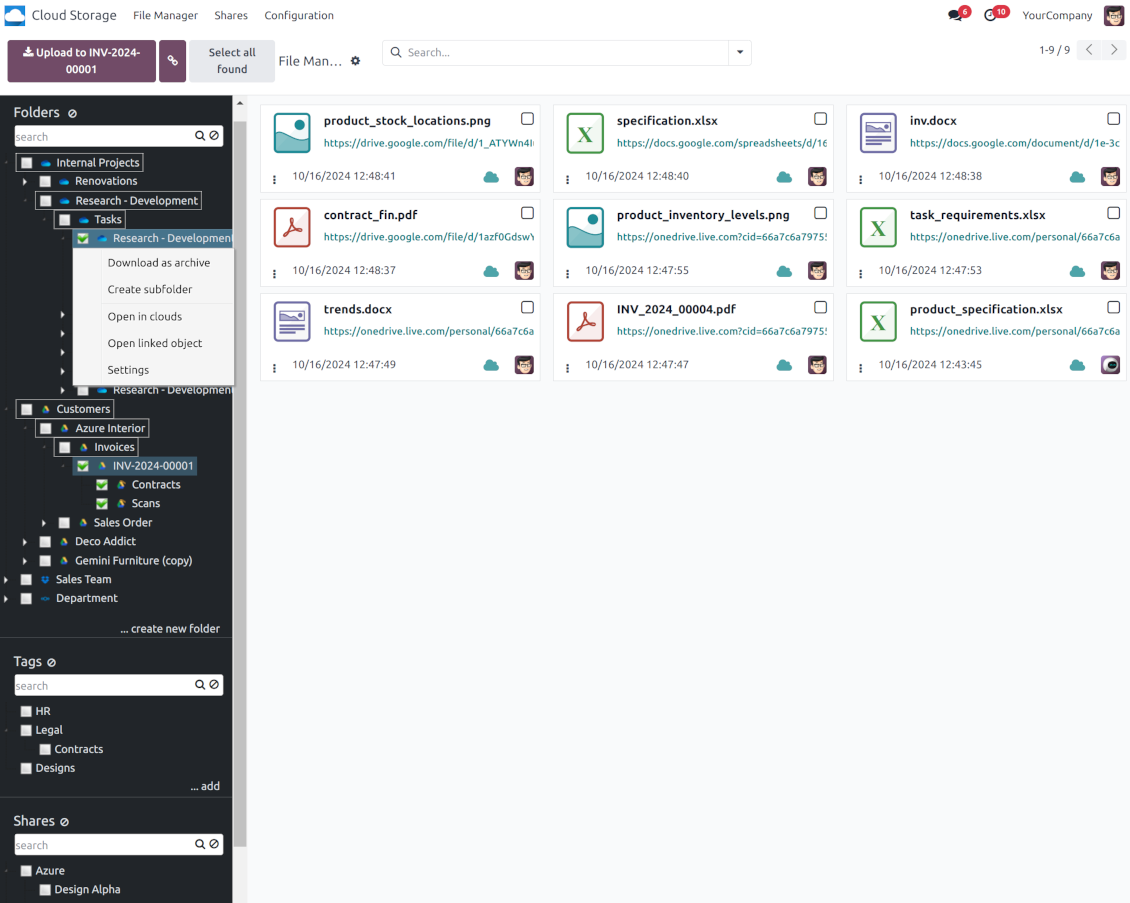
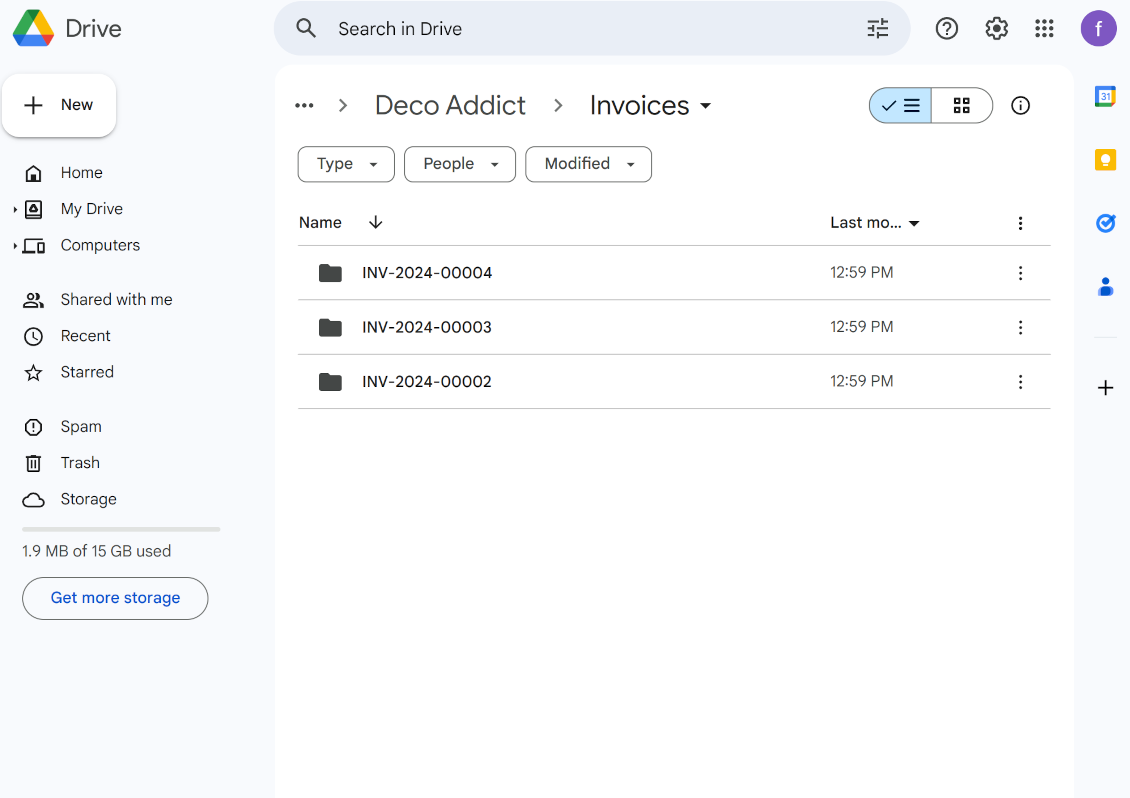
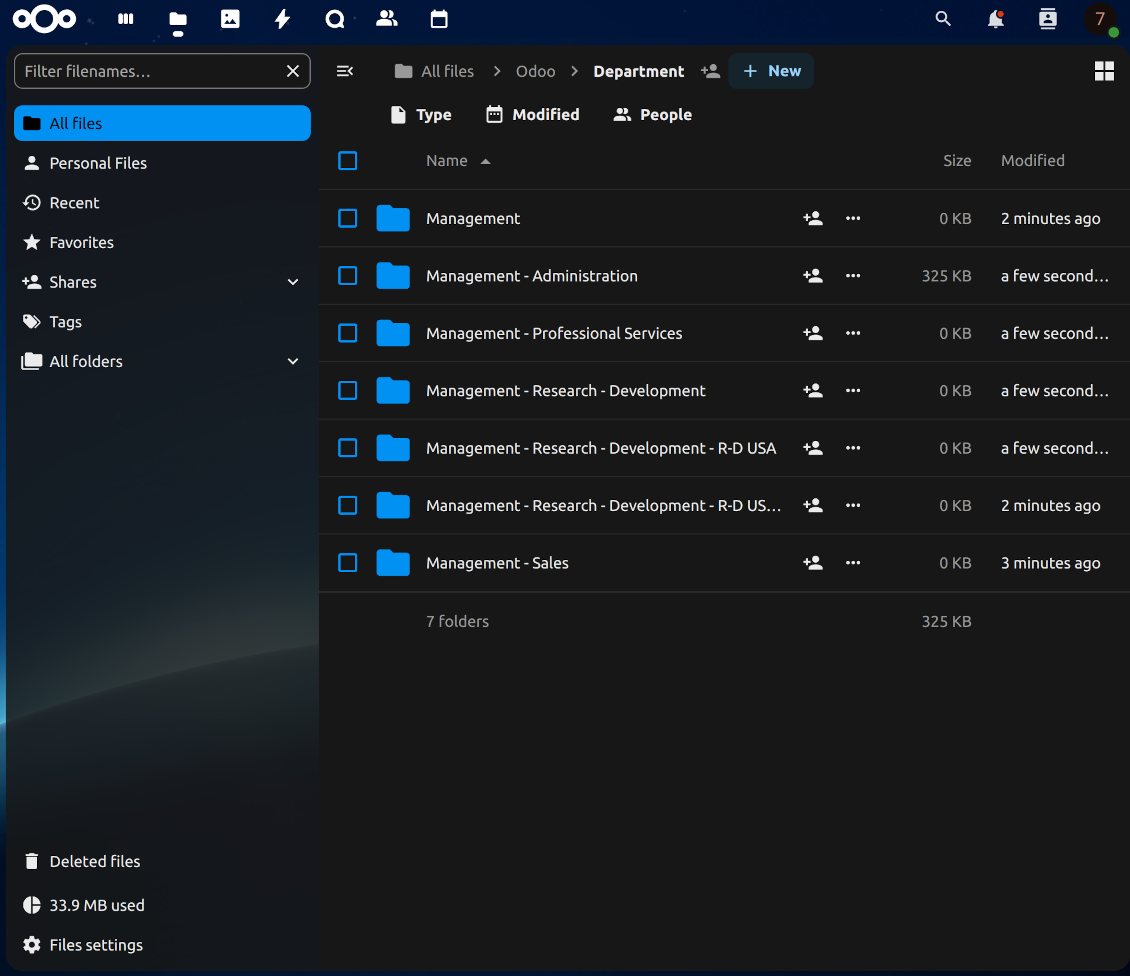
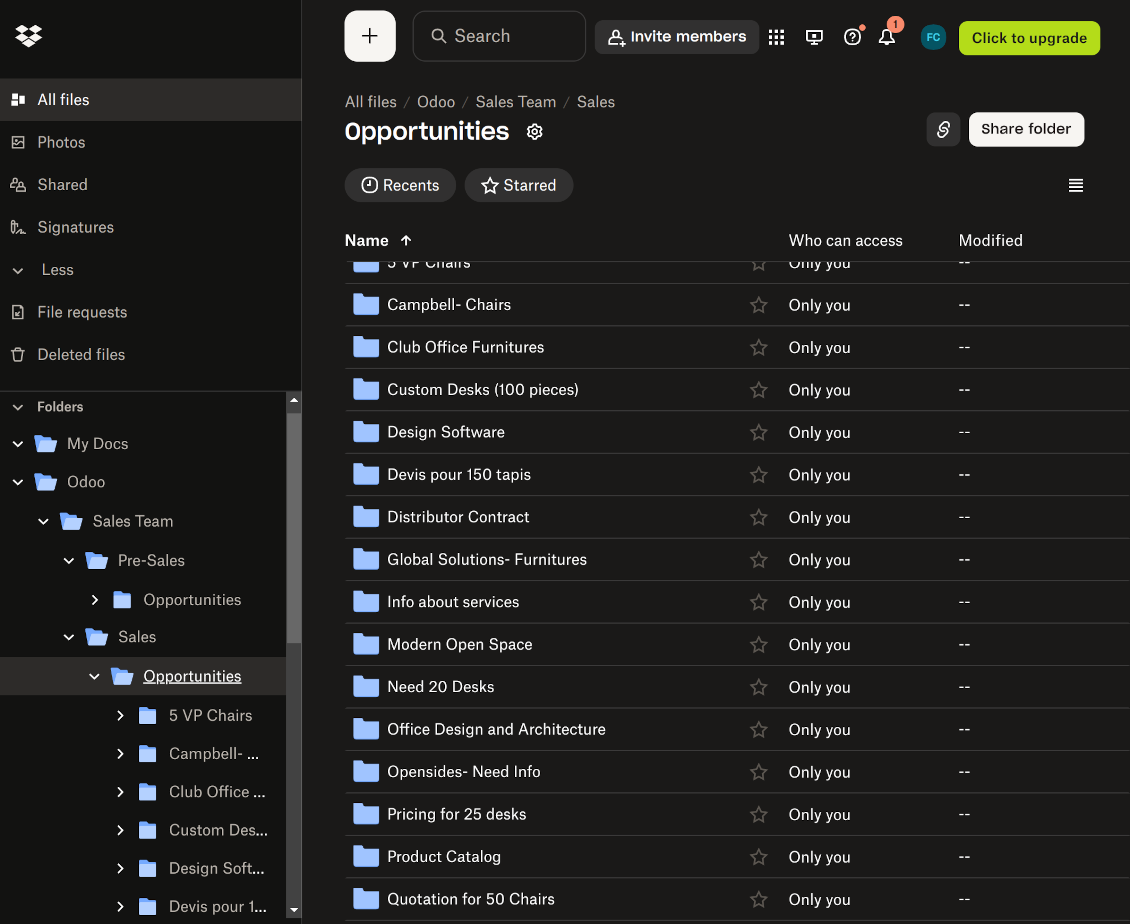
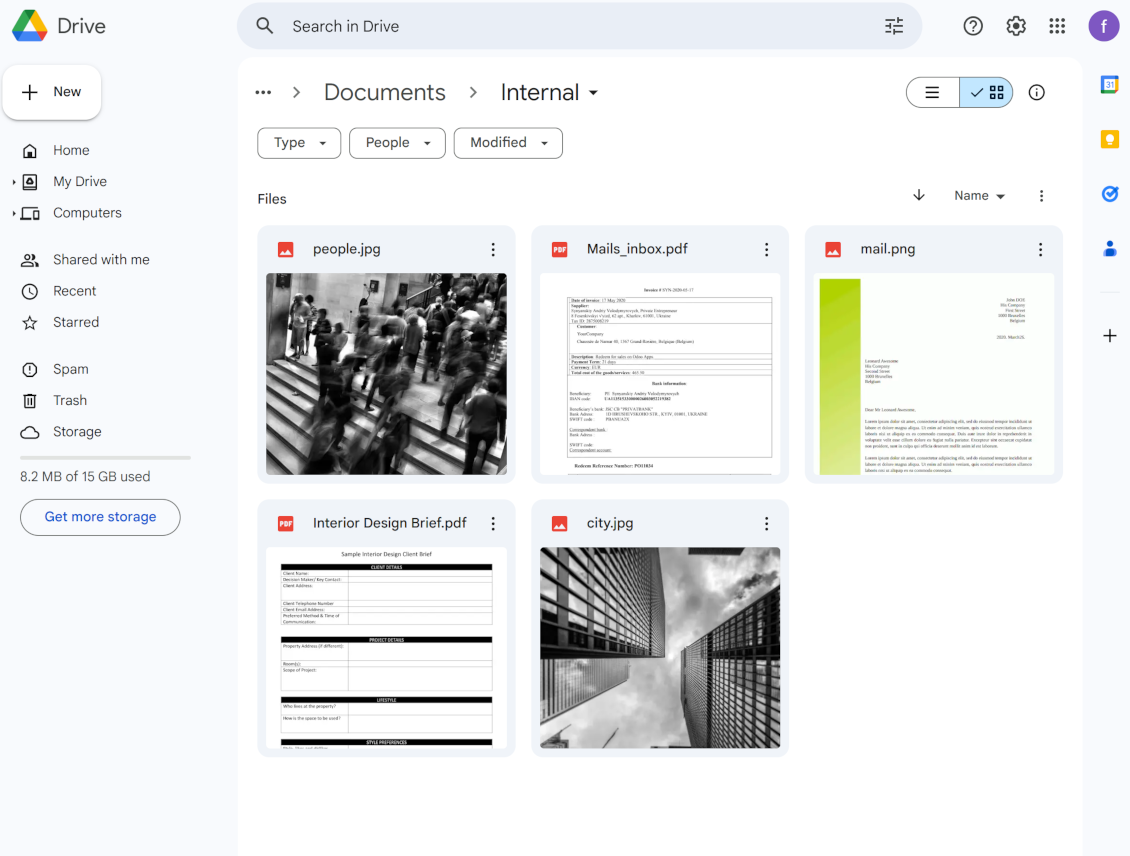
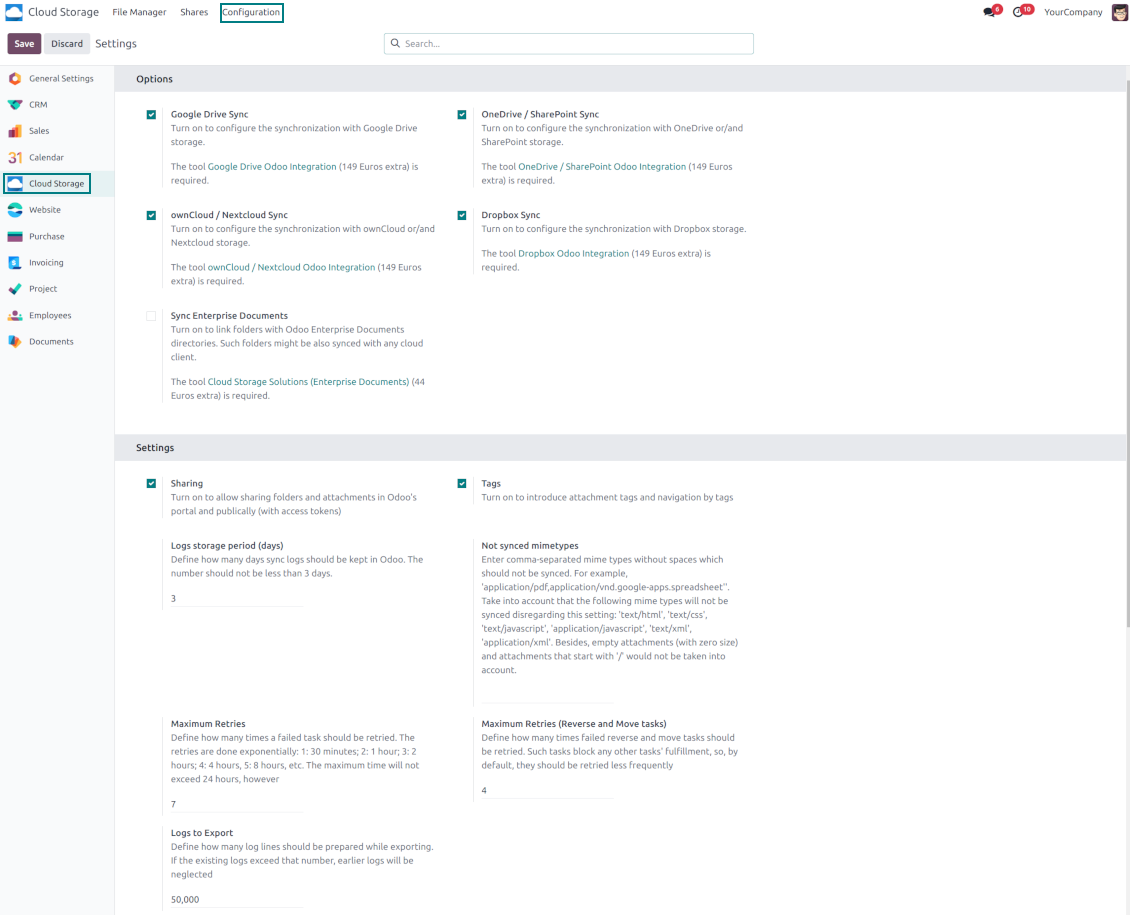

This tool organizes Odoo attachments in folders' trees and synchronizes those with your choice's cloud storage solution(s). The app introduces automatic algorithms to prepare directories for documents and integrate those with workflows of Google Drive, OneDrive/SharePoint, Nextcloud/ownCloud, Dropbox, Amazon/MinIO S3, Box, and NAS/WebDAV (Synology, QNAP, TrueNAS, etc.).
- the core module which introduces the file manager interface and basic mechanics for synchronizations with various cloud clients. 価格は 398€.
- Odoo のフォルダと添付ファイルを OneDrive および/または SharePoint と同期するコネクタ。このアドオンの機能はアイコン で示されます。 価格は 89€.
- Odoo のフォルダと添付ファイルを Google Drive と同期するコネクタです。 このアドオンが担当する機能はアイコン で示されます。 価格は 89€.
- Odoo のフォルダと添付ファイルを Amazon S3 と同期するコネクタです。 このアドオンが担当する機能はアイコン で示されます。 価格は 89€.
- Odoo のフォルダと添付ファイルを Nextcloud および/または ownCloud と同期するコネクタ。このアドオンの機能はアイコン で示されます。 価格は 89€.
- Odoo のフォルダと添付ファイルを NAS ソリューション(Synology、QNAP、TrueNAS)および汎用 WebDAV ストレージと同期するコネクタ。このアドオンの機能はアイコン で示されます。 価格は 89€.
- Odoo のフォルダと添付ファイルを Dropbox と同期するコネクタです。 このアドオンが担当する機能はアイコン で示されます。 価格は 89€.
- Odoo のフォルダと添付ファイルを Box と同期するコネクタです。 このアドオンが担当する機能はアイコン で示されます。 価格は 89€.
- ワークスペース関連フォルダを用意し、Enterprise アプリ「Documents」が導入する Odoo ドキュメントをクラウドと同期するオプションのアドオンです。 このアドオンが担当する機能はアイコン で示されます。 価格は 44€.
Automatic Folders
Decide which Odoo document types should have their folder trees. Directories are regularly updated based on flexible rules and existing Odoo objects
Sync with Cloud Storage Solutions
Synchronize chosen folders and files with specific cloud storage: Google Drive, OneDrive, SharePoint, Nextcloud, Dropbox, Amazon, Box, MinIO S3, NAS/WebDAV (Synology, QNAP, TrueNAS, etc.), and ownCloud. Have as many connections as you need
File Manager Interface
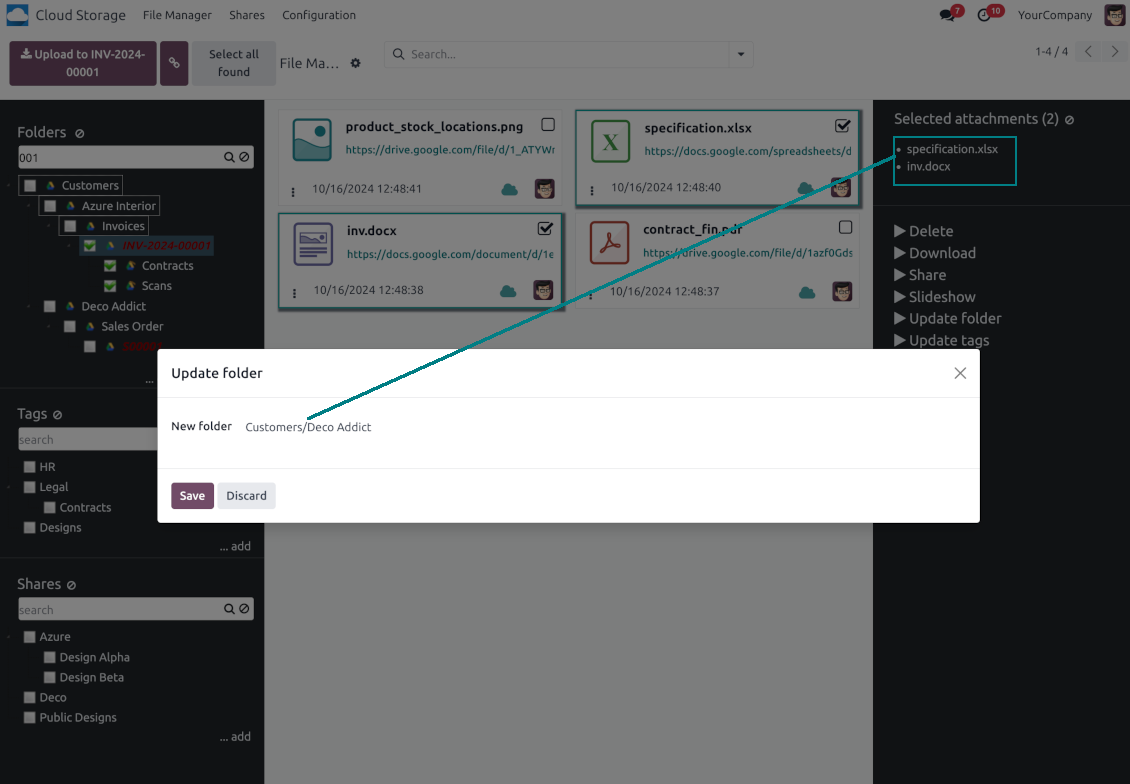
Manage folders and attachments from a single view. Comfortably navigate by directories and tags. Search and download files one by one or in a batch. Upload and move attachments
Enhanced Attachment Box
Organize files of any Odoo object in a set of subfolders. Instantly access folders and files in the attachment box and in synced cloud interfaces
Portal Sharing
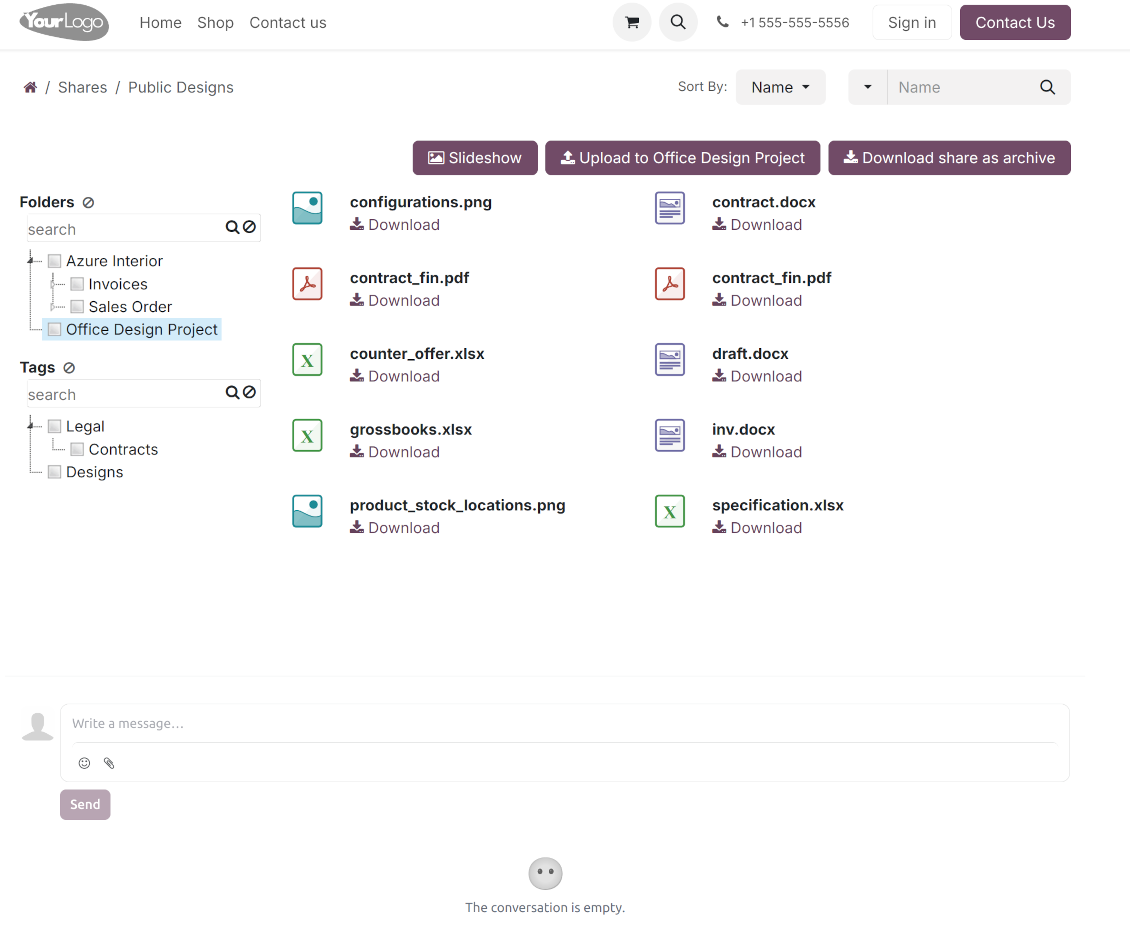
Share files, directories, and tags with particular partners or with an access URL. Let users download whole shares and separate items, upload attachments, and add folders or tags
Enterprise documents compatible
Set up rules to prepare folders based on Odoo Enterprise workspaces. All features, including sharing, downloading, and signing, will work even after the sync
Automatic Regular Sync
Rely on auto-synchronization between Odoo and cloud solutions based on scheduled jobs. No manual interaction is required
Bilateral Sync
Odoo sends attachments to cloud storage solutions and retrieves files from there. Binary content is kept in clouds, while Odoo provides direct access to synced items
Excellent
We have been using Cloud Storage Solutions for a few years already, starting with Odoo 17 mostly because our attachments were a mess. Now we're moving to Odoo 20, and we've surely decided to keep using the app. The File Manager is great for finding a file by folder or tag instead of remembering which sales order it was attached to. And the attachment box on contacts and projects shows the same folders, which lets us avoid excess clicks.
The folder rules are the part I keep showing people: new customer and project folders just appear, with the sub-folders we set up once, and everything lands in our Google Drive through the connector. We also use sharing a folder with our external partners, which is often especially efficient for tasks.
Big thanks to the team too. I asked a lot of questions about the sync and the access rights initially and now during the switch, and every answer came back fast. Really felt like they wanted it to work for us. Happy customer here.
Works well with SharePoint. Supportive team
We've been using this with SharePoint and it's been working great. One of the best things is having everything, including logs right in Odoo's interface, so you can actually see what's going on. It's also super convenient that you can view or download synced files from the attachment box without having to leave the page or even log in to Sharepoint.
Setup was pretty smooth for us. When we had a few questions about setting up the folder hierarchy and priorities, the developer team got back to us in just a couple of hours and helped us figure it out. Great support and great extension!
Tricky setup, but works perfectly now
Really solid module. We managed to get a very flexible folder structure (sorted by clients) and synced all our sales orders, invoices and tasks by projects to Google Drive.
Initial setup was a bit of a pain and kinda tricky to configure everything at first, but now it's running smoothly and works perfectly. The faotools team helped a lot. Def worth it if u need to keep your docs organized in Odoo and Google Drive.
Recommended!
Great support, assistance and very good connector!
We are very happy with the support we received when configuring the Sharepoint - Odoo connector. The connector has great functionalities.
All our questions were answered very fast (within one day).
FaOtools helped us optimising our connector and assisted us with future improvements.
We really recommend this connector.
Great module and Great Support!
The module works great! and the support is phenomenal!
A must-buy if it suits your requirements!
very professional app, excellen t customer service
This app is very well programmed and does its job very well. But the best is the excellent customer service who also helps when the problem lies somewhere else. You receive a lot for your money.
Excellent !!!
Great App and great Service from faOtools.
An impressive app and world-class support
I have been very impressed by the way the OneDrive / SharePoint Odoo Integration module synchronises content in both directions and allows me to share documents in Odoo with my SharePoint site. Above all the technical support is top-notch, which greatly increases the value of this product. I highly recommend this product for anyone considering synchronising Odoo with SharePoint/OneDrive.
Very good product
A perfect solution to integrate Owncloud with Odoo. We sync a high volume of objects across multiple Odoo models, which works seamless and stable. For us it is the perfect solution to have an external DMS instead of the Odoo native attachment handling, which also enables us to interchange files between systems in our best-of-breed setup.
The team behind this module is extremely professional and responsive. They helped us on a few occasions and provided clear answers and prompt support when required, and they even went out of their way to assist us with another requirement we had. Cannot recommend the product and team highly enough, try this if you're in the market to connect Odoo with an external document solution.
Works fine, good support
The first experience with the module is excellent. I had some trouble to configure things right on the Microsoft-side, but the team provided quick and good support.
Best module for integration with google drive
The module performs its function correctly and faOtools responds quickly to any problem and, in case of detecting any bug, quickly apply the changes. Its support is 10 stars.
Works according to specs
I have used this app with Odoo 12 and Nextcloud 16 and it works as specified. Odoo Tools offers very responsive support which is really helpful. Of course 5 stars...!
This is Awesome
I have used Cloud Sync on Next/Own Cloud and works really great.
Odooファイルマネージャーのインターフェイス
-
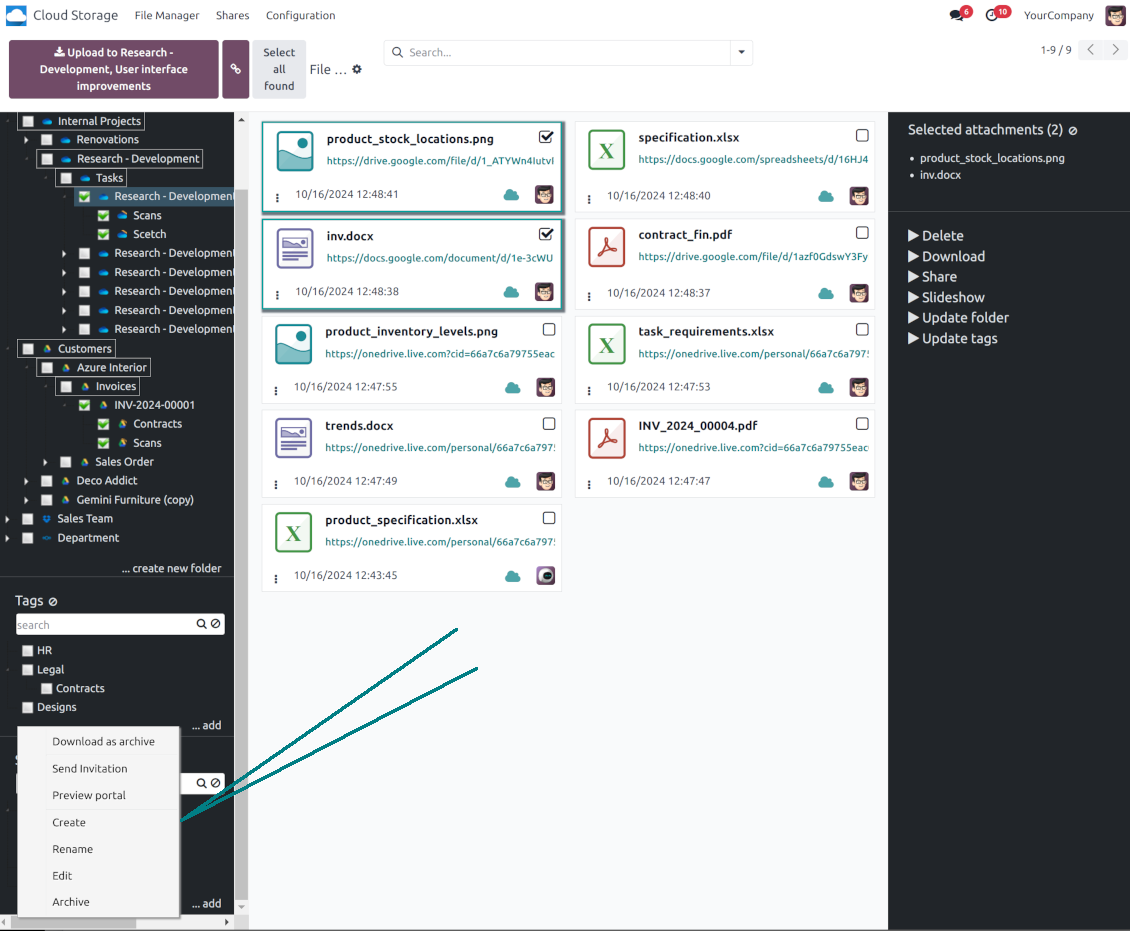
Navigate by folders: select a directory to show its attachments. Expand and hide folders' layers in a click. Add subfolders to any directory (right mouse click > Create subfolder)
-
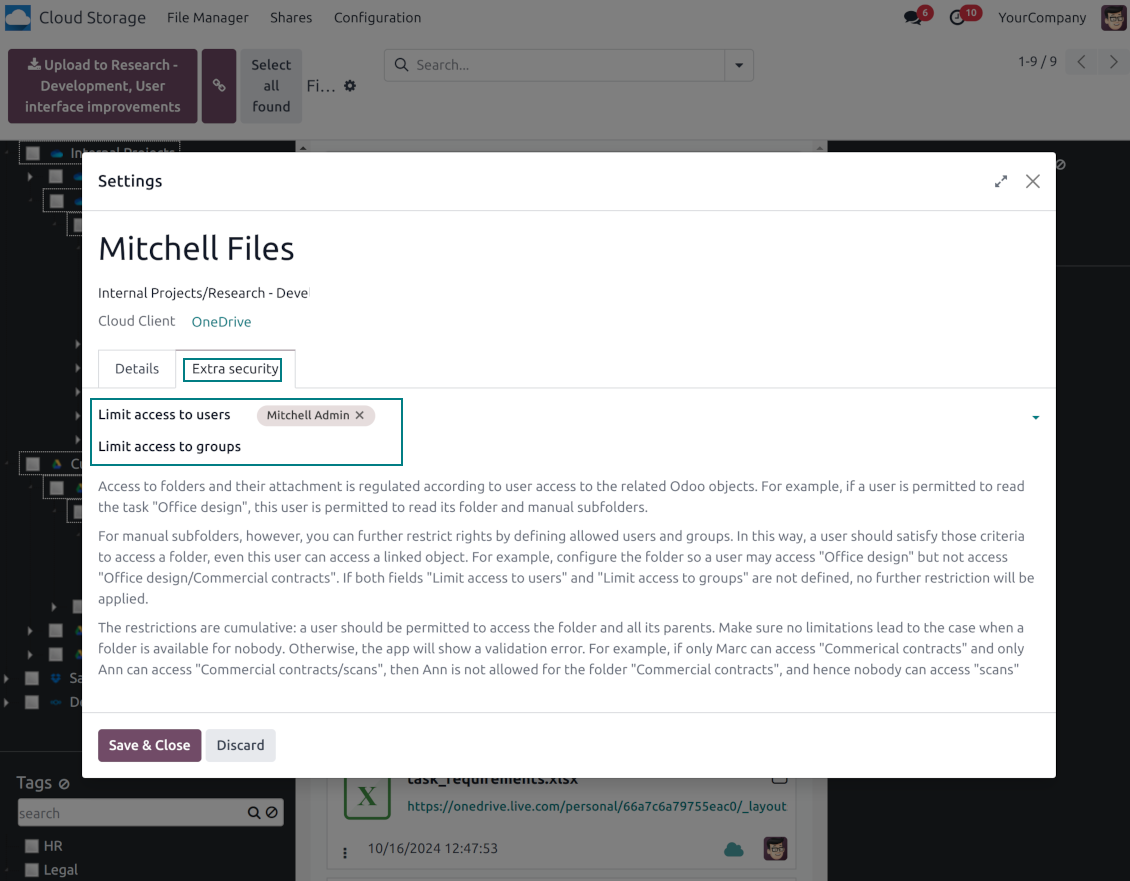
Open any synced folder in its cloud client (right mouse click > Open in clouds). Show a folder peer Odoo object if there is such a connection (right mouse click > Open linked object). Change settings of manually created folders, including granting access rights (right mouse click > Edit Settings)
-
Navigate by attachment tags. Create and edit tags right from the navigation panel
-
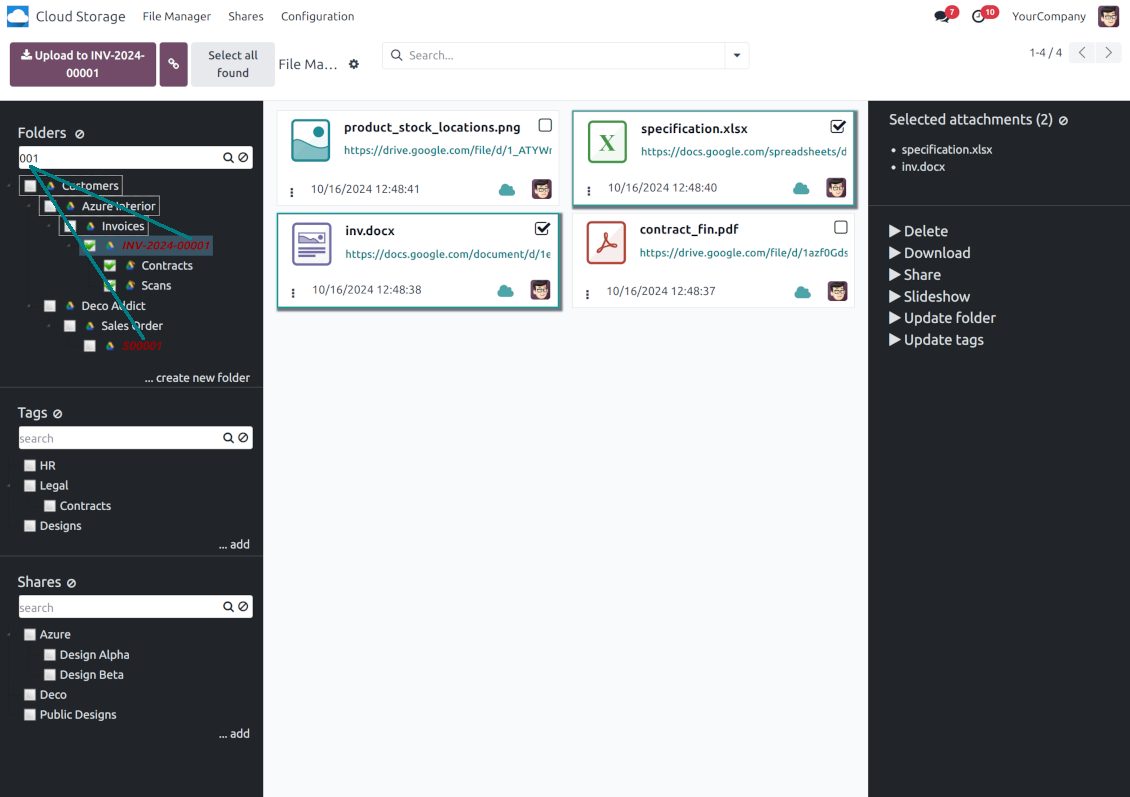
Search and highlight tags and folders in seconds even if there are thousands of items
-
Drag and drop to re-structure folders (relates only to manually created directories; for automatic folders change rules instead) and tags
-
Download any folder or any tag with all its attachments as a single zip archive (right mouse click > Download as archive)
-
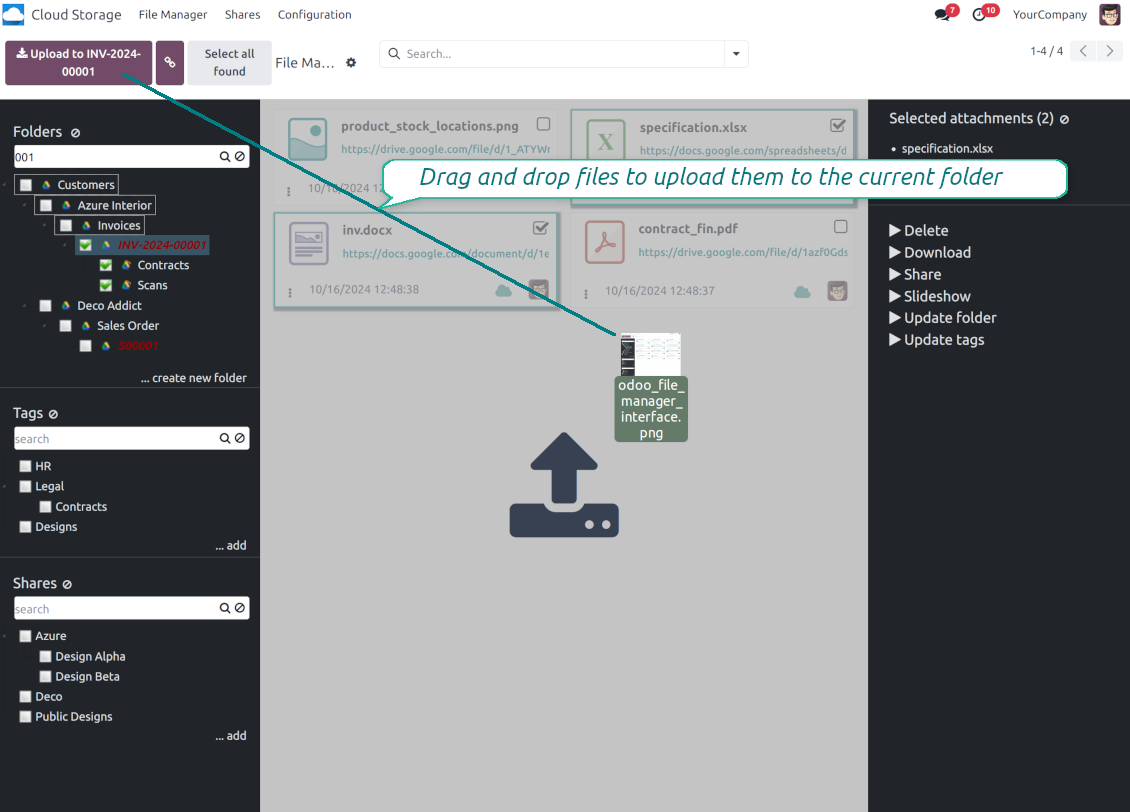
Upload attachments to the current folder. Use the top header button 'Upload file' or drag and drop files
-
Instantly open any synced attachment in a linked cloud client (push the link in the middle of attachment cards)
-
Download any attachment to your local computer disregarding whether it is synced or not (push the icon 'cloud' or 'download' in the footer right corner)
-
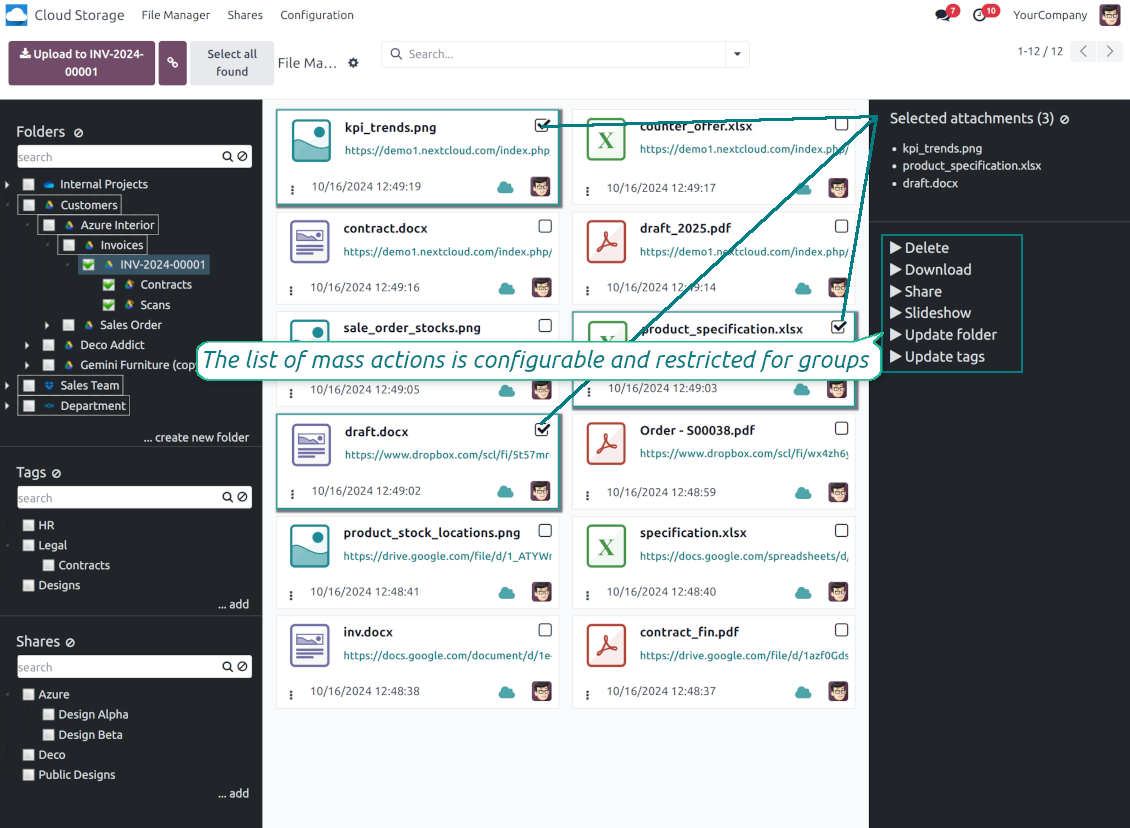
Consequentially select attachments and download them as a single zip archive
-
Move any files to any folder, including re-attaching items between Odoo objects (e.g. from a sale order SO-001 to another quotation or its customer folder). Use the mass action for that end or just drop an attachment to a required directory. Update attachments' tags by dragging those to the left navigation panel or by executing the mass action. Delete attachments in a batch
-
Apply standard attachments search to find required files.
Enhanced Attachment Box
-
Any Odoo object might be linked to its folder. See Automatic folders' structure
-
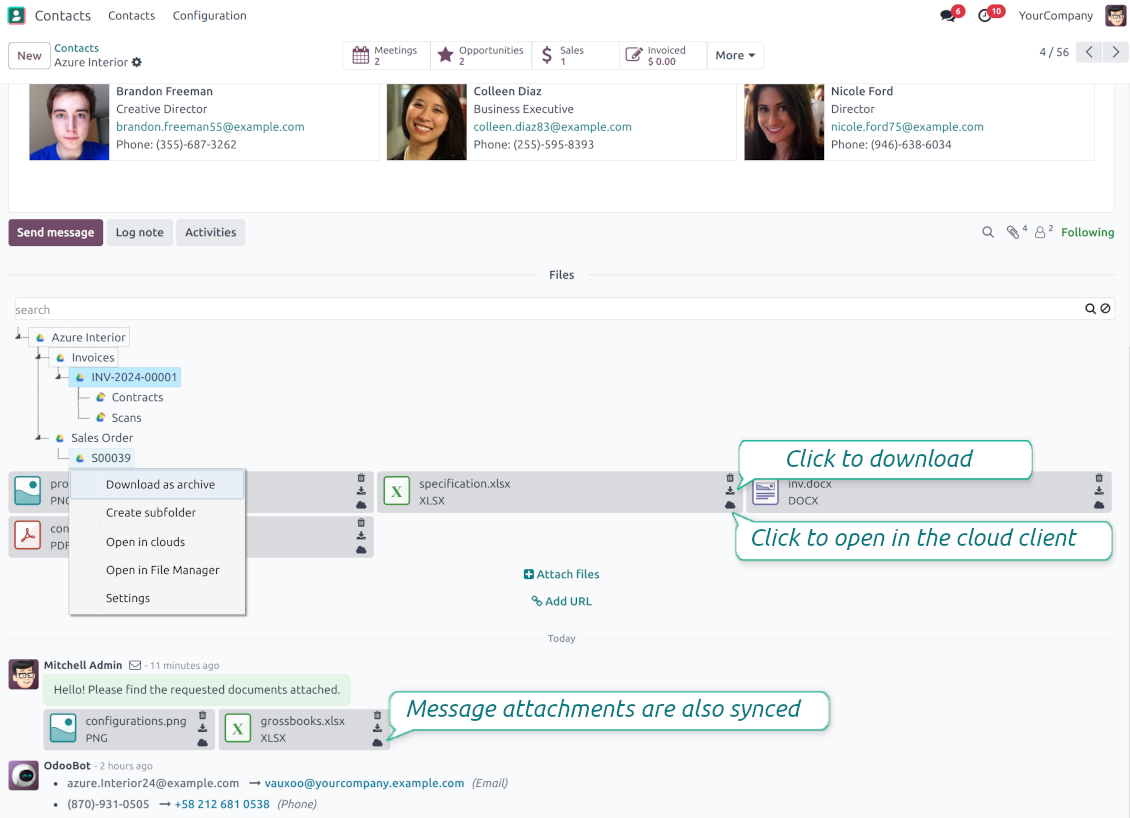
Flexibly define subfolders to organize the structure you need (right mouse click > Create subfolder)
-
Drag and drop to re-structure subfolders
-
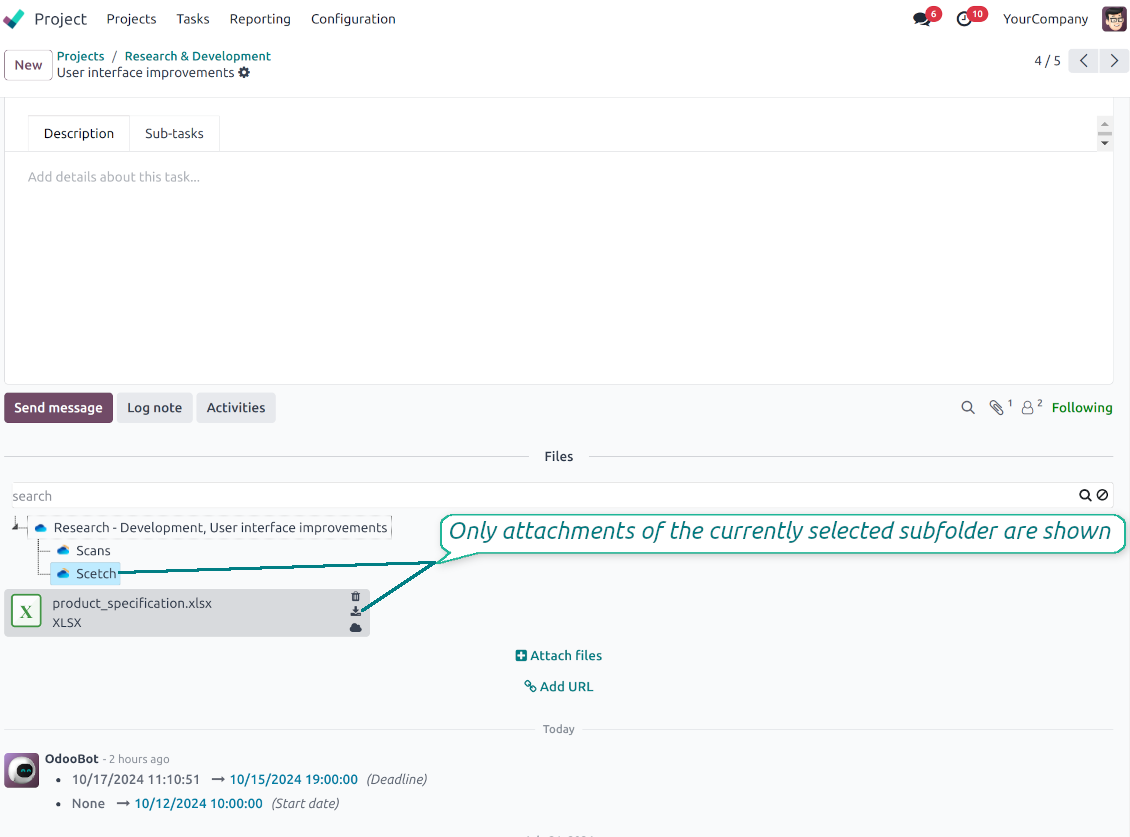
Select a folder to see its attachments. By default, files of the object root directory are shown
-
Download any folder with all attachments as a single zip archive (right mouse click > Download as archive)
-
Open the already synced folder in its cloud client (right mouse click > Open in clouds)
-
Upload attachment to a chosen folder (use the button 'Add attachments' or drag files to the attachment box area)
-
Instantly open any synced attachment in a linked cloud client (push the icon 'clouds')
-
Download any attachment to your local computer disregarding whether it is synced or not (push the icon 'download')
-
Use standard Odoo preview for both synced and local files (click on a file thumbnail)
-
Delete attachments as usual
-
All actions are equally applicable to object attachments and attachments related to messages.
Cloud Storage の同期
Multi synchronization
-
Use optional add-ons to synchronize the document management system with the cloud client(s) of your choice: Google Drive, OneDrive, SharePoint, Nextcloud, Dropbox, Amazon, Box, MinIO S3, NAS/WebDAV (Synology, QNAP, TrueNAS, etc.), and ownCloud. Have as many connections as you need
-
Establish multiple connections to different cloud clients simultaneously. For example, sync sales-related folders to Google Drive; tasks and projects - to SharePoint or OneDrive; HR documents - to Nextcloud/ownCloud; manufacturing specifications - to Dropbox. Take into account that a specific folder might be synced to only a single cloud storage solution. Its children would be synced to the same client
-
For each cloud client, the app lets set up a few instances. For example, for Google Drive, you may share some folders to your personal drive, others - to one of your team drives, and the rest - to your teammate's drive
-
To establish a connection with particular cloud storage, follow the instructions that are specific for client types. See the tab Configuration for details
-
Any connection might be paused manually if it is needed. It might be also auto-stopped if there are critical issues during the sync. Then, you should re-connect to a target cloud client
Cloud clients
-
Synchronization for all cloud clients is based on the same principles and on the same queue. Simultaneously, there might be differences in sync results due to different features of various cloud storage solutions
-
Establishing connections for different types of cloud clients assumes installing optional add-ons, different approaches for Odoo, and external API configuration. Follow the instructions on the tab 'Guidelines'
-
Google Drive Odoo Integration allows establishing a connection with any personal or team drive
-
OneDrive / SharePoint Odoo Integration assumes synchronization with any drive of personal/business/SharePoint tariffs
-
ownCloud/Nextcloud Odoo Integration et integrate Odoo with any instances of ownCloud and Nextcloud. In comparison to other clients, the app allows setting the type of attachment links. By default, Odoo links are internal: only authorized users may access them. Optionally make links public (the setting 'Use Public URLs'). See details on the guidelines tab
-
Dropbox Odoo Integration works for all DropBox tariffs, including Personal DropBox (Basic, Plus, Family) and business DropBox (Professional, Standard, Advanced). In comparison to other clients, the app allows choosing whether cloud items would be shared or internal. See details on the guidelines tab
-
Amazon S3 Odoo Integration (amazon_s3_odoo) synchronizes Odoo folders and attachments with Amazon S3 buckets
-
NAS/WebDAV Odoo Integration (nas_odoo) connects Odoo documents with NAS and WebDAV-compatible storage, including Synology, QNAP, and TrueNAS
-
Box Odoo Integration (box_odoo) synchronizes Odoo folders and attachments with Box cloud storage
Automatic two-sided sync
-
Integration is based on scheduled jobs and is fully automatized. The app regularly checks changes in systems and runs sync operations
-
Synchronization is bilateral. Updates in Odoo are reflected in cloud clients (direct sync); changes in cloud clients modify Odoo folders and attachments (backward sync)
-
同期を一方向にするには、クライアントでクラウドからの同期を無効にします。Odooの変更は引き続きクラウドストレージへ送られますが、そこで作成、名前変更、削除されたファイルとフォルダはOdooに反映されません。このオプションを再びオフにすると、削除を含む蓄積された変更が次回の同期で適用されます
-
Any cloud connection might be reset. In this way, the app assumes getting back all items back to Odoo (reverse sync)
-
Odoo folders and attachments might be re-attached to a new cloud client. Hence, items will be first taken back to Odoo (reverse sync) and then put will be put to the new cloud storage (direct sync)
Queue-based synchronization
-
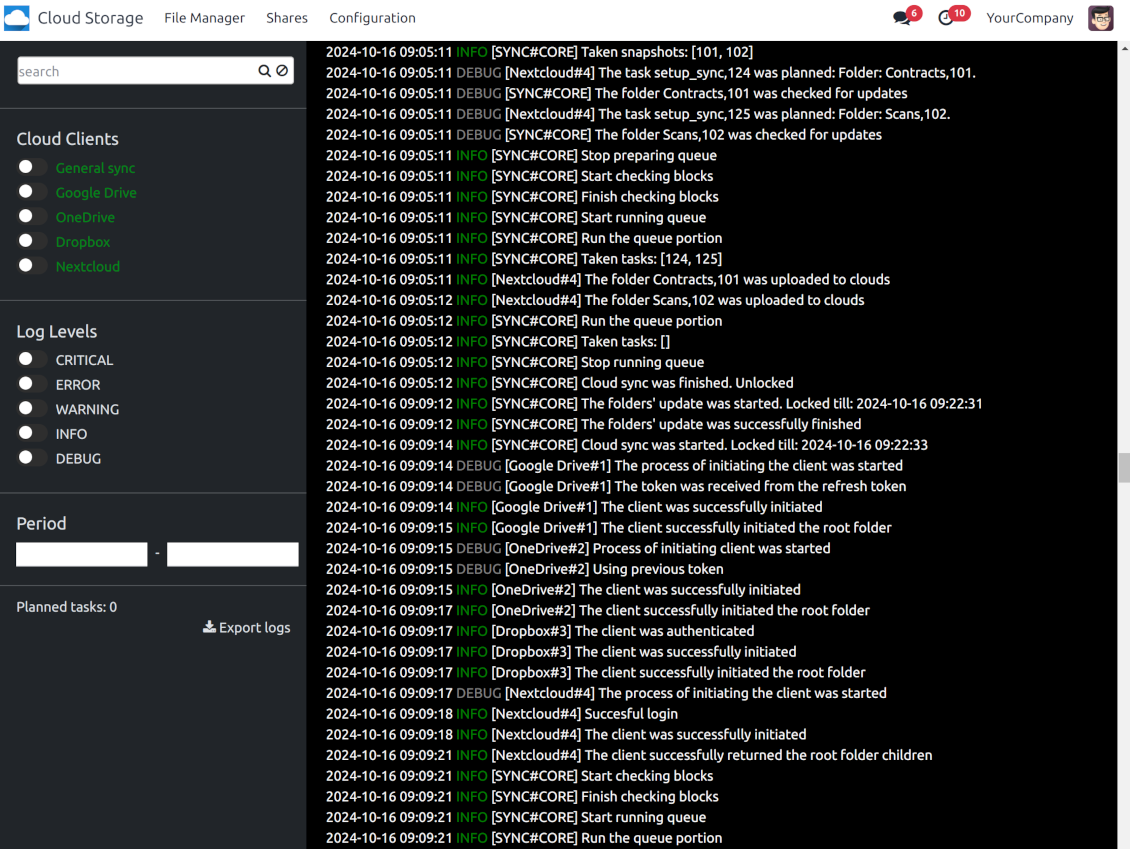
Once in 15 minutes, the app examines updates in Odoo and cloud storage(s) to prepare a synchronization queue
-
Folders' checks follow the First-In-First-Out (FIFO) principle. So, directories that have not been examined for the longest will be processed first
-
Once in 15 minutes, the sync queue is run by the special scheduled job. Firstly, the most important (blocking) tasks would be done
-
Control planned jobs and their fulfillment in the special Odoo logs interface (Cloud Storage > Configuration > Sync Logs). Subscribe for particular cloud clients notifications
-
If the app faces sync failures, it will re-try operations afterward. Sync queue processing would not be stopped if there are items not blocked by such failures
Odoo attachments for cloud storage: direct sync
-
Direct sync prepares the folders' hierarchy and uploads Odoo attachments for cloud storage
-
Direct sync checks whether attachments are added or deleted for synced directories. If so, they would be created or removed in cloud storage. In particular, it means that any file added to a folder-related Odoo object (e.g. Quotation), would be automatically moved to a linked cloud client
-
Direct sync makes all synced Odoo attachments change their type to a link (URL), while binary content is removed with one of the next Odoo cleaners. So, no actual files would be stored on your Odoo server
-
Direct sync checks whether a new folder is added. Disregarding whether it is done manually or automatically, the app would generate a peer directory in a cloud storage
-
Direct sync checks whether there are any updates in folders. If so, such changes are reflected in a cloud client
Cloud storage files and folders for Odoo: backward sync
-
Backward sync checks whether any files or subfolders are added to cloud storage folders. If so, the app would create URL attachments/subdirectories inside linked Odoo directories (and hence Odoo objects if any)
-
Backward sync checks whether there are any updates in folders or attachments. Such updates would be then reflected in Odoo
-
Backward sync checks whether any files are deleted/moved in a cloud document folder. If so, a linked Odoo attachment would be also unlinked or moved
-
If you deleted a cloud storage folder related to a folder rule / Odoo object, their child files would be deleted as well. Thus, Odoo would remove related attachments. The folders, however, will be recovered with a direct sync
-
In case of conflicts, direct sync changes are in general considered more important than backward updates.
Resetting or changing cloud client: reverse sync
-
In case you decided to reset the connection with a specific cloud client, files would be moved back to Odoo
-
クラウドストレージ上のコピーを唯一のコピーとして残すとき、または接続が切れているときは、クライアントで逆同期を無効にします。そのクライアントの切り離し、リセット、無効化ではファイルはダウンロードされず、クラウドストレージの何も削除されません。Odooのオブジェクトとクラウド上の項目との接続は切れます。保存したリンクは引き続きクラウドストレージでファイルを開きますが、Odooはそれらのフォルダとファイルをダウンロード、プレビュー、オープンできなくなります。この接続は復元できません
-
In case you decided to change the cloud client of a folder rule or a folder, files would be first taken back to Odoo, and then direct sync for a new client would be done
-
Reverse sync operations are prioritized to direct and backward sync operations
-
Not all items can be correctly reversed to Odoo due to cloud client peculiarities. For example, there are documents that may exist only in cloud storage environments (e.g. Google Sheets). The app would try to convert such documents, but in some cases, it would require manual interactions.
Automatic Folder Structure
Rules for automatic folders
-
The app allows preparing its own folder for any Odoo object
-
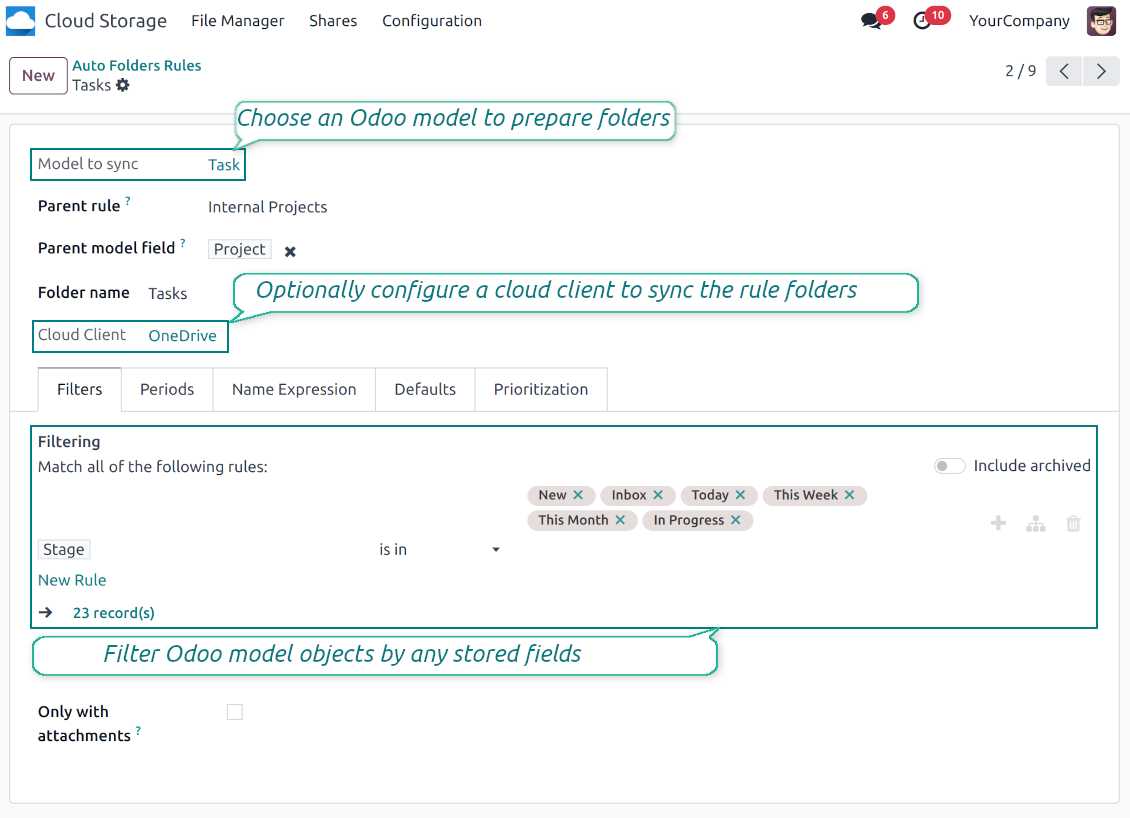
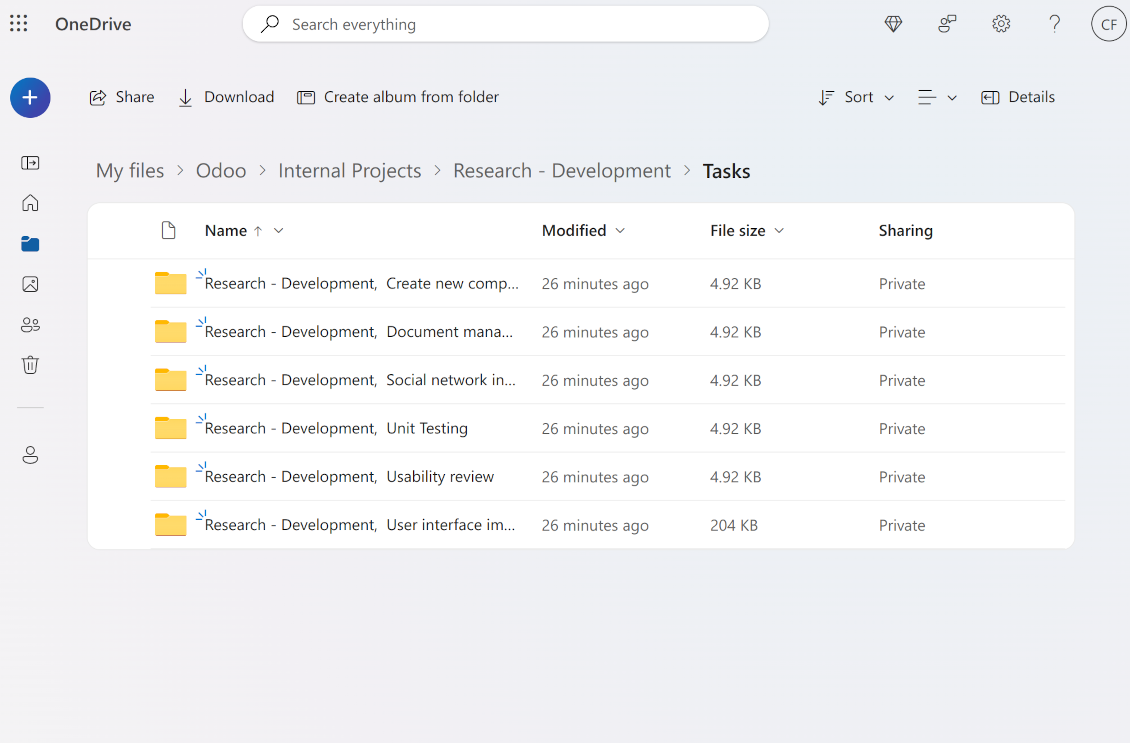
To configure a particular Odoo document type to generate a folder, you should just prepare a new folder rule (Cloud Storage > Configuration > Folder rules). For example, select the model 'Task' to make Odoo add a folder for each project task, so Tasks > Task 1, Task 2, ...
-
Automatically created directories would contain all attachments their linked objects have
-
Folders are updated regularly based on the scheduled job
Multi directories for each model
-
Each Odoo model might have a few linked folders
-
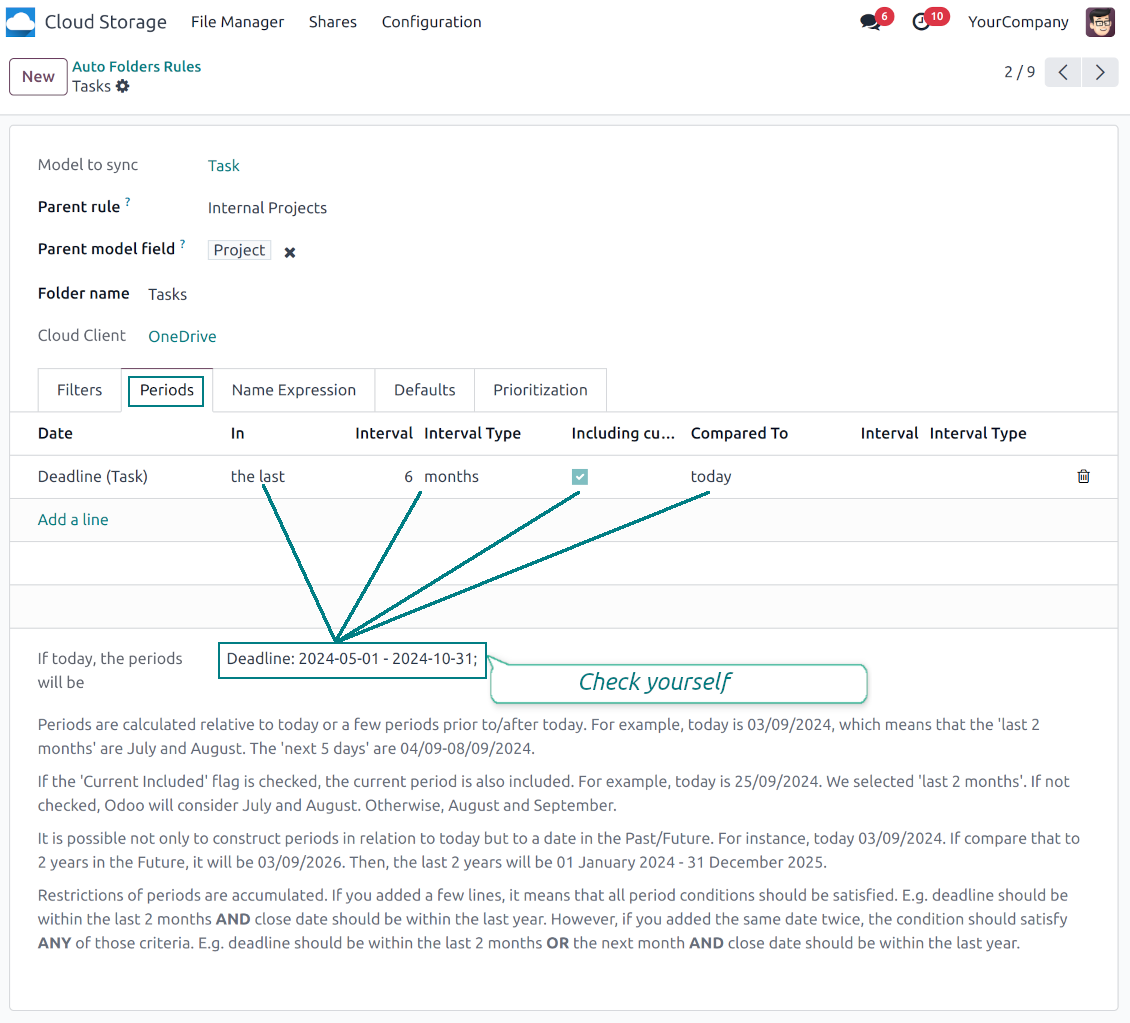
Apply any model storable field to filter Odoo objects and, in this way, split objects into a few super directories. For example, have own folders for individuals and companies, for European and American opportunities, for quotations and confirmed orders, for each project
-
Filter Odoo objects by relative periods by applying date fields of linked documents. For example, leads registered in the last 3 months or invoices updated in the last week
-
As a result, the app lets have paths like 'Odoo > Quotations Europe > SO-001' or ' Odoo > the last year posted invoices (America) > SO-001'
Flexible folders' tree
-
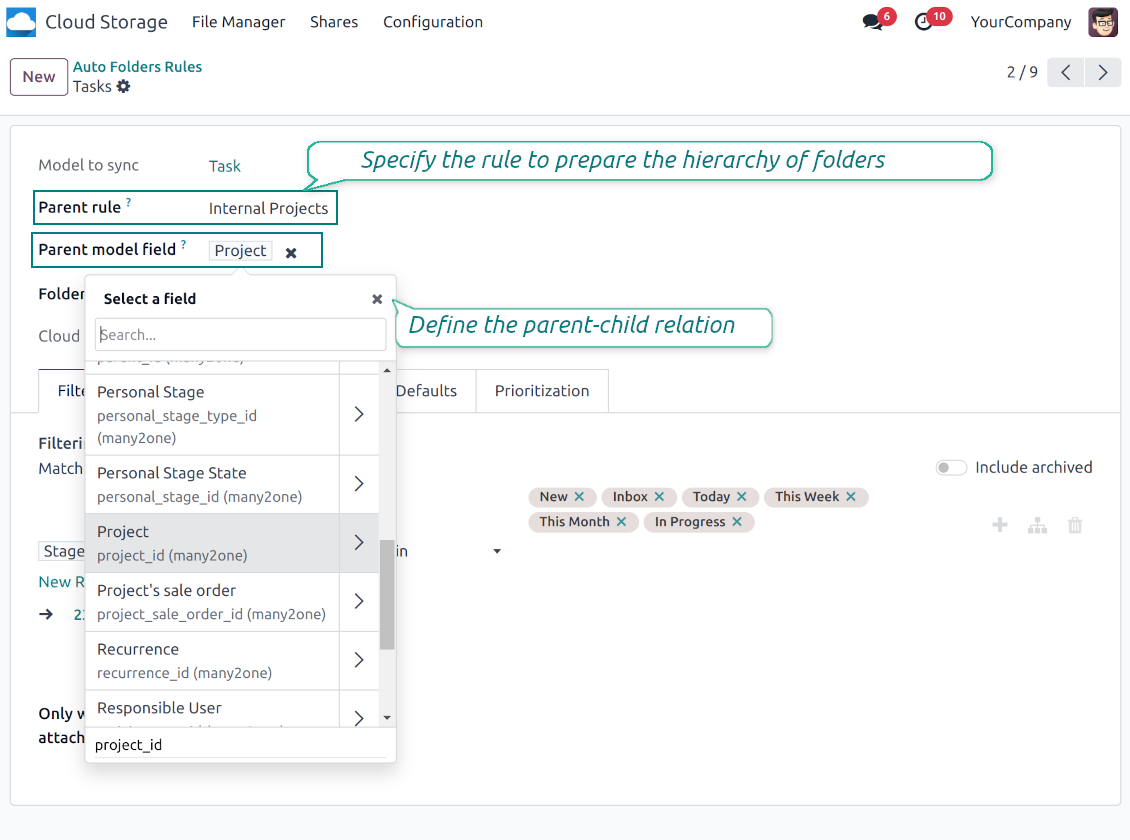
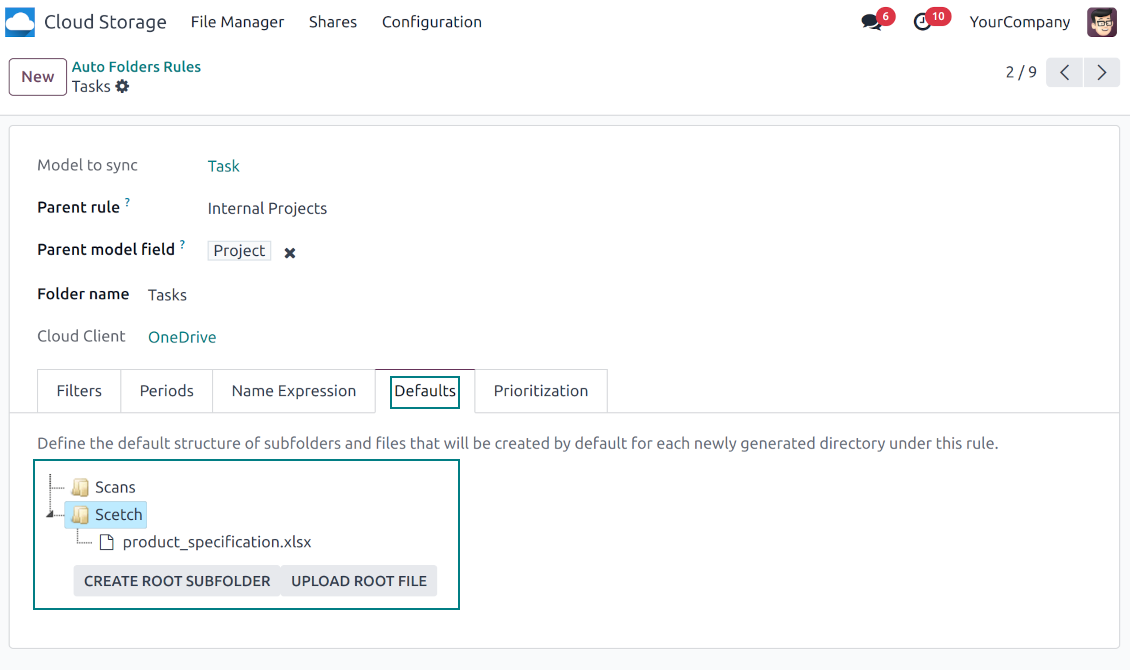
It is possible to set up a hierarchy of folder rules to prepare a more flexible directories structure
-
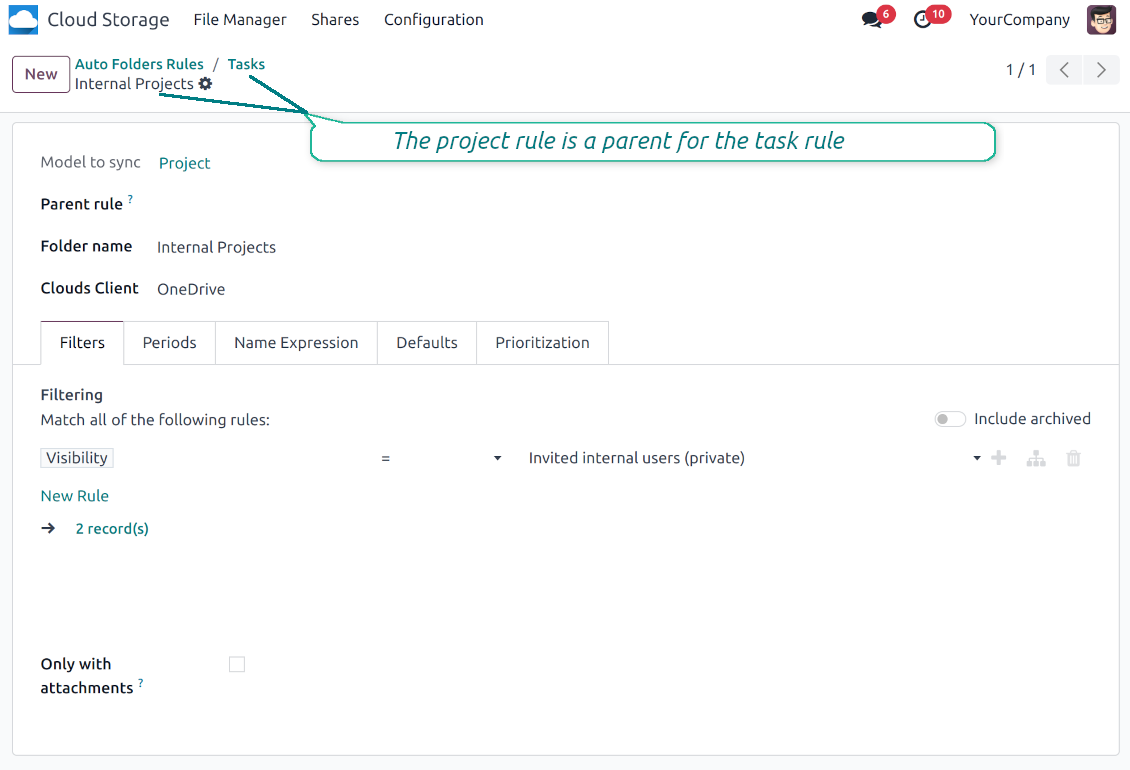
To that goal define a parent rule for a required folder configuration. For example, use a project-related rule as a parent for a task-related rule, a customer-related rule - for invoices-related rules
-
In order for folder relations to work correctly, it is also needed to enter a parent model field. So, it is the field that links models between each other (many2one relation). For example, 'Project' of a task, 'Customer' of a sales order, or 'Sales Team' of an opportunity
-
As a result, the tool allows reflecting your Odoo workflow logic and have paths like 'Odoo > Customers > Azure Interior > Projects > Software Design > Prepare Specification' and 'Odoo > Customers > Azure Interior > Quotations > SO-001'
Subfolders, default folders, and default files
-
The app lets add an unlimited number of manual subfolders for each folder. In particular, you may have a directories tree right in each object attachment box
-
For the first generation, it is possible to define default folders, so subdirectories would be auto-generated for a specific Odoo object folder. Afterward, you may add delete/edit those or add new ones
-
The same mechanics are applied to prepare default files. For example, to have contract/personal card templates which then are assumed to be filled with real data
Configurable folder titles
-
Each folder rule assumes to generate a directory. Names for such directories are assigned right on a rule form. For example, introduce 'Jobs' for a task-related rule or 'HR' for employees' folders. By default, the Odoo model name would be used
-
For object-related folders, the names are generated based on the Odoo standard display names. So, if not defined the opposite, it would be the same title as you see in the Odoo form view header
-
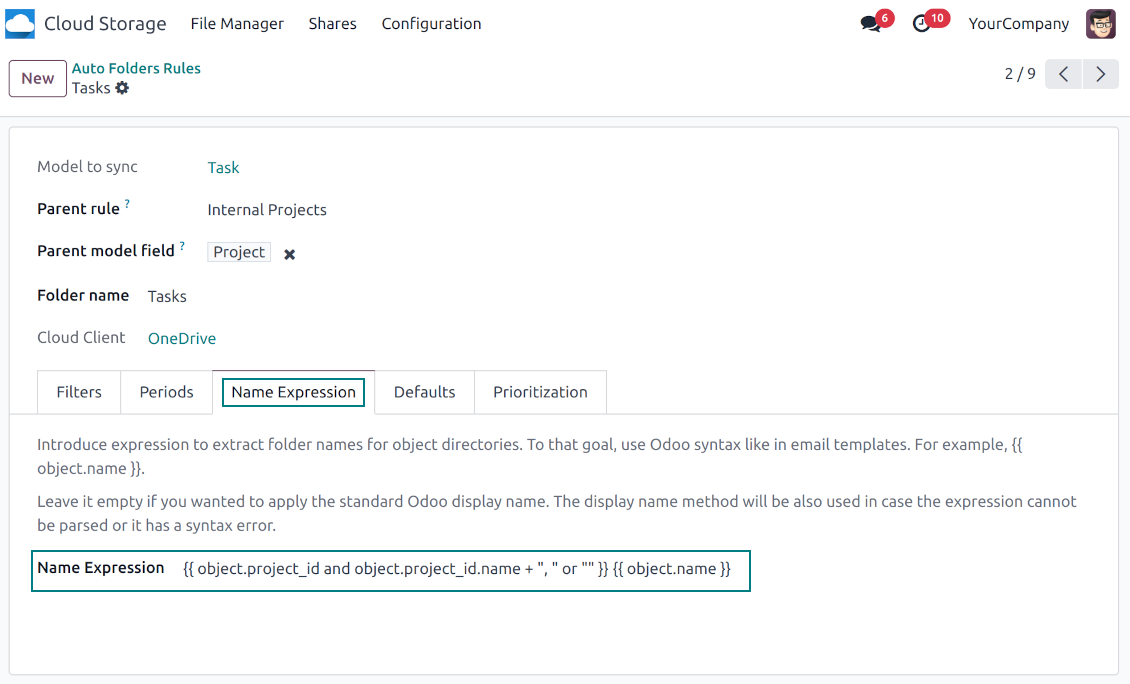
The app lets define complex name expressions for object-related folders (the tab 'Name Expression' on a folder rule form). To that goal, apply the syntax used in Odoo email templates. For example, {{ object.project_id.name }}, {{ object.name }} to reflect a project name in tasks folders
-
Avoid the following symbols in folders' and files' names: *, ?, ", ', :, <, >, /, +, %, !, @, \, /,. Direct sync will replace such symbols with '-'. It is done to avoid conflicts with file systems. Avoid also too long names: e.g. more than 100 symbols
Enterprise Documents
-
The app allows generating folders for workspaces introduced by the Odoo Enterprise apps 'Documents'
-
To force Odoo to prepare workspace-related directories, define folder rule(s) of the type 'Workspace-Related rule'. The tool would automatically create linked folders and sync those for chosen cloud storage with one of the next jobs
-
It is not obligatory to reflect the whole DMS structure. Thus, it is possible to filter workspaces by any storable field. For example, to add a folder only for workspaces that contain the keyword 'Internal'. Take into account: if a workspace was synced, all its child workspaces would be also synced
-
If you generated a subfolder for any workspace-related folder, the app would also create such a Documents workspace
Typical use cases
-
Customers: add all partner files in a single super directory. Optionally distinguish companies and individuals. For example, Odoo > Customers > Azure Interior > Contacts > John Brown
-
Sales orders and invoices: keep all sale-related printings and contracts in your own quotation directories for each customer. For example, Odoo > Customers > Azure Interior > Orders > SO-001 and Odoo > Customers > Azure Interior > Invoices > INV-00001
-
Opportunities: store all specifications, requirements, and any files which would let you make a good offer carefully structured by each sales team and case. For example, Odoo > Sale teams > Europe > Leads > Interest in 50 chairs
-
Project and tasks: prepare a folder for each customer project and task. For example, Odoo > Customers > Azure Interior > Projects > Software design > Tasks > Specification
-
Human resources: gather all files by each employee in a single folder: photos, document scans, contracts. Structure employees by department. For example, Odoo > Departments > Accounting department > Employees > Anita Olivier.
ファイルとフォルダの共有
-
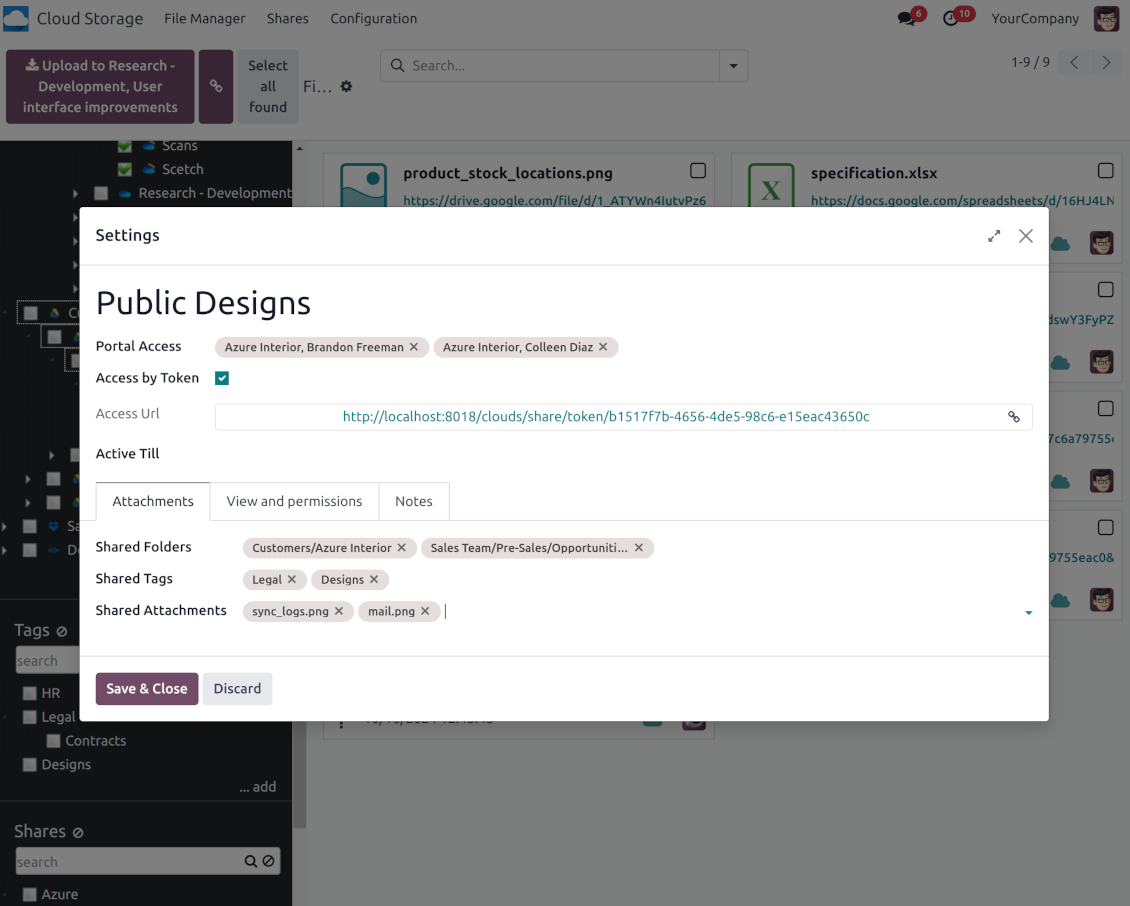
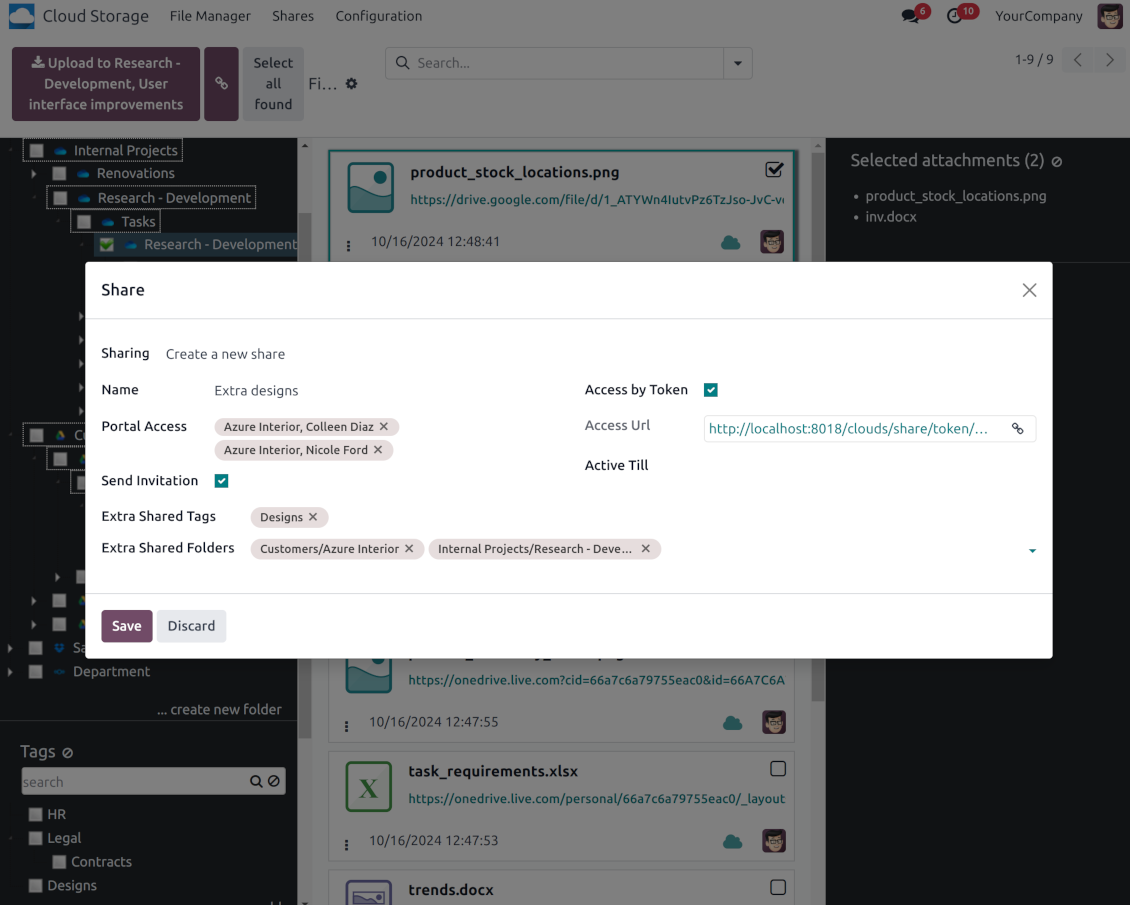
Share particular attachments, whole directories, or even all files of specific tags
-
Grant access to chosen Odoo contacts. Send an invitation to any Odoo portal users at any moment
-
Generate a special access link for public use (even without a user). Change it to make the previous one outdated
-
Make shares for temporary use or available constantly until archived
-
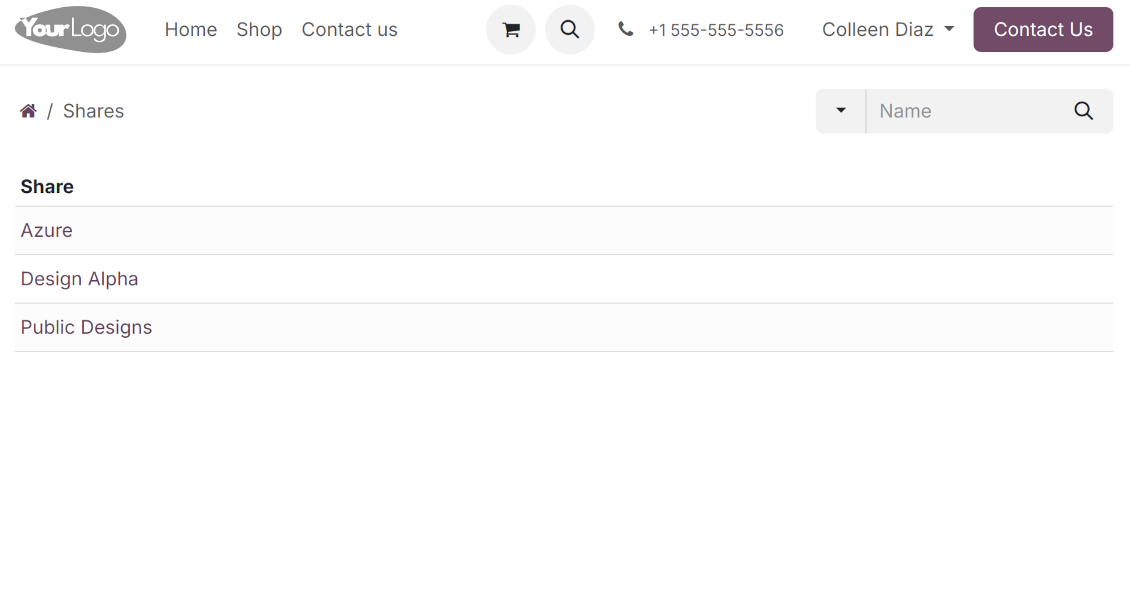
Create an unlimited number of shares with any setups and attachments involved. Portal users might access those through the special entry "Shares" in the Odoo's portal
-
For single-view purposes, shares support hierarchy so as to make comfortable navigation by those
-
Share users can download any shared file, a whole share, a particular directory, or a tag as a ZIP archive
-
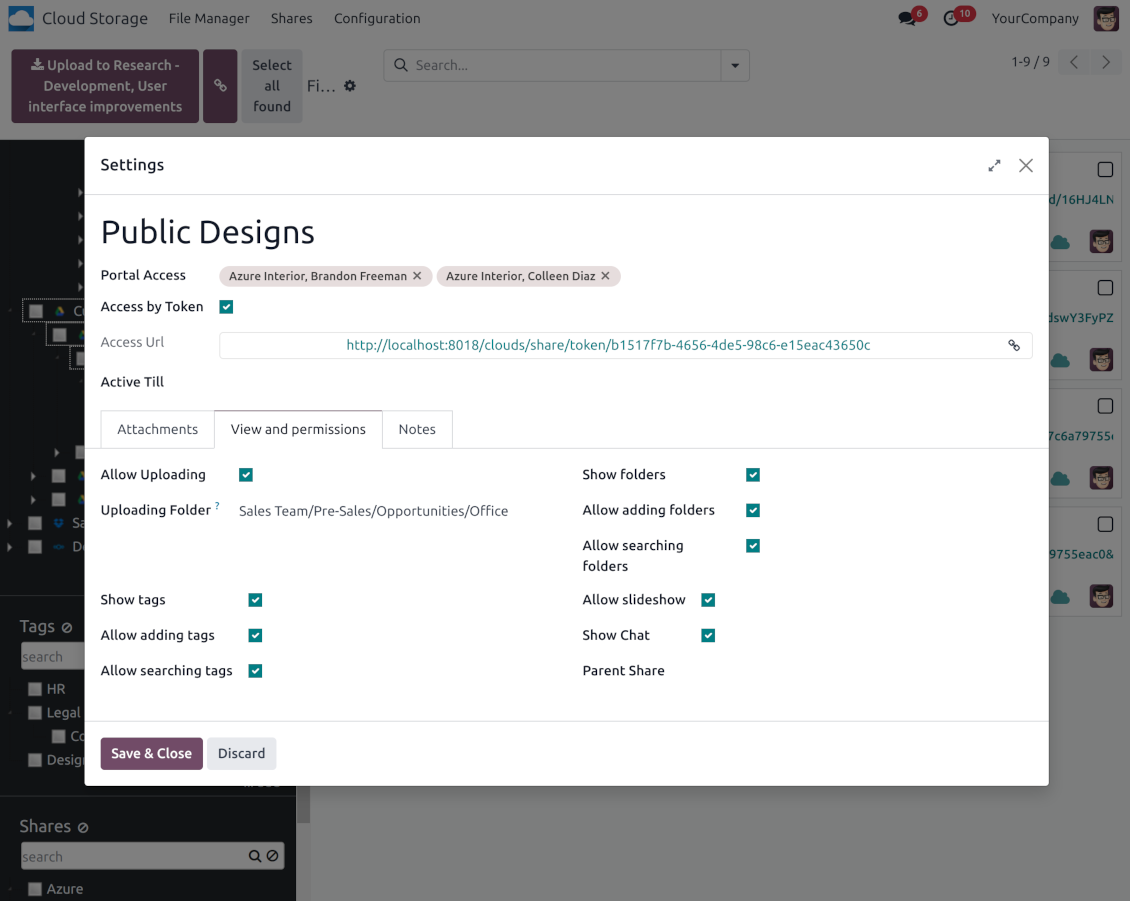
Optionally let upload files to the selected or default folder. Files drag and drop is supported
-
Users are always allowed to search attachments by title, linked folder, and tags
-
Optionally allow navigation by folders and/or tags. Shared tags/folders, their children, and ones linked to shared attachments will be available
-
Let users add tags and folders by themselves. Show/hide searching items in tags/folders navigation trees
-
Turn on/off a chat per each share.
ドキュメント管理と同期アクセス権
-
Access for each Odoo automatic folder is regulated based on a linked object. If such an Odoo object is available for a specific user, its directory would be also available for her/him. For example, if Anita Olivier is the task manager of 'Prepare specification', then she may access the folder 'Tasks' and 'Tasks > Prepare Specification'
-
Access to Odoo manual folders is regulated based on its user groups and users stated in those folders' settings. If nobody is specified, a manually created folder is available for everyone. For example, if Anita Oliver is a sales manager, she may access the quotation-related folder 'Odoo > Orders > SO-001'
-
To access any folder, a user should be able to access all its parents. For example, if Anita Oliver has rights for employees but does not have for departments, then she might not read 'Odoo > Departments > Administration > Employees > Mitchel Admin'. However, if the folder 'Employees' becomes a stand-alone folder without a parent, then Anita would be able to access 'Odoo > Employees > Mitchel Admin'
-
The app does not regulate access levels for cloud clients and their items. The tool regulates rights only for Odoo objects and synchronizes those to required storage. After the sync, if necessary, you should apply the settings for a target cloud client, folders, and files
-
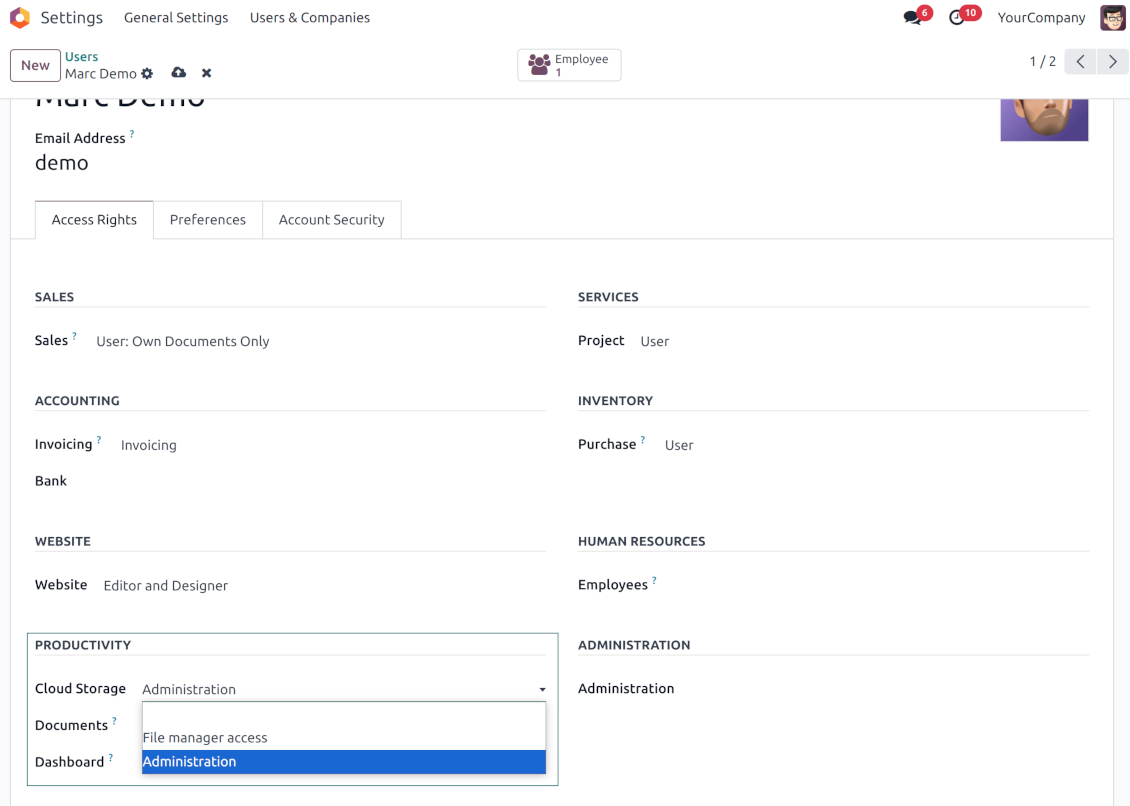
To observe the menu 'Cloud Storage' and the app file manager, a user should belong to the security group 'Cloud Storage > File Manager Access'
-
To configure automatic folder rules, establish connections with various cloud clients, control sync logs, and apply the app settings, a user should belong to the security group 'Cloud Storage > Administration'.
使用上の注意
-
The app assumes automatic regular synchronization with various cloud clients. Please take into account that synchronization is not real-time but is based on tasks queue and scheduled jobs. Depending on the number of folders and attachments, it might take time for the app to check all directories and do the jobs. That's why, until the sync is done, Odoo attachment interfaces work as in standard Odoo.
-
Cloud connections rely upon the API of the related cloud clients. Such communication between systems is risky by concept due to possible disconnections, API updates, and unsolvable conflicts. The app is designed to cope with such risks by carefully processing failures and checking cloud client states. Simultaneously, make sure that you have configured a proper backup strategy for both Odoo and cloud clients.
-
The special factors of risks are sync scope and reverse operations. The higher the sync scope is, the more it would take Odoo to finish integrations. Hence, more space for errors exists. Try to decrease sync scope logically by choosing only required folders. Reverse operations might be risky since assume reflecting cloud clients' features which might be absent in Odoo. For example, Google Sheets cannot be opened outside Google Docs. The app would try to solve the scenarios by applying similar features (e.g. by converting a file to simple electronic tables). However, that is not always possible, and in this way, manual interactions would be required.
設定とインストールのヒント: Cloud Storage Solutions Odoo v.18
Odooサーバー設定
同期を正しく動かすには、Odoo 設定ファイルに適切な timeout を設定してください。LIMIT_TIME_CPU、LIMIT_TIME_REAL、LIMIT_TIME_REAL_CRON は 900 秒より大きくしてください。
Odoo.sh ではタイムアウトが事前定義され設定できないため、これは行わないでください。
アプリが前提とするcronジョブの頻度も変更しないでください。「[Cloud Storage] Prepare Cloud Folders」「[Cloud Storage] Run / Prepare sync queue」。これらのジョブは15分ごとに実行するよう設定され、その頻度は中断やデータ損失を避けるアルゴリズムで使われます。しばらく同期を止めたい場合は、特定のcloud clientを一時停止してください。
一般的な Python 依存関係
ツールは外部ライブラリ 'sortedcontainers' に依存します。Odoo サーバーへ次のコマンドでインストールしてください:
pip3 install sortedcontainersOneDrive または/および SharePoint 連携の設定
Python 依存関係
ツールは外部ライブラリ 'microsoftgraph' に依存します。Odoo サーバーへ次のコマンドでインストールしてください:
pip3 install microsoftgraph-python
設定とログイン
- オプション 'OneDrive / SharePoint Sync' をオンにします (cloud Storage > Configuration > Configuration)。オプションのアドオン OneDrive / SharePoint Odoo Integration が必要です
- Odoo に接続したい OneDrive / SharePoint に対し、Microsoft ユーザーに完全な管理者権限があることを確認してください。このユーザーは権限付与だけに必要で、ユーザーデータは Odoo に保持されず、その後も使われることはありません。また、使用する Microsoft メールアドレスにリダイレクトがないことも確認してください(ドメイン名を設定しても、主アドレスが @outlook.com、@office365 などの Microsoft ドメインのまま、という場合によく起きます)。
- Azure Portal へ: https://portal.azure.com/#blade/Microsoft_AAD_RegisteredApps/ApplicationsListBlade
アプリはディレクトリ (tenant) 内に登録する必要があります。Microsoft はディレクトリの外に新しいアプリを作成することを許可しなくなりました。
- 会社の Microsoft 365 / Azure ディレクトリが既にある場合は、ポータル (右上) をそれに切り替えて続行します。
- 個人アカウント (@outlook.com、@hotmail.com、@live.com) だけで "these applications are associated with the account ... but are not contained within any directory" と表示される場合、ディレクトリはまだありません。同じ Microsoft アカウントで無料の Azure アカウントを登録します: https://azure.microsoft.com/free/ - Azure を無料で試す。費用なしで Default Directory が作成されます。
- Microsoft は本人確認のためだけにカードを求めます。約 1 USD が一時的に確保され、その後取り消されます。ディレクトリとアプリ登録に課金はありません。
- ディレクトリ (Microsoft Entra ID Free) とそこに登録したアプリは、30 日 / 200 ドルの Azure 試用クレジットとは独立して動き続けます。そのクレジットは、ここで使っていない有料 Azure リソース向けです。当社のアプリに支払いは不要です。
- ディレクトリ全体が非常に長く完全に未使用のままなら (Microsoft の目安は約 200 日間の無活動)、Microsoft は警告メールを送り、最終的に廃止することがあります。Odoo は同期のたびにこのアプリを呼び出すため、アクティブな接続がディレクトリを維持します。何ヶ月も同期を完全に止めた場合にだけ関係します。
- 実際のディレクトリ ("Microsoft Services" ではない) に入ったら、そこで App registrations を開きます。
- 「New registration」をクリック
- Introduce a new name for the application and assign the redirect URI as [YOURODOOSITENAME]/one_drive_token (e.g. https://odootools.com/one_drive_token). As the supported account types choose 'Accounts in any organizational directory (Any Azure AD directory - Multitenant) and personal Microsoft accounts (e.g. Skype, Xbox)'.
- Certificates & secrets に進み、'New Client Secret' をクリックします。secret の値をどこかに保存してください
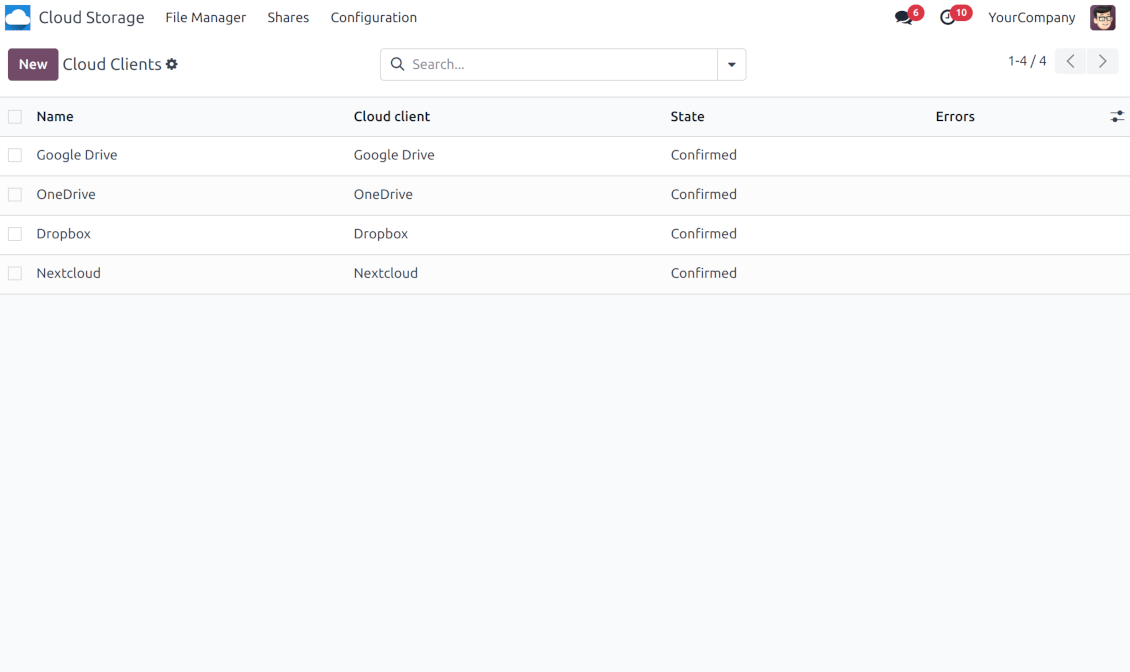
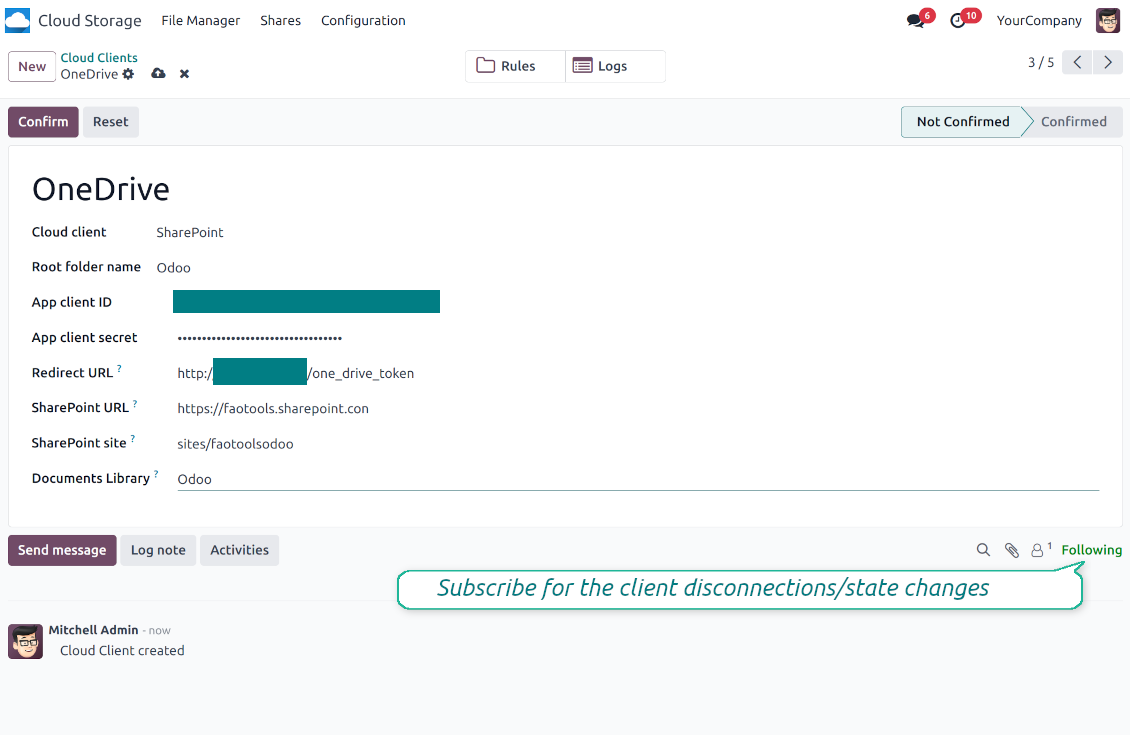
- Odoo Cloud Storage > 設定 > Cloud Clients に進み「Create」を押します
- 参照には全ユーザーに分かる名前を入力
- Cloud client として、使用中のソフトウェアに応じて 'OneDrive' または 'SharePoint' を選択します
- Root folder 名には、同期フォルダ全体の親 OneDrive directory になるタイトルを入力します。例: 'Odoo' または 'OdooERP'
- 「Application Client ID」を「App client ID」にコピー
- シークレット値を「App client secret」フィールドにコピー
- 以前生成したリダイレクト URL を挿入
- SharePoint を使う場合:
- SharePoint サイトに進み、新しいドキュメントライブラリ(ドライブ)を用意します。既存のもの、例: 'Documents' でも構いません。Odoo フォルダはその後そこに置かれ、別のライブラリへ移すことはできません
- SharePoint の URL は https://[URL]/ 形式です。末尾の「/」は必須で、サイト名は含めません。例: https://odootools.sharepoint.com/
- SharePoint サイトは root(最上位の SharePoint サイト)、my_site_name(その場合は sites/my_site_name とみなされる)、または sites/my_site_name(「sites」の代わりに「teams」など)のいずれかです。先頭と末尾に「/」を付けないでください。例: sites/odootools
- Documents Library は SharePoint で作成したものを使用
- 'Confirm' を押します。Odoo が Microsoft のログインページへリダイレクトします。システムで確認し、すべての条件に同意し、求められた権限をすべて付与してください. If Microsoft shows an account already signed in and says it does not exist in tenant 'Microsoft Services' (or any other unrelated tenant), do not click that row. Click 'Use another account' and sign in with the Microsoft account that owns the app's directory
- ログイン後、OneDrive は Odoo に戻します。OneDrive - Odoo 同期の準備ができました
- 新しく作成した cloud client を、その OneDrive または SharePoint インスタンス と同期するフォルダルールおよび/または手動フォルダに適用します
- 同期のスケジュールジョブが開始されるのを待ちます。テスト専用: Cloud Storage > 設定 > 設定 > ボタン「Launch sync」から統合を手動で起動します。
あわせて見る 設定ビデオ
Azureアプリケーションを作成
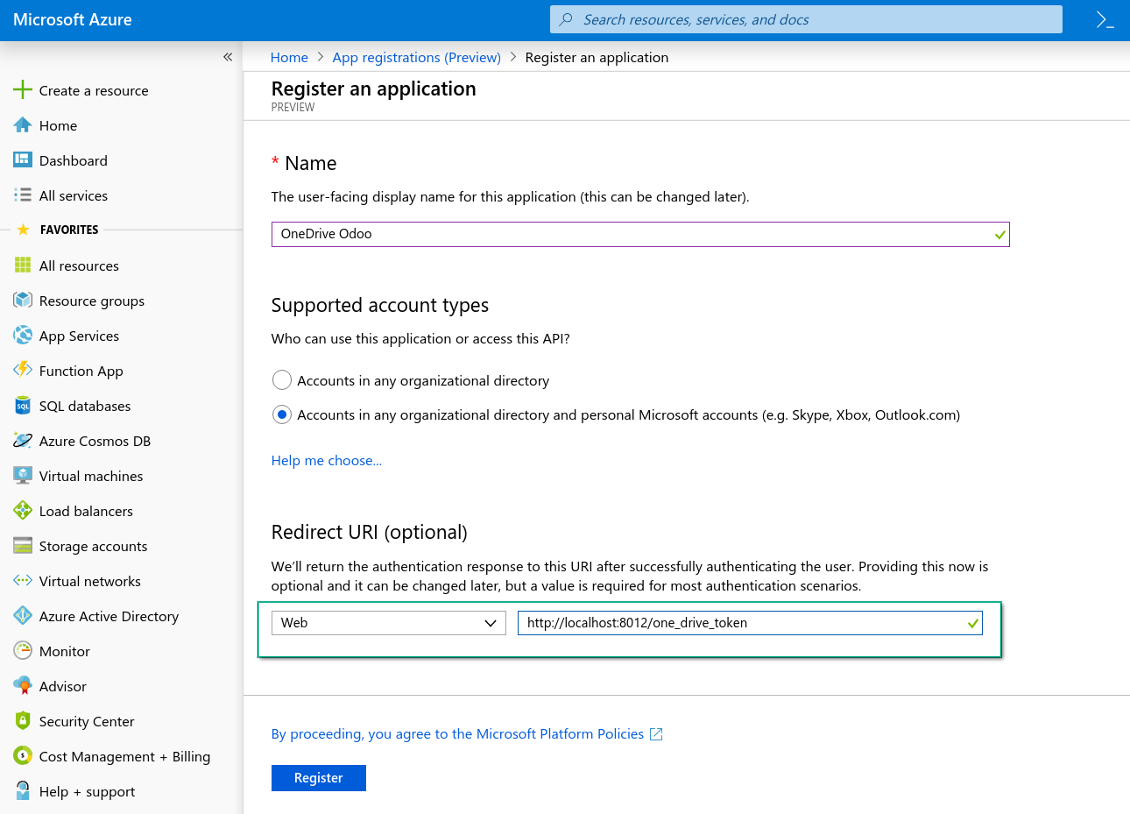
新しいOneDrive WebプラットフォームとリダイレクトURL
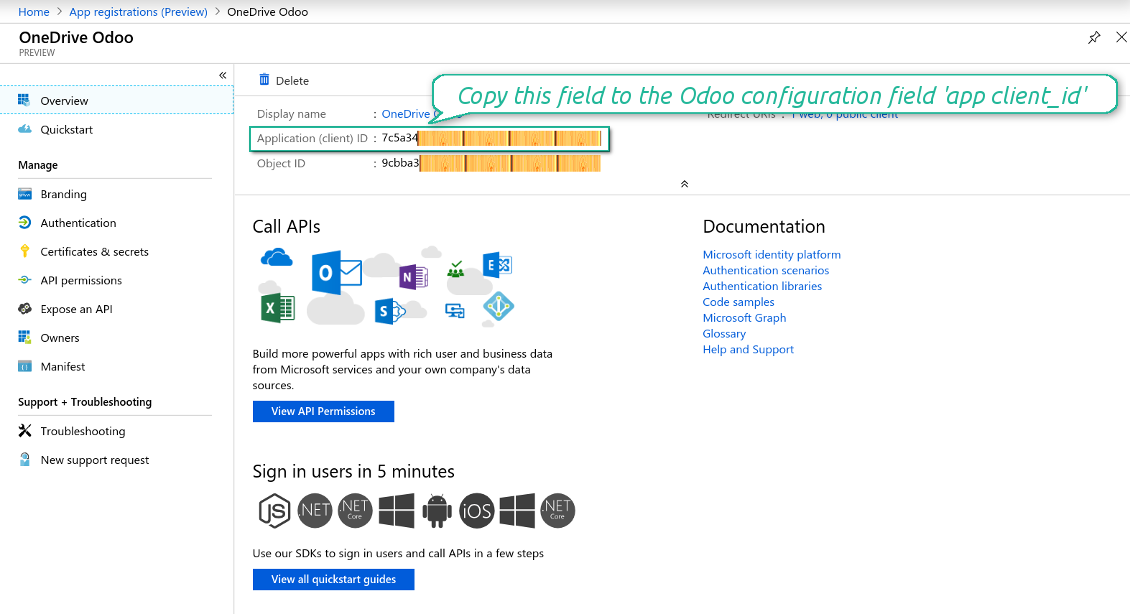
Azure アプリケーション用の新しいシークレットを生成
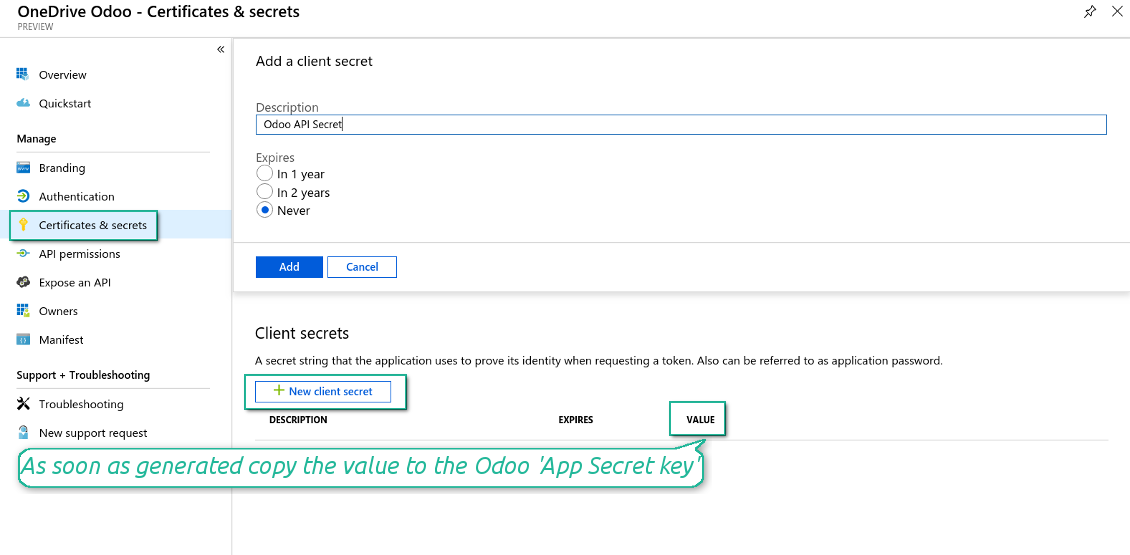
Odoo に構成キーを入力
Google Drive 連携の設定
- オプション 'Google Drive Sync' をオンにします (cloud Storage > Configuration > Configuration)。オプションのアドオン Google Drive Odoo Integration が必要です
- URL から Google Cloud Console へ https://console.cloud.google.com
- プロジェクトを選択または作成
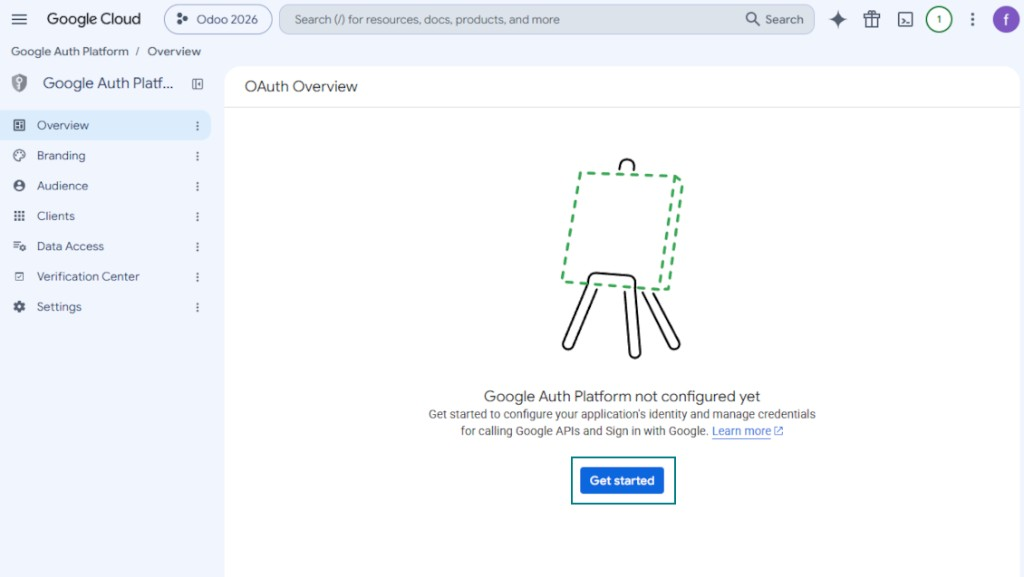
- プロジェクトを選ぶと、コンソールが Google Auth Platform を開きます。'Get Started' を押します
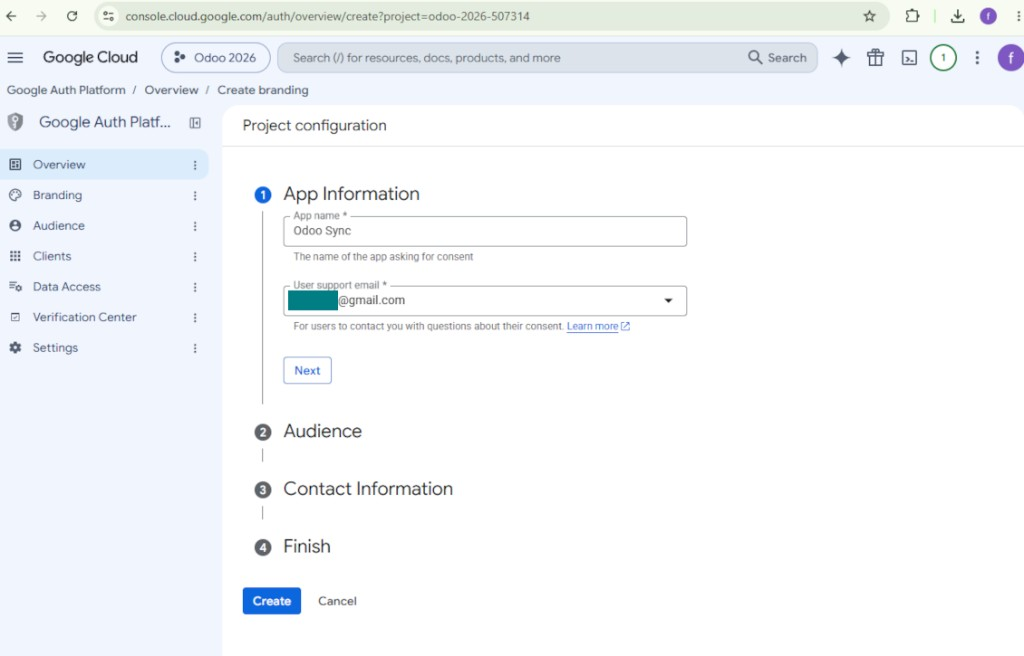
- アプリ情報を追加
- アプリ名には適当なものを選択
- ユーザーサポートメールには自分のアドレスを選択
- 'Next' を押します
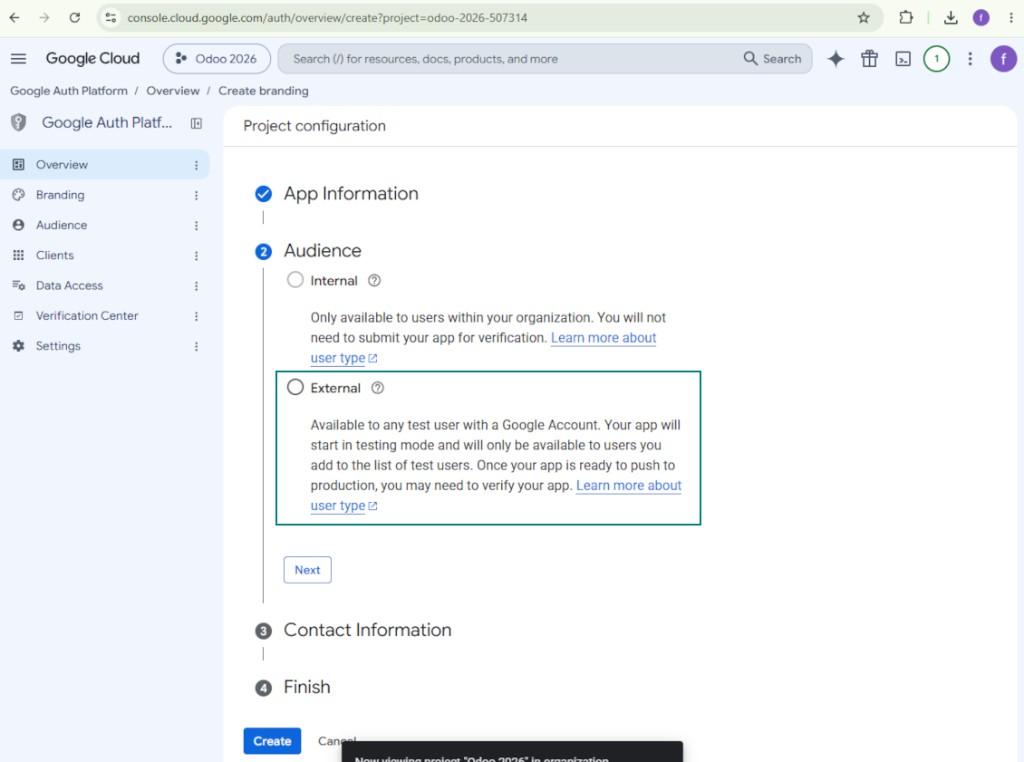
- オーディエンスは 'External' を選び 'Next' を押します。注: このアプリは自社の Odoo 接続にだけ使います
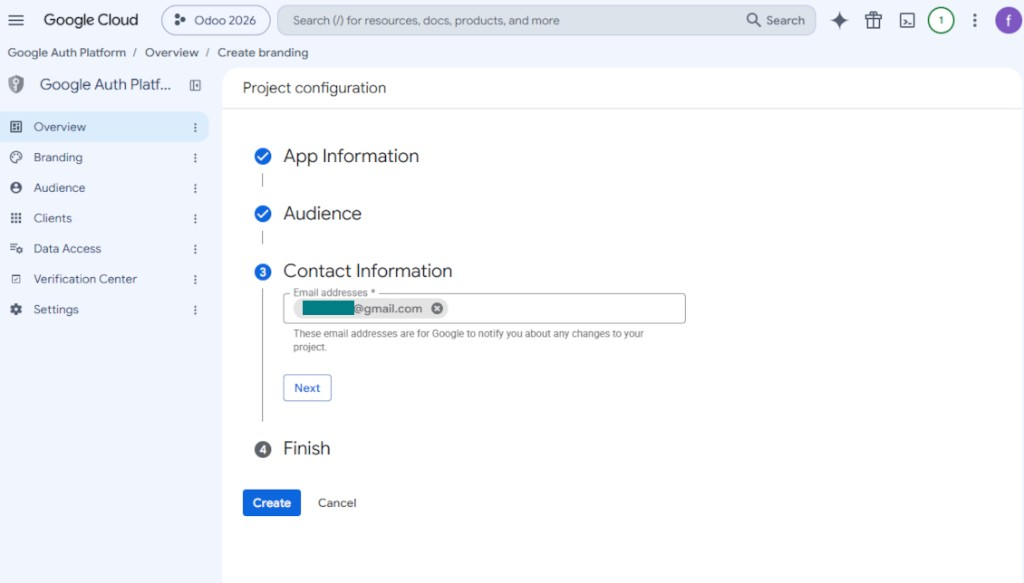
- 連絡先として Google または Google Workspace のメールアドレスを入力し、'Next' を押します
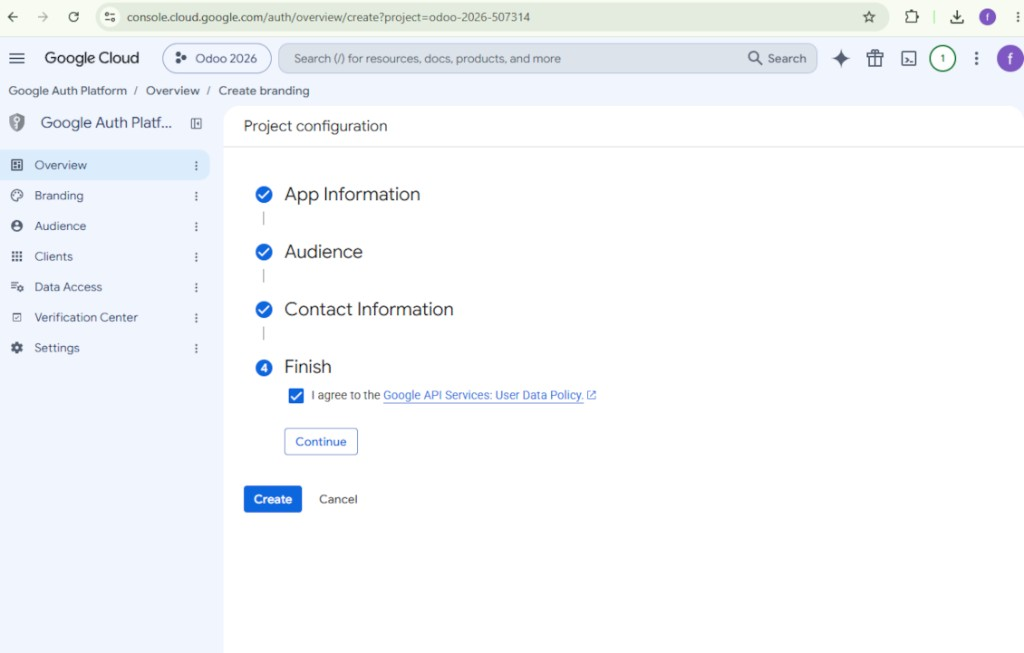
- Google API Services User Data Policy に同意し、'Continue' を押してから 'Create' を押します
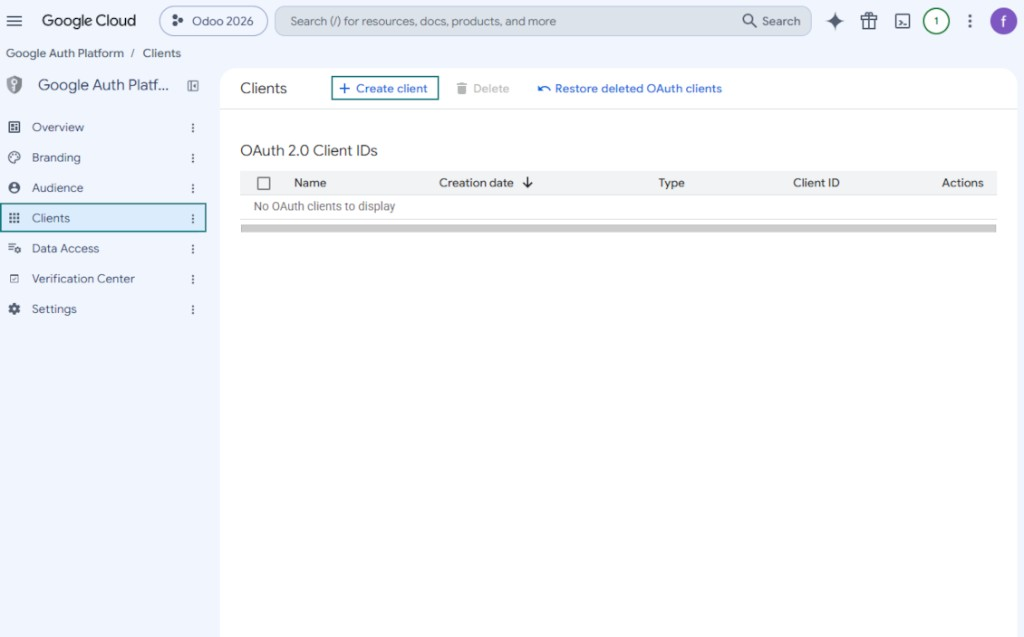
- 「Clients」に進み、「Create client」を押します
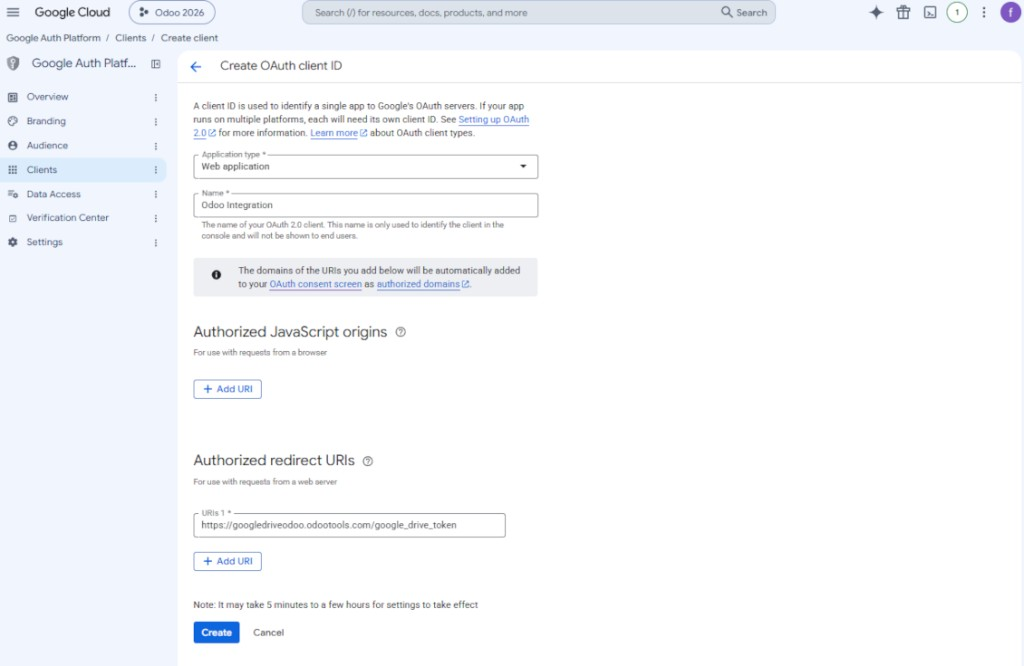
- アプリケーションの種類として「Web application」を選択
- 名前には適当なものを選択
- 承認済みリダイレクト URI として、[YOURODOOSITENAME]/google_drive_token 形式のリンクを追加します(例: https://odootools.com/google_drive_token)。
- 'Create' を押します
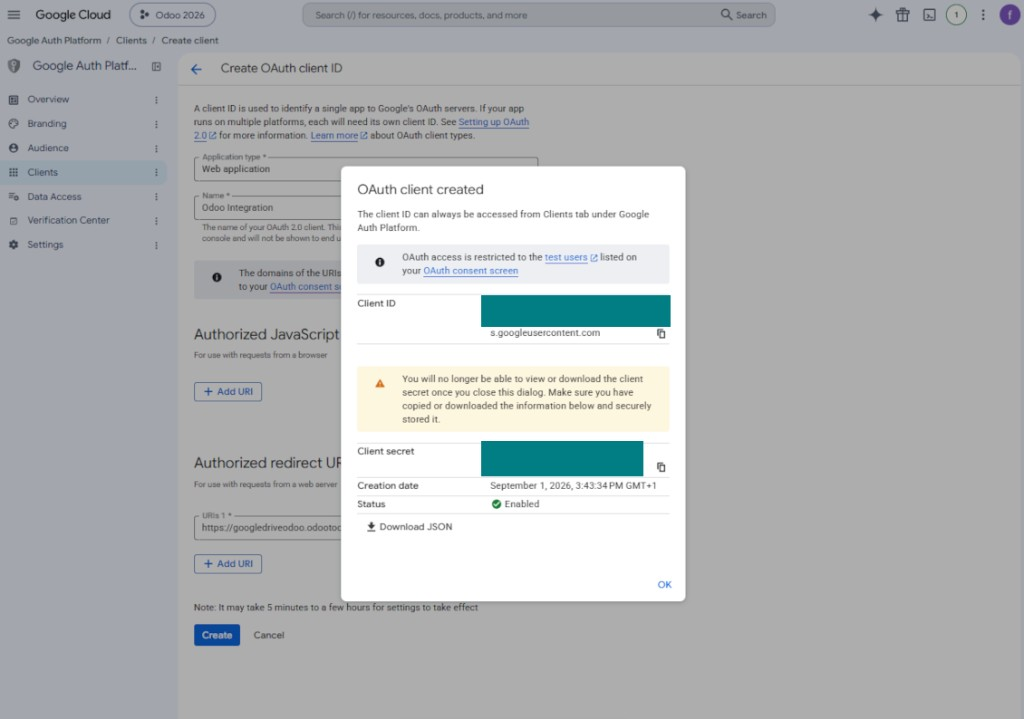
- 「Client ID」と「Client secret」をコピーして安全に保管してください。Client secret は一度しか表示されません
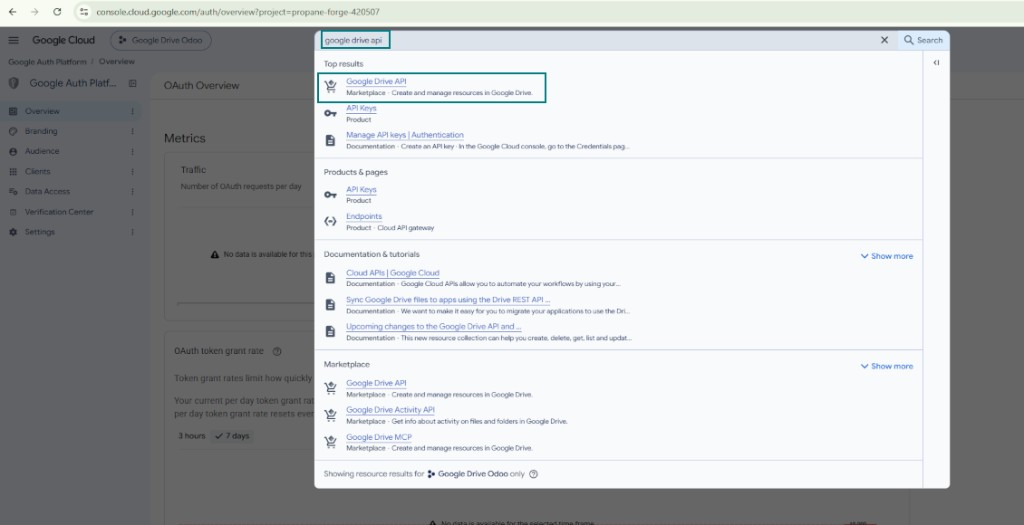
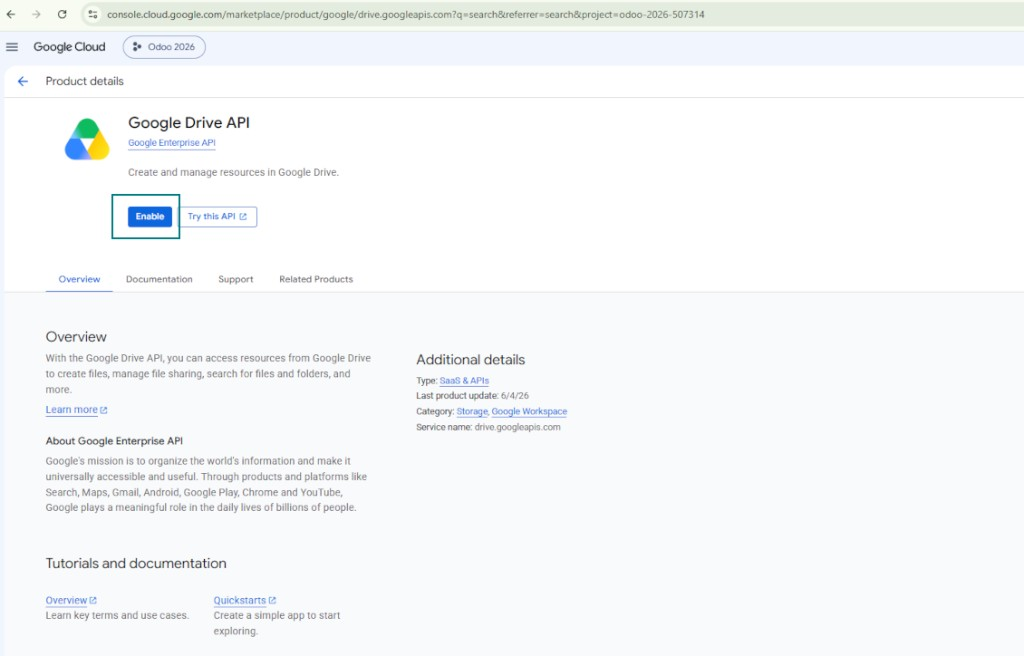
- このプロジェクトで Google Drive API を有効にします。上部の検索ボックスに 'Google Drive API' と入力し、見つかった製品を開いて 'Enable' を押します
- 「Audience」に進み、メールアドレスをテストユーザーとして追加
- アプリを公開してください。しないとテスト状態のままで、トークンは 7 日ごとに期限切れになります
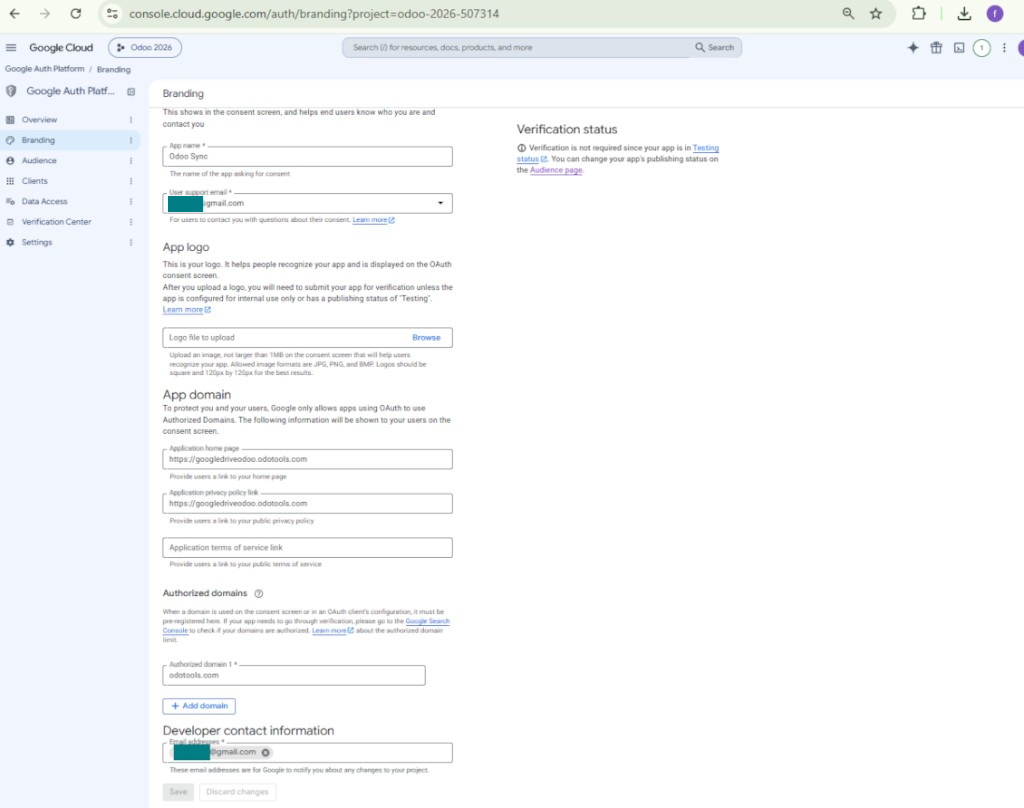
- 'Branding' を開き、アプリケーションのホームページとプライバシーポリシーのリンク(例: Odoo ウェブサイトへのリンク)を入力します。それらのリンクのドメインを authorized domains に追加します
- 「Audience」を開き、「Publish app」を押します
- アプリのロゴをアップロードしないでください。実際には不要な、長く複雑な Google 確認プロセスが始まります
- Odoo Cloud Storage > 設定 > Cloud Clients に進み「Create」を押します
- 参照には全ユーザーに分かる名前を入力
- Cloud クライアントとして「Google Drive」を選択
- Root folder 名には、同期フォルダ全体の親 Google Drive directory になるタイトルを入力します。例: 'Odoo' または 'OdooERP'
- 手順9の「Client ID」を「App client ID」フィールドにコピー
- 手順9の「Client secret」を「App client secret」フィールドにコピー
- 手順 9 で入力したリダイレクト URL を挿入
- チームドライブを使う場合は関連ボックスをオンにします。本当にチームドライブを使っていることを確認してください。Google Drive の左サイドバーに項目 'Team Drives' があるはずです。この機能はビジネスおよび enterprise 料金でのみ利用できます
- オプション 'Team Drive' が有効なら、その名前を入力します。Google Drive で見えるものと完全に同じである必要があります。ユーザーがすべての Google ドライブに対する完全な権限を持つことを確認してください(通常はチーム Google Drive を設定する同一ユーザーです)。
- 'Confirm' を押します。Odoo が Google ログインページへリダイレクトします。システムで確認し、すべての条件に同意し、求められた権限をすべて付与してください
- ログイン後、Google は Odoo に戻します。Google Drive - Odoo 同期の準備ができました
- 新しく作成した cloud client を、その Google Drive と同期するフォルダルールおよび/または手動フォルダに適用します
- 同期のスケジュールジョブが開始されるのを待ちます。テスト専用: Cloud Storage > 設定 > 設定 > ボタン「Launch sync」から統合を手動で起動します。
あわせて見る 設定ビデオ、注意: 動画の Google console 部分は古くなっています。上記の手順に従ってください
Google Auth Platformを開く
アプリ情報を追加
外部オーディエンスを選択します
連絡先情報を追加
ポリシーに同意してアプリを作成
OAuthクライアントを作成
ウェブアプリケーションクライアントを設定
クライアントIDとクライアントシークレットをコピー
Google Drive API を探す
Google Drive APIを有効化する
アプリを公開するためにブランディングを入力
Google アプリの認証情報を Odoo に入力
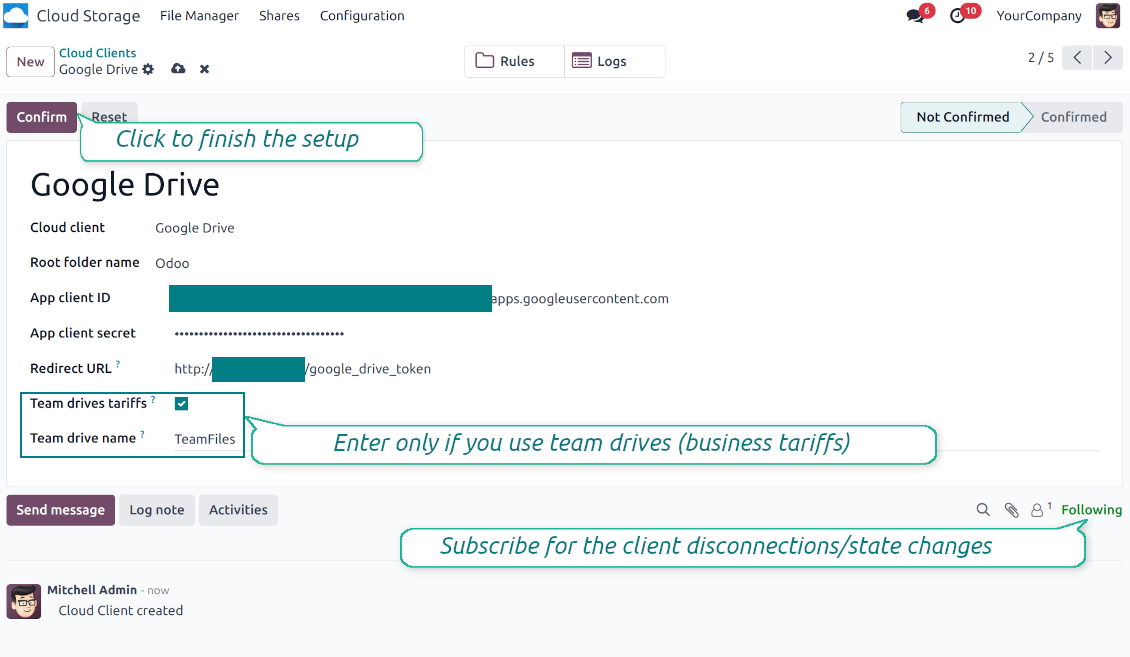
Amazon S3 の設定
- オプション 'Amazon S3 Sync' をオンにします(Cloud Storage > 設定 > 設定)。オプションアドオン Amazon S3 Odoo Integration が必要です
- Amazon S3コンソールを開きます: https://console.aws.amazon.com/s3/
- 新しいバケットを作成するか、既存のものを選びます。正確なバケット名をコピーし、Odoo の項目「Bucket」に入れてください
- バケットの詳細を開き、AWS Region をコピーします。Odoo の項目 'Region' に入れます(例: eu-west-1 または us-east-1)
- AWS IAMコンソールを開きます: https://console.aws.amazon.com/iam/
- 新しい IAM ユーザーを作成するか、既存の技術ユーザーを選びます。このユーザーは選択したバケット内のオブジェクトを一覧、読取、作成、書込、コピー、削除する全権限を持つ必要があります。全権限の管理者を選ぶか、新しいポリシーを作成できます(下記参照)
- IAM ユーザーフォームでタブ 'Security credentials' を開き、'Create access key' を押します
- ページ 'Access key best practices & alternatives' で Application running outside AWS を選びます。Odoo サーバーが AWS 外、Odoo.sh、自前サーバー、または他ホストからアクセスキーで S3 に接続する場合の正しい選択肢です。Odoo が AWS EC2 インスタンス上なら Application running on an AWS compute service を選べますが、Odoo にコピーされる項目は同じです
- 'Next' を押します。次の手順で任意で Odoo S3 Sync などの説明タグを入力し、'Create access key' を押します
- 最後の AWS ページで Access key または Access key ID を Odoo の項目 'Access Key' にコピーします
- Secret access key を Odoo の項目「Secret Key」にコピーします。重要: AWS はシークレットキーを一度しか表示しないため、ウィンドウを閉じる前に保存してください
- AWS S3 ではなく S3 互換プロバイダを使う場合、その管理画面からエンドポイント URL をコピーし、Odoo の 'Amazon S3 endpoint URL' に入れます。例: MinIO はよく https://minio.example.com や http://localhost:9000、LocalStack は通常 http://localhost:4566
- Odoo Cloud Storage > Configuration > Cloud Clients に進み、'Create' を押します
- 参照には、全ユーザーに分かる名前を入力してください
- Cloud クライアントとして「Amazon S3」を選択
- Root folder 名には、同期フォルダ全体の親 S3 prefix になるタイトルを入力します。例: 'Odoo' または 'OdooERP'
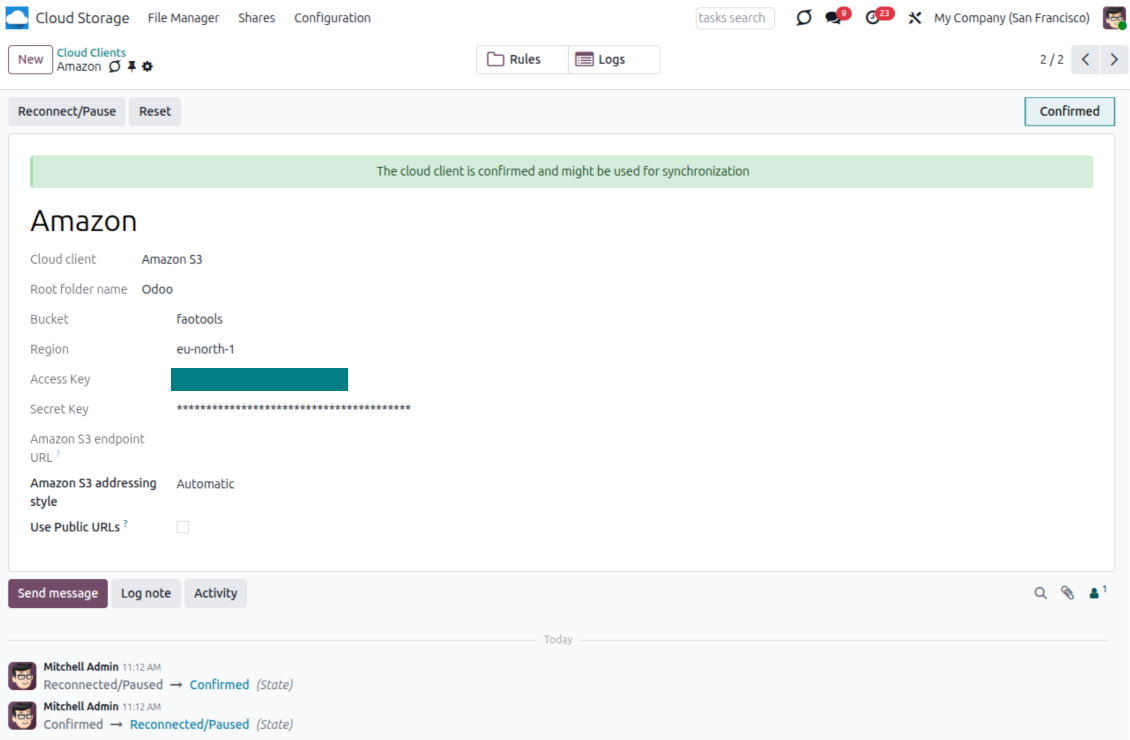
- 項目 'Bucket'、'Region'、'Access Key'、'Secret Key' を入力し、必要なら 'Amazon S3 endpoint URL' とアドレッシングスタイルも指定します
- Odoo が一時的な presigned URL と公開バケット/CDN URL のどちらを使うかを選びます。非公開バケットでは presigned URL を有効のまま、有効期間を秒で設定します
- 'Confirm' を押します。Odoo が bucket アクセスを確認し、ルートフォルダ接頭辞を作成または検証します。Amazon S3 - Odoo 同期の準備ができました
- 新しく作成した cloud client を、その Amazon S3 バケット と同期するフォルダルールおよび/または手動フォルダに適用します
- 同期のスケジュールジョブが開始されるのを待ちます。テスト専用: Cloud Storage > 設定 > 設定 > ボタン「Launch sync」から統合を手動で起動します。
役立つAWSドキュメント: S3バケットの作成: https://docs.aws.amazon.com/AmazonS3/latest/userguide/creating-bucket.html、IAM アクセスキーの管理: https://docs.aws.amazon.com/IAM/latest/UserGuide/id_credentials_access-keys.html.
バケットポリシーの例
    {
    "Version": "2012-10-17",
    "Statement": [
        {
            "Sid": "ListObjectsInBucket",
            "Effect": "Allow",
            "Action": [
                "s3:ListBucket"
            ],
            "Resource": "arn:aws:s3:::NAME_OF_YOUR_BUCKET"
        },
        {
            "Sid": "AllObjectActions",
            "Effect": "Allow",
            "Action": [
                "s3:GetObject",
                "s3:PutObject",
                "s3:DeleteObject"
            ],
            "Resource": "arn:aws:s3:::NAME_OF_YOUR_BUCKET/*"
        }
    ]
}
新しいAWS IAMユーザーを作成
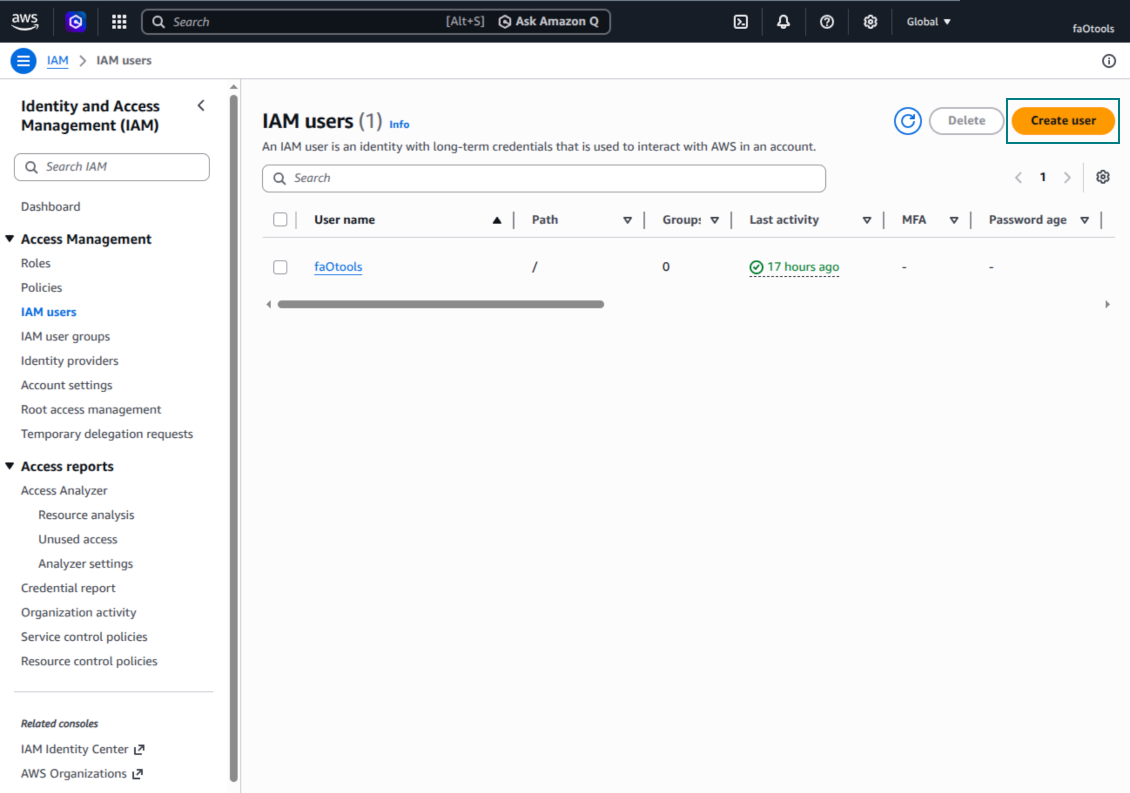
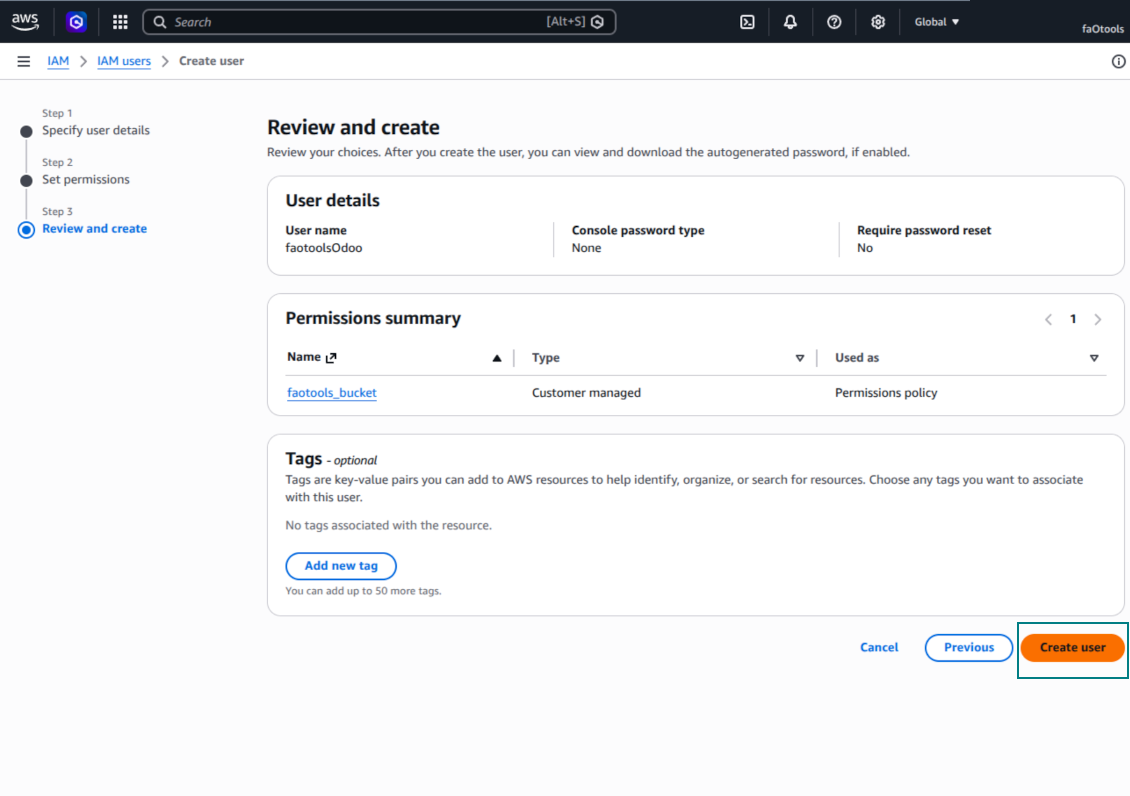
IAM ユーザー名を指定します
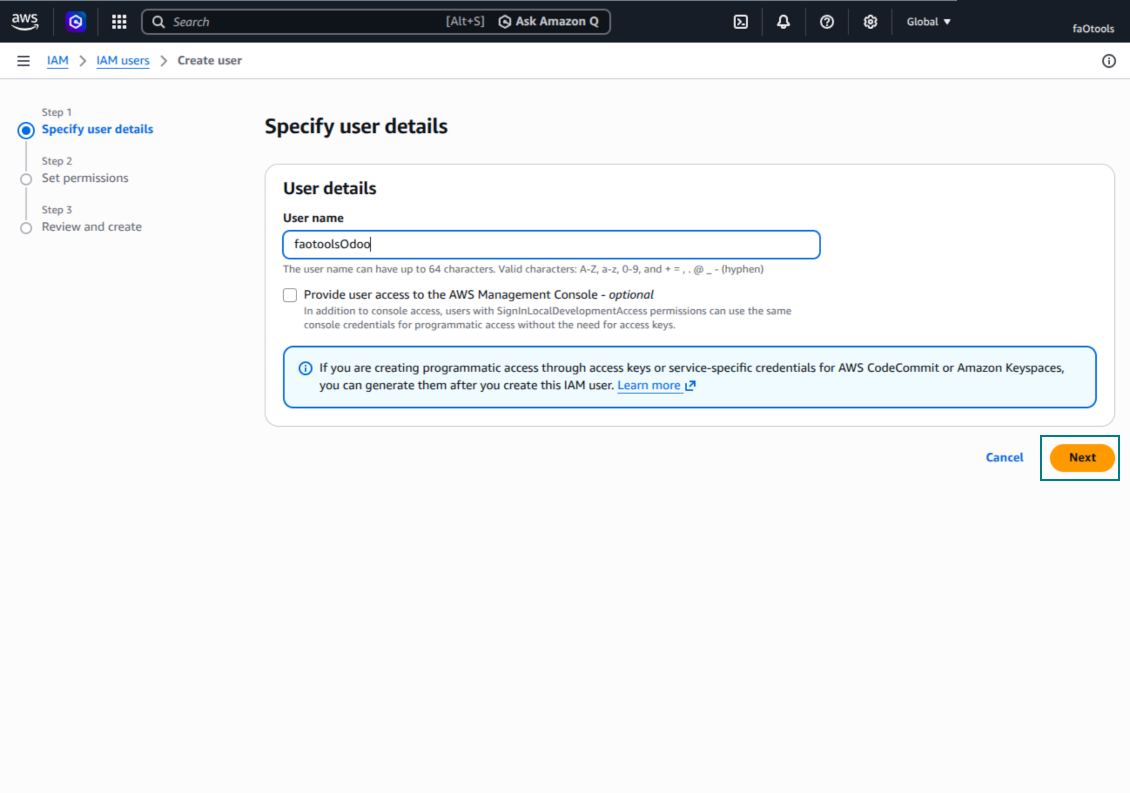
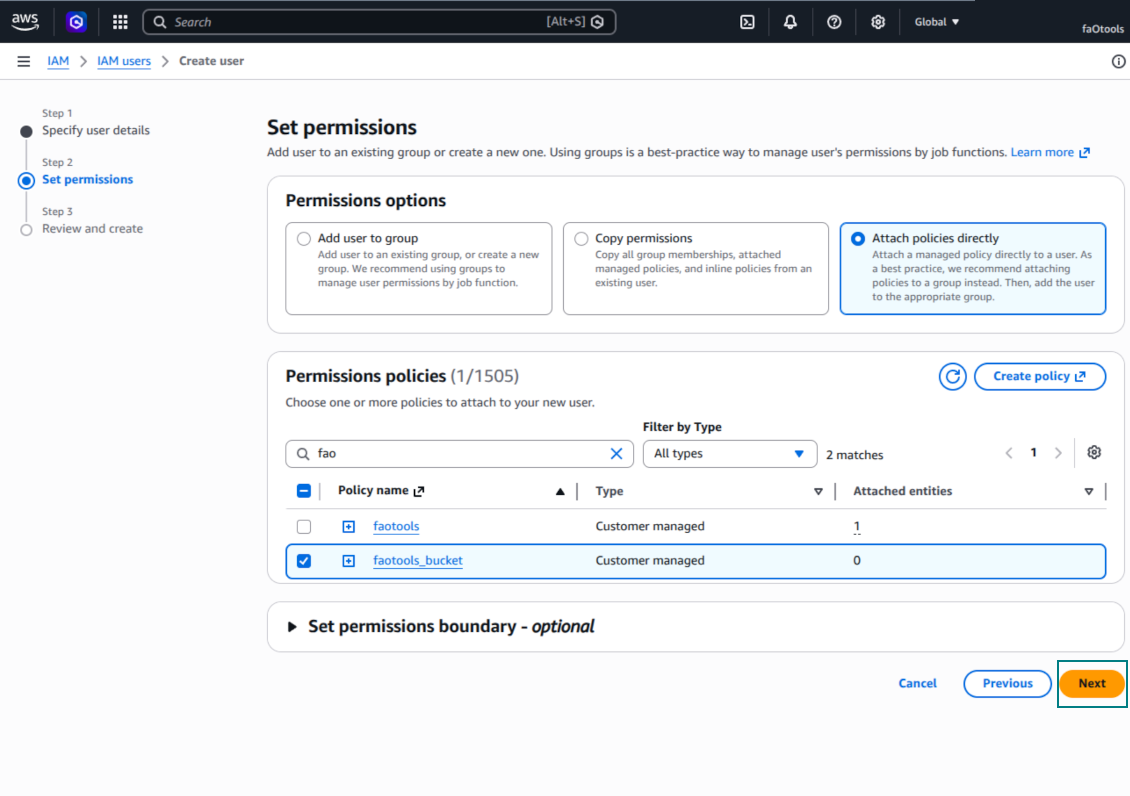
権限ポリシーを直接添付
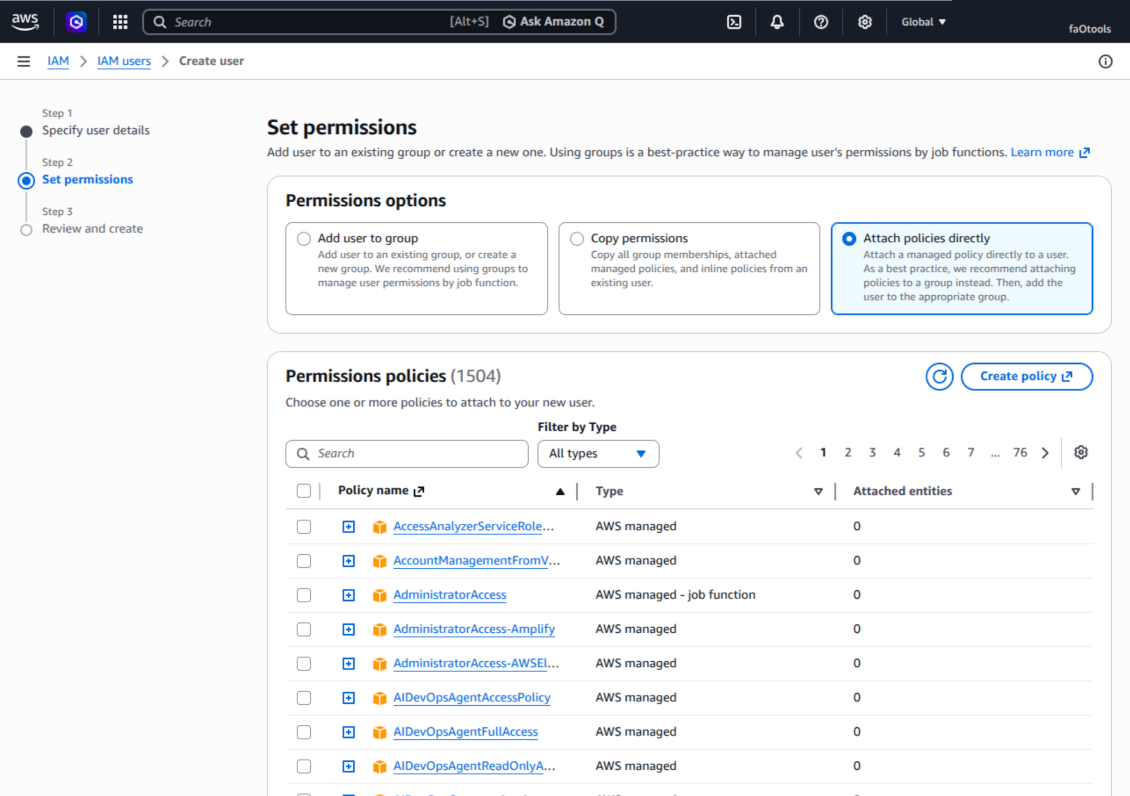
Amazon S3 バケットポリシーの JSON 例
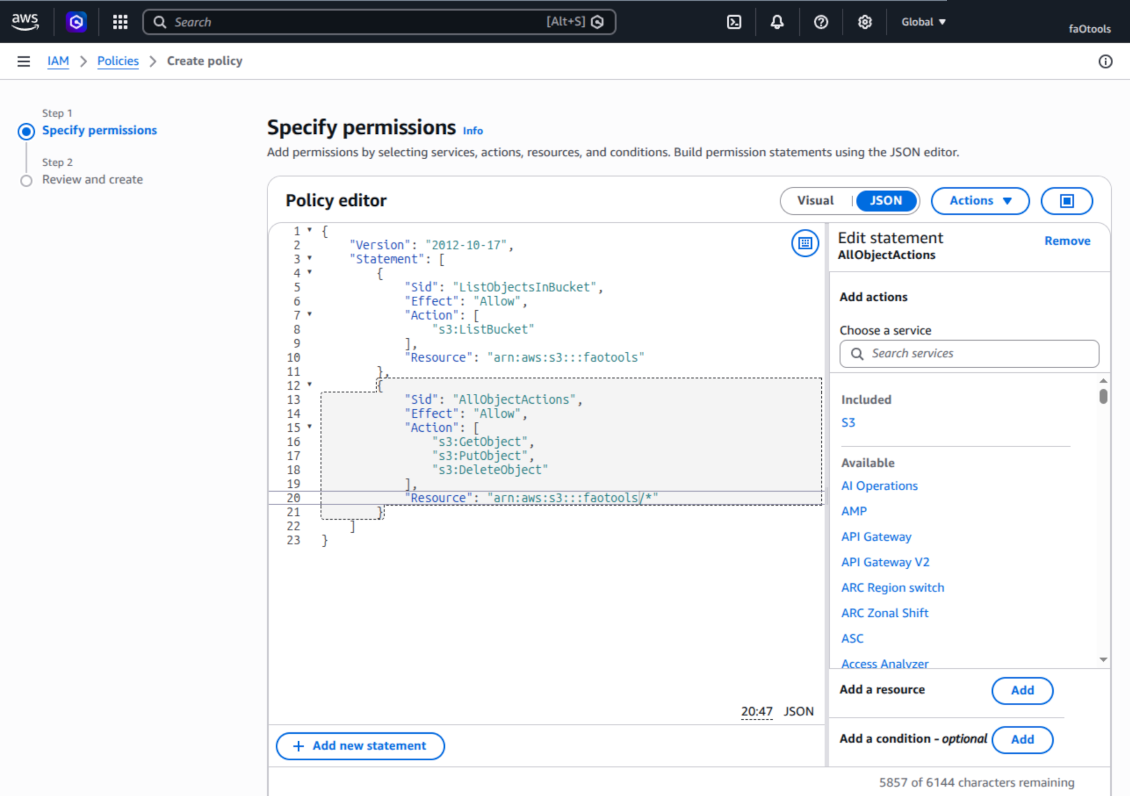
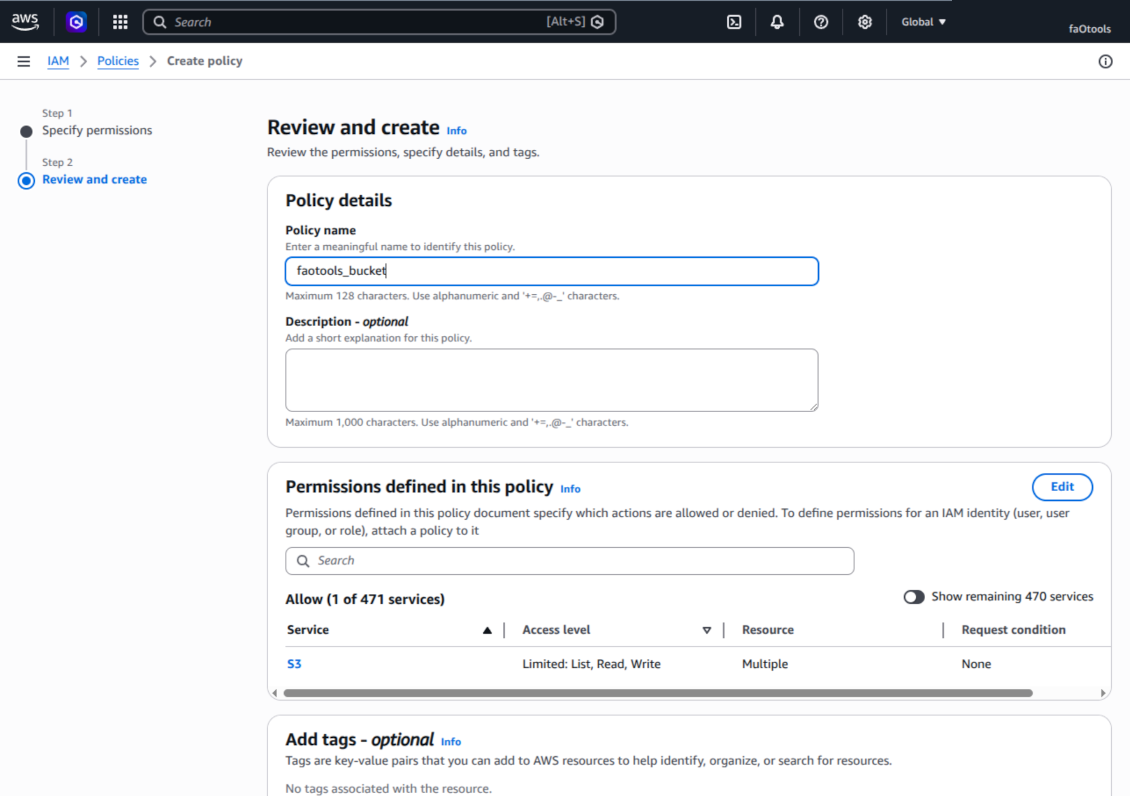
S3 ポリシーを確認して名前を付けます
ユーザーのバケットポリシーを選択します
IAM ユーザーを確認して作成します
ユーザーのアクセスキーを作成
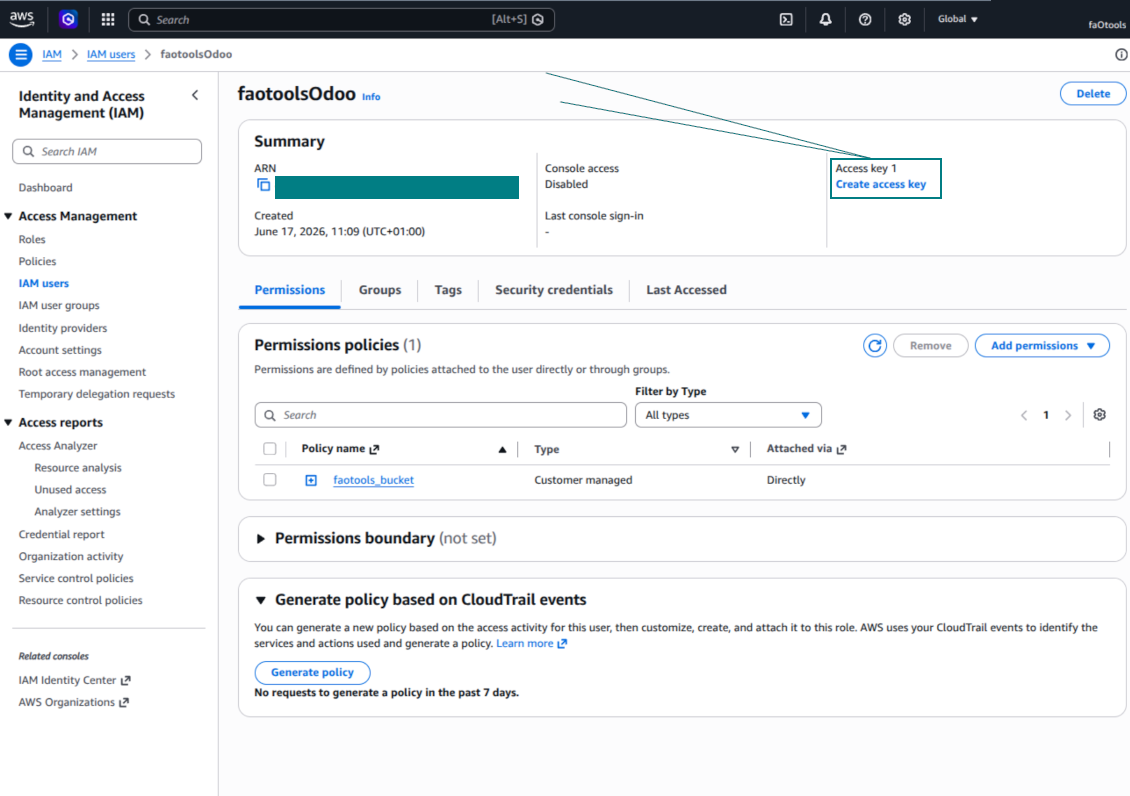
アクセスキーの用途を選択
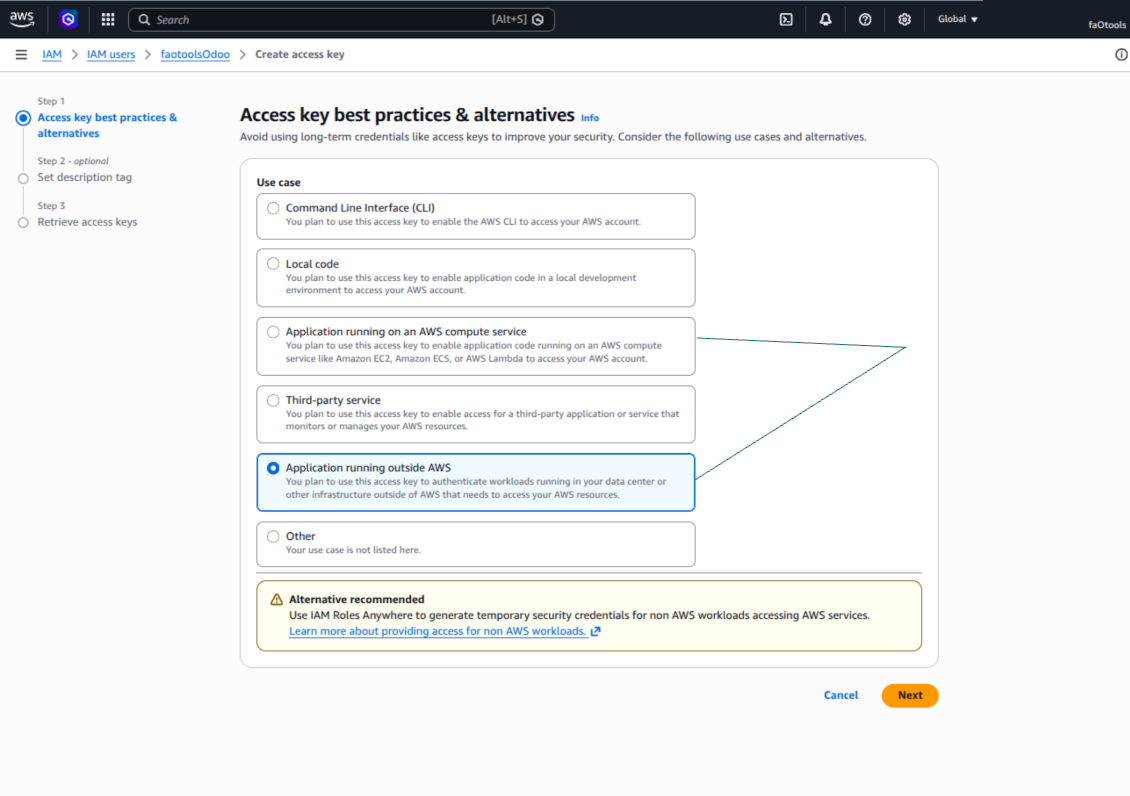
アクセスキーの説明タグを設定します
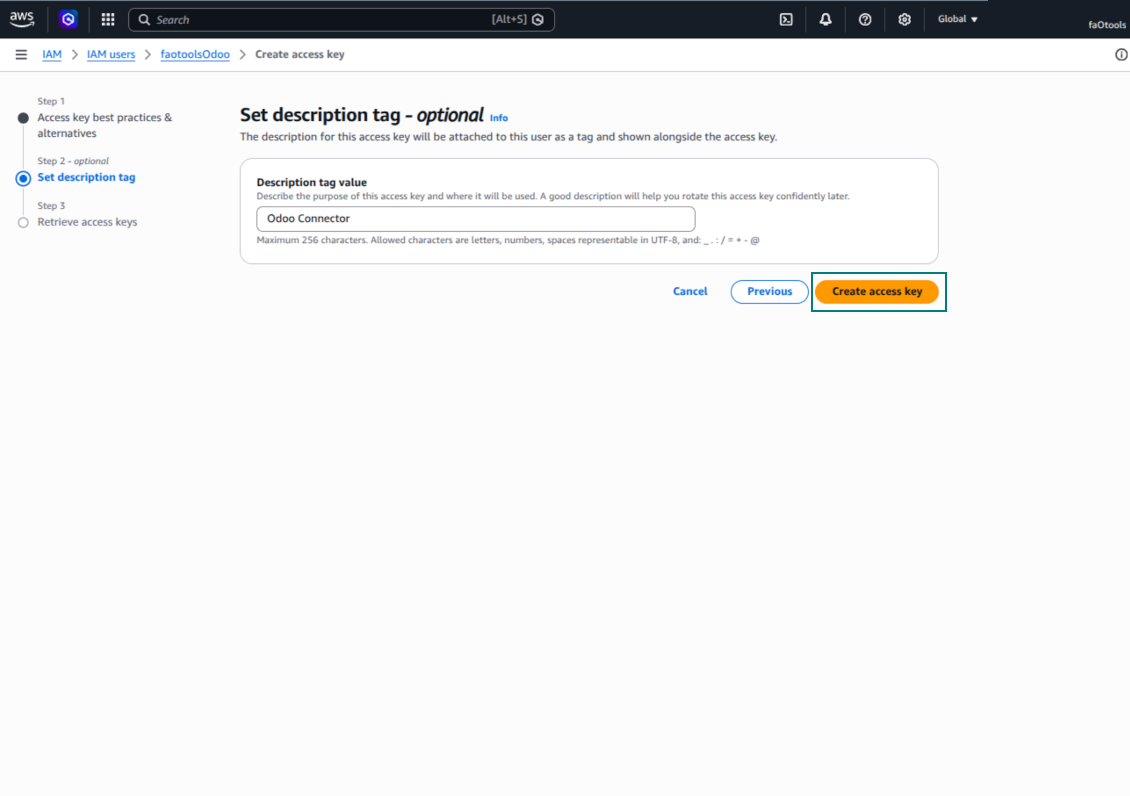
アクセスキーとシークレットを取得します
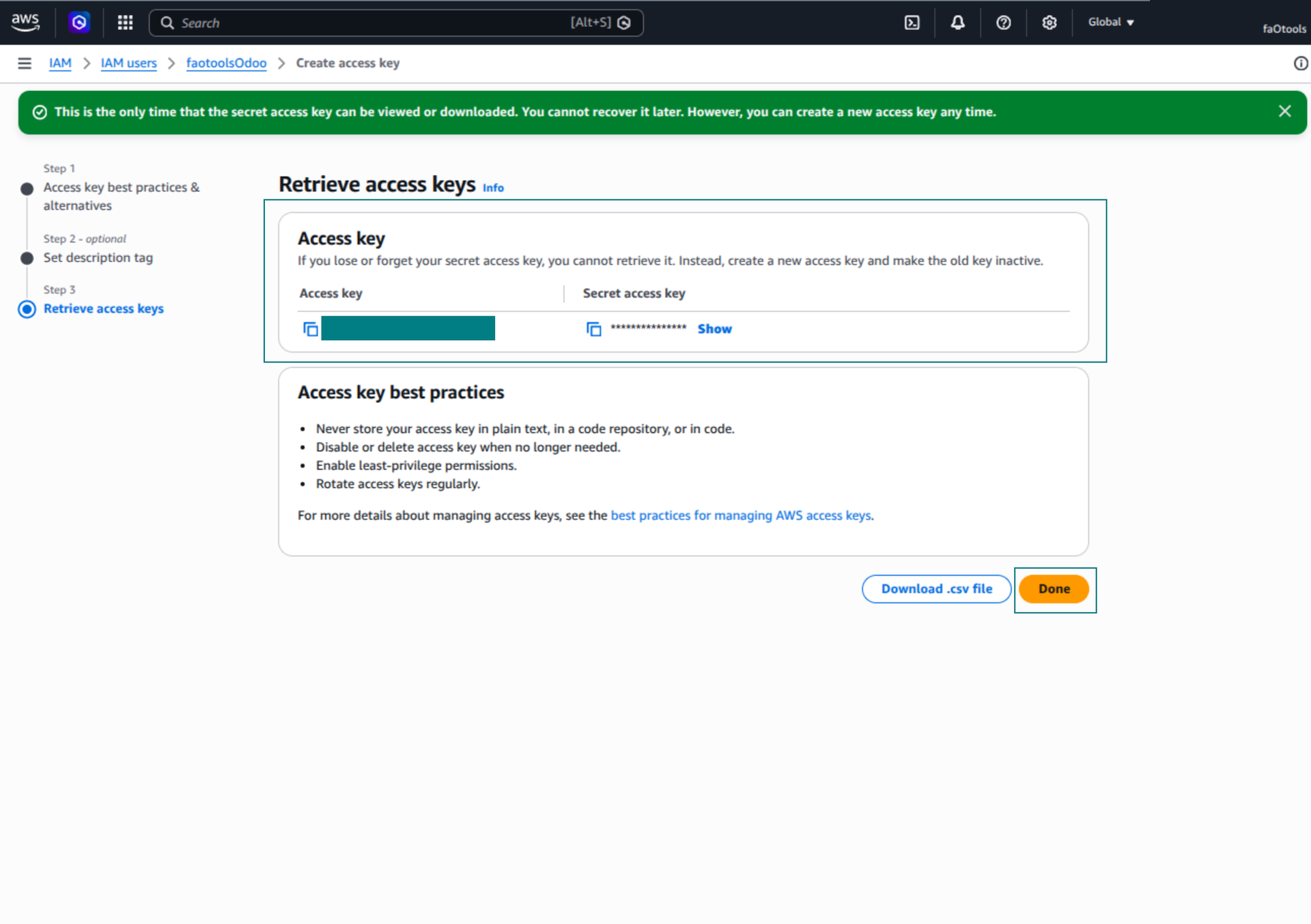
OdooでAmazon S3クライアントを設定
Nextcloud または/および ownCloud 連携の設定
設定とログイン
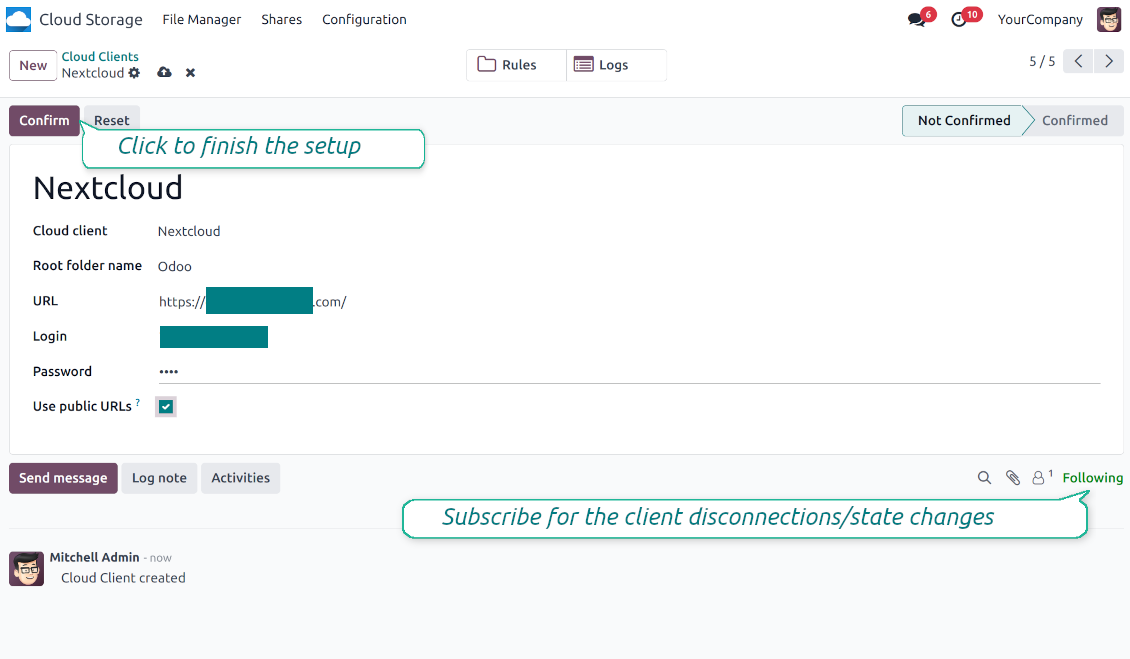
- オプション 'onwCloud / Nextcloud Sync' をオンにします (cloud Storage > Configuration > Configuration)。オプションのアドオン ownCloud / Nextcloud Odoo Integration が必要です
- Odoo Cloud Storage > 設定 > Cloud Clients に進み「Create」を押します
- 参照には全ユーザーに分かる名前を入力
- Cloud client として、使用中のソフトウェアに応じて 'Nextcloud' または 'ownCloud' を選択します
- Root folder 名には、同期フォルダ全体の親 directory になるタイトルを入力します。例: 'Odoo' または 'OdooERP'
- ownCloud / Nextcloud の完全な URL を入力
- ルートディレクトリ内のファイルとフォルダを読み取り・作成・書き込み・削除する完全な権限を持つ ownCloud / Nextcloud ユーザーを選びます
- このユーザーのログインとパスワードを「ログイン」と「パスワード」フィールドに入力
- 公開 URL と内部 URL のどちらを適用するか選びます(下記参照)
- '確認' を押します。Odoo 同期の準備ができました
- 新しく作成した cloud client を、その Nextcloud または ownCloud インスタンス と同期するフォルダルールおよび/または手動フォルダに適用します
- 同期のスケジュールジョブが開始されるのを待ちます。テスト専用: Cloud Storage > 設定 > 設定 > ボタン「Launch sync」から統合を手動で起動します。
内部および公開 URL
既定ではOdooからownCloud / Nextcloudへのリンクは内部用で、許可されたユーザーのみアクセスできます。任意でリンクを公開できます(設定「Use Public URLs」)。するとURLは「共有」され、誰でも直接リンクで項目にアクセスします。
共有(公開)URLを使う場合は注意してください。外部ユーザーにリンクが知られることは稀でも、一部のユーザー操作の結果として利用可能になるわずかな可能性があります。また、共有リンクの生成は速くなく、同期が遅くなることがあります。
あわせて見る 設定ビデオ
ownCloud / Nextcloud の認証情報を入力
NAS の設定(Synology、QNAP、TrueNAS など)
- オプション 'NAS Sync' をオンにします (Cloud Storage > Configuration > Configuration)。オプションのアドオン NAS Odoo Integration が必要です
- NAS の WebDAV エンドポイントを準備します:
- Synology: DSM で WebDAV Server をインストールして有効にし、可能な場合は HTTPS を選びます
- QNAP: 対象の共有フォルダで WebDAV を有効にし、可能な限り HTTPS を使います
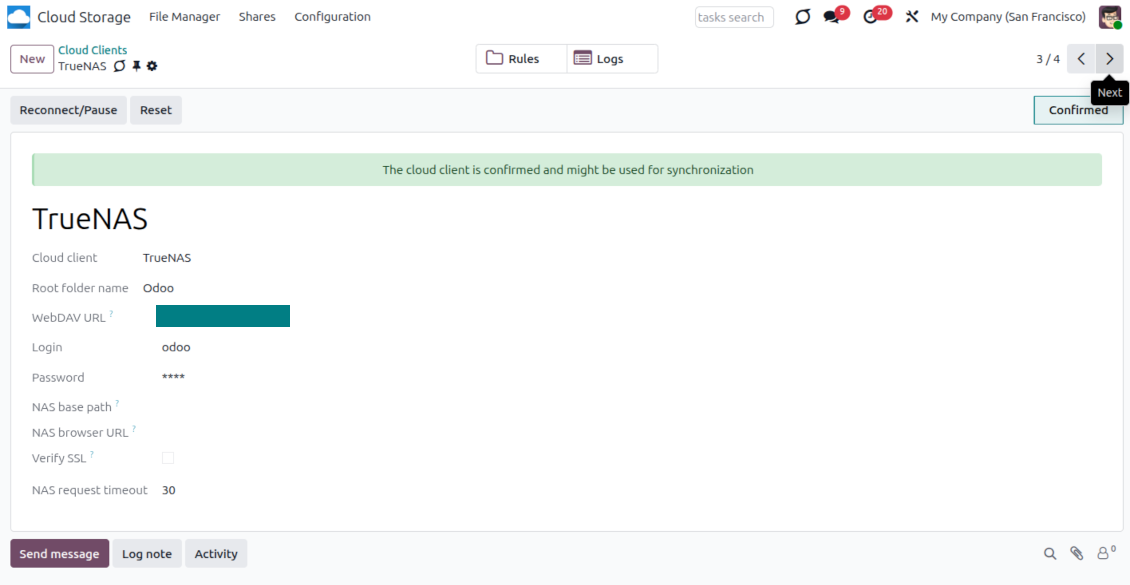
- TrueNAS CORE: WebDAV サービスを有効にします。TrueNAS SCALE: 新しい SCALE ではネイティブ WebDAV が削除されたため、WebDAV アプリをインストールして設定します
- 汎用 WebDAV: PROPFIND、MKCOL、PUT、GET、MOVE、DELETE が利用できることを確認してください
- Odoo がローカル NAS ネットワーク外でホストされている場合は、WebDAV エンドポイントを安全に到達可能にしてください。有効な TLS 証明書付きリバースプロキシ、WireGuard・Tailscale・Cloudflare Tunnel などの VPN/セキュアトンネル、または Synology QuickConnect・QNAP myQNAPcloud などのベンダーリレーを優先します。管理者画面を Internet に公開しないでください
- 対象の共有フォルダ内だけに読み取り・作成・書き込み・移動・削除の全権限を持つ専用 NAS ユーザーを作成します。管理者アカウントは使わないでください
- Odoo Cloud Storage > Configuration > Cloud Clients に進み、'Create' を押します
- 参照には、全ユーザーに分かる名前を入力してください
- Cloud クライアントとして「Synology NAS」「QNAP NAS」「TrueNAS」または「WebDAV NAS」を選択
- Root folder 名には、同期フォルダ全体の親 NAS directory になるタイトルを入力します。例: 'Odoo' または 'OdooERP'
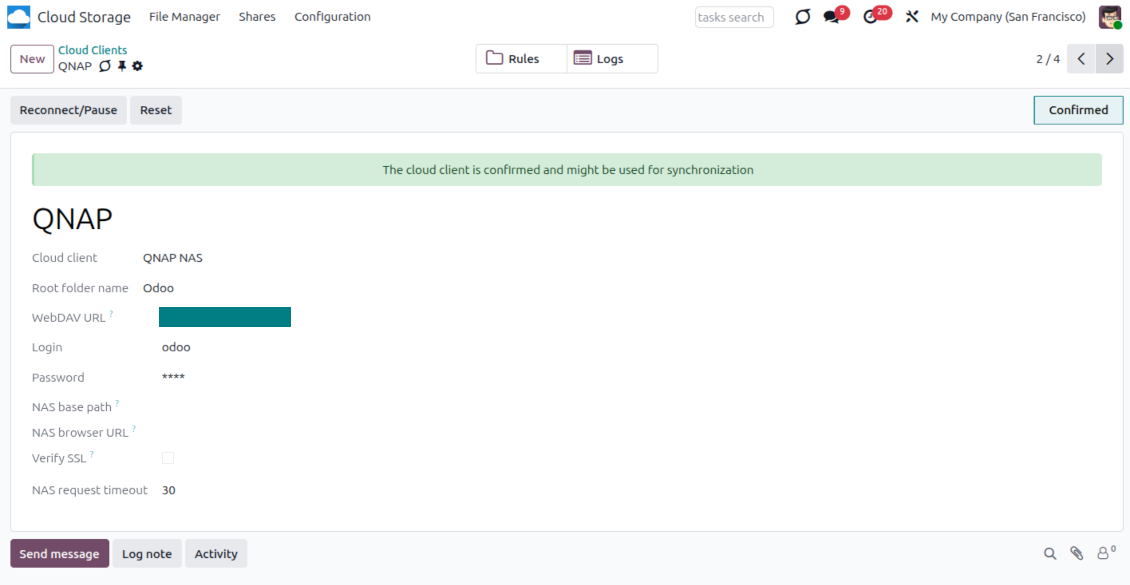
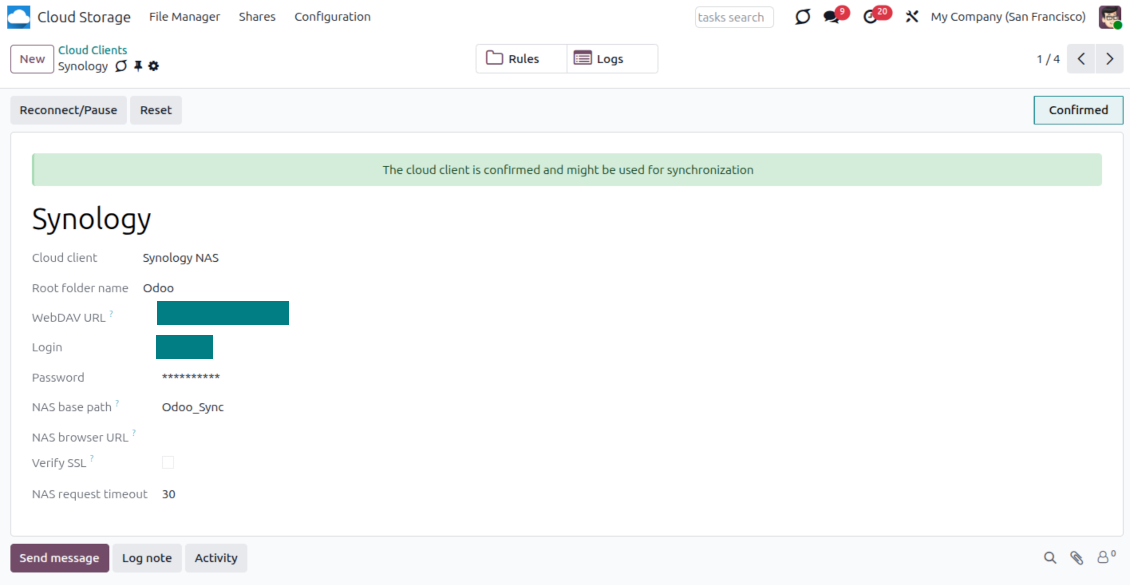
- 完全な WebDAV URL、ログイン、パスワードを入力します。既存の共有やディレクトリ内に Odoo がルートフォルダを作る場合は、任意でベースパスを指定します
- 公開 HTTPS エンドポイントでは「Verify SSL」をオンのままにします。自己署名証明書の信頼できる非公開エンドポイントでのみオフにしてください
- NAS ファイルを生の WebDAV URL ではなくベンダーのファイルステーション URL で開く場合は、任意でブラウザのベース URL を指定します
- 'Confirm' を押します。Odoo が WebDAV 接続を確認し、ルートディレクトリを作成または検索します。NAS - Odoo 同期の準備ができました
- 新しく作成した cloud client を、その NAS ストレージ と同期するフォルダルールおよび/または手動フォルダに適用します
- 同期のスケジュールジョブが開始されるのを待ちます。テスト専用: Cloud Storage > 設定 > 設定 > ボタン「Launch sync」から統合を手動で起動します。
NAS 事前設定
NAS は通常、ローカルネットワーク経由でファイルを公開します。Odoo サーバーがそのネットワーク外にある場合、WebDAV エンドポイントは安全な経路で Odoo から到達できる必要があります。推奨は有効な HTTPS 証明書付きリバースプロキシ、WireGuard、Tailscale、Cloudflare Tunnel などの VPN/セキュアトンネル、または Synology QuickConnect や QNAP myQNAPcloud などのベンダーリレーです。単なるポート転送は可能ですが、最も優先度の低い選択肢として扱うべきです。
共有フォルダ 1 つに対し、読み取り・作成・更新・移動・削除の最小権限だけを持つ専用 NAS ユーザーを使います。 管理者アカウントは避けてください。公開エンドポイントは常に HTTPS と有効な TLS 証明書を使います。コネクタには 信頼できる自己署名証明書向けの "Verify SSL" オプションがありますが、通常は有効のままにしてください。
QNAP の認証情報を入力
Synology の認証情報を入力
TrueNAS の認証情報を入力
Box の設定
- オプション 'Box Sync' をオンにします(cloud Storage > 設定 > 設定)。オプションアドオン Box Odoo Integration が必要です
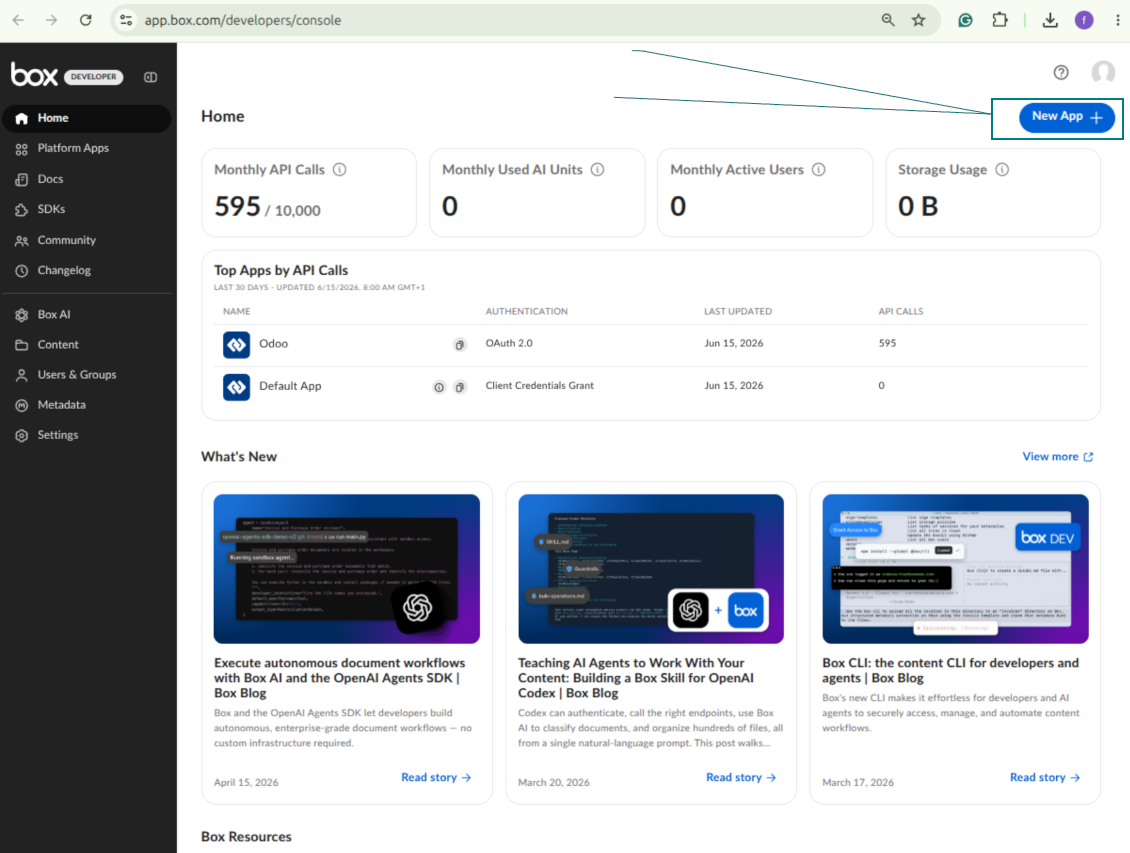
- Box開発者アカウントを作成または開き、Box Developer Consoleへ移動: https://app.box.com/developers/console
- Custom App を作成し、認証方式に OAuth 2.0 (Authorization Code Grant) を選びます
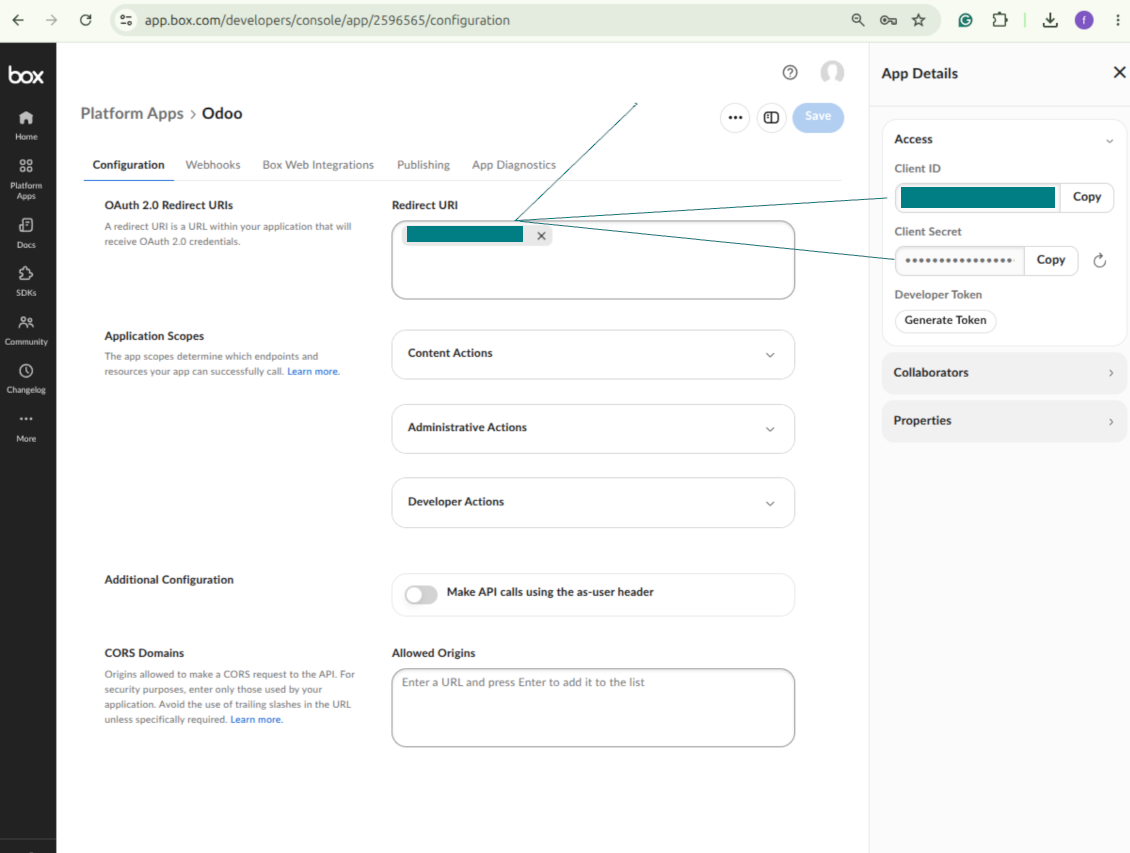
- Add the redirect URI as [YOURODOOSITENAME]/box_token (e.g. https://faotools.com/box_token). A valid SSL certificate (https) is required
- アプリにファイルとフォルダの読み書きアクセスを付与します。無関係な権限は割り当てないでください
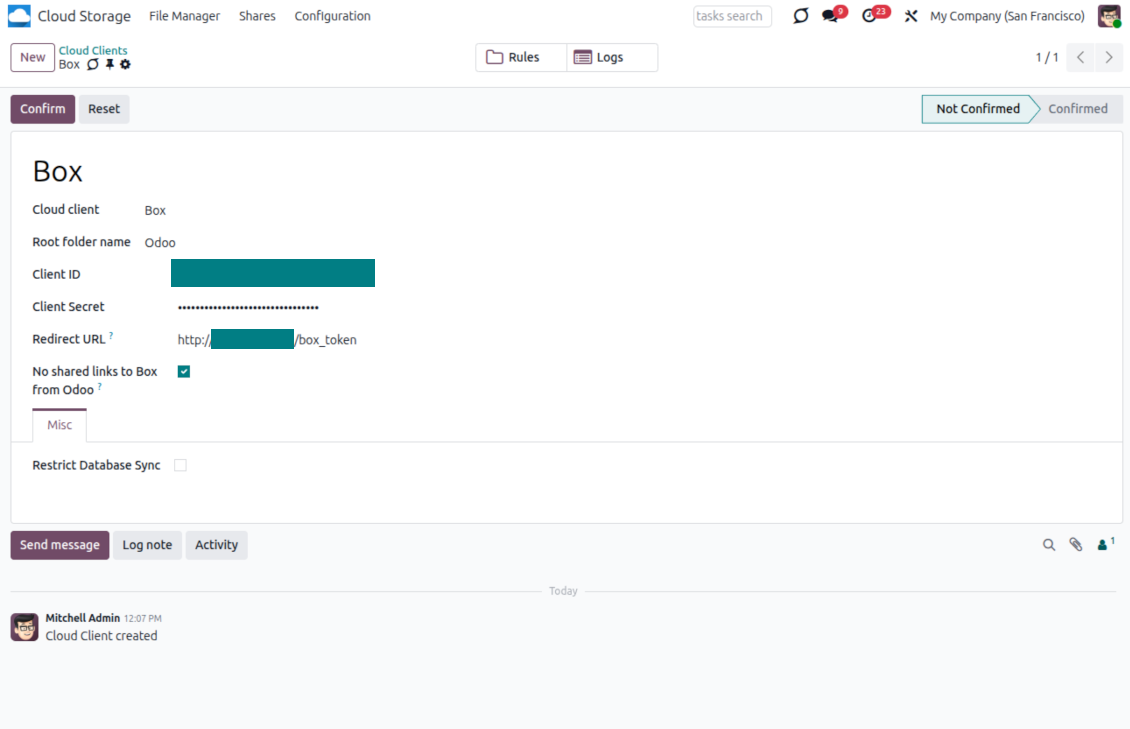
- Odoo Cloud Storage > Configuration > Cloud Clients に進み、'Create' を押します
- 参照には、全ユーザーに分かる名前を入力してください
- Cloud クライアントとして「Box」を選択
- Root folder 名には、同期フォルダ全体の親 Box directory になるタイトルを入力します。例: 'Odoo' または 'OdooERP'
- Box Client IDを「Client ID」フィールドにコピー
- Box Client Secretを「Client Secret」フィールドにコピー
- 以前生成したリダイレクト URL を挿入
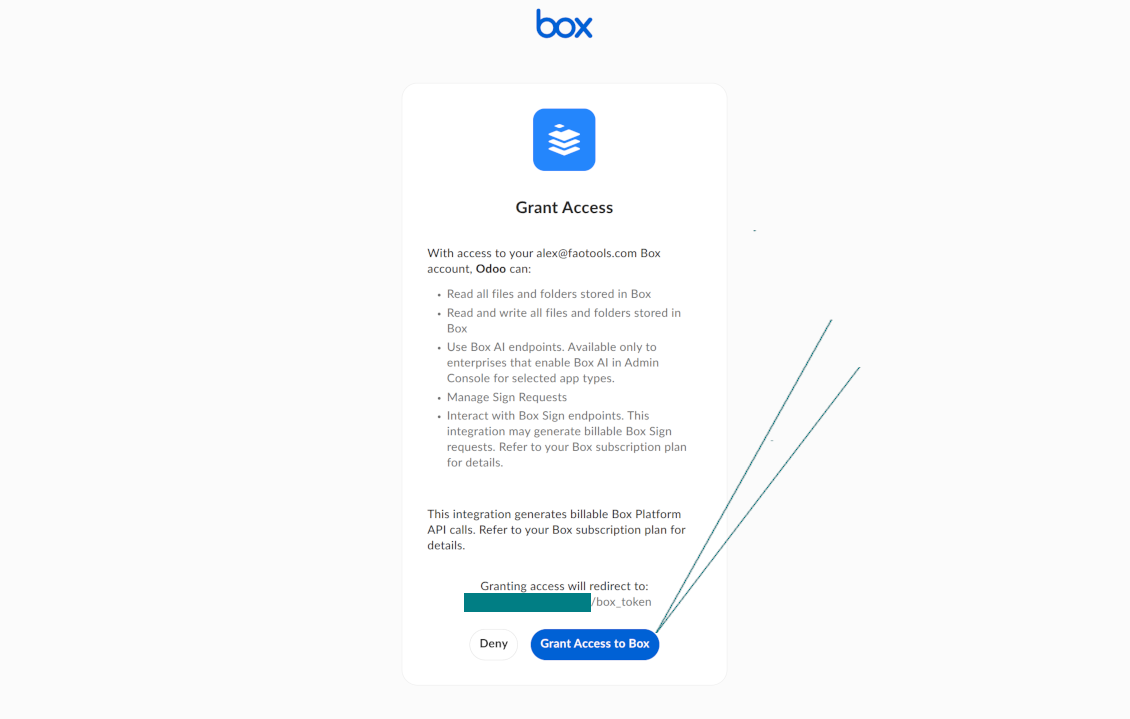
- 'Confirm' を押します。Odoo が Box のログインページへリダイレクトします。システムで確認し、すべての条件に同意し、求められた権限をすべて付与してください
- ログイン後、Box は Odoo に戻します。Box - Odoo 同期の準備ができました
- 新しく作成した cloud client を、その Box アカウント と同期するフォルダルールおよび/または手動フォルダに適用します
- 同期のスケジュールジョブが開始されるのを待ちます。テスト専用: Cloud Storage > 設定 > 設定 > ボタン「Launch sync」から統合を手動で起動します。
新しいBox開発者アプリを作成
BoxのOAuth認証情報をコピー
OdooでBoxクラウドクライアントを設定
Odoo に Box へのアクセスを付与
MinIO の設定
- 稼働中の MinIO サーバーを準備します
- MinIOコンソールを開く
- 新しいバケットを作成するか、既存のものを選びます。正確なバケット名をコピーし、Odoo の項目「Bucket」に入れてください
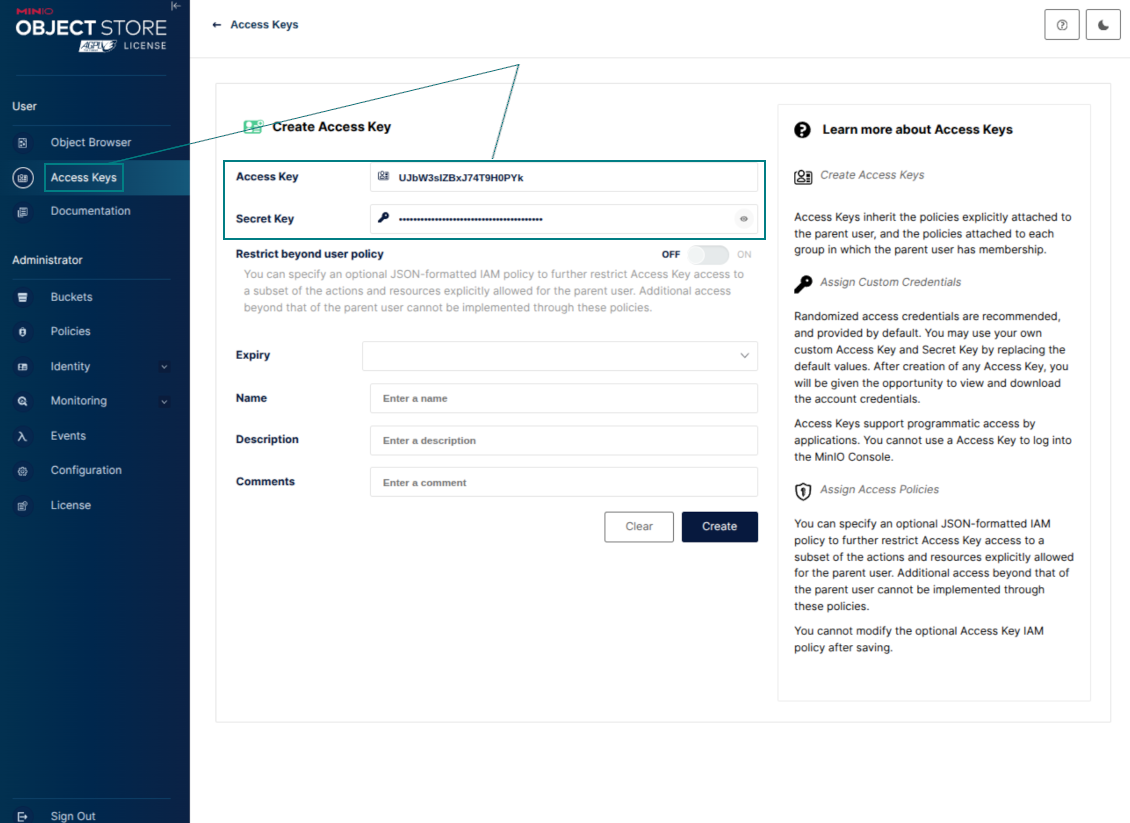
- Odoo 用のアクセス資格情報を作成します。MinIO では、選択したバケット内のオブジェクトを一覧・読み取り・作成・書き込み・コピー・削除できる access key / secret key の組、またはサービスアカウントを使います
- MinIO の Access Key を Odoo の項目「Access Key」にコピーします
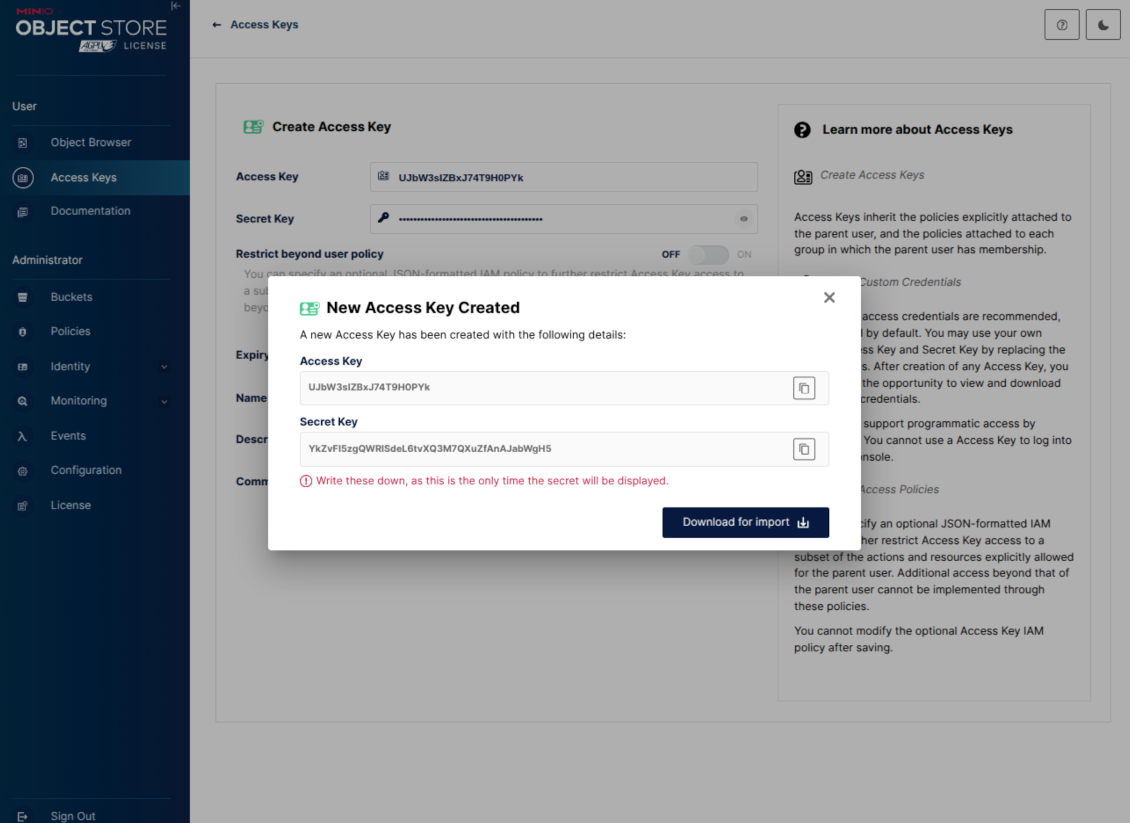
- MinIO の Secret Key を Odoo の項目「Secret Key」にコピーします。重要: MinIO が一度しか表示しない場合は、MinIO ページを閉じる前にシークレットを保存してください
- MinIO S3 API エンドポイント URL を Odoo の項目「Amazon S3 endpoint URL」にコピーします。例: ローカルサーバーは通常 http://localhost:9000、本番サーバーは https://minio.example.com を使うことがあります
- Odoo Cloud Storage > Configuration > Cloud Clients に進み、'Create' を押します
- 参照には、全ユーザーに分かる名前を入力してください
- Cloud クライアントとして「MinIO」を選択
- Root folder 名には、同期フォルダ全体の親 MinIO object prefix になるタイトルを入力します。例: 'Odoo' または 'OdooERP'
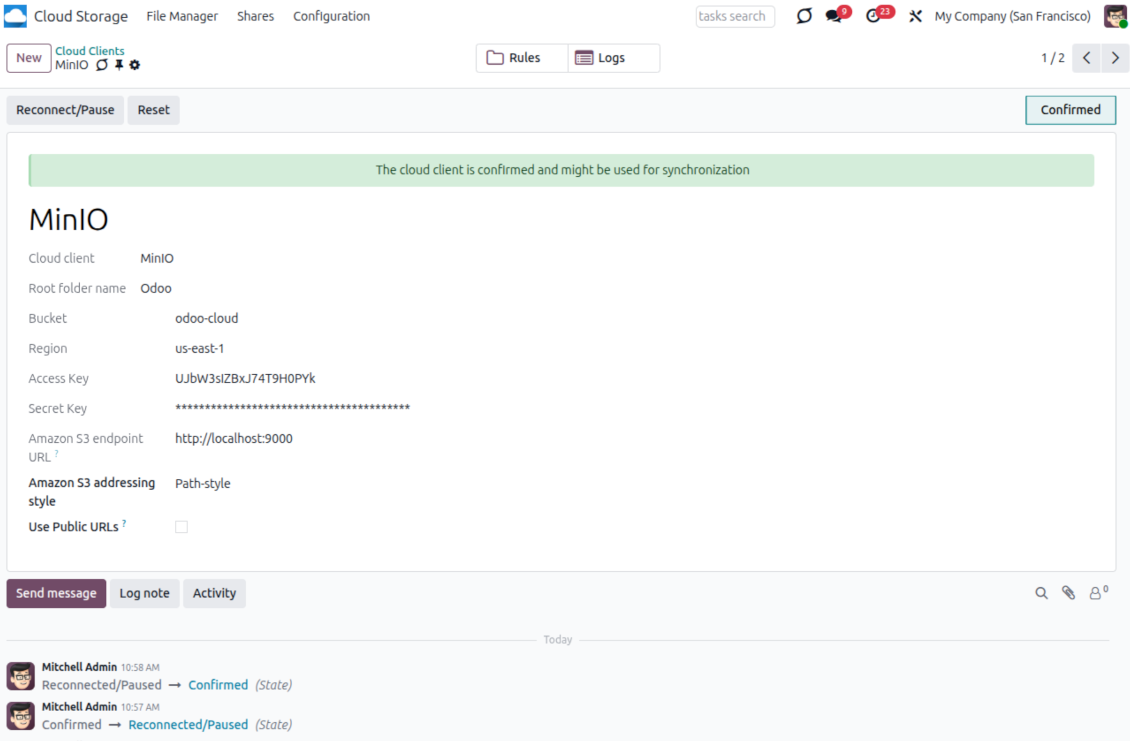
- 'Bucket'、'Access Key'、'Secret Key'、'Amazon S3 endpoint URL' を入力します。'Region' は MinIO では任意で、空の場合 Odoo は S3 互換署名に us-east-1 を使います
- アドレス指定スタイルはPath-styleのままにしてください。MinIO エンドポイント、特に MinIO ホストがバケット固有の DNS 名を提供しない場合に推奨されます
- Odoo が直接の公開 MinIO URL を使うかを選びます。バケット、プレフィックス、リバースプロキシ、CDN が公開読取可能なときだけ「Use Public URLs」を有効にしてください。非公開の MinIO バケットでは無効のままにします
- 'Confirm' を押します。Odoo が bucket アクセスを確認し、ルートフォルダ接頭辞を作成または検証します。MinIO - Odoo 同期の準備ができました
- 新しく作成した cloud client を、その MinIO バケット と同期するフォルダルールおよび/または手動フォルダに適用します
- 同期のスケジュールジョブが開始されるのを待ちます。テスト専用: Cloud Storage > 設定 > 設定 > ボタン「Launch sync」から統合を手動で起動します。
Useful MinIO documentation: https://min.io/docs/minio/linux/administration/identity-access-management.html, https://min.io/docs/minio/linux/reference/minio-server/minio-server.html.
MinIOアクセスキーを作成
新しいMinIO認証情報をコピー
OdooでMinIOクラウドクライアントを設定
Dropbox 連携の設定
Python 依存関係
ツールは外部ライブラリ 'dropbox' に依存します。Odoo サーバーへ次のコマンドでインストールしてください:
pip3 install dropbox
設定とログイン
- オプション 'Dropbox Sync' をオンにします(cloud Storage > 設定 > 設定)。オプションアドオン Dropbox Odoo Integration が必要です
- Follow the URL https://www.dropbox.com/developers/apps/create
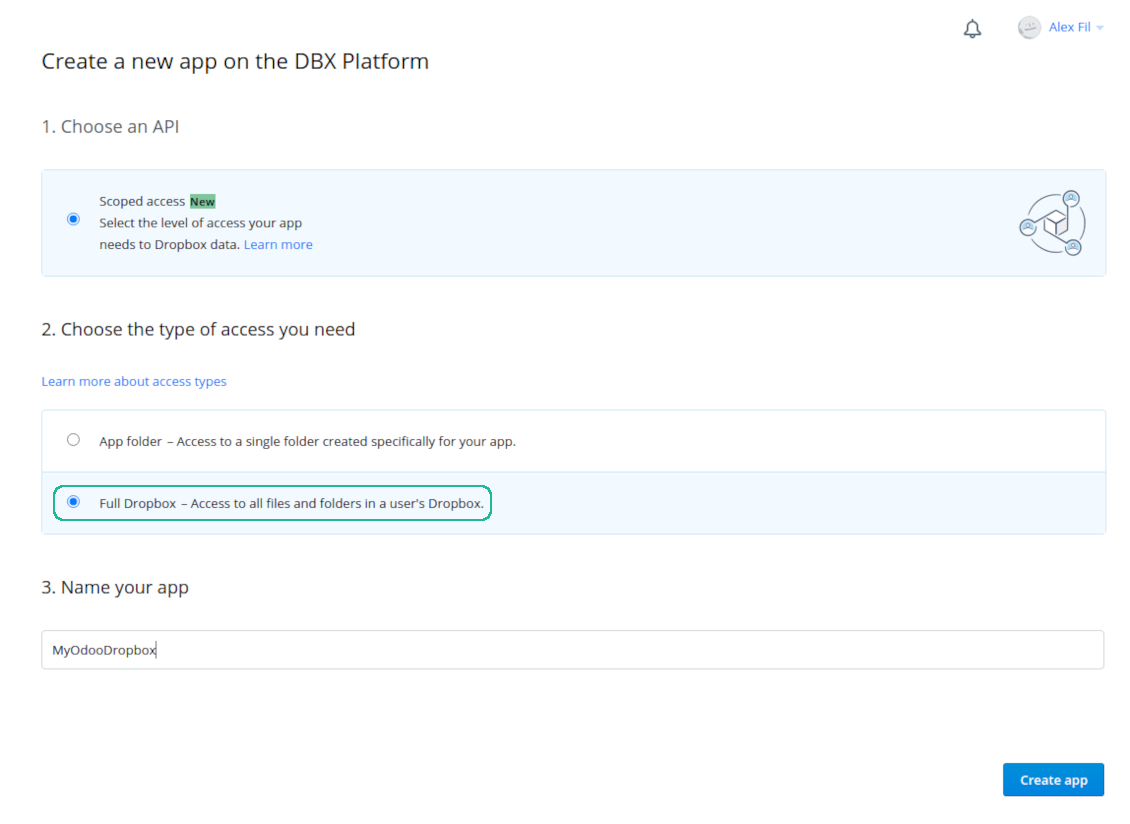
- API を「Scoped access」として選択
- アクセスの種類として「Full Dropbox」を選択
- アプリに適切な名前を選び、「Create app」ボタンを押します
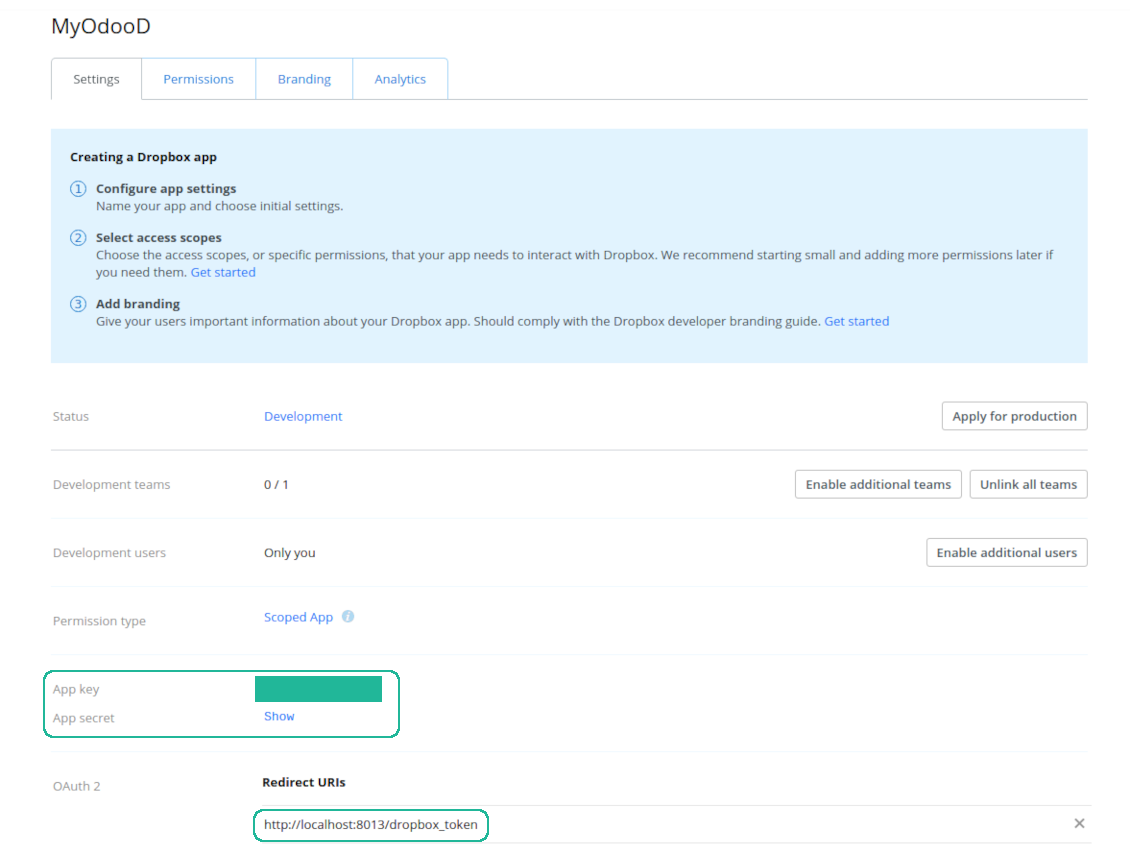
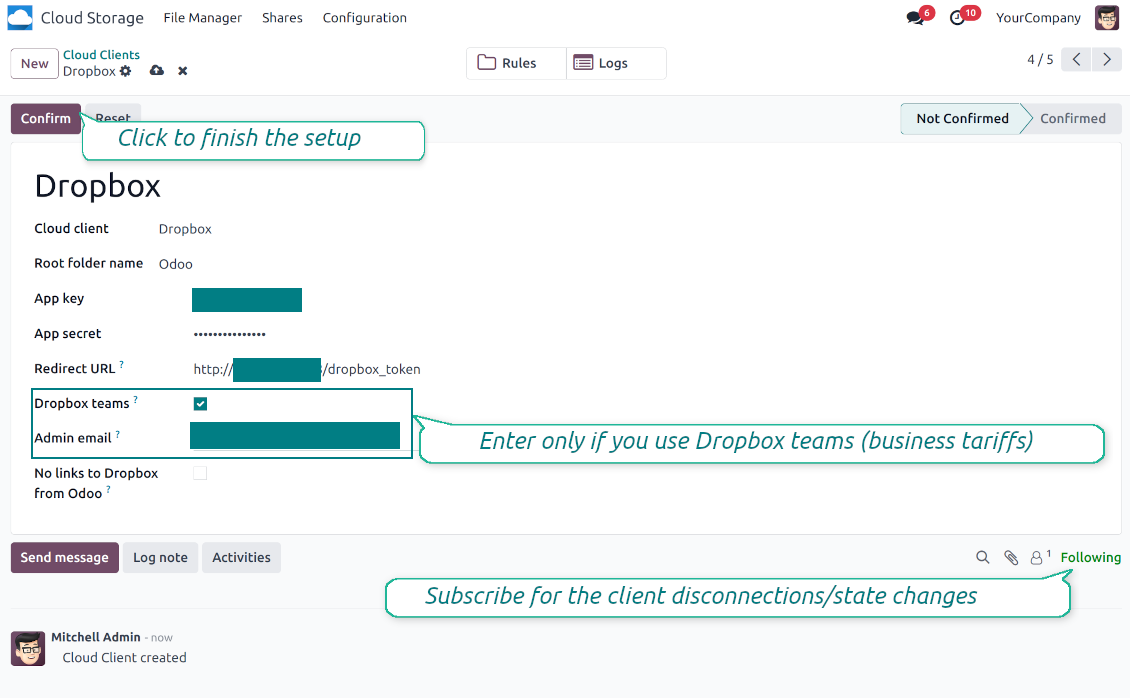
- Add the redirect URI as [YOURODOOSITENAME]/dropbox_token (e.g. https://faotools.com/dropbox_token). A valid SSL certificate (https) is required
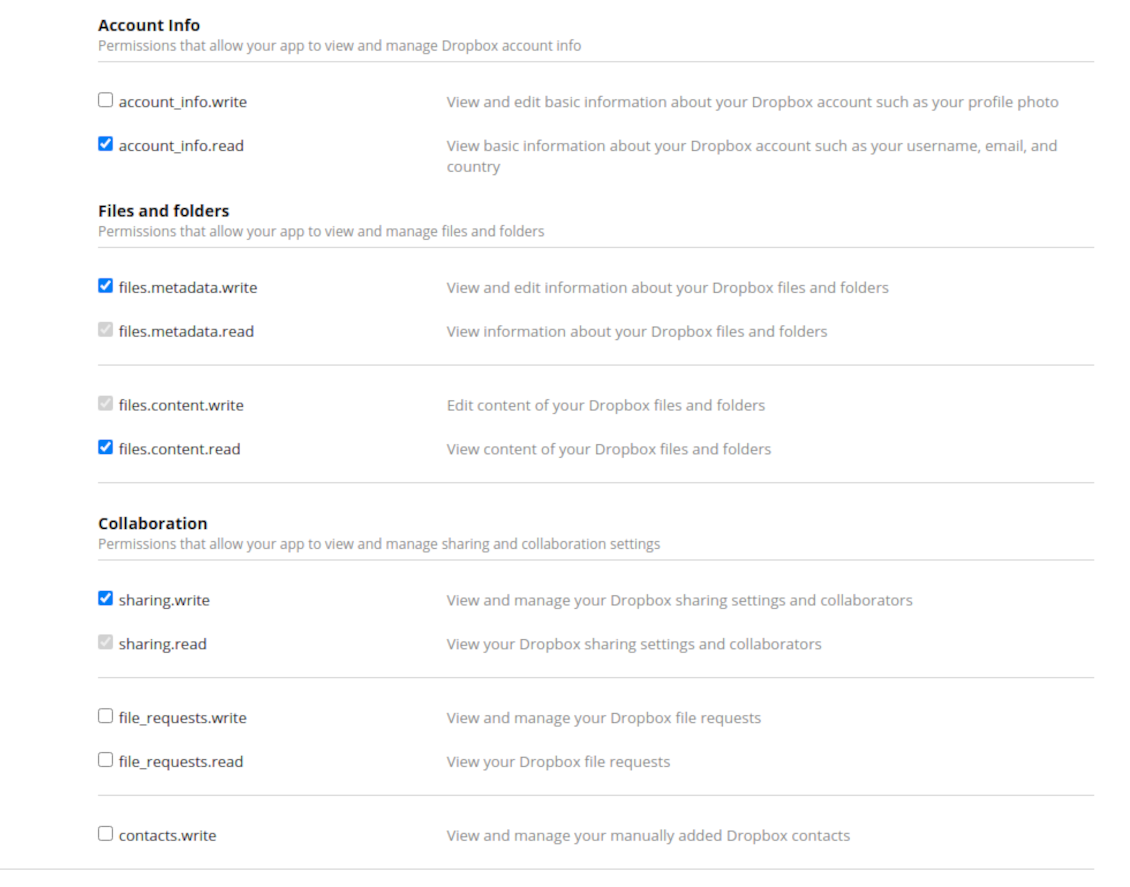
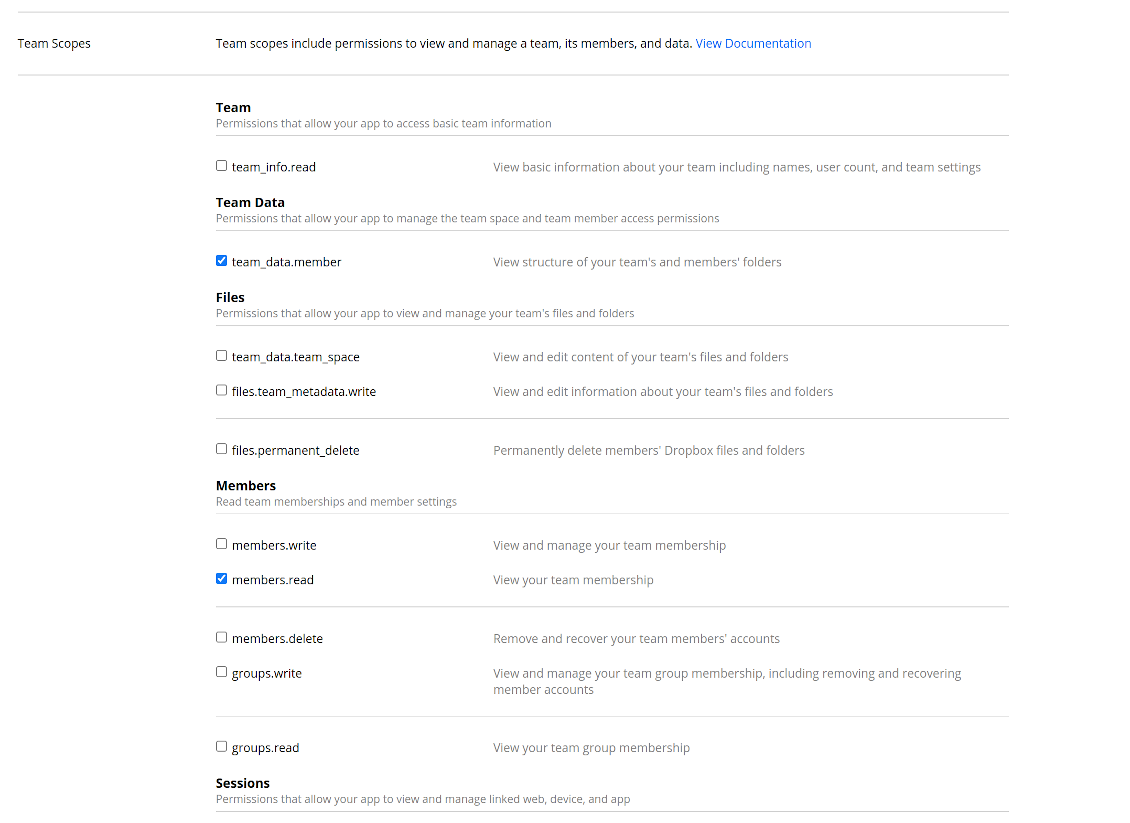
- アプリに権限を付与します: 'Account Info (Read)', 'Files and folders Metadata (Write)', 'Files Content (Write)', 'Collaboration (Write)'。チーム DropBox では 'Team Data Members'、'Members (Read)' も割り当てます。他の権限は割り当てないでください。
- アプリを送信
- Odoo Cloud Storage > 設定 > Cloud Clients に進み「Create」を押します
- 参照には全ユーザーに分かる名前を入力
- Cloud クライアントとして「Dropbox」を選択
- Root folder 名には、同期フォルダ全体の親 Google Drive directory になるタイトルを入力します。例: 'Odoo' または 'OdooERP'
- 「App key」を「App key」にコピー
- 「App Secret」を「App secret」フィールドにコピー
- 以前生成したリダイレクト URL を挿入
- Dropbox チームドライブを使う場合
- 関連ボックスをオン
- Dropbox ユーザーのメールを設定します。このユーザーフォルダ内に Odoo 関連の項目がすべて作成され、その後に他のユーザーと共有されます。このユーザーの下ですべてのファイルとフォルダが作成・変更・移動・削除されます
- 'Confirm' を押します。Odoo が Dropbox のログインページへリダイレクトします。システムで確認し、すべての条件に同意し、求められた権限をすべて付与してください
- ログイン後、Dropbox は Odoo に戻します。Dropbox - Odoo 同期の準備ができました
- 新しく作成した cloud client を、その Dropbox インスタンス と同期するフォルダルールおよび/または手動フォルダに適用します
- 同期のスケジュールジョブが開始されるのを待ちます。テスト専用: Cloud Storage > 設定 > 設定 > ボタン「Launch sync」から統合を手動で起動します。
Dropbox URL
Dropbox には既存のファイルとフォルダのリンクを生成する独自の方法があります。内部 URL や非公開 URL という概念はありません。代わりに各 Dropbox 項目はいわゆる共有 URL を受け取れます。共有リンクは公開かチーム限定です。後者は Dropbox business アカウントでのみ使えます。
このツールは共有リンクの仕組みに依拠します。つまり各添付リンクは公開(すべての個人 Dropbox アカウント)かチーム限定(すべてのビジネス Dropbox アカウント)です。
完全に安全とは限らないとされることがあります。サイト URL は外部ユーザーにはほとんど知られませんが、操作の結果として露出するわずかな可能性があります。また共有リンク生成は速くなく、同期を遅くすることがあります。そのため共有 URL をオフにする機能があります。
If checked, all Dropbox URLs in Odoo will be of type https://www.dropbox.com/home/Odoo/[PATH]. Such links will not work in many cases. Thus, if you need to open Dropbox files/folders from Odoo, be careful with the setting 'No links to Dropbox from Odoo'.
あわせて見る 設定ビデオ
Dropboxアプリを作成
Dropbox アプリの設定: リダイレクト URL
個人アカウント向けDropbox権限
ビジネスアカウント向けDropbox権限
Dropbox 連携向けに Odoo を設定します
に関するよくある質問 Cloud Storage Solutions Odoo v.18
同期フィールドはどこに保存されますか?Odooとクラウドに重複しますか?
本アプリは、添付のバイナリ内容が Odoo サーバーではなく Cloud Client に保管されることを前提とします。そのため、Odoo 上の該当添付は URL タイプになり、添付ボックスまたは Cloud Client からいつでもアクセスできます。
セットアップ後は同期が完全に自動のため、手動操作は不要です。同期する Odoo のドキュメントタイプを決め、それぞれに関連モデルを設定してください(顧客、販売オーダまたは購買オーダ、タスク、プロジェクトなど)。
同じ文書タイプに複数のフォルダを持てますか?例えば社内プロジェクトと顧客プロジェクトです。
はい。それぞれにルールを用意し、その後フィルタを適用します。例: プロジェクトの種類。
文書を確実に割り当てられるよう、フィルタは互いに排他的にしてください。例: 「顧客だが仕入先ではない」「仕入先だが顧客ではない」。そうしないと、特定文書のフォルダがモデル間を行き来します。
同期をリアルタイムにできますか?
いいえ。リアルタイム同期を避ける確かな理由があります:
パフォーマンスの問題。同期がリアルタイムだと、ファイルアップロードのたびに読み込み画面が出ます。
競合の問題。2 人のユーザーが同時に項目を変更すると、解決できない状況になり得ます。定期ジョブなら後から直せますが、リアルタイムではキューとして保存する必要があり、ユーザーにとってさらに分かりにくくなります。
機能上の問題。特に項目の名前変更と再構成です。逆方向同期ではディレクトリ論理に厳密に依存し、毎回 100% の項目を確認します。更新のたびに行うと毎秒数千リクエストになります。行わなければ変更は失われます。
クラウドの既定フォルダ名を変更できますか?
任意のドキュメントタイプについて、モデルのディレクトリ(販売オーダ、案件、仕入先など)に独自の名前を付けられます。
オブジェクトのフォルダ(SO-001、John Smith など)では、このドキュメントタイプの表示名を組み立てる Odoo のメソッドに依存します。ただし名前式を定義すれば変更できます。Odoo メールテンプレートと全く同じ構文を使います。
同期ジョブの頻度を変更できますか?
いいえ。バージョン 15 以降、スケジュール済ジョブは変更しないでください。最も安定して速い接続のため 15 分ごとに実行するよう最適化されています。
Odoo サーバーのタイムアウトを少なくとも 15 分(900 秒)に設定してください。
同期を一時停止する場合は、対象の cloud client フォームで行ってください。
添付をいくつかのクラウドクライアントと同期できますか
はい、バージョン 15 以降は複数接続を設定できます。一部のフォルダをある cloud client に、他を別のクライアントに同期できます。
同じフォルダを複数の cloud storages に同時同期することはできません。
クラウドでは専用エディタ(OnlyOffice、Office 365 など)を使っています。ファイルはそのエディタで開きますか?
はい、cloud client の設定によります。
Cloud Storage Solutionアプリだけが必要ですか?
バージョン 15 以降、アプリは単独で添付をフォルダ整理し、ファイルマネージャー画面を提供できます。
ただしクラウドクライアントとの接続が目的なら、関連するオプションアプリを 少なくとも 1 つインストールする必要があります。
フォルダルールを変えるとどうなりますか?
フォルダ規則が変わると、フォルダ一覧も変わります。規則の条件に合わなくなったフォルダは削除されます。ファイルが同期済みなら、逆同期で Odoo に戻し、Cloud Client から削除します。
文書オブジェクトがフォルダ規則の条件に合わない場合、そのフォルダは作られません。後で条件に合えば、関連フォルダが生成されます。
直接同期だけを残すか、クラウドからの同期を無効にできますか?
はい。クラウドクライアントで設定ページを開き、クラウドからの同期を無効にするをオンにします。
同期は一方向のままです。Odooで行った変更は引き続きクラウドストレージへ送られます。クラウドストレージで作成、名前変更、削除されたファイルとフォルダはOdooに反映されず、そこで削除されたフォルダは復元されません。
蓄積された変更(削除を含む)を次回の同期で適用するには、このオプションを再びオフにします。
この設定はバージョン18から使えます。クライアントの切り離し、リセット、無効化は、逆同期もオフにしない限り逆同期を実行します。
ツールの更新ポリシーは何ですか?
現行の Odoo Apps Store ポリシーによると:
- バージョン 12.0 以前向けに購入したモジュールは、12.0 までの全バージョンにアクセスできます。
- バージョン 13.0 以降、各モジュールバージョンは個別に購入します。
- バージョンに関係なく、購入するとメジャーバージョン内の すべての更新と不具合修正の権利が得られます。
faOtools チームはこれらのポリシーを管理していません。ご質問は Odoo Apps Store の担当者へ直接お問い合わせください。
アプリを Odoo.sh にインストールする方法は?
最も単純な方法は、Odooストア組み込みのワークフローを使うことです:
1. モジュールのページを開き、Deploy on odoo.sh ボタンをクリックします。
2. その後 GitHub ページにリダイレクトされます。アカウントにログインし、'Create a new repo' をクリックするか既存のものを使います。リポジトリはプライベートにしてください。OPL-1 ライセンスのアプリを公開することは許可されていません。必要なら Odoo.sh プロジェクト用に新しい repo を作成します。
3. 次に odoo.sh に行き、Deploy ボタンをクリックします。ポップアップで決定を送信し、'Continue.' をクリックします。これでインストールが始まります。
これらの手順でプロジェクトの本番ブランチにアプリがインストールされます。他のブランチにデプロイする、またはモジュールを更新する場合は、次の操作を行います:
1. Odooストアからアプリのソースコードをアップロードします。
2. モジュールを必要な GitHub リポジトリにコミットします。アプリのフォルダ/ファイルが無視されていないこと(repo の .gitignore に含まれていないこと)を確認してください。リポジトリは odoo.sh が自動作成し、既定で重要な項目(例: /lib)が含まれることがあります。モジュールのディレクトリ、サブディレクトリ、ファイルを例外なくすべてアップロードしてください。
3. odoo.sh プロジェクトの対象ブランチを Deploy するか、 設定がそうなっている場合は自動ビルドされるまで待ちます。
自分のサーバーにアプリをインストールするには?
2. Odoo サーバーを再起動します;
3. 開発者モードをオンにします(技術設定);
4. アプリ一覧を更新します(アプリメニュー);
5. アプリを見つけて「Activate」/「Install」を押します;
6. アプリページにガイドラインがあれば従ってください。
アプリに追加アドオンがあるのに気づきました。後から購入できますか?
はい、もちろんです。同時に Odoo は依存関係をすべてカートに自動追加するので、二重払いを避けるには既に購入したツールを除外してください。
アプリを Odoo.sh にデプロイしたらテストで警告/エラーが出ます
赤/オレンジの警告はアプリの機能に影響しません。残念ながら、標準の自動テストがアプリの目的と衝突する動作を想定するため、モジュールが通らないことがあります。たとえば価格計算を変える一方、標準 Odoo モジュールのテストは最終価格を標準アルゴリズムと比較します。
まず、デプロイ済みデータベースの機能を確認してください。すべて正しく動いていますか?
それでも警告が実機能に影響すると考える場合はご連絡のうえ、インストールログ一式とデプロイ済みモジュールの全一覧(コアおよびサードパーティ含む)を送ってください。
アプリを御社から直接購入できますか?
いいえ、ツールは 公式の Odoo アプリストア.
割引をいただきたいです
残念ながら、個別価格を提示する技術的手段が ありません。
Odoo Online (SaaS)データベースにアプリをインストールできますか?
いいえ、サードパーティアプリは Odoo Online では使えません。残念ながら Odoo SaaS がその可能性をブロックします。
ツールは他のアプリに依存しています。それらも購入すべきですか?
はい、ツールが正しく動くには依存関係に記されたすべてのモジュールが必要です。アプリページの価格には必要な依存関係がすでに含まれています。
モジュールの米ドル価格はいくらですか?なぜ変わりましたか?
モジュールの価格はユーロ建てです。Odoo ストアは内部為替レートで他通貨に換算します。そのため為替が更新されると米ドル価格が変わることがあります。
英語以外のアプリ・サイト文言は AI 支援で作成され、 公式の Odoo 翻訳に揃えています。誤りを見つけたら、 翻訳の正確さについてチケットを送る 修正します。
Odoo デモデータベース(ライブプレビュー)
このアプリでは無料の個別デモデータベースをご用意できる場合があります。
ご連絡に電話番号やクレジットカードは不要です。30 秒以内の短いメール登録だけです。
ご依頼に応じて個別のライブプレビューデータベースを用意します。約2週間、テストや前提の確認ができます。
不具合報告
不具合や一貫しない動作があれば、遠慮なくご連絡ください。購入から60日以内の修正を保証し、その後もツール改善に力を入れています。
ご連絡に電話番号やクレジットカードは不要です。30 秒以内の短いメール登録だけです。
リクエストにはできるだけ多くの詳細を含めてください:スクリーンショット、Odoo サーバーログ、問題の再現手順の完全な説明など。通常、問題の作業計画の作成(不具合が確認された場合)または実施すべき内容の案内(それ以外)には数営業日かかります。
公開の機能リクエストとモジュールのアイデア(無償開発)
ツール改善への意欲は強く、フィードバックには感謝します。要件が広く役立ち、効率よく実装できる場合、チームは To-do リストに加えます。
このような To-do リストは定期的に処理され、追加料金は発生しません。期限や最終デザインは約束できませんが、投資とリスクなしで望む機能を得る良い方法になることがあります。
ご連絡に電話番号やクレジットカードは不要です。30 秒以内の短いメール登録だけです。
18.0.1.4.54
- The issue of the sync queue stopping with a recursion error when a large number of tasks is planned at once has been fixed.
- Tasks of a paused or not connected cloud client now wait for the client instead of being failed and canceled.
18.0.1.4.53
- クラウドクライアントのクラウドからの同期を無効にする機能を追加しました。
- クラウドクライアントの逆同期を無効にする機能を追加しました。
- 逆同期のクライアントが削除された後も同期キューがブロックされたままになる問題を修正しました。
18.0.1.4.52
- The issue of folder lookup failing when the document id was a recordset has been fixed.
18.0.1.4.51
- Optimized folder sync by searching only attachments of updated records instead of all model attachments.
18.0.1.4.50
- The feature to requeue failed tasks has been added.
18.0.1.4.49
- Support for Amazon S3, MinIO S3, Synology, QNAP, TrueNAS, other NAS/WebDAB, and BOX has been added.
18.0.1.4.48
- The feature to control the maximum number of folders per rule has been added.
18.0.1.4.47
- The issue with attachments linked to documents disappearing from the attachment box has been fixed.
18.0.1.4.46
- The issue fix text break in folder titles has been fixed.
18.0.1.4.45
- The issue with the non-synced invoice report has been fixed.
18.0.1.4.44
- 非同期のフォルダ確認を最適化しました。
18.0.1.4.43
- 新しく選択したフォルダの検索の問題を修正しました。
18.0.1.4.42
- レコード切替時にフォルダツリーが更新されない問題を修正しました。
18.0.1.4.41
- 選択した添付の削除にダブルクリックが必要だった問題を修正しました。
18.0.1.4.40
- バックアップ削除キューを first-in, first-out に変更しました。
18.0.1.4.39
- アプリを動的部分に対応する新しいドメインロジックに合わせました。
18.0.1.4.38
- 設定ページに filestore 評価を追加しました。
- cloud client の同期を特定のデータベース名に制限する機能を追加しました。
18.0.1.4.37
- バックアップ作成をロックする機能を追加しました。
18.0.1.4.36
- 未翻訳の警告の問題を修正しました。
18.0.1.4.35
- 現在のデータベースバックアップを選択したクラウドクライアントへ自動および手動で同期する機能を追加しました。バックアップスケジュールと保持期間を設定します。バックアップは filestore と manifest の有無どちらでも可能です。
18.0.1.4.34
- フォルダ更新時に Python ライブラリを正しくインポートできなかった不具合を修正しました。
18.0.1.4.33
- ドメインで Python ライブラリを使えるようになりました。datetime ('date', 'datetime', 'time', 'timedelta', 'timezone', 'tzinfo', 'MAXYEAR', 'MINYEAR')、time ('time', 'strptime', 'strftime') を含みます。context_today(datetime.now の短縮)と relativedelta も適用できます。
18.0.1.4.32
- Email Marketing モジュールとの互換性を最近の Odoo 18 更新に合わせて修正しました。
18.0.1.4.31
- 削除後、添付ファイルの選択が解除されます。
18.0.1.4.30
- 同期済み添付の URL を事前計算できるようにしました。
18.0.1.4.29
- クラウドクライアントに基づいて作成されたフォルダの sequence が上がります。
18.0.1.4.28
- Kanban ビューを新しい Odoo 18 の XML 原則に合わせました。
- 非アクティブレコードの Archived リボンをルール、フォルダ、タグ、共有のフォームビューに追加しました。
18.0.1.4.27
- コアの添付リストビュー変更を反映するようインターフェースを更新しました。
18.0.1.4.26
- 一部のフォルダにリンクが追加されない問題を修正しました。
18.0.1.4.25
- アプリはバージョン18向けに公開されました。
17.0.1.4.25
- ワークスペース関連の親に対して子フォルダが作成されない問題を修正しました。
17.0.1.4.24
- 以前に同期した子フォルダが更新されない問題を修正しました。
17.0.1.4.23
- ルール関連フォルダのブロック日付をクリアする機能を導入しました。
17.0.1.4.22
- Odoo メッセージ作成時に既存の添付ファイル(同期済みを含む)を選べる機能を追加しました。
- URL 添付を追加する機能を添付ボックスとファイルマネージャー画面に追加しました。
17.0.1.4.21
- メモ記録後の自動スクロールの問題を修正しました。
17.0.1.4.20
- ログを日時で絞り込む機能を追加しました。
- 設定ページでエクスポートするログ数を指定できるようになりました。
17.0.1.4.19
- 失敗時の再試行回数は設定可能になり、標準タスクと reverse/move タスクで異なる場合があります。
17.0.1.4.17
- タスクの親ブロッキング機構を、最も優先度の高いタスクを先に処理するよう最適化しました。
17.0.1.4.15
- 項目を移動する同期操作のブロック機構を明確にしました。
17.0.1.4.13
- ルール関連の中間フォルダへのアクセスは、ルールモデルではなく親フォルダのアクセスに基づきます。
17.0.1.4.12
- URL の最大サイズを 4096 に増やしました。
17.0.1.4.11
- 逆同期を最適化しました。相互ブロックでハングしていたタスクを削除しました。
17.0.1.4.10
- 逆同期と後方同期の同時実行の問題を修正しました。
17.0.1.4.9
- 並べ替え・移動されたフォルダを処理するアルゴリズムを最適化しました。
17.0.1.4.8
- ポータルからタグとフォルダを作成する問題を修正しました。
17.0.1.4.7
- タグ/フォルダ名によるポータル共有検索を修正しました。
17.0.1.4.6
- 一括アクション「Slideshow」を追加しました。バックエンドユーザーが選択した画像添付のスライドショーを開始できます。
- 共有設定にオプション「Allow slideshow」を追加しました。オンにすると、ポータル/公開ユーザーは共有のポータル画面で見つかった画像添付のスライドショーを開始できます。
- 逆同期アルゴリズムを最適化しました。
17.0.1.4.5
- ハングしたタスク向けの事前チェックを導入しました。タスクが cron を完全に止めた場合(例: メモリ制限エラー)、次の cron は別のタスクを続けます。
17.0.1.4.4
- ファイルマネージャー画面の添付カードに標準の Odoo プレビューを追加しました。Kanban ビューで関連プレビューを開くにはサムネイルをクリックします。対応ファイル種別と動作は添付ボックスと同じです。
- 添付フォームは Kanban の 3 点メニューから開けます。そこで添付の色も変更できます。
- 同期ログのレベルはメッセージのレベルに応じて色分けされます。
- ジョブが失敗してスレッドが完全に停止してもメッセージを記録するよう、ログシステムを最適化しました。
17.0.1.4.3
- ファイルマネージャ初回読み込み時にフォルダが誤選択される不具合を修正しました。
17.0.1.4.2
- ルールの同期頻度に基づいてフォルダを優先する機能を追加しました。
17.0.1.4.1
- モジュール構造を最新のファイルマネージャーインターフェース、drag-and-drop、ポータル共有機能に更新しました
17.0.1.3.14
- res_model と res_id を明示して添付を複製する処理を修正しました(HR Expenses 互換)。
17.0.1.3.13
- ファイルマネージャー画面でフォルダの複数選択が可能になりました。
- 添付ファイルをアップロードする現在のフォルダがボタン「アップロード」のタイトルに表示されます。
- 添付/フォルダを共有する機能を導入しました。ファイル、ディレクトリ、タグを特定のポータルパートナーまたは公開で共有できます。必要に応じてアップロード、ツリー移動、タグとフォルダの作成を許可します。
- 特定タグの添付ファイルをすべてダウンロードする機能を追加しました。タグによるナビは任意になりました。
17.0.1.3.12
- ローカル PC からファイルをドラッグ&ドロップしてアップロードする機能を導入しました。
- 左ナビゲーションパネルに添付をドロップしてフォルダとタグを更新できるようになりました。
17.0.1.3.11
- タグの一括更新の不具合を修正しました。
- 新規レコードのフォルダが正しくない問題を修正しました。
- 他のフォルダがないときにナビゲーションパネルでフォルダを作成できない問題を修正しました。
- 同期ログ画面を、受信した応答の HTML 内容を表示するよう対応しました。
17.0.1.3.10
- フォルダの初期設定が8回失敗しても同期が必要な、まれなケースに対応しました。


The tool to build a deep and structured knowledge base for internal and external use. Knowledge System. KMS. Wiki-like revisions.
398€
The tool to set up KPI targets and control their fulfillment by periods. KPI dashboards. Dashboard designer. KPI charts

The tool for time-based service management from booking appointments to sales and reviews
398€
The tool to manage your Odoo from your favorite AI chats through MCP. Claude. Any MCP-supporting AI.

The tool to automatically synchronize Odoo attachments with OneDrive files in both ways
487€
The tool to automatically synchronize Odoo attachments with Google Drive files in both ways
487€
The tool to automatically synchronize Odoo attachments with ownCloud/Nextcloud files in both ways
487€
The tool to automatically synchronize Odoo attachments with NAS Solutions in both ways. Synology, QNAP, TrueNAS and any other WebDav-supporting NAS solutions
487€