Cloud Storage Solutions v.18
Alat untuk menata lampiran Odoo secara fleksibel dalam folder dan menyinkronkan direktori dengan klien cloud: Google Drive, OneDrive/SharePoint, Nextcloud/ownCloud, Dropbox, Amazon S3, Box, dan NAS. DMS. Manajer Berkas. Sistem manajemen dokumen
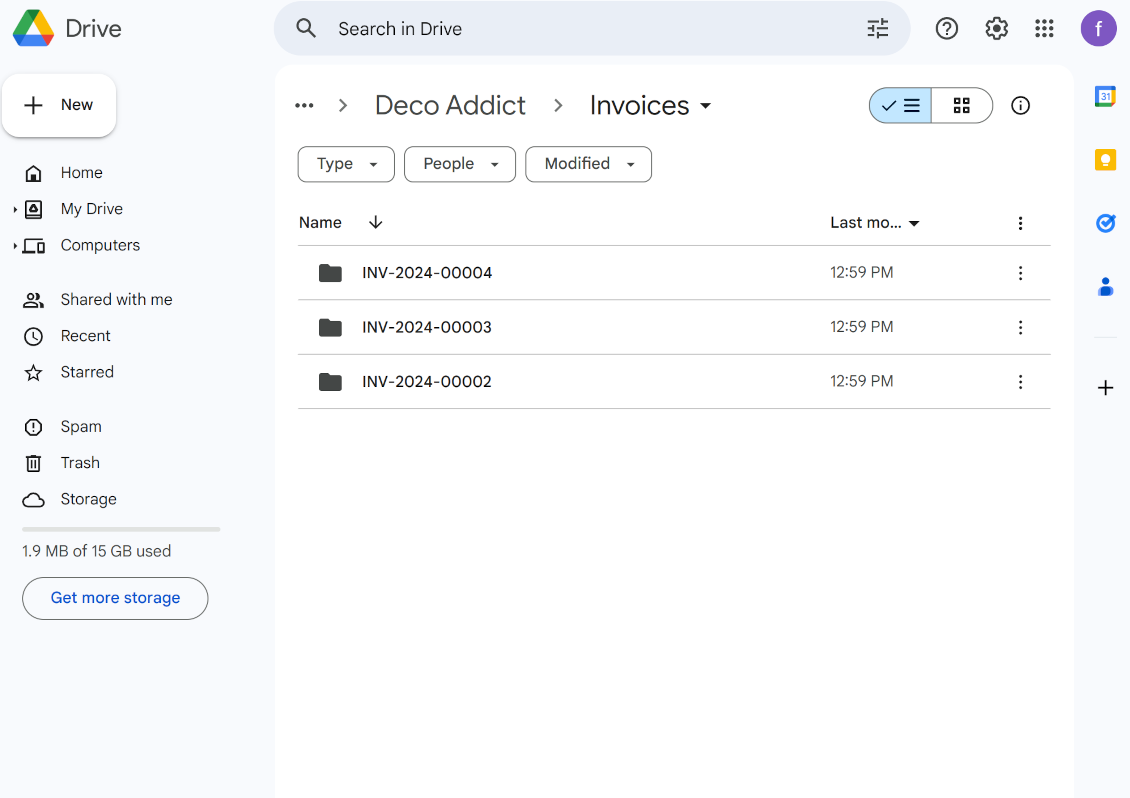
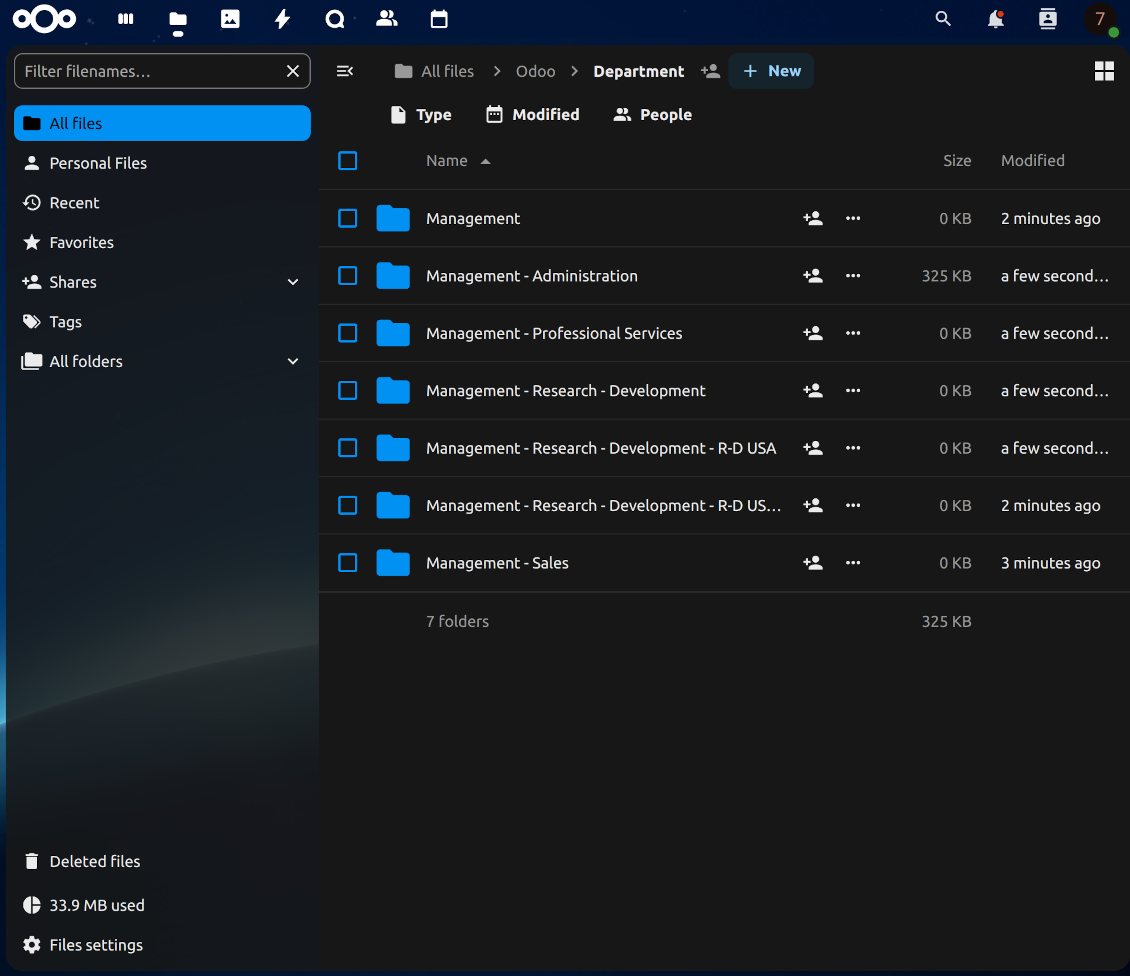
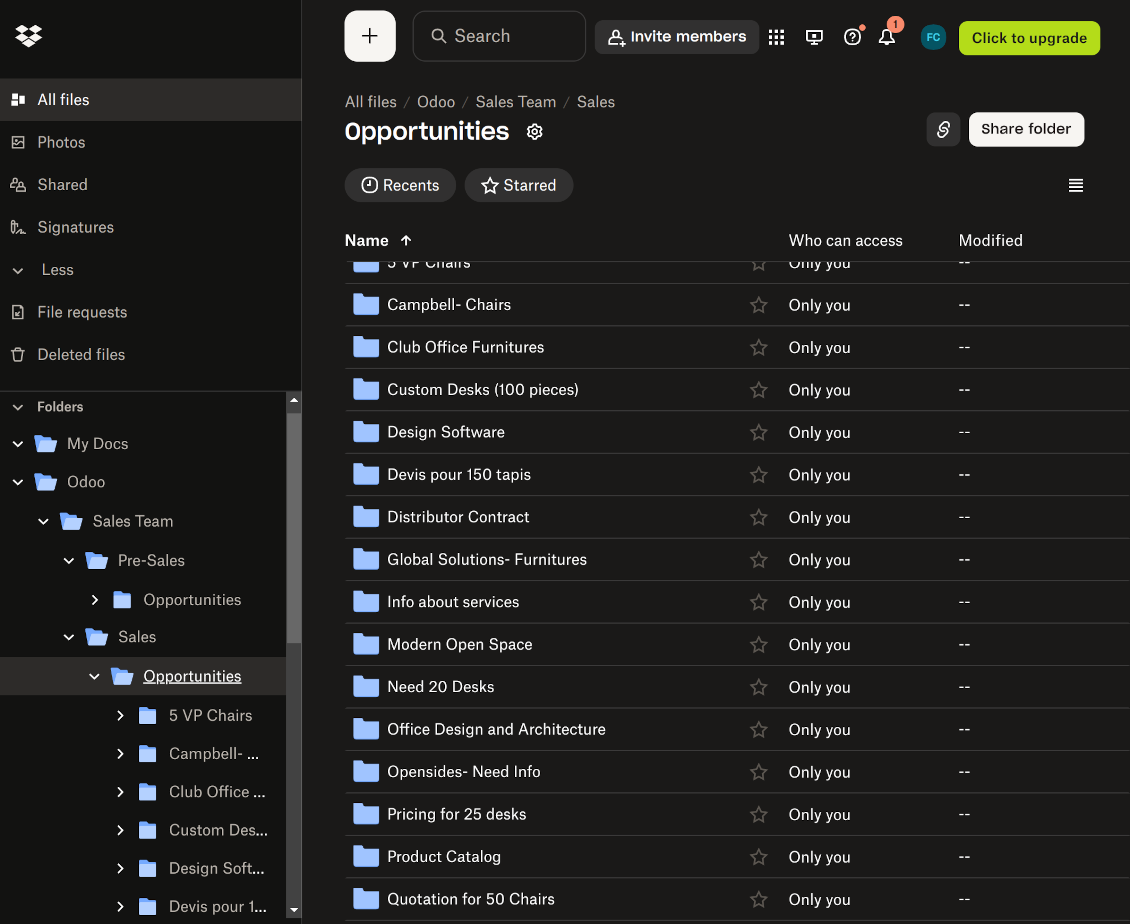
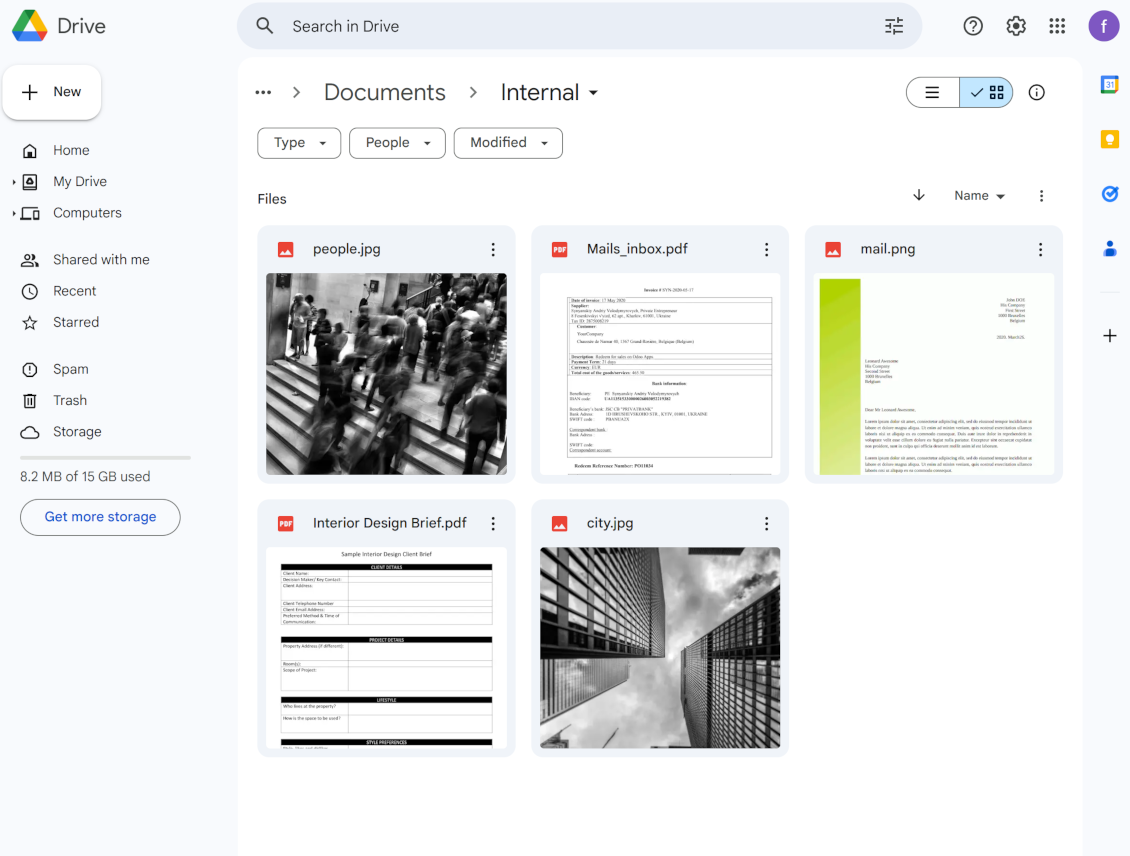
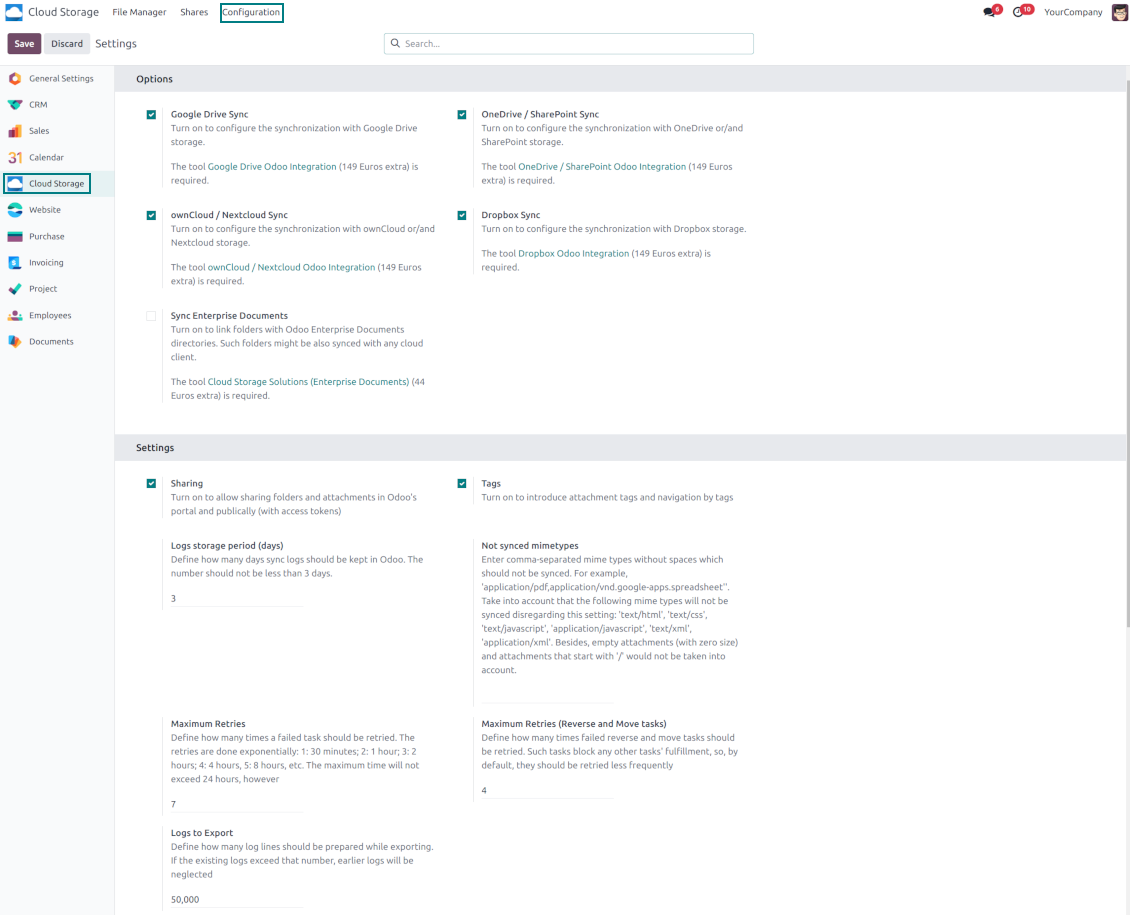

This tool organizes Odoo attachments in folders' trees and synchronizes those with your choice's cloud storage solution(s). The app introduces automatic algorithms to prepare directories for documents and integrate those with workflows of Google Drive, OneDrive/SharePoint, Nextcloud/ownCloud, Dropbox, Amazon/MinIO S3, Box, and NAS/WebDAV (Synology, QNAP, TrueNAS, etc.).
- the core module which introduces the file manager interface and basic mechanics for synchronizations with various cloud clients. Harganya adalah 398€.
- konektor untuk menyinkronkan folder dan lampiran Odoo dengan OneDrive dan/atau SharePoint. Fitur add-on ini ditandai dengan ikon . Harganya adalah 89€.
- konektor untuk menyinkronkan folder dan lampiran Odoo dengan Google Drive. Fitur yang dicakup add-on ini ditandai dengan ikon . Harganya adalah 89€.
- konektor untuk menyinkronkan folder dan lampiran Odoo dengan Amazon S3. Fitur yang dicakup add-on ini ditandai dengan ikon . Harganya adalah 89€.
- konektor untuk menyinkronkan folder dan lampiran Odoo dengan Nextcloud dan/atau ownCloud. Fitur add-on ini ditandai dengan ikon . Harganya adalah 89€.
- konektor untuk menyinkronkan folder dan lampiran Odoo dengan solusi NAS (Synology, QNAP, TrueNAS) dan penyimpanan WebDAV generik. Fitur add-on ini ditandai dengan ikon . Harganya adalah 89€.
- konektor untuk menyinkronkan folder dan lampiran Odoo dengan Dropbox. Fitur yang dicakup add-on ini ditandai dengan ikon . Harganya adalah 89€.
- konektor untuk menyinkronkan folder dan lampiran Odoo dengan Box. Fitur yang dicakup add-on ini ditandai dengan ikon . Harganya adalah 89€.
- add-on opsional untuk menyiapkan folder terkait ruang kerja dan menyinkronkan dokumen Odoo (diperkenalkan aplikasi Enterprise 'Documents') dengan layanan cloud. Fitur yang dicakup add-on ini ditandai dengan ikon . Harganya adalah 44€.
Automatic Folders
Decide which Odoo document types should have their folder trees. Directories are regularly updated based on flexible rules and existing Odoo objects
Sync with Cloud Storage Solutions
Synchronize chosen folders and files with specific cloud storage: Google Drive, OneDrive, SharePoint, Nextcloud, Dropbox, Amazon, Box, MinIO S3, NAS/WebDAV (Synology, QNAP, TrueNAS, etc.), and ownCloud. Have as many connections as you need
File Manager Interface
Manage folders and attachments from a single view. Comfortably navigate by directories and tags. Search and download files one by one or in a batch. Upload and move attachments
Enhanced Attachment Box
Organize files of any Odoo object in a set of subfolders. Instantly access folders and files in the attachment box and in synced cloud interfaces
Portal Sharing
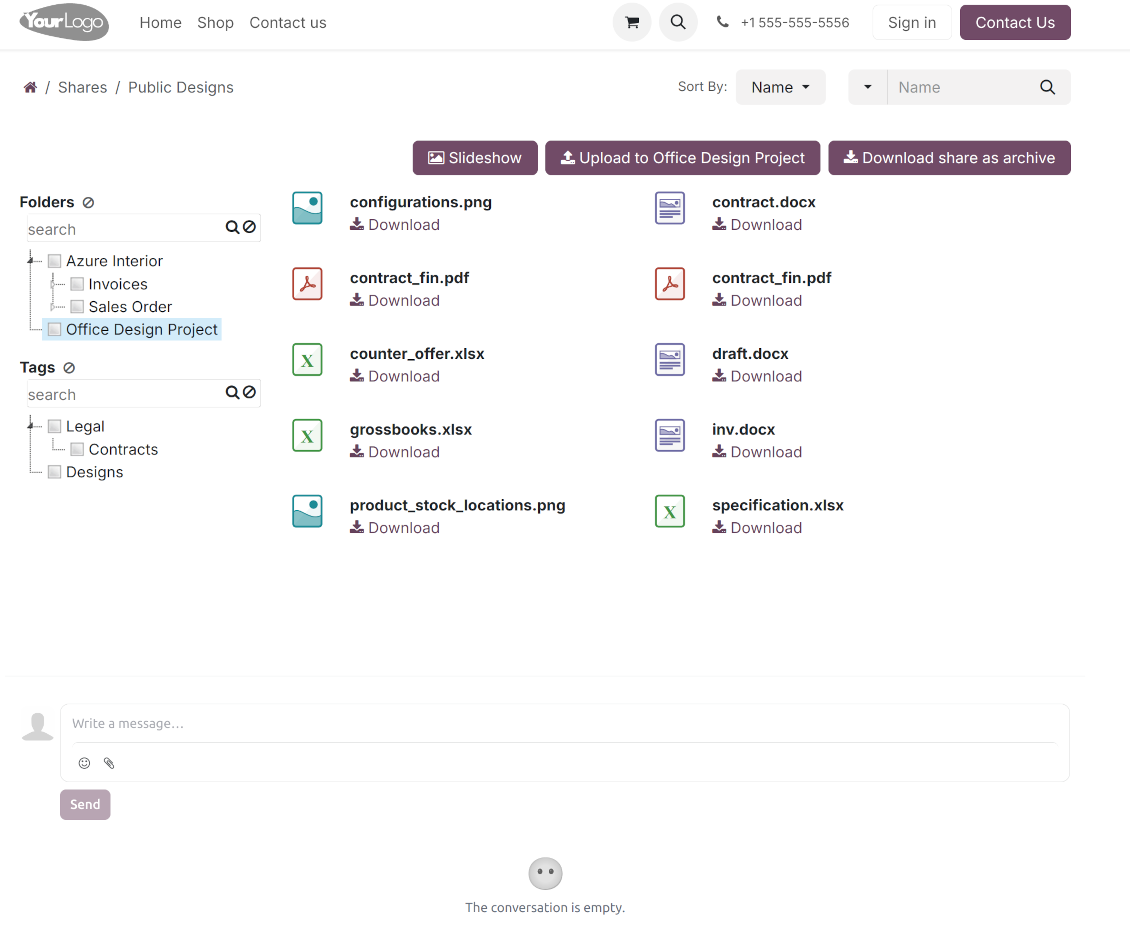
Share files, directories, and tags with particular partners or with an access URL. Let users download whole shares and separate items, upload attachments, and add folders or tags
Enterprise documents compatible
Set up rules to prepare folders based on Odoo Enterprise workspaces. All features, including sharing, downloading, and signing, will work even after the sync
Automatic Regular Sync
Rely on auto-synchronization between Odoo and cloud solutions based on scheduled jobs. No manual interaction is required
Bilateral Sync
Odoo sends attachments to cloud storage solutions and retrieves files from there. Binary content is kept in clouds, while Odoo provides direct access to synced items
Excellent
We have been using Cloud Storage Solutions for a few years already, starting with Odoo 17 mostly because our attachments were a mess. Now we're moving to Odoo 20, and we've surely decided to keep using the app. The File Manager is great for finding a file by folder or tag instead of remembering which sales order it was attached to. And the attachment box on contacts and projects shows the same folders, which lets us avoid excess clicks.
The folder rules are the part I keep showing people: new customer and project folders just appear, with the sub-folders we set up once, and everything lands in our Google Drive through the connector. We also use sharing a folder with our external partners, which is often especially efficient for tasks.
Big thanks to the team too. I asked a lot of questions about the sync and the access rights initially and now during the switch, and every answer came back fast. Really felt like they wanted it to work for us. Happy customer here.
Works well with SharePoint. Supportive team
We've been using this with SharePoint and it's been working great. One of the best things is having everything, including logs right in Odoo's interface, so you can actually see what's going on. It's also super convenient that you can view or download synced files from the attachment box without having to leave the page or even log in to Sharepoint.
Setup was pretty smooth for us. When we had a few questions about setting up the folder hierarchy and priorities, the developer team got back to us in just a couple of hours and helped us figure it out. Great support and great extension!
Tricky setup, but works perfectly now
Really solid module. We managed to get a very flexible folder structure (sorted by clients) and synced all our sales orders, invoices and tasks by projects to Google Drive.
Initial setup was a bit of a pain and kinda tricky to configure everything at first, but now it's running smoothly and works perfectly. The faotools team helped a lot. Def worth it if u need to keep your docs organized in Odoo and Google Drive.
Recommended!
Great support, assistance and very good connector!
We are very happy with the support we received when configuring the Sharepoint - Odoo connector. The connector has great functionalities.
All our questions were answered very fast (within one day).
FaOtools helped us optimising our connector and assisted us with future improvements.
We really recommend this connector.
Great module and Great Support!
The module works great! and the support is phenomenal!
A must-buy if it suits your requirements!
very professional app, excellen t customer service
This app is very well programmed and does its job very well. But the best is the excellent customer service who also helps when the problem lies somewhere else. You receive a lot for your money.
Excellent !!!
Great App and great Service from faOtools.
An impressive app and world-class support
I have been very impressed by the way the OneDrive / SharePoint Odoo Integration module synchronises content in both directions and allows me to share documents in Odoo with my SharePoint site. Above all the technical support is top-notch, which greatly increases the value of this product. I highly recommend this product for anyone considering synchronising Odoo with SharePoint/OneDrive.
Very good product
A perfect solution to integrate Owncloud with Odoo. We sync a high volume of objects across multiple Odoo models, which works seamless and stable. For us it is the perfect solution to have an external DMS instead of the Odoo native attachment handling, which also enables us to interchange files between systems in our best-of-breed setup.
The team behind this module is extremely professional and responsive. They helped us on a few occasions and provided clear answers and prompt support when required, and they even went out of their way to assist us with another requirement we had. Cannot recommend the product and team highly enough, try this if you're in the market to connect Odoo with an external document solution.
Works fine, good support
The first experience with the module is excellent. I had some trouble to configure things right on the Microsoft-side, but the team provided quick and good support.
Best module for integration with google drive
The module performs its function correctly and faOtools responds quickly to any problem and, in case of detecting any bug, quickly apply the changes. Its support is 10 stars.
Works according to specs
I have used this app with Odoo 12 and Nextcloud 16 and it works as specified. Odoo Tools offers very responsive support which is really helpful. Of course 5 stars...!
This is Awesome
I have used Cloud Sync on Next/Own Cloud and works really great.
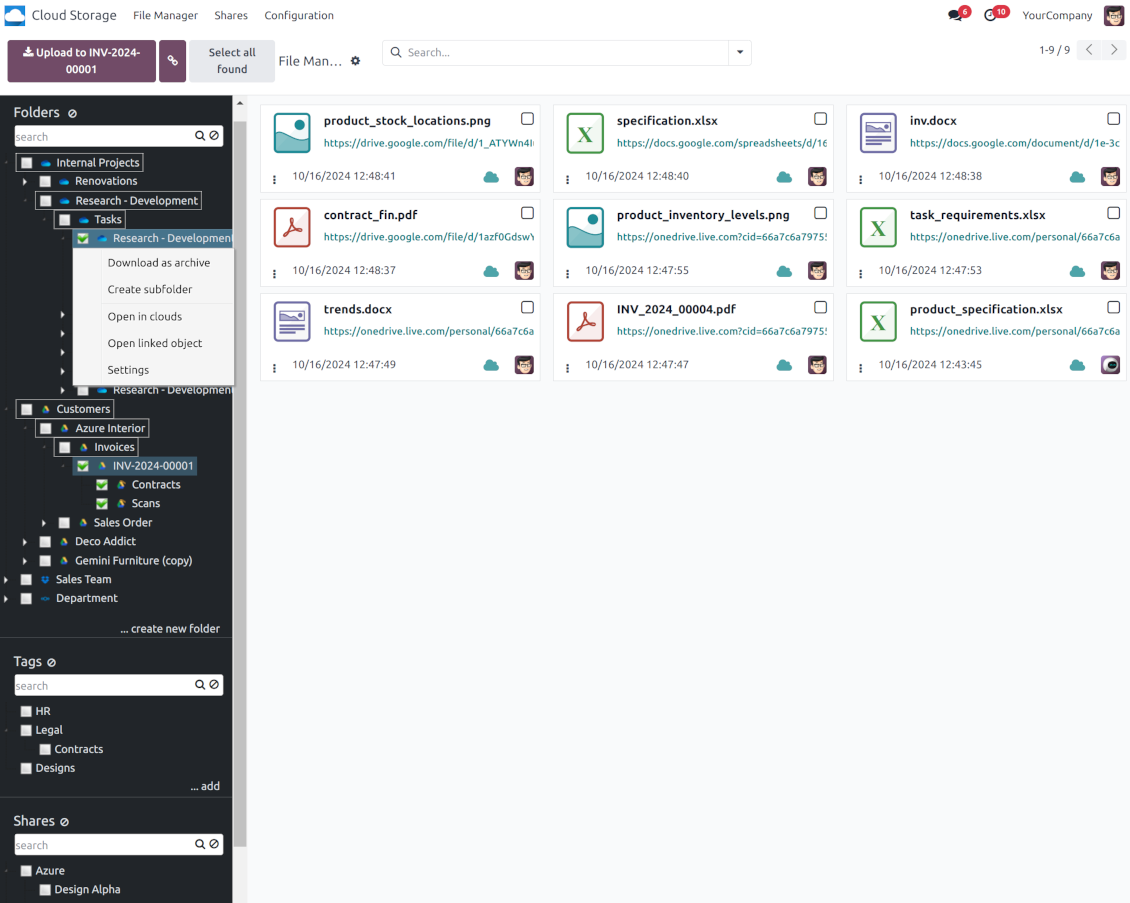
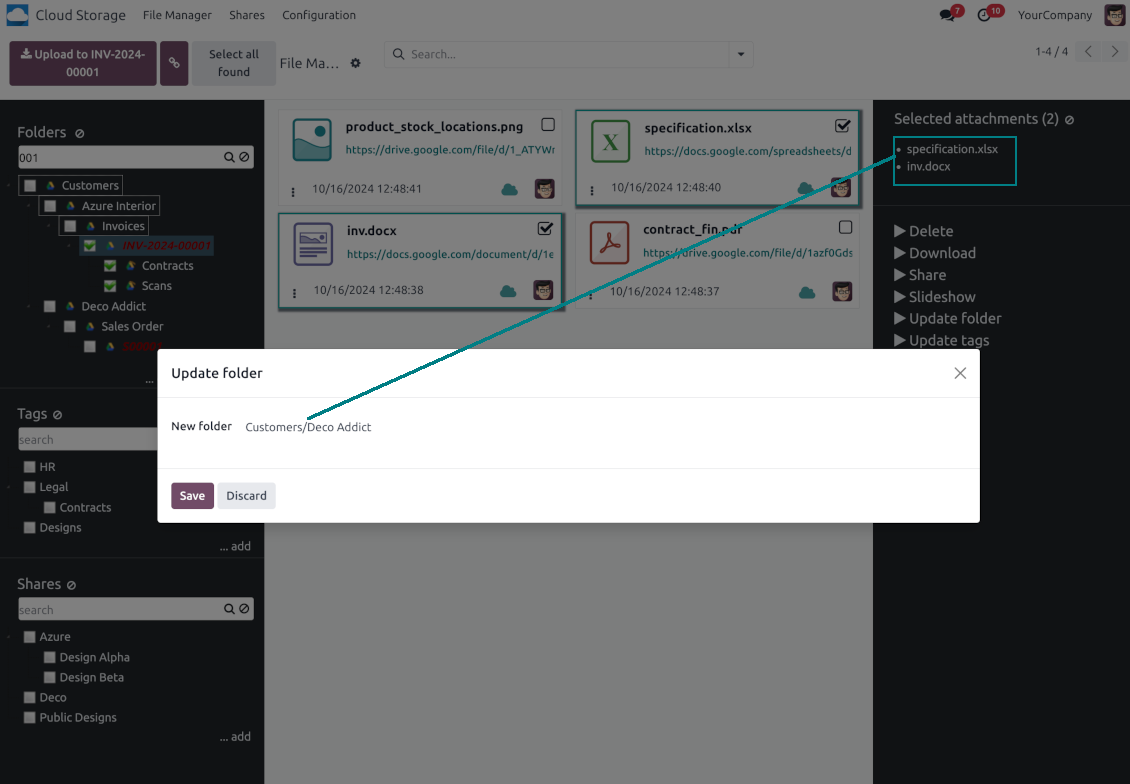
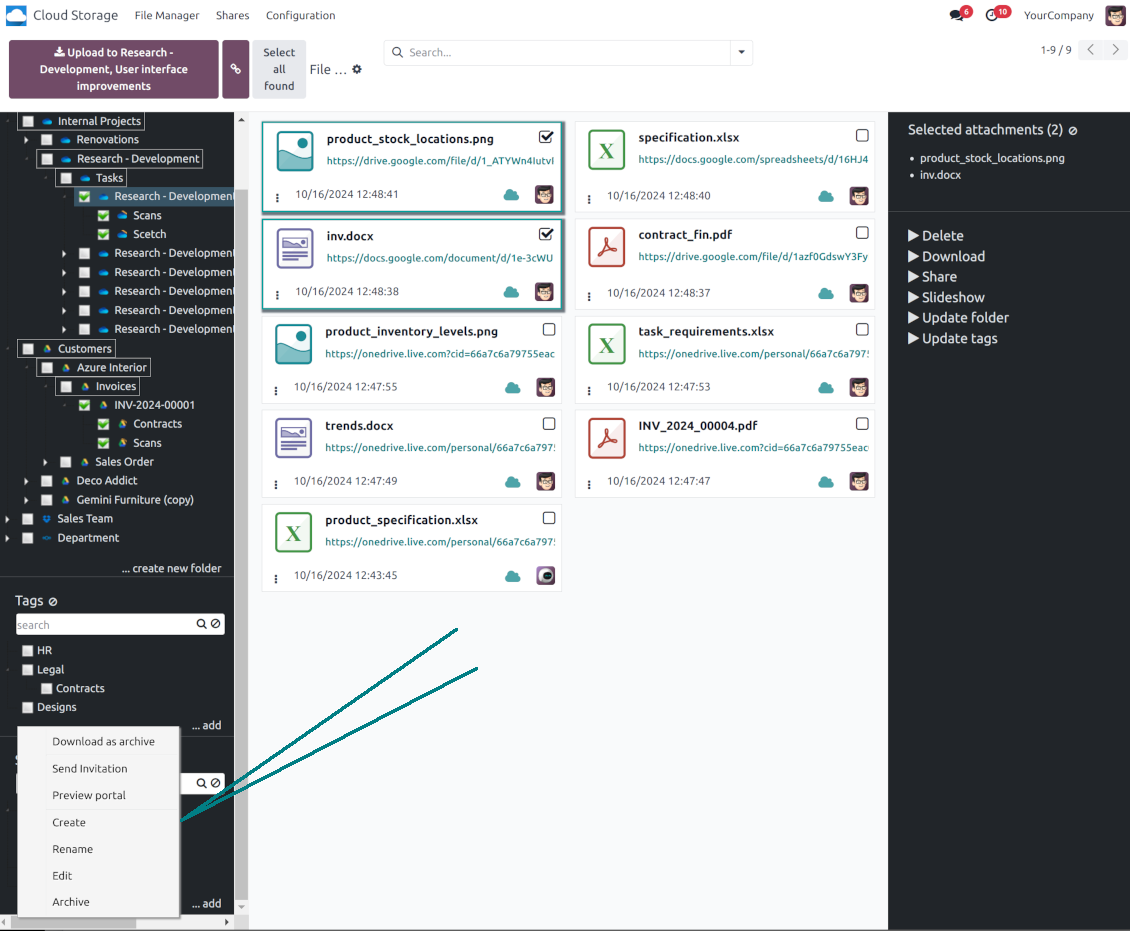
Antarmuka pengelola berkas Odoo
-
Navigate by folders: select a directory to show its attachments. Expand and hide folders' layers in a click. Add subfolders to any directory (right mouse click > Create subfolder)
-
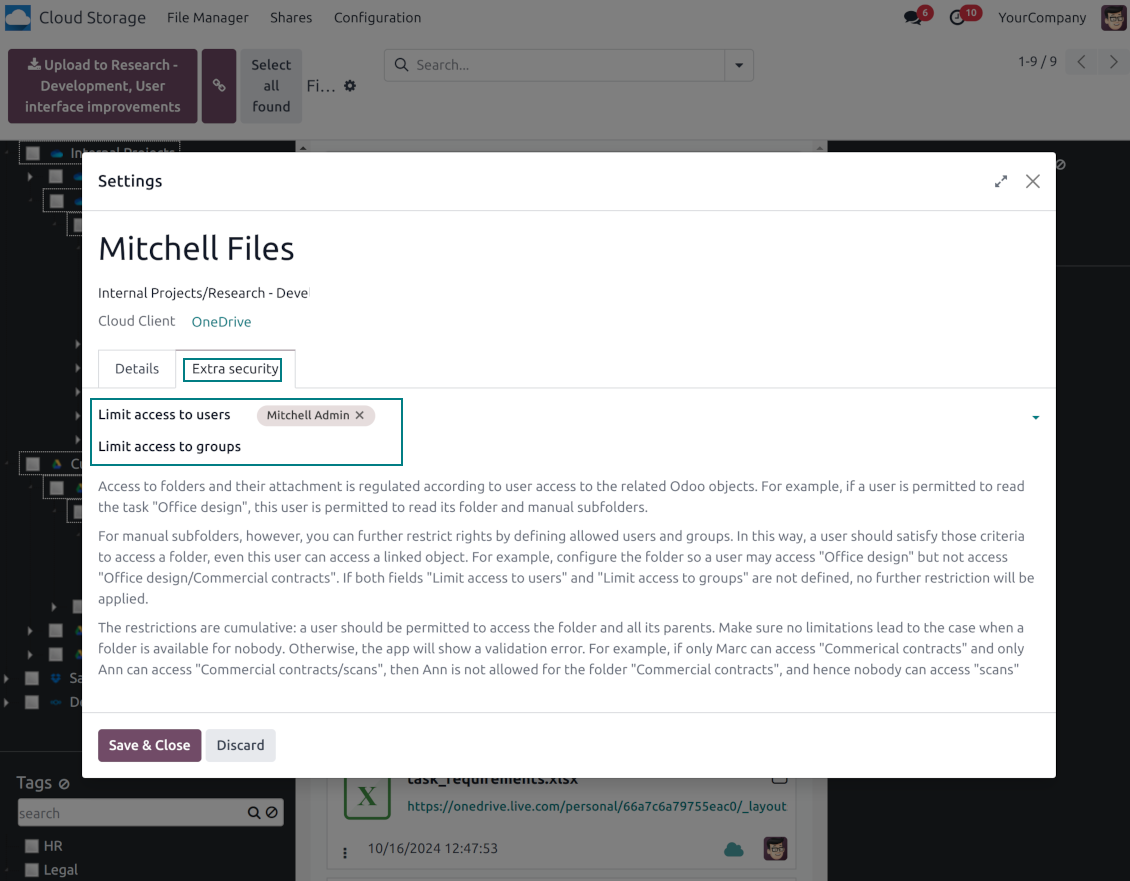
Open any synced folder in its cloud client (right mouse click > Open in clouds). Show a folder peer Odoo object if there is such a connection (right mouse click > Open linked object). Change settings of manually created folders, including granting access rights (right mouse click > Edit Settings)
-
Navigate by attachment tags. Create and edit tags right from the navigation panel
-
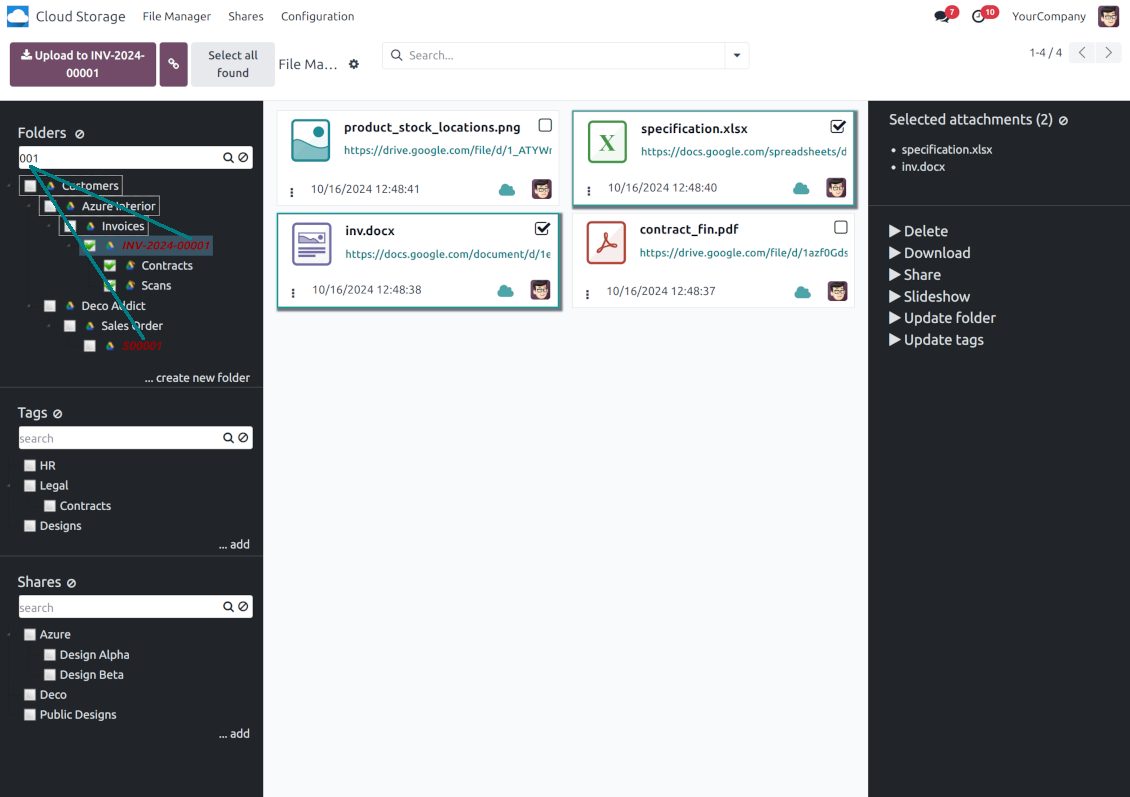
Search and highlight tags and folders in seconds even if there are thousands of items
-
Drag and drop to re-structure folders (relates only to manually created directories; for automatic folders change rules instead) and tags
-
Download any folder or any tag with all its attachments as a single zip archive (right mouse click > Download as archive)
-
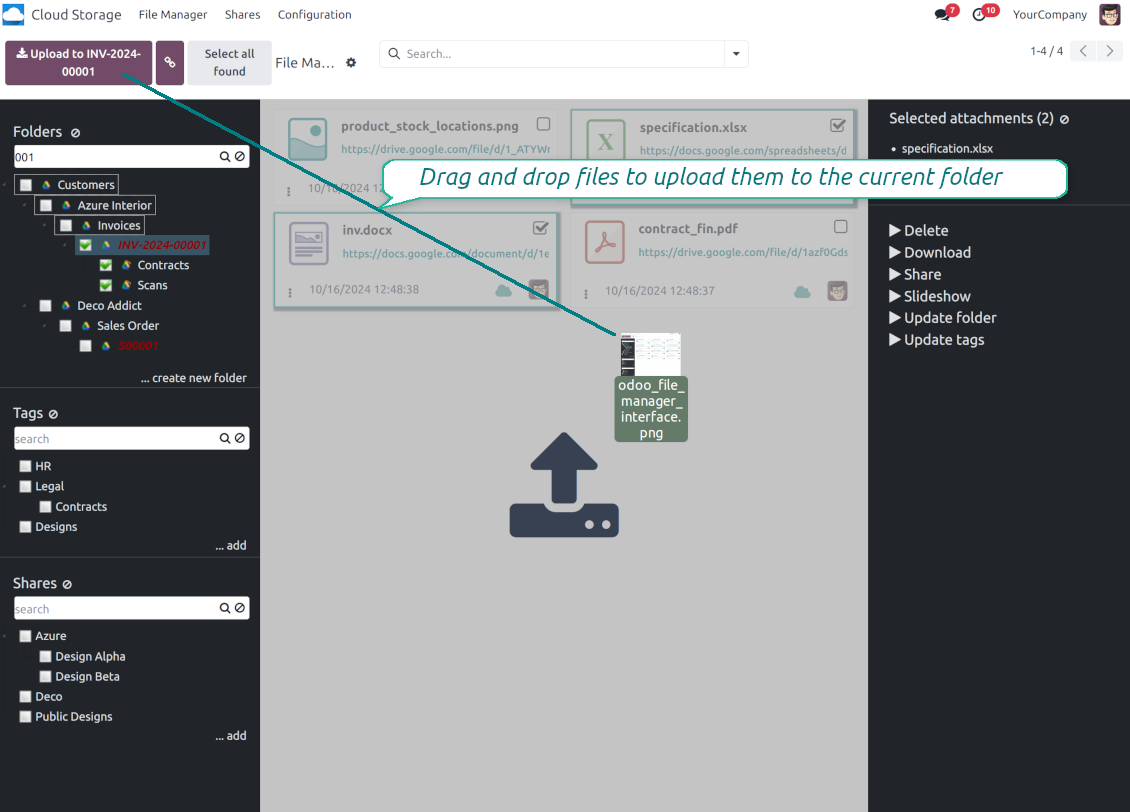
Upload attachments to the current folder. Use the top header button 'Upload file' or drag and drop files
-
Instantly open any synced attachment in a linked cloud client (push the link in the middle of attachment cards)
-
Download any attachment to your local computer disregarding whether it is synced or not (push the icon 'cloud' or 'download' in the footer right corner)
-
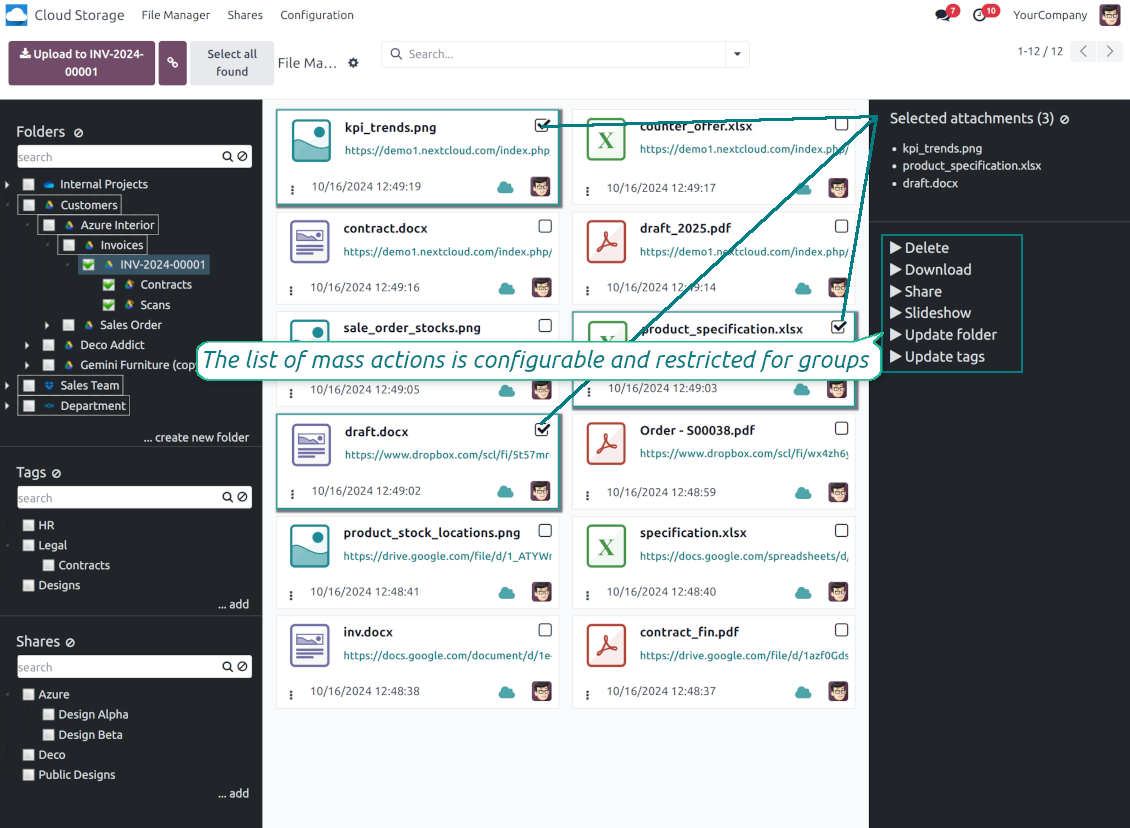
Consequentially select attachments and download them as a single zip archive
-
Move any files to any folder, including re-attaching items between Odoo objects (e.g. from a sale order SO-001 to another quotation or its customer folder). Use the mass action for that end or just drop an attachment to a required directory. Update attachments' tags by dragging those to the left navigation panel or by executing the mass action. Delete attachments in a batch
-
Apply standard attachments search to find required files.
Enhanced Attachment Box
-
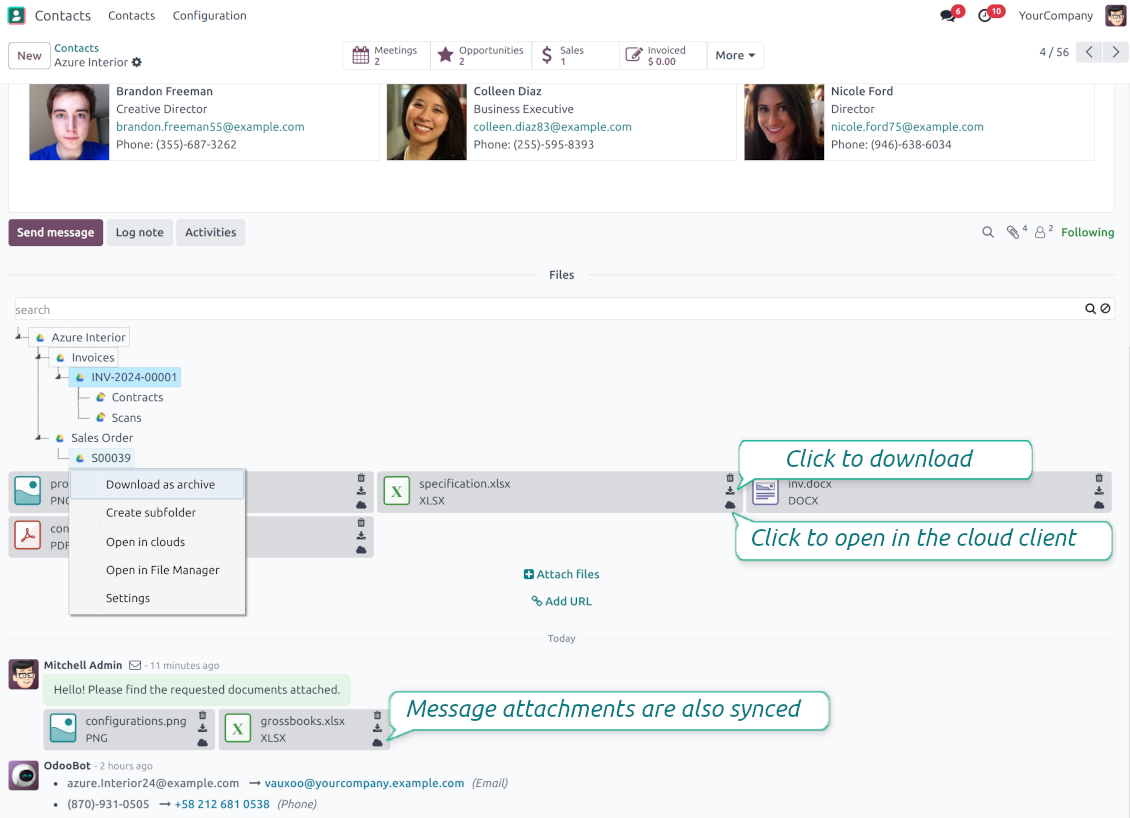
Any Odoo object might be linked to its folder. See Automatic folders' structure
-
Flexibly define subfolders to organize the structure you need (right mouse click > Create subfolder)
-
Drag and drop to re-structure subfolders
-
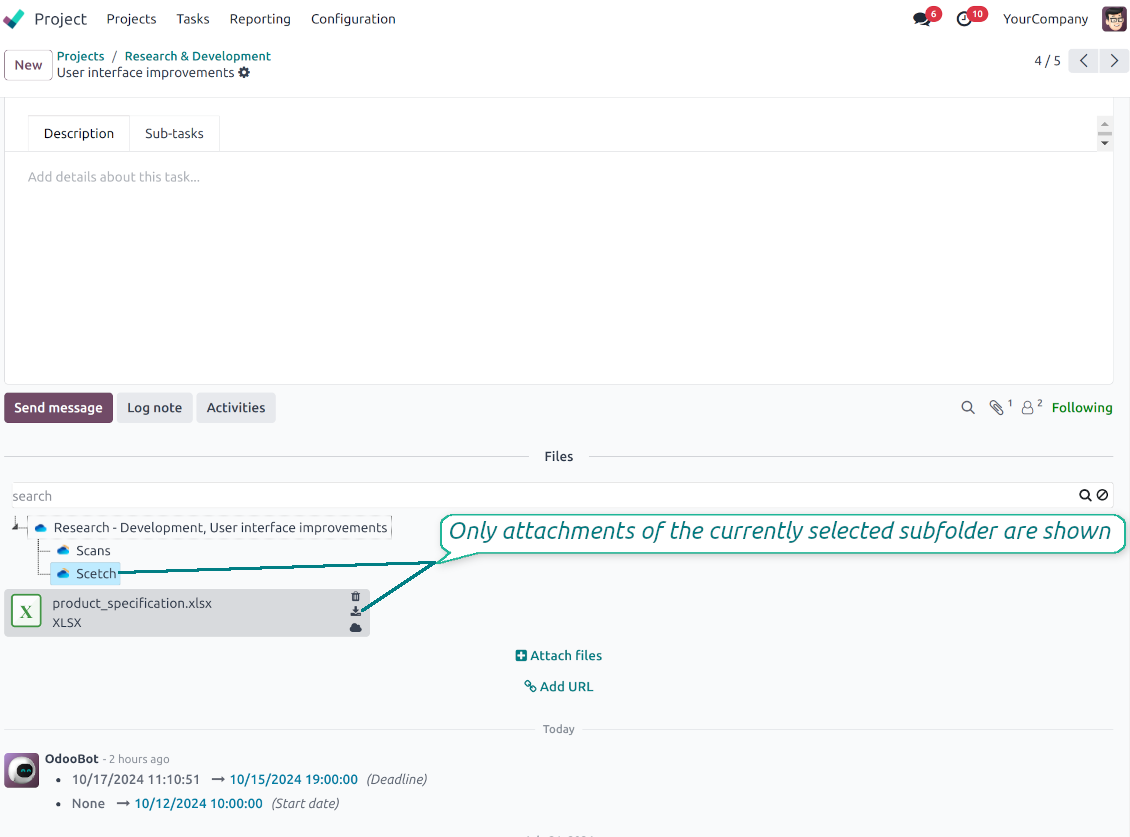
Select a folder to see its attachments. By default, files of the object root directory are shown
-
Download any folder with all attachments as a single zip archive (right mouse click > Download as archive)
-
Open the already synced folder in its cloud client (right mouse click > Open in clouds)
-
Upload attachment to a chosen folder (use the button 'Add attachments' or drag files to the attachment box area)
-
Instantly open any synced attachment in a linked cloud client (push the icon 'clouds')
-
Download any attachment to your local computer disregarding whether it is synced or not (push the icon 'download')
-
Use standard Odoo preview for both synced and local files (click on a file thumbnail)
-
Delete attachments as usual
-
All actions are equally applicable to object attachments and attachments related to messages.
Sinkronisasi Cloud Storage
Multi synchronization
-
Use optional add-ons to synchronize the document management system with the cloud client(s) of your choice: Google Drive, OneDrive, SharePoint, Nextcloud, Dropbox, Amazon, Box, MinIO S3, NAS/WebDAV (Synology, QNAP, TrueNAS, etc.), and ownCloud. Have as many connections as you need
-
Establish multiple connections to different cloud clients simultaneously. For example, sync sales-related folders to Google Drive; tasks and projects - to SharePoint or OneDrive; HR documents - to Nextcloud/ownCloud; manufacturing specifications - to Dropbox. Take into account that a specific folder might be synced to only a single cloud storage solution. Its children would be synced to the same client
-
For each cloud client, the app lets set up a few instances. For example, for Google Drive, you may share some folders to your personal drive, others - to one of your team drives, and the rest - to your teammate's drive
-
To establish a connection with particular cloud storage, follow the instructions that are specific for client types. See the tab Configuration for details
-
Any connection might be paused manually if it is needed. It might be also auto-stopped if there are critical issues during the sync. Then, you should re-connect to a target cloud client
Cloud clients
-
Synchronization for all cloud clients is based on the same principles and on the same queue. Simultaneously, there might be differences in sync results due to different features of various cloud storage solutions
-
Establishing connections for different types of cloud clients assumes installing optional add-ons, different approaches for Odoo, and external API configuration. Follow the instructions on the tab 'Guidelines'
-
Google Drive Odoo Integration allows establishing a connection with any personal or team drive
-
OneDrive / SharePoint Odoo Integration assumes synchronization with any drive of personal/business/SharePoint tariffs
-
ownCloud/Nextcloud Odoo Integration et integrate Odoo with any instances of ownCloud and Nextcloud. In comparison to other clients, the app allows setting the type of attachment links. By default, Odoo links are internal: only authorized users may access them. Optionally make links public (the setting 'Use Public URLs'). See details on the guidelines tab
-
Dropbox Odoo Integration works for all DropBox tariffs, including Personal DropBox (Basic, Plus, Family) and business DropBox (Professional, Standard, Advanced). In comparison to other clients, the app allows choosing whether cloud items would be shared or internal. See details on the guidelines tab
-
Amazon S3 Odoo Integration (amazon_s3_odoo) synchronizes Odoo folders and attachments with Amazon S3 buckets
-
NAS/WebDAV Odoo Integration (nas_odoo) connects Odoo documents with NAS and WebDAV-compatible storage, including Synology, QNAP, and TrueNAS
-
Box Odoo Integration (box_odoo) synchronizes Odoo folders and attachments with Box cloud storage
Automatic two-sided sync
-
Integration is based on scheduled jobs and is fully automatized. The app regularly checks changes in systems and runs sync operations
-
Synchronization is bilateral. Updates in Odoo are reflected in cloud clients (direct sync); changes in cloud clients modify Odoo folders and attachments (backward sync)
-
Matikan sinkronisasi dari cloud pada klien agar sinkronisasi tetap satu arah. Perubahan di Odoo tetap dikirim ke penyimpanan cloud, tetapi berkas dan folder yang dibuat, diganti nama, atau dihapus di sana tidak muncul di Odoo. Mematikan opsi lagi menerapkan perubahan yang terkumpul, termasuk penghapusan, pada sinkronisasi berikutnya
-
Any cloud connection might be reset. In this way, the app assumes getting back all items back to Odoo (reverse sync)
-
Odoo folders and attachments might be re-attached to a new cloud client. Hence, items will be first taken back to Odoo (reverse sync) and then put will be put to the new cloud storage (direct sync)
Queue-based synchronization
-
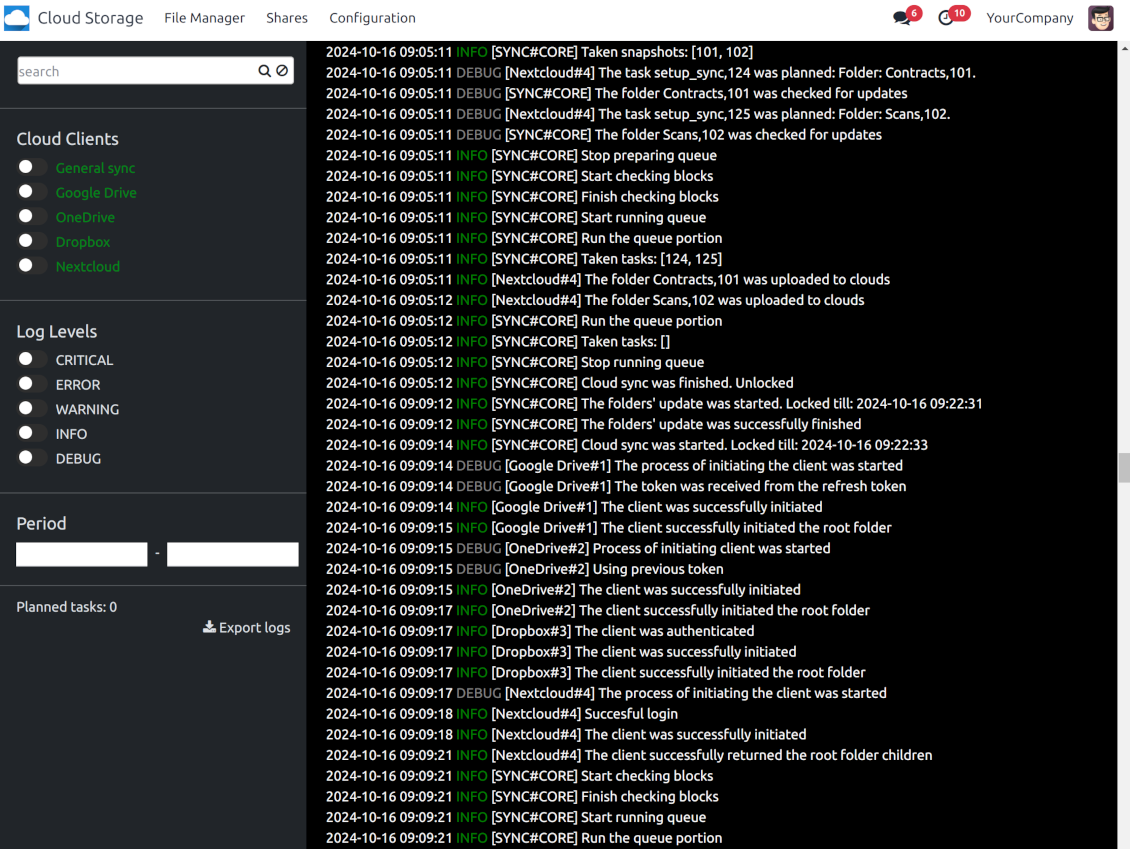
Once in 15 minutes, the app examines updates in Odoo and cloud storage(s) to prepare a synchronization queue
-
Folders' checks follow the First-In-First-Out (FIFO) principle. So, directories that have not been examined for the longest will be processed first
-
Once in 15 minutes, the sync queue is run by the special scheduled job. Firstly, the most important (blocking) tasks would be done
-
Control planned jobs and their fulfillment in the special Odoo logs interface (Cloud Storage > Configuration > Sync Logs). Subscribe for particular cloud clients notifications
-
If the app faces sync failures, it will re-try operations afterward. Sync queue processing would not be stopped if there are items not blocked by such failures
Odoo attachments for cloud storage: direct sync
-
Direct sync prepares the folders' hierarchy and uploads Odoo attachments for cloud storage
-
Direct sync checks whether attachments are added or deleted for synced directories. If so, they would be created or removed in cloud storage. In particular, it means that any file added to a folder-related Odoo object (e.g. Quotation), would be automatically moved to a linked cloud client
-
Direct sync makes all synced Odoo attachments change their type to a link (URL), while binary content is removed with one of the next Odoo cleaners. So, no actual files would be stored on your Odoo server
-
Direct sync checks whether a new folder is added. Disregarding whether it is done manually or automatically, the app would generate a peer directory in a cloud storage
-
Direct sync checks whether there are any updates in folders. If so, such changes are reflected in a cloud client
Cloud storage files and folders for Odoo: backward sync
-
Backward sync checks whether any files or subfolders are added to cloud storage folders. If so, the app would create URL attachments/subdirectories inside linked Odoo directories (and hence Odoo objects if any)
-
Backward sync checks whether there are any updates in folders or attachments. Such updates would be then reflected in Odoo
-
Backward sync checks whether any files are deleted/moved in a cloud document folder. If so, a linked Odoo attachment would be also unlinked or moved
-
If you deleted a cloud storage folder related to a folder rule / Odoo object, their child files would be deleted as well. Thus, Odoo would remove related attachments. The folders, however, will be recovered with a direct sync
-
In case of conflicts, direct sync changes are in general considered more important than backward updates.
Resetting or changing cloud client: reverse sync
-
In case you decided to reset the connection with a specific cloud client, files would be moved back to Odoo
-
Matikan sinkronisasi terbalik pada klien ketika salinan di penyimpanan cloud harus tetap menjadi satu-satunya salinan, atau ketika koneksi putus. Melepas, mengatur ulang, atau menonaktifkan klien itu tidak mengunduh berkas kembali dan tidak menghapus apa pun di penyimpanan cloud. Hubungan antara objek Odoo dan item cloud-nya terputus. Tautan yang tersimpan masih membuka berkas di penyimpanan cloud, tetapi Odoo tidak lagi dapat mengunduh, meninjau, atau membuka folder dan berkas itu. Hubungan itu tidak dapat dipulihkan
-
In case you decided to change the cloud client of a folder rule or a folder, files would be first taken back to Odoo, and then direct sync for a new client would be done
-
Reverse sync operations are prioritized to direct and backward sync operations
-
Not all items can be correctly reversed to Odoo due to cloud client peculiarities. For example, there are documents that may exist only in cloud storage environments (e.g. Google Sheets). The app would try to convert such documents, but in some cases, it would require manual interactions.
Automatic Folder Structure
Rules for automatic folders
-
The app allows preparing its own folder for any Odoo object
-
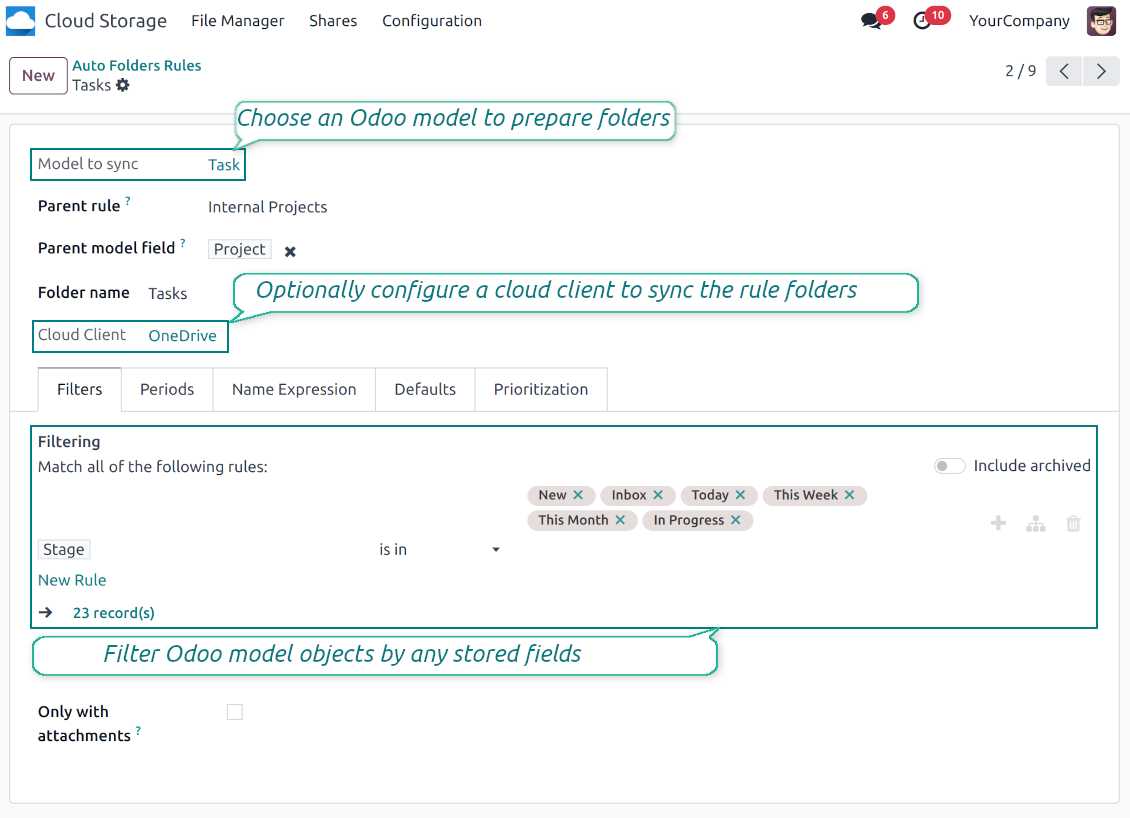
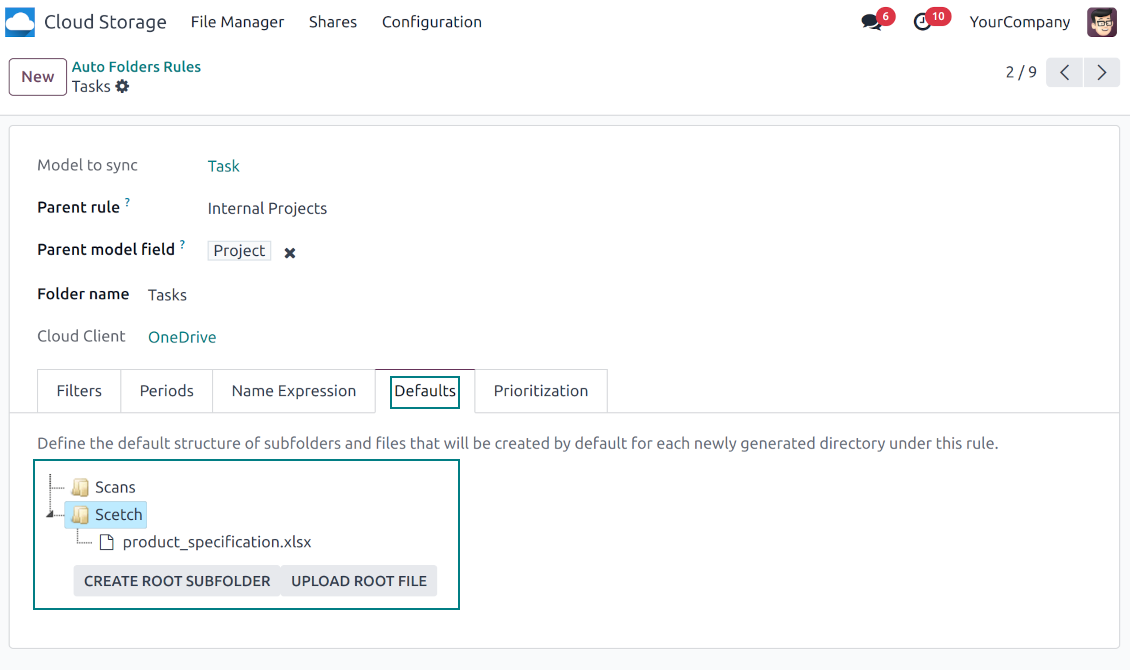
To configure a particular Odoo document type to generate a folder, you should just prepare a new folder rule (Cloud Storage > Configuration > Folder rules). For example, select the model 'Task' to make Odoo add a folder for each project task, so Tasks > Task 1, Task 2, ...
-
Automatically created directories would contain all attachments their linked objects have
-
Folders are updated regularly based on the scheduled job
Multi directories for each model
-
Each Odoo model might have a few linked folders
-
Apply any model storable field to filter Odoo objects and, in this way, split objects into a few super directories. For example, have own folders for individuals and companies, for European and American opportunities, for quotations and confirmed orders, for each project
-
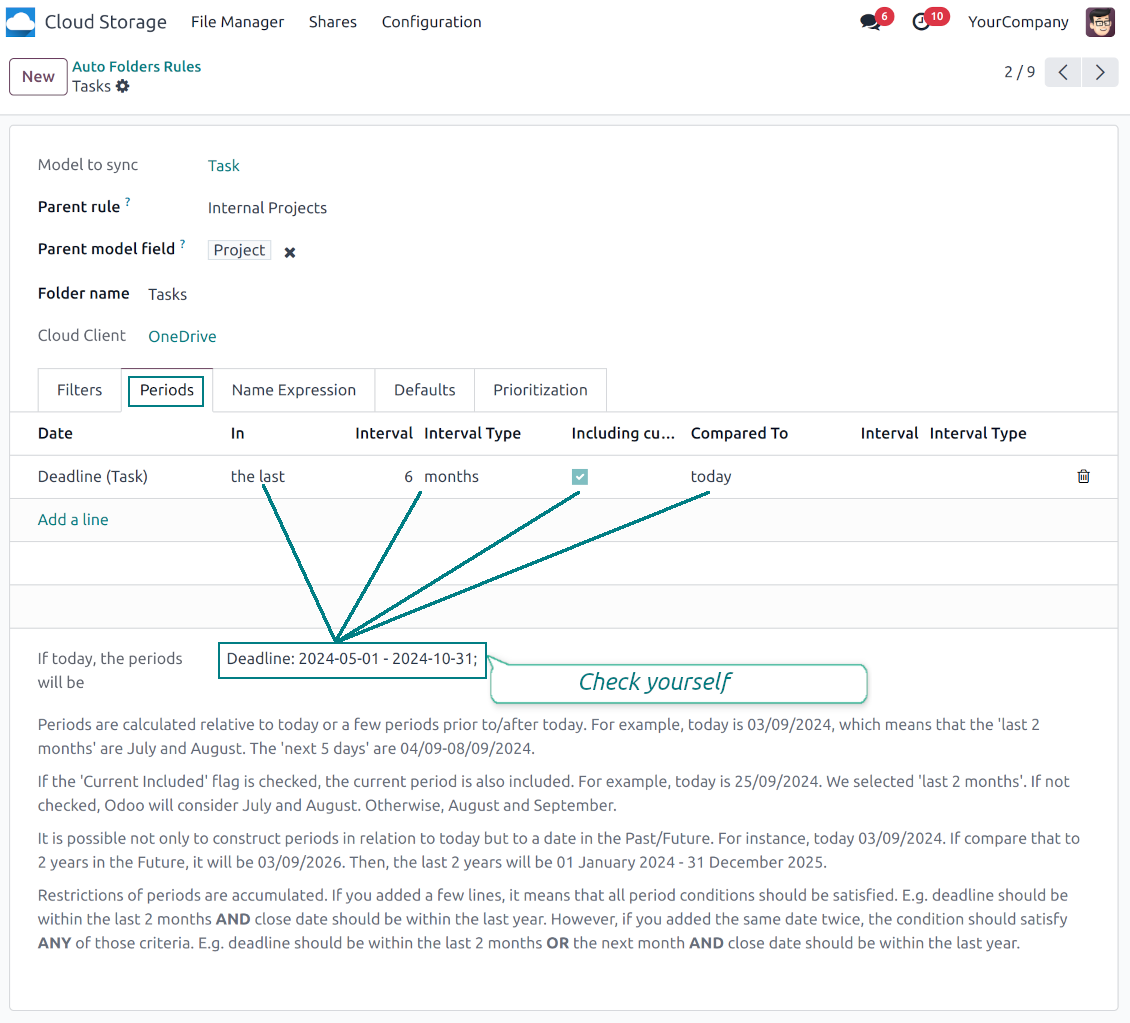
Filter Odoo objects by relative periods by applying date fields of linked documents. For example, leads registered in the last 3 months or invoices updated in the last week
-
As a result, the app lets have paths like 'Odoo > Quotations Europe > SO-001' or ' Odoo > the last year posted invoices (America) > SO-001'
Flexible folders' tree
-
It is possible to set up a hierarchy of folder rules to prepare a more flexible directories structure
-
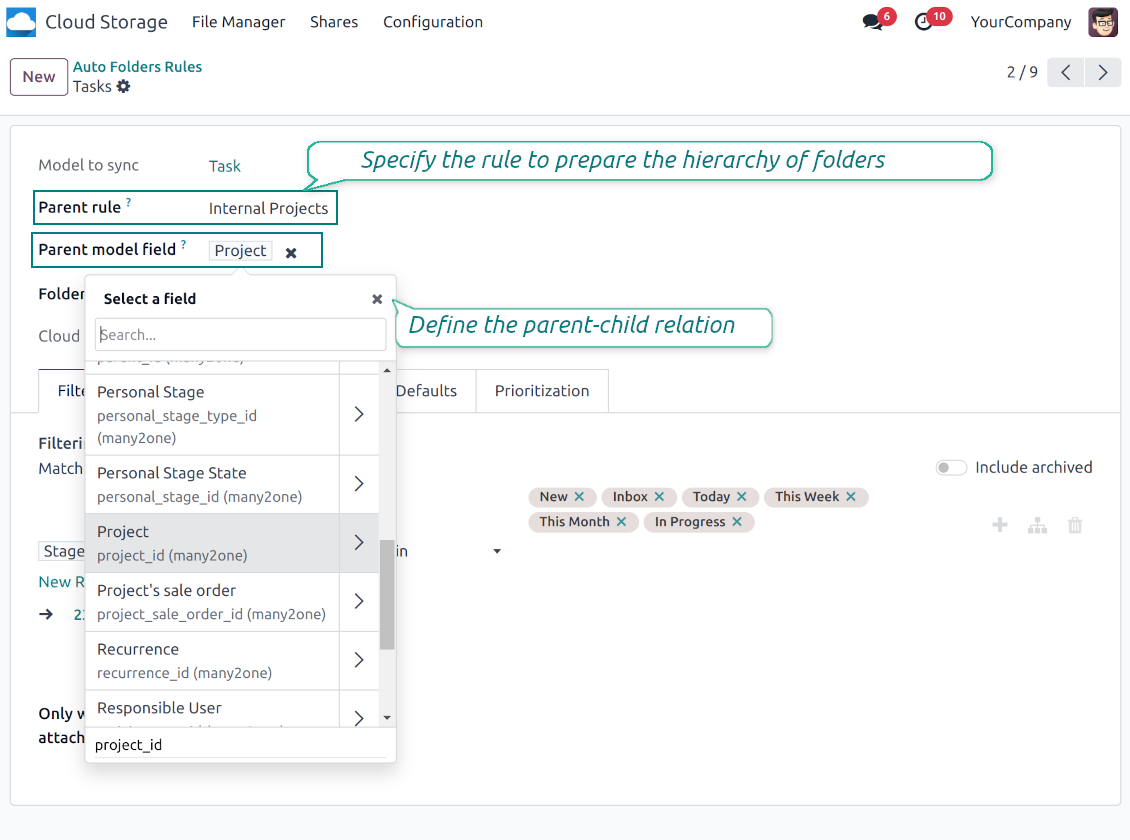
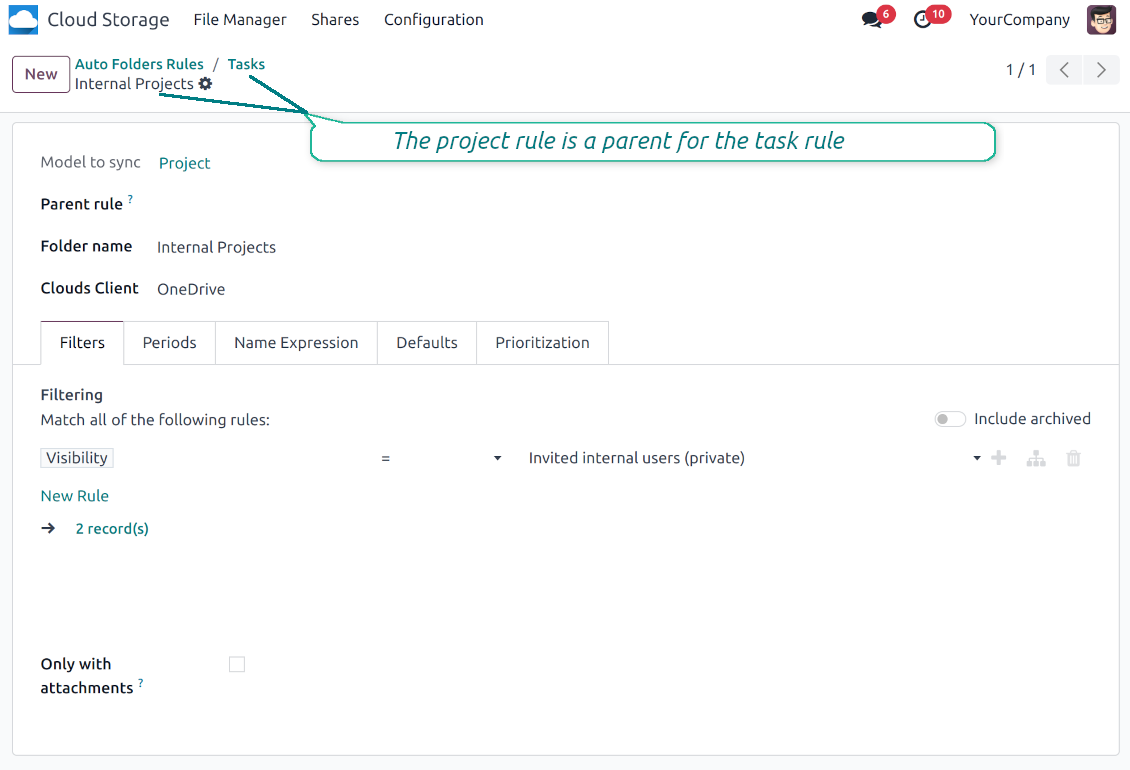
To that goal define a parent rule for a required folder configuration. For example, use a project-related rule as a parent for a task-related rule, a customer-related rule - for invoices-related rules
-
In order for folder relations to work correctly, it is also needed to enter a parent model field. So, it is the field that links models between each other (many2one relation). For example, 'Project' of a task, 'Customer' of a sales order, or 'Sales Team' of an opportunity
-
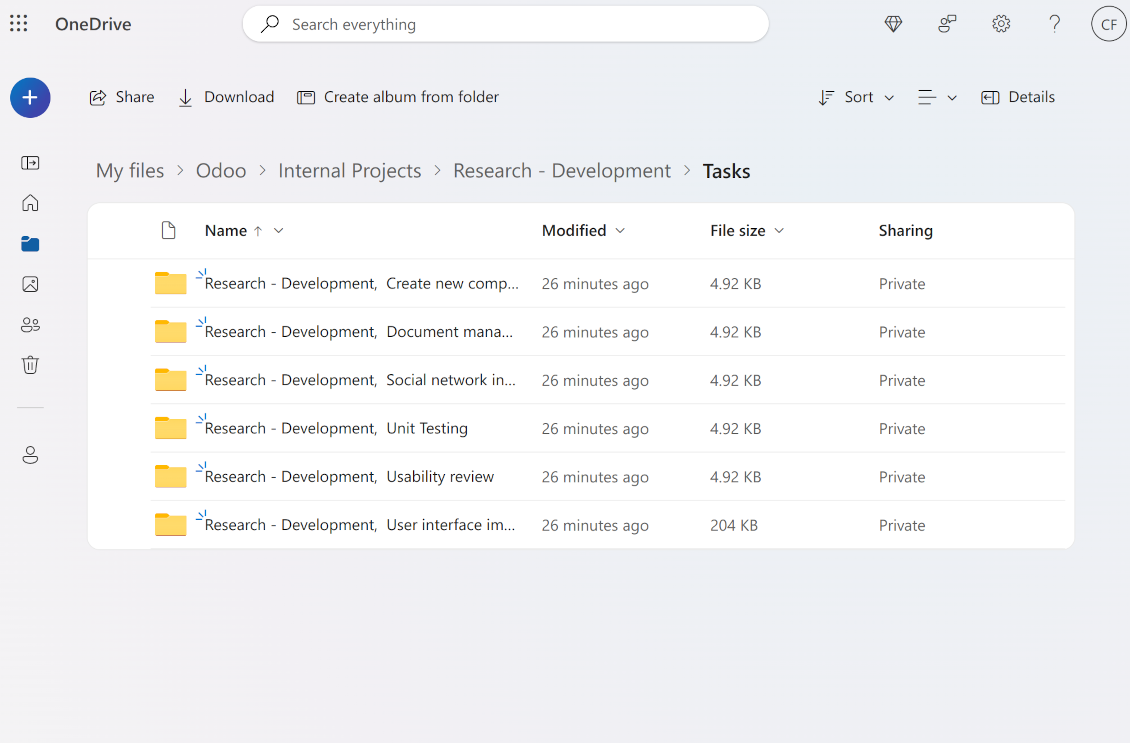
As a result, the tool allows reflecting your Odoo workflow logic and have paths like 'Odoo > Customers > Azure Interior > Projects > Software Design > Prepare Specification' and 'Odoo > Customers > Azure Interior > Quotations > SO-001'
Subfolders, default folders, and default files
-
The app lets add an unlimited number of manual subfolders for each folder. In particular, you may have a directories tree right in each object attachment box
-
For the first generation, it is possible to define default folders, so subdirectories would be auto-generated for a specific Odoo object folder. Afterward, you may add delete/edit those or add new ones
-
The same mechanics are applied to prepare default files. For example, to have contract/personal card templates which then are assumed to be filled with real data
Configurable folder titles
-
Each folder rule assumes to generate a directory. Names for such directories are assigned right on a rule form. For example, introduce 'Jobs' for a task-related rule or 'HR' for employees' folders. By default, the Odoo model name would be used
-
For object-related folders, the names are generated based on the Odoo standard display names. So, if not defined the opposite, it would be the same title as you see in the Odoo form view header
-
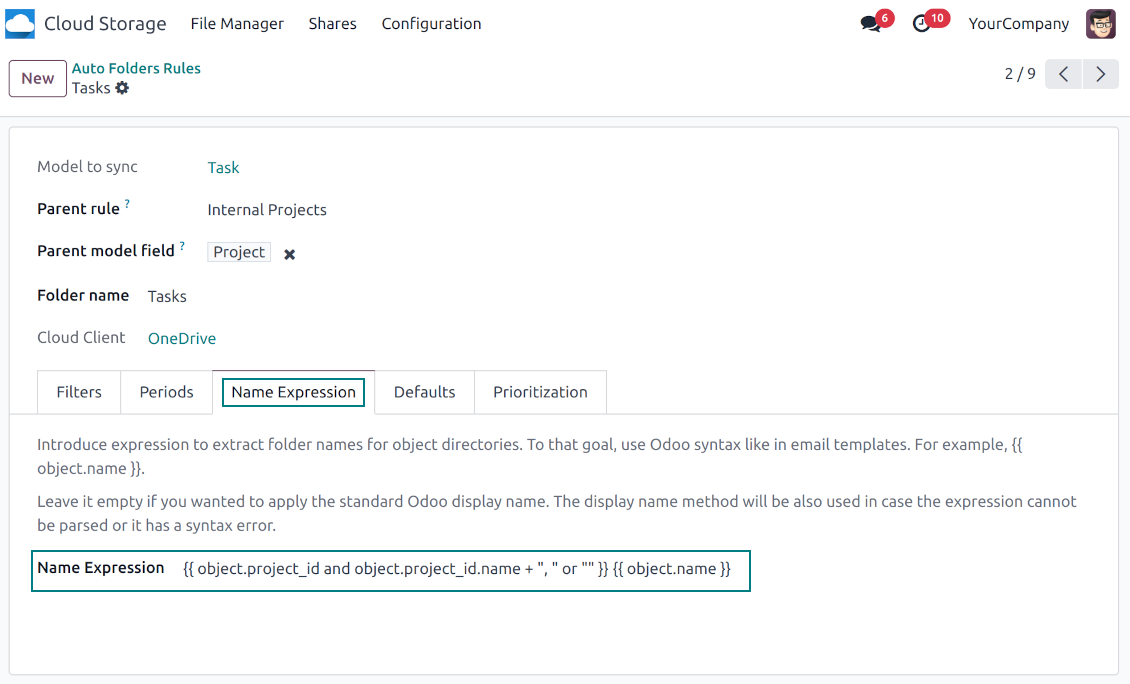
The app lets define complex name expressions for object-related folders (the tab 'Name Expression' on a folder rule form). To that goal, apply the syntax used in Odoo email templates. For example, {{ object.project_id.name }}, {{ object.name }} to reflect a project name in tasks folders
-
Avoid the following symbols in folders' and files' names: *, ?, ", ', :, <, >, /, +, %, !, @, \, /,. Direct sync will replace such symbols with '-'. It is done to avoid conflicts with file systems. Avoid also too long names: e.g. more than 100 symbols
Enterprise Documents
-
The app allows generating folders for workspaces introduced by the Odoo Enterprise apps 'Documents'
-
To force Odoo to prepare workspace-related directories, define folder rule(s) of the type 'Workspace-Related rule'. The tool would automatically create linked folders and sync those for chosen cloud storage with one of the next jobs
-
It is not obligatory to reflect the whole DMS structure. Thus, it is possible to filter workspaces by any storable field. For example, to add a folder only for workspaces that contain the keyword 'Internal'. Take into account: if a workspace was synced, all its child workspaces would be also synced
-
If you generated a subfolder for any workspace-related folder, the app would also create such a Documents workspace
Typical use cases
-
Customers: add all partner files in a single super directory. Optionally distinguish companies and individuals. For example, Odoo > Customers > Azure Interior > Contacts > John Brown
-
Sales orders and invoices: keep all sale-related printings and contracts in your own quotation directories for each customer. For example, Odoo > Customers > Azure Interior > Orders > SO-001 and Odoo > Customers > Azure Interior > Invoices > INV-00001
-
Opportunities: store all specifications, requirements, and any files which would let you make a good offer carefully structured by each sales team and case. For example, Odoo > Sale teams > Europe > Leads > Interest in 50 chairs
-
Project and tasks: prepare a folder for each customer project and task. For example, Odoo > Customers > Azure Interior > Projects > Software design > Tasks > Specification
-
Human resources: gather all files by each employee in a single folder: photos, document scans, contracts. Structure employees by department. For example, Odoo > Departments > Accounting department > Employees > Anita Olivier.
Berbagi file dan folder
-
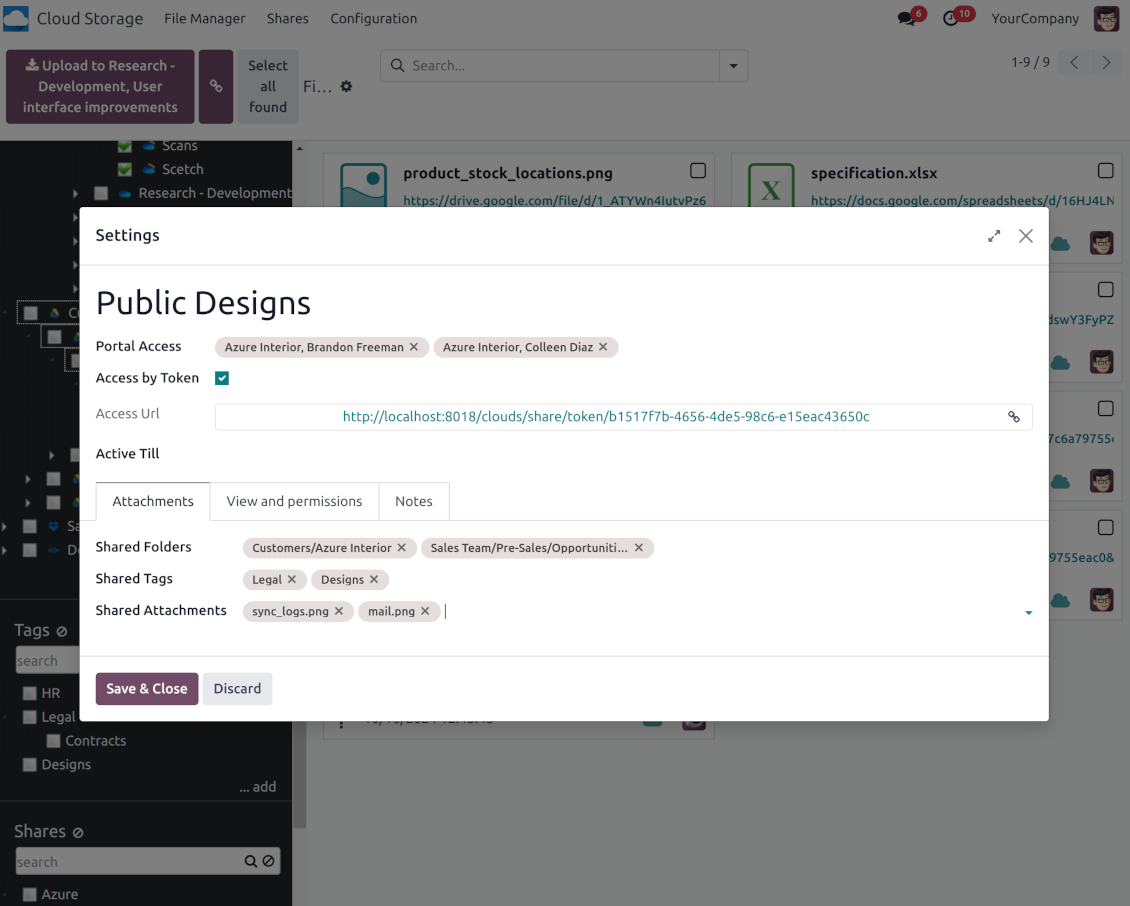
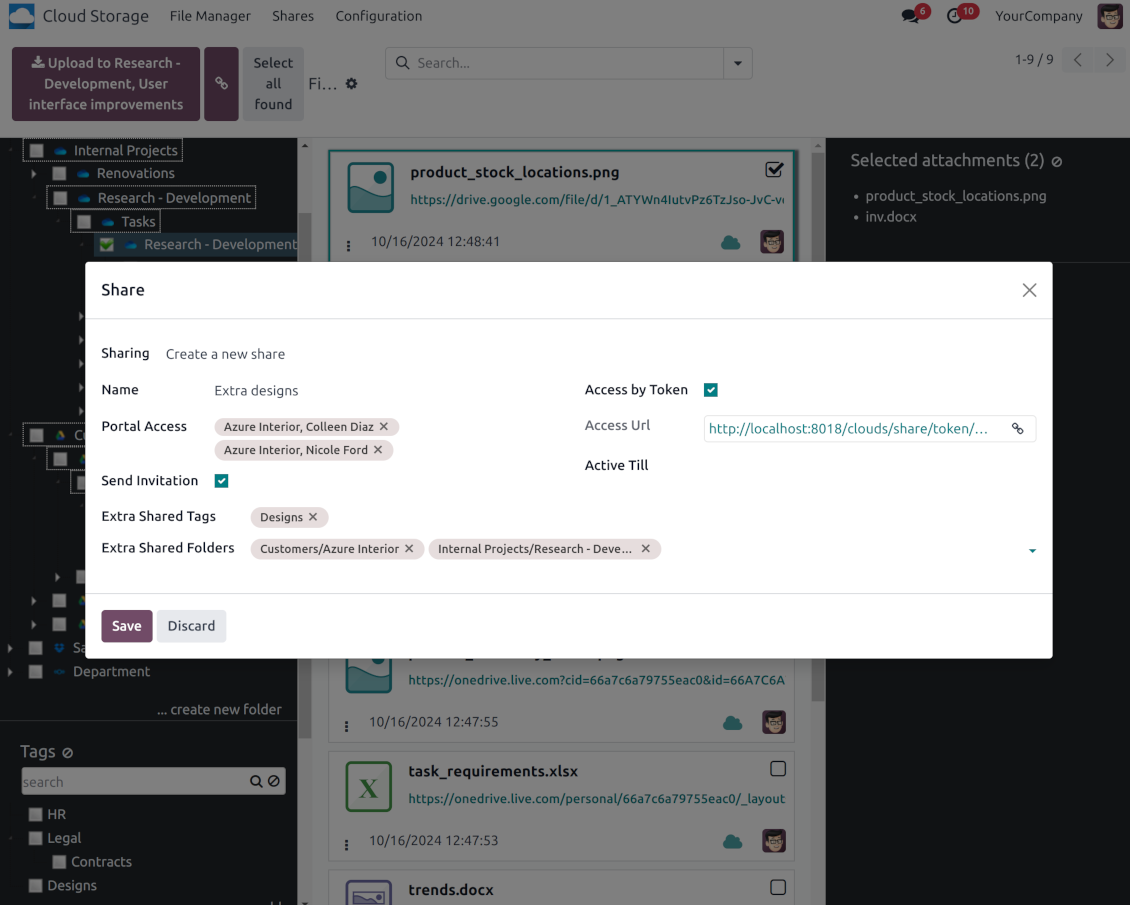
Share particular attachments, whole directories, or even all files of specific tags
-
Grant access to chosen Odoo contacts. Send an invitation to any Odoo portal users at any moment
-
Generate a special access link for public use (even without a user). Change it to make the previous one outdated
-
Make shares for temporary use or available constantly until archived
-
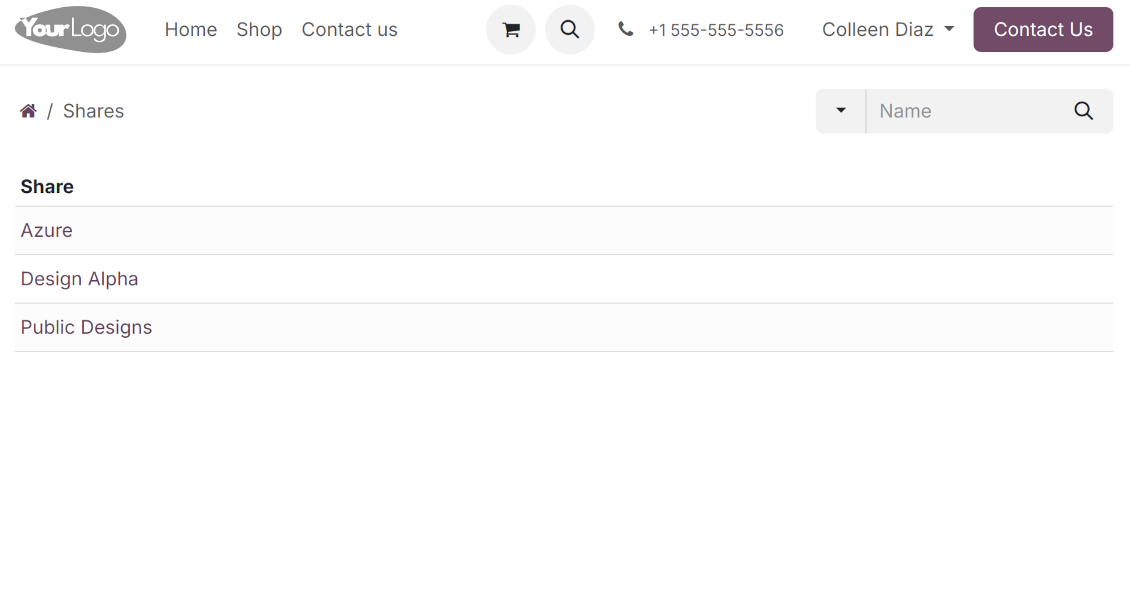
Create an unlimited number of shares with any setups and attachments involved. Portal users might access those through the special entry "Shares" in the Odoo's portal
-
For single-view purposes, shares support hierarchy so as to make comfortable navigation by those
-
Share users can download any shared file, a whole share, a particular directory, or a tag as a ZIP archive
-
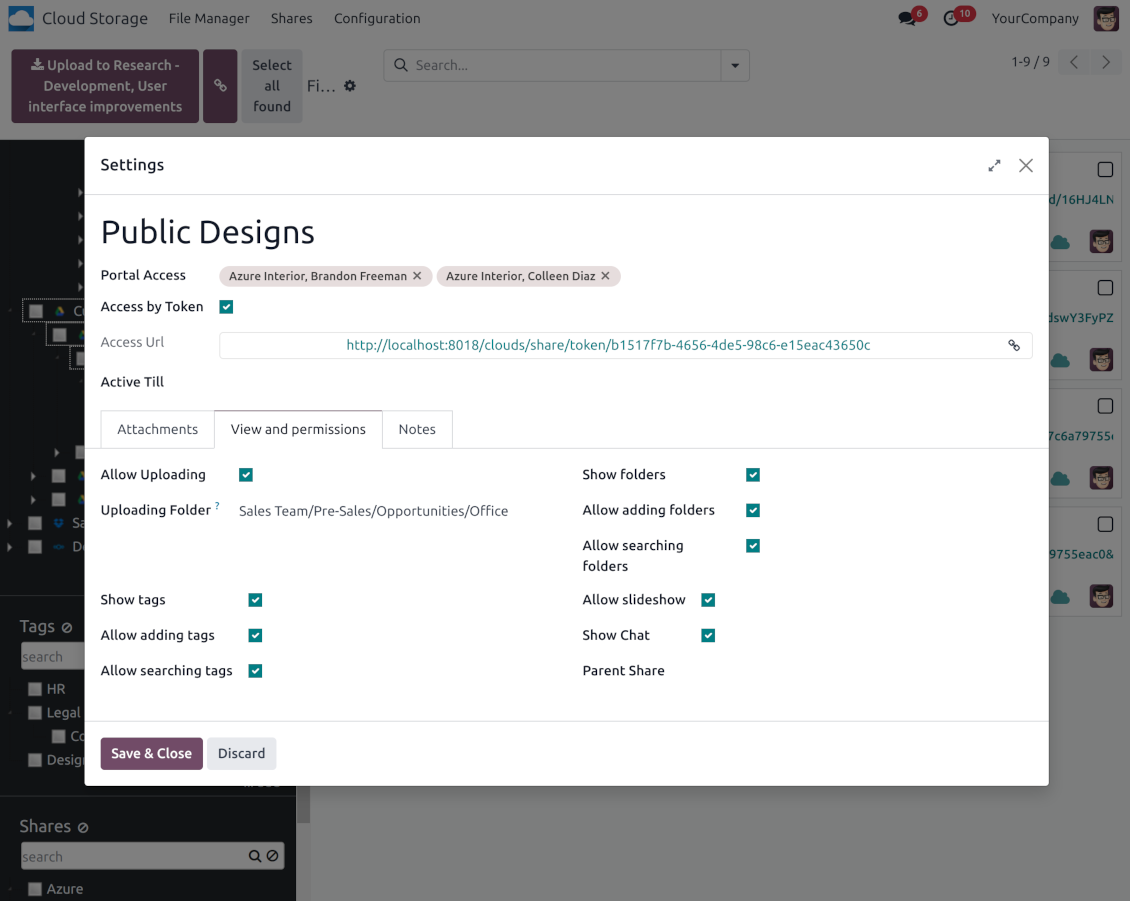
Optionally let upload files to the selected or default folder. Files drag and drop is supported
-
Users are always allowed to search attachments by title, linked folder, and tags
-
Optionally allow navigation by folders and/or tags. Shared tags/folders, their children, and ones linked to shared attachments will be available
-
Let users add tags and folders by themselves. Show/hide searching items in tags/folders navigation trees
-
Turn on/off a chat per each share.
Manajemen dokumen dan hak akses sinkronisasi
-
Access for each Odoo automatic folder is regulated based on a linked object. If such an Odoo object is available for a specific user, its directory would be also available for her/him. For example, if Anita Olivier is the task manager of 'Prepare specification', then she may access the folder 'Tasks' and 'Tasks > Prepare Specification'
-
Access to Odoo manual folders is regulated based on its user groups and users stated in those folders' settings. If nobody is specified, a manually created folder is available for everyone. For example, if Anita Oliver is a sales manager, she may access the quotation-related folder 'Odoo > Orders > SO-001'
-
To access any folder, a user should be able to access all its parents. For example, if Anita Oliver has rights for employees but does not have for departments, then she might not read 'Odoo > Departments > Administration > Employees > Mitchel Admin'. However, if the folder 'Employees' becomes a stand-alone folder without a parent, then Anita would be able to access 'Odoo > Employees > Mitchel Admin'
-
The app does not regulate access levels for cloud clients and their items. The tool regulates rights only for Odoo objects and synchronizes those to required storage. After the sync, if necessary, you should apply the settings for a target cloud client, folders, and files
-
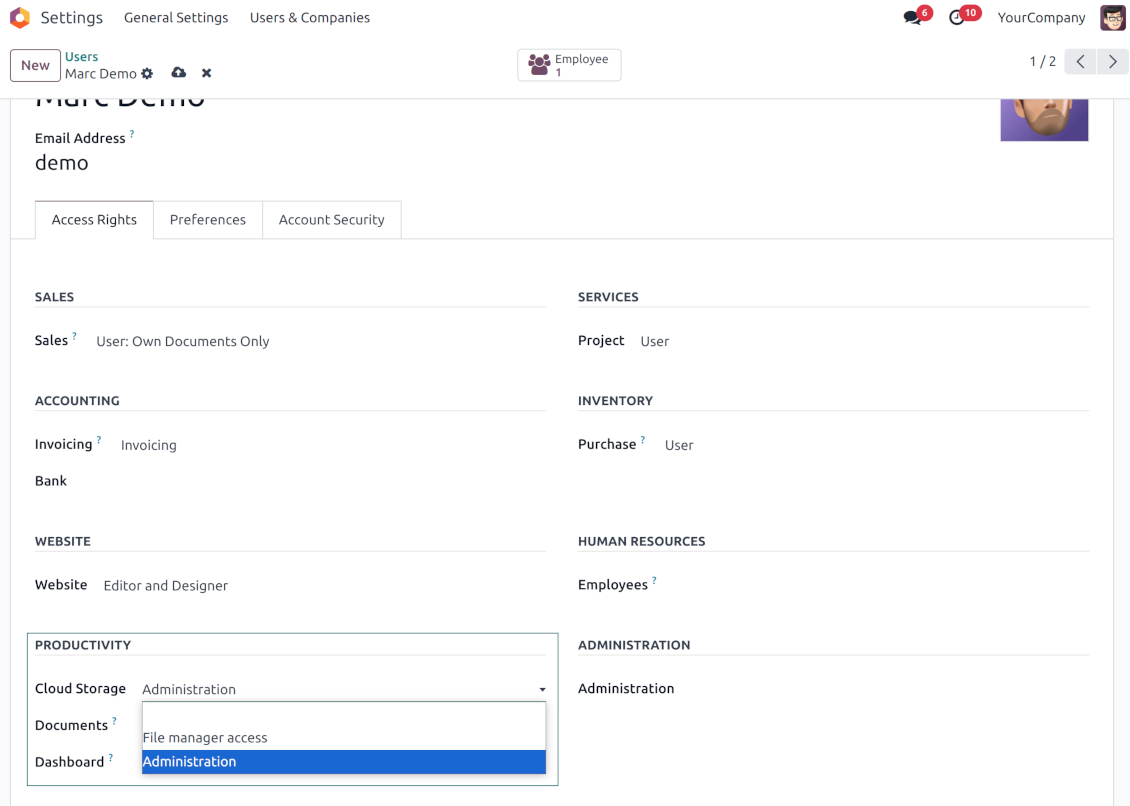
To observe the menu 'Cloud Storage' and the app file manager, a user should belong to the security group 'Cloud Storage > File Manager Access'
-
To configure automatic folder rules, establish connections with various cloud clients, control sync logs, and apply the app settings, a user should belong to the security group 'Cloud Storage > Administration'.
Catatan penggunaan
-
The app assumes automatic regular synchronization with various cloud clients. Please take into account that synchronization is not real-time but is based on tasks queue and scheduled jobs. Depending on the number of folders and attachments, it might take time for the app to check all directories and do the jobs. That's why, until the sync is done, Odoo attachment interfaces work as in standard Odoo.
-
Cloud connections rely upon the API of the related cloud clients. Such communication between systems is risky by concept due to possible disconnections, API updates, and unsolvable conflicts. The app is designed to cope with such risks by carefully processing failures and checking cloud client states. Simultaneously, make sure that you have configured a proper backup strategy for both Odoo and cloud clients.
-
The special factors of risks are sync scope and reverse operations. The higher the sync scope is, the more it would take Odoo to finish integrations. Hence, more space for errors exists. Try to decrease sync scope logically by choosing only required folders. Reverse operations might be risky since assume reflecting cloud clients' features which might be absent in Odoo. For example, Google Sheets cannot be opened outside Google Docs. The app would try to solve the scenarios by applying similar features (e.g. by converting a file to simple electronic tables). However, that is not always possible, and in this way, manual interactions would be required.
Tips konfigurasi dan instalasi untuk Cloud Storage Solutions Odoo v.18
Konfigurasi server Odoo
Agar sinkronisasi berjalan benar, terapkan timeout yang memadai pada berkas konfigurasi Odoo: LIMIT_TIME_CPU, LIMIT_TIME_REAL, LIMIT_TIME_REAL_CRON harus lebih dari 900 detik.
Untuk Odoo.sh ini tidak boleh dilakukan, karena timeout sudah ditentukan dan tidak dapat dikonfigurasi.
Hindari juga mengubah frekuensi job cron yang diasumsikan aplikasi: '[Cloud Storage] Prepare Cloud Folders', '[Cloud Storage] Run / Prepare sync queue'. Job tersebut dikonfigurasi berjalan setiap 15 menit, dan frekuensi itu dipakai dalam algoritma untuk menghindari jeda serta kehilangan data. Jika perlu menghentikan sinkronisasi sementara, jeda cloud client tertentu.
Dependensi Python umum
Alat bergantung pada pustaka eksternal 'sortedcontainers'. Pasang di server Odoo dengan perintah:
pip3 install sortedcontainersMenyiapkan integrasi OneDrive atau/dan SharePoint
Dependensi Python
Alat bergantung pada pustaka eksternal 'microsoftgraph'. Pasang di server Odoo dengan perintah:
pip3 install microsoftgraph-python
Konfigurasi dan masuk
- Aktifkan opsi 'OneDrive / SharePoint Sync' (cloud Storage > Configuration > Configuration). Add-on opsional OneDrive / SharePoint Odoo Integration diperlukan
- Pastikan pengguna Microsoft Anda punya hak admin penuh untuk OneDrive / SharePoint yang ingin dihubungkan ke Odoo. Pengguna ini hanya diperlukan untuk memberi izin; data pengguna tidak akan disimpan di Odoo dan tidak akan dipakai setelahnya. Selain itu, pastikan suatu alamat email Microsoft yang Anda pakai tidak punya pengalihan (biasanya terjadi saat Anda mengonfigurasi nama domain, sementara alamat utama masih di domain Microsoft seperti @outlook.com, @office365, dll.)
- Buka Azure Portal Anda: https://portal.azure.com/#blade/Microsoft_AAD_RegisteredApps/ApplicationsListBlade
Aplikasi harus didaftarkan di dalam directory (tenant). Microsoft tidak lagi mengizinkan membuat aplikasi baru di luar directory.
- Jika Anda sudah punya directory Microsoft 365 / Azure perusahaan, alihkan portal (kanan atas) ke situ lalu lanjutkan.
- Jika Anda hanya punya akun pribadi (@outlook.com, @hotmail.com, @live.com) dan melihat "these applications are associated with the account ... but are not contained within any directory", Anda belum punya directory. Daftar akun Azure gratis dengan akun Microsoft yang sama: https://azure.microsoft.com/free/ - Coba Azure gratis. Ini membuat Default Directory tanpa biaya.
- Microsoft meminta kartu hanya untuk verifikasi identitas; penahanan sementara sekitar 1 USD dipasang lalu dibatalkan. Directory dan pendaftaran aplikasi tidak dikenai biaya.
- Directory (Microsoft Entra ID Free) dan aplikasi apa pun yang terdaftar di dalamnya tetap berjalan terlepas dari kredit uji coba Azure 30 hari / $200. Kredit itu untuk sumber daya Azure berbayar yang tidak Anda pakai di sini. Tidak diperlukan pembayaran untuk aplikasi kami.
- Jika seluruh directory sama sekali tidak dipakai dalam waktu sangat lama (ambang Microsoft sekitar 200 hari tanpa aktivitas), Microsoft dapat mengirim peringatan lalu menonaktifkannya. Karena Odoo memanggil aplikasi ini setiap kali menyinkronkan, koneksi aktif menjaga directory tetap aktif - ini hanya penting jika Anda berhenti menyinkronkan sepenuhnya selama berbulan-bulan.
- Setelah Anda berada di directory sungguhan (bukan "Microsoft Services"), buka App registrations di sana.
- Klik 'New registration'
- Introduce a new name for the application and assign the redirect URI as [YOURODOOSITENAME]/one_drive_token (e.g. https://odootools.com/one_drive_token). As the supported account types choose 'Accounts in any organizational directory (Any Azure AD directory - Multitenant) and personal Microsoft accounts (e.g. Skype, Xbox)'.
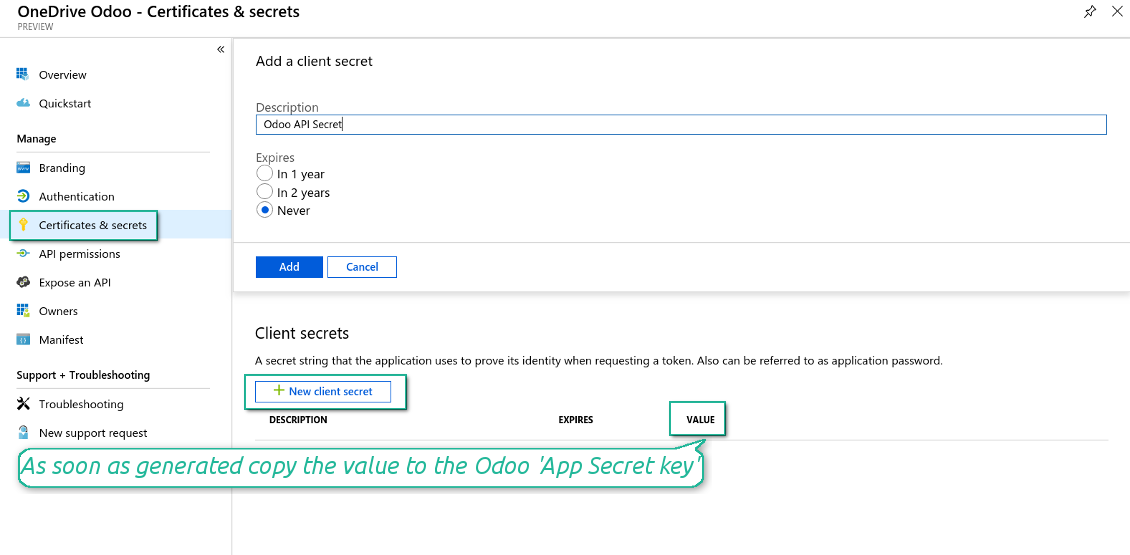
- Buka Certificates & secrets - Klik 'New Client Secret'. Simpan di suatu tempat nilai secret
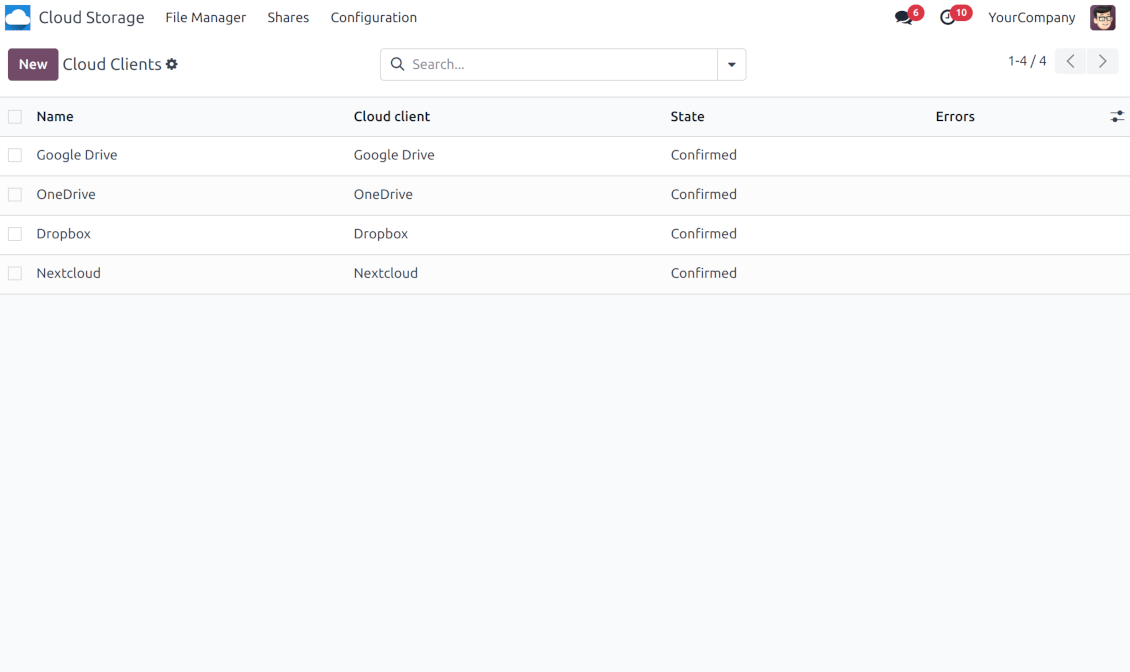
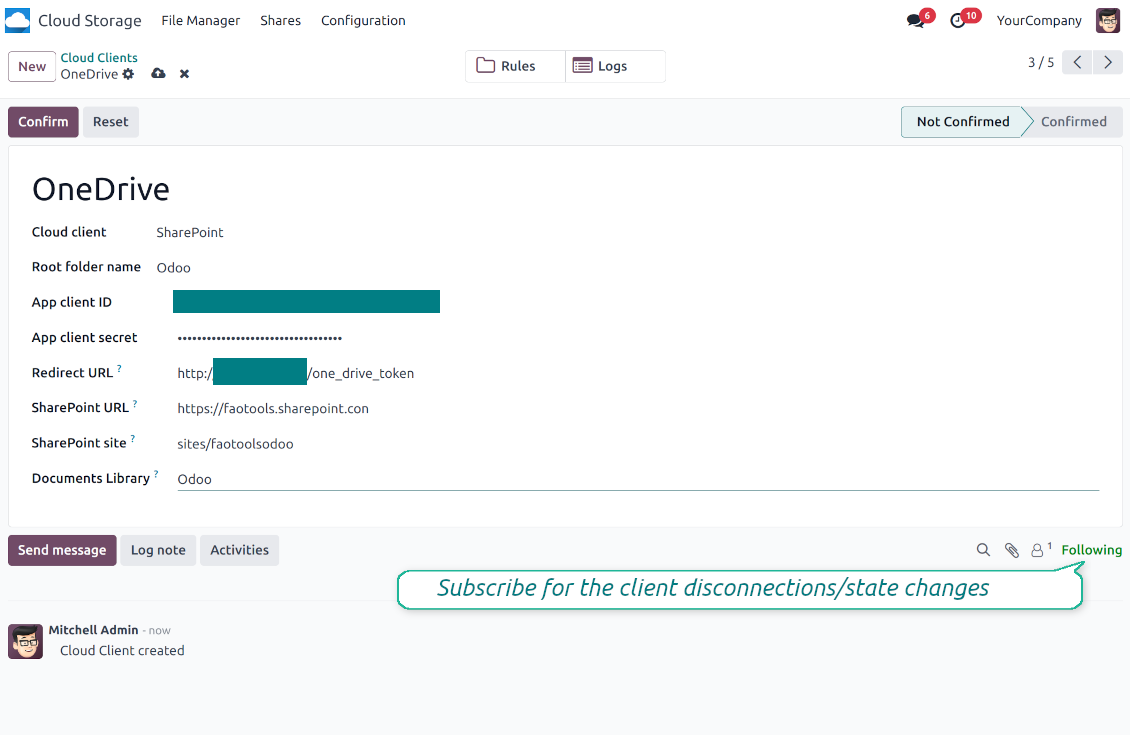
- Buka Odoo Cloud Storage > Konfigurasi > Cloud Clients lalu tekan 'Create'
- Sebagai referensi masukkan nama yang jelas bagi semua pengguna
- Sebagai Cloud client, pilih 'OneDrive' atau 'SharePoint' sesuai perangkat lunak yang Anda pakai
- Sebagai nama Root folder, masukkan judul yang akan dipakai sebagai OneDrive directory induk untuk semua folder tersinkron. Misalnya, 'Odoo' atau 'OdooERP'
- Salin 'Application Client ID' ke 'App client ID'
- Salin nilai rahasia ke bidang 'App client secret'
- Sisipkan URL pengalihan yang sebelumnya dibuat
- Jika Anda memakai SharePoint:
- Buka situs SharePoint Anda dan siapkan pustaka dokumen (drive) baru. Anda boleh memakai yang sudah ada, mis. 'Documents'. Folder Odoo akan diletakkan di sana setelahnya, dan tidak mungkin memindahkannya ke pustaka lain
- URL SharePoint harus bertipe https://[URL]/. '/' terakhir wajib - nama situs tidak boleh disertakan. Misalnya, https://odootools.sharepoint.com/
- Situs SharePoint harus berupa root (situs akar SharePoint itu sendiri), my_site_name (maka dianggap sites/my_site_name), atau sites/my_site_name (bukan 'sites' bisa 'teams' dan seterusnya). Tidak boleh ada '/' di awal atau akhir. Misalnya, sites/odootools
- Sebagai Documents Library, gunakan yang dibuat di SharePoint
- Tekan 'Confirm'. Odoo mengalihkan Anda ke halaman masuk Microsoft. Periksa di sistem, setujui semua syarat, dan berikan semua izin yang diminta. If Microsoft shows an account already signed in and says it does not exist in tenant 'Microsoft Services' (or any other unrelated tenant), do not click that row. Click 'Use another account' and sign in with the Microsoft account that owns the app's directory
- Setelah login, OneDrive mengarahkan Anda kembali ke Odoo. Sinkronisasi OneDrive - Odoo siap dilakukan
- Terapkan cloud client yang baru dibuat ke aturan folder dan/atau folder manual yang harus disinkronkan dengan instans OneDrive atau SharePoint itu
- Tunggu pekerjaan terjadwal sinkron mulai. Hanya untuk pengujian: picu integrasi secara manual dari Cloud Storage > Konfigurasi > Konfigurasi > tombol 'Launch sync'.
Tonton juga video konfigurasi
Buat aplikasi Azure
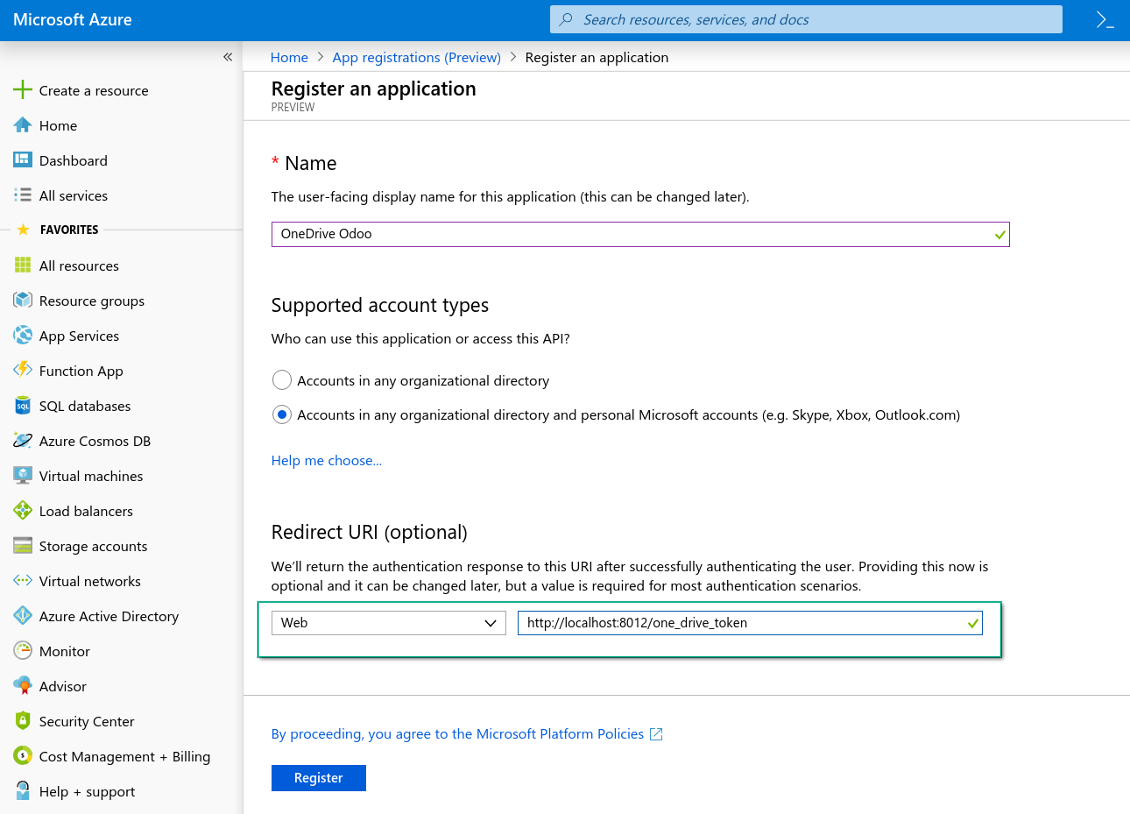
Platform web OneDrive baru dan URL pengalihan
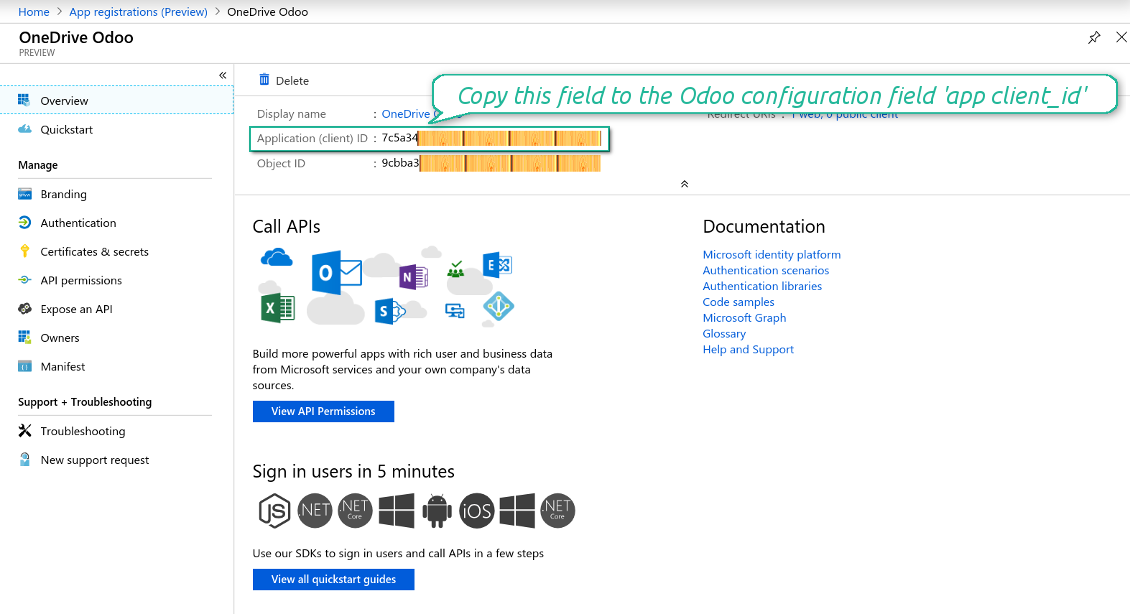
Buat rahasia baru untuk aplikasi Azure
Masukkan kunci konfigurasi di Odoo
Menyiapkan integrasi Google Drive
- Aktifkan opsi 'Google Drive Sync' (cloud Storage > Configuration > Configuration). Add-on opsional Google Drive Odoo Integration diperlukan
- Buka Google Cloud Console lewat URL https://console.cloud.google.com
- Pilih atau buat proyek
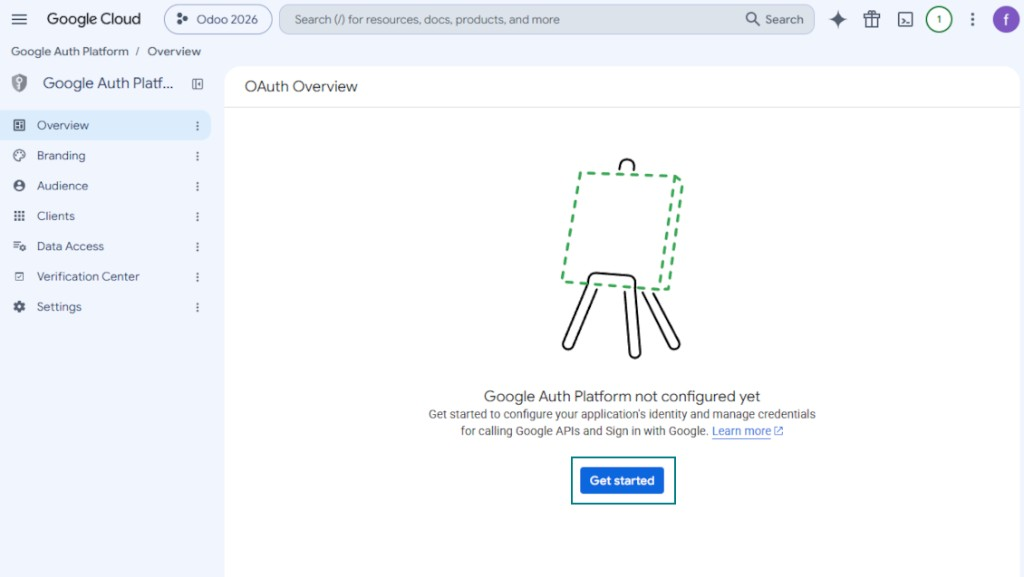
- Setelah proyek dipilih, konsol membuka Google Auth Platform. Tekan 'Get Started'
- Tambahkan informasi aplikasi
- Sebagai nama aplikasi pilih yang sesuai
- Sebagai email dukungan pengguna pilih alamat Anda
- Tekan 'Next'
- Sebagai audiens pilih 'External' lalu tekan 'Next'. Catatan: aplikasi ini tetap hanya untuk koneksi Odoo Anda sendiri
- Sebagai informasi kontak, masukkan alamat email Google atau Google Workspace Anda lalu tekan 'Next'
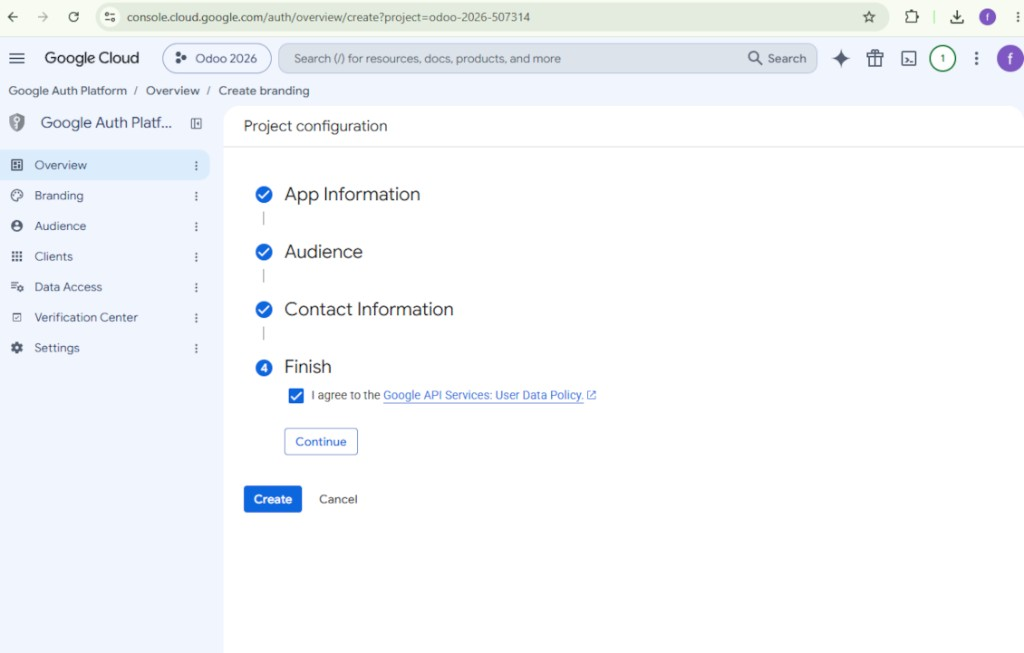
- Setujui Google API Services User Data Policy, tekan 'Continue', lalu tekan 'Create'
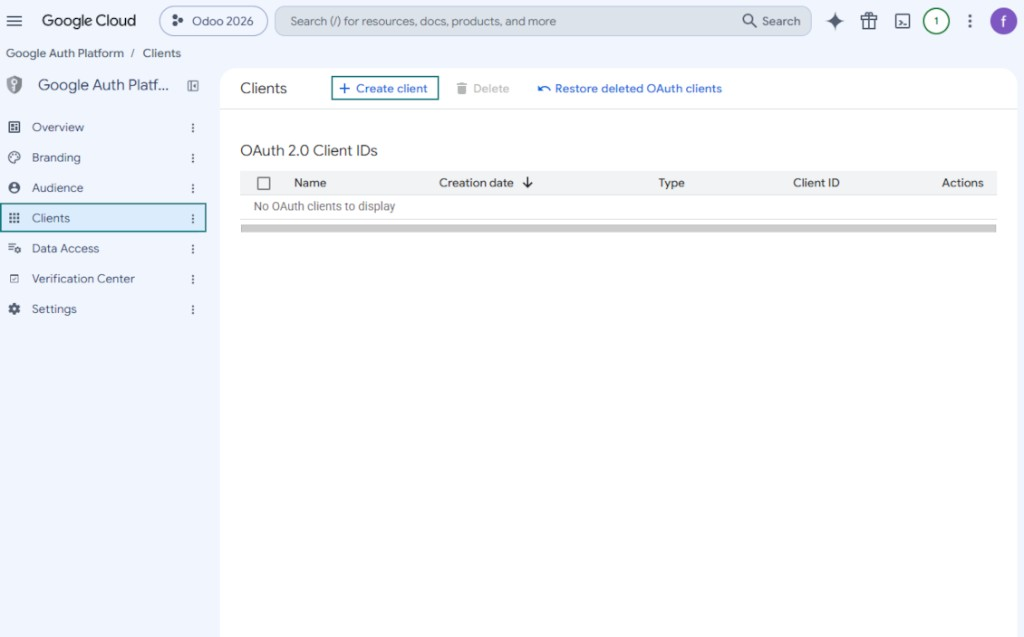
- Buka 'Clients' dan tekan 'Create client'
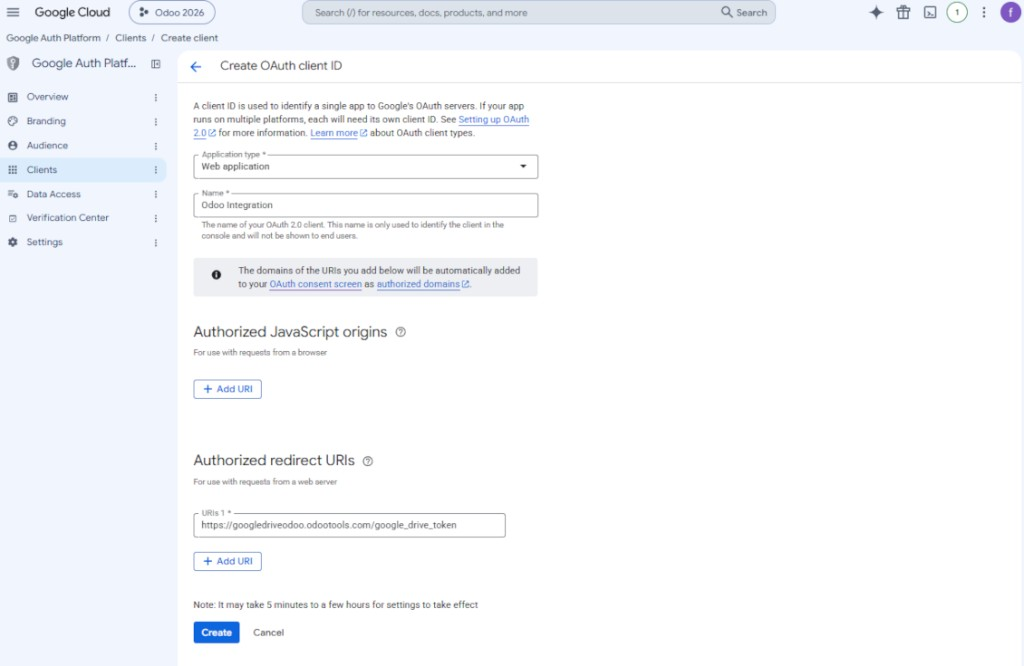
- Sebagai jenis aplikasi pilih 'Web application'
- Sebagai nama pilih yang sesuai
- Sebagai URI pengalihan resmi, tambahkan tautan dalam format [YOURODOOSITENAME]/google_drive_token (mis. https://odootools.com/google_drive_token).
- Tekan 'Create'
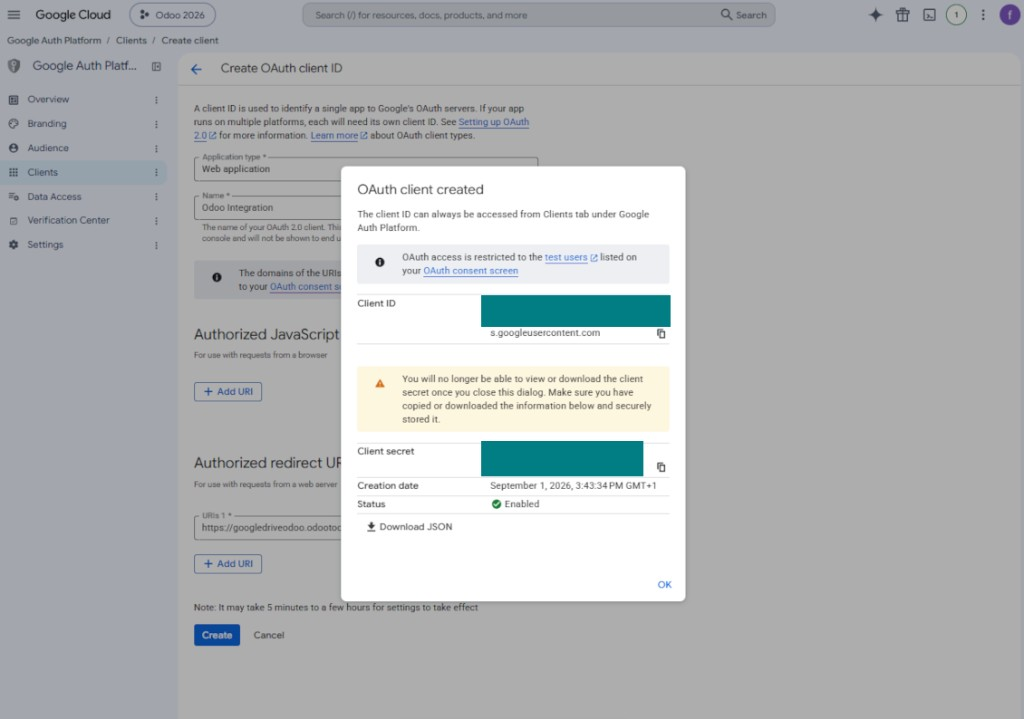
- Salin dan simpan dengan aman 'Client ID' dan 'Client secret'. Client secret ditampilkan hanya sekali
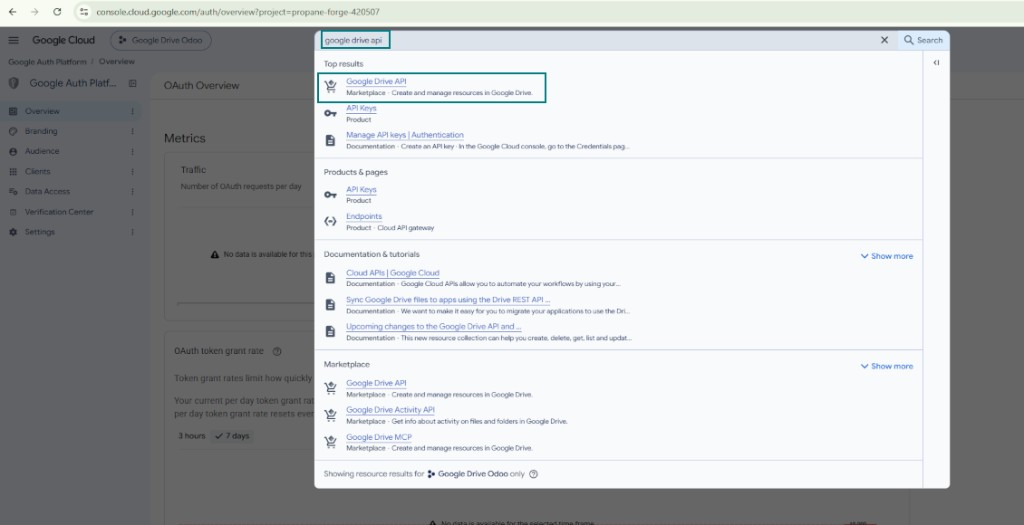
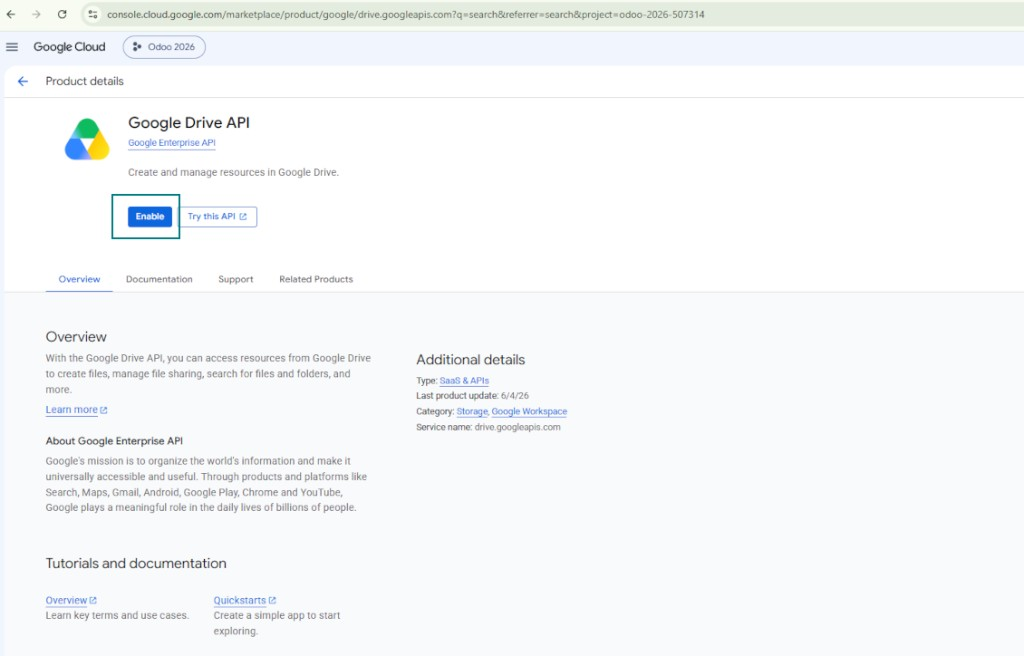
- Aktifkan Google Drive API untuk proyek ini: ketik 'Google Drive API' di kotak pencarian atas, buka produk yang ditemukan, lalu tekan 'Enable'
- Buka 'Audience' dan tambahkan alamat email Anda sebagai pengguna uji
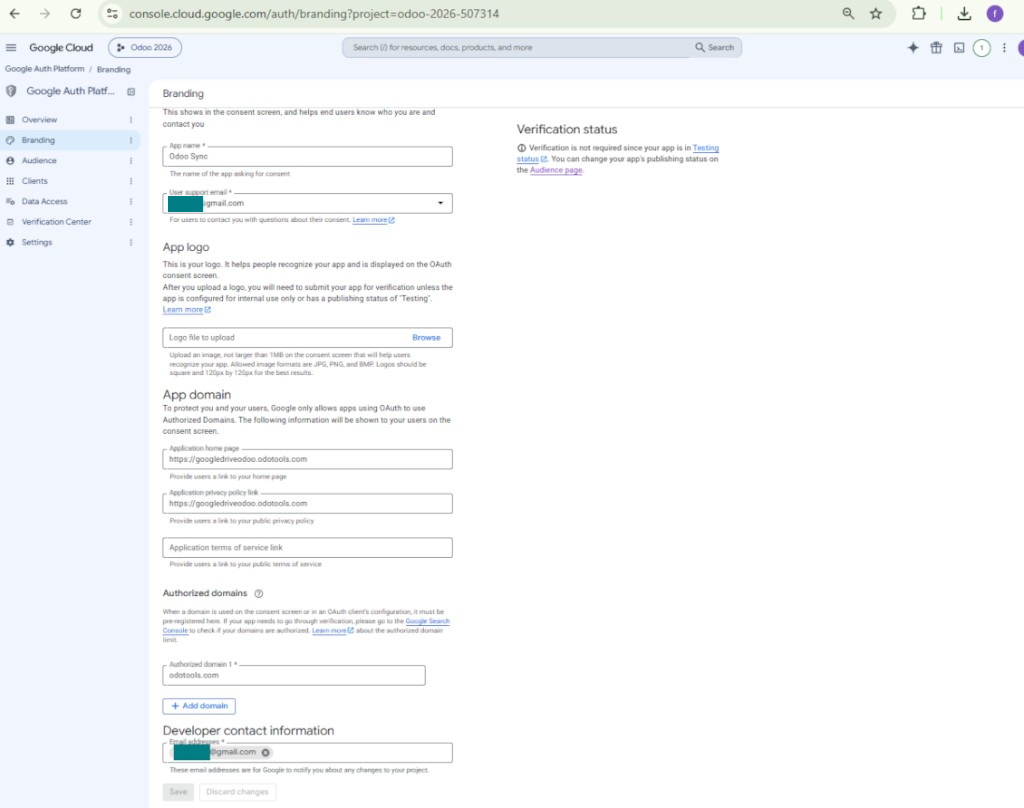
- Terbitkan aplikasinya. Jika tidak, aplikasi tetap dalam status pengujian dan tokennya kedaluwarsa setiap 7 hari
- Buka 'Branding' dan isi beranda aplikasi serta tautan kebijakan privasi aplikasi (misalnya tautan ke website Odoo Anda). Tambahkan domain tautan itu sebagai authorized domains
- Buka 'Audience' lalu tekan 'Publish app'
- Jangan unggah logo aplikasi. Ini akan memicu proses verifikasi Google yang panjang dan rumit yang sebenarnya tidak Anda butuhkan
- Buka Odoo Cloud Storage > Konfigurasi > Cloud Clients lalu tekan 'Create'
- Sebagai referensi masukkan nama yang jelas bagi semua pengguna
- Sebagai Cloud client pilih 'Google Drive'
- Sebagai nama Root folder, masukkan judul yang akan dipakai sebagai Google Drive directory induk untuk semua folder tersinkron. Misalnya, 'Odoo' atau 'OdooERP'
- Salin 'Client ID' dari langkah 9 ke bidang 'App client ID'
- Salin 'Client secret' dari langkah 9 ke bidang 'App client secret'
- Sisipkan URL pengalihan yang Anda masukkan di langkah 9
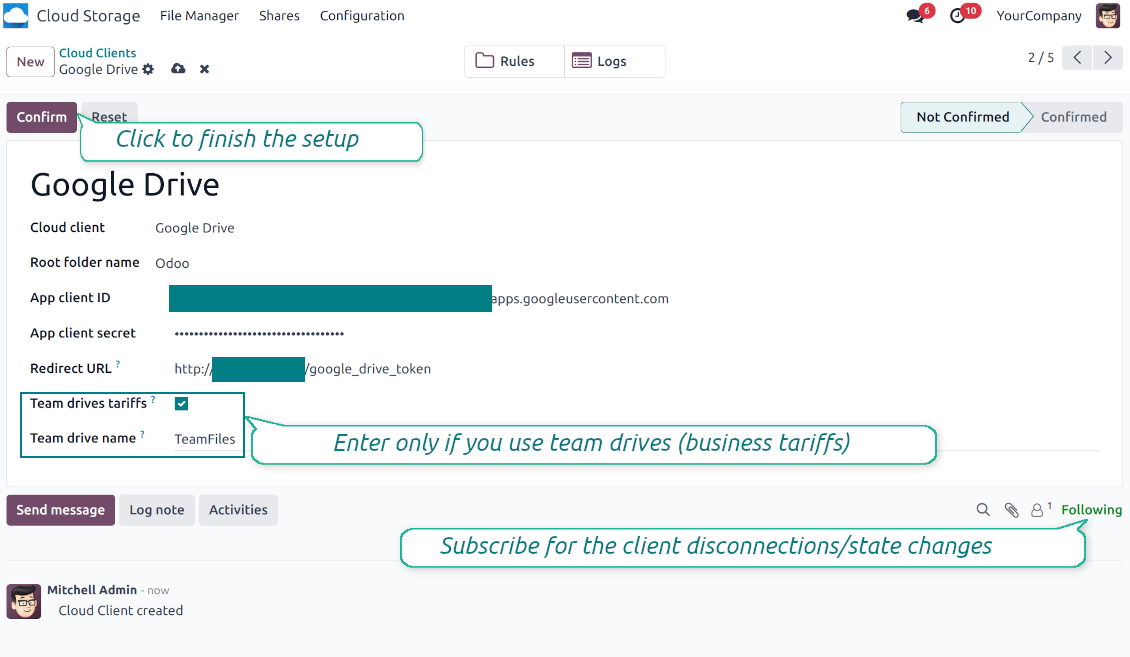
- Jika memakai drive tim, centang kotak terkait. Pastikan Anda benar-benar memakai drive tim. Di Google Drive Anda harus menemukan item 'Team Drives' di bilah kiri. Fitur ini hanya tersedia untuk tarif bisnis dan enterprise
- Jika opsi 'Team Drive' diaktifkan, masukkan namanya. Harus benar-benar sama seperti yang Anda lihat di Google Drive. Pastikan pengguna Anda punya hak penuh untuk semua drive Google (biasanya pengguna yang sama yang mengonfigurasi Google Drive tim)
- Tekan 'Confirm'. Odoo mengalihkan Anda ke halaman masuk Google. Periksa di sistem, setujui semua syarat, dan berikan semua izin yang diminta
- Setelah login, Google mengarahkan Anda kembali ke Odoo. Sinkronisasi Google Drive - Odoo siap dilakukan
- Terapkan cloud client yang baru dibuat ke aturan folder dan/atau folder manual yang harus disinkronkan dengan Google Drive itu
- Tunggu pekerjaan terjadwal sinkron mulai. Hanya untuk pengujian: picu integrasi secara manual dari Cloud Storage > Konfigurasi > Konfigurasi > tombol 'Launch sync'.
Tonton juga video konfigurasi, Catatan: bagian Google console pada video sudah usang; ikuti langkah di atas
Buka Google Auth Platform
Tambahkan informasi aplikasi
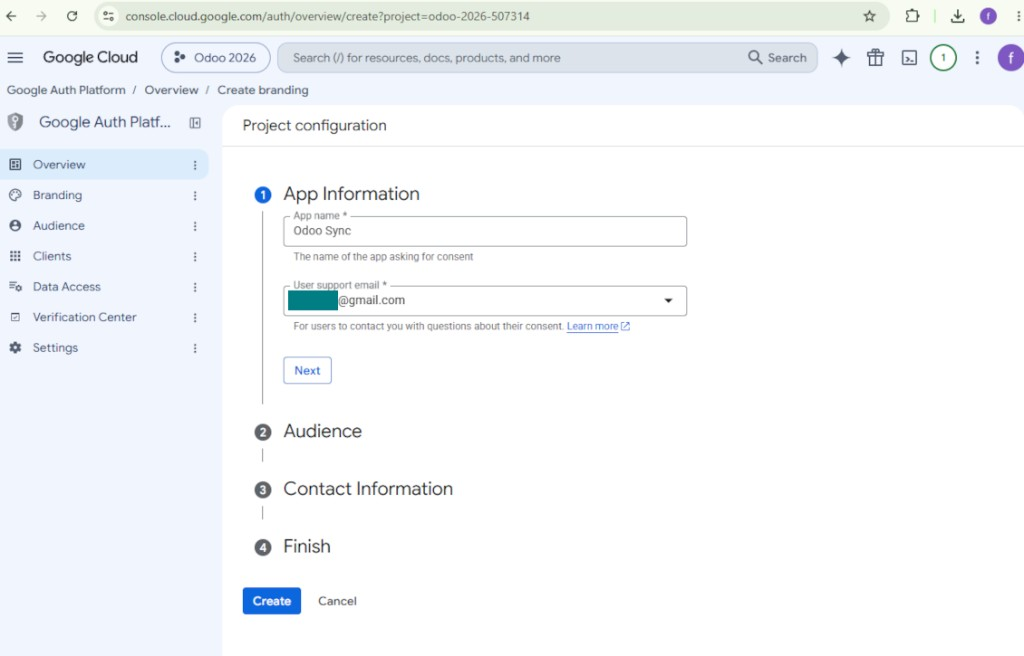
Pilih audiens eksternal
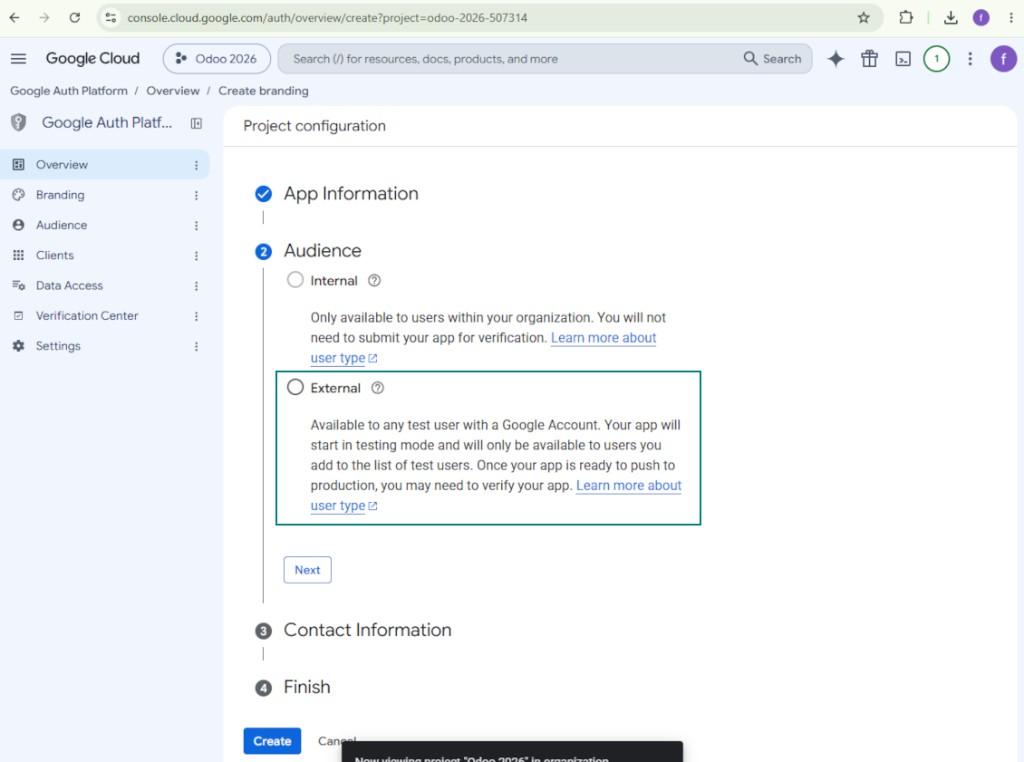
Tambahkan informasi kontak
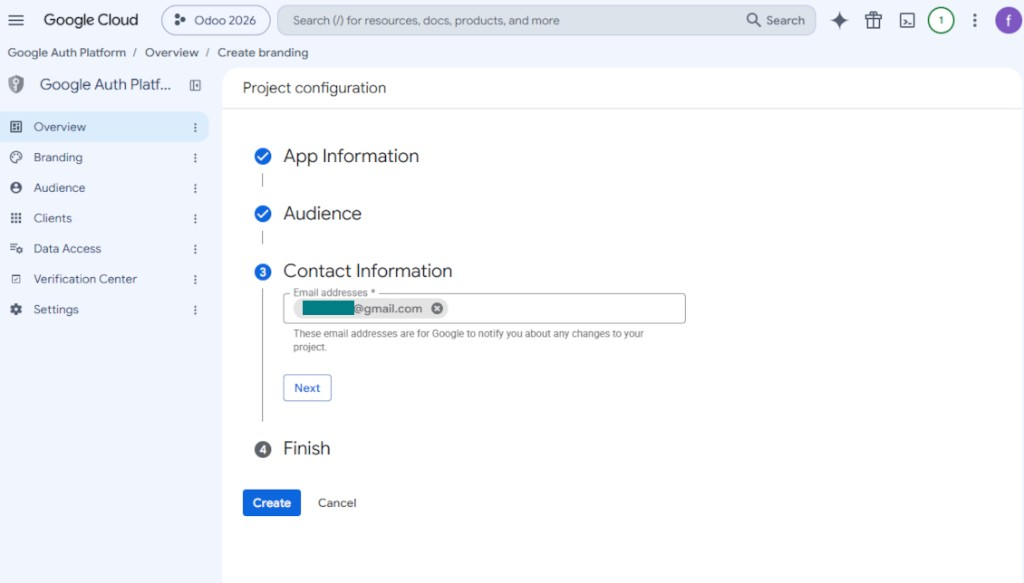
Setujui kebijakan dan buat aplikasi
Buat klien OAuth
Konfigurasi klien aplikasi web
Salin ID klien dan rahasia klien
Temukan Google Drive API
Aktifkan Google Drive API
Isi branding untuk memublikasikan aplikasi
Masukkan kredensial aplikasi Google ke Odoo
Menyiapkan Amazon S3
- Aktifkan opsi 'Amazon S3 Sync' (Cloud Storage > Konfigurasi > Konfigurasi). Add-on opsional Amazon S3 Odoo Integration diperlukan
- Buka Konsol Amazon S3: https://console.aws.amazon.com/s3/
- Buat bucket baru atau pilih yang sudah ada. Salin nama bucket yang tepat: harus dimasukkan di Odoo ke bidang 'Bucket'
- Buka detail bucket dan salin AWS Region-nya. Masukkan di Odoo ke bidang 'Region' (misalnya, eu-west-1 atau us-east-1)
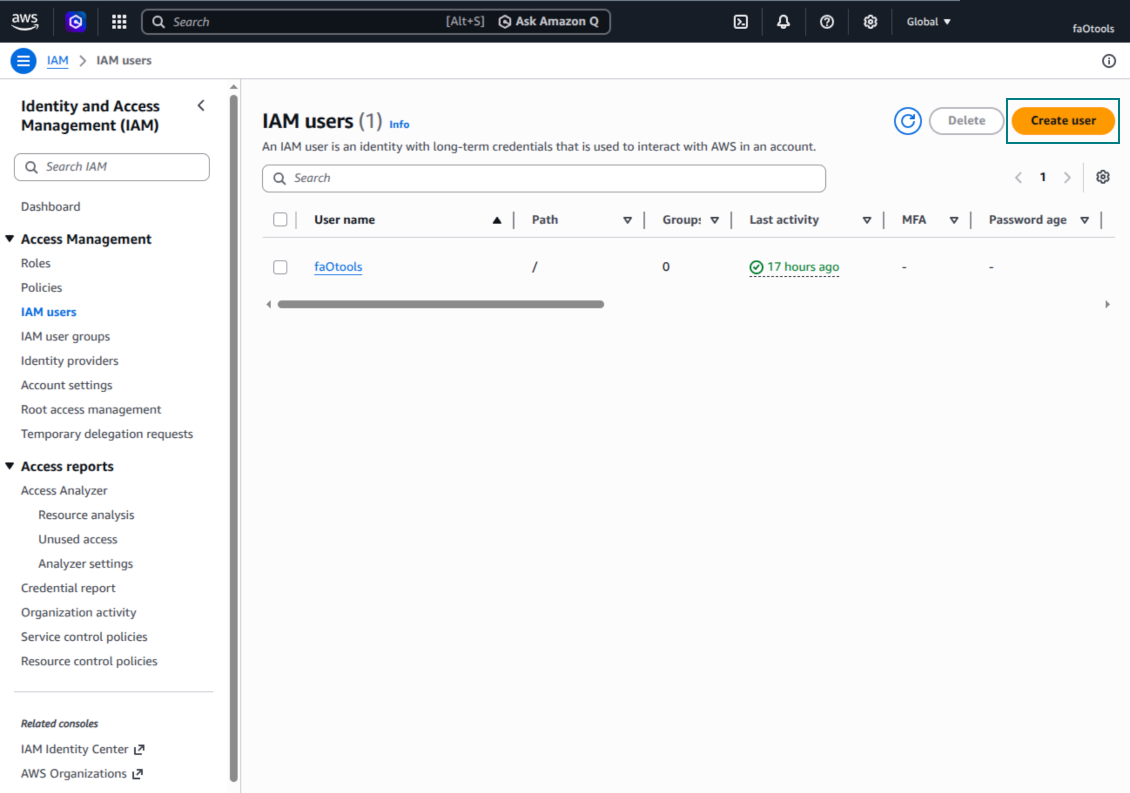
- Buka Konsol AWS IAM: https://console.aws.amazon.com/iam/
- Buat pengguna IAM baru atau pilih pengguna teknis yang ada. Pengguna ini harus memiliki hak penuh untuk mencantumkan, membaca, membuat, menulis, menyalin, dan menghapus objek dalam bucket yang dipilih. Anda dapat memilih admin hak penuh, atau membuat kebijakan baru (lihat di bawah)
- Di formulir pengguna IAM, buka tab 'Security credentials' lalu tekan 'Create access key'
- Di halaman 'Access key best practices & alternatives', pilih Application running outside AWS. Ini opsi yang benar saat server Odoo terhubung ke S3 dengan access key dari luar AWS, dari Odoo.sh, dari server Anda, atau penyedia hosting lain. Jika Odoo terpasang di instans AWS EC2, Anda dapat memilih Application running on an AWS compute service, tetapi bidang yang disalin ke Odoo sama
- Tekan 'Next'. Pada langkah berikutnya, secara opsional masukkan tag deskripsi seperti Odoo S3 Sync, lalu tekan 'Create access key'
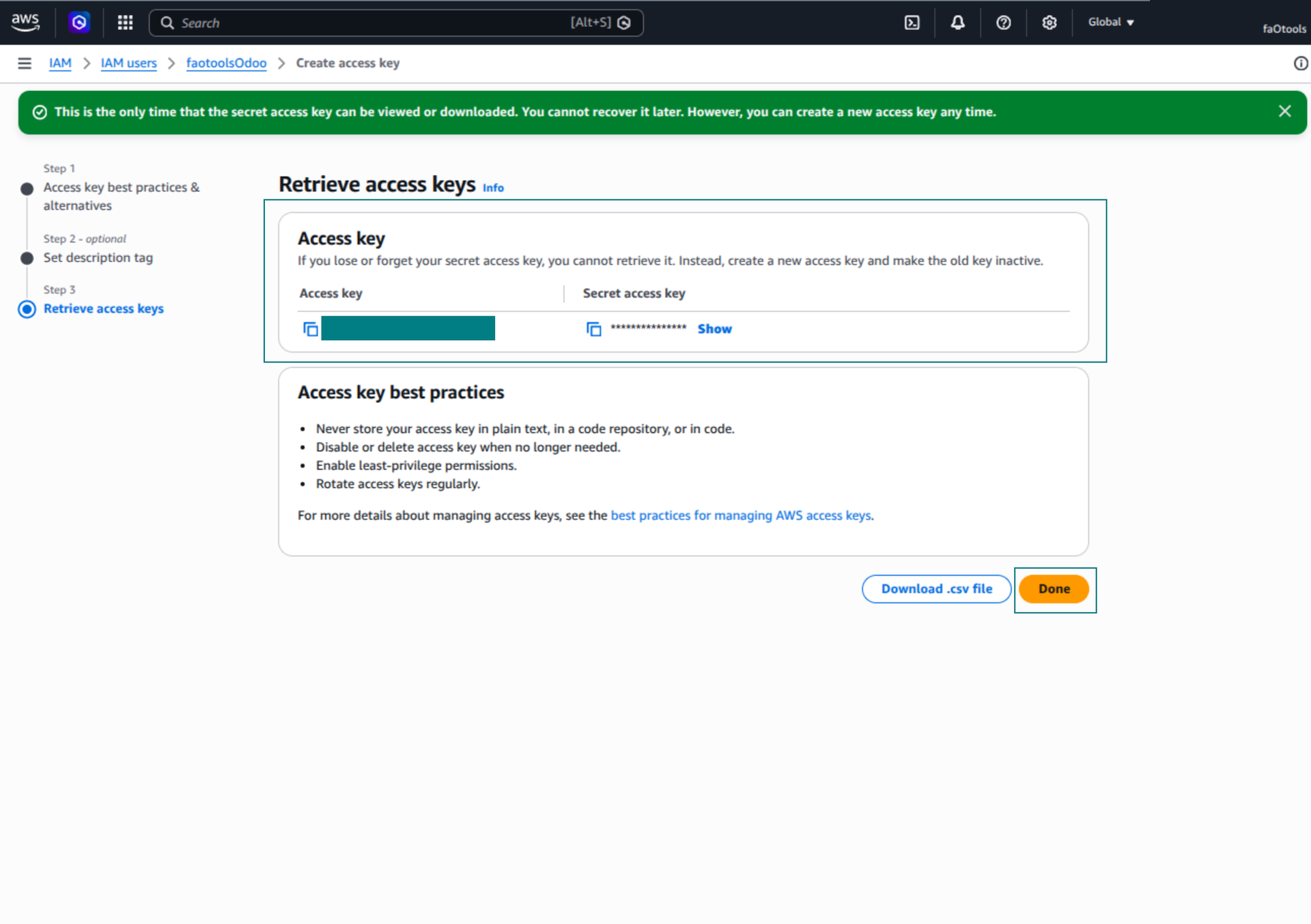
- Di halaman AWS terakhir, salin Access key atau Access key ID ke bidang Odoo 'Access Key'
- Salin Secret access key ke field Odoo 'Secret Key'. Penting: AWS menampilkan kunci rahasia hanya sekali, jadi simpan sebelum menutup jendela
- Jika memakai penyedia kompatibel S3 alih-alih AWS S3, salin URL endpoint dari panel admin penyedia itu lalu masukkan ke Odoo pada field 'Amazon S3 endpoint URL'. Misalnya MinIO sering memakai URL seperti https://minio.example.com atau http://localhost:9000; LocalStack biasanya http://localhost:4566
- Buka Odoo Cloud Storage > Configuration > Cloud Clients lalu tekan 'Create'
- Sebagai referensi, masukkan nama yang jelas bagi semua pengguna
- Sebagai Cloud client, pilih 'Amazon S3'
- Sebagai nama Root folder, masukkan judul yang akan dipakai sebagai S3 prefix induk untuk semua folder tersinkron. Misalnya, 'Odoo' atau 'OdooERP'
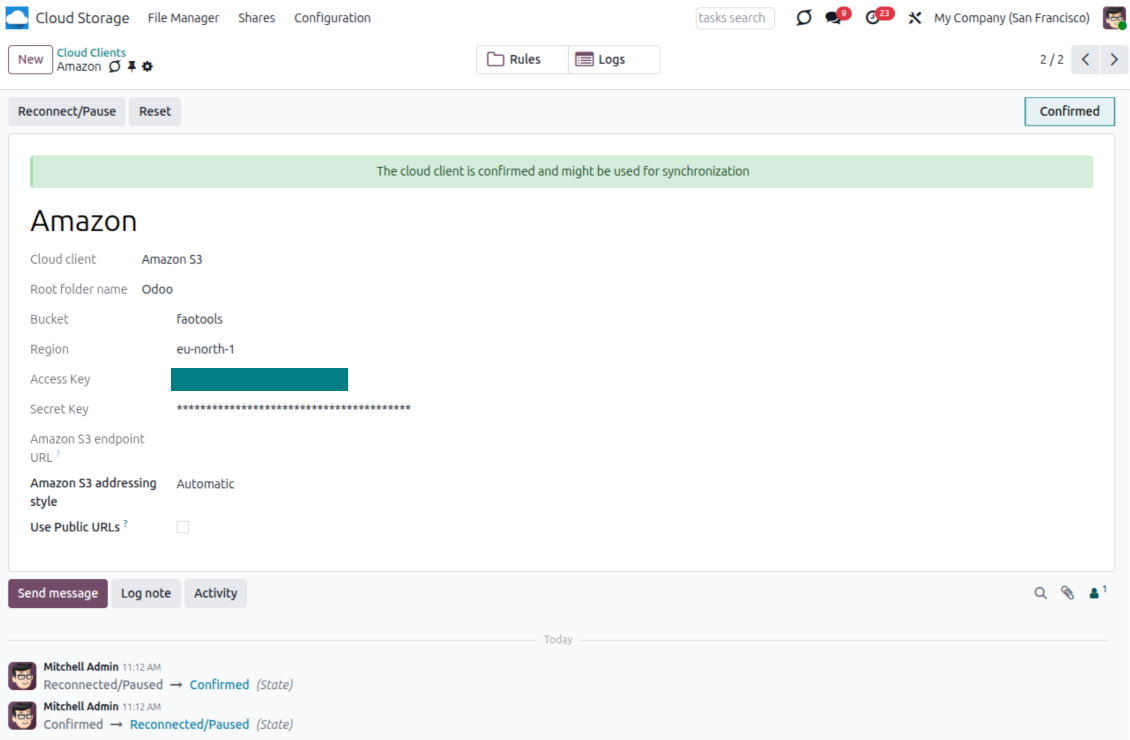
- Isi field 'Bucket', 'Region', 'Access Key', 'Secret Key', dan jika perlu 'Amazon S3 endpoint URL' serta gaya pengalamatan
- Pilih apakah Odoo harus memakai URL presigned sementara atau URL bucket/CDN publik. Untuk bucket privat, biarkan URL presigned aktif dan atur masa hidupnya dalam detik
- Tekan 'Confirm'. Odoo memeriksa akses bucket lalu membuat atau memverifikasi awalan folder akar. Sinkronisasi Amazon S3 - Odoo siap dilakukan
- Terapkan cloud client yang baru dibuat ke aturan folder dan/atau folder manual yang harus disinkronkan dengan bucket Amazon S3 itu
- Tunggu pekerjaan terjadwal sinkron mulai. Hanya untuk pengujian: picu integrasi secara manual dari Cloud Storage > Konfigurasi > Konfigurasi > tombol 'Launch sync'.
Dokumentasi AWS yang berguna: membuat bucket S3: https://docs.aws.amazon.com/AmazonS3/latest/userguide/creating-bucket.html, mengelola kunci akses IAM: https://docs.aws.amazon.com/IAM/latest/UserGuide/id_credentials_access-keys.html.
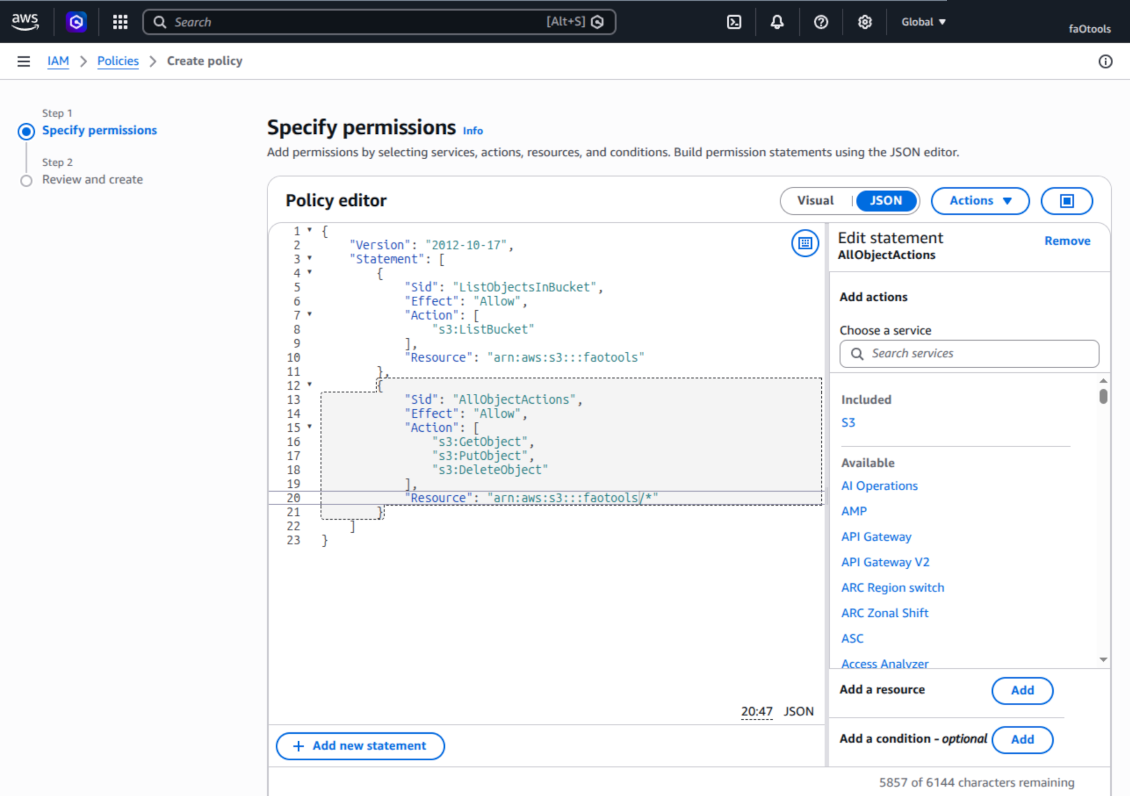
Contoh kebijakan bucket
    {
    "Version": "2012-10-17",
    "Statement": [
        {
            "Sid": "ListObjectsInBucket",
            "Effect": "Allow",
            "Action": [
                "s3:ListBucket"
            ],
            "Resource": "arn:aws:s3:::NAME_OF_YOUR_BUCKET"
        },
        {
            "Sid": "AllObjectActions",
            "Effect": "Allow",
            "Action": [
                "s3:GetObject",
                "s3:PutObject",
                "s3:DeleteObject"
            ],
            "Resource": "arn:aws:s3:::NAME_OF_YOUR_BUCKET/*"
        }
    ]
}
Buat pengguna AWS IAM baru
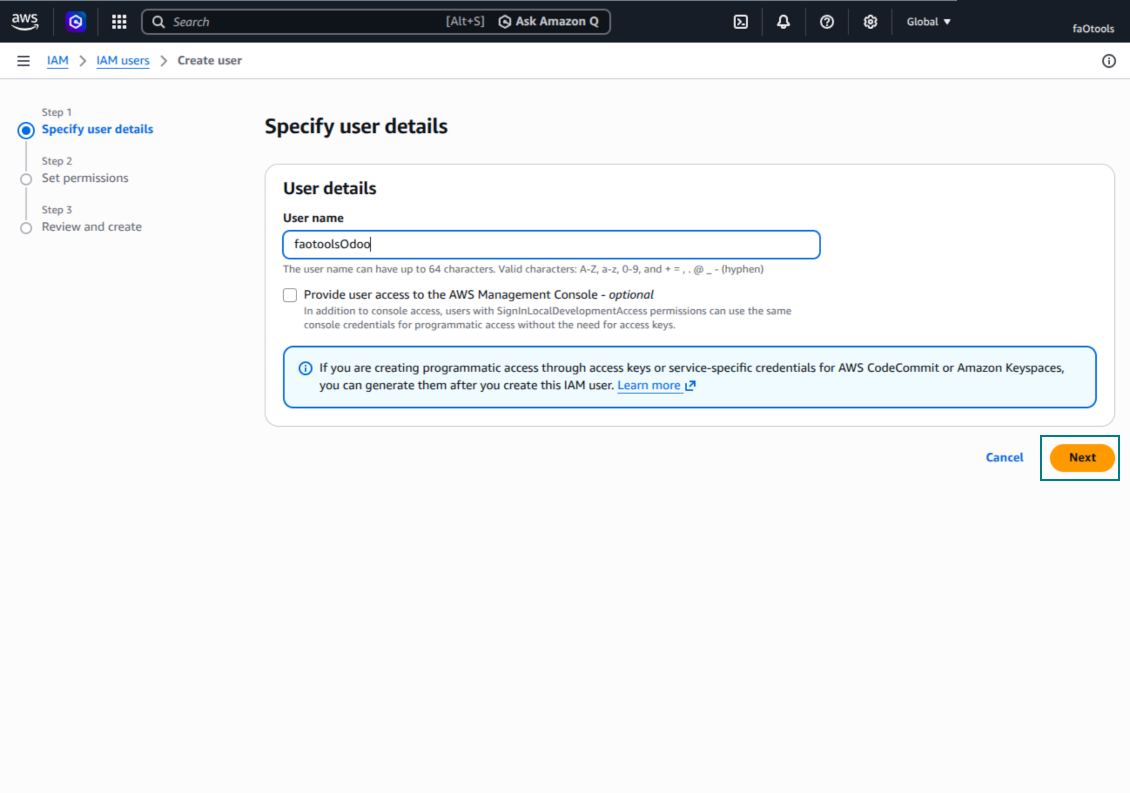
Tentukan nama pengguna IAM
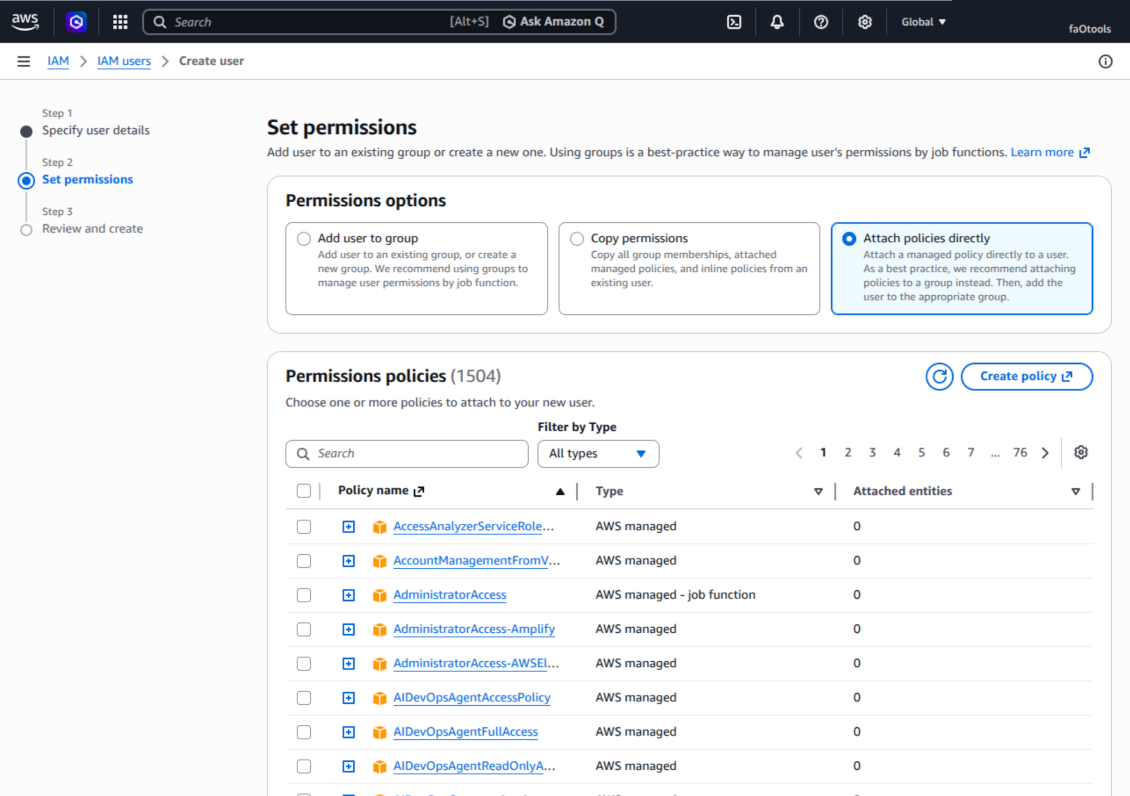
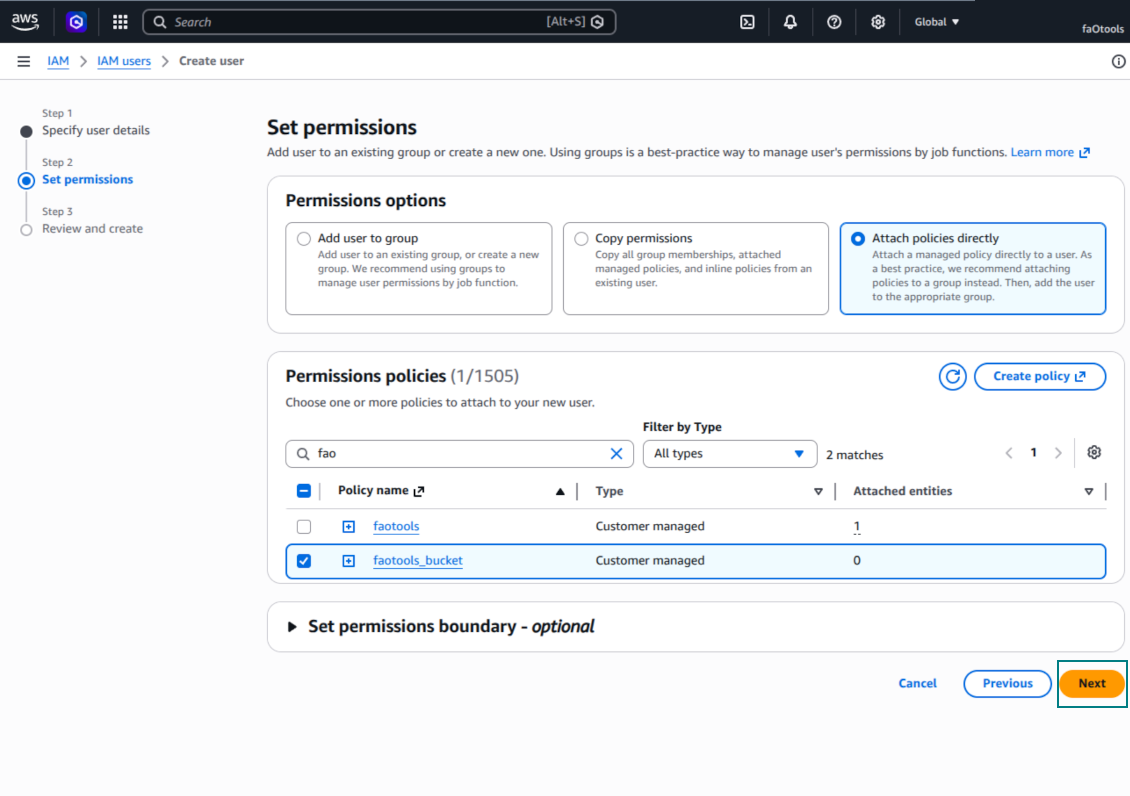
Lampirkan kebijakan izin secara langsung
Contoh JSON kebijakan bucket Amazon S3
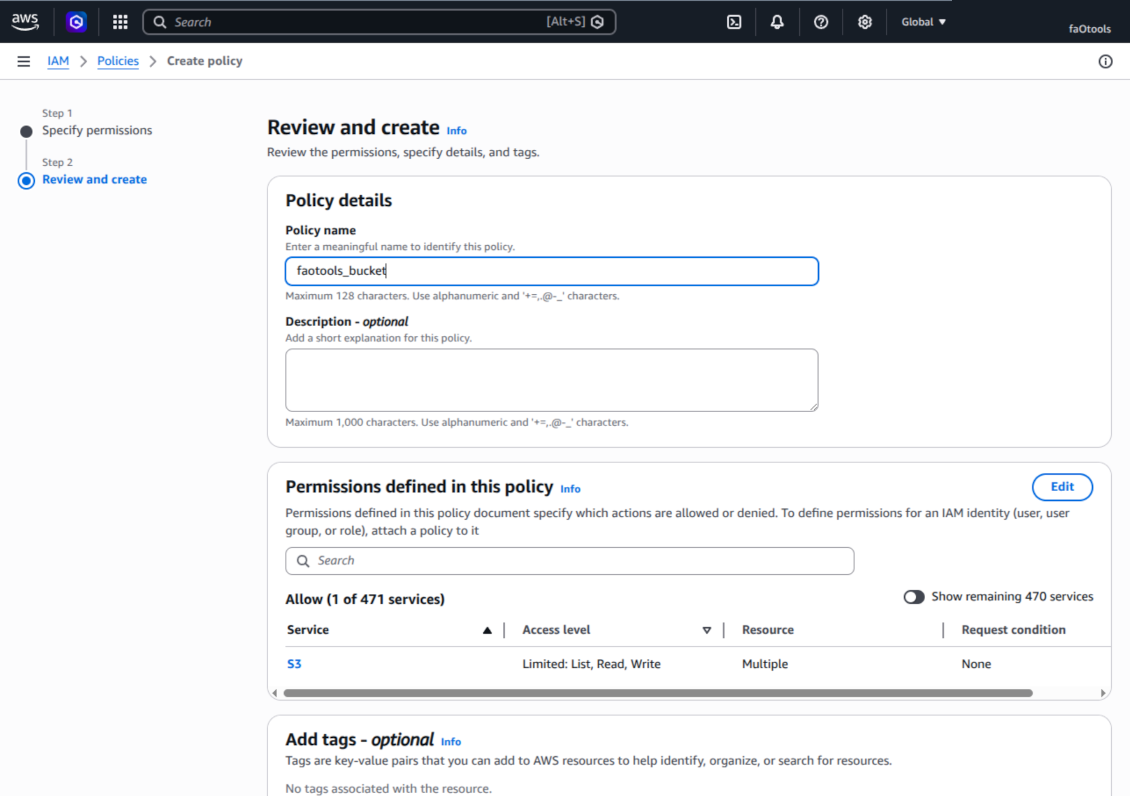
Tinjau dan beri nama kebijakan S3
Pilih kebijakan bucket untuk pengguna
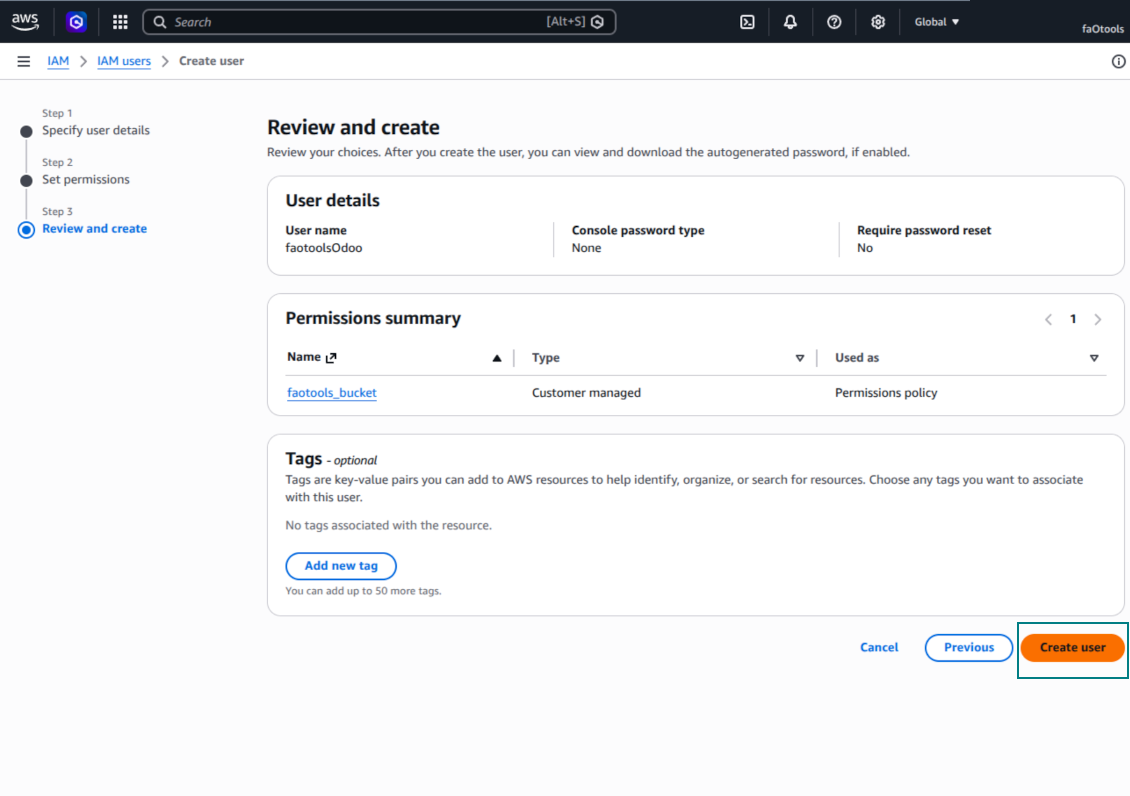
Tinjau dan buat pengguna IAM
Buat kunci akses untuk pengguna
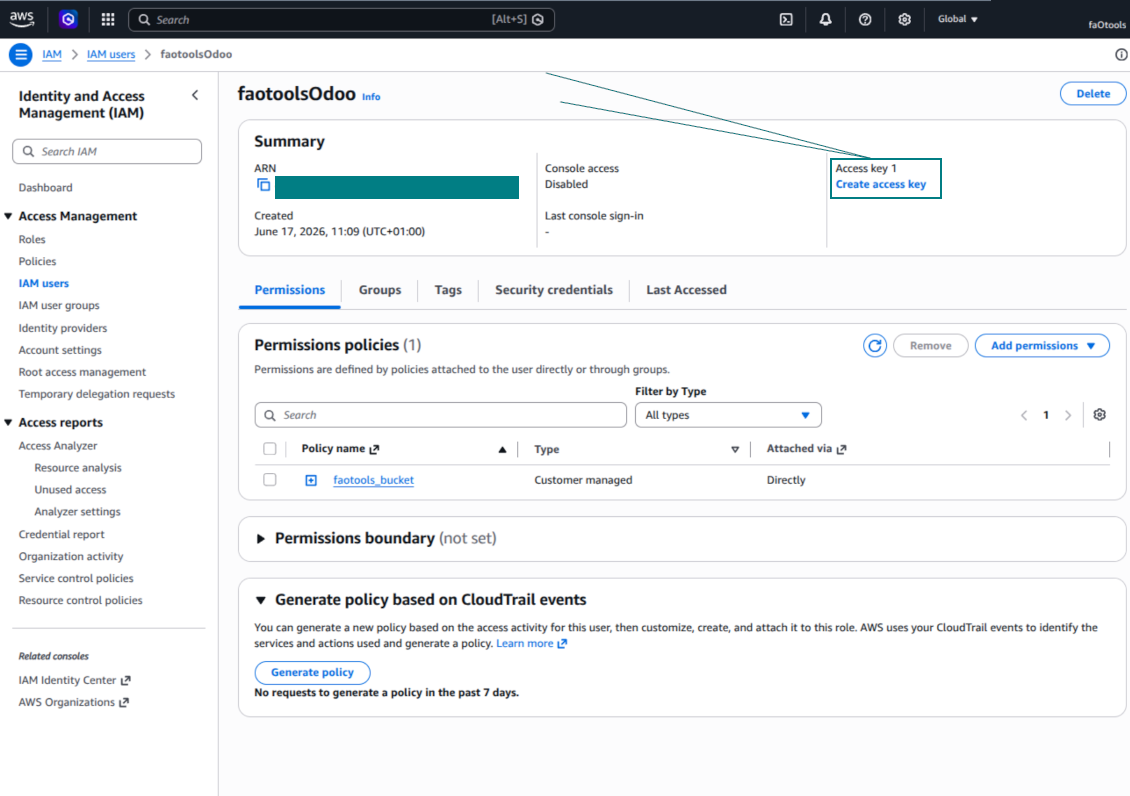
Pilih kasus penggunaan kunci akses
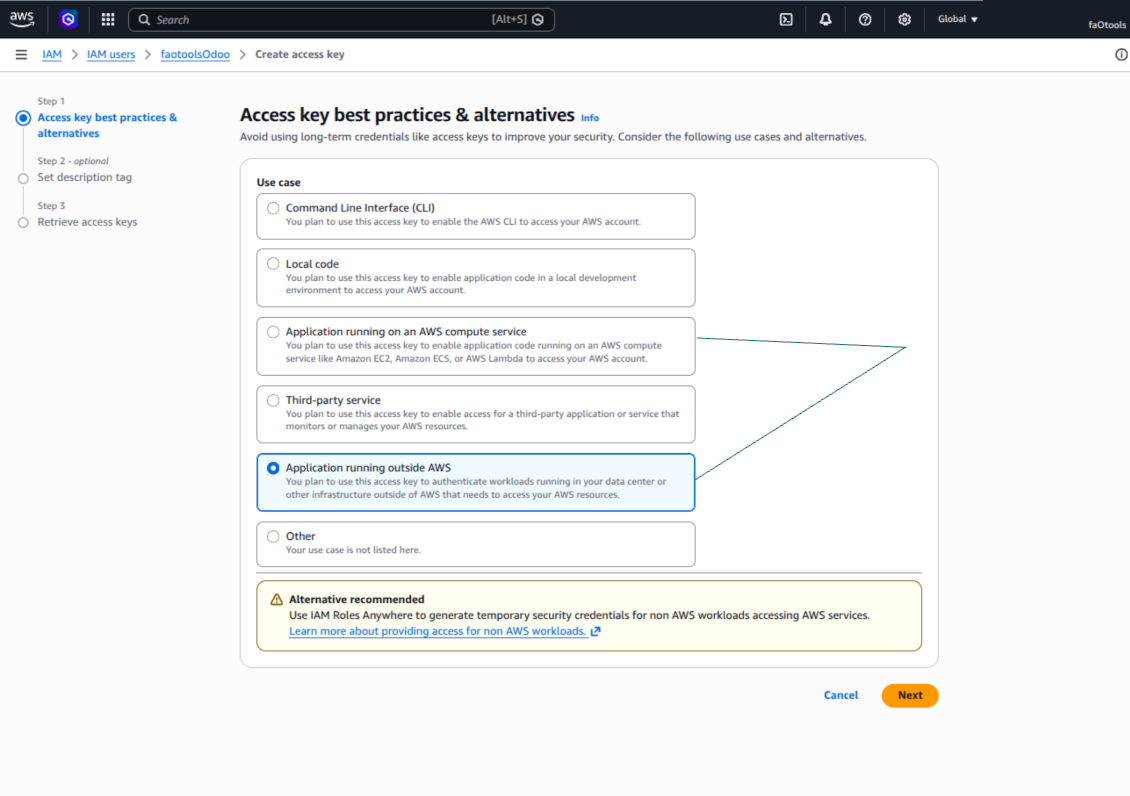
Tetapkan tag deskripsi kunci akses
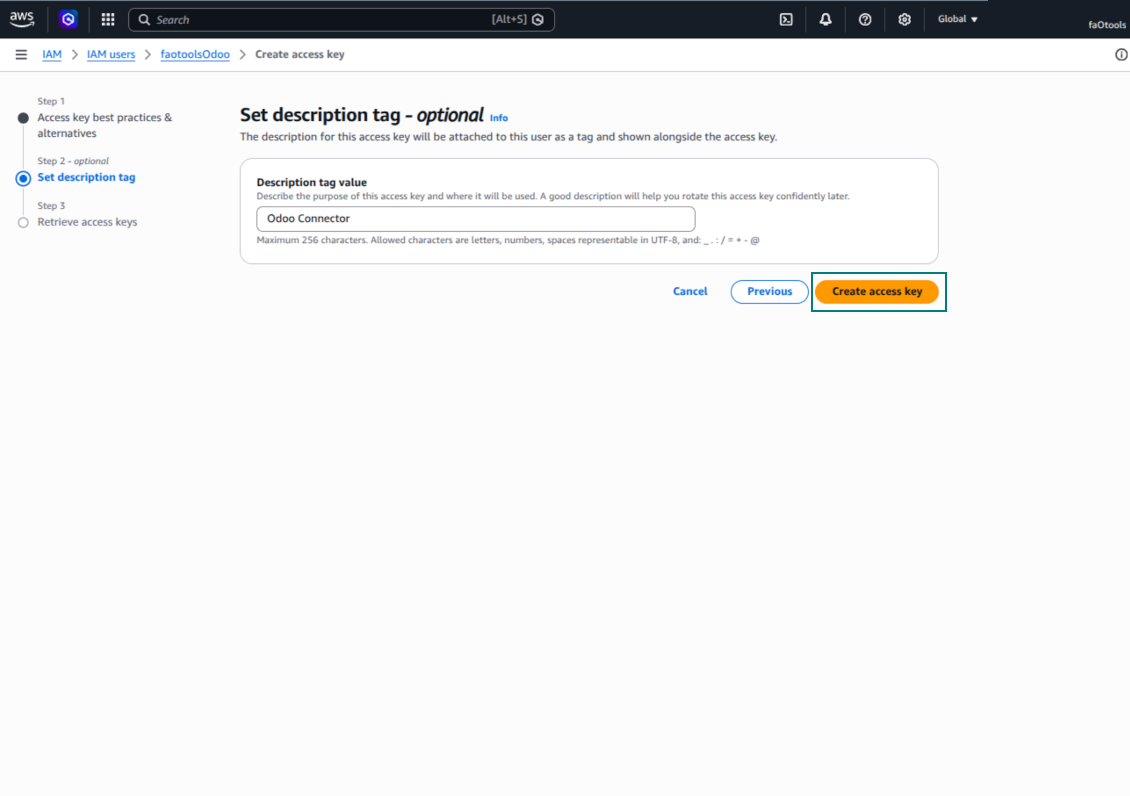
Ambil kunci akses dan rahasia
Konfigurasi klien Amazon S3 di Odoo
Menyiapkan integrasi Nextcloud atau/dan ownCloud
Konfigurasi dan masuk
- Aktifkan opsi 'onwCloud / Nextcloud Sync' (cloud Storage > Configuration > Configuration). Add-on opsional ownCloud / Nextcloud Odoo Integration diperlukan
- Buka Odoo Cloud Storage > Konfigurasi > Cloud Clients lalu tekan 'Create'
- Sebagai referensi masukkan nama yang jelas bagi semua pengguna
- Sebagai Cloud client, pilih 'Nextcloud' atau 'ownCloud' sesuai perangkat lunak yang Anda pakai
- Sebagai nama Root folder, masukkan judul yang akan dipakai sebagai directory induk untuk semua folder tersinkron. Misalnya, 'Odoo' atau 'OdooERP'
- Masukkan URL lengkap ownCloud / Nextcloud Anda
- Pilih pengguna ownCloud / Nextcloud yang memiliki hak penuh untuk membaca, membuat, menulis, dan menghapus file serta folder dalam direktori akar
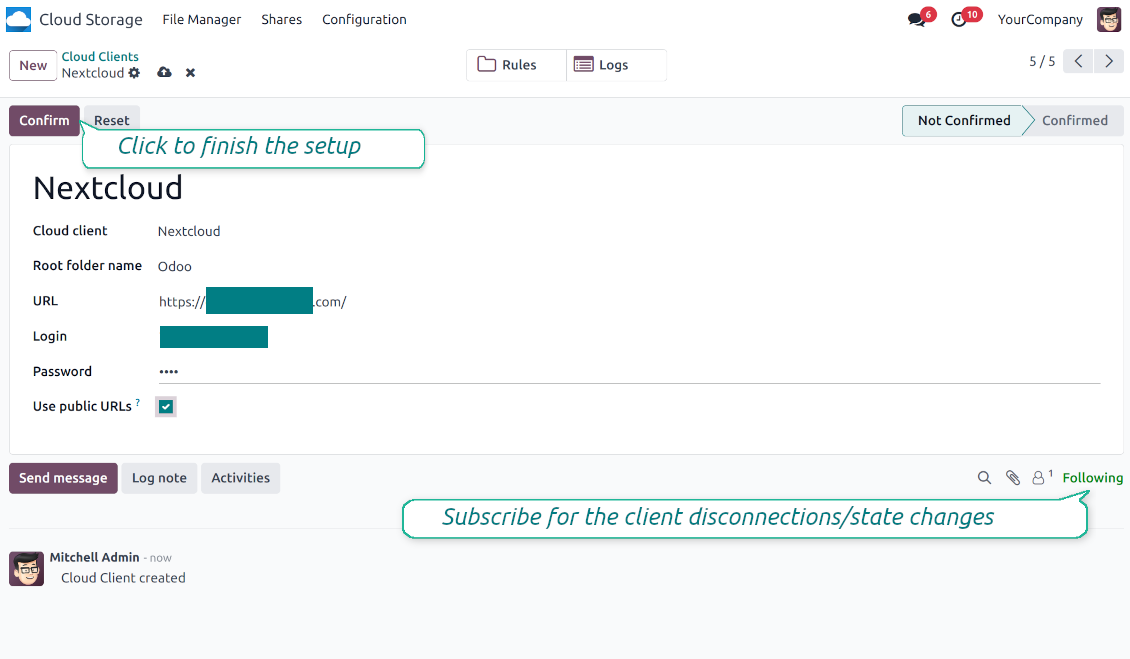
- Masukkan login dan kata sandi pengguna ini ke kolom 'Login' dan 'Password'
- Pilih apakah menerapkan URL publik atau internal (lihat di bawah)
- Tekan 'Konfirmasi'. Sinkronisasi Odoo siap dilakukan
- Terapkan cloud client yang baru dibuat ke aturan folder dan/atau folder manual yang harus disinkronkan dengan instans Nextcloud atau ownCloud itu
- Tunggu pekerjaan terjadwal sinkron mulai. Hanya untuk pengujian: picu integrasi secara manual dari Cloud Storage > Konfigurasi > Konfigurasi > tombol 'Launch sync'.
URL internal dan publik
Secara bawaan tautan dari Odoo ke ownCloud / Nextcloud bersifat internal: hanya pengguna berwenang yang boleh mengakses. Secara gunakan tautan publik (pengaturan 'Use Public URLs'). Maka URL akan 'dibagikan', dan siapa pun mengakses item lewat tautan langsung.
Hati-hati jika memutuskan memakai URL bersama (publik). Meski tautan hampir tidak diketahui pengguna eksternal, ada sedikit peluang tautan menjadi tersedia akibat beberapa tindakan pengguna. Selain itu, pembuatan tautan berbagi tidak cepat dan dapat memperlambat sinkronisasi.
Tonton juga video konfigurasi
Masukkan kredensial ownCloud / Nextcloud
Menyiapkan NAS (Synology, QNAP, TrueNAS, dll.)
- Aktifkan opsi 'NAS Sync' (Cloud Storage > Configuration > Configuration). Add-on opsional NAS Odoo Integration diperlukan
- Siapkan endpoint WebDAV NAS Anda:
- Synology: instal dan aktifkan WebDAV Server di DSM dan pilih HTTPS jika memungkinkan
- QNAP: aktifkan WebDAV untuk folder bersama target dan gunakan HTTPS jika memungkinkan
- TrueNAS CORE: aktifkan layanan WebDAV; TrueNAS SCALE: pasang dan konfigurasikan aplikasi WebDAV, karena WebDAV bawaan dihapus di rilis SCALE modern
- WebDAV generik: pastikan PROPFIND, MKCOL, PUT, GET, MOVE, dan DELETE tersedia
- Jika Odoo di-host di luar jaringan NAS lokal, buat endpoint WebDAV dapat dijangkau dengan aman. Utamakan reverse proxy dengan sertifikat TLS valid, VPN/terowongan aman seperti WireGuard, Tailscale, atau Cloudflare Tunnel, atau relai vendor seperti Synology QuickConnect atau QNAP myQNAPcloud. Hindari mengekspos antarmuka administrator ke Internet
- Buat pengguna NAS khusus dengan hak penuh hanya di dalam folder bersama target: baca, buat, tulis, pindahkan, dan hapus. Jangan gunakan akun administrator
- Buka Odoo Cloud Storage > Configuration > Cloud Clients lalu tekan 'Create'
- Sebagai referensi, masukkan nama yang jelas bagi semua pengguna
- Sebagai Cloud client, pilih 'Synology NAS', 'QNAP NAS', 'TrueNAS', atau 'WebDAV NAS'
- Sebagai nama Root folder, masukkan judul yang akan dipakai sebagai NAS directory induk untuk semua folder tersinkron. Misalnya, 'Odoo' atau 'OdooERP'
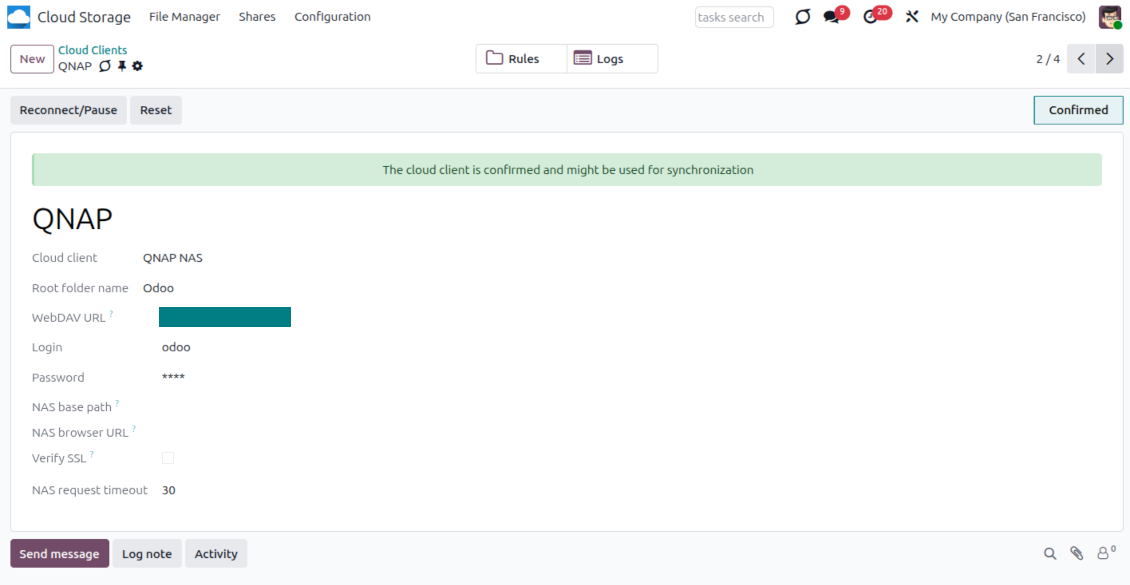
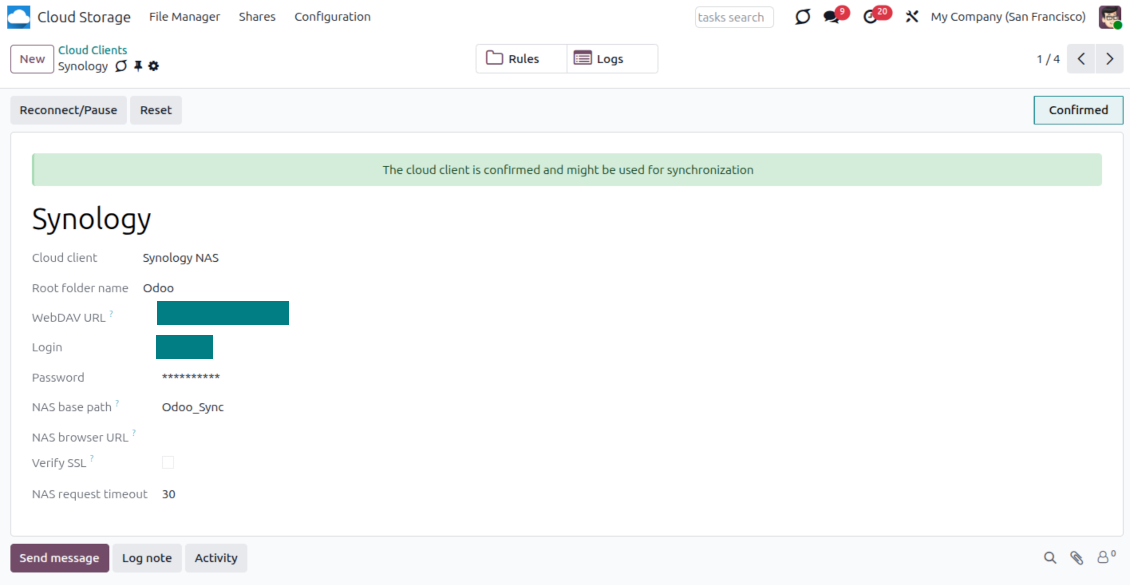
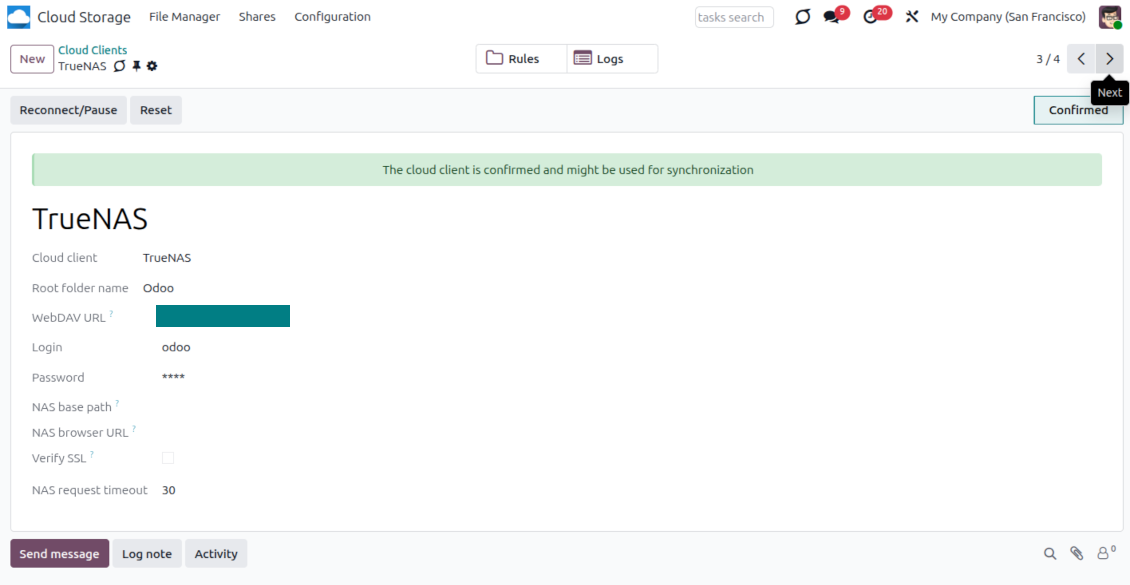
- Masukkan URL WebDAV lengkap, login, dan kata sandi. Secara opsional tentukan jalur dasar jika Odoo harus membuat folder akar di dalam berbagi atau direktori yang ada
- Biarkan 'Verify SSL' aktif untuk titik akhir HTTPS publik. Matikan hanya untuk titik akhir privat tepercaya dengan sertifikat ditandatangani sendiri
- Secara opsional tetapkan URL dasar browser jika file NAS harus dibuka lewat URL file station vendor, bukan URL WebDAV mentah
- Tekan 'Confirm'. Odoo memeriksa koneksi WebDAV lalu membuat atau menemukan direktori akar. Sinkronisasi NAS - Odoo siap dilakukan
- Terapkan cloud client yang baru dibuat ke aturan folder dan/atau folder manual yang harus disinkronkan dengan penyimpanan NAS itu
- Tunggu pekerjaan terjadwal sinkron mulai. Hanya untuk pengujian: picu integrasi secara manual dari Cloud Storage > Konfigurasi > Konfigurasi > tombol 'Launch sync'.
Prakonfigurasi NAS
Sistem NAS biasanya mengekspos file lewat jaringan lokal. Jika server Odoo Anda dihosting di luar jaringan itu, titik akhir WebDAV harus dapat dijangkau dari Odoo melalui saluran aman. Opsi yang disarankan adalah reverse proxy dengan sertifikat HTTPS valid, VPN atau terowongan aman seperti WireGuard, Tailscale, atau Cloudflare Tunnel, atau relai vendor seperti Synology QuickConnect atau QNAP myQNAPcloud. Penerusan port biasa mungkin, tetapi harus dianggap opsi yang paling tidak disukai.
Gunakan pengguna NAS khusus dengan hak minimum pada satu folder bersama: baca, buat, perbarui, pindahkan, dan hapus. Hindari akun administrator. Endpoint yang terekspos publik harus selalu memakai HTTPS dan sertifikat TLS yang valid. Konektor memiliki opsi "Verify SSL" untuk sertifikat self-signed tepercaya, tetapi biasanya harus tetap aktif.
Masukkan kredensial QNAP
Masukkan kredensial Synology
Masukkan kredensial TrueNAS
Menyiapkan Box
- Aktifkan opsi 'Box Sync' (cloud Storage > Konfigurasi > Konfigurasi). Add-on opsional Box Odoo Integration diperlukan
- Buat atau buka akun pengembang Box lalu buka Box Developer Console: https://app.box.com/developers/console
- Buat Custom App dan pilih OAuth 2.0 (Authorization Code Grant) sebagai metode autentikasi
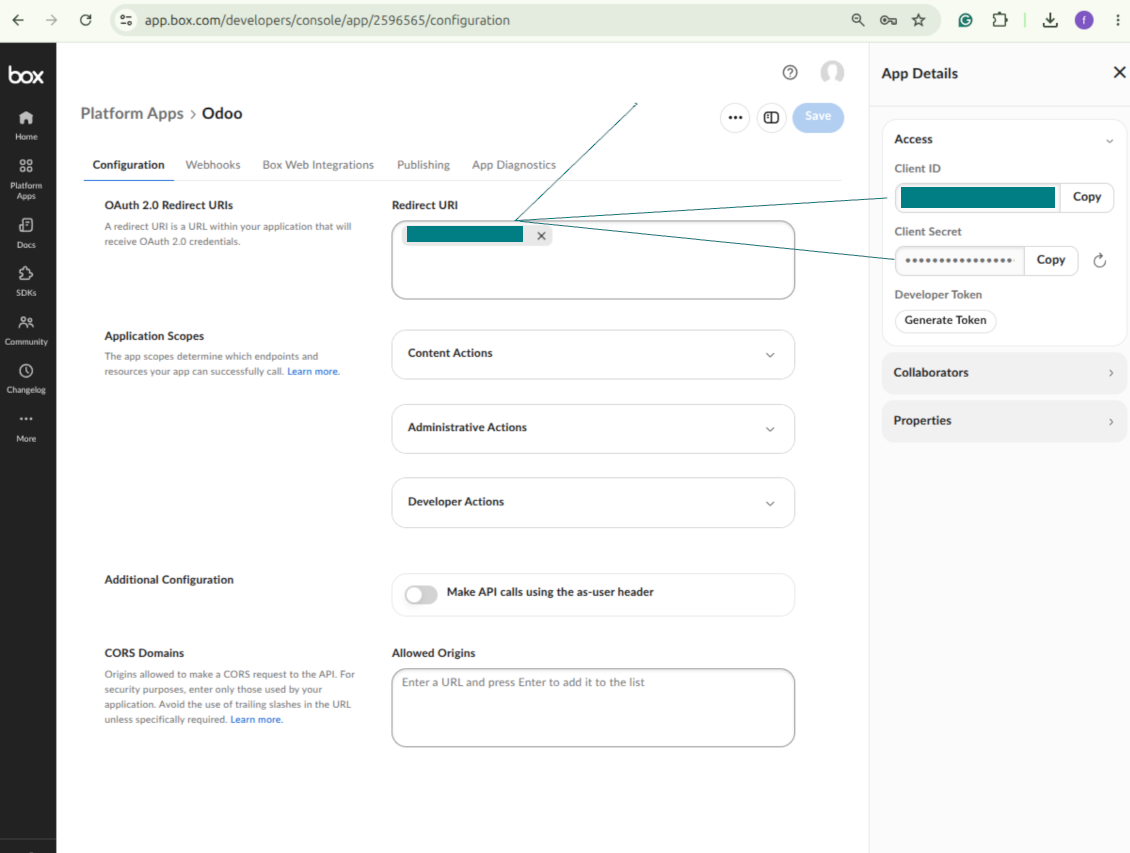
- Tambahkan URI pengalihan sebagai [YOURODOOSITENAME]/box_token (mis. https://faotools.com/box_token). Diperlukan sertifikat SSL yang valid (https)
- Berikan aplikasi akses membaca dan menulis file serta folder. Hindari izin yang tidak terkait
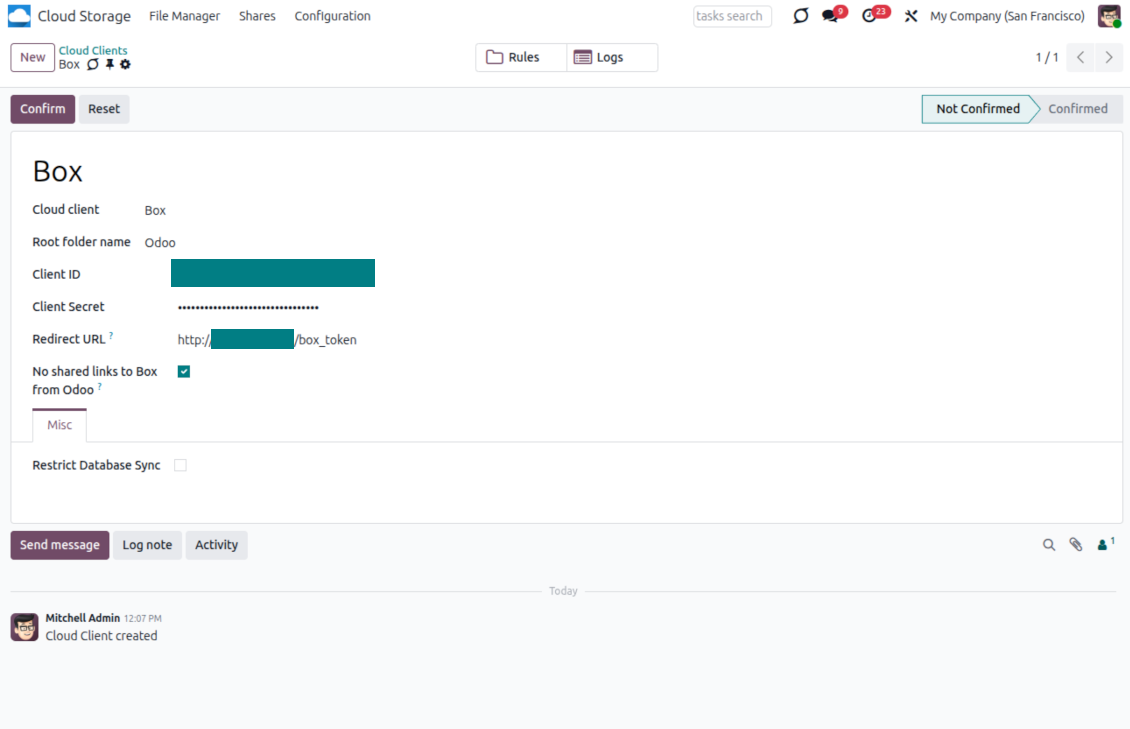
- Buka Odoo Cloud Storage > Configuration > Cloud Clients lalu tekan 'Create'
- Sebagai referensi, masukkan nama yang jelas bagi semua pengguna
- Sebagai Cloud client, pilih 'Box'
- Sebagai nama Root folder, masukkan judul yang akan dipakai sebagai Box directory induk untuk semua folder tersinkron. Misalnya, 'Odoo' atau 'OdooERP'
- Salin Box Client ID ke bidang 'Client ID'
- Salin Box Client Secret ke bidang 'Client Secret'
- Sisipkan URL pengalihan yang sebelumnya dibuat
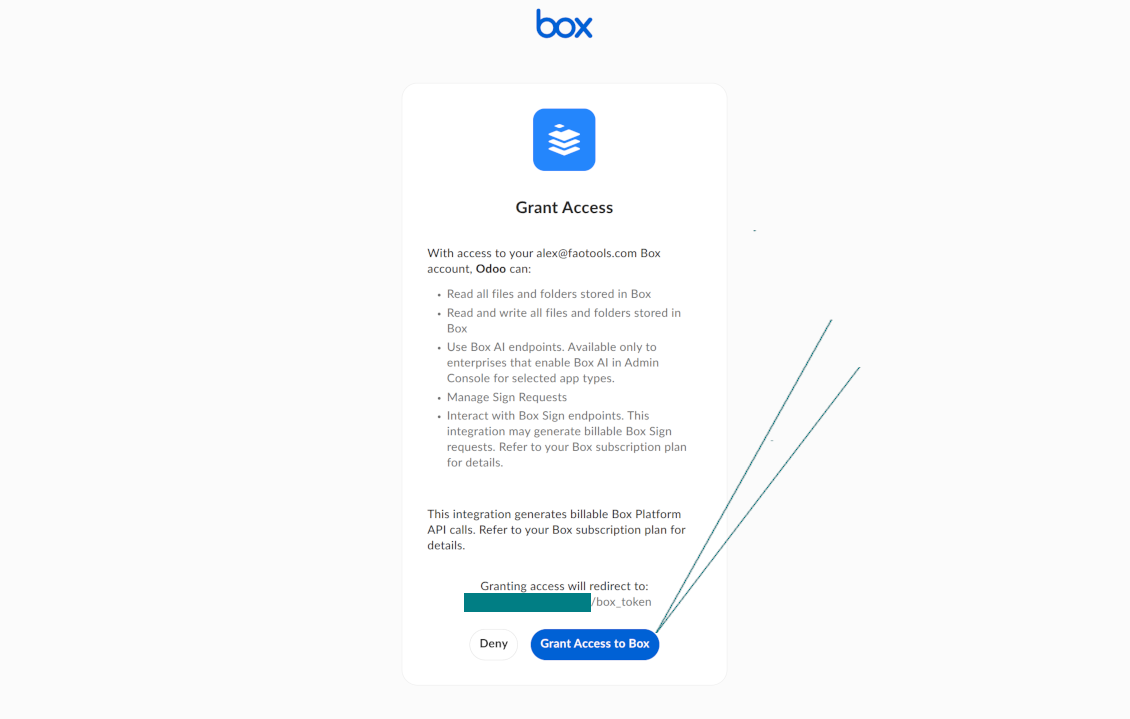
- Tekan 'Confirm'. Odoo mengalihkan Anda ke halaman masuk Box. Periksa di sistem, setujui semua syarat, dan berikan semua izin yang diminta
- Setelah login, Box mengarahkan Anda kembali ke Odoo. Sinkronisasi Box - Odoo siap dilakukan
- Terapkan cloud client yang baru dibuat ke aturan folder dan/atau folder manual yang harus disinkronkan dengan akun Box itu
- Tunggu pekerjaan terjadwal sinkron mulai. Hanya untuk pengujian: picu integrasi secara manual dari Cloud Storage > Konfigurasi > Konfigurasi > tombol 'Launch sync'.
Buat aplikasi pengembang Box baru
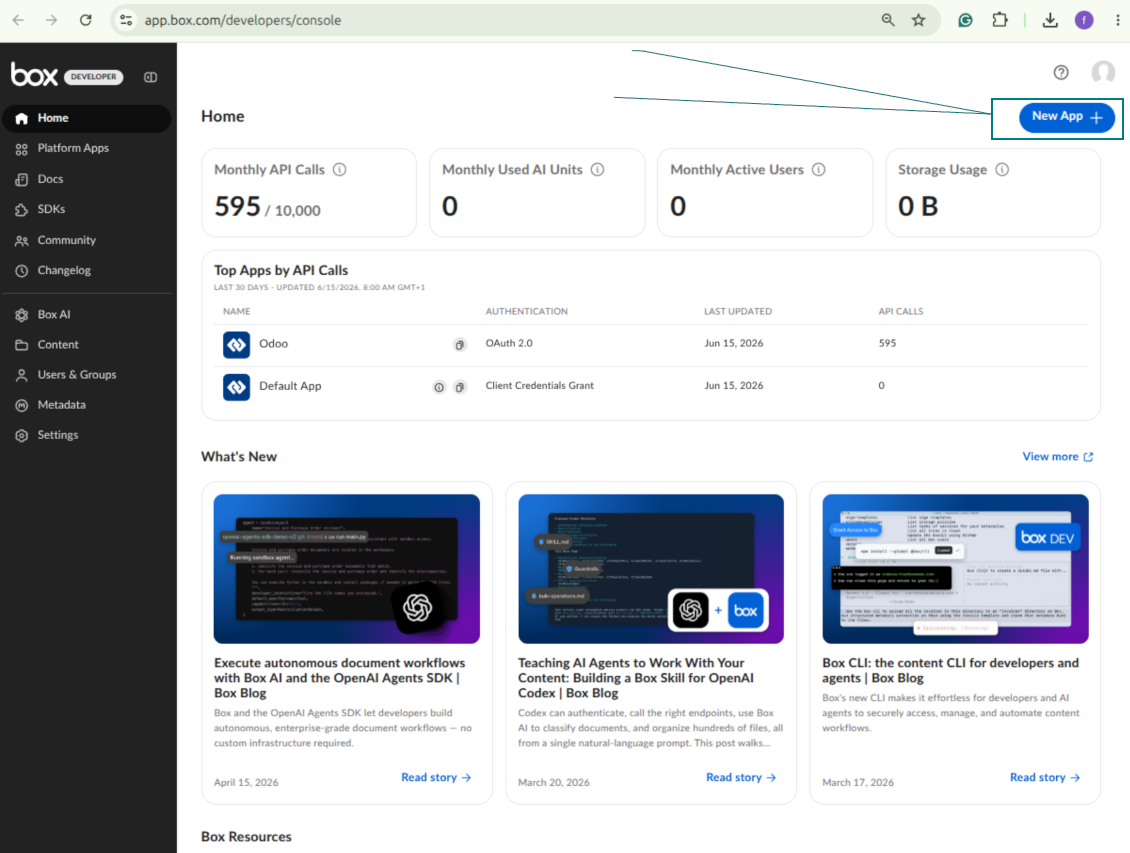
Salin kredensial OAuth Box
Konfigurasi klien cloud Box di Odoo
Berikan Odoo akses ke Box
Menyiapkan MinIO
- Siapkan server MinIO yang berjalan
- Buka Konsol MinIO
- Buat bucket baru atau pilih yang sudah ada. Salin nama bucket yang tepat: harus dimasukkan di Odoo ke bidang 'Bucket'
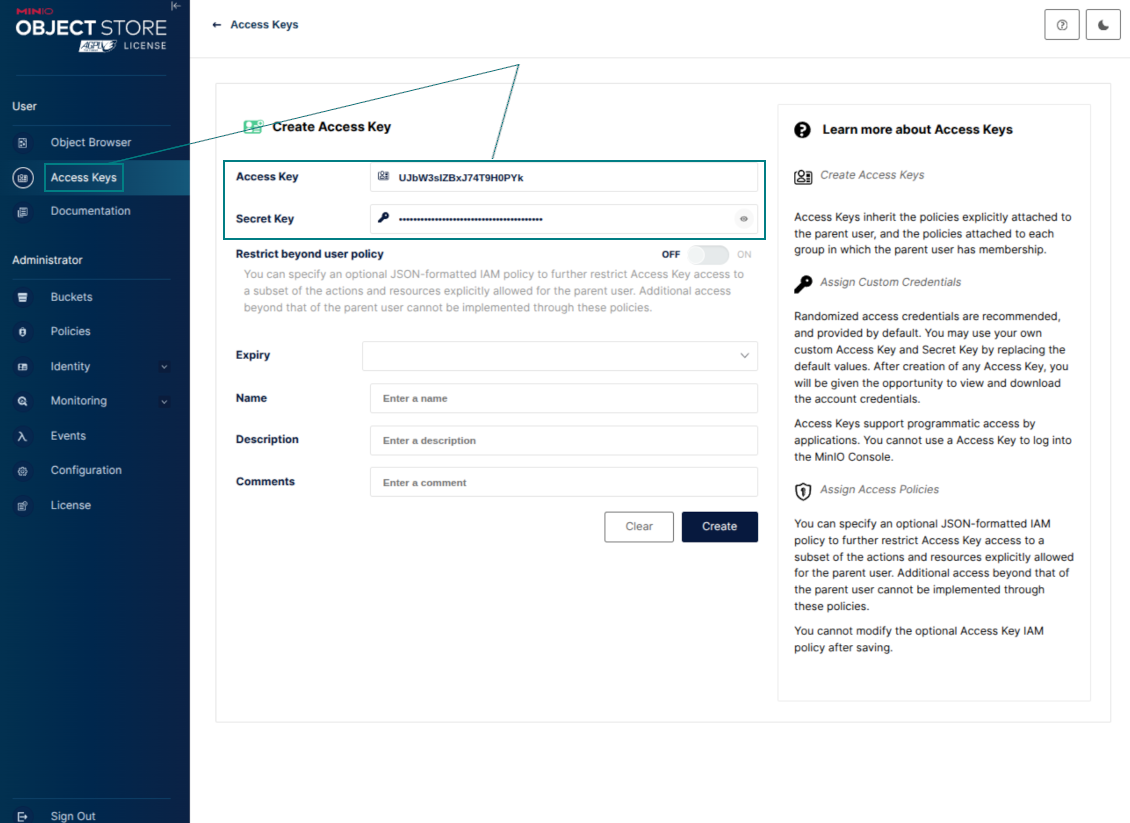
- Buat kredensial akses untuk Odoo. Di MinIO, gunakan pasangan access key / secret key atau akun layanan yang berhak mencantumkan, membaca, membuat, menulis, menyalin, dan menghapus objek dalam bucket yang dipilih
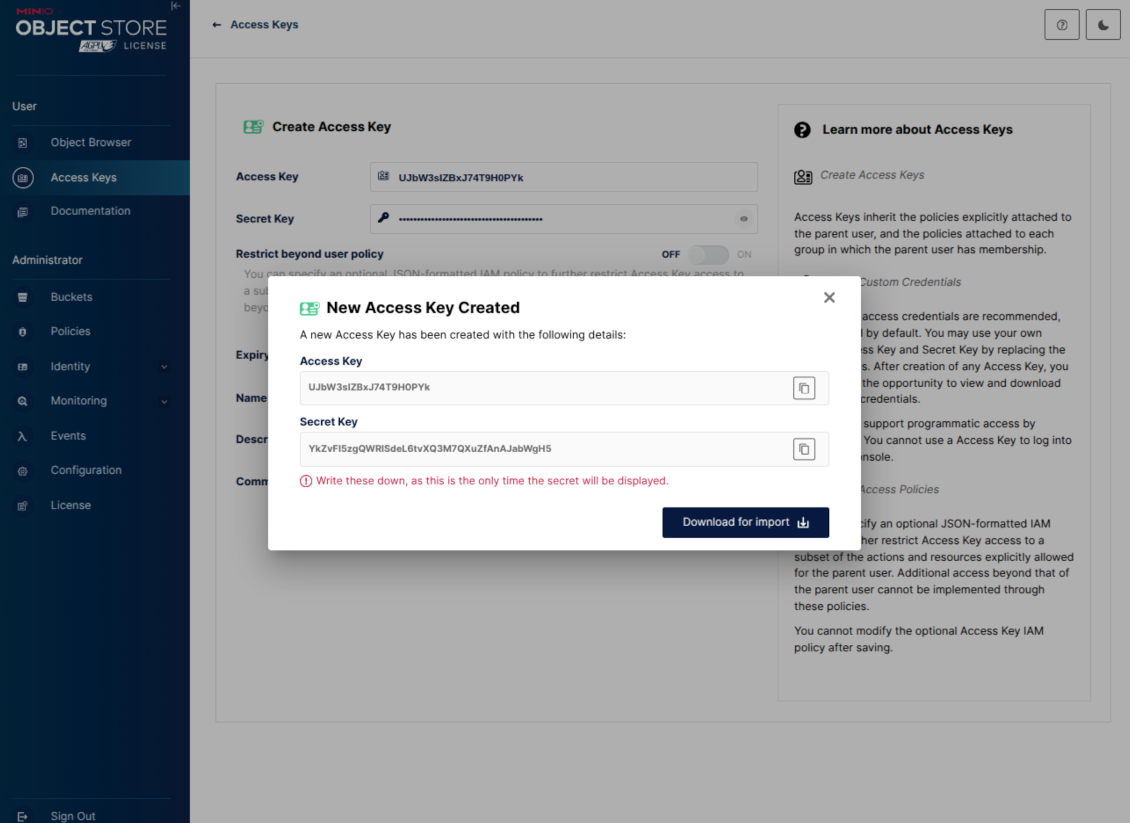
- Salin MinIO Access Key ke field Odoo 'Access Key'
- Salin MinIO Secret Key ke field Odoo 'Secret Key'. Penting: simpan rahasia sebelum menutup halaman MinIO jika MinIO menampilkannya hanya sekali
- Salin URL endpoint API S3 MinIO ke Odoo ke field 'Amazon S3 endpoint URL'. Misalnya, server lokal biasanya memakai http://localhost:9000, sedangkan server produksi dapat memakai https://minio.example.com
- Buka Odoo Cloud Storage > Configuration > Cloud Clients lalu tekan 'Create'
- Sebagai referensi, masukkan nama yang jelas bagi semua pengguna
- Sebagai Cloud client, pilih 'MinIO'
- Sebagai nama Root folder, masukkan judul yang akan dipakai sebagai MinIO object prefix induk untuk semua folder tersinkron. Misalnya, 'Odoo' atau 'OdooERP'
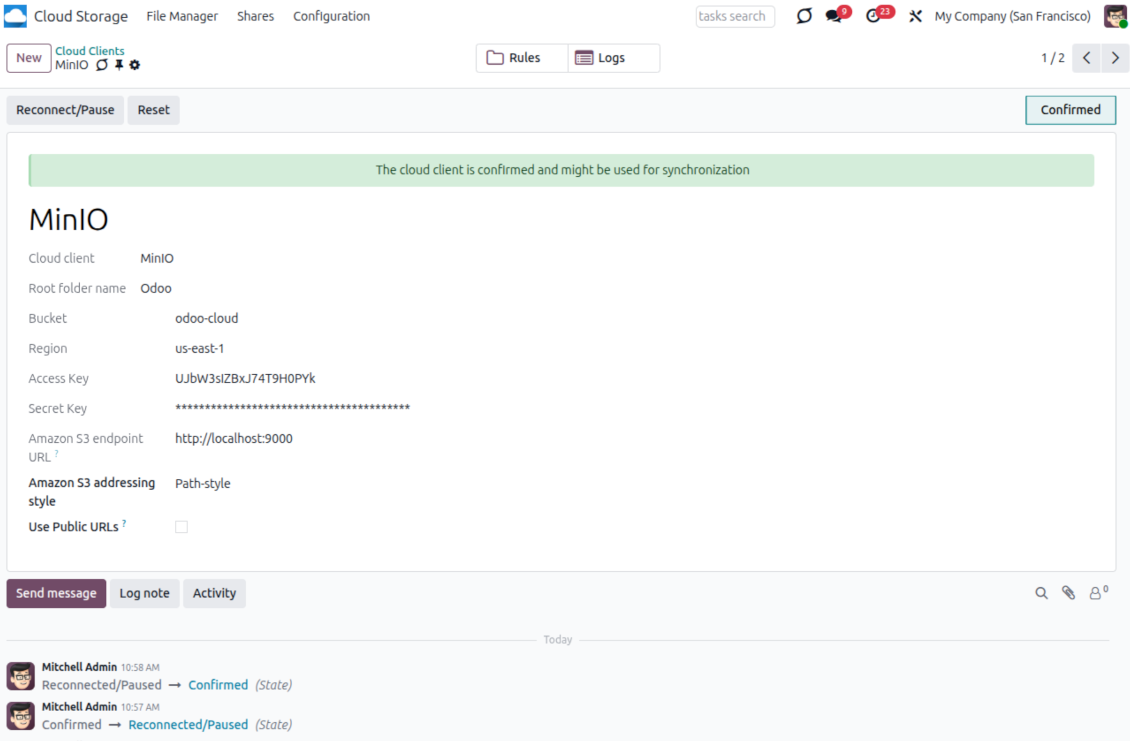
- Isi field 'Bucket', 'Access Key', 'Secret Key', dan 'Amazon S3 endpoint URL'. Field 'Region' opsional untuk MinIO; jika kosong, Odoo memakai us-east-1 untuk penandatanganan kompatibel S3
- Pertahankan gaya pengalamatan Path-style. Ini opsi yang disarankan untuk endpoint MinIO, terutama jika host MinIO tidak menyediakan nama DNS per bucket
- Pilih apakah Odoo harus memakai URL MinIO publik langsung. Aktifkan «Use Public URLs» hanya jika bucket, prefix, reverse proxy, atau CDN dapat dibaca publik. Untuk bucket MinIO privat, biarkan nonaktif
- Tekan 'Confirm'. Odoo memeriksa akses bucket lalu membuat atau memverifikasi awalan folder akar. Sinkronisasi MinIO - Odoo siap dilakukan
- Terapkan cloud client yang baru dibuat ke aturan folder dan/atau folder manual yang harus disinkronkan dengan bucket MinIO itu
- Tunggu pekerjaan terjadwal sinkron mulai. Hanya untuk pengujian: picu integrasi secara manual dari Cloud Storage > Konfigurasi > Konfigurasi > tombol 'Launch sync'.
Useful MinIO documentation: https://min.io/docs/minio/linux/administration/identity-access-management.html, https://min.io/docs/minio/linux/reference/minio-server/minio-server.html.
Buat kunci akses MinIO
Salin kredensial MinIO baru
Konfigurasi klien cloud MinIO di Odoo
Menyiapkan integrasi Dropbox
Dependensi Python
Alat bergantung pada pustaka eksternal 'dropbox'. Pasang di server Odoo dengan perintah:
pip3 install dropbox
Konfigurasi dan masuk
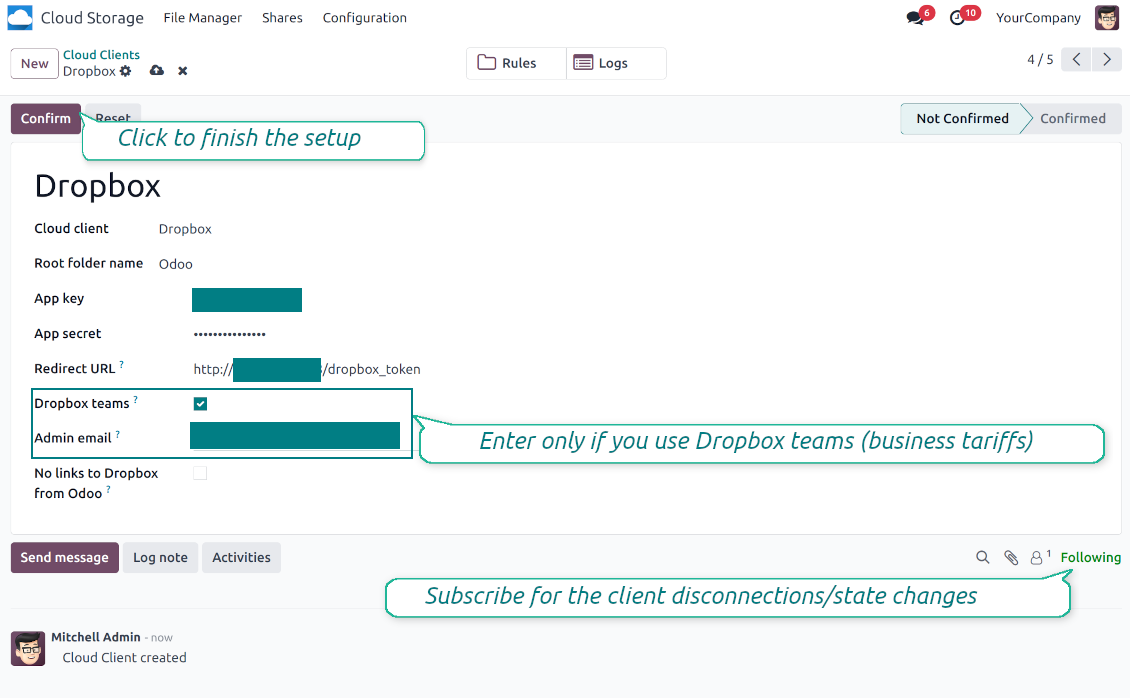
- Aktifkan opsi 'Dropbox Sync' (cloud Storage > Konfigurasi > Konfigurasi). Add-on opsional Dropbox Odoo Integration diperlukan
- Follow the URL https://www.dropbox.com/developers/apps/create
- Pilih API sebagai 'Scoped access'
- Pilih jenis akses sebagai 'Full Dropbox'
- Pilih nama yang sesuai untuk aplikasi lalu tekan tombol 'Create app'
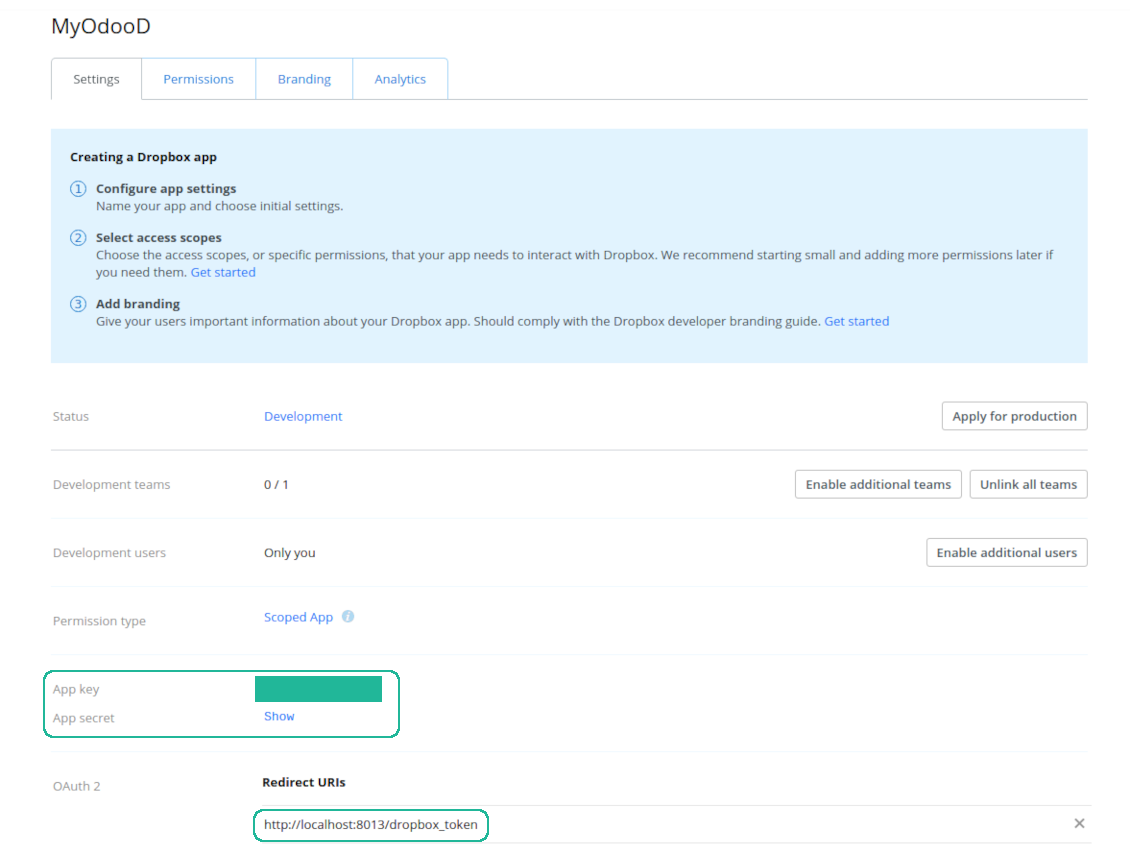
- Tambahkan URI pengalihan sebagai [YOURODOOSITENAME]/dropbox_token (mis. https://faotools.com/dropbox_token). Diperlukan sertifikat SSL yang valid (https)
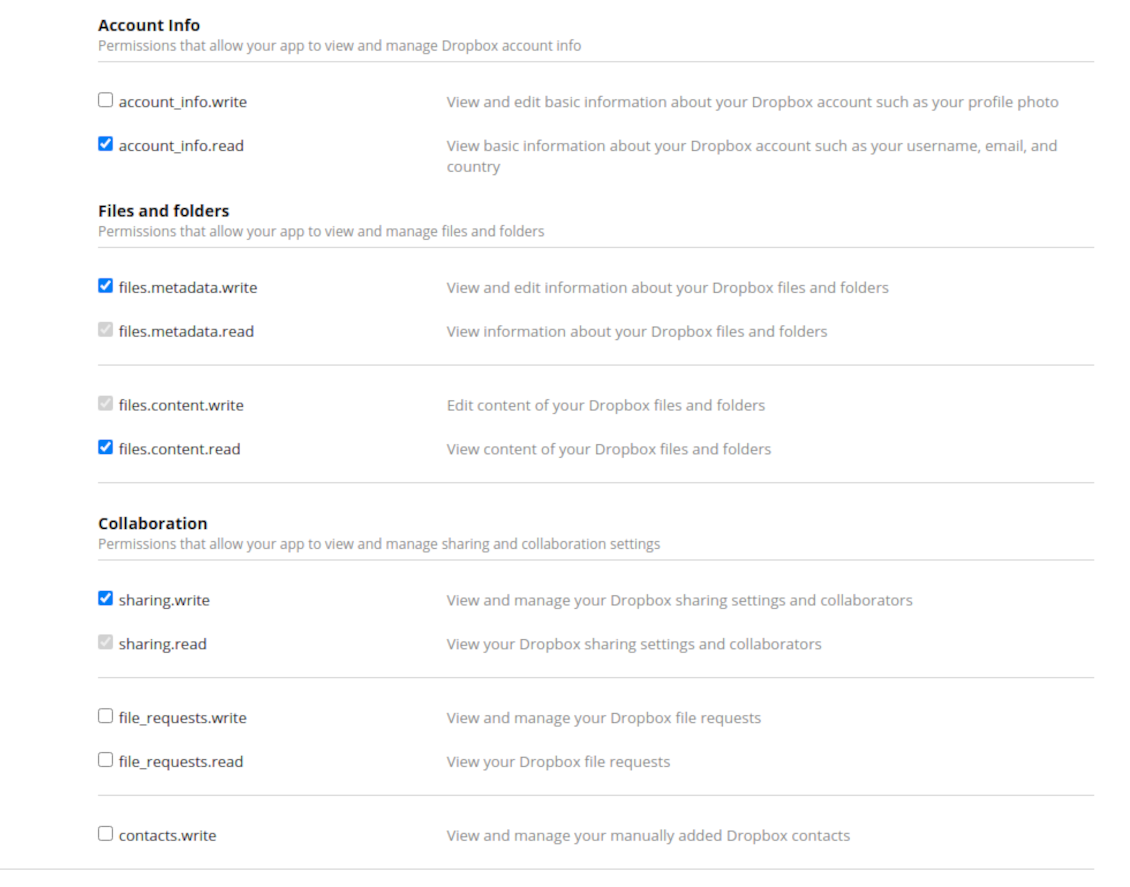
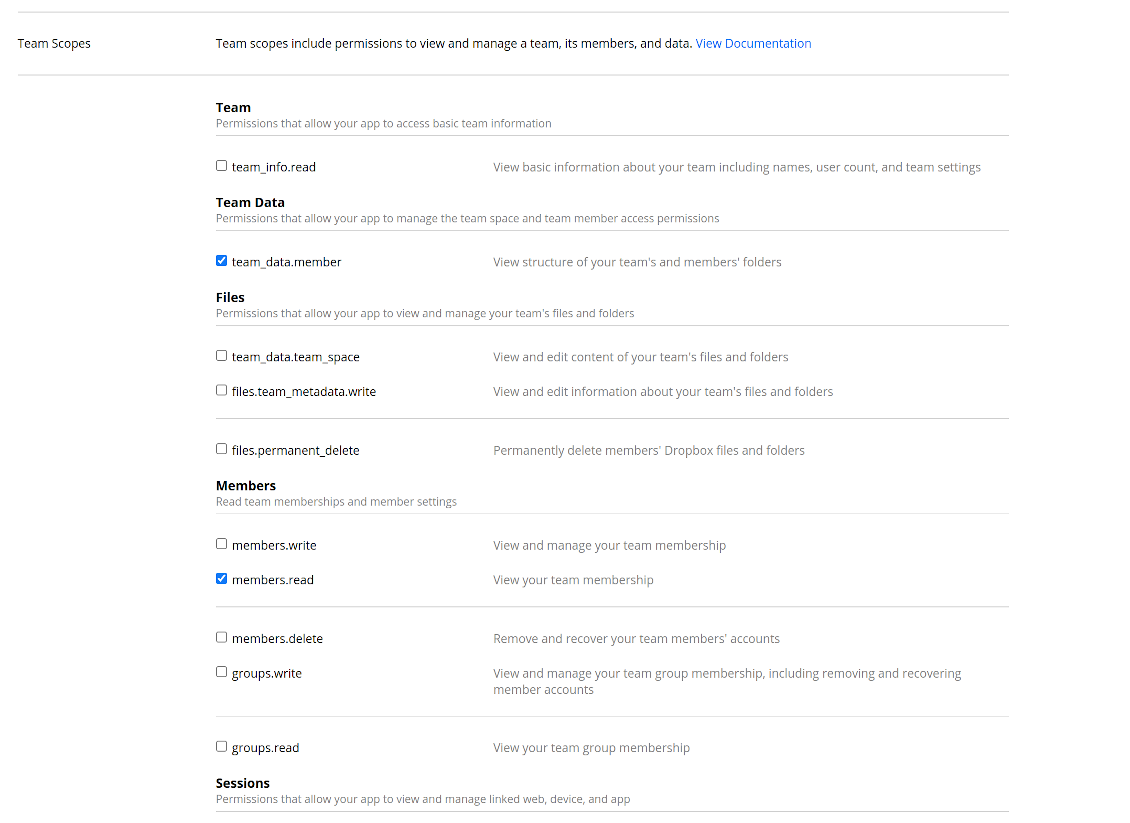
- Berikan izin ke aplikasi: 'Account Info (Read)', 'Files and folders Metadata (Write)', 'Files Content (Write)', 'Collaboration (Write)'. Untuk DropBox tim tetapkan juga 'Team Data Members', 'Members (Read)'. Pastikan tidak ada izin lain yang ditetapkan.
- Kirim Aplikasi
- Buka Odoo Cloud Storage > Konfigurasi > Cloud Clients lalu tekan 'Create'
- Sebagai referensi masukkan nama yang jelas bagi semua pengguna
- Sebagai Cloud client pilih 'Dropbox'
- Sebagai nama Root folder, masukkan judul yang akan dipakai sebagai Google Drive directory induk untuk semua folder tersinkron. Misalnya, 'Odoo' atau 'OdooERP'
- Salin 'App key' ke 'App key'
- Salin 'App Secret' ke bidang 'App secret'
- Sisipkan URL pengalihan yang sebelumnya dibuat
- Jika Anda memakai drive tim Dropbox
- Centang kotak terkait
- Tetapkan email pengguna Dropbox. Di dalam folder pengguna ini semua item terkait Odoo dibuat, dan baru setelah itu dibagikan ke pengguna lain. Di bawah pengguna ini semua file dan folder dibuat, diubah, dipindah, dan dihapus
- Tekan 'Confirm'. Odoo mengalihkan Anda ke halaman masuk Dropbox. Periksa di sistem, setujui semua syarat, dan berikan semua izin yang diminta
- Setelah login, Dropbox mengarahkan Anda kembali ke Odoo. Sinkronisasi Dropbox - Odoo siap dilakukan
- Terapkan cloud client yang baru dibuat ke aturan folder dan/atau folder manual yang harus disinkronkan dengan instans Dropbox itu
- Tunggu pekerjaan terjadwal sinkron mulai. Hanya untuk pengujian: picu integrasi secara manual dari Cloud Storage > Konfigurasi > Konfigurasi > tombol 'Launch sync'.
URL Dropbox
Dropbox punya cara khusus untuk membuat tautan bagi berkas dan folder yang sudah ada. Secara khusus, tidak ada konsep URL internal atau privat. Sebagai gantinya, setiap item Dropbox dapat memperoleh URL bersama. Tautan bersama itu bersifat publik atau hanya tim. Selain itu, fitur yang terakhir hanya tersedia untuk akun Dropbox business.
Alat ini mengandalkan mekanika tautan bersama. Artinya, setiap tautan lampiran bersifat publik (semua akun Dropbox pribadi) atau hanya tim (semua akun Dropbox bisnis).
Terkadang dianggap tidak sepenuhnya aman. Meskipun URL situs hampir tidak diketahui pengguna eksternal, ada sedikit peluang mereka tersedia akibat beberapa tindakan. Selain itu, pembuatan tautan berbagi tidak terlalu cepat dan dapat memperlambat sinkronisasi. Itulah sebabnya fitur mematikan URL berbagi diperkenalkan.
If checked, all Dropbox URLs in Odoo will be of type https://www.dropbox.com/home/Odoo/[PATH]. Such links will not work in many cases. Thus, if you need to open Dropbox files/folders from Odoo, be careful with the setting 'No links to Dropbox from Odoo'.
Tonton juga video konfigurasi
Buat aplikasi Dropbox
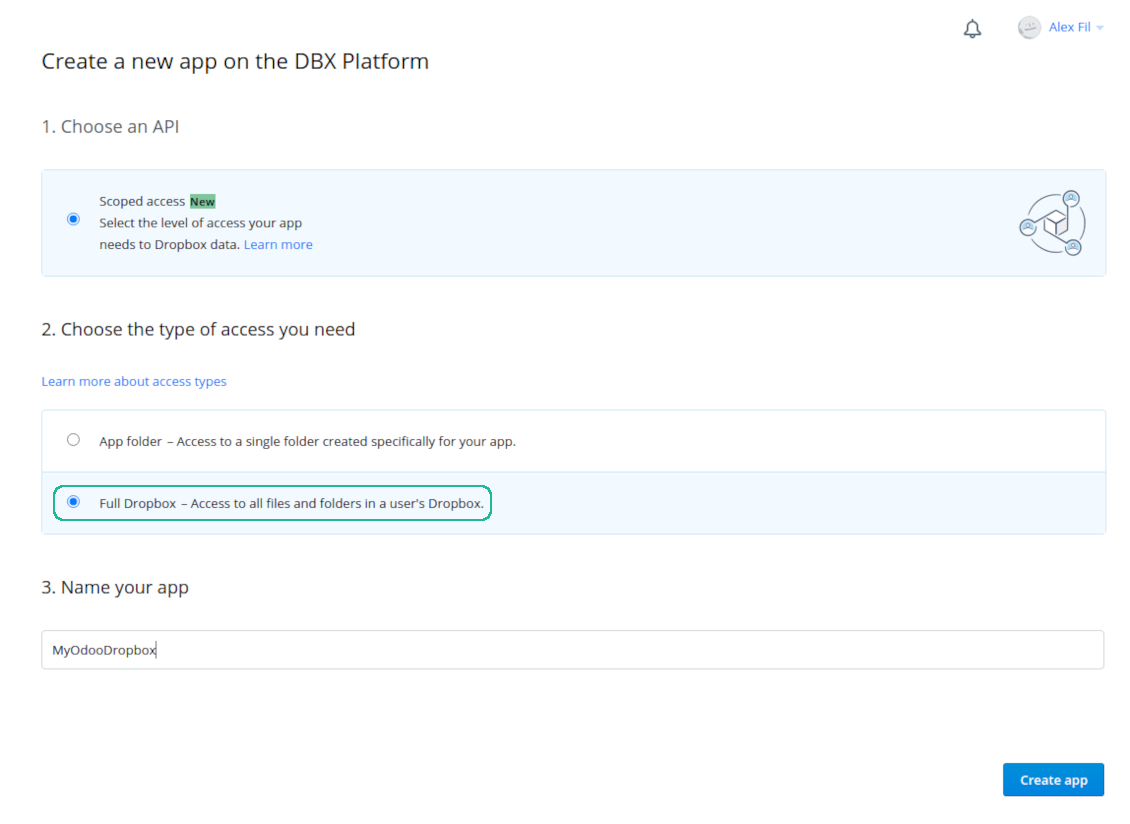
Siapkan aplikasi Dropbox: URL pengalihan
Izin Dropbox untuk akun pribadi
Izin Dropbox untuk akun bisnis
Siapkan Odoo untuk integrasi Dropbox
Pertanyaan umum tentang Cloud Storage Solutions Odoo v.18
Kolom tersinkron disimpan di mana? Apakah diduplikasi ke Odoo dan clouds?
Aplikasi mengasumsikan konten biner lampiran disimpan di Cloud Client, bukan di server Odoo. Lampiran semacam itu di Odoo menjadi tipe URL, dan Anda dapat membukanya kapan saja dari kotak lampiran atau dari Cloud Client.
Setelah penyiapan, tidak perlu tindakan manual karena sinkronisasi sepenuhnya otomatis. Tentukan jenis dokumen Odoo yang harus disinkronkan dan siapkan model terkait untuk masing-masing (Pelanggan, pesanan penjualan atau pembelian, Tugas, Project, dll.).
Bisakah saya punya beberapa folder untuk jenis dokumen yang sama? Misalnya, proyek internal dan proyek pelanggan?
Ya, Anda bisa. Untuk itu siapkan aturan untuk masing-masing, lalu terapkan filter: misalnya menurut jenis project.
Usahakan filter saling eksklusif agar dokumen dapat ditetapkan dengan pasti. Misalnya 'pelanggan tetapi bukan pemasok', 'pemasok tetapi bukan pelanggan'. Jika tidak, folder dokumen tertentu akan meloncat dari satu model ke model lain.
Apakah sinkronisasi dapat dibuat real-time?
Tidak. Kami punya alasan kuat untuk menghindari sinkronisasi waktu nyata:
Masalah kinerja. Jika sinkronisasi waktu nyata, setiap unggah berkas akan menampilkan layar pemuatan.
Masalah konflik. Jika 2 pengguna mengubah item secara bersamaan, dapat timbul situasi yang tak terselesaikan. Pada job berkala kami dapat memperbaikinya kemudian; pada waktu nyata harus disimpan sebagai antrean, yang lebih membingungkan pengguna.
Masalah fungsionalitas. Khususnya penggantian nama dan penataan ulang item. Pada sinkronisasi balik, alat sangat mengandalkan logika direktori, dan setiap sinkronisasi 100% item diperiksa. Jika dilakukan setelah setiap pembaruan, akan ada ribuan permintaan per detik. Jika tidak: perubahan akan hilang.
Bolehkah saya mengubah nama folder bawaan di cloud?
Anda dapat memberi nama sendiri untuk direktori model (sale order, peluang, pemasok, dll.) pada jenis dokumen apa pun.
Untuk folder objek (SO-001, John Smith, dll.), alat mengandalkan metode Odoo untuk menyusun nama tampilan jenis dokumen ini. Namun Anda dapat mengubahnya dengan mendefinisikan ekspresi nama. Sintaks yang dipakai sama persis dengan templat email Odoo.
Bolehkah saya mengubah frekuensi pekerjaan sinkronisasi?
Tidak, mulai versi 15 Anda tidak boleh mengubah job terjadwal. Job dioptimalkan berjalan setiap 15 menit agar koneksi paling stabil dan cepat.
Pastikan batas waktu server Odoo setidaknya 15 menit (900 detik).
Jika perlu menghentikan sinkronisasi sementara, lakukan di formulir cloud client tertentu.
Bolehkah saya menyinkronkan lampiran ke beberapa klien cloud
Ya, mulai versi 15 Anda dapat mengatur beberapa koneksi. Dengan begitu sebagian folder disinkronkan ke satu cloud client, yang lain ke yang lain.
Perhatikan bahwa folder yang sama tidak dapat disinkronkan ke beberapa cloud storages sekaligus.
Kami memakai editor khusus di cloud kami (mis. OnlyOffice, Office 365, dll.). Apakah file akan dibuka di editor itu?
Ya, tergantung konfigurasi cloud client Anda.
Apakah saya hanya perlu aplikasi Cloud Storage Solution?
Mulai versi 15, aplikasi dapat dipakai mandiri untuk menata lampiran dalam folder dan menyediakan antarmuka manajer berkas.
Namun jika tujuannya koneksi dengan salah satu klien awan, Anda perlu memasang setidaknya satu aplikasi opsional terkait klien.
Apa yang terjadi saat saya mengubah aturan folder?
Saat aturan folder berubah, daftar folder juga berubah. Jika folder tidak lagi memenuhi kondisi aturan, folder itu dihapus. Jika file sudah disinkronkan, sinkron terbalik mengembalikannya ke Odoo dan menghapusnya dari Cloud Client.
Jika objek dokumen tidak memenuhi kondisi aturan folder, foldernya tidak akan dibuat. Jika nanti memenuhi, folder terkait akan dihasilkan.
Bisakah saya hanya menyisakan sinkronisasi langsung, atau mematikan sinkronisasi dari cloud?
Ya. Pada klien cloud, buka halaman Pengaturan dan nyalakan Matikan sinkronisasi dari cloud.
Sinkronisasi tetap satu arah. Perubahan yang dibuat di Odoo tetap dikirim ke penyimpanan cloud. Berkas dan folder yang dibuat, diganti nama, atau dihapus di penyimpanan cloud tidak muncul di Odoo, dan folder yang dihapus di sana tidak dipulihkan.
Matikan opsi lagi untuk menerapkan perubahan yang terkumpul, termasuk penghapusan, pada sinkronisasi berikutnya.
Pengaturan ini tersedia sejak versi 18. Melepas, mengatur ulang, atau menonaktifkan klien tetap menjalankan sinkronisasi terbalik, kecuali Anda mematikannya juga.
Apa kebijakan pembaruan alat Anda?
Menurut kebijakan Odoo Apps Store saat ini:
- Setiap modul yang dibeli untuk versi 12.0 dan sebelumnya memberi akses ke semua versi hingga 12.0.
- Mulai versi 13.0, setiap versi modul harus dibeli terpisah.
- Terlepas dari versi, pembelian memberi hak atas semua pembaruan dan perbaikan bug dalam versi mayor.
Perhatikan bahwa tim faOtools tidak mengontrol kebijakan tersebut. Untuk pertanyaan, hubungi langsung perwakilan Odoo Apps Store.
Bagaimana memasang aplikasi Anda di Odoo.sh?
Pendekatan paling langsung adalah memakai alur bawaan toko Odoo:
1. Buka halaman modul dan klik tombol Deploy on odoo.sh
2. Setelah itu Anda akan diarahkan ke halaman GitHub. Masuk ke akun, lalu klik 'Create a new repo' atau pakai yang sudah ada. Pastikan repositori bersifat privat. Tidak diizinkan memublikasikan aplikasi di bawah lisensi OPL-1. Jika perlu, buat repo baru untuk proyek Odoo.sh
3. Lalu buka odoo.sh dan klik tombol Deploy. Di jendela pop-up, kirim keputusan dan klik 'Continue.' Tindakan ini memicu proses pemasangan.
Langkah ini akan memasang aplikasi di cabang produksi proyek. Jika ingin men-deploy aplikasi ke cabang lain atau memperbarui modul, lakukan tindakan berikut:
1. Unggah kode sumber aplikasi dari toko Odoo
2. Commit modul ke repositori GitHub yang diperlukan. Pastikan tidak ada folder/file aplikasi yang diabaikan (yaitu tidak ada di .gitignore repo). Repositori dibuat otomatis oleh odoo.sh dan secara default dapat berisi item penting (mis., /lib). Unggah semua direktori, subdirektori, dan file modul tanpa kecuali
3. Deploy cabang target proyek odoo.sh atau, jika pengaturan Anda mengasumsikan itu, tunggu hingga dibangun otomatis.
Bagaimana memasang aplikasi Anda di server saya sendiri?
2. Mulai ulang server Odoo;
3. Aktifkan mode pengembang (pengaturan teknis);
4. Perbarui daftar aplikasi (menu aplikasi);
5. Temukan aplikasi dan tekan 'Activate'/'Install';
6. Ikuti panduan di halaman aplikasi jika ada.
Saya melihat aplikasi Anda punya add-on tambahan. Boleh beli belakangan?
Ya, tentu. Pada saat yang sama Odoo otomatis menambahkan semua dependensi ke keranjang, jadi Anda harus mengecualikan alat yang sudah dibeli agar tidak membayar dua kali.
Saya men-deploy aplikasi Anda di Odoo.sh dan melihat peringatan/kesalahan di tes
Peringatan merah/oranye tidak memengaruhi fitur aplikasi. Sayangnya, modul kami kadang tidak lulus uji otomatis standar karena uji itu mengasumsikan perilaku yang bertentangan dengan tujuan aplikasi. Misalnya kami mengubah penghitungan harga, sementara uji modul Odoo standar membandingkan harga akhir dengan algoritma standar.
Pertama-tama, periksa fitur basis data yang diterapkan. Apakah semuanya berjalan benar?
Jika Anda masih menganggap peringatan memengaruhi fitur nyata, hubungi kami dan kirim log instalasi lengkap serta daftar lengkap modul yang diterapkan (termasuk inti dan pihak ketiga).
Bolehkah saya membeli aplikasi langsung dari perusahaan Anda?
Tidak, kami hanya mendistribusikan alat melalui toko aplikasi Odoo resmi.
Saya ingin mendapat diskon
Sayangnya, kami tidak punya sarana teknis untuk memberi harga individual.
Bolehkah saya memasang aplikasi di database Odoo Online (SaaS) saya?
Tidak, aplikasi pihak ketiga tidak dapat dipakai di Odoo Online. Sayangnya Odoo SaaS memblokir kemungkinan itu.
Alat Anda bergantung pada aplikasi lain. Haruskah saya membelinya?
Ya, alat memerlukan semua modul yang ditandai di dependensi agar bekerja dengan benar. Harga di halaman aplikasi sudah mencakup semua dependensi yang diperlukan.
Berapa harga modul dalam dolar AS? Mengapa berubah?
Harga modul kami ditetapkan dalam euro. Toko Odoo mengonversi harga ke mata uang lain menurut kurs internalnya. Jadi harga dalam dolar AS dapat berubah saat kurs diperbarui.
Teks aplikasi dan situs dalam bahasa selain Inggris dibantu AI dan diselaraskan dengan terjemahan resmi Odoo. Jika Anda melihat kesalahan, kirim tiket kebenaran terjemahan dan kami akan memperbaikinya.
Database demonstrasi Odoo (pratinjau langsung)
Untuk aplikasi ini, kami dapat menyediakan database demo personal gratis.
Anda tidak perlu nomor telepon atau kartu kredit untuk menghubungi kami. Cukup pendaftaran email singkat yang tidak lebih dari 30 detik.
Atas permintaan Anda, kami siapkan database pratinjau langsung individu, tempat Anda dapat menguji dan memeriksa asumsi selama sekitar dua minggu.
Pelaporan bug
Jika Anda menemukan bug atau perilaku tidak konsisten, jangan ragu menghubungi kami. Kami jamin perbaikan dalam 60 hari setelah pembelian dan tetap ingin meningkatkan alat setelah periode itu.
Anda tidak perlu nomor telepon atau kartu kredit untuk menghubungi kami. Cukup pendaftaran email singkat yang tidak lebih dari 30 detik.
Sertakan sebanyak mungkin detail dalam permintaan: tangkapan layar, log server Odoo, deskripsi lengkap cara mereproduksi masalah, dan sebagainya. Biasanya butuh beberapa hari kerja untuk menyiapkan rencana kerja (jika bug dikonfirmasi) atau memberi panduan apa yang harus dilakukan (jika tidak).
Permintaan fitur publik dan ide modul (pengembangan gratis)
Kami sangat termotivasi untuk meningkatkan alat kami dan berterima kasih atas masukan apa pun. Jika kebutuhan Anda bermanfaat bagi publik dan dapat diimplementasikan secara efisien, tim akan memasukkannya ke daftar tugas kami.
Daftar tugas semacam ini diproses secara berkala dan tidak dikenai biaya tambahan. Meski kami tidak dapat menjanjikan tenggat dan desain akhir, ini bisa jadi cara baik untuk mendapatkan fitur yang diinginkan tanpa investasi dan risiko.
Anda tidak perlu nomor telepon atau kartu kredit untuk menghubungi kami. Cukup pendaftaran email singkat yang tidak lebih dari 30 detik.
18.0.1.4.54
- The issue of the sync queue stopping with a recursion error when a large number of tasks is planned at once has been fixed.
- Tasks of a paused or not connected cloud client now wait for the client instead of being failed and canceled.
18.0.1.4.53
- Fitur untuk mematikan sinkronisasi dari cloud pada klien cloud telah ditambahkan.
- Fitur untuk mematikan sinkronisasi terbalik pada klien cloud telah ditambahkan.
- Masalah antrean sinkronisasi yang tetap terblokir setelah klien sinkronisasi terbaliknya dihapus telah diperbaiki.
18.0.1.4.52
- The issue of folder lookup failing when the document id was a recordset has been fixed.
18.0.1.4.51
- Optimized folder sync by searching only attachments of updated records instead of all model attachments.
18.0.1.4.50
- The feature to requeue failed tasks has been added.
18.0.1.4.49
- Support for Amazon S3, MinIO S3, Synology, QNAP, TrueNAS, other NAS/WebDAB, and BOX has been added.
18.0.1.4.48
- The feature to control the maximum number of folders per rule has been added.
18.0.1.4.47
- The issue with attachments linked to documents disappearing from the attachment box has been fixed.
18.0.1.4.46
- The issue fix text break in folder titles has been fixed.
18.0.1.4.45
- The issue with the non-synced invoice report has been fixed.
18.0.1.4.44
- Pemeriksaan folder asinkron telah dioptimalkan.
18.0.1.4.43
- Masalah pencarian folder yang baru dipilih telah diperbaiki.
18.0.1.4.42
- Masalah pohon folder yang tidak disegarkan saat beralih antar record telah diperbaiki.
18.0.1.4.41
- Masalah klik ganda yang diperlukan untuk menghapus lampiran terpilih telah diperbaiki.
18.0.1.4.40
- Antrean penghapusan cadangan sekarang first-in, first-out.
18.0.1.4.39
- Aplikasi disesuaikan dengan logika domain baru untuk mendukung bagian dinamis.
18.0.1.4.38
- Evaluasi filestore ditambahkan ke halaman konfigurasi.
- Fitur untuk membatasi sinkronisasi cloud client ke nama basis data tertentu telah ditambahkan.
18.0.1.4.37
- Fitur mengunci pembuatan cadangan telah ditambahkan.
18.0.1.4.36
- Masalah peringatan yang belum diterjemahkan telah diperbaiki.
18.0.1.4.35
- Fitur menyinkronkan cadangan basis data saat ini secara otomatis dan manual ke klien cloud yang dipilih telah ditambahkan. Konfigurasikan jadwal cadangan dan waktu simpan. Cadangan dapat dengan atau tanpa filestore dan manifest.
18.0.1.4.34
- Bug impor pustaka Python yang salah saat menyegarkan folder telah diperbaiki.
18.0.1.4.33
- Domain kini mendukung penggunaan pustaka Python, termasuk datetime ('date', 'datetime', 'time', 'timedelta', 'timezone', 'tzinfo', 'MAXYEAR', 'MINYEAR'), time ('time', 'strptime', 'strftime'). context_today (singkatan datetime.now) dan relativedelta juga dapat diterapkan.
18.0.1.4.32
- Kompatibilitas dengan modul Email Marketing diperbaiki sesuai pembaruan Odoo 18 terbaru.
18.0.1.4.31
- Lampiran tidak terpilih setelah dihapus.
18.0.1.4.30
- URL lampiran yang disinkronkan dapat dihitung terlebih dahulu.
18.0.1.4.29
- Folder yang dibuat berdasarkan klien cloud mendapat sequence yang lebih tinggi.
18.0.1.4.28
- Tampilan Kanban disesuaikan dengan prinsip XML baru Odoo 18.
- Pita Archived untuk catatan tidak aktif ditambahkan ke tampilan formulir aturan, folder, tag, dan berbagi.
18.0.1.4.27
- Antarmuka diperbarui untuk mencerminkan perubahan tampilan daftar lampiran inti.
18.0.1.4.26
- Masalah tautan yang tidak ditambahkan ke folder tertentu telah diperbaiki.
18.0.1.4.25
- Aplikasi dipublikasikan ke versi 18.
17.0.1.4.25
- Masalah folder anak yang tidak dibuat untuk induk terkait ruang kerja telah diperbaiki.
17.0.1.4.24
- Masalah tidak memperbarui folder anak yang sebelumnya disinkronkan telah diperbaiki.
17.0.1.4.23
- Fitur menghapus tanggal pemblokiran folder terkait aturan diperkenalkan.
17.0.1.4.22
- Fitur untuk memilih lampiran yang ada (termasuk yang tersinkron) saat menyusun pesan Odoo ditambahkan.
- Fitur menambahkan lampiran URL ditambahkan ke kotak lampiran dan antarmuka pengelola berkas.
17.0.1.4.21
- Masalah gulir otomatis setelah mencatat catatan telah diperbaiki.
17.0.1.4.20
- Fitur memfilter log menurut tanggal dan waktu ditambahkan.
- Kini jumlah log yang diekspor dapat ditentukan di halaman konfigurasi.
17.0.1.4.19
- Jumlah percobaan ulang kegagalan kini dapat dikonfigurasi dan dapat berbeda untuk tugas standar dan reverse/move.
17.0.1.4.17
- Mekanisme pemblokiran induk tugas dioptimalkan agar tugas berprioritas tertinggi dilayani lebih dulu.
17.0.1.4.15
- Mekanisme pemblokiran ditentukan untuk operasi sinkronisasi yang memindahkan item.
17.0.1.4.13
- Akses ke folder perantara terkait aturan ditentukan berdasarkan akses folder induk, bukan model aturan itu.
17.0.1.4.12
- Ukuran maksimum URL ditingkatkan menjadi 4096.
17.0.1.4.11
- Sinkronisasi terbalik dioptimalkan. Tugas yang macet karena saling memblokir dihapus.
17.0.1.4.10
- Masalah sinkronisasi terbalik dan mundur secara bersamaan telah diperbaiki.
17.0.1.4.9
- Algoritma pemrosesan folder yang disusun ulang dan dipindahkan telah dioptimalkan.
17.0.1.4.8
- Masalah membuat tag dan folder lewat portal telah diperbaiki.
17.0.1.4.7
- Pencarian berbagi portal menurut judul tag/folder telah diperbaiki.
17.0.1.4.6
- Tindakan massal "Slideshow" ditambahkan. Ini memungkinkan pengguna backend memulai slideshow untuk lampiran gambar yang dipilih.
- Opsi "Allow slideshow" ditambahkan ke pengaturan berbagi. Jika diaktifkan, pengguna portal/publik dapat memicu slideshow untuk lampiran gambar yang saat ini ditemukan di antarmuka portal berbagi.
- Algoritma sinkronisasi terbalik dioptimalkan.
17.0.1.4.5
- Pemeriksaan pra-kegagalan khusus untuk tugas yang menggantung telah ditambahkan. Jika tugas menghentikan cron sepenuhnya (misalnya karena batas memori), cron berikutnya lanjut dengan tugas lain.
17.0.1.4.4
- Pratinjau standar Odoo ditambahkan ke kartu lampiran antarmuka pengelola file. Untuk membuka pratinjau terkait di tampilan Kanban, pengguna harus mengklik thumbnail. Jenis file yang didukung dan perilakunya sama dengan kotak lampiran.
- Formulir lampiran dapat dibuka dari menu 3 titik Kanban. Di sini warna lampiran juga dapat diubah.
- Tingkat log sinkronisasi diwarnai berdasarkan tingkat pesan.
- Sistem pencatatan dioptimalkan agar menulis pesan meskipun pekerjaan gagal dan menghentikan thread sepenuhnya.
17.0.1.4.3
- Bug folder yang terpilih salah saat pemuatan pertama antarmuka pengelola file telah diperbaiki.
17.0.1.4.2
- Fitur memprioritaskan folder berdasarkan frekuensi sinkronisasi aturan ditambahkan.
17.0.1.4.1
- Struktur modul diperbarui ke antarmuka manajer file terbaru, drag-and-drop, dan fitur berbagi portal
17.0.1.3.14
- Duplikasi lampiran dengan res_model dan res_id yang diberikan secara eksplisit telah diperbaiki (kompatibilitas HR Expenses).
17.0.1.3.13
- Pemilihan banyak folder kini dapat dilakukan di antarmuka manajer berkas.
- Folder saat ini untuk mengunggah lampiran ditampilkan pada judul tombol "Unggah".
- Fitur berbagi lampiran/folder diperkenalkan. Bagikan file, direktori, atau tag apa pun dengan mitra portal tertentu atau secara publik. Secara opsional izinkan unggah, navigasi pohon, serta membuat tag dan folder.
- Fitur mengunduh semua lampiran tag tertentu ditambahkan. Navigasi menurut tag menjadi opsional.
17.0.1.3.12
- Fitur seret-dan-lepas berkas untuk mengunggah dari PC lokal diperkenalkan.
- Kini folder dan tag dapat diperbarui dengan menjatuhkan lampiran ke panel navigasi kiri.
17.0.1.3.11
- Kesalahan saat memperbarui massal tag telah diperbaiki.
- Masalah folder yang salah untuk record baru telah diperbaiki.
- Skenario folder tidak dapat dibuat di panel navigasi saat belum ada folder lain telah diperbaiki.
- Antarmuka log sinkronisasi disesuaikan untuk menampilkan konten HTML dari respons yang diterima.
17.0.1.3.10
- Kasus langka saat penyiapan awal folder gagal 8 kali tetapi tetap harus disinkronkan telah ditangani.


The tool to build a deep and structured knowledge base for internal and external use. Knowledge System. KMS. Wiki-like revisions.
398€
The tool to set up KPI targets and control their fulfillment by periods. KPI dashboards. Dashboard designer. KPI charts

The tool for time-based service management from booking appointments to sales and reviews
398€
The tool to manage your Odoo from your favorite AI chats through MCP. Claude. Any MCP-supporting AI.

The tool to automatically synchronize Odoo attachments with OneDrive files in both ways
487€
The tool to automatically synchronize Odoo attachments with Google Drive files in both ways
487€
The tool to automatically synchronize Odoo attachments with ownCloud/Nextcloud files in both ways
487€
The tool to automatically synchronize Odoo attachments with NAS Solutions in both ways. Synology, QNAP, TrueNAS and any other WebDav-supporting NAS solutions
487€