Cloud Storage Solutions v.18
Odoo 첨부 파일을 폴더로 유연하게 구성하고 Google Drive, OneDrive/SharePoint, Nextcloud/ownCloud, Dropbox, Amazon S3, Box, NAS와 디렉터리를 동기화하는 도구. DMS. 파일 관리자. 문서 관리 시스템
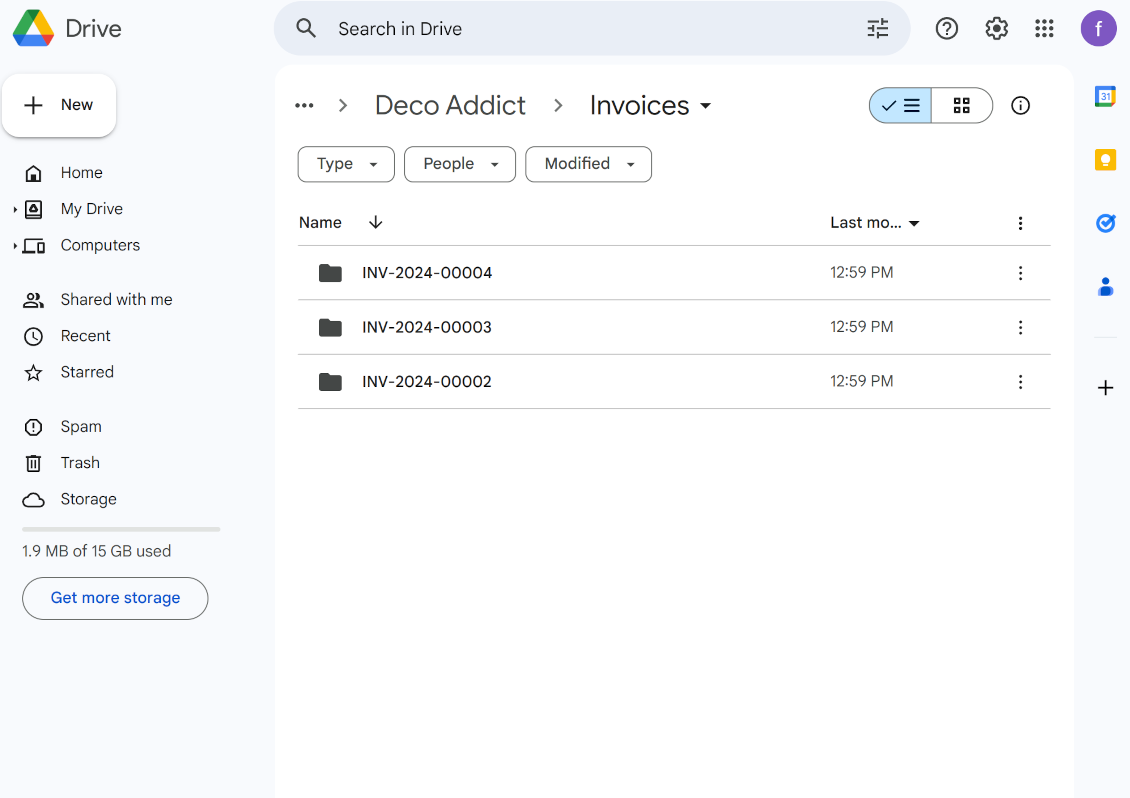
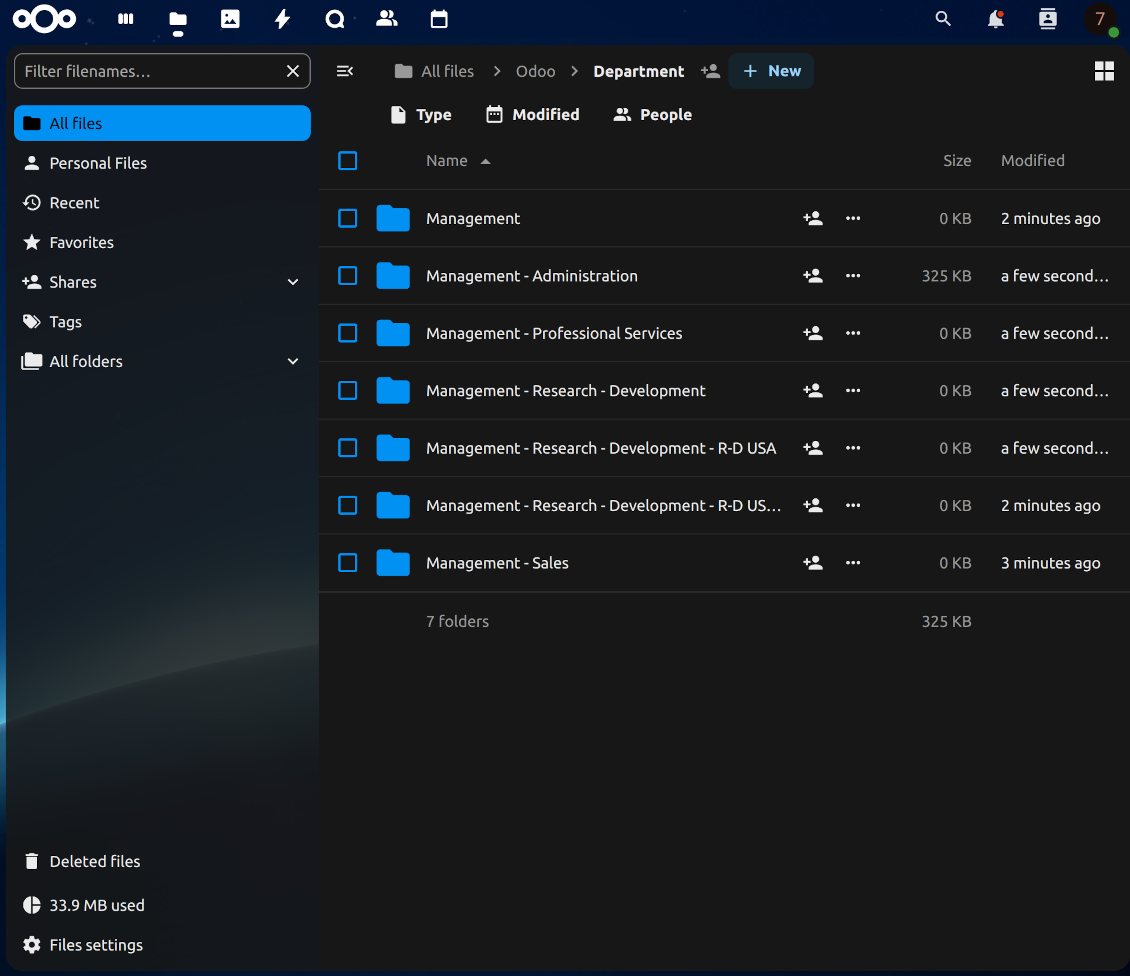
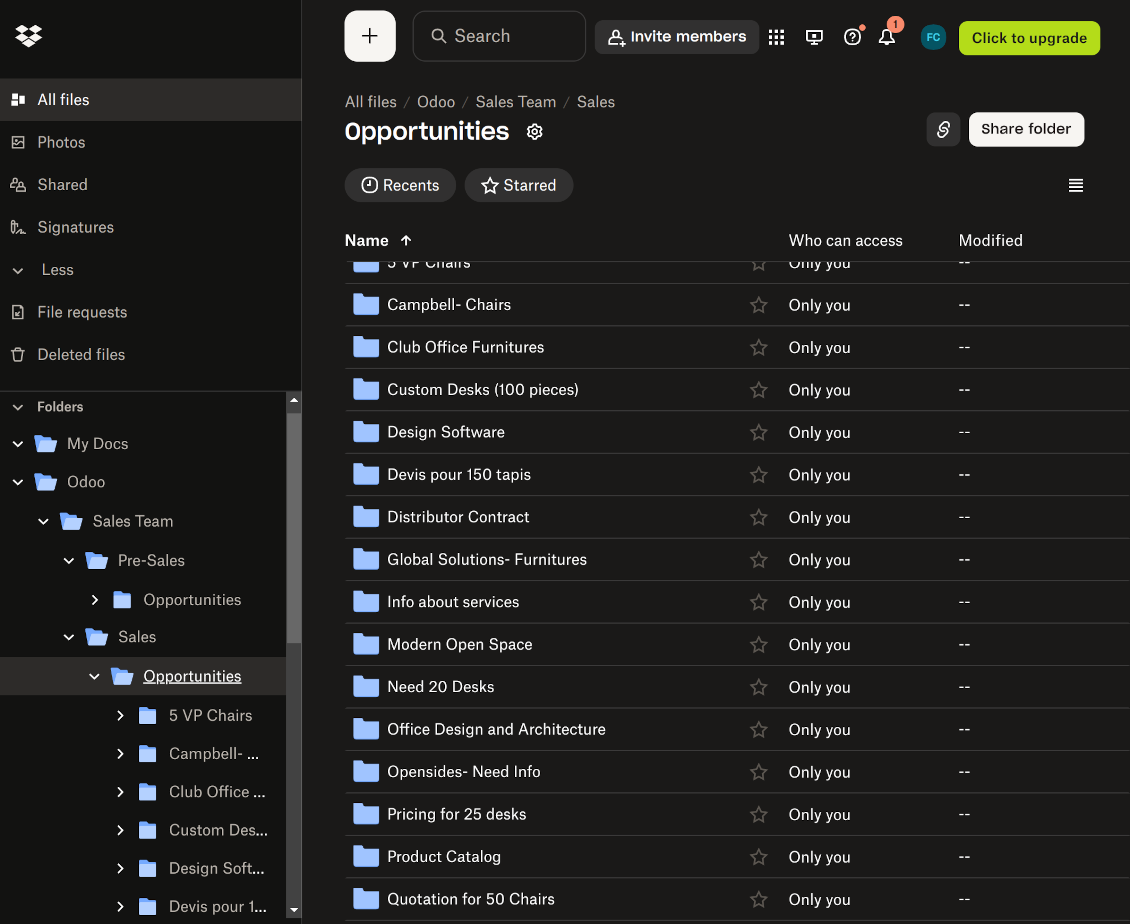
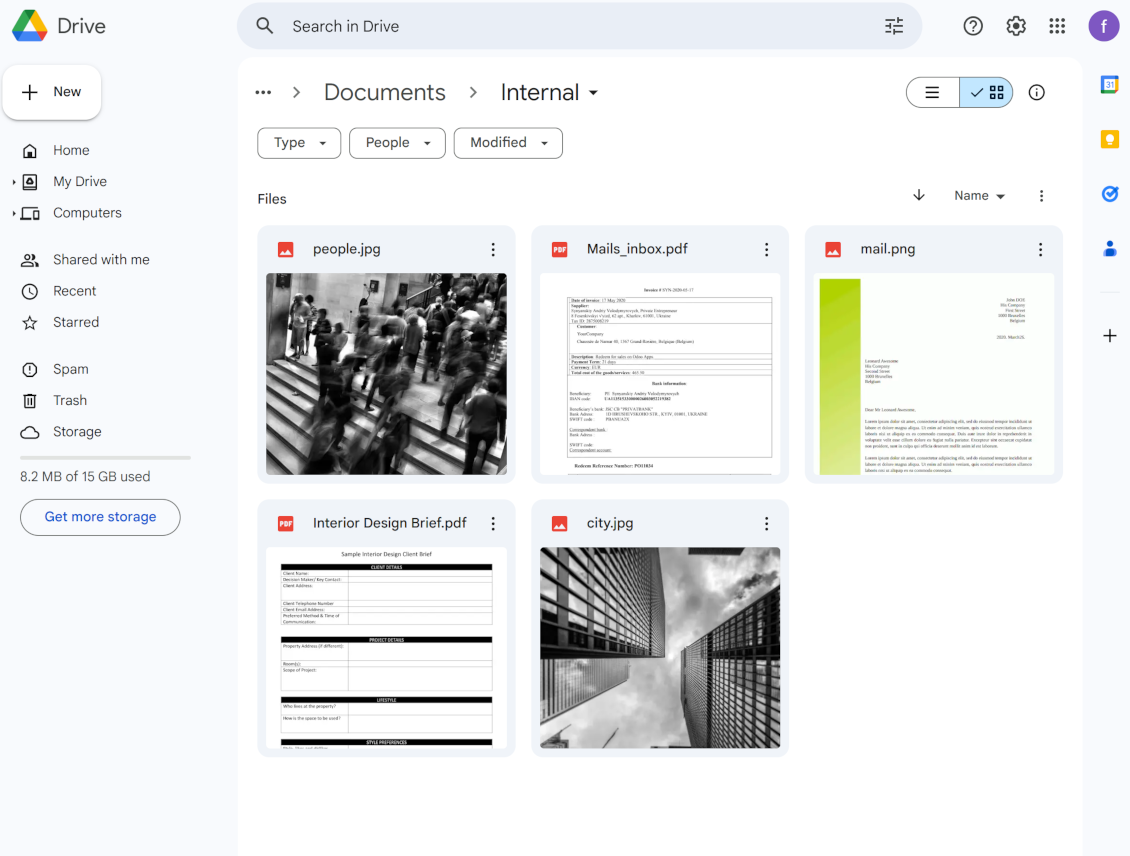

This tool organizes Odoo attachments in folders' trees and synchronizes those with your choice's cloud storage solution(s). The app introduces automatic algorithms to prepare directories for documents and integrate those with workflows of Google Drive, OneDrive/SharePoint, Nextcloud/ownCloud, Dropbox, Amazon/MinIO S3, Box, and NAS/WebDAV (Synology, QNAP, TrueNAS, etc.).
- the core module which introduces the file manager interface and basic mechanics for synchronizations with various cloud clients. 가격은 398€.
- Odoo 폴더와 첨부 파일을 OneDrive 및/또는 SharePoint와 동기화하는 커넥터. 이 추가 기능의 기능은 아이콘 으로 표시됩니다. 가격은 89€.
- Odoo 폴더와 첨부 파일을 Google Drive와 동기화하는 커넥터입니다. 이 추가 기능이 담당하는 기능은 아이콘으로 표시됩니다. 가격은 89€.
- Odoo 폴더와 첨부 파일을 Amazon S3와 동기화하는 커넥터입니다. 이 추가 기능이 담당하는 기능은 아이콘으로 표시됩니다. 가격은 89€.
- Odoo 폴더와 첨부 파일을 Nextcloud 및/또는 ownCloud와 동기화하는 커넥터. 이 추가 기능의 기능은 아이콘 으로 표시됩니다. 가격은 89€.
- Odoo 폴더와 첨부 파일을 NAS 솔루션(Synology, QNAP, TrueNAS) 및 일반 WebDAV 저장소와 동기화하는 커넥터. 이 추가 기능의 기능은 아이콘 으로 표시됩니다. 가격은 89€.
- Odoo 폴더와 첨부 파일을 Dropbox와 동기화하는 커넥터입니다. 이 추가 기능이 담당하는 기능은 아이콘으로 표시됩니다. 가격은 89€.
- Odoo 폴더와 첨부 파일을 Box와 동기화하는 커넥터입니다. 이 추가 기능이 담당하는 기능은 아이콘으로 표시됩니다. 가격은 89€.
- 작업 공간 관련 폴더를 준비하고 Enterprise 앱 'Documents'가 도입한 Odoo 문서를 클라우드와 동기화하는 선택 추가 기능입니다. 이 추가 기능이 담당하는 기능은 아이콘으로 표시됩니다. 가격은 44€.
Automatic Folders
Decide which Odoo document types should have their folder trees. Directories are regularly updated based on flexible rules and existing Odoo objects
Sync with Cloud Storage Solutions
Synchronize chosen folders and files with specific cloud storage: Google Drive, OneDrive, SharePoint, Nextcloud, Dropbox, Amazon, Box, MinIO S3, NAS/WebDAV (Synology, QNAP, TrueNAS, etc.), and ownCloud. Have as many connections as you need
File Manager Interface
Manage folders and attachments from a single view. Comfortably navigate by directories and tags. Search and download files one by one or in a batch. Upload and move attachments
Enhanced Attachment Box
Organize files of any Odoo object in a set of subfolders. Instantly access folders and files in the attachment box and in synced cloud interfaces
Portal Sharing
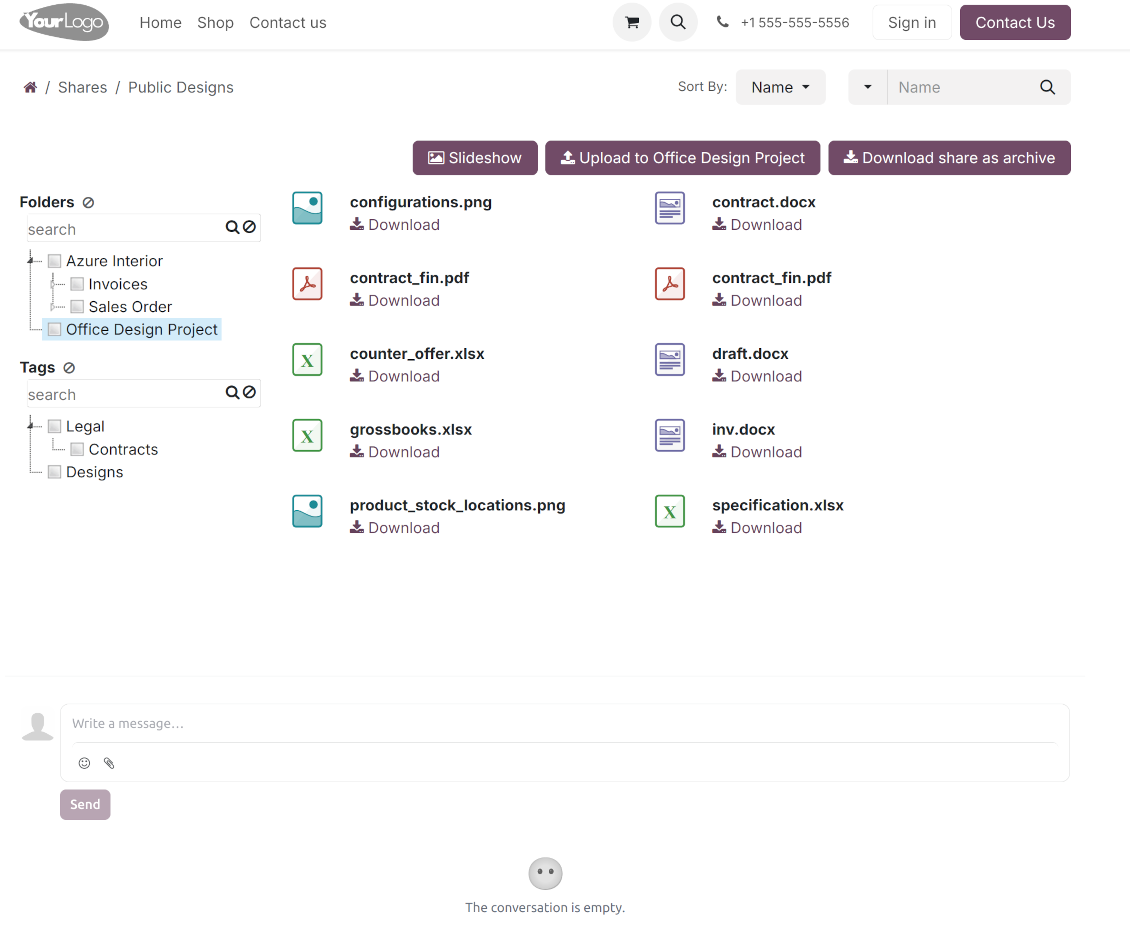
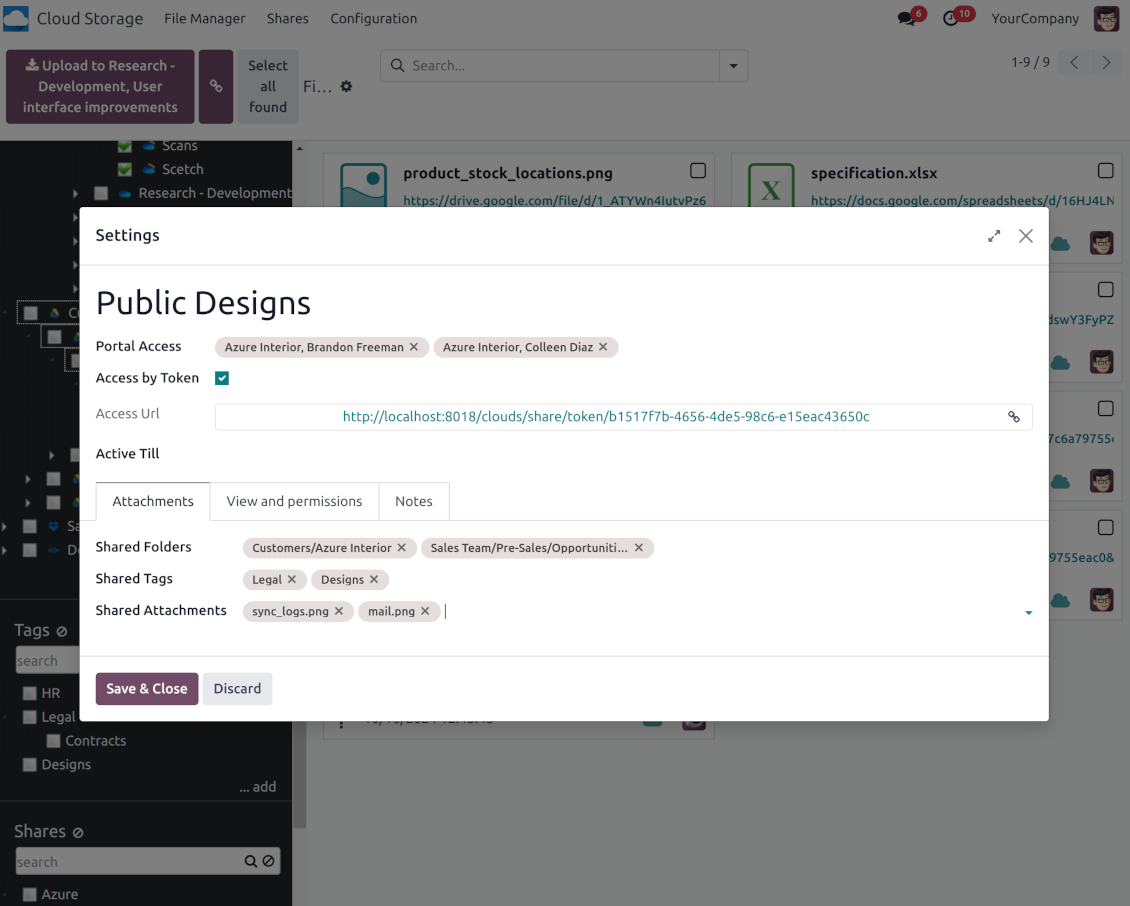
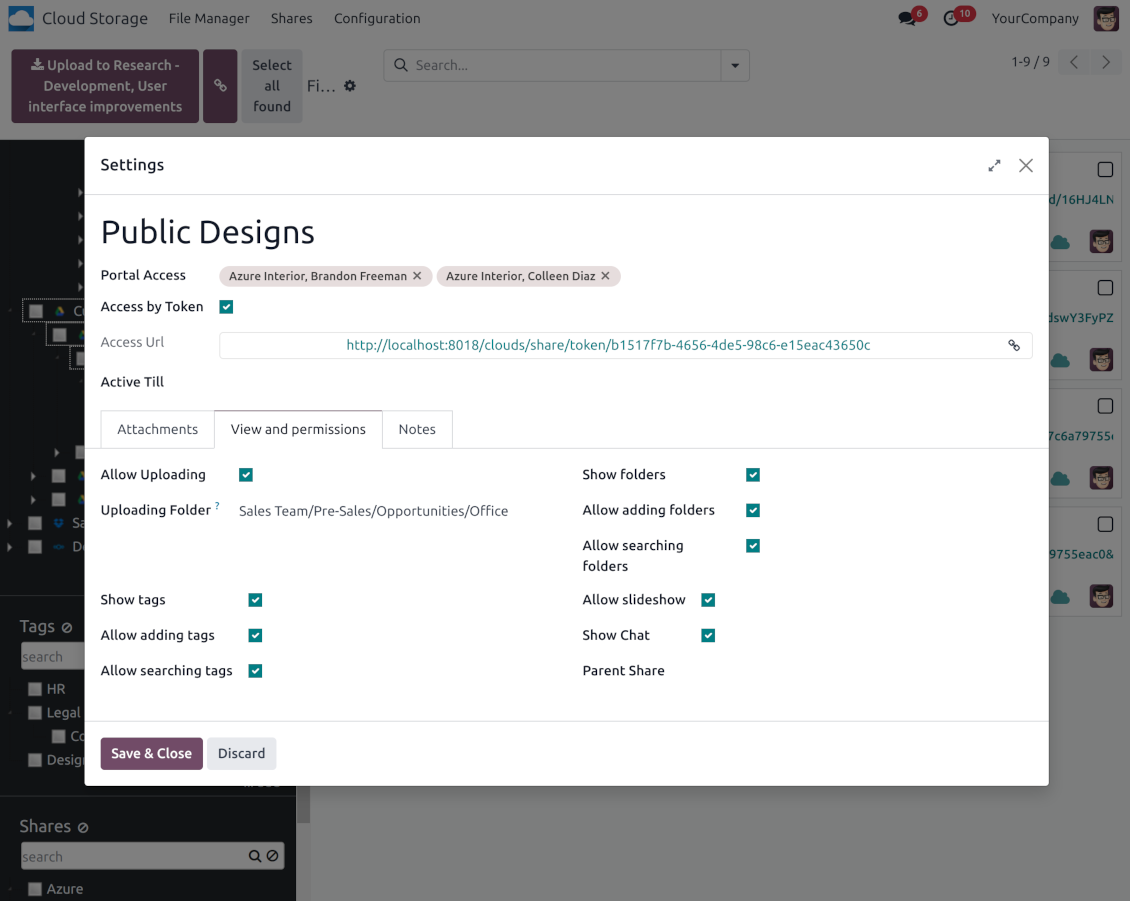
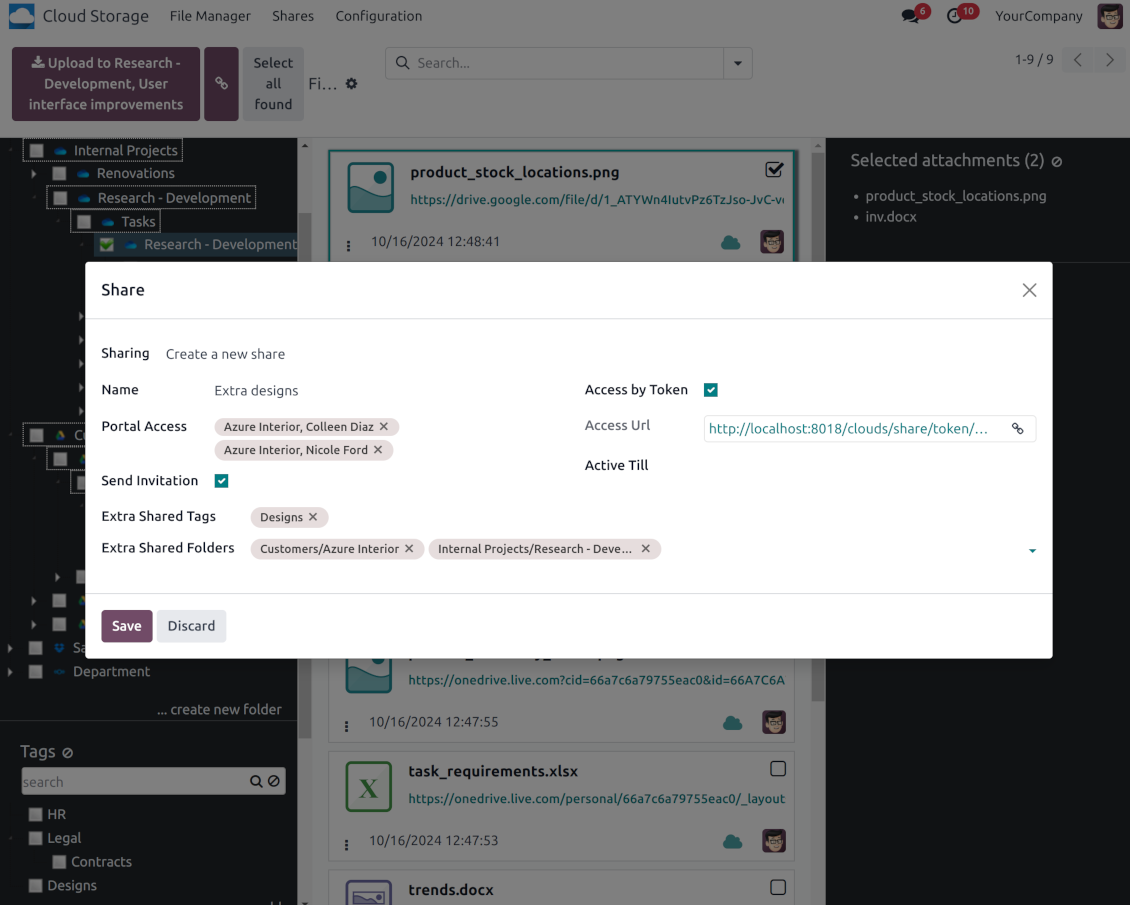
Share files, directories, and tags with particular partners or with an access URL. Let users download whole shares and separate items, upload attachments, and add folders or tags
Enterprise documents compatible
Set up rules to prepare folders based on Odoo Enterprise workspaces. All features, including sharing, downloading, and signing, will work even after the sync
Automatic Regular Sync
Rely on auto-synchronization between Odoo and cloud solutions based on scheduled jobs. No manual interaction is required
Bilateral Sync
Odoo sends attachments to cloud storage solutions and retrieves files from there. Binary content is kept in clouds, while Odoo provides direct access to synced items
Excellent
We have been using Cloud Storage Solutions for a few years already, starting with Odoo 17 mostly because our attachments were a mess. Now we're moving to Odoo 20, and we've surely decided to keep using the app. The File Manager is great for finding a file by folder or tag instead of remembering which sales order it was attached to. And the attachment box on contacts and projects shows the same folders, which lets us avoid excess clicks.
The folder rules are the part I keep showing people: new customer and project folders just appear, with the sub-folders we set up once, and everything lands in our Google Drive through the connector. We also use sharing a folder with our external partners, which is often especially efficient for tasks.
Big thanks to the team too. I asked a lot of questions about the sync and the access rights initially and now during the switch, and every answer came back fast. Really felt like they wanted it to work for us. Happy customer here.
Works well with SharePoint. Supportive team
We've been using this with SharePoint and it's been working great. One of the best things is having everything, including logs right in Odoo's interface, so you can actually see what's going on. It's also super convenient that you can view or download synced files from the attachment box without having to leave the page or even log in to Sharepoint.
Setup was pretty smooth for us. When we had a few questions about setting up the folder hierarchy and priorities, the developer team got back to us in just a couple of hours and helped us figure it out. Great support and great extension!
Tricky setup, but works perfectly now
Really solid module. We managed to get a very flexible folder structure (sorted by clients) and synced all our sales orders, invoices and tasks by projects to Google Drive.
Initial setup was a bit of a pain and kinda tricky to configure everything at first, but now it's running smoothly and works perfectly. The faotools team helped a lot. Def worth it if u need to keep your docs organized in Odoo and Google Drive.
Recommended!
Great support, assistance and very good connector!
We are very happy with the support we received when configuring the Sharepoint - Odoo connector. The connector has great functionalities.
All our questions were answered very fast (within one day).
FaOtools helped us optimising our connector and assisted us with future improvements.
We really recommend this connector.
Great module and Great Support!
The module works great! and the support is phenomenal!
A must-buy if it suits your requirements!
very professional app, excellen t customer service
This app is very well programmed and does its job very well. But the best is the excellent customer service who also helps when the problem lies somewhere else. You receive a lot for your money.
Excellent !!!
Great App and great Service from faOtools.
An impressive app and world-class support
I have been very impressed by the way the OneDrive / SharePoint Odoo Integration module synchronises content in both directions and allows me to share documents in Odoo with my SharePoint site. Above all the technical support is top-notch, which greatly increases the value of this product. I highly recommend this product for anyone considering synchronising Odoo with SharePoint/OneDrive.
Very good product
A perfect solution to integrate Owncloud with Odoo. We sync a high volume of objects across multiple Odoo models, which works seamless and stable. For us it is the perfect solution to have an external DMS instead of the Odoo native attachment handling, which also enables us to interchange files between systems in our best-of-breed setup.
The team behind this module is extremely professional and responsive. They helped us on a few occasions and provided clear answers and prompt support when required, and they even went out of their way to assist us with another requirement we had. Cannot recommend the product and team highly enough, try this if you're in the market to connect Odoo with an external document solution.
Works fine, good support
The first experience with the module is excellent. I had some trouble to configure things right on the Microsoft-side, but the team provided quick and good support.
Best module for integration with google drive
The module performs its function correctly and faOtools responds quickly to any problem and, in case of detecting any bug, quickly apply the changes. Its support is 10 stars.
Works according to specs
I have used this app with Odoo 12 and Nextcloud 16 and it works as specified. Odoo Tools offers very responsive support which is really helpful. Of course 5 stars...!
This is Awesome
I have used Cloud Sync on Next/Own Cloud and works really great.
Odoo 파일 관리자 인터페이스
-
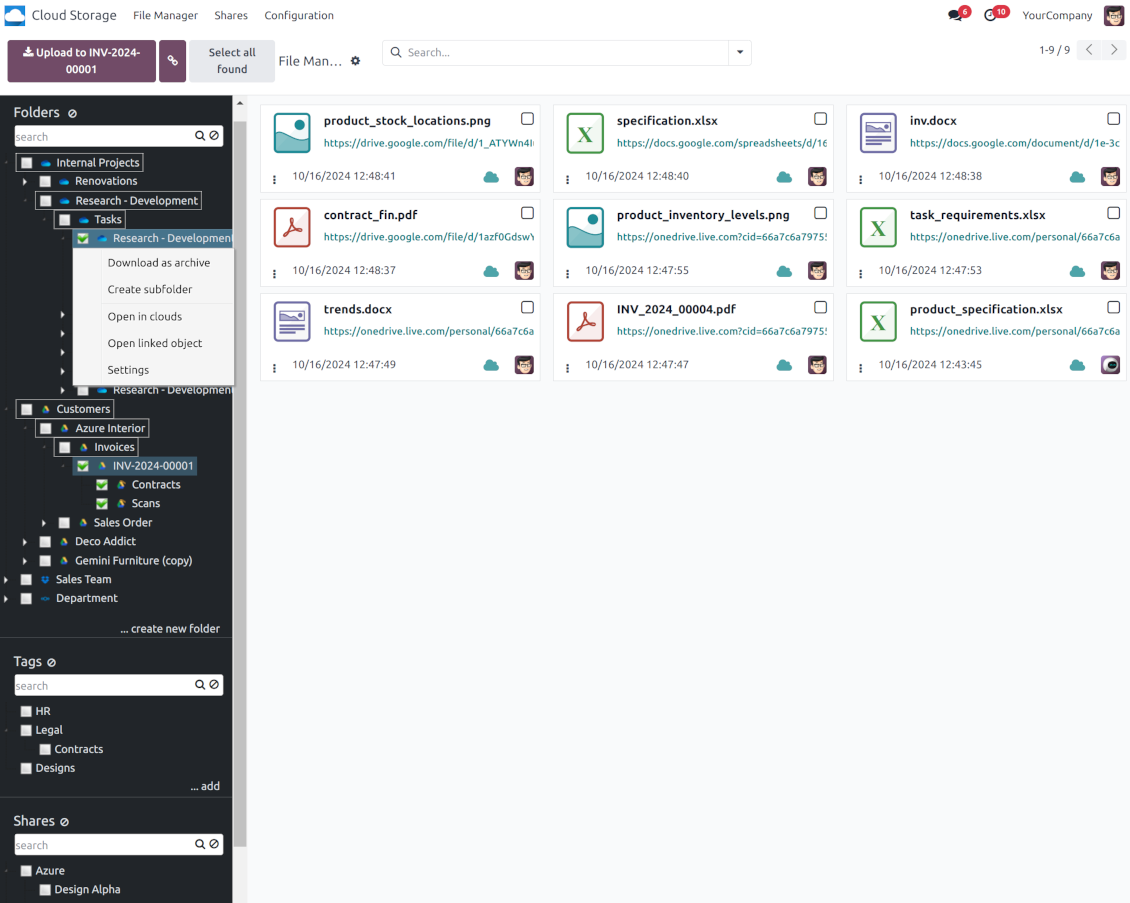
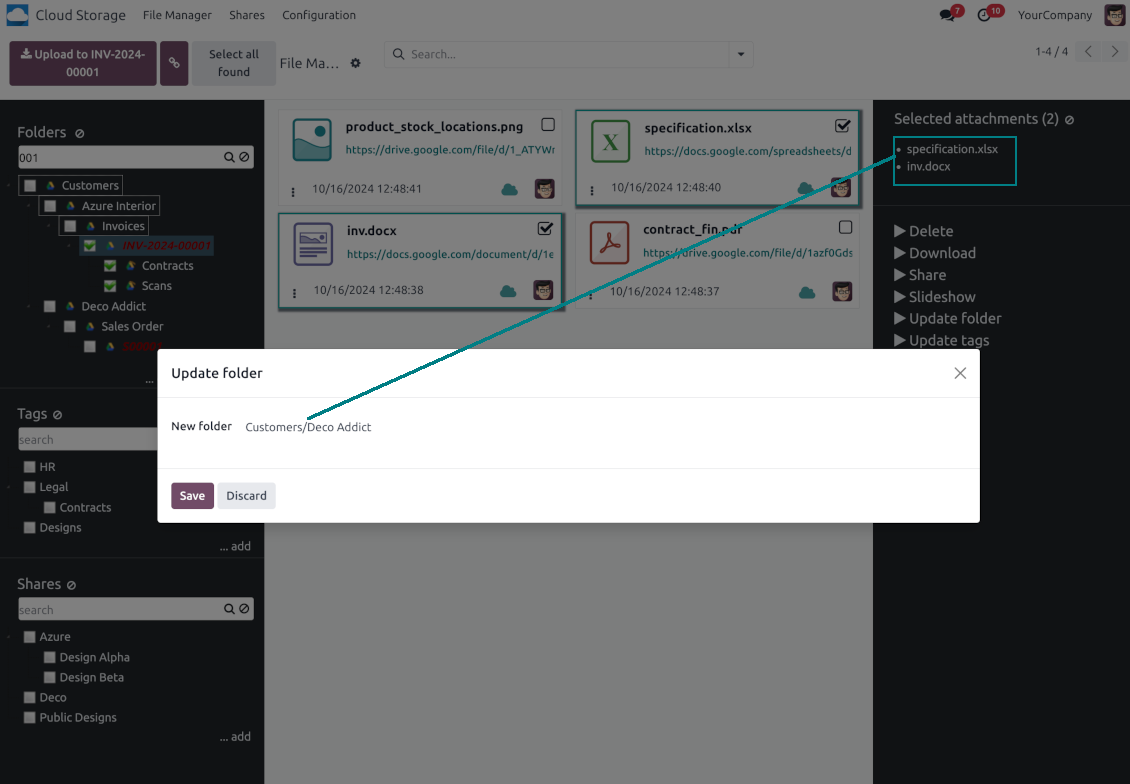
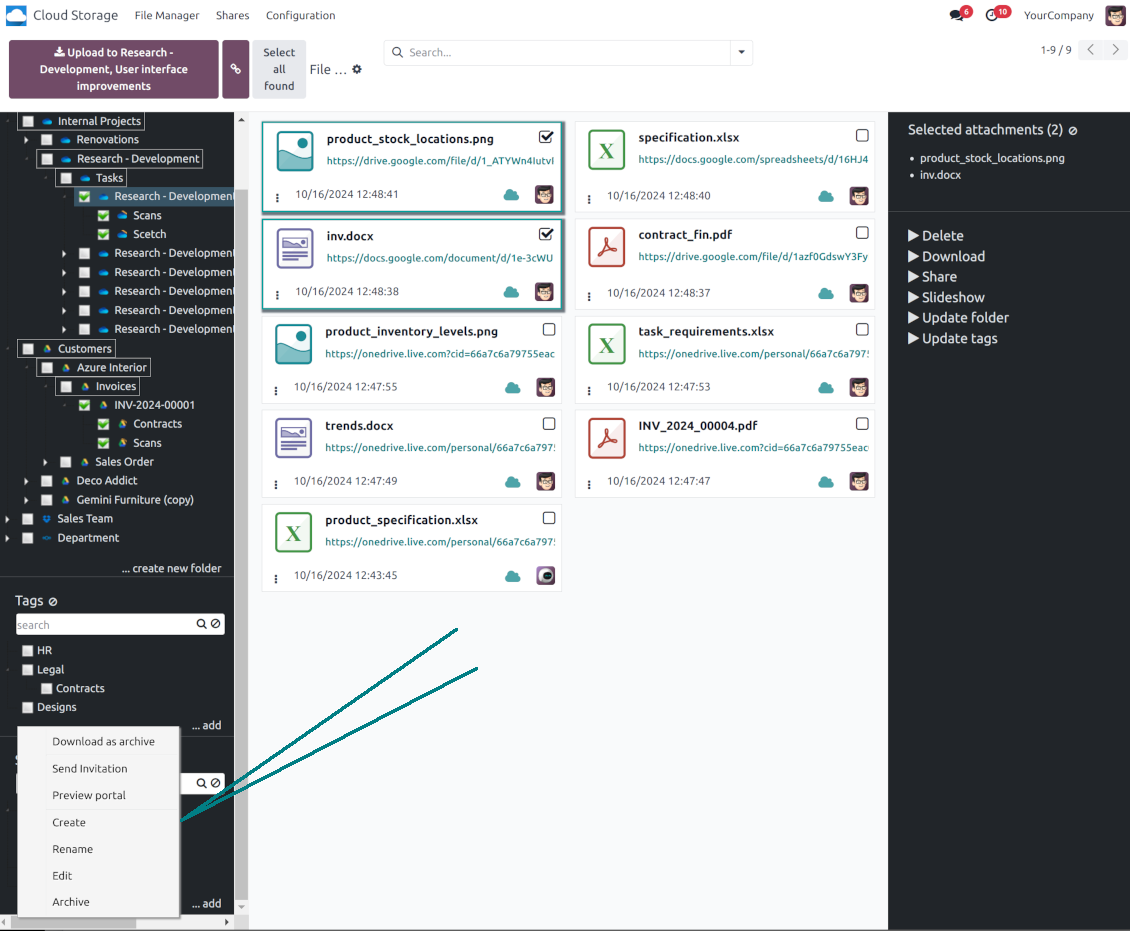
Navigate by folders: select a directory to show its attachments. Expand and hide folders' layers in a click. Add subfolders to any directory (right mouse click > Create subfolder)
-
Open any synced folder in its cloud client (right mouse click > Open in clouds). Show a folder peer Odoo object if there is such a connection (right mouse click > Open linked object). Change settings of manually created folders, including granting access rights (right mouse click > Edit Settings)
-
Navigate by attachment tags. Create and edit tags right from the navigation panel
-
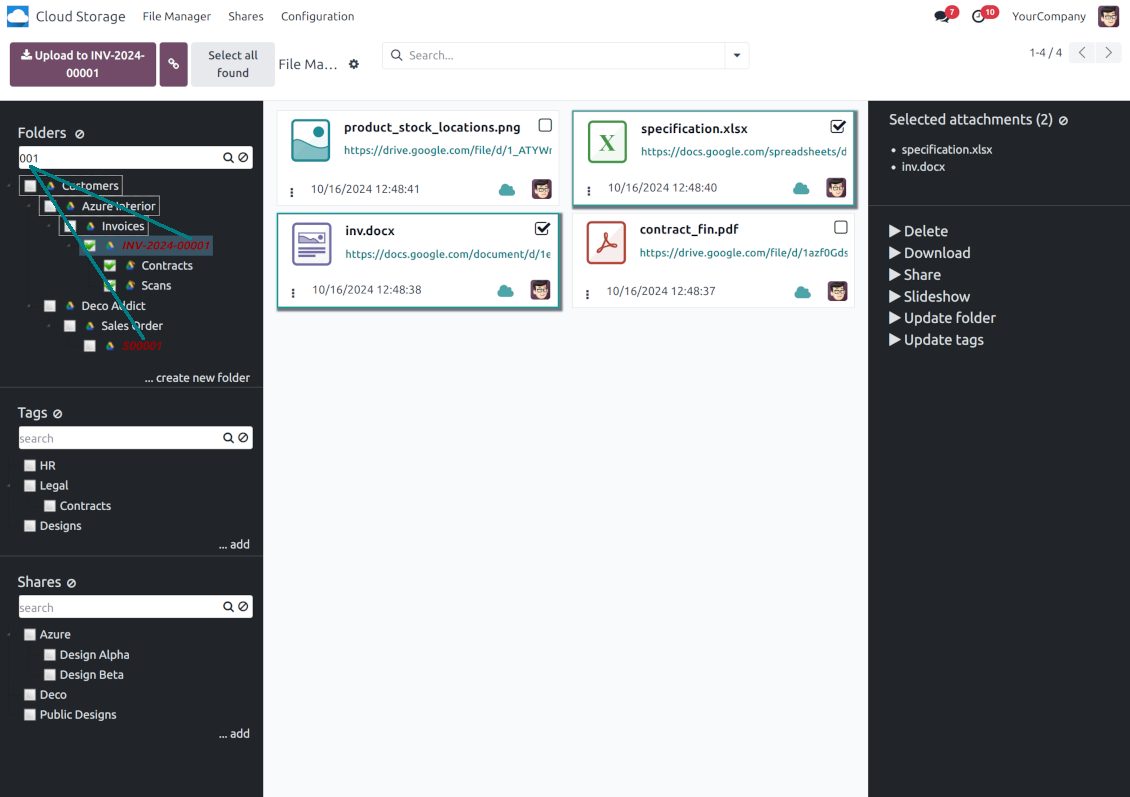
Search and highlight tags and folders in seconds even if there are thousands of items
-
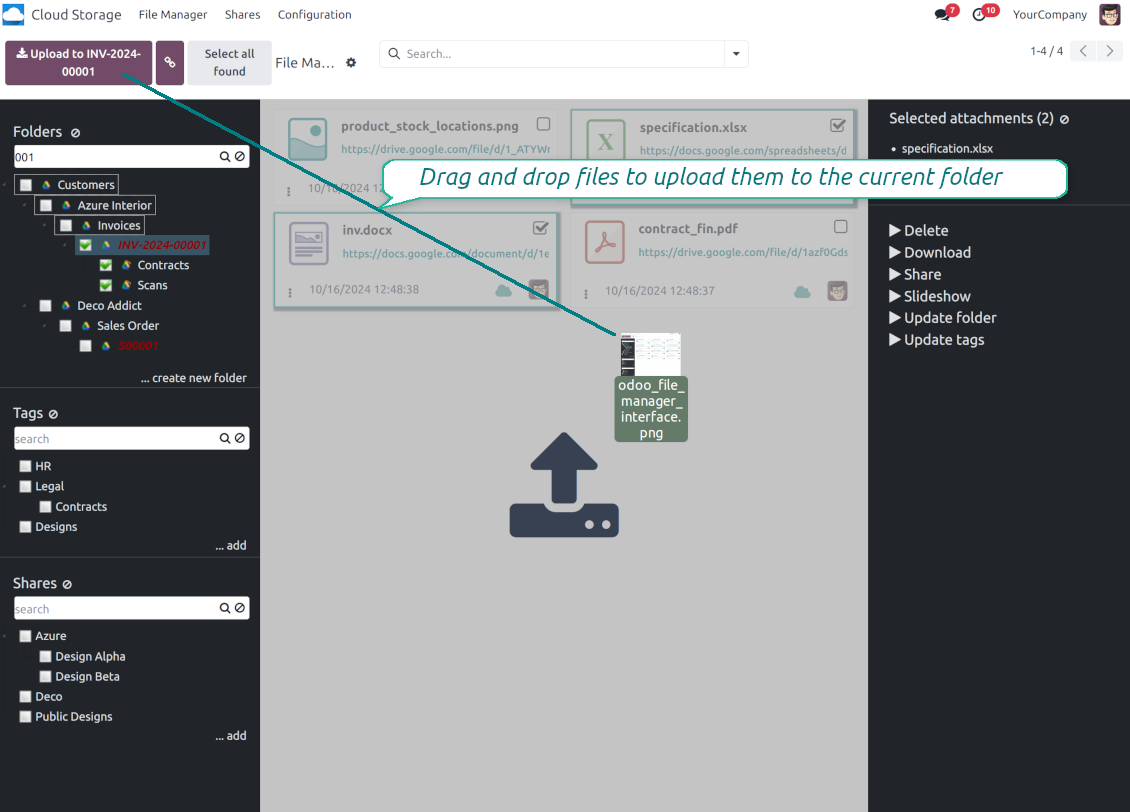
Drag and drop to re-structure folders (relates only to manually created directories; for automatic folders change rules instead) and tags
-
Download any folder or any tag with all its attachments as a single zip archive (right mouse click > Download as archive)
-
Upload attachments to the current folder. Use the top header button 'Upload file' or drag and drop files
-
Instantly open any synced attachment in a linked cloud client (push the link in the middle of attachment cards)
-
Download any attachment to your local computer disregarding whether it is synced or not (push the icon 'cloud' or 'download' in the footer right corner)
-
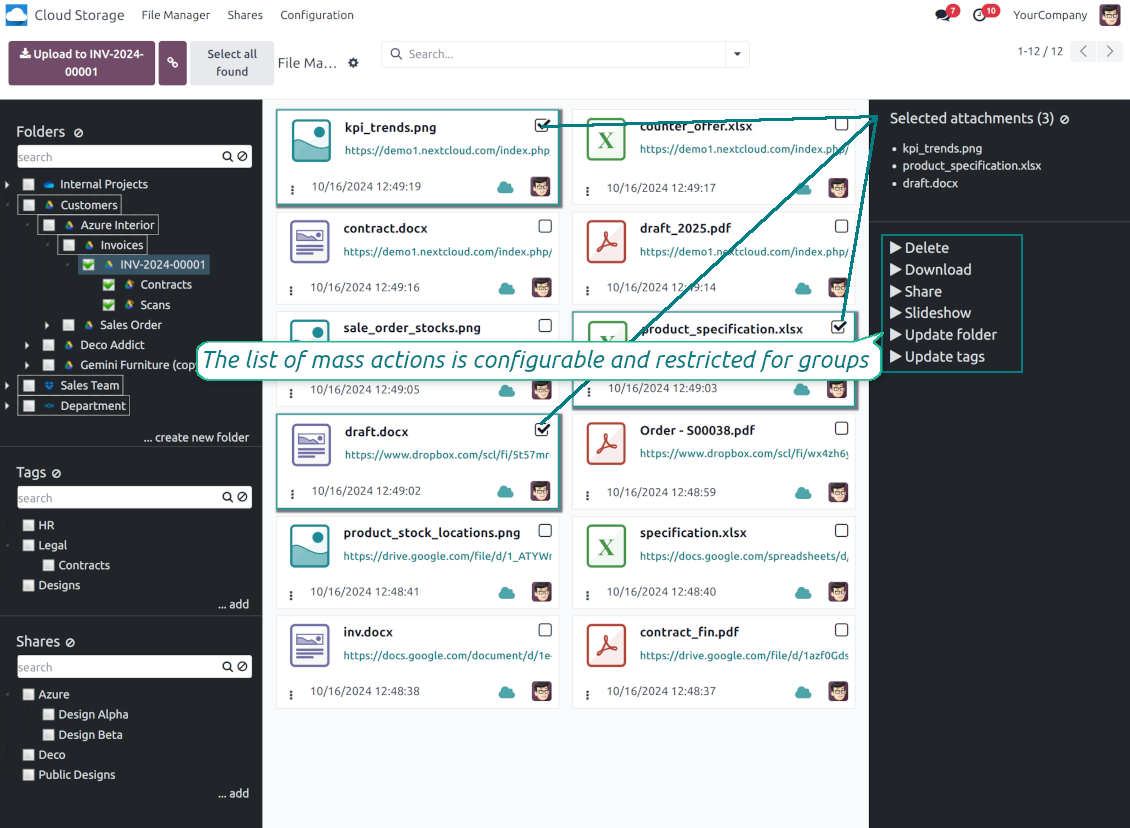
Consequentially select attachments and download them as a single zip archive
-
Move any files to any folder, including re-attaching items between Odoo objects (e.g. from a sale order SO-001 to another quotation or its customer folder). Use the mass action for that end or just drop an attachment to a required directory. Update attachments' tags by dragging those to the left navigation panel or by executing the mass action. Delete attachments in a batch
-
Apply standard attachments search to find required files.
Enhanced Attachment Box
-
Any Odoo object might be linked to its folder. See Automatic folders' structure
-
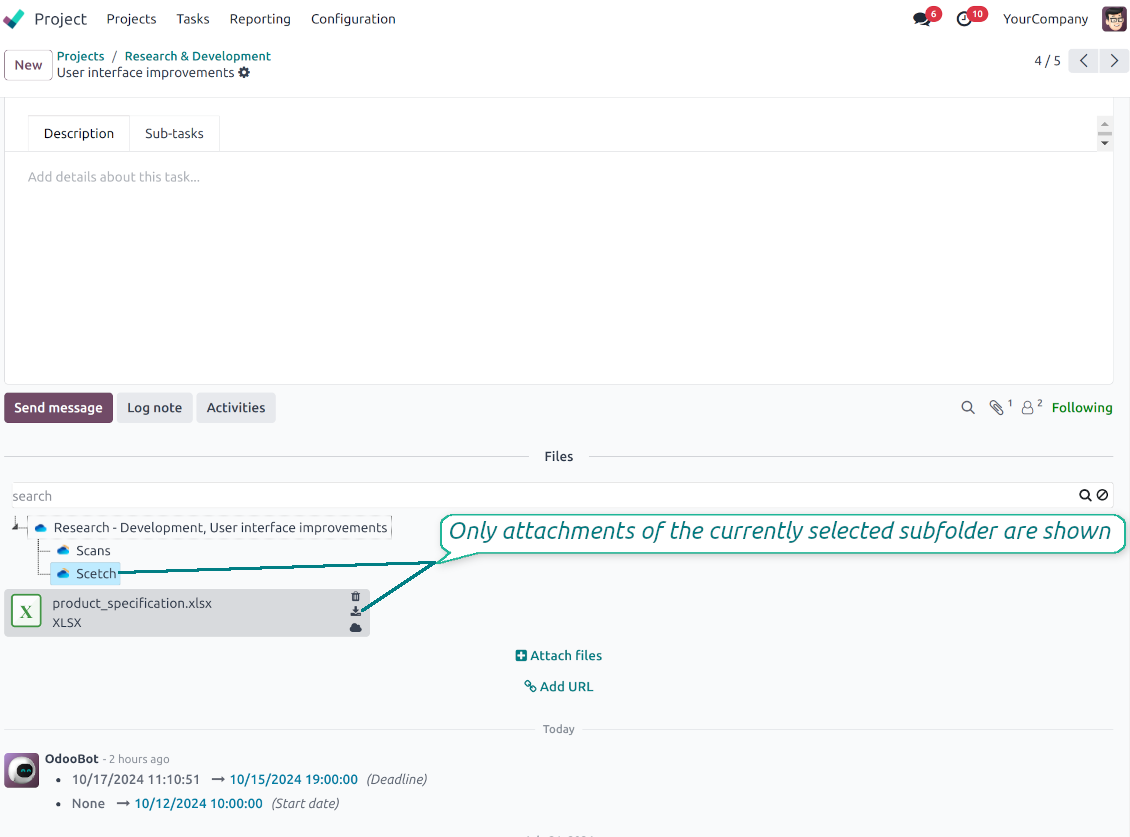
Flexibly define subfolders to organize the structure you need (right mouse click > Create subfolder)
-
Drag and drop to re-structure subfolders
-
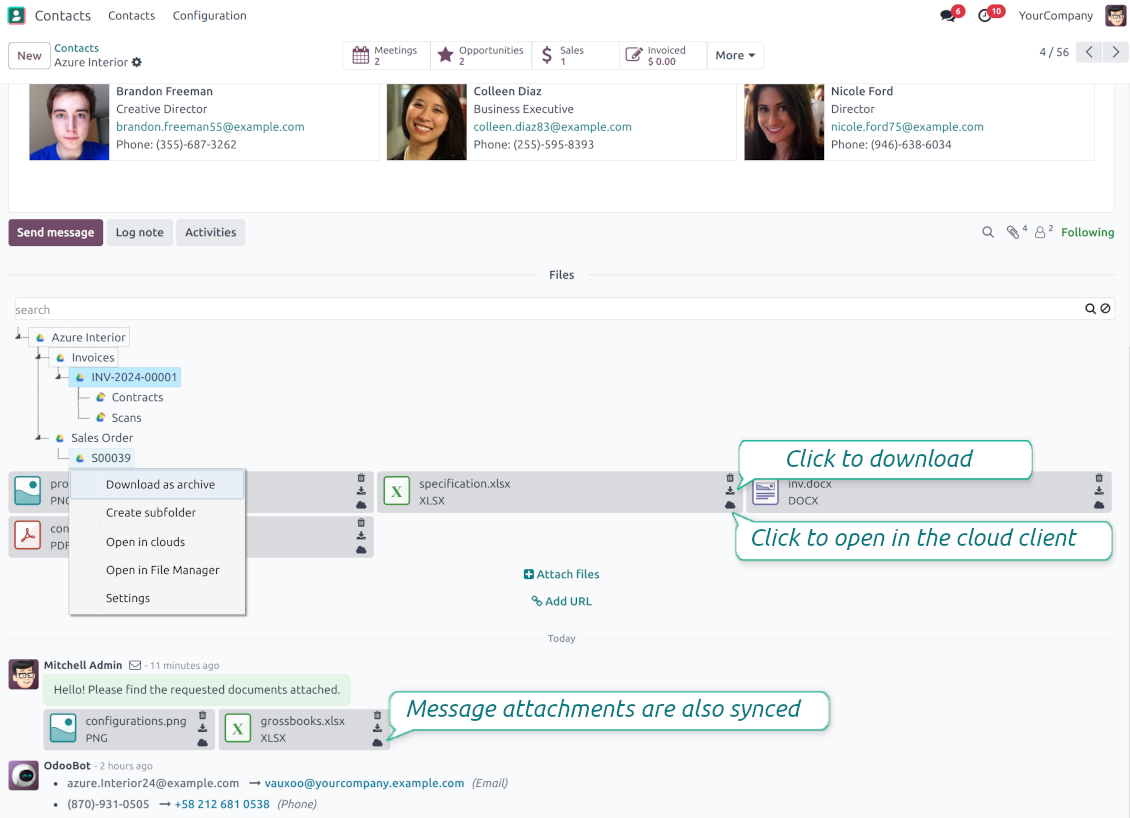
Select a folder to see its attachments. By default, files of the object root directory are shown
-
Download any folder with all attachments as a single zip archive (right mouse click > Download as archive)
-
Open the already synced folder in its cloud client (right mouse click > Open in clouds)
-
Upload attachment to a chosen folder (use the button 'Add attachments' or drag files to the attachment box area)
-
Instantly open any synced attachment in a linked cloud client (push the icon 'clouds')
-
Download any attachment to your local computer disregarding whether it is synced or not (push the icon 'download')
-
Use standard Odoo preview for both synced and local files (click on a file thumbnail)
-
Delete attachments as usual
-
All actions are equally applicable to object attachments and attachments related to messages.
Cloud Storage 동기화
Multi synchronization
-
Use optional add-ons to synchronize the document management system with the cloud client(s) of your choice: Google Drive, OneDrive, SharePoint, Nextcloud, Dropbox, Amazon, Box, MinIO S3, NAS/WebDAV (Synology, QNAP, TrueNAS, etc.), and ownCloud. Have as many connections as you need
-
Establish multiple connections to different cloud clients simultaneously. For example, sync sales-related folders to Google Drive; tasks and projects - to SharePoint or OneDrive; HR documents - to Nextcloud/ownCloud; manufacturing specifications - to Dropbox. Take into account that a specific folder might be synced to only a single cloud storage solution. Its children would be synced to the same client
-
For each cloud client, the app lets set up a few instances. For example, for Google Drive, you may share some folders to your personal drive, others - to one of your team drives, and the rest - to your teammate's drive
-
To establish a connection with particular cloud storage, follow the instructions that are specific for client types. See the tab Configuration for details
-
Any connection might be paused manually if it is needed. It might be also auto-stopped if there are critical issues during the sync. Then, you should re-connect to a target cloud client
Cloud clients
-
Synchronization for all cloud clients is based on the same principles and on the same queue. Simultaneously, there might be differences in sync results due to different features of various cloud storage solutions
-
Establishing connections for different types of cloud clients assumes installing optional add-ons, different approaches for Odoo, and external API configuration. Follow the instructions on the tab 'Guidelines'
-
Google Drive Odoo Integration allows establishing a connection with any personal or team drive
-
OneDrive / SharePoint Odoo Integration assumes synchronization with any drive of personal/business/SharePoint tariffs
-
ownCloud/Nextcloud Odoo Integration et integrate Odoo with any instances of ownCloud and Nextcloud. In comparison to other clients, the app allows setting the type of attachment links. By default, Odoo links are internal: only authorized users may access them. Optionally make links public (the setting 'Use Public URLs'). See details on the guidelines tab
-
Dropbox Odoo Integration works for all DropBox tariffs, including Personal DropBox (Basic, Plus, Family) and business DropBox (Professional, Standard, Advanced). In comparison to other clients, the app allows choosing whether cloud items would be shared or internal. See details on the guidelines tab
-
Amazon S3 Odoo Integration (amazon_s3_odoo) synchronizes Odoo folders and attachments with Amazon S3 buckets
-
NAS/WebDAV Odoo Integration (nas_odoo) connects Odoo documents with NAS and WebDAV-compatible storage, including Synology, QNAP, and TrueNAS
-
Box Odoo Integration (box_odoo) synchronizes Odoo folders and attachments with Box cloud storage
Automatic two-sided sync
-
Integration is based on scheduled jobs and is fully automatized. The app regularly checks changes in systems and runs sync operations
-
Synchronization is bilateral. Updates in Odoo are reflected in cloud clients (direct sync); changes in cloud clients modify Odoo folders and attachments (backward sync)
-
동기화를 한 방향으로 유지하려면 클라이언트에서 클라우드에서의 동기화를 끄십시오. Odoo의 변경은 계속 클라우드 저장소로 보내지지만, 그곳에서 만들거나 이름을 바꾸거나 삭제한 파일과 폴더는 Odoo에 반영되지 않습니다. 옵션을 다시 끄면 삭제를 포함한 누적 변경이 다음 동기화에 적용됩니다
-
Any cloud connection might be reset. In this way, the app assumes getting back all items back to Odoo (reverse sync)
-
Odoo folders and attachments might be re-attached to a new cloud client. Hence, items will be first taken back to Odoo (reverse sync) and then put will be put to the new cloud storage (direct sync)
Queue-based synchronization
-
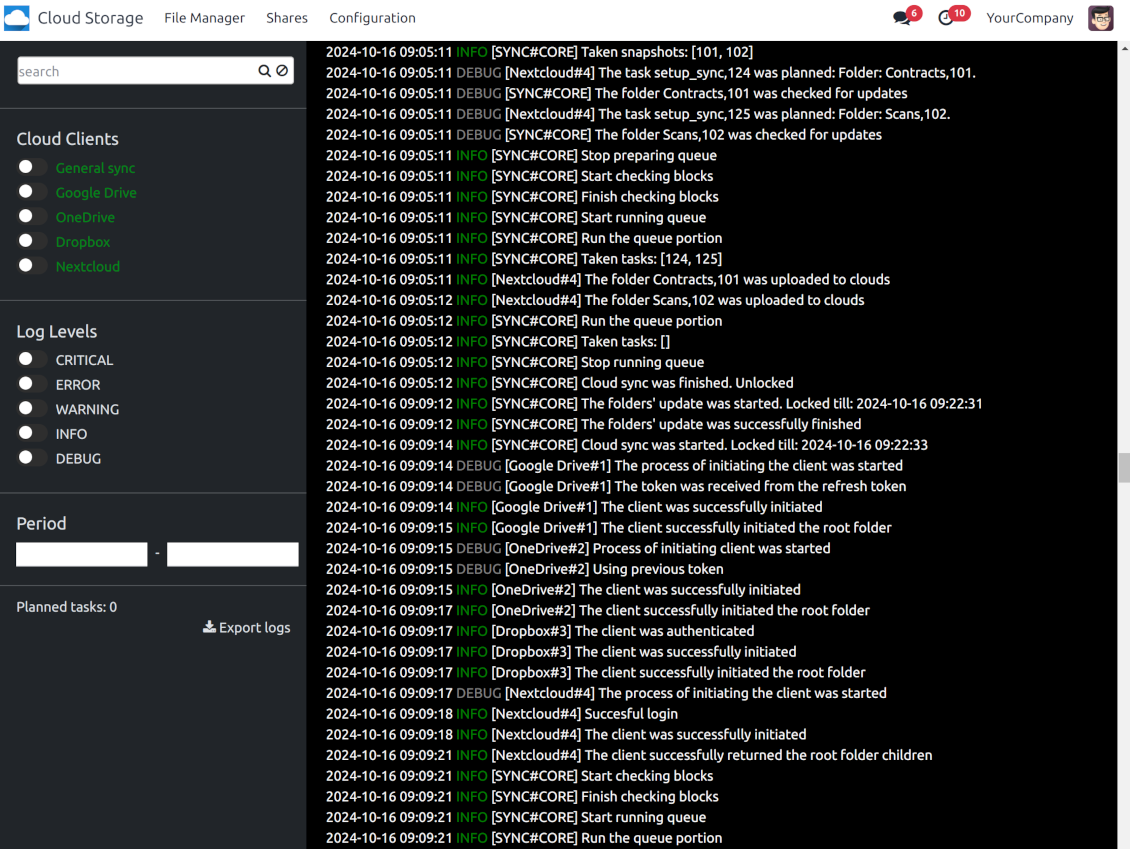
Once in 15 minutes, the app examines updates in Odoo and cloud storage(s) to prepare a synchronization queue
-
Folders' checks follow the First-In-First-Out (FIFO) principle. So, directories that have not been examined for the longest will be processed first
-
Once in 15 minutes, the sync queue is run by the special scheduled job. Firstly, the most important (blocking) tasks would be done
-
Control planned jobs and their fulfillment in the special Odoo logs interface (Cloud Storage > Configuration > Sync Logs). Subscribe for particular cloud clients notifications
-
If the app faces sync failures, it will re-try operations afterward. Sync queue processing would not be stopped if there are items not blocked by such failures
Odoo attachments for cloud storage: direct sync
-
Direct sync prepares the folders' hierarchy and uploads Odoo attachments for cloud storage
-
Direct sync checks whether attachments are added or deleted for synced directories. If so, they would be created or removed in cloud storage. In particular, it means that any file added to a folder-related Odoo object (e.g. Quotation), would be automatically moved to a linked cloud client
-
Direct sync makes all synced Odoo attachments change their type to a link (URL), while binary content is removed with one of the next Odoo cleaners. So, no actual files would be stored on your Odoo server
-
Direct sync checks whether a new folder is added. Disregarding whether it is done manually or automatically, the app would generate a peer directory in a cloud storage
-
Direct sync checks whether there are any updates in folders. If so, such changes are reflected in a cloud client
Cloud storage files and folders for Odoo: backward sync
-
Backward sync checks whether any files or subfolders are added to cloud storage folders. If so, the app would create URL attachments/subdirectories inside linked Odoo directories (and hence Odoo objects if any)
-
Backward sync checks whether there are any updates in folders or attachments. Such updates would be then reflected in Odoo
-
Backward sync checks whether any files are deleted/moved in a cloud document folder. If so, a linked Odoo attachment would be also unlinked or moved
-
If you deleted a cloud storage folder related to a folder rule / Odoo object, their child files would be deleted as well. Thus, Odoo would remove related attachments. The folders, however, will be recovered with a direct sync
-
In case of conflicts, direct sync changes are in general considered more important than backward updates.
Resetting or changing cloud client: reverse sync
-
In case you decided to reset the connection with a specific cloud client, files would be moved back to Odoo
-
클라우드 저장소의 사본이 유일한 사본으로 남아야 하거나 연결이 끊어진 경우 클라이언트에서 역방향 동기화를 끄십시오. 그 클라이언트를 분리하거나 재설정하거나 비활성화해도 파일을 다시 받지 않으며 클라우드 저장소에서 아무것도 삭제하지 않습니다. Odoo 개체와 클라우드 항목 사이의 연결이 끊어집니다. 저장된 링크는 여전히 클라우드 저장소에서 파일을 열지만, Odoo는 그 폴더와 파일을 더 이상 다운로드하거나 미리 보거나 열 수 없습니다. 이 연결은 복원할 수 없습니다
-
In case you decided to change the cloud client of a folder rule or a folder, files would be first taken back to Odoo, and then direct sync for a new client would be done
-
Reverse sync operations are prioritized to direct and backward sync operations
-
Not all items can be correctly reversed to Odoo due to cloud client peculiarities. For example, there are documents that may exist only in cloud storage environments (e.g. Google Sheets). The app would try to convert such documents, but in some cases, it would require manual interactions.
Automatic Folder Structure
Rules for automatic folders
-
The app allows preparing its own folder for any Odoo object
-
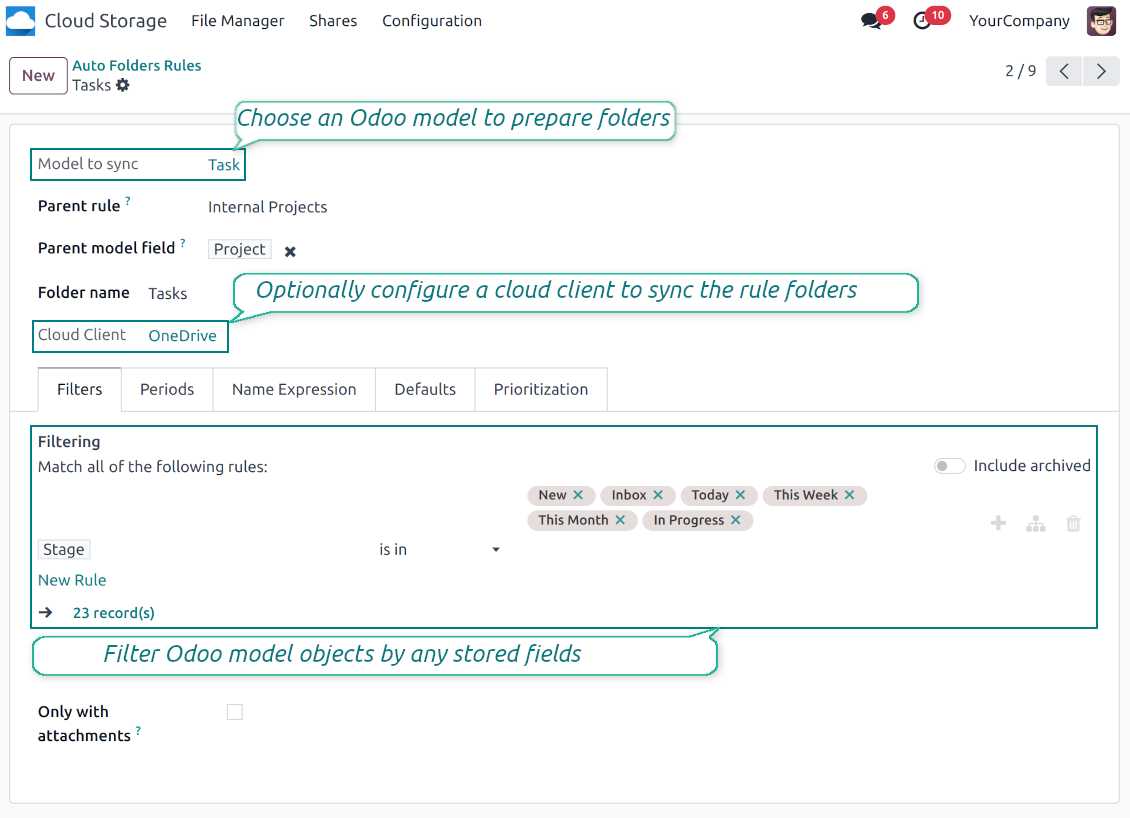
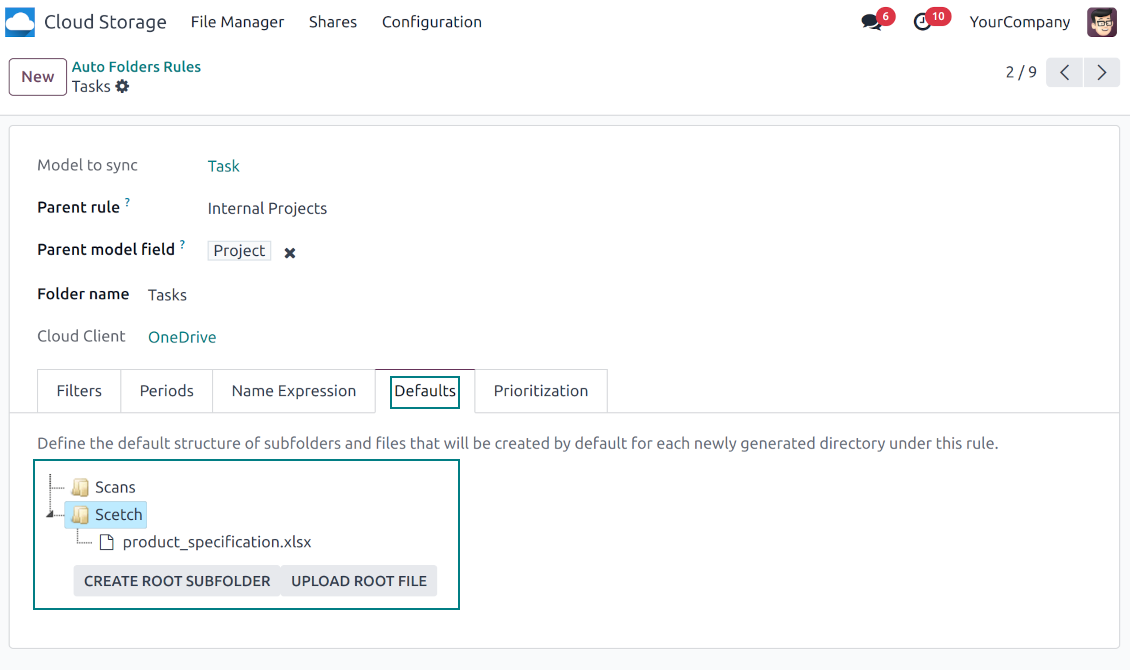
To configure a particular Odoo document type to generate a folder, you should just prepare a new folder rule (Cloud Storage > Configuration > Folder rules). For example, select the model 'Task' to make Odoo add a folder for each project task, so Tasks > Task 1, Task 2, ...
-
Automatically created directories would contain all attachments their linked objects have
-
Folders are updated regularly based on the scheduled job
Multi directories for each model
-
Each Odoo model might have a few linked folders
-
Apply any model storable field to filter Odoo objects and, in this way, split objects into a few super directories. For example, have own folders for individuals and companies, for European and American opportunities, for quotations and confirmed orders, for each project
-
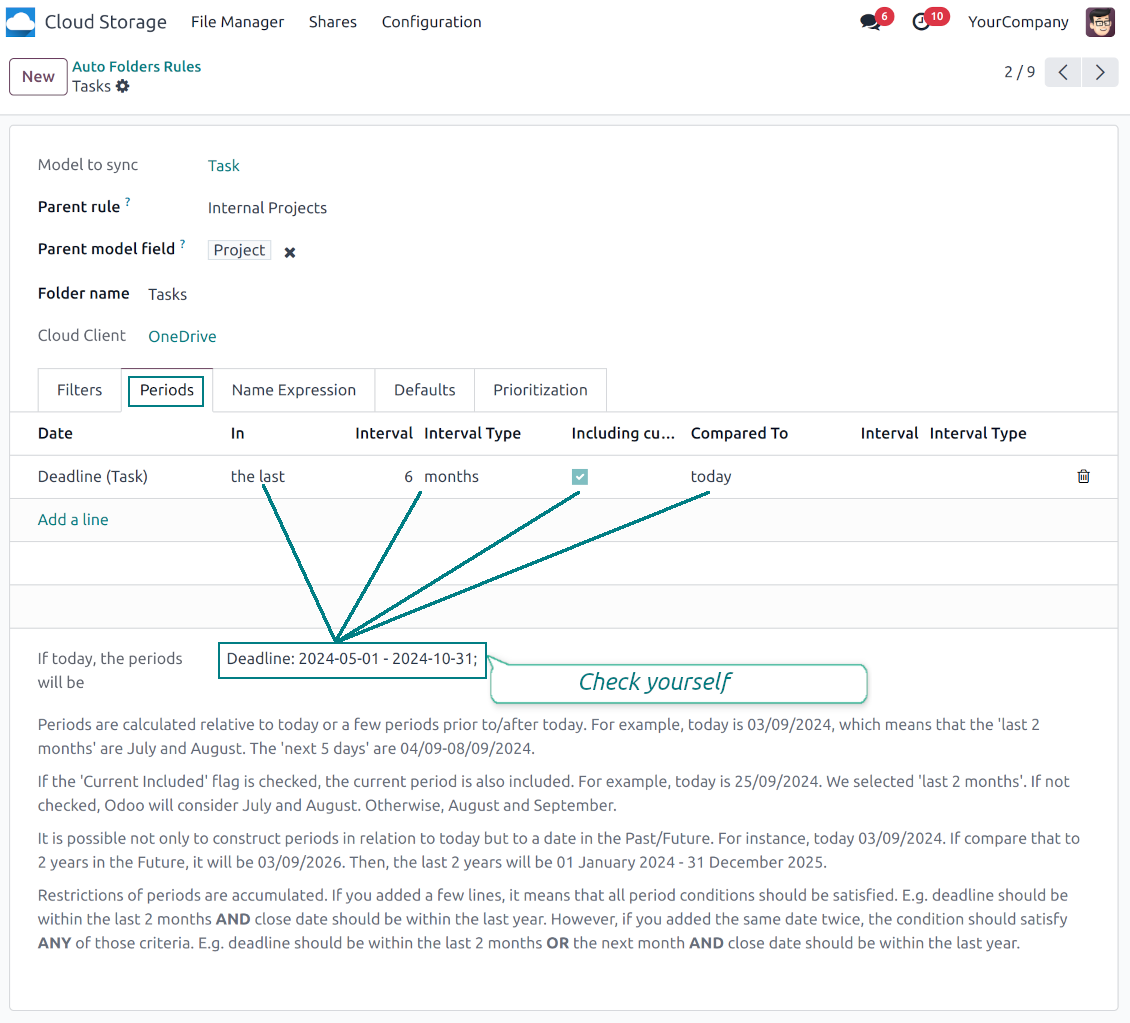
Filter Odoo objects by relative periods by applying date fields of linked documents. For example, leads registered in the last 3 months or invoices updated in the last week
-
As a result, the app lets have paths like 'Odoo > Quotations Europe > SO-001' or ' Odoo > the last year posted invoices (America) > SO-001'
Flexible folders' tree
-
It is possible to set up a hierarchy of folder rules to prepare a more flexible directories structure
-
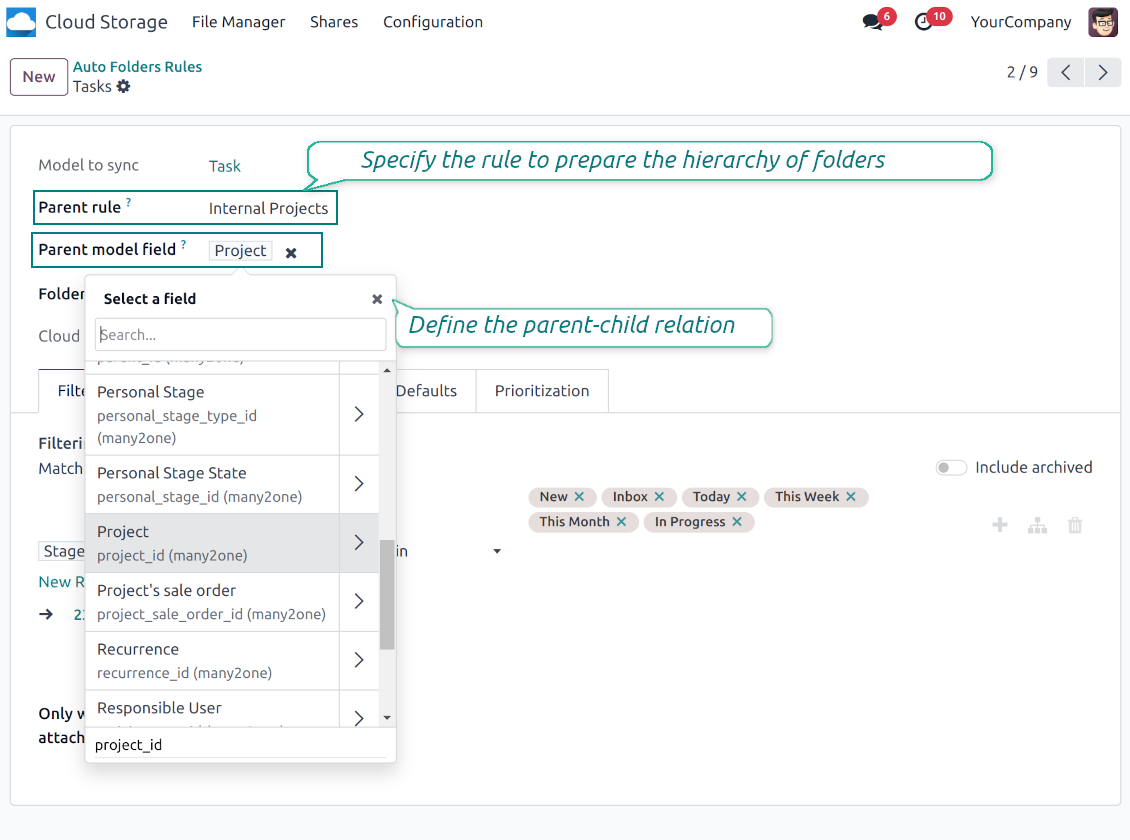
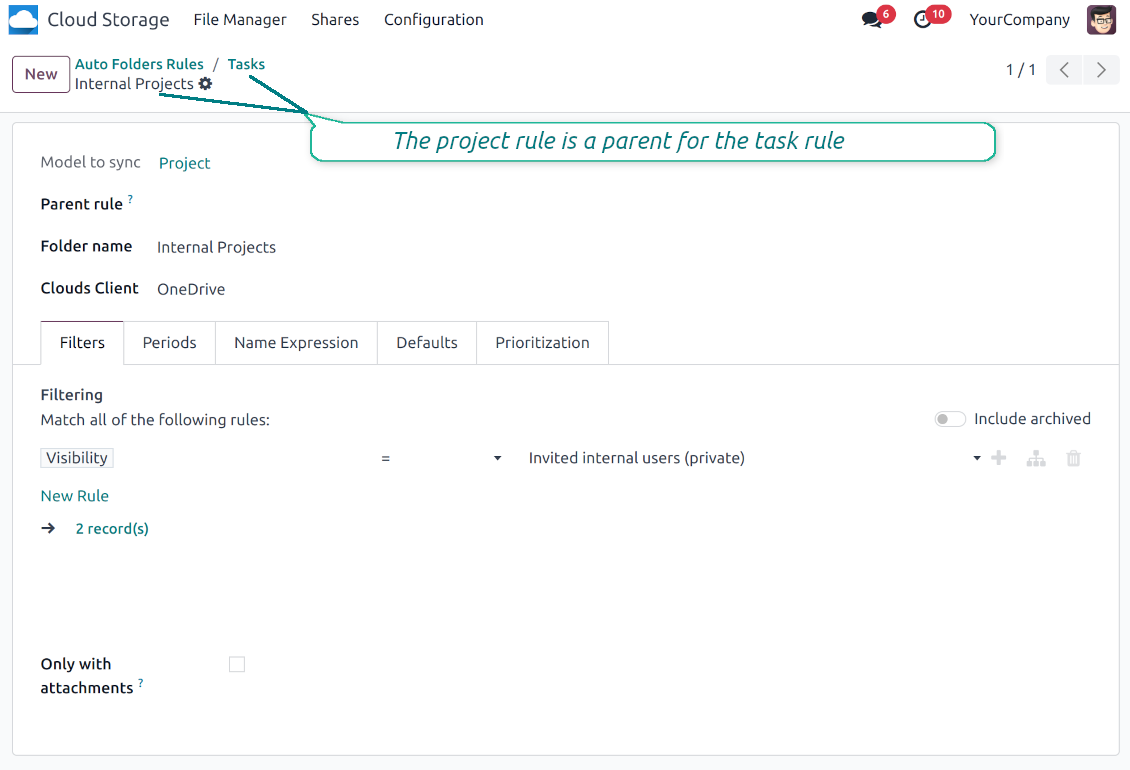
To that goal define a parent rule for a required folder configuration. For example, use a project-related rule as a parent for a task-related rule, a customer-related rule - for invoices-related rules
-
In order for folder relations to work correctly, it is also needed to enter a parent model field. So, it is the field that links models between each other (many2one relation). For example, 'Project' of a task, 'Customer' of a sales order, or 'Sales Team' of an opportunity
-
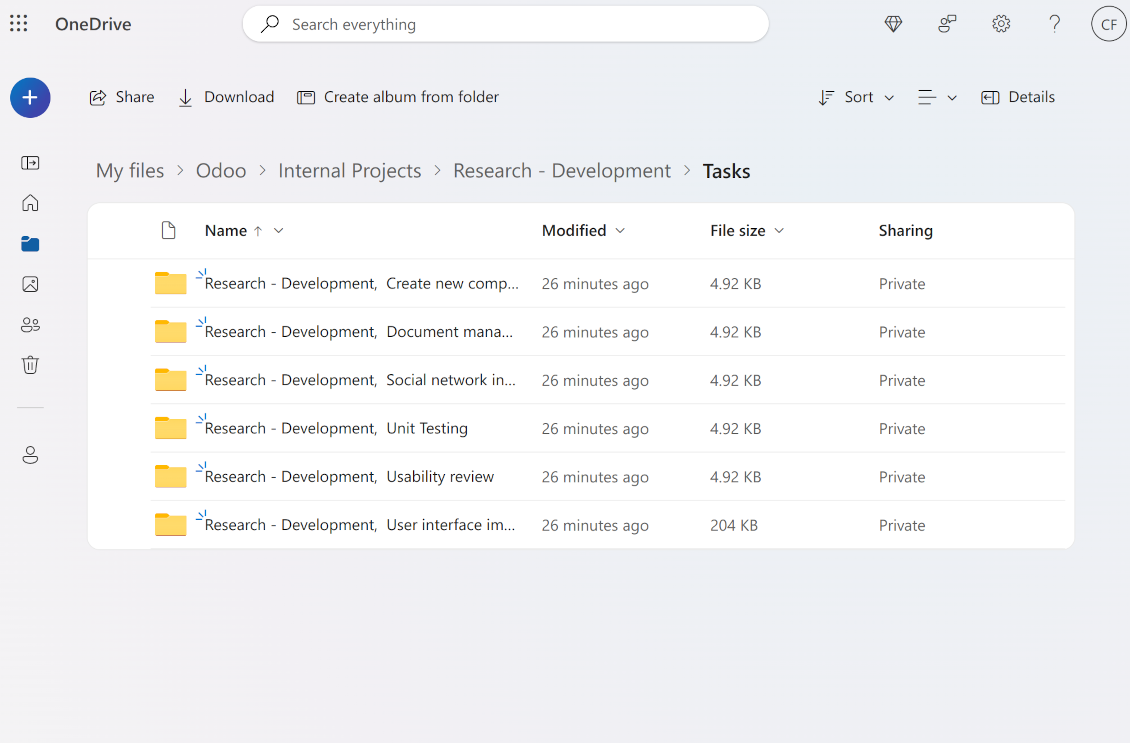
As a result, the tool allows reflecting your Odoo workflow logic and have paths like 'Odoo > Customers > Azure Interior > Projects > Software Design > Prepare Specification' and 'Odoo > Customers > Azure Interior > Quotations > SO-001'
Subfolders, default folders, and default files
-
The app lets add an unlimited number of manual subfolders for each folder. In particular, you may have a directories tree right in each object attachment box
-
For the first generation, it is possible to define default folders, so subdirectories would be auto-generated for a specific Odoo object folder. Afterward, you may add delete/edit those or add new ones
-
The same mechanics are applied to prepare default files. For example, to have contract/personal card templates which then are assumed to be filled with real data
Configurable folder titles
-
Each folder rule assumes to generate a directory. Names for such directories are assigned right on a rule form. For example, introduce 'Jobs' for a task-related rule or 'HR' for employees' folders. By default, the Odoo model name would be used
-
For object-related folders, the names are generated based on the Odoo standard display names. So, if not defined the opposite, it would be the same title as you see in the Odoo form view header
-
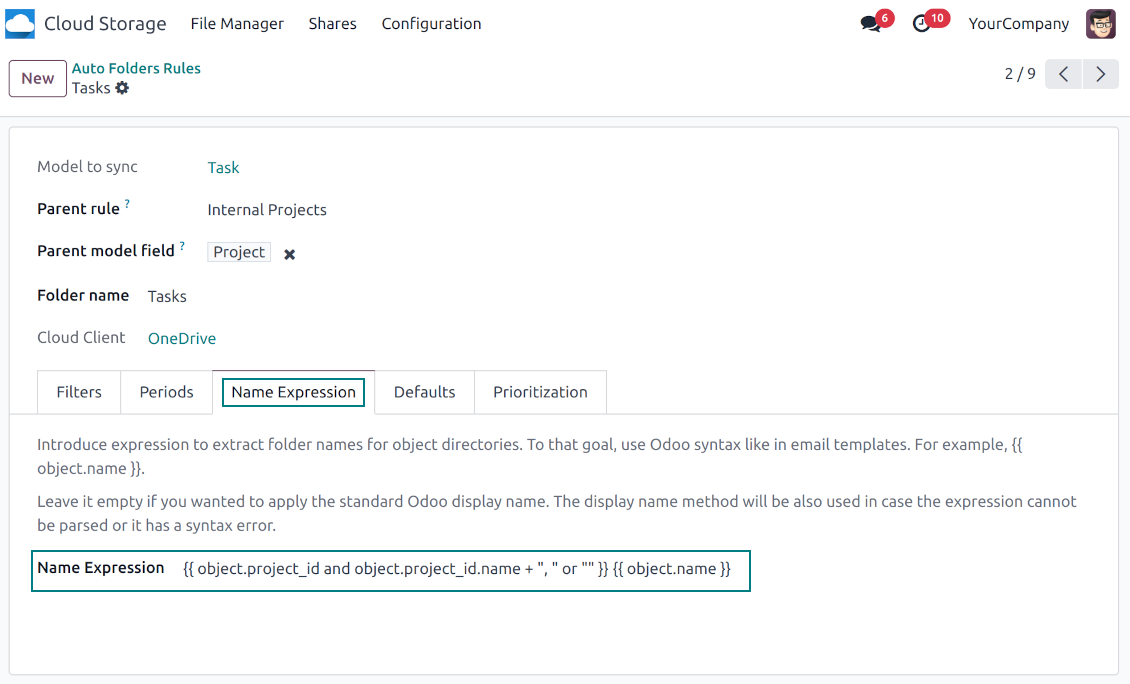
The app lets define complex name expressions for object-related folders (the tab 'Name Expression' on a folder rule form). To that goal, apply the syntax used in Odoo email templates. For example, {{ object.project_id.name }}, {{ object.name }} to reflect a project name in tasks folders
-
Avoid the following symbols in folders' and files' names: *, ?, ", ', :, <, >, /, +, %, !, @, \, /,. Direct sync will replace such symbols with '-'. It is done to avoid conflicts with file systems. Avoid also too long names: e.g. more than 100 symbols
Enterprise Documents
-
The app allows generating folders for workspaces introduced by the Odoo Enterprise apps 'Documents'
-
To force Odoo to prepare workspace-related directories, define folder rule(s) of the type 'Workspace-Related rule'. The tool would automatically create linked folders and sync those for chosen cloud storage with one of the next jobs
-
It is not obligatory to reflect the whole DMS structure. Thus, it is possible to filter workspaces by any storable field. For example, to add a folder only for workspaces that contain the keyword 'Internal'. Take into account: if a workspace was synced, all its child workspaces would be also synced
-
If you generated a subfolder for any workspace-related folder, the app would also create such a Documents workspace
Typical use cases
-
Customers: add all partner files in a single super directory. Optionally distinguish companies and individuals. For example, Odoo > Customers > Azure Interior > Contacts > John Brown
-
Sales orders and invoices: keep all sale-related printings and contracts in your own quotation directories for each customer. For example, Odoo > Customers > Azure Interior > Orders > SO-001 and Odoo > Customers > Azure Interior > Invoices > INV-00001
-
Opportunities: store all specifications, requirements, and any files which would let you make a good offer carefully structured by each sales team and case. For example, Odoo > Sale teams > Europe > Leads > Interest in 50 chairs
-
Project and tasks: prepare a folder for each customer project and task. For example, Odoo > Customers > Azure Interior > Projects > Software design > Tasks > Specification
-
Human resources: gather all files by each employee in a single folder: photos, document scans, contracts. Structure employees by department. For example, Odoo > Departments > Accounting department > Employees > Anita Olivier.
파일 및 폴더 공유
-
Share particular attachments, whole directories, or even all files of specific tags
-
Grant access to chosen Odoo contacts. Send an invitation to any Odoo portal users at any moment
-
Generate a special access link for public use (even without a user). Change it to make the previous one outdated
-
Make shares for temporary use or available constantly until archived
-
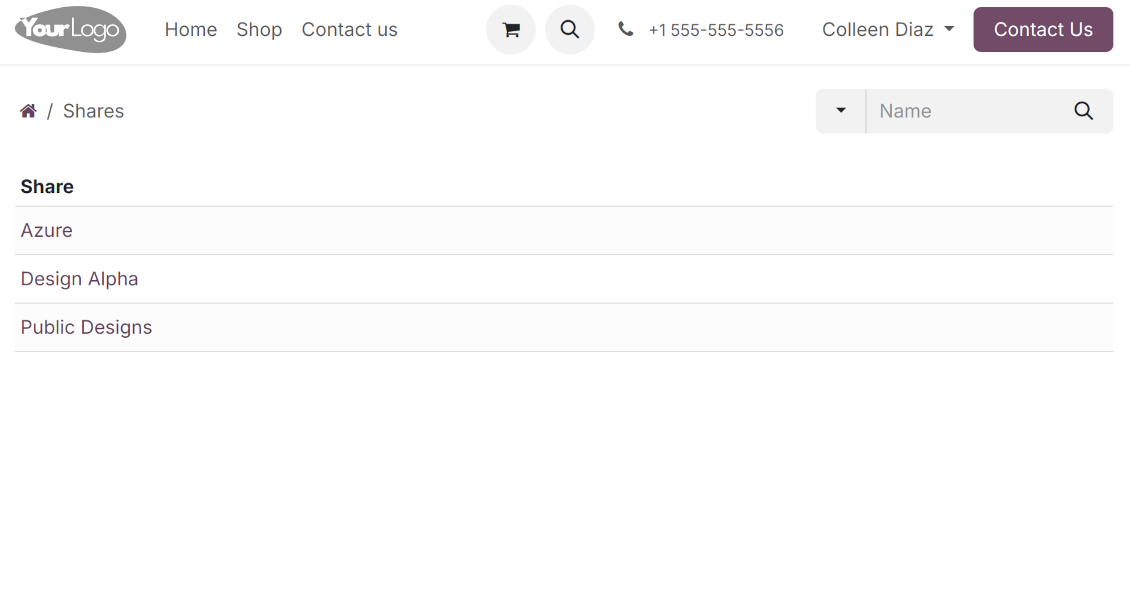
Create an unlimited number of shares with any setups and attachments involved. Portal users might access those through the special entry "Shares" in the Odoo's portal
-
For single-view purposes, shares support hierarchy so as to make comfortable navigation by those
-
Share users can download any shared file, a whole share, a particular directory, or a tag as a ZIP archive
-
Optionally let upload files to the selected or default folder. Files drag and drop is supported
-
Users are always allowed to search attachments by title, linked folder, and tags
-
Optionally allow navigation by folders and/or tags. Shared tags/folders, their children, and ones linked to shared attachments will be available
-
Let users add tags and folders by themselves. Show/hide searching items in tags/folders navigation trees
-
Turn on/off a chat per each share.
문서 관리 및 동기화 접근 권한
-
Access for each Odoo automatic folder is regulated based on a linked object. If such an Odoo object is available for a specific user, its directory would be also available for her/him. For example, if Anita Olivier is the task manager of 'Prepare specification', then she may access the folder 'Tasks' and 'Tasks > Prepare Specification'
-
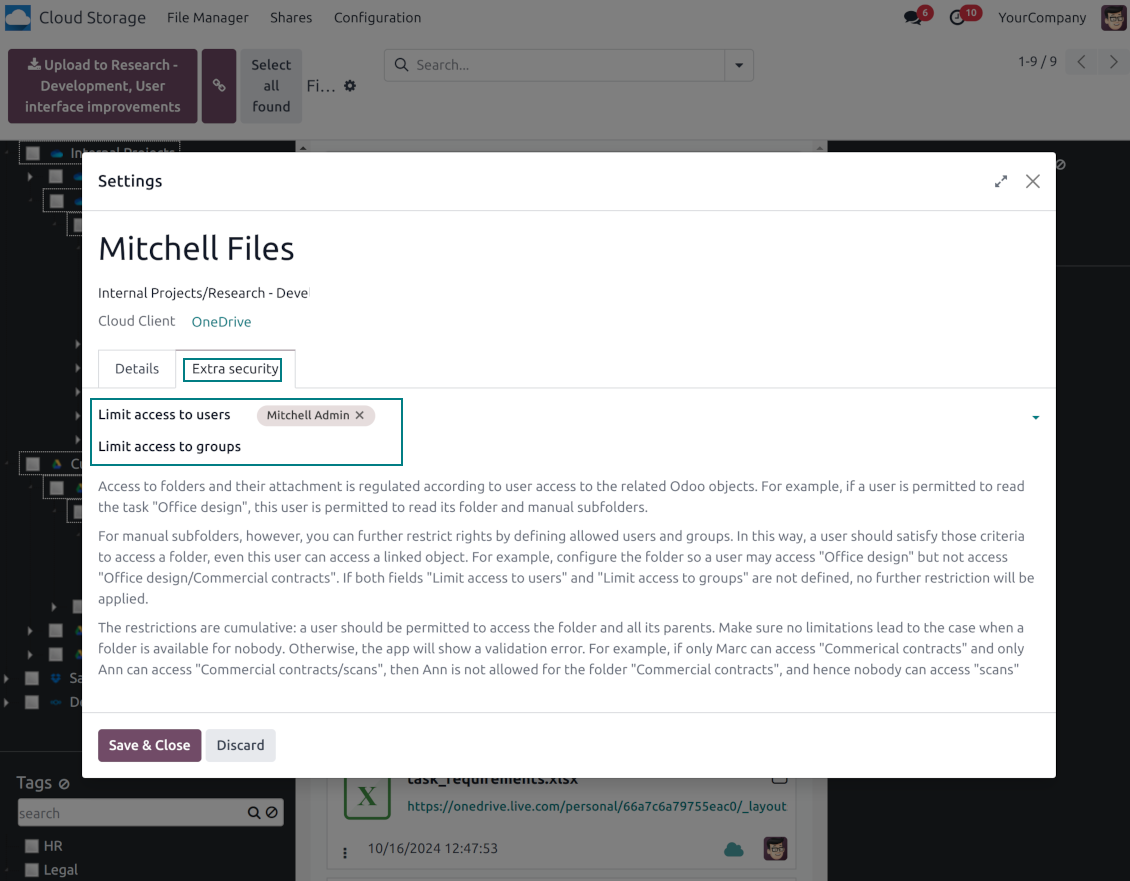
Access to Odoo manual folders is regulated based on its user groups and users stated in those folders' settings. If nobody is specified, a manually created folder is available for everyone. For example, if Anita Oliver is a sales manager, she may access the quotation-related folder 'Odoo > Orders > SO-001'
-
To access any folder, a user should be able to access all its parents. For example, if Anita Oliver has rights for employees but does not have for departments, then she might not read 'Odoo > Departments > Administration > Employees > Mitchel Admin'. However, if the folder 'Employees' becomes a stand-alone folder without a parent, then Anita would be able to access 'Odoo > Employees > Mitchel Admin'
-
The app does not regulate access levels for cloud clients and their items. The tool regulates rights only for Odoo objects and synchronizes those to required storage. After the sync, if necessary, you should apply the settings for a target cloud client, folders, and files
-
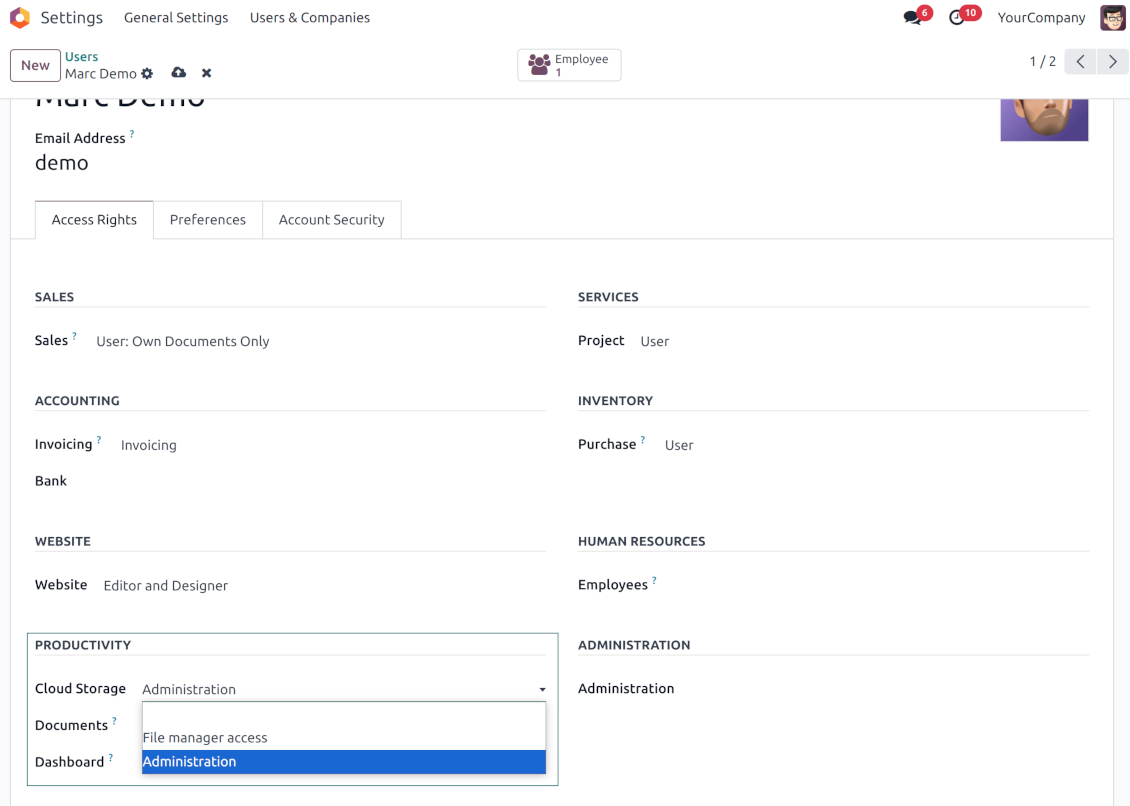
To observe the menu 'Cloud Storage' and the app file manager, a user should belong to the security group 'Cloud Storage > File Manager Access'
-
To configure automatic folder rules, establish connections with various cloud clients, control sync logs, and apply the app settings, a user should belong to the security group 'Cloud Storage > Administration'.
사용 참고
-
The app assumes automatic regular synchronization with various cloud clients. Please take into account that synchronization is not real-time but is based on tasks queue and scheduled jobs. Depending on the number of folders and attachments, it might take time for the app to check all directories and do the jobs. That's why, until the sync is done, Odoo attachment interfaces work as in standard Odoo.
-
Cloud connections rely upon the API of the related cloud clients. Such communication between systems is risky by concept due to possible disconnections, API updates, and unsolvable conflicts. The app is designed to cope with such risks by carefully processing failures and checking cloud client states. Simultaneously, make sure that you have configured a proper backup strategy for both Odoo and cloud clients.
-
The special factors of risks are sync scope and reverse operations. The higher the sync scope is, the more it would take Odoo to finish integrations. Hence, more space for errors exists. Try to decrease sync scope logically by choosing only required folders. Reverse operations might be risky since assume reflecting cloud clients' features which might be absent in Odoo. For example, Google Sheets cannot be opened outside Google Docs. The app would try to solve the scenarios by applying similar features (e.g. by converting a file to simple electronic tables). However, that is not always possible, and in this way, manual interactions would be required.
구성 및 설치 팁: Cloud Storage Solutions Odoo v.18
Odoo 서버 구성
동기화가 올바르게 동작하려면 Odoo 구성 파일에 적절한 timeout을 적용하세요. LIMIT_TIME_CPU, LIMIT_TIME_REAL, LIMIT_TIME_REAL_CRON은 900초보다 커야 합니다.
Odoo.sh에서는 제한 시간이 미리 정해져 있고 구성할 수 없으므로 이렇게 하면 안 됩니다.
앱이 가정하는 cron 작업 주기도 변경하지 마세요. '[Cloud Storage] Prepare Cloud Folders', '[Cloud Storage] Run / Prepare sync queue'. 해당 작업은 15분마다 실행되도록 구성되어 있으며, 그 주기는 중단과 데이터 손실을 막는 알고리즘에 사용됩니다. 잠시 동기화를 멈춰야 하면 특정 cloud client를 일시 중지하십시오.
일반 Python 의존성
도구는 외부 라이브러리 'sortedcontainers'에 의존합니다. Odoo 서버에 다음 명령으로 설치하세요:
pip3 install sortedcontainersOneDrive 또는/및 SharePoint 연동 설정
Python 종속성
도구는 외부 라이브러리 'microsoftgraph'에 의존합니다. Odoo 서버에 다음 명령으로 설치하세요:
pip3 install microsoftgraph-python
구성 및 로그인
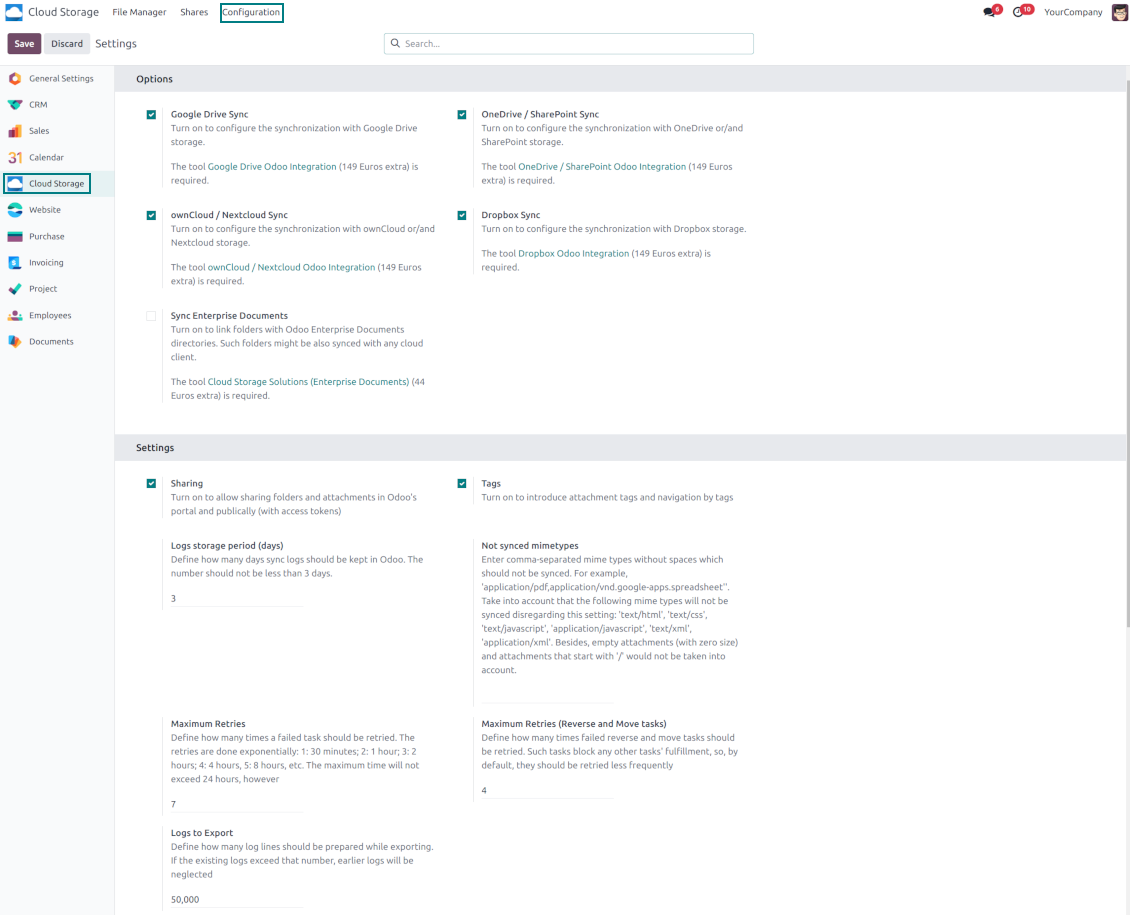
- 'OneDrive / SharePoint Sync' 옵션을 켜세요 (cloud Storage > Configuration > Configuration). 선택 추가 기능 OneDrive / SharePoint Odoo Integration이 필요합니다
- Odoo에 연결할 OneDrive / SharePoint에 대해 Microsoft 사용자에게 전체 관리자 권한이 있는지 확인하세요. 이 사용자는 권한 부여에만 필요하며, 사용자 데이터는 Odoo에 보관되지 않고 이후에도 사용되지 않을 것입니다. 또한 사용하는 한 Microsoft 이메일 주소에 리디렉션이 없는지 확인하세요(도메인 이름을 구성했는데 기본 주소가 여전히 @outlook.com, @office365 등 Microsoft 도메인인 경우에 흔합니다).
- Azure Portal로 이동: https://portal.azure.com/#blade/Microsoft_AAD_RegisteredApps/ApplicationsListBlade
앱은 디렉터리(tenant) 안에 등록해야 합니다. Microsoft는 더 이상 디렉터리 밖에서 새 앱을 만들 수 없습니다.
- 이미 회사 Microsoft 365 / Azure 디렉터리가 있으면 포털(오른쪽 위)을 그쪽으로 전환한 뒤 계속하세요.
- 개인 계정만 있고(@outlook.com, @hotmail.com, @live.com) "these applications are associated with the account ... but are not contained within any directory"가 보이면 아직 디렉터리가 없습니다. 같은 Microsoft 계정으로 무료 Azure 계정에 가입하세요: https://azure.microsoft.com/free/ - Azure를 무료로 사용해 보세요. 비용 없이 Default Directory가 만들어집니다.
- Microsoft는 본인 확인용으로만 카드를 요청합니다. 약 1 USD가 일시 보류된 뒤 해제됩니다. 디렉터리와 앱 등록에는 요금이 없습니다.
- 디렉터리(Microsoft Entra ID Free)와 그 안에 등록된 앱은 30일 / 200달러 Azure 평가판 크레딧과 무관하게 계속 작동합니다. 그 크레딧은 여기서 쓰지 않는 유료 Azure 리소스용입니다. 저희 앱에는 결제가 필요하지 않습니다.
- 디렉터리 전체가 아주 오래 전혀 쓰이지 않으면(Microsoft 기준은 약 200일 무활동) Microsoft가 경고 메일을 보낸 뒤 결국 폐기할 수 있습니다. Odoo는 동기화할 때마다 이 앱을 호출하므로 활성 연결이 디렉터리를 활성 상태로 유지합니다. 몇 달 동안 동기화를 완전히 멈출 때만 해당됩니다.
- 실제 디렉터리("Microsoft Services"가 아님)에 들어가면 거기서 App registrations를 여세요.
- 'New registration'을 클릭
- Introduce a new name for the application and assign the redirect URI as [YOURODOOSITENAME]/one_drive_token (e.g. https://odootools.com/one_drive_token). As the supported account types choose 'Accounts in any organizational directory (Any Azure AD directory - Multitenant) and personal Microsoft accounts (e.g. Skype, Xbox)'.
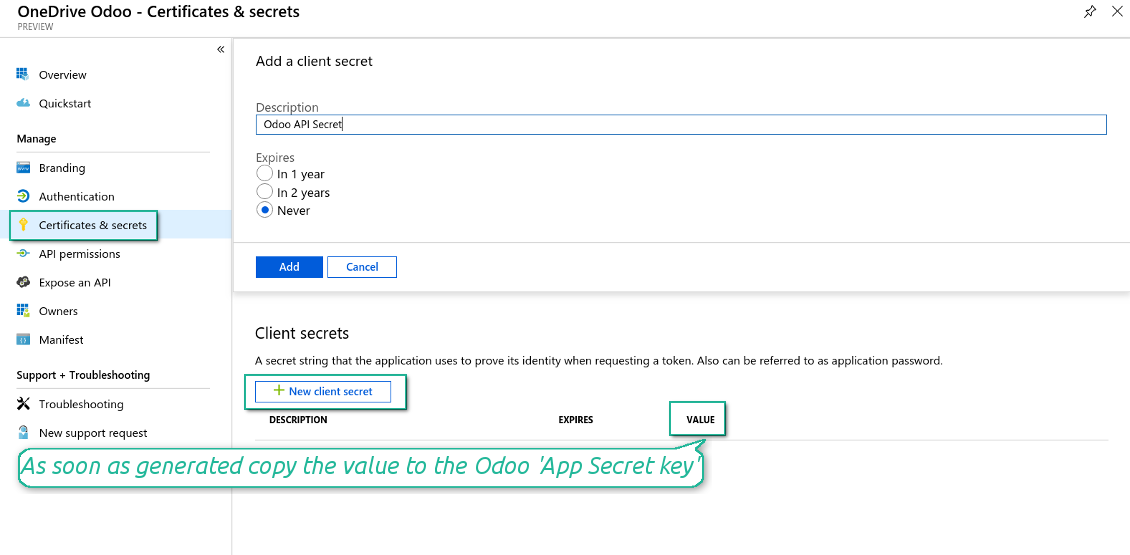
- Certificates & secrets로 이동한 뒤 'New Client Secret'을 클릭합니다. secret 값을 어딘가에 저장하세요
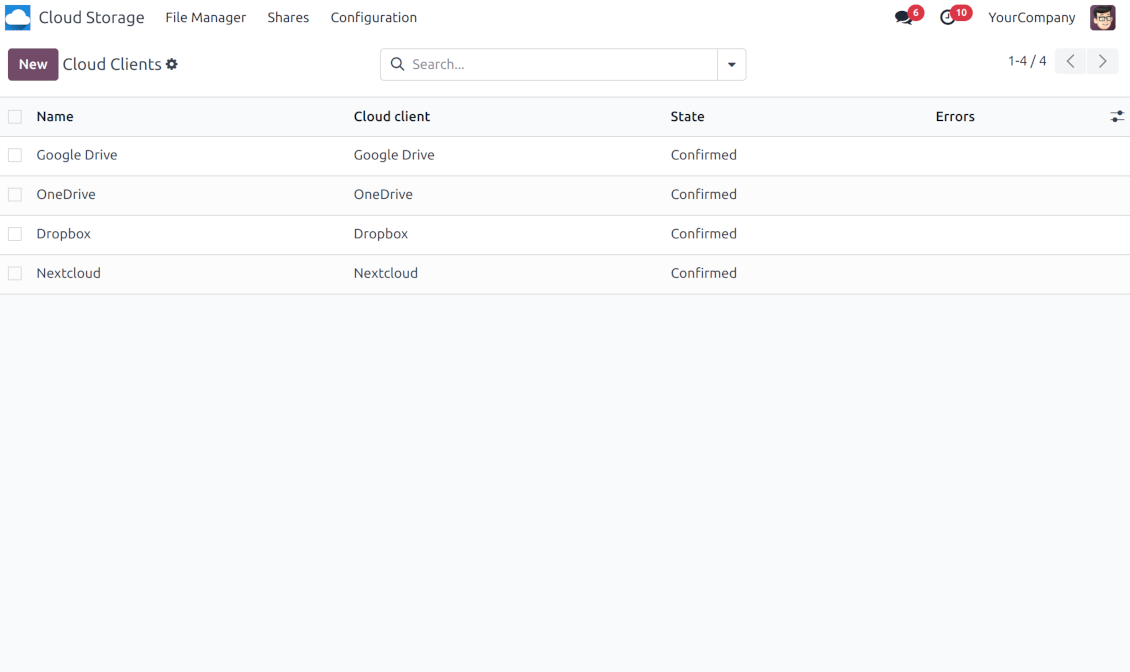
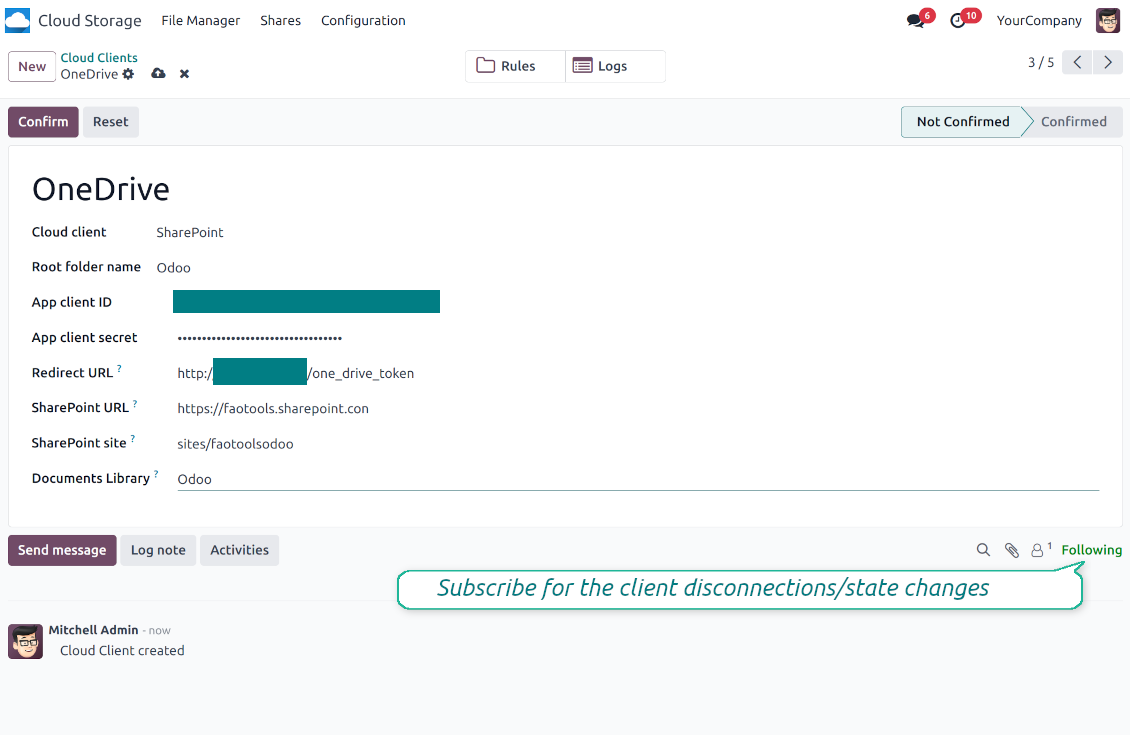
- Odoo Cloud Storage > 환경설정 > Cloud Clients로 가 'Create'를 누릅니다
- 참조에는 모든 사용자가 알아볼 이름을 입력
- Cloud client로 사용 중인 소프트웨어에 따라 'OneDrive' 또는 'SharePoint'를 선택하세요
- Root folder 이름으로 동기화된 모든 폴더의 상위 OneDrive directory로 쓸 제목을 입력하세요. 예: 'Odoo' 또는 'OdooERP'
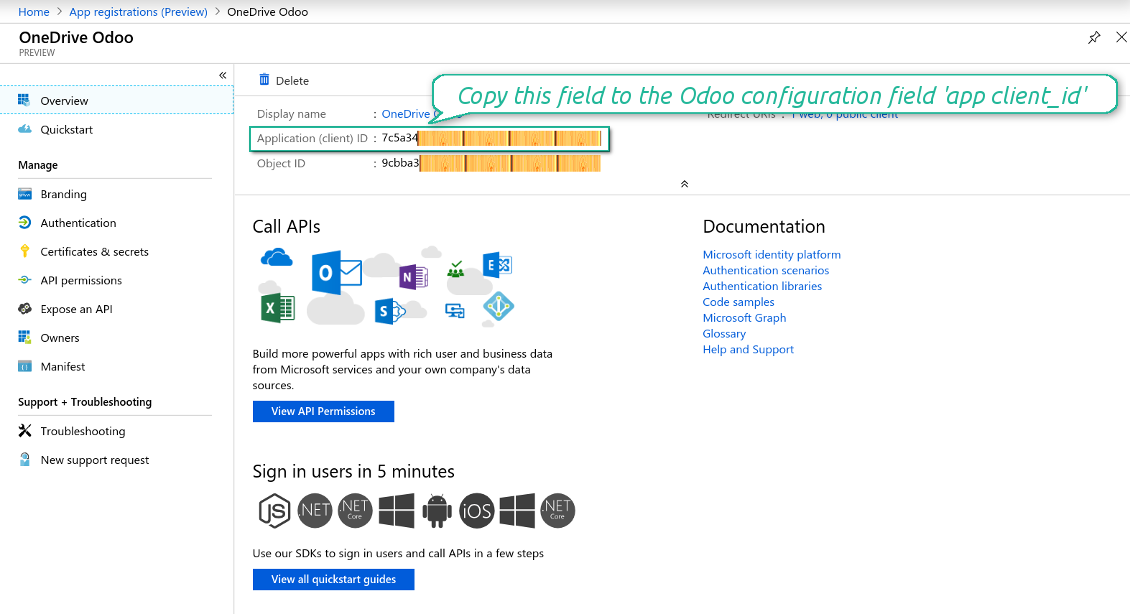
- 'Application Client ID'를 'App client ID'에 복사
- 비밀 값을 'App client secret' 필드에 복사
- 이전에 생성한 리디렉션 URL 삽입
- SharePoint를 쓰는 경우:
- SharePoint 사이트로 가서 새 문서 라이브러리(드라이브)를 준비하세요. 기존 것, 예: 'Documents'를 써도 됩니다. Odoo 폴더는 이후에 그곳에 들어가며 다른 라이브러리로 옮길 수 없습니다
- SharePoint URL은 https://[URL]/ 형식이어야 합니다. 마지막 '/'는 필수이며 사이트 이름은 포함하지 마세요. 예: https://odootools.sharepoint.com/
- SharePoint 사이트는 root(최상위 SharePoint 사이트), my_site_name(이 경우 sites/my_site_name으로 간주) 또는 sites/my_site_name('sites' 대신 'teams' 등일 수 있음)여야 합니다. 앞뒤에 '/'가 있으면 안 됩니다. 예: sites/odootools
- Documents Library는 SharePoint에서 만든 것을 사용
- 'Confirm'을 누르세요. Odoo가 Microsoft 로그인 페이지로 이동합니다. 시스템에서 확인하고 모든 조건에 동의한 뒤 요청된 권한을 모두 부여하세요. If Microsoft shows an account already signed in and says it does not exist in tenant 'Microsoft Services' (or any other unrelated tenant), do not click that row. Click 'Use another account' and sign in with the Microsoft account that owns the app's directory
- 로그인 후 OneDrive가 다시 Odoo로 연결합니다. OneDrive - Odoo 동기화를 진행할 수 있습니다
- 새로 만든 cloud client를 해당 OneDrive 또는 SharePoint 인스턴스와(과) 동기화할 폴더 규칙 및/또는 수동 폴더에 적용하세요
- 동기화 예약 작업이 시작될 때까지 기다리세요. 테스트 전용: Cloud Storage > 환경설정 > 환경설정 > 'Launch sync' 버튼에서 통합을 수동으로 실행합니다.
함께 보기 구성 동영상
Azure 애플리케이션 만들기
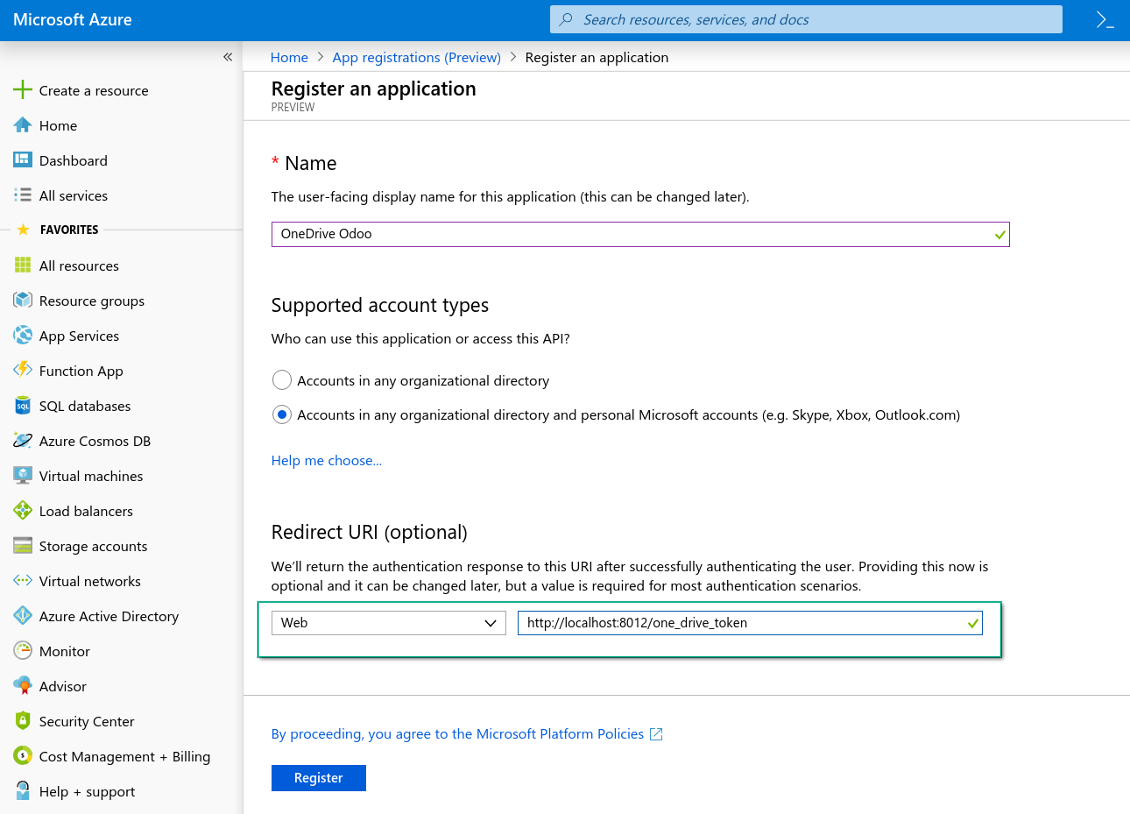
새 OneDrive 웹 플랫폼 및 리디렉션 URL
Azure 애플리케이션용 새 암호 생성
Odoo에 구성 키 입력
Google Drive 연동 설정
- 'Google Drive Sync' 옵션을 켜세요 (cloud Storage > Configuration > Configuration). 선택 추가 기능 Google Drive Odoo Integration이 필요합니다
- URL로 Google Cloud Console에 이동 https://console.cloud.google.com
- 프로젝트를 선택하거나 만듭니다
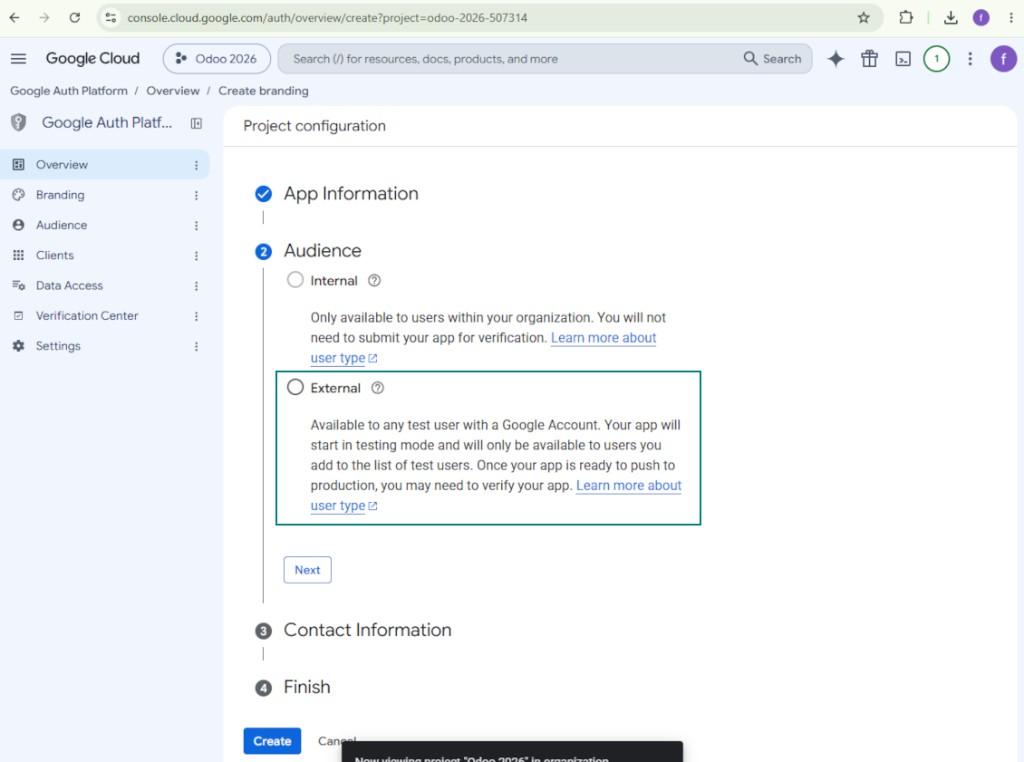
- 프로젝트를 선택하면 콘솔이 Google Auth Platform을 엽니다. 'Get Started'를 누르세요
- 앱 정보 추가
- 앱 이름에는 적절한 아무 값이나 선택
- 사용자 지원 이메일로 본인 주소를 선택
- 'Next'를 누릅니다
- 대상으로 'External'을 선택하고 'Next'를 누르세요. 참고: 이 앱은 어차피 본인 Odoo 연결에만 씁니다
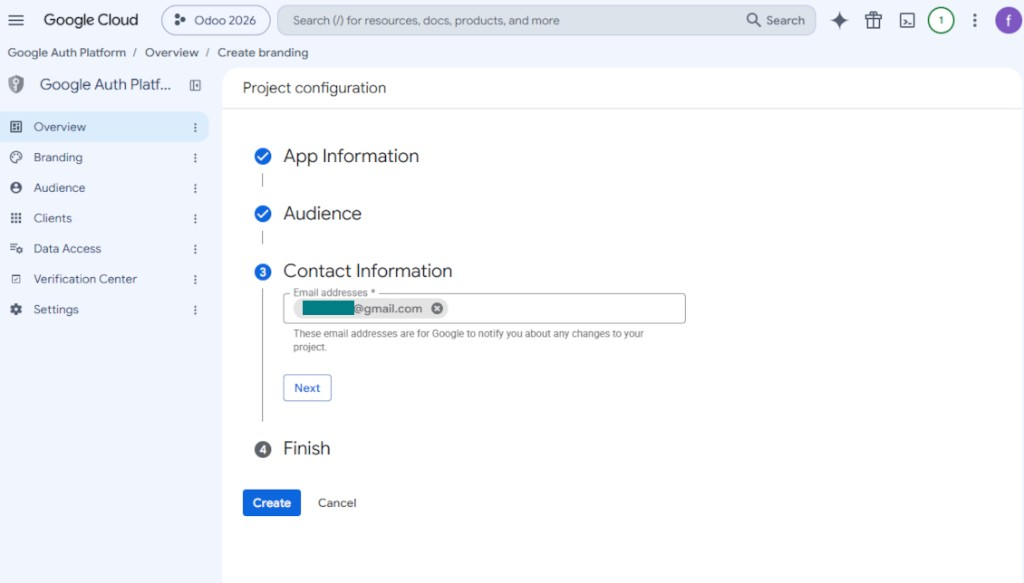
- 연락처로 Google 또는 Google Workspace 이메일을 입력하고 'Next'를 누르세요
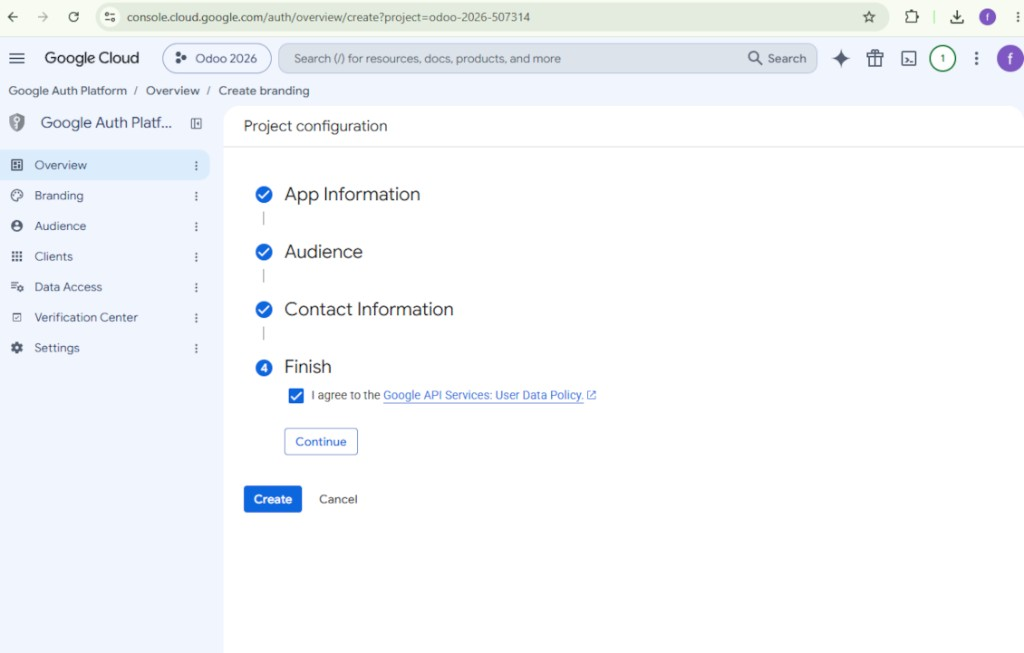
- Google API Services User Data Policy에 동의하고 'Continue'를 누른 뒤 'Create'를 누르세요
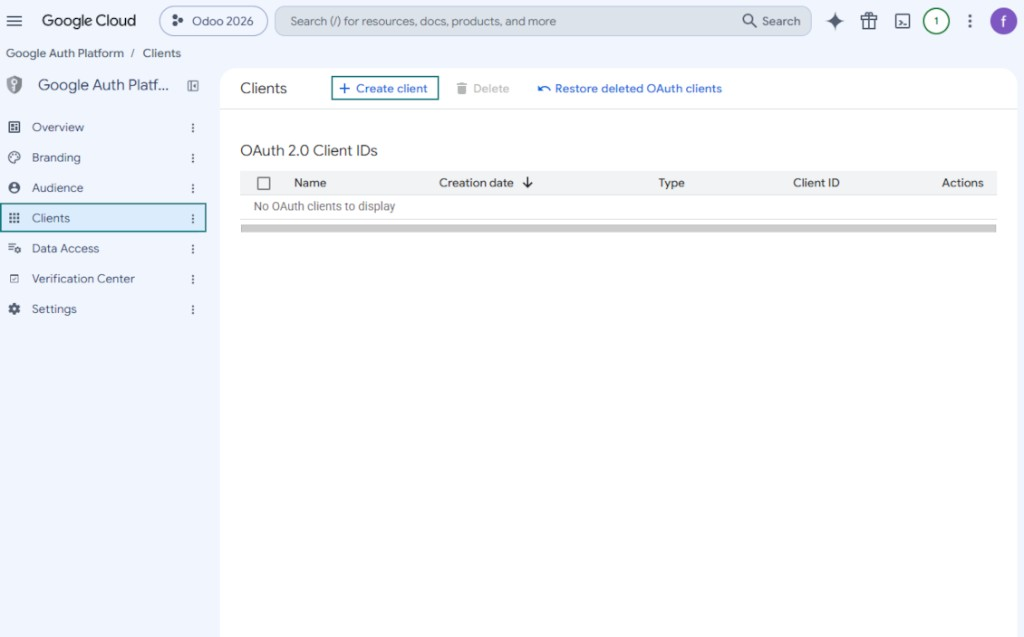
- 'Clients'로 가서 'Create client'를 누릅니다
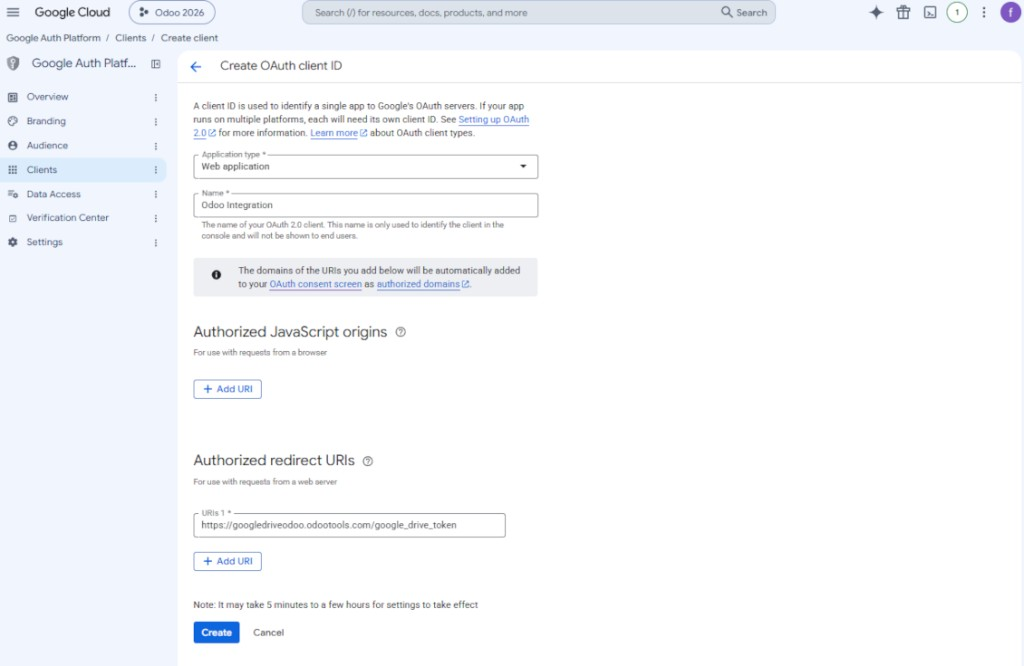
- 애플리케이션 유형으로 'Web application'을 선택
- 이름에는 적절한 아무 값이나 선택
- 승인된 리디렉션 URI로, [YOURODOOSITENAME]/google_drive_token 형식의 링크를 추가하세요 (예: https://odootools.com/google_drive_token).
- 'Create'를 누릅니다
- 'Client ID'와 'Client secret'을 복사해 안전하게 보관하세요. Client secret은 한 번만 표시됩니다
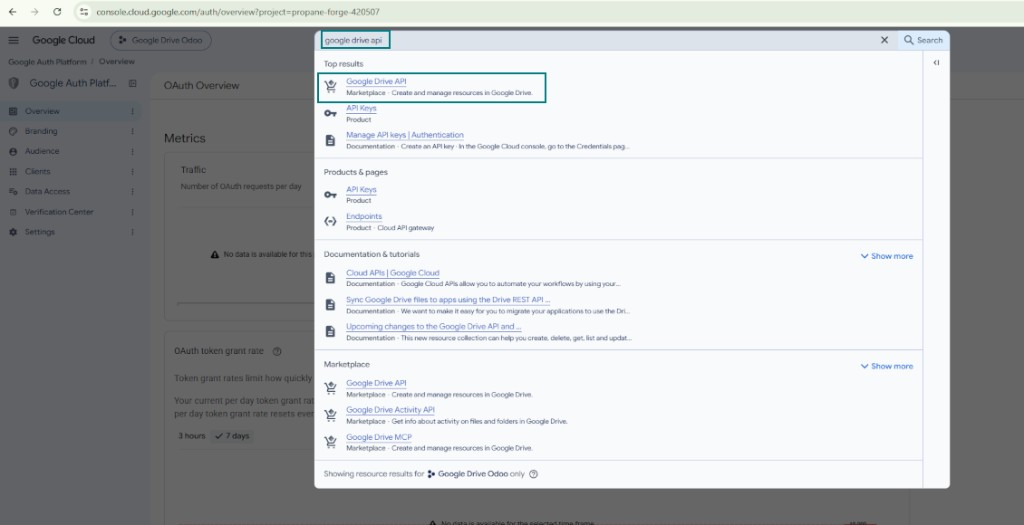
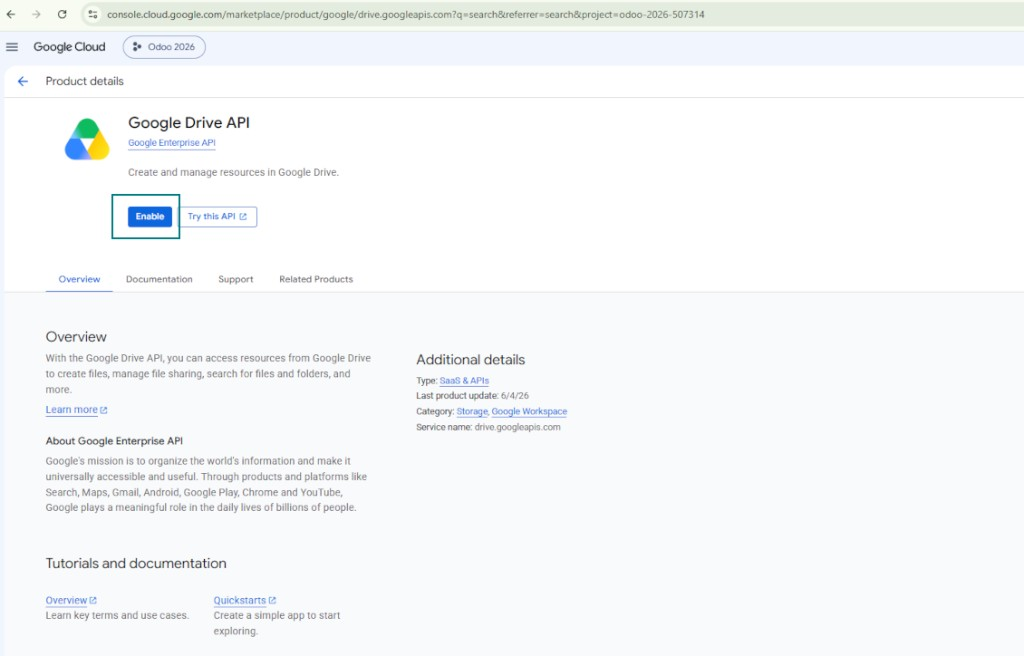
- 이 프로젝트에 Google Drive API를 사용 설정합니다. 위쪽 검색창에 'Google Drive API'를 입력하고, 찾은 제품을 연 다음 'Enable'을 누릅니다
- 'Audience'로 가서 이메일 주소를 테스트 사용자로 추가
- 앱을 게시하세요. 그렇지 않으면 테스트 상태로 남고 토큰이 7일마다 만료됩니다
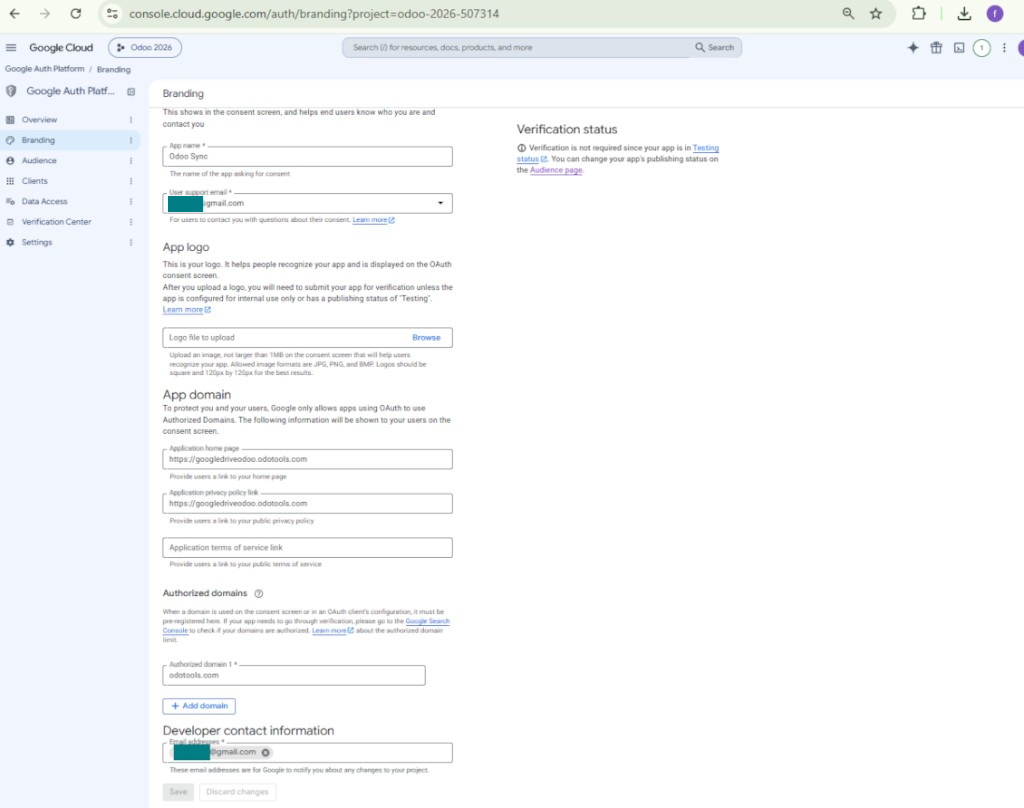
- 'Branding'을 열고 애플리케이션 홈페이지와 개인정보 처리방침 링크(예: Odoo 웹사이트 링크)를 입력하세요. 해당 링크의 도메인을 authorized domains로 추가합니다
- 'Audience'를 열고 'Publish app'을 누르세요
- 앱 로고를 업로드하지 마세요. 실제로 필요 없는 길고 복잡한 Google 인증 절차가 시작됩니다
- Odoo Cloud Storage > 환경설정 > Cloud Clients로 가 'Create'를 누릅니다
- 참조에는 모든 사용자가 알아볼 이름을 입력
- Cloud 클라이언트로 'Google Drive'를 선택
- Root folder 이름으로 동기화된 모든 폴더의 상위 Google Drive directory로 쓸 제목을 입력하세요. 예: 'Odoo' 또는 'OdooERP'
- 9단계의 'Client ID'를 'App client ID' 필드에 복사
- 9단계의 'Client secret'을 'App client secret' 필드에 복사
- 9단계에서 입력한 리디렉션 URL 삽입
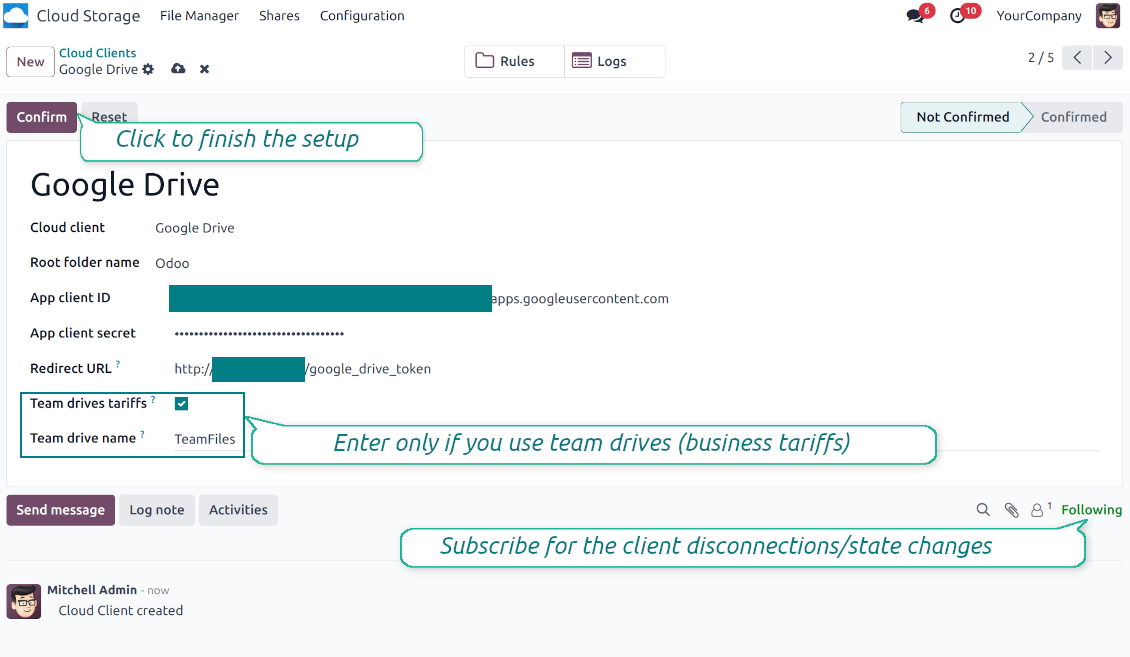
- 팀 드라이브를 쓰면 관련 상자를 선택하세요. 실제로 팀 드라이브를 쓰는지 확인하세요. Google Drive 왼쪽 사이드바에 'Team Drives' 항목이 있어야 합니다. 이 기능은 비즈니스 및 enterprise 요금제에서만 제공됩니다
- 'Team Drive' 옵션이 켜져 있으면 이름을 입력하세요. Google Drive에서 보이는 것과 완전히 같아야 합니다. 사용자가 모든 Google 드라이브에 대한 전체 권한을 갖는지 확인하세요(보통 팀 Google Drive를 구성하는 동일 사용자).
- 'Confirm'을 누르세요. Odoo가 Google 로그인 페이지로 이동합니다. 시스템에서 확인하고 모든 조건에 동의한 뒤 요청된 권한을 모두 부여하세요
- 로그인 후 Google가 다시 Odoo로 연결합니다. Google Drive - Odoo 동기화를 진행할 수 있습니다
- 새로 만든 cloud client를 해당 Google Drive와(과) 동기화할 폴더 규칙 및/또는 수동 폴더에 적용하세요
- 동기화 예약 작업이 시작될 때까지 기다리세요. 테스트 전용: Cloud Storage > 환경설정 > 환경설정 > 'Launch sync' 버튼에서 통합을 수동으로 실행합니다.
함께 보기 구성 동영상, 참고: 영상의 Google console 부분은 오래되었습니다. 위 단계를 따르세요
Google Auth Platform 열기
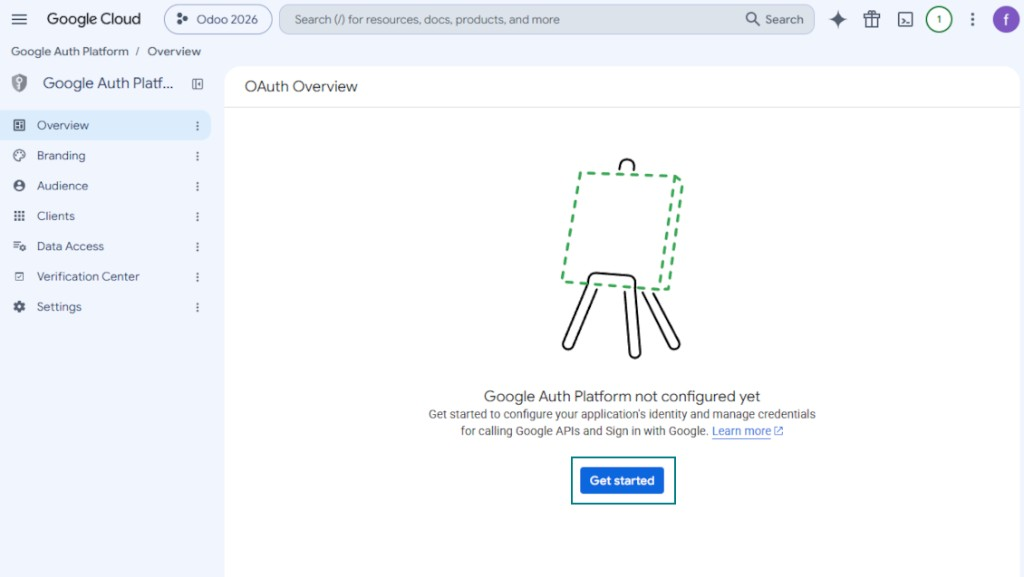
앱 정보 추가
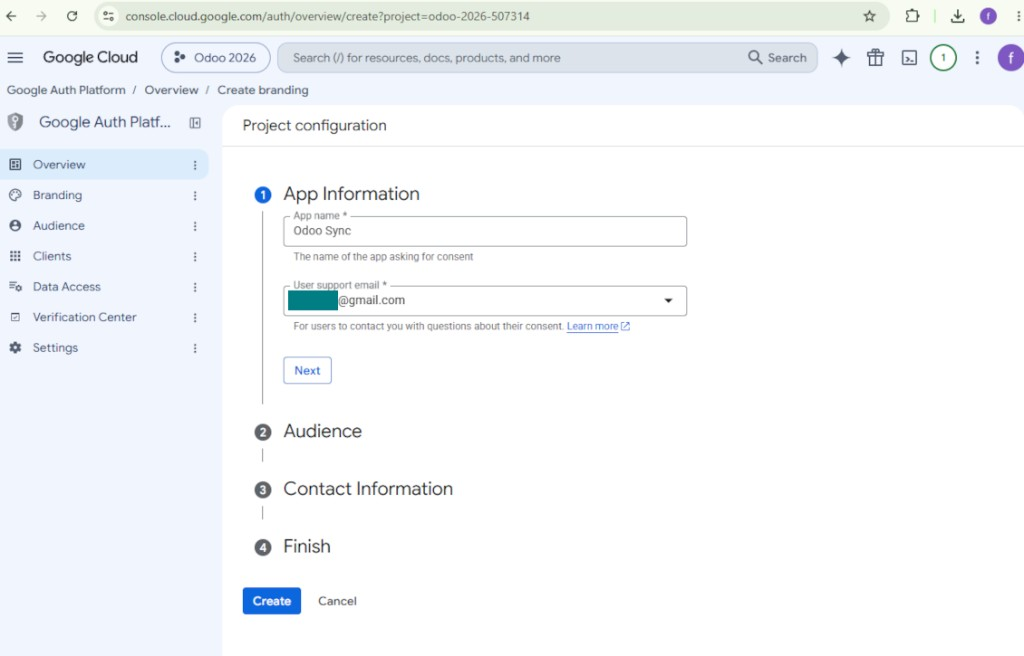
외부 대상을 선택하세요
연락처 정보 추가
정책에 동의하고 앱 만들기
OAuth 클라이언트 만들기
웹 애플리케이션 클라이언트 구성
클라이언트 ID와 클라이언트 시크릿 복사
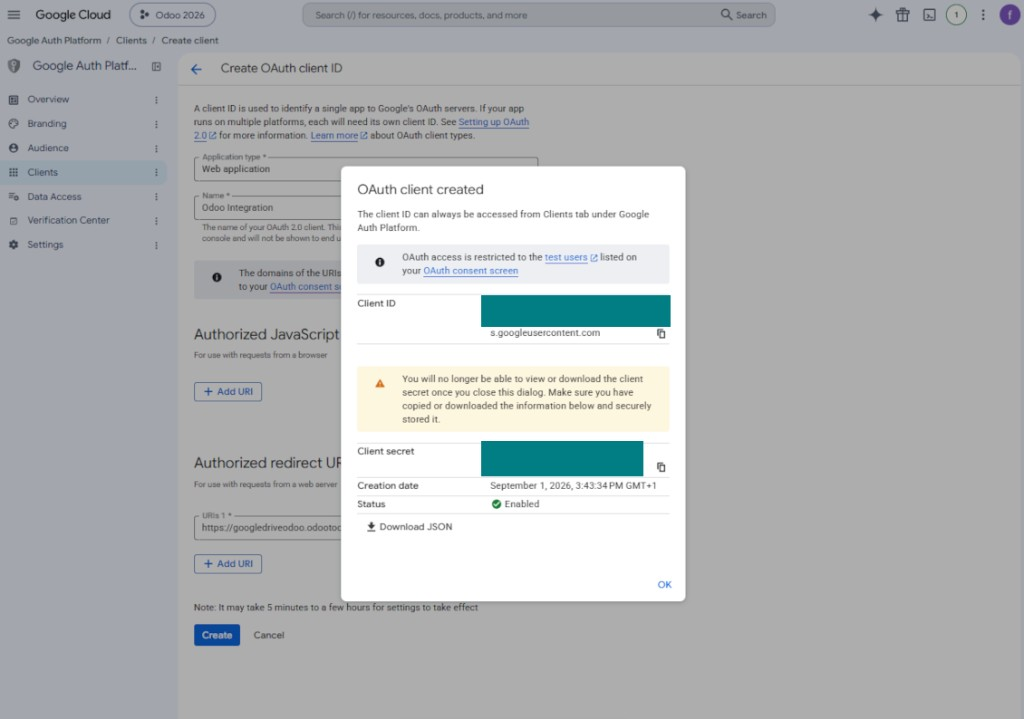
Google Drive API 찾기
Google Drive API 사용
앱을 게시하려면 브랜딩을 입력
Google 앱 자격 증명을 Odoo에 입력
Amazon S3 설정
- 옵션 'Amazon S3 Sync'을(를) 켜세요 (Cloud Storage > 구성 > 구성). 선택 추가 모듈 Amazon S3 Odoo Integration이(가) 필요합니다
- Amazon S3 콘솔 열기: https://console.aws.amazon.com/s3/
- 새 버킷을 만들거나 기존 버킷을 선택하세요. 정확한 버킷 이름을 복사해 Odoo의 'Bucket' 필드에 넣어야 합니다
- 버킷 세부정보를 열고 AWS Region을 복사하세요. Odoo의 'Region' 필드에 넣습니다(예: eu-west-1 또는 us-east-1)
- AWS IAM 콘솔 열기: https://console.aws.amazon.com/iam/
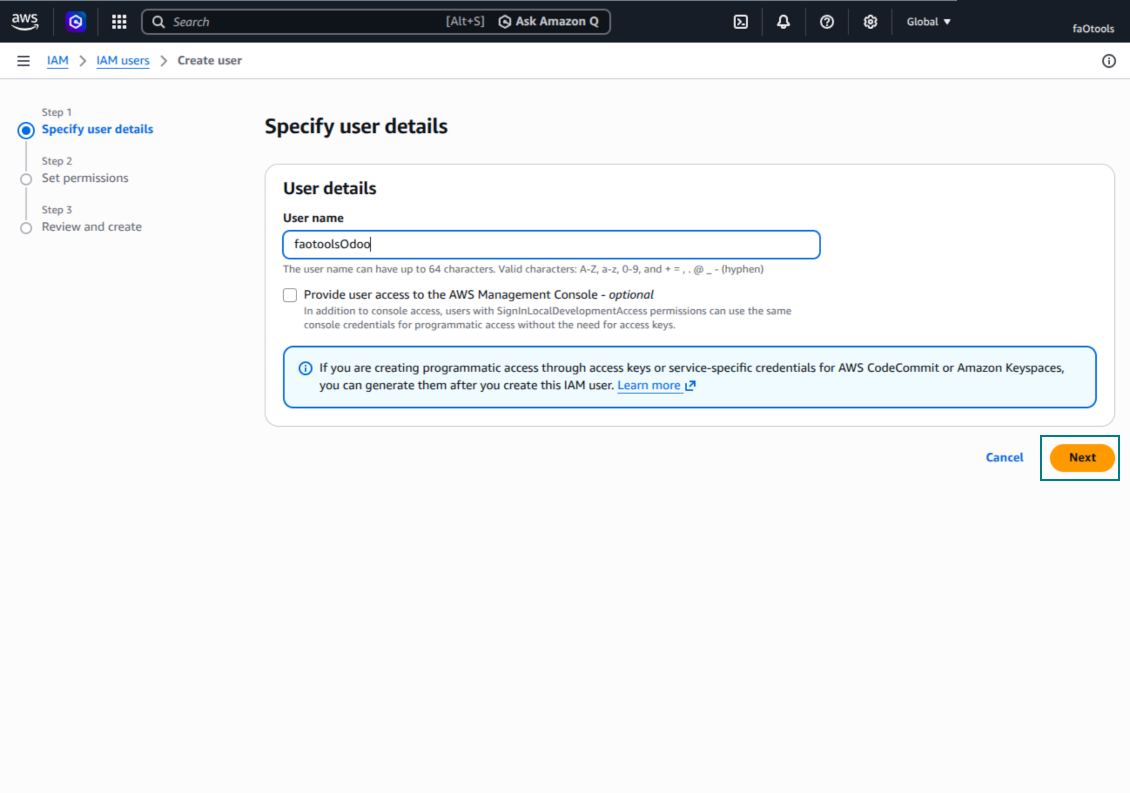
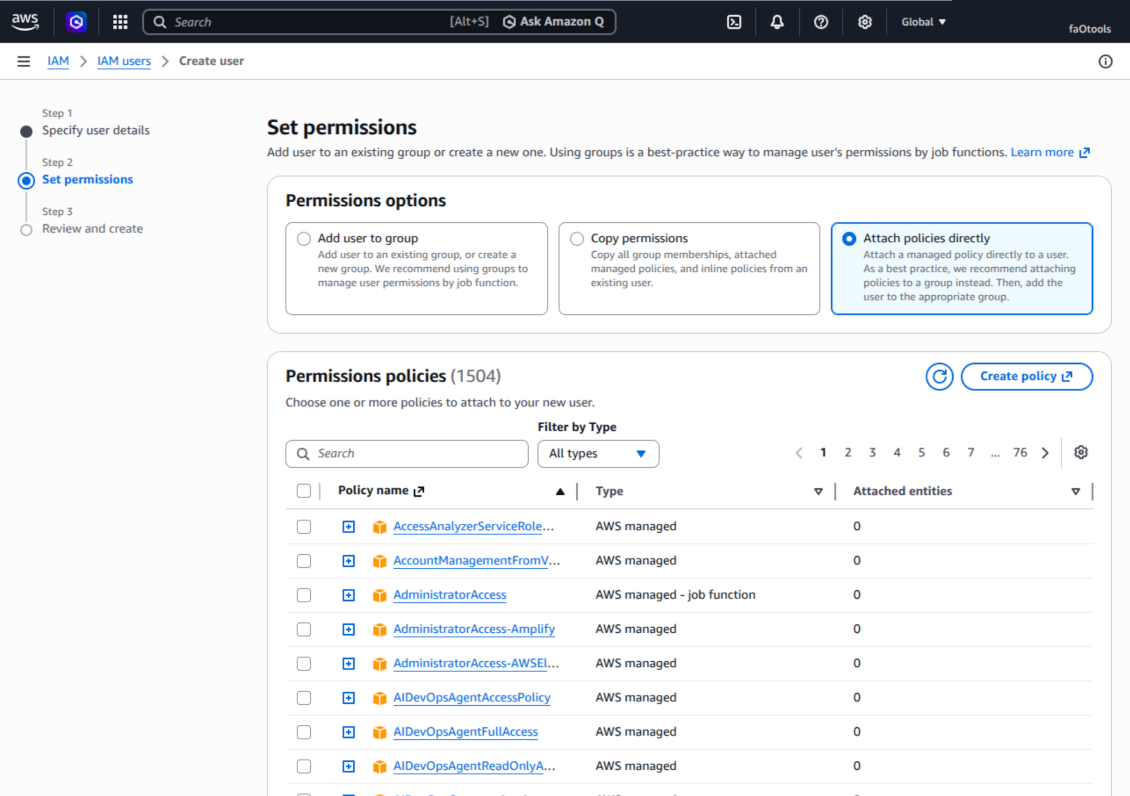
- 새 IAM 사용자를 만들거나 기존 기술 사용자를 고르세요. 이 사용자는 선택한 버킷에서 개체를 나열, 읽기, 만들기, 쓰기, 복사, 삭제할 전체 권한이 있어야 합니다. 전체 권한 관리자를 고르거나 새 정책을 만들 수 있습니다(아래 참조)
- IAM 사용자 양식에서 탭 'Security credentials'를 열고 'Create access key'를 누릅니다
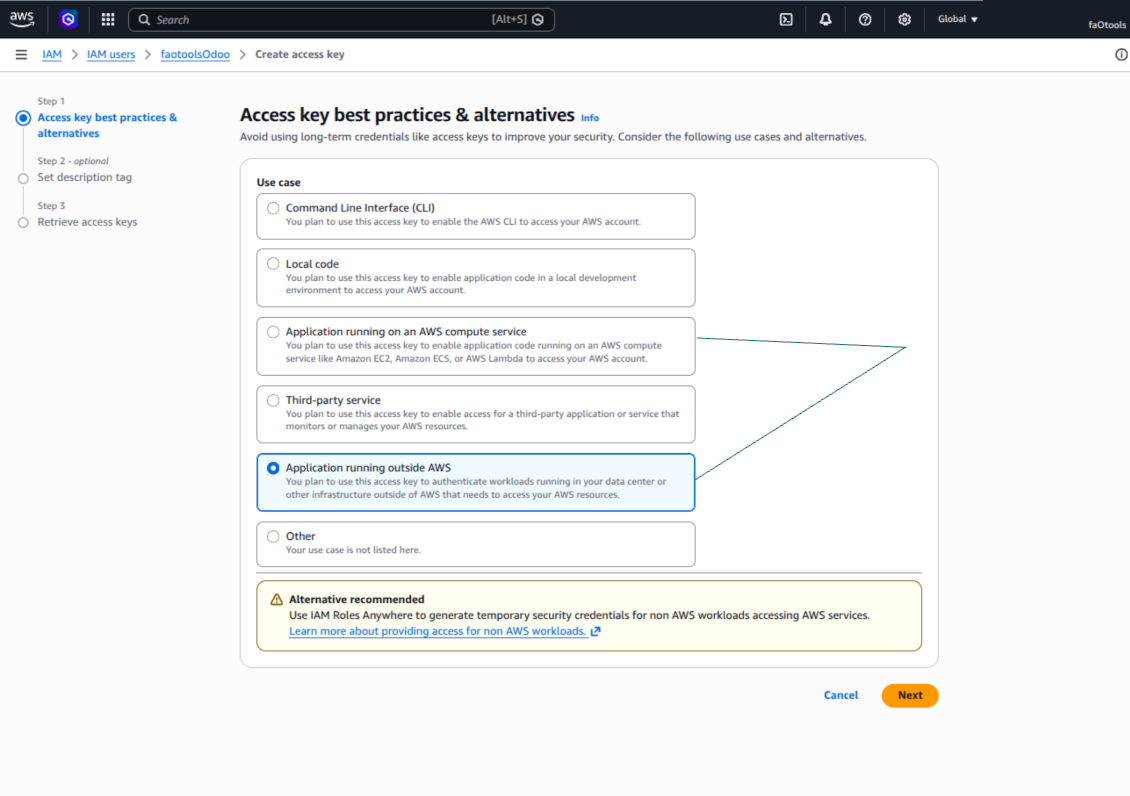
- 페이지 'Access key best practices & alternatives'에서 Application running outside AWS를 선택하세요. Odoo 서버가 AWS 밖, Odoo.sh, 자체 서버 또는 다른 호스팅에서 액세스 키로 S3에 연결할 때 올바른 옵션입니다. Odoo가 AWS EC2 인스턴스에 있으면 Application running on an AWS compute service를 선택할 수 있지만 Odoo로 복사되는 필드는 같습니다
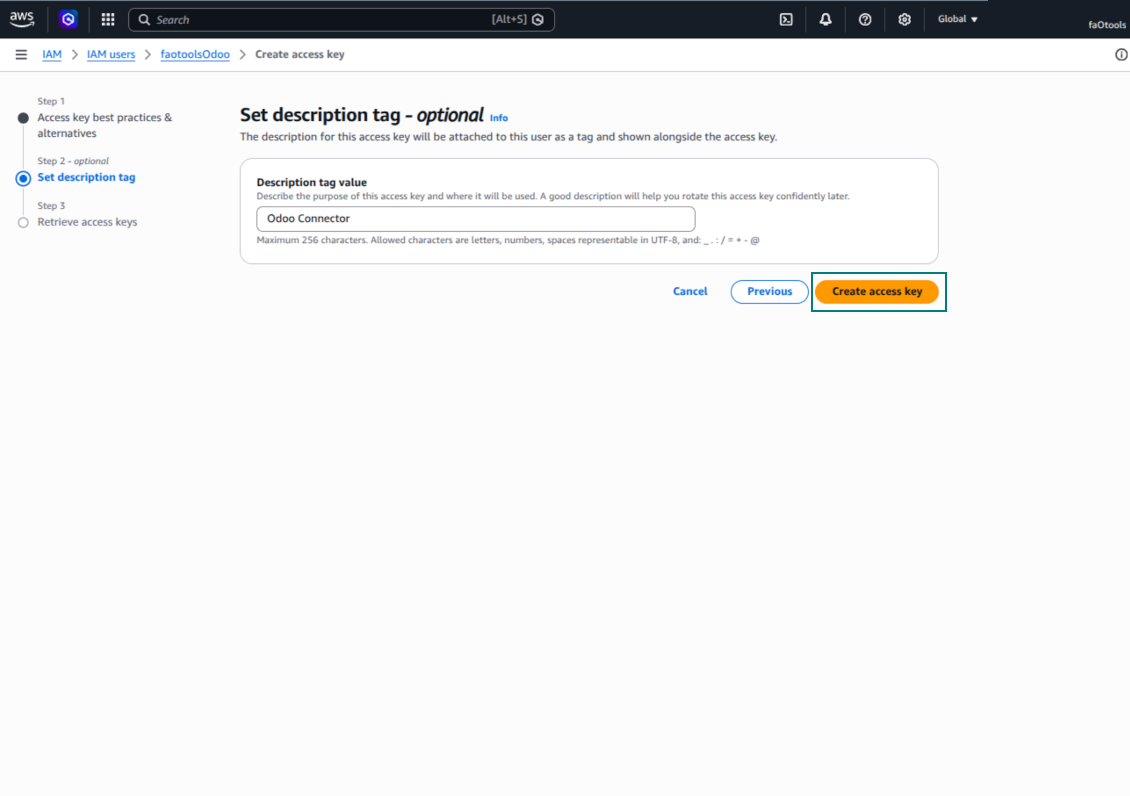
- 'Next'를 누르세요. 다음 단계에서 선택적으로 Odoo S3 Sync 같은 설명 태그를 입력한 뒤 'Create access key'를 누르세요
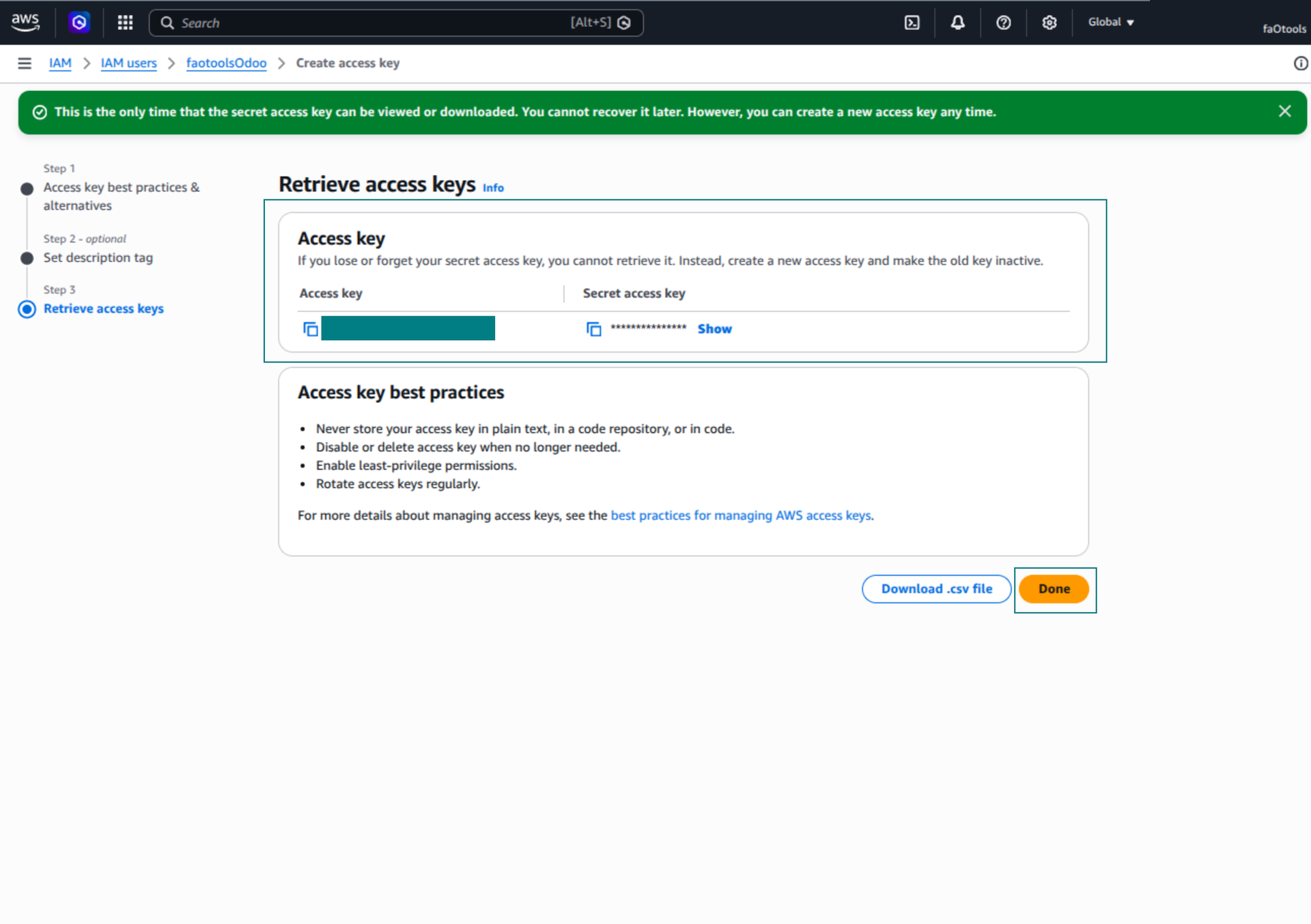
- 마지막 AWS 페이지에서 Access key 또는 Access key ID를 Odoo 필드 'Access Key'에 복사하세요
- Secret access key를 Odoo 필드 'Secret Key'에 복사하세요. 중요: AWS는 비밀 키를 한 번만 보여 주므로 창을 닫기 전에 저장하세요
- AWS S3 대신 S3 호환 공급자를 쓰면 해당 공급자 관리 패널에서 엔드포인트 URL을 복사해 Odoo의 'Amazon S3 endpoint URL' 필드에 넣으세요. 예: MinIO는 종종 https://minio.example.com 또는 http://localhost:9000; LocalStack은 보통 http://localhost:4566
- Odoo Cloud Storage > Configuration > Cloud Clients로 이동한 뒤 'Create'를 누릅니다
- 참조에는 모든 사용자가 알아볼 이름을 입력하세요
- Cloud 클라이언트로 'Amazon S3'를 선택
- Root folder 이름으로 동기화된 모든 폴더의 상위 S3 prefix로 쓸 제목을 입력하세요. 예: 'Odoo' 또는 'OdooERP'
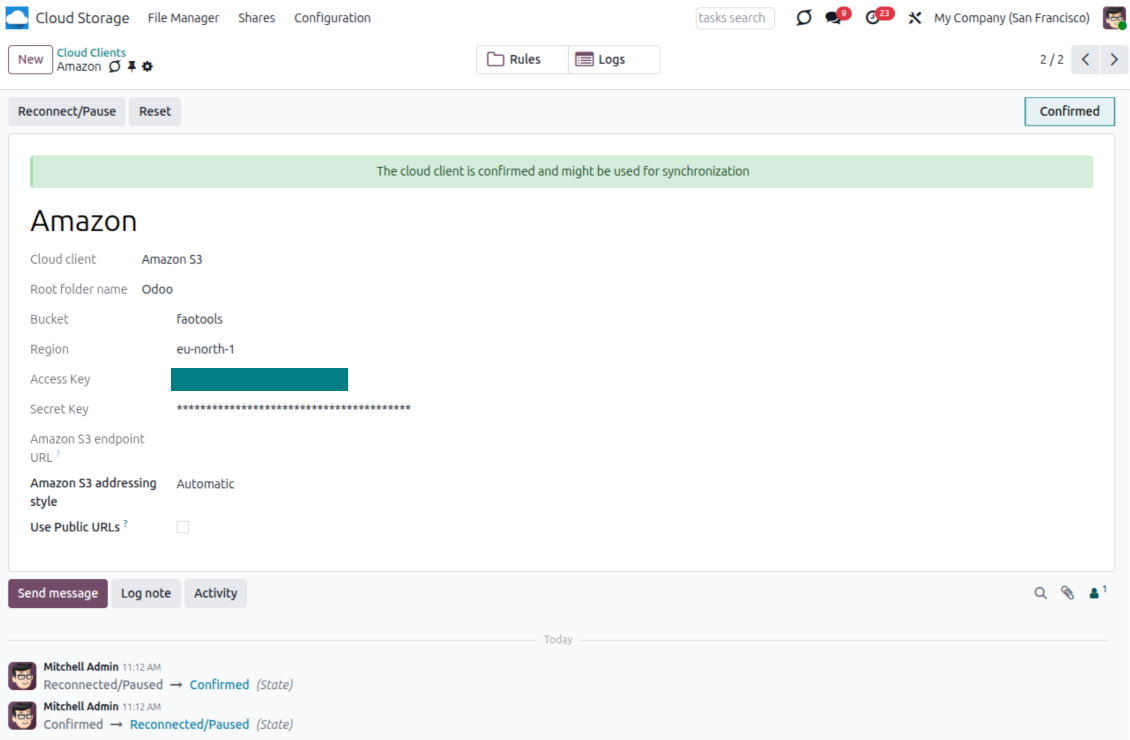
- 필드 'Bucket', 'Region', 'Access Key', 'Secret Key'를 채우고, 필요하면 'Amazon S3 endpoint URL'과 주소 지정 스타일도 입력하세요
- Odoo가 임시 presigned URL을 쓸지 공개 버킷/CDN URL을 쓸지 선택하세요. 비공개 버킷은 presigned URL을 켜 두고 수명을 초 단위로 설정하세요
- 'Confirm'을 누르세요. Odoo가 bucket 접근을 확인하고 루트 폴더 접두사를 만들거나 검증합니다. Amazon S3 - Odoo 동기화를 할 준비가 되었습니다
- 새로 만든 cloud client를 해당 Amazon S3 버킷와(과) 동기화할 폴더 규칙 및/또는 수동 폴더에 적용하세요
- 동기화 예약 작업이 시작될 때까지 기다리세요. 테스트 전용: Cloud Storage > 환경설정 > 환경설정 > 'Launch sync' 버튼에서 통합을 수동으로 실행합니다.
유용한 AWS 문서: S3 버킷 만들기: https://docs.aws.amazon.com/AmazonS3/latest/userguide/creating-bucket.html, IAM 액세스 키 관리: https://docs.aws.amazon.com/IAM/latest/UserGuide/id_credentials_access-keys.html.
버킷 정책 예시
    {
    "Version": "2012-10-17",
    "Statement": [
        {
            "Sid": "ListObjectsInBucket",
            "Effect": "Allow",
            "Action": [
                "s3:ListBucket"
            ],
            "Resource": "arn:aws:s3:::NAME_OF_YOUR_BUCKET"
        },
        {
            "Sid": "AllObjectActions",
            "Effect": "Allow",
            "Action": [
                "s3:GetObject",
                "s3:PutObject",
                "s3:DeleteObject"
            ],
            "Resource": "arn:aws:s3:::NAME_OF_YOUR_BUCKET/*"
        }
    ]
}
새 AWS IAM 사용자 만들기
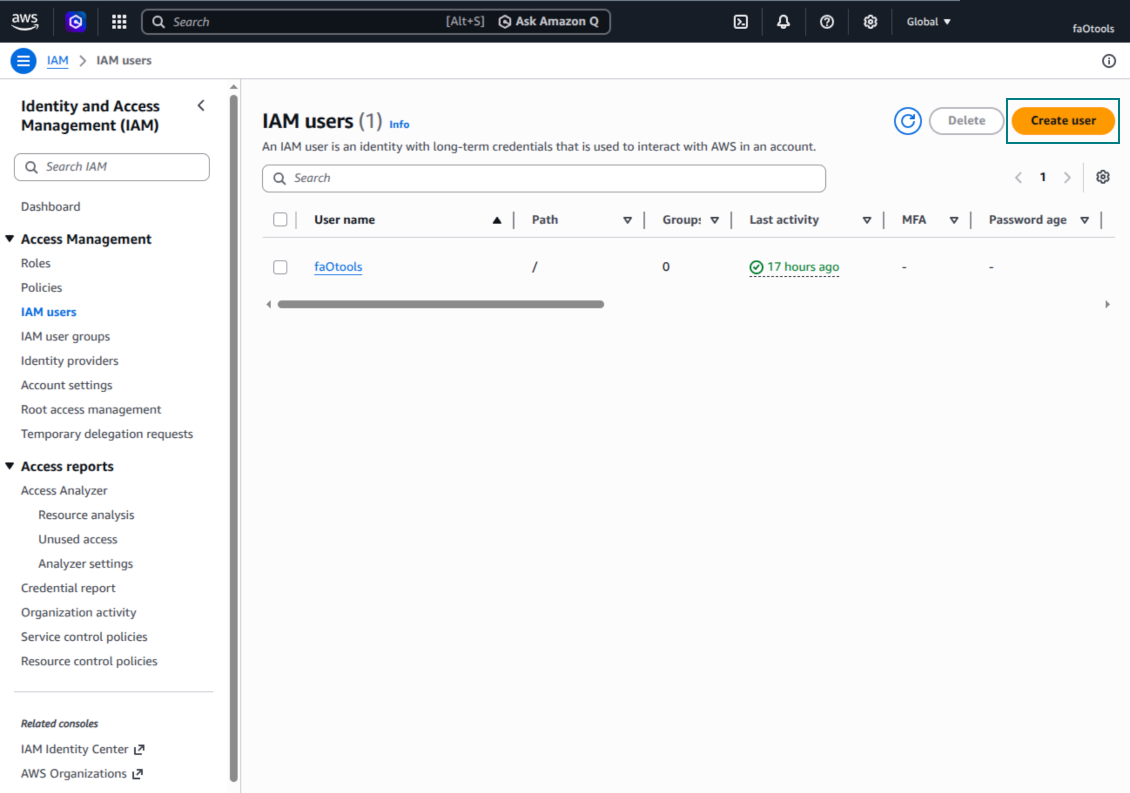
IAM 사용자 이름을 지정하세요
권한 정책을 바로 연결
Amazon S3 버킷 정책 JSON 예
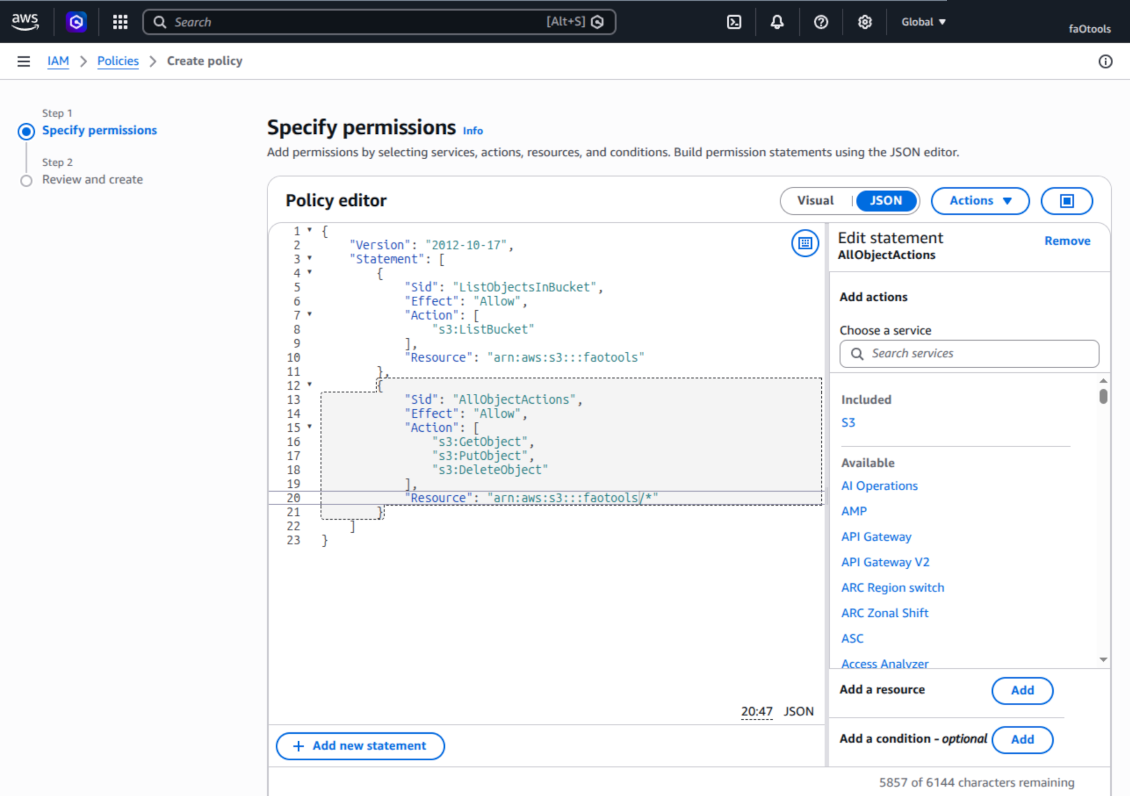
S3 정책을 검토하고 이름을 지정합니다
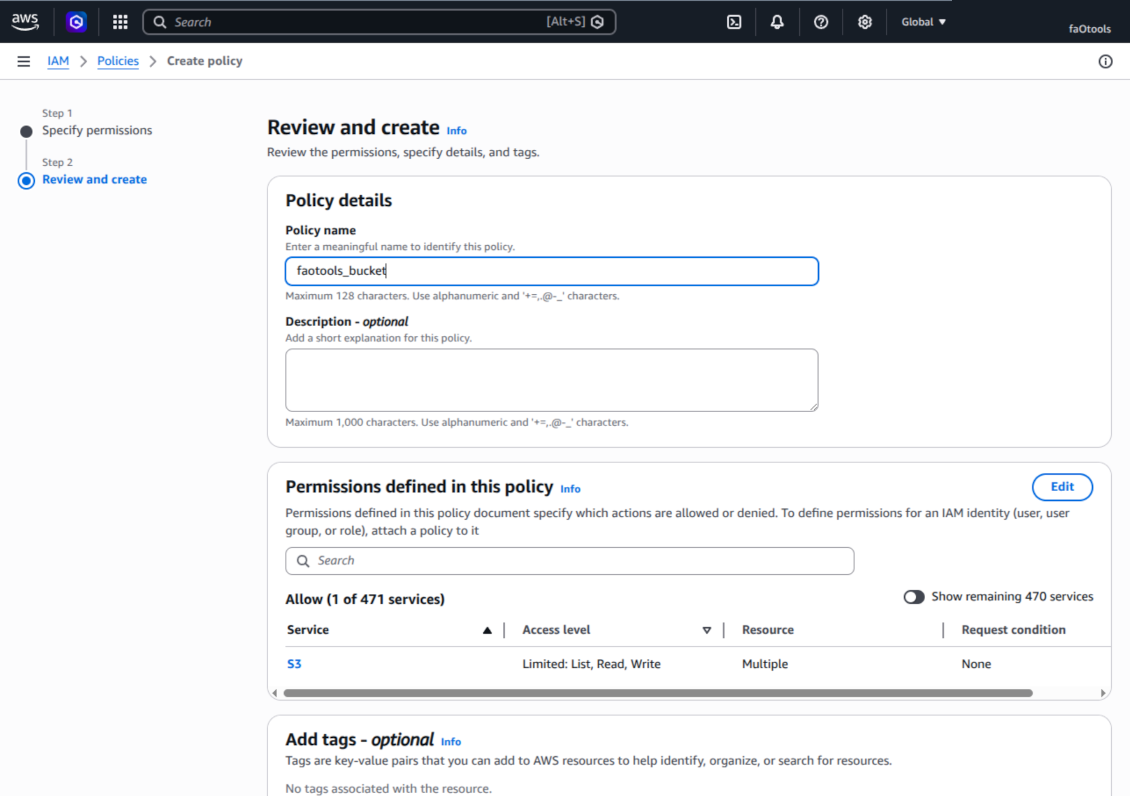
사용자에 대한 버킷 정책을 선택하세요
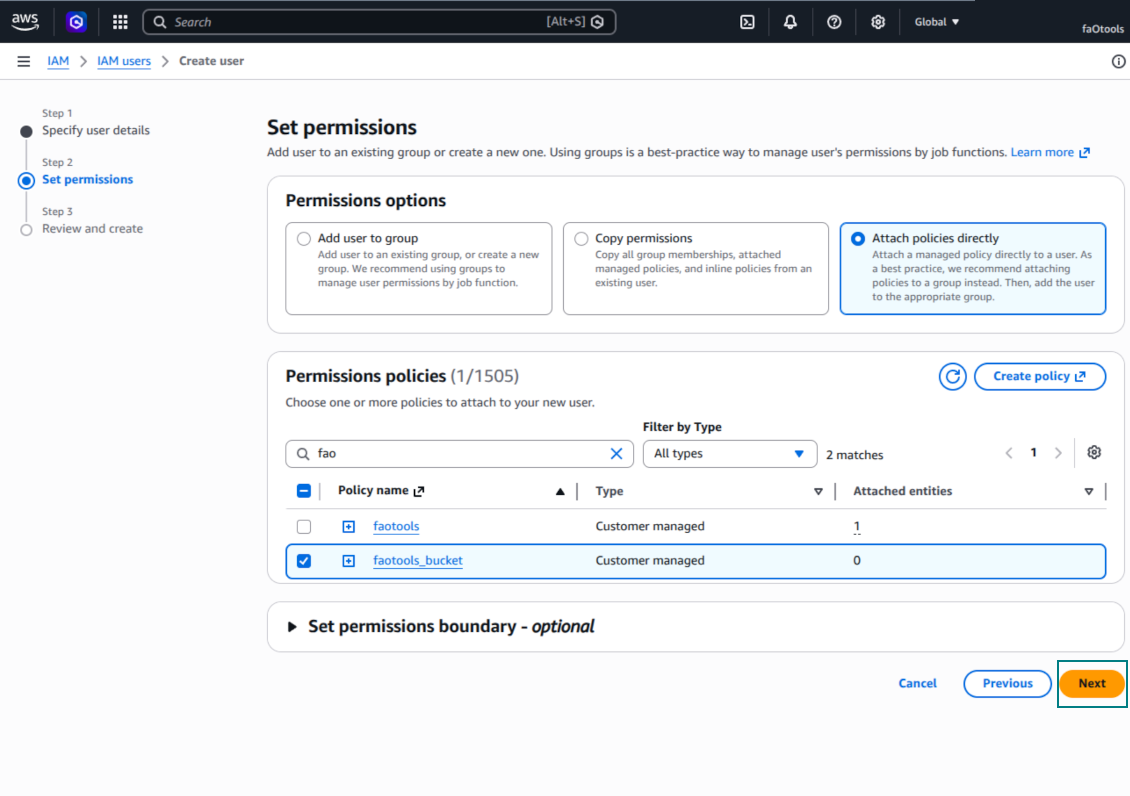
IAM 사용자를 검토하고 만듭니다
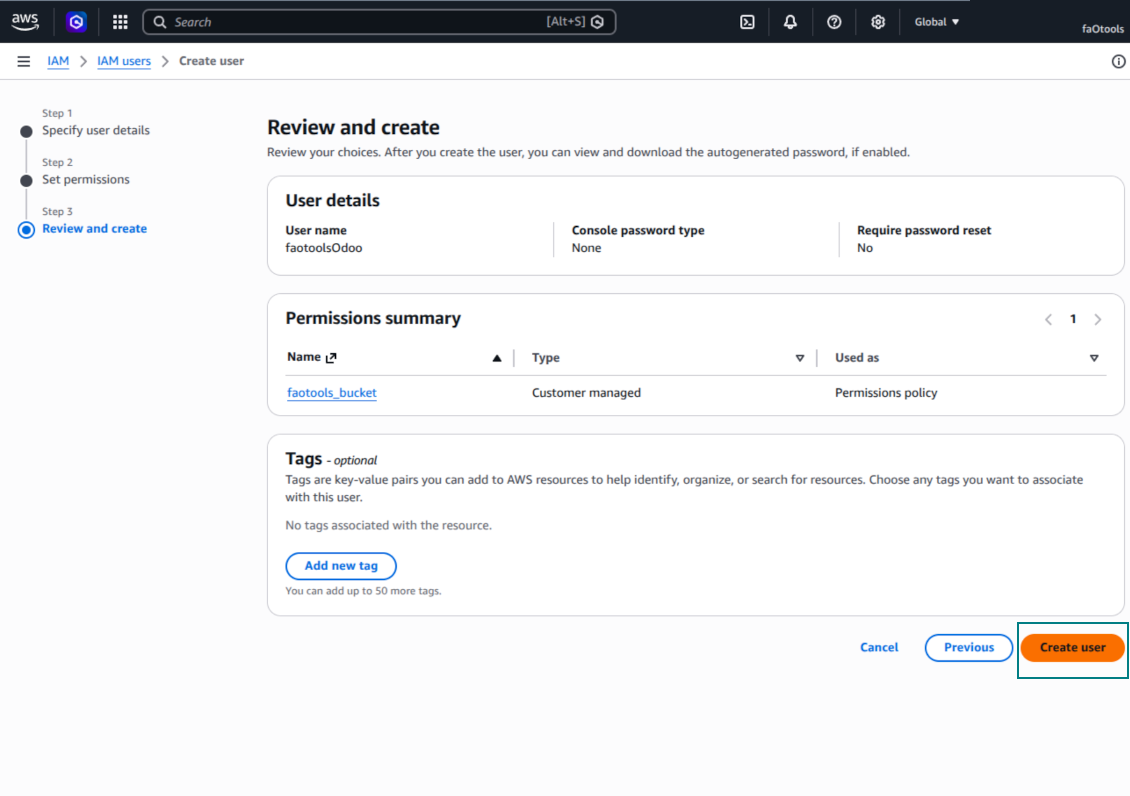
사용자용 액세스 키 만들기
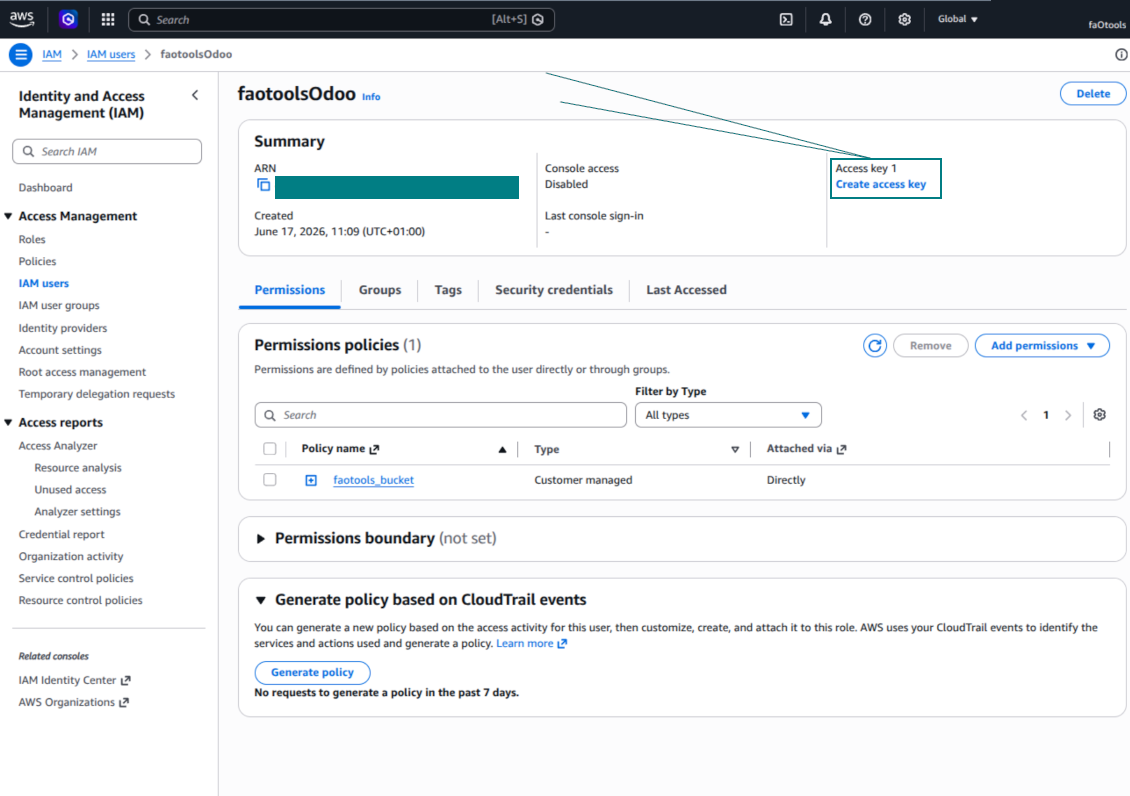
액세스 키 사용 사례 선택
액세스 키 설명 태그를 설정합니다
액세스 키와 시크릿을 가져옵니다
Odoo에서 Amazon S3 클라이언트 구성
Nextcloud 또는/및 ownCloud 연동 설정
구성 및 로그인
- 'onwCloud / Nextcloud Sync' 옵션을 켜세요 (cloud Storage > Configuration > Configuration). 선택 추가 기능 ownCloud / Nextcloud Odoo Integration이 필요합니다
- Odoo Cloud Storage > 환경설정 > Cloud Clients로 가 'Create'를 누릅니다
- 참조에는 모든 사용자가 알아볼 이름을 입력
- Cloud client로 사용 중인 소프트웨어에 따라 'Nextcloud' 또는 'ownCloud'를 선택하세요
- Root folder 이름으로 동기화된 모든 폴더의 상위 directory로 쓸 제목을 입력하세요. 예: 'Odoo' 또는 'OdooERP'
- ownCloud / Nextcloud 전체 URL 입력
- 루트 디렉터리에서 파일과 폴더를 읽고 만들고 쓰고 삭제할 전체 권한이 있는 ownCloud / Nextcloud 사용자를 선택하세요
- 이 사용자의 로그인과 비밀번호를 '로그인' 및 '비밀번호' 필드에 입력
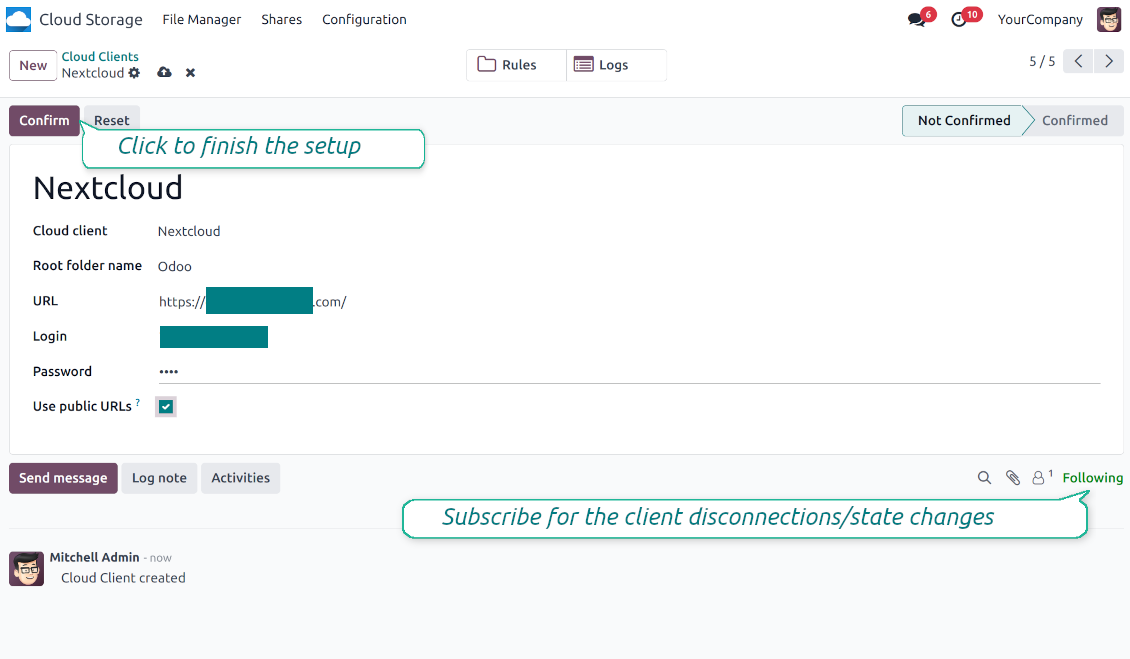
- 공개 URL과 내부 URL 중 적용할 쪽을 선택하세요(아래 참고)
- '확인'을 누르세요. Odoo 동기화를 할 준비가 되었습니다
- 새로 만든 cloud client를 해당 Nextcloud 또는 ownCloud 인스턴스와(과) 동기화할 폴더 규칙 및/또는 수동 폴더에 적용하세요
- 동기화 예약 작업이 시작될 때까지 기다리세요. 테스트 전용: Cloud Storage > 환경설정 > 환경설정 > 'Launch sync' 버튼에서 통합을 수동으로 실행합니다.
내부 및 공개 URL
기본적으로 Odoo에서 ownCloud / Nextcloud로의 링크는 내부용이며 승인된 사용자만 접근할 수 있습니다. 선택적으로 링크를 공개하세요(설정 'Use Public URLs'). 그러면 URL이 '공유'되어 누구나 직접 링크로 항목에 접근합니다.
공유(공개) URL을 쓰기로 했다면 주의하세요. 외부 사용자가 링크를 알기 어렵더라도 일부 사용자 작업의 결과로 노출될 약간의 가능성이 있습니다. 또한 공유 링크 생성은 빠르지 않아 동기화가 느려질 수 있습니다.
함께 보기 구성 동영상
ownCloud / Nextcloud 자격 증명 입력
NAS 설정 (Synology, QNAP, TrueNAS 등)
- 'NAS Sync' 옵션을 켜세요 (Cloud Storage > Configuration > Configuration). 선택 추가 기능 NAS Odoo Integration이 필요합니다
- NAS WebDAV 엔드포인트를 준비하세요:
- Synology: DSM에서 WebDAV Server를 설치·사용 설정하고 가능하면 HTTPS를 선택하세요
- QNAP: 대상 공유 폴더에 WebDAV를 켜고 가능하면 HTTPS를 사용하세요
- TrueNAS CORE: WebDAV 서비스를 켜세요. TrueNAS SCALE: 최신 SCALE 릴리스에서 기본 WebDAV가 제거되었으므로 WebDAV 앱을 설치하고 구성하세요
- 일반 WebDAV: PROPFIND, MKCOL, PUT, GET, MOVE, DELETE를 사용할 수 있는지 확인하세요
- Odoo가 로컬 NAS 네트워크 밖에 호스팅되면 WebDAV 엔드포인트를 안전하게 도달 가능하게 하세요. 유효한 TLS 인증서가 있는 리버스 프록시, WireGuard·Tailscale·Cloudflare Tunnel 같은 VPN/보안 터널, 또는 Synology QuickConnect·QNAP myQNAPcloud 같은 공급자 릴레이를 선호하세요. 관리자 인터페이스를 Internet에 노출하지 마세요
- 대상 공유 폴더 안에서만 읽기, 만들기, 쓰기, 이동, 삭제 전체 권한을 가진 전용 NAS 사용자를 만드세요. 관리자 계정은 사용하지 마세요
- Odoo Cloud Storage > Configuration > Cloud Clients로 이동한 뒤 'Create'를 누릅니다
- 참조에는 모든 사용자가 알아볼 이름을 입력하세요
- Cloud 클라이언트로 'Synology NAS', 'QNAP NAS', 'TrueNAS' 또는 'WebDAV NAS'를 선택
- Root folder 이름으로 동기화된 모든 폴더의 상위 NAS directory로 쓸 제목을 입력하세요. 예: 'Odoo' 또는 'OdooERP'
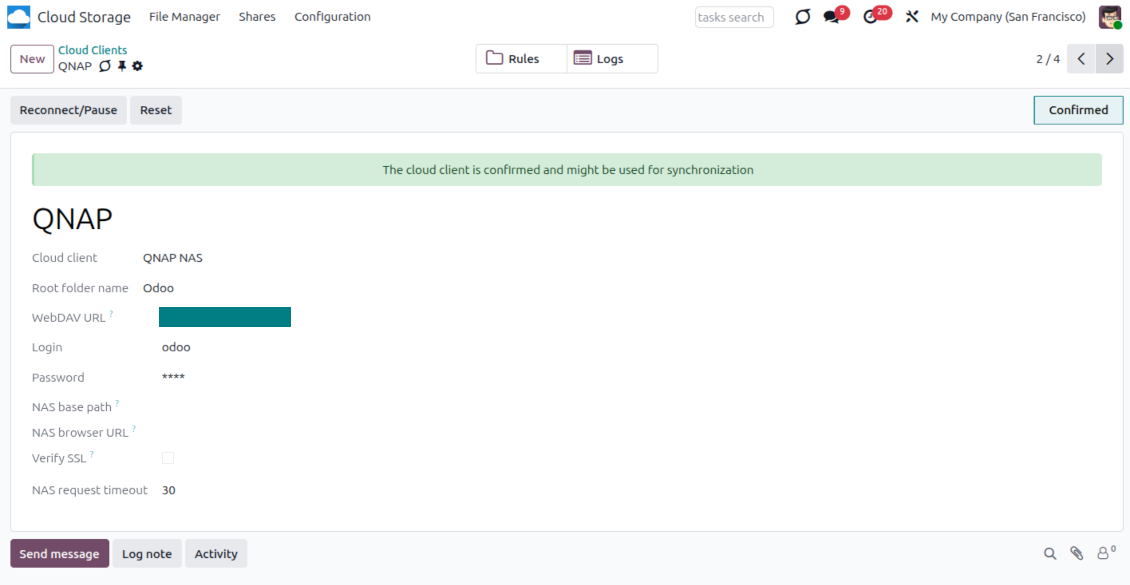
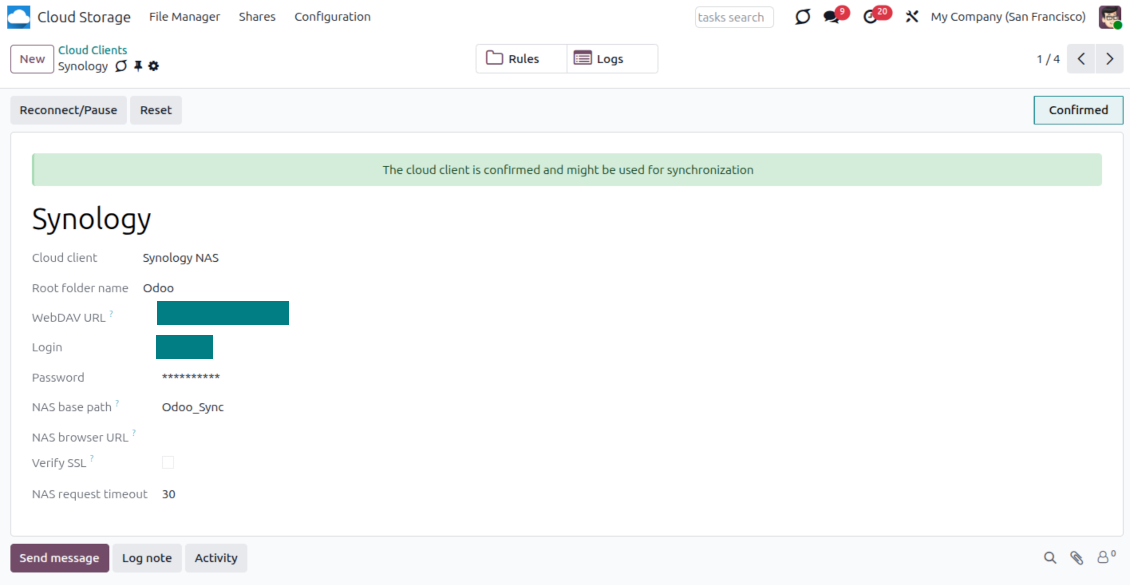
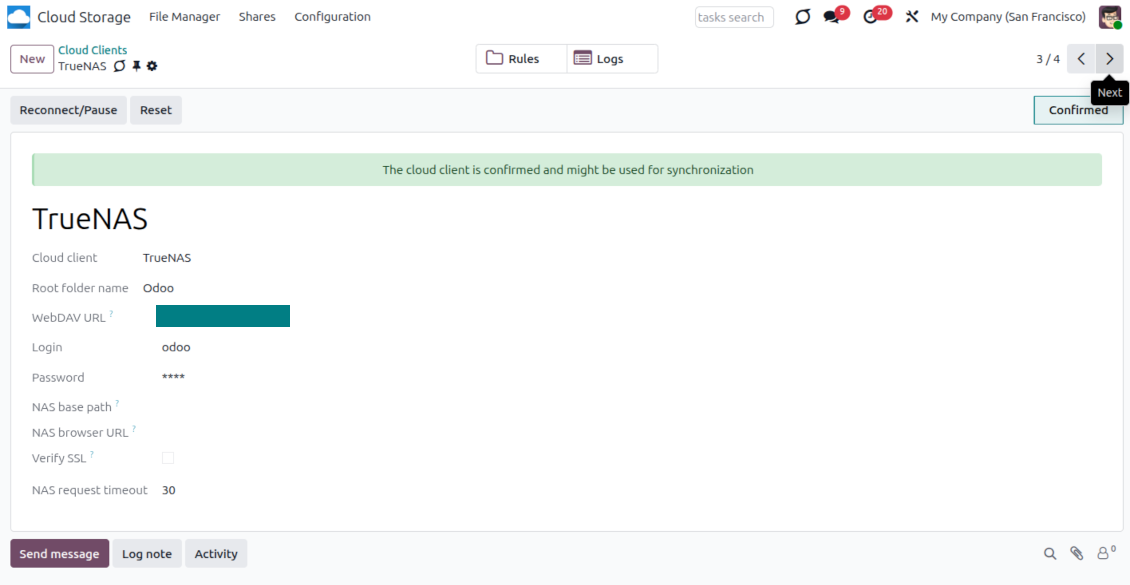
- 전체 WebDAV URL, 로그인, 비밀번호를 입력하세요. Odoo가 기존 공유나 디렉터리 안에 루트 폴더를 만들어야 하면 기본 경로를 선택적으로 지정합니다
- 공개 HTTPS 엔드포인트에서는 'Verify SSL'을 켜 두세요. 자체 서명 인증서가 있는 신뢰할 수 있는 비공개 엔드포인트에서만 끄세요
- NAS 파일을 원시 WebDAV URL 대신 공급업체 파일 스테이션 URL로 열어야 하면 선택적으로 브라우저 기본 URL을 지정합니다
- 'Confirm'을 누르세요. Odoo가 WebDAV 연결을 확인하고 루트 디렉터리를 만들거나 찾습니다. NAS - Odoo 동기화를 할 준비가 되었습니다
- 새로 만든 cloud client를 해당 NAS 스토리지와(과) 동기화할 폴더 규칙 및/또는 수동 폴더에 적용하세요
- 동기화 예약 작업이 시작될 때까지 기다리세요. 테스트 전용: Cloud Storage > 환경설정 > 환경설정 > 'Launch sync' 버튼에서 통합을 수동으로 실행합니다.
NAS 사전 구성
NAS 시스템은 보통 로컬 네트워크로 파일을 노출합니다. Odoo 서버가 그 네트워크 밖에 있으면 WebDAV 엔드포인트가 보안 채널로 Odoo에서 도달 가능해야 합니다. 권장 옵션은 유효한 HTTPS 인증서가 있는 리버스 프록시, WireGuard, Tailscale, Cloudflare Tunnel 같은 VPN/보안 터널, 또는 Synology QuickConnect나 QNAP myQNAPcloud 같은 벤더 릴레이입니다. 단순 포트 포워딩은 가능하지만 가장 덜 권장되는 옵션으로 다루세요.
공유 폴더 하나에 읽기, 만들기, 업데이트, 이동, 삭제만 있는 최소 권한의 전용 NAS 사용자를 쓰세요. 관리자 계정은 피하세요. 공개된 엔드포인트는 항상 HTTPS와 유효한 TLS 인증서를 써야 합니다. 커넥터에는 신뢰하는 자체 서명 인증서용 "Verify SSL" 옵션이 있으며, 보통은 켜 두어야 합니다.
QNAP 자격 증명 입력
Synology 자격 증명 입력
TrueNAS 자격 증명 입력
Box 설정
- 옵션 'Box Sync'을(를) 켜세요 (cloud Storage > 구성 > 구성). 선택 추가 모듈 Box Odoo Integration이(가) 필요합니다
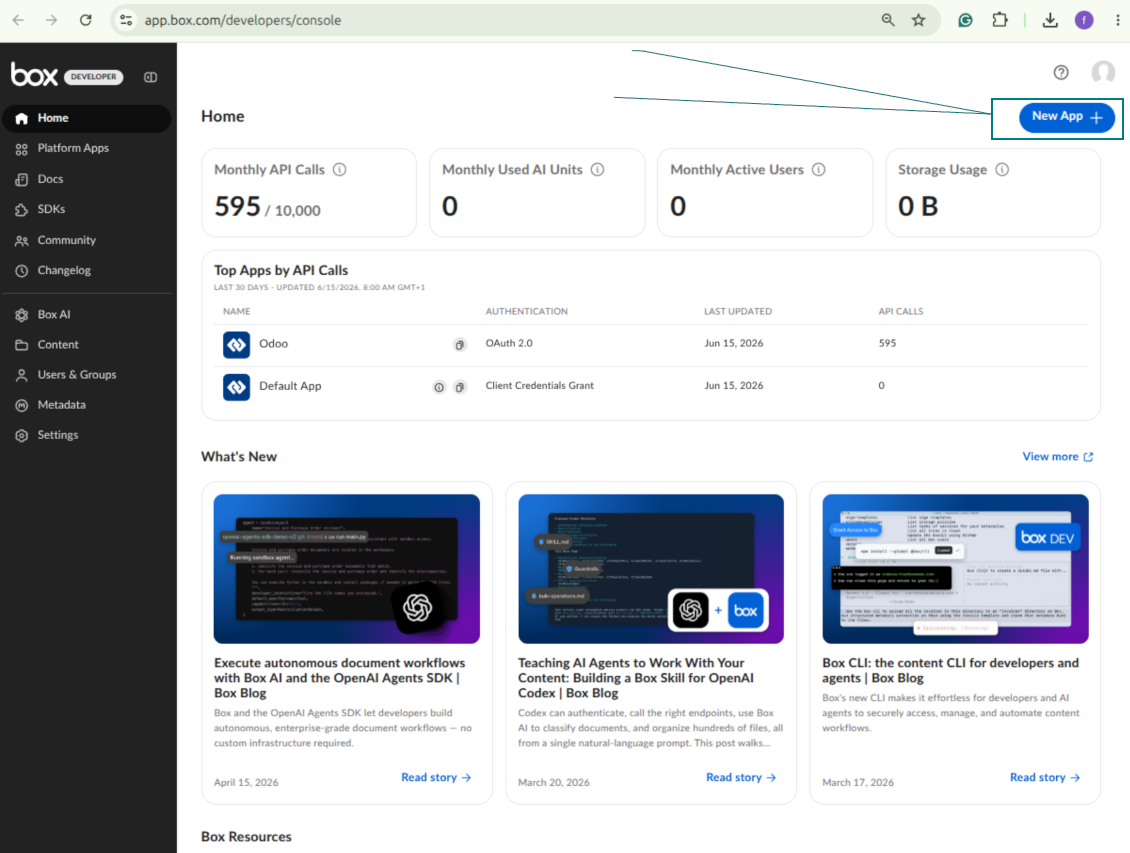
- Box 개발자 계정을 만들거나 연 뒤 Box Developer Console로 이동: https://app.box.com/developers/console
- Custom App을 만들고 인증 방법으로 OAuth 2.0 (Authorization Code Grant)을 선택하세요
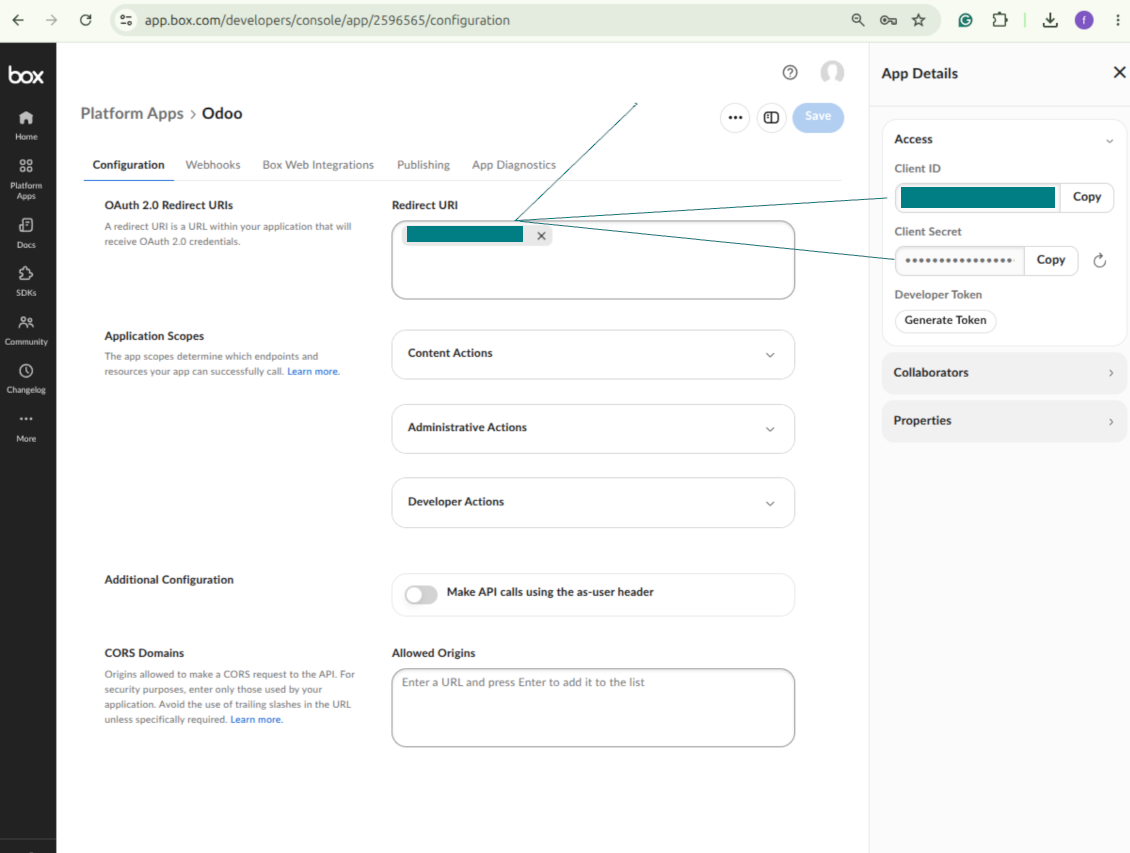
- 리디렉트 URI를 [YOURODOOSITENAME]/box_token으로 추가하세요 (예: https://faotools.com/box_token). 유효한 SSL 인증서(https)가 필요합니다
- 앱에 파일과 폴더를 읽고 쓸 접근을 부여하세요. 관련 없는 권한은 주지 마세요
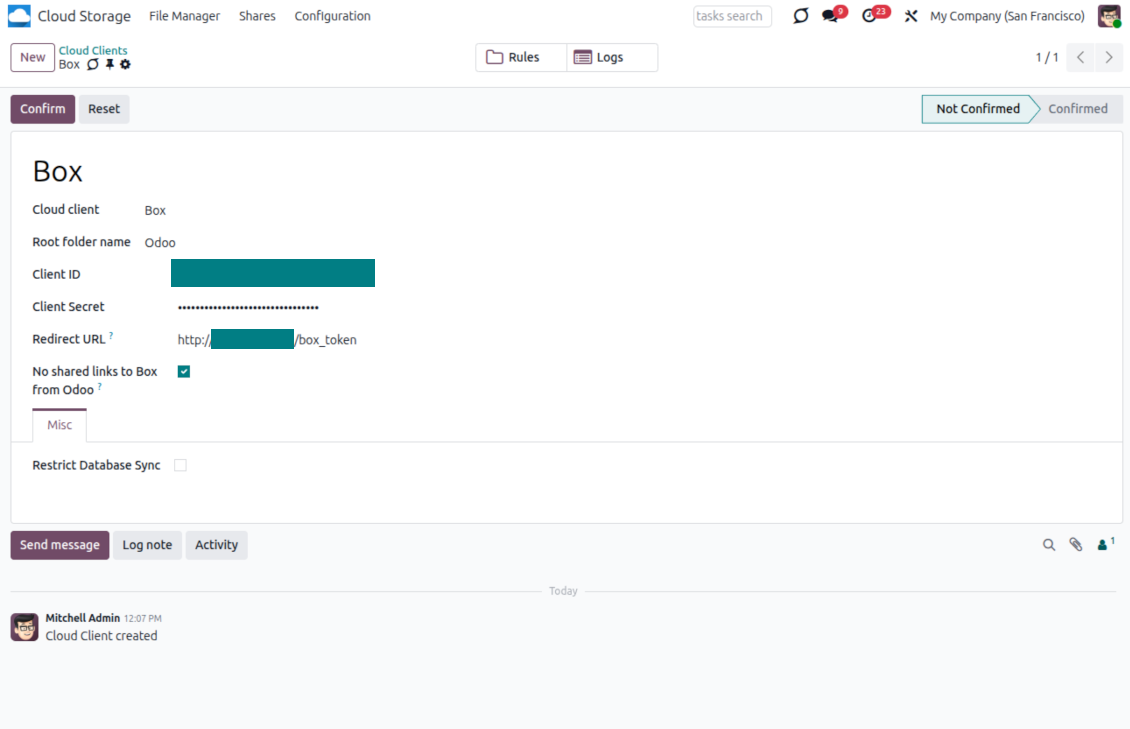
- Odoo Cloud Storage > Configuration > Cloud Clients로 이동한 뒤 'Create'를 누릅니다
- 참조에는 모든 사용자가 알아볼 이름을 입력하세요
- Cloud 클라이언트로 'Box'를 선택
- Root folder 이름으로 동기화된 모든 폴더의 상위 Box directory로 쓸 제목을 입력하세요. 예: 'Odoo' 또는 'OdooERP'
- Box Client ID를 'Client ID' 필드에 복사
- Box Client Secret을 'Client Secret' 필드에 복사
- 이전에 생성한 리디렉션 URL 삽입
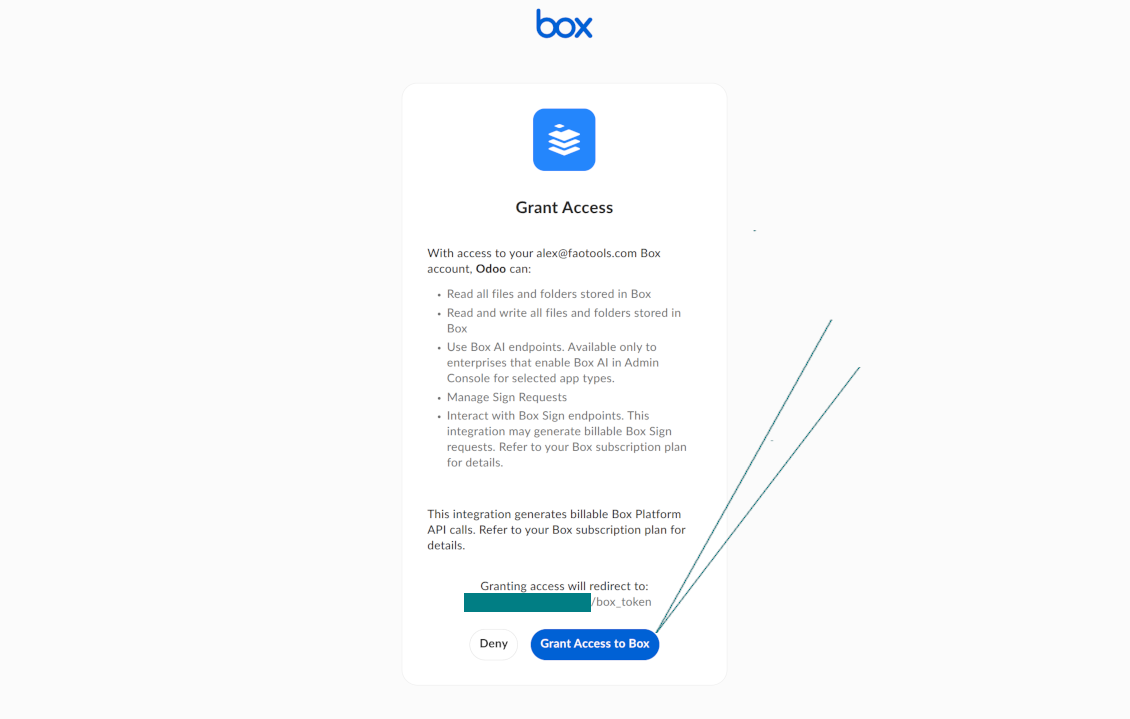
- 'Confirm'을 누르세요. Odoo가 Box 로그인 페이지로 이동합니다. 시스템에서 확인하고 모든 조건에 동의한 뒤 요청된 권한을 모두 부여하세요
- 로그인 후 Box가 다시 Odoo로 연결합니다. Box - Odoo 동기화를 진행할 수 있습니다
- 새로 만든 cloud client를 해당 Box 계정와(과) 동기화할 폴더 규칙 및/또는 수동 폴더에 적용하세요
- 동기화 예약 작업이 시작될 때까지 기다리세요. 테스트 전용: Cloud Storage > 환경설정 > 환경설정 > 'Launch sync' 버튼에서 통합을 수동으로 실행합니다.
새 Box 개발자 앱 만들기
Box OAuth 자격 증명 복사
Odoo에서 Box 클라우드 클라이언트 구성
Odoo에 Box 액세스 권한 부여
MinIO 설정
- 실행 중인 MinIO 서버를 준비합니다
- MinIO 콘솔 열기
- 새 버킷을 만들거나 기존 버킷을 선택하세요. 정확한 버킷 이름을 복사해 Odoo의 'Bucket' 필드에 넣어야 합니다
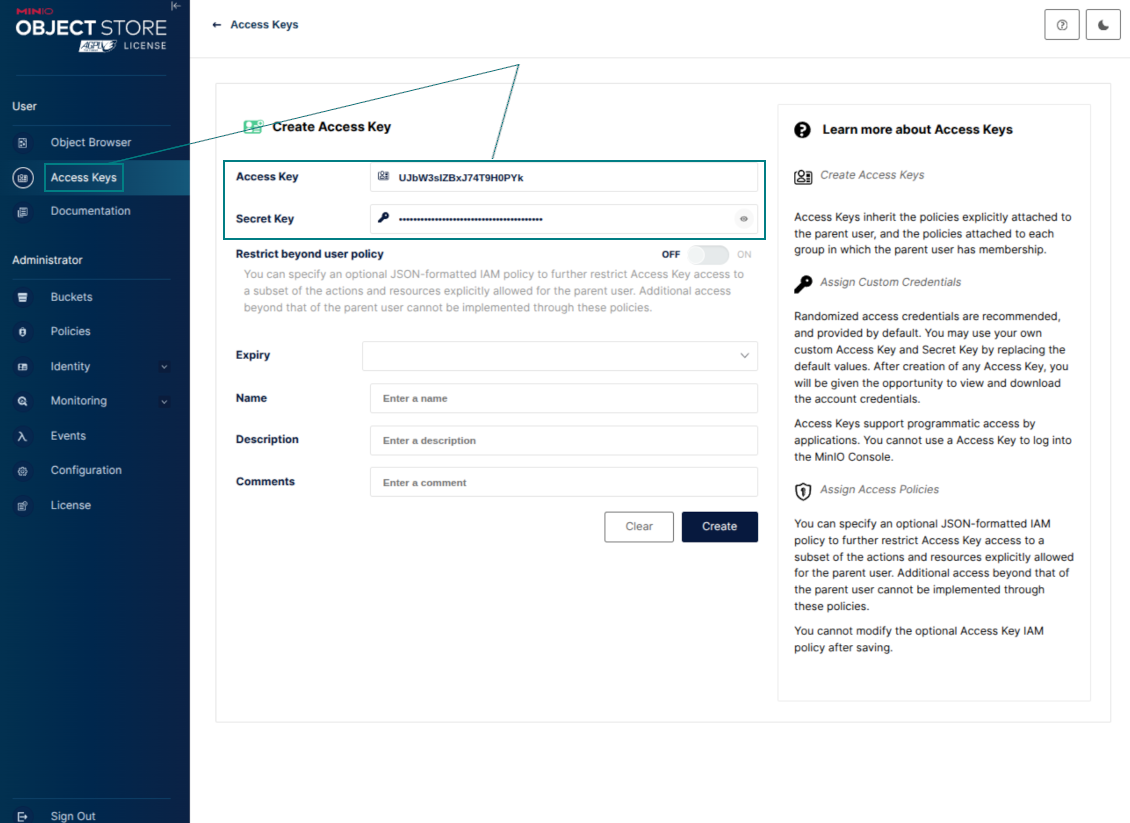
- Odoo용 액세스 자격 증명을 만드세요. MinIO에서는 선택한 버킷에서 객체를 나열, 읽기, 만들기, 쓰기, 복사, 삭제할 권한이 있는 access key / secret key 쌍 또는 서비스 계정을 사용하세요
- MinIO Access Key를 Odoo 필드 'Access Key'에 복사하세요
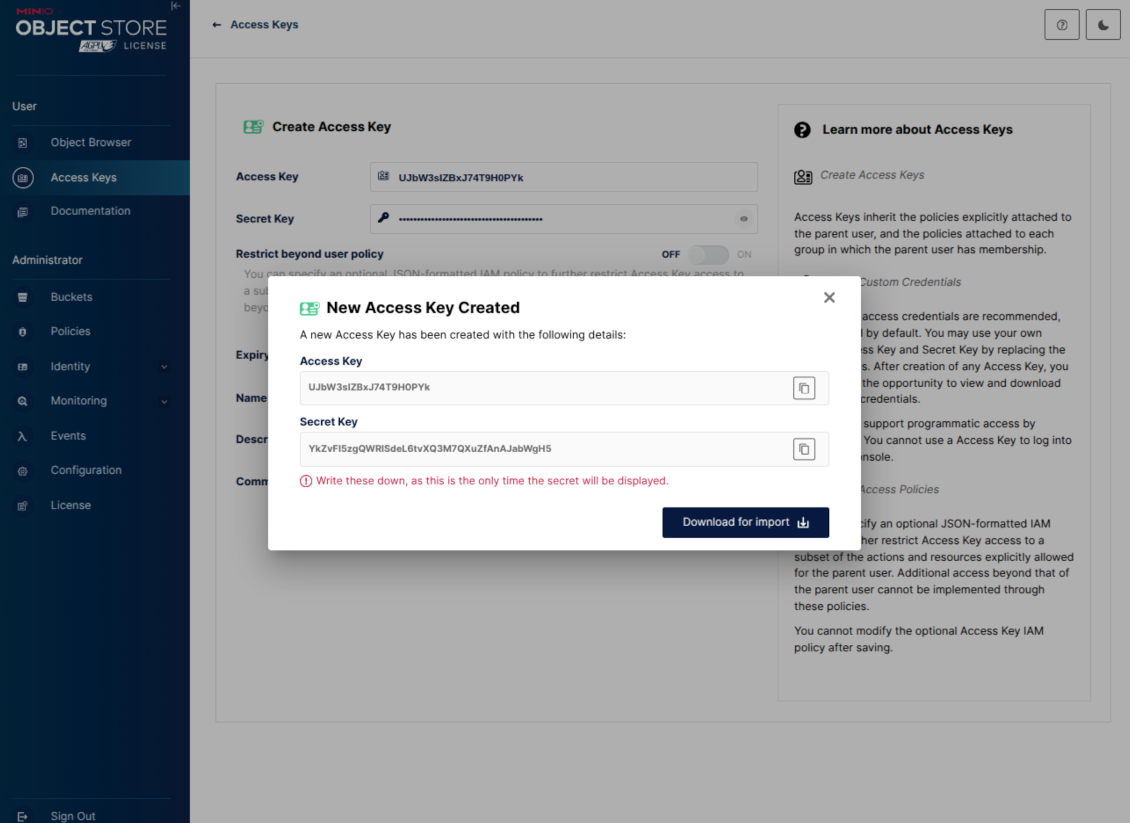
- MinIO Secret Key를 Odoo 필드 'Secret Key'에 복사하세요. 중요: MinIO가 한 번만 보여 주면 MinIO 페이지를 닫기 전에 비밀을 저장하세요
- MinIO S3 API 엔드포인트 URL을 Odoo의 'Amazon S3 endpoint URL' 필드에 복사하세요. 예를 들어 로컬 서버는 보통 http://localhost:9000을, 프로덕션 서버는 https://minio.example.com을 쓸 수 있습니다
- Odoo Cloud Storage > Configuration > Cloud Clients로 이동한 뒤 'Create'를 누릅니다
- 참조에는 모든 사용자가 알아볼 이름을 입력하세요
- Cloud 클라이언트로 'MinIO'를 선택
- Root folder 이름으로 동기화된 모든 폴더의 상위 MinIO object prefix로 쓸 제목을 입력하세요. 예: 'Odoo' 또는 'OdooERP'
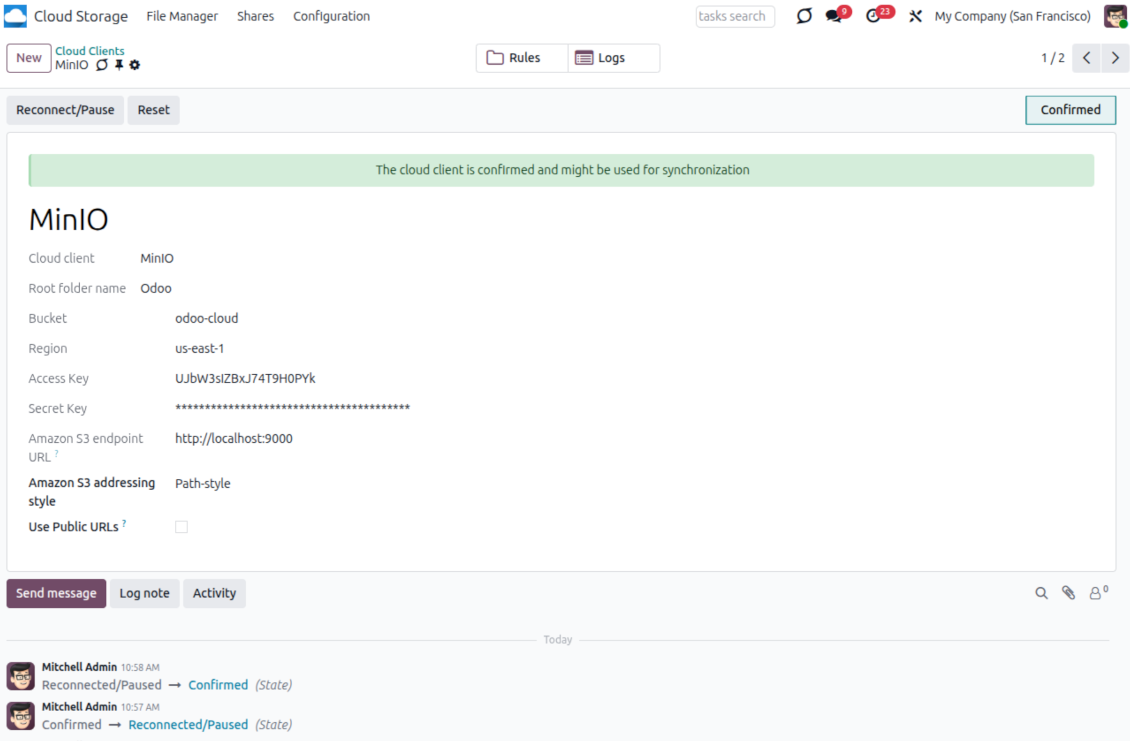
- 'Bucket', 'Access Key', 'Secret Key', 'Amazon S3 endpoint URL' 필드를 입력하세요. 'Region'은 MinIO에서 선택 사항이며 비어 있으면 Odoo가 S3 호환 서명에 us-east-1을 사용합니다
- 주소 지정 스타일을 Path-style로 유지하세요. MinIO 엔드포인트에 권장되며, 특히 MinIO 호스트가 버킷별 DNS 이름을 제공하지 않을 때 그렇습니다
- Odoo가 직접 공개 MinIO URL을 사용할지 선택하세요. 버킷, 접두사, 리버스 프록시 또는 CDN이 공개 읽기 가능할 때만 «Use Public URLs»를 켜세요. 비공개 MinIO 버킷은 꺼 두세요
- 'Confirm'을 누르세요. Odoo가 bucket 접근을 확인하고 루트 폴더 접두사를 만들거나 검증합니다. MinIO - Odoo 동기화를 할 준비가 되었습니다
- 새로 만든 cloud client를 해당 MinIO 버킷와(과) 동기화할 폴더 규칙 및/또는 수동 폴더에 적용하세요
- 동기화 예약 작업이 시작될 때까지 기다리세요. 테스트 전용: Cloud Storage > 환경설정 > 환경설정 > 'Launch sync' 버튼에서 통합을 수동으로 실행합니다.
Useful MinIO documentation: https://min.io/docs/minio/linux/administration/identity-access-management.html, https://min.io/docs/minio/linux/reference/minio-server/minio-server.html.
MinIO 액세스 키 만들기
새 MinIO 자격 증명 복사
Odoo에서 MinIO 클라우드 클라이언트 구성
Dropbox 연동 설정
Python 종속성
도구는 외부 라이브러리 'dropbox'에 의존합니다. Odoo 서버에 다음 명령으로 설치하세요:
pip3 install dropbox
구성 및 로그인
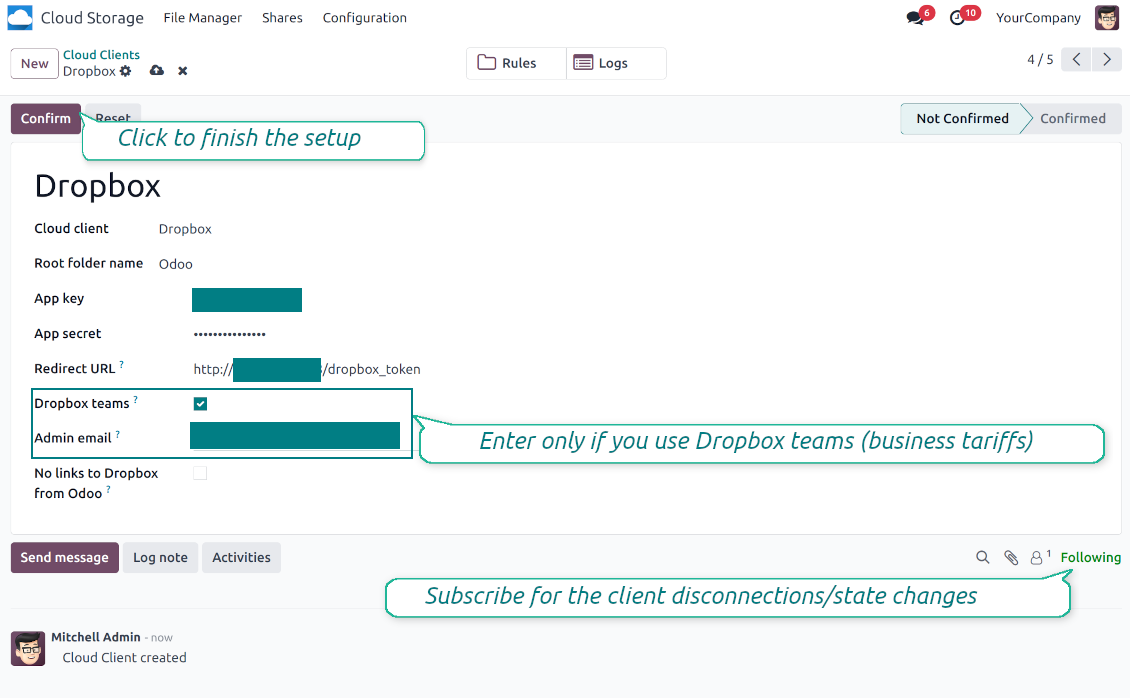
- 옵션 'Dropbox Sync'을(를) 켜세요 (cloud Storage > 구성 > 구성). 선택 추가 모듈 Dropbox Odoo Integration이(가) 필요합니다
- Follow the URL https://www.dropbox.com/developers/apps/create
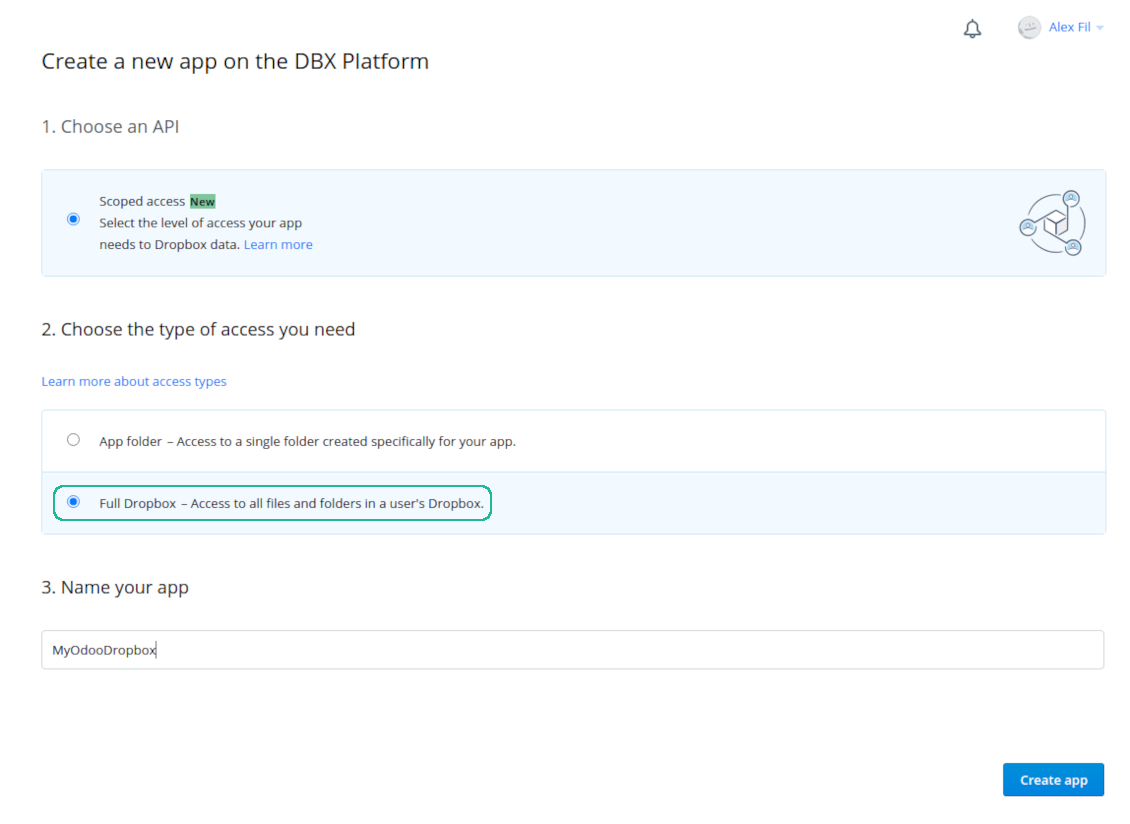
- API를 'Scoped access'로 선택
- 액세스 유형을 'Full Dropbox'로 선택
- 앱에 적합한 이름을 선택하고 'Create app' 버튼을 누르세요
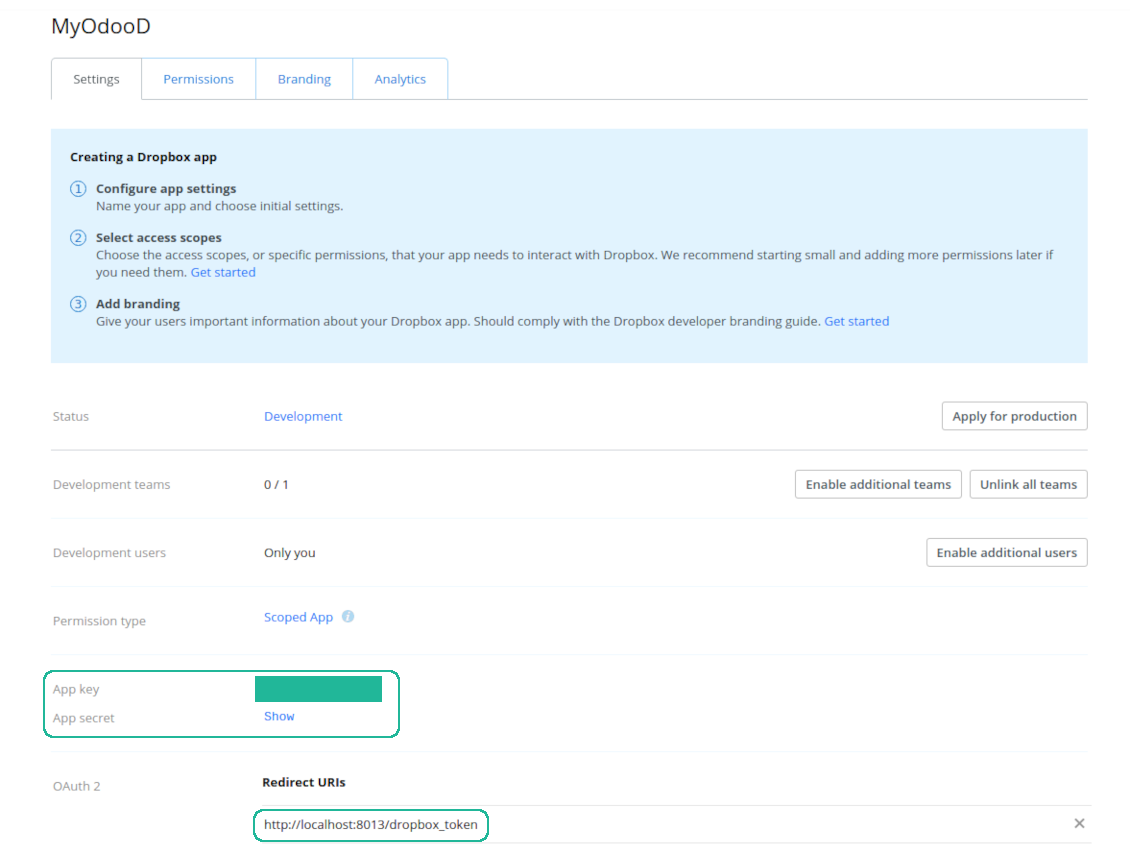
- 리디렉트 URI를 [YOURODOOSITENAME]/dropbox_token으로 추가하세요 (예: https://faotools.com/dropbox_token). 유효한 SSL 인증서(https)가 필요합니다
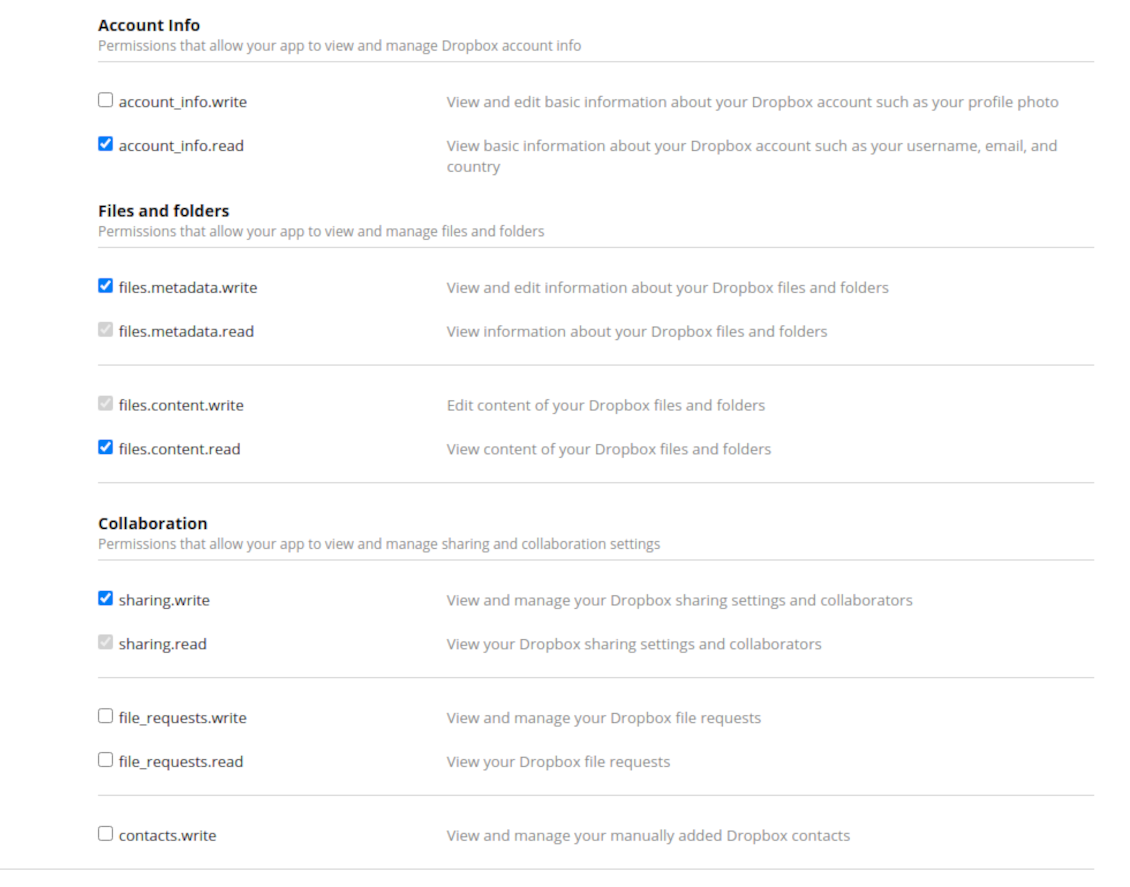
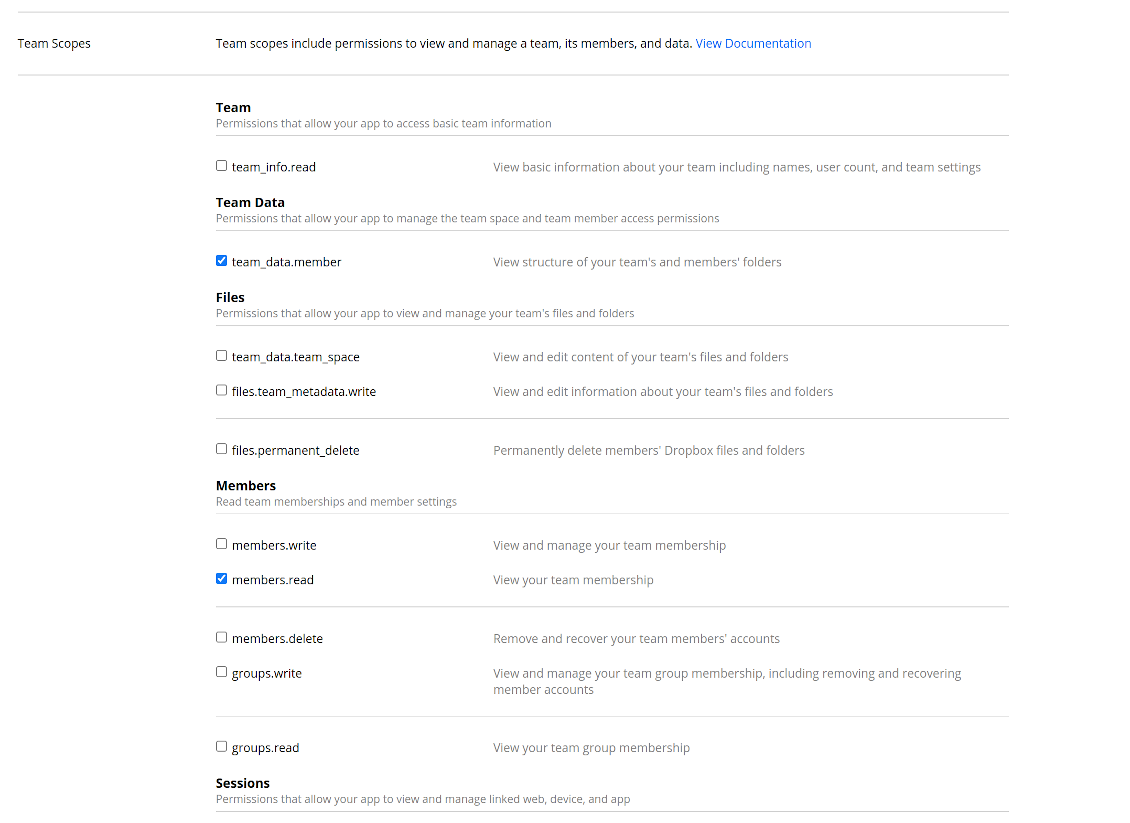
- 앱에 권한을 부여하세요: 'Account Info (Read)', 'Files and folders Metadata (Write)', 'Files Content (Write)', 'Collaboration (Write)'. 팀 DropBox에는 'Team Data Members', 'Members (Read)'도 할당합니다. 다른 권한은 할당하지 마세요.
- 앱 제출
- Odoo Cloud Storage > 환경설정 > Cloud Clients로 가 'Create'를 누릅니다
- 참조에는 모든 사용자가 알아볼 이름을 입력
- Cloud 클라이언트로 'Dropbox'를 선택
- Root folder 이름으로 동기화된 모든 폴더의 상위 Google Drive directory로 쓸 제목을 입력하세요. 예: 'Odoo' 또는 'OdooERP'
- 'App key'를 'App key'에 복사
- 'App Secret'을 'App secret' 필드에 복사
- 이전에 생성한 리디렉션 URL 삽입
- Dropbox 팀 드라이브를 쓰는 경우
- 관련 상자를 선택
- Dropbox 사용자의 이메일을 설정합니다. 이 사용자 폴더 안에 Odoo 관련 항목이 모두 만들어진 뒤에야 다른 사용자와 공유됩니다. 이 사용자 아래에서 모든 파일과 폴더가 생성·변경·이동·삭제됩니다
- 'Confirm'을 누르세요. Odoo가 Dropbox 로그인 페이지로 이동합니다. 시스템에서 확인하고 모든 조건에 동의한 뒤 요청된 권한을 모두 부여하세요
- 로그인 후 Dropbox가 다시 Odoo로 연결합니다. Dropbox - Odoo 동기화를 진행할 수 있습니다
- 새로 만든 cloud client를 해당 Dropbox 인스턴스와(과) 동기화할 폴더 규칙 및/또는 수동 폴더에 적용하세요
- 동기화 예약 작업이 시작될 때까지 기다리세요. 테스트 전용: Cloud Storage > 환경설정 > 환경설정 > 'Launch sync' 버튼에서 통합을 수동으로 실행합니다.
Dropbox URL
Dropbox는 기존 파일과 폴더의 링크를 만드는 방식이 정해져 있습니다. 내부 또는 비공개 URL 개념은 없습니다. 대신 각 Dropbox 항목은 공유 URL을 받을 수 있습니다. 그런 공유 링크는 공개이거나 팀 전용입니다. 팀 전용 기능은 Dropbox business 계정에서만 사용할 수 있습니다.
이 도구는 공유 링크 방식에 의존합니다. 즉 각 첨부 링크는 공개(모든 개인 Dropbox 계정)이거나 팀 전용(모든 비즈니스 Dropbox 계정)입니다.
완전히 안전하지 않다고 여겨지기도 합니다. 외부 사용자는 웹사이트 URL을 거의 모르지만, 일부 작업으로 노출될 가능성은 있습니다. 또한 공유 링크 생성은 빠르지 않아 동기화가 느려질 수 있습니다. 그래서 공유 URL을 끄는 기능이 도입되었습니다.
If checked, all Dropbox URLs in Odoo will be of type https://www.dropbox.com/home/Odoo/[PATH]. Such links will not work in many cases. Thus, if you need to open Dropbox files/folders from Odoo, be careful with the setting 'No links to Dropbox from Odoo'.
함께 보기 구성 동영상
Dropbox 앱 만들기
Dropbox 앱 설정: 리디렉션 URL
개인 계정의 Dropbox 권한
비즈니스 계정의 Dropbox 권한
Dropbox 연동을 위해 Odoo를 설정합니다
관련 자주 묻는 질문 Cloud Storage Solutions Odoo v.18
동기화된 필드는 어디에 저장됩니까? Odoo와 클라우드에 복제됩니까?
앱은 첨부 파일의 바이너리 콘텐츠가 Odoo 서버가 아닌 Cloud Client에 보관된다고 가정합니다. 따라서 이러한 첨부 파일은 Odoo에서 URL 유형이 되며, 첨부 상자 또는 Cloud Client에서 언제든지 접근할 수 있습니다.
설정 후에는 동기화가 완전히 자동이므로 수동 작업이 필요 없습니다. 동기화할 Odoo 문서 유형을 정하고 각각에 대해 관련 모델을 설정하세요(고객, 판매 또는 구매 주문, 작업, 프로젝트 등).
같은 문서 유형에 폴더를 여러 개 둘 수 있나요? 예를 들어 내부 프로젝트와 고객 프로젝트요?
예. 각각에 대한 규칙을 만든 뒤 필터를 적용하세요. 예: 프로젝트 유형별.
문서를 명확하게 지정하려면 필터를 상호 배타적으로 만드세요. 예: '고객이지만 공급업체는 아님', '공급업체이지만 고객은 아님'. 그렇지 않으면 특정 문서 폴더가 모델 사이를 오갑니다.
동기화를 실시간으로 할 수 있나요?
아니요. 실시간 동기화를 피하는 분명한 이유가 있습니다:
성능 문제. 동기화가 실시간이면 파일 업로드마다 로딩 화면이 나타납니다.
충돌 문제. 사용자 2명이 항목을 동시에 바꾸면 해결되지 않는 상황이 생길 수 있습니다. 정기 작업에서는 나중에 고칠 수 있지만, 실시간이면 대기열로 저장해야 해서 사용자에게 더 혼란스럽습니다.
기능 문제. 특히 항목 이름 변경과 재구성입니다. 역방향 동기화에서 도구는 디렉터리 로직에 엄격히 의존하며 동기화마다 항목의 100%를 확인합니다. 업데이트마다 하면 초당 수천 건의 요청이 됩니다. 그렇지 않으면 변경이 사라집니다.
클라우드에서 기본 폴더 이름을 바꿀 수 있나요?
어떤 문서 유형이든 모델 디렉터리(판매 주문, 영업기회, 공급업체 등)에 원하는 이름을 지정할 수 있습니다.
개체 폴더(SO-001, John Smith 등)에는 해당 문서 유형의 표시 이름을 만드는 Odoo 메서드를 사용합니다. 다만 이름 표현식을 정의하면 바꿀 수 있습니다. Odoo 이메일 서식과 동일한 구문을 씁니다.
동기화 작업 주기를 바꿀 수 있나요?
아니요. 버전 15부터는 예약 작업을 변경하지 마세요. 가장 안정적이고 빠른 연결을 위해 15분마다 실행되도록 최적화되어 있습니다.
Odoo 서버 제한 시간이 최소 15분(900초)인지 확인하세요.
동기화를 잠시 멈추려면 해당 cloud client 양식에서 하세요.
첨부 파일을 몇 개의 클라우드 클라이언트와 동기화할 수 있나요
예, 버전 15부터 여러 연결을 설정할 수 있습니다. 일부 폴더는 한 cloud client에, 다른 폴더는 다른 클라이언트에 동기화할 수 있습니다.
같은 폴더를 여러 cloud storages에 동시에 동기화할 수는 없습니다.
클라우드에서 특수 편집기(예: OnlyOffice, Office 365 등)를 씁니다. 파일이 그 편집기에서 열립니까?
예, cloud client 구성에 따라 다릅니다.
Cloud Storage Solution 앱만 있으면 되나요?
버전 15부터 앱을 단독으로 써서 첨부를 폴더로 정리하고 파일 관리자 인터페이스를 제공할 수 있습니다.
하지만 클라우드 클라이언트와 연결하려면 관련 선택 앱을 하나 이상 설치해야 합니다.
폴더 규칙을 바꾸면 어떻게 됩니까?
폴더 규칙이 바뀌면 폴더 목록도 바뀝니다. 규칙 조건에 더 이상 맞지 않는 폴더는 제거됩니다. 파일이 동기화된 경우 역동기화가 파일을 Odoo로 되돌리고 Cloud Client에서 삭제합니다.
문서 객체가 폴더 규칙 조건에 맞지 않으면 폴더가 만들어지지 않습니다. 나중에 맞으면 관련 폴더가 생성됩니다.
직접 동기화만 남기거나 클라우드에서의 동기화를 끌 수 있나요?
예. 클라우드 클라이언트에서 설정 페이지를 열고 클라우드에서의 동기화 끄기을 켜십시오.
동기화는 한 방향으로 유지됩니다. Odoo에서 한 변경은 계속 클라우드 저장소로 보내집니다. 클라우드 저장소에서 만들거나 이름을 바꾸거나 삭제한 파일과 폴더는 Odoo에 반영되지 않으며, 그곳에서 삭제한 폴더는 복구되지 않습니다.
누적된 변경(삭제 포함)을 다음 동기화에 적용하려면 옵션을 다시 끄십시오.
이 설정은 버전 18부터 사용할 수 있습니다. 클라이언트를 분리하거나 재설정하거나 비활성화하면, 역방향 동기화도 끄지 않는 한 역방향 동기화가 계속 실행됩니다.
도구의 업데이트 정책은 무엇입니까?
현재 Odoo Apps Store 정책에 따르면:
- 버전 12.0 이하용으로 구매한 모듈은 12.0까지의 모든 버전에 접근할 수 있습니다.
- 버전 13.0부터는 모듈 버전마다 따로 구매해야 합니다.
- 버전과 관계없이 구매하면 해당 메이저 버전 내의 모든 업데이트와 버그 수정 권한이 있습니다.
faOtools 팀은 해당 정책을 통제하지 않습니다. 문의는 Odoo Apps Store 담당자에게 직접 하세요.
앱을 Odoo.sh에 어떻게 설치하나요?
가장 단순한 방법은 Odoo 스토어의 기본 제공 워크플로를 사용하는 것입니다:
1. 모듈 페이지를 열고 Deploy on odoo.sh 버튼을 클릭합니다.
2. 그러면 GitHub 페이지로 이동합니다. 계정에 로그인한 뒤 'Create a new repo'를 클릭하거나 기존 저장소를 사용하세요. 저장소는 비공개여야 합니다. OPL-1 라이선스 앱을 공개하는 것은 허용되지 않습니다. 필요하면 Odoo.sh 프로젝트용 새 repo를 만드세요.
3. 그런 다음 odoo.sh로 가서 Deploy 버튼을 클릭합니다. 팝업에서 결정을 제출하고 'Continue.'를 클릭합니다. 그러면 설치가 시작됩니다.
이 단계로 프로젝트의 프로덕션 브랜치에 앱이 설치됩니다. 다른 브랜치에 앱을 배포하거나 모듈을 업데이트하려면 다음을 수행하세요:
1. Odoo 스토어에서 앱 소스 코드를 업로드합니다.
2. 모듈을 필요한 GitHub 저장소에 커밋합니다. 앱 폴더/파일이 무시되지 않는지 확인하세요(즉 repo의 .gitignore에 넣지 마세요). 저장소는 odoo.sh가 자동 생성하며 기본적으로 중요한 항목(예: /lib)이 포함될 수 있습니다. 모듈의 모든 디렉터리, 하위 디렉터리, 파일을 예외 없이 업로드하세요.
3. odoo.sh 프로젝트의 대상 브랜치를 Deploy하거나, 설정이 그렇게 되어 있으면 자동 빌드될 때까지 기다립니다.
자체 서버에 앱은 어떻게 설치하나요?
2. Odoo 서버를 다시 시작합니다;
3. 개발자 모드를 켭니다(기술 설정);
4. 앱 목록을 업데이트합니다(앱 메뉴);
5. 앱을 찾아 'Activate'/'Install'을 누릅니다;
6. 앱 페이지에 안내가 있으면 따릅니다.
앱에 추가 기능이 있는 것을 봤습니다. 나중에 구매해도 되나요?
네, 물론입니다. 동시에 Odoo가 모든 의존성을 장바구니에 자동 추가하므로, 이중 결제를 피하려면 이미 구매한 도구를 제외하십시오.
앱을 Odoo.sh에 배포했는데 테스트에서 경고/오류가 보입니다
빨강/주황 경고는 앱 기능에 영향을 주지 않습니다. 안타깝게도 표준 자동 테스트가 앱 목표와 충돌하는 동작을 가정해 모듈이 통과하지 못할 때가 있습니다. 예를 들어 우리는 가격 계산을 바꾸는데, 표준 Odoo 모듈 테스트는 최종 가격을 표준 알고리즘과 비교합니다.
먼저 배포된 데이터베이스 기능이 정상인지 확인하십시오. 모두 올바르게 동작합니까?
그래도 경고가 실제 기능에 영향을 준다고 생각되면 연락해 주시고 전체 설치 로그와 배포된 모듈 전체 목록(코어 및 서드파티 포함)을 보내 주십시오.
앱을 귀사에서 직접 구매할 수 있나요?
아니요, 도구는 오직 공식 Odoo 앱 스토어.
할인을 받고 싶습니다
유감스럽게도 개별 가격을 제공할 기술적 수단이 없습니다.
Odoo Online (SaaS) 데이터베이스에 앱을 설치할 수 있나요?
아니요, 서드파티 앱은 Odoo Online에서 사용할 수 없습니다. 유감스럽게도 Odoo SaaS가 이를 차단합니다.
도구가 다른 앱에 의존합니다. 그것도 구매해야 합니까?
예, 도구가 올바르게 동작하려면 의존성에 표시된 모든 모듈이 필요합니다. 앱 페이지의 가격에는 필요한 의존성이 이미 포함되어 있습니다.
모듈의 미국 달러 가격은 얼마입니까? 왜 바뀌었습니까?
모듈 가격은 유로로 책정됩니다. Odoo 스토어는 내부 환율에 따라 다른 통화로 변환합니다. 따라서 환율이 갱신되면 미국 달러 가격이 바뀔 수 있습니다.
영어 이외 언어의 앱·웹사이트 문구는 AI 지원으로 작성되며 공식 Odoo 번역과 맞춥니다. 오류를 발견하시면 번역 정확성 티켓을 보내 주세요 그러면 수정하겠습니다.
Odoo 데모 데이터베이스(라이브 미리보기)
이 앱에는 무료 맞춤 데모 데이터베이스를 제공할 수 있습니다.
문의에 전화번호나 신용카드가 필요 없습니다. 30초가 넘지 않는 짧은 이메일 가입만 하면 됩니다.
요청하시면 개별 라이브 미리보기 데이터베이스를 준비합니다. 약 2주 동안 테스트를 하고 가정을 확인할 수 있습니다.
버그 신고
버그나 일관되지 않은 동작을 발견하면 주저 말고 문의하세요. 구매 후 60일 이내 수정을 보장하며, 그 이후에도 도구를 개선하는 데 관심이 큽니다.
문의에 전화번호나 신용카드가 필요 없습니다. 30초가 넘지 않는 짧은 이메일 가입만 하면 됩니다.
요청에 가능한 한 많은 세부정보를 포함하세요: 스크린샷, Odoo 서버 로그, 문제 재현 방법의 전체 설명 등. 일반적으로 이슈에 대한 작업 계획 준비(버그가 확인된 경우) 또는 수행 지침 제공(그 외의 경우)에는 영업일 기준 며칠이 걸립니다.
공개 기능 요청 및 모듈 아이디어(무료 개발)
도구를 개선하려는 동기가 강하며 어떤 피드백이든 감사드립니다. 요구 사항이 공익에 맞고 효율적으로 구현될 수 있다면 팀이 할 일 목록에 넣습니다.
이런 할 일 목록은 정기적으로 처리되며 추가 요금이 없습니다. 기한과 최종 디자인을 약속할 수는 없지만, 투자와 위험 없이 원하는 기능을 얻는 좋은 방법이 될 수 있습니다.
문의에 전화번호나 신용카드가 필요 없습니다. 30초가 넘지 않는 짧은 이메일 가입만 하면 됩니다.
18.0.1.4.54
- The issue of the sync queue stopping with a recursion error when a large number of tasks is planned at once has been fixed.
- Tasks of a paused or not connected cloud client now wait for the client instead of being failed and canceled.
18.0.1.4.53
- 클라우드 클라이언트에 대해 클라우드에서의 동기화를 끄는 기능이 추가되었습니다.
- 클라우드 클라이언트에 대해 역방향 동기화를 끄는 기능이 추가되었습니다.
- 역방향 동기화 클라이언트가 제거된 뒤에도 동기화 대기열이 막힌 채로 남던 문제가 수정되었습니다.
18.0.1.4.52
- The issue of folder lookup failing when the document id was a recordset has been fixed.
18.0.1.4.51
- Optimized folder sync by searching only attachments of updated records instead of all model attachments.
18.0.1.4.50
- The feature to requeue failed tasks has been added.
18.0.1.4.49
- Support for Amazon S3, MinIO S3, Synology, QNAP, TrueNAS, other NAS/WebDAB, and BOX has been added.
18.0.1.4.48
- The feature to control the maximum number of folders per rule has been added.
18.0.1.4.47
- The issue with attachments linked to documents disappearing from the attachment box has been fixed.
18.0.1.4.46
- The issue fix text break in folder titles has been fixed.
18.0.1.4.45
- The issue with the non-synced invoice report has been fixed.
18.0.1.4.44
- 비동기 폴더 검사가 최적화되었습니다.
18.0.1.4.43
- 새로 선택한 폴더 검색 문제가 수정되었습니다.
18.0.1.4.42
- 레코드 전환 시 폴더 트리가 새로고침되지 않는 문제가 수정되었습니다.
18.0.1.4.41
- 선택한 첨부파일을 제거하려면 두 번 클릭해야 하던 문제가 수정되었습니다.
18.0.1.4.40
- 백업 제거 대기열이 first-in, first-out으로 변경되었습니다.
18.0.1.4.39
- 앱이 동적 부분을 지원하는 새 도메인 로직에 맞게 조정되었습니다.
18.0.1.4.38
- 구성 페이지에 filestore 평가가 추가되었습니다.
- cloud client 동기화를 특정 데이터베이스 이름으로 제한하는 기능이 추가되었습니다.
18.0.1.4.37
- 백업 생성을 잠그는 기능이 추가되었습니다.
18.0.1.4.36
- 번역되지 않은 경고 문제가 수정되었습니다.
18.0.1.4.35
- 현재 데이터베이스 백업을 선택한 클라우드 클라이언트에 자동·수동으로 동기화하는 기능이 추가되었습니다. 백업 일정과 보관 시간을 구성하세요. 백업은 filestore 및 manifest 포함 여부와 관계없이 가능합니다.
18.0.1.4.34
- 폴더 새로 고침 중 Python 라이브러리를 잘못 가져오던 버그가 수정되었습니다.
18.0.1.4.33
- 도메인이 이제 Python 라이브러리 사용을 지원합니다. datetime ('date', 'datetime', 'time', 'timedelta', 'timezone', 'tzinfo', 'MAXYEAR', 'MINYEAR'), time ('time', 'strptime', 'strftime')을 포함합니다. context_today (datetime.now의 약칭)와 relativedelta도 적용할 수 있습니다.
18.0.1.4.32
- Email Marketing 모듈과의 호환성이 최근 Odoo 18 업데이트에 맞게 수정되었습니다.
18.0.1.4.31
- 삭제 후 첨부파일 선택이 해제됩니다.
18.0.1.4.30
- 동기화된 첨부파일의 URL을 미리 계산할 수 있습니다.
18.0.1.4.29
- 클라우드 클라이언트를 기준으로 만든 폴더는 sequence가 높아집니다.
18.0.1.4.28
- Kanban 보기가 새로운 Odoo 18 XML 원칙에 맞게 조정되었습니다.
- 비활성 레코드용 Archived 리본이 규칙, 폴더, 태그 및 공유 폼 보기에 추가되었습니다.
18.0.1.4.27
- 인터페이스가 코어 첨부 목록 보기 변경을 반영하도록 업데이트되었습니다.
18.0.1.4.26
- 특정 폴더에 링크가 추가되지 않는 문제가 수정되었습니다.
18.0.1.4.25
- 앱이 버전 18으로 게시되었습니다.
17.0.1.4.25
- 작업 공간 관련 상위 항목에 대해 하위 폴더가 생성되지 않는 문제가 수정되었습니다.
17.0.1.4.24
- 이전에 동기화된 하위 폴더가 업데이트되지 않는 문제가 수정되었습니다.
17.0.1.4.23
- 규칙 관련 폴더의 차단 날짜를 지우는 기능이 추가되었습니다.
17.0.1.4.22
- Odoo 메시지를 작성할 때 기존 첨부 파일(동기화된 것 포함)을 선택하는 기능이 추가되었습니다.
- URL 첨부 추가 기능이 첨부 상자 및 파일 관리자 인터페이스에 추가되었습니다.
17.0.1.4.21
- 메모를 기록한 뒤 자동 스크롤 문제가 수정되었습니다.
17.0.1.4.20
- 로그를 날짜와 시간으로 필터하는 기능이 추가되었습니다.
- 구성 페이지에서 내보낼 로그 수를 지정할 수 있습니다.
17.0.1.4.19
- 실패 재시도 횟수는 이제 구성할 수 있으며 표준 작업과 reverse/move 작업에서 다를 수 있습니다.
17.0.1.4.17
- 작업의 상위 차단 메커니즘이 우선순위가 가장 높은 작업을 먼저 처리하도록 최적화되었습니다.
17.0.1.4.15
- 항목을 이동하는 동기화 작업의 차단 메커니즘이 명시되었습니다.
17.0.1.4.13
- 규칙 관련 중간 폴더의 접근은 해당 규칙 모델이 아니라 상위 폴더 접근을 따릅니다.
17.0.1.4.12
- URL의 최대 크기가 4096으로 늘어났습니다.
17.0.1.4.11
- 역방향 동기화가 최적화되었습니다. 상호 차단으로 인해 멈춘 작업이 제거되었습니다.
17.0.1.4.10
- 역방향 및 후방 동기화가 동시에 발생하는 문제가 수정되었습니다.
17.0.1.4.9
- 재배치·이동된 폴더를 처리하는 알고리즘이 최적화되었습니다.
17.0.1.4.8
- 포털에서 태그와 폴더를 만들던 문제가 수정되었습니다.
17.0.1.4.7
- 태그/폴더 제목으로 포털 공유를 검색하는 문제가 수정되었습니다.
17.0.1.4.6
- 일괄 작업 "Slideshow"가 추가되었습니다. 백엔드 사용자가 선택한 이미지 첨부에 대해 슬라이드쇼를 시작할 수 있습니다.
- 공유 설정에 "Allow slideshow" 옵션이 추가되었습니다. 켜면 포털/공개 사용자가 공유의 포털 화면에서 현재 찾은 이미지 첨부에 대해 슬라이드쇼를 실행할 수 있습니다.
- 역방향 동기화 알고리즘이 최적화되었습니다.
17.0.1.4.5
- 중단된 작업에 대한 사전 실패 검사가 추가되었습니다. 작업이 cron을 완전히 멈추면(예: 메모리 한도 오류) 다음 cron은 다른 작업을 이어갑니다.
17.0.1.4.4
- 파일 관리자 인터페이스의 첨부 카드에 표준 Odoo 미리보기가 추가되었습니다. Kanban 보기에서 관련 미리보기를 열려면 썸네일을 클릭하세요. 지원 파일 형식과 동작은 첨부 상자와 같습니다.
- 첨부 양식은 Kanban 3점 메뉴로 열 수 있습니다. 여기서 첨부 색상도 바꿀 수 있습니다.
- 동기화 로그 수준이 메시지 수준에 따라 색이 지정됩니다.
- 작업이 실패하여 스레드가 완전히 중지되어도 메시지를 기록하도록 로깅 시스템이 최적화되었습니다.
17.0.1.4.3
- 파일 관리자 인터페이스의 첫 로드에서 폴더가 잘못 선택되던 버그가 수정되었습니다.
17.0.1.4.2
- 규칙의 동기화 빈도에 따라 폴더 우선순위를 정하는 기능이 추가되었습니다.
17.0.1.4.1
- 모듈 구조가 최신 파일 관리자 인터페이스, drag-and-drop 및 포털 공유 기능에 맞게 업데이트되었습니다
17.0.1.3.14
- 명시적으로 전달된 res_model 및 res_id로 첨부파일을 복제하는 문제가 수정되었습니다(HR Expenses 호환).
17.0.1.3.13
- 파일 관리자 인터페이스에서 폴더 다중 선택이 가능합니다.
- "업로드" 버튼 제목에 첨부 파일을 올릴 현재 폴더가 표시됩니다.
- 첨부/폴더 공유 기능이 도입되었습니다. 파일, 디렉터리 또는 태그를 특정 포털 파트너 또는 공개로 공유하세요. 선택적으로 업로드, 트리 탐색, 태그 및 폴더 생성을 허용할 수 있습니다.
- 특정 태그의 모든 첨부 파일을 다운로드하는 기능이 추가되었습니다. 태그 탐색은 선택 사항이 됩니다.
17.0.1.3.12
- 로컬 PC에서 파일을 드래그 앤 드롭으로 업로드하는 기능이 추가되었습니다.
- 왼쪽 탐색 패널에 첨부파일을 놓아 폴더와 태그를 업데이트할 수 있습니다.
17.0.1.3.11
- 태그 일괄 업데이트 오류가 수정되었습니다.
- 새 레코드의 잘못된 폴더 문제가 수정되었습니다.
- 다른 폴더가 없을 때 탐색 패널에서 폴더를 만들 수 없던 상황이 수정되었습니다.
- 동기화 로그 인터페이스가 수신된 응답의 HTML 내용을 표시하도록 맞춰졌습니다.
17.0.1.3.10
- 폴더의 초기 설정이 8번 실패했지만 여전히 동기화해야 하는 드문 경우를 처리합니다.


The tool to build a deep and structured knowledge base for internal and external use. Knowledge System. KMS. Wiki-like revisions.
398€
The tool to set up KPI targets and control their fulfillment by periods. KPI dashboards. Dashboard designer. KPI charts

The tool for time-based service management from booking appointments to sales and reviews
398€
The tool to manage your Odoo from your favorite AI chats through MCP. Claude. Any MCP-supporting AI.

The tool to automatically synchronize Odoo attachments with OneDrive files in both ways
487€
The tool to automatically synchronize Odoo attachments with Google Drive files in both ways
487€
The tool to automatically synchronize Odoo attachments with ownCloud/Nextcloud files in both ways
487€
The tool to automatically synchronize Odoo attachments with NAS Solutions in both ways. Synology, QNAP, TrueNAS and any other WebDav-supporting NAS solutions
487€