Cloud Storage Solutions v.18
اداة لتنظيم مرفقات Odoo في مجلدات ومزامنة الدلائل مع Google Drive وOneDrive/SharePoint وNextcloud/ownCloud وDropbox وAmazon S3 وBox وNAS. مدير الملفات. DMS
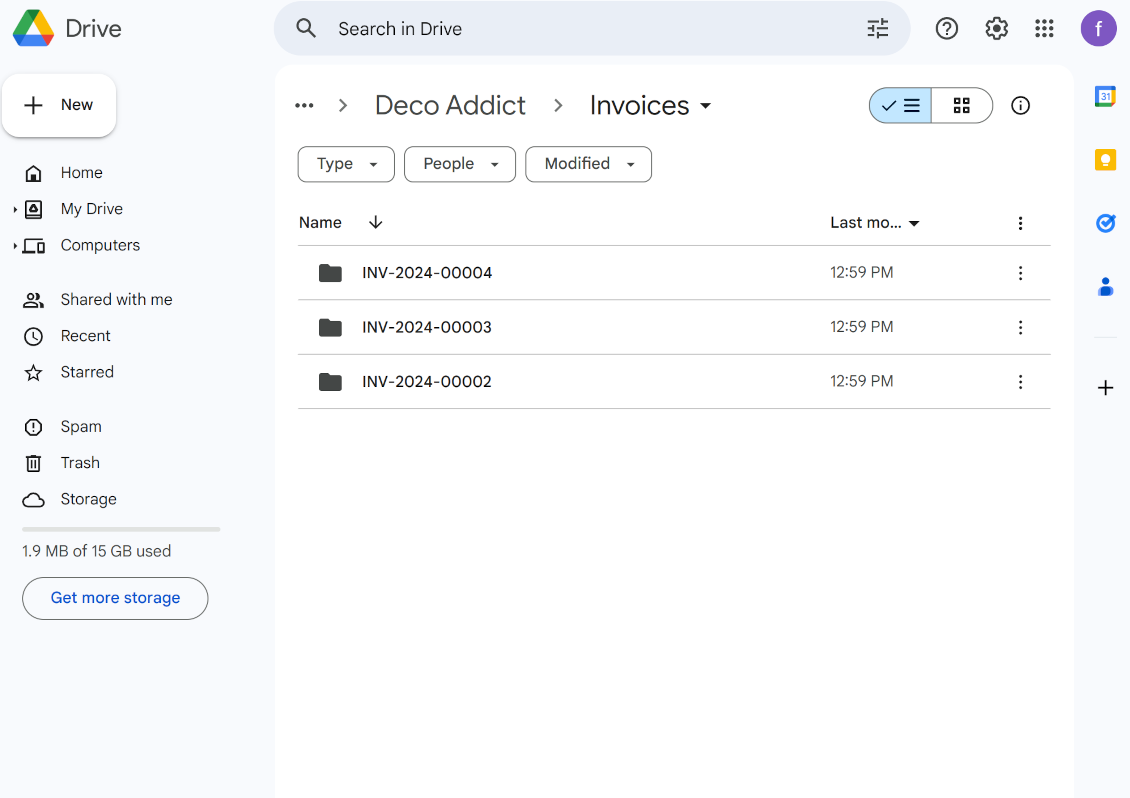
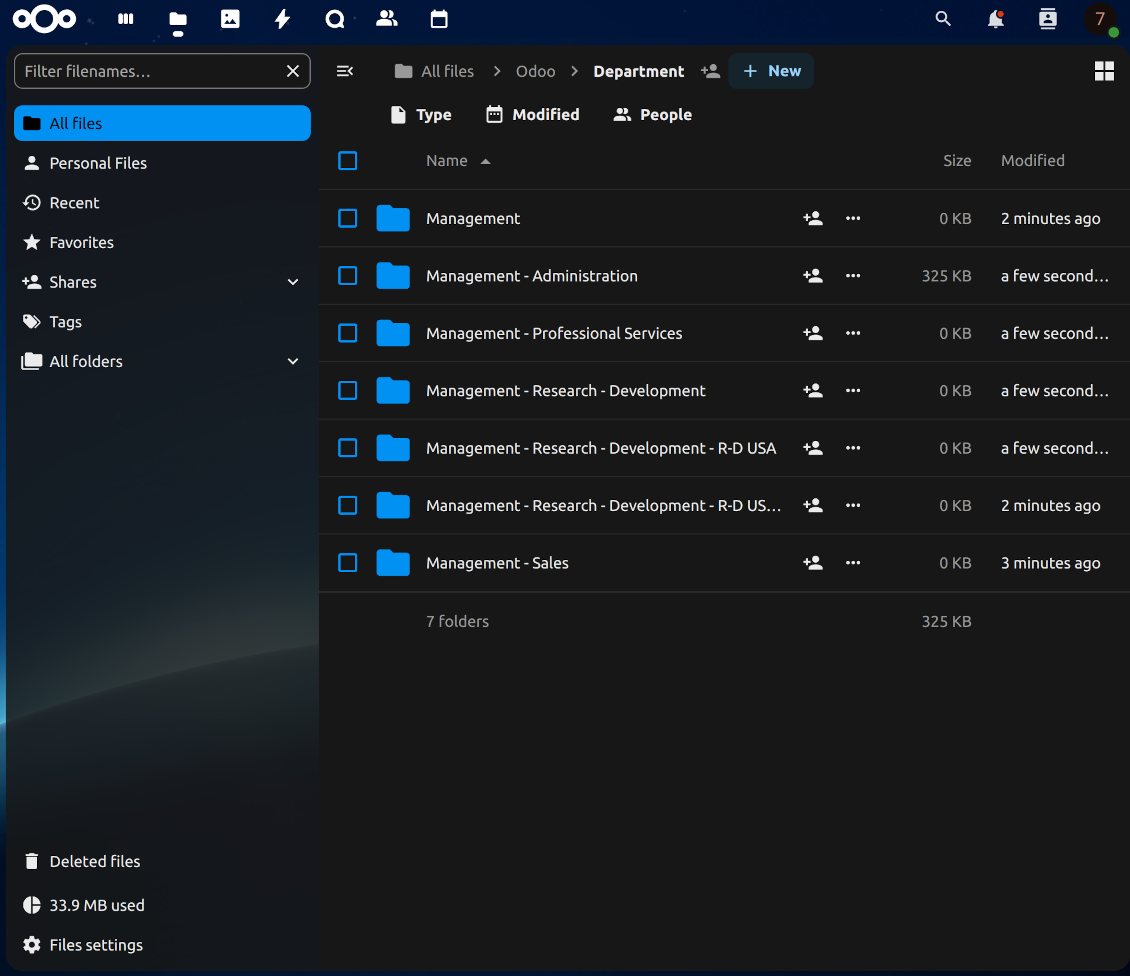
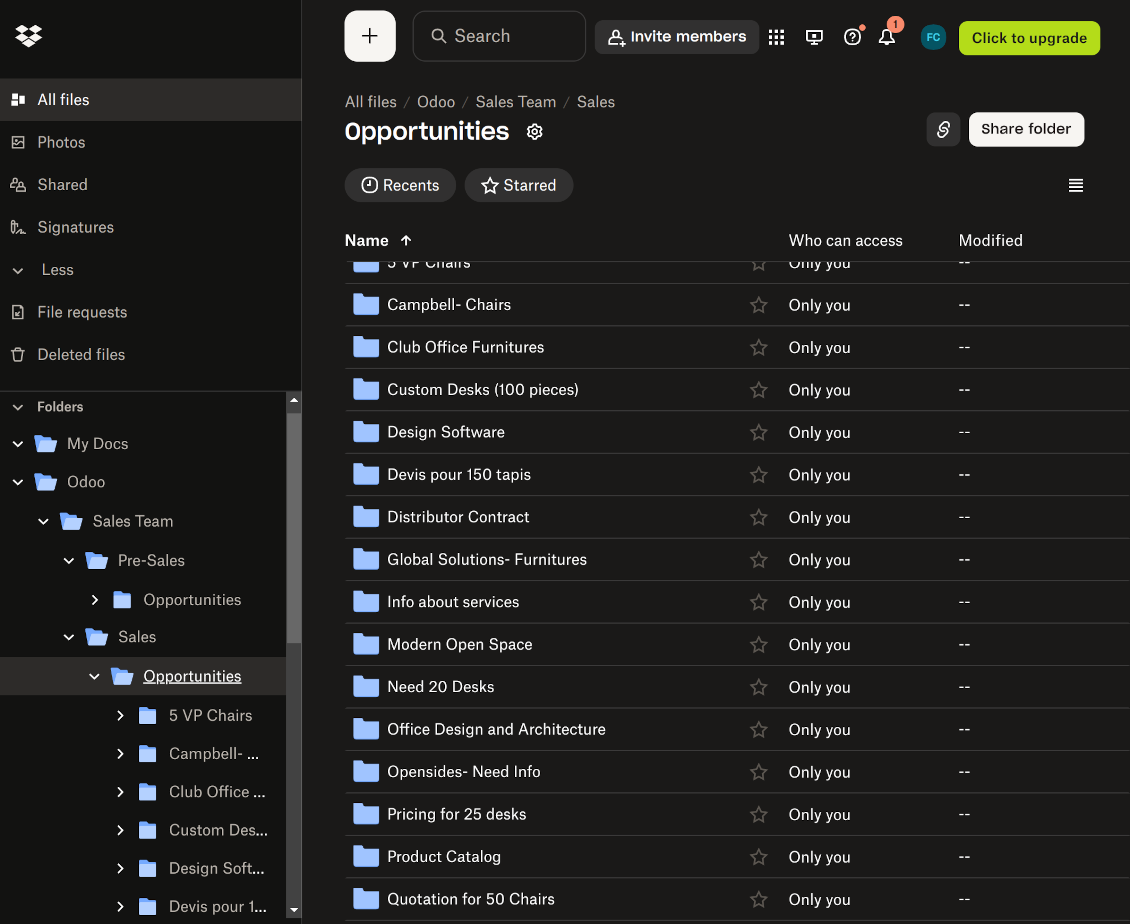
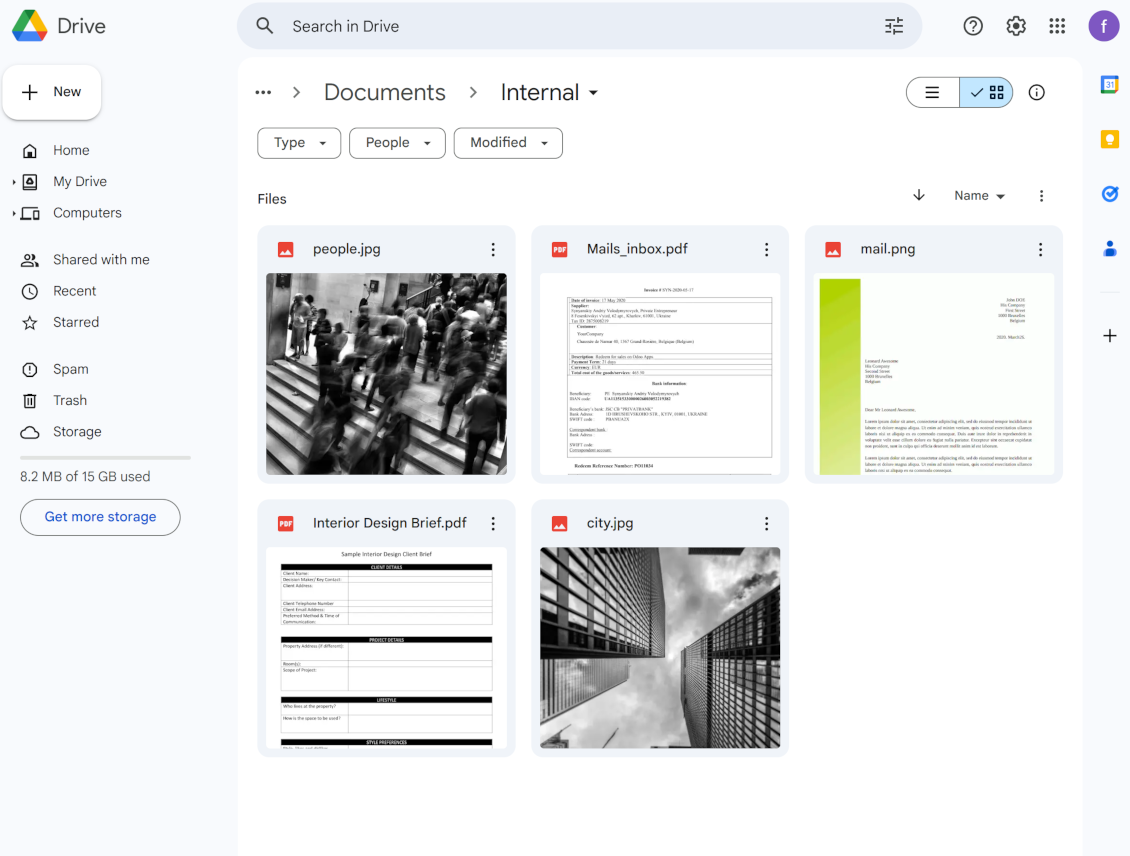
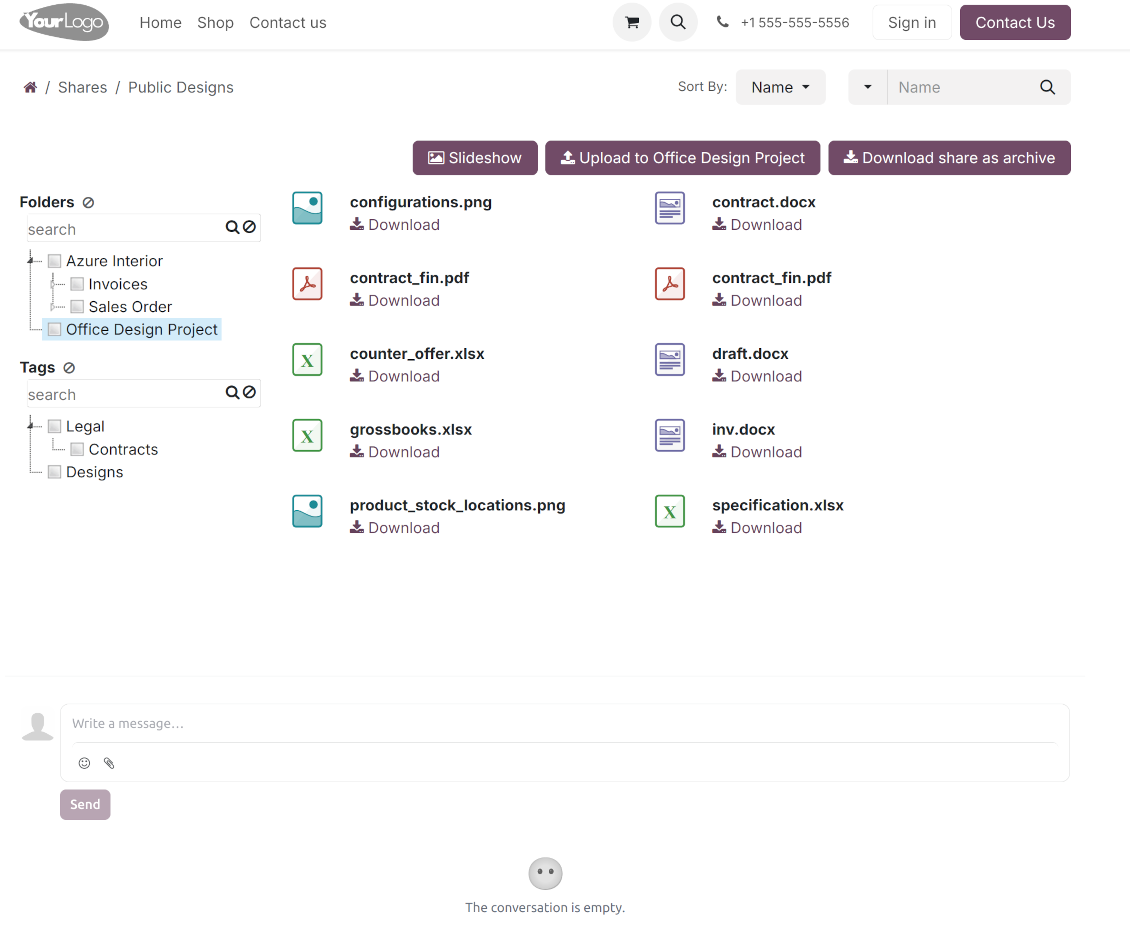
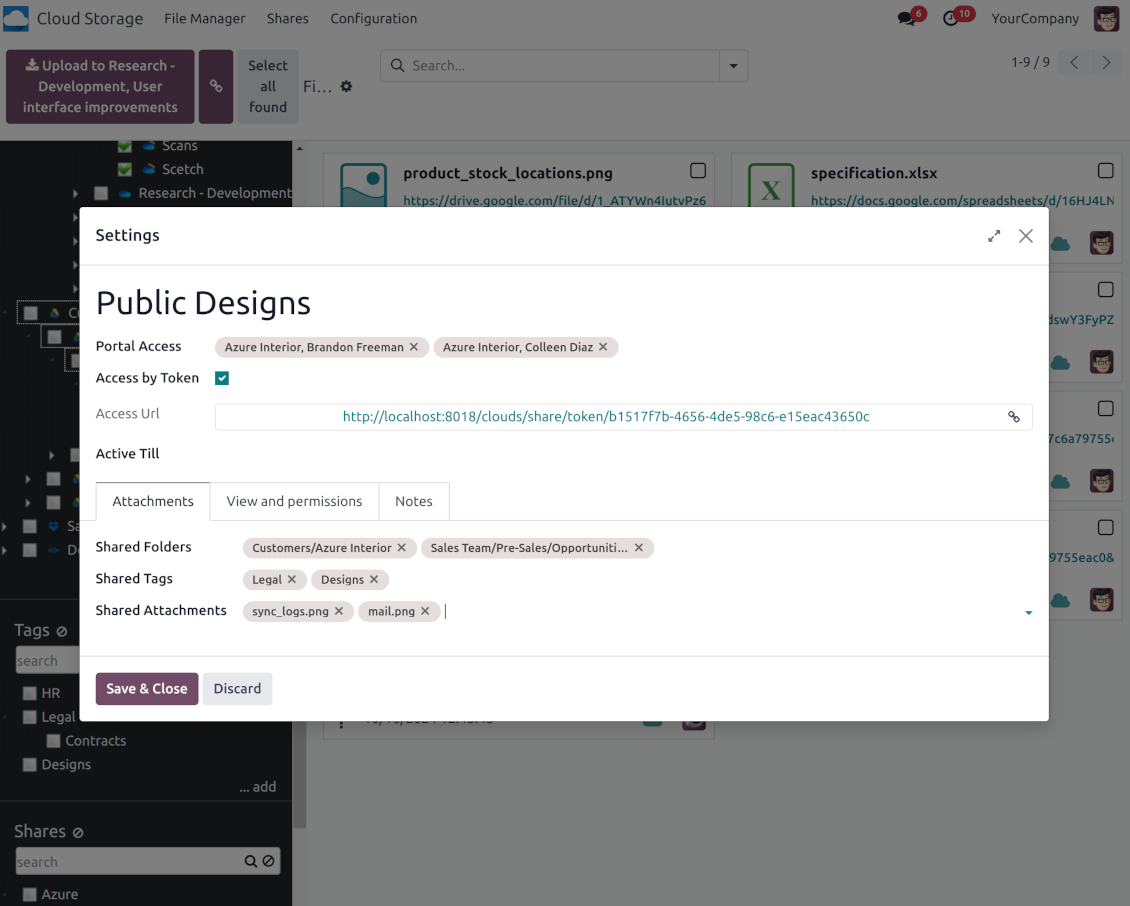
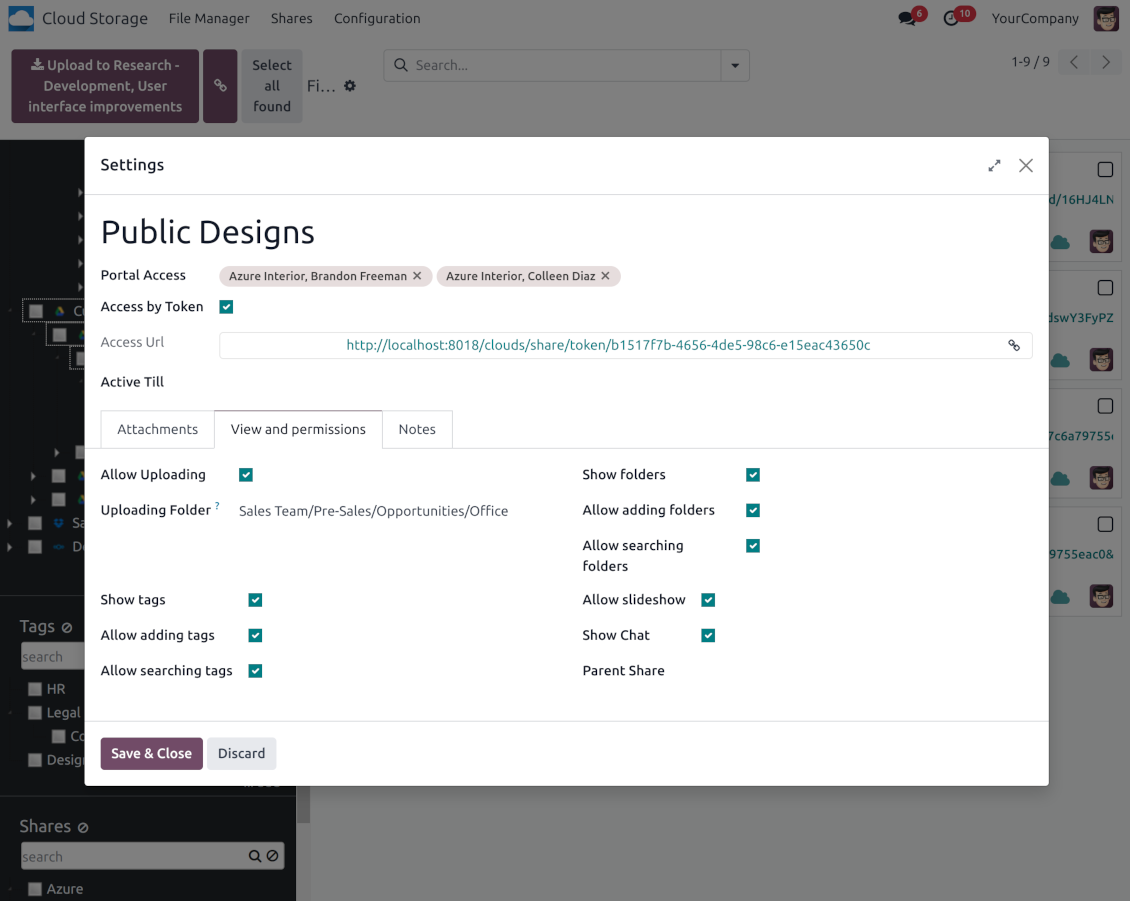
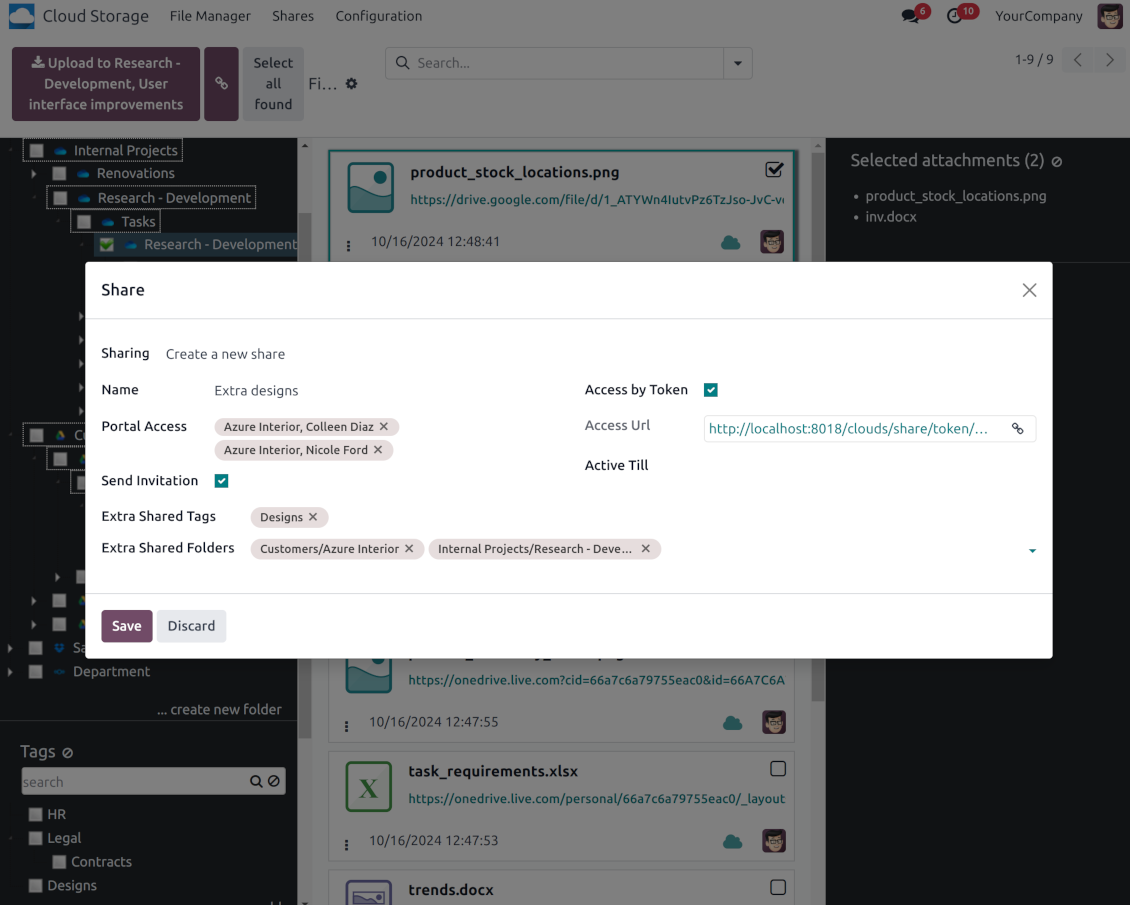

This tool organizes Odoo attachments in folders' trees and synchronizes those with your choice's cloud storage solution(s). The app introduces automatic algorithms to prepare directories for documents and integrate those with workflows of Google Drive, OneDrive/SharePoint, Nextcloud/ownCloud, Dropbox, Amazon/MinIO S3, Box, and NAS/WebDAV (Synology, QNAP, TrueNAS, etc.).
- the core module which introduces the file manager interface and basic mechanics for synchronizations with various cloud clients. سعره هو 398€.
- الموصل لمزامنة مجلدات Odoo ومرفقاته مع OneDrive و/أو SharePoint. الميزات التي تفترضها هذه الإضافة معلّمة بالأيقونة . سعره هو 89€.
- الموصل لمزامنة مجلدات Odoo ومرفقاته مع Google Drive. الميزات التي تفترضها هذه الإضافة معلّمة بالأيقونة . سعره هو 89€.
- الموصل لمزامنة مجلدات Odoo ومرفقاته مع Amazon S3. الميزات التي تفترضها هذه الإضافة معلّمة بالأيقونة . سعره هو 89€.
- الموصل لمزامنة مجلدات Odoo ومرفقاته مع Nextcloud و/أو ownCloud. الميزات التي تفترضها هذه الإضافة معلّمة بالأيقونة . سعره هو 89€.
- الموصل لمزامنة مجلدات Odoo ومرفقاته مع حلول NAS (Synology وQNAP وTrueNAS) وتخزين WebDAV العام. الميزات التي تفترضها هذه الإضافة معلّمة بالأيقونة . سعره هو 89€.
- الموصل لمزامنة مجلدات Odoo ومرفقاته مع Dropbox. الميزات التي تفترضها هذه الإضافة معلّمة بالأيقونة . سعره هو 89€.
- الموصل لمزامنة مجلدات Odoo ومرفقاته مع Box. الميزات التي تفترضها هذه الإضافة معلّمة بالأيقونة . سعره هو 89€.
- إضافة اختيارية لإعداد مجلدات مرتبطة بمساحات العمل ومزامنة مستندات Odoo (التي يقدّمها تطبيق enterprise 'Documents') مع السحابات. الميزات التي تفترضها هذه الإضافة معلّمة بالأيقونة . سعره هو 44€.
Automatic Folders
Decide which Odoo document types should have their folder trees. Directories are regularly updated based on flexible rules and existing Odoo objects
Sync with Cloud Storage Solutions
Synchronize chosen folders and files with specific cloud storage: Google Drive, OneDrive, SharePoint, Nextcloud, Dropbox, Amazon, Box, MinIO S3, NAS/WebDAV (Synology, QNAP, TrueNAS, etc.), and ownCloud. Have as many connections as you need
File Manager Interface
Manage folders and attachments from a single view. Comfortably navigate by directories and tags. Search and download files one by one or in a batch. Upload and move attachments
Enhanced Attachment Box
Organize files of any Odoo object in a set of subfolders. Instantly access folders and files in the attachment box and in synced cloud interfaces
Portal Sharing
Share files, directories, and tags with particular partners or with an access URL. Let users download whole shares and separate items, upload attachments, and add folders or tags
Enterprise documents compatible
Set up rules to prepare folders based on Odoo Enterprise workspaces. All features, including sharing, downloading, and signing, will work even after the sync
Automatic Regular Sync
Rely on auto-synchronization between Odoo and cloud solutions based on scheduled jobs. No manual interaction is required
Bilateral Sync
Odoo sends attachments to cloud storage solutions and retrieves files from there. Binary content is kept in clouds, while Odoo provides direct access to synced items
Excellent
We have been using Cloud Storage Solutions for a few years already, starting with Odoo 17 mostly because our attachments were a mess. Now we're moving to Odoo 20, and we've surely decided to keep using the app. The File Manager is great for finding a file by folder or tag instead of remembering which sales order it was attached to. And the attachment box on contacts and projects shows the same folders, which lets us avoid excess clicks.
The folder rules are the part I keep showing people: new customer and project folders just appear, with the sub-folders we set up once, and everything lands in our Google Drive through the connector. We also use sharing a folder with our external partners, which is often especially efficient for tasks.
Big thanks to the team too. I asked a lot of questions about the sync and the access rights initially and now during the switch, and every answer came back fast. Really felt like they wanted it to work for us. Happy customer here.
Works well with SharePoint. Supportive team
We've been using this with SharePoint and it's been working great. One of the best things is having everything, including logs right in Odoo's interface, so you can actually see what's going on. It's also super convenient that you can view or download synced files from the attachment box without having to leave the page or even log in to Sharepoint.
Setup was pretty smooth for us. When we had a few questions about setting up the folder hierarchy and priorities, the developer team got back to us in just a couple of hours and helped us figure it out. Great support and great extension!
Tricky setup, but works perfectly now
Really solid module. We managed to get a very flexible folder structure (sorted by clients) and synced all our sales orders, invoices and tasks by projects to Google Drive.
Initial setup was a bit of a pain and kinda tricky to configure everything at first, but now it's running smoothly and works perfectly. The faotools team helped a lot. Def worth it if u need to keep your docs organized in Odoo and Google Drive.
Recommended!
Great support, assistance and very good connector!
We are very happy with the support we received when configuring the Sharepoint - Odoo connector. The connector has great functionalities.
All our questions were answered very fast (within one day).
FaOtools helped us optimising our connector and assisted us with future improvements.
We really recommend this connector.
Great module and Great Support!
The module works great! and the support is phenomenal!
A must-buy if it suits your requirements!
very professional app, excellen t customer service
This app is very well programmed and does its job very well. But the best is the excellent customer service who also helps when the problem lies somewhere else. You receive a lot for your money.
Excellent !!!
Great App and great Service from faOtools.
An impressive app and world-class support
I have been very impressed by the way the OneDrive / SharePoint Odoo Integration module synchronises content in both directions and allows me to share documents in Odoo with my SharePoint site. Above all the technical support is top-notch, which greatly increases the value of this product. I highly recommend this product for anyone considering synchronising Odoo with SharePoint/OneDrive.
Very good product
A perfect solution to integrate Owncloud with Odoo. We sync a high volume of objects across multiple Odoo models, which works seamless and stable. For us it is the perfect solution to have an external DMS instead of the Odoo native attachment handling, which also enables us to interchange files between systems in our best-of-breed setup.
The team behind this module is extremely professional and responsive. They helped us on a few occasions and provided clear answers and prompt support when required, and they even went out of their way to assist us with another requirement we had. Cannot recommend the product and team highly enough, try this if you're in the market to connect Odoo with an external document solution.
Works fine, good support
The first experience with the module is excellent. I had some trouble to configure things right on the Microsoft-side, but the team provided quick and good support.
Best module for integration with google drive
The module performs its function correctly and faOtools responds quickly to any problem and, in case of detecting any bug, quickly apply the changes. Its support is 10 stars.
Works according to specs
I have used this app with Odoo 12 and Nextcloud 16 and it works as specified. Odoo Tools offers very responsive support which is really helpful. Of course 5 stars...!
This is Awesome
I have used Cloud Sync on Next/Own Cloud and works really great.
واجهة Odoo مدير الملفات
-
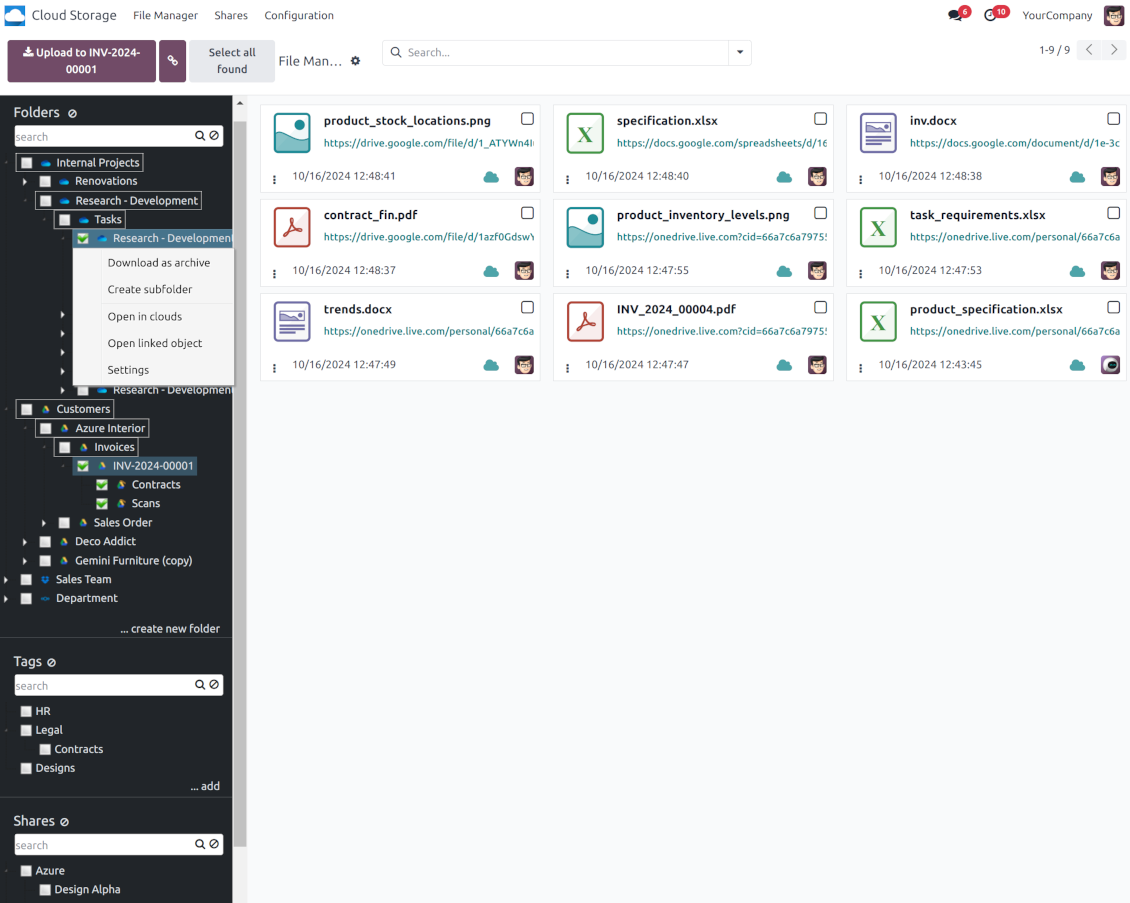
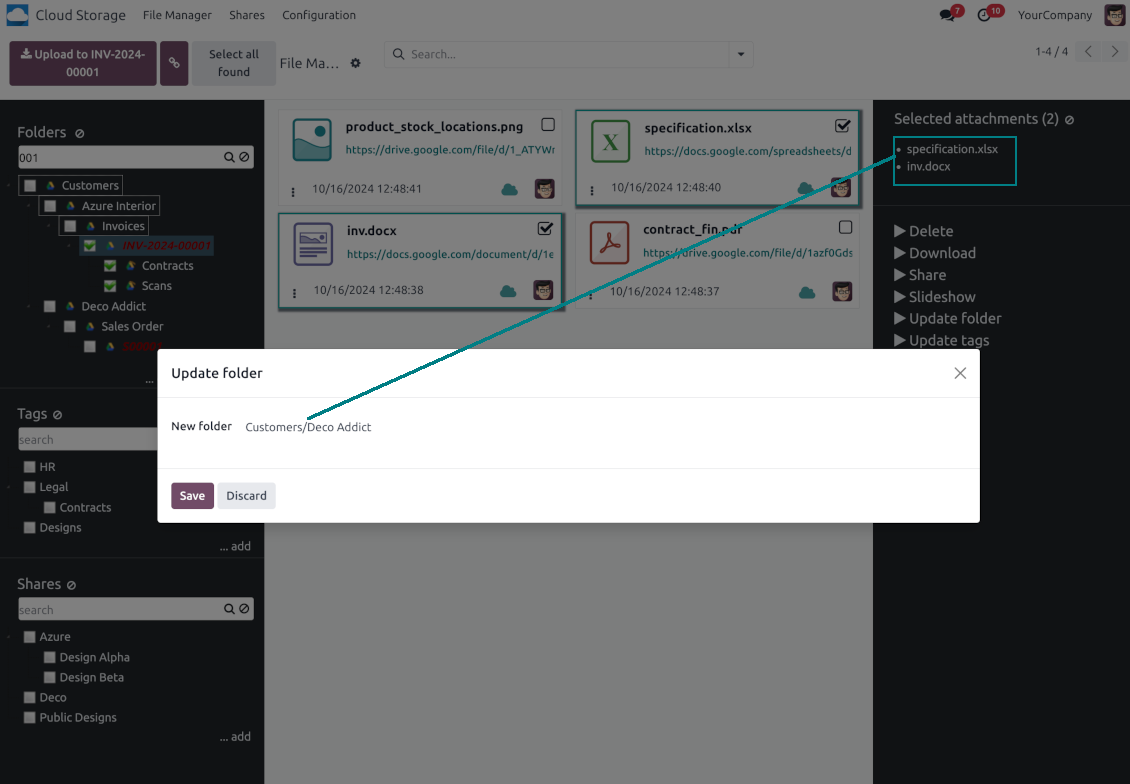
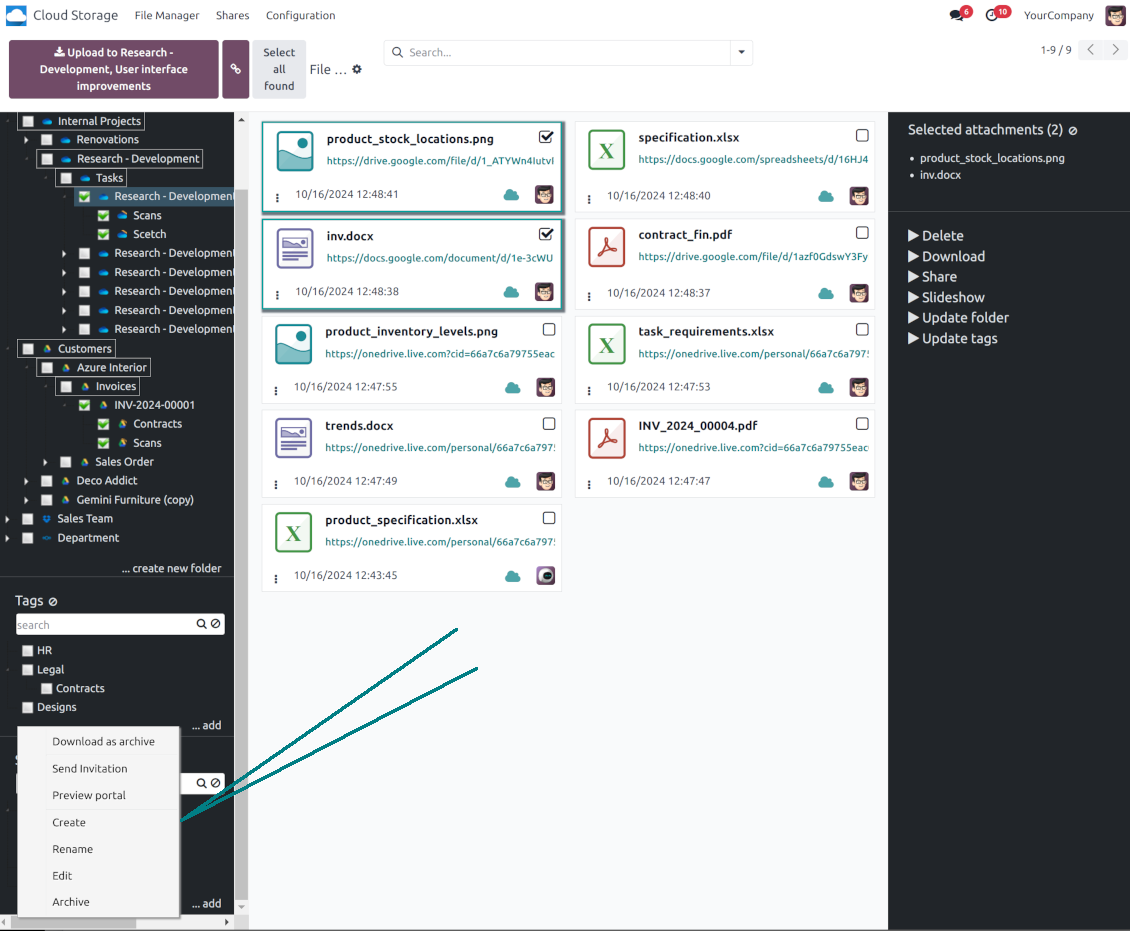
Navigate by folders: select a directory to show its attachments. Expand and hide folders' layers in a click. Add subfolders to any directory (right mouse click > Create subfolder)
-
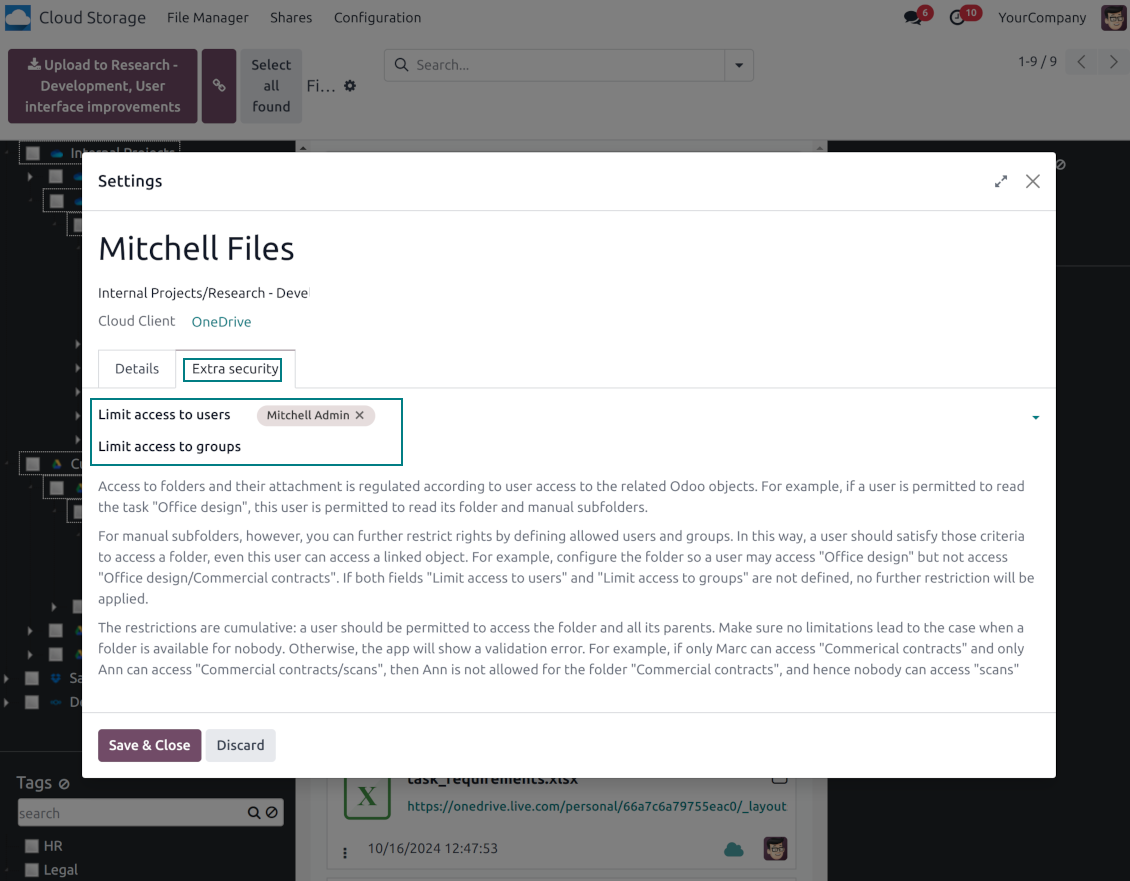
Open any synced folder in its cloud client (right mouse click > Open in clouds). Show a folder peer Odoo object if there is such a connection (right mouse click > Open linked object). Change settings of manually created folders, including granting access rights (right mouse click > Edit Settings)
-
Navigate by attachment tags. Create and edit tags right from the navigation panel
-
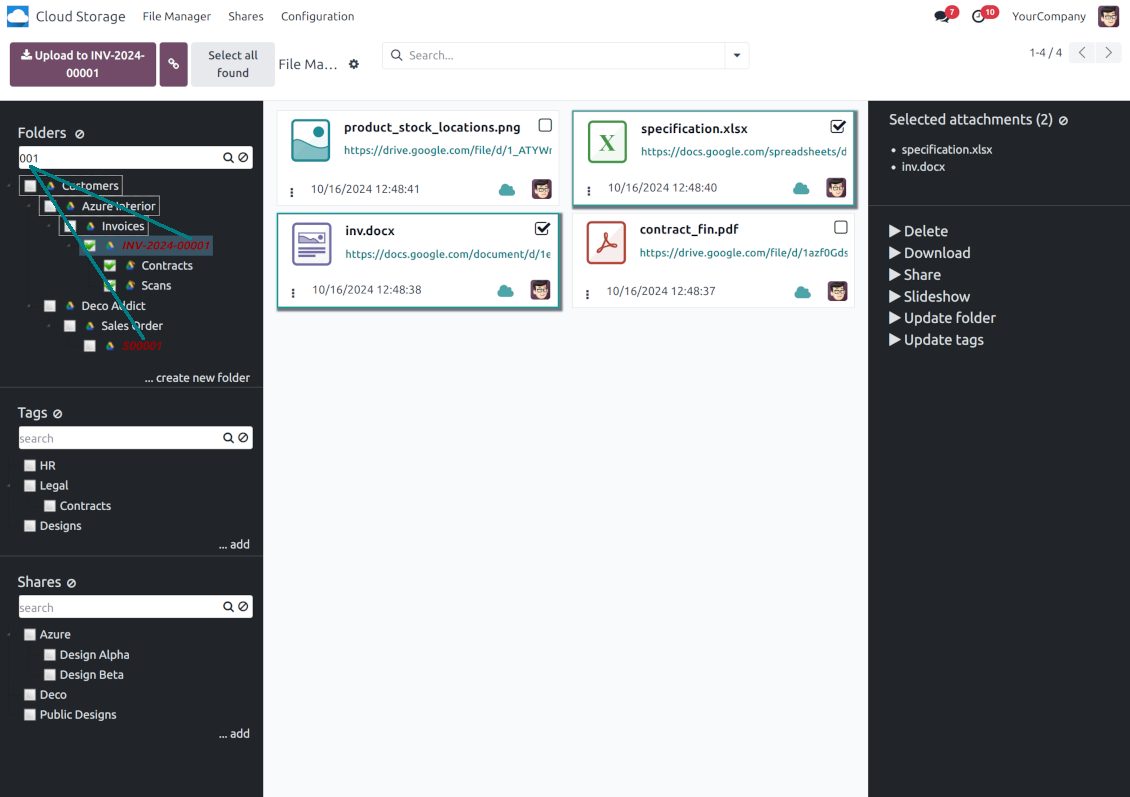
Search and highlight tags and folders in seconds even if there are thousands of items
-
Drag and drop to re-structure folders (relates only to manually created directories; for automatic folders change rules instead) and tags
-
Download any folder or any tag with all its attachments as a single zip archive (right mouse click > Download as archive)
-
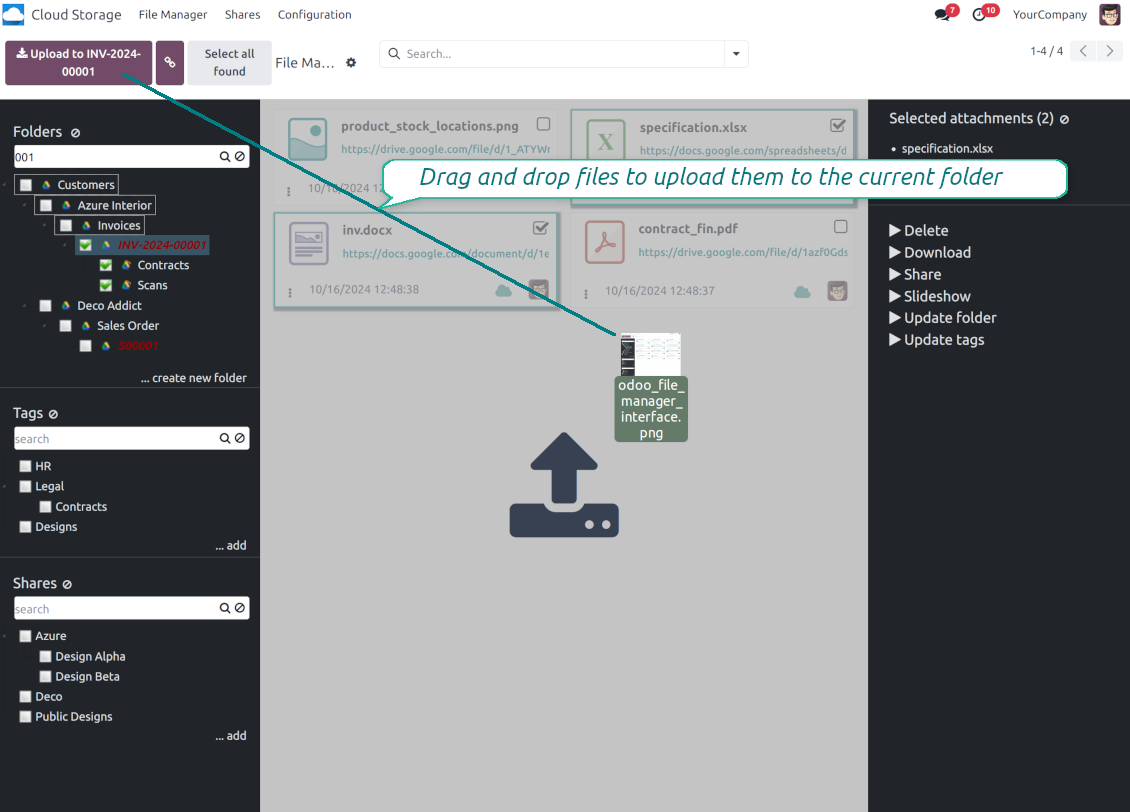
Upload attachments to the current folder. Use the top header button 'Upload file' or drag and drop files
-
Instantly open any synced attachment in a linked cloud client (push the link in the middle of attachment cards)
-
Download any attachment to your local computer disregarding whether it is synced or not (push the icon 'cloud' or 'download' in the footer right corner)
-
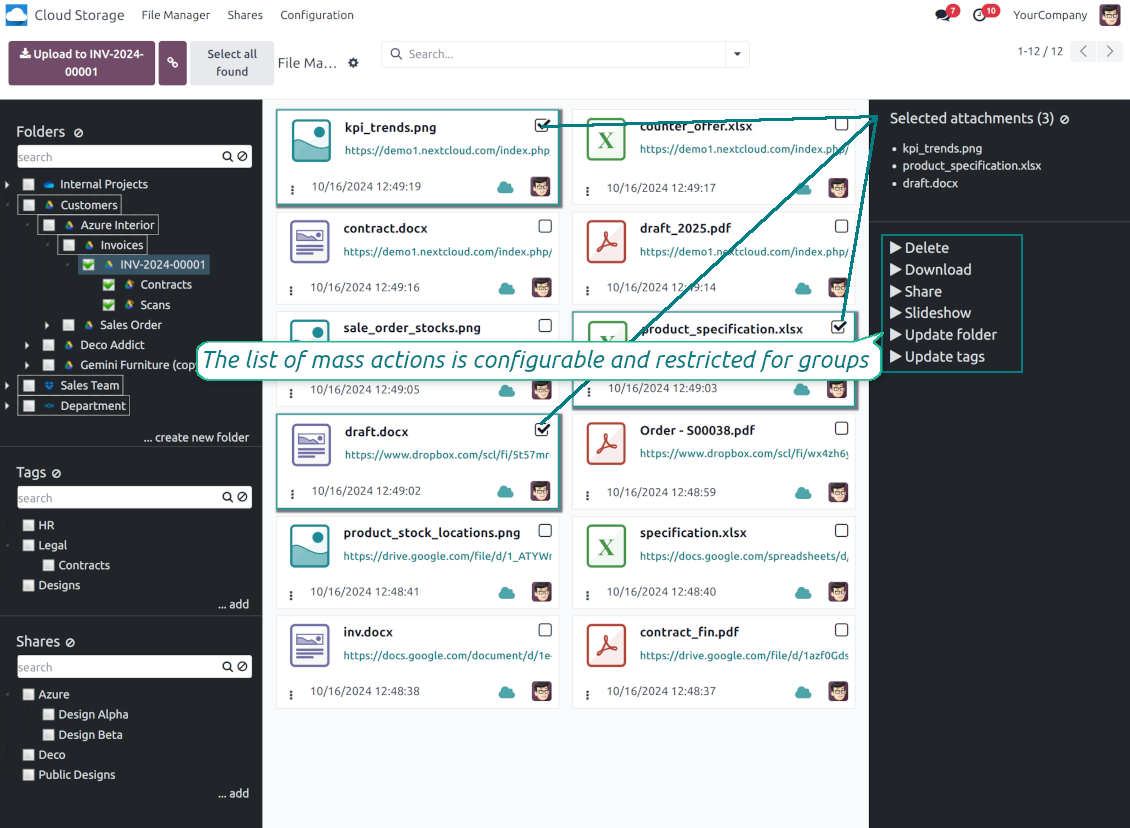
Consequentially select attachments and download them as a single zip archive
-
Move any files to any folder, including re-attaching items between Odoo objects (e.g. from a sale order SO-001 to another quotation or its customer folder). Use the mass action for that end or just drop an attachment to a required directory. Update attachments' tags by dragging those to the left navigation panel or by executing the mass action. Delete attachments in a batch
-
Apply standard attachments search to find required files.
Enhanced Attachment Box
-
Any Odoo object might be linked to its folder. See Automatic folders' structure
-
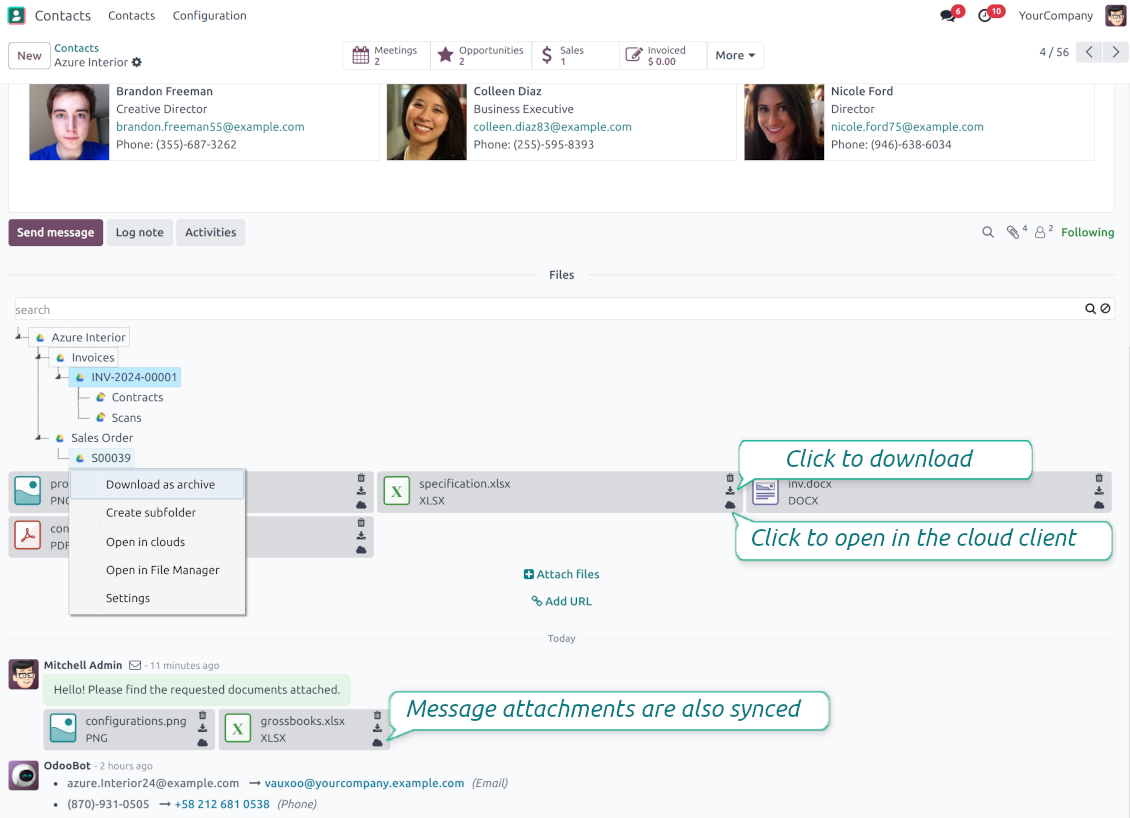
Flexibly define subfolders to organize the structure you need (right mouse click > Create subfolder)
-
Drag and drop to re-structure subfolders
-
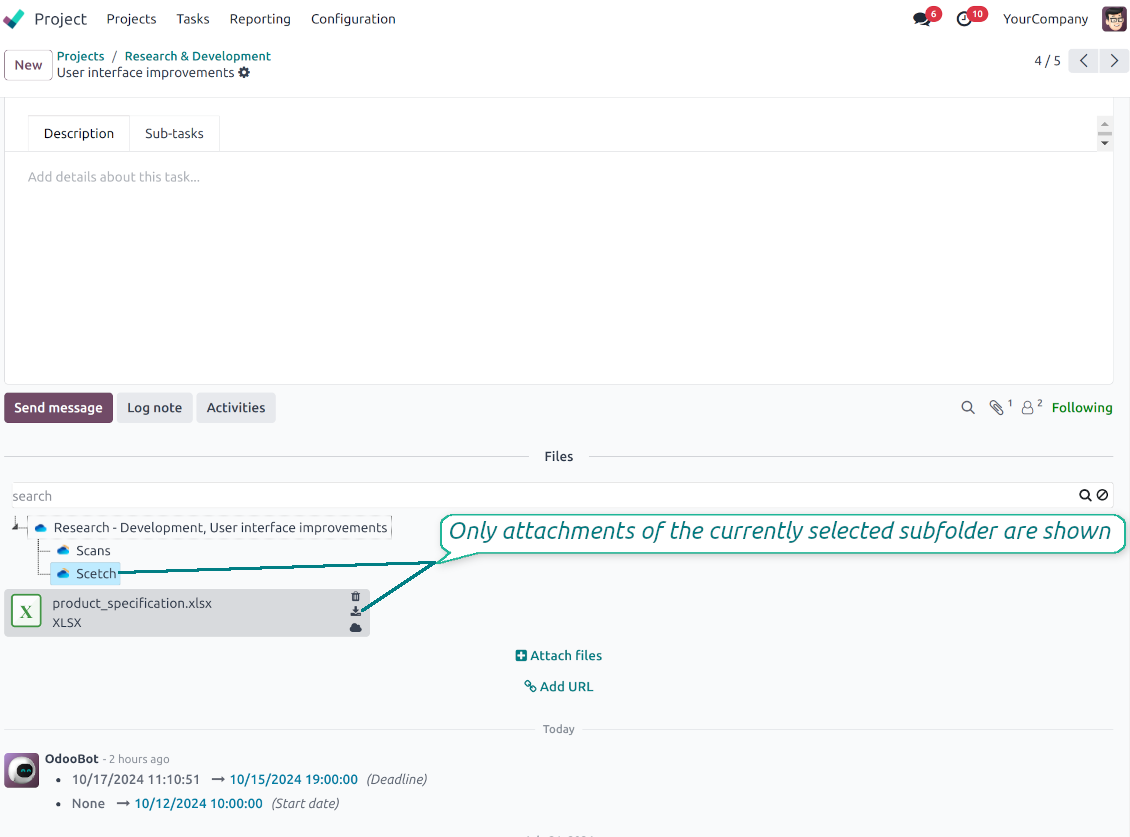
Select a folder to see its attachments. By default, files of the object root directory are shown
-
Download any folder with all attachments as a single zip archive (right mouse click > Download as archive)
-
Open the already synced folder in its cloud client (right mouse click > Open in clouds)
-
Upload attachment to a chosen folder (use the button 'Add attachments' or drag files to the attachment box area)
-
Instantly open any synced attachment in a linked cloud client (push the icon 'clouds')
-
Download any attachment to your local computer disregarding whether it is synced or not (push the icon 'download')
-
Use standard Odoo preview for both synced and local files (click on a file thumbnail)
-
Delete attachments as usual
-
All actions are equally applicable to object attachments and attachments related to messages.
مزامنة Cloud Storage
Multi synchronization
-
Use optional add-ons to synchronize the document management system with the cloud client(s) of your choice: Google Drive, OneDrive, SharePoint, Nextcloud, Dropbox, Amazon, Box, MinIO S3, NAS/WebDAV (Synology, QNAP, TrueNAS, etc.), and ownCloud. Have as many connections as you need
-
Establish multiple connections to different cloud clients simultaneously. For example, sync sales-related folders to Google Drive; tasks and projects - to SharePoint or OneDrive; HR documents - to Nextcloud/ownCloud; manufacturing specifications - to Dropbox. Take into account that a specific folder might be synced to only a single cloud storage solution. Its children would be synced to the same client
-
For each cloud client, the app lets set up a few instances. For example, for Google Drive, you may share some folders to your personal drive, others - to one of your team drives, and the rest - to your teammate's drive
-
To establish a connection with particular cloud storage, follow the instructions that are specific for client types. See the tab Configuration for details
-
Any connection might be paused manually if it is needed. It might be also auto-stopped if there are critical issues during the sync. Then, you should re-connect to a target cloud client
Cloud clients
-
Synchronization for all cloud clients is based on the same principles and on the same queue. Simultaneously, there might be differences in sync results due to different features of various cloud storage solutions
-
Establishing connections for different types of cloud clients assumes installing optional add-ons, different approaches for Odoo, and external API configuration. Follow the instructions on the tab 'Guidelines'
-
Google Drive Odoo Integration allows establishing a connection with any personal or team drive
-
OneDrive / SharePoint Odoo Integration assumes synchronization with any drive of personal/business/SharePoint tariffs
-
ownCloud/Nextcloud Odoo Integration et integrate Odoo with any instances of ownCloud and Nextcloud. In comparison to other clients, the app allows setting the type of attachment links. By default, Odoo links are internal: only authorized users may access them. Optionally make links public (the setting 'Use Public URLs'). See details on the guidelines tab
-
Dropbox Odoo Integration works for all DropBox tariffs, including Personal DropBox (Basic, Plus, Family) and business DropBox (Professional, Standard, Advanced). In comparison to other clients, the app allows choosing whether cloud items would be shared or internal. See details on the guidelines tab
-
Amazon S3 Odoo Integration (amazon_s3_odoo) synchronizes Odoo folders and attachments with Amazon S3 buckets
-
NAS/WebDAV Odoo Integration (nas_odoo) connects Odoo documents with NAS and WebDAV-compatible storage, including Synology, QNAP, and TrueNAS
-
Box Odoo Integration (box_odoo) synchronizes Odoo folders and attachments with Box cloud storage
Automatic two-sided sync
-
Integration is based on scheduled jobs and is fully automatized. The app regularly checks changes in systems and runs sync operations
-
Synchronization is bilateral. Updates in Odoo are reflected in cloud clients (direct sync); changes in cloud clients modify Odoo folders and attachments (backward sync)
-
أوقف المزامنة من مساحة التخزين السحابية على العميل للإبقاء على المزامنة في اتجاه واحد. تظل تغييرات Odoo تُرسل إلى التخزين السحابي، لكن الملفات والمجلدات التي تُنشأ أو تُعاد تسميتها أو تُحذف هناك لا تنعكس في Odoo. عند إيقاف الخيار مرة أخرى تُطبَّق تلك التغييرات المتراكمة، بما فيها عمليات الحذف، في المزامنة التالية
-
Any cloud connection might be reset. In this way, the app assumes getting back all items back to Odoo (reverse sync)
-
Odoo folders and attachments might be re-attached to a new cloud client. Hence, items will be first taken back to Odoo (reverse sync) and then put will be put to the new cloud storage (direct sync)
Queue-based synchronization
-
Once in 15 minutes, the app examines updates in Odoo and cloud storage(s) to prepare a synchronization queue
-
Folders' checks follow the First-In-First-Out (FIFO) principle. So, directories that have not been examined for the longest will be processed first
-
Once in 15 minutes, the sync queue is run by the special scheduled job. Firstly, the most important (blocking) tasks would be done
-
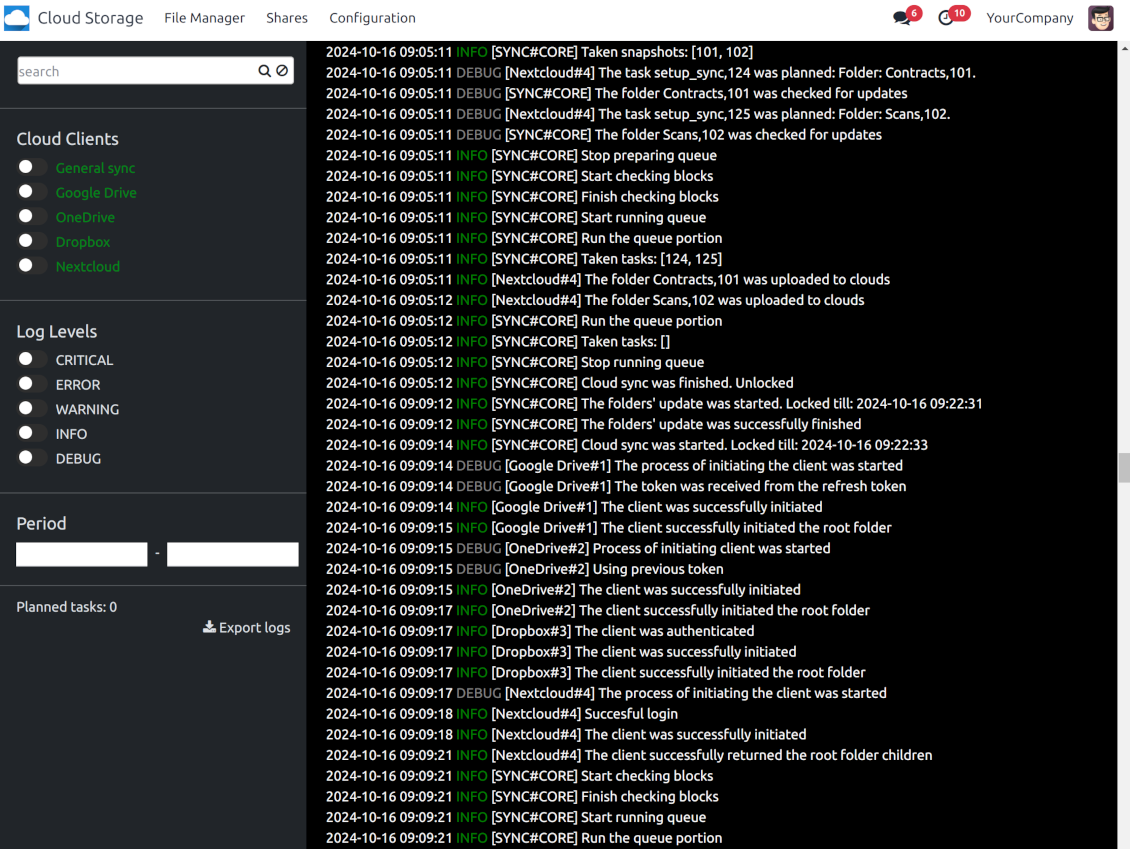
Control planned jobs and their fulfillment in the special Odoo logs interface (Cloud Storage > Configuration > Sync Logs). Subscribe for particular cloud clients notifications
-
If the app faces sync failures, it will re-try operations afterward. Sync queue processing would not be stopped if there are items not blocked by such failures
Odoo attachments for cloud storage: direct sync
-
Direct sync prepares the folders' hierarchy and uploads Odoo attachments for cloud storage
-
Direct sync checks whether attachments are added or deleted for synced directories. If so, they would be created or removed in cloud storage. In particular, it means that any file added to a folder-related Odoo object (e.g. Quotation), would be automatically moved to a linked cloud client
-
Direct sync makes all synced Odoo attachments change their type to a link (URL), while binary content is removed with one of the next Odoo cleaners. So, no actual files would be stored on your Odoo server
-
Direct sync checks whether a new folder is added. Disregarding whether it is done manually or automatically, the app would generate a peer directory in a cloud storage
-
Direct sync checks whether there are any updates in folders. If so, such changes are reflected in a cloud client
Cloud storage files and folders for Odoo: backward sync
-
Backward sync checks whether any files or subfolders are added to cloud storage folders. If so, the app would create URL attachments/subdirectories inside linked Odoo directories (and hence Odoo objects if any)
-
Backward sync checks whether there are any updates in folders or attachments. Such updates would be then reflected in Odoo
-
Backward sync checks whether any files are deleted/moved in a cloud document folder. If so, a linked Odoo attachment would be also unlinked or moved
-
If you deleted a cloud storage folder related to a folder rule / Odoo object, their child files would be deleted as well. Thus, Odoo would remove related attachments. The folders, however, will be recovered with a direct sync
-
In case of conflicts, direct sync changes are in general considered more important than backward updates.
Resetting or changing cloud client: reverse sync
-
In case you decided to reset the connection with a specific cloud client, files would be moved back to Odoo
-
أوقف المزامنة العكسية على العميل عندما يجب أن تبقى نسخة التخزين السحابي هي النسخة الوحيدة، أو عندما يكون الاتصال معطلاً. عند فصل هذا العميل أو إعادة ضبطه أو إلغاء تنشيطه لا تُنزَّل الملفات ولا يُحذف شيء في التخزين السحابي. تنقطع الصلة بين كائنات Odoo وعناصرها في السحابة. الروابط المحفوظة ما زالت تفتح الملفات في التخزين السحابي، لكن Odoo لم يعد يستطيع تنزيل تلك المجلدات والملفات أو معاينتها أو فتحها. هذه الصلة لا تُستعاد
-
In case you decided to change the cloud client of a folder rule or a folder, files would be first taken back to Odoo, and then direct sync for a new client would be done
-
Reverse sync operations are prioritized to direct and backward sync operations
-
Not all items can be correctly reversed to Odoo due to cloud client peculiarities. For example, there are documents that may exist only in cloud storage environments (e.g. Google Sheets). The app would try to convert such documents, but in some cases, it would require manual interactions.
Automatic Folder Structure
Rules for automatic folders
-
The app allows preparing its own folder for any Odoo object
-
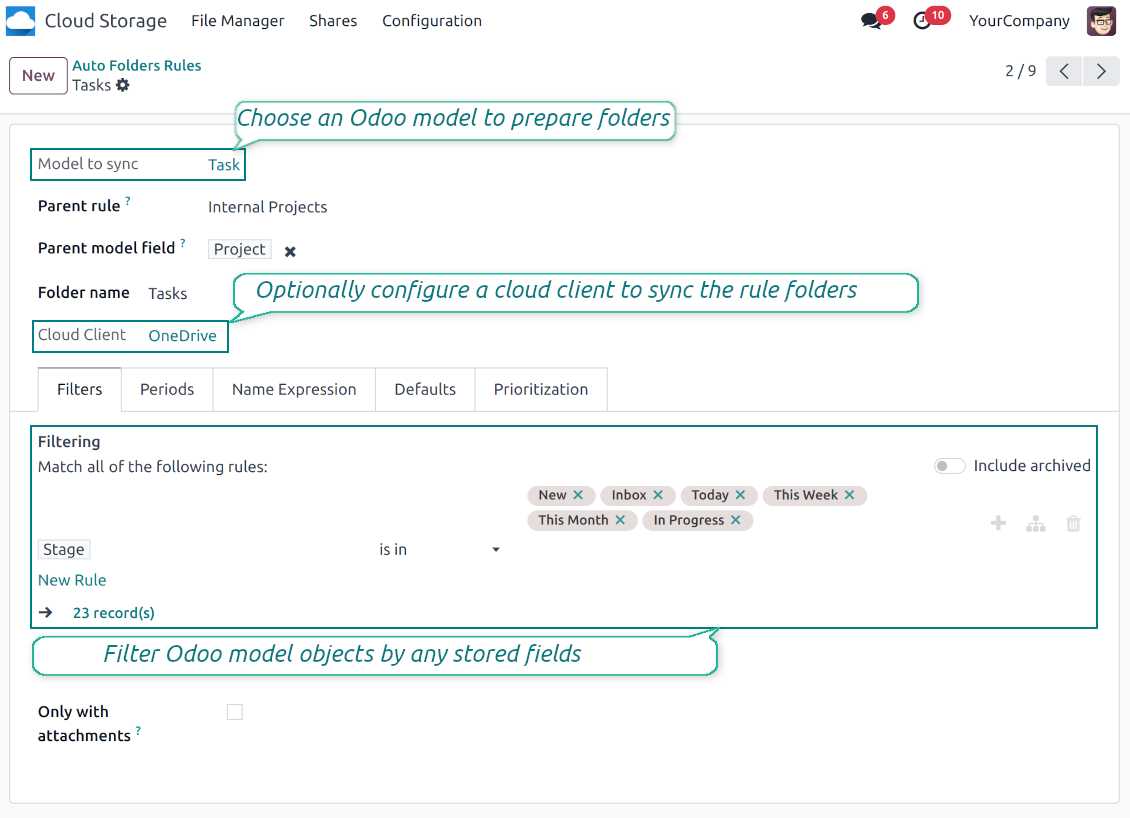
To configure a particular Odoo document type to generate a folder, you should just prepare a new folder rule (Cloud Storage > Configuration > Folder rules). For example, select the model 'Task' to make Odoo add a folder for each project task, so Tasks > Task 1, Task 2, ...
-
Automatically created directories would contain all attachments their linked objects have
-
Folders are updated regularly based on the scheduled job
Multi directories for each model
-
Each Odoo model might have a few linked folders
-
Apply any model storable field to filter Odoo objects and, in this way, split objects into a few super directories. For example, have own folders for individuals and companies, for European and American opportunities, for quotations and confirmed orders, for each project
-
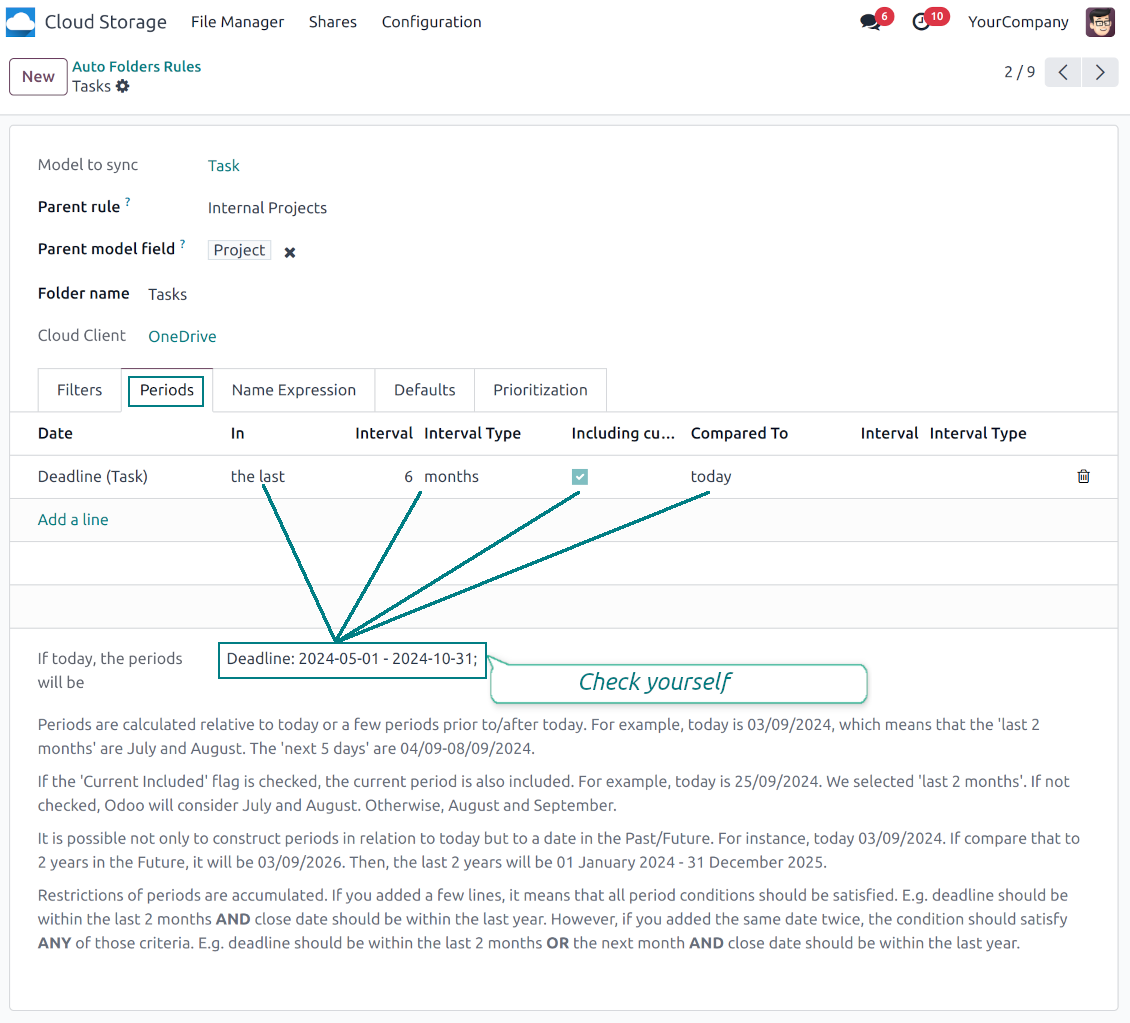
Filter Odoo objects by relative periods by applying date fields of linked documents. For example, leads registered in the last 3 months or invoices updated in the last week
-
As a result, the app lets have paths like 'Odoo > Quotations Europe > SO-001' or ' Odoo > the last year posted invoices (America) > SO-001'
Flexible folders' tree
-
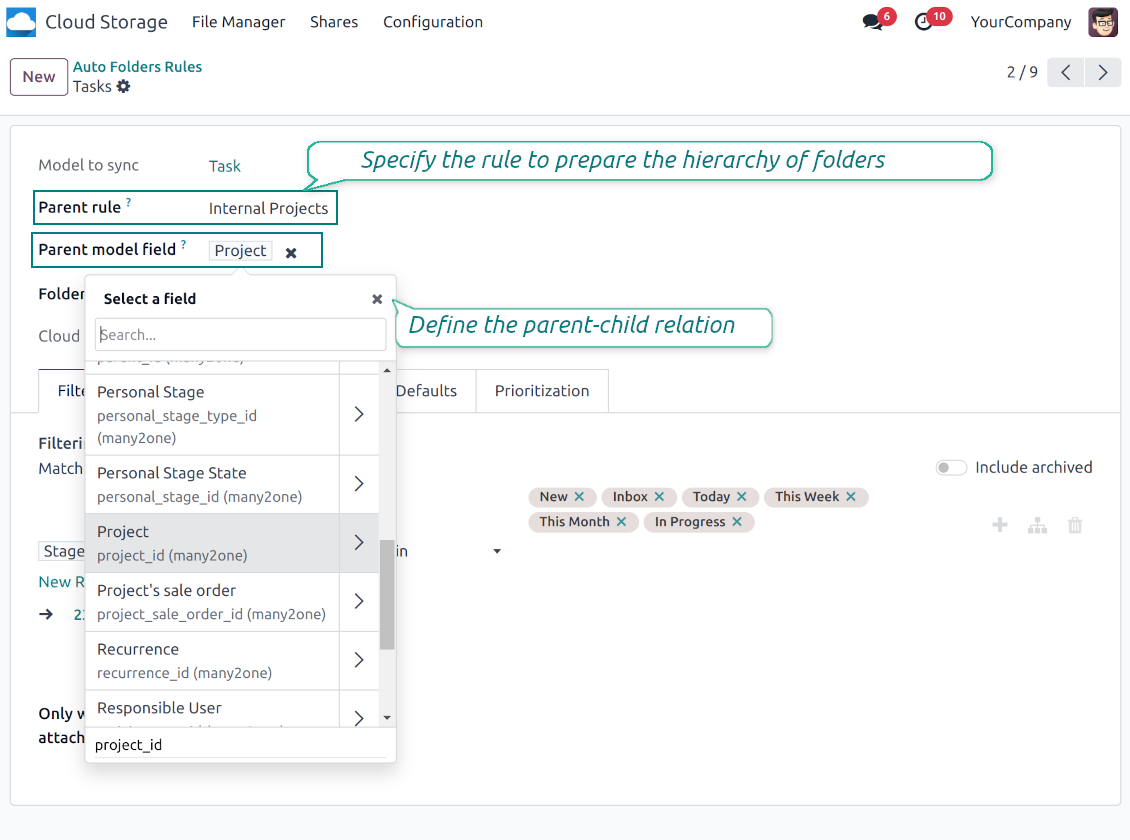
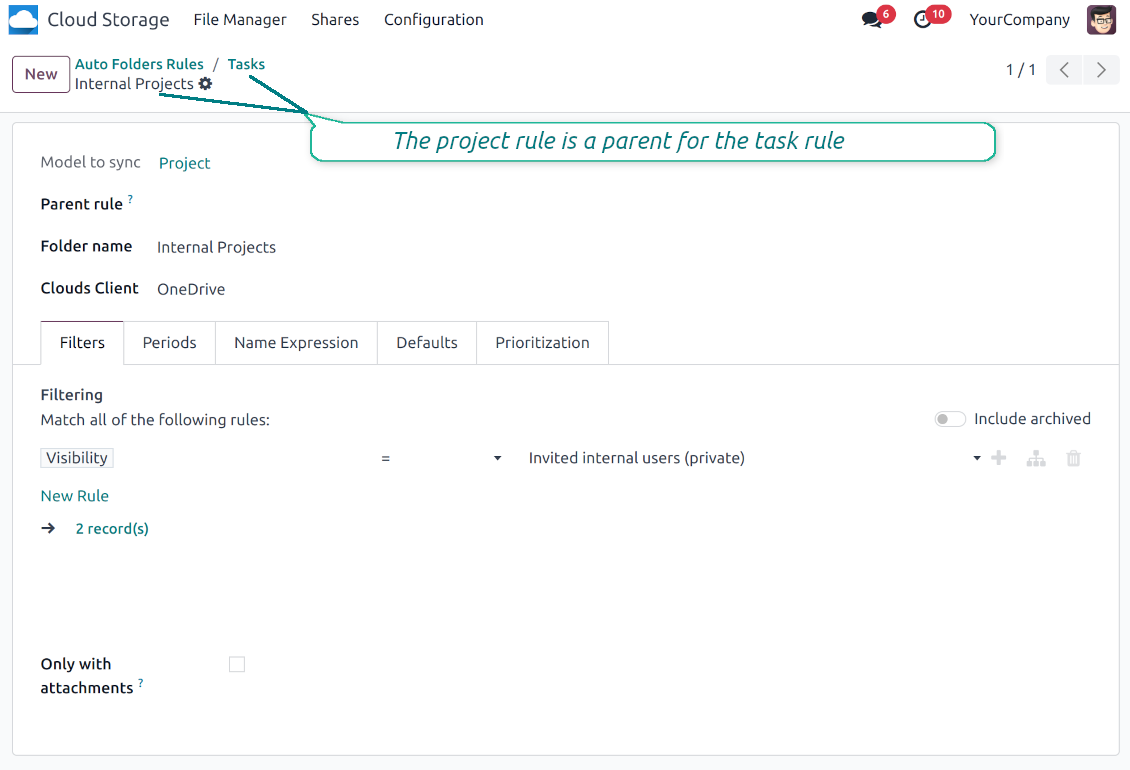
It is possible to set up a hierarchy of folder rules to prepare a more flexible directories structure
-
To that goal define a parent rule for a required folder configuration. For example, use a project-related rule as a parent for a task-related rule, a customer-related rule - for invoices-related rules
-
In order for folder relations to work correctly, it is also needed to enter a parent model field. So, it is the field that links models between each other (many2one relation). For example, 'Project' of a task, 'Customer' of a sales order, or 'Sales Team' of an opportunity
-
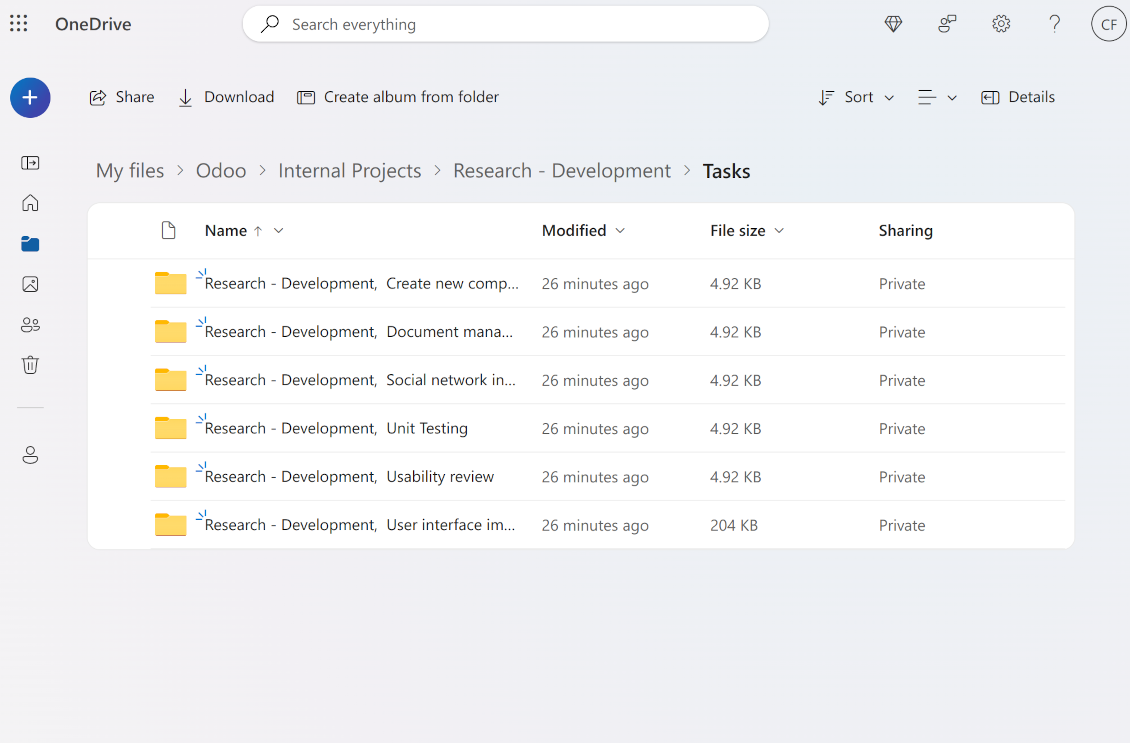
As a result, the tool allows reflecting your Odoo workflow logic and have paths like 'Odoo > Customers > Azure Interior > Projects > Software Design > Prepare Specification' and 'Odoo > Customers > Azure Interior > Quotations > SO-001'
Subfolders, default folders, and default files
-
The app lets add an unlimited number of manual subfolders for each folder. In particular, you may have a directories tree right in each object attachment box
-
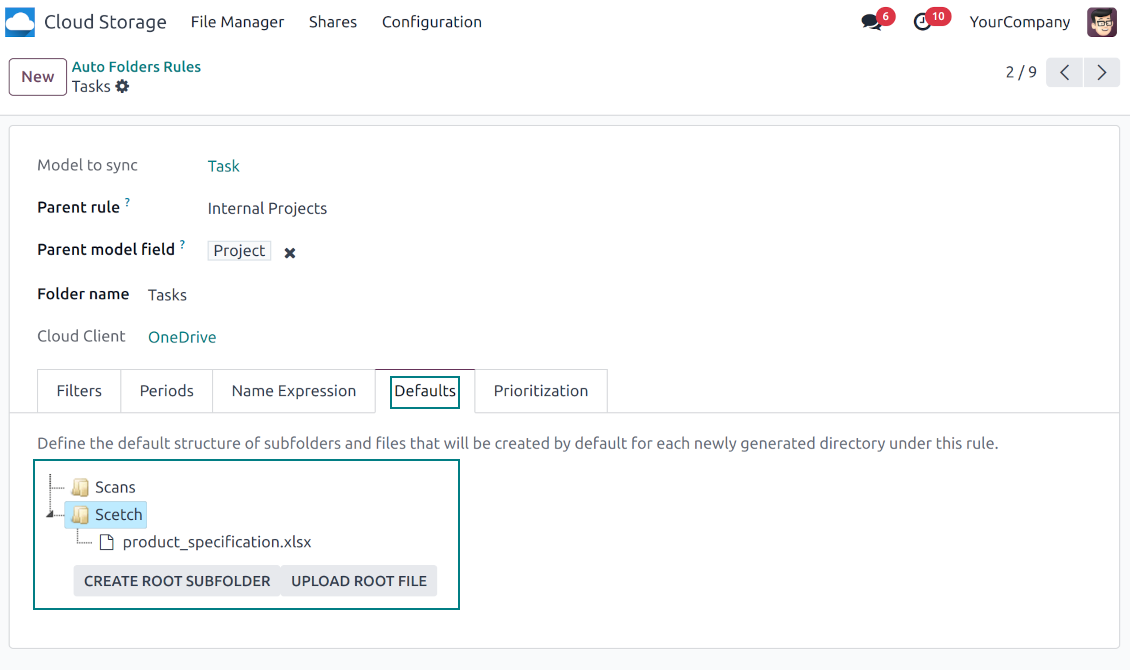
For the first generation, it is possible to define default folders, so subdirectories would be auto-generated for a specific Odoo object folder. Afterward, you may add delete/edit those or add new ones
-
The same mechanics are applied to prepare default files. For example, to have contract/personal card templates which then are assumed to be filled with real data
Configurable folder titles
-
Each folder rule assumes to generate a directory. Names for such directories are assigned right on a rule form. For example, introduce 'Jobs' for a task-related rule or 'HR' for employees' folders. By default, the Odoo model name would be used
-
For object-related folders, the names are generated based on the Odoo standard display names. So, if not defined the opposite, it would be the same title as you see in the Odoo form view header
-
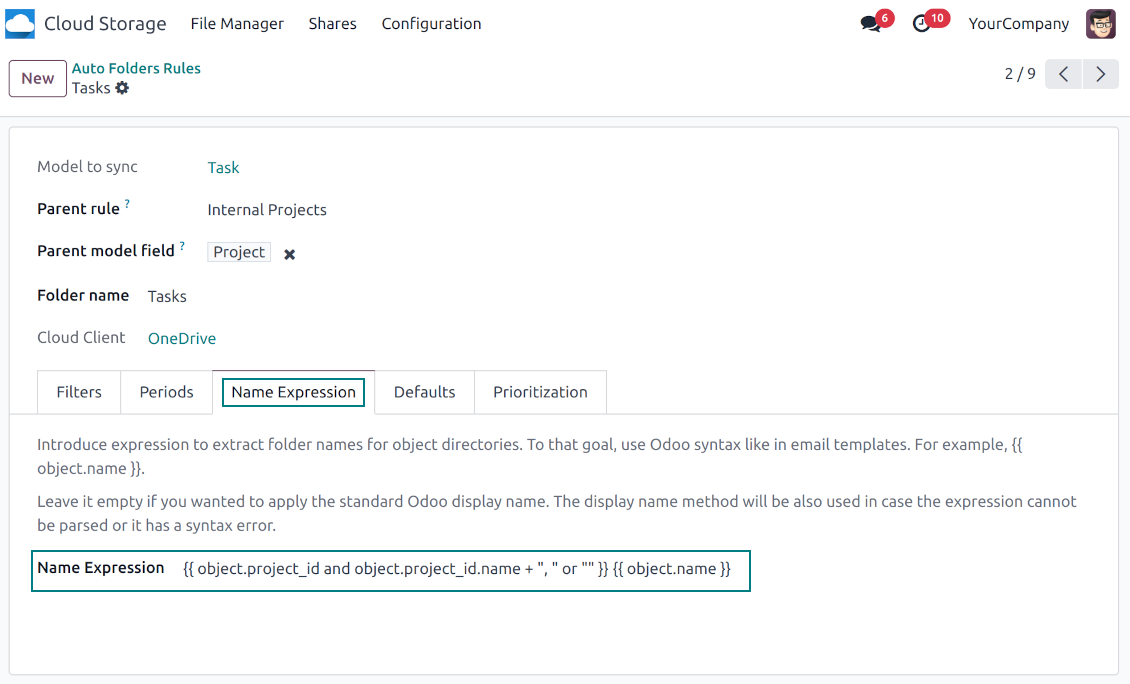
The app lets define complex name expressions for object-related folders (the tab 'Name Expression' on a folder rule form). To that goal, apply the syntax used in Odoo email templates. For example, {{ object.project_id.name }}, {{ object.name }} to reflect a project name in tasks folders
-
Avoid the following symbols in folders' and files' names: *, ?, ", ', :, <, >, /, +, %, !, @, \, /,. Direct sync will replace such symbols with '-'. It is done to avoid conflicts with file systems. Avoid also too long names: e.g. more than 100 symbols
Enterprise Documents
-
The app allows generating folders for workspaces introduced by the Odoo Enterprise apps 'Documents'
-
To force Odoo to prepare workspace-related directories, define folder rule(s) of the type 'Workspace-Related rule'. The tool would automatically create linked folders and sync those for chosen cloud storage with one of the next jobs
-
It is not obligatory to reflect the whole DMS structure. Thus, it is possible to filter workspaces by any storable field. For example, to add a folder only for workspaces that contain the keyword 'Internal'. Take into account: if a workspace was synced, all its child workspaces would be also synced
-
If you generated a subfolder for any workspace-related folder, the app would also create such a Documents workspace
Typical use cases
-
Customers: add all partner files in a single super directory. Optionally distinguish companies and individuals. For example, Odoo > Customers > Azure Interior > Contacts > John Brown
-
Sales orders and invoices: keep all sale-related printings and contracts in your own quotation directories for each customer. For example, Odoo > Customers > Azure Interior > Orders > SO-001 and Odoo > Customers > Azure Interior > Invoices > INV-00001
-
Opportunities: store all specifications, requirements, and any files which would let you make a good offer carefully structured by each sales team and case. For example, Odoo > Sale teams > Europe > Leads > Interest in 50 chairs
-
Project and tasks: prepare a folder for each customer project and task. For example, Odoo > Customers > Azure Interior > Projects > Software design > Tasks > Specification
-
Human resources: gather all files by each employee in a single folder: photos, document scans, contracts. Structure employees by department. For example, Odoo > Departments > Accounting department > Employees > Anita Olivier.
مشاركة الملفات والمجلدات
-
Share particular attachments, whole directories, or even all files of specific tags
-
Grant access to chosen Odoo contacts. Send an invitation to any Odoo portal users at any moment
-
Generate a special access link for public use (even without a user). Change it to make the previous one outdated
-
Make shares for temporary use or available constantly until archived
-
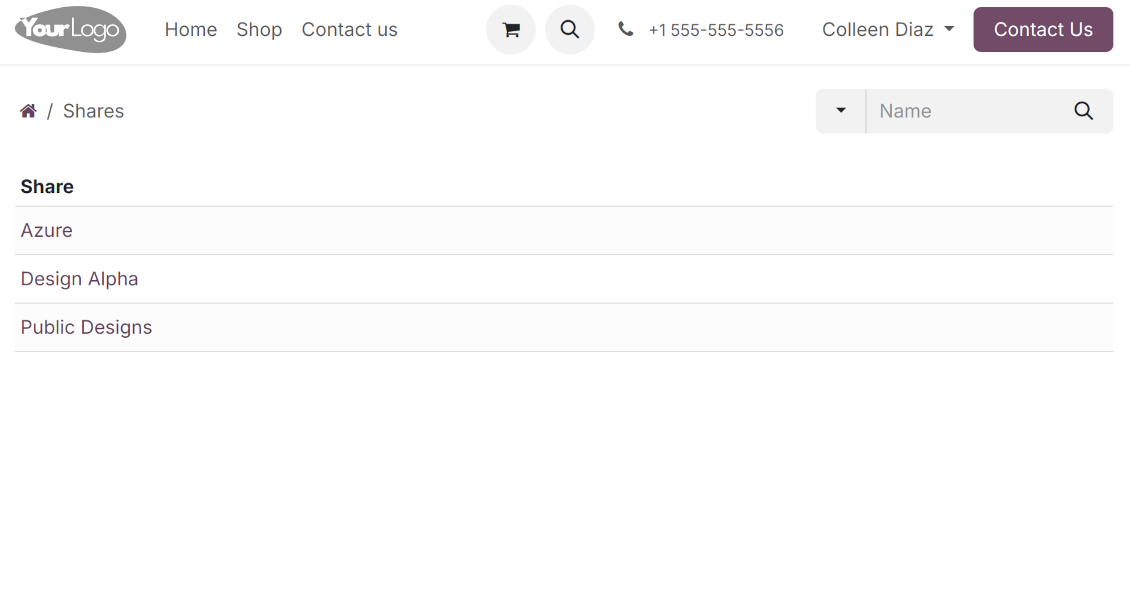
Create an unlimited number of shares with any setups and attachments involved. Portal users might access those through the special entry "Shares" in the Odoo's portal
-
For single-view purposes, shares support hierarchy so as to make comfortable navigation by those
-
Share users can download any shared file, a whole share, a particular directory, or a tag as a ZIP archive
-
Optionally let upload files to the selected or default folder. Files drag and drop is supported
-
Users are always allowed to search attachments by title, linked folder, and tags
-
Optionally allow navigation by folders and/or tags. Shared tags/folders, their children, and ones linked to shared attachments will be available
-
Let users add tags and folders by themselves. Show/hide searching items in tags/folders navigation trees
-
Turn on/off a chat per each share.
صلاحيات الوصول لإدارة المستندات والمزامنة
-
Access for each Odoo automatic folder is regulated based on a linked object. If such an Odoo object is available for a specific user, its directory would be also available for her/him. For example, if Anita Olivier is the task manager of 'Prepare specification', then she may access the folder 'Tasks' and 'Tasks > Prepare Specification'
-
Access to Odoo manual folders is regulated based on its user groups and users stated in those folders' settings. If nobody is specified, a manually created folder is available for everyone. For example, if Anita Oliver is a sales manager, she may access the quotation-related folder 'Odoo > Orders > SO-001'
-
To access any folder, a user should be able to access all its parents. For example, if Anita Oliver has rights for employees but does not have for departments, then she might not read 'Odoo > Departments > Administration > Employees > Mitchel Admin'. However, if the folder 'Employees' becomes a stand-alone folder without a parent, then Anita would be able to access 'Odoo > Employees > Mitchel Admin'
-
The app does not regulate access levels for cloud clients and their items. The tool regulates rights only for Odoo objects and synchronizes those to required storage. After the sync, if necessary, you should apply the settings for a target cloud client, folders, and files
-
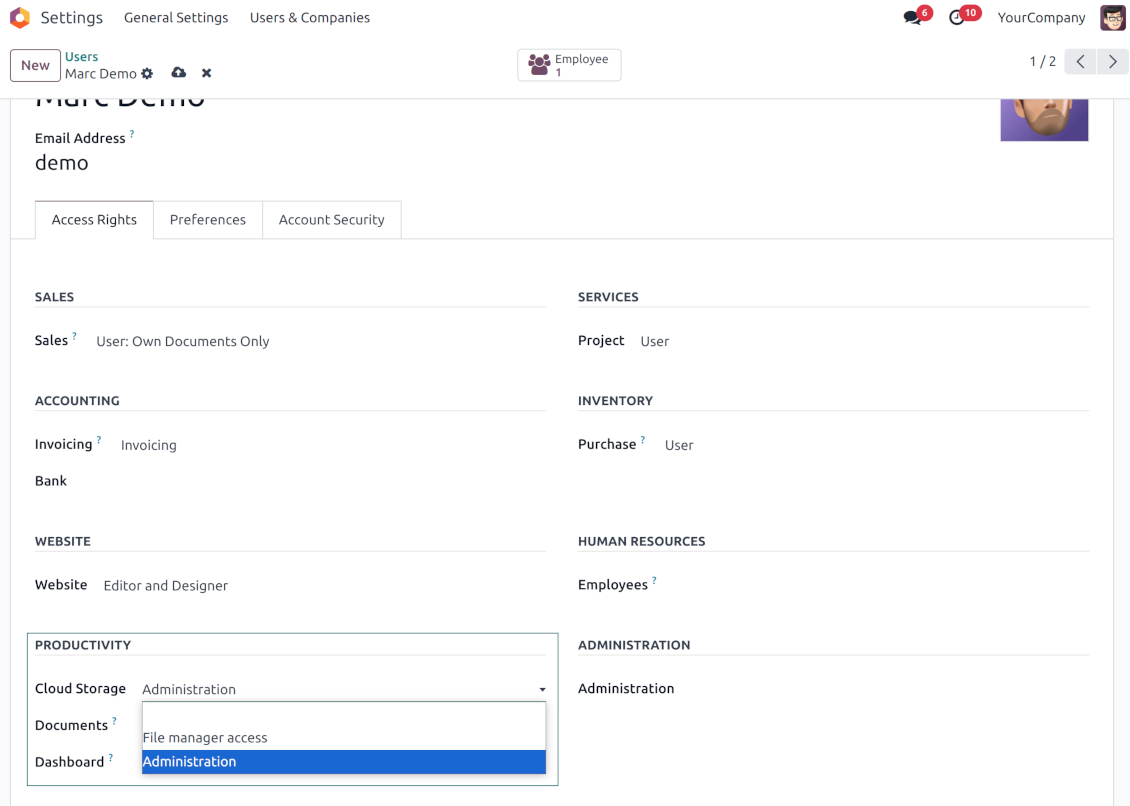
To observe the menu 'Cloud Storage' and the app file manager, a user should belong to the security group 'Cloud Storage > File Manager Access'
-
To configure automatic folder rules, establish connections with various cloud clients, control sync logs, and apply the app settings, a user should belong to the security group 'Cloud Storage > Administration'.
ملاحظات
-
The app assumes automatic regular synchronization with various cloud clients. Please take into account that synchronization is not real-time but is based on tasks queue and scheduled jobs. Depending on the number of folders and attachments, it might take time for the app to check all directories and do the jobs. That's why, until the sync is done, Odoo attachment interfaces work as in standard Odoo.
-
Cloud connections rely upon the API of the related cloud clients. Such communication between systems is risky by concept due to possible disconnections, API updates, and unsolvable conflicts. The app is designed to cope with such risks by carefully processing failures and checking cloud client states. Simultaneously, make sure that you have configured a proper backup strategy for both Odoo and cloud clients.
-
The special factors of risks are sync scope and reverse operations. The higher the sync scope is, the more it would take Odoo to finish integrations. Hence, more space for errors exists. Try to decrease sync scope logically by choosing only required folders. Reverse operations might be risky since assume reflecting cloud clients' features which might be absent in Odoo. For example, Google Sheets cannot be opened outside Google Docs. The app would try to solve the scenarios by applying similar features (e.g. by converting a file to simple electronic tables). However, that is not always possible, and in this way, manual interactions would be required.
نصائح التكوين والتثبيت لـ Cloud Storage Solutions Odoo v.18
تهيئة خادم Odoo
لضمان عمل المزامنة بشكل صحيح طبّق مهلات مناسبة في ملف تهيئة Odoo: LIMIT_TIME_CPU وLIMIT_TIME_REAL وLIMIT_TIME_REAL_CRON يجب أن تكون أكثر من 900 ثانية.
بالنسبة إلى Odoo.sh يجب عدم القيام بذلك، لأن المهلات محددة مسبقاً وغير قابلة للتهيئة.
تجنب أيضاً تغيير تردد مهام cron الذي تفترضه التطبيق: '[Cloud Storage] Prepare Cloud Folders' و'[Cloud Storage] Run / Prepare sync queue'. هذه المهام مهيأة للتشغيل كل 15 دقيقة، ويُستخدم هذا التردد في الخوارزميات لتجنب الانقطاع وفقدان البيانات. إذا احتجت إلى إيقاف المزامنة لفترة، أوقف عملاء سحابة معيّنين بدلاً من ذلك.
اعتمادية Python عامة
تعتمد الأداة على المكتبة الخارجية 'sortedcontainers'. ثبّت هذه المكتبة لخادم Odoo عبر الأمر:
pip3 install sortedcontainersإعداد تكامل OneDrive و/أو SharePoint
اعتمادية Python
تعتمد الأداة على المكتبة الخارجية 'microsoftgraph'. ثبّت هذه المكتبة لخادم Odoo عبر الأمر:
pip3 install microsoftgraph-python
التهيئة وتسجيل الدخول
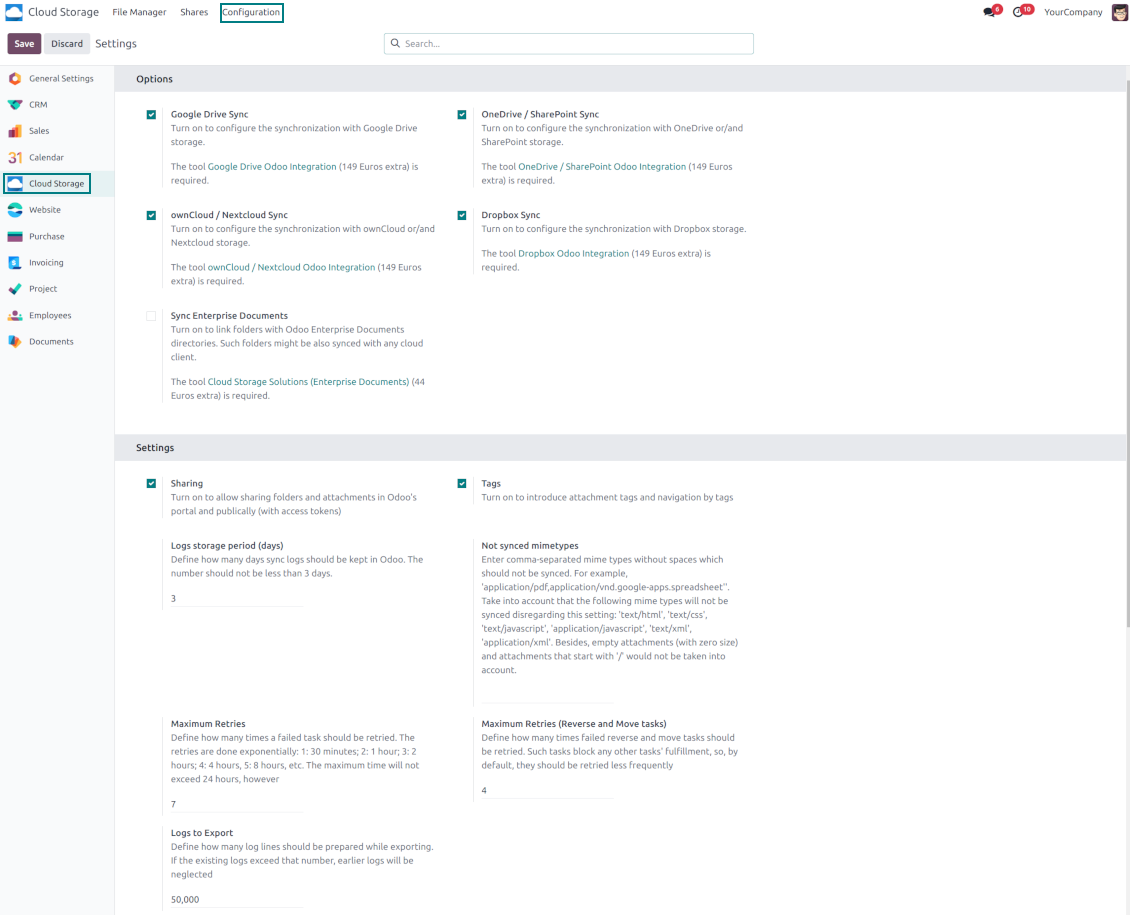
- فعّل الخيار 'OneDrive / SharePoint Sync' (cloud Storage > Configuration > Configuration). الإضافة الاختيارية OneDrive / SharePoint Odoo Integration مطلوبة
- تأكد أن مستخدم Microsoft لديه صلاحيات مسؤول كاملة لـ OneDrive / SharePoint الذي تريد وصله بـ Odoo. هذا المستخدم مطلوب فقط لمنح الصلاحيات، ولن تُحفظ بيانات المستخدم في Odoo ولن تُستخدم لاحقاً. إضافة إلى ذلك، تأكد أن عنوان البريد الإلكتروني من Microsoft الذي تستخدمه لا يحتوي على إعادة توجيه (يحدث عادة عند تهيئة اسم نطاقك بينما يبقى العنوان الأساسي أحد نطاقات Microsoft مثل @outlook.com و@office365 وغيرها)
- انتقل إلى Azure Portal: https://portal.azure.com/#blade/Microsoft_AAD_RegisteredApps/ApplicationsListBlade
يجب تسجيل التطبيق داخل دليل (tenant). لم تعد Microsoft تسمح بإنشاء تطبيق جديد خارج دليل.
- إذا كان لديك بالفعل دليل شركة Microsoft 365 / Azure، بدّل البوابة (أعلى اليمين) إليه ثم تابع.
- إذا كان لديك حساب شخصي فقط (@outlook.com، @hotmail.com، @live.com) وظهر "these applications are associated with the account ... but are not contained within any directory"، فليس لديك دليل بعد. سجّل حساب Azure مجاني بنفس حساب Microsoft: https://azure.microsoft.com/free/ - جرّب Azure مجانًا. هذا ينشئ Default Directory دون تكلفة.
- تطلب Microsoft بطاقة للتحقق من الهوية فقط؛ يُحجز حوالي 1 USD مؤقتًا ثم يُعاد. لا تُحصَّل رسوم على الدليل ولا على تسجيل التطبيق.
- يستمر الدليل (Microsoft Entra ID Free) وأي تطبيق مسجّل فيه بالعمل بمعزل عن رصيد تجريب Azure لمدة 30 يومًا / 200 دولار. هذا الرصيد لموارد Azure المدفوعة التي لا تستخدمها هنا. لا يلزم أي دفع لتطبيقنا.
- إذا بقي الدليل كله دون أي استخدام لفترة طويلة جدًا (عتبة Microsoft حوالي 200 يوم بلا نشاط)، فقد ترسل Microsoft تحذيرًا ثم تغلقه. بما أن Odoo يستدعي هذا التطبيق في كل مزامنة، فإن الاتصال النشط يُبقي الدليل نشطًا — وهذا يهم فقط إذا أوقفت المزامنة تمامًا لأشهر.
- عندما تكون في دليل حقيقي (وليس "Microsoft Services")، افتح App registrations هناك.
- انقر 'New registration'
- Introduce a new name for the application and assign the redirect URI as [YOURODOOSITENAME]/one_drive_token (e.g. https://odootools.com/one_drive_token). As the supported account types choose 'Accounts in any organizational directory (Any Azure AD directory - Multitenant) and personal Microsoft accounts (e.g. Skype, Xbox)'.
- انتقل إلى Certificates & secrets - انقر 'New Client Secret'. احفظ قيمة السر في مكان ما
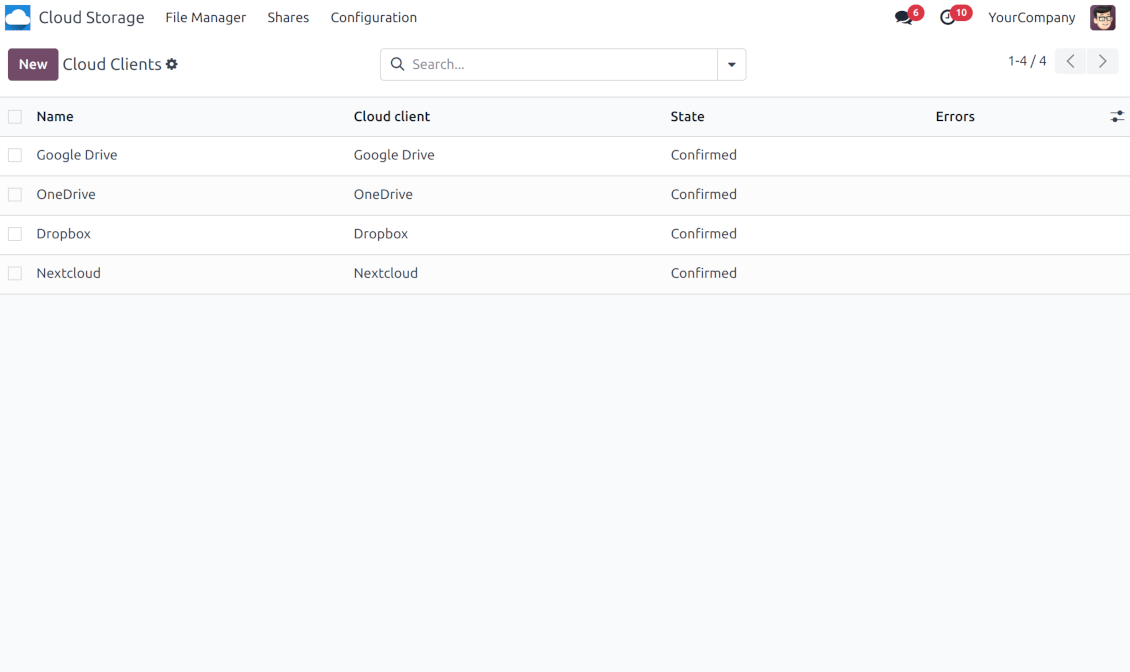
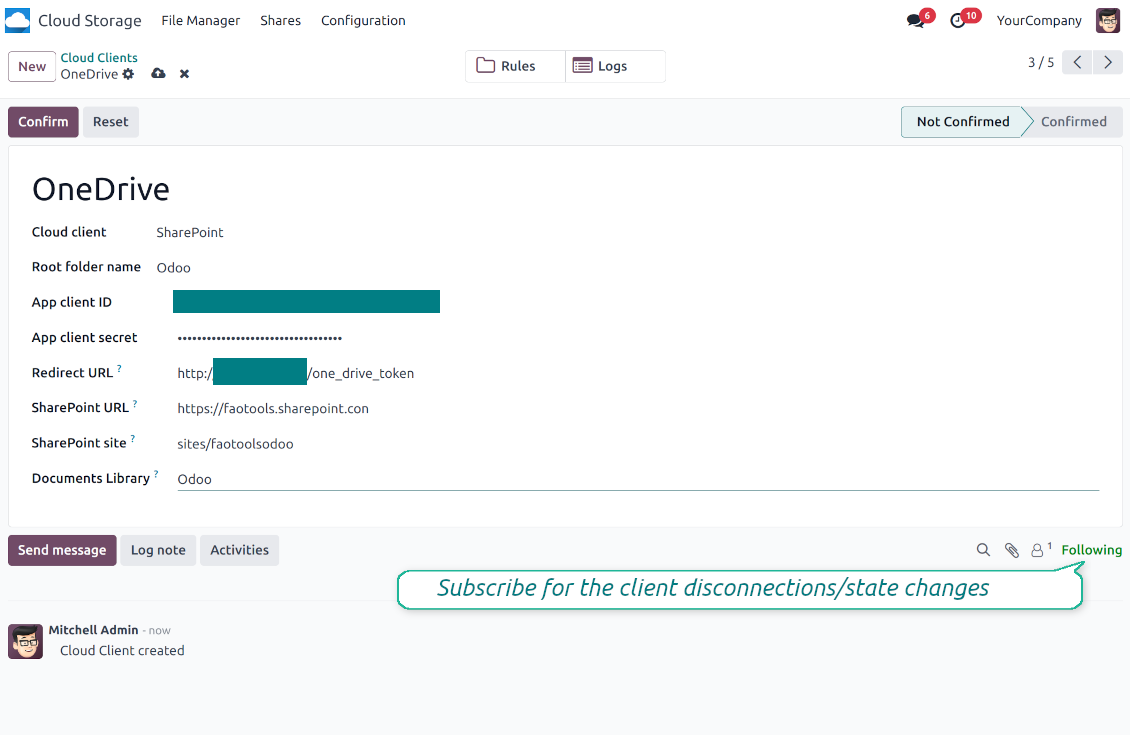
- انتقل إلى Odoo Cloud Storage > Configuration > Cloud Clients ثم اضغط 'Create'
- كمرجع أدخل أي اسم يكون واضحاً لجميع المستخدمين
- كعميل Cloud اختر 'OneDrive' أو 'SharePoint' حسب البرنامج الذي تستخدمه
- كاسم المجلد الجذر أدخل عنواناً يُستخدم كمجلد OneDrive الأب لكل المجلدات المتزامنة. مثلاً 'Odoo' أو 'OdooERP'
- انسخ 'Application Client ID' إلى 'App client ID'
- انسخ قيمة السر إلى الحقل 'App client secret'
- أدخل URL إعادة التوجيه الذي تم توليده سابقاً
- إذا كنت تستخدم SharePoint:
- انتقل إلى موقع SharePoint وأعد مكتبة مستندات جديدة (drive). يمكنك استخدام واحدة قائمة، مثلاً 'Documents'. سيُوضع مجلد Odoo هناك لاحقاً، ولن يمكن نقله إلى مكتبة أخرى
- يجب أن يكون SharePoint URL من النوع https://[URL]/. الشرطة المائلة الأخيرة '/' مطلوبة - يجب ألا يُضمَّن اسم الموقع. مثلاً https://odootools.sharepoint.com/
- يجب أن يكون موقع SharePoint إما root (موقع SharePoint الجذر نفسه) أو my_site_name (وفي هذه الحالة يُعد sites/my_site_name) أو sites/my_site_name (بدلاً من 'sites' قد يكون 'teams' وما شابه). يجب ألا توجد '/' في البداية أو النهاية. مثلاً sites/odootools
- كمكتبة Documents استخدم واحدة أُنشئت في SharePoint
- اضغط 'Confirm'. يعيد Odoo توجيهك إلى صفحة تسجيل الدخول في Microsoft. تحقق في النظام، ووافق على كل الشروط، وامنح كل الصلاحيات المطلوبة. If Microsoft shows an account already signed in and says it does not exist in tenant 'Microsoft Services' (or any other unrelated tenant), do not click that row. Click 'Use another account' and sign in with the Microsoft account that owns the app's directory
- بعد تسجيل الدخول، يعيد OneDrive توجيهك إلى Odoo. تصبح مزامنة OneDrive - Odoo جاهزة للتنفيذ
- طبّق عميل السحابة المنشأ حديثاً على قواعد المجلدات و/أو المجلدات اليدوية التي ينبغي مزامنتها مع نسخة OneDrive أو SharePoint تلك
- انتظر بدء مهمة المزامنة المجدولة. لأغراض الاختبار فقط: شغّل التكامل يدوياً من Cloud Storage > Configuration > Configuration > الزر 'Launch sync'.
شاهد أيضاً فيديو التهيئة
إنشاء تطبيق Azure
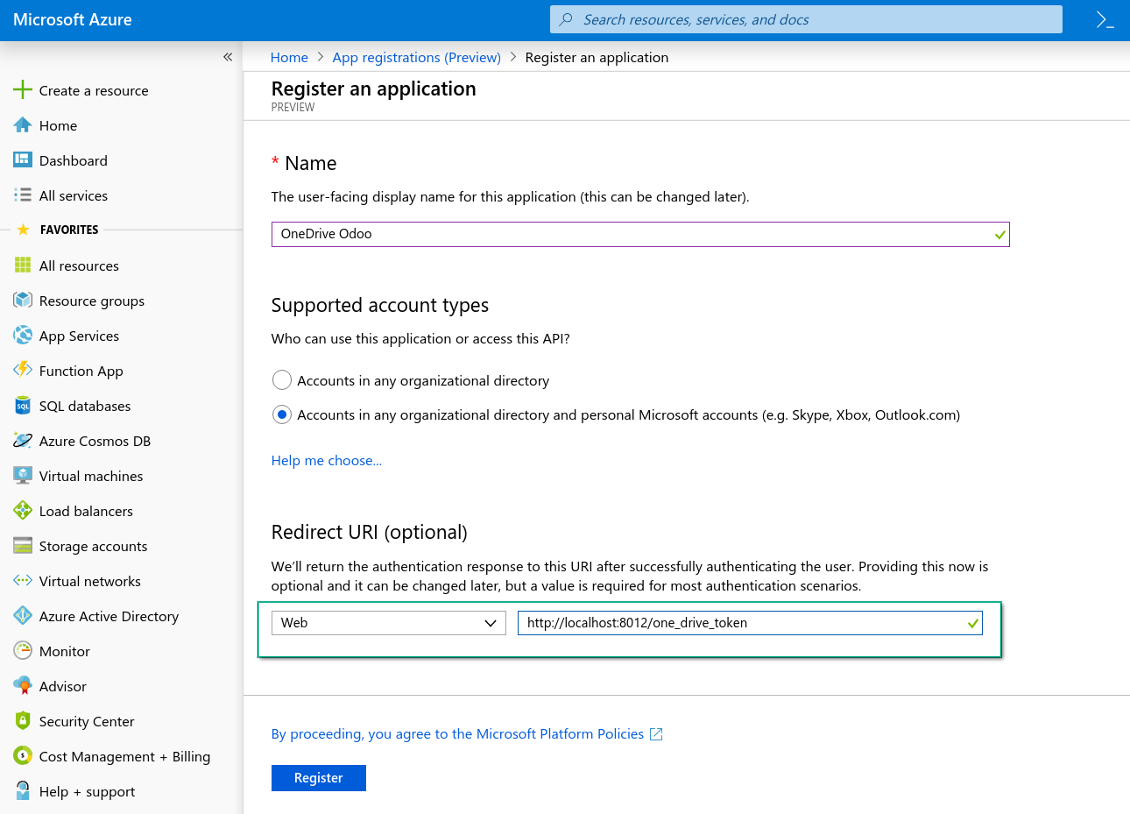
منصة OneDrive على الويب وعنوان URL لإعادة التوجيه
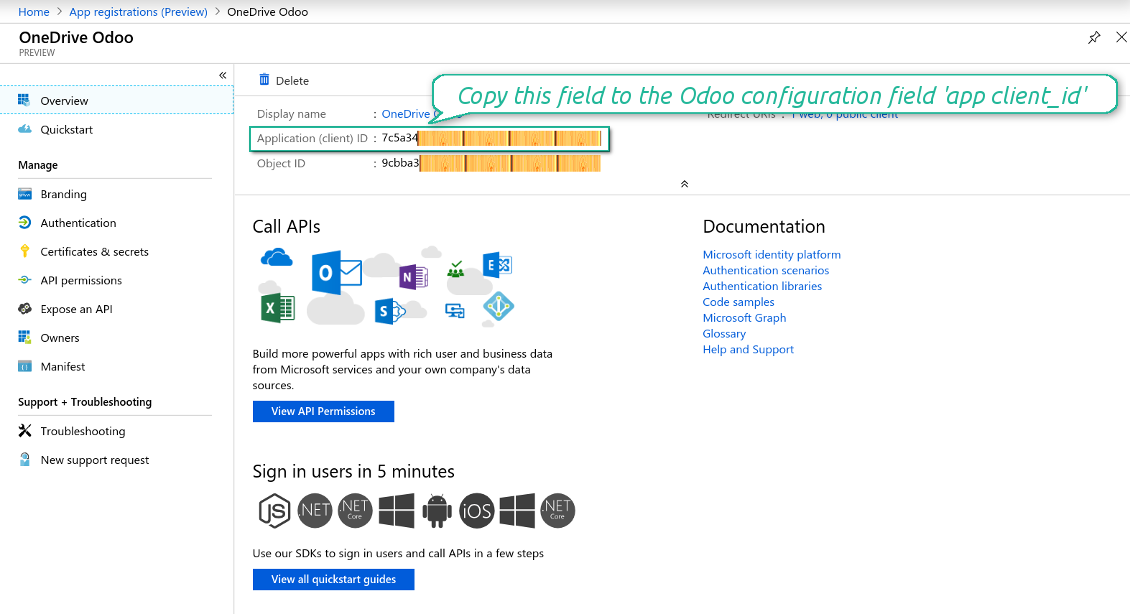
إنشاء سر جديد لتطبيق Azure
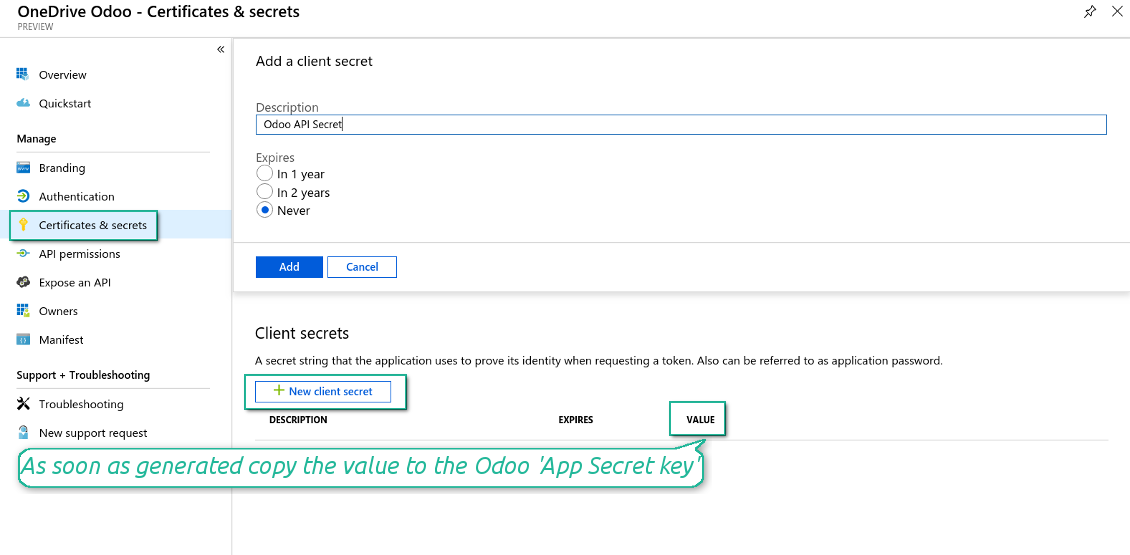
إدخال مفاتيح التهيئة في Odoo
إعداد تكامل Google Drive
- فعّل الخيار 'Google Drive Sync' (cloud Storage > Configuration > Configuration). الإضافة الاختيارية Google Drive Odoo Integration مطلوبة
- انتقل إلى Google Cloud Console عبر عنوان URL https://console.cloud.google.com
- حدّد مشروعاً أو أنشئه
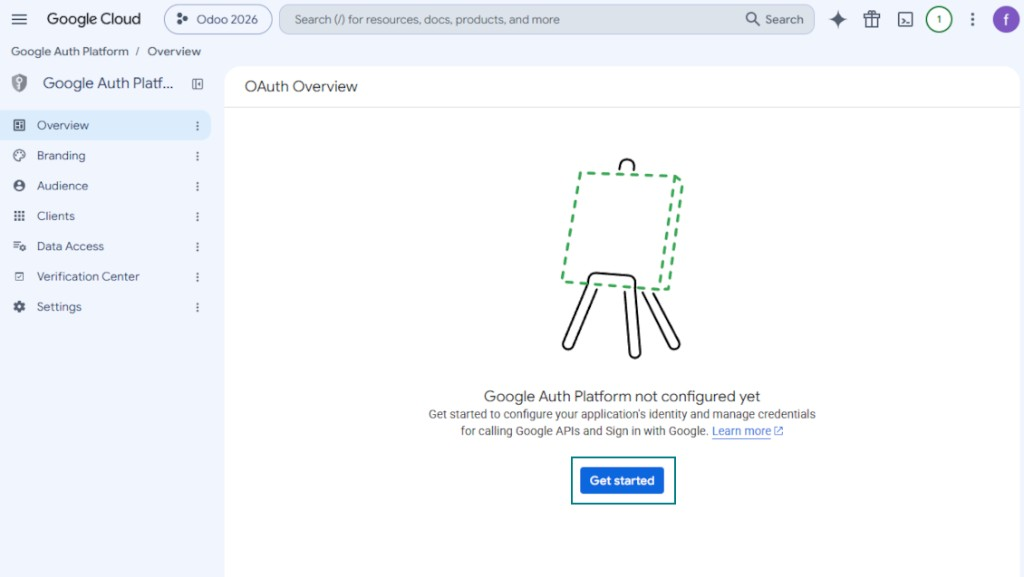
- بعد تحديد المشروع، تفتح وحدة التحكم Google Auth Platform. اضغط 'Get Started'
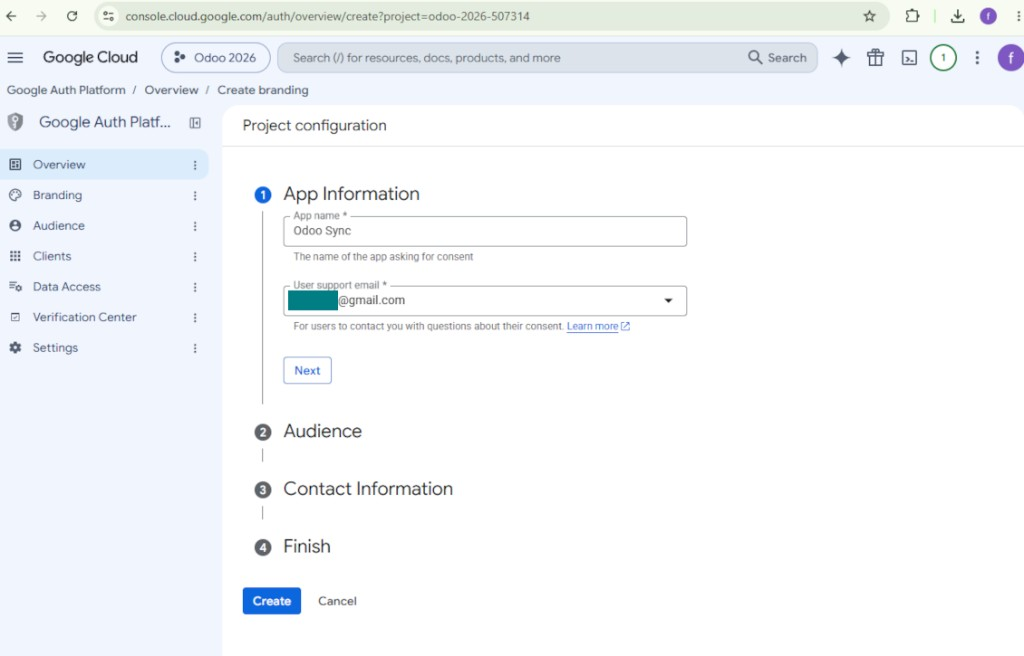
- أضف معلومات التطبيق
- كاسم التطبيق اختر أي اسم مناسب
- كبريد دعم المستخدمين حدّد عنوان بريدك
- اضغط 'Next'
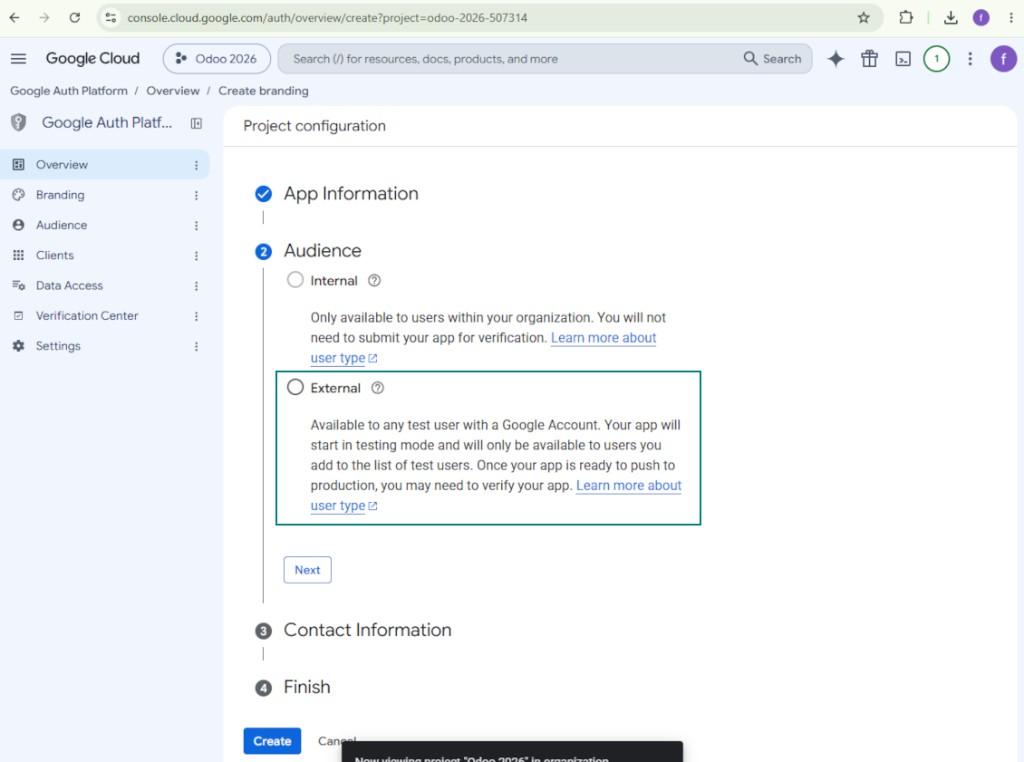
- كجمهور اختر 'External' واضغط 'Next'. ملاحظة: ستستخدم هذا التطبيق على أي حال لاتصال Odoo الخاص بك فقط
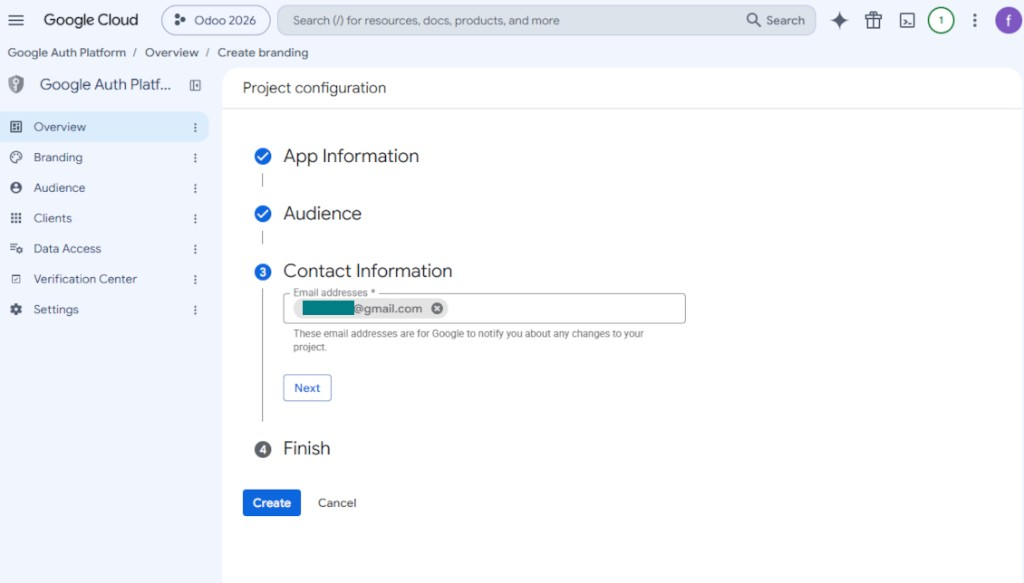
- كمعلومات الاتصال أدخل عنوان Google أو Google Workspace الخاص بك واضغط 'Next'
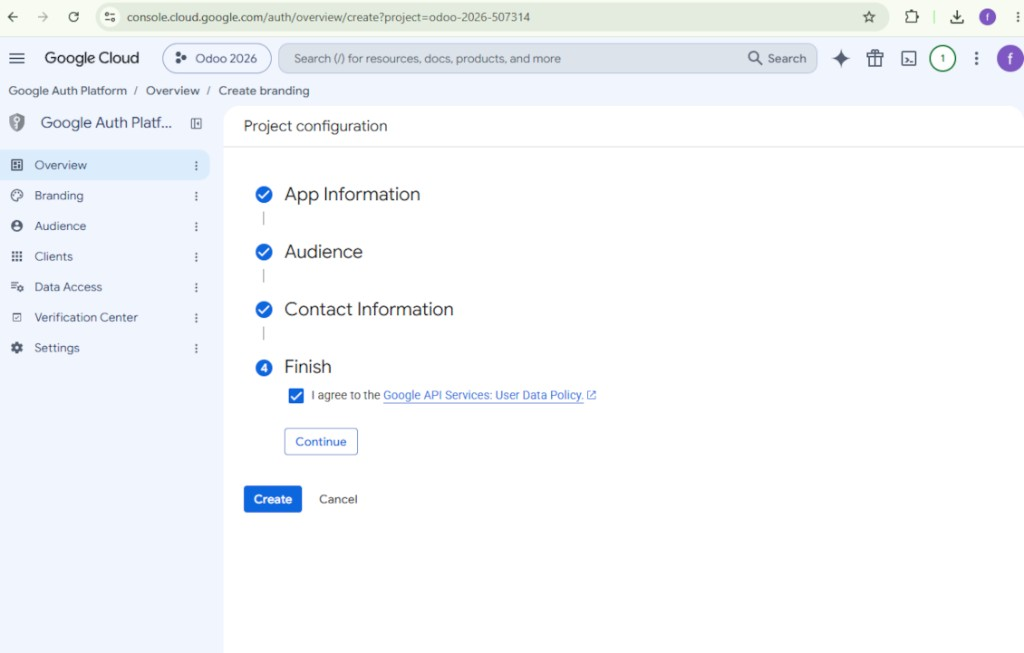
- وافق على Google API Services User Data Policy، واضغط 'Continue'، ثم اضغط 'Create'
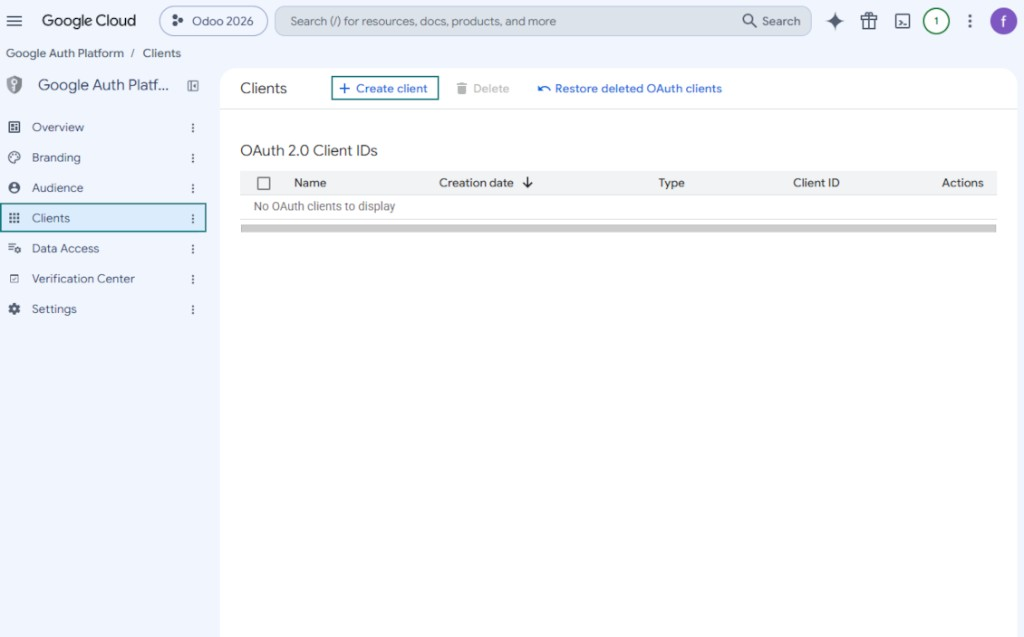
- انتقل إلى 'Clients' واضغط 'Create client'
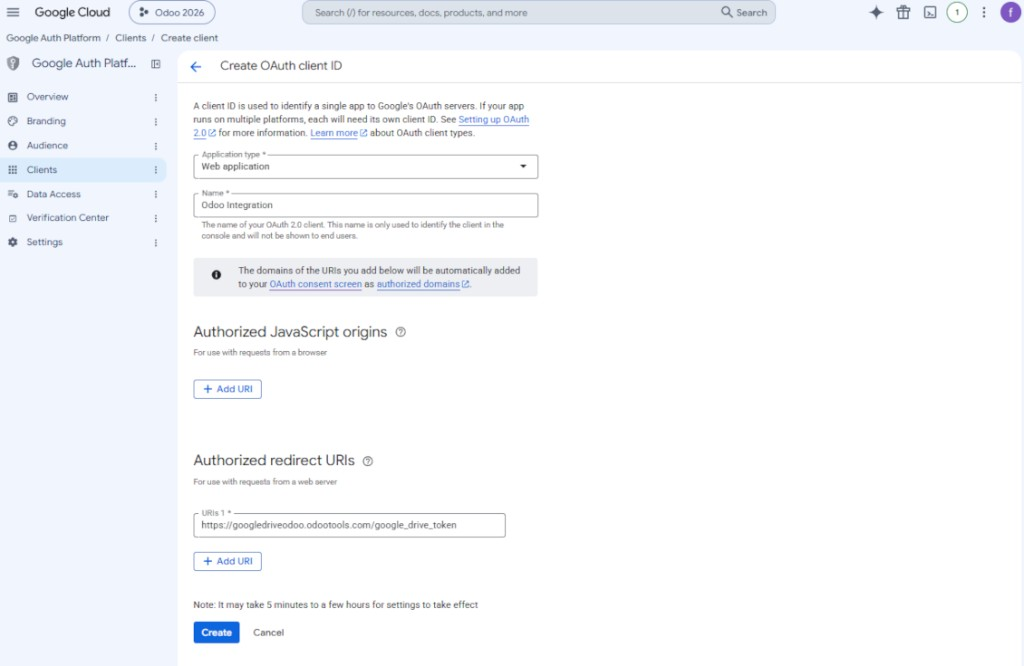
- كنوع التطبيق اختر 'Web application'
- كاسم اختر أي اسم مناسب
- كـ URI إعادة توجيه مصرّح به، أضف الرابط بالصيغة [YOURODOOSITENAME]/google_drive_token (مثلًا https://odootools.com/google_drive_token).
- اضغط 'Create'
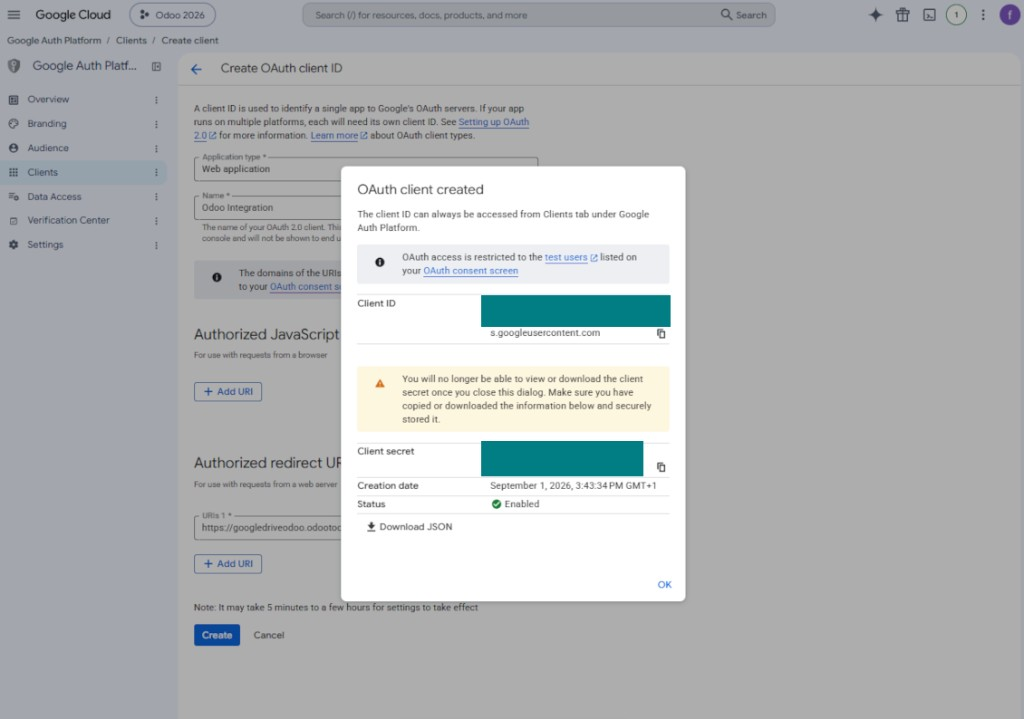
- انسخ 'Client ID' و'Client secret' واحفظهما بأمان. يُعرض client secret مرة واحدة فقط
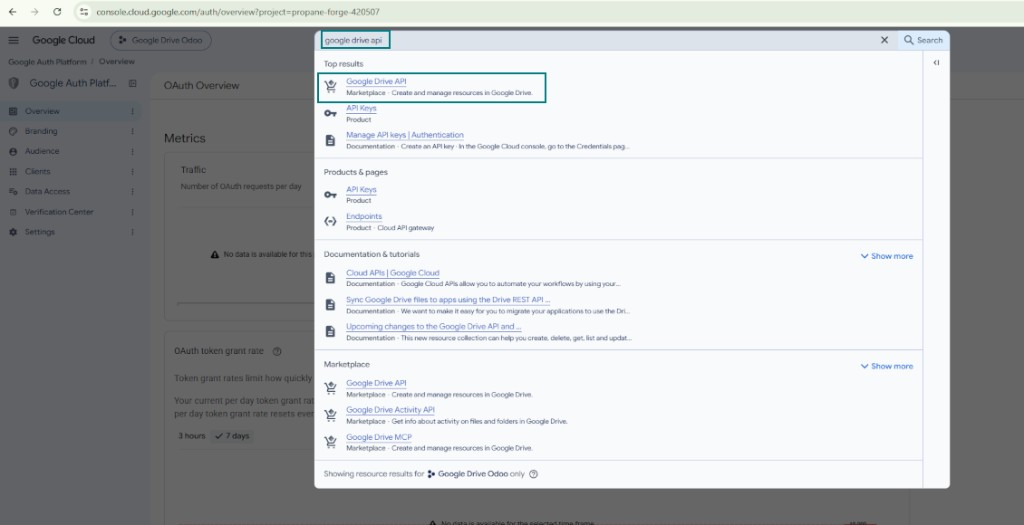
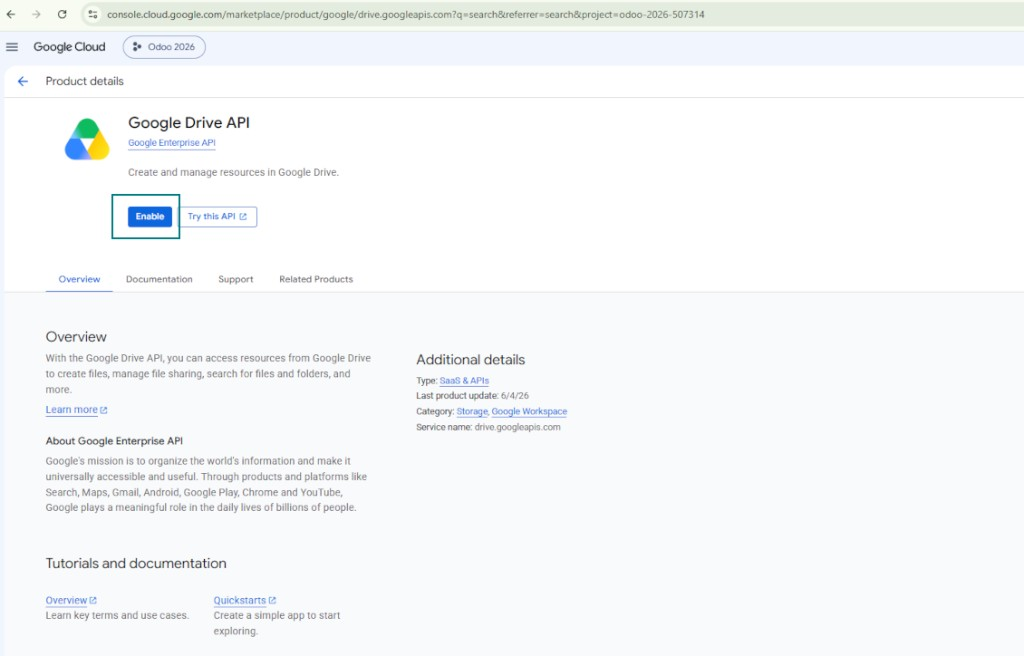
- فعّل Google Drive API لهذا المشروع: اكتب 'Google Drive API' في مربع البحث العلوي، وافتح المنتج الذي يظهر، ثم اضغط 'Enable'
- انتقل إلى 'Audience' وأضف عنوان بريدك الإلكتروني كمستخدم اختبار
- انشر التطبيق. وإلا سيبقى في حالة الاختبار وستنتهي صلاحية رمزه كل 7 أيام
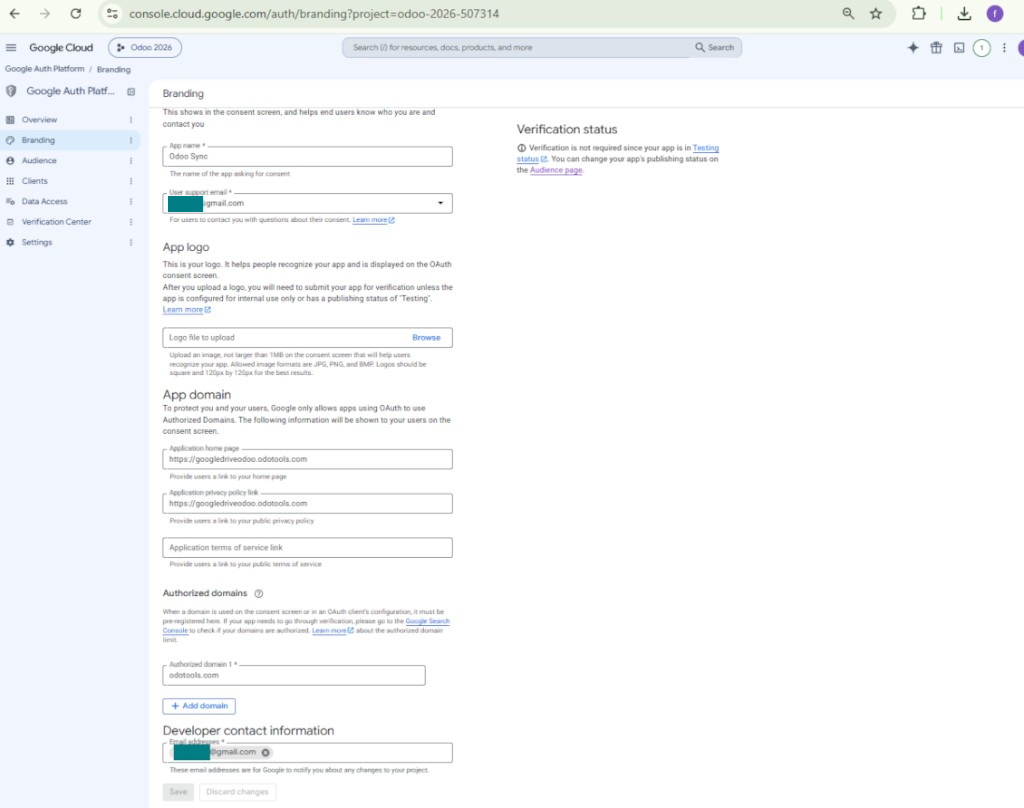
- افتح 'Branding' واملأ الصفحة الرئيسية للتطبيق ورابط سياسة الخصوصية (مثلاً روابط موقع Odoo الخاص بك). أضف نطاقات هذه الروابط ضمن authorized domains
- افتح 'Audience' واضغط 'Publish app'
- لا ترفع شعارًا للتطبيق. سيؤدي ذلك إلى عملية تحقق طويلة ومعقّدة من Google لا تحتاجها فعليًا
- انتقل إلى Odoo Cloud Storage > Configuration > Cloud Clients ثم اضغط 'Create'
- كمرجع أدخل أي اسم يكون واضحاً لجميع المستخدمين
- كعميل Cloud اختر 'Google Drive'
- كاسم المجلد الجذر أدخل عنواناً يُستخدم كمجلد Google Drive الأب لكل المجلدات المتزامنة. مثلاً 'Odoo' أو 'OdooERP'
- انسخ 'Client ID' من الخطوة 9 إلى الحقل 'App client ID'
- انسخ 'Client secret' من الخطوة 9 إلى الحقل 'App client secret'
- أدخل عنوان URL لإعادة التوجيه الذي أدخلته في الخطوة 9
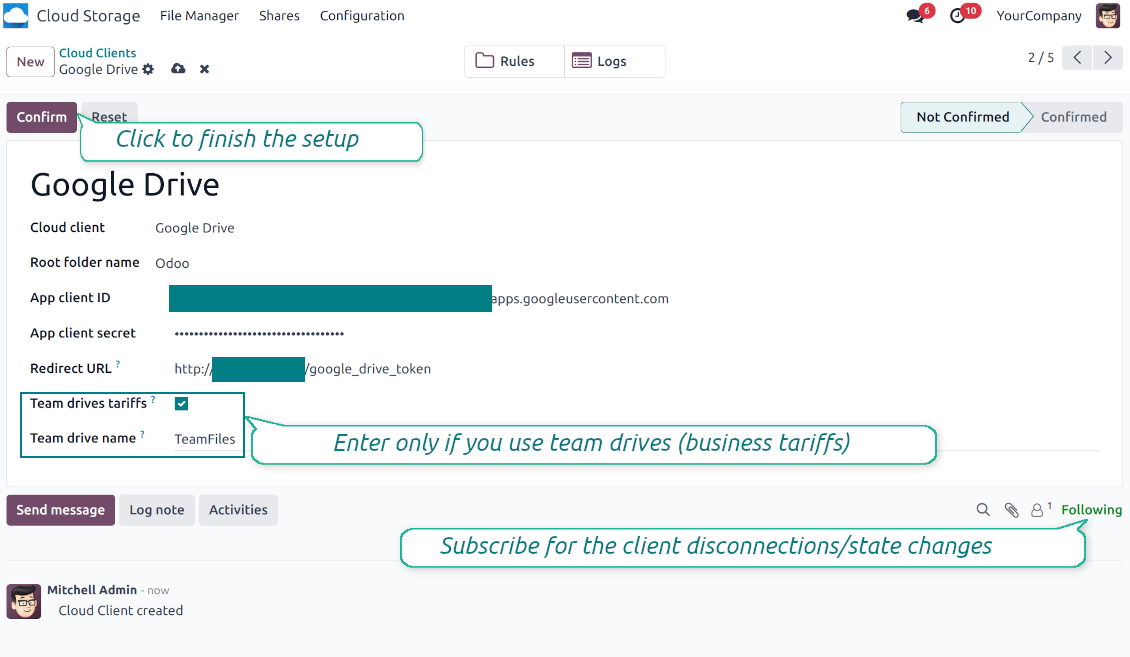
- إذا كنت تستخدم أقراص الفريق، علّم المربع ذا الصلة. تأكد أنك تستخدم أقراص الفريق فعلاً. في Google Drive يجب أن تجد العنصر 'Team Drives' في الشريط الجانبي الأيسر. هذه الميزة متاحة فقط لتعريفات الأعمال وenterprise
- إذا كان الخيار 'Team Drive' مفعّلاً، أدخل اسمه. يجب أن يكون مطابقاً تماماً لما تراه في Google Drive. تأكد أن لمستخدمك صلاحيات كاملة على كل أقراص Google (عادة هو المستخدم نفسه الذي يهيئ Google Drive للفريق)
- اضغط 'Confirm'. يعيد Odoo توجيهك إلى صفحة تسجيل الدخول في Google. تحقق في النظام، ووافق على كل الشروط، وامنح كل الصلاحيات المطلوبة
- بعد تسجيل الدخول، يعيد Google توجيهك إلى Odoo. تصبح مزامنة Google Drive - Odoo جاهزة للتنفيذ
- طبّق عميل السحابة المنشأ حديثاً على قواعد المجلدات و/أو المجلدات اليدوية التي ينبغي مزامنتها مع Google Drive ذلك
- انتظر بدء مهمة المزامنة المجدولة. لأغراض الاختبار فقط: شغّل التكامل يدوياً من Cloud Storage > Configuration > Configuration > الزر 'Launch sync'.
شاهد أيضاً فيديو التهيئة, ملاحظة: الجزء الخاص بوحدة تحكم Google في الفيديو قديم؛ اتبع الخطوات أعلاه بدلاً من ذلك
افتح Google Auth Platform
أضف معلومات التطبيق
اختر الجمهور External
أضف معلومات الاتصال
وافق على السياسات وأنشئ التطبيق
أنشئ عميل OAuth
اضبط عميل تطبيق الويب
انسخ Client ID وClient secret
ابحث عن Google Drive API
فعّل Google Drive API
املأ Branding لنشر التطبيق
إدخال بيانات اعتماد تطبيق Google في Odoo
إعداد Amazon S3
- فعّل الخيار 'Amazon S3 Sync' (Cloud Storage > Configuration > Configuration). الإضافة الاختيارية Amazon S3 Odoo Integration مطلوبة
- افتح Amazon S3 Console: https://console.aws.amazon.com/s3/
- أنشئ bucket جديداً أو اختر قائماً. انسخ اسم الـ bucket تماماً: يجب إدراجه في Odoo في الحقل 'Bucket'
- افتح تفاصيل الـ bucket وانسخ AWS Region. أدخله في Odoo في الحقل 'Region' (مثلاً eu-west-1 أو us-east-1)
- افتح AWS IAM Console: https://console.aws.amazon.com/iam/
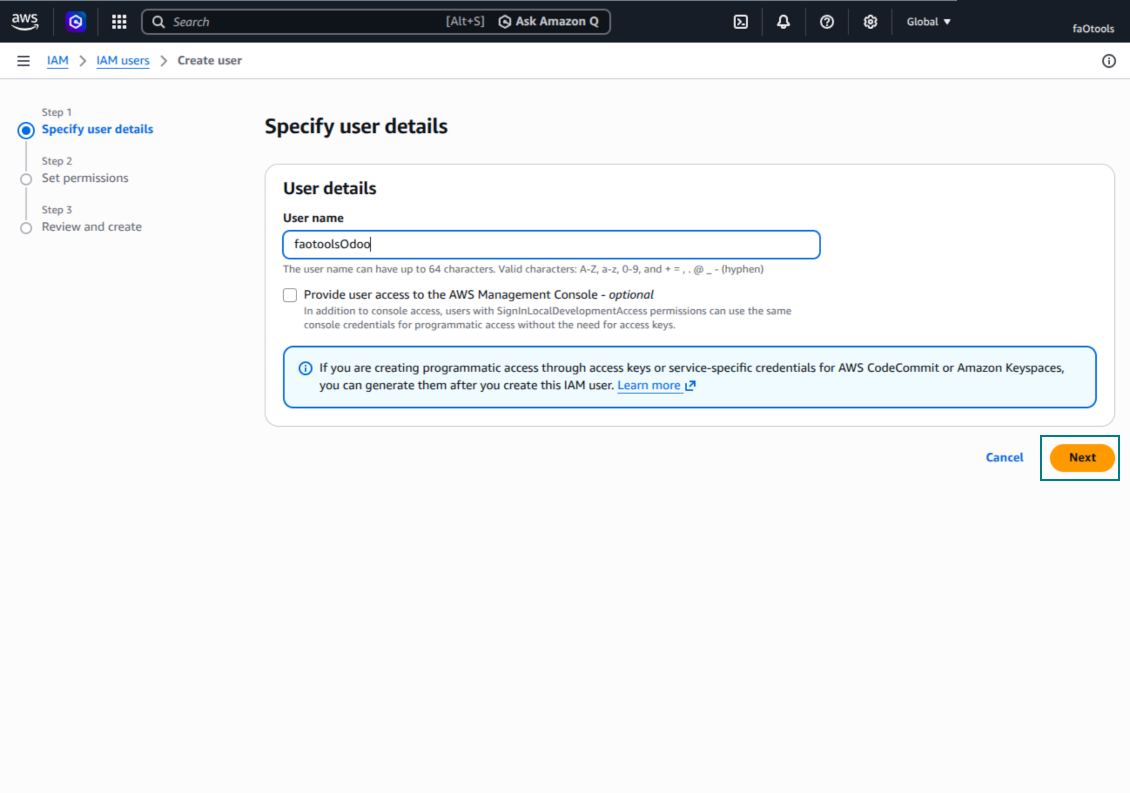
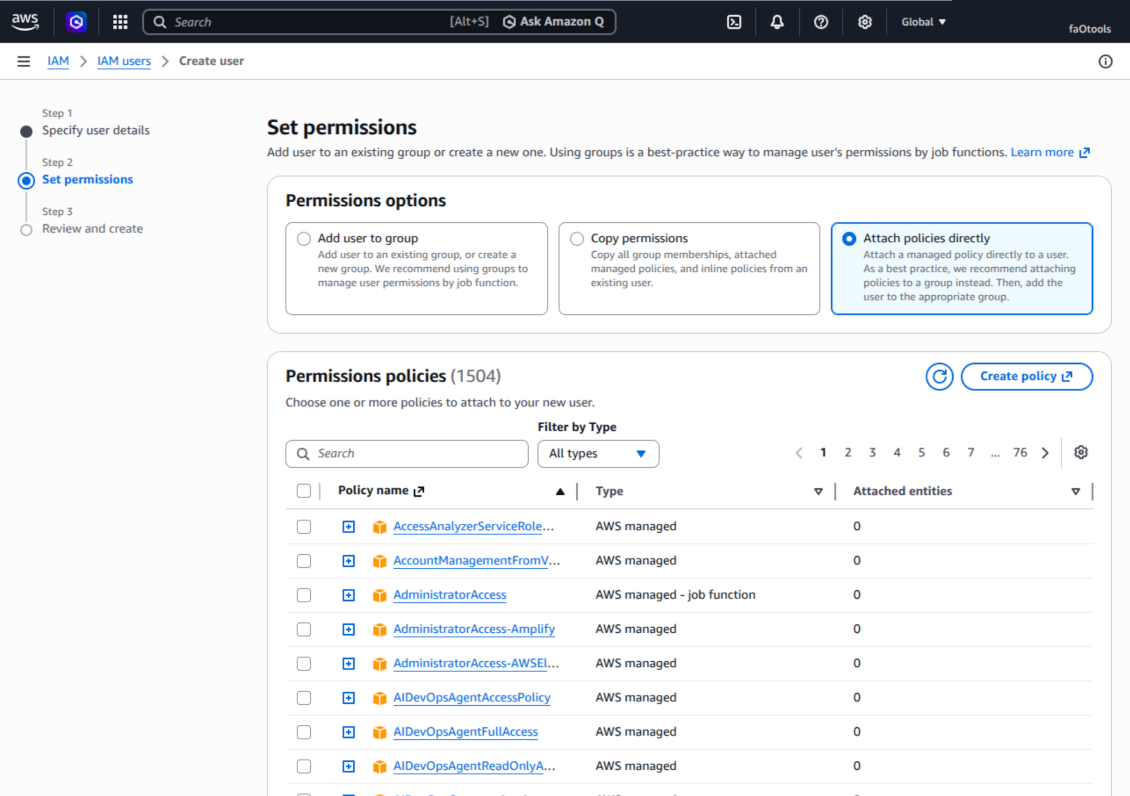
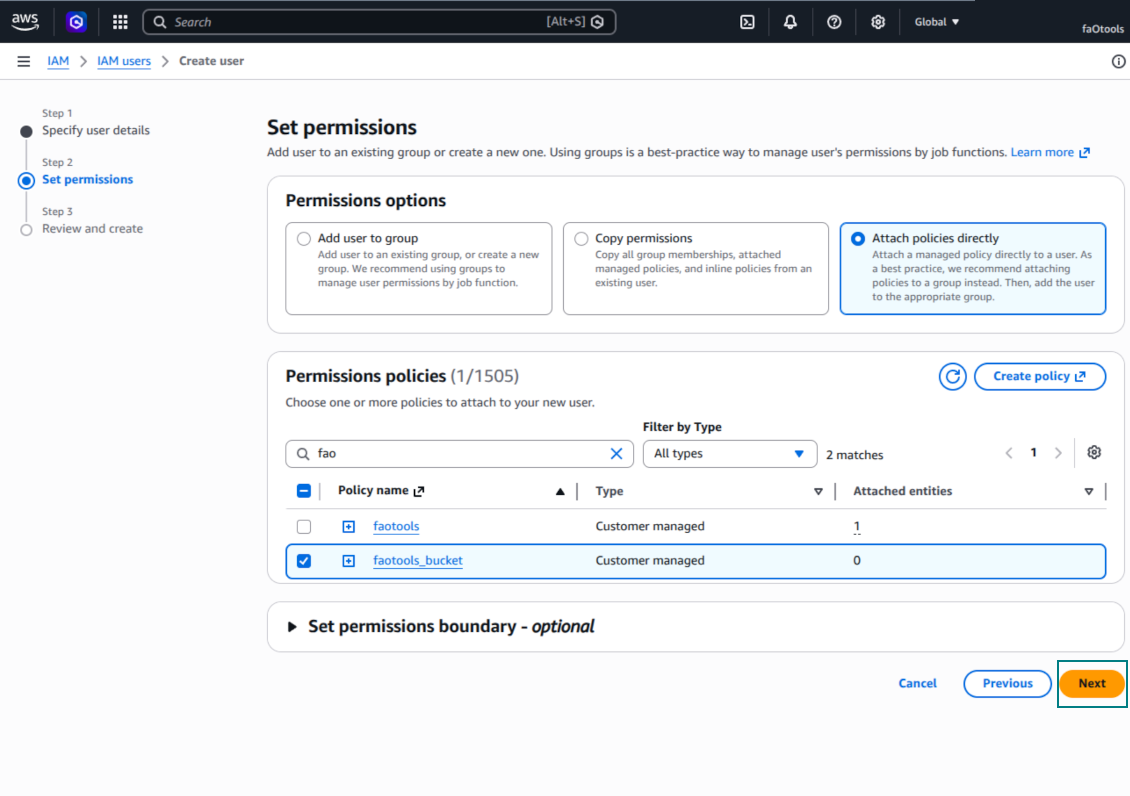
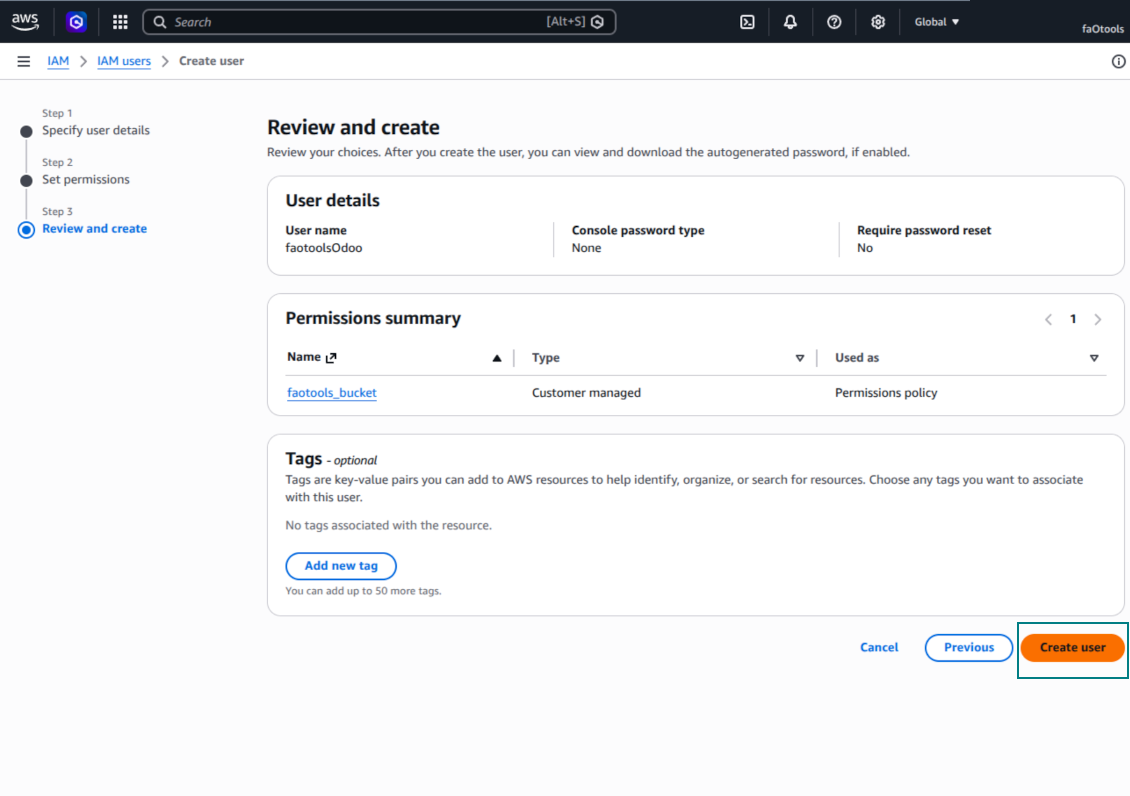
- أنشئ مستخدم IAM جديداً أو اختر مستخدماً تقنياً قائماً. يجب أن يملك هذا المستخدم صلاحيات كاملة لسرد الكائنات وقراءتها وإنشائها وكتابتها ونسخها وحذفها داخل الـ bucket المحدد. يمكنك اختيار مسؤول بصلاحيات كاملة، أو إنشاء سياسة جديدة (انظر أدناه)
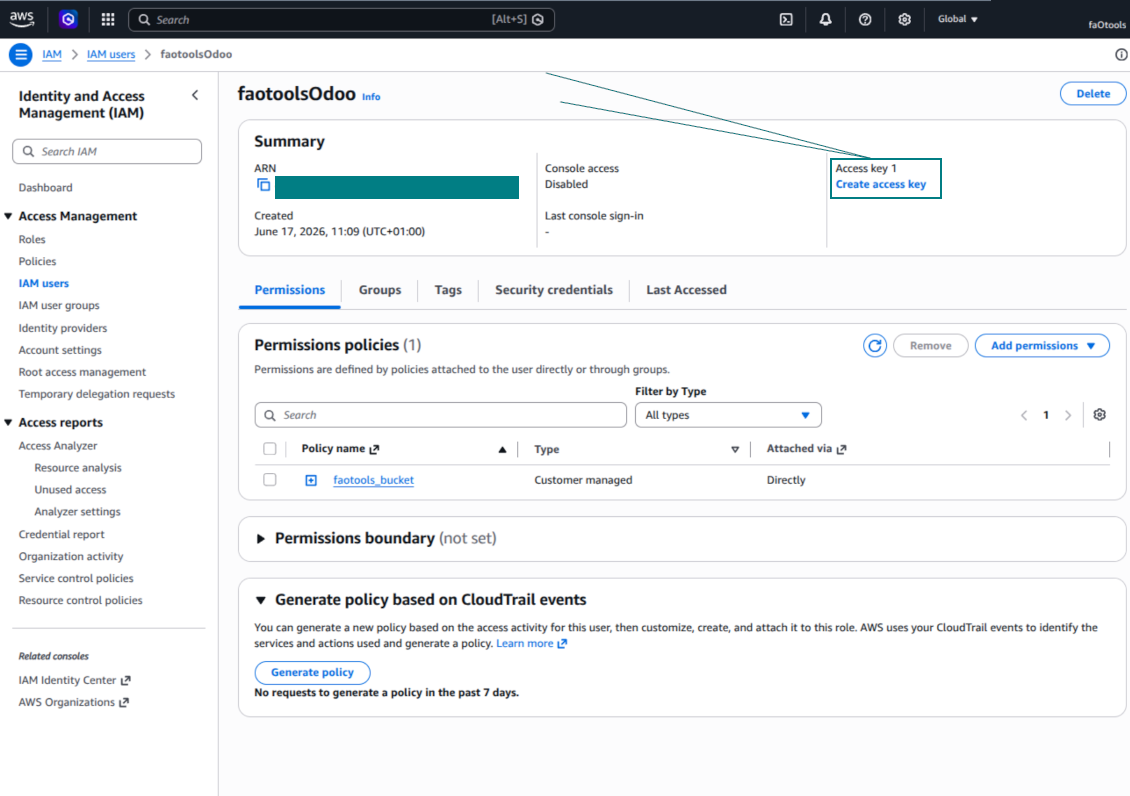
- في نموذج مستخدم IAM، افتح التبويب 'Security credentials' واضغط 'Create access key'
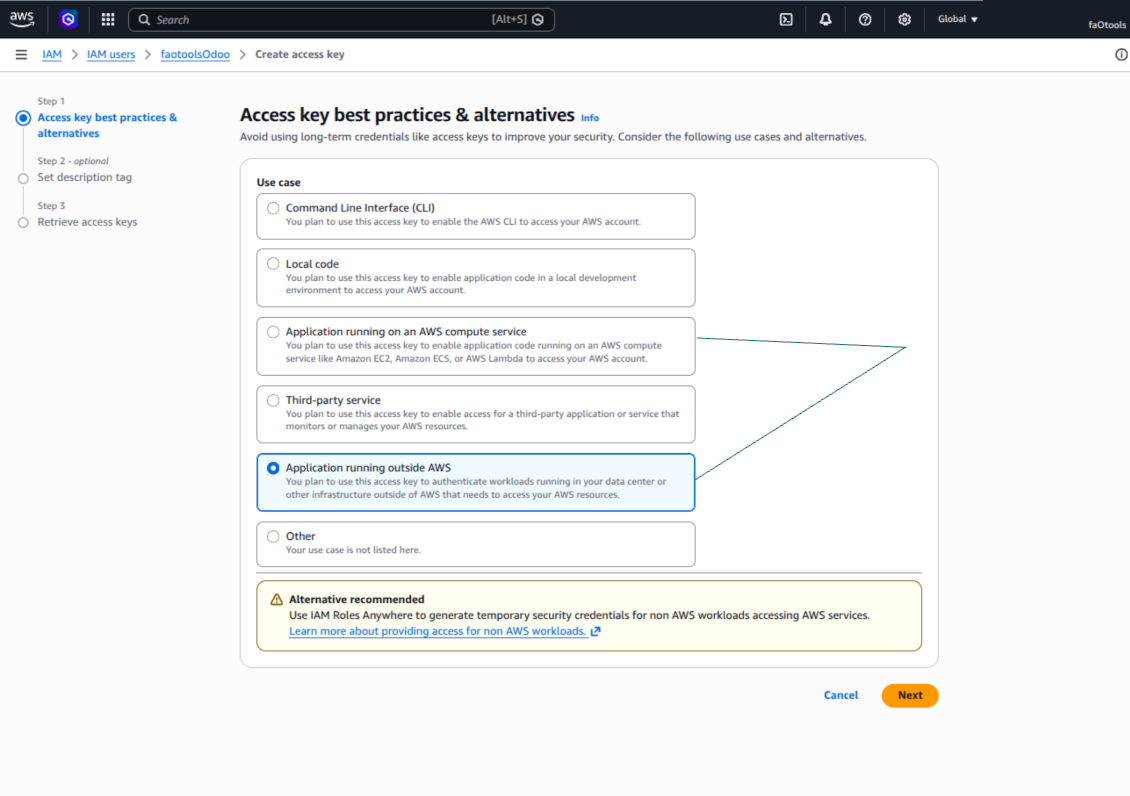
- في الصفحة 'Access key best practices & alternatives'، اختر الخيار Application running outside AWS. هذا الخيار الصحيح عندما يتصل خادم Odoo بـ S3 بمفتاح وصول من خارج AWS، من Odoo.sh، من خادمك الخاص، أو من مزود استضافة آخر. إذا كان Odoo مثبتاً على مثيل AWS EC2، يمكنك بدلاً من ذلك اختيار Application running on an AWS compute service، لكن الحقول المنسوخة إلى Odoo هي نفسها
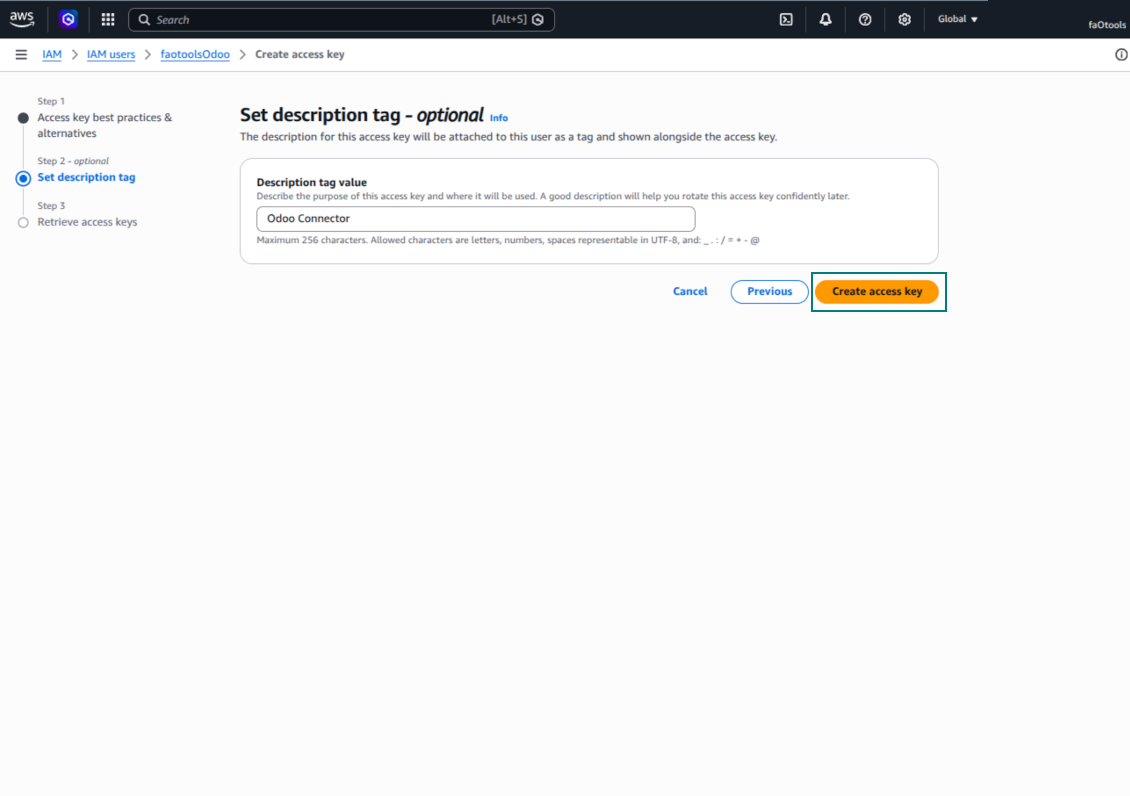
- اضغط 'Next'. في الخطوة التالية، أدخل اختيارياً وسم وصف مثل Odoo S3 Sync ثم اضغط 'Create access key'
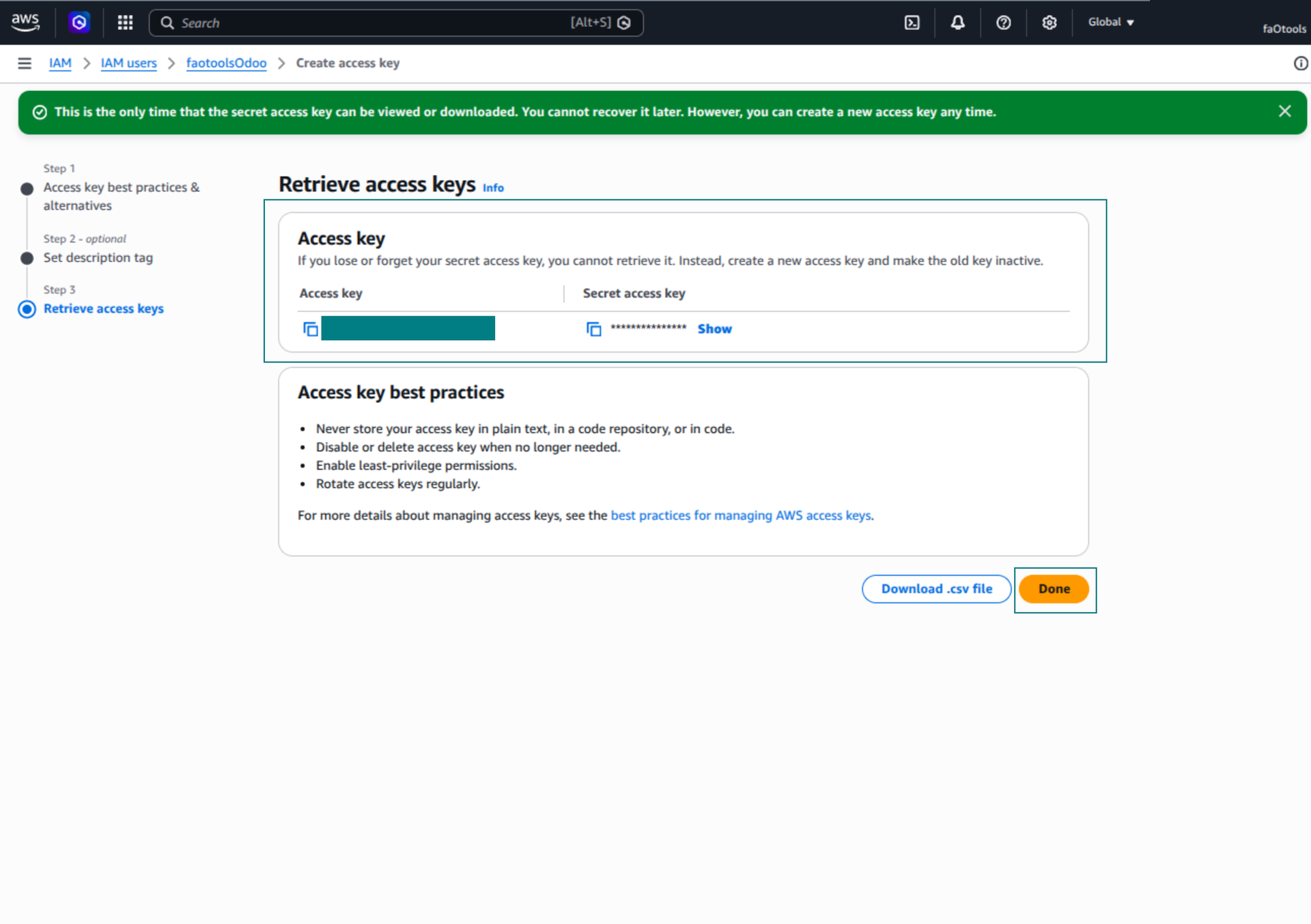
- في صفحة AWS النهائية، انسخ Access key أو Access key ID إلى حقل Odoo 'Access Key'
- انسخ Secret access key إلى حقل Odoo 'Secret Key'. مهم: يعرض AWS المفتاح السري مرة واحدة فقط، لذا احفظه قبل إغلاق النافذة
- إذا كنت تستخدم مزوداً متوافقاً مع S3 بدلاً من AWS S3، انسخ endpoint URL من لوحة إدارة ذلك المزود وأدخله في Odoo في الحقل 'Amazon S3 endpoint URL'. مثلاً يستخدم MinIO غالباً URL مثل https://minio.example.com أو http://localhost:9000؛ ويستخدم LocalStack عادة http://localhost:4566
- انتقل إلى Odoo Cloud Storage > Configuration > Cloud Clients واضغط 'Create'
- كمرجع، أدخل أي اسم يكون واضحاً لجميع المستخدمين
- كعميل Cloud، اختر 'Amazon S3'
- كاسم المجلد الجذر، أدخل عنواناً سيُستخدم كبادئة S3 الأب لكل المجلدات المتزامنة. مثلاً 'Odoo' أو 'OdooERP'
- املأ الحقول 'Bucket' و'Region' و'Access Key' و'Secret Key'، وعند الحاجة 'Amazon S3 endpoint URL' ونمط العنونة
- اختر ما إذا كان على Odoo استخدام URL موقّتة مسبقة التوقيع أو URL عامة للـ bucket/CDN. للـ buckets الخاصة، أبقِ URL مسبقة التوقيع مفعّلة وعيّن عمرها بالثواني
- اضغط 'Confirm'. يتحقق Odoo من وصول الـ bucket وينشئ أو يتحقق من بادئة المجلد الجذر. تصبح مزامنة Amazon S3 - Odoo جاهزة للتنفيذ
- طبّق عميل السحابة المنشأ حديثاً على قواعد المجلدات و/أو المجلدات اليدوية التي ينبغي مزامنتها مع bucket Amazon S3 ذلك
- انتظر بدء مهمة المزامنة المجدولة. لأغراض الاختبار فقط: شغّل التكامل يدوياً من Cloud Storage > Configuration > Configuration > الزر 'Launch sync'.
وثائق AWS المفيدة: إنشاء S3 bucket: https://docs.aws.amazon.com/AmazonS3/latest/userguide/creating-bucket.html، إدارة مفاتيح وصول IAM: https://docs.aws.amazon.com/IAM/latest/UserGuide/id_credentials_access-keys.html.
مثال سياسة Bucket
    {
    "Version": "2012-10-17",
    "Statement": [
        {
            "Sid": "ListObjectsInBucket",
            "Effect": "Allow",
            "Action": [
                "s3:ListBucket"
            ],
            "Resource": "arn:aws:s3:::NAME_OF_YOUR_BUCKET"
        },
        {
            "Sid": "AllObjectActions",
            "Effect": "Allow",
            "Action": [
                "s3:GetObject",
                "s3:PutObject",
                "s3:DeleteObject"
            ],
            "Resource": "arn:aws:s3:::NAME_OF_YOUR_BUCKET/*"
        }
    ]
}
إنشاء مستخدم AWS IAM جديد
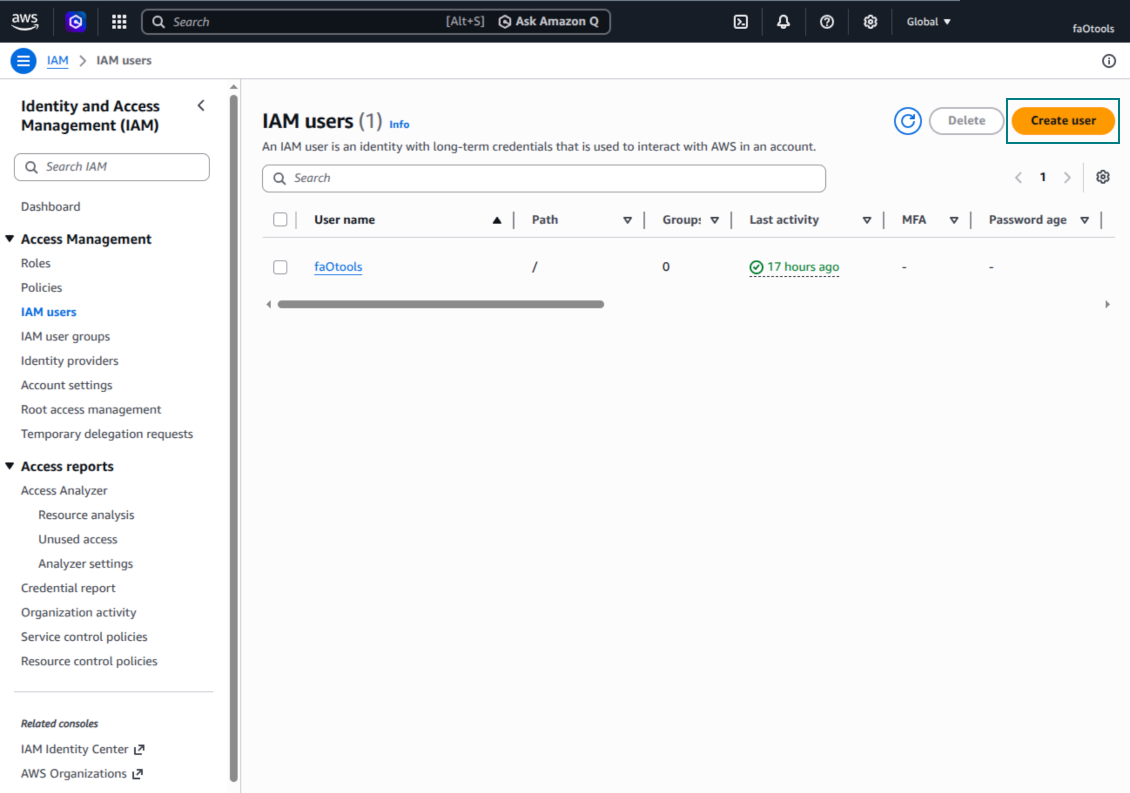
تحديد اسم مستخدم IAM
إرفاق سياسات الأذونات مباشرة
مثال JSON لسياسة حاوية Amazon S3
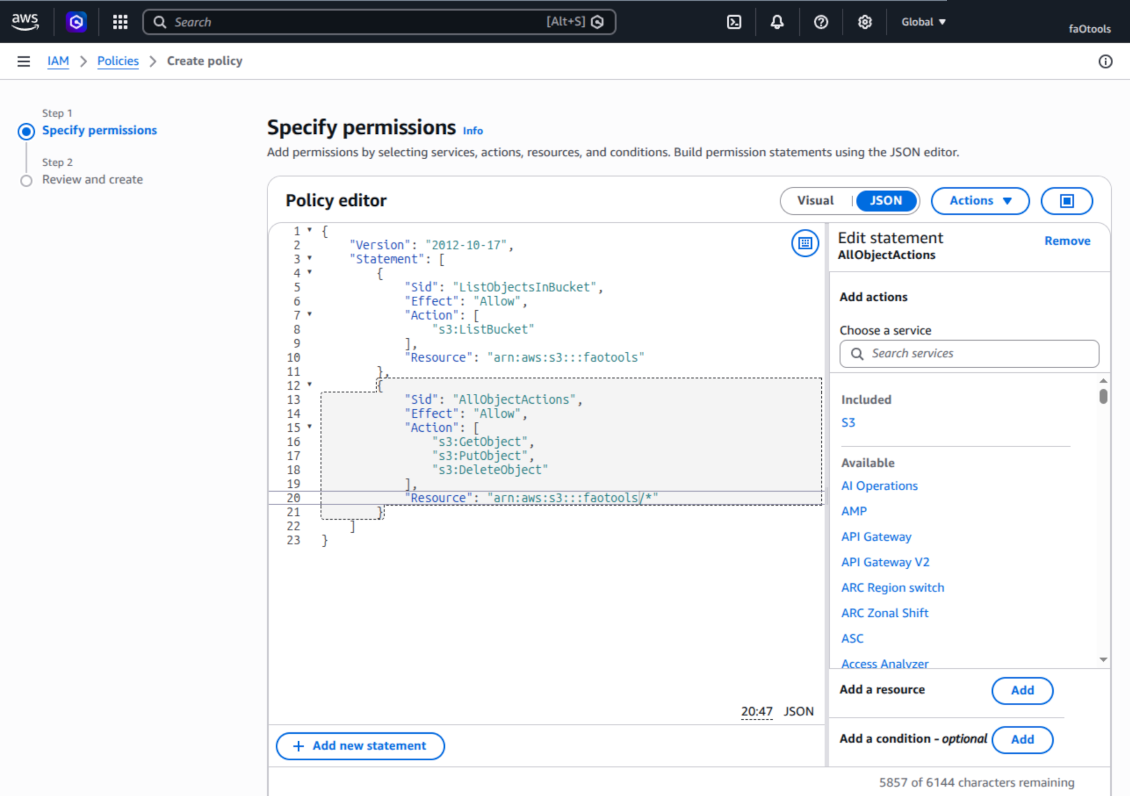
مراجعة سياسة S3 وتسميتها
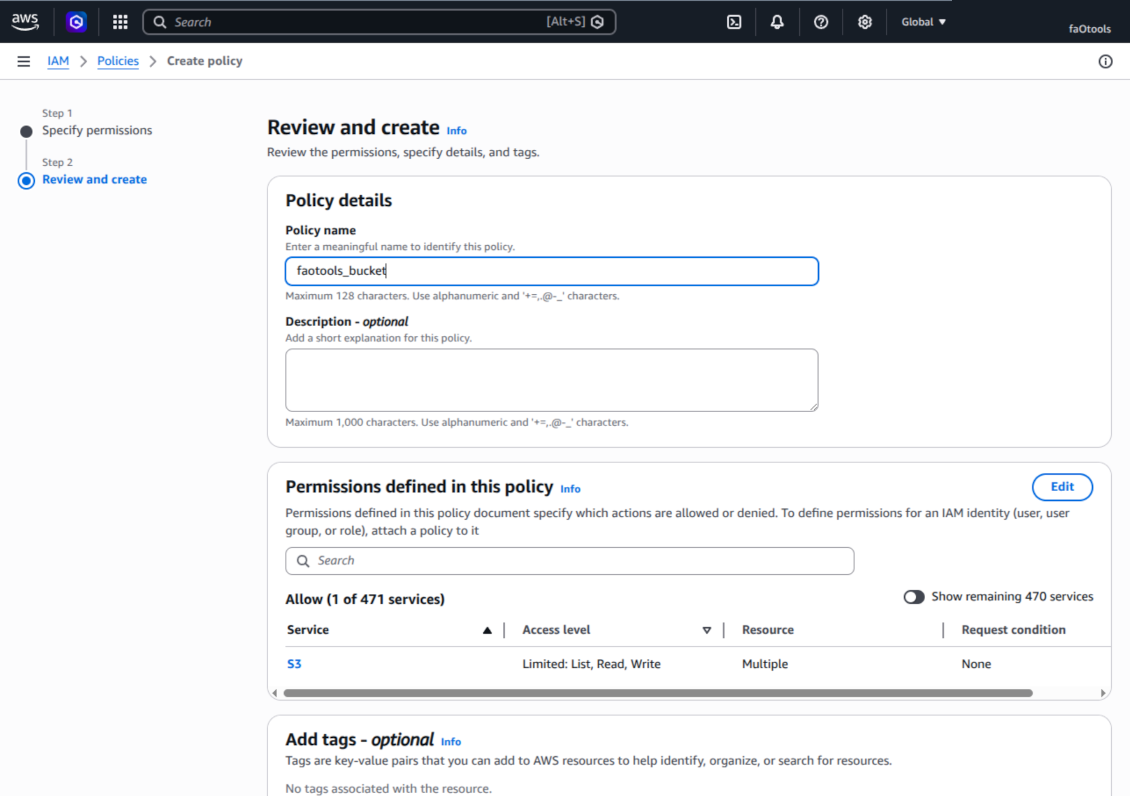
تحديد سياسة الحاوية للمستخدم
مراجعة مستخدم IAM وإنشاؤه
إنشاء مفتاح وصول للمستخدم
اختر حالة استخدام مفتاح الوصول
تعيين وسم وصف مفتاح الوصول
استرداد مفتاح الوصول والسر
تهيئة عميل Amazon S3 في Odoo
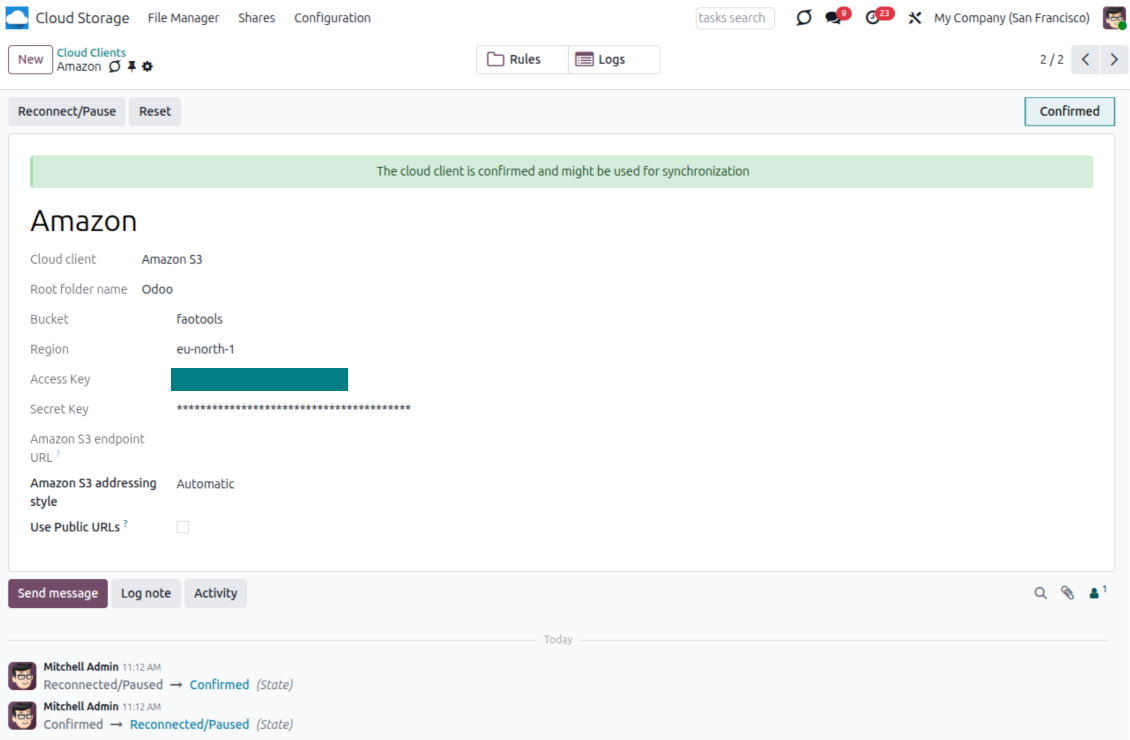
إعداد تكامل Nextcloud و/أو ownCloud
التهيئة وتسجيل الدخول
- فعّل الخيار 'onwCloud / Nextcloud Sync' (cloud Storage > Configuration > Configuration). الإضافة الاختيارية ownCloud / Nextcloud Odoo Integration مطلوبة
- انتقل إلى Odoo Cloud Storage > Configuration > Cloud Clients ثم اضغط 'Create'
- كمرجع أدخل أي اسم يكون واضحاً لجميع المستخدمين
- كعميل Cloud اختر 'Nextcloud' أو 'ownCloud' حسب البرنامج الذي تستخدمه
- كاسم المجلد الجذر أدخل عنواناً يُستخدم كمجلد أب لكل المجلدات المتزامنة. مثلاً 'Odoo' أو 'OdooERP'
- أدخل URL الكامل لـ ownCloud / Nextcloud
- اختر مستخدم ownCloud / Nextcloud يملك صلاحيات كاملة لقراءة الملفات والمجلدات وإنشائها وكتابتها وحذفها داخل دليل جذر
- أدخل اسم الدخول وكلمة مرور هذا المستخدم في الحقلين 'Login' و'Password'
- اختر ما إذا كنت تريد تطبيق URL عامة أو داخلية (انظر أدناه)
- اضغط 'Confirm'. تصبح مزامنة Odoo جاهزة للتنفيذ
- طبّق عميل السحابة المنشأ حديثاً على قواعد المجلدات و/أو المجلدات اليدوية التي ينبغي مزامنتها مع نسخة Nextcloud أو ownCloud تلك
- انتظر بدء مهمة المزامنة المجدولة. لأغراض الاختبار فقط: شغّل التكامل يدوياً من Cloud Storage > Configuration > Configuration > الزر 'Launch sync'.
URL الداخلية والعامة
افتراضياً تكون الروابط من Odoo إلى ownCloud / Nextcloud داخلية: لا يصل إليها إلا المستخدمون المصرّح لهم. يمكنك اختيارياً جعل الروابط عامة (الإعداد 'Use Public URLs'). عندئذ تصبح URL «مشتركة»، ويصل الجميع إلى العناصر برابط مباشر.
كن حذراً إذا قررت استخدام URL مشتركة (عامة). رغم أن الروابط يصعب أن يعرفها مستخدمون خارجيون، هناك احتمال ضئيل أن تصبح متاحة نتيجة بعض إجراءات المستخدم. إضافة إلى ذلك، توليد روابط المشاركة ليس سريعاً وقد يبطئ المزامنة.
شاهد أيضاً فيديو التهيئة
إدخال بيانات اعتماد ownCloud / Nextcloud
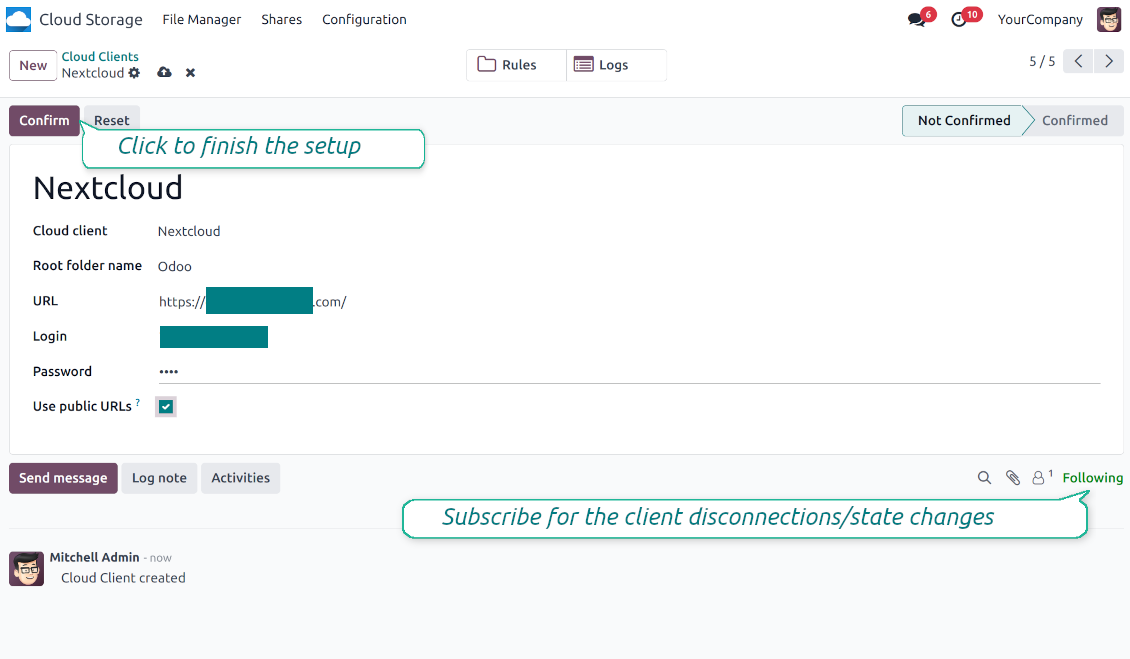
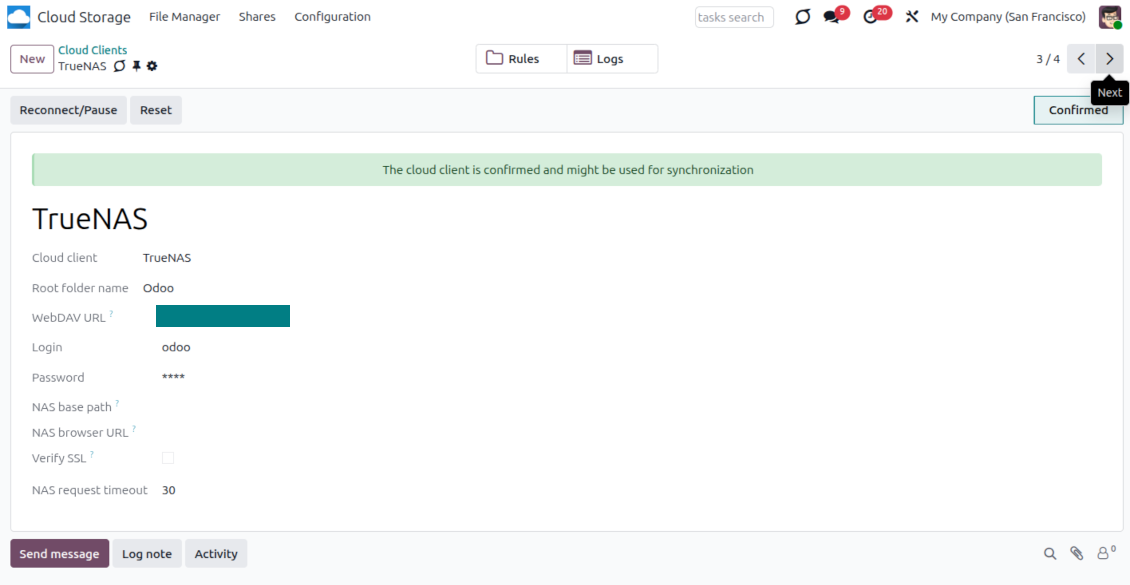
إعداد NAS (Synology وQNAP وTrueNAS وغيرها)
- فعّل الخيار 'NAS Sync' (Cloud Storage > Configuration > Configuration). الإضافة الاختيارية NAS Odoo Integration مطلوبة
- جهّز نقطة نهاية NAS WebDAV:
- Synology: ثبّت WebDAV Server في DSM وفعّله واختر HTTPS حيث أمكن
- QNAP: فعّل WebDAV للمجلد المشترك الهدف واستخدم HTTPS حيث أمكن
- TrueNAS CORE: فعّل خدمة WebDAV؛ TrueNAS SCALE: ثبّت تطبيق WebDAV وهيئه، لأن WebDAV الأصلي أُزيل في إصدارات SCALE الحديثة
- WebDAV عام: تأكد أن PROPFIND وMKCOL وPUT وGET وMOVE وDELETE متاحة
- إذا كان Odoo مستضافاً خارج شبكة NAS المحلية، اجعل نقطة نهاية WebDAV قابلة للوصول بأمان. فضّل وكيلاً عكسياً بشهادة TLS صالحة، أو VPN/نفقاً آمناً مثل WireGuard أو Tailscale أو Cloudflare Tunnel، أو ترحيل البائع مثل Synology QuickConnect أو QNAP myQNAPcloud. تجنب كشف واجهة مسؤول على الإنترنت
- أنشئ مستخدم NAS مخصصاً بصلاحيات كاملة داخل المجلد المشترك الهدف فقط: قراءة وإنشاء وكتابة ونقل وحذف. لا تستخدم حساب مسؤول
- انتقل إلى Odoo Cloud Storage > Configuration > Cloud Clients واضغط 'Create'
- كمرجع، أدخل أي اسم يكون واضحاً لجميع المستخدمين
- كعميل Cloud، اختر 'Synology NAS' أو 'QNAP NAS' أو 'TrueNAS' أو 'WebDAV NAS'
- كاسم المجلد الجذر، أدخل عنواناً سيُستخدم كمجلد NAS الأب لكل المجلدات المتزامنة. مثلاً 'Odoo' أو 'OdooERP'
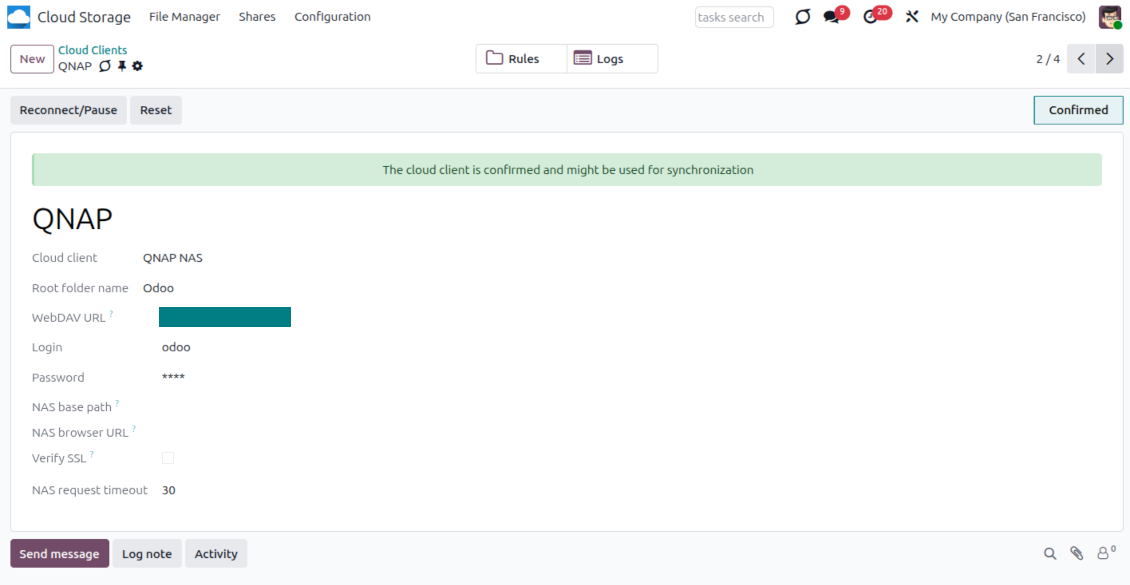
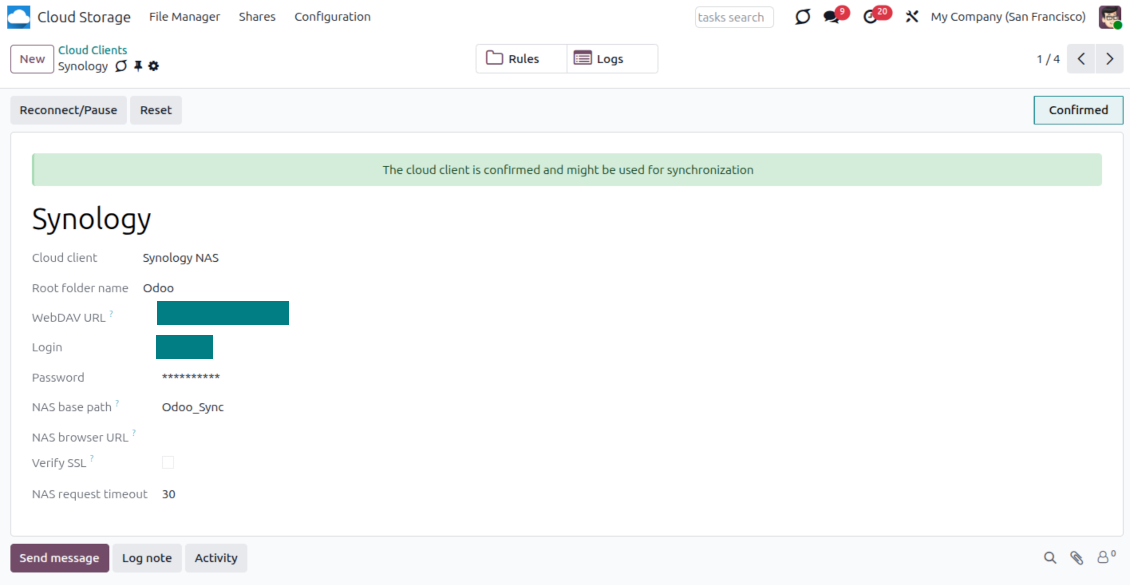
- أدخل WebDAV URL الكامل واسم الدخول وكلمة المرور. عرّف اختيارياً مساراً أساسياً إذا كان على Odoo إنشاء المجلد الجذر داخل مشاركة أو دليل قائم
- أبقِ 'Verify SSL' مفعّلاً لنقاط نهاية HTTPS العامة. عطّله فقط لنقطة نهاية خاصة موثوقة بشهادة موقعة ذاتياً
- عرّف اختيارياً URL أساسياً للمتصفح إذا كان ينبغي فتح ملفات NAS عبر URL لمحطة ملفات البائع بدلاً من WebDAV URL الخام
- اضغط 'Confirm'. يتحقق Odoo من اتصال WebDAV وينشئ الدليل الجذر أو يجده. تصبح مزامنة NAS - Odoo جاهزة للتنفيذ
- طبّق عميل السحابة المنشأ حديثاً على قواعد المجلدات و/أو المجلدات اليدوية التي ينبغي مزامنتها مع تخزين NAS ذلك
- انتظر بدء مهمة المزامنة المجدولة. لأغراض الاختبار فقط: شغّل التكامل يدوياً من Cloud Storage > Configuration > Configuration > الزر 'Launch sync'.
تهيئة NAS المسبقة
تعرض أنظمة NAS الملفات عادة عبر شبكة محلية. إذا كان خادم Odoo مستضافاً خارج تلك الشبكة، يجب أن تكون نقطة نهاية WebDAV قابلة للوصول من Odoo عبر قناة آمنة. الخيارات الموصى بها وكيل عكسي بشهادة HTTPS صالحة، أو VPN أو نفق آمن مثل WireGuard أو Tailscale أو Cloudflare Tunnel، أو ترحيل البائع مثل Synology QuickConnect أو QNAP myQNAPcloud. إعادة توجيه المنافذ العادية ممكنة لكن ينبغي عدّها الخيار الأقل تفضيلاً.
استخدم مستخدم NAS مخصصاً بأدنى صلاحيات لازمة لمجلد مشترك واحد: قراءة وإنشاء وتحديث ونقل وحذف. تجنب حسابات المسؤول. يجب أن تستخدم نقاط النهاية المكشوفة علناً دائماً HTTPS وشهادة TLS صالحة. لدى الموصل خيار "Verify SSL" للشهادات الموقعة ذاتياً الموثوقة، لكن ينبغي أن يبقى مفعّلاً عادة.
إدخال بيانات اعتماد QNAP
إدخال بيانات اعتماد Synology
إدخال بيانات اعتماد TrueNAS
إعداد Box
- فعّل الخيار 'Box Sync' (cloud Storage > Configuration > Configuration). الإضافة الاختيارية Box Odoo Integration مطلوبة
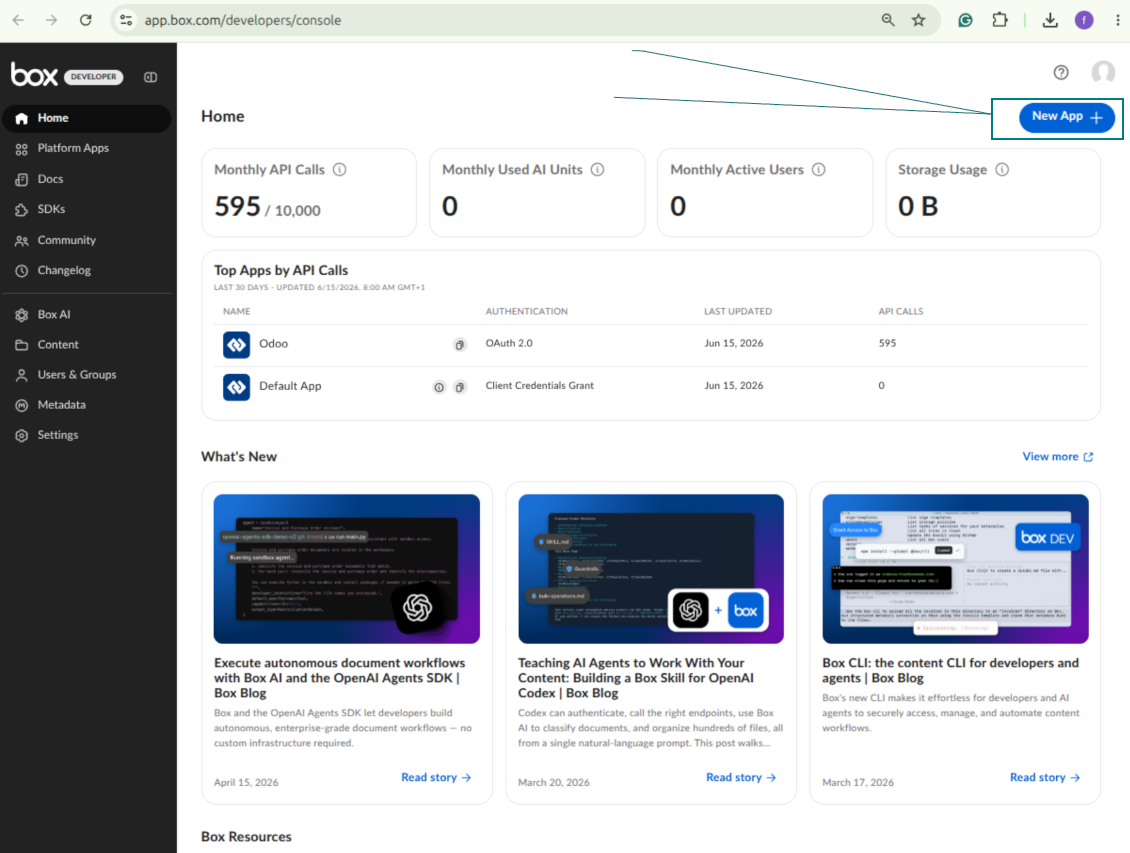
- أنشئ حساب مطوّر Box أو افتحه وانتقل إلى Box Developer Console: https://app.box.com/developers/console
- أنشئ Custom App واختر OAuth 2.0 (Authorization Code Grant) كطريقة المصادقة
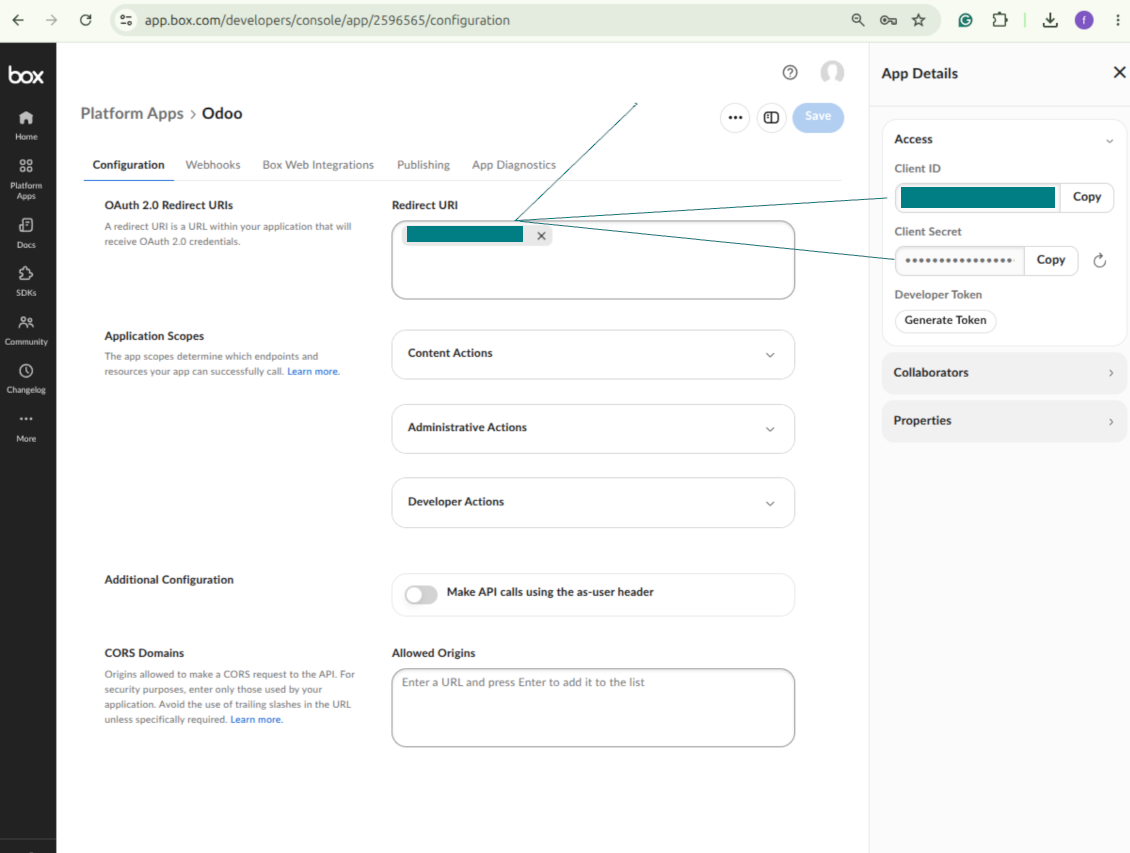
- أضف URI لإعادة التوجيه كـ [YOURODOOSITENAME]/box_token (مثلاً https://faotools.com/box_token). شهادة SSL صالحة (https) مطلوبة
- امنح التطبيق صلاحية قراءة الملفات والمجلدات وكتابتها. تجنب تعيين صلاحيات غير ذات صلة
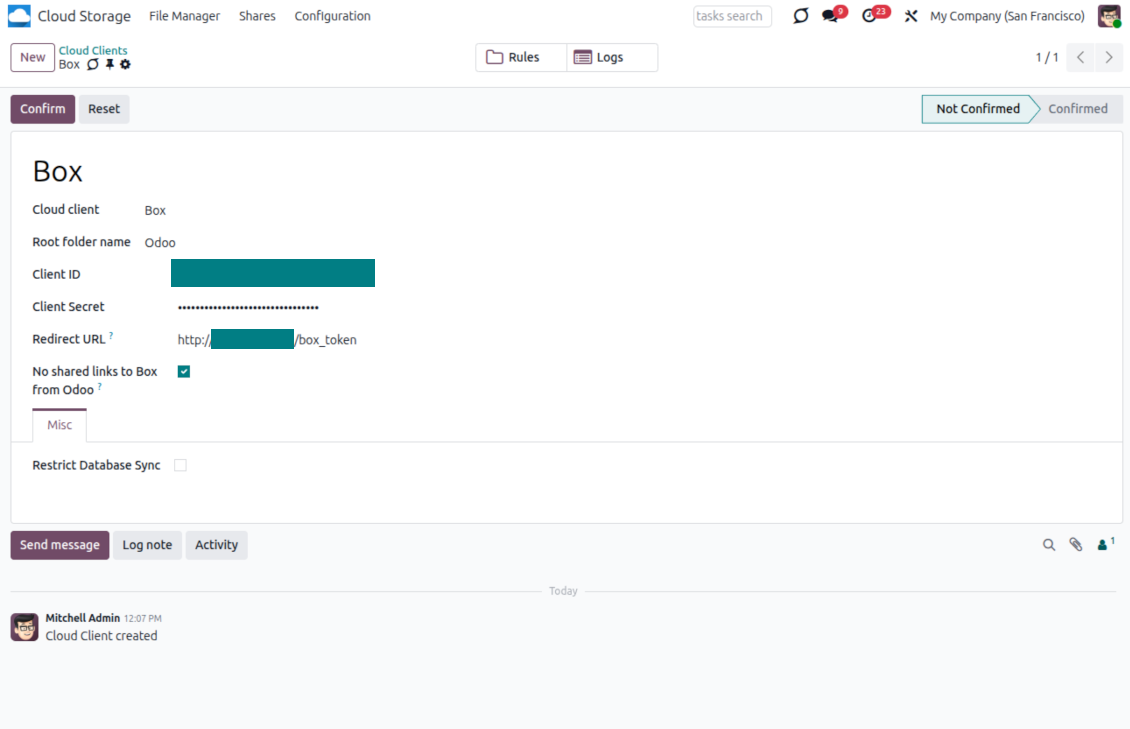
- انتقل إلى Odoo Cloud Storage > Configuration > Cloud Clients واضغط 'Create'
- كمرجع، أدخل أي اسم يكون واضحاً لجميع المستخدمين
- كعميل Cloud، اختر 'Box'
- كاسم المجلد الجذر، أدخل عنواناً سيُستخدم كمجلد Box الأب لكل المجلدات المتزامنة. مثلاً 'Odoo' أو 'OdooERP'
- انسخ Box Client ID إلى الحقل 'Client ID'
- انسخ Box Client Secret إلى الحقل 'Client Secret'
- أدخل URL إعادة التوجيه الذي تم توليده سابقاً
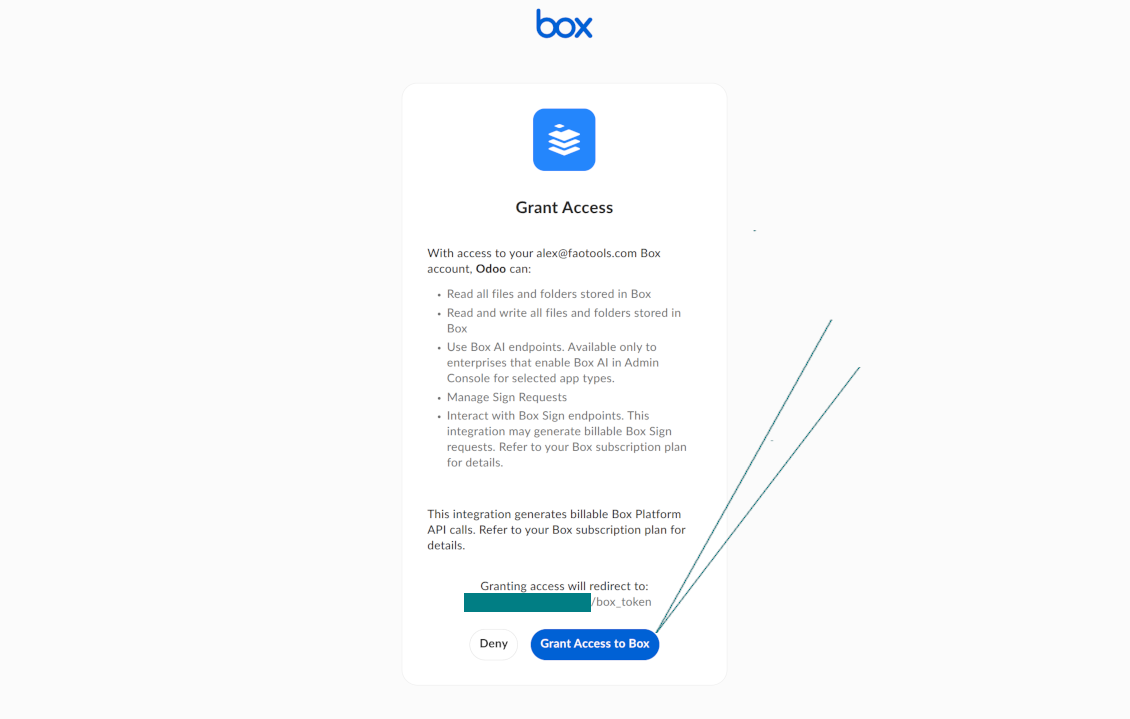
- اضغط 'Confirm'. يعيد Odoo توجيهك إلى صفحة تسجيل الدخول في Box. تحقق في النظام، ووافق على كل الشروط، وامنح كل الصلاحيات المطلوبة
- بعد تسجيل الدخول، يعيد Box توجيهك إلى Odoo. تصبح مزامنة Box - Odoo جاهزة للتنفيذ
- طبّق عميل السحابة المنشأ حديثاً على قواعد المجلدات و/أو المجلدات اليدوية التي ينبغي مزامنتها مع حساب Box ذلك
- انتظر بدء مهمة المزامنة المجدولة. لأغراض الاختبار فقط: شغّل التكامل يدوياً من Cloud Storage > Configuration > Configuration > الزر 'Launch sync'.
إنشاء تطبيق مطور Box جديد
نسخ بيانات اعتماد OAuth الخاصة بـ Box
تهيئة عميل Box السحابي في Odoo
منح Odoo حق الوصول إلى Box
إعداد MinIO
- جهّز خادم MinIO قيد التشغيل
- افتح MinIO Console
- أنشئ bucket جديداً أو اختر قائماً. انسخ اسم الـ bucket تماماً: يجب إدراجه في Odoo في الحقل 'Bucket'
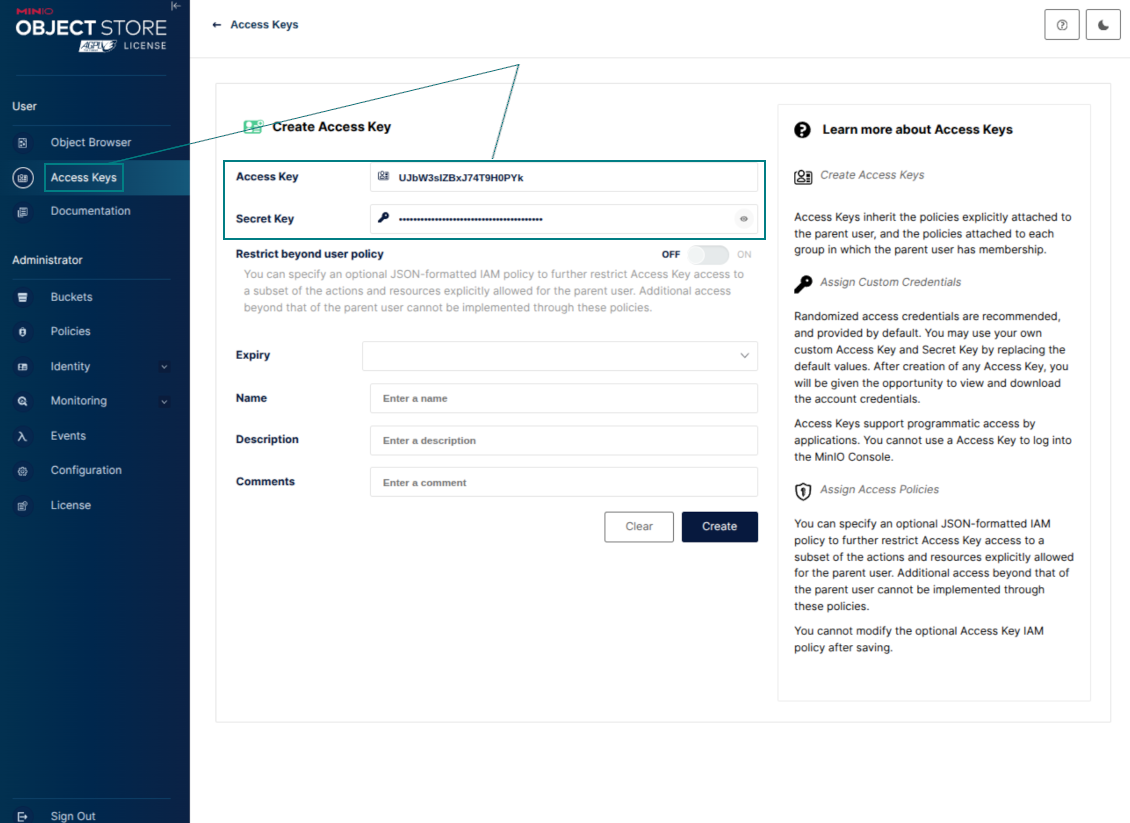
- أنشئ بيانات اعتماد وصول لـ Odoo. في MinIO، استخدم زوج مفتاح وصول / مفتاح سري أو حساب خدمة يملك صلاحيات سرد الكائنات وقراءتها وإنشائها وكتابتها ونسخها وحذفها داخل الـ bucket المحدد
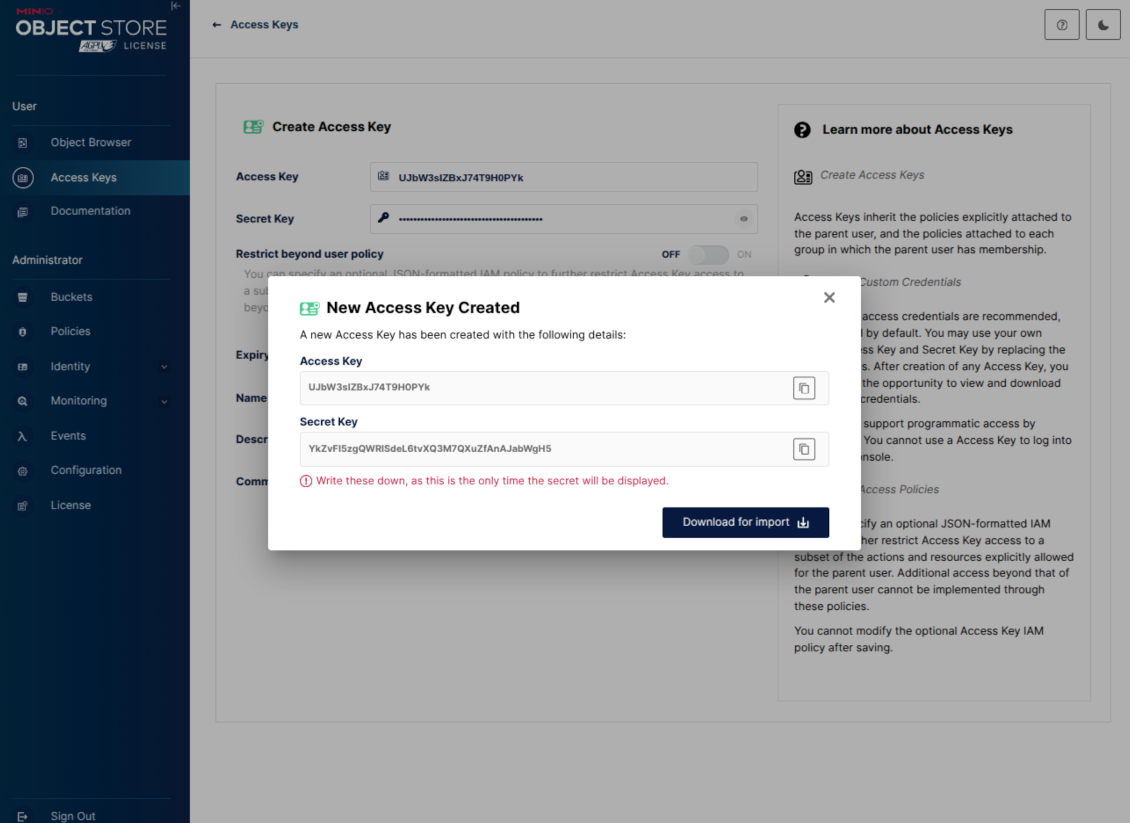
- انسخ MinIO Access Key إلى حقل Odoo 'Access Key'
- انسخ MinIO Secret Key إلى حقل Odoo 'Secret Key'. مهم: احفظ السر قبل إغلاق صفحة MinIO إذا عرضه MinIO مرة واحدة فقط
- انسخ MinIO S3 API endpoint URL إلى Odoo في الحقل 'Amazon S3 endpoint URL'. مثلاً يستخدم خادم محلي عادة http://localhost:9000، بينما قد يستخدم خادم إنتاج https://minio.example.com
- انتقل إلى Odoo Cloud Storage > Configuration > Cloud Clients واضغط 'Create'
- كمرجع، أدخل أي اسم يكون واضحاً لجميع المستخدمين
- كعميل Cloud، اختر 'MinIO'
- كاسم المجلد الجذر، أدخل عنواناً سيُستخدم كبادئة كائن MinIO الأب لكل المجلدات المتزامنة. مثلاً 'Odoo' أو 'OdooERP'
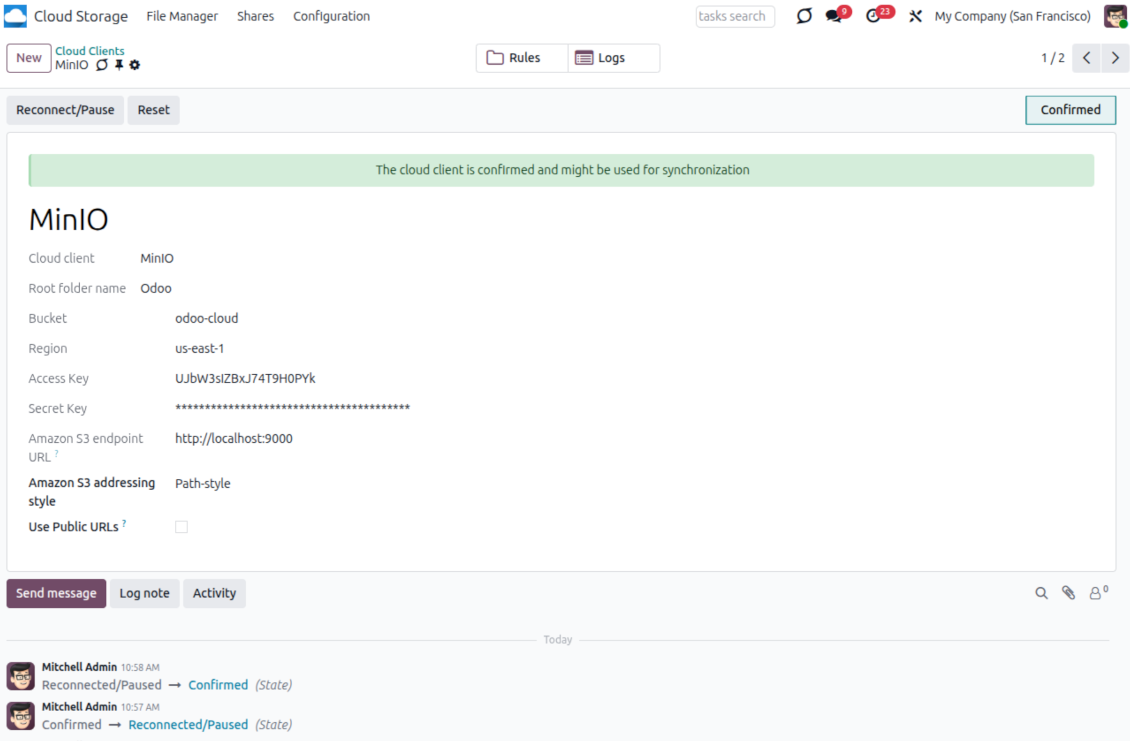
- املأ الحقول 'Bucket' و'Access Key' و'Secret Key' و'Amazon S3 endpoint URL'. الحقل 'Region' اختياري لـ MinIO؛ إذا كان فارغاً يستخدم Odoo us-east-1 للتوقيع المتوافق مع S3
- أبقِ نمط العنونة Path-style. هذا الخيار الموصى به لنقاط نهاية MinIO، خاصة عندما لا يوفّر مضيف MinIO أسماء DNS خاصة بالـ bucket
- اختر ما إذا كان على Odoo استخدام URL عامة مباشرة لـ MinIO. فعّل 'Use Public URLs' فقط عندما يكون الـ bucket أو البادئة أو الوكيل العكسي أو CDN قابلاً للقراءة علناً. لـ buckets MinIO الخاصة، اتركه معطّلاً
- اضغط 'Confirm'. يتحقق Odoo من وصول الـ bucket وينشئ أو يتحقق من بادئة المجلد الجذر. تصبح مزامنة MinIO - Odoo جاهزة للتنفيذ
- طبّق عميل السحابة المنشأ حديثاً على قواعد المجلدات و/أو المجلدات اليدوية التي ينبغي مزامنتها مع bucket MinIO ذلك
- انتظر بدء مهمة المزامنة المجدولة. لأغراض الاختبار فقط: شغّل التكامل يدوياً من Cloud Storage > Configuration > Configuration > الزر 'Launch sync'.
Useful MinIO documentation: https://min.io/docs/minio/linux/administration/identity-access-management.html, https://min.io/docs/minio/linux/reference/minio-server/minio-server.html.
إنشاء مفتاح وصول MinIO
نسخ بيانات اعتماد MinIO الجديدة
تهيئة عميل MinIO السحابي في Odoo
إعداد تكامل Dropbox
اعتمادية Python
تعتمد الأداة على المكتبة الخارجية 'dropbox'. ثبّت هذه المكتبة لخادم Odoo عبر الأمر:
pip3 install dropbox
التهيئة وتسجيل الدخول
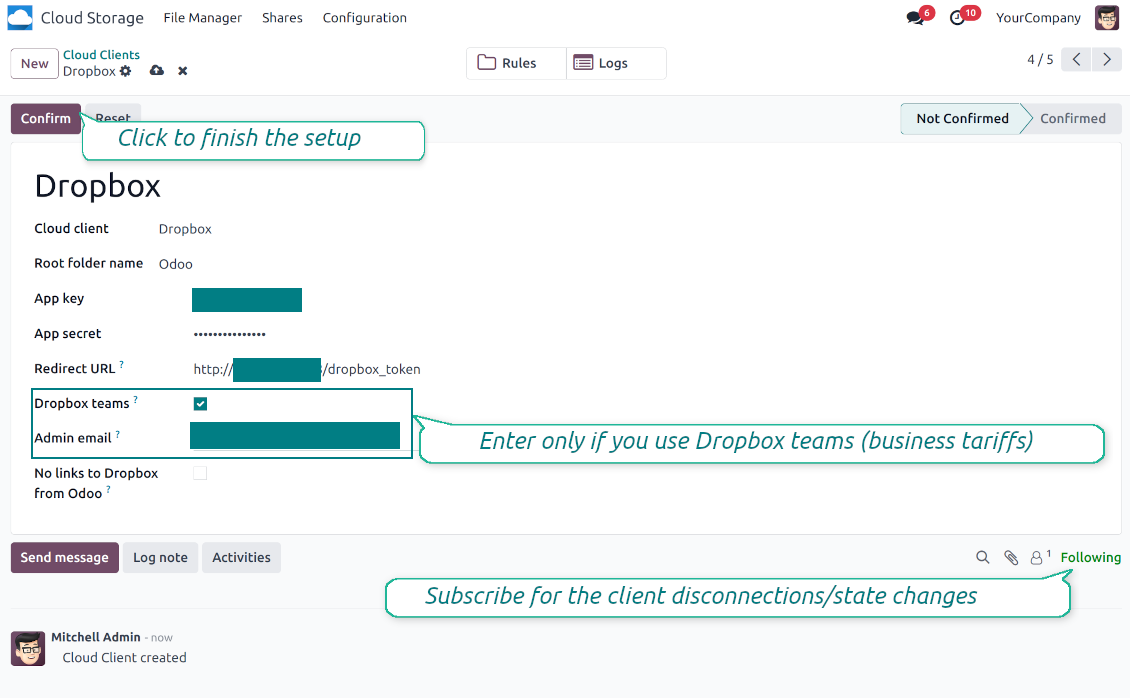
- فعّل الخيار 'Dropbox Sync' (cloud Storage > Configuration > Configuration). الإضافة الاختيارية Dropbox Odoo Integration مطلوبة
- Follow the URL https://www.dropbox.com/developers/apps/create
- اختر API كـ 'Scoped access'
- اختر نوع الوصول 'Full Dropbox'
- اختر أي اسم مناسب للتطبيق واضغط الزر 'Create app'
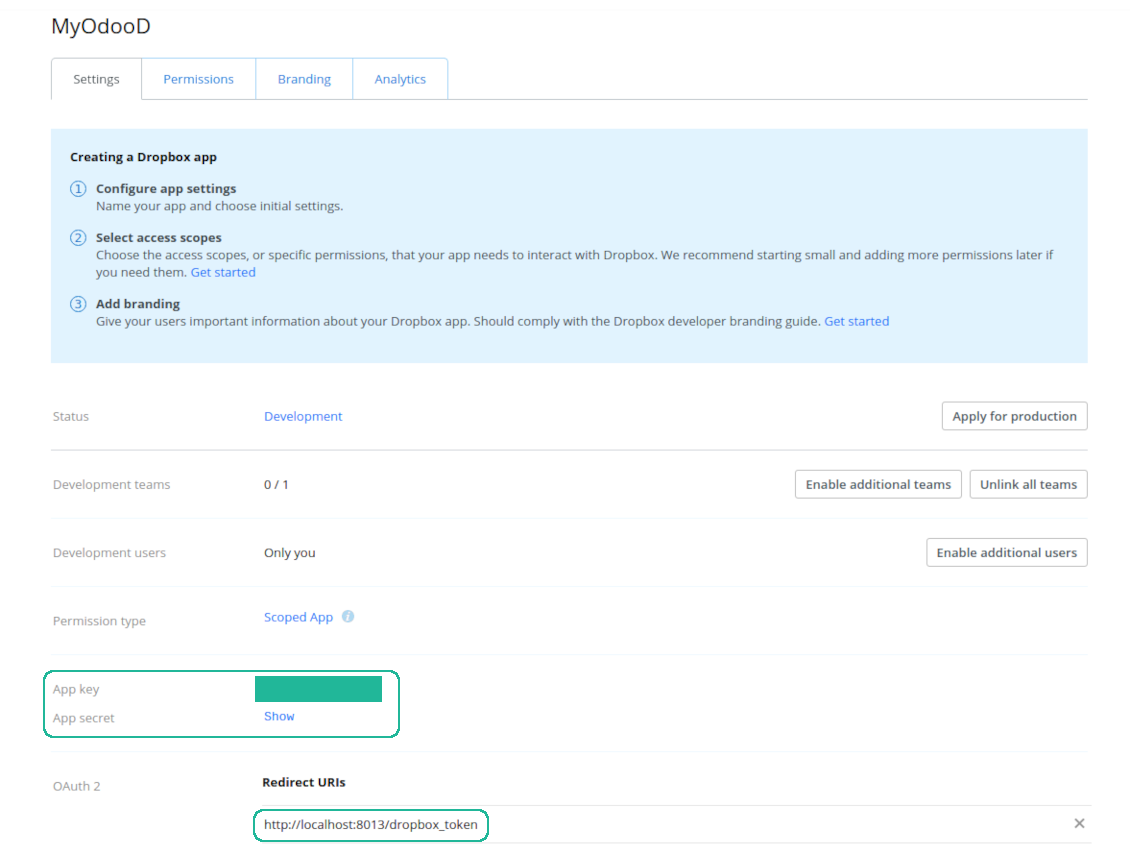
- أضف URI لإعادة التوجيه كـ [YOURODOOSITENAME]/dropbox_token (مثلاً https://faotools.com/dropbox_token). شهادة SSL صالحة (https) مطلوبة
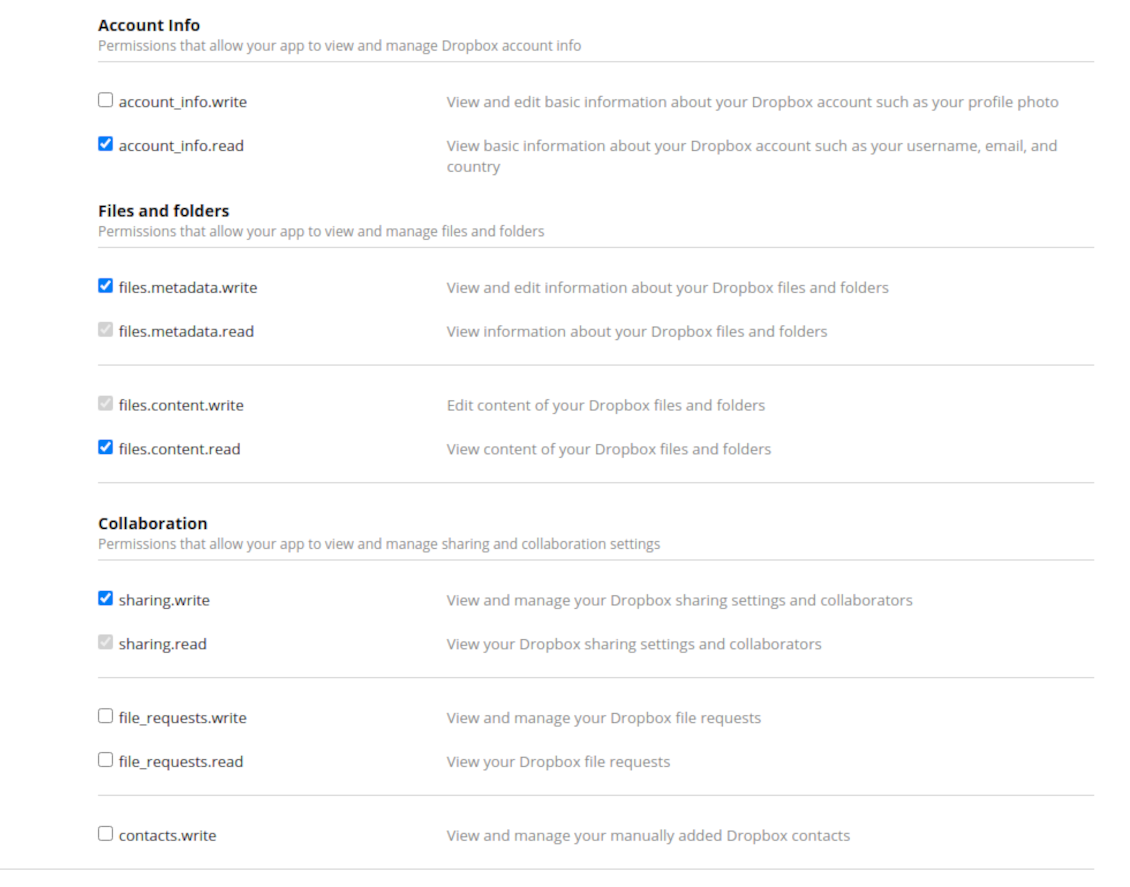
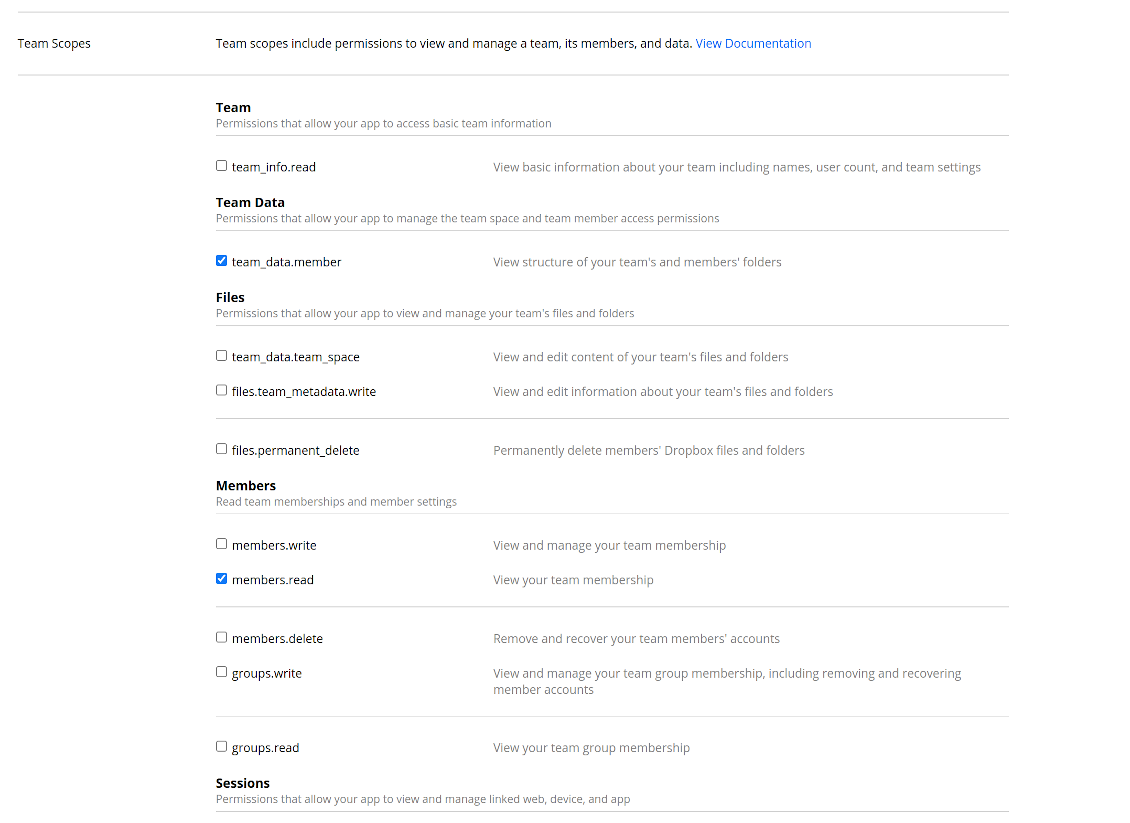
- امنح التطبيق الصلاحيات: 'Account Info (Read)' و'Files and folders Metadata (Write)' و'Files Content (Write)' و'Collaboration (Write)'. لـ DropBox الفريق عيّن أيضاً 'Team Data Members' و'Members (Read)'. تأكد من عدم تعيين أي صلاحيات أخرى.
- Submit App
- انتقل إلى Odoo Cloud Storage > Configuration > Cloud Clients ثم اضغط 'Create'
- كمرجع أدخل أي اسم يكون واضحاً لجميع المستخدمين
- كعميل Cloud اختر 'Dropbox'
- كاسم المجلد الجذر أدخل عنواناً يُستخدم كمجلد Google Drive الأب لكل المجلدات المتزامنة. مثلاً 'Odoo' أو 'OdooERP'
- انسخ 'App key' إلى 'App key'
- انسخ 'App Secret' إلى الحقل 'App secret'
- أدخل URL إعادة التوجيه الذي تم توليده سابقاً
- إذا كنت تستخدم أقراص فريق Dropbox
- علّم المربع ذا الصلة
- عيّن بريداً إلكترونياً لمستخدم Dropbox. داخل مجلد هذا المستخدم تُنشأ كل العناصر المرتبطة بـ Odoo، وبعد ذلك فقط تُشارك مع بقية المستخدمين. تحت هذا المستخدم تُنشأ كل الملفات والمجلدات وتُغيَّر وتُنقل وتُحذف
- اضغط 'Confirm'. يعيد Odoo توجيهك إلى صفحة تسجيل الدخول في Dropbox. تحقق في النظام، ووافق على كل الشروط، وامنح كل الصلاحيات المطلوبة
- بعد تسجيل الدخول، يعيد Dropbox توجيهك إلى Odoo. تصبح مزامنة Dropbox - Odoo جاهزة للتنفيذ
- طبّق عميل السحابة المنشأ حديثاً على قواعد المجلدات و/أو المجلدات اليدوية التي ينبغي مزامنتها مع نسخة Dropbox تلك
- انتظر بدء مهمة المزامنة المجدولة. لأغراض الاختبار فقط: شغّل التكامل يدوياً من Cloud Storage > Configuration > Configuration > الزر 'Launch sync'.
Dropbox URLs
لدى Dropbox طريقة خاصة لتوليد روابط للملفات والمجلدات القائمة. على وجه الخصوص، لا توجد مفاهيم URL داخلية أو خاصة. بدلاً من ذلك، قد يحصل كل عنصر Dropbox على ما يسمى URL مشتركة. هذه الروابط المشتركة إما عامة أو للفريق فقط. إضافة إلى ذلك، الميزة الأخيرة متاحة فقط لحساب Dropbox للأعمال.
تعتمد هذه الأداة على آلية الروابط المشتركة. يعني ذلك أن رابط كل مرفق إما عام (كل حسابات Dropbox الشخصية) أو للفريق فقط (كل حسابات Dropbox للأعمال).
يُعد ذلك أحياناً غير آمن بالكامل. رغم أن URL الموقع يصعب أن يعرفها مستخدمون خارجيون، هناك احتمال ضئيل أن تصبح متاحة نتيجة بعض إجراءات المستخدم. إضافة إلى ذلك، توليد روابط المشاركة ليس سريعاً جداً وقد يبطئ عملية المزامنة. لذلك أُضيفت ميزة إيقاف URL المشاركة.
If checked, all Dropbox URLs in Odoo will be of type https://www.dropbox.com/home/Odoo/[PATH]. Such links will not work in many cases. Thus, if you need to open Dropbox files/folders from Odoo, be careful with the setting 'No links to Dropbox from Odoo'.
شاهد أيضاً فيديو التهيئة
إنشاء تطبيق Dropbox
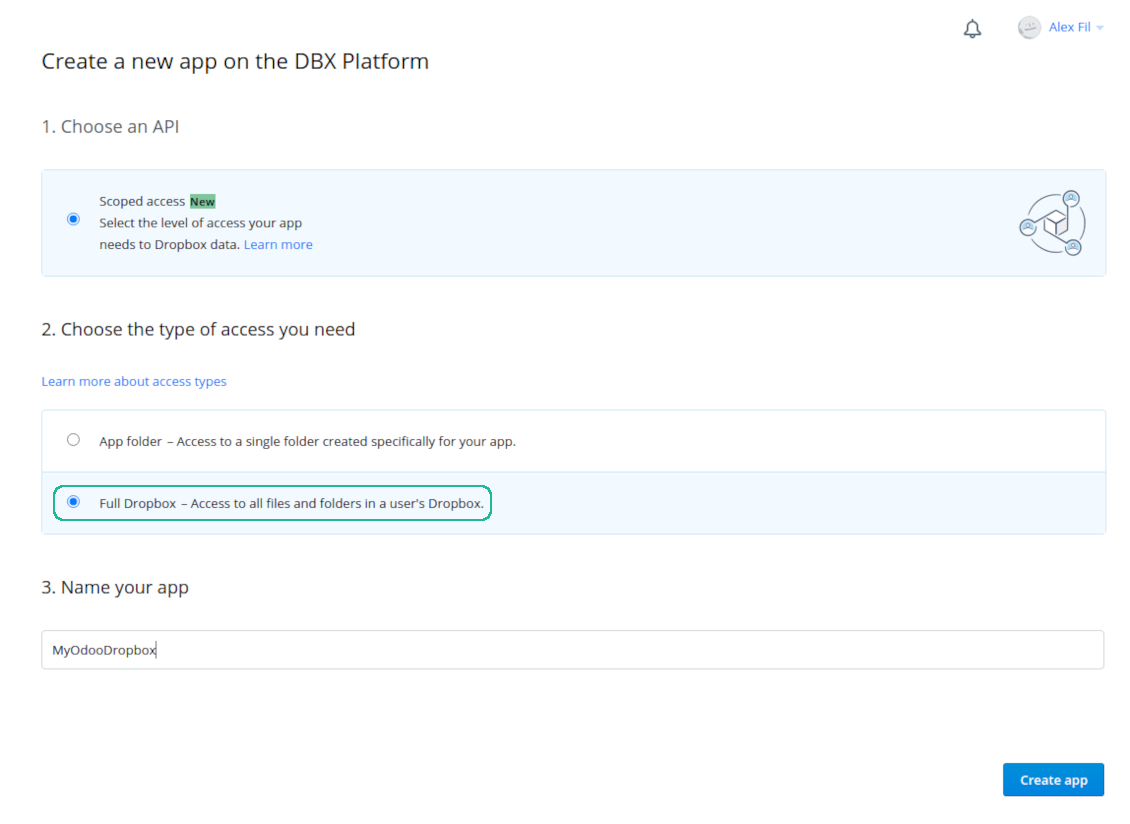
إعداد تطبيق Dropbox: عنوان URL لإعادة التوجيه
أذونات Dropbox للحسابات الشخصية
أذونات Dropbox لحسابات الأعمال
إعداد Odoo لتكامل Dropbox
الأسئلة الشائعة حول Cloud Storage Solutions Odoo v.18
أين تُخزَّن الملفات المتزامنة؟ هل تُنسَخ في Odoo وفي السحابات؟
يفترض التطبيق أن المحتوى الثنائي للمرفقات يُحفَظ في Cloud Client وليس على خادم Odoo. فتصبح هذه المرفقات في Odoo من نوع URL ويمكن الوصول إليها في أي وقت من صندوق المرفقات أو من Cloud Client.
بعد الإعداد لا حاجة لإجراءات يدوية: المزامنة تلقائية بالكامل. حدّد أنواع مستندات Odoo المطلوب مزامنتها واضبط نموذجاً مرتبطاً لكل منها (العملاء، أوامر البيع أو الشراء، المهام، المشاريع، وغيرها).
هل يمكنني إنشاء عدة مجلدات لنفس نوع المستند؟ مثلاً المشاريع الداخلية ومشاريع العملاء؟
نعم، يمكنك ذلك. جهّز قاعدة لكل حالة ثم طبّق عوامل التصفية: مثلاً حسب نوع المشروع.
اجعل عوامل التصفية متنافية حتى يُسنَد المستند بوضوح. مثلاً: «عميل وليس مورّداً»، «مورّد وليس عميلاً». وإلا فستنتقل مجلد المستند من نموذج إلى آخر.
هل يمكن جعل المزامنة فورية؟
لا. لدينا أسباب قوية لتجنب المزامنة الفورية:
الأداء. إذا كانت المزامنة فورية، فكل رفع ملف يُظهر شاشة التحميل.
التعارضات. إذا غيّر مستخدمان عنصراً في الوقت نفسه، قد يتعذر الحل. مع المهام المنتظمة يمكن الإصلاح لاحقاً؛ أما فورياً فسنحتاج طابوراً، وهذا أكثر إرباكاً.
الوظائف. خاصة إعادة التسمية وإعادة الهيكلة. تعتمد المزامنة العكسية على منطق المجلدات وتفحص 100% من العناصر في كل مزامنة. إن تم ذلك بعد كل تحديث فستكون آلاف الطلبات في الثانية. وإلا فستضيع التغييرات.
هل يمكنني تغيير الاسم الافتراضي للمجلدات في السحابات؟
يمكنك تعيين اسمك لدلائل النماذج (أوامر البيع، الفرص، المورّدين، إلخ) لأي نوع مستند.
لمجلدات الكائنات (SO-001، John Smith، إلخ) تعتمد الأداة على طريقة Odoo لبناء الاسم المعروض. يمكن تغيير ذلك بتعريف تعبير الاسم. يُستخدم نفس بناء قوالب بريد Odoo.
هل يمكنني تغيير معدل تكرار مهام المزامنة؟
لا، اعتباراً من الإصدار 15 لا ينبغي تغيير المهام المجدولة. فهي محسّنة لتعمل كل 15 دقيقة لضمان أكثر اتصال استقراراً وسرعة.
يجب أن تكون مهلات خادم Odoo 15 دقيقة على الأقل (900 ثانية).
لإيقاف المزامنة مؤقتاً، افعل ذلك في نموذج عميل السحابة المعني.
هل يمكنني مزامنة المرفقات مع عدة عملاء سحابة
نعم، اعتباراً من الإصدار 15 يمكن إعداد عدة اتصالات. هكذا تُزامَن بعض المجلدات مع عميل سحابة وبعضها مع آخر.
لاحظ أنه لا يمكن بأي حال مزامنة المجلد نفسه مع عدة مخازن سحابية في آن واحد.
نستخدم محرراً خاصاً في سحاباتنا (مثل OnlyOffice وOffice 365 وغيرها). هل تُفتَح الملفات في ذلك المحرر؟
نعم، بحسب إعداد عميل السحابة لديك.
هل أحتاج فقط إلى تطبيق Cloud Storage Solution؟
اعتباراً من الإصدار 15 يمكن استخدام التطبيق بمفرده لتنظيم المرفقات في مجلدات وتوفير واجهة مدير الملفات.
أما إن كان الهدف الاتصال بأحد عملاء السحابة، فيلزم تثبيت تطبيق اختياري واحد على الأقل خاص بالعميل.
ماذا يحدث عندما أغيّر قاعدة مجلد؟
عندما تتغير قاعدة مجلد، تتغير قائمة المجلدات أيضاً. إذا لم يعد المجلد يطابق الشروط يُزال. إن كانت الملفات مزامَنة، تعيدها المزامنة العكسية إلى Odoo وتحذفها من Cloud Client.
إن لم يطابق كائن المستند شروط قاعدة المجلد، فلن يُنشأ مجلده. وإن طابقها لاحقاً فسيُنشأ المجلد المرتبط.
هل يمكنني الإبقاء على المزامنة المباشرة فقط أو إيقاف المزامنة من مساحة التخزين السحابية؟
نعم. في العميل السحابي افتح صفحة الإعدادات وفعّل إيقاف المزامنة من مساحة التخزين السحابية.
تبقى المزامنة في اتجاه واحد. التغييرات التي تُجرى في Odoo تُرسل إلى التخزين السحابي. الملفات والمجلدات التي تُنشأ أو تُعاد تسميتها أو تُحذف في التخزين السحابي لا تنعكس في Odoo، والمجلدات المحذوفة هناك لا تُستعاد.
أوقف الخيار مرة أخرى لتطبيق تلك التغييرات المتراكمة، بما فيها عمليات الحذف، في المزامنة التالية.
هذا الإعداد متاح ابتداءً من الإصدار 18. فصل العميل أو إعادة ضبطه أو إلغاء تنشيطه ما زال يشغّل المزامنة العكسية، ما لم توقفها أيضاً.
ما سياسة تحديث ادواتكم؟
وفق سياسات Odoo Apps Store الحالية:
- كل وحدة مشتراة للإصدار 12.0 وما قبله تمنح الوصول إلى كل الإصدارات حتى 12.0.
- بدءا من الإصدار 13.0 تُشترى كل نسخة من الوحدة على حدة.
- بغض النظر عن الإصدار، الشراء يعطي حق كل التحديثات والإصلاحات ضمن الإصدار الرئيسي.
فريق faOtools لا يتحكم بهذه السياسات. للأسئلة تواصلوا مباشرة مع ممثلي Odoo Apps Store.
كيف اثبّت التطبيق على Odoo.sh؟
أبسط طريقة هي مسار متجر Odoo المدمج:
1. افتح صفحة الوحدة واضغط Deploy on odoo.sh
2. ستُنقل إلى GitHub. سجّل الدخول ثم Create a new repo أو استخدم مستودعا قائما. يجب أن يكون المستودع خاصا. لا يُسمح بنشر التطبيقات بترخيص OPL-1. أنشئ مستودعا جديدا لمشروع Odoo.sh عند الحاجة
3. ثم في odoo.sh اضغط Deploy وأكّد ثم Continue. يبدأ التثبيت.
هذه الخطوات تثبّت التطبيق على فرع الإنتاج. لفروع أخرى أو للتحديث:
1. نزّل الشيفرة من متجر Odoo
2. اعمل commit للوحدة في مستودع GitHub. لا تُستثنى مجلدات/ملفات التطبيق في .gitignore. مستودعات odoo.sh قد تتجاهل مسارات مهمة (مثل /lib). ارفع كل مجلدات وملفات الوحدة
3. انشر الفرع المستهدف في مشروع odoo.sh أو انتظر البناء التلقائي إن كانت الإعدادات كذلك.
كيف اثبّت التطبيق على خادمي؟
2. أعد تشغيل خادم Odoo;
3. فعّل وضع المطوّر (الإعدادات التقنية);
4. حدّث قائمة التطبيقات (قائمة التطبيقات);
5. اعثر على التطبيق واضغط Activate/Install;
6. اتبع الإرشادات في صفحة التطبيق إن وُجدت.
للتطبيق إضافات أخرى. هل اشتريها لاحقا؟
نعم. يضيف Odoo التبعيات تلقائيا إلى السلة؛ استبعد الأدوات المشتراة سابقا حتى لا تدفع مرتين.
نشرت التطبيق على Odoo.sh وأرى تحذيرا/خطأ في الاختبارات
التحذير الأحمر/البرتقالي لا يؤثر على وظائف التطبيق. أحيانا لا تتجاوز وحداتنا الاختبارات التلقائية القياسية لأنها تفترض سلوكا يتعارض مع أهداف التطبيق. مثلا نغيّر حساب السعر بينما تقارن اختبارات Odoo السعر النهائي بالخوارزمية القياسية.
تحقق أولا من وظائف قاعدة البيانات المنشورة. هل كل شيء يعمل؟
إن ظننتم أن التحذير يؤثر على وظائف حقيقية، تواصلوا معنا وأرسلوا سجلات التثبيت كاملة وقائمة الوحدات المنشورة كاملة (الأساسية والطرف الثالث).
هل يمكنني شراء التطبيق منكم مباشرة؟
لا، نوزع الأدوات فقط عبر متجر تطبيقات Odoo الرسمي.
اريد خصما
للأسف ليست لدينا وسيلة تقنية لتقديم أسعار فردية.
هل يمكن تثبيت التطبيق على قاعدة Odoo Online (SaaS)؟
لا، لا يمكن استخدام تطبيقات الطرف الثالث على Odoo Online. خدمة Odoo SaaS تمنع ذلك.
للاداة تبعيات على تطبيقات أخرى. هل اشتريها؟
نعم، تحتاج الأداة إلى كل الوحدات المذكورة في التبعيات. السعر في صفحة التطبيق يشمل هذه التبعيات.
ما سعر الوحدة بالدولار الأمريكي؟ لماذا تغيّر؟
أسعار وحداتنا باليورو. يحوّل متجر Odoo الأسعار إلى عملات أخرى حسب سعره الداخلي. لذا قد يتغيّر السعر بالدولار الأمريكي عند تحديث سعر الصرف.
تتم صياغة نصوص التطبيق والموقع الإلكتروني باللغات غير الإنجليزية بمساعدة الذكاء الاصطناعي وبما يتوافق مع ترجمات Odoo الرسمية. إذا لاحظت خطأ، أرسل تذكرة تصحيح الترجمة وسنقوم بتصحيحه.
قواعد بيانات Odoo التجريبية (معاينات)
قد نوفر لهذا التطبيق قاعدة بيانات تجريبية مخصصة مجانية.
لا تحتاج إلى رقم هاتف أو بطاقة ائتمان للاتصال بنا. يجب عليك فقط اجتياز عملية تسجيل قصيرة عبر البريد الإلكتروني, والتي لا تستغرق أكثر من 30 ثانية.
بناءً على طلبك، نُعِدّ قاعدة بيانات معاينة خاصة بك، يمكنك خلالها إجراء أي اختبارات والتحقق من افتراضاتك لمدة أسبوعين تقريبًا.
الإبلاغ عن الأخطاء
إذا واجهت أخطاء أو سلوكًا غير متسق, فلا تتردد في الاتصال بنا. نحن نضمن تقديم الإصلاحات خلال 60 يومًا من الشراء ونهتم بشدة بتحسين أدواتنا حتى بعد هذه الفترة.
لا تحتاج إلى رقم هاتف أو بطاقة ائتمان للاتصال بنا. يجب عليك فقط اجتياز عملية تسجيل قصيرة عبر البريد الإلكتروني, والتي لا تستغرق أكثر من 30 ثانية.
يرجى تضمين أكبر قدر ممكن من التفاصيل في طلبك: لقطات الشاشة وسجلات خادم Odoo ووصف كامل لكيفية إعادة إنتاج المشكلة وما الى ذلك. عادة ما يستغرق إعداد خطة عمل للمشكلة بضعة أيام عمل (اذا تأكد وجود خطا) او تزويدك بارشادات حول ما ينبغي فعله (في الحالات الأخرى).
طلبات الميزات العامة وأفكار الوحدات (تطوير مجاني)
لدينا دوافع قوية لتحسين أدواتنا وسنكون ممتنين لأي تعليقات. إذا كانت متطلباتك ذات استخدام عام ويمكن تنفيذها بكفاءة, فسيقوم الفريق بإدراج تلك المتطلبات في قائمة المهام الخاصة بنا.
تتم معالجة قائمة المهام هذه بانتظام ولا يتم فرض رسوم إضافية. على الرغم من أننا لا نستطيع أن نعد بالمواعيد النهائية والتصميم النهائي, إلا أنها قد تكون طريقة جيدة للحصول على الميزات المطلوبة دون استثمارات ومخاطر.
لا تحتاج إلى رقم هاتف أو بطاقة ائتمان للاتصال بنا. يجب عليك فقط اجتياز عملية تسجيل قصيرة عبر البريد الإلكتروني, والتي لا تستغرق أكثر من 30 ثانية.
18.0.1.4.54
- The issue of the sync queue stopping with a recursion error when a large number of tasks is planned at once has been fixed.
- Tasks of a paused or not connected cloud client now wait for the client instead of being failed and canceled.
18.0.1.4.53
- تمت إضافة ميزة إيقاف المزامنة من مساحة التخزين السحابية لعميل سحابي.
- تمت إضافة ميزة إيقاف المزامنة العكسية لعميل سحابي.
- تم إصلاح مشكلة بقاء قائمة انتظار المزامنة محجوبة بعد إزالة عميل المزامنة العكسية.
18.0.1.4.52
- The issue of folder lookup failing when the document id was a recordset has been fixed.
18.0.1.4.51
- Optimized folder sync by searching only attachments of updated records instead of all model attachments.
18.0.1.4.50
- The feature to requeue failed tasks has been added.
18.0.1.4.49
- Support for Amazon S3, MinIO S3, Synology, QNAP, TrueNAS, other NAS/WebDAB, and BOX has been added.
18.0.1.4.48
- The feature to control the maximum number of folders per rule has been added.
18.0.1.4.47
- The issue with attachments linked to documents disappearing from the attachment box has been fixed.
18.0.1.4.46
- The issue fix text break in folder titles has been fixed.
18.0.1.4.45
- The issue with the non-synced invoice report has been fixed.
18.0.1.4.44
- حُسِّنت الفحص غير المتزامن للمجلدات.
18.0.1.4.43
- تم إصلاح البحث عن مجلد محدد حديثاً.
18.0.1.4.42
- تم إصلاح عدم تحديث شجرة المجلدات عند التبديل بين السجلات.
18.0.1.4.41
- تم إصلاح الحاجة إلى نقر مزدوج لإزالة المرفقات المحددة.
18.0.1.4.40
- صارت قائمة حذف النسخ الاحتياطي first-in, first-out.
18.0.1.4.39
- كُيِّف التطبيق مع منطق النطاق الجديد لدعم الأجزاء الديناميكية.
18.0.1.4.38
- أُضيف تقييم filestore إلى صفحة الإعداد.
- أُضيف تقييد مزامنة عميل السحابة باسم قاعدة بيانات معيّن.
18.0.1.4.37
- تمت إضافة قفل إنشاء النسخ الاحتياطي.
18.0.1.4.36
- تم إصلاح التحذيرات غير المترجمة.
18.0.1.4.35
- أُضيفت مزامنة نسخة قاعدة البيانات احتياطياً إلى عملاء السحابة المختارين تلقائياً أو يدوياً. اضبط الجدول ومدة الاحتفاظ. النسخ قد تكون مع filestore والبيان أو بدونهما.
18.0.1.4.34
- تم إصلاح استيراد مكتبات Python أثناء تحديث المجلدات.
18.0.1.4.33
- يدعم النطاق مكتبات Python ومنها datetime ('date', 'datetime', 'time', 'timedelta', 'timezone', 'tzinfo', 'MAXYEAR', 'MINYEAR') وtime ('time', 'strptime', 'strftime') وكذلك context_today (اختصار datetime.now) وrelativedelta.
18.0.1.4.32
- أُصلح التوافق مع وحدة Email Marketing وفق تحديثات Odoo 18 الأخيرة.
18.0.1.4.31
- يُلغى تحديد المرفقات بعد الحذف.
18.0.1.4.30
- يمكن حساب عناوين URL للمرفقات المتزامنة مسبقاً.
18.0.1.4.29
- المجلدات المنشأة من عملاء السحابة تحصل على sequence أعلى.
18.0.1.4.28
- كُيِّفت عروض Kanban مع مبادئ XML في Odoo 18.
- أُضيف شريط Archived إلى نماذج القواعد والمجلدات والوسوم والمشاركات.
18.0.1.4.27
- حُدِّثت الواجهة لتواكب تغييرات قائمة المرفقات في النواة.
18.0.1.4.26
- تم إصلاح عدم إضافة روابط إلى بعض المجلدات.
18.0.1.4.25
- تم نشر التطبيق للإصدار 18.
17.0.1.4.25
- تم إصلاح عدم إنشاء المجلدات الفرعية للآباء المرتبطين بمساحات العمل.
17.0.1.4.24
- تم إصلاح عدم تحديث المجلدات الفرعية التي سبق مزامنتها.
17.0.1.4.23
- أُضيف مسح تواريخ تعطيل المجلدات المرتبطة بالقواعد.
17.0.1.4.22
- يمكن اختيار مرفقات موجودة (بما فيها المتزامنة) عند كتابة رسائل Odoo.
- أُضيفت مرفقات URL إلى صندوق المرفقات وواجهة مدير الملفات.
17.0.1.4.21
- تم إصلاح التمرير التلقائي بعد تسجيل ملاحظة.
17.0.1.4.20
- أُضيفت تصفية السجلات حسب التاريخ والوقت.
- يمكن تحديد عدد السجلات المُصدَّرة من صفحة الإعداد.
17.0.1.4.19
- عدد إعادة المحاولة بعد الفشل أصبح قابلاً للضبط وقد يختلف للمهام العادية وreverse/move.
17.0.1.4.17
- حُسِّنت آلية تعطيل المهام الأصل لخدمة المهمة الأعلى أولوية أولاً.
17.0.1.4.15
- حُدِّدت آلية التعطيل لعمليات المزامنة عند نقل العناصر.
17.0.1.4.13
- يُحدَّد الوصول إلى مجلد وسيط مرتبط بقاعدة حسب وصول المجلد الأصل لا حسب نموذج القاعدة.
17.0.1.4.12
- زيد الحد الأقصى لطول عناوين URL إلى 4096.
17.0.1.4.11
- حُسِّنت المزامنة العكسية. أُزيلت المهام المعلقة بسبب التعطيل المتبادل.
17.0.1.4.10
- تم إصلاح مشاكل المزامنة العكسية والخلفية المتزامنتين.
17.0.1.4.9
- حُسِّنت معالجة المجلدات المعاد ترتيبها والمنقولة.
17.0.1.4.8
- تم إصلاح إنشاء الوسوم والمجلدات عبر البوابة.
17.0.1.4.7
- تم إصلاح بحث مشاركة البوابة حسب عنوان الوسم أو المجلد.
17.0.1.4.6
- أُضيف الإجراء الجماعي "Slideshow" لبدء عرض شرائح للمرفقات الصورية المختارة في الخلفية.
- أُضيف الخيار "Allow slideshow" لإعدادات المشاركة ليُشغِّل مستخدمو البوابة والعامة عرض شرائح للصور الموجودة.
- حُسِّن خوارزمية المزامنة العكسية.
17.0.1.4.5
- أُضيفت فحوصات قبل الفشل للمهام المعلقة. إن أوقفت مهمة cron بالكامل (مثل حد الذاكرة) يتابع cron التالي مهمة أخرى.
17.0.1.4.4
- أُضيفت معاينة Odoo القياسية إلى بطاقة المرفق في مدير الملفات. في Kanban تُفتح المعاينة بالنقر على المصغّر. أنواع الملفات والسلوك كما في صندوق المرفقات.
- يمكن فتح نماذج المرفقات من قائمة النقاط الثلاث في Kanban وتغيير ألوان المرفقات هناك.
- تُلوَّن مستويات سجلات المزامنة حسب مستوى الرسائل.
- يُثبَّت السجل حتى لو فشلت المهمة وأوقفت الخيط بالكامل.
17.0.1.4.3
- تم إصلاح المجلد المحدد خطأً عند التحميل الأول لمدير الملفات.
17.0.1.4.2
- أُضيفت أولوية المجلدات حسب تردد مزامنة القواعد.
17.0.1.4.1
- حُدِّث هيكل الوحدة لواجهة مدير الملفات الجديدة والسحب والإفلات ومشاركة البوابة
17.0.1.3.14
- تم إصلاح تكرار المرفقات مع res_model وres_id الصريحين (توافق HR Expenses).
17.0.1.3.13
- يمكن تحديد عدة مجلدات في واجهة مدير الملفات.
- المجلد الحالي للرفع يظهر في عنوان زر "Upload".
- أُضيفت مشاركة المرفقات والمجلدات. شارك الملفات أو المجلدات أو الوسوم مع شركاء البوابة أو علناً. ويمكن اختيارياً السماح بالرفع والتنقل في الشجرة وإنشاء الوسوم والمجلدات.
- يمكن تنزيل كل مرفقات وسم معيّن. أصبح التنقل حسب الوسوم اختيارياً.
17.0.1.3.12
- أُضيف سحب الملفات وإفلاتها لرفعها من الحاسوب المحلي.
- يمكن تحديث المجلد والوسوم بإفلات المرفقات على لوحة التنقل اليسرى.
17.0.1.3.11
- تم إصلاح أخطاء التحديث الجماعي للوسوم.
- تم إصلاح المجلد غير الصحيح للسجلات الجديدة.
- تم إصلاح إنشاء مجلد في لوحة التنقل عند عدم وجود مجلدات أخرى.
- واجهة سجلات المزامنة تعرض محتوى HTML للردود المستلمة.
17.0.1.3.10
- غُطّيَت الحالة النادرة حين يفشل الإعداد الأولي للمجلد 8 مرات ويجب مزامنته رغم ذلك.


The tool to build a deep and structured knowledge base for internal and external use. Knowledge System. KMS. Wiki-like revisions.
398€
The tool to set up KPI targets and control their fulfillment by periods. KPI dashboards. Dashboard designer. KPI charts

The tool for time-based service management from booking appointments to sales and reviews
398€
The tool to manage your Odoo from your favorite AI chats through MCP. Claude. Any MCP-supporting AI.

The tool to automatically synchronize Odoo attachments with OneDrive files in both ways
487€
The tool to automatically synchronize Odoo attachments with Google Drive files in both ways
487€
The tool to automatically synchronize Odoo attachments with ownCloud/Nextcloud files in both ways
487€
The tool to automatically synchronize Odoo attachments with NAS Solutions in both ways. Synology, QNAP, TrueNAS and any other WebDav-supporting NAS solutions
487€