Cloud Storage Solutions v.18
Verktyget som strukturerar Odoo-bilagor i mappar och synkar kataloger med molnklienter: Google Drive, OneDrive/SharePoint, Nextcloud/ownCloud, Dropbox, Amazon S3, Box och NAS. DMS. Filhanterare. Dokumenthantering
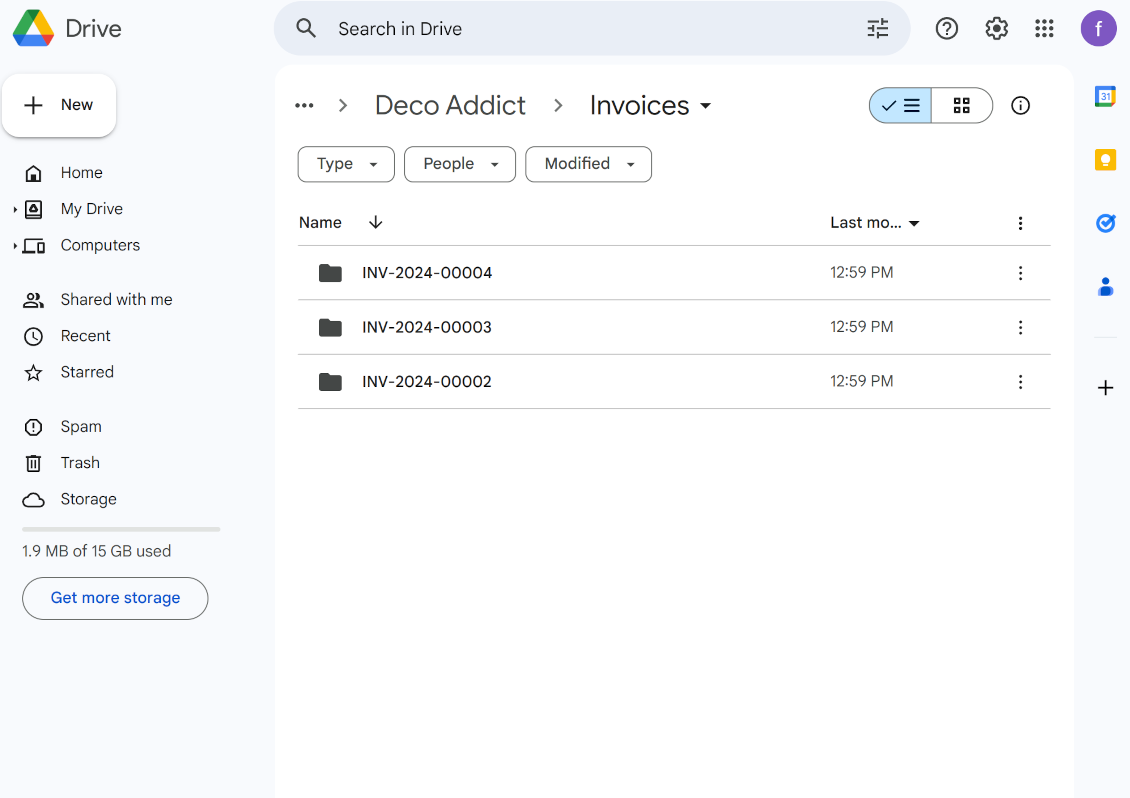
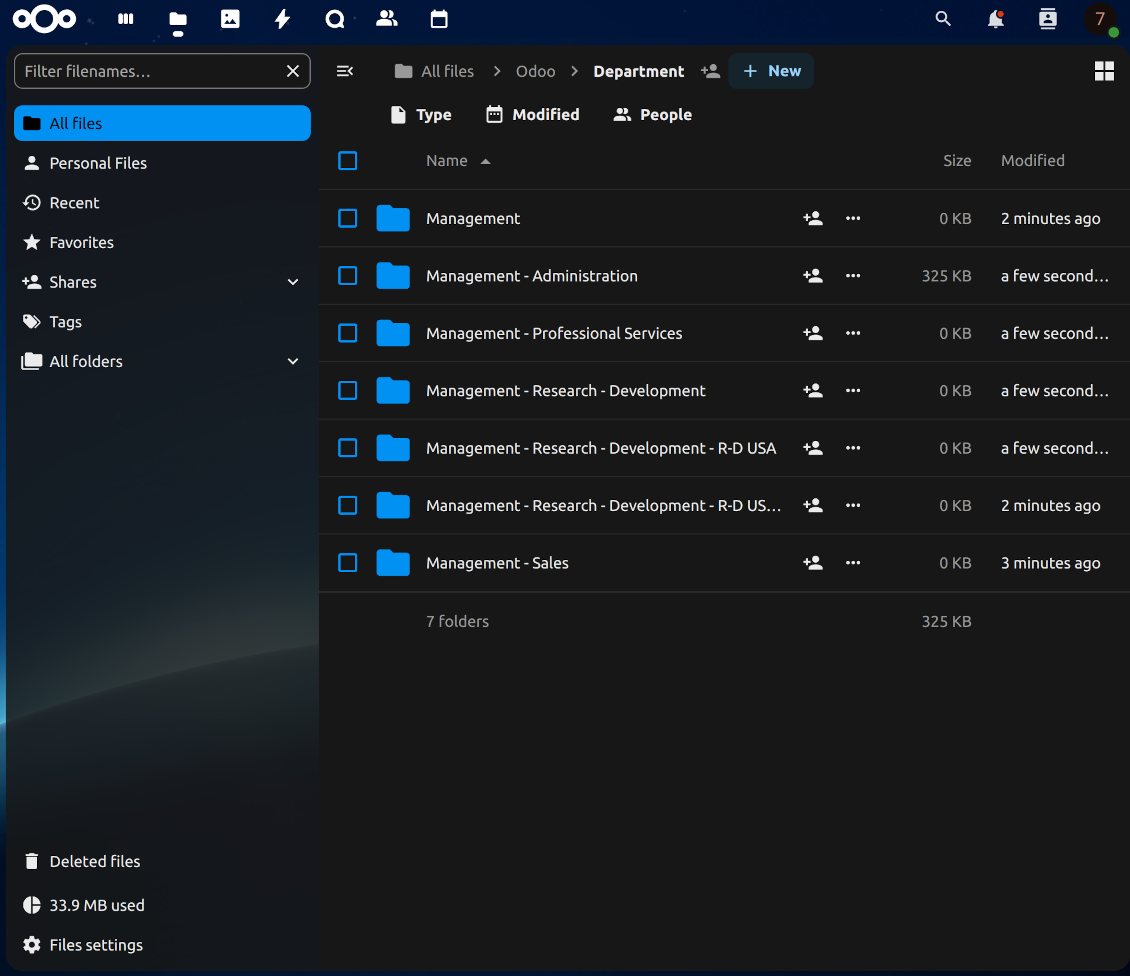
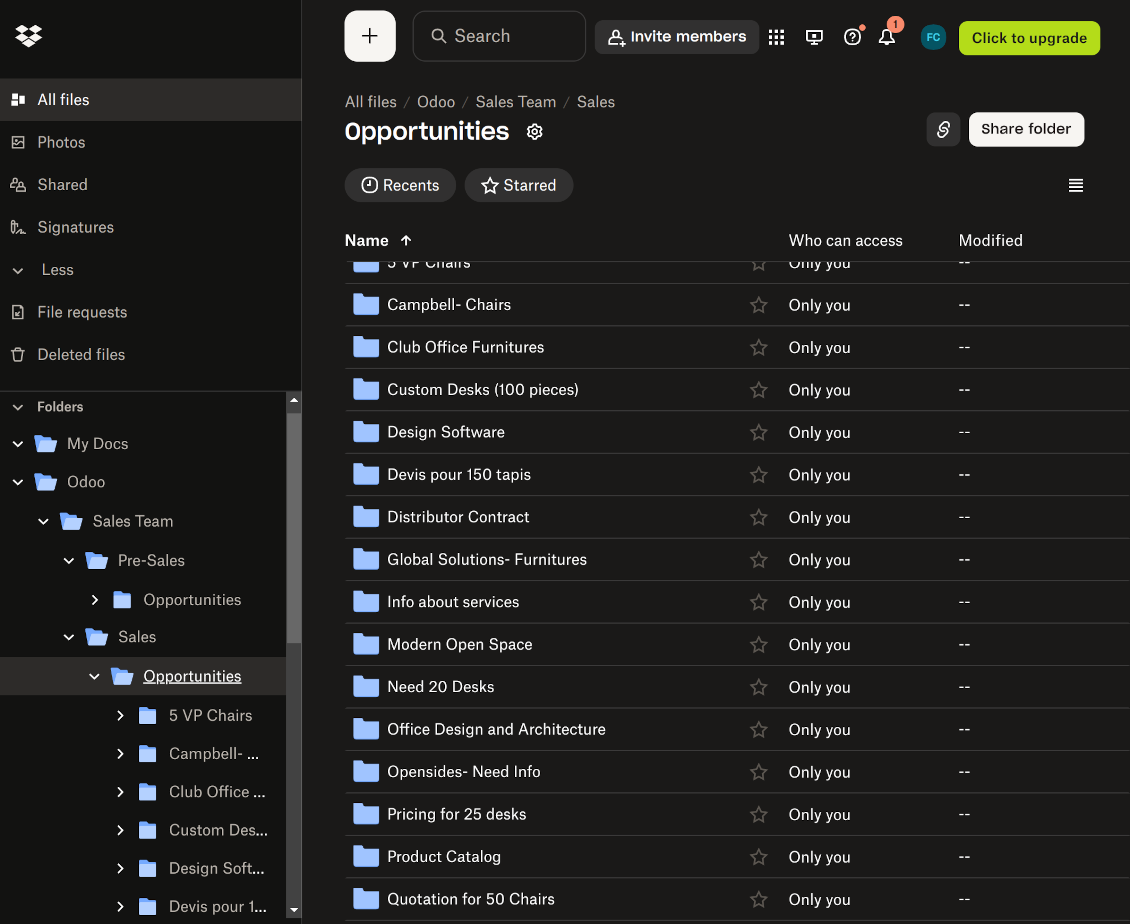
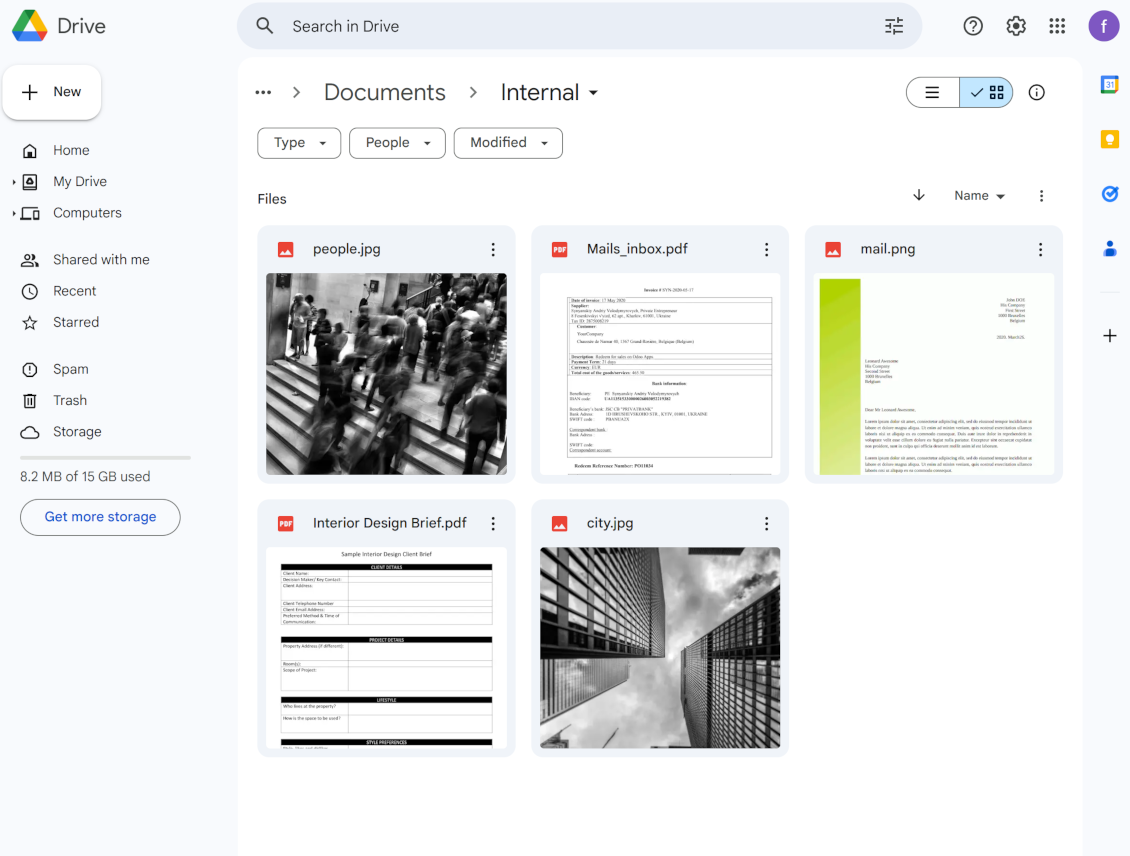

This tool organizes Odoo attachments in folders' trees and synchronizes those with your choice's cloud storage solution(s). The app introduces automatic algorithms to prepare directories for documents and integrate those with workflows of Google Drive, OneDrive/SharePoint, Nextcloud/ownCloud, Dropbox, Amazon/MinIO S3, Box, and NAS/WebDAV (Synology, QNAP, TrueNAS, etc.).
- the core module which introduces the file manager interface and basic mechanics for synchronizations with various cloud clients. Dess pris är 398€.
- anslutaren som synkar Odoo-mappar och bilagor med OneDrive och/eller SharePoint. Funktionerna märks med ikonen . Dess pris är 89€.
- anslutaren som synkar Odoo-mappar och bilagor med Google Drive. Funktionerna märks med ikonen . Dess pris är 89€.
- anslutaren som synkar Odoo-mappar och bilagor med Amazon S3. Funktionerna märks med ikonen . Dess pris är 89€.
- anslutaren som synkar Odoo-mappar och bilagor med Nextcloud och/eller ownCloud. Funktionerna märks med ikonen . Dess pris är 89€.
- anslutaren som synkar Odoo-mappar och bilagor med NAS (Synology, QNAP, TrueNAS) och generisk WebDAV-lagring. Funktionerna märks med ikonen . Dess pris är 89€.
- anslutaren som synkar Odoo-mappar och bilagor med Dropbox. Funktionerna märks med ikonen . Dess pris är 89€.
- anslutaren som synkar Odoo-mappar och bilagor med Box. Funktionerna märks med ikonen . Dess pris är 89€.
- ett valfritt tillägg som förbereder arbetsytemappar och synkar Odoo-dokument (enterprise-appen 'Documents') med moln. Funktionerna märks med ikonen . Dess pris är 44€.
Automatic Folders
Decide which Odoo document types should have their folder trees. Directories are regularly updated based on flexible rules and existing Odoo objects
Sync with Cloud Storage Solutions
Synchronize chosen folders and files with specific cloud storage: Google Drive, OneDrive, SharePoint, Nextcloud, Dropbox, Amazon, Box, MinIO S3, NAS/WebDAV (Synology, QNAP, TrueNAS, etc.), and ownCloud. Have as many connections as you need
File Manager Interface
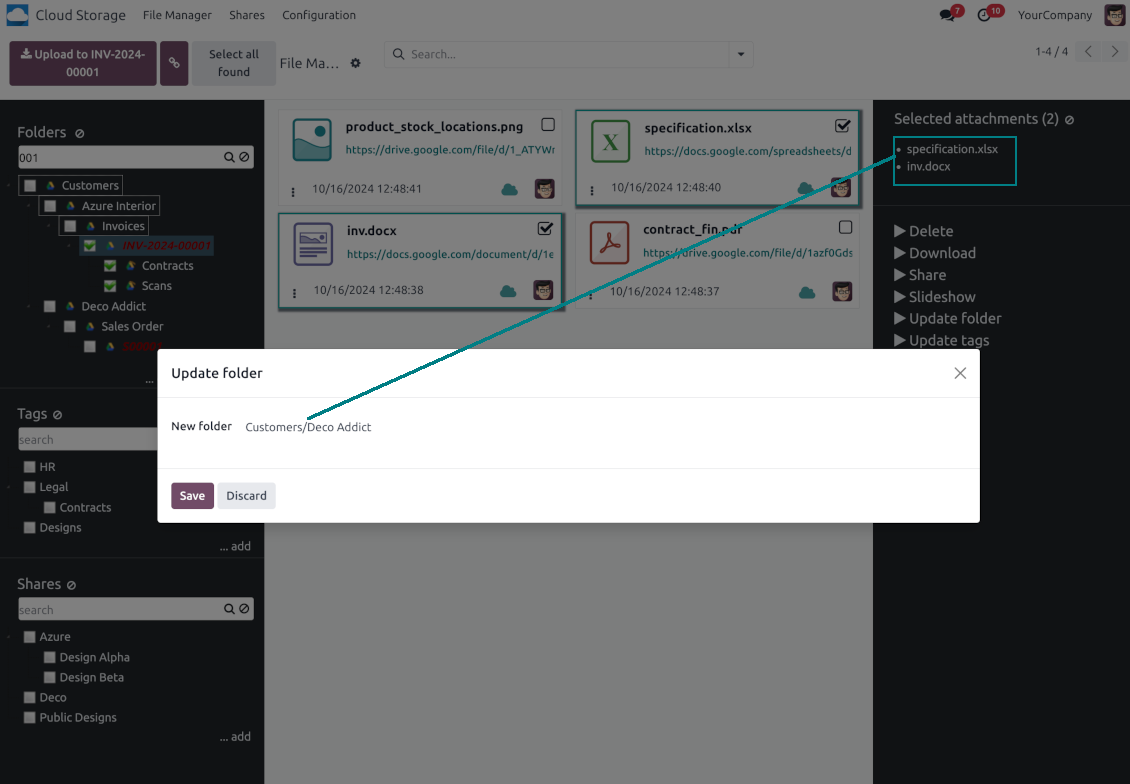
Manage folders and attachments from a single view. Comfortably navigate by directories and tags. Search and download files one by one or in a batch. Upload and move attachments
Enhanced Attachment Box
Organize files of any Odoo object in a set of subfolders. Instantly access folders and files in the attachment box and in synced cloud interfaces
Portal Sharing
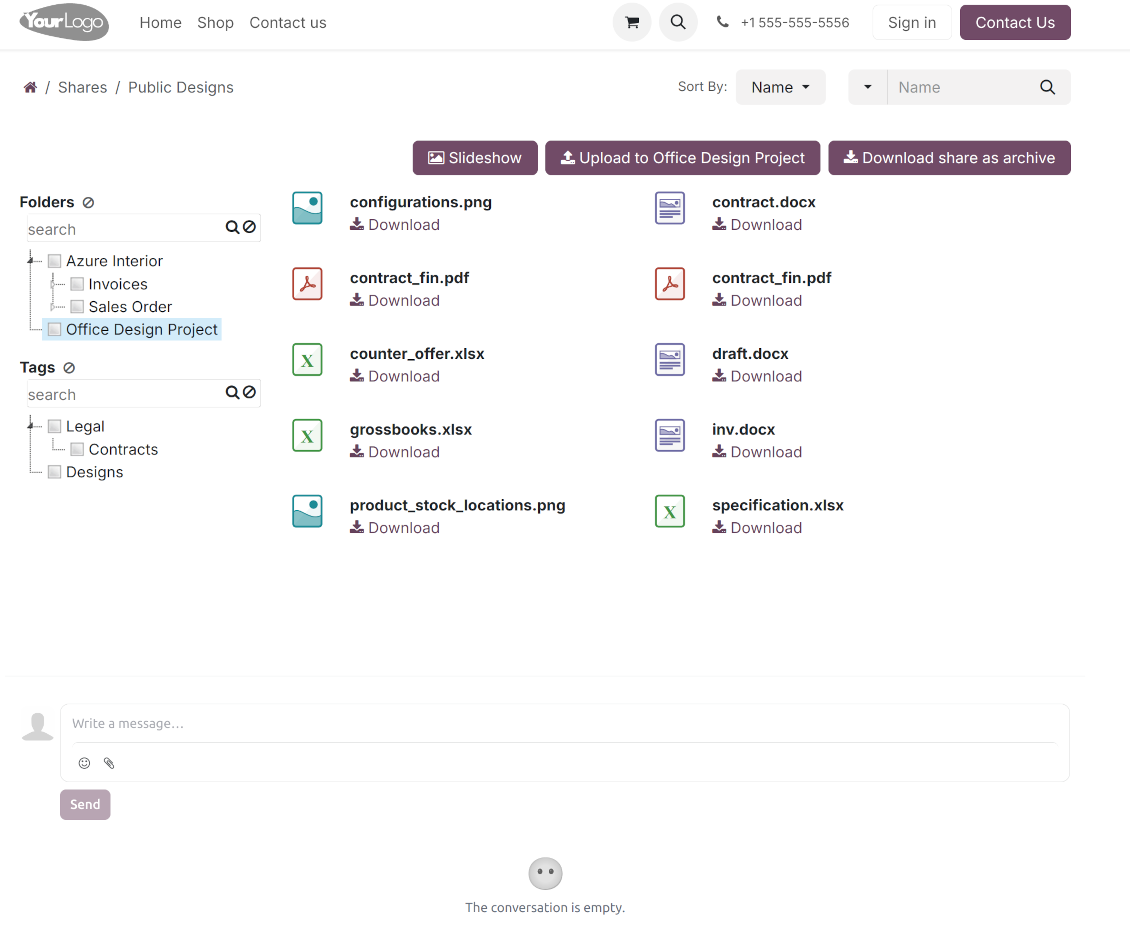
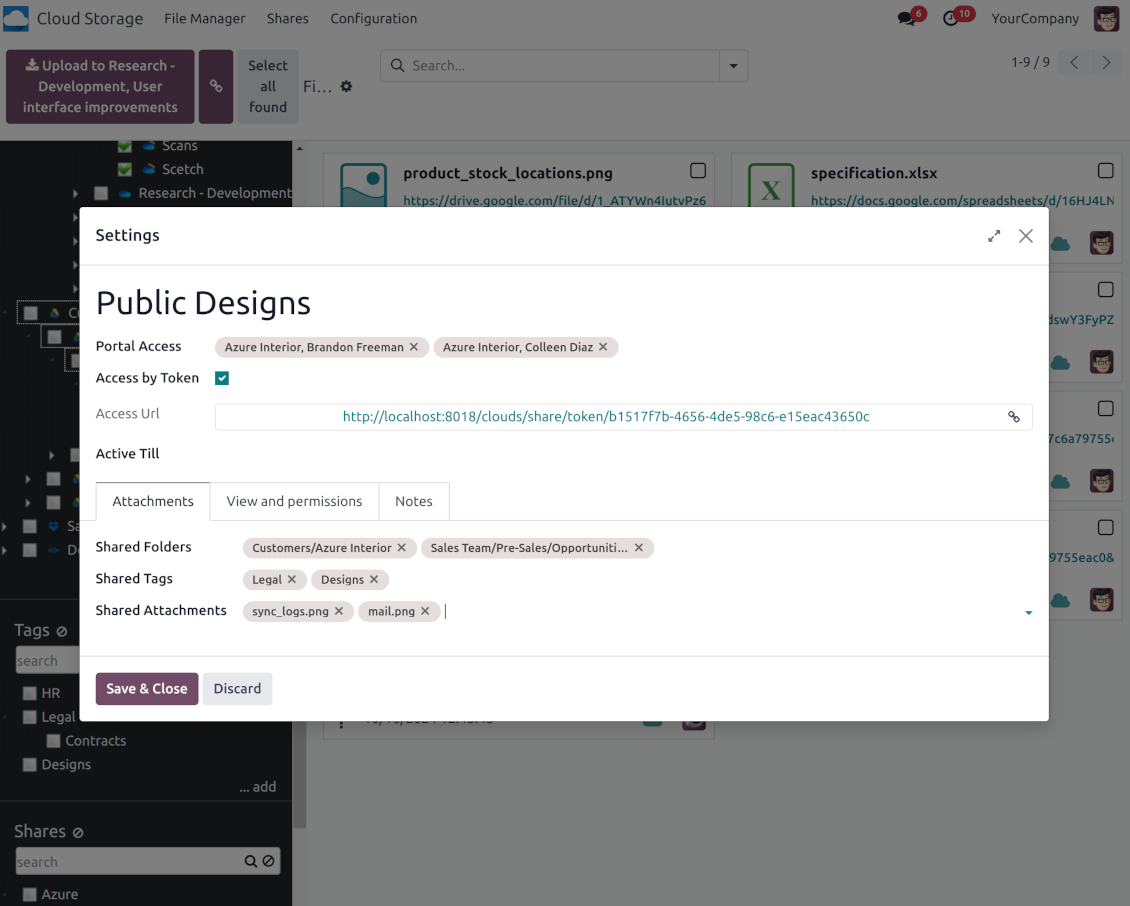
Share files, directories, and tags with particular partners or with an access URL. Let users download whole shares and separate items, upload attachments, and add folders or tags
Enterprise documents compatible
Set up rules to prepare folders based on Odoo Enterprise workspaces. All features, including sharing, downloading, and signing, will work even after the sync
Automatic Regular Sync
Rely on auto-synchronization between Odoo and cloud solutions based on scheduled jobs. No manual interaction is required
Bilateral Sync
Odoo sends attachments to cloud storage solutions and retrieves files from there. Binary content is kept in clouds, while Odoo provides direct access to synced items
Excellent
We have been using Cloud Storage Solutions for a few years already, starting with Odoo 17 mostly because our attachments were a mess. Now we're moving to Odoo 20, and we've surely decided to keep using the app. The File Manager is great for finding a file by folder or tag instead of remembering which sales order it was attached to. And the attachment box on contacts and projects shows the same folders, which lets us avoid excess clicks.
The folder rules are the part I keep showing people: new customer and project folders just appear, with the sub-folders we set up once, and everything lands in our Google Drive through the connector. We also use sharing a folder with our external partners, which is often especially efficient for tasks.
Big thanks to the team too. I asked a lot of questions about the sync and the access rights initially and now during the switch, and every answer came back fast. Really felt like they wanted it to work for us. Happy customer here.
Works well with SharePoint. Supportive team
We've been using this with SharePoint and it's been working great. One of the best things is having everything, including logs right in Odoo's interface, so you can actually see what's going on. It's also super convenient that you can view or download synced files from the attachment box without having to leave the page or even log in to Sharepoint.
Setup was pretty smooth for us. When we had a few questions about setting up the folder hierarchy and priorities, the developer team got back to us in just a couple of hours and helped us figure it out. Great support and great extension!
Tricky setup, but works perfectly now
Really solid module. We managed to get a very flexible folder structure (sorted by clients) and synced all our sales orders, invoices and tasks by projects to Google Drive.
Initial setup was a bit of a pain and kinda tricky to configure everything at first, but now it's running smoothly and works perfectly. The faotools team helped a lot. Def worth it if u need to keep your docs organized in Odoo and Google Drive.
Recommended!
Great support, assistance and very good connector!
We are very happy with the support we received when configuring the Sharepoint - Odoo connector. The connector has great functionalities.
All our questions were answered very fast (within one day).
FaOtools helped us optimising our connector and assisted us with future improvements.
We really recommend this connector.
Great module and Great Support!
The module works great! and the support is phenomenal!
A must-buy if it suits your requirements!
very professional app, excellen t customer service
This app is very well programmed and does its job very well. But the best is the excellent customer service who also helps when the problem lies somewhere else. You receive a lot for your money.
Excellent !!!
Great App and great Service from faOtools.
An impressive app and world-class support
I have been very impressed by the way the OneDrive / SharePoint Odoo Integration module synchronises content in both directions and allows me to share documents in Odoo with my SharePoint site. Above all the technical support is top-notch, which greatly increases the value of this product. I highly recommend this product for anyone considering synchronising Odoo with SharePoint/OneDrive.
Very good product
A perfect solution to integrate Owncloud with Odoo. We sync a high volume of objects across multiple Odoo models, which works seamless and stable. For us it is the perfect solution to have an external DMS instead of the Odoo native attachment handling, which also enables us to interchange files between systems in our best-of-breed setup.
The team behind this module is extremely professional and responsive. They helped us on a few occasions and provided clear answers and prompt support when required, and they even went out of their way to assist us with another requirement we had. Cannot recommend the product and team highly enough, try this if you're in the market to connect Odoo with an external document solution.
Works fine, good support
The first experience with the module is excellent. I had some trouble to configure things right on the Microsoft-side, but the team provided quick and good support.
Best module for integration with google drive
The module performs its function correctly and faOtools responds quickly to any problem and, in case of detecting any bug, quickly apply the changes. Its support is 10 stars.
Works according to specs
I have used this app with Odoo 12 and Nextcloud 16 and it works as specified. Odoo Tools offers very responsive support which is really helpful. Of course 5 stars...!
This is Awesome
I have used Cloud Sync on Next/Own Cloud and works really great.
Odoo Filhanterare-gränssnitt
-
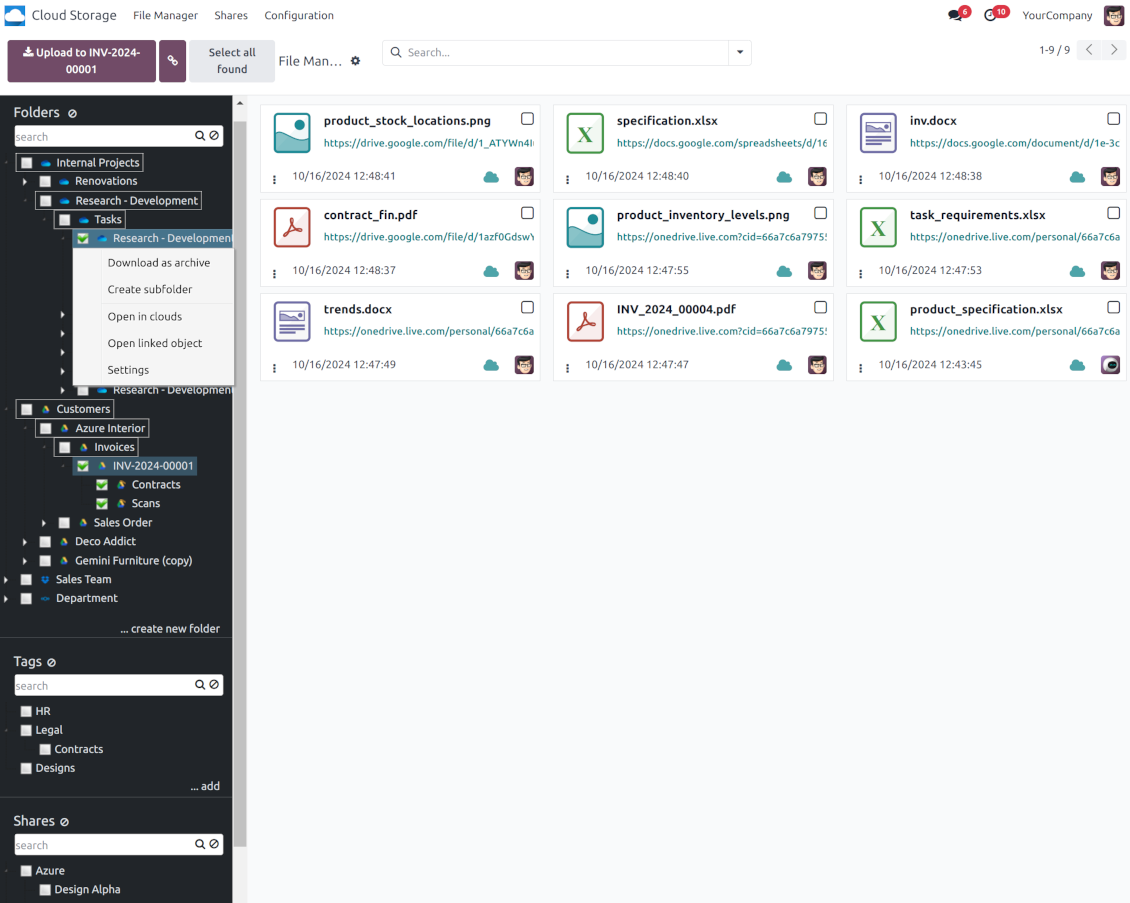
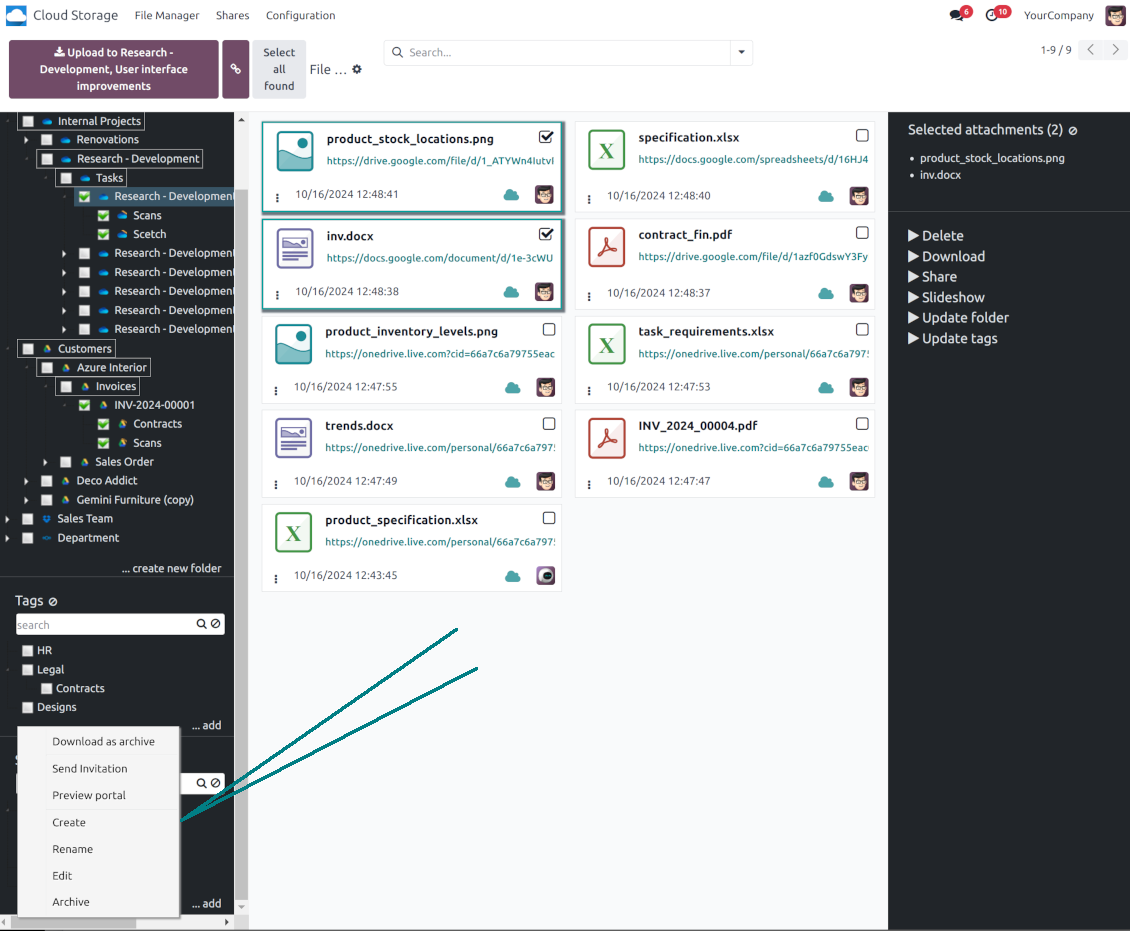
Navigate by folders: select a directory to show its attachments. Expand and hide folders' layers in a click. Add subfolders to any directory (right mouse click > Create subfolder)
-
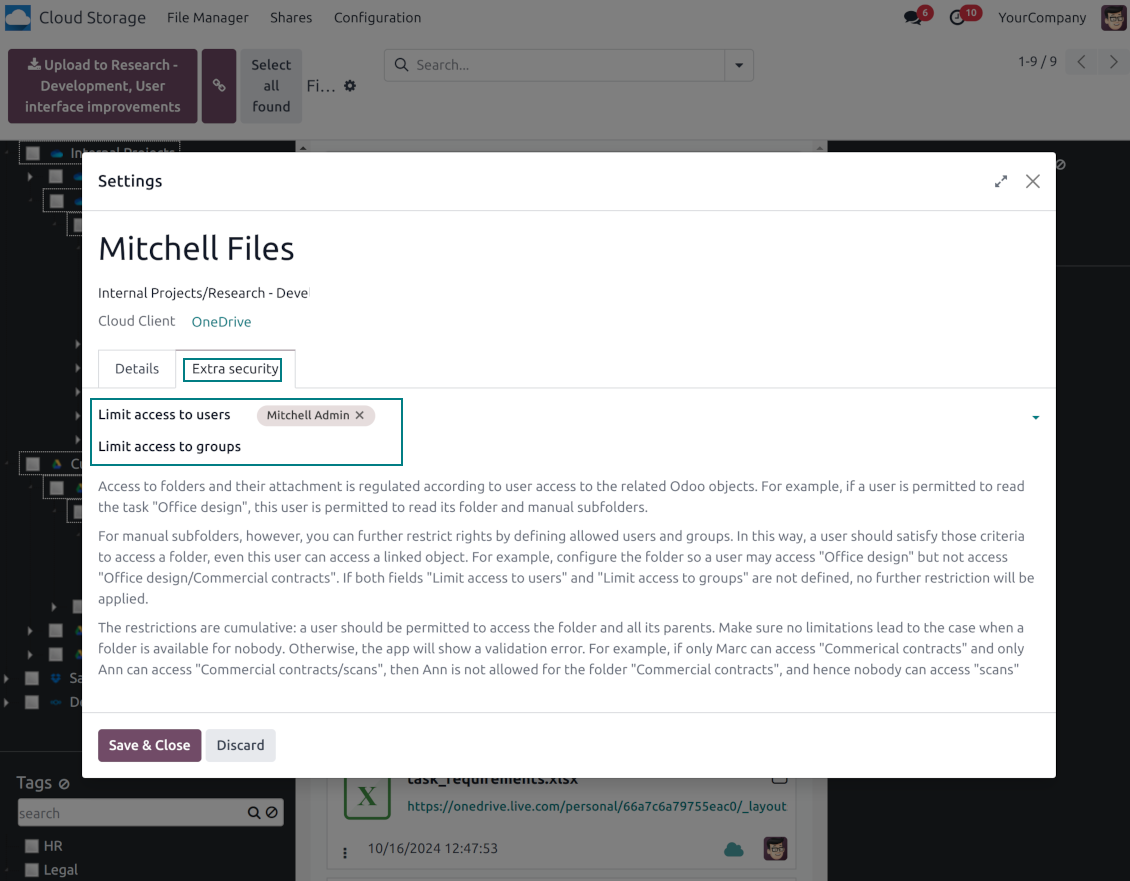
Open any synced folder in its cloud client (right mouse click > Open in clouds). Show a folder peer Odoo object if there is such a connection (right mouse click > Open linked object). Change settings of manually created folders, including granting access rights (right mouse click > Edit Settings)
-
Navigate by attachment tags. Create and edit tags right from the navigation panel
-
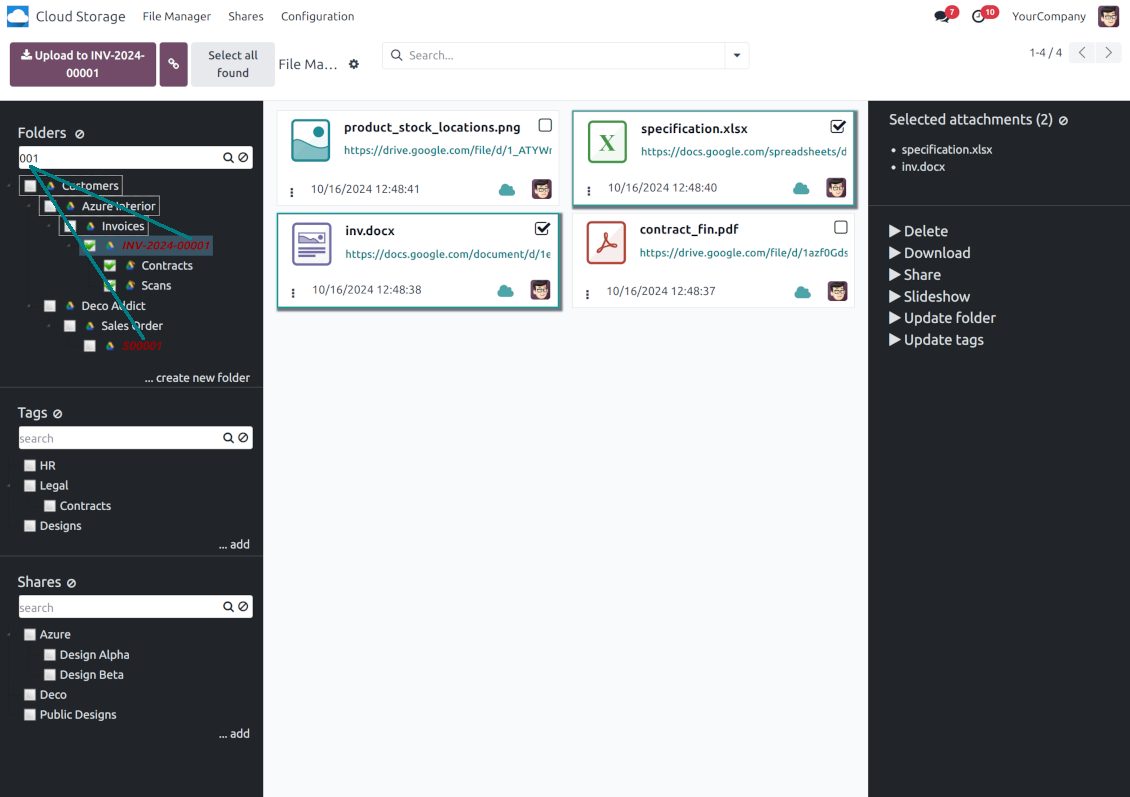
Search and highlight tags and folders in seconds even if there are thousands of items
-
Drag and drop to re-structure folders (relates only to manually created directories; for automatic folders change rules instead) and tags
-
Download any folder or any tag with all its attachments as a single zip archive (right mouse click > Download as archive)
-
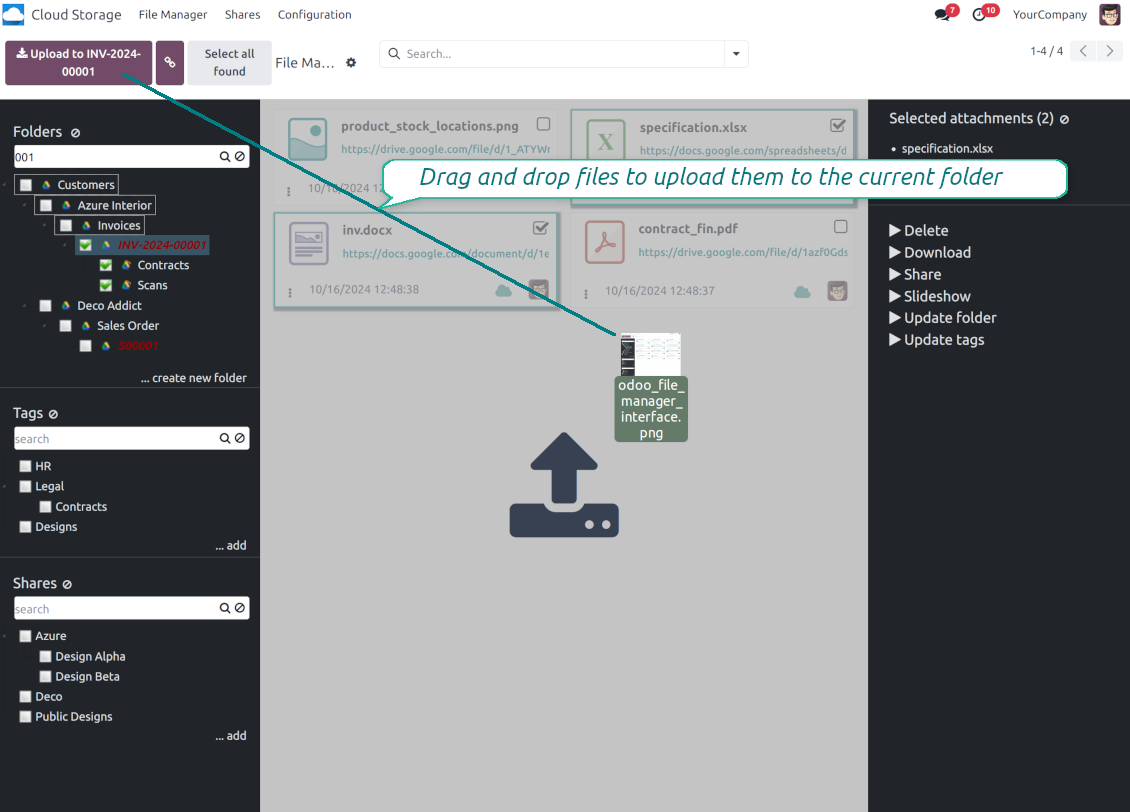
Upload attachments to the current folder. Use the top header button 'Upload file' or drag and drop files
-
Instantly open any synced attachment in a linked cloud client (push the link in the middle of attachment cards)
-
Download any attachment to your local computer disregarding whether it is synced or not (push the icon 'cloud' or 'download' in the footer right corner)
-
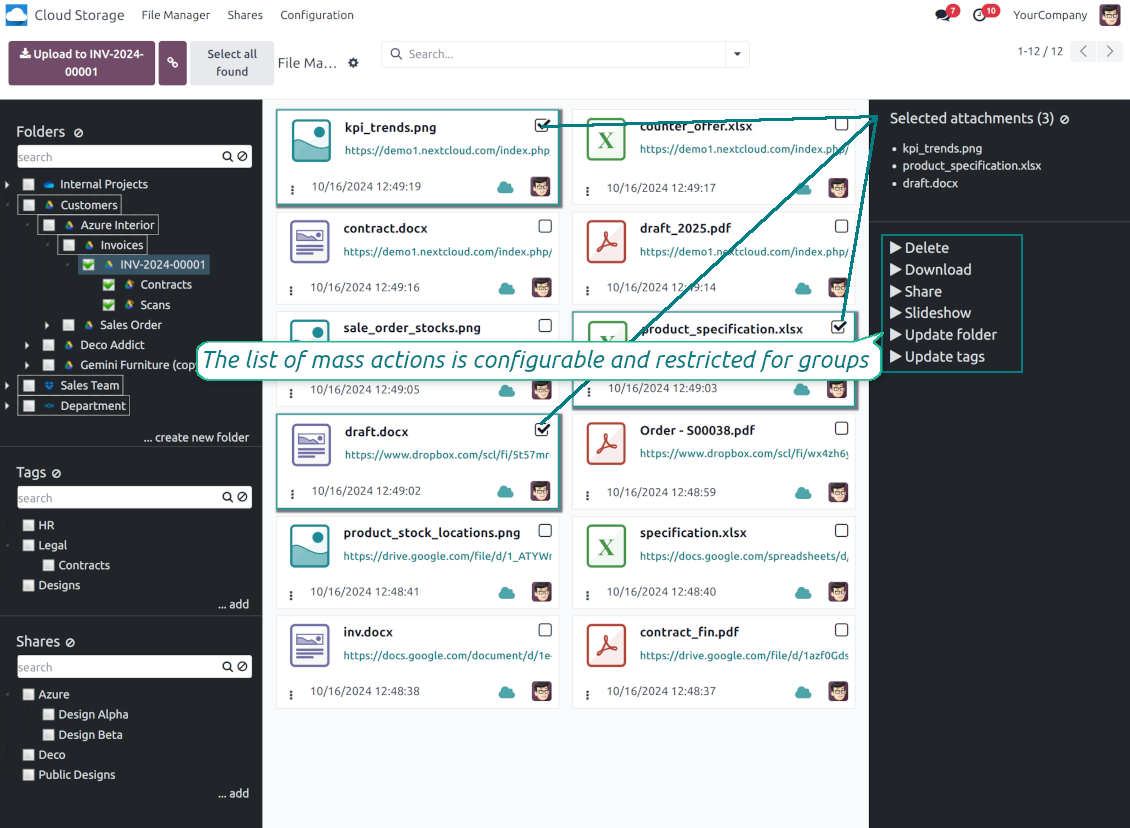
Consequentially select attachments and download them as a single zip archive
-
Move any files to any folder, including re-attaching items between Odoo objects (e.g. from a sale order SO-001 to another quotation or its customer folder). Use the mass action for that end or just drop an attachment to a required directory. Update attachments' tags by dragging those to the left navigation panel or by executing the mass action. Delete attachments in a batch
-
Apply standard attachments search to find required files.
Förbättrad Attachment Box
-
Any Odoo object might be linked to its folder. See Automatic folders' structure
-
Flexibly define subfolders to organize the structure you need (right mouse click > Create subfolder)
-
Drag and drop to re-structure subfolders
-
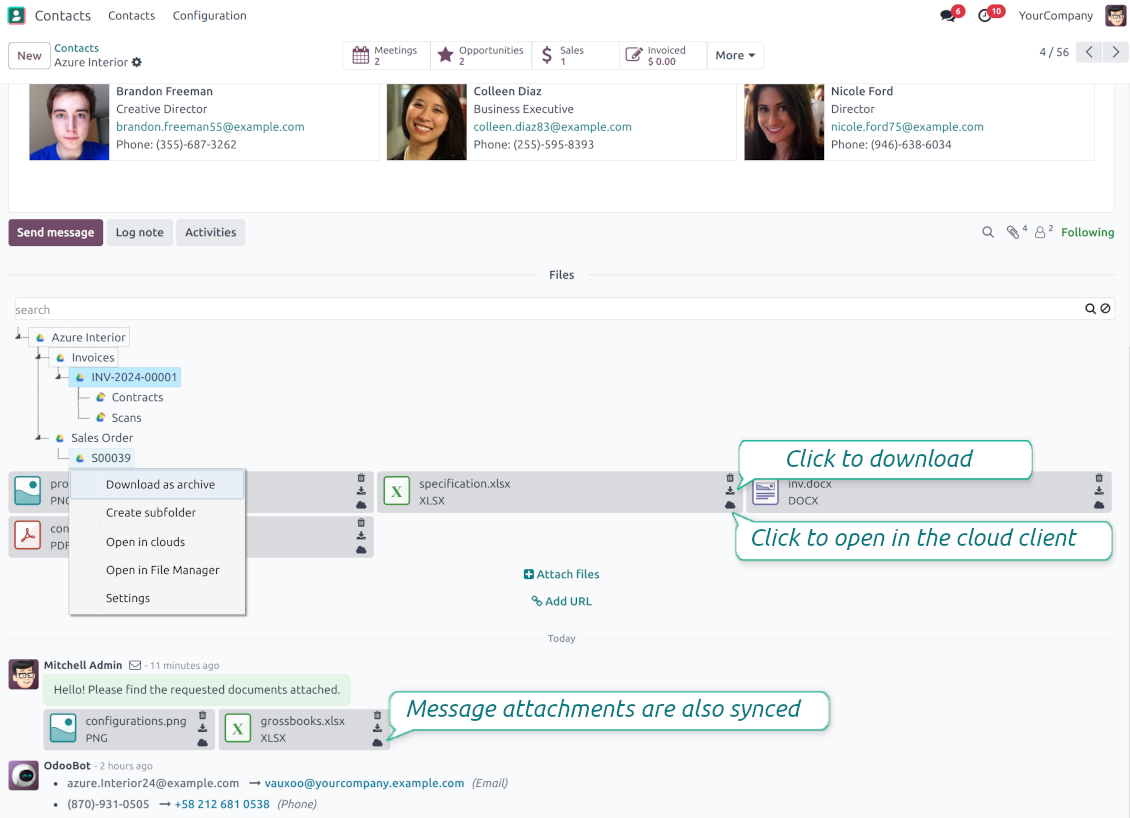
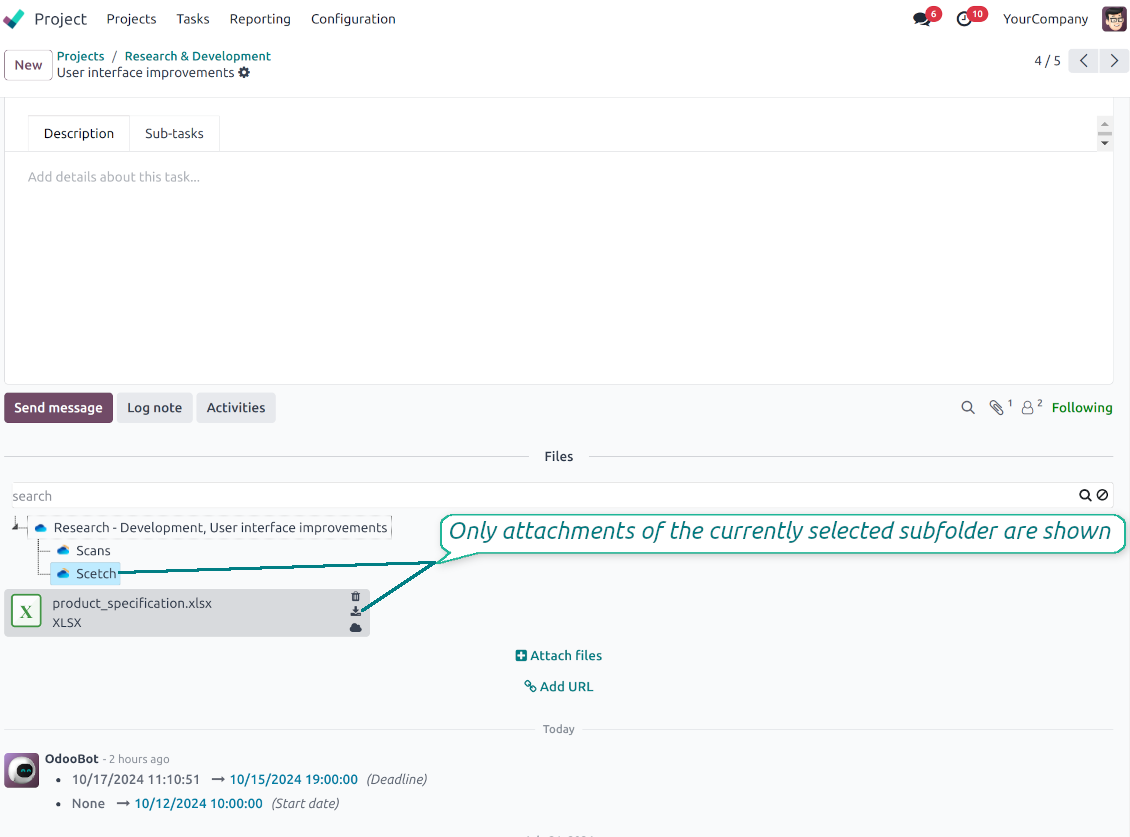
Select a folder to see its attachments. By default, files of the object root directory are shown
-
Download any folder with all attachments as a single zip archive (right mouse click > Download as archive)
-
Open the already synced folder in its cloud client (right mouse click > Open in clouds)
-
Upload attachment to a chosen folder (use the button 'Add attachments' or drag files to the attachment box area)
-
Instantly open any synced attachment in a linked cloud client (push the icon 'clouds')
-
Download any attachment to your local computer disregarding whether it is synced or not (push the icon 'download')
-
Use standard Odoo preview for both synced and local files (click on a file thumbnail)
-
Delete attachments as usual
-
All actions are equally applicable to object attachments and attachments related to messages.
Cloud Storage-synkronisering
Multi synchronization
-
Use optional add-ons to synchronize the document management system with the cloud client(s) of your choice: Google Drive, OneDrive, SharePoint, Nextcloud, Dropbox, Amazon, Box, MinIO S3, NAS/WebDAV (Synology, QNAP, TrueNAS, etc.), and ownCloud. Have as many connections as you need
-
Establish multiple connections to different cloud clients simultaneously. For example, sync sales-related folders to Google Drive; tasks and projects - to SharePoint or OneDrive; HR documents - to Nextcloud/ownCloud; manufacturing specifications - to Dropbox. Take into account that a specific folder might be synced to only a single cloud storage solution. Its children would be synced to the same client
-
For each cloud client, the app lets set up a few instances. For example, for Google Drive, you may share some folders to your personal drive, others - to one of your team drives, and the rest - to your teammate's drive
-
To establish a connection with particular cloud storage, follow the instructions that are specific for client types. See the tab Configuration for details
-
Any connection might be paused manually if it is needed. It might be also auto-stopped if there are critical issues during the sync. Then, you should re-connect to a target cloud client
Cloud clients
-
Synchronization for all cloud clients is based on the same principles and on the same queue. Simultaneously, there might be differences in sync results due to different features of various cloud storage solutions
-
Establishing connections for different types of cloud clients assumes installing optional add-ons, different approaches for Odoo, and external API configuration. Follow the instructions on the tab 'Guidelines'
-
Google Drive Odoo Integration allows establishing a connection with any personal or team drive
-
OneDrive / SharePoint Odoo Integration assumes synchronization with any drive of personal/business/SharePoint tariffs
-
ownCloud/Nextcloud Odoo Integration et integrate Odoo with any instances of ownCloud and Nextcloud. In comparison to other clients, the app allows setting the type of attachment links. By default, Odoo links are internal: only authorized users may access them. Optionally make links public (the setting 'Use Public URLs'). See details on the guidelines tab
-
Dropbox Odoo Integration works for all DropBox tariffs, including Personal DropBox (Basic, Plus, Family) and business DropBox (Professional, Standard, Advanced). In comparison to other clients, the app allows choosing whether cloud items would be shared or internal. See details on the guidelines tab
-
Amazon S3 Odoo Integration (amazon_s3_odoo) synchronizes Odoo folders and attachments with Amazon S3 buckets
-
NAS/WebDAV Odoo Integration (nas_odoo) connects Odoo documents with NAS and WebDAV-compatible storage, including Synology, QNAP, and TrueNAS
-
Box Odoo Integration (box_odoo) synchronizes Odoo folders and attachments with Box cloud storage
Automatic two-sided sync
-
Integration is based on scheduled jobs and is fully automatized. The app regularly checks changes in systems and runs sync operations
-
Synchronization is bilateral. Updates in Odoo are reflected in cloud clients (direct sync); changes in cloud clients modify Odoo folders and attachments (backward sync)
-
Stäng av synkroniseringen från molnet på en klient för att hålla synkroniseringen enkelriktad. Ändringar i Odoo skickas fortfarande till molnlagringen, men filer och mappar som skapas, byter namn eller tas bort där visas inte i Odoo. Om du stänger av alternativet igen tillämpas de samlade ändringarna, inklusive borttagningar, vid nästa synkronisering
-
Any cloud connection might be reset. In this way, the app assumes getting back all items back to Odoo (reverse sync)
-
Odoo folders and attachments might be re-attached to a new cloud client. Hence, items will be first taken back to Odoo (reverse sync) and then put will be put to the new cloud storage (direct sync)
Queue-based synchronization
-
Once in 15 minutes, the app examines updates in Odoo and cloud storage(s) to prepare a synchronization queue
-
Folders' checks follow the First-In-First-Out (FIFO) principle. So, directories that have not been examined for the longest will be processed first
-
Once in 15 minutes, the sync queue is run by the special scheduled job. Firstly, the most important (blocking) tasks would be done
-
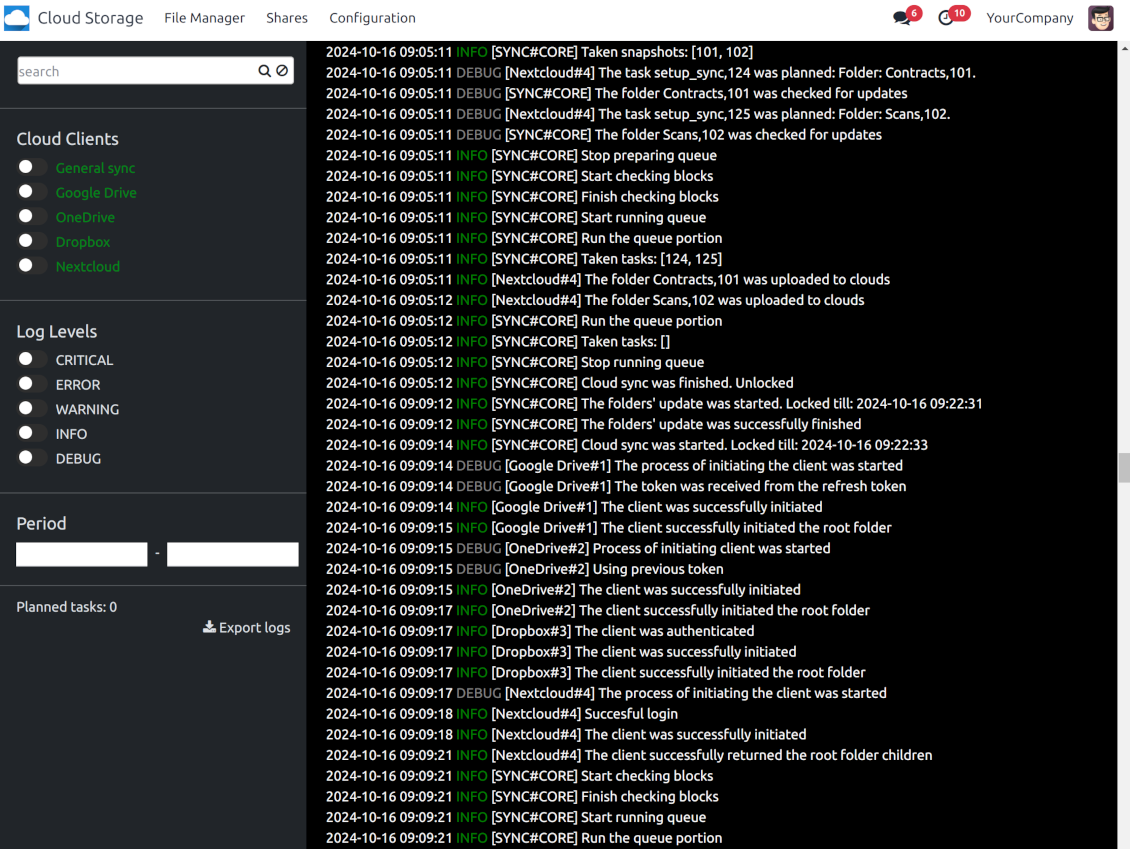
Control planned jobs and their fulfillment in the special Odoo logs interface (Cloud Storage > Configuration > Sync Logs). Subscribe for particular cloud clients notifications
-
If the app faces sync failures, it will re-try operations afterward. Sync queue processing would not be stopped if there are items not blocked by such failures
Odoo attachments for cloud storage: direct sync
-
Direct sync prepares the folders' hierarchy and uploads Odoo attachments for cloud storage
-
Direct sync checks whether attachments are added or deleted for synced directories. If so, they would be created or removed in cloud storage. In particular, it means that any file added to a folder-related Odoo object (e.g. Quotation), would be automatically moved to a linked cloud client
-
Direct sync makes all synced Odoo attachments change their type to a link (URL), while binary content is removed with one of the next Odoo cleaners. So, no actual files would be stored on your Odoo server
-
Direct sync checks whether a new folder is added. Disregarding whether it is done manually or automatically, the app would generate a peer directory in a cloud storage
-
Direct sync checks whether there are any updates in folders. If so, such changes are reflected in a cloud client
Cloud storage files and folders for Odoo: backward sync
-
Backward sync checks whether any files or subfolders are added to cloud storage folders. If so, the app would create URL attachments/subdirectories inside linked Odoo directories (and hence Odoo objects if any)
-
Backward sync checks whether there are any updates in folders or attachments. Such updates would be then reflected in Odoo
-
Backward sync checks whether any files are deleted/moved in a cloud document folder. If so, a linked Odoo attachment would be also unlinked or moved
-
If you deleted a cloud storage folder related to a folder rule / Odoo object, their child files would be deleted as well. Thus, Odoo would remove related attachments. The folders, however, will be recovered with a direct sync
-
In case of conflicts, direct sync changes are in general considered more important than backward updates.
Resetting or changing cloud client: reverse sync
-
In case you decided to reset the connection with a specific cloud client, files would be moved back to Odoo
-
Stäng av omvänd synkronisering på en klient när kopian i molnlagringen ska vara den enda kopian, eller när anslutningen är bruten. Att koppla loss, återställa eller inaktivera den klienten laddar då inte ner filer och tar inte bort något i molnlagringen. Kopplingen mellan Odoo-objekten och deras molnobjekt bryts. Sparade länkar öppnar fortfarande filerna i molnlagringen, men Odoo kan inte längre ladda ner, förhandsgranska eller öppna de mapparna och filerna. Den kopplingen kan inte återställas
-
In case you decided to change the cloud client of a folder rule or a folder, files would be first taken back to Odoo, and then direct sync for a new client would be done
-
Reverse sync operations are prioritized to direct and backward sync operations
-
Not all items can be correctly reversed to Odoo due to cloud client peculiarities. For example, there are documents that may exist only in cloud storage environments (e.g. Google Sheets). The app would try to convert such documents, but in some cases, it would require manual interactions.
Automatic Folder Structure
Rules for automatic folders
-
The app allows preparing its own folder for any Odoo object
-
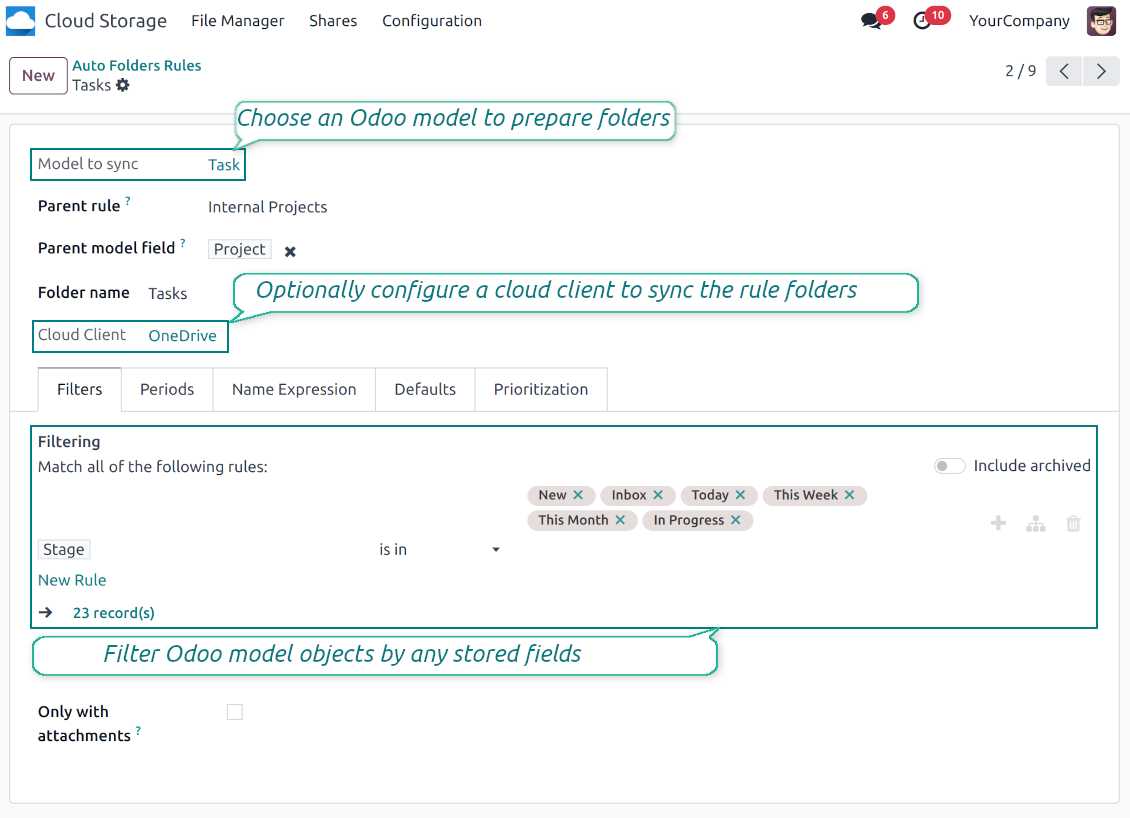
To configure a particular Odoo document type to generate a folder, you should just prepare a new folder rule (Cloud Storage > Configuration > Folder rules). For example, select the model 'Task' to make Odoo add a folder for each project task, so Tasks > Task 1, Task 2, ...
-
Automatically created directories would contain all attachments their linked objects have
-
Folders are updated regularly based on the scheduled job
Multi directories for each model
-
Each Odoo model might have a few linked folders
-
Apply any model storable field to filter Odoo objects and, in this way, split objects into a few super directories. For example, have own folders for individuals and companies, for European and American opportunities, for quotations and confirmed orders, for each project
-
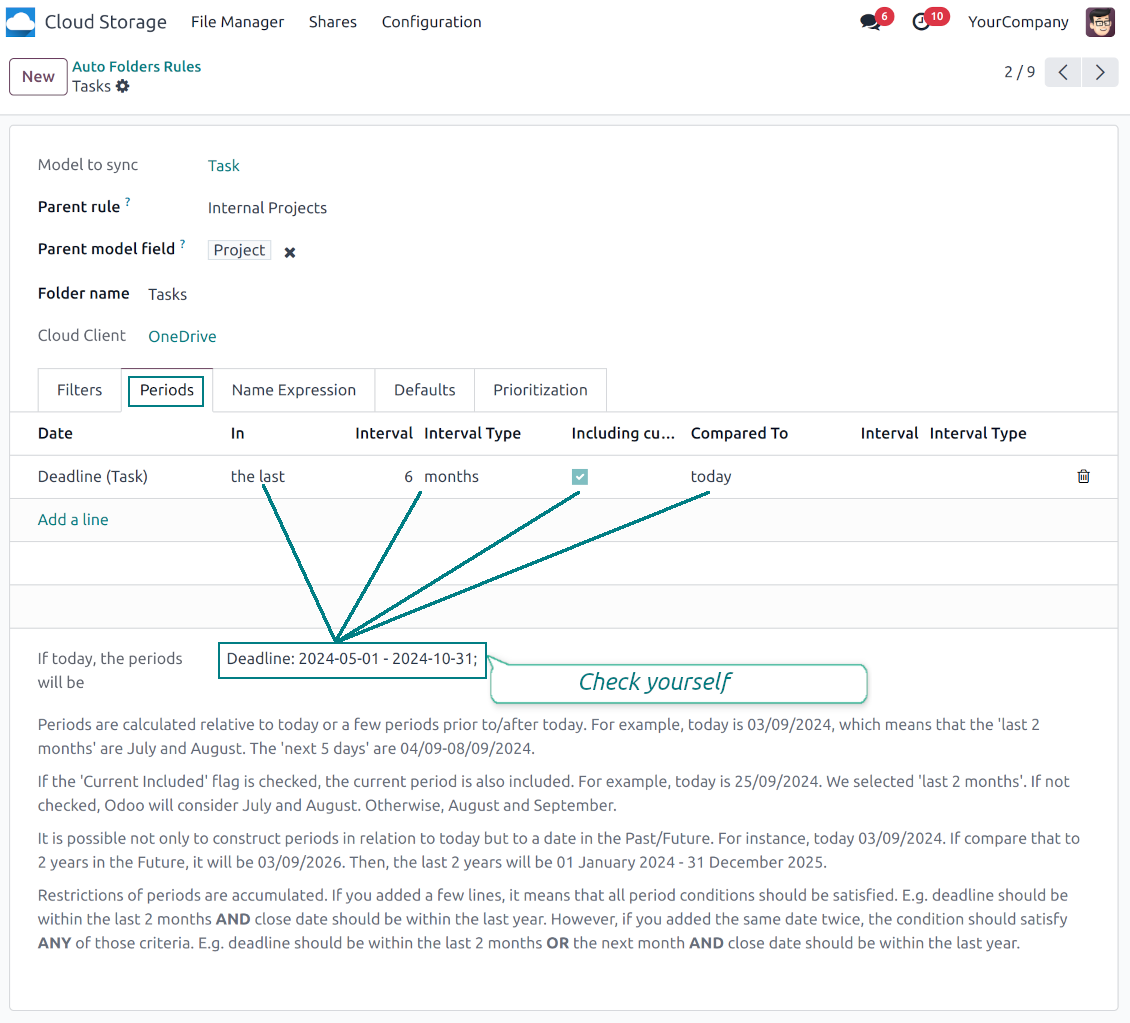
Filter Odoo objects by relative periods by applying date fields of linked documents. For example, leads registered in the last 3 months or invoices updated in the last week
-
As a result, the app lets have paths like 'Odoo > Quotations Europe > SO-001' or ' Odoo > the last year posted invoices (America) > SO-001'
Flexible folders' tree
-
It is possible to set up a hierarchy of folder rules to prepare a more flexible directories structure
-
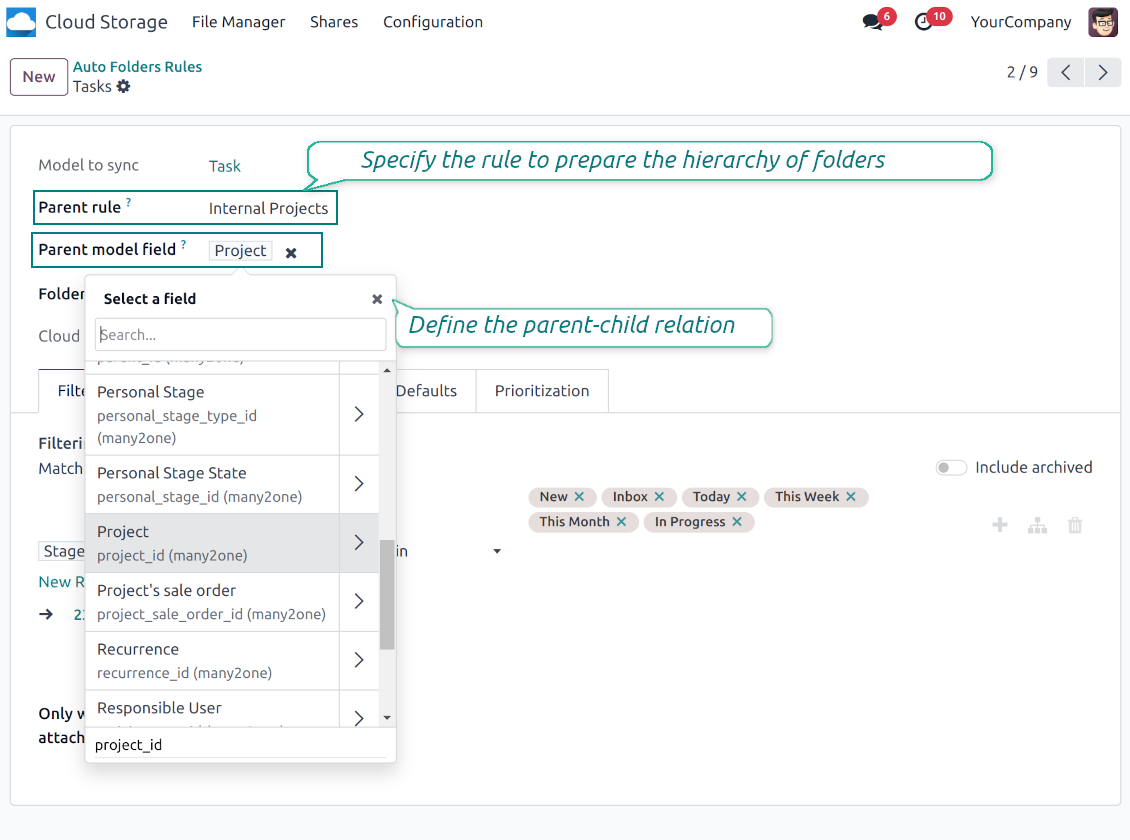
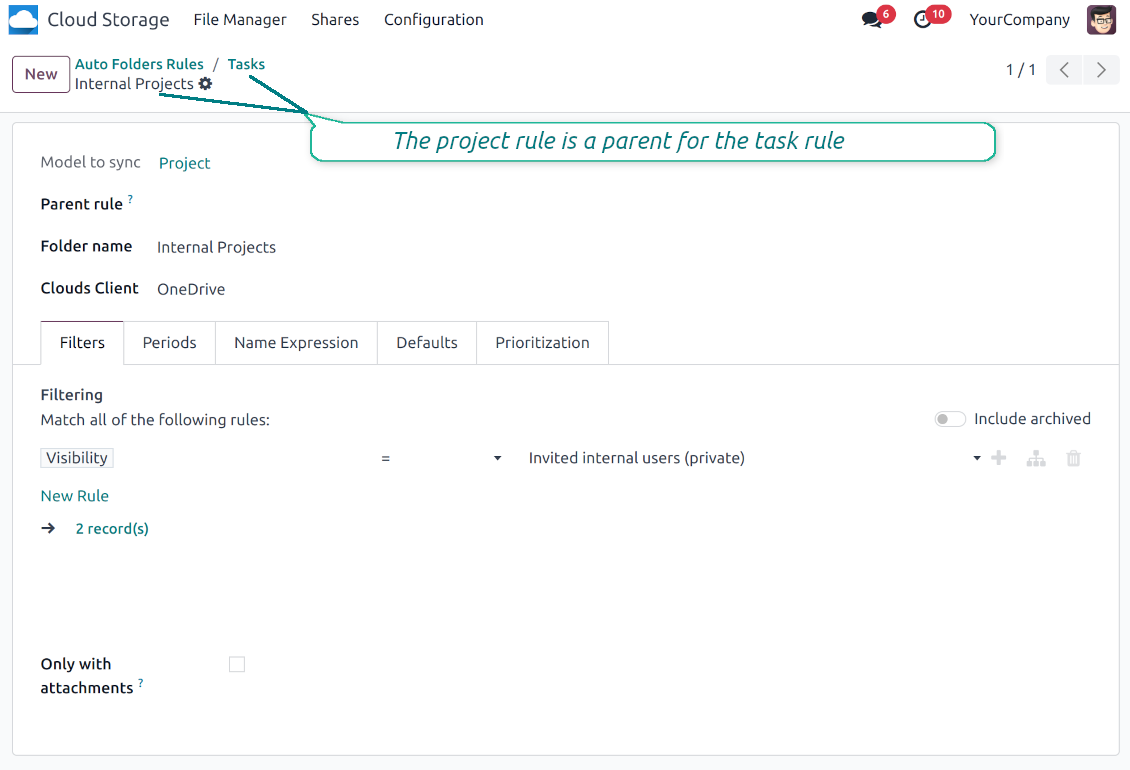
To that goal define a parent rule for a required folder configuration. For example, use a project-related rule as a parent for a task-related rule, a customer-related rule - for invoices-related rules
-
In order for folder relations to work correctly, it is also needed to enter a parent model field. So, it is the field that links models between each other (many2one relation). For example, 'Project' of a task, 'Customer' of a sales order, or 'Sales Team' of an opportunity
-
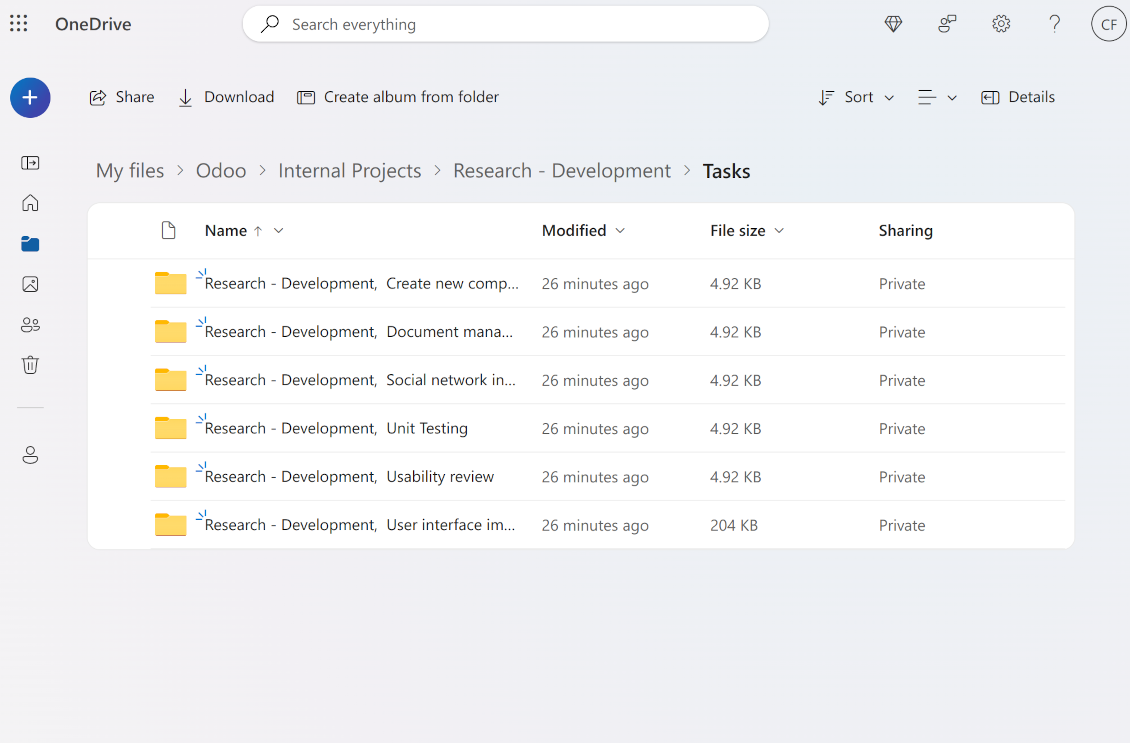
As a result, the tool allows reflecting your Odoo workflow logic and have paths like 'Odoo > Customers > Azure Interior > Projects > Software Design > Prepare Specification' and 'Odoo > Customers > Azure Interior > Quotations > SO-001'
Subfolders, default folders, and default files
-
The app lets add an unlimited number of manual subfolders for each folder. In particular, you may have a directories tree right in each object attachment box
-
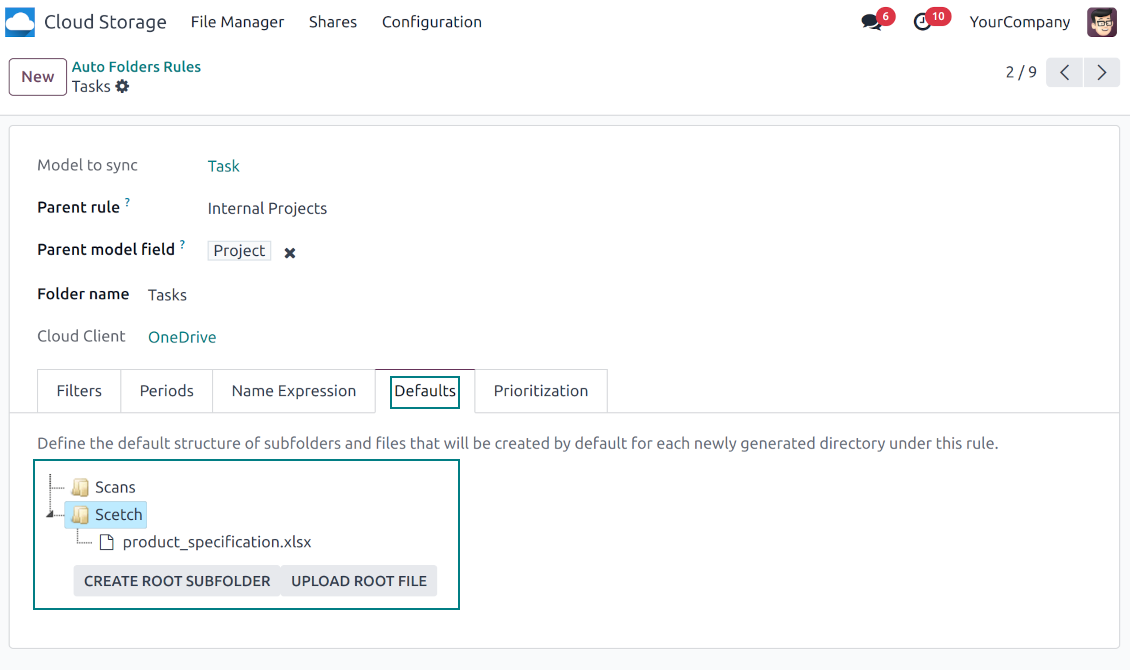
For the first generation, it is possible to define default folders, so subdirectories would be auto-generated for a specific Odoo object folder. Afterward, you may add delete/edit those or add new ones
-
The same mechanics are applied to prepare default files. For example, to have contract/personal card templates which then are assumed to be filled with real data
Configurable folder titles
-
Each folder rule assumes to generate a directory. Names for such directories are assigned right on a rule form. For example, introduce 'Jobs' for a task-related rule or 'HR' for employees' folders. By default, the Odoo model name would be used
-
For object-related folders, the names are generated based on the Odoo standard display names. So, if not defined the opposite, it would be the same title as you see in the Odoo form view header
-
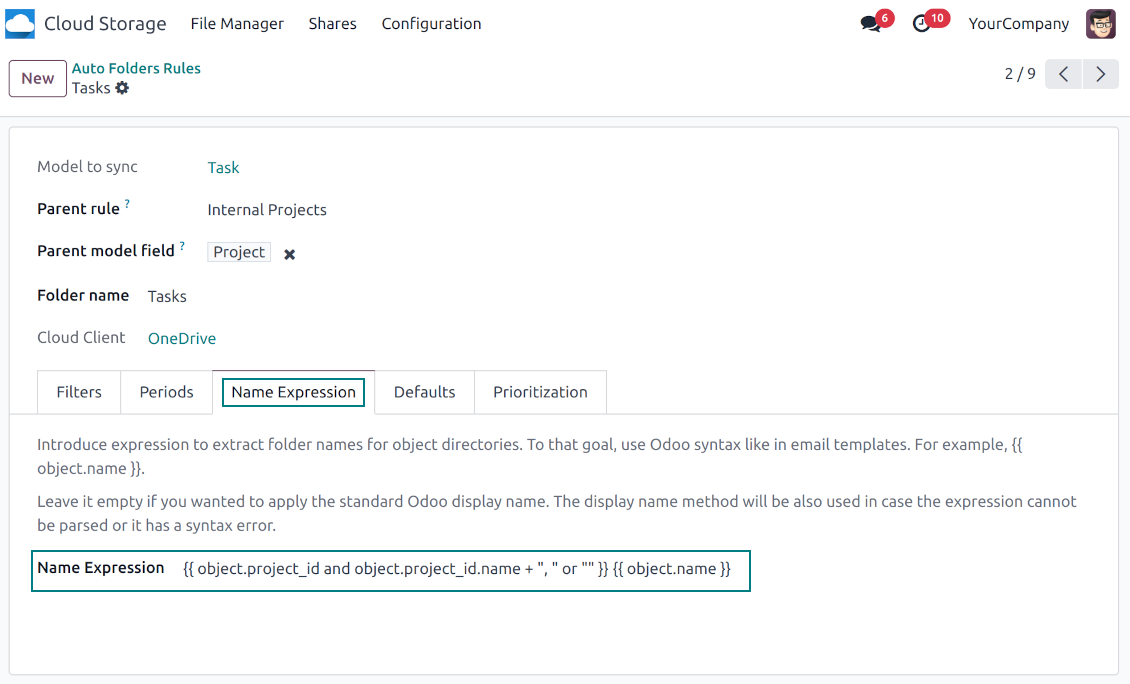
The app lets define complex name expressions for object-related folders (the tab 'Name Expression' on a folder rule form). To that goal, apply the syntax used in Odoo email templates. For example, {{ object.project_id.name }}, {{ object.name }} to reflect a project name in tasks folders
-
Avoid the following symbols in folders' and files' names: *, ?, ", ', :, <, >, /, +, %, !, @, \, /,. Direct sync will replace such symbols with '-'. It is done to avoid conflicts with file systems. Avoid also too long names: e.g. more than 100 symbols
Enterprise Documents
-
The app allows generating folders for workspaces introduced by the Odoo Enterprise apps 'Documents'
-
To force Odoo to prepare workspace-related directories, define folder rule(s) of the type 'Workspace-Related rule'. The tool would automatically create linked folders and sync those for chosen cloud storage with one of the next jobs
-
It is not obligatory to reflect the whole DMS structure. Thus, it is possible to filter workspaces by any storable field. For example, to add a folder only for workspaces that contain the keyword 'Internal'. Take into account: if a workspace was synced, all its child workspaces would be also synced
-
If you generated a subfolder for any workspace-related folder, the app would also create such a Documents workspace
Typical use cases
-
Customers: add all partner files in a single super directory. Optionally distinguish companies and individuals. For example, Odoo > Customers > Azure Interior > Contacts > John Brown
-
Sales orders and invoices: keep all sale-related printings and contracts in your own quotation directories for each customer. For example, Odoo > Customers > Azure Interior > Orders > SO-001 and Odoo > Customers > Azure Interior > Invoices > INV-00001
-
Opportunities: store all specifications, requirements, and any files which would let you make a good offer carefully structured by each sales team and case. For example, Odoo > Sale teams > Europe > Leads > Interest in 50 chairs
-
Project and tasks: prepare a folder for each customer project and task. For example, Odoo > Customers > Azure Interior > Projects > Software design > Tasks > Specification
-
Human resources: gather all files by each employee in a single folder: photos, document scans, contracts. Structure employees by department. For example, Odoo > Departments > Accounting department > Employees > Anita Olivier.
Delning av filer och mappar
-
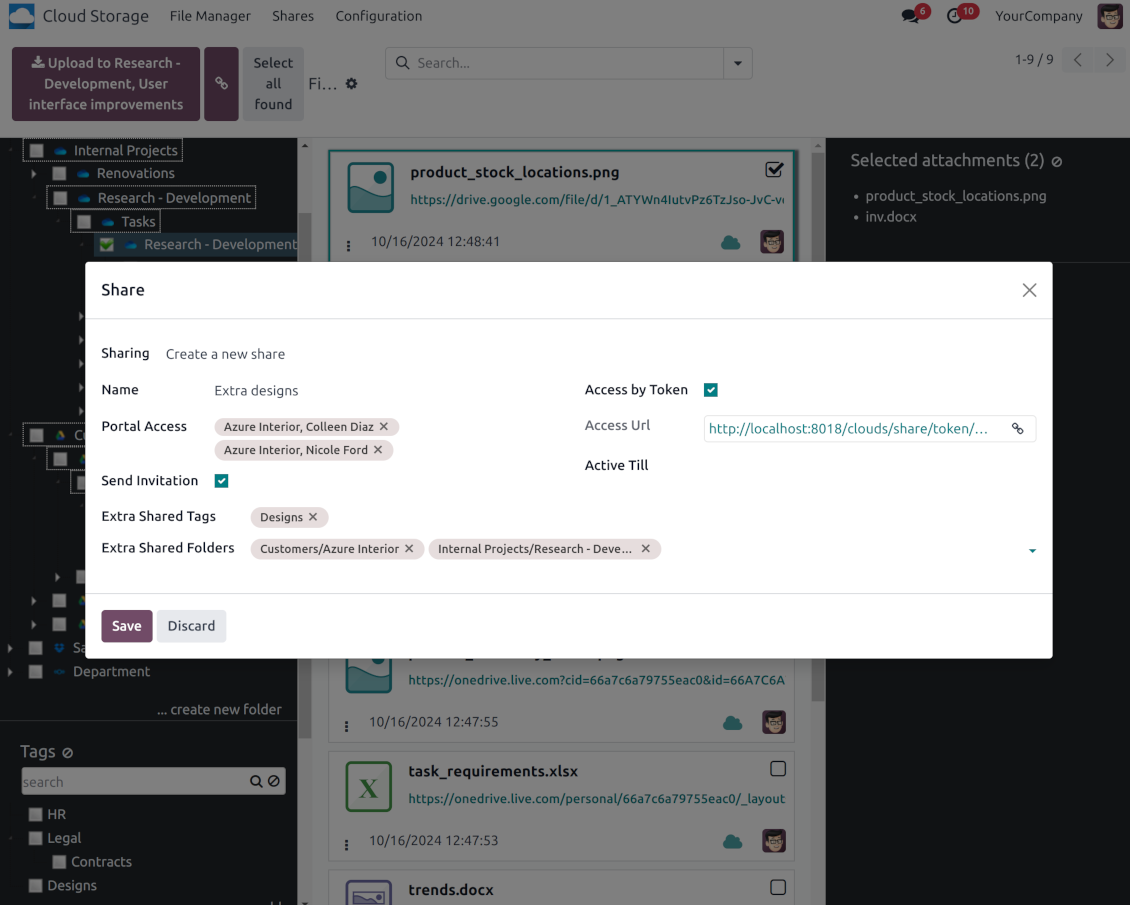
Share particular attachments, whole directories, or even all files of specific tags
-
Grant access to chosen Odoo contacts. Send an invitation to any Odoo portal users at any moment
-
Generate a special access link for public use (even without a user). Change it to make the previous one outdated
-
Make shares for temporary use or available constantly until archived
-
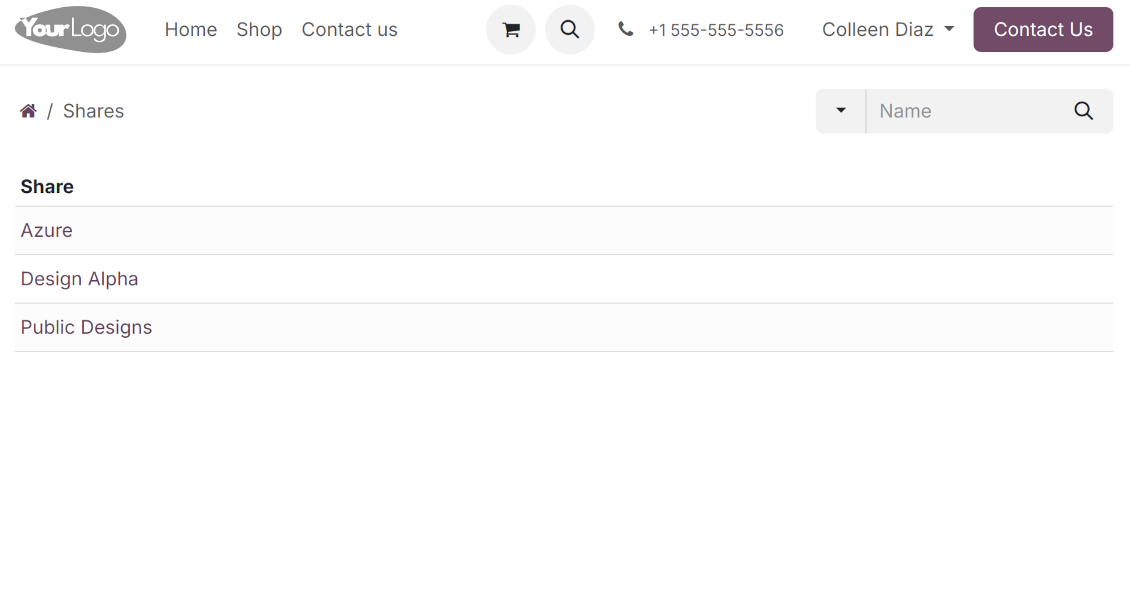
Create an unlimited number of shares with any setups and attachments involved. Portal users might access those through the special entry "Shares" in the Odoo's portal
-
For single-view purposes, shares support hierarchy so as to make comfortable navigation by those
-
Share users can download any shared file, a whole share, a particular directory, or a tag as a ZIP archive
-
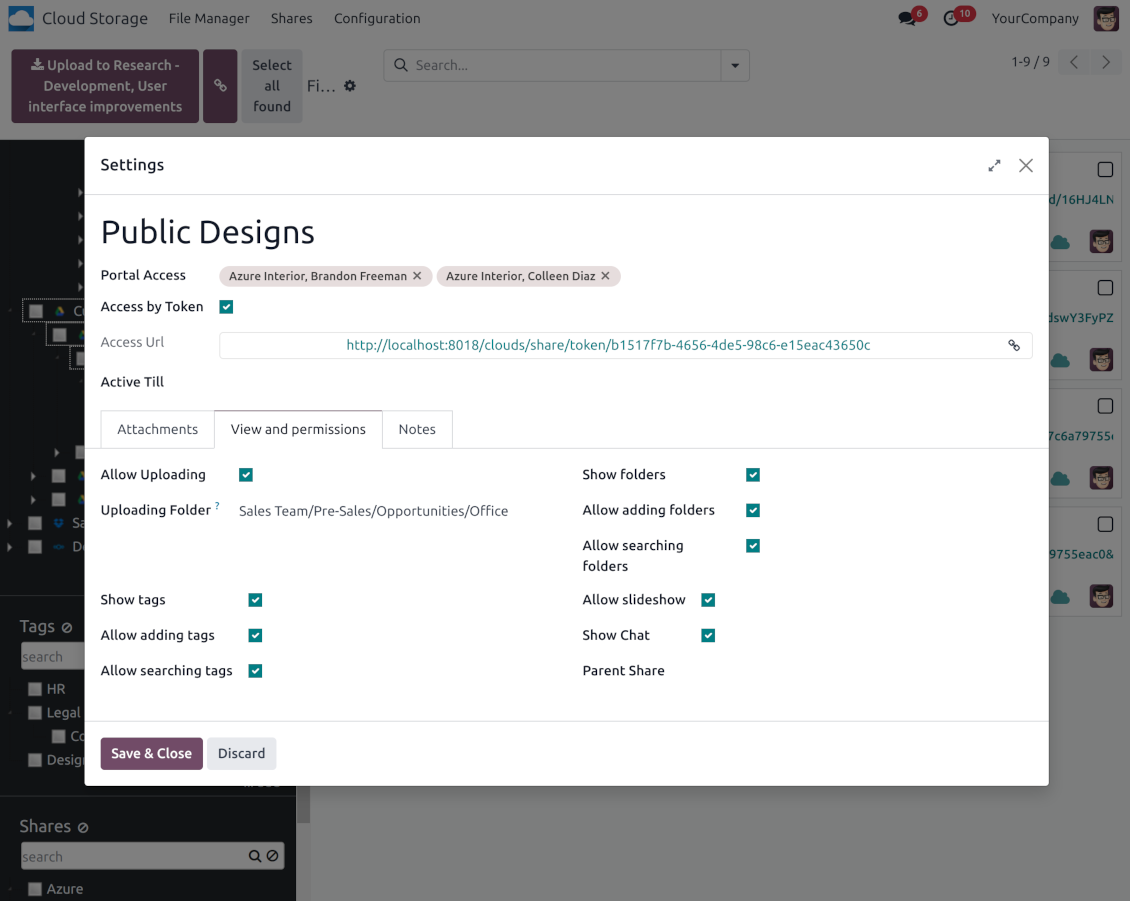
Optionally let upload files to the selected or default folder. Files drag and drop is supported
-
Users are always allowed to search attachments by title, linked folder, and tags
-
Optionally allow navigation by folders and/or tags. Shared tags/folders, their children, and ones linked to shared attachments will be available
-
Let users add tags and folders by themselves. Show/hide searching items in tags/folders navigation trees
-
Turn on/off a chat per each share.
Dokumenthantering och synkåtkomsträttigheter
-
Access for each Odoo automatic folder is regulated based on a linked object. If such an Odoo object is available for a specific user, its directory would be also available for her/him. For example, if Anita Olivier is the task manager of 'Prepare specification', then she may access the folder 'Tasks' and 'Tasks > Prepare Specification'
-
Access to Odoo manual folders is regulated based on its user groups and users stated in those folders' settings. If nobody is specified, a manually created folder is available for everyone. For example, if Anita Oliver is a sales manager, she may access the quotation-related folder 'Odoo > Orders > SO-001'
-
To access any folder, a user should be able to access all its parents. For example, if Anita Oliver has rights for employees but does not have for departments, then she might not read 'Odoo > Departments > Administration > Employees > Mitchel Admin'. However, if the folder 'Employees' becomes a stand-alone folder without a parent, then Anita would be able to access 'Odoo > Employees > Mitchel Admin'
-
The app does not regulate access levels for cloud clients and their items. The tool regulates rights only for Odoo objects and synchronizes those to required storage. After the sync, if necessary, you should apply the settings for a target cloud client, folders, and files
-
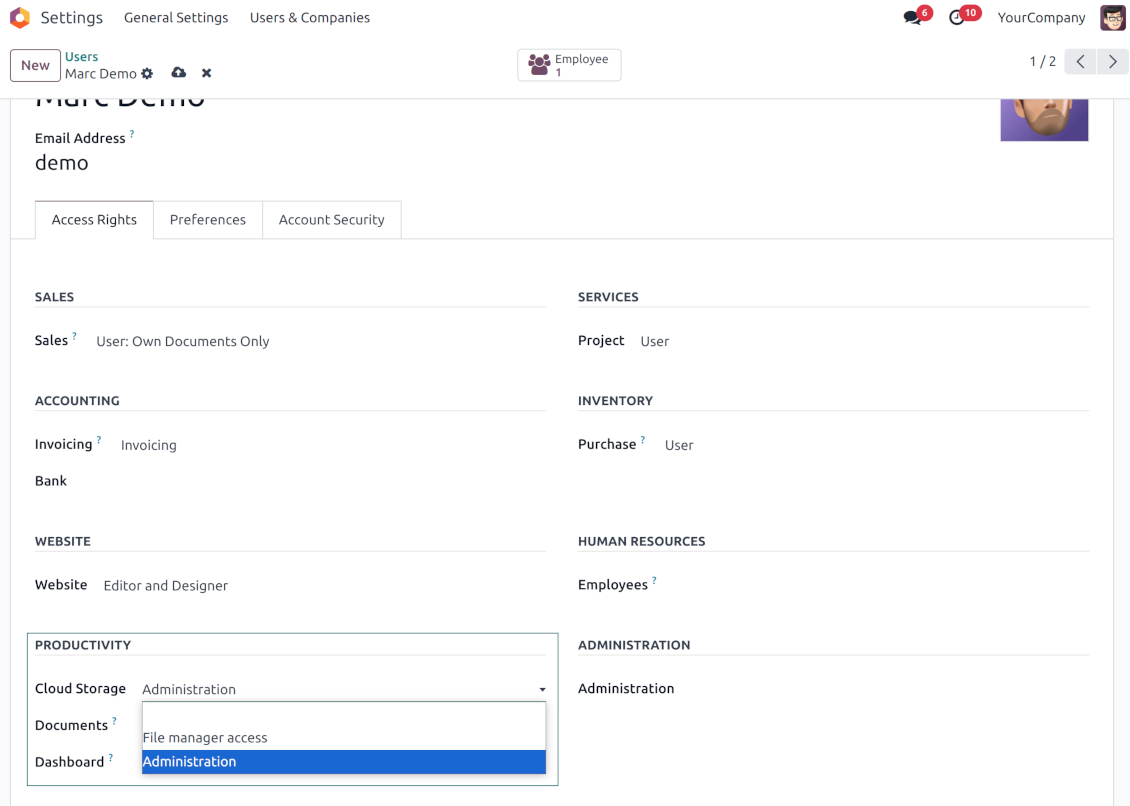
To observe the menu 'Cloud Storage' and the app file manager, a user should belong to the security group 'Cloud Storage > File Manager Access'
-
To configure automatic folder rules, establish connections with various cloud clients, control sync logs, and apply the app settings, a user should belong to the security group 'Cloud Storage > Administration'.
Användaranteckningar
-
The app assumes automatic regular synchronization with various cloud clients. Please take into account that synchronization is not real-time but is based on tasks queue and scheduled jobs. Depending on the number of folders and attachments, it might take time for the app to check all directories and do the jobs. That's why, until the sync is done, Odoo attachment interfaces work as in standard Odoo.
-
Cloud connections rely upon the API of the related cloud clients. Such communication between systems is risky by concept due to possible disconnections, API updates, and unsolvable conflicts. The app is designed to cope with such risks by carefully processing failures and checking cloud client states. Simultaneously, make sure that you have configured a proper backup strategy for both Odoo and cloud clients.
-
The special factors of risks are sync scope and reverse operations. The higher the sync scope is, the more it would take Odoo to finish integrations. Hence, more space for errors exists. Try to decrease sync scope logically by choosing only required folders. Reverse operations might be risky since assume reflecting cloud clients' features which might be absent in Odoo. For example, Google Sheets cannot be opened outside Google Docs. The app would try to solve the scenarios by applying similar features (e.g. by converting a file to simple electronic tables). However, that is not always possible, and in this way, manual interactions would be required.
Konfigurations- och installationstips för Cloud Storage Solutions Odoo v.18
Odoo-serverkonfiguration
För att synkroniseringen ska fungera korrekt, ange lämpliga tidsgränser i Odoo-konfigurationsfilen: LIMIT_TIME_CPU, LIMIT_TIME_REAL, LIMIT_TIME_REAL_CRON ska vara mer än 900 sekunder.
För Odoo.sh ska detta inte göras, eftersom timeouts är fördefinierade och inte konfigurerbara.
Ändra inte heller cronjobbens frekvens som appen utgår från: '[Cloud Storage] Prepare Cloud Folders', '[Cloud Storage] Run / Prepare sync queue'. De jobben är inställda att köras var 15:e minut, och den frekvensen används i algoritmerna för att undvika avbrott och dataförlust. Om du behöver stoppa synken en stund, pausa enskilda molnklienter i stället.
Allmänt Python-beroende
Verktyget beror på det externa biblioteket 'sortedcontainers'. Installera det för Odoo-servern med kommandot:
pip3 install sortedcontainersKonfigurera OneDrive- och/eller SharePoint-integration
Python-beroende
Verktyget beror på det externa biblioteket 'microsoftgraph'. Installera det för Odoo-servern med kommandot:
pip3 install microsoftgraph-python
Konfiguration och inloggning
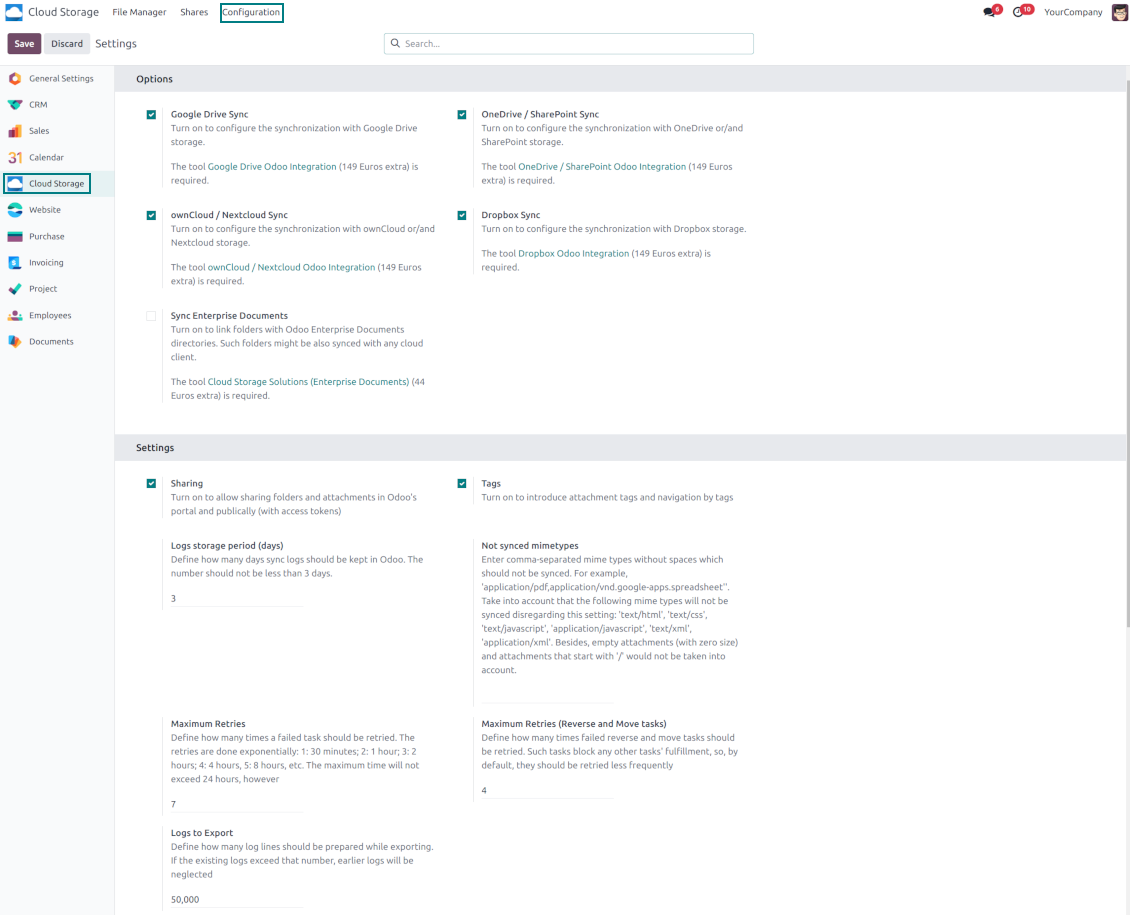
- Slå på alternativet 'OneDrive / SharePoint Sync' (cloud Storage > Configuration > Configuration). Det valfria tillägget OneDrive / SharePoint Odoo Integration krävs
- Se till att din Microsoft-användare har fulla administratörsrättigheter för OneDrive / SharePoint som du vill koppla till Odoo. Användaren behövs bara för att bevilja behörigheter; användardata sparas inte i Odoo och används inte efteråt. Kontrollera dessutom att den Microsoft-e-postadress du använder inte har någon omdirigering (vanligt när du konfigurerar ditt domännamn medan den primära adressen fortfarande är en Microsoft-domän som @outlook.com, @office365 osv.)
- Gå till Azure Portal: https://portal.azure.com/#blade/Microsoft_AAD_RegisteredApps/ApplicationsListBlade
Appen maste registreras i en katalog (tenant). Microsoft tillater inte langre att en ny app skapas utanfor en katalog.
- Om du redan har en foretagskatalog Microsoft 365 / Azure, byt portal (uppe till hoger) till den och fortsatt.
- Om du bara har ett personligt konto (@outlook.com, @hotmail.com, @live.com) och ser "these applications are associated with the account ... but are not contained within any directory" har du inte en katalog an. Registrera ett gratiskonto for Azure med samma Microsoft-konto: https://azure.microsoft.com/free/ - Prova Azure gratis. Detta skapar en Default Directory utan kostnad.
- Microsoft ber om ett kort endast for identitetskontroll; en tillfallig reservation pa cirka 1 USD lagggs och aterfors. Du debiteras inte for katalogen eller appregistringen.
- Katalogen (Microsoft Entra ID Free) och varje app som ar registrerad i den fortsatter att fungera oberoende av Azure-provkrediten pa 30 dagar / 200 $. Den krediten galler betalda Azure-resurser som du inte anvander har. Ingen betalning kravs for var app.
- Om hela katalogen ligger helt oanvand mycket lange (Microsofts grans ar omkring 200 dagar utan aktivitet) kan Microsoft mejla en varning och till sist stanga den. Eftersom Odoo anropar den har appen vid varje synk haller en aktiv anslutning katalogen aktiv - det spelar bara roll om du slutar synka helt i manader.
- Nar du ar i en riktig katalog (inte "Microsoft Services"), oppna App registrations dar.
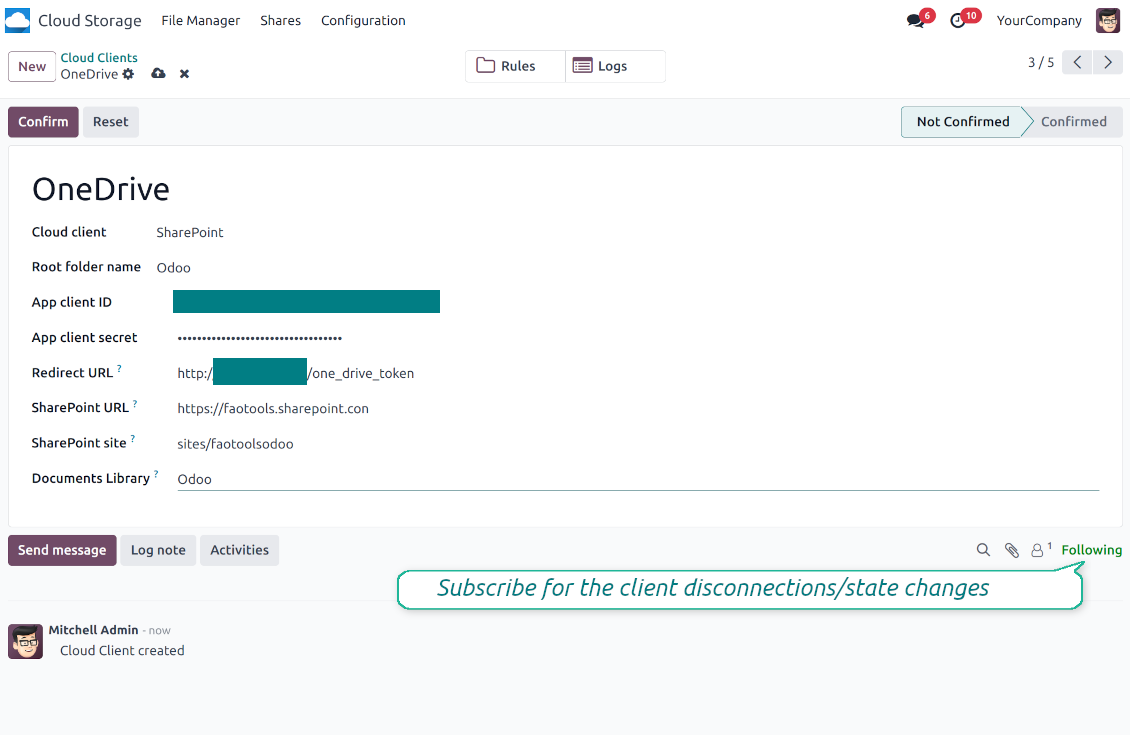
- Klicka 'New registration'
- Introduce a new name for the application and assign the redirect URI as [YOURODOOSITENAME]/one_drive_token (e.g. https://odootools.com/one_drive_token). As the supported account types choose 'Accounts in any organizational directory (Any Azure AD directory - Multitenant) and personal Microsoft accounts (e.g. Skype, Xbox)'.
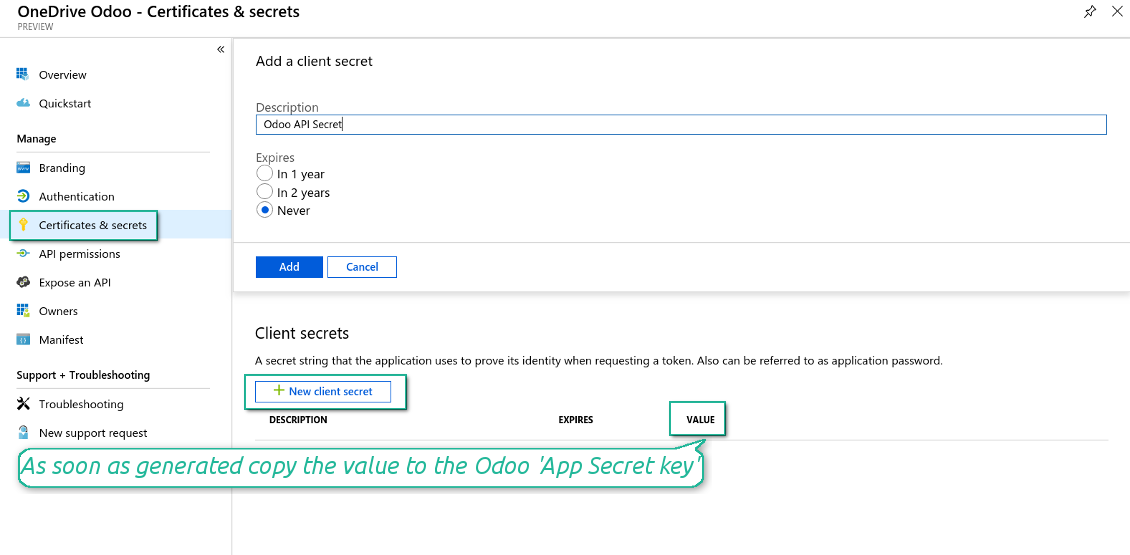
- Gå till Certificates & secrets - klicka på 'New Client Secret'. Spara secret-värdet någonstans
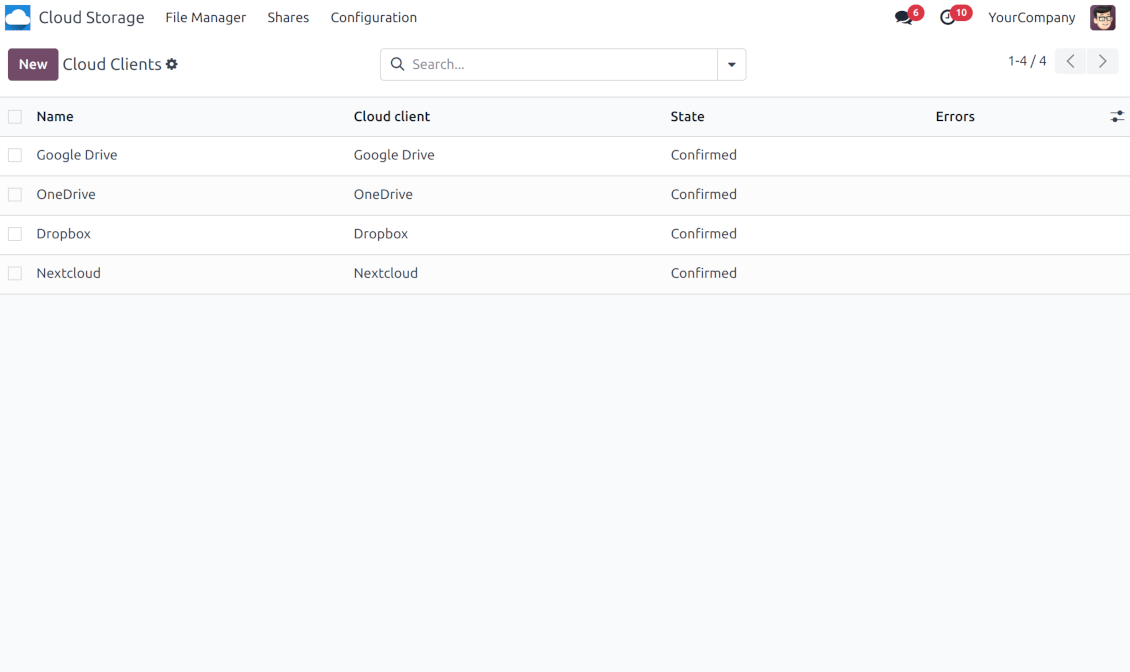
- Gå till Odoo Cloud Storage > Configuration > Cloud Clients och tryck på 'Create'
- Som referens ange ett namn som är tydligt för alla användare
- Som molnklient väljer du 'OneDrive' eller 'SharePoint' beroende på vilken programvara du använder
- Som namn på rotmappen anger du en titel som används som överordnad OneDrive-katalog för alla synkade mappar. Till exempel 'Odoo' eller 'OdooERP'
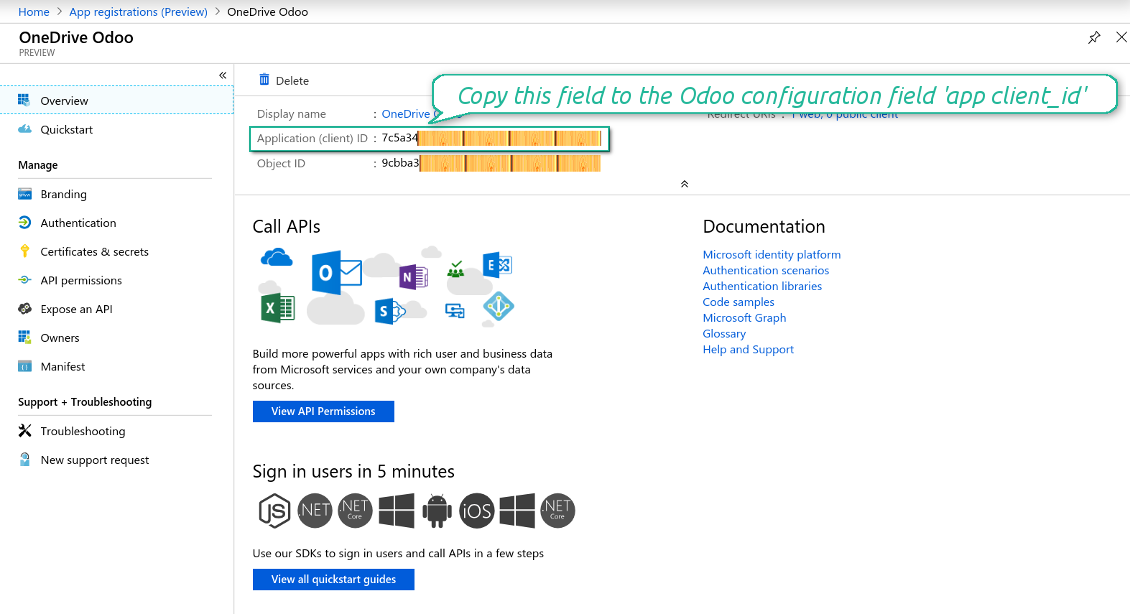
- Kopiera 'Application Client ID' till 'App client ID'
- Kopiera secret-värdet till fältet 'App client secret'
- Ange den tidigare genererade redirect-URL:en
- Om ni använder SharePoint:
- Gå till din SharePoint-webbplats och förbered ett nytt dokumentbibliotek (drive). Du kan använda ett befintligt, t.ex. 'Documents'. Odoo-mappen läggs där efteråt och det går inte att flytta den till ett annat bibliotek
- SharePoint-URL:en ska vara av typen https://[URL]/. Det sista '/' är obligatoriskt - sajtnamnet ska inte ingå. Till exempel https://odootools.sharepoint.com/
- SharePoint-sajten ska vara antingen root (själva rotwebbplatsen i SharePoint), my_site_name (då räknas den som sites/my_site_name) eller sites/my_site_name (i stället för 'sites' kan det vara 'teams' och så vidare). Det ska inte finnas '/' i början eller slutet. Till exempel sites/odootools
- Som Documents Library använd en skapad i SharePoint
- Tryck på 'Confirm'. Odoo omdirigerar dig till Microsofts inloggningssida. Kontrollera i systemet, godkänn alla villkor och bevilja alla begärda behörigheter. If Microsoft shows an account already signed in and says it does not exist in tenant 'Microsoft Services' (or any other unrelated tenant), do not click that row. Click 'Use another account' and sign in with the Microsoft account that owns the app's directory
- Efter inloggning omdirigerar OneDrive tillbaka till Odoo. OneDrive - Odoo-synkronisering är redo
- Tillämpa den nyskapade molnklienten på mappregler och/eller manuella mappar som ska synkas till den OneDrive- eller SharePoint-instansen
- Vänta tills det schemalagda synkjobbet startar. Endast för test: starta integrationen manuellt från Cloud Storage > Konfiguration > Konfiguration > knappen 'Launch sync'.
Se även konfigurationsvideon
Skapa Azure-applikation
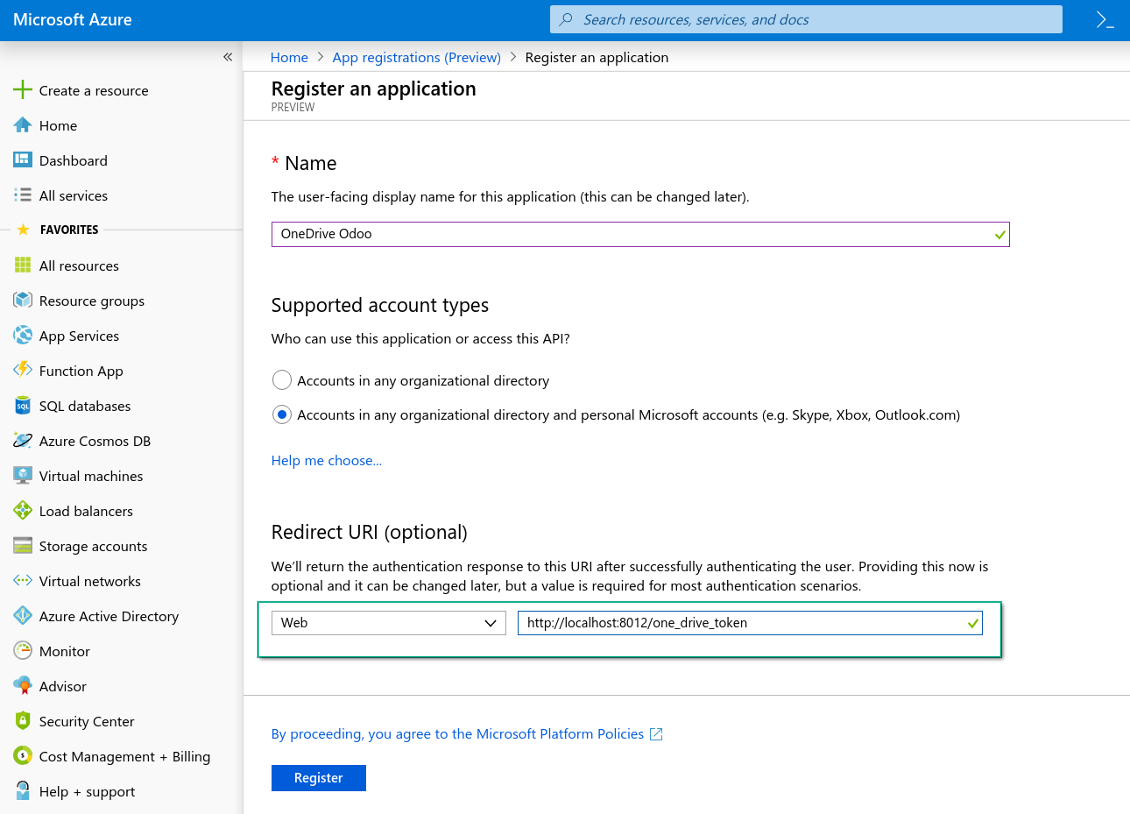
Ny OneDrive Web-plattform och redirect-URL
Skapa en ny hemlighet för Azure-programmet
Ange konfigurationsnycklar i Odoo
Konfigurera Google Drive-integration
- Slå på alternativet 'Google Drive Sync' (cloud Storage > Configuration > Configuration). Det valfria tillägget Google Drive Odoo Integration krävs
- Gå till Google Cloud Console via URL:en https://console.cloud.google.com
- Välj eller skapa ett projekt
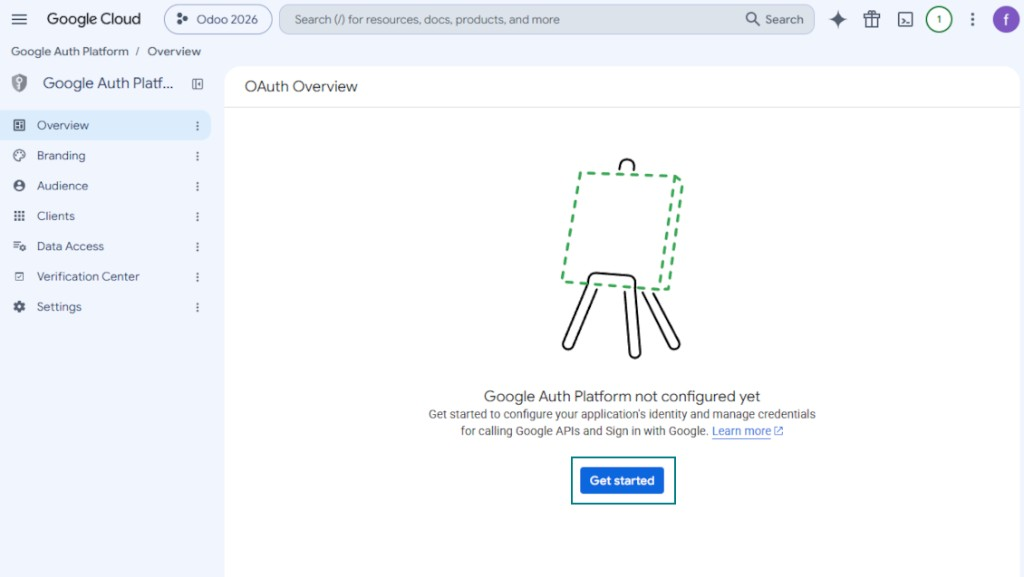
- När projektet är valt öppnar konsolen Google Auth Platform. Tryck på 'Get Started'
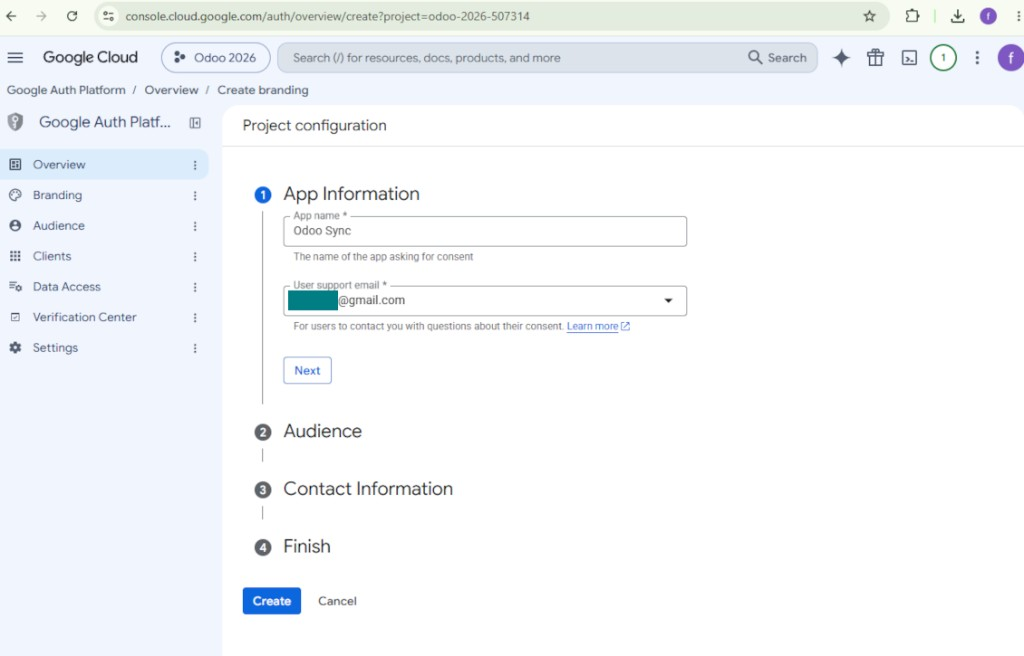
- Lägg till appinformation
- Som appnamn välj något lämpligt
- Som e-post för användarsupport anger du din egen adress
- Tryck 'Next'
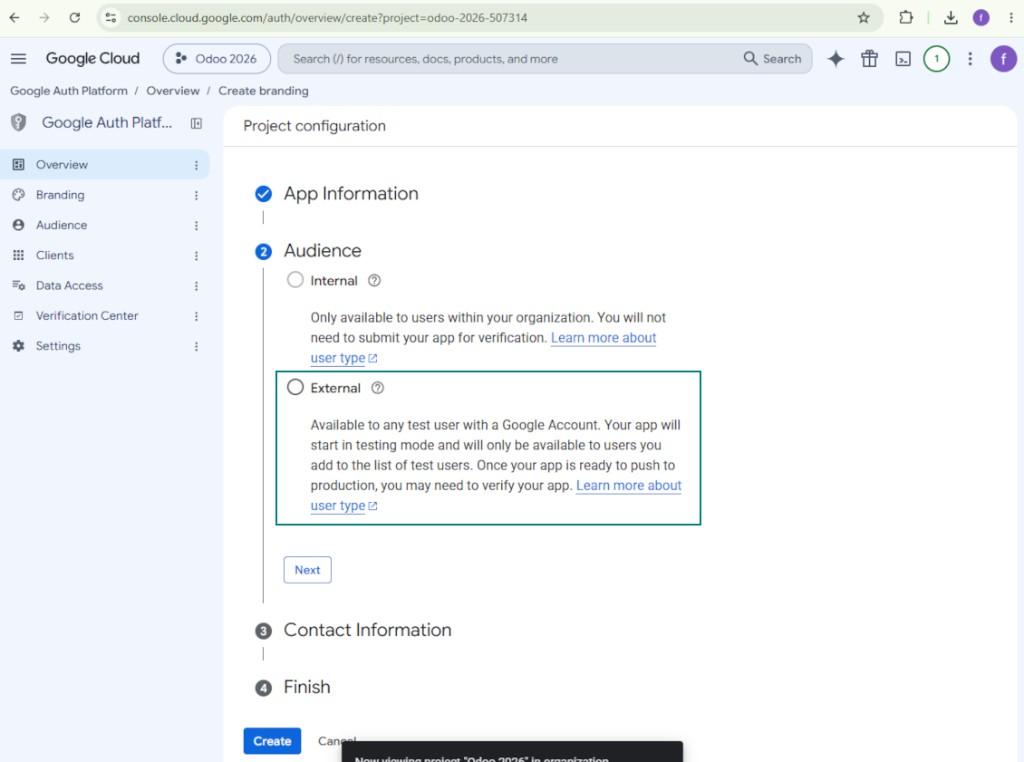
- Som målgrupp väljer du 'External' och trycker på 'Next'. Observera: du kommer ändå bara att använda appen för din egen Odoo-anslutning
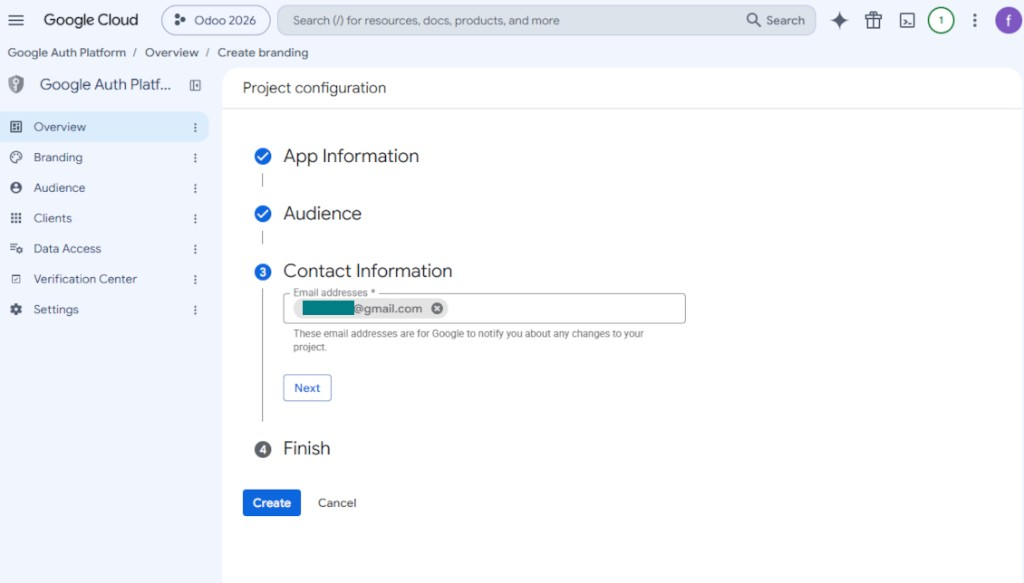
- Som kontaktuppgifter anger du din Google- eller Google Workspace-e-postadress och trycker på 'Next'
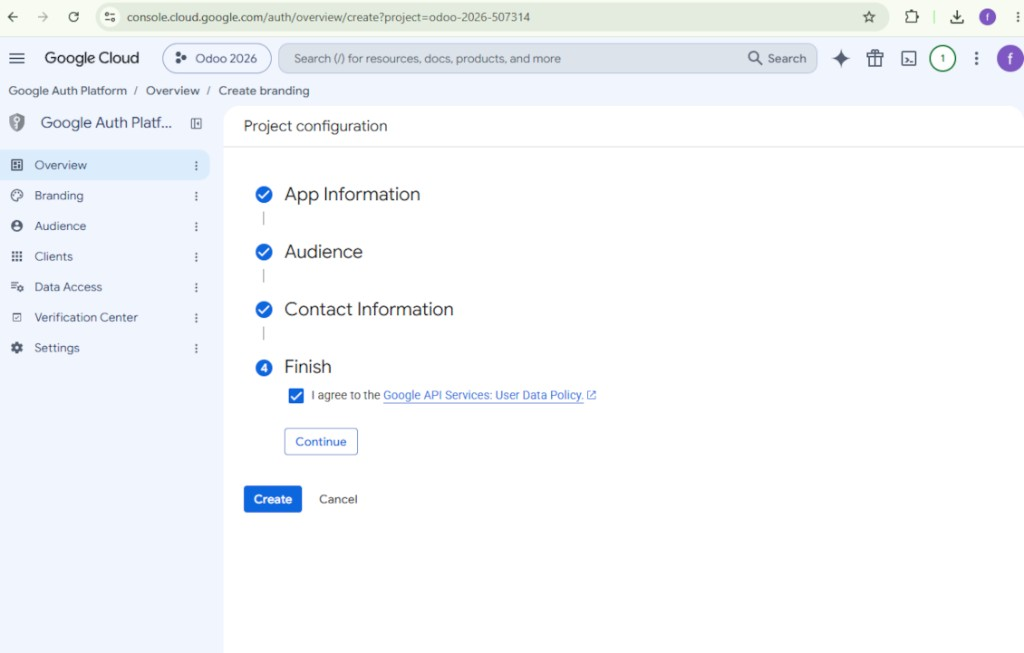
- Godkänn Google API Services User Data Policy, tryck på 'Continue' och därefter på 'Create'
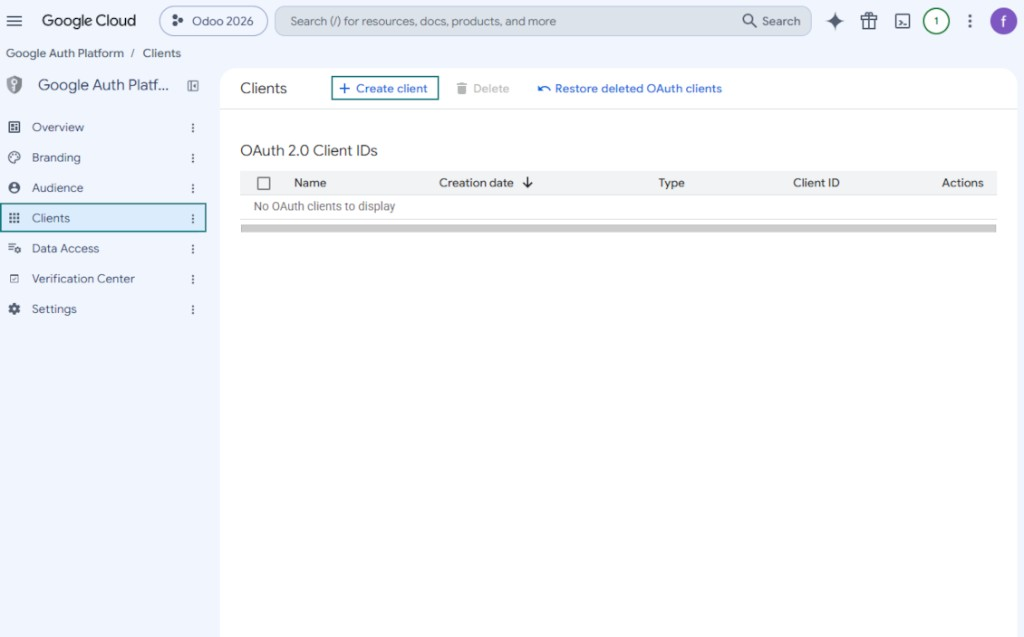
- Gå till 'Clients' och tryck på 'Create client'
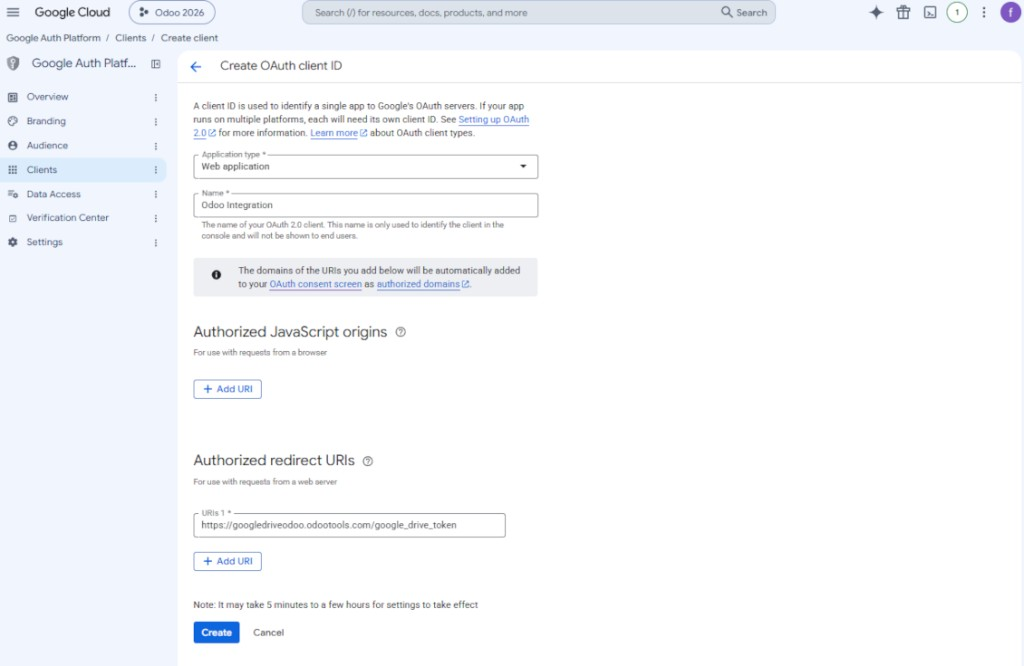
- Som programtyp väljer du 'Web application'
- Som namn välj något lämpligt
- Som auktoriserad omdirigerings-URI lägger du till länken i formatet [YOURODOOSITENAME]/google_drive_token (t.ex. https://odootools.com/google_drive_token).
- Tryck 'Create'
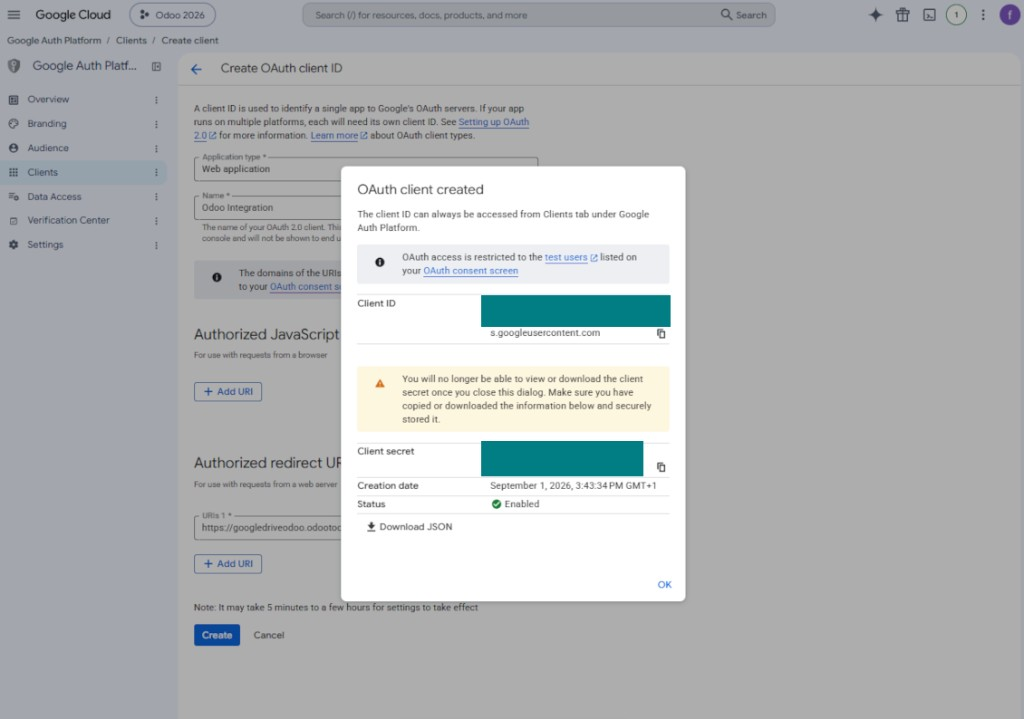
- Kopiera och spara 'Client ID' och 'Client secret' säkert. Client secret visas bara en gång
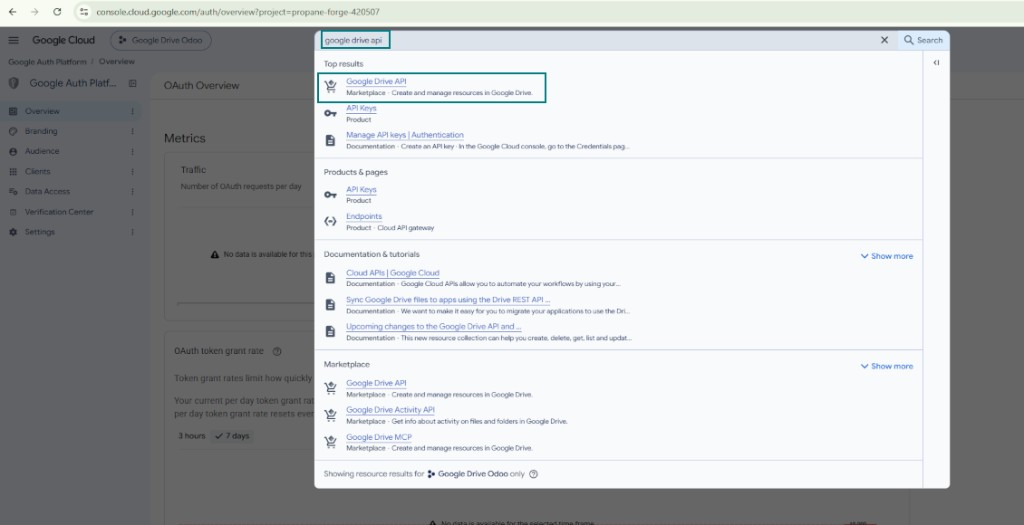
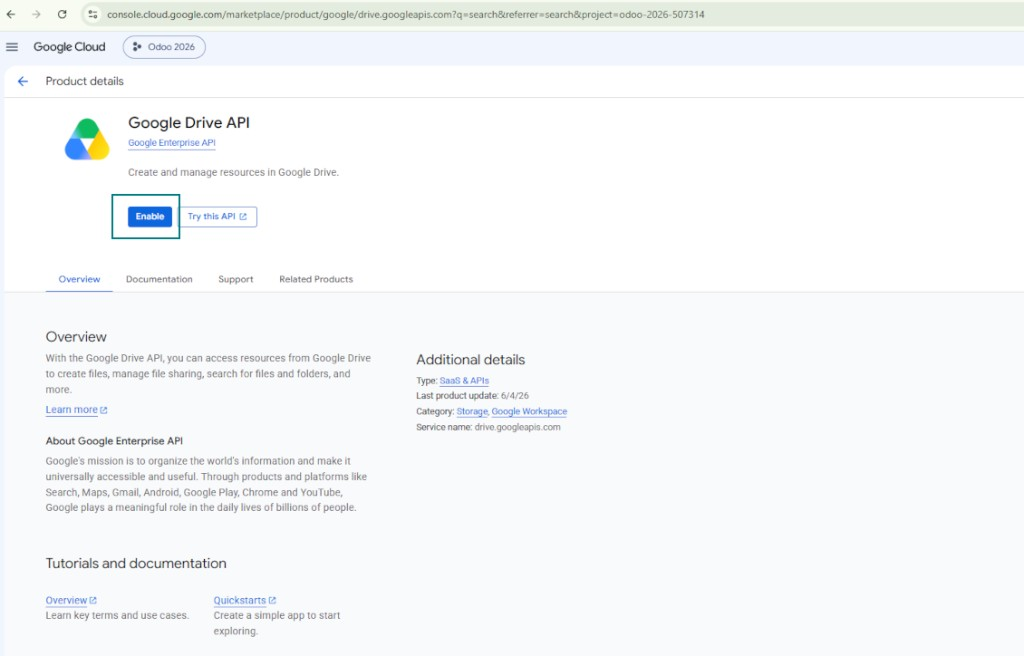
- Aktivera Google Drive API för det här projektet: skriv 'Google Drive API' i den övre sökrutan, öppna den hittade produkten och tryck på 'Enable'
- Gå till 'Audience' och lägg till din e-postadress som testanvändare
- Publicera appen. Annars stannar den i teststatus och dess token upphör var 7:e dag
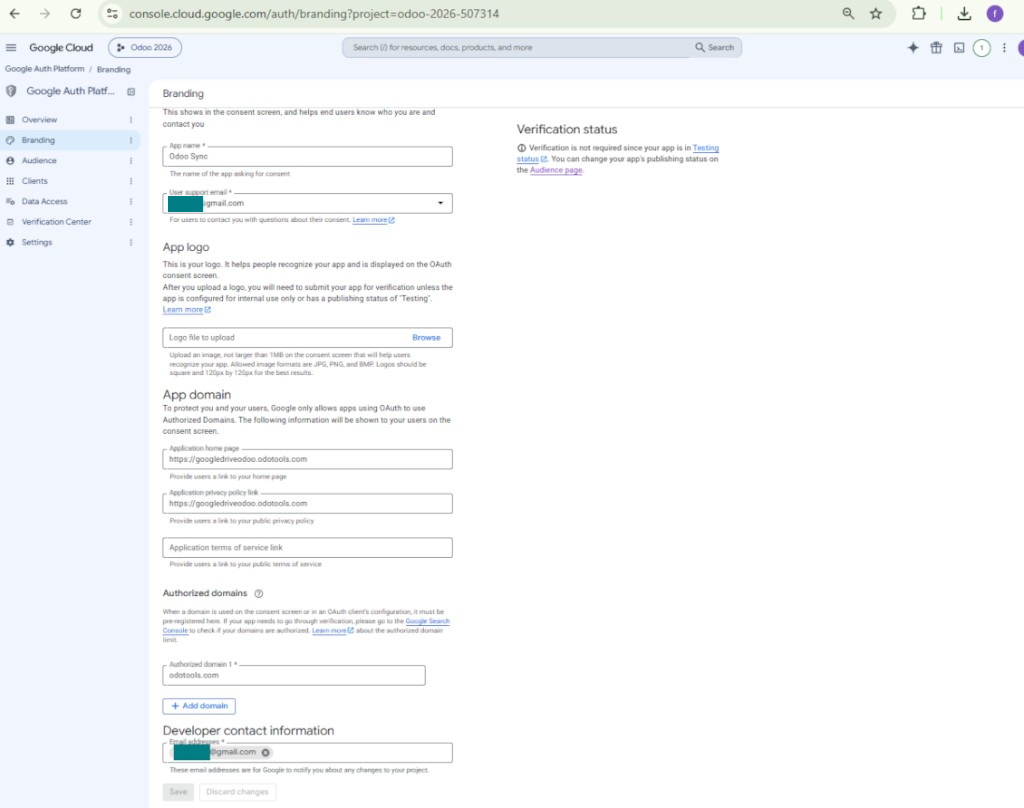
- Öppna 'Branding' och fyll i programmets startsida och länken till integritetspolicyn (till exempel länkarna till din Odoo-webbplats). Lägg till dessa länkars domäner som auktoriserade domäner
- Öppna 'Audience' och tryck på 'Publish app'
- Ladda inte upp någon applogotyp. Det utlöser en lång och komplex Google-verifiering som du inte behöver
- Gå till Odoo Cloud Storage > Configuration > Cloud Clients och tryck på 'Create'
- Som referens ange ett namn som är tydligt för alla användare
- Som molnklient väljer du 'Google Drive'
- Som namn på rotmappen anger du en titel som används som överordnad Google Drive-katalog för alla synkade mappar. Till exempel 'Odoo' eller 'OdooERP'
- Kopiera 'Client ID' från steg 9 till fältet 'App client ID'
- Kopiera 'Client secret' från steg 9 till fältet 'App client secret'
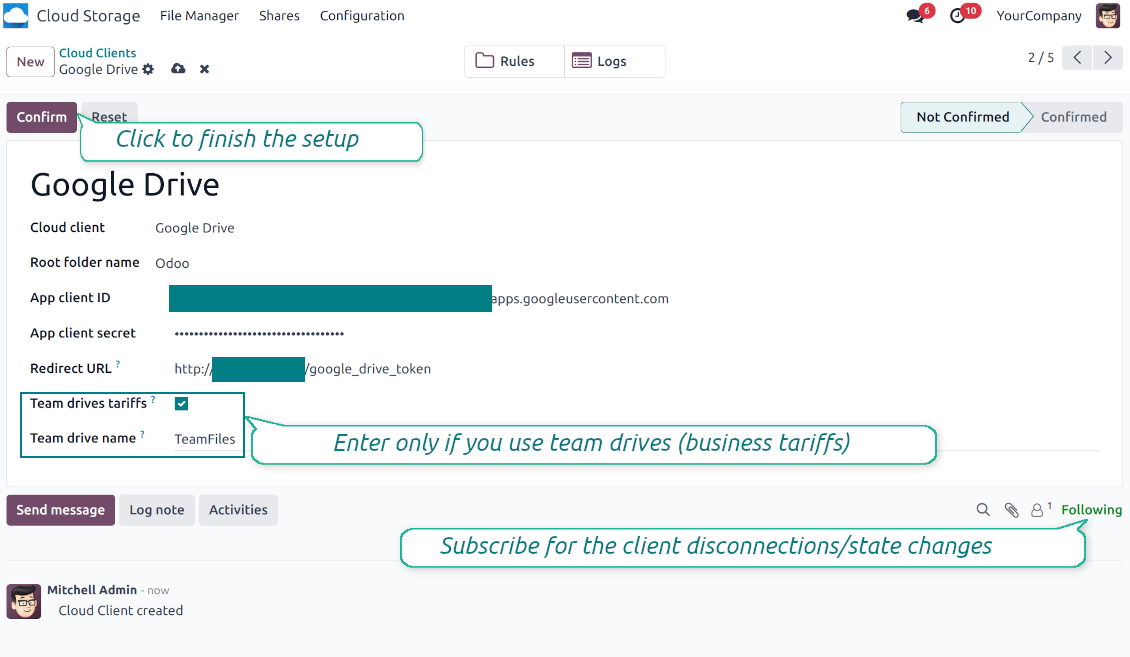
- Ange den redirect-URL du angav i steg 9
- Om du använder team drives, kryssa i den relaterade rutan. Kontrollera att du verkligen använder team drives. I Google Drive ska du hitta posten 'Team Drives' i vänster sidofält. Funktionen finns bara på business- och enterprise-abonnemang
- Om alternativet 'Team Drive' är aktiverat, ange dess namn. Det ska vara exakt detsamma som du ser i Google Drive. Kontrollera att din användare har fulla rättigheter till alla Google-enheter (ofta samma användare som konfigurerar teamets Google Drive)
- Tryck 'Confirm'. Odoo omdirigerar till Google inloggning. Kontrollera i systemet, godkänn villkoren och ge alla begärda behörigheter
- Efter inloggning omdirigerar Google tillbaka till Odoo. Google Drive - Odoo-synkronisering är redo
- Tillämpa den nyskapade molnklienten på mappregler och/eller manuella mappar som ska synkas till det Google Drive-kontot
- Vänta tills det schemalagda synkjobbet startar. Endast för test: starta integrationen manuellt från Cloud Storage > Konfiguration > Konfiguration > knappen 'Launch sync'.
Se även konfigurationsvideon, Obs: den del av videon som handlar om Google-konsolen är inaktuell; följ stegen ovan i stället
Öppna Google Auth Platform
Lägg till appinformation
Välj målgruppen External
Lägg till kontaktuppgifter
Godkänn policyerna och skapa appen
Skapa en OAuth-klient
Konfigurera webbprogramsklienten
Kopiera Client ID och Client secret
Hitta Google Drive API
Aktivera Google Drive API
Fyll i Branding för att publicera appen
Ange Google-appuppgifter i Odoo
Konfigurera Amazon S3
- Slå på alternativet 'Amazon S3 Sync' (Cloud Storage > Konfiguration > Konfiguration). Tillägget Amazon S3 Odoo Integration krävs
- Öppna Amazon S3 Console: https://console.aws.amazon.com/s3/
- Skapa en ny bucket eller välj en befintlig. Kopiera det exakta bucketnamnet: det ska anges i Odoo-fältet 'Bucket'
- Öppna bucketdetaljerna och kopiera AWS Region. Ange den i Odoo-fältet 'Region' (t.ex. eu-west-1 eller us-east-1)
- Öppna AWS IAM Console: https://console.aws.amazon.com/iam/
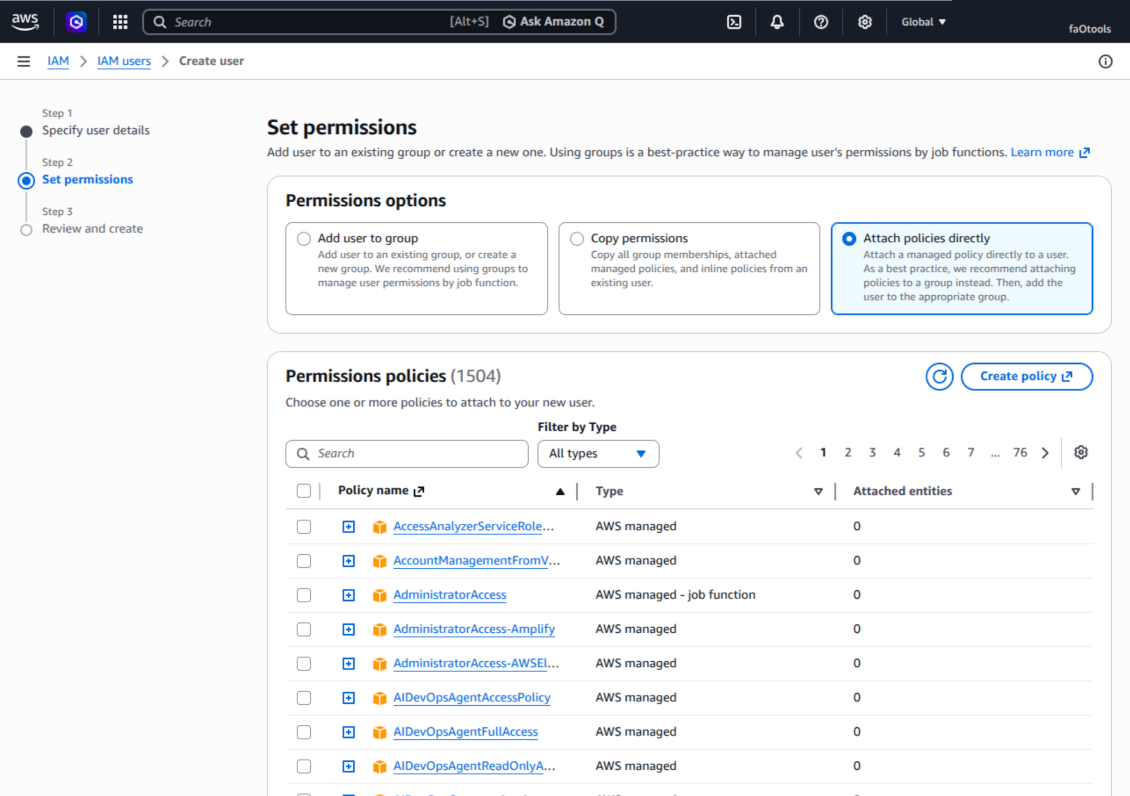
- Skapa en ny IAM-användare eller välj en befintlig teknisk användare. Användaren ska ha fulla rättigheter att lista, läsa, skapa, skriva, kopiera och radera objekt i den valda bucketen. Du kan välja full adminrätt eller skapa en ny policy (se nedan)
- I IAM-användarformuläret öppnar du fliken 'Security credentials' och trycker 'Create access key'
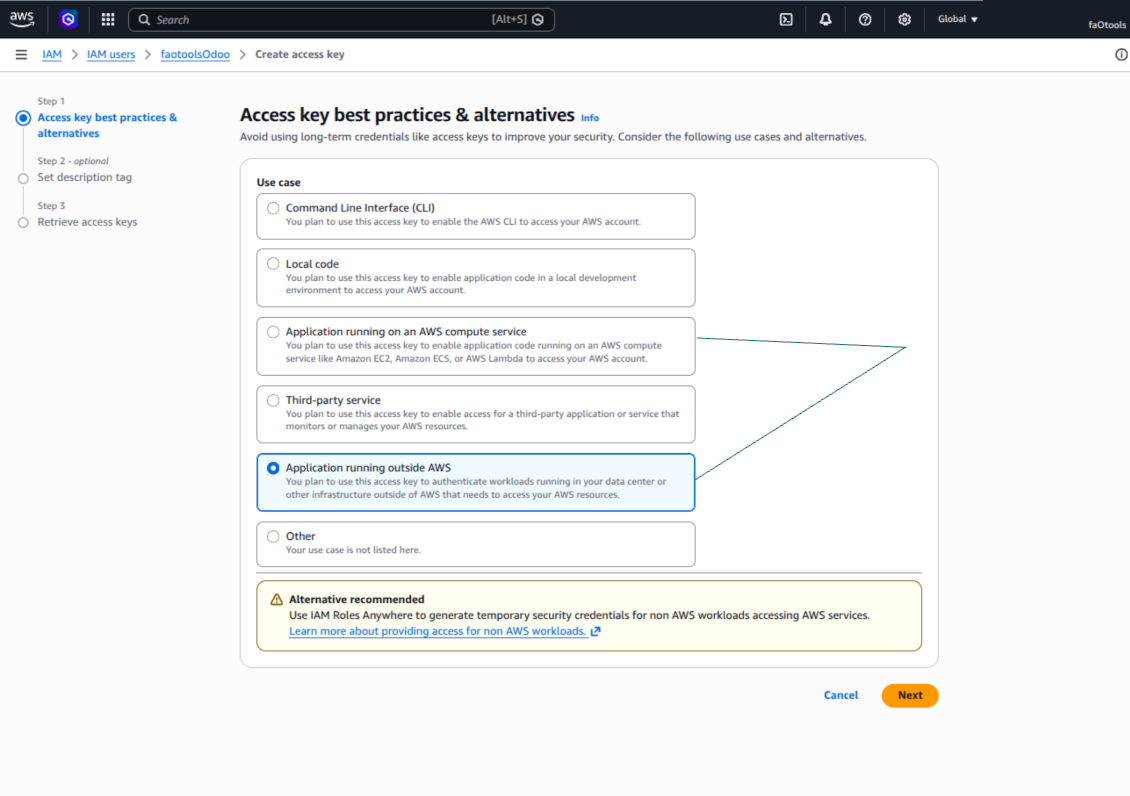
- På sidan 'Access key best practices & alternatives' väljer du Application running outside AWS. Det är rätt val när Odoo-servern ansluter till S3 med åtkomstnyckel utanför AWS, från Odoo.sh, från en egen server eller från en annan serverleverantör. Om Odoo körs på en AWS EC2-instans kan du i stället välja Application running on an AWS compute service; fälten som kopieras till Odoo är desamma
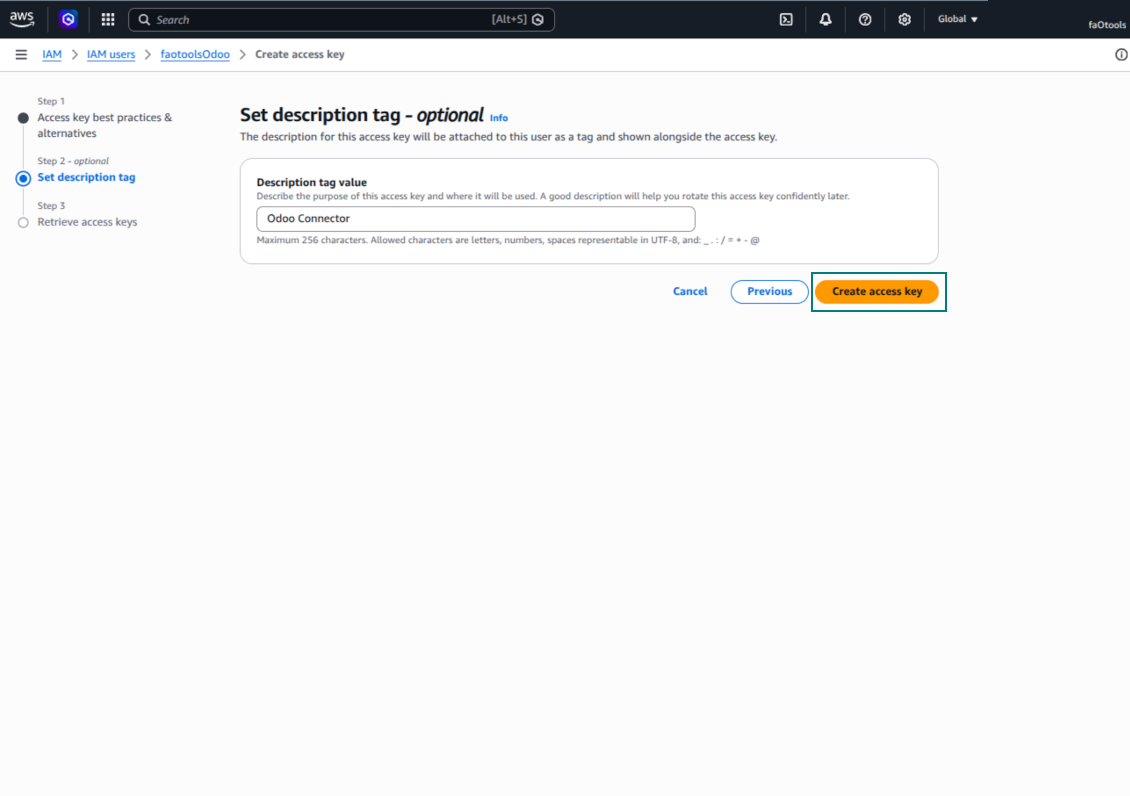
- Tryck 'Next'. I nästa steg kan du valfritt ange en beskrivningstagg som Odoo S3 Sync och sedan trycka 'Create access key'
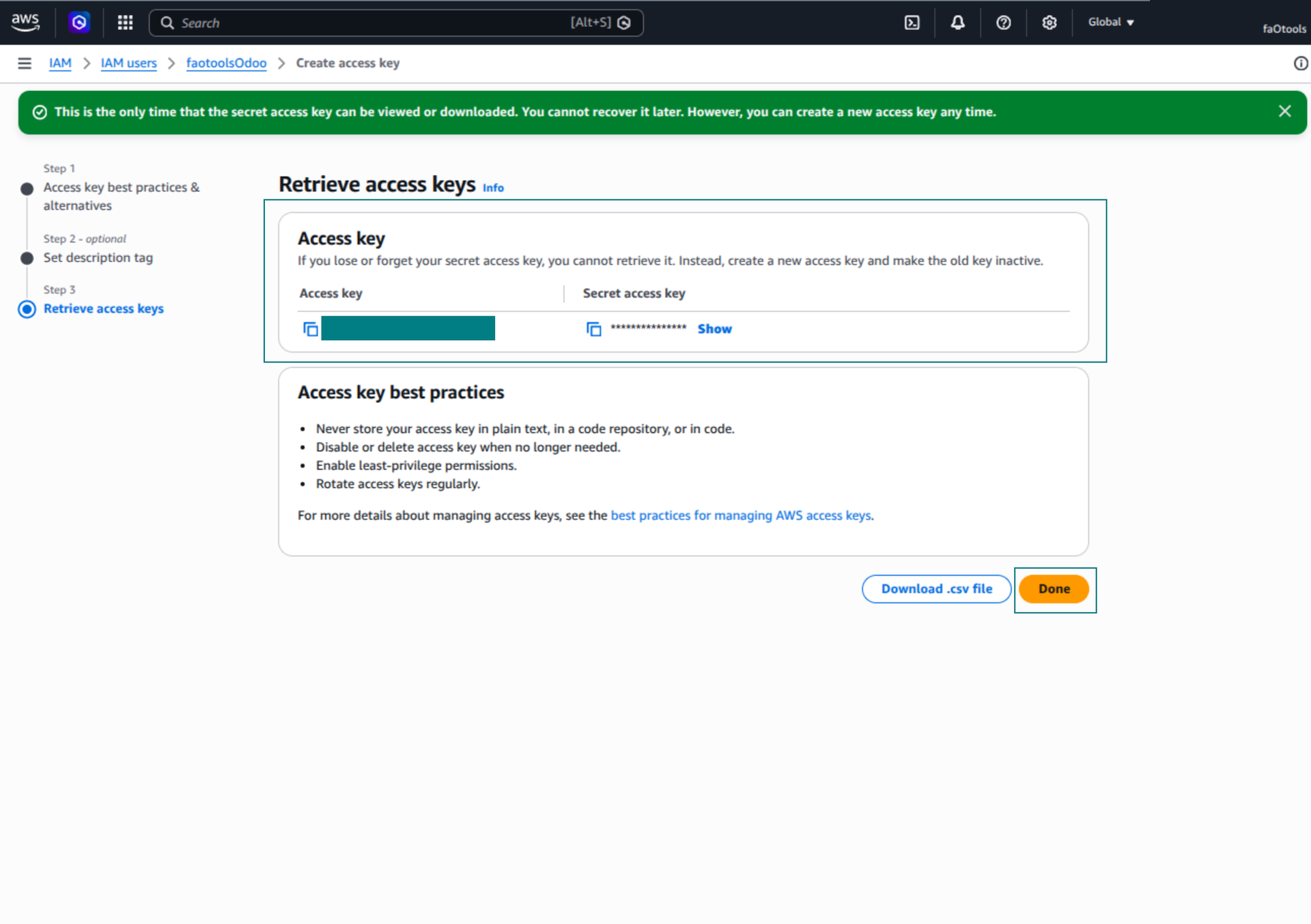
- På sista AWS-sidan kopierar du Access key eller Access key ID till Odoo-fältet 'Access Key'
- Kopiera Secret access key till Odoo-fältet 'Secret Key'. Viktigt: AWS visar den hemliga nyckeln bara en gång, så spara den innan fönstret stängs
- Om du använder en S3-kompatibel leverantör i stället för AWS S3, kopiera slutpunkts-URL från leverantörens adminpanel och ange den i Odoo-fältet 'Amazon S3 endpoint URL'. MinIO använder ofta en URL som https://minio.example.com eller http://localhost:9000; LocalStack vanligen http://localhost:4566
- Gå till Odoo Cloud Storage > Konfiguration > Cloud Clients och tryck 'Create'
- Som referens anger du ett namn som är tydligt för alla användare
- Som Cloud client väljer du 'Amazon S3'
- Som Root folder name anger du en titel som blir överordnat S3-prefix för alla synkade mappar. Till exempel 'Odoo' eller 'OdooERP'
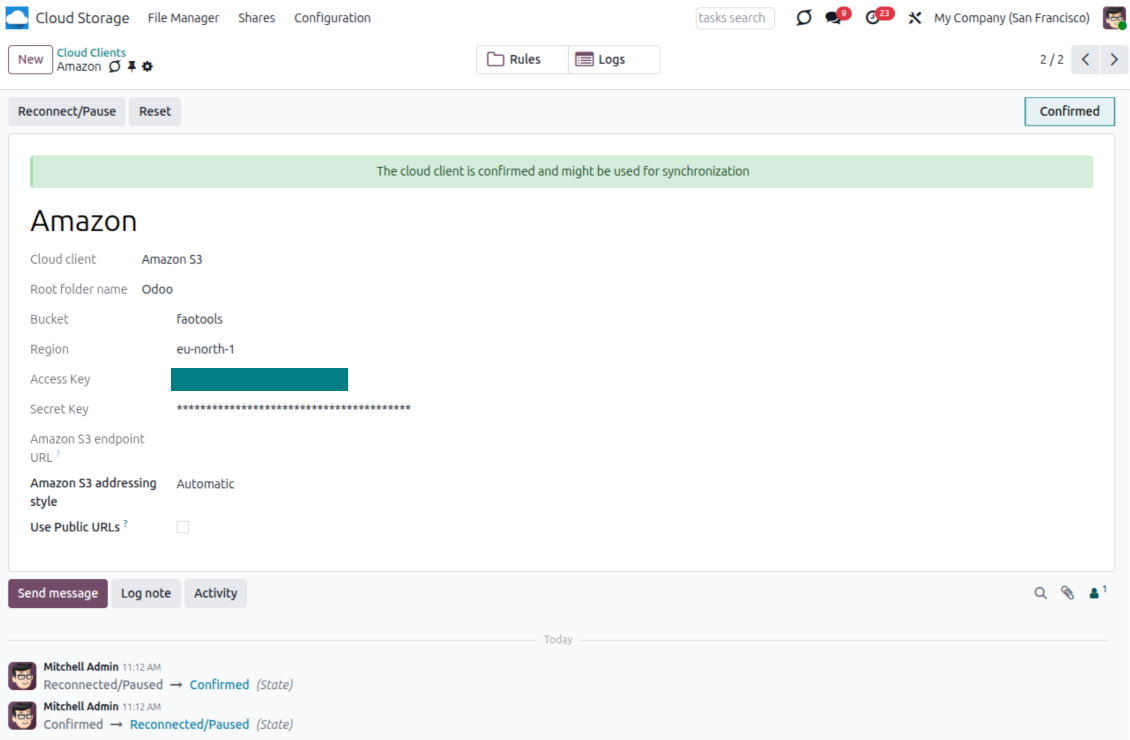
- Fyll i fälten 'Bucket', 'Region', 'Access Key', 'Secret Key' och vid behov 'Amazon S3 endpoint URL' samt adresseringsstil
- Välj om Odoo ska använda tillfälliga förhandssignerade URL:er eller publika bucket-/CDN-URL:er. För privata buckets, behåll förhandssignerade URL:er på och sätt livslängden i sekunder
- Tryck 'Confirm'. Odoo kontrollerar bucketåtkomst och skapar eller verifierar rotmappens prefix. Amazon S3 – Odoo-synkronisering är redo att köras
- Koppla den nyskapade molnklienten till mappregler och/eller manuella mappar som ska synkas till den Amazon S3-bucketen
- Vänta tills det schemalagda synkjobbet startar. Endast för test: starta integrationen manuellt från Cloud Storage > Konfiguration > Konfiguration > knappen 'Launch sync'.
Användbar AWS-dokumentation: skapa en S3-bucket: https://docs.aws.amazon.com/AmazonS3/latest/userguide/creating-bucket.html, hantera IAM-åtkomstnycklar: https://docs.aws.amazon.com/IAM/latest/UserGuide/id_credentials_access-keys.html.
Exempel på bucketpolicy
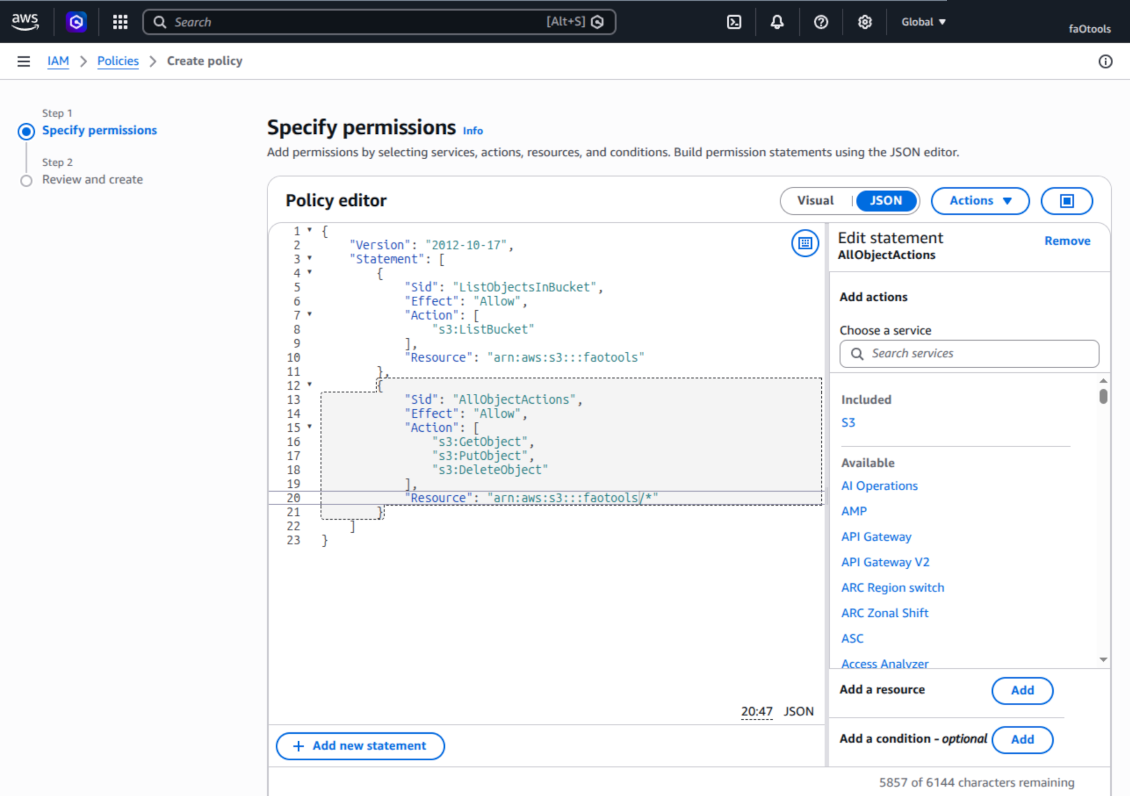
    {
    "Version": "2012-10-17",
    "Statement": [
        {
            "Sid": "ListObjectsInBucket",
            "Effect": "Allow",
            "Action": [
                "s3:ListBucket"
            ],
            "Resource": "arn:aws:s3:::NAME_OF_YOUR_BUCKET"
        },
        {
            "Sid": "AllObjectActions",
            "Effect": "Allow",
            "Action": [
                "s3:GetObject",
                "s3:PutObject",
                "s3:DeleteObject"
            ],
            "Resource": "arn:aws:s3:::NAME_OF_YOUR_BUCKET/*"
        }
    ]
}
Skapa en ny AWS IAM-användare
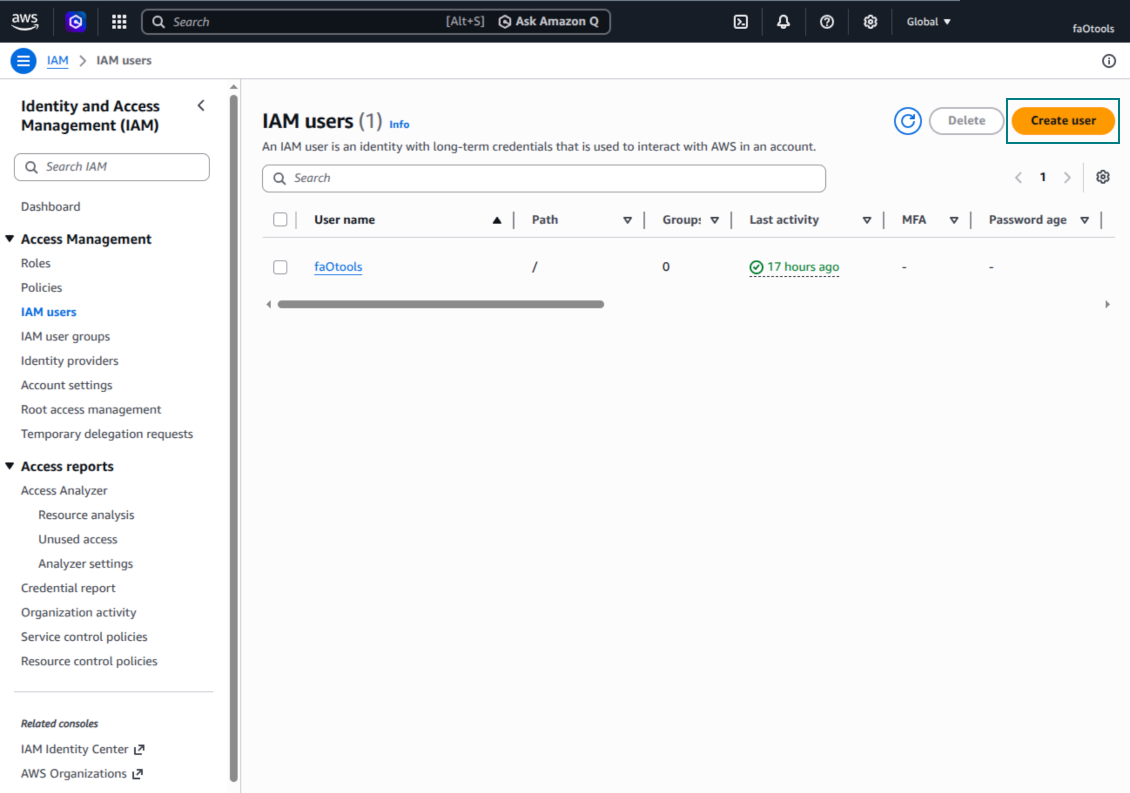
Ange IAM-användarnamnet
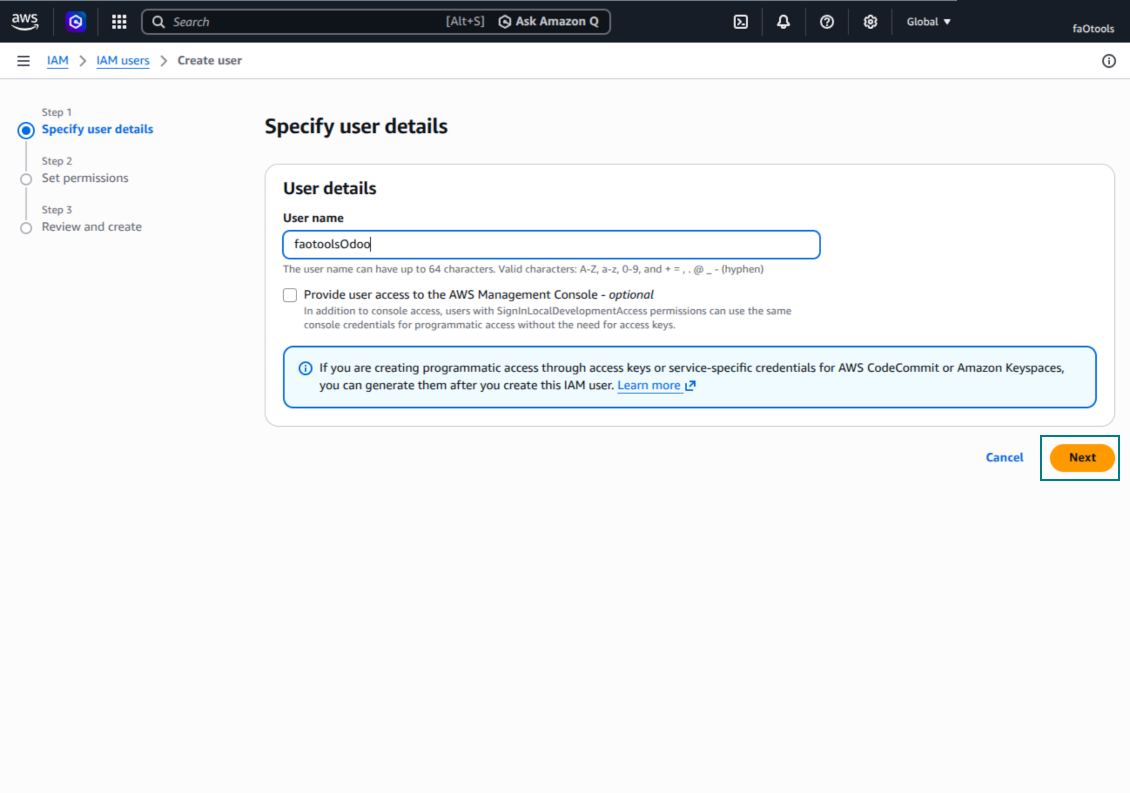
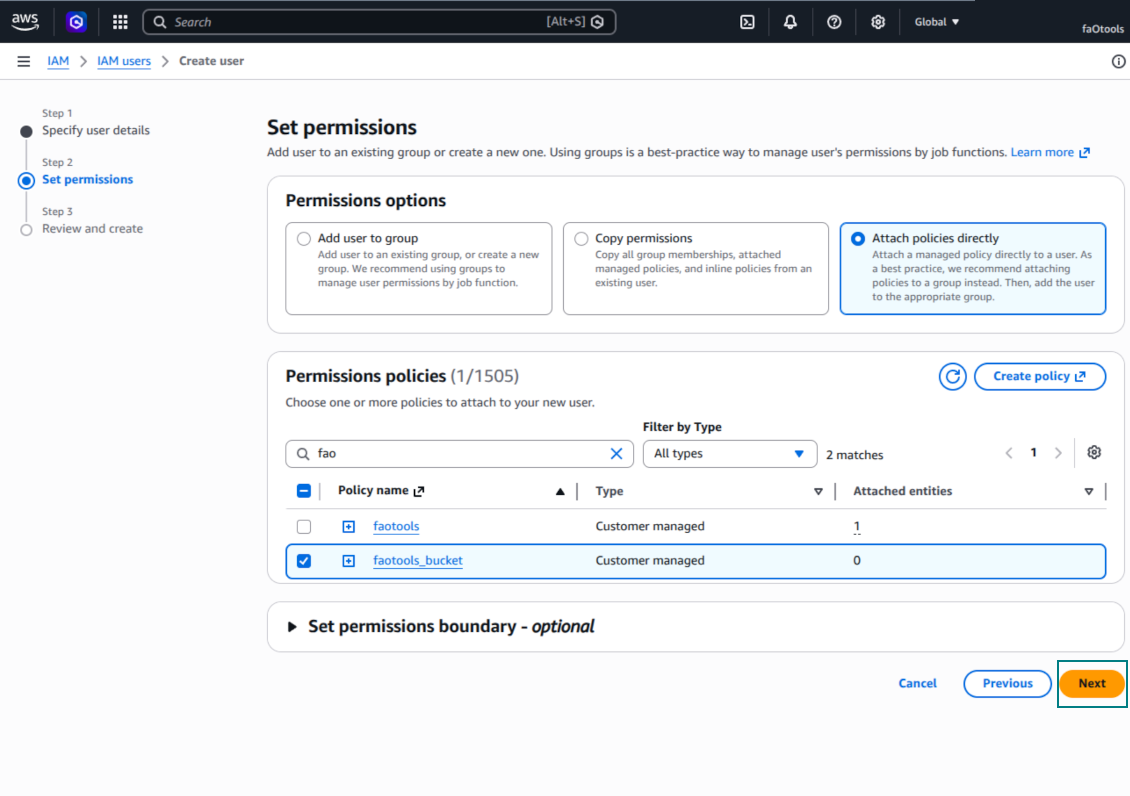
Bifoga behörighetspolicys direkt
JSON-exempel på Amazon S3-bucketpolicy
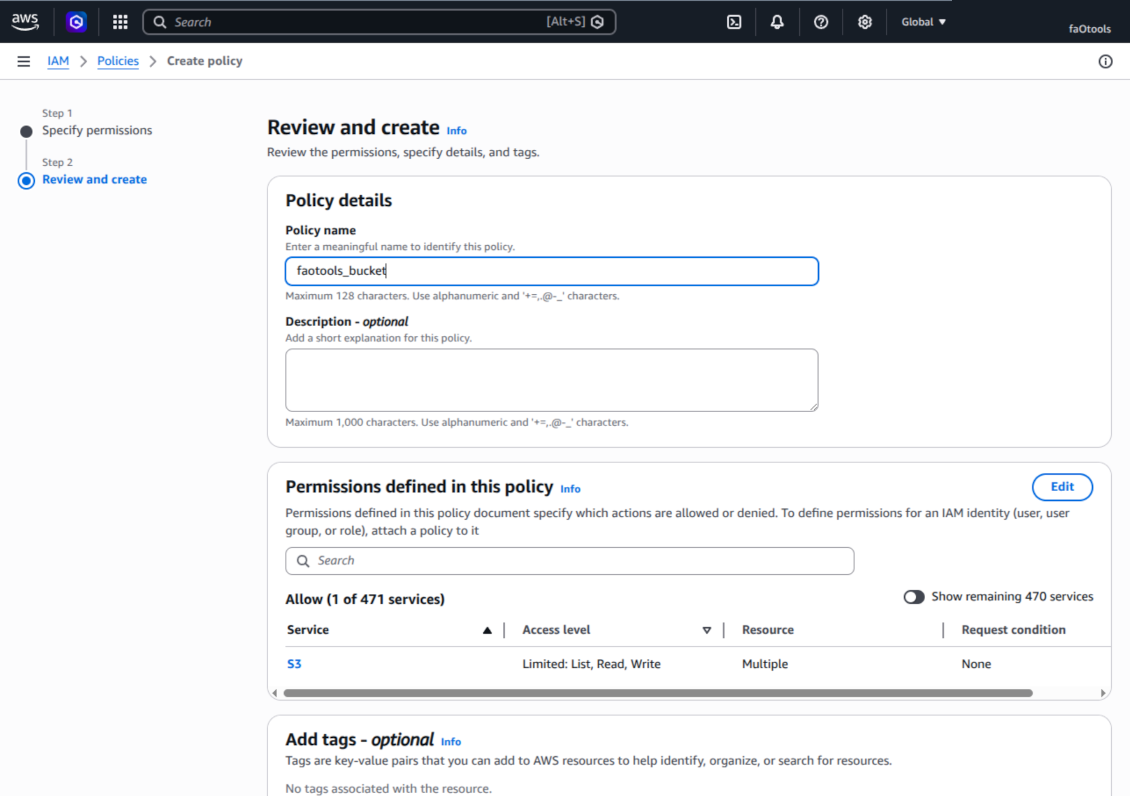
Granska och namnge S3-policyn
Välj bucketpolicyn för användaren
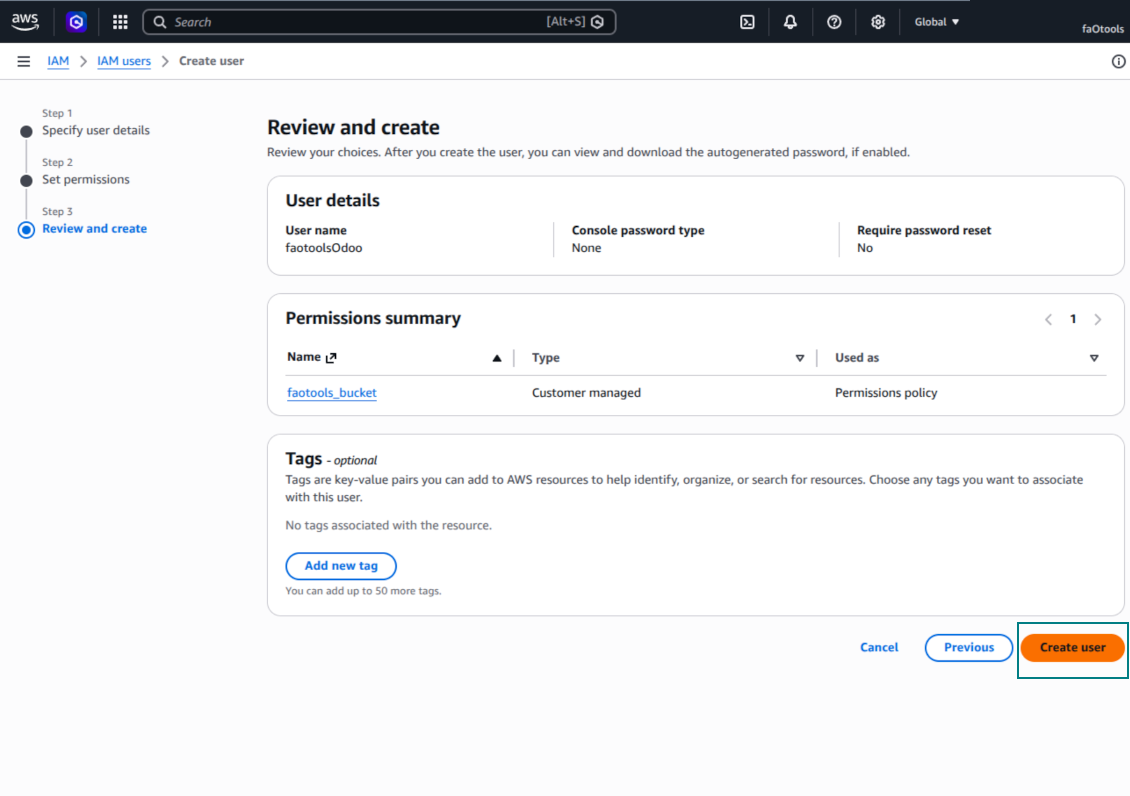
Granska och skapa IAM-användaren
Skapa en åtkomstnyckel för användaren
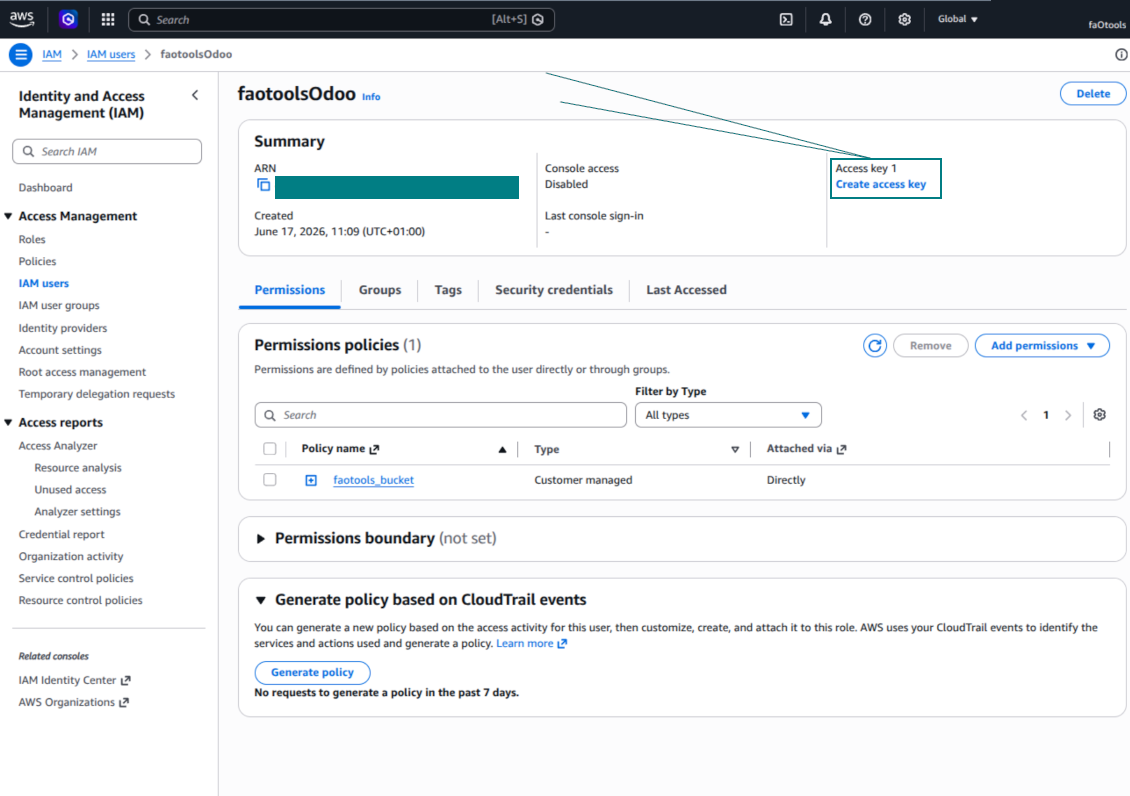
Välj användningsfall för åtkomstnyckeln
Ange åtkomstnyckelns beskrivningstagg
Hämta åtkomstnyckel och hemlighet
Konfigurera Amazon S3-klienten i Odoo
Konfigurera Nextcloud- och/eller ownCloud-integration
Konfiguration och inloggning
- Slå på alternativet 'onwCloud / Nextcloud Sync' (cloud Storage > Configuration > Configuration). Det valfria tillägget ownCloud / Nextcloud Odoo Integration krävs
- Gå till Odoo Cloud Storage > Configuration > Cloud Clients och tryck på 'Create'
- Som referens ange ett namn som är tydligt för alla användare
- Som molnklient väljer du 'Nextcloud' eller 'ownCloud' beroende på vilken programvara du använder
- Som namn på rotmappen anger du en titel som används som överordnad katalog för alla synkroniserade mappar. Till exempel 'Odoo' eller 'OdooERP'
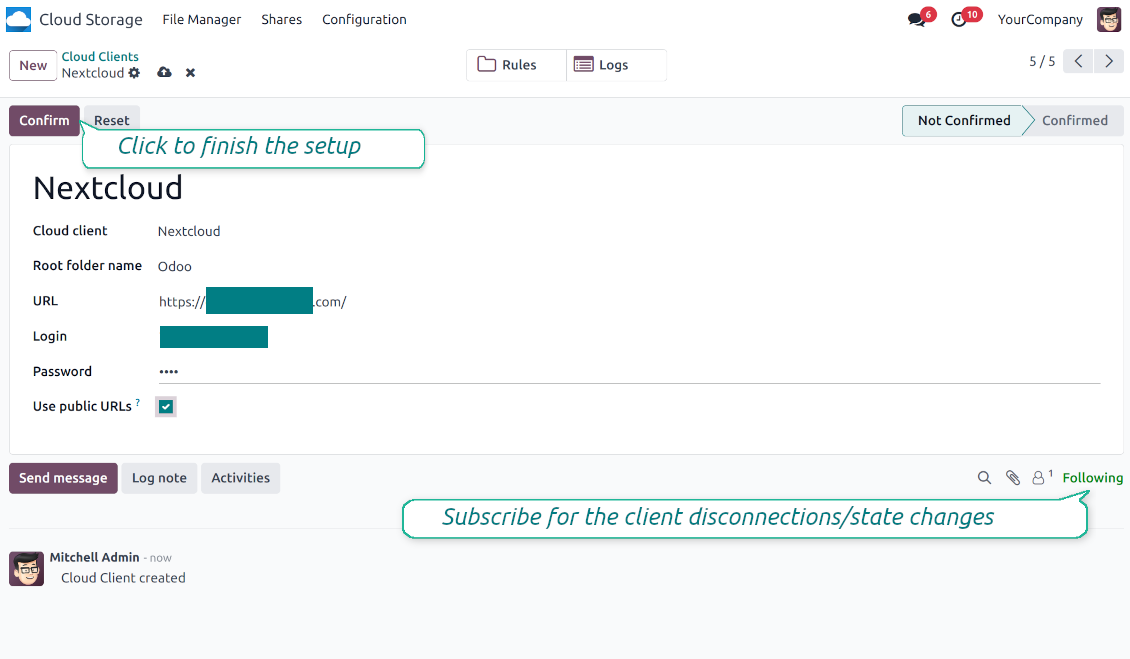
- Ange fullständig ownCloud- / Nextcloud-URL
- Välj en ownCloud- / Nextcloud-användare med fulla rättigheter att läsa, skapa, skriva och radera filer och mappar i rotkatalogen
- Ange den här användarens inloggning och lösenord i fälten 'Login' och 'Password'
- Välj om ni vill använda publika eller interna URL:er (se nedan)
- Tryck 'Confirm'. Odoo-synkronisering är redo
- Koppla den nyligen skapade molnklienten till mappregler och/eller manuella mappar som ska synkroniseras till den Nextcloud- eller ownCloud-instansen
- Vänta tills det schemalagda synkjobbet startar. Endast för test: starta integrationen manuellt från Cloud Storage > Konfiguration > Konfiguration > knappen 'Launch sync'.
Interna och publika URL:er
Som standard är länkar från Odoo till ownCloud / Nextcloud interna: endast behöriga användare får öppna dem. Du kan valfritt göra länkarna publika (inställningen 'Use Public URLs'). Då blir URL:erna 'shared', och vem som helst når objekten via en direktlänk.
Var försiktig med delade (publika) URL:er. Länkarna är svåra att gissa, men de kan läcka via vissa användaråtgärder. Dessutom är generering av delningslänkar inte snabb och kan göra synken långsammare.
Se även konfigurationsvideon
Ange ownCloud- / Nextcloud-uppgifter
Konfigurera NAS (Synology, QNAP, TrueNAS m.fl.)
- Slå på alternativet 'NAS Sync' (Cloud Storage > Configuration > Configuration). Det valfria tillägget NAS Odoo Integration krävs
- Förbered NAS-enhetens WebDAV-slutpunkt:
- Synology: installera och aktivera WebDAV Server i DSM och välj HTTPS när det är möjligt
- QNAP: aktivera WebDAV för den delade målmappen och använd HTTPS när det är möjligt
- TrueNAS CORE: aktivera WebDAV-tjänsten; TrueNAS SCALE: installera och konfigurera WebDAV-appen, eftersom inbyggd WebDAV har tagits bort i moderna SCALE-utgåvor
- Generisk WebDAV: se till att PROPFIND, MKCOL, PUT, GET, MOVE och DELETE är tillgängliga
- Om Odoo körs utanför det lokala NAS-nätet ska WebDAV-slutpunkten göras säkert nåbar. Föredra en omvänd proxy med giltigt TLS-certifikat, ett VPN eller en säker tunnel som WireGuard, Tailscale eller Cloudflare Tunnel, eller ett leverantörsrelä som Synology QuickConnect eller QNAP myQNAPcloud. Exponera inte ett administratörsgränssnitt mot Internet
- Skapa en dedikerad NAS-användare med fulla rättigheter bara i den delade målmappen: läsa, skapa, skriva, flytta och radera. Använd inte ett administratörskonto
- Gå till Odoo Cloud Storage > Konfiguration > Cloud Clients och tryck 'Create'
- Som referens anger du ett namn som är tydligt för alla användare
- Som molnklient väljer du 'Synology NAS', 'QNAP NAS', 'TrueNAS' eller 'WebDAV NAS'
- Som namn på rotmappen anger du en titel som används som överordnad NAS-katalog för alla synkroniserade mappar. Till exempel 'Odoo' eller 'OdooERP'
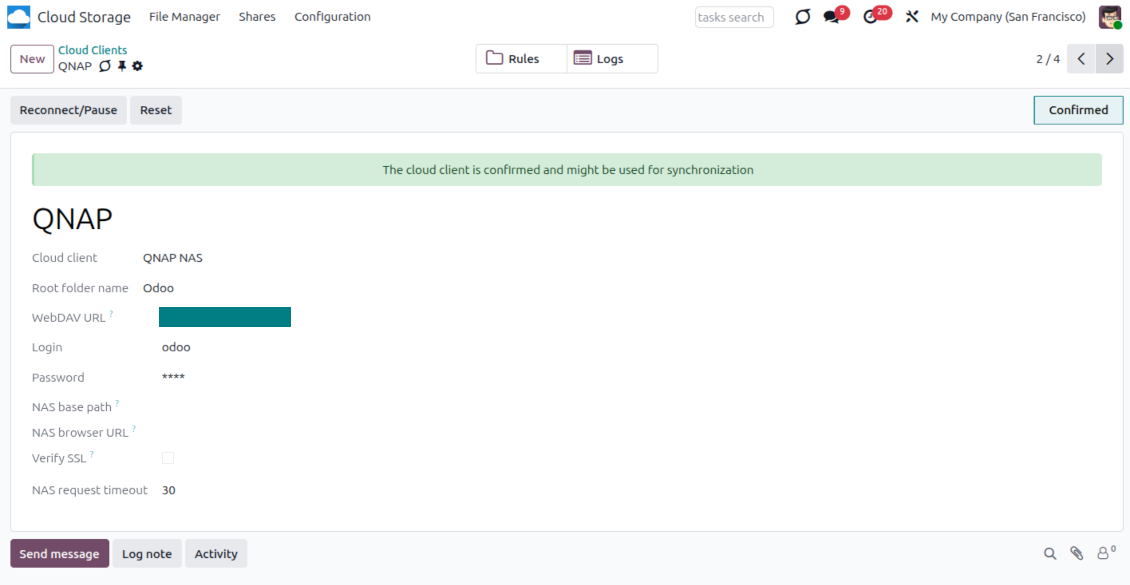
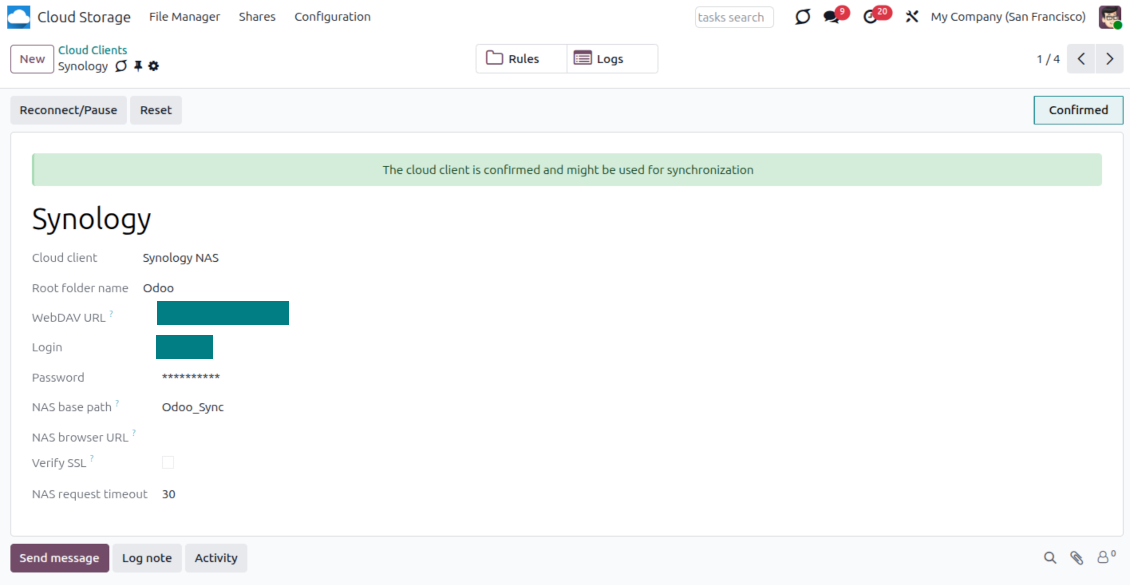
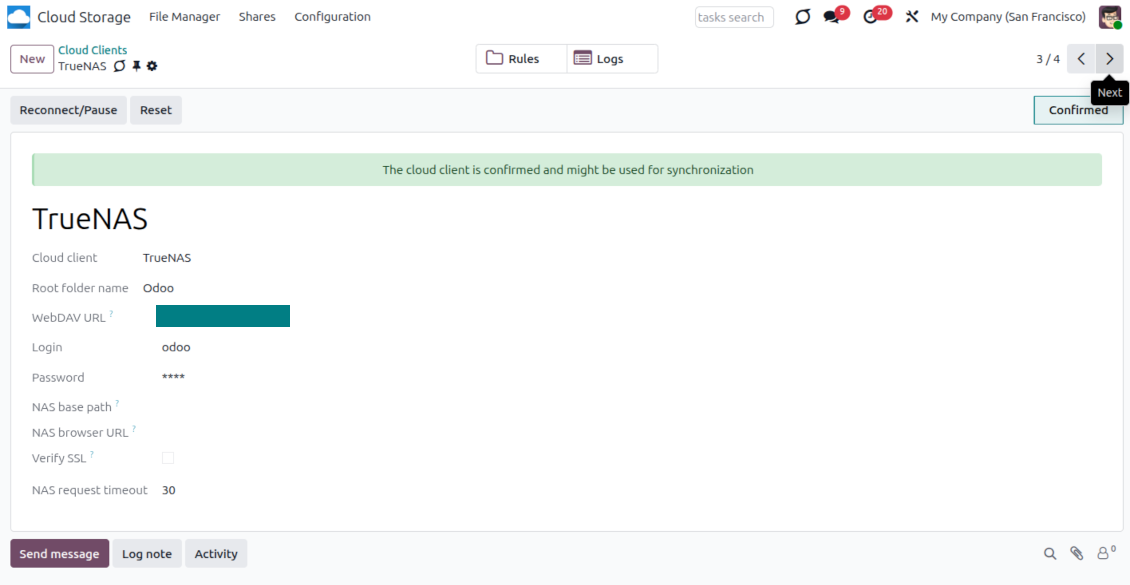
- Ange den fullständiga WebDAV-URL:en, inloggning och lösenord. Definiera valfritt en bassökväg om Odoo ska skapa rotmappen i en befintlig resurs eller katalog
- Låt 'Verify SSL' vara aktiverat för publika HTTPS-slutpunkter. Inaktivera det bara för en betrodd privat slutpunkt med självsignerat certifikat
- Definiera valfritt en webbläsarbas-URL om NAS-filer ska öppnas via tillverkarens File Station-URL i stället för den rena WebDAV-URL:en
- Tryck på 'Confirm'. Odoo kontrollerar WebDAV-anslutningen och skapar eller hittar rotkatalogen. NAS - Odoo-synkroniseringen är redo att köras
- Koppla den nyligen skapade molnklienten till mappregler och/eller manuella mappar som ska synkroniseras till den NAS-lagringen
- Vänta tills det schemalagda synkjobbet startar. Endast för test: starta integrationen manuellt från Cloud Storage > Konfiguration > Konfiguration > knappen 'Launch sync'.
NAS-förkonfiguration
NAS-system exponerar vanligtvis filer via ett lokalt nät. Om er Odoo-server körs utanför det nätet måste WebDAV- slutpunkten nås från Odoo via en säker kanal. Rekommenderade alternativ är en omvänd proxy med giltigt HTTPS- certifikat, ett VPN eller en säker tunnel som WireGuard, Tailscale eller Cloudflare Tunnel, eller ett leverantörsrelä som Synology QuickConnect eller QNAP myQNAPcloud. Enkel portvidarebefordran är möjlig men bör ses som det minst önskvärda alternativet.
Använd en dedikerad NAS-användare med de minsta nödvändiga rättigheterna till en delad mapp: läsa, skapa, uppdatera, flytta och radera. Undvik administratörskonton. Publikt exponerade slutpunkter ska alltid använda HTTPS och ett giltigt TLS-certifikat. Anslutaren har alternativet "Verify SSL" för betrodda självsignerade certifikat, men det bör normalt förbli aktiverat.
Ange QNAP-uppgifter
Ange Synology-uppgifter
Ange TrueNAS-uppgifter
Konfigurera Box
- Slå på alternativet 'Box Sync' (cloud Storage > Configuration > Configuration). Det valfria tillägget Box Odoo Integration krävs
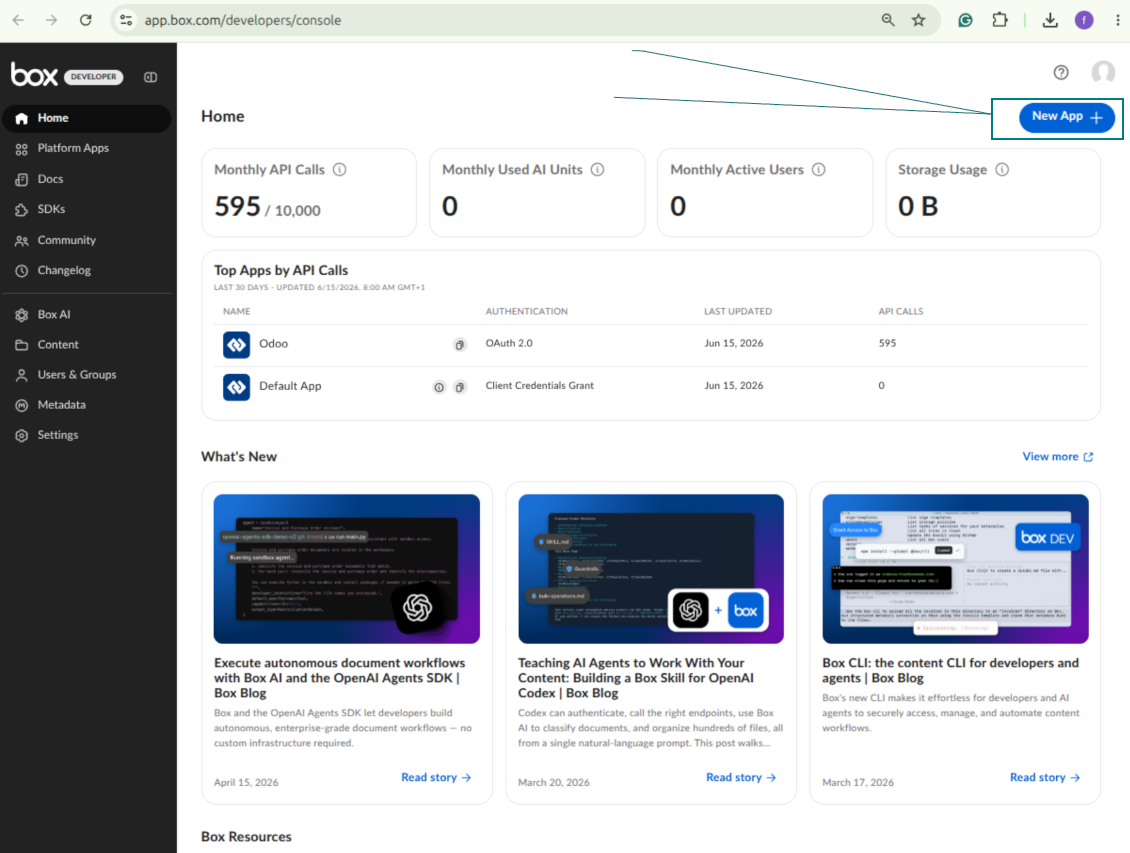
- Skapa eller öppna ett Box-utvecklarkonto och gå till Box Developer Console: https://app.box.com/developers/console
- Skapa en Custom App och välj OAuth 2.0 (Authorization Code Grant) som autentiseringsmetod
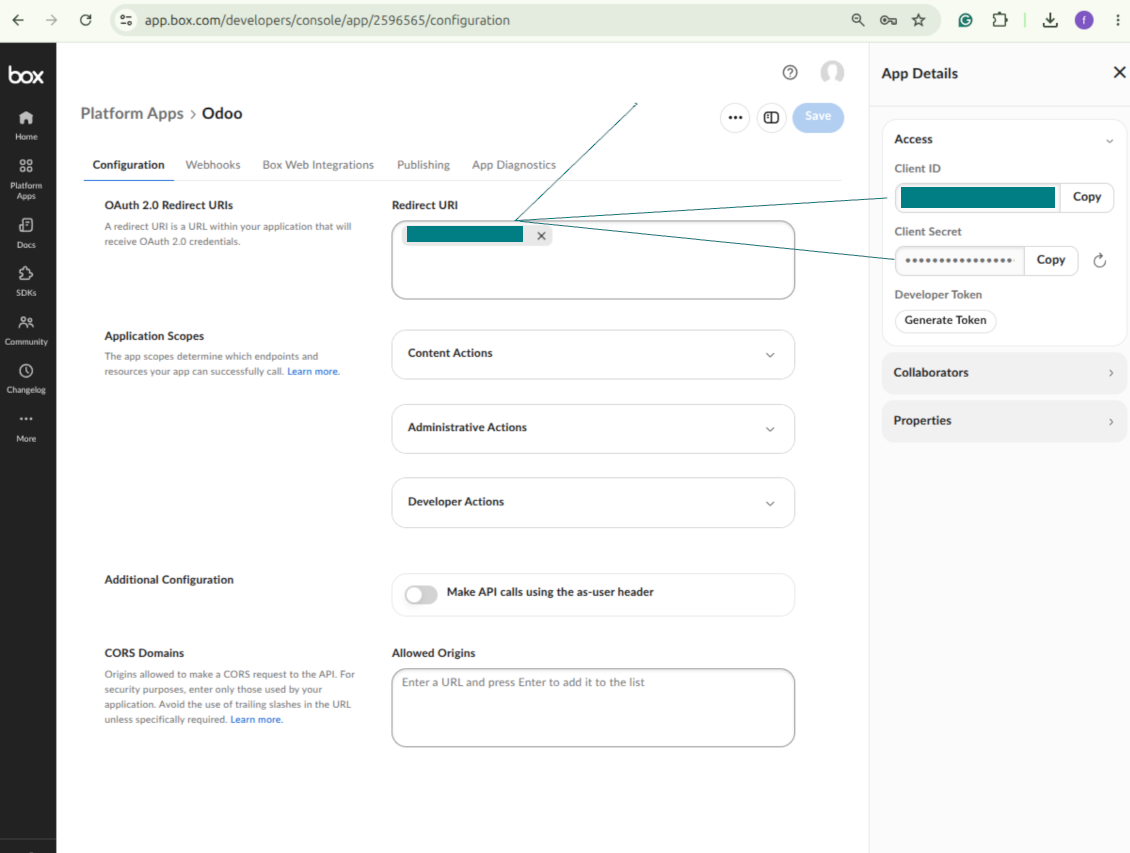
- Lägg till omdirigerings-URI som [YOURODOOSITENAME]/box_token (t.ex. https://faotools.com/box_token). Ett giltigt SSL-certifikat (https) krävs
- Ge appen åtkomst att läsa och skriva filer och mappar. Undvik orelaterade behörigheter
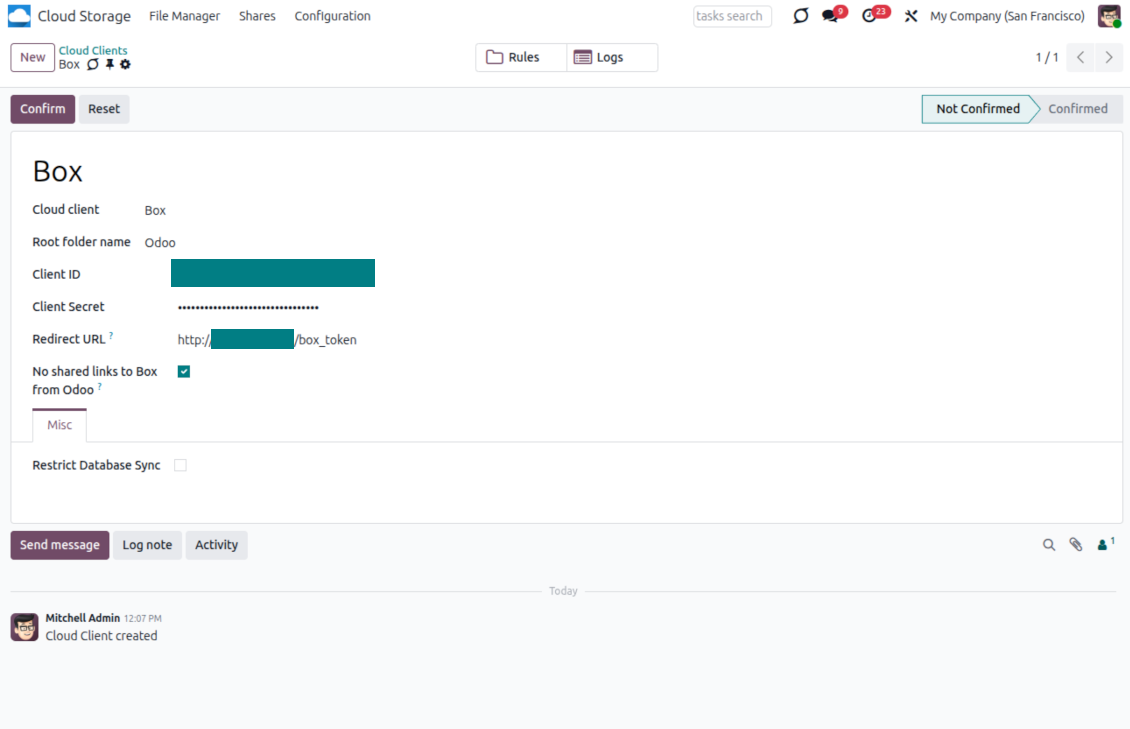
- Gå till Odoo Cloud Storage > Konfiguration > Cloud Clients och tryck 'Create'
- Som referens anger du ett namn som är tydligt för alla användare
- Som molnklient väljer du 'Box'
- Som namn på rotmappen anger du en titel som används som överordnad Box-katalog för alla synkade mappar. Till exempel 'Odoo' eller 'OdooERP'
- Kopiera Box Client ID till fältet 'Client ID'
- Kopiera Box Client Secret till fältet 'Client Secret'
- Ange den tidigare genererade redirect-URL:en
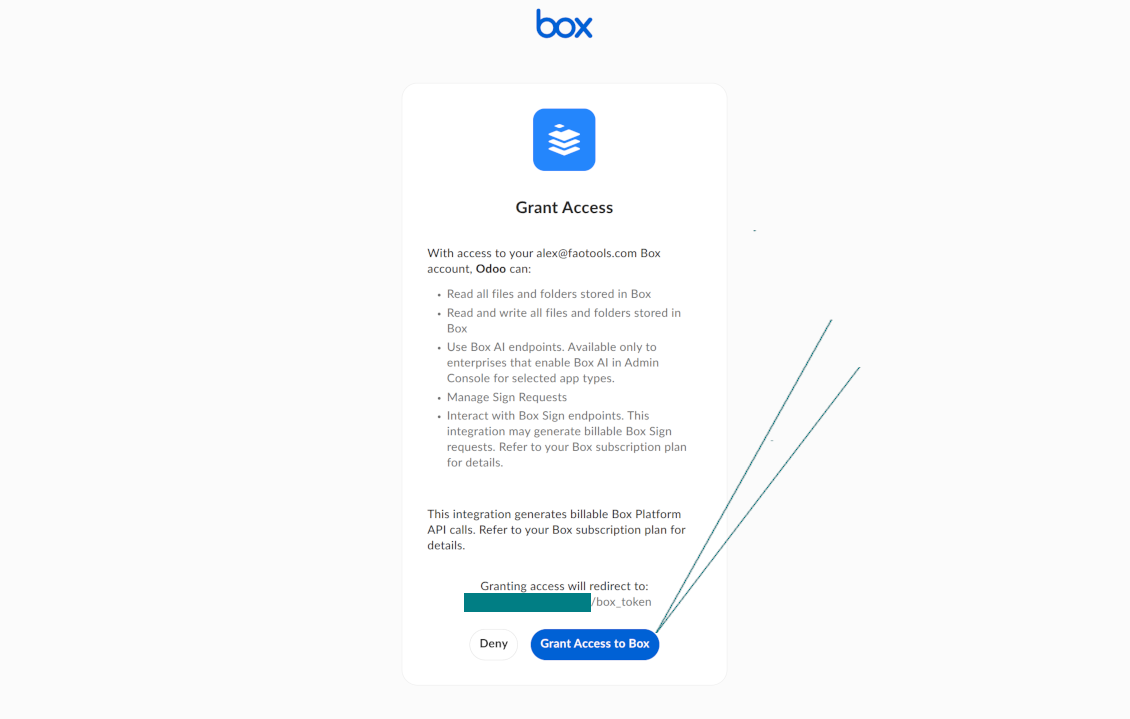
- Tryck 'Confirm'. Odoo omdirigerar till Box inloggning. Kontrollera i systemet, godkänn villkoren och ge alla begärda behörigheter
- Efter inloggning omdirigerar Box tillbaka till Odoo. Box - Odoo-synkronisering är redo
- Tillämpa den nyskapade molnklienten på mappregler och/eller manuella mappar som ska synkas till det Box-kontot
- Vänta tills det schemalagda synkjobbet startar. Endast för test: starta integrationen manuellt från Cloud Storage > Konfiguration > Konfiguration > knappen 'Launch sync'.
Skapa en ny Box-utvecklarapp
Kopiera Box OAuth-uppgifter
Konfigurera Box cloud client i Odoo
Ge Odoo åtkomst till Box
Konfigurera MinIO
- Förbered en körande MinIO-server
- Öppna MinIO Console
- Skapa en ny bucket eller välj en befintlig. Kopiera det exakta bucketnamnet: det ska anges i Odoo-fältet 'Bucket'
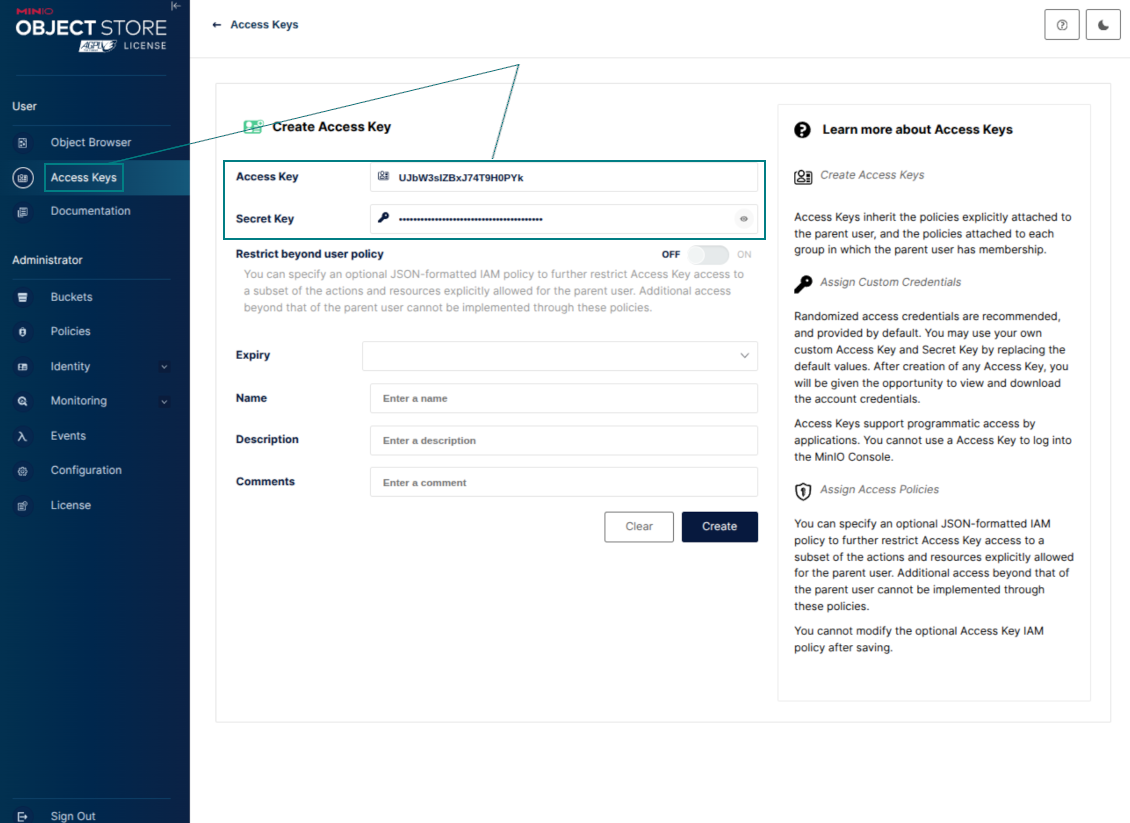
- Skapa åtkomstuppgifter för Odoo. I MinIO använder du ett access key / secret key-par eller ett tjänstkonto med rätt att lista, läsa, skapa, skriva, kopiera och ta bort objekt i den valda bucketen
- Kopiera MinIO Access Key till Odoo-fältet 'Access Key'
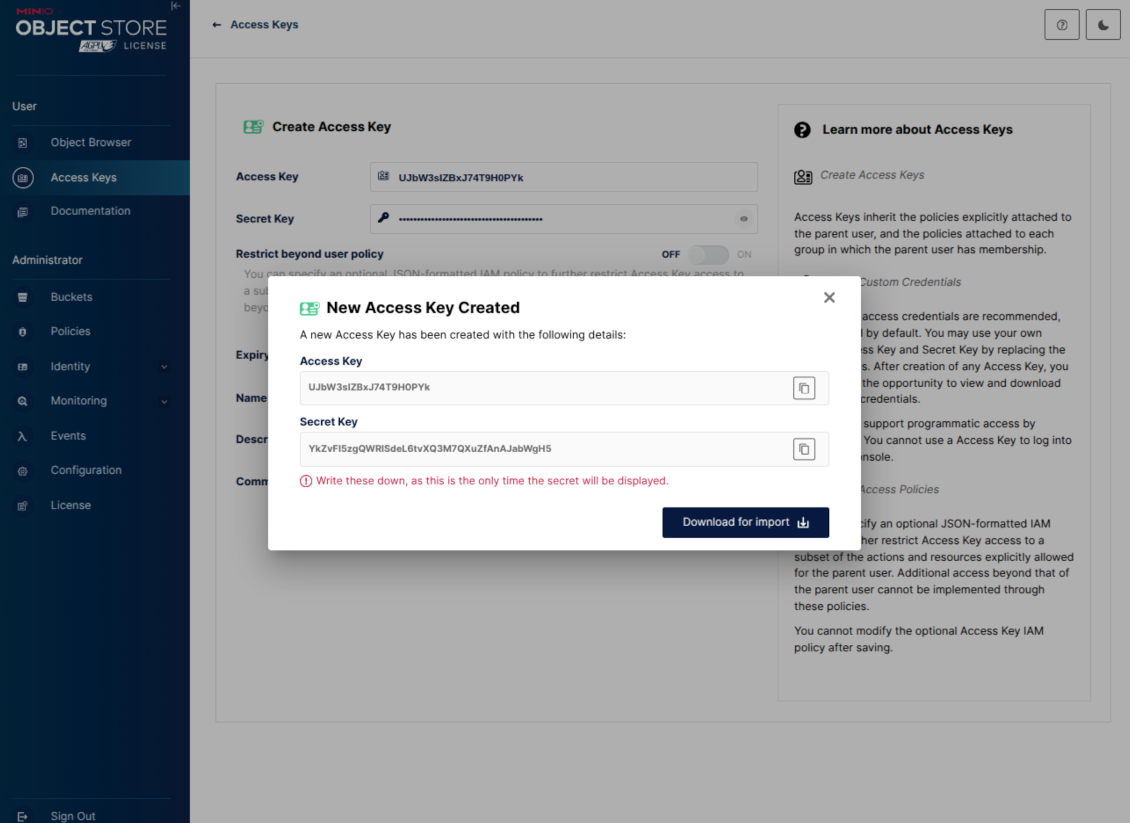
- Kopiera MinIO-Secret Key till Odoo-fältet 'Secret Key'. Viktigt: spara hemligheten innan du stänger MinIO-sidan om MinIO visar den bara en gång
- Kopiera MinIO S3 API-slutpunktens URL till Odoo-fältet 'Amazon S3 endpoint URL'. En lokal server använder till exempel oftast http://localhost:9000, medan en produktionsserver kan använda https://minio.example.com
- Gå till Odoo Cloud Storage > Konfiguration > Cloud Clients och tryck 'Create'
- Som referens anger du ett namn som är tydligt för alla användare
- Som molnklient väljer du 'MinIO'
- Som namn på rotmappen anger du en titel som används som överordnat MinIO-objektprefix för alla synkade mappar. Till exempel 'Odoo' eller 'OdooERP'
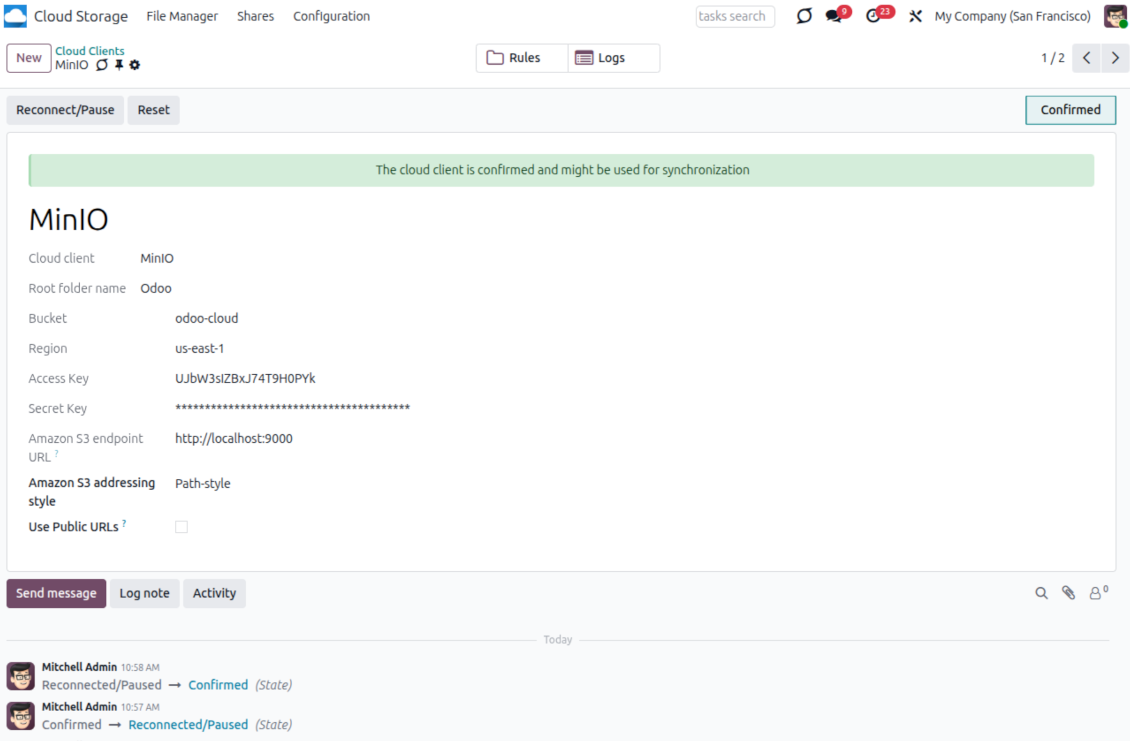
- Fyll i fälten 'Bucket', 'Access Key', 'Secret Key' och 'Amazon S3 endpoint URL'. Fältet 'Region' är valfritt för MinIO; om det är tomt använder Odoo us-east-1 för S3-kompatibel signering
- Behåll adresseringen som Path-style. Det är det rekommenderade valet för MinIO-slutpunkter, särskilt när MinIO-värden inte tillhandahåller bucket-specifika DNS-namn
- Välj om Odoo ska använda direkta publika MinIO-URL:er. Aktivera 'Use Public URLs' bara när bucket, prefix, reverse proxy eller CDN är publikt läsbar. För privata MinIO-buckets lämnar du det avstängt
- Tryck på 'Confirm'. Odoo kontrollerar bucketåtkomsten och skapar eller verifierar rotmappens prefix. Synkroniseringen MinIO - Odoo är redo att köras
- Tillämpa den nyskapade molnklienten på mappregler och/eller manuella mappar som ska synkas till den MinIO-bucketen
- Vänta tills det schemalagda synkjobbet startar. Endast för test: starta integrationen manuellt från Cloud Storage > Konfiguration > Konfiguration > knappen 'Launch sync'.
Useful MinIO documentation: https://min.io/docs/minio/linux/administration/identity-access-management.html, https://min.io/docs/minio/linux/reference/minio-server/minio-server.html.
Skapa en MinIO-åtkomstnyckel
Kopiera de nya MinIO-uppgifterna
Konfigurera MinIO cloud client i Odoo
Konfigurera Dropbox-integration
Python-beroende
Verktyget beror på det externa biblioteket 'dropbox'. Installera det för Odoo-servern med kommandot:
pip3 install dropbox
Konfiguration och inloggning
- Slå på alternativet 'Dropbox Sync' (cloud Storage > Configuration > Configuration). Det valfria tillägget Dropbox Odoo Integration krävs
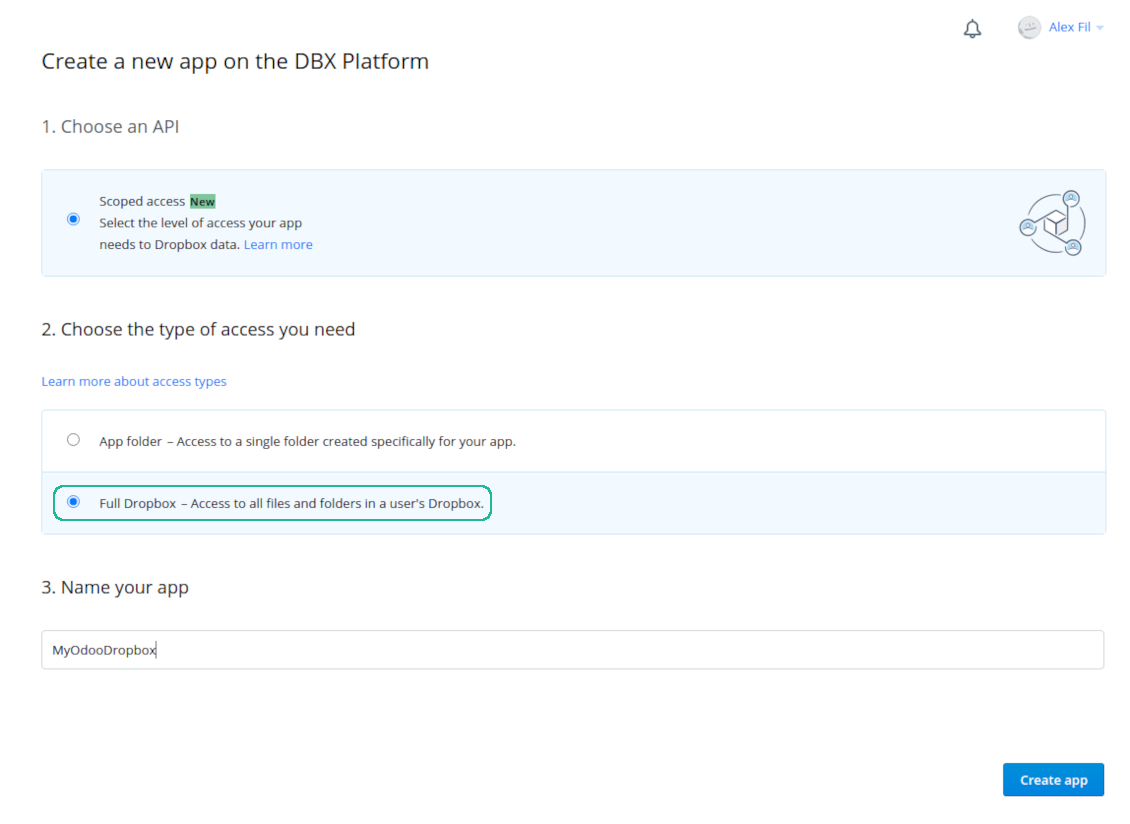
- Follow the URL https://www.dropbox.com/developers/apps/create
- Välj en API som 'Scoped access'
- Välj åtkomsttyp 'Full Dropbox'
- Välj ett lämpligt namn för appen och tryck på knappen 'Create app'
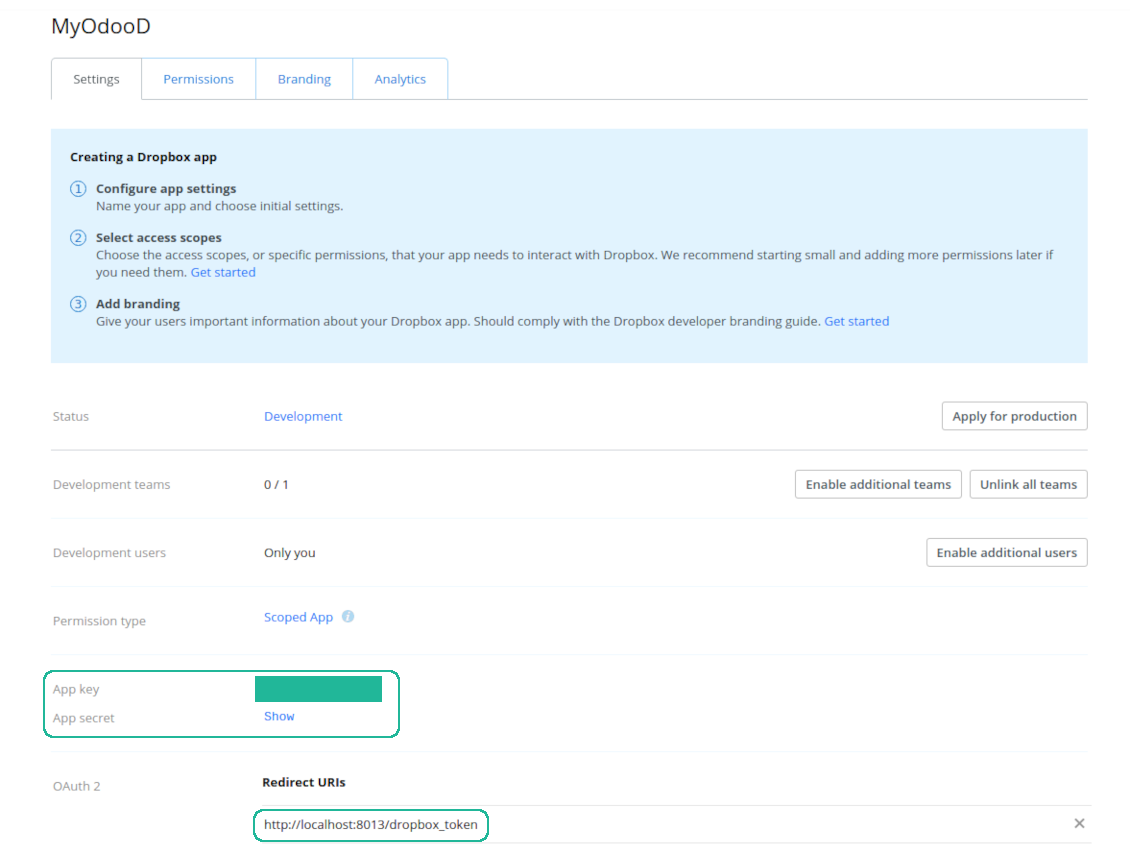
- Lägg till omdirigerings-URI som [YOURODOOSITENAME]/dropbox_token (t.ex. https://faotools.com/dropbox_token). Ett giltigt SSL-certifikat (https) krävs
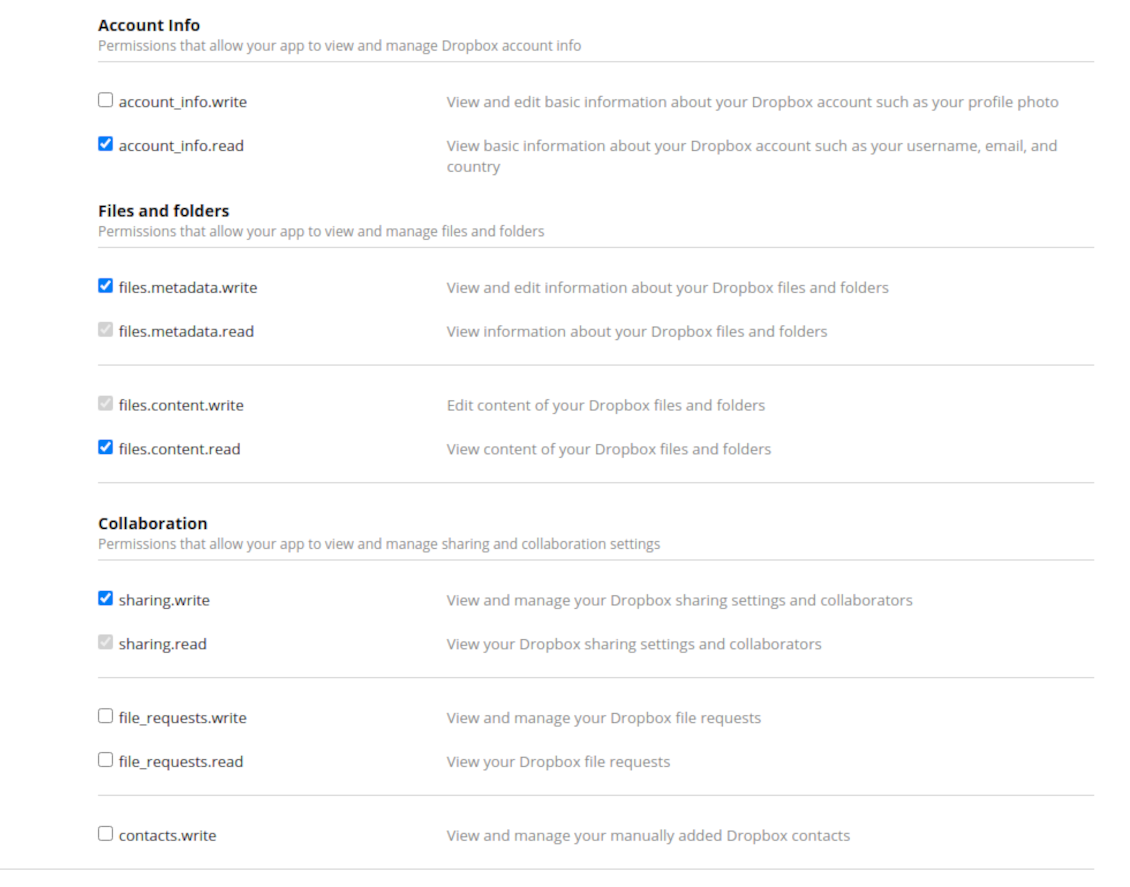
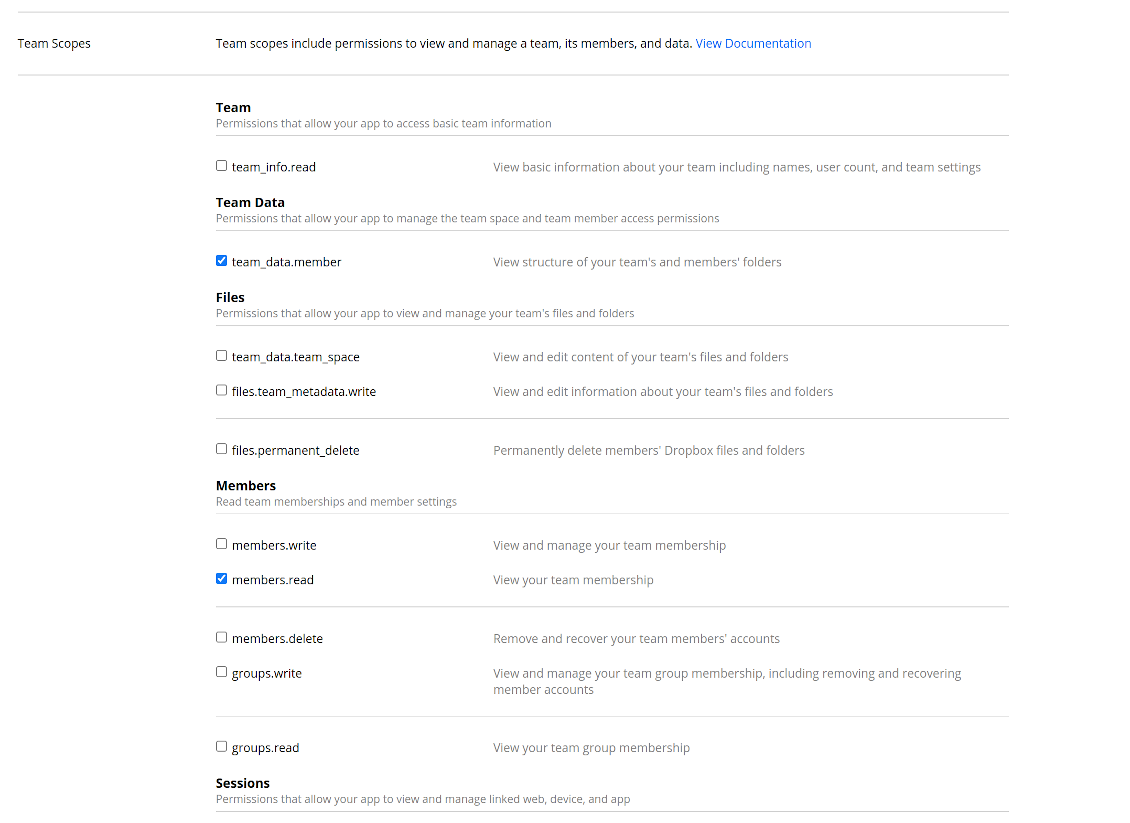
- Ge appen behörigheterna: 'Account Info (Read)', 'Files and folders Metadata (Write)', 'Files Content (Write)', 'Collaboration (Write)'. För team-DropBox tilldela även 'Team Data Members', 'Members (Read)'. Se till att inga andra behörigheter tilldelas.
- Submit App
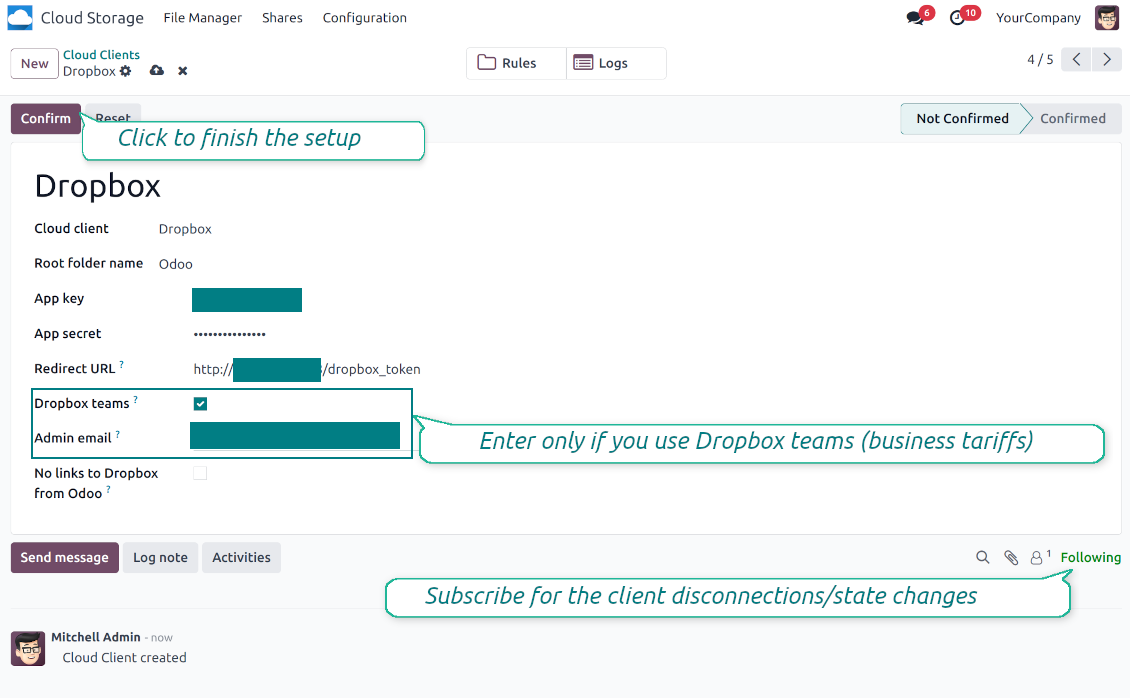
- Gå till Odoo Cloud Storage > Configuration > Cloud Clients och tryck på 'Create'
- Som referens ange ett namn som är tydligt för alla användare
- Som molnklient välj 'Dropbox'
- Som namn på rotmappen anger du en titel som används som överordnad Google Drive-katalog för alla synkade mappar. Till exempel 'Odoo' eller 'OdooERP'
- Kopiera 'App key' till 'App key'
- Kopiera 'App Secret' till fältet 'App secret'
- Ange den tidigare genererade redirect-URL:en
- Om ni använder Dropbox team drives
- Kryssa i rutan
- Ange e-post för Dropbox-användaren. Alla Odoo-relaterade objekt skapas i den användarens mapp och delas först därefter. Under den användaren skapas, ändras, flyttas och raderas alla filer och mappar
- Tryck 'Confirm'. Odoo omdirigerar till Dropbox inloggning. Kontrollera i systemet, godkänn villkoren och ge alla begärda behörigheter
- Efter inloggning omdirigerar Dropbox tillbaka till Odoo. Dropbox - Odoo-synkronisering är redo
- Koppla den nyligen skapade molnklienten till mappregler och/eller manuella mappar som ska synkroniseras till den Dropbox-instansen
- Vänta tills det schemalagda synkjobbet startar. Endast för test: starta integrationen manuellt från Cloud Storage > Konfiguration > Konfiguration > knappen 'Launch sync'.
Dropbox-URL:er
Dropbox genererar länkar på ett särskilt sätt. Det finns inga interna eller privata URL:er. I stället kan varje objekt få så kallade delade URL:er. De är publika eller team-only. Det senare finns bara på Dropbox business-konto.
Verktyget bygger på delade länkars mekanik. Varje bilagelänk är antingen publik (alla personliga Dropbox-konton) eller team-only (alla business-konton).
Ibland anses det inte helt säkert. Webb-URL:er är svåra att gissa, men de kan läcka via användaråtgärder. Dessutom är generering av delningslänkar inte supersnabb och kan göra synken långsammare. Därför finns funktionen att stänga av delnings-URL:er.
If checked, all Dropbox URLs in Odoo will be of type https://www.dropbox.com/home/Odoo/[PATH]. Such links will not work in many cases. Thus, if you need to open Dropbox files/folders from Odoo, be careful with the setting 'No links to Dropbox from Odoo'.
Se även konfigurationsvideon
Skapa Dropbox-app
Konfigurera Dropbox-appen: redirect-URL
Dropbox-behörigheter för personliga konton
Dropbox-behörigheter för business-konton
Konfigurera Odoo för Dropbox-integration
Vanliga frågor om Cloud Storage Solutions Odoo v.18
Var lagras synkade filer? Dupliceras de till Odoo och molnen?
Appen utgår från att bilagornas binära innehåll ligger i Cloud Client i stället för på Odoo-servern. Sådana bilagor blir därför av typen URL i Odoo, och du kan när som helst nå dem antingen från bilagefältet eller från Cloud Client.
Efter installationen krävs inga manuella åtgärder, eftersom synkroniseringen är helt automatisk. Bestäm bara vilka Odoo-dokumenttyper som ska synkas och sätt upp en relaterad modell att synka för var och en (kunder, försäljnings- eller inköpsorder, uppgifter, projekt osv.).
Kan jag ha flera mappar för samma dokumenttyp? Till exempel interna projekt och kundprojekt?
Ja, det går. Skapa en regel för varje och applicera filter: till exempel efter projekttyp.
Gör filtren ömsesidigt uteslutande så att ett dokument kan tilldelas entydigt. Till exempel: «kund men inte leverantör», «leverantör men inte kund». Annars hoppar dokumentmappen från en modell till en annan.
Går det att göra synkroniseringen i realtid?
Nej. Vi har starka skäl att undvika realtidssynk:
Prestanda. Vid realtidssynk ger varje filuppladdning en laddningsskärm.
Konflikter. Om 2 användare ändrar ett objekt samtidigt kan det bli olösligt. Med vanliga jobb kan vi rätta efteråt; i realtid behövs en kö, ännu mer vilseledande.
Funktion. Särskilt namnbyte och omstrukturering. Bakåtsynken bygger strikt på kataloglogiken och vid varje synk kontrolleras 100 % av objekten. Efter varje uppdatering skulle det bli tusentals anrop per sekund. Annars går ändringar förlorade.
Kan jag ändra standardnamnen på mappar i molnen?
Du kan ge modellkatalogerna (säljordrar, möjligheter, leverantörer osv.) ett eget namn för varje dokumenttyp.
För objektmappar (SO-001, John Smith osv.) använder verktyget Odoos metod för visningsnamn. Du kan ändra det med ett namnuttryck. Syntaxen är densamma som i Odoos e-postmallar.
Kan jag ändra frekvensen för synkroniseringsjobb?
Nej, från och med version 15 ska du inte ändra schemalagda jobb. De är optimerade att köras var 15:e minut för att ge den mest stabila och snabba anslutningen.
Se till att Odoo-serverns timeouts är minst 15 minuter (900 sekunder).
Om du behöver stoppa synkroniseringen ett tag gör du det på formuläret för den aktuella molnklienten.
Kan jag synka bilagor till flera molnklienter
Ja, från version 15 kan du sätta upp flera anslutningar. Då kan vissa mappar synkas till en molnklient och andra till en annan.
Observera att det inte går att synka samma mapp till flera molnlagringar samtidigt.
Vi använder en särskild redigerare i våra moln (t.ex. OnlyOffice, Office 365 osv.). Skulle filerna öppnas i den redigeraren?
Ja, beroende på din molnklients konfiguration.
Behöver jag bara appen Cloud Storage Solution?
Från version 15 kan appen användas fristående för att strukturera bilagor i mappar och ge ett filhanterargränssnitt.
Om målet är anslutning till någon av molnklienterna måste minst en valfri klientapp installeras.
Vad händer när jag ändrar en mappregel?
När en mappregel ändras ändras också listan över mappar. Matchar en mapp inte längre villkoren tas den bort. Har filerna synkats återför bakåtsynken dem till Odoo och tar bort dem från Cloud Client.
Matchar dokumentobjektet inte en mappregel skapas ingen mapp. Matchar det senare skapas den relaterade mappen.
Kan jag behålla bara den direkta synkroniseringen eller stänga av synkroniseringen från molnet?
Ja. Öppna sidan Inställningar på molnklienten och slå på Stäng av synkroniseringen från molnet.
Synkroniseringen förblir enkelriktad. Ändringar som görs i Odoo skickas fortfarande till molnlagringen. Filer och mappar som skapas, byter namn eller tas bort i molnlagringen visas inte i Odoo, och mappar som tas bort där återställs inte.
Stäng av alternativet igen för att tillämpa de samlade ändringarna, inklusive borttagningar, vid nästa synkronisering.
Inställningen finns från version 18. Att koppla loss, återställa eller inaktivera klienten kör fortfarande den omvända synkroniseringen, om du inte stänger av den också.
Vilka uppdateringsregler gäller for era verktyg?
Enligt de aktuella reglerna for Odoo Apps Store:
- Varje modul kop for version 12.0 eller tidigare ger tillgang till alla versioner upp till 12.0.
- Från och med version 13.0 måste varje modulversion kopas separat.
- Oavsett version ger kopet rätt till alla uppdateringar och felrättningar inom en huvudversion.
faOtools-teamet styr inte dessa regler. Vid frågor, kontakta representanterna for Odoo Apps Store direkt.
Hur installerar jag er app pa Odoo.sh?
Det mest direkta sättet ar Odoo-butikens inbyggda flöde:
1. Öppna modulens sida och klicka pa Deploy on odoo.sh
2. Du omdirigeras till GitHub. Logga in och klicka pa Create a new repo eller använd ett befintligt. Repot måste vara privat. Appar under OPL-1 far inte publiceras. Skapa vid behov ett nytt repo for Odoo.sh-projektet
3. Ga sedan till odoo.sh, klicka pa Deploy, bekräfta och klicka pa Continue. Installationen startar.
Stegen installerar appen pa production-grenen. For andra grenar eller uppdatering:
1. Ladda ner kallkoden från Odoo-butiken
2. Committa modulen till GitHub-repot. Ingen app-mapp/fil far sta i .gitignore. Repon som odoo.sh skapar kan ignorera viktiga sokvagar (t.ex. /lib). Ladda upp alla modulmappar och filer
3. Deploya malgrenen i odoo.sh-projektet eller vänta pa den automatiska builden om inställningarna anger det.
Hur installerar jag er app pa min egen server?
2. Starta om Odoo-servern;
3. Sla pa utvecklarlaget (tekniska inställningar);
4. Uppdatera applistan (Appar-menyn);
5. Hitta appen och klicka pa Activate/Install;
6. Följ anvisningarna pa appsidan om det finns någon.
Er app har extra tillägg. Kan jag kopa dem senare?
Ja. Odoo lägger automatiskt alla beroenden i varukorgen: uteslut redan kopta verktyg sa att du inte betalar tva gånger.
Jag deployade er app pa Odoo.sh och ser en varning/ett fel i testerna
En rod/orange varning påverkar inte appens funktioner. Ibland klarar vara moduler inte de vanliga automatiska testerna, eftersom de förväntar ett beteende som strider mot appens mal. Vi ändrar till exempel prisberakningen, medan Odoo-testerna jämför slutpriset med standardalgoritmen.
Kontrollera först funktionerna i den deployade databasen. Fungerar allt?
Om du ändå tror att varningen påverkar verkliga funktioner, kontakta oss och skicka de fullständiga installationsloggarna och den fullständiga listan över deployade moduler (karn och tredje part).
Kan jag kopa er app direkt av er?
Nej, vi distribuerar verktygen endast via den officiella Odoo-appbutiken.
Jag vill ha rabatt
Tyvärr har vi inte tekniska möjligheter att erbjuda individuella priser.
Kan jag installera appen pa min Odoo Online (SaaS)-databas?
Nej, tredjepartsappar kan inte användas pa Odoo Online. Odoo SaaS blockerar den möjligheten.
Ert verktyg beror pa andra appar. Behöver jag kopa dem?
Ja, verktyget behöver alla moduler som anges som beroenden. Priset pa appsidan inkluderar redan dessa beroenden.
Vad kostar modulen i amerikanska dollar? Varför andrades det?
Priset for vara moduler anges i euro. Odoo-butiken konverterar till andra valutor enligt sin interna vaxelkurs. Därför kan priset i amerikanska dollar andras nar kursen uppdateras.
App- och webbplatsformuleringar på andra språk än engelska är AI-assisterade och anpassade till officiella Odoo-översättningar. Om du upptäcker ett fel, skicka ett ärende om översättningskorrekthet så åtgärdar vi det.
Odoo-demodatabaser (liveförhandsvisningar)
För den här appen kan vi erbjuda en gratis personlig demodatabas.
Du behöver varken telefonnummer eller kreditkort för att kontakta oss. Det räcker med en kort e-postregistrering som tar högst 30 sekunder.
På din begäran förbereder vi en individuell liveförhandsvisningsdatabas där du kan göra tester och kontrollera antaganden i cirka två veckor.
Felrapportering
Om du stöter på fel eller inkonsekvent beteende, kontakta oss. Vi garanterar rättningar inom 60 dagar efter köpet och vill förbättra verktygen även efter det.
Du behöver varken telefonnummer eller kreditkort för att kontakta oss. Det räcker med en kort e-postregistrering som tar högst 30 sekunder.
Ta med så många detaljer som möjligt: skärmbilder, Odoo-serverloggar och en fullständig beskrivning av hur problemet återskapas. Det tar vanligtvis några arbetsdagar att ta fram en arbetsplan (om felet bekräftas) eller riktlinjer (annars).
Offentliga funktionsönskemål och modulidéer (gratis utveckling)
Vi är starkt motiverade att förbättra våra verktyg och tackar för all feedback. Om kraven är av allmänt intresse och kan implementeras effektivt tar teamet med dem i att-göra-listan.
En sådan att göra-lista behandlas regelbundet och innebär inga extraavgifter. Även om vi inte kan lova tidsfrister och slutlig design kan det vara ett bra sätt att få önskade funktioner utan investeringar och risker.
Du behöver varken telefonnummer eller kreditkort för att kontakta oss. Det räcker med en kort e-postregistrering som tar högst 30 sekunder.
18.0.1.4.54
- The issue of the sync queue stopping with a recursion error when a large number of tasks is planned at once has been fixed.
- Tasks of a paused or not connected cloud client now wait for the client instead of being failed and canceled.
18.0.1.4.53
- Funktionen för att stänga av synkroniseringen från molnet för en molnklient har lagts till.
- Funktionen för att stänga av omvänd synkronisering för en molnklient har lagts till.
- Problemet att en synkroniseringskö förblev blockerad efter att dess klient för omvänd synkronisering tagits bort har åtgärdats.
18.0.1.4.52
- The issue of folder lookup failing when the document id was a recordset has been fixed.
18.0.1.4.51
- Optimized folder sync by searching only attachments of updated records instead of all model attachments.
18.0.1.4.50
- The feature to requeue failed tasks has been added.
18.0.1.4.49
- Support for Amazon S3, MinIO S3, Synology, QNAP, TrueNAS, other NAS/WebDAB, and BOX has been added.
18.0.1.4.48
- The feature to control the maximum number of folders per rule has been added.
18.0.1.4.47
- The issue with attachments linked to documents disappearing from the attachment box has been fixed.
18.0.1.4.46
- The issue fix text break in folder titles has been fixed.
18.0.1.4.45
- The issue with the non-synced invoice report has been fixed.
18.0.1.4.44
- Den asynkrona mappkontrollen har optimerats.
18.0.1.4.43
- Problemet med en nyvald mappsökning har åtgärdats.
18.0.1.4.42
- Problemet med det icke uppdaterande mappträdet när du växlar mellan poster har åtgärdats.
18.0.1.4.41
- Problemet med det dubbelklick som krävs för att ta bort valda bilagor har åtgärdats.
18.0.1.4.40
- Kön för borttagning av säkerhetskopior har ändrats till first-in, first-out.
18.0.1.4.39
- Appen är anpassad till den nya domänlogiken för att stödja dynamiska delar.
18.0.1.4.38
- Fillagringsutvärderingen läggs till på konfigurationssidan.
- Funktionen för att begränsa molnklientsynkronisering till ett visst databasnamn har lagts till.
18.0.1.4.37
- Funktionen för att låsa säkerhetskopiering har lagts till.
18.0.1.4.36
- Problemet med oöversatta varningar är åtgärdat.
18.0.1.4.35
- Funktionen att automatiskt och manuellt synkronisera en aktuell databasbackup till valda molnklienter har lagts till. Konfigurera backupschema och lagringstid. Säkerhetskopior kan vara med eller utan filestore och manifest.
18.0.1.4.34
- Felet med felaktig import av Python-bibliotek vid mappuppdatering är åtgärdat.
18.0.1.4.33
- Domänen stöder nu användning av Python-bibliotek, inklusive datetime ('date', 'datetime', 'time', 'timedelta', 'timezone', 'tzinfo', 'MAXYEAR', 'MINYEAR'), time ('time', 'strptime', 'strftime'). Även context_today (kort för datetime.now) och relativedelta kan användas.
18.0.1.4.32
- Kompatibiliteten med modulen för e-postmarknadsföring är fastställd enligt de senaste uppdateringarna av Odoo 18.
18.0.1.4.31
- Bilagor avmarkeras efter radering.
18.0.1.4.30
- De synkroniserade bilagornas webbadresser kan vara förberäknade.
18.0.1.4.29
- Mappar som skapats baserat på molnklienter får ökad sekvens.
18.0.1.4.28
- Kanbanvyerna är anpassade till de nya Odoo 18 XML-principerna.
- Det arkiverade menyfliksområdet för inaktiva poster läggs till för att skapa vyer av regler, mappar, taggar och delningar.
18.0.1.4.27
- Gränssnittet uppdateras för att återspegla ändringarna i listvyn för kärnbilagor.
18.0.1.4.26
- Problemet med att inte lägga till länkar till vissa mappar är åtgärdat.
18.0.1.4.25
- Appen är publicerad för version 18.
17.0.1.4.25
- Problemet med att undermappar inte skapades för arbetsyterelaterade föräldrar är åtgärdat.
17.0.1.4.24
- Problemet med att tidigare synkade undermappar inte uppdaterades är åtgärdat.
17.0.1.4.23
- Funktionen att rensa blockeringsdatum för regelrelaterade mappar är tillagd.
17.0.1.4.22
- Funktionen att välja befintliga bilagor (även synkade) när Odoo-meddelanden skrivs är tillagd.
- Funktionen att lägga till URL-bilagor är tillagd i bilageboxen och filhanterargränssnittet.
17.0.1.4.21
- Problemet med autoscroll efter att en anteckning loggats är åtgärdat.
17.0.1.4.20
- Funktionen att filtrera loggar efter datum och tid är tillagd.
- Nu går det att definiera antalet exporterade loggar på konfigurationssidan.
17.0.1.4.19
- Antalet omförsök vid fel är nu konfigurerbart och kan skilja mellan standard- och omvända/flyttuppgifter.
17.0.1.4.17
- Uppgifternas överordnade blockering är optimerad att först betjäna den mest prioriterade uppgiften.
17.0.1.4.15
- Blockeringsmekanismen är specificerad för synkoperationer som flyttar objekt.
17.0.1.4.13
- Åtkomst till en mellanliggande regelrelaterad mapp definieras inte utifrån regelmodellen utan utifrån överordnad mappåtkomst.
17.0.1.4.12
- Maximal storlek för URL:er är höjd till 4096.
17.0.1.4.11
- Omvänd synk är optimerad. Hängande uppgifter orsakade av ömsesidig blockering är borttagna.
17.0.1.4.10
- Problem med samtidig omvänd och bakåtsynk är åtgärdade.
17.0.1.4.9
- Algoritmen för att bearbeta omarrangerade och flyttade mappar är optimerad.
17.0.1.4.8
- Problemet med att skapa taggar och mappar via portalen är åtgärdat.
17.0.1.4.7
- Portalens delningssökning efter tagg/mapptitel är fixad.
17.0.1.4.6
- Massåtgärden "Bildspel" läggs till. Det gör det möjligt för backend-användare att starta ett bildspel för de valda bildbilagorna.
- Alternativet "Allow slideshow" har lagts till i delningsinställningarna. Om det är på kan portal- och publika användare starta ett bildspel för de bildbilagor som just nu hittats i delningens portalgränssnitt.
- Den omvända synkroniseringsalgoritmen är optimerad.
17.0.1.4.5
- Särskilda förkontroller för hängande uppgifter har införts. Om uppgiften stoppar cron-jobbet helt (t.ex. på grund av minnesgränsfel) fortsätter nästa cron med en annan uppgift.
17.0.1.4.4
- Standard Odoo-förhandsgranskning är tillagd på filhanterarens bilagekort. Klicka på en tumnagel i kanbanvyn för att öppna förhandsvisaren. Stödda filtyper och beteende är samma som i bilageboxen.
- Bilageformulär kan öppnas via kanbans 3-pricksmeny. Där går det också att ändra bilagornas färger.
- Synkloggnivåer färgas utifrån meddelandenas nivåer.
- Loggsystemet är optimerat att committa meddelanden även om jobbet misslyckas och stoppar tråden helt.
17.0.1.4.3
- Bugg med felaktigt vald mapp vid första laddning i filhanteraren är åtgärdad.
17.0.1.4.2
- Funktionen att prioritera mappar utifrån reglernas synkfrekvens är tillagd.
17.0.1.4.1
- Modulstrukturen är uppdaterad till det nyaste filhanterargränssnittet, dra-och-släpp och portaldelning
17.0.1.3.14
- Duplicering av bilagor med uttryckligen angivna res_model och res_id är åtgärdad (kompatibilitet med HR Expenses är åtgärdad).
17.0.1.3.13
- Flerval av mappar är nu möjligt i filhanterargränssnittet.
- Den aktuella mappen för att ladda upp bilagor visas i titeln på knappen "Upload".
- Funktionen att dela bilagor/mappar är tillagd. Dela filer, kataloger eller taggar med specifika portalpartners eller publikt. Tillåt valfritt uppladdning, trädnavigering samt skapa taggar och mappar.
- Funktionen att ladda ner alla bilagor för en viss tagg är tillagd. Navigering via taggar blir valfri.
17.0.1.3.12
- Funktionen att dra och släppa filer för uppladdning från en lokal PC är tillagd.
- Mappen och etiketterna kan nu uppdateras genom att släppa bilagor på den vänstra navigeringspanelen.
17.0.1.3.11
- Fel vid massuppdatering av taggar är åtgärdade.
- Problemet med fel mapp för nya poster är åtgärdat.
- Scenariot när en mapp inte kan skapas i navigeringspanelen när det saknas andra mappar är åtgärdat.
- Synklogggränssnittet är anpassat att visa HTML-innehåll i mottagna svar.
17.0.1.3.10
- Det sällsynta fallet när en mapps initiala setup misslyckats 8 gånger men ändå ska synkas täcks.


The tool to build a deep and structured knowledge base for internal and external use. Knowledge System. KMS. Wiki-like revisions.
398€
The tool to set up KPI targets and control their fulfillment by periods. KPI dashboards. Dashboard designer. KPI charts

The tool for time-based service management from booking appointments to sales and reviews
398€
The tool to manage your Odoo from your favorite AI chats through MCP. Claude. Any MCP-supporting AI.

The tool to automatically synchronize Odoo attachments with OneDrive files in both ways
487€
The tool to automatically synchronize Odoo attachments with Google Drive files in both ways
487€
The tool to automatically synchronize Odoo attachments with ownCloud/Nextcloud files in both ways
487€
The tool to automatically synchronize Odoo attachments with NAS Solutions in both ways. Synology, QNAP, TrueNAS and any other WebDav-supporting NAS solutions
487€