Cloud Storage Solutions v.18
Työkalu, jolla Odoo-liitteet järjestetään kansioihin ja hakemistot synkronoidaan pilviasiakkaisiin: Google Drive, OneDrive/SharePoint, Nextcloud/ownCloud, Dropbox, Amazon S3, Box ja NAS. DMS. Tiedostonhallinta. Asiakirjahallinta
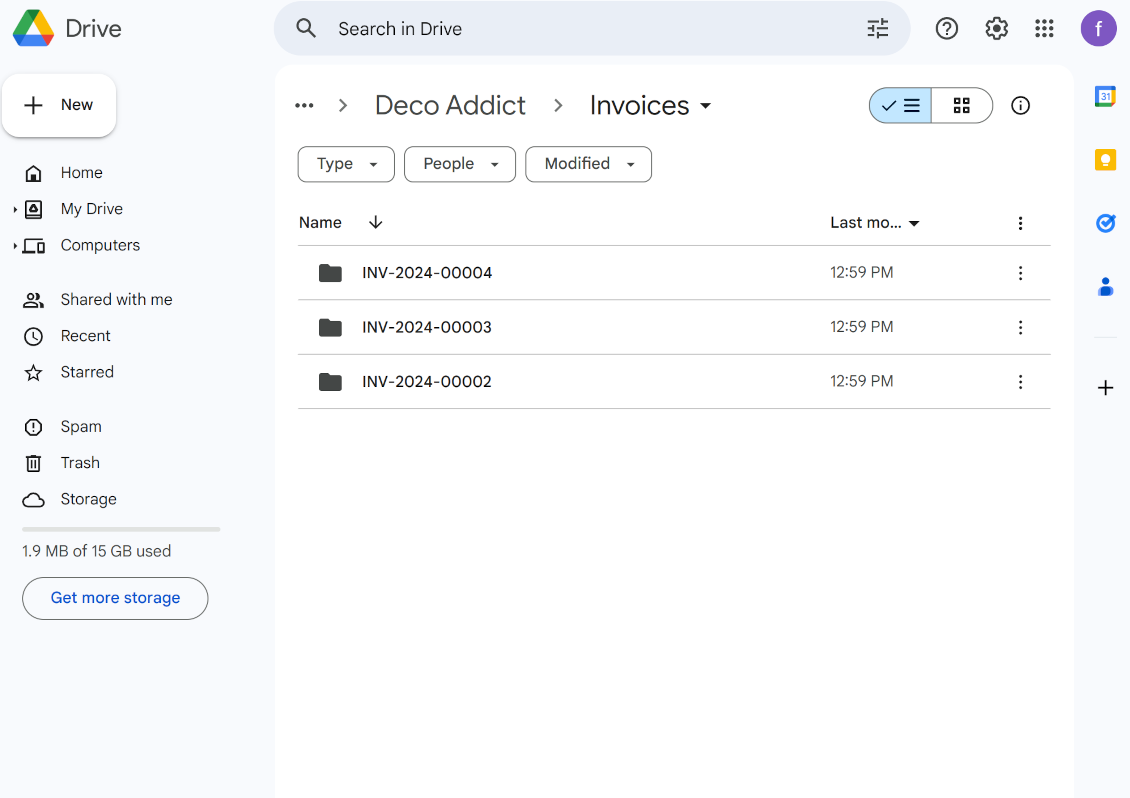
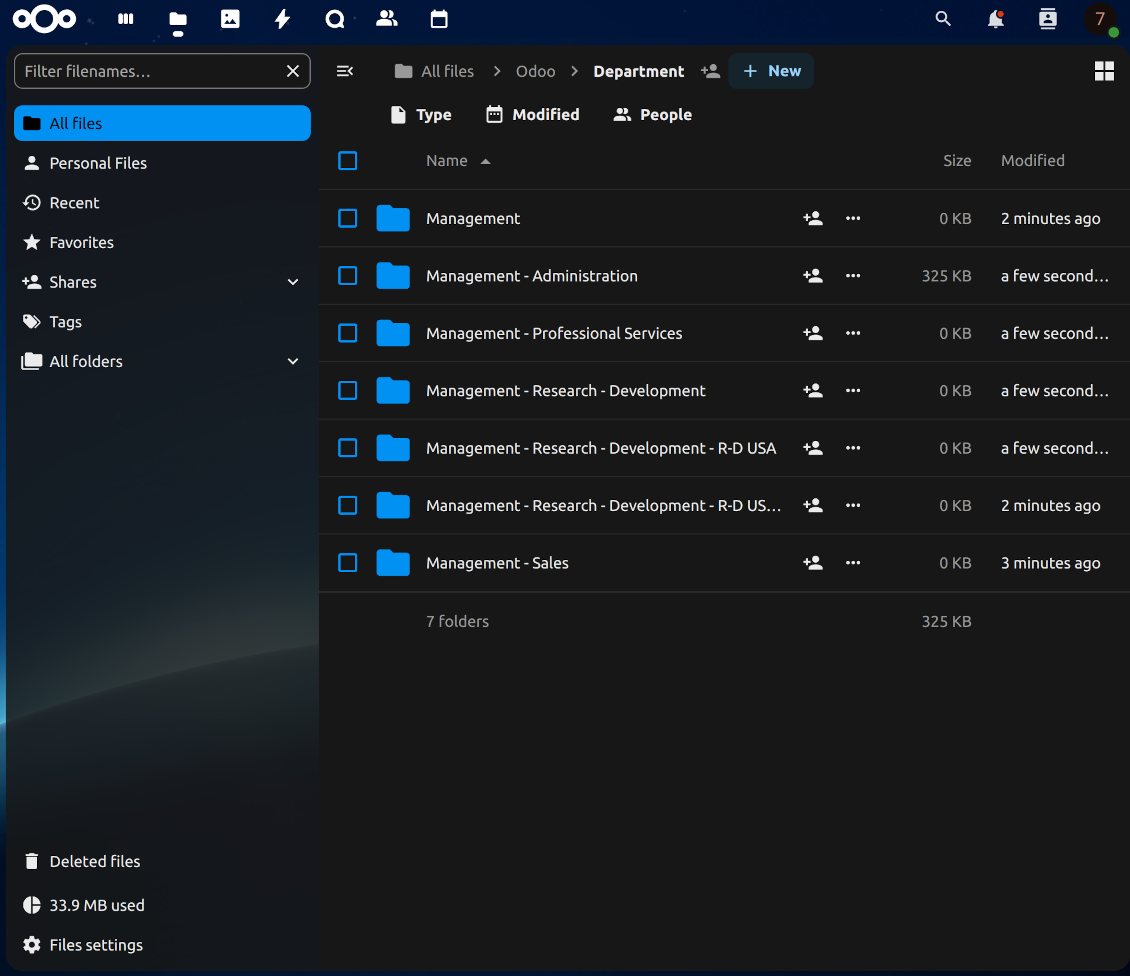
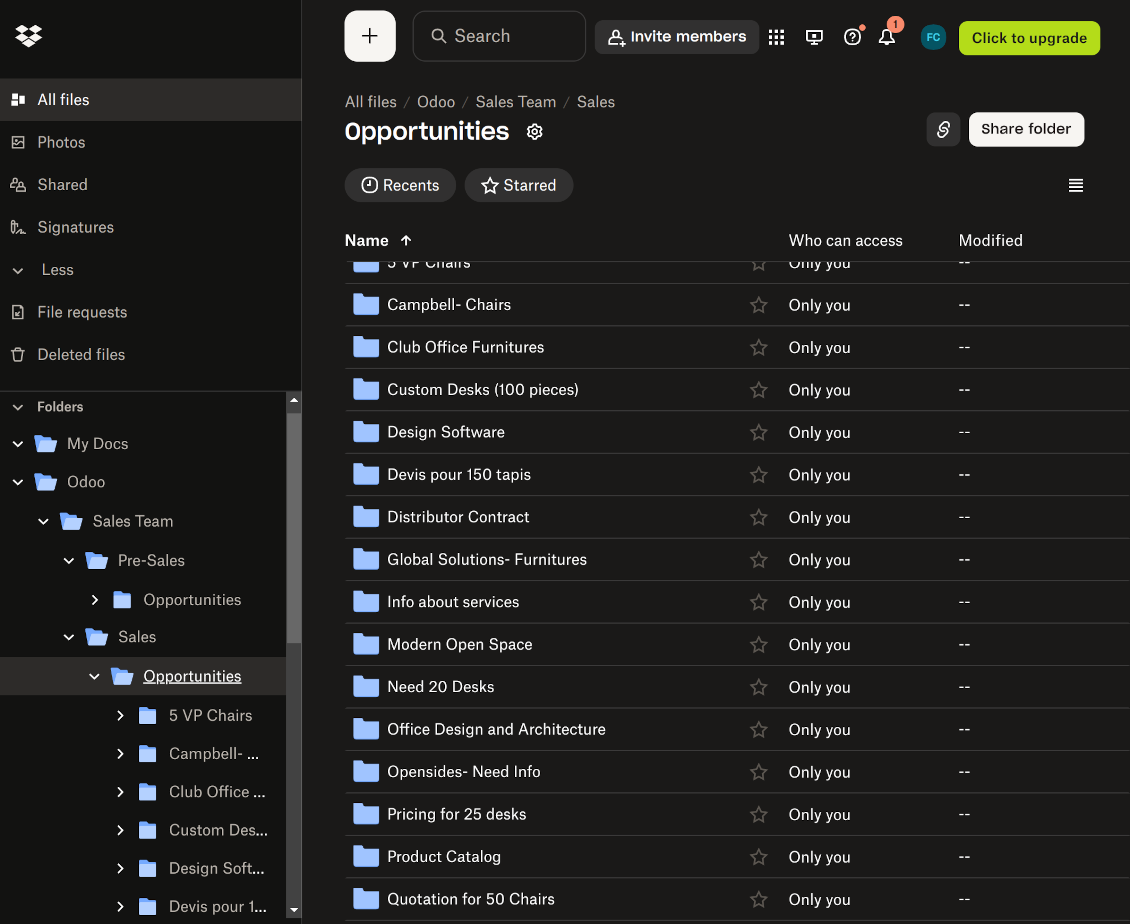
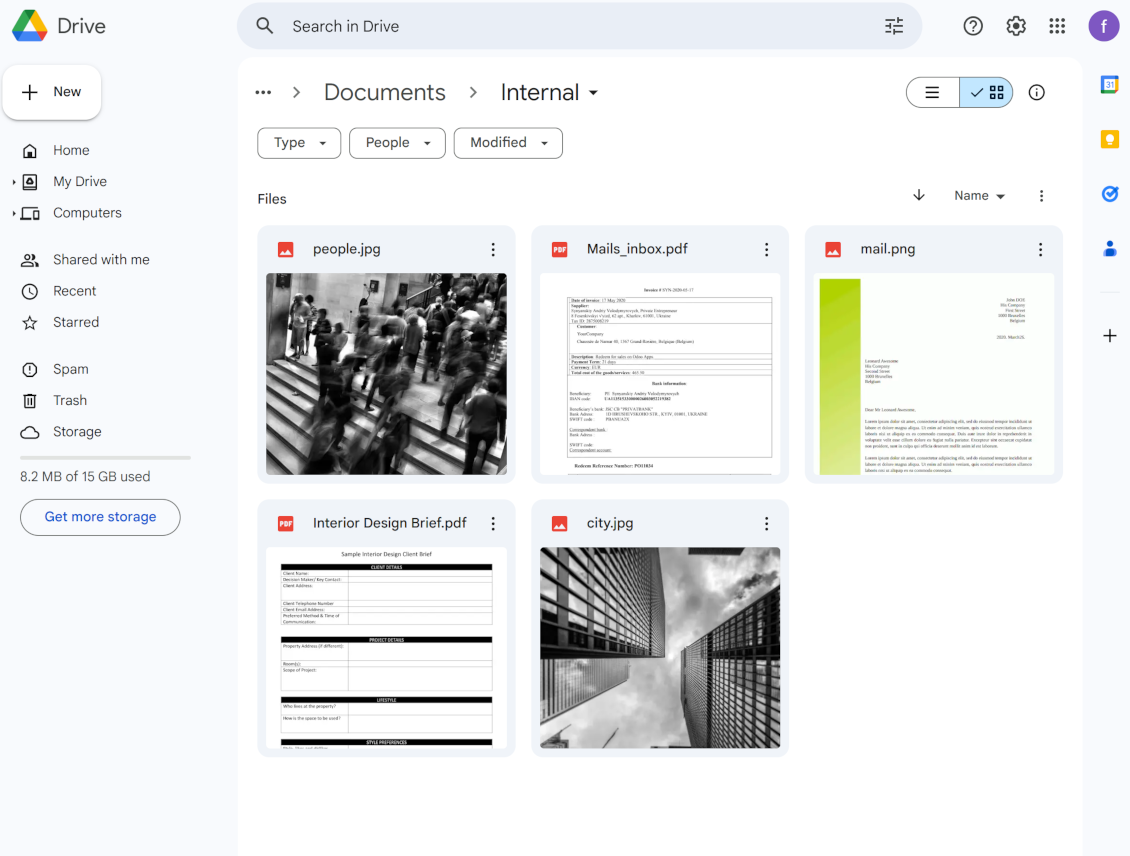
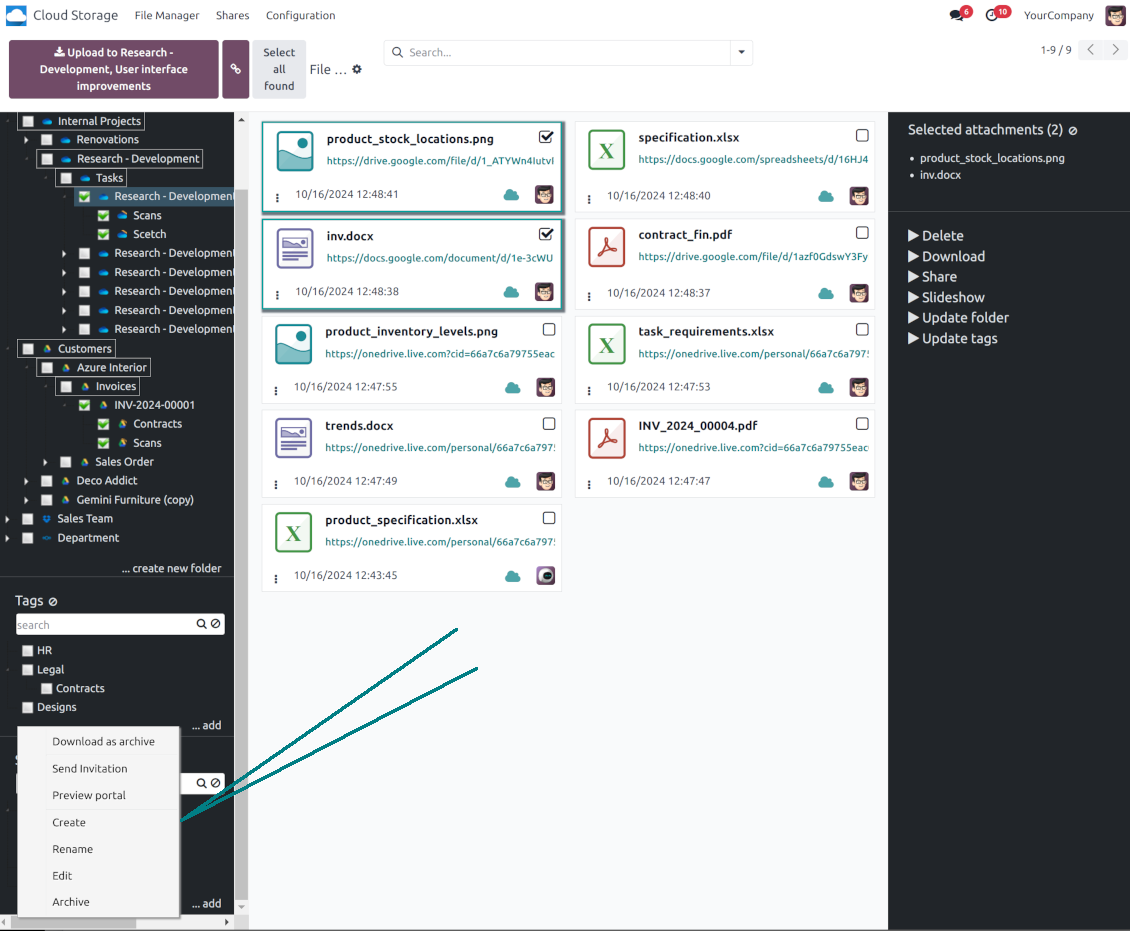

This tool organizes Odoo attachments in folders' trees and synchronizes those with your choice's cloud storage solution(s). The app introduces automatic algorithms to prepare directories for documents and integrate those with workflows of Google Drive, OneDrive/SharePoint, Nextcloud/ownCloud, Dropbox, Amazon/MinIO S3, Box, and NAS/WebDAV (Synology, QNAP, TrueNAS, etc.).
- the core module which introduces the file manager interface and basic mechanics for synchronizations with various cloud clients. Sen hinta on 398€.
- liitin, joka synkronoi Odoo-kansiot ja -liitteet OneDriveen ja/tai SharePointiin. Ominaisuudet merkitään kuvakkeella . Sen hinta on 89€.
- liitin, joka synkronoi Odoo-kansiot ja -liitteet Google Driveen. Ominaisuudet merkitään kuvakkeella . Sen hinta on 89€.
- liitin, joka synkronoi Odoo-kansiot ja -liitteet Amazon S3:een. Ominaisuudet merkitään kuvakkeella . Sen hinta on 89€.
- liitin, joka synkronoi Odoo-kansiot ja -liitteet Nextcloudiin ja/tai ownCloudiin. Ominaisuudet merkitään kuvakkeella . Sen hinta on 89€.
- liitin, joka synkronoi Odoo-kansiot ja -liitteet NAS-ratkaisuihin (Synology, QNAP, TrueNAS) ja yleiseen WebDAV-tallennukseen. Ominaisuudet merkitään kuvakkeella . Sen hinta on 89€.
- liitin, joka synkronoi Odoo-kansiot ja -liitteet Dropboxiin. Ominaisuudet merkitään kuvakkeella . Sen hinta on 89€.
- liitin, joka synkronoi Odoo-kansiot ja -liitteet Boxiin. Ominaisuudet merkitään kuvakkeella . Sen hinta on 89€.
- valinnainen lisäosa, joka valmistelee työtilakansiot ja synkronoi Odoo-asiakirjat (enterprise-sovellus 'Documents') pilviin. Ominaisuudet merkitään kuvakkeella . Sen hinta on 44€.
Automatic Folders
Decide which Odoo document types should have their folder trees. Directories are regularly updated based on flexible rules and existing Odoo objects
Sync with Cloud Storage Solutions
Synchronize chosen folders and files with specific cloud storage: Google Drive, OneDrive, SharePoint, Nextcloud, Dropbox, Amazon, Box, MinIO S3, NAS/WebDAV (Synology, QNAP, TrueNAS, etc.), and ownCloud. Have as many connections as you need
File Manager Interface
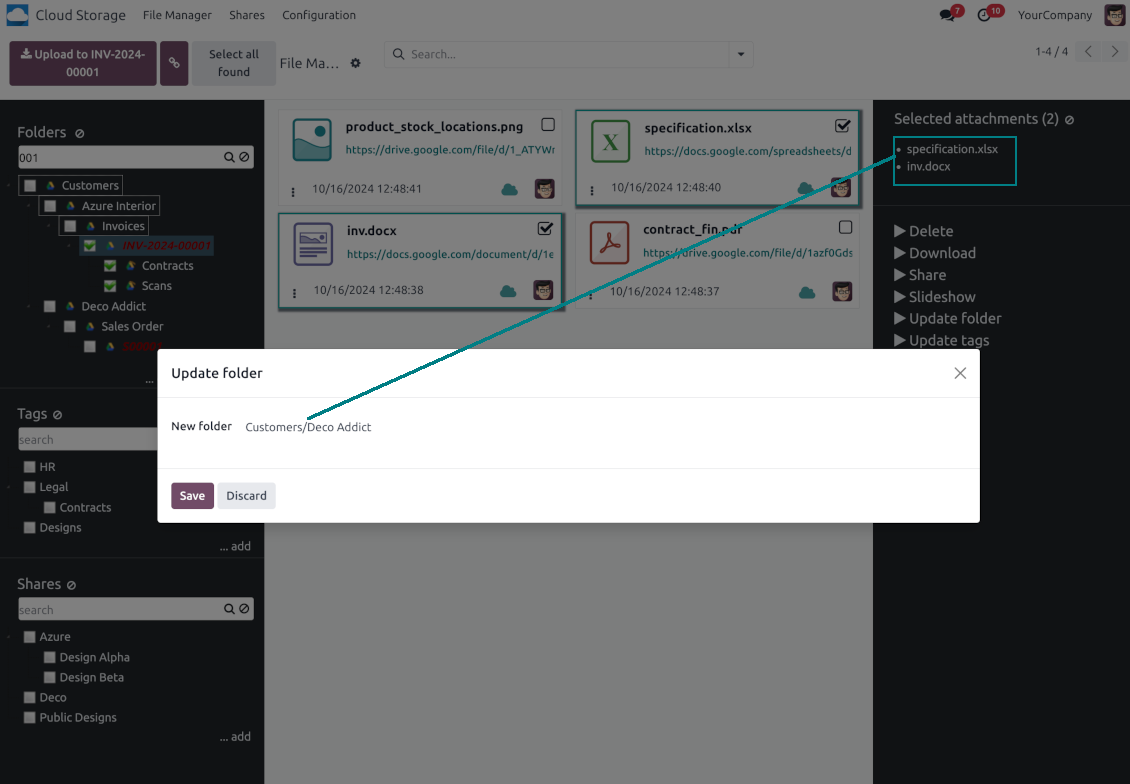
Manage folders and attachments from a single view. Comfortably navigate by directories and tags. Search and download files one by one or in a batch. Upload and move attachments
Enhanced Attachment Box
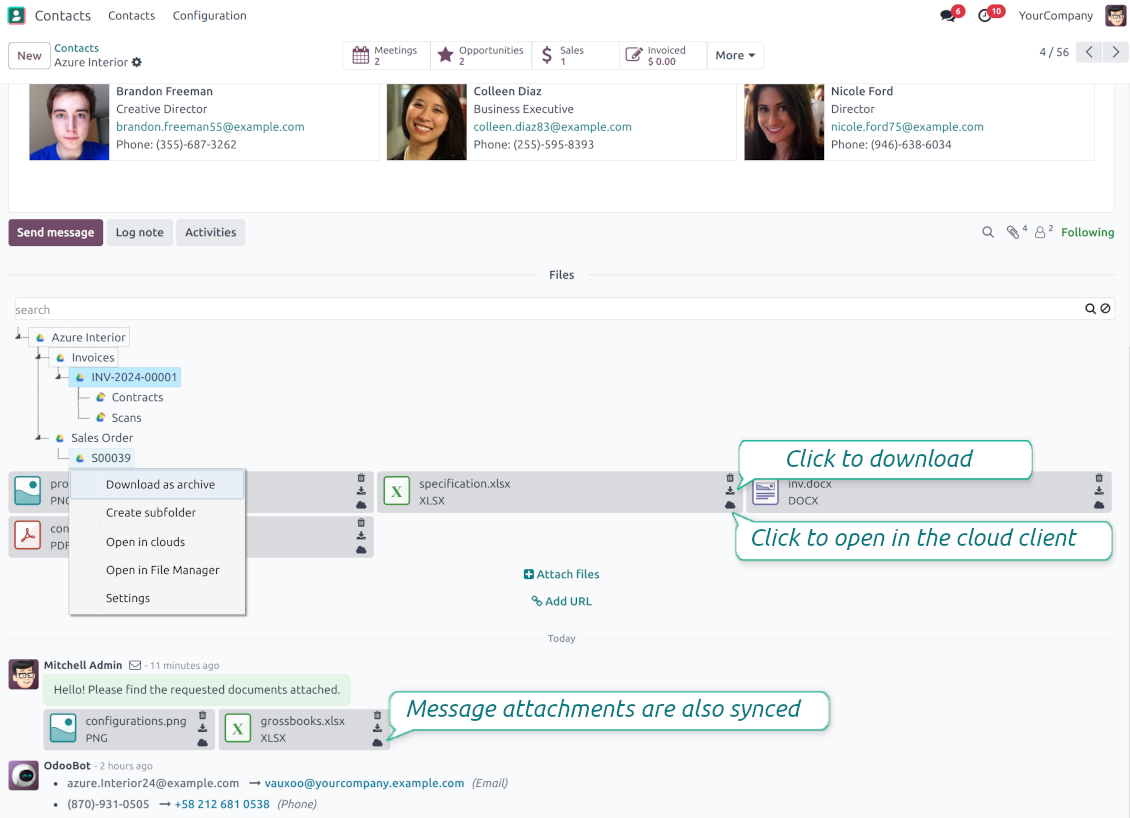
Organize files of any Odoo object in a set of subfolders. Instantly access folders and files in the attachment box and in synced cloud interfaces
Portal Sharing
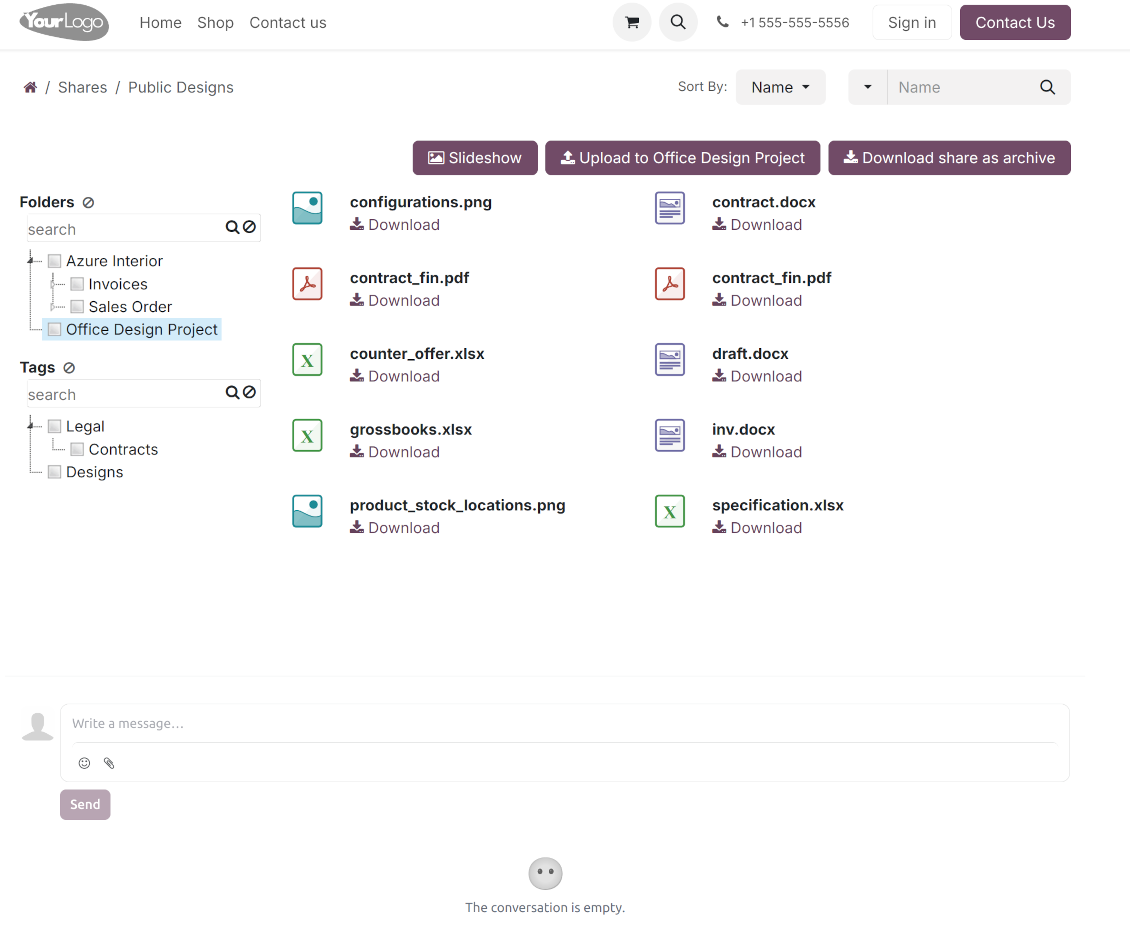
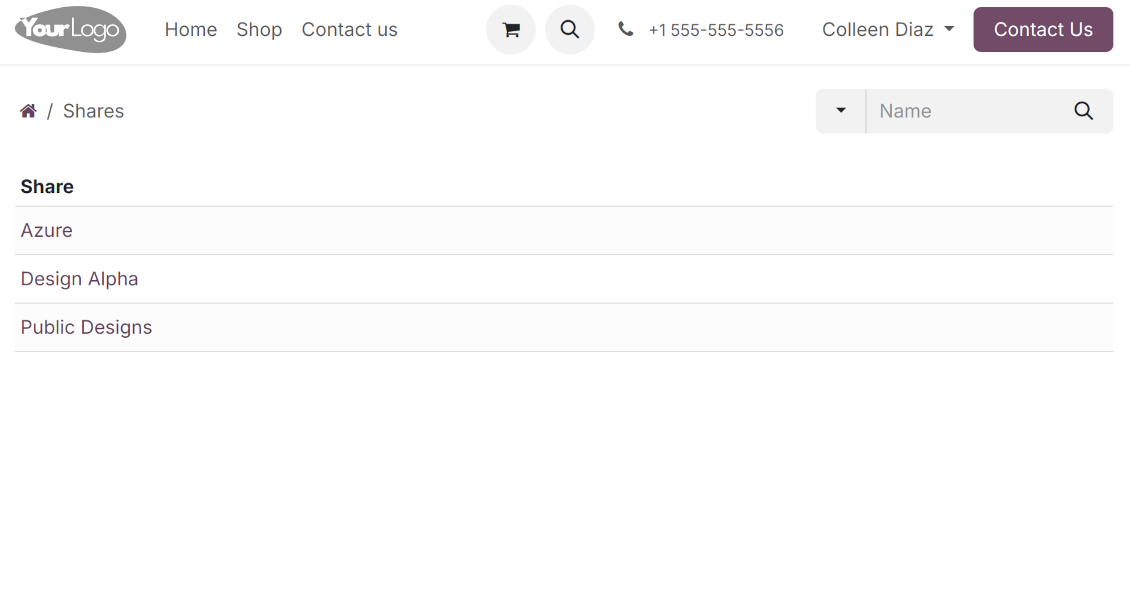
Share files, directories, and tags with particular partners or with an access URL. Let users download whole shares and separate items, upload attachments, and add folders or tags
Enterprise documents compatible
Set up rules to prepare folders based on Odoo Enterprise workspaces. All features, including sharing, downloading, and signing, will work even after the sync
Automatic Regular Sync
Rely on auto-synchronization between Odoo and cloud solutions based on scheduled jobs. No manual interaction is required
Bilateral Sync
Odoo sends attachments to cloud storage solutions and retrieves files from there. Binary content is kept in clouds, while Odoo provides direct access to synced items
Excellent
We have been using Cloud Storage Solutions for a few years already, starting with Odoo 17 mostly because our attachments were a mess. Now we're moving to Odoo 20, and we've surely decided to keep using the app. The File Manager is great for finding a file by folder or tag instead of remembering which sales order it was attached to. And the attachment box on contacts and projects shows the same folders, which lets us avoid excess clicks.
The folder rules are the part I keep showing people: new customer and project folders just appear, with the sub-folders we set up once, and everything lands in our Google Drive through the connector. We also use sharing a folder with our external partners, which is often especially efficient for tasks.
Big thanks to the team too. I asked a lot of questions about the sync and the access rights initially and now during the switch, and every answer came back fast. Really felt like they wanted it to work for us. Happy customer here.
Works well with SharePoint. Supportive team
We've been using this with SharePoint and it's been working great. One of the best things is having everything, including logs right in Odoo's interface, so you can actually see what's going on. It's also super convenient that you can view or download synced files from the attachment box without having to leave the page or even log in to Sharepoint.
Setup was pretty smooth for us. When we had a few questions about setting up the folder hierarchy and priorities, the developer team got back to us in just a couple of hours and helped us figure it out. Great support and great extension!
Tricky setup, but works perfectly now
Really solid module. We managed to get a very flexible folder structure (sorted by clients) and synced all our sales orders, invoices and tasks by projects to Google Drive.
Initial setup was a bit of a pain and kinda tricky to configure everything at first, but now it's running smoothly and works perfectly. The faotools team helped a lot. Def worth it if u need to keep your docs organized in Odoo and Google Drive.
Recommended!
Great support, assistance and very good connector!
We are very happy with the support we received when configuring the Sharepoint - Odoo connector. The connector has great functionalities.
All our questions were answered very fast (within one day).
FaOtools helped us optimising our connector and assisted us with future improvements.
We really recommend this connector.
Great module and Great Support!
The module works great! and the support is phenomenal!
A must-buy if it suits your requirements!
very professional app, excellen t customer service
This app is very well programmed and does its job very well. But the best is the excellent customer service who also helps when the problem lies somewhere else. You receive a lot for your money.
Excellent !!!
Great App and great Service from faOtools.
An impressive app and world-class support
I have been very impressed by the way the OneDrive / SharePoint Odoo Integration module synchronises content in both directions and allows me to share documents in Odoo with my SharePoint site. Above all the technical support is top-notch, which greatly increases the value of this product. I highly recommend this product for anyone considering synchronising Odoo with SharePoint/OneDrive.
Very good product
A perfect solution to integrate Owncloud with Odoo. We sync a high volume of objects across multiple Odoo models, which works seamless and stable. For us it is the perfect solution to have an external DMS instead of the Odoo native attachment handling, which also enables us to interchange files between systems in our best-of-breed setup.
The team behind this module is extremely professional and responsive. They helped us on a few occasions and provided clear answers and prompt support when required, and they even went out of their way to assist us with another requirement we had. Cannot recommend the product and team highly enough, try this if you're in the market to connect Odoo with an external document solution.
Works fine, good support
The first experience with the module is excellent. I had some trouble to configure things right on the Microsoft-side, but the team provided quick and good support.
Best module for integration with google drive
The module performs its function correctly and faOtools responds quickly to any problem and, in case of detecting any bug, quickly apply the changes. Its support is 10 stars.
Works according to specs
I have used this app with Odoo 12 and Nextcloud 16 and it works as specified. Odoo Tools offers very responsive support which is really helpful. Of course 5 stars...!
This is Awesome
I have used Cloud Sync on Next/Own Cloud and works really great.
Odoo Tiedostonhallinta -käyttöliittymä
-
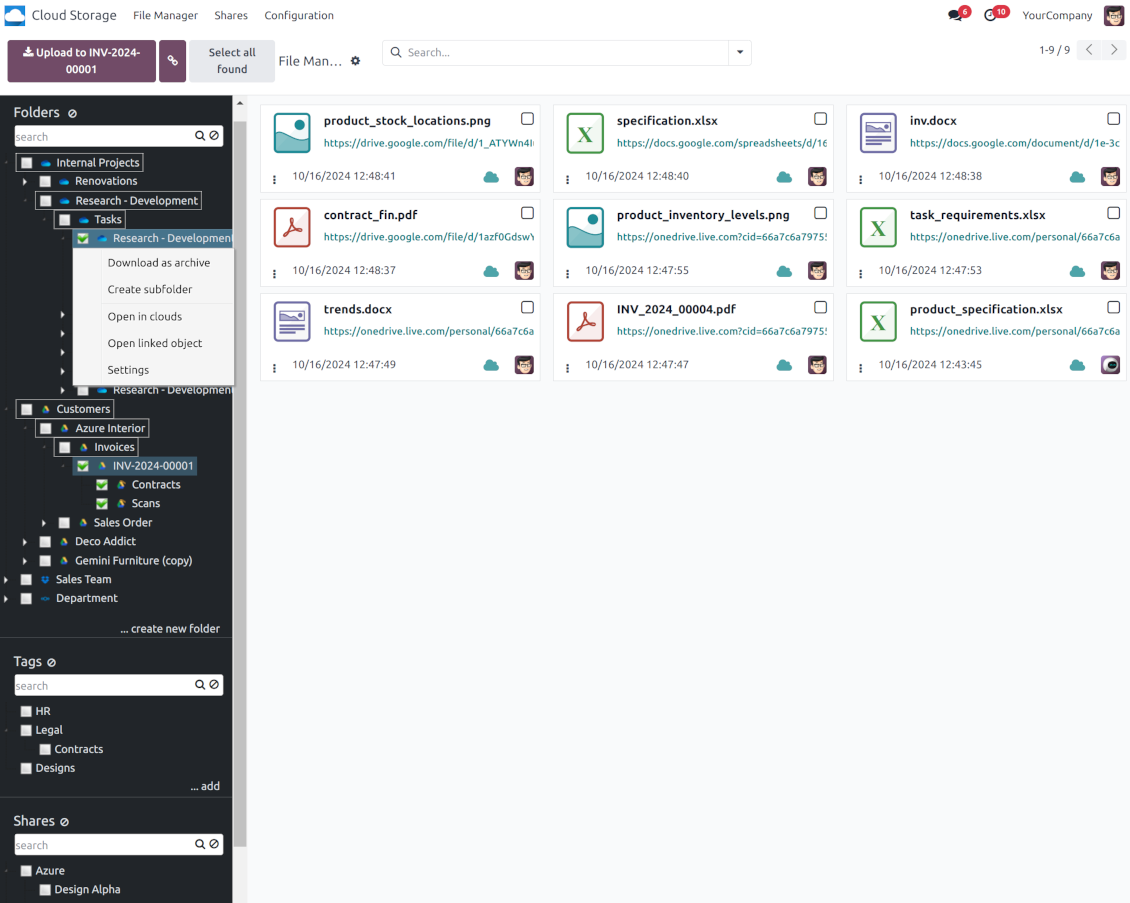
Navigate by folders: select a directory to show its attachments. Expand and hide folders' layers in a click. Add subfolders to any directory (right mouse click > Create subfolder)
-
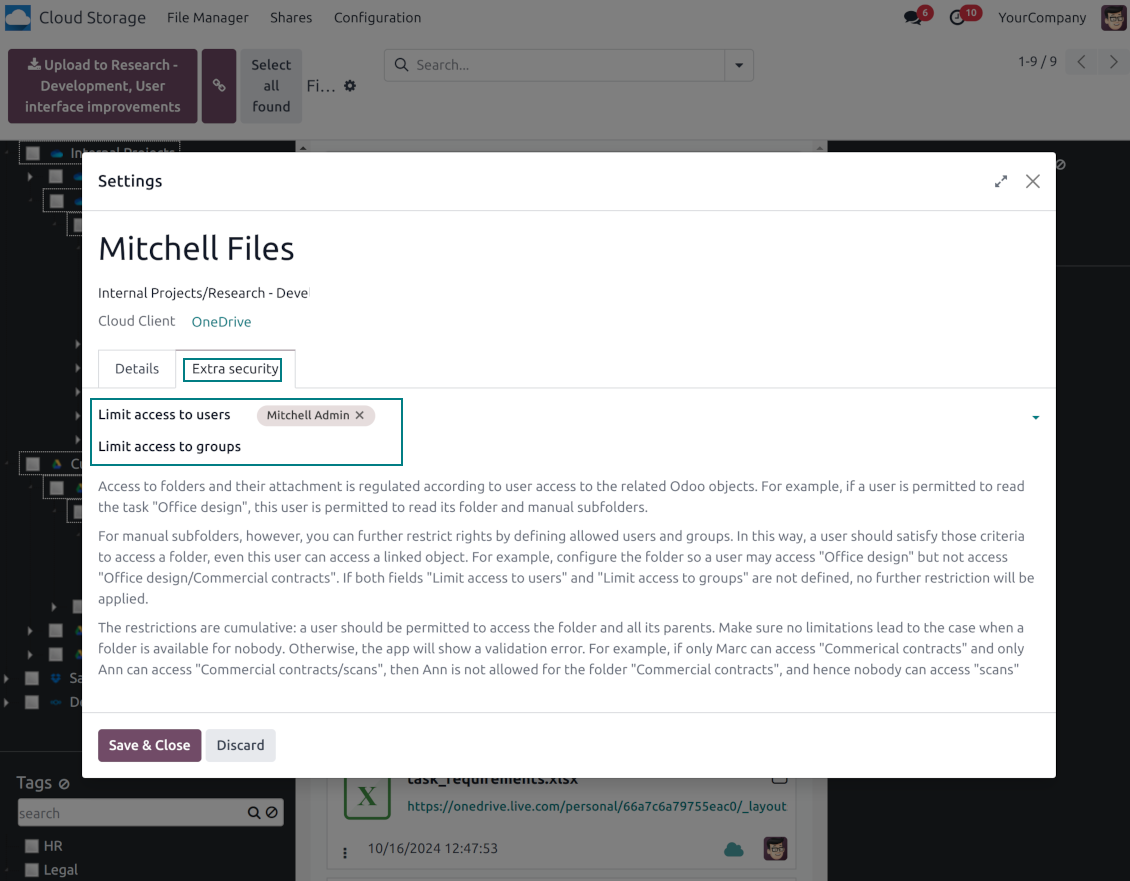
Open any synced folder in its cloud client (right mouse click > Open in clouds). Show a folder peer Odoo object if there is such a connection (right mouse click > Open linked object). Change settings of manually created folders, including granting access rights (right mouse click > Edit Settings)
-
Navigate by attachment tags. Create and edit tags right from the navigation panel
-
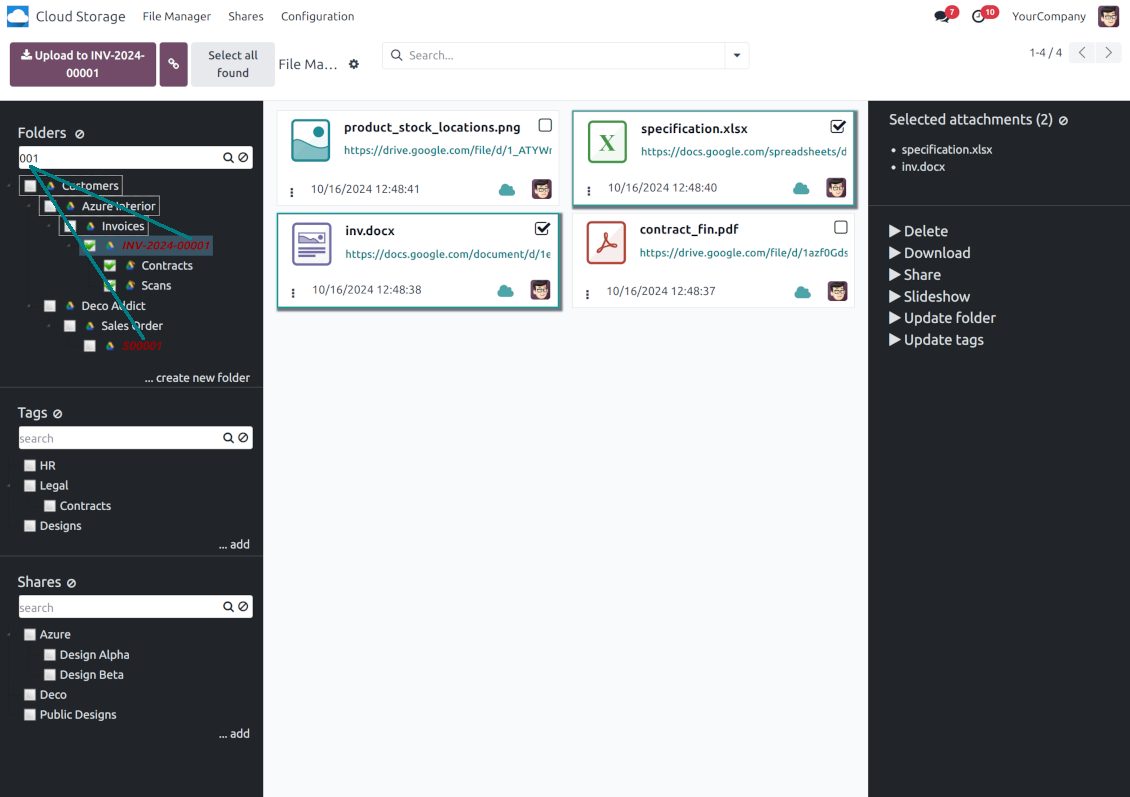
Search and highlight tags and folders in seconds even if there are thousands of items
-
Drag and drop to re-structure folders (relates only to manually created directories; for automatic folders change rules instead) and tags
-
Download any folder or any tag with all its attachments as a single zip archive (right mouse click > Download as archive)
-
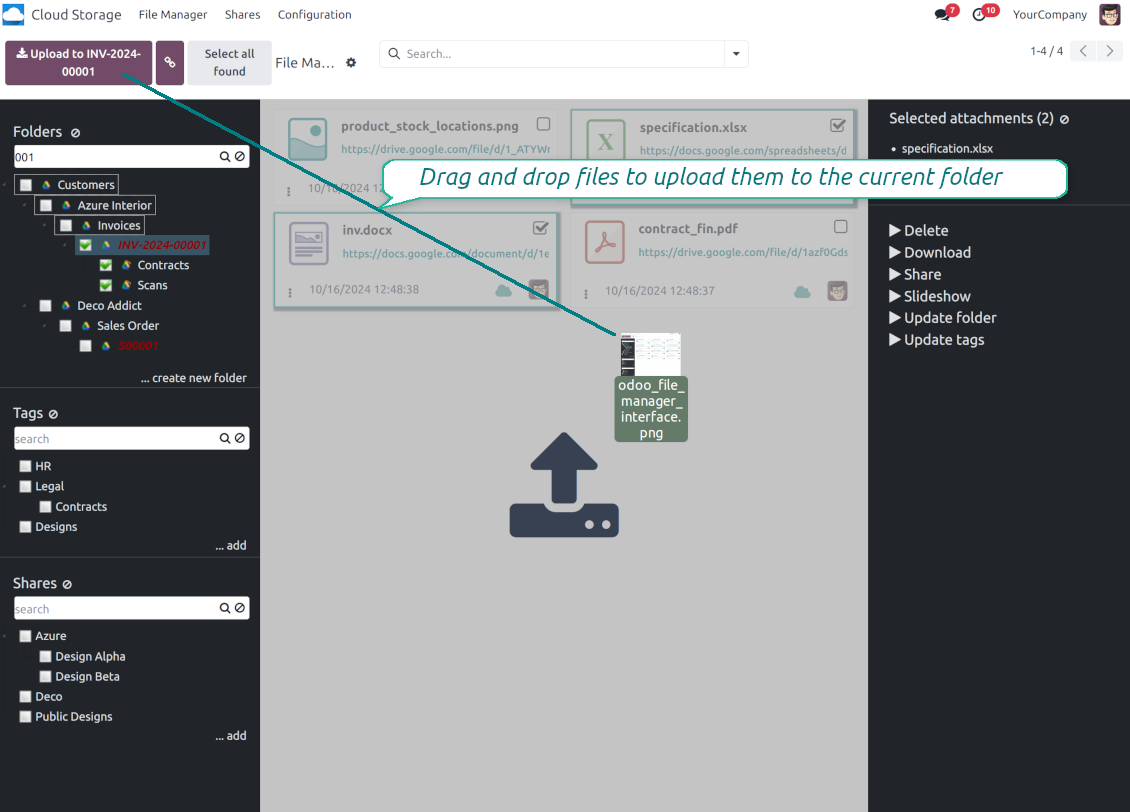
Upload attachments to the current folder. Use the top header button 'Upload file' or drag and drop files
-
Instantly open any synced attachment in a linked cloud client (push the link in the middle of attachment cards)
-
Download any attachment to your local computer disregarding whether it is synced or not (push the icon 'cloud' or 'download' in the footer right corner)
-
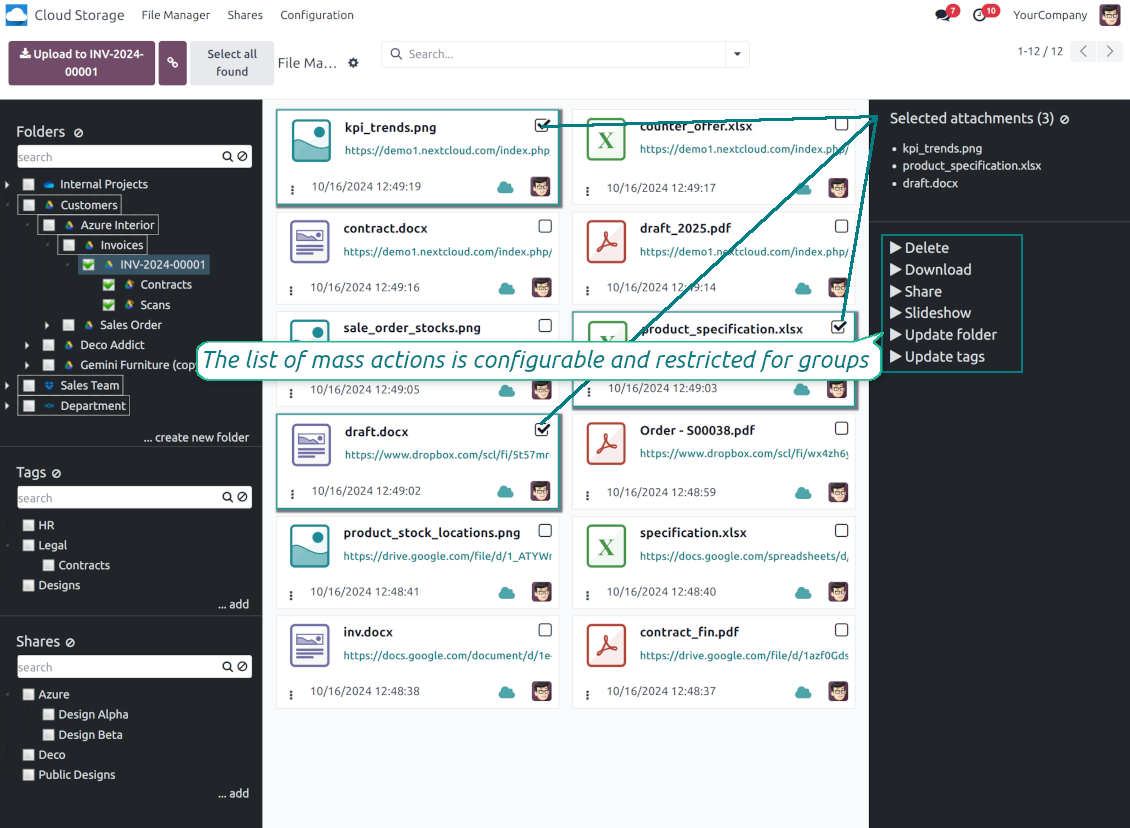
Consequentially select attachments and download them as a single zip archive
-
Move any files to any folder, including re-attaching items between Odoo objects (e.g. from a sale order SO-001 to another quotation or its customer folder). Use the mass action for that end or just drop an attachment to a required directory. Update attachments' tags by dragging those to the left navigation panel or by executing the mass action. Delete attachments in a batch
-
Apply standard attachments search to find required files.
Parannettu Attachment Box
-
Any Odoo object might be linked to its folder. See Automatic folders' structure
-
Flexibly define subfolders to organize the structure you need (right mouse click > Create subfolder)
-
Drag and drop to re-structure subfolders
-
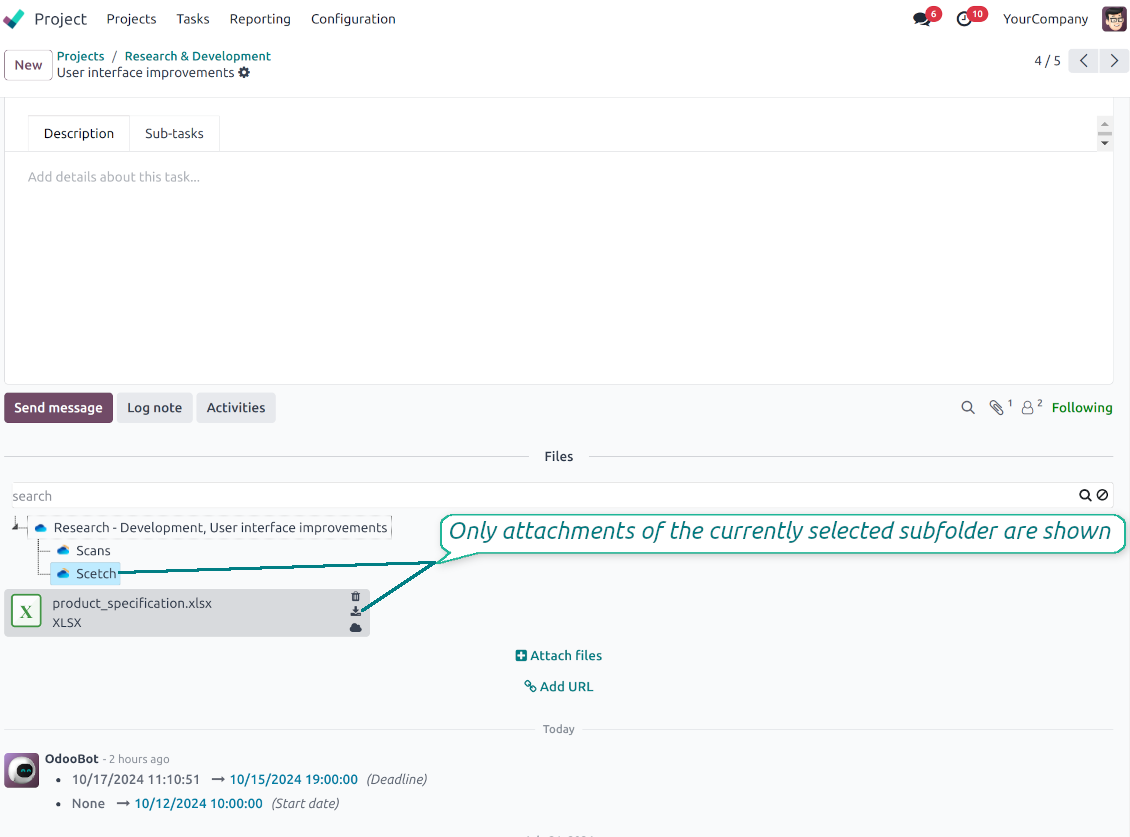
Select a folder to see its attachments. By default, files of the object root directory are shown
-
Download any folder with all attachments as a single zip archive (right mouse click > Download as archive)
-
Open the already synced folder in its cloud client (right mouse click > Open in clouds)
-
Upload attachment to a chosen folder (use the button 'Add attachments' or drag files to the attachment box area)
-
Instantly open any synced attachment in a linked cloud client (push the icon 'clouds')
-
Download any attachment to your local computer disregarding whether it is synced or not (push the icon 'download')
-
Use standard Odoo preview for both synced and local files (click on a file thumbnail)
-
Delete attachments as usual
-
All actions are equally applicable to object attachments and attachments related to messages.
Cloud Storage -synkronointi
Multi synchronization
-
Use optional add-ons to synchronize the document management system with the cloud client(s) of your choice: Google Drive, OneDrive, SharePoint, Nextcloud, Dropbox, Amazon, Box, MinIO S3, NAS/WebDAV (Synology, QNAP, TrueNAS, etc.), and ownCloud. Have as many connections as you need
-
Establish multiple connections to different cloud clients simultaneously. For example, sync sales-related folders to Google Drive; tasks and projects - to SharePoint or OneDrive; HR documents - to Nextcloud/ownCloud; manufacturing specifications - to Dropbox. Take into account that a specific folder might be synced to only a single cloud storage solution. Its children would be synced to the same client
-
For each cloud client, the app lets set up a few instances. For example, for Google Drive, you may share some folders to your personal drive, others - to one of your team drives, and the rest - to your teammate's drive
-
To establish a connection with particular cloud storage, follow the instructions that are specific for client types. See the tab Configuration for details
-
Any connection might be paused manually if it is needed. It might be also auto-stopped if there are critical issues during the sync. Then, you should re-connect to a target cloud client
Cloud clients
-
Synchronization for all cloud clients is based on the same principles and on the same queue. Simultaneously, there might be differences in sync results due to different features of various cloud storage solutions
-
Establishing connections for different types of cloud clients assumes installing optional add-ons, different approaches for Odoo, and external API configuration. Follow the instructions on the tab 'Guidelines'
-
Google Drive Odoo Integration allows establishing a connection with any personal or team drive
-
OneDrive / SharePoint Odoo Integration assumes synchronization with any drive of personal/business/SharePoint tariffs
-
ownCloud/Nextcloud Odoo Integration et integrate Odoo with any instances of ownCloud and Nextcloud. In comparison to other clients, the app allows setting the type of attachment links. By default, Odoo links are internal: only authorized users may access them. Optionally make links public (the setting 'Use Public URLs'). See details on the guidelines tab
-
Dropbox Odoo Integration works for all DropBox tariffs, including Personal DropBox (Basic, Plus, Family) and business DropBox (Professional, Standard, Advanced). In comparison to other clients, the app allows choosing whether cloud items would be shared or internal. See details on the guidelines tab
-
Amazon S3 Odoo Integration (amazon_s3_odoo) synchronizes Odoo folders and attachments with Amazon S3 buckets
-
NAS/WebDAV Odoo Integration (nas_odoo) connects Odoo documents with NAS and WebDAV-compatible storage, including Synology, QNAP, and TrueNAS
-
Box Odoo Integration (box_odoo) synchronizes Odoo folders and attachments with Box cloud storage
Automatic two-sided sync
-
Integration is based on scheduled jobs and is fully automatized. The app regularly checks changes in systems and runs sync operations
-
Synchronization is bilateral. Updates in Odoo are reflected in cloud clients (direct sync); changes in cloud clients modify Odoo folders and attachments (backward sync)
-
Poista pilvestä synkronointi käytöstä asiakkaalta, jotta synkronointi pysyy yksisuuntaisena. Odoon muutokset lähetetään yhä pilvitallennustilaan, mutta siellä luodut, uudelleennimetyt tai poistetut tiedostot ja kansiot eivät näy Odoossa. Kun poistat asetuksen taas käytöstä, kertyneet muutokset, myös poistot, tulevat voimaan seuraavassa synkronoinnissa
-
Any cloud connection might be reset. In this way, the app assumes getting back all items back to Odoo (reverse sync)
-
Odoo folders and attachments might be re-attached to a new cloud client. Hence, items will be first taken back to Odoo (reverse sync) and then put will be put to the new cloud storage (direct sync)
Queue-based synchronization
-
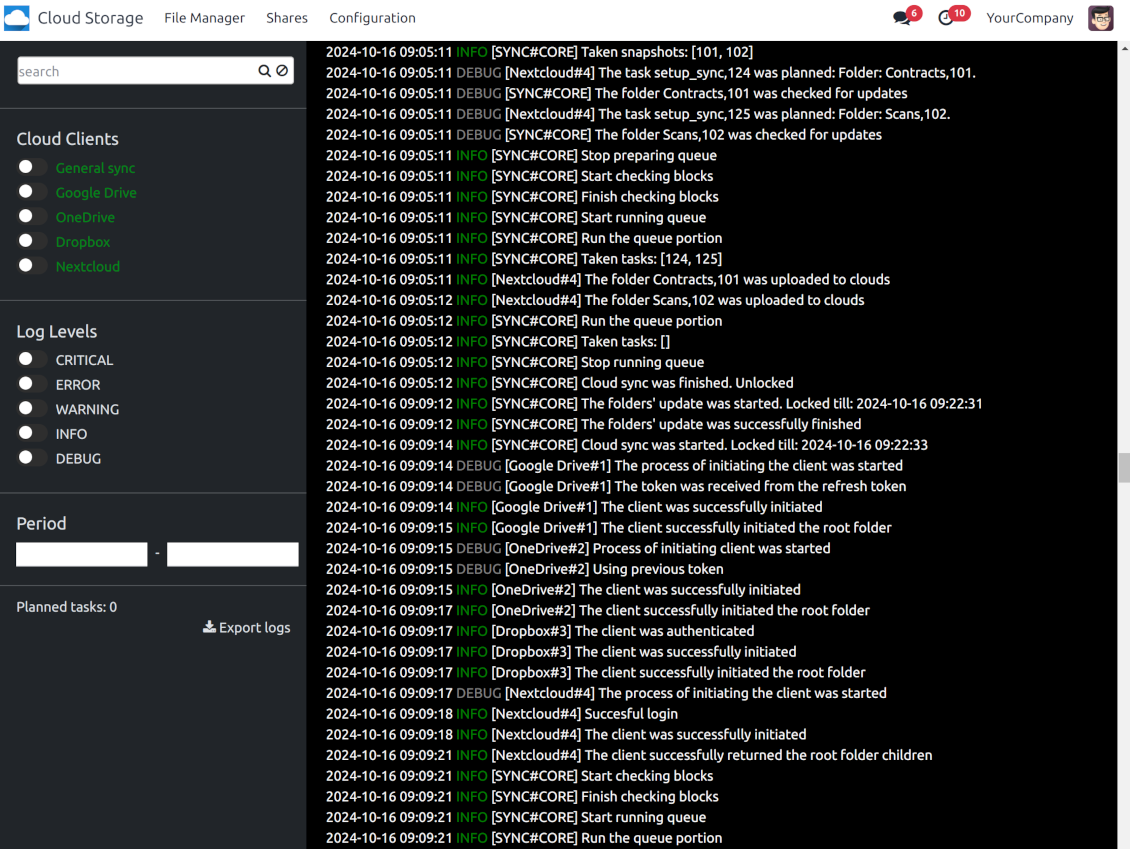
Once in 15 minutes, the app examines updates in Odoo and cloud storage(s) to prepare a synchronization queue
-
Folders' checks follow the First-In-First-Out (FIFO) principle. So, directories that have not been examined for the longest will be processed first
-
Once in 15 minutes, the sync queue is run by the special scheduled job. Firstly, the most important (blocking) tasks would be done
-
Control planned jobs and their fulfillment in the special Odoo logs interface (Cloud Storage > Configuration > Sync Logs). Subscribe for particular cloud clients notifications
-
If the app faces sync failures, it will re-try operations afterward. Sync queue processing would not be stopped if there are items not blocked by such failures
Odoo attachments for cloud storage: direct sync
-
Direct sync prepares the folders' hierarchy and uploads Odoo attachments for cloud storage
-
Direct sync checks whether attachments are added or deleted for synced directories. If so, they would be created or removed in cloud storage. In particular, it means that any file added to a folder-related Odoo object (e.g. Quotation), would be automatically moved to a linked cloud client
-
Direct sync makes all synced Odoo attachments change their type to a link (URL), while binary content is removed with one of the next Odoo cleaners. So, no actual files would be stored on your Odoo server
-
Direct sync checks whether a new folder is added. Disregarding whether it is done manually or automatically, the app would generate a peer directory in a cloud storage
-
Direct sync checks whether there are any updates in folders. If so, such changes are reflected in a cloud client
Cloud storage files and folders for Odoo: backward sync
-
Backward sync checks whether any files or subfolders are added to cloud storage folders. If so, the app would create URL attachments/subdirectories inside linked Odoo directories (and hence Odoo objects if any)
-
Backward sync checks whether there are any updates in folders or attachments. Such updates would be then reflected in Odoo
-
Backward sync checks whether any files are deleted/moved in a cloud document folder. If so, a linked Odoo attachment would be also unlinked or moved
-
If you deleted a cloud storage folder related to a folder rule / Odoo object, their child files would be deleted as well. Thus, Odoo would remove related attachments. The folders, however, will be recovered with a direct sync
-
In case of conflicts, direct sync changes are in general considered more important than backward updates.
Resetting or changing cloud client: reverse sync
-
In case you decided to reset the connection with a specific cloud client, files would be moved back to Odoo
-
Poista käänteinen synkronointi käytöstä asiakkaalta, kun pilvitallennustilan kopion tulee jäädä ainoaksi kopioksi tai kun yhteys on rikki. Asiakkaan irrottaminen, nollaaminen tai käytöstä poistaminen ei silloin lataa tiedostoja takaisin eikä poista mitään pilvitallennustilasta. Odoo-objektien ja niiden pilvikohteiden välinen yhteys katkeaa. Tallennetut linkit avaavat tiedostot yhä pilvitallennustilassa, mutta Odoo ei voi enää ladata, esikatsella tai avata näitä kansioita ja tiedostoja. Yhteyttä ei voi palauttaa
-
In case you decided to change the cloud client of a folder rule or a folder, files would be first taken back to Odoo, and then direct sync for a new client would be done
-
Reverse sync operations are prioritized to direct and backward sync operations
-
Not all items can be correctly reversed to Odoo due to cloud client peculiarities. For example, there are documents that may exist only in cloud storage environments (e.g. Google Sheets). The app would try to convert such documents, but in some cases, it would require manual interactions.
Automatic Folder Structure
Rules for automatic folders
-
The app allows preparing its own folder for any Odoo object
-
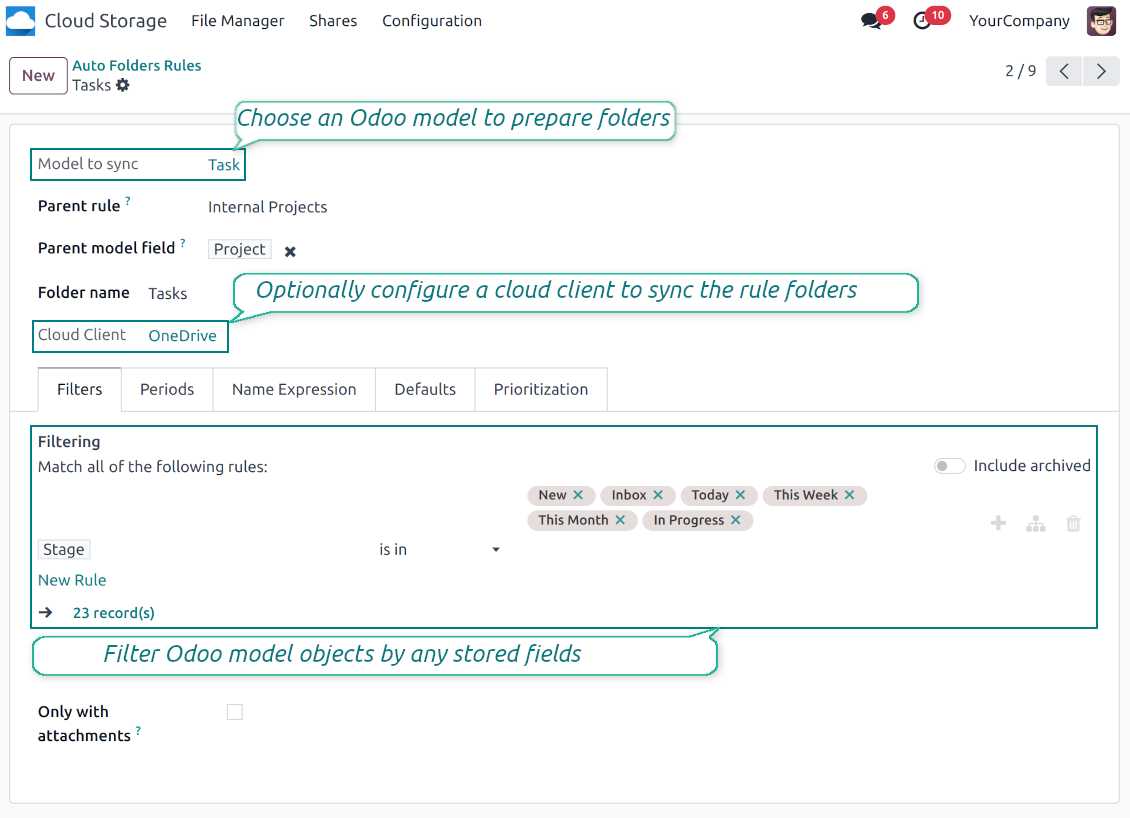
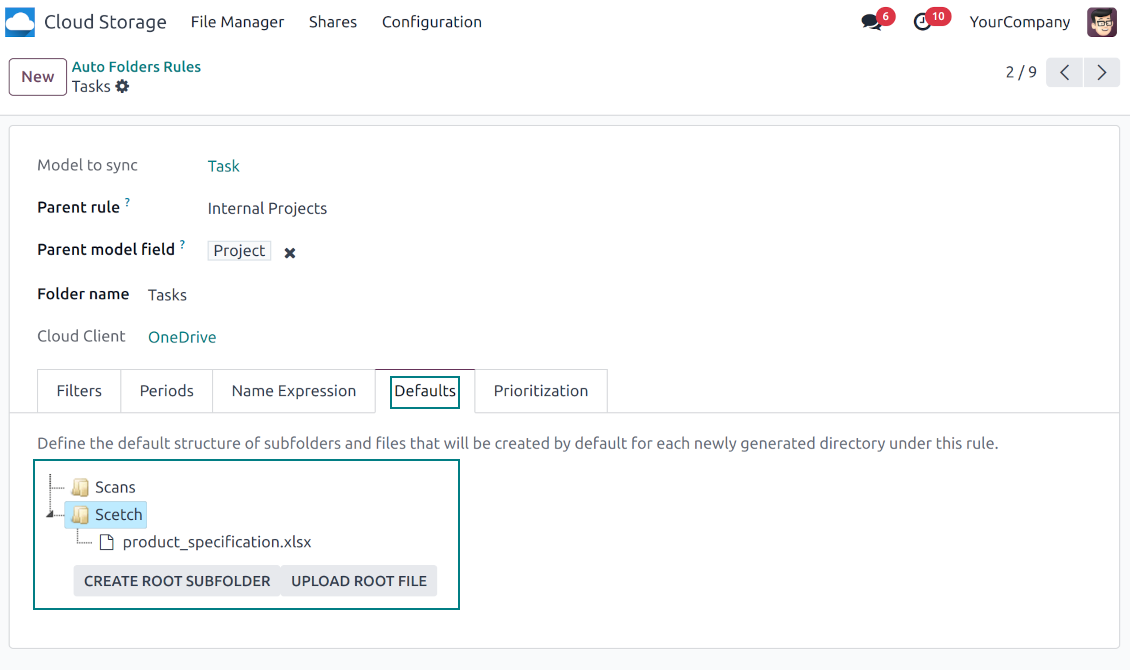
To configure a particular Odoo document type to generate a folder, you should just prepare a new folder rule (Cloud Storage > Configuration > Folder rules). For example, select the model 'Task' to make Odoo add a folder for each project task, so Tasks > Task 1, Task 2, ...
-
Automatically created directories would contain all attachments their linked objects have
-
Folders are updated regularly based on the scheduled job
Multi directories for each model
-
Each Odoo model might have a few linked folders
-
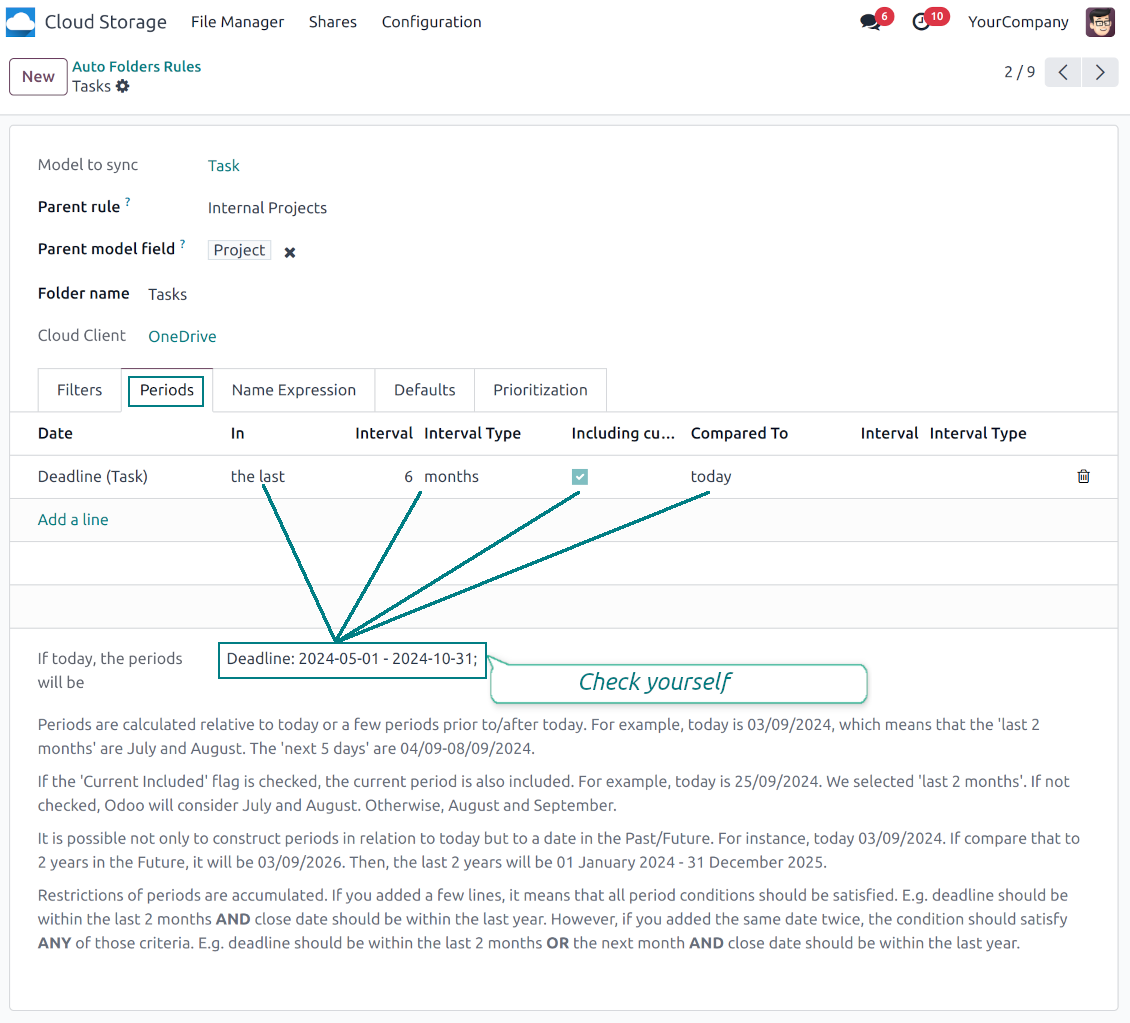
Apply any model storable field to filter Odoo objects and, in this way, split objects into a few super directories. For example, have own folders for individuals and companies, for European and American opportunities, for quotations and confirmed orders, for each project
-
Filter Odoo objects by relative periods by applying date fields of linked documents. For example, leads registered in the last 3 months or invoices updated in the last week
-
As a result, the app lets have paths like 'Odoo > Quotations Europe > SO-001' or ' Odoo > the last year posted invoices (America) > SO-001'
Flexible folders' tree
-
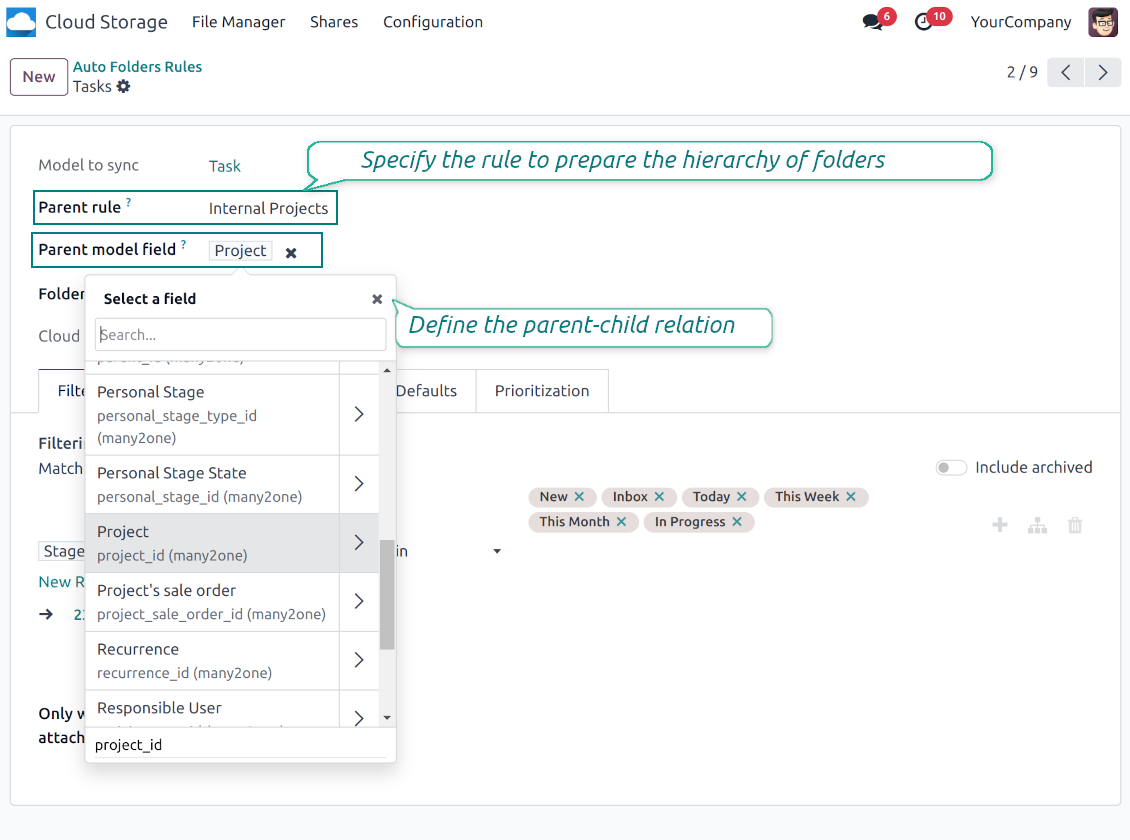
It is possible to set up a hierarchy of folder rules to prepare a more flexible directories structure
-
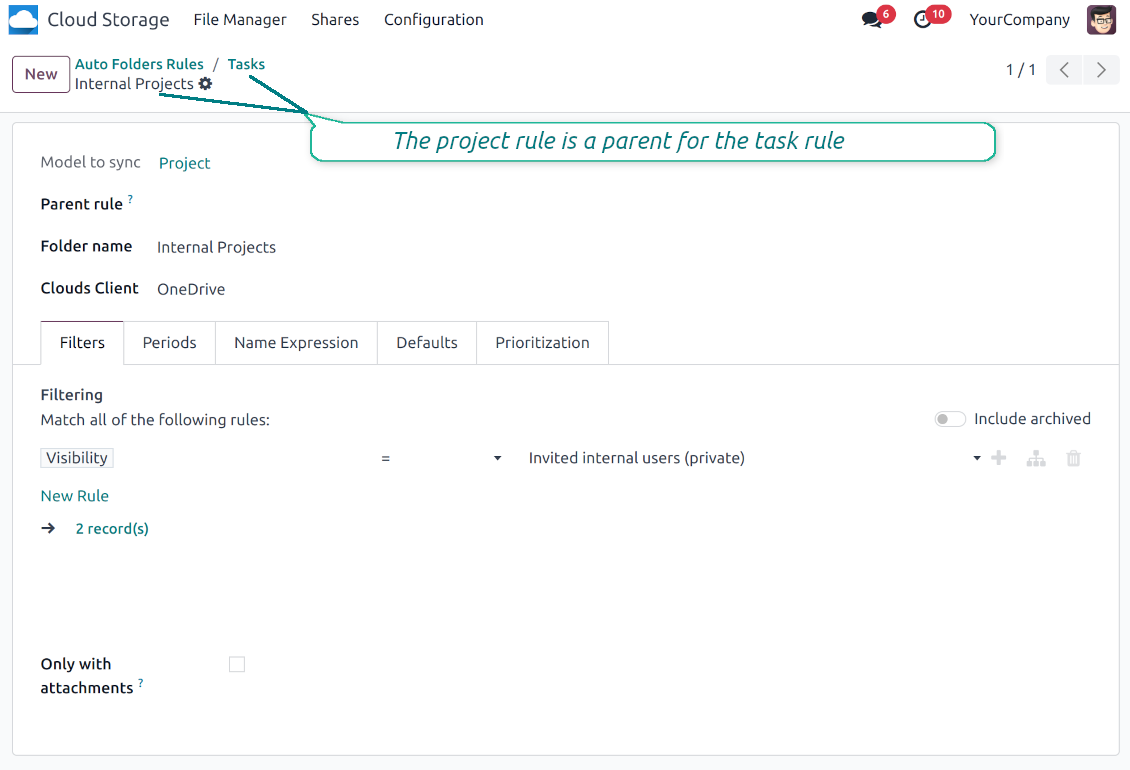
To that goal define a parent rule for a required folder configuration. For example, use a project-related rule as a parent for a task-related rule, a customer-related rule - for invoices-related rules
-
In order for folder relations to work correctly, it is also needed to enter a parent model field. So, it is the field that links models between each other (many2one relation). For example, 'Project' of a task, 'Customer' of a sales order, or 'Sales Team' of an opportunity
-
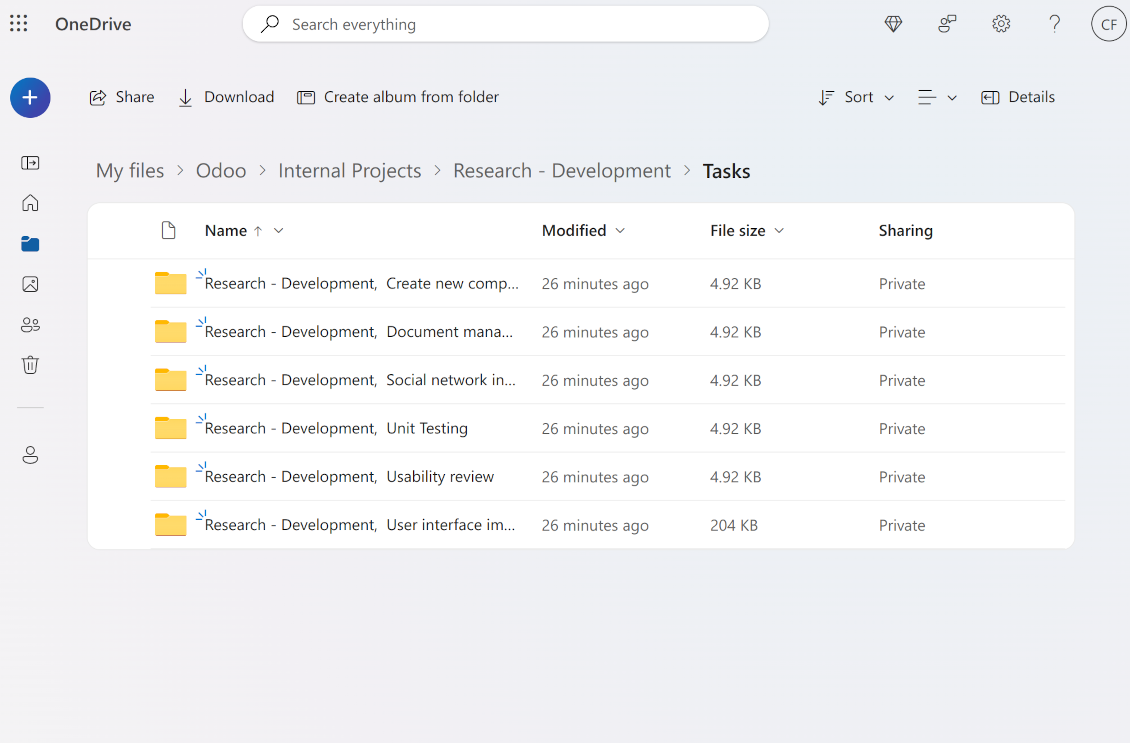
As a result, the tool allows reflecting your Odoo workflow logic and have paths like 'Odoo > Customers > Azure Interior > Projects > Software Design > Prepare Specification' and 'Odoo > Customers > Azure Interior > Quotations > SO-001'
Subfolders, default folders, and default files
-
The app lets add an unlimited number of manual subfolders for each folder. In particular, you may have a directories tree right in each object attachment box
-
For the first generation, it is possible to define default folders, so subdirectories would be auto-generated for a specific Odoo object folder. Afterward, you may add delete/edit those or add new ones
-
The same mechanics are applied to prepare default files. For example, to have contract/personal card templates which then are assumed to be filled with real data
Configurable folder titles
-
Each folder rule assumes to generate a directory. Names for such directories are assigned right on a rule form. For example, introduce 'Jobs' for a task-related rule or 'HR' for employees' folders. By default, the Odoo model name would be used
-
For object-related folders, the names are generated based on the Odoo standard display names. So, if not defined the opposite, it would be the same title as you see in the Odoo form view header
-
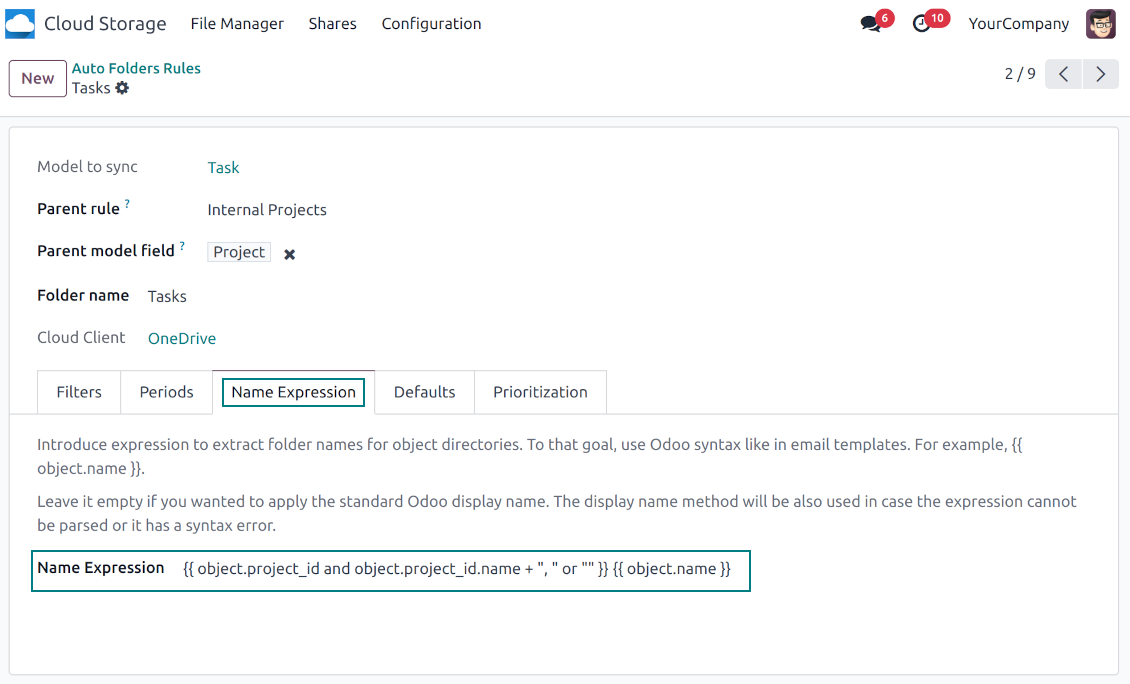
The app lets define complex name expressions for object-related folders (the tab 'Name Expression' on a folder rule form). To that goal, apply the syntax used in Odoo email templates. For example, {{ object.project_id.name }}, {{ object.name }} to reflect a project name in tasks folders
-
Avoid the following symbols in folders' and files' names: *, ?, ", ', :, <, >, /, +, %, !, @, \, /,. Direct sync will replace such symbols with '-'. It is done to avoid conflicts with file systems. Avoid also too long names: e.g. more than 100 symbols
Enterprise Documents
-
The app allows generating folders for workspaces introduced by the Odoo Enterprise apps 'Documents'
-
To force Odoo to prepare workspace-related directories, define folder rule(s) of the type 'Workspace-Related rule'. The tool would automatically create linked folders and sync those for chosen cloud storage with one of the next jobs
-
It is not obligatory to reflect the whole DMS structure. Thus, it is possible to filter workspaces by any storable field. For example, to add a folder only for workspaces that contain the keyword 'Internal'. Take into account: if a workspace was synced, all its child workspaces would be also synced
-
If you generated a subfolder for any workspace-related folder, the app would also create such a Documents workspace
Typical use cases
-
Customers: add all partner files in a single super directory. Optionally distinguish companies and individuals. For example, Odoo > Customers > Azure Interior > Contacts > John Brown
-
Sales orders and invoices: keep all sale-related printings and contracts in your own quotation directories for each customer. For example, Odoo > Customers > Azure Interior > Orders > SO-001 and Odoo > Customers > Azure Interior > Invoices > INV-00001
-
Opportunities: store all specifications, requirements, and any files which would let you make a good offer carefully structured by each sales team and case. For example, Odoo > Sale teams > Europe > Leads > Interest in 50 chairs
-
Project and tasks: prepare a folder for each customer project and task. For example, Odoo > Customers > Azure Interior > Projects > Software design > Tasks > Specification
-
Human resources: gather all files by each employee in a single folder: photos, document scans, contracts. Structure employees by department. For example, Odoo > Departments > Accounting department > Employees > Anita Olivier.
Tiedostojen ja kansioiden jako
-
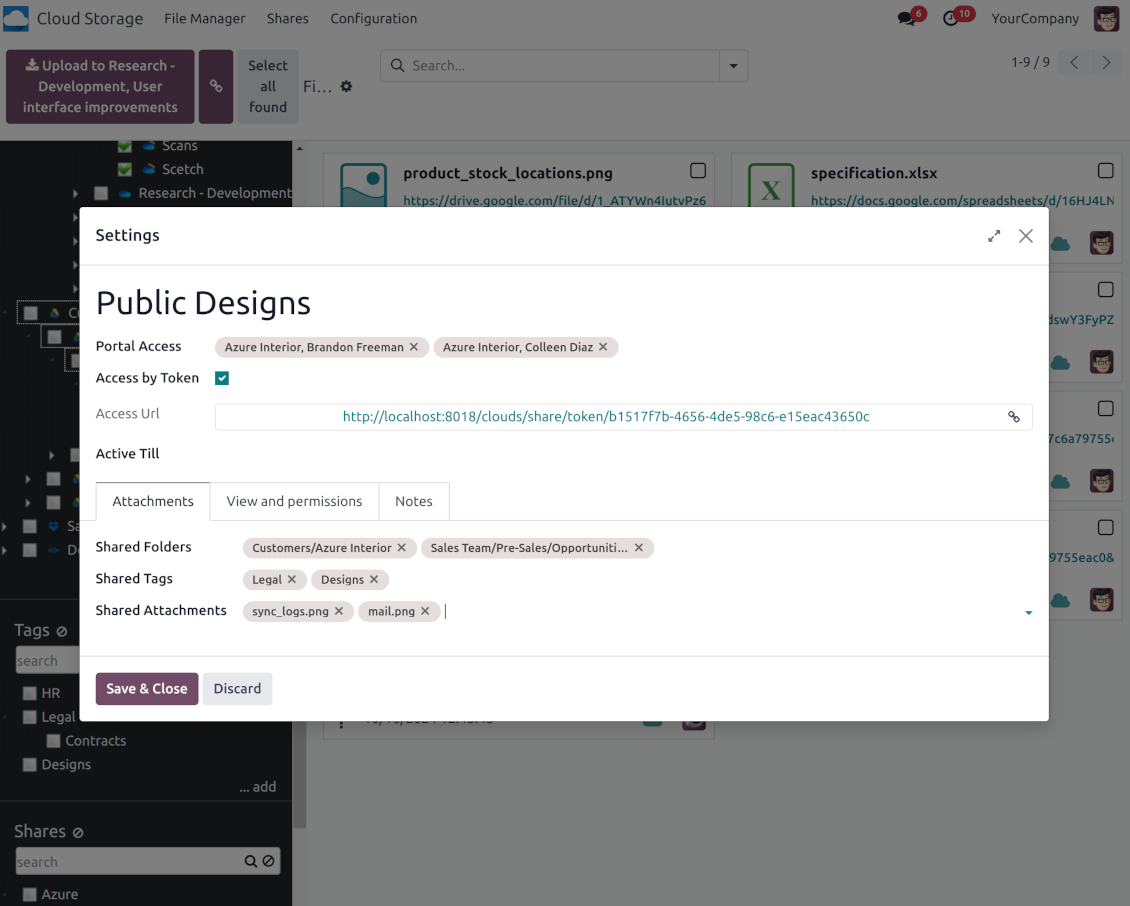
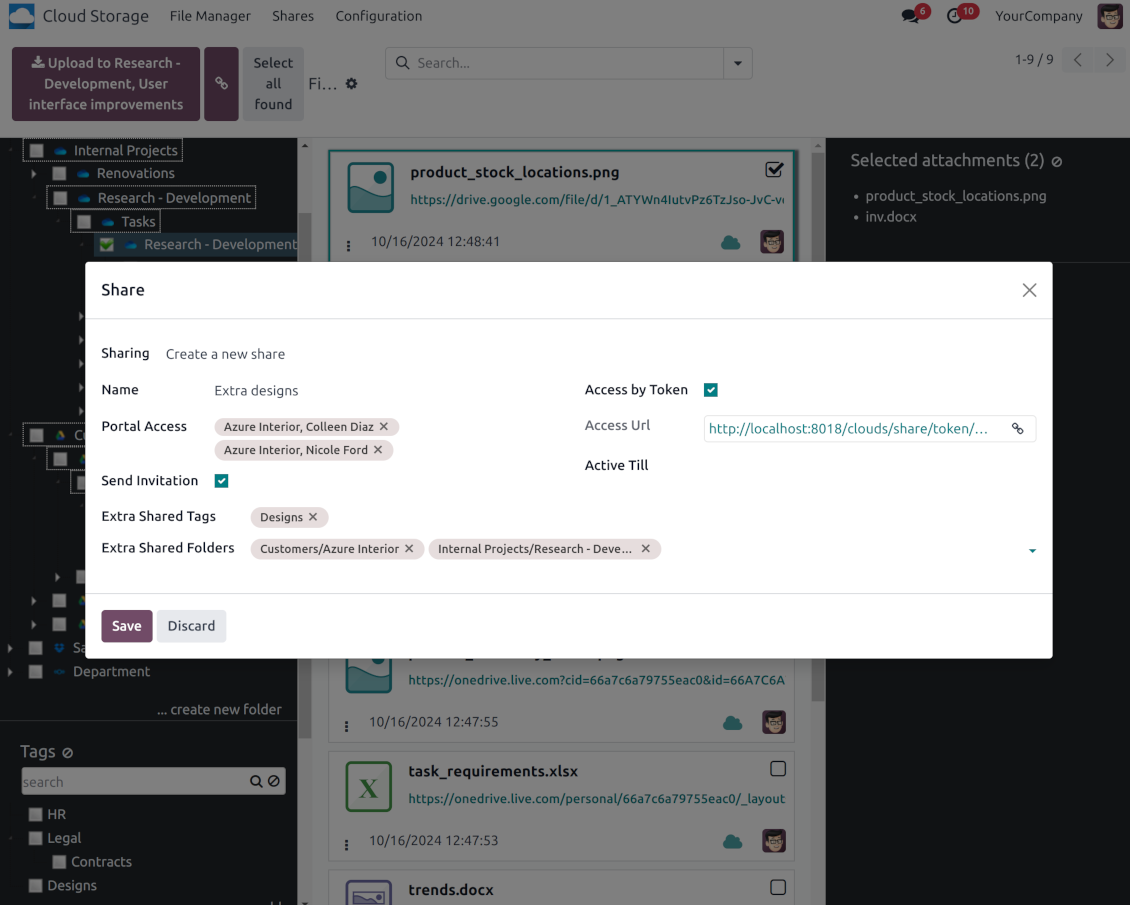
Share particular attachments, whole directories, or even all files of specific tags
-
Grant access to chosen Odoo contacts. Send an invitation to any Odoo portal users at any moment
-
Generate a special access link for public use (even without a user). Change it to make the previous one outdated
-
Make shares for temporary use or available constantly until archived
-
Create an unlimited number of shares with any setups and attachments involved. Portal users might access those through the special entry "Shares" in the Odoo's portal
-
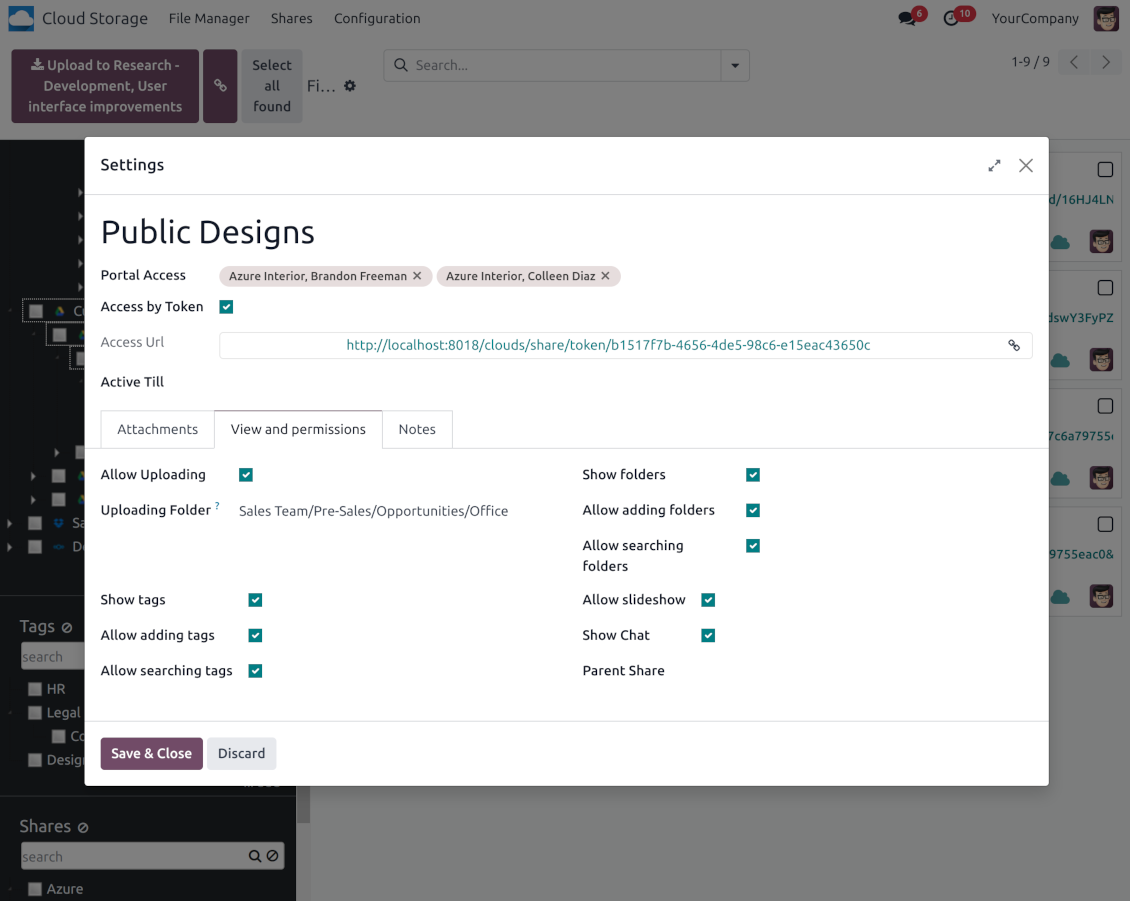
For single-view purposes, shares support hierarchy so as to make comfortable navigation by those
-
Share users can download any shared file, a whole share, a particular directory, or a tag as a ZIP archive
-
Optionally let upload files to the selected or default folder. Files drag and drop is supported
-
Users are always allowed to search attachments by title, linked folder, and tags
-
Optionally allow navigation by folders and/or tags. Shared tags/folders, their children, and ones linked to shared attachments will be available
-
Let users add tags and folders by themselves. Show/hide searching items in tags/folders navigation trees
-
Turn on/off a chat per each share.
Asiakirjahallinnan ja synkronoinnin käyttöoikeudet
-
Access for each Odoo automatic folder is regulated based on a linked object. If such an Odoo object is available for a specific user, its directory would be also available for her/him. For example, if Anita Olivier is the task manager of 'Prepare specification', then she may access the folder 'Tasks' and 'Tasks > Prepare Specification'
-
Access to Odoo manual folders is regulated based on its user groups and users stated in those folders' settings. If nobody is specified, a manually created folder is available for everyone. For example, if Anita Oliver is a sales manager, she may access the quotation-related folder 'Odoo > Orders > SO-001'
-
To access any folder, a user should be able to access all its parents. For example, if Anita Oliver has rights for employees but does not have for departments, then she might not read 'Odoo > Departments > Administration > Employees > Mitchel Admin'. However, if the folder 'Employees' becomes a stand-alone folder without a parent, then Anita would be able to access 'Odoo > Employees > Mitchel Admin'
-
The app does not regulate access levels for cloud clients and their items. The tool regulates rights only for Odoo objects and synchronizes those to required storage. After the sync, if necessary, you should apply the settings for a target cloud client, folders, and files
-
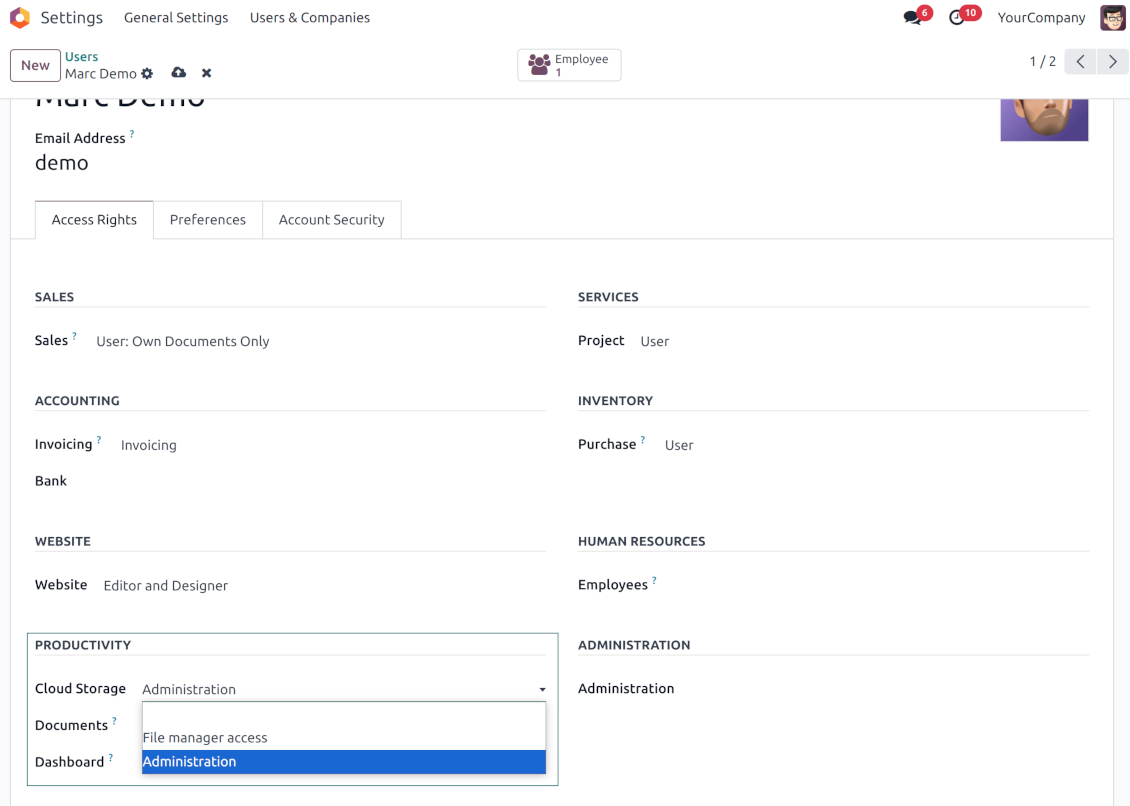
To observe the menu 'Cloud Storage' and the app file manager, a user should belong to the security group 'Cloud Storage > File Manager Access'
-
To configure automatic folder rules, establish connections with various cloud clients, control sync logs, and apply the app settings, a user should belong to the security group 'Cloud Storage > Administration'.
Käyttöhuomautukset
-
The app assumes automatic regular synchronization with various cloud clients. Please take into account that synchronization is not real-time but is based on tasks queue and scheduled jobs. Depending on the number of folders and attachments, it might take time for the app to check all directories and do the jobs. That's why, until the sync is done, Odoo attachment interfaces work as in standard Odoo.
-
Cloud connections rely upon the API of the related cloud clients. Such communication between systems is risky by concept due to possible disconnections, API updates, and unsolvable conflicts. The app is designed to cope with such risks by carefully processing failures and checking cloud client states. Simultaneously, make sure that you have configured a proper backup strategy for both Odoo and cloud clients.
-
The special factors of risks are sync scope and reverse operations. The higher the sync scope is, the more it would take Odoo to finish integrations. Hence, more space for errors exists. Try to decrease sync scope logically by choosing only required folders. Reverse operations might be risky since assume reflecting cloud clients' features which might be absent in Odoo. For example, Google Sheets cannot be opened outside Google Docs. The app would try to solve the scenarios by applying similar features (e.g. by converting a file to simple electronic tables). However, that is not always possible, and in this way, manual interactions would be required.
Määritys- ja asennusvinkkejä: Cloud Storage Solutions Odoo v.18
Odoo-palvelimen määritys
Jotta synkronointi toimisi oikein, aseta Odoo-määritystiedostoon sopivat aikakatkaisut: LIMIT_TIME_CPU, LIMIT_TIME_REAL, LIMIT_TIME_REAL_CRON tulee olla yli 900 sekuntia.
Odoo.sh:ssä tätä ei pidä tehdä, koska aikakatkaisut on ennalta määritetty eikä niitä voi muuttaa.
Älä myöskään muuta sovelluksen olettamaa cron-töiden tiheyttä: '[Cloud Storage] Prepare Cloud Folders', '[Cloud Storage] Run / Prepare sync queue'. Nämä työt on asetettu suoritettavaksi 15 minuutin välein, ja algoritmit käyttävät tätä tiheyttä katkosten ja tietohäviön välttämiseen. Jos synkronointi pitää tauottaa hetkeksi, keskeytä yksittäiset pilviasiakkaat sen sijaan.
Yleinen Python-riippuvuus
Työkalu riippuu ulkoisesta kirjastosta 'sortedcontainers'. Asenna se Odoo-palvelimelle komennolla:
pip3 install sortedcontainersOneDrive- ja/tai SharePoint-integraation määritys
Python-riippuvuus
Työkalu riippuu ulkoisesta kirjastosta 'microsoftgraph'. Asenna se Odoo-palvelimelle komennolla:
pip3 install microsoftgraph-python
Määritys ja kirjautuminen
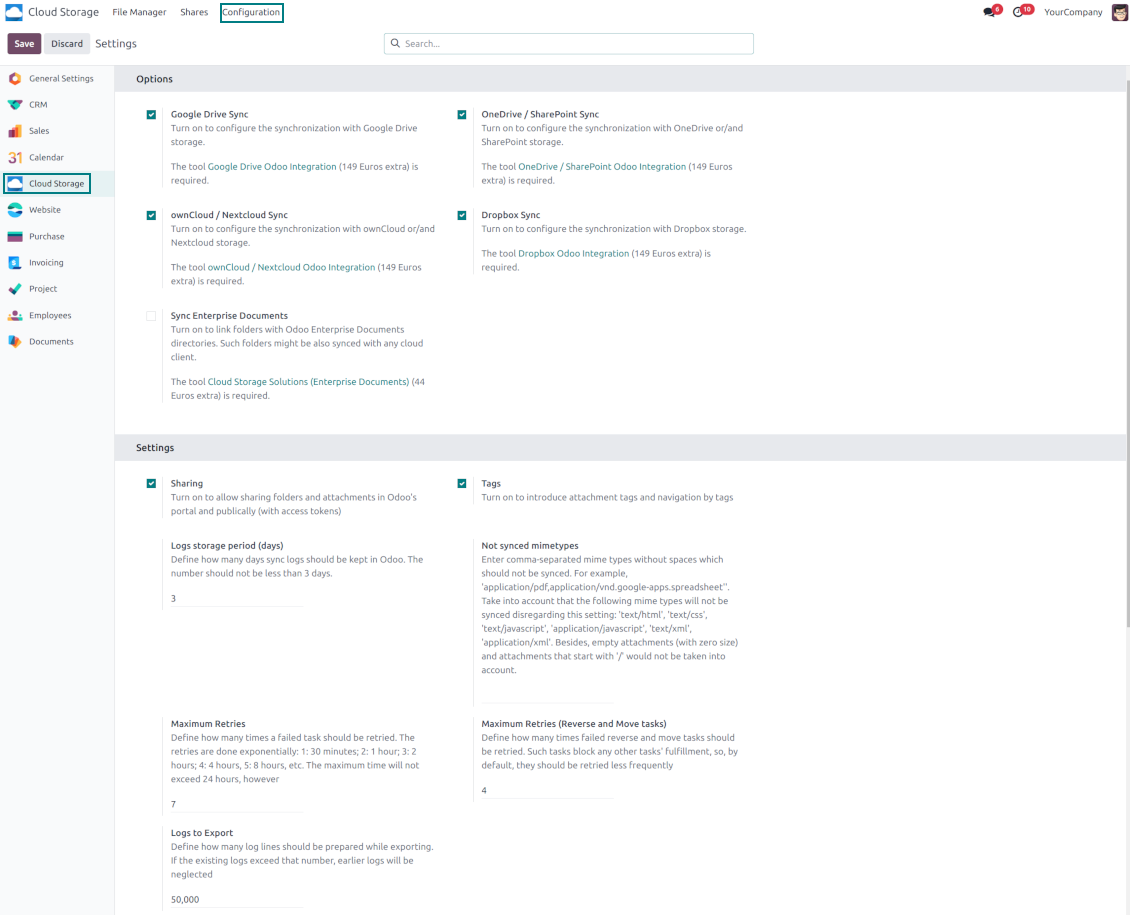
- Ota käyttöön valinta 'OneDrive / SharePoint Sync' (cloud Storage > Configuration > Configuration). Valinnainen lisäosa OneDrive / SharePoint Odoo Integration vaaditaan
- Varmista, että Microsoft-käyttäjälläsi on täydet ylläpito-oikeudet siihen OneDriveen / SharePointiin, jonka haluat yhdistää Odooseen. Käyttäjää tarvitaan vain käyttöoikeuksien myöntämiseen; käyttäjätietoja ei säilytetä Odoossa eikä niitä käytetä myöhemmin. Varmista lisäksi, ettei käyttämälläsi Microsoft-sähköpostiosoitteella ole uudelleenohjausta (yleistä, kun määrität oman verkkotunnuksen, mutta ensisijainen osoite on yhä Microsoft-verkkotunnus kuten @outlook.com, @office365 jne.)
- Siirry Azure Portaliin: https://portal.azure.com/#blade/Microsoft_AAD_RegisteredApps/ApplicationsListBlade
Sovellus on rekisteroitava hakemistoon (tenant). Microsoft ei ena salli uuden sovelluksen luontia hakemiston ulkopuolelle.
- Jos sinulla on jo yrityksen Microsoft 365 / Azure -hakemisto, vaihda portaali (oikealla ylaoikealla) siihen ja jatka.
- Jos sinulla on vain henkilohtainen tili (@outlook.com, @hotmail.com, @live.com) ja nain "these applications are associated with the account ... but are not contained within any directory", sinulla ei ole viela hakemistoa. Luo ilmainen Azure-tili samalla Microsoft-tililla: https://azure.microsoft.com/free/ - Kokeile Azurea ilmaiseksi. Tama luo Default Directoryn ilman kustannuksia.
- Microsoft pyytaa korttia vain henkilollisuuden varmistukseen; noin 1 USD varataan tilapaiseksi ja palautetaan. Hakemistosta tai sovelluksen rekisteroinnista ei veloiteta.
- Hakemisto (Microsoft Entra ID Free) ja siihen rekisteroidyt sovellukset toimivat 30 paivan / 200 $ Azure-kokeiluluotosta riippumatta. Luotto on maksullisia Azure-resursseja varten, joita et kayta tassa. Sovelluksestamme ei vaadita maksua.
- Jos koko hakemisto on hyvin kauan taysin kayttamatta (Microsoftin kynnys on noin 200 paivaa ilman toimintaa), Microsoft voi lahettaa varoituksen ja lopulta poistaa sen. Koska Odoo kutsuu tata sovellusta joka synkronoinnissa, aktiivinen yhteys pitaa hakemiston aktiivisena - tama merkitsee vain, jos lopetat synkronoinnin kokonaan kuukausiksi.
- Kun olet oikeassa hakemistossa (ei "Microsoft Services"), avaa siella App registrations.
- Napsauta 'New registration'
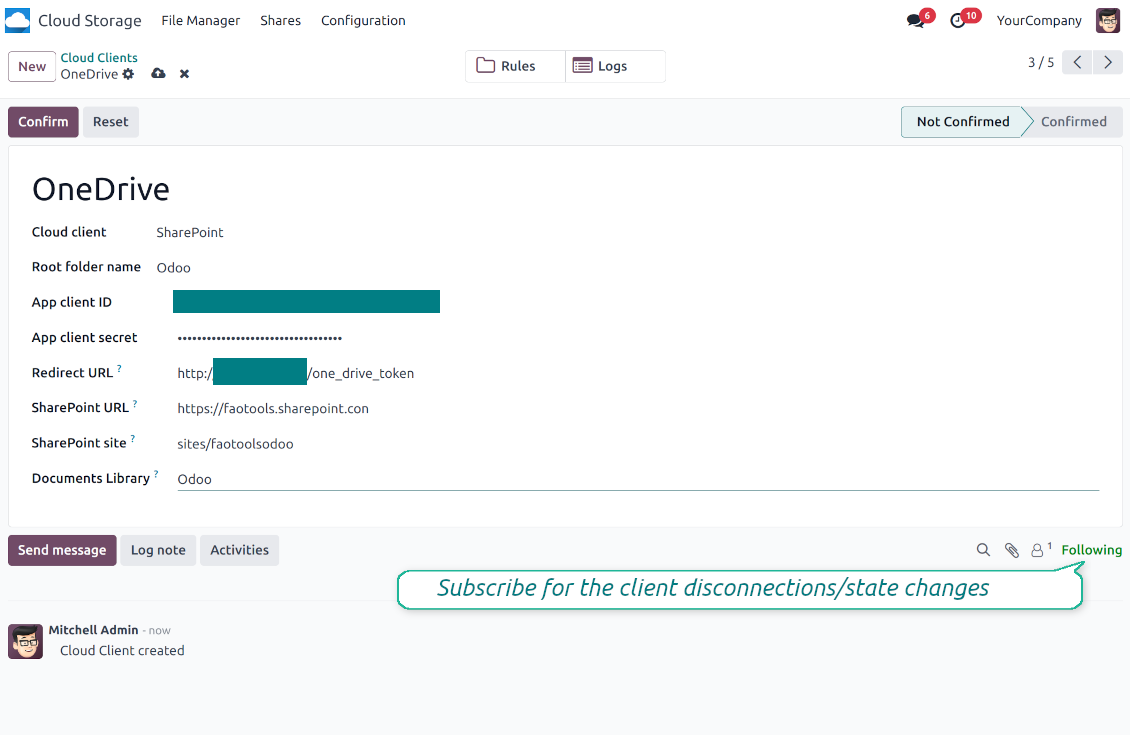
- Introduce a new name for the application and assign the redirect URI as [YOURODOOSITENAME]/one_drive_token (e.g. https://odootools.com/one_drive_token). As the supported account types choose 'Accounts in any organizational directory (Any Azure AD directory - Multitenant) and personal Microsoft accounts (e.g. Skype, Xbox)'.
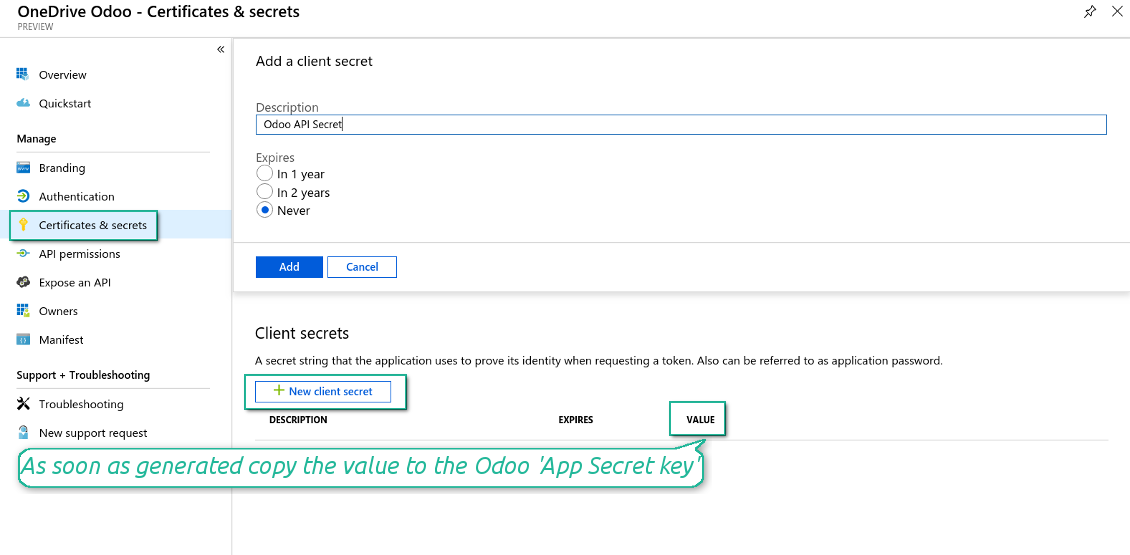
- Siirry kohtaan Certificates & secrets - napsauta 'New Client Secret'. Tallenna salaisuuden arvo talteen
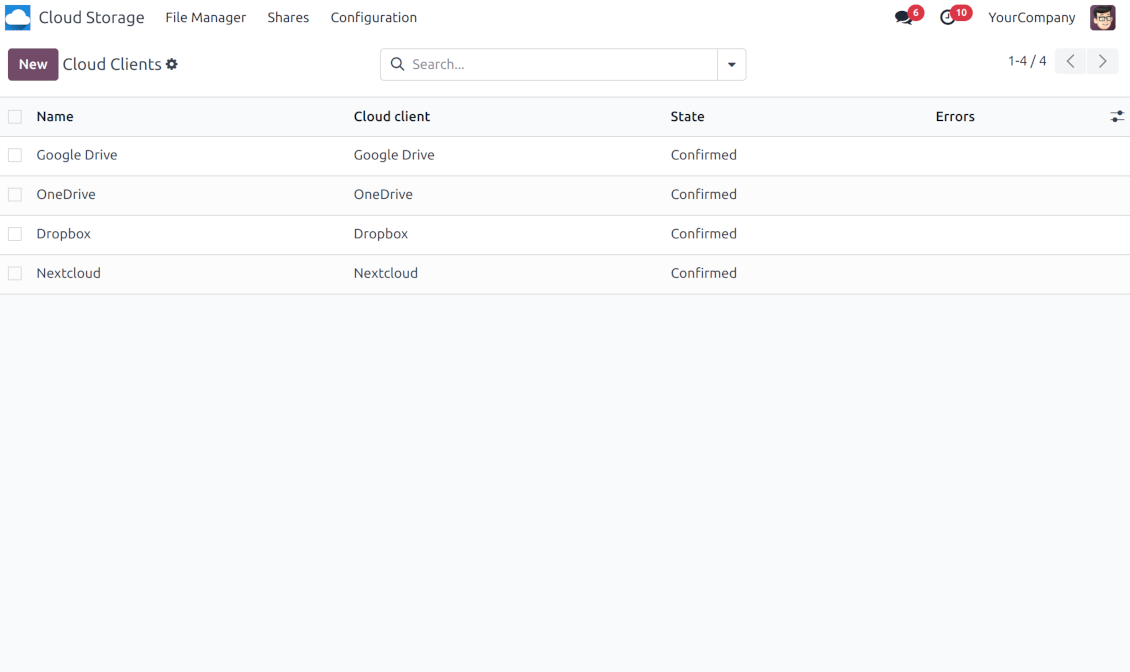
- Siirry kohtaan Odoo Cloud Storage > Configuration > Cloud Clients ja paina 'Create'
- Viitteeksi anna nimi, joka on selvä kaikille käyttäjille
- Pilviasiakkaaksi valitse 'OneDrive' tai 'SharePoint' käyttämäsi ohjelmiston mukaan
- Juurikansion nimeksi anna otsikko, jota käytetään kaikkien synkronoitujen kansioiden yläpuolisena OneDrive-hakemistona. Esimerkiksi 'Odoo' tai 'OdooERP'
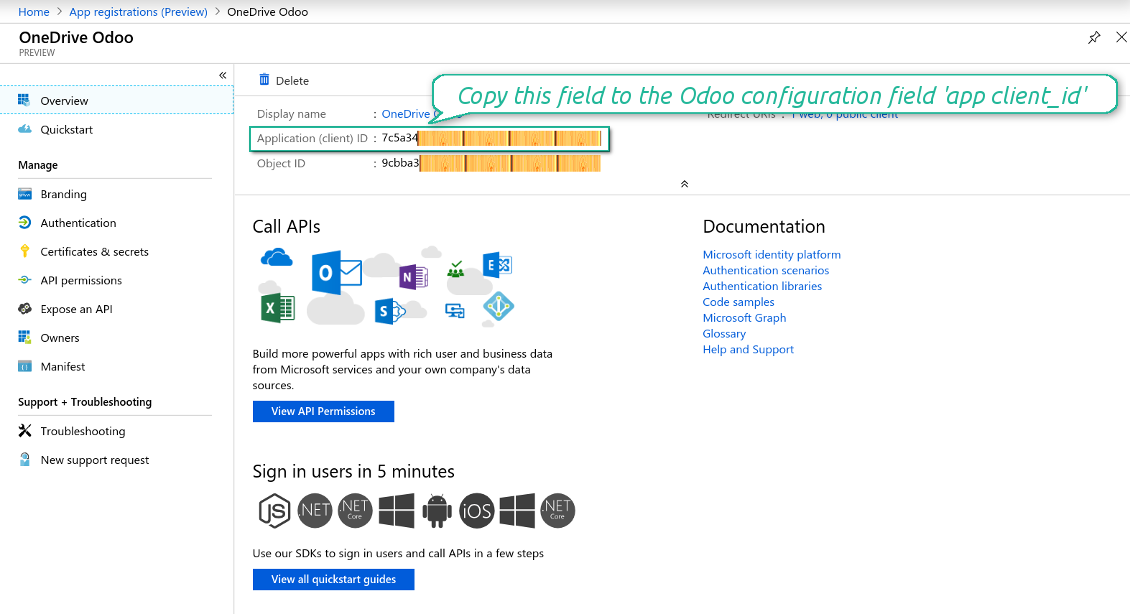
- Kopioi 'Application Client ID' kenttään 'App client ID'
- Kopioi salaisuuden arvo kenttään 'App client secret'
- Syötä aiemmin luotu redirect-URL
- Jos käytät SharePointia:
- Siirry SharePoint-sivustollesi ja valmistele uusi asiakirjakirjasto (drive). Voit käyttää myös olemassa olevaa, esimerkiksi 'Documents'. Odoo-kansio sijoitetaan sinne myöhemmin, eikä sitä voi siirtää toiseen kirjastoon
- SharePoint-URL:n on oltava muotoa https://[URL]/. Viimeinen '/' on pakollinen - sivuston nimeä ei sisällytetä. Esimerkiksi https://odootools.sharepoint.com/
- SharePoint-sivuston tulee olla joko root (itse juuri-SharePoint-sivusto), my_site_name (tällöin se tulkitaan muotoon sites/my_site_name) tai sites/my_site_name ('sites' voi olla myös 'teams' ja niin edelleen). Alussa tai lopussa ei saa olla '/'. Esimerkiksi sites/odootools
- Documents Libraryksi käytä SharePointissa luotua
- Paina 'Confirm'. Odoo ohjaa sinut Microsoftin kirjautumissivulle. Tarkista järjestelmässä, hyväksy kaikki ehdot ja myönnä kaikki pyydetyt käyttöoikeudet. If Microsoft shows an account already signed in and says it does not exist in tenant 'Microsoft Services' (or any other unrelated tenant), do not click that row. Click 'Use another account' and sign in with the Microsoft account that owns the app's directory
- Kirjautumisen jälkeen OneDrive ohjaa takaisin Odooseen. OneDrive - Odoo -synkronointi on valmis
- Kohdista juuri luotu pilviasiakas kansiosääntöihin ja/tai manuaalisiin kansioihin, jotka synkronoidaan kyseiseen OneDrive- tai SharePoint-instanssiin
- Odota ajastetun synkronointityön käynnistymistä. Vain testausta varten: käynnistä integrointi manuaalisesti polusta Cloud Storage > Asetukset > Asetukset > painike 'Launch sync'.
Katso myös määritysvideo
Luo Azure-sovellus
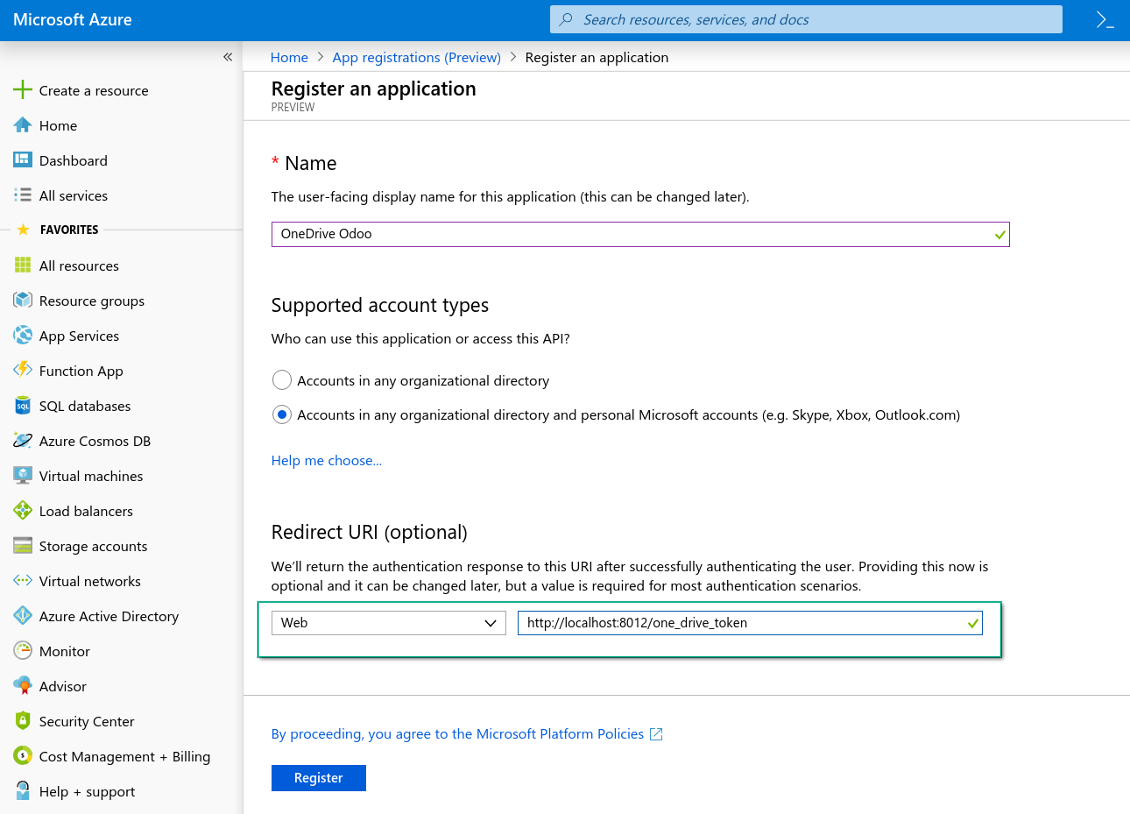
Uusi OneDrive Web -alusta ja redirect-URL
Luo uusi salaisuus Azure-sovellukselle
Syötä määritysavaimet Odooseen
Google Drive -integraation määritys
- Ota käyttöön valinta 'Google Drive Sync' (cloud Storage > Configuration > Configuration). Valinnainen lisäosa Google Drive Odoo Integration vaaditaan
- Siirry Google Cloud Consoleen URL-osoitteella https://console.cloud.google.com
- Valitse tai luo projekti
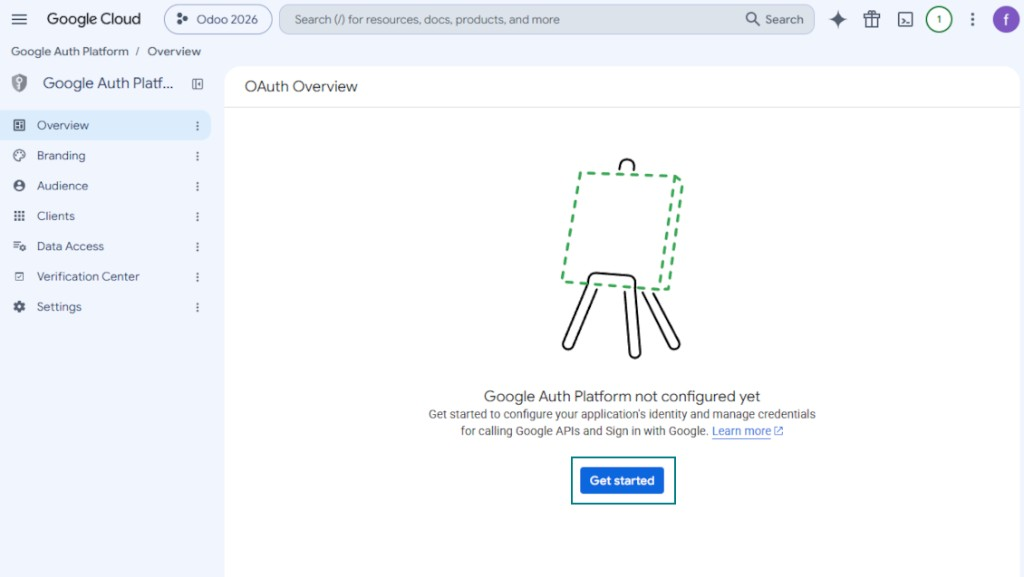
- Kun projekti on valittu, konsoli avaa Google Auth Platformin. Paina 'Get Started'
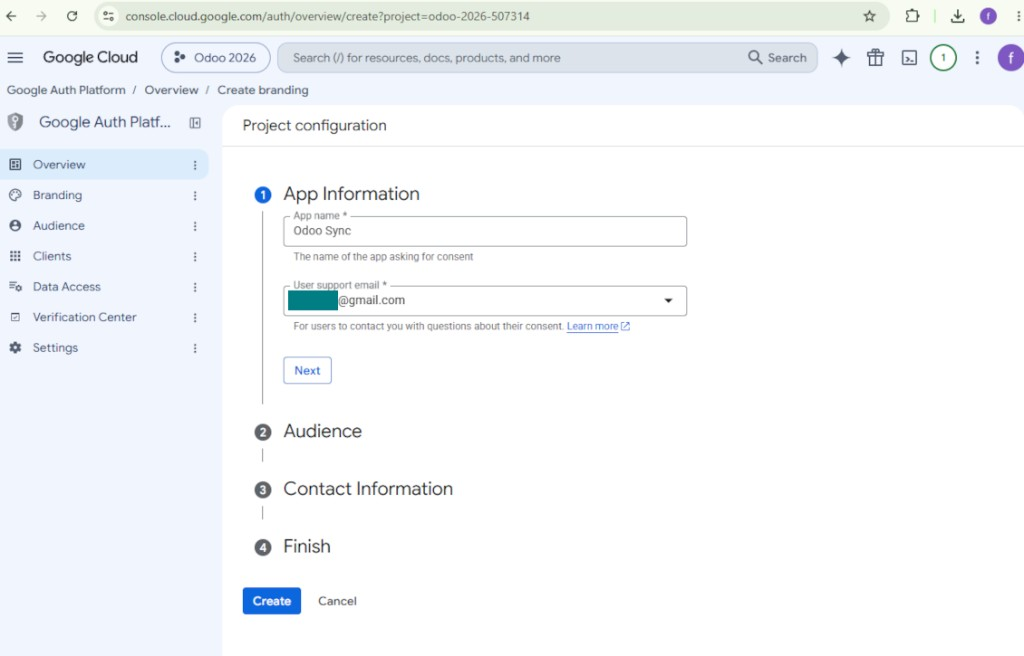
- Lisää sovellustiedot
- Sovelluksen nimeksi valitse sopiva
- Käyttäjätuen sähköpostiksi valitse oma osoitteesi
- Paina 'Next'
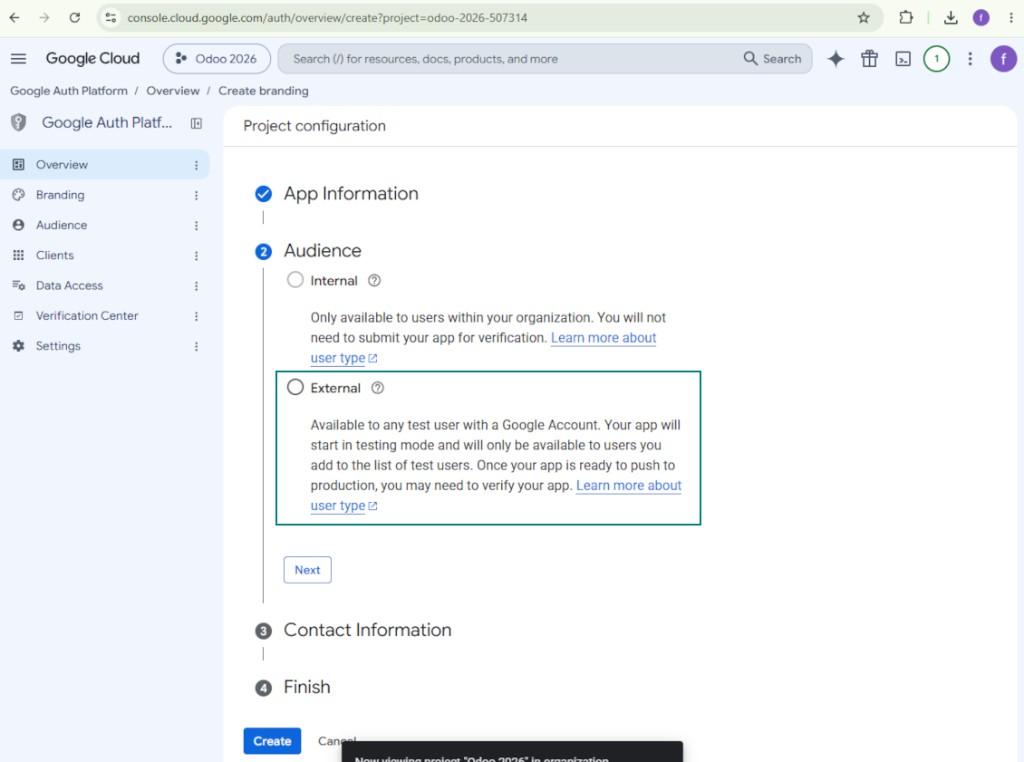
- Yleisöksi valitse 'External' ja paina 'Next'. Huomaa: käytät tätä sovellusta joka tapauksessa vain omaan Odoo-yhteyteesi
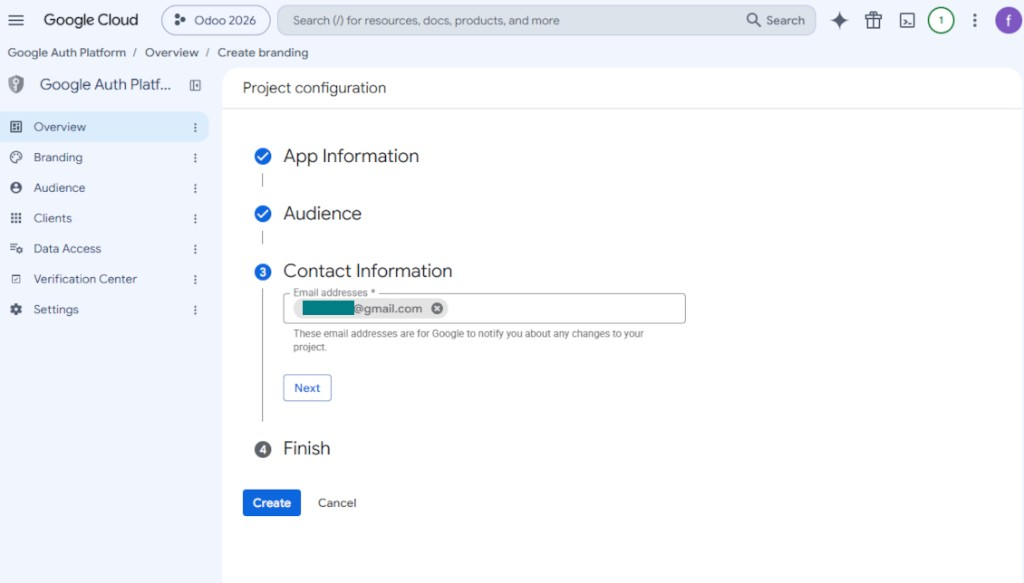
- Yhteystiedoiksi anna Google- tai Google Workspace -sähköpostiosoitteesi ja paina 'Next'
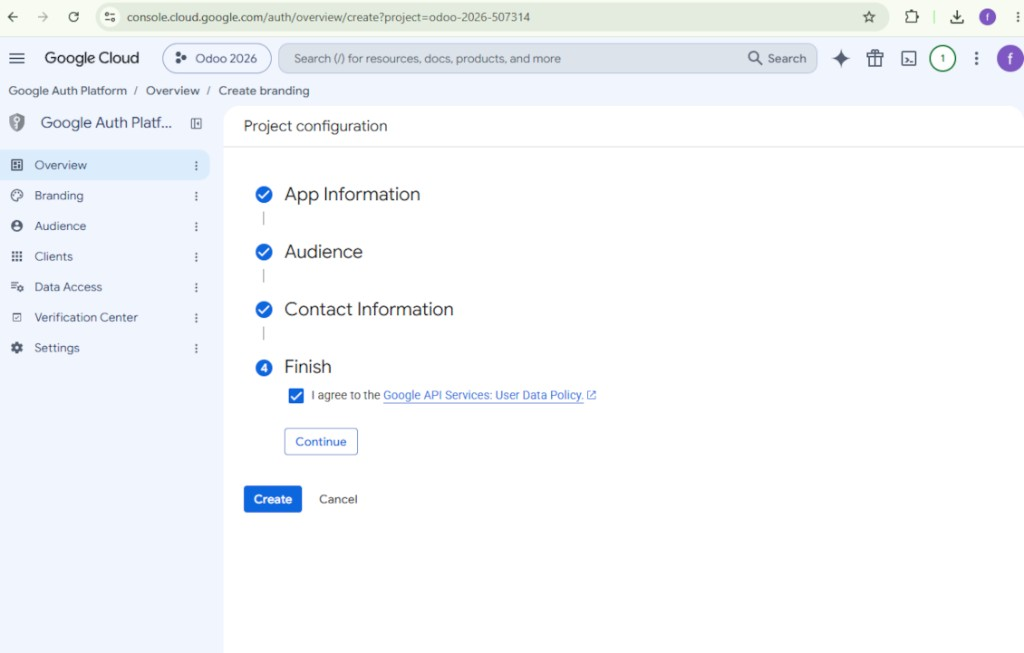
- Hyväksy Google API Services User Data Policy, paina 'Continue' ja sen jälkeen 'Create'
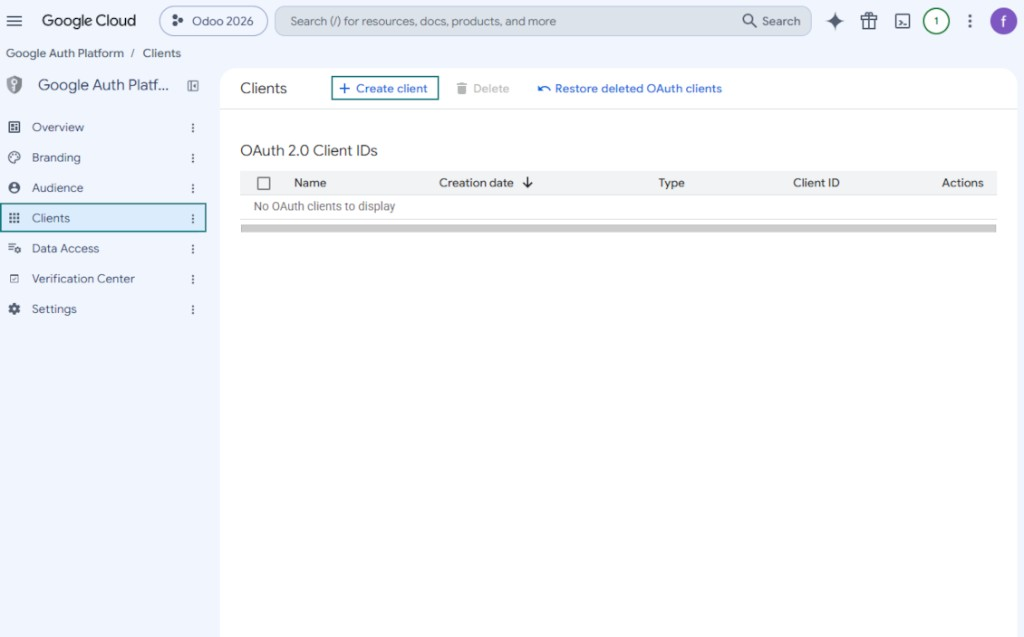
- Siirry kohtaan 'Clients' ja paina 'Create client'
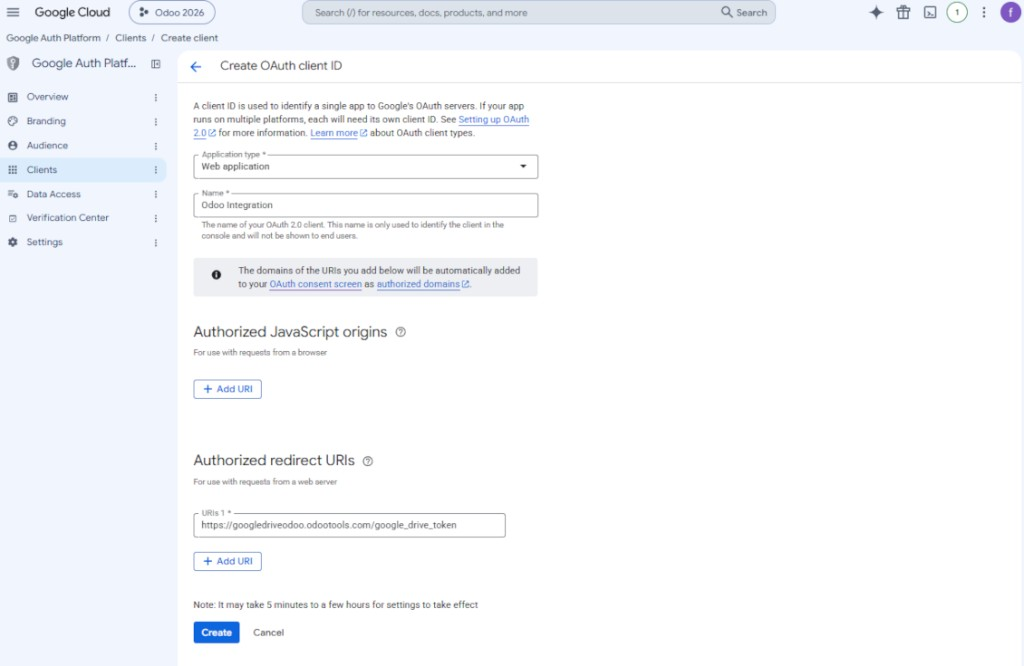
- Sovellustyypiksi valitse 'Web application'
- Nimeksi valitse sopiva
- Valtuutetuksi uudelleenohjaus-URI:ksi lisää linkki muodossa [YOURODOOSITENAME]/google_drive_token (esim. https://odootools.com/google_drive_token).
- Paina 'Create'
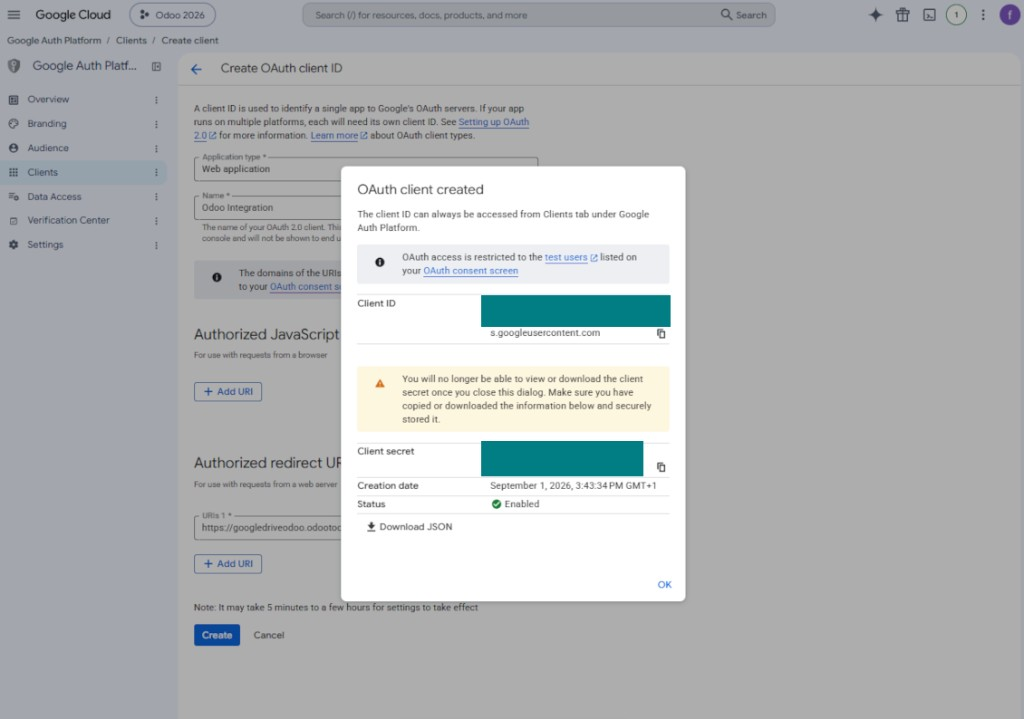
- Kopioi ja säilytä turvallisesti 'Client ID' ja 'Client secret'. Client secret näytetään vain kerran
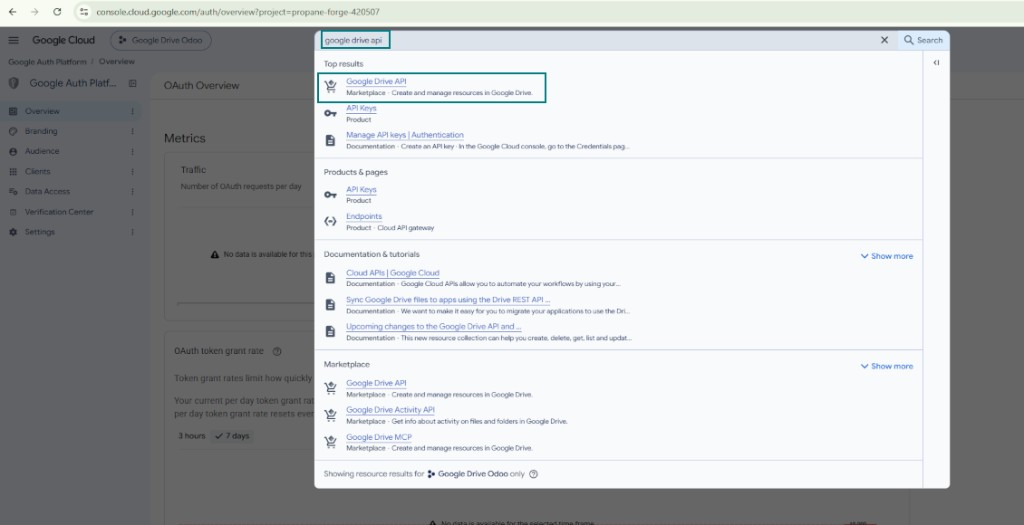
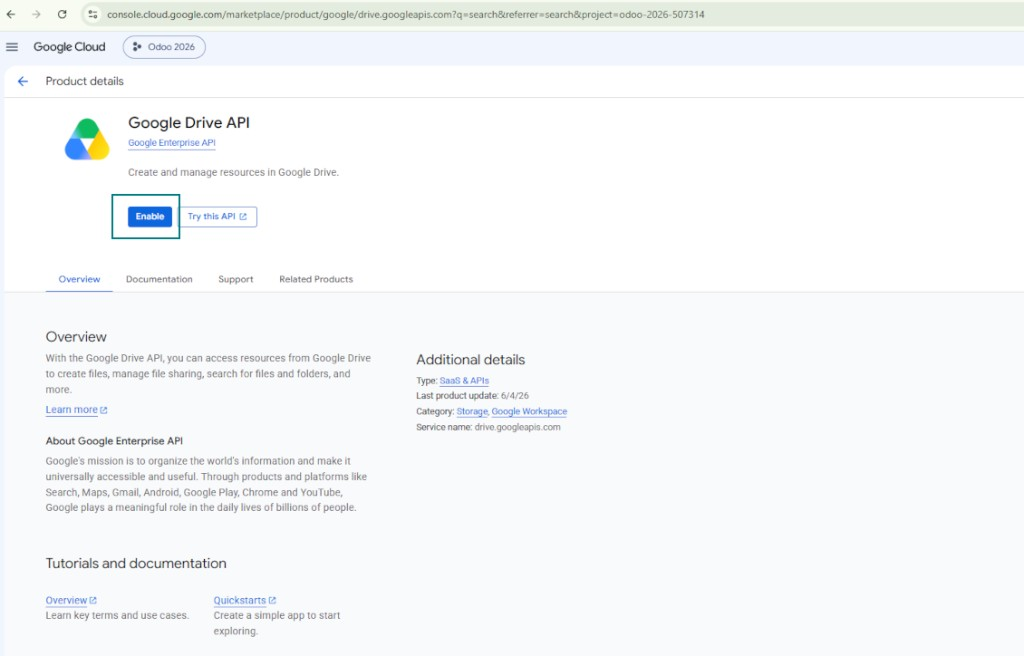
- Ota Google Drive API käyttöön tässä projektissa: kirjoita 'Google Drive API' ylimpään hakukenttään, avaa löytynyt tuote ja paina 'Enable'
- Siirry kohtaan 'Audience' ja lisää sähköpostiosoitteesi testikäyttäjäksi
- Julkaise sovellus. Muuten se jää testitilaan ja sen tunnus vanhenee 7 päivän välein
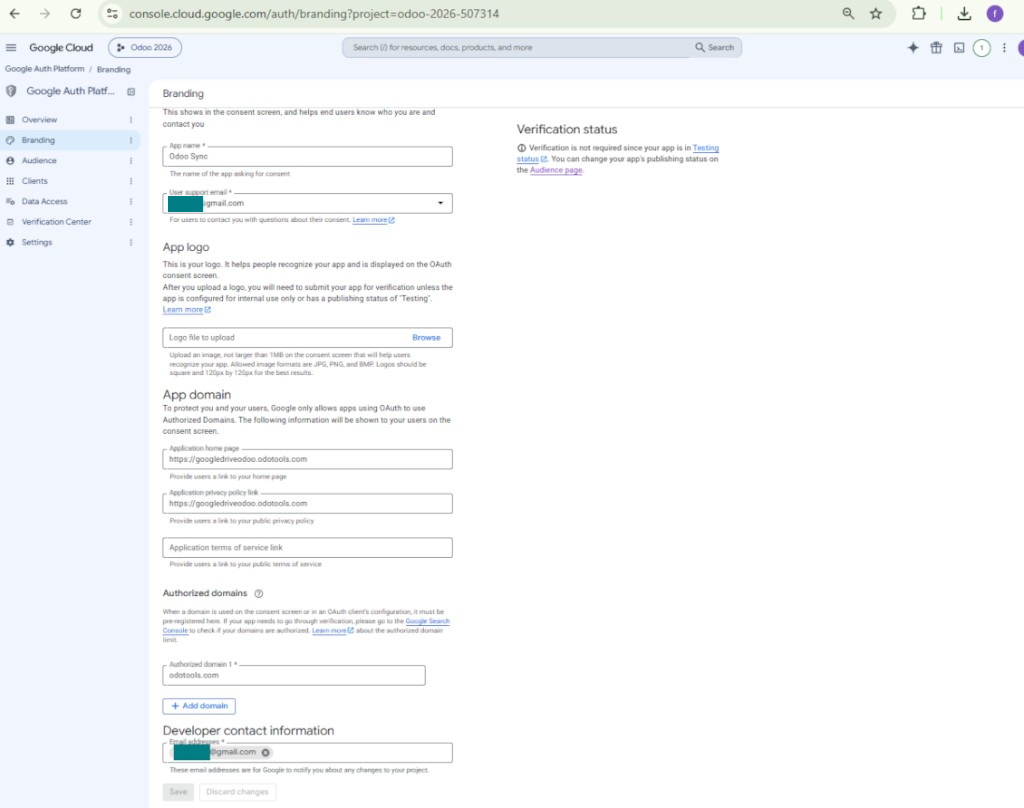
- Avaa 'Branding' ja täytä sovelluksen kotisivu sekä tietosuojakäytännön linkki (esimerkiksi linkit Odoo-sivustoosi). Lisää näiden linkkien verkkotunnukset valtuutetuiksi verkkotunnuksiksi
- Avaa 'Audience' ja paina 'Publish app'
- Älä lataa sovelluksen logoa. Se käynnistää pitkän ja monimutkaisen Googlen vahvistusprosessin, jota et todellisuudessa tarvitse
- Siirry kohtaan Odoo Cloud Storage > Configuration > Cloud Clients ja paina 'Create'
- Viitteeksi anna nimi, joka on selvä kaikille käyttäjille
- Pilviasiakkaaksi valitse 'Google Drive'
- Juurikansion nimeksi anna otsikko, jota käytetään kaikkien synkronoitujen kansioiden yläpuolisena Google Drive -hakemistona. Esimerkiksi 'Odoo' tai 'OdooERP'
- Kopioi vaiheen 9 'Client ID' kenttään 'App client ID'
- Kopioi vaiheen 9 'Client secret' kenttään 'App client secret'
- Syötä vaiheessa 9 antamasi redirect-URL
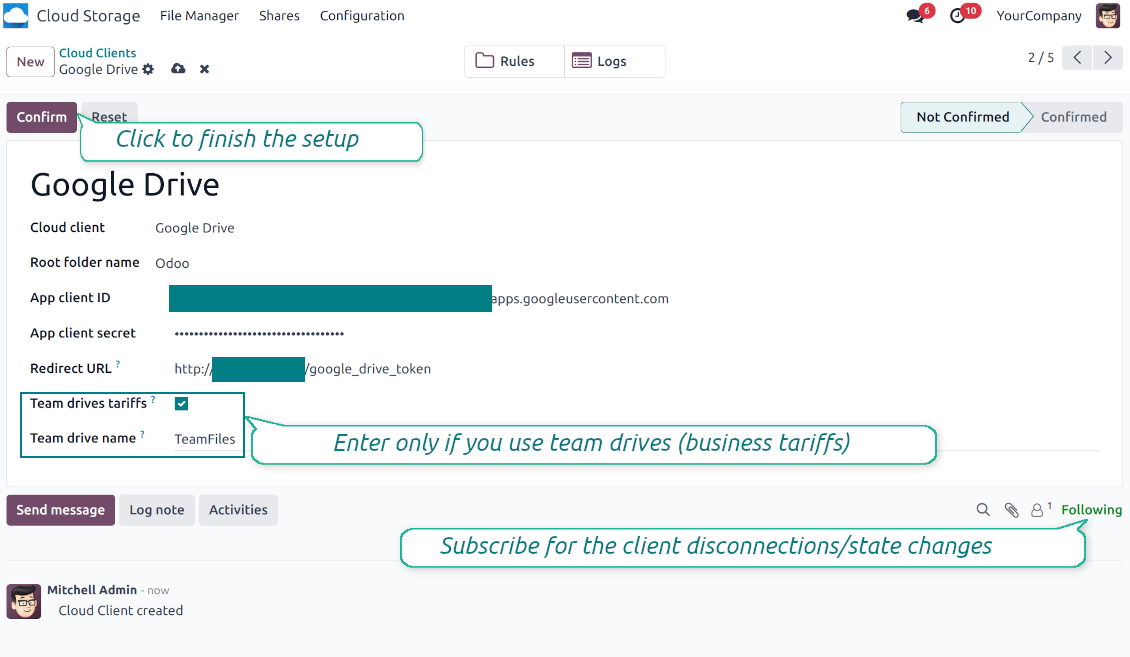
- Jos käytät Team Drive -asemia, rastita siihen liittyvä ruutu. Varmista, että käytät niitä todella. Google Drivessa vasemmassa sivupalkissa pitäisi olla kohta 'Team Drives'. Tämä ominaisuus on saatavilla vain business- ja enterprise-hinnoittelussa
- Jos valinta 'Team Drive' on käytössä, anna sen nimi. Sen on oltava täsmälleen sama kuin Google Drivessa. Varmista, että käyttäjälläsi on täydet oikeudet kaikkiin Google-asemiin (yleensä sama käyttäjä, joka määrittää tiimin Google Driven)
- Paina 'Confirm'. Odoo ohjaa Googlen kirjautumissivulle. Tarkista järjestelmässä, hyväksy ehdot ja myönnä pyydetyt oikeudet
- Kirjautumisen jälkeen Google ohjaa takaisin Odooseen. Google Drive - Odoo -synkronointi on valmis
- Kohdista juuri luotu pilviasiakas kansiosääntöihin ja/tai manuaalisiin kansioihin, jotka synkronoidaan kyseiseen Google Driveen
- Odota ajastetun synkronointityön käynnistymistä. Vain testausta varten: käynnistä integrointi manuaalisesti polusta Cloud Storage > Asetukset > Asetukset > painike 'Launch sync'.
Katso myös määritysvideo, Huomaa: videon Google-konsolia käsittelevä osa on vanhentunut; noudata sen sijaan yllä olevia vaiheita
Avaa Google Auth Platform
Lisää sovelluksen tiedot
Valitse External-yleisö
Lisää yhteystiedot
Hyväksy käytännöt ja luo sovellus
Luo OAuth-asiakas
Määritä web-sovellusasiakas
Kopioi Client ID ja Client secret
Etsi Google Drive API
Ota Google Drive API käyttöön
Täytä Branding sovelluksen julkaisua varten
Syötä Google-sovelluksen tunnukset Odooseen
Amazon S3:n määritys
- Ota käyttöön valinta 'Amazon S3 Sync' (Cloud Storage > Asetukset > Asetukset). Valinnainen lisäosa Amazon S3 Odoo Integration tarvitaan
- Avaa Amazon S3 Console: https://console.aws.amazon.com/s3/
- Luo uusi bucket tai valitse olemassa oleva. Kopioi tarkka bucket-nimi: se syötetään Odoossa kenttään 'Bucket'
- Avaa bucketin tiedot ja kopioi AWS Region. Syötä se Odoossa kenttään 'Region' (esimerkiksi eu-west-1 tai us-east-1)
- Avaa AWS IAM Console: https://console.aws.amazon.com/iam/
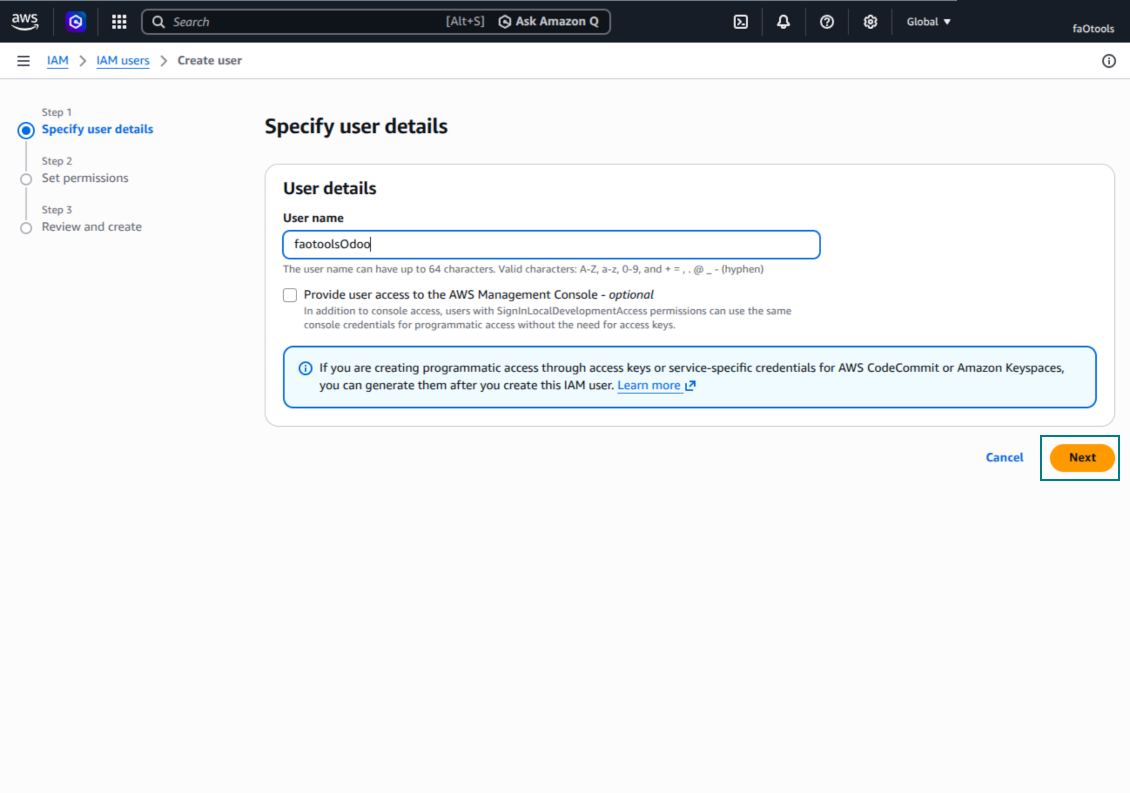
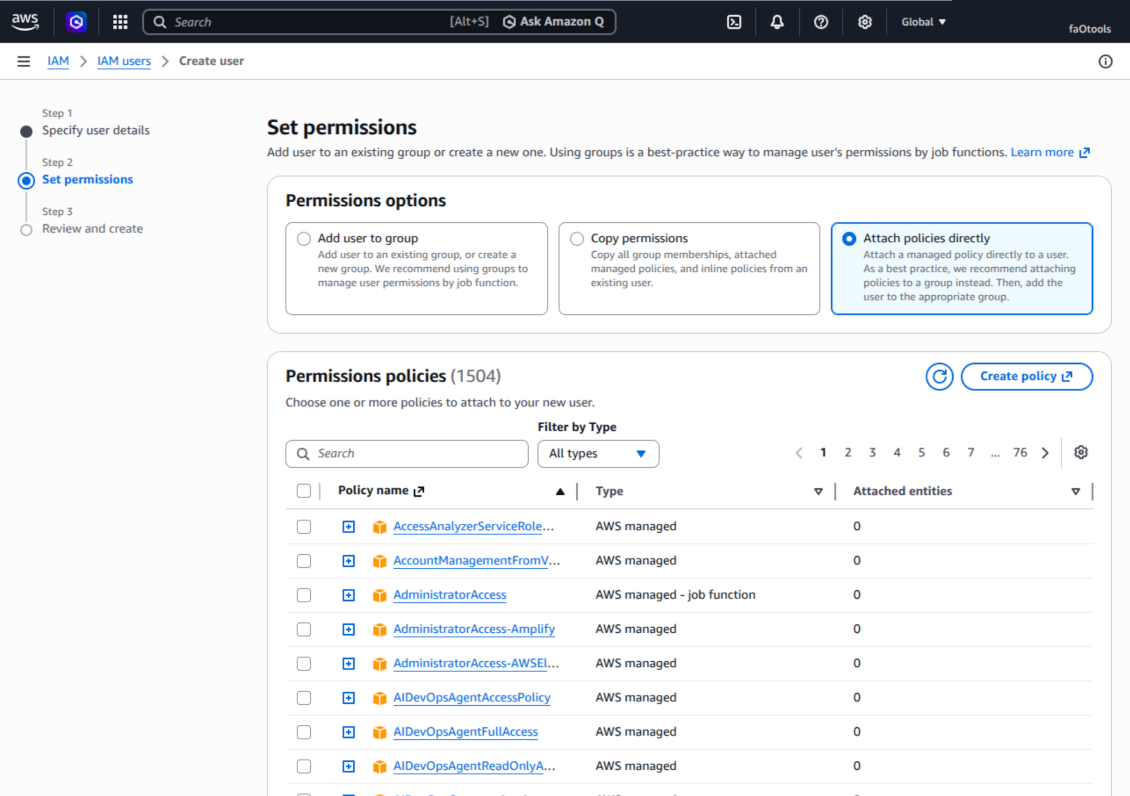
- Luo uusi IAM-käyttäjä tai valitse olemassa oleva tekninen käyttäjä. Tällä käyttäjällä tulee olla täydet oikeudet listata, lukea, luoda, kirjoittaa, kopioida ja poistaa objekteja valitussa bucketissa. Voit valita täydet ylläpitäjän oikeudet tai luoda uuden käytännön (ks. alla)
- IAM-käyttäjälomakkeessa avaa välilehti 'Security credentials' ja paina 'Create access key'
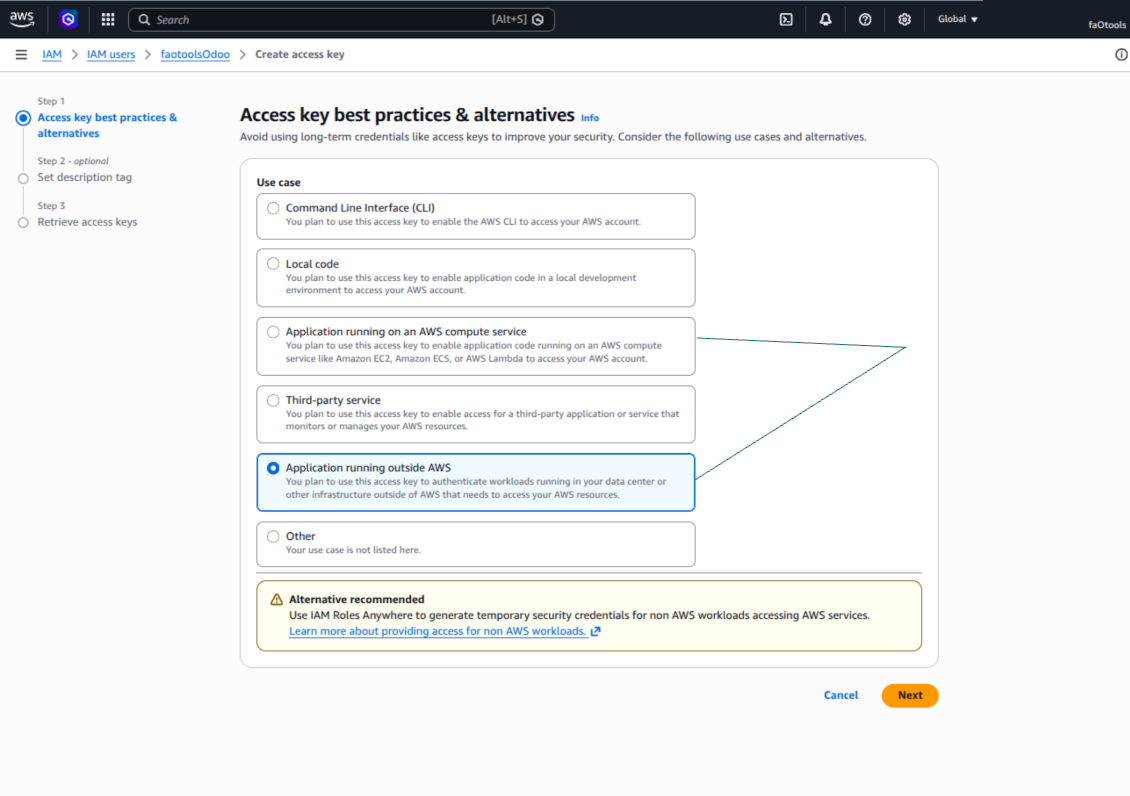
- Sivulla 'Access key best practices & alternatives' valitse Application running outside AWS. Tämä on oikea valinta, kun Odoo-palvelin yhdistää S3:een käyttöavaimella AWS:n ulkopuolelta, Odoo.sh:sta, omalta palvelimelta tai toiselta palvelintarjoajalta. Jos Odoo on AWS EC2 -instanssissa, voit sen sijaan valita Application running on an AWS compute service; Odoohon kopioitavat kentät ovat samat
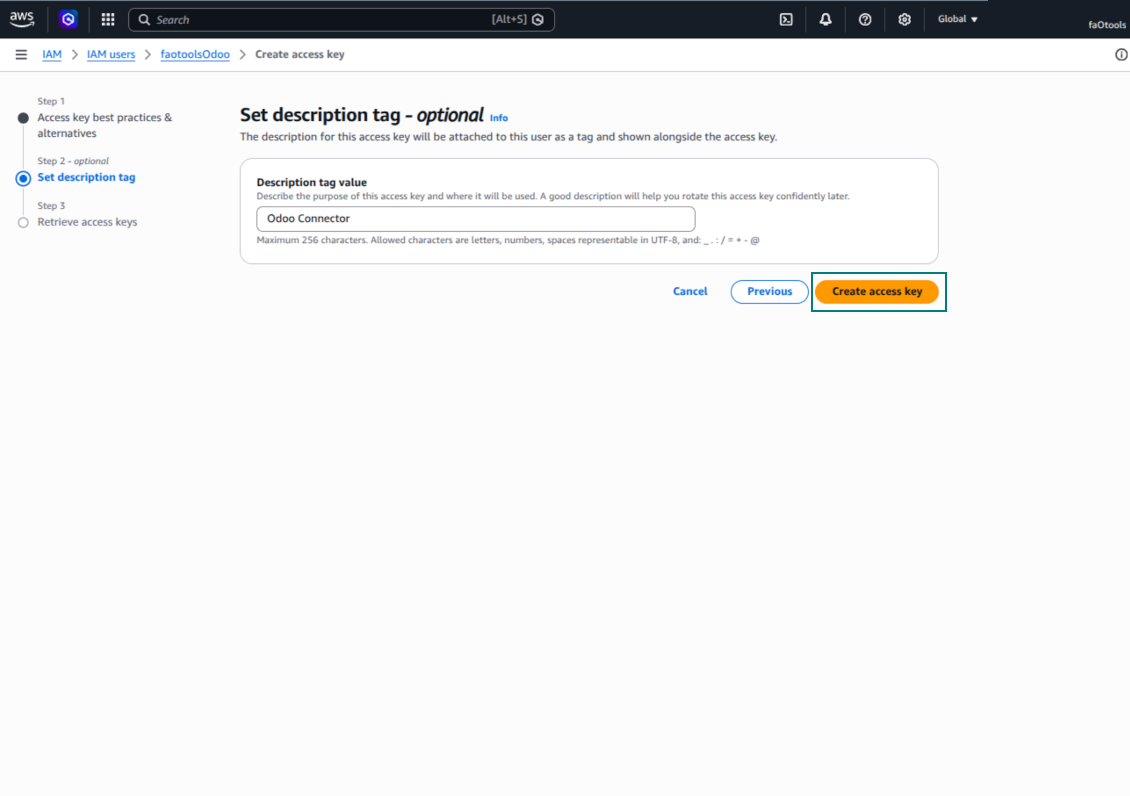
- Paina 'Next'. Seuraavassa vaiheessa voit antaa kuvausmerkin, esimerkiksi Odoo S3 Sync, ja paina sitten 'Create access key'
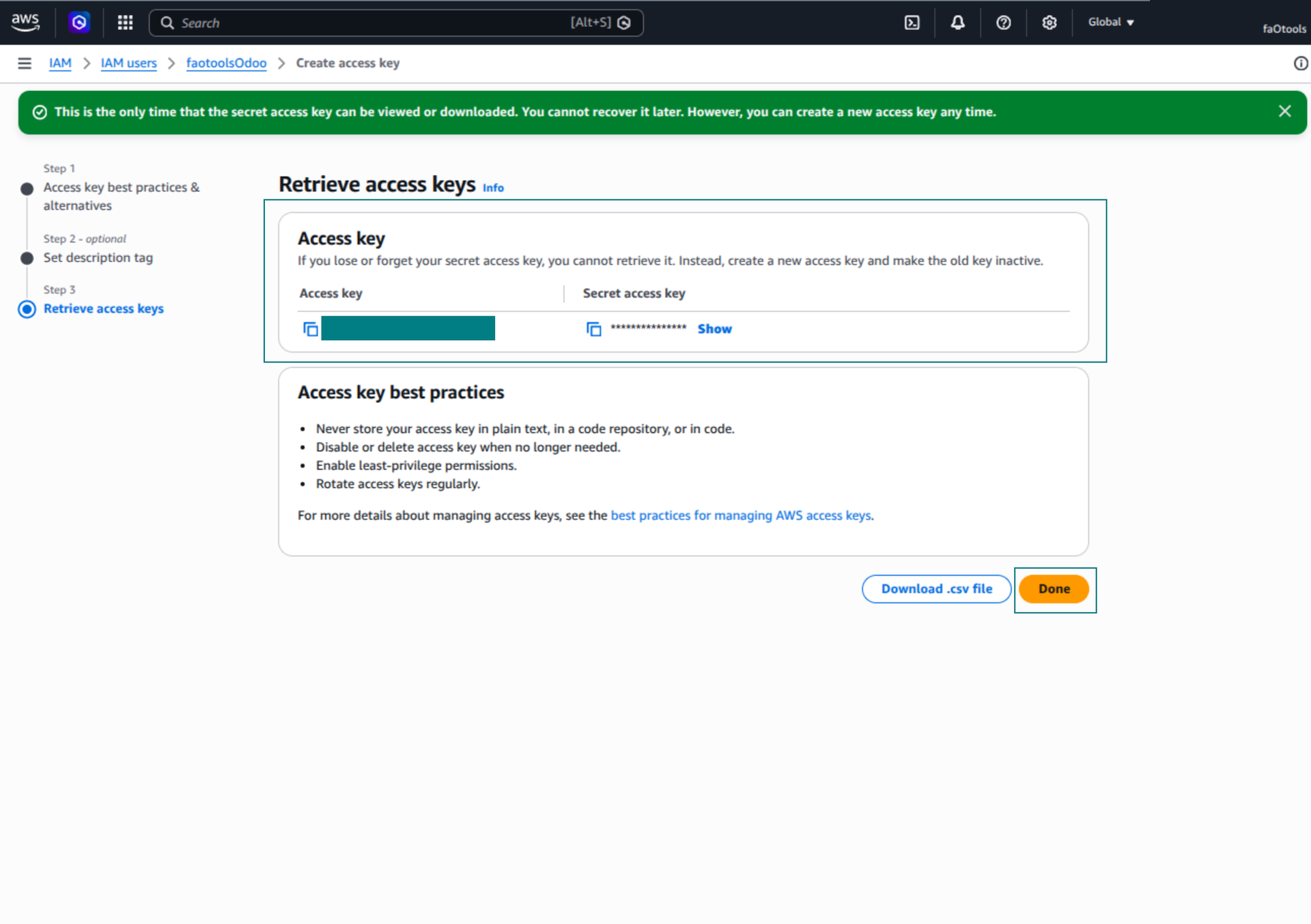
- Viimeisellä AWS-sivulla kopioi Access key tai Access key ID Odoon kenttään 'Access Key'
- Kopioi Secret access key Odoon kenttään 'Secret Key'. Tärkeää: AWS näyttää salaisen avaimen vain kerran, joten tallenna se ennen ikkunan sulkemista
- Jos käytät S3-yhteensopivaa palvelua AWS S3:n sijaan, kopioi päätepisteen URL sen hallintapaneelista ja syötä se Odoossa kenttään 'Amazon S3 endpoint URL'. Esimerkiksi MinIO käyttää usein osoitetta https://minio.example.com tai http://localhost:9000; LocalStack yleensä http://localhost:4566
- Siirry kohtaan Odoo Cloud Storage > Asetukset > Cloud Clients ja paina 'Create'
- Viitteeksi anna nimi, joka on selvä kaikille käyttäjille
- Cloud clientiksi valitse 'Amazon S3'
- Root folder name -kenttään anna otsikko, jota käytetään kaikkien synkronoitujen kansioiden yläpuolisena S3-etuliitteenä. Esimerkiksi 'Odoo' tai 'OdooERP'
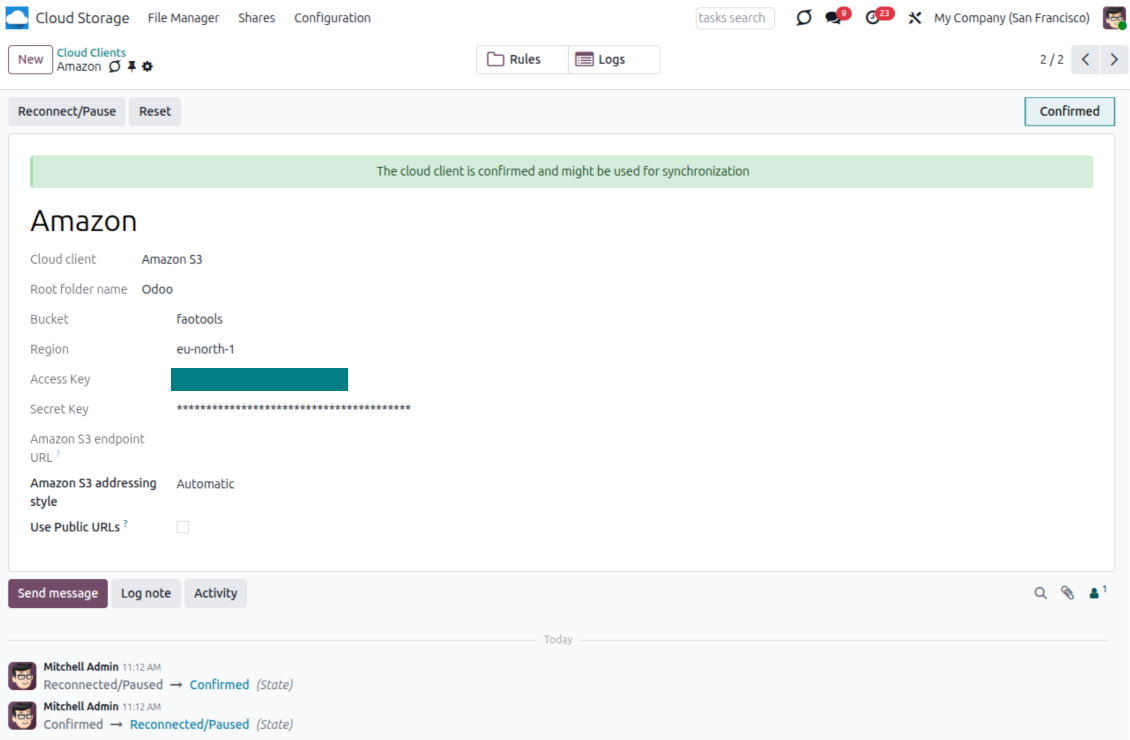
- Täytä kentät 'Bucket', 'Region', 'Access Key', 'Secret Key' ja tarvittaessa 'Amazon S3 endpoint URL' sekä osoitustyyli
- Valitse, käyttääkö Odoo tilapäisiä ennalta allekirjoitettuja URL-osoitteita vai julkisia bucket-/CDN-osoitteita. Yksityisissä bucketeissa pidä ennalta allekirjoitetut URL-osoitteet päällä ja aseta niiden elinikä sekunteina
- Paina 'Confirm'. Odoo tarkistaa bucket-käytön ja luo tai vahvistaa juurikansion etuliitteen. Amazon S3 – Odoo -synkronointi on valmis tehtäväksi
- Liitä juuri luotu pilviasiakas kansion sääntöihin ja/tai manuaalisiin kansioihin, jotka synkronoidaan kyseiseen Amazon S3 -bucketiin
- Odota ajastetun synkronointityön käynnistymistä. Vain testausta varten: käynnistä integrointi manuaalisesti polusta Cloud Storage > Asetukset > Asetukset > painike 'Launch sync'.
Hyödyllinen AWS-dokumentaatio: S3-bucketin luonti: https://docs.aws.amazon.com/AmazonS3/latest/userguide/creating-bucket.html, IAM-käyttöavainten hallinta: https://docs.aws.amazon.com/IAM/latest/UserGuide/id_credentials_access-keys.html.
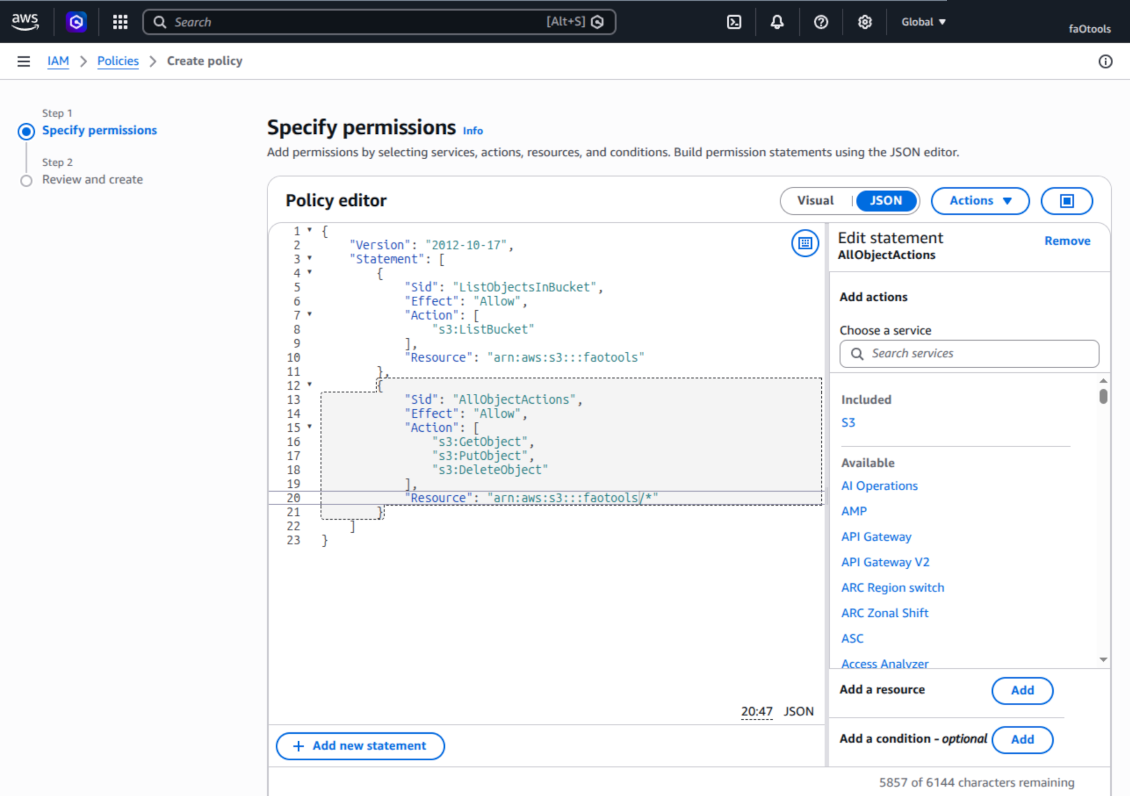
Esimerkki bucket-käytännöstä
    {
    "Version": "2012-10-17",
    "Statement": [
        {
            "Sid": "ListObjectsInBucket",
            "Effect": "Allow",
            "Action": [
                "s3:ListBucket"
            ],
            "Resource": "arn:aws:s3:::NAME_OF_YOUR_BUCKET"
        },
        {
            "Sid": "AllObjectActions",
            "Effect": "Allow",
            "Action": [
                "s3:GetObject",
                "s3:PutObject",
                "s3:DeleteObject"
            ],
            "Resource": "arn:aws:s3:::NAME_OF_YOUR_BUCKET/*"
        }
    ]
}
Luo uusi AWS IAM -käyttäjä
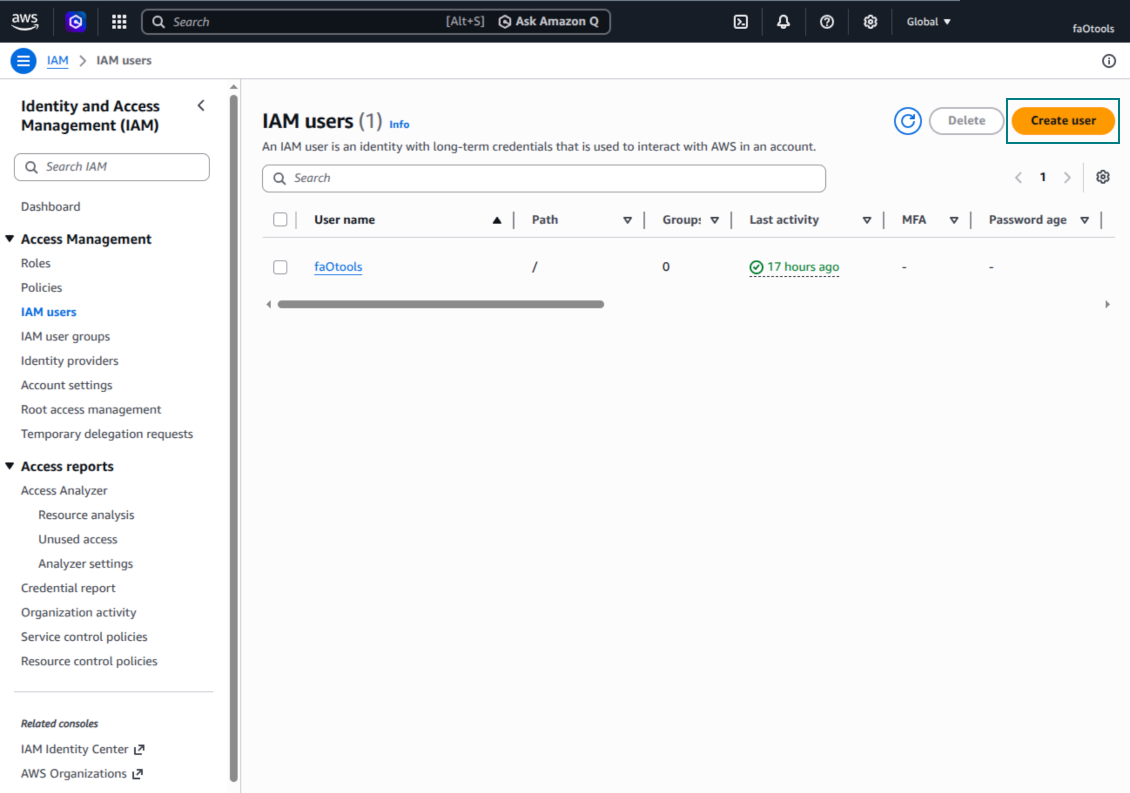
Anna IAM-käyttäjänimi
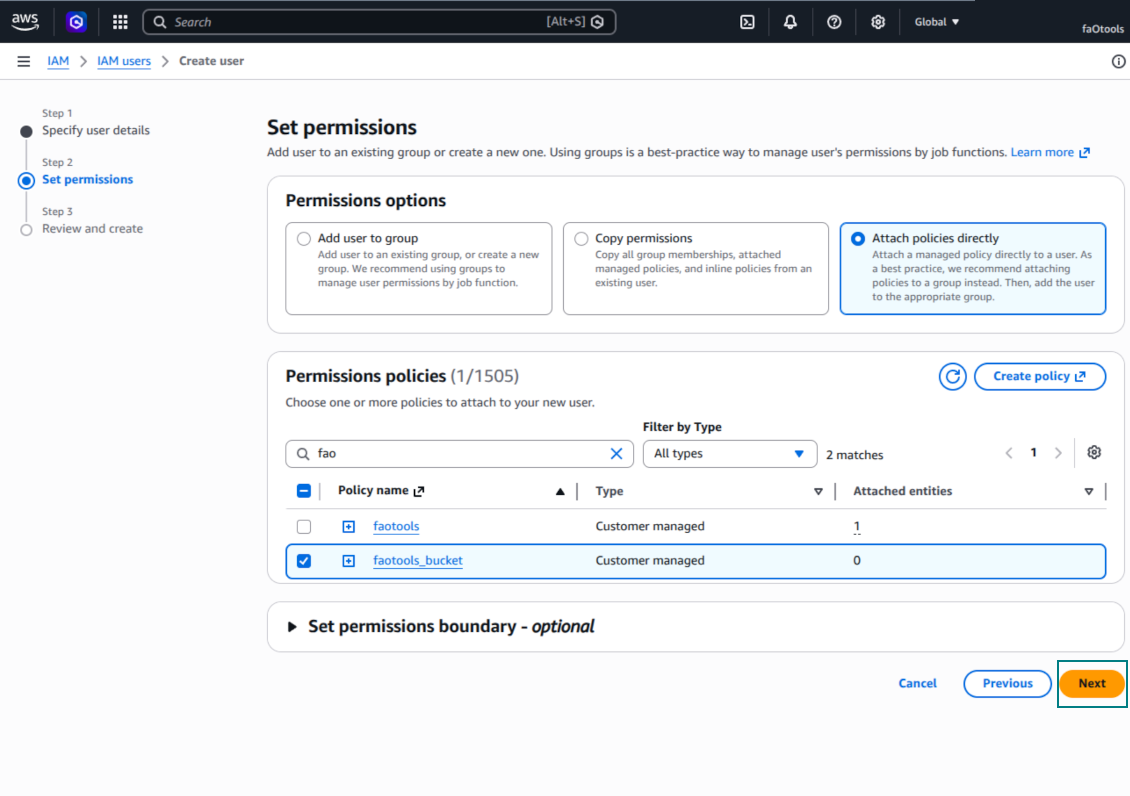
Liitä käyttöoikeuskäytännöt suoraan
Amazon S3 -bucket-käytännön JSON-esimerkki
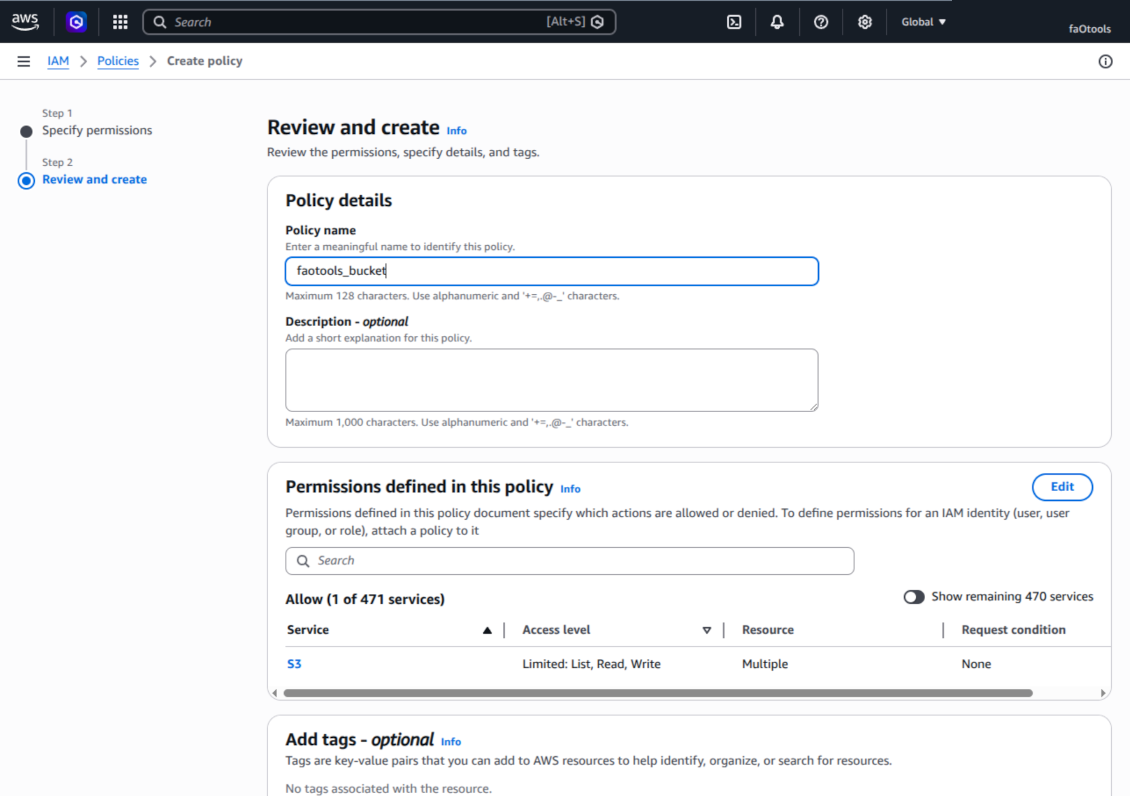
Tarkista ja nimeä S3-käytäntö
Valitse bucket-käytäntö käyttäjälle
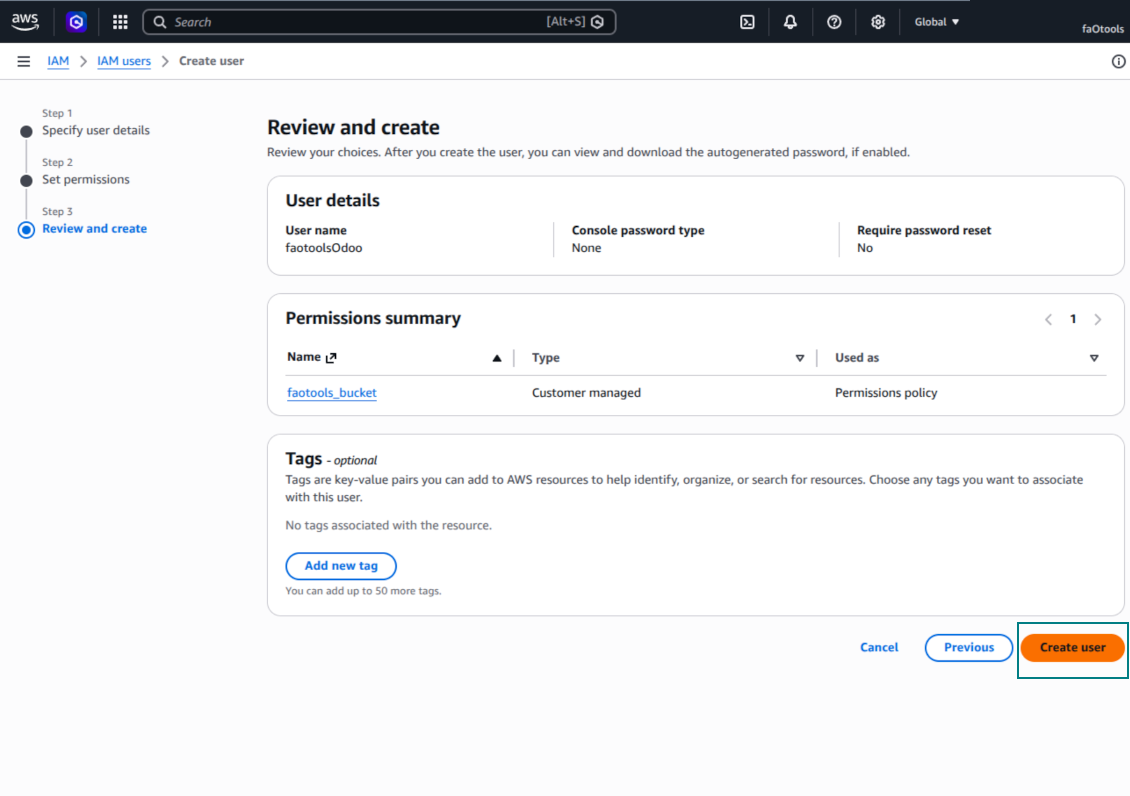
Tarkista ja luo IAM-käyttäjä
Luo käyttäjälle käyttöavain
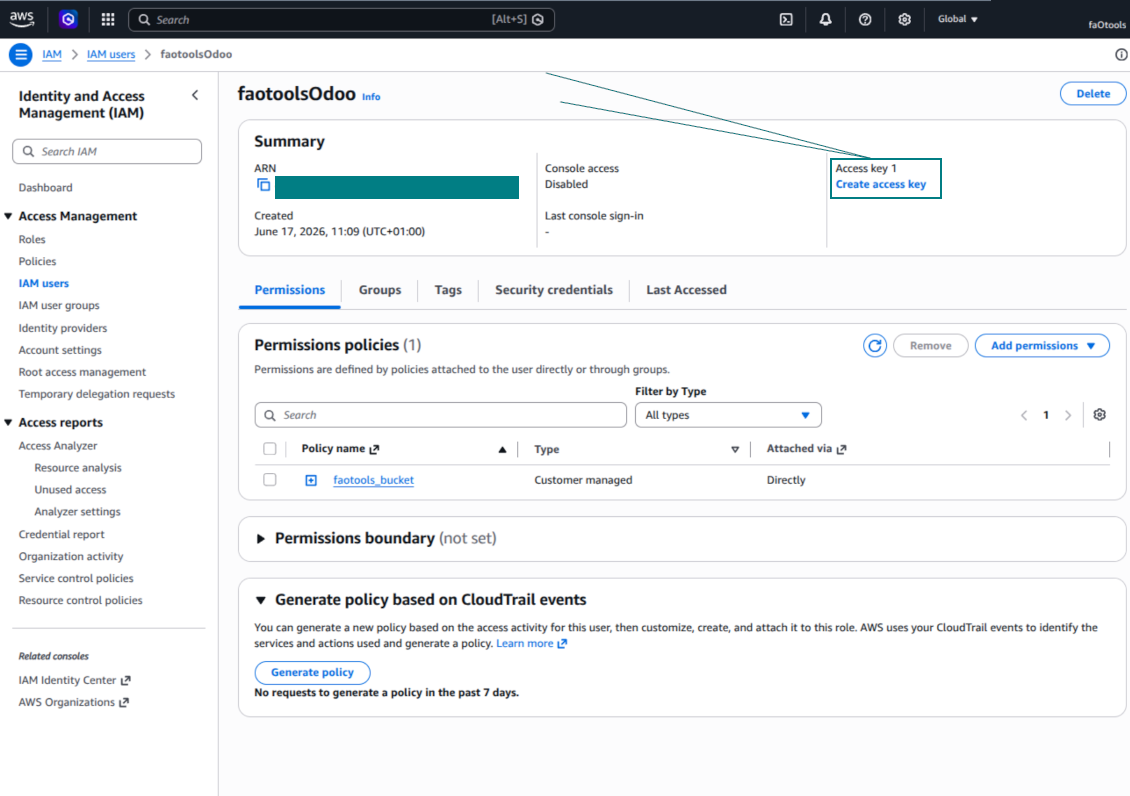
Valitse käyttöavaimen käyttötapaus
Aseta käyttöavaimen kuvaustunniste
Hae käyttöavain ja salaisuus
Määritä Amazon S3 -asiakas Odoossa
Nextcloud- ja/tai ownCloud-integraation määritys
Määritys ja kirjautuminen
- Ota käyttöön valinta 'onwCloud / Nextcloud Sync' (cloud Storage > Configuration > Configuration). Valinnainen lisäosa ownCloud / Nextcloud Odoo Integration tarvitaan
- Siirry kohtaan Odoo Cloud Storage > Configuration > Cloud Clients ja paina 'Create'
- Viitteeksi anna nimi, joka on selvä kaikille käyttäjille
- Pilviasiakkaaksi valitse 'Nextcloud' tai 'ownCloud' käyttämäsi ohjelmiston mukaan
- Juurikansion nimeksi anna otsikko, jota käytetään kaikkien synkronoitujen kansioiden ylähakemistona. Esimerkiksi 'Odoo' tai 'OdooERP'
- Syötä ownCloudin / Nextcloudin täysi URL
- Valitse ownCloud- / Nextcloud-käyttäjä, jolla on täydet oikeudet lukea, luoda, kirjoittaa ja poistaa tiedostoja ja kansioita juurihakemistossa
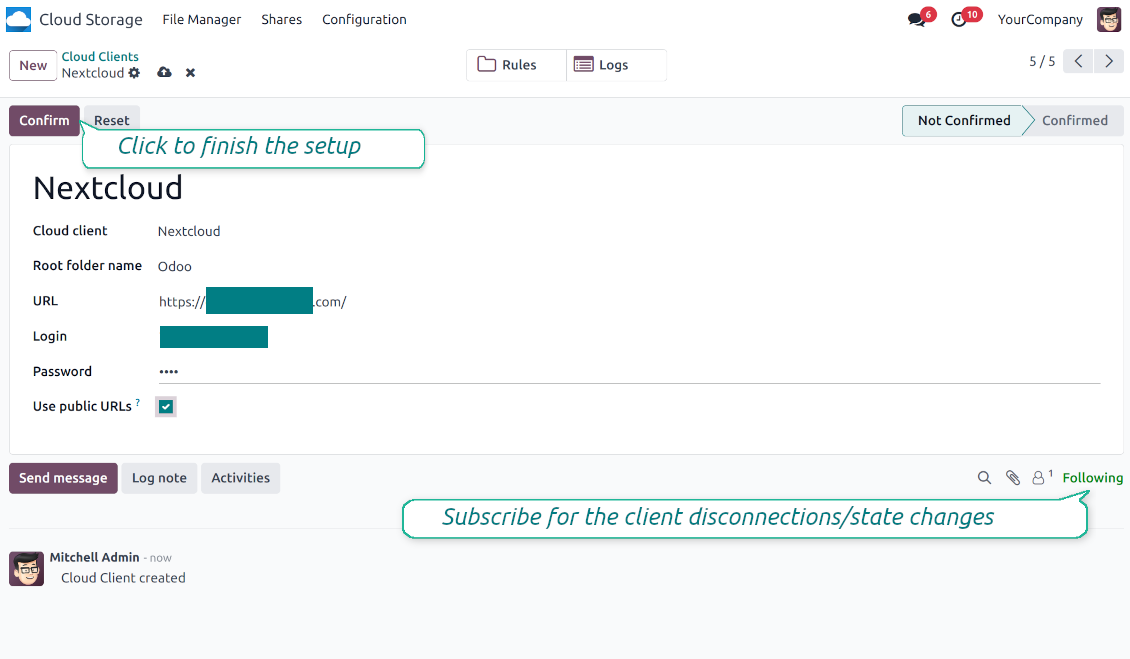
- Syötä tämän käyttäjän tunnus ja salasana kenttiin 'Login' ja 'Password'
- Valitse, käytetäänkö julkisia vai sisäisiä URL:eja (katso alla)
- Paina 'Confirm'. Odoo-synkronointi on valmis
- Liitä juuri luotu pilviasiakas kansiosääntöihin ja/tai manuaalisiin kansioihin, jotka synkronoidaan kyseiseen Nextcloud- tai ownCloud-instanssiin
- Odota ajastetun synkronointityön käynnistymistä. Vain testausta varten: käynnistä integrointi manuaalisesti polusta Cloud Storage > Asetukset > Asetukset > painike 'Launch sync'.
Sisäiset ja julkiset URL:t
Oletuksena linkit Odoosta ownCloudiin / Nextcloudiin ovat sisäisiä: vain valtuutetut käyttäjät voivat avata ne. Voit valinnaisesti tehdä linkeistä julkisia (asetus 'Use Public URLs'). Silloin URL-osoitteet ovat 'shared', ja kuka tahansa pääsee kohteisiin suoralla linkillä.
Ole varovainen jaettujen (julkisten) URL:ien kanssa. Linkkejä ei yleensä tiedetä ulkona, mutta ne voivat paljastua käyttäjätoimien seurauksena. Lisäksi jakolinkkien luonti ei ole nopeaa ja voi hidastaa synkronointia.
Katso myös määritysvideo
Syötä ownCloud- / Nextcloud-tunnukset
NAS-määritys (Synology, QNAP, TrueNAS jne.)
- Ota käyttöön valinta 'NAS Sync' (Cloud Storage > Configuration > Configuration). Valinnainen lisäosa NAS Odoo Integration tarvitaan
- Valmistele NAS-laitteen WebDAV-päätepiste:
- Synology: asenna ja ota WebDAV Server käyttöön DSM:ssä ja valitse HTTPS aina kun mahdollista
- QNAP: ota WebDAV käyttöön kohteena olevalle jaetulle kansiolle ja käytä HTTPS:ää aina kun mahdollista
- TrueNAS CORE: ota WebDAV-palvelu käyttöön; TrueNAS SCALE: asenna ja määritä WebDAV-sovellus, koska natiivi WebDAV on poistettu uusista SCALE-julkaisuista
- Yleinen WebDAV: varmista, että PROPFIND, MKCOL, PUT, GET, MOVE ja DELETE ovat käytettävissä
- Jos Odoo on paikallisen NAS-verkon ulkopuolella, tee WebDAV-päätepisteestä turvallisesti tavoitettava. Suosi käänteistä välityspalvelinta kelvollisella TLS-varmenteella, VPN-yhteyttä tai suojattua tunnelia kuten WireGuard, Tailscale tai Cloudflare Tunnel, tai valmistajan relettä kuten Synology QuickConnect tai QNAP myQNAPcloud. Älä avaa ylläpitokäyttöliittymää Internetiin
- Luo erillinen NAS-käyttäjä, jolla on täydet oikeudet vain kohdejaossa: luku, luonti, kirjoitus, siirto ja poisto. Älä käytä ylläpitotiliä
- Siirry kohtaan Odoo Cloud Storage > Asetukset > Cloud Clients ja paina 'Create'
- Viitteeksi anna nimi, joka on selvä kaikille käyttäjille
- Pilviasiakkaaksi valitse 'Synology NAS', 'QNAP NAS', 'TrueNAS' tai 'WebDAV NAS'
- Juurikansion nimeksi anna otsikko, jota käytetään kaikkien synkronoitujen kansioiden NAS-ylähakemistona. Esimerkiksi 'Odoo' tai 'OdooERP'
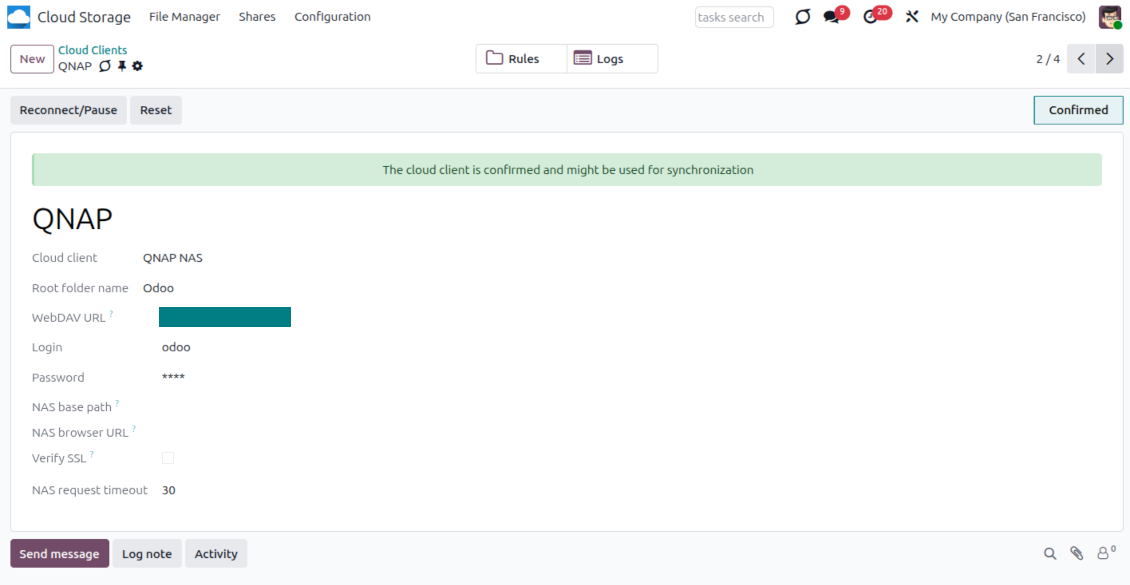
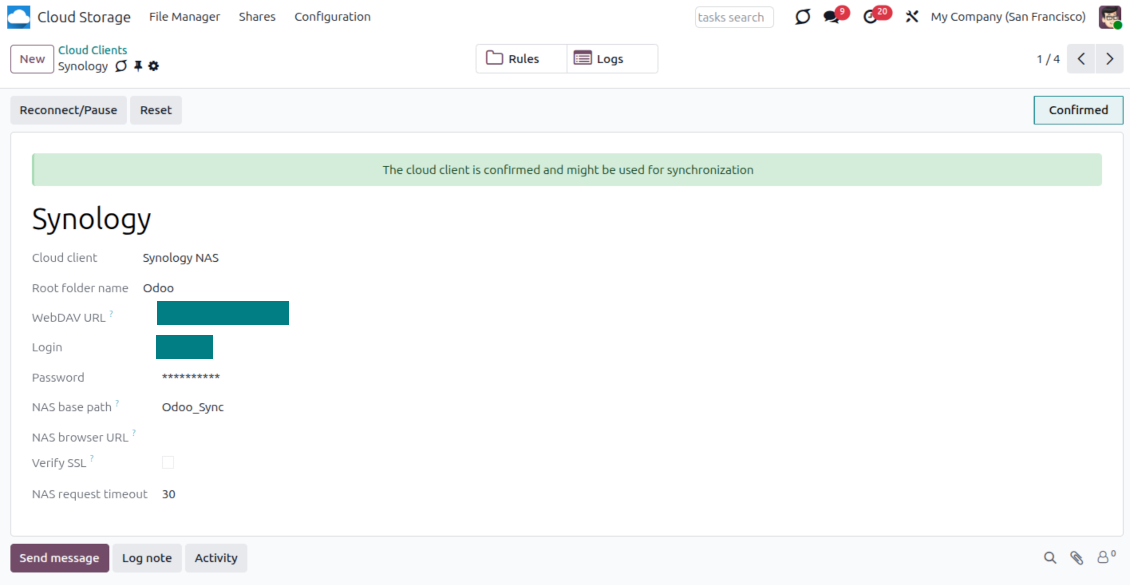
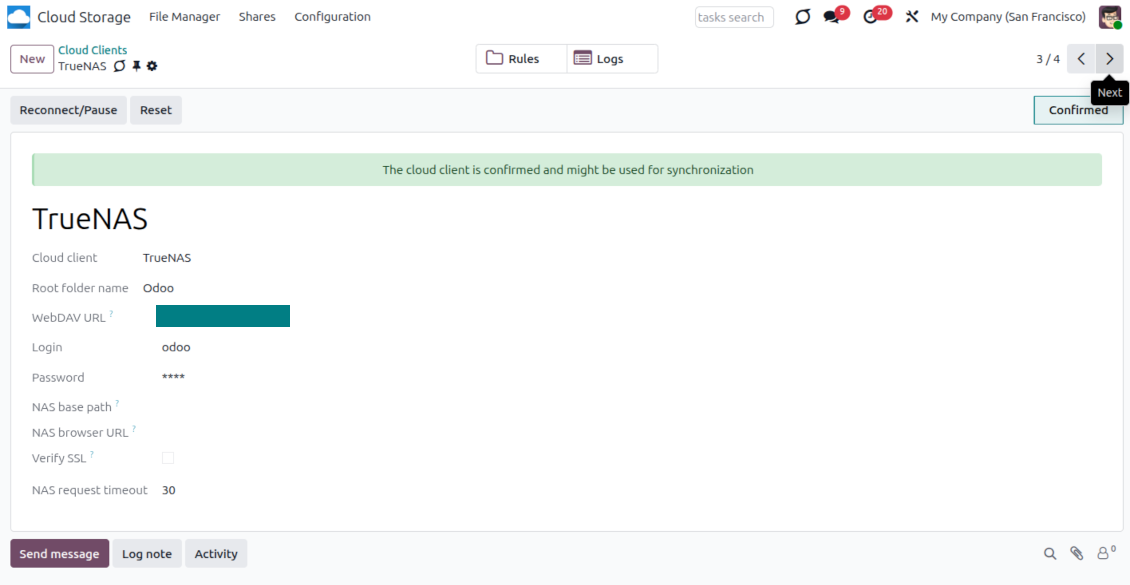
- Syötä täydellinen WebDAV-URL, tunnus ja salasana. Määritä valinnaisesti peruspolku, jos Odoon tulee luoda juurikansio olemassa olevaan jakoon tai hakemistoon
- Pidä 'Verify SSL' päällä julkisissa HTTPS-päätepisteissä. Poista se käytöstä vain luotetussa yksityisessä päätepisteessä, jossa on itse allekirjoitettu varmenne
- Määritä valinnaisesti selaimen perus-URL, jos NAS-tiedostot avataan valmistajan File Station -osoitteella raa'an WebDAV-URL:n sijaan
- Paina 'Confirm'. Odoo tarkistaa WebDAV-yhteyden ja luo tai löytää juurihakemiston. NAS - Odoo-synkronointi on valmis suoritettavaksi
- Liitä juuri luotu pilviasiakas kansiosääntöihin ja/tai manuaalisiin kansioihin, jotka synkronoidaan kyseiseen NAS-tallennustilaan
- Odota ajastetun synkronointityön käynnistymistä. Vain testausta varten: käynnistä integrointi manuaalisesti polusta Cloud Storage > Asetukset > Asetukset > painike 'Launch sync'.
NAS-esimääritys
NAS-järjestelmät tarjoavat tiedostot yleensä paikallisverkon kautta. Jos Odoo-palvelimesi on sen verkon ulkopuolella, WebDAV- päätepisteen on oltava tavoitettavissa Odoosta suojatun kanavan kautta. Suositeltavia vaihtoehtoja ovat käänteinen välityspalvelin kelvollisella HTTPS- varmenteella, VPN tai suojattu tunneli kuten WireGuard, Tailscale tai Cloudflare Tunnel, tai valmistajan rele kuten Synology QuickConnect tai QNAP myQNAPcloud. Pelkkä porttiohjaus on mahdollista, mutta sitä tulee pitää vähiten suositeltavana vaihtoehtona.
Käytä erillistä NAS-käyttäjää, jolla on vähimmäisoikeudet yhteen jaettuun kansioon: luku, luonti, päivitys, siirto ja poisto. Vältä ylläpitotilejä. Julkisesti avoimien päätepisteiden tulee aina käyttää HTTPS:ää ja kelvollista TLS-varmennetta. Liittimellä on asetus "Verify SSL" luotettuja itse allekirjoitettuja varmenteita varten, mutta sen tulisi yleensä pysyä päällä.
Syötä QNAP-tunnukset
Syötä Synology-tunnukset
Syötä TrueNAS-tunnukset
Boxin määritys
- Ota käyttöön valinta 'Box Sync' (cloud Storage > Configuration > Configuration). Valinnainen lisäosa Box Odoo Integration vaaditaan
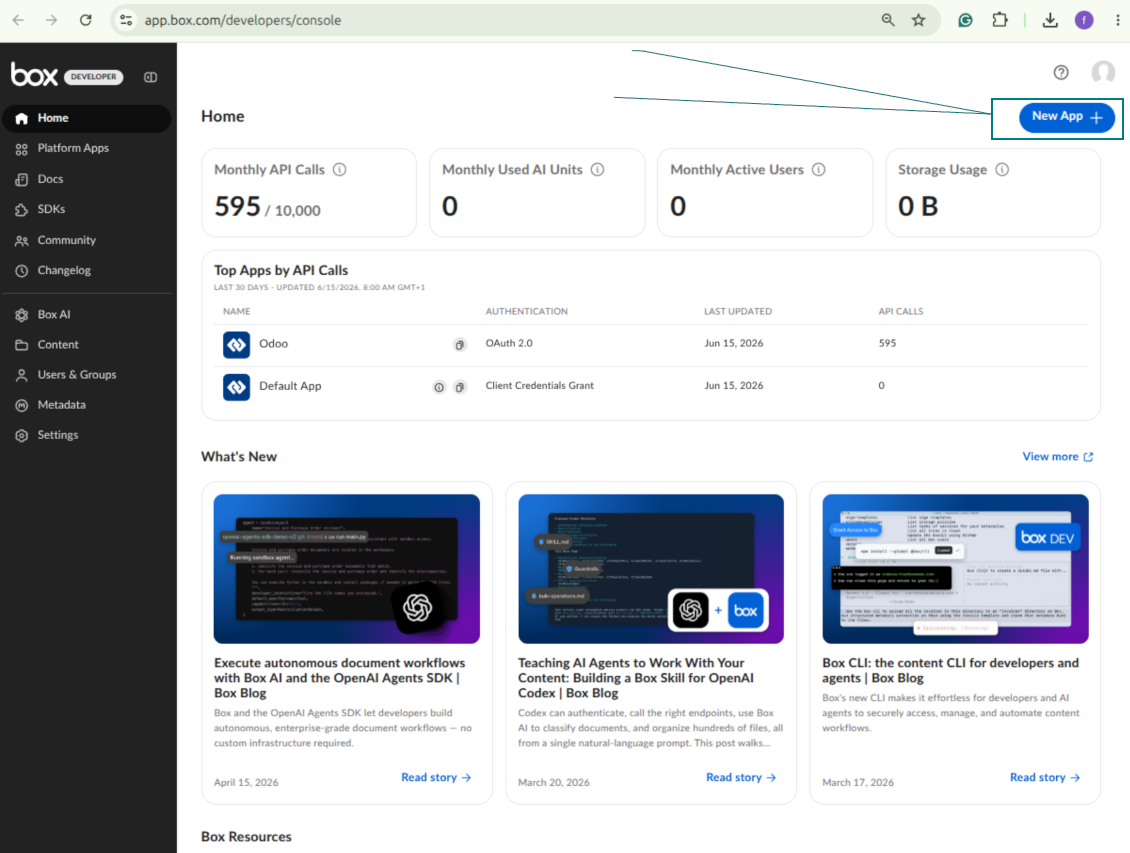
- Luo tai avaa Box-kehittäjätili ja siirry Box Developer Consoleen: https://app.box.com/developers/console
- Luo Custom App ja valitse todennusmenetelmäksi OAuth 2.0 (Authorization Code Grant)
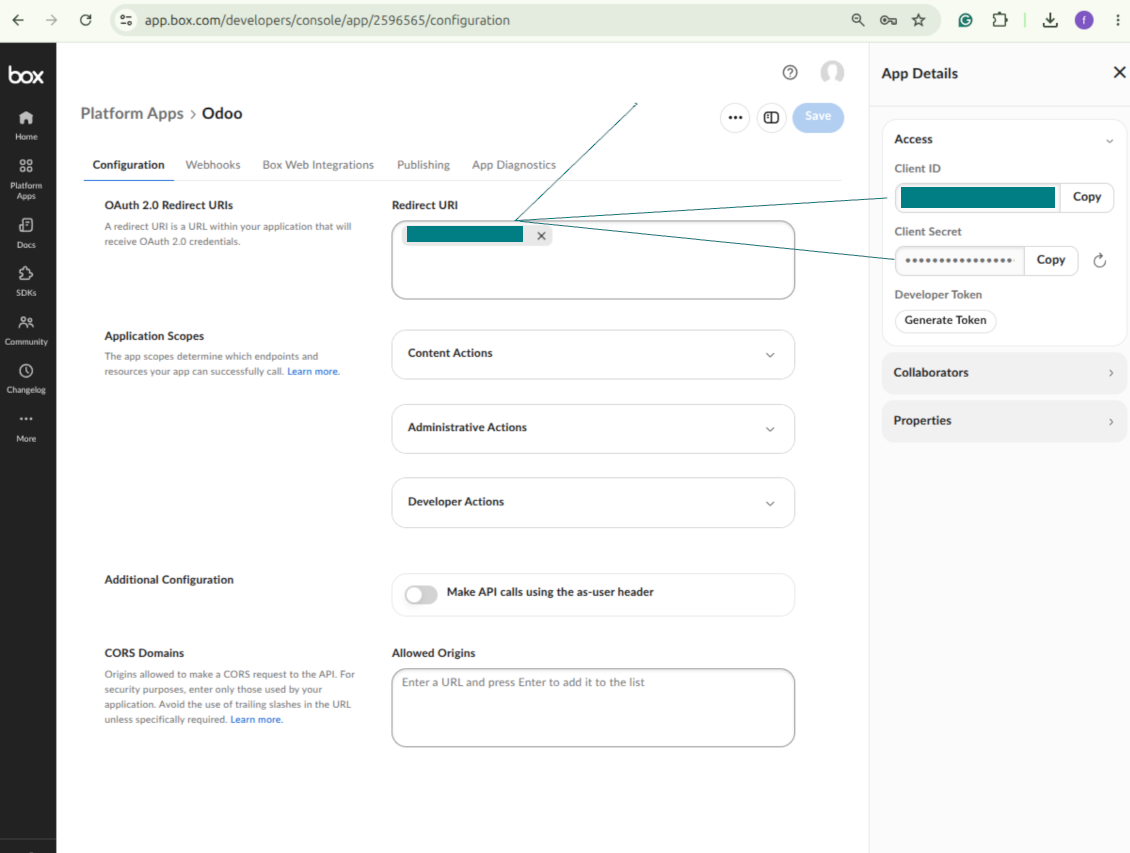
- Lisää uudelleenohjaus-URI muodossa [YOURODOOSITENAME]/box_token (esim. https://faotools.com/box_token). Kelvollinen SSL-varmenne (https) vaaditaan
- Anna sovellukselle oikeus lukea ja kirjoittaa tiedostoja ja kansioita. Älä anna liittymättömiä oikeuksia
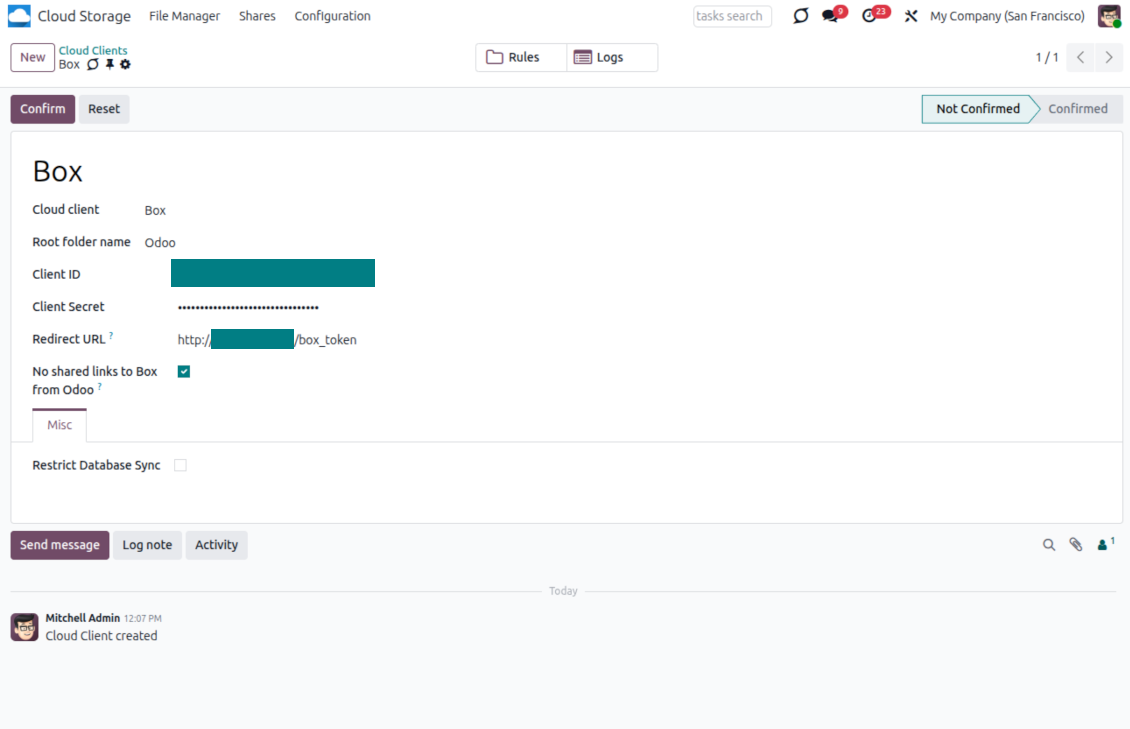
- Siirry kohtaan Odoo Cloud Storage > Asetukset > Cloud Clients ja paina 'Create'
- Viitteeksi anna nimi, joka on selvä kaikille käyttäjille
- Pilviasiakkaaksi valitse 'Box'
- Juurikansion nimeksi anna otsikko, jota käytetään kaikkien synkronoitujen kansioiden yläpuolisena Box-hakemistona. Esimerkiksi 'Odoo' tai 'OdooERP'
- Kopioi Box Client ID kenttään 'Client ID'
- Kopioi Box Client Secret kenttään 'Client Secret'
- Syötä aiemmin luotu redirect-URL
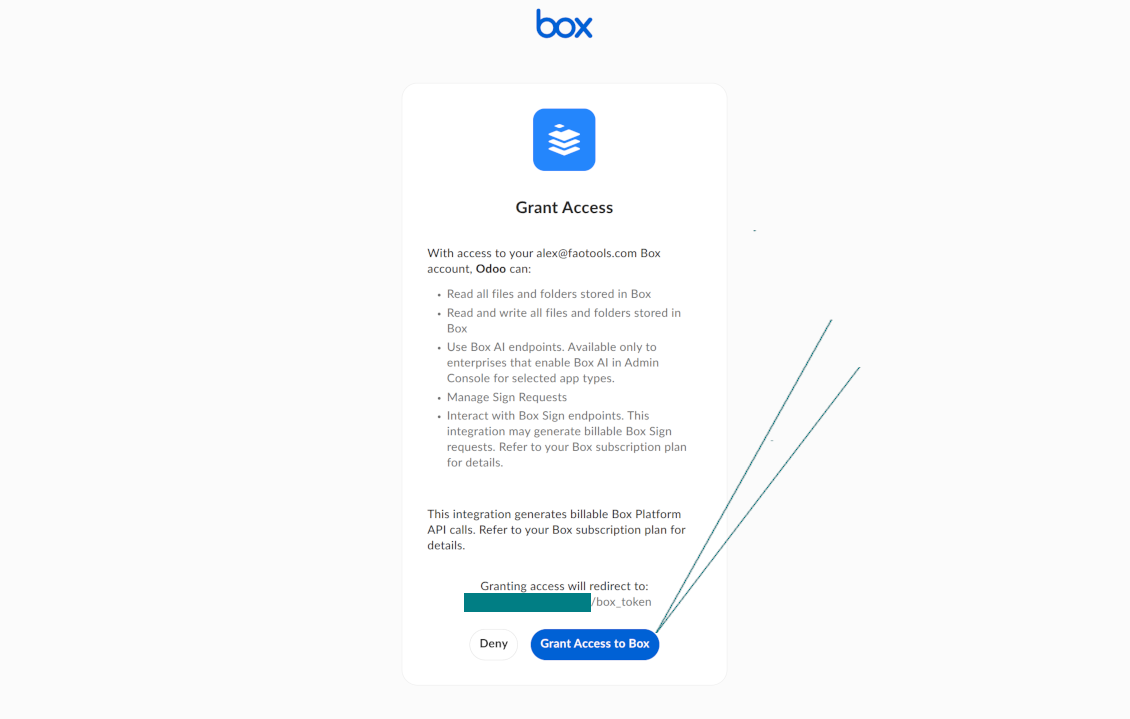
- Paina 'Confirm'. Odoo ohjaa Boxin kirjautumissivulle. Tarkista järjestelmässä, hyväksy ehdot ja myönnä pyydetyt oikeudet
- Kirjautumisen jälkeen Box ohjaa takaisin Odooseen. Box - Odoo -synkronointi on valmis
- Kohdista juuri luotu pilviasiakas kansiosääntöihin ja/tai manuaalisiin kansioihin, jotka synkronoidaan kyseiseen Box-tiliin
- Odota ajastetun synkronointityön käynnistymistä. Vain testausta varten: käynnistä integrointi manuaalisesti polusta Cloud Storage > Asetukset > Asetukset > painike 'Launch sync'.
Luo uusi Box-kehittäjäsovellus
Kopioi Box OAuth -tunnukset
Määritä Box cloud client Odoossa
Anna Odoolle pääsy Boxiin
MinIOn määritys
- Valmistele käynnissä oleva MinIO-palvelin
- Avaa MinIO Console
- Luo uusi bucket tai valitse olemassa oleva. Kopioi tarkka bucket-nimi: se syötetään Odoossa kenttään 'Bucket'
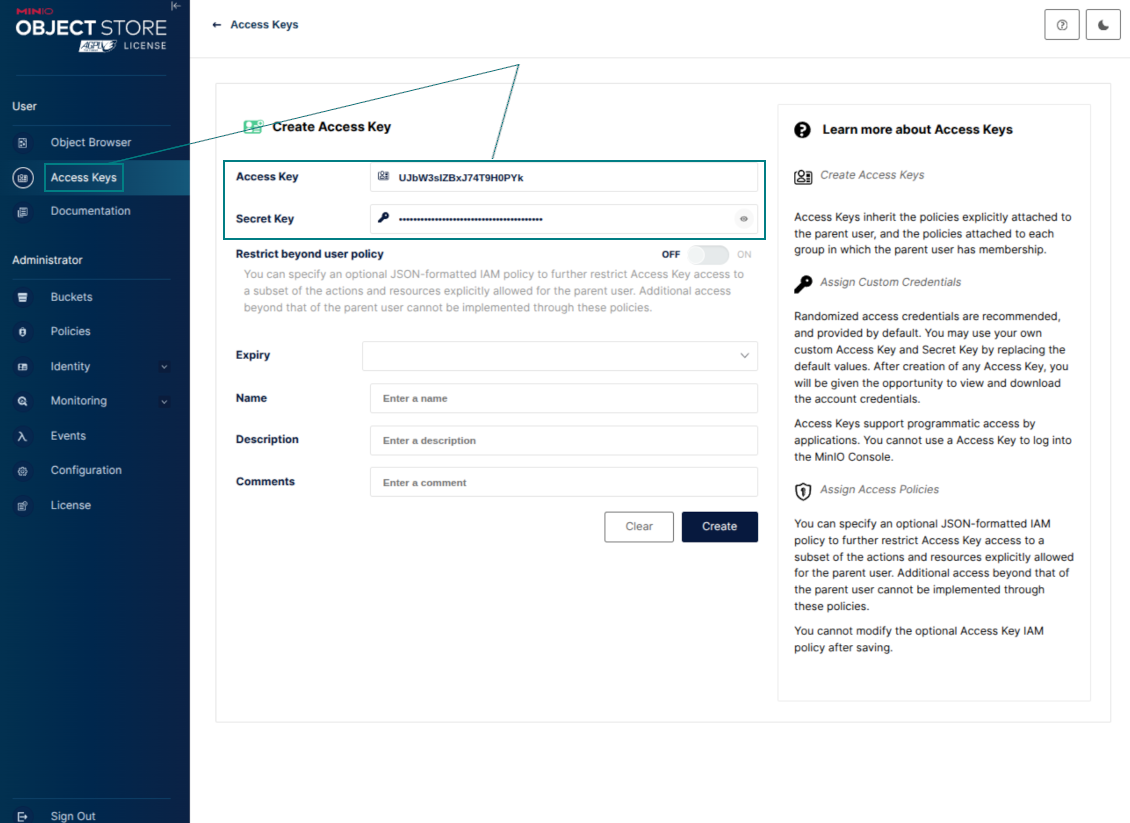
- Luo Odoon käyttöoikeustiedot. MinIO:ssa käytä access key / secret key -paria tai palvelutiliä, jolla on oikeudet luetella, lukea, luoda, kirjoittaa, kopioida ja poistaa objekteja valitussa bucketissa
- Kopioi MinIO Access Key Odoon kenttään 'Access Key'
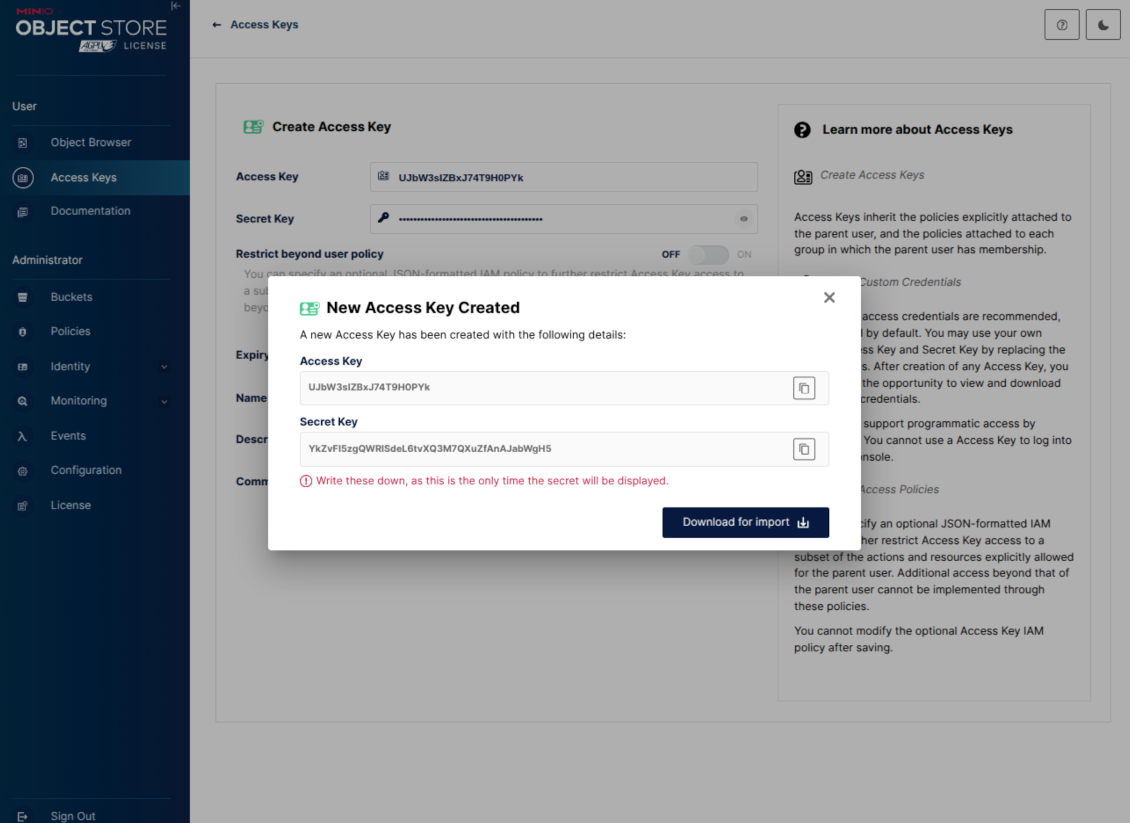
- Kopioi MinIO Secret Key Odoon kenttään 'Secret Key'. Tärkeää: tallenna salaisuus ennen MinIO-sivun sulkemista, jos MinIO näyttää sen vain kerran
- Kopioi MinIO S3 API -päätepisteen URL Odoon kenttään 'Amazon S3 endpoint URL'. Esimerkiksi paikallinen palvelin käyttää yleensä osoitetta http://localhost:9000, tuotantopalvelin voi käyttää osoitetta https://minio.example.com
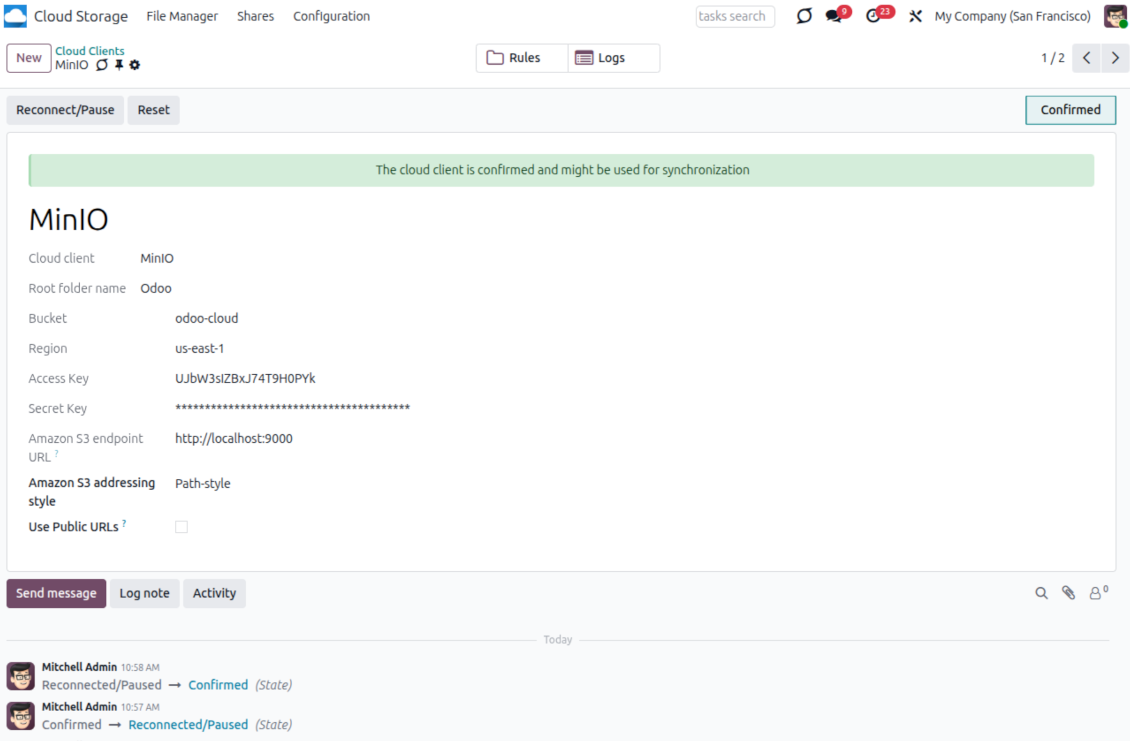
- Siirry kohtaan Odoo Cloud Storage > Asetukset > Cloud Clients ja paina 'Create'
- Viitteeksi anna nimi, joka on selvä kaikille käyttäjille
- Pilviasiakkaaksi valitse 'MinIO'
- Juurikansion nimeksi anna otsikko, jota käytetään kaikkien synkronoitujen kansioiden yläpuolisena MinIO-objektien etuliitteenä. Esimerkiksi 'Odoo' tai 'OdooERP'
- Täytä kentät 'Bucket', 'Access Key', 'Secret Key' ja 'Amazon S3 endpoint URL'. Kenttä 'Region' on MinIO:lle valinnainen; jos se on tyhjä, Odoo käyttää arvoa us-east-1 S3-yhteensopivaan allekirjoitukseen
- Pidä osoitustyylinä Path-style. Se on suositeltu valinta MinIO-päätepisteille, etenkin kun MinIO-isäntä ei tarjoa bucket-kohtaisia DNS-nimiä
- Valitse, käyttääkö Odoo suoria julkisia MinIO-URL-osoitteita. Ota 'Use Public URLs' käyttöön vain, kun bucket, etuliite, reverse proxy tai CDN on julkisesti luettavissa. Yksityisissä MinIO-bucketeissa jätä valinta pois päältä
- Paina 'Confirm'. Odoo tarkistaa bucket-käytön ja luo tai varmistaa juurikansion etuliitteen. Synkronointi MinIO - Odoo on valmis suoritettavaksi
- Kohdista juuri luotu pilviasiakas kansiosääntöihin ja/tai manuaalisiin kansioihin, jotka synkronoidaan kyseiseen MinIO-bucketiin
- Odota ajastetun synkronointityön käynnistymistä. Vain testausta varten: käynnistä integrointi manuaalisesti polusta Cloud Storage > Asetukset > Asetukset > painike 'Launch sync'.
Useful MinIO documentation: https://min.io/docs/minio/linux/administration/identity-access-management.html, https://min.io/docs/minio/linux/reference/minio-server/minio-server.html.
Luo MinIO-käyttöavain
Kopioi uudet MinIO-tunnukset
Määritä MinIO cloud client Odoossa
Dropbox-integraation määritys
Python-riippuvuus
Työkalu riippuu ulkoisesta kirjastosta 'dropbox'. Asenna se Odoo-palvelimelle komennolla:
pip3 install dropbox
Määritys ja kirjautuminen
- Ota käyttöön valinta 'Dropbox Sync' (cloud Storage > Configuration > Configuration). Valinnainen lisäosa Dropbox Odoo Integration tarvitaan
- Follow the URL https://www.dropbox.com/developers/apps/create
- Valitse API:ksi 'Scoped access'
- Valitse käyttötyypiksi 'Full Dropbox'
- Valitse sovellukselle sopiva nimi ja paina painiketta 'Create app'
- Lisää uudelleenohjaus-URI muodossa [YOURODOOSITENAME]/dropbox_token (esim. https://faotools.com/dropbox_token). Kelvollinen SSL-varmenne (https) tarvitaan
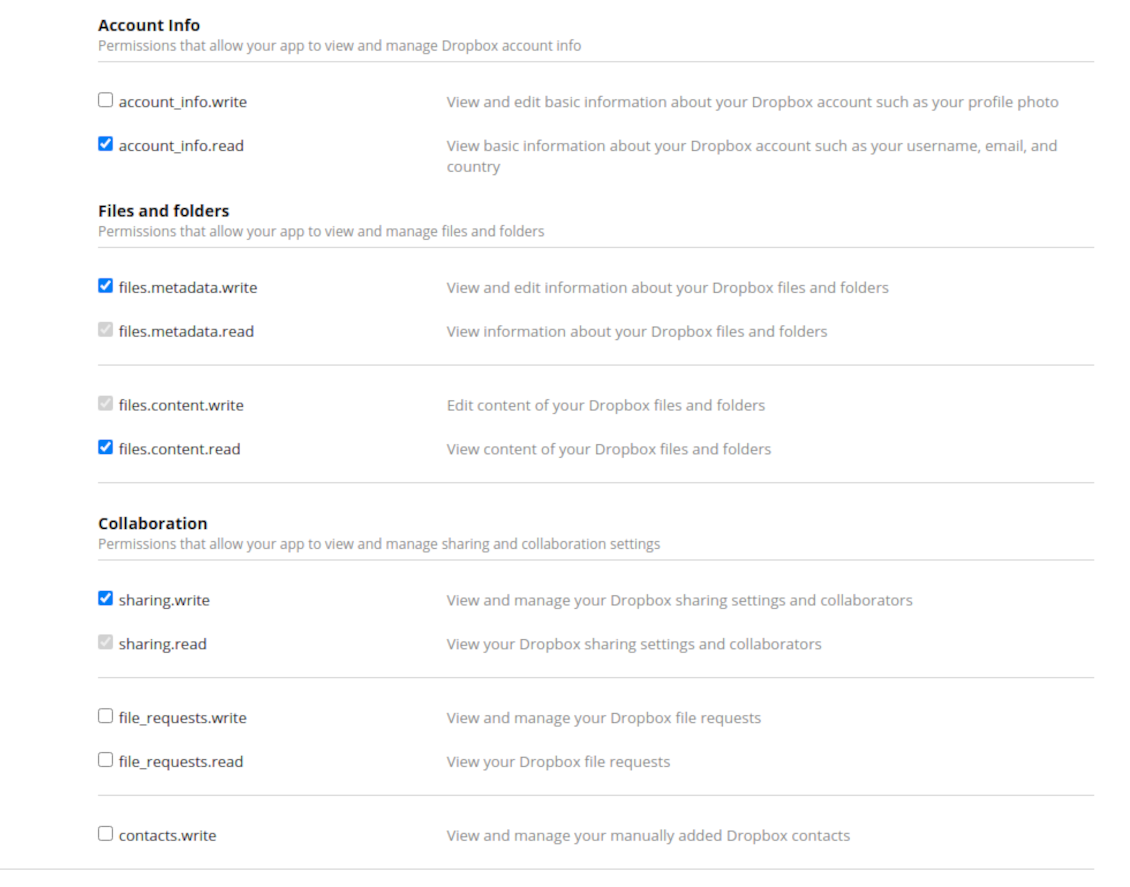
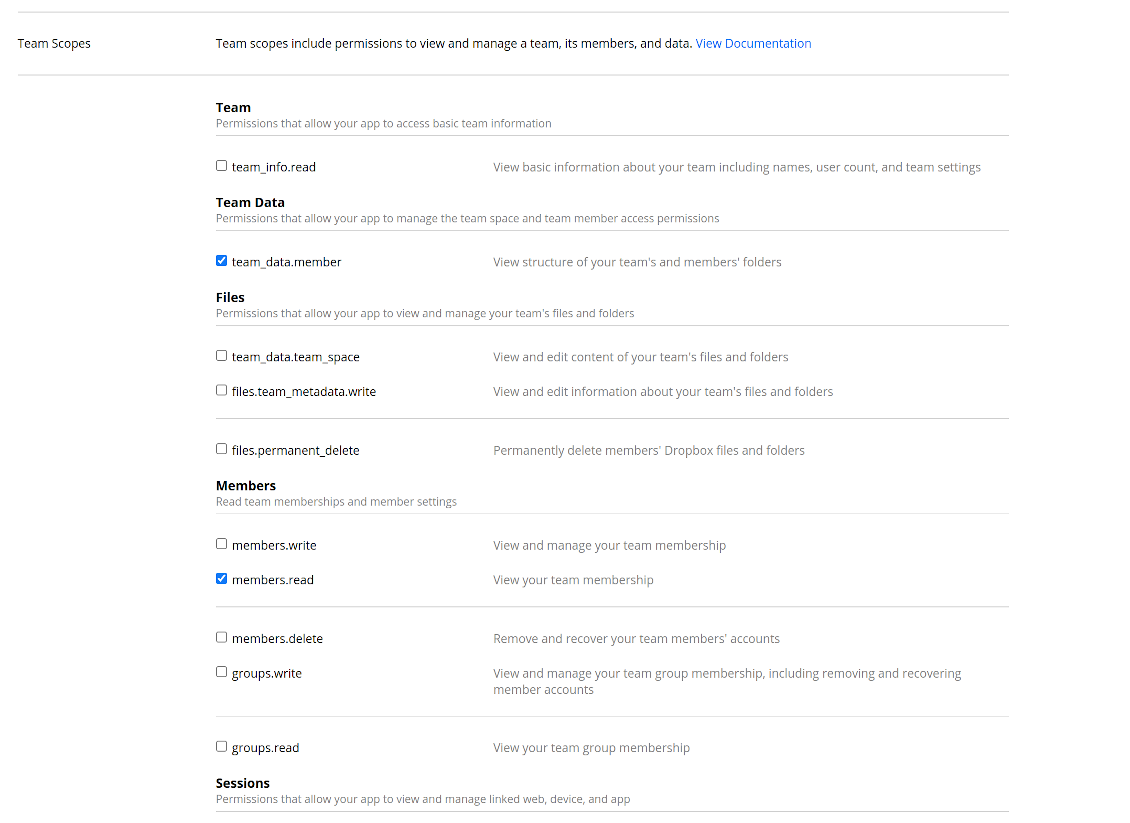
- Myönnä sovellukselle oikeudet: 'Account Info (Read)', 'Files and folders Metadata (Write)', 'Files Content (Write)', 'Collaboration (Write)'. Tiimin DropBoxille määritä myös 'Team Data Members', 'Members (Read)'. Varmista, ettei muita oikeuksia ole määritetty.
- Submit App
- Siirry kohtaan Odoo Cloud Storage > Configuration > Cloud Clients ja paina 'Create'
- Viitteeksi anna nimi, joka on selvä kaikille käyttäjille
- Pilviasiakkaaksi valitse 'Dropbox'
- Juurikansion nimeksi anna otsikko, jota käytetään kaikkien synkronoitujen kansioiden yläpuolisena Google Drive -hakemistona. Esimerkiksi 'Odoo' tai 'OdooERP'
- Kopioi 'App key' kenttään 'App key'
- Kopioi 'App Secret' kenttään 'App secret'
- Syötä aiemmin luotu redirect-URL
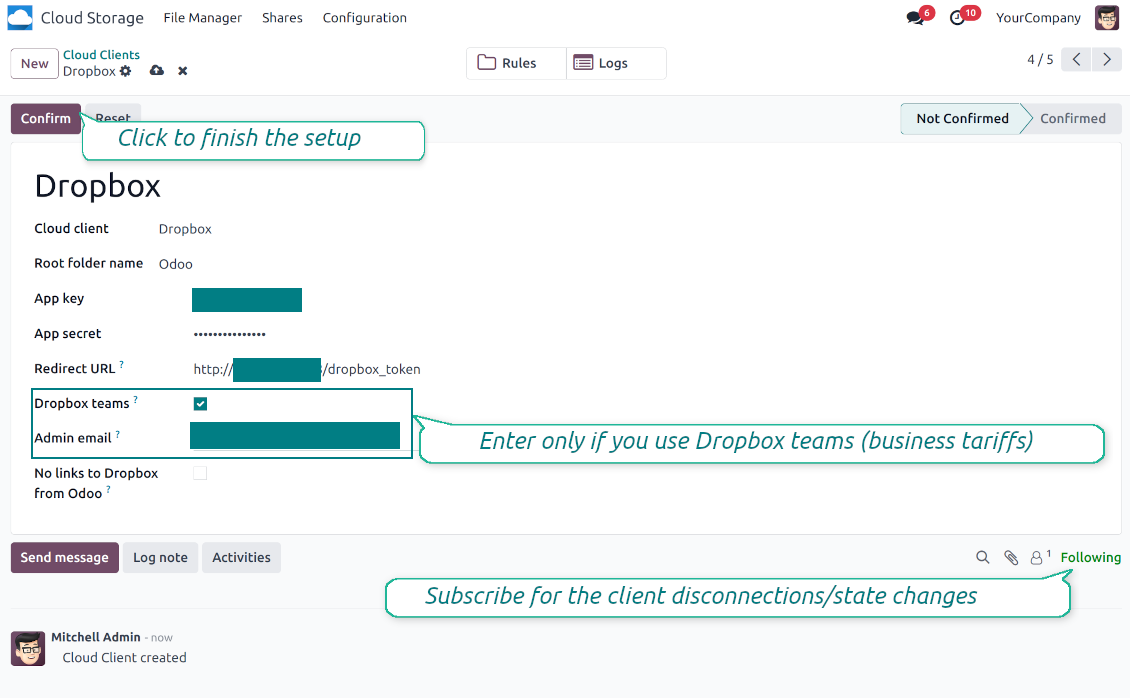
- Jos käytät Dropbox team drives -toimintoa
- Rastita liittyvä ruutu
- Aseta Dropbox-käyttäjän sähköposti. Kaikki Odoo-kohteet luodaan tämän käyttäjän kansioon ja jaetaan vasta sen jälkeen. Tämän käyttäjän alla tiedostot ja kansiot luodaan, muutetaan, siirretään ja poistetaan
- Paina 'Confirm'. Odoo ohjaa Dropboxin kirjautumissivulle. Tarkista järjestelmässä, hyväksy ehdot ja myönnä pyydetyt oikeudet
- Kirjautumisen jälkeen Dropbox ohjaa takaisin Odooseen. Dropbox - Odoo -synkronointi on valmis
- Liitä juuri luotu pilviasiakas kansiosääntöihin ja/tai manuaalisiin kansioihin, jotka synkronoidaan kyseiseen Dropbox-instanssiin
- Odota ajastetun synkronointityön käynnistymistä. Vain testausta varten: käynnistä integrointi manuaalisesti polusta Cloud Storage > Asetukset > Asetukset > painike 'Launch sync'.
Dropbox-URL:t
Dropboxilla on oma tapansa luoda linkkejä olemassa oleville tiedostoille ja kansioille. Sisäisiä tai yksityisiä URL:eja ei ole. Sen sijaan kohde voi saada jaetun URL:n. Jaetut linkit ovat julkisia tai vain tiimille. Jälkimmäinen on vain Dropbox business -tilillä.
Työkalu nojaa jaettujen linkkien mekaniikkaan. Jokainen liitelinkki on joko julkinen (kaikki henkilökohtaiset Dropbox-tilit) tai vain tiimille (kaikki business-tilit).
Sitä pidetään joskus ei täysin turvallisena. Sivuston URL:t eivät yleensä ole ulkona tiedossa, mutta ne voivat paljastua käyttäjätoimista. Lisäksi jakolinkkien luonti ei ole kovin nopeaa ja voi hidastaa synkronointia. Siksi jakolinkit voi kytkeä pois.
If checked, all Dropbox URLs in Odoo will be of type https://www.dropbox.com/home/Odoo/[PATH]. Such links will not work in many cases. Thus, if you need to open Dropbox files/folders from Odoo, be careful with the setting 'No links to Dropbox from Odoo'.
Katso myös määritysvideo
Luo Dropbox-sovellus
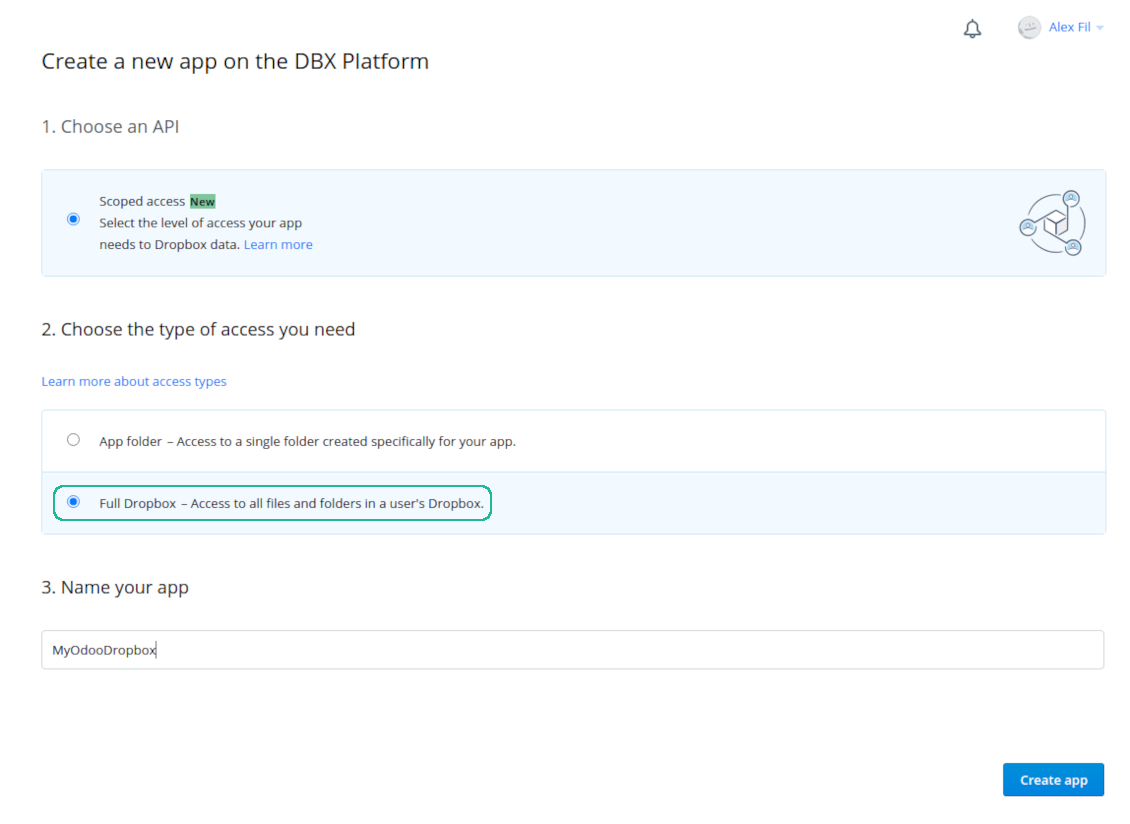
Määritä Dropbox-sovellus: redirect-URL
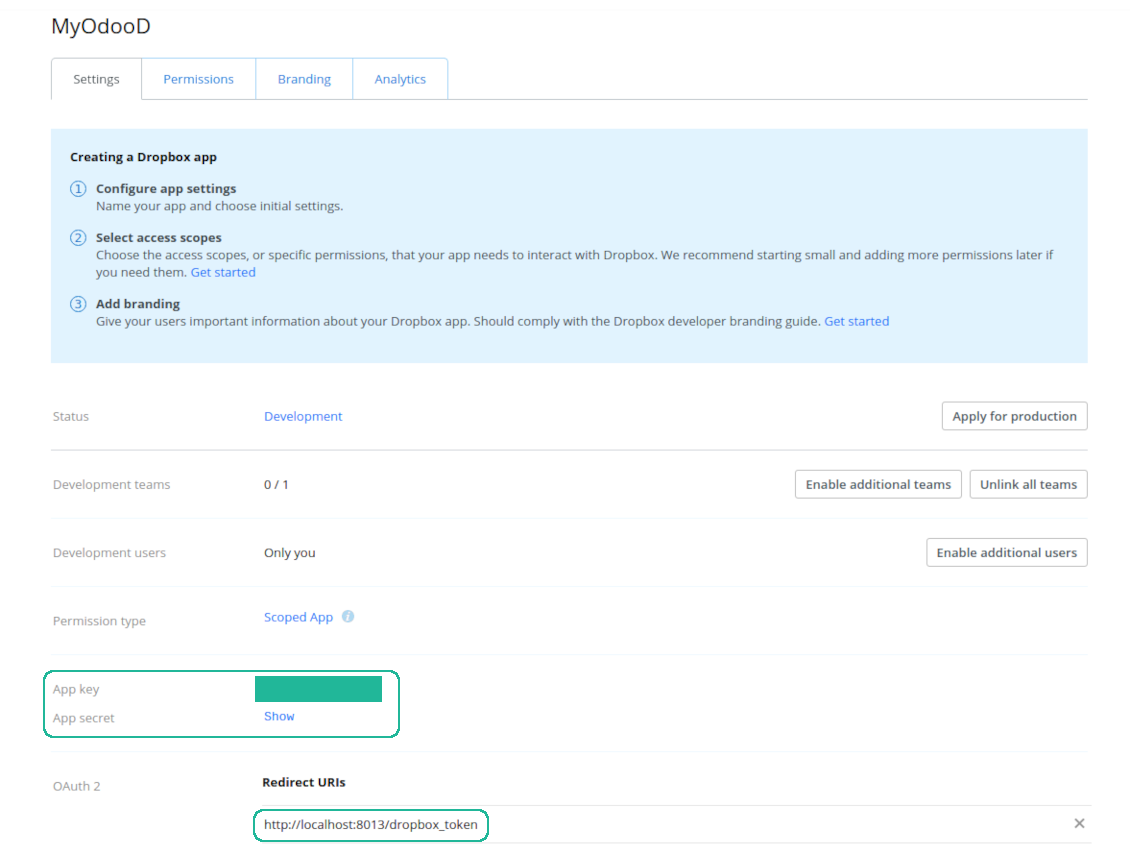
Dropbox-oikeudet henkilökohtaisille tileille
Dropbox-oikeudet business-tileille
Määritä Odoo Dropbox-integraatiota varten
Usein kysytyt kysymykset aiheesta Cloud Storage Solutions Odoo v.18
Mihin synkronoidut tiedostot tallennetaan? Kopioidaanko ne sekä Odooseen että pilviin?
Sovellus olettaa, että liitteiden binaarisisältö pidetään Cloud Clientissä Odoo-palvelimen sijaan. Siksi tällaisista liitteistä tulee Odoossa URL-tyyppisiä, ja niihin pääsee milloin tahansa joko liitekentästä tai Cloud Clientistä.
Määrityksen jälkeen manuaalisia toimia ei tarvita, koska synkronointi on täysin automaattinen. Päätä vain, mitkä Odoo-asiakirjatyypit synkronoidaan, ja aseta kullekin liittyvä malli (asiakkaat, myynti- tai ostotilaukset, tehtävät, projektit jne.).
Voinko pitää useita kansioita samalle asiakirjatyypille? Esimerkiksi sisäiset projektit ja asiakasprojektit?
Kyllä. Tee sitä varten sääntö kullekin ja aseta suodattimet: esimerkiksi projektin tyypin mukaan.
Tee suodattimista toisensa poissulkevia, jotta asiakirja voidaan sijoittaa varmasti. Esimerkiksi: «asiakas mutta ei toimittaja», «toimittaja mutta ei asiakas». Muuten asiakirjan kansio hyppää mallista toiseen.
Voiko synkronoinnin tehdä reaaliaikaiseksi?
Ei. Meillä on vahvat syyt välttää reaaliaikaista synkronointia:
Suorituskyky. Reaaliaikaisessa synkassa jokainen tiedoston lataus näyttää latausruudun.
Ristiriidat. Jos 2 käyttäjää muuttaa kohdetta yhtä aikaa, tilanne voi jäädä ratkaisematta. Säännöllisissä töissä voimme korjata myöhemmin; reaaliajassa tarvittaisiin jono, mikä sekoittaisi entisestään.
Toiminnallisuus. Erityisesti nimeäminen ja uudelleenjärjestely. Paluysynk nojaa tiukasti hakemistologiikkaan ja jokaisessa synkassa tarkistetaan 100 % kohteista. Jokaisen päivityksen jälkeen se olisi tuhansia pyyntöjä sekunnissa. Muuten muutokset katoaisivat.
Voinko muuttaa kansioiden oletusnimiä pilvissä?
Voit antaa mallien hakemistoille (myyntitilaukset, mahdollisuudet, toimittajat jne.) oman nimen mille tahansa asiakirjatyypille.
Kohdekansioissa (SO-001, John Smith jne.) työkalu käyttää Odoon näyttönimen muodostusta. Voit muuttaa sen nimilausekkeella. Syntaksi on sama kuin Odoon sähköpostimalleissa.
Voinko muuttaa synkronointitöiden taajuutta?
Ei, versiosta 15 alkaen ajastettuja töitä ei pidä muuttaa. Ne on optimoitu suoritettavaksi 15 minuutin välein, jotta yhteys pysyy mahdollisimman vakaana ja nopeana.
Varmista, että Odoo-palvelimen aikakatkaisut on asetettu vähintään 15 minuuttiin (900 sekuntia).
Jos synkronointi pitää keskeyttää hetkeksi, tee se kyseisen pilviasiakkaan lomakkeella.
Voinko synkronoida liitteet useisiin pilviasiakkaisiin
Kyllä, versiosta 15 alkaen voit määrittää useita yhteyksiä. Näin osa kansioista synkronoituu yhteen pilviasiakkaaseen ja osa toiseen.
Samaa kansiota ei voi millään synkronoida yhtä aikaa useaan pilvitallennukseen.
Käytämme pilvissä erityistä editoria (esim. OnlyOffice, Office 365 jne.). Avautuisivatko tiedostot siinä editorissa?
Kyllä, pilviasiakkaasi asetuksista riippuen.
Tarvitsenko vain Cloud Storage Solution -sovelluksen?
Versiosta 15 alkaen sovellusta voi käyttää yksinään liitteiden kansiointiin ja tiedostonhallintakäyttöliittymään.
Jos tavoitteena on yhteys johonkin pilviasiakkaista, on asennettava vähintään yksi valinnainen asiakassovellus.
Mitä tapahtuu, kun muutan kansion sääntöä?
Kansion sääntö muuttuessa myös kansiolista muuttuu. Jos kansio ei enää täytä ehtoja, se poistetaan. Jos tiedostot oli synkronoitu, paluysynk palauttaa ne Odooseen ja poistaa Cloud Clientista.
Jos asiakirjan kohde ei täytä kansion sääntöä, kansiota ei luoda. Jos se täyttää ehdot myöhemmin, liittyvä kansio luodaan.
Voinko pitää vain suoran synkronoinnin tai poistaa pilvestä synkronoinnin käytöstä?
Kyllä. Avaa pilviasiakkaan Asetukset-sivu ja ota käyttöön Poista pilvestä synkronointi käytöstä.
Synkronointi pysyy yksisuuntaisena. Odoossa tehdyt muutokset lähetetään yhä pilvitallennustilaan. Pilvitallennustilassa luodut, uudelleennimetyt tai poistetut tiedostot ja kansiot eivät näy Odoossa, eikä siellä poistettuja kansioita palauteta.
Poista asetus taas käytöstä, jotta kertyneet muutokset, myös poistot, tulevat voimaan seuraavassa synkronoinnissa.
Asetus on käytettävissä versiosta 18 alkaen. Asiakkaan irrottaminen, nollaaminen tai käytöstä poistaminen ajaa yhä käänteisen synkronoinnin, ellet poista sitäkin käytöstä.
Mitkä ovat tyokalujenne paivityskaytannot?
Odoo Apps Storen nykyisten kaytantojen mukaan:
- Versiolle 12.0 tai aiemmalle ostettu moduuli antaa pääsy kaikkiin versioihin 12.0 asti.
- Versiosta 13.0 alkaen jokainen moduuliversio ostetaan erikseen.
- Versiosta riippumatta osto antaa oikeuden kaikkiin paivityksiin ja korjauksiin paaversiossa.
faOtools-tiimi ei hallitse näitä kaytantoja. Kysymykset osoitetaan suoraan Odoo Apps Storen edustajille.
Miten asennan sovelluksen Odoo.sh-palveluun?
Suorin tapa on Odoo-kaupan sisaanrakennettu työnkulku:
1. Avaa moduulin sivu ja napsauta Deploy on odoo.sh
2. Sinut ohjataan GitHubiin. Kirjaudu sisään ja napsauta Create a new repo tai käytä olemassa olevaa. Repositorion on oltava yksityinen. OPL-1-lisenssin sovelluksia ei saa julkaista. Luo tarvittaessa uusi repo Odoo.sh-projektia varten
3. Siirry sitten odoo.sh:iin, napsauta Deploy, vahvista ja napsauta Continue. Asennus kaynnistyy.
Nämä vaiheet asentavat sovelluksen production-haaraan. Muille haaroille tai paivitykseen:
1. Lataa lahdekoodi Odoo-kaupasta
2. Commitoi moduuli GitHub-repositorioon. Mikään sovelluskansio/-tiedosto ei saa olla .gitignore-tiedostossa. odoo.sh:n luomat repositoriot voivat oletuksena ohittaa tarkeita polkuja (esim. /lib). Lataa kaikki moduulin hakemistot ja tiedostot
3. Deployaa odoo.sh-projektin kohdehaara tai odota automaattista koontia, jos asetukset niin maarittavat.
Miten asennan sovelluksen omalle palvelimelleni?
2. Käynnistä Odoo-palvelin uudelleen;
3. Ota kehittajatila kayttoon (tekniset asetukset);
4. Päivitä sovellusluettelo (Sovellukset-valikko);
5. Etsi sovellus ja paina Activate/Install;
6. Noudata sovellussivun ohjeita, jos niitä on.
Sovelluksella on lisaosia. Voinko ostaa ne myöhemmin?
Kyllä. Odoo lisää kaikki riippuvuudet ostoskoriin automaattisesti: jätä pois jo ostetut työkalut, jottet maksa kahdesti.
Asensin sovelluksen Odoo.sh-palveluun ja näin varoituksen/virheen testeissa
Punainen/oranssi varoitus ei vaikuta sovelluksen ominaisuuksiin. Joskus moduulimme eivät lapaise vakioautomaattitesteja, koska ne olettavat kayttaytymisen, joka on ristiriidassa sovelluksen tavoitteiden kanssa. Muutamme esimerkiksi hinnanlaskentaa, kun Odoo-testit vertaavat loppuhintaa vakioalgoritmiin.
Tarkista ensin kayttoon otetun tietokannan ominaisuudet. Toimiiko kaikki?
Jos oletat silti, että varoitus vaikuttaa todellisiin ominaisuuksiin, ota yhteyttä ja lähetä täydet asennuslokit sekä täydellinen luettelo kayttoon otetuista moduuleista (ydin ja kolmannet osapuolet).
Voinko ostaa sovelluksen suoraan teilta?
Ei, jaamme työkalut vain virallisen Odoo-sovelluskaupan kautta.
Haluan alennuksen
Valitettavasti meillä ei ole teknisia keinoja tarjota yksilöllisiä hintoja.
Voinko asentaa sovelluksen Odoo Online (SaaS) -tietokantaani?
Ei, kolmannen osapuolen sovelluksia ei voi käyttää Odoo Online -palvelussa. Odoo SaaS estää sen.
Tyokalulla on riippuvuuksia. Pitääko ne ostaa?
Kyllä, työkalu tarvitsee kaikki riippuvuuksissa merkittyt moduulit. Sovellussivun hinta sisältää jo nämä riippuvuudet.
Mikä on moduulin hinta Yhdysvaltain dollareina? Miksi se muuttui?
Moduuliemme hinta on euroissa. Odoo-kauppa muuntaa hinnat muihin valuuttoihin sisaisen kurssinsa mukaan. Siksi Yhdysvaltain dollarin hinta voi muuttua, kun kurssi paivittyy.
Sovellus- ja sivustotekstit muilla kielillä kuin englanniksi on tehty tekoälyn tuella ja linjattu virallisiin Odoo-käännöksiin. Jos huomaat virheen, lähetä käännösten oikeellisuutta koskeva tiketti niin korjaamme sen.
Odoo-demotietokannat (live-esikatselut)
Tälle sovellukselle voimme tarjota ilmaisen henkilökohtaisen demotietokannan.
Yhteydenottoon ei tarvita puhelinnumeroa eikä luottokorttia. Riittää lyhyt sähköpostirekisteröinti, joka kestää alle 30 sekuntia.
Pyynnöstäsi valmistelemme yksilöllisen live-esikatselutietokannan, jossa voit testata ja tarkistaa oletuksia noin kahden viikon ajan.
Virheiden ilmoittaminen
Jos kohtaat virheitä tai epäjohdonmukaista toimintaa, ota yhteyttä. Korjaamme 60 päivän kuluessa ostosta ja kehitämme työkaluja sen jälkeenkin.
Yhteydenottoon ei tarvita puhelinnumeroa eikä luottokorttia. Riittää lyhyt sähköpostirekisteröinti, joka kestää alle 30 sekuntia.
Liitä pyyntöön mahdollisimman paljon tietoja: kuvakaappaukset, Odoo-palvelinlokit ja täysi kuvaus ongelman toistamisesta. Työsuunnitelma (jos virhe vahvistetaan) tai ohjeet (muuten) valmistuvat yleensä muutamassa arkipäivässä.
Julkiset ominaisuuspyynnöt ja moduliehdotukset (ilmainen kehitys)
Olemme vahvasti motivoituneita kehittämään työkalujamme ja kiitollisia kaikesta palautteesta. Jos vaatimuksesi palvelevat yleisesti ja ne voidaan toteuttaa tehokkaasti, tiimi lisää ne tehtävälistaan.
Tällainen tehtävälista käsitellään säännöllisesti eikä siihen sisälly lisämaksuja. Emme voi luvata määräaikoja ja lopullista suunnittelua, mutta se voi olla hyvä tapa saada toivottuja ominaisuuksia ilman investointeja ja riskejä.
Yhteydenottoon ei tarvita puhelinnumeroa eikä luottokorttia. Riittää lyhyt sähköpostirekisteröinti, joka kestää alle 30 sekuntia.
18.0.1.4.54
- The issue of the sync queue stopping with a recursion error when a large number of tasks is planned at once has been fixed.
- Tasks of a paused or not connected cloud client now wait for the client instead of being failed and canceled.
18.0.1.4.53
- Toiminto, jolla pilvestä synkronointi poistetaan käytöstä pilviasiakkaalta, on lisätty.
- Toiminto, jolla käänteinen synkronointi poistetaan käytöstä pilviasiakkaalta, on lisätty.
- Ongelma, jossa synkronointijono jäi estetyksi sen jälkeen kun sen käänteisen synkronoinnin asiakas oli poistettu, on korjattu.
18.0.1.4.52
- The issue of folder lookup failing when the document id was a recordset has been fixed.
18.0.1.4.51
- Optimized folder sync by searching only attachments of updated records instead of all model attachments.
18.0.1.4.50
- The feature to requeue failed tasks has been added.
18.0.1.4.49
- Support for Amazon S3, MinIO S3, Synology, QNAP, TrueNAS, other NAS/WebDAB, and BOX has been added.
18.0.1.4.48
- The feature to control the maximum number of folders per rule has been added.
18.0.1.4.47
- The issue with attachments linked to documents disappearing from the attachment box has been fixed.
18.0.1.4.46
- The issue fix text break in folder titles has been fixed.
18.0.1.4.45
- The issue with the non-synced invoice report has been fixed.
18.0.1.4.44
- Asynkroninen kansion tarkistus on optimoitu.
18.0.1.4.43
- Äskettäin valitun kansiohaun ongelma on korjattu.
18.0.1.4.42
- Päivittämättömän kansiopuun ongelma vaihdettaessa tietueiden välillä on korjattu.
18.0.1.4.41
- Ongelma, joka liittyy valittujen liitteiden poistamiseen tarvittavaan kaksoisnapsautukseen, on korjattu.
18.0.1.4.40
- Varmuuskopioiden poistojono on muutettu muotoon first-in, first-out.
18.0.1.4.39
- Sovellus on mukautettu uuteen verkkotunnuksen logiikkaan tukemaan dynaamisia osia.
18.0.1.4.38
- Filestore-arviointi lisätään konfigurointisivulle.
- Ominaisuus, joka rajoittaa pilviasiakkaan synkronoinnin tiettyyn tietokannan nimeen, on lisätty.
18.0.1.4.37
- Varmuuskopioinnin lukitustoiminto on lisätty.
18.0.1.4.36
- Kääntämättömien varoitusten ongelma on korjattu.
18.0.1.4.35
- Nykyisen tietokantavarmuuskopion automaattinen ja manuaalinen synkronointi valittuihin pilviasiakkaisiin on lisätty. Määritä varmuuskopioiden aikataulu ja säilytysaika. Varmuuskopiot voivat olla filestore- ja manifest-tiedostojen kanssa tai ilman niitä.
18.0.1.4.34
- Virhe Python-kirjastojen virheellisessä tuonnissa kansioita päivitettäessä on korjattu.
18.0.1.4.33
- Toimialue tukee nyt Python-kirjastojen käyttöä, mukaan lukien datetime ('date', 'datetime', 'time', 'timedelta', 'timezone', 'tzinfo', 'MAXYEAR', 'MINYEAR'), time ('time', 'strptime', 'strftime'). Lisäksi voidaan käyttää context_today (lyhenne datetime.now) ja relativedelta.
18.0.1.4.32
- Yhteensopivuus sähköpostimarkkinointimoduulin kanssa on vahvistettu viimeisimpien Odoo 18 -päivitysten mukaisesti.
18.0.1.4.31
- Liitteiden valinta poistetaan poistamisen jälkeen.
18.0.1.4.30
- Synkronoitujen liitteiden URL-osoitteet voidaan laskea etukäteen.
18.0.1.4.29
- Pilviasiakkaiden perusteella luodut kansiot saavat suuremman sekvenssin.
18.0.1.4.28
- Kanban-näkymät on sovitettu Odoo 18:n uusiin XML-periaatteisiin.
- Arkistoitu nauha ei-aktiivisille tallenteille lisätään lomakenäkymiin säännöistä, kansioista, tunnisteista ja jaoista.
18.0.1.4.27
- Käyttöliittymä päivitetään vastaamaan keskeisten liiteluettelonäkymien muutoksia.
18.0.1.4.26
- Ongelma, jossa ei ole lisätty linkkejä tiettyihin kansioihin, on korjattu.
18.0.1.4.25
- Sovellus on julkaistu versioon 18.
17.0.1.4.25
- Työtilayläkansioiden alikansioiden luomatta jääminen on korjattu.
17.0.1.4.24
- Aiemmin synkronoitujen alikansioiden päivittymättömyys on korjattu.
17.0.1.4.23
- Sääntökansioiden estopäivien tyhjennys on lisätty.
17.0.1.4.22
- Olemassa olevien liitteiden (myös synkronoitujen) valinta Odoo-viestejä kirjoitettaessa on lisätty.
- URL-liitteiden lisäys on lisätty liiteruutuun ja tiedostonhallintaan.
17.0.1.4.21
- Automaattisen vierityksen ongelma muistiinpanon kirjaamisen jälkeen on korjattu.
17.0.1.4.20
- Lokien suodatus päivämäärän ja ajan mukaan on lisätty.
- Vietyjen lokien määrän voi nyt määrittää määrityssivulla.
17.0.1.4.19
- Epäonnistumisten uudelleenyritysten määrä on nyt määritettävissä ja voi poiketa vakio- ja käänteis-/siirtotehtävissä.
17.0.1.4.17
- Tehtävien yläeston mekanismi on optimoitu palvelemaan ensin prioriteetiltaan korkeinta tehtävää.
17.0.1.4.15
- Estomekanismi on määritetty kohteita siirtäville synkronointitoiminnoille.
17.0.1.4.13
- Pääsy välikansion sääntöön määritetään säännön mallin sijaan yläkansion pääsyn mukaan.
17.0.1.4.12
- URL:ien enimmäiskoko on nostettu 4096:een.
17.0.1.4.11
- Käänteinen synkronointi on optimoitu. Keskinäisestä estosta roikkuvat tehtävät on poistettu.
17.0.1.4.10
- Samanaikaisen käänteisen ja taaksepäin synkronoinnin ongelmat on korjattu.
17.0.1.4.9
- Uudelleen järjestettyjen ja siirrettyjen kansioiden käsittelyyn käytettävä algoritmi on optimoitu.
17.0.1.4.8
- Ongelma tunnisteiden ja kansioiden luomisessa portaalin kautta on korjattu.
17.0.1.4.7
- Portaalin jakohaku tunnisteen/kansion otsikon mukaan on kiinteä.
17.0.1.4.6
- Massatoiminto "Diaesitys" lisätään. Sen avulla backend-käyttäjät voivat aloittaa diaesityksen valituille kuvaliitteille.
- Jakamisen asetuksiin on lisätty valinta "Allow slideshow". Jos se on päällä, portaalin ja julkiset käyttäjät voivat käynnistää diaesityksen jaon portaalinäkymässä juuri löydetyille kuvaliitteille.
- Käänteinen synkronointialgoritmi on optimoitu.
17.0.1.4.5
- Riippuville tehtäville on lisätty erityiset ennakkotarkistukset. Jos tehtävä pysäyttää cron-työn kokonaan (esimerkiksi muistirajoitusvirheiden vuoksi), seuraava cron jatkaa eri tehtävällä.
17.0.1.4.4
- Vakio Odoo-esikatselu on lisätty tiedostonhallinnan liitekorttiin. Avaa esikatselu kanban-näkymässä napsauttamalla pikkukuvaa. Tuetut tyypit ja käyttäytyminen ovat samat kuin liiteruudussa.
- Liitelomakkeet voi avata kanbanin 3-pistevalikosta. Siellä voi myös vaihtaa liitteiden värejä.
- Synkronointilokien tasot väritetään viestien tasojen mukaan.
- Lokijärjestelmä on optimoitu tallentamaan viestit, vaikka työ epäonnistuisi ja pysäyttäisi säikeen kokonaan.
17.0.1.4.3
- Väärin valittu kansio tiedostonhallinnan ensimmäisessä latauksessa on korjattu.
17.0.1.4.2
- Kansioiden priorisointi sääntöjen synkronointitiheyden mukaan on lisätty.
17.0.1.4.1
- Moduulin rakenne on päivitetty uusimpaan tiedostonhallintaan, raahaukseen ja portaalijakoon
17.0.1.3.14
- Liitteiden kopiointi, kun res_model ja res_id on annettu nimenomaisesti, on korjattu (HR Expenses -yhteensopivuus on korjattu).
17.0.1.3.13
- Kansioiden monivalinta on nyt mahdollista tiedostonhallinnassa.
- Liitteiden latauksen nykyinen kansio näkyy painikkeen "Upload" otsikossa.
- Liitteiden/kansioiden jako on lisätty. Jaa tiedostoja, hakemistoja tai tunnisteita tietyille portaalin kumppaneille tai julkisesti. Salli valinnaisesti lataus, puunavigointi sekä tunnisteiden ja kansioiden luonti.
- Tietyn tunnisteen kaikkien liitteiden lataus on lisätty. Tunnistenavigointi on valinnaista.
17.0.1.3.12
- Tiedostojen raahaus paikalliselta tietokoneelta latausta varten on lisätty.
- Kansiota ja tunnisteita voi nyt päivittää pudottamalla liitteitä vasempaan navigointipaneeliin.
17.0.1.3.11
- Tunnisteiden massapäivityksen virheet on korjattu.
- Väärän kansion ongelma uusille tietueille on korjattu.
- Tilanne, jossa kansiota ei voi luoda navigointipaneelissa ilman muita kansioita, on korjattu.
- Synkronointilokien käyttöliittymä näyttää vastaanotettujen vastausten HTML-sisällön.
17.0.1.3.10
- Harvinainen tapaus, jossa kansion alkuasetus on epäonnistunut 8 kertaa mutta synkronointi pitää silti tehdä, on katettu.


The tool to build a deep and structured knowledge base for internal and external use. Knowledge System. KMS. Wiki-like revisions.
398€
The tool to set up KPI targets and control their fulfillment by periods. KPI dashboards. Dashboard designer. KPI charts

The tool for time-based service management from booking appointments to sales and reviews
398€
The tool to manage your Odoo from your favorite AI chats through MCP. Claude. Any MCP-supporting AI.

The tool to automatically synchronize Odoo attachments with OneDrive files in both ways
487€
The tool to automatically synchronize Odoo attachments with Google Drive files in both ways
487€
The tool to automatically synchronize Odoo attachments with ownCloud/Nextcloud files in both ways
487€
The tool to automatically synchronize Odoo attachments with NAS Solutions in both ways. Synology, QNAP, TrueNAS and any other WebDav-supporting NAS solutions
487€