Cloud Storage Solutions v.18
Rīks Odoo pielikumu elastīgai kārtošanai mapēs un katalogu sinhronizācijai ar mākoņa klientiem: Google Drive, OneDrive/SharePoint, Nextcloud/ownCloud, Dropbox, Amazon S3, Box un NAS. DMS. Failu pārvaldnieks. Dokumentu pārvaldības sistēma
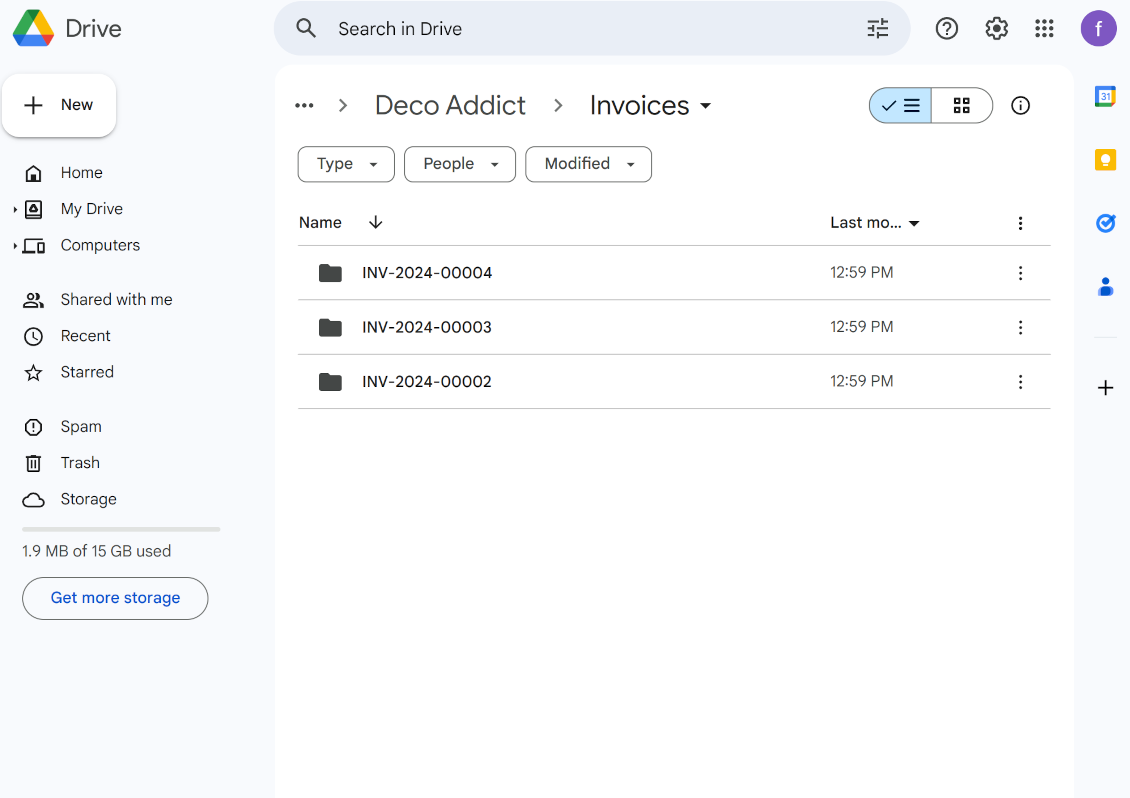
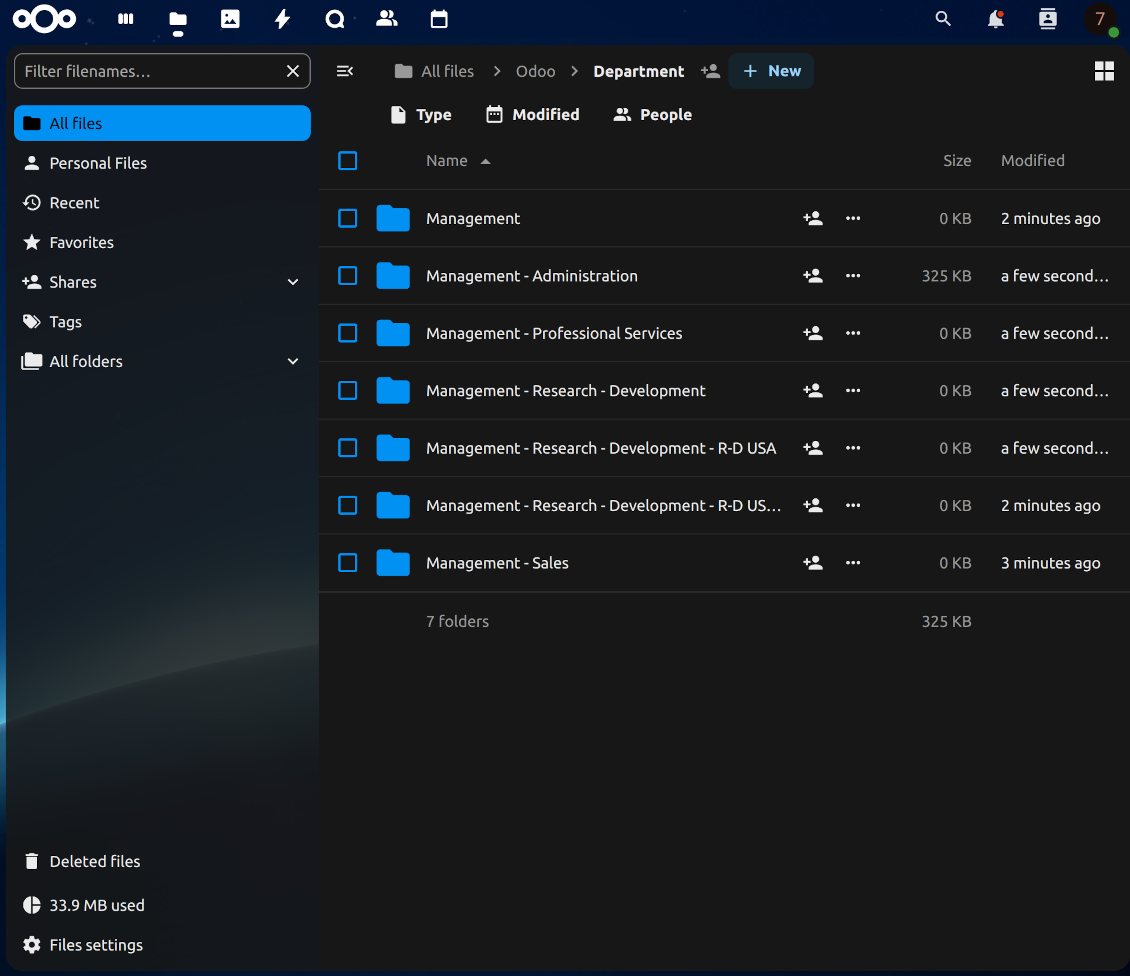
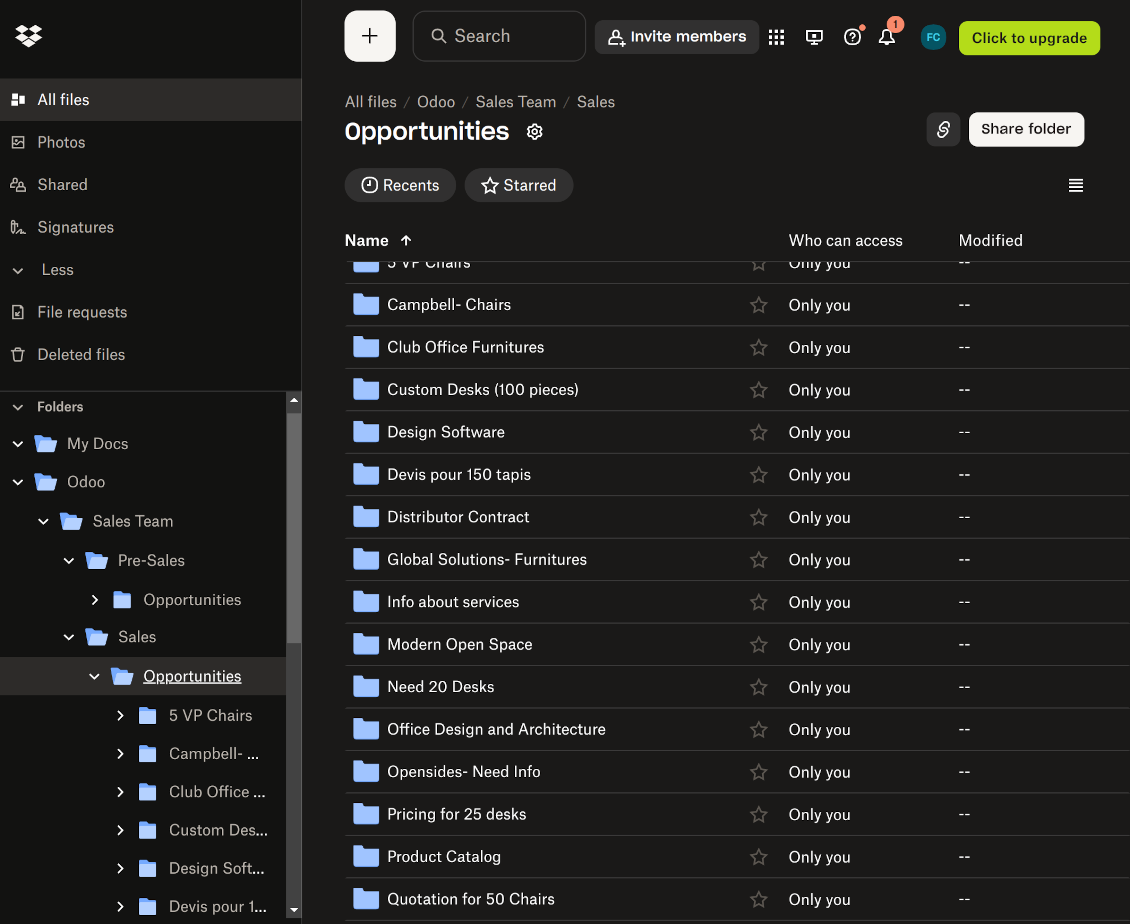
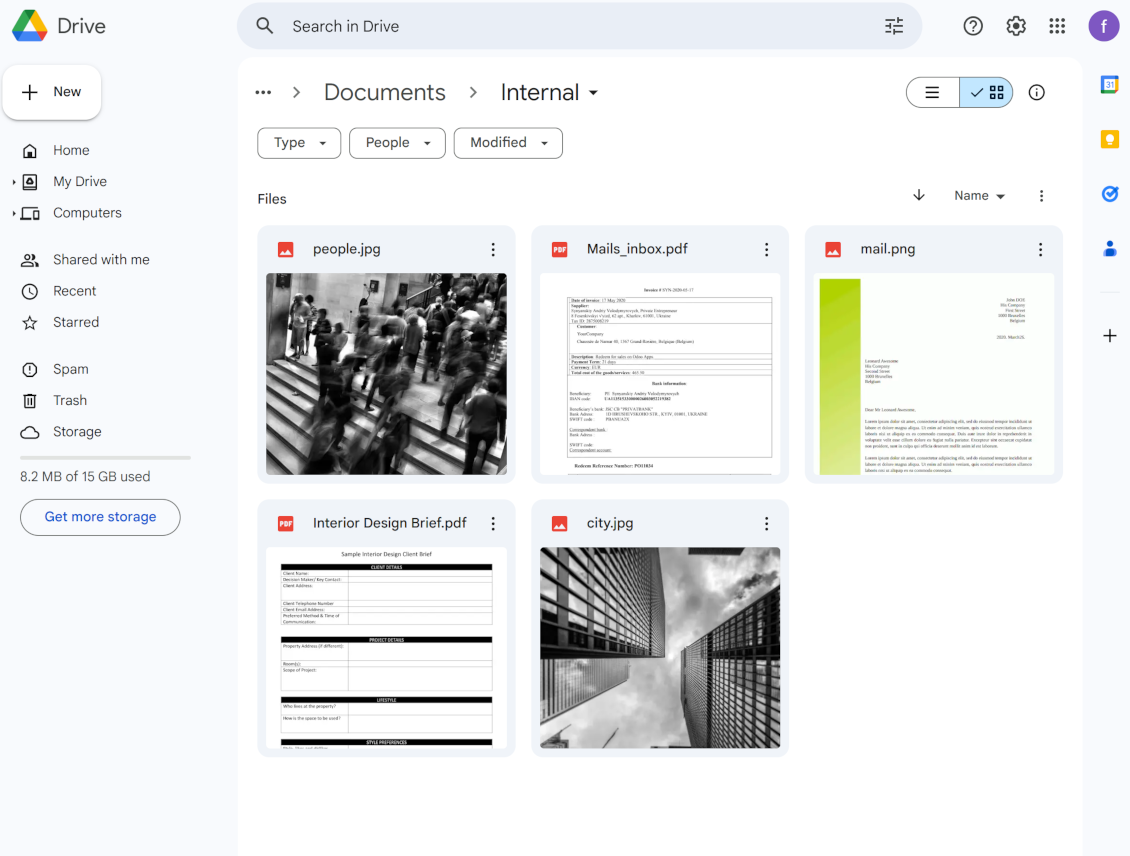

This tool organizes Odoo attachments in folders' trees and synchronizes those with your choice's cloud storage solution(s). The app introduces automatic algorithms to prepare directories for documents and integrate those with workflows of Google Drive, OneDrive/SharePoint, Nextcloud/ownCloud, Dropbox, Amazon/MinIO S3, Box, and NAS/WebDAV (Synology, QNAP, TrueNAS, etc.).
- the core module which introduces the file manager interface and basic mechanics for synchronizations with various cloud clients. Tā cena ir 398€.
- savienotājs Odoo mapju un pielikumu sinhronizēšanai ar OneDrive un/vai SharePoint. Šī papildinājuma funkcijas ir atzīmētas ar ikonu . Tā cena ir 89€.
- savienotājs Odoo mapju un pielikumu sinhronizēšanai ar Google Drive. Šī papildinājuma funkcijas ir atzīmētas ar ikonu . Tā cena ir 89€.
- savienotājs Odoo mapju un pielikumu sinhronizēšanai ar Amazon S3. Šī papildinājuma funkcijas ir atzīmētas ar ikonu . Tā cena ir 89€.
- savienotājs Odoo mapju un pielikumu sinhronizēšanai ar Nextcloud un/vai ownCloud. Šī papildinājuma funkcijas ir atzīmētas ar ikonu . Tā cena ir 89€.
- savienotājs Odoo mapju un pielikumu sinhronizēšanai ar NAS risinājumiem (Synology, QNAP, TrueNAS) un vispārīgu WebDAV krātuvi. Šī papildinājuma funkcijas ir atzīmētas ar ikonu . Tā cena ir 89€.
- savienotājs Odoo mapju un pielikumu sinhronizēšanai ar Dropbox. Šī papildinājuma funkcijas ir atzīmētas ar ikonu . Tā cena ir 89€.
- savienotājs Odoo mapju un pielikumu sinhronizēšanai ar Box. Šī papildinājuma funkcijas ir atzīmētas ar ikonu . Tā cena ir 89€.
- izvēles papildinājums darba vietas mapju sagatavošanai un Odoo dokumentu (ko ievieš Enterprise lietotne „Documents”) sinhronizēšanai ar mākoņiem. Šī papildinājuma funkcijas ir atzīmētas ar ikonu . Tā cena ir 44€.
Automatic Folders
Decide which Odoo document types should have their folder trees. Directories are regularly updated based on flexible rules and existing Odoo objects
Sync with Cloud Storage Solutions
Synchronize chosen folders and files with specific cloud storage: Google Drive, OneDrive, SharePoint, Nextcloud, Dropbox, Amazon, Box, MinIO S3, NAS/WebDAV (Synology, QNAP, TrueNAS, etc.), and ownCloud. Have as many connections as you need
File Manager Interface
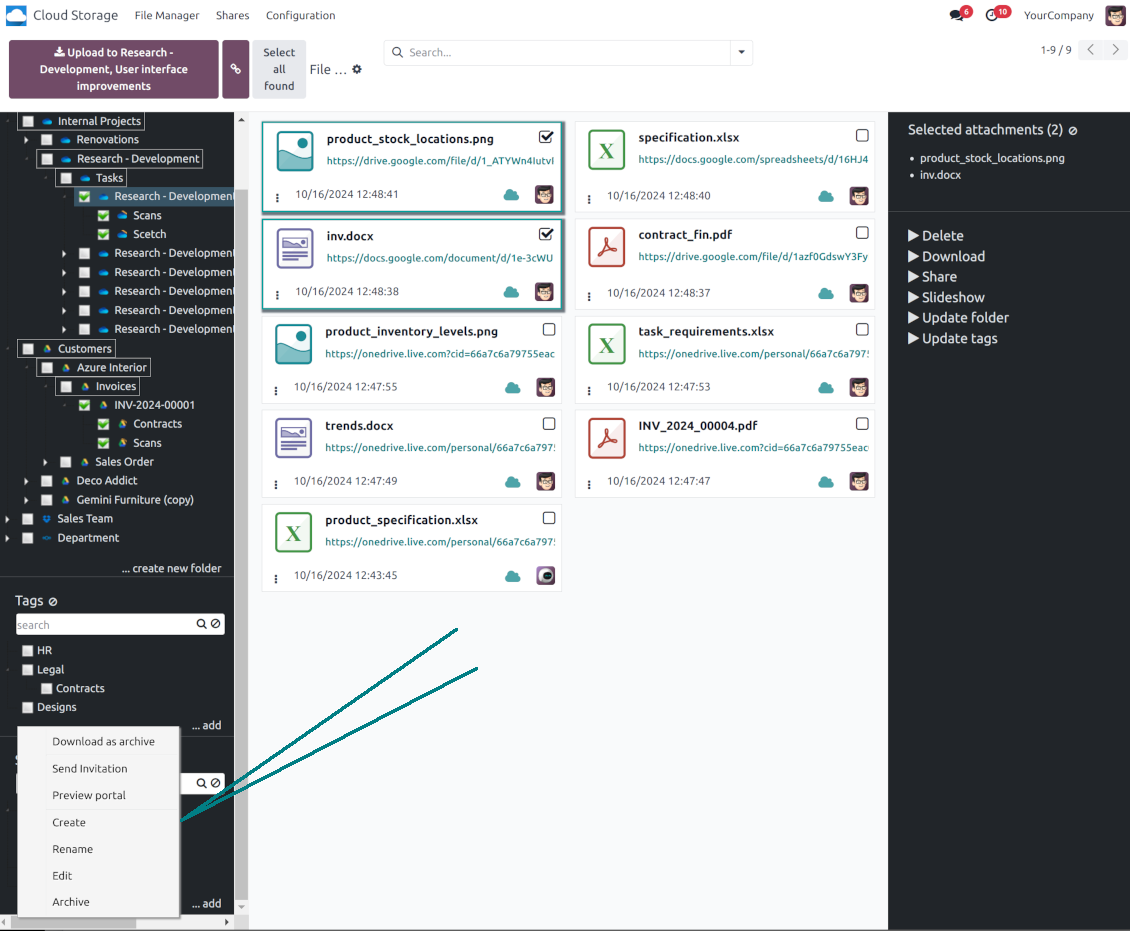
Manage folders and attachments from a single view. Comfortably navigate by directories and tags. Search and download files one by one or in a batch. Upload and move attachments
Enhanced Attachment Box
Organize files of any Odoo object in a set of subfolders. Instantly access folders and files in the attachment box and in synced cloud interfaces
Portal Sharing
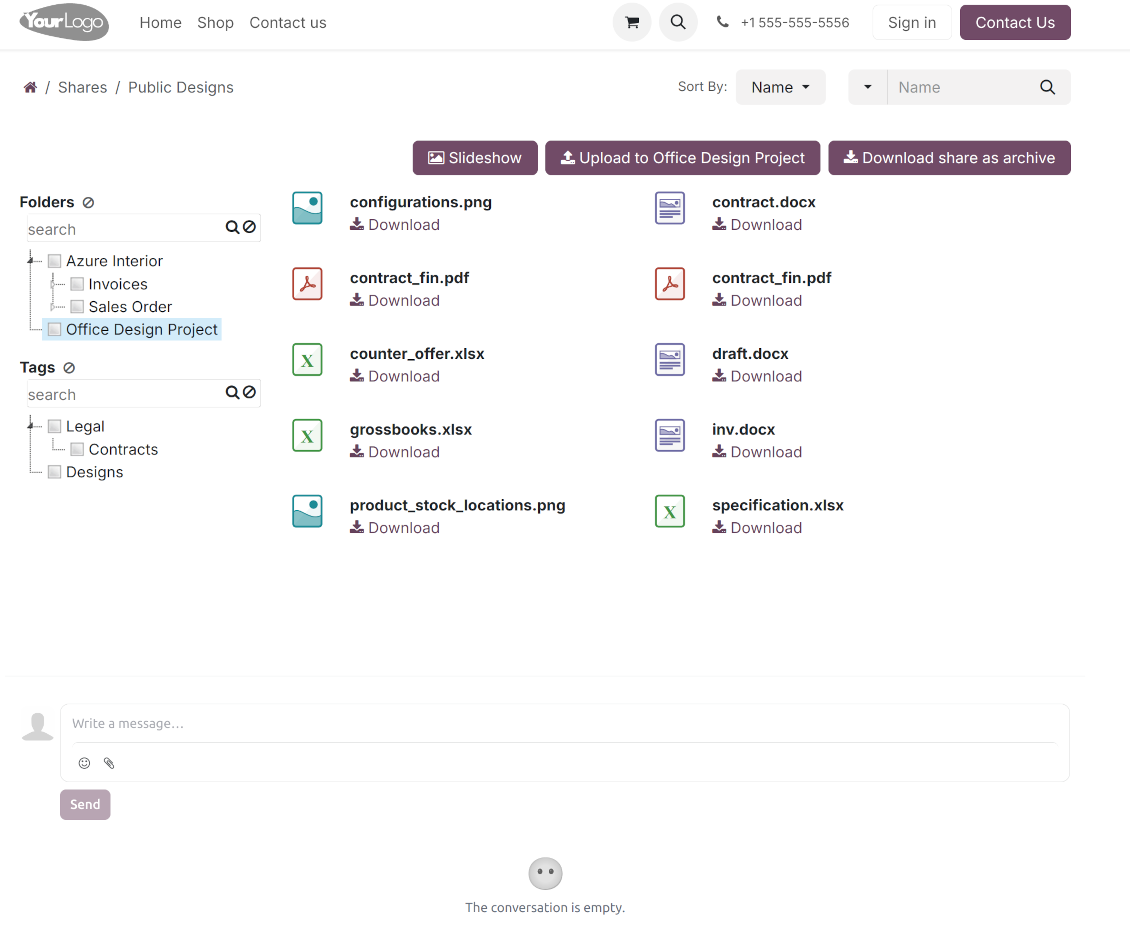
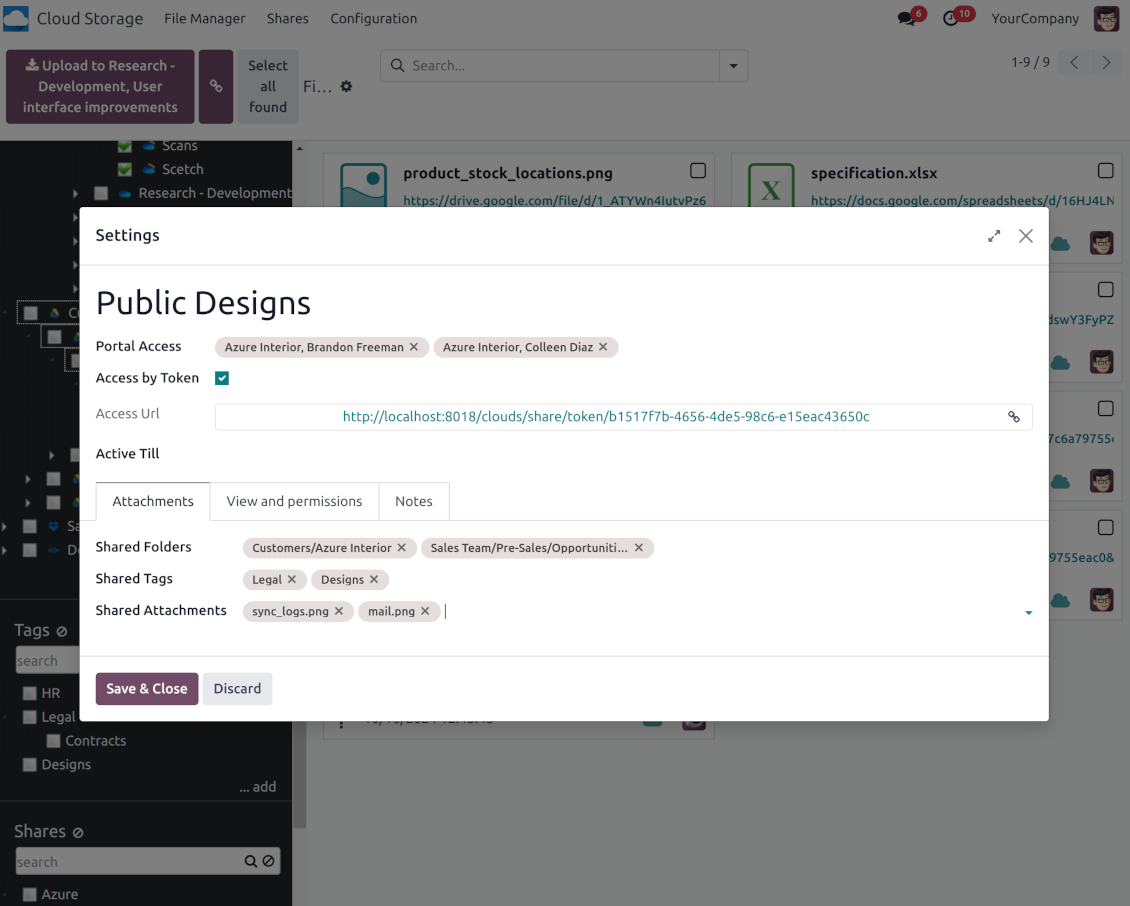
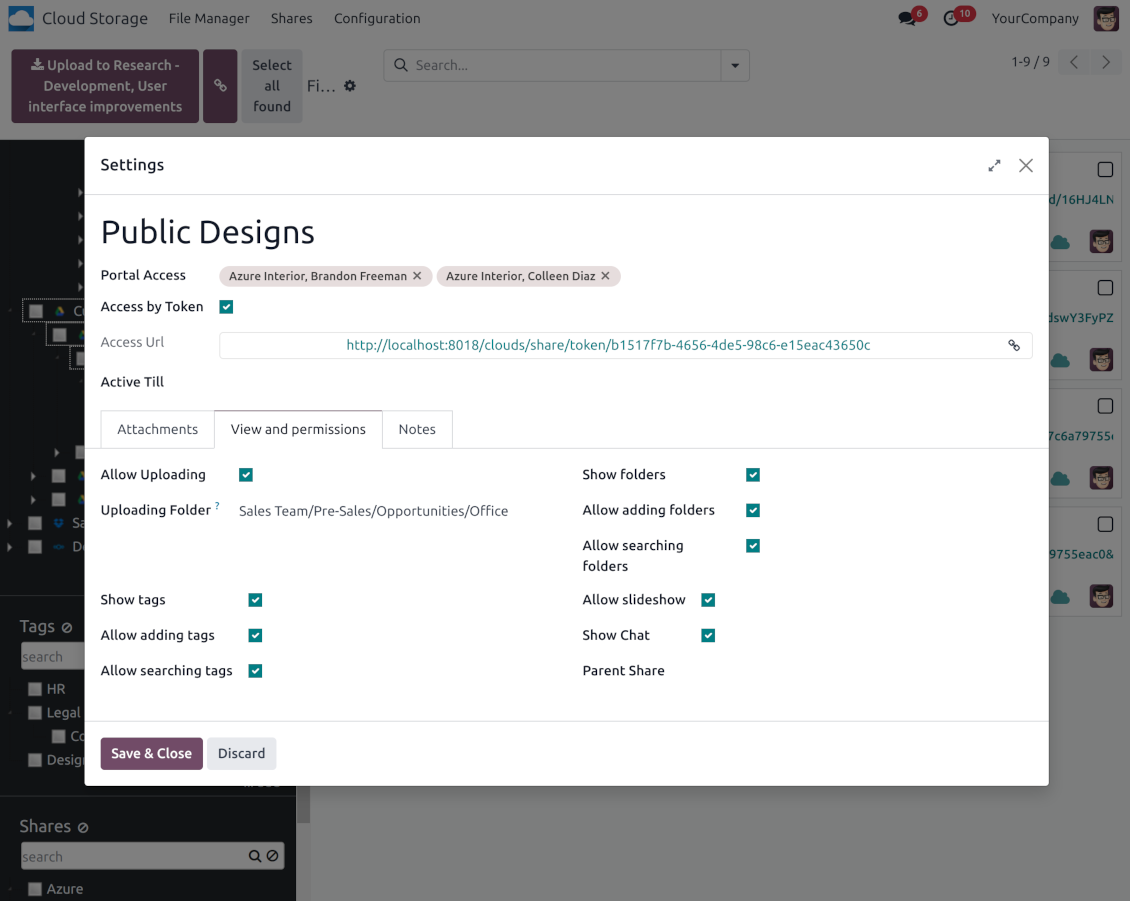
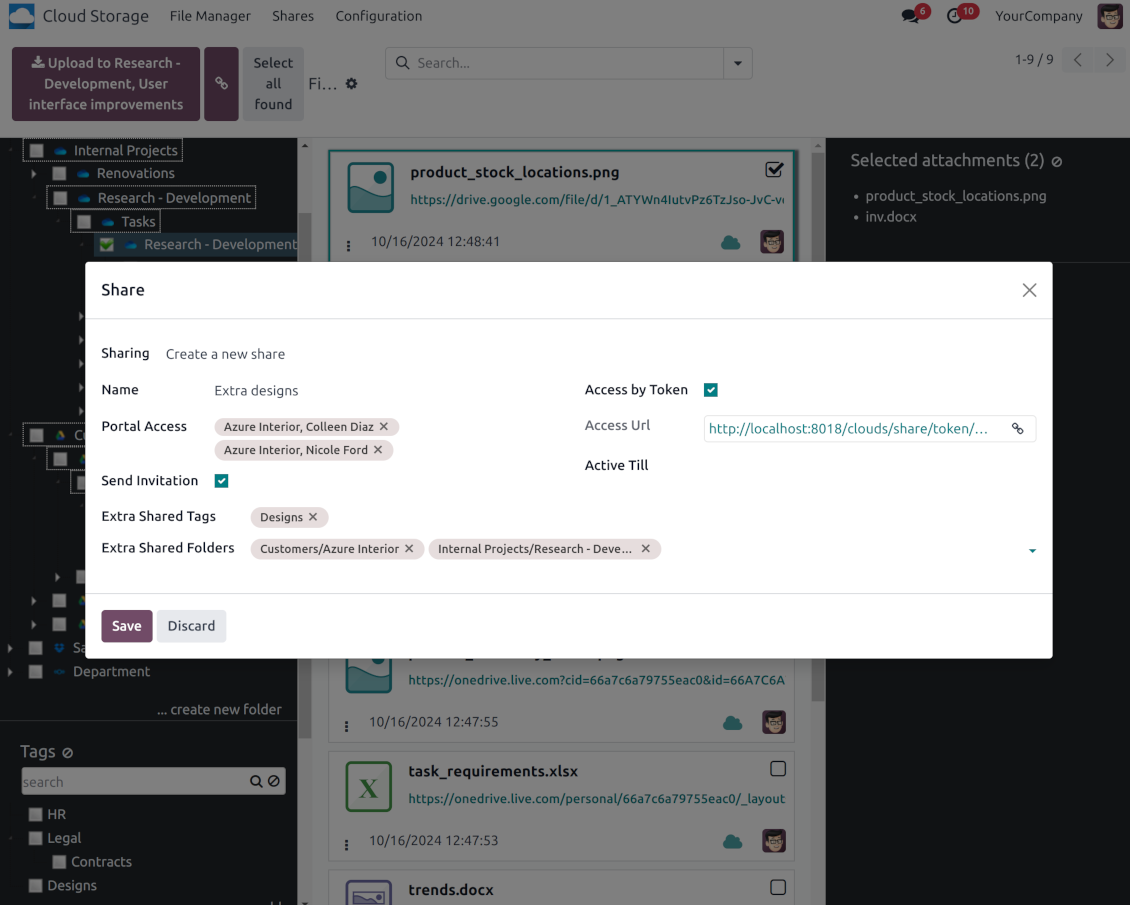
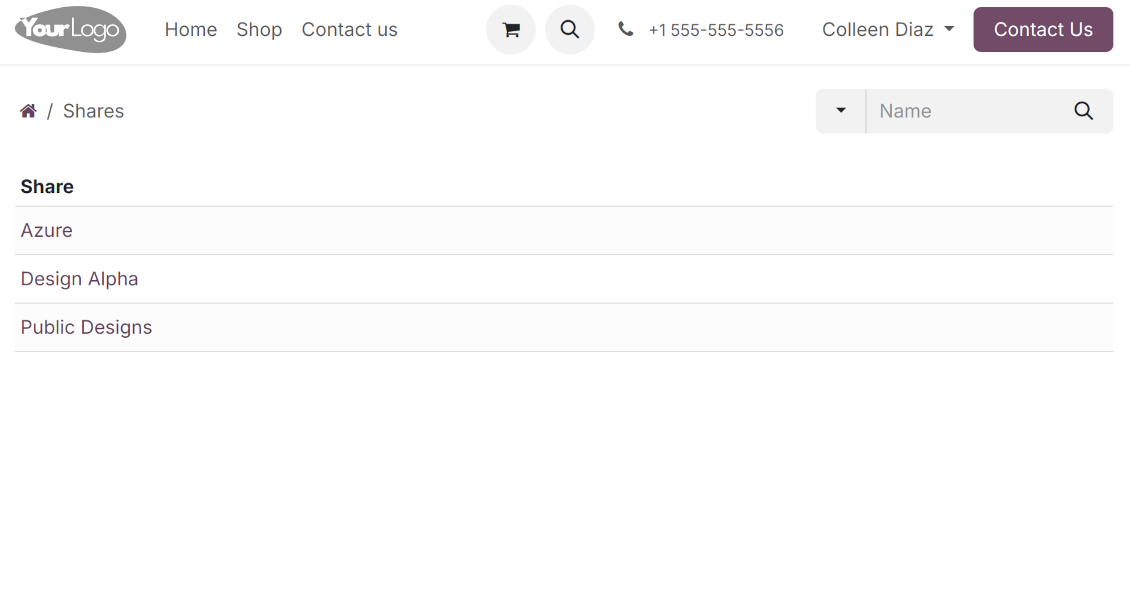
Share files, directories, and tags with particular partners or with an access URL. Let users download whole shares and separate items, upload attachments, and add folders or tags
Enterprise documents compatible
Set up rules to prepare folders based on Odoo Enterprise workspaces. All features, including sharing, downloading, and signing, will work even after the sync
Automatic Regular Sync
Rely on auto-synchronization between Odoo and cloud solutions based on scheduled jobs. No manual interaction is required
Bilateral Sync
Odoo sends attachments to cloud storage solutions and retrieves files from there. Binary content is kept in clouds, while Odoo provides direct access to synced items
Excellent
We have been using Cloud Storage Solutions for a few years already, starting with Odoo 17 mostly because our attachments were a mess. Now we're moving to Odoo 20, and we've surely decided to keep using the app. The File Manager is great for finding a file by folder or tag instead of remembering which sales order it was attached to. And the attachment box on contacts and projects shows the same folders, which lets us avoid excess clicks.
The folder rules are the part I keep showing people: new customer and project folders just appear, with the sub-folders we set up once, and everything lands in our Google Drive through the connector. We also use sharing a folder with our external partners, which is often especially efficient for tasks.
Big thanks to the team too. I asked a lot of questions about the sync and the access rights initially and now during the switch, and every answer came back fast. Really felt like they wanted it to work for us. Happy customer here.
Works well with SharePoint. Supportive team
We've been using this with SharePoint and it's been working great. One of the best things is having everything, including logs right in Odoo's interface, so you can actually see what's going on. It's also super convenient that you can view or download synced files from the attachment box without having to leave the page or even log in to Sharepoint.
Setup was pretty smooth for us. When we had a few questions about setting up the folder hierarchy and priorities, the developer team got back to us in just a couple of hours and helped us figure it out. Great support and great extension!
Tricky setup, but works perfectly now
Really solid module. We managed to get a very flexible folder structure (sorted by clients) and synced all our sales orders, invoices and tasks by projects to Google Drive.
Initial setup was a bit of a pain and kinda tricky to configure everything at first, but now it's running smoothly and works perfectly. The faotools team helped a lot. Def worth it if u need to keep your docs organized in Odoo and Google Drive.
Recommended!
Great support, assistance and very good connector!
We are very happy with the support we received when configuring the Sharepoint - Odoo connector. The connector has great functionalities.
All our questions were answered very fast (within one day).
FaOtools helped us optimising our connector and assisted us with future improvements.
We really recommend this connector.
Great module and Great Support!
The module works great! and the support is phenomenal!
A must-buy if it suits your requirements!
very professional app, excellen t customer service
This app is very well programmed and does its job very well. But the best is the excellent customer service who also helps when the problem lies somewhere else. You receive a lot for your money.
Excellent !!!
Great App and great Service from faOtools.
An impressive app and world-class support
I have been very impressed by the way the OneDrive / SharePoint Odoo Integration module synchronises content in both directions and allows me to share documents in Odoo with my SharePoint site. Above all the technical support is top-notch, which greatly increases the value of this product. I highly recommend this product for anyone considering synchronising Odoo with SharePoint/OneDrive.
Very good product
A perfect solution to integrate Owncloud with Odoo. We sync a high volume of objects across multiple Odoo models, which works seamless and stable. For us it is the perfect solution to have an external DMS instead of the Odoo native attachment handling, which also enables us to interchange files between systems in our best-of-breed setup.
The team behind this module is extremely professional and responsive. They helped us on a few occasions and provided clear answers and prompt support when required, and they even went out of their way to assist us with another requirement we had. Cannot recommend the product and team highly enough, try this if you're in the market to connect Odoo with an external document solution.
Works fine, good support
The first experience with the module is excellent. I had some trouble to configure things right on the Microsoft-side, but the team provided quick and good support.
Best module for integration with google drive
The module performs its function correctly and faOtools responds quickly to any problem and, in case of detecting any bug, quickly apply the changes. Its support is 10 stars.
Works according to specs
I have used this app with Odoo 12 and Nextcloud 16 and it works as specified. Odoo Tools offers very responsive support which is really helpful. Of course 5 stars...!
This is Awesome
I have used Cloud Sync on Next/Own Cloud and works really great.
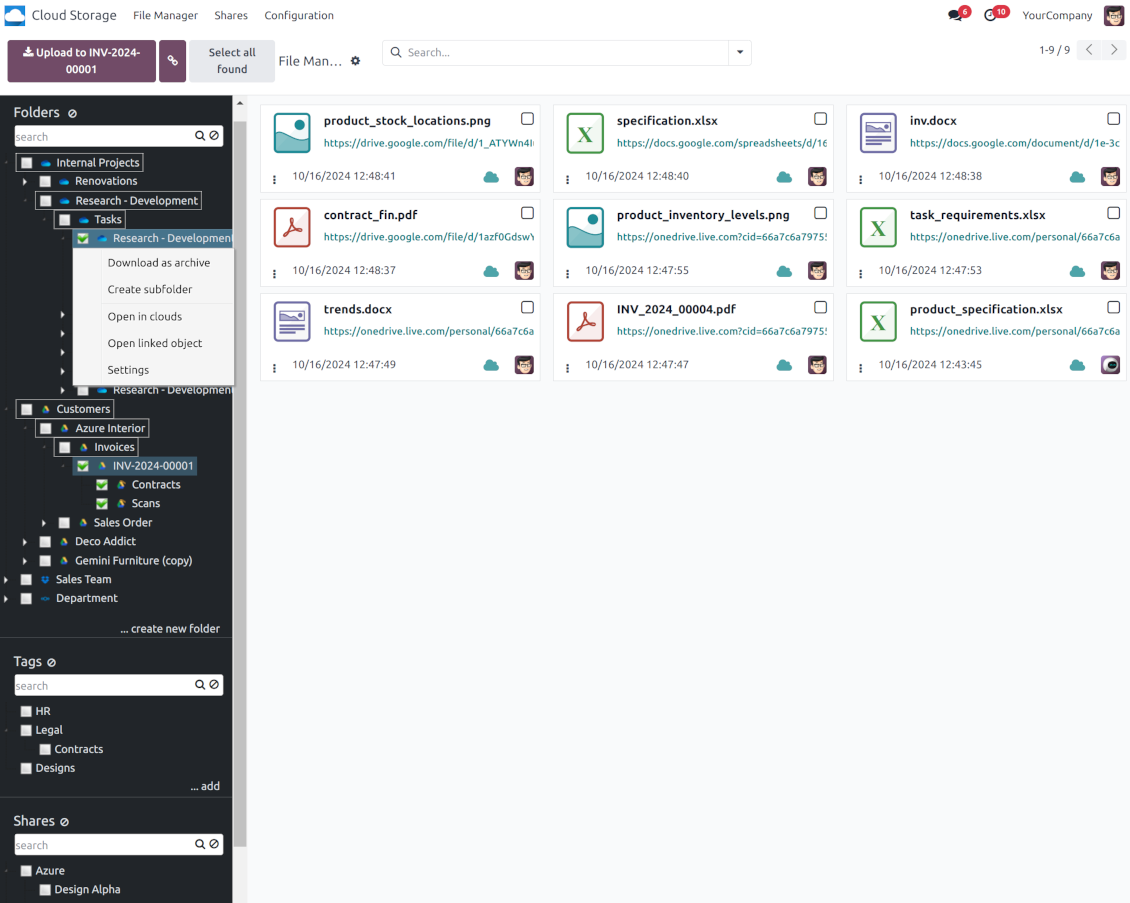
Odoo failu pārvaldnieka saskarne
-
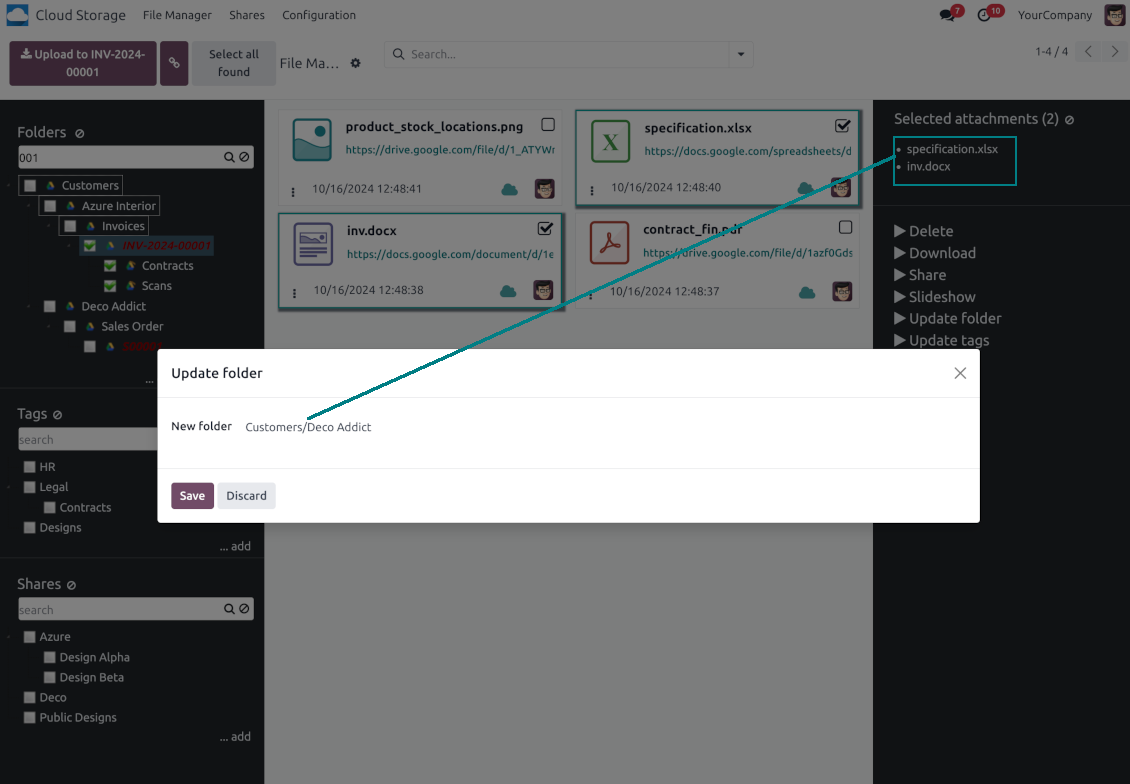
Navigate by folders: select a directory to show its attachments. Expand and hide folders' layers in a click. Add subfolders to any directory (right mouse click > Create subfolder)
-
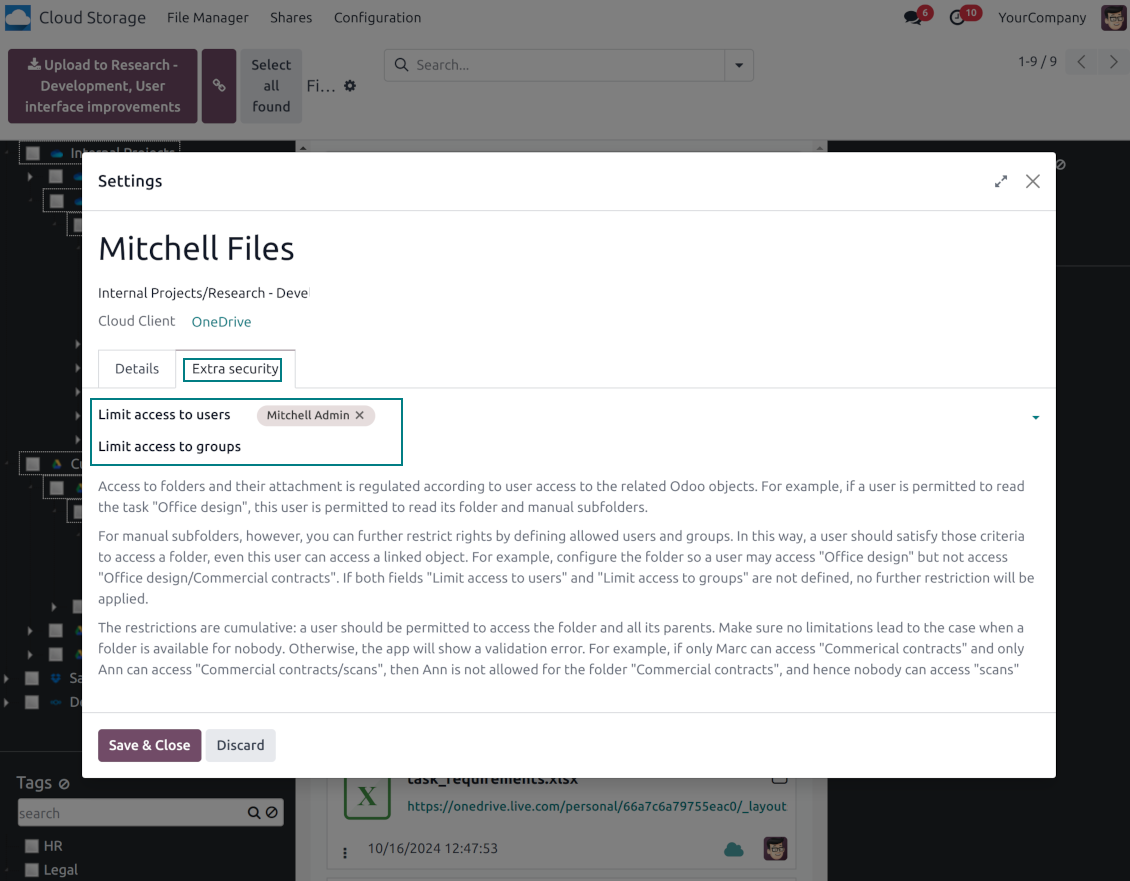
Open any synced folder in its cloud client (right mouse click > Open in clouds). Show a folder peer Odoo object if there is such a connection (right mouse click > Open linked object). Change settings of manually created folders, including granting access rights (right mouse click > Edit Settings)
-
Navigate by attachment tags. Create and edit tags right from the navigation panel
-
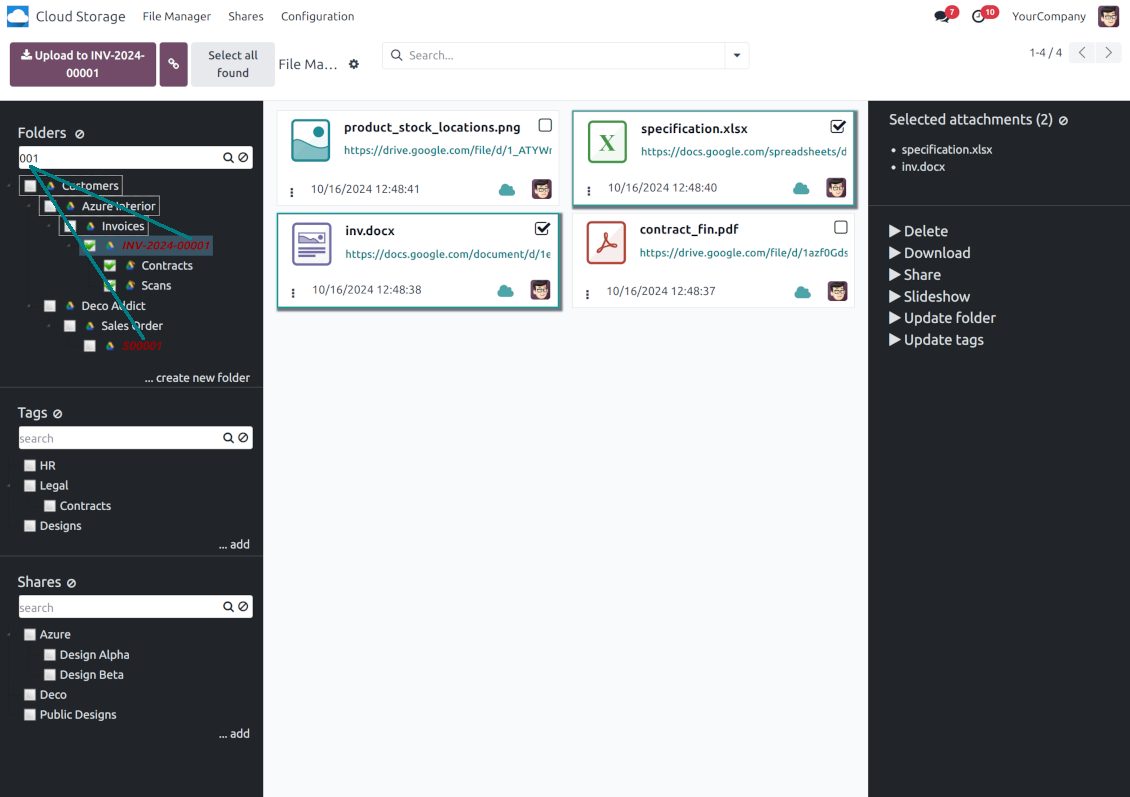
Search and highlight tags and folders in seconds even if there are thousands of items
-
Drag and drop to re-structure folders (relates only to manually created directories; for automatic folders change rules instead) and tags
-
Download any folder or any tag with all its attachments as a single zip archive (right mouse click > Download as archive)
-
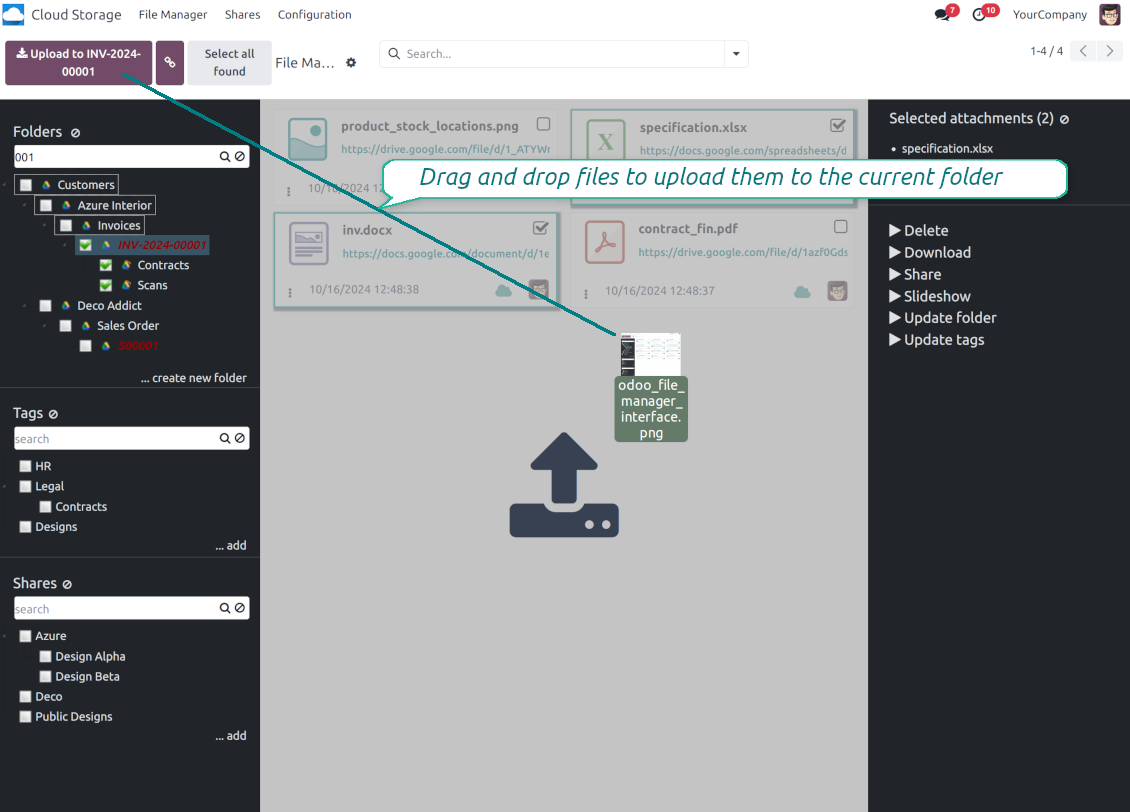
Upload attachments to the current folder. Use the top header button 'Upload file' or drag and drop files
-
Instantly open any synced attachment in a linked cloud client (push the link in the middle of attachment cards)
-
Download any attachment to your local computer disregarding whether it is synced or not (push the icon 'cloud' or 'download' in the footer right corner)
-
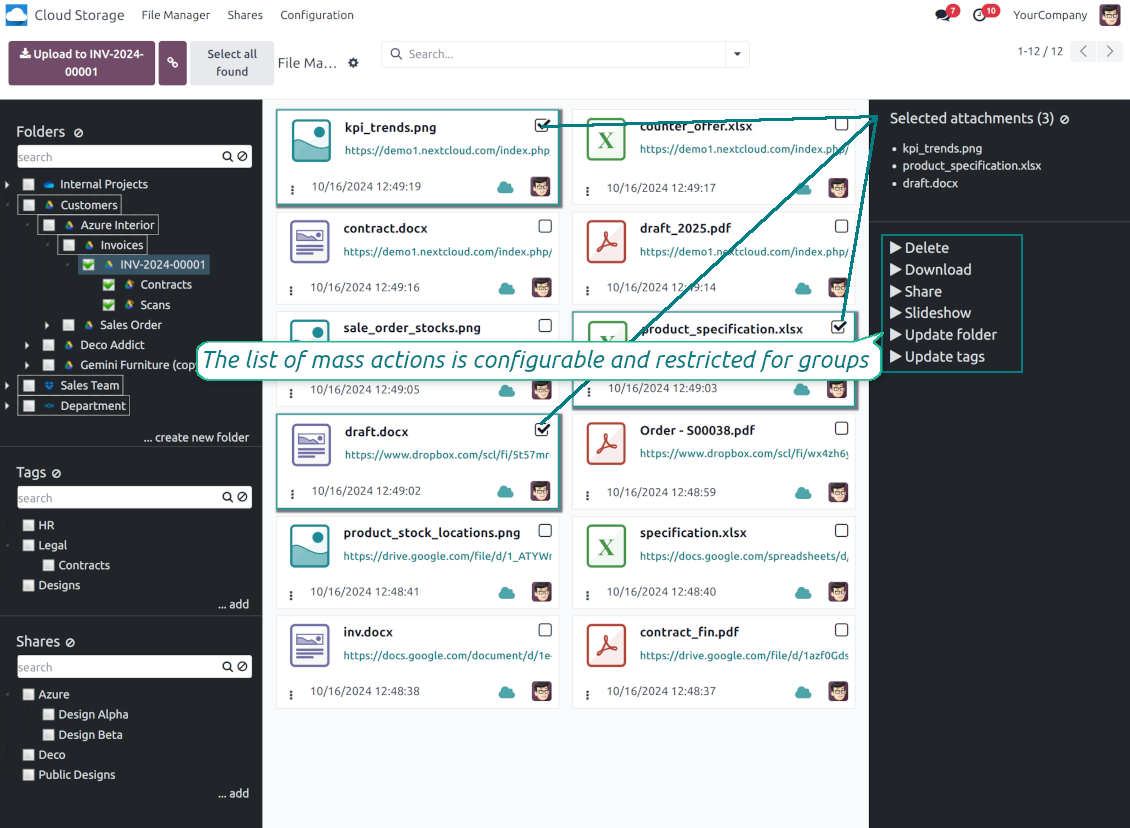
Consequentially select attachments and download them as a single zip archive
-
Move any files to any folder, including re-attaching items between Odoo objects (e.g. from a sale order SO-001 to another quotation or its customer folder). Use the mass action for that end or just drop an attachment to a required directory. Update attachments' tags by dragging those to the left navigation panel or by executing the mass action. Delete attachments in a batch
-
Apply standard attachments search to find required files.
Enhanced Attachment Box
-
Any Odoo object might be linked to its folder. See Automatic folders' structure
-
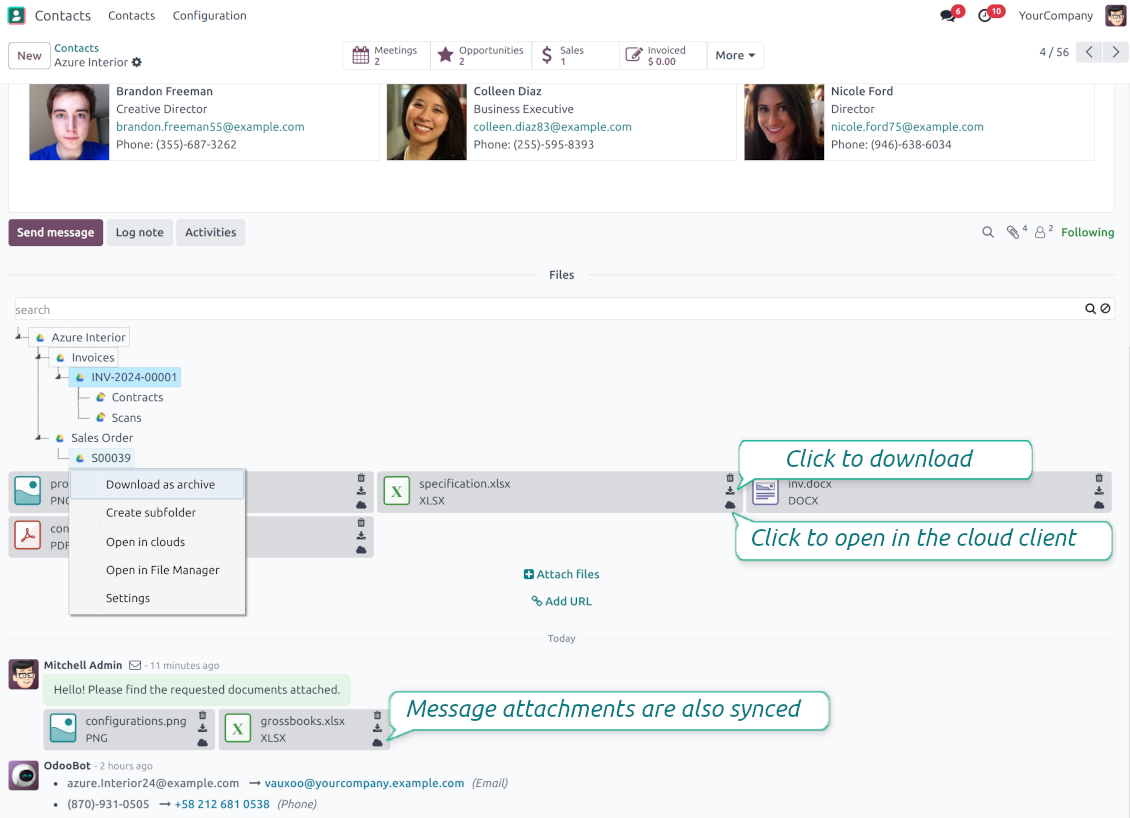
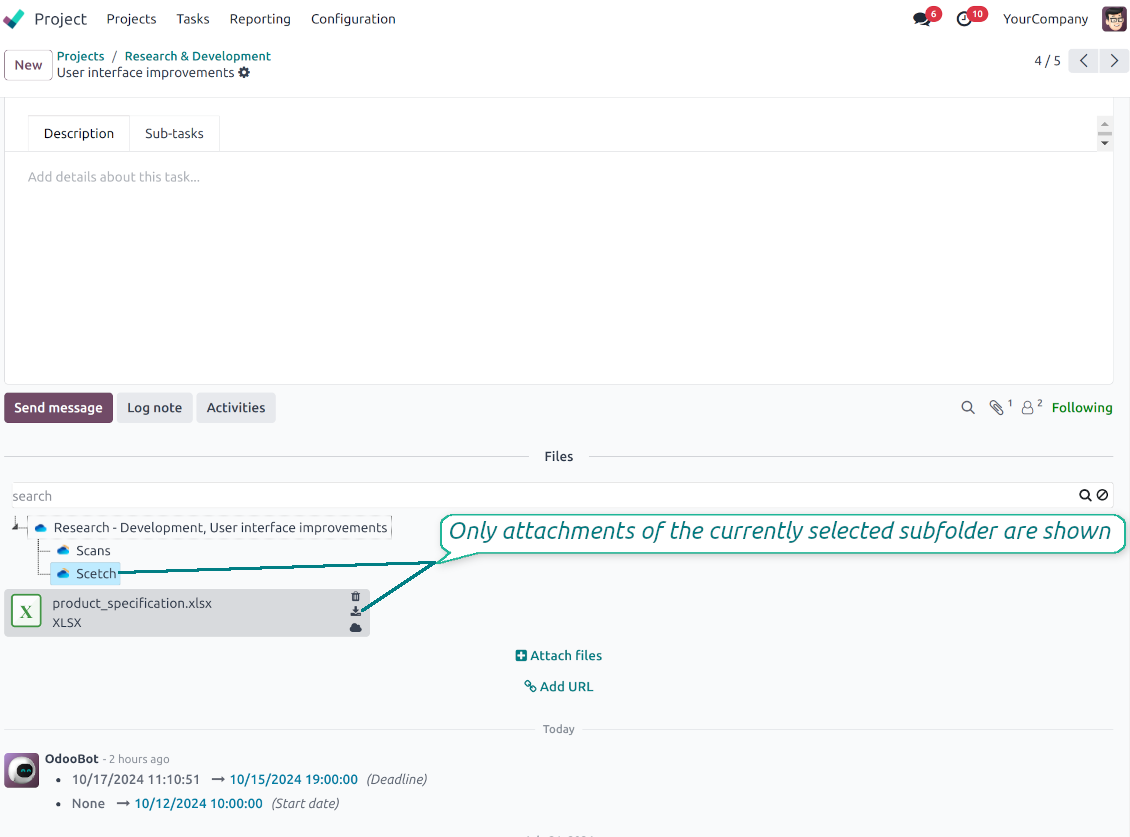
Flexibly define subfolders to organize the structure you need (right mouse click > Create subfolder)
-
Drag and drop to re-structure subfolders
-
Select a folder to see its attachments. By default, files of the object root directory are shown
-
Download any folder with all attachments as a single zip archive (right mouse click > Download as archive)
-
Open the already synced folder in its cloud client (right mouse click > Open in clouds)
-
Upload attachment to a chosen folder (use the button 'Add attachments' or drag files to the attachment box area)
-
Instantly open any synced attachment in a linked cloud client (push the icon 'clouds')
-
Download any attachment to your local computer disregarding whether it is synced or not (push the icon 'download')
-
Use standard Odoo preview for both synced and local files (click on a file thumbnail)
-
Delete attachments as usual
-
All actions are equally applicable to object attachments and attachments related to messages.
Cloud Storage sinhronizācija
Multi synchronization
-
Use optional add-ons to synchronize the document management system with the cloud client(s) of your choice: Google Drive, OneDrive, SharePoint, Nextcloud, Dropbox, Amazon, Box, MinIO S3, NAS/WebDAV (Synology, QNAP, TrueNAS, etc.), and ownCloud. Have as many connections as you need
-
Establish multiple connections to different cloud clients simultaneously. For example, sync sales-related folders to Google Drive; tasks and projects - to SharePoint or OneDrive; HR documents - to Nextcloud/ownCloud; manufacturing specifications - to Dropbox. Take into account that a specific folder might be synced to only a single cloud storage solution. Its children would be synced to the same client
-
For each cloud client, the app lets set up a few instances. For example, for Google Drive, you may share some folders to your personal drive, others - to one of your team drives, and the rest - to your teammate's drive
-
To establish a connection with particular cloud storage, follow the instructions that are specific for client types. See the tab Configuration for details
-
Any connection might be paused manually if it is needed. It might be also auto-stopped if there are critical issues during the sync. Then, you should re-connect to a target cloud client
Cloud clients
-
Synchronization for all cloud clients is based on the same principles and on the same queue. Simultaneously, there might be differences in sync results due to different features of various cloud storage solutions
-
Establishing connections for different types of cloud clients assumes installing optional add-ons, different approaches for Odoo, and external API configuration. Follow the instructions on the tab 'Guidelines'
-
Google Drive Odoo Integration allows establishing a connection with any personal or team drive
-
OneDrive / SharePoint Odoo Integration assumes synchronization with any drive of personal/business/SharePoint tariffs
-
ownCloud/Nextcloud Odoo Integration et integrate Odoo with any instances of ownCloud and Nextcloud. In comparison to other clients, the app allows setting the type of attachment links. By default, Odoo links are internal: only authorized users may access them. Optionally make links public (the setting 'Use Public URLs'). See details on the guidelines tab
-
Dropbox Odoo Integration works for all DropBox tariffs, including Personal DropBox (Basic, Plus, Family) and business DropBox (Professional, Standard, Advanced). In comparison to other clients, the app allows choosing whether cloud items would be shared or internal. See details on the guidelines tab
-
Amazon S3 Odoo Integration (amazon_s3_odoo) synchronizes Odoo folders and attachments with Amazon S3 buckets
-
NAS/WebDAV Odoo Integration (nas_odoo) connects Odoo documents with NAS and WebDAV-compatible storage, including Synology, QNAP, and TrueNAS
-
Box Odoo Integration (box_odoo) synchronizes Odoo folders and attachments with Box cloud storage
Automatic two-sided sync
-
Integration is based on scheduled jobs and is fully automatized. The app regularly checks changes in systems and runs sync operations
-
Synchronization is bilateral. Updates in Odoo are reflected in cloud clients (direct sync); changes in cloud clients modify Odoo folders and attachments (backward sync)
-
Izslēdziet sinhronizāciju no mākoņa klientam, lai sinhronizācija paliktu vienvirziena. Odoo izmaiņas joprojām tiek sūtītas uz mākoņkrātuvi, bet tur izveidotie, pārdēvētie vai dzēstie faili un mapes Odoo neparādās. Atkārtoti izslēdzot opciju, uzkrātās izmaiņas, ieskaitot dzēšanas, tiek piemērotas nākamajā sinhronizācijā
-
Any cloud connection might be reset. In this way, the app assumes getting back all items back to Odoo (reverse sync)
-
Odoo folders and attachments might be re-attached to a new cloud client. Hence, items will be first taken back to Odoo (reverse sync) and then put will be put to the new cloud storage (direct sync)
Queue-based synchronization
-
Once in 15 minutes, the app examines updates in Odoo and cloud storage(s) to prepare a synchronization queue
-
Folders' checks follow the First-In-First-Out (FIFO) principle. So, directories that have not been examined for the longest will be processed first
-
Once in 15 minutes, the sync queue is run by the special scheduled job. Firstly, the most important (blocking) tasks would be done
-
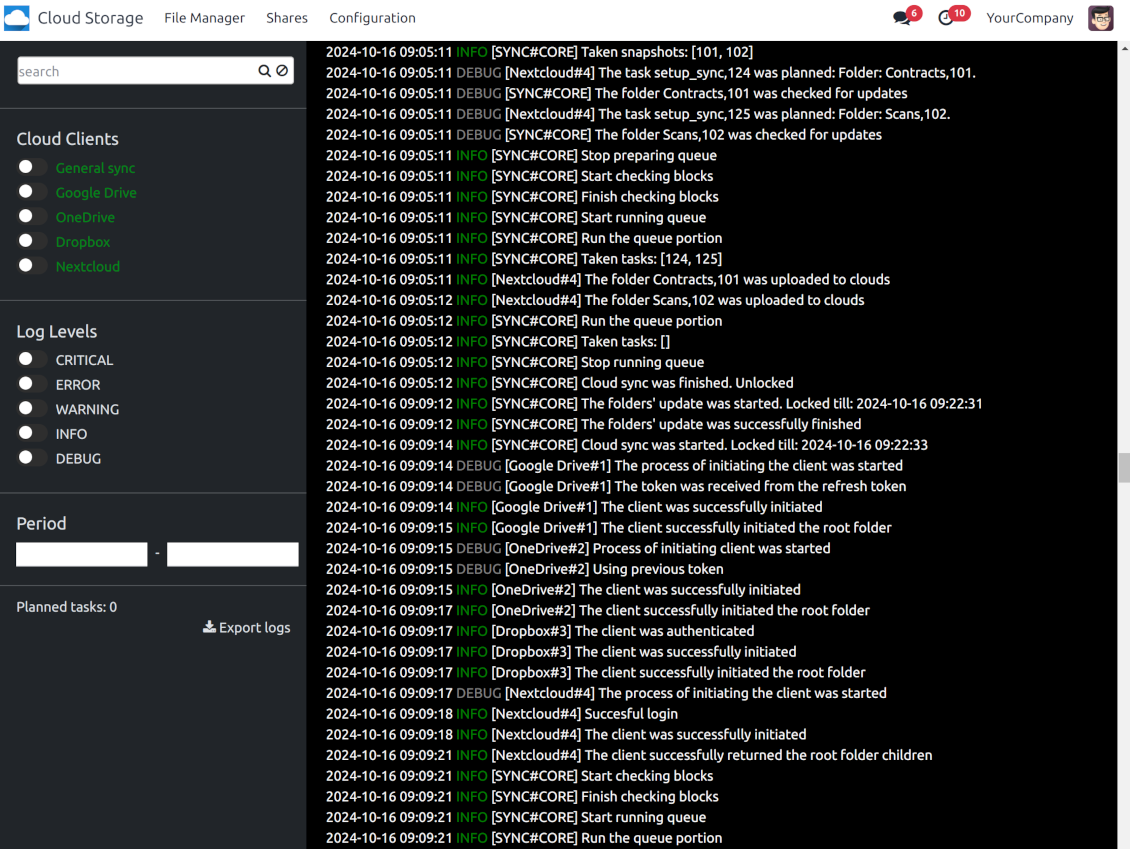
Control planned jobs and their fulfillment in the special Odoo logs interface (Cloud Storage > Configuration > Sync Logs). Subscribe for particular cloud clients notifications
-
If the app faces sync failures, it will re-try operations afterward. Sync queue processing would not be stopped if there are items not blocked by such failures
Odoo attachments for cloud storage: direct sync
-
Direct sync prepares the folders' hierarchy and uploads Odoo attachments for cloud storage
-
Direct sync checks whether attachments are added or deleted for synced directories. If so, they would be created or removed in cloud storage. In particular, it means that any file added to a folder-related Odoo object (e.g. Quotation), would be automatically moved to a linked cloud client
-
Direct sync makes all synced Odoo attachments change their type to a link (URL), while binary content is removed with one of the next Odoo cleaners. So, no actual files would be stored on your Odoo server
-
Direct sync checks whether a new folder is added. Disregarding whether it is done manually or automatically, the app would generate a peer directory in a cloud storage
-
Direct sync checks whether there are any updates in folders. If so, such changes are reflected in a cloud client
Cloud storage files and folders for Odoo: backward sync
-
Backward sync checks whether any files or subfolders are added to cloud storage folders. If so, the app would create URL attachments/subdirectories inside linked Odoo directories (and hence Odoo objects if any)
-
Backward sync checks whether there are any updates in folders or attachments. Such updates would be then reflected in Odoo
-
Backward sync checks whether any files are deleted/moved in a cloud document folder. If so, a linked Odoo attachment would be also unlinked or moved
-
If you deleted a cloud storage folder related to a folder rule / Odoo object, their child files would be deleted as well. Thus, Odoo would remove related attachments. The folders, however, will be recovered with a direct sync
-
In case of conflicts, direct sync changes are in general considered more important than backward updates.
Resetting or changing cloud client: reverse sync
-
In case you decided to reset the connection with a specific cloud client, files would be moved back to Odoo
-
Izslēdziet apgriezto sinhronizāciju klientam, kad mākoņkrātuves kopijai jāpaliek vienīgajai kopijai vai kad savienojums ir pārtraukts. Šī klienta atvienošana, atiestatīšana vai deaktivizēšana tad vairs nelejupielādē failus un neko nedzēš mākoņkrātuvē. Saikne starp Odoo objektiem un to mākoņa elementiem tiek pārtraukta. Saglabātās saites joprojām atver failus mākoņkrātuvē, bet Odoo vairs nevar lejupielādēt, priekšskatīt vai atvērt šīs mapes un failus. Šo saikni nevar atjaunot
-
In case you decided to change the cloud client of a folder rule or a folder, files would be first taken back to Odoo, and then direct sync for a new client would be done
-
Reverse sync operations are prioritized to direct and backward sync operations
-
Not all items can be correctly reversed to Odoo due to cloud client peculiarities. For example, there are documents that may exist only in cloud storage environments (e.g. Google Sheets). The app would try to convert such documents, but in some cases, it would require manual interactions.
Automatic Folder Structure
Rules for automatic folders
-
The app allows preparing its own folder for any Odoo object
-
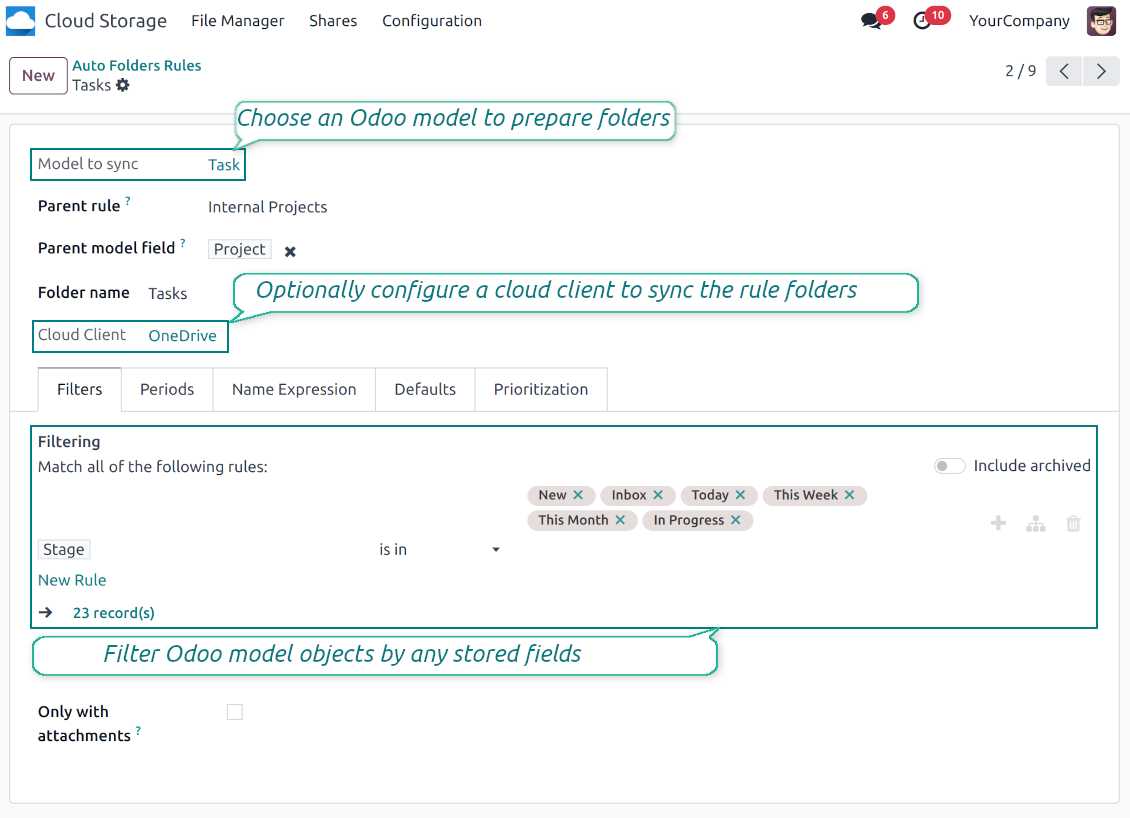
To configure a particular Odoo document type to generate a folder, you should just prepare a new folder rule (Cloud Storage > Configuration > Folder rules). For example, select the model 'Task' to make Odoo add a folder for each project task, so Tasks > Task 1, Task 2, ...
-
Automatically created directories would contain all attachments their linked objects have
-
Folders are updated regularly based on the scheduled job
Multi directories for each model
-
Each Odoo model might have a few linked folders
-
Apply any model storable field to filter Odoo objects and, in this way, split objects into a few super directories. For example, have own folders for individuals and companies, for European and American opportunities, for quotations and confirmed orders, for each project
-
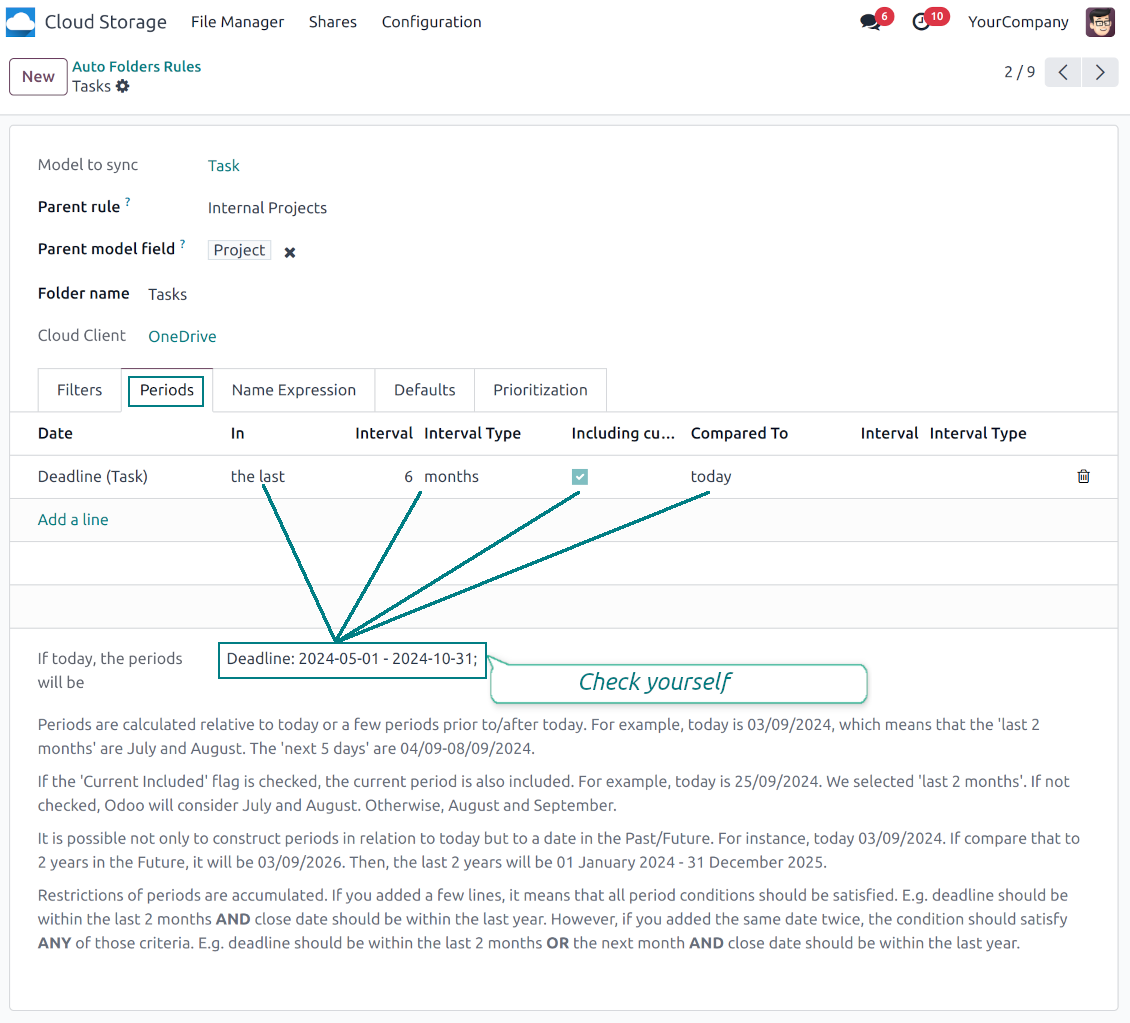
Filter Odoo objects by relative periods by applying date fields of linked documents. For example, leads registered in the last 3 months or invoices updated in the last week
-
As a result, the app lets have paths like 'Odoo > Quotations Europe > SO-001' or ' Odoo > the last year posted invoices (America) > SO-001'
Flexible folders' tree
-
It is possible to set up a hierarchy of folder rules to prepare a more flexible directories structure
-
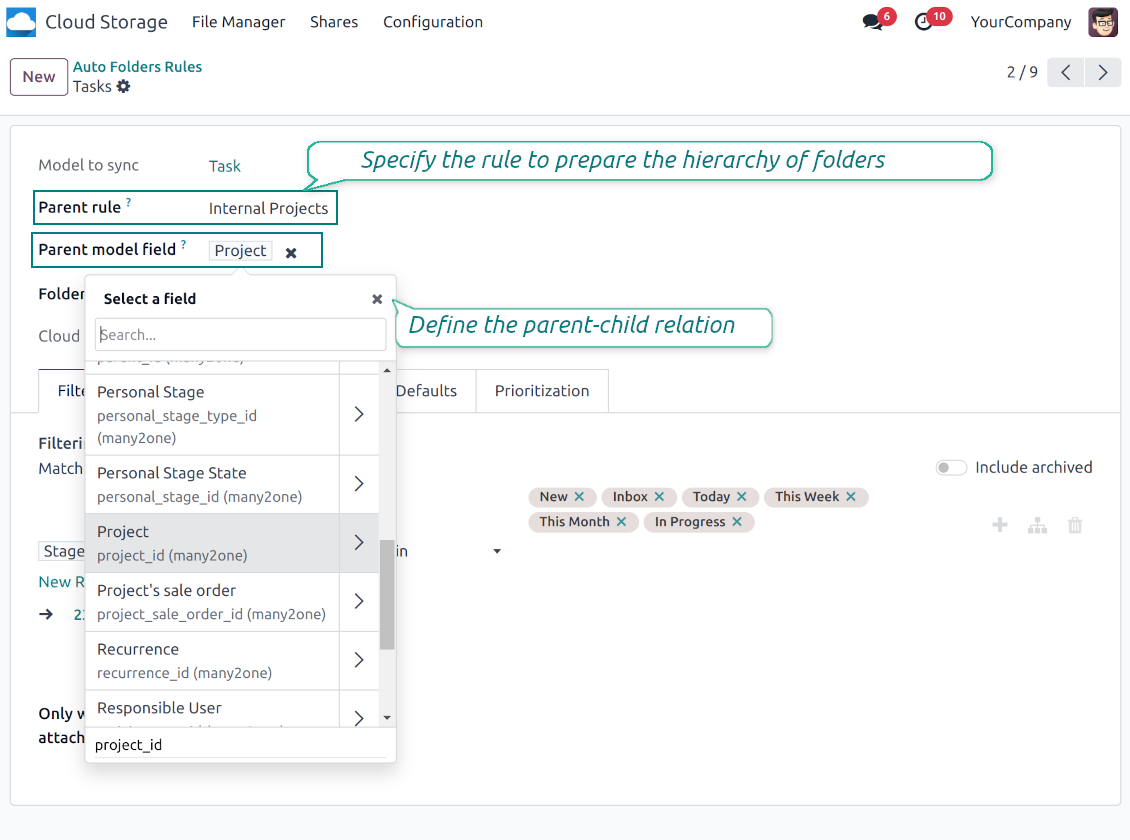
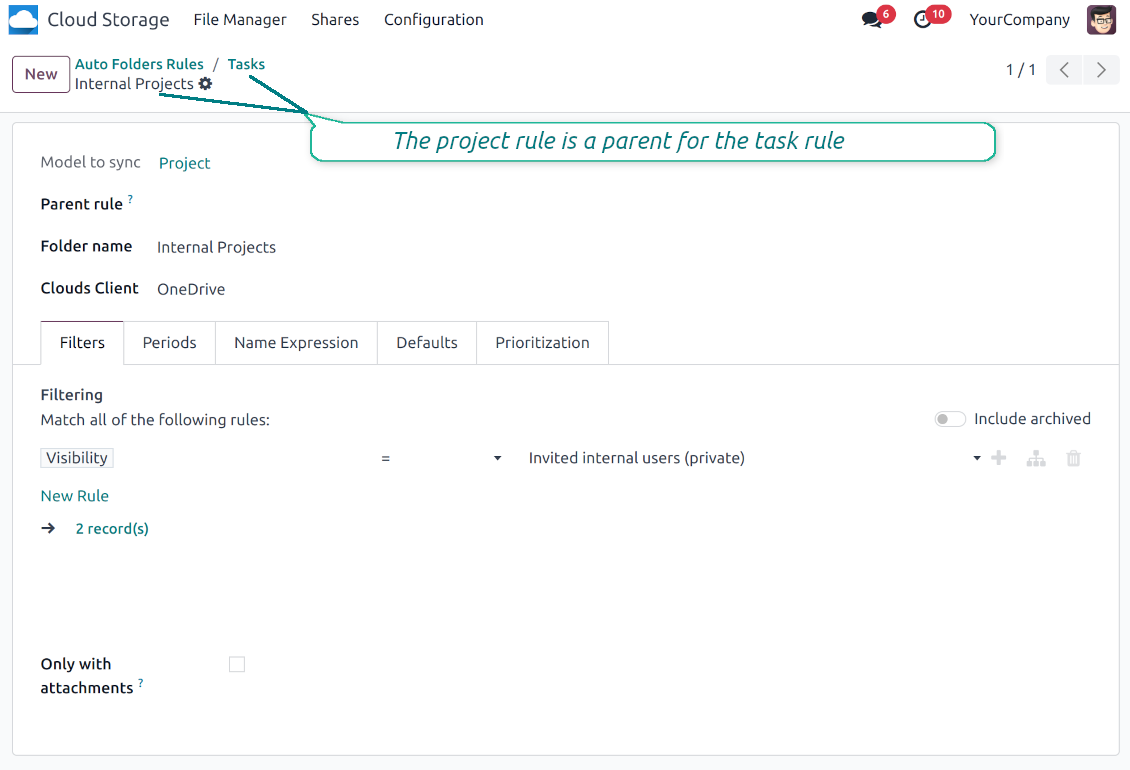
To that goal define a parent rule for a required folder configuration. For example, use a project-related rule as a parent for a task-related rule, a customer-related rule - for invoices-related rules
-
In order for folder relations to work correctly, it is also needed to enter a parent model field. So, it is the field that links models between each other (many2one relation). For example, 'Project' of a task, 'Customer' of a sales order, or 'Sales Team' of an opportunity
-
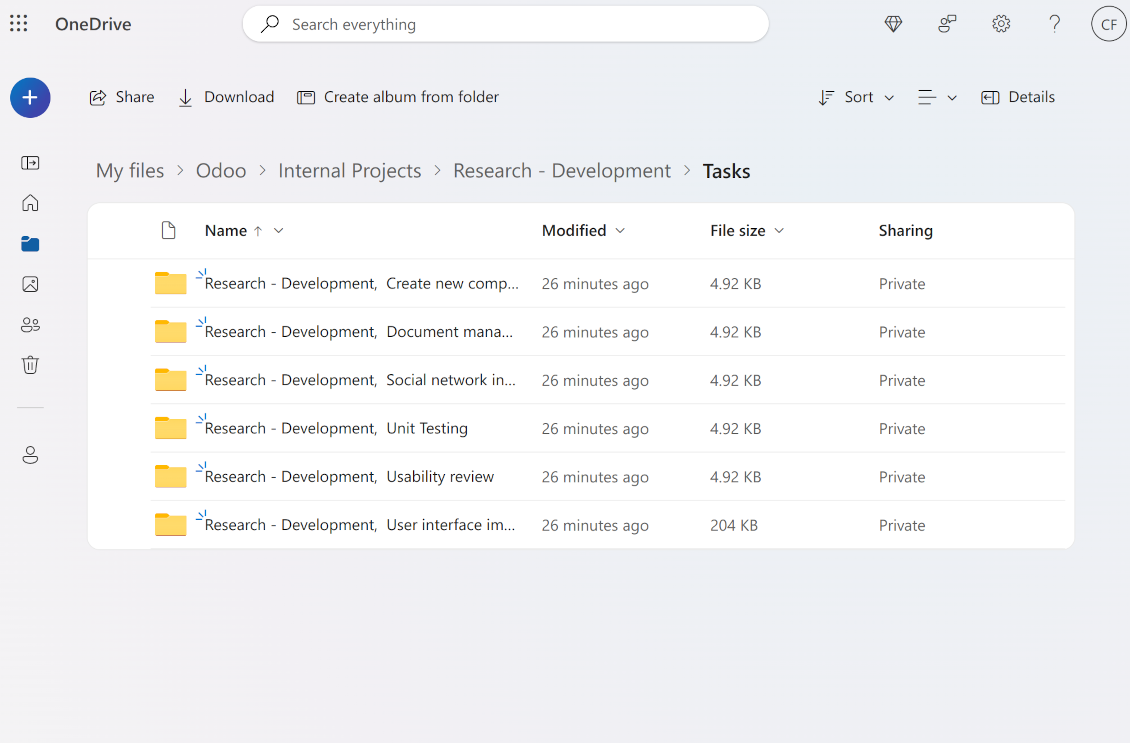
As a result, the tool allows reflecting your Odoo workflow logic and have paths like 'Odoo > Customers > Azure Interior > Projects > Software Design > Prepare Specification' and 'Odoo > Customers > Azure Interior > Quotations > SO-001'
Subfolders, default folders, and default files
-
The app lets add an unlimited number of manual subfolders for each folder. In particular, you may have a directories tree right in each object attachment box
-
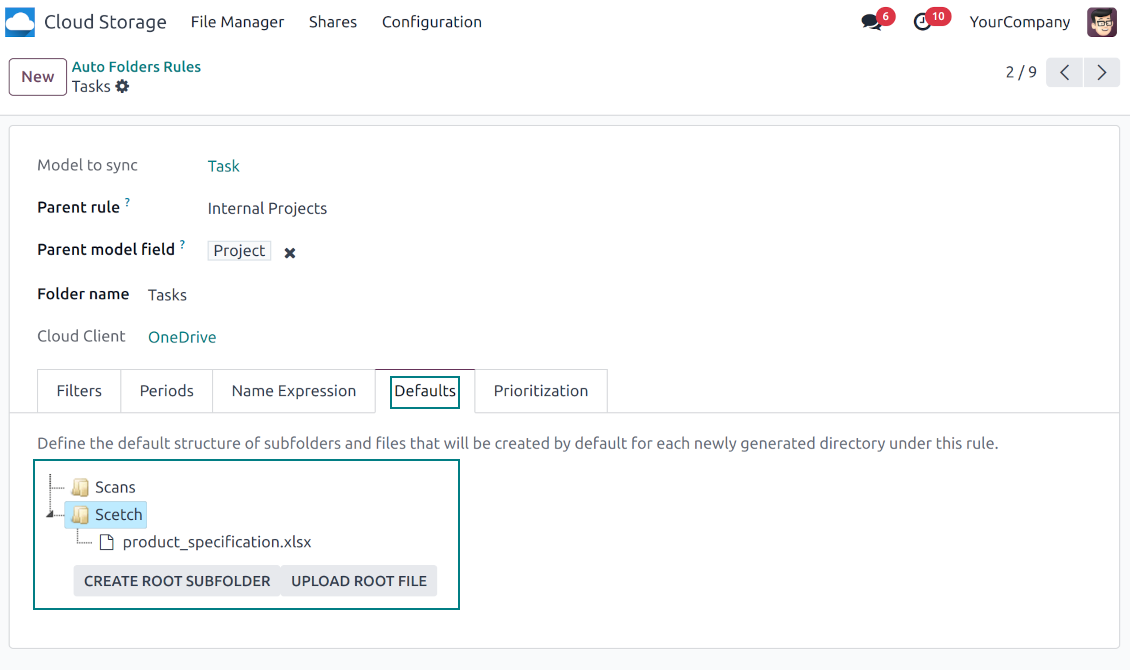
For the first generation, it is possible to define default folders, so subdirectories would be auto-generated for a specific Odoo object folder. Afterward, you may add delete/edit those or add new ones
-
The same mechanics are applied to prepare default files. For example, to have contract/personal card templates which then are assumed to be filled with real data
Configurable folder titles
-
Each folder rule assumes to generate a directory. Names for such directories are assigned right on a rule form. For example, introduce 'Jobs' for a task-related rule or 'HR' for employees' folders. By default, the Odoo model name would be used
-
For object-related folders, the names are generated based on the Odoo standard display names. So, if not defined the opposite, it would be the same title as you see in the Odoo form view header
-
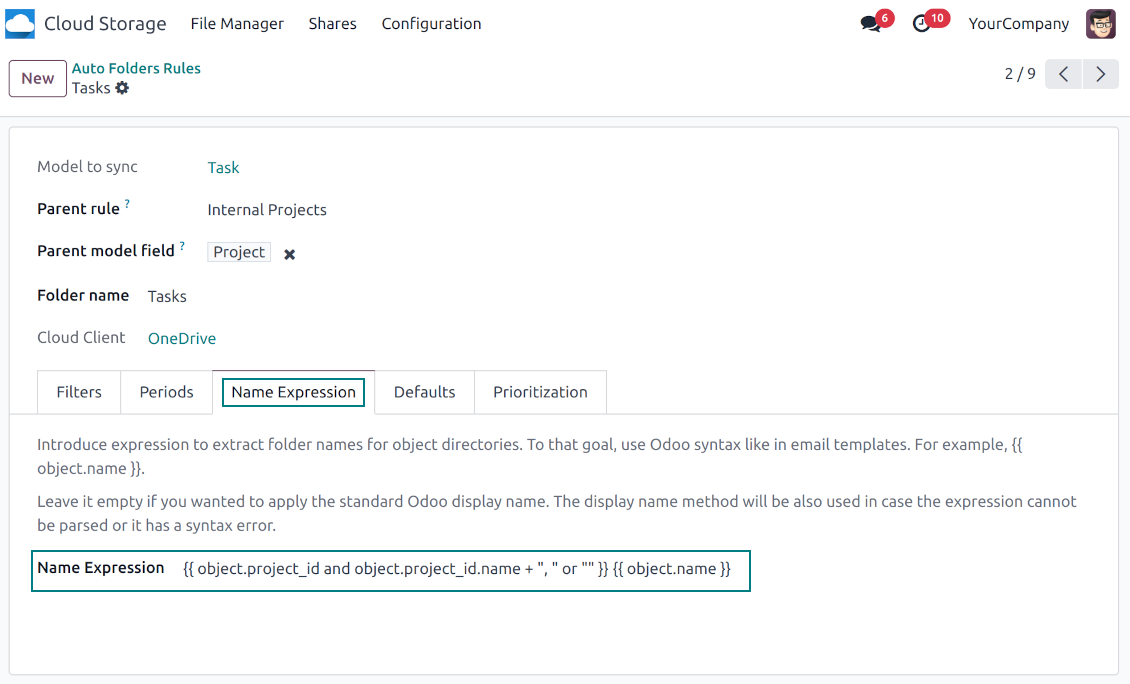
The app lets define complex name expressions for object-related folders (the tab 'Name Expression' on a folder rule form). To that goal, apply the syntax used in Odoo email templates. For example, {{ object.project_id.name }}, {{ object.name }} to reflect a project name in tasks folders
-
Avoid the following symbols in folders' and files' names: *, ?, ", ', :, <, >, /, +, %, !, @, \, /,. Direct sync will replace such symbols with '-'. It is done to avoid conflicts with file systems. Avoid also too long names: e.g. more than 100 symbols
Enterprise Documents
-
The app allows generating folders for workspaces introduced by the Odoo Enterprise apps 'Documents'
-
To force Odoo to prepare workspace-related directories, define folder rule(s) of the type 'Workspace-Related rule'. The tool would automatically create linked folders and sync those for chosen cloud storage with one of the next jobs
-
It is not obligatory to reflect the whole DMS structure. Thus, it is possible to filter workspaces by any storable field. For example, to add a folder only for workspaces that contain the keyword 'Internal'. Take into account: if a workspace was synced, all its child workspaces would be also synced
-
If you generated a subfolder for any workspace-related folder, the app would also create such a Documents workspace
Typical use cases
-
Customers: add all partner files in a single super directory. Optionally distinguish companies and individuals. For example, Odoo > Customers > Azure Interior > Contacts > John Brown
-
Sales orders and invoices: keep all sale-related printings and contracts in your own quotation directories for each customer. For example, Odoo > Customers > Azure Interior > Orders > SO-001 and Odoo > Customers > Azure Interior > Invoices > INV-00001
-
Opportunities: store all specifications, requirements, and any files which would let you make a good offer carefully structured by each sales team and case. For example, Odoo > Sale teams > Europe > Leads > Interest in 50 chairs
-
Project and tasks: prepare a folder for each customer project and task. For example, Odoo > Customers > Azure Interior > Projects > Software design > Tasks > Specification
-
Human resources: gather all files by each employee in a single folder: photos, document scans, contracts. Structure employees by department. For example, Odoo > Departments > Accounting department > Employees > Anita Olivier.
Failu un mapju koplietošana
-
Share particular attachments, whole directories, or even all files of specific tags
-
Grant access to chosen Odoo contacts. Send an invitation to any Odoo portal users at any moment
-
Generate a special access link for public use (even without a user). Change it to make the previous one outdated
-
Make shares for temporary use or available constantly until archived
-
Create an unlimited number of shares with any setups and attachments involved. Portal users might access those through the special entry "Shares" in the Odoo's portal
-
For single-view purposes, shares support hierarchy so as to make comfortable navigation by those
-
Share users can download any shared file, a whole share, a particular directory, or a tag as a ZIP archive
-
Optionally let upload files to the selected or default folder. Files drag and drop is supported
-
Users are always allowed to search attachments by title, linked folder, and tags
-
Optionally allow navigation by folders and/or tags. Shared tags/folders, their children, and ones linked to shared attachments will be available
-
Let users add tags and folders by themselves. Show/hide searching items in tags/folders navigation trees
-
Turn on/off a chat per each share.
Dokumentu pārvaldība un sinhronizācijas piekļuves tiesības
-
Access for each Odoo automatic folder is regulated based on a linked object. If such an Odoo object is available for a specific user, its directory would be also available for her/him. For example, if Anita Olivier is the task manager of 'Prepare specification', then she may access the folder 'Tasks' and 'Tasks > Prepare Specification'
-
Access to Odoo manual folders is regulated based on its user groups and users stated in those folders' settings. If nobody is specified, a manually created folder is available for everyone. For example, if Anita Oliver is a sales manager, she may access the quotation-related folder 'Odoo > Orders > SO-001'
-
To access any folder, a user should be able to access all its parents. For example, if Anita Oliver has rights for employees but does not have for departments, then she might not read 'Odoo > Departments > Administration > Employees > Mitchel Admin'. However, if the folder 'Employees' becomes a stand-alone folder without a parent, then Anita would be able to access 'Odoo > Employees > Mitchel Admin'
-
The app does not regulate access levels for cloud clients and their items. The tool regulates rights only for Odoo objects and synchronizes those to required storage. After the sync, if necessary, you should apply the settings for a target cloud client, folders, and files
-
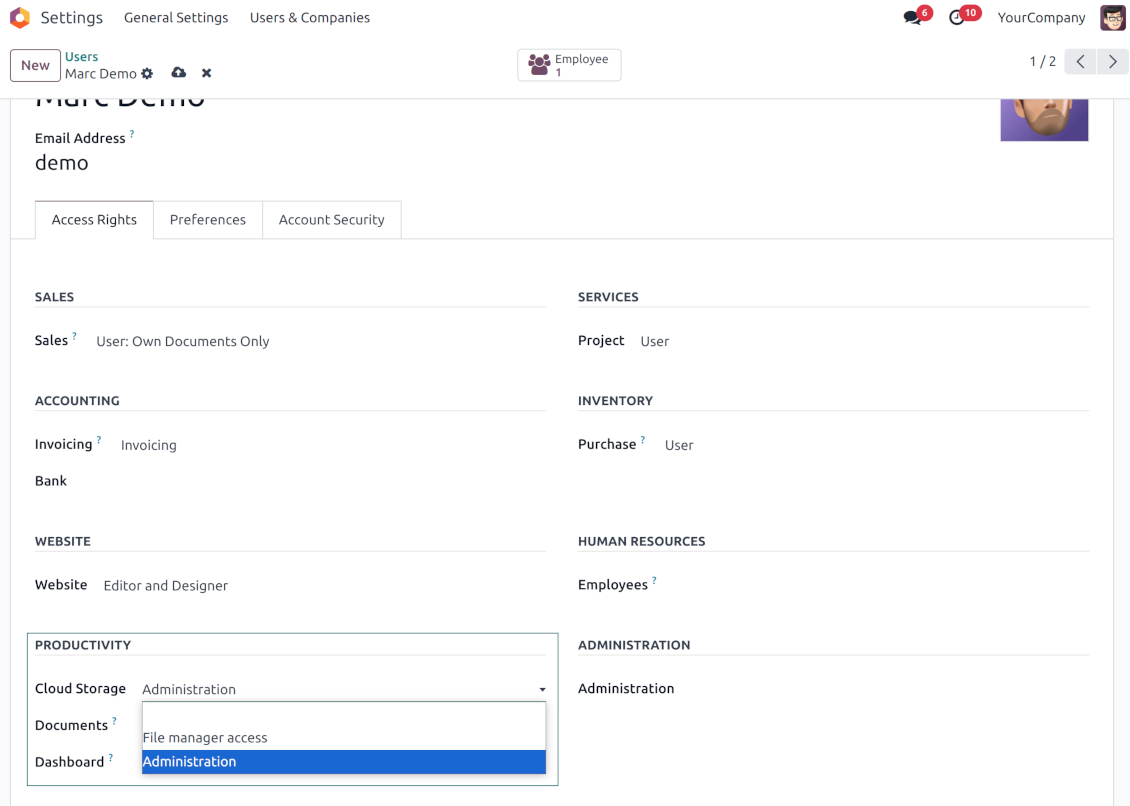
To observe the menu 'Cloud Storage' and the app file manager, a user should belong to the security group 'Cloud Storage > File Manager Access'
-
To configure automatic folder rules, establish connections with various cloud clients, control sync logs, and apply the app settings, a user should belong to the security group 'Cloud Storage > Administration'.
Lietošanas piezīmes
-
The app assumes automatic regular synchronization with various cloud clients. Please take into account that synchronization is not real-time but is based on tasks queue and scheduled jobs. Depending on the number of folders and attachments, it might take time for the app to check all directories and do the jobs. That's why, until the sync is done, Odoo attachment interfaces work as in standard Odoo.
-
Cloud connections rely upon the API of the related cloud clients. Such communication between systems is risky by concept due to possible disconnections, API updates, and unsolvable conflicts. The app is designed to cope with such risks by carefully processing failures and checking cloud client states. Simultaneously, make sure that you have configured a proper backup strategy for both Odoo and cloud clients.
-
The special factors of risks are sync scope and reverse operations. The higher the sync scope is, the more it would take Odoo to finish integrations. Hence, more space for errors exists. Try to decrease sync scope logically by choosing only required folders. Reverse operations might be risky since assume reflecting cloud clients' features which might be absent in Odoo. For example, Google Sheets cannot be opened outside Google Docs. The app would try to solve the scenarios by applying similar features (e.g. by converting a file to simple electronic tables). However, that is not always possible, and in this way, manual interactions would be required.
Konfigurācijas un instalācijas padomi Cloud Storage Solutions Odoo v.18
Odoo servera konfigurācija
Lai sinhronizācija darbotos pareizi, Odoo konfigurācijas failā iestatiet atbilstošus timeout: LIMIT_TIME_CPU, LIMIT_TIME_REAL, LIMIT_TIME_REAL_CRON jābūt vairāk nekā 900 sekundēm.
Odoo.sh to nedrīkst darīt, jo taimauti ir iepriekš noteikti un nav konfigurējami.
Nepmainiet arī cron darbu biežumu, ko pieņem lietotne: „[Cloud Storage] Prepare Cloud Folders“, „[Cloud Storage] Run / Prepare sync queue“. Šie darbi ir konfigurēti darboties ik pēc 15 minūtēm, un šis biežums tiek izmantots algoritmos, lai izvairītos no pārtraukumiem un datu zudumiem. Ja uz laiku jāaptur sinhronizācija, pauzējiet konkrētus cloud klientus.
Vispārīga Python atkarība
Rīks ir atkarīgs no ārējās bibliotēkas 'sortedcontainers'. Instalējiet to Odoo serverī ar komandu:
pip3 install sortedcontainersOneDrive un/vai SharePoint integrācijas iestatīšana
Python atkarība
Rīks ir atkarīgs no ārējās bibliotēkas 'microsoftgraph'. Instalējiet to Odoo serverī ar komandu:
pip3 install microsoftgraph-python
Konfigurācija un pieteikšanās
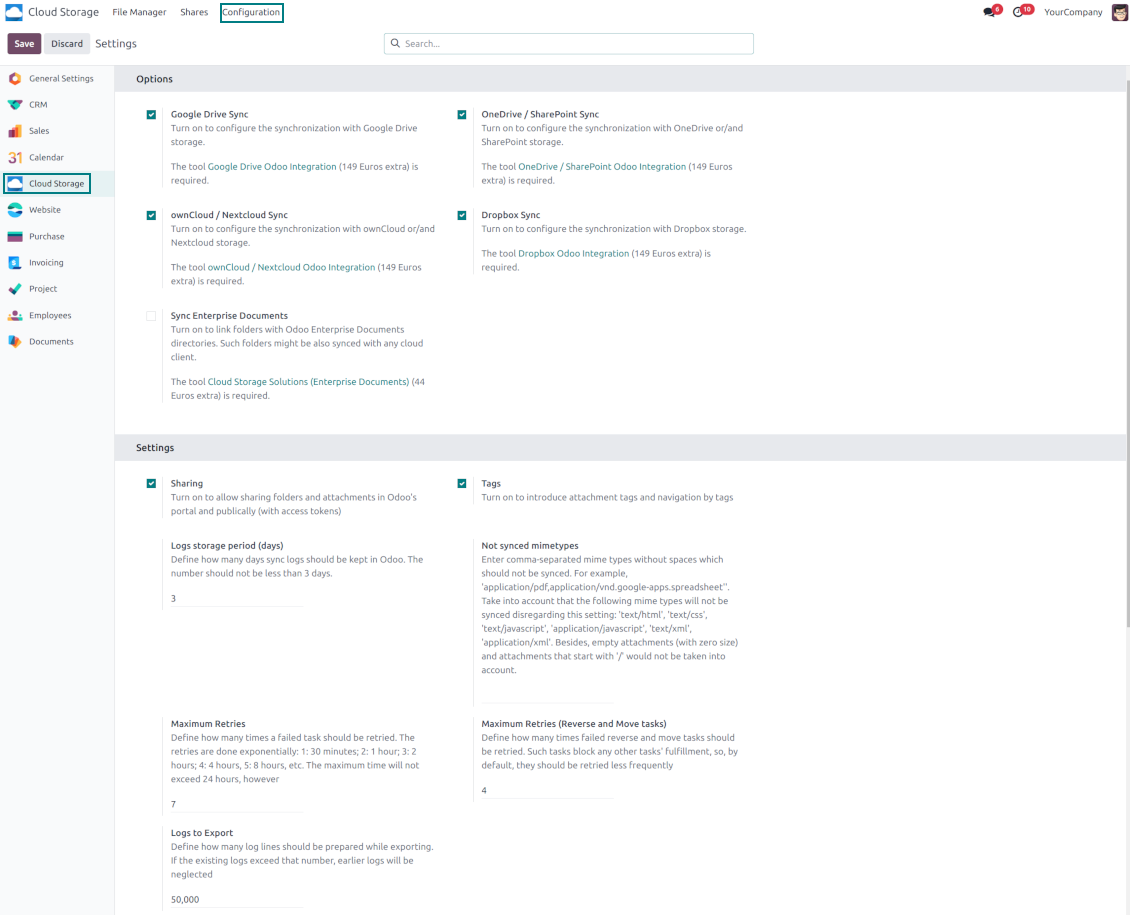
- Ieslēdziet opciju 'OneDrive / SharePoint Sync' (cloud Storage > Configuration > Configuration). Nepieciešams izvēles papildinājums OneDrive / SharePoint Odoo Integration
- Pārliecinieties, ka jūsu Microsoft lietotājam ir pilnas administratora tiesības tam OneDrive / SharePoint, ko vēlaties savienot ar Odoo. Šis lietotājs vajadzīgs tikai atļauju piešķiršanai; lietotāja dati Odoo netiktu glabāti un pēc tam netiktu izmantoti. Turklāt pārliecinieties, ka kādai Microsoft e-pasta adresei, ko izmantojat, nav pāradresācijas (parasti notiek, kad konfigurējat domēna vārdu, bet galvenā adrese joprojām ir Microsoft domēnos, piemēram, @outlook.com, @office365 u. c.)
- Ejiet uz savu Azure Portal: https://portal.azure.com/#blade/Microsoft_AAD_RegisteredApps/ApplicationsListBlade
Lietotne jaregistre kataloga (tenant). Microsoft vairs neatlauj veidot jaunu lietotni arpus kataloga.
- Ja jums jau ir uznemuma Microsoft 365 / Azure katalogs, parslēdziet portalu (augšā pa labi) uz to un turpiniet.
- Ja jums ir tikai personalais konts (@outlook.com, @hotmail.com, @live.com) un redzat "these applications are associated with the account ... but are not contained within any directory", kataloga vel nav. Registrejiet bezmaksas Azure kontu ar to pasu Microsoft kontu: https://azure.microsoft.com/free/ - Izmēģiniet Azure bez maksas. Tas bez izmaksam izveido Default Directory.
- Microsoft prasa karti tikai identitates parbaudei; uz laiku rezervē apmēram 1 USD un pēc tam atcel. Katalogs un lietotnes registracija netiek iekasēti.
- Katalogs (Microsoft Entra ID Free) un jebkura tajā registrēta lietotne darbojas neatkarīgi no 30 dienu / 200 $ Azure izmēģinājuma kredīta. Šis kredīts ir paredzēts maksas Azure resursiem, ko šeit neizmantojat. Mūsu lietotnei maksājums nav nepieciešams.
- Ja viss katalogs ļoti ilgi stāv pilnīgi neizmantots (Microsoft slieksnis ir ap 200 dienām bez darbības), Microsoft var nosūtīt brīdinājumu un beidzot to slēgt. Tā kā Odoo šo lietotni izsauc katrā sinhronizācijā, aktīvs savienojums uztur katalogu aktīvu – tas ir svarīgi tikai tad, ja mēnešiem pilnībā pārtraucat sinhronizāciju.
- Kad esat īstā katalogā (ne "Microsoft Services"), tur atveriet App registrations.
- Noklikšķiniet «New registration»
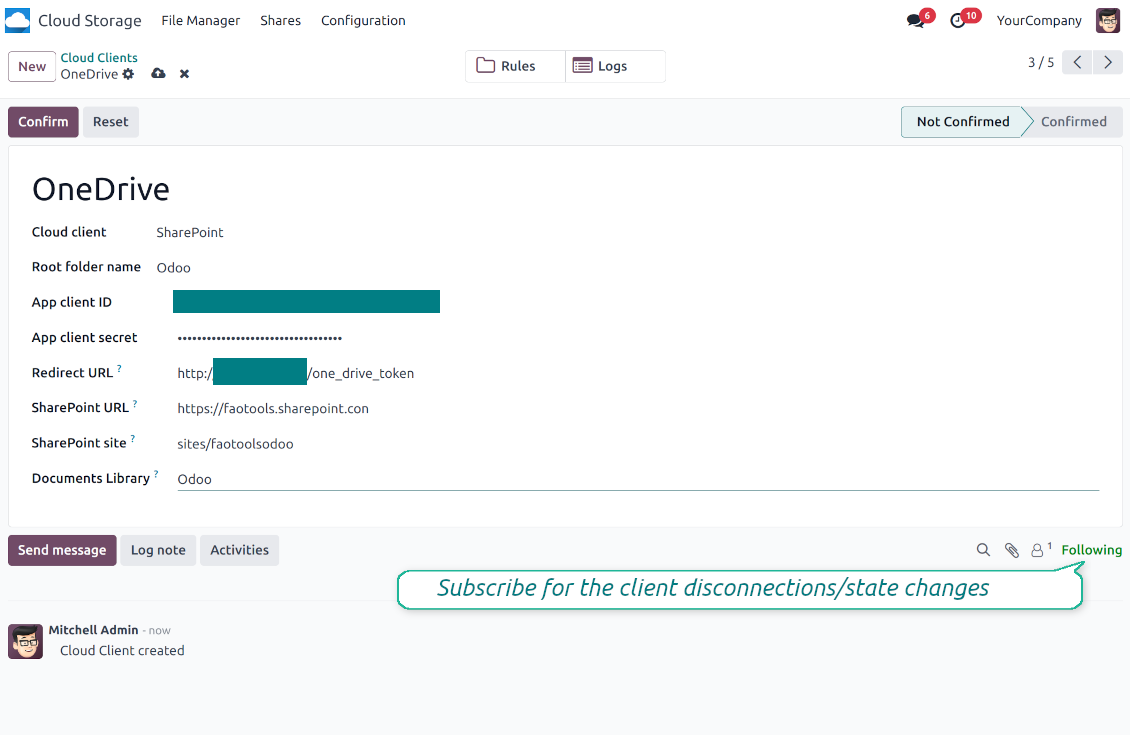
- Introduce a new name for the application and assign the redirect URI as [YOURODOOSITENAME]/one_drive_token (e.g. https://odootools.com/one_drive_token). As the supported account types choose 'Accounts in any organizational directory (Any Azure AD directory - Multitenant) and personal Microsoft accounts (e.g. Skype, Xbox)'.
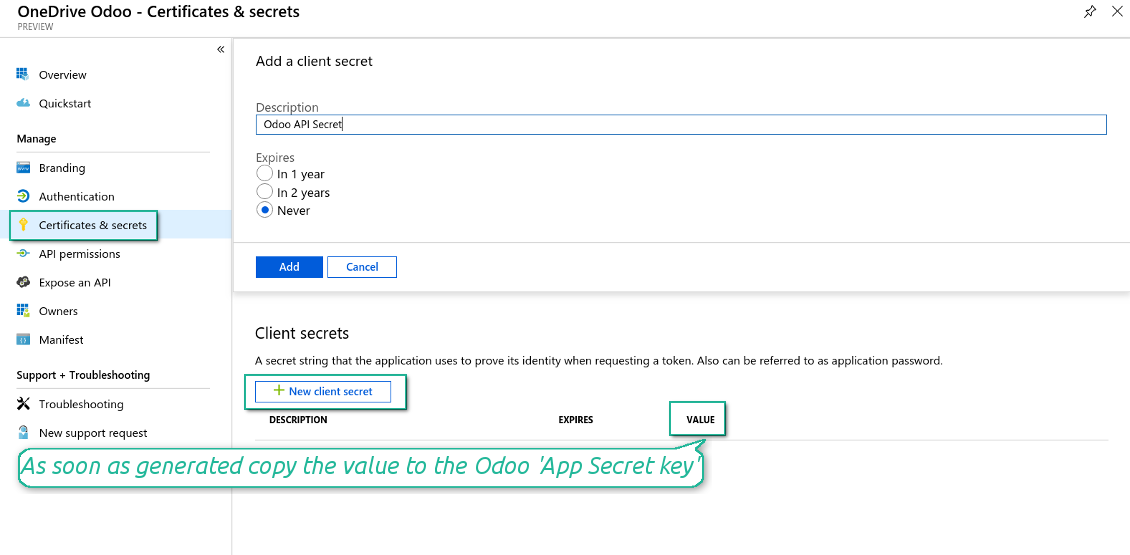
- Dodieties uz Certificates & secrets - Noklikšķiniet 'New Client Secret'. Saglabājiet kaut kur secret vērtību
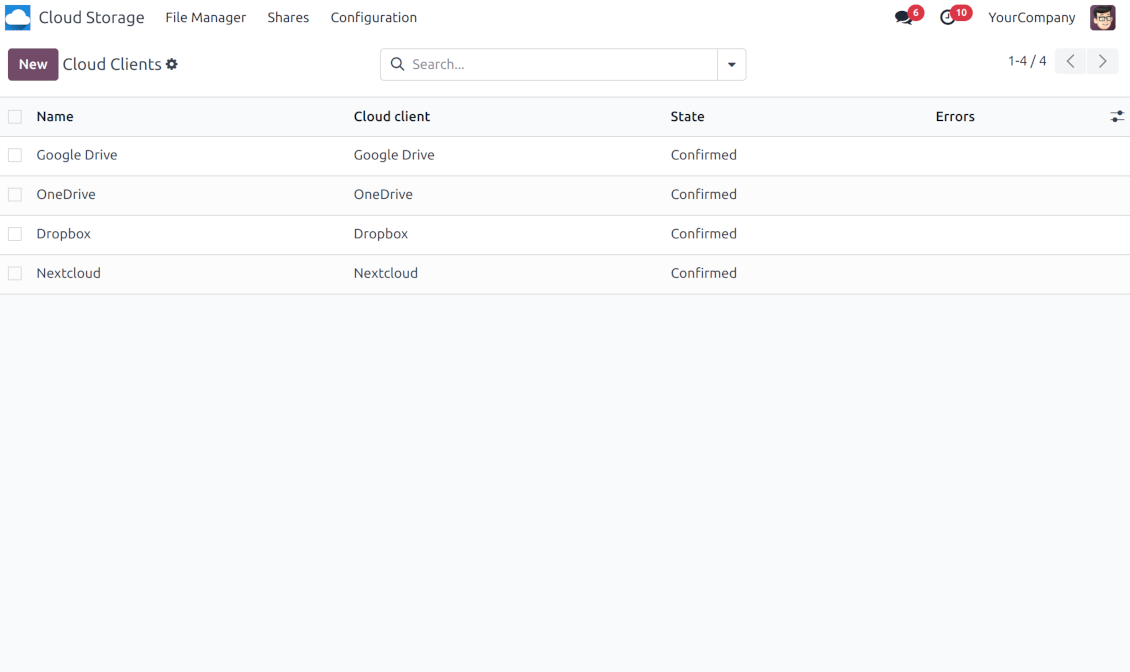
- Ejiet uz Odoo Cloud Storage > Uzstādījumi > Cloud Clients un nospiediet “Create”
- Kā atsauci ievadiet nosaukumu, kas skaidrs visiem lietotājiem
- Kā Cloud client izvēlieties 'OneDrive' vai 'SharePoint' atkarībā no izmantotās programmatūras
- Kā Root folder nosaukumu ievadiet virsrakstu, ko izmantos kā vecāku OneDrive directory visām sinhronizētajām mapēm. Piemēram, 'Odoo' vai 'OdooERP'
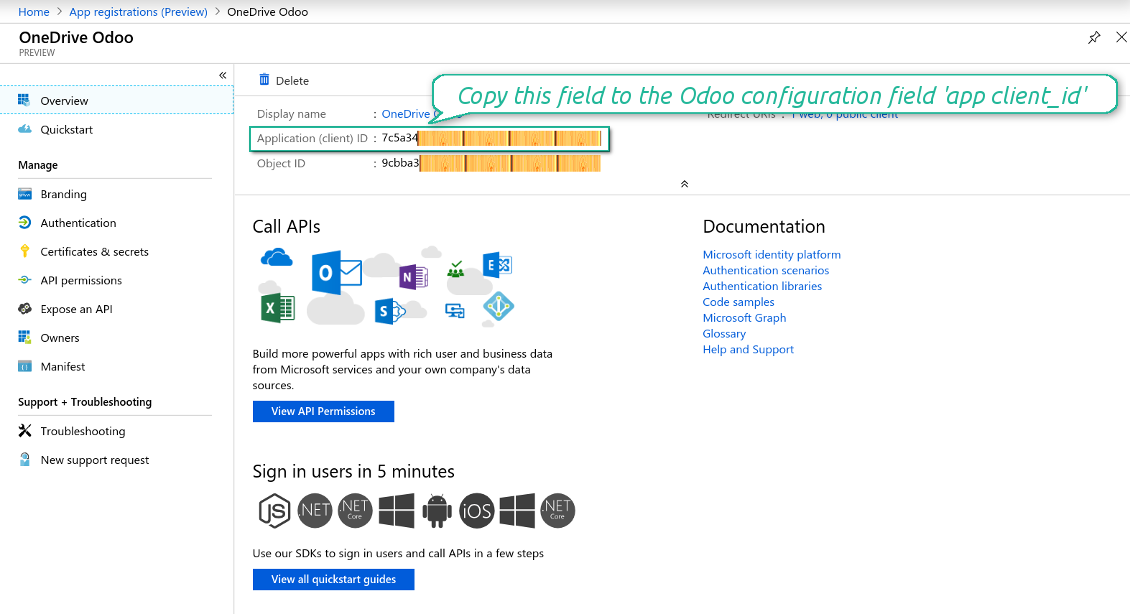
- Kopējiet „Application Client ID“ uz „App client ID“
- Kopējiet slepeno vērtību laukā „App client secret“
- Ievietojiet iepriekš ģenerēto novirzīšanas URL
- Ja izmantojat SharePoint:
- Dodieties uz savu SharePoint vietni un sagatavojiet jaunu dokumentu bibliotēku (disku). Varat izmantot arī esošu, piem. 'Documents'. Odoo mape pēc tam tiktu tur ievietota, un to nebūtu iespējams pārvietot uz citu bibliotēku
- SharePoint URL jābūt formā https://[URL]/. Pēdējā „/“ ir obligāta - vietnes nosaukumu nedrīkst iekļaut. Piemēram, https://odootools.sharepoint.com/
- SharePoint vietnei jābūt root (pats SharePoint saknes vietne), my_site_name (tad to uzskata par sites/my_site_name) vai sites/my_site_name (vietā par 'sites' var būt 'teams' u. tml.). Sākumā vai beigās nedrīkst būt '/'. Piemēram, sites/odootools
- Kā Documents Library izmantojiet SharePoint izveidoto
- Nospiediet 'Confirm'. Odoo novirza jūs uz Microsoft pieteikšanās lapu. Pārbaudiet sistēmā, piekrītiet visiem nosacījumiem un piešķiriet visas pieprasītās atļaujas. If Microsoft shows an account already signed in and says it does not exist in tenant 'Microsoft Services' (or any other unrelated tenant), do not click that row. Click 'Use another account' and sign in with the Microsoft account that owns the app's directory
- Pēc pieteikšanās OneDrive novirza jūs atpakaļ uz Odoo. OneDrive - Odoo sinhronizācija ir gatava
- Lietojiet tikko izveidoto cloud client mapju noteikumiem un/vai manuālajām mapēm, kas jāsinhronizē ar to OneDrive vai SharePoint instanci
- Gaidiet, līdz tiks palaists sinhronizācijas ieplānotais darbs. Tikai testēšanai: palaidiet integrāciju manuāli no Cloud Storage > Uzstādījumi > Uzstādījumi > poga „Launch sync“.
Skatiet arī konfigurācijas video
Izveidojiet Azure lietotni
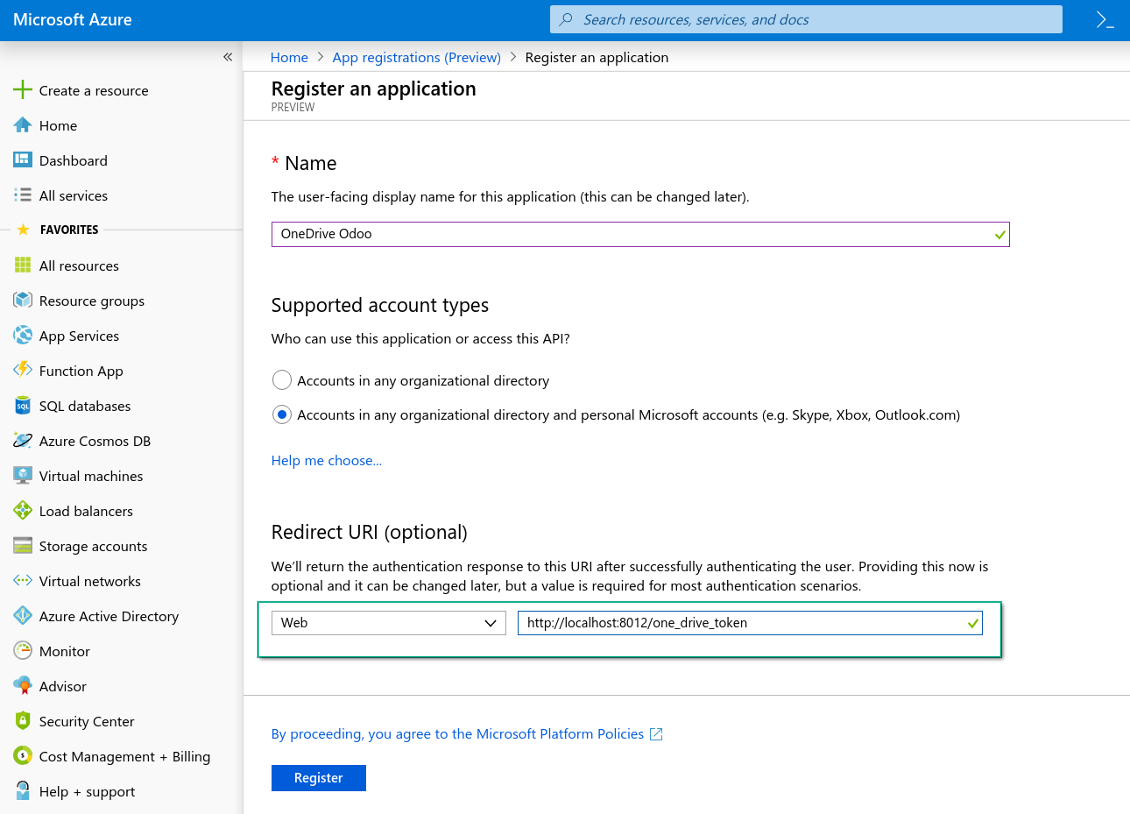
Jaunā OneDrive tīmekļa platforma un novirzīšanas URL
Jauna noslēpuma ģenerēšana Azure lietotnei
Ievadiet konfigurācijas atslēgas Odoo
Google Drive integrācijas iestatīšana
- Ieslēdziet opciju 'Google Drive Sync' (cloud Storage > Configuration > Configuration). Nepieciešams izvēles papildinājums Google Drive Odoo Integration
- Ejiet uz Google Cloud Console, izmantojot URL https://console.cloud.google.com
- Atlasiet vai izveidojiet projektu
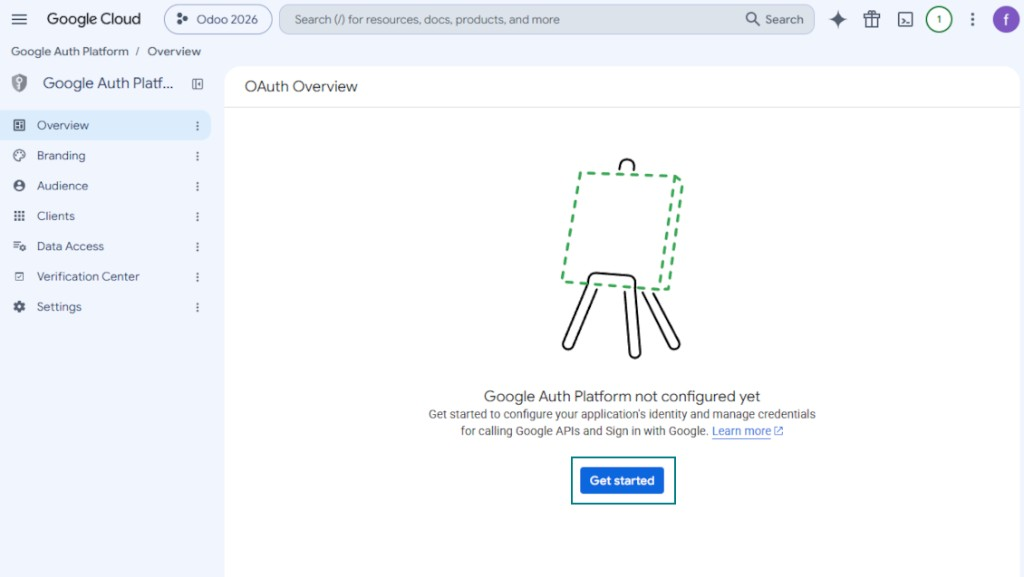
- Pēc projekta atlasīšanas konsole atver Google Auth Platform. Nospiediet 'Get Started'
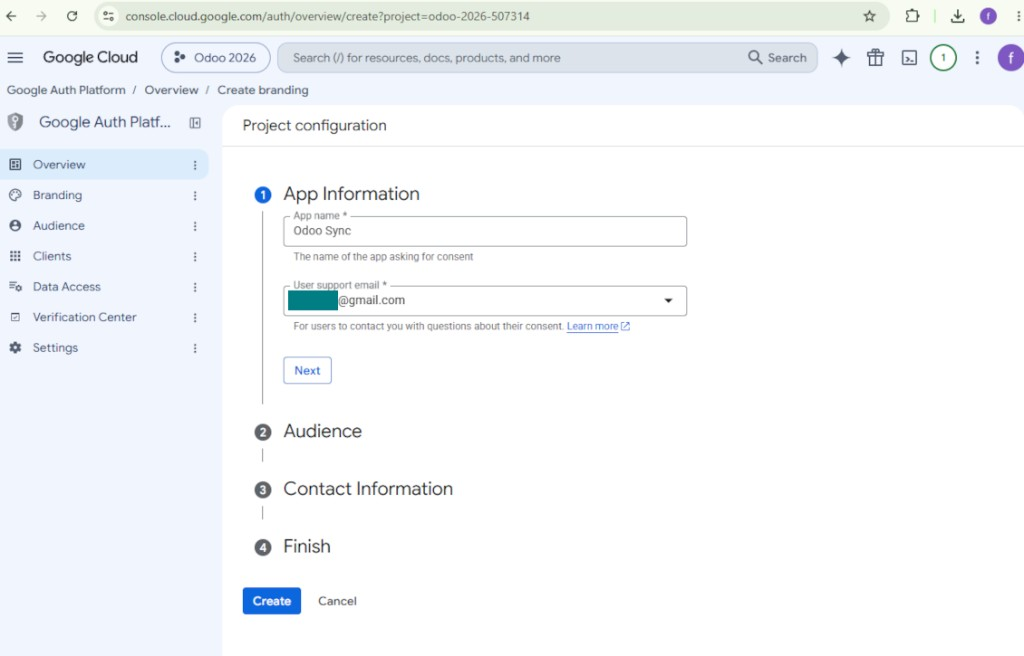
- Pievienojiet lietotnes informāciju
- Kā lietotnes nosaukumu izvēlieties jebkuru piemērotu
- Kā lietotāju atbalsta e-pastu izvēlieties savu adresi
- Nospiediet 'Next'
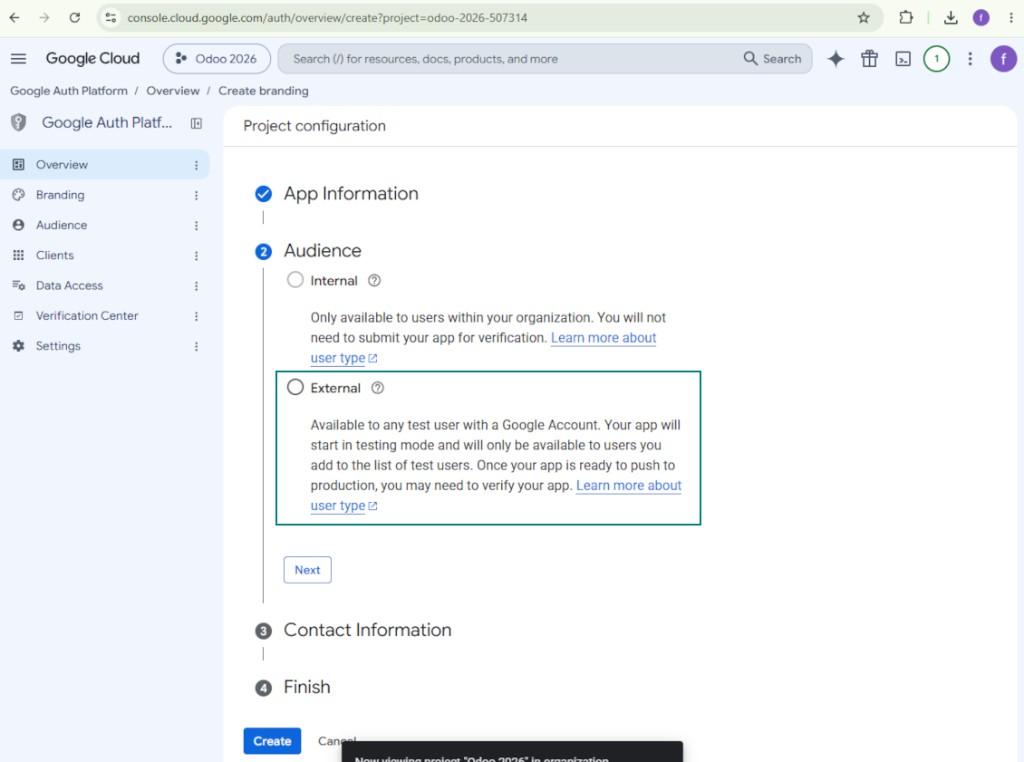
- Kā auditoriju atlasiet 'External' un nospiediet 'Next'. Piezīme: šo lietotni tik un tā izmantosiet tikai savam Odoo savienojumam
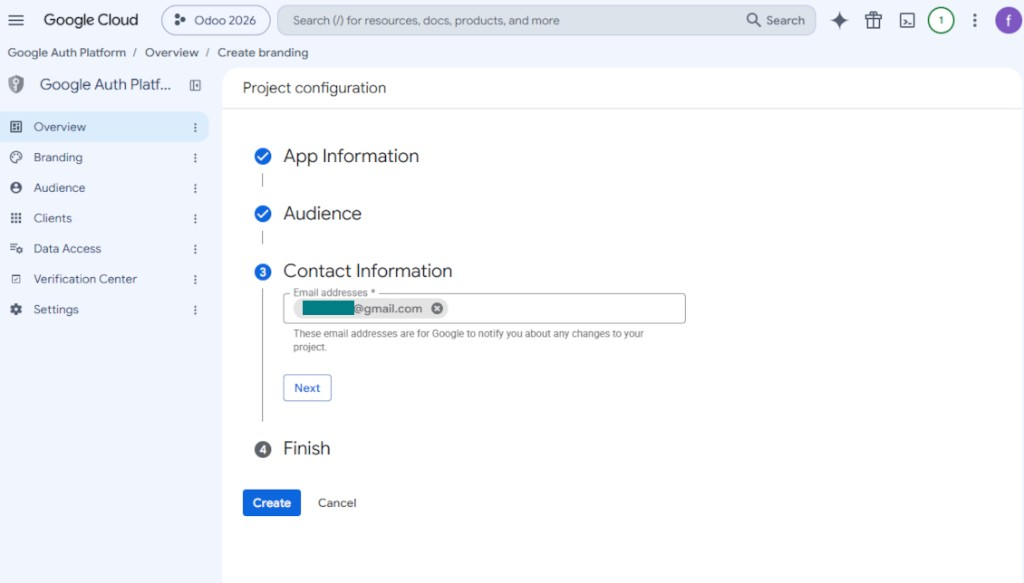
- Kā kontaktinformāciju ievadiet savu Google vai Google Workspace e-pasta adresi un nospiediet 'Next'
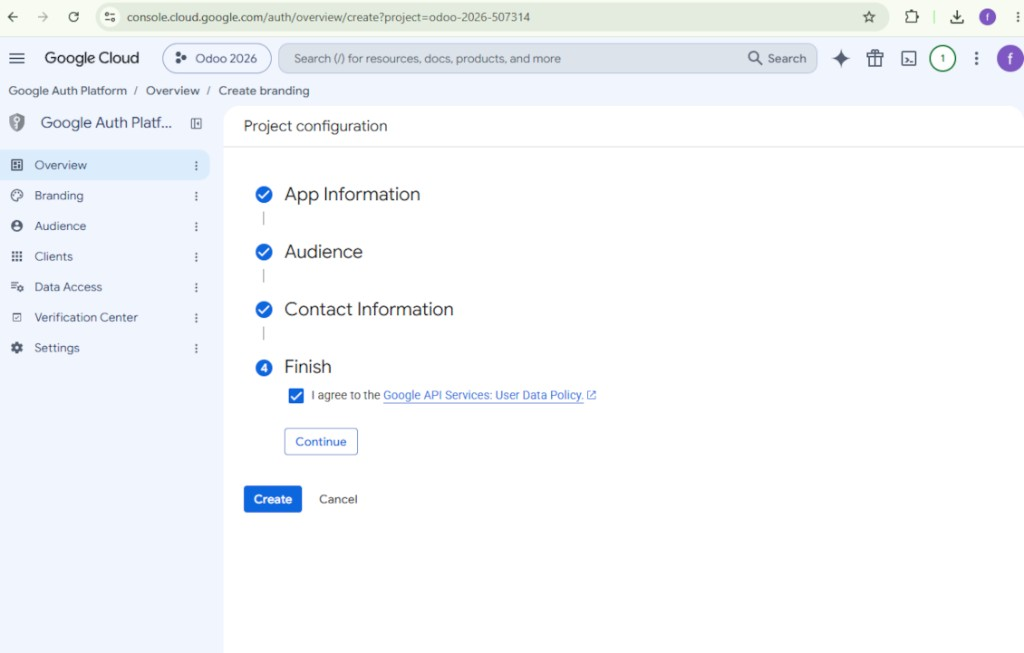
- Piekrītiet Google API Services User Data Policy, nospiediet 'Continue' un pēc tam 'Create'
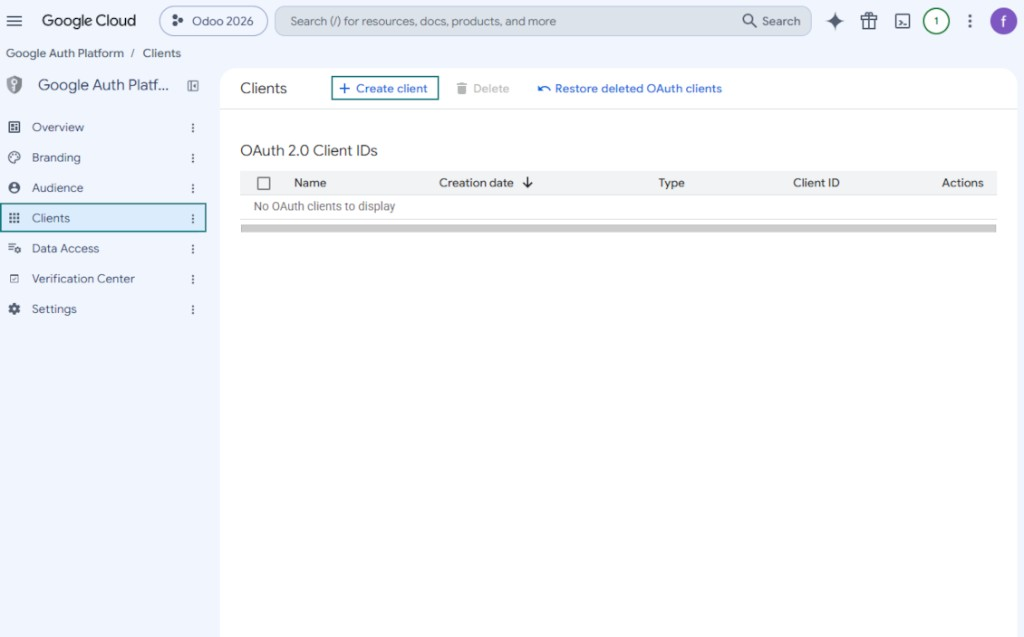
- Ejiet uz “Clients” un nospiediet “Create client”
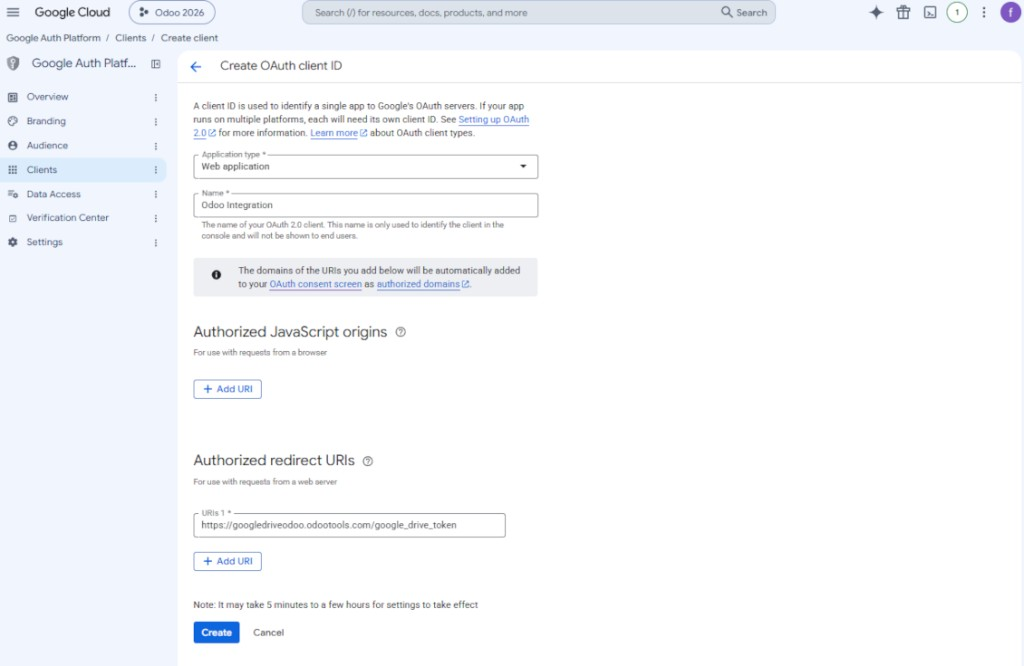
- Kā lietotnes tipu izvēlieties «Web application»
- Kā nosaukumu izvēlieties jebkuru piemērotu
- Kā autorizētu novirzīšanas URI, pievienojiet saiti formātā [YOURODOOSITENAME]/google_drive_token (piem. https://odootools.com/google_drive_token).
- Nospiediet 'Create'
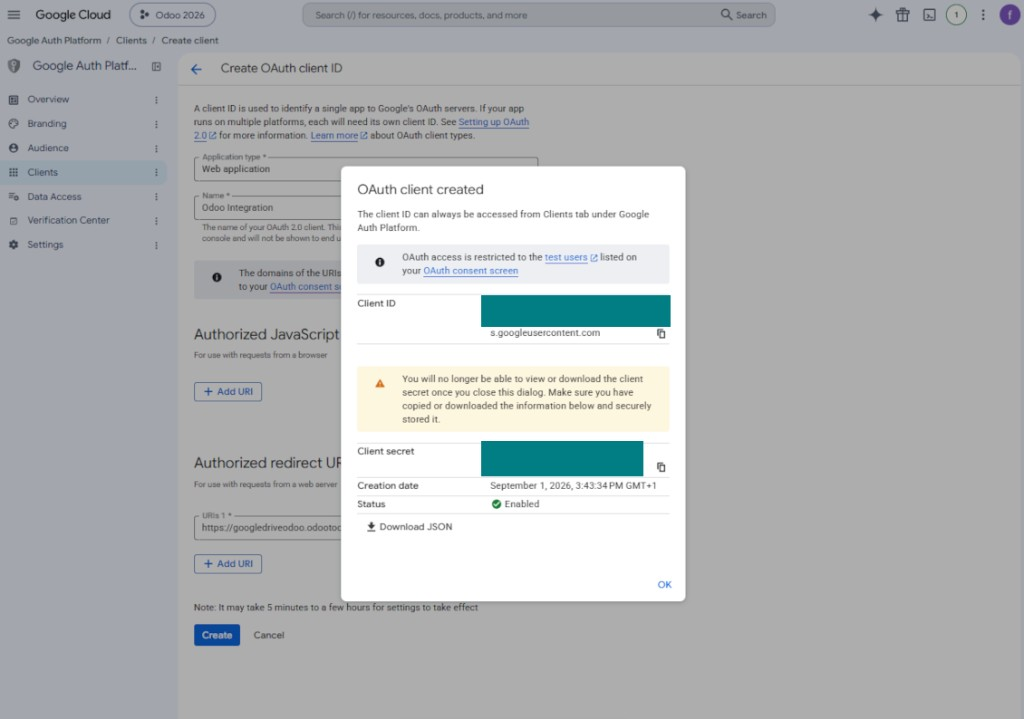
- Kopējiet un droši saglabājiet „Client ID“ un „Client secret“. Client secret tiek rādīts tikai vienreiz
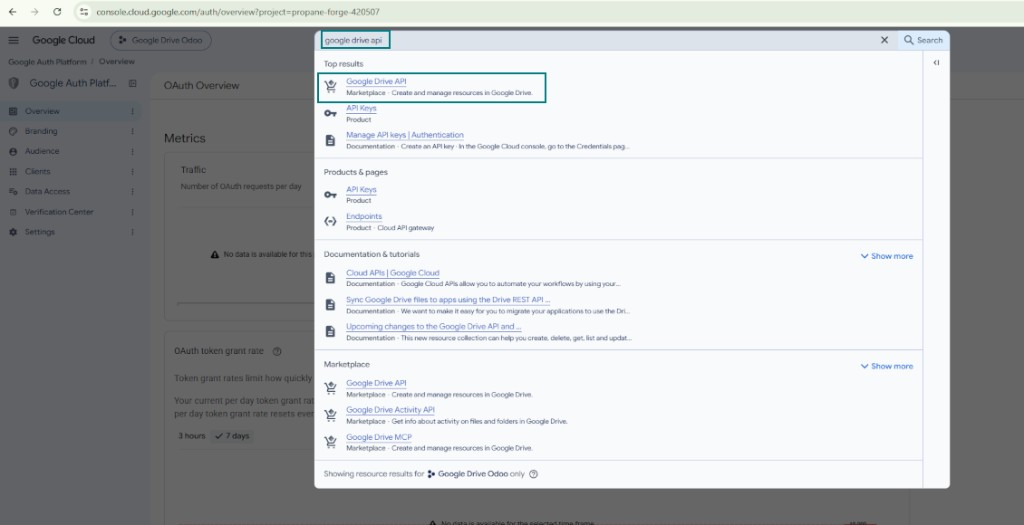
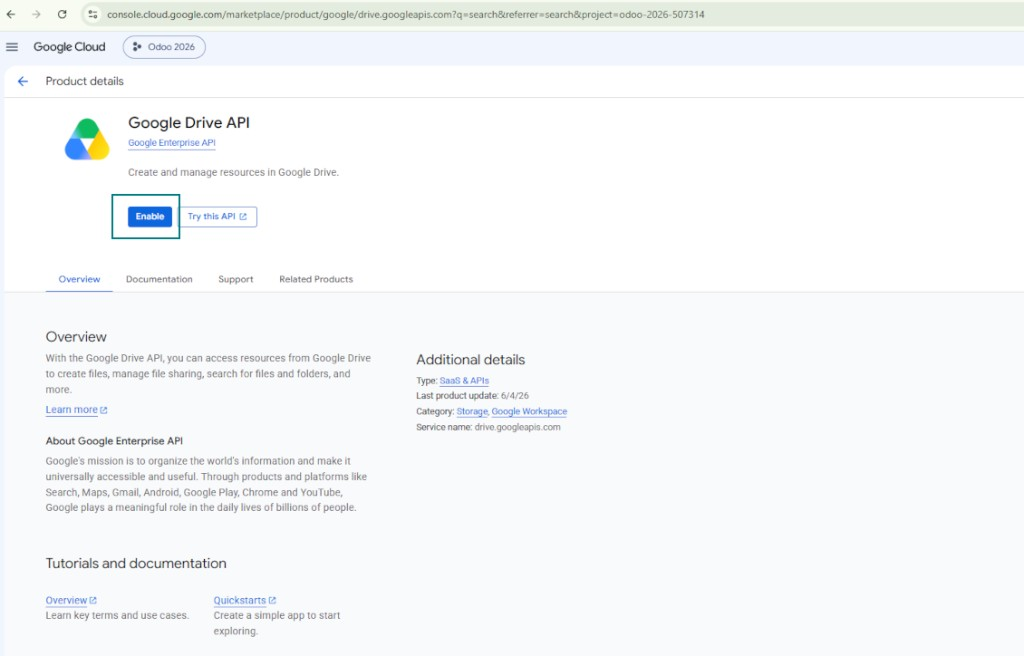
- Iespējojiet Google Drive API šim projektam: ierakstiet 'Google Drive API' augšējā meklēšanas lodziņā, atveriet atrasto produktu un nospiediet 'Enable'
- Ejiet uz “Audience” un pievienojiet savu e-pasta adresi kā testa lietotāju
- Publicējiet lietotni. Citādi tā paliek testa stāvoklī un tās marķieris beidzas ik pēc 7 dienām
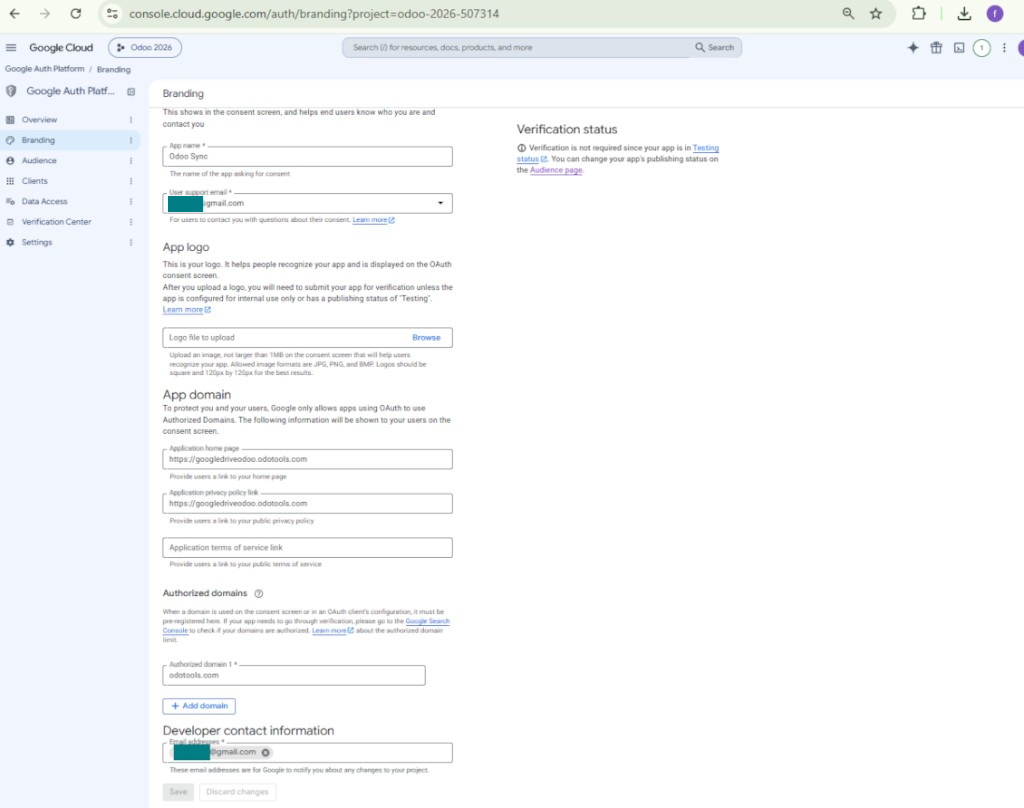
- Atveriet 'Branding' un aizpildiet lietotnes sākumlapu un privātuma politikas saiti (piemēram, saites uz jūsu Odoo vietni). Pievienojiet šo saišu domēnus kā authorized domains
- Atveriet „Audience“ un nospiediet „Publish app“
- Neaugšupielādējiet lietotnes logotipu. Tas palaistu ilgu un sarežģītu Google verifikācijas procesu, kas jums patiesībā nav vajadzīgs
- Ejiet uz Odoo Cloud Storage > Uzstādījumi > Cloud Clients un nospiediet “Create”
- Kā atsauci ievadiet nosaukumu, kas skaidrs visiem lietotājiem
- Kā Cloud klientu izvēlieties «Google Drive»
- Kā Root folder nosaukumu ievadiet virsrakstu, ko izmantos kā vecāku Google Drive directory visām sinhronizētajām mapēm. Piemēram, 'Odoo' vai 'OdooERP'
- Kopējiet „Client ID“ no 9. soļa laukā „App client ID“
- Kopējiet „Client secret“ no 9. soļa laukā „App client secret“
- Ievietojiet novirzīšanas URL, ko ievadījāt 9. solī
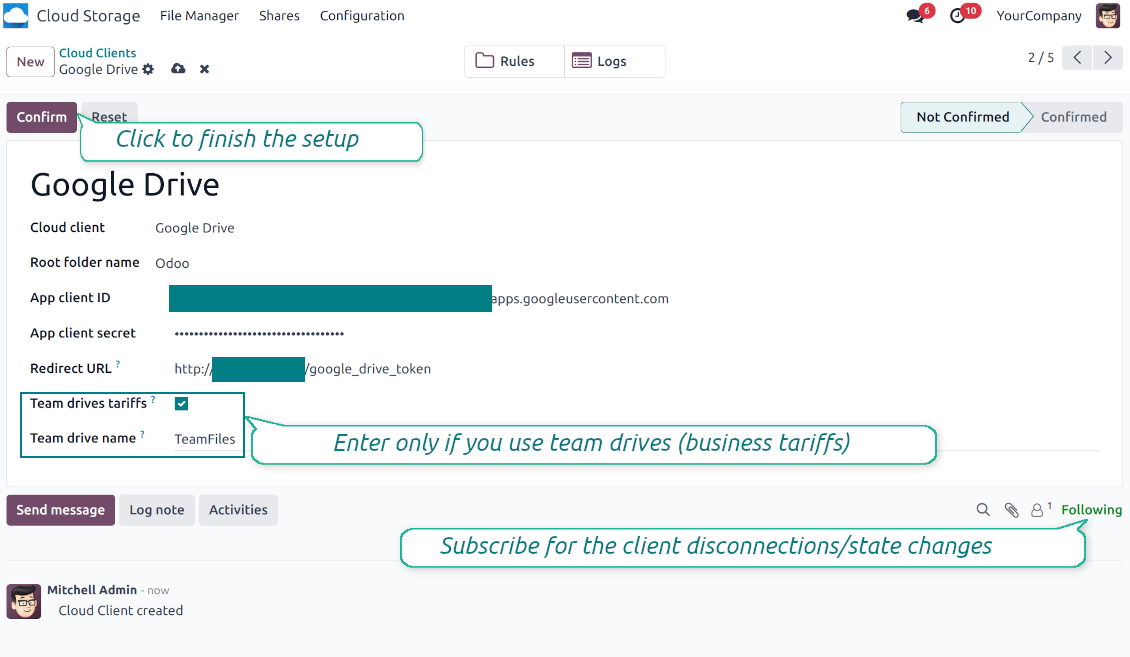
- Ja izmantojat komandas diskus, atzīmējiet attiecīgo lodziņu. Pārliecinieties, ka tiešām izmantojat komandas diskus. Savā Google Drive kreisajā sānjoslā jāatrod vienums 'Team Drives'. Funkcija pieejama tikai biznesa un enterprise tarifiem
- Ja opcija 'Team Drive' ir ieslēgta, ievadiet tās nosaukumu. Tam jābūt tieši tādam, kādu redzat Google Drive. Pārliecinieties, ka jūsu lietotājam ir pilnas tiesības visiem Google diskiem (parasti tas ir tas pats lietotājs, kas konfigurē komandas Google Drive)
- Nospiediet 'Confirm'. Odoo novirza jūs uz Google pieteikšanās lapu. Pārbaudiet sistēmā, piekrītiet visiem nosacījumiem un piešķiriet visas pieprasītās atļaujas
- Pēc pieteikšanās Google novirza jūs atpakaļ uz Odoo. Google Drive - Odoo sinhronizācija ir gatava
- Lietojiet tikko izveidoto cloud client mapju noteikumiem un/vai manuālajām mapēm, kas jāsinhronizē ar to Google Drive
- Gaidiet, līdz tiks palaists sinhronizācijas ieplānotais darbs. Tikai testēšanai: palaidiet integrāciju manuāli no Cloud Storage > Uzstādījumi > Uzstādījumi > poga „Launch sync“.
Skatiet arī konfigurācijas video, Piezīme: video daļa par Google console ir novecojusi; tā vietā izpildiet iepriekš norādītās darbības
Atveriet Google Auth Platform
Pievienojiet lietotnes informāciju
Atlasiet ārējo auditoriju
Pievienojiet kontakta informāciju
Piekrītiet politikām un izveidojiet lietotni
Izveidojiet OAuth klientu
Konfigurējiet tīmekļa lietojumprogrammas klientu
Kopējiet klienta ID un klienta noslēpumu
Atrodiet Google Drive API
Iespējojiet Google Drive API
Aizpildiet zīmola datus, lai publicētu lietotni
Ievadiet Google lietotnes akreditācijas datus Odoo
Amazon S3 iestatīšana
- Ieslēdziet opciju 'Amazon S3 Sync' (Cloud Storage > Konfigurācija > Konfigurācija). Nepieciešams izvēles papildinājums Amazon S3 Odoo Integration
- Atveriet Amazon S3 konzoli: https://console.aws.amazon.com/s3/
- Izveidojiet jaunu bucket vai izvēlieties esošu. Kopējiet precīzo bucket nosaukumu: tas jāievieto Odoo laukā „Bucket“
- Atveriet bucket informāciju un kopējiet AWS Region. Ievietojiet to Odoo laukā 'Region' (piemēram, eu-west-1 vai us-east-1)
- Atveriet AWS IAM konzoli: https://console.aws.amazon.com/iam/
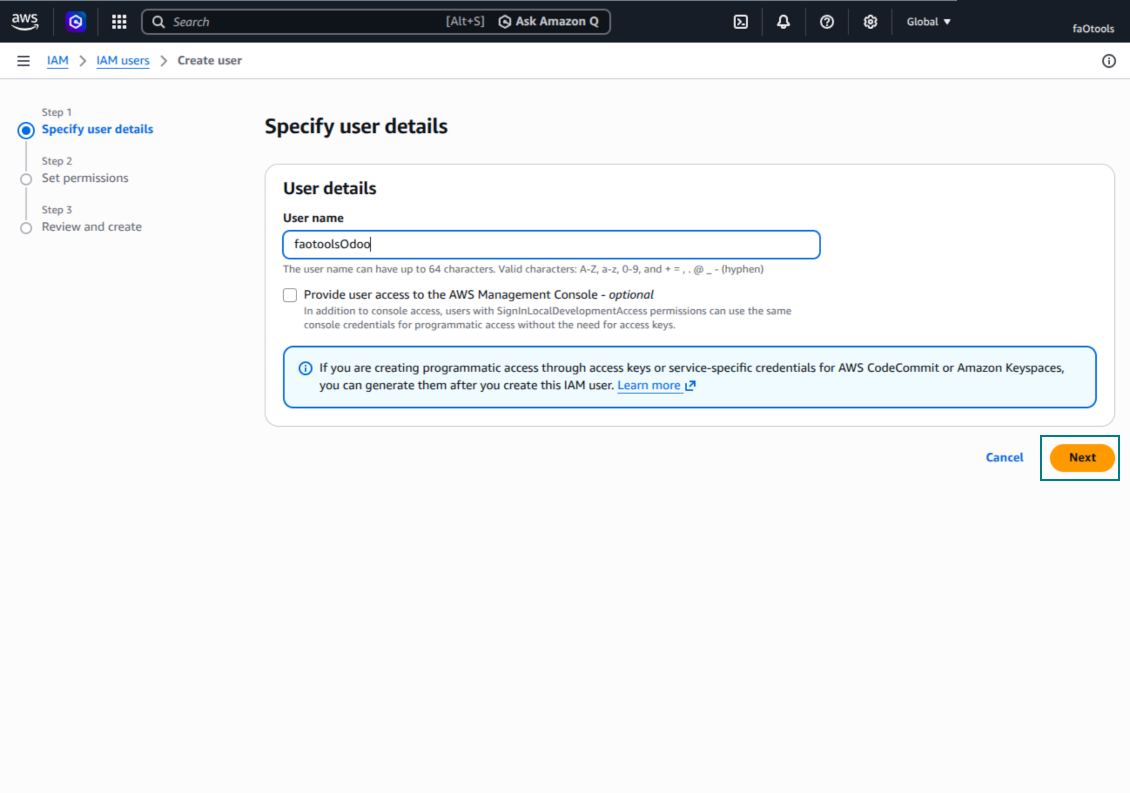
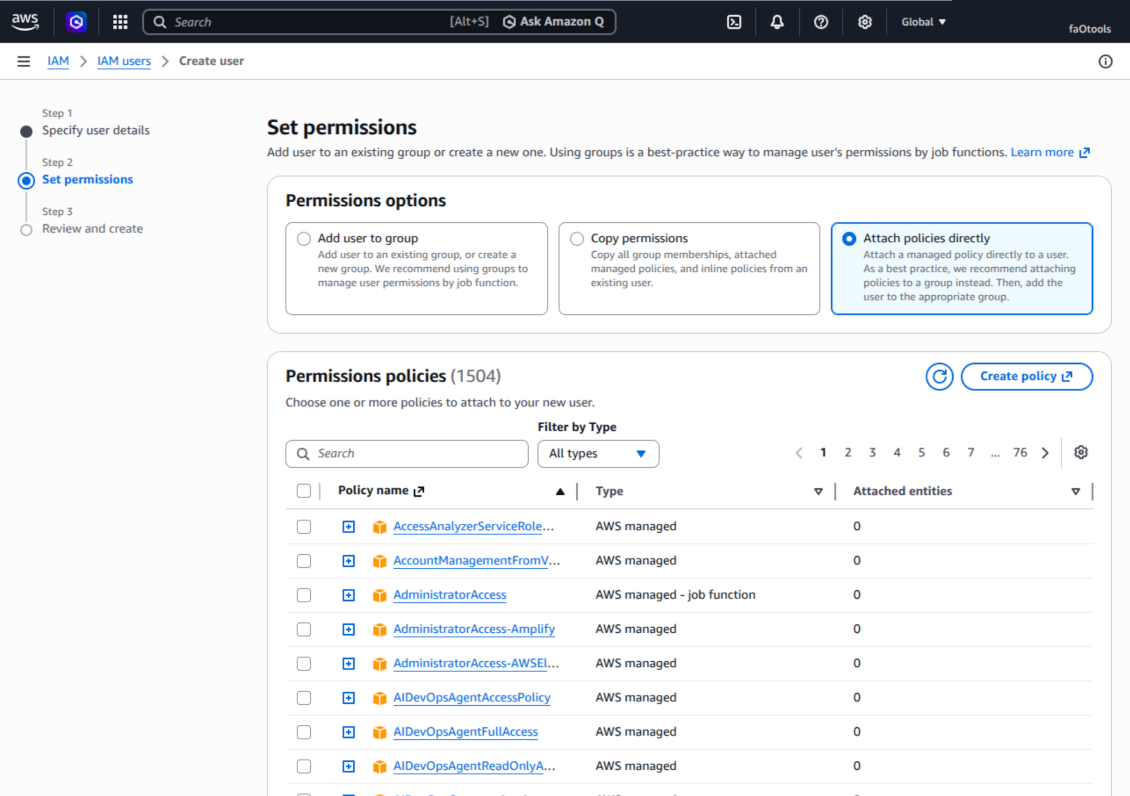
- Izveidojiet jaunu IAM lietotāju vai izvēlieties esošu tehnisko lietotāju. Šim lietotājam jābūt pilnām tiesībām uzskaitīt, lasīt, izveidot, rakstīt, kopēt un dzēst objektus izvēlētajā bucket. Varat izvēlēties pilntiesīgu administratoru vai izveidot jaunu politiku (skatiet zemāk)
- IAM lietotāja formā atveriet cilni 'Security credentials' un nospiediet 'Create access key'
- Lapā 'Access key best practices & alternatives' atlasiet Application running outside AWS. Tā ir pareizā opcija, ja Odoo serveris savienojas ar S3 ar piekļuves atslēgu ārpus AWS, no Odoo.sh, no jūsu servera vai cita hostinga. Ja Odoo ir AWS EC2 instancē, varat izvēlēties Application running on an AWS compute service, bet uz Odoo kopētie lauki ir tie paši
- Nospiediet 'Next'. Nākamajā solī pēc izvēles ievadiet apraksta birku, piemēram Odoo S3 Sync, tad nospiediet 'Create access key'
- Pēdējā AWS lapā kopējiet Access key vai Access key ID Odoo laukā 'Access Key'
- Kopējiet Secret access key Odoo laukā „Secret Key“. Svarīgi: AWS slepeno atslēgu rāda tikai vienreiz, tāpēc saglabājiet to pirms loga aizvēršanas
- Ja izmantojat ar S3 saderīgu pakalpojumu sniedzēju, nevis AWS S3, kopējiet galapunkta URL no šī sniedzēja administratora paneļa un ievietojiet Odoo laukā 'Amazon S3 endpoint URL'. Piemēram, MinIO bieži izmanto URL kā https://minio.example.com vai http://localhost:9000; LocalStack parasti http://localhost:4566
- Dodieties uz Odoo Cloud Storage > Configuration > Cloud Clients un nospiediet 'Create'
- Kā atsauci ievadiet nosaukumu, kas skaidrs visiem lietotājiem
- Kā Cloud klientu izvēlieties «Amazon S3»
- Kā Root folder nosaukumu ievadiet virsrakstu, ko izmantos kā vecāku S3 prefix visām sinhronizētajām mapēm. Piemēram, 'Odoo' vai 'OdooERP'
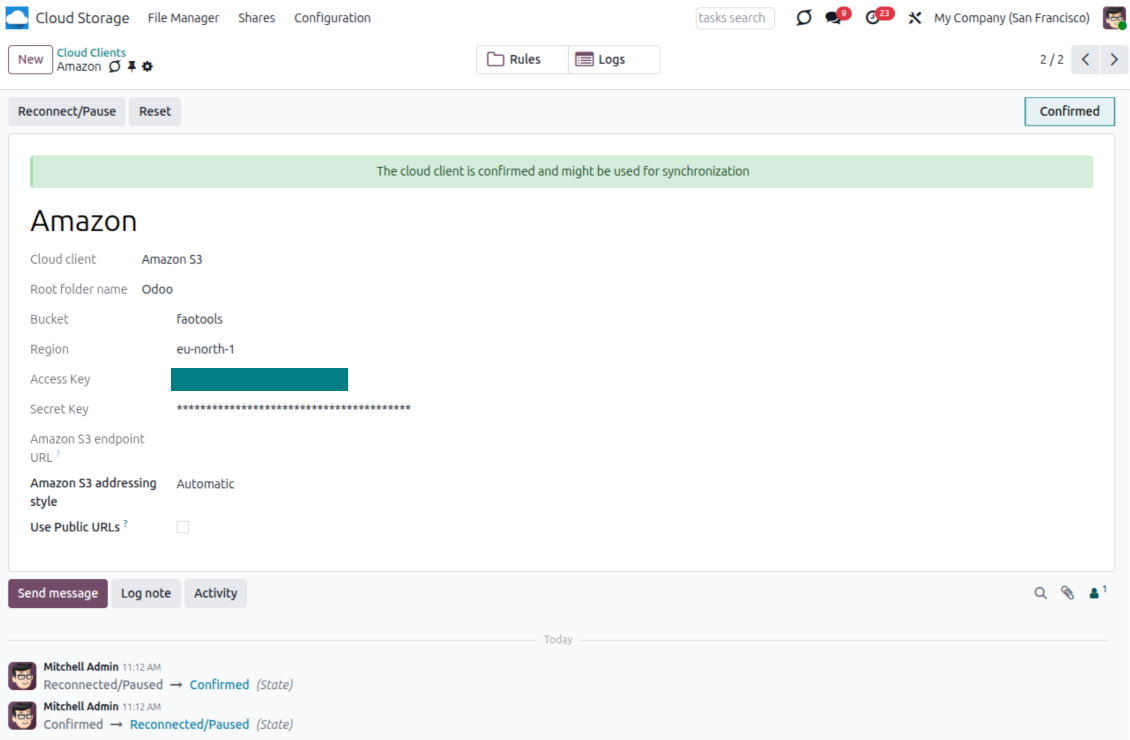
- Aizpildiet laukus 'Bucket', 'Region', 'Access Key', 'Secret Key' un vajadzības gadījumā 'Amazon S3 endpoint URL' un adresēšanas stilu
- Izvēlieties, vai Odoo jāizmanto īslaicīgi presigned URL vai publiski bucket/CDN URL. Privātiem bucket turiet presigned URL ieslēgtus un iestatiet to darbības laiku sekundēs
- Nospiediet 'Confirm'. Odoo pārbauda piekļuvi bucket un izveido vai verificē saknes mapes prefiksu. Amazon S3 - Odoo sinhronizācija ir gatava izpildei
- Lietojiet tikko izveidoto cloud client mapju noteikumiem un/vai manuālajām mapēm, kas jāsinhronizē ar to Amazon S3 bucketu
- Gaidiet, līdz tiks palaists sinhronizācijas ieplānotais darbs. Tikai testēšanai: palaidiet integrāciju manuāli no Cloud Storage > Uzstādījumi > Uzstādījumi > poga „Launch sync“.
Noderīga AWS dokumentācija: S3 bucket izveide: https://docs.aws.amazon.com/AmazonS3/latest/userguide/creating-bucket.html, IAM piekļuves atslēgu pārvaldība: https://docs.aws.amazon.com/IAM/latest/UserGuide/id_credentials_access-keys.html.
Bucket politikas piemērs
    {
    "Version": "2012-10-17",
    "Statement": [
        {
            "Sid": "ListObjectsInBucket",
            "Effect": "Allow",
            "Action": [
                "s3:ListBucket"
            ],
            "Resource": "arn:aws:s3:::NAME_OF_YOUR_BUCKET"
        },
        {
            "Sid": "AllObjectActions",
            "Effect": "Allow",
            "Action": [
                "s3:GetObject",
                "s3:PutObject",
                "s3:DeleteObject"
            ],
            "Resource": "arn:aws:s3:::NAME_OF_YOUR_BUCKET/*"
        }
    ]
}
Izveidojiet jaunu AWS IAM lietotāju
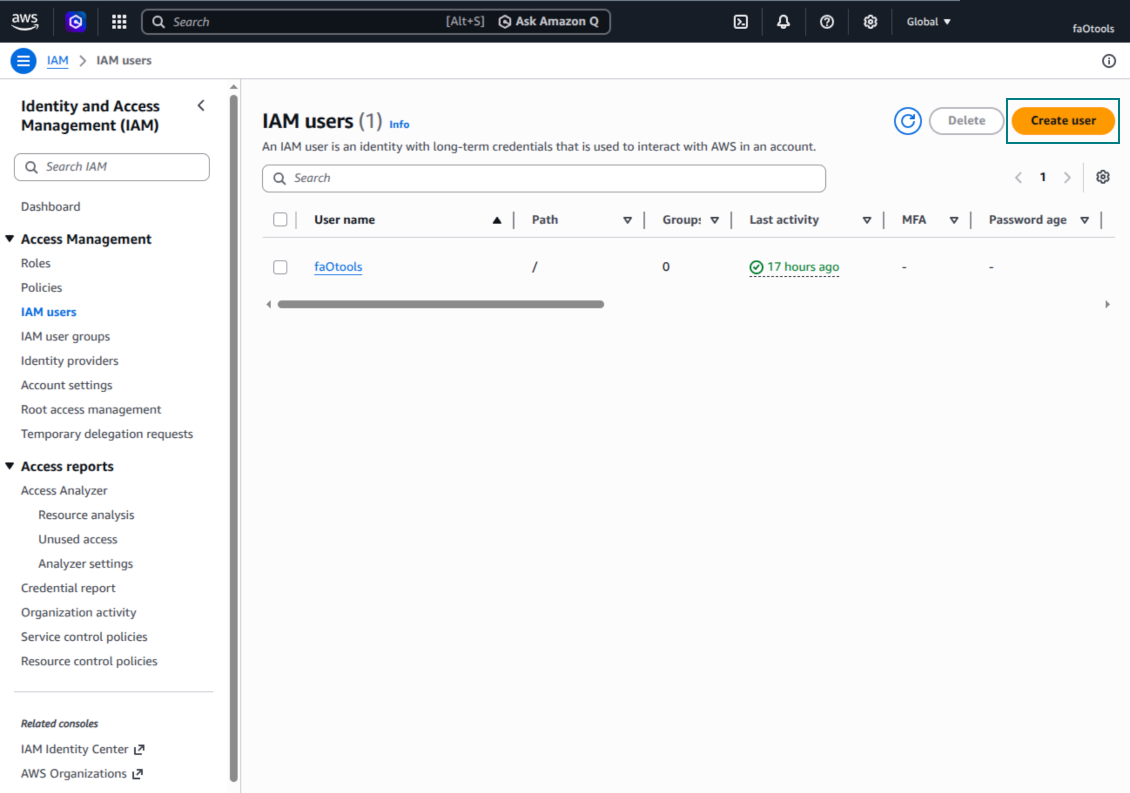
Norādiet IAM lietotājvārdu
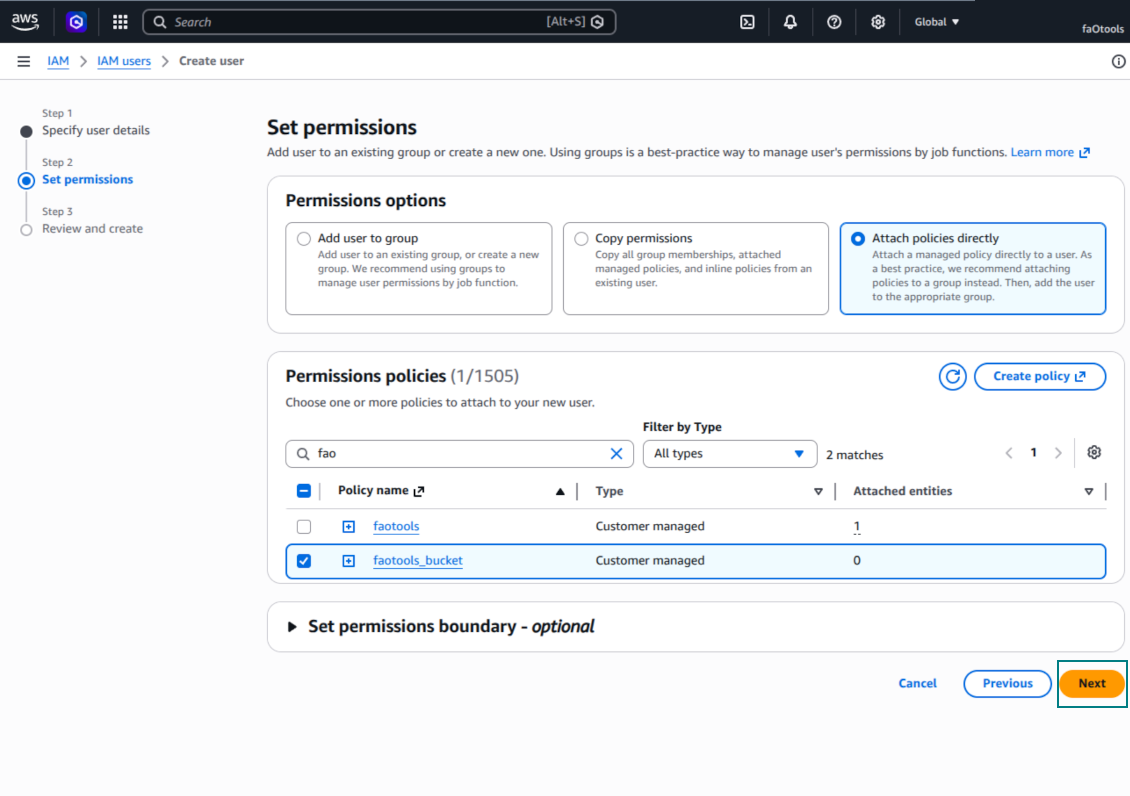
Pievienojiet atļauju politikas tieši
Amazon S3 bucket politikas JSON piemērs
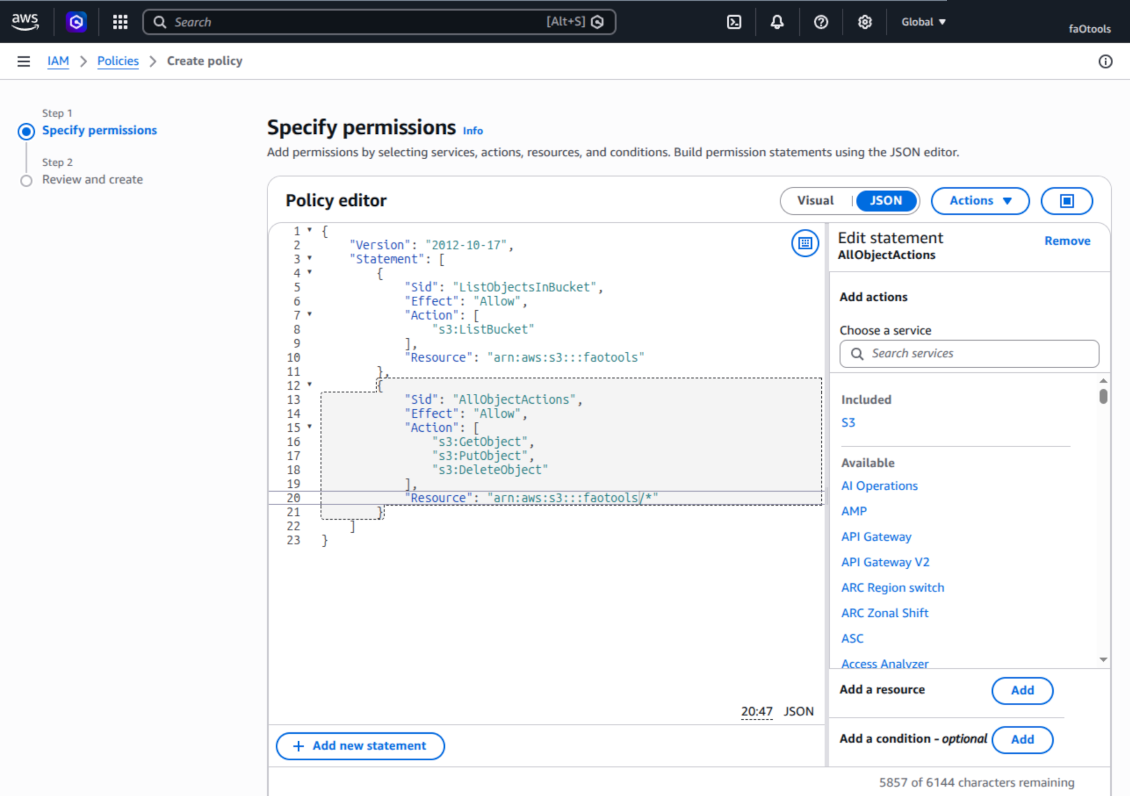
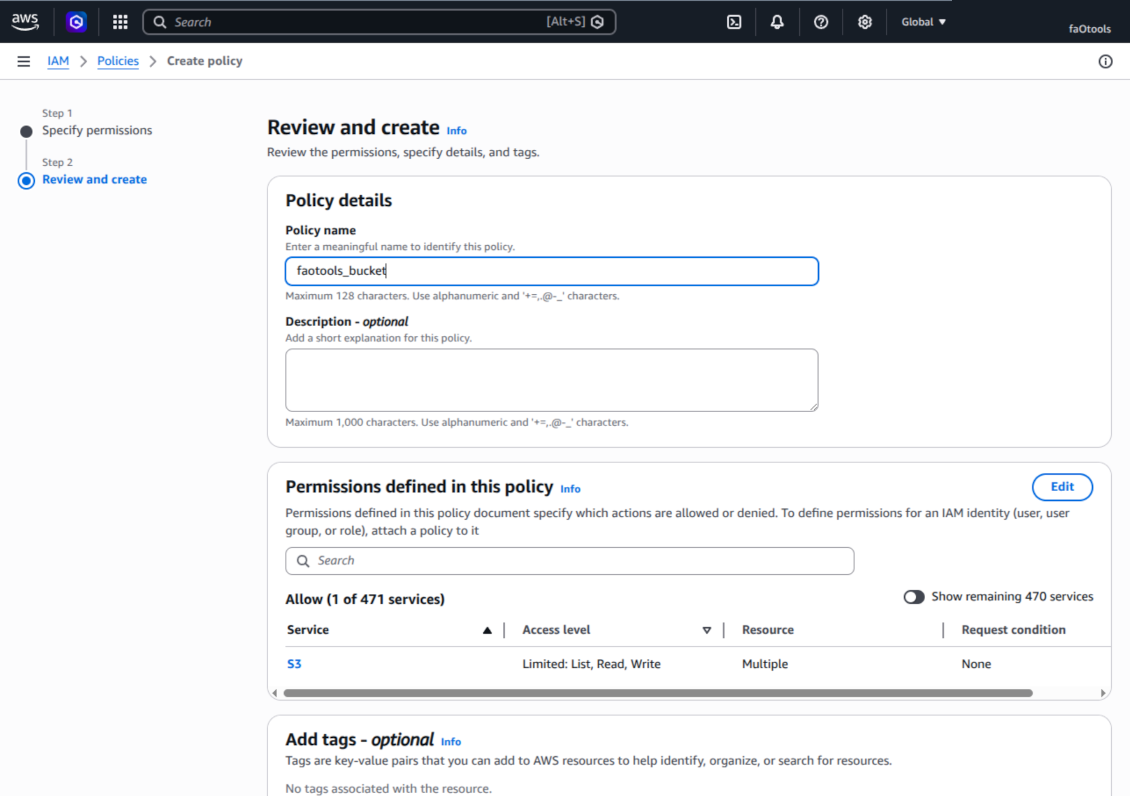
Pārskatiet un nosauciet S3 politiku
Atlasiet bucket politiku lietotājam
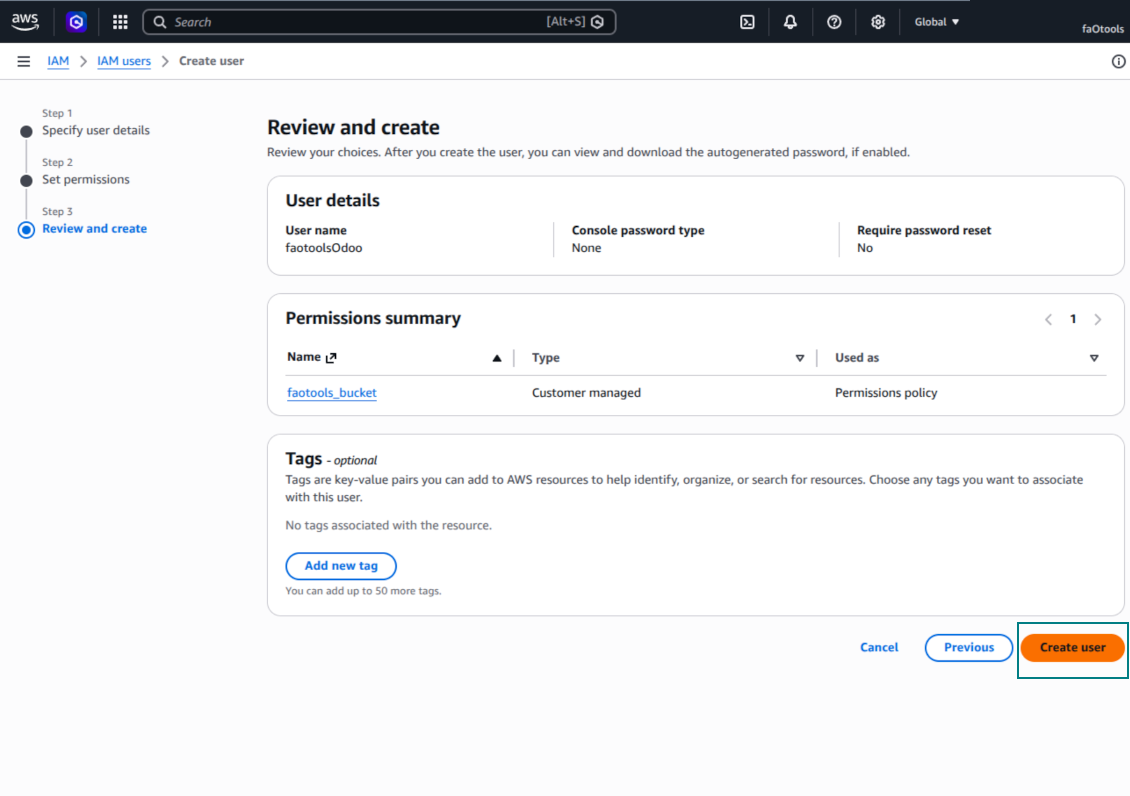
Pārskatiet un izveidojiet IAM lietotāju
Izveidojiet piekļuves atslēgu lietotājam
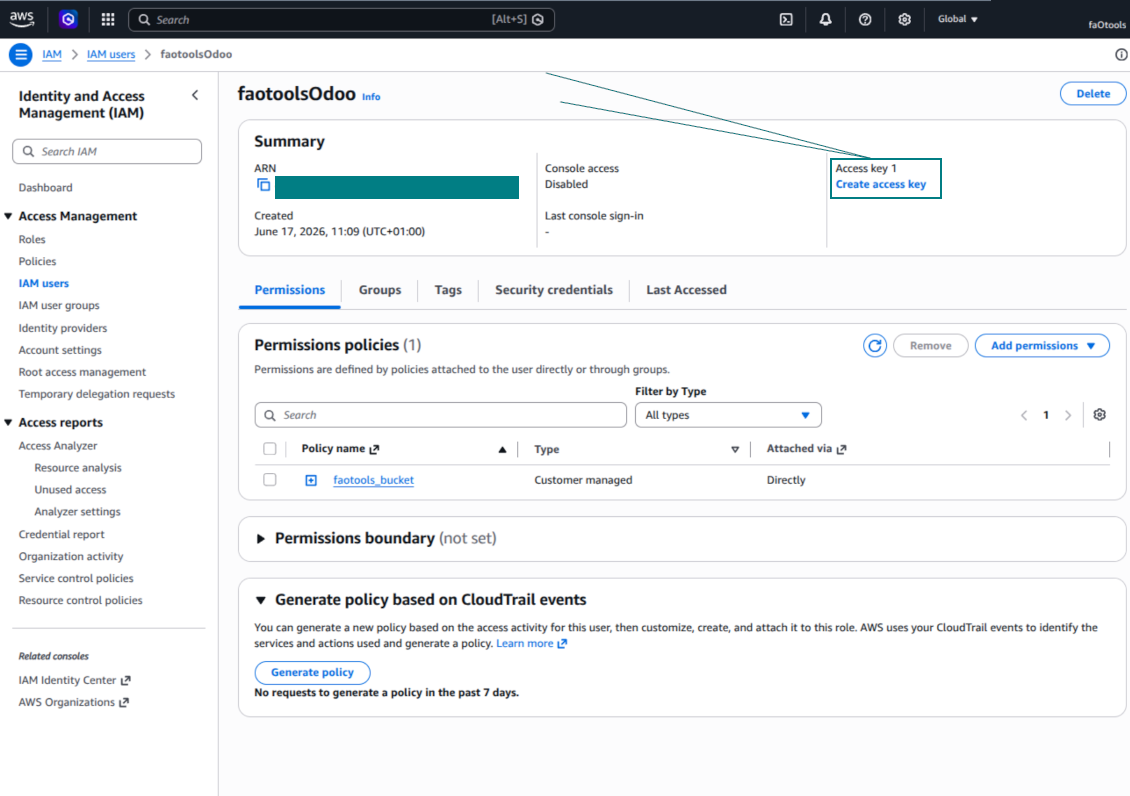
Izvēlieties piekļuves atslēgas lietošanas gadījumu
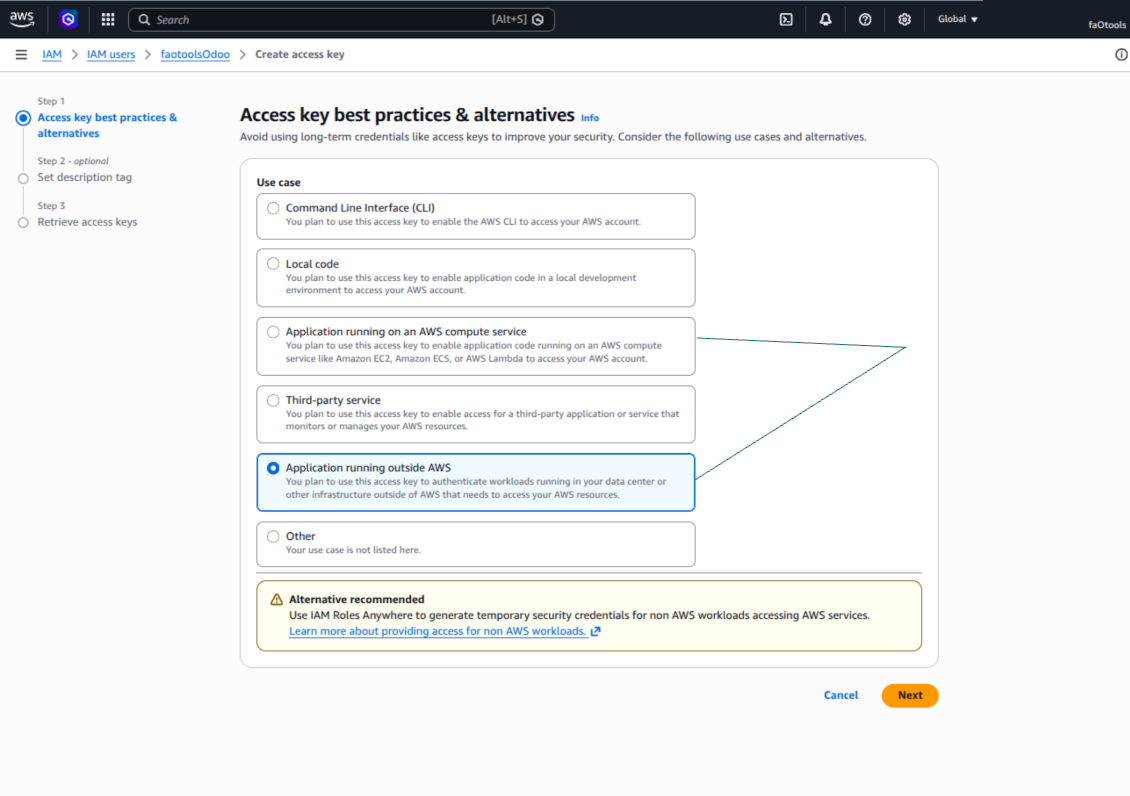
Iestatiet piekļuves atslēgas apraksta birku
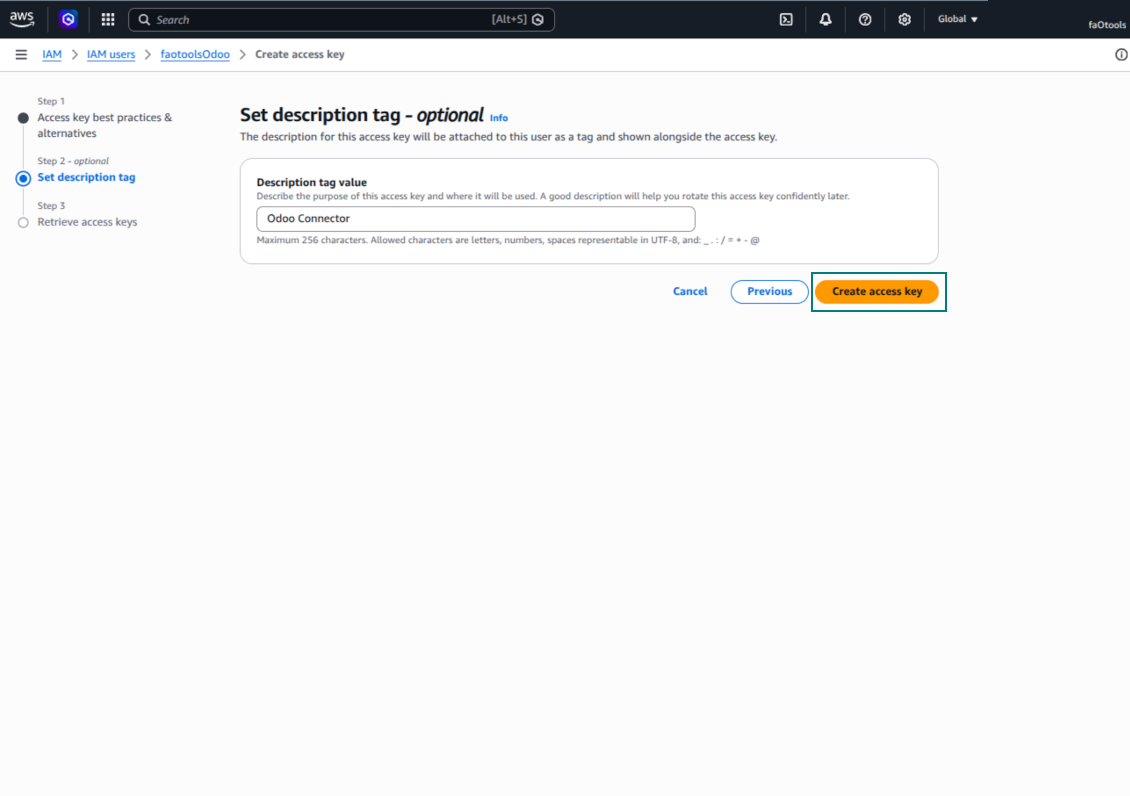
Iegūstiet piekļuves atslēgu un noslēpumu
Konfigurējiet Amazon S3 klientu Odoo
Nextcloud un/vai ownCloud integrācijas iestatīšana
Konfigurācija un pieteikšanās
- Ieslēdziet opciju 'onwCloud / Nextcloud Sync' (cloud Storage > Configuration > Configuration). Nepieciešams izvēles papildinājums ownCloud / Nextcloud Odoo Integration
- Ejiet uz Odoo Cloud Storage > Uzstādījumi > Cloud Clients un nospiediet “Create”
- Kā atsauci ievadiet nosaukumu, kas skaidrs visiem lietotājiem
- Kā Cloud client izvēlieties 'Nextcloud' vai 'ownCloud' atkarībā no izmantotās programmatūras
- Kā Root folder nosaukumu ievadiet virsrakstu, ko izmantos kā vecāku directory visām sinhronizētajām mapēm. Piemēram, 'Odoo' vai 'OdooERP'
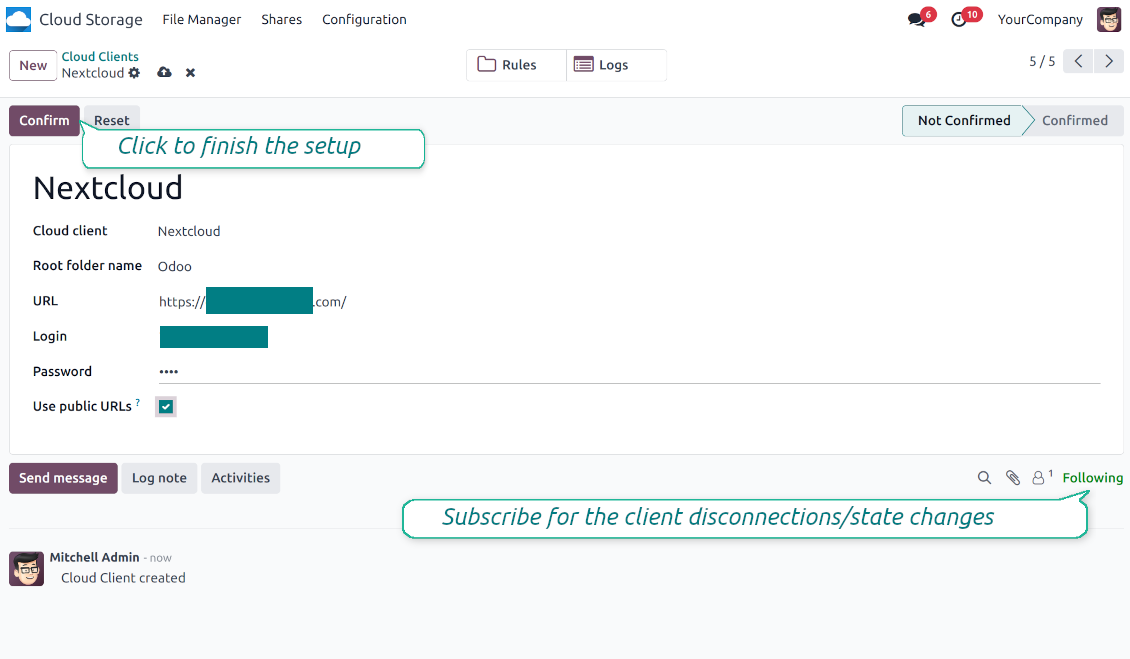
- Ievadiet savu ownCloud / Nextcloud pilno URL
- Atlasiet ownCloud / Nextcloud lietotāju ar pilnām tiesībām lasīt, izveidot, rakstīt un dzēst failus un mapes saknes direktorijā
- Ievadiet šā lietotāja lietotājvārdu un paroli laukos “Pieteikšanās” un “Parole”
- Izvēlieties, vai lietot publiskos vai iekšējos URL (skatīt zemāk)
- Nospiediet 'Apstiprināt'. Odoo sinhronizācija ir gatava
- Lietojiet tikko izveidoto cloud client mapju noteikumiem un/vai manuālajām mapēm, kas jāsinhronizē ar to Nextcloud vai ownCloud instanci
- Gaidiet, līdz tiks palaists sinhronizācijas ieplānotais darbs. Tikai testēšanai: palaidiet integrāciju manuāli no Cloud Storage > Uzstādījumi > Uzstādījumi > poga „Launch sync“.
Iekšējie un publiskie URL
Pēc noklusējuma saites no Odoo uz ownCloud / Nextcloud ir iekšējas: tām piekļūst tikai autorizēti lietotāji. Pēc izvēles padariet saites publiskas (iestatījums „Use Public URLs“). Tad URL būtu „koplietoti“, un ikviens piekļūtu vienumiem ar tiešu saiti.
Esiet piesardzīgi, ja nolemjat izmantot koplietotus (publiskus) URL. Lai gan ārējiem lietotājiem saites būtu grūti uzzināt, pastāv neliela iespēja, ka tās kļūst pieejamas dažu lietotāja darbību dēļ. Turklāt koplietošanas saišu ģenerēšana nav ātra un var palēnināt sinhronizāciju.
Skatiet arī konfigurācijas video
Ievadiet ownCloud / Nextcloud akreditācijas datus
NAS iestatīšana (Synology, QNAP, TrueNAS u.c.)
- Ieslēdziet opciju 'NAS Sync' (Cloud Storage > Configuration > Configuration). Nepieciešams izvēles papildinājums NAS Odoo Integration
- Sagatavojiet NAS WebDAV galapunktu:
- Synology: instalējiet un iespējojiet WebDAV Server DSM un, kur iespējams, izvēlieties HTTPS
- QNAP: iespējojiet WebDAV mērķa koplietotajai mapei un iespēju robežās izmantojiet HTTPS
- TrueNAS CORE: iespējojiet WebDAV pakalpojumu; TrueNAS SCALE: instalējiet un konfigurējiet WebDAV lietotni, jo vietējais WebDAV mūsdienu SCALE laidienos ir noņemts
- Vispārīgs WebDAV: pārliecinieties, ka PROPFIND, MKCOL, PUT, GET, MOVE un DELETE ir pieejami
- Ja Odoo ir izvietots ārpus vietējā NAS tīkla, padariet WebDAV galapunktu droši sasniedzamu. Dodiet priekšroku reversajam starpniekam ar derīgu TLS sertifikātu, VPN/drošam tunelim kā WireGuard, Tailscale vai Cloudflare Tunnel vai piegādātāja relejam kā Synology QuickConnect vai QNAP myQNAPcloud. Izvairieties no administratora saskarnes atvēršanas Internet
- Izveidojiet īpašu NAS lietotāju ar pilnām tiesībām tikai mērķa koplietotajā mapē: lasīt, izveidot, rakstīt, pārvietot un dzēst. Neizmantojiet administratora kontu
- Dodieties uz Odoo Cloud Storage > Configuration > Cloud Clients un nospiediet 'Create'
- Kā atsauci ievadiet nosaukumu, kas skaidrs visiem lietotājiem
- Kā Cloud klientu izvēlieties «Synology NAS», «QNAP NAS», «TrueNAS» vai «WebDAV NAS»
- Kā Root folder nosaukumu ievadiet virsrakstu, ko izmantos kā vecāku NAS directory visām sinhronizētajām mapēm. Piemēram, 'Odoo' vai 'OdooERP'
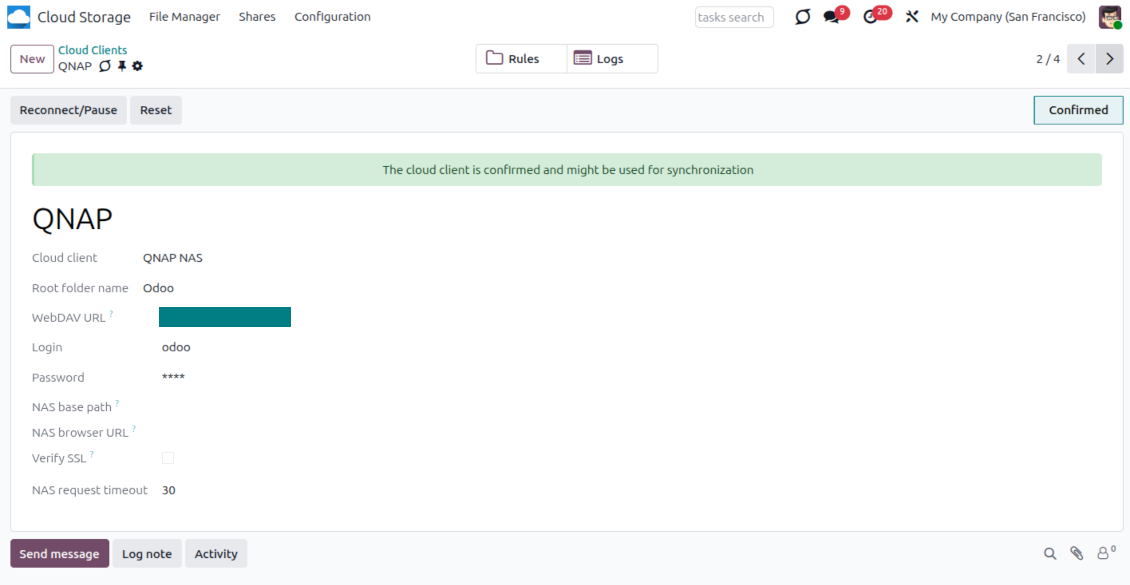
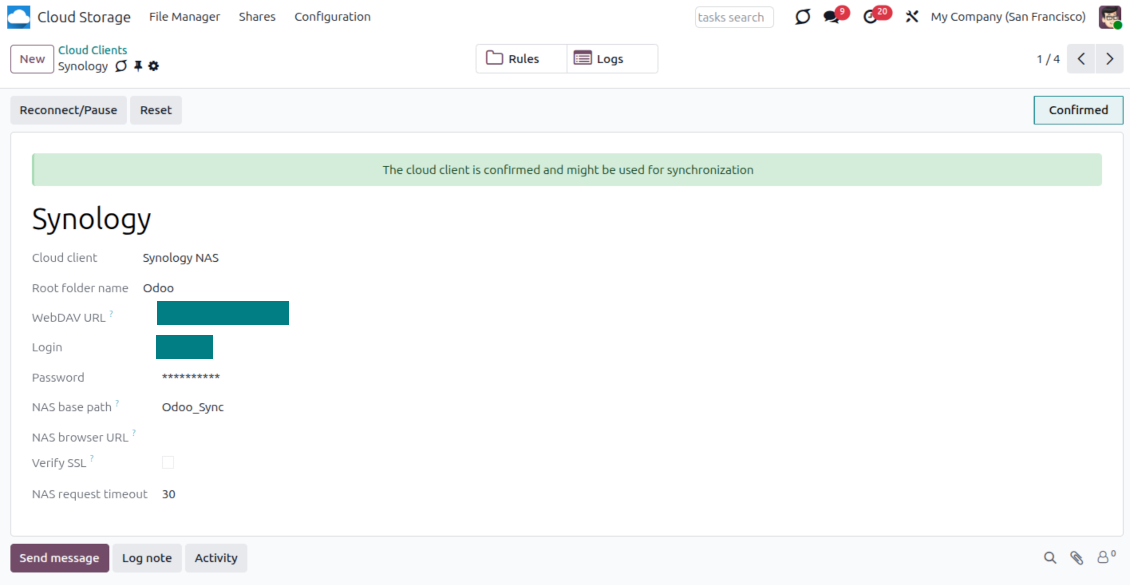
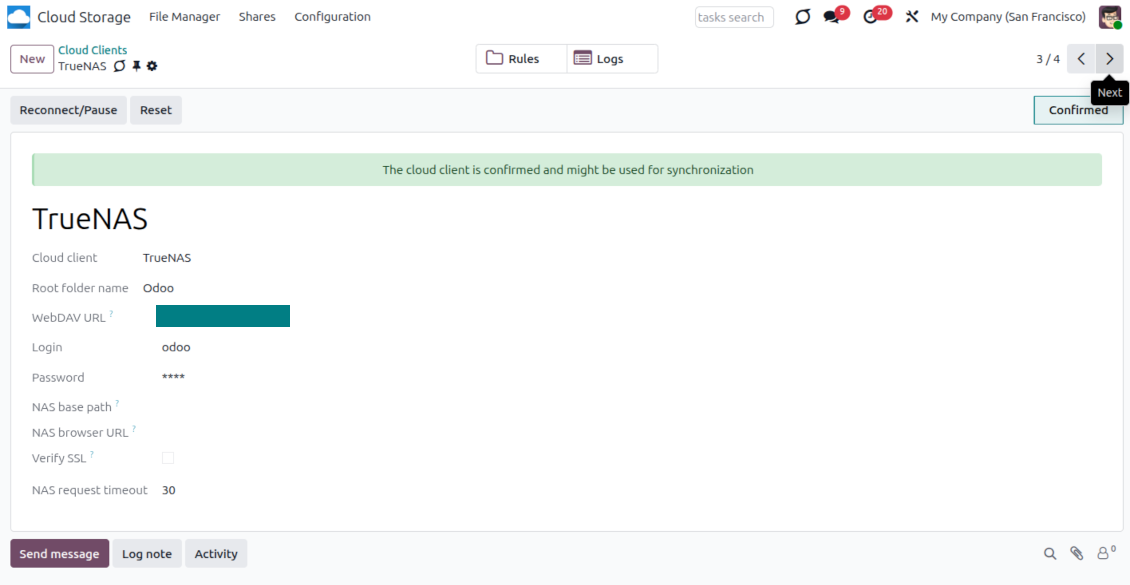
- Ievadiet pilnu WebDAV URL, pieteikšanos un paroli. Pēc izvēles norādiet bāzes ceļu, ja Odoo jāizveido saknes mape esošā koplietojumā vai direktorijā
- Publiskiem HTTPS galapunktiem turiet ieslēgtu „Verify SSL”. Izslēdziet to tikai uzticamam privātam galapunktam ar pašparakstītu sertifikātu
- Pēc izvēles norādiet pārlūka bāzes URL, ja NAS faili jāatver caur ražotāja failu stacijas URL, nevis neapstrādāto WebDAV URL
- Nospiediet 'Confirm'. Odoo pārbauda WebDAV savienojumu un izveido vai atrod saknes direktoriju. NAS - Odoo sinhronizācija ir gatava izpildei
- Lietojiet tikko izveidoto cloud client mapju noteikumiem un/vai manuālajām mapēm, kas jāsinhronizē ar to NAS krātuvi
- Gaidiet, līdz tiks palaists sinhronizācijas ieplānotais darbs. Tikai testēšanai: palaidiet integrāciju manuāli no Cloud Storage > Uzstādījumi > Uzstādījumi > poga „Launch sync“.
NAS priekškonfigurācija
NAS sistēmas parasti izpauž failus caur vietējo tīklu. Ja jūsu Odoo serveris ir izmitināts ārpus šī tīkla, WebDAV gala punktam jābūt sasniedzamam no Odoo caur drošu kanālu. Ieteicamās iespējas ir reverso starpniekserveri ar derīgu HTTPS sertifikātu, VPN vai drošu tuneli, piemēram, WireGuard, Tailscale vai Cloudflare Tunnel, vai piegādātāja releju, piemēram, Synology QuickConnect vai QNAP myQNAPcloud. Vienkārša portu pāradresācija ir iespējama, taču to vajadzētu uzskatīt par vismazāk vēlamo iespēju.
Izmantojiet atsevišķu NAS lietotāju ar minimālām tiesībām uz vienu koplietotu mapi: lasīt, izveidot, atjaunināt, pārvietot un dzēst. Izvairieties no administratora kontiem. Publiski pieejamiem galapunktiem vienmēr jāizmanto HTTPS un derīgs TLS sertifikāts. Savienotājam ir opcija "Verify SSL" uzticamiem pašparakstītiem sertifikātiem, taču parasti tai jāpaliek ieslēgtai.
Ievadiet QNAP akreditācijas datus
Ievadiet Synology akreditācijas datus
Ievadiet TrueNAS akreditācijas datus
Box iestatīšana
- Ieslēdziet opciju 'Box Sync' (cloud Storage > Konfigurācija > Konfigurācija). Nepieciešams izvēles papildinājums Box Odoo Integration
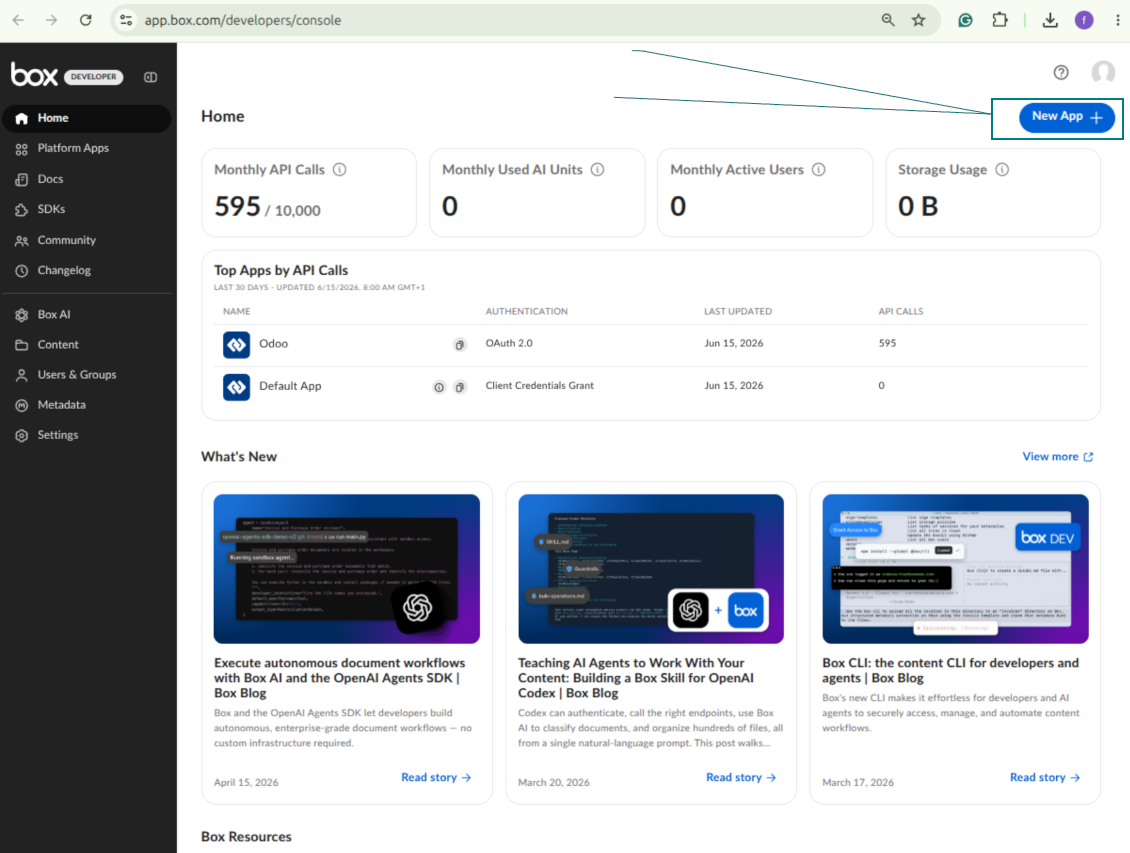
- Izveidojiet vai atveriet Box izstrādātāja kontu un dodieties uz Box Developer Console: https://app.box.com/developers/console
- Izveidojiet Custom App un kā autentifikācijas metodi izvēlieties OAuth 2.0 (Authorization Code Grant)
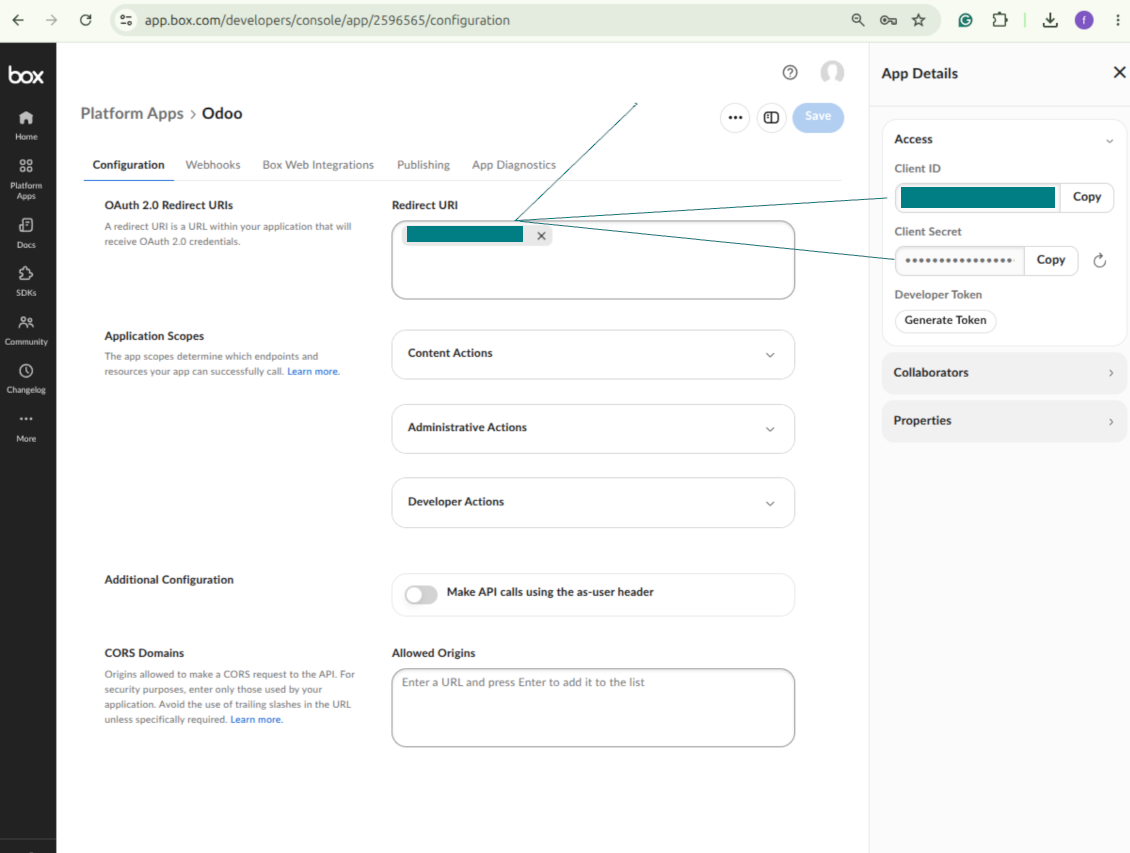
- Pievienojiet novirzīšanas URI kā [YOURODOOSITENAME]/box_token (piem. https://faotools.com/box_token). Nepieciešams derīgs SSL sertifikāts (https)
- Piešķiriet lietotnei piekļuvi lasīt un rakstīt failus un mapes. Izvairieties no nesaistītām atļaujām
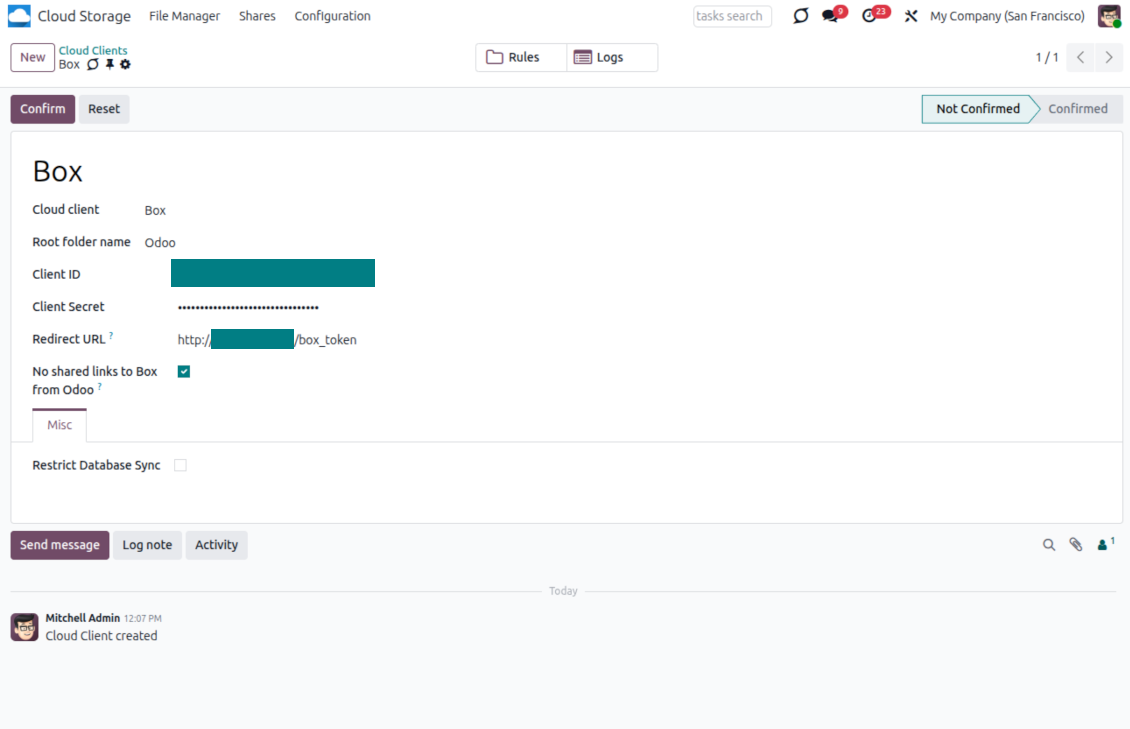
- Dodieties uz Odoo Cloud Storage > Configuration > Cloud Clients un nospiediet 'Create'
- Kā atsauci ievadiet nosaukumu, kas skaidrs visiem lietotājiem
- Kā Cloud klientu izvēlieties «Box»
- Kā Root folder nosaukumu ievadiet virsrakstu, ko izmantos kā vecāku Box directory visām sinhronizētajām mapēm. Piemēram, 'Odoo' vai 'OdooERP'
- Kopējiet Box Client ID laukā „Client ID“
- Kopējiet Box Client Secret laukā „Client Secret“
- Ievietojiet iepriekš ģenerēto novirzīšanas URL
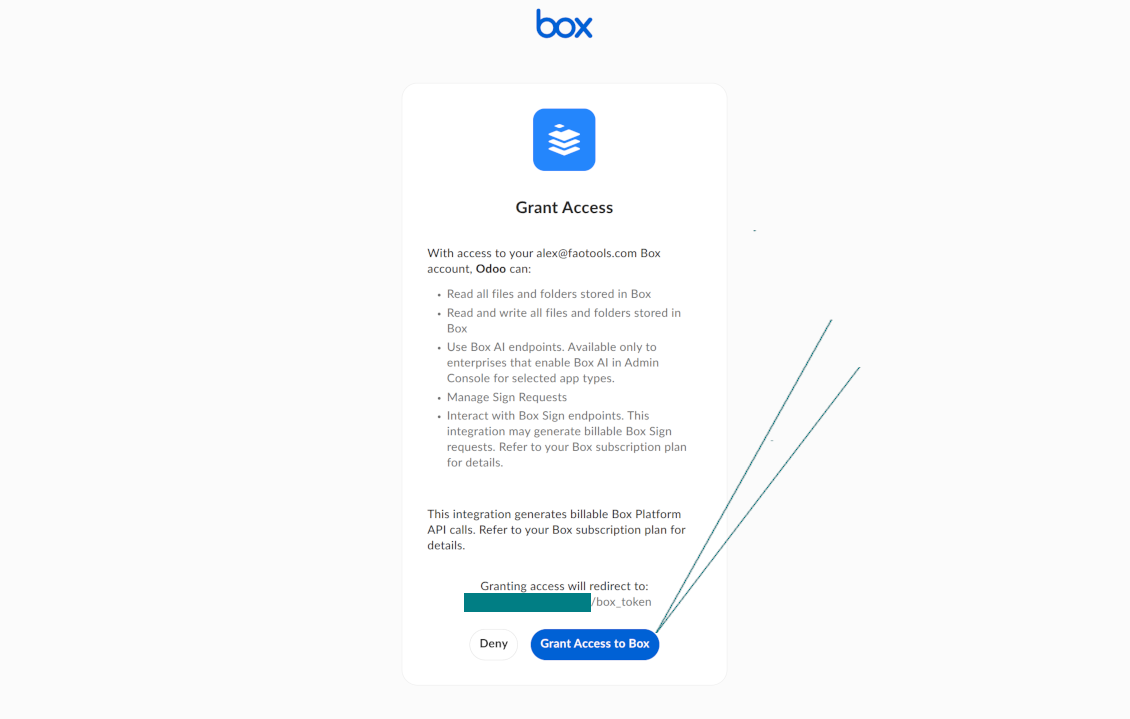
- Nospiediet 'Confirm'. Odoo novirza jūs uz Box pieteikšanās lapu. Pārbaudiet sistēmā, piekrītiet visiem nosacījumiem un piešķiriet visas pieprasītās atļaujas
- Pēc pieteikšanās Box novirza jūs atpakaļ uz Odoo. Box - Odoo sinhronizācija ir gatava
- Lietojiet tikko izveidoto cloud client mapju noteikumiem un/vai manuālajām mapēm, kas jāsinhronizē ar to Box kontu
- Gaidiet, līdz tiks palaists sinhronizācijas ieplānotais darbs. Tikai testēšanai: palaidiet integrāciju manuāli no Cloud Storage > Uzstādījumi > Uzstādījumi > poga „Launch sync“.
Izveidojiet jaunu Box izstrādātāja lietotni
Kopējiet Box OAuth akreditācijas datus
Konfigurējiet Box mākoņa klientu Odoo
Piešķiriet Odoo piekļuvi Box
MinIO iestatīšana
- Sagatavojiet darbojošos MinIO serveri
- Atveriet MinIO konzoli
- Izveidojiet jaunu bucket vai izvēlieties esošu. Kopējiet precīzo bucket nosaukumu: tas jāievieto Odoo laukā „Bucket“
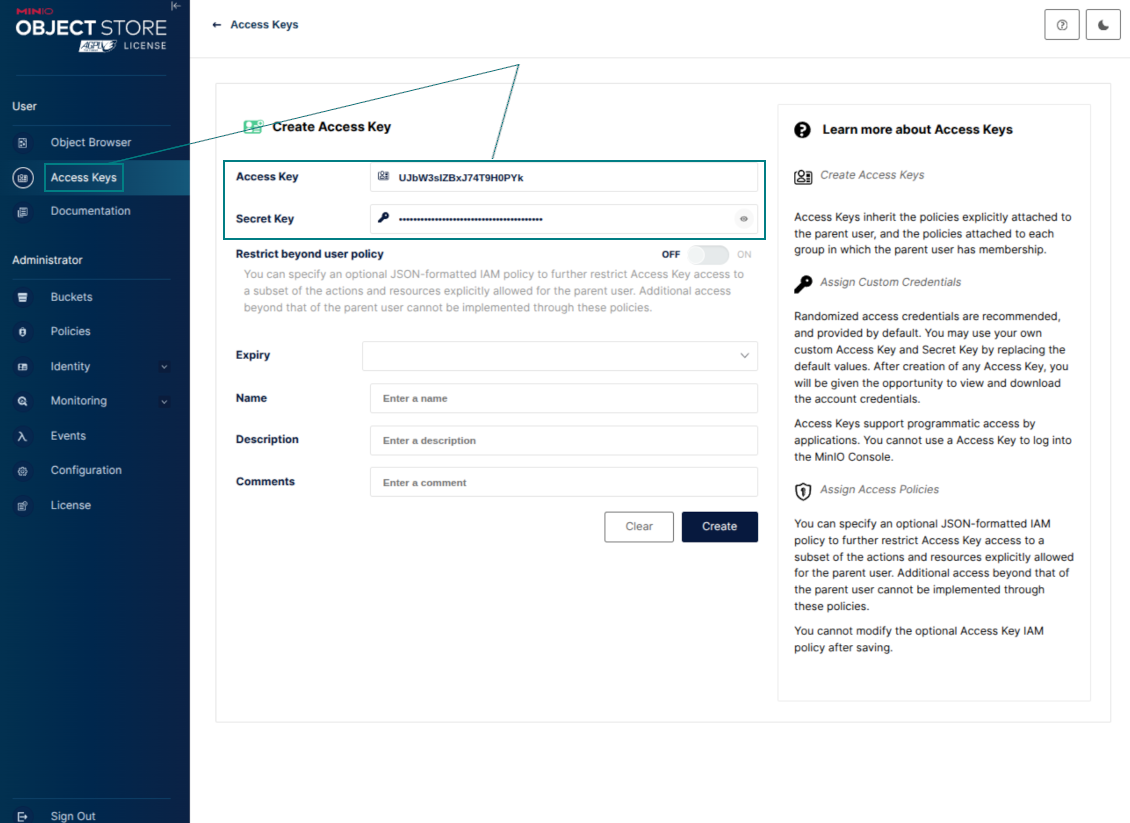
- Izveidojiet Odoo piekļuves akreditācijas datus. MinIO izmantojiet access key / secret key pāri vai pakalpojuma kontu ar tiesībām atlasītajā bucket uzskaitīt, lasīt, izveidot, rakstīt, kopēt un dzēst objektus
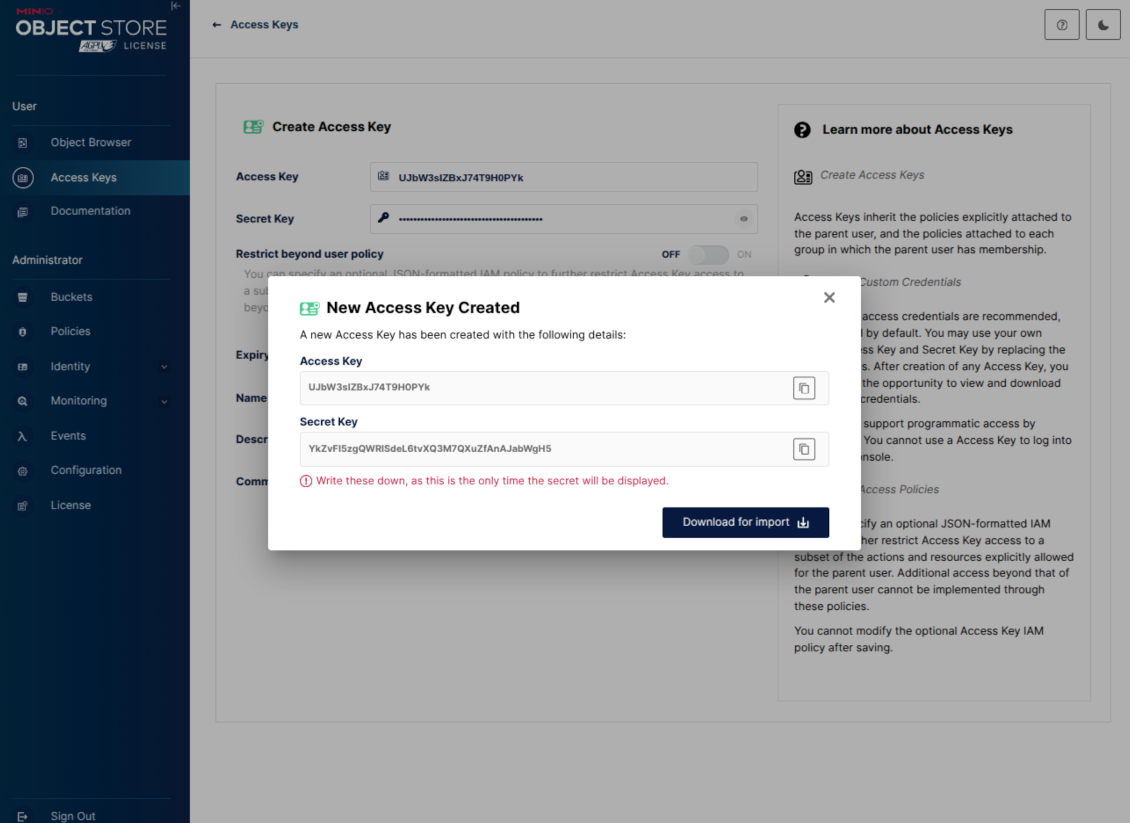
- Kopējiet MinIO Access Key Odoo laukā „Access Key“
- Kopējiet MinIO Secret Key Odoo laukā „Secret Key“. Svarīgi: saglabājiet noslēpumu pirms MinIO lapas aizvēršanas, ja MinIO to rāda tikai vienreiz
- Kopējiet MinIO S3 API galapunkta URL Odoo laukā „Amazon S3 endpoint URL“. Piemēram, vietējais serveris parasti izmanto http://localhost:9000, bet ražošanas serveris var izmantot https://minio.example.com
- Dodieties uz Odoo Cloud Storage > Configuration > Cloud Clients un nospiediet 'Create'
- Kā atsauci ievadiet nosaukumu, kas skaidrs visiem lietotājiem
- Kā Cloud klientu izvēlieties «MinIO»
- Kā Root folder nosaukumu ievadiet virsrakstu, ko izmantos kā vecāku MinIO object prefix visām sinhronizētajām mapēm. Piemēram, 'Odoo' vai 'OdooERP'
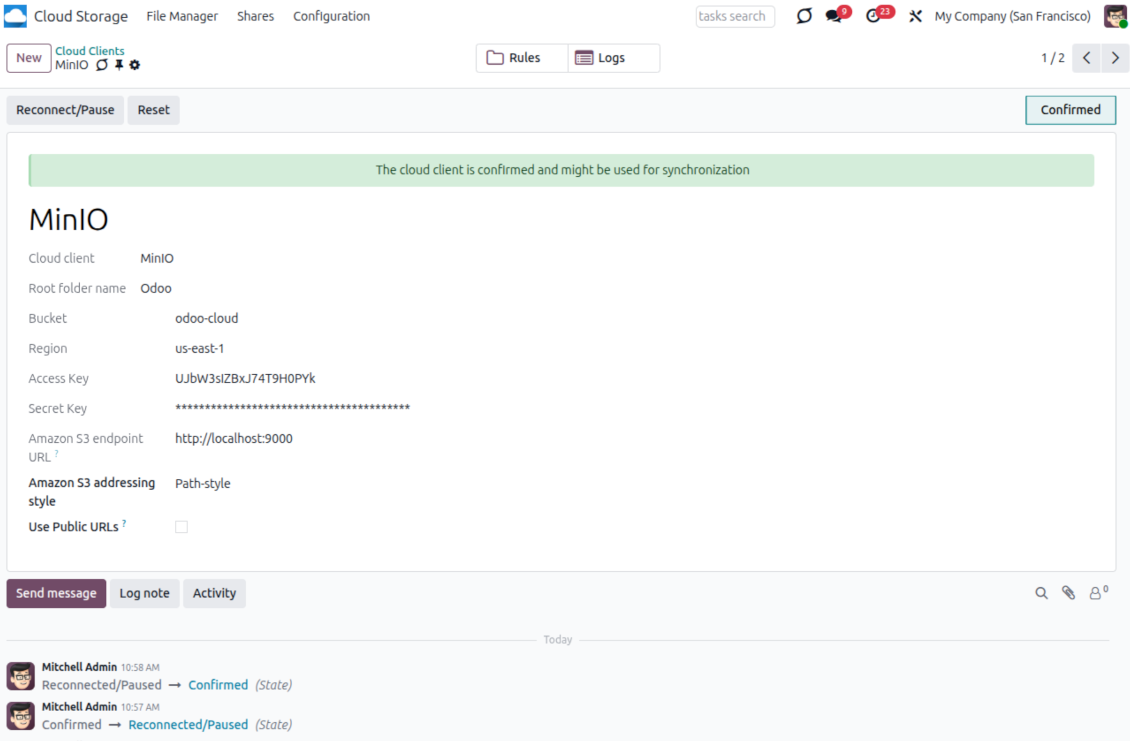
- Aizpildiet laukus 'Bucket', 'Access Key', 'Secret Key' un 'Amazon S3 endpoint URL'. Lauks 'Region' MinIO ir neobligāts; ja tas ir tukšs, Odoo S3 saderīgai parakstīšanai izmanto us-east-1
- Paturiet adresēšanas stilu Path-style. Tas ir ieteicamais variants MinIO galapunktiem, īpaši ja MinIO resursdators nesniedz bucketam specifiskus DNS nosaukumus
- Izvēlieties, vai Odoo jāizmanto tieši publiski MinIO URL. Iespējojiet „Use Public URLs“ tikai tad, ja bucket, prefix, reversais starpnieks vai CDN ir publiski lasāmi. Privātiem MinIO bucket atstājiet izslēgtu
- Nospiediet 'Confirm'. Odoo pārbauda piekļuvi bucket un izveido vai verificē saknes mapes prefiksu. MinIO - Odoo sinhronizācija ir gatava izpildei
- Lietojiet tikko izveidoto cloud client mapju noteikumiem un/vai manuālajām mapēm, kas jāsinhronizē ar to MinIO bucketu
- Gaidiet, līdz tiks palaists sinhronizācijas ieplānotais darbs. Tikai testēšanai: palaidiet integrāciju manuāli no Cloud Storage > Uzstādījumi > Uzstādījumi > poga „Launch sync“.
Useful MinIO documentation: https://min.io/docs/minio/linux/administration/identity-access-management.html, https://min.io/docs/minio/linux/reference/minio-server/minio-server.html.
Izveidojiet MinIO piekļuves atslēgu
Kopējiet jaunos MinIO akreditācijas datus
Konfigurējiet MinIO mākoņa klientu Odoo
Dropbox integrācijas iestatīšana
Python atkarība
Rīks ir atkarīgs no ārējās bibliotēkas 'dropbox'. Instalējiet to Odoo serverī ar komandu:
pip3 install dropbox
Konfigurācija un pieteikšanās
- Ieslēdziet opciju 'Dropbox Sync' (cloud Storage > Konfigurācija > Konfigurācija). Nepieciešams izvēles papildinājums Dropbox Odoo Integration
- Follow the URL https://www.dropbox.com/developers/apps/create
- Izvēlieties API kā «Scoped access»
- Izvēlieties piekļuves veidu «Full Dropbox»
- Izvēlieties jebkuru piemērotu lietotnes nosaukumu un nospiediet pogu „Create app“
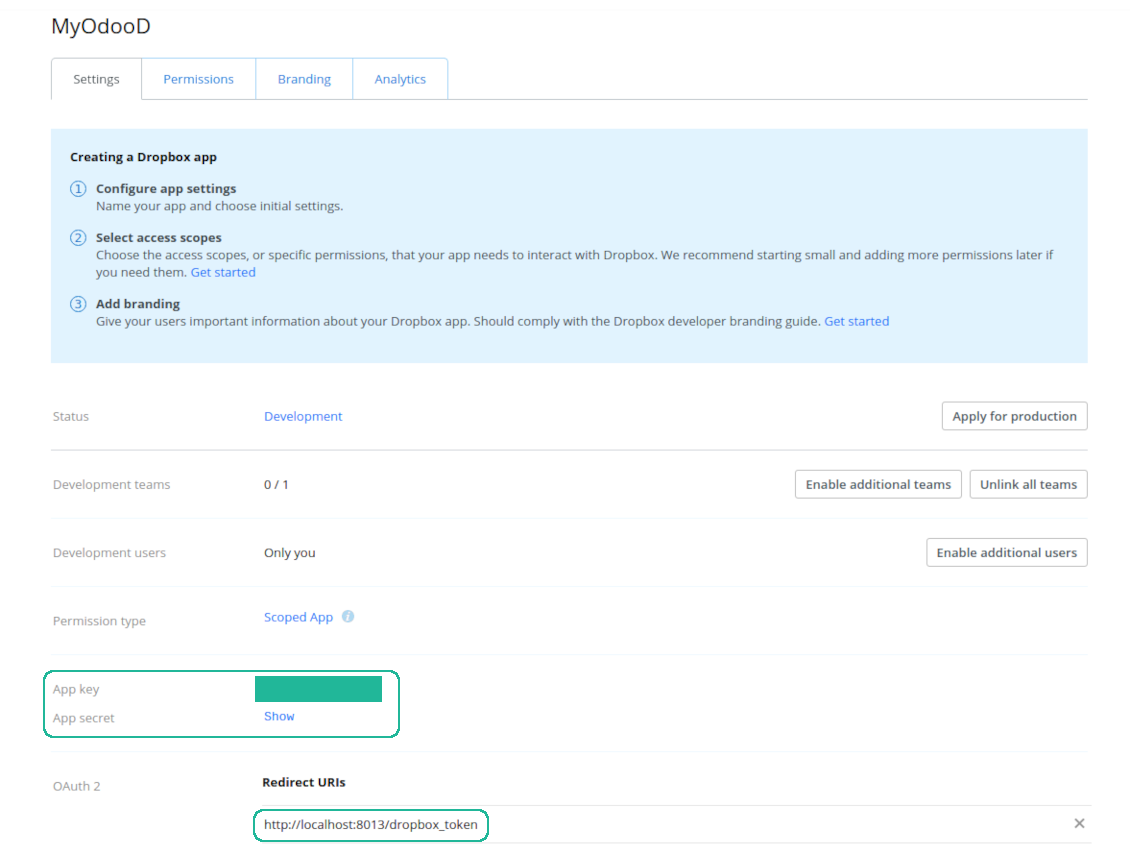
- Pievienojiet novirzīšanas URI kā [YOURODOOSITENAME]/dropbox_token (piem. https://faotools.com/dropbox_token). Nepieciešams derīgs SSL sertifikāts (https)
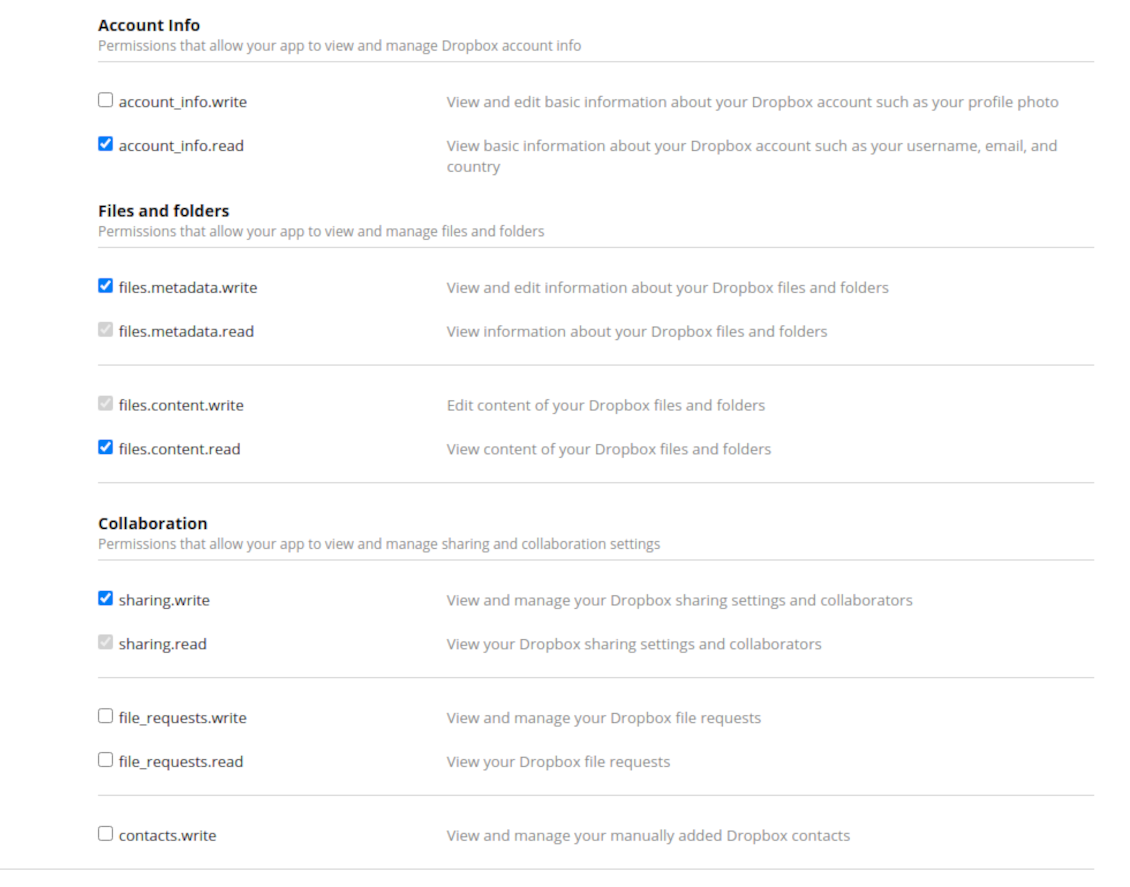
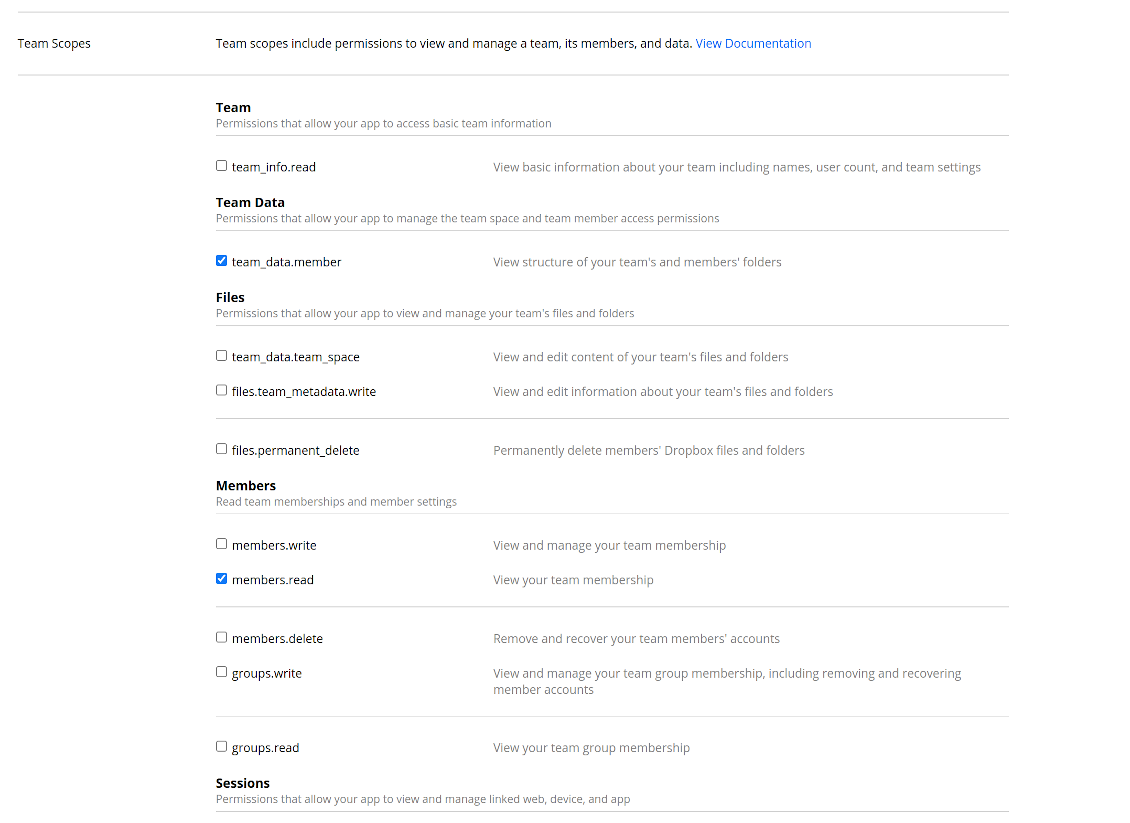
- Piešķiriet lietotnei atļaujas: 'Account Info (Read)', 'Files and folders Metadata (Write)', 'Files Content (Write)', 'Collaboration (Write)'. Komandas DropBox piešķiriet arī 'Team Data Members', 'Members (Read)'. Pārliecinieties, ka nav piešķirtas citas atļaujas.
- Iesniegt lietotni
- Ejiet uz Odoo Cloud Storage > Uzstādījumi > Cloud Clients un nospiediet “Create”
- Kā atsauci ievadiet nosaukumu, kas skaidrs visiem lietotājiem
- Kā Cloud klientu izvēlieties «Dropbox»
- Kā Root folder nosaukumu ievadiet virsrakstu, ko izmantos kā vecāku Google Drive directory visām sinhronizētajām mapēm. Piemēram, 'Odoo' vai 'OdooERP'
- Kopējiet „App key“ uz „App key“
- Kopējiet „App Secret“ laukā „App secret“
- Ievietojiet iepriekš ģenerēto novirzīšanas URL
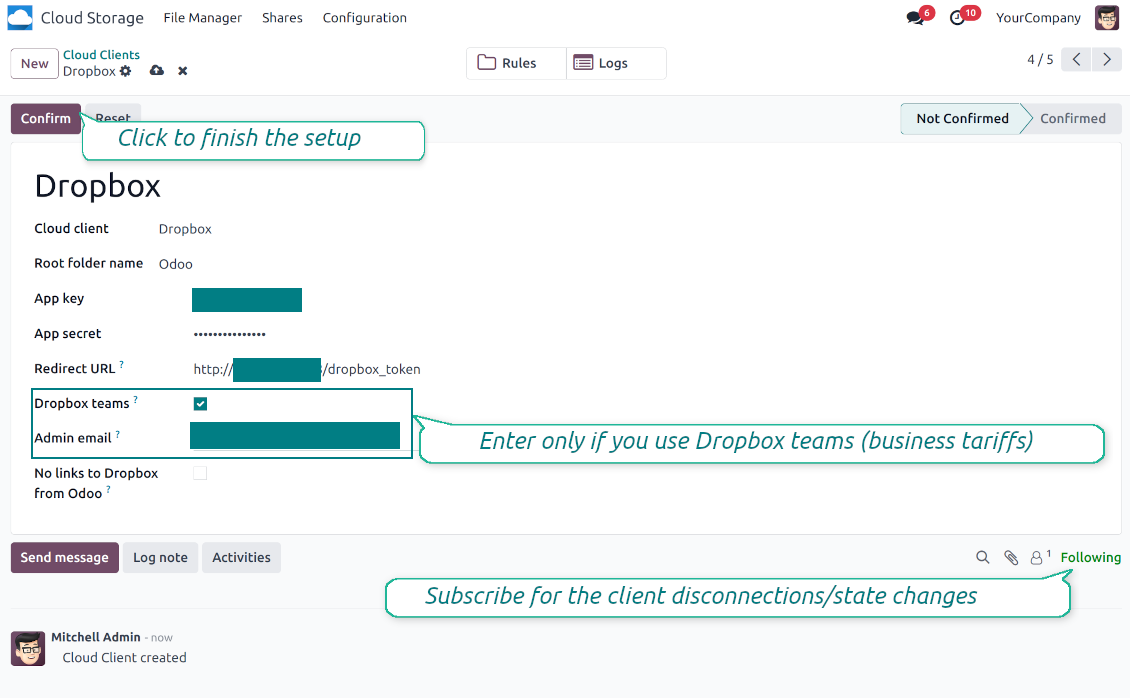
- Ja izmantojat Dropbox komandas diskus
- Atzīmējiet saistīto lodziņu
- Iestatiet Dropbox lietotāja e-pastu. Šajā lietotāja mapē tiek izveidoti visi ar Odoo saistītie elementi un tikai pēc tam tie tiek kopīgoti ar pārējiem lietotājiem. Zem šī lietotāja tiek izveidoti, mainīti, pārvietoti un dzēsti visi faili un mapes
- Nospiediet 'Confirm'. Odoo novirza jūs uz Dropbox pieteikšanās lapu. Pārbaudiet sistēmā, piekrītiet visiem nosacījumiem un piešķiriet visas pieprasītās atļaujas
- Pēc pieteikšanās Dropbox novirza jūs atpakaļ uz Odoo. Dropbox - Odoo sinhronizācija ir gatava
- Lietojiet tikko izveidoto cloud client mapju noteikumiem un/vai manuālajām mapēm, kas jāsinhronizē ar to Dropbox instanci
- Gaidiet, līdz tiks palaists sinhronizācijas ieplānotais darbs. Tikai testēšanai: palaidiet integrāciju manuāli no Cloud Storage > Uzstādījumi > Uzstādījumi > poga „Launch sync“.
Dropbox URL
Dropbox ir īpašs veids, kā ģenerēt saites esošiem failiem un mapēm. Jo īpaši nav iekšēju vai privātu URL jēdzienu. Tā vietā katrs Dropbox vienums var iegūt tā dēvētos koplietotos URL. Šādas koplietotās saites ir publiskas vai tikai komandai. Turklāt pēdējā funkcija ir pieejama tikai Dropbox business kontam.
Rīks balstās uz kopīgoto saišu mehāniku. Tas nozīmē, ka katra pielikuma saite ir publiska (visi personīgie Dropbox konti) vai tikai komandai (visi biznesa Dropbox konti).
Dažkārt tas tiek uzskatīts par ne pilnīgi drošu. Lai gan ārējie lietotāji vietnes URL gandrīz nepazīst, pastāv neliela iespēja, ka tie kļūst pieejami pēc dažām darbībām. Turklāt koplietošanas saišu ģenerēšana nav īpaši ātra un var palēnināt sinhronizāciju. Tāpēc ir ieviesta iespēja izslēgt koplietošanas URL.
If checked, all Dropbox URLs in Odoo will be of type https://www.dropbox.com/home/Odoo/[PATH]. Such links will not work in many cases. Thus, if you need to open Dropbox files/folders from Odoo, be careful with the setting 'No links to Dropbox from Odoo'.
Skatiet arī konfigurācijas video
Izveidojiet Dropbox lietotni
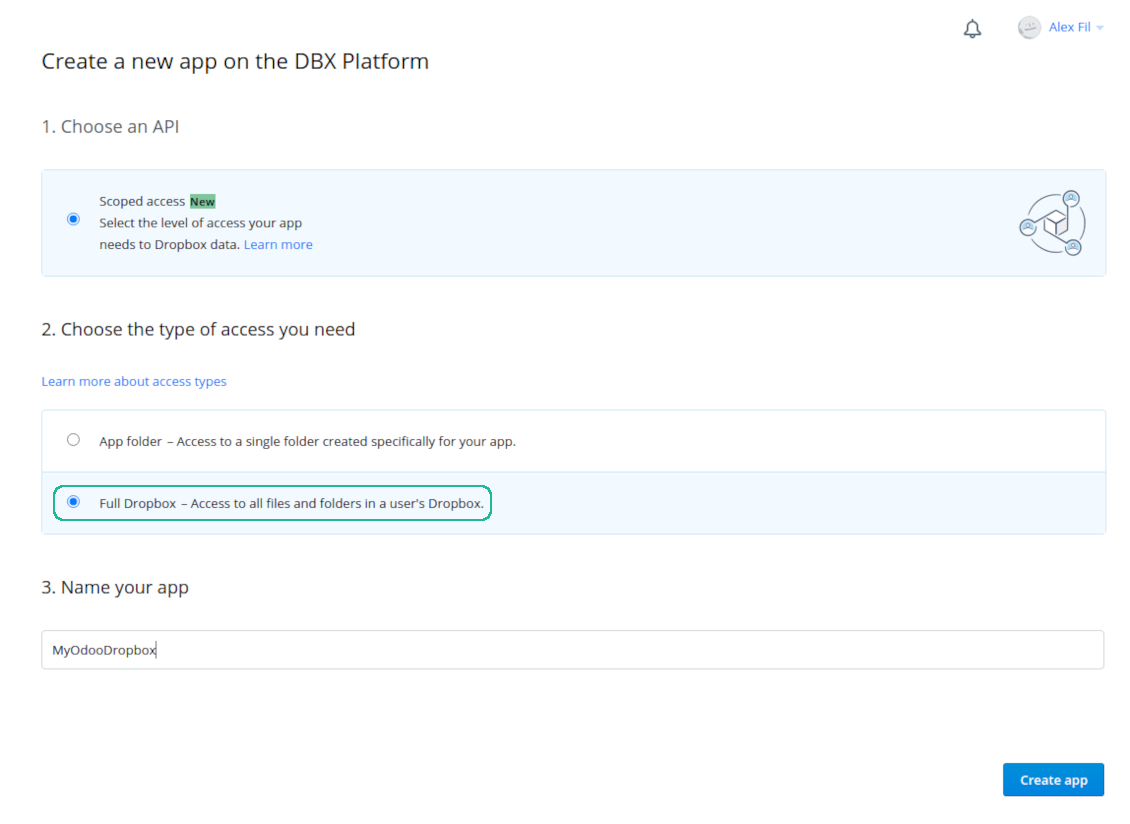
Dropbox lietotnes iestatīšana: novirzīšanas URL
Dropbox atļaujas personīgajiem kontiem
Dropbox atļaujas biznesa kontiem
Iestatiet Odoo Dropbox integrācijai
Bieži uzdotie jautājumi par Cloud Storage Solutions Odoo v.18
Kur tiek glabāti sinhronizētie lauki? Vai tie tiek dublēti Odoo un clouds?
Lietotne pieņem, ka pielikumu binārais saturs tiek glabāts Cloud Client, nevis Odoo serverī. Tādi pielikumi Odoo kļūst par URL tipa pielikumiem, un tiem varat jebkurā laikā piekļūt no pielikumu lauka vai no Cloud Client.
Pēc iestatīšanas manuālas darbības nav vajadzīgas, jo sinhronizācija ir pilnīgi automātiska. Izlemiet, kurus Odoo dokumentu tipus sinhronizēt, un katram iestatiet saistīto modeli (klienti, pārdošanas vai iepirkuma pasūtījumi, uzdevumi, projekti u. c.).
Vai varu būt dažas mapes vienam un tam pašam dokumenta veidam? Piemēram, iekšējie projekti un klientu projekti?
Jā, varat. Šim nolūkam sagatavojiet noteikumu katram un pēc tam lietojiet filtrus: piemēram pēc projekta tipa.
Mēģiniet padarīt filtrus savstarpēji izslēdzošus, lai dokumentu varētu viennozīmīgi piešķirt. Piemēram, „klients, bet ne piegādātājs“, „piegādātājs, bet ne klients“. Citādi konkrēta dokumenta mape lēkātu no viena modeļa uz citu.
Vai sinhronizāciju var padarīt reāllaikā?
Nē. Mums ir pamatoti iemesli izvairīties no reāllaika sinhronizācijas:
Veiktspējas problēmas. Ja sinhronizācija ir reāllaikā, katra faila augšupielāde rādīs ielādes ekrānu.
Konfliktu problēmas. Ja 2 lietotāji vienlaikus maina vienumu, var rasties neatrisinātas situācijas. Regulāru darbu gadījumā to varam izlabot pēc tam; reāllaikā tas būtu jāsaglabā kā rinda, kas lietotājiem būtu vēl maldinošāk.
Funkcionalitātes problēmas. Īpaši vienumu pārdēvēšana un pārstrukturēšana. Atpakaļsinhronizācijā rīks stingri balstās uz katalogu loģiku, un katrā sinhronizācijā tiek pārbaudīti 100% vienumu. Ja to darītu pēc katra atjauninājuma, būtu tūkstošiem pieprasījumu sekundē. Ja nē: izmaiņas pazustu.
Vai es varu mainīt mapju noklusējuma nosaukumus mākoņos?
Modeļu katalogiem (pārdošanas pasūtījumi, iespējas, piegādātāji utt.) varat piešķirt savu nosaukumu jebkuram dokumenta veidam.
Objektu mapēm (SO-001, John Smith utt.) rīks paļaujas uz Odoo metodi šī dokumenta veida parādāmā nosaukuma veidošanai. To var mainīt, definējot nosaukuma izteiksmi. Tiek izmantota precīza Odoo e-pasta veidņu sintakse.
Vai es varu mainīt sinhronizācijas darbu biežumu?
Nē, sākot ar 15. versiju, ieplānotos darbus nevajadzētu mainīt. Tie ir optimizēti darboties ik pēc 15 minūtēm, lai savienojums būtu visstabilākais un ātrākais.
Pārliecinieties, ka Odoo servera taimauti ir vismaz 15 minūtes (900 sekundes).
Ja uz brīdi jāaptur sinhronizācija, dariet to konkrētā cloud client formā.
Vai es varu sinhronizēt pielikumus ar dažiem mākoņa klientiem
Jā, no 15. versijas var iestatīt vairākus savienojumus. Tādējādi dažas mapes sinhronizē ar vienu cloud client, citas — ar citu.
Ņemiet vērā, ka vienu un to pašu mapi nevar vienlaikus sinhronizēt ar vairākiem cloud storages.
Mūsu mākoņos izmantojam īpašu redaktoru (piem., OnlyOffice, Office 365 u. c.). Vai faili tiktu atvērti tajā redaktorā?
Jā, atkarībā no jūsu cloud client konfigurācijas.
Vai man vajag tikai lietotni Cloud Storage Solution?
Sākot ar 15. versiju, lietotni var izmantot atsevišķi, lai kārtotu pielikumus mapēs un nodrošinātu failu pārvaldnieka saskarni.
Ja mērķis ir savienojums ar kādu no mākoņa klientiem, jāinstalē vismaz viena izvēles klienta lietotne.
Kas notiek, kad es maiņu mapes noteikumu?
Kad mapes noteikums mainās, mainās arī mapju saraksts. Ja mape vairs neatbilst noteikumu nosacījumiem, to noņem. Ja faili bija sinhronizēti, pretējā sinhronizācija tos atgriež Odoo un dzēš no Cloud Client.
Ja dokumenta objekts neatbilst mapes noteikuma nosacījumiem, tā mape netiks izveidota. Ja vēlāk atbildīs, saistītā mape tiks ģenerēta.
Vai varu paturēt tikai tiešo sinhronizāciju vai izslēgt sinhronizāciju no mākoņa?
Jā. Mākoņa klientā atveriet lapu Iestatījumi un ieslēdziet Izslēgt sinhronizāciju no mākoņa.
Sinhronizācija paliek vienvirziena. Odoo veiktās izmaiņas joprojām tiek sūtītas uz mākoņkrātuvi. Mākoņkrātuvē izveidotie, pārdēvētie vai dzēstie faili un mapes Odoo neparādās, un tur dzēstās mapes netiek atjaunotas.
Izslēdziet opciju vēlreiz, lai uzkrātās izmaiņas, ieskaitot dzēšanas, tiktu piemērotas nākamajā sinhronizācijā.
Šis iestatījums ir pieejams no versijas 18. Klienta atvienošana, atiestatīšana vai deaktivizēšana joprojām palaiž apgriezto sinhronizāciju, ja neizslēdzat arī to.
Kādas ir jūsu rīku atjaunināšanas politikas?
Saskaņā ar spēkā esošajiem Odoo Apps Store noteikumiem:
- Katrs 12.0 un vecākai versijai pirktais modulis dod piekļuvi visām versijām līdz 12.0.
- Sākot ar 13.0. versiju, katra moduļa versija jāpērk atsevišķi.
- Neatkarīgi no versijas pirkums dod tiesības uz visiem atjauninājumiem un labojumiem galvenās versijas ietvaros.
Ņemiet vērā, ka faOtools komanda šos noteikumus nekontrolē. Jautājumus adresējiet tieši Odoo Apps Store pārstāvjiem.
Kā instalēt jūsu lietotni Odoo.sh?
Visiešākā pieeja ir izmantot Odoo veikala iebūvēto darbplūsmu:
1. Atveriet moduļa lapu un noklikšķiniet pogu Deploy on odoo.sh
2. Pēc tam jūs novirzīs uz GitHub lapu. Pierakstieties kontā, pēc tam noklikšķiniet 'Create a new repo' vai izmantojiet esošu. Pārliecinieties, ka krātuve ir privāta. Lietotnes nedrīkst publicēt ar OPL-1 licenci. Ja vajag, izveidojiet jaunu repo Odoo.sh projektam
3. Pēc tam dodieties uz odoo.sh un noklikšķiniet pogu Deploy. Uznirstošajā logā iesniedziet lēmumu un noklikšķiniet 'Continue.' Šī darbība sāk instalēšanu.
Šīs darbības instalēs lietotni projekta produkcijas zarā. Ja vēlaties izvietot lietotnes citos zaros vai atjaunināt moduli, veiciet šīs darbības:
1. Augšupielādējiet lietotnes pirmkodu no Odoo veikala
2. Veiciet moduļa commit vajadzīgajā GitHub krātuvē. Pārliecinieties, ka neviens lietotnes mape/fails netiek ignorēts (t.i., nav repo .gitignore). Krātuves automātiski izveido odoo.sh, un pēc noklusējuma tajās var būt svarīgi elementi (piem., /lib). Augšupielādējiet visus moduļa katalogus, apakškatalogus un failus bez izņēmumiem
3. Izvietojiet odoo.sh projekta mērķa zaru vai, ja iestatījumi to paredz, gaidiet, līdz tas tiek automātiski būvēts.
Kā instalēt jūsu lietotni savā serverī?
2. Restartējiet Odoo serveri;
3. Ieslēdziet izstrādātāja režīmu (tehniskie iestatījumi);
4. Atjauniniet lietotņu sarakstu (lietotņu izvēlne);
5. Atrodiet lietotni un nospiediet „Activate“/„Install“;
6. Sekojiet lietotnes lapas vadlīnijām, ja tādas ir.
Pamanīju, ka jūsu lietotnei ir papildu papildinājumi. Vai varu tos iegādāties vēlāk?
Jā, protams. Vienlaikus Odoo automātiski pievieno visas atkarības grozam, tāpēc iepriekš iegādātie rīki jāizslēdz, lai izvairītos no dubultas samaksas.
Izvietoju jūsu lietotni Odoo.sh un testos redzu brīdinājumu/kļūdu
Sarkans/oranžs brīdinājums neietekmē lietotnes funkcijas. Diemžēl mūsu moduļi dažkārt neiztur standarta automātiskos testus, jo tie pieņem uzvedību, kas ir pretrunā ar lietotnes mērķiem. Piemēram, mēs mainām cenas aprēķinu, bet standarta Odoo moduļa testi salīdzina galīgo cenu ar standarta algoritmu.
Vispirms pārbaudiet izvietotās datubāzes funkcijas. Vai viss darbojas pareizi?
Ja joprojām uzskatāt, ka brīdinājums ietekmē īstas funkcijas, sazinieties ar mums un nosūtiet pilnus instalācijas žurnālus un pilnu izvietoto moduļu sarakstu (ieskaitot kodolu un trešo pušu).
Vai es varu iegādāties lietotni tieši no jūsu uzņēmuma?
Nē, rīkus izplatām tikai caur oficiālo Odoo lietotņu veikalu.
Es vēlētos saņemt atlaidi
Diemžēl mums nav tehnisku līdzekļu individuālu cenu piedāvāšanai.
Vai es varu instalēt lietotni savā Odoo Online (SaaS) datubāzē?
Nē, trešo pušu lietotnes nevar izmantot Odoo Online. Diemžēl Odoo SaaS to bloķē.
Jūsu rīkam ir atkarības no citām lietotnēm. Vai tās jāiegādājas?
Jā, rīkam ir nepieciešami visi atkarībās atzīmētie moduļi, lai darbotos pareizi. Lietotnes lapā norādītā cena jau ietver visas nepieciešamās atkarības.
Kāda ir moduļa cena ASV dolāros? Kāpēc tā mainījās?
Mūsu moduļu cena ir eiro. Odoo veikals konvertē cenas citās valūtās pēc iekšējā kursa. Tāpēc cena ASV dolāros var mainīties, kad kurss tiek atjaunināts.
Lietotnes un vietnes teksti valodās, kas nav angļu, ir sagatavoti ar MI palīdzību un saskaņoti ar oficiālajiem Odoo tulkojumiem. Ja pamanāt kļūdu, nosūtiet biļeti par tulkojumu pareizību un mēs to labosim.
Odoo demonstrācijas datubāzes (tiešie priekšskatījumi)
Šai lietotnei varam nodrošināt bezmaksas personalizētu demo datubāzi.
Lai sazinātos, nav vajadzīgs tālruņa numurs vai kredītkarte. Pietiek ar īsu e-pasta reģistrāciju, kas neaizņem vairāk par 30 sekundēm.
Pēc jūsu pieprasījuma sagatavosim individuālu tiešā priekšskatījuma datubāzi, kurā apmēram divas nedēļas varēsiet veikt testus un pārbaudīt pieņēmumus.
Kļūdu ziņošana
Ja sastopaties ar kļūdām vai nekonsekventu uzvedību, sazinieties ar mums. Garantējam labojumus 60 dienu laikā pēc pirkuma un esam ieinteresēti rīkus uzlabot arī pēc šī perioda.
Lai sazinātos, nav vajadzīgs tālruņa numurs vai kredītkarte. Pietiek ar īsu e-pasta reģistrāciju, kas neaizņem vairāk par 30 sekundēm.
Iekļaujiet pieprasījumā pēc iespējas vairāk informācijas: ekrānuzņēmumus, Odoo servera žurnālus, pilnu problēmas atkārtošanas aprakstu u. tml. Parasti darba plāna sagatavošana (ja kļūda ir apstiprināta) vai norādījumu sniegšana (citādi) prasa dažas darba dienas.
Publiski funkciju pieprasījumi un moduļu idejas (bezmaksas izstrāde)
Mēs esam stipri motivēti uzlabot savus rīkus un būsim pateicīgi par jebkuru atsauksmi. Ja jūsu prasības ir vispārīgi noderīgas un tās var efektīvi īstenot, komanda tās iekļaus mūsu uzdevumu sarakstā.
Šāds uzdevumu saraksts tiek apstrādāts regulāri un neparedz papildu maksas. Lai gan mēs nevaram solīt termiņus un galīgo dizainu, tas var būt labs veids, kā iegūt vēlamās funkcijas bez ieguldījumiem un riskiem.
Lai sazinātos, nav vajadzīgs tālruņa numurs vai kredītkarte. Pietiek ar īsu e-pasta reģistrāciju, kas neaizņem vairāk par 30 sekundēm.
18.0.1.4.54
- The issue of the sync queue stopping with a recursion error when a large number of tasks is planned at once has been fixed.
- Tasks of a paused or not connected cloud client now wait for the client instead of being failed and canceled.
18.0.1.4.53
- Pievienota iespēja izslēgt sinhronizāciju no mākoņa mākoņa klientam.
- Pievienota iespēja izslēgt apgriezto sinhronizāciju mākoņa klientam.
- Labota problēma, ka sinhronizācijas rinda palika bloķēta pēc apgrieztās sinhronizācijas klienta noņemšanas.
18.0.1.4.52
- The issue of folder lookup failing when the document id was a recordset has been fixed.
18.0.1.4.51
- Optimized folder sync by searching only attachments of updated records instead of all model attachments.
18.0.1.4.50
- The feature to requeue failed tasks has been added.
18.0.1.4.49
- Support for Amazon S3, MinIO S3, Synology, QNAP, TrueNAS, other NAS/WebDAB, and BOX has been added.
18.0.1.4.48
- The feature to control the maximum number of folders per rule has been added.
18.0.1.4.47
- The issue with attachments linked to documents disappearing from the attachment box has been fixed.
18.0.1.4.46
- The issue fix text break in folder titles has been fixed.
18.0.1.4.45
- The issue with the non-synced invoice report has been fixed.
18.0.1.4.44
- Asinhronā mapju pārbaude ir optimizēta.
18.0.1.4.43
- Novērsta tikko atlasītās mapes meklēšanas problēma.
18.0.1.4.42
- Mapju koka neatjaunošanas problēma, pārslēdzoties starp ierakstiem, ir novērsta.
18.0.1.4.41
- Dubultklikšķa nepieciešamības problēma atlasīto pielikumu noņemšanai ir novērsta.
18.0.1.4.40
- Dublējumu noņemšanas rinda tagad ir first-in, first-out.
18.0.1.4.39
- Lietotne ir pielāgota jaunajai domēnu loģikai, lai atbalstītu dinamiskās daļas.
18.0.1.4.38
- Konfigurācijas lapai ir pievienots filestore novērtējums.
- Pievienota funkcija ierobežot cloud client sinhronizāciju ar konkrētu datubāzes nosaukumu.
18.0.1.4.37
- Pievienota dublējuma izveides bloķēšanas funkcija.
18.0.1.4.36
- Netulkotu brīdinājumu problēma ir novērsta.
18.0.1.4.35
- Pievienota pašreizējās datu bāzes dublējuma automātiska un manuāla sinhronizācija uz izvēlētajiem mākoņa klientiem. Konfigurējiet dublējumu grafiku un glabāšanas laiku. Dublējumi var būt ar vai bez filestore un manifest.
18.0.1.4.34
- Labota nepareiza Python bibliotēku importēšana mapju atsvaidzināšanas laikā.
18.0.1.4.33
- Domēns tagad atbalsta Python bibliotēku izmantošanu, tostarp datetime ('date', 'datetime', 'time', 'timedelta', 'timezone', 'tzinfo', 'MAXYEAR', 'MINYEAR'), time ('time', 'strptime', 'strftime'). Var lietot arī context_today (saīsinājums no datetime.now) un relativedelta.
18.0.1.4.32
- Saderība ar moduli Email Marketing ir labota atbilstoši nesenajiem Odoo 18 atjauninājumiem.
18.0.1.4.31
- Pēc dzēšanas pielikumu atlase tiek noņemta.
18.0.1.4.30
- Sinhronizēto pielikumu URL var iepriekš aprēķināt.
18.0.1.4.29
- Pēc mākoņa klientiem izveidotās mapes saņem lielāku sequence.
18.0.1.4.28
- Kanban skati ir pielāgoti jaunajiem Odoo 18 XML principiem.
- Archived lente neaktīvajiem ierakstiem ir pievienota noteikumu, mapju, birku un koplietojumu veidlapu skatiem.
18.0.1.4.27
- Saskarne ir atjaunināta, lai atspoguļotu kodola pielikumu saraksta skata izmaiņas.
18.0.1.4.26
- Saišu nepievienošanas noteiktām mapēm problēma ir novērsta.
18.0.1.4.25
- Lietotne ir publicēta versijai 18.
17.0.1.4.25
- Neizveidotu bērnu mapju problēma darbvietai piesaistītiem vecākiem ir novērsta.
17.0.1.4.24
- Iepriekš sinhronizētu bērnu mapju neatjaunināšanas problēma ir novērsta.
17.0.1.4.23
- Ievietota ar noteikumiem saistīto mapju bloķēšanas datumu notīrīšanas funkcija.
17.0.1.4.22
- Pievienota iespēja, rakstot Odoo ziņas, atlasīt esošos pielikumus (arī sinhronizētos).
- URL pielikumu pievienošanas funkcija ir pievienota pielikumu lodziņam un failu pārvaldnieka saskarnei.
17.0.1.4.21
- Novērsta automātiskā ritināšana pēc piezīmes reģistrēšanas.
17.0.1.4.20
- Pievienota žurnālu filtrēšana pēc datuma un laika.
- Konfigurācijas lapā tagad var noteikt eksportējamo žurnālu skaitu.
17.0.1.4.19
- Neizdošanās atkārtojumu skaits tagad ir konfigurējams un var atšķirties standarta un reverse/move uzdevumiem.
17.0.1.4.17
- Uzdevumu vecāku bloķēšanas mehānisms ir optimizēts, lai vispirms apkalpotu augstākās prioritātes uzdevumu.
17.0.1.4.15
- Bloķēšanas mehānisms ir precizēts sinhronizācijas darbībām, kas pārvieto vienumus.
17.0.1.4.13
- Piekļuve starpmapes, kas saistīta ar noteikumu, tiek noteikta pēc vecākmapes piekļuves, nevis pēc noteikuma modeļa.
17.0.1.4.12
- URL maksimālais izmērs ir palielināts līdz 4096.
17.0.1.4.11
- Pretējā sinhronizācija ir optimizēta. Noņemti uzdevumi, kas karājās savstarpējas bloķēšanas dēļ.
17.0.1.4.10
- Vienlaicīgas pretējās un atpakaļ sinhronizācijas problēmas ir novērstas.
17.0.1.4.9
- Pārkārtoto un pārvietoto mapju apstrādes algoritms ir optimizēts.
17.0.1.4.8
- Novērsta birku un mapju izveide caur portālu.
17.0.1.4.7
- Labota portāla koplietošanas meklēšana pēc birkas/mapes nosaukuma.
17.0.1.4.6
- Pievienota masveida darbība „Slideshow“. Tā ļauj aizmugursistēmas lietotājiem sākt slīdrādi izvēlētajiem attēlu pielikumiem.
- Koplietošanas iestatījumiem ir pievienota opcija „Allow slideshow“. Ja tā ir ieslēgta, portāla/publiskie lietotāji var palaist slīdrādi pašlaik atrastajiem attēlu pielikumiem koplietošanas portāla saskarnē.
- Pretējās sinhronizācijas algoritms ir optimizēts.
17.0.1.4.5
- Ievietotas īpašas iepriekšējas pārbaudes karājošiem uzdevumiem. Ja uzdevums pilnībā aptur cron (piemēram, atmiņas limita dēļ), nākamais cron turpina ar citu uzdevumu.
17.0.1.4.4
- Failu pārvaldnieka saskarnes pielikuma kartītei ir pievienots standarta Odoo priekšskatījums. Saistītā priekšskatītāja atvēršanai Kanban skatā lietotājiem jānoklikšķina uz sīktēla. Atbalstītie failu tipi un uzvedība ir tādi paši kā pielikumu lodziņā.
- Pielikumu veidlapas var atvērt no Kanban 3 punktu izvēlnes. Tur var mainīt arī pielikumu krāsas.
- Sinhronizācijas žurnālu līmeņi ir iekrāsoti pēc ziņojumu līmeņiem.
- Žurnalēšanas sistēma ir optimizēta, lai saglabātu ziņojumus pat tad, ja darbs neizdodas un pilnībā aptur pavedienu.
17.0.1.4.3
- Labota nepareizi atlasītā mape pirmajā ielādē failu pārvaldnieka saskarnē.
17.0.1.4.2
- Pievienota mapju prioritizēšana pēc noteikumu sinhronizācijas biežuma.
17.0.1.4.1
- Moduļa struktūra ir atjaunināta uz jaunāko failu pārvaldnieka saskarni, drag-and-drop un portāla koplietošanas funkcijām
17.0.1.3.14
- Labota pielikumu dublēšana ar skaidri nodotiem res_model un res_id (saderība ar HR Expenses).
17.0.1.3.13
- Mapju daudzatlase tagad ir iespējama failu pārvaldnieka saskarnē.
- Pašreizējā pielikumu augšupielādes mape tiek rādīta pogas „Augšupielādēt“ virsrakstā.
- Ievietota funkcija koplietot pielikumus/mapes. Koplietojiet failus, direktorijus vai birkas ar konkrētiem portāla partneriem vai publiski. Pēc izvēles atļaujiet augšupielādi, koka navigāciju un birku un mapju izveidi.
- Pievienota konkrētas birkas visu pielikumu lejupielādes funkcija. Navigācija pēc birkām kļūst izvēles.
17.0.1.3.12
- Ievietota failu vilkšana un nomešana, lai augšupielādētu no vietējā datora.
- Tagad iespējams atjaunināt mapi un birkas, nometot pielikumus uz kreiso navigācijas paneli.
17.0.1.3.11
- Kļūdas birku masveida atjaunināšanā ir novērstas.
- Nepareizās mapes problēma jauniem ierakstiem ir novērsta.
- Novērsts scenārijs, kad navigācijas panelī nevar izveidot mapi, ja nav citu mapju.
- Sinhronizācijas žurnālu saskarne ir pielāgota, lai rādītu saņemto atbilžu HTML saturu.
17.0.1.3.10
- Ir nosegts rets gadījums, kad mapes sākotnējā iestatīšana ir 8 reizes neizdevusies, bet mape joprojām jāsinhronizē.


The tool to build a deep and structured knowledge base for internal and external use. Knowledge System. KMS. Wiki-like revisions.
398€
The tool to set up KPI targets and control their fulfillment by periods. KPI dashboards. Dashboard designer. KPI charts

The tool for time-based service management from booking appointments to sales and reviews
398€
The tool to manage your Odoo from your favorite AI chats through MCP. Claude. Any MCP-supporting AI.

The tool to automatically synchronize Odoo attachments with OneDrive files in both ways
487€
The tool to automatically synchronize Odoo attachments with Google Drive files in both ways
487€
The tool to automatically synchronize Odoo attachments with ownCloud/Nextcloud files in both ways
487€
The tool to automatically synchronize Odoo attachments with NAS Solutions in both ways. Synology, QNAP, TrueNAS and any other WebDav-supporting NAS solutions
487€