Periodic Reporting and Reminders v.11
The tool to generate and periodically send reports and reminders

Any Odoo documents' reporting
Look at popular use cases
- To send periodical statistics for managers
- To forward to-do lists for certain actions
- To plan forthcoming events and actions
- To notify customers or suppliers of done jobs.
Pipeline results --> to get leads closed the previous month for a team manager
- Choose Lead/Opportunity as a model
- Define a period as Closed Date in the last month
- Make a filter Sales Channel > Sales Channel contains 'Europe', where 'Europe' is your sales team
- As columns define Display Name, Salesperson > name, Salesperson > phone, Tags, Expected Revenue
- Subscribe a sales team manager for this reminder
- Send a list each month, on the first Monday.
Similar lists might be configured for sale orders, deliveries, purchase orders, manufacturing operations, etc.
Daily to-do list --> to get activities which should be done today or previously
- Choose Activity as a document type
- Define a period as Due Date in the last 10000 days including this (to get even the eldest activities)
- Make a filter Assigned to > Name contains 'John Brown', where 'John Brown' is a user to notify
- As columns apply Display name, Category, Due Date, Note
- Subscribe a John Brown for this reminder
- Send a list everyday.
Similar reminders are usually prepared for project tasks, opportunities, planned deliveries or incoming shipments, etc.
Planned events --> to get events which will happen in forthcoming periods
- Choose Event as an object for this reminder
- Define a period as Start Date the last week, including this (it would be 'this week'), or the next 3 weeks
- Make no filters
- As columns apply Event name, Location, Start Date, End Date
- Subscribe a John Brown for this reminder, where John Brown is an event department head
- Send a list on Mondays.
Similar reminders are Okay for activities, tasks, leads, deliveries, incoming shipments, etc.
Customer project statistics --> to notify customers about their tasks
- Choose Task as a target model
- Define a period as Create Date in the last year
- Make 2 filters: Customer > Parent name is 'Agrolait' or Customer name is 'Agrolait', where 'Agrolait' is project customer
- As columns apply Display name, Deadline, Description, Last Stage Update, Stage > display name
- Subscribe a John Brown for this reminder, where John Brown is a managing partner of Agrolait
- Send a list on the 10th of January each year.
Similar statistics is frequently forwarded by support tickets, paid invoices, done sale orders, etc.
Configurable statistic and appearance
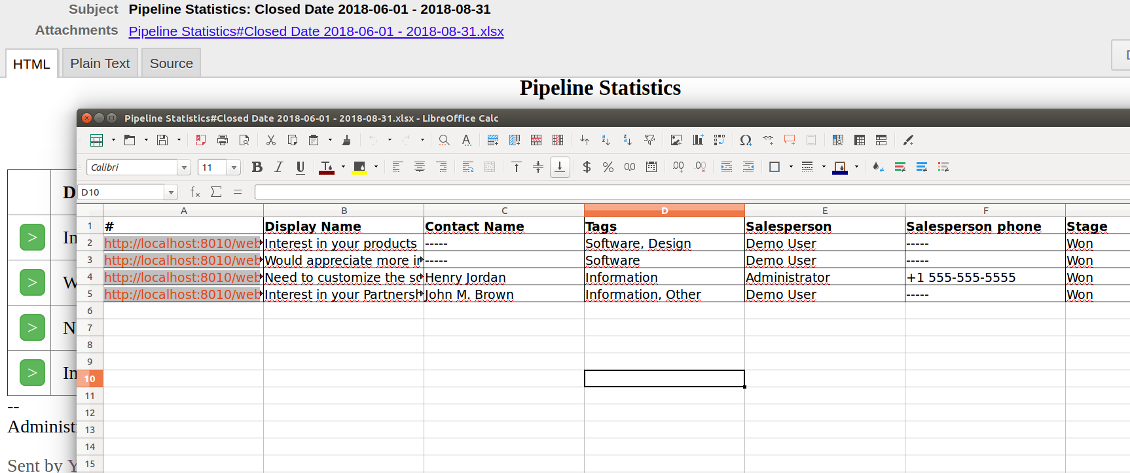
Send a table right in an email or/and as Excel (xlsx) table.
Reminder view features
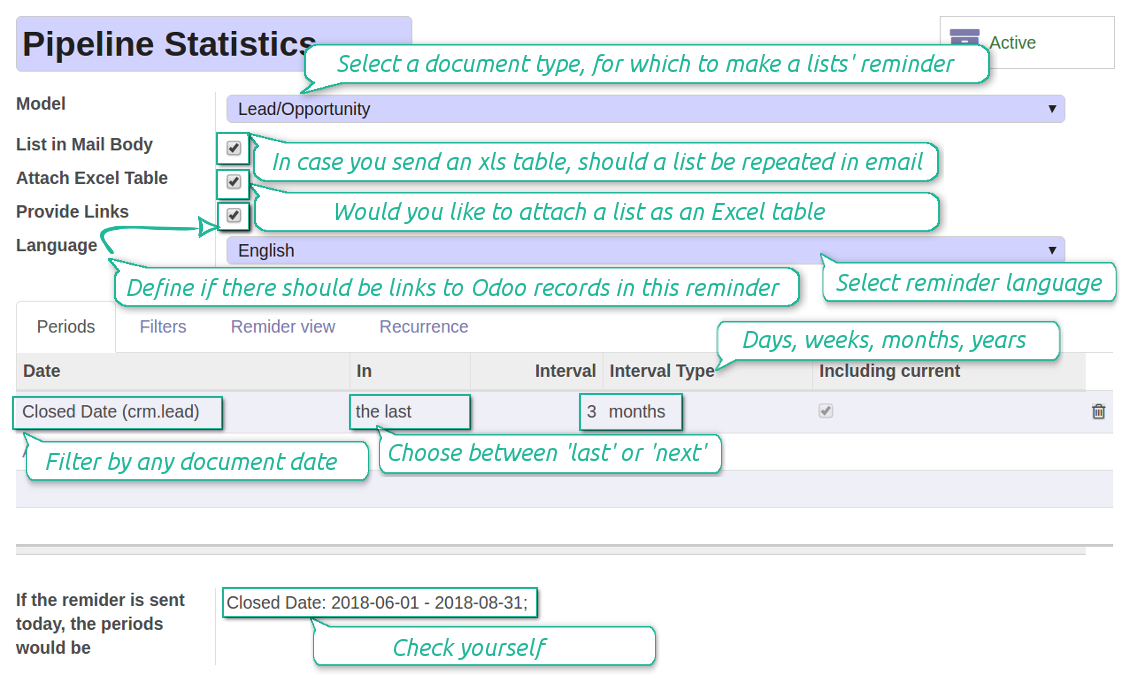
- The tool allows choosing an unlimited number of columns for this document. It might be any field of a target model of the following types: char, text, html, integer, float, selection, boolean, date, datetime and relations to other documents (many2one, one2many, many2many). The set includes even computed fields
- For relational fields you might choose the second level precision. For example, you might show a phone of a customer for a sales orders' reminder or tags' colors for tasks
- It is possible to adapt column names. By default a field description is stated (on the language of this reminder), but users are allowed to change them
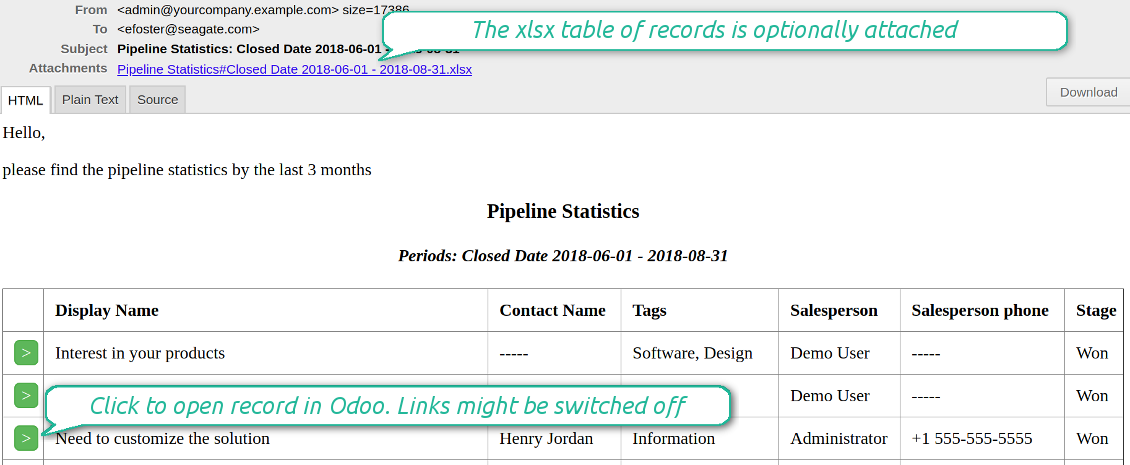
- Optionally attach an xlsx table for reminders. It would have the same columns as a reminder itself. It is also possible to exclude a list from email and leave only an xlsx table
- Include or exclude links to Odoo objects. References are great in case of internal reminders, but they are harmful in case of external ones
- Introduce any greeting text for a notification
- Choose reminders' language
- Do not change email template manually. It will break all styles. Look at the Configuration tab
Ảnh chụp màn hình
Configure list columns and reminder appearance
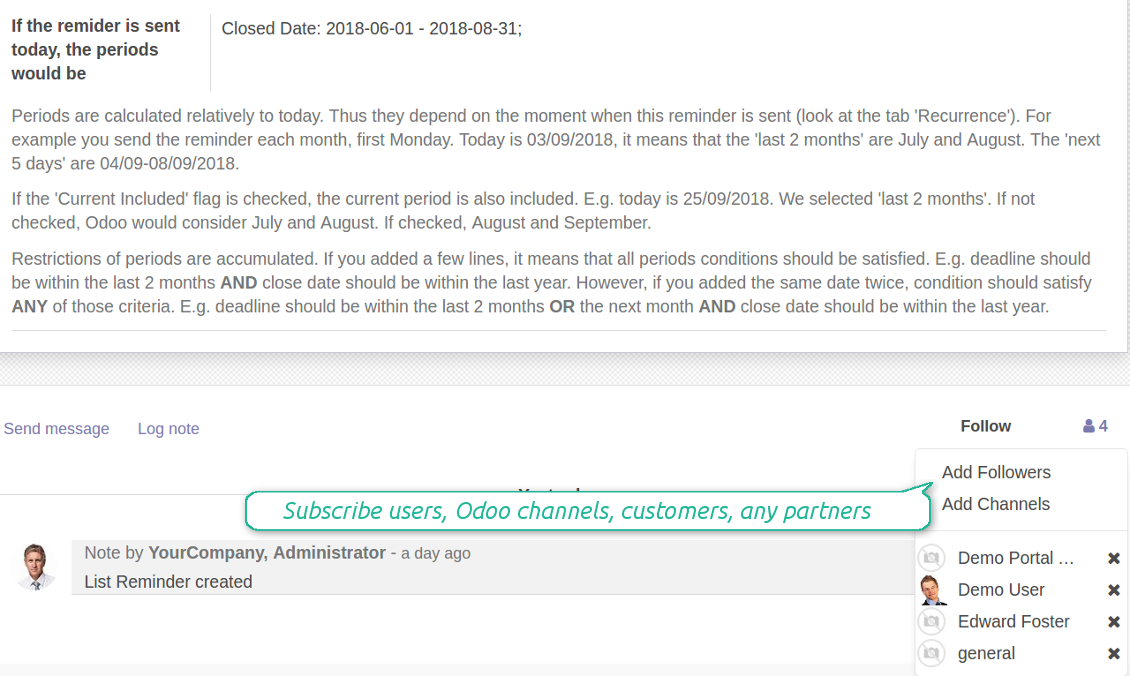
Followers regularly receive lists on their email
The Excel (xlsx) table is optionally attached
Filtering and periods for analysis
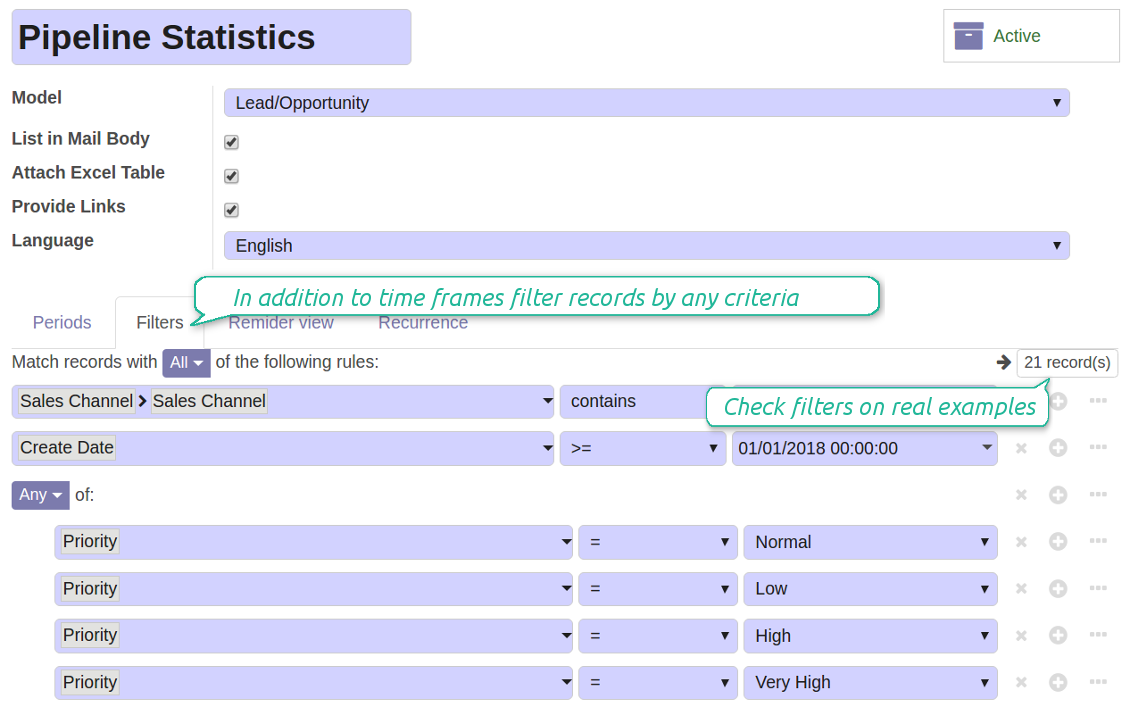
Apply any sort of filters to include only required documents.
How to limit documents by relative periods
- Restrict time frames by any date or datetime of a target document type. It might be deadline, create or close date, next activity day, etc.
- If you wish, apply a few periods based on different dates. For instance, select this month closed leads which have been opened the last year. Records should satisfy all of the criteria, however if you selected the same date twice, records should be within any of those periods. For example, a deadline should be within the last 2 months OR the next month AND a close date should be within the last year
- Periods are relative, so they are periods in comparison to today. E.g., 'this month', 'the last year', 'the next 5 weeks'
- Intervals may both define previous time frames ('the last') and forthcoming periods ('the next')
- As intervals select days, weeks, months, or years
- Exclude or include a current period. For example, you might send a reminder on the first day of a month for a previous one. Vice versa, forward a list on the last day of this month for a current one
- Test your settings according to a real-time-shown result below the table
How to filter documents under analysis
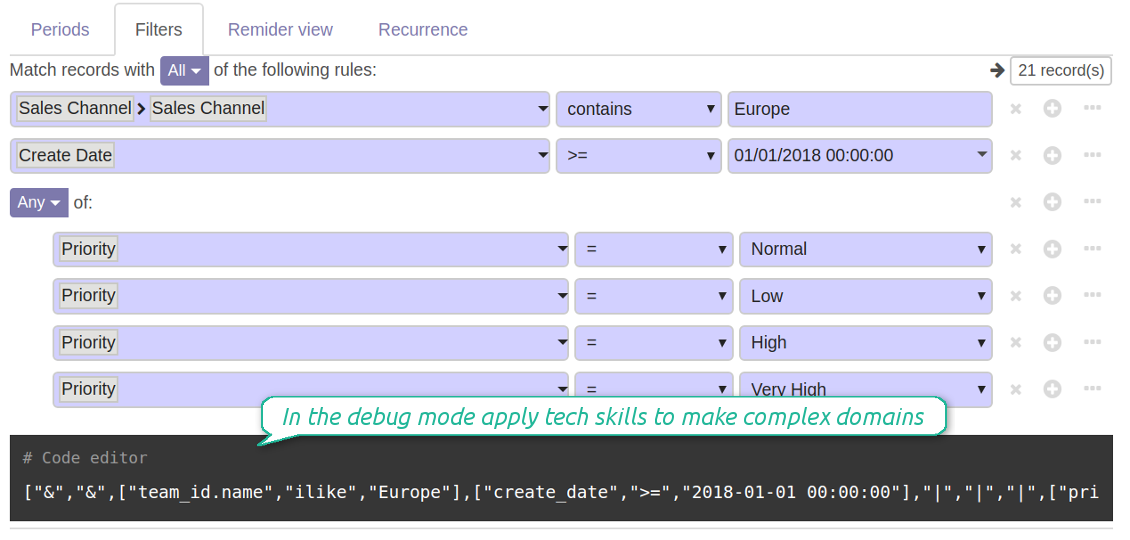
- Filters are organized as a domain constructor: you may use the most of storable fields with any level of precision. The latter means, for example, you can filter sales orders by a related partner country or even by a state of a company of a related partner
- Use both 'AND' ('all') and 'OR' ('any') operators to achieve a desired result
- Check yourself by pressing the button 'Records': it would show all documents which at the moment satisfy your search criteria (and you have an access to)
- If you feel confident to prepare Reverse Polish Notation domains, turn on the debug mode, and apply more complex expressions such as, for instance, ' category is child_of all'
Ảnh chụp màn hình
Configure lists of records to be sent according to chosen periods
Filter Odoo records to be included into a list
Good at Odoo domains? Turn on the debug mode
Flexible recurrence
Which periodicity I may apply
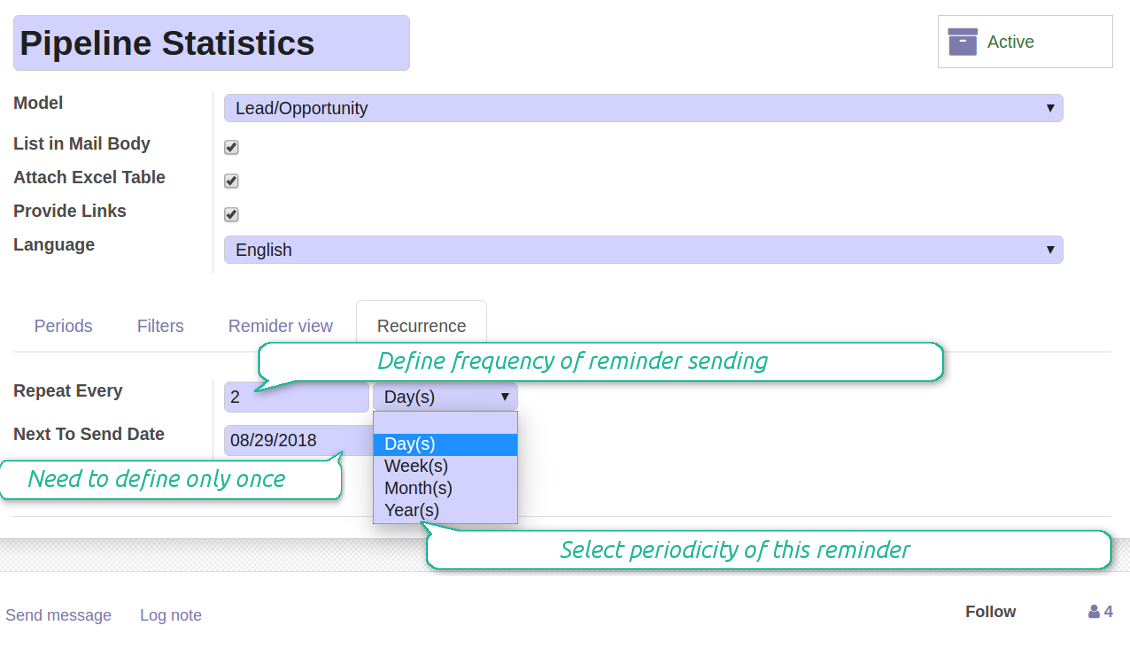
- Send a reminder every day, each 5 days, each 181 days
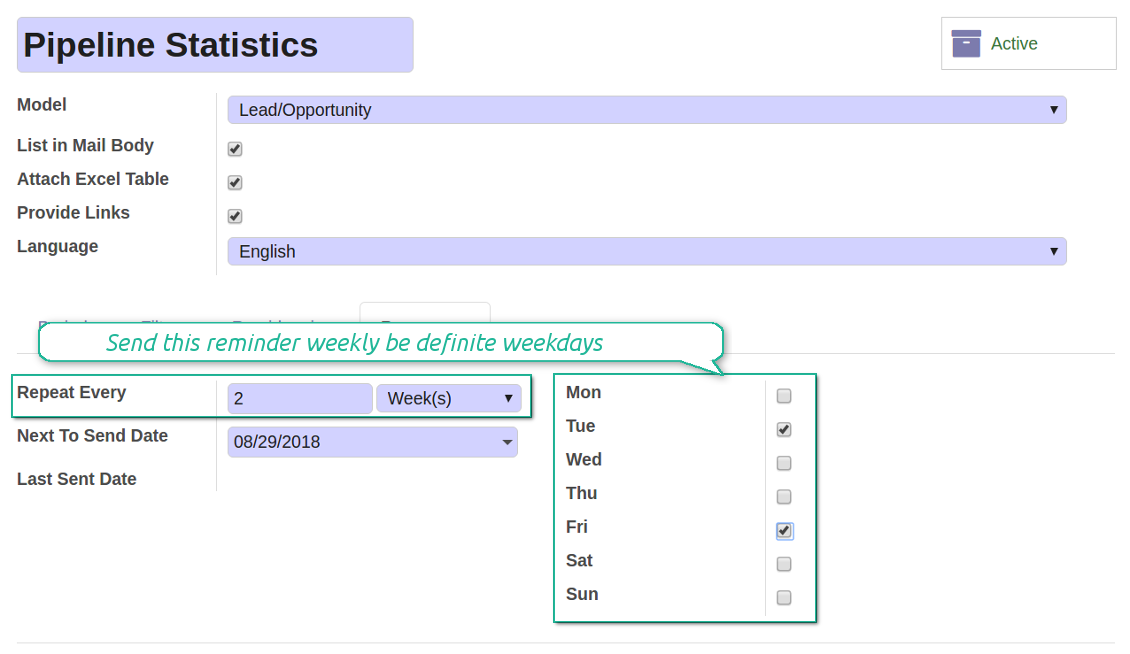
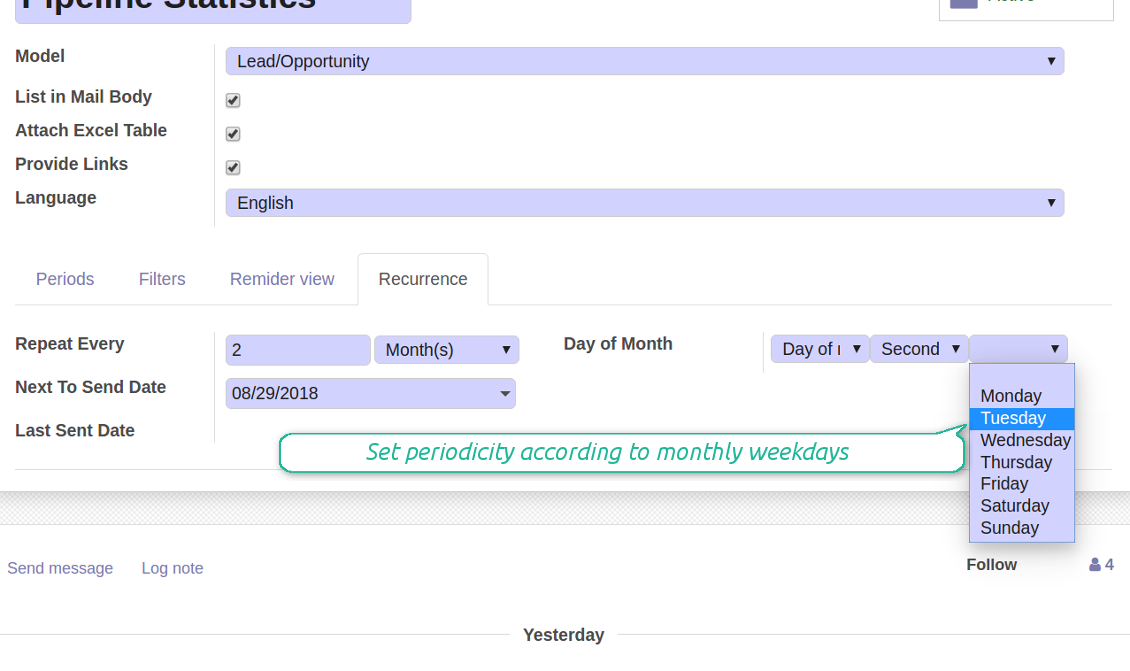
- Notify by exact weekdays, e.g. on Mondays and Thursdays
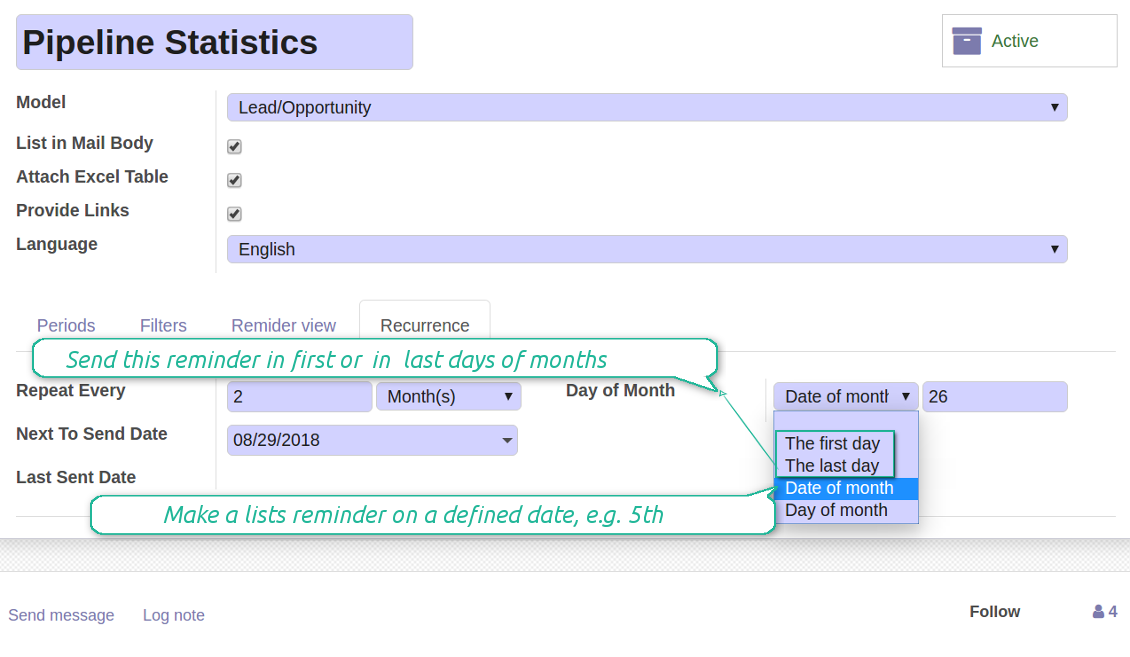
- For monthly reminders use:
- The first month day
- The last month day
- The exact date, e.g. the 16th
- A weekday, for instance, the first Monday, the last Friday, or the third Tuesday
- Prepare a yearly statistics on an exact year day, e.g. on the first of September
Ảnh chụp màn hình
Flexibly configure reminders frequency
Send reminders weekly on predefined weekdays
Define a month day for lists notifications
Make reminder monthly on predefined weekdays
Reminder for any Odoo partner
Ảnh chụp màn hình
Remind to any user, customer, supplier or send lists to Odoo channels
Periodic reporting managers
User rights peculiarities
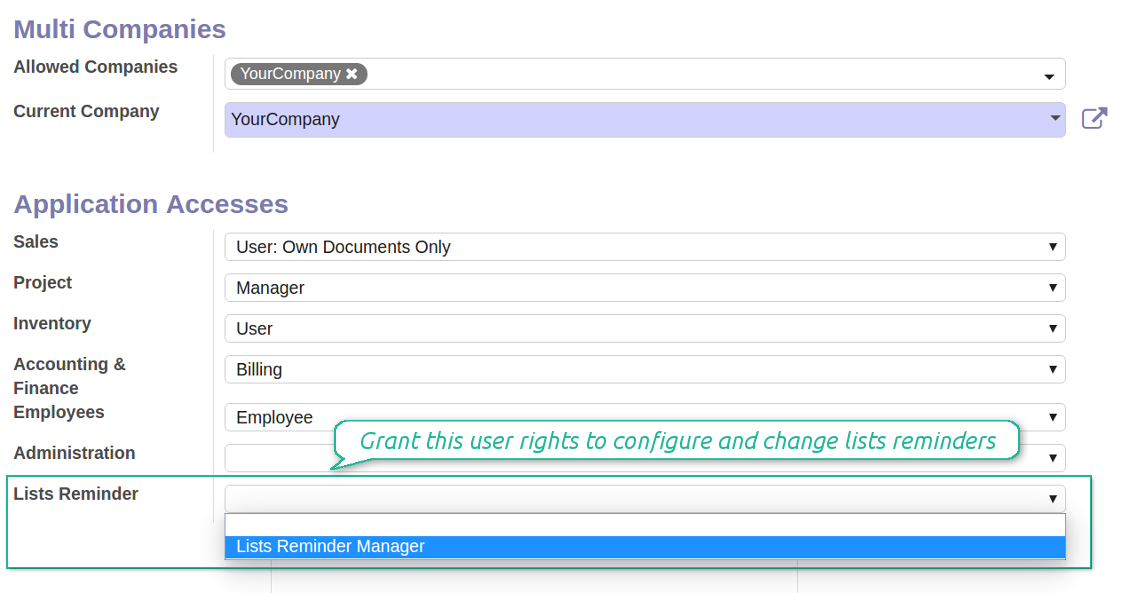
- To observe the reminders' menu and configure new notifications, select the right 'Lists Reminder Manager' in this user settings
- Make sure you trust such a person. This user would be able to send any data by a document type to which he/she has a read access. It means, that if a user might read leads in general, but do not have rights to read the exact lead 'XXX', he/she would be able to send the data by the lead 'XXX' using the reminder
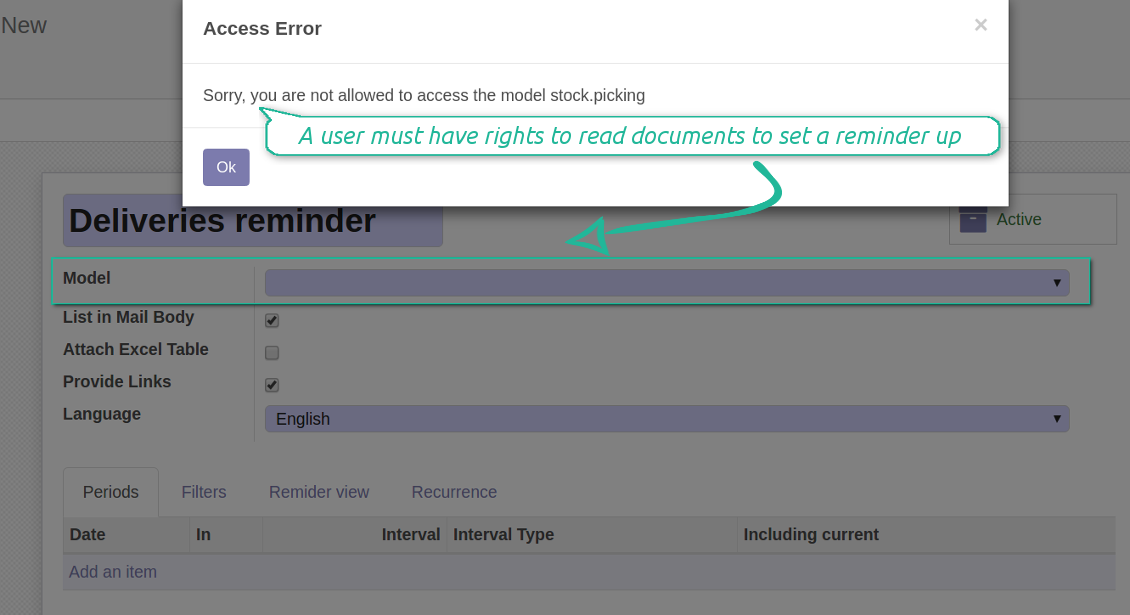
- To configure a reminder by this document type, a user should have a read access to such a model. For example, an employee without the right 'Warehouse user' might not prepare a reminder by deliveries
Ảnh chụp màn hình
Make any user prepare lists reminders
Reminder managers may configure lists only for documents they can read
Great and very useful app
First of all, the team behind this app is great, support is immediate, and response is fast. The application is very useful in managing any type of notification to keep you updated with all what's happening within your company.
Mẹo cấu hình và cài đặt cho Periodic Reporting and Reminders Odoo v.11
Python dependency
To provide the feature of dynamic Excel table generation, install the Python library xlsxwriter:
pip install xlsxwriter
Email template
The basic reminder appearance should not be configured through Odoo email templates. In the debug mode go to:
- Settings > Technical > Email > Templates > Reminder
Do not change this template! Otherwise, its styles would be broken, and you would receive blank emails.
Have you broken everything? Not a problem, remove this template and update the module. The email appearance will be recovered.
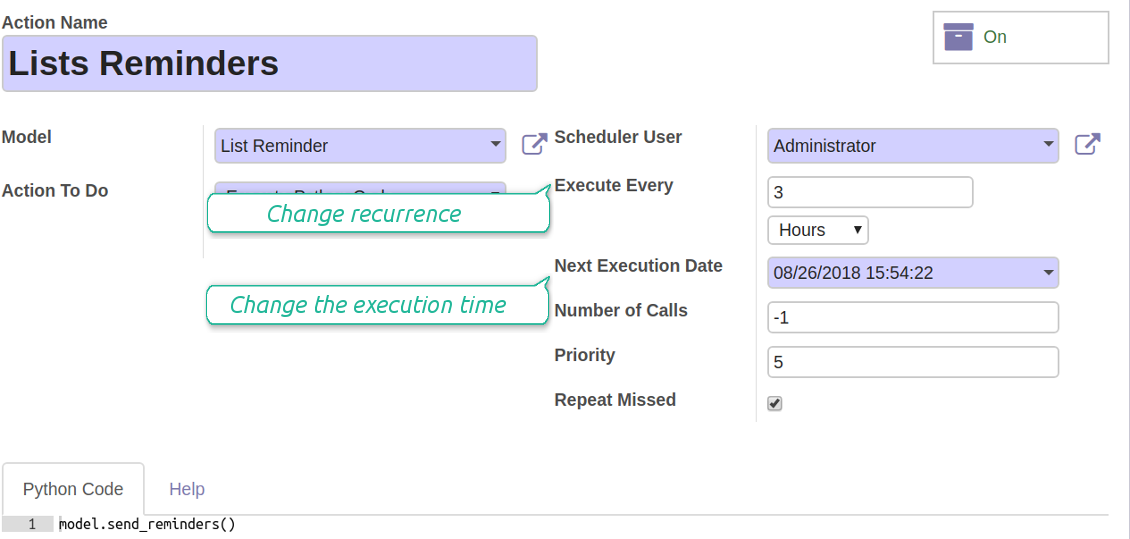
Scheduled job (cron)
By default Odoo checks whether any reminder should be sent on a daily basis. You can change a frequency or time of check. In the debug mode go to:
- Settings > Technical > Automation > Scheduled Actions > Lists Reminders
The situation for a higher frequency is when you have many reminders with a lot records to search. In that case the cron job might be not ready with all actions in time, and it is better to repeat the check. However, be cautious: do not make it too frequent. Otherwise, one job would not be fulfilled until another one, and Odoo would collapse until a reminder is sent.
The cron job interval should be bigger than your Odoo configured timeout. Sometimes it is required to increase a timeout, if a number of documents in a list accounts for a few thousands records.
The module is not aimed to export data from Odoo. Do not try to send everyday your whole database.
Configure the planned job for reminders
Câu hỏi thường gặp về Periodic Reporting and Reminders Odoo v.11
Chính sách cập nhật của các công cụ của bạn là gì?
Theo chính sách hiện tại của Odoo Apps Store:
- Mọi mô-đun mua cho phiên bản 12.0 trở về trước cho phép truy cập mọi phiên bản đến 12.0.
- Từ phiên bản 13.0, mỗi phiên bản mô-đun phải mua riêng.
- Bất kể phiên bản, mua công cụ cho quyền mọi cập nhật và sửa lỗi trong một phiên bản chính.
Lưu ý rằng nhóm faOtools không kiểm soát các chính sách đó. Mọi câu hỏi xin liên hệ trực tiếp đại diện Odoo Apps Store.
Làm sao cài ứng dụng của bạn trên Odoo.sh?
Cách thẳng nhất là dùng quy trình có sẵn của cửa hàng Odoo:
1. Mở trang phân hệ và bấm nút Deploy on odoo.sh
2. Sau đó bạn sẽ được chuyển tới trang GitHub. Đăng nhập tài khoản, rồi bấm 'Create a new repo' hoặc dùng repo có sẵn. Hãy đảm bảo kho là riêng tư. Không được phép công bố ứng dụng theo giấy phép OPL-1. Nếu cần, tạo repo mới cho dự án Odoo.sh
3. Rồi vào odoo.sh và bấm nút Deploy. Trong cửa sổ pop-up, gửi quyết định và bấm 'Continue.' Thao tác này sẽ kích hoạt cài đặt.
Các bước này sẽ cài ứng dụng cho nhánh production của dự án. Nếu muốn triển khai ứng dụng cho nhánh khác hoặc cập nhật phân hệ, hãy làm các bước sau:
1. Tải mã nguồn ứng dụng từ cửa hàng Odoo
2. Commit phân hệ vào kho GitHub cần thiết. Đảm bảo không thư mục/tệp ứng dụng nào bị bỏ qua (tức không nằm trong .gitignore của repo). Kho được odoo.sh tạo tự động và mặc định có thể gồm mục quan trọng (vd. /lib). Hãy tải lên mọi thư mục, thư mục con và tệp của phân hệ, không ngoại lệ
3. Triển khai nhánh đích của dự án odoo.sh hoặc, nếu thiết lập của bạn giả định vậy, đợi đến khi được xây tự động.
Tôi nên cài ứng dụng của bạn trên máy chủ riêng thế nào?
2. Khởi động lại máy chủ Odoo;
3. Bật chế độ nhà phát triển (cài đặt kỹ thuật);
4. Cập nhật danh sách ứng dụng (menu ứng dụng);
5. Tìm ứng dụng và bấm 'Activate'/'Install';
6. Làm theo hướng dẫn trên trang ứng dụng nếu có.
Tôi thấy ứng dụng có tiện ích thêm. Có thể mua sau không?
Có, chắc chắn. Đồng thời Odoo tự thêm mọi phụ thuộc vào giỏ, nên bạn nên loại các công cụ đã mua để tránh trả hai lần.
Tôi triển khai ứng dụng trên Odoo.sh và thấy cảnh báo/lỗi trong kiểm thử
Cảnh báo đỏ/cam không ảnh hưởng đến tính năng của ứng dụng. Đáng tiếc, đôi khi phân hệ của chúng tôi không qua được các kiểm thử tự động chuẩn vì chúng giả định hành vi xung đột với mục tiêu ứng dụng. Ví dụ chúng tôi đổi cách tính giá, trong khi kiểm thử phân hệ Odoo chuẩn so giá cuối với thuật toán chuẩn.
Trước hết, hãy kiểm tra tính năng của cơ sở dữ liệu đã triển khai. Mọi thứ có chạy đúng không?
Nếu vẫn cho rằng cảnh báo ảnh hưởng tính năng thật, hãy liên hệ chúng tôi và gửi nhật ký cài đặt đầy đủ cùng danh sách đầy đủ phân hệ đã triển khai (gồm lõi và bên thứ ba).
Tôi có thể mua ứng dụng trực tiếp từ công ty bạn không?
Không, chúng tôi chỉ phân phối công cụ qua cửa hàng ứng dụng Odoo chính thức.
Tôi muốn được giảm giá
Rất tiếc, chúng tôi không có phương tiện kỹ thuật để cung cấp giá riêng.
Tôi có thể cài ứng dụng trên cơ sở dữ liệu Odoo Online (SaaS) không?
Không, ứng dụng bên thứ ba không dùng được trên Odoo Online. Rất tiếc Odoo SaaS chặn khả năng đó.
Công cụ của bạn phụ thuộc ứng dụng khác. Tôi có cần mua chúng không?
Có, công cụ cần tất cả phân hệ ghi trong phụ thuộc để chạy đúng. Giá trên trang ứng dụng đã gồm mọi phụ thuộc cần thiết.
Giá mô-đun bằng đô la Mỹ là bao nhiêu? Sao lại đổi?
Giá phân hệ của chúng tôi tính bằng euro. Cửa hàng Odoo đổi sang các tiền tệ khác theo tỷ giá nội bộ. Vì vậy giá bằng đô la Mỹ có thể đổi khi tỷ giá được cập nhật.
Lời ứng dụng và trang web ở ngôn ngữ khác tiếng Anh được hỗ trợ bởi AI và khớp với bản dịch Odoo chính thức. Nếu bạn thấy sai, gửi phiếu hỗ trợ về đúng bản dịch và chúng tôi sẽ sửa.
Báo lỗi
Nếu gặp lỗi hoặc hành vi không nhất quán, hãy liên hệ. Chúng tôi cam kết sửa trong 60 ngày kể từ khi mua và vẫn muốn cải thiện công cụ sau giai đoạn đó.
Bạn không cần số điện thoại hay thẻ tín dụng để liên hệ. Chỉ cần đăng ký email ngắn, không quá 30 giây.
Hãy nêu càng nhiều chi tiết càng tốt trong yêu cầu: ảnh chụp màn hình, nhật ký máy chủ Odoo, mô tả đầy đủ cách tái hiện sự cố, v.v. Thường mất vài ngày làm việc để chuẩn bị kế hoạch xử lý (nếu xác nhận lỗi) hoặc hướng dẫn việc cần làm (nếu không).
Yêu cầu tính năng công khai và ý tưởng module (phát triển miễn phí)
Chúng tôi rất muốn cải thiện công cụ và biết ơn mọi phản hồi. Nếu yêu cầu của bạn hữu ích cho mọi người và có thể triển khai hiệu quả, nhóm sẽ đưa vào danh sách việc cần làm.
Danh sách việc cần làm như vậy được xử lý đều đặn và không phát sinh phí thêm. Dù chúng tôi không hứa hạn chót và thiết kế cuối, đây có thể là cách tốt để có tính năng mong muốn mà không đầu tư và rủi ro.
Bạn không cần số điện thoại hay thẻ tín dụng để liên hệ. Chỉ cần đăng ký email ngắn, không quá 30 giây.

Công cụ sắp xếp linh hoạt tệp đính kèm Odoo vào thư mục và đồng bộ thư mục với máy khách đám mây: Google Drive, OneDrive/SharePoint, Nextcloud/ownCloud, Dropbox, Amazon S3, Box và NAS. DMS. Trình quản lý tệp. Hệ thống quản lý tài liệu
398€
Công cụ để lưu mật khẩu an toàn trong Odoo cho dùng chung. Kho dùng chung

Công cụ xây dựng cơ sở tri thức sâu và có cấu trúc cho nội bộ và bên ngoài. Knowledge System. KMS. Bản sửa kiểu wiki.
398€
Công cụ đồng bộ hai chiều tự động tệp đính kèm Odoo với tệp OneDrive
487€
Công cụ đặt mục tiêu KPI và kiểm soát hoàn thành theo kỳ. Bảng điều khiển KPI. Trình thiết kế bảng. Biểu đồ KPI

Công cụ đồng bộ hai chiều tự động tệp đính kèm Odoo với tệp Google Drive
487€
Công cụ quản lý dịch vụ theo thời gian, từ đặt lịch đến bán hàng và đánh giá
398€