Periodic Reporting and Reminders v.11
The tool to generate and periodically send reports and reminders

Any Odoo documents' reporting
Look at popular use cases
- To send periodical statistics for managers
- To forward to-do lists for certain actions
- To plan forthcoming events and actions
- To notify customers or suppliers of done jobs.
Pipeline results --> to get leads closed the previous month for a team manager
- Choose Lead/Opportunity as a model
- Define a period as Closed Date in the last month
- Make a filter Sales Channel > Sales Channel contains 'Europe', where 'Europe' is your sales team
- As columns define Display Name, Salesperson > name, Salesperson > phone, Tags, Expected Revenue
- Subscribe a sales team manager for this reminder
- Send a list each month, on the first Monday.
Similar lists might be configured for sale orders, deliveries, purchase orders, manufacturing operations, etc.
Daily to-do list --> to get activities which should be done today or previously
- Choose Activity as a document type
- Define a period as Due Date in the last 10000 days including this (to get even the eldest activities)
- Make a filter Assigned to > Name contains 'John Brown', where 'John Brown' is a user to notify
- As columns apply Display name, Category, Due Date, Note
- Subscribe a John Brown for this reminder
- Send a list everyday.
Similar reminders are usually prepared for project tasks, opportunities, planned deliveries or incoming shipments, etc.
Planned events --> to get events which will happen in forthcoming periods
- Choose Event as an object for this reminder
- Define a period as Start Date the last week, including this (it would be 'this week'), or the next 3 weeks
- Make no filters
- As columns apply Event name, Location, Start Date, End Date
- Subscribe a John Brown for this reminder, where John Brown is an event department head
- Send a list on Mondays.
Similar reminders are Okay for activities, tasks, leads, deliveries, incoming shipments, etc.
Customer project statistics --> to notify customers about their tasks
- Choose Task as a target model
- Define a period as Create Date in the last year
- Make 2 filters: Customer > Parent name is 'Agrolait' or Customer name is 'Agrolait', where 'Agrolait' is project customer
- As columns apply Display name, Deadline, Description, Last Stage Update, Stage > display name
- Subscribe a John Brown for this reminder, where John Brown is a managing partner of Agrolait
- Send a list on the 10th of January each year.
Similar statistics is frequently forwarded by support tickets, paid invoices, done sale orders, etc.
Configurable statistic and appearance
Send a table right in an email or/and as Excel (xlsx) table.
Reminder view features
- The tool allows choosing an unlimited number of columns for this document. It might be any field of a target model of the following types: char, text, html, integer, float, selection, boolean, date, datetime and relations to other documents (many2one, one2many, many2many). The set includes even computed fields
- For relational fields you might choose the second level precision. For example, you might show a phone of a customer for a sales orders' reminder or tags' colors for tasks
- It is possible to adapt column names. By default a field description is stated (on the language of this reminder), but users are allowed to change them
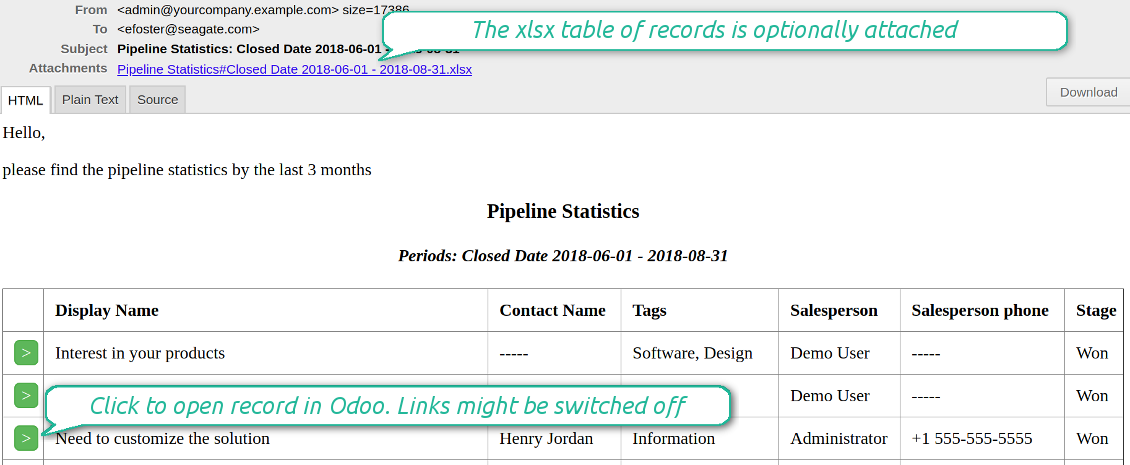
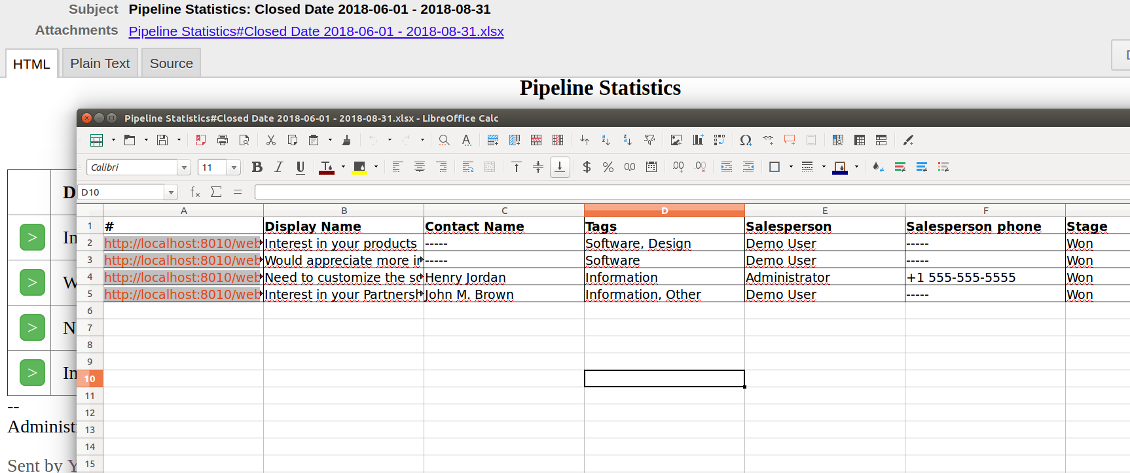
- Optionally attach an xlsx table for reminders. It would have the same columns as a reminder itself. It is also possible to exclude a list from email and leave only an xlsx table
- Include or exclude links to Odoo objects. References are great in case of internal reminders, but they are harmful in case of external ones
- Introduce any greeting text for a notification
- Choose reminders' language
- Do not change email template manually. It will break all styles. Look at the Configuration tab
Capturi Ecran
Configure list columns and reminder appearance
Followers regularly receive lists on their email
The Excel (xlsx) table is optionally attached
Filtering and periods for analysis
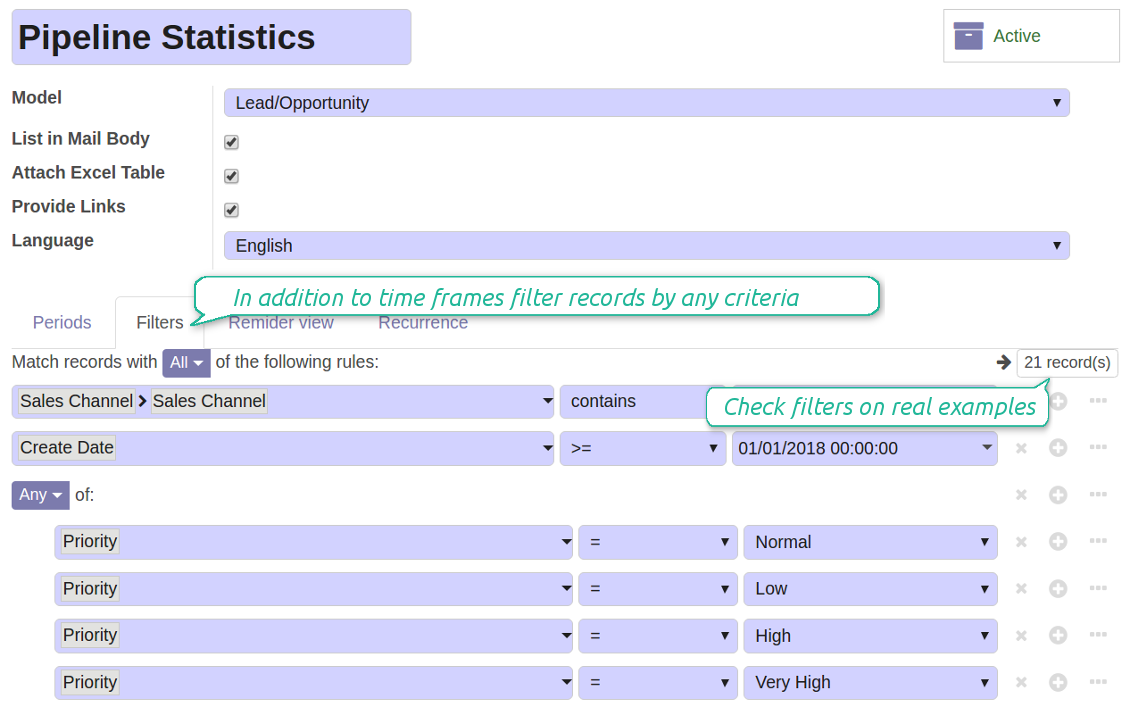
Apply any sort of filters to include only required documents.
How to limit documents by relative periods
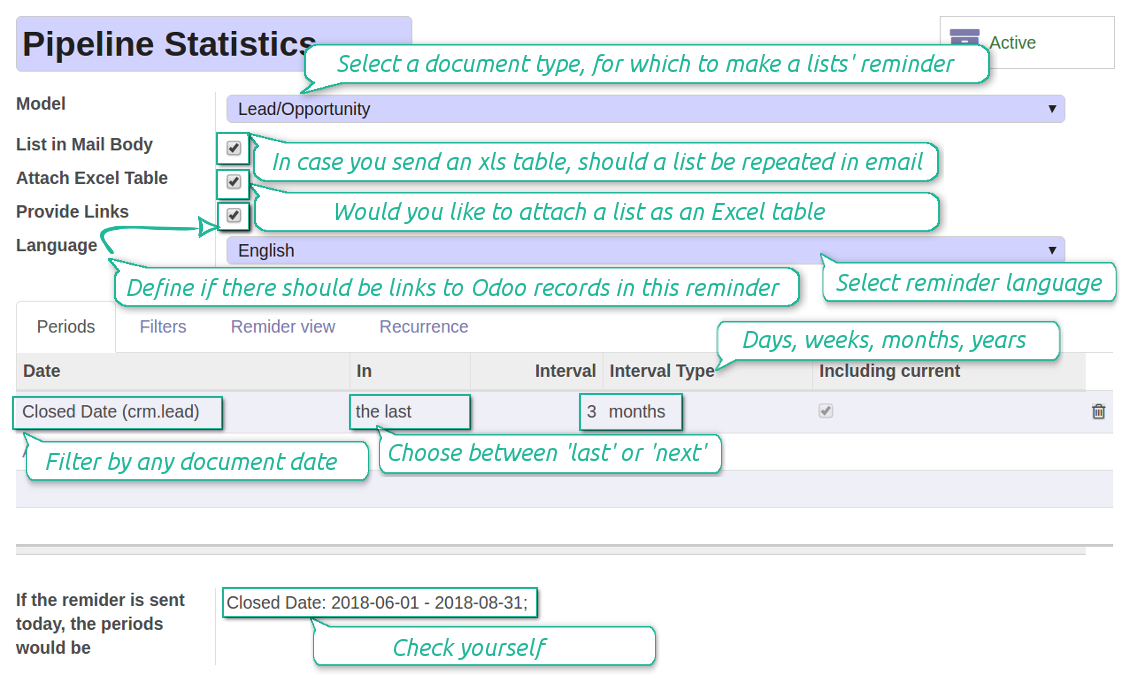
- Restrict time frames by any date or datetime of a target document type. It might be deadline, create or close date, next activity day, etc.
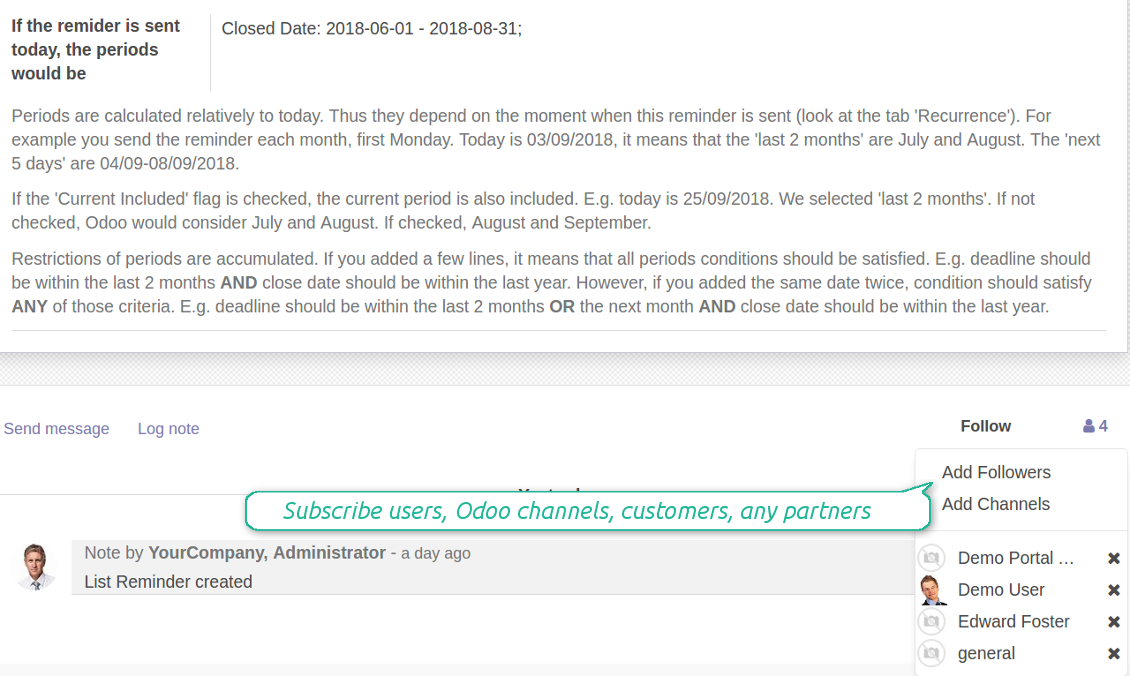
- If you wish, apply a few periods based on different dates. For instance, select this month closed leads which have been opened the last year. Records should satisfy all of the criteria, however if you selected the same date twice, records should be within any of those periods. For example, a deadline should be within the last 2 months OR the next month AND a close date should be within the last year
- Periods are relative, so they are periods in comparison to today. E.g., 'this month', 'the last year', 'the next 5 weeks'
- Intervals may both define previous time frames ('the last') and forthcoming periods ('the next')
- As intervals select days, weeks, months, or years
- Exclude or include a current period. For example, you might send a reminder on the first day of a month for a previous one. Vice versa, forward a list on the last day of this month for a current one
- Test your settings according to a real-time-shown result below the table
How to filter documents under analysis
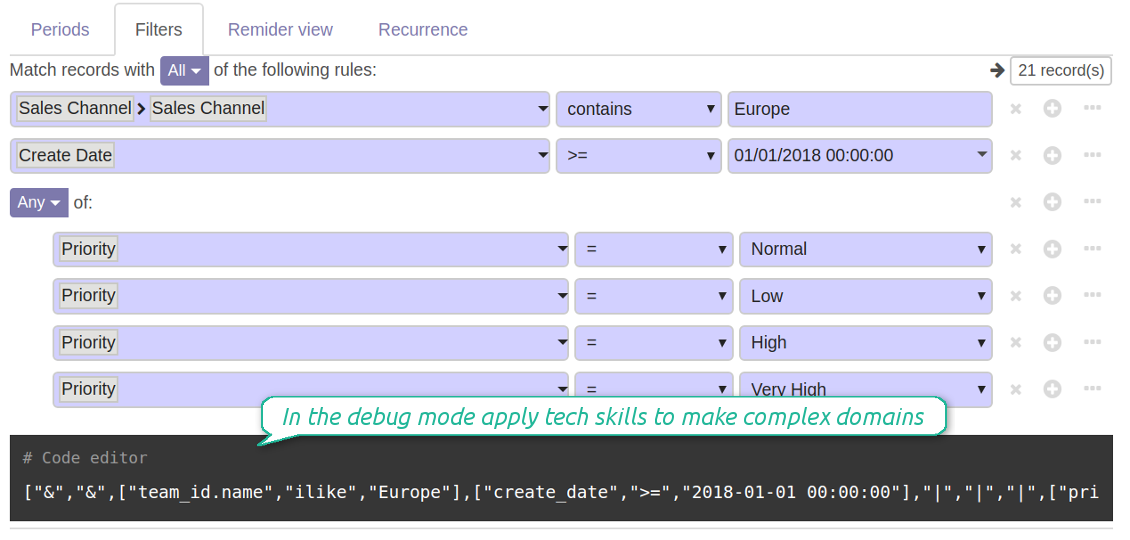
- Filters are organized as a domain constructor: you may use the most of storable fields with any level of precision. The latter means, for example, you can filter sales orders by a related partner country or even by a state of a company of a related partner
- Use both 'AND' ('all') and 'OR' ('any') operators to achieve a desired result
- Check yourself by pressing the button 'Records': it would show all documents which at the moment satisfy your search criteria (and you have an access to)
- If you feel confident to prepare Reverse Polish Notation domains, turn on the debug mode, and apply more complex expressions such as, for instance, ' category is child_of all'
Capturi Ecran
Configure lists of records to be sent according to chosen periods
Filter Odoo records to be included into a list
Good at Odoo domains? Turn on the debug mode
Flexible recurrence
Which periodicity I may apply
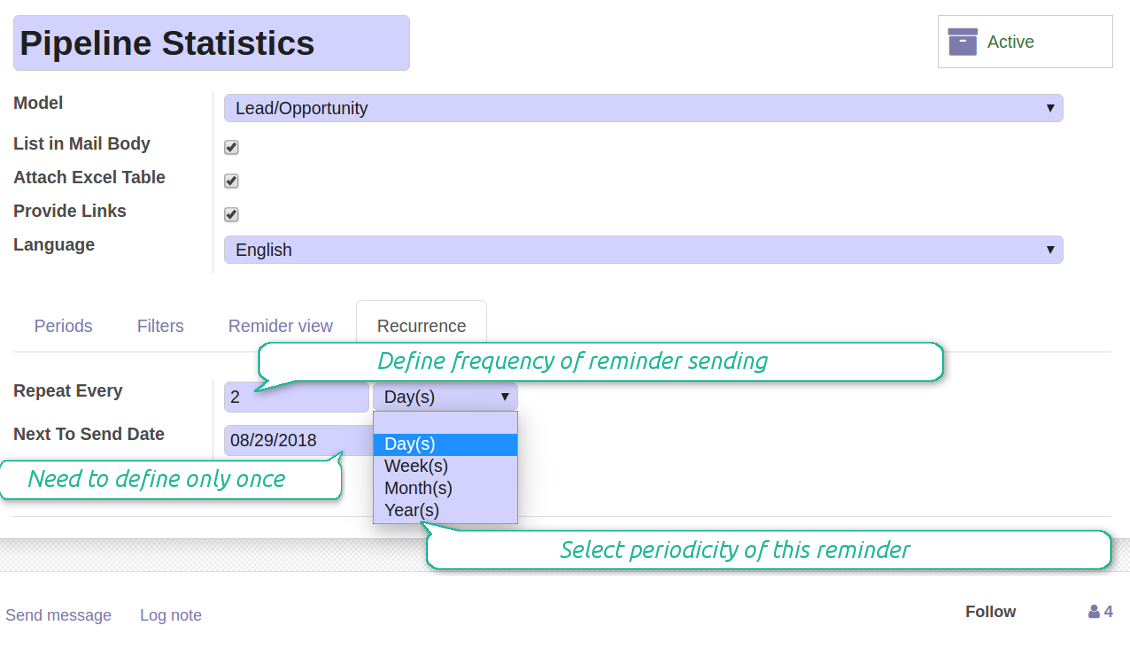
- Send a reminder every day, each 5 days, each 181 days
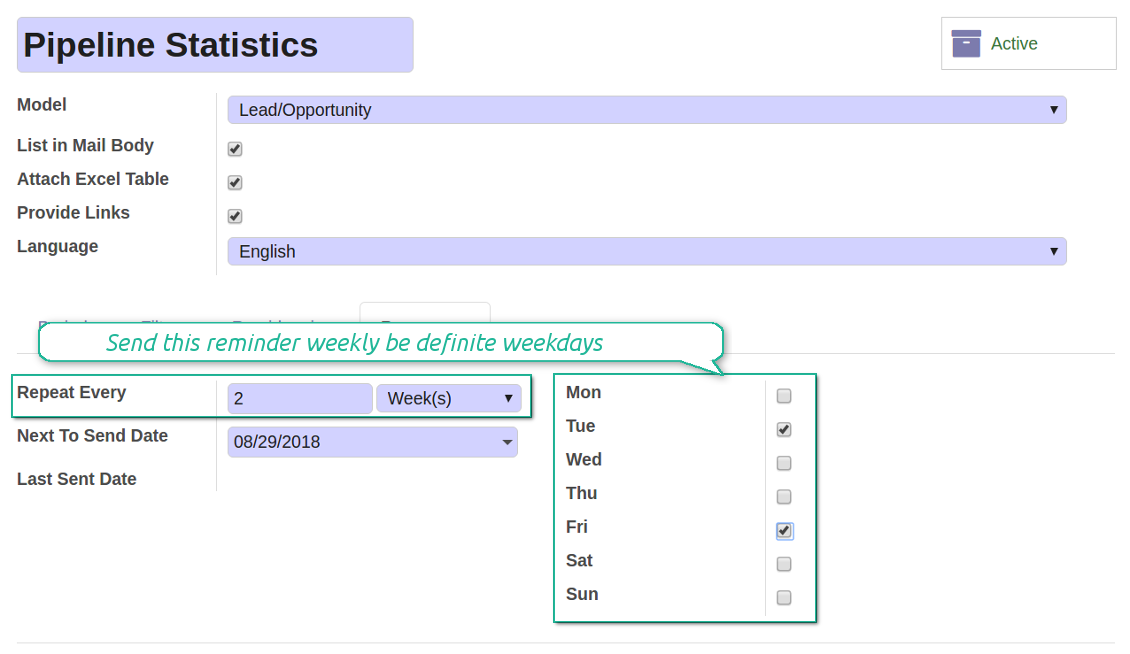
- Notify by exact weekdays, e.g. on Mondays and Thursdays
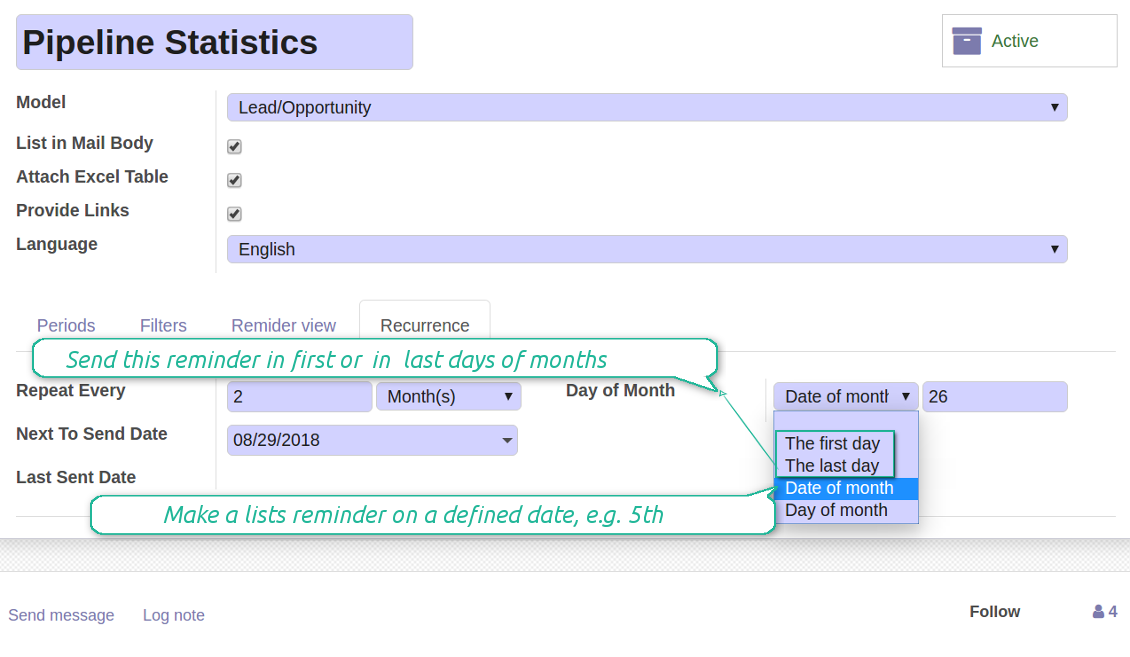
- For monthly reminders use:
- The first month day
- The last month day
- The exact date, e.g. the 16th
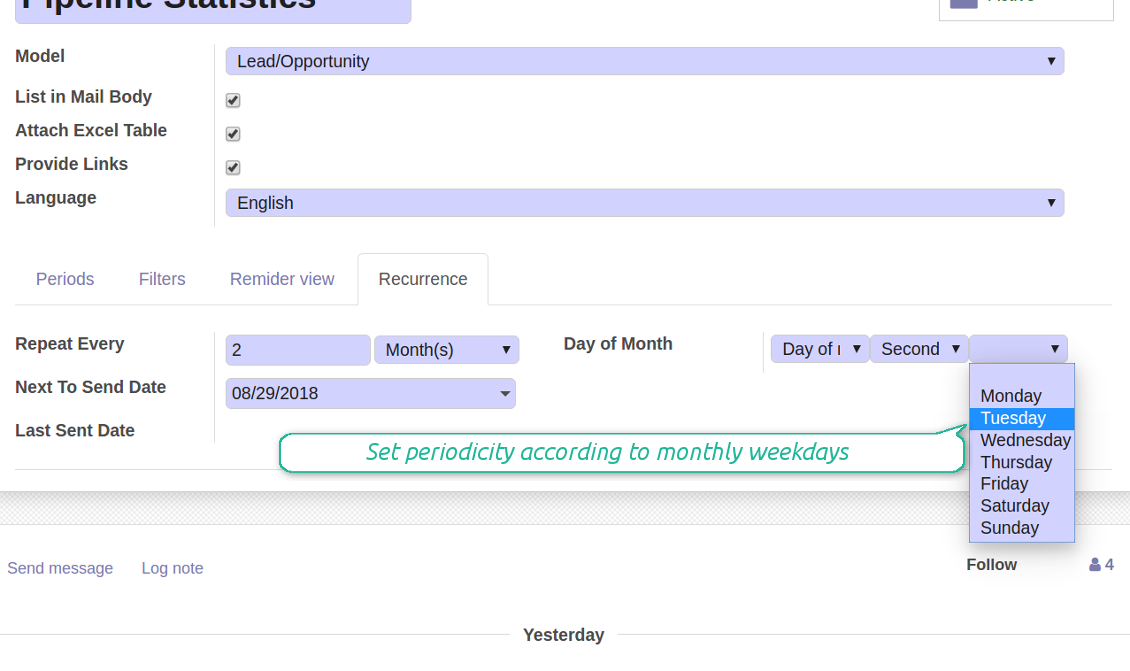
- A weekday, for instance, the first Monday, the last Friday, or the third Tuesday
- Prepare a yearly statistics on an exact year day, e.g. on the first of September
Capturi Ecran
Flexibly configure reminders frequency
Send reminders weekly on predefined weekdays
Define a month day for lists notifications
Make reminder monthly on predefined weekdays
Reminder for any Odoo partner
Capturi Ecran
Remind to any user, customer, supplier or send lists to Odoo channels
Periodic reporting managers
User rights peculiarities
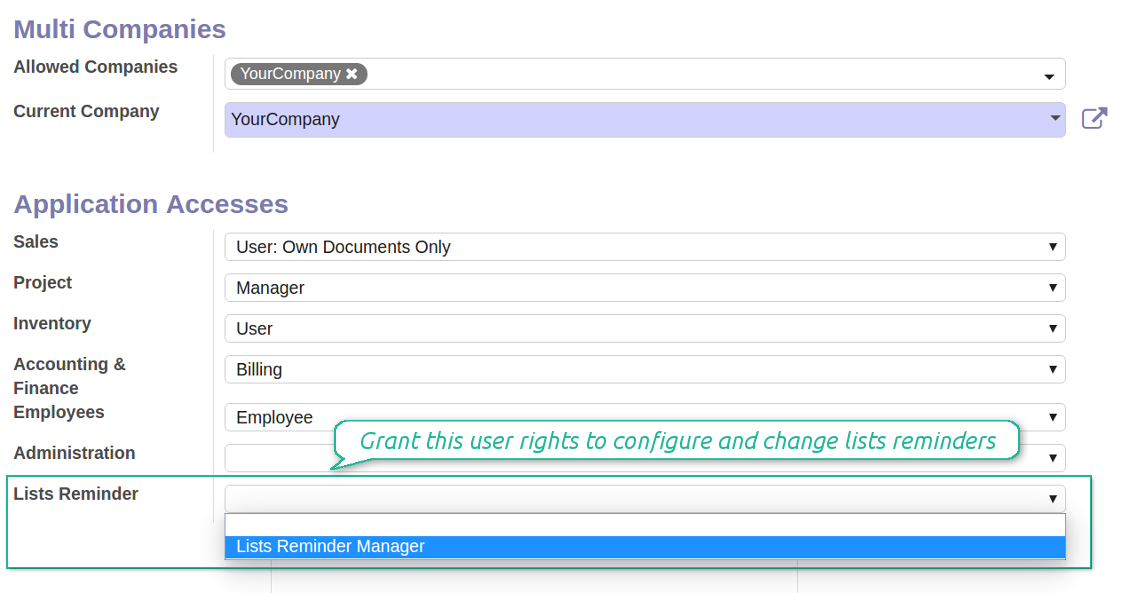
- To observe the reminders' menu and configure new notifications, select the right 'Lists Reminder Manager' in this user settings
- Make sure you trust such a person. This user would be able to send any data by a document type to which he/she has a read access. It means, that if a user might read leads in general, but do not have rights to read the exact lead 'XXX', he/she would be able to send the data by the lead 'XXX' using the reminder
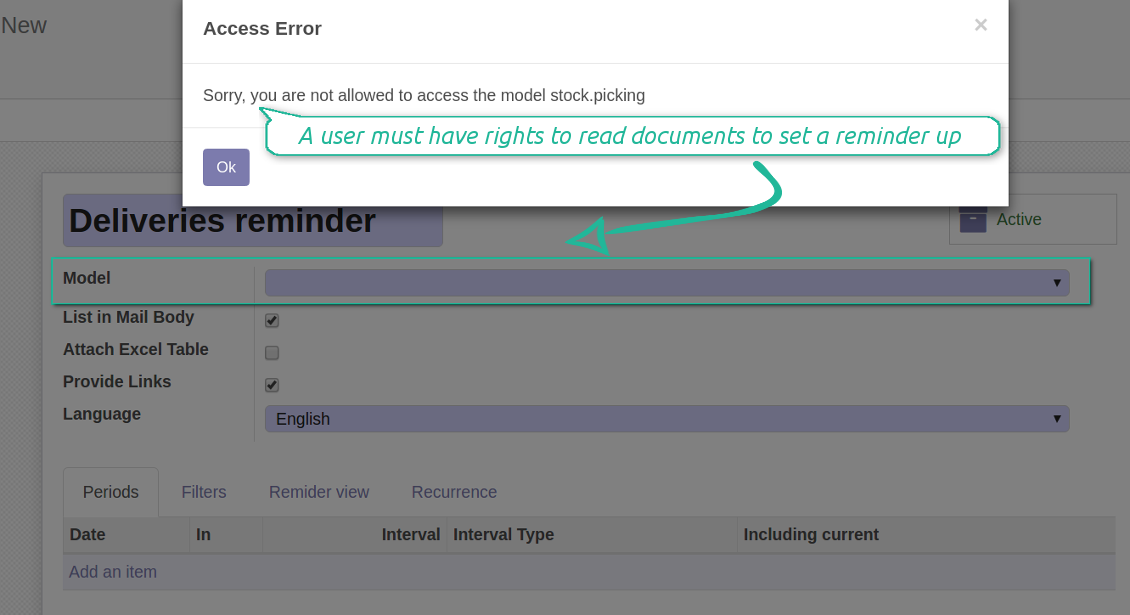
- To configure a reminder by this document type, a user should have a read access to such a model. For example, an employee without the right 'Warehouse user' might not prepare a reminder by deliveries
Capturi Ecran
Make any user prepare lists reminders
Reminder managers may configure lists only for documents they can read
Great and very useful app
First of all, the team behind this app is great, support is immediate, and response is fast. The application is very useful in managing any type of notification to keep you updated with all what's happening within your company.
Sfaturi de configurare și instalare pentru Periodic Reporting and Reminders Odoo v.11
Python dependency
To provide the feature of dynamic Excel table generation, install the Python library xlsxwriter:
pip install xlsxwriter
Email template
The basic reminder appearance should not be configured through Odoo email templates. In the debug mode go to:
- Settings > Technical > Email > Templates > Reminder
Do not change this template! Otherwise, its styles would be broken, and you would receive blank emails.
Have you broken everything? Not a problem, remove this template and update the module. The email appearance will be recovered.
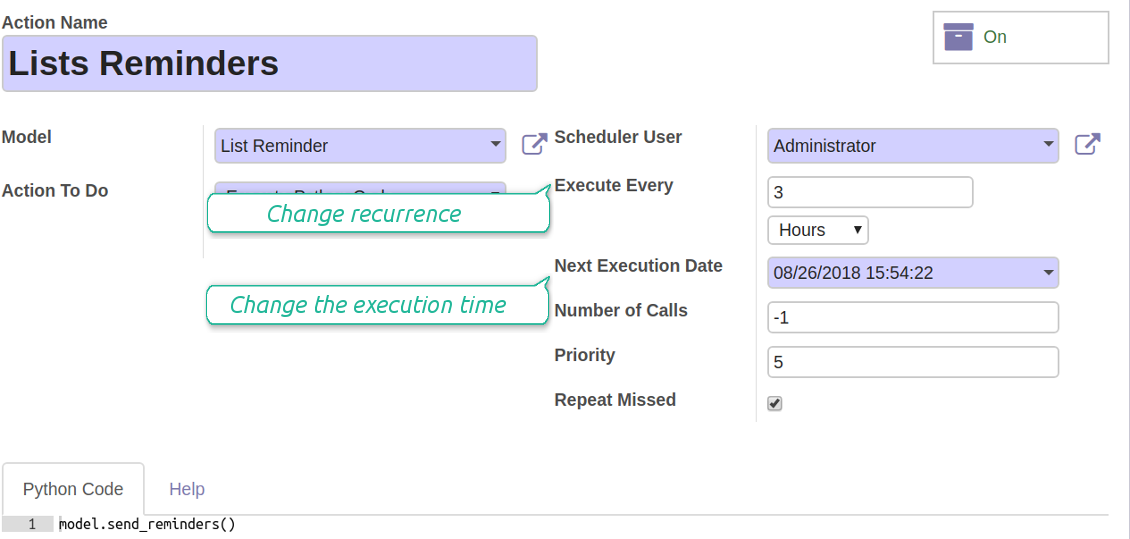
Scheduled job (cron)
By default Odoo checks whether any reminder should be sent on a daily basis. You can change a frequency or time of check. In the debug mode go to:
- Settings > Technical > Automation > Scheduled Actions > Lists Reminders
The situation for a higher frequency is when you have many reminders with a lot records to search. In that case the cron job might be not ready with all actions in time, and it is better to repeat the check. However, be cautious: do not make it too frequent. Otherwise, one job would not be fulfilled until another one, and Odoo would collapse until a reminder is sent.
The cron job interval should be bigger than your Odoo configured timeout. Sometimes it is required to increase a timeout, if a number of documents in a list accounts for a few thousands records.
The module is not aimed to export data from Odoo. Do not try to send everyday your whole database.
Configure the planned job for reminders
Întrebări frecvente despre Periodic Reporting and Reminders Odoo v.11
Care sunt politicile de actualizare ale instrumentelor dvs.?
Conform politicilor actuale Odoo Apps Store:
- Fiecare modul cumpărat pentru versiunea 12.0 și anterioară dă acces la toate versiunile până la 12.0.
- Începând cu versiunea 13.0, fiecare versiune de modul se cumpără separat.
- Indiferent de versiune, cumpărarea dă dreptul la toate actualizările și corecturile dintr-o versiune majoră.
Rețineți că echipa faOtools nu controlează aceste politici. Pentru întrebări contactați direct reprezentanții Odoo Apps Store.
Cum instalez aplicația dumneavoastră pe Odoo.sh?
Cea mai directă abordare este să folosiți fluxul încorporat al magazinului Odoo:
1. Deschideți pagina modulului și faceți clic pe butonul Deploy on odoo.sh
2. După aceea veți fi redirecționat la pagina GitHub. Conectați-vă la cont, apoi faceți clic pe 'Create a new repo' sau folosiți unul existent. Asigurați-vă că depozitul este privat. Nu este permisă publicarea aplicațiilor sub licența OPL-1. Dacă e necesar, creați un repo nou pentru proiectul Odoo.sh
3. Apoi mergeți la odoo.sh și faceți clic pe butonul Deploy. În fereastra pop-up trimiteți decizia și faceți clic pe 'Continue.' Această acțiune pornește instalarea.
Acești pași vor instala aplicația pe ramură de producție a proiectului. Dacă doriți să implementați aplicațiile pe alte ramuri sau să actualizați modulul, urmați acțiunile de mai jos:
1. Încărcați codul sursă al aplicației din magazinul Odoo
2. Faceți commit modulului în depozitul GitHub necesar. Asigurați-vă că niciun folder/fișier al aplicației nu este ignorat (adică nu este în .gitignore al repo-ului). Depozitele sunt create automat de odoo.sh și pot include implicit elemente esențiale (de ex. /lib). Încărcați toate directoarele, subdirectoarele și fișierele modulului, fără excepții
3. Implementați ramură țintă a proiectului odoo.sh sau, dacă setările presupun asta, așteptați până este construită automat.
Cum instalez aplicația dumneavoastră pe propriul server?
2. Reporniți serverul Odoo;
3. Activați modul dezvoltator (setări tehnice);
4. Actualizați lista de aplicații (meniul aplicațiilor);
5. Găsiți aplicația și apăsați „Activate”/„Install”;
6. Urmați ghidurile de pe pagina aplicației, dacă există.
Am observat că aplicația are extensii extra. Le pot cumpăra ulterior?
Da, desigur. Totodată Odoo adaugă automat toate dependențele în coș, deci trebuie să excludeți instrumentele deja cumpărate ca să evitați plată dublă.
Am implementat aplicația pe Odoo.sh și văd avertisment/eroare în teste
Un avertisment roșu/portocaliu nu influențează funcțiile aplicației. Din păcate, modulele noastre nu trec uneori testele automate standard, deoarece acestea presupun un comportament în conflict cu obiectivele aplicației. De exemplu, schimbăm calculul prețului, iar testele modulului Odoo standard compară prețul final cu un algoritm standard.
În primul rând, verificați funcțiile bazei implementate. Totul funcționează corect?
Dacă tot credeți că avertismentul afectează funcții reale, contactați-ne și trimiteți jurnalele complete de instalare și lista completă a modulelor implementate (inclusiv nucleu și terțe părți).
Pot cumpăra aplicația direct de la compania dvs.?
Nu, distribuim instrumentele doar prin magazinul oficial de aplicații Odoo.
Aș dori să primesc o reducere
Din păcate, nu avem mijloace tehnice pentru a oferi prețuri individuale.
Pot instala aplicația pe baza mea Odoo Online (SaaS)?
Nu, aplicațiile terțe nu pot fi folosite pe Odoo Online. Din păcate Odoo SaaS blochează această posibilitate.
Instrumentul dvs. are dependențe de alte aplicații. Trebuie să le cumpăr?
Da, instrumentul necesită toate modulele marcate în dependențe pentru a funcționa corect. Prețul de pe pagina aplicației include deja toate dependențele necesare.
Care este prețul modulului în dolari SUA? De ce s-a schimbat?
Prețul modulelor noastre este în euro. Magazinul Odoo convertește prețurile în alte monede după cursul intern. Astfel, prețul în dolari SUA se poate schimba când se actualizează cursul.
Textele aplicației și ale site-ului în alte limbi decât engleza sunt asistate de IA și aliniate cu traducerile oficiale Odoo. Dacă observați o greșeală, trimiteți un tichet de corectitudine a traducerilor și o vom corectă.
Raportarea erorilor
Dacă întâmpinați erori sau comportament inconsecvent, nu ezitați să ne contactați. Garantăm corecturi în 60 de zile de la cumpărare și suntem interesați să îmbunătățim instrumentele și după această perioadă.
Nu aveți nevoie de număr de telefon sau card de credit pentru a ne contacta. Este suficientă o înscriere scurtă prin e-mail, care nu durează mai mult de 30 de secunde.
Includeți cât mai multe detalii în cerere: capturi de ecran, jurnalele serverului Odoo, o descriere completă a reproducerii problemei și așa mai departe. De obicei, durează câteva zile lucrătoare pentru a pregăti un plan de lucru (dacă un defect este confirmat) sau pentru a vă oferi indicații despre ce trebuie făcut (în caz contrar).
Cereri publice de funcții și idei de module (dezvoltare gratuită)
Suntem puternic motivați să ne îmbunătățim instrumentele și am fi recunoscători pentru orice feedback. Dacă cerințele dvs. sunt de interes public și pot fi implementate eficient, echipa le va include în lista noastră de sarcini.
O astfel de listă de sarcini este prelucrată regulat și nu presupune taxe suplimentare. Deși nu putem promite termene și un design final, poate fi o cale bună de a obține funcțiile dorite fără investiții și riscuri.
Nu aveți nevoie de număr de telefon sau card de credit pentru a ne contacta. Este suficientă o înscriere scurtă prin e-mail, care nu durează mai mult de 30 de secunde.

Instrumentul pentru a structura flexibil atașamentele Odoo în foldere și a sincroniza directoarele cu clienți cloud: Google Drive, OneDrive/SharePoint, Nextcloud/ownCloud, Dropbox, Amazon S3, Box și NAS. DMS. Manager de fișiere. Sistem de gestiune a documentelor
398€
Instrumentul pentru păstrarea în siguranță a parolelor în Odoo pentru utilizare partajată. Seifuri partajate

Instrumentul pentru a construi o bază de cunoștințe profundă și structurată pentru uz intern și extern. Knowledge System. KMS. Revizii de tip wiki.
398€
Instrumentul pentru sincronizarea automată bidirecțională a atașamentelor Odoo cu fișierele OneDrive
487€
Instrumentul pentru a seta ținte KPI și a controla îndeplinirea lor pe perioade. Tablouri de bord KPI. Designer de tablouri. Grafice KPI

Instrumentul pentru sincronizarea automată bidirecțională a atașamentelor Odoo cu fișierele Google Drive
487€
Instrumentul pentru gestiunea serviciilor pe bază de timp, de la rezervarea programărilor până la vânzări și recenzii
398€