Periodic Reporting and Reminders v.11
The tool to generate and periodically send reports and reminders

Any Odoo documents' reporting
Look at popular use cases
- To send periodical statistics for managers
- To forward to-do lists for certain actions
- To plan forthcoming events and actions
- To notify customers or suppliers of done jobs.
Pipeline results --> to get leads closed the previous month for a team manager
- Choose Lead/Opportunity as a model
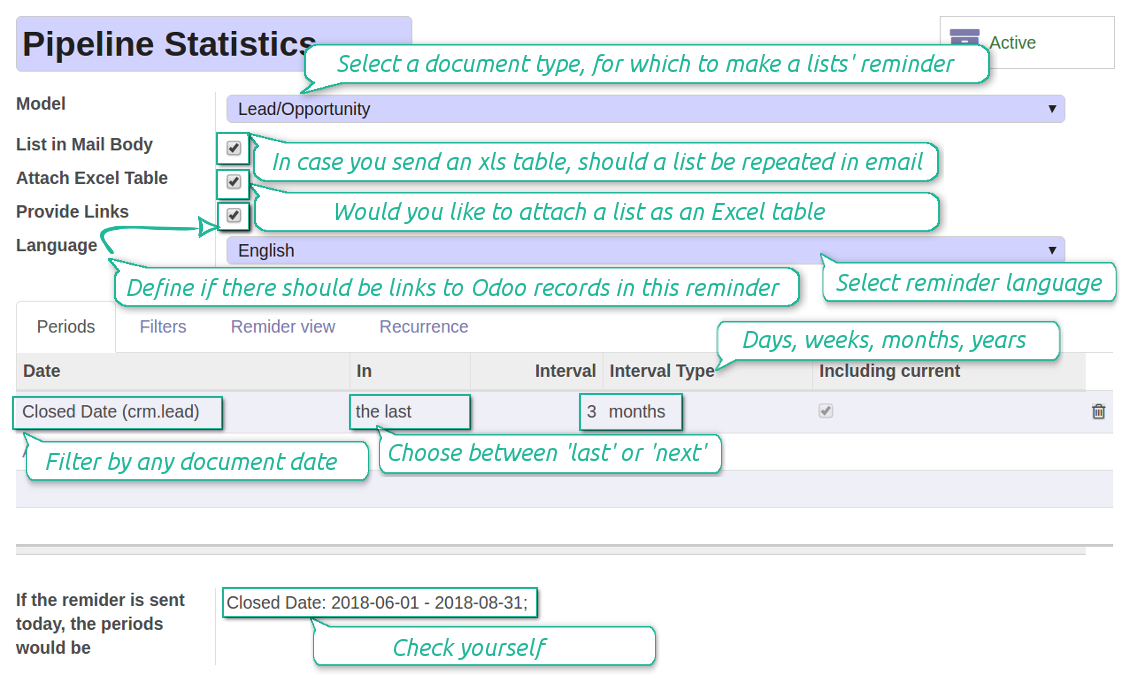
- Define a period as Closed Date in the last month
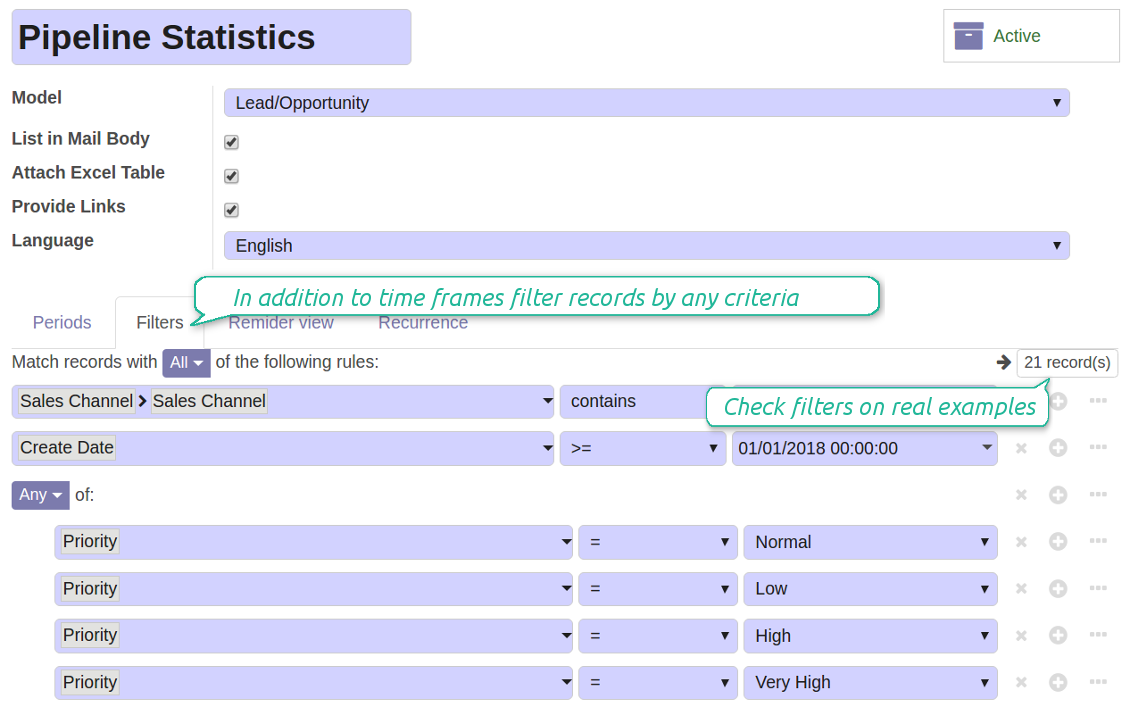
- Make a filter Sales Channel > Sales Channel contains 'Europe', where 'Europe' is your sales team
- As columns define Display Name, Salesperson > name, Salesperson > phone, Tags, Expected Revenue
- Subscribe a sales team manager for this reminder
- Send a list each month, on the first Monday.
Similar lists might be configured for sale orders, deliveries, purchase orders, manufacturing operations, etc.
Daily to-do list --> to get activities which should be done today or previously
- Choose Activity as a document type
- Define a period as Due Date in the last 10000 days including this (to get even the eldest activities)
- Make a filter Assigned to > Name contains 'John Brown', where 'John Brown' is a user to notify
- As columns apply Display name, Category, Due Date, Note
- Subscribe a John Brown for this reminder
- Send a list everyday.
Similar reminders are usually prepared for project tasks, opportunities, planned deliveries or incoming shipments, etc.
Planned events --> to get events which will happen in forthcoming periods
- Choose Event as an object for this reminder
- Define a period as Start Date the last week, including this (it would be 'this week'), or the next 3 weeks
- Make no filters
- As columns apply Event name, Location, Start Date, End Date
- Subscribe a John Brown for this reminder, where John Brown is an event department head
- Send a list on Mondays.
Similar reminders are Okay for activities, tasks, leads, deliveries, incoming shipments, etc.
Customer project statistics --> to notify customers about their tasks
- Choose Task as a target model
- Define a period as Create Date in the last year
- Make 2 filters: Customer > Parent name is 'Agrolait' or Customer name is 'Agrolait', where 'Agrolait' is project customer
- As columns apply Display name, Deadline, Description, Last Stage Update, Stage > display name
- Subscribe a John Brown for this reminder, where John Brown is a managing partner of Agrolait
- Send a list on the 10th of January each year.
Similar statistics is frequently forwarded by support tickets, paid invoices, done sale orders, etc.
Configurable statistic and appearance
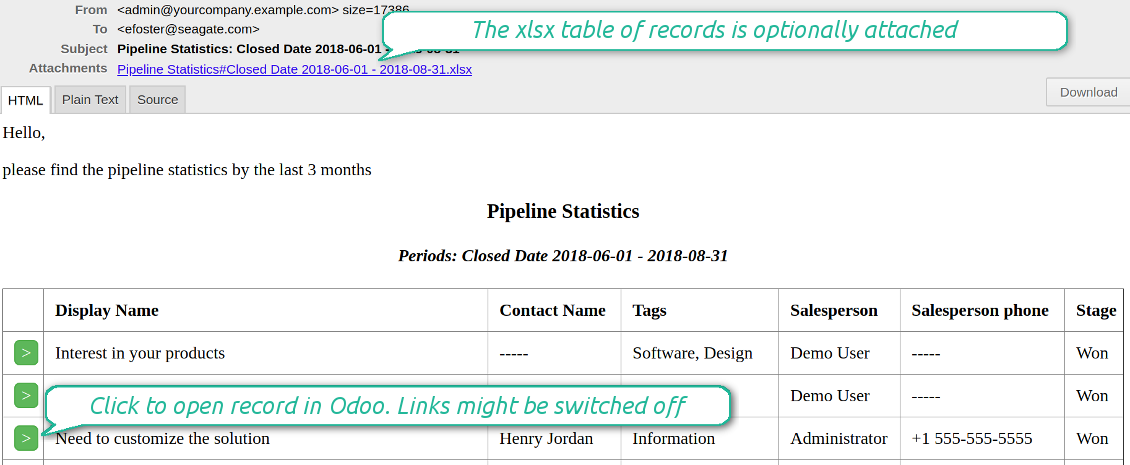
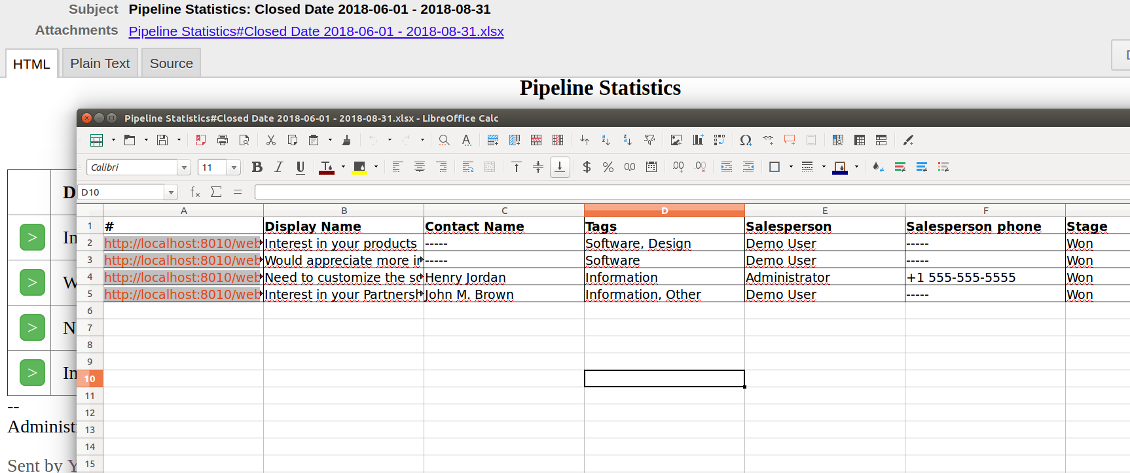
Send a table right in an email or/and as Excel (xlsx) table.
Reminder view features
- The tool allows choosing an unlimited number of columns for this document. It might be any field of a target model of the following types: char, text, html, integer, float, selection, boolean, date, datetime and relations to other documents (many2one, one2many, many2many). The set includes even computed fields
- For relational fields you might choose the second level precision. For example, you might show a phone of a customer for a sales orders' reminder or tags' colors for tasks
- It is possible to adapt column names. By default a field description is stated (on the language of this reminder), but users are allowed to change them
- Optionally attach an xlsx table for reminders. It would have the same columns as a reminder itself. It is also possible to exclude a list from email and leave only an xlsx table
- Include or exclude links to Odoo objects. References are great in case of internal reminders, but they are harmful in case of external ones
- Introduce any greeting text for a notification
- Choose reminders' language
- Do not change email template manually. It will break all styles. Look at the Configuration tab
Ekraanipildid
Configure list columns and reminder appearance
Followers regularly receive lists on their email
The Excel (xlsx) table is optionally attached
Filtering and periods for analysis
Apply any sort of filters to include only required documents.
How to limit documents by relative periods
- Restrict time frames by any date or datetime of a target document type. It might be deadline, create or close date, next activity day, etc.
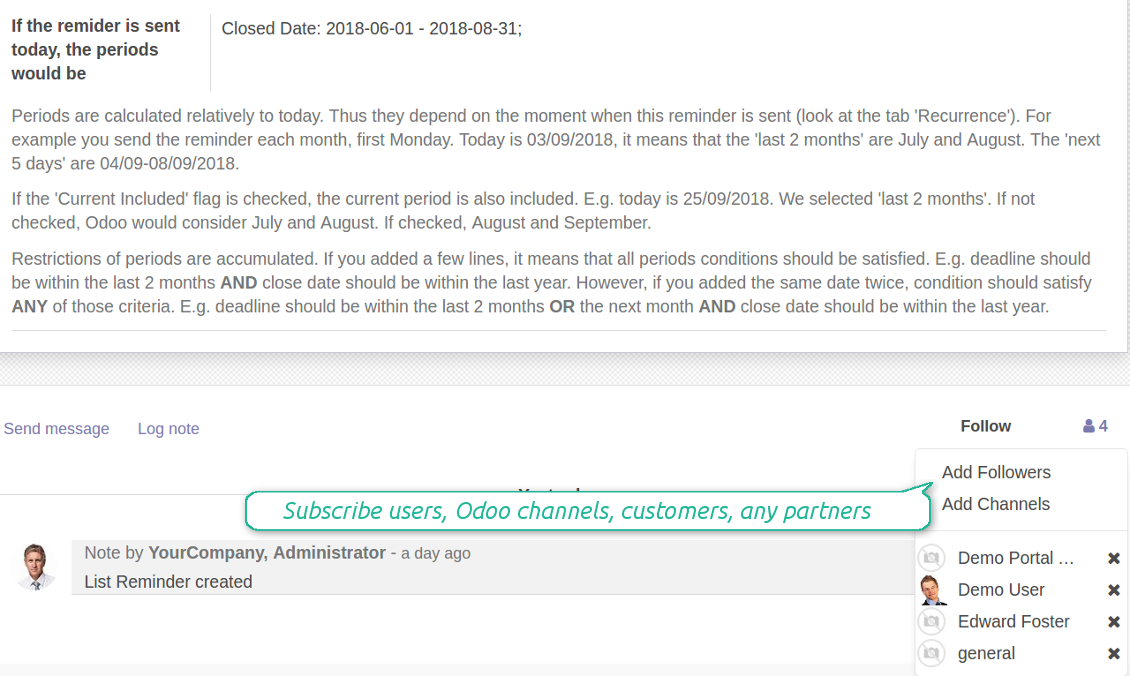
- If you wish, apply a few periods based on different dates. For instance, select this month closed leads which have been opened the last year. Records should satisfy all of the criteria, however if you selected the same date twice, records should be within any of those periods. For example, a deadline should be within the last 2 months OR the next month AND a close date should be within the last year
- Periods are relative, so they are periods in comparison to today. E.g., 'this month', 'the last year', 'the next 5 weeks'
- Intervals may both define previous time frames ('the last') and forthcoming periods ('the next')
- As intervals select days, weeks, months, or years
- Exclude or include a current period. For example, you might send a reminder on the first day of a month for a previous one. Vice versa, forward a list on the last day of this month for a current one
- Test your settings according to a real-time-shown result below the table
How to filter documents under analysis
- Filters are organized as a domain constructor: you may use the most of storable fields with any level of precision. The latter means, for example, you can filter sales orders by a related partner country or even by a state of a company of a related partner
- Use both 'AND' ('all') and 'OR' ('any') operators to achieve a desired result
- Check yourself by pressing the button 'Records': it would show all documents which at the moment satisfy your search criteria (and you have an access to)
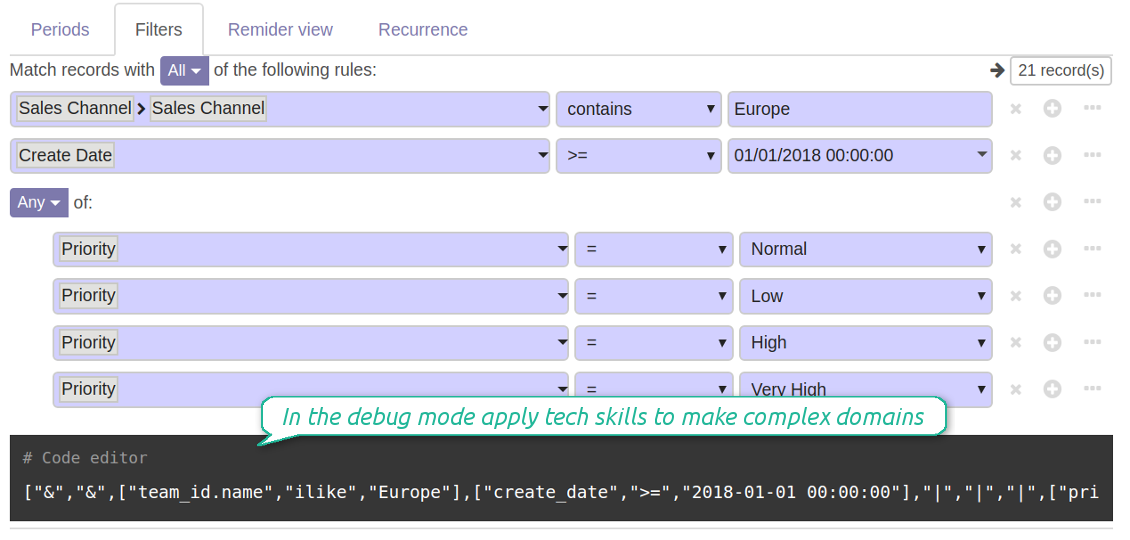
- If you feel confident to prepare Reverse Polish Notation domains, turn on the debug mode, and apply more complex expressions such as, for instance, ' category is child_of all'
Ekraanipildid
Configure lists of records to be sent according to chosen periods
Filter Odoo records to be included into a list
Good at Odoo domains? Turn on the debug mode
Flexible recurrence
Which periodicity I may apply
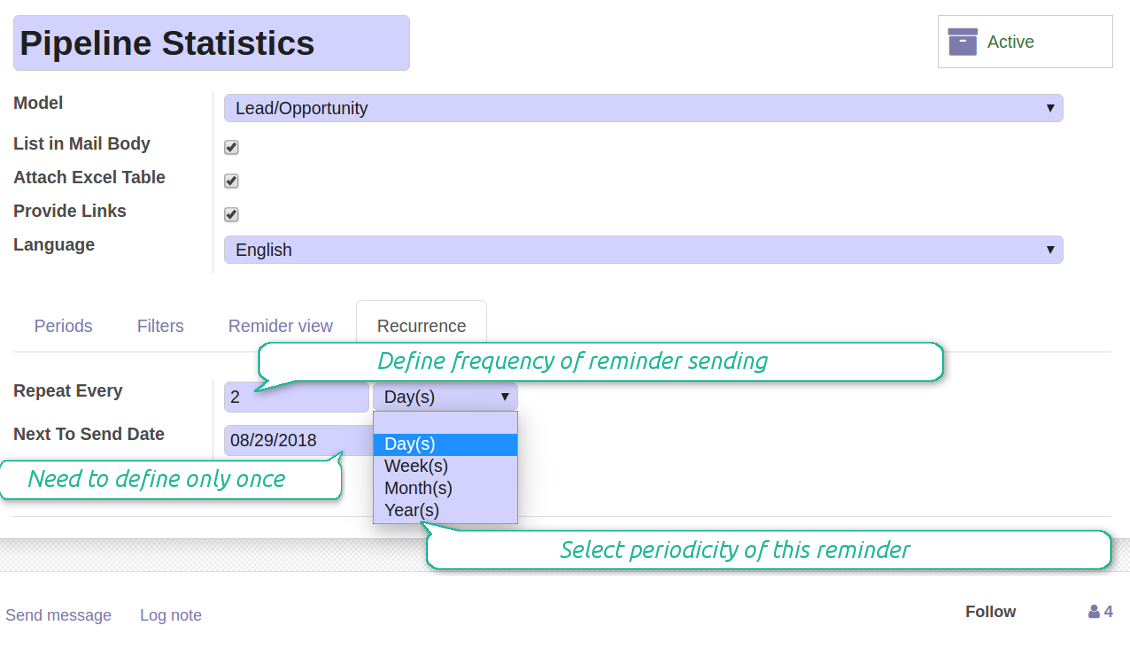
- Send a reminder every day, each 5 days, each 181 days
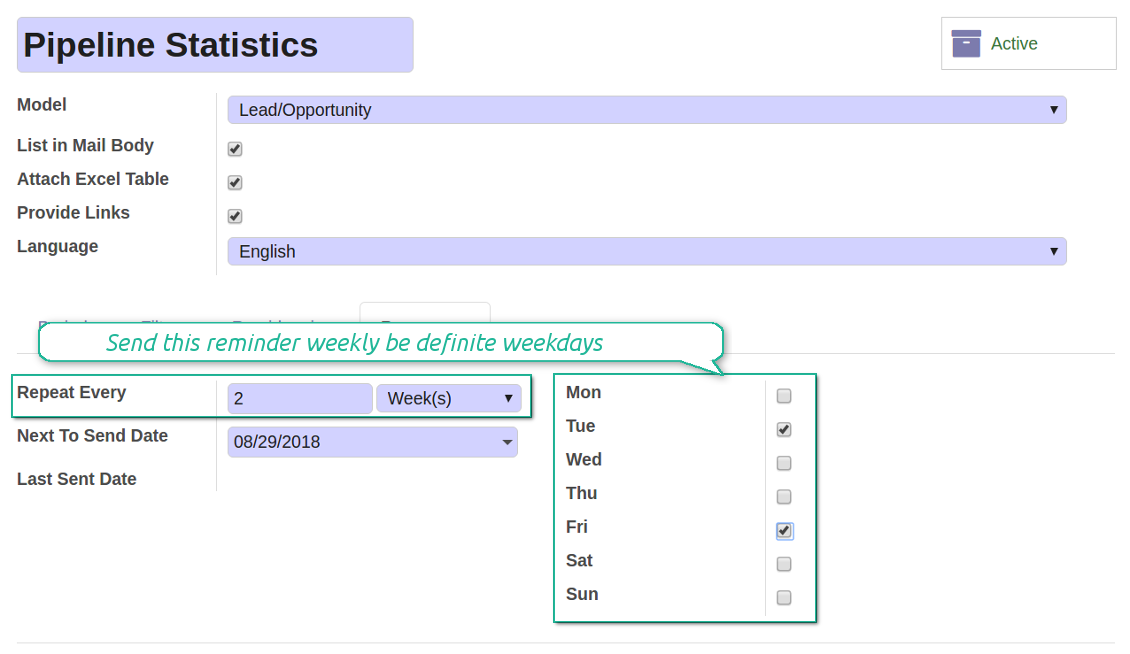
- Notify by exact weekdays, e.g. on Mondays and Thursdays
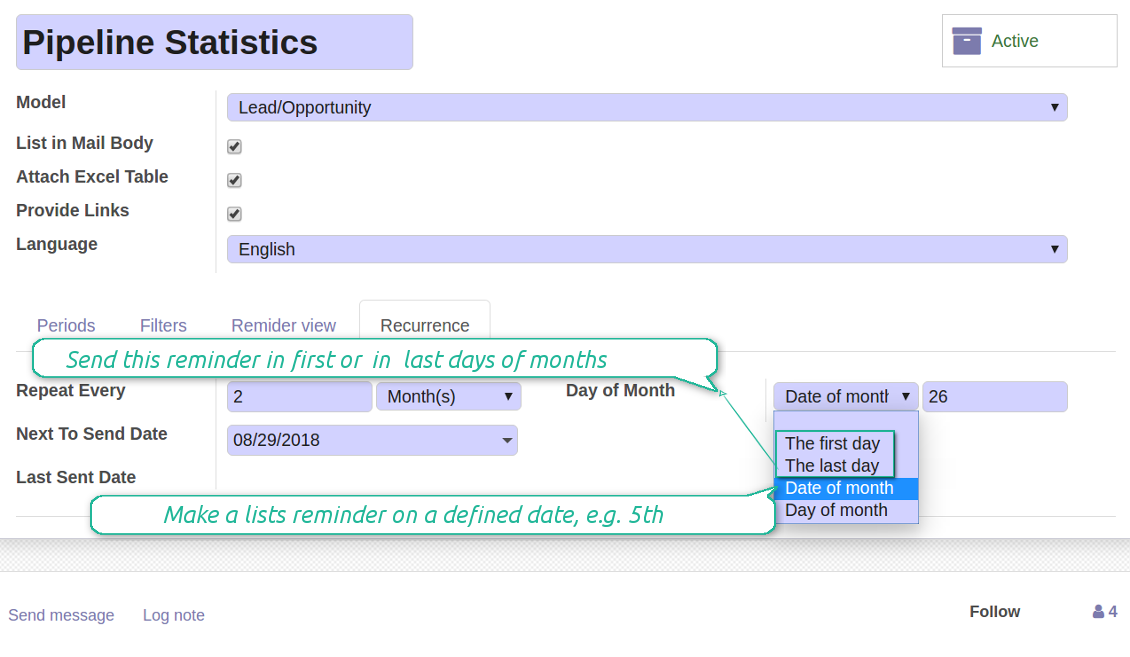
- For monthly reminders use:
- The first month day
- The last month day
- The exact date, e.g. the 16th
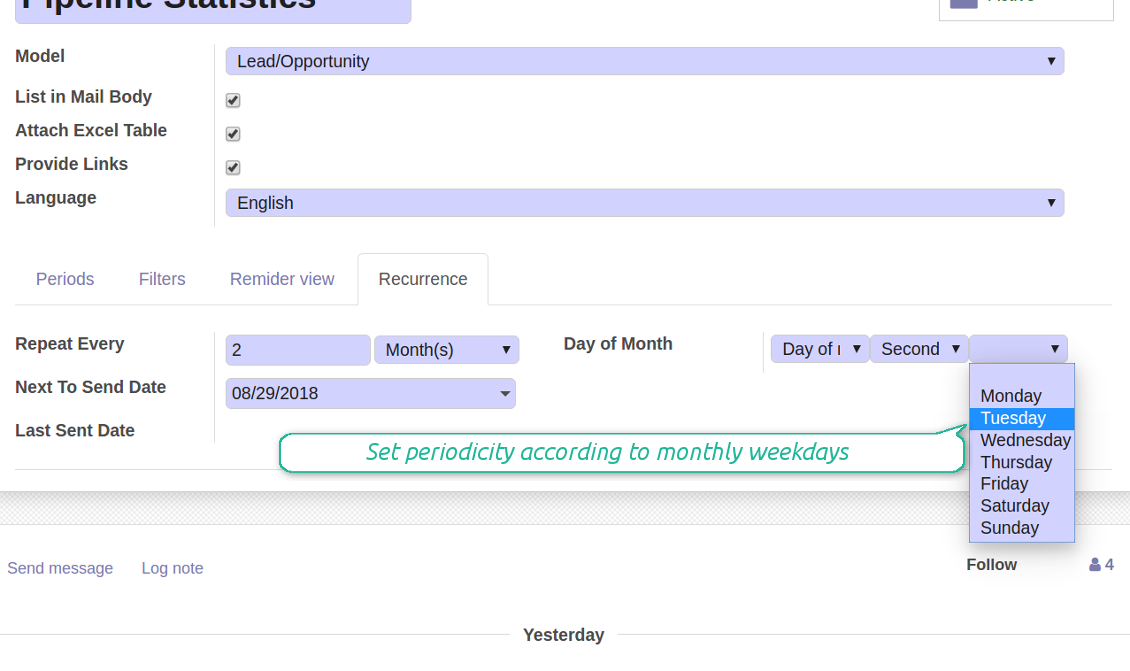
- A weekday, for instance, the first Monday, the last Friday, or the third Tuesday
- Prepare a yearly statistics on an exact year day, e.g. on the first of September
Ekraanipildid
Flexibly configure reminders frequency
Send reminders weekly on predefined weekdays
Define a month day for lists notifications
Make reminder monthly on predefined weekdays
Reminder for any Odoo partner
Ekraanipildid
Remind to any user, customer, supplier or send lists to Odoo channels
Periodic reporting managers
User rights peculiarities
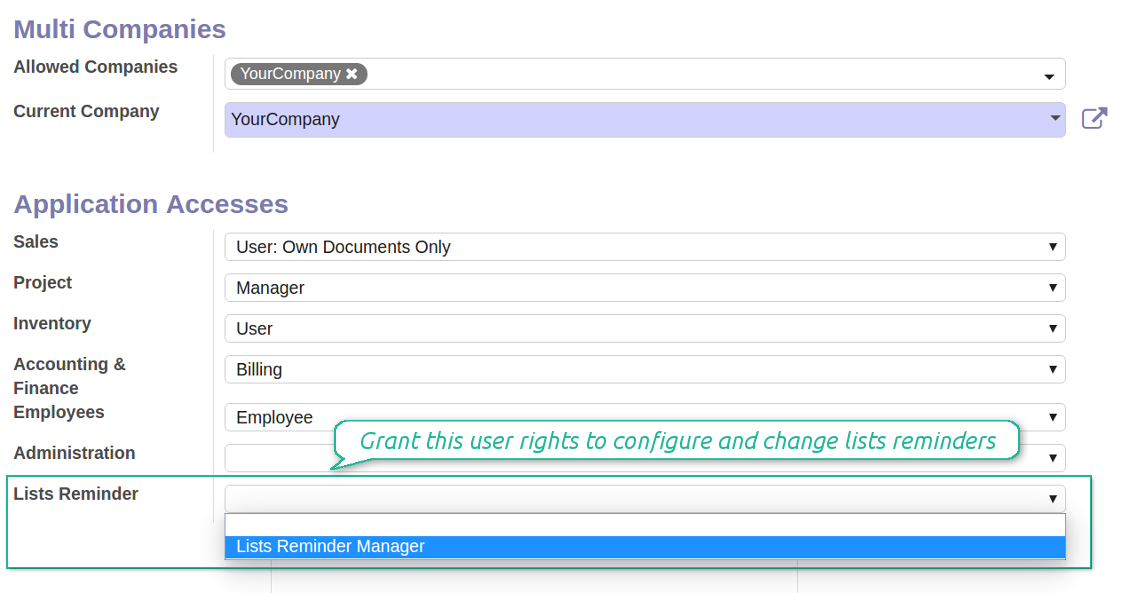
- To observe the reminders' menu and configure new notifications, select the right 'Lists Reminder Manager' in this user settings
- Make sure you trust such a person. This user would be able to send any data by a document type to which he/she has a read access. It means, that if a user might read leads in general, but do not have rights to read the exact lead 'XXX', he/she would be able to send the data by the lead 'XXX' using the reminder
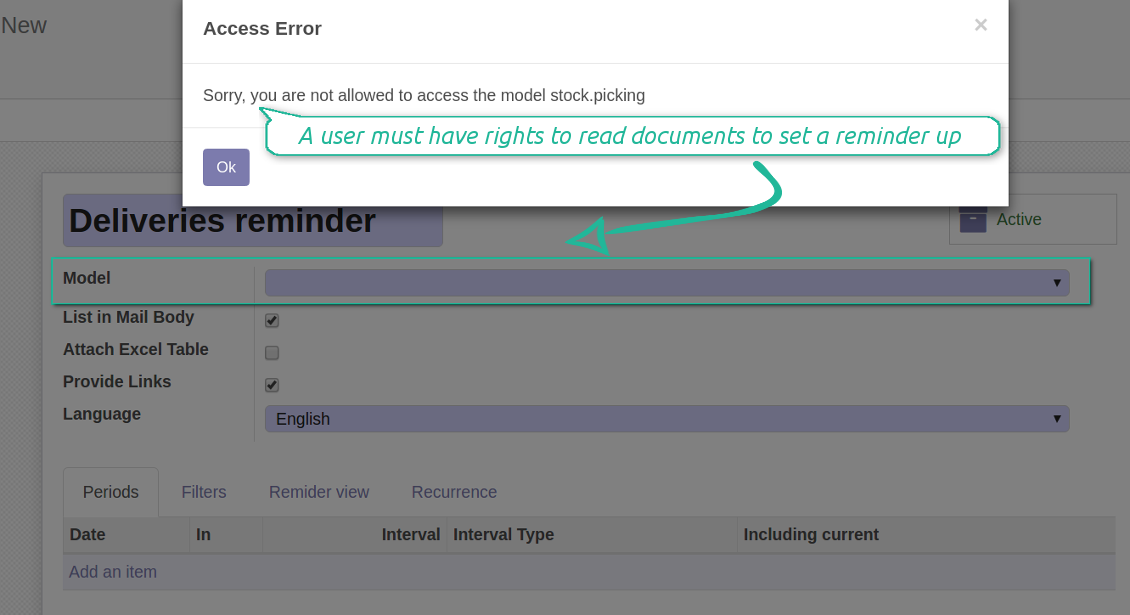
- To configure a reminder by this document type, a user should have a read access to such a model. For example, an employee without the right 'Warehouse user' might not prepare a reminder by deliveries
Ekraanipildid
Make any user prepare lists reminders
Reminder managers may configure lists only for documents they can read
Great and very useful app
First of all, the team behind this app is great, support is immediate, and response is fast. The application is very useful in managing any type of notification to keep you updated with all what's happening within your company.
Seadistamise ja paigaldamise näpunäited Periodic Reporting and Reminders Odoo v.11
Python dependency
To provide the feature of dynamic Excel table generation, install the Python library xlsxwriter:
pip install xlsxwriter
Email template
The basic reminder appearance should not be configured through Odoo email templates. In the debug mode go to:
- Settings > Technical > Email > Templates > Reminder
Do not change this template! Otherwise, its styles would be broken, and you would receive blank emails.
Have you broken everything? Not a problem, remove this template and update the module. The email appearance will be recovered.
Scheduled job (cron)
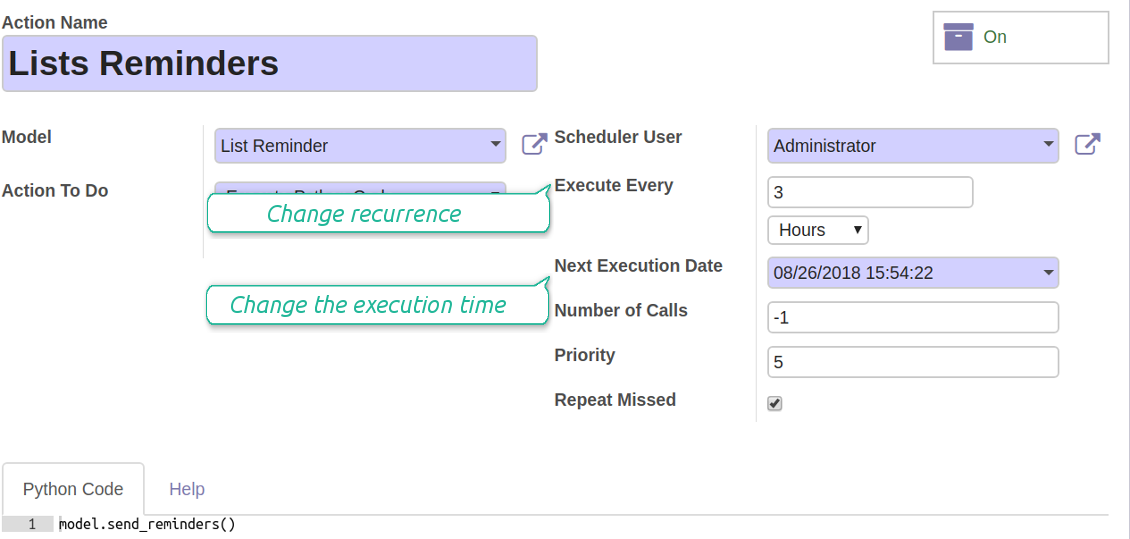
By default Odoo checks whether any reminder should be sent on a daily basis. You can change a frequency or time of check. In the debug mode go to:
- Settings > Technical > Automation > Scheduled Actions > Lists Reminders
The situation for a higher frequency is when you have many reminders with a lot records to search. In that case the cron job might be not ready with all actions in time, and it is better to repeat the check. However, be cautious: do not make it too frequent. Otherwise, one job would not be fulfilled until another one, and Odoo would collapse until a reminder is sent.
The cron job interval should be bigger than your Odoo configured timeout. Sometimes it is required to increase a timeout, if a number of documents in a list accounts for a few thousands records.
The module is not aimed to export data from Odoo. Do not try to send everyday your whole database.
Configure the planned job for reminders
Korduma kippuvad küsimused Periodic Reporting and Reminders Odoo v.11
Millised on teie tööriistade uuenduspoliitikad?
Kehtivate Odoo Apps Store reeglite kohaselt:
- Iga versioonile 12.0 või varasemale ostetud moodul annab juurdepääsu kõigile versioonidele kuni 12.0.
- Alates versioonist 13.0 tuleb iga mooduliversioon osta eraldi.
- Versioonist sõltumata annab ost õiguse kõigile uuendustele ja veaparandustele peamise versiooni piires.
Pange tähele, et faOtools meeskond neid reegleid ei juhi. Küsimustega pöörduge otse Odoo Apps Store esindajate poole.
Kuidas teie rakendust Odoo.sh-i installida?
Kõige lihtsam lähenemine on kasutada Odoo poe sisseehitatud töövoogu:
1. Avage mooduli leht ja klõpsake nuppu Deploy on odoo.sh
2. Seejärel suunatakse teid GitHubi lehele. Logige kontole sisse, seejärel klõpsake 'Create a new repo' või kasutage olemasolevat. Veenduge, et hoidla on privaatne. Rakendusi ei tohi OPL-1 litsentsi all avaldada. Vajadusel looge Odoo.sh projekti jaoks uus repo
3. Seejärel minge odoo.sh-i ja klõpsake nuppu Deploy. Hüpikaknas esitage otsus ja klõpsake 'Continue.' See käivitab paigalduse.
Need sammud paigaldavad rakenduse projekti tootmisharusse. Kui soovite rakendusi teistesse harudesse juurutada või moodulit uuendada, tehke järgmist:
1. Laadige rakenduse lähtekood Odoo poest üles
2. Tehke moodulile commit vajalikku GitHubi hoidlasse. Veenduge, et ühtegi rakenduse kausta/faili ei ignoreerita (st need ei ole repo .gitignore-s). Hoidlad loob odoo.sh automaatselt ja need võivad vaikimisi sisaldada olulisi kirjeid (nt /lib). Laadige üles kõik mooduli kataloogid, alamkataloogid ja failid eranditeta
3. Juurutage odoo.sh projekti sihtharu või, kui seaded seda eeldavad, oodake, kuni see automaatselt ehitatakse.
Kuidas teie rakendust oma serverisse installida?
2. Taaskäivita Odoo server;
3. Lülita sisse arendajarežiim (tehnilised seaded);
4. Värskenda rakenduste loendit (rakenduste menüü);
5. Leia rakendus ja vajuta „Activate“/„Install“;
6. Järgi rakenduse lehe juhiseid, kui need on olemas.
Märkasin, et teie rakendusel on lisasid. Kas võin need hiljem osta?
Jah, muidugi. Samal ajal lisab Odoo kõik sõltuvused automaatselt ostukorvi, seega peate varem ostetud tööriistad välja jätma, et vältida topeltmakset.
Paigaldasin teie rakenduse Odoo.sh-i ja näen testides hoiatust/viga
Punane/oranž hoiatus ei mõjuta rakenduse funktsioone. Kahjuks ei läbi meie moodulid mõnikord standardseid automaatteste, sest need eeldavad käitumist, mis on vastuolus rakenduse eesmärkidega. Näiteks muudame hinnaarvutust, samas kui standardse Odoo mooduli testid võrdlevad lõpphinda standardalgoritmiga.
Kõigepealt kontrollige juurutatud andmebaasi funktsioone. Kas kõik töötab õigesti?
Kui arvate endiselt, et hoiatus mõjutab tegelikke funktsioone, võtke meiega ühendust ja saatke täielikud paigalduslogid ning kõigi juurutatud moodulite loend (sh tuum ja kolmanda osapoole).
Kas ma saan rakenduse otse teie ettevõttelt osta?
Ei, jagame tööriistu ainult ametliku Odoo rakendustepoe.
Soovin allahindlust
Kahjuks pole meil tehnilisi vahendeid individuaalhindade pakkumiseks.
Kas ma saan rakenduse paigaldada oma Odoo Online (SaaS) andmebaasi?
Ei, kolmanda osapoole rakendusi ei saa Odoo Online’is kasutada. Kahjuks Odoo SaaS blokeerib selle.
Teie tööriist sõltub teistest rakendustest. Kas pean need ostma?
Jah, tööriist vajab kõiki sõltuvustes märgitud mooduleid, et töötada õigesti. Rakenduse lehel märgitud hind sisaldab juba kõiki vajalikke sõltuvusi.
Mis on mooduli hind USA dollarites? Miks see muutus?
Meie moodulite hind on eurodes. Odoo pood teisendab hinnad teistesse valuutadesse oma sisemise kursi järgi. Seega võib USA dollarites hind muutuda, kui kurss uueneb.
Rakenduse ja veebilehe sõnastus muudes keeltes kui inglise on tehisintellekti abil ja kooskõlas ametlike Odoo tõlgetega. Kui märkate viga, saatke pilet tõlgete õigsuse kohta ja parandame selle.
Vigadest teatamine
Kui kohtate vigu või ebajärjekindlat käitumist, võtke julgelt ühendust. Tagame parandused 60 päeva jooksul ostust ja oleme huvitatud tööriistade täiustamisest ka pärast seda perioodi.
Meiega ühenduse võtmiseks pole telefoninumbrit ega krediitkaarti vaja. Piisab lühikesest e-posti registreerimisest, mis ei kesta üle 30 sekundi.
Lisage taotlusse võimalikult palju üksikasju: kuvatõmmised, Odoo serveri logid, täielik kirjeldus probleemi taasesitamiseks jne. Tavaliselt kulub mõni tööpäev, et koostada tööplaan (kui viga kinnitatakse) või anda juhised, mida teha (muul juhul).
Avalikud funktsioonisoovid ja mooduliideed (tasuta arendus)
Oleme tugevalt motiveeritud oma tööriistu parandama ja oleme tänulikud iga tagasiside eest. Kui teie nõuded on üldkasulikud ja neid saab tõhusalt ellu viia, lisab meeskond need meie ülesannete loendisse.
Sellist ülesannete loendit töödeldakse regulaarselt ja lisatasusid ei kaasne. Kuigi me ei saa lubada tähtaegu ega lõplikku kujundust, võib see olla hea viis soovitud funktsioonide saamiseks ilma investeeringute ja riskideta.
Meiega ühenduse võtmiseks pole telefoninumbrit ega krediitkaarti vaja. Piisab lühikesest e-posti registreerimisest, mis ei kesta üle 30 sekundi.

Tööriist Odoo manuste paindlikuks kaustadesse paigutamiseks ja kataloogide sünkroonimiseks pilveklientidega: Google Drive, OneDrive/SharePoint, Nextcloud/ownCloud, Dropbox, Amazon S3, Box ja NAS. DMS. Failihaldur. Dokumendihaldussüsteem
398€
Tööriist paroolide turvaliseks hoidmiseks Odoo-s ühiskasutuseks. Jagatud seifid

Tööriist sügava ja struktureeritud teadmusbaasi loomiseks sise- ja väliskasutuseks. Knowledge System. KMS. Wiki-laadsed redaktsioonid.
398€
Tööriist Odoo manuste automaatseks kahesuunaliseks sünkroonimiseks OneDrive failidega
487€
Tööriist KPI eesmärkide seadmiseks ja täitmise kontrolliks perioodide kaupa. KPI töölaud. Töölaua kujundaja. KPI diagrammid

Tööriist Odoo manuste automaatseks kahesuunaliseks sünkroonimiseks Google Drive failidega
487€
Tööriist ajapõhiseks teenusehalduseks alates kohtumiste broneerimisest kuni müügi ja arvustusteni
398€