Periodic Reporting and Reminders v.11
The tool to generate and periodically send reports and reminders

Any Odoo documents' reporting
Look at popular use cases
- To send periodical statistics for managers
- To forward to-do lists for certain actions
- To plan forthcoming events and actions
- To notify customers or suppliers of done jobs.
Pipeline results --> to get leads closed the previous month for a team manager
- Choose Lead/Opportunity as a model
- Define a period as Closed Date in the last month
- Make a filter Sales Channel > Sales Channel contains 'Europe', where 'Europe' is your sales team
- As columns define Display Name, Salesperson > name, Salesperson > phone, Tags, Expected Revenue
- Subscribe a sales team manager for this reminder
- Send a list each month, on the first Monday.
Similar lists might be configured for sale orders, deliveries, purchase orders, manufacturing operations, etc.
Daily to-do list --> to get activities which should be done today or previously
- Choose Activity as a document type
- Define a period as Due Date in the last 10000 days including this (to get even the eldest activities)
- Make a filter Assigned to > Name contains 'John Brown', where 'John Brown' is a user to notify
- As columns apply Display name, Category, Due Date, Note
- Subscribe a John Brown for this reminder
- Send a list everyday.
Similar reminders are usually prepared for project tasks, opportunities, planned deliveries or incoming shipments, etc.
Planned events --> to get events which will happen in forthcoming periods
- Choose Event as an object for this reminder
- Define a period as Start Date the last week, including this (it would be 'this week'), or the next 3 weeks
- Make no filters
- As columns apply Event name, Location, Start Date, End Date
- Subscribe a John Brown for this reminder, where John Brown is an event department head
- Send a list on Mondays.
Similar reminders are Okay for activities, tasks, leads, deliveries, incoming shipments, etc.
Customer project statistics --> to notify customers about their tasks
- Choose Task as a target model
- Define a period as Create Date in the last year
- Make 2 filters: Customer > Parent name is 'Agrolait' or Customer name is 'Agrolait', where 'Agrolait' is project customer
- As columns apply Display name, Deadline, Description, Last Stage Update, Stage > display name
- Subscribe a John Brown for this reminder, where John Brown is a managing partner of Agrolait
- Send a list on the 10th of January each year.
Similar statistics is frequently forwarded by support tickets, paid invoices, done sale orders, etc.
Configurable statistic and appearance
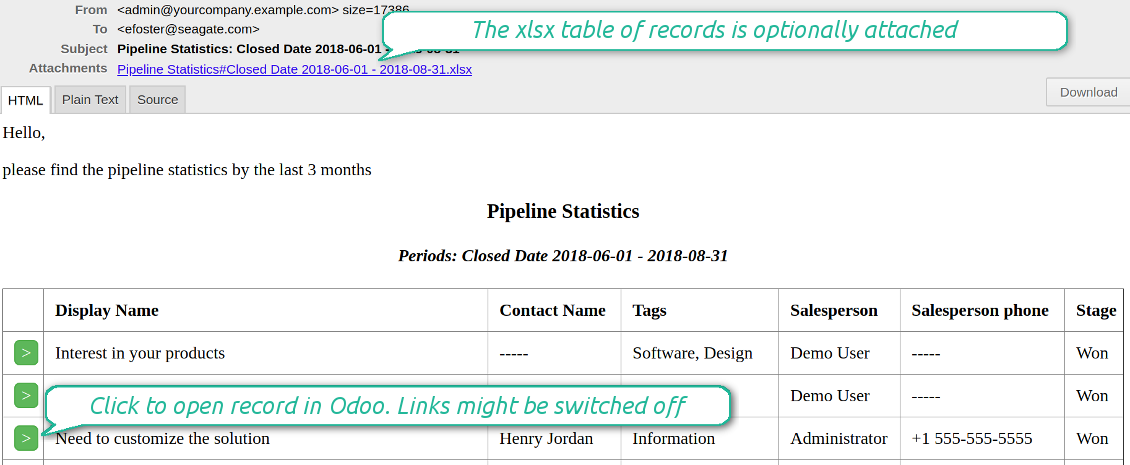
Send a table right in an email or/and as Excel (xlsx) table.
Reminder view features
- The tool allows choosing an unlimited number of columns for this document. It might be any field of a target model of the following types: char, text, html, integer, float, selection, boolean, date, datetime and relations to other documents (many2one, one2many, many2many). The set includes even computed fields
- For relational fields you might choose the second level precision. For example, you might show a phone of a customer for a sales orders' reminder or tags' colors for tasks
- It is possible to adapt column names. By default a field description is stated (on the language of this reminder), but users are allowed to change them
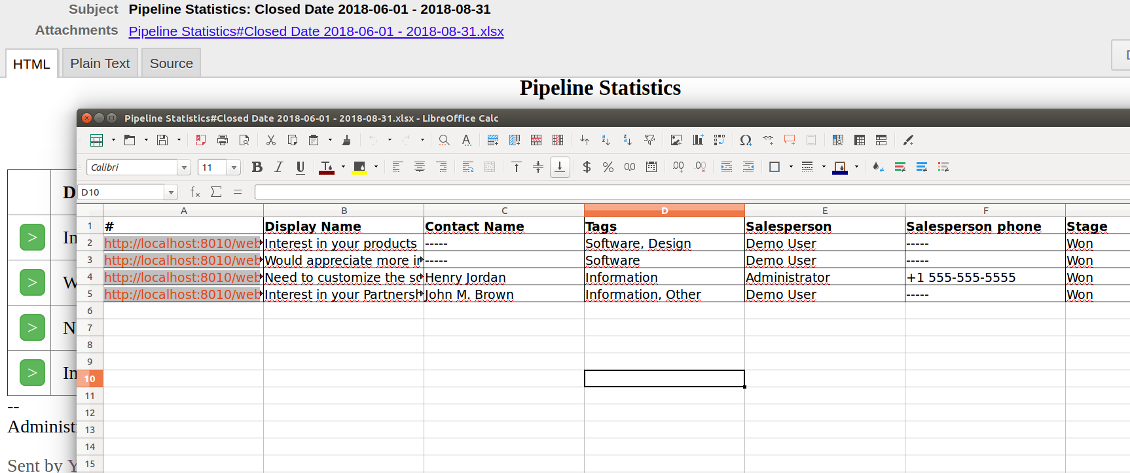
- Optionally attach an xlsx table for reminders. It would have the same columns as a reminder itself. It is also possible to exclude a list from email and leave only an xlsx table
- Include or exclude links to Odoo objects. References are great in case of internal reminders, but they are harmful in case of external ones
- Introduce any greeting text for a notification
- Choose reminders' language
- Do not change email template manually. It will break all styles. Look at the Configuration tab
截图
Configure list columns and reminder appearance
Followers regularly receive lists on their email
The Excel (xlsx) table is optionally attached
Filtering and periods for analysis
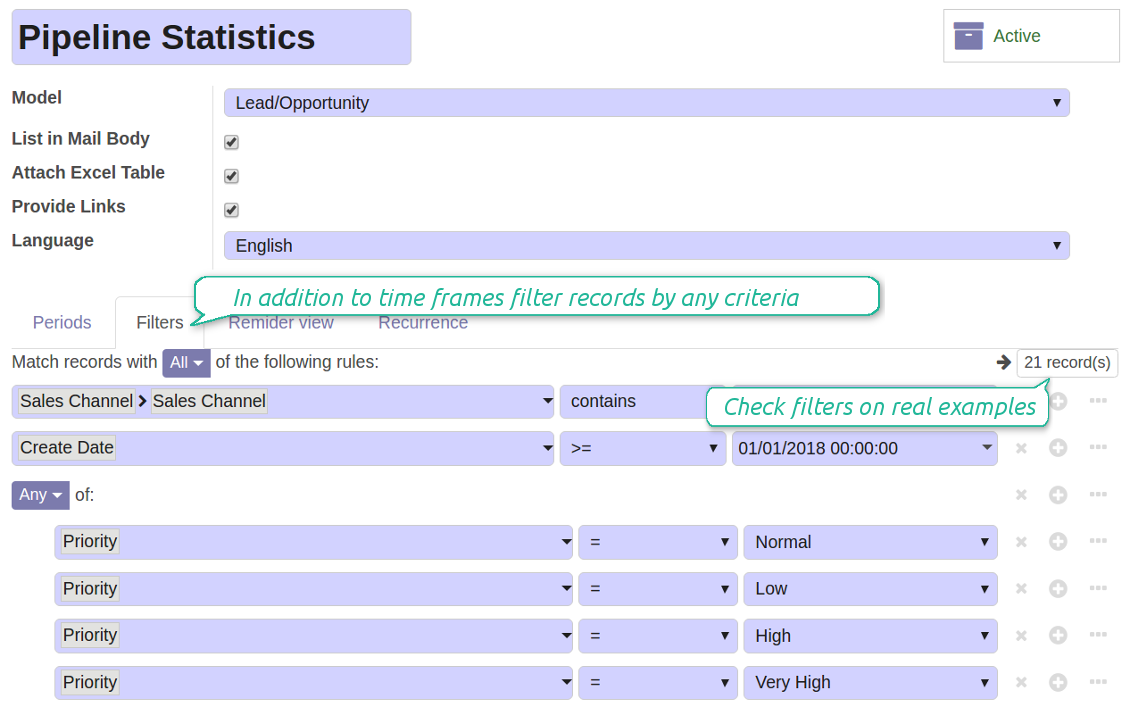
Apply any sort of filters to include only required documents.
How to limit documents by relative periods
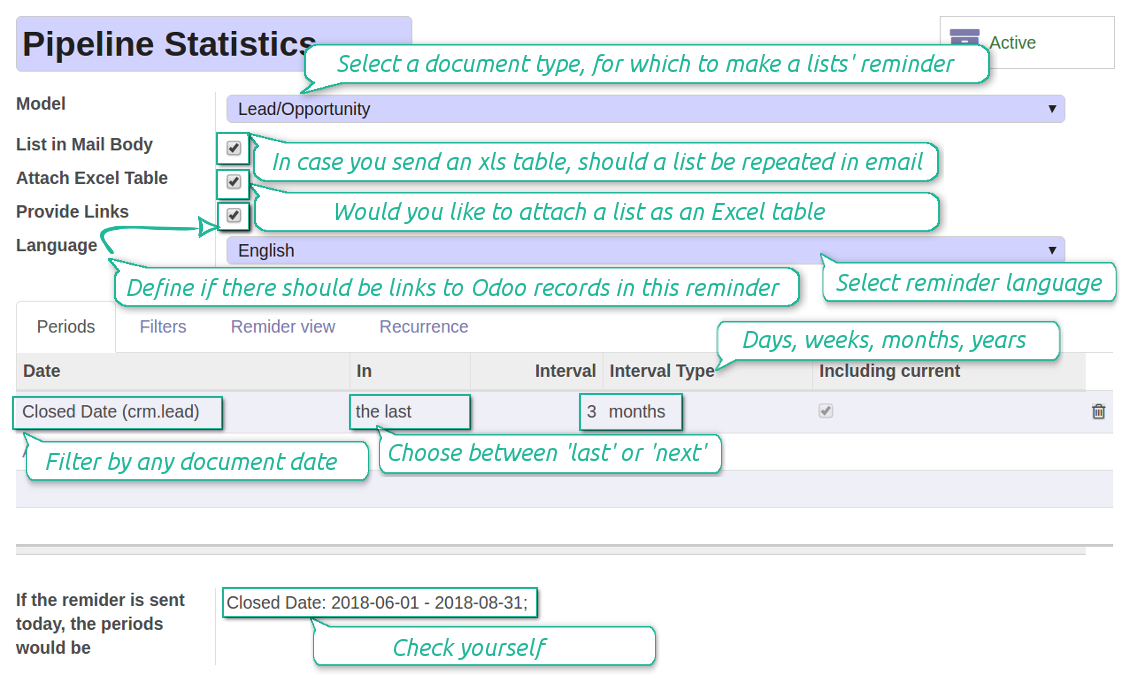
- Restrict time frames by any date or datetime of a target document type. It might be deadline, create or close date, next activity day, etc.
- If you wish, apply a few periods based on different dates. For instance, select this month closed leads which have been opened the last year. Records should satisfy all of the criteria, however if you selected the same date twice, records should be within any of those periods. For example, a deadline should be within the last 2 months OR the next month AND a close date should be within the last year
- Periods are relative, so they are periods in comparison to today. E.g., 'this month', 'the last year', 'the next 5 weeks'
- Intervals may both define previous time frames ('the last') and forthcoming periods ('the next')
- As intervals select days, weeks, months, or years
- Exclude or include a current period. For example, you might send a reminder on the first day of a month for a previous one. Vice versa, forward a list on the last day of this month for a current one
- Test your settings according to a real-time-shown result below the table
How to filter documents under analysis
- Filters are organized as a domain constructor: you may use the most of storable fields with any level of precision. The latter means, for example, you can filter sales orders by a related partner country or even by a state of a company of a related partner
- Use both 'AND' ('all') and 'OR' ('any') operators to achieve a desired result
- Check yourself by pressing the button 'Records': it would show all documents which at the moment satisfy your search criteria (and you have an access to)
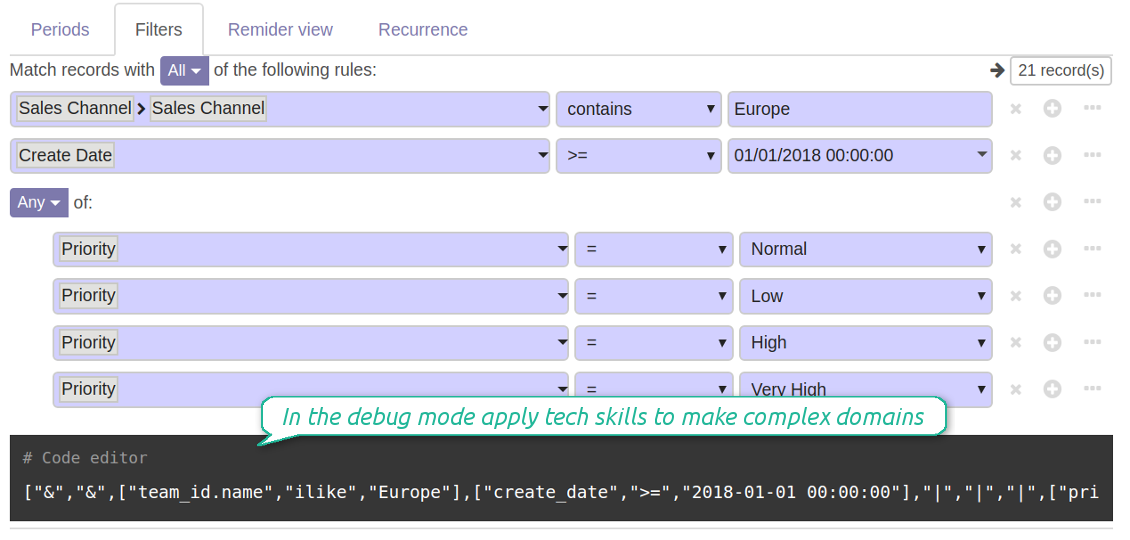
- If you feel confident to prepare Reverse Polish Notation domains, turn on the debug mode, and apply more complex expressions such as, for instance, ' category is child_of all'
截图
Configure lists of records to be sent according to chosen periods
Filter Odoo records to be included into a list
Good at Odoo domains? Turn on the debug mode
Flexible recurrence
Which periodicity I may apply
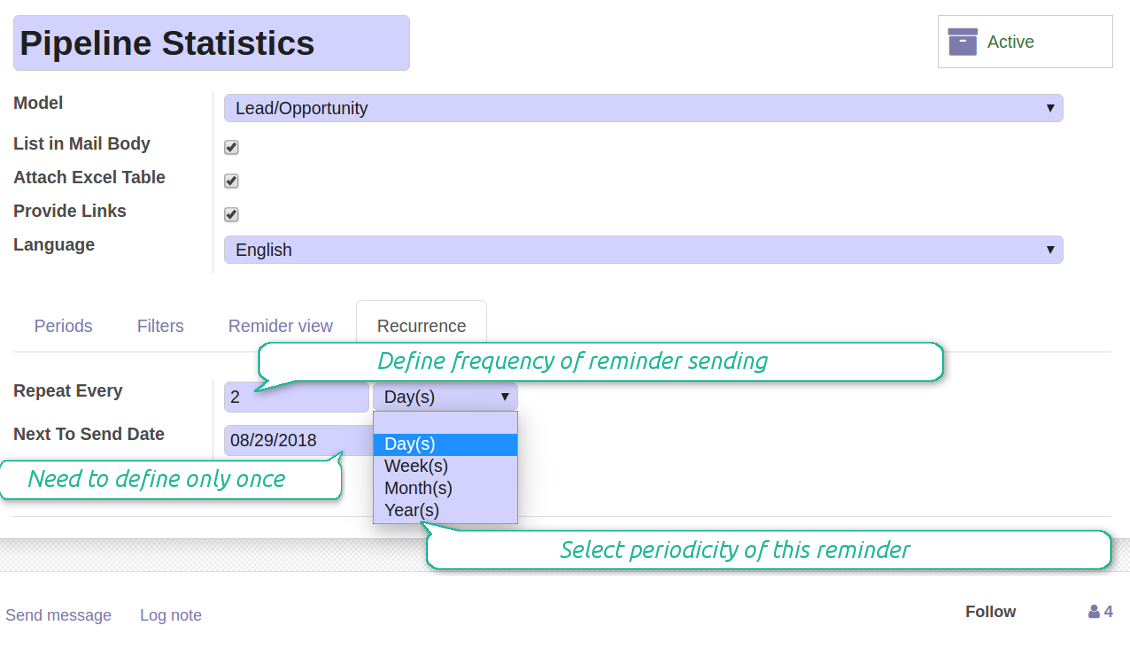
- Send a reminder every day, each 5 days, each 181 days
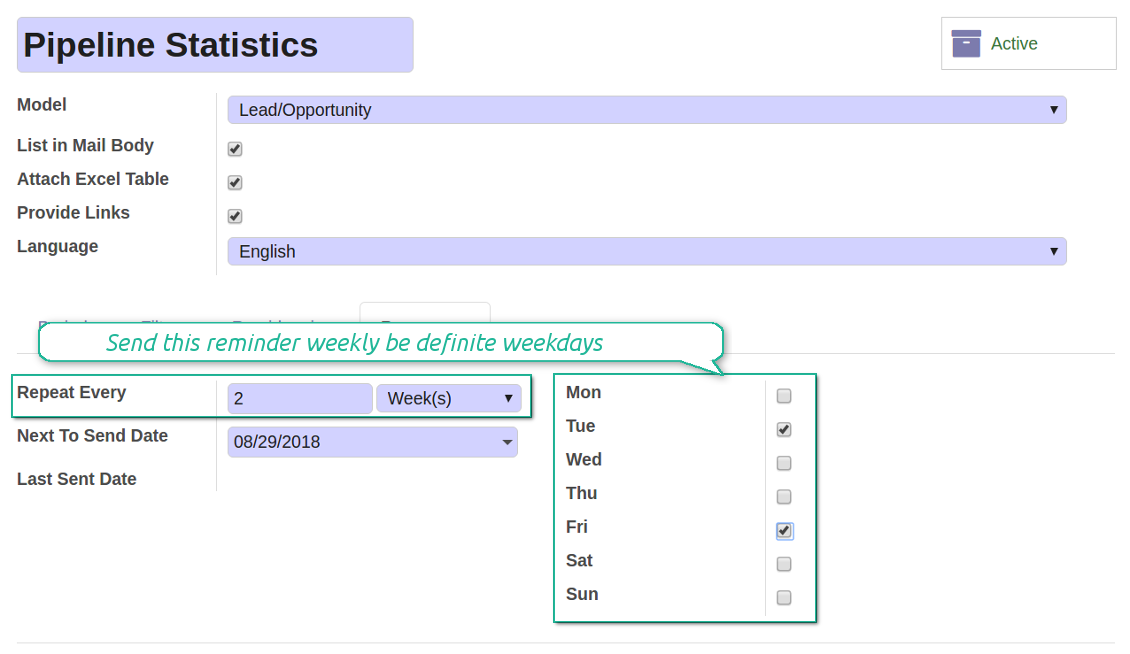
- Notify by exact weekdays, e.g. on Mondays and Thursdays
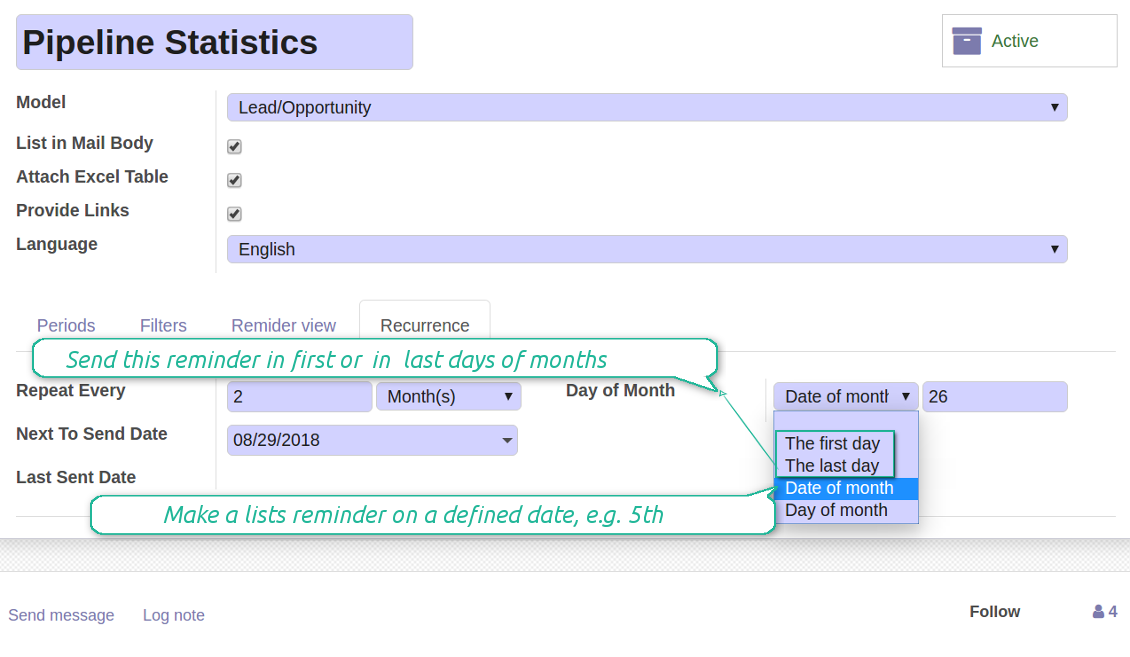
- For monthly reminders use:
- The first month day
- The last month day
- The exact date, e.g. the 16th
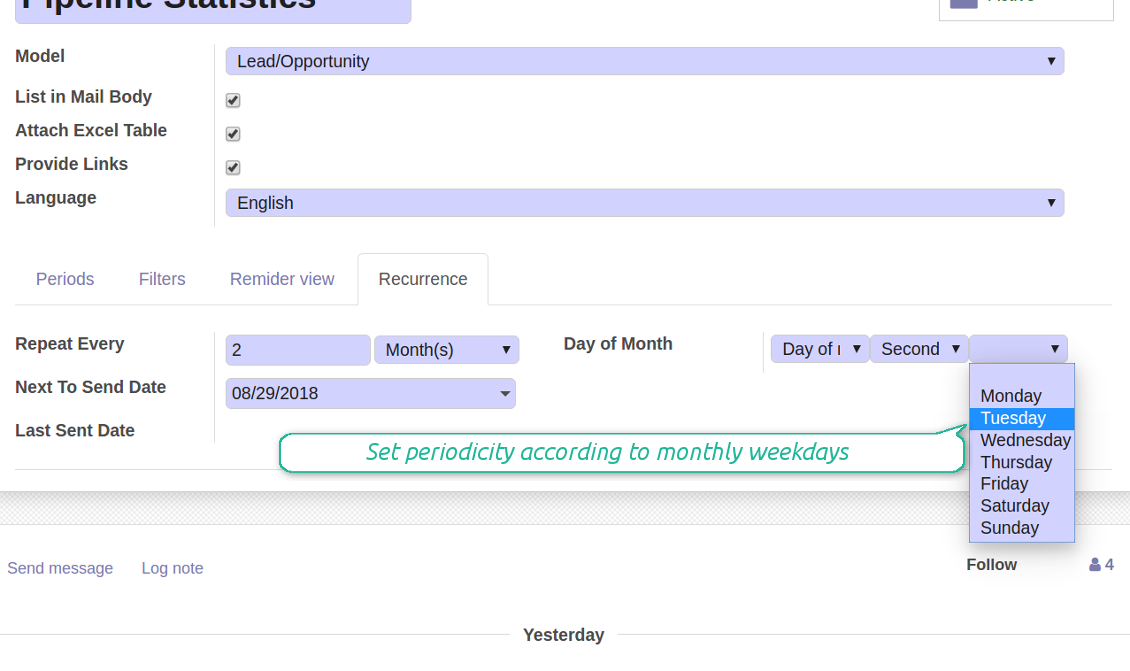
- A weekday, for instance, the first Monday, the last Friday, or the third Tuesday
- Prepare a yearly statistics on an exact year day, e.g. on the first of September
截图
Flexibly configure reminders frequency
Send reminders weekly on predefined weekdays
Define a month day for lists notifications
Make reminder monthly on predefined weekdays
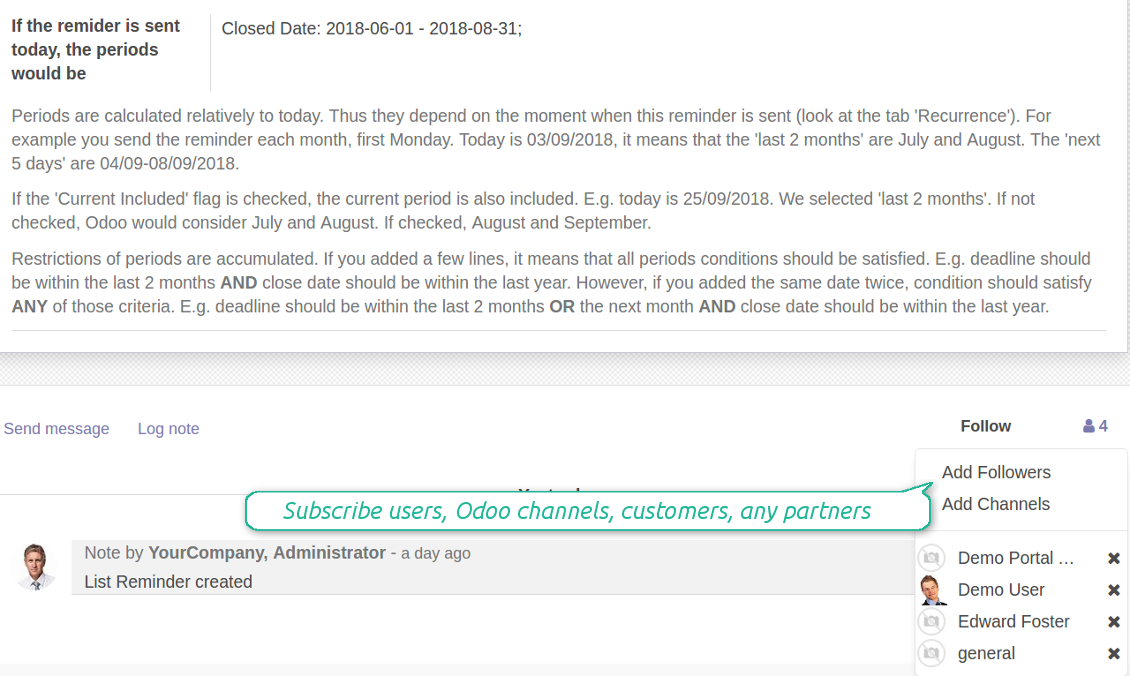
Reminder for any Odoo partner
截图
Remind to any user, customer, supplier or send lists to Odoo channels
Periodic reporting managers
User rights peculiarities
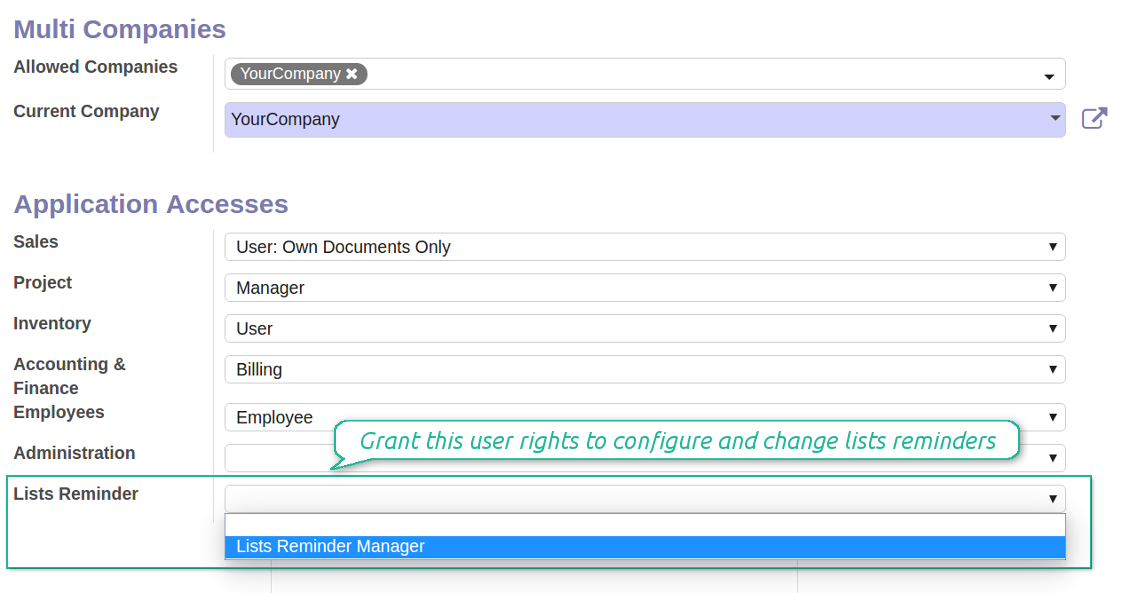
- To observe the reminders' menu and configure new notifications, select the right 'Lists Reminder Manager' in this user settings
- Make sure you trust such a person. This user would be able to send any data by a document type to which he/she has a read access. It means, that if a user might read leads in general, but do not have rights to read the exact lead 'XXX', he/she would be able to send the data by the lead 'XXX' using the reminder
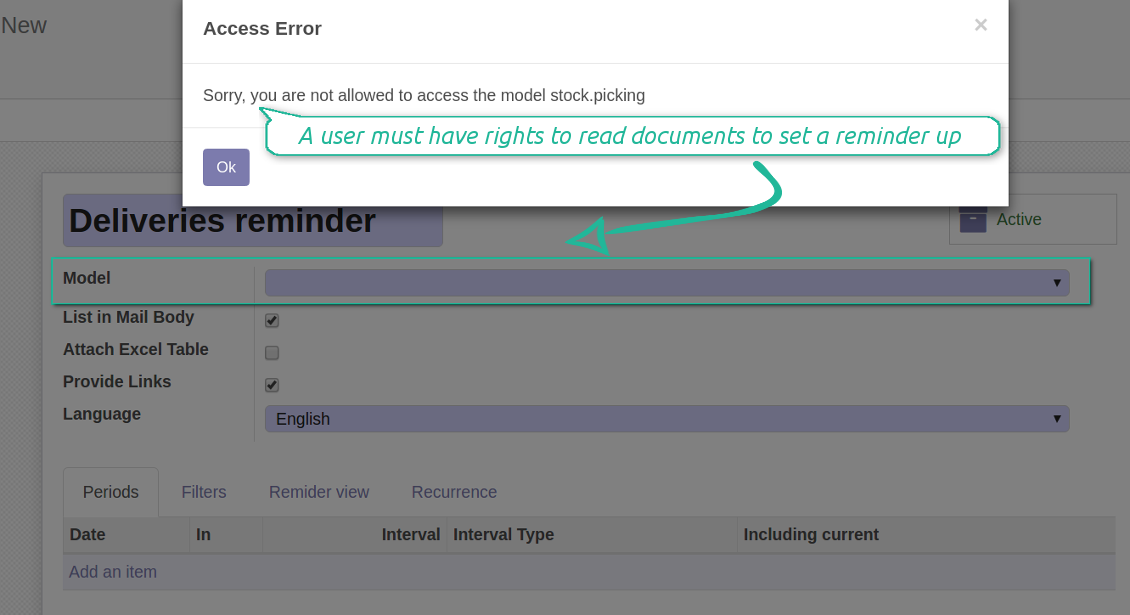
- To configure a reminder by this document type, a user should have a read access to such a model. For example, an employee without the right 'Warehouse user' might not prepare a reminder by deliveries
截图
Make any user prepare lists reminders
Reminder managers may configure lists only for documents they can read
Great and very useful app
First of all, the team behind this app is great, support is immediate, and response is fast. The application is very useful in managing any type of notification to keep you updated with all what's happening within your company.
配置与安装提示: Periodic Reporting and Reminders Odoo v.11
Python dependency
To provide the feature of dynamic Excel table generation, install the Python library xlsxwriter:
pip install xlsxwriter
Email template
The basic reminder appearance should not be configured through Odoo email templates. In the debug mode go to:
- Settings > Technical > Email > Templates > Reminder
Do not change this template! Otherwise, its styles would be broken, and you would receive blank emails.
Have you broken everything? Not a problem, remove this template and update the module. The email appearance will be recovered.
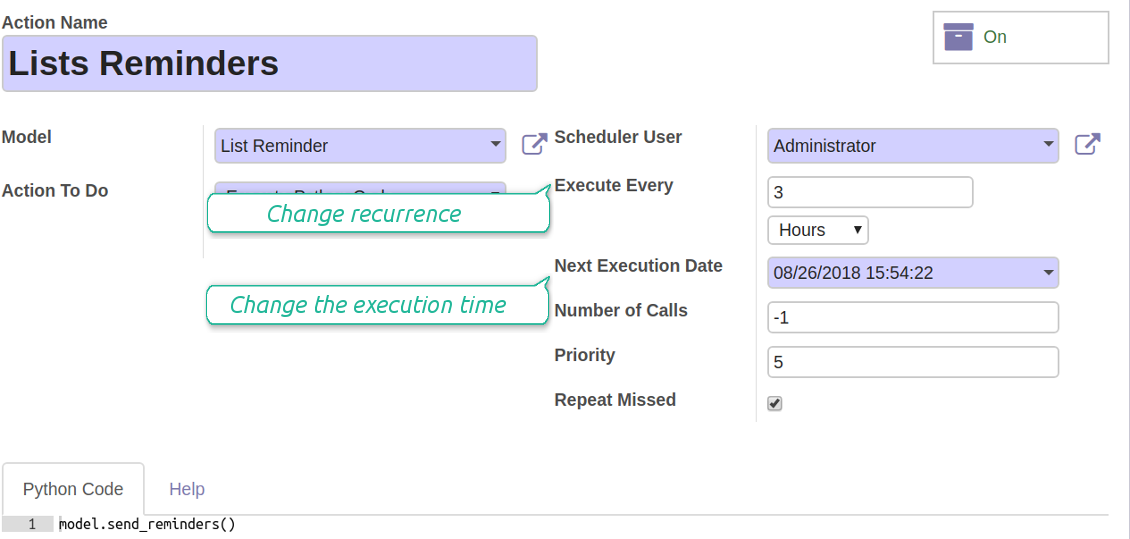
Scheduled job (cron)
By default Odoo checks whether any reminder should be sent on a daily basis. You can change a frequency or time of check. In the debug mode go to:
- Settings > Technical > Automation > Scheduled Actions > Lists Reminders
The situation for a higher frequency is when you have many reminders with a lot records to search. In that case the cron job might be not ready with all actions in time, and it is better to repeat the check. However, be cautious: do not make it too frequent. Otherwise, one job would not be fulfilled until another one, and Odoo would collapse until a reminder is sent.
The cron job interval should be bigger than your Odoo configured timeout. Sometimes it is required to increase a timeout, if a number of documents in a list accounts for a few thousands records.
The module is not aimed to export data from Odoo. Do not try to send everyday your whole database.
Configure the planned job for reminders
相关常见问题 Periodic Reporting and Reminders Odoo v.11
您的工具的更新政策是什么?
根据当前 Odoo Apps Store 政策:
- 为 12.0 及更早版本购买的每个模块,均可使用直至 12.0 的所有版本。
- 从 13.0 起,每个模块版本需单独购买。
- 无论版本如何,购买工具即获得该主版本内的 全部更新和缺陷修复权利。
请注意,faOtools 团队不控制这些政策。如有疑问,请直接联系 Odoo Apps Store 代表。
如何在 Odoo.sh 上安装您的应用?
最直接的做法是使用 Odoo 商店的内置流程:
1. 打开模块页面并点击 Deploy on odoo.sh 按钮
2. 之后会跳转到 GitHub 页面。登录帐户,然后点击 'Create a new repo' 或使用现有仓库。请确保仓库为私有。不得以 OPL-1 许可公开发布应用。如有需要,为 Odoo.sh 项目新建 repo
3. 然后转到 odoo.sh 并点击 Deploy 按钮。在弹出窗口中提交决定并点击 'Continue.' 这将触发安装过程。
这些步骤会将应用安装到项目的生产分支。若要部署到其他分支或更新模块,请执行以下操作:
1. 从 Odoo 商店上传应用的源代码
2. 将模块提交到所需的 GitHub 仓库。确保没有任何应用文件夹/文件被忽略(即未列入 repo 的 .gitignore)。仓库由 odoo.sh 自动创建,默认可能包含关键项(例如 /lib)。应上传模块的全部目录、子目录和文件,不得遗漏
3. 部署 odoo.sh 项目的目标分支,或在设置如此假定时 等待其自动构建。
应如何在自己的服务器上安装您的应用?
2. 重新启动 Odoo 服务器;
3. 打开开发者模式(技术设置);
4. 更新应用列表(应用菜单);
5. 找到应用并点击“Activate”/“Install”;
6. 如应用页面有指南,请按指南操作。
我注意到您的应用有额外附加模块。可以之后再购买吗?
可以。同时 Odoo 会自动把所有依赖加入购物车,因此应排除已购买的工具以免重复付款。
我在 Odoo.sh 上部署了您的应用,测试中出现警告/错误
红/橙色警告不影响应用功能。遗憾的是,标准自动测试有时假定与本应用目标冲突的行为,因此我们的模块会未通过。例如我们改了价格计算,而标准 Odoo 模块测试把最终价格与标准算法比较。
请先检查已部署数据库的功能。是否都正常?
若仍认为该警告影响真实功能,请联系我们并转发完整安装日志以及已部署模块的完整清单(含核心与第三方)。
我可以直接向贵公司购买应用吗?
不,我们只通过 官方 Odoo 应用商店.
希望获得折扣
很遗憾,我们没有技术手段 提供单独报价。
我可以在 Odoo Online (SaaS) 数据库上安装该应用吗?
不能,第三方应用无法在 Odoo Online 上使用。遗憾的是 Odoo SaaS 会阻止这种可能。
您的工具依赖其他应用。我需要购买那些应用吗?
是的,工具需要依赖中列出的全部模块才能正常工作。应用页上的价格已包含所有必要依赖。
该模块的美元价格是多少?为什么变了?
我们的模块价格以欧元标价。Odoo 商店按内部汇率换成其他货币。因此美元价格可能随汇率更新而变化。
非英语的应用和网站措辞由 AI 辅助 并与官方 Odoo 翻译对齐。若发现错误, 发送翻译正确性工单 我们会修好。
缺陷反馈
如遇缺陷或不一致行为,请随时联系我们。我们保证在购买后 60 天内提供修复,并在此期限后仍积极改进工具。
联系我们无需电话号码或信用卡。只需完成不超过 30 秒的简短电子邮件注册。
请在请求中尽可能提供详细信息:截图、Odoo 服务器日志、完整的问题复现说明等。通常需要几个工作日来准备问题的工作计划(若确认是缺陷)或提供应采取的指引(否则)。
公开功能请求与模块构想(免费开发)
我们非常希望改进工具,并感谢任何反馈。若您的需求具有普遍价值且能高效实现,团队会将其列入待办清单。
此类待办清单会定期处理,不产生额外费用。虽然我们无法承诺截止日期和最终设计,但这可能是在无投入、无风险的情况下获得所需功能的好办法。
联系我们无需电话号码或信用卡。只需完成不超过 30 秒的简短电子邮件注册。

用于将 Odoo 附件灵活归入文件夹并将目录与云客户端同步的工具:Google Drive、OneDrive/SharePoint、Nextcloud/ownCloud、Dropbox、Amazon S3、Box 和 NAS。DMS。文件管理器。文档管理系统
398€