Periodic Reporting and Reminders v.11
The tool to generate and periodically send reports and reminders

Any Odoo documents' reporting
Look at popular use cases
- To send periodical statistics for managers
- To forward to-do lists for certain actions
- To plan forthcoming events and actions
- To notify customers or suppliers of done jobs.
Pipeline results --> to get leads closed the previous month for a team manager
- Choose Lead/Opportunity as a model
- Define a period as Closed Date in the last month
- Make a filter Sales Channel > Sales Channel contains 'Europe', where 'Europe' is your sales team
- As columns define Display Name, Salesperson > name, Salesperson > phone, Tags, Expected Revenue
- Subscribe a sales team manager for this reminder
- Send a list each month, on the first Monday.
Similar lists might be configured for sale orders, deliveries, purchase orders, manufacturing operations, etc.
Daily to-do list --> to get activities which should be done today or previously
- Choose Activity as a document type
- Define a period as Due Date in the last 10000 days including this (to get even the eldest activities)
- Make a filter Assigned to > Name contains 'John Brown', where 'John Brown' is a user to notify
- As columns apply Display name, Category, Due Date, Note
- Subscribe a John Brown for this reminder
- Send a list everyday.
Similar reminders are usually prepared for project tasks, opportunities, planned deliveries or incoming shipments, etc.
Planned events --> to get events which will happen in forthcoming periods
- Choose Event as an object for this reminder
- Define a period as Start Date the last week, including this (it would be 'this week'), or the next 3 weeks
- Make no filters
- As columns apply Event name, Location, Start Date, End Date
- Subscribe a John Brown for this reminder, where John Brown is an event department head
- Send a list on Mondays.
Similar reminders are Okay for activities, tasks, leads, deliveries, incoming shipments, etc.
Customer project statistics --> to notify customers about their tasks
- Choose Task as a target model
- Define a period as Create Date in the last year
- Make 2 filters: Customer > Parent name is 'Agrolait' or Customer name is 'Agrolait', where 'Agrolait' is project customer
- As columns apply Display name, Deadline, Description, Last Stage Update, Stage > display name
- Subscribe a John Brown for this reminder, where John Brown is a managing partner of Agrolait
- Send a list on the 10th of January each year.
Similar statistics is frequently forwarded by support tickets, paid invoices, done sale orders, etc.
Configurable statistic and appearance
Send a table right in an email or/and as Excel (xlsx) table.
Reminder view features
- The tool allows choosing an unlimited number of columns for this document. It might be any field of a target model of the following types: char, text, html, integer, float, selection, boolean, date, datetime and relations to other documents (many2one, one2many, many2many). The set includes even computed fields
- For relational fields you might choose the second level precision. For example, you might show a phone of a customer for a sales orders' reminder or tags' colors for tasks
- It is possible to adapt column names. By default a field description is stated (on the language of this reminder), but users are allowed to change them
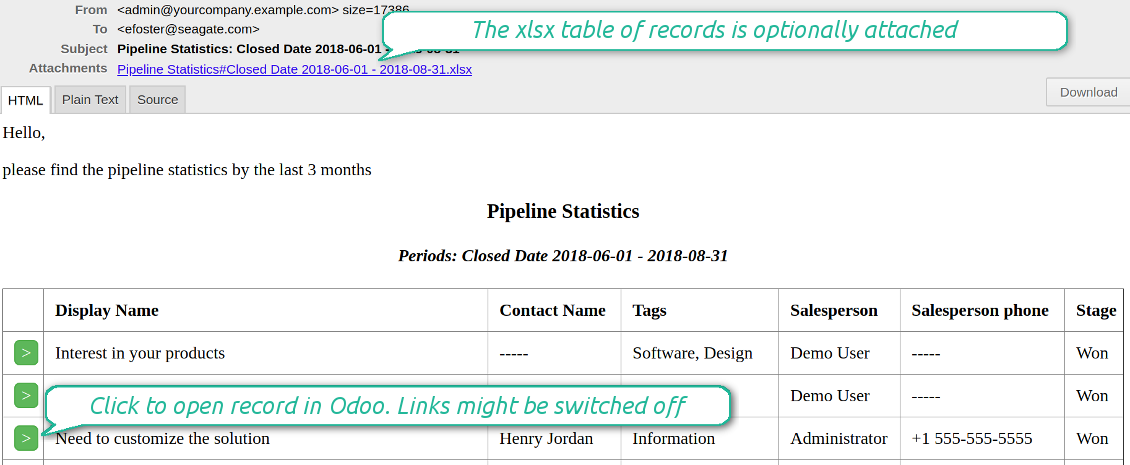
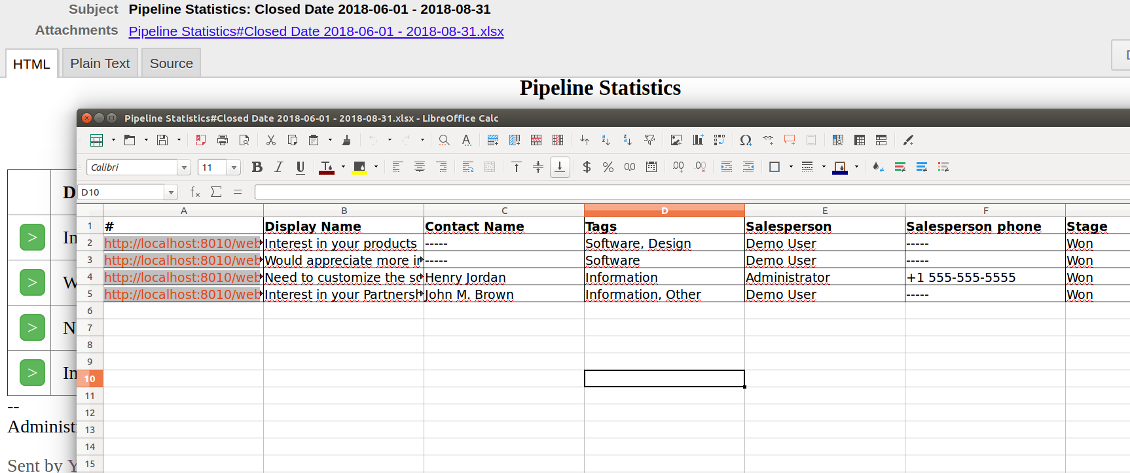
- Optionally attach an xlsx table for reminders. It would have the same columns as a reminder itself. It is also possible to exclude a list from email and leave only an xlsx table
- Include or exclude links to Odoo objects. References are great in case of internal reminders, but they are harmful in case of external ones
- Introduce any greeting text for a notification
- Choose reminders' language
- Do not change email template manually. It will break all styles. Look at the Configuration tab
Screenshots
Configure list columns and reminder appearance
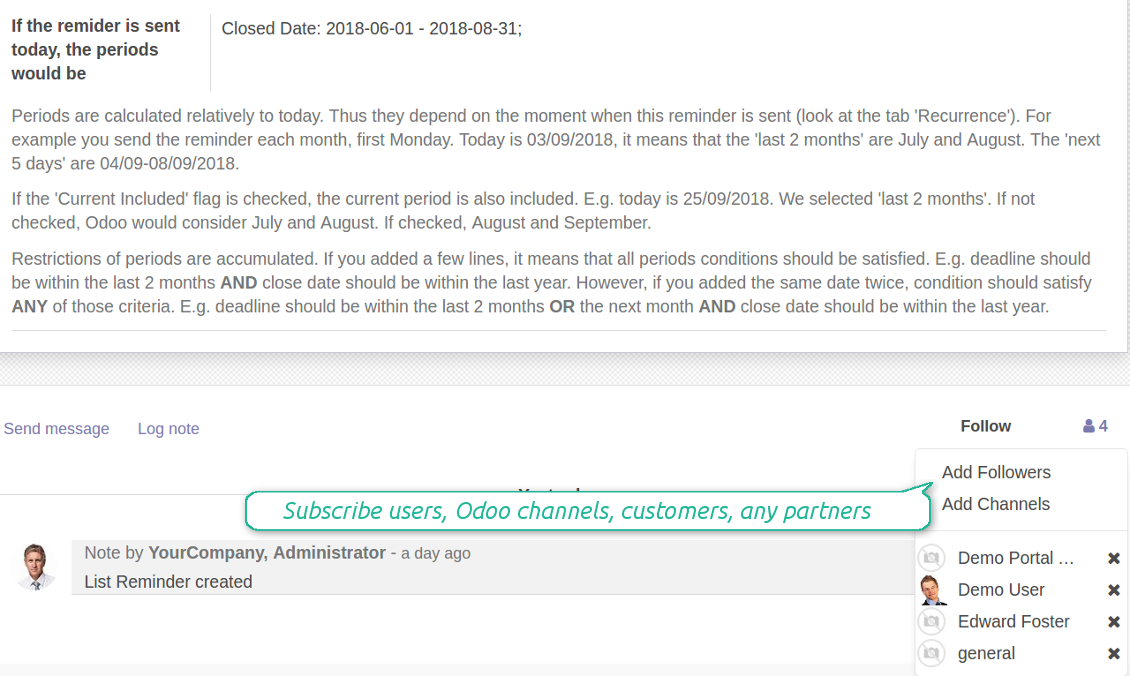
Followers regularly receive lists on their email
The Excel (xlsx) table is optionally attached
Filtering and periods for analysis
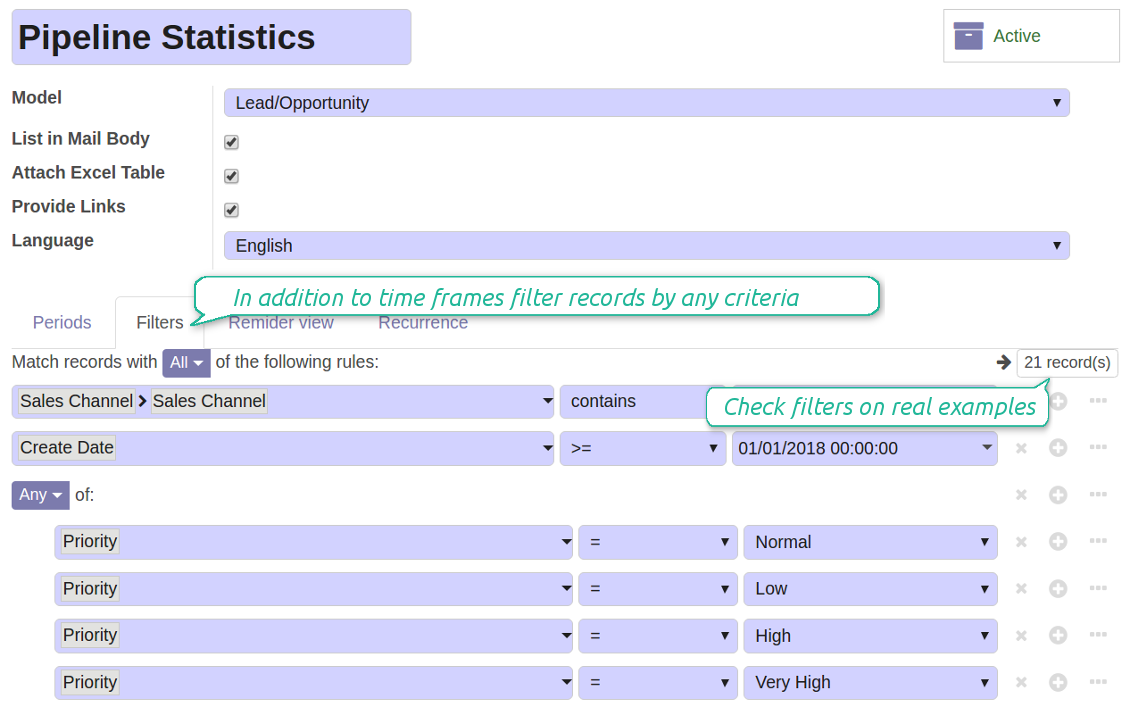
Apply any sort of filters to include only required documents.
How to limit documents by relative periods
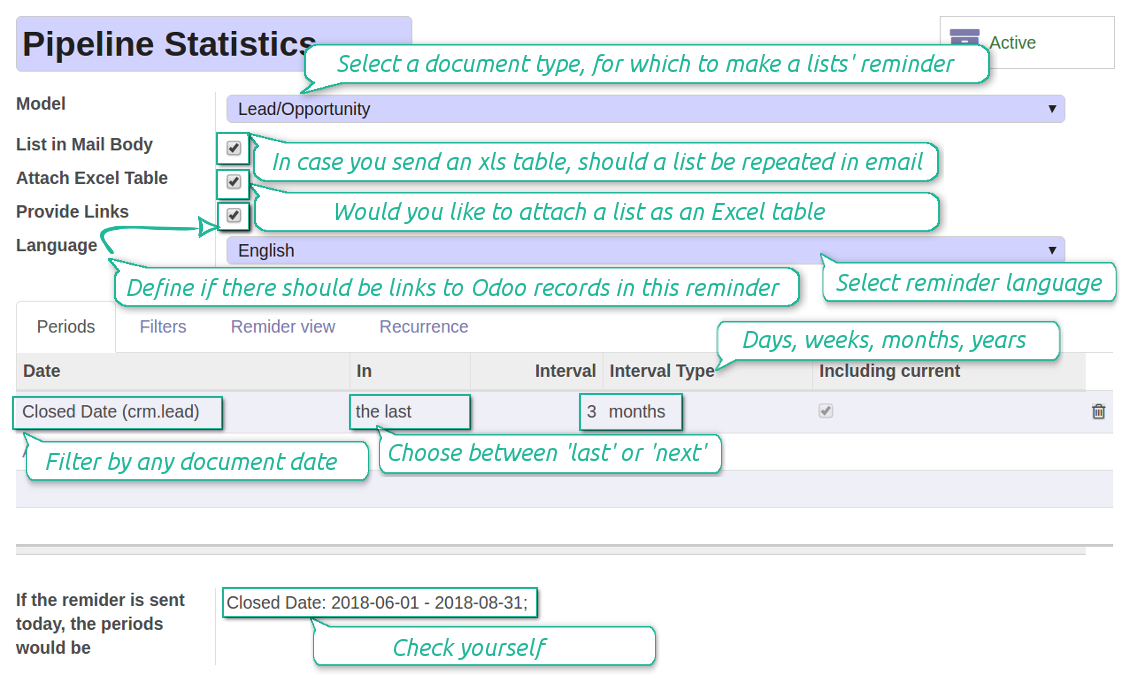
- Restrict time frames by any date or datetime of a target document type. It might be deadline, create or close date, next activity day, etc.
- If you wish, apply a few periods based on different dates. For instance, select this month closed leads which have been opened the last year. Records should satisfy all of the criteria, however if you selected the same date twice, records should be within any of those periods. For example, a deadline should be within the last 2 months OR the next month AND a close date should be within the last year
- Periods are relative, so they are periods in comparison to today. E.g., 'this month', 'the last year', 'the next 5 weeks'
- Intervals may both define previous time frames ('the last') and forthcoming periods ('the next')
- As intervals select days, weeks, months, or years
- Exclude or include a current period. For example, you might send a reminder on the first day of a month for a previous one. Vice versa, forward a list on the last day of this month for a current one
- Test your settings according to a real-time-shown result below the table
How to filter documents under analysis
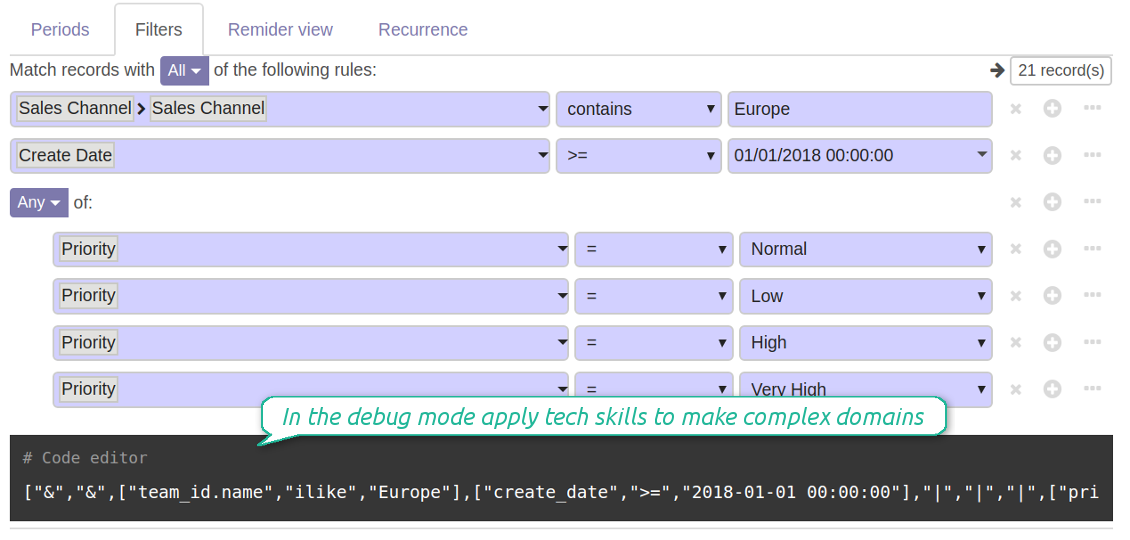
- Filters are organized as a domain constructor: you may use the most of storable fields with any level of precision. The latter means, for example, you can filter sales orders by a related partner country or even by a state of a company of a related partner
- Use both 'AND' ('all') and 'OR' ('any') operators to achieve a desired result
- Check yourself by pressing the button 'Records': it would show all documents which at the moment satisfy your search criteria (and you have an access to)
- If you feel confident to prepare Reverse Polish Notation domains, turn on the debug mode, and apply more complex expressions such as, for instance, ' category is child_of all'
Screenshots
Configure lists of records to be sent according to chosen periods
Filter Odoo records to be included into a list
Good at Odoo domains? Turn on the debug mode
Flexible recurrence
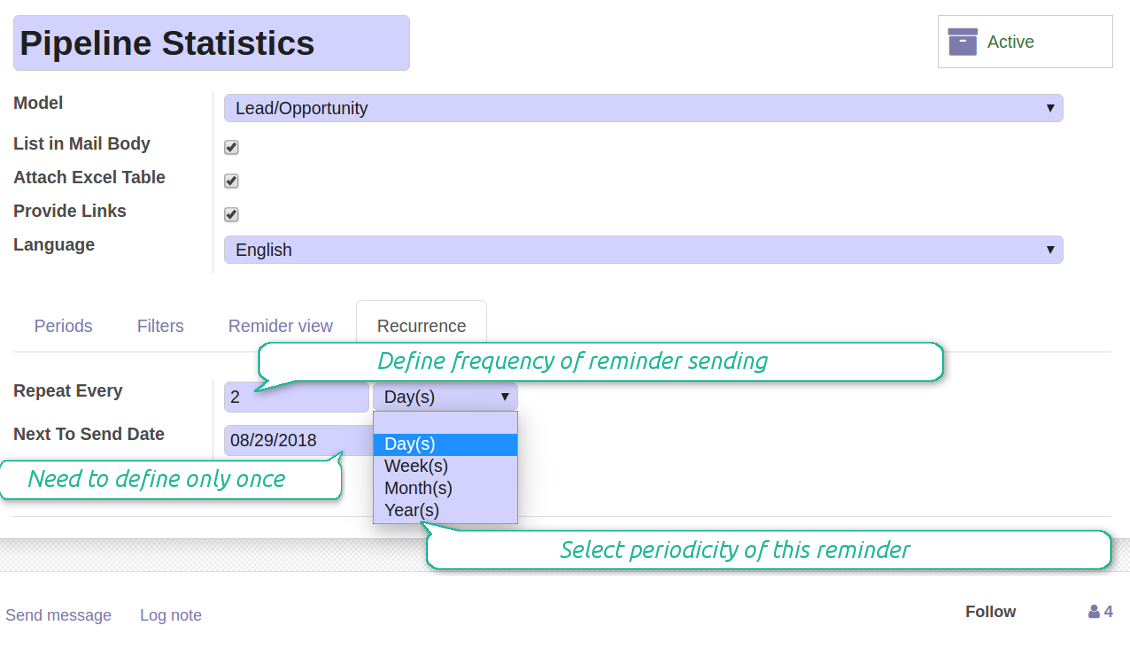
Which periodicity I may apply
- Send a reminder every day, each 5 days, each 181 days
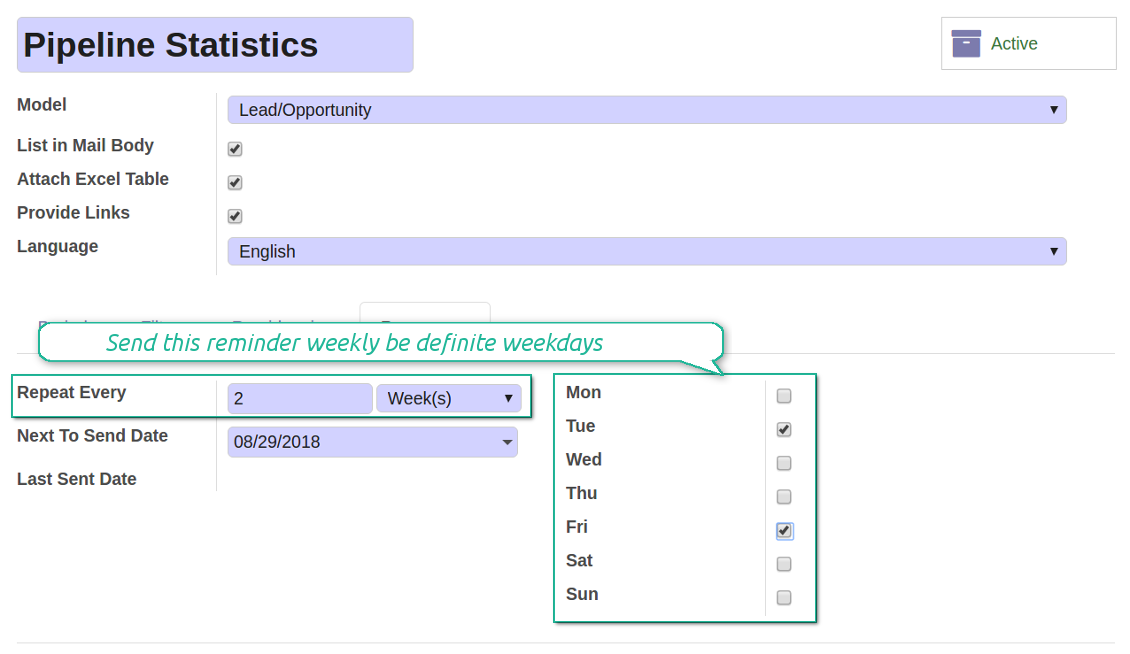
- Notify by exact weekdays, e.g. on Mondays and Thursdays
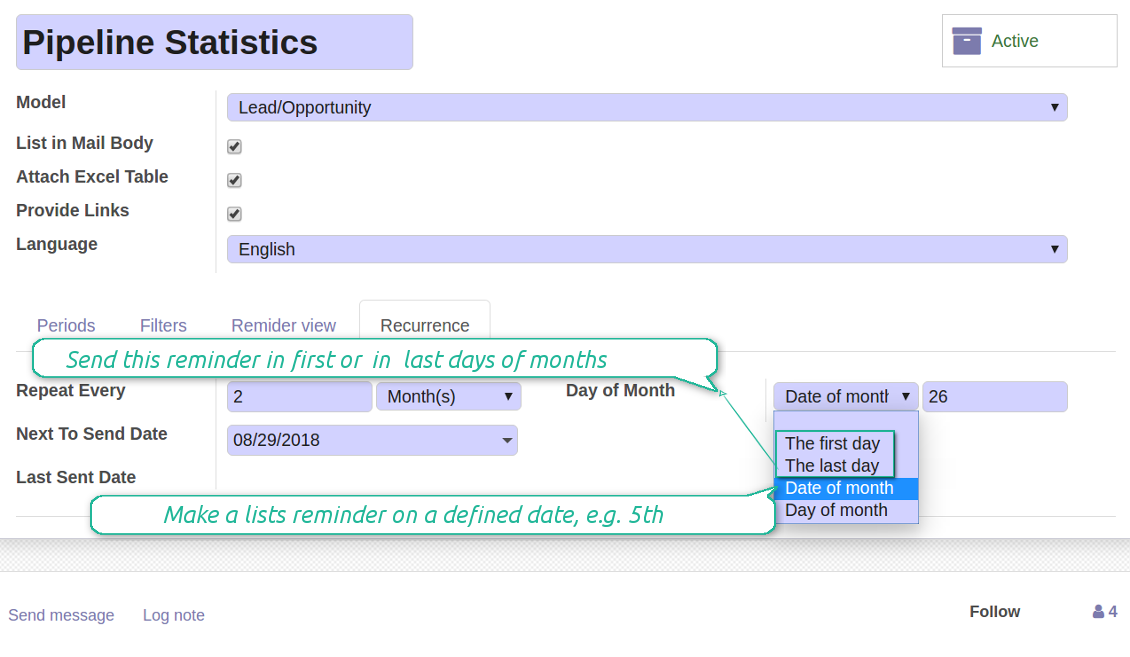
- For monthly reminders use:
- The first month day
- The last month day
- The exact date, e.g. the 16th
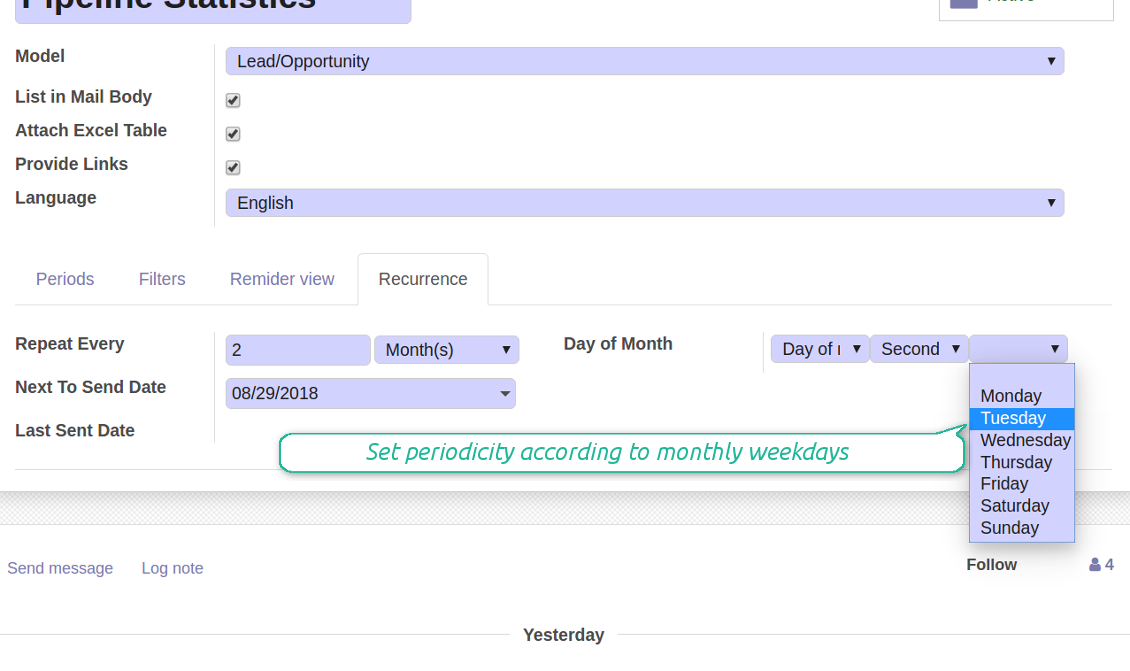
- A weekday, for instance, the first Monday, the last Friday, or the third Tuesday
- Prepare a yearly statistics on an exact year day, e.g. on the first of September
Screenshots
Flexibly configure reminders frequency
Send reminders weekly on predefined weekdays
Define a month day for lists notifications
Make reminder monthly on predefined weekdays
Reminder for any Odoo partner
Screenshots
Remind to any user, customer, supplier or send lists to Odoo channels
Periodic reporting managers
User rights peculiarities
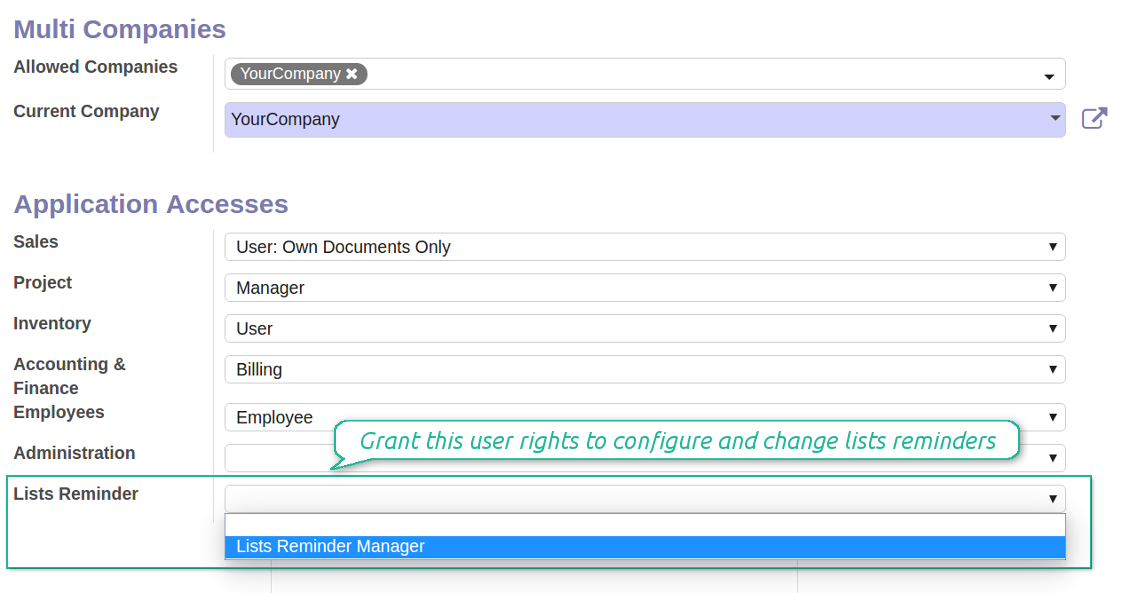
- To observe the reminders' menu and configure new notifications, select the right 'Lists Reminder Manager' in this user settings
- Make sure you trust such a person. This user would be able to send any data by a document type to which he/she has a read access. It means, that if a user might read leads in general, but do not have rights to read the exact lead 'XXX', he/she would be able to send the data by the lead 'XXX' using the reminder
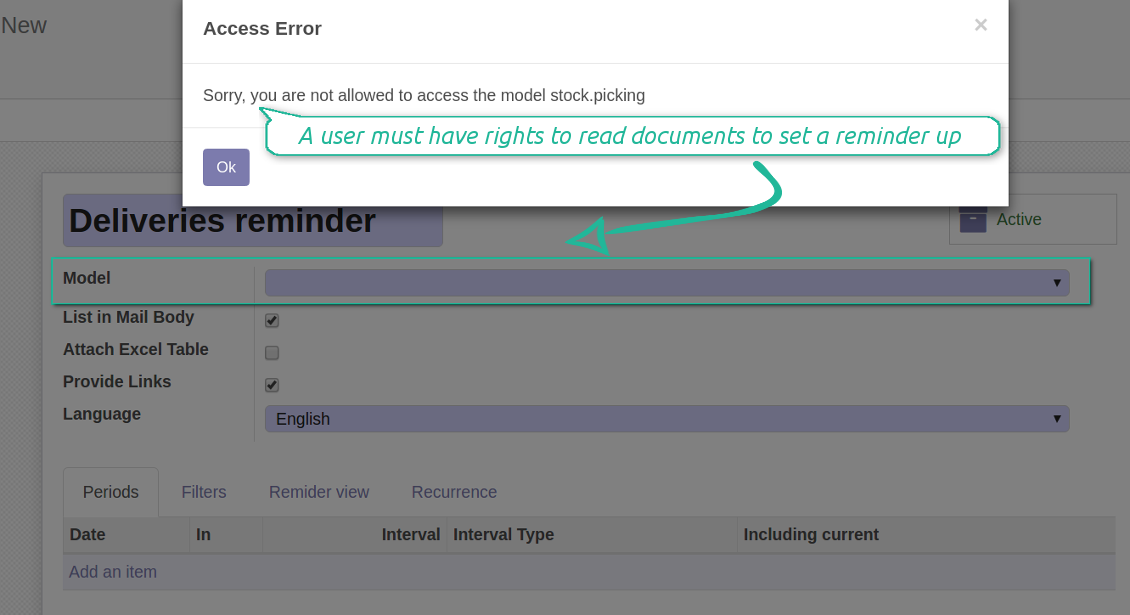
- To configure a reminder by this document type, a user should have a read access to such a model. For example, an employee without the right 'Warehouse user' might not prepare a reminder by deliveries
Screenshots
Make any user prepare lists reminders
Reminder managers may configure lists only for documents they can read
Great and very useful app
First of all, the team behind this app is great, support is immediate, and response is fast. The application is very useful in managing any type of notification to keep you updated with all what's happening within your company.
Configuratie- en installatietips voor Periodic Reporting and Reminders Odoo v.11
Python dependency
To provide the feature of dynamic Excel table generation, install the Python library xlsxwriter:
pip install xlsxwriter
Email template
The basic reminder appearance should not be configured through Odoo email templates. In the debug mode go to:
- Settings > Technical > Email > Templates > Reminder
Do not change this template! Otherwise, its styles would be broken, and you would receive blank emails.
Have you broken everything? Not a problem, remove this template and update the module. The email appearance will be recovered.
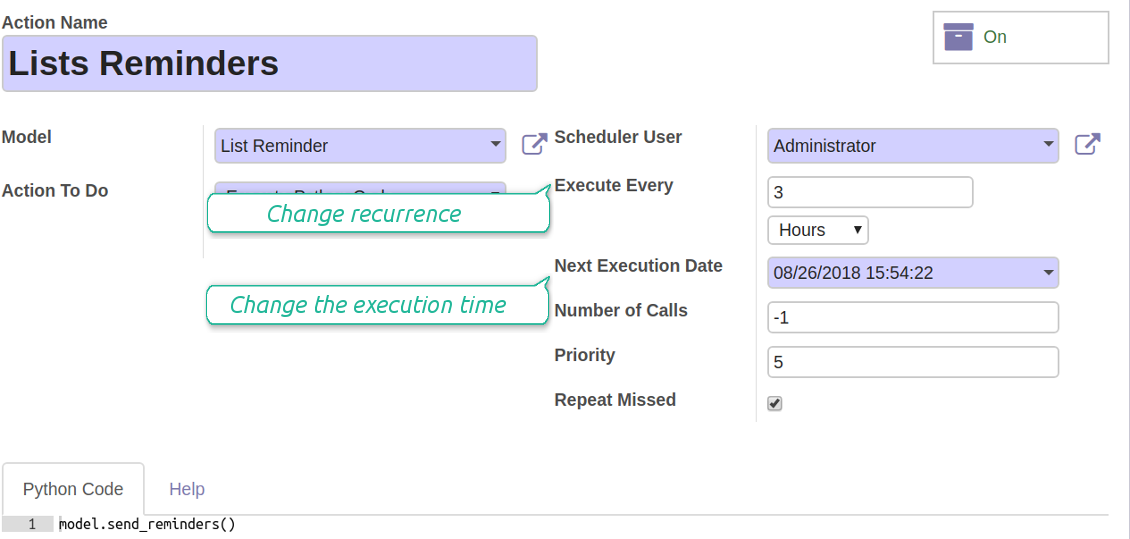
Scheduled job (cron)
By default Odoo checks whether any reminder should be sent on a daily basis. You can change a frequency or time of check. In the debug mode go to:
- Settings > Technical > Automation > Scheduled Actions > Lists Reminders
The situation for a higher frequency is when you have many reminders with a lot records to search. In that case the cron job might be not ready with all actions in time, and it is better to repeat the check. However, be cautious: do not make it too frequent. Otherwise, one job would not be fulfilled until another one, and Odoo would collapse until a reminder is sent.
The cron job interval should be bigger than your Odoo configured timeout. Sometimes it is required to increase a timeout, if a number of documents in a list accounts for a few thousands records.
The module is not aimed to export data from Odoo. Do not try to send everyday your whole database.
Configure the planned job for reminders
Veelgestelde vragen over Periodic Reporting and Reminders Odoo v.11
Wat is het updatebeleid van uw tools?
Volgens het huidige beleid van de Odoo Apps Store:
- Elke module gekocht voor versie 12.0 of eerder geeft toegang tot alle versies tot 12.0.
- Vanaf versie 13.0 moet elke moduleversie apart worden gekocht.
- Ongeacht de versie geeft aankoop recht op alle updates en bugfixes binnen een hoofdversie.
Het faOtools-team bepaalt dit beleid niet. Neem voor vragen rechtstreeks contact op met vertegenwoordigers van de Odoo Apps Store.
Hoe installeer ik uw app op Odoo.sh?
De meest directe aanpak is de ingebouwde workflow van de Odoo-store:
1. Open de modulepagina en klik op Deploy on odoo.sh
2. U gaat naar GitHub. Log in en klik op Create a new repo of gebruik een bestaande. De repository moet privé zijn. Apps onder OPL-1 mogen niet openbaar. Maak zo nodig een nieuwe repo voor het Odoo.sh-project
3. Ga daarna naar odoo.sh, klik op Deploy, bevestig en klik op Continue. De installatie start.
Zo installeert u de app op de productiebranch. Voor andere branches of een update:
1. Download de broncode uit de Odoo-store
2. Commit de module naar de GitHub-repository. Geen app-mappen/bestanden in .gitignore. Repo's van odoo.sh negeren soms belangrijke paden (bijv. /lib). Upload alle modulemappen en -bestanden
3. Deploy de doelbranch van het odoo.sh-project of wacht op de automatische build.
Hoe installeer ik uw app op mijn eigen server?
2. Herstart de Odoo-server;
3. Zet de ontwikkelaarsmodus aan (technische instellingen);
4. Werk de applijst bij (Apps-menu);
5. Zoek de app en klik op Activate/Install;
6. Volg de richtlijnen op de app-pagina als die er zijn.
Uw app heeft extra add-ons. Kan ik die later kopen?
Ja. Odoo zet automatisch alle afhankelijkheden in de winkelwagen: sluit eerder gekochte tools uit om dubbel betalen te voorkomen.
Ik heb uw app op Odoo.sh gezet en zie een waarschuwing/fout in de tests
Een rode/oranje waarschuwing beinvloedt de functies van de app niet. Soms halen onze modules de standaard automatische tests niet, omdat die gedrag verwachten dat indruist tegen het doel van de app. We wijzigen bijvoorbeeld de prijscalculatie, terwijl de Odoo-tests de eindprijs met het standaardalgoritme vergelijken.
Controleer eerst de functies van de gedeployde database. Werkt alles?
Als u toch denkt dat de waarschuwing echte functies raakt, neem contact op en stuur de volledige installatielogs en de volledige lijst gedeployde modules (kern en derden).
Kan ik uw app rechtstreeks bij u kopen?
Nee, we verspreiden de tools alleen via de officiele Odoo-appwinkel.
Ik wil graag korting
Helaas hebben we geen technische mogelijkheid voor individuele prijzen.
Kan ik de app installeren op mijn Odoo Online (SaaS)-database?
Nee, apps van derden kunnen niet op Odoo Online. Odoo SaaS blokkeert die mogelijkheid.
Uw tool hangt van andere apps af. Moet ik die kopen?
Ja, de tool heeft alle modules in de afhankelijkheden nodig. De prijs op de app-pagina is inclusief die afhankelijkheden.
Wat is de prijs van de module in Amerikaanse dollars? Waarom is die veranderd?
De prijs van onze modules staat in euro. De Odoo-store rekent om volgens de interne wisselkoers. De prijs in Amerikaanse dollars kan dus wijzigen als die koers wordt bijgewerkt.
De teksten van de app en website in andere talen dan het Engels zijn met AI ondersteund en afgestemd op de officiële Odoo-vertalingen. Als u een fout ziet, een vertaalticket sturen en we corrigeren het.
Fouten melden
Als u bugs of inconsistent gedrag tegenkomt, aarzel dan niet om contact met ons op te nemen. We garanderen dat we binnen 60 dagen na aankoop oplossingen bieden en zijn zeer geïnteresseerd in het verbeteren van onze tools, zelfs na deze periode.
U heeft geen telefoonnummer of creditcard nodig om contact met ons op te nemen. U hoeft slechts een korte e-mailaanmelding door te geven, die niet langer dan 30 seconden duurt.
Vermeld zo veel mogelijk details in uw verzoek: schermafbeeldingen, Odoo-serverlogboeken, een volledige beschrijving om uw probleem te reproduceren enzovoort. Gewoonlijk kost het enkele werkdagen om een werkplan voor een probleem op te stellen (als een bug is bevestigd) of u richtlijnen te geven over wat er moet gebeuren (anders).
Aanvragen voor openbare functies en module-ideeën (gratis ontwikkeling)
We zijn sterk gemotiveerd om onze tools te verbeteren en zijn dankbaar voor alle feedback. Als uw vereisten van openbaar nut zijn en efficiënt kunnen worden geïmplementeerd, zal het team deze opnemen in onze takenlijst.
Zo'n to-dolijst wordt regelmatig verwerkt en er zijn geen extra kosten aan verbonden. Hoewel we geen deadlines en definitief ontwerp kunnen beloven, kan het een goede manier zijn om de gewenste functies te verkrijgen zonder investeringen en risico's.
U heeft geen telefoonnummer of creditcard nodig om contact met ons op te nemen. U hoeft slechts een korte e-mailaanmelding door te geven, die niet langer dan 30 seconden duurt.

De tool om Odoo-bijlagen in mappen te structureren en te synchroniseren met Google Drive, OneDrive/SharePoint, Nextcloud/ownCloud, Dropbox, Amazon S3, Box en NAS. Bestandsbeheer. DMS
398€
De tool om wachtwoorden veilig in Odoo te bewaren voor gedeeld gebruik. Kluizen

De tool om een diepe kennisbank te bouwen, intern en extern. KMS. Wiki-achtige revisies
398€
De tool om Odoo-bijlagen bidirectioneel met OneDrive te synchroniseren
487€
De tool om KPI-doelen te zetten en de realisatie per periode te controleren. Dashboards. Grafieken

De tool voor tijdgebonden diensten van boeking tot verkoop en reviews
398€
De tool om Odoo-bijlagen bidirectioneel met Google Drive te synchroniseren
487€