Periodic Reporting and Reminders v.11
The tool to generate and periodically send reports and reminders

Any Odoo documents' reporting
Look at popular use cases
- To send periodical statistics for managers
- To forward to-do lists for certain actions
- To plan forthcoming events and actions
- To notify customers or suppliers of done jobs.
Pipeline results --> to get leads closed the previous month for a team manager
- Choose Lead/Opportunity as a model
- Define a period as Closed Date in the last month
- Make a filter Sales Channel > Sales Channel contains 'Europe', where 'Europe' is your sales team
- As columns define Display Name, Salesperson > name, Salesperson > phone, Tags, Expected Revenue
- Subscribe a sales team manager for this reminder
- Send a list each month, on the first Monday.
Similar lists might be configured for sale orders, deliveries, purchase orders, manufacturing operations, etc.
Daily to-do list --> to get activities which should be done today or previously
- Choose Activity as a document type
- Define a period as Due Date in the last 10000 days including this (to get even the eldest activities)
- Make a filter Assigned to > Name contains 'John Brown', where 'John Brown' is a user to notify
- As columns apply Display name, Category, Due Date, Note
- Subscribe a John Brown for this reminder
- Send a list everyday.
Similar reminders are usually prepared for project tasks, opportunities, planned deliveries or incoming shipments, etc.
Planned events --> to get events which will happen in forthcoming periods
- Choose Event as an object for this reminder
- Define a period as Start Date the last week, including this (it would be 'this week'), or the next 3 weeks
- Make no filters
- As columns apply Event name, Location, Start Date, End Date
- Subscribe a John Brown for this reminder, where John Brown is an event department head
- Send a list on Mondays.
Similar reminders are Okay for activities, tasks, leads, deliveries, incoming shipments, etc.
Customer project statistics --> to notify customers about their tasks
- Choose Task as a target model
- Define a period as Create Date in the last year
- Make 2 filters: Customer > Parent name is 'Agrolait' or Customer name is 'Agrolait', where 'Agrolait' is project customer
- As columns apply Display name, Deadline, Description, Last Stage Update, Stage > display name
- Subscribe a John Brown for this reminder, where John Brown is a managing partner of Agrolait
- Send a list on the 10th of January each year.
Similar statistics is frequently forwarded by support tickets, paid invoices, done sale orders, etc.
Configurable statistic and appearance
Send a table right in an email or/and as Excel (xlsx) table.
Reminder view features
- The tool allows choosing an unlimited number of columns for this document. It might be any field of a target model of the following types: char, text, html, integer, float, selection, boolean, date, datetime and relations to other documents (many2one, one2many, many2many). The set includes even computed fields
- For relational fields you might choose the second level precision. For example, you might show a phone of a customer for a sales orders' reminder or tags' colors for tasks
- It is possible to adapt column names. By default a field description is stated (on the language of this reminder), but users are allowed to change them
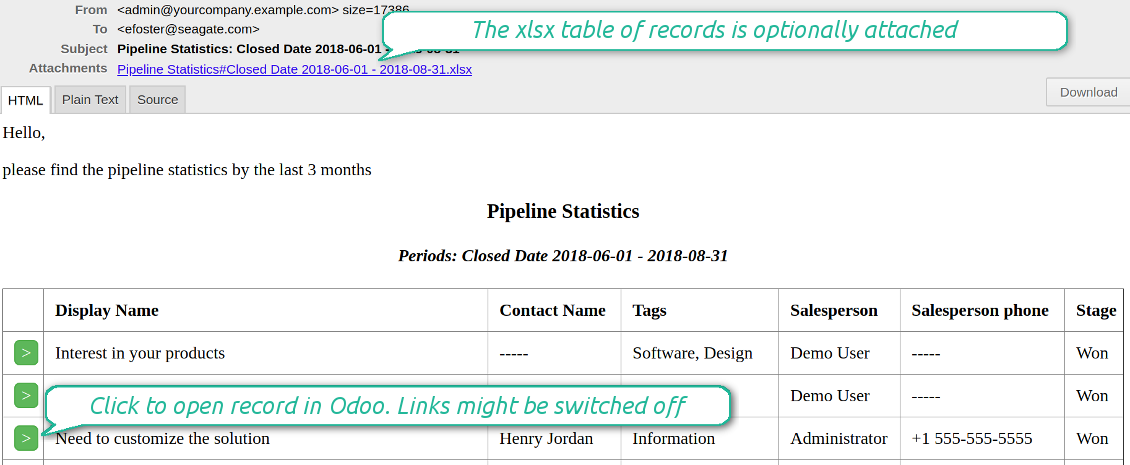
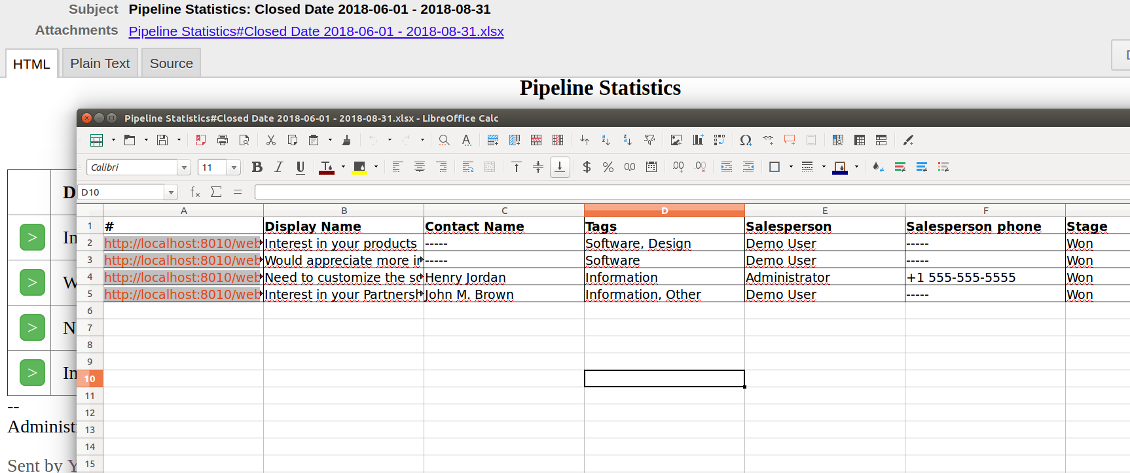
- Optionally attach an xlsx table for reminders. It would have the same columns as a reminder itself. It is also possible to exclude a list from email and leave only an xlsx table
- Include or exclude links to Odoo objects. References are great in case of internal reminders, but they are harmful in case of external ones
- Introduce any greeting text for a notification
- Choose reminders' language
- Do not change email template manually. It will break all styles. Look at the Configuration tab
Schermate
Configure list columns and reminder appearance
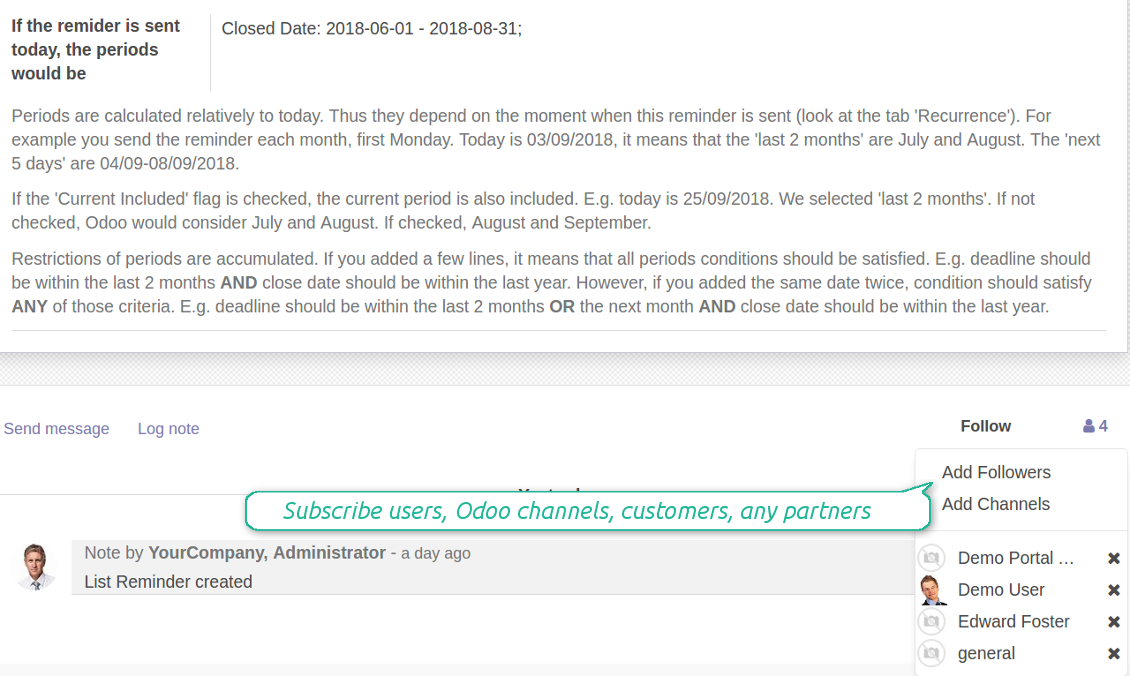
Followers regularly receive lists on their email
The Excel (xlsx) table is optionally attached
Filtering and periods for analysis
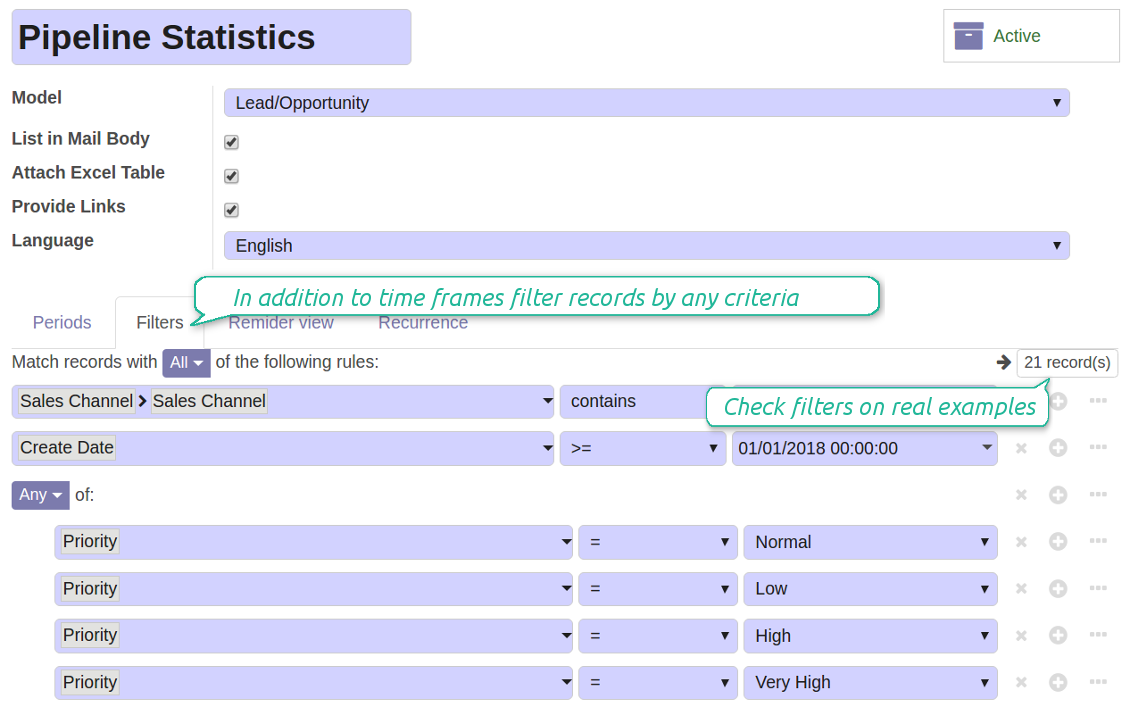
Apply any sort of filters to include only required documents.
How to limit documents by relative periods
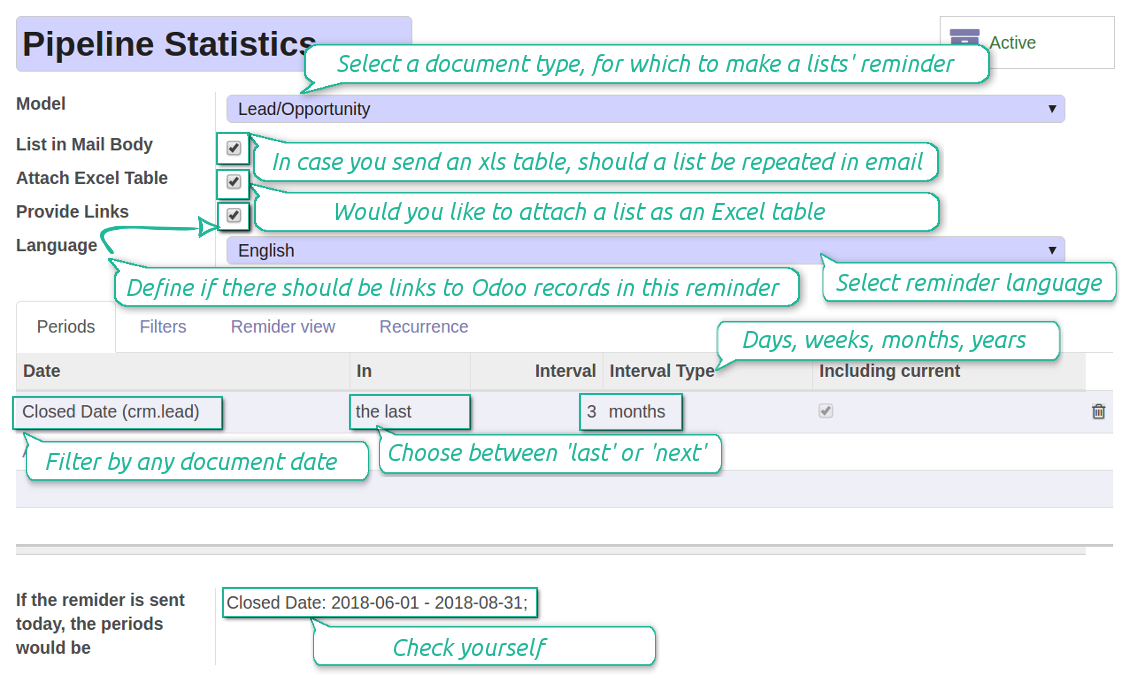
- Restrict time frames by any date or datetime of a target document type. It might be deadline, create or close date, next activity day, etc.
- If you wish, apply a few periods based on different dates. For instance, select this month closed leads which have been opened the last year. Records should satisfy all of the criteria, however if you selected the same date twice, records should be within any of those periods. For example, a deadline should be within the last 2 months OR the next month AND a close date should be within the last year
- Periods are relative, so they are periods in comparison to today. E.g., 'this month', 'the last year', 'the next 5 weeks'
- Intervals may both define previous time frames ('the last') and forthcoming periods ('the next')
- As intervals select days, weeks, months, or years
- Exclude or include a current period. For example, you might send a reminder on the first day of a month for a previous one. Vice versa, forward a list on the last day of this month for a current one
- Test your settings according to a real-time-shown result below the table
How to filter documents under analysis
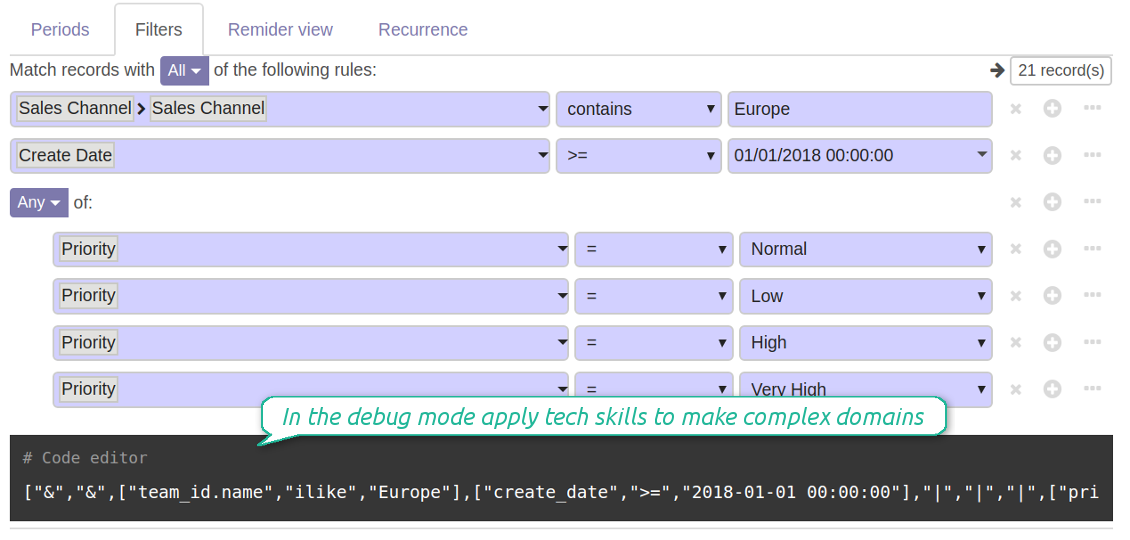
- Filters are organized as a domain constructor: you may use the most of storable fields with any level of precision. The latter means, for example, you can filter sales orders by a related partner country or even by a state of a company of a related partner
- Use both 'AND' ('all') and 'OR' ('any') operators to achieve a desired result
- Check yourself by pressing the button 'Records': it would show all documents which at the moment satisfy your search criteria (and you have an access to)
- If you feel confident to prepare Reverse Polish Notation domains, turn on the debug mode, and apply more complex expressions such as, for instance, ' category is child_of all'
Schermate
Configure lists of records to be sent according to chosen periods
Filter Odoo records to be included into a list
Good at Odoo domains? Turn on the debug mode
Flexible recurrence
Which periodicity I may apply
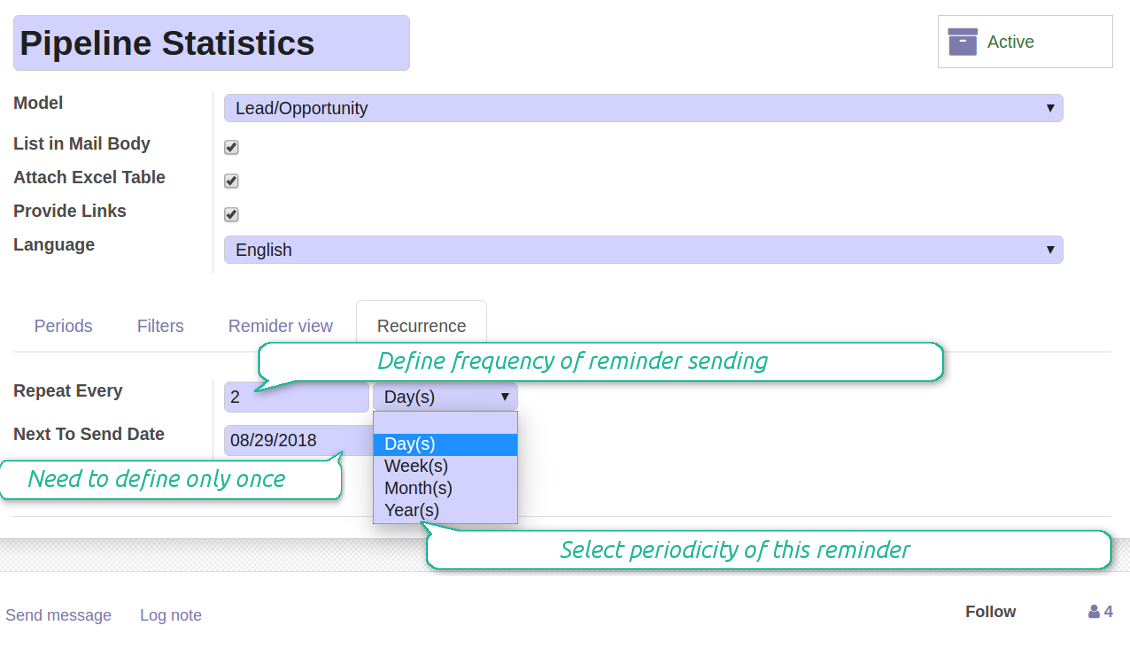
- Send a reminder every day, each 5 days, each 181 days
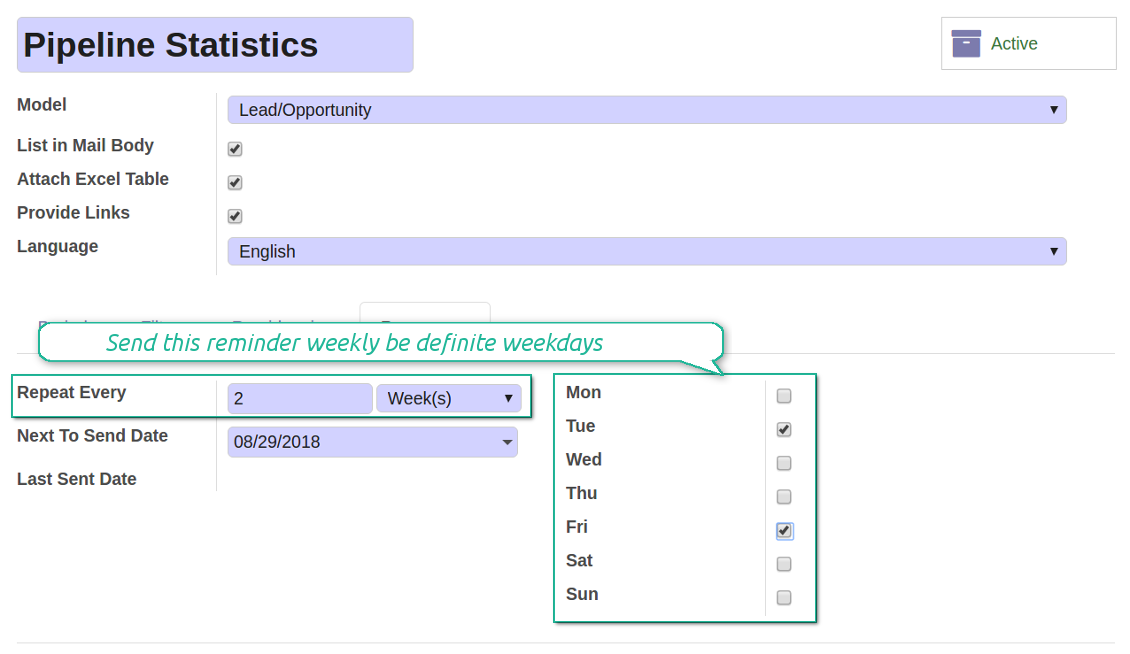
- Notify by exact weekdays, e.g. on Mondays and Thursdays
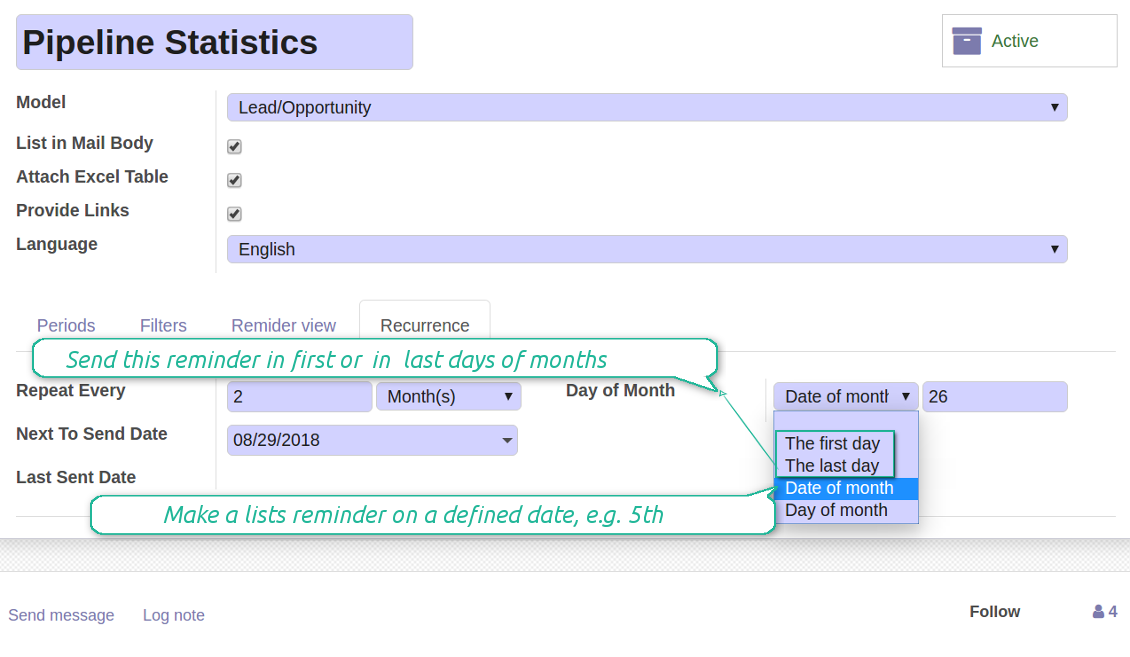
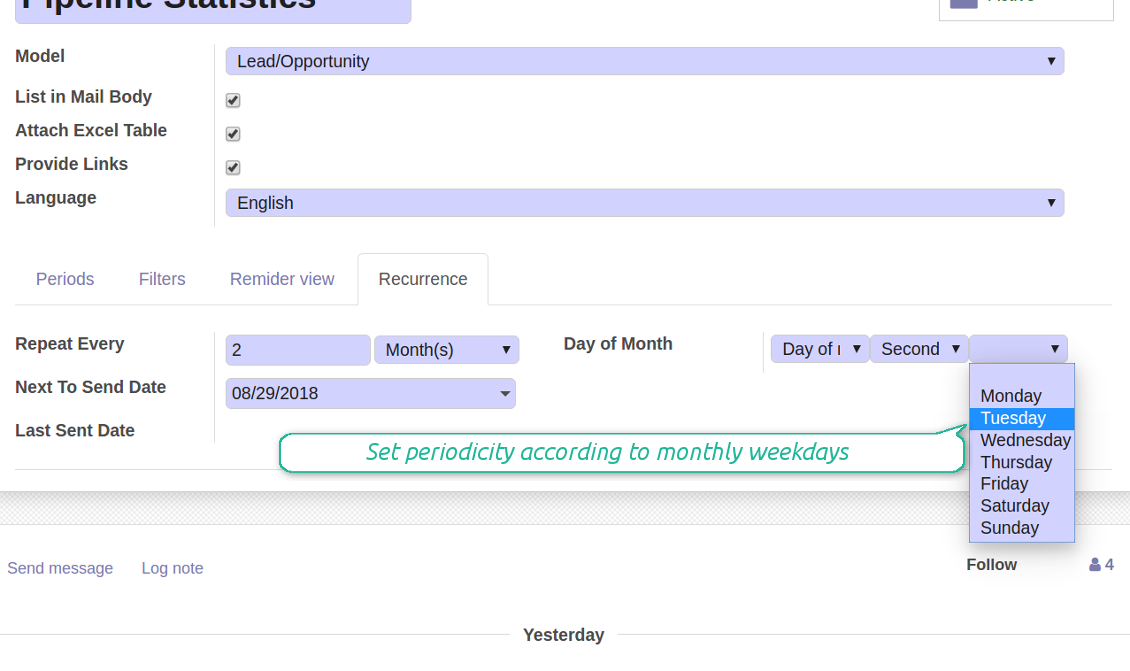
- For monthly reminders use:
- The first month day
- The last month day
- The exact date, e.g. the 16th
- A weekday, for instance, the first Monday, the last Friday, or the third Tuesday
- Prepare a yearly statistics on an exact year day, e.g. on the first of September
Schermate
Flexibly configure reminders frequency
Send reminders weekly on predefined weekdays
Define a month day for lists notifications
Make reminder monthly on predefined weekdays
Reminder for any Odoo partner
Schermate
Remind to any user, customer, supplier or send lists to Odoo channels
Periodic reporting managers
User rights peculiarities
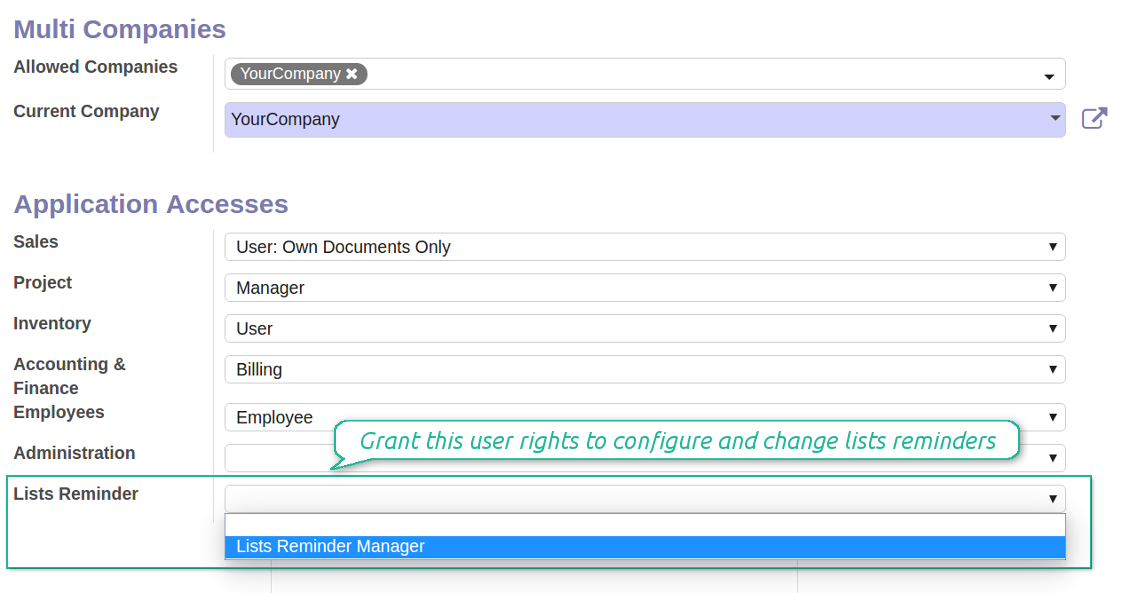
- To observe the reminders' menu and configure new notifications, select the right 'Lists Reminder Manager' in this user settings
- Make sure you trust such a person. This user would be able to send any data by a document type to which he/she has a read access. It means, that if a user might read leads in general, but do not have rights to read the exact lead 'XXX', he/she would be able to send the data by the lead 'XXX' using the reminder
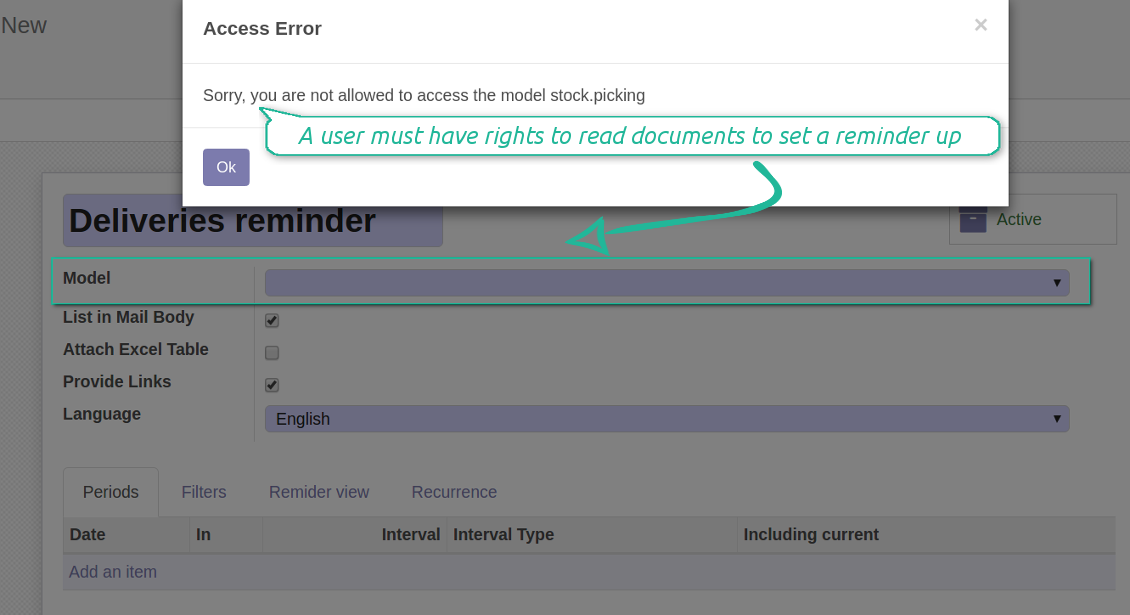
- To configure a reminder by this document type, a user should have a read access to such a model. For example, an employee without the right 'Warehouse user' might not prepare a reminder by deliveries
Schermate
Make any user prepare lists reminders
Reminder managers may configure lists only for documents they can read
Great and very useful app
First of all, the team behind this app is great, support is immediate, and response is fast. The application is very useful in managing any type of notification to keep you updated with all what's happening within your company.
Suggerimenti di configurazione e installazione per Periodic Reporting and Reminders Odoo v.11
Python dependency
To provide the feature of dynamic Excel table generation, install the Python library xlsxwriter:
pip install xlsxwriter
Email template
The basic reminder appearance should not be configured through Odoo email templates. In the debug mode go to:
- Settings > Technical > Email > Templates > Reminder
Do not change this template! Otherwise, its styles would be broken, and you would receive blank emails.
Have you broken everything? Not a problem, remove this template and update the module. The email appearance will be recovered.
Scheduled job (cron)
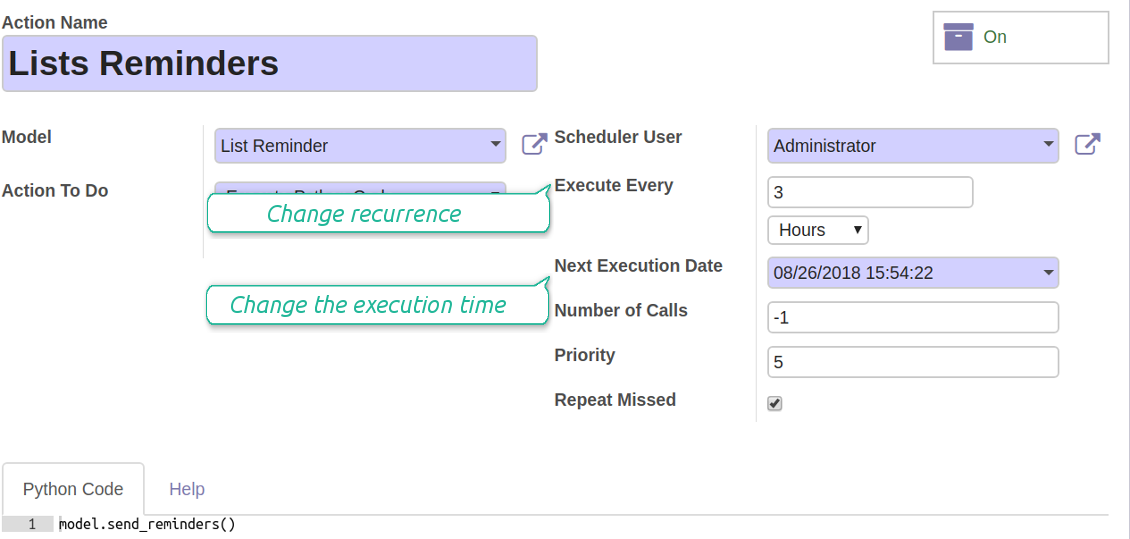
By default Odoo checks whether any reminder should be sent on a daily basis. You can change a frequency or time of check. In the debug mode go to:
- Settings > Technical > Automation > Scheduled Actions > Lists Reminders
The situation for a higher frequency is when you have many reminders with a lot records to search. In that case the cron job might be not ready with all actions in time, and it is better to repeat the check. However, be cautious: do not make it too frequent. Otherwise, one job would not be fulfilled until another one, and Odoo would collapse until a reminder is sent.
The cron job interval should be bigger than your Odoo configured timeout. Sometimes it is required to increase a timeout, if a number of documents in a list accounts for a few thousands records.
The module is not aimed to export data from Odoo. Do not try to send everyday your whole database.
Configure the planned job for reminders
Domande frequenti su Periodic Reporting and Reminders Odoo v.11
Quali sono le politiche di aggiornamento dei vostri strumenti?
Secondo le politiche attuali dell'Odoo Apps Store:
- Ogni modulo acquistato per la versione 12.0 o precedente da accesso a tutte le versioni fino alla 12.0.
- Dalla versione 13.0 ogni versione del modulo va acquistata separatamente.
- Indipendentemente dalla versione, l'acquisto da diritto a tutti gli aggiornamenti e le correzioni entro una major version.
Il team faOtools non controlla queste politiche. Per qualsiasi domanda, contattate direttamente i rappresentanti dell'Odoo Apps Store.
Come installo l'app su Odoo.sh?
L'approccio piu diretto e il flusso integrato dello store Odoo:
1. Apri la pagina del modulo e fai clic su Deploy on odoo.sh
2. Verrai reindirizzato a GitHub. Accedi e fai clic su Create a new repo o usa uno esistente. Il repository deve essere privato. Non e consentito pubblicare le app con licenza OPL-1. Se serve, crea un nuovo repo per il progetto Odoo.sh
3. Poi, in odoo.sh, fai clic su Deploy, conferma e fai clic su Continue. Parte l'installazione.
Questi passaggi installano l'app sul branch di produzione. Per altri branch o per aggiornare:
1. Scarica il codice sorgente dallo store Odoo
2. Esegui il commit del modulo nel repository GitHub. Nessuna cartella/file dell'app deve essere in .gitignore. I repo creati da odoo.sh a volte ignorano percorsi importanti (es. /lib). Carica tutte le directory e i file del modulo
3. Esegui il deploy del branch di destinazione del progetto odoo.sh oppure attendi la build automatica se previsto.
Come installo l'app sul mio server?
2. Riavvia il server Odoo;
3. Attiva la modalità sviluppatore (impostazioni tecniche);
4. Aggiorna l'elenco delle app (menu Applicazioni);
5. Trova l'app e premi Activate/Install;
6. Segui le linee guida nella pagina dell'app, se ci sono.
L'app ha componenti extra. Posso acquistarli dopo?
Si. Odoo aggiunge automaticamente le dipendenze al carrello: escludi gli strumenti gia acquistati per non pagare due volte.
Ho distribuito l'app su Odoo.sh e vedo un avviso/errore nei test
Un avviso rosso/arancione non influisce sulle funzioni dell'app. A volte i nostri moduli non superano i test automatici standard perché questi assumono un comportamento in conflitto con gli obiettivi dell'app. Ad esempio cambiamo il calcolo del prezzo, mentre i test Odoo confrontano il prezzo finale con l'algoritmo standard.
Controllate prima le funzioni del database distribuito. Funziona tutto?
Se pensate ancora che l'avviso influisca sulle funzioni reali, contattateci e inviate i log di installazione completi e l'elenco completo dei moduli distribuiti (core e di terze parti).
Posso acquistare l'app direttamente da voi?
No, distribuiamo gli strumenti solo tramite lo store ufficiale delle app Odoo.
Vorrei uno sconto
Purtroppo non abbiamo i mezzi tecnici per prezzi individuali.
Posso installare l'app sul database Odoo Online (SaaS)?
No, le app di terze parti non si possono usare su Odoo Online. Odoo SaaS blocca questa possibilità.
Lo strumento dipende da altre app. Devo acquistarle?
Si, lo strumento richiede tutti i moduli indicati nelle dipendenze. Il prezzo sulla pagina dell'app le include gia.
Qual e il prezzo del modulo in dollari USA? Perché e cambiato?
Il prezzo dei nostri moduli e in euro. Lo store Odoo converte le valute secondo il proprio tasso interno. Quindi il prezzo in dollari USA puo cambiare quando il tasso viene aggiornato.
I testi dell'app e del sito web in lingue diverse dall'inglese sono realizzati con l'assistenza dell'IA e allineati alle traduzioni ufficiali di Odoo. Se noti un errore, invia un ticket di traduzione e lo correggeremo.
Segnalazione degli errori
Se riscontri bug o comportamenti incoerenti, non esitare a contattarci. Garantiamo di fornire soluzioni entro 60 giorni dall'acquisto e siamo fortemente interessati a migliorare i nostri strumenti anche dopo questo periodo.
Non hai bisogno di un numero di telefono o di una carta di credito per contattarci. Dovresti solo effettuare una breve registrazione via e-mail, che non richiede più di 30 secondi.
Includi nella richiesta il maggior numero possibile di dettagli: schermate, registri del server Odoo, una descrizione completa di come riprodurre il problema e così via. In genere sono necessari alcuni giorni lavorativi per preparare un piano operativo relativo a un problema (se viene confermato un bug) o fornire indicazioni su cosa fare (in caso contrario).
Richieste di funzionalità pubbliche e idee per moduli (sviluppo gratuito)
Siamo fortemente motivati a migliorare i nostri strumenti e saremmo grati per qualsiasi feedback. Se le tue esigenze sono di uso pubblico e possono essere implementate in modo efficiente, il team le includerà nella nostra lista di cose da fare.
Tale elenco di cose da fare viene elaborato regolarmente e non prevede costi aggiuntivi. Sebbene non possiamo garantire scadenze e progettazione finale, potrebbe essere un buon modo per ottenere le funzionalità desiderate senza investimenti e rischi.
Non hai bisogno di un numero di telefono o di una carta di credito per contattarci. Dovresti solo effettuare una breve registrazione via e-mail, che non richiede più di 30 secondi.

Lo strumento per strutturare gli allegati Odoo in cartelle e sincronizzare con Google Drive, OneDrive/SharePoint, Nextcloud/ownCloud, Dropbox, Amazon S3, Box e NAS. Gestione file. DMS
398€
Lo strumento per conservare le password in Odoo in modo sicuro e condiviso. Vault

Lo strumento per una knowledge base strutturata, interna ed esterna. KMS. Revisioni tipo wiki
398€
Lo strumento per sincronizzare gli allegati Odoo con OneDrive in entrambi i sensi
487€
Lo strumento per impostare target KPI e controllarne il raggiungimento per periodo. Dashboard. Grafici

Lo strumento per servizi su appuntamento, dalla prenotazione a vendite e recensioni
398€
Lo strumento per sincronizzare gli allegati Odoo con Google Drive in entrambi i sensi
487€