Google Drive Odoo Integration v.13
The tool to automatically synchronize Odoo attachments with Google Drive files in both ways

- the technical core which provides basic mechanics of auto synchronization. This is a required module for integration. Harganya adalah 398€.
- the connector itself which introduces links between Odoo and Google Drive. Harganya adalah 89€.
- an optional add-on to sync Odoo documents (introduced by the enterprise app 'Documents') with clouds. The features assumed by this add-on are marked by the icon . Harganya adalah 44€.
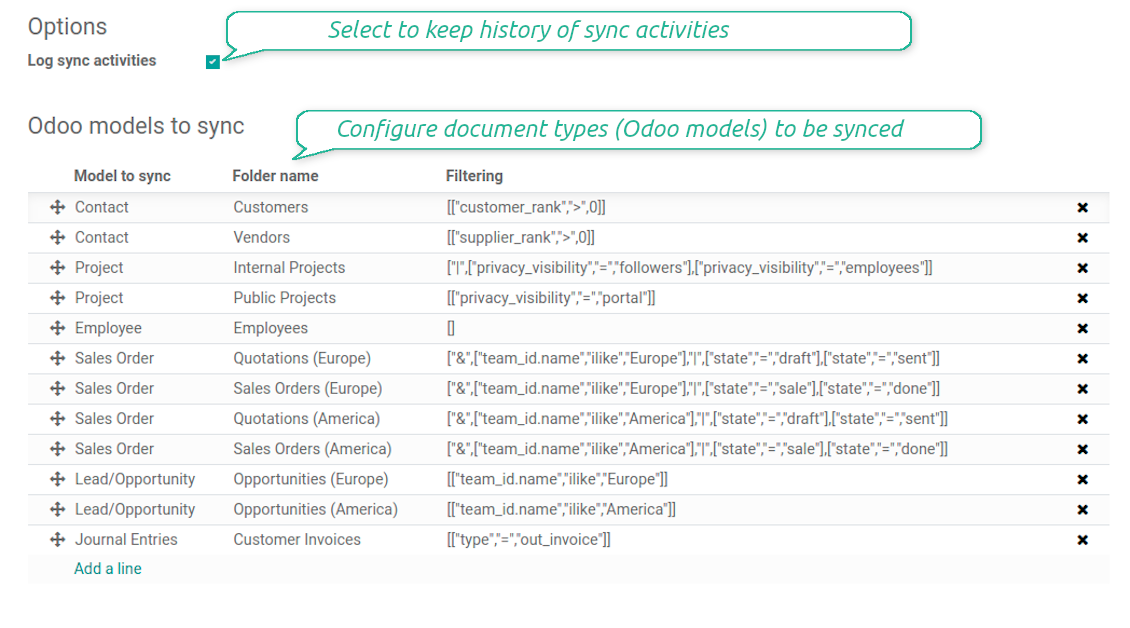
Selectable documents types for sync
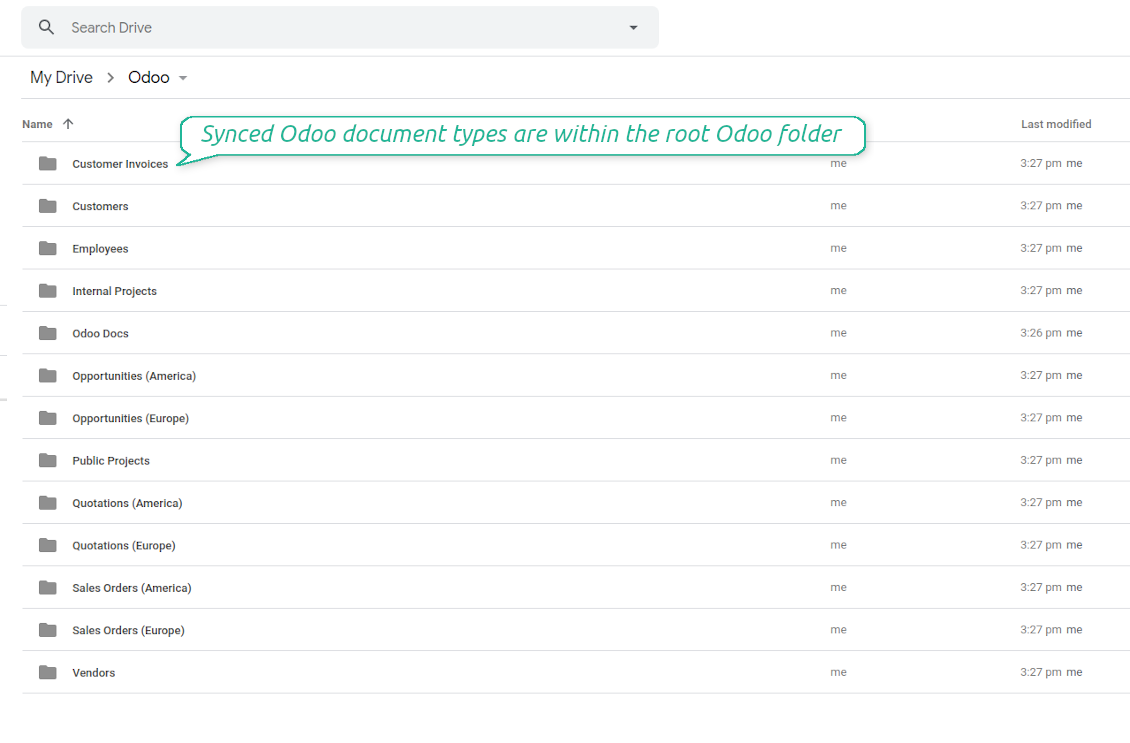
The tool let you split any business model into a few directories. Have a separate folder for individuals and companies, for European and American opportunities, for each project, etc.
Moreover, it is possible to guarantee that only topical documents are synced by using relative periods: leads registered in the last 3 months, invoices updated the last week, and so on.
Typical use cases
- Projects: have an own Google Drive folder for each customer project.
- Customers: add all partner files in a single directory available both from Odoo and from Google Drive. Modify those using default cloud editors and access them when working in Odoo.
- Employees: gather all files by this employee in a single cloud folder: photos, document scans, contracts. Access and upload those from Odoo and Google Drive alternatively.
- Opportunities: carefully store all specifications, requirements, any files which would let you make a good offer.
- Orders: keep all printings and contracts in Google Drive with simple availability from Odoo.
Screenshot
Choose document types to be synced
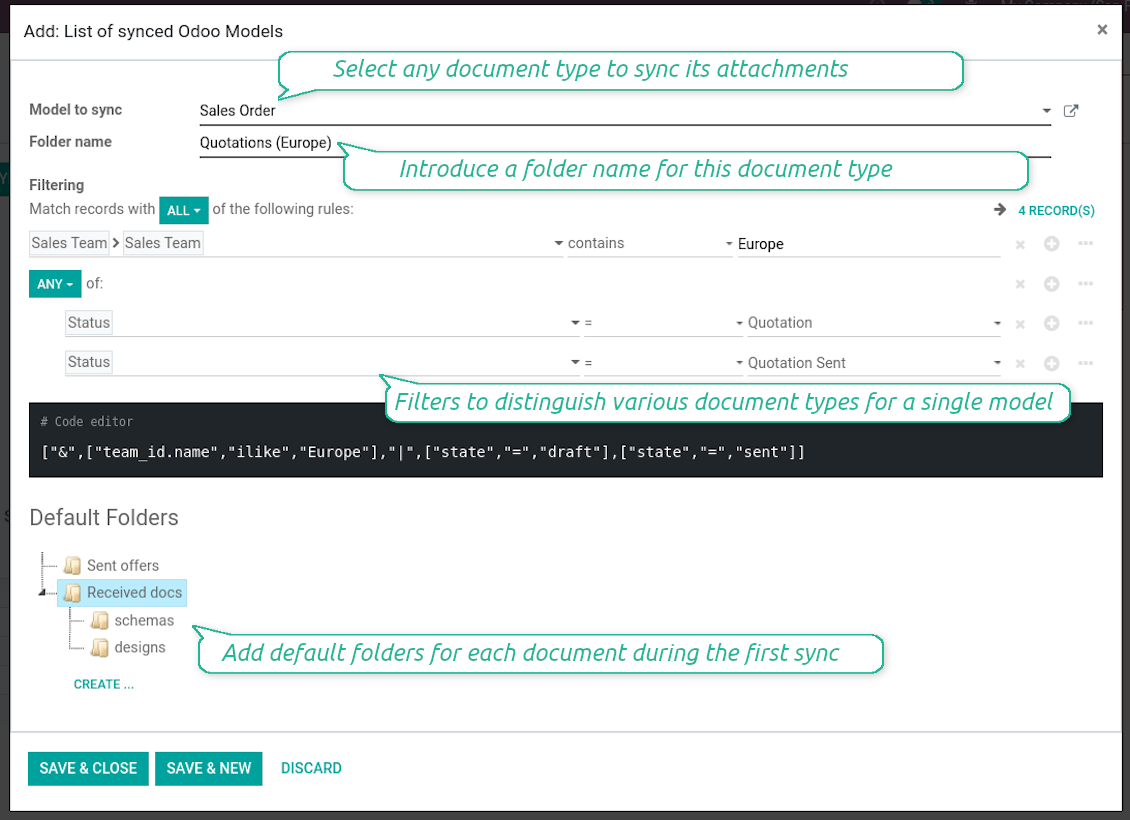
Document type might have a few folders based on filters
Automatic and bilateral integration
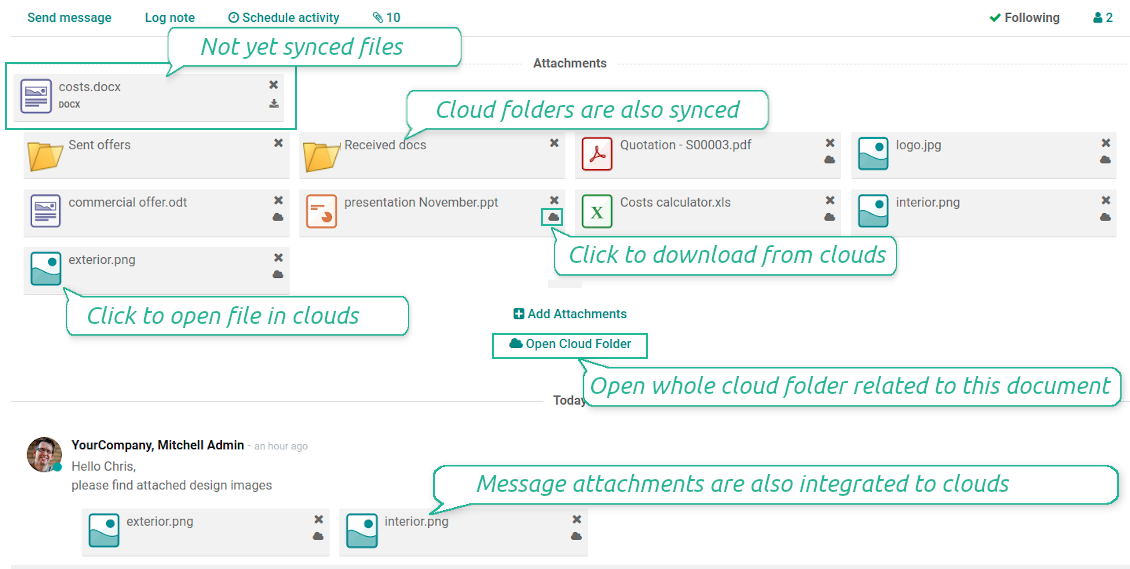
Synced attachments are physically kept only in a cloud storage, what increases Odoo interface performance. Simultaneously, you can open documents from Odoo or download those in a single click.
How files and folders are synced from Odoo to Google Drive
Based on the scheduled job 'Synchronize attachments with cloud' Odoo regularly checks whether:
- Any new attachment should be forwarded to Google Drive;
- Any new document type (e.g. Sale orders) is added / replaced / renamed as a sync model and, hence, whether a directory should be created / removed / renamed in Google Drive;
- Any new document (e.g. Sale Order SO019) is generated / updated / unlinked and, hence, whether a Google Drive folder should be created / moved or renamed / deleted.
- Any new attachment should be removed from Google Drive if it has been deleted from Odoo.
Based on results of that checks, Odoo starts processing queue of changes, and makes sure that all items are located correctly. The final goal is to have the structure 'Odoo / Document Types / Documents / Files. For example, 'Odoo / Quotations / SO019 / commercial offer.pdf'.
During the synchronization all synced Odoo attachments change their type to a link (URL), while binary content is removed with a next Odoo cleaner. So, no actual files would be stored on your Odoo server.
Please take into account:
- Each sync (especially the very first one) might take quite a long. It is not recommended to make sync too frequent: once an hour seems reasonable frequency.
- File names should be managed in Google Drive: each backward sync would recover Google Drive names, Odoo is here less important.
How items are retrieved from Google Drive to Odoo
Based on the scheduled job 'Synchronize attachments from cloud' Odoo regularly checks whether:
- Any file is added / moved / removed in a Google Drive document folder. If yes, Odoo would create a link to this file in a target object (e.g. a new attachment to SO019) or would move / delete such an attachment.
- Any file of a Google Drive document folder is renamed. If yes, an attachment would be renamed in Odoo as well.
- In document folders you can put not only files but also child folders. In that case a link for this folder (not its content) would be kept in Odoo attachments.
- If you deleted a folder related to this document type or this document, their child files would be deleted as well. Thus, Odoo would remove related attachments. The folders, however, will be recovered with a next direct sync.
- Each backward sync might take quite a long. It is not recommended to make sync too frequent: once an hour seems safe enough.
Screenshot
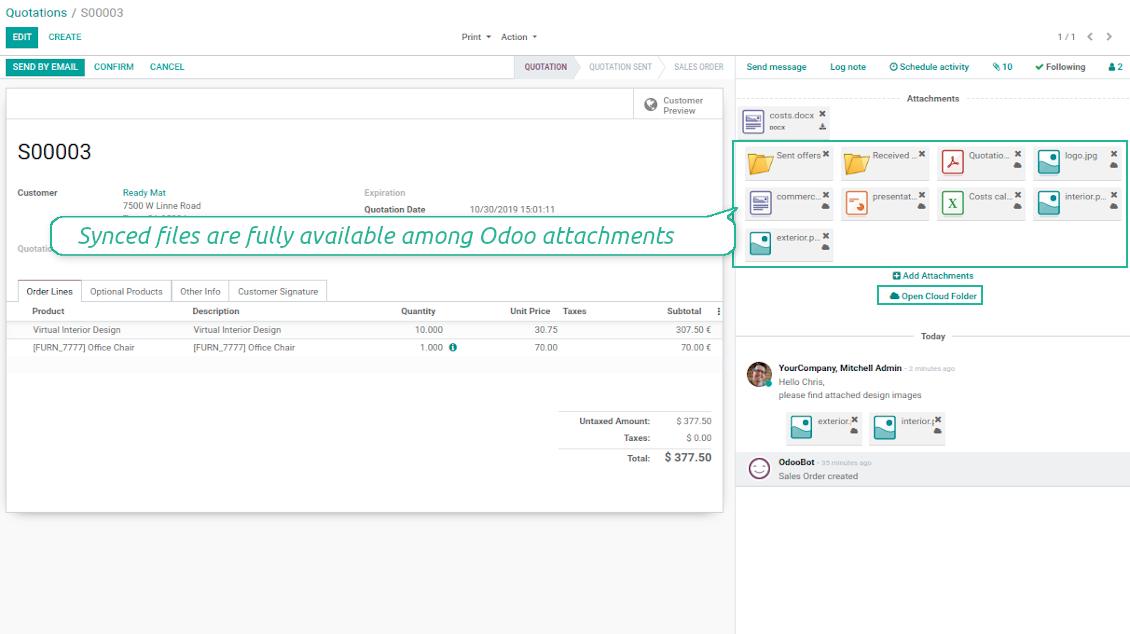
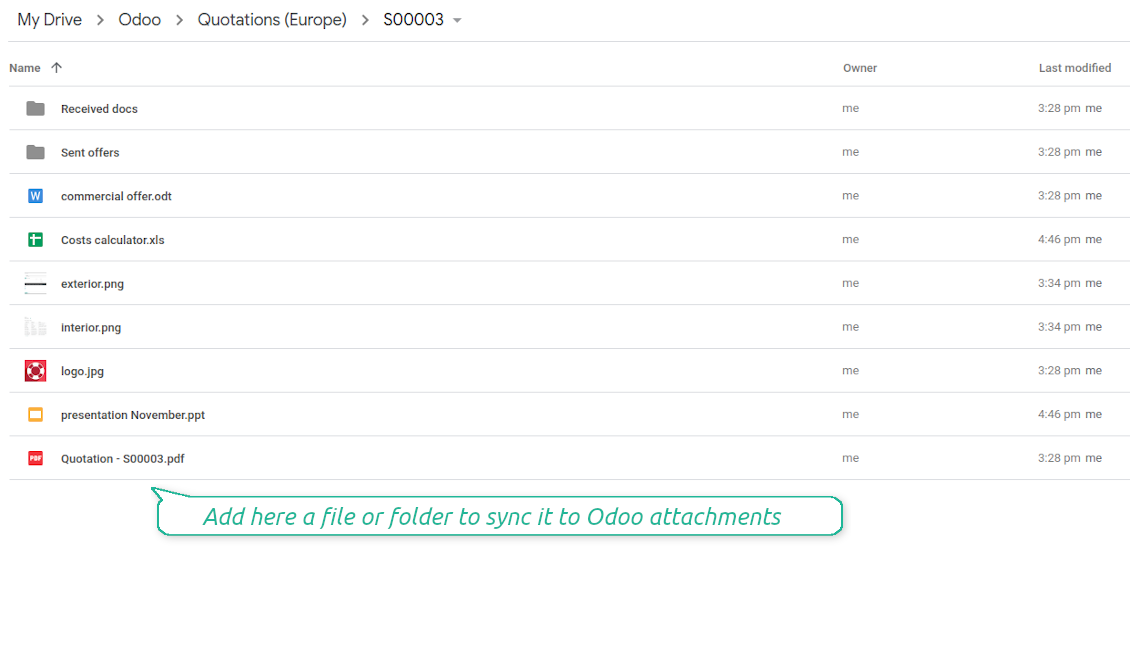
Synced files are simply found in Google Drive. Add unlimited number of files or folders
Document types folders in Google Drive
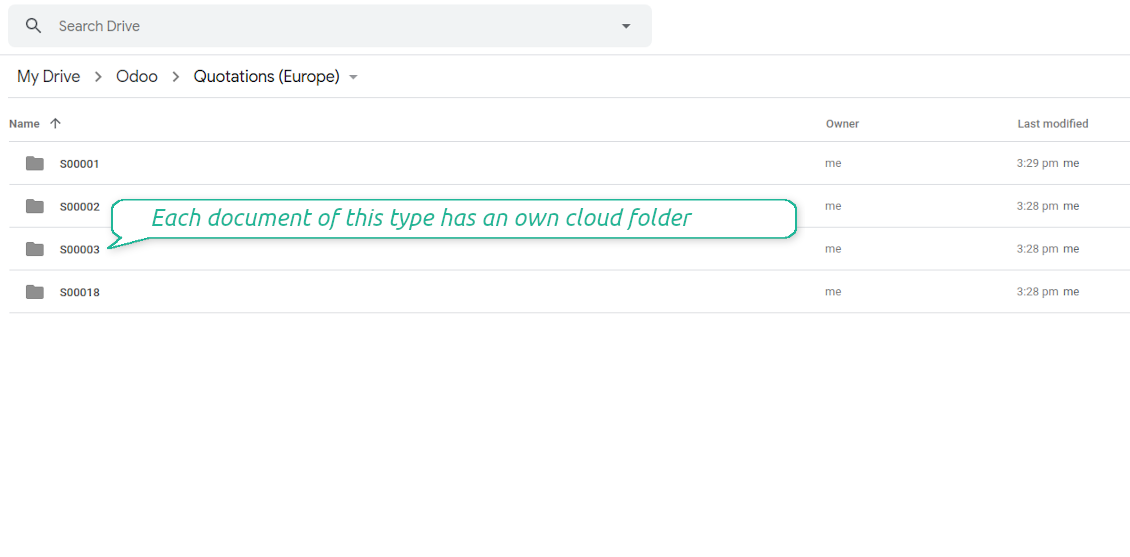
All document of this type has an own folder
Direct access to Google Drive items
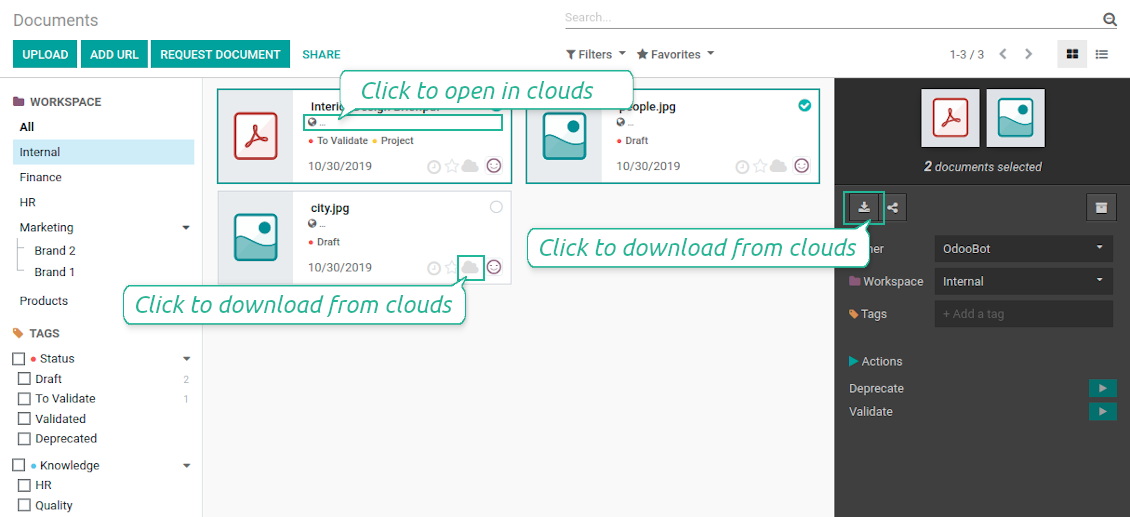
- Click on attachment to open it in Google Drive in a new tab (necessary to be logged in Google Drive);
- Click the icon of cloud to start downloading file from Google Drive (no extra check in is required)
- Push the button "Open cloud folder" to open all files related to this document.
Screenshot
Quick access to Google Drive files and folders
Apply to Google Drive right from Odoo chatter
Individual and team drives
Fully integrated and compatible with Enterprise Documents
It does not contradict printing, mailing, or Enterprise documents features.
For the latter it is also possible to fully reflect directories structure, not only sync standard attachments.
How Odoo Enterprise Documents are synced
This tool is not in conflict with the 'documents' module provided under the Enterprise license. Attachments related to Enterprise folders would be synced as any other files: according to a document they relate to.
It is not always comfortable, and you might be interested in reflecting directories' structure introduced by the module 'Documents'. To this end the special extension is developed. This extension introduces the following features:
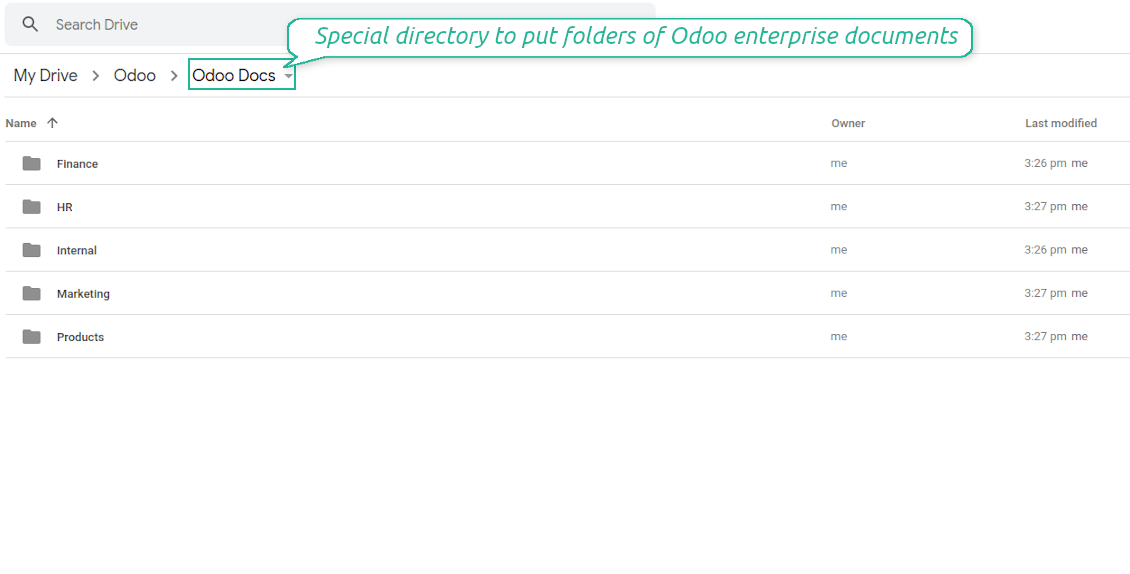
- The documents hierarchy is reflected within the folder 'Odoo / Odoo Docs'
- Each Odoo folder has a linked cloud folder. Take into account that folders created in the cloud storage will be synced as Odoo attachments. The key principle is: folders are managed by Odoo, files are managed by the cloud client
- All files are synced with the same logic as usual attachments. Files created in Odoo will be added to the cloud storage and will be replaced with links in Odoo. Files created in cloud storage will generate attachments within a paired directory
- Please do not name synced models as 'Odoo Docs'. This is the reserved name for Odoo Enterprise Documents
A few important peculiarities to take into account
- Take into account that files or folders deleted in Google Drive are really deleted only when you clean trash. Otherwise, such files still exist and would be reflected in Odoo
- Try to avoid the following symbols in folders' and files' names: *, ?, ", ', :, <, >, |, +, %, !, @, \, /,. Direct sync will replace such symbols with '-'. It is done to avoid conflicts with file systems.
Screenshot
Direct access from Odoo documents to Google Drive
Enterprise Documents in Google Drive
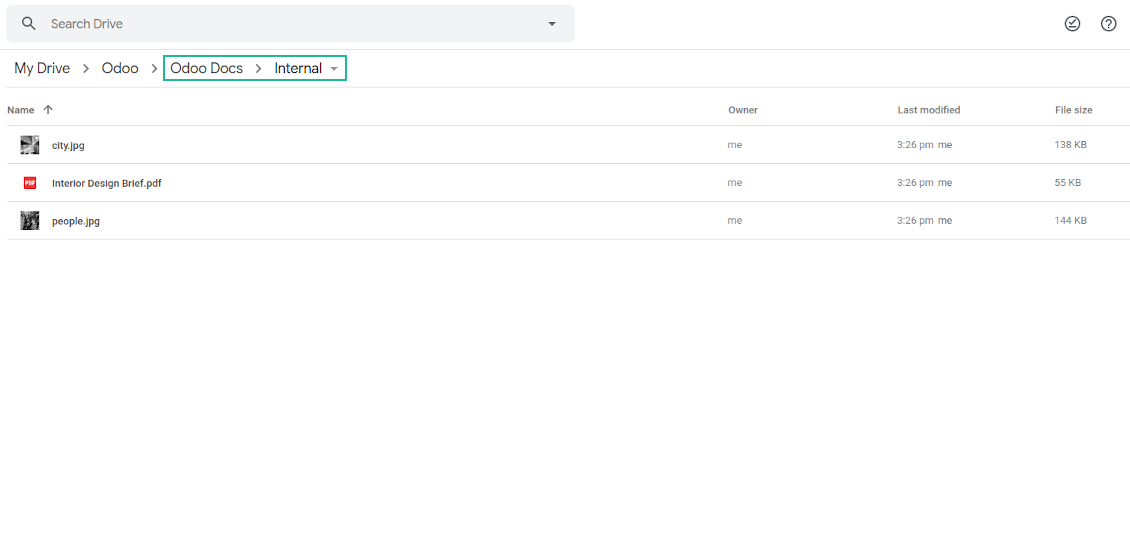
Enterprise files in Google Drive
Tricky setup, but works perfectly now
Really solid module. We managed to get a very flexible folder structure (sorted by clients) and synced all our sales orders, invoices and tasks by projects to Google Drive.
Initial setup was a bit of a pain and kinda tricky to configure everything at first, but now it's running smoothly and works perfectly. The faotools team helped a lot. Def worth it if u need to keep your docs organized in Odoo and Google Drive.
Recommended!
Excellent !!!
Great App and great Service from faOtools.
Best module for integration with google drive
The module performs its function correctly and faOtools responds quickly to any problem and, in case of detecting any bug, quickly apply the changes. Its support is 10 stars.
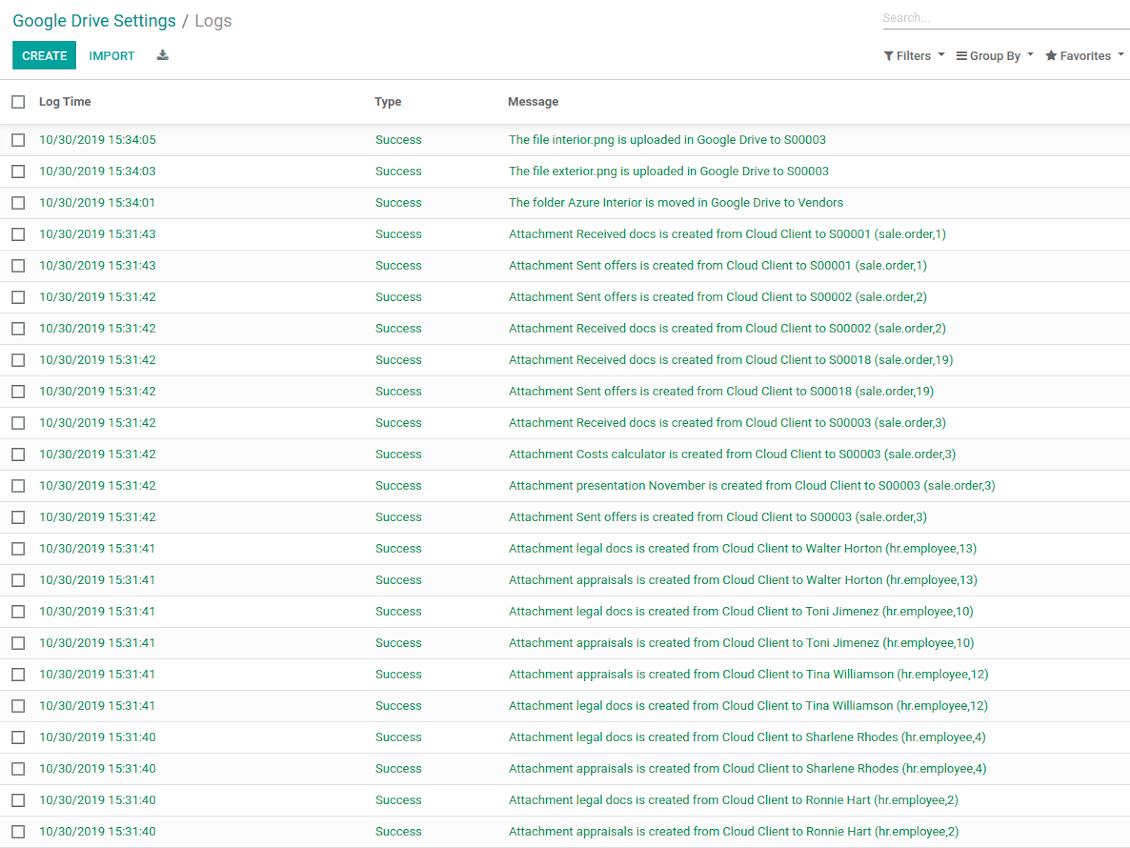
Google Drive Sync logs in Odoo
Screenshot
Logged synchronization activities
Default folders for documents
Tips konfigurasi dan instalasi untuk Google Drive Odoo Integration Odoo v.13
Login and Google Drive Credentials
- Go to the Google Cloud Console via the URL https://console.cloud.google.com
- Select or create a project
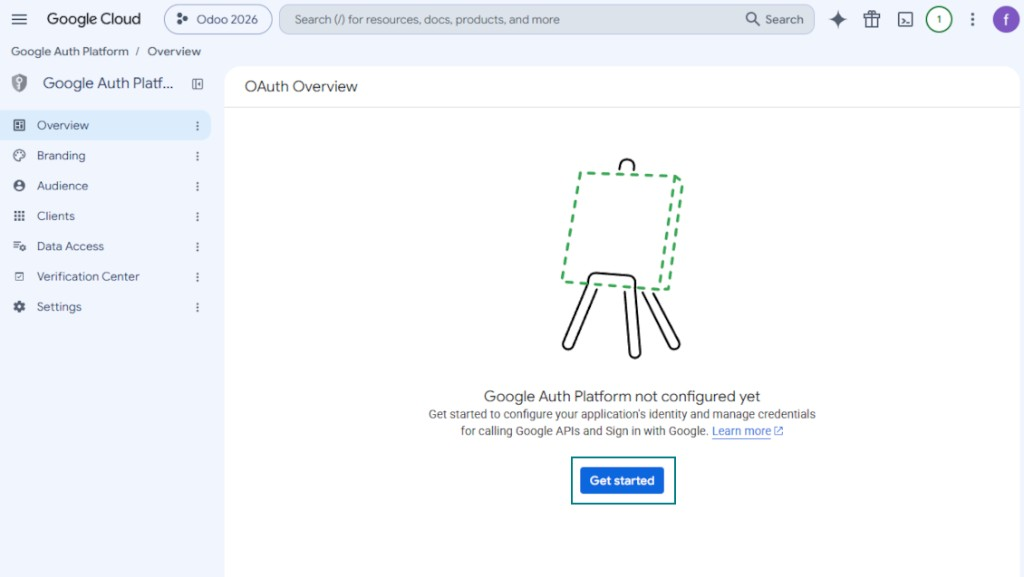
- After the project is selected, the console opens the Google Auth Platform. Press 'Get Started'
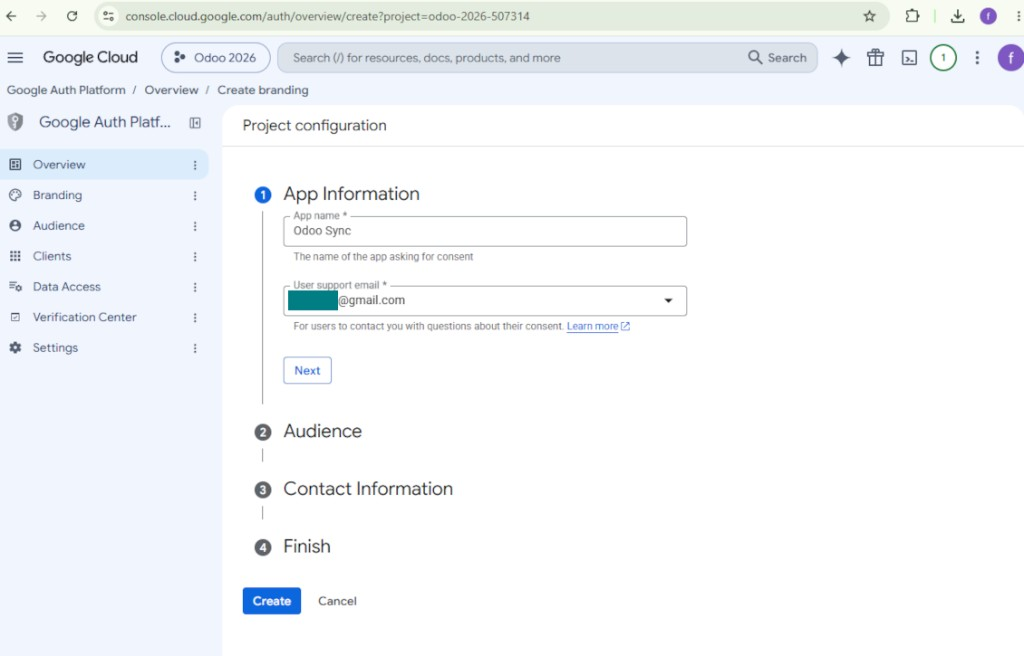
- Add app information
- As an app name select any suitable
- As a user support email select your email address
- Press 'Next'
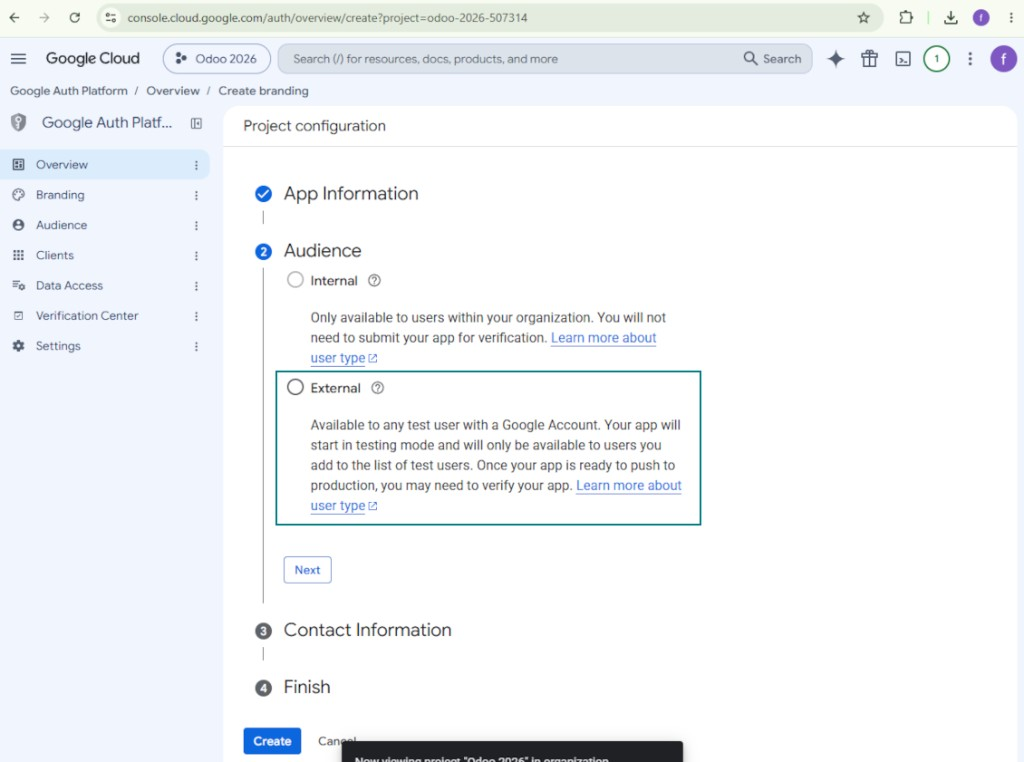
- As the audience select 'External' and press 'Next'. Note: you are anyway going to use this app only for your own Odoo connection
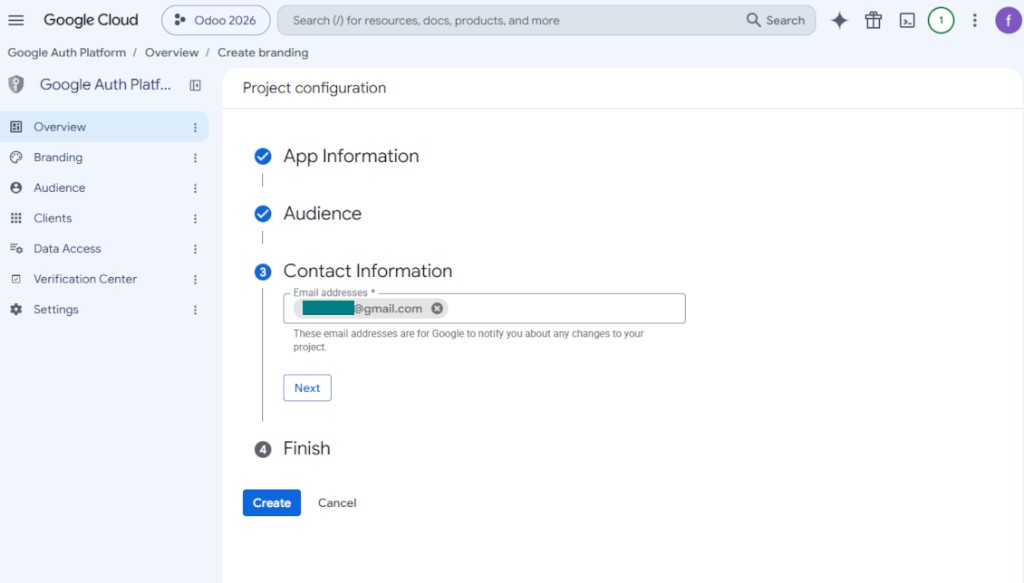
- As the contact information enter your Google or Google Workspace email address and press 'Next'
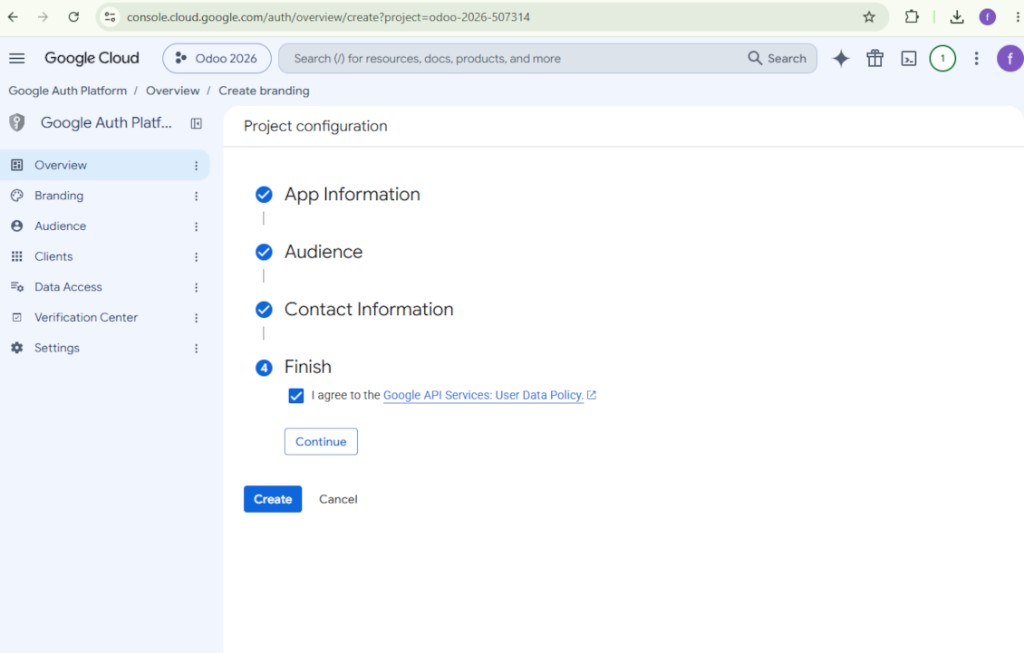
- Agree with the Google API Services User Data Policy, press 'Continue', and then press 'Create'
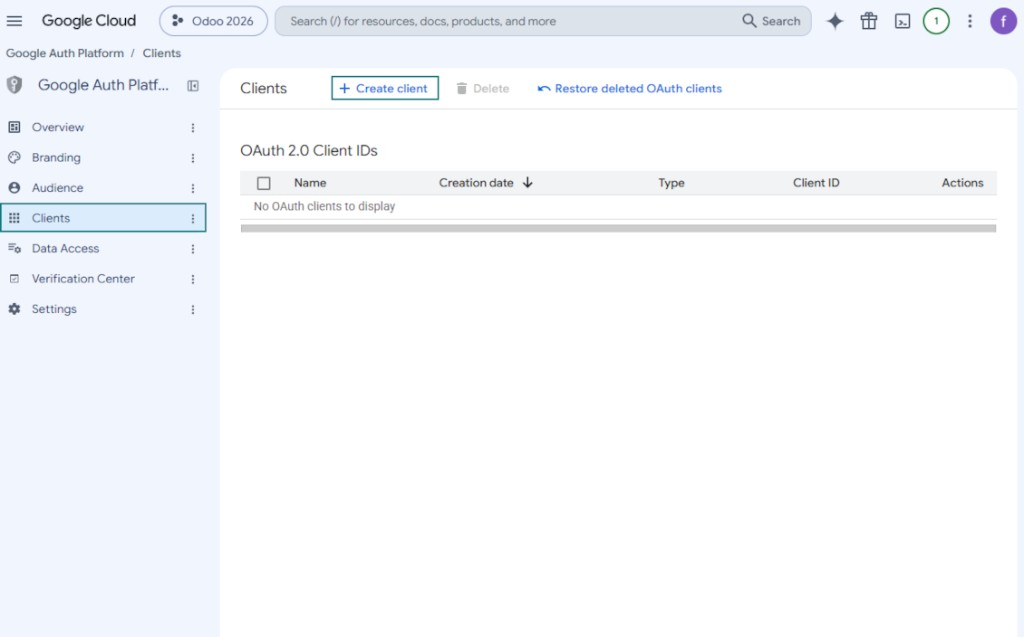
- Go to 'Clients' and press 'Create client'
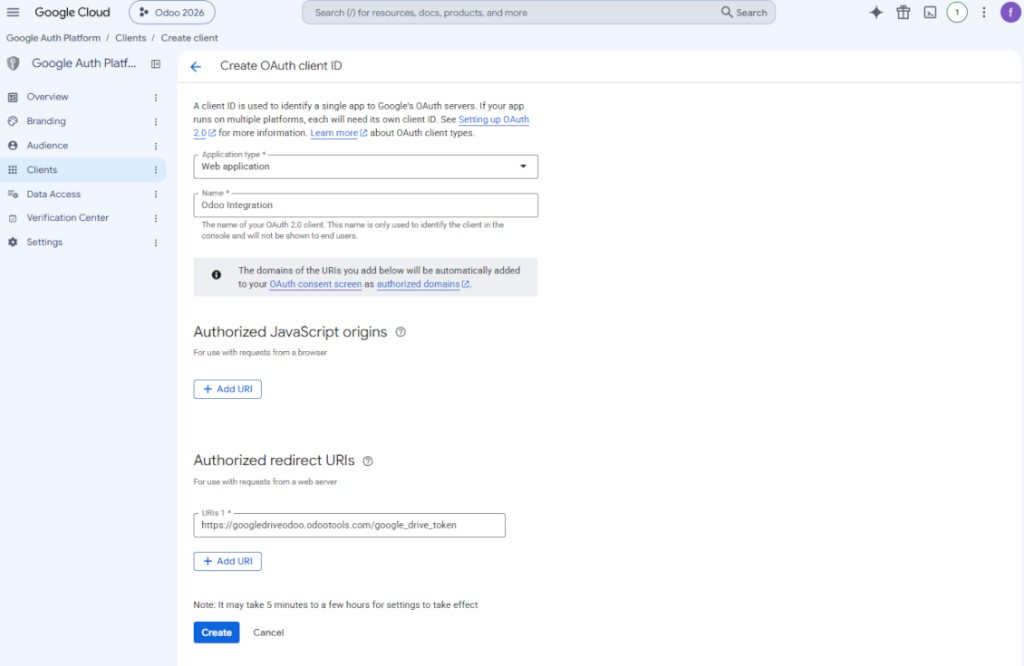
- As the application type select 'Web application'
- As a name select any suitable
- As the authorized redirect URI, add the link in a format [YOURODOOSITENAME]/google_drive_token (e.g. https://odootools.com/google_drive_token).
- Press 'Create'
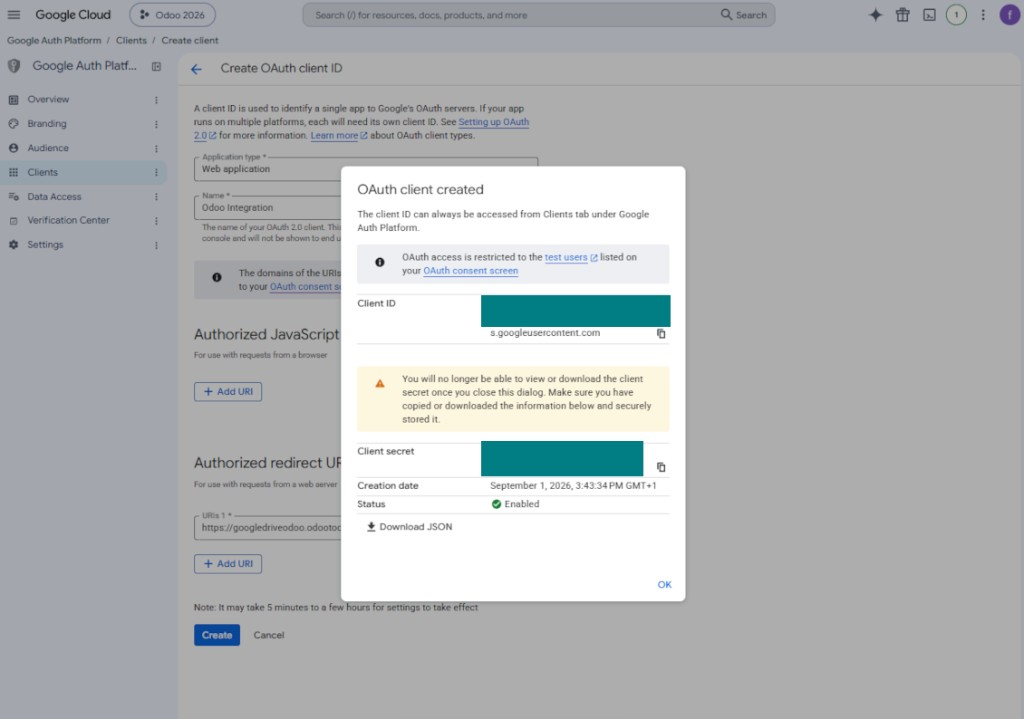
- Copy and safely store 'Client ID' and 'Client secret'. The client secret is shown only once
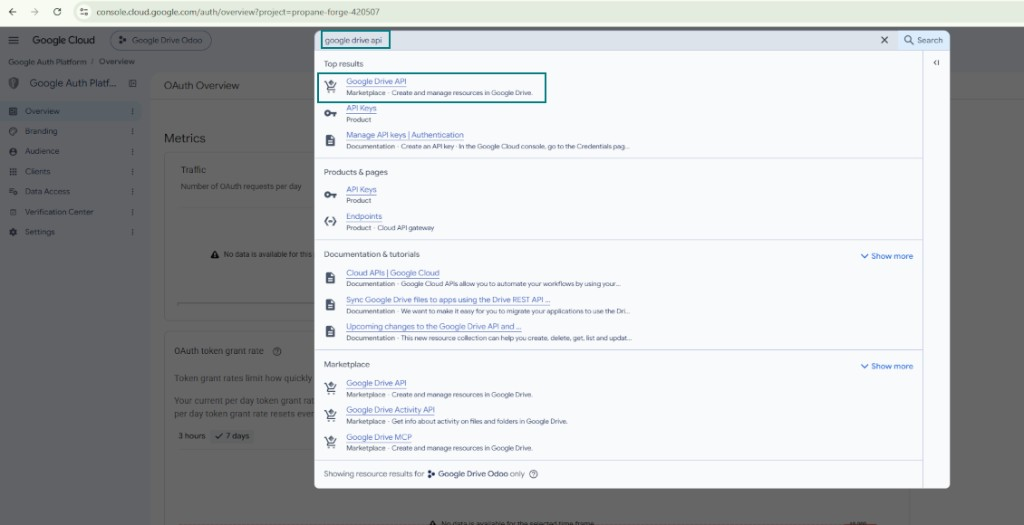
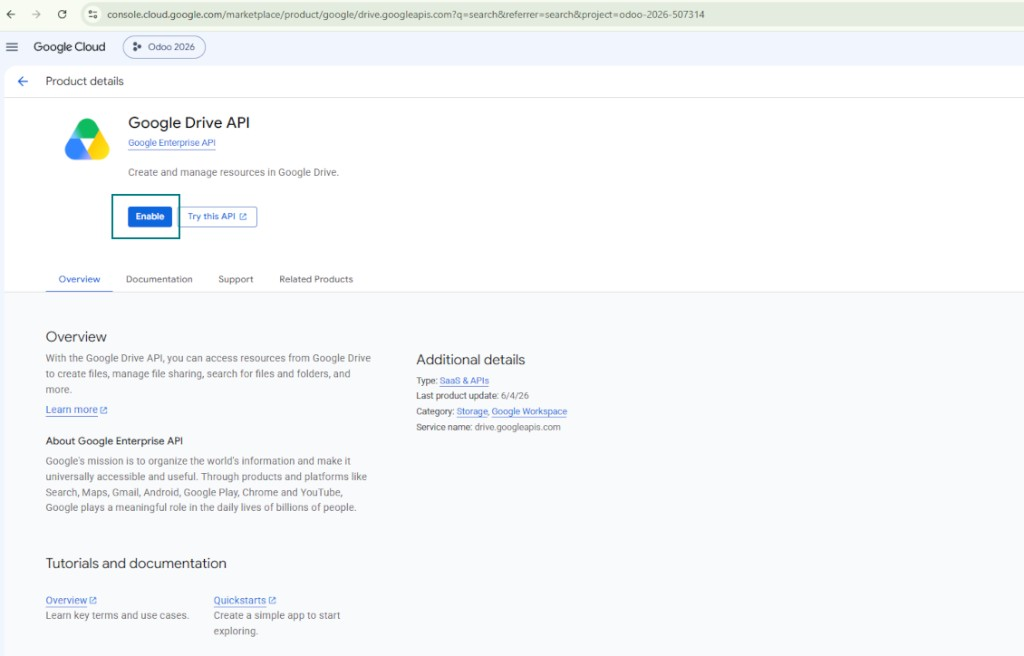
- Enable the Google Drive API for this project: type 'Google Drive API' in the top search box, open the found product, and press 'Enable'
- Go to 'Audience' and add your email address as a test user
- Publish the app. Otherwise, the app stays in the testing state and its token expires every 7 days
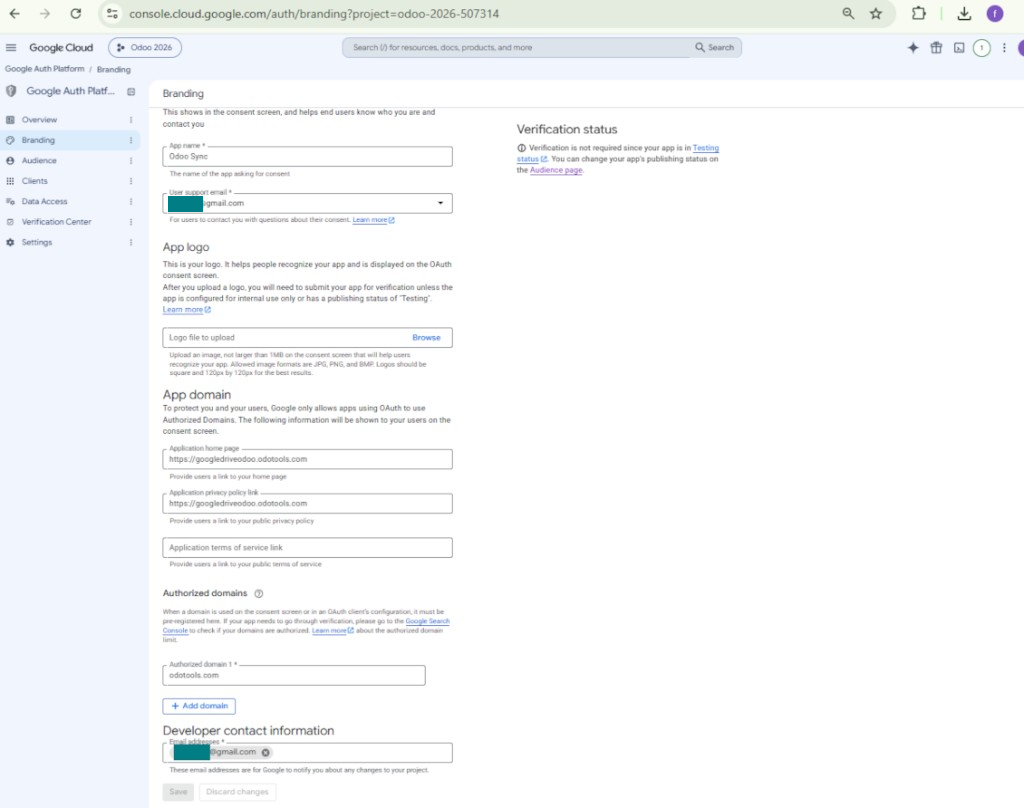
- Open 'Branding' and fill in the application home page and the application privacy policy link (for example, the links to your Odoo website). Add the domains of those links as the authorized domains
- Open 'Audience' and press 'Publish app'
- Do not upload an app logo. This would invoke a long and complex Google verification process that is of no actual need to you
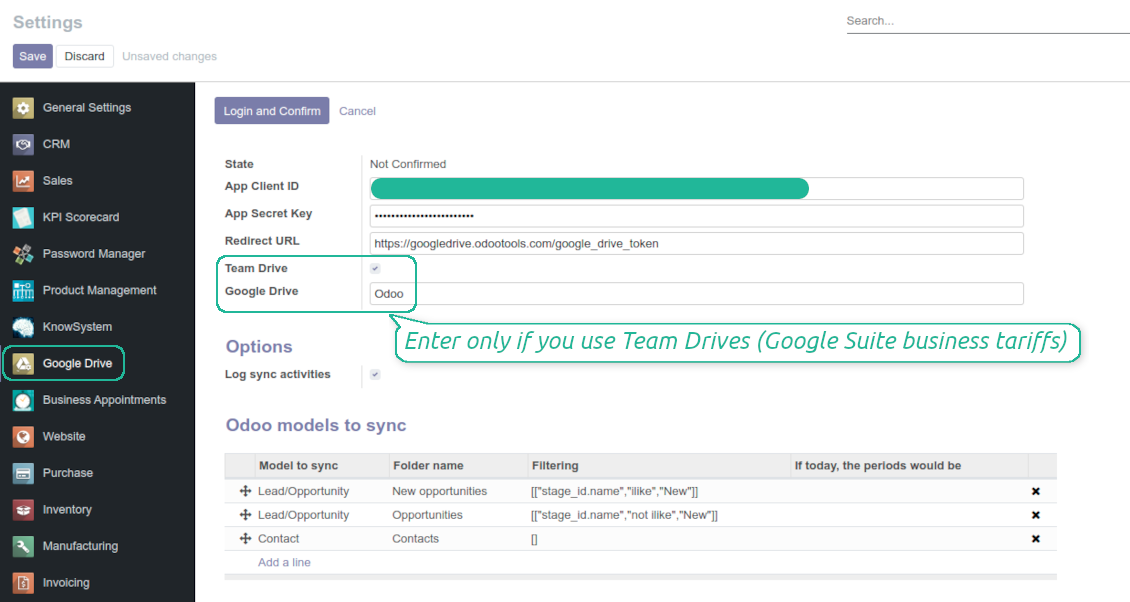
- Go to the Odoo Google Drive Settings
- Copy 'Client ID' from step 8 into the field 'App Client ID'
- Copy 'Client secret' from step 8 into the field 'App Secret Key'
- Insert the redirect URL you entered in step 8
- If you use team drives, check the related box. Make sure you really use team drives. In you Google Drive you should find the item 'Team Drives' in the left sidebar. This feature is available only for business and enterprise tariffs
- If the option 'Team Drive' is enabled, introduce its name. It should be absolutely the same as you see it in your Google Drive. Make sure that your user has full rights for this team drive
- Press 'Save'
- Press 'Login and Confirm'. Odoo redirects you to Google login page. Check in, agree with all conditions, and grant permissions asked
- After login, Google redirects you back to Odoo. Google Drive - Odoo synchronization is ready to be done.
Open the Google Auth Platform
Add app information
Select the external audience
Add contact information
Agree with the policies and create the app
Create an OAuth client
Configure the web application client
Copy the client ID and client secret
Find the Google Drive API
Enable the Google Drive API
Fill in branding to publish the app
Add test users and publish the app
Enter Google app credentials to Odoo
Odoo server configuration and cron job configuration
To make sure the synchronization works correctly apply proper timeouts to the Odoo configuration file: LIMIT_TIME_CPU, LIMIT_TIME_REAL, LIMIT_TIME_REAL_CRON should be more than 900 seconds.
For Odoo.sh this should not be done, since timeouts are predefined and are not configurable.
Then, timeout should be entered to your Odoo. To that goal find the section 'Settings' on the app configuration page and copy the number there.
Afterwards, it is needed to make the cron jobs suit the applied timeouts. In the debug mode go to the Settings > Technical > Automation > Scheduled Jobs:
- Set up the job 'Synchronize attachments with cloud' as (a) frequency - 2*timeout; (b) the next execution as the next hour +timeout. For example, for 900seconds timeout: frequency - as 30minutes; the next execution - at 08:15
- Set up the job 'Synchronize attachments from cloud' as (a) frequency - 2*timeout; (b) the next execution as the next hour + timeout*2. For example, for 900seconds timeout: frequency - as 30minutes; the next execution- at 08:30.
Pertanyaan umum tentang Google Drive Odoo Integration Odoo v.13
Apakah folder Google Drive yang dibuat otomatis dibagikan di antara pengguna Odoo?
Aplikasi sendiri tidak mengatur hak akses di sisi Google Drive. Itu harus dilakukan secara manual di sana. Odoo membuat folder sasaran di Google Drive, yang secara default tidak dibagikan, sementara izin dapat diubah untuk folder mana pun. Misalnya, hak penuh untuk direktori 'Odoo' atau untuk 'Odoo > Sale Orders' atau 'Odoo > Sale Orders > SO-001'.
Aplikasi bekerja dengan prinsip satu titik akhir pengguna. Semua operasi sinkron dilakukan di bawah pengguna Google Drive yang sama (sesuai aplikasi Google API yang Anda konfigurasi).
Saya menghapus file di Google Drive tetapi masih ada di Odoo
Untuk menghapus berkas sepenuhnya, kosongkan juga tempat sampah di Google Drive.
Juga, berkas mungkin masih ada di Odoo karena sinkronisasi mundur belum memproses lampiran. Ini proses terjadwal, butuh waktu.
Apakah Google akan menagih berdasarkan permintaan API?
Modul hanya memakai API gratis, jadi Google tidak akan menagih Anda.
Bolehkah saya mengubah frekuensi pekerjaan sinkronisasi?
Ya, Anda bisa. Untuk itu:
Aktifkan mode debug
Buka pengaturan teknis > Otomatisasi > Pekerjaan terjadwal
Temukan pekerjaan 'Synchronize attachments with cloud' dan 'Update attachments from cloud'.
Jangan menjadikannya terlalu sering. Sebaiknya pekerjaan selesai sebelum yang berikutnya dimulai. Konfigurasi bergantung pada berapa banyak item yang harus disinkronkan. Biasanya frekuensinya antara 15 menit hingga 4 jam.
Pastikan juga Anda mengatur batas waktu yang cukup di berkas konfigurasi Odoo. Parameter LIMIT_TIME_CPU dan LIMIT_TIME_REAL harus sama atau lebih besar dari waktu pekerjaan cron yang direncanakan. Mulai versi 13 pertimbangkan juga parameter LIMIT_TIME_REAL_CRON.
Catatan penting untuk klien Odoo.sh: waktu maksimum pekerjaan cron mungkin hanya 15 menit.
Bolehkah saya mengonfigurasi struktur direktori tersinkron yang berbeda dari yang diasumsikan sinkronisasi?
Tidak, fitur ini hanya tersedia mulai versi 15. Sebelum versi itu, modul bekerja dengan struktur folder yang sudah ditentukan:
Odoo - folder inti untuk sinkronisasi
Models - folder untuk setiap jenis dokumen Odoo. Misalnya, 'Projects', 'Partners'. Dibedakan menurut domain, mungkin ada folder yang lebih spesifik: mis., 'Customer 1 Projects', 'Projects of the Customer 2', 'Internal Projects', dll.
Objects - folder untuk setiap dokumen, mis. 'Project 1' atau 'Customer 1'
File dan folder terkait dokumen Odoo ini yang akan disinkronkan.
Hasilnya, Anda bisa memiliki misalnya:
Odoo / Projects / Project 1 / file dan folder terkait project 1
Odoo / Customer 1 Projects / Project 1; Odoo / Customer 2 Projects / Project 3, ...
Odoo / Customers / Customer 1 / file dan folder terkait customer 1
Struktur ini selalu datar, artinya hanya ada tingkat hierarki tersebut. Jadi benar bahwa berbagai jenis dokumen tidak dapat berada dalam struktur yang sama. Di dalam folder 'Customer 1' kita tidak dapat menyimpan file yang terkait sekaligus dengan sale order, faktur, dan proyek. Setiap jenis dokumen itu punya folder sendiri (atau beberapa folder sendiri). Jika tidak, kita tidak bisa melakukan sinkronisasi mundur karena tidak ada kriteria yang bisa diandalkan.
Haruskah saya mengatur akses pengguna tertentu di Odoo?
Tidak, alat mengandalkan satu titik akhir pengguna. Semua proses sinkronisasi dilakukan di bawah satu admin cloud (aplikasi). Hak akses folder / berkas yang dibuat tidak diotomatiskan. Anda harus mengelola hak itu di solusi penyimpanan cloud.
Kolom tersinkron disimpan di mana? Apakah diduplikasi ke Odoo dan clouds?
Aplikasi mengasumsikan konten biner lampiran disimpan di Cloud Client, bukan di server Odoo. Lampiran semacam itu di Odoo menjadi tipe URL, dan Anda dapat membukanya kapan saja dari kotak lampiran atau dari Cloud Client.
Setelah penyiapan, tidak perlu tindakan manual karena sinkronisasi sepenuhnya otomatis. Tentukan jenis dokumen Odoo yang harus disinkronkan dan siapkan model terkait untuk masing-masing (Pelanggan, pesanan penjualan atau pembelian, Tugas, Project, dll.).
Bisakah saya punya beberapa folder untuk jenis dokumen yang sama? Misalnya, proyek internal dan proyek pelanggan?
Ya, Anda bisa. Untuk itu siapkan aturan untuk masing-masing, lalu terapkan filter: misalnya menurut jenis project.
Usahakan filter saling eksklusif agar dokumen dapat ditetapkan dengan pasti. Misalnya 'pelanggan tetapi bukan pemasok', 'pemasok tetapi bukan pelanggan'. Jika tidak, folder dokumen tertentu akan meloncat dari satu model ke model lain.
Apakah saya hanya perlu aplikasi Cloud Storage Solution?
Tidak, alat ini hanya inti teknis. Anda juga memerlukan konektor untuk cloud client Anda.
Apa tidak apa-apa jika ada banyak objek untuk disinkronkan, misalnya 10000?
Ya, meski jika banyak folder/lampiran yang perlu disinkronkan prosesnya bisa lambat. Pada saat yang sama, klien melaporkan lingkungan dengan >10k rekanan dan ~5k varian produk untuk disinkronkan, dan prosesnya tetap diterima.
Beberapa poin yang perlu ditekankan:
- Sinkronisasi dibangun agar setiap item disinkronkan dan tidak hilang, meski mungkin tidak cepat. Hal ini dijamin oleh antrean first-in-first-out dan setiap job yang dikomit.
- Jumlah objek dapat dibatasi secara logis. Konfigurasi model memungkinkan membatasi sinkronisasi item usang (misalnya tidak ada gunanya menyinkronkan rekanan yang diarsipkan atau pesanan 2 tahun lalu).
Apakah sinkronisasi dapat dibuat real-time?
Tidak. Kami punya alasan kuat untuk menghindari sinkronisasi waktu nyata:
Masalah kinerja. Jika sinkronisasi waktu nyata, setiap unggah berkas akan menampilkan layar pemuatan.
Masalah konflik. Jika 2 pengguna mengubah item secara bersamaan, dapat timbul situasi yang tak terselesaikan. Pada job berkala kami dapat memperbaikinya kemudian; pada waktu nyata harus disimpan sebagai antrean, yang lebih membingungkan pengguna.
Masalah fungsionalitas. Khususnya penggantian nama dan penataan ulang item. Pada sinkronisasi balik, alat sangat mengandalkan logika direktori, dan setiap sinkronisasi 100% item diperiksa. Jika dilakukan setelah setiap pembaruan, akan ada ribuan permintaan per detik. Jika tidak: perubahan akan hilang.
Bolehkah saya menyinkronkan lampiran ke beberapa klien cloud
Tidak, fitur ini baru tersedia mulai versi 15.
Kami memakai editor khusus di cloud kami (mis. OnlyOffice, Office 365, dll.). Apakah file akan dibuka di editor itu?
Ya, tergantung konfigurasi cloud client Anda.
Apa kebijakan pembaruan alat Anda?
Menurut kebijakan Odoo Apps Store saat ini:
- Setiap modul yang dibeli untuk versi 12.0 dan sebelumnya memberi akses ke semua versi hingga 12.0.
- Mulai versi 13.0, setiap versi modul harus dibeli terpisah.
- Terlepas dari versi, pembelian memberi hak atas semua pembaruan dan perbaikan bug dalam versi mayor.
Perhatikan bahwa tim faOtools tidak mengontrol kebijakan tersebut. Untuk pertanyaan, hubungi langsung perwakilan Odoo Apps Store.
Bagaimana memasang aplikasi Anda di Odoo.sh?
Pendekatan paling langsung adalah memakai alur bawaan toko Odoo:
1. Buka halaman modul dan klik tombol Deploy on odoo.sh
2. Setelah itu Anda akan diarahkan ke halaman GitHub. Masuk ke akun, lalu klik 'Create a new repo' atau pakai yang sudah ada. Pastikan repositori bersifat privat. Tidak diizinkan memublikasikan aplikasi di bawah lisensi OPL-1. Jika perlu, buat repo baru untuk proyek Odoo.sh
3. Lalu buka odoo.sh dan klik tombol Deploy. Di jendela pop-up, kirim keputusan dan klik 'Continue.' Tindakan ini memicu proses pemasangan.
Langkah ini akan memasang aplikasi di cabang produksi proyek. Jika ingin men-deploy aplikasi ke cabang lain atau memperbarui modul, lakukan tindakan berikut:
1. Unggah kode sumber aplikasi dari toko Odoo
2. Commit modul ke repositori GitHub yang diperlukan. Pastikan tidak ada folder/file aplikasi yang diabaikan (yaitu tidak ada di .gitignore repo). Repositori dibuat otomatis oleh odoo.sh dan secara default dapat berisi item penting (mis., /lib). Unggah semua direktori, subdirektori, dan file modul tanpa kecuali
3. Deploy cabang target proyek odoo.sh atau, jika pengaturan Anda mengasumsikan itu, tunggu hingga dibangun otomatis.
Bagaimana memasang aplikasi Anda di server saya sendiri?
2. Mulai ulang server Odoo;
3. Aktifkan mode pengembang (pengaturan teknis);
4. Perbarui daftar aplikasi (menu aplikasi);
5. Temukan aplikasi dan tekan 'Activate'/'Install';
6. Ikuti panduan di halaman aplikasi jika ada.
Saya melihat aplikasi Anda punya add-on tambahan. Boleh beli belakangan?
Ya, tentu. Pada saat yang sama Odoo otomatis menambahkan semua dependensi ke keranjang, jadi Anda harus mengecualikan alat yang sudah dibeli agar tidak membayar dua kali.
Saya men-deploy aplikasi Anda di Odoo.sh dan melihat peringatan/kesalahan di tes
Peringatan merah/oranye tidak memengaruhi fitur aplikasi. Sayangnya, modul kami kadang tidak lulus uji otomatis standar karena uji itu mengasumsikan perilaku yang bertentangan dengan tujuan aplikasi. Misalnya kami mengubah penghitungan harga, sementara uji modul Odoo standar membandingkan harga akhir dengan algoritma standar.
Pertama-tama, periksa fitur basis data yang diterapkan. Apakah semuanya berjalan benar?
Jika Anda masih menganggap peringatan memengaruhi fitur nyata, hubungi kami dan kirim log instalasi lengkap serta daftar lengkap modul yang diterapkan (termasuk inti dan pihak ketiga).
Bolehkah saya membeli aplikasi langsung dari perusahaan Anda?
Tidak, kami hanya mendistribusikan alat melalui toko aplikasi Odoo resmi.
Saya ingin mendapat diskon
Sayangnya, kami tidak punya sarana teknis untuk memberi harga individual.
Bolehkah saya memasang aplikasi di database Odoo Online (SaaS) saya?
Tidak, aplikasi pihak ketiga tidak dapat dipakai di Odoo Online. Sayangnya Odoo SaaS memblokir kemungkinan itu.
Alat Anda bergantung pada aplikasi lain. Haruskah saya membelinya?
Ya, alat memerlukan semua modul yang ditandai di dependensi agar bekerja dengan benar. Harga di halaman aplikasi sudah mencakup semua dependensi yang diperlukan.
Berapa harga modul dalam dolar AS? Mengapa berubah?
Harga modul kami ditetapkan dalam euro. Toko Odoo mengonversi harga ke mata uang lain menurut kurs internalnya. Jadi harga dalam dolar AS dapat berubah saat kurs diperbarui.
Teks aplikasi dan situs dalam bahasa selain Inggris dibantu AI dan diselaraskan dengan terjemahan resmi Odoo. Jika Anda melihat kesalahan, kirim tiket kebenaran terjemahan dan kami akan memperbaikinya.
Pelaporan bug
Jika Anda menemukan bug atau perilaku tidak konsisten, jangan ragu menghubungi kami. Kami jamin perbaikan dalam 60 hari setelah pembelian dan tetap ingin meningkatkan alat setelah periode itu.
Anda tidak perlu nomor telepon atau kartu kredit untuk menghubungi kami. Cukup pendaftaran email singkat yang tidak lebih dari 30 detik.
Sertakan sebanyak mungkin detail dalam permintaan: tangkapan layar, log server Odoo, deskripsi lengkap cara mereproduksi masalah, dan sebagainya. Biasanya butuh beberapa hari kerja untuk menyiapkan rencana kerja (jika bug dikonfirmasi) atau memberi panduan apa yang harus dilakukan (jika tidak).
Permintaan fitur publik dan ide modul (pengembangan gratis)
Kami sangat termotivasi untuk meningkatkan alat kami dan berterima kasih atas masukan apa pun. Jika kebutuhan Anda bermanfaat bagi publik dan dapat diimplementasikan secara efisien, tim akan memasukkannya ke daftar tugas kami.
Daftar tugas semacam ini diproses secara berkala dan tidak dikenai biaya tambahan. Meski kami tidak dapat menjanjikan tenggat dan desain akhir, ini bisa jadi cara baik untuk mendapatkan fitur yang diinginkan tanpa investasi dan risiko.
Anda tidak perlu nomor telepon atau kartu kredit untuk menghubungi kami. Cukup pendaftaran email singkat yang tidak lebih dari 30 detik.

Alat untuk menyimpan kata sandi dengan aman di Odoo untuk penggunaan bersama. Brankas bersama

Alat untuk membangun basis pengetahuan yang dalam dan terstruktur untuk penggunaan internal dan eksternal. Knowledge System. KMS. Revisi seperti wiki.
398€
Alat untuk menetapkan target KPI dan mengontrol pemenuhannya per periode. Dasbor KPI. Perancang dasbor. Grafik KPI

Alat manajemen layanan berbasis waktu dari pemesanan janji hingga penjualan dan ulasan
398€
Alat untuk mengelola Odoo dari chat AI favorit melalui MCP. Claude. AI apa pun yang mendukung MCP.

Alat untuk menata lampiran Odoo secara fleksibel dalam folder dan menyinkronkan direktori dengan klien cloud: Google Drive, OneDrive/SharePoint, Nextcloud/ownCloud, Dropbox, Amazon S3, Box, dan NAS. DMS. Manajer Berkas. Sistem manajemen dokumen
398€
Alat untuk menyinkronkan lampiran Odoo secara otomatis dengan file OneDrive secara dua arah
487€
Alat untuk menyinkronkan lampiran Odoo secara otomatis dengan file ownCloud/Nextcloud secara dua arah
487€
Alat untuk menyinkronkan lampiran Odoo secara otomatis dengan solusi NAS secara dua arah. Synology, QNAP, TrueNAS, dan NAS lain yang mendukung WebDav
487€