Google Drive Odoo Integration v.13
The tool to automatically synchronize Odoo attachments with Google Drive files in both ways

- the technical core which provides basic mechanics of auto synchronization. This is a required module for integration. Selle hind on 398€.
- the connector itself which introduces links between Odoo and Google Drive. Selle hind on 89€.
- an optional add-on to sync Odoo documents (introduced by the enterprise app 'Documents') with clouds. The features assumed by this add-on are marked by the icon . Selle hind on 44€.
Selectable documents types for sync
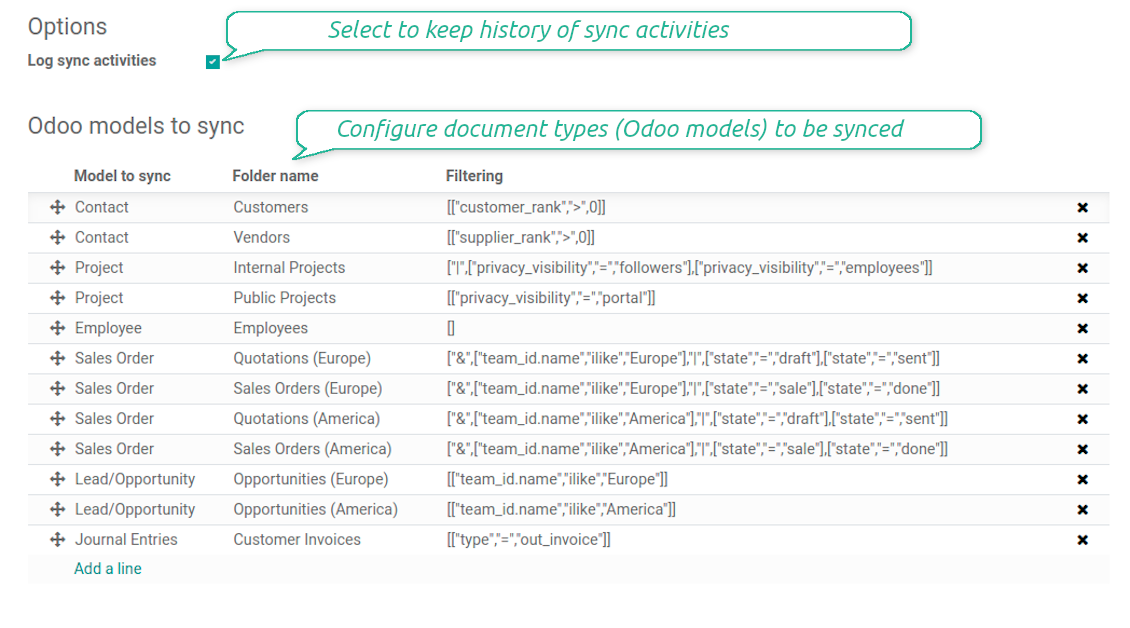
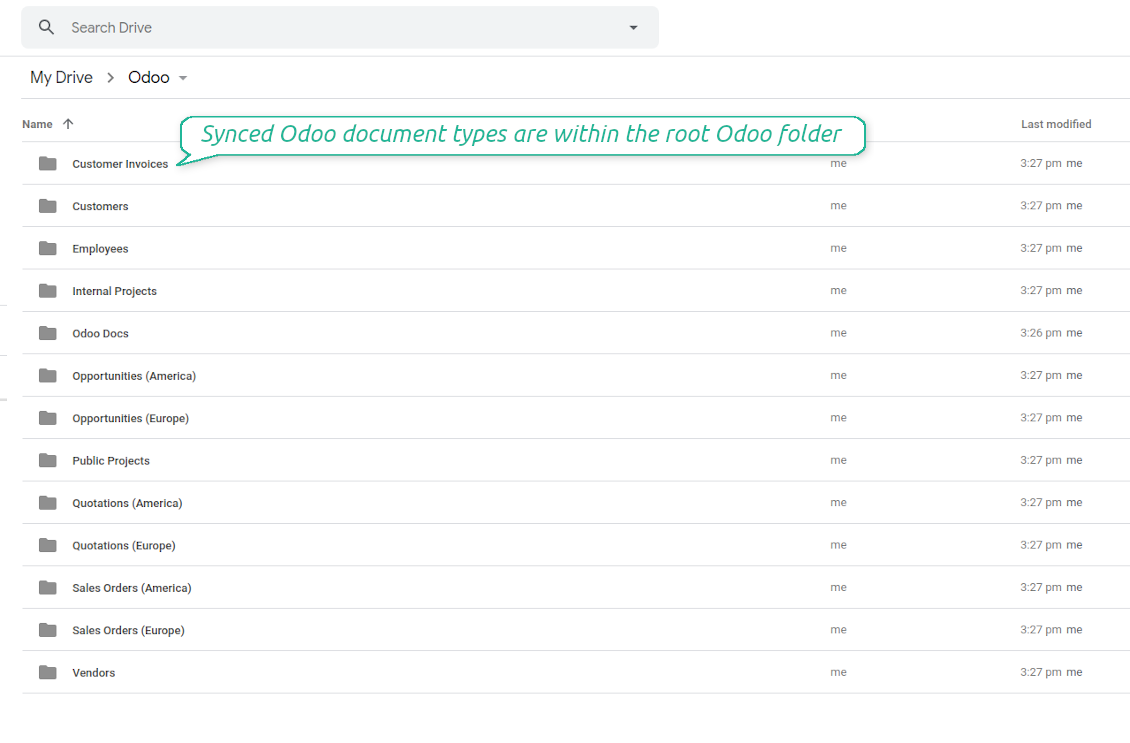
The tool let you split any business model into a few directories. Have a separate folder for individuals and companies, for European and American opportunities, for each project, etc.
Moreover, it is possible to guarantee that only topical documents are synced by using relative periods: leads registered in the last 3 months, invoices updated the last week, and so on.
Typical use cases
- Projects: have an own Google Drive folder for each customer project.
- Customers: add all partner files in a single directory available both from Odoo and from Google Drive. Modify those using default cloud editors and access them when working in Odoo.
- Employees: gather all files by this employee in a single cloud folder: photos, document scans, contracts. Access and upload those from Odoo and Google Drive alternatively.
- Opportunities: carefully store all specifications, requirements, any files which would let you make a good offer.
- Orders: keep all printings and contracts in Google Drive with simple availability from Odoo.
Ekraanipildid
Choose document types to be synced
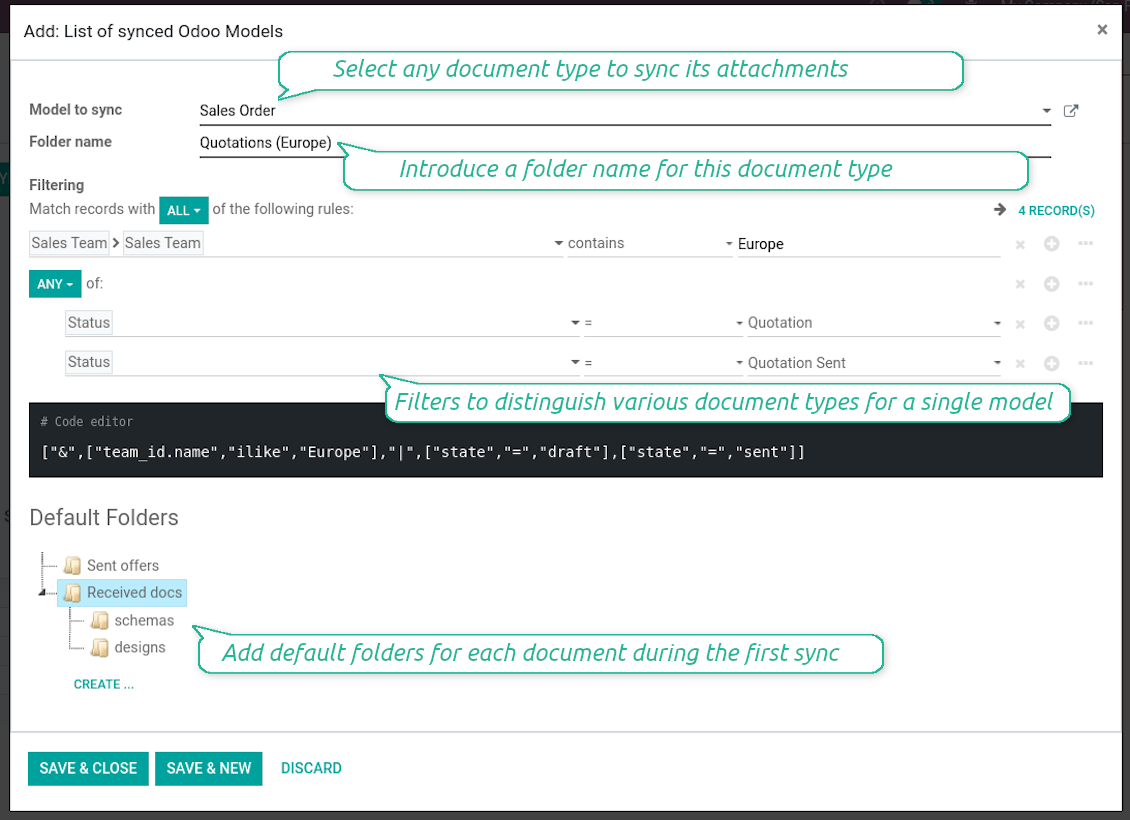
Document type might have a few folders based on filters
Automatic and bilateral integration
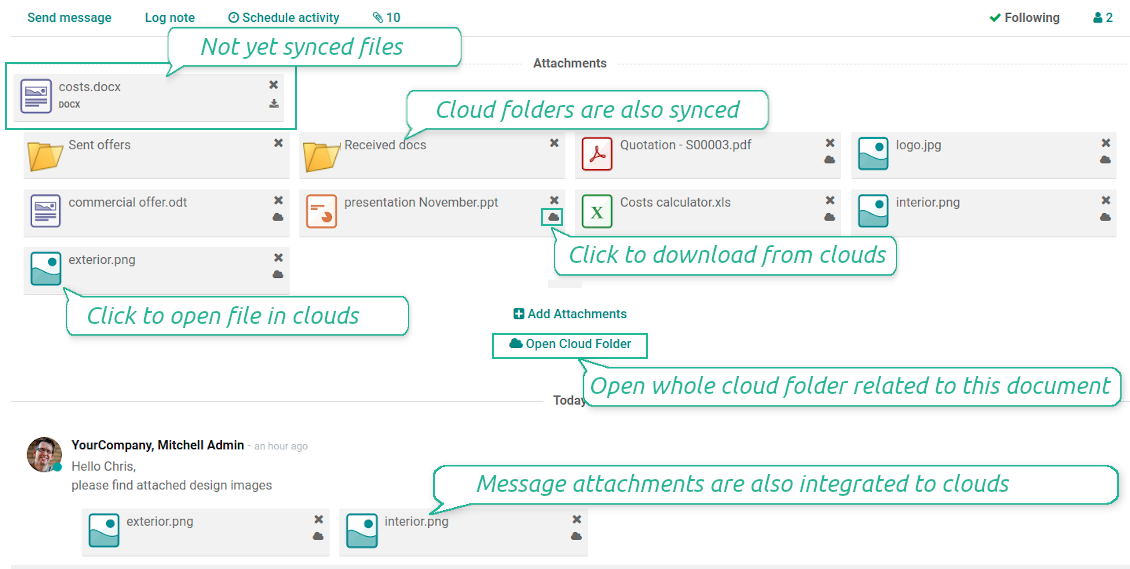
Synced attachments are physically kept only in a cloud storage, what increases Odoo interface performance. Simultaneously, you can open documents from Odoo or download those in a single click.
How files and folders are synced from Odoo to Google Drive
Based on the scheduled job 'Synchronize attachments with cloud' Odoo regularly checks whether:
- Any new attachment should be forwarded to Google Drive;
- Any new document type (e.g. Sale orders) is added / replaced / renamed as a sync model and, hence, whether a directory should be created / removed / renamed in Google Drive;
- Any new document (e.g. Sale Order SO019) is generated / updated / unlinked and, hence, whether a Google Drive folder should be created / moved or renamed / deleted.
- Any new attachment should be removed from Google Drive if it has been deleted from Odoo.
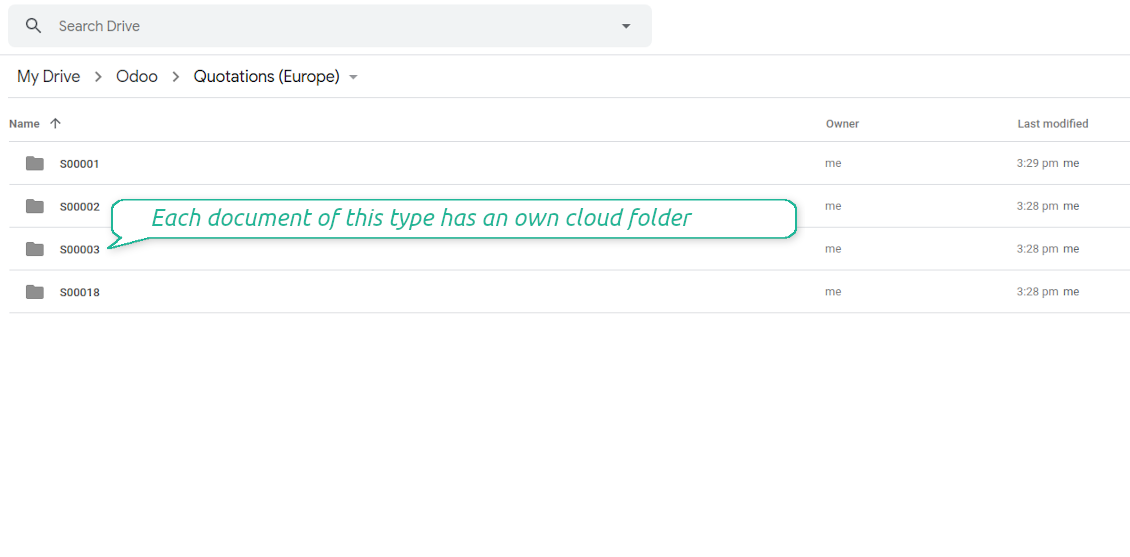
Based on results of that checks, Odoo starts processing queue of changes, and makes sure that all items are located correctly. The final goal is to have the structure 'Odoo / Document Types / Documents / Files. For example, 'Odoo / Quotations / SO019 / commercial offer.pdf'.
During the synchronization all synced Odoo attachments change their type to a link (URL), while binary content is removed with a next Odoo cleaner. So, no actual files would be stored on your Odoo server.
Please take into account:
- Each sync (especially the very first one) might take quite a long. It is not recommended to make sync too frequent: once an hour seems reasonable frequency.
- File names should be managed in Google Drive: each backward sync would recover Google Drive names, Odoo is here less important.
How items are retrieved from Google Drive to Odoo
Based on the scheduled job 'Synchronize attachments from cloud' Odoo regularly checks whether:
- Any file is added / moved / removed in a Google Drive document folder. If yes, Odoo would create a link to this file in a target object (e.g. a new attachment to SO019) or would move / delete such an attachment.
- Any file of a Google Drive document folder is renamed. If yes, an attachment would be renamed in Odoo as well.
- In document folders you can put not only files but also child folders. In that case a link for this folder (not its content) would be kept in Odoo attachments.
- If you deleted a folder related to this document type or this document, their child files would be deleted as well. Thus, Odoo would remove related attachments. The folders, however, will be recovered with a next direct sync.
- Each backward sync might take quite a long. It is not recommended to make sync too frequent: once an hour seems safe enough.
Ekraanipildid
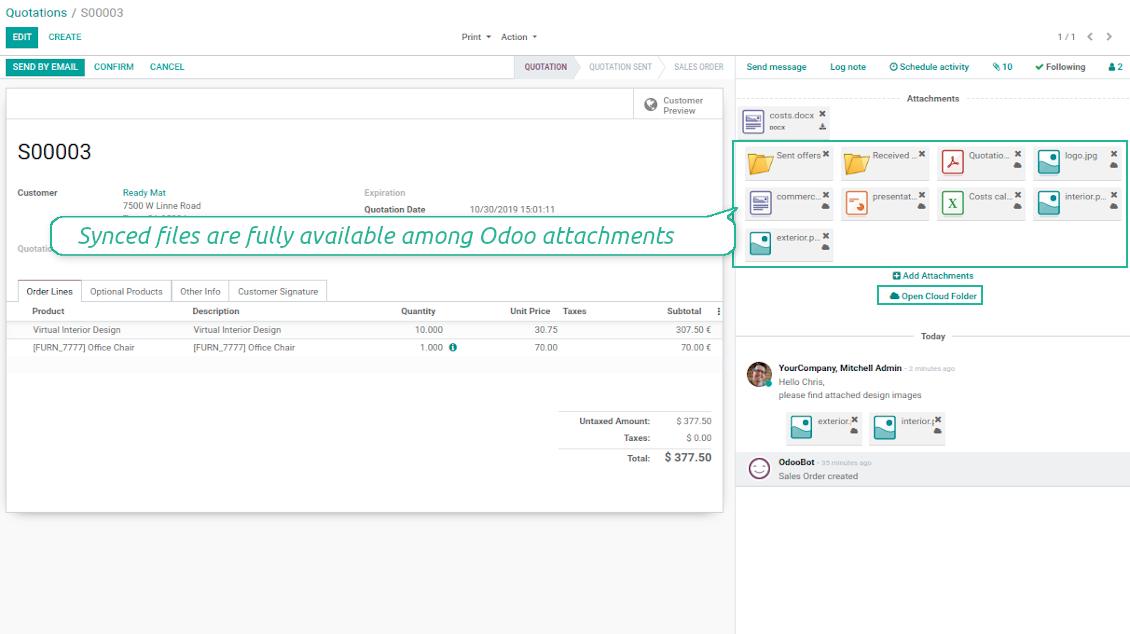
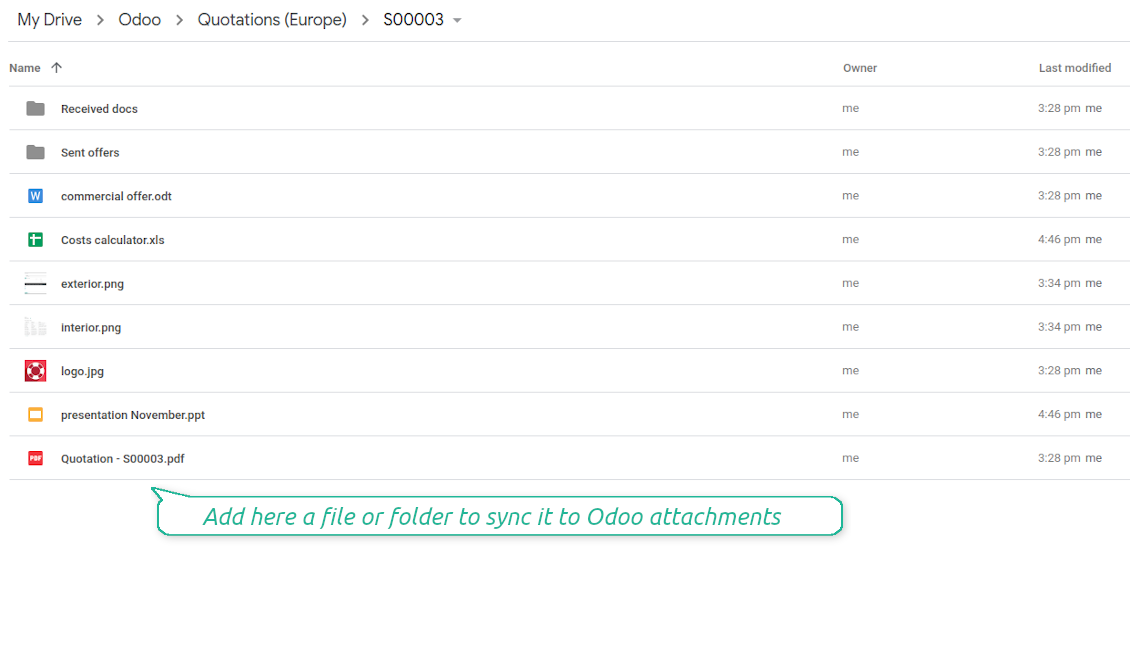
Synced files are simply found in Google Drive. Add unlimited number of files or folders
Document types folders in Google Drive
All document of this type has an own folder
Direct access to Google Drive items
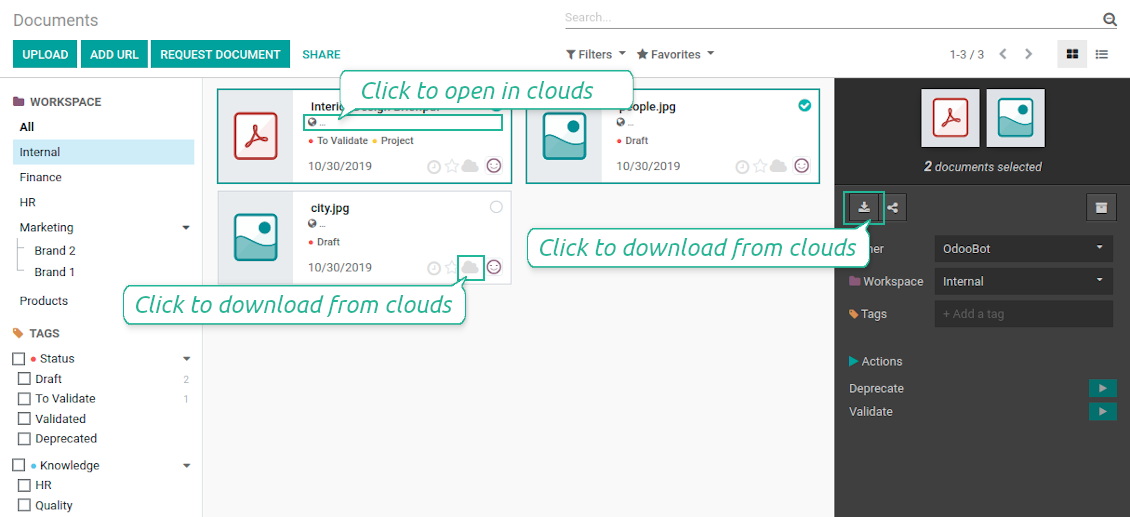
- Click on attachment to open it in Google Drive in a new tab (necessary to be logged in Google Drive);
- Click the icon of cloud to start downloading file from Google Drive (no extra check in is required)
- Push the button "Open cloud folder" to open all files related to this document.
Ekraanipildid
Quick access to Google Drive files and folders
Apply to Google Drive right from Odoo chatter
Individual and team drives
Fully integrated and compatible with Enterprise Documents
It does not contradict printing, mailing, or Enterprise documents features.
For the latter it is also possible to fully reflect directories structure, not only sync standard attachments.
How Odoo Enterprise Documents are synced
This tool is not in conflict with the 'documents' module provided under the Enterprise license. Attachments related to Enterprise folders would be synced as any other files: according to a document they relate to.
It is not always comfortable, and you might be interested in reflecting directories' structure introduced by the module 'Documents'. To this end the special extension is developed. This extension introduces the following features:
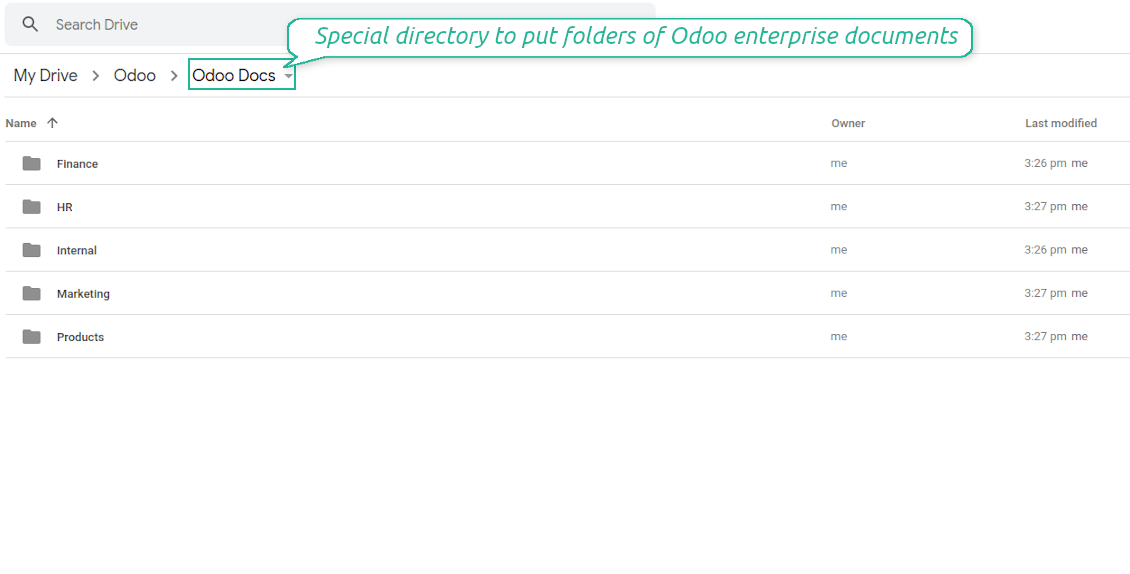
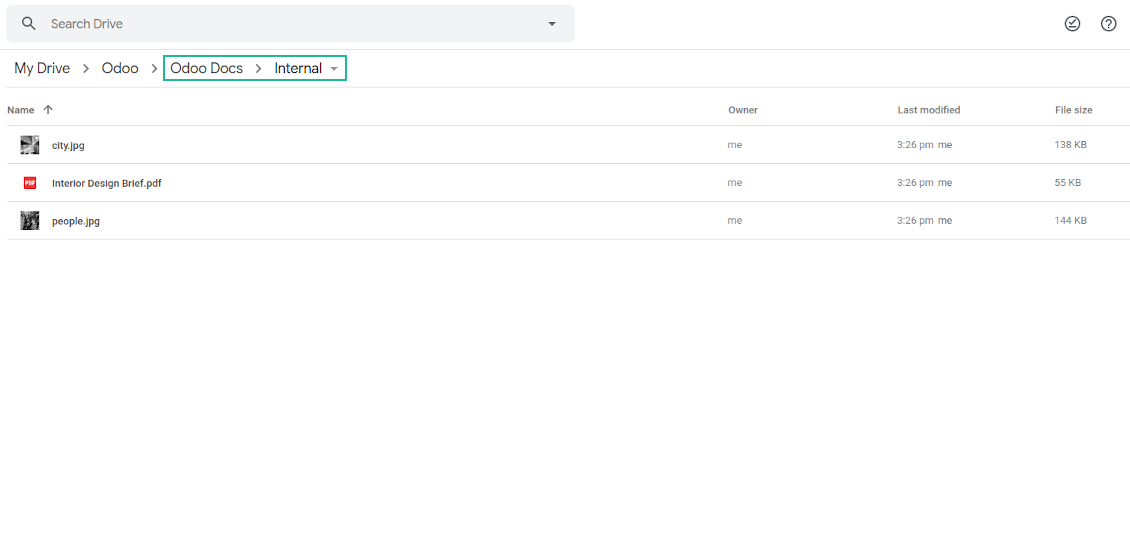
- The documents hierarchy is reflected within the folder 'Odoo / Odoo Docs'
- Each Odoo folder has a linked cloud folder. Take into account that folders created in the cloud storage will be synced as Odoo attachments. The key principle is: folders are managed by Odoo, files are managed by the cloud client
- All files are synced with the same logic as usual attachments. Files created in Odoo will be added to the cloud storage and will be replaced with links in Odoo. Files created in cloud storage will generate attachments within a paired directory
- Please do not name synced models as 'Odoo Docs'. This is the reserved name for Odoo Enterprise Documents
A few important peculiarities to take into account
- Take into account that files or folders deleted in Google Drive are really deleted only when you clean trash. Otherwise, such files still exist and would be reflected in Odoo
- Try to avoid the following symbols in folders' and files' names: *, ?, ", ', :, <, >, |, +, %, !, @, \, /,. Direct sync will replace such symbols with '-'. It is done to avoid conflicts with file systems.
Ekraanipildid
Direct access from Odoo documents to Google Drive
Enterprise Documents in Google Drive
Enterprise files in Google Drive
Tricky setup, but works perfectly now
Really solid module. We managed to get a very flexible folder structure (sorted by clients) and synced all our sales orders, invoices and tasks by projects to Google Drive.
Initial setup was a bit of a pain and kinda tricky to configure everything at first, but now it's running smoothly and works perfectly. The faotools team helped a lot. Def worth it if u need to keep your docs organized in Odoo and Google Drive.
Recommended!
Excellent !!!
Great App and great Service from faOtools.
Best module for integration with google drive
The module performs its function correctly and faOtools responds quickly to any problem and, in case of detecting any bug, quickly apply the changes. Its support is 10 stars.
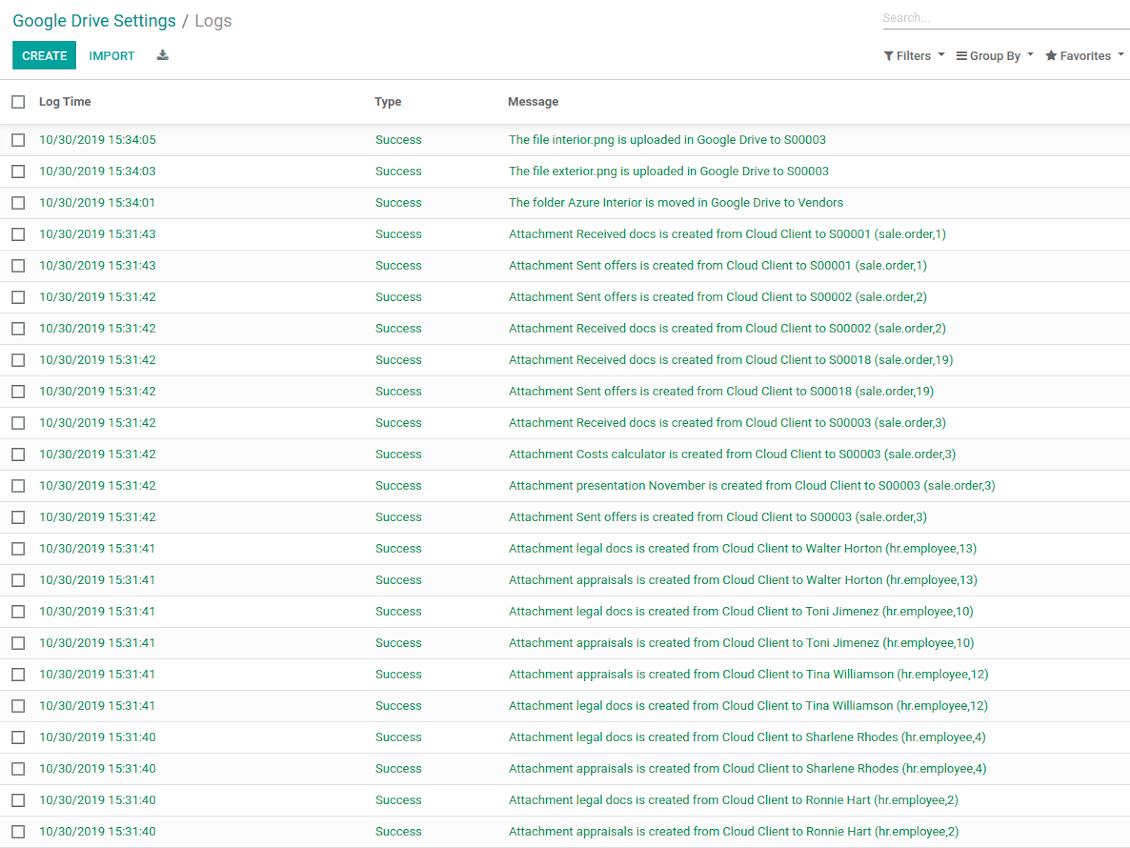
Google Drive Sync logs in Odoo
Ekraanipildid
Logged synchronization activities
Default folders for documents
Seadistamise ja paigaldamise näpunäited Google Drive Odoo Integration Odoo v.13
Login and Google Drive Credentials
- Go to the Google Cloud Console via the URL https://console.cloud.google.com
- Select or create a project
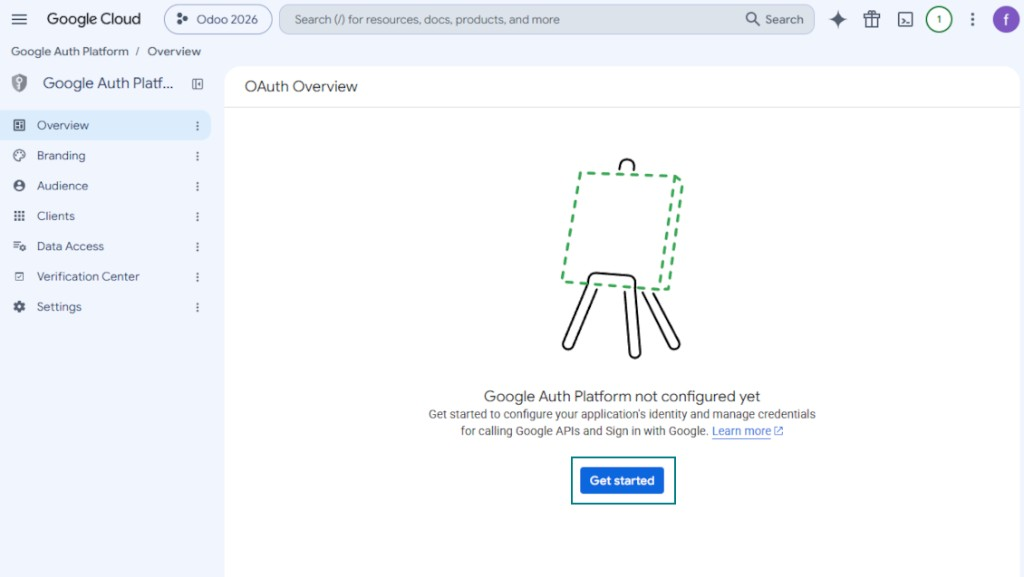
- After the project is selected, the console opens the Google Auth Platform. Press 'Get Started'
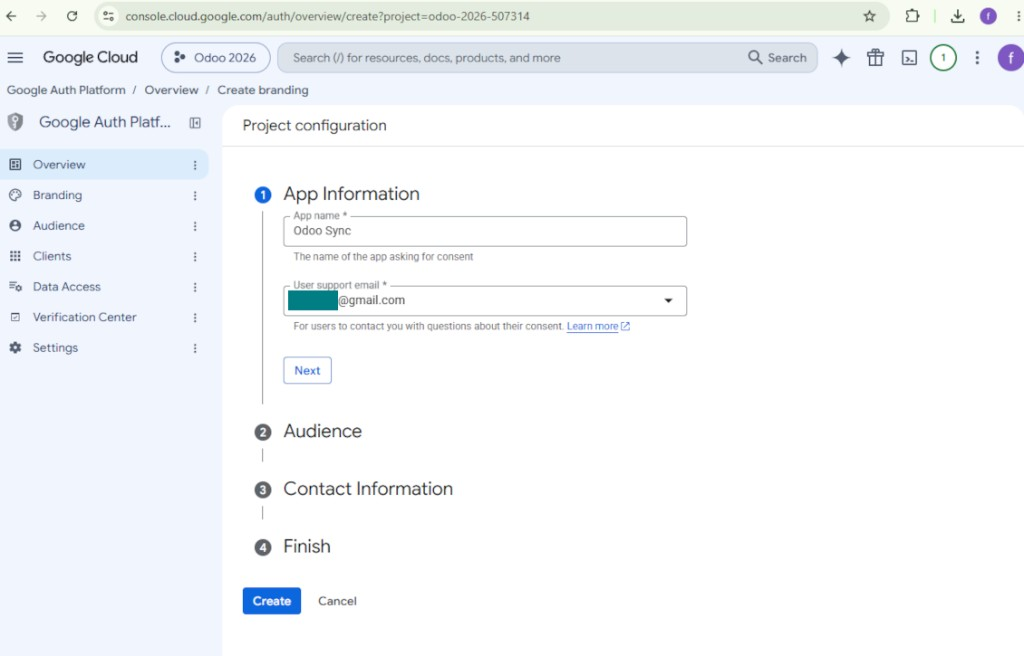
- Add app information
- As an app name select any suitable
- As a user support email select your email address
- Press 'Next'
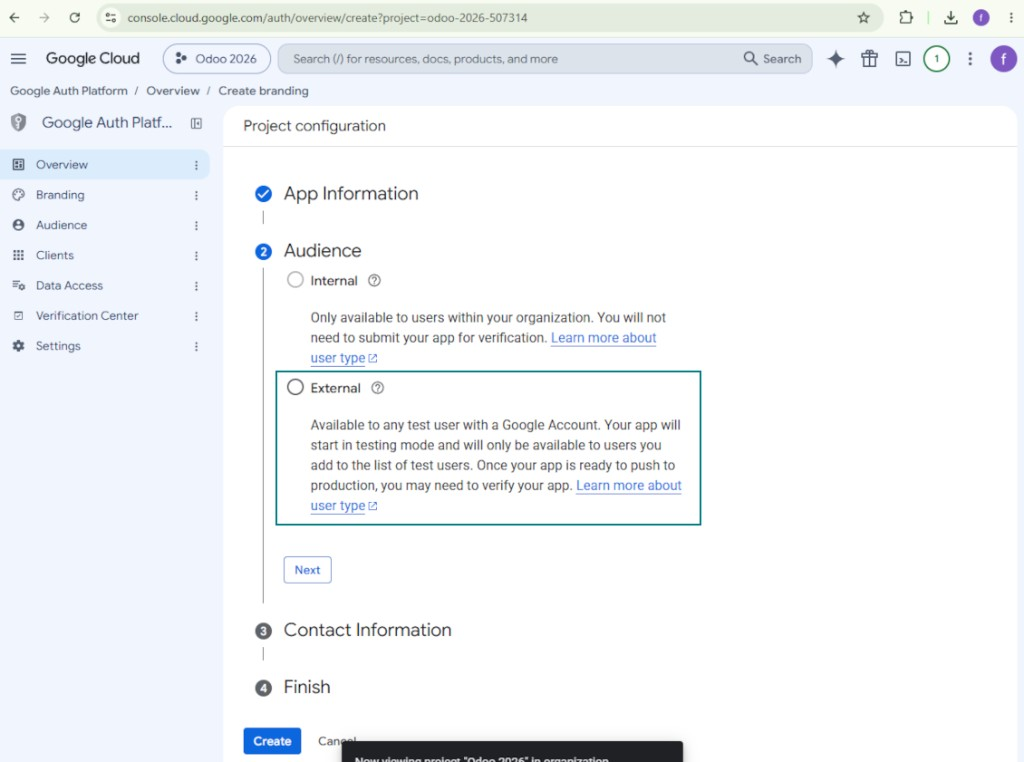
- As the audience select 'External' and press 'Next'. Note: you are anyway going to use this app only for your own Odoo connection
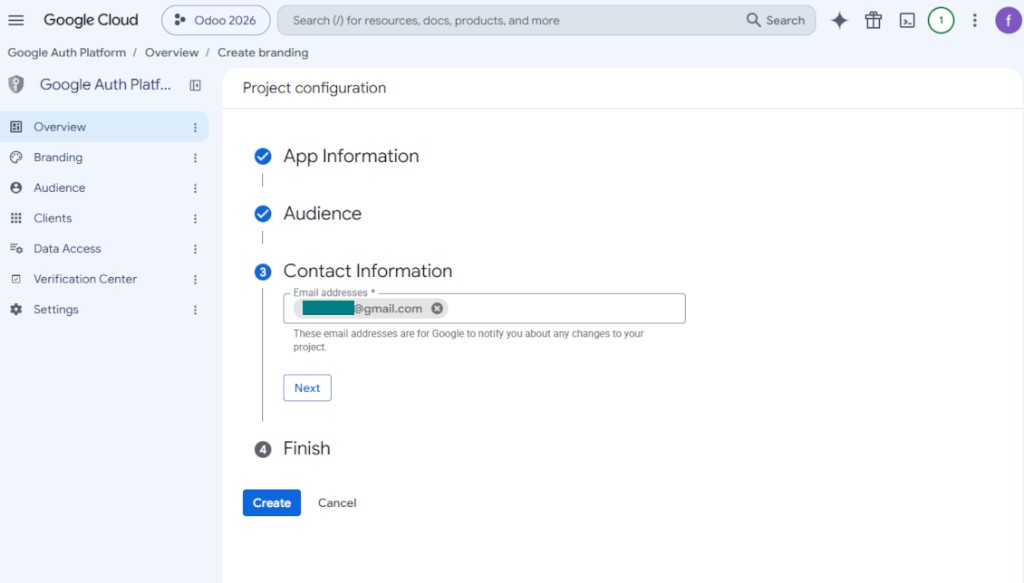
- As the contact information enter your Google or Google Workspace email address and press 'Next'
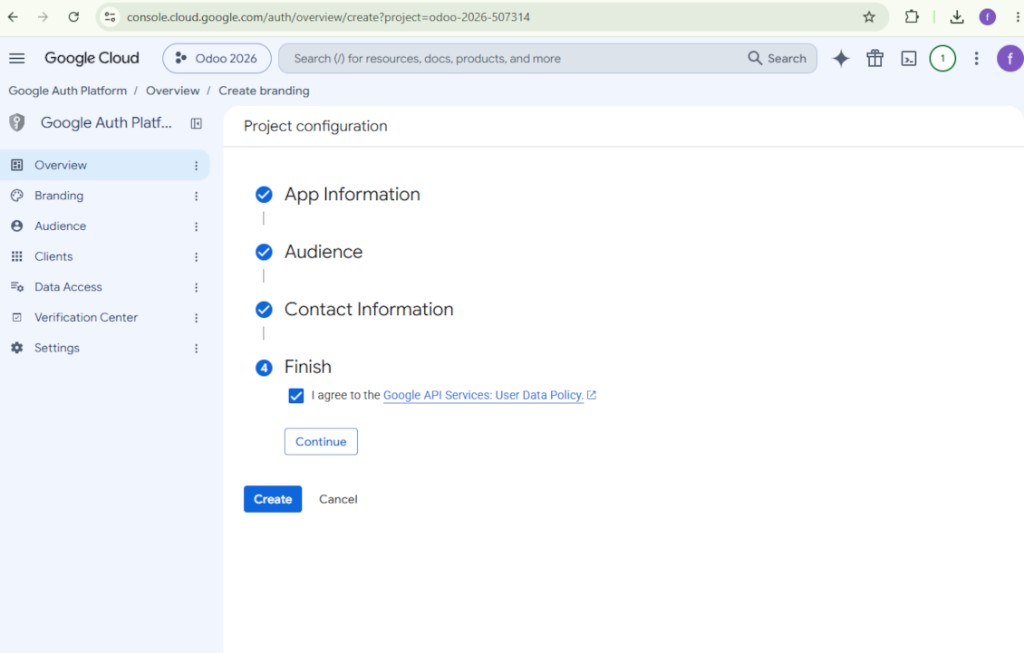
- Agree with the Google API Services User Data Policy, press 'Continue', and then press 'Create'
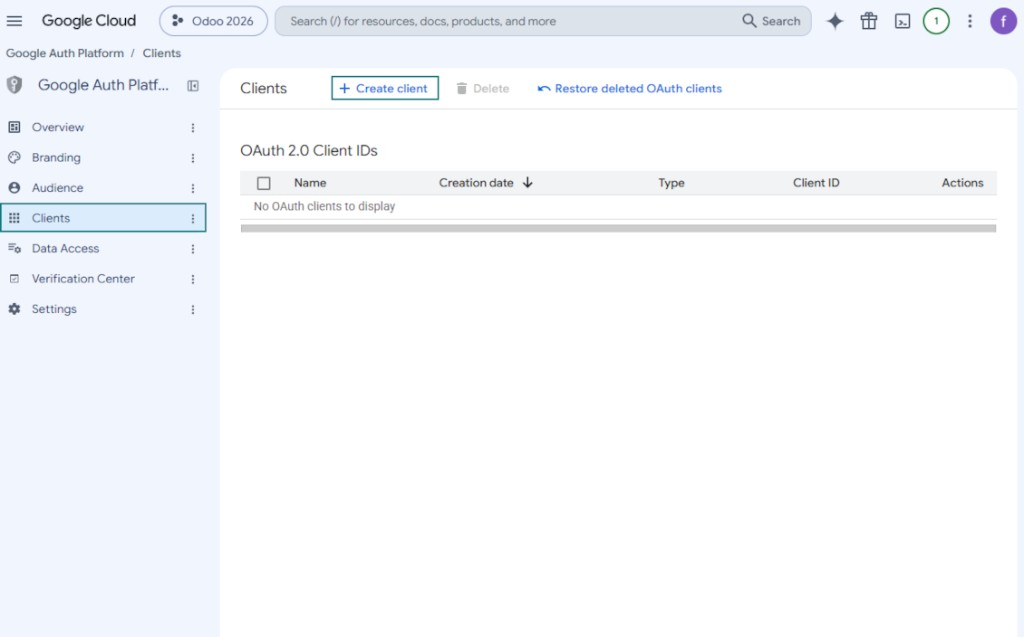
- Go to 'Clients' and press 'Create client'
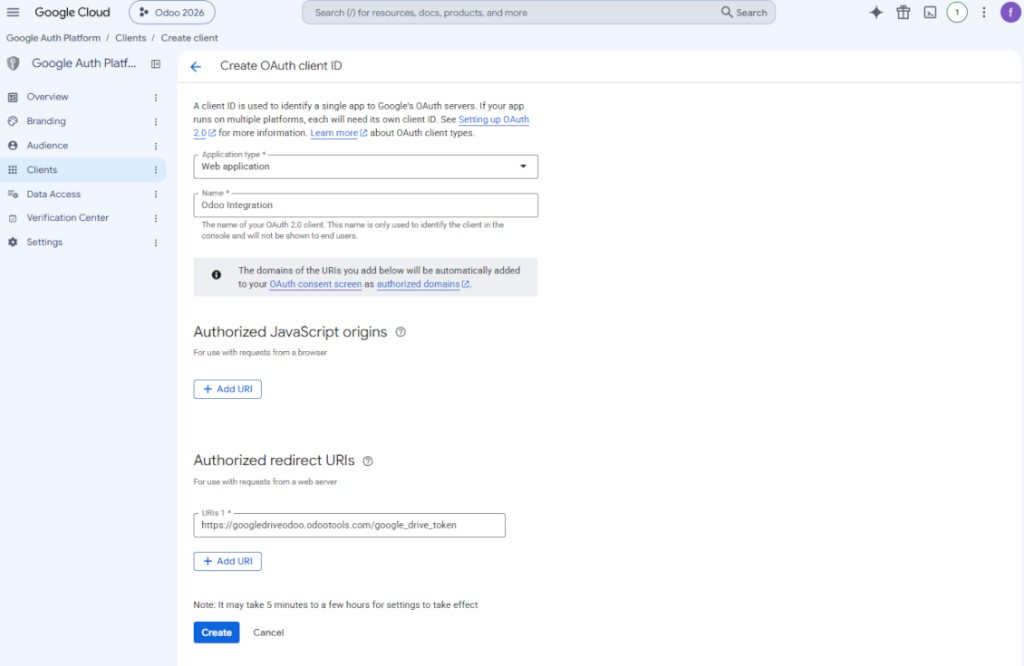
- As the application type select 'Web application'
- As a name select any suitable
- As the authorized redirect URI, add the link in a format [YOURODOOSITENAME]/google_drive_token (e.g. https://odootools.com/google_drive_token).
- Press 'Create'
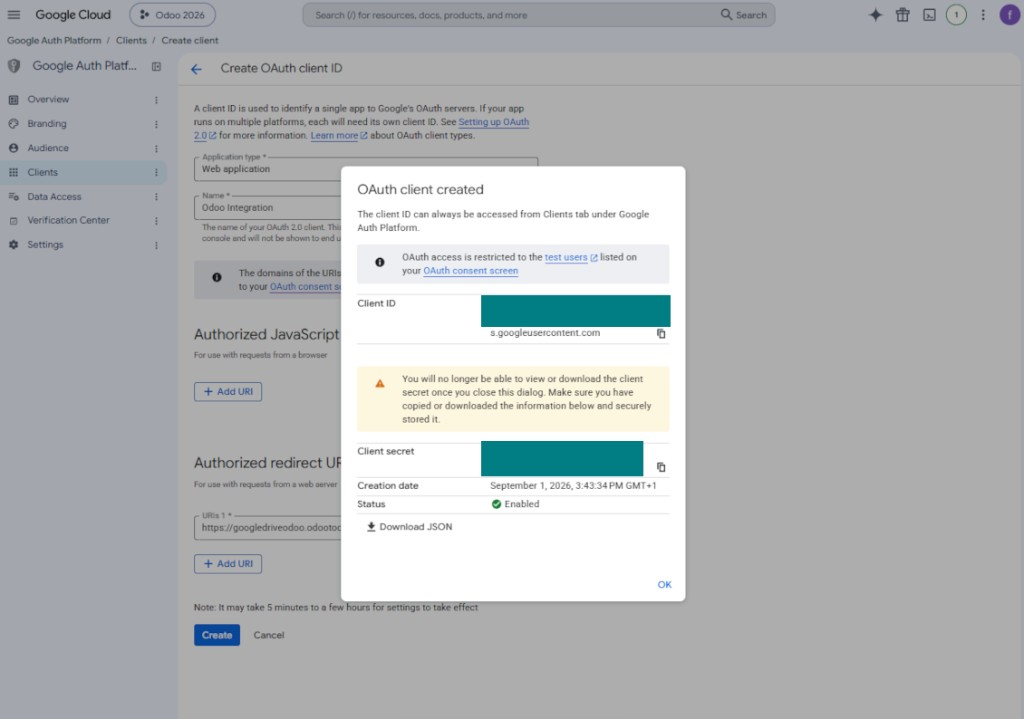
- Copy and safely store 'Client ID' and 'Client secret'. The client secret is shown only once
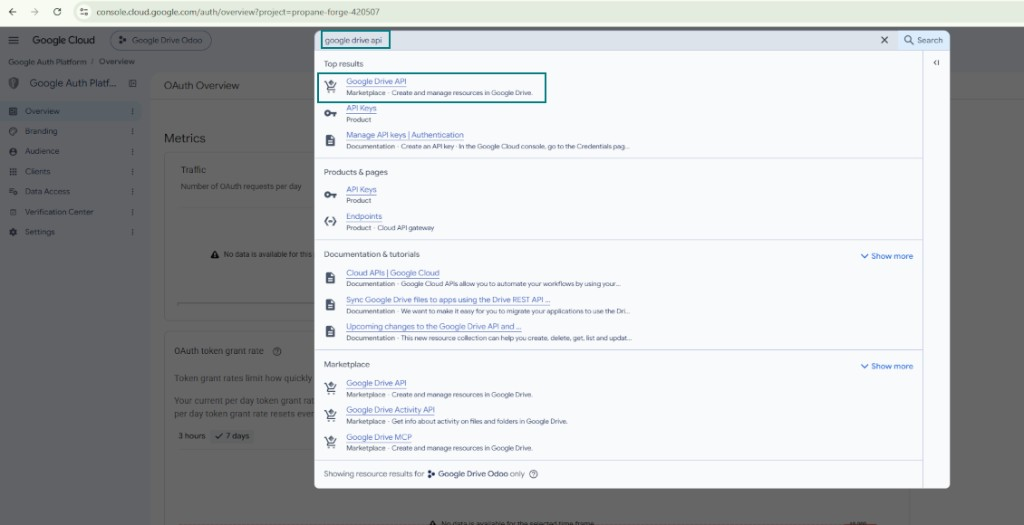
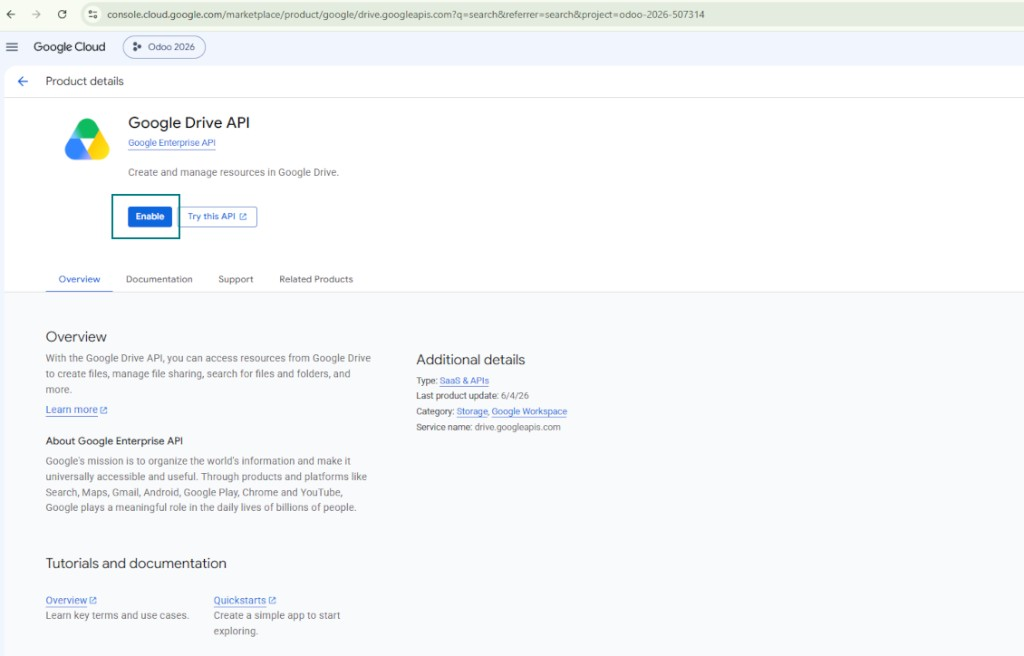
- Enable the Google Drive API for this project: type 'Google Drive API' in the top search box, open the found product, and press 'Enable'
- Go to 'Audience' and add your email address as a test user
- Publish the app. Otherwise, the app stays in the testing state and its token expires every 7 days
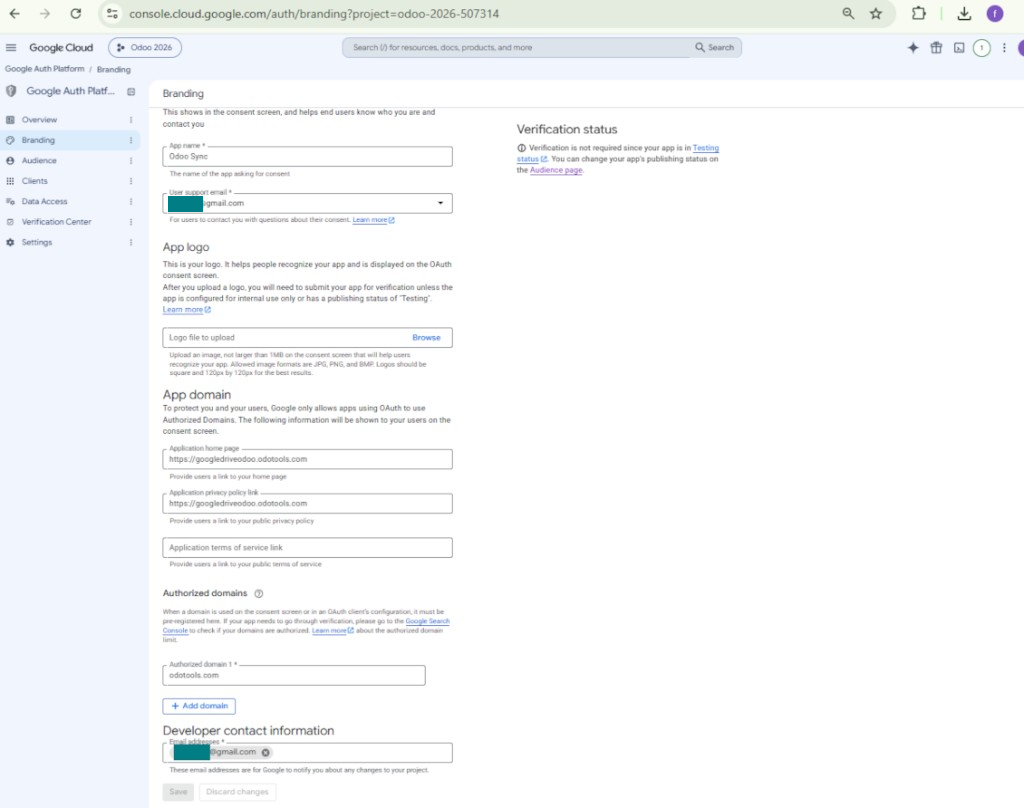
- Open 'Branding' and fill in the application home page and the application privacy policy link (for example, the links to your Odoo website). Add the domains of those links as the authorized domains
- Open 'Audience' and press 'Publish app'
- Do not upload an app logo. This would invoke a long and complex Google verification process that is of no actual need to you
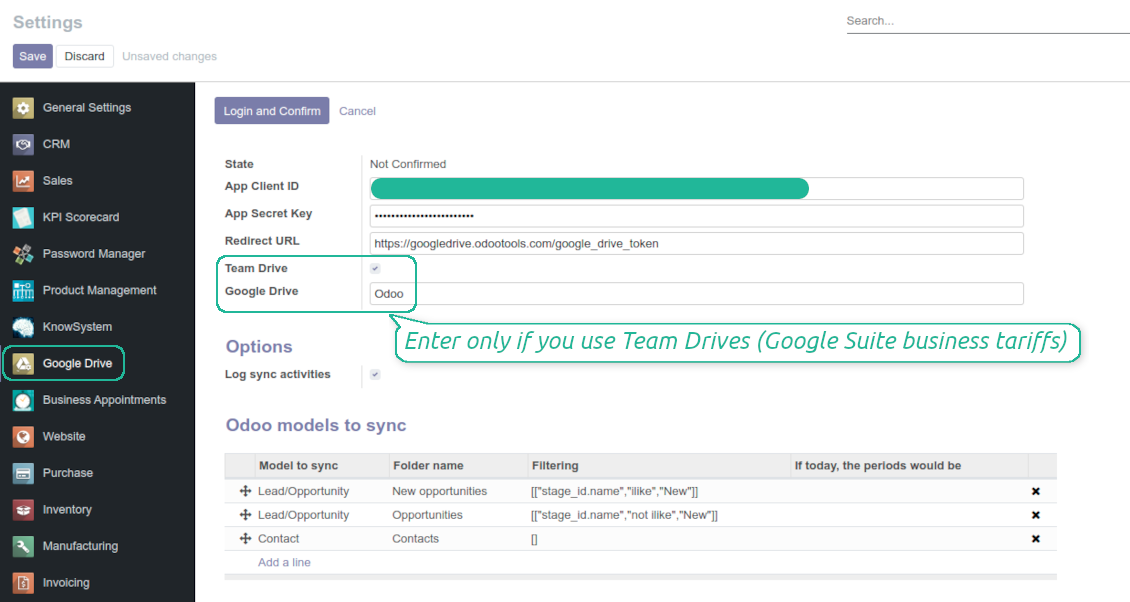
- Go to the Odoo Google Drive Settings
- Copy 'Client ID' from step 8 into the field 'App Client ID'
- Copy 'Client secret' from step 8 into the field 'App Secret Key'
- Insert the redirect URL you entered in step 8
- If you use team drives, check the related box. Make sure you really use team drives. In you Google Drive you should find the item 'Team Drives' in the left sidebar. This feature is available only for business and enterprise tariffs
- If the option 'Team Drive' is enabled, introduce its name. It should be absolutely the same as you see it in your Google Drive. Make sure that your user has full rights for this team drive
- Press 'Save'
- Press 'Login and Confirm'. Odoo redirects you to Google login page. Check in, agree with all conditions, and grant permissions asked
- After login, Google redirects you back to Odoo. Google Drive - Odoo synchronization is ready to be done.
Open the Google Auth Platform
Add app information
Select the external audience
Add contact information
Agree with the policies and create the app
Create an OAuth client
Configure the web application client
Copy the client ID and client secret
Find the Google Drive API
Enable the Google Drive API
Fill in branding to publish the app
Add test users and publish the app
Enter Google app credentials to Odoo
Odoo server configuration and cron job configuration
To make sure the synchronization works correctly apply proper timeouts to the Odoo configuration file: LIMIT_TIME_CPU, LIMIT_TIME_REAL, LIMIT_TIME_REAL_CRON should be more than 900 seconds.
For Odoo.sh this should not be done, since timeouts are predefined and are not configurable.
Then, timeout should be entered to your Odoo. To that goal find the section 'Settings' on the app configuration page and copy the number there.
Afterwards, it is needed to make the cron jobs suit the applied timeouts. In the debug mode go to the Settings > Technical > Automation > Scheduled Jobs:
- Set up the job 'Synchronize attachments with cloud' as (a) frequency - 2*timeout; (b) the next execution as the next hour +timeout. For example, for 900seconds timeout: frequency - as 30minutes; the next execution - at 08:15
- Set up the job 'Synchronize attachments from cloud' as (a) frequency - 2*timeout; (b) the next execution as the next hour + timeout*2. For example, for 900seconds timeout: frequency - as 30minutes; the next execution- at 08:30.
Korduma kippuvad küsimused Google Drive Odoo Integration Odoo v.13
Kas loodud Google Drive kaustad jagatakse Odoo kasutajate vahel automaatselt?
Rakendus ise ei reguleeri juurdepääsuõigusi Google Drive poolel. See tuleb teha seal käsitsi. Odoo loob Google Drive'i sihtkaustad, mis vaikimisi ei ole jagatud; õigusi saate muuta mis tahes kaustal. Näiteks täisõigused kataloogile 'Odoo' või konkreetsele 'Odoo > Sale Orders' või 'Odoo > Sale Orders > SO-001'.
Rakendus töötab ühe kasutaja lõpp-punkti põhimõttel. Kõik sünkroonimistoimingud tehakse sama Google Drive kasutaja all (vastavalt seadistatud Google API rakendusele).
Kustutasin faili Google Drive'is, aga see on Odoos endiselt alles
Faili täielikuks kustutamiseks tühjendage ka Google Drive prügikast.
Samuti võib fail olla veel Odoo-s, sest tagasisünkroonimine pole manust veel töödelnud. See on ajastatud protsess, kulub aega.
Kas Google võtab tasu API päringu alusel?
Moodul kasutab ainult tasuta API-t, seega Google teilt tasu ei võta.
Kas ma saan sünkroonimistööde sagedust muuta?
Jah, saate. Selleks:
Lülitage sisse silumisrežiim
Avage tehnilised seaded > Automatiseerimine > Ajastatud tööd
Leidke tööd 'Synchronize attachments with cloud' ja 'Update attachments from cloud'.
Ärge tehke neid liiga sagedaseks. Eelistatult peaks töö lõppema enne järgmise algust. Seadistus sõltub sellest, kui palju kirjeid on sünkroonida. Tavaliselt on sagedus 15 minuti ja 4 tunni vahel.
Veenduge ka, et Odoo konfiguratsioonifailis on piisavad ajalimiidid. Parameetrid LIMIT_TIME_CPU ja LIMIT_TIME_REAL peavad olema vähemalt planeeritud cron-töö pikkused. Alates versioonist 13 arvestage ka parameetrit LIMIT_TIME_REAL_CRON.
Oluline märkus Odoo.sh klientidele: cron-töö maksimaalne aeg võib olla vaid 15 minutit.
Kas saan seadistada sünkroonitud kataloogidele teistsuguse struktuuri, kui sünkroonimine eeldab?
Ei, see funktsioon on saadaval alles alates versioonist 15. Enne seda versiooni töötab moodul etteantud kaustastruktuuriga:
Odoo - sünkroonimise põhikaust
Models - kaustad iga Odoo dokumenditüübi jaoks. Näiteks 'Projects', 'Partners'. Domeeni järgi võivad olla täpsemad kaustad: nt 'Customer 1 Projects', 'Projects of the Customer 2', 'Internal Projects' jne.
Objects - kaustad iga dokumendi jaoks, nt 'Project 1' või 'Customer 1'
Selle Odoo dokumendiga seotud failid ja kaustad, mis sünkroonitakse.
Tulemusena võib teil olla näiteks:
Odoo / Projects / Project 1 / failid ja kaustad, mis on seotud project 1-ga
Odoo / Customer 1 Projects / Project 1; Odoo / Customer 2 Projects / Project 3, ...
Odoo / Customers / Customer 1 / failid ja kaustad, mis on seotud customer 1-ga
See struktuur on alati lame, st hierarhias on ainult need tasemed. Seega on õige, et erinevaid dokumenditüüpe ei saa hoida samas struktuuris. Kaustas 'Customer 1' ei saa hoida faile, mis kuuluvad korraga müügitellimustele, arvetele ja projektidele. Igal sellisel dokumenditüübil on oma (või mitu oma) kausta. Muidu poleks tagasisünkroonimist võimalik teha, sest puuduks kriteerium, millele toetuda.
Kas peaksin Odoos seadistama konkreetsete kasutajate juurdepääsud?
Ei, tööriist tugineb ühele kasutaja otspunktile. Kõik sünkroonimisprotsessid toimuvad ühe pilveadministraatori (rakenduse) all. Loodud kaustade / failide juurdepääsuõigusi ei automatiseerita. Neid õigusi peate haldama oma pilvesalvestuse lahenduses.
Kuhu sünkroonitud väljad salvestatakse? Kas need dubleeritakse Odoo-sse ja pilvedesse?
Rakendus eeldab, et manuste binaarsisu hoitakse Cloud Clientis, mitte Odoo serveris. Seega muutuvad sellised manused Odoos URL-tüüpi manusteks ning neile pääseb igal ajal ligi kas manuste kastist või Cloud Clientist.
Pärast seadistamist pole käsitsi toiminguid vaja, sest sünkroonimine on täielikult automaatne. Otsustage, milliseid Odoo dokumenditüüpe sünkroonida, ja seadistage igaühe jaoks seotud mudel (kliendid, müügi- või ostutellimused, ülesanded, projektid jne).
Kas saan samale dokumenditüübile mitu kausta? Näiteks siseprojektid ja kliendiprojektid?
Jah, saate. Selleks valmistage igaühele reegel ja seejärel rakendage filtrid: näiteks projekti tüübi järgi.
Püüdke teha filtrid vastastikku välistavateks, et dokument saaks üheselt määratud. Näiteks „klient, kuid mitte tarnija“, „tarnija, kuid mitte klient“. Muidu hüppab konkreetse dokumendi kaust ühelt mudelilt teisele.
Kas mul on vaja ainult rakendust Cloud Storage Solution?
Ei, tööriist on ainult tehniline tuum. Vajate ka oma cloud clienti konnektorit.
Kas on korras, kui sünkroonida tuleb palju objekte, näiteks 10000?
Jah, kuigi paljude kaustade/manuste sünkroonimisel võib protsess olla aeglane. Samas on kliendid teatanud keskkondadest, kus sünkrooniti >10k partnerit ja ~5k tootevarianti, ning protsessid olid vastuvõetavad.
Mõned rõhuasetused:
- Sünkroonimine on ehitatud nii, et iga üksus sünkroonitakse ega lähe kaduma, ehkki see ei pruugi olla kiire. Selle tagavad FIFO järjekorrad ja iga töö kinnitamine.
- Objektide arvu saab loogiliselt piirata. Mudelite seadistus võimaldab piirata aegunud üksuste sünkroonimist (nt pole mõtet sünkroonida arhiveeritud partnereid või 2 aastat vanu tellimusi).
Kas sünkroonimist saab teha reaalajas?
Ei. Meil on tugevad põhjused vältida reaalajas sünkroonimist:
Jõudlusprobleemid. Kui sünkroonimine oleks reaalajas, tööks iga faili üleslaadimine kaasa laadimisekraani.
Konfliktiprobleemid. Kui 2 kasutajat muudavad üksust korraga, võib tekkida lahendamata olukordi. Regulaarsete tööde korral saame selle hiljem parandada; reaalajas tuleks see salvestada järjekorrana, mis ajaks kasutajaid veelgi rohkem.
Funktsionaalsuse probleemid. Eelkõige üksuste ümbernimetamine ja ümberkorraldamine. Tagasisünkroonimisel tuginetakse rangelt kataloogiloogikale ning iga sünkroonimise ajal kontrollitakse 100% üksustest. Kui seda teha pärast iga uuendust, oleks tuhandeid päringuid sekundis. Kui mitte: muudatused läheksid kaduma.
Kas ma saan manuseid sünkroonida mõne pilve kliendiga
Ei, see funktsioon on saadaval alles alates versioonist 15.
Kasutame pilvedes spetsiaalset redaktorit (nt OnlyOffice, Office 365 jne). Kas failid avataks selles redaktoris?
Jah, olenevalt teie cloud client seadistusest.
Millised on teie tööriistade uuenduspoliitikad?
Kehtivate Odoo Apps Store reeglite kohaselt:
- Iga versioonile 12.0 või varasemale ostetud moodul annab juurdepääsu kõigile versioonidele kuni 12.0.
- Alates versioonist 13.0 tuleb iga mooduliversioon osta eraldi.
- Versioonist sõltumata annab ost õiguse kõigile uuendustele ja veaparandustele peamise versiooni piires.
Pange tähele, et faOtools meeskond neid reegleid ei juhi. Küsimustega pöörduge otse Odoo Apps Store esindajate poole.
Kuidas teie rakendust Odoo.sh-i installida?
Kõige lihtsam lähenemine on kasutada Odoo poe sisseehitatud töövoogu:
1. Avage mooduli leht ja klõpsake nuppu Deploy on odoo.sh
2. Seejärel suunatakse teid GitHubi lehele. Logige kontole sisse, seejärel klõpsake 'Create a new repo' või kasutage olemasolevat. Veenduge, et hoidla on privaatne. Rakendusi ei tohi OPL-1 litsentsi all avaldada. Vajadusel looge Odoo.sh projekti jaoks uus repo
3. Seejärel minge odoo.sh-i ja klõpsake nuppu Deploy. Hüpikaknas esitage otsus ja klõpsake 'Continue.' See käivitab paigalduse.
Need sammud paigaldavad rakenduse projekti tootmisharusse. Kui soovite rakendusi teistesse harudesse juurutada või moodulit uuendada, tehke järgmist:
1. Laadige rakenduse lähtekood Odoo poest üles
2. Tehke moodulile commit vajalikku GitHubi hoidlasse. Veenduge, et ühtegi rakenduse kausta/faili ei ignoreerita (st need ei ole repo .gitignore-s). Hoidlad loob odoo.sh automaatselt ja need võivad vaikimisi sisaldada olulisi kirjeid (nt /lib). Laadige üles kõik mooduli kataloogid, alamkataloogid ja failid eranditeta
3. Juurutage odoo.sh projekti sihtharu või, kui seaded seda eeldavad, oodake, kuni see automaatselt ehitatakse.
Kuidas teie rakendust oma serverisse installida?
2. Taaskäivita Odoo server;
3. Lülita sisse arendajarežiim (tehnilised seaded);
4. Värskenda rakenduste loendit (rakenduste menüü);
5. Leia rakendus ja vajuta „Activate“/„Install“;
6. Järgi rakenduse lehe juhiseid, kui need on olemas.
Märkasin, et teie rakendusel on lisasid. Kas võin need hiljem osta?
Jah, muidugi. Samal ajal lisab Odoo kõik sõltuvused automaatselt ostukorvi, seega peate varem ostetud tööriistad välja jätma, et vältida topeltmakset.
Paigaldasin teie rakenduse Odoo.sh-i ja näen testides hoiatust/viga
Punane/oranž hoiatus ei mõjuta rakenduse funktsioone. Kahjuks ei läbi meie moodulid mõnikord standardseid automaatteste, sest need eeldavad käitumist, mis on vastuolus rakenduse eesmärkidega. Näiteks muudame hinnaarvutust, samas kui standardse Odoo mooduli testid võrdlevad lõpphinda standardalgoritmiga.
Kõigepealt kontrollige juurutatud andmebaasi funktsioone. Kas kõik töötab õigesti?
Kui arvate endiselt, et hoiatus mõjutab tegelikke funktsioone, võtke meiega ühendust ja saatke täielikud paigalduslogid ning kõigi juurutatud moodulite loend (sh tuum ja kolmanda osapoole).
Kas ma saan rakenduse otse teie ettevõttelt osta?
Ei, jagame tööriistu ainult ametliku Odoo rakendustepoe.
Soovin allahindlust
Kahjuks pole meil tehnilisi vahendeid individuaalhindade pakkumiseks.
Kas ma saan rakenduse paigaldada oma Odoo Online (SaaS) andmebaasi?
Ei, kolmanda osapoole rakendusi ei saa Odoo Online’is kasutada. Kahjuks Odoo SaaS blokeerib selle.
Teie tööriist sõltub teistest rakendustest. Kas pean need ostma?
Jah, tööriist vajab kõiki sõltuvustes märgitud mooduleid, et töötada õigesti. Rakenduse lehel märgitud hind sisaldab juba kõiki vajalikke sõltuvusi.
Mis on mooduli hind USA dollarites? Miks see muutus?
Meie moodulite hind on eurodes. Odoo pood teisendab hinnad teistesse valuutadesse oma sisemise kursi järgi. Seega võib USA dollarites hind muutuda, kui kurss uueneb.
Rakenduse ja veebilehe sõnastus muudes keeltes kui inglise on tehisintellekti abil ja kooskõlas ametlike Odoo tõlgetega. Kui märkate viga, saatke pilet tõlgete õigsuse kohta ja parandame selle.
Vigadest teatamine
Kui kohtate vigu või ebajärjekindlat käitumist, võtke julgelt ühendust. Tagame parandused 60 päeva jooksul ostust ja oleme huvitatud tööriistade täiustamisest ka pärast seda perioodi.
Meiega ühenduse võtmiseks pole telefoninumbrit ega krediitkaarti vaja. Piisab lühikesest e-posti registreerimisest, mis ei kesta üle 30 sekundi.
Lisage taotlusse võimalikult palju üksikasju: kuvatõmmised, Odoo serveri logid, täielik kirjeldus probleemi taasesitamiseks jne. Tavaliselt kulub mõni tööpäev, et koostada tööplaan (kui viga kinnitatakse) või anda juhised, mida teha (muul juhul).
Avalikud funktsioonisoovid ja mooduliideed (tasuta arendus)
Oleme tugevalt motiveeritud oma tööriistu parandama ja oleme tänulikud iga tagasiside eest. Kui teie nõuded on üldkasulikud ja neid saab tõhusalt ellu viia, lisab meeskond need meie ülesannete loendisse.
Sellist ülesannete loendit töödeldakse regulaarselt ja lisatasusid ei kaasne. Kuigi me ei saa lubada tähtaegu ega lõplikku kujundust, võib see olla hea viis soovitud funktsioonide saamiseks ilma investeeringute ja riskideta.
Meiega ühenduse võtmiseks pole telefoninumbrit ega krediitkaarti vaja. Piisab lühikesest e-posti registreerimisest, mis ei kesta üle 30 sekundi.

Tööriist paroolide turvaliseks hoidmiseks Odoo-s ühiskasutuseks. Jagatud seifid

Tööriist sügava ja struktureeritud teadmusbaasi loomiseks sise- ja väliskasutuseks. Knowledge System. KMS. Wiki-laadsed redaktsioonid.
398€
Tööriist KPI eesmärkide seadmiseks ja täitmise kontrolliks perioodide kaupa. KPI töölaud. Töölaua kujundaja. KPI diagrammid

Tööriist ajapõhiseks teenusehalduseks alates kohtumiste broneerimisest kuni müügi ja arvustusteni
398€
Tööriist Odoo haldamiseks lemmik AI vestlustest MCP kaudu. Claude. Iga MCP-d toetav AI.

Tööriist Odoo manuste paindlikuks kaustadesse paigutamiseks ja kataloogide sünkroonimiseks pilveklientidega: Google Drive, OneDrive/SharePoint, Nextcloud/ownCloud, Dropbox, Amazon S3, Box ja NAS. DMS. Failihaldur. Dokumendihaldussüsteem
398€
Tööriist Odoo manuste automaatseks kahesuunaliseks sünkroonimiseks OneDrive failidega
487€
Tööriist Odoo manuste automaatseks kahesuunaliseks sünkroonimiseks ownCloud/Nextcloud failidega
487€
Tööriist Odoo manuste automaatseks kahesuunaliseks sünkroonimiseks NAS-lahendustega. Synology, QNAP, TrueNAS ja iga muu WebDav-i toetav NAS
487€