Google Drive Odoo Integration v.13
The tool to automatically synchronize Odoo attachments with Google Drive files in both ways

- the technical core which provides basic mechanics of auto synchronization. This is a required module for integration. মূল্য 398€.
- the connector itself which introduces links between Odoo and Google Drive. মূল্য 89€.
- an optional add-on to sync Odoo documents (introduced by the enterprise app 'Documents') with clouds. The features assumed by this add-on are marked by the icon . মূল্য 44€.
Selectable documents types for sync
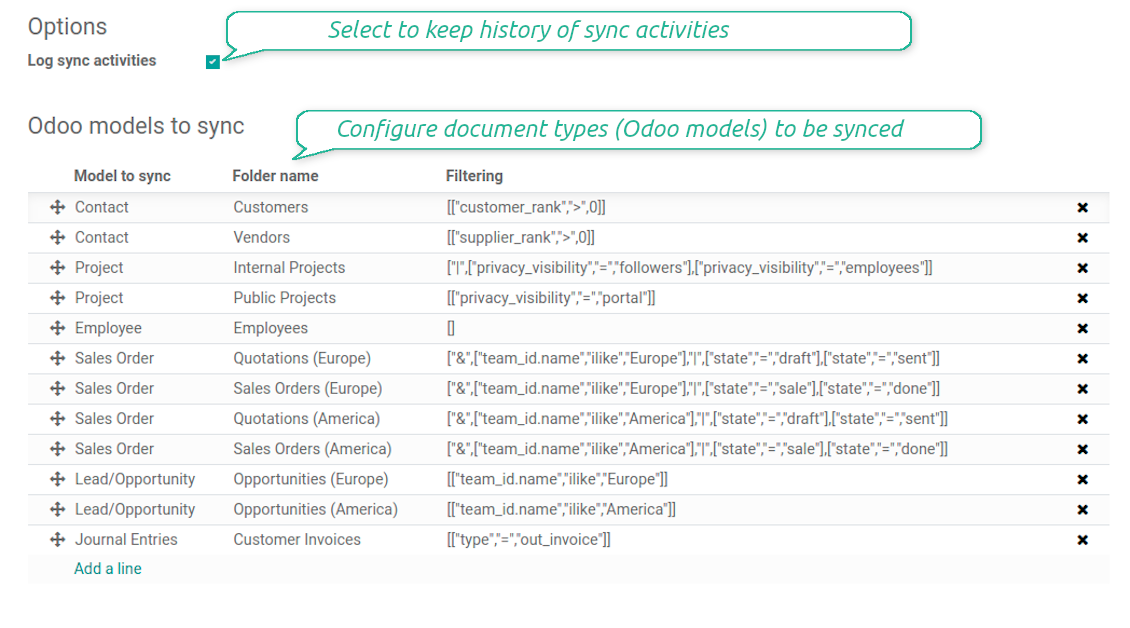
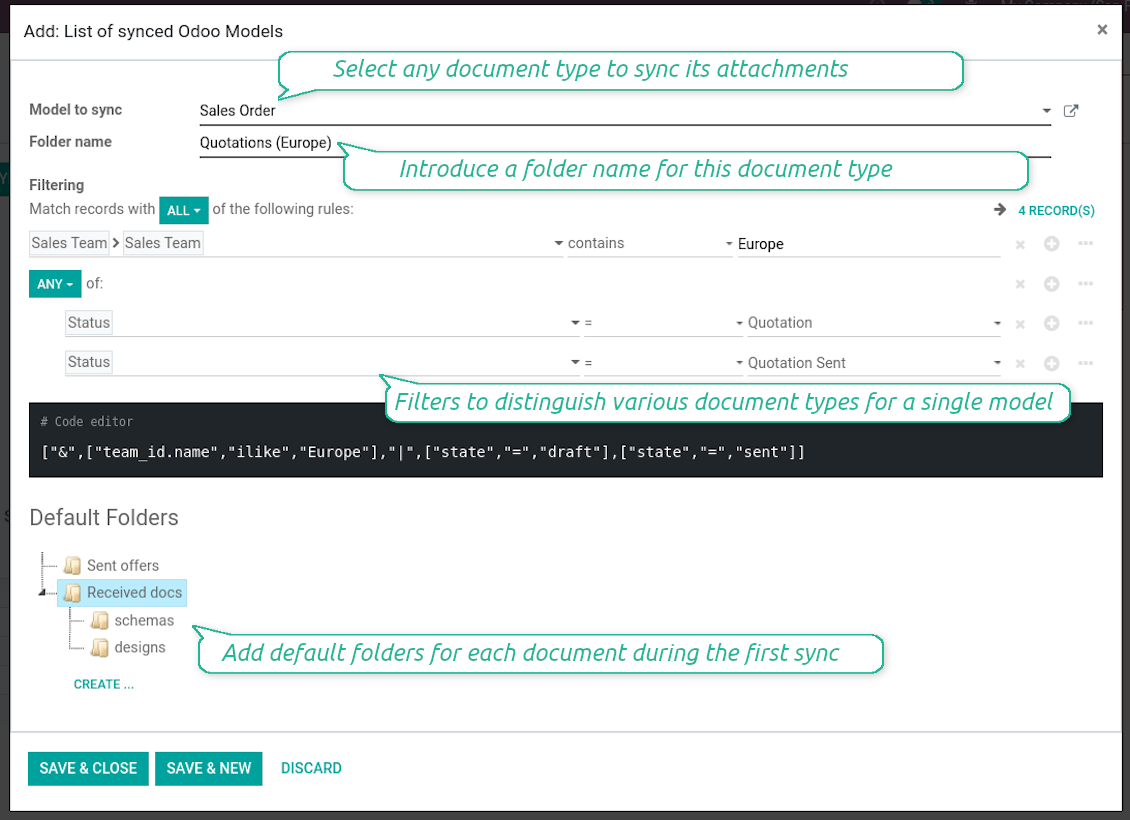
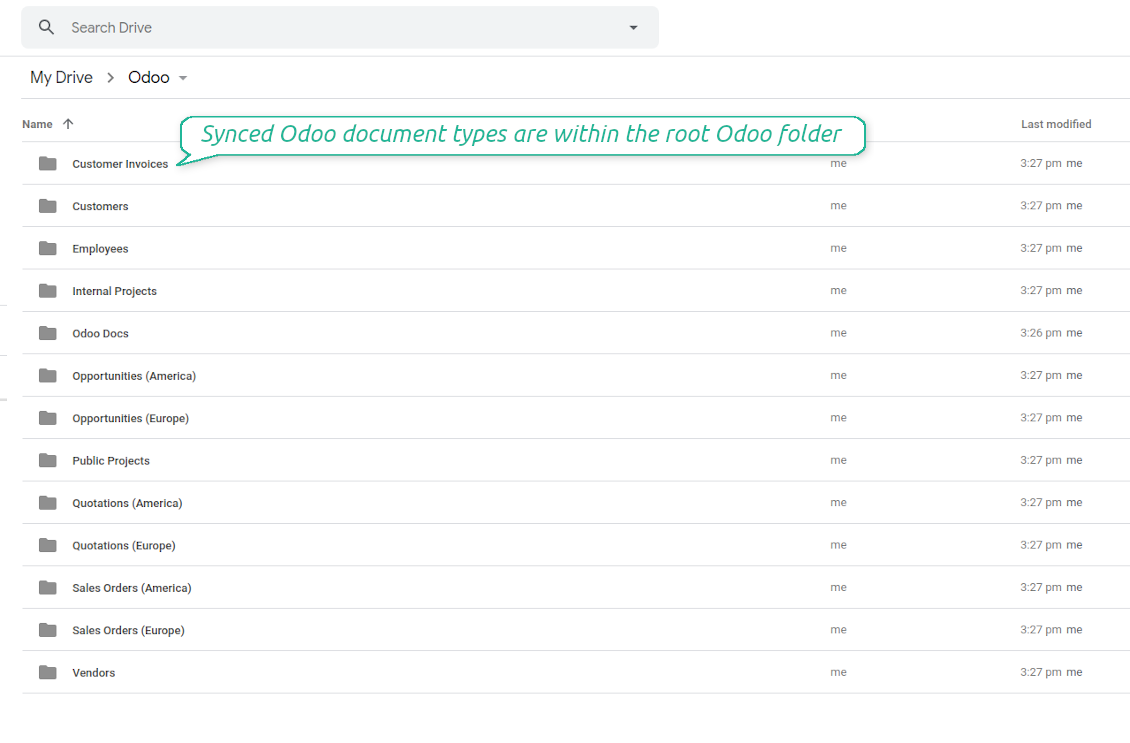
The tool let you split any business model into a few directories. Have a separate folder for individuals and companies, for European and American opportunities, for each project, etc.
Moreover, it is possible to guarantee that only topical documents are synced by using relative periods: leads registered in the last 3 months, invoices updated the last week, and so on.
Typical use cases
- Projects: have an own Google Drive folder for each customer project.
- Customers: add all partner files in a single directory available both from Odoo and from Google Drive. Modify those using default cloud editors and access them when working in Odoo.
- Employees: gather all files by this employee in a single cloud folder: photos, document scans, contracts. Access and upload those from Odoo and Google Drive alternatively.
- Opportunities: carefully store all specifications, requirements, any files which would let you make a good offer.
- Orders: keep all printings and contracts in Google Drive with simple availability from Odoo.
স্ক্রিনশট
Choose document types to be synced
Document type might have a few folders based on filters
Automatic and bilateral integration
Synced attachments are physically kept only in a cloud storage, what increases Odoo interface performance. Simultaneously, you can open documents from Odoo or download those in a single click.
How files and folders are synced from Odoo to Google Drive
Based on the scheduled job 'Synchronize attachments with cloud' Odoo regularly checks whether:
- Any new attachment should be forwarded to Google Drive;
- Any new document type (e.g. Sale orders) is added / replaced / renamed as a sync model and, hence, whether a directory should be created / removed / renamed in Google Drive;
- Any new document (e.g. Sale Order SO019) is generated / updated / unlinked and, hence, whether a Google Drive folder should be created / moved or renamed / deleted.
- Any new attachment should be removed from Google Drive if it has been deleted from Odoo.
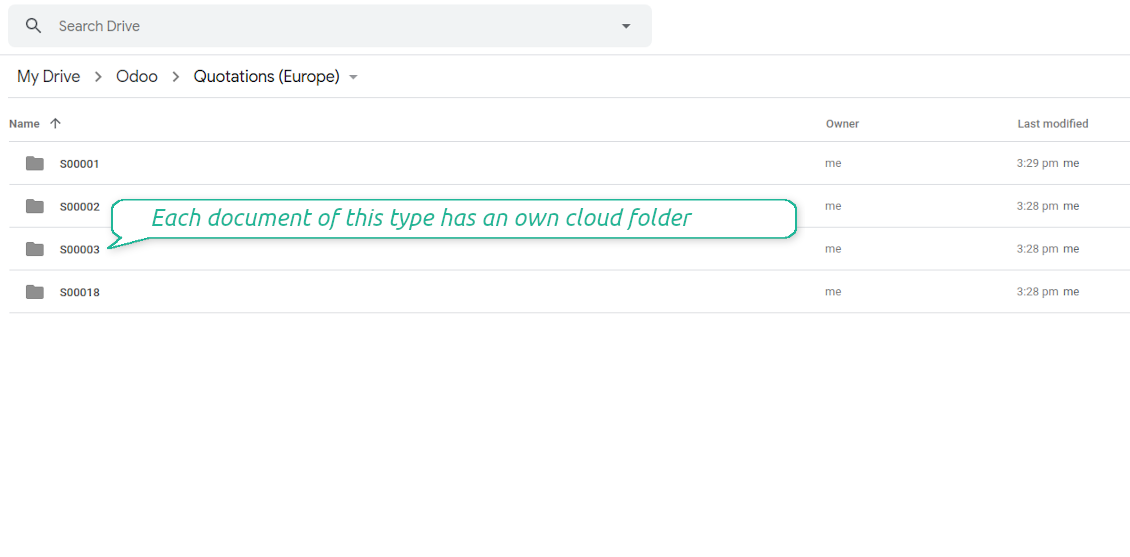
Based on results of that checks, Odoo starts processing queue of changes, and makes sure that all items are located correctly. The final goal is to have the structure 'Odoo / Document Types / Documents / Files. For example, 'Odoo / Quotations / SO019 / commercial offer.pdf'.
During the synchronization all synced Odoo attachments change their type to a link (URL), while binary content is removed with a next Odoo cleaner. So, no actual files would be stored on your Odoo server.
Please take into account:
- Each sync (especially the very first one) might take quite a long. It is not recommended to make sync too frequent: once an hour seems reasonable frequency.
- File names should be managed in Google Drive: each backward sync would recover Google Drive names, Odoo is here less important.
How items are retrieved from Google Drive to Odoo
Based on the scheduled job 'Synchronize attachments from cloud' Odoo regularly checks whether:
- Any file is added / moved / removed in a Google Drive document folder. If yes, Odoo would create a link to this file in a target object (e.g. a new attachment to SO019) or would move / delete such an attachment.
- Any file of a Google Drive document folder is renamed. If yes, an attachment would be renamed in Odoo as well.
- In document folders you can put not only files but also child folders. In that case a link for this folder (not its content) would be kept in Odoo attachments.
- If you deleted a folder related to this document type or this document, their child files would be deleted as well. Thus, Odoo would remove related attachments. The folders, however, will be recovered with a next direct sync.
- Each backward sync might take quite a long. It is not recommended to make sync too frequent: once an hour seems safe enough.
স্ক্রিনশট
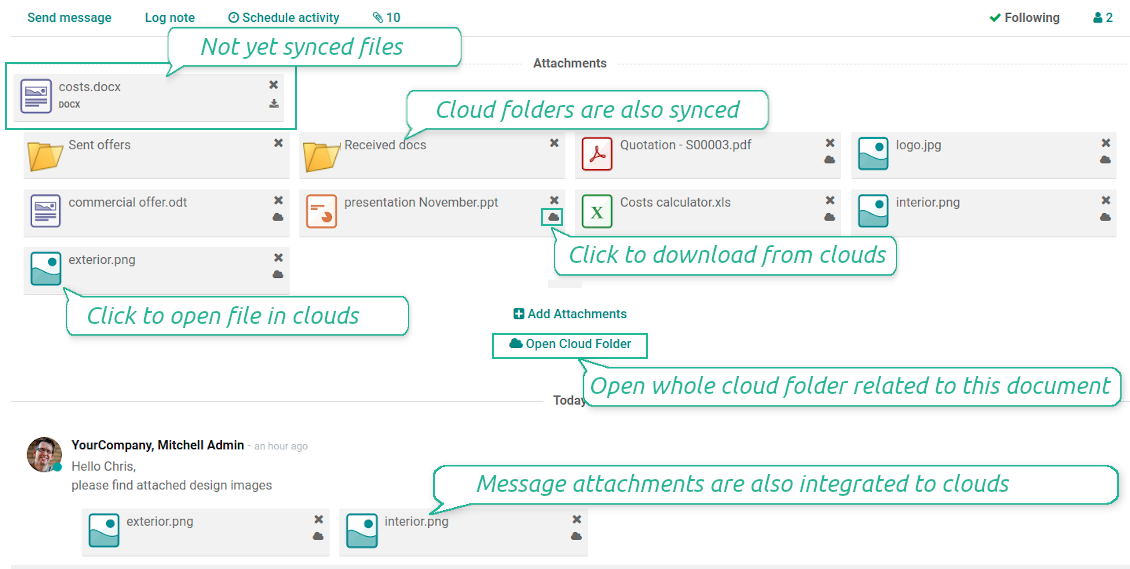
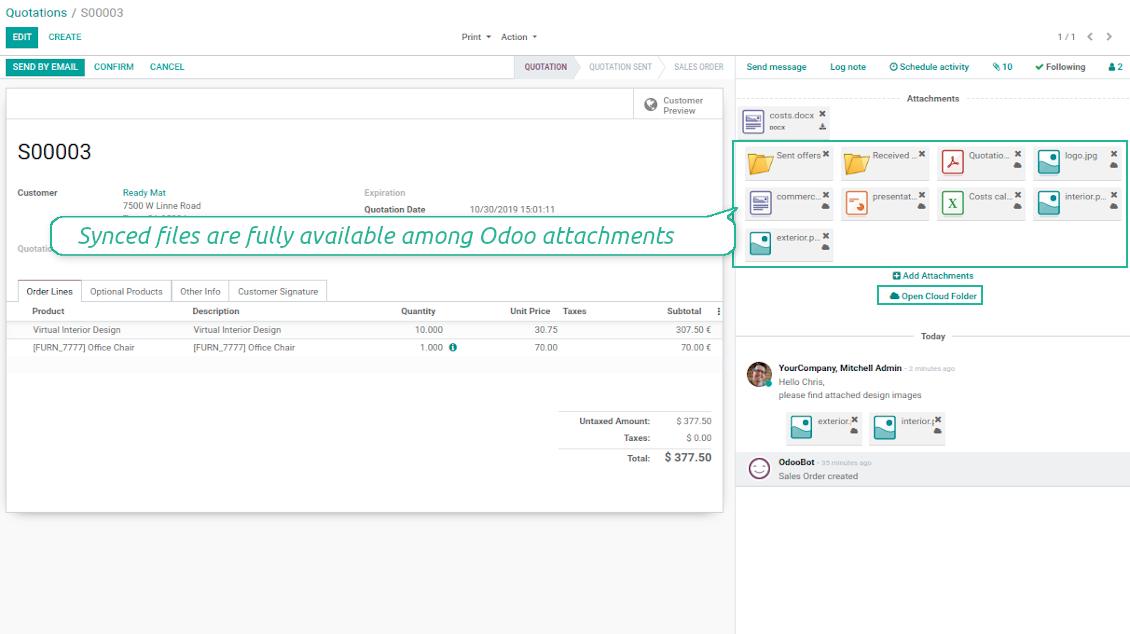
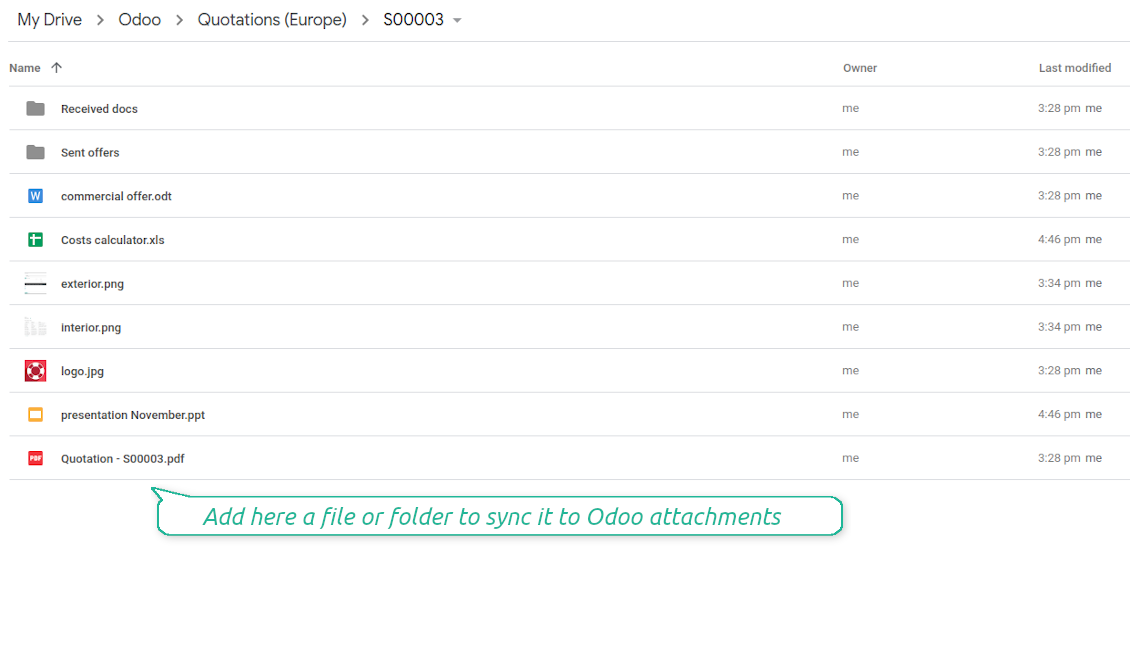
Synced files are simply found in Google Drive. Add unlimited number of files or folders
Document types folders in Google Drive
All document of this type has an own folder
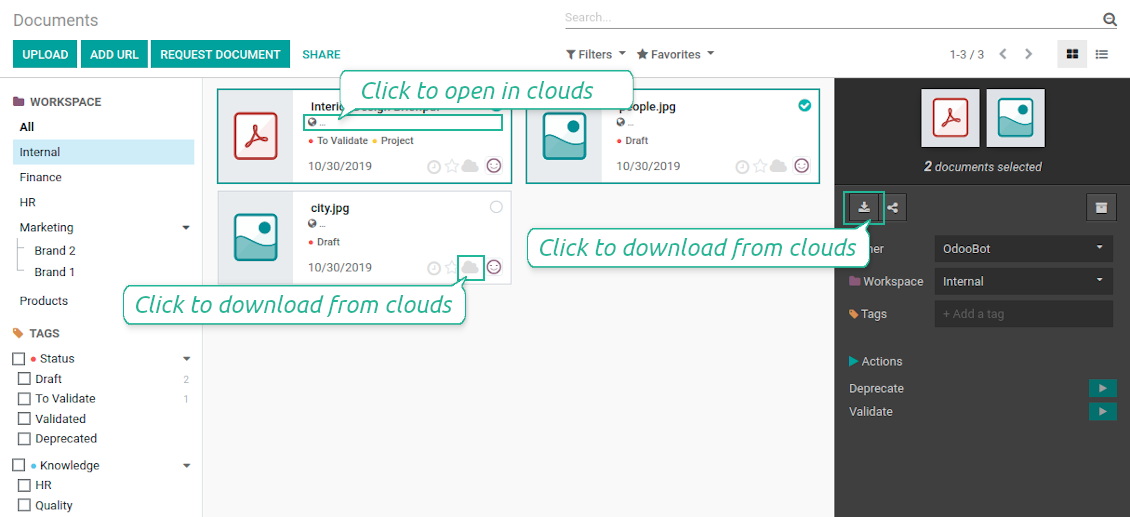
Direct access to Google Drive items
- Click on attachment to open it in Google Drive in a new tab (necessary to be logged in Google Drive);
- Click the icon of cloud to start downloading file from Google Drive (no extra check in is required)
- Push the button "Open cloud folder" to open all files related to this document.
স্ক্রিনশট
Quick access to Google Drive files and folders
Apply to Google Drive right from Odoo chatter
Individual and team drives
Fully integrated and compatible with Enterprise Documents
It does not contradict printing, mailing, or Enterprise documents features.
For the latter it is also possible to fully reflect directories structure, not only sync standard attachments.
How Odoo Enterprise Documents are synced
This tool is not in conflict with the 'documents' module provided under the Enterprise license. Attachments related to Enterprise folders would be synced as any other files: according to a document they relate to.
It is not always comfortable, and you might be interested in reflecting directories' structure introduced by the module 'Documents'. To this end the special extension is developed. This extension introduces the following features:
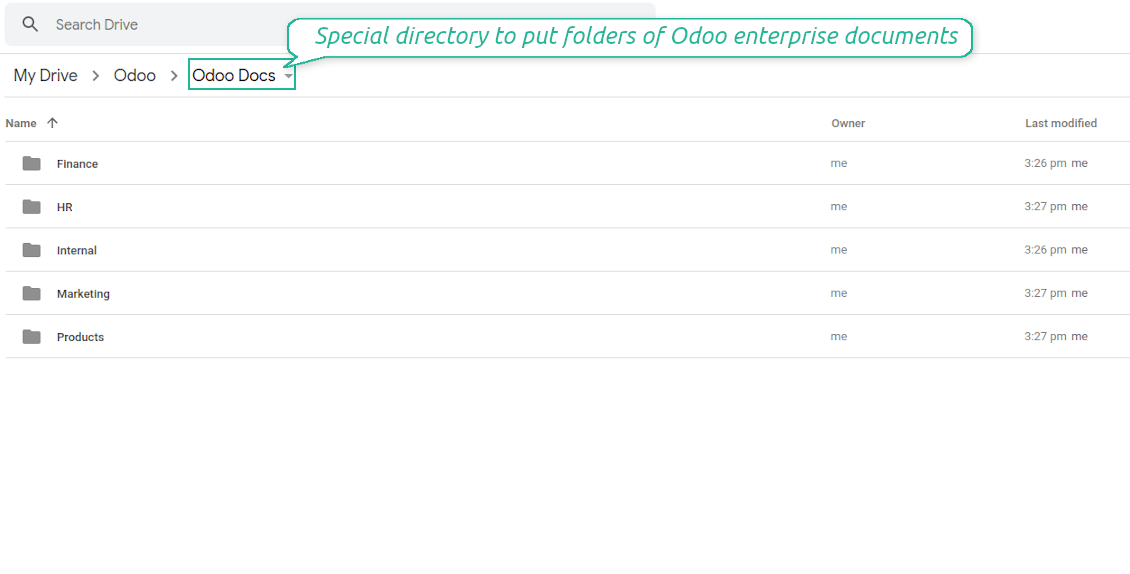
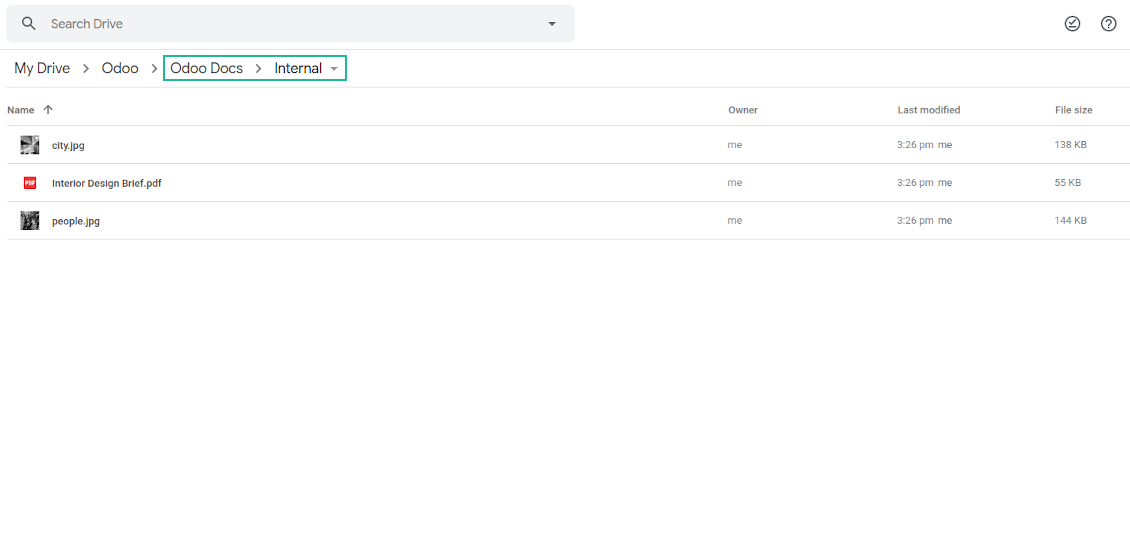
- The documents hierarchy is reflected within the folder 'Odoo / Odoo Docs'
- Each Odoo folder has a linked cloud folder. Take into account that folders created in the cloud storage will be synced as Odoo attachments. The key principle is: folders are managed by Odoo, files are managed by the cloud client
- All files are synced with the same logic as usual attachments. Files created in Odoo will be added to the cloud storage and will be replaced with links in Odoo. Files created in cloud storage will generate attachments within a paired directory
- Please do not name synced models as 'Odoo Docs'. This is the reserved name for Odoo Enterprise Documents
A few important peculiarities to take into account
- Take into account that files or folders deleted in Google Drive are really deleted only when you clean trash. Otherwise, such files still exist and would be reflected in Odoo
- Try to avoid the following symbols in folders' and files' names: *, ?, ", ', :, <, >, |, +, %, !, @, \, /,. Direct sync will replace such symbols with '-'. It is done to avoid conflicts with file systems.
স্ক্রিনশট
Direct access from Odoo documents to Google Drive
Enterprise Documents in Google Drive
Enterprise files in Google Drive
Tricky setup, but works perfectly now
Really solid module. We managed to get a very flexible folder structure (sorted by clients) and synced all our sales orders, invoices and tasks by projects to Google Drive.
Initial setup was a bit of a pain and kinda tricky to configure everything at first, but now it's running smoothly and works perfectly. The faotools team helped a lot. Def worth it if u need to keep your docs organized in Odoo and Google Drive.
Recommended!
Excellent !!!
Great App and great Service from faOtools.
Best module for integration with google drive
The module performs its function correctly and faOtools responds quickly to any problem and, in case of detecting any bug, quickly apply the changes. Its support is 10 stars.
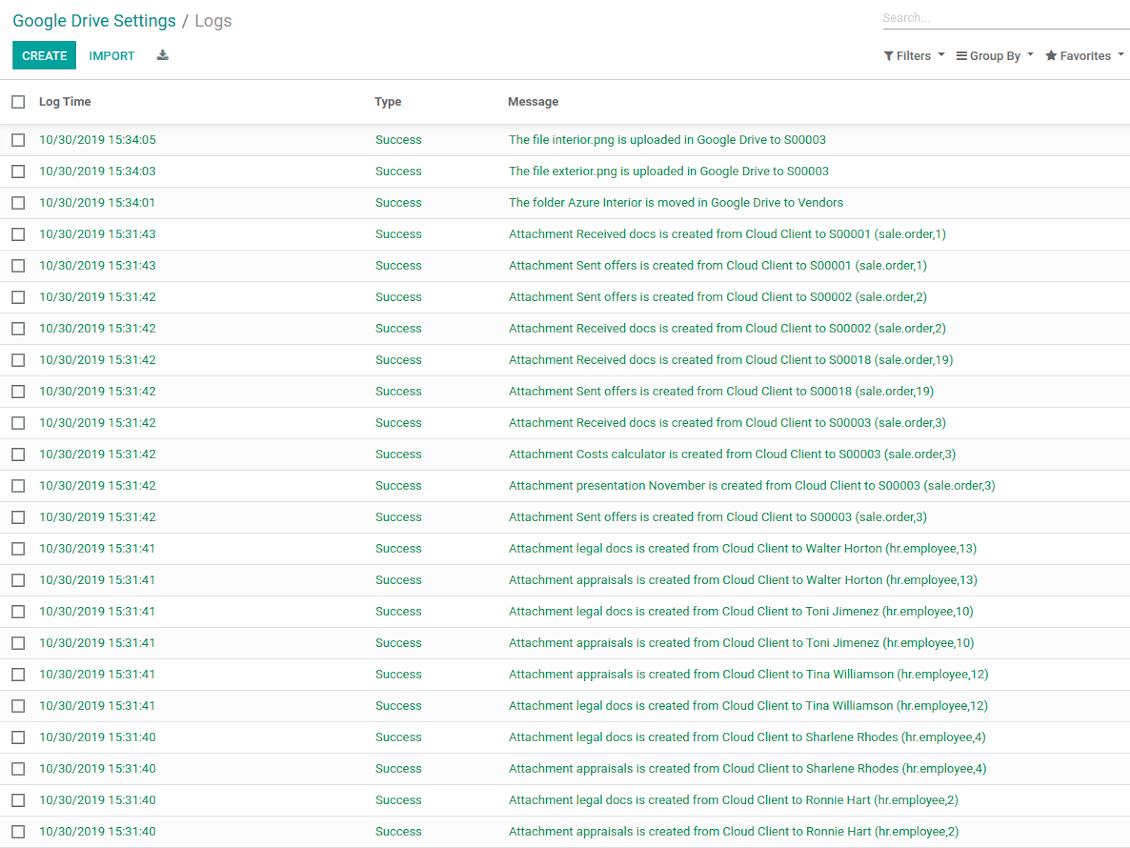
Google Drive Sync logs in Odoo
স্ক্রিনশট
Logged synchronization activities
Default folders for documents
কনফিগারেশন ও ইনস্টলেশন টিপস: Google Drive Odoo Integration Odoo v.13
Login and Google Drive Credentials
- Go to the Google Cloud Console via the URL https://console.cloud.google.com
- Select or create a project
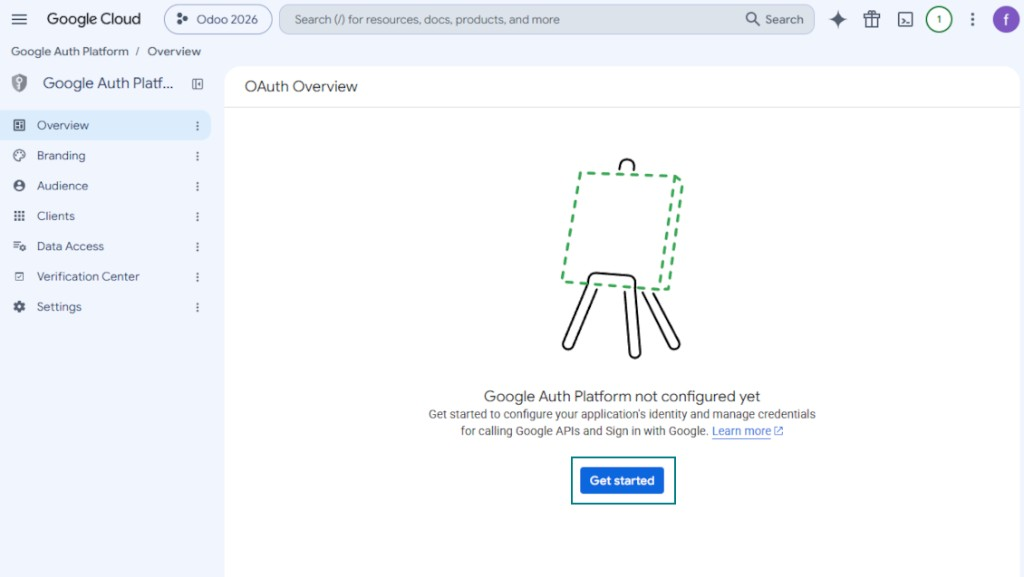
- After the project is selected, the console opens the Google Auth Platform. Press 'Get Started'
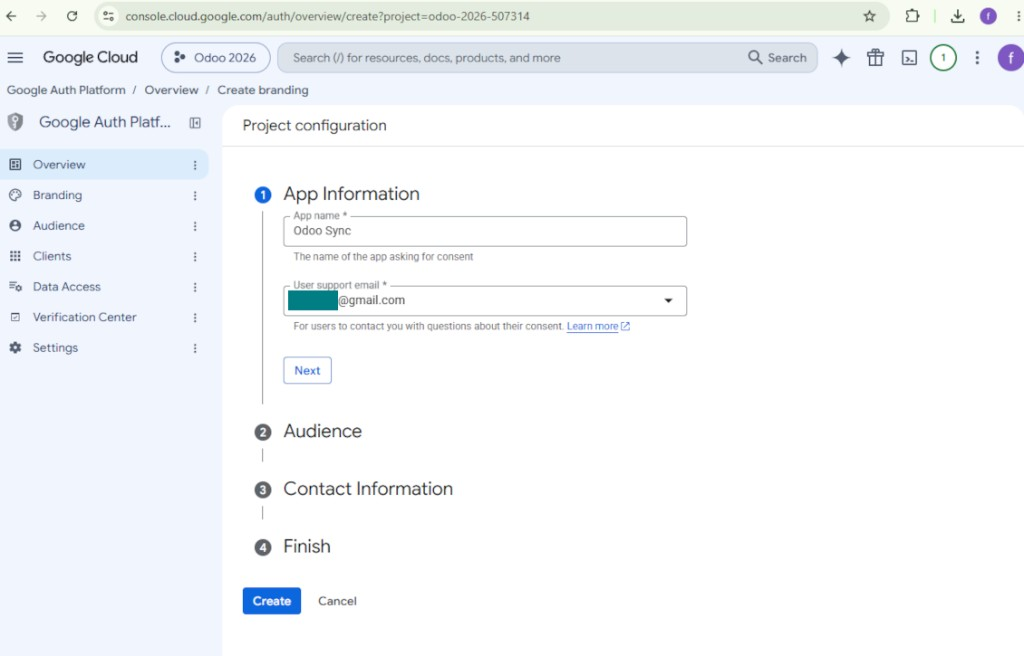
- Add app information
- As an app name select any suitable
- As a user support email select your email address
- Press 'Next'
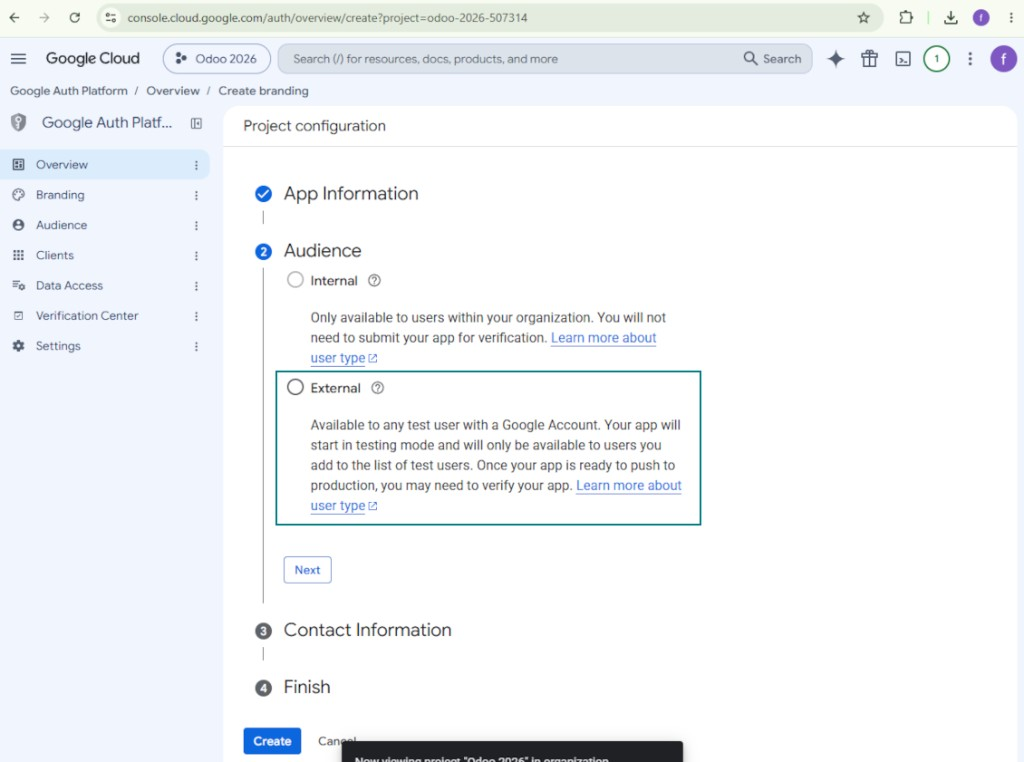
- As the audience select 'External' and press 'Next'. Note: you are anyway going to use this app only for your own Odoo connection
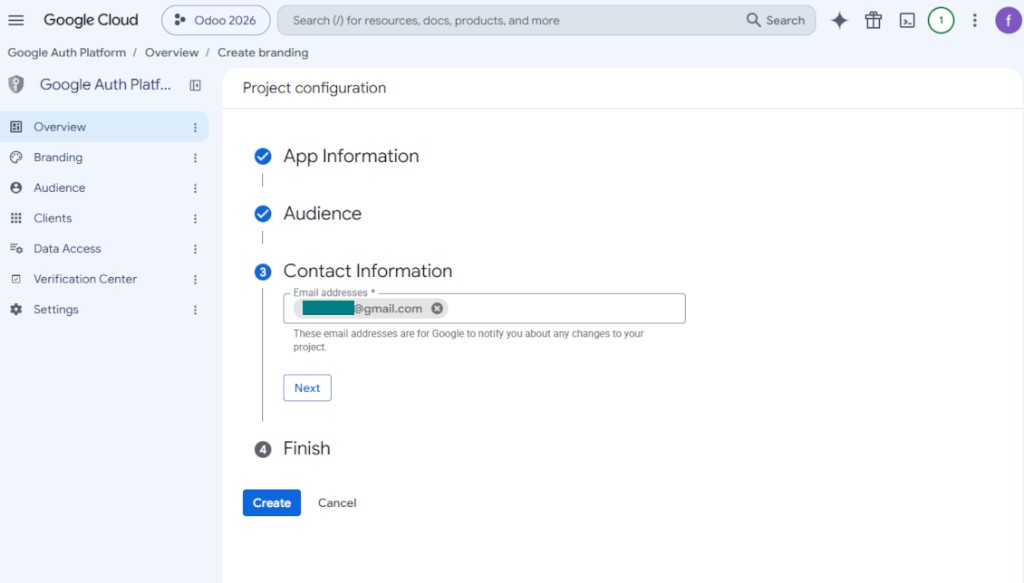
- As the contact information enter your Google or Google Workspace email address and press 'Next'
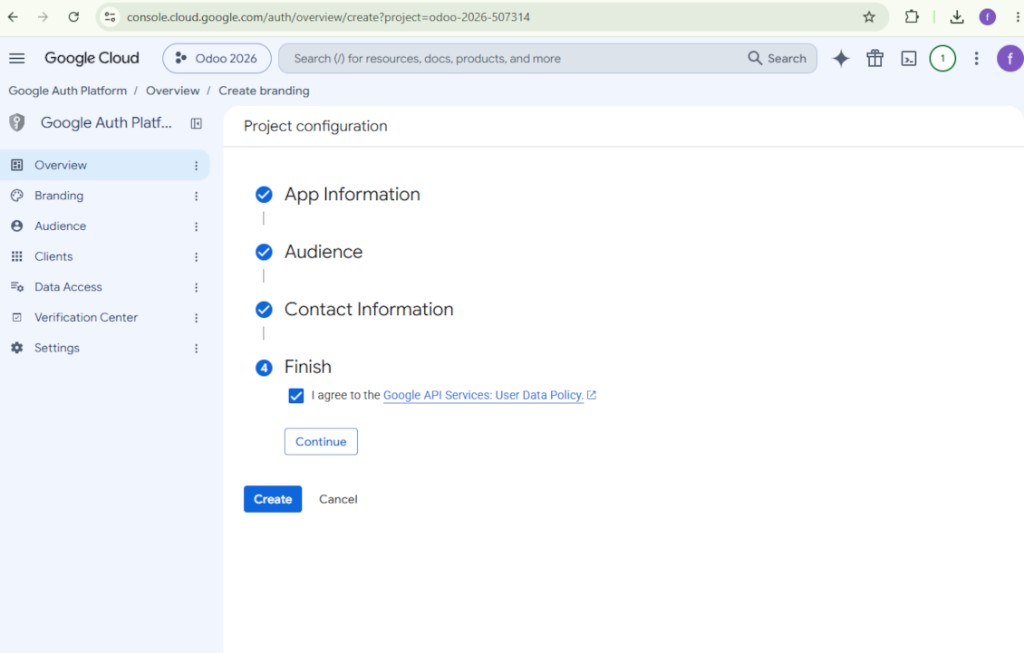
- Agree with the Google API Services User Data Policy, press 'Continue', and then press 'Create'
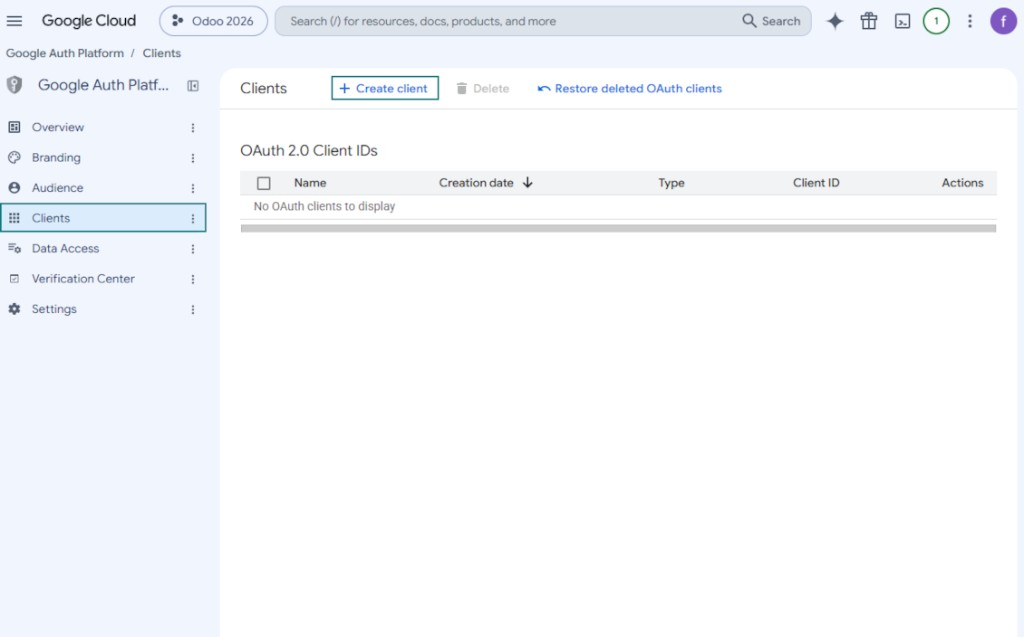
- Go to 'Clients' and press 'Create client'
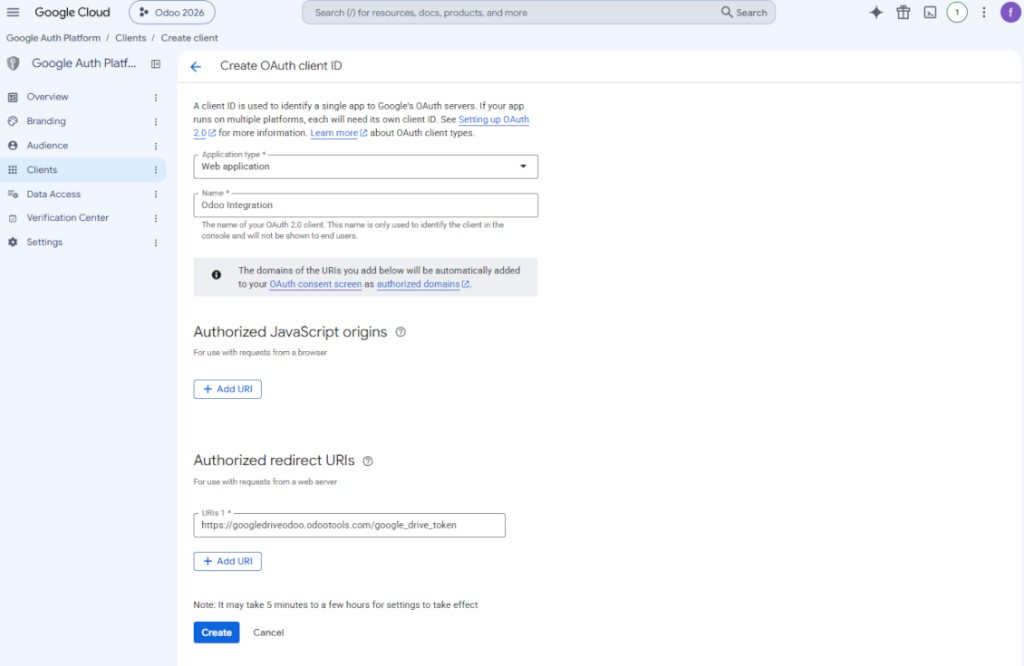
- As the application type select 'Web application'
- As a name select any suitable
- As the authorized redirect URI, add the link in a format [YOURODOOSITENAME]/google_drive_token (e.g. https://odootools.com/google_drive_token).
- Press 'Create'
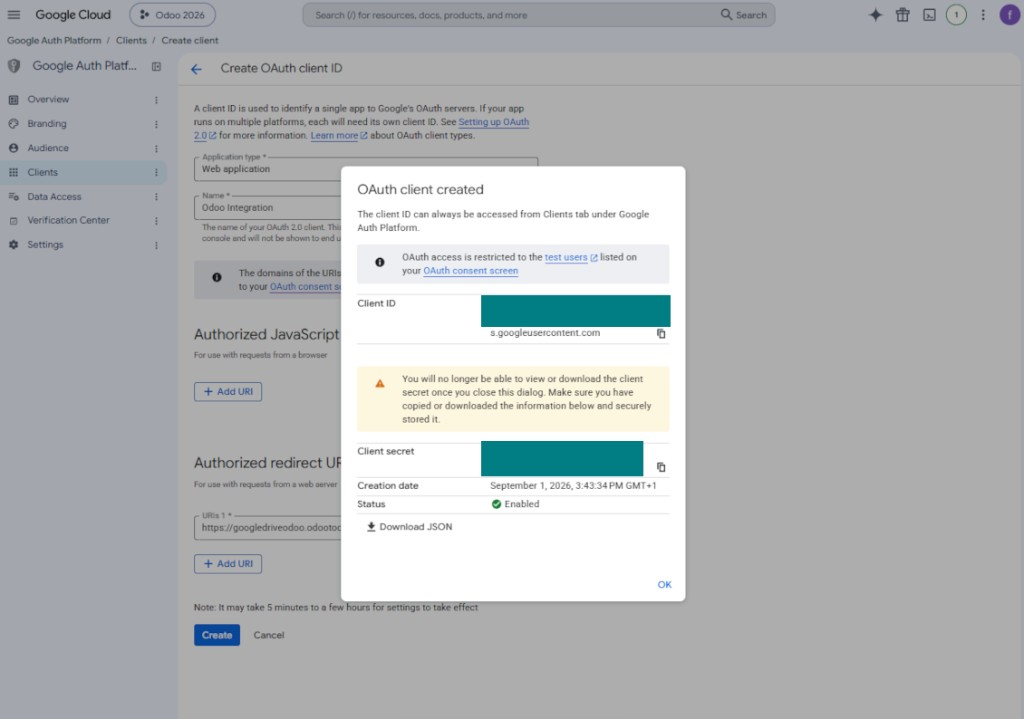
- Copy and safely store 'Client ID' and 'Client secret'. The client secret is shown only once
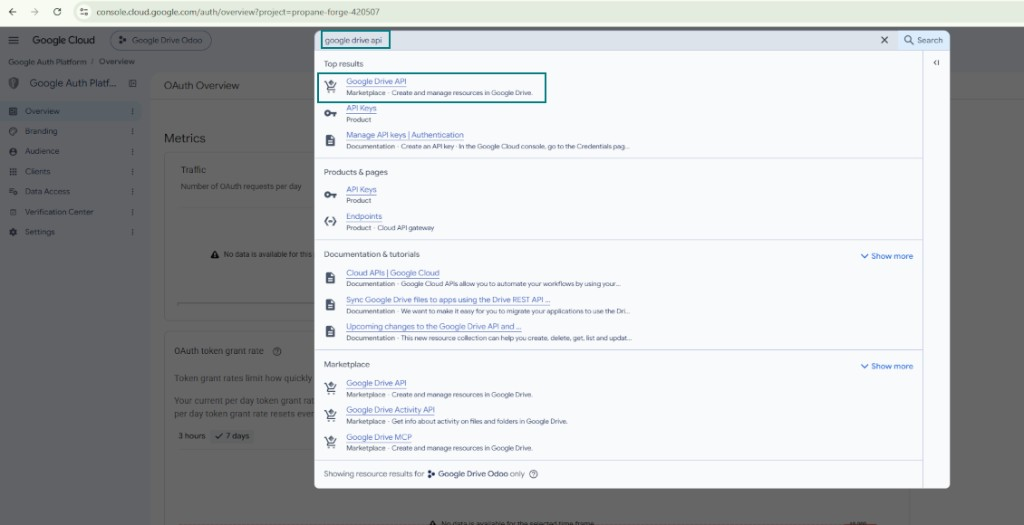
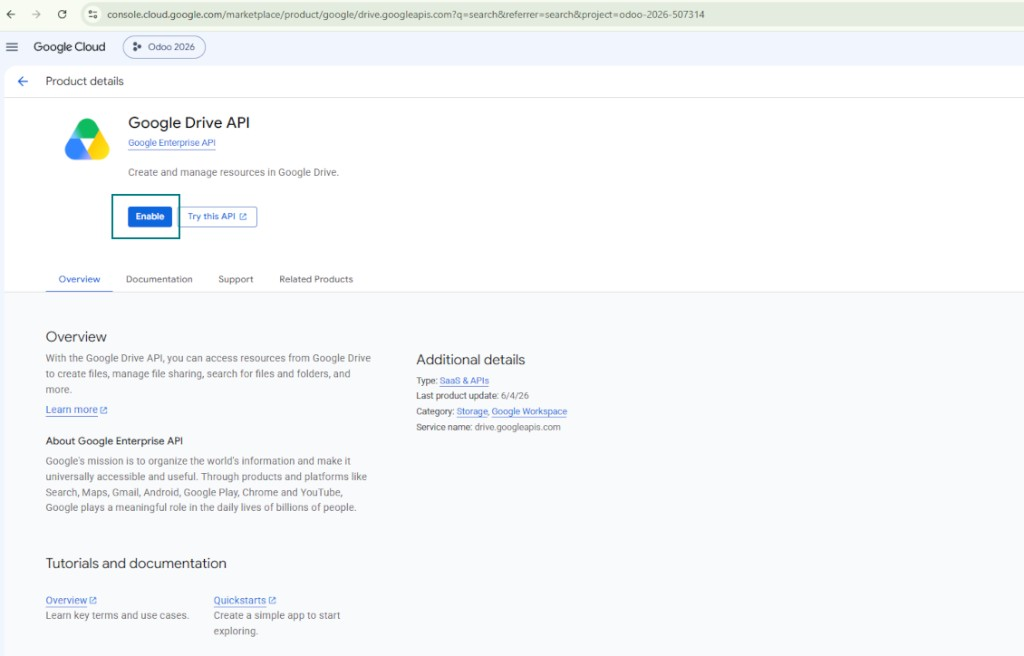
- Enable the Google Drive API for this project: type 'Google Drive API' in the top search box, open the found product, and press 'Enable'
- Go to 'Audience' and add your email address as a test user
- Publish the app. Otherwise, the app stays in the testing state and its token expires every 7 days
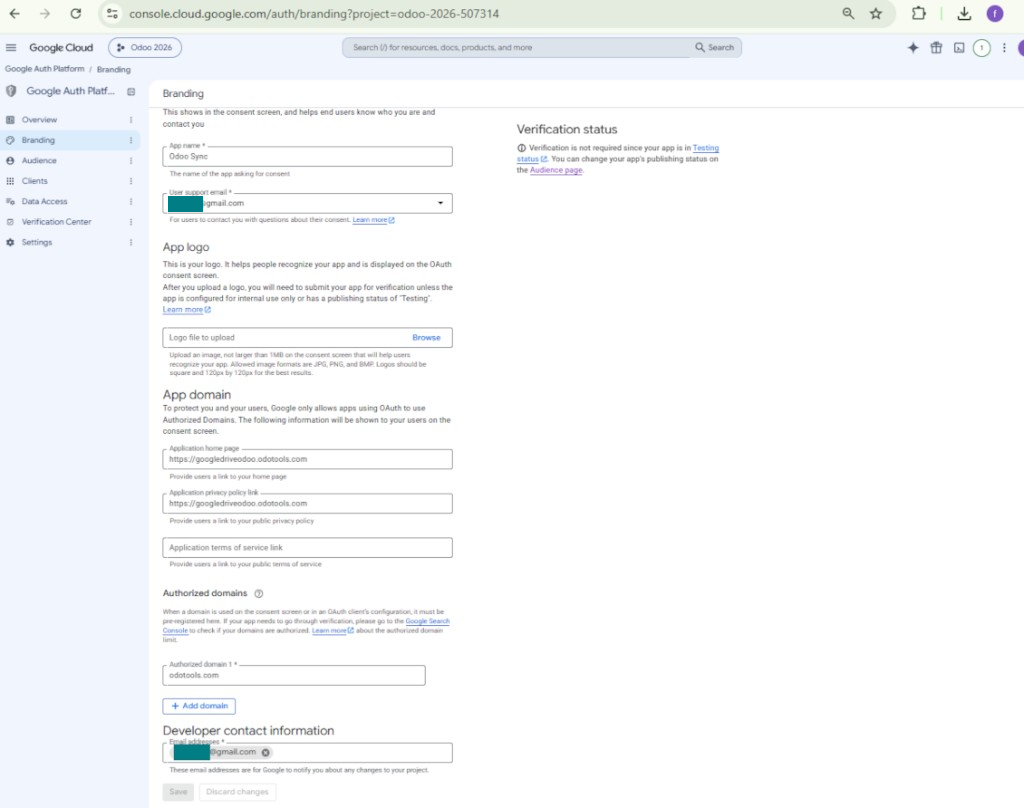
- Open 'Branding' and fill in the application home page and the application privacy policy link (for example, the links to your Odoo website). Add the domains of those links as the authorized domains
- Open 'Audience' and press 'Publish app'
- Do not upload an app logo. This would invoke a long and complex Google verification process that is of no actual need to you
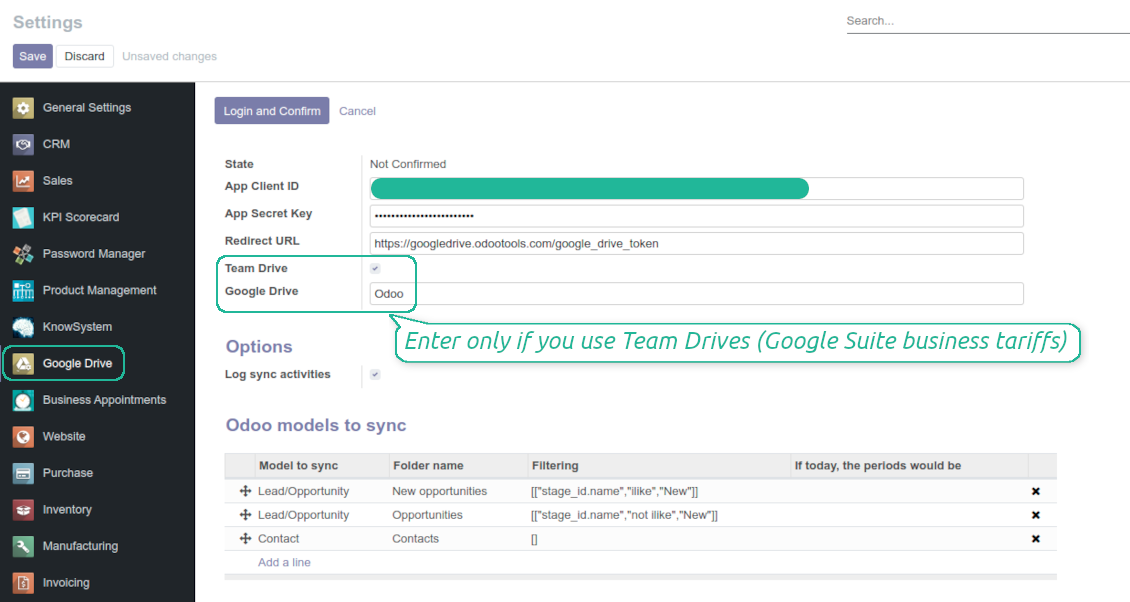
- Go to the Odoo Google Drive Settings
- Copy 'Client ID' from step 8 into the field 'App Client ID'
- Copy 'Client secret' from step 8 into the field 'App Secret Key'
- Insert the redirect URL you entered in step 8
- If you use team drives, check the related box. Make sure you really use team drives. In you Google Drive you should find the item 'Team Drives' in the left sidebar. This feature is available only for business and enterprise tariffs
- If the option 'Team Drive' is enabled, introduce its name. It should be absolutely the same as you see it in your Google Drive. Make sure that your user has full rights for this team drive
- Press 'Save'
- Press 'Login and Confirm'. Odoo redirects you to Google login page. Check in, agree with all conditions, and grant permissions asked
- After login, Google redirects you back to Odoo. Google Drive - Odoo synchronization is ready to be done.
Open the Google Auth Platform
Add app information
Select the external audience
Add contact information
Agree with the policies and create the app
Create an OAuth client
Configure the web application client
Copy the client ID and client secret
Find the Google Drive API
Enable the Google Drive API
Fill in branding to publish the app
Add test users and publish the app
Enter Google app credentials to Odoo
Odoo server configuration and cron job configuration
To make sure the synchronization works correctly apply proper timeouts to the Odoo configuration file: LIMIT_TIME_CPU, LIMIT_TIME_REAL, LIMIT_TIME_REAL_CRON should be more than 900 seconds.
For Odoo.sh this should not be done, since timeouts are predefined and are not configurable.
Then, timeout should be entered to your Odoo. To that goal find the section 'Settings' on the app configuration page and copy the number there.
Afterwards, it is needed to make the cron jobs suit the applied timeouts. In the debug mode go to the Settings > Technical > Automation > Scheduled Jobs:
- Set up the job 'Synchronize attachments with cloud' as (a) frequency - 2*timeout; (b) the next execution as the next hour +timeout. For example, for 900seconds timeout: frequency - as 30minutes; the next execution - at 08:15
- Set up the job 'Synchronize attachments from cloud' as (a) frequency - 2*timeout; (b) the next execution as the next hour + timeout*2. For example, for 900seconds timeout: frequency - as 30minutes; the next execution- at 08:30.
সম্পর্কে সাধারণ জিজ্ঞাসা Google Drive Odoo Integration Odoo v.13
তৈরি Google Drive ফোল্ডার কি Odoo ব্যবহারকারীদের মধ্যে স্বয়ংক্রিয়ভাবে শেয়ার হয়?
অ্যাপ নিজে Google Drive পাশে অ্যাক্সেস অধিকার নিয়ন্ত্রণ করে না। সেটা সেখানে হাতে করতে হয়। Odoo, Google Drive-এ লক্ষ্য ফোল্ডার তৈরি করে, যা ডিফল্টে শেয়ার করা হয় না; যেকোনো ফোল্ডারের অনুমতি বদলাতে পারেন। উদাহরণ: 'Odoo' ডিরেক্টরি বা নির্দিষ্ট 'Odoo > Sale Orders' বা 'Odoo > Sale Orders > SO-001'-এ পূর্ণ অধিকার।
অ্যাপ একটি ব্যবহারকারী এন্ডপয়েন্ট নীতিতে কাজ করে। তাই সব সিঙ্ক একই Google Drive ব্যবহারকারীর অধীনে হয় (আপনার কনফিগার করা Google API অ্যাপ অনুসারে)।
আমি Google Drive-এ একটি ফাইল মুছেছি কিন্তু তা এখনও Odoo-তে আছে
ফাইল সম্পূর্ণ মুছতে Google Drive-এর বিনও খালি করতে হবে।
এও মনে রাখুন, ফাইল এখনও Odoo-তে থাকতে পারে, কারণ পেছনের সিঙ্ক সংযুক্তি এখনও প্রক্রিয়া করেনি। এটি নির্ধারিত প্রক্রিয়া, সময় লাগে।
API অনুরোধের ভিত্তিতে Google কি চার্জ করবে?
মডিউল শুধু বিনামূল্যের API ব্যবহার করে, তাই Google আপনাকে চার্জ করবে না।
আমি কি সিঙ্ক জবের ফ্রিকোয়েন্সি বদলাতে পারি?
হ্যাঁ, আপনি পারবেন। এজন্য:
ডিবাগ মোড চালু করুন
টেকনিক্যাল সেটিংস > অটোমেশন > শিডিউলড জব-এ যান
জব 'Synchronize attachments with cloud' ও 'Update attachments from cloud' খুঁজুন।
এগুলো খুব ঘন ঘন চালাবেন না। নতুন জব শুরুর আগে এই জব শেষ হওয়াই বাঞ্ছনীয়। কনফিগারেশন নির্ভর করে কতগুলো আইটেম সিঙ্ক করতে হবে তার উপর। সাধারণত ফ্রিকোয়েন্সি ১৫ মিনিট থেকে ৪ ঘণ্টার মধ্যে হয়।
Odoo কনফিগারেশন ফাইলেও পর্যাপ্ত সময়সীমা সেট করেছেন কি না দেখুন। LIMIT_TIME_CPU ও LIMIT_TIME_REAL প্যারামিটার পরিকল্পিত cron জব সময়ের সমান বা বেশি হতে হবে। সংস্করণ ১৩ থেকে প্যারামিটার LIMIT_TIME_REAL_CRON-ও বিবেচনা করুন।
Odoo.sh ক্লায়েন্টদের জন্য গুরুত্বপূর্ণ নোট: cron জবের সর্বোচ্চ সময় কেবল ১৫ মিনিট হতে পারে।
সিঙ্ক যা ধরে নেয় তার বদলে সিঙ্ক করা ডিরেক্টরির ভিন্ন কাঠামো কি কনফিগার করতে পারি?
না, এই ফিচারটি শুধু সংস্করণ ১৫ থেকে পাওয়া যায়। তার আগে মডিউল পূর্বনির্ধারিত ফোল্ডার কাঠামোতে কাজ করে:
Odoo - সিঙ্কের মূল ফোল্ডার
Models - প্রতিটি Odoo নথির ধরনের ফোল্ডার। যেমন, 'Projects', 'Partners'। domain অনুযায়ী আরও নির্দিষ্ট ফোল্ডার থাকতে পারে: যেমন 'Customer 1 Projects', 'Projects of the Customer 2', 'Internal Projects' ইত্যাদি।
Objects - প্রতিটি নথির ফোল্ডার, যেমন 'Project 1' বা 'Customer 1'
এই Odoo নথির সাথে সম্পর্কিত ফাইল ও ফোল্ডার যা সিঙ্ক হবে।
ফলে আপনার কাছে উদাহরণস্বরূপ থাকতে পারে:
Odoo / Projects / Project 1 / project 1 সম্পর্কিত ফাইল ও ফোল্ডার
Odoo / Customer 1 Projects / Project 1; Odoo / Customer 2 Projects / Project 3, ...
Odoo / Customers / Customer 1 / customer 1 সম্পর্কিত ফাইল ও ফোল্ডার
এই কাঠামো সবসময় সমতল, অর্থাৎ শ্রেণিবিন্যাসের শুধু সেই স্তরগুলোই আছে। তাই বিভিন্ন নথির ধরন একই কাঠামোতে রাখা যায় না—এটাই সঠিক। ফোল্ডার 'Customer 1'-এর ভিতরে বিক্রয় অর্ডার, চালান ও প্রকল্প—সবগুলোর ফাইল একসাথে রাখা যায় না। প্রতিটি নথির ধরনের নিজস্ব (বা কয়েকটি নিজস্ব) ফোল্ডার থাকে। না হলে পেছনের সিঙ্ক করার উপায় থাকবে না, কারণ নির্ভর করার কোনো মানদণ্ড থাকবে না।
Odoo-তে নির্দিষ্ট ব্যবহারকারীর অ্যাক্সেস সেট আপ করা উচিত?
না, টুল একটিমাত্র ব্যবহারকারী এন্ডপয়েন্টের উপর নির্ভর করে। সব সিঙ্ক প্রক্রিয়া একজন cloud অ্যাডমিন (অ্যাপ)-এর অধীনে হয়। তৈরি ফোল্ডার / ফাইলের অ্যাক্সেস অধিকার স্বয়ংক্রিয় নয়। সেগুলো আপনার ক্লাউড স্টোরেজ সমাধানে প্রশাসন করতে হবে।
সিঙ্ক করা ক্ষেত্র কোথায় রাখা হয়? সেগুলো কি Odoo ও ক্লাউডে নকল হয়?
অ্যাপ ধরে নেয় সংযুক্তির বাইনারি বিষয়বস্তু Odoo সার্ভারের বদলে Cloud Client-এ রাখা হয়। তাই Odoo-তে সেই সংযুক্তিগুলো URL ধরনের হয়, এবং আপনি যেকোনো সময় সংযুক্তি বাক্স বা Cloud Client থেকে সেগুলো খুলতে পারেন।
সেটআপের পর কোনো ম্যানুয়াল কাজ লাগে না, কারণ সিঙ্ক সম্পূর্ণ স্বয়ংক্রিয়। কোন Odoo নথির ধরন সিঙ্ক হবে তা ঠিক করুন এবং প্রতিটির জন্য সম্পর্কিত মডেল সেট করুন (গ্রাহক, বিক্রয় বা ক্রয় অর্ডার, টাস্ক, প্রকল্প ইত্যাদি)।
আমি কি একই নথির ধরনের জন্য কয়েকটি ফোল্ডার রাখতে পারি? যেমন, অভ্যন্তরীণ প্রকল্প ও গ্রাহক প্রকল্প?
হ্যাঁ, পারেন। এ জন্য প্রতিটির একটি নিয়ম তৈরি করুন, তারপর ফিল্টার প্রয়োগ করুন: যেমন প্রকল্পের ধরন অনুসারে।
ফিল্টার পরস্পর-বর্জনীয় রাখুন যাতে নথি নিশ্চিতভাবে বরাদ্দ হয়। যেমন 'গ্রাহক কিন্তু সরবরাহকারী নয়', 'সরবরাহকারী কিন্তু গ্রাহক নয়'। নাহলে নির্দিষ্ট নথির ফোল্ডার এক মডেল থেকে অন্য মডেলে লাফাবে।
আমার কি শুধু Cloud Storage Solution অ্যাপ লাগবে?
না, এই টুল শুধু একটি কারিগরি কোর। আপনার cloud client-এর কানেক্টরও লাগবে।
অনেক অবজেক্ট সিঙ্ক করতে হলে, যেমন 10000, কি সমস্যা হবে?
হ্যাঁ, তবে অনেক ফোল্ডার/সংযুক্তি সিঙ্ক করতে হলে প্রক্রিয়া ধীর হতে পারে। একই সঙ্গে ক্লায়েন্টরা >10k অংশীদার ও ~5k পণ্য ভেরিয়েন্ট সিঙ্কের পরিবেশ জানিয়েছেন, এবং প্রক্রিয়া গ্রহণযোগ্য ছিল।
কয়েকটি বিষয় জোর দিয়ে বলা:
- সিঙ্ক এমনভাবে তৈরি যে কোনো আইটেম সিঙ্ক হবে ও হারাবে না, যদিও দ্রুত নাও হতে পারে। FIFO সারি ও প্রতিটি জবের কমিট এটি নিশ্চিত করে।
- অবজেক্টের সংখ্যা যৌক্তিকভাবে সীমিত করা যায়। মডেল কনফিগারেশন পুরনো আইটেমের সিঙ্ক সীমাবদ্ধ করতে দেয় (যেমন আর্কাইভড অংশীদার বা ২ বছর আগের অর্ডার সিঙ্কের অর্থ নেই)।
সিঙ্ক্রোনাইজেশন কি রিয়েল-টাইম করা যায়?
না। রিয়েল-টাইম সিঙ্ক এড়ানোর আমাদের জোরালো কারণ আছে:
পারফরম্যান্স সমস্যা। সিঙ্ক যদি রিয়েল-টাইম হয়, প্রতিটি ফাইল আপলোডে লোডিং স্ক্রিন দেখাবে।
সংঘাতের সমস্যা। ২ জন ব্যবহারকারী একই সঙ্গে কোনো আইটেম বদলালে অমীমাংসিত পরিস্থিতি হতে পারে। নিয়মিত জবে পরে ঠিক করা যায়; রিয়েল-টাইমে সেটা কিউ হিসেবে রাখতে হবে, যা ব্যবহারকারীদের আরও বিভ্রান্ত করবে।
কার্যকারিতার সমস্যা। বিশেষত আইটেমের নাম বদল ও পুনর্গঠন। ব্যাকওয়ার্ড সিঙ্কে টুল ডিরেক্টরির যুক্তির উপর কঠোরভাবে নির্ভর করে এবং প্রতি সিঙ্কে ১০০% আইটেম পরীক্ষা হয়। প্রতি আপডেটের পর করলে সেকেন্ডে হাজার হাজার অনুরোধ হবে। না করলে: পরিবর্তন হারিয়ে যাবে।
আমি কি সংযুক্তি কয়েকটি ক্লাউড ক্লায়েন্টে সিঙ্ক করতে পারি
না, এই সুবিধা শুধু সংস্করণ 15 থেকে পাওয়া যায়।
আমরা ক্লাউডে বিশেষ সম্পাদক ব্যবহার করি (যেমন OnlyOffice, Office 365 ইত্যাদি)। ফাইল কি সেই সম্পাদকে খুলবে?
হ্যাঁ, আপনার cloud client কনফিগারেশনের উপর নির্ভর করে।
আপনার সরঞ্জামের হালনাগাদ নীতি কী?
বর্তমান Odoo Apps Store নীতি অনুসারে:
- সংস্করণ 12.0 ও তার আগের জন্য কেনা প্রতিটি মডিউল 12.0 পর্যন্ত সব সংস্করণে প্রবেশ দেয়।
- সংস্করণ 13.0 থেকে প্রতিটি মডিউল সংস্করণ আলাদা কিনতে হয়।
- সংস্করণ যাই হোক, কেনায় সেই প্রধান সংস্করণের সব হালনাগাদ ও বাগ সংশোধনের অধিকার মেলে।
মনে রাখুন, faOtools দল এই নীতি নিয়ন্ত্রণ করে না। সব প্রশ্নে সরাসরি Odoo Apps Store প্রতিনিধিদের সাথে যোগাযোগ করুন।
আপনার অ্যাপ Odoo.sh-এ কীভাবে ইনস্টল করব?
সবচেয়ে সোজা উপায় হল Odoo স্টোরের বিল্ট-ইন ওয়ার্কফ্লো ব্যবহার করা:
1. মডিউলের পৃষ্ঠা খুলুন এবং Deploy on odoo.sh বোতামে ক্লিক করুন
2. তারপর আপনাকে GitHub পৃষ্ঠায় পাঠানো হবে। অ্যাকাউন্টে লগ ইন করুন, তারপর 'Create a new repo' ক্লিক করুন বা বিদ্যমানটি ব্যবহার করুন। রিপোজিটরি যেন প্রাইভেট হয়। OPL-1 লাইসেন্সের অধীনে অ্যাপ প্রকাশ করা অনুমোদিত নয়। প্রয়োজনে Odoo.sh প্রকল্পের জন্য নতুন repo তৈরি করুন
3. তারপর odoo.sh-এ যান এবং Deploy বোতামে ক্লিক করুন। পপ-আপ উইন্ডোতে সিদ্ধান্ত জমা দিন এবং 'Continue.' ক্লিক করুন। এতে ইনস্টলেশন শুরু হবে।
এই ধাপগুলো প্রকল্পের প্রোডাকশন শাখায় অ্যাপ ইনস্টল করবে। অন্য শাখায় অ্যাপ ডিপ্লয় বা মডিউল আপডেট করতে নিচের কাজগুলো করুন:
1. Odoo স্টোর থেকে অ্যাপের সোর্স কোড আপলোড করুন
2. মডিউলটি প্রয়োজনীয় GitHub রিপোজিটরিতে commit করুন। নিশ্চিত করুন অ্যাপের কোনো ফোল্ডার/ফাইল উপেক্ষিত নয় (অর্থাৎ repo-এর .gitignore-এ নেই)। রিপোজিটরি odoo.sh স্বয়ংক্রিয়ভাবে তৈরি করে এবং ডিফল্টে কিছু গুরুত্বপূর্ণ আইটেম থাকতে পারে (যেমন /lib)। মডিউলের সব ডিরেক্টরি, সাবডিরেক্টরি ও ফাইল ব্যতিক্রম ছাড়া আপলোড করুন
3. odoo.sh প্রকল্পের লক্ষ্য শাখা Deploy করুন অথবা, সেটিংস যদি তা ধরে নেয়, স্বয়ংক্রিয়ভাবে তৈরি হওয়া পর্যন্ত অপেক্ষা করুন।
নিজের সার্ভারে আপনার অ্যাপ কীভাবে ইনস্টল করব?
2. Odoo সার্ভার রিস্টার্ট করুন;
3. ডেভেলপার মোড চালু করুন (টেকনিক্যাল সেটিংস);
4. অ্যাপ তালিকা আপডেট করুন (অ্যাপস মেনু);
5. অ্যাপ খুঁজে 'Activate'/'Install' চাপুন;
6. অ্যাপ পৃষ্ঠায় নির্দেশিকা থাকলে অনুসরণ করুন।
আপনার অ্যাপে অতিরিক্ত অ্যাড-অন আছে। পরে কিনতে পারি?
হ্যাঁ, অবশ্যই। একই সাথে Odoo সব নির্ভরতা কার্টে স্বয়ংক্রিয় যোগ করে, তাই দ্বিগুণ অর্থ এড়াতে আগে কেনা টুল বাদ দিন।
আমি আপনার অ্যাপ Odoo.sh-এ ডিপ্লয় করেছি এবং পরীক্ষায় সতর্কতা/ত্রুটি দেখছি
লাল/কমলা সতর্কতা অ্যাপের বৈশিষ্ট্যে প্রভাব ফেলে না। দুঃখজনকভাবে আমাদের মডিউল কখনো স্ট্যান্ডার্ড স্বয়ংক্রিয় পরীক্ষা পাস করে না, কারণ সেগুলো এমন আচরণ ধরে নেয় যা অ্যাপের লক্ষ্যের সাথে সাংঘর্ষিক। যেমন আমরা মূল্য হিসাব বদলাই, অথচ স্ট্যান্ডার্ড Odoo মডিউল পরীক্ষা চূড়ান্ত মূল্যকে স্ট্যান্ডার্ড অ্যালগরিদমের সাথে তুলনা করে।
প্রথমে ডিপ্লয় করা ডাটাবেসের বৈশিষ্ট্য দেখুন। সব ঠিকঠাক কাজ করছে?
যদি তবু মনে করেন সতর্কতা আসল বৈশিষ্ট্যে প্রভাব ফেলে, যোগাযোগ করুন এবং পূর্ণ ইনস্টলেশন লগ ও ডিপ্লয় করা মডিউলের সম্পূর্ণ তালিকা (কোর ও তৃতীয় পক্ষসহ) পাঠান।
আমি কি অ্যাপটি আপনার কোম্পানি থেকে সরাসরি কিনতে পারি?
না, আমরা টুল শুধু অফিসিয়াল Odoo অ্যাপ স্টোর.
আমি ছাড় পেতে চাই
দুঃখিত, ব্যক্তিগত মূল্য দেওয়ার কারিগরি উপায় আমাদের নেই।
আমি কি অ্যাপটি আমার Odoo Online (SaaS) ডাটাবেসে ইনস্টল করতে পারি?
না, তৃতীয় পক্ষের অ্যাপ Odoo Online-এ ব্যবহার করা যায় না। দুঃখজনকভাবে Odoo SaaS সেই সম্ভাবনা আটকে দেয়।
আপনার সরঞ্জাম অন্য অ্যাপের উপর নির্ভর করে। সেগুলো কি কিনতে হবে?
হ্যাঁ, সঠিকভাবে চলতে টুলের নির্ভরতায় চিহ্নিত সব মডিউল দরকার। অ্যাপ পাতার মূল্যে প্রয়োজনীয় নির্ভরতা ইতিমধ্যে অন্তর্ভুক্ত।
মডিউলের মূল্য মার্কিন ডলারে কত? কেন বদলেছে?
আমাদের মডিউলের মূল্য ইউরোতে নির্ধারিত। Odoo স্টোর অভ্যন্তরীণ বিনিময় হার অনুযায়ী অন্য মুদ্রায় রূপান্তর করে। তাই মার্কিন ডলারে মূল্য হার আপডেট হলে বদলাতে পারে।
ইংরেজি ছাড়া অন্য ভাষায় অ্যাপ ও ওয়েবসাইটের শব্দ AI-সহায়তায় এবং অফিসিয়াল Odoo অনুবাদের সাথে মিলিয়ে। ভুল দেখলে, অনুবাদ সঠিকতার টিকিট পাঠান আর আমরা ঠিক করব।
বাগ রিপোর্টিং
বাগ বা অসঙ্গত আচরণ দেখলে আমাদের সাথে যোগাযোগ করুন। কেনার ৬০ দিনের মধ্যে সংশোধনের নিশ্চয়তা দিই এবং এই সময়ের পরেও টুল উন্নত করতে আগ্রহী।
যোগাযোগে ফোন নম্বর বা ক্রেডিট কার্ড লাগে না। শুধু একটি সংক্ষিপ্ত ইমেইল সাইন-আপ, ৩০ সেকেন্ডের বেশি লাগে না।
অনুরোধে যতটা সম্ভব বিস্তারিত দিন: স্ক্রিনশট, Odoo সার্ভার লগ, সমস্যা পুনরুৎপাদনের পূর্ণ বিবরণ ইত্যাদি। সাধারণত কোনো সমস্যার কাজের পরিকল্পনা তৈরি (বাগ নিশ্চিত হলে) বা কী করতে হবে তার নির্দেশনা দিতে (অন্যথায়) কয়েক কর্মদিবস লাগে।
পাবলিক ফিচার অনুরোধ ও মডিউল আইডিয়া (বিনামূল্যে উন্নয়ন)
আমরা আমাদের টুল উন্নত করতে দৃঢ়ভাবে অনুপ্রাণিত এবং যেকোনো মতামতের জন্য কৃতজ্ঞ। আপনার প্রয়োজনীয়তা সবার কাজে লাগে এবং দক্ষতার সঙ্গে বাস্তবায়নযোগ্য হলে দল সেগুলো আমাদের টু-ডু তালিকায় রাখবে।
এমন টু-ডু তালিকা নিয়মিত প্রক্রিয়া হয় এবং অতিরিক্ত ফি ধরে না। যদিও আমরা সময়সীমা ও চূড়ান্ত ডিজাইনের প্রতিশ্রুতি দিতে পারি না, বিনিয়োগ ও ঝুঁকি ছাড়া কাঙ্ক্ষিত ফিচার পাওয়ার এটি ভালো উপায় হতে পারে।
যোগাযোগে ফোন নম্বর বা ক্রেডিট কার্ড লাগে না। শুধু একটি সংক্ষিপ্ত ইমেইল সাইন-আপ, ৩০ সেকেন্ডের বেশি লাগে না।

ভাগ করে ব্যবহারের জন্য Odoo-তে পাসওয়ার্ড নিরাপদে রাখার সরঞ্জাম। শেয়ার করা ভল্ট

অভ্যন্তরীণ ও বাহ্যিক ব্যবহারের জন্য গভীর ও কাঠামোবদ্ধ নলেজ বেস তৈরির টুল। Knowledge System. KMS. উইকির মতো সংশোধন।
398€
KPI লক্ষ্য সেট করে সময়কাল অনুযায়ী পূরণ নিয়ন্ত্রণের টুল। KPI ড্যাশবোর্ড। ড্যাশবোর্ড ডিজাইনার। KPI চার্ট

অ্যাপয়েন্টমেন্ট বুকিং থেকে বিক্রি ও পর্যালোচনা পর্যন্ত সময়ভিত্তিক পরিষেবা ব্যবস্থাপনার টুল
398€
প্রিয় AI চ্যাট থেকে MCP দিয়ে Odoo পরিচালনার টুল। Claude. যেকোনো MCP-সমর্থিত AI.

Odoo সংযুক্তি ফোল্ডারে নমনীয়ভাবে সাজানো এবং ডিরেক্টরি ক্লাউড ক্লায়েন্টের সাথে সিঙ্ক করার টুল: Google Drive, OneDrive/SharePoint, Nextcloud/ownCloud, Dropbox, Amazon S3, Box এবং NAS. DMS. ফাইল ম্যানেজার. ডকুমেন্ট ম্যানেজমেন্ট সিস্টেম
398€
Odoo সংযুক্তিগুলিকে OneDrive ফাইলের সাথে স্বয়ংক্রিয়ভাবে দুই দিকে সিঙ্ক করার টুল
487€
Odoo সংযুক্তিগুলিকে ownCloud/Nextcloud ফাইলের সাথে স্বয়ংক্রিয়ভাবে দুই দিকে সিঙ্ক করার টুল
487€
Odoo সংযুক্তিগুলিকে NAS সমাধানের সাথে স্বয়ংক্রিয়ভাবে দুই দিকে সিঙ্ক করার টুল। Synology, QNAP, TrueNAS এবং যেকোনো WebDav-সমর্থিত NAS
487€