Google Drive Odoo Integration v.13
The tool to automatically synchronize Odoo attachments with Google Drive files in both ways

- the technical core which provides basic mechanics of auto synchronization. This is a required module for integration. Его цена 398€.
- the connector itself which introduces links between Odoo and Google Drive. Его цена 89€.
- an optional add-on to sync Odoo documents (introduced by the enterprise app 'Documents') with clouds. The features assumed by this add-on are marked by the icon . Его цена 44€.
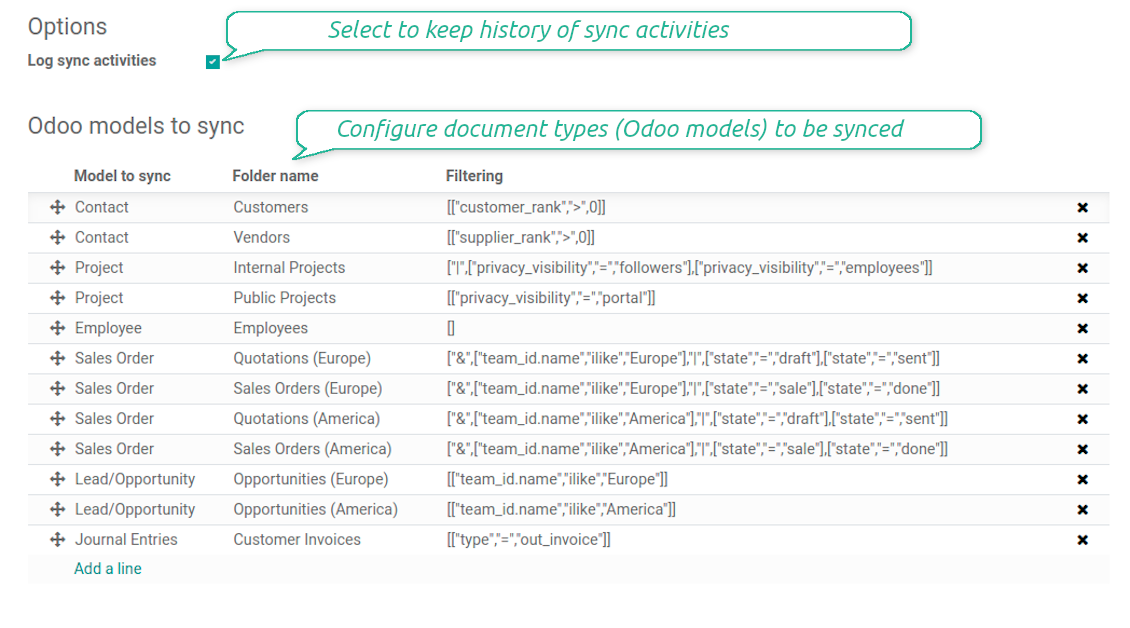
Selectable documents types for sync
The tool let you split any business model into a few directories. Have a separate folder for individuals and companies, for European and American opportunities, for each project, etc.
Moreover, it is possible to guarantee that only topical documents are synced by using relative periods: leads registered in the last 3 months, invoices updated the last week, and so on.
Typical use cases
- Projects: have an own Google Drive folder for each customer project.
- Customers: add all partner files in a single directory available both from Odoo and from Google Drive. Modify those using default cloud editors and access them when working in Odoo.
- Employees: gather all files by this employee in a single cloud folder: photos, document scans, contracts. Access and upload those from Odoo and Google Drive alternatively.
- Opportunities: carefully store all specifications, requirements, any files which would let you make a good offer.
- Orders: keep all printings and contracts in Google Drive with simple availability from Odoo.
Скриншоты
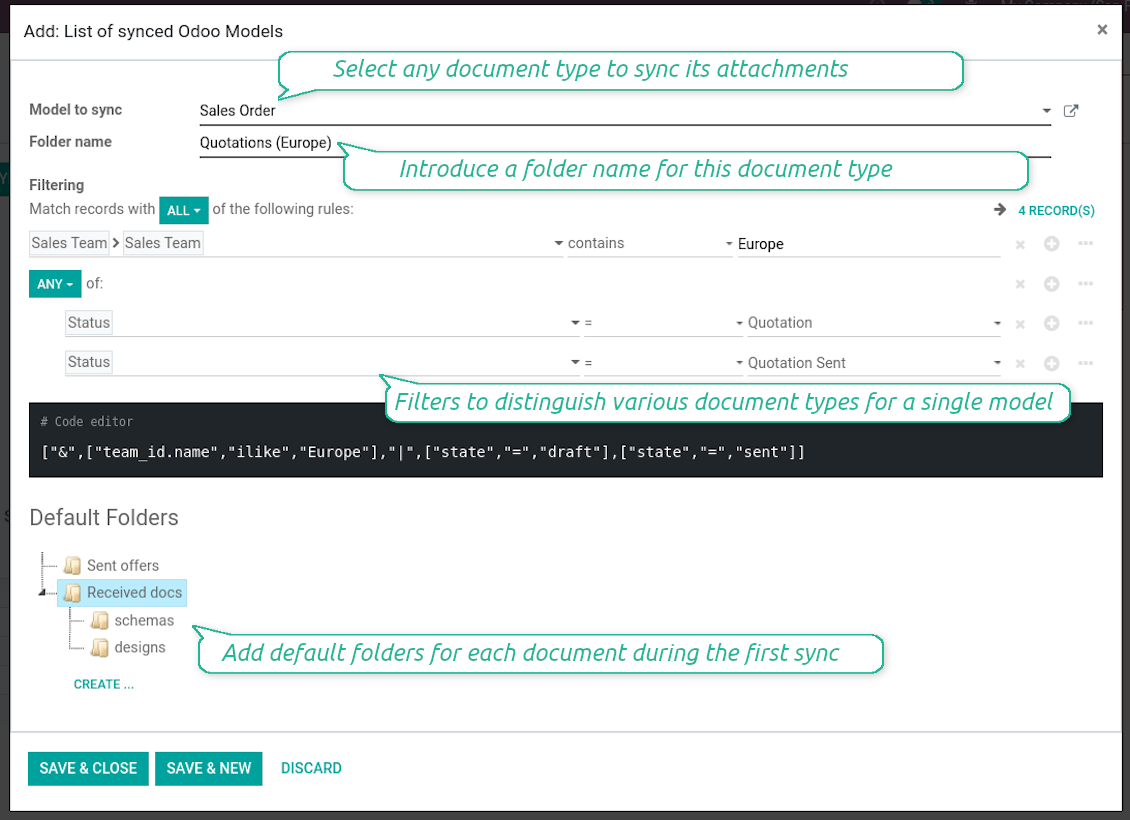
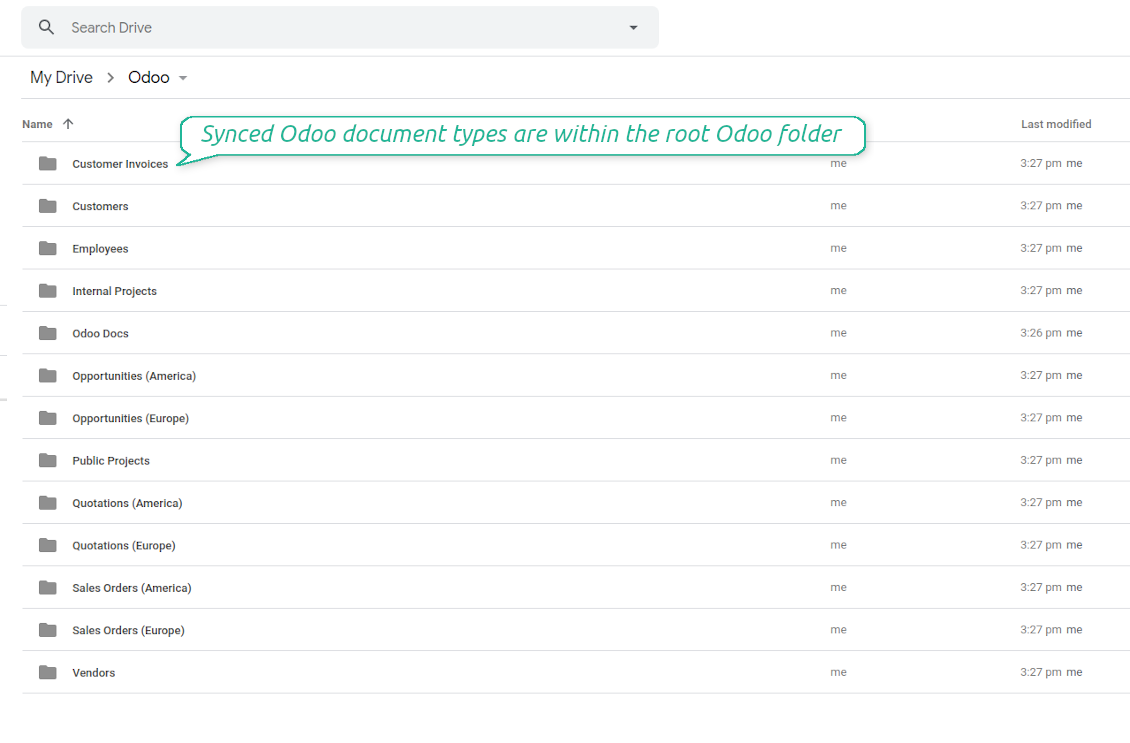
Choose document types to be synced
Document type might have a few folders based on filters
Automatic and bilateral integration
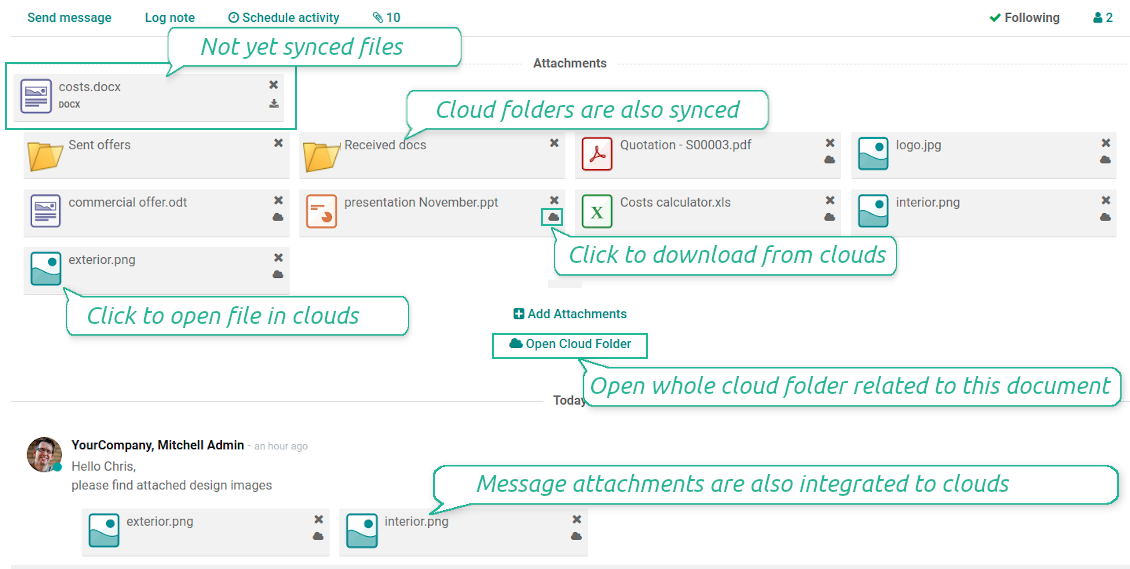
Synced attachments are physically kept only in a cloud storage, what increases Odoo interface performance. Simultaneously, you can open documents from Odoo or download those in a single click.
How files and folders are synced from Odoo to Google Drive
Based on the scheduled job 'Synchronize attachments with cloud' Odoo regularly checks whether:
- Any new attachment should be forwarded to Google Drive;
- Any new document type (e.g. Sale orders) is added / replaced / renamed as a sync model and, hence, whether a directory should be created / removed / renamed in Google Drive;
- Any new document (e.g. Sale Order SO019) is generated / updated / unlinked and, hence, whether a Google Drive folder should be created / moved or renamed / deleted.
- Any new attachment should be removed from Google Drive if it has been deleted from Odoo.
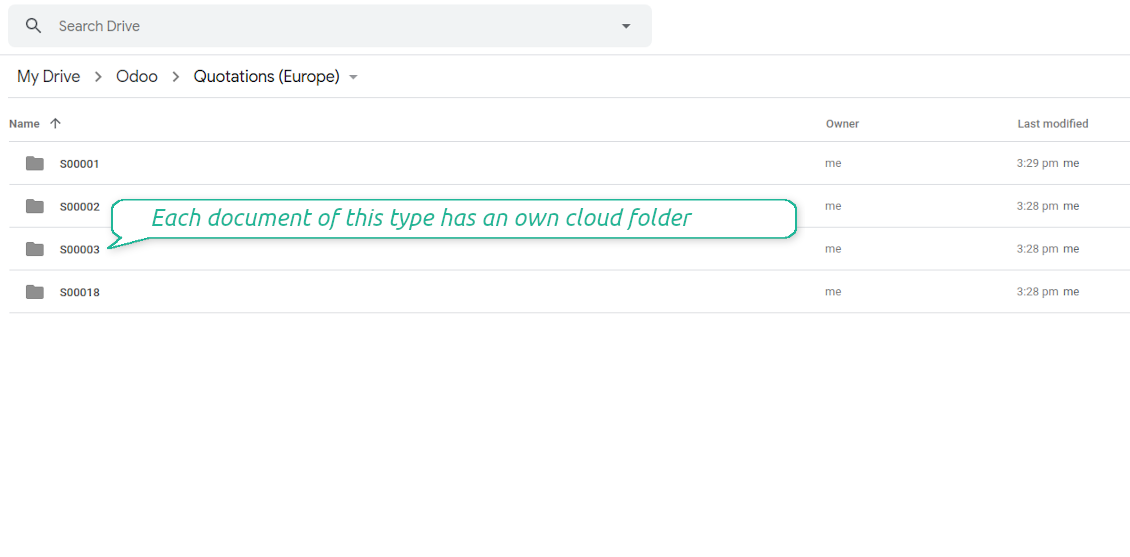
Based on results of that checks, Odoo starts processing queue of changes, and makes sure that all items are located correctly. The final goal is to have the structure 'Odoo / Document Types / Documents / Files. For example, 'Odoo / Quotations / SO019 / commercial offer.pdf'.
During the synchronization all synced Odoo attachments change their type to a link (URL), while binary content is removed with a next Odoo cleaner. So, no actual files would be stored on your Odoo server.
Please take into account:
- Each sync (especially the very first one) might take quite a long. It is not recommended to make sync too frequent: once an hour seems reasonable frequency.
- File names should be managed in Google Drive: each backward sync would recover Google Drive names, Odoo is here less important.
How items are retrieved from Google Drive to Odoo
Based on the scheduled job 'Synchronize attachments from cloud' Odoo regularly checks whether:
- Any file is added / moved / removed in a Google Drive document folder. If yes, Odoo would create a link to this file in a target object (e.g. a new attachment to SO019) or would move / delete such an attachment.
- Any file of a Google Drive document folder is renamed. If yes, an attachment would be renamed in Odoo as well.
- In document folders you can put not only files but also child folders. In that case a link for this folder (not its content) would be kept in Odoo attachments.
- If you deleted a folder related to this document type or this document, their child files would be deleted as well. Thus, Odoo would remove related attachments. The folders, however, will be recovered with a next direct sync.
- Each backward sync might take quite a long. It is not recommended to make sync too frequent: once an hour seems safe enough.
Скриншоты
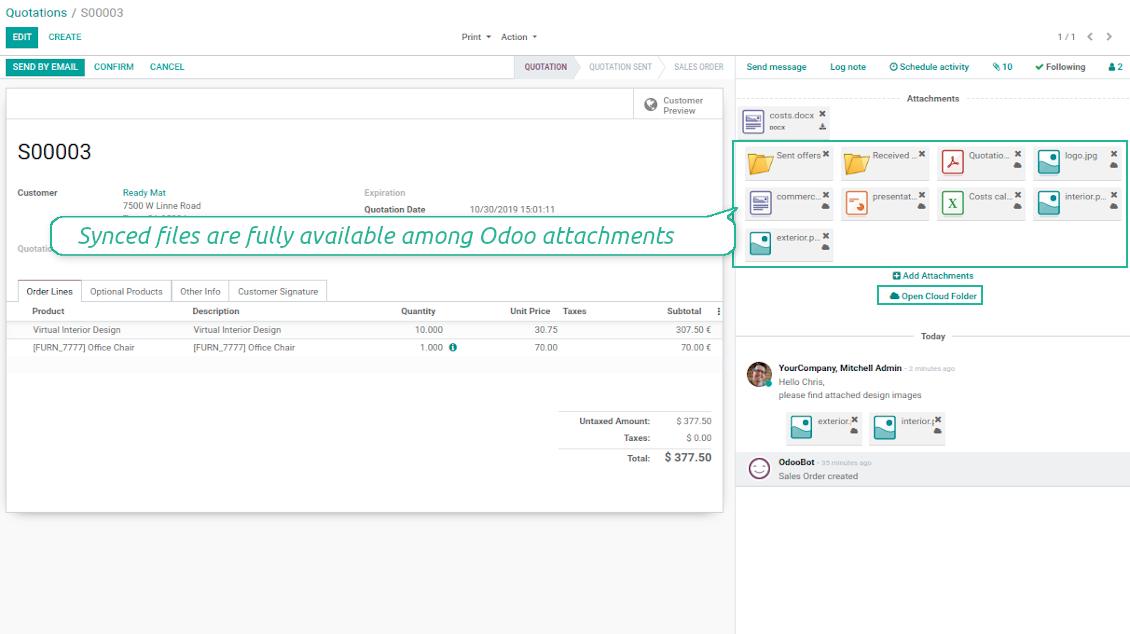
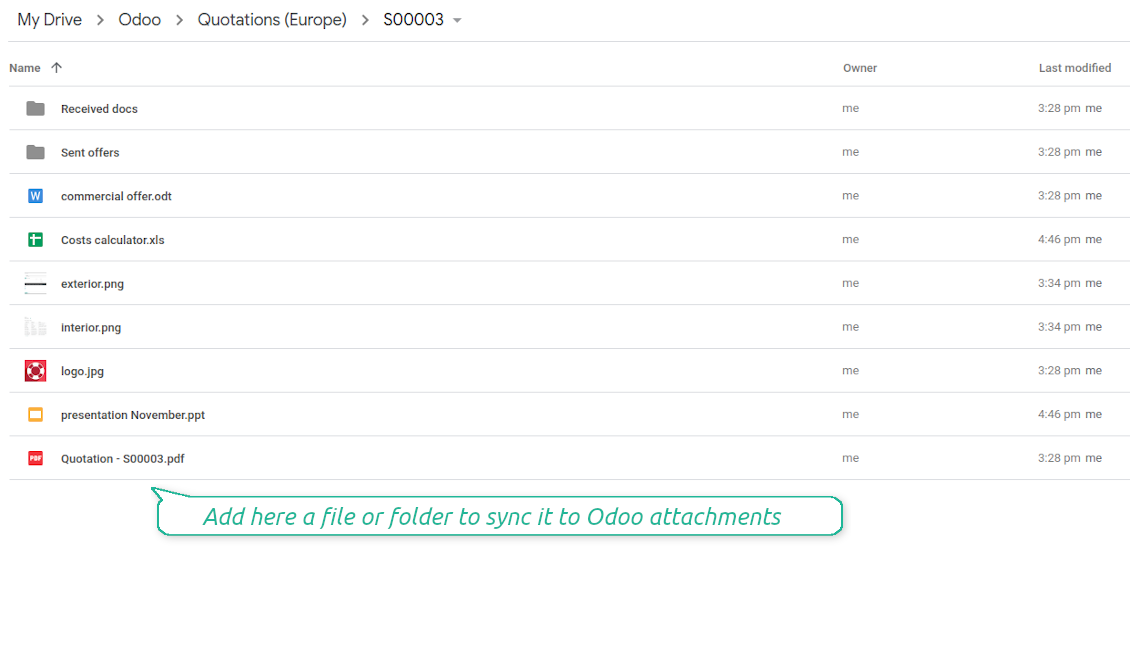
Synced files are simply found in Google Drive. Add unlimited number of files or folders
Document types folders in Google Drive
All document of this type has an own folder
Direct access to Google Drive items
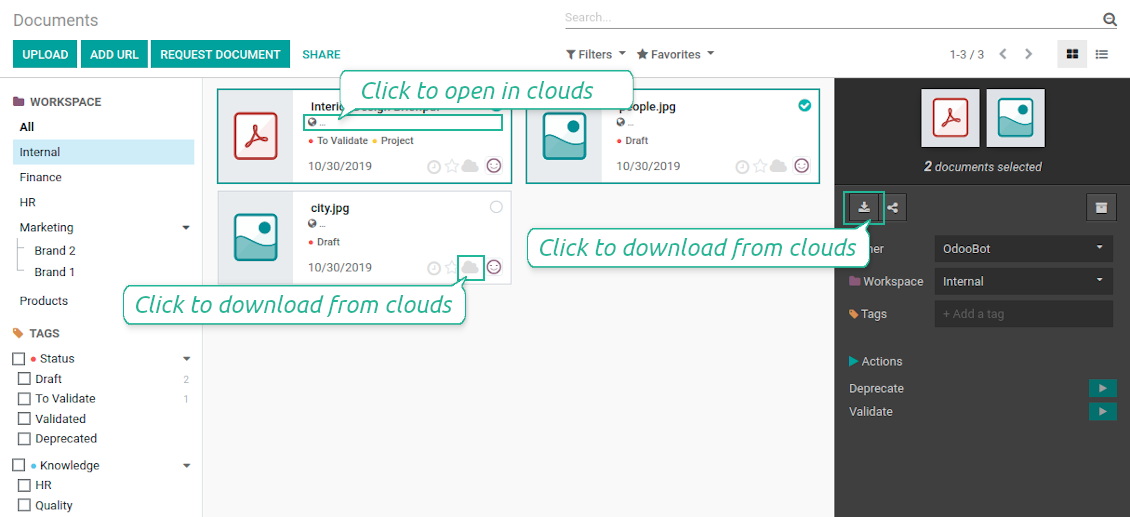
- Click on attachment to open it in Google Drive in a new tab (necessary to be logged in Google Drive);
- Click the icon of cloud to start downloading file from Google Drive (no extra check in is required)
- Push the button "Open cloud folder" to open all files related to this document.
Скриншоты
Quick access to Google Drive files and folders
Apply to Google Drive right from Odoo chatter
Individual and team drives
Fully integrated and compatible with Enterprise Documents
It does not contradict printing, mailing, or Enterprise documents features.
For the latter it is also possible to fully reflect directories structure, not only sync standard attachments.
How Odoo Enterprise Documents are synced
This tool is not in conflict with the 'documents' module provided under the Enterprise license. Attachments related to Enterprise folders would be synced as any other files: according to a document they relate to.
It is not always comfortable, and you might be interested in reflecting directories' structure introduced by the module 'Documents'. To this end the special extension is developed. This extension introduces the following features:
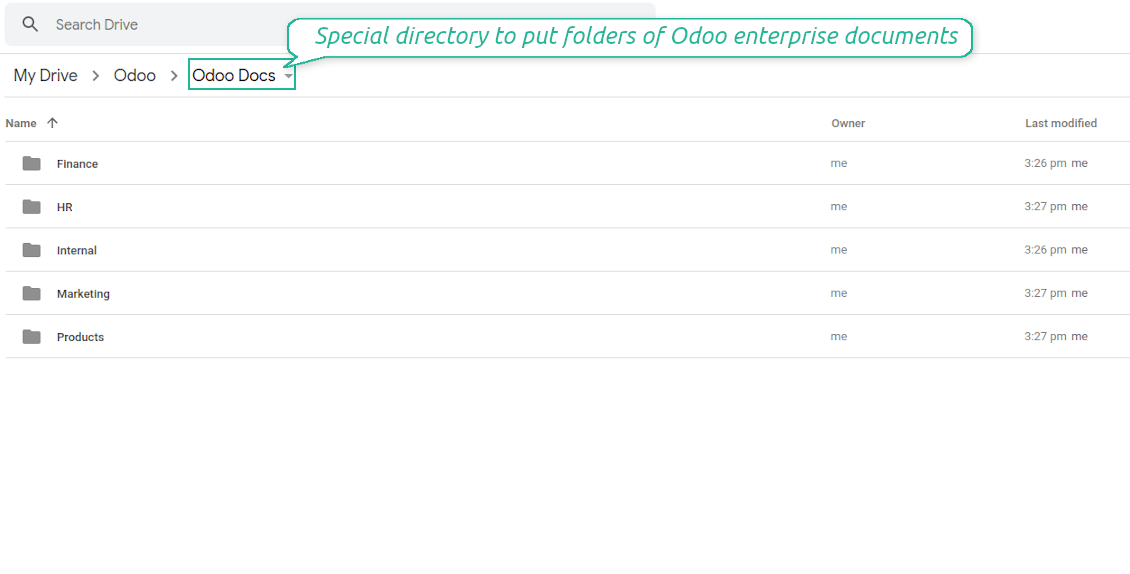
- The documents hierarchy is reflected within the folder 'Odoo / Odoo Docs'
- Each Odoo folder has a linked cloud folder. Take into account that folders created in the cloud storage will be synced as Odoo attachments. The key principle is: folders are managed by Odoo, files are managed by the cloud client
- All files are synced with the same logic as usual attachments. Files created in Odoo will be added to the cloud storage and will be replaced with links in Odoo. Files created in cloud storage will generate attachments within a paired directory
- Please do not name synced models as 'Odoo Docs'. This is the reserved name for Odoo Enterprise Documents
A few important peculiarities to take into account
- Take into account that files or folders deleted in Google Drive are really deleted only when you clean trash. Otherwise, such files still exist and would be reflected in Odoo
- Try to avoid the following symbols in folders' and files' names: *, ?, ", ', :, <, >, |, +, %, !, @, \, /,. Direct sync will replace such symbols with '-'. It is done to avoid conflicts with file systems.
Скриншоты
Direct access from Odoo documents to Google Drive
Enterprise Documents in Google Drive
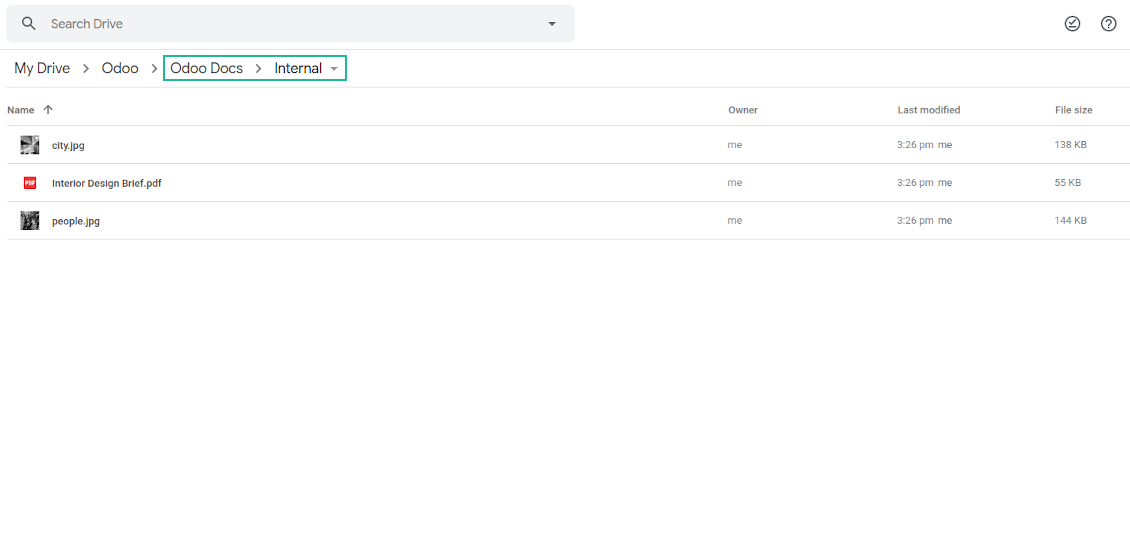
Enterprise files in Google Drive
Tricky setup, but works perfectly now
Really solid module. We managed to get a very flexible folder structure (sorted by clients) and synced all our sales orders, invoices and tasks by projects to Google Drive.
Initial setup was a bit of a pain and kinda tricky to configure everything at first, but now it's running smoothly and works perfectly. The faotools team helped a lot. Def worth it if u need to keep your docs organized in Odoo and Google Drive.
Recommended!
Excellent !!!
Great App and great Service from faOtools.
Best module for integration with google drive
The module performs its function correctly and faOtools responds quickly to any problem and, in case of detecting any bug, quickly apply the changes. Its support is 10 stars.
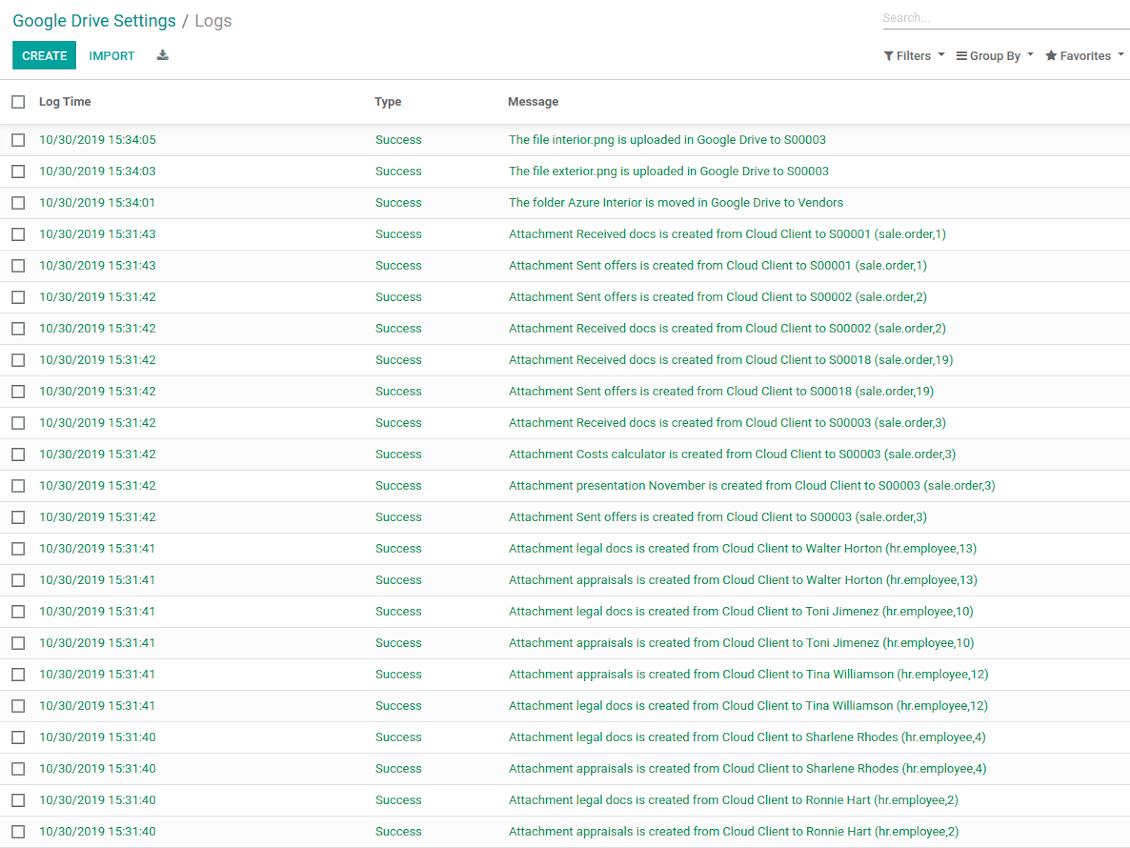
Google Drive Sync logs in Odoo
Скриншоты
Logged synchronization activities
Default folders for documents
Советы по настройке и установке для Google Drive Odoo Integration Odoo v.13
Login and Google Drive Credentials
- Go to the Google Cloud Console via the URL https://console.cloud.google.com
- Select or create a project
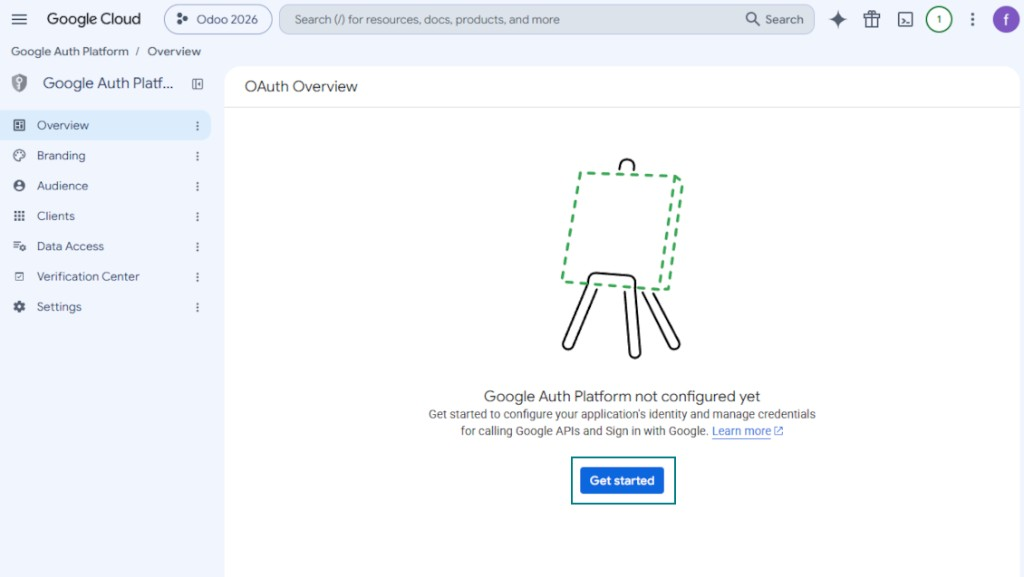
- After the project is selected, the console opens the Google Auth Platform. Press 'Get Started'
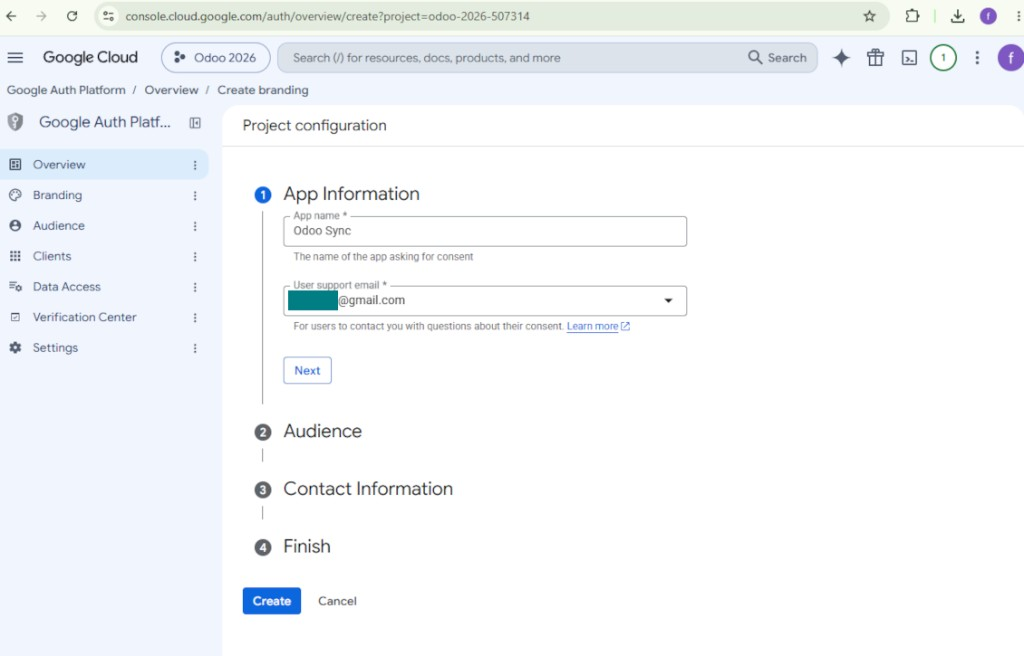
- Add app information
- As an app name select any suitable
- As a user support email select your email address
- Press 'Next'
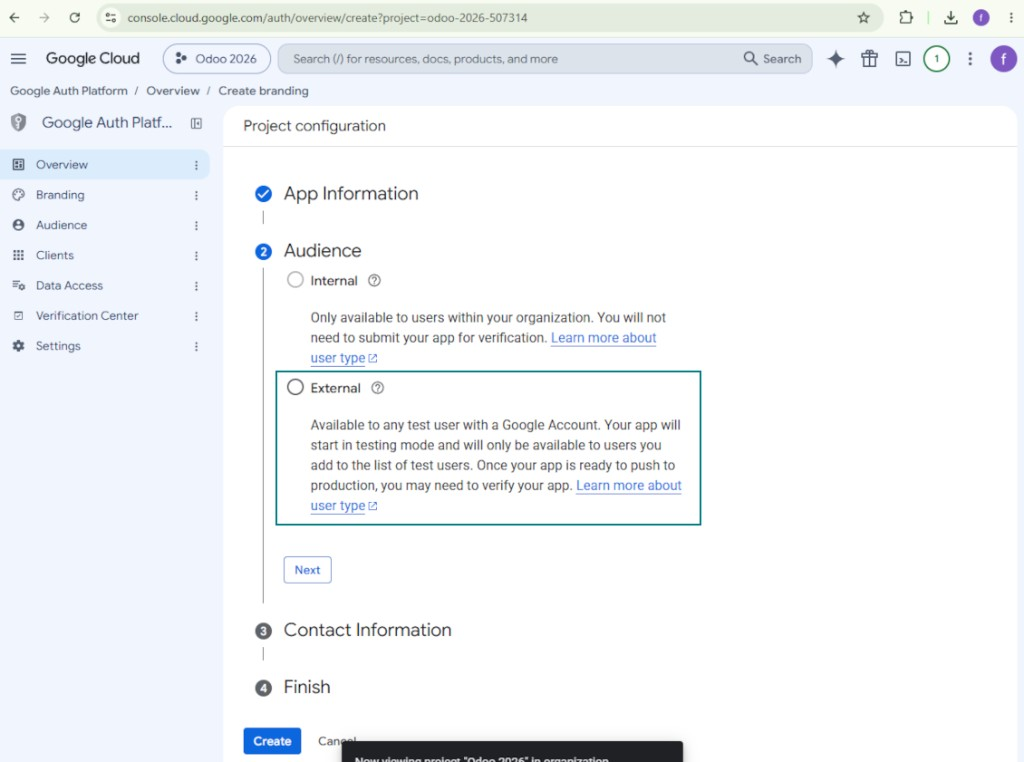
- As the audience select 'External' and press 'Next'. Note: you are anyway going to use this app only for your own Odoo connection
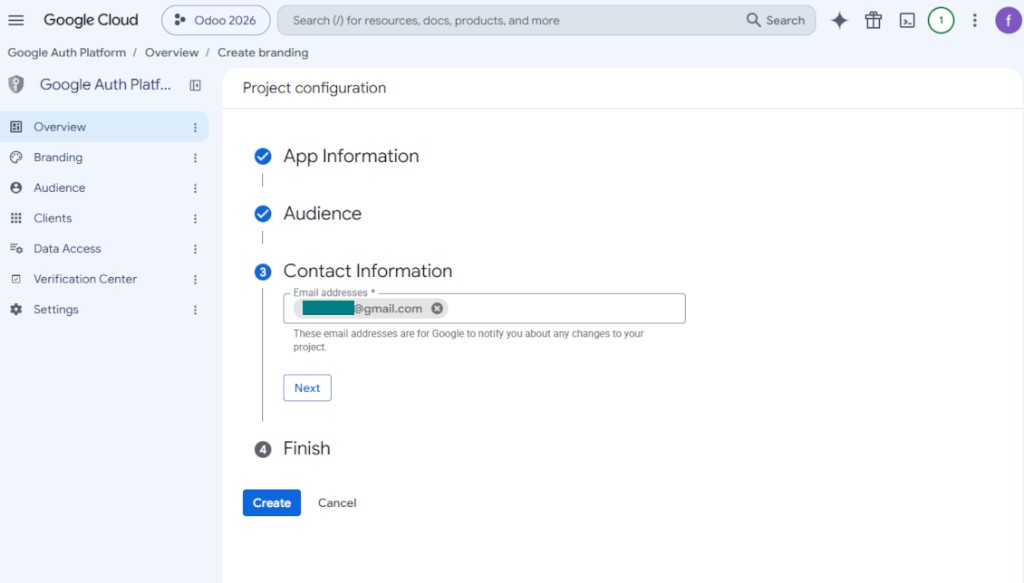
- As the contact information enter your Google or Google Workspace email address and press 'Next'
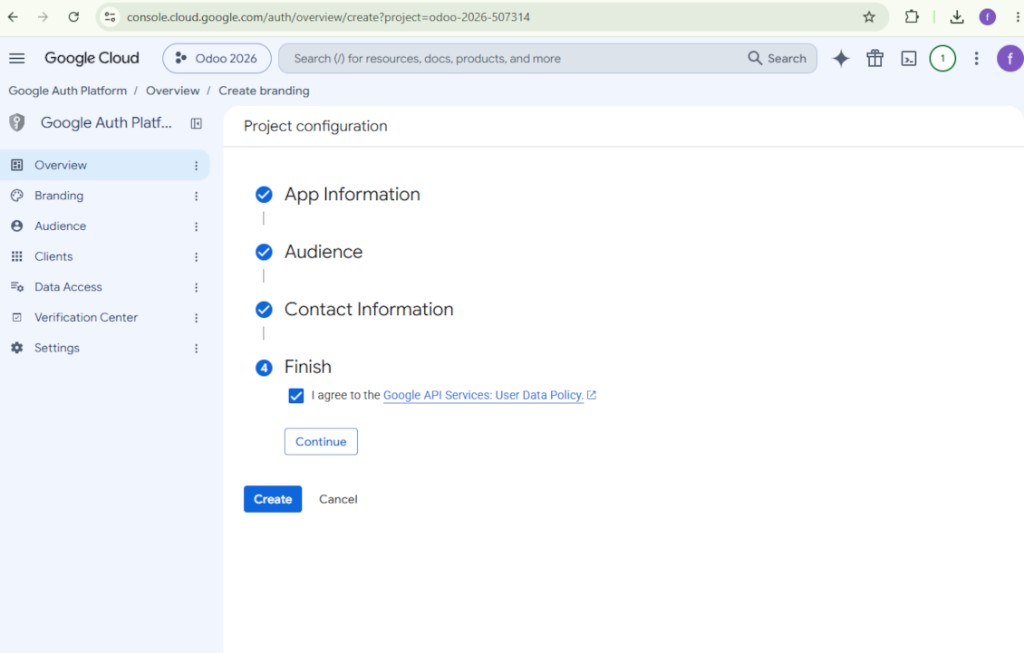
- Agree with the Google API Services User Data Policy, press 'Continue', and then press 'Create'
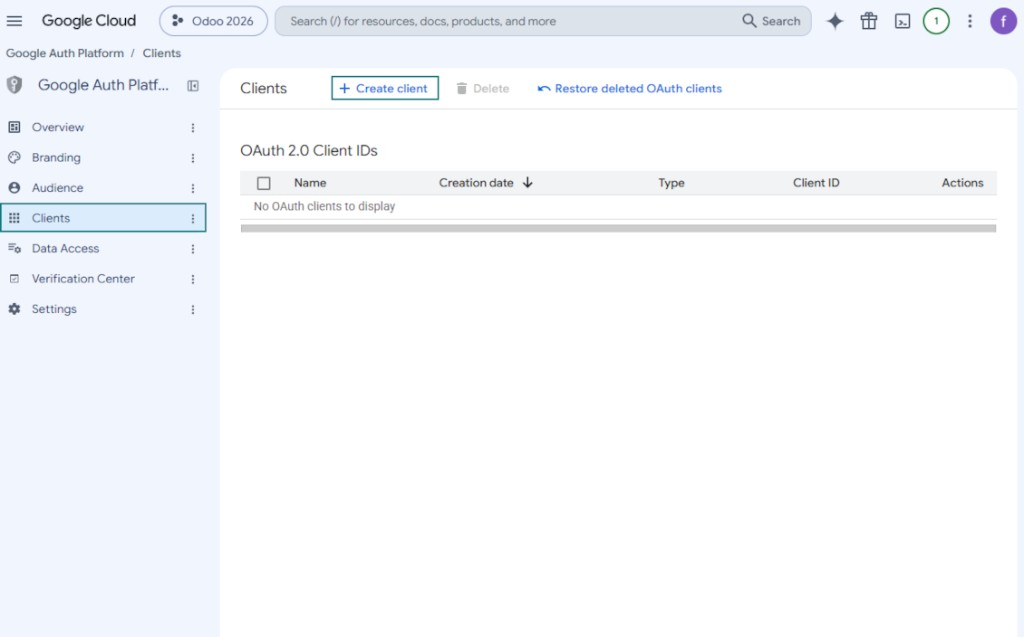
- Go to 'Clients' and press 'Create client'
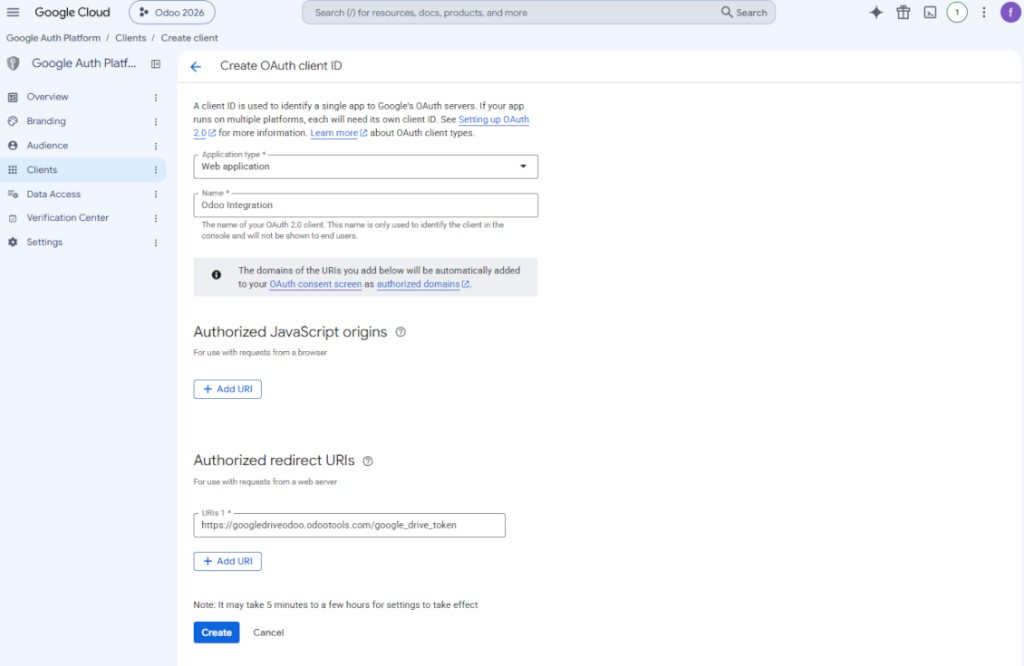
- As the application type select 'Web application'
- As a name select any suitable
- As the authorized redirect URI, add the link in a format [YOURODOOSITENAME]/google_drive_token (e.g. https://odootools.com/google_drive_token).
- Press 'Create'
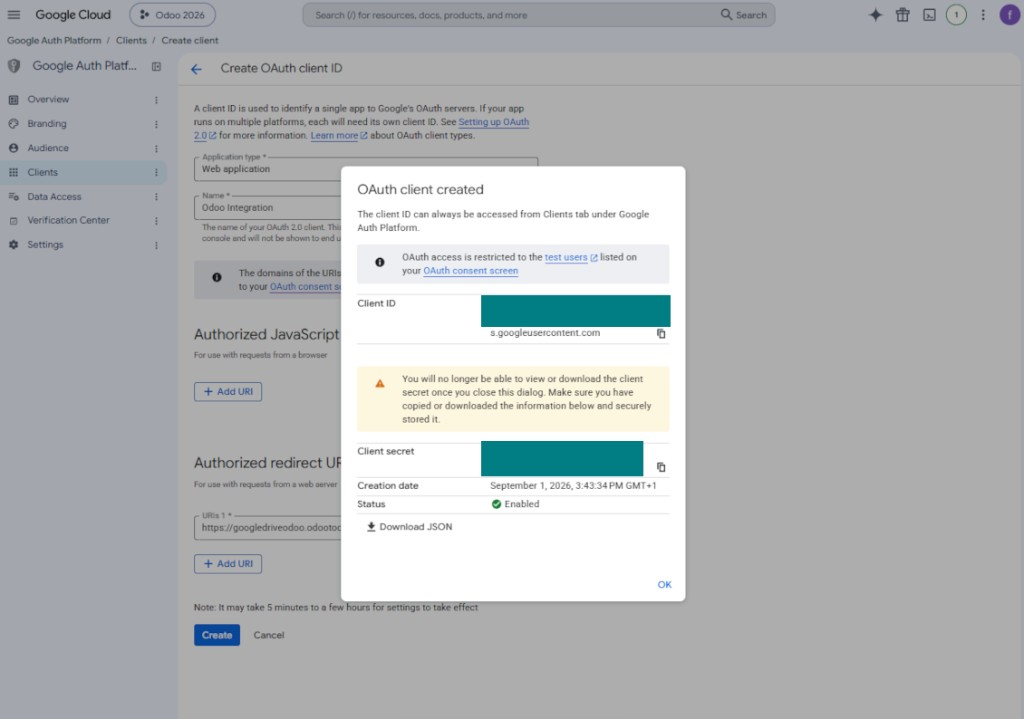
- Copy and safely store 'Client ID' and 'Client secret'. The client secret is shown only once
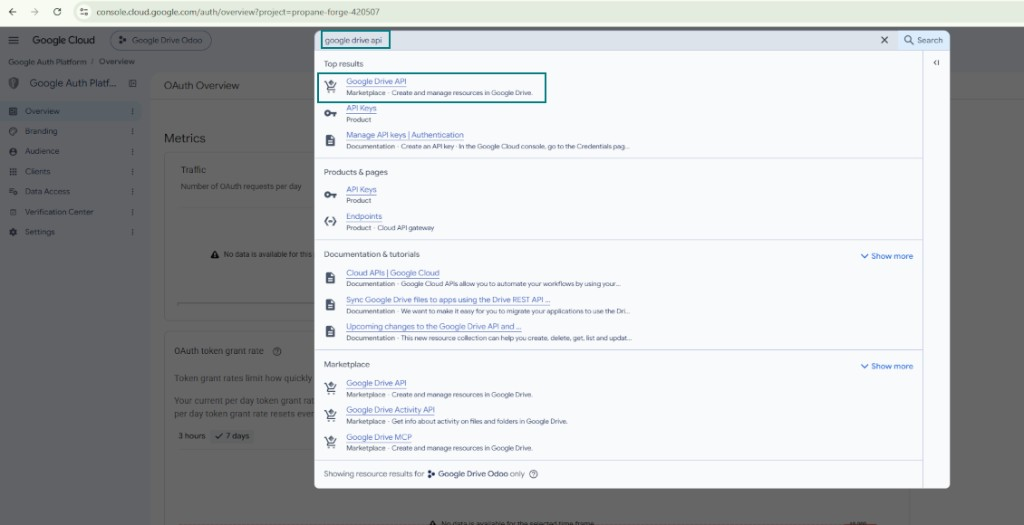
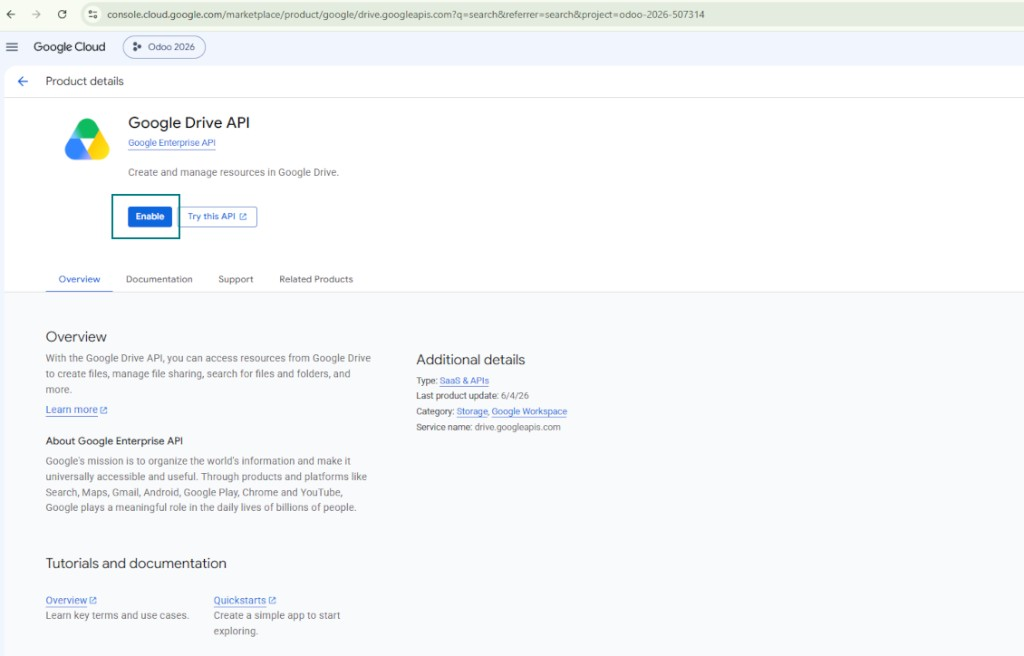
- Enable the Google Drive API for this project: type 'Google Drive API' in the top search box, open the found product, and press 'Enable'
- Go to 'Audience' and add your email address as a test user
- Publish the app. Otherwise, the app stays in the testing state and its token expires every 7 days
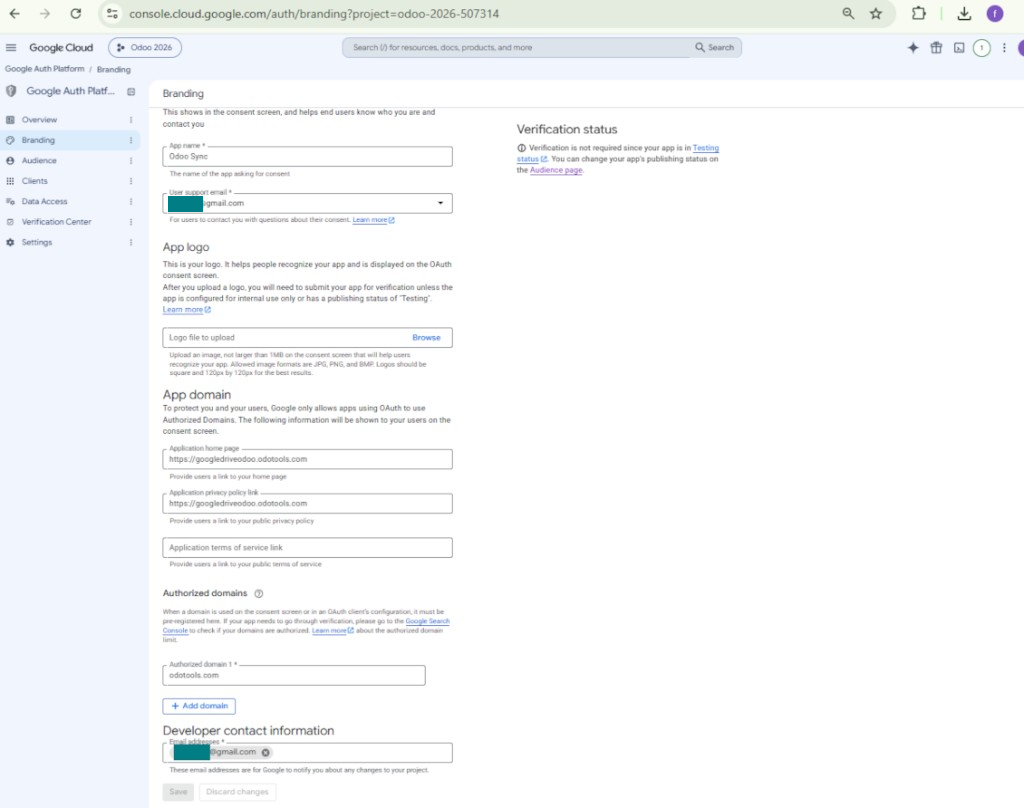
- Open 'Branding' and fill in the application home page and the application privacy policy link (for example, the links to your Odoo website). Add the domains of those links as the authorized domains
- Open 'Audience' and press 'Publish app'
- Do not upload an app logo. This would invoke a long and complex Google verification process that is of no actual need to you
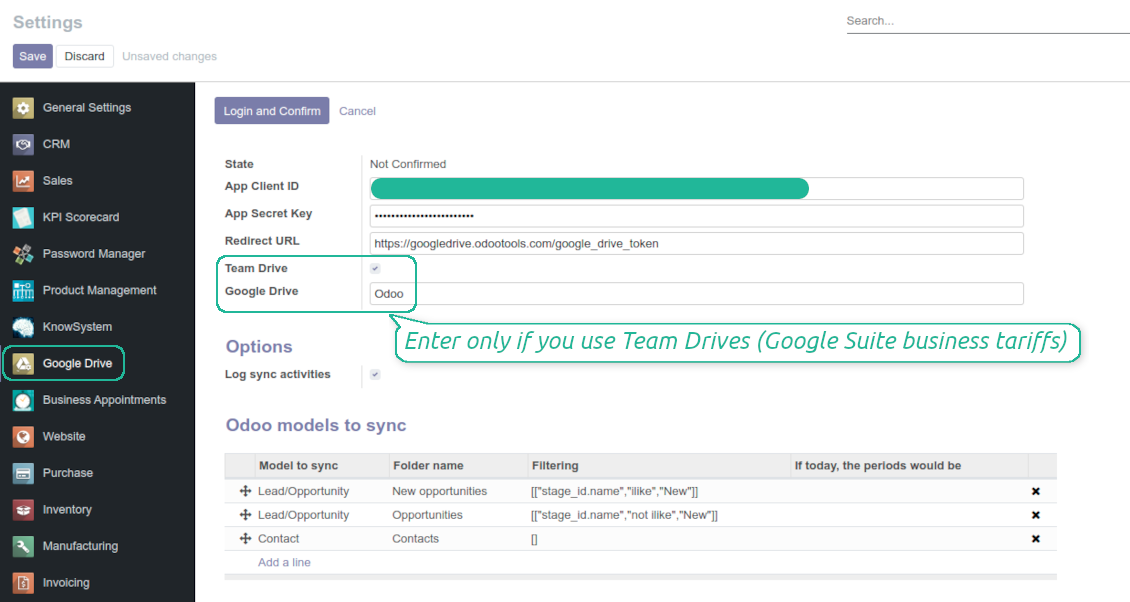
- Go to the Odoo Google Drive Settings
- Copy 'Client ID' from step 8 into the field 'App Client ID'
- Copy 'Client secret' from step 8 into the field 'App Secret Key'
- Insert the redirect URL you entered in step 8
- If you use team drives, check the related box. Make sure you really use team drives. In you Google Drive you should find the item 'Team Drives' in the left sidebar. This feature is available only for business and enterprise tariffs
- If the option 'Team Drive' is enabled, introduce its name. It should be absolutely the same as you see it in your Google Drive. Make sure that your user has full rights for this team drive
- Press 'Save'
- Press 'Login and Confirm'. Odoo redirects you to Google login page. Check in, agree with all conditions, and grant permissions asked
- After login, Google redirects you back to Odoo. Google Drive - Odoo synchronization is ready to be done.
Open the Google Auth Platform
Add app information
Select the external audience
Add contact information
Agree with the policies and create the app
Create an OAuth client
Configure the web application client
Copy the client ID and client secret
Find the Google Drive API
Enable the Google Drive API
Fill in branding to publish the app
Add test users and publish the app
Enter Google app credentials to Odoo
Odoo server configuration and cron job configuration
To make sure the synchronization works correctly apply proper timeouts to the Odoo configuration file: LIMIT_TIME_CPU, LIMIT_TIME_REAL, LIMIT_TIME_REAL_CRON should be more than 900 seconds.
For Odoo.sh this should not be done, since timeouts are predefined and are not configurable.
Then, timeout should be entered to your Odoo. To that goal find the section 'Settings' on the app configuration page and copy the number there.
Afterwards, it is needed to make the cron jobs suit the applied timeouts. In the debug mode go to the Settings > Technical > Automation > Scheduled Jobs:
- Set up the job 'Synchronize attachments with cloud' as (a) frequency - 2*timeout; (b) the next execution as the next hour +timeout. For example, for 900seconds timeout: frequency - as 30minutes; the next execution - at 08:15
- Set up the job 'Synchronize attachments from cloud' as (a) frequency - 2*timeout; (b) the next execution as the next hour + timeout*2. For example, for 900seconds timeout: frequency - as 30minutes; the next execution- at 08:30.
Часто задаваемые вопросы о Google Drive Odoo Integration Odoo v.13
Предоставляется ли общий доступ к созданным папкам Google Drive автоматически между пользователями Odoo?
Само приложение не управляет правами на стороне Google Drive. Это нужно делать там вручную. Odoo создаёт целевые папки в Google Drive; по умолчанию они не в общем доступе, но права можно изменить для любой папки. Например, полный доступ к каталогу «Odoo» или к «Odoo > Sale Orders» или «Odoo > Sale Orders > SO-001».
Приложение работает по принципу одной пользовательской конечной точки. Все операции синхронизации идут от имени одного пользователя Google Drive (согласно настроенному приложению Google API).
Я удалил файл в Google Drive, но он всё ещё в Odoo
Чтобы удалить файл полностью, очистите также корзину в Google Drive.
Также учтите, что файл может ещё быть в Odoo, потому что обратная синхронизация ещё не обработала вложение. Это запланированный процесс, требуется время.
Будет ли Google брать плату за запросы API?
Модуль использует только бесплатный API, поэтому Google не будет взимать плату.
Можно ли изменить частоту заданий синхронизации?
Да, можно. Для этого:
Включите режим отладки
Перейдите в технические настройки > Автоматизация > Запланированные задания
Найдите задания «Synchronize attachments with cloud» и «Update attachments from cloud».
Не делайте их слишком частыми. Желательно, чтобы задание успевало завершиться до запуска следующего. Настройка зависит от того, сколько элементов нужно синхронизировать. Обычно частота — от 15 минут до 4 часов.
Также задайте достаточные лимиты времени в файле конфигурации Odoo. Параметры LIMIT_TIME_CPU и LIMIT_TIME_REAL должны быть не меньше запланированного времени cron. Начиная с версии 13 учитывайте также параметр LIMIT_TIME_REAL_CRON.
Важное замечание для клиентов Odoo.sh: максимальное время cron-задания может быть ограничено 15 минутами.
Можно ли настроить другую структуру синхронизируемых каталогов, не ту, что задаёт синхронизация?
Нет, эта возможность есть только с версии 15. До неё модуль работает с заранее заданной структурой папок:
Odoo — корневая папка синхронизации
Модели — папки для каждого типа документов Odoo. Например, «Projects», «Partners». По домену могут быть более узкие папки: «Customer 1 Projects», «Projects of the Customer 2», «Internal Projects» и т. д.
Объекты — папки для каждого документа, например «Project 1» или «Customer 1»
Файлы и папки, связанные с этим документом Odoo и подлежащие синхронизации.
В итоге может получиться, например:
Odoo / Projects / Project 1 / файлы и папки проекта 1
Odoo / Customer 1 Projects / Project 1; Odoo / Customer 2 Projects / Project 3, ...
Odoo / Customers / Customer 1 / файлы и папки клиента 1
Структура всегда плоская: только эти уровни иерархии. Разные типы документов нельзя держать в одной ветке. В папке «Customer 1» нельзя хранить файлы и заказов, и счетов, и проектов. У каждого типа документа своя папка (или несколько). Иначе обратная синхронизация будет невозможна: не на что опереться.
Нужно ли настраивать отдельные права пользователей в Odoo?
Нет, инструмент работает через одну пользовательскую конечную точку. Все процессы синхронизации идут от имени одного облачного администратора (приложения). Права на созданные папки и файлы не назначаются автоматически. Настройте их в своём облачном хранилище.
Где хранятся синхронизированные файлы? Дублируются ли они в Odoo и в облаках?
Приложение предполагает, что двоичное содержимое вложений хранится в Cloud Client, а не на сервере Odoo. Такие вложения в Odoo становятся типа URL, и к ним можно в любой момент обратиться из блока вложений или из Cloud Client.
После настройки ручные действия не нужны: синхронизация полностью автоматическая. Решите, какие типы документов Odoo синхронизировать, и настройте связанную модель для каждого из них (клиенты, заказы на продажу или закупку, задачи, проекты и т. д.).
Можно ли создать несколько папок для одного типа документов? Например, внутренние проекты и клиентские проекты?
Да, можно. Для этого подготовьте правило для каждой папки и задайте фильтры: например, по типу проекта.
Сделайте фильтры взаимоисключающими, чтобы документ однозначно попадал в одну папку. Например: «клиент, но не поставщик», «поставщик, но не клиент». Иначе папка документа будет перескакивать с одной модели на другую.
Достаточно ли только приложения Cloud Storage Solution?
Нет, инструмент — только техническое ядро. Нужен ещё коннектор вашего облачного клиента.
Нормально ли, если нужно синхронизировать много объектов, например 10000?
Да, хотя при большом числе папок и вложений процесс может быть медленным. При этом клиенты сообщали о средах с >10 тыс. партнёров и ~5 тыс. вариантов продуктов — процессы оставались приемлемыми.
Несколько важных моментов:
- Синхронизация устроена так, что любой элемент будет синхронизирован и не потеряется, хотя это может быть небыстро. Это гарантируют очереди FIFO и фиксация каждого задания.
- Число объектов можно ограничить логически. Настройка моделей позволяет не синхронизировать устаревшие записи (например, нет смысла синхронизировать архивных партнёров или заказы двухлетней давности).
Можно ли сделать синхронизацию в реальном времени?
Нет. Есть веские причины не делать синхронизацию в реальном времени:
Производительность. При синхронизации в реальном времени каждая загрузка файла приводит к экрану ожидания.
Конфликты. Если двое одновременно меняют элемент, ситуация может стать неразрешимой. При регулярных заданиях это можно исправить позже; в реальном времени пришлось бы ставить изменения в очередь, что ещё сильнее запутает пользователей.
Функциональность. В частности, переименование и перестройка элементов. Обратная синхронизация строго опирается на логику каталогов, и при каждом запуске проверяется 100% элементов. Если делать это после каждого обновления, будут тысячи запросов в секунду. Если нет — изменения потеряются.
Можно ли синхронизировать вложения с несколькими облачными клиентами
Нет, эта возможность есть только с версии 15.
Мы используем специальный редактор в облаках (например OnlyOffice, Office 365 и т. д.). Будут ли файлы открываться в этом редакторе?
Да, в зависимости от конфигурации облачного клиента.
Какова политика обновлений ваших инструментов?
По текущим правилам Odoo Apps Store:
- Модуль, купленный для версии 12.0 и ниже, даёт доступ ко всем версиям до 12.0 включительно.
- С версии 13.0 каждую версию модуля нужно покупать отдельно.
- Независимо от версии покупка даёт право на все обновления и исправления в рамках этой мажорной версии.
Команда faOtools эти правила не задаёт. Вопросы направляйте напрямую представителям Odoo Apps Store.
Как установить приложение на Odoo.sh?
Самый прямой способ - встроенный сценарий магазина Odoo:
1. Откройте страницу модуля и нажмите Deploy on odoo.sh
2. Вас перенаправит на GitHub. Войдите в аккаунт и нажмите Create a new repo или выберите существующий. Репозиторий должен быть закрытым: публиковать приложения по лицензии OPL-1 нельзя. При необходимости создайте новый репозиторий для проекта Odoo.sh
3. Затем в odoo.sh нажмите Deploy, подтвердите решение и нажмите Continue. Так запустится установка.
Эти шаги ставят приложение на production-ветку проекта. Для других веток или обновления модуля:
1. Скачайте исходный код из магазина Odoo
2. Закоммитьте модуль в нужный репозиторий GitHub. Ни одна папка или файл приложения не должны попасть в .gitignore. Репозитории, которые создаёт odoo.sh, по умолчанию могут игнорировать важные пути (например /lib). Загрузите все каталоги и файлы модуля без исключений
3. Разверните целевую ветку проекта odoo.sh или дождитесь автоматической сборки, если так настроено.
Как установить приложение на свой сервер?
2. Перезапустите сервер Odoo;
3. Включите режим разработчика (технические настройки);
4. Обновите список приложений (меню приложений);
5. Найдите приложение и нажмите Activate/Install;
6. Следуйте рекомендациям на странице приложения, если они есть.
У приложения есть дополнительные модули. Можно купить их позже?
Да. При этом Odoo сам кладёт все зависимости в корзину: исключите уже купленные инструменты, чтобы не заплатить дважды.
Я развернул приложение на Odoo.sh и вижу предупреждение или ошибку в тестах
Odoo Красное или оранжевое предупреждение не влияет на функции приложения. Иногда наши модули не проходят стандартные автотесты, потому что те ждут поведение, которое противоречит целям приложения. Например, мы меняем расчёт цены, а тесты ядра сравнивают итог со стандартным алгоритмом.
Сначала проверьте саму развёрнутую базу: всё ли работает?
Если всё же считаете, что предупреждение ломает функции, напишите нам и пришлите полные логи установки и полный список установленных модулей (ядро и сторонние).
Можно ли купить приложение напрямую у вас?
Нет, мы распространяем инструменты только через официальный магазин приложений Odoo.
Я хочу получить скидку
К сожалению, у нас нет технической возможности давать индивидуальные цены.
Можно ли поставить приложение на базу Odoo Online (SaaS)?
Нет, сторонние приложения нельзя использовать на Odoo Online. Odoo SaaS это блокирует.
У инструмента есть зависимости. Нужно ли их покупать?
Да, для корректной работы нужны все модули из зависимостей. Цена на странице приложения уже включает необходимые зависимости.
Какова цена модуля в долларах США? Почему она меняется?
Цены на наши модули заданы в евро. Магазин Odoo пересчитывает их в другие валюты по своему внутреннему курсу. Поэтому цена в долларах США может меняться при обновлении курса.
Тексты приложения и веб-сайта на языках, отличных от английского, переведены с помощью ИИ и согласованы с официальными переводами Odoo. Если вы заметили ошибку, отправьте тикет о переводе и мы исправим его.
Отправка отчетов об ошибках
Если вы столкнулись с ошибками или непоследовательным поведением, не стесняйтесь обращаться к нам. Мы гарантируем предоставление исправлений в течение 60 дней с момента покупки и очень заинтересованы в улучшении наших инструментов даже по истечении этого периода.
Чтобы связаться с нами, вам не нужен номер телефона или кредитная карта. Вам нужно всего лишь пройти короткую регистрацию по электронной почте, которая займет не более 30 секунд.
Укажите в запросе как можно больше сведений: снимки экрана, журналы сервера Odoo, полное описание воспроизведения проблемы и так далее. Обычно подготовка рабочего плана по проблеме (если ошибка подтверждена) или рекомендаций по необходимым действиям (в противном случае) занимает несколько рабочих дней.
Запросы на публичные функции и идей модулей (бесплатная разработка)
Мы очень заинтересованы в улучшении наших инструментов и будем благодарны за любые отзывы. Если ваши требования общедоступны и могут быть эффективно реализованы, команда включит их в наш список дел.
Такой список дел обрабатывается регулярно и не предполагает дополнительных комиссий. Хотя мы не можем обещать сроки и окончательный дизайн, это может быть хорошим способом получить желаемые функции без вложений и рисков.
Чтобы связаться с нами, вам не нужен номер телефона или кредитная карта. Вам нужно всего лишь пройти короткую регистрацию по электронной почте, которая займет не более 30 секунд.

Инструмент, чтобы безопасно хранить пароли в Odoo для совместной работы. Общие хранилища

Инструмент, чтобы строить глубокую базу знаний для своих и внешних. Knowledge System. KMS. Правки как в вики
398€
Инструмент, чтобы задавать цели KPI и контролировать выполнение по периодам. Дашборды KPI. Конструктор. Графики

Инструмент для услуг по записи: от бронирования до продаж и отзывов
398€
Инструмент, чтобы управлять Odoo из любимых AI-чатов через MCP. Claude. Любой AI с MCP.

Инструмент, чтобы раскладывать вложения Odoo по папкам и синхронизировать каталоги с Google Drive, OneDrive/SharePoint, Nextcloud/ownCloud, Dropbox, Amazon S3, Box и NAS. Файловый менеджер. DMS
398€
Инструмент для двусторонней синхронизации вложений Odoo с OneDrive
487€
Инструмент для двусторонней синхронизации вложений Odoo с ownCloud/Nextcloud
487€
Инструмент для двусторонней синхронизации вложений Odoo с NAS. Synology, QNAP, TrueNAS и любой NAS с WebDAV
487€