Google Drive Odoo Integration v.13
The tool to automatically synchronize Odoo attachments with Google Drive files in both ways

- the technical core which provides basic mechanics of auto synchronization. This is a required module for integration. Jeho cena je 398€.
- the connector itself which introduces links between Odoo and Google Drive. Jeho cena je 89€.
- an optional add-on to sync Odoo documents (introduced by the enterprise app 'Documents') with clouds. The features assumed by this add-on are marked by the icon . Jeho cena je 44€.
Selectable documents types for sync
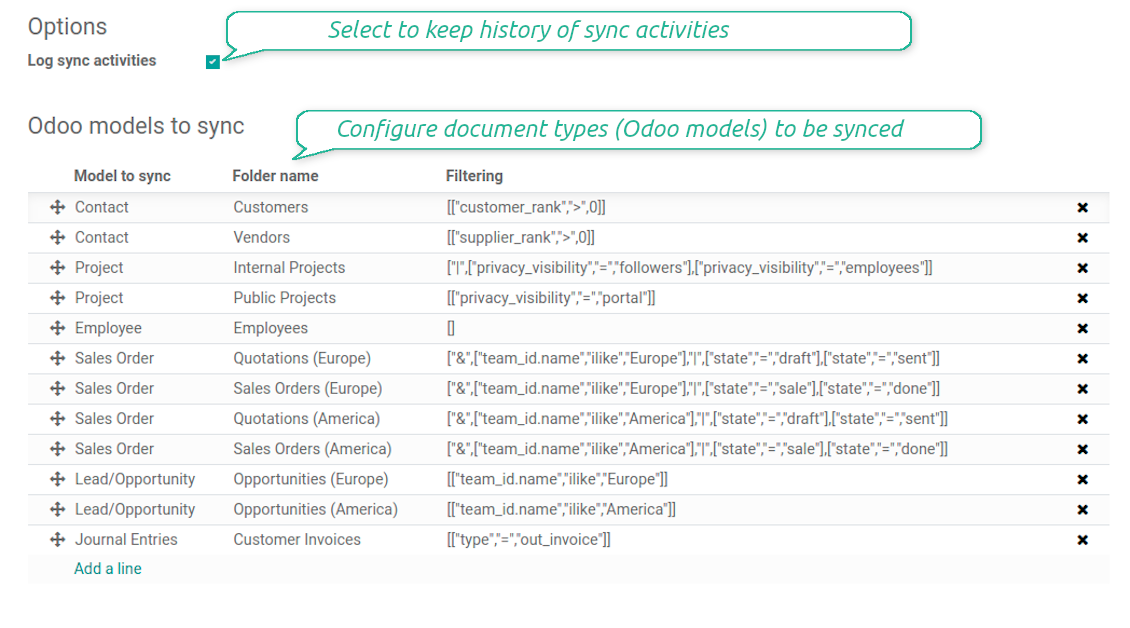
The tool let you split any business model into a few directories. Have a separate folder for individuals and companies, for European and American opportunities, for each project, etc.
Moreover, it is possible to guarantee that only topical documents are synced by using relative periods: leads registered in the last 3 months, invoices updated the last week, and so on.
Typical use cases
- Projects: have an own Google Drive folder for each customer project.
- Customers: add all partner files in a single directory available both from Odoo and from Google Drive. Modify those using default cloud editors and access them when working in Odoo.
- Employees: gather all files by this employee in a single cloud folder: photos, document scans, contracts. Access and upload those from Odoo and Google Drive alternatively.
- Opportunities: carefully store all specifications, requirements, any files which would let you make a good offer.
- Orders: keep all printings and contracts in Google Drive with simple availability from Odoo.
Screenshoty
Choose document types to be synced
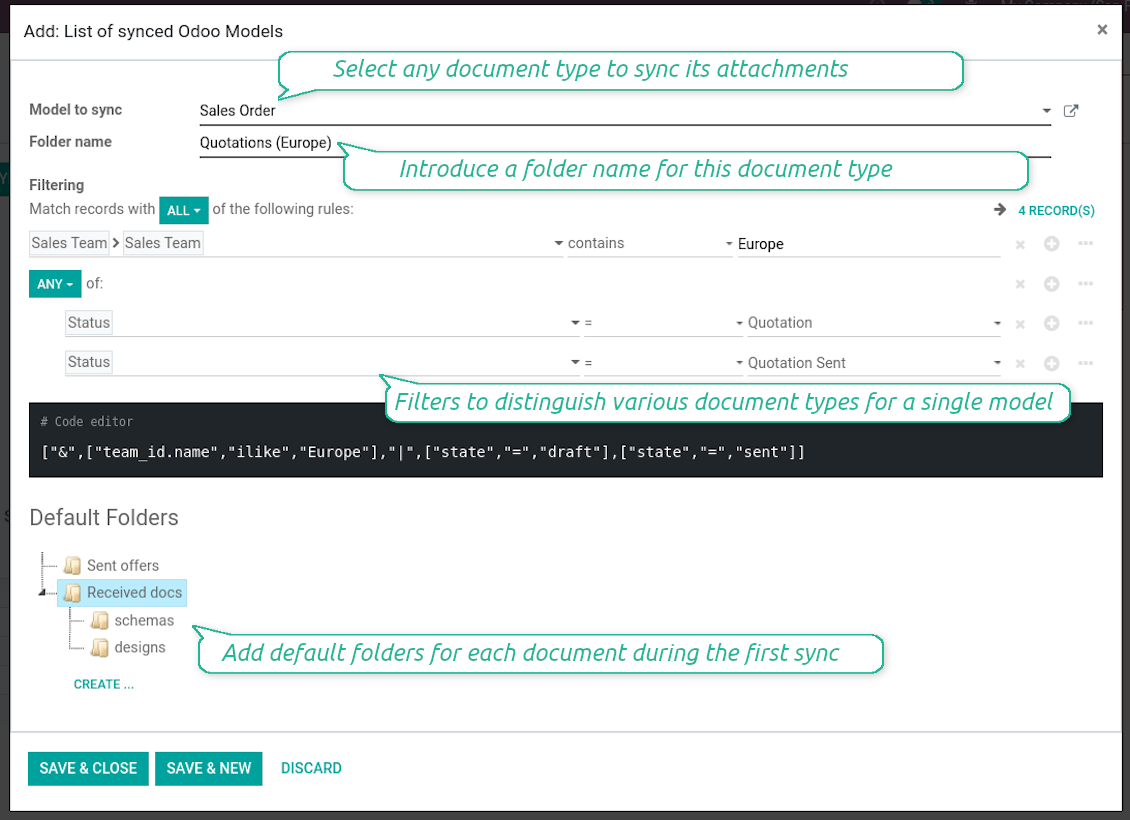
Document type might have a few folders based on filters
Automatic and bilateral integration
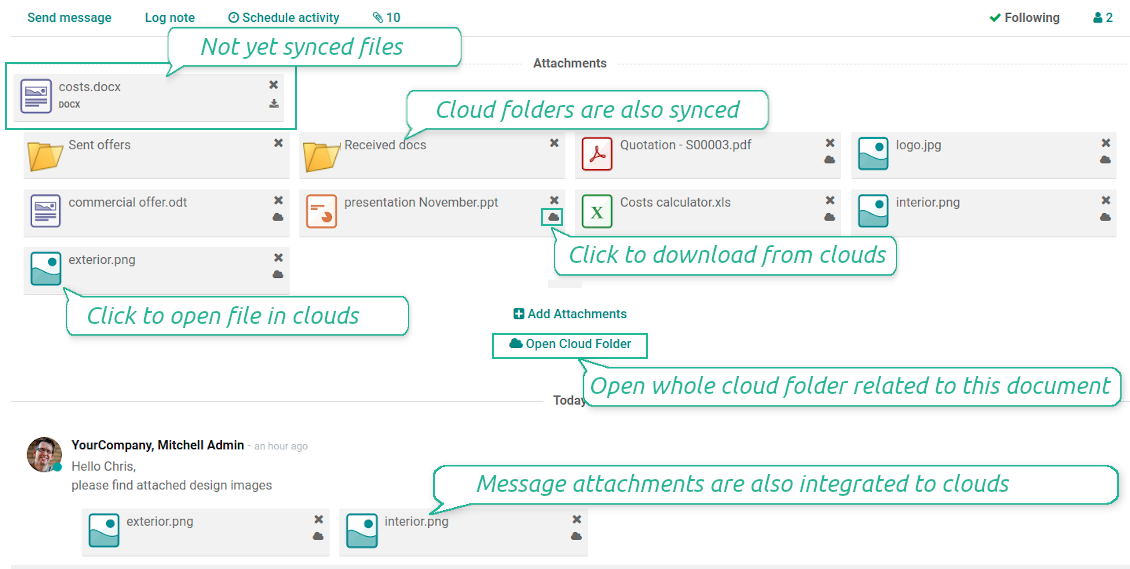
Synced attachments are physically kept only in a cloud storage, what increases Odoo interface performance. Simultaneously, you can open documents from Odoo or download those in a single click.
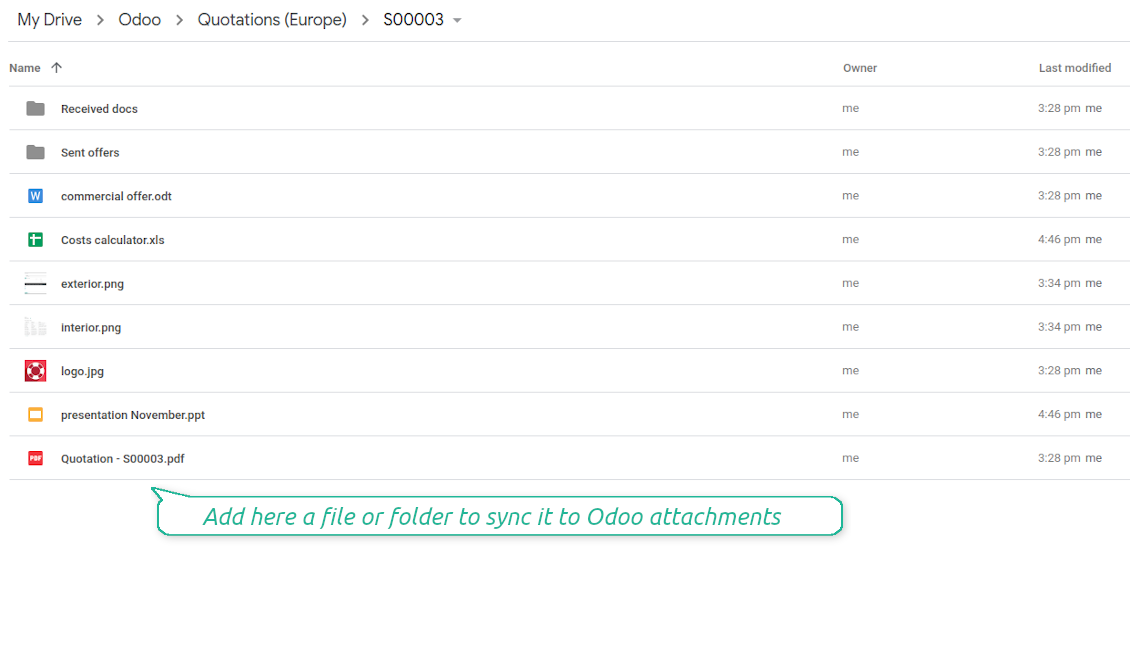
How files and folders are synced from Odoo to Google Drive
Based on the scheduled job 'Synchronize attachments with cloud' Odoo regularly checks whether:
- Any new attachment should be forwarded to Google Drive;
- Any new document type (e.g. Sale orders) is added / replaced / renamed as a sync model and, hence, whether a directory should be created / removed / renamed in Google Drive;
- Any new document (e.g. Sale Order SO019) is generated / updated / unlinked and, hence, whether a Google Drive folder should be created / moved or renamed / deleted.
- Any new attachment should be removed from Google Drive if it has been deleted from Odoo.
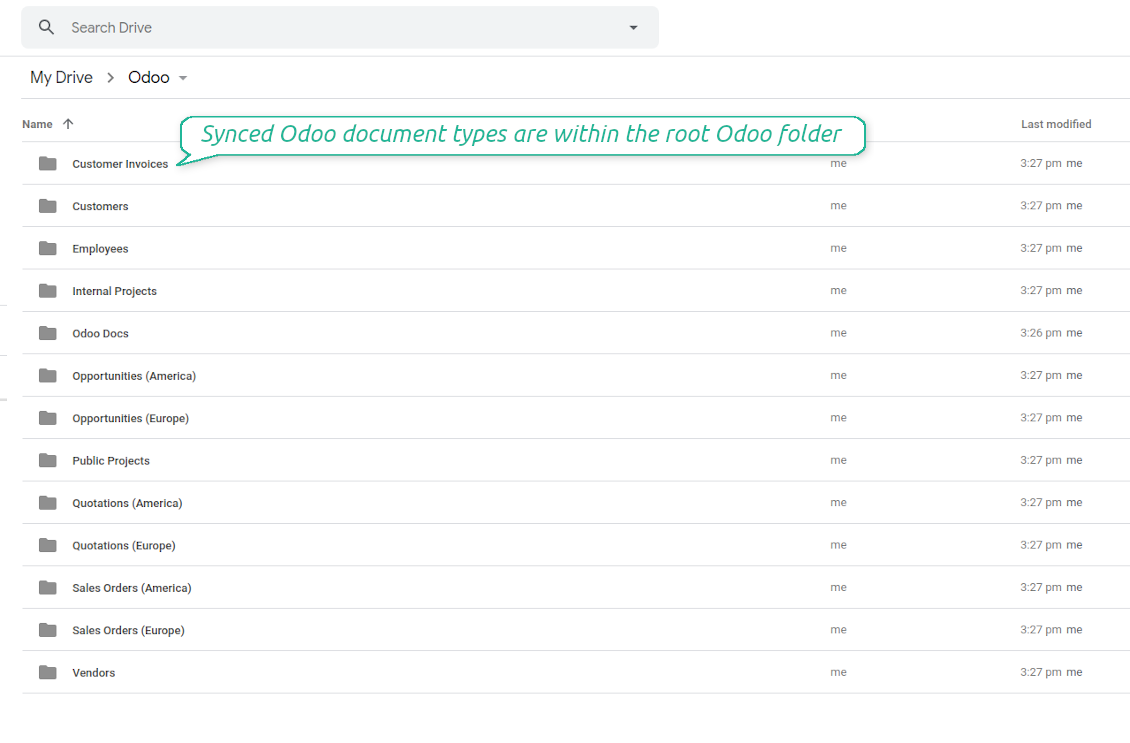
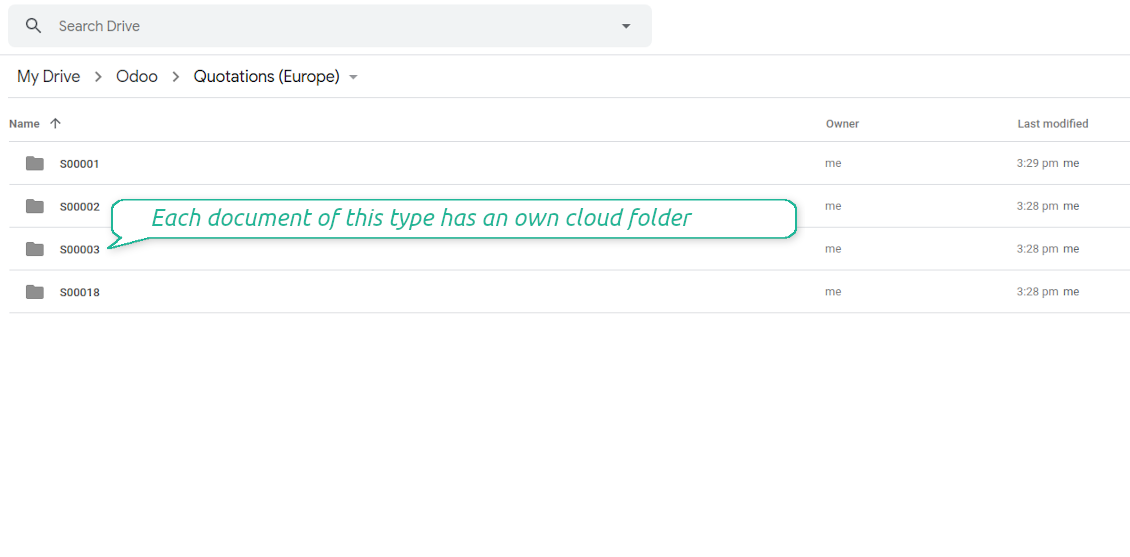
Based on results of that checks, Odoo starts processing queue of changes, and makes sure that all items are located correctly. The final goal is to have the structure 'Odoo / Document Types / Documents / Files. For example, 'Odoo / Quotations / SO019 / commercial offer.pdf'.
During the synchronization all synced Odoo attachments change their type to a link (URL), while binary content is removed with a next Odoo cleaner. So, no actual files would be stored on your Odoo server.
Please take into account:
- Each sync (especially the very first one) might take quite a long. It is not recommended to make sync too frequent: once an hour seems reasonable frequency.
- File names should be managed in Google Drive: each backward sync would recover Google Drive names, Odoo is here less important.
How items are retrieved from Google Drive to Odoo
Based on the scheduled job 'Synchronize attachments from cloud' Odoo regularly checks whether:
- Any file is added / moved / removed in a Google Drive document folder. If yes, Odoo would create a link to this file in a target object (e.g. a new attachment to SO019) or would move / delete such an attachment.
- Any file of a Google Drive document folder is renamed. If yes, an attachment would be renamed in Odoo as well.
- In document folders you can put not only files but also child folders. In that case a link for this folder (not its content) would be kept in Odoo attachments.
- If you deleted a folder related to this document type or this document, their child files would be deleted as well. Thus, Odoo would remove related attachments. The folders, however, will be recovered with a next direct sync.
- Each backward sync might take quite a long. It is not recommended to make sync too frequent: once an hour seems safe enough.
Screenshoty
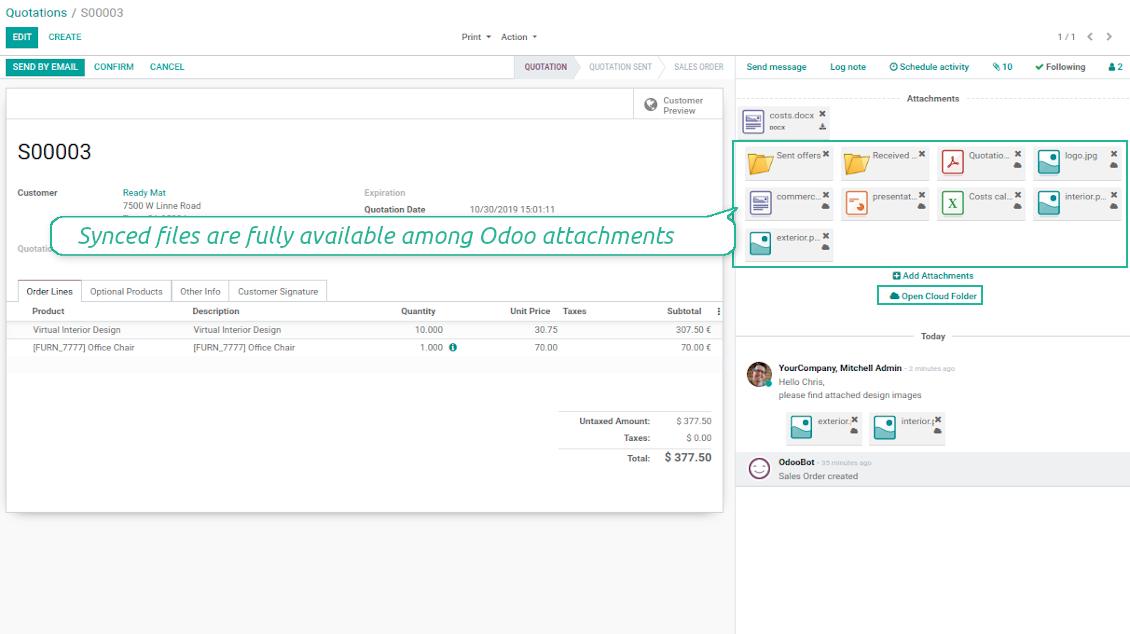
Synced files are simply found in Google Drive. Add unlimited number of files or folders
Document types folders in Google Drive
All document of this type has an own folder
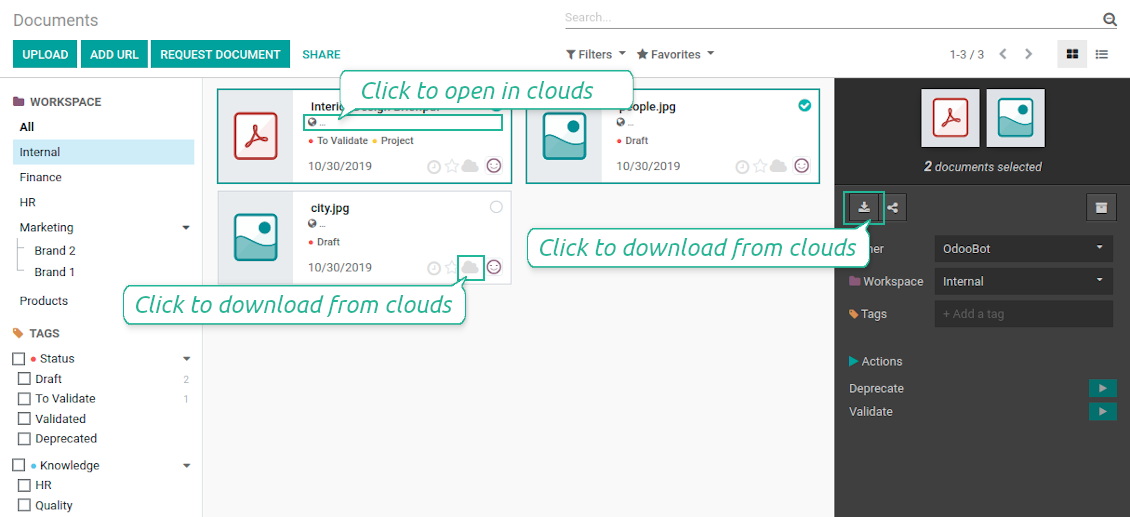
Direct access to Google Drive items
- Click on attachment to open it in Google Drive in a new tab (necessary to be logged in Google Drive);
- Click the icon of cloud to start downloading file from Google Drive (no extra check in is required)
- Push the button "Open cloud folder" to open all files related to this document.
Screenshoty
Quick access to Google Drive files and folders
Apply to Google Drive right from Odoo chatter
Individual and team drives
Fully integrated and compatible with Enterprise Documents
It does not contradict printing, mailing, or Enterprise documents features.
For the latter it is also possible to fully reflect directories structure, not only sync standard attachments.
How Odoo Enterprise Documents are synced
This tool is not in conflict with the 'documents' module provided under the Enterprise license. Attachments related to Enterprise folders would be synced as any other files: according to a document they relate to.
It is not always comfortable, and you might be interested in reflecting directories' structure introduced by the module 'Documents'. To this end the special extension is developed. This extension introduces the following features:
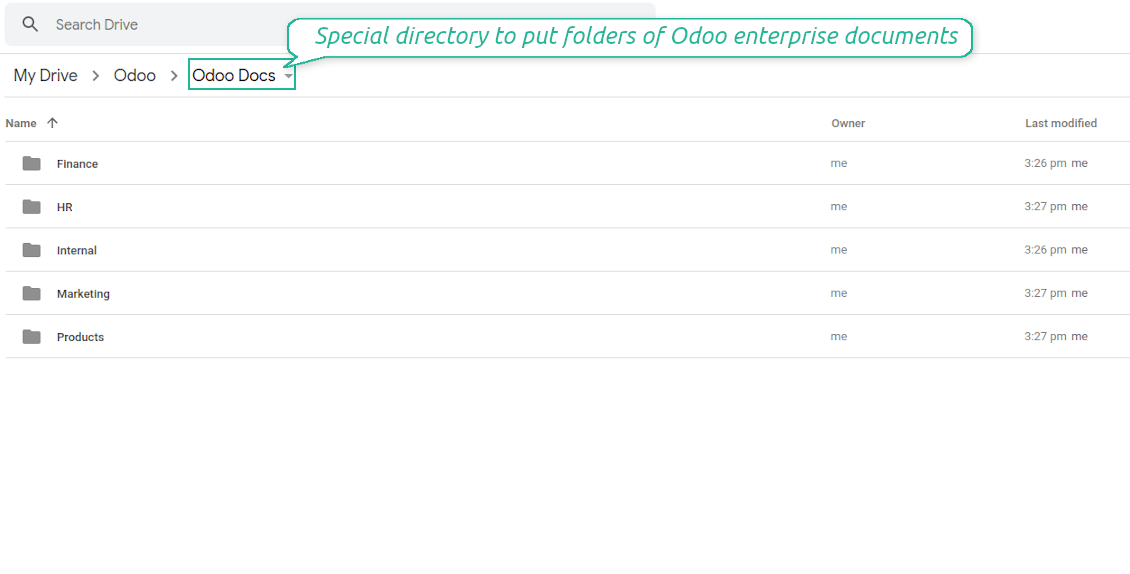
- The documents hierarchy is reflected within the folder 'Odoo / Odoo Docs'
- Each Odoo folder has a linked cloud folder. Take into account that folders created in the cloud storage will be synced as Odoo attachments. The key principle is: folders are managed by Odoo, files are managed by the cloud client
- All files are synced with the same logic as usual attachments. Files created in Odoo will be added to the cloud storage and will be replaced with links in Odoo. Files created in cloud storage will generate attachments within a paired directory
- Please do not name synced models as 'Odoo Docs'. This is the reserved name for Odoo Enterprise Documents
A few important peculiarities to take into account
- Take into account that files or folders deleted in Google Drive are really deleted only when you clean trash. Otherwise, such files still exist and would be reflected in Odoo
- Try to avoid the following symbols in folders' and files' names: *, ?, ", ', :, <, >, |, +, %, !, @, \, /,. Direct sync will replace such symbols with '-'. It is done to avoid conflicts with file systems.
Screenshoty
Direct access from Odoo documents to Google Drive
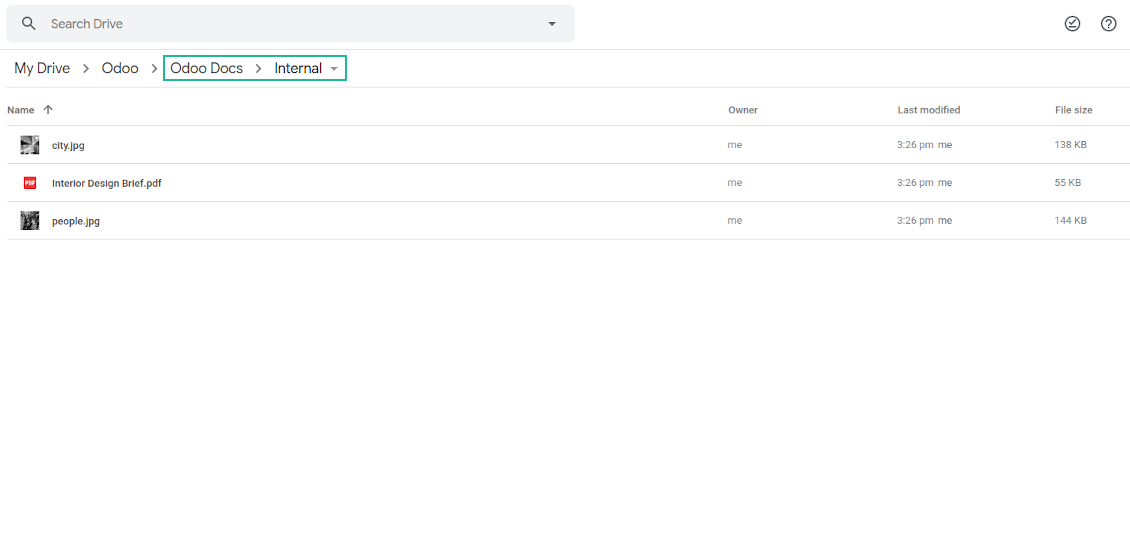
Enterprise Documents in Google Drive
Enterprise files in Google Drive
Tricky setup, but works perfectly now
Really solid module. We managed to get a very flexible folder structure (sorted by clients) and synced all our sales orders, invoices and tasks by projects to Google Drive.
Initial setup was a bit of a pain and kinda tricky to configure everything at first, but now it's running smoothly and works perfectly. The faotools team helped a lot. Def worth it if u need to keep your docs organized in Odoo and Google Drive.
Recommended!
Excellent !!!
Great App and great Service from faOtools.
Best module for integration with google drive
The module performs its function correctly and faOtools responds quickly to any problem and, in case of detecting any bug, quickly apply the changes. Its support is 10 stars.
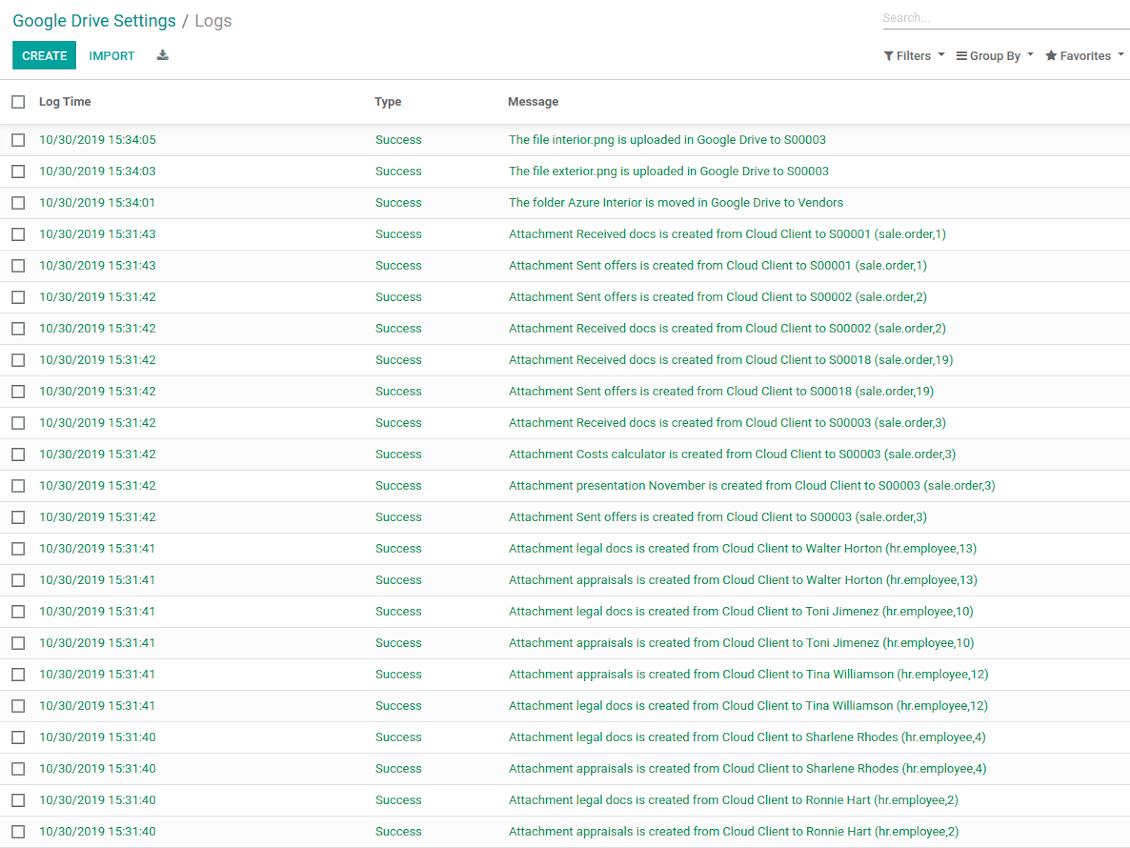
Google Drive Sync logs in Odoo
Screenshoty
Logged synchronization activities
Default folders for documents
Tipy k konfiguraci a instalaci pro Google Drive Odoo Integration Odoo v.13
Login and Google Drive Credentials
- Go to the Google Cloud Console via the URL https://console.cloud.google.com
- Select or create a project
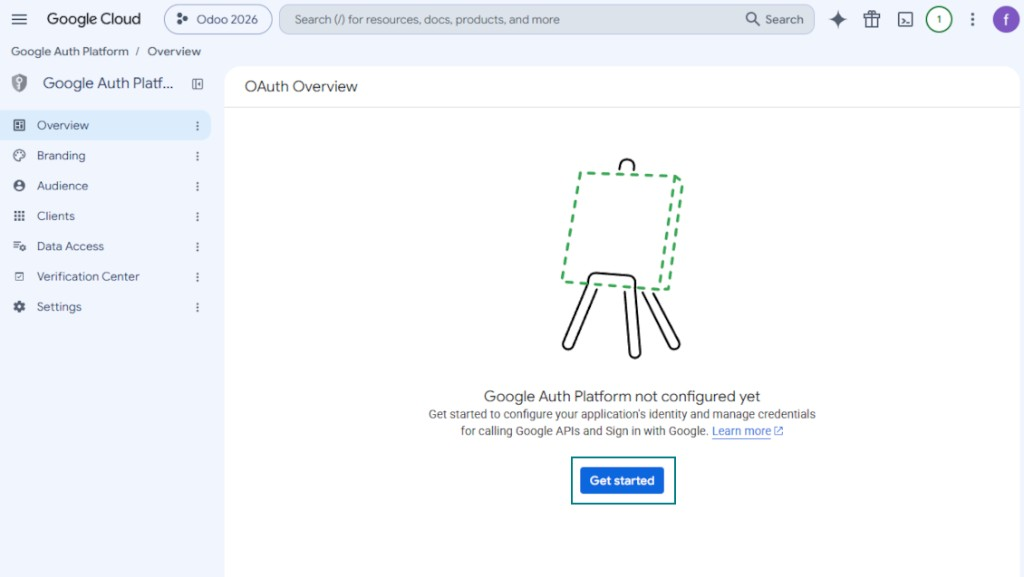
- After the project is selected, the console opens the Google Auth Platform. Press 'Get Started'
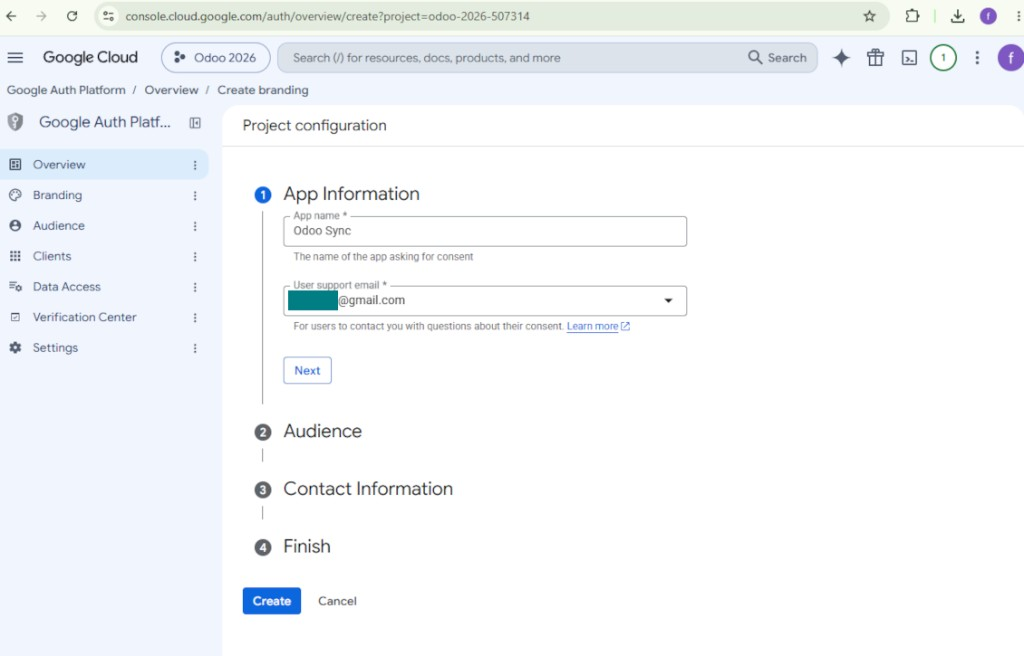
- Add app information
- As an app name select any suitable
- As a user support email select your email address
- Press 'Next'
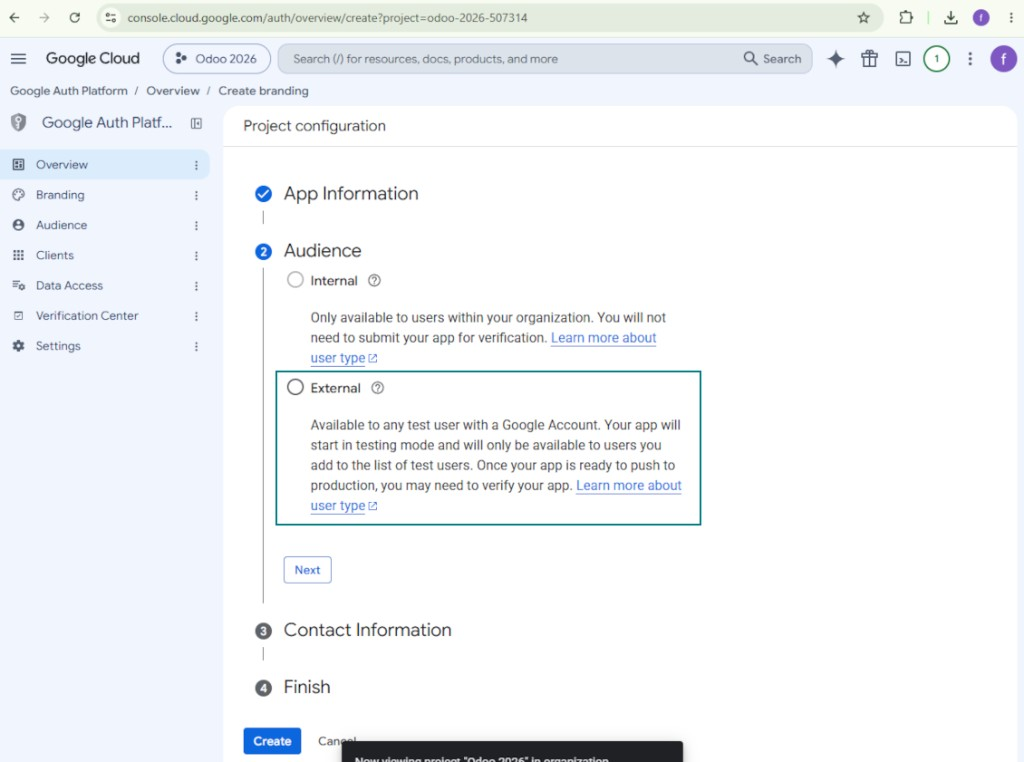
- As the audience select 'External' and press 'Next'. Note: you are anyway going to use this app only for your own Odoo connection
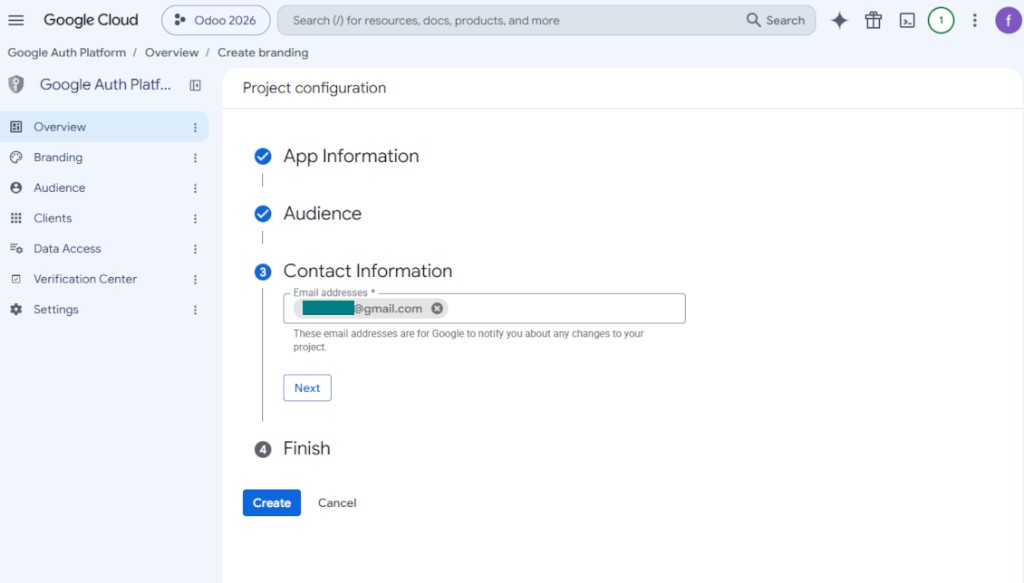
- As the contact information enter your Google or Google Workspace email address and press 'Next'
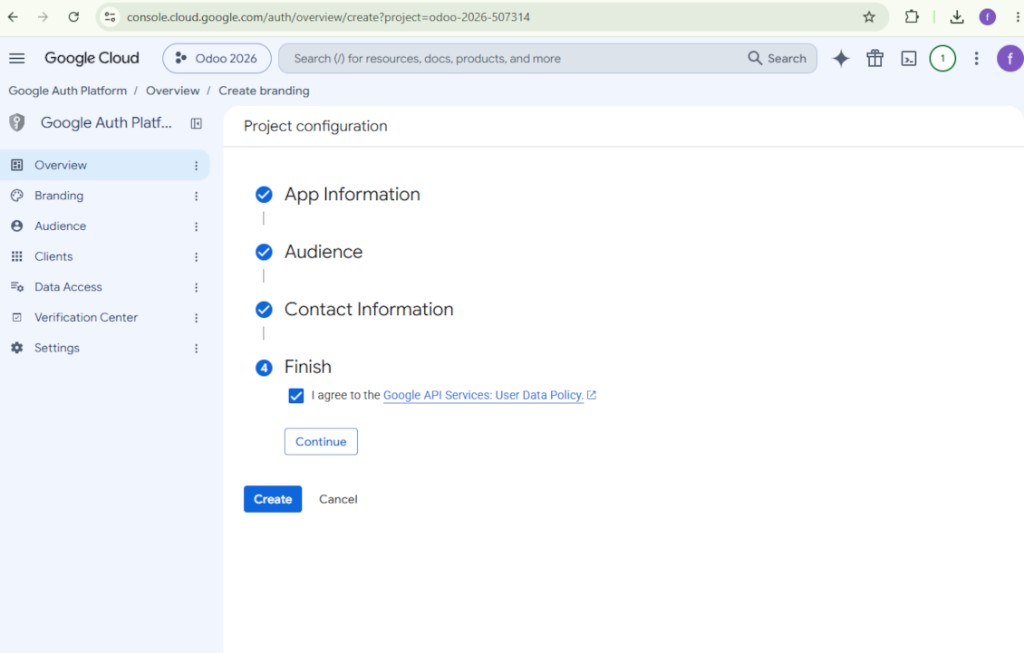
- Agree with the Google API Services User Data Policy, press 'Continue', and then press 'Create'
- Go to 'Clients' and press 'Create client'
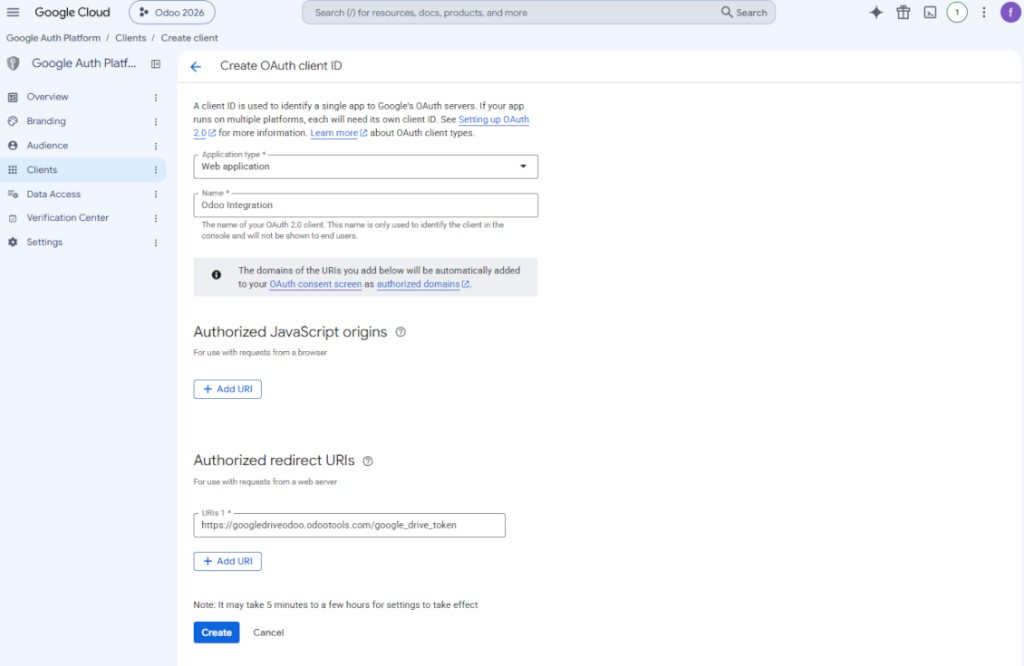
- As the application type select 'Web application'
- As a name select any suitable
- As the authorized redirect URI, add the link in a format [YOURODOOSITENAME]/google_drive_token (e.g. https://odootools.com/google_drive_token).
- Press 'Create'
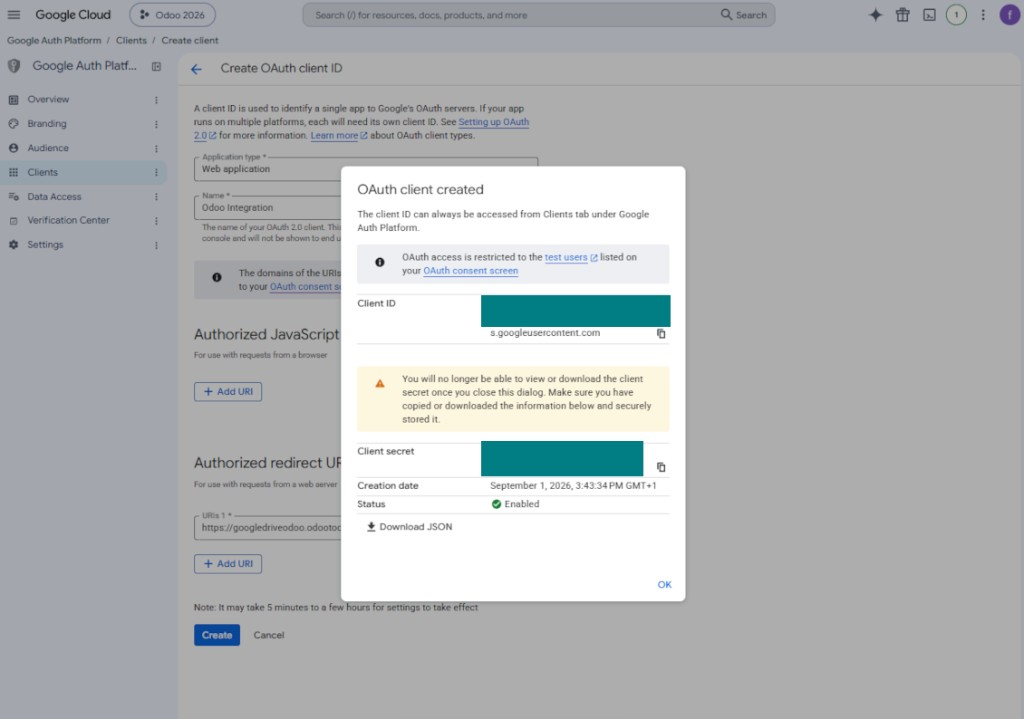
- Copy and safely store 'Client ID' and 'Client secret'. The client secret is shown only once
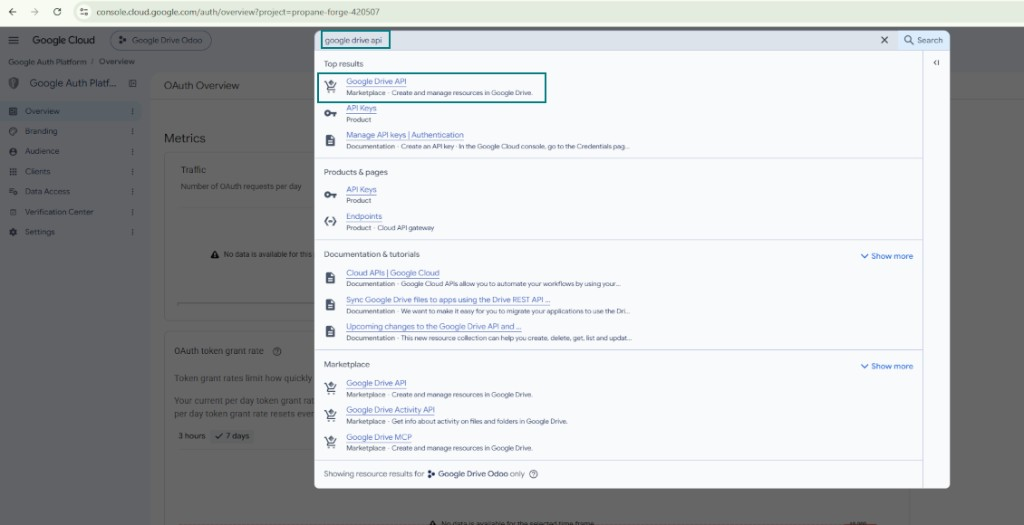
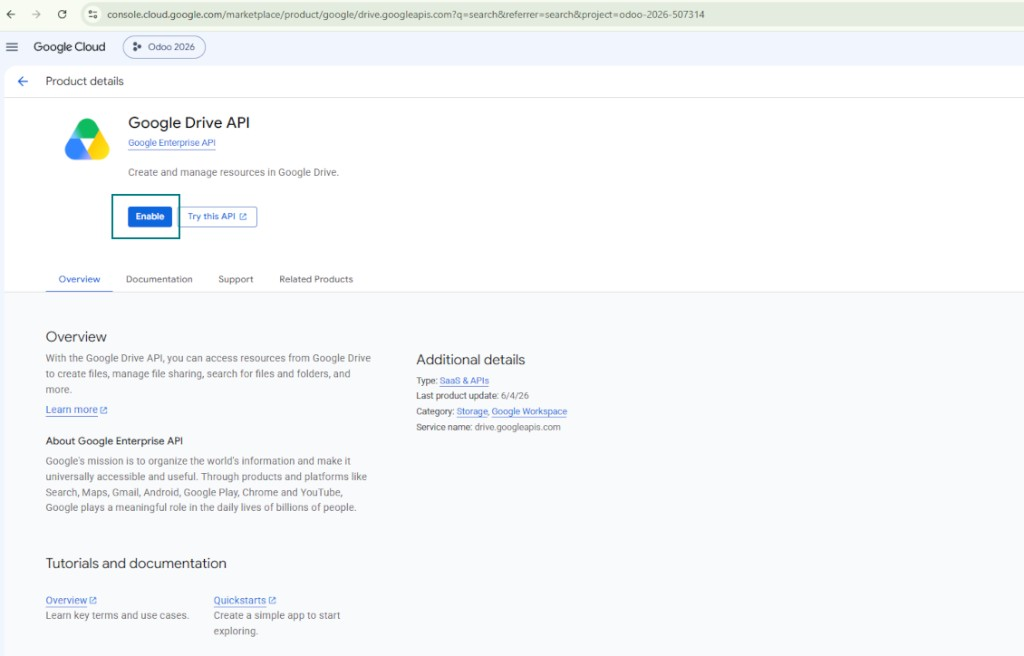
- Enable the Google Drive API for this project: type 'Google Drive API' in the top search box, open the found product, and press 'Enable'
- Go to 'Audience' and add your email address as a test user
- Publish the app. Otherwise, the app stays in the testing state and its token expires every 7 days
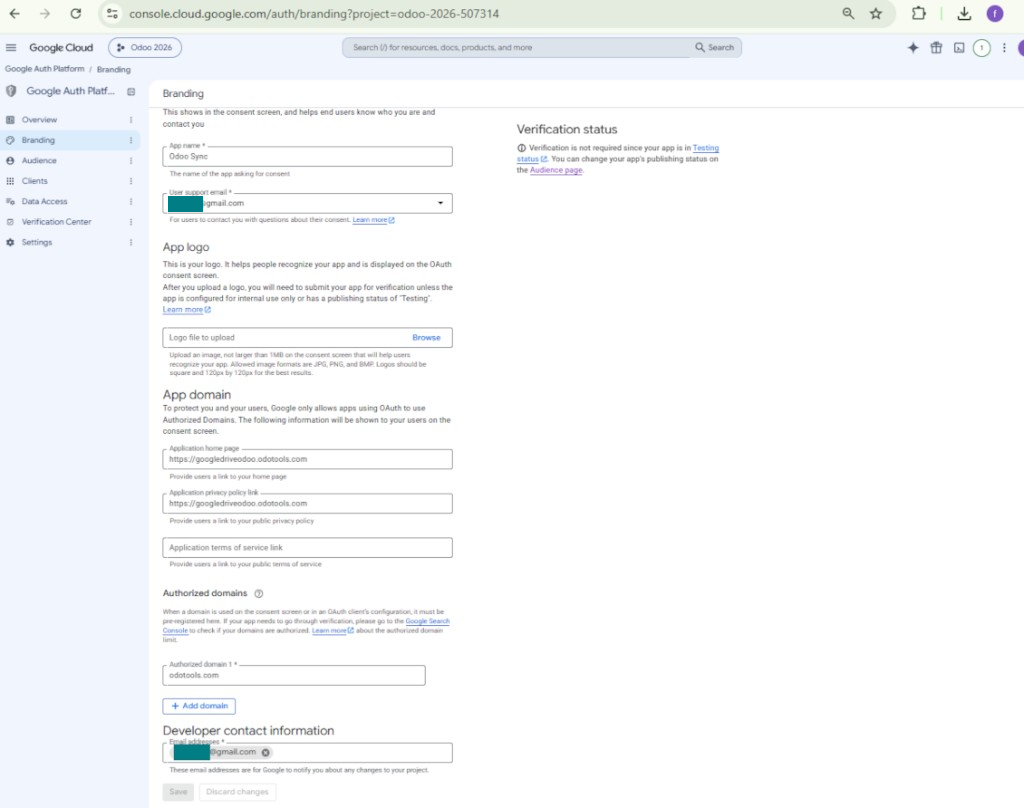
- Open 'Branding' and fill in the application home page and the application privacy policy link (for example, the links to your Odoo website). Add the domains of those links as the authorized domains
- Open 'Audience' and press 'Publish app'
- Do not upload an app logo. This would invoke a long and complex Google verification process that is of no actual need to you
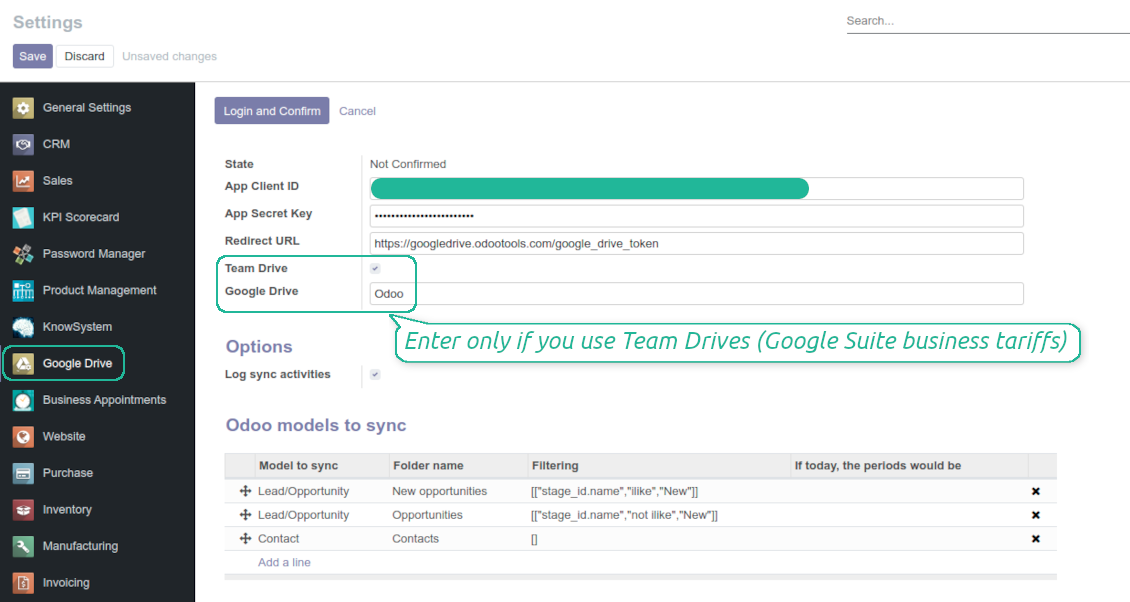
- Go to the Odoo Google Drive Settings
- Copy 'Client ID' from step 8 into the field 'App Client ID'
- Copy 'Client secret' from step 8 into the field 'App Secret Key'
- Insert the redirect URL you entered in step 8
- If you use team drives, check the related box. Make sure you really use team drives. In you Google Drive you should find the item 'Team Drives' in the left sidebar. This feature is available only for business and enterprise tariffs
- If the option 'Team Drive' is enabled, introduce its name. It should be absolutely the same as you see it in your Google Drive. Make sure that your user has full rights for this team drive
- Press 'Save'
- Press 'Login and Confirm'. Odoo redirects you to Google login page. Check in, agree with all conditions, and grant permissions asked
- After login, Google redirects you back to Odoo. Google Drive - Odoo synchronization is ready to be done.
Otevřete Google Auth Platform
Přidejte informace o aplikaci
Vyberte publikum External
Přidejte kontaktní údaje
Souhlaste se zásadami a vytvořte aplikaci
Vytvořte klienta OAuth
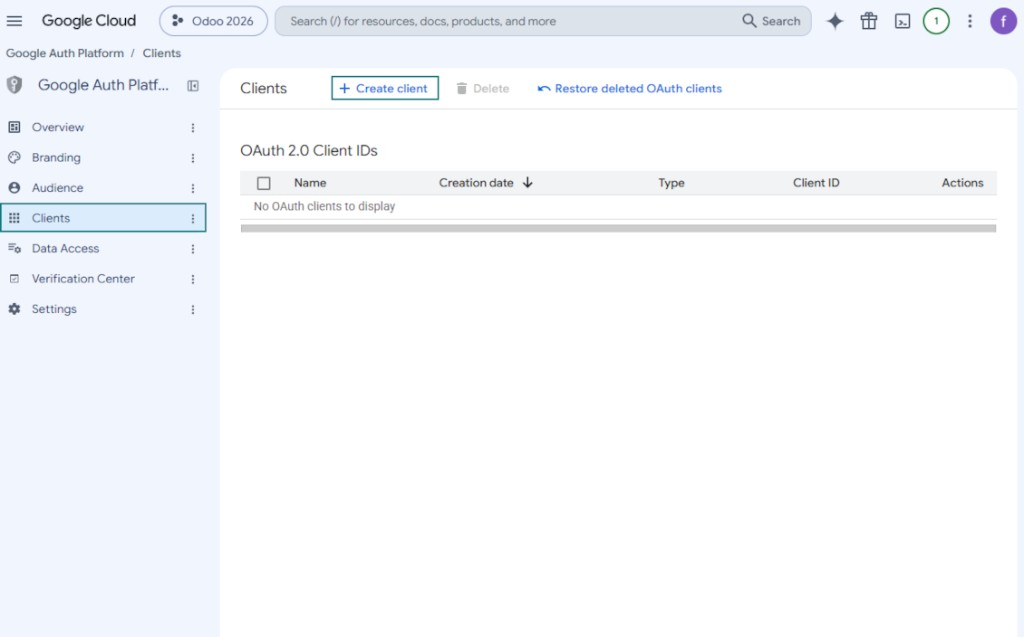
Nakonfigurujte klienta webové aplikace
Zkopírujte Client ID a Client secret
Najděte Google Drive API
Povolte Google Drive API
Vyplňte Branding pro zveřejnění aplikace
Přidejte testovací uživatele a zveřejněte aplikaci
Enter Google app credentials to Odoo
Odoo server configuration and cron job configuration
To make sure the synchronization works correctly apply proper timeouts to the Odoo configuration file: LIMIT_TIME_CPU, LIMIT_TIME_REAL, LIMIT_TIME_REAL_CRON should be more than 900 seconds.
For Odoo.sh this should not be done, since timeouts are predefined and are not configurable.
Then, timeout should be entered to your Odoo. To that goal find the section 'Settings' on the app configuration page and copy the number there.
Afterwards, it is needed to make the cron jobs suit the applied timeouts. In the debug mode go to the Settings > Technical > Automation > Scheduled Jobs:
- Set up the job 'Synchronize attachments with cloud' as (a) frequency - 2*timeout; (b) the next execution as the next hour +timeout. For example, for 900seconds timeout: frequency - as 30minutes; the next execution - at 08:15
- Set up the job 'Synchronize attachments from cloud' as (a) frequency - 2*timeout; (b) the next execution as the next hour + timeout*2. For example, for 900seconds timeout: frequency - as 30minutes; the next execution- at 08:30.
Často kladené otázky o Google Drive Odoo Integration Odoo v.13
Jsou vygenerované složky Google Drive automaticky sdíleny mezi uživateli Odoo?
Aplikace sama neřídí přístupová práva na straně Google Drive. Je to třeba udělat tam ručně. Odoo vytvoří cílové složky v Google Drive; ve výchozím stavu nejsou sdílené, ale práva můžete změnit u libovolné složky. Například plná práva k adresáři «Odoo» nebo k «Odoo > Sale Orders» či «Odoo > Sale Orders > SO-001».
Aplikace funguje na principu jednoho uživatelského koncového bodu. Všechny synchronizační operace běží pod stejným uživatelem Google Drive (podle nakonfigurované aplikace Google API).
Smazal jsem soubor v Google Drive, ale stále je v Odoo
Chcete-li soubor smazat úplně, vyprázdněte také koš v Google Drive.
Soubor může být stále v Odoo, protože zpětná synchronizace přílohu ještě nezpracovala. Jde o naplánovaný proces a zabere čas.
Bude mě Google účtovat podle požadavků API?
Modul používá jen bezplatné API, takže Google nic neúčtuje.
Mohu změnit frekvenci synchronizačních úloh?
Ano, můžete. Postup:
Zapněte režim ladění
Přejděte do technických nastavení > Automatizace > Naplánované akce
Najděte úlohy «Synchronize attachments with cloud» a «Update attachments from cloud».
Nedělejte je příliš časté. Úloha by měla skončit dřív, než začne další. Nastavení závisí na počtu položek k synchronizaci. Obvykle je frekvence mezi 15 minutami a 4 hodinami.
Nastavte také dostatečné časové limity v konfiguračním souborů Odoo. LIMIT_TIME_CPU a LIMIT_TIME_REAL musí být rovny nebo větší než plánovaný čas cronu. Od verze 13 zohledněte i LIMIT_TIME_REAL_CRON.
Důležitá poznámka pro klienty Odoo.sh: maximální čas cron úlohy může být jen 15 minut.
Mohu nastavit jinou strukturu synchronizovaných adresářů, než jakou předpokládá synchronizace?
Ne, tato funkce je až od verze 15. Předtím modul pracuje s předdefinovanou strukturou složek:
Odoo - kořenová složka synchronizace
Modely - složky pro každý typ dokumentu Odoo. Například «Projects», «Partners». Podle domény mohou být konkrétnější složky: «Customer 1 Projects», «Projects of the Customer 2», «Internal Projects» atd.
Objekty - složky pro každý dokument, např. «Project 1» nebo «Customer 1»
Soubory a složky související s tímto dokumentem Odoo k synchronizaci.
Můžete tak mít například:
Odoo / Projects / Project 1 / soubory a složky projektu 1
Odoo / Customer 1 Projects / Project 1; Odoo / Customer 2 Projects / Project 3, ...
Odoo / Customers / Customer 1 / soubory a složky zákazníka 1
Struktura je vždy plochá: jen tyto úrovně. Různé typy dokumentů nelze držet ve stejné větvi. Ve složce «Customer 1» nelze mít zároveň objednávky, faktury i projekty. Každý typ má vlastní složku (nebo více). Jinak by zpětná synchronizace neměla kritérium.
Mám v Odoo nastavit specifické uživatelské přístupy?
Ne, nástroj používá jeden uživatelský koncový bod. Všechny synchronizační procesy běží pod jedním cloudovým správcem (aplikací). Práva k vytvořeným složkám / souborům se neautomatizují. Spravujte je ve svém cloudovém úložišti.
Kde se ukládají synchronizované soubory? Jsou duplicitní v Odoo i v cloudech?
Aplikace předpokládá, že binární obsah příloh je uložen v Cloud Client, nikoli na serveru Odoo. Takové přílohy se v Odoo stanou typu URL a můžete k nim kdykoli přistoupit z pole příloh nebo z Cloud Client.
Po nastavení nejsou potřeba ruční akce: synchronizace je plně automatická. Rozhodněte, které typy dokumentů Odoo synchronizovat, a nastavte související model pro každý z nich (zákazníci, prodejní nebo nákupní objednávky, úkoly, projekty atd.).
Mohu mít několik složek pro stejný typ dokumentu? Například interní projekty a zákaznické projekty?
Ano, můžete. Připravte pravidlo pro každou variantu a použijte filtry: například podle typu projektu.
Filtry vzájemně vylučujte, aby byl dokument jednoznačně přiřazen. Například: «zákazník, ale ne dodavatel», «dodavatel, ale ne zákazník». Jinak by složka dokumentu skákala z jednoho modelu na druhý.
Stačí mi pouze aplikace Cloud Storage Solution?
Ne, nástroj je jen technické jádro. Potřebujete také konektor svého cloudového klienta.
Je v pořádku, pokud mám synchronizovat mnoho objektů, například 10000?
Ano, i když při mnoha složkách/přílohách může být proces pomalý. Klienti však hlásili prostředí s >10k partnery a ~5k variantami produktů a procesy byly přijatelné.
Několik bodů:
- Synchronizace je postavená tak, že každá položka se synchronizuje a neztratí se, i když to nemusí být rychlé. Zaručují to fronty FIFO a commit každé úlohy.
- Počet objektů lze logicky omezit. Konfigurace modelů umožňuje vyloučit zastaralé položky (např. archivované partnery nebo objednávky staré 2 roky).
Je možné synchronizaci provádět v reálném čase?
Ne. Máme silné důvody vyhnout se synchronizaci v reálném čase:
Výkon. Při synchronizaci v reálném čase každé nahrání souborů zobrazí načítací obrazovku.
Konflikty. Pokud 2 uživatelé změní položku současně, situace nemusí jít vyřešit. U běžných úloh to můžeme opravit později; v reálném čase by byla potřeba fronta, ještě matoucí.
Funkčnost. Zejména přejmenování a změna struktury. Zpětná synchronizace se striktně opírá o logiku adresářů a při každém běhu kontroluje 100 % položek. Po každé aktualizaci by to byly tisíce požadavků za sekundu. Jinak by se změny ztratily.
Mohu synchronizovat přílohy s několika cloudovými klienty
Ne, tato funkce je k dispozici až od verze 15.
V cloudech používáme speciální editor (např. OnlyOffice, Office 365). Otevřely by se soubory v tomto editoru?
Ano, podle konfigurace cloudového klienta.
Jaka jsou pravidla aktualizaci vašich nástrojů?
Podle aktuálních pravidel Odoo Apps Store:
- Modul koupeny pro verzi 12.0 nebo starší dává přístup ke všem verzim az do 12.0.
- Od verze 13.0 se každá verze modulu kupuje samostatné.
- Bez ohledu na verzi da nákup právo na všechny aktualizace a opravy v rámci hlavní verze.
Tym faOtools tato pravidla neridi. S otazkami se obratte přímo na zastupce Odoo Apps Store.
Jak nainstaluji aplikaci na Odoo.sh?
Nejprimejsi postup je vestaveny tok obchodu Odoo:
1. Otevřete stránku modulu a klikněte na Deploy on odoo.sh
2. Budete přesměrování na GitHub. Přihlaste se a klikněte na Create a new repo nebo použijte existující. Repozitar musí byt soukromý. Aplikace pod licenci OPL-1 nesmí byt veřejné. V případě potřeby vytvořte nové repo pro projekt Odoo.sh
3. Poté v odoo.sh klikněte na Deploy, potvrďte a klikněte na Continue. Instalace se spustí.
Tyto kroky nainstaluji aplikaci na production větev. Pro jiné vetve nebo aktualizaci:
1. Stáhněte zdrojový kod z obchodu Odoo
2. Commitnete modul do GitHub repozitare. Žádná složka/soubor aplikace nesmí byt v .gitignore. Repa vytvorena odoo.sh mohou ignorovat důležité cesty (např. /lib). Nahrajte všechny adresáře a soubory modulu
3. Deployujte cílovou větev projektu odoo.sh, nebo počkejte na automaticky build, pokud to nastavení předpokládá.
Jak nainstaluji aplikaci na vlastní server?
2. Restartujte server Odoo;
3. Zapněte vyvojovsky režim (technická nastavení);
4. Aktualizujte seznam aplikaci (nabídka Aplikace);
5. Najdete aplikaci a klikněte na Activate/Install;
6. Postupujte podle pokynů na stránce aplikace, pokud existují.
Aplikace ma další rozšíření. Mohu je koupit později?
Ano. Odoo automaticky přidá závislosti do kosiku: vylučte jiz zakoupene nástroje, abyste neplatili dvakrát.
Nasadil jsem aplikaci na Odoo.sh a v testech vidim varování/chybu
Červené/oranzove varování neovlivnuje funkce aplikace. Naše moduly obcas neprojdou standardními automatickými testy, protože ty predpokladaji chování, které je v rozporu s cíli aplikace. Například menime výpočet ceny, zatímco testy Odoo porovnavaji konecnou cenu se standardním algoritmem.
Nejprve zkontrolujte funkce nasazene databáze. Funguje vse?
Pokud se stále domnivate, ze varování ovlivnuje skutečné funkce, kontaktujte nas a pošlete kompletní instalacni protokoly a úplný seznam nasazenych modulu (jádro a třetí strany).
Mohu si aplikaci koupit přímo u vas?
Ne, nástroje siritime pouze přes oficialni obchod aplikaci Odoo.
Chtel bych slevu
Bohuzel nemáme technické prostredky na individualni ceny.
Mohu aplikaci nainstalovat na databázi Odoo Online (SaaS)?
Ne, aplikace třetích stran nelze použít na Odoo Online. Odoo SaaS tuto možnost blokuje.
Nástroj závisí na jiných aplikacich. Mam je koupit?
Ano, nástroj vyžaduje všechny moduly označené v zavislostech. Cena na stránce aplikace je jiz zahrnuje.
Jaka je cena modulu v americkych dolarech? Proč se zmenila?
Ceny našich modulu jsou v eurech. Obchod Odoo převádí ceny do jiných men podle vnitrniho kurzu. Proto se cena v americkych dolarech může změnit pri aktualizaci kurzu.
Znění aplikace a webu v jiných jazycích než angličtině je s pomocí AI a sladěné s oficiálními překlady Odoo. Pokud si všimnete chyby, odešlete tiket o správnosti překladů a opravíme to.
Hlášení chyb
Pokud narazíte na chyby nebo nekonzistentní chování, ozvěte se. Opravy do 60 dnů od nákupu garantujeme a nástroje vylepšujeme i poté.
Ke kontaktu nepotřebujete telefon ani kreditní kartu. Stačí krátká e-mailová registrace, která netrvá déle než 30 sekund.
Přiložte co nejvíc podrobností: snímky obrazovky, protokoly serveru Odoo a úplný popis reprodukce. Pracovní plán (je-li chyba potvrzena) nebo pokyny (jinak) obvykle trvají několik pracovních dní.
Veřejné požadavky na funkce a nápady na moduly (bezplatný vývoj)
Jsme silně motivováni zlepšovat nástroje a vděční za každou zpětnou vazbu. Pokud jsou požadavky veřejně užitečné a dají se efektivně implementovat, tým je zařadí na seznam úkolů.
Takový seznam úkolů se zpracovává pravidelně a nepředpokládá příplatky. I když nemůžeme slíbit termíny a finální návrh, může to být dobrý způsob, jak získat požadované funkce bez investic a rizik.
Ke kontaktu nepotřebujete telefon ani kreditní kartu. Stačí krátká e-mailová registrace, která netrvá déle než 30 sekund.

Nástroj pro bezpečné uložení hesel v Odoo ke sdílenému použití. Sdílené trezory

Nástroj pro vybudování hluboké a strukturované znalostní báze pro interní i externí použití. Knowledge Systém. KMS. Revize ve stylu wiki.
398€
Nástroj pro nastavení cílů KPI a kontrolu jejich plnění po obdobích. Přehledy KPI. Návrhář dashboardů. Grafy KPI

Nástroj pro časově vázané řízení služeb od rezervace schůzek po prodej a recenze
398€
Nástroj pro správu Odoo z oblíbených AI chatů přes MCP. Claude. Jakákoli AI s podporou MCP.

Nástroj pro flexibilní strukturu příloh Odoo ve složkách a synchronizaci adresářů s cloudovými klienty: Google Drive, OneDrive/SharePoint, Nextcloud/ownCloud, Dropbox, Amazon S3, Box a NAS. DMS. Správce souborů. Systém správy dokumentů
398€
Nástroj pro automatickou obousměrnou synchronizaci příloh Odoo se soubory OneDrive
487€
Nástroj pro automatickou obousměrnou synchronizaci příloh Odoo se soubory ownCloud/Nextcloud
487€
Nástroj k automatické obousměrné synchronizaci příloh Odoo s řešeními NAS. Synology, QNAP, TrueNAS a jakákoli jiná řešení NAS podporující WebDav
487€