NAS / Synology / QNAP / TrueNAS Odoo Integration v.17
The tool to automatically synchronize Odoo attachments with NAS Solutions in both ways. Synology, QNAP, TrueNAS and any other WebDav-supporting NAS solutions
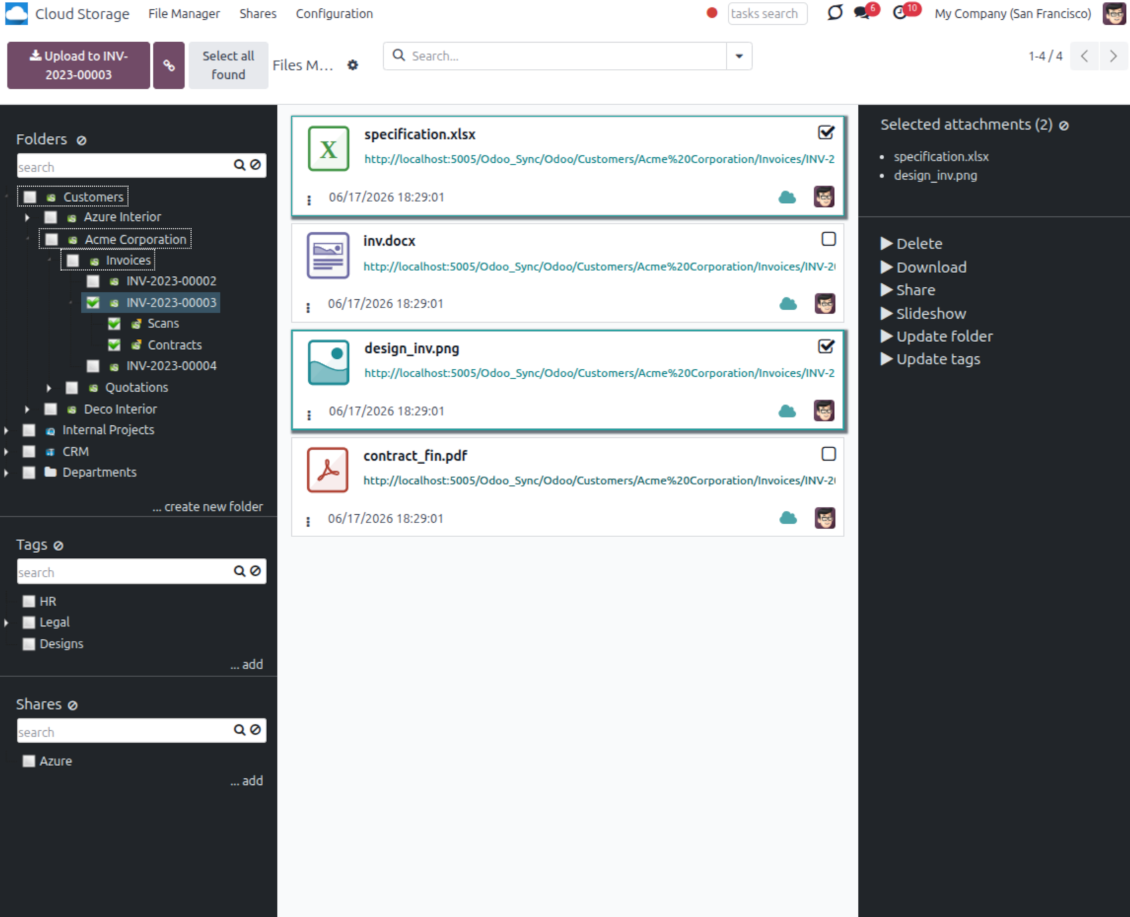
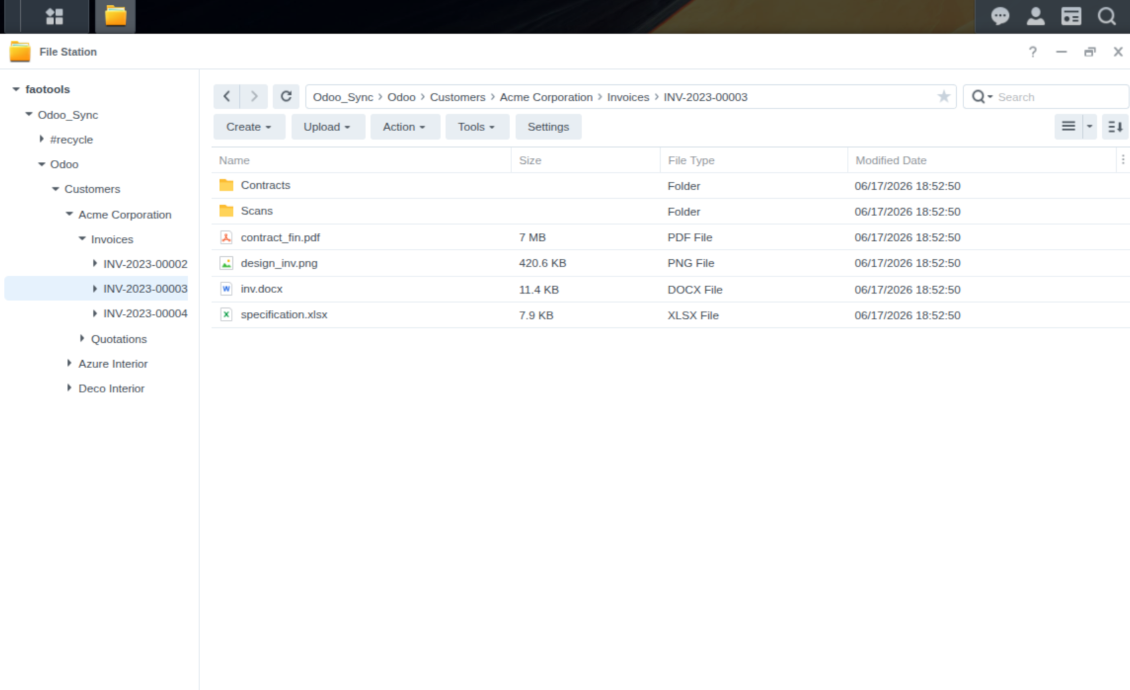
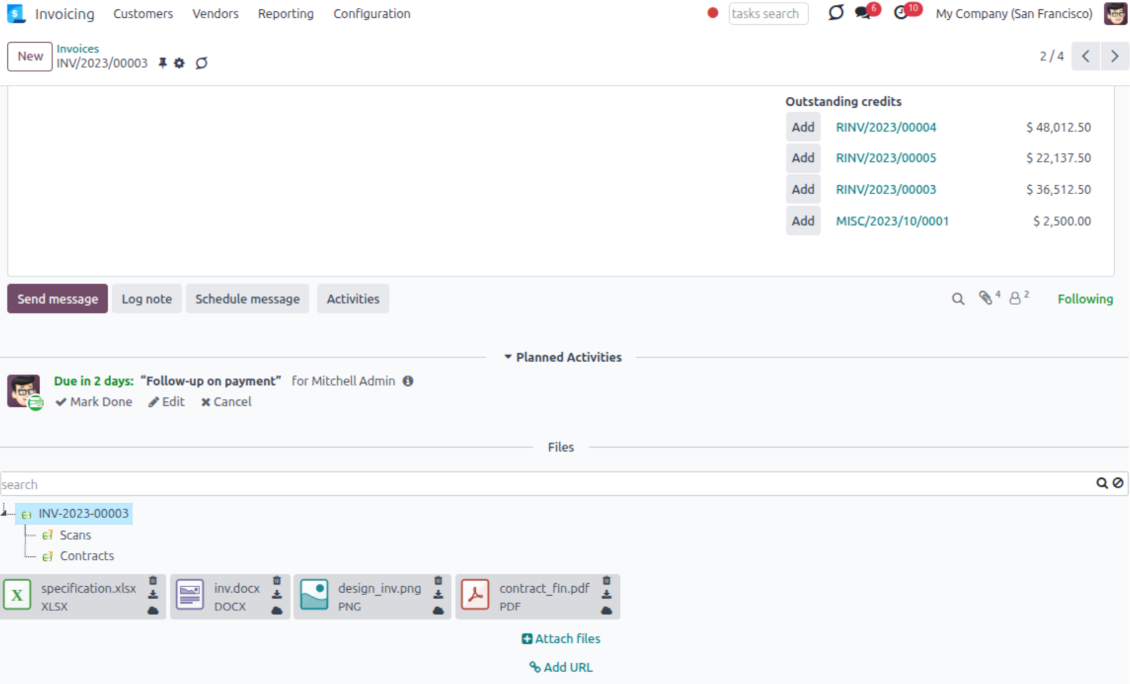
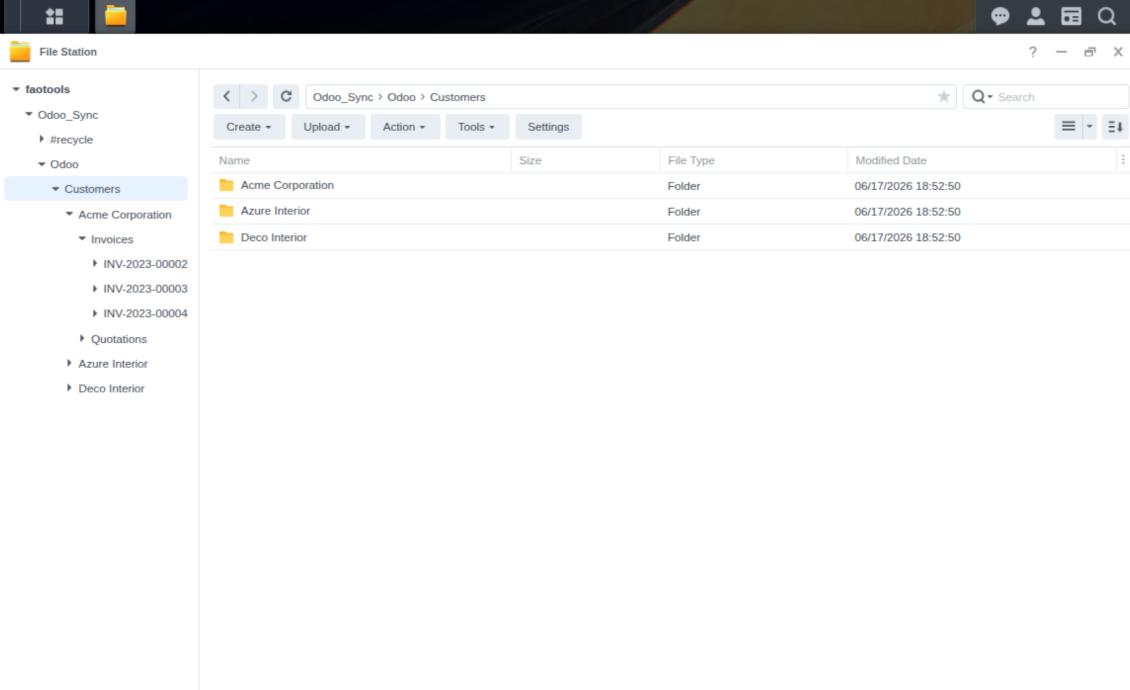
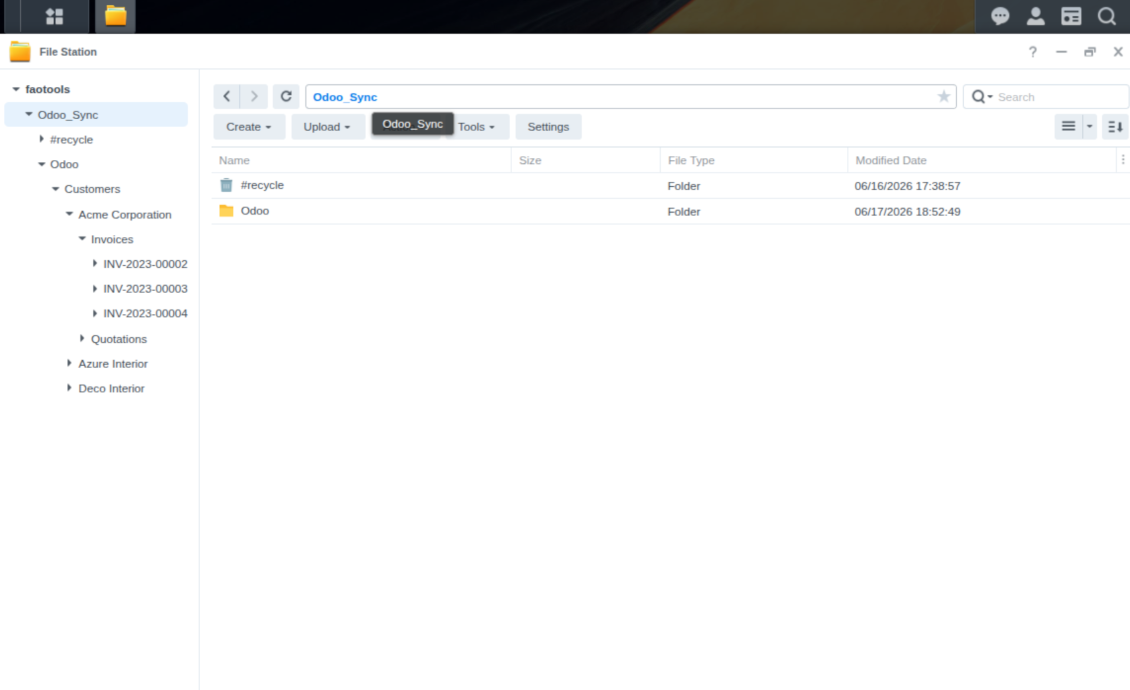
This is the tool to integrate NAS storage with Odoo folders and files through WebDAV. The app automatically stores Odoo attachments and directories in Synology, QNAP, TrueNAS (with WebDAV app), or any compatible NAS/WebDAV server and provides instant access to them via web links.
Automatic folders' structure
Decide which Odoo document types should have their own folders trees and synchronize those to NAS
Automatic regular sync
Rely on auto-synchronization between Odoo and Synology/QNAP/TrueNAS/other NAS based on scheduled jobs. No manual interaction is required
Bilateral sync
Odoo sends attachments to Synology/QNAP/TrueNAS/other NAS and retrieves files from there. Binary content is kept in clouds, while Odoo provides direct access to synced items
Cloud synchronization history
Control NAS Webdav sync logs right in Odoo. Export and share those in case of any issues. Be notified of any client disconnections
File manager interface
Manage synced folders and attachments from a single Odoo view. Comfortably navigate by directories. Search and download files one by one or in batch. Upload and move attachments to folders
Attachment box
Organize files of any Odoo object in a set of subfolders. Instantly access folders and files in the attachment box and in NAS solutions.
How synchronization works
Automatic two-sided sync
-
Configure sync for one or multiple Synology/QNAP/TrueNAS/other NAS instances
-
Integration is based on scheduled jobs and is fully automatized. The app regularly checks changes in systems and runs sync operations
-
Synchronization is bilateral. Updates in Odoo are reflected in Synology/QNAP/TrueNAS/other NAS (direct sync); changes in NAS solutions modify Odoo folders and attachments (backward sync)
-
Cloud connection with Synology/QNAP/TrueNAS/other NAS might be reset. In this way, the app assumes getting back all items back to Odoo (reverse sync)
-
Odoo folders and attachments might be re-attached to a new cloud client from Synology/QNAP/TrueNAS/other NAS. Hence, items will be first taken back to Odoo (reverse sync) and then will be put into the new cloud storage (direct sync)
Queue-based synchronization
-
Once in 15 minutes, the app examines updates in Odoo and Synology/QNAP/TrueNAS/other NAS to prepare a synchronization queue
-
Folders' checks follow the First-In-First-Out (FIFO) principle. So, directories that have not been examined for the longest will be processed first
-
Once in 15 minutes, the sync queue is run by the special scheduled job. Firstly, the most important (blocking) tasks would be done
-
Control planned jobs and their fulfillment in the special Odoo logs interface (Cloud Storage > Configuration > Sync Logs). Subscribe for particular cloud clients notifications
-
If the app faces sync failures, it will re-try operations afterward. Sync queue processing would not be stopped if there are items not blocked by such failures
Odoo attachments for NAS solutions: direct sync
-
Direct sync prepares the folders' hierarchy and uploads Odoo attachments for Synology/QNAP/TrueNAS/other NAS
-
Direct sync checks whether attachments are added or deleted for synced directories. If so, they would be created or removed in Synology/QNAP/TrueNAS/other NAS. In particular, it means that any file added to a folder-related Odoo object (e.g. Quotation), would be automatically moved to a linked cloud client
-
Direct sync makes all synced Odoo attachments change their type to a link (URL), while binary content is removed with one of the next Odoo cleaners. So, no actual files would be stored on your Odoo server
-
Direct sync checks whether a new folder is added. Disregarding whether it is done manually or automatically, the app would generate a peer directory in Synology/QNAP/TrueNAS/other NAS
-
Direct sync checks whether there are any updates in folders. If so, such changes are reflected in Synology/QNAP/TrueNAS/other NAS
WebDAV files and folders for Odoo: backward sync
-
Backward sync checks whether any files or subfolders are added to Synology/QNAP/TrueNAS/other NAS folders. If so, the app would create URL attachments/subdirectories inside linked Odoo directories (and hence Odoo objects if any)
-
Backward sync checks whether there are any updates in folders or attachments. Such updates would be then reflected in Odoo
-
Backward sync checks whether any files are deleted/moved in a Synology/QNAP/TrueNAS/other NAS document folder. If so, a linked Odoo attachment would be also unlinked or moved
-
If you deleted a Synology/QNAP/TrueNAS/other NAS folder related to a folder rule / Odoo object, their child files would be deleted as well. Thus, Odoo would remove related attachments. The folders, however, will be recovered with a direct sync
-
In case of conflicts, direct sync changes are in general considered more important than backward updates.
Resetting or changing Synology/QNAP/TrueNAS/other NAS: reverse sync
-
In case you decided to reset the connection with Synology/QNAP/TrueNAS/other NAS, files would be moved back to Odoo
-
In case you decided to change the cloud client of a folder rule or a folder, files would be first taken back to Odoo, and then direct sync for a new client would be done
-
Reverse sync operations are prioritized to direct and backward sync operations
-
Not all items can be correctly reversed to Odoo due to cloud client peculiarities. For example, there are documents that may exist only in cloud storage environments. The app would try to convert such documents, but in some cases, it would require manual interactions.
Määritys- ja asennusvinkkejä: NAS / Synology / QNAP / TrueNAS Odoo Integration Odoo v.17
NAS preconfiguration notes
NAS systems usually expose files through a local network. If your Odoo server is hosted outside that network, the WebDAV endpoint should be reachable from Odoo through a secure channel. Recommended options are a reverse proxy with a valid HTTPS certificate, a VPN or secure tunnel such as WireGuard, Tailscale, or Cloudflare Tunnel, or a vendor relay such as Synology QuickConnect or QNAP myQNAPcloud. Plain port forwarding is possible but should be treated as the least preferred option.
Use a dedicated NAS user with the minimum required rights to one shared folder: read, create, update, move, and delete. Avoid administrator accounts. Publicly exposed endpoints should always use HTTPS and a valid TLS certificate. The connector has a "Verify SSL" option for trusted self-signed certificates, but it should normally remain enabled.
Configuration and log in
- Turn on the option 'NAS Sync' (Cloud Storage > Configuration > Configuration). The optional add-on NAS Odoo Integration is required
- Prepare your NAS WebDAV endpoint:
- Synology: install and enable WebDAV Server in DSM and choose HTTPS where possible
- QNAP: enable WebDAV for the target shared folder and use HTTPS where possible
- TrueNAS CORE: enable the WebDAV service; TrueNAS SCALE: install and configure the WebDAV app, since native WebDAV was removed in modern SCALE releases
- Generic WebDAV: make sure PROPFIND, MKCOL, PUT, GET, MOVE, and DELETE are available
- If Odoo is hosted outside the local NAS network, make the WebDAV endpoint reachable securely. Prefer a reverse proxy with a valid TLS certificate, a VPN/secure tunnel such as WireGuard, Tailscale, or Cloudflare Tunnel, or a vendor relay such as Synology QuickConnect or QNAP myQNAPcloud. Avoid exposing an administrator interface to the Internet
- Create a dedicated NAS user with full rights only inside the target shared folder: read, create, write, move, and delete. Do not use an administrator account
- Go to Odoo Cloud Storage > Configuration > Cloud Clients and press 'Create'
- As a reference, introduce any name which would be clear to all users
- As a Cloud client, choose 'Synology NAS', 'QNAP NAS', 'TrueNAS', or 'WebDAV NAS'
- As a Root folder name, enter a title that will be used as the parent NAS directory for all synced folders. For example, 'Odoo' or 'OdooERP'
- Enter the full WebDAV URL, login, and password. Optionally define a base path if Odoo should create the root folder inside an existing share or directory
- Keep 'Verify SSL' enabled for public HTTPS endpoints. Disable it only for a trusted private endpoint with a self-signed certificate
- Optionally define a browser base URL if NAS files should be opened through a vendor file station URL instead of the raw WebDAV URL
- Press 'Confirm'. Odoo checks the WebDAV connection and creates or finds the root directory. NAS - Odoo synchronization is ready to be done
- Apply the newly created cloud client to folder rules and/or manual folders which should be synced to that NAS storage
- Await the sync scheduled job to be started. For testing purposes only: trigger integration manually from Cloud Storage > Configuration > Configuration > the button 'Launch sync'.
Enter QNAP credentials

Enter Synology credentials

Enter TrueNAS credentials

Usein kysytyt kysymykset aiheesta NAS / Synology / QNAP / TrueNAS Odoo Integration Odoo v.17
Mihin synkronoidut tiedostot tallennetaan? Kopioidaanko ne sekä Odooseen että pilviin?
Sovellus olettaa, että liitteiden binaarisisältö pidetään Cloud Clientissä Odoo-palvelimen sijaan. Siksi tällaisista liitteistä tulee Odoossa URL-tyyppisiä, ja niihin pääsee milloin tahansa joko liitekentästä tai Cloud Clientistä.
Määrityksen jälkeen manuaalisia toimia ei tarvita, koska synkronointi on täysin automaattinen. Päätä vain, mitkä Odoo-asiakirjatyypit synkronoidaan, ja aseta kullekin liittyvä malli (asiakkaat, myynti- tai ostotilaukset, tehtävät, projektit jne.).
Voinko pitää useita kansioita samalle asiakirjatyypille? Esimerkiksi sisäiset projektit ja asiakasprojektit?
Kyllä. Tee sitä varten sääntö kullekin ja aseta suodattimet: esimerkiksi projektin tyypin mukaan.
Tee suodattimista toisensa poissulkevia, jotta asiakirja voidaan sijoittaa varmasti. Esimerkiksi: «asiakas mutta ei toimittaja», «toimittaja mutta ei asiakas». Muuten asiakirjan kansio hyppää mallista toiseen.
Voiko synkronoinnin tehdä reaaliaikaiseksi?
Ei. Meillä on vahvat syyt välttää reaaliaikaista synkronointia:
Suorituskyky. Reaaliaikaisessa synkassa jokainen tiedoston lataus näyttää latausruudun.
Ristiriidat. Jos 2 käyttäjää muuttaa kohdetta yhtä aikaa, tilanne voi jäädä ratkaisematta. Säännöllisissä töissä voimme korjata myöhemmin; reaaliajassa tarvittaisiin jono, mikä sekoittaisi entisestään.
Toiminnallisuus. Erityisesti nimeäminen ja uudelleenjärjestely. Paluysynk nojaa tiukasti hakemistologiikkaan ja jokaisessa synkassa tarkistetaan 100 % kohteista. Jokaisen päivityksen jälkeen se olisi tuhansia pyyntöjä sekunnissa. Muuten muutokset katoaisivat.
Voinko muuttaa kansioiden oletusnimiä pilvissä?
Voit antaa mallien hakemistoille (myyntitilaukset, mahdollisuudet, toimittajat jne.) oman nimen mille tahansa asiakirjatyypille.
Kohdekansioissa (SO-001, John Smith jne.) työkalu käyttää Odoon näyttönimen muodostusta. Voit muuttaa sen nimilausekkeella. Syntaksi on sama kuin Odoon sähköpostimalleissa.
Voinko muuttaa synkronointitöiden taajuutta?
Ei, versiosta 15 alkaen ajastettuja töitä ei pidä muuttaa. Ne on optimoitu suoritettavaksi 15 minuutin välein, jotta yhteys pysyy mahdollisimman vakaana ja nopeana.
Varmista, että Odoo-palvelimen aikakatkaisut on asetettu vähintään 15 minuuttiin (900 sekuntia).
Jos synkronointi pitää keskeyttää hetkeksi, tee se kyseisen pilviasiakkaan lomakkeella.
Voinko synkronoida liitteet useisiin pilviasiakkaisiin
Kyllä, versiosta 15 alkaen voit määrittää useita yhteyksiä. Näin osa kansioista synkronoituu yhteen pilviasiakkaaseen ja osa toiseen.
Samaa kansiota ei voi millään synkronoida yhtä aikaa useaan pilvitallennukseen.
Käytämme pilvissä erityistä editoria (esim. OnlyOffice, Office 365 jne.). Avautuisivatko tiedostot siinä editorissa?
Kyllä, pilviasiakkaasi asetuksista riippuen.
Tarvitsenko vain Cloud Storage Solution -sovelluksen?
Versiosta 15 alkaen sovellusta voi käyttää yksinään liitteiden kansiointiin ja tiedostonhallintakäyttöliittymään.
Jos tavoitteena on yhteys johonkin pilviasiakkaista, on asennettava vähintään yksi valinnainen asiakassovellus.
Mitä tapahtuu, kun muutan kansion sääntöä?
Kansion sääntö muuttuessa myös kansiolista muuttuu. Jos kansio ei enää täytä ehtoja, se poistetaan. Jos tiedostot oli synkronoitu, paluysynk palauttaa ne Odooseen ja poistaa Cloud Clientista.
Jos asiakirjan kohde ei täytä kansion sääntöä, kansiota ei luoda. Jos se täyttää ehdot myöhemmin, liittyvä kansio luodaan.
Sovellus- ja sivustotekstit muilla kielillä kuin englanniksi on tehty tekoälyn tuella ja linjattu virallisiin Odoo-käännöksiin. Jos huomaat virheen, lähetä käännösten oikeellisuutta koskeva tiketti niin korjaamme sen.
Odoo-demotietokannat (live-esikatselut)
Tälle sovellukselle voimme tarjota ilmaisen henkilökohtaisen demotietokannan.
Yhteydenottoon ei tarvita puhelinnumeroa eikä luottokorttia. Riittää lyhyt sähköpostirekisteröinti, joka kestää alle 30 sekuntia.
Pyynnöstäsi valmistelemme yksilöllisen live-esikatselutietokannan, jossa voit testata ja tarkistaa oletuksia noin kahden viikon ajan.
Virheiden ilmoittaminen
Jos kohtaat virheitä tai epäjohdonmukaista toimintaa, ota yhteyttä. Korjaamme 60 päivän kuluessa ostosta ja kehitämme työkaluja sen jälkeenkin.
Yhteydenottoon ei tarvita puhelinnumeroa eikä luottokorttia. Riittää lyhyt sähköpostirekisteröinti, joka kestää alle 30 sekuntia.
Liitä pyyntöön mahdollisimman paljon tietoja: kuvakaappaukset, Odoo-palvelinlokit ja täysi kuvaus ongelman toistamisesta. Työsuunnitelma (jos virhe vahvistetaan) tai ohjeet (muuten) valmistuvat yleensä muutamassa arkipäivässä.
Julkiset ominaisuuspyynnöt ja moduliehdotukset (ilmainen kehitys)
Olemme vahvasti motivoituneita kehittämään työkalujamme ja kiitollisia kaikesta palautteesta. Jos vaatimuksesi palvelevat yleisesti ja ne voidaan toteuttaa tehokkaasti, tiimi lisää ne tehtävälistaan.
Tällainen tehtävälista käsitellään säännöllisesti eikä siihen sisälly lisämaksuja. Emme voi luvata määräaikoja ja lopullista suunnittelua, mutta se voi olla hyvä tapa saada toivottuja ominaisuuksia ilman investointeja ja riskejä.
Yhteydenottoon ei tarvita puhelinnumeroa eikä luottokorttia. Riittää lyhyt sähköpostirekisteröinti, joka kestää alle 30 sekuntia.


The tool to build a deep and structured knowledge base for internal and external use. Knowledge System. KMS. Wiki-like revisions.
398€
The tool to set up KPI targets and control their fulfillment by periods. KPI dashboards. Dashboard designer. KPI charts

The tool for time-based service management from booking appointments to sales and reviews
398€
The tool to manage your Odoo from your favorite AI chats through MCP. Claude. Any MCP-supporting AI.

The tool to flexibly structure Odoo attachments in folders and synchronize directories with cloud clients: Google Drive, OneDrive/SharePoint, Nextcloud/ownCloud, Dropbox, Amazon S3, Box, and NAS. DMS. File Manager. Document management system
398€
The tool to automatically synchronize Odoo attachments with OneDrive files in both ways
487€
The tool to automatically synchronize Odoo attachments with Google Drive files in both ways
487€
The tool to automatically synchronize Odoo attachments with ownCloud/Nextcloud files in both ways
487€