NAS / Synology / QNAP / TrueNAS Odoo Integration v.17
The tool to automatically synchronize Odoo attachments with NAS Solutions in both ways. Synology, QNAP, TrueNAS and any other WebDav-supporting NAS solutions
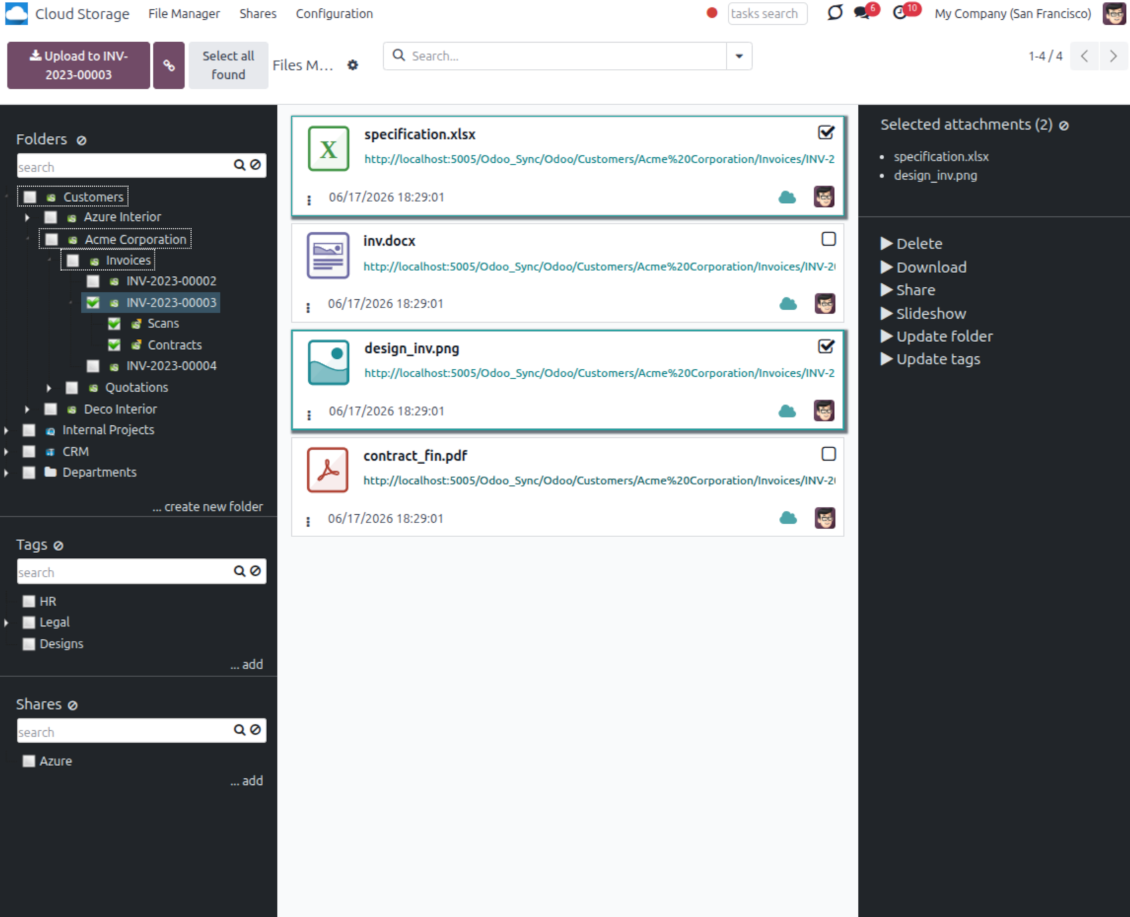
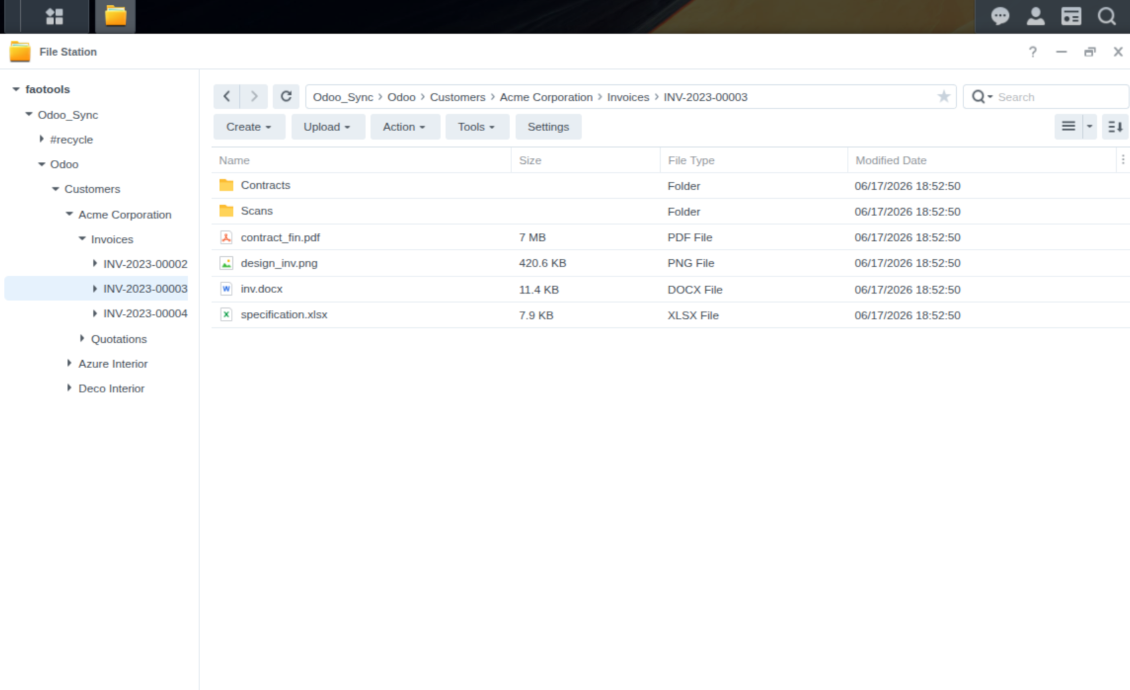
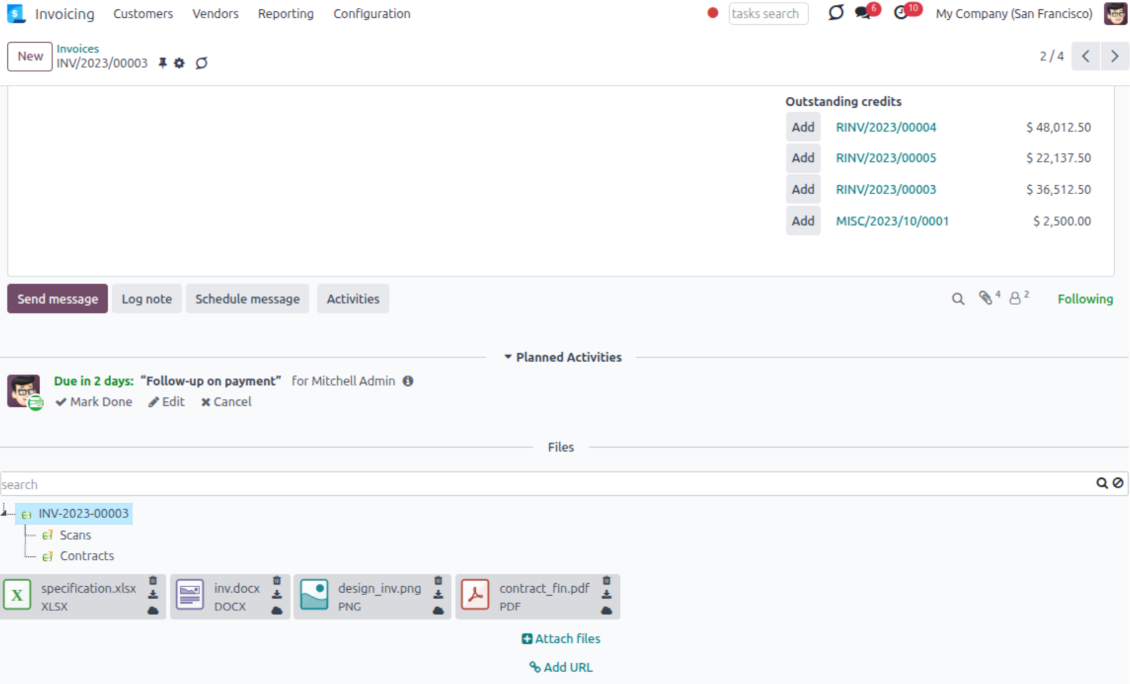
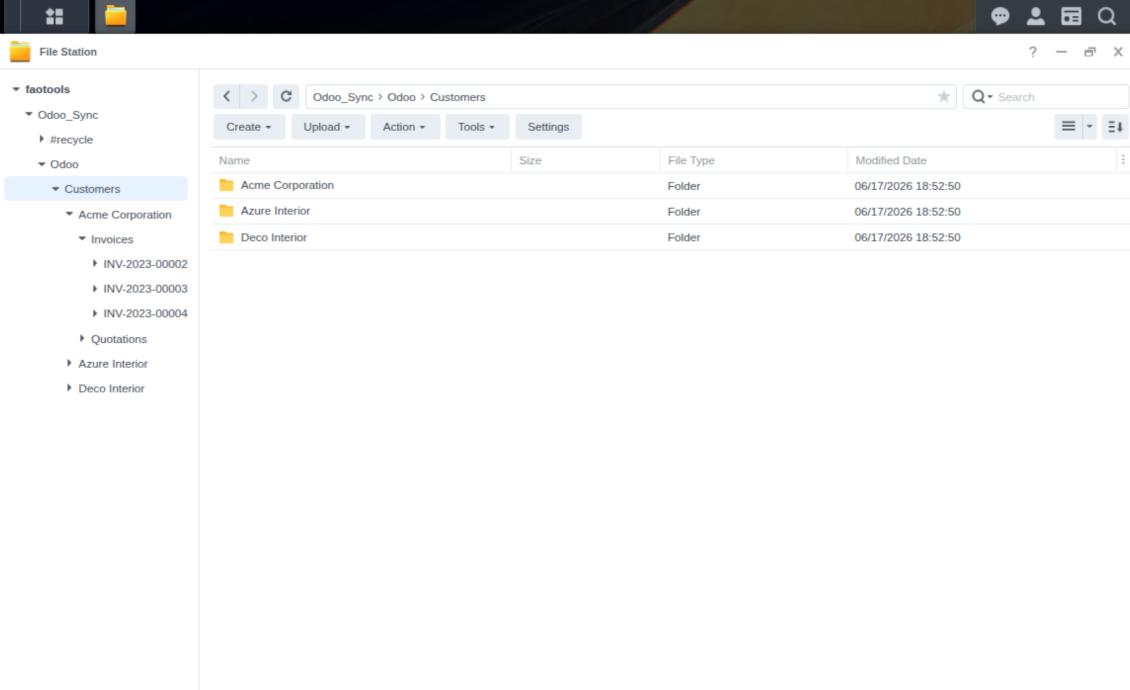
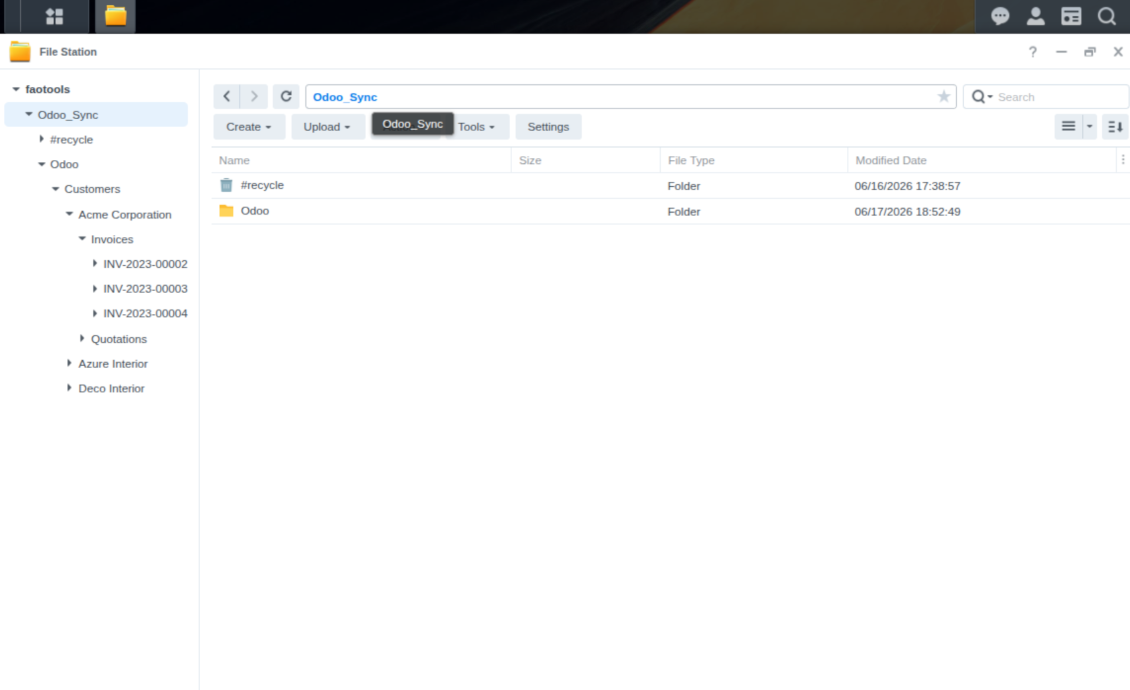
This is the tool to integrate NAS storage with Odoo folders and files through WebDAV. The app automatically stores Odoo attachments and directories in Synology, QNAP, TrueNAS (with WebDAV app), or any compatible NAS/WebDAV server and provides instant access to them via web links.
Automatic folders' structure
Decide which Odoo document types should have their own folders trees and synchronize those to NAS
Automatic regular sync
Rely on auto-synchronization between Odoo and Synology/QNAP/TrueNAS/other NAS based on scheduled jobs. No manual interaction is required
Bilateral sync
Odoo sends attachments to Synology/QNAP/TrueNAS/other NAS and retrieves files from there. Binary content is kept in clouds, while Odoo provides direct access to synced items
Cloud synchronization history
Control NAS Webdav sync logs right in Odoo. Export and share those in case of any issues. Be notified of any client disconnections
File manager interface
Manage synced folders and attachments from a single Odoo view. Comfortably navigate by directories. Search and download files one by one or in batch. Upload and move attachments to folders
Attachment box
Organize files of any Odoo object in a set of subfolders. Instantly access folders and files in the attachment box and in NAS solutions.
How synchronization works
Automatic two-sided sync
-
Configure sync for one or multiple Synology/QNAP/TrueNAS/other NAS instances
-
Integration is based on scheduled jobs and is fully automatized. The app regularly checks changes in systems and runs sync operations
-
Synchronization is bilateral. Updates in Odoo are reflected in Synology/QNAP/TrueNAS/other NAS (direct sync); changes in NAS solutions modify Odoo folders and attachments (backward sync)
-
Cloud connection with Synology/QNAP/TrueNAS/other NAS might be reset. In this way, the app assumes getting back all items back to Odoo (reverse sync)
-
Odoo folders and attachments might be re-attached to a new cloud client from Synology/QNAP/TrueNAS/other NAS. Hence, items will be first taken back to Odoo (reverse sync) and then will be put into the new cloud storage (direct sync)
Queue-based synchronization
-
Once in 15 minutes, the app examines updates in Odoo and Synology/QNAP/TrueNAS/other NAS to prepare a synchronization queue
-
Folders' checks follow the First-In-First-Out (FIFO) principle. So, directories that have not been examined for the longest will be processed first
-
Once in 15 minutes, the sync queue is run by the special scheduled job. Firstly, the most important (blocking) tasks would be done
-
Control planned jobs and their fulfillment in the special Odoo logs interface (Cloud Storage > Configuration > Sync Logs). Subscribe for particular cloud clients notifications
-
If the app faces sync failures, it will re-try operations afterward. Sync queue processing would not be stopped if there are items not blocked by such failures
Odoo attachments for NAS solutions: direct sync
-
Direct sync prepares the folders' hierarchy and uploads Odoo attachments for Synology/QNAP/TrueNAS/other NAS
-
Direct sync checks whether attachments are added or deleted for synced directories. If so, they would be created or removed in Synology/QNAP/TrueNAS/other NAS. In particular, it means that any file added to a folder-related Odoo object (e.g. Quotation), would be automatically moved to a linked cloud client
-
Direct sync makes all synced Odoo attachments change their type to a link (URL), while binary content is removed with one of the next Odoo cleaners. So, no actual files would be stored on your Odoo server
-
Direct sync checks whether a new folder is added. Disregarding whether it is done manually or automatically, the app would generate a peer directory in Synology/QNAP/TrueNAS/other NAS
-
Direct sync checks whether there are any updates in folders. If so, such changes are reflected in Synology/QNAP/TrueNAS/other NAS
WebDAV files and folders for Odoo: backward sync
-
Backward sync checks whether any files or subfolders are added to Synology/QNAP/TrueNAS/other NAS folders. If so, the app would create URL attachments/subdirectories inside linked Odoo directories (and hence Odoo objects if any)
-
Backward sync checks whether there are any updates in folders or attachments. Such updates would be then reflected in Odoo
-
Backward sync checks whether any files are deleted/moved in a Synology/QNAP/TrueNAS/other NAS document folder. If so, a linked Odoo attachment would be also unlinked or moved
-
If you deleted a Synology/QNAP/TrueNAS/other NAS folder related to a folder rule / Odoo object, their child files would be deleted as well. Thus, Odoo would remove related attachments. The folders, however, will be recovered with a direct sync
-
In case of conflicts, direct sync changes are in general considered more important than backward updates.
Resetting or changing Synology/QNAP/TrueNAS/other NAS: reverse sync
-
In case you decided to reset the connection with Synology/QNAP/TrueNAS/other NAS, files would be moved back to Odoo
-
In case you decided to change the cloud client of a folder rule or a folder, files would be first taken back to Odoo, and then direct sync for a new client would be done
-
Reverse sync operations are prioritized to direct and backward sync operations
-
Not all items can be correctly reversed to Odoo due to cloud client peculiarities. For example, there are documents that may exist only in cloud storage environments. The app would try to convert such documents, but in some cases, it would require manual interactions.
Savjeti za konfiguraciju i instalaciju za NAS / Synology / QNAP / TrueNAS Odoo Integration Odoo v.17
NAS preconfiguration notes
NAS systems usually expose files through a local network. If your Odoo server is hosted outside that network, the WebDAV endpoint should be reachable from Odoo through a secure channel. Recommended options are a reverse proxy with a valid HTTPS certificate, a VPN or secure tunnel such as WireGuard, Tailscale, or Cloudflare Tunnel, or a vendor relay such as Synology QuickConnect or QNAP myQNAPcloud. Plain port forwarding is possible but should be treated as the least preferred option.
Use a dedicated NAS user with the minimum required rights to one shared folder: read, create, update, move, and delete. Avoid administrator accounts. Publicly exposed endpoints should always use HTTPS and a valid TLS certificate. The connector has a "Verify SSL" option for trusted self-signed certificates, but it should normally remain enabled.
Configuration and log in
- Turn on the option 'NAS Sync' (Cloud Storage > Configuration > Configuration). The optional add-on NAS Odoo Integration is required
- Prepare your NAS WebDAV endpoint:
- Synology: install and enable WebDAV Server in DSM and choose HTTPS where possible
- QNAP: enable WebDAV for the target shared folder and use HTTPS where possible
- TrueNAS CORE: enable the WebDAV service; TrueNAS SCALE: install and configure the WebDAV app, since native WebDAV was removed in modern SCALE releases
- Generic WebDAV: make sure PROPFIND, MKCOL, PUT, GET, MOVE, and DELETE are available
- If Odoo is hosted outside the local NAS network, make the WebDAV endpoint reachable securely. Prefer a reverse proxy with a valid TLS certificate, a VPN/secure tunnel such as WireGuard, Tailscale, or Cloudflare Tunnel, or a vendor relay such as Synology QuickConnect or QNAP myQNAPcloud. Avoid exposing an administrator interface to the Internet
- Create a dedicated NAS user with full rights only inside the target shared folder: read, create, write, move, and delete. Do not use an administrator account
- Go to Odoo Cloud Storage > Configuration > Cloud Clients and press 'Create'
- As a reference, introduce any name which would be clear to all users
- As a Cloud client, choose 'Synology NAS', 'QNAP NAS', 'TrueNAS', or 'WebDAV NAS'
- As a Root folder name, enter a title that will be used as the parent NAS directory for all synced folders. For example, 'Odoo' or 'OdooERP'
- Enter the full WebDAV URL, login, and password. Optionally define a base path if Odoo should create the root folder inside an existing share or directory
- Keep 'Verify SSL' enabled for public HTTPS endpoints. Disable it only for a trusted private endpoint with a self-signed certificate
- Optionally define a browser base URL if NAS files should be opened through a vendor file station URL instead of the raw WebDAV URL
- Press 'Confirm'. Odoo checks the WebDAV connection and creates or finds the root directory. NAS - Odoo synchronization is ready to be done
- Apply the newly created cloud client to folder rules and/or manual folders which should be synced to that NAS storage
- Await the sync scheduled job to be started. For testing purposes only: trigger integration manually from Cloud Storage > Configuration > Configuration > the button 'Launch sync'.
Enter QNAP credentials

Enter Synology credentials

Enter TrueNAS credentials

Često postavljana pitanja o NAS / Synology / QNAP / TrueNAS Odoo Integration Odoo v.17
Gdje se pohranjuju sinkronizirana polja? Jesu li duplicirana u Odoo i oblake?
Aplikacija pretpostavlja da se binarni sadržaj privitaka čuva u Cloud Clientu umjesto na Odoo poslužitelju. Takvi privici u Odoo postaju tipa URL i možete im bilo kada pristupiti iz okvira privitaka ili iz Cloud Clienta.
Nakon postavljanja nisu potrebne ručne radnje jer je sinkronizacija potpuno automatska. Odlučite koje vrste Odoo dokumenata treba sinkronizirati i postavite povezani model za svaku od njih (klijenti, prodajni ili nabavni nalozi, zadaci, projekti itd.).
Mogu li imati nekoliko mapa za isti tip dokumenta? Na primjer, interni projekti i projekti kupaca?
Da, možete. U tu svrhu pripremite pravilo za svaki, a zatim primijenite filtre: na primjer prema vrsti projekta.
Pokušajte filtre učiniti međusobno isključivima kako bi se dokument mogao jednoznačno dodijeliti. Npr. „klijent, ali ne dobavljač“, „dobavljač, ali ne klijent“. Inače će mapa određenog dokumenta skakati s jednog modela na drugi.
Je li moguće sinkronizaciju učiniti u stvarnom vremenu?
Ne. Imamo ozbiljne razloge da izbjegavamo sinkronizaciju u stvarnom vremenu:
Problemi performansi. Ako je sinkronizacija u stvarnom vremenu, svako učitavanje datoteke rezultirat će zaslonom učitavanja.
Problemi sukoba. Ako 2 korisnika istodobno promijene stavku, to može dovesti do neriješenih situacija. Kod redovitih poslova to možemo popraviti naknadno, a u stvarnom vremenu morali bismo to spremiti kao red, što bi korisnike još više zbunitilo.
Problemi funkcionalnosti. Posebno preimenovanje i restrukturiranje stavki. U povratnoj sinkronizaciji alat se strogo oslanja na logiku direktorija i pri svakoj sinkronizaciji provjerava se 100% stavki. Ako se to radi nakon svake promjene, bit će tisuće zahtjeva u sekundi. Ako ne: promjene bi se izgubile.
Mogu li mijenjati zadana imena mapa u oblacima?
Možete dodijeliti vlastiti naziv direktorijima modela (prodajni nalozi, prilike, dobavljači itd.) za bilo koji tip dokumenta.
Za mape objekata (SO-001, John Smith itd.) alat se oslanja na Odoo metodu za sastavljanje prikaznog naziva tog tipa dokumenta. To možete promijeniti definiranjem izraza naziva. Koristi se točna sintaksa Odoo e-mail predložaka.
Mogu li mijenjati učestalost poslova sinkronizacije?
Ne, od verzije 15 ne biste trebali mijenjati zakazane poslove. Optimizirani su da se pokreću svakih 15 minuta kako bi veza bila najstabilnija i najbrža.
Pobrinite se da su vremenska ograničenja Odoo poslužitelja postavljena na najmanje 15 minuta (900 sekundi).
Ako trebate na neko vrijeme zaustaviti sinkronizaciju, učinite to na formi određenog cloud clienta.
Mogu li sinkronizirati privitke s nekoliko cloud klijenata
Da, od verzije 15 možete postaviti više veza. Tako neke mape sinkronizirate s jednim cloud clientom, a druge s drugim.
Imajte na umu da istu mapu nije moguće istodobno sinkronizirati s više cloud storages.
U našim cloudovima koristimo poseban uređivač (npr. OnlyOffice, Office 365 itd.). Bi li se datoteke otvarale u tom uređivaču?
Da, ovisno o konfiguraciji cloud clienta.
Trebam li samo aplikaciju Cloud Storage Solution?
Od verzije 15 aplikacija se može koristiti samostalno za slaganje privitaka u mape i sučelje upravitelja datoteka.
Međutim, ako je cilj veza s jednim od klijenata oblaka, treba instalirati barem jednu opcionalnu aplikaciju klijenta.
Što se dogodi kad promijenim pravilo mape?
Kad se pravilo mape promijeni, mijenja se i popis mapa. Ako mapa više ne zadovoljava uvjete pravila, uklanja se. Ako su datoteke sinkronizirane, obrnuta sinkronizacija vraća ih u Odoo i briše iz Cloud Client.
Ako objekt dokumenta ne zadovoljava uvjete pravila mape, njegova se mapa neće stvoriti. Ako ih kasnije zadovolji, povezana mapa bit će izrađena.
Tekstovi aplikacije i web stranice na jezicima osim engleskog izrađeni su uz pomoć UI i usklađeni sa službenim Odoo prijevodima. Ako uočite pogrešku, pošaljite prijavu o ispravnosti prijevoda i ispravit ćemo.
Odoo demonstracijske baze (pregledi uživo)
Za ovu aplikaciju možemo osigurati besplatnu personaliziranu demo bazu.
Za kontakt nije potreban broj telefona ni kreditna kartica. Potrebna je samo kratka prijava e-poštom koja ne traje više od 30 sekundi.
Na vaš zahtjev pripremit ćemo individualnu bazu za pregled uživo, gdje možete oko dva tjedna provoditi testove i provjeravati pretpostavke.
Prijava grešaka
Ako naiđete na greške ili nedosljedno ponašanje, slobodno nas kontaktirajte. Jamčimo ispravke unutar 60 dana od kupnje i i dalje želimo unapređivati alate nakon tog razdoblja.
Za kontakt nije potreban broj telefona ni kreditna kartica. Potrebna je samo kratka prijava e-poštom koja ne traje više od 30 sekundi.
U zahtjev uključite što više pojedinosti: snimke zaslona, zapisnike Odoo poslužitelja, potpuni opis kako reproducirati problem i slično. Obično treba nekoliko radnih dana za pripremu radnog plana (ako je greška potvrđena) ili smjernica što učiniti (inače).
Javni zahtjevi za značajke i ideje modula (besplatan razvoj)
Snažno smo motivirani poboljšati svoje alate i zahvalni smo na svakoj povratnoj informaciji. Ako su vaši zahtjevi od javne koristi i mogu se učinkovito provesti, tim će ih uvrstiti na naš popis zadataka.
Takav popis zadataka obrađuje se redovito i ne podrazumijeva dodatne naknade. Iako ne možemo obećati rokove i konačni dizajn, to može biti dobar način da dobijete željene značajke bez ulaganja i rizika.
Za kontakt nije potreban broj telefona ni kreditna kartica. Potrebna je samo kratka prijava e-poštom koja ne traje više od 30 sekundi.


The tool to build a deep and structured knowledge base for internal and external use. Knowledge System. KMS. Wiki-like revisions.
398€
The tool to set up KPI targets and control their fulfillment by periods. KPI dashboards. Dashboard designer. KPI charts

The tool for time-based service management from booking appointments to sales and reviews
398€
The tool to manage your Odoo from your favorite AI chats through MCP. Claude. Any MCP-supporting AI.

The tool to flexibly structure Odoo attachments in folders and synchronize directories with cloud clients: Google Drive, OneDrive/SharePoint, Nextcloud/ownCloud, Dropbox, Amazon S3, Box, and NAS. DMS. File Manager. Document management system
398€
The tool to automatically synchronize Odoo attachments with OneDrive files in both ways
487€
The tool to automatically synchronize Odoo attachments with Google Drive files in both ways
487€
The tool to automatically synchronize Odoo attachments with ownCloud/Nextcloud files in both ways
487€