NAS / Synology / QNAP / TrueNAS Odoo Integration v.17
The tool to automatically synchronize Odoo attachments with NAS Solutions in both ways. Synology, QNAP, TrueNAS and any other WebDav-supporting NAS solutions
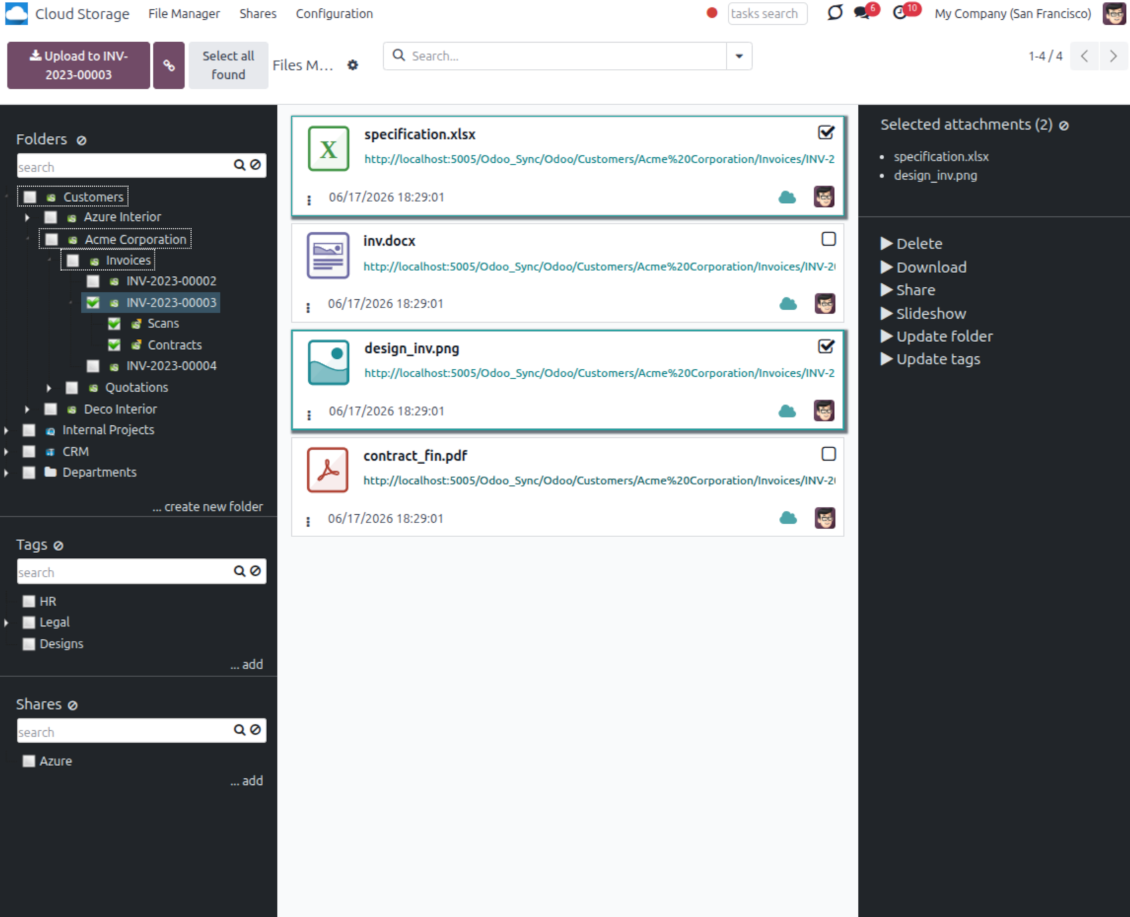
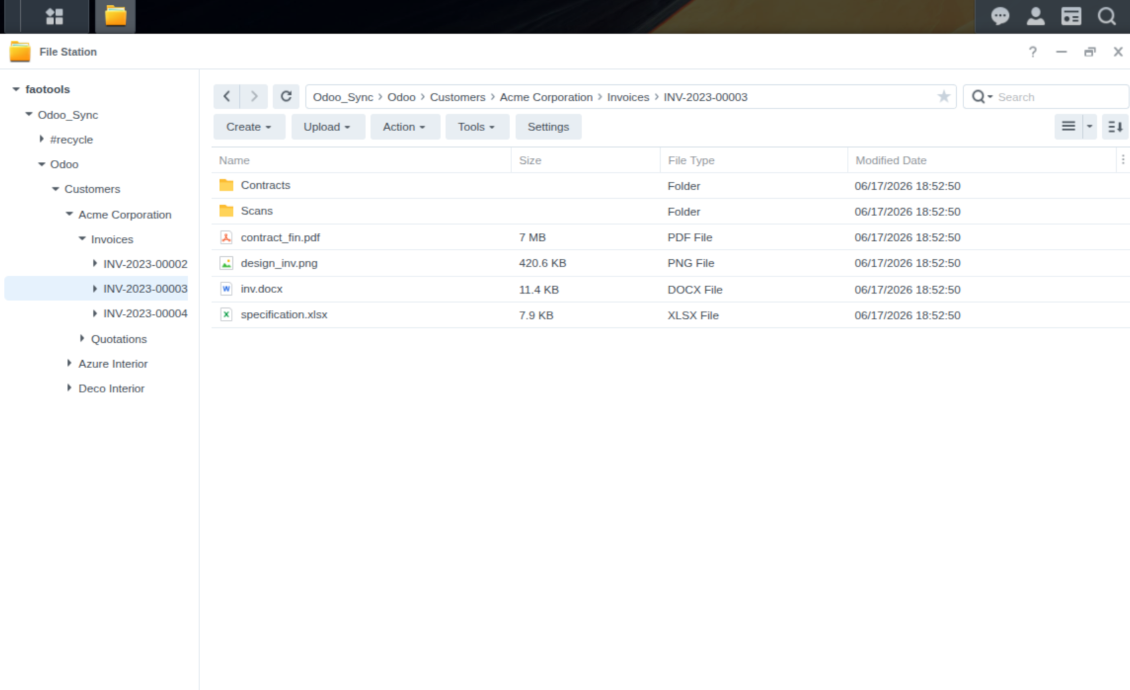
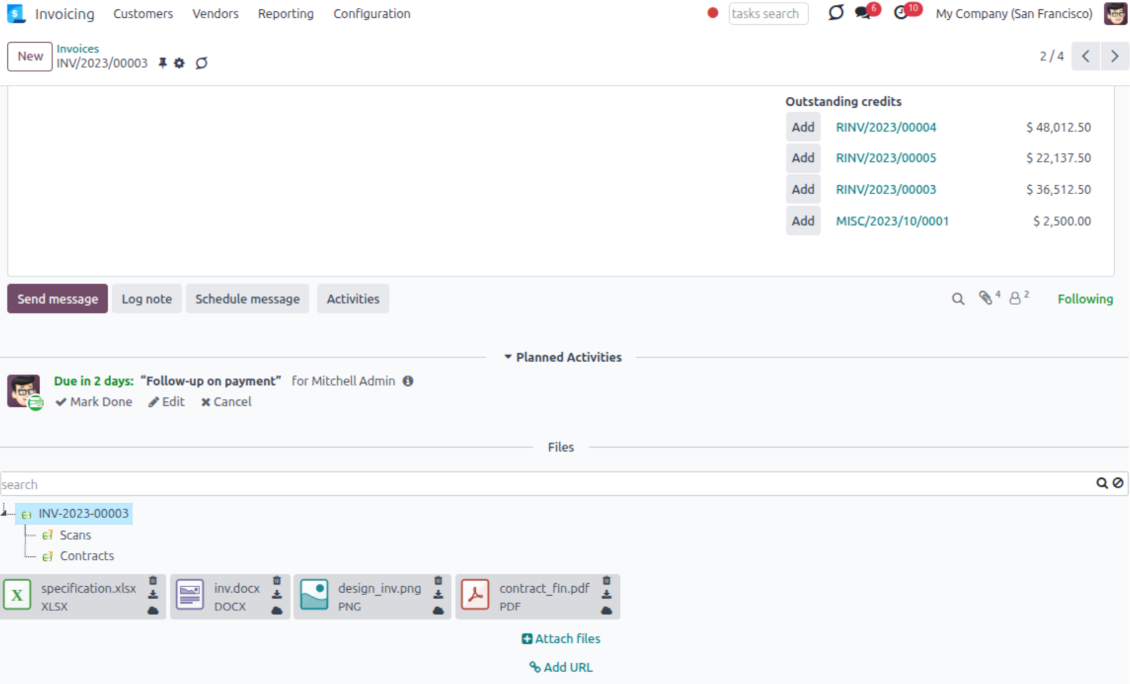
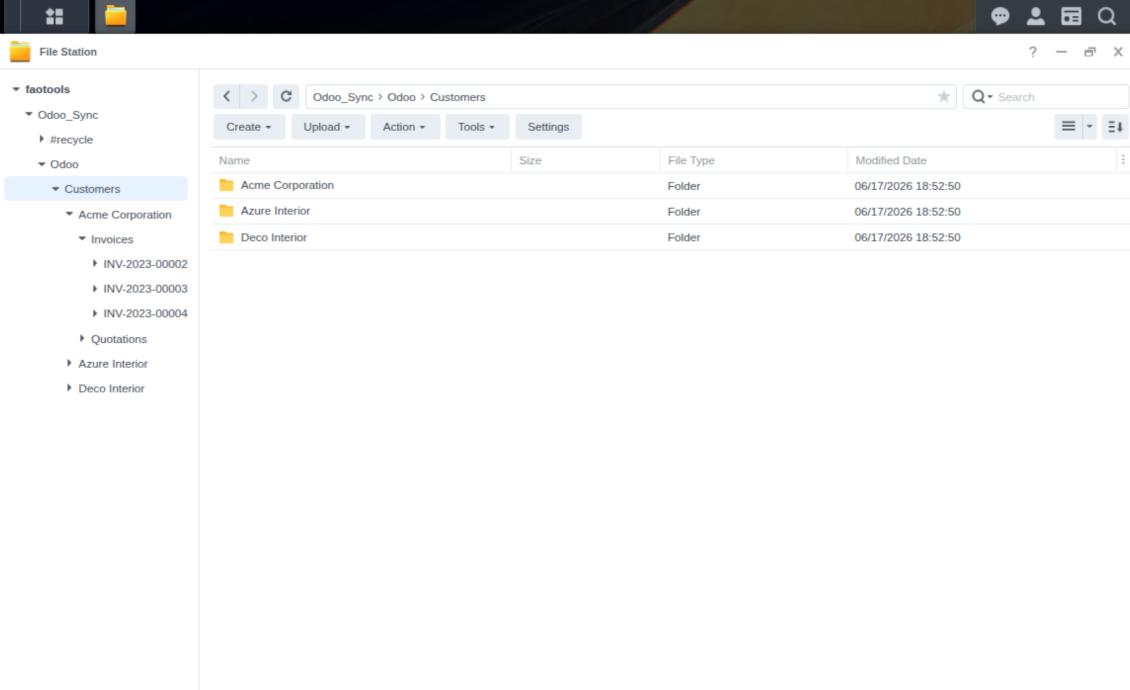
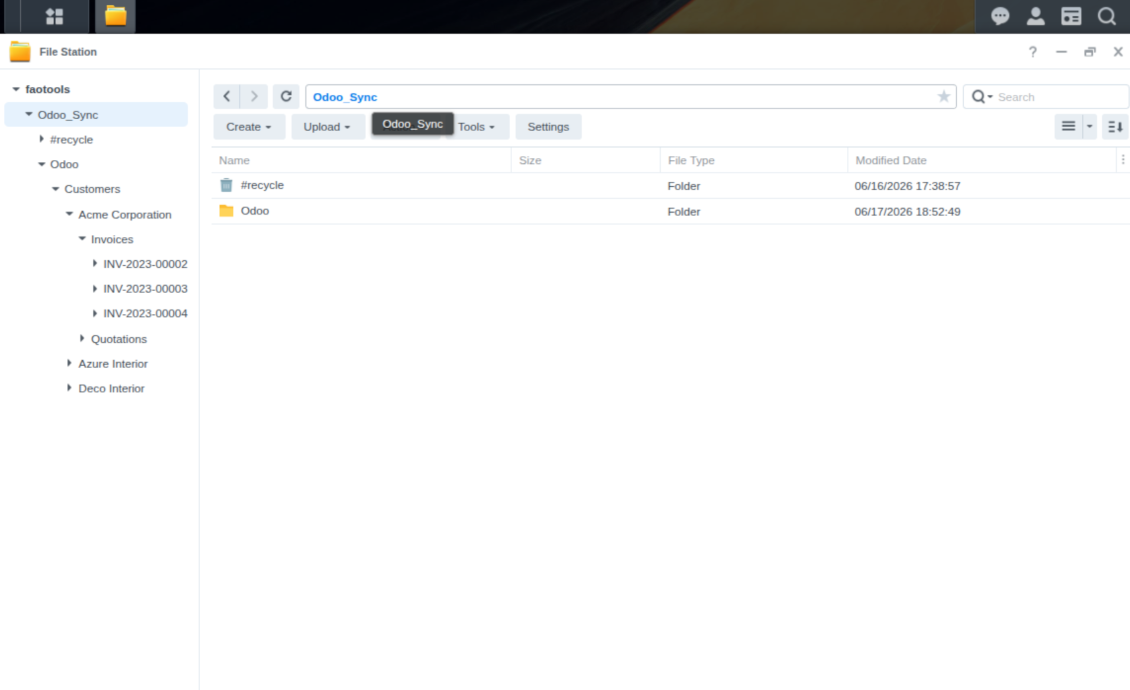
This is the tool to integrate NAS storage with Odoo folders and files through WebDAV. The app automatically stores Odoo attachments and directories in Synology, QNAP, TrueNAS (with WebDAV app), or any compatible NAS/WebDAV server and provides instant access to them via web links.
Automatic folders' structure
Decide which Odoo document types should have their own folders trees and synchronize those to NAS
Automatic regular sync
Rely on auto-synchronization between Odoo and Synology/QNAP/TrueNAS/other NAS based on scheduled jobs. No manual interaction is required
Bilateral sync
Odoo sends attachments to Synology/QNAP/TrueNAS/other NAS and retrieves files from there. Binary content is kept in clouds, while Odoo provides direct access to synced items
Cloud synchronization history
Control NAS Webdav sync logs right in Odoo. Export and share those in case of any issues. Be notified of any client disconnections
File manager interface
Manage synced folders and attachments from a single Odoo view. Comfortably navigate by directories. Search and download files one by one or in batch. Upload and move attachments to folders
Attachment box
Organize files of any Odoo object in a set of subfolders. Instantly access folders and files in the attachment box and in NAS solutions.
How synchronization works
Automatic two-sided sync
-
Configure sync for one or multiple Synology/QNAP/TrueNAS/other NAS instances
-
Integration is based on scheduled jobs and is fully automatized. The app regularly checks changes in systems and runs sync operations
-
Synchronization is bilateral. Updates in Odoo are reflected in Synology/QNAP/TrueNAS/other NAS (direct sync); changes in NAS solutions modify Odoo folders and attachments (backward sync)
-
Cloud connection with Synology/QNAP/TrueNAS/other NAS might be reset. In this way, the app assumes getting back all items back to Odoo (reverse sync)
-
Odoo folders and attachments might be re-attached to a new cloud client from Synology/QNAP/TrueNAS/other NAS. Hence, items will be first taken back to Odoo (reverse sync) and then will be put into the new cloud storage (direct sync)
Queue-based synchronization
-
Once in 15 minutes, the app examines updates in Odoo and Synology/QNAP/TrueNAS/other NAS to prepare a synchronization queue
-
Folders' checks follow the First-In-First-Out (FIFO) principle. So, directories that have not been examined for the longest will be processed first
-
Once in 15 minutes, the sync queue is run by the special scheduled job. Firstly, the most important (blocking) tasks would be done
-
Control planned jobs and their fulfillment in the special Odoo logs interface (Cloud Storage > Configuration > Sync Logs). Subscribe for particular cloud clients notifications
-
If the app faces sync failures, it will re-try operations afterward. Sync queue processing would not be stopped if there are items not blocked by such failures
Odoo attachments for NAS solutions: direct sync
-
Direct sync prepares the folders' hierarchy and uploads Odoo attachments for Synology/QNAP/TrueNAS/other NAS
-
Direct sync checks whether attachments are added or deleted for synced directories. If so, they would be created or removed in Synology/QNAP/TrueNAS/other NAS. In particular, it means that any file added to a folder-related Odoo object (e.g. Quotation), would be automatically moved to a linked cloud client
-
Direct sync makes all synced Odoo attachments change their type to a link (URL), while binary content is removed with one of the next Odoo cleaners. So, no actual files would be stored on your Odoo server
-
Direct sync checks whether a new folder is added. Disregarding whether it is done manually or automatically, the app would generate a peer directory in Synology/QNAP/TrueNAS/other NAS
-
Direct sync checks whether there are any updates in folders. If so, such changes are reflected in Synology/QNAP/TrueNAS/other NAS
WebDAV files and folders for Odoo: backward sync
-
Backward sync checks whether any files or subfolders are added to Synology/QNAP/TrueNAS/other NAS folders. If so, the app would create URL attachments/subdirectories inside linked Odoo directories (and hence Odoo objects if any)
-
Backward sync checks whether there are any updates in folders or attachments. Such updates would be then reflected in Odoo
-
Backward sync checks whether any files are deleted/moved in a Synology/QNAP/TrueNAS/other NAS document folder. If so, a linked Odoo attachment would be also unlinked or moved
-
If you deleted a Synology/QNAP/TrueNAS/other NAS folder related to a folder rule / Odoo object, their child files would be deleted as well. Thus, Odoo would remove related attachments. The folders, however, will be recovered with a direct sync
-
In case of conflicts, direct sync changes are in general considered more important than backward updates.
Resetting or changing Synology/QNAP/TrueNAS/other NAS: reverse sync
-
In case you decided to reset the connection with Synology/QNAP/TrueNAS/other NAS, files would be moved back to Odoo
-
In case you decided to change the cloud client of a folder rule or a folder, files would be first taken back to Odoo, and then direct sync for a new client would be done
-
Reverse sync operations are prioritized to direct and backward sync operations
-
Not all items can be correctly reversed to Odoo due to cloud client peculiarities. For example, there are documents that may exist only in cloud storage environments. The app would try to convert such documents, but in some cases, it would require manual interactions.
Yapılandırma ve kurulum ipuçları: NAS / Synology / QNAP / TrueNAS Odoo Integration Odoo v.17
NAS preconfiguration notes
NAS systems usually expose files through a local network. If your Odoo server is hosted outside that network, the WebDAV endpoint should be reachable from Odoo through a secure channel. Recommended options are a reverse proxy with a valid HTTPS certificate, a VPN or secure tunnel such as WireGuard, Tailscale, or Cloudflare Tunnel, or a vendor relay such as Synology QuickConnect or QNAP myQNAPcloud. Plain port forwarding is possible but should be treated as the least preferred option.
Use a dedicated NAS user with the minimum required rights to one shared folder: read, create, update, move, and delete. Avoid administrator accounts. Publicly exposed endpoints should always use HTTPS and a valid TLS certificate. The connector has a "Verify SSL" option for trusted self-signed certificates, but it should normally remain enabled.
Configuration and log in
- Turn on the option 'NAS Sync' (Cloud Storage > Configuration > Configuration). The optional add-on NAS Odoo Integration is required
- Prepare your NAS WebDAV endpoint:
- Synology: install and enable WebDAV Server in DSM and choose HTTPS where possible
- QNAP: enable WebDAV for the target shared folder and use HTTPS where possible
- TrueNAS CORE: enable the WebDAV service; TrueNAS SCALE: install and configure the WebDAV app, since native WebDAV was removed in modern SCALE releases
- Generic WebDAV: make sure PROPFIND, MKCOL, PUT, GET, MOVE, and DELETE are available
- If Odoo is hosted outside the local NAS network, make the WebDAV endpoint reachable securely. Prefer a reverse proxy with a valid TLS certificate, a VPN/secure tunnel such as WireGuard, Tailscale, or Cloudflare Tunnel, or a vendor relay such as Synology QuickConnect or QNAP myQNAPcloud. Avoid exposing an administrator interface to the Internet
- Create a dedicated NAS user with full rights only inside the target shared folder: read, create, write, move, and delete. Do not use an administrator account
- Go to Odoo Cloud Storage > Configuration > Cloud Clients and press 'Create'
- As a reference, introduce any name which would be clear to all users
- As a Cloud client, choose 'Synology NAS', 'QNAP NAS', 'TrueNAS', or 'WebDAV NAS'
- As a Root folder name, enter a title that will be used as the parent NAS directory for all synced folders. For example, 'Odoo' or 'OdooERP'
- Enter the full WebDAV URL, login, and password. Optionally define a base path if Odoo should create the root folder inside an existing share or directory
- Keep 'Verify SSL' enabled for public HTTPS endpoints. Disable it only for a trusted private endpoint with a self-signed certificate
- Optionally define a browser base URL if NAS files should be opened through a vendor file station URL instead of the raw WebDAV URL
- Press 'Confirm'. Odoo checks the WebDAV connection and creates or finds the root directory. NAS - Odoo synchronization is ready to be done
- Apply the newly created cloud client to folder rules and/or manual folders which should be synced to that NAS storage
- Await the sync scheduled job to be started. For testing purposes only: trigger integration manually from Cloud Storage > Configuration > Configuration > the button 'Launch sync'.
Enter QNAP credentials

Enter Synology credentials

Enter TrueNAS credentials

Hakkında sık sorulan sorular NAS / Synology / QNAP / TrueNAS Odoo Integration Odoo v.17
Senkronize edilen dosyalar nerede saklanır? Odoo ve bulutlarda çoğaltılır mı?
Uygulama, eklerin ikili içeriğinin Odoo sunucusu yerine Cloud Client'te tutulduğunu varsayar. Bu yüzden Odoo'daki bu ekler URL tipine dönüşür ve onlara istediğiniz zaman ek kutusundan veya Cloud Client'ten erişebilirsiniz.
Kurulumdan sonra elle işlem gerekmez; senkronizasyon tamamen otomatiktir. Hangi Odoo belge tiplerinin senkronize edileceğine karar verin ve her biri için ilgili modeli ayarlayın (müşteriler, satış veya satın alma siparişleri, görevler, projeler vb.).
Aynı belge türü için birkaç klasörüm olabilir mi? Örneğin iç projeler ve müşteri projeleri?
Evet, yapabilirsiniz. Bunun için her biri için bir kural hazırlayın ve filtre uygulayın: örneğin proje türüne göre.
Bir belgenin kesin atanması için filtreleri birbirini dışlar hale getirin. Örneğin: «müşteri ama tedarikçi değil», «tedarikçi ama müşteri değil». Aksi halde belgenin klasörü bir modelden diğerine atlar.
Senkronizasyonu gerçek zamanlı yapmak mümkün mü?
Hayır. Gerçek zamanlı senkronizasyondan kaçınmamızın güçlü nedenleri var:
Performans. Senkron gerçek zamanlıysa her dosya yüklemesi yükleme ekranı gösterir.
Çakışmalar. 2 kullanıcı aynı anda bir öğeyi değiştirirse durum çözümsüz kalabilir. Düzenli işlerde sonra düzeltebiliriz; gerçek zamanda kuyruk gerekir ve bu daha kafa karıştırıcı olur.
İşlevsellik. Özellikle yeniden adlandırma ve yeniden yapılandırma. Geri senkron dizin mantığına sıkı bağlıdır ve her senkronde öğelerin %100'ü kontrol edilir. Her güncellemeden sonra saniyede binlerce istek olur. Yoksa değişiklikler kaybolur.
Bulutlardaki varsayılan klasör adlarını değiştirebilir miyim?
Her belge türü için model dizinlerine (satış siparişleri, fırsatlar, tedarikçiler vb.) kendi adınızı verebilirsiniz.
Nesne klasörleri (SO-001, John Smith vb.) için araç, Odoo'nun görünen ad yöntemine dayanır. Bunu bir ad ifadesi tanımlayarak değiştirebilirsiniz. Sözdizimi Odoo e-posta şablonlarıyla aynıdır.
Senkronizasyon işlerinin sıklığını değiştirebilir miyim?
Hayır, 15. sürümden itibaren zamanlanmış işleri değiştirmemelisiniz. En kararlı ve hızlı bağlantı için her 15 dakikada bir çalışacak şekilde eniyileştirilmişlerdir.
Odoo sunucusunun zaman aşımlarının en az 15 dakika (900 saniye) olduğundan emin olun.
Senkronizasyonu bir süre durdurmanız gerekirse, bunu ilgili bulut istemcisi formunda yapın.
Ekleri birkaç bulut istemcisine senkronize edebilir miyim
Evet, sürüm 15'ten itibaren birden fazla bağlantı kurabilirsiniz. Böylece bazı klasörler bir bulut istemcisine, diğerleri başka birine senkronize edilir.
Aynı klasörü aynı anda birkaç bulut deposuna senkronize etmek hiçbir şekilde mümkün değildir.
Bulutlarımızda özel bir düzenleyici kullanıyoruz (ör. OnlyOffice, Office 365 vb.). Dosyalar o düzenleyicide açılır mı?
Evet, bulut istemcinizin yapılandırmasına bağlı olarak.
Yalnızca Cloud Storage Solution uygulaması yeterli mi?
Sürüm 15'ten itibaren uygulama tek başına ekleri klasörlere yerleştirmek ve bir dosya yöneticisi arayüzü sunmak için kullanılabilir.
Hedef bulut istemcilerinden birine bağlantı kurmaksa, en az bir isteğe bağlı istemci uygulaması kurulmalıdır.
Bir klasör kuralını değiştirdiğimde ne olur?
Klasör kuralı değişince klasör listesi de değişir. Klasör kuralların koşullarına artık uymuyorsa kaldırılır. Dosyalar senkronize edildiyse ters senkron onları Odoo'ya döndürür ve Cloud Client'tan siler.
Belge nesnesi klasör kuralına uymuyorsa klasörü oluşturulmaz. Daha sonra uyarsa ilgili klasör oluşturulur.
İngilizce dışındaki dillerdeki uygulama ve web sitesi metinleri yapay zeka desteklidir ve resmi Odoo çevirileriyle hizalanır. Bir hata görürseniz, çeviri doğruluğu bileti gönderin ve düzeltiriz.
Odoo demo veritabanları (canlı önizlemeler)
Bu uygulama için ücretsiz kişiselleştirilmiş bir demo veritabanı sağlayabiliriz.
Bize yazmak için telefon veya kredi kartı gerekmez. Yalnızca 30 saniyeyi aşmayan kısa e-posta kaydı yeter.
İsteğiniz üzerine yaklaşık iki hafta boyunca test yapabileceğiniz ve varsayımları kontrol edebileceğiniz bireysel bir canlı önizleme veritabanı hazırlarız.
Hata bildirimi
Hata veya tutarsız davranış görürseniz bize yazın. Satın alımdan sonra 60 gün içinde düzeltme garantisi veririz; bu süreden sonra da araçları geliştirmeye devam ederiz.
Bize yazmak için telefon veya kredi kartı gerekmez. Yalnızca 30 saniyeyi aşmayan kısa e-posta kaydı yeter.
İstekte mümkün olduğunca ayrıntı verin: ekran görüntüleri, Odoo sunucu günlükleri, sorunu nasıl yeniden üreteceğinizin tam açıklaması. Genellikle birkaç iş günü içinde (hata doğrulanırsa) çalışma planı veya (değilse) yönergeler hazırlanır.
Genel özellik talepleri ve modül fikirleri (ücretsiz geliştirme)
Araçlarımızı geliştirmeye güçlü şekilde motiveyiz ve her geri bildirime minnettarız. Gereksinimleriniz kamuya yararlıysa ve verimli uygulanabilirse ekip bunları yapılacaklar listesine alır.
Böyle bir yapılacaklar listesi düzenli işlenir ve ek ücret varsaymaz. Son tarihler ve nihai tasarım sözü veremesek de istenen özellikleri yatırım ve risk olmadan almanın iyi bir yolu olabilir.
Bize yazmak için telefon veya kredi kartı gerekmez. Yalnızca 30 saniyeyi aşmayan kısa e-posta kaydı yeter.


The tool to build a deep and structured knowledge base for internal and external use. Knowledge System. KMS. Wiki-like revisions.
398€
The tool to set up KPI targets and control their fulfillment by periods. KPI dashboards. Dashboard designer. KPI charts

The tool for time-based service management from booking appointments to sales and reviews
398€
The tool to manage your Odoo from your favorite AI chats through MCP. Claude. Any MCP-supporting AI.

The tool to flexibly structure Odoo attachments in folders and synchronize directories with cloud clients: Google Drive, OneDrive/SharePoint, Nextcloud/ownCloud, Dropbox, Amazon S3, Box, and NAS. DMS. File Manager. Document management system
398€
The tool to automatically synchronize Odoo attachments with OneDrive files in both ways
487€
The tool to automatically synchronize Odoo attachments with Google Drive files in both ways
487€
The tool to automatically synchronize Odoo attachments with ownCloud/Nextcloud files in both ways
487€