NAS / Synology / QNAP / TrueNAS Odoo Integration v.17
The tool to automatically synchronize Odoo attachments with NAS Solutions in both ways. Synology, QNAP, TrueNAS and any other WebDav-supporting NAS solutions
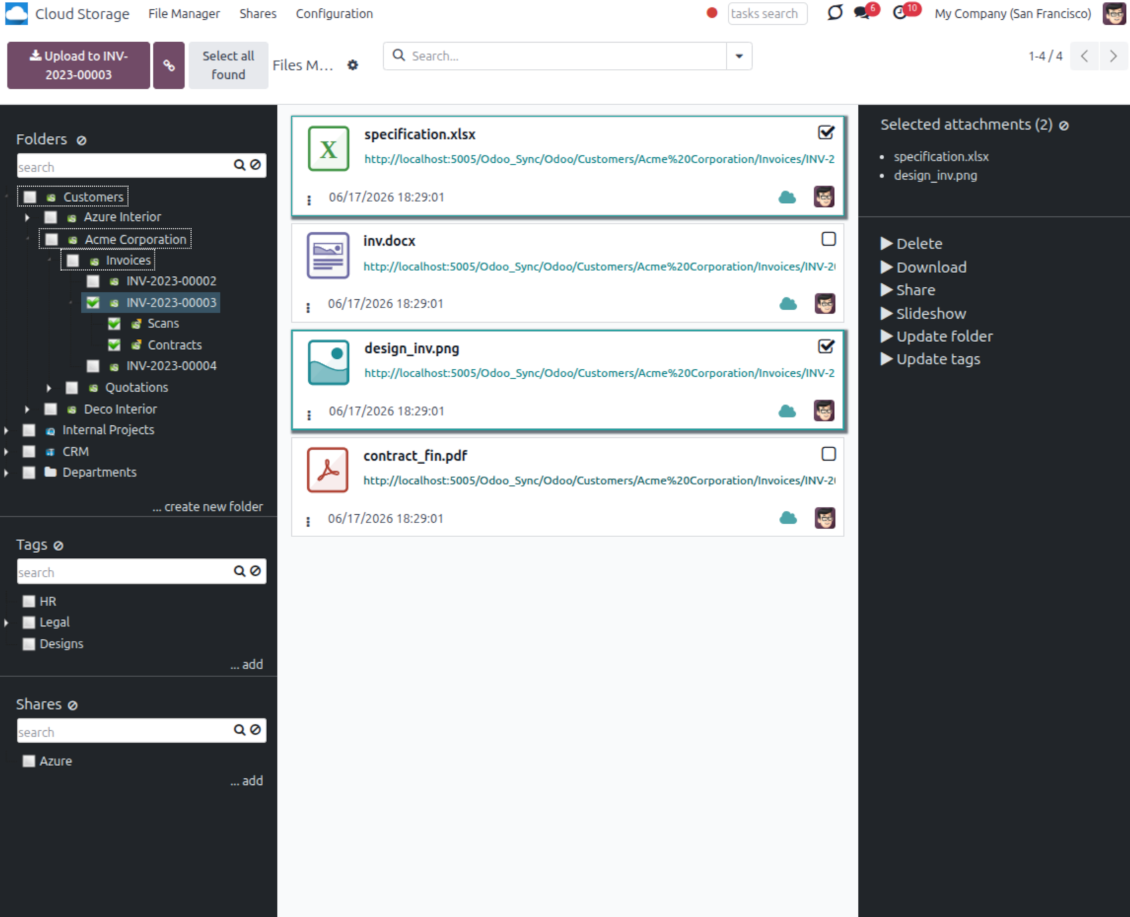
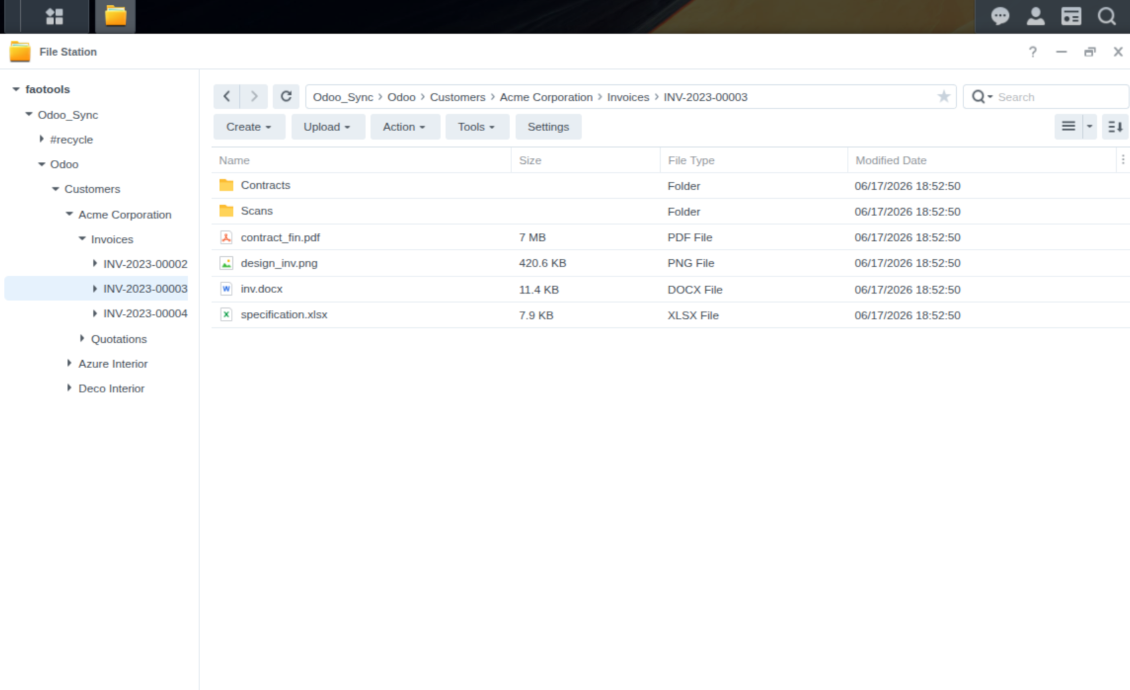
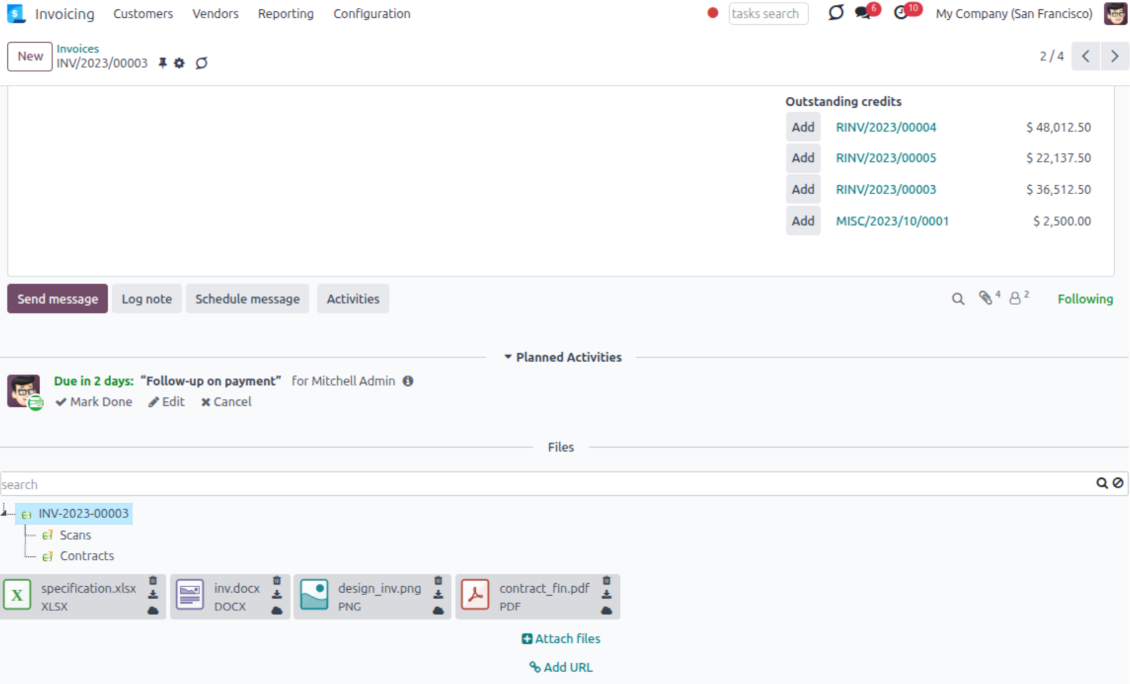
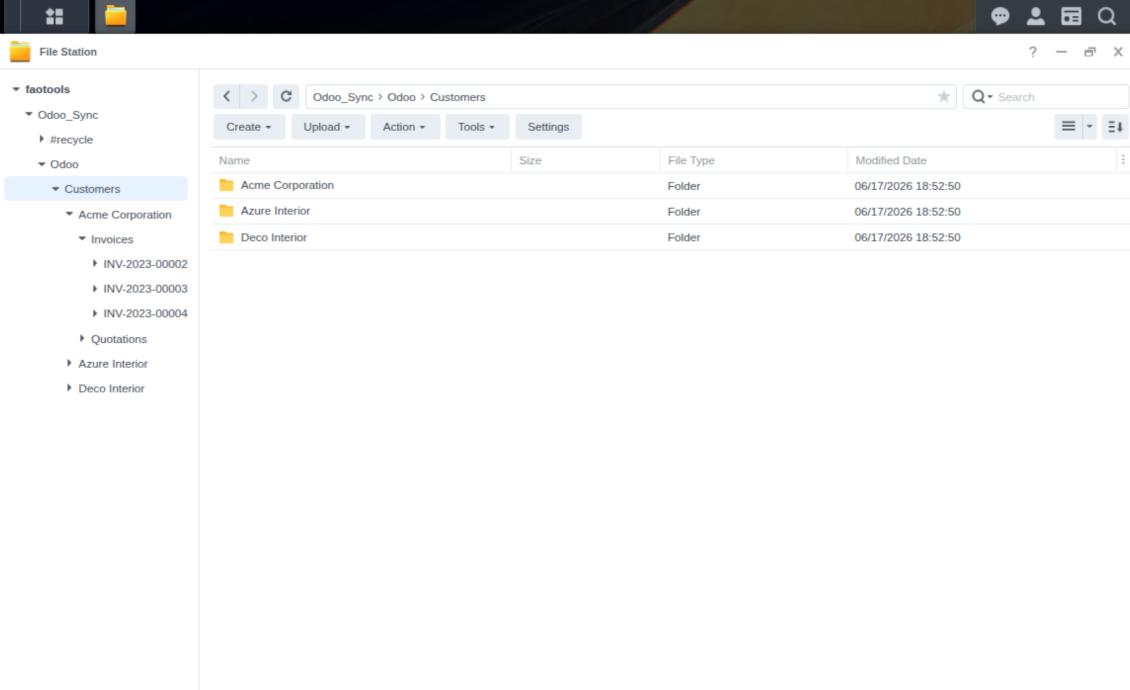
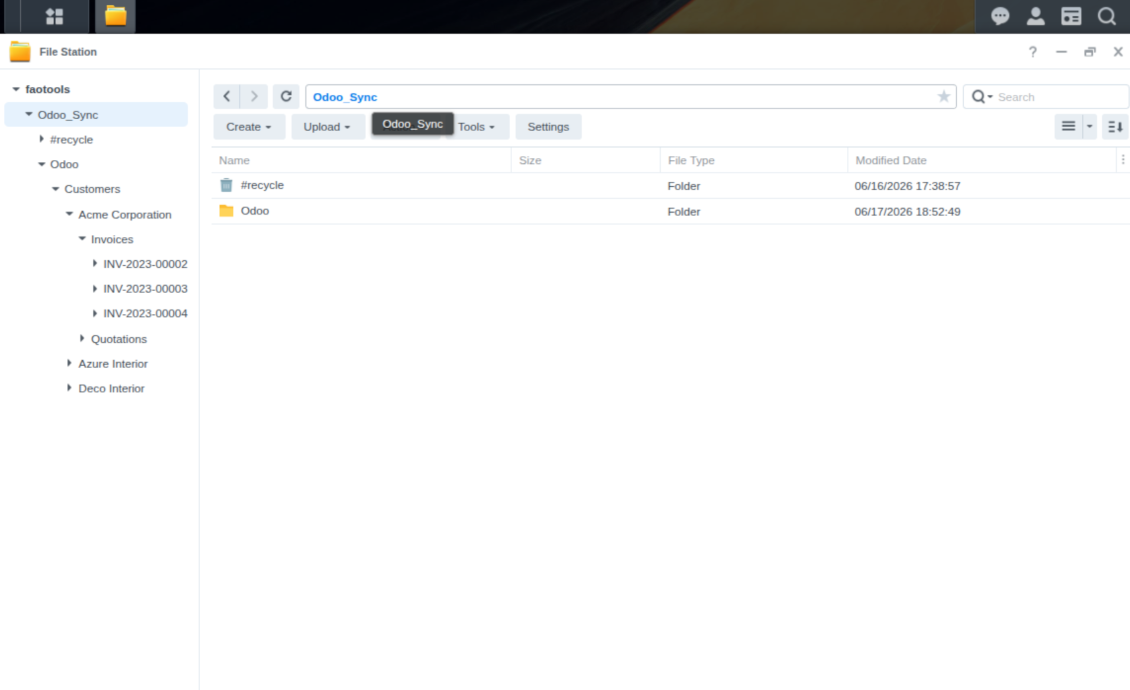
This is the tool to integrate NAS storage with Odoo folders and files through WebDAV. The app automatically stores Odoo attachments and directories in Synology, QNAP, TrueNAS (with WebDAV app), or any compatible NAS/WebDAV server and provides instant access to them via web links.
Automatic folders' structure
Decide which Odoo document types should have their own folders trees and synchronize those to NAS
Automatic regular sync
Rely on auto-synchronization between Odoo and Synology/QNAP/TrueNAS/other NAS based on scheduled jobs. No manual interaction is required
Bilateral sync
Odoo sends attachments to Synology/QNAP/TrueNAS/other NAS and retrieves files from there. Binary content is kept in clouds, while Odoo provides direct access to synced items
Cloud synchronization history
Control NAS Webdav sync logs right in Odoo. Export and share those in case of any issues. Be notified of any client disconnections
File manager interface
Manage synced folders and attachments from a single Odoo view. Comfortably navigate by directories. Search and download files one by one or in batch. Upload and move attachments to folders
Attachment box
Organize files of any Odoo object in a set of subfolders. Instantly access folders and files in the attachment box and in NAS solutions.
How synchronization works
Automatic two-sided sync
-
Configure sync for one or multiple Synology/QNAP/TrueNAS/other NAS instances
-
Integration is based on scheduled jobs and is fully automatized. The app regularly checks changes in systems and runs sync operations
-
Synchronization is bilateral. Updates in Odoo are reflected in Synology/QNAP/TrueNAS/other NAS (direct sync); changes in NAS solutions modify Odoo folders and attachments (backward sync)
-
Cloud connection with Synology/QNAP/TrueNAS/other NAS might be reset. In this way, the app assumes getting back all items back to Odoo (reverse sync)
-
Odoo folders and attachments might be re-attached to a new cloud client from Synology/QNAP/TrueNAS/other NAS. Hence, items will be first taken back to Odoo (reverse sync) and then will be put into the new cloud storage (direct sync)
Queue-based synchronization
-
Once in 15 minutes, the app examines updates in Odoo and Synology/QNAP/TrueNAS/other NAS to prepare a synchronization queue
-
Folders' checks follow the First-In-First-Out (FIFO) principle. So, directories that have not been examined for the longest will be processed first
-
Once in 15 minutes, the sync queue is run by the special scheduled job. Firstly, the most important (blocking) tasks would be done
-
Control planned jobs and their fulfillment in the special Odoo logs interface (Cloud Storage > Configuration > Sync Logs). Subscribe for particular cloud clients notifications
-
If the app faces sync failures, it will re-try operations afterward. Sync queue processing would not be stopped if there are items not blocked by such failures
Odoo attachments for NAS solutions: direct sync
-
Direct sync prepares the folders' hierarchy and uploads Odoo attachments for Synology/QNAP/TrueNAS/other NAS
-
Direct sync checks whether attachments are added or deleted for synced directories. If so, they would be created or removed in Synology/QNAP/TrueNAS/other NAS. In particular, it means that any file added to a folder-related Odoo object (e.g. Quotation), would be automatically moved to a linked cloud client
-
Direct sync makes all synced Odoo attachments change their type to a link (URL), while binary content is removed with one of the next Odoo cleaners. So, no actual files would be stored on your Odoo server
-
Direct sync checks whether a new folder is added. Disregarding whether it is done manually or automatically, the app would generate a peer directory in Synology/QNAP/TrueNAS/other NAS
-
Direct sync checks whether there are any updates in folders. If so, such changes are reflected in Synology/QNAP/TrueNAS/other NAS
WebDAV files and folders for Odoo: backward sync
-
Backward sync checks whether any files or subfolders are added to Synology/QNAP/TrueNAS/other NAS folders. If so, the app would create URL attachments/subdirectories inside linked Odoo directories (and hence Odoo objects if any)
-
Backward sync checks whether there are any updates in folders or attachments. Such updates would be then reflected in Odoo
-
Backward sync checks whether any files are deleted/moved in a Synology/QNAP/TrueNAS/other NAS document folder. If so, a linked Odoo attachment would be also unlinked or moved
-
If you deleted a Synology/QNAP/TrueNAS/other NAS folder related to a folder rule / Odoo object, their child files would be deleted as well. Thus, Odoo would remove related attachments. The folders, however, will be recovered with a direct sync
-
In case of conflicts, direct sync changes are in general considered more important than backward updates.
Resetting or changing Synology/QNAP/TrueNAS/other NAS: reverse sync
-
In case you decided to reset the connection with Synology/QNAP/TrueNAS/other NAS, files would be moved back to Odoo
-
In case you decided to change the cloud client of a folder rule or a folder, files would be first taken back to Odoo, and then direct sync for a new client would be done
-
Reverse sync operations are prioritized to direct and backward sync operations
-
Not all items can be correctly reversed to Odoo due to cloud client peculiarities. For example, there are documents that may exist only in cloud storage environments. The app would try to convert such documents, but in some cases, it would require manual interactions.
Configuratie- en installatietips voor NAS / Synology / QNAP / TrueNAS Odoo Integration Odoo v.17
NAS preconfiguration notes
NAS systems usually expose files through a local network. If your Odoo server is hosted outside that network, the WebDAV endpoint should be reachable from Odoo through a secure channel. Recommended options are a reverse proxy with a valid HTTPS certificate, a VPN or secure tunnel such as WireGuard, Tailscale, or Cloudflare Tunnel, or a vendor relay such as Synology QuickConnect or QNAP myQNAPcloud. Plain port forwarding is possible but should be treated as the least preferred option.
Use a dedicated NAS user with the minimum required rights to one shared folder: read, create, update, move, and delete. Avoid administrator accounts. Publicly exposed endpoints should always use HTTPS and a valid TLS certificate. The connector has a "Verify SSL" option for trusted self-signed certificates, but it should normally remain enabled.
Configuration and log in
- Turn on the option 'NAS Sync' (Cloud Storage > Configuration > Configuration). The optional add-on NAS Odoo Integration is required
- Prepare your NAS WebDAV endpoint:
- Synology: install and enable WebDAV Server in DSM and choose HTTPS where possible
- QNAP: enable WebDAV for the target shared folder and use HTTPS where possible
- TrueNAS CORE: enable the WebDAV service; TrueNAS SCALE: install and configure the WebDAV app, since native WebDAV was removed in modern SCALE releases
- Generic WebDAV: make sure PROPFIND, MKCOL, PUT, GET, MOVE, and DELETE are available
- If Odoo is hosted outside the local NAS network, make the WebDAV endpoint reachable securely. Prefer a reverse proxy with a valid TLS certificate, a VPN/secure tunnel such as WireGuard, Tailscale, or Cloudflare Tunnel, or a vendor relay such as Synology QuickConnect or QNAP myQNAPcloud. Avoid exposing an administrator interface to the Internet
- Create a dedicated NAS user with full rights only inside the target shared folder: read, create, write, move, and delete. Do not use an administrator account
- Go to Odoo Cloud Storage > Configuration > Cloud Clients and press 'Create'
- As a reference, introduce any name which would be clear to all users
- As a Cloud client, choose 'Synology NAS', 'QNAP NAS', 'TrueNAS', or 'WebDAV NAS'
- As a Root folder name, enter a title that will be used as the parent NAS directory for all synced folders. For example, 'Odoo' or 'OdooERP'
- Enter the full WebDAV URL, login, and password. Optionally define a base path if Odoo should create the root folder inside an existing share or directory
- Keep 'Verify SSL' enabled for public HTTPS endpoints. Disable it only for a trusted private endpoint with a self-signed certificate
- Optionally define a browser base URL if NAS files should be opened through a vendor file station URL instead of the raw WebDAV URL
- Press 'Confirm'. Odoo checks the WebDAV connection and creates or finds the root directory. NAS - Odoo synchronization is ready to be done
- Apply the newly created cloud client to folder rules and/or manual folders which should be synced to that NAS storage
- Await the sync scheduled job to be started. For testing purposes only: trigger integration manually from Cloud Storage > Configuration > Configuration > the button 'Launch sync'.
Enter QNAP credentials

Enter Synology credentials

Enter TrueNAS credentials

Veelgestelde vragen over NAS / Synology / QNAP / TrueNAS Odoo Integration Odoo v.17
Waar worden gesynchroniseerde bestanden bewaard? Worden ze gedupliceerd in Odoo en in de clouds?
De app gaat ervan uit dat de binaire inhoud van bijlagen in de Cloud Client blijft, niet op de Odoo-server. Zulke bijlagen worden in Odoo van het type URL en u kunt ze altijd openen vanuit het bijlagevak of vanuit de Cloud Client.
Na de setup zijn geen handmatige acties nodig: de synchronisatie is volledig automatisch. Bepaal welke Odoo-documenttypen gesynchroniseerd moeten worden en stel per type een gerelateerd model in (klanten, verkoop- of inkooporders, taken, projecten, enz.).
Kan ik meerdere mappen hebben voor hetzelfde documenttype? Bijvoorbeeld interne projecten en klantprojecten?
Ja, dat kan. Maak daarvoor per geval een regel en pas filters toe: bijvoorbeeld op projecttype.
Maak de filters onderling uitsluitend, zodat een document eenduidig wordt toegewezen. Bijvoorbeeld: «klant maar geen leverancier», «leverancier maar geen klant». Anders springt de documentmap van het ene model naar het andere.
Is realtime synchronisatie mogelijk?
Nee. We hebben sterke redenen om realtime sync te vermijden:
Prestaties. Bij realtime sync geeft elke bestandsupload een laadscherm.
Conflicten. Als 2 gebruikers tegelijk een item wijzigen, kan dat onoplosbaar worden. Bij gewone taken kunnen we het later herstellen; bij realtime zou een wachtrij nodig zijn, nog verwarrender.
Functionaliteit. Vooral hernoemen en herstructureren. De terug-sync steunt strikt op de mappenlogica en controleert bij elke sync 100 % van de items. Na elke update zouden dat duizenden verzoeken per seconde zijn. Zo niet, dan gaan wijzigingen verloren.
Kan ik de standaardmapnamen in de clouds wijzigen?
U kunt uw eigen naam geven aan modelmappen (verkooporders, kansen, leveranciers, enz.) voor elk documenttype.
Voor objectmappen (SO-001, John Smith, enz.) gebruikt de tool de Odoo-methode voor de weergavenaam. U kunt dat wijzigen met een naamexpressie. De syntaxis is die van Odoo-e-mailsjablonen.
Kan ik de frequentie van synchronisatietaken wijzigen?
Nee, vanaf versie 15 moet u geplande taken niet wijzigen. Ze zijn geoptimaliseerd om elke 15 minuten te lopen voor de meest stabiele en snelle verbinding.
De timeouts van de Odoo-server moeten minstens 15 minuten (900 seconden) zijn.
Om de sync even te stoppen, doet u dat op het formulier van de betreffende cloudclient.
Kan ik bijlagen synchroniseren naar meerdere cloudclients
Ja, vanaf versie 15 kunt u meerdere verbindingen instellen. Zo synchroniseert u sommige mappen naar de ene cloudclient en andere naar een andere.
Houd er rekening mee dat dezelfde map nooit tegelijk naar meerdere cloudopslagen kan worden gesynchroniseerd.
We gebruiken een speciale editor in onze clouds (bijv. OnlyOffice, Office 365, enz.). Worden bestanden in die editor geopend?
Ja, afhankelijk van de configuratie van uw cloudclient.
Heb ik alleen de Cloud Storage Solution-app nodig?
Vanaf versie 15 kan de app alleen worden gebruikt om bijlagen in mappen te structureren en een bestandsbeheerinterface te bieden.
Als u een verbinding met een van de cloudclients wilt, moet u minstens één optionele client-app installeren.
Wat gebeurt er als ik een mapregel wijzig?
Als een mapregel wijzigt, wijzigt ook de mappenlijst. Past een map niet meer bij de voorwaarden, dan wordt ze verwijderd. Waren de bestanden al gesynchroniseerd, dan brengt de terug-sync ze terug naar Odoo en verwijdert ze uit de Cloud Client.
Past het documentobject niet bij een mapregel, dan wordt de map niet aangemaakt. Past het later wel, dan wordt de bijbehorende map gegenereerd.
De teksten van de app en website in andere talen dan het Engels zijn met AI ondersteund en afgestemd op de officiële Odoo-vertalingen. Als u een fout ziet, een vertaalticket sturen en we corrigeren het.
Odoo-demodatabases (voorbeelden)
Voor deze app kunnen we een gratis gepersonaliseerde demodatabase aanbieden.
U heeft geen telefoonnummer of creditcard nodig om contact met ons op te nemen. U hoeft slechts een korte e-mailaanmelding door te geven, die niet langer dan 30 seconden duurt.
Op verzoek richten wij een eigen voorbeelddatabase in waarin u ongeveer twee weken lang naar wens kunt testen en aannames kunt controleren.
Fouten melden
Als u bugs of inconsistent gedrag tegenkomt, aarzel dan niet om contact met ons op te nemen. We garanderen dat we binnen 60 dagen na aankoop oplossingen bieden en zijn zeer geïnteresseerd in het verbeteren van onze tools, zelfs na deze periode.
U heeft geen telefoonnummer of creditcard nodig om contact met ons op te nemen. U hoeft slechts een korte e-mailaanmelding door te geven, die niet langer dan 30 seconden duurt.
Vermeld zo veel mogelijk details in uw verzoek: schermafbeeldingen, Odoo-serverlogboeken, een volledige beschrijving om uw probleem te reproduceren enzovoort. Gewoonlijk kost het enkele werkdagen om een werkplan voor een probleem op te stellen (als een bug is bevestigd) of u richtlijnen te geven over wat er moet gebeuren (anders).
Aanvragen voor openbare functies en module-ideeën (gratis ontwikkeling)
We zijn sterk gemotiveerd om onze tools te verbeteren en zijn dankbaar voor alle feedback. Als uw vereisten van openbaar nut zijn en efficiënt kunnen worden geïmplementeerd, zal het team deze opnemen in onze takenlijst.
Zo'n to-dolijst wordt regelmatig verwerkt en er zijn geen extra kosten aan verbonden. Hoewel we geen deadlines en definitief ontwerp kunnen beloven, kan het een goede manier zijn om de gewenste functies te verkrijgen zonder investeringen en risico's.
U heeft geen telefoonnummer of creditcard nodig om contact met ons op te nemen. U hoeft slechts een korte e-mailaanmelding door te geven, die niet langer dan 30 seconden duurt.


The tool to build a deep and structured knowledge base for internal and external use. Knowledge System. KMS. Wiki-like revisions.
398€
The tool to set up KPI targets and control their fulfillment by periods. KPI dashboards. Dashboard designer. KPI charts

The tool for time-based service management from booking appointments to sales and reviews
398€
The tool to manage your Odoo from your favorite AI chats through MCP. Claude. Any MCP-supporting AI.

The tool to flexibly structure Odoo attachments in folders and synchronize directories with cloud clients: Google Drive, OneDrive/SharePoint, Nextcloud/ownCloud, Dropbox, Amazon S3, Box, and NAS. DMS. File Manager. Document management system
398€
The tool to automatically synchronize Odoo attachments with OneDrive files in both ways
487€
The tool to automatically synchronize Odoo attachments with Google Drive files in both ways
487€
The tool to automatically synchronize Odoo attachments with ownCloud/Nextcloud files in both ways
487€