NAS / Synology / QNAP / TrueNAS Odoo Integration v.17
The tool to automatically synchronize Odoo attachments with NAS Solutions in both ways. Synology, QNAP, TrueNAS and any other WebDav-supporting NAS solutions
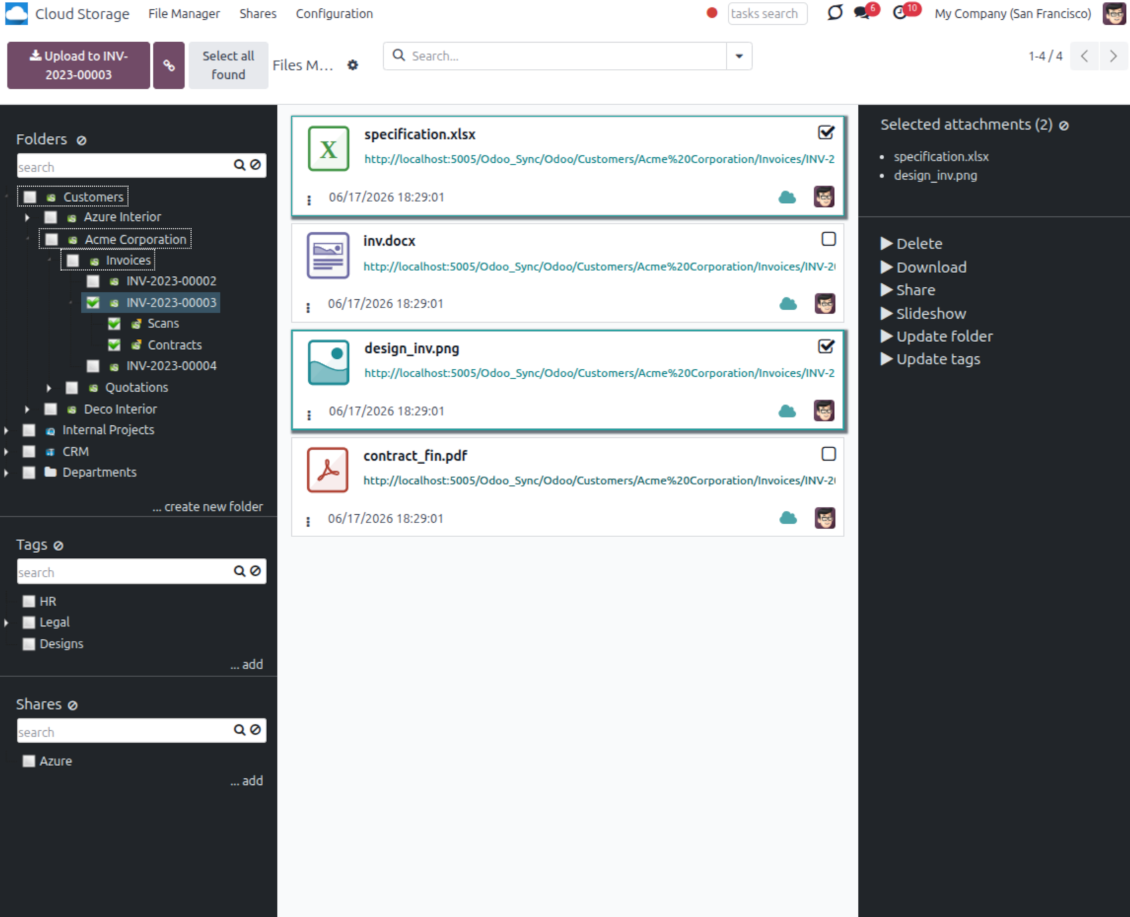
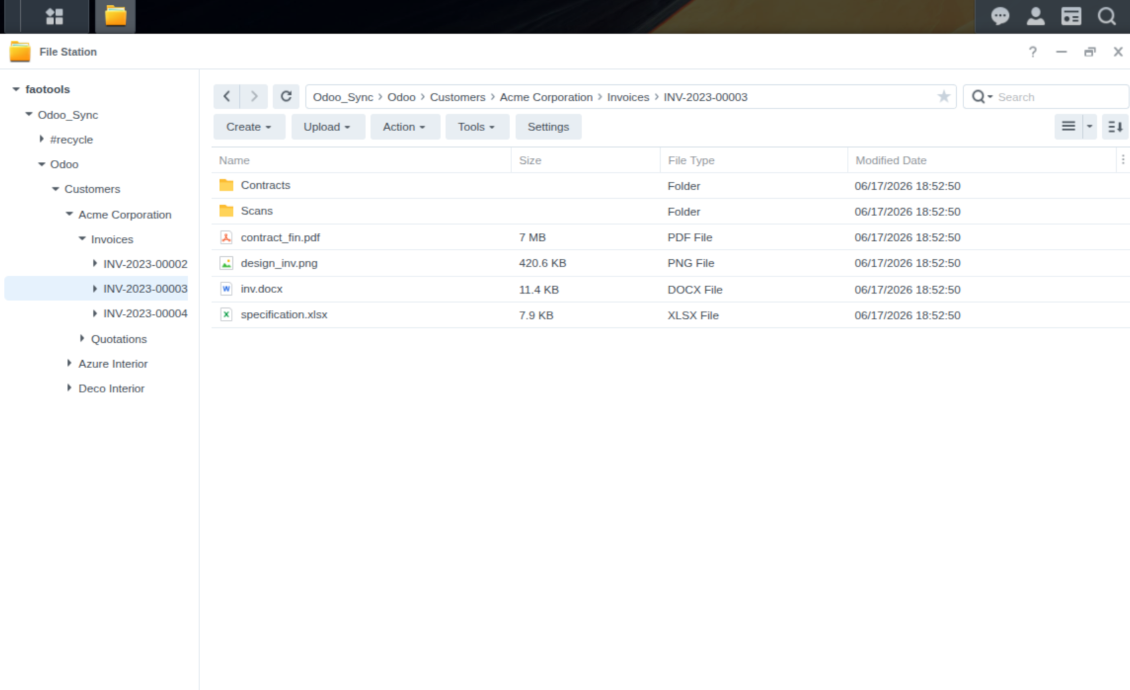
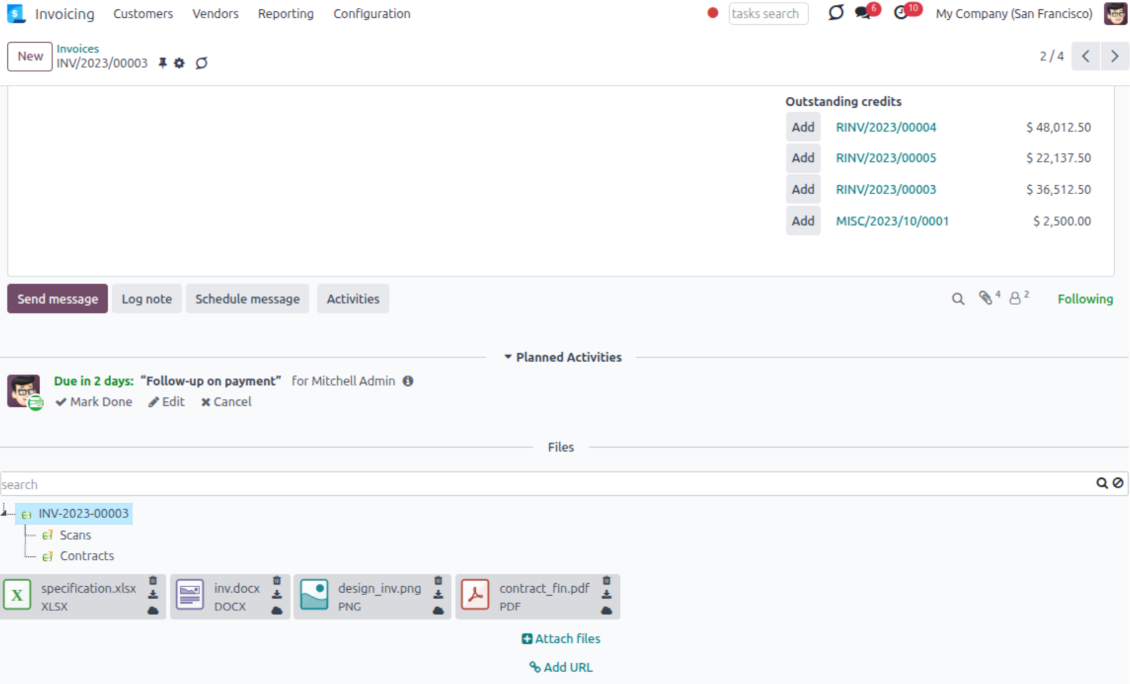
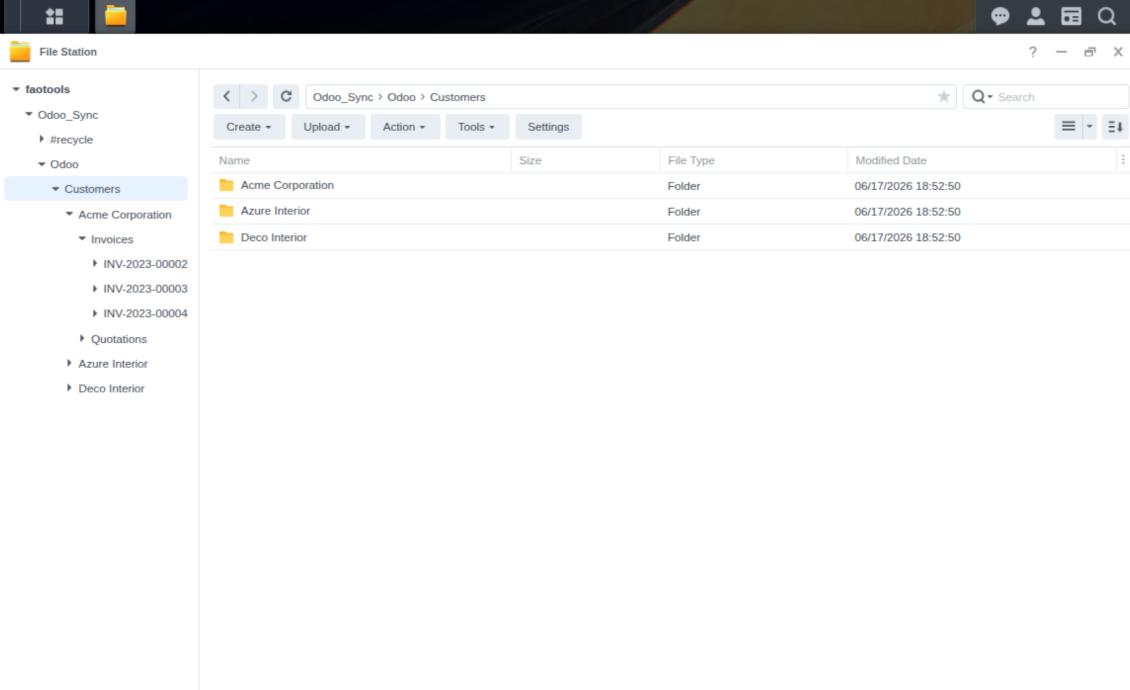
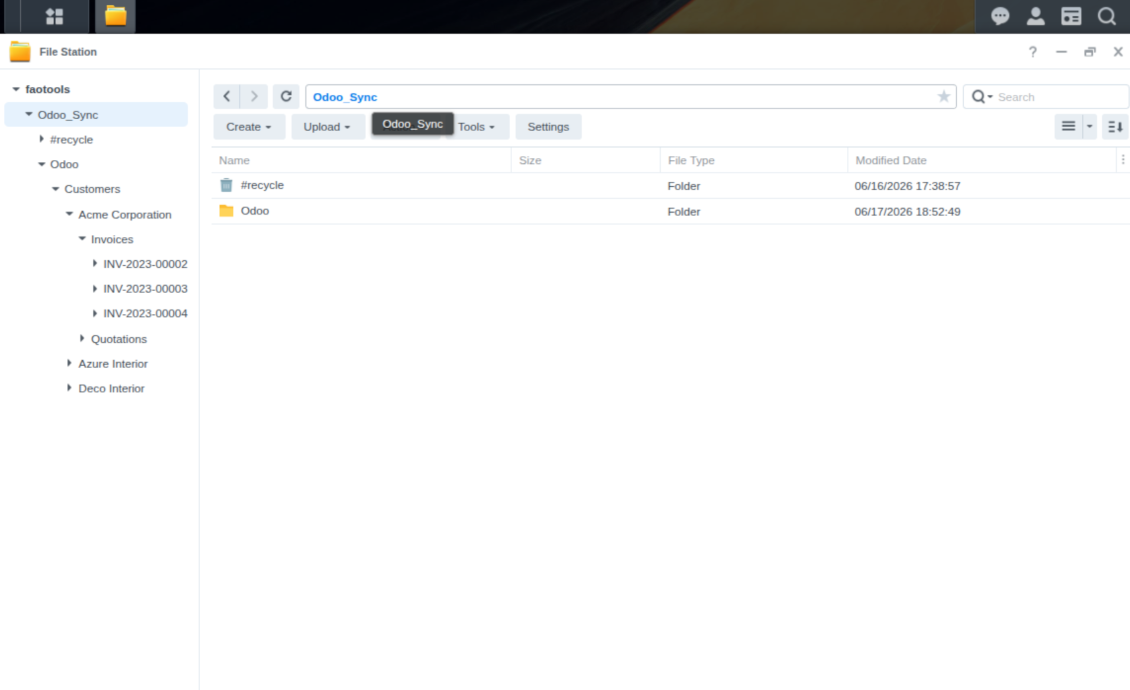
This is the tool to integrate NAS storage with Odoo folders and files through WebDAV. The app automatically stores Odoo attachments and directories in Synology, QNAP, TrueNAS (with WebDAV app), or any compatible NAS/WebDAV server and provides instant access to them via web links.
Automatic folders' structure
Decide which Odoo document types should have their own folders trees and synchronize those to NAS
Automatic regular sync
Rely on auto-synchronization between Odoo and Synology/QNAP/TrueNAS/other NAS based on scheduled jobs. No manual interaction is required
Bilateral sync
Odoo sends attachments to Synology/QNAP/TrueNAS/other NAS and retrieves files from there. Binary content is kept in clouds, while Odoo provides direct access to synced items
Cloud synchronization history
Control NAS Webdav sync logs right in Odoo. Export and share those in case of any issues. Be notified of any client disconnections
File manager interface
Manage synced folders and attachments from a single Odoo view. Comfortably navigate by directories. Search and download files one by one or in batch. Upload and move attachments to folders
Attachment box
Organize files of any Odoo object in a set of subfolders. Instantly access folders and files in the attachment box and in NAS solutions.
How synchronization works
Automatic two-sided sync
-
Configure sync for one or multiple Synology/QNAP/TrueNAS/other NAS instances
-
Integration is based on scheduled jobs and is fully automatized. The app regularly checks changes in systems and runs sync operations
-
Synchronization is bilateral. Updates in Odoo are reflected in Synology/QNAP/TrueNAS/other NAS (direct sync); changes in NAS solutions modify Odoo folders and attachments (backward sync)
-
Cloud connection with Synology/QNAP/TrueNAS/other NAS might be reset. In this way, the app assumes getting back all items back to Odoo (reverse sync)
-
Odoo folders and attachments might be re-attached to a new cloud client from Synology/QNAP/TrueNAS/other NAS. Hence, items will be first taken back to Odoo (reverse sync) and then will be put into the new cloud storage (direct sync)
Queue-based synchronization
-
Once in 15 minutes, the app examines updates in Odoo and Synology/QNAP/TrueNAS/other NAS to prepare a synchronization queue
-
Folders' checks follow the First-In-First-Out (FIFO) principle. So, directories that have not been examined for the longest will be processed first
-
Once in 15 minutes, the sync queue is run by the special scheduled job. Firstly, the most important (blocking) tasks would be done
-
Control planned jobs and their fulfillment in the special Odoo logs interface (Cloud Storage > Configuration > Sync Logs). Subscribe for particular cloud clients notifications
-
If the app faces sync failures, it will re-try operations afterward. Sync queue processing would not be stopped if there are items not blocked by such failures
Odoo attachments for NAS solutions: direct sync
-
Direct sync prepares the folders' hierarchy and uploads Odoo attachments for Synology/QNAP/TrueNAS/other NAS
-
Direct sync checks whether attachments are added or deleted for synced directories. If so, they would be created or removed in Synology/QNAP/TrueNAS/other NAS. In particular, it means that any file added to a folder-related Odoo object (e.g. Quotation), would be automatically moved to a linked cloud client
-
Direct sync makes all synced Odoo attachments change their type to a link (URL), while binary content is removed with one of the next Odoo cleaners. So, no actual files would be stored on your Odoo server
-
Direct sync checks whether a new folder is added. Disregarding whether it is done manually or automatically, the app would generate a peer directory in Synology/QNAP/TrueNAS/other NAS
-
Direct sync checks whether there are any updates in folders. If so, such changes are reflected in Synology/QNAP/TrueNAS/other NAS
WebDAV files and folders for Odoo: backward sync
-
Backward sync checks whether any files or subfolders are added to Synology/QNAP/TrueNAS/other NAS folders. If so, the app would create URL attachments/subdirectories inside linked Odoo directories (and hence Odoo objects if any)
-
Backward sync checks whether there are any updates in folders or attachments. Such updates would be then reflected in Odoo
-
Backward sync checks whether any files are deleted/moved in a Synology/QNAP/TrueNAS/other NAS document folder. If so, a linked Odoo attachment would be also unlinked or moved
-
If you deleted a Synology/QNAP/TrueNAS/other NAS folder related to a folder rule / Odoo object, their child files would be deleted as well. Thus, Odoo would remove related attachments. The folders, however, will be recovered with a direct sync
-
In case of conflicts, direct sync changes are in general considered more important than backward updates.
Resetting or changing Synology/QNAP/TrueNAS/other NAS: reverse sync
-
In case you decided to reset the connection with Synology/QNAP/TrueNAS/other NAS, files would be moved back to Odoo
-
In case you decided to change the cloud client of a folder rule or a folder, files would be first taken back to Odoo, and then direct sync for a new client would be done
-
Reverse sync operations are prioritized to direct and backward sync operations
-
Not all items can be correctly reversed to Odoo due to cloud client peculiarities. For example, there are documents that may exist only in cloud storage environments. The app would try to convert such documents, but in some cases, it would require manual interactions.
Consejos de configuración e instalación para NAS / Synology / QNAP / TrueNAS Odoo Integration Odoo v.17
NAS preconfiguration notes
NAS systems usually expose files through a local network. If your Odoo server is hosted outside that network, the WebDAV endpoint should be reachable from Odoo through a secure channel. Recommended options are a reverse proxy with a valid HTTPS certificate, a VPN or secure tunnel such as WireGuard, Tailscale, or Cloudflare Tunnel, or a vendor relay such as Synology QuickConnect or QNAP myQNAPcloud. Plain port forwarding is possible but should be treated as the least preferred option.
Use a dedicated NAS user with the minimum required rights to one shared folder: read, create, update, move, and delete. Avoid administrator accounts. Publicly exposed endpoints should always use HTTPS and a valid TLS certificate. The connector has a "Verify SSL" option for trusted self-signed certificates, but it should normally remain enabled.
Configuration and log in
- Turn on the option 'NAS Sync' (Cloud Storage > Configuration > Configuration). The optional add-on NAS Odoo Integration is required
- Prepare your NAS WebDAV endpoint:
- Synology: install and enable WebDAV Server in DSM and choose HTTPS where possible
- QNAP: enable WebDAV for the target shared folder and use HTTPS where possible
- TrueNAS CORE: enable the WebDAV service; TrueNAS SCALE: install and configure the WebDAV app, since native WebDAV was removed in modern SCALE releases
- Generic WebDAV: make sure PROPFIND, MKCOL, PUT, GET, MOVE, and DELETE are available
- If Odoo is hosted outside the local NAS network, make the WebDAV endpoint reachable securely. Prefer a reverse proxy with a valid TLS certificate, a VPN/secure tunnel such as WireGuard, Tailscale, or Cloudflare Tunnel, or a vendor relay such as Synology QuickConnect or QNAP myQNAPcloud. Avoid exposing an administrator interface to the Internet
- Create a dedicated NAS user with full rights only inside the target shared folder: read, create, write, move, and delete. Do not use an administrator account
- Go to Odoo Cloud Storage > Configuration > Cloud Clients and press 'Create'
- As a reference, introduce any name which would be clear to all users
- As a Cloud client, choose 'Synology NAS', 'QNAP NAS', 'TrueNAS', or 'WebDAV NAS'
- As a Root folder name, enter a title that will be used as the parent NAS directory for all synced folders. For example, 'Odoo' or 'OdooERP'
- Enter the full WebDAV URL, login, and password. Optionally define a base path if Odoo should create the root folder inside an existing share or directory
- Keep 'Verify SSL' enabled for public HTTPS endpoints. Disable it only for a trusted private endpoint with a self-signed certificate
- Optionally define a browser base URL if NAS files should be opened through a vendor file station URL instead of the raw WebDAV URL
- Press 'Confirm'. Odoo checks the WebDAV connection and creates or finds the root directory. NAS - Odoo synchronization is ready to be done
- Apply the newly created cloud client to folder rules and/or manual folders which should be synced to that NAS storage
- Await the sync scheduled job to be started. For testing purposes only: trigger integration manually from Cloud Storage > Configuration > Configuration > the button 'Launch sync'.
Enter QNAP credentials

Enter Synology credentials

Enter TrueNAS credentials

Preguntas frecuentes sobre NAS / Synology / QNAP / TrueNAS Odoo Integration Odoo v.17
¿Dónde se almacenan los archivos sincronizados? ¿Se duplican en Odoo y en las nubes?
La aplicación asume que el contenido binario de los adjuntos se guarda en el Cloud Client en lugar del servidor Odoo. Esos adjuntos en Odoo pasan a ser de tipo URL y puede acceder a ellos en cualquier momento desde el recuadro de adjuntos o desde el Cloud Client.
Tras la configuración no se requieren acciones manuales: la sincronización es totalmente automática. Decida qué tipos de documento de Odoo sincronizar y configure un modelo relacionado para cada uno (clientes, pedidos de venta o compra, tareas, proyectos, etc.).
¿Puedo tener varias carpetas para el mismo tipo de documento? Por ejemplo, proyectos internos y proyectos de clientes?
Sí, puede. Para ello, prepare una regla para cada una y aplique filtros: por ejemplo, por tipo de proyecto.
Haga que los filtros se excluyan entre sí para que un documento se asigne con certeza. Por ejemplo: «cliente pero no proveedor», «proveedor pero no cliente». Si no, la carpeta de un documento saltaría de un modelo a otro.
¿Es posible hacer la sincronización en tiempo real?
No. Tenemos razones de peso para evitar la sincronización en tiempo real:
Rendimiento. Si la sincronización es en tiempo real, cada subida de archivo muestra la pantalla de carga.
Conflictos. Si 2 usuarios cambian un elemento a la vez, la situación puede no resolverse. Con trabajos regulares se puede corregir después; en tiempo real habría que guardar una cola, aún más confusa.
Funcionalidad. En concreto, renombrar y reestructurar. La sincronización inversa se basa estrictamente en la lógica de directorios y en cada sincronización se comprueba el 100 % de los elementos. Tras cada actualización serían miles de peticiones por segundo. Si no, se perderían los cambios.
¿Puedo cambiar el nombre predeterminado de las carpetas en las nubes?
Puede asignar su nombre a los directorios de modelos (pedidos de venta, oportunidades, proveedores, etc.) para cualquier tipo de documento.
Para las carpetas de objetos (SO-001, John Smith, etc.), la herramienta usa el método de Odoo que construye el nombre visible. Puede cambiarlo definiendo una expresión de nombre. Se usa la sintaxis de las plantillas de correo de Odoo.
¿Puedo cambiar la frecuencia de los trabajos de sincronización?
No, desde la versión 15 no debe cambiar las acciones planificadas. Están optimizadas para ejecutarse cada 15 minutos y garantizar la conexión más estable y rápida.
Los tiempos de espera del servidor Odoo deben ser de al menos 15 minutos (900 segundos).
Si necesita detener la sincronización un tiempo, hágalo en el formulario del cliente cloud concreto.
Puedo sincronizar adjuntos con varios clientes cloud
Sí, desde la versión 15 puede configurar varias conexiones. Así se pueden sincronizar unas carpetas con un cliente cloud y otras con otro.
Tenga en cuenta que no es posible sincronizar la misma carpeta con varios almacenamientos cloud a la vez.
Usamos un editor especial en nuestras nubes (p. ej. OnlyOffice, Office 365, etc.). ¿Se abrirían los archivos en ese editor?
Sí, según la configuración de su cliente cloud.
¿Necesito solo la aplicación Cloud Storage Solution?
Desde la versión 15 la aplicación puede usarse sola para estructurar adjuntos en carpetas y ofrecer una interfaz de gestor de archivos.
Si el objetivo es conectar con uno de sus clientes cloud, hay que instalar al menos una aplicación opcional del cliente.
¿Qué ocurre cuando cambio una regla de carpeta?
Cuando cambia una regla de carpeta, cambia también la lista de carpetas. Si una carpeta deja de cumplir las condiciones, se elimina. Si los archivos ya estaban sincronizados, la sincronización inversa los devuelve a Odoo y los borra del Cloud Client.
Si el objeto del documento no cumple la regla de carpeta, no se crea su carpeta. Si más adelante sí la cumple, se generará la carpeta relacionada.
La redacción de la aplicación y el sitio web en idiomas distintos del inglés cuenta con asistencia de IA y se ajusta a las traducciones oficiales de Odoo. Si detecta un error, enviar un ticket de traducción y lo corregiremos.
Bases de datos de demostración de Odoo (vistas previas)
Para esta aplicación, podemos proporcionar una base de datos de demostración personalizada gratuita.
No necesita un número de teléfono ni una tarjeta de crédito para contactarnos. Sólo debes pasar un breve registro por correo electrónico, que no lleva más de 30 segundos.
A petición suya, preparamos una base de datos de vista previa individual en la que puede realizar cualquier prueba y comprobar sus hipótesis durante unas dos semanas.
Notificación de errores
Si encuentra errores o comportamiento inconsistente, no dude en contactarnos. Garantizamos proporcionar correcciones dentro de los 60 días posteriores a la compra y estamos muy interesados en mejorar nuestras herramientas incluso después de este período.
No necesita un número de teléfono ni una tarjeta de crédito para contactarnos. Sólo debes pasar un breve registro por correo electrónico, que no lleva más de 30 segundos.
Incluya tantos detalles como sea posible en su solicitud: capturas de pantalla, registros del servidor Odoo, una descripción completa de como reproducir el problema, etc. Por lo general, se necesitan varios días laborables para preparar un plan de trabajo para un problema (si se confirma un error) o proporcionarle indicaciones sobre lo que se debe hacer (en caso contrario).
Solicitudes de funciones públicas e ideas de módulos (desarrollo gratuito)
Estamos muy motivados para mejorar nuestras herramientas y agradeceríamos cualquier comentario. Si sus requisitos son de uso público y podrían implementarse de manera eficiente, el equipo los incluirá en nuestra lista de tareas pendientes.
Esta lista de tareas pendientes se procesa periódicamente y no implica cargos adicionales. Aunque no podemos prometer plazos ni diseño final, podría ser una buena manera de conseguir las funciones deseadas sin inversiones ni riesgos.
No necesita un número de teléfono ni una tarjeta de crédito para contactarnos. Sólo debes pasar un breve registro por correo electrónico, que no lleva más de 30 segundos.


The tool to build a deep and structured knowledge base for internal and external use. Knowledge System. KMS. Wiki-like revisions.
398€
The tool to set up KPI targets and control their fulfillment by periods. KPI dashboards. Dashboard designer. KPI charts

The tool for time-based service management from booking appointments to sales and reviews
398€
The tool to manage your Odoo from your favorite AI chats through MCP. Claude. Any MCP-supporting AI.

The tool to flexibly structure Odoo attachments in folders and synchronize directories with cloud clients: Google Drive, OneDrive/SharePoint, Nextcloud/ownCloud, Dropbox, Amazon S3, Box, and NAS. DMS. File Manager. Document management system
398€
The tool to automatically synchronize Odoo attachments with OneDrive files in both ways
487€
The tool to automatically synchronize Odoo attachments with Google Drive files in both ways
487€
The tool to automatically synchronize Odoo attachments with ownCloud/Nextcloud files in both ways
487€