NAS / Synology / QNAP / TrueNAS Odoo Integration v.17
The tool to automatically synchronize Odoo attachments with NAS Solutions in both ways. Synology, QNAP, TrueNAS and any other WebDav-supporting NAS solutions
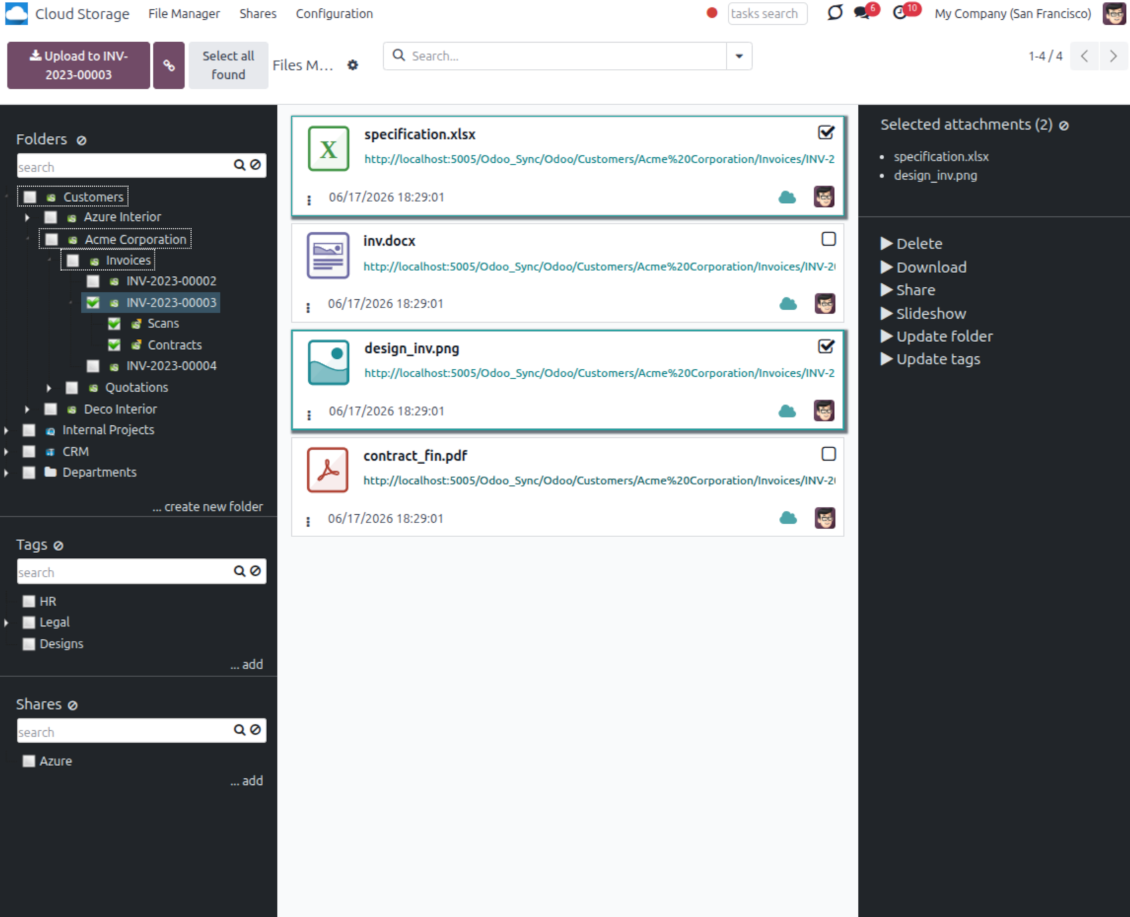
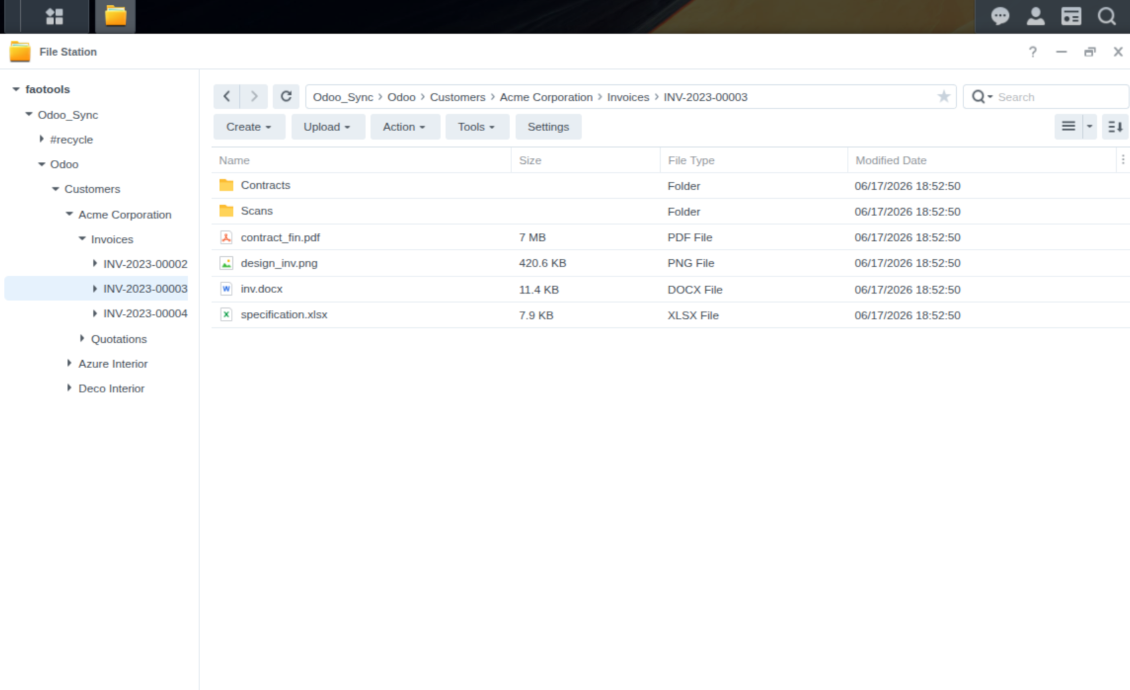
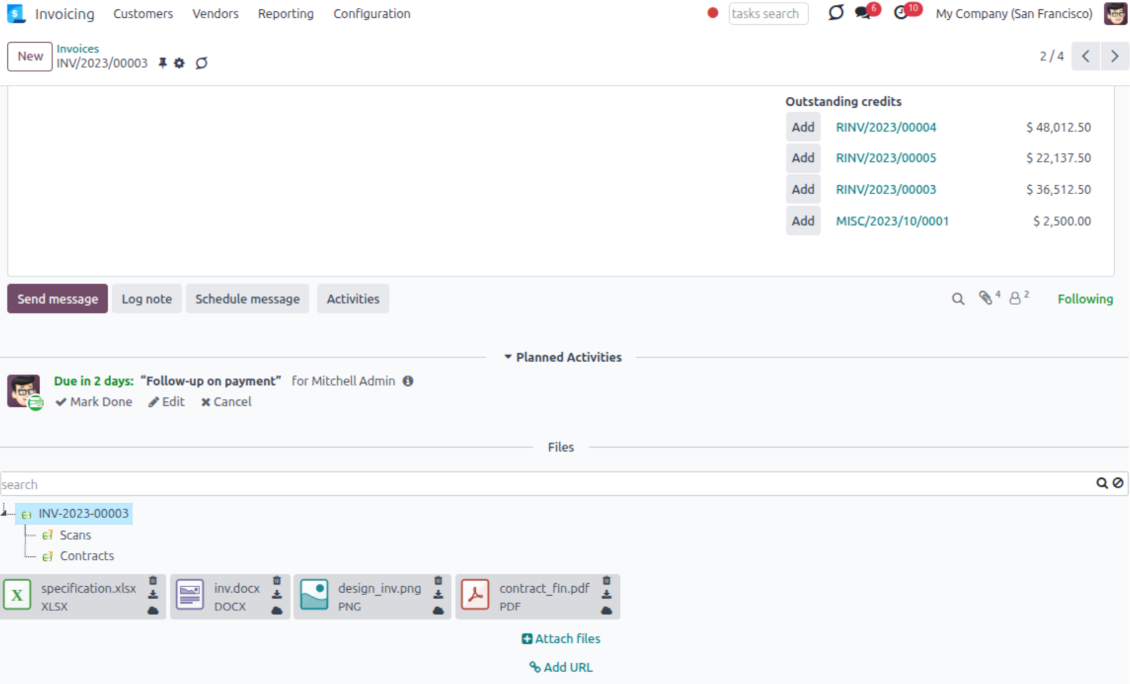
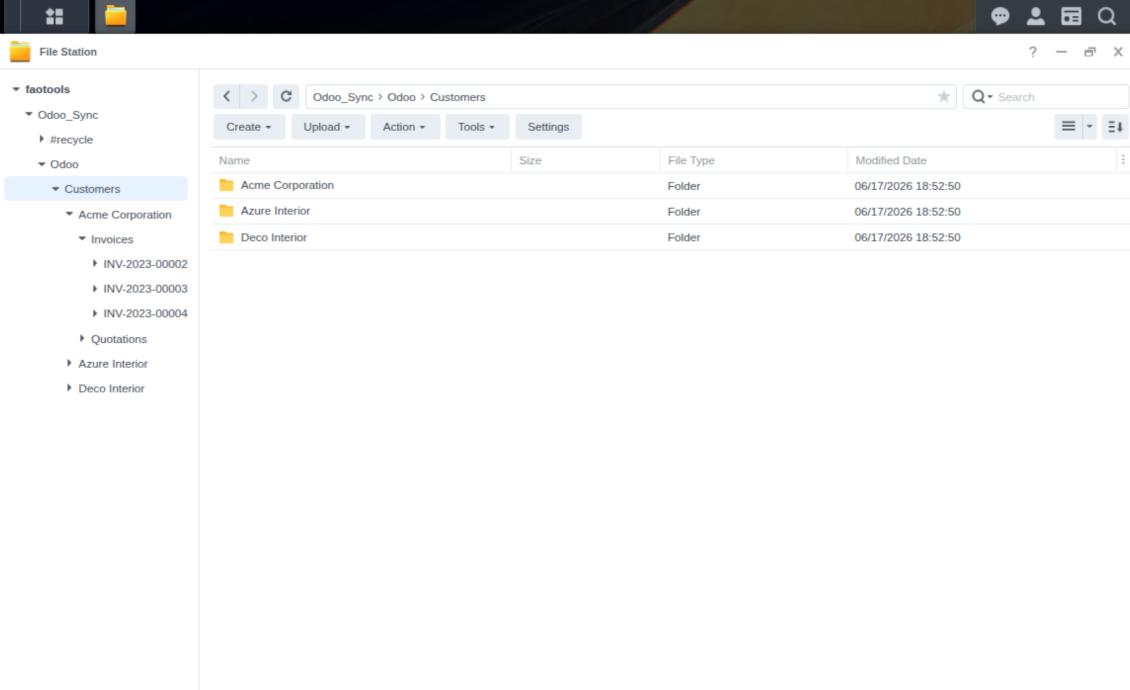
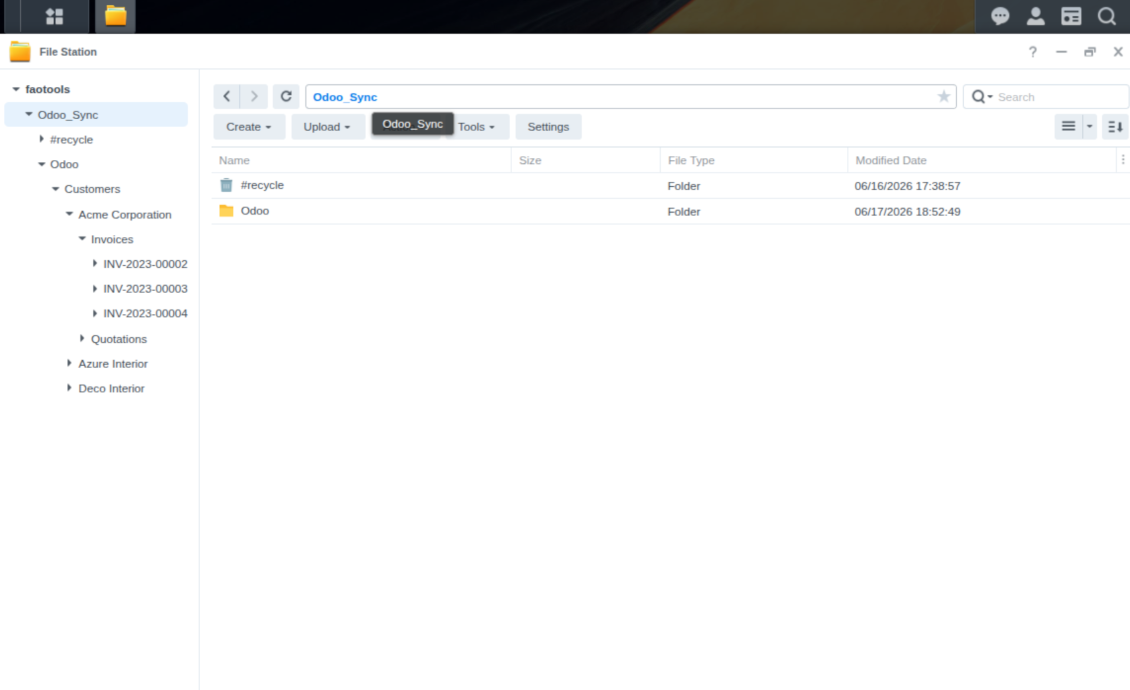
This is the tool to integrate NAS storage with Odoo folders and files through WebDAV. The app automatically stores Odoo attachments and directories in Synology, QNAP, TrueNAS (with WebDAV app), or any compatible NAS/WebDAV server and provides instant access to them via web links.
Automatic folders' structure
Decide which Odoo document types should have their own folders trees and synchronize those to NAS
Automatic regular sync
Rely on auto-synchronization between Odoo and Synology/QNAP/TrueNAS/other NAS based on scheduled jobs. No manual interaction is required
Bilateral sync
Odoo sends attachments to Synology/QNAP/TrueNAS/other NAS and retrieves files from there. Binary content is kept in clouds, while Odoo provides direct access to synced items
Cloud synchronization history
Control NAS Webdav sync logs right in Odoo. Export and share those in case of any issues. Be notified of any client disconnections
File manager interface
Manage synced folders and attachments from a single Odoo view. Comfortably navigate by directories. Search and download files one by one or in batch. Upload and move attachments to folders
Attachment box
Organize files of any Odoo object in a set of subfolders. Instantly access folders and files in the attachment box and in NAS solutions.
How synchronization works
Automatic two-sided sync
-
Configure sync for one or multiple Synology/QNAP/TrueNAS/other NAS instances
-
Integration is based on scheduled jobs and is fully automatized. The app regularly checks changes in systems and runs sync operations
-
Synchronization is bilateral. Updates in Odoo are reflected in Synology/QNAP/TrueNAS/other NAS (direct sync); changes in NAS solutions modify Odoo folders and attachments (backward sync)
-
Cloud connection with Synology/QNAP/TrueNAS/other NAS might be reset. In this way, the app assumes getting back all items back to Odoo (reverse sync)
-
Odoo folders and attachments might be re-attached to a new cloud client from Synology/QNAP/TrueNAS/other NAS. Hence, items will be first taken back to Odoo (reverse sync) and then will be put into the new cloud storage (direct sync)
Queue-based synchronization
-
Once in 15 minutes, the app examines updates in Odoo and Synology/QNAP/TrueNAS/other NAS to prepare a synchronization queue
-
Folders' checks follow the First-In-First-Out (FIFO) principle. So, directories that have not been examined for the longest will be processed first
-
Once in 15 minutes, the sync queue is run by the special scheduled job. Firstly, the most important (blocking) tasks would be done
-
Control planned jobs and their fulfillment in the special Odoo logs interface (Cloud Storage > Configuration > Sync Logs). Subscribe for particular cloud clients notifications
-
If the app faces sync failures, it will re-try operations afterward. Sync queue processing would not be stopped if there are items not blocked by such failures
Odoo attachments for NAS solutions: direct sync
-
Direct sync prepares the folders' hierarchy and uploads Odoo attachments for Synology/QNAP/TrueNAS/other NAS
-
Direct sync checks whether attachments are added or deleted for synced directories. If so, they would be created or removed in Synology/QNAP/TrueNAS/other NAS. In particular, it means that any file added to a folder-related Odoo object (e.g. Quotation), would be automatically moved to a linked cloud client
-
Direct sync makes all synced Odoo attachments change their type to a link (URL), while binary content is removed with one of the next Odoo cleaners. So, no actual files would be stored on your Odoo server
-
Direct sync checks whether a new folder is added. Disregarding whether it is done manually or automatically, the app would generate a peer directory in Synology/QNAP/TrueNAS/other NAS
-
Direct sync checks whether there are any updates in folders. If so, such changes are reflected in Synology/QNAP/TrueNAS/other NAS
WebDAV files and folders for Odoo: backward sync
-
Backward sync checks whether any files or subfolders are added to Synology/QNAP/TrueNAS/other NAS folders. If so, the app would create URL attachments/subdirectories inside linked Odoo directories (and hence Odoo objects if any)
-
Backward sync checks whether there are any updates in folders or attachments. Such updates would be then reflected in Odoo
-
Backward sync checks whether any files are deleted/moved in a Synology/QNAP/TrueNAS/other NAS document folder. If so, a linked Odoo attachment would be also unlinked or moved
-
If you deleted a Synology/QNAP/TrueNAS/other NAS folder related to a folder rule / Odoo object, their child files would be deleted as well. Thus, Odoo would remove related attachments. The folders, however, will be recovered with a direct sync
-
In case of conflicts, direct sync changes are in general considered more important than backward updates.
Resetting or changing Synology/QNAP/TrueNAS/other NAS: reverse sync
-
In case you decided to reset the connection with Synology/QNAP/TrueNAS/other NAS, files would be moved back to Odoo
-
In case you decided to change the cloud client of a folder rule or a folder, files would be first taken back to Odoo, and then direct sync for a new client would be done
-
Reverse sync operations are prioritized to direct and backward sync operations
-
Not all items can be correctly reversed to Odoo due to cloud client peculiarities. For example, there are documents that may exist only in cloud storage environments. The app would try to convert such documents, but in some cases, it would require manual interactions.
Советы по настройке и установке для NAS / Synology / QNAP / TrueNAS Odoo Integration Odoo v.17
NAS preconfiguration notes
NAS systems usually expose files through a local network. If your Odoo server is hosted outside that network, the WebDAV endpoint should be reachable from Odoo through a secure channel. Recommended options are a reverse proxy with a valid HTTPS certificate, a VPN or secure tunnel such as WireGuard, Tailscale, or Cloudflare Tunnel, or a vendor relay such as Synology QuickConnect or QNAP myQNAPcloud. Plain port forwarding is possible but should be treated as the least preferred option.
Use a dedicated NAS user with the minimum required rights to one shared folder: read, create, update, move, and delete. Avoid administrator accounts. Publicly exposed endpoints should always use HTTPS and a valid TLS certificate. The connector has a "Verify SSL" option for trusted self-signed certificates, but it should normally remain enabled.
Configuration and log in
- Turn on the option 'NAS Sync' (Cloud Storage > Configuration > Configuration). The optional add-on NAS Odoo Integration is required
- Prepare your NAS WebDAV endpoint:
- Synology: install and enable WebDAV Server in DSM and choose HTTPS where possible
- QNAP: enable WebDAV for the target shared folder and use HTTPS where possible
- TrueNAS CORE: enable the WebDAV service; TrueNAS SCALE: install and configure the WebDAV app, since native WebDAV was removed in modern SCALE releases
- Generic WebDAV: make sure PROPFIND, MKCOL, PUT, GET, MOVE, and DELETE are available
- If Odoo is hosted outside the local NAS network, make the WebDAV endpoint reachable securely. Prefer a reverse proxy with a valid TLS certificate, a VPN/secure tunnel such as WireGuard, Tailscale, or Cloudflare Tunnel, or a vendor relay such as Synology QuickConnect or QNAP myQNAPcloud. Avoid exposing an administrator interface to the Internet
- Create a dedicated NAS user with full rights only inside the target shared folder: read, create, write, move, and delete. Do not use an administrator account
- Go to Odoo Cloud Storage > Configuration > Cloud Clients and press 'Create'
- As a reference, introduce any name which would be clear to all users
- As a Cloud client, choose 'Synology NAS', 'QNAP NAS', 'TrueNAS', or 'WebDAV NAS'
- As a Root folder name, enter a title that will be used as the parent NAS directory for all synced folders. For example, 'Odoo' or 'OdooERP'
- Enter the full WebDAV URL, login, and password. Optionally define a base path if Odoo should create the root folder inside an existing share or directory
- Keep 'Verify SSL' enabled for public HTTPS endpoints. Disable it only for a trusted private endpoint with a self-signed certificate
- Optionally define a browser base URL if NAS files should be opened through a vendor file station URL instead of the raw WebDAV URL
- Press 'Confirm'. Odoo checks the WebDAV connection and creates or finds the root directory. NAS - Odoo synchronization is ready to be done
- Apply the newly created cloud client to folder rules and/or manual folders which should be synced to that NAS storage
- Await the sync scheduled job to be started. For testing purposes only: trigger integration manually from Cloud Storage > Configuration > Configuration > the button 'Launch sync'.
Enter QNAP credentials

Enter Synology credentials

Enter TrueNAS credentials

Часто задаваемые вопросы о NAS / Synology / QNAP / TrueNAS Odoo Integration Odoo v.17
Где хранятся синхронизированные файлы? Дублируются ли они в Odoo и в облаках?
Приложение предполагает, что двоичное содержимое вложений хранится в Cloud Client, а не на сервере Odoo. Такие вложения в Odoo становятся типа URL, и к ним можно в любой момент обратиться из блока вложений или из Cloud Client.
После настройки ручные действия не нужны: синхронизация полностью автоматическая. Решите, какие типы документов Odoo синхронизировать, и настройте связанную модель для каждого из них (клиенты, заказы на продажу или закупку, задачи, проекты и т. д.).
Можно ли создать несколько папок для одного типа документов? Например, внутренние проекты и клиентские проекты?
Да, можно. Для этого подготовьте правило для каждой папки и задайте фильтры: например, по типу проекта.
Сделайте фильтры взаимоисключающими, чтобы документ однозначно попадал в одну папку. Например: «клиент, но не поставщик», «поставщик, но не клиент». Иначе папка документа будет перескакивать с одной модели на другую.
Можно ли сделать синхронизацию в реальном времени?
Нет. Есть веские причины не делать синхронизацию в реальном времени:
Производительность. При синхронизации в реальном времени каждая загрузка файла приводит к экрану ожидания.
Конфликты. Если двое одновременно меняют элемент, ситуация может стать неразрешимой. При регулярных заданиях это можно исправить позже; в реальном времени пришлось бы ставить изменения в очередь, что ещё сильнее запутает пользователей.
Функциональность. В частности, переименование и перестройка элементов. Обратная синхронизация строго опирается на логику каталогов, и при каждом запуске проверяется 100% элементов. Если делать это после каждого обновления, будут тысячи запросов в секунду. Если нет — изменения потеряются.
Можно ли изменить имена папок по умолчанию в облаках?
Вы можете задать своё имя каталогам моделей (заказы на продажу, возможности, поставщики и т. д.) для любого типа документа.
Для папок объектов (SO-001, John Smith и т. д.) инструмент использует метод Odoo для отображаемого имени этого типа документа. Это можно изменить выражением имени. Используется тот же синтаксис, что и в шаблонах писем Odoo.
Можно ли изменить частоту заданий синхронизации?
Нет, начиная с версии 15 менять запланированные задания не следует. Они оптимизированы на запуск каждые 15 минут для максимально стабильного и быстрого соединения.
Таймауты сервера Odoo должны быть не меньше 15 минут (900 секунд).
Чтобы временно остановить синхронизацию, сделайте это на форме конкретного облачного клиента.
Можно ли синхронизировать вложения с несколькими облачными клиентами
Да, начиная с версии 15 можно настроить несколько подключений. Так одни папки синхронизируются с одним облачным клиентом, другие — с другим.
Учтите: одну и ту же папку нельзя одновременно синхронизировать с несколькими облачными хранилищами.
Мы используем специальный редактор в облаках (например OnlyOffice, Office 365 и т. д.). Будут ли файлы открываться в этом редакторе?
Да, в зависимости от конфигурации облачного клиента.
Достаточно ли только приложения Cloud Storage Solution?
Начиная с версии 15 приложение можно использовать отдельно, чтобы раскладывать вложения по папкам и давать интерфейс файлового менеджера.
Если же цель — соединение с одним из облачных клиентов, нужно установить хотя бы одно дополнительное приложение клиента.
Что происходит, когда я меняю правило папки?
Когда меняется правило папки, меняется и список папок. Если папка больше не подходит под условия правил, она удаляется. Если файлы уже были синхронизированы, обратная синхронизация возвращает их в Odoo и удаляет из Cloud Client.
Если объект документа не подходит под правило папки, его папка не создаётся. Если позже начнёт подходить, связанная папка будет создана.
Тексты приложения и веб-сайта на языках, отличных от английского, переведены с помощью ИИ и согласованы с официальными переводами Odoo. Если вы заметили ошибку, отправьте тикет о переводе и мы исправим его.
Демонстрационные базы данных Odoo (предпросмотр)
Для этого приложения мы можем предоставить бесплатную персонализированную демонстрационную базу данных.
Чтобы связаться с нами, вам не нужен номер телефона или кредитная карта. Вам нужно всего лишь пройти короткую регистрацию по электронной почте, которая займет не более 30 секунд.
По вашему запросу мы подготовим отдельную демо базу для предпросмотра, где примерно две недели вы сможете проводить любые тесты и проверять свои предположения.
Отправка отчетов об ошибках
Если вы столкнулись с ошибками или непоследовательным поведением, не стесняйтесь обращаться к нам. Мы гарантируем предоставление исправлений в течение 60 дней с момента покупки и очень заинтересованы в улучшении наших инструментов даже по истечении этого периода.
Чтобы связаться с нами, вам не нужен номер телефона или кредитная карта. Вам нужно всего лишь пройти короткую регистрацию по электронной почте, которая займет не более 30 секунд.
Укажите в запросе как можно больше сведений: снимки экрана, журналы сервера Odoo, полное описание воспроизведения проблемы и так далее. Обычно подготовка рабочего плана по проблеме (если ошибка подтверждена) или рекомендаций по необходимым действиям (в противном случае) занимает несколько рабочих дней.
Запросы на публичные функции и идей модулей (бесплатная разработка)
Мы очень заинтересованы в улучшении наших инструментов и будем благодарны за любые отзывы. Если ваши требования общедоступны и могут быть эффективно реализованы, команда включит их в наш список дел.
Такой список дел обрабатывается регулярно и не предполагает дополнительных комиссий. Хотя мы не можем обещать сроки и окончательный дизайн, это может быть хорошим способом получить желаемые функции без вложений и рисков.
Чтобы связаться с нами, вам не нужен номер телефона или кредитная карта. Вам нужно всего лишь пройти короткую регистрацию по электронной почте, которая займет не более 30 секунд.


The tool to build a deep and structured knowledge base for internal and external use. Knowledge System. KMS. Wiki-like revisions.
398€
The tool to set up KPI targets and control their fulfillment by periods. KPI dashboards. Dashboard designer. KPI charts

The tool for time-based service management from booking appointments to sales and reviews
398€
The tool to manage your Odoo from your favorite AI chats through MCP. Claude. Any MCP-supporting AI.

The tool to flexibly structure Odoo attachments in folders and synchronize directories with cloud clients: Google Drive, OneDrive/SharePoint, Nextcloud/ownCloud, Dropbox, Amazon S3, Box, and NAS. DMS. File Manager. Document management system
398€
The tool to automatically synchronize Odoo attachments with OneDrive files in both ways
487€
The tool to automatically synchronize Odoo attachments with Google Drive files in both ways
487€
The tool to automatically synchronize Odoo attachments with ownCloud/Nextcloud files in both ways
487€