NAS / Synology / QNAP / TrueNAS Odoo Integration v.17
The tool to automatically synchronize Odoo attachments with NAS Solutions in both ways. Synology, QNAP, TrueNAS and any other WebDav-supporting NAS solutions
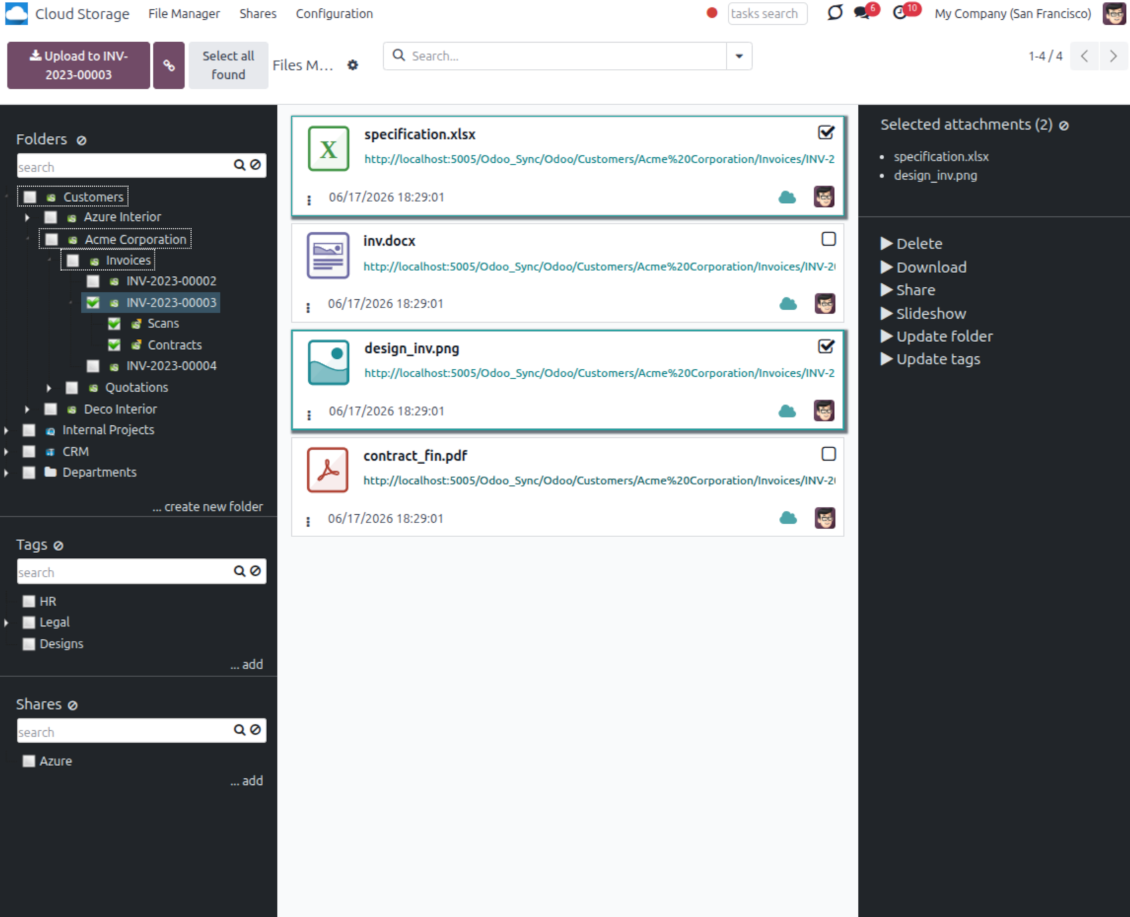
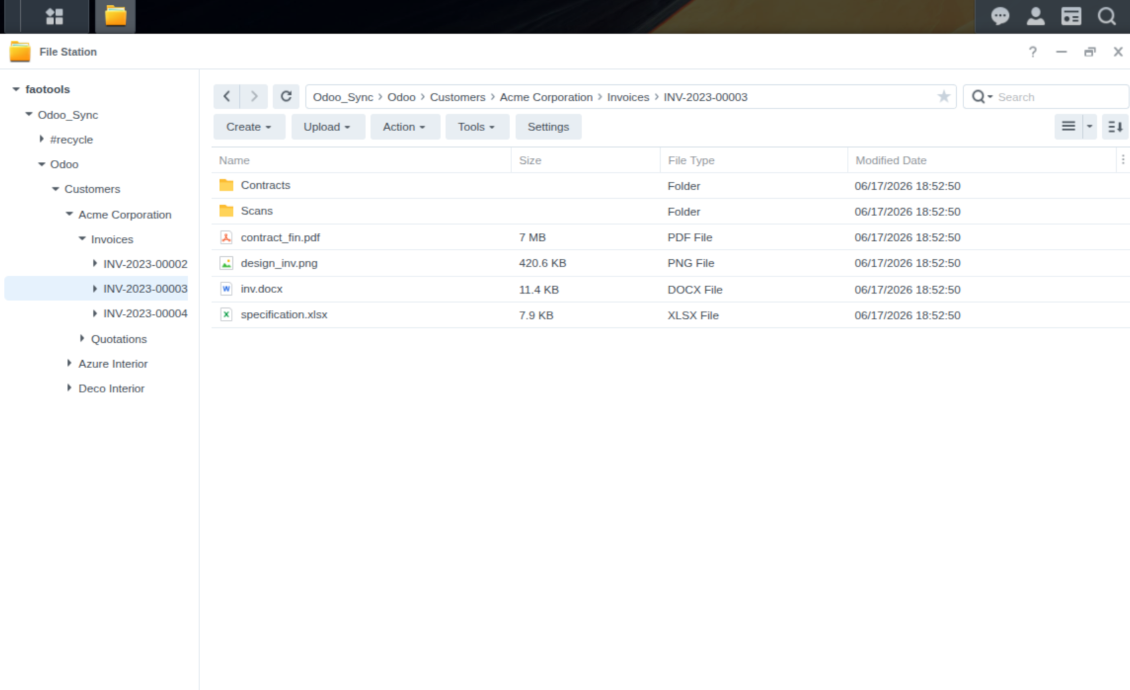
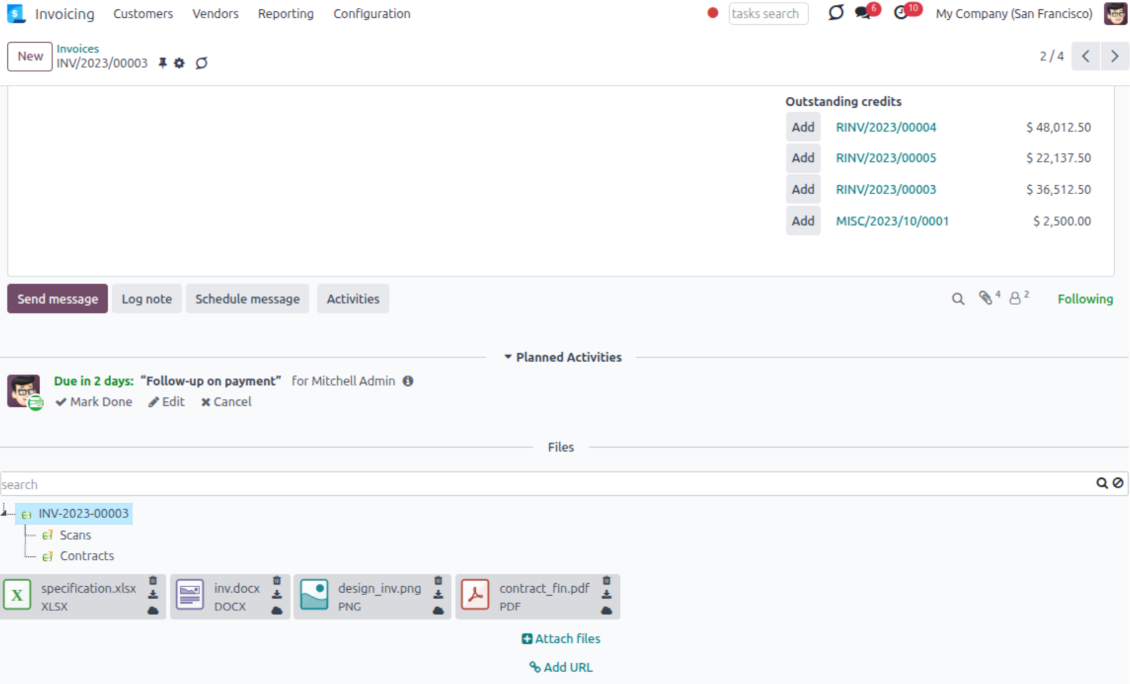
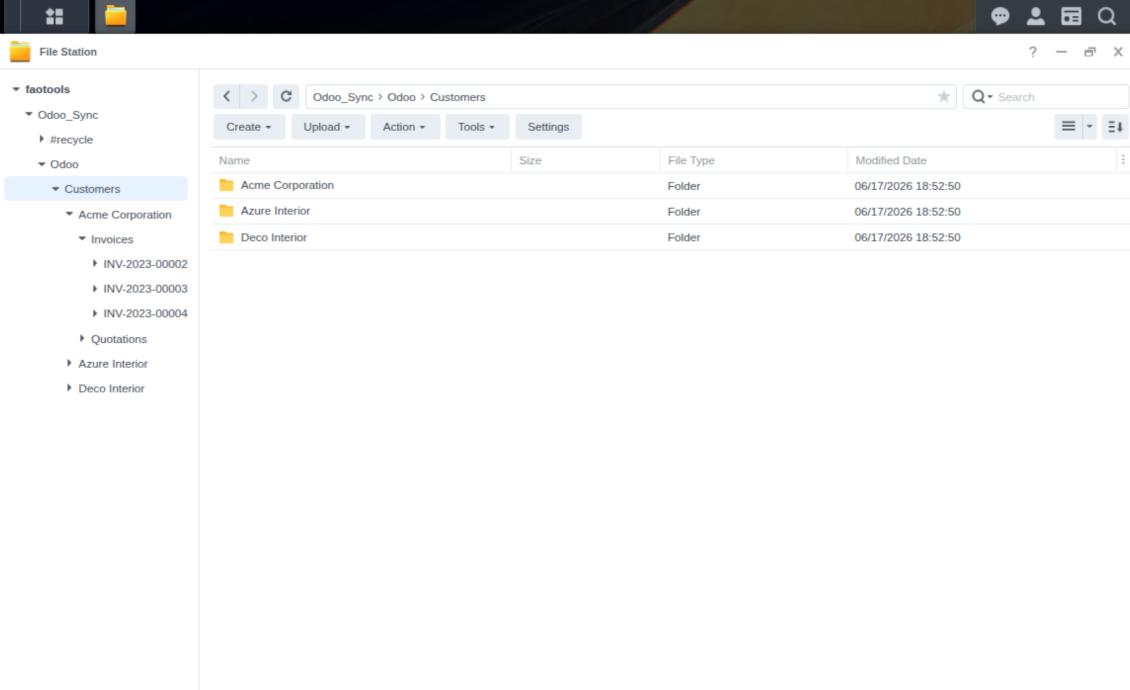
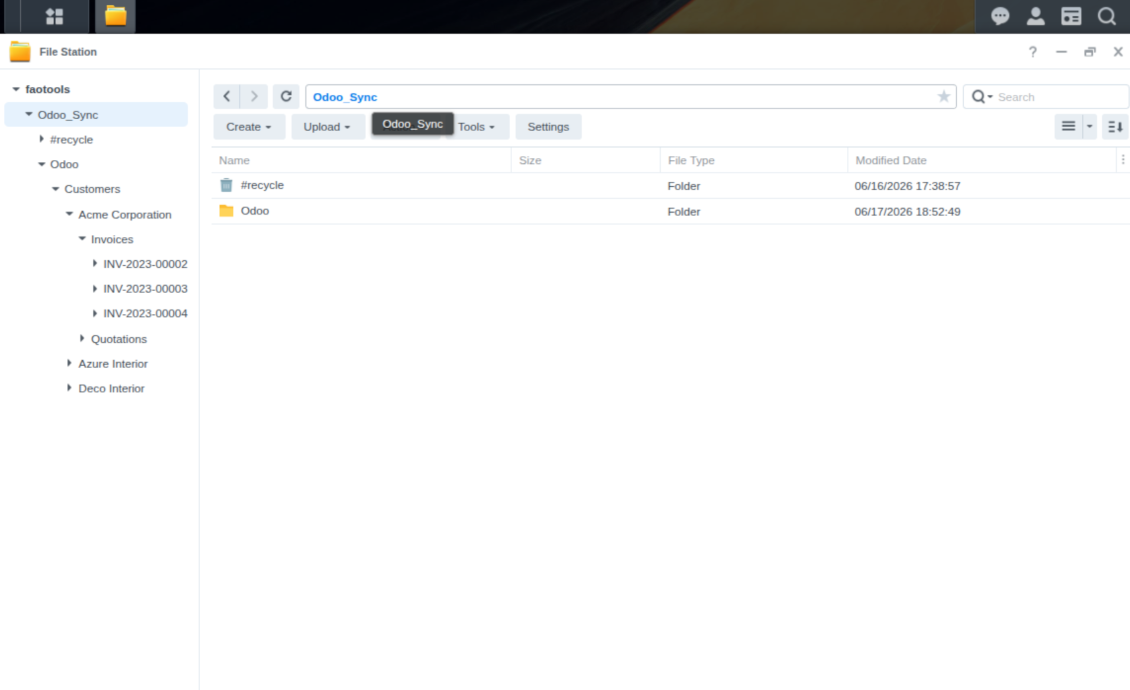
This is the tool to integrate NAS storage with Odoo folders and files through WebDAV. The app automatically stores Odoo attachments and directories in Synology, QNAP, TrueNAS (with WebDAV app), or any compatible NAS/WebDAV server and provides instant access to them via web links.
Automatic folders' structure
Decide which Odoo document types should have their own folders trees and synchronize those to NAS
Automatic regular sync
Rely on auto-synchronization between Odoo and Synology/QNAP/TrueNAS/other NAS based on scheduled jobs. No manual interaction is required
Bilateral sync
Odoo sends attachments to Synology/QNAP/TrueNAS/other NAS and retrieves files from there. Binary content is kept in clouds, while Odoo provides direct access to synced items
Cloud synchronization history
Control NAS Webdav sync logs right in Odoo. Export and share those in case of any issues. Be notified of any client disconnections
File manager interface
Manage synced folders and attachments from a single Odoo view. Comfortably navigate by directories. Search and download files one by one or in batch. Upload and move attachments to folders
Attachment box
Organize files of any Odoo object in a set of subfolders. Instantly access folders and files in the attachment box and in NAS solutions.
How synchronization works
Automatic two-sided sync
-
Configure sync for one or multiple Synology/QNAP/TrueNAS/other NAS instances
-
Integration is based on scheduled jobs and is fully automatized. The app regularly checks changes in systems and runs sync operations
-
Synchronization is bilateral. Updates in Odoo are reflected in Synology/QNAP/TrueNAS/other NAS (direct sync); changes in NAS solutions modify Odoo folders and attachments (backward sync)
-
Cloud connection with Synology/QNAP/TrueNAS/other NAS might be reset. In this way, the app assumes getting back all items back to Odoo (reverse sync)
-
Odoo folders and attachments might be re-attached to a new cloud client from Synology/QNAP/TrueNAS/other NAS. Hence, items will be first taken back to Odoo (reverse sync) and then will be put into the new cloud storage (direct sync)
Queue-based synchronization
-
Once in 15 minutes, the app examines updates in Odoo and Synology/QNAP/TrueNAS/other NAS to prepare a synchronization queue
-
Folders' checks follow the First-In-First-Out (FIFO) principle. So, directories that have not been examined for the longest will be processed first
-
Once in 15 minutes, the sync queue is run by the special scheduled job. Firstly, the most important (blocking) tasks would be done
-
Control planned jobs and their fulfillment in the special Odoo logs interface (Cloud Storage > Configuration > Sync Logs). Subscribe for particular cloud clients notifications
-
If the app faces sync failures, it will re-try operations afterward. Sync queue processing would not be stopped if there are items not blocked by such failures
Odoo attachments for NAS solutions: direct sync
-
Direct sync prepares the folders' hierarchy and uploads Odoo attachments for Synology/QNAP/TrueNAS/other NAS
-
Direct sync checks whether attachments are added or deleted for synced directories. If so, they would be created or removed in Synology/QNAP/TrueNAS/other NAS. In particular, it means that any file added to a folder-related Odoo object (e.g. Quotation), would be automatically moved to a linked cloud client
-
Direct sync makes all synced Odoo attachments change their type to a link (URL), while binary content is removed with one of the next Odoo cleaners. So, no actual files would be stored on your Odoo server
-
Direct sync checks whether a new folder is added. Disregarding whether it is done manually or automatically, the app would generate a peer directory in Synology/QNAP/TrueNAS/other NAS
-
Direct sync checks whether there are any updates in folders. If so, such changes are reflected in Synology/QNAP/TrueNAS/other NAS
WebDAV files and folders for Odoo: backward sync
-
Backward sync checks whether any files or subfolders are added to Synology/QNAP/TrueNAS/other NAS folders. If so, the app would create URL attachments/subdirectories inside linked Odoo directories (and hence Odoo objects if any)
-
Backward sync checks whether there are any updates in folders or attachments. Such updates would be then reflected in Odoo
-
Backward sync checks whether any files are deleted/moved in a Synology/QNAP/TrueNAS/other NAS document folder. If so, a linked Odoo attachment would be also unlinked or moved
-
If you deleted a Synology/QNAP/TrueNAS/other NAS folder related to a folder rule / Odoo object, their child files would be deleted as well. Thus, Odoo would remove related attachments. The folders, however, will be recovered with a direct sync
-
In case of conflicts, direct sync changes are in general considered more important than backward updates.
Resetting or changing Synology/QNAP/TrueNAS/other NAS: reverse sync
-
In case you decided to reset the connection with Synology/QNAP/TrueNAS/other NAS, files would be moved back to Odoo
-
In case you decided to change the cloud client of a folder rule or a folder, files would be first taken back to Odoo, and then direct sync for a new client would be done
-
Reverse sync operations are prioritized to direct and backward sync operations
-
Not all items can be correctly reversed to Odoo due to cloud client peculiarities. For example, there are documents that may exist only in cloud storage environments. The app would try to convert such documents, but in some cases, it would require manual interactions.
구성 및 설치 팁: NAS / Synology / QNAP / TrueNAS Odoo Integration Odoo v.17
NAS preconfiguration notes
NAS systems usually expose files through a local network. If your Odoo server is hosted outside that network, the WebDAV endpoint should be reachable from Odoo through a secure channel. Recommended options are a reverse proxy with a valid HTTPS certificate, a VPN or secure tunnel such as WireGuard, Tailscale, or Cloudflare Tunnel, or a vendor relay such as Synology QuickConnect or QNAP myQNAPcloud. Plain port forwarding is possible but should be treated as the least preferred option.
Use a dedicated NAS user with the minimum required rights to one shared folder: read, create, update, move, and delete. Avoid administrator accounts. Publicly exposed endpoints should always use HTTPS and a valid TLS certificate. The connector has a "Verify SSL" option for trusted self-signed certificates, but it should normally remain enabled.
Configuration and log in
- Turn on the option 'NAS Sync' (Cloud Storage > Configuration > Configuration). The optional add-on NAS Odoo Integration is required
- Prepare your NAS WebDAV endpoint:
- Synology: install and enable WebDAV Server in DSM and choose HTTPS where possible
- QNAP: enable WebDAV for the target shared folder and use HTTPS where possible
- TrueNAS CORE: enable the WebDAV service; TrueNAS SCALE: install and configure the WebDAV app, since native WebDAV was removed in modern SCALE releases
- Generic WebDAV: make sure PROPFIND, MKCOL, PUT, GET, MOVE, and DELETE are available
- If Odoo is hosted outside the local NAS network, make the WebDAV endpoint reachable securely. Prefer a reverse proxy with a valid TLS certificate, a VPN/secure tunnel such as WireGuard, Tailscale, or Cloudflare Tunnel, or a vendor relay such as Synology QuickConnect or QNAP myQNAPcloud. Avoid exposing an administrator interface to the Internet
- Create a dedicated NAS user with full rights only inside the target shared folder: read, create, write, move, and delete. Do not use an administrator account
- Go to Odoo Cloud Storage > Configuration > Cloud Clients and press 'Create'
- As a reference, introduce any name which would be clear to all users
- As a Cloud client, choose 'Synology NAS', 'QNAP NAS', 'TrueNAS', or 'WebDAV NAS'
- As a Root folder name, enter a title that will be used as the parent NAS directory for all synced folders. For example, 'Odoo' or 'OdooERP'
- Enter the full WebDAV URL, login, and password. Optionally define a base path if Odoo should create the root folder inside an existing share or directory
- Keep 'Verify SSL' enabled for public HTTPS endpoints. Disable it only for a trusted private endpoint with a self-signed certificate
- Optionally define a browser base URL if NAS files should be opened through a vendor file station URL instead of the raw WebDAV URL
- Press 'Confirm'. Odoo checks the WebDAV connection and creates or finds the root directory. NAS - Odoo synchronization is ready to be done
- Apply the newly created cloud client to folder rules and/or manual folders which should be synced to that NAS storage
- Await the sync scheduled job to be started. For testing purposes only: trigger integration manually from Cloud Storage > Configuration > Configuration > the button 'Launch sync'.
Enter QNAP credentials

Enter Synology credentials

Enter TrueNAS credentials

관련 자주 묻는 질문 NAS / Synology / QNAP / TrueNAS Odoo Integration Odoo v.17
동기화된 필드는 어디에 저장됩니까? Odoo와 클라우드에 복제됩니까?
앱은 첨부 파일의 바이너리 콘텐츠가 Odoo 서버가 아닌 Cloud Client에 보관된다고 가정합니다. 따라서 이러한 첨부 파일은 Odoo에서 URL 유형이 되며, 첨부 상자 또는 Cloud Client에서 언제든지 접근할 수 있습니다.
설정 후에는 동기화가 완전히 자동이므로 수동 작업이 필요 없습니다. 동기화할 Odoo 문서 유형을 정하고 각각에 대해 관련 모델을 설정하세요(고객, 판매 또는 구매 주문, 작업, 프로젝트 등).
같은 문서 유형에 폴더를 여러 개 둘 수 있나요? 예를 들어 내부 프로젝트와 고객 프로젝트요?
예. 각각에 대한 규칙을 만든 뒤 필터를 적용하세요. 예: 프로젝트 유형별.
문서를 명확하게 지정하려면 필터를 상호 배타적으로 만드세요. 예: '고객이지만 공급업체는 아님', '공급업체이지만 고객은 아님'. 그렇지 않으면 특정 문서 폴더가 모델 사이를 오갑니다.
동기화를 실시간으로 할 수 있나요?
아니요. 실시간 동기화를 피하는 분명한 이유가 있습니다:
성능 문제. 동기화가 실시간이면 파일 업로드마다 로딩 화면이 나타납니다.
충돌 문제. 사용자 2명이 항목을 동시에 바꾸면 해결되지 않는 상황이 생길 수 있습니다. 정기 작업에서는 나중에 고칠 수 있지만, 실시간이면 대기열로 저장해야 해서 사용자에게 더 혼란스럽습니다.
기능 문제. 특히 항목 이름 변경과 재구성입니다. 역방향 동기화에서 도구는 디렉터리 로직에 엄격히 의존하며 동기화마다 항목의 100%를 확인합니다. 업데이트마다 하면 초당 수천 건의 요청이 됩니다. 그렇지 않으면 변경이 사라집니다.
클라우드에서 기본 폴더 이름을 바꿀 수 있나요?
어떤 문서 유형이든 모델 디렉터리(판매 주문, 영업기회, 공급업체 등)에 원하는 이름을 지정할 수 있습니다.
개체 폴더(SO-001, John Smith 등)에는 해당 문서 유형의 표시 이름을 만드는 Odoo 메서드를 사용합니다. 다만 이름 표현식을 정의하면 바꿀 수 있습니다. Odoo 이메일 서식과 동일한 구문을 씁니다.
동기화 작업 주기를 바꿀 수 있나요?
아니요. 버전 15부터는 예약 작업을 변경하지 마세요. 가장 안정적이고 빠른 연결을 위해 15분마다 실행되도록 최적화되어 있습니다.
Odoo 서버 제한 시간이 최소 15분(900초)인지 확인하세요.
동기화를 잠시 멈추려면 해당 cloud client 양식에서 하세요.
첨부 파일을 몇 개의 클라우드 클라이언트와 동기화할 수 있나요
예, 버전 15부터 여러 연결을 설정할 수 있습니다. 일부 폴더는 한 cloud client에, 다른 폴더는 다른 클라이언트에 동기화할 수 있습니다.
같은 폴더를 여러 cloud storages에 동시에 동기화할 수는 없습니다.
클라우드에서 특수 편집기(예: OnlyOffice, Office 365 등)를 씁니다. 파일이 그 편집기에서 열립니까?
예, cloud client 구성에 따라 다릅니다.
Cloud Storage Solution 앱만 있으면 되나요?
버전 15부터 앱을 단독으로 써서 첨부를 폴더로 정리하고 파일 관리자 인터페이스를 제공할 수 있습니다.
하지만 클라우드 클라이언트와 연결하려면 관련 선택 앱을 하나 이상 설치해야 합니다.
폴더 규칙을 바꾸면 어떻게 됩니까?
폴더 규칙이 바뀌면 폴더 목록도 바뀝니다. 규칙 조건에 더 이상 맞지 않는 폴더는 제거됩니다. 파일이 동기화된 경우 역동기화가 파일을 Odoo로 되돌리고 Cloud Client에서 삭제합니다.
문서 객체가 폴더 규칙 조건에 맞지 않으면 폴더가 만들어지지 않습니다. 나중에 맞으면 관련 폴더가 생성됩니다.
영어 이외 언어의 앱·웹사이트 문구는 AI 지원으로 작성되며 공식 Odoo 번역과 맞춥니다. 오류를 발견하시면 번역 정확성 티켓을 보내 주세요 그러면 수정하겠습니다.
Odoo 데모 데이터베이스(라이브 미리보기)
이 앱에는 무료 맞춤 데모 데이터베이스를 제공할 수 있습니다.
문의에 전화번호나 신용카드가 필요 없습니다. 30초가 넘지 않는 짧은 이메일 가입만 하면 됩니다.
요청하시면 개별 라이브 미리보기 데이터베이스를 준비합니다. 약 2주 동안 테스트를 하고 가정을 확인할 수 있습니다.
버그 신고
버그나 일관되지 않은 동작을 발견하면 주저 말고 문의하세요. 구매 후 60일 이내 수정을 보장하며, 그 이후에도 도구를 개선하는 데 관심이 큽니다.
문의에 전화번호나 신용카드가 필요 없습니다. 30초가 넘지 않는 짧은 이메일 가입만 하면 됩니다.
요청에 가능한 한 많은 세부정보를 포함하세요: 스크린샷, Odoo 서버 로그, 문제 재현 방법의 전체 설명 등. 일반적으로 이슈에 대한 작업 계획 준비(버그가 확인된 경우) 또는 수행 지침 제공(그 외의 경우)에는 영업일 기준 며칠이 걸립니다.
공개 기능 요청 및 모듈 아이디어(무료 개발)
도구를 개선하려는 동기가 강하며 어떤 피드백이든 감사드립니다. 요구 사항이 공익에 맞고 효율적으로 구현될 수 있다면 팀이 할 일 목록에 넣습니다.
이런 할 일 목록은 정기적으로 처리되며 추가 요금이 없습니다. 기한과 최종 디자인을 약속할 수는 없지만, 투자와 위험 없이 원하는 기능을 얻는 좋은 방법이 될 수 있습니다.
문의에 전화번호나 신용카드가 필요 없습니다. 30초가 넘지 않는 짧은 이메일 가입만 하면 됩니다.


The tool to build a deep and structured knowledge base for internal and external use. Knowledge System. KMS. Wiki-like revisions.
398€
The tool to set up KPI targets and control their fulfillment by periods. KPI dashboards. Dashboard designer. KPI charts

The tool for time-based service management from booking appointments to sales and reviews
398€
The tool to manage your Odoo from your favorite AI chats through MCP. Claude. Any MCP-supporting AI.

The tool to flexibly structure Odoo attachments in folders and synchronize directories with cloud clients: Google Drive, OneDrive/SharePoint, Nextcloud/ownCloud, Dropbox, Amazon S3, Box, and NAS. DMS. File Manager. Document management system
398€
The tool to automatically synchronize Odoo attachments with OneDrive files in both ways
487€
The tool to automatically synchronize Odoo attachments with Google Drive files in both ways
487€
The tool to automatically synchronize Odoo attachments with ownCloud/Nextcloud files in both ways
487€