Universal Appointments and Time Reservations v.17
The tool for time-based service management from booking appointments to sales and reviews
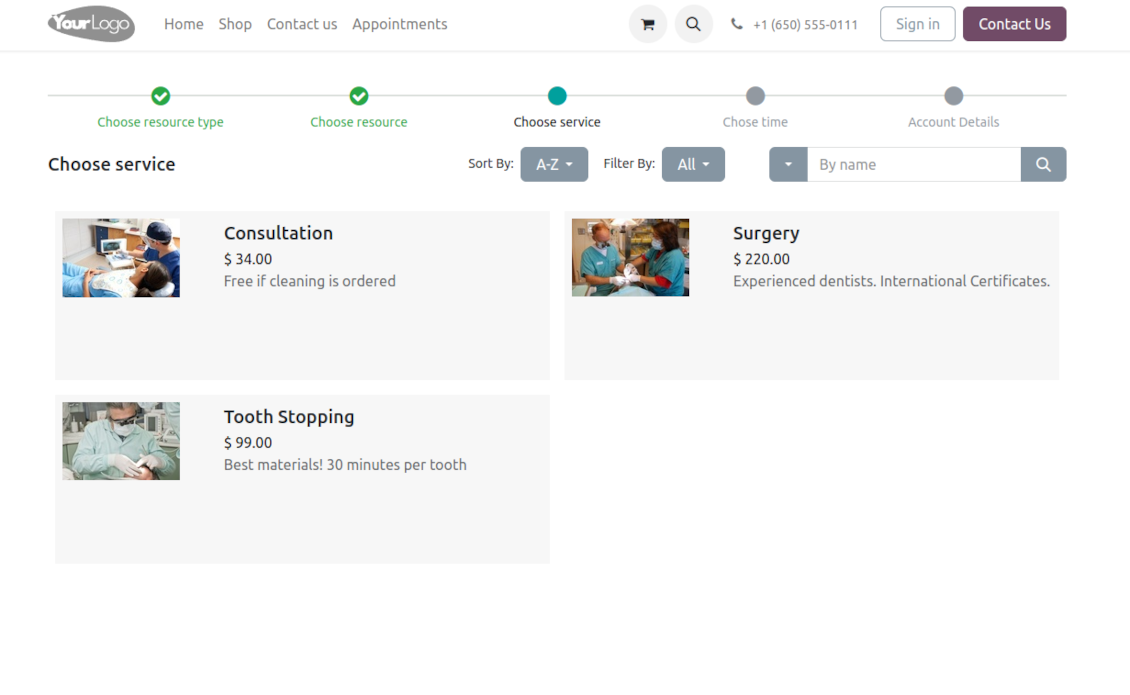
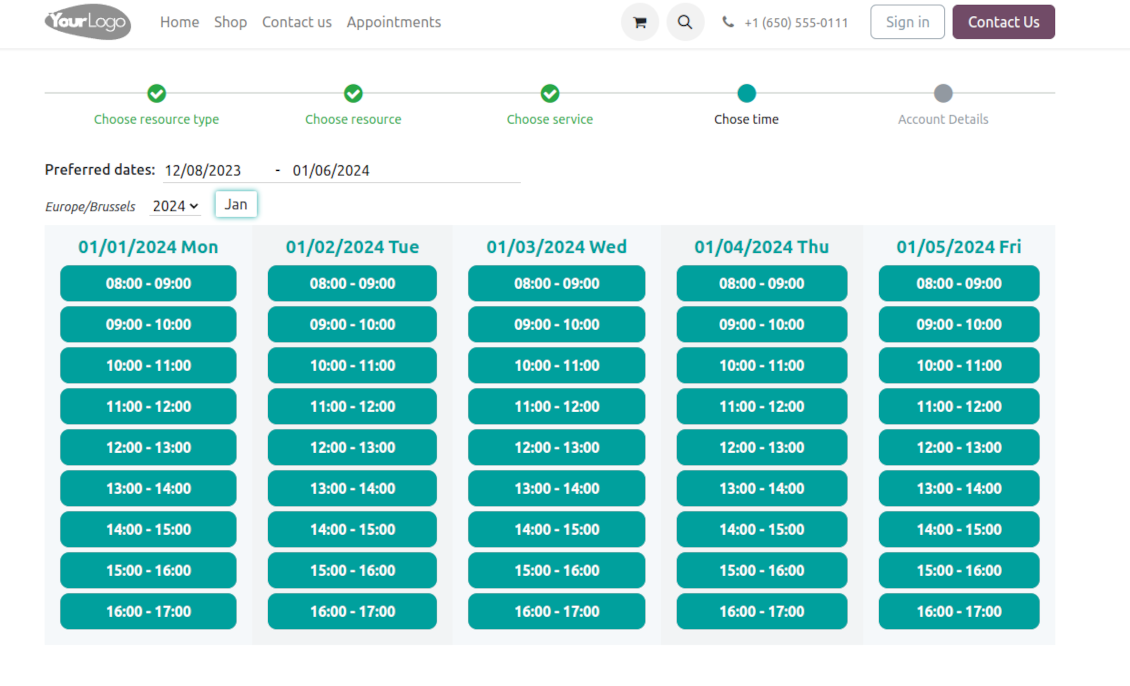
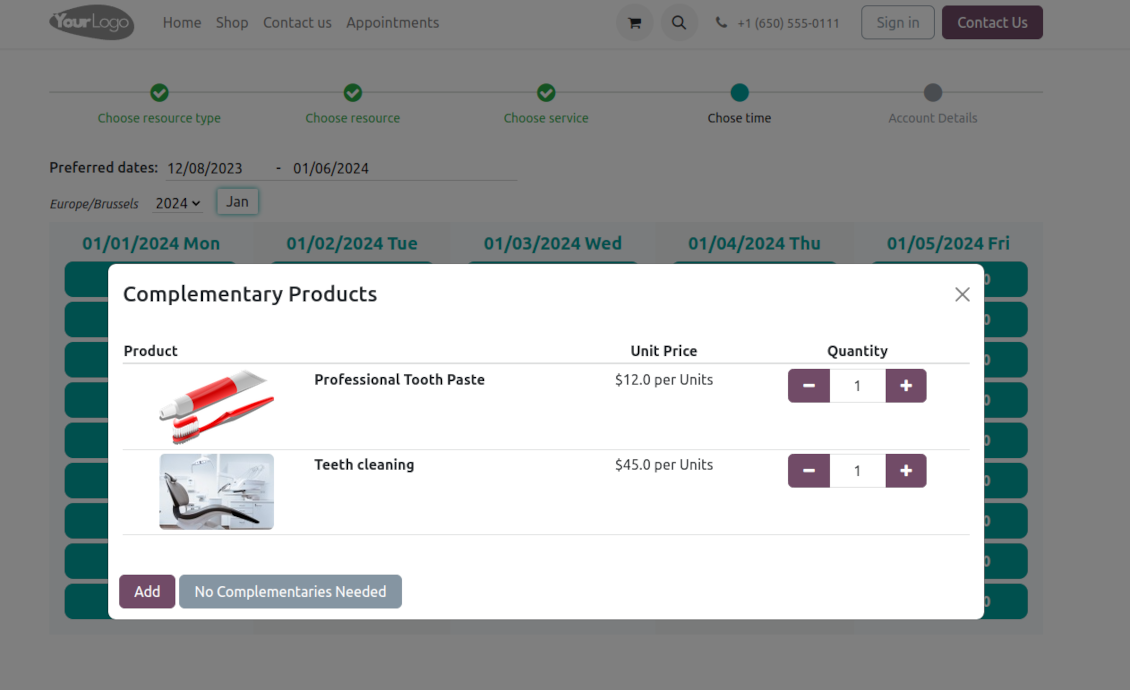
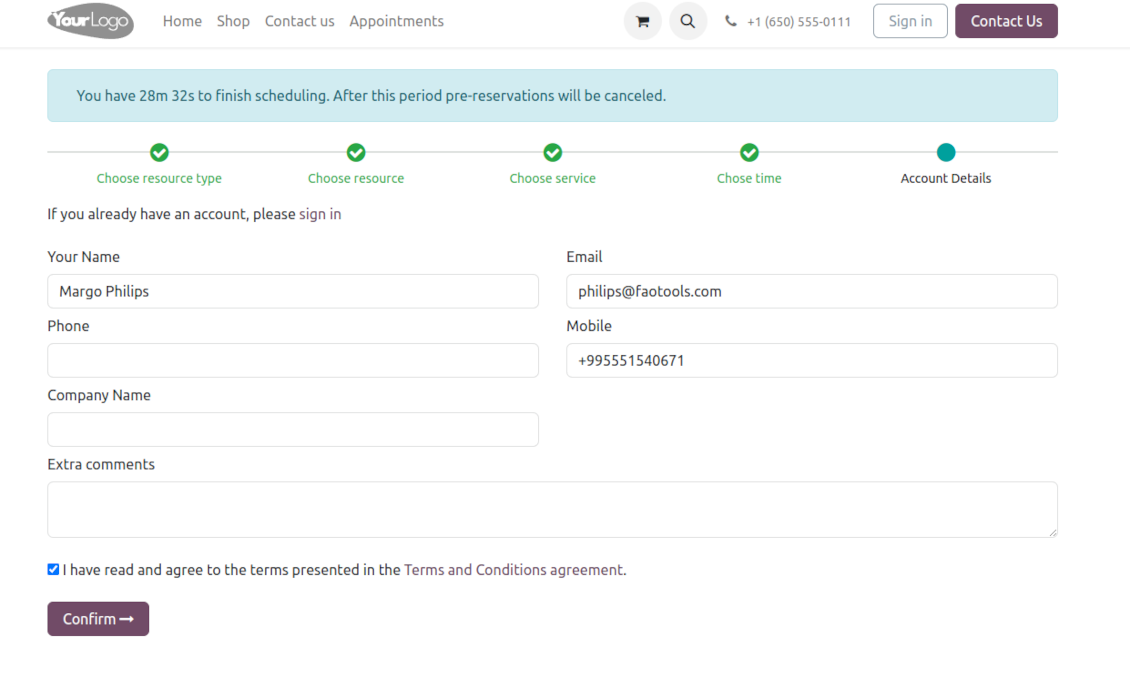
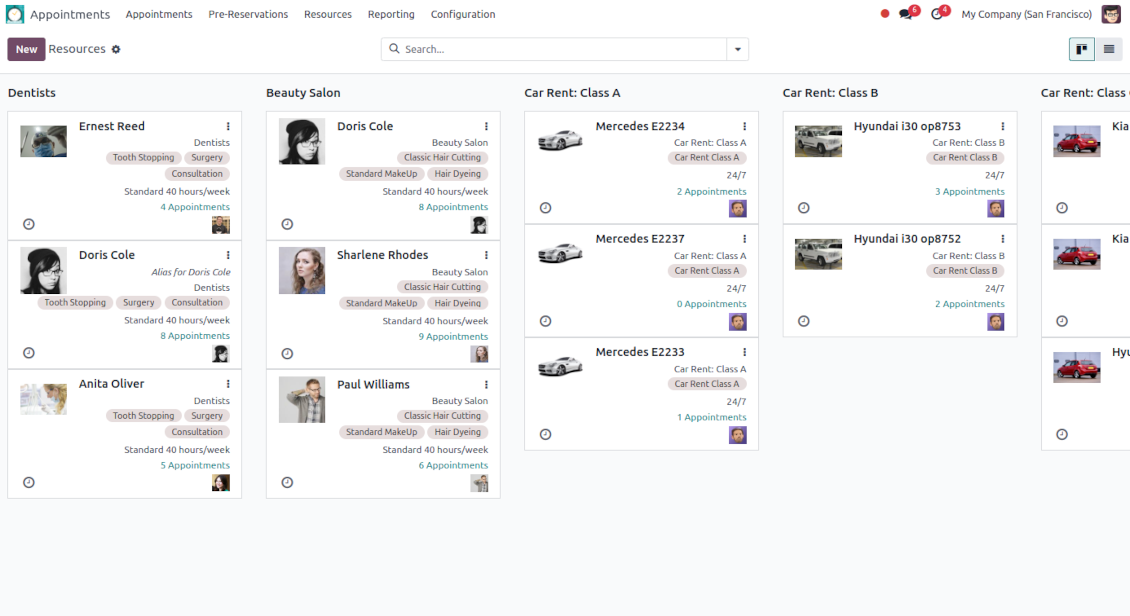
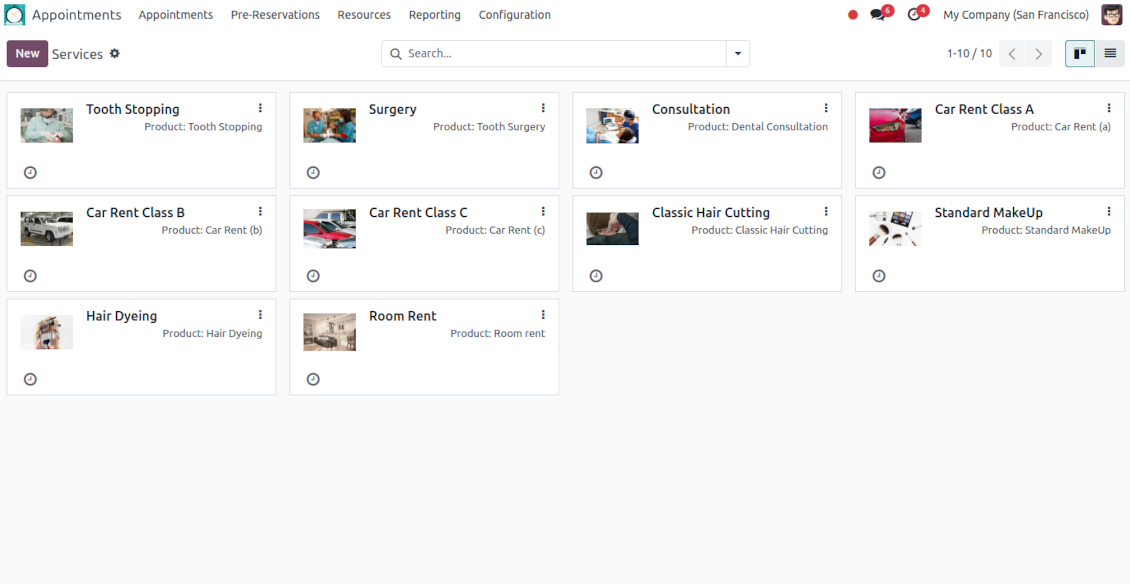
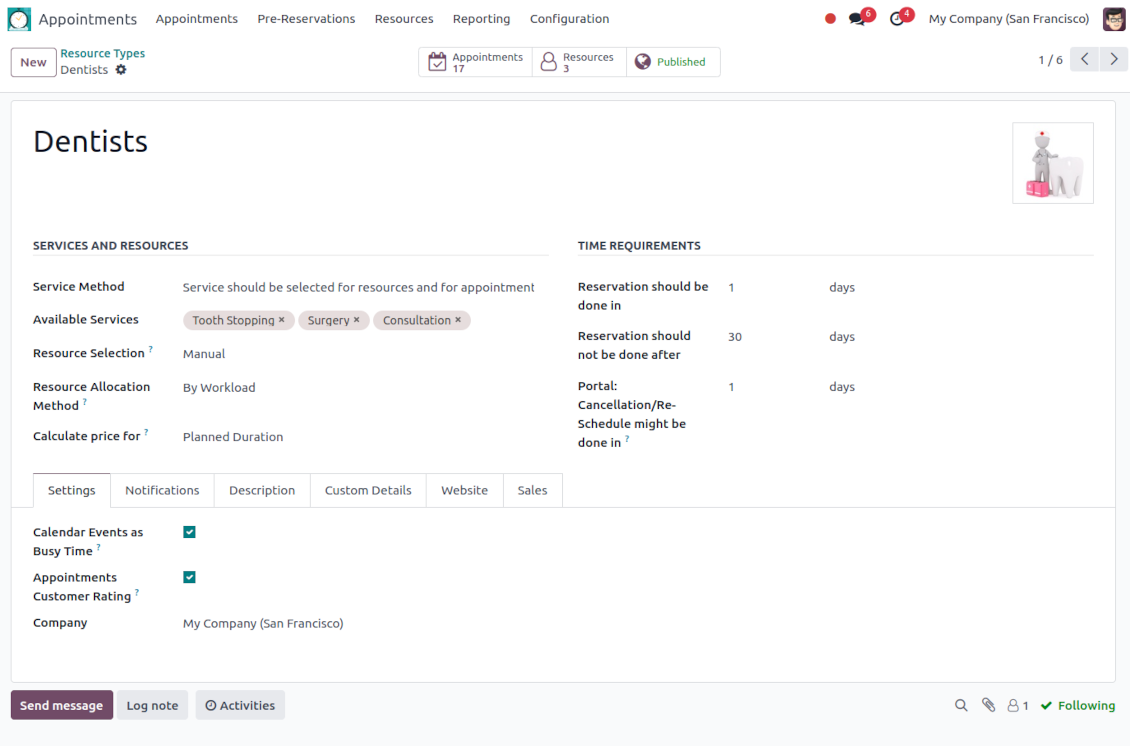
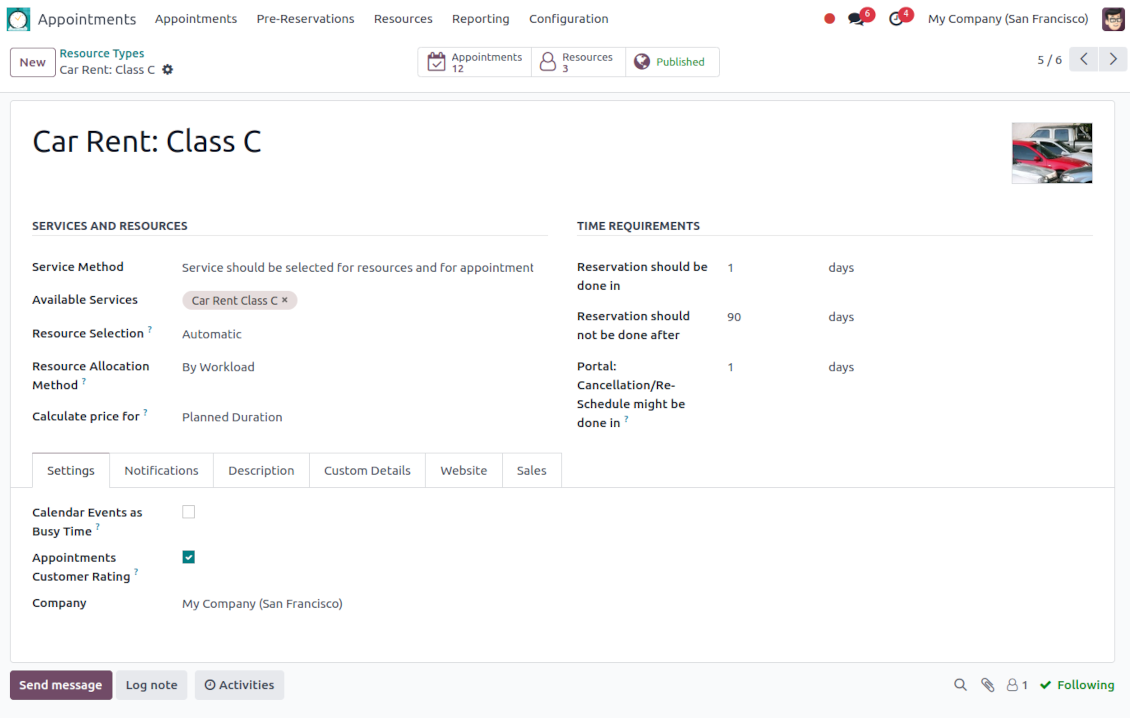
This is an Odoo full-featured app to administrate, control, and improve service management workflow. The tool lets you organize flawless time reservations, control fulfillment, evaluate customer satisfaction, sale and upsell goods in almost any industry. With all options installed, the tool represents a structured e-shop for your services.
Flexible module setup allows you to reflect specifics of your business or even multiple businesses: automate resources distribution or let select those; have predefined appointment duration or let choose it manually; show or hide prices; apply booking restrictions or grant full freedom. Apply your own settings to automate the provision of your services.
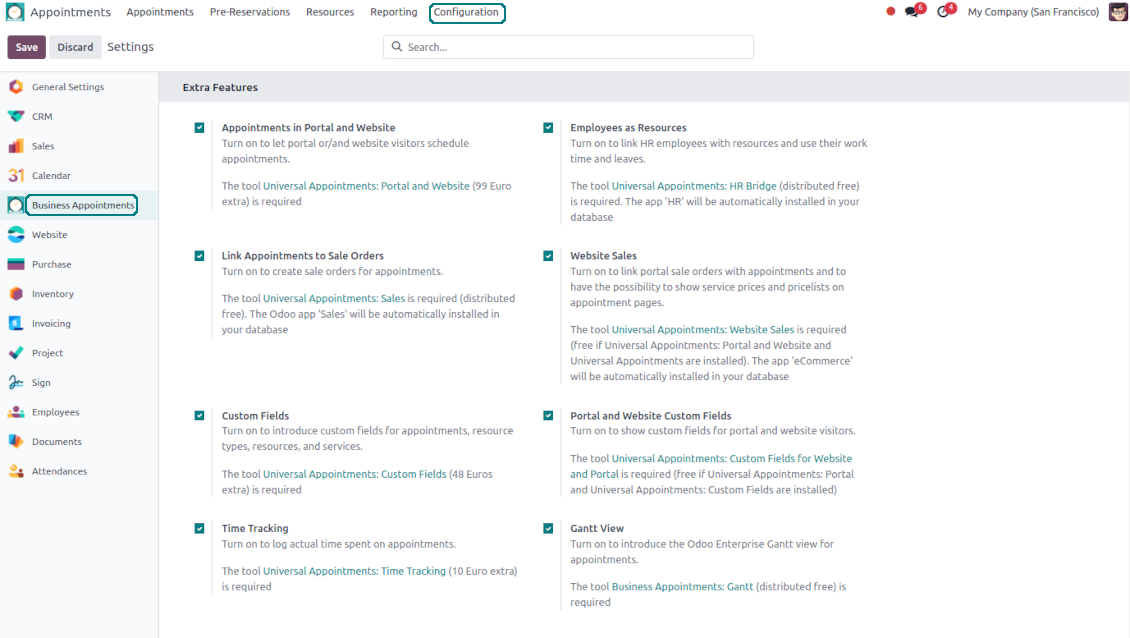
- the core app to manage bookings. It might be used stand-alone for internal control of appointments and scheduling by phone, for example. Sen hinta on 398€.
- the optional module that introduces the website booking process and lets external users schedule appointments and control reservations in the portal. The features assumed by this add-on are marked by the icon . Sen hinta on 98€.
- the optional free module to introduce service pricing information and to link appointments with sales. The features assumed by this add-on are marked by the icon
- the optional free module to include service price lists and prices in the reservation checkout process. The features assumed by this add-on are marked by 2 icons simultaneously: and
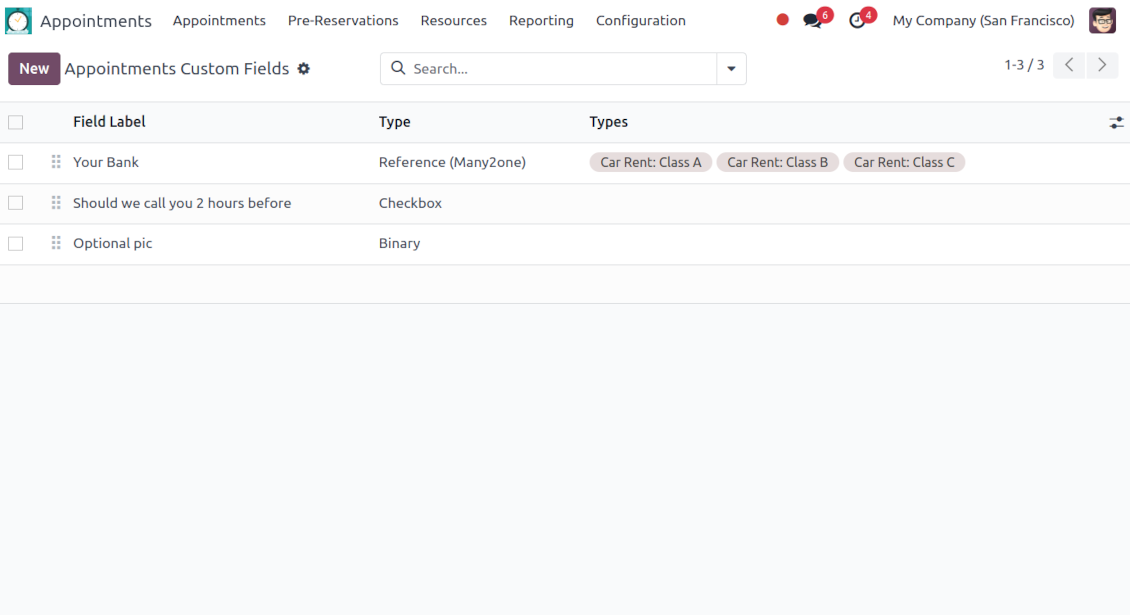
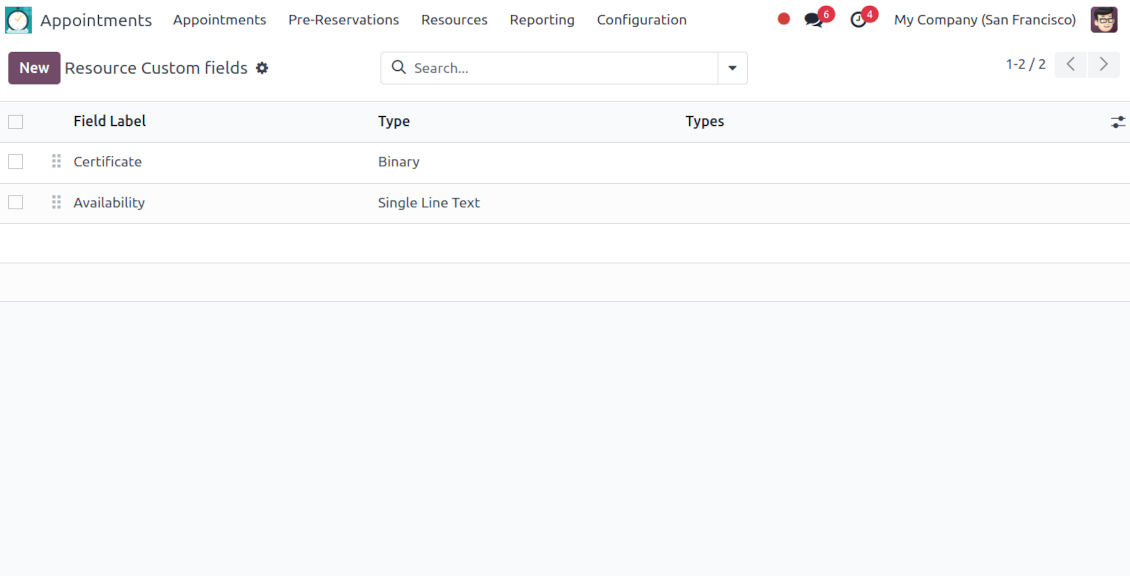
- the optional module that lets you add and show custom fields for appointments and related objects. The features assumed by this add-on are marked by the icon . Sen hinta on 48€.
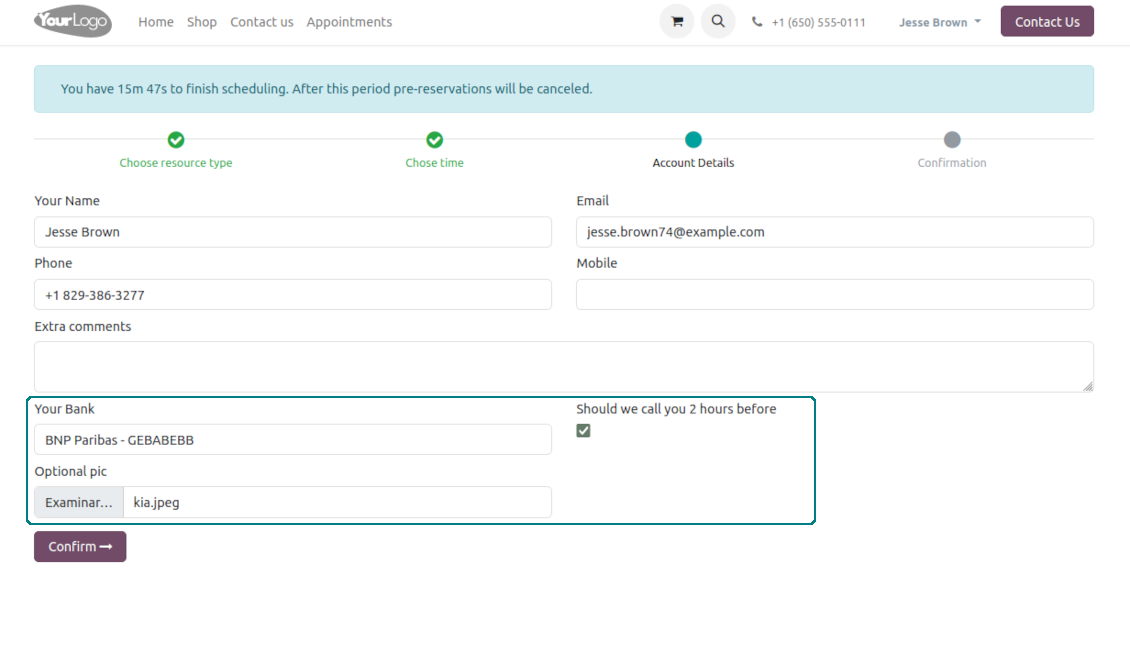
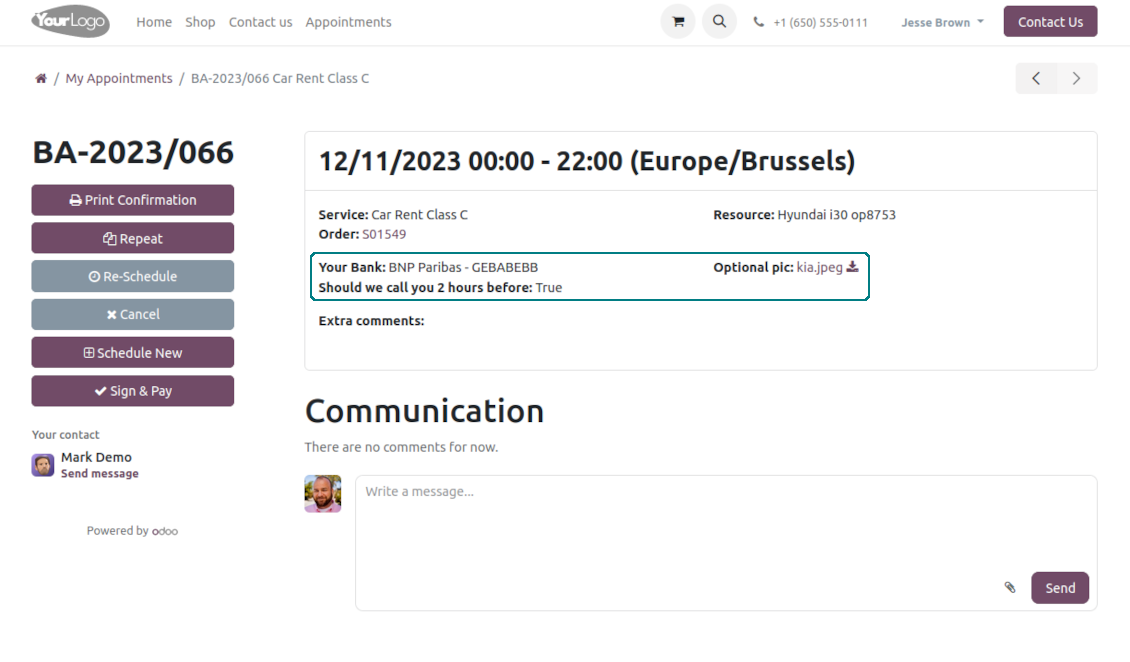
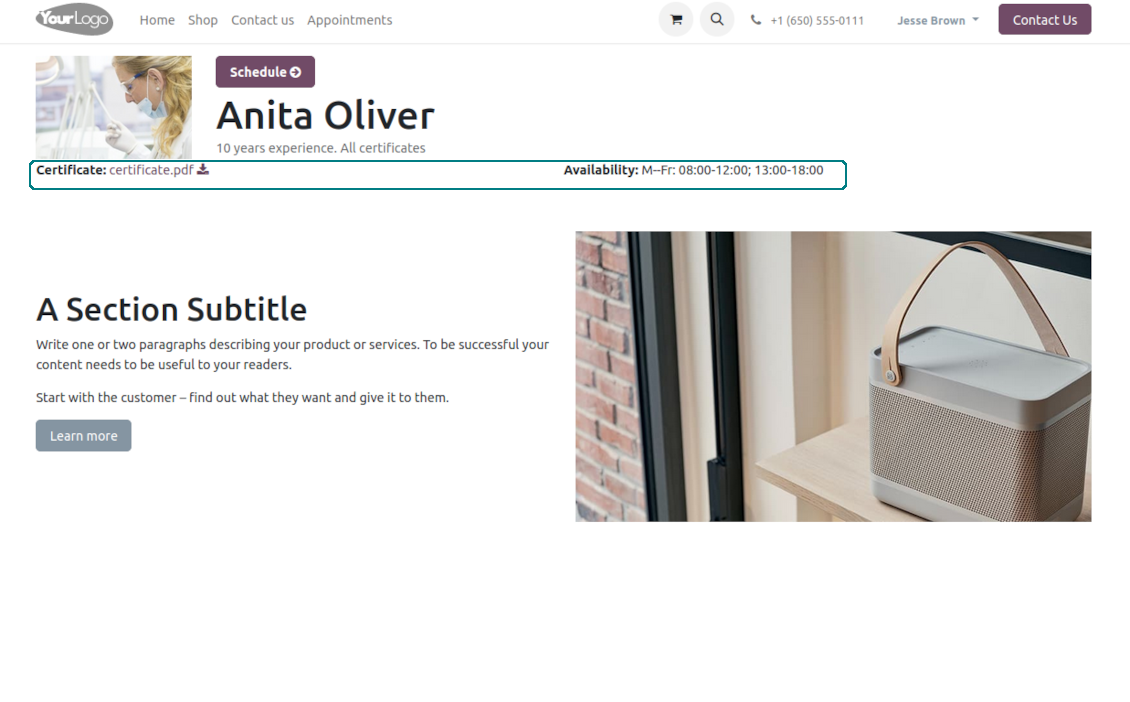
- the optional free module that shows custom fields on website and portal pages (frontend). The features assumed by this add-on are marked by 2 icons simultaneously: and
- the optional module that allows tracking time spent on each appointment. The features assumed by this add-on are marked by the icon . Sen hinta on 10€.
- the optional free module that allows considering employees as appointment resources. The features assumed by this add-on are marked by the icon
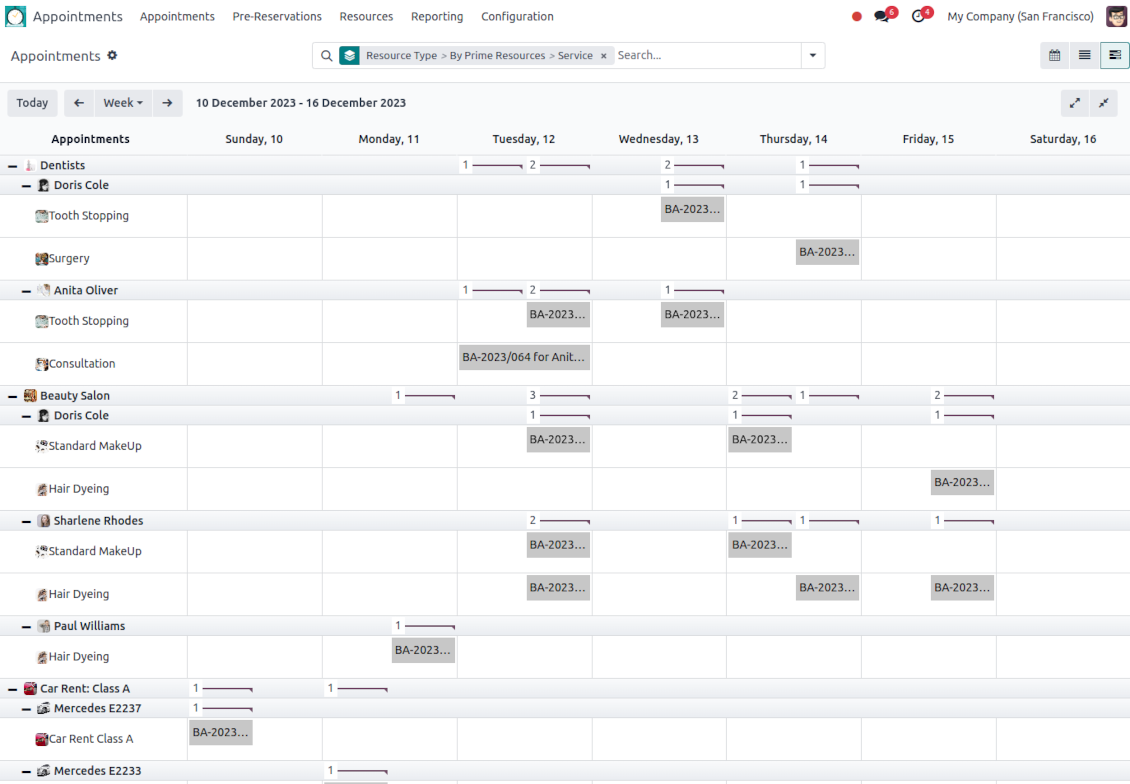
- the optional free extension that introduces the Odoo Enterprise Gantt view for appointments. The features assumed by this add-on are marked by the icon
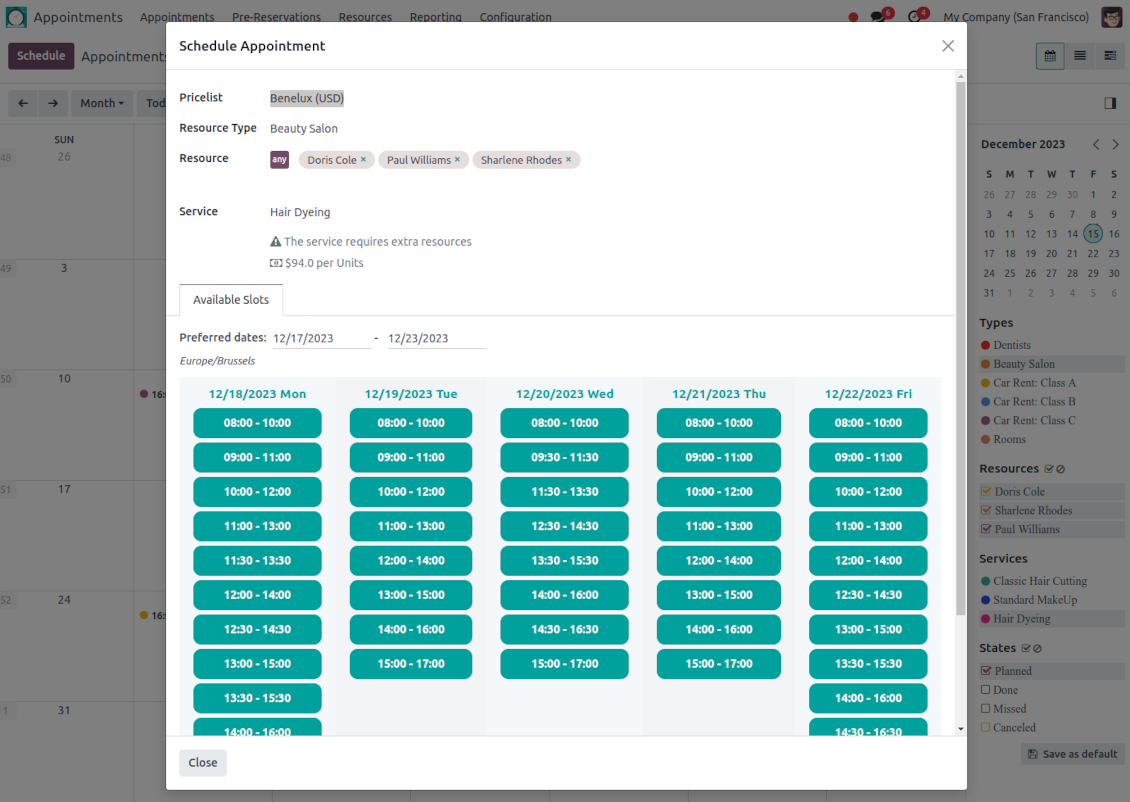
Smart time slots
Vacant slots for appointments are automatically generated based on working calendars, service peculiarities, and specifics of managed businesses
Universal reservations
Set up the structure of resources and services to reflect your company's workflows. Assign specialists and equipment manually or automatically. Flexibly manage appointment duration rules
Comfortable scheduling without conflicts
The appointment scheduler allows making a new reservation in a few clicks. It is quick and simple but with full control over potential intersections
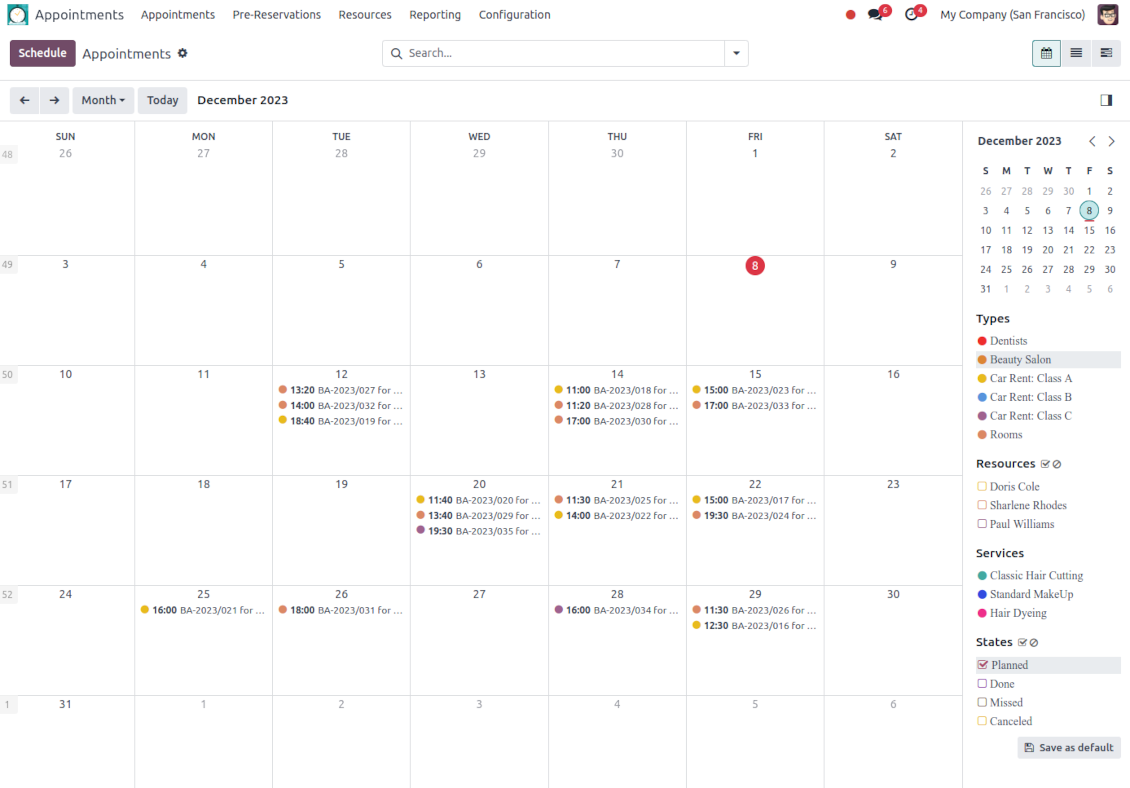
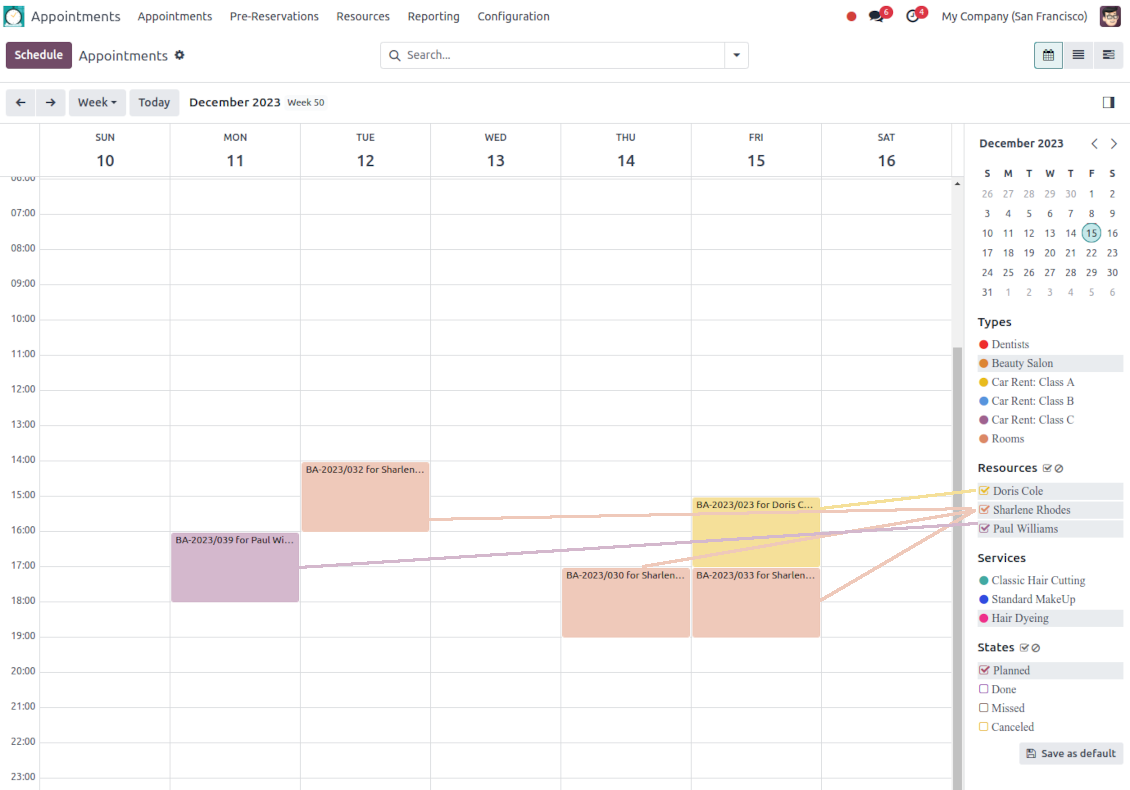
Innovative appointments calendar
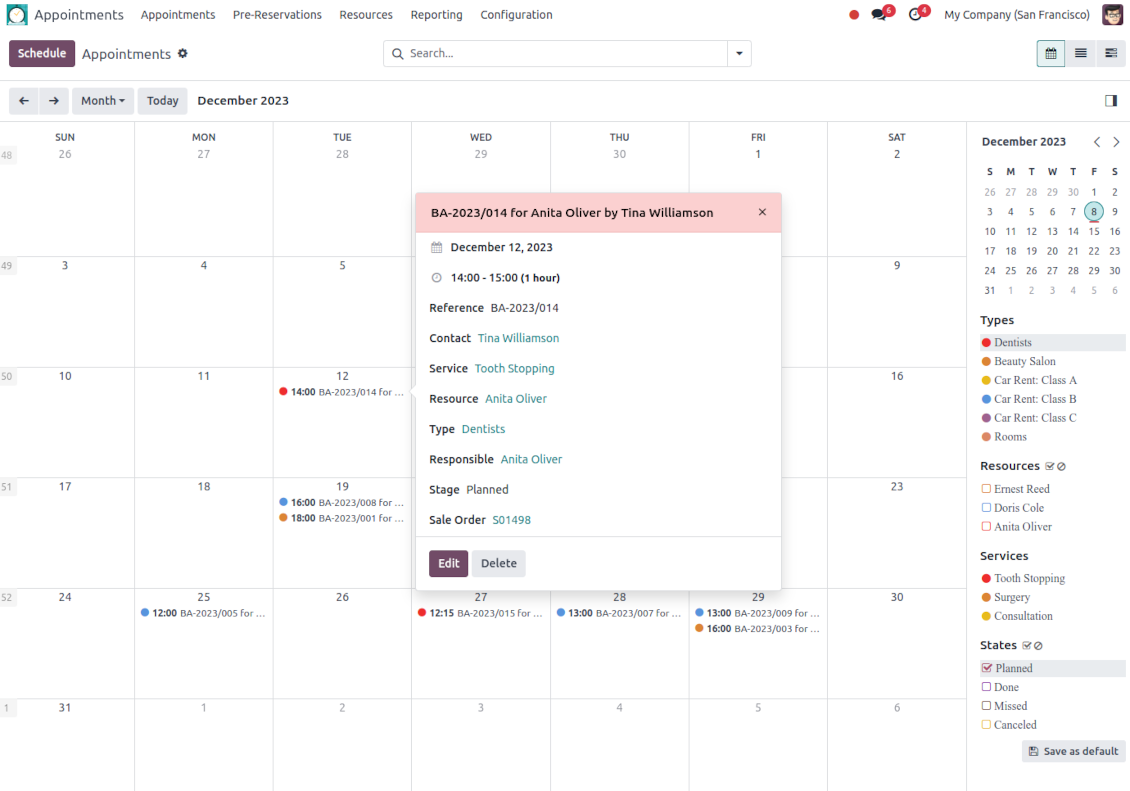
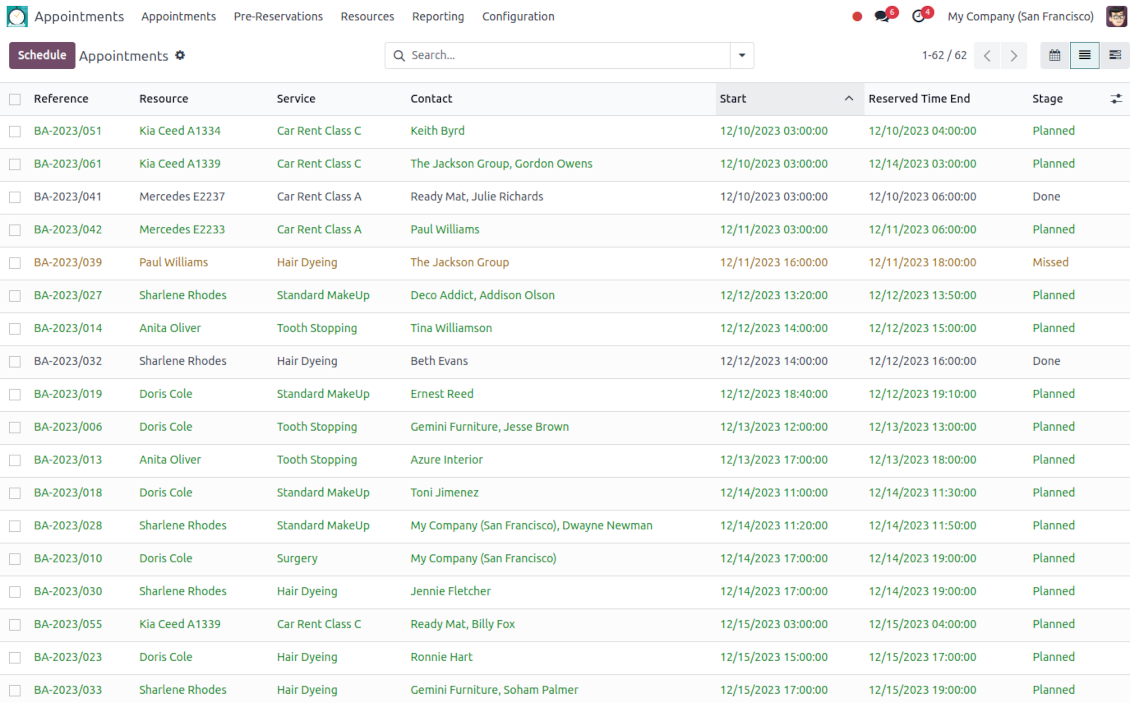
Users administrate reservations from the single calendar view: with quick filtering by appointment details and instant access to required information
Clear website bookings
Let portal partners and website visitors schedule an appointment through the configurable multi-step process of checkout and confirmation
Sell and upsell services
Link bookings with Odoo sale orders and price lists. Boost revenues by upselling accessories
Customer satisfaction and reports
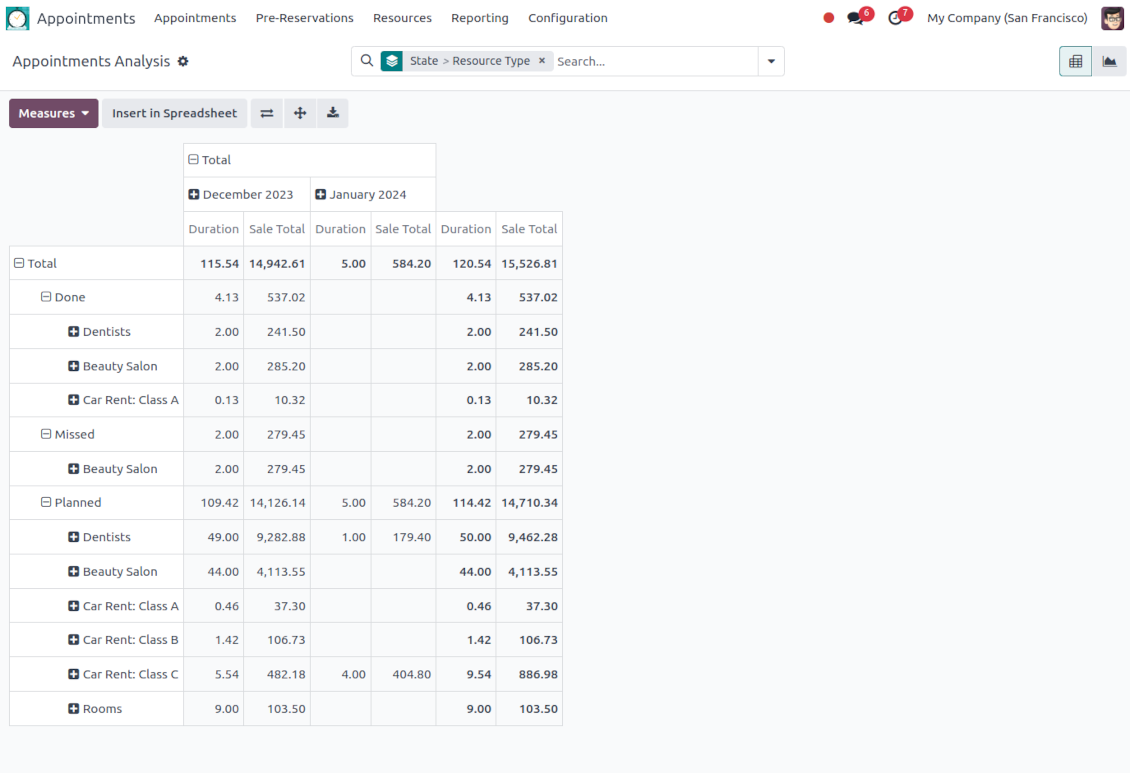
Automatically request client reviews. Analyze appointments by planned and tracked duration, generated revenue
Customizable website and portal pages
Turn on/off optional layout elements. Introduce your own titles and welcome texts. Exclude booking steps
Compatible with Odoo standard features
The app is configurable for multi companies and for multi-website environments. Appointment resources might be linked with employees, while reservations - with Odoo quotations
Custom details and reminders
Apply popup alarms, add success emails, and prepare SMS reminders. Introduce custom fields for reservations, resource types, resources, and services.
Comprehensive and well thought booking app
The app allows backend user to do some simple configuration to make the booking app able to fit in our different business models.
Very good support and also there is module enhancement from time to time with great usability improvements of more use cases.
Just great App and the best support you can imagine
Dear Olga and Alex
Thank you so much for this function which makes the tool perfect!
I've already installed it and tested it -- it works exactly the way the customers need it
This really makes your Appointment App the best tool available for Odoo :-)
I would also like to thank you for understanding my wishes and for taking care of them. That's exactly why I will choose and recommend faotools the nex time again.
Innovative backend scheduling
Auto time slots generation
-
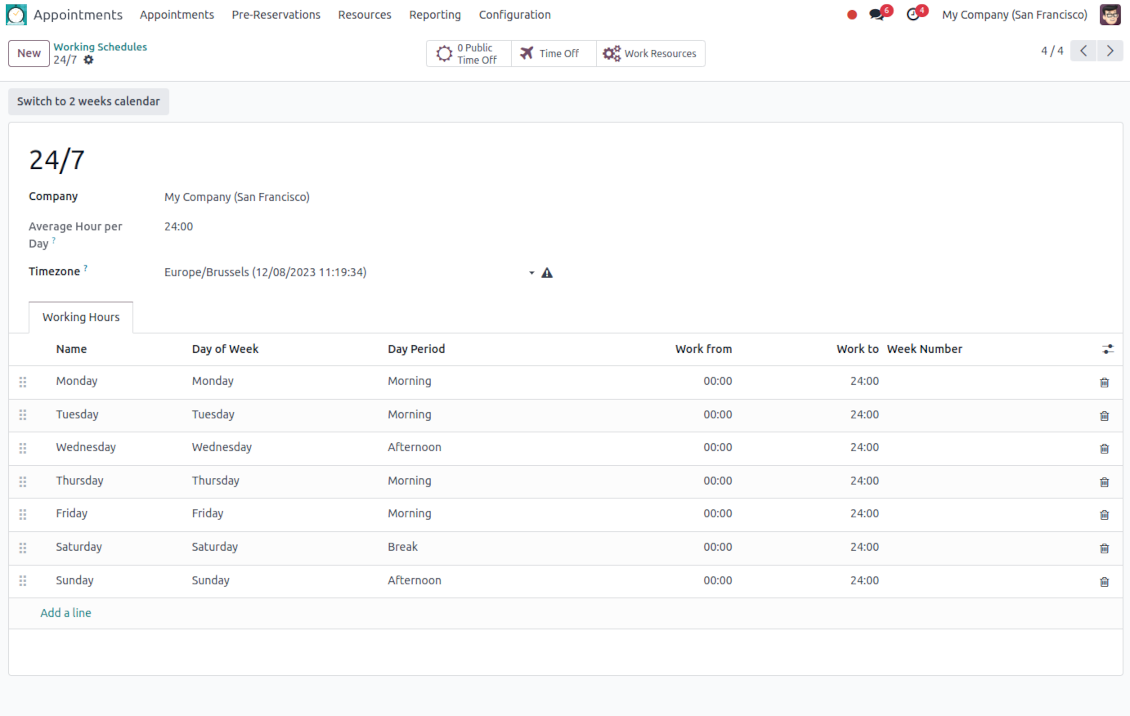
Slots are generated according to resource business calendars. Each resource has its own working time and leaves: it is impossible to schedule an appointment when an employee or equipment is absent
-
The algorithm is based on the service settings: duration, time step, rounding, checkout period, and extra calendar restrictions. You can flexibly configure the appearance and final choice of time slots
-
The app lets plan specific business activities both of predefined duration or of the one entered manually
-
For each service, it is possible to define extra resources required to provide that. The busyness of those resources is also taken into account
-
Per each resource type, define when an appointment might be scheduled. For example, time slots are available not later than 2 days before, and not earlier than 30 days before. Similar rules are applicable for re-scheduling and cancellations
-
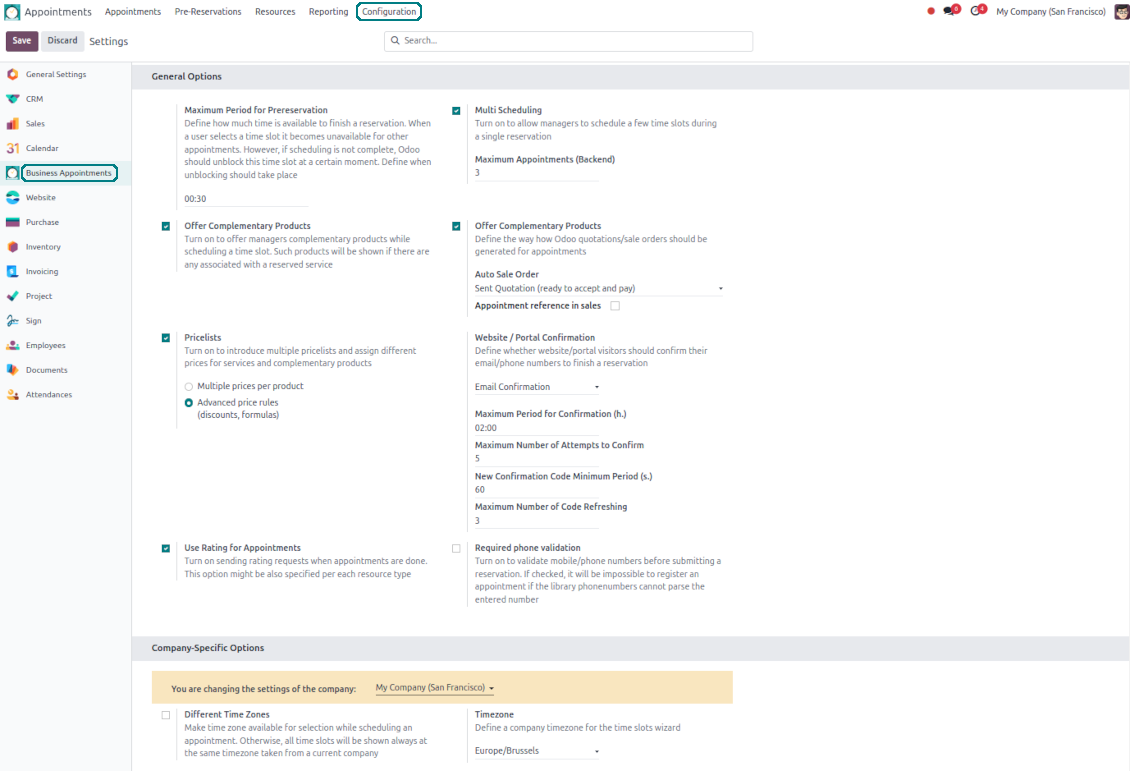
Reserved time slots are not available for other bookings. Even not yet-confirmed appointments (pre-reservations) temporarily block target slots. Pre-reservation will be canceled if not done within a specified period (you may change this limit on the configuration page)
-
If the resource type is configured for that, the app will also consider simple meetings of responsible-for-resources users as busy time slots
-
The tool is also perfect for multi-timezone appointments. Either let users choose the time zone by themselves (default is the OS browser timezone), or set the same timezone for all cases
Smart Odoo reservations
-
No appointment might be entered manually, but it should be selected among available slots and according to the principles you set up
-
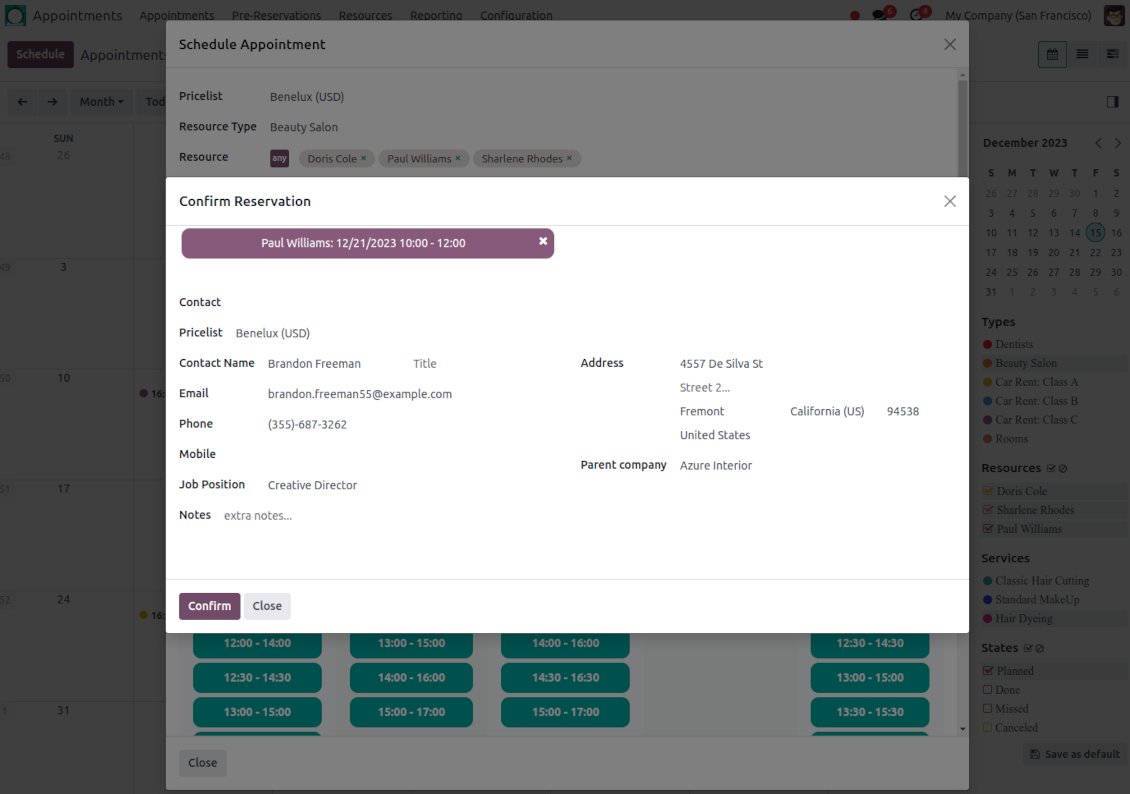
To start new scheduling pick up a required time period on the calendar: the wizard will be automatically initiated. Chosen dates are used as the time range for slots
-
In the wizard, you can change which resource type, resource, and service should be scheduled. The tool automatically checks and restricts viable options
-
As soon as wizard details are filled up, the tool will generate and show time slots. A manager should merely select the desired one
-
When a slot is selected, the app automatically adds chosen type and service, allocates a proper resource, and assigns reservation responsible
-
Slot selection also means that the period is pre-reserved and can not be used for other bookings
-
Afterward, the only thing left is to enter client details or choose an existing customer
-
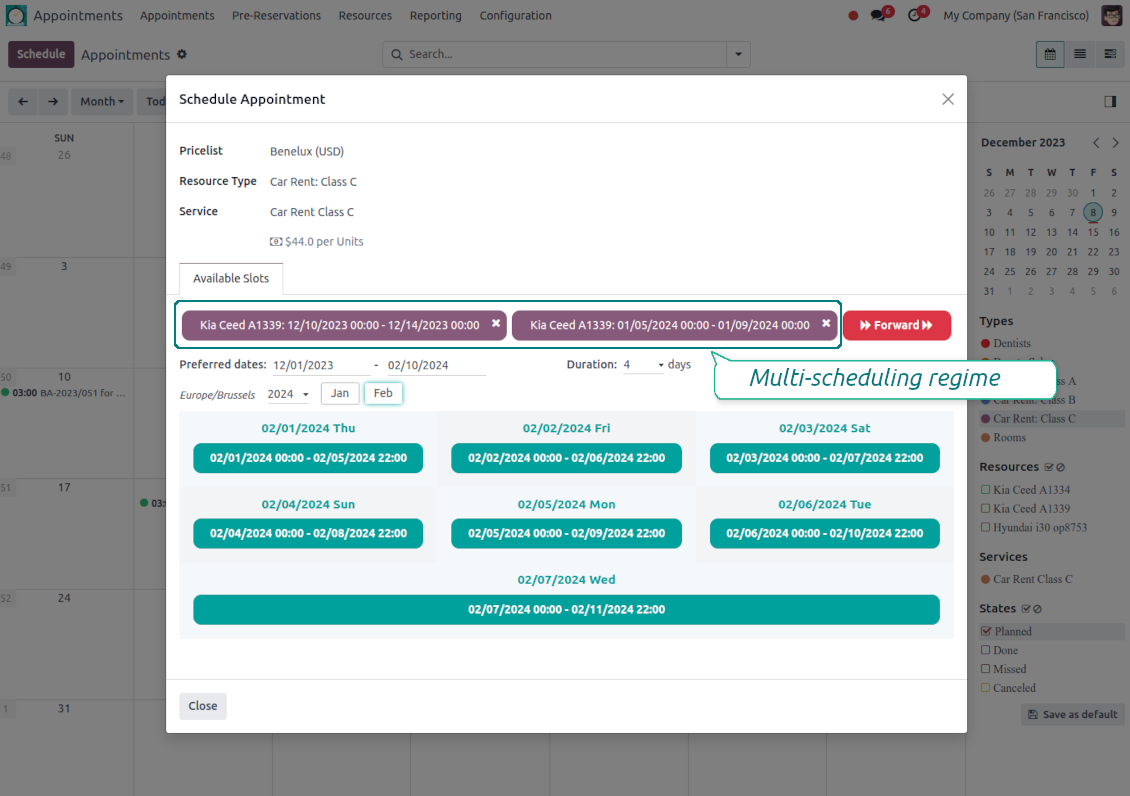
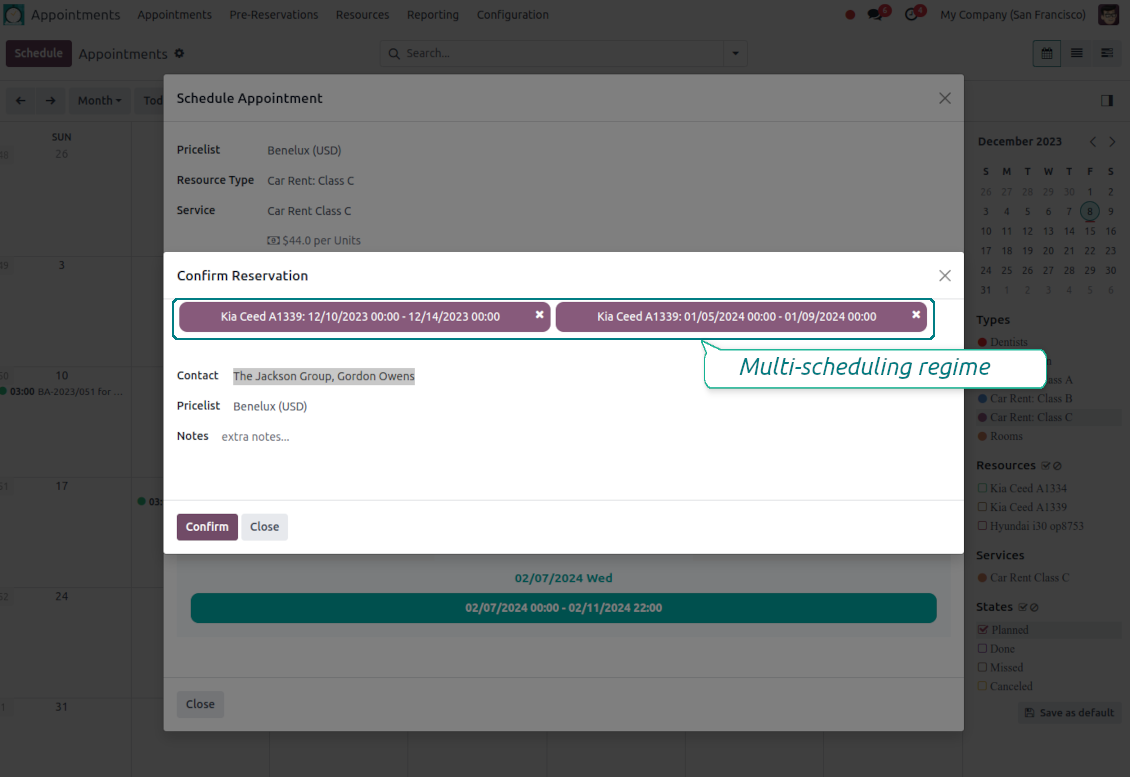
If needed, let managers schedule a few appointments simultaneously (regulated by the special setting on the configuration page). For a single or a few resource types/resources/services
-
From the appointments calendar, you may also re-schedule reservations. To that end just drag and drop an event, and the tool will prepare possible time slots. The principles of calculating availability are the same as for simple scheduling.
Universal website bookings
-
Scheduling an appointment through the Odoo portal and website is organized as the multi-steps checkout process
-
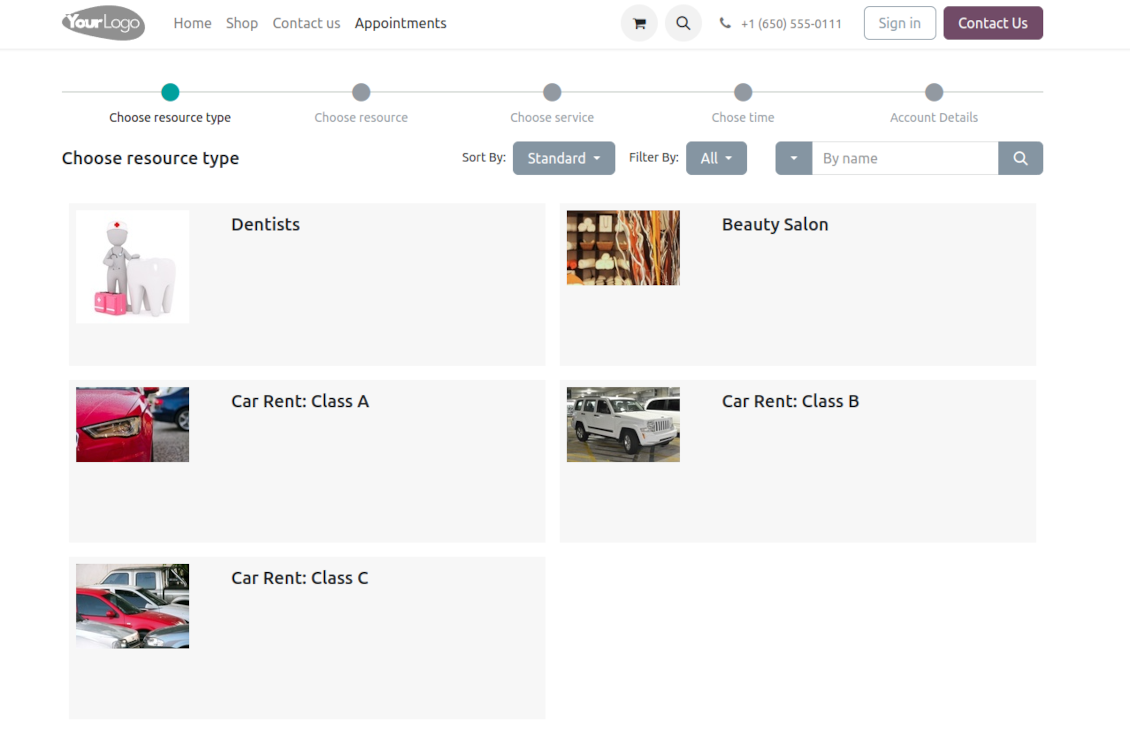
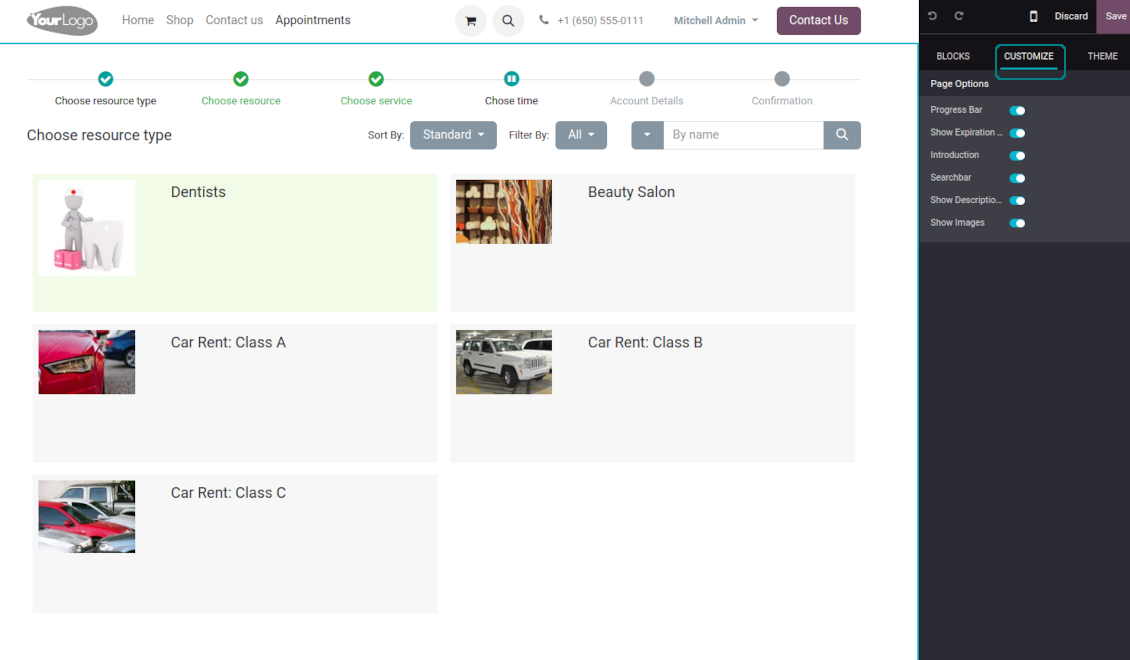
A customer searches among resource types and selects a required one. For example, "Beauty salon" or "Class C Cars". The step will not be shown if there is a single published resource type for this website
-
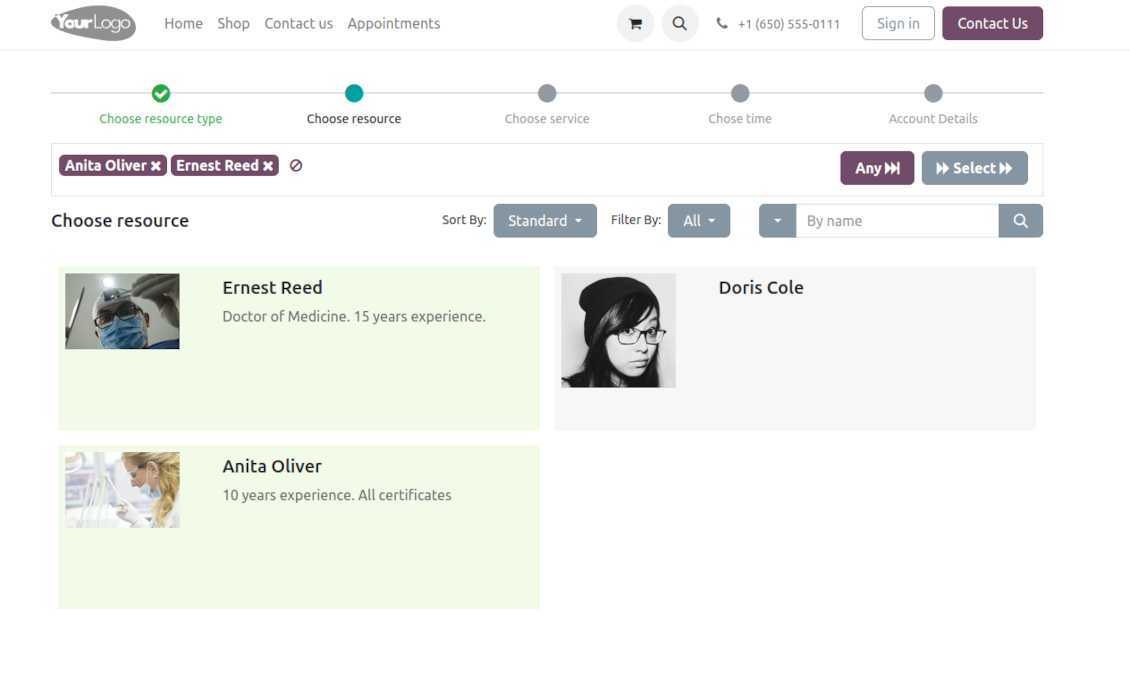
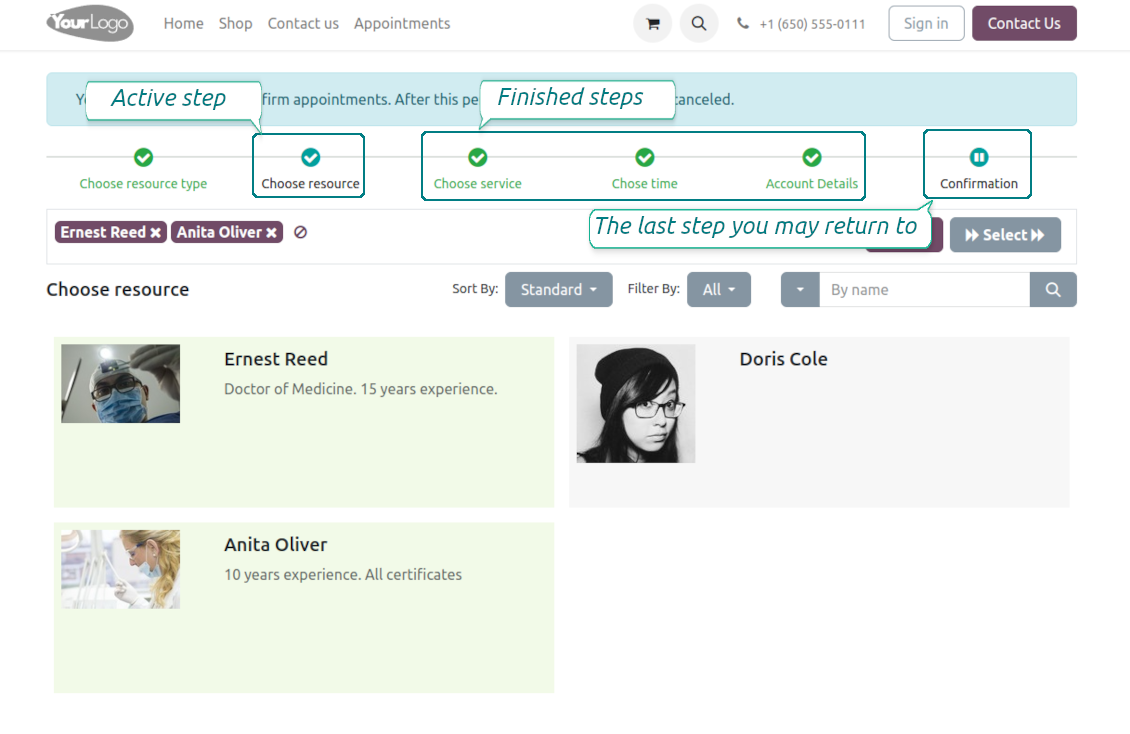
A customer navigates over resources available for this type and chooses one, a few, or applies any (all). For example, "Hair Dresser John Brown" or "Opel Astra 1234". The step is missed in case there is a single published resource, or the chosen resource type assumes automatic allocation
-
A customer chooses the desired service provided by selected resources. For example, "Classic Hair Cutting" or "Car Rent Class C". Clients would not be asked to choose a service if there is only one published on this website
-
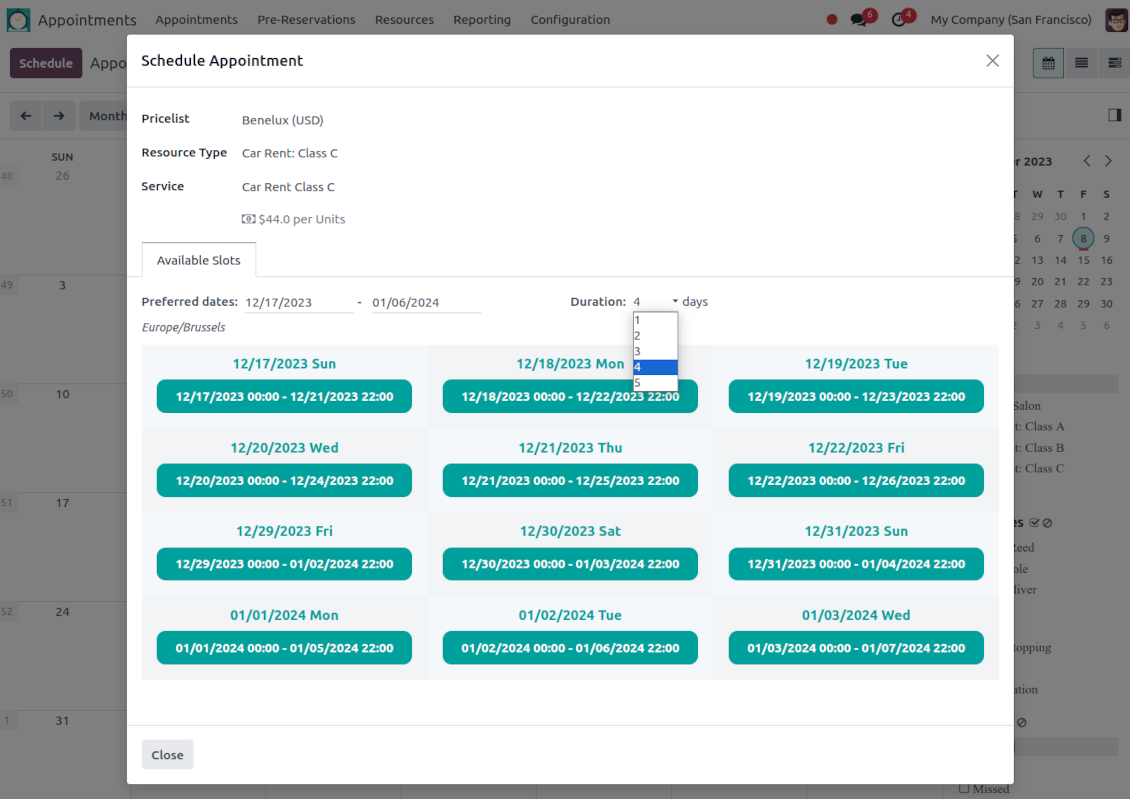
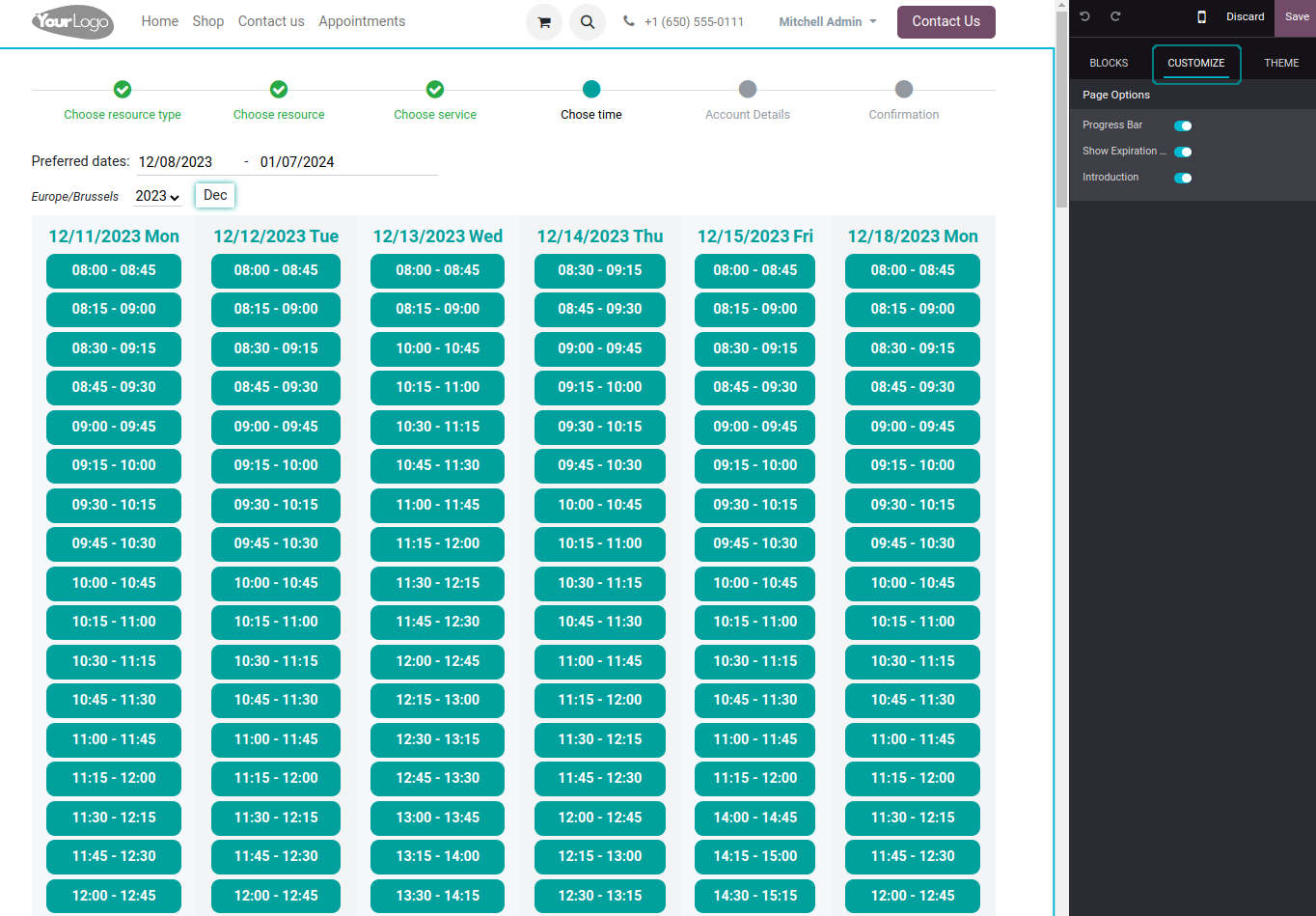
A customer is shown available time slots. The interface lets adopt time frames for search, change the time zone, and insert duration (for services with manual duration). Each action results in slots' recalculation. Website visitors might be optionally allowed to book a few time slots for a chosen service
-
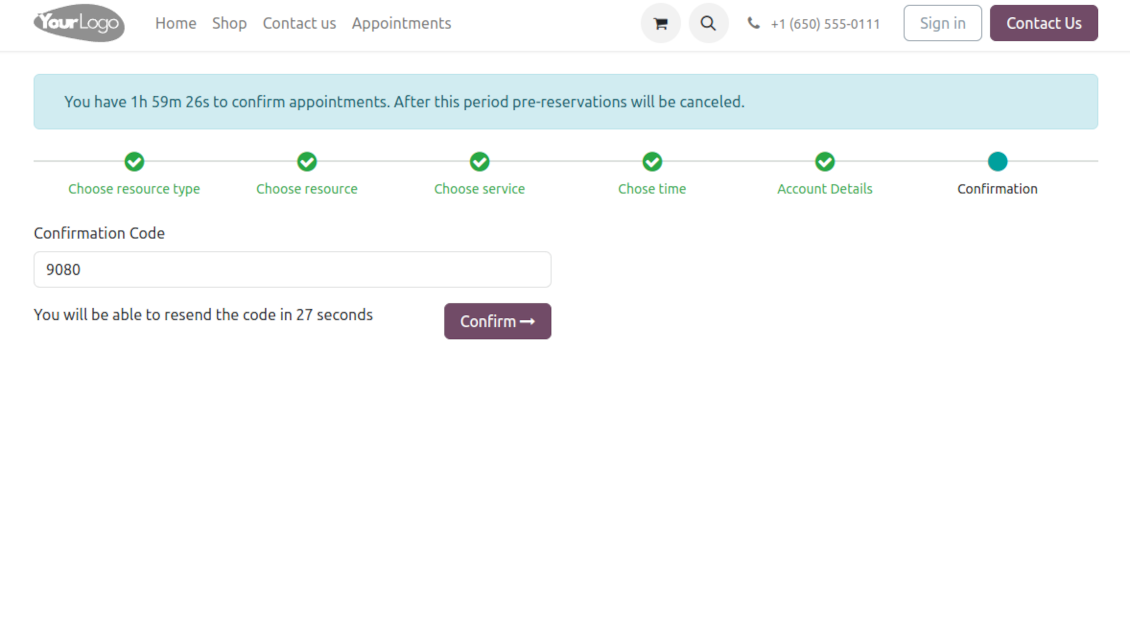
A time slot selection is required and might be not missed. As soon as pre-reservation is done, nobody else can book the same slot. Simultaneously, clients have limited time to make confirmation after which pre-reservation will be canceled (the exact time is up to you)
-
After pre-reservation appears, you may force the public (not logged-in users) to sign in, only offer to do so, or just let them add their details
-
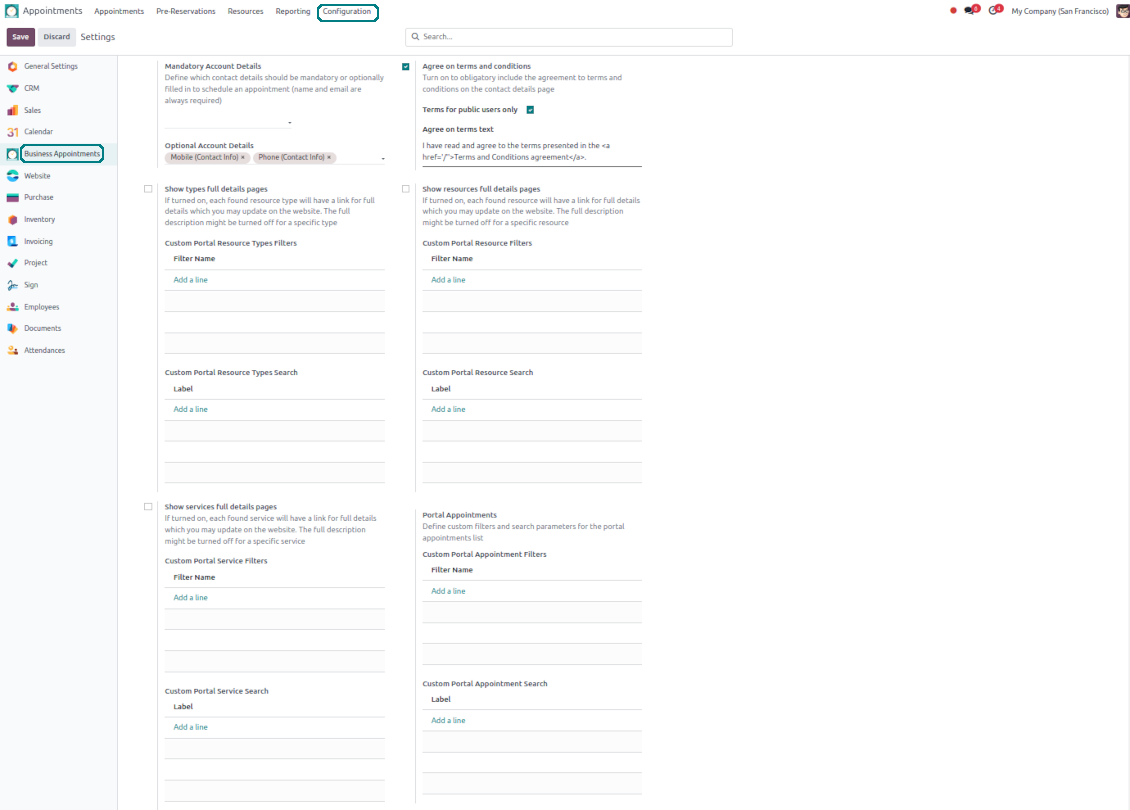
A customer should enter contact details, a set of which might be configured per website. By default required ones are name and email. Previously registered (portal) users would have fields auto-populated. Optionally add here a checkbox to agree with the terms and conditions
-
Optionally ask customers to confirm their email or mobile number. If the confirmation option is turned on, website visitors will be obliged to insert received codes. In case a correct code is not introduced in time (set up on the configuration page), appointments will be canceled. If you selected SMS confirmation (the feature depends on Odoo SMS IAP) but your balance is not sufficient, a confirmation code would be forwarded by email
-
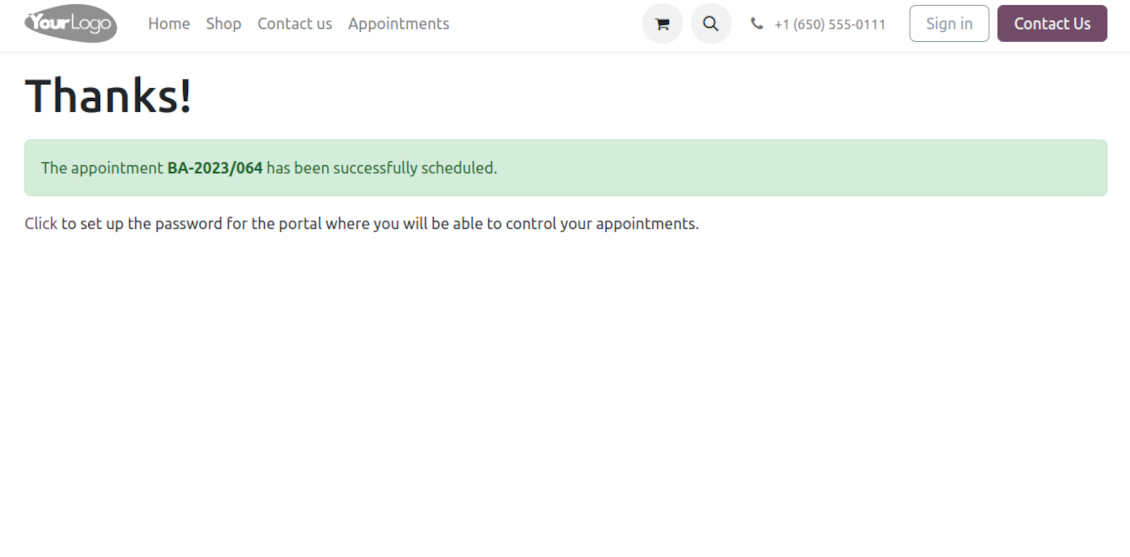
As soon as all steps are done, a customer receives a confirmation email and is redirected to the success page/new appointments(s) page. For not yet registered users, Odoo will offer to enter the password for the Odoo portal
-
Optionally configure success redirection to a created sale order, so a customer may sign/pay that right after finishing the reservation (based on the Odoo standard sales workflow)
-
Optionally set up automatic canceling of website/portal appointments that are not paid within the specified period. To that goal, go to a resource type form, and find the setting 'Possible Canceling' on the tab 'Sales'. The feature works only for auto-sent sale orders. In this way, you may force clients to prepay reservations
-
During the whole process, customers might see the progress bar (if you have not purposefully turned it off). The progress bar lets safely return to any previous step.
Configurable appointment pages
-
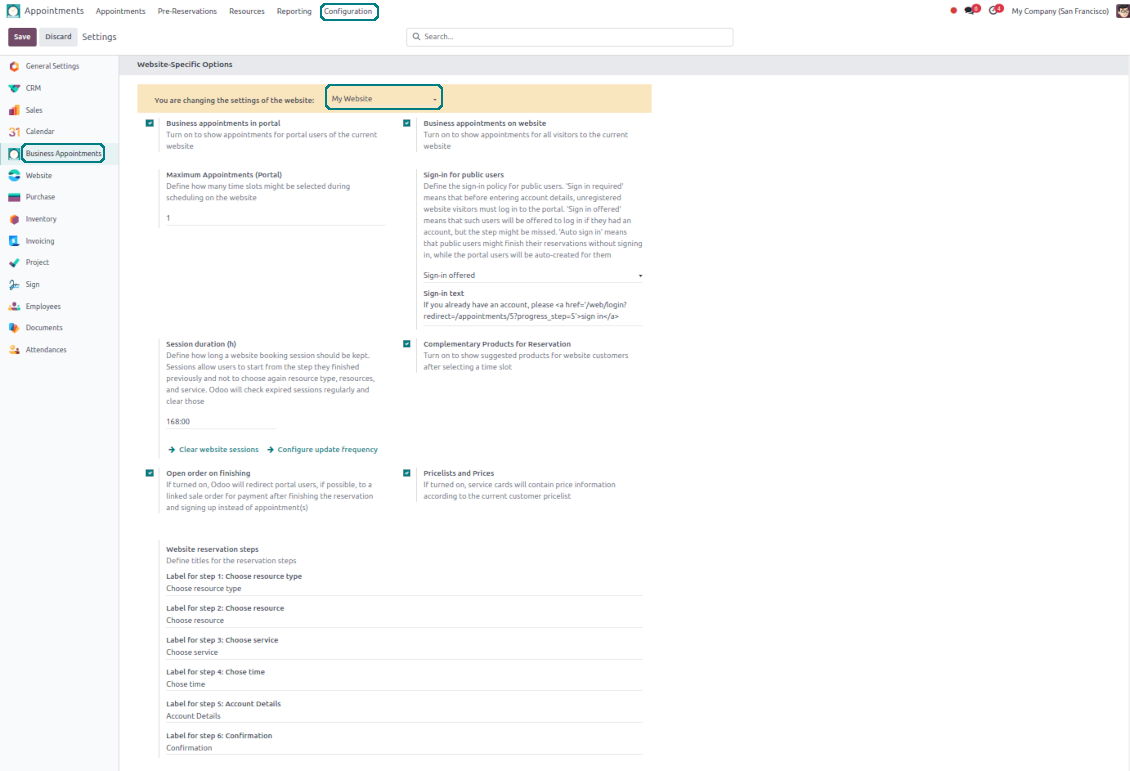
Show/hide the progress bar. Introduce your own names for progress steps
-
Show/hide introduction blocks, images, and short descriptions for resource types, resources, and services
-
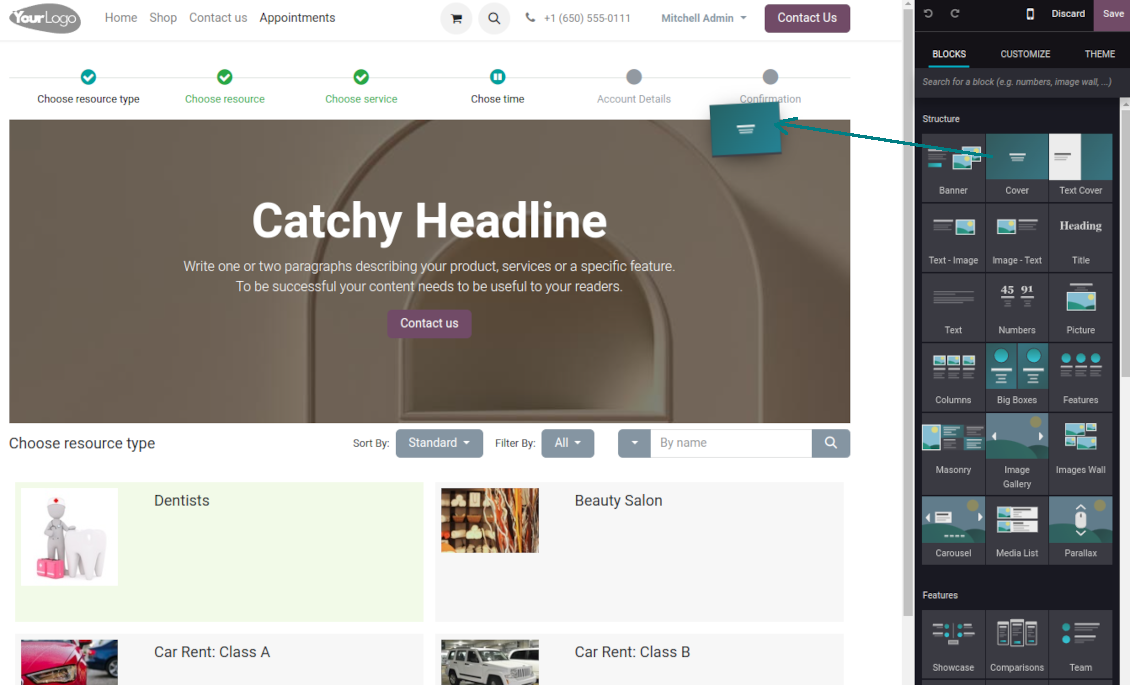
Prepare your own full details pages for resource types, resources, and services using Odoo's standard website builder. Show/hide links for those pages
-
Show/hide pre-reservation and confirmation timers
-
Choose the contact details fields required to be entered. Define custom fields that should be entered for appointments
-
Define filters and sorting criteria for resource types, resources, and service pages
-
Show/hide the agreement with terms and conditions for portal/public users. Introduce your own text and link for that agreement
-
Show/hide prices
Portal control of reservations
-
Customers may control their appointments right in the Odoo portal
-
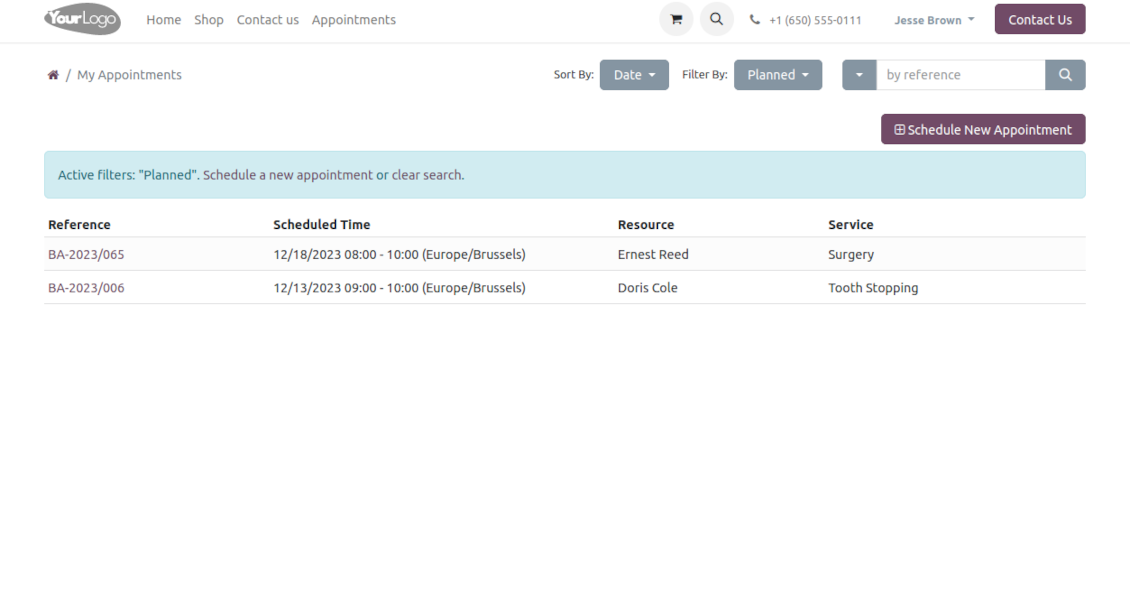
Portal users observe the list of planned and done appointments and may check any of those
-
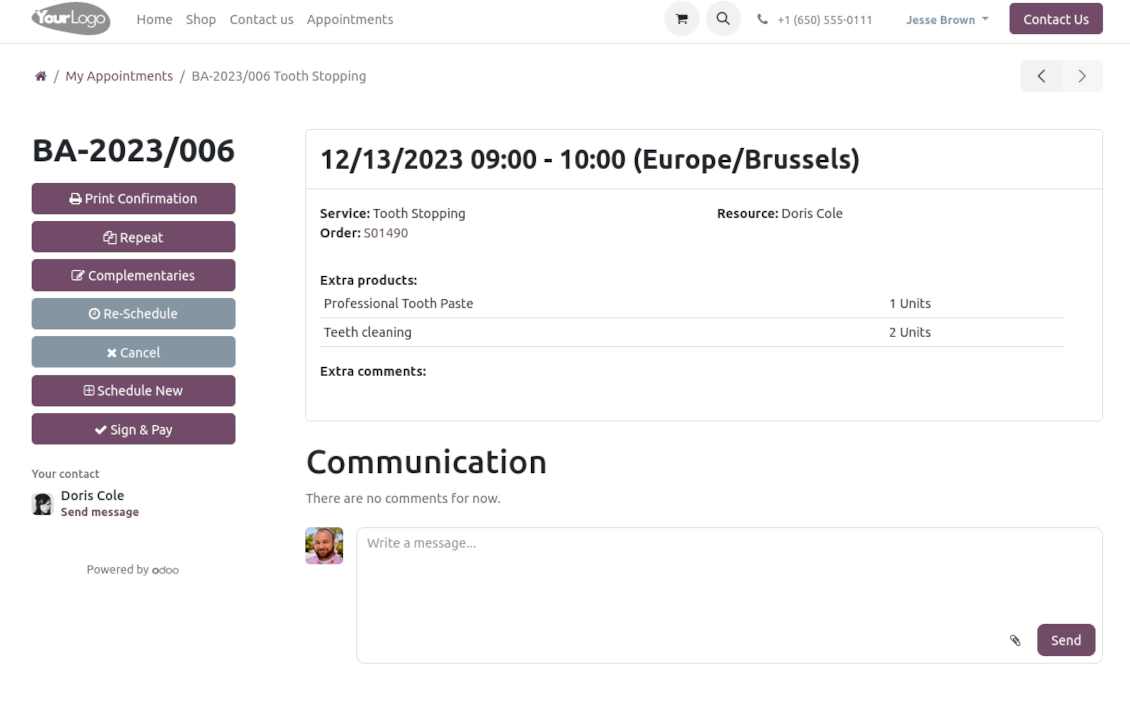
The Odoo portal allows you to schedule new or repeat existing reservations, cancel or re-schedule planned ones
-
Each appointment has a chatterbox that allows direct communication with the resource manager and other followers
-
From the portal appointment page, users can also print a voucher, so reservation confirmation
-
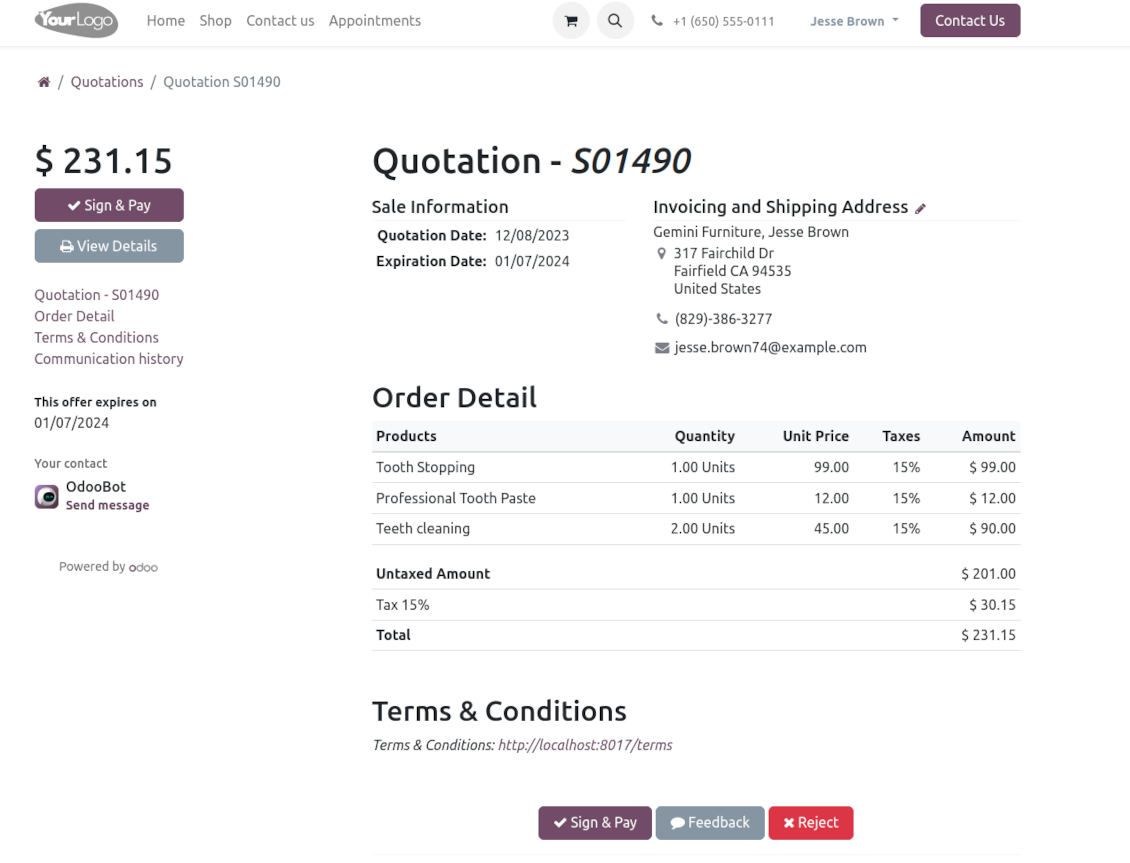
If an appointment has a linked sale order (sent, confirmed, or done) it would be also available through the standard Odoo portal entries 'Quotations' and 'Sale Orders', and right from the reservation page
-
Based on the Odoo standard sales functionality, customers may also sign and pay orders linked to their reservations.
Structured service management
Resource types
-
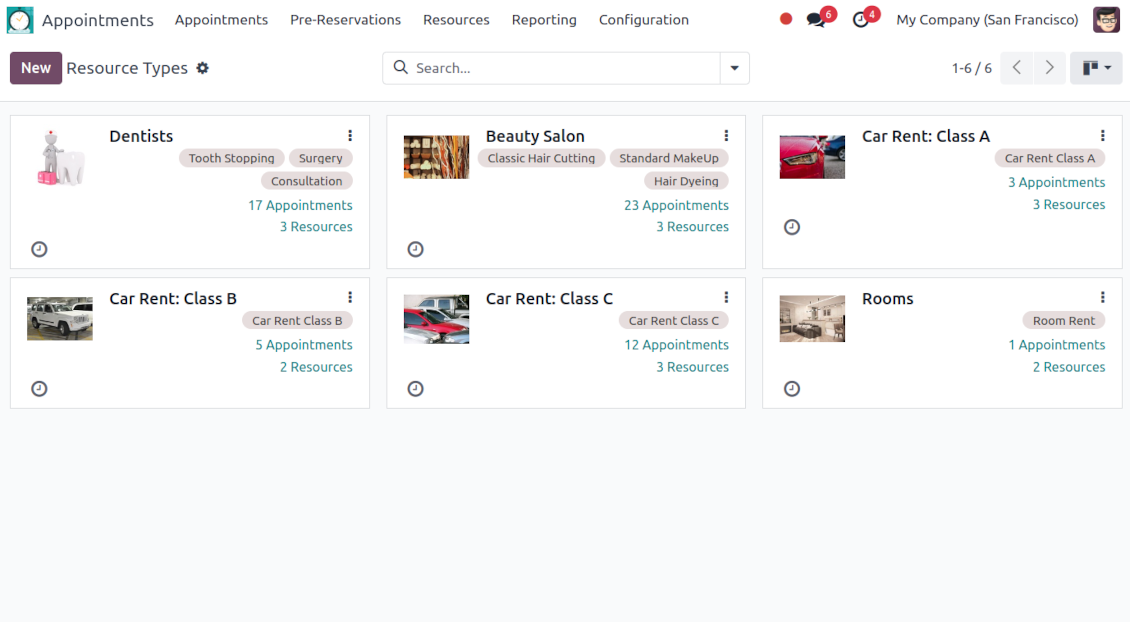
Resource types might be particular businesses you manage. For example, 'beauty salon', 'dentistry', or just 'hairdressers'
-
Another approach is to consider a resource type as a group of particular resources. For instance, 'class B cars' and 'class C cars' for rental business
-
Resource types contain main settings of how to organize service provision: how to allocate resources, how to calculate appointment total price, what are time restrictions, which services are possible, etc.
Resources
-
A resource in many service businesses assume certain specialists: For example, 'Dentist John Brown', 'Hairdresser Anna Green'
-
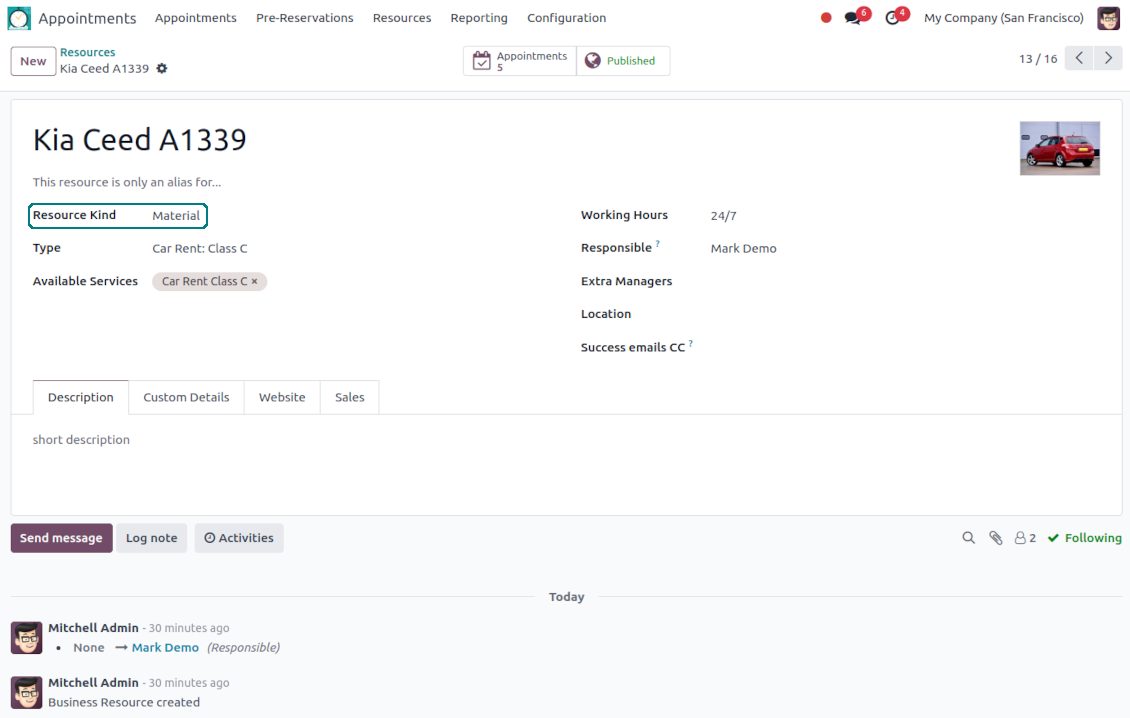
In other companies, it might be particular equipment or facility. For instance, 'Mercedes A1231', 'Room 12'
-
Resources are the Odoo object which working calendar you are planning. Thus, they define available days, timetables and time-offs, responsible users, etc.
Services
-
An appointment service defines what actually should be done. For instance, 'consultation', 'tooth surgery', 'classic hair cutting', 'car class C rent'
-
Services are not equal to Odoo products, but they are linked to each other to manage pricing details
-
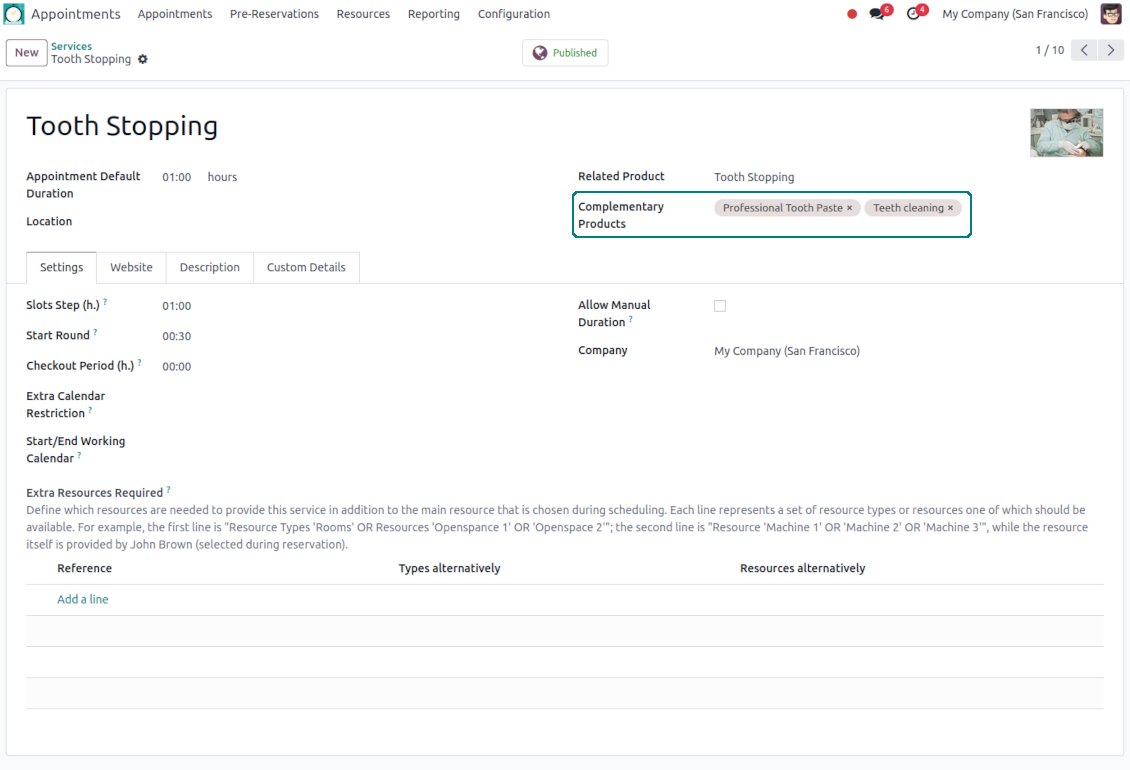
Services regulate time settings of appointments (how long should it take, when it can be started, what is the time step, extra restrictions and extra services needed), which goods might be suggested as complementaries
3 layers to reflect specifics
-
The decision of what to consider resource types, resources, and services is completely up to you. Such an approach lets reflect almost any service business
-
The tool does not force you to have multiple instances for each layer. In simple cases, there might be just a single representative for each step. For example, Lawyers - Attorney Chris Black - Consultation
-
If there is a single option, the app would reflect that by simplifying appointment scheduling. So, steps without actual choice are auto-missed.
Sale and upsell services
Sale orders and appointments
-
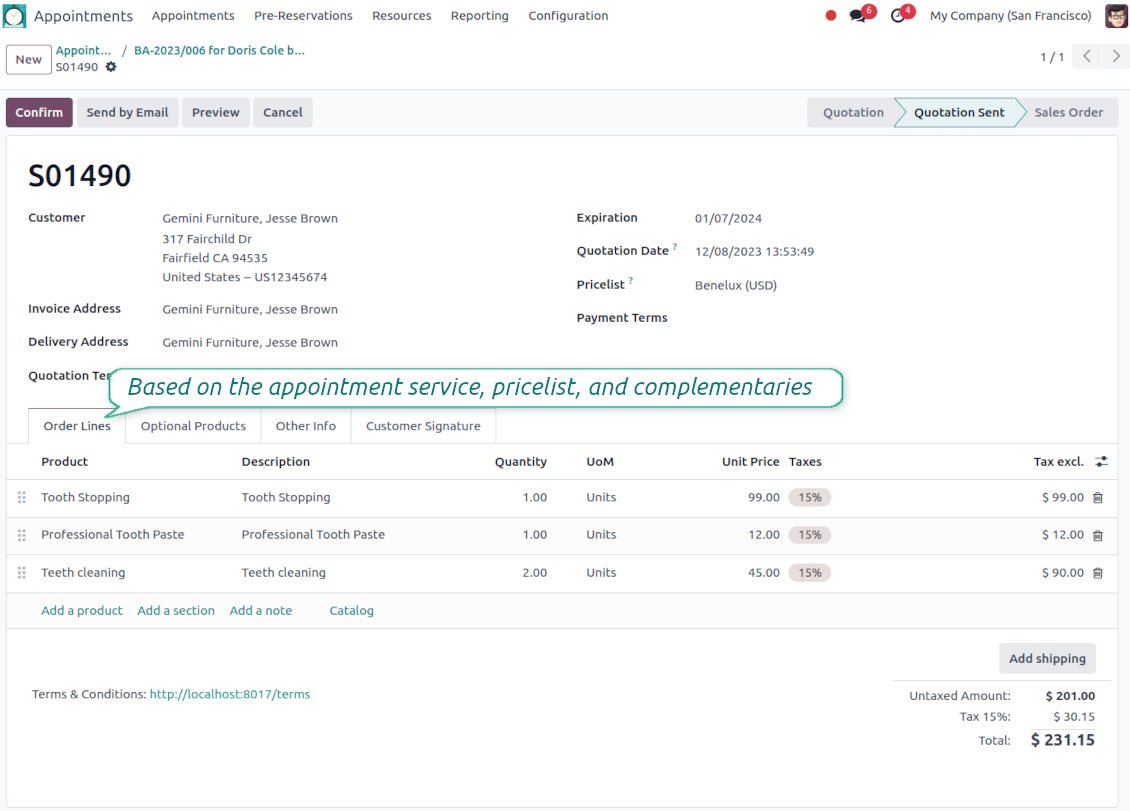
The app lets you link appointments and sale orders. You have 4 configuration options
-
Sent sale orders: if chosen, a sent quotation would be prepared based on the appointment. This way, a portal user will be able to sign and pay such a quotation. The method is suitable in case your service is standard, and you accept customer approval/online payment
-
Automatically confirmed sale orders: if chosen, a sale order would be created as soon as an appointment is scheduled. The method is suitable in case your service is standard, and final sale positions and details would hardly be changed during that appointment. For example, fixed-price hair cutting
-
Draft sale orders: if chosen, only a quotation would be generated. In such a way you would be more flexible in updating an order during service provision or beforehand. For example, if you want to add extra complementaries during a visit or to grant clients individual discounts
-
Manual sale orders: if chosen, managers would have to create quotations while providing service. The method might be applicable when most of the sale lines become clear only during the visit itself. For example, a mobile phone repair business assumes initial diagnostics and only after that offers the price
-
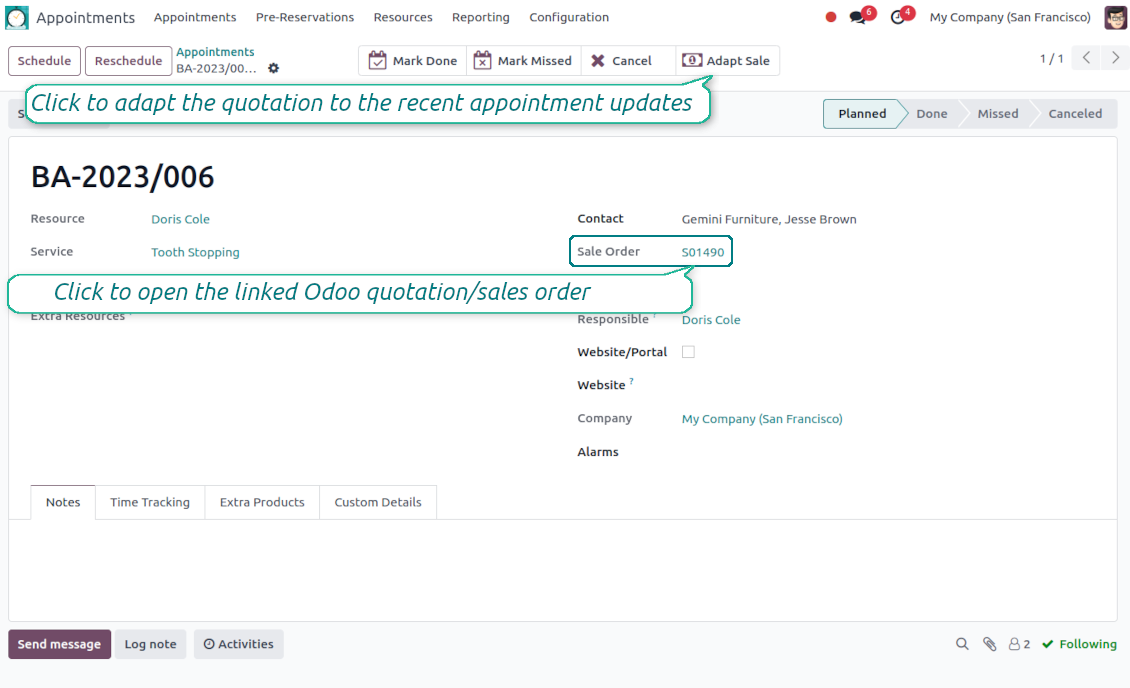
Until an appointment sale order is not confirmed, you would be also able to update that right from a reservation form. Both service, quantity, and complementary products are re-calculated in that case
Service pricing
-
The tool lets you configure pricing method per each resource type
-
Per planned duration: if chosen, Odoo quotations would be created based on initial reservation plans. For example, it might be suitable for car rental or massage
-
Per units: if chosen, sale orders consider appointments for the same price disregarding their duration. For example, standard haircutting or tire mounting is invoiced the same disregarding how much time they take
-
Per tracked (real) duration: when you want to invoice actual time spent on service provision. For example, the approach might be suitable for consultation or legal services
-
Prices are price list dependent. It means, that a manager might select individual conditions during scheduling. In such a way, it is possible to apply various currencies, discounts, promos
-
The latter feature is also applicable to website/portal users. In case there are a few to-select price lists, users would be able to choose the most suitable (e.g. in the correct currency). For the portal users, their partner price list is selected by default
Complementaries and upselling
-
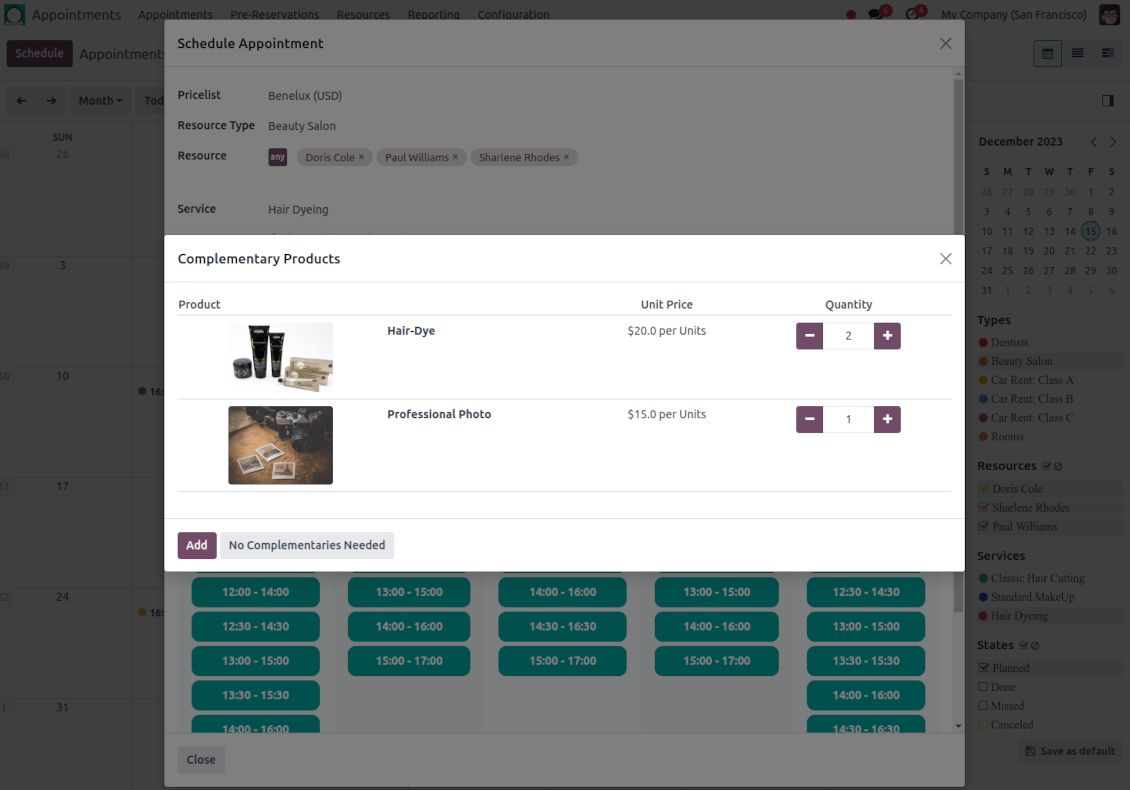
When a client finishes scheduling, it seems a good moment to increase a bill by offering complementary products. The tool aims to help you with that
-
Odoo will show the popup with suggested products for backend managers immediately after reserving a time slot
-
Website visitors/portal customers will see an accessories dialog also when they select the time for reservation
-
The popup allows both adding one or a few complementaries or merely missing the step if suggested products are not required
-
The feature is turned on/off on the configuration page: for the backend in general and for each website. The popup will be shown only in case there are complementaries defined for a booked service.
Flexible configuration and automatization
Service time settings
-
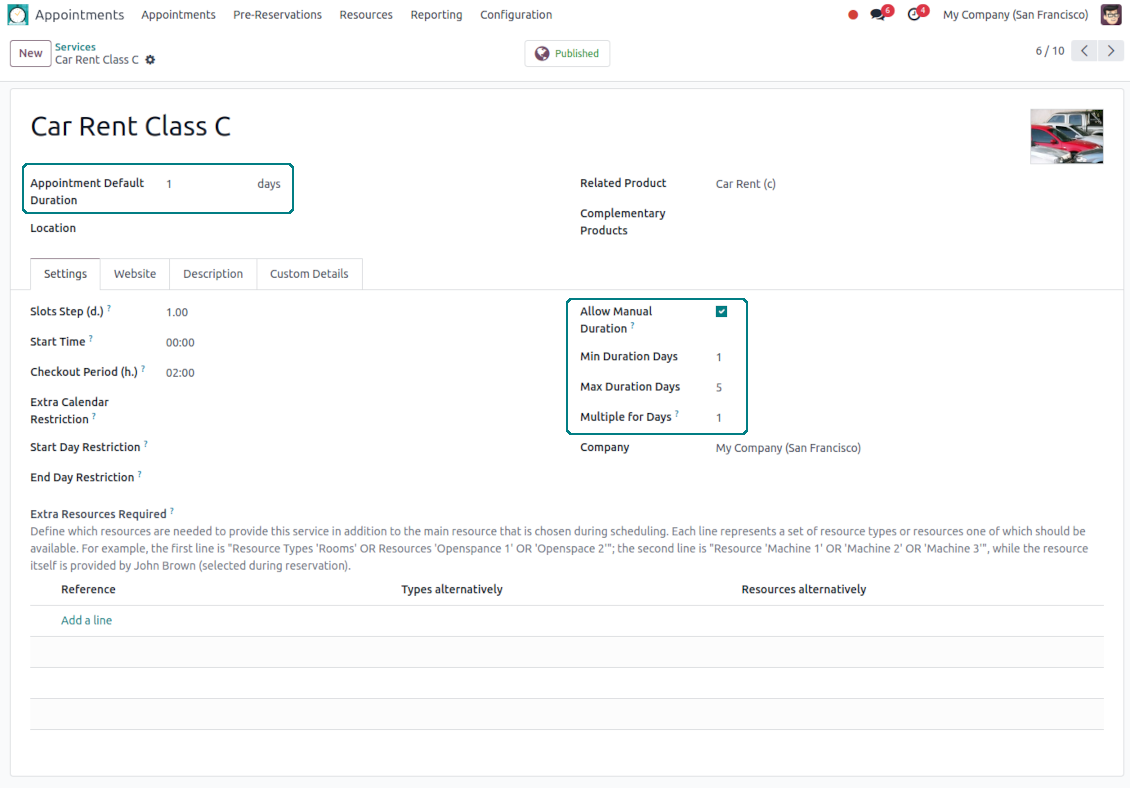
It is possible to configure the service to have a rigid duration (for example, standard hairdressing always lasts an hour) or let clients/managers select that manually (for example car rental might take from a day or 60 days)
-
Duration is defined either in hours (for example, it might be suitable for consulting or repair) or in days (for example, applicable for equipment or room rent, conference translator services)
-
For the manual duration, it is possible to apply restrictions: the maximum/minimum order and the multiplier. For instance, you can simply apply the rule: a service should last not less than an hour, not more than 8 hours, but the duration should be always multiplied by 30 minutes (1:20 is not possible, while 01:00 and 01:30 are fine)
-
The app allows configuring the rule to round time slots start. Sometimes applied restrictions might result in a calculated start you do not like. For example, an hour-long service start at 12:23 is hardly good. To solve the problem you can simply set up rounding for an hour (other available options are 5, 10, 30 minutes; 2 hours; midnight, or midday tomorrow)
-
Together with duration, 'Slots step' defines the frequency of available time periods, including whether it is possible to have overlapping periods. When the chosen duration is equal to the slots step, there would be no intersections: 12:00-13:00; 13:00-14:00 for the duration and the slots step set as an hour. When the duration is bigger than the slots step, periods would be intersected: 12:00-13:00; 12:30-13:30; 13:00-14:00 for the duration of one hour and the slots step 30 minutes. Finally, if the duration is smaller than the slots step, there would be breaks between the periods: 12:00-13:00; 13:30-14:30 for the duration of one hour, and the slots step 90 minutes
-
The checkout period is the setting that might give resources to finish service until the next one is started. For example, to have a cleanup after room rental, assign manual duration in days with the rounding 14:00 and with the checkout period 2 hours. Then, the potential time slot for a customer would be 01/08 14:00 - 03/08 12:00, while the resource would be anyway registered for the whole period 01/08 14:00 - 03/08 14:00
-
If there are certain restrictions on the service in addition to the resource timetable, introduce the 'Extra service calendar'. For example, although your beach is open 24/7, sunbed rental is available only from 08:00 to 17:00. Thus, you can define its own service working time
-
Sometimes it might be necessary to define when the service provision cannot be started or finished. To that goal, the app allows defining restrictions.
For daily services, the settings Start/End Day Restriction may be used. They let configure weekdays or specific dates when start/finish is impossible. For example, accepting/discharging patients is not fine on weekends and holidays but indoor treatment is possible. So, for the service 'Indoor treatment' block Saturdays and Sundays using the named setting.
For hourly services, distinguish the Start/End Working Calendar. This option assumes that this service may be started or finished only within predefined shifts. For example, although products are available for rent 24/7, your shop works from 10 am to 6 pm. With the setting, you may set up 10:00-20:00 and 11:00-21:00 shifts but block 09:00-19:00 and 18:00-23:00
Resource allocation
-
When there are a few resources of the same type, the challenge of how to distribute appointments among those arises. There are 2 general approaches introduced by the app
-
Manual allocation - applied when each resource is unique, and you prefer to give clients a right to select among those. For example, a customer would like to be consulted by a certain doctor or to be serviced by a definite hairdresser. Manual allocation does not force a client to select resources. This is the right, which might be simply missed by explicitly choosing "any" or a few resources
-
Automatic allocation - applied when all resources are considered equally good for clients. For example, a customer would hardly compare Opel Astra 1234 vs. Opel Astra 1235. Automatic allocation is configured per each resource type depending on your business specifics
-
Automatic distribution by resource workload lets assign appointments according to the total planned duration of all open appointments. For example, it might be fair in a beauty salon to equally spread tasks
-
Automatic allocation by appointment number does not take into account real duration, but only absolute quantity. For example, it might be suitable for tire mounting where the price is set up not per duration but per units
-
Automatic distribution by order means that each resource has its own priority, and allocation is done on a queue basis. Thus, the resource with the highest priority will be always chosen until it has available slots for the target moment. After that, the second-important resource is under consideration until it is also occupied, and so on. For example, such an approach might work for facilities booking or car rental
Resource aliases and extra service resources
-
When a service requires multiple resources then it is possible to assign special service rules. The app lets configure as many extra resources involved as it is needed
-
Each service extra resource rule assumes either resource types or resources that alternatively are required for the service. For example, either any resource of the type 'Rooms' OR the resource 'Hall 1' OR the resource 'Openspace'
-
If there are a few rules, to reserve service at least a single resource in each line should be available. Thus, the number of extra appointment resources will equal the number of service rules. If some of the lines cannot result in a real resource, a service cannot be reserved. Please take into account that alias resources cannot be extra resources: their prime resources will be used instead
-
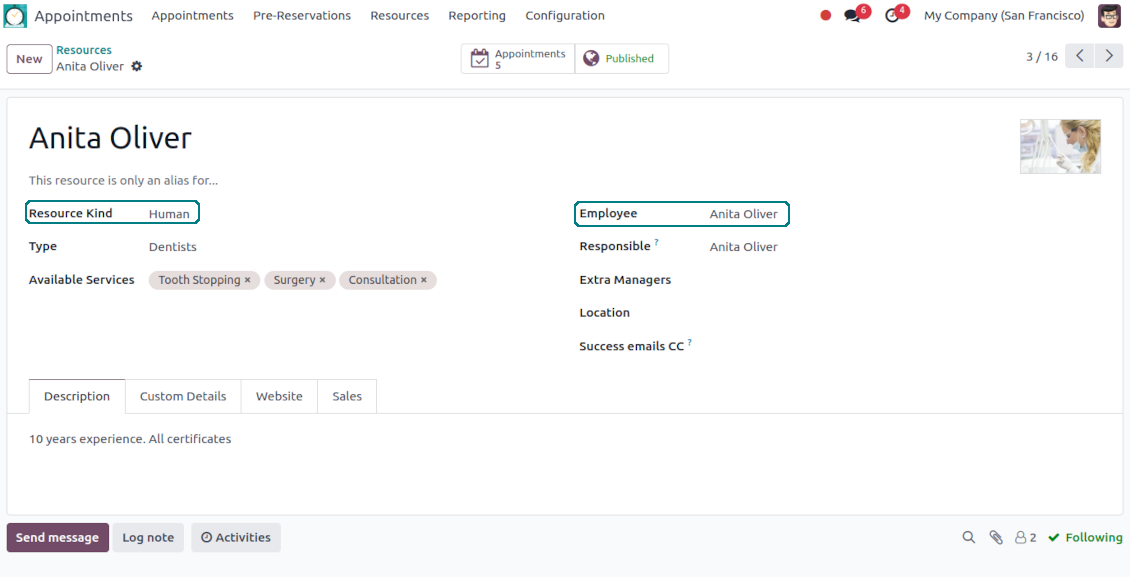
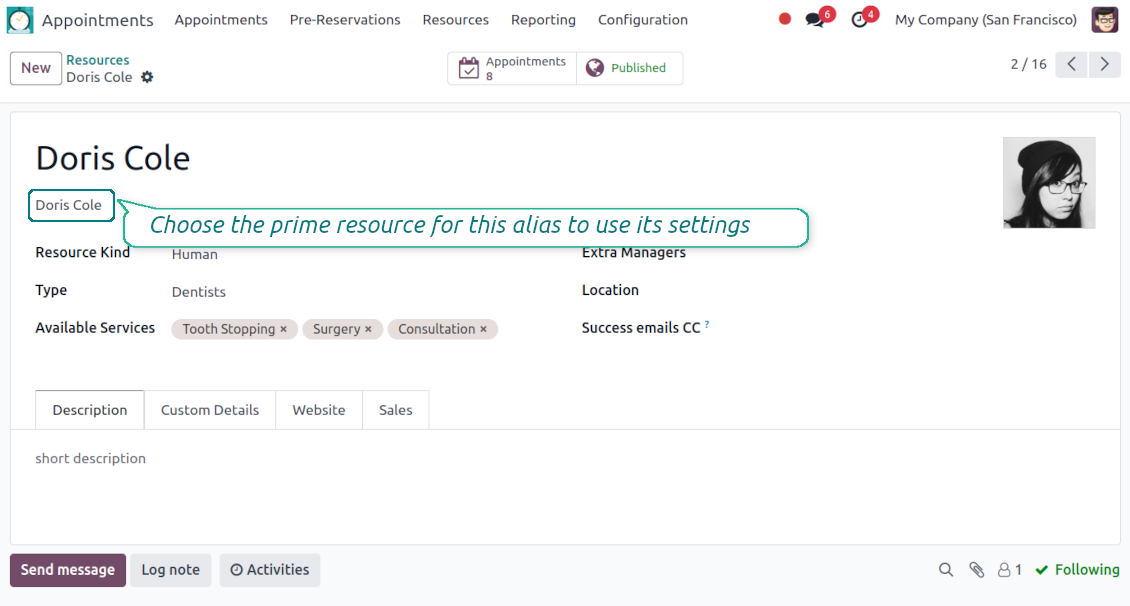
When a resource is involved in a few business activities (so, relates to different resource types and has different services), use resource aliases. A resource alias is a resource that does not have its own working calendar and its own responsible user. Instead of that, it uses the prime resource settings. For example, Anita Oliver can be both a hairdresser and a dental consultant. Then, you should create the prime resource 'Anita Oliver' (the type 'Beauty salon'), and the alias resource 'Anita Oliver' (the type 'Dentistry') with the prime 'Anita Oliver, Beauty Salon'. In this way, she can be reserved both for the 'hair dressing' service and for the 'Dental consultation', but the busyness in one sphere will block availability in the other
-
Alias resources have their own configuration, including description, image, sale settings, etc. So, the only differences from the normal resources are a working calendar and a responsible user, which are taken from their prime resource.
Complementary features
Configurable reminders
-
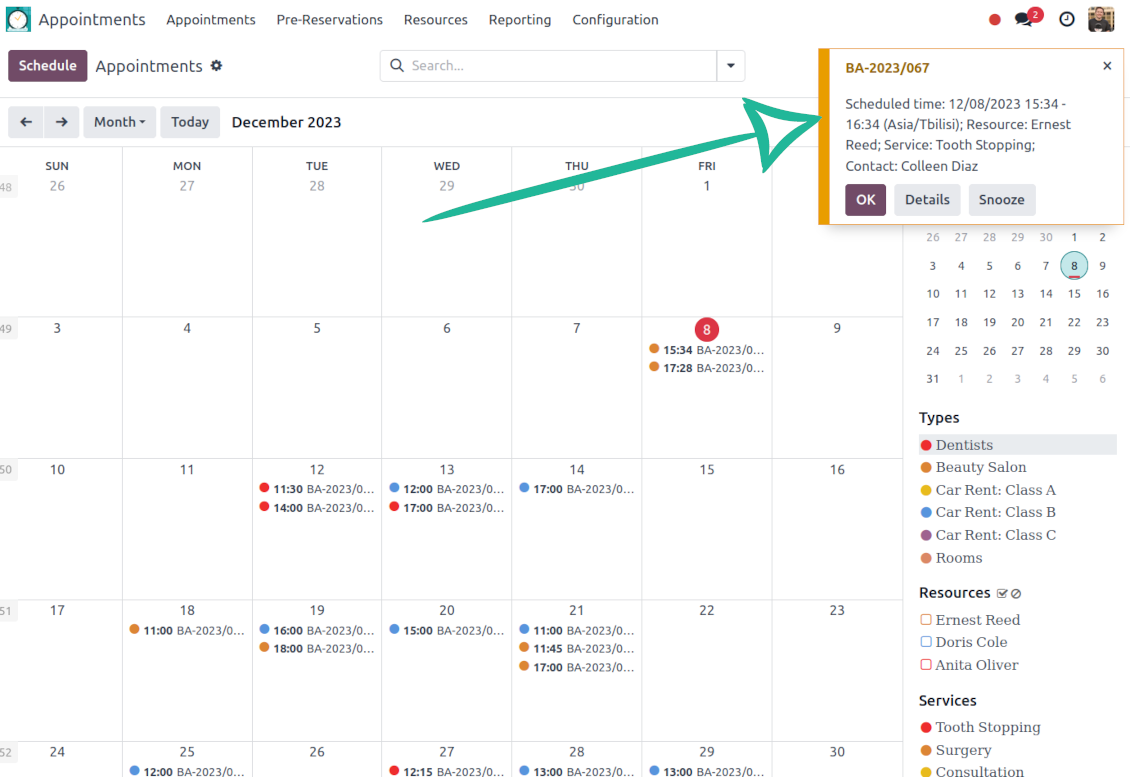
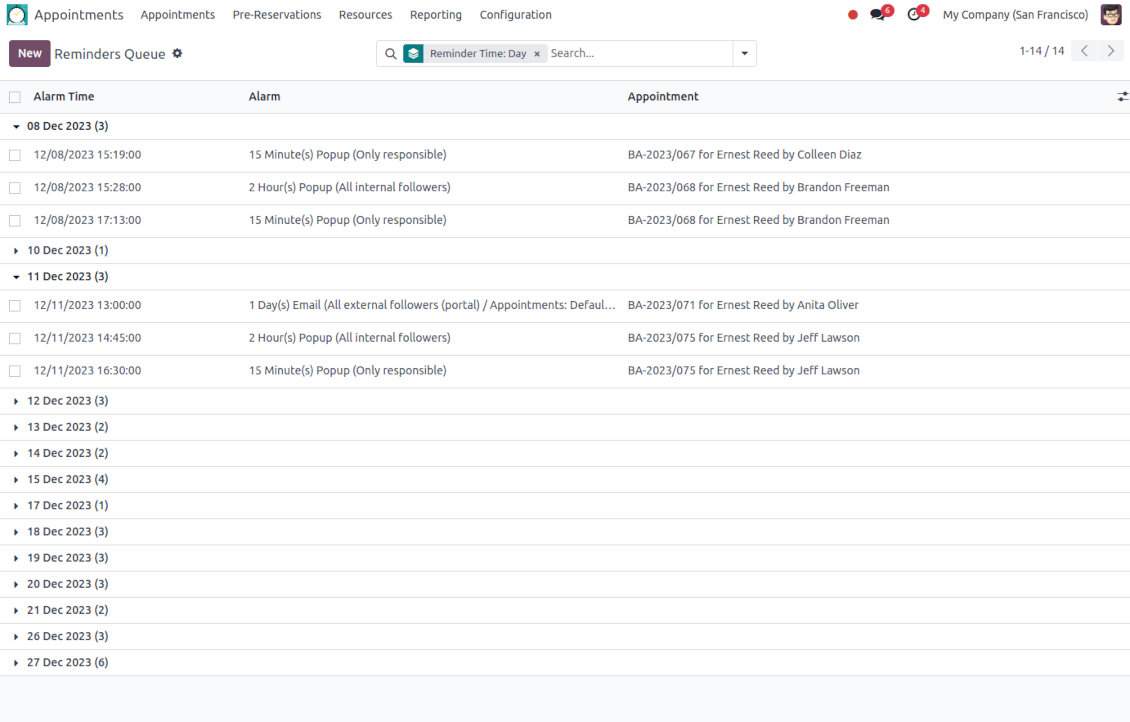
The app allows preparing of 3 types of appointment alerts: pop-ups, emails, and SMS. You can quickly create those through the special configuration menu entry. SMS reminders are sent using the Odoo SMS server (make sure that you have sufficient balance for Odoo SMS IAP)
-
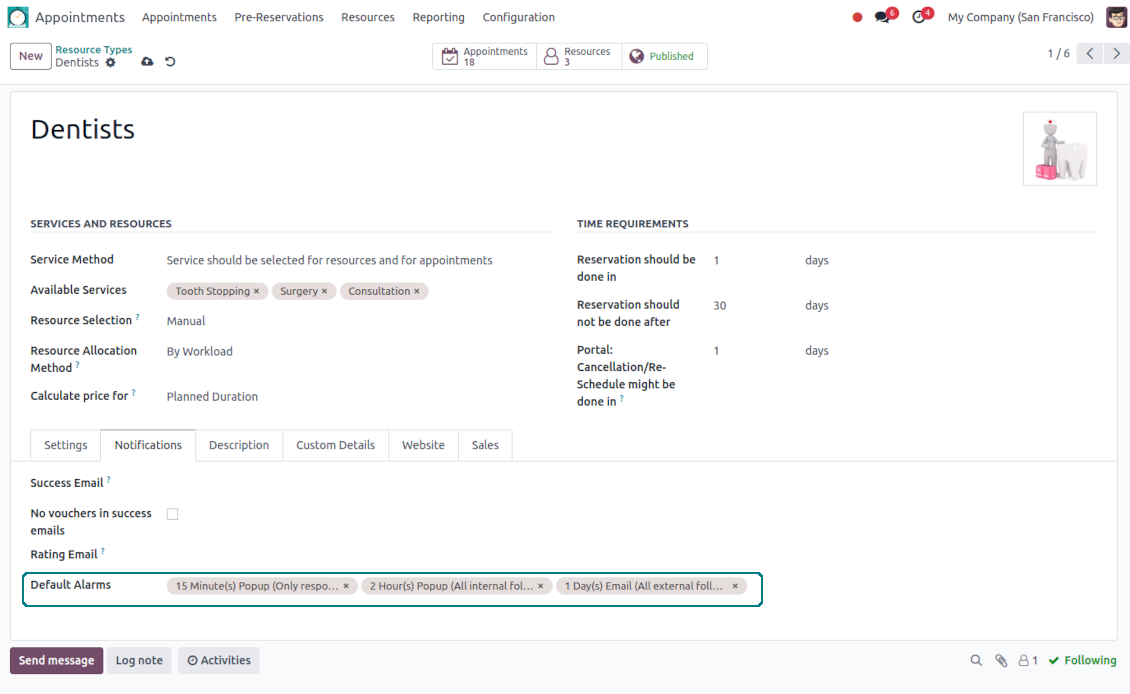
Select default alarms for each resource type. Such alarms will be automatically applied to all new appointments of this type. Otherwise, you may choose those for specific appointments
-
Define who should be notified: a responsible manager, external followers (clients), internal followers, or all followers. Popup alarms are available only for backend users
-
Specify a period for alert: it is possible to apply a time range in days, hours, or minutes. For instance, 2 days before the scheduled date
-
For SMS and email alarms, you should also assign a template that is rendered based on appointment details.
Misc
-
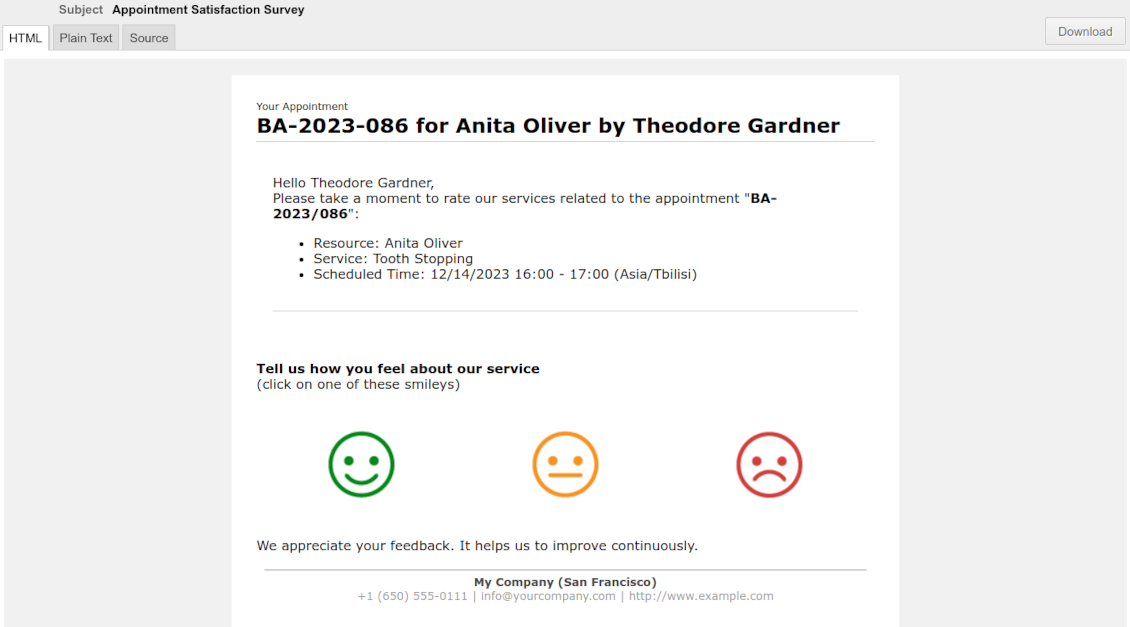
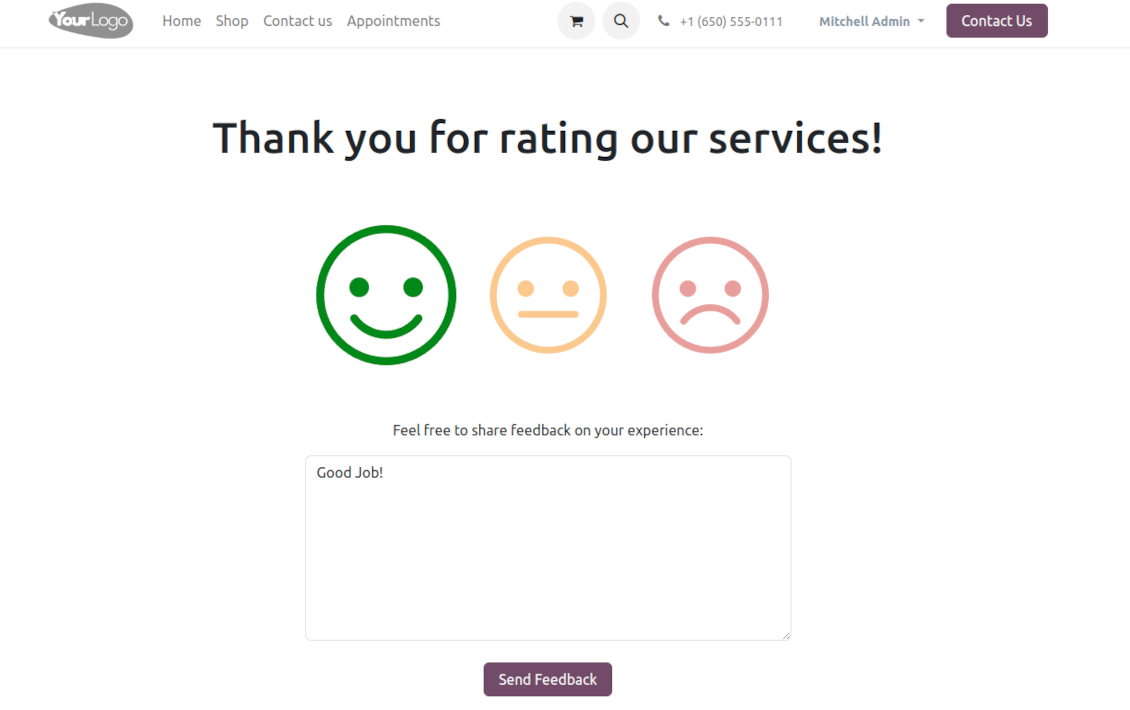
Optionally configure automatic requests for a customer review when an appointment is done. Clients should select among 3 simple "smiles": satisfied, not satisfied, and highly dissatisfied. The final rating is calculated for resource types, resources, and services
-
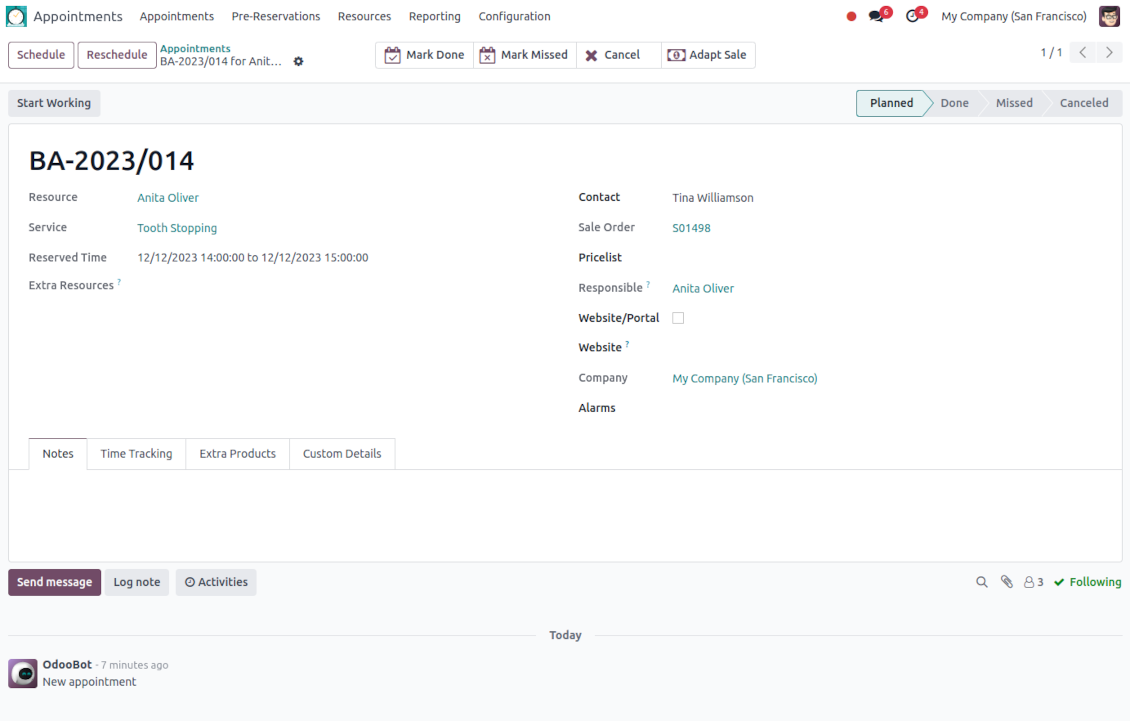
The tool has its own report view, where you can analyze appointments on pivot and graph views
-
Appointments have automatic numbering. You may change its logic (suffix, prefix, step, etc.) by configuring the related Odoo sequence
-
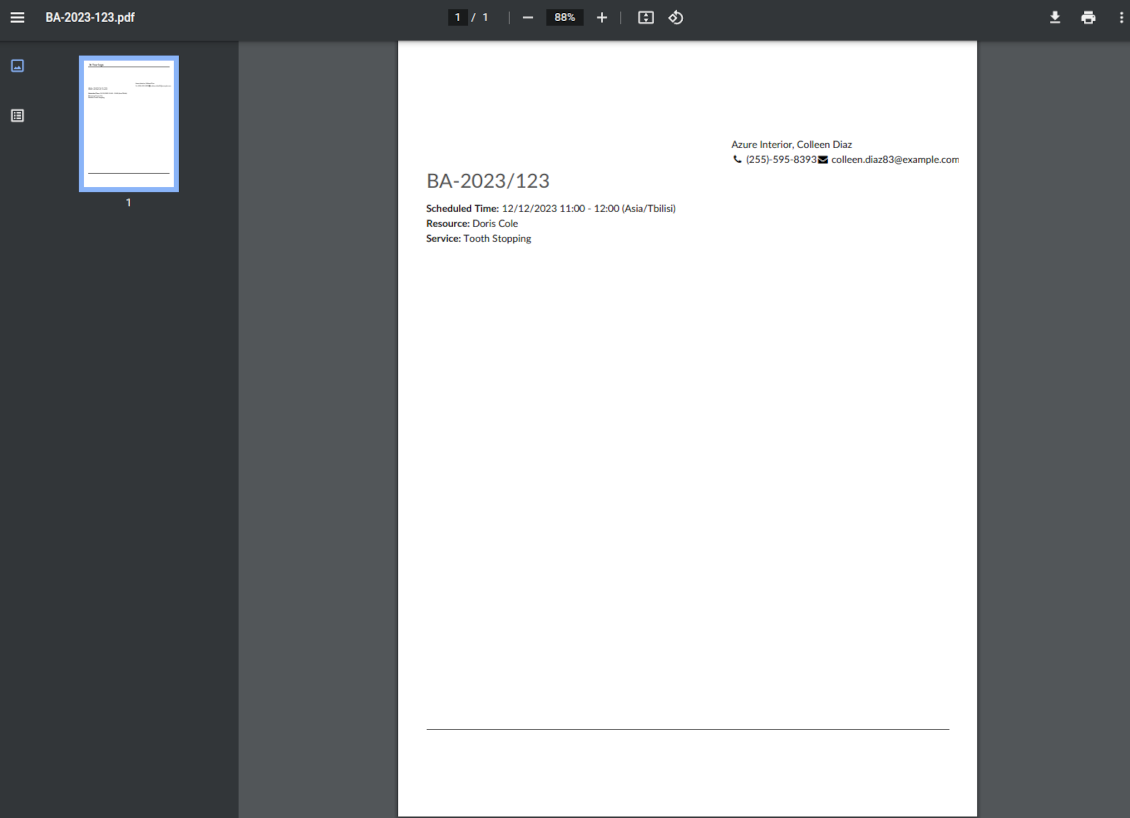
Each appointment has a printing version that might be generated in the backend and optionally in the portal, and which is attached to all appointment confirmation emails. The printing version relies upon standard Odoo layouts and might be also used as a service voucher.
Optional add-ons features
-
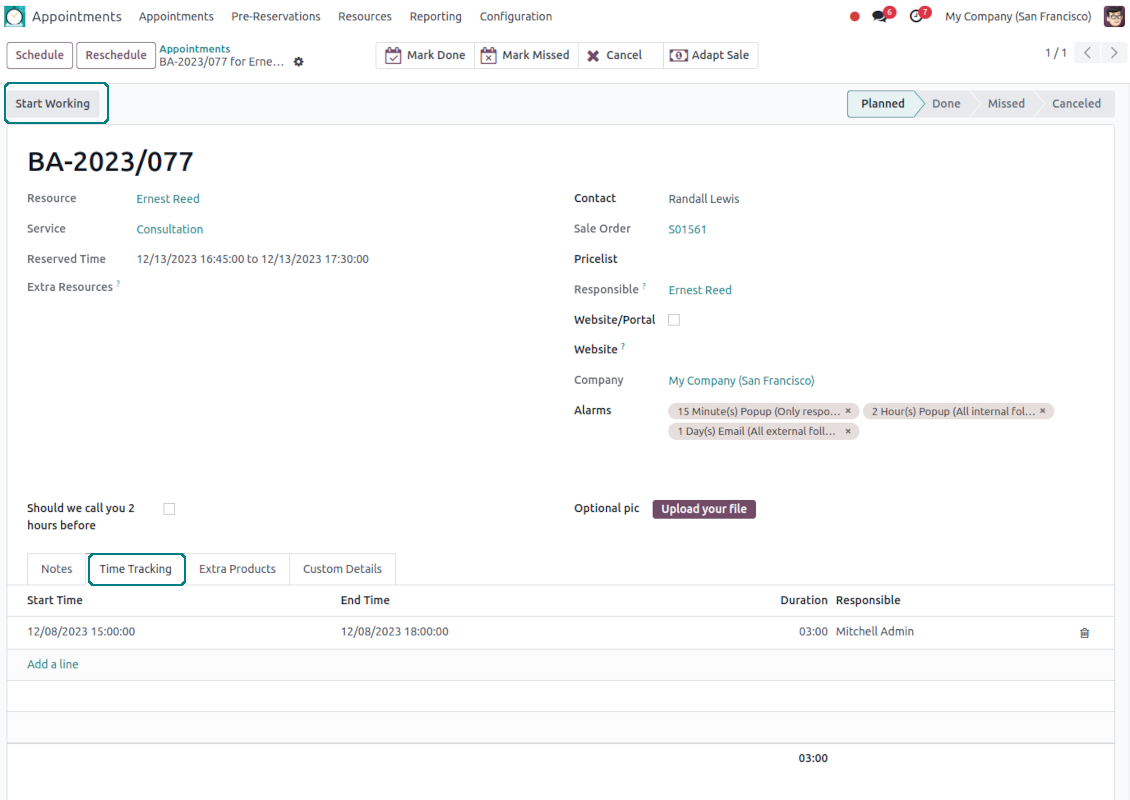
The app allows appointment managers to track time spent on providing service. This "real" time might be used not only for statistics but also to calculate the total appointment price.
-
The tool lets link resources and employees to automatically apply working calendars of the latter for appointments of this resource
-
Appointments might be shown on the special Odoo Enterprise Gantt view for instant resources workload observation.
Secured appointments
-
The tool introduces its own user rights system to make sure business data is secured. For the backend users, there are 2 groups that are allowed to work with appointments: "Appointments: Only Own" and "Appointments: Administrator"
-
Appointments admins are allowed to manage all settings and update any appointment-related objects of their company(s)
-
The 'only own' group has limitations and its users have rights: (a) only to read resource types and services; (b) to observe only resources, in which they are responsible managers or which do not have such managers at all; (c) to create and to update appointments related to resources which they can observe
-
Portal and website security is managed independently
-
Resource types, resources, and services should be website published in order to become available for selection for both public and portal visitors
-
Any website visitor might schedule an appointment and access resources/services without registration if you turned the option "Business appointments on website"
-
Portal users have the same rights even if the latter option is not turned on, but you switched the option "Business appointments in portal".
Custom fields
-
Custom attributes creation does not require any technical knowledge. In order to show a new property, just add a new field and enter the details
-
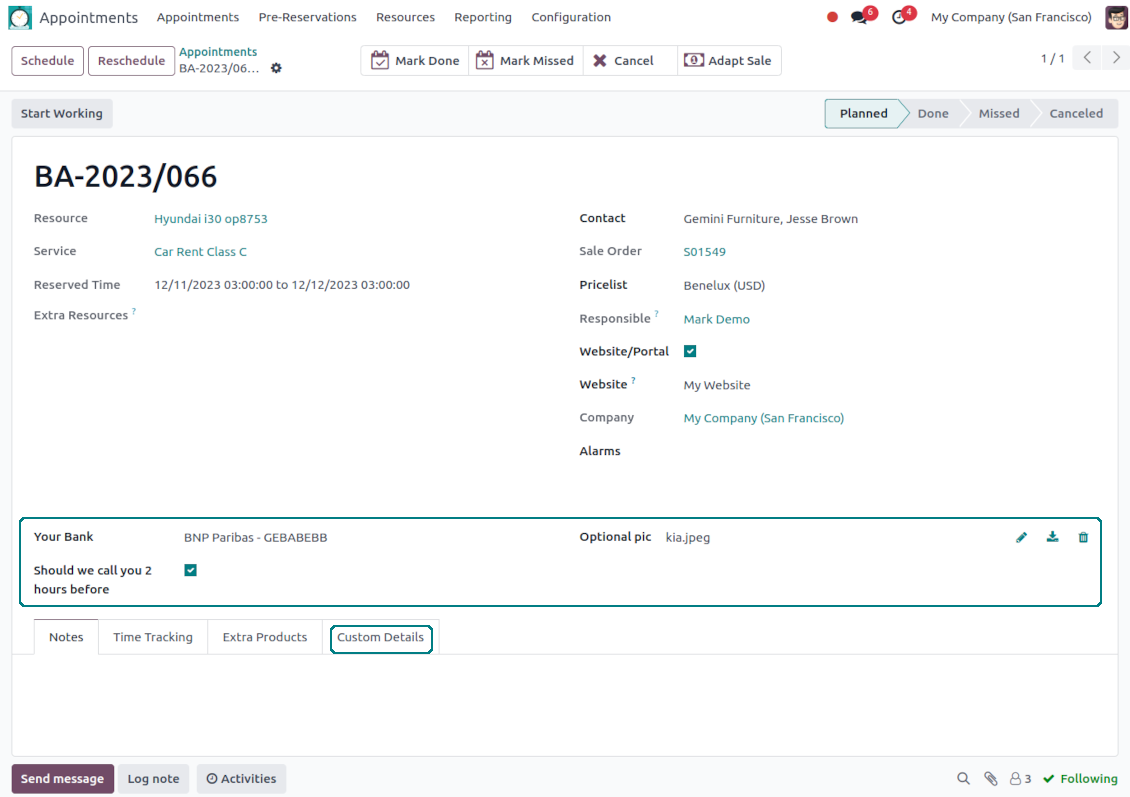
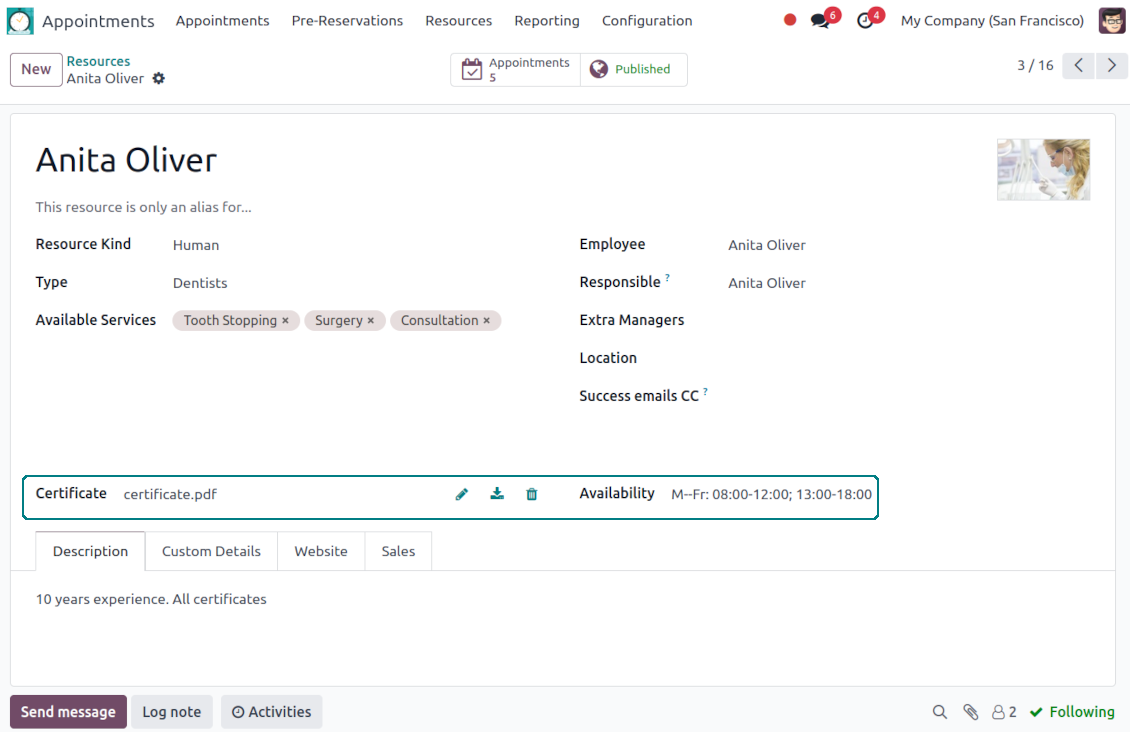
The tool lets prepare new fields for resource types, resources, services, and reservations
-
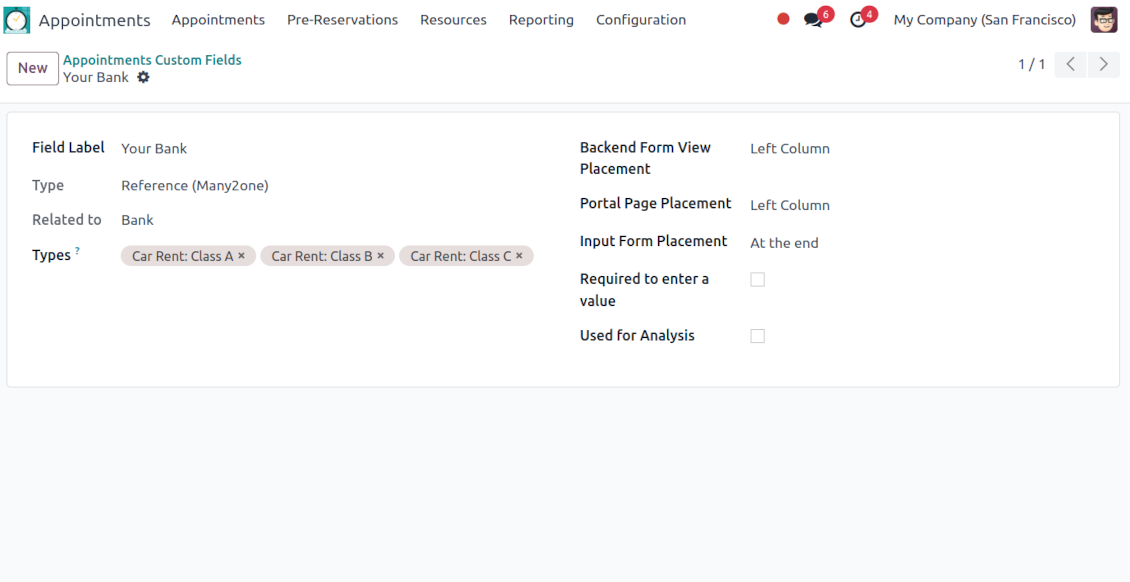
It is possible to add custom fields of the following types: single-line text (char), simple text without formatting (text), rich text (HTML-formatted text), integer or float numbers, drop-down choice with your own options (selection), checkbox (boolean), date or date and time, binary (a file to upload), reference to another Odoo document (e.g. for sale order, contact; many2one)
-
The tool lets you comfortably select an interface position of a custom field from a closed list of options. Optionally you may select also portal/website position to make properties visible to public users
-
For the website booking process, it is possible to force users to select custom appointment details
-
Have different resource fields depending on resource type (for example, dentists' details differ from cars' details).
Määritys- ja asennusvinkkejä: Universal Appointments and Time Reservations Odoo v.17
Python dependency
The tool depends on the external Python library 'phonenumbers'. Install this library for your Odoo server through the command:
pip3 install phonenumbersUsein kysytyt kysymykset aiheesta Universal Appointments and Time Reservations Odoo v.17
Mikä on ajanvarauksen tosite? Miten sen voi vaihtaa?
Ajanvarauksella on oma pdf-liite (tosite). Liite luodaan automaattisesti Odoon verkkosivumalleista. Tietyilla teknisilla taidoilla tai minkä tahansa Odoo-kumppanin/toimittajan avulla mallia voi muuttaa (kuten Odoon tarjouksille, laskuille jne.). Oletuksena se käyttää sovelluksessa esiteltya yrityksen vakioasettelua.
Voiko yhdessä varauksessa varata useita palveluita/resursseja yhtä aikaa?
Taustajärjestelmässä voi kytkeä päälle valinnan ‘Multi scheduling’; tällöin esimies voi tehdä asiakkaalle useita varauksia eri palveluihin/resursseihin ja valita useita aikavälejä. Portaalissa on valinta ‘Multi scheduling’. Sen avulla asiakas varaa yhden palvelun/resurssin, mutta useille aikaväleille. Useamman palvelun/resurssin varaamiseksi asiakkaan tulee tehdä useita varauksia.
Millaisia ilmoituksia ajanvarausten esimiehet saavat?
Esimiehille/asiantuntijoille voit määrittää tilaukset resurssityypin ja resurssien mukaan. Esimerkiksi ilmoitukset uusista tapaamisista on sidottu sähköpostin alatyyppiin 'New appointments and recovering'. Lisäksi sovellus antaa asettaa muistutuksia osapuolten hälyttämiseksi. Katso Appointments-sovellus > Asetukset > Muistutukset.
Saavatko asiakkaat sähköposti- ja tulostusvahvistuksen varauksesta?
Kun kaikki vaiheet on tehty, asiakas saa vahvistussahkopostin ja hant ohjataan oletuksena onnistumissivulle (sahkopostiin on liitetty pdf, jossa on tosite). Onnistumissivulla tositteen voi myös tulostaa.
Mikä on ennakkovaraus vaiheessa 'Waiting for confirmation'?
Kun asiakas aloittaa palvelun varauksen ja valitsee ajan, se muuttuu muilta käyttäjiltä pois ja ennakkovaraus syntyy. Jotta se vapautuu, aseta varauksen enimmäisaika. Jos asiakas ei tässä ajassa viimeistele varausta, aika on taas vapaana.
Ennakkovarauksen ajan asettaminen:
1. Avaa Appointments-sovellus
2. Siirry kohtaan Asetukset>Asetukset
3. Kentassa 'Maximum Period for Pre-Reservation' aseta aika
Jos meillä on useita toimipisteita, voimmeko jakaa resurssit niiden mukaan?
Resurssien jako voidaan asettaa eri tavoin. Yksi tapa on Odoon moniyritys. Kun luot resurssityyppeja/resursseja/palveluita, voit valinnaisesti maarittaa yrityksen. Tai tehdä niistä ‘global’, kaikkiin yrityksiin liittyvia. Silloin joukko voi erota yrityksittain.
Ajanvarausprosessin voi asettaa eri verkkosivuilla/toimipisteissa eri tavalla. Valitse sivusto, joka näyttää tietyn resurssityypin/resurssit/palvelut. Toimipisteet voivat liittya eri aloihin: yksi sivu englannin tunneille, toinen kuntosalin aikaan.
Ilman eri yrityksiä tai sivustoja voi silti asettaa ajanvarauksia eri liiketoiminta-alueille. Sovellus on suunniteltu niin, että päätät itse, mikä vaihe liittyy mihinkin. Esimerkiksi yksi resurssityyppi keskustan hammasklinikka ja toinen kirurginen hammashoito asuinalueella. Näin resurssityypeillä hallitset toimipisteita ja jaat resurssit ilman moniyritysta.
Voiko ensin valita palvelun ja sitten resurssin?
Voiko käyttäjä varata ajan ilman tilia?
Kyllä, käyttäjä voi luoda ajanvarauksen ilman tilia, mutta vain ensimmäisellä kerralla. Kun henkilö varaa, sähköposti varataan kantaan eikä sitä voi käyttää uudelleen. Seuraaviin rekisterointeihin tai olemassa oleviin yhteystietoihin on kirjauduttava, jotta voi varata.
Käyttäjä voi rekisteroitya vahvistussahkopostista tai suoraan Odoossa. Kutsulinkki on lyhytikainen: jos tilaisuus menee ohi, salasana on nollattava myöhemmin tai pyydettava apuanne.
Miten vaihdan onnistumissahkopostien kielen?
Sahkopostimallin kielen vaihtaminen:
1. Varmista, että kohdekielet on asennettu Odooseenne.
2. Kytke sitten kehittajatligaan ja siirry Tekninen > Mallit
3. Etsi malli 'Appoints: Success Email'
4. Ala muokata mallia ja napsauta kielikuvaketta artikkelin mallin oikeassa ylakulmassa.
5. Näet artikkelin rungon kaikilla jarjestelman kielillä. Käännä kohdekielen viesti käsin, mutta ala poista koodia. Tallenna tulos.
Vaihda sen jälkeen myös yhteystiedon kieli (yhteystiedon kortilla, kenttä 'Kieli'). Nämä yhteystiedot saavat viestin tällä kielella.
Jos henkilö varaa ensimmaista kertaa verkkosivullanne, hanelle annetaan oletuksena avatun sivuston kieli. Vahvistussahkoposti lähetetään sillä kielella.
Mitä kenttä 'Start Round' palvelukortilla tarkoittaa?
Kenttä 'Start round' pyoristaa ajan tähän lukuun, jottei synny huonolta nayttavia aikoja. Jos kello on nyt 9:48 ja palvelu pitää varata viimeistaan päivää ennen, huomisen ensimmäinen aika on 9:48, mikä ei ole hyvä. Jos pyoristat tuntiin (01:00), vapaana on 10:00.
Lisaasetuksia ja esimerkkeja pyoristyksesta ('Ohje') näkee viemalla osoittimen kentän otsikon päälle.
En pidä luotujen sahkopostien / SMS-viestien ulkoasusta
Voit muokata niitä vapaasti. Mallit löytyvät valikoista Asetukset > Ilmoitukset > Sähköpostimallit ja SMS-mallit.
Lisäksi eri resurssityypeille voi käyttää eri malleja. Katso mitä tahansa resurssityyppiä > Ilmoitukset.
En tarvitse kaikkia vaiheita varattaessa verkkosivulla. Voinko jättää / piilottaa osan?
Työkalu tekee sen jo automaattisesti:
jos julkaistuja resurssityyppeja on vain yksi, ensimmaista vaihetta ei näytetä;
jos resurssin kohdistus on automaattinen tai julkaistuja resursseja on vain yksi, toinen vaihe jaetaan väliin;
jos valitulle resurssityypille / resursseille on vain yksi julkaistu palvelu, kolmas vaihe jaetaan väliin.
Ainoa määritettava vaihe on vahvistussivu: sen voi kytkea päälle /pois asetussivulla.
Miten vaihdan ajanvarauksen viitenumeron?
Mitkä ovat tyokalujenne paivityskaytannot?
Odoo Apps Storen nykyisten kaytantojen mukaan:
- Versiolle 12.0 tai aiemmalle ostettu moduuli antaa pääsy kaikkiin versioihin 12.0 asti.
- Versiosta 13.0 alkaen jokainen moduuliversio ostetaan erikseen.
- Versiosta riippumatta osto antaa oikeuden kaikkiin paivityksiin ja korjauksiin paaversiossa.
faOtools-tiimi ei hallitse näitä kaytantoja. Kysymykset osoitetaan suoraan Odoo Apps Storen edustajille.
Miten asennan sovelluksen Odoo.sh-palveluun?
Suorin tapa on Odoo-kaupan sisaanrakennettu työnkulku:
1. Avaa moduulin sivu ja napsauta Deploy on odoo.sh
2. Sinut ohjataan GitHubiin. Kirjaudu sisään ja napsauta Create a new repo tai käytä olemassa olevaa. Repositorion on oltava yksityinen. OPL-1-lisenssin sovelluksia ei saa julkaista. Luo tarvittaessa uusi repo Odoo.sh-projektia varten
3. Siirry sitten odoo.sh:iin, napsauta Deploy, vahvista ja napsauta Continue. Asennus kaynnistyy.
Nämä vaiheet asentavat sovelluksen production-haaraan. Muille haaroille tai paivitykseen:
1. Lataa lahdekoodi Odoo-kaupasta
2. Commitoi moduuli GitHub-repositorioon. Mikään sovelluskansio/-tiedosto ei saa olla .gitignore-tiedostossa. odoo.sh:n luomat repositoriot voivat oletuksena ohittaa tarkeita polkuja (esim. /lib). Lataa kaikki moduulin hakemistot ja tiedostot
3. Deployaa odoo.sh-projektin kohdehaara tai odota automaattista koontia, jos asetukset niin maarittavat.
Miten asennan sovelluksen omalle palvelimelleni?
2. Käynnistä Odoo-palvelin uudelleen;
3. Ota kehittajatila kayttoon (tekniset asetukset);
4. Päivitä sovellusluettelo (Sovellukset-valikko);
5. Etsi sovellus ja paina Activate/Install;
6. Noudata sovellussivun ohjeita, jos niitä on.
Sovelluksella on lisaosia. Voinko ostaa ne myöhemmin?
Kyllä. Odoo lisää kaikki riippuvuudet ostoskoriin automaattisesti: jätä pois jo ostetut työkalut, jottet maksa kahdesti.
Asensin sovelluksen Odoo.sh-palveluun ja näin varoituksen/virheen testeissa
Punainen/oranssi varoitus ei vaikuta sovelluksen ominaisuuksiin. Joskus moduulimme eivät lapaise vakioautomaattitesteja, koska ne olettavat kayttaytymisen, joka on ristiriidassa sovelluksen tavoitteiden kanssa. Muutamme esimerkiksi hinnanlaskentaa, kun Odoo-testit vertaavat loppuhintaa vakioalgoritmiin.
Tarkista ensin kayttoon otetun tietokannan ominaisuudet. Toimiiko kaikki?
Jos oletat silti, että varoitus vaikuttaa todellisiin ominaisuuksiin, ota yhteyttä ja lähetä täydet asennuslokit sekä täydellinen luettelo kayttoon otetuista moduuleista (ydin ja kolmannet osapuolet).
Voinko ostaa sovelluksen suoraan teilta?
Ei, jaamme työkalut vain virallisen Odoo-sovelluskaupan kautta.
Haluan alennuksen
Valitettavasti meillä ei ole teknisia keinoja tarjota yksilöllisiä hintoja.
Voinko asentaa sovelluksen Odoo Online (SaaS) -tietokantaani?
Ei, kolmannen osapuolen sovelluksia ei voi käyttää Odoo Online -palvelussa. Odoo SaaS estää sen.
Tyokalulla on riippuvuuksia. Pitääko ne ostaa?
Kyllä, työkalu tarvitsee kaikki riippuvuuksissa merkittyt moduulit. Sovellussivun hinta sisältää jo nämä riippuvuudet.
Mikä on moduulin hinta Yhdysvaltain dollareina? Miksi se muuttui?
Moduuliemme hinta on euroissa. Odoo-kauppa muuntaa hinnat muihin valuuttoihin sisaisen kurssinsa mukaan. Siksi Yhdysvaltain dollarin hinta voi muuttua, kun kurssi paivittyy.
Sovellus- ja sivustotekstit muilla kielillä kuin englanniksi on tehty tekoälyn tuella ja linjattu virallisiin Odoo-käännöksiin. Jos huomaat virheen, lähetä käännösten oikeellisuutta koskeva tiketti niin korjaamme sen.
Odoo-demotietokannat (live-esikatselut)
Tälle sovellukselle voimme tarjota ilmaisen henkilökohtaisen demotietokannan.
Yhteydenottoon ei tarvita puhelinnumeroa eikä luottokorttia. Riittää lyhyt sähköpostirekisteröinti, joka kestää alle 30 sekuntia.
Pyynnöstäsi valmistelemme yksilöllisen live-esikatselutietokannan, jossa voit testata ja tarkistaa oletuksia noin kahden viikon ajan.
Virheiden ilmoittaminen
Jos kohtaat virheitä tai epäjohdonmukaista toimintaa, ota yhteyttä. Korjaamme 60 päivän kuluessa ostosta ja kehitämme työkaluja sen jälkeenkin.
Yhteydenottoon ei tarvita puhelinnumeroa eikä luottokorttia. Riittää lyhyt sähköpostirekisteröinti, joka kestää alle 30 sekuntia.
Liitä pyyntöön mahdollisimman paljon tietoja: kuvakaappaukset, Odoo-palvelinlokit ja täysi kuvaus ongelman toistamisesta. Työsuunnitelma (jos virhe vahvistetaan) tai ohjeet (muuten) valmistuvat yleensä muutamassa arkipäivässä.
Julkiset ominaisuuspyynnöt ja moduliehdotukset (ilmainen kehitys)
Olemme vahvasti motivoituneita kehittämään työkalujamme ja kiitollisia kaikesta palautteesta. Jos vaatimuksesi palvelevat yleisesti ja ne voidaan toteuttaa tehokkaasti, tiimi lisää ne tehtävälistaan.
Tällainen tehtävälista käsitellään säännöllisesti eikä siihen sisälly lisämaksuja. Emme voi luvata määräaikoja ja lopullista suunnittelua, mutta se voi olla hyvä tapa saada toivottuja ominaisuuksia ilman investointeja ja riskejä.
Yhteydenottoon ei tarvita puhelinnumeroa eikä luottokorttia. Riittää lyhyt sähköpostirekisteröinti, joka kestää alle 30 sekuntia.
17.0.1.3.26
- The constraint on negative checkout time has been added.
17.0.1.3.25
- The issue with the untranslated warnings has been fixed.
17.0.1.3.24
- The issue with selected dates in formats other than Latin has been fixed.
17.0.1.3.22
- Varausten päällekkäisten lisäresurssien ongelma on korjattu.
17.0.1.3.21
- Resurssityyppien, resurssien ja palvelujen oletustoimenpidenäkymä on nyt kanban.
17.0.1.3.20
- Päällekkäisyyskonfliktien tarkistukset on rakennettu uudelleen ja optimoitu.
17.0.1.3.19
- Aliasresursseille voi lisätä ylimääräisiä työtunteja. Vuorot rajoittavat aikoja pääkalenterin lisäksi.
17.0.1.3.18
- Arvioiden laskenta on korjattu resursseille ja palveluille.

The tool to flexibly structure Odoo attachments in folders and synchronize directories with cloud clients: Google Drive, OneDrive/SharePoint, Nextcloud/ownCloud, Dropbox, Amazon S3, Box, and NAS. DMS. File Manager. Document management system
398€
The tool to automatically synchronize Odoo attachments with OneDrive files in both ways
487€
The tool to automatically synchronize Odoo attachments with Google Drive files in both ways
487€

The tool to build a deep and structured knowledge base for internal and external use. Knowledge System. KMS. Wiki-like revisions.
398€
The tool to set up KPI targets and control their fulfillment by periods. KPI dashboards. Dashboard designer. KPI charts

The tool to manage your Odoo from your favorite AI chats through MCP. Claude. Any MCP-supporting AI.

The tool to combine different Odoo events in a few configurable super calendars

The tool to translate URL addresses of Odoo website pages
38€