In Short
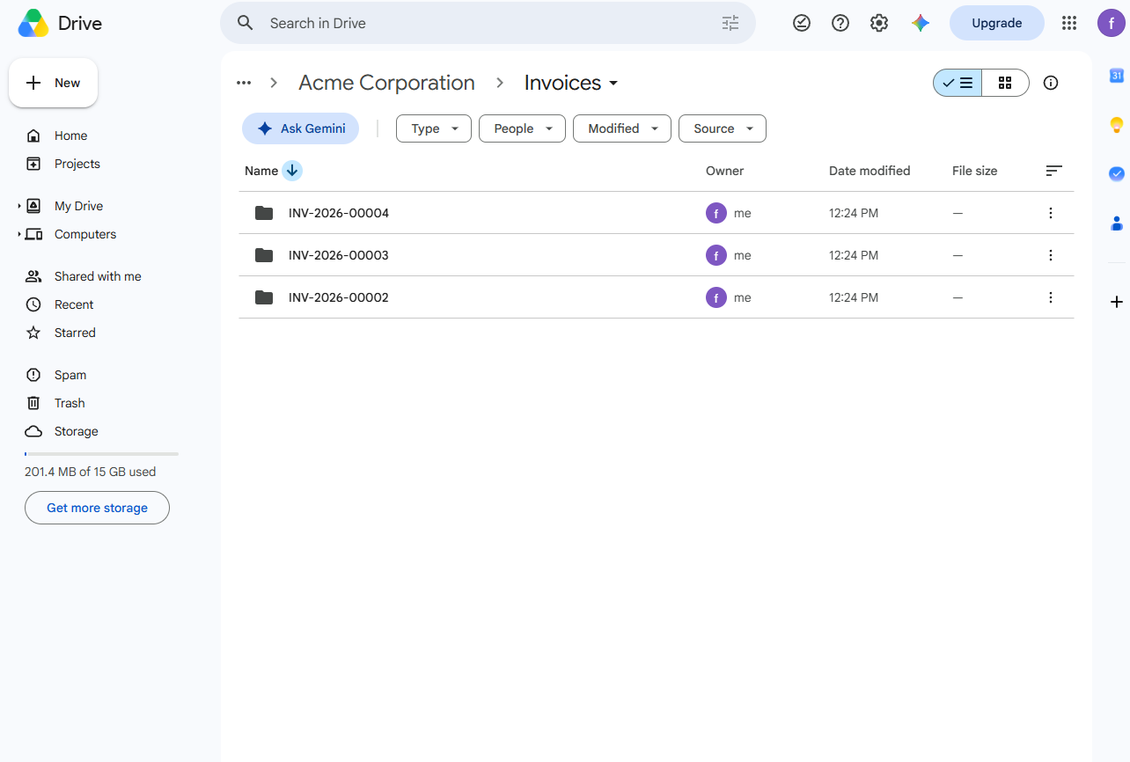
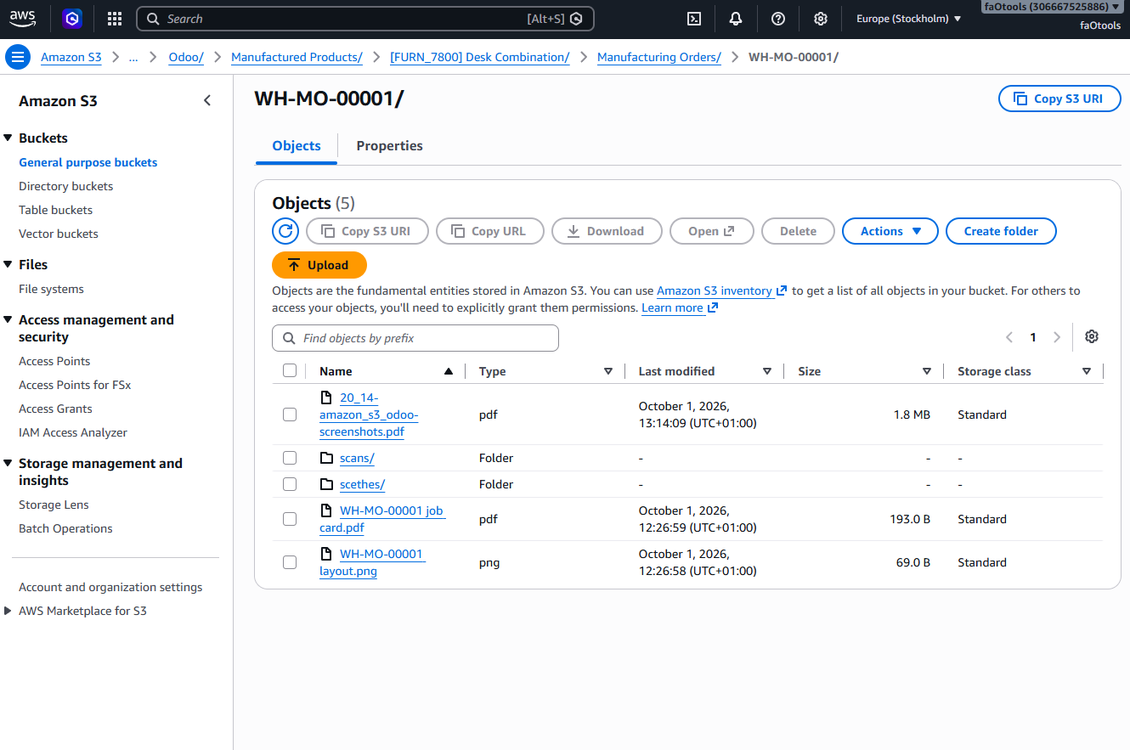
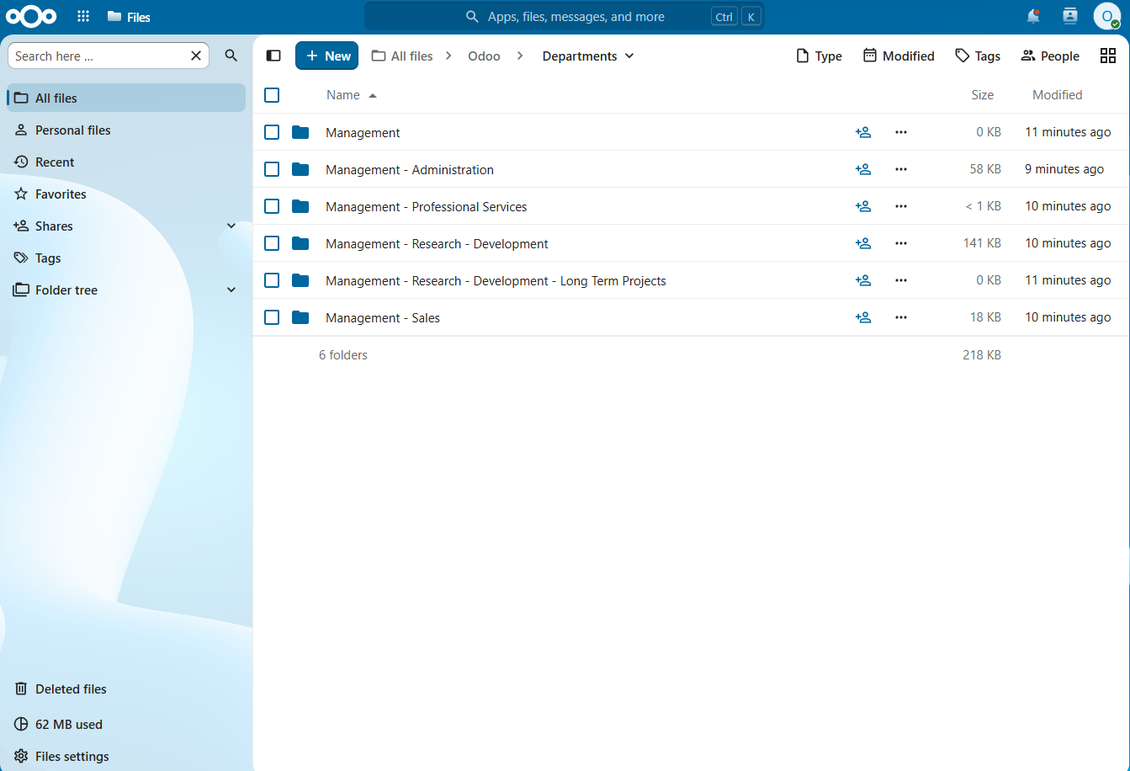
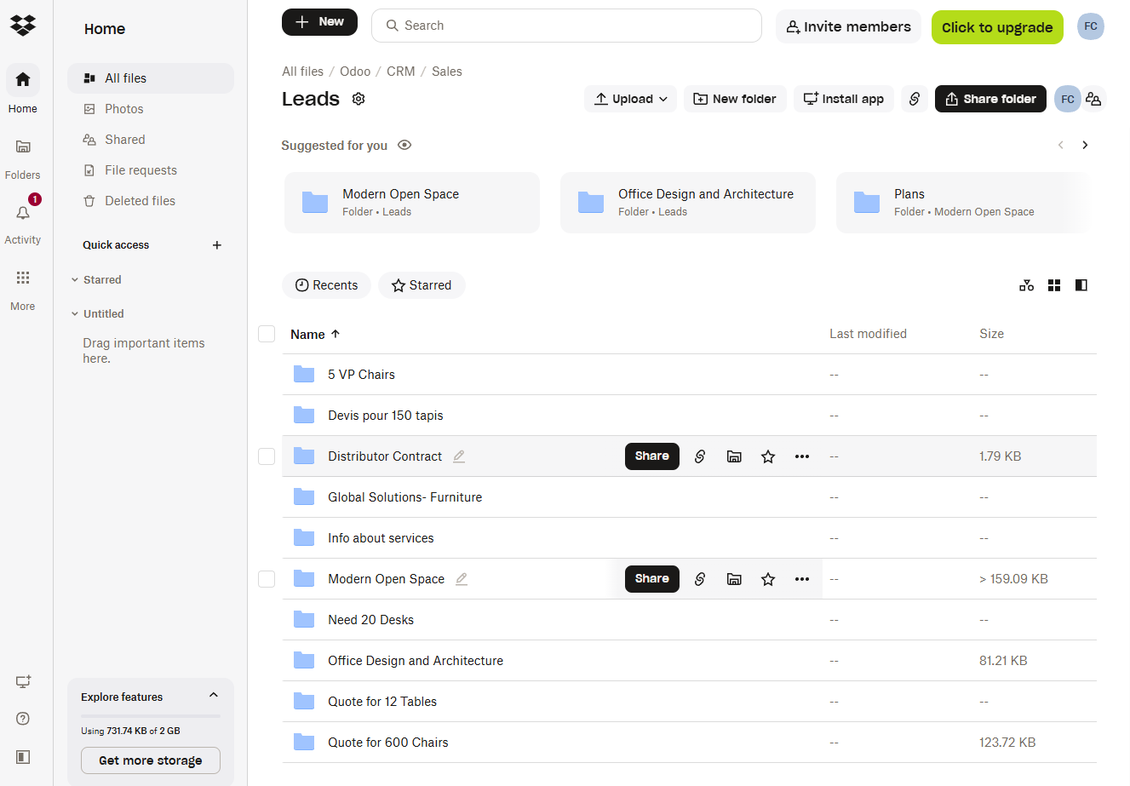
Cloud Storage Solutions is an Odoo 20 Document Management app. The tool to flexibly structure Odoo attachments in folders and synchronize directories with cloud clients: Google Drive, OneDrive/SharePoint, Nextcloud/ownCloud, Dropbox, Amazon S3, Box, and NAS. DMS. File Manager. Document management system.
Cloud Storage Solutions turns Odoo attachments into a structured document hub: users browse files in a File Manager, organize record attachments in folders and tags, share files through the portal, and synchronize selected directories with Google Drive, OneDrive/SharePoint, Nextcloud/ownCloud, Dropbox, Amazon S3/MinIO, Box, or NAS/WebDAV.
Perfect for
Attachment-heavy teams
Give sales, projects, HR, support, and operations a shared Odoo file manager instead of leaving important attachments scattered across records.
Cloud-first document storage
Move binary files to the storage platform your company already uses while Odoo keeps direct links and business context.
Multi-cloud departments
Route different Odoo folders to different cloud clients, accounts, drives, buckets, or NAS shares without changing the user workflow.
Portal file sharing
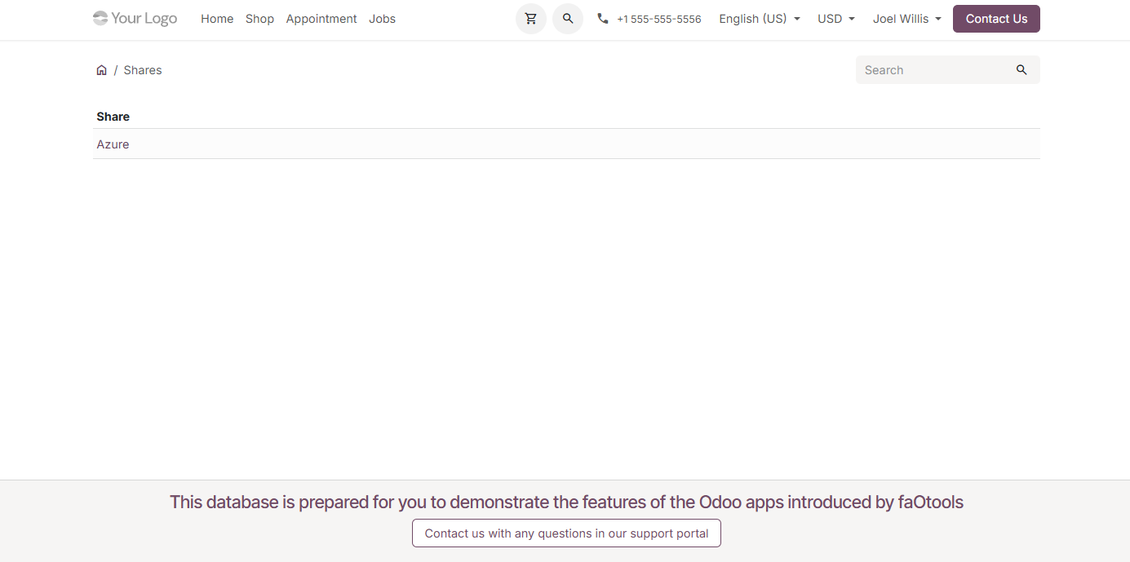
Share files, folders, and tags with partners or public links, including download archives, uploads, navigation, search, and optional chatter.
Repeatable folder structures
Generate folders from Odoo objects, filters, periods, naming expressions, and default subfolders instead of asking users to build trees manually.
Controlled document access
Keep Odoo-side access aligned with business records and folder permissions while administrators manage synchronization and logs centrally.
Why teams choose it
Key benefits before you dive into the details
Structured folders
Turn record attachments into clear folder trees generated from Odoo objects, filters, periods, and naming rules.
Cloud storage sync
Synchronize selected folders with Google Drive, OneDrive/SharePoint, Nextcloud/ownCloud, Dropbox, Amazon S3/MinIO, Box, or NAS/WebDAV.
Two-way automation
Scheduled jobs push Odoo changes to storage and bring cloud-side files, folders, moves, and deletions back into Odoo.
File Manager
Browse folders and tags, search files, upload by drag and drop, move attachments, and download single files or ZIP archives.
Better attachment box
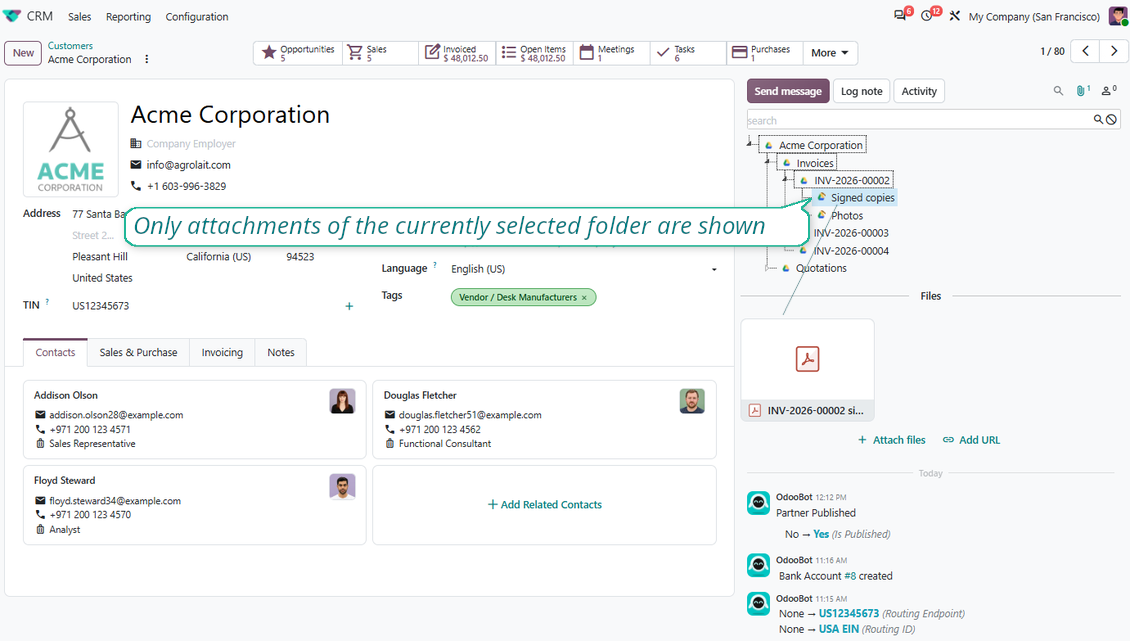
Open record-related folders and files from the attachment panel so users keep business context while working with documents.
Portal sharing
Share files, folders, and tags with contacts or public links, with controlled downloads, uploads, navigation, and chatter.
Access rights
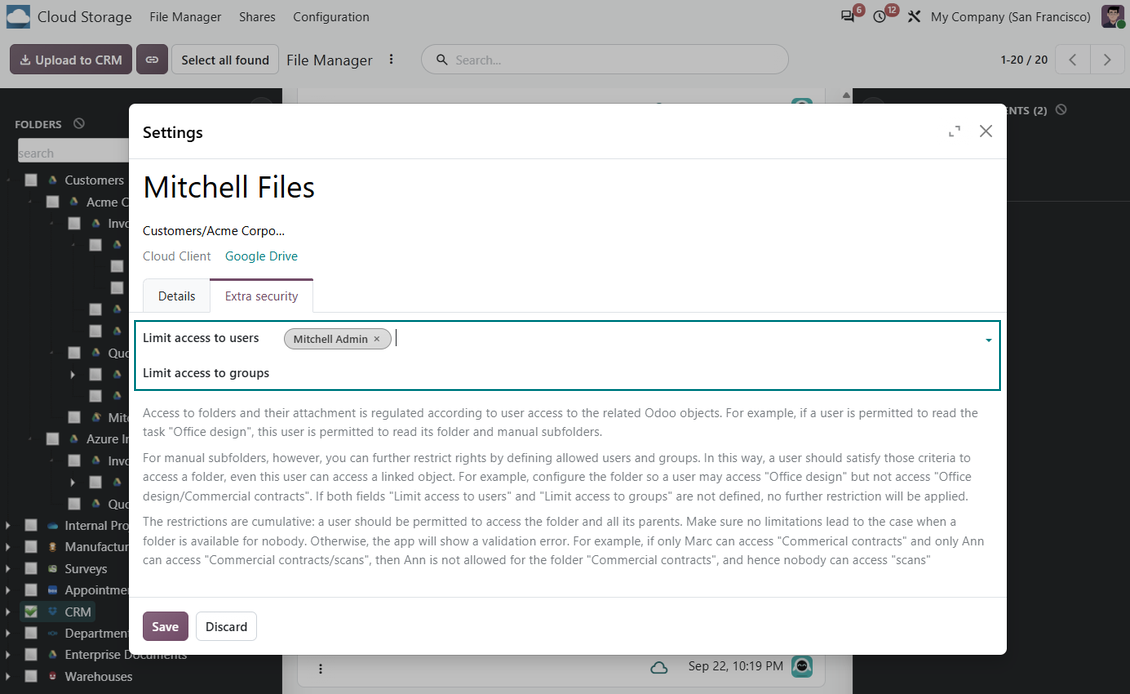
Respect Odoo business access for automatic folders and manage manual folder visibility through users and groups.
Sync logs
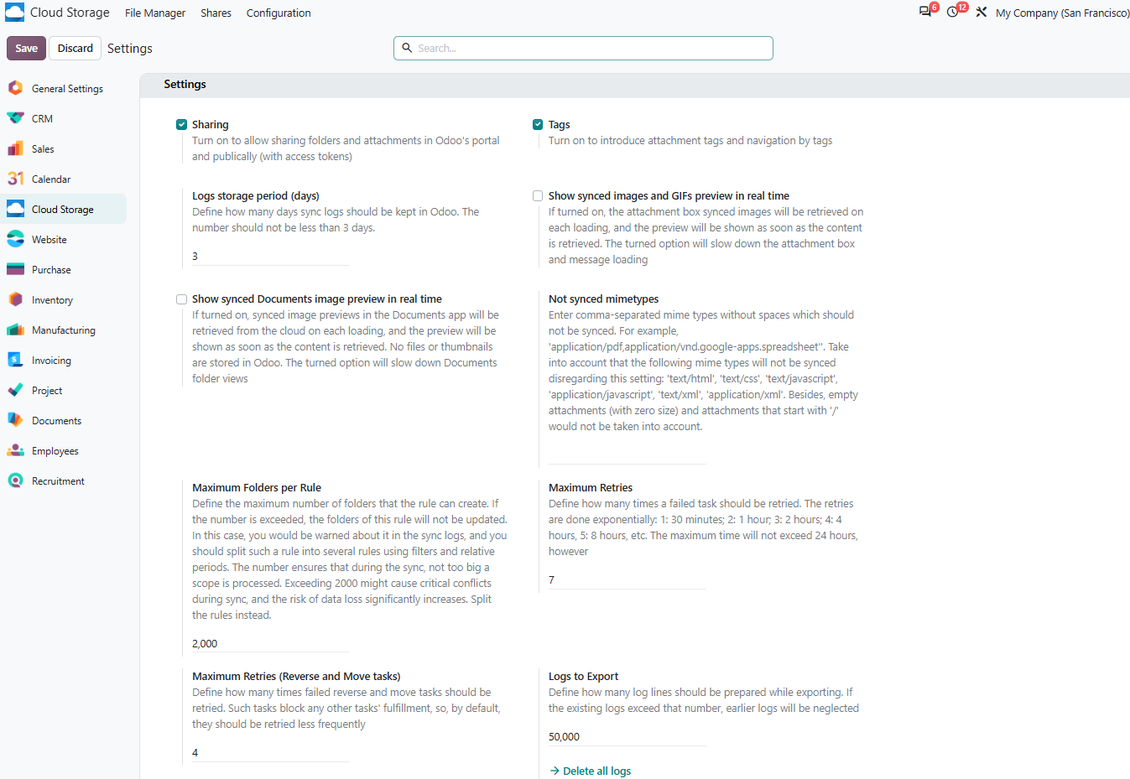
Monitor queued operations, client states, retries, and disconnections from Odoo, with logs ready to export for support.
Odoo Apps Store feedback
What customers say about the app
Excellent
We have been using Cloud Storage Solutions for a few years already, starting with Odoo 17 mostly because our attachments were a mess. Now we're moving to Odoo 20, and we've surely decided to keep using the app. The File Manager is great for finding a file by folder or tag instead of remembering which sales order it was attached to. And the attachment box on contacts and projects shows the same folders, which lets us avoid excess clicks.
The folder rules are the part I keep showing people: new customer and project folders just appear, with the sub-folders we set up once, and everything lands in our Google Drive through the connector. We also use sharing a folder with our external partners, which is often especially efficient for tasks.
Big thanks to the team too. I asked a lot of questions about the sync and the access rights initially and now during the switch, and every answer came back fast. Really felt like they wanted it to work for us. Happy customer here.
odootech@proton.me
Works well with SharePoint. Supportive team
We've been using this with SharePoint and it's been working great. One of the best things is having everything, including logs right in Odoo's interface, so you can actually see what's going on. It's also super convenient that you can view or download synced files from the attachment box without having to leave the page or even log in to Sharepoint.
Setup was pretty smooth for us. When we had a few questions about setting up the folder hierarchy and priorities, the developer team got back to us in just a couple of hours and helped us figure it out. Great support and great extension!
nino.khale@outlook.com
Tricky setup, but works perfectly now
Really solid module. We managed to get a very flexible folder structure (sorted by clients) and synced all our sales orders, invoices and tasks by projects to Google Drive.
Initial setup was a bit of a pain and kinda tricky to configure everything at first, but now it's running smoothly and works perfectly. The faotools team helped a lot. Def worth it if u need to keep your docs organized in Odoo and Google Drive.
Recommended!
denis@bdecloud.com
Great support, assistance and very good connector!
We are very happy with the support we received when configuring the Sharepoint - Odoo connector. The connector has great functionalities.
All our questions were answered very fast (within one day).
FaOtools helped us optimising our connector and assisted us with future improvements.
We really recommend this connector.
Max Vandeputte
Great module and Great Support!
The module works great! and the support is phenomenal!
A must-buy if it suits your requirements!
Hieu Nguyen
very professional app, excellen t customer service
This app is very well programmed and does its job very well. But the best is the excellent customer service who also helps when the problem lies somewhere else. You receive a lot for your money.
Florian Quis
Excellent !!!
Great App and great Service from faOtools.
Carlos A. Villarreal C.
An impressive app and world-class support
I have been very impressed by the way the OneDrive / SharePoint Odoo Integration module synchronises content in both directions and allows me to share documents in Odoo with my SharePoint site. Above all the technical support is top-notch, which greatly increases the value of this product. I highly recommend this product for anyone considering synchronising Odoo with SharePoint/OneDrive.
Amir Hassan
Very good product
A perfect solution to integrate Owncloud with Odoo. We sync a high volume of objects across multiple Odoo models, which works seamless and stable. For us it is the perfect solution to have an external DMS instead of the Odoo native attachment handling, which also enables us to interchange files between systems in our best-of-breed setup.
The team behind this module is extremely professional and responsive. They helped us on a few occasions and provided clear answers and prompt support when required, and they even went out of their way to assist us with another requirement we had. Cannot recommend the product and team highly enough, try this if you're in the market to connect Odoo with an external document solution.
Frank Vogler
Works fine, good support
The first experience with the module is excellent. I had some trouble to configure things right on the Microsoft-side, but the team provided quick and good support.
Marc
Best module for integration with google drive
The module performs its function correctly and faOtools responds quickly to any problem and, in case of detecting any bug, quickly apply the changes. Its support is 10 stars.
sistemas@deza-sa.com
Works according to specs
I have used this app with Odoo 12 and Nextcloud 16 and it works as specified. Odoo Tools offers very responsive support which is really helpful. Of course 5 stars...!
NXD-Audio
This is Awesome
I have used Cloud Sync on Next/Own Cloud and works really great.
Humberto
Ready to evaluate?
Start with a free demo request or purchase in the Odoo Apps Store.
Free personalized demo database. No phone number or credit card required. Free life-time updates and expert support within the major Odoo version.
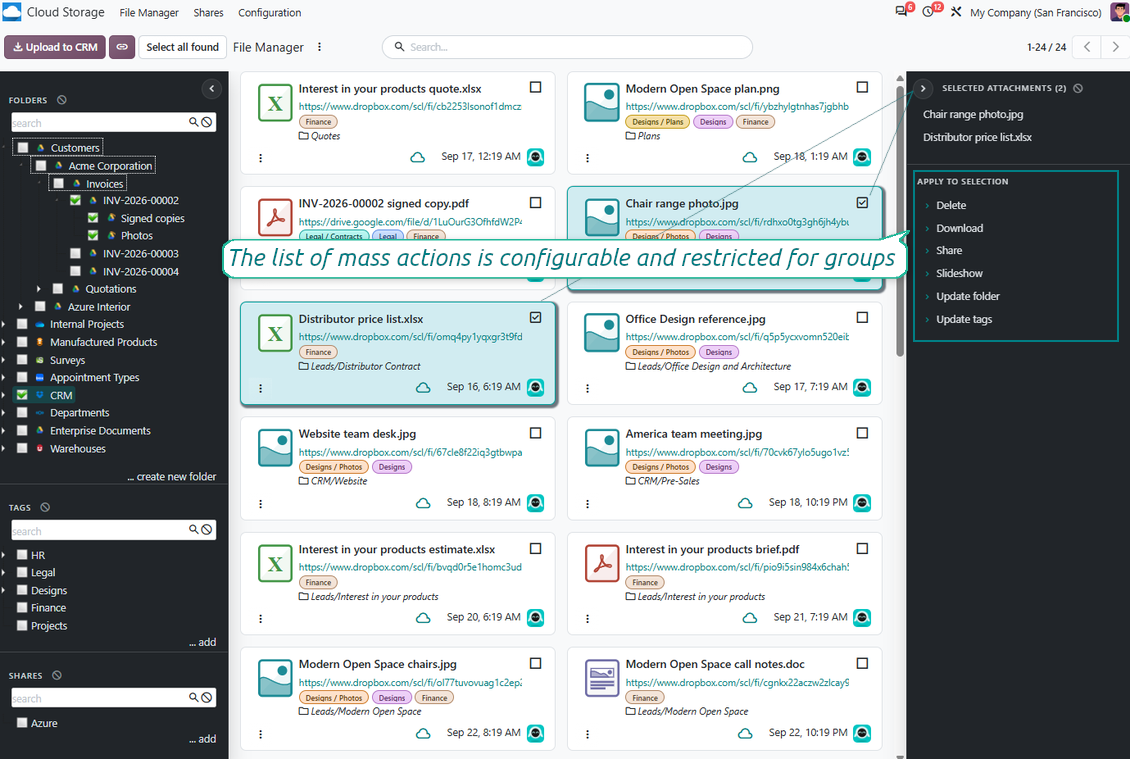
Odoo File Manager Interface
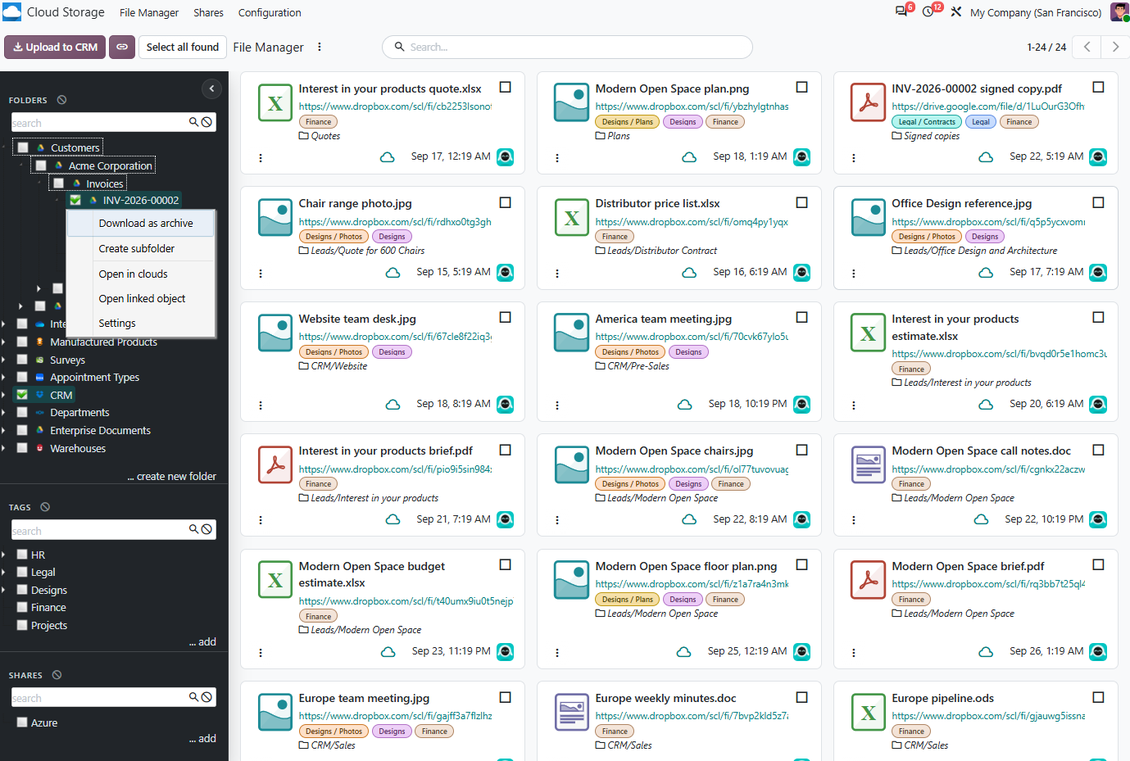
A practical document workspace for folders, tags, uploads, search, mass actions, and archives.
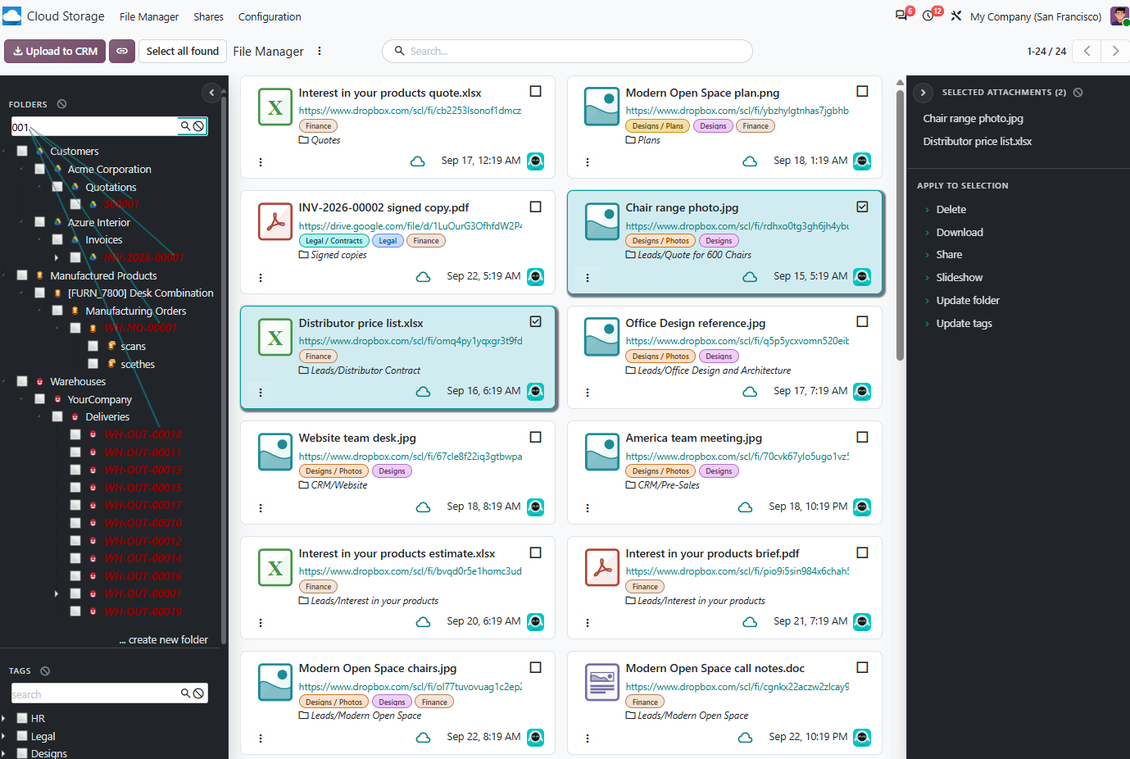
Navigate documents like a file system
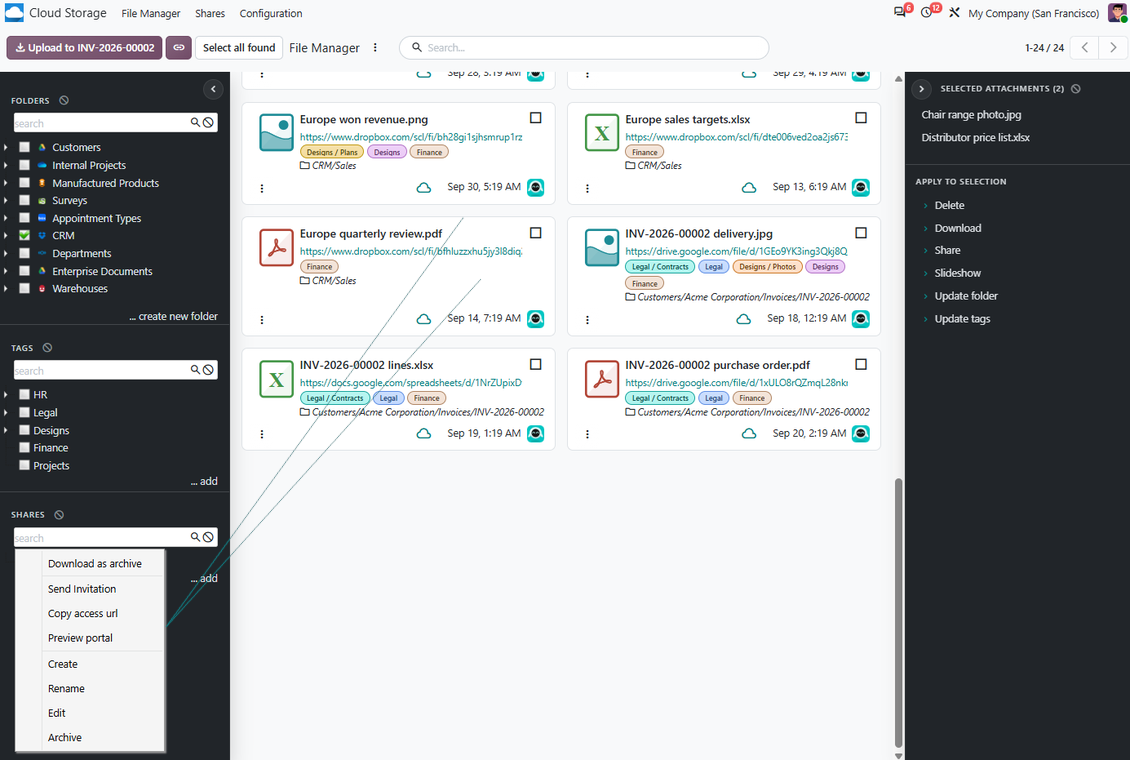
- Browse attachments by folders and tags instead of opening records one by one.
- Expand tree levels, create manual subfolders, edit folder settings, and open linked Odoo objects.
- Search and highlight folders or tags quickly even in large document trees.
Work with files in bulk
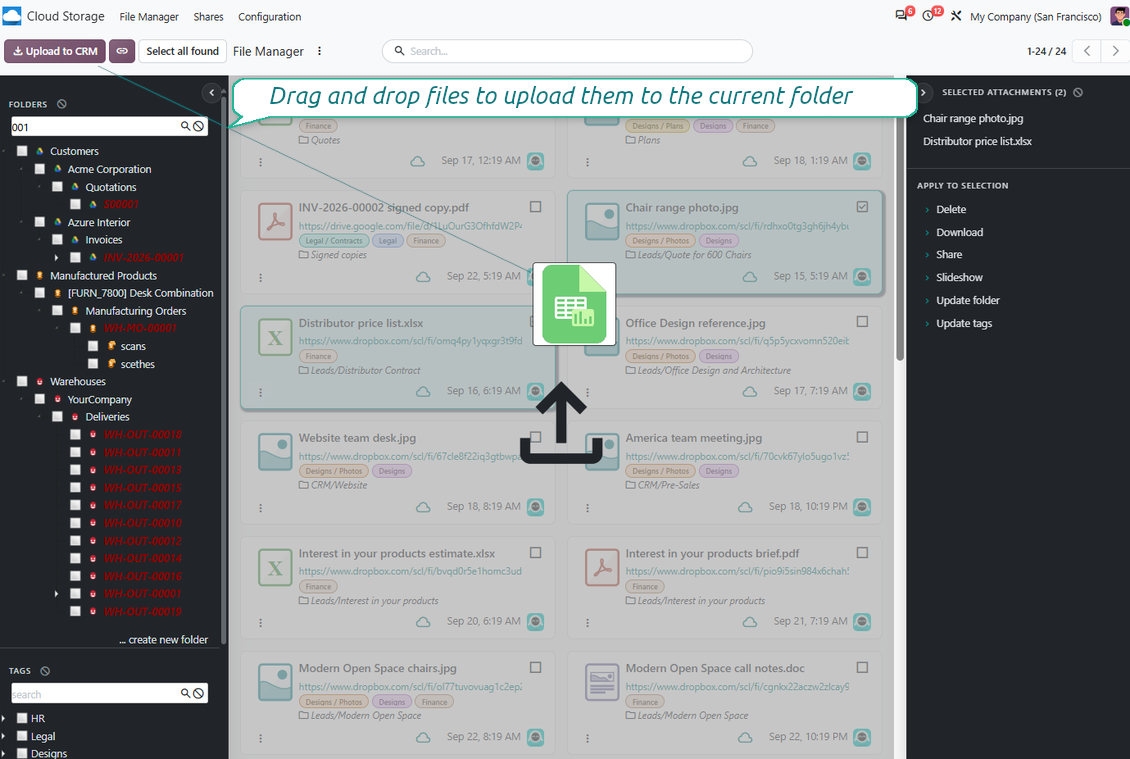
- Upload files to the current folder from a button or by drag and drop.
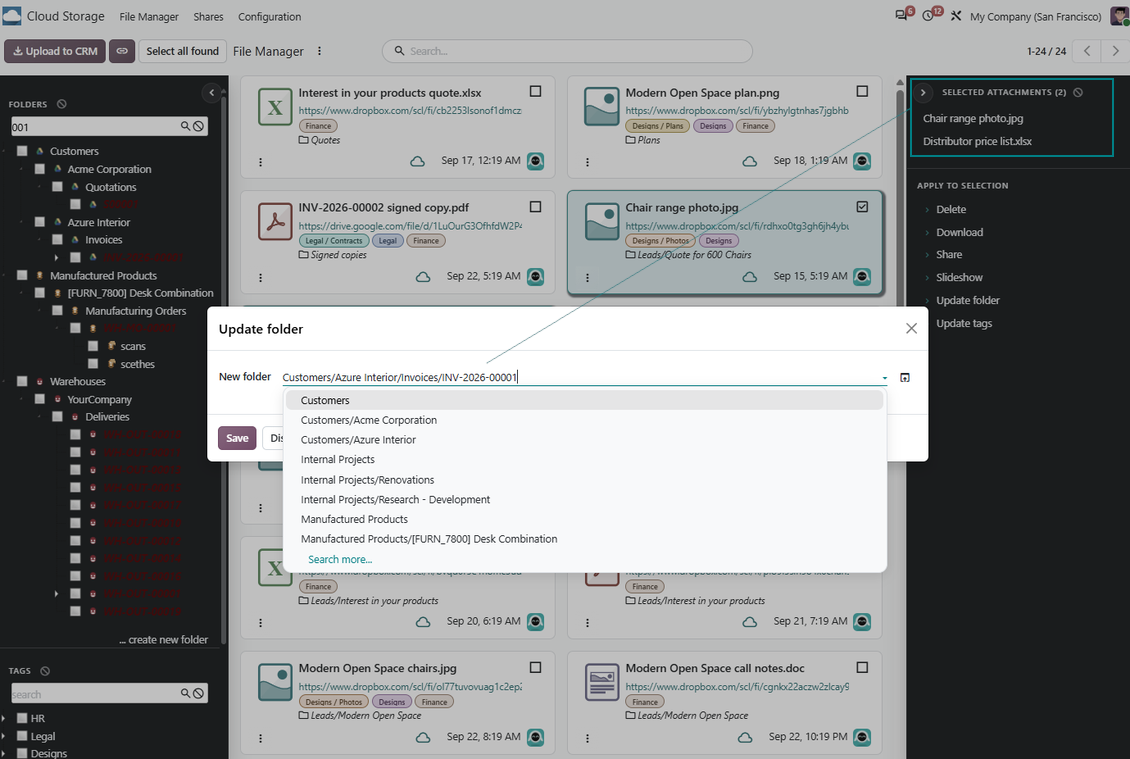
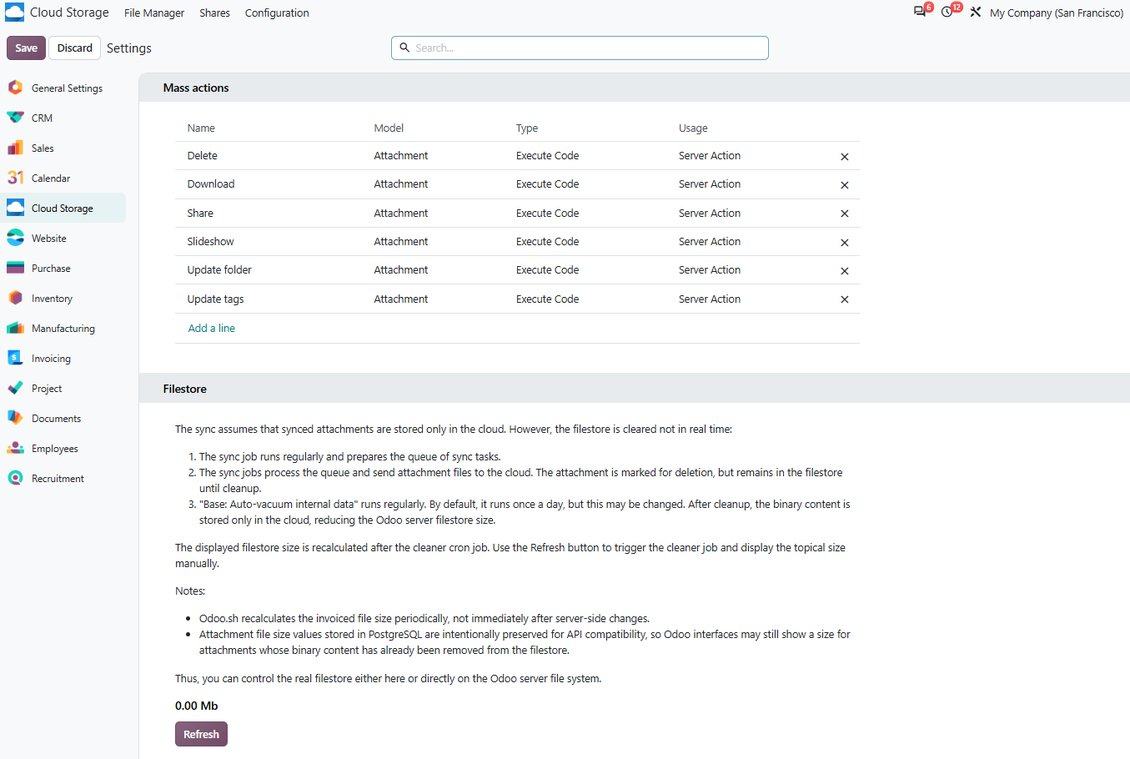
- Move attachments between folders or record contexts and update tags with mass actions.
- Download selected attachments, whole folders, or tags as a single ZIP archive.
Enhanced Attachment Box
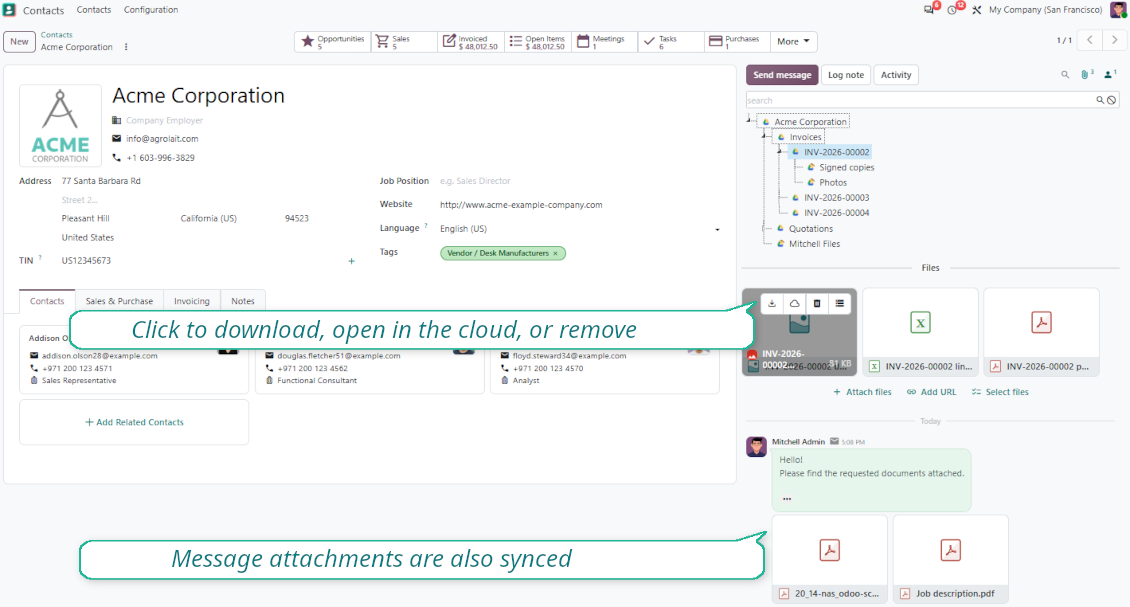
Record attachments become organized folders, not a flat list of files.
Keep record files structured
- Show each Odoo object with its own folders and subfolders directly from the attachment area.
- Add, move, download, and open files without leaving the business record users already work on.
- Use tags and folders together so documents remain easy to find after months of activity.
Connect Odoo context with cloud files
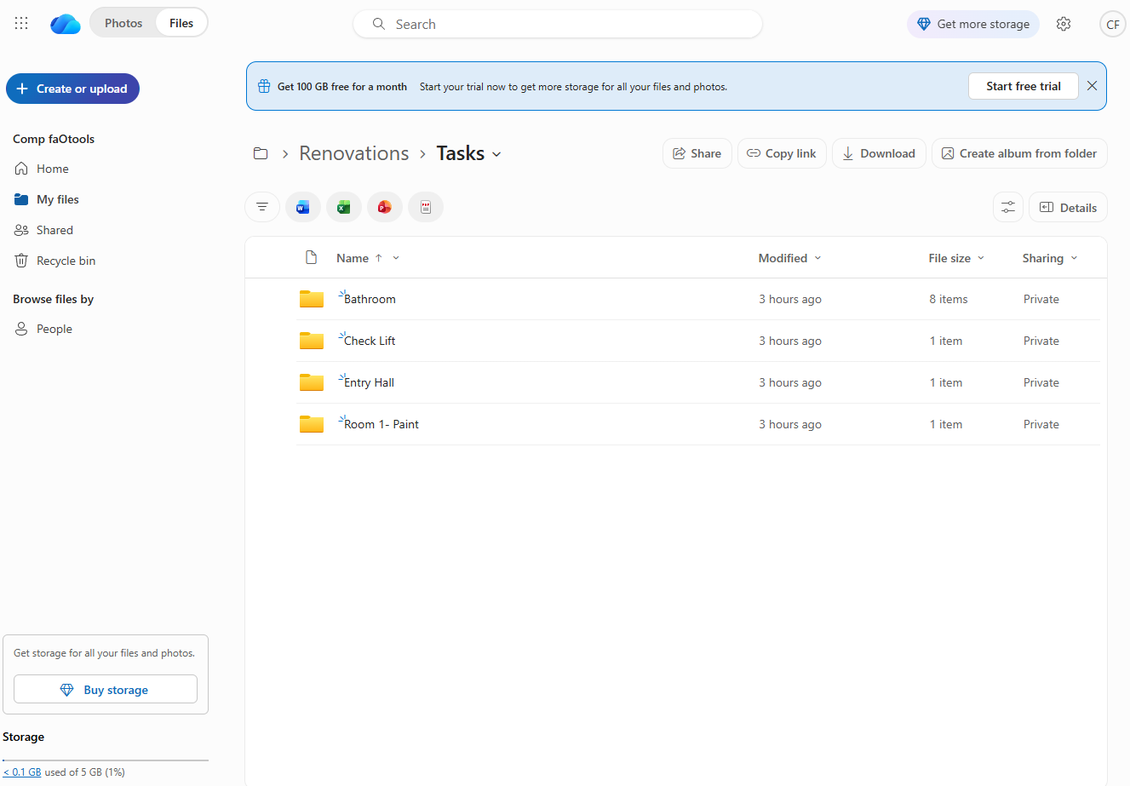
- Open synced folders and files in the connected cloud client from Odoo.
- Preserve the link between cloud directories and their Odoo records for easier navigation.
- Keep daily file work close to sales orders, tasks, tickets, partners, and other Odoo documents.
Cloud Storage Synchronization
Queue-based two-way synchronization with the storage clients your company already trusts.
Choose the right storage per folder
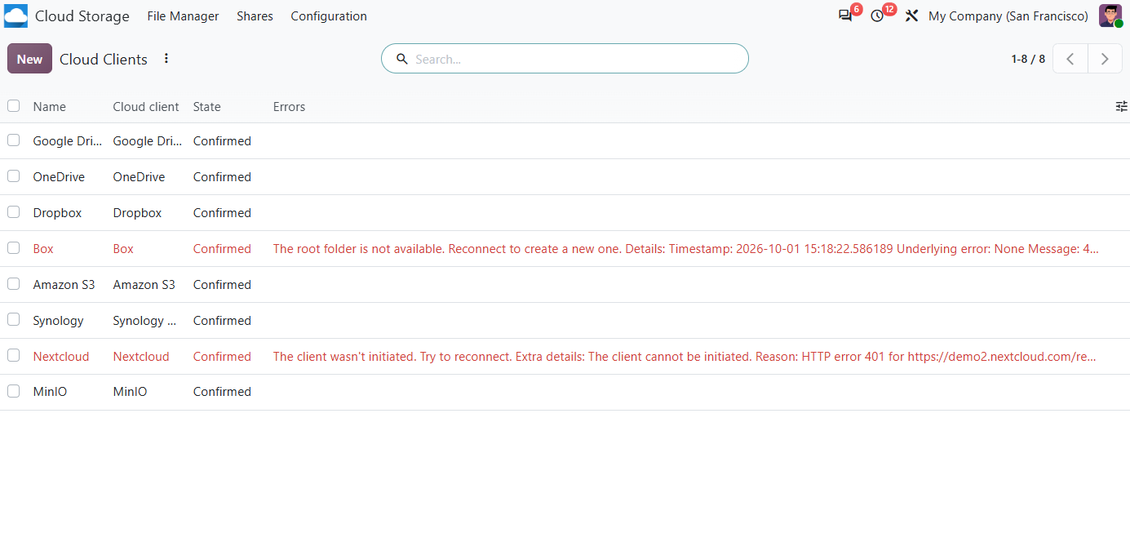
- Connect Google Drive, OneDrive/SharePoint, Nextcloud/ownCloud, Dropbox, Amazon S3/MinIO, Box, and NAS/WebDAV through optional extensions.
- Use multiple cloud connections at the same time for different departments, models, folders, or accounts.
- Keep one synced folder on one target client while its child folders follow the same storage path.
Automated two-way sync
- Direct sync creates cloud folders, uploads attachments, and replaces synced binaries with URL attachments in Odoo.
- Backward sync detects cloud-side files, subfolders, updates, moves, and deletions and mirrors them in Odoo.
- Reverse sync brings files back into Odoo when a connection is reset or a folder moves to another client.
Predictable queue processing
- Scheduled jobs regularly prepare and process sync tasks without requiring users to push files manually.
- Folder checks use FIFO logic so older unchecked directories receive attention first.
- Blocking operations are prioritized, and failed items are retried while the queue continues with independent work.
Transparent monitoring
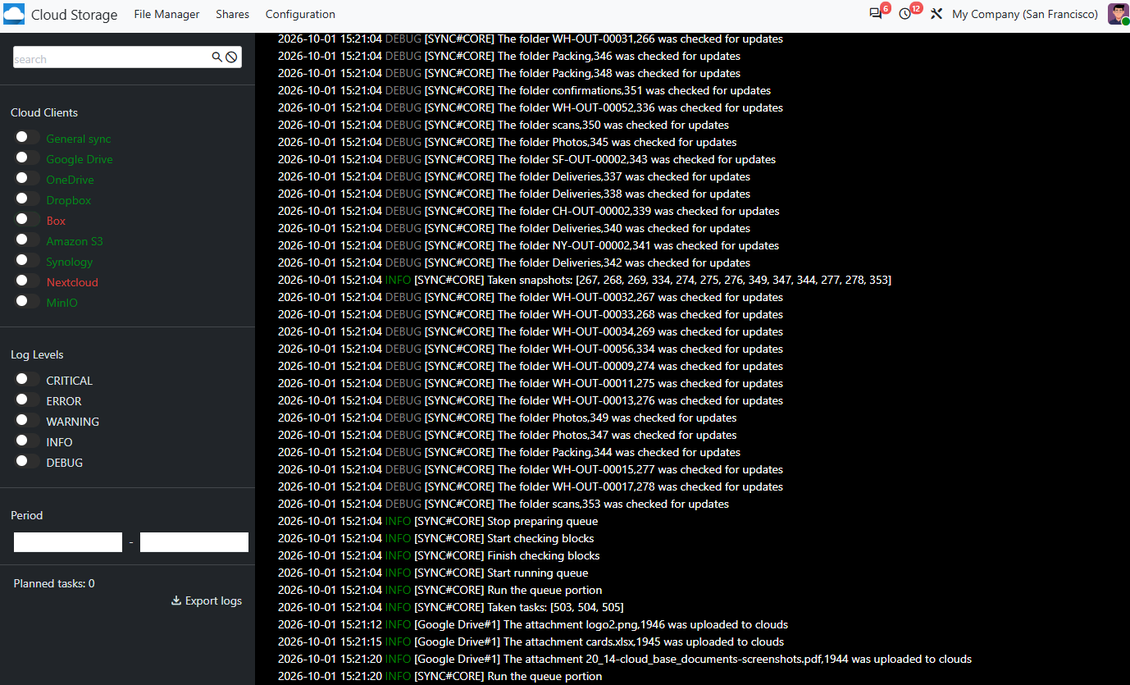
- Track planned operations, executed jobs, errors, and client states from Cloud Storage sync logs.
- Subscribe to notifications for important client events such as disconnections or repeated failures.
- Export and share logs when an administrator or support team needs evidence of what happened.
Optional sync directions
- Turn off the backward sync on a client to keep the sync one-way. Odoo changes are still pushed to the cloud storage, but files and folders created, renamed, or deleted there are not reflected in Odoo. Turning the option off again applies those accumulated changes, including deletions, on the next sync.
- Turn off the reverse sync on a client when the cloud storage copy should stay the only copy, or when the connection is broken. Unlinking, resetting, or deactivating that client then does not download files back and does not delete anything in the cloud storage. The connection between the Odoo objects and their cloud items is cut. Saved links still open the files in the cloud storage, but Odoo can no longer download, preview, or open those folders and files. That connection is not restorable.
Automatic Folder Rules
Generate folder trees from Odoo data so document structure follows real business objects.
Model-based folder trees
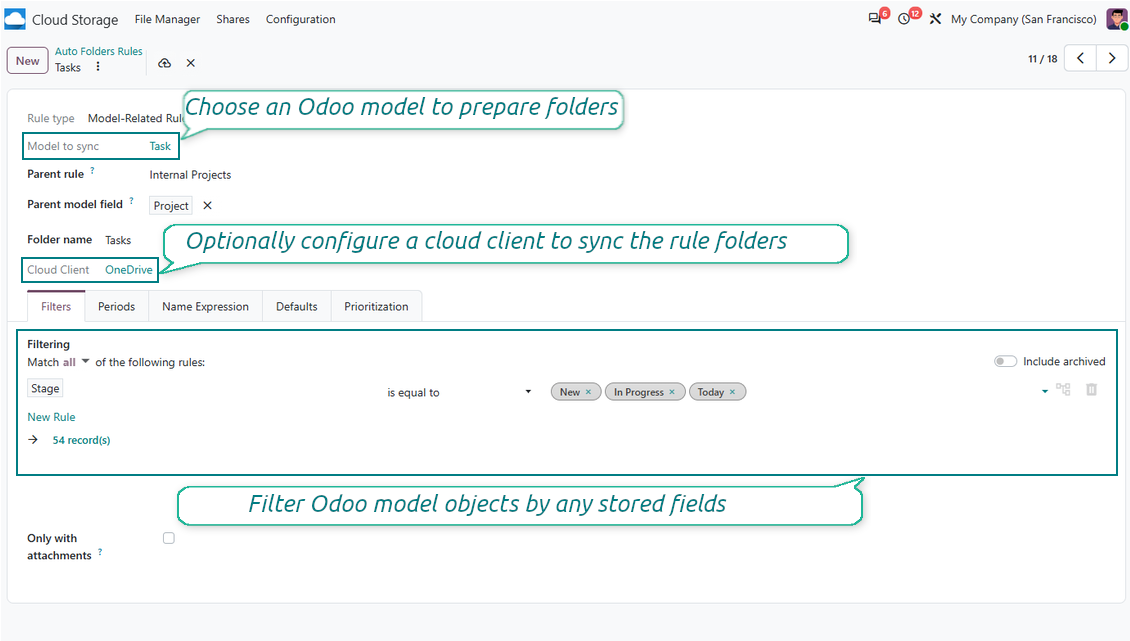
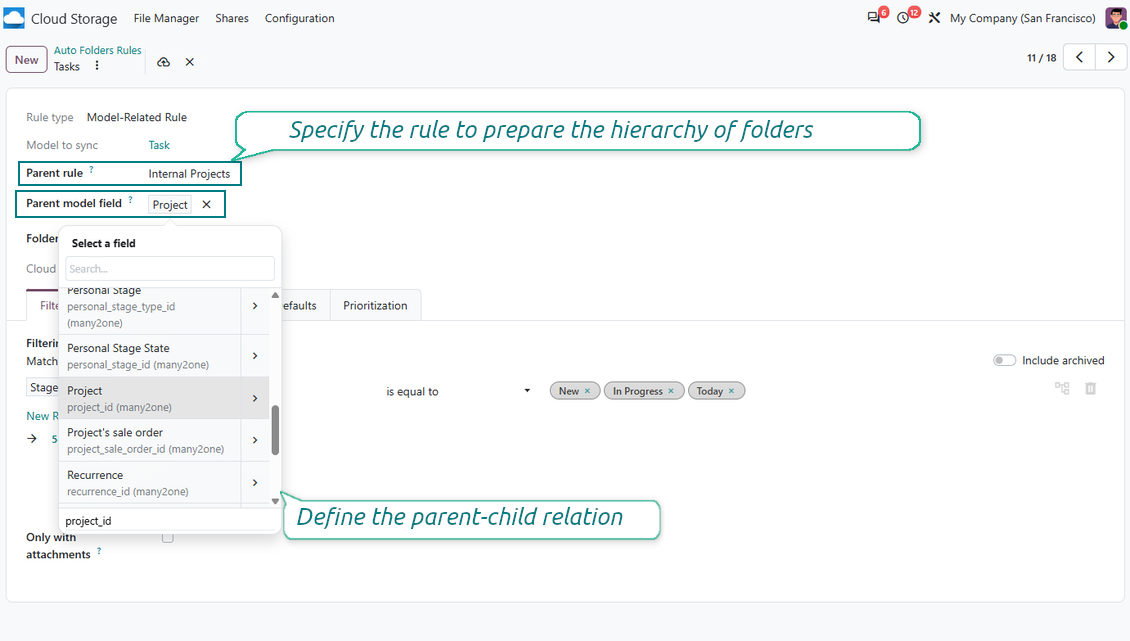
- Decide which Odoo models need folders and let scheduled checks create directories for matching records.
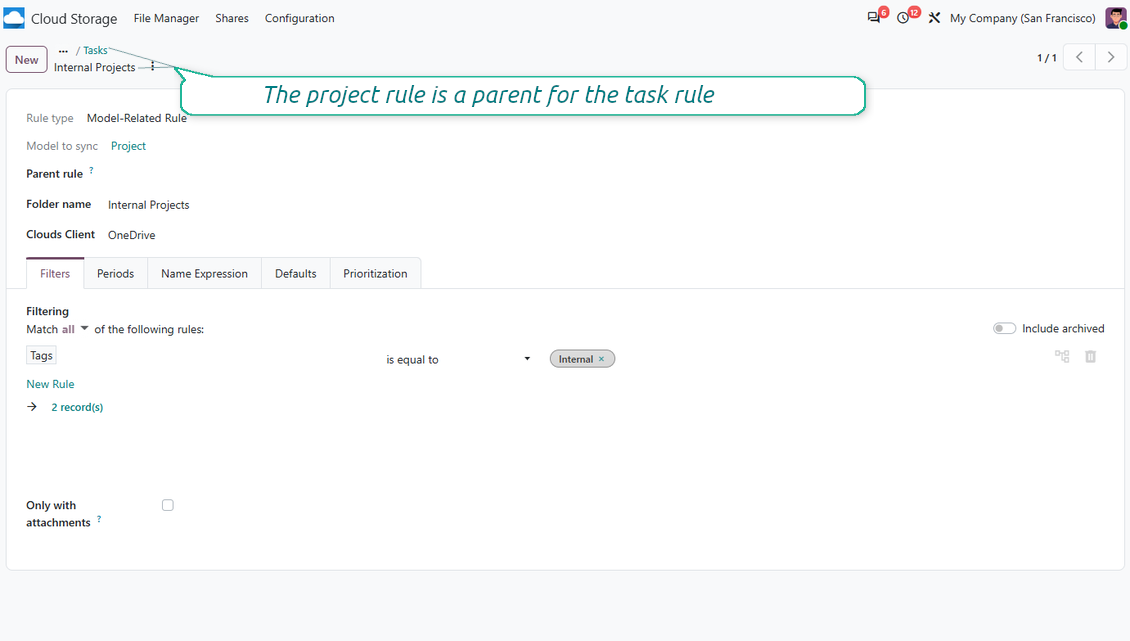
- Build parent-child rule hierarchies so customers, orders, projects, tasks, and documents appear in the right place.
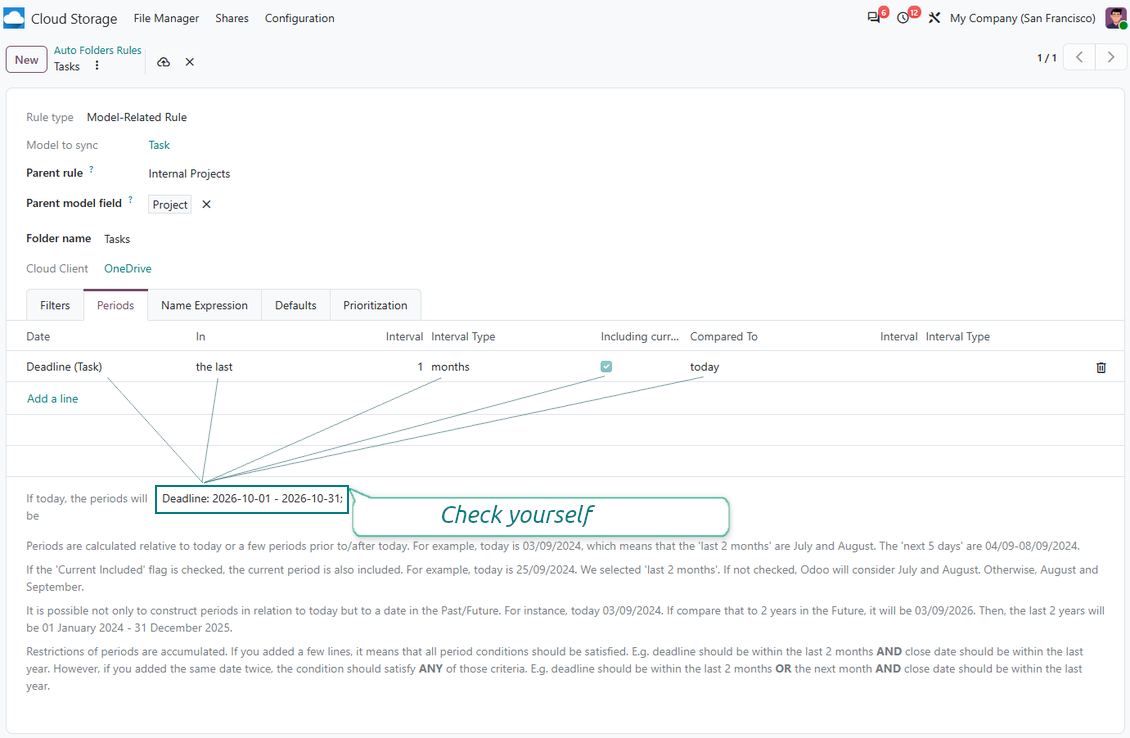
- Use relative periods and field filters to sync only the records that matter.
Business-friendly naming
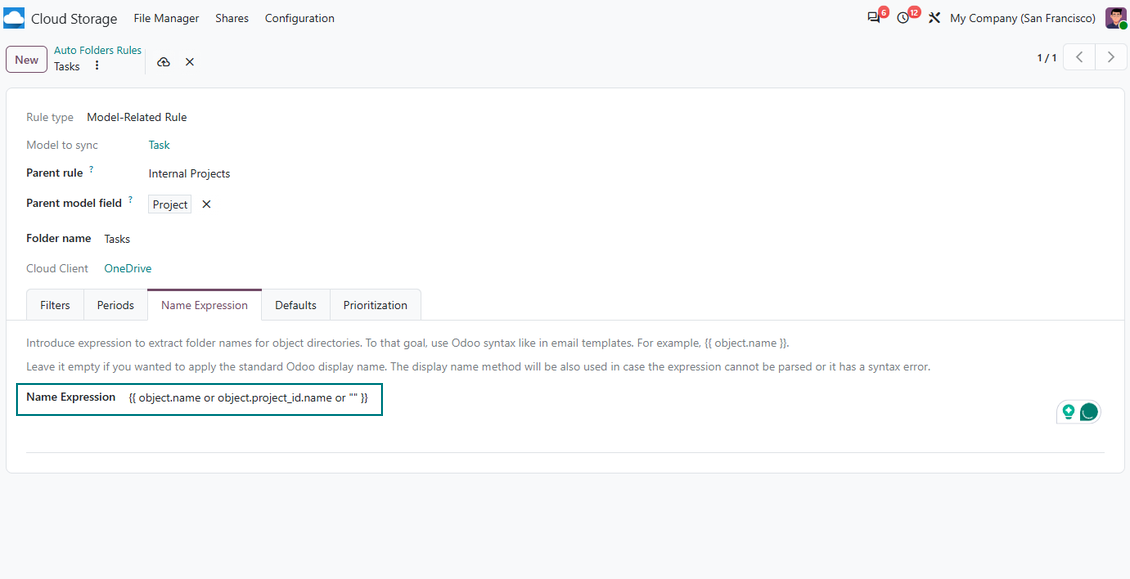
- Generate folder names from expressions, record fields, and related values instead of static labels.
- Add default subfolders and default files for repeatable document packages.
- Prioritize rule checks so large structures remain predictable and administrators control the rollout.
Manual and automatic folders together
- Let users create manual subfolders where flexibility is needed while rules maintain the recurring structure.
- Drag and drop manual folders without disturbing automatically generated directories.
- Keep folders connected to Odoo objects so access, navigation, and cloud sync remain meaningful.
Enterprise Documents ready
- With the Enterprise Documents extension, workspace-related rules create cloud folders from Odoo Documents workspaces.
- Workspace filters let you sync selected workspaces instead of mirroring the full Documents structure.
- Users keep familiar Odoo Documents actions such as download, share, and sign after synchronization.
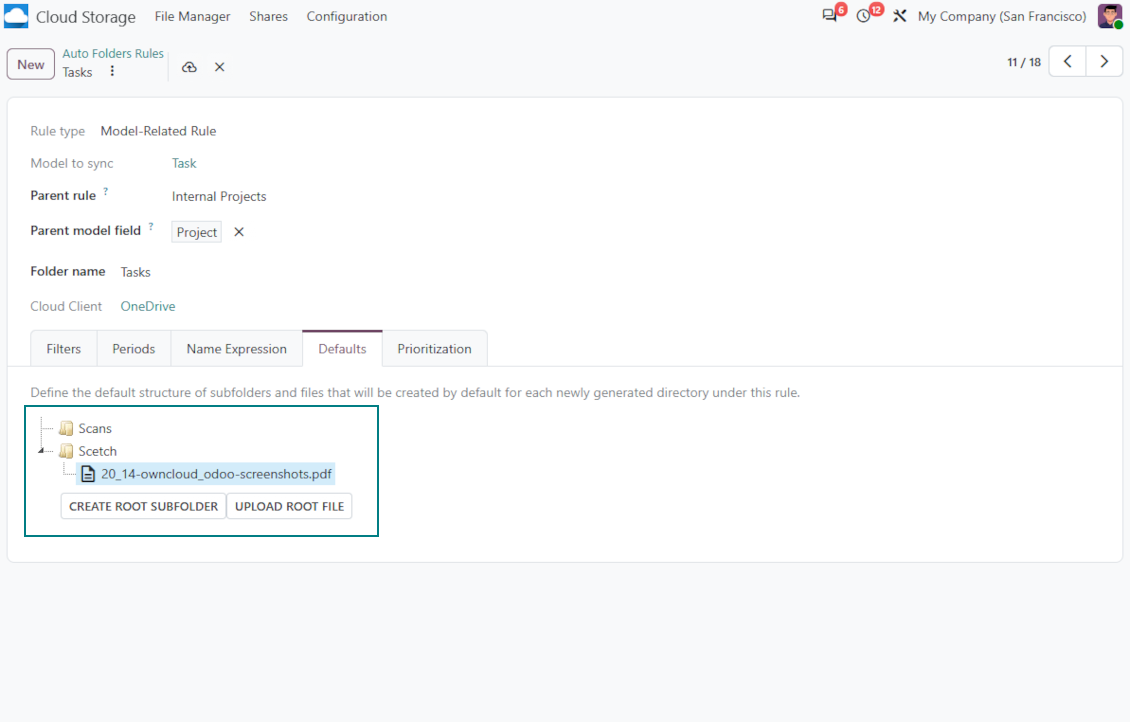
Files and Folders Sharing
Controlled portal and public sharing for attachments, folders, and tags.
Share the exact document set
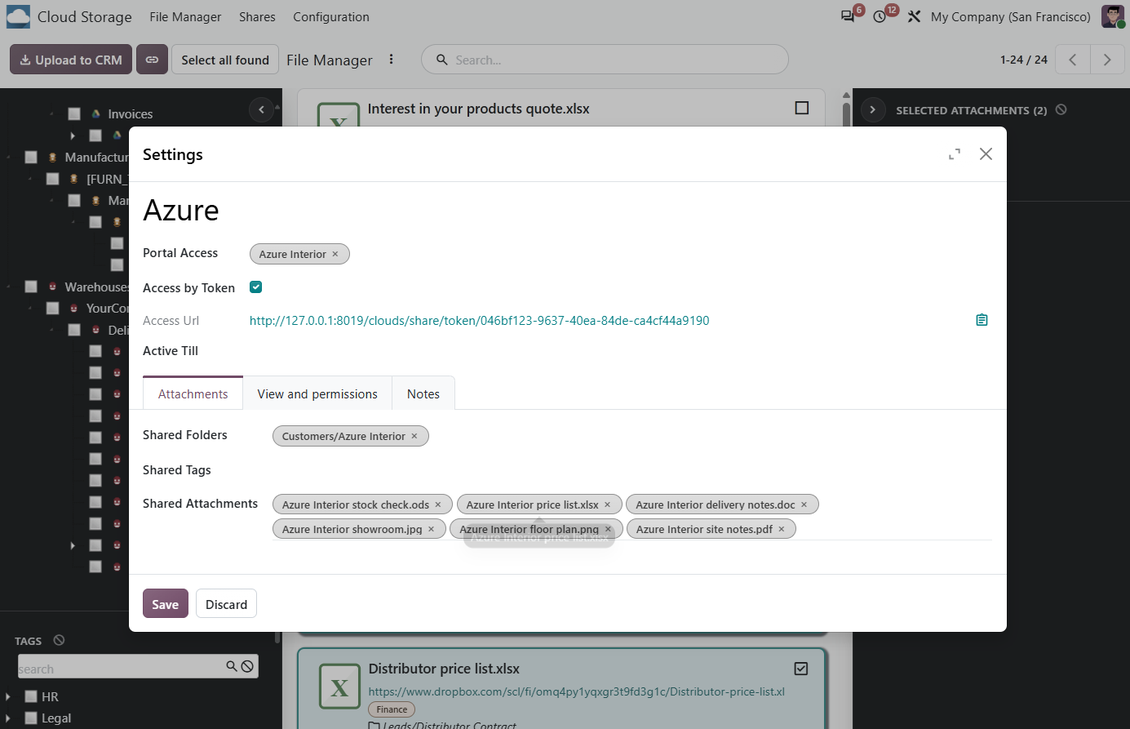
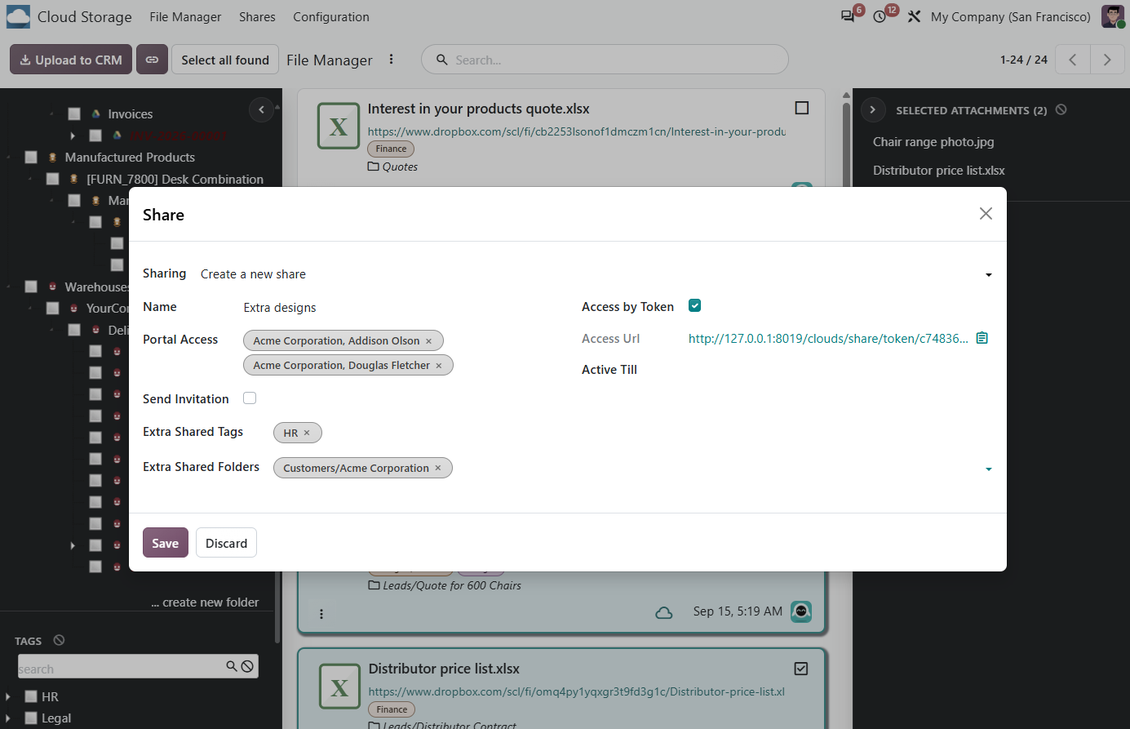
- Share selected attachments, full folders, child folders, or all files connected to chosen tags.
- Grant access to Odoo contacts and send invitations to portal users when the share is ready.
- Generate public access links when a recipient should not need a portal account.
Let recipients work, not just view
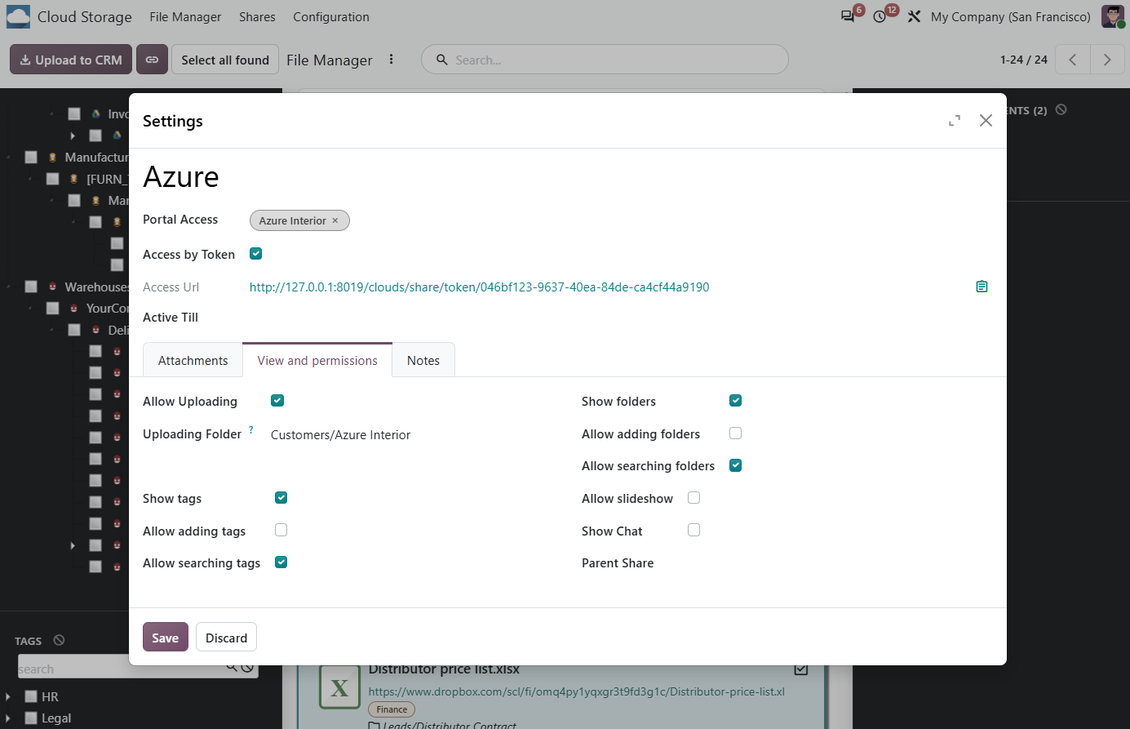
- Allow downloads of single files, folders, tags, or the whole share as ZIP archives.
- Optionally allow uploads, folder navigation, tag navigation, search, and item creation.
- Enable share chatter when the file exchange needs a discussion thread.
Ready to evaluate?
Start with a free demo request or purchase in the Odoo Apps Store.
Free personalized demo database. No phone number or credit card required. Free life-time updates and expert support within the major Odoo version.
Document Management and Sync Access Rights
Odoo-side permissions stay aligned with business records, manual folders, and administrator roles.
Rights follow Odoo context
- Access to automatic folders is based on access to the linked Odoo object.
- Users must also access parent folders, so the full path remains protected.
- Manual folders can be restricted by users and groups, or left open when no restriction is set.
Clear administrator boundaries
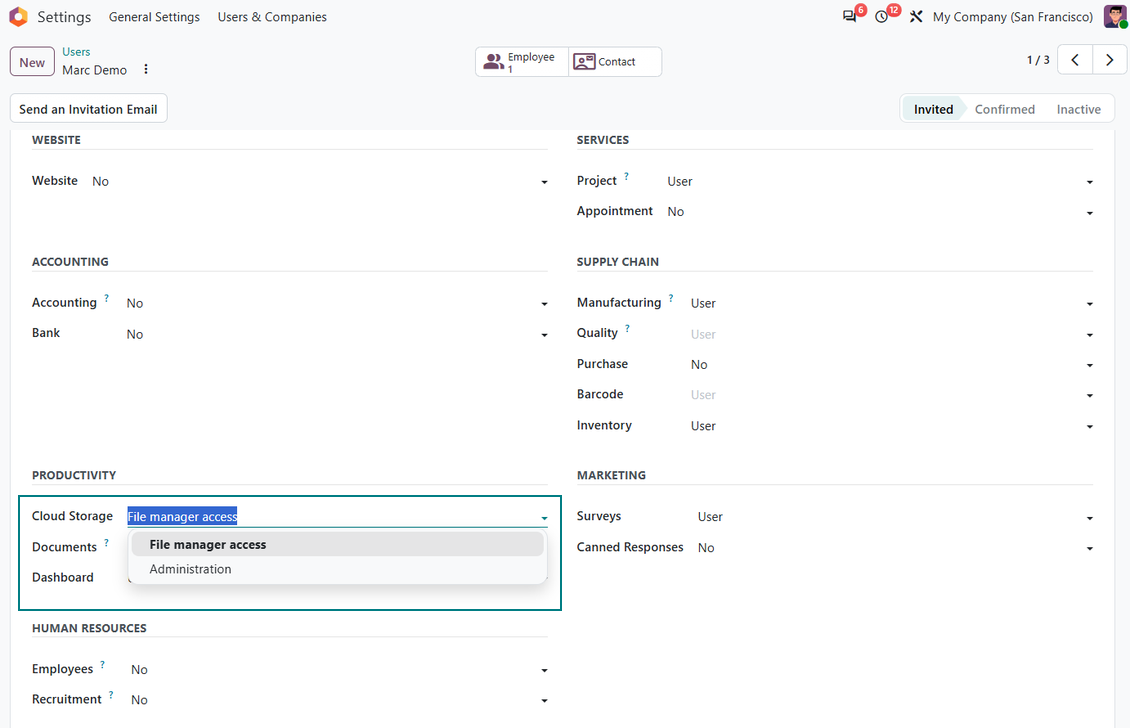
- File Manager Access lets users work with the Cloud Storage menu and file manager.
- Administration rights are required for folder rules, cloud connections, sync logs, and global settings.
- Cloud-provider permissions remain managed in the target cloud system after synchronization.
Use Notes
A few things to keep in mind so synchronization stays predictable in a real Odoo environment.
Sync is not instant
- Synchronization is not real-time. It runs through scheduled jobs and a task queue, so some time may pass before changes appear on both sides.
- Cloud connections rely on third-party APIs that can change or be temporarily unavailable, so occasional retries or reconnections may be needed.
- We recommend keeping an independent copy of important data, as deletions and reverse operations are propagated and may be hard to undo.
Keep the sync scope reasonable
- The wider the synchronization scope, the longer a full check tends to take and the more edge cases may appear.
- Where possible, synchronize only the folders you actually need rather than the whole attachment set.
- Narrowing the scope usually makes sync faster and easier to monitor.
Mind the per-folder volume
- Very large folders can slow down listing and processing on either side.
- We suggest keeping the number of files and subfolders per directory within reasonable limits.
- Splitting large volumes across several folders usually behaves more predictably than placing everything in one folder.
Ready to evaluate?
Start with a free demo request or purchase in the Odoo Apps Store.
Free personalized demo database. No phone number or credit card required. Free life-time updates and expert support within the major Odoo version.
Configuration and Installation Tips for Cloud Storage Solutions Odoo v.20
Odoo server configuration
To make sure the synchronization works correctly apply proper timeouts to the Odoo configuration file: LIMIT_TIME_CPU, LIMIT_TIME_REAL, LIMIT_TIME_REAL_CRON should be more than 900 seconds.
For Odoo.sh this should not be done, since timeouts are predefined and are not configurable.
Avoid also changing the cron jobs frequency assumed by the app: '[Cloud Storage] Prepare Cloud Folders', '[Cloud Storage] Run / Prepare sync queue'. Those jobs are configured to be run each 15 minutes, and that frequency is used in the algorithms to avoid breaks and data losses. If you need to stop sync for a while, pause particular cloud clients instead.
General Python dependency
The tool depends on the external library 'sortedcontainers'. Install this library for your Odoo server through the command:
pip3 install sortedcontainersSetting up OneDrive or/and SharePoint Integration
Python dependency
The tool depends on the external library 'microsoftgraph'. Install this library for your Odoo server through the command:
pip3 install microsoftgraph-python
Configuration and log in
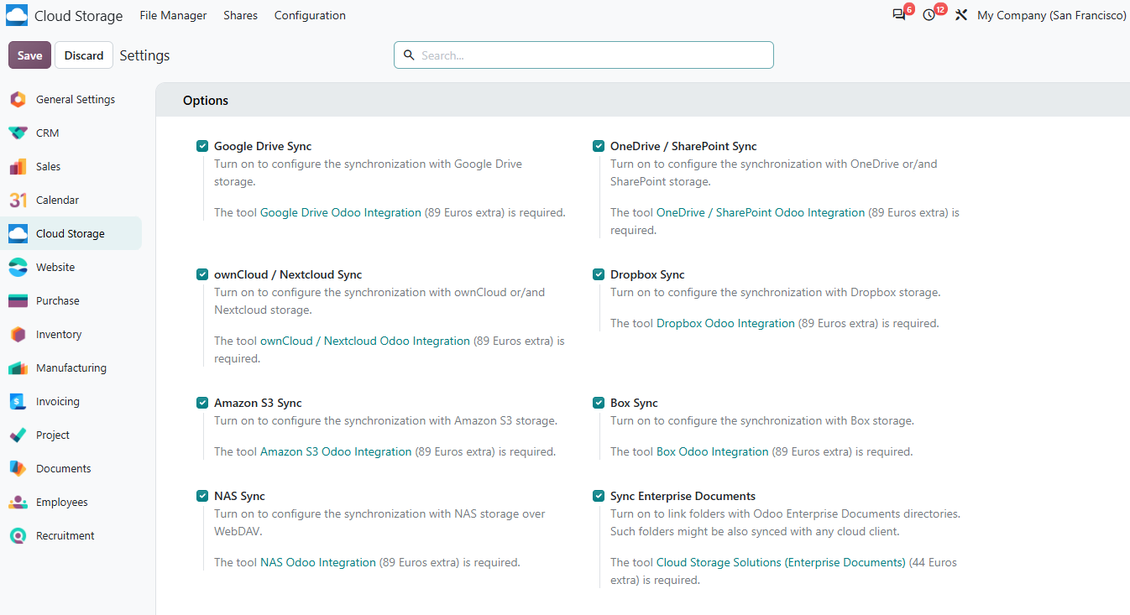
- Turn on the option 'OneDrive / SharePoint Sync' (cloud Storage > Configuration > Configuration). The optional add-on OneDrive / SharePoint Odoo Integration is required
- Make sure your Microsoft user has full admin rights for OneDrive / SharePoint you want to connect to Odoo. This user is required only to grant permissions, the user data would not be kept in Odoo, and would not be used afterward. Besides, make sure a Microsoft email address you use does not have a redirection (usually happens when you configure your domain name, while the prime address is still one of Microsoft domains like @outlook.com, @office365, etc.)
- Go to your Azure Portal: https://portal.azure.com/#blade/Microsoft_AAD_RegisteredApps/ApplicationsListBlade
The app must be registered inside a directory (tenant). Microsoft no longer allows creating a new app outside one.
- If you already have a company Microsoft 365 / Azure directory, switch the portal (top right) to it and continue.
- If you only have a personal account (@outlook.com, @hotmail.com, @live.com) and see "these applications are associated with the account ... but are not contained within any directory", you do not have a directory yet. Sign up for a free Azure account with the same Microsoft account: https://azure.microsoft.com/free/ - Try Azure for free. This creates a Default Directory for you at no cost.
- Microsoft asks for a card for identity verification only; a temporary ~1 USD hold is placed and reversed. You are not charged for the directory or for the app registration.
- The directory (Microsoft Entra ID Free) and any app registered in it keep working independently of the 30-day / $200 Azure trial credit. That credit is for paid Azure resources you are not using here. No payment is required for our app.
- If the whole directory sits completely unused for a very long time (Microsoft's own threshold is around 200 days of no activity at all), Microsoft may email a warning and eventually retire it. Since Odoo calls this app every time it syncs, an active connection keeps the directory active - this only matters if you stop syncing entirely for months.
- Once you are in a real directory (not "Microsoft Services"), open App registrations there.
- Click 'New registration'
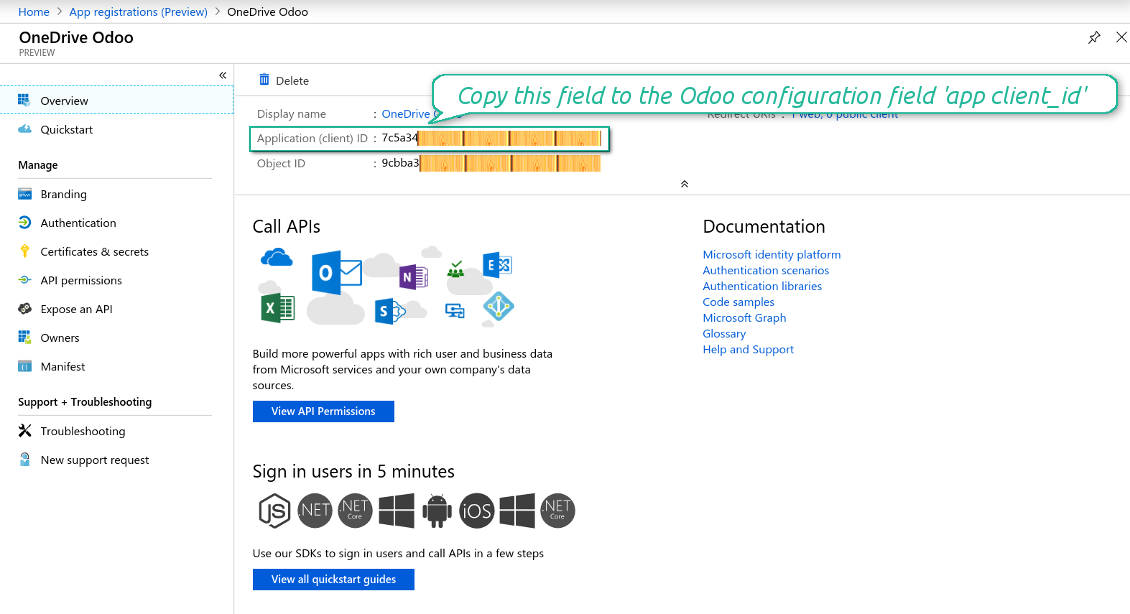
- Introduce a new name for the application and assign the redirect URI as [YOURODOOSITENAME]/one_drive_token (e.g. https://odootools.com/one_drive_token). As the supported account types choose 'Accounts in any organizational directory (Any Azure ID directory - Multitenant) and personal Microsoft accounts (e.g. Skype, Xbox)'.
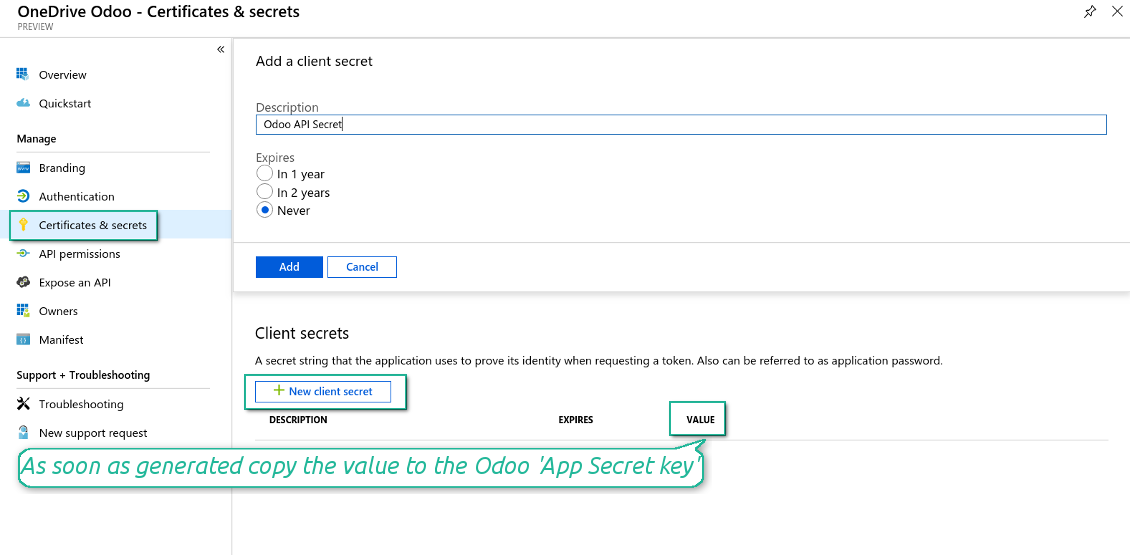
- Go to Certificates & secrets - Click 'New Client Secret'. Save somewhere the secret value
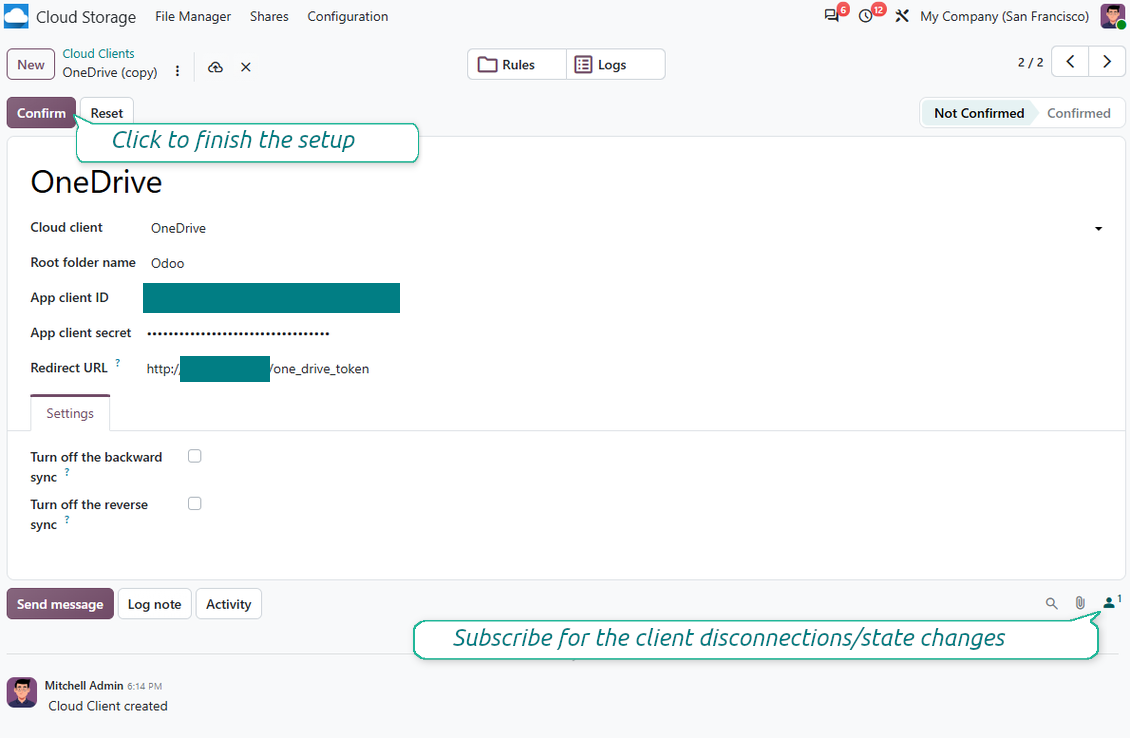
- Go to Odoo Cloud Storage > Configuration > Cloud Clients press 'Create'
- As a reference introduce any name which would be clear to all users
- As a Cloud client choose 'OneDrive' or 'SharePoint' depending on the software you are using
- As a Root folder name enter a title which would be users as the parent OneDrive directory for all synced folders. For example, 'Odoo' or 'OdooERP'
- Copy 'Application Client ID' to the 'App client ID'
- Copy secret value into the field 'App client secret'
- Insert previously generated redirect URL
- If you use SharePoint:
- Go to your SharePoint site and prepare a new documents library (drive). You might use one of the existing ones, e.g. 'Documents'. Odoo folder would be put there afterward, and it would be impossible to move it to another library
- The SharePoint URL should be of the type https://[URL]/. The last '/' is required - the site name should not be included. For example, https://odootools.sharepoint.com/
- SharePoint site should be either root (the very root SharePoint site), my_site_name (in that case it is considered as sites/my_site_name) or sites/my_site_name (instead of 'sites' it might be 'teams' and so on). There should be no '/' at the beginning or at the end. For example, sites/odootools
- As Documents Library use one created in SharePoint
- Press 'Confirm'. Odoo redirects you to the Microsoft login page. Check in the system, agree with all conditions, and grant all permissions asked. If Microsoft shows an account already signed in and says it does not exist in tenant 'Microsoft Services' (or any other unrelated tenant), do not click that row. Click 'Use another account' and sign in with the Microsoft account that owns the app's directory.
- After login, OneDrive redirects you back to Odoo. OneDrive - Odoo synchronization is ready to be done
- Apply the newly created cloud client to folder rules and/or manual folders which should be synced to that OneDrive or SharePoint instance
- Await the sync scheduled job to be started. For testing purposes only: trigger integration manually from Cloud Storage > Configuration > Configuration > the button 'Launch sync'.
Watch also the configuration video
Create Azure application
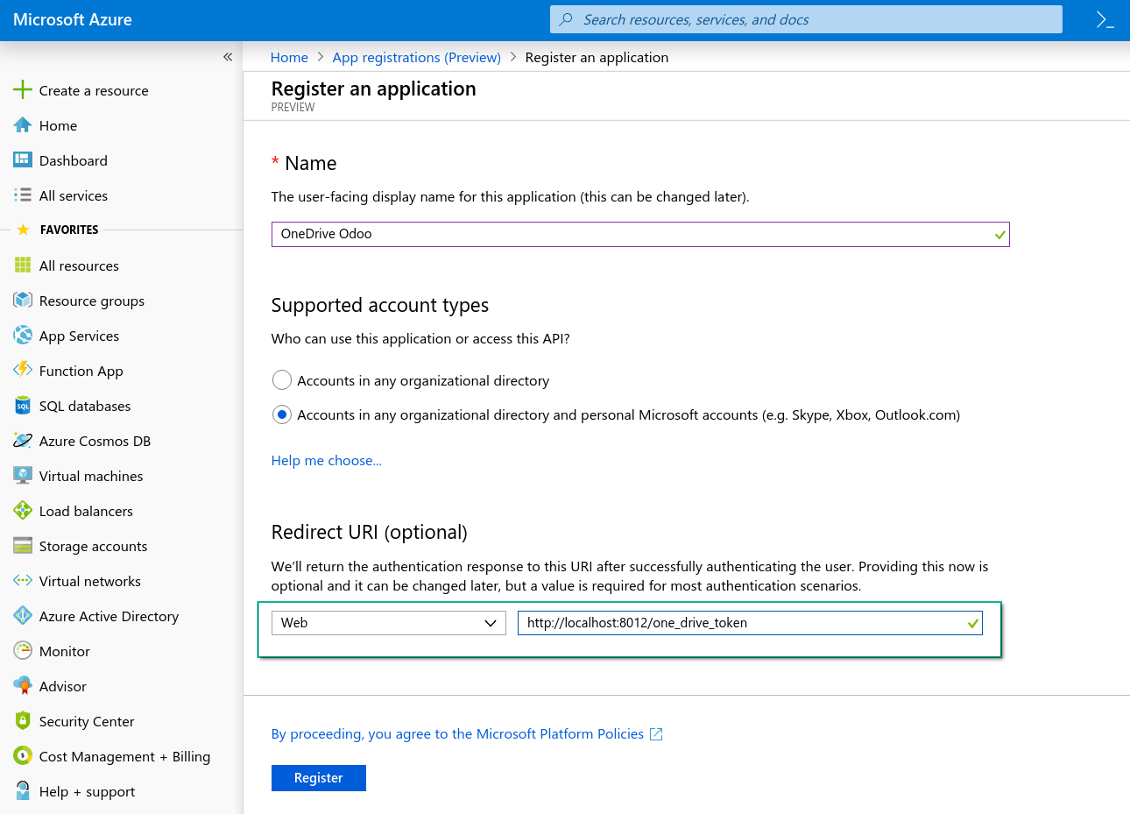
New OneDrive Web platform and redirect URL
Generate new secret for Azure application
Enter configuration keys in Odoo
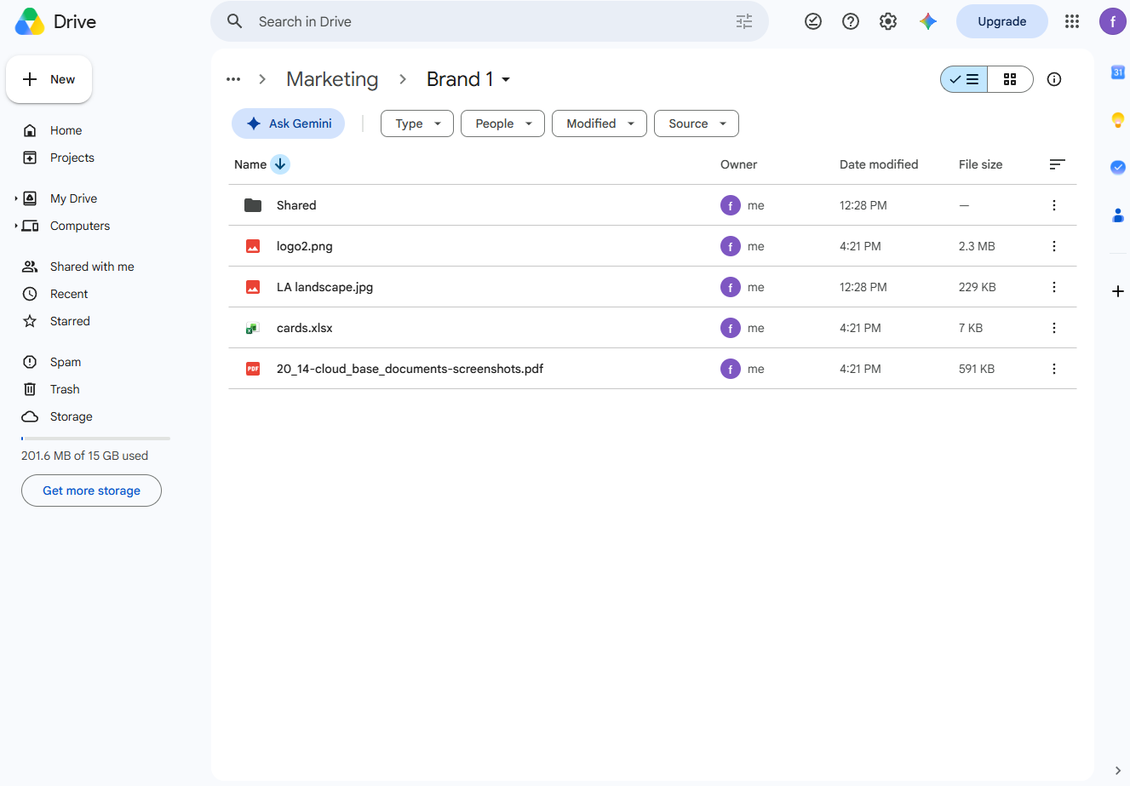
Setting up Google Drive Integration
- Turn on the option 'Google Drive Sync' (cloud Storage > Configuration > Configuration). The optional add-on Google Drive Odoo Integration is required
- Go to the Google Cloud Console via the URL https://console.cloud.google.com
- Select or create a project
- After the project is selected, the console opens the Google Auth Platform. Press 'Get Started'
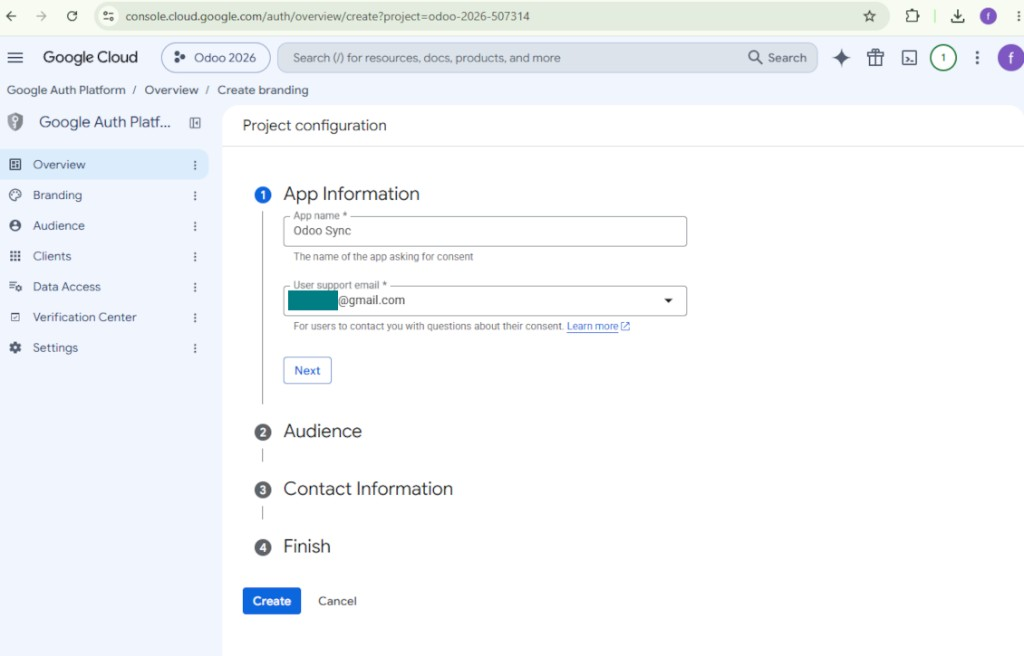
- Add app information
- As an app name select any suitable
- As a user support email select your email address
- Press 'Next'
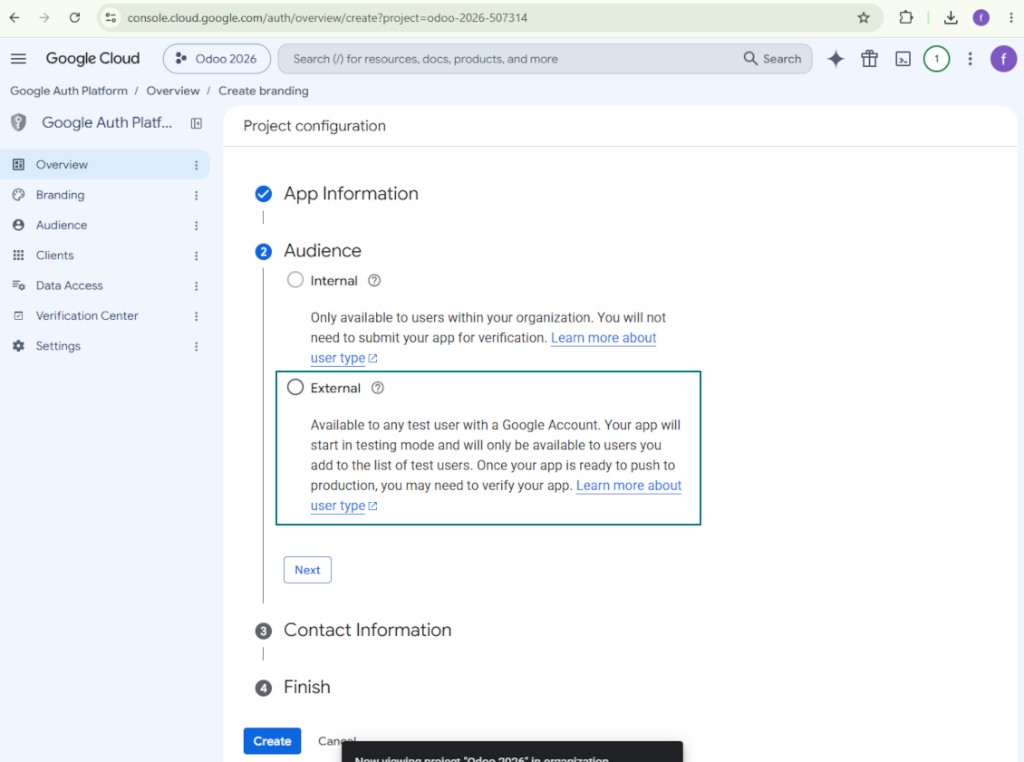
- As the audience select 'External' and press 'Next'. Note: you are anyway going to use this app only for your own Odoo connection
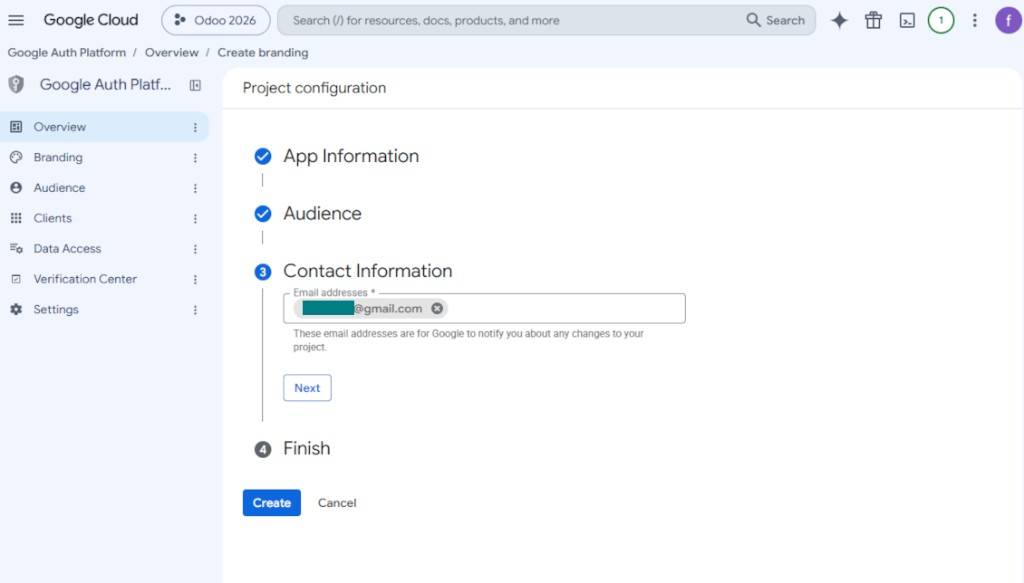
- As the contact information enter your Google or Google Workspace email address and press 'Next'
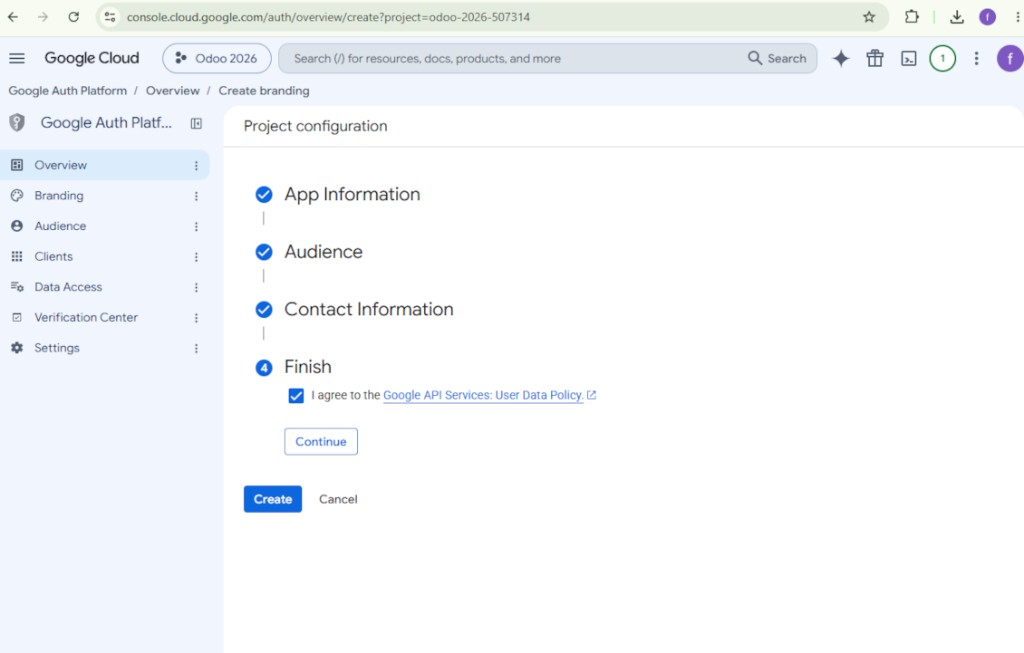
- Agree with the Google API Services User Data Policy, press 'Continue', and then press 'Create'
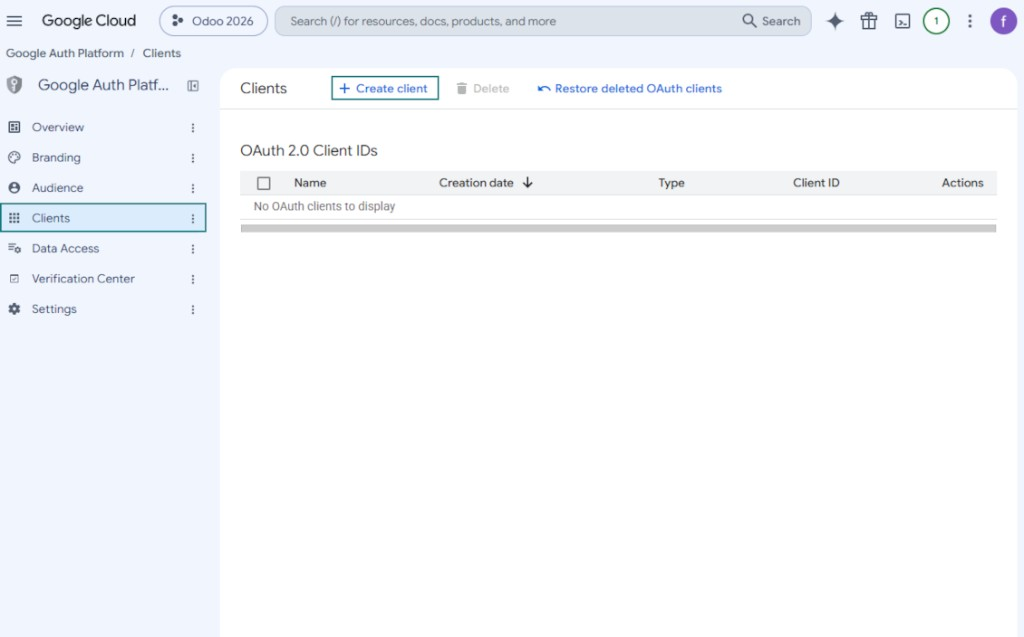
- Go to 'Clients' and press 'Create client'
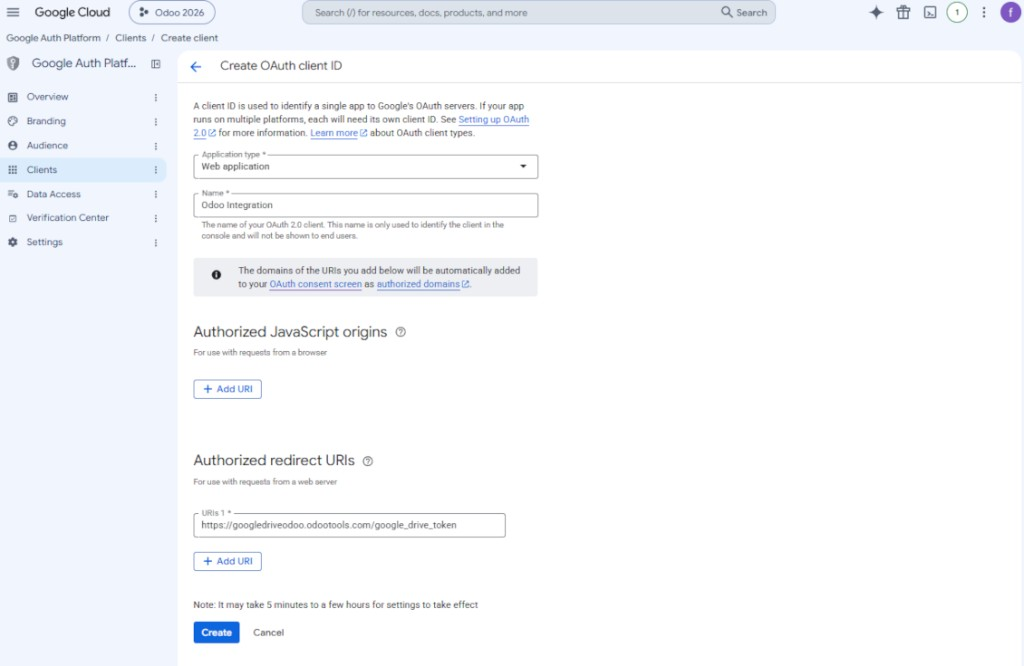
- As the application type select 'Web application'
- As a name select any suitable
- As the authorized redirect URI, add the link in a format [YOURODOOSITENAME]/google_drive_token (e.g. https://odootools.com/google_drive_token).
- Press 'Create'
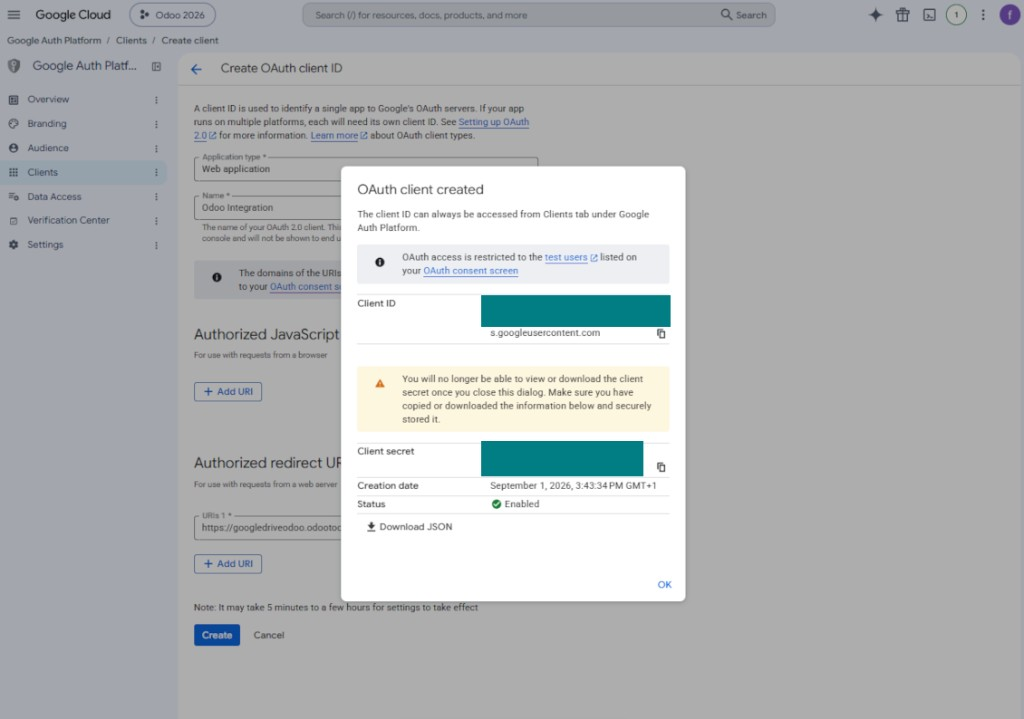
- Copy and safely store 'Client ID' and 'Client secret'. The client secret is shown only once
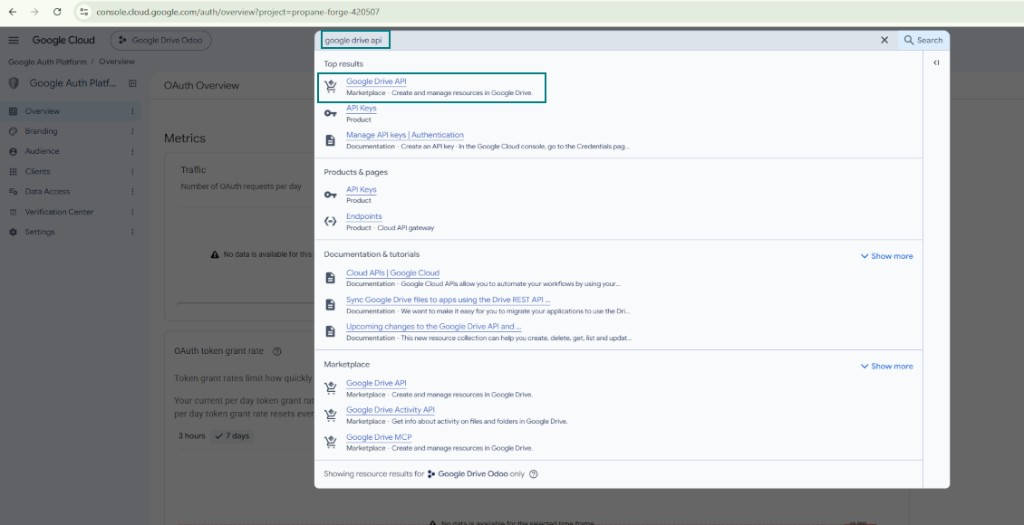
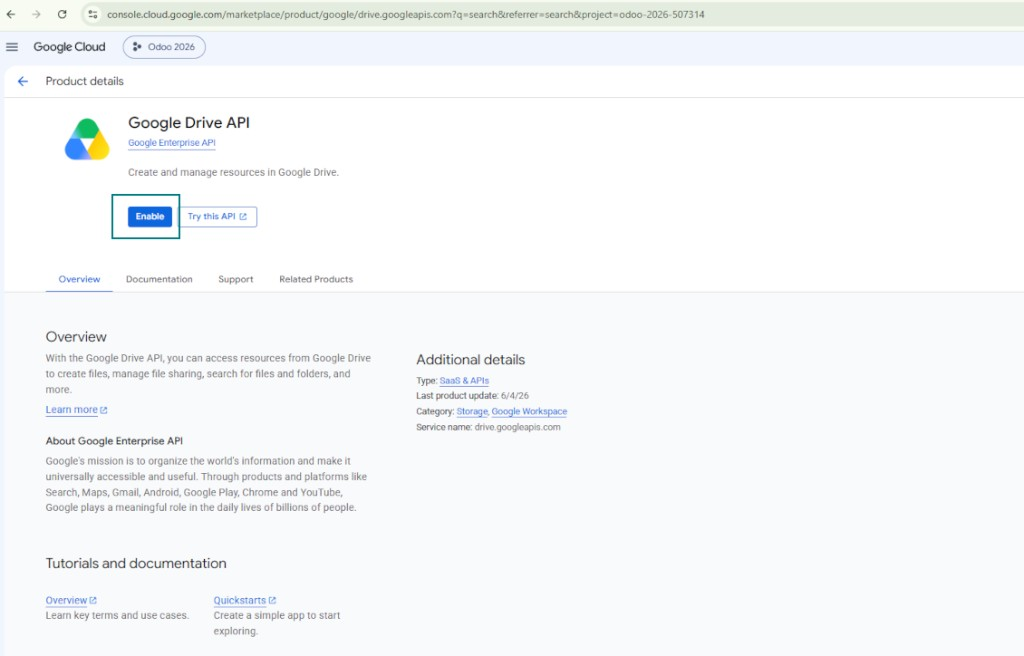
- Enable the Google Drive API for this project: type 'Google Drive API' in the top search box, open the found product, and press 'Enable'
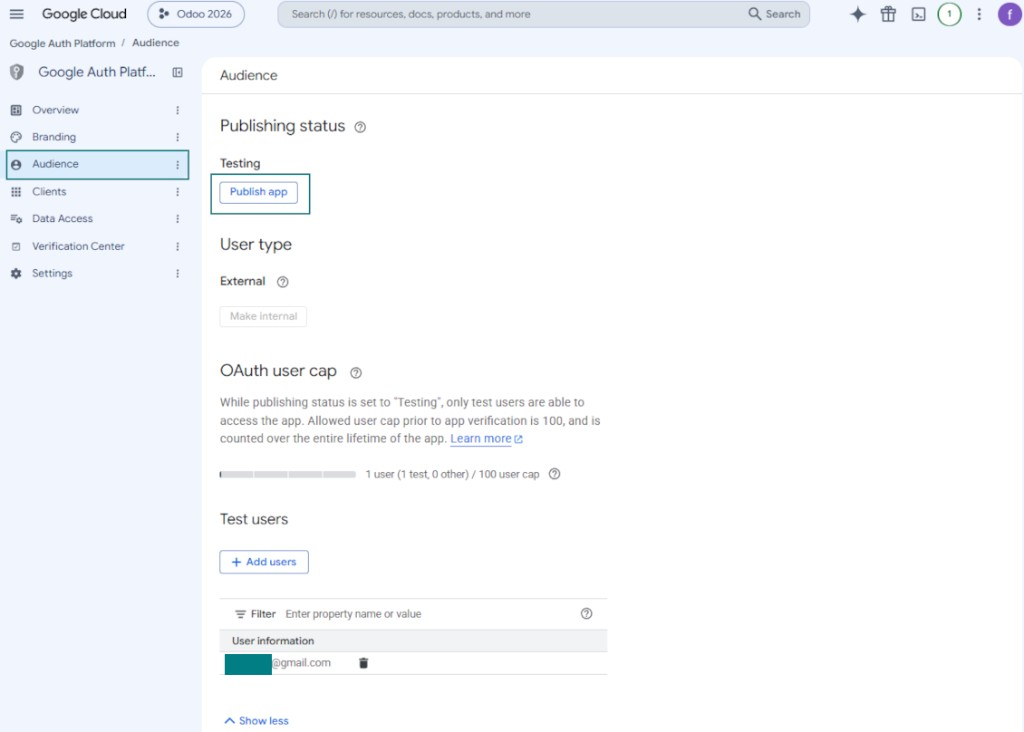
- Go to 'Audience' and add your email address as a test user
- Publish the app. Otherwise, the app stays in the testing state and its token expires every 7 days
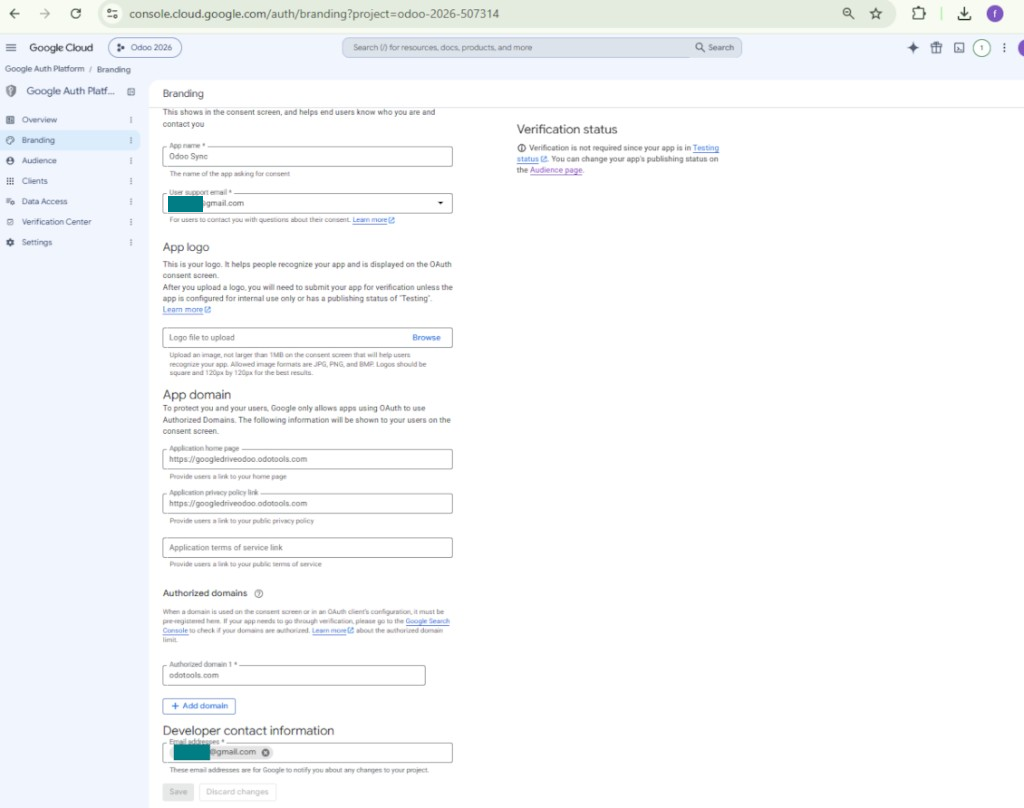
- Open 'Branding' and fill in the application home page and the application privacy policy link (for example, the links to your Odoo website). Add the domains of those links as the authorized domains
- Open 'Audience' and press 'Publish app'
- Do not upload an app logo. This would invoke a long and complex Google verification process that is of no actual need to you
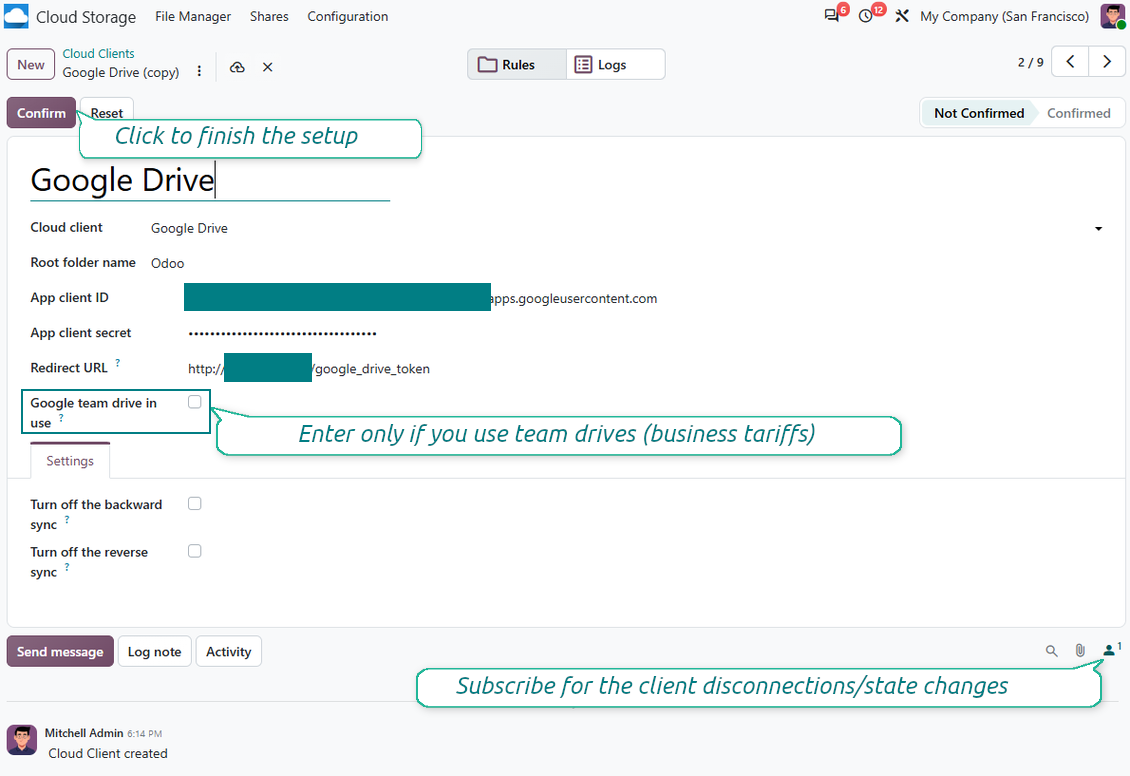
- Go to Odoo Cloud Storage > Configuration > Cloud Clients press 'Create'
- As a reference introduce any name which would be clear to all users
- As a Cloud client choose 'Google Drive'
- As a Root folder name enter a title which would be users as the parent Google Drive directory for all synced folders. For example, 'Odoo' or 'OdooERP'
- Copy 'Client ID' from step 9 into the field 'App client ID'
- Copy 'Client secret' from step 9 into the field 'App client secret'
- Insert the redirect URL you entered in step 9
- If you use team drives, check the related box. Make sure you really use team drives. In you Google Drive you should find the item 'Team Drives' in the left sidebar. This feature is available only for business and enterprise tariffs
- If the option 'Team Drive' is enabled, introduce its name. It should be absolutely the same as you see it in your Google Drive. Make sure that your user has full rights for all Google drives (usually, it is the same user who configures your team Google Drive)
- Press 'Confirm'. Odoo redirects you to Google login page. Check in the system, agree with all conditions, and grant all permissions asked
- After login, Google redirects you back to Odoo. Google Drive - Odoo synchronization is ready to be done
- Apply the newly created cloud client to folder rules and/or manual folders which should be synced to that Google Drive
- Await the sync scheduled job to be started. For testing purposes only: trigger integration manually from Cloud Storage > Configuration > Configuration > the button 'Launch sync'.
Watch also the configuration video, Note: the Google console part of the video is outdated; follow the steps above instead
Open the Google Auth Platform
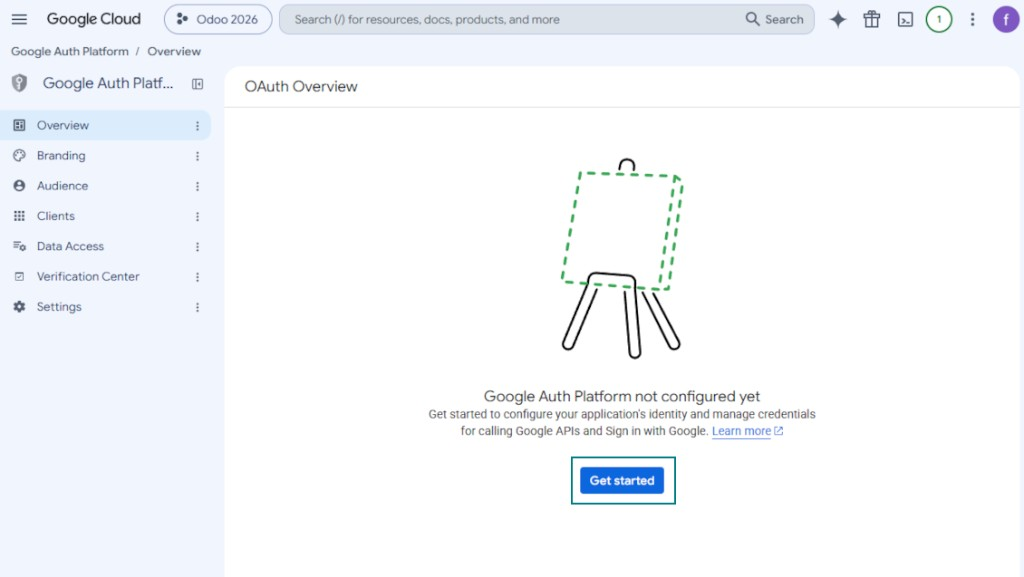
Add app information
Select the external audience
Add contact information
Agree with the policies and create the app
Create an OAuth client
Configure the web application client
Copy the client ID and client secret
Find the Google Drive API
Enable the Google Drive API
Fill in branding to publish the app
Add test users and publish the app
Enter Google app credentials to Odoo
Setting up Amazon S3
- Turn on the option 'Amazon S3 Sync' (Cloud Storage > Configuration > Configuration). The optional add-on Amazon S3 Odoo Integration is required
- Open the Amazon S3 Console: https://console.aws.amazon.com/s3/
- Create a new bucket or choose an existing one. Copy the exact bucket name: it should be inserted in Odoo into the field 'Bucket'
- Open the bucket details and copy its AWS Region. Insert it in Odoo into the field 'Region' (for example, eu-west-1 or us-east-1)
- Open the AWS IAM Console: https://console.aws.amazon.com/iam/
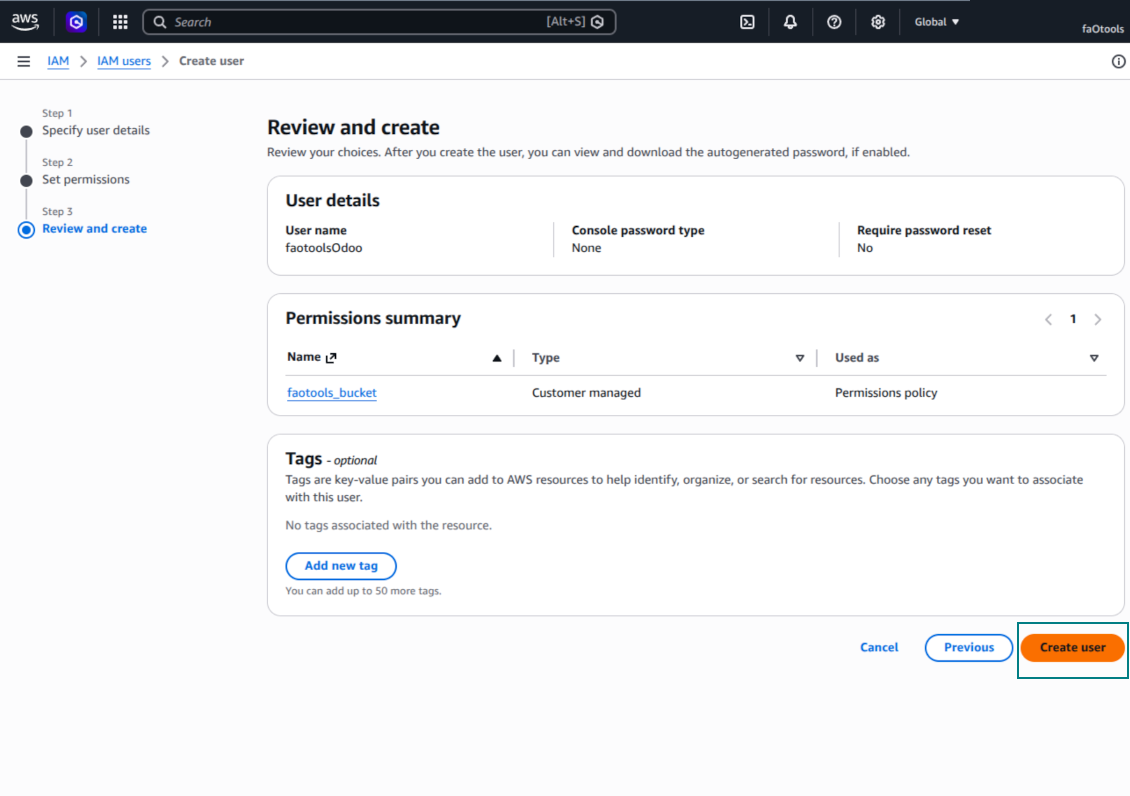
- Create a new IAM user or choose an existing technical user. This user should have full rights to list, read, create, write, copy, and delete objects within the selected bucket. You can select the full right admin, or create a new policy (see below)
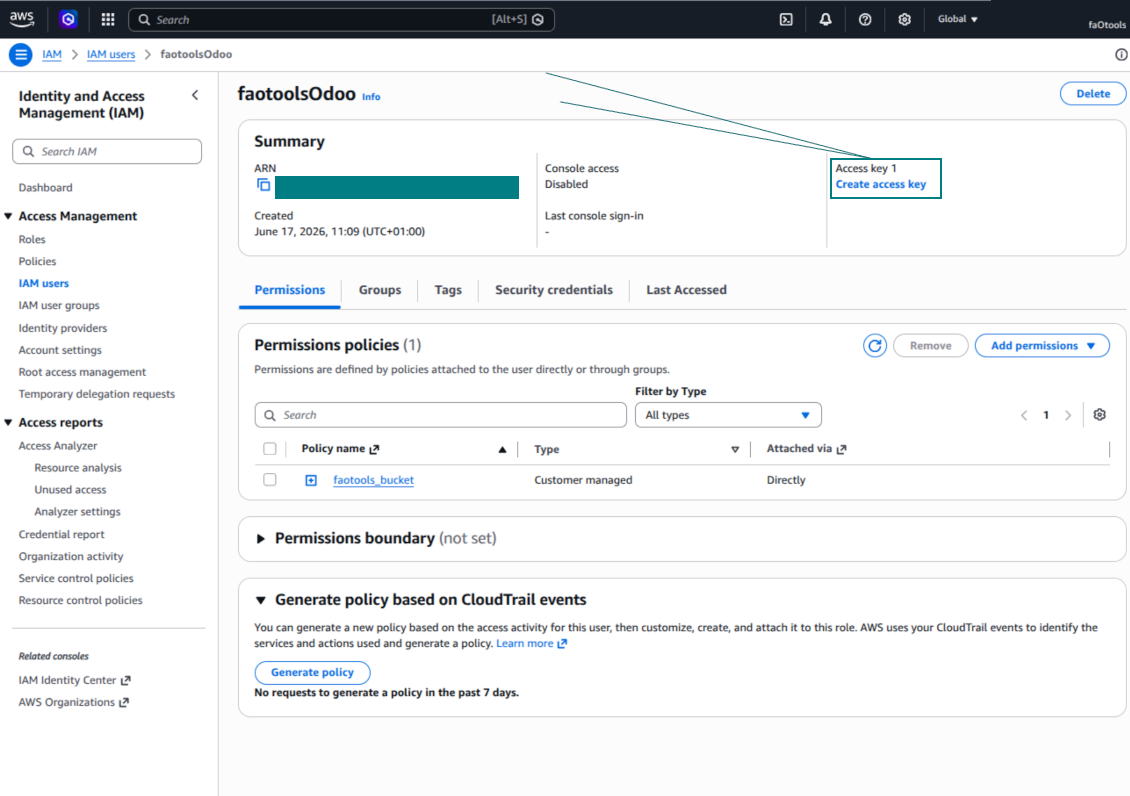
- In the IAM user form, open the tab 'Security credentials' and press 'Create access key'
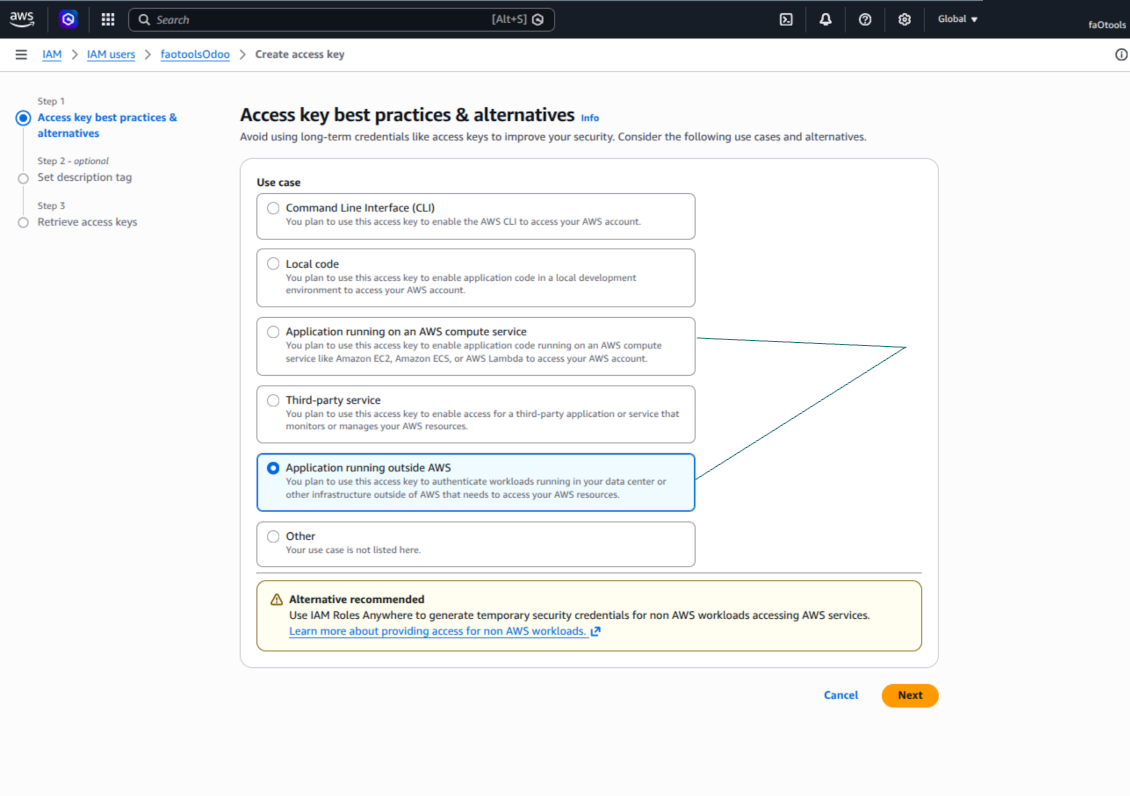
- On the page 'Access key best practices & alternatives', select the option Application running outside AWS. This is the correct option when your Odoo server connects to S3 by access key from outside AWS, from Odoo.sh, from your own server, or from another hosting provider. If your Odoo is installed on an AWS EC2 instance, you may instead select Application running on an AWS compute service, but the fields copied to Odoo are the same
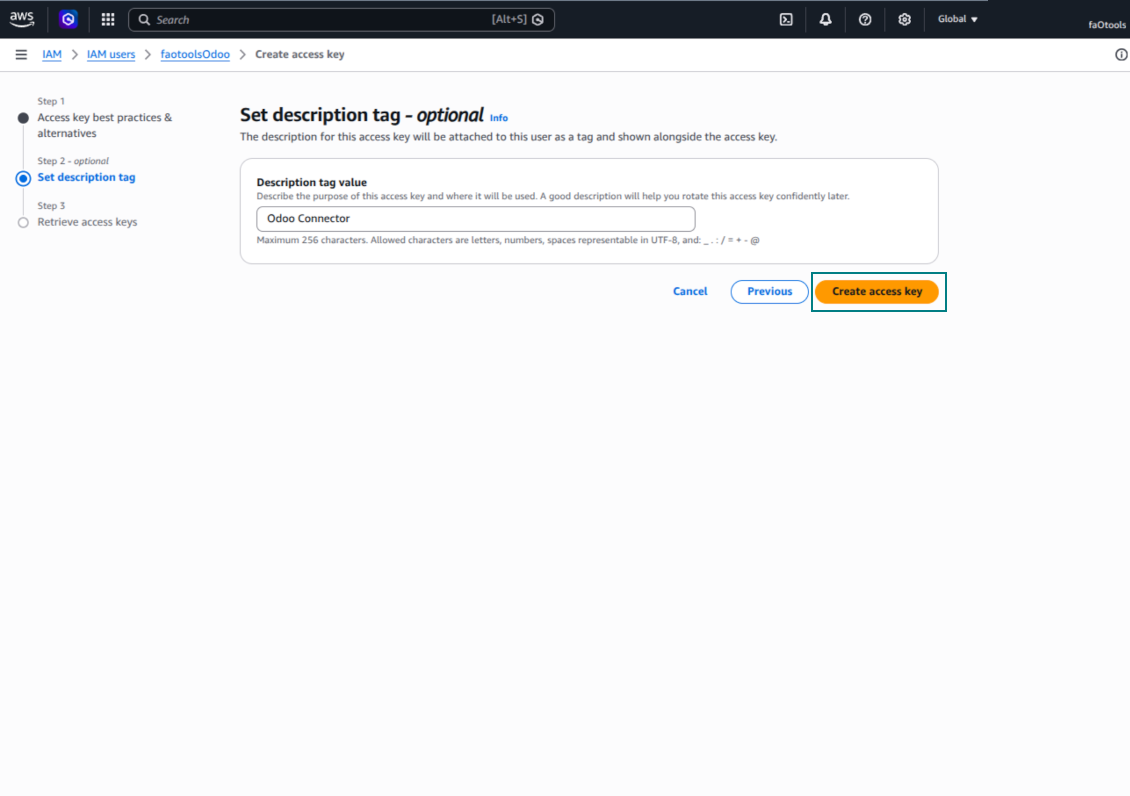
- Press 'Next'. On the next step, optionally enter a description tag such as Odoo S3 Sync, then press 'Create access key'
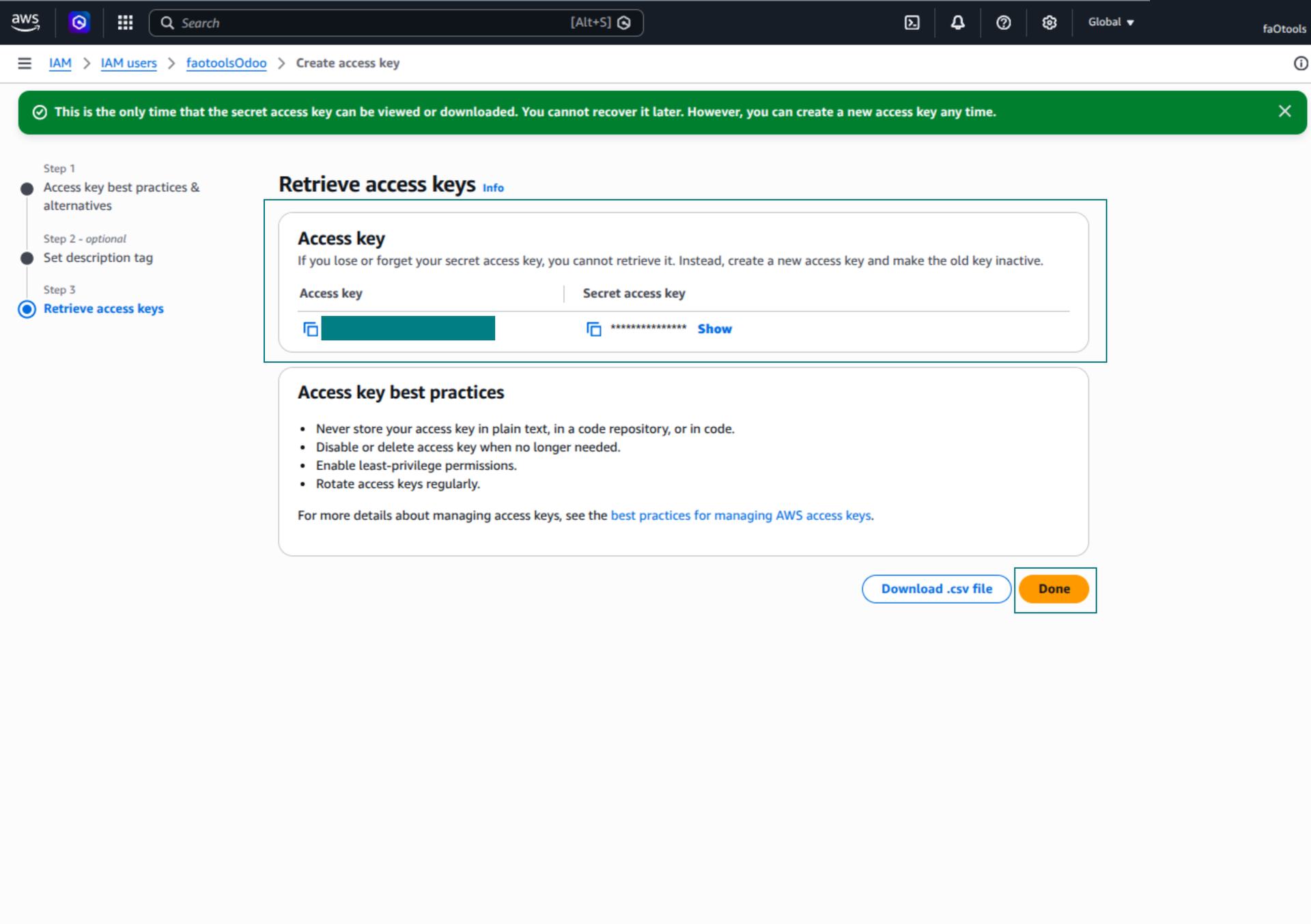
- On the final AWS page, copy Access key or Access key ID into the Odoo field 'Access Key'
- Copy Secret access key into the Odoo field 'Secret Key'. Important: AWS shows the secret key only once, so save it before closing the window
- If you use an S3-compatible provider instead of AWS S3, copy the endpoint URL from that provider's admin panel and insert it into Odoo into the field 'Amazon S3 endpoint URL'. For example, MinIO often uses a URL like https://minio.example.com or http://localhost:9000; LocalStack commonly uses http://localhost:4566
- Go to Odoo Cloud Storage > Configuration > Cloud Clients and press 'Create'
- As a reference, introduce any name which would be clear to all users
- As a Cloud client, choose 'Amazon S3'
- As a Root folder name, enter a title that will be used as the parent S3 prefix for all synced folders. For example, 'Odoo' or 'OdooERP'
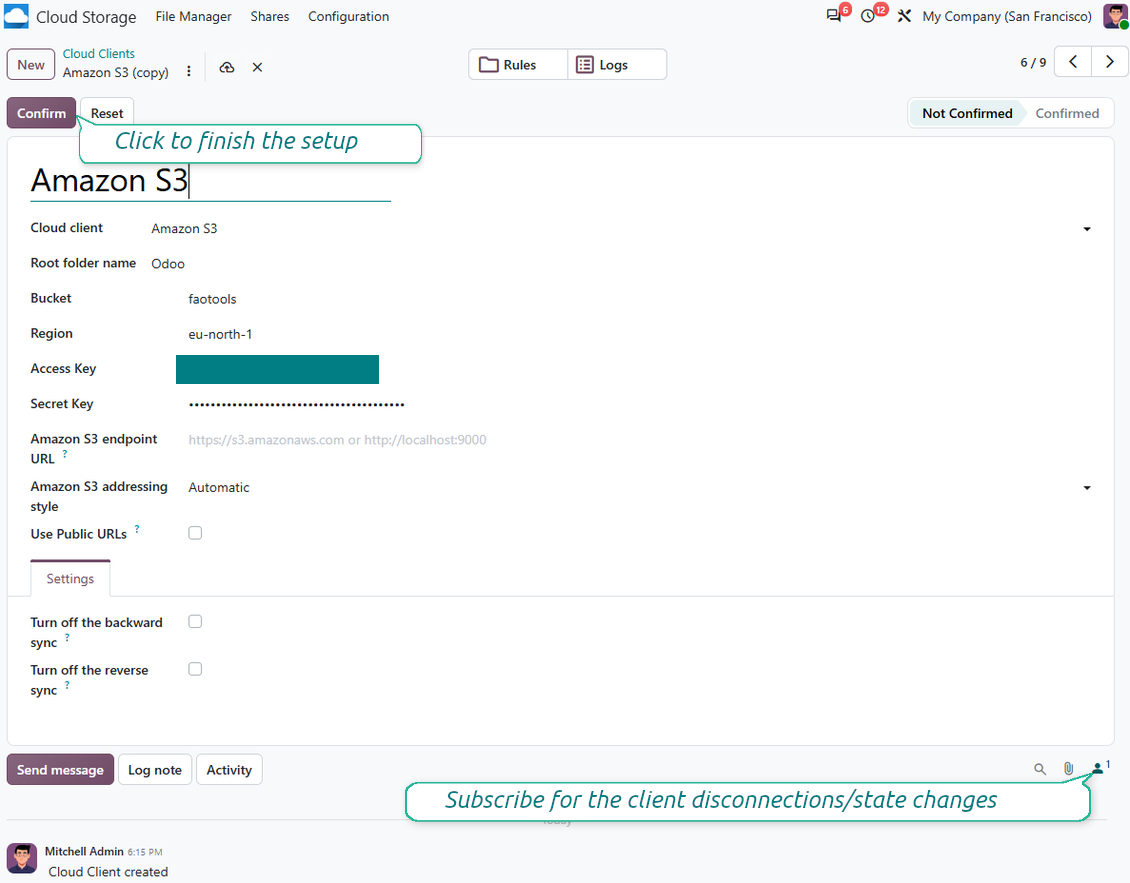
- Fill in the fields 'Bucket', 'Region', 'Access Key', 'Secret Key', and, if needed, 'Amazon S3 endpoint URL' and addressing style
- Choose whether Odoo should use temporary presigned URLs or public bucket/CDN URLs. For private buckets, keep presigned URLs enabled and set their lifetime in seconds
- Press 'Confirm'. Odoo checks bucket access and creates or verifies the root folder prefix. Amazon S3 - Odoo synchronization is ready to be done
- Apply the newly created cloud client to folder rules and/or manual folders which should be synced to that Amazon S3 bucket
- Await the sync scheduled job to be started. For testing purposes only: trigger integration manually from Cloud Storage > Configuration > Configuration > the button 'Launch sync'.
Useful AWS documentation: creating an S3 bucket: https://docs.aws.amazon.com/AmazonS3/latest/userguide/creating-bucket.html, managing IAM access keys: https://docs.aws.amazon.com/IAM/latest/UserGuide/id_credentials_access-keys.html.
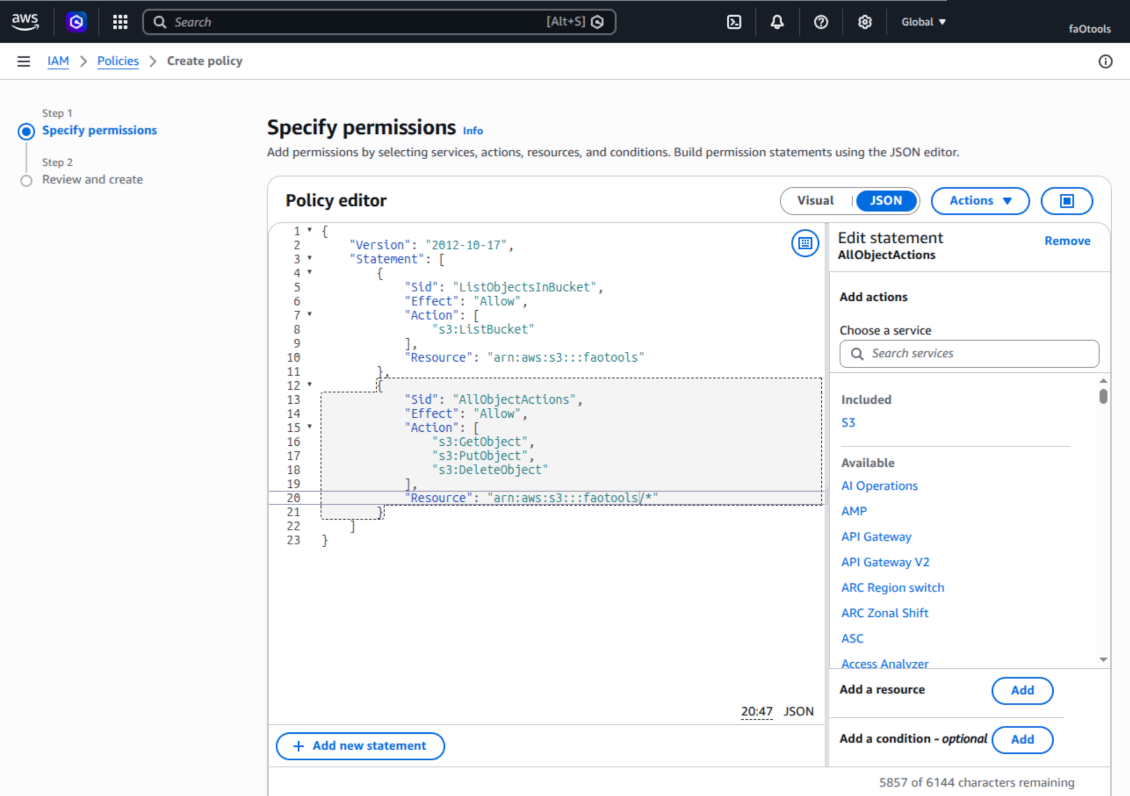
Bucket policy example
    {
    "Version": "2012-10-17",
    "Statement": [
        {
            "Sid": "ListObjectsInBucket",
            "Effect": "Allow",
            "Action": [
                "s3:ListBucket"
            ],
            "Resource": "arn:aws:s3:::NAME_OF_YOUR_BUCKET"
        },
        {
            "Sid": "AllObjectActions",
            "Effect": "Allow",
            "Action": [
                "s3:GetObject",
                "s3:PutObject",
                "s3:DeleteObject"
            ],
            "Resource": "arn:aws:s3:::NAME_OF_YOUR_BUCKET/*"
        }
    ]
}
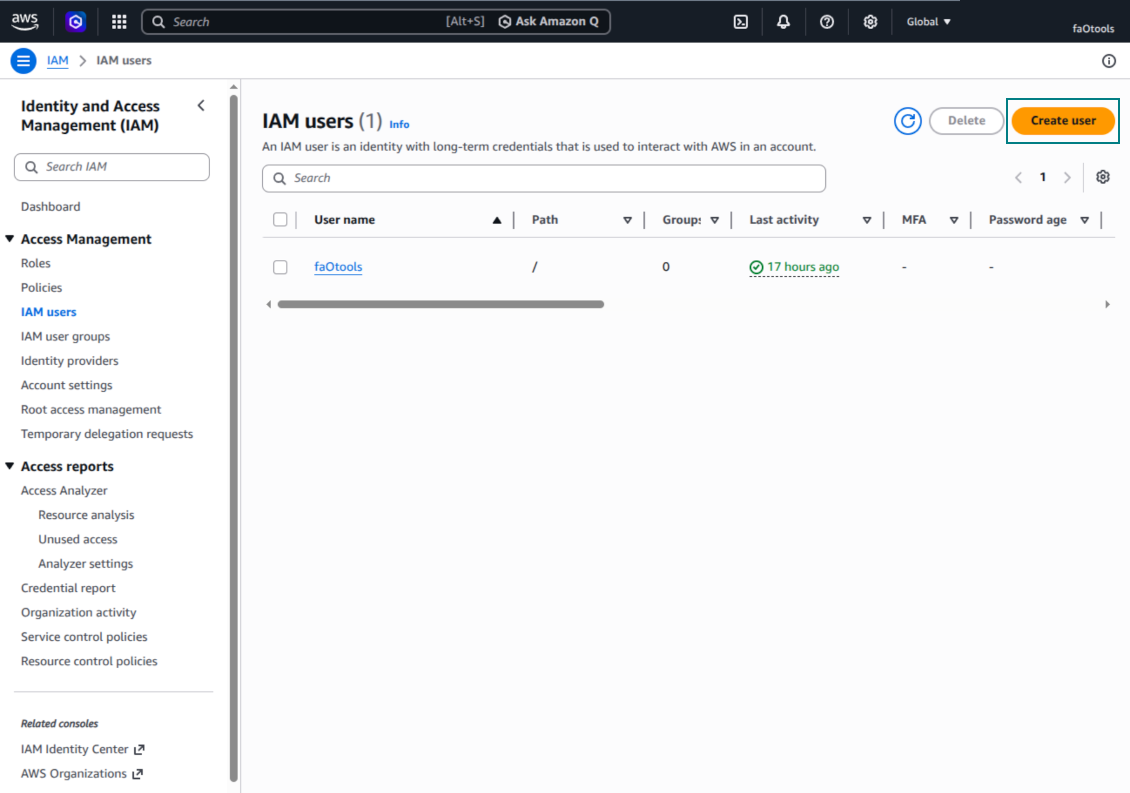
Create a new AWS IAM user
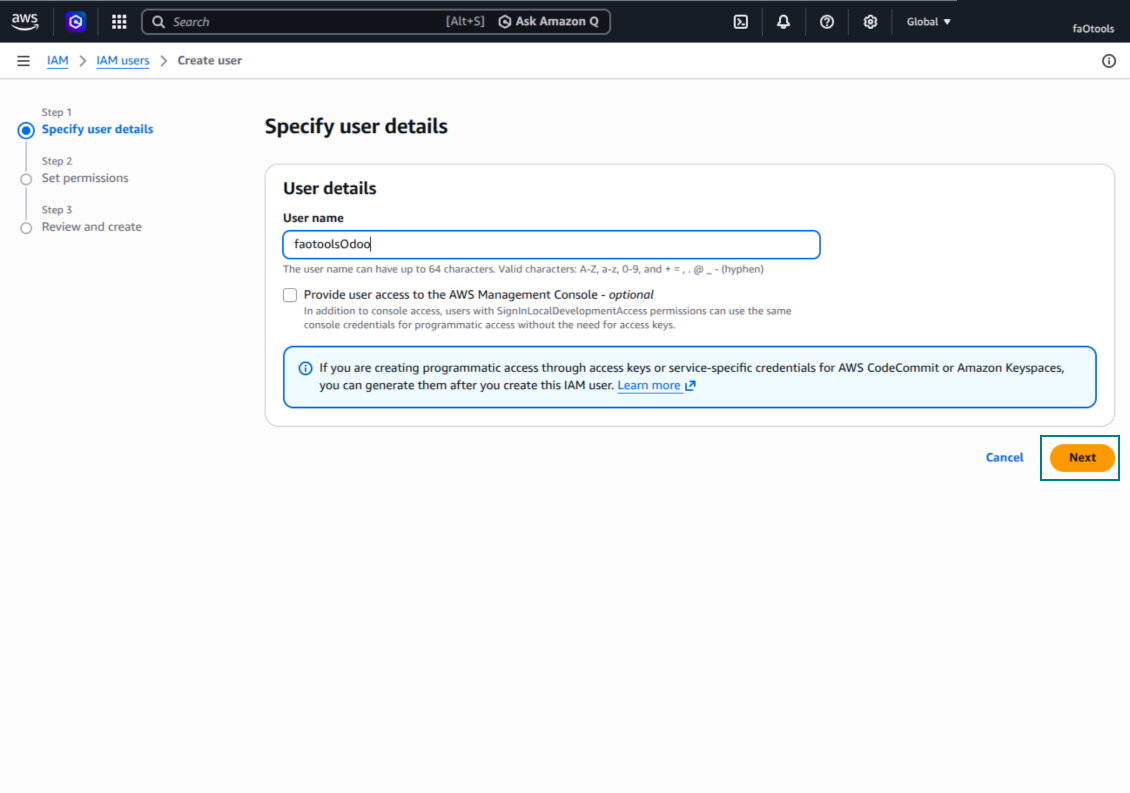
Specify the IAM user name
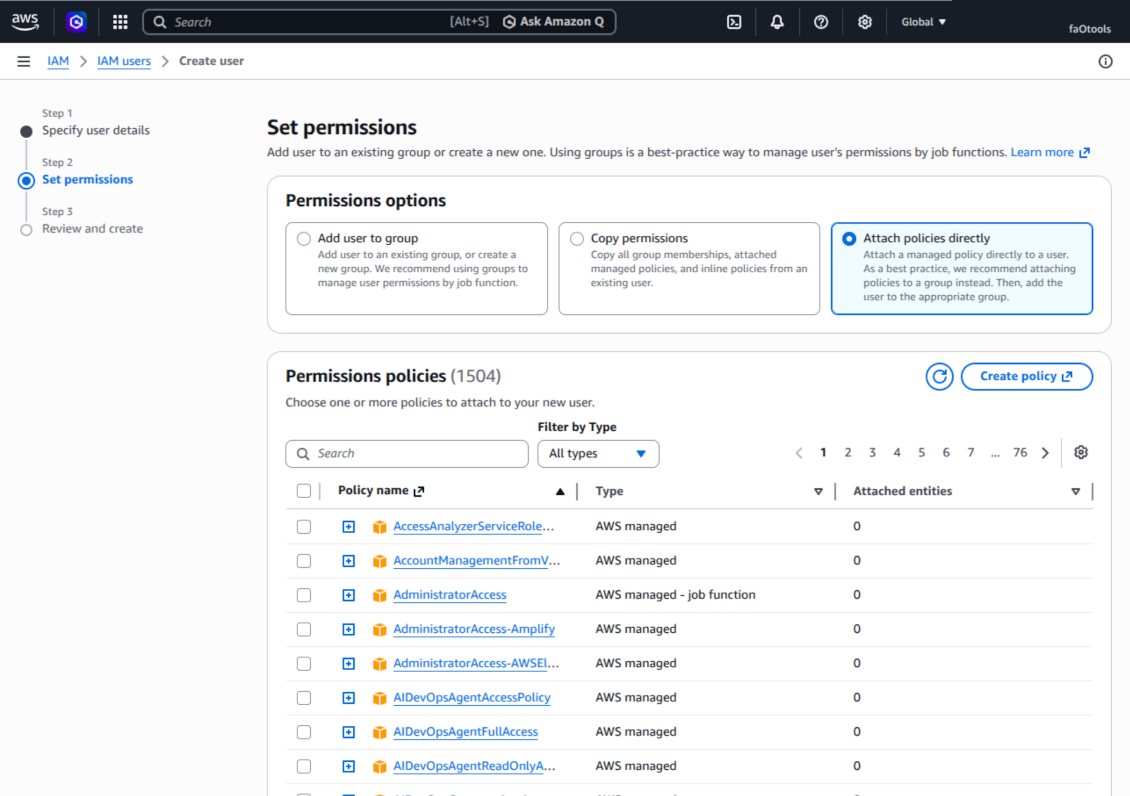
Attach permission policies directly
Amazon S3 bucket policy JSON example
Review and name the S3 policy
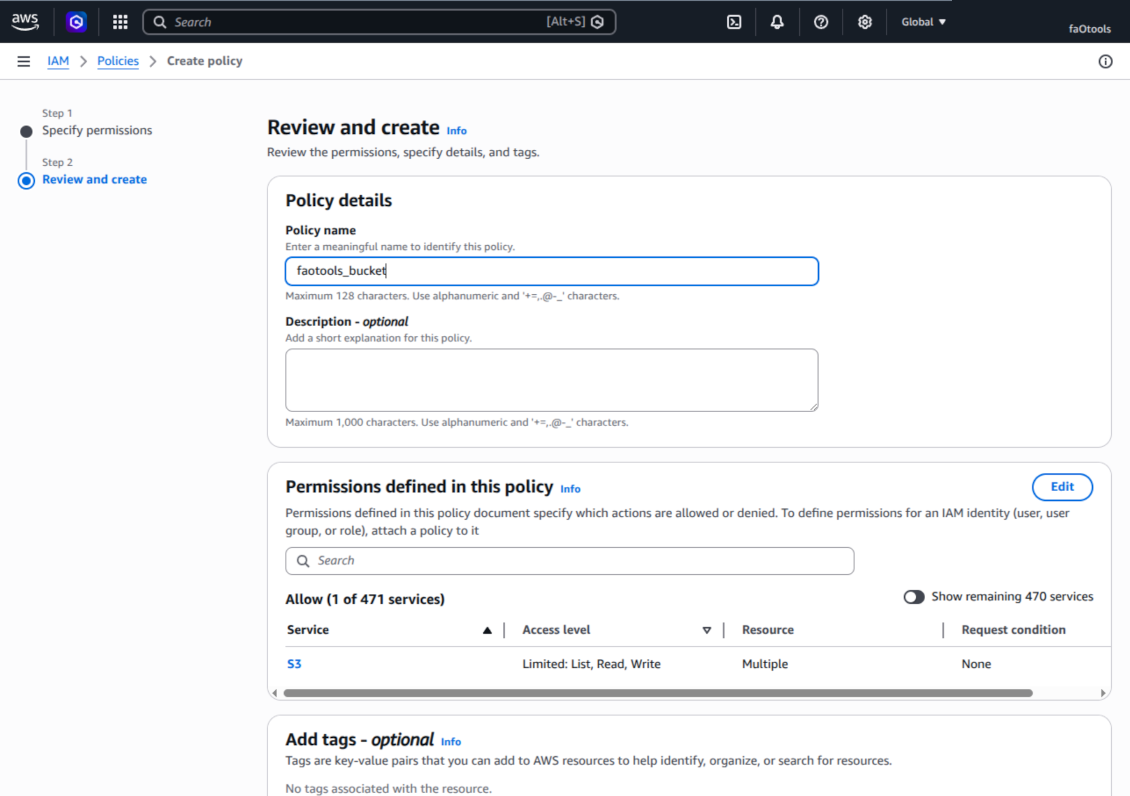
Select the bucket policy for the user
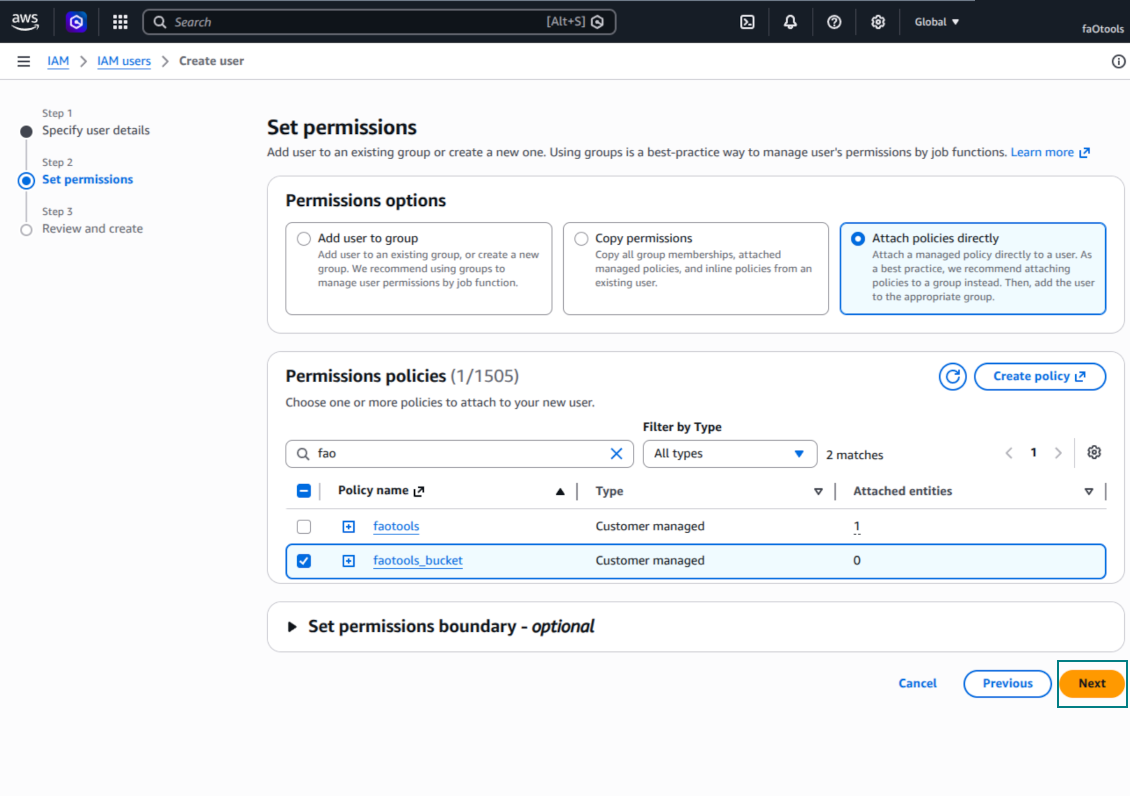
Review and create the IAM user
Create an access key for the user
Choose the access key use case
Set the access key description tag
Retrieve the access key and secret
Configure the Amazon S3 client in Odoo
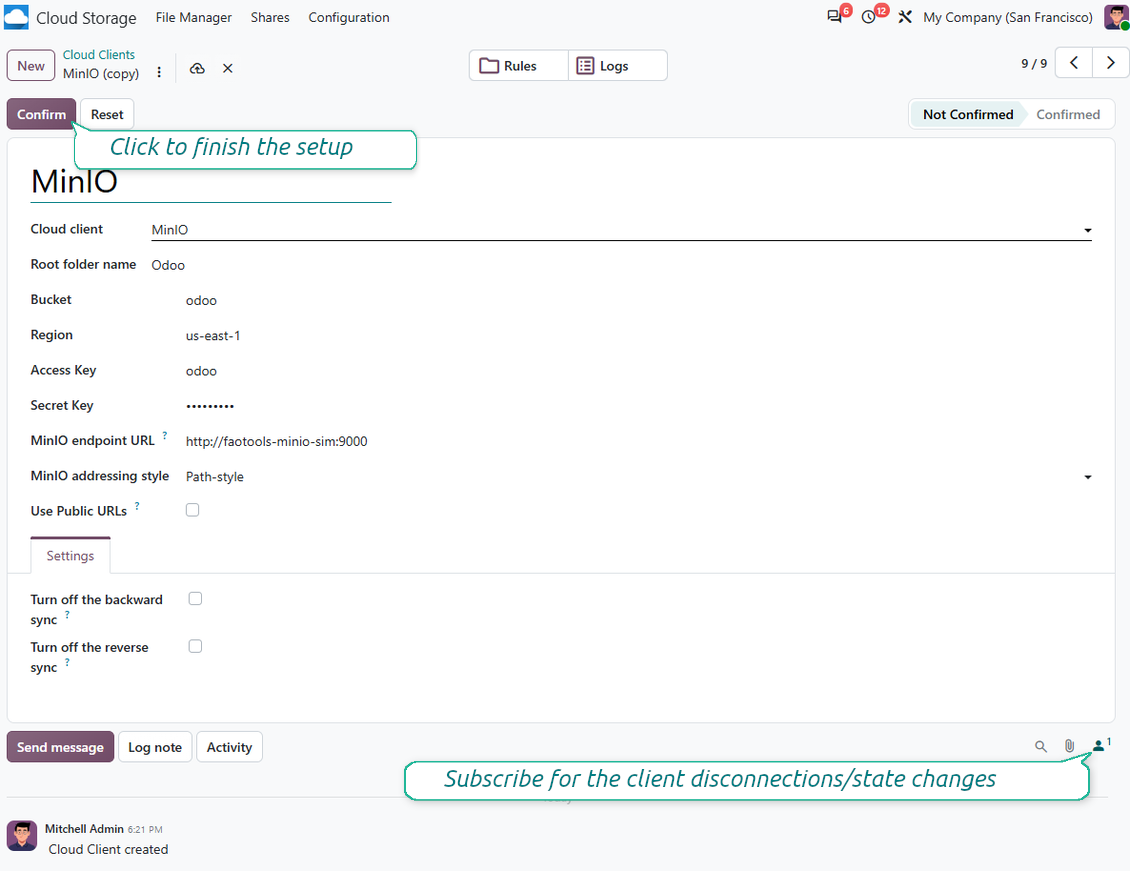
3. minio_cloud_client.png
Setting up Nextcloud or/and ownCloud Integration
Configuration and log in
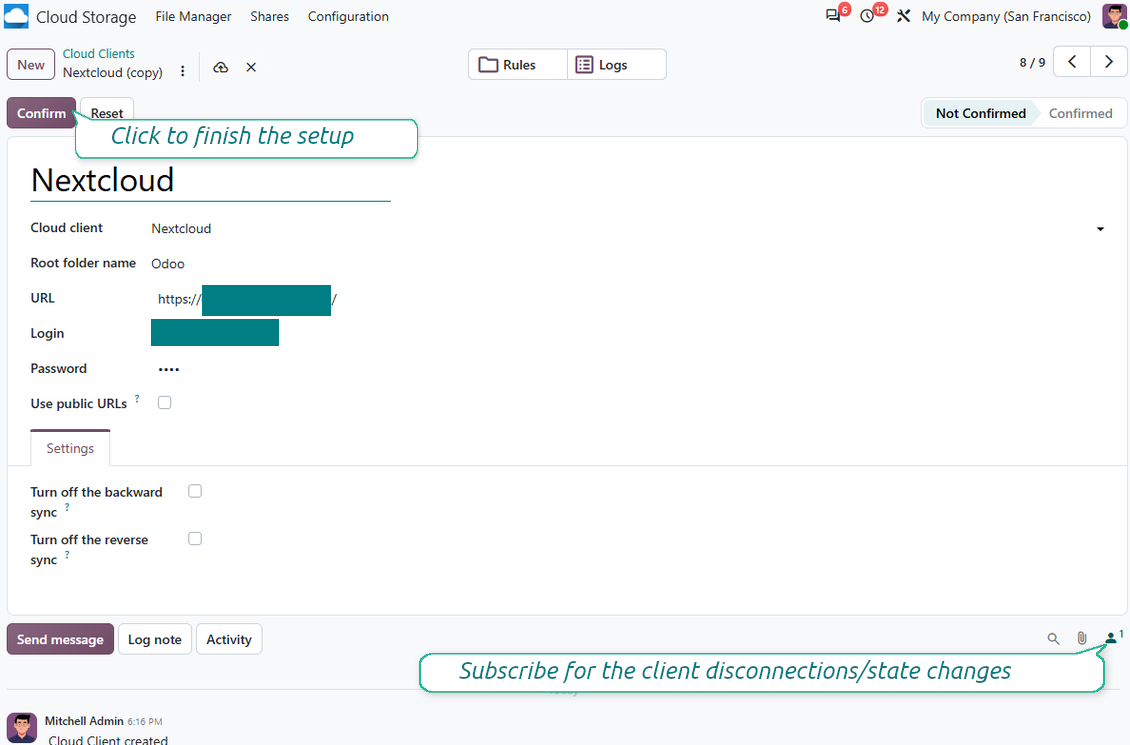
- Turn on the option 'onwCloud / Nextcloud Sync' (cloud Storage > Configuration > Configuration). The optional add-on ownCloud / Nextcloud Odoo Integration is required
- Go to Odoo Cloud Storage > Configuration > Cloud Clients press 'Create'
- As a reference introduce any name which would be clear to all users
- As a Cloud client choose 'Nextcloud' or 'ownCloud' depending on the software you are using
- As a Root folder name enter a title which would be users as the parent directory for all synced folders. For example, 'Odoo' or 'OdooERP'
- Enter your ownCloud / Nextcloud full URL
- Select an ownCloud / Nextcloud user, which has full rights to read, create, write and delete files and folders within a root directory
- Enter login and password of this user to the fields 'Login' and 'Password'
- Choose whether you would like to apply public or internal URLs (see below)
- Press 'Confirm'. Odoo synchronization is ready to be done
- Apply the newly created cloud client to folder rules and/or manual folders which should be synced to that Nextcloud or ownCloud instance
- Await the sync scheduled job to be started. For testing purposes only: trigger integration manually from Cloud Storage > Configuration > Configuration > the button 'Launch sync'.
Internal and public URLs
By default links from Odoo to ownCloud / Nextcloud are internal: only authorized users may access them. Optionally make links public (the setting 'Use Public URLs'). Then, URLs would be 'shared', and everybody would access items by a direct link.
Be cautious if you decide to use shared (public) URLs. Although the links would be hardly known by external users, there is a slight chance that they become available as a result of some user actions. Besides, sharing links generation is not fast and might make the synchronization slower.
Watch also the configuration video
Enter ownCloud / Nextcloud credentials
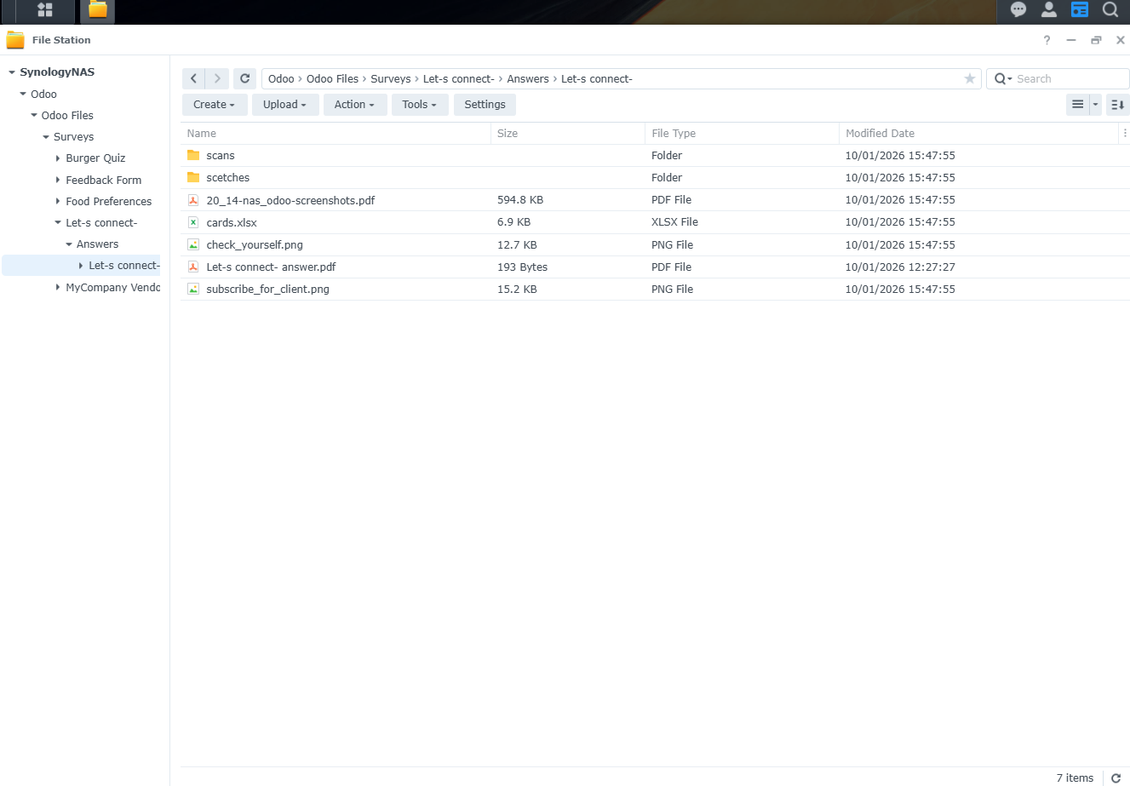
Setting up NAS (Synology, QNAP, TrueNAS, etc.)
- Turn on the option 'NAS Sync' (Cloud Storage > Configuration > Configuration). The optional add-on NAS Odoo Integration is required
- Prepare your NAS WebDAV endpoint:
- Synology: install and enable WebDAV Server in DSM and choose HTTPS where possible
- QNAP: enable WebDAV for the target shared folder and use HTTPS where possible
- TrueNAS CORE: enable the WebDAV service; TrueNAS SCALE: install and configure the WebDAV app, since native WebDAV was removed in modern SCALE releases
- Generic WebDAV: make sure PROPFIND, MKCOL, PUT, GET, MOVE, and DELETE are available
- If Odoo is hosted outside the local NAS network, make the WebDAV endpoint reachable securely. Prefer a reverse proxy with a valid TLS certificate, a VPN/secure tunnel such as WireGuard, Tailscale, or Cloudflare Tunnel, or a vendor relay such as Synology QuickConnect or QNAP myQNAPcloud. Avoid exposing an administrator interface to the Internet
- Create a dedicated NAS user with full rights only inside the target shared folder: read, create, write, move, and delete. Do not use an administrator account
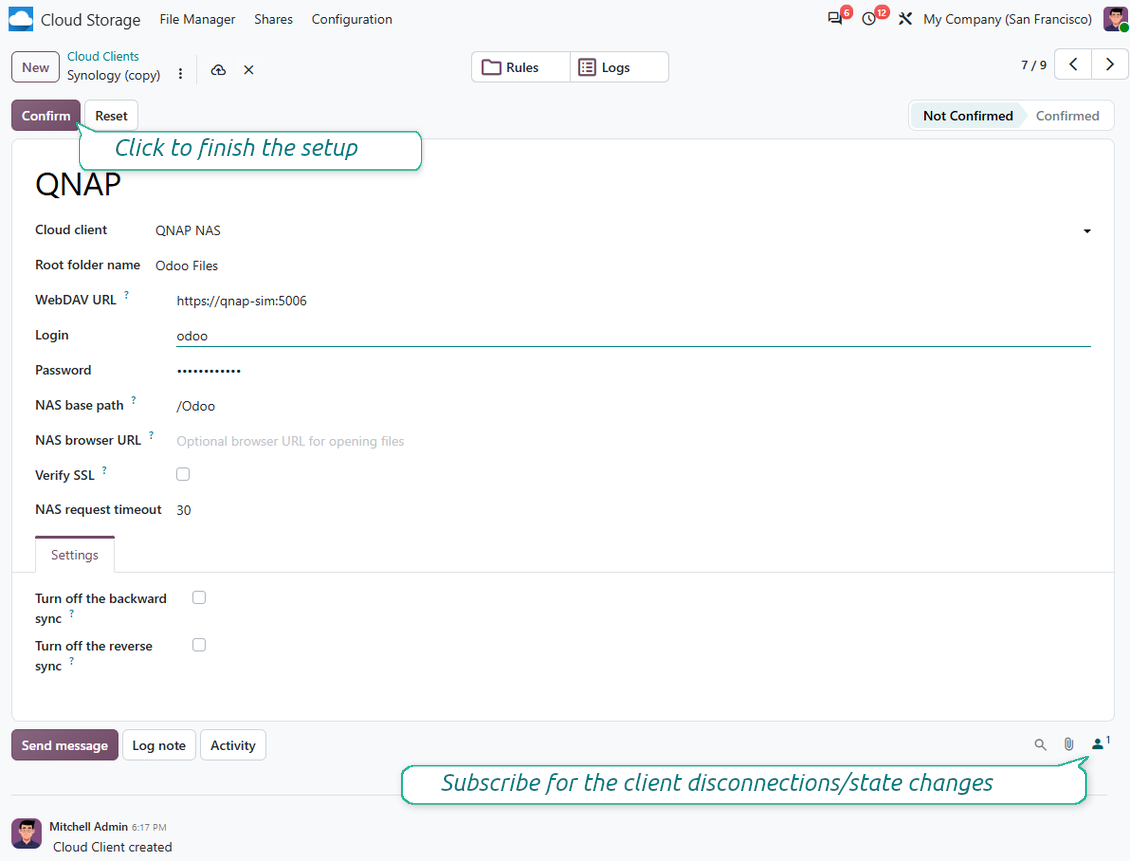
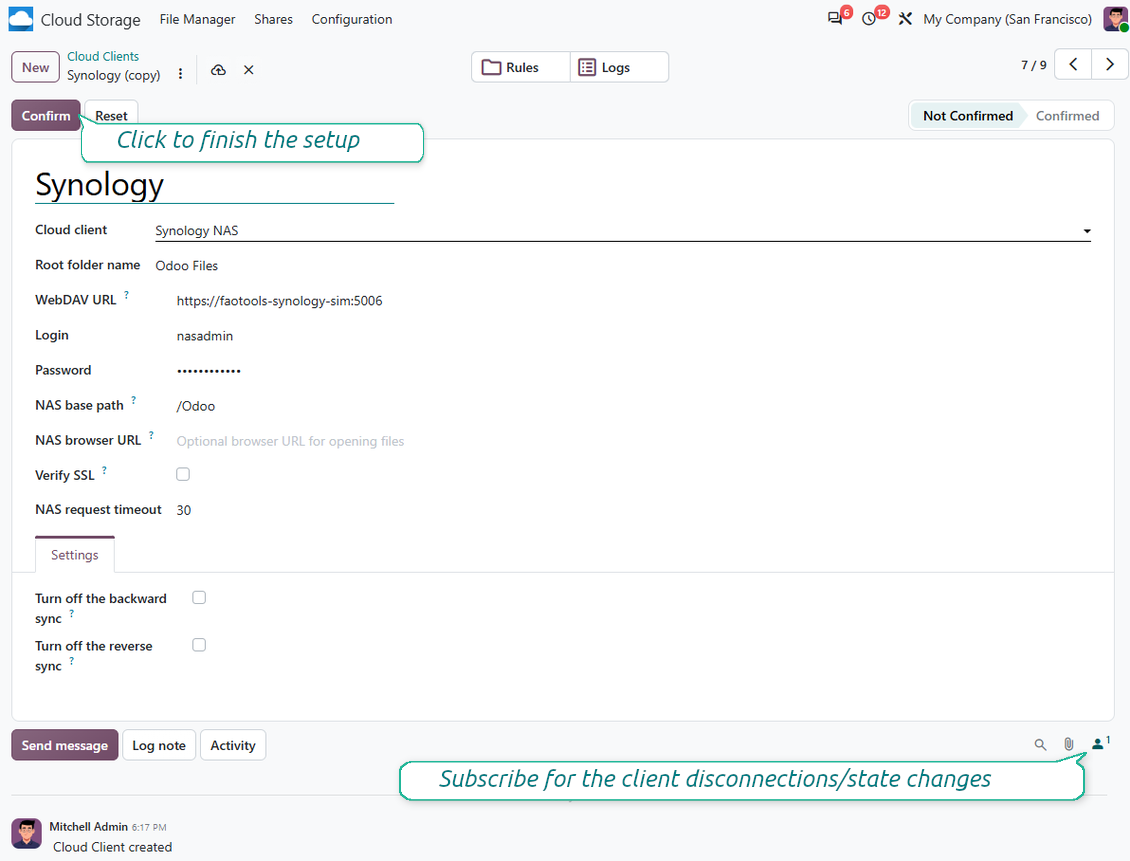
- Go to Odoo Cloud Storage > Configuration > Cloud Clients and press 'Create'
- As a reference, introduce any name which would be clear to all users
- As a Cloud client, choose 'Synology NAS', 'QNAP NAS', 'TrueNAS', or 'WebDAV NAS'
- As a Root folder name, enter a title that will be used as the parent NAS directory for all synced folders. For example, 'Odoo' or 'OdooERP'
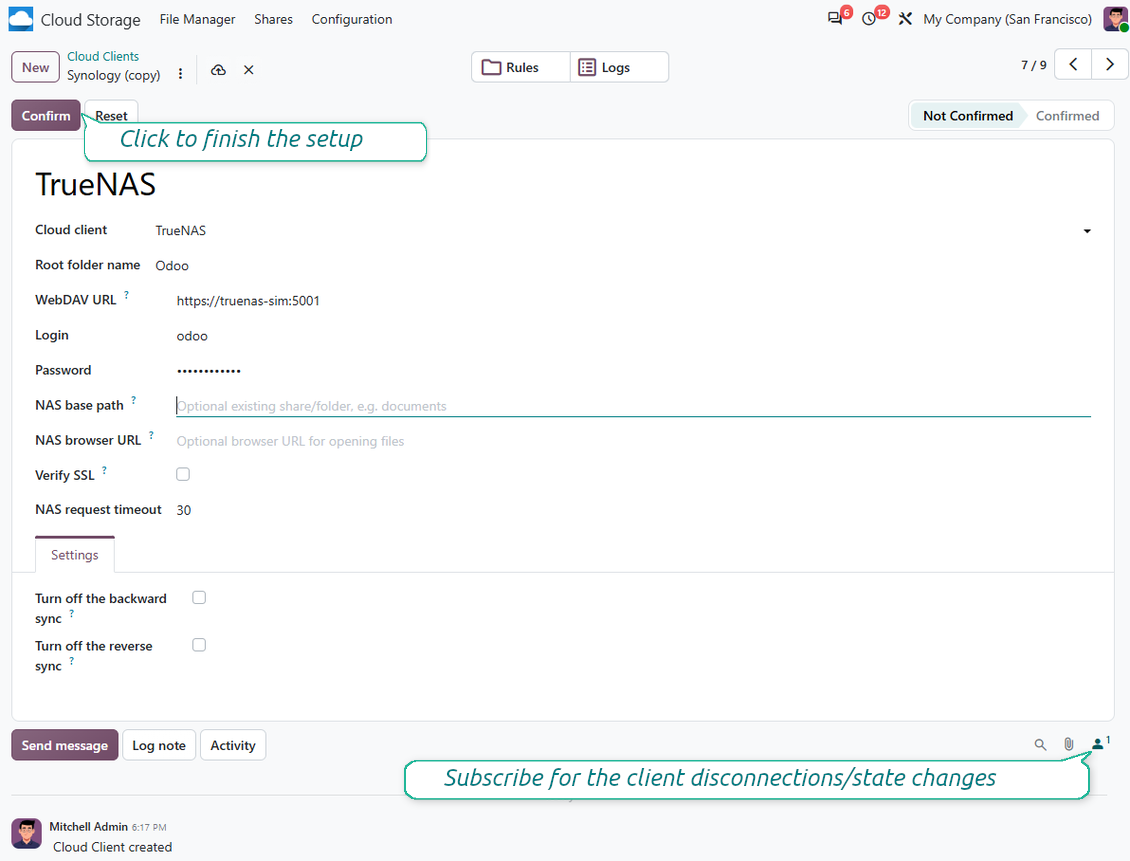
- Enter the full WebDAV URL, login, and password. Optionally define a base path if Odoo should create the root folder inside an existing share or directory
- Keep 'Verify SSL' enabled for public HTTPS endpoints. Disable it only for a trusted private endpoint with a self-signed certificate
- Optionally define a browser base URL if NAS files should be opened through a vendor file station URL instead of the raw WebDAV URL
- Press 'Confirm'. Odoo checks the WebDAV connection and creates or finds the root directory. NAS - Odoo synchronization is ready to be done
- Apply the newly created cloud client to folder rules and/or manual folders which should be synced to that NAS storage
- Await the sync scheduled job to be started. For testing purposes only: trigger integration manually from Cloud Storage > Configuration > Configuration > the button 'Launch sync'.
NAS Pre-configuration
NAS systems usually expose files through a local network. If your Odoo server is hosted outside that network, the WebDAV endpoint should be reachable from Odoo through a secure channel. Recommended options are a reverse proxy with a valid HTTPS certificate, a VPN or secure tunnel such as WireGuard, Tailscale, or Cloudflare Tunnel, or a vendor relay such as Synology QuickConnect or QNAP myQNAPcloud. Plain port forwarding is possible but should be treated as the least preferred option.
Use a dedicated NAS user with the minimum required rights to one shared folder: read, create, update, move, and delete. Avoid administrator accounts. Publicly exposed endpoints should always use HTTPS and a valid TLS certificate. The connector has a "Verify SSL" option for trusted self-signed certificates, but it should normally remain enabled.
Enter QNAP credentials
Enter Synology credentials
Enter TrueNAS credentials
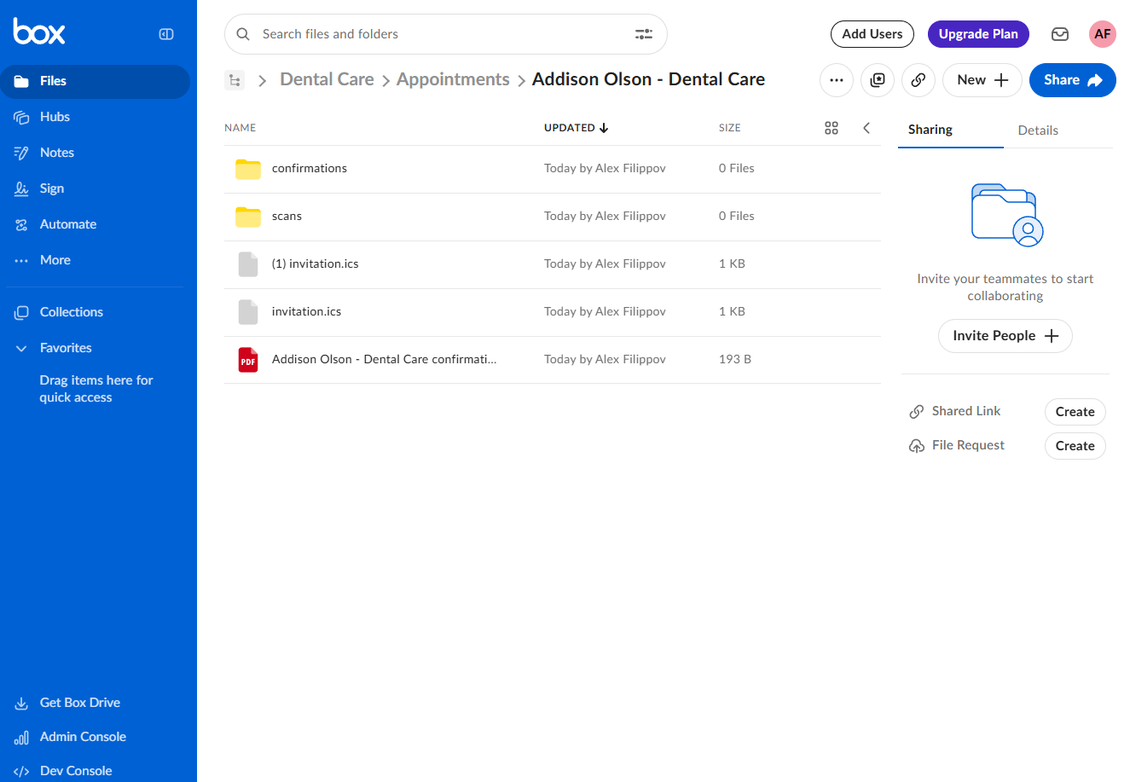
Setting up Box
- Turn on the option 'Box Sync' (cloud Storage > Configuration > Configuration). The optional add-on Box Odoo Integration is required
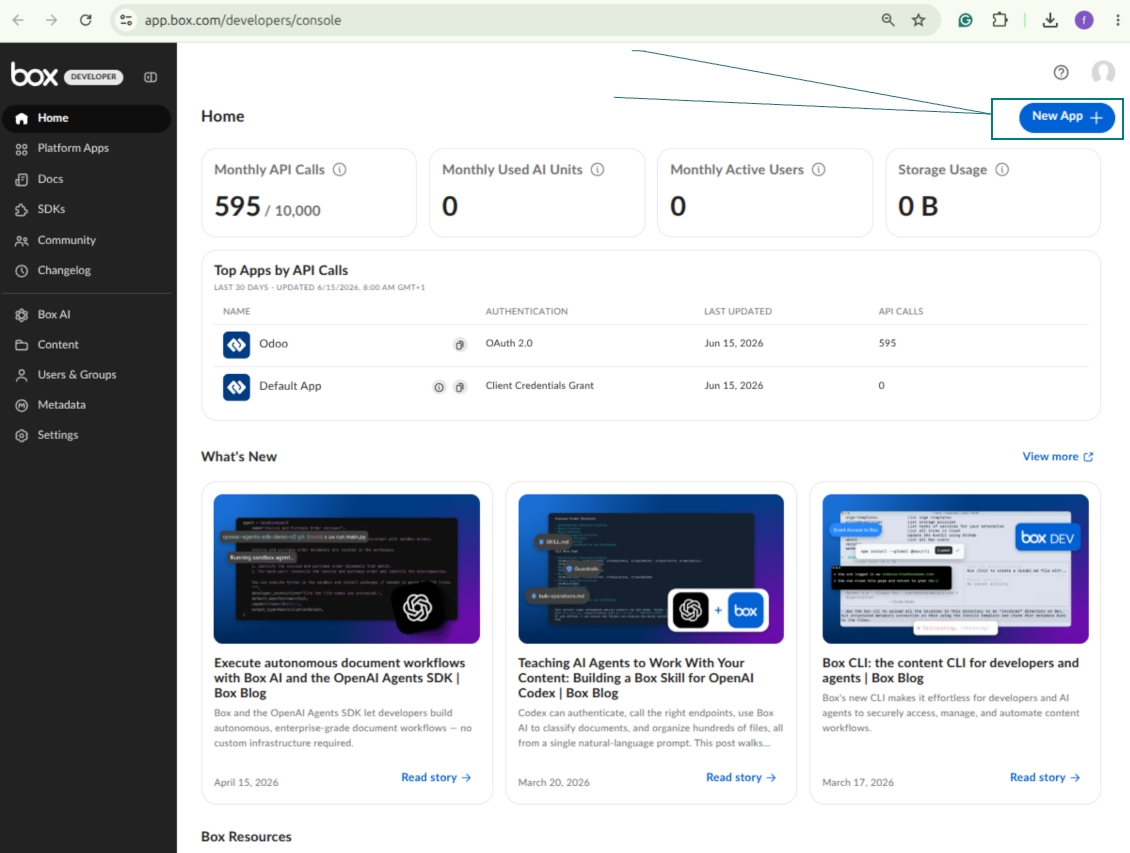
- Create or open a Box developer account and go to the Box Developer Console: https://app.box.com/developers/console
- Create a Custom App and choose OAuth 2.0 (Authorization Code Grant) as the authentication method
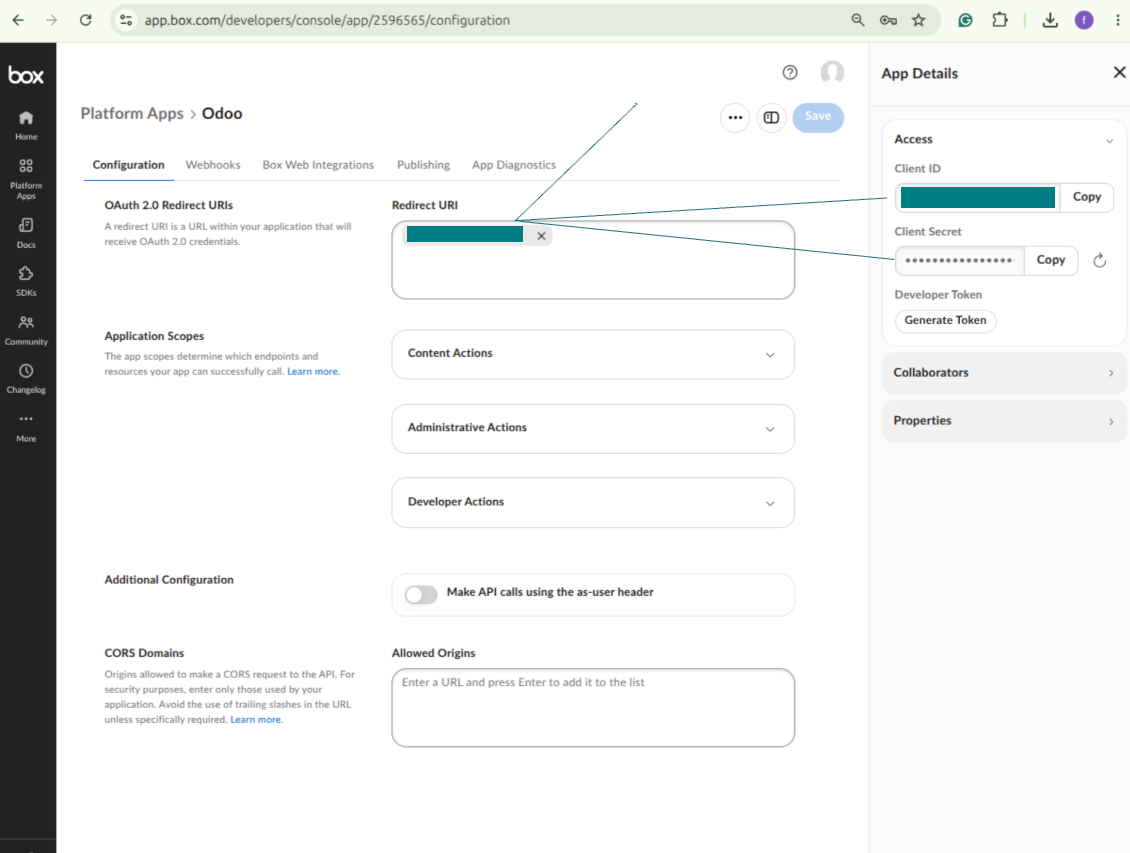
- Add the redirect URI as [YOURODOOSITENAME]/box_token (e.g. https://faotools.com/box_token). A valid SSL certificate (https) is required
- Grant the app access to read and write files and folders. Avoid assigning unrelated permissions
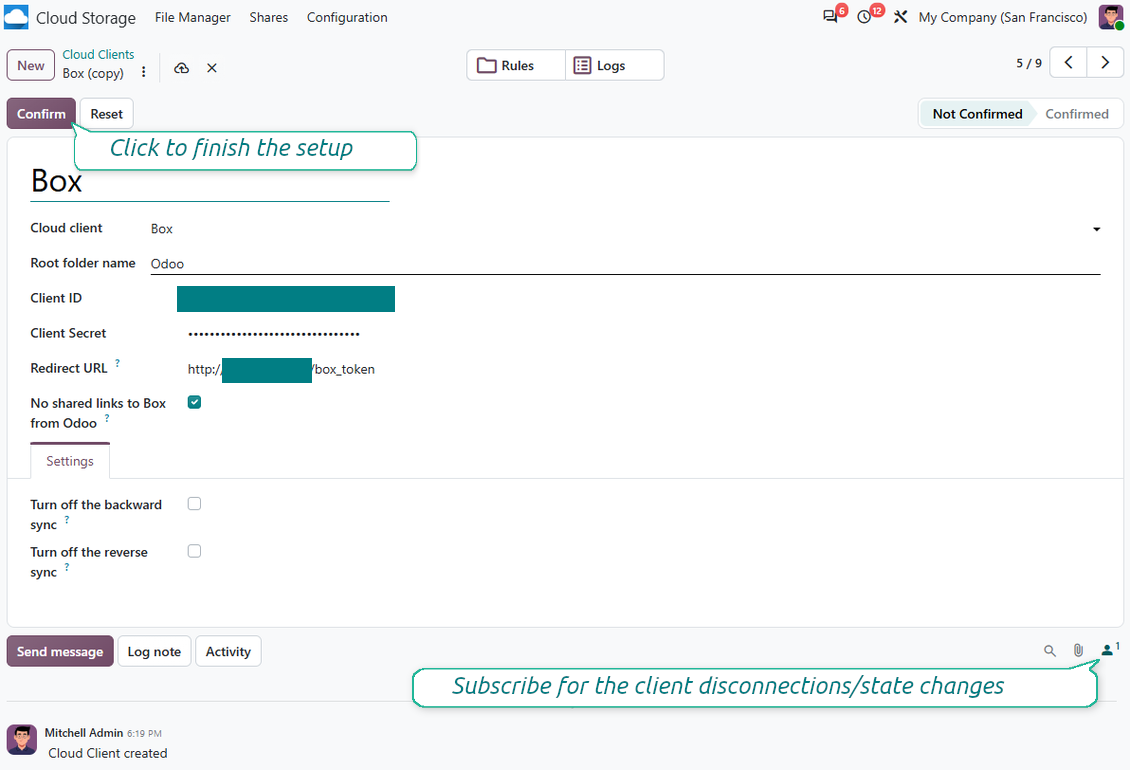
- Go to Odoo Cloud Storage > Configuration > Cloud Clients and press 'Create'
- As a reference, introduce any name which would be clear to all users
- As a Cloud client, choose 'Box'
- As a Root folder name, enter a title that will be used as the parent Box directory for all synced folders. For example, 'Odoo' or 'OdooERP'
- Copy Box Client ID to the field 'Client ID'
- Copy Box Client Secret to the field 'Client Secret'
- Insert previously generated redirect URL
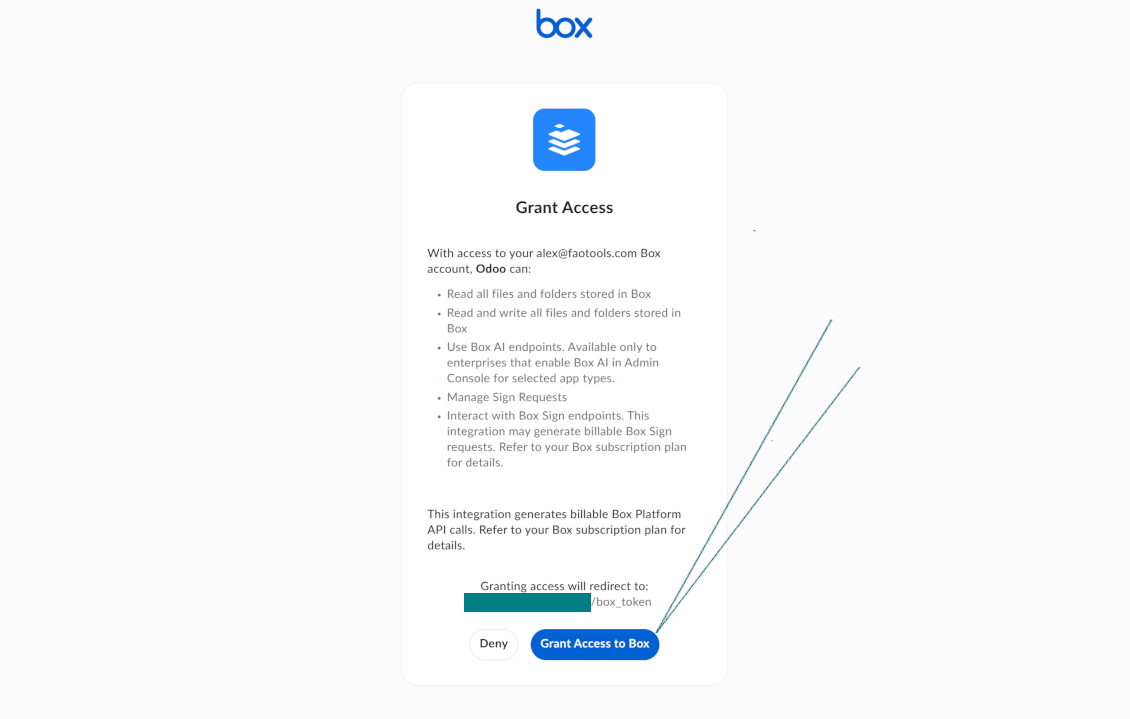
- Press 'Confirm'. Odoo redirects you to the Box login page. Check in the system, agree with all conditions, and grant all permissions asked
- After login, Box redirects you back to Odoo. Box - Odoo synchronization is ready to be done
- Apply the newly created cloud client to folder rules and/or manual folders which should be synced to that Box account
- Await the sync scheduled job to be started. For testing purposes only: trigger integration manually from Cloud Storage > Configuration > Configuration > the button 'Launch sync'.
Create a new Box developer app
Copy Box OAuth credentials
Configure the Box cloud client in Odoo
Grant Odoo access to Box
Setting up Dropbox Integration
Python dependency
The tool depends on the external library 'dropbox'. Install this library for your Odoo server through the command:
pip3 install dropbox
Configuration and log in
- Turn on the option 'Dropbox Sync' (cloud Storage > Configuration > Configuration). The optional add-on Dropbox Odoo Integration is required
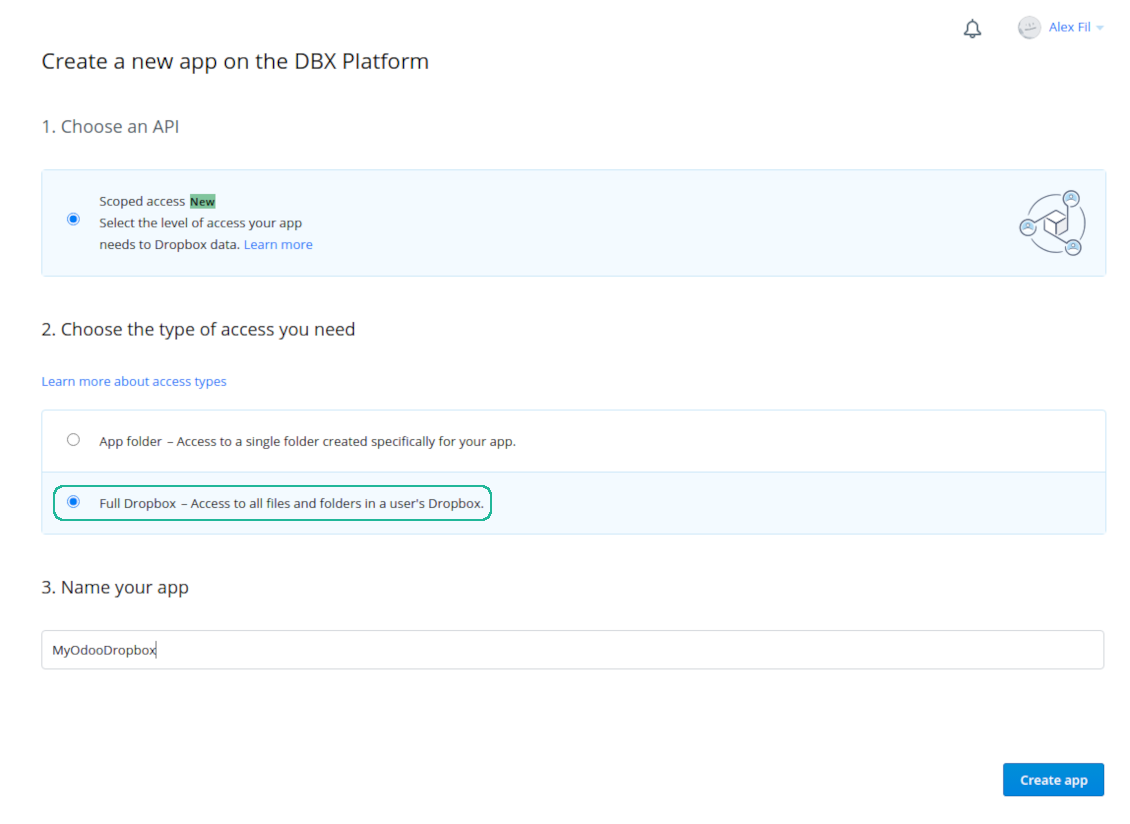
- Open the Dropbox App Console: https://www.dropbox.com/developers/apps/create to create a new app
- Choose an API as 'Scoped access'
- Choose the type of access as 'Full Dropbox'
- Select any suitable name for the app and push the button 'Create app'
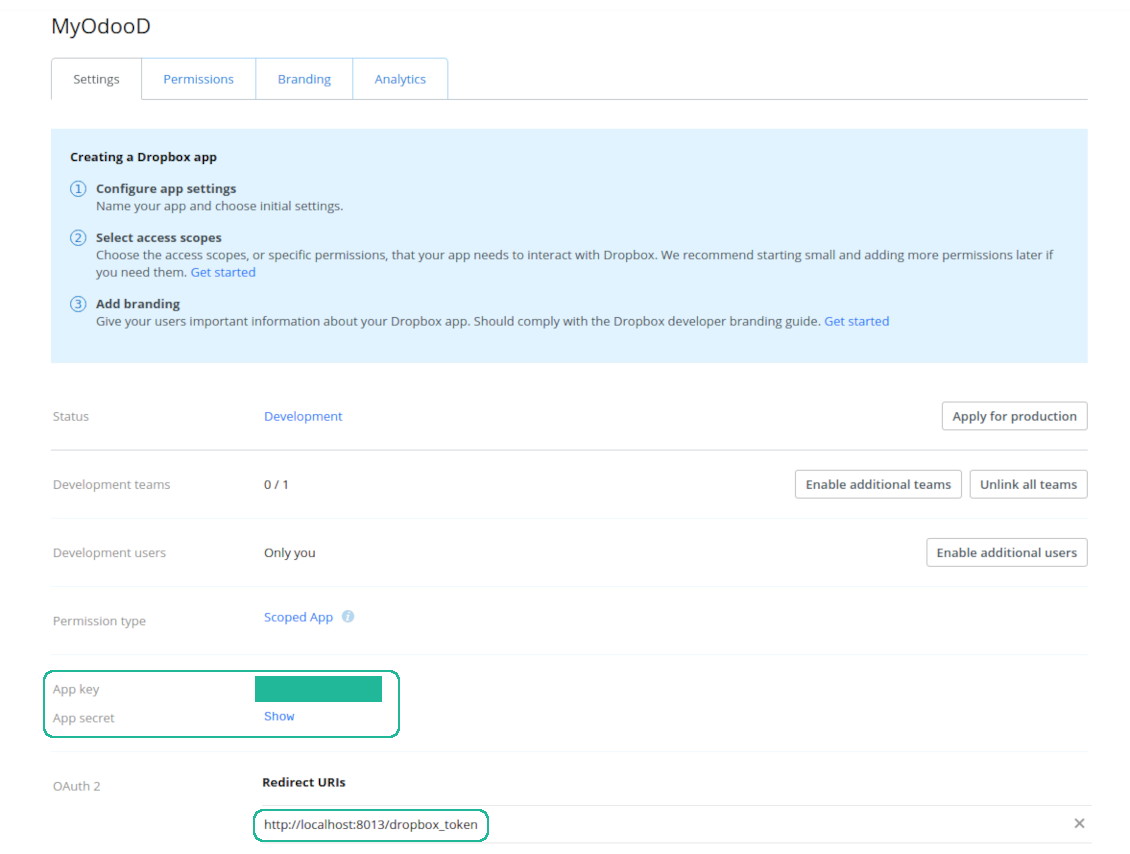
- Add the redirect URI as [YOURODOOSITENAME]/dropbox_token (e.g. https://faotools.com/dropbox_token). A valid SSL certificate (https) is required
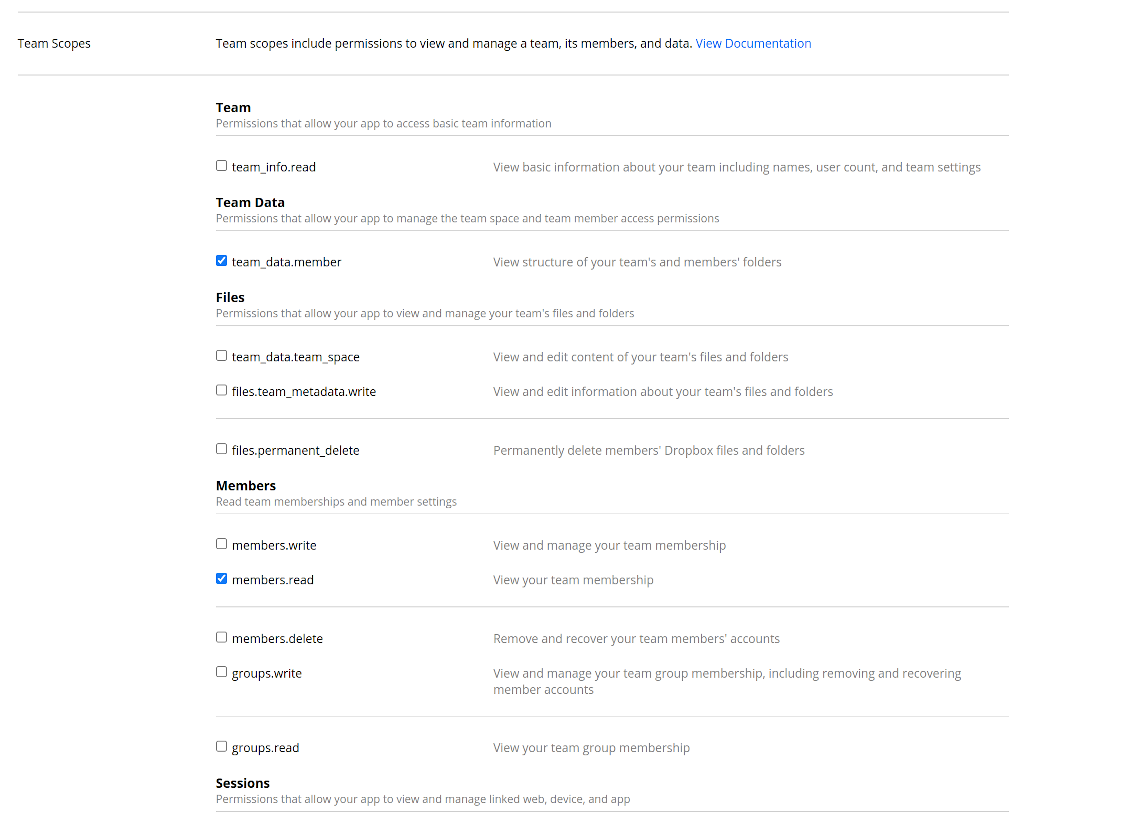
- Grant permissions to the app: 'Account Info (Read)', 'Files and folders Metadata (Write)', 'Files Content (Write)', 'Collaboration (Write)'. For team DropBox assign also 'Team Data Members', 'Members (Read)'. Make sure no other permissions are assigned.
- Submit App
- Go to Odoo Cloud Storage > Configuration > Cloud Clients press 'Create'
- As a reference introduce any name which would be clear to all users
- As a Cloud client choose 'Dropbox'
- As a Root folder name enter a title which would be users as the parent Google Drive directory for all synced folders. For example, 'Odoo' or 'OdooERP'
- Copy 'App key' to the 'App key'
- Copy 'App Secret' into the field 'App secret'
- Insert previously generated redirect URL
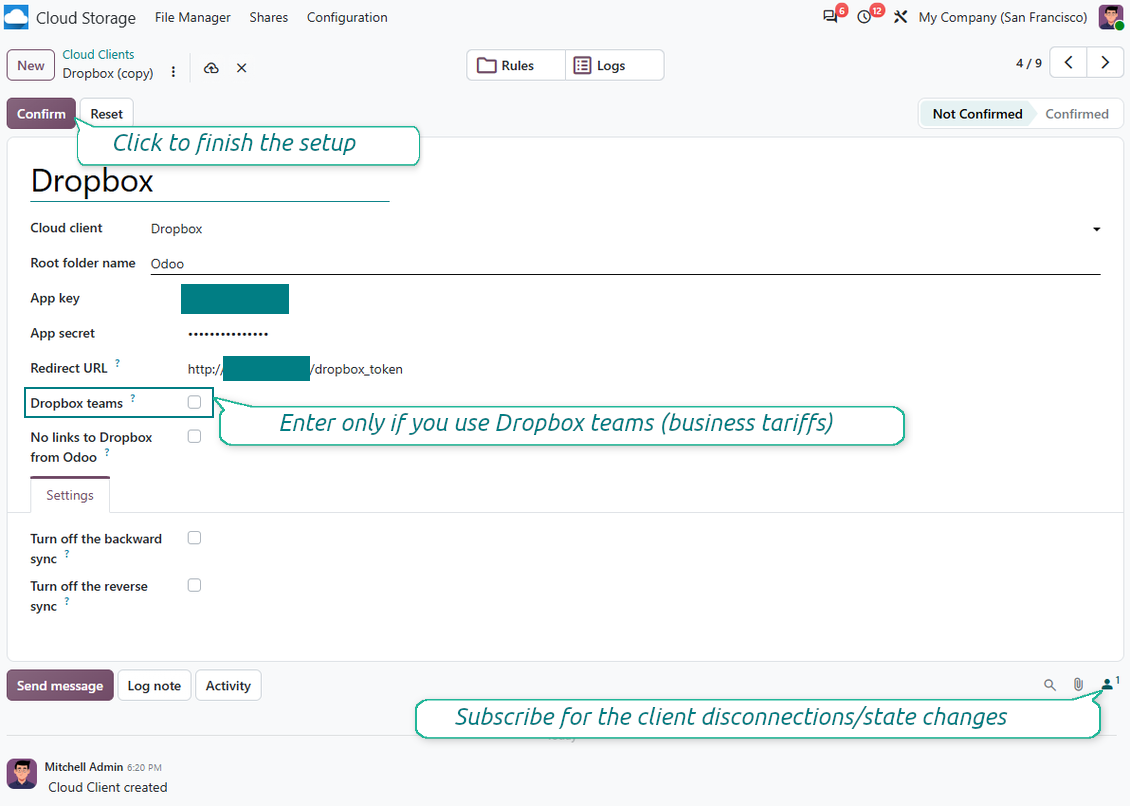
- If you use Dropbox team drives
- Check the related box
- Set an email of the Dropbox user. Inside this user folder, all Odoo related items would be created, and only after that they are shared with all other users. Under this user, all files and folders are created, changed, moved, and deleted
- Press 'Confirm'. Odoo redirects you to the Dropbox login page. Check in the system, agree with all conditions, and grant all permissions asked
- After login, Dropbox redirects you back to Odoo. Dropbox - Odoo synchronization is ready to be done
- Apply the newly created cloud client to folder rules and/or manual folders which should be synced to that Dropbox instance
- Await the sync scheduled job to be started. For testing purposes only: trigger integration manually from Cloud Storage > Configuration > Configuration > the button 'Launch sync'.
Dropbox URLs
Dropbox has a specific way to generate links for existing files and folders. In particular, there are no concepts of internal or private URLs. Instead, each Dropbox item might get so-called shared URLs. Such shared links are either public or team-only. Moreover, the latter feature is available only for the Dropbox business account.
This tool relies upon shared links' mechanics. It means, that each attachment link is either public (all personal Dropbox accounts) or team-only (all business Dropbox accounts).
Sometimes it is considered to be not fully safe. Although website URLs will be hardly known by external users, there is a slight chance that they become available as a result of some user actions. Besides, sharing links generation is not super fast and might make the sync process slower. That is why the feature to switch off sharing URLs is introduced.
If checked, all Dropbox URLs in Odoo will be of type https://www.dropbox.com/home/Odoo/[PATH]. Such links will not work in many cases. Thus, if you need to open Dropbox files/folders from Odoo, be careful with the setting 'No links to Dropbox from Odoo'.
Watch also the configuration video
Create Dropbox app
Set up Dropbox App: redirection URL
Dropbox permissions for personal accounts
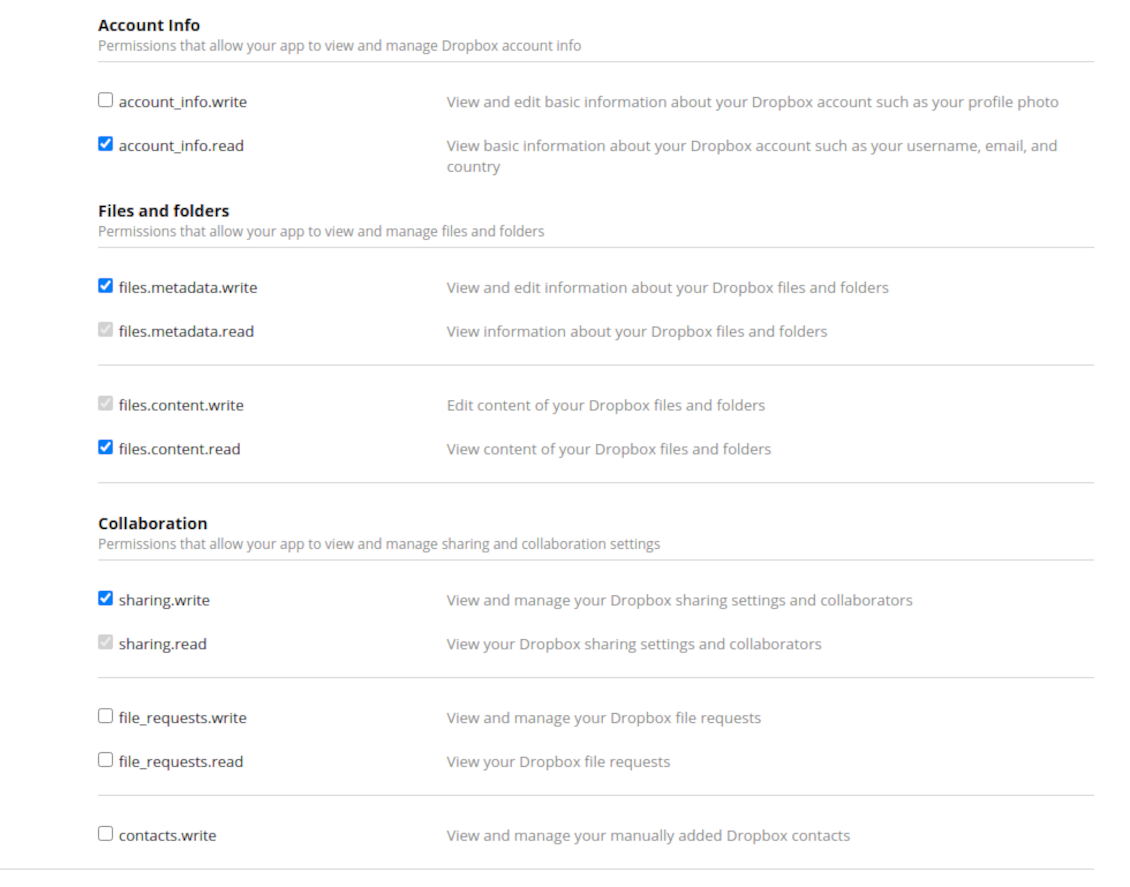
Dropbox permissions for business accounts
Set up Odoo for Dropbox integration
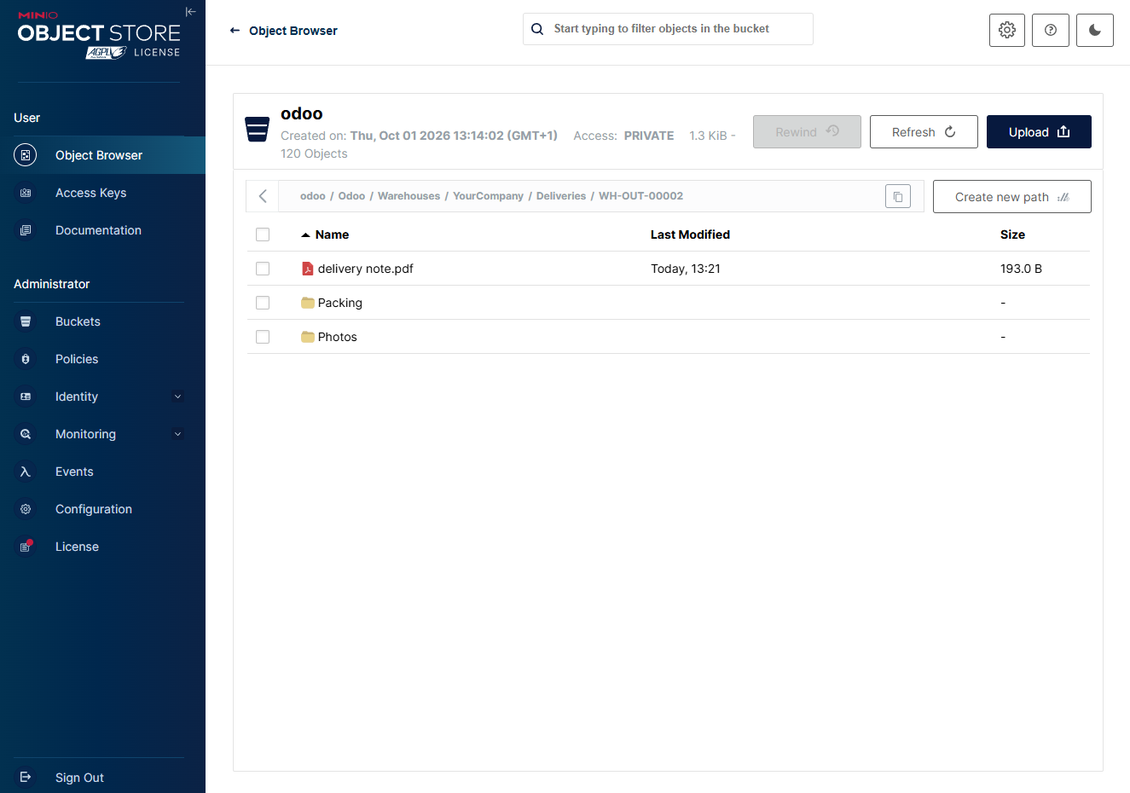
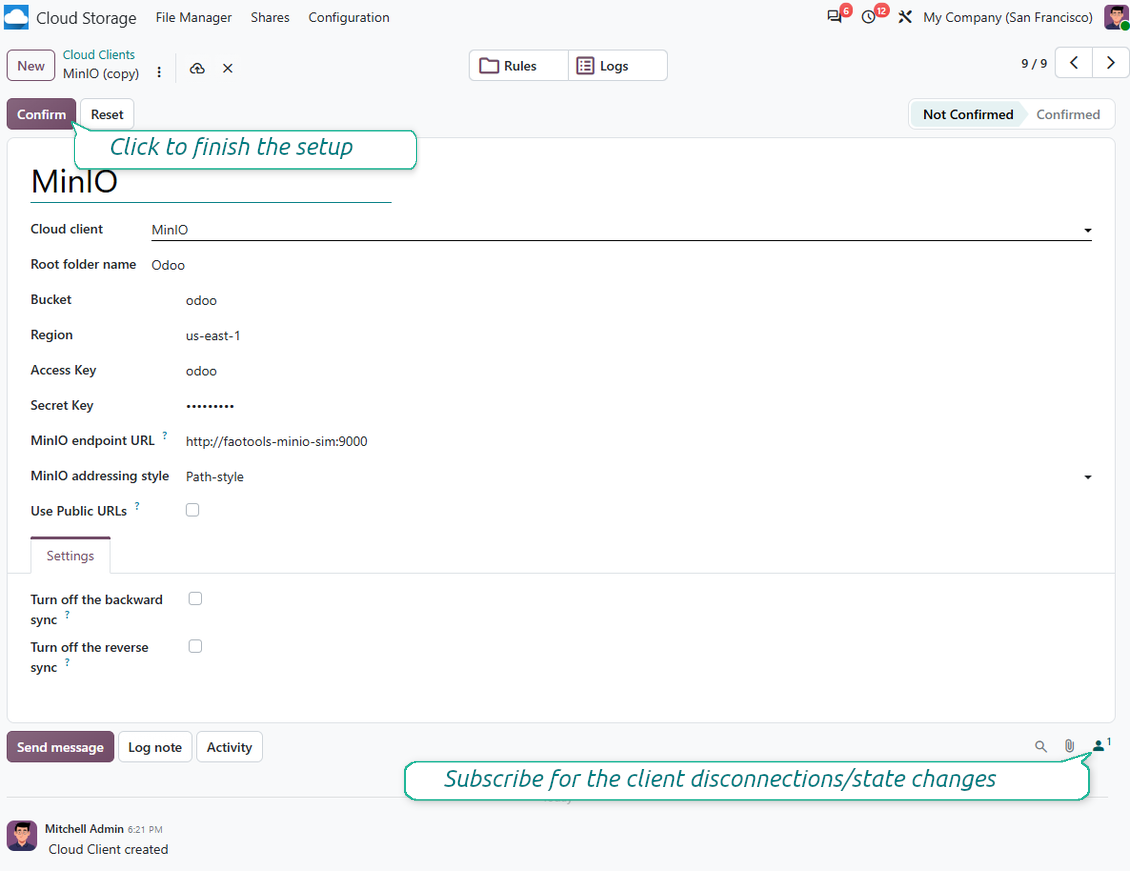
Setting up MinIO
- Prepare a running MinIO server
- Open the MinIO Console
- Create a new bucket or choose an existing one. Copy the exact bucket name: it should be inserted in Odoo into the field 'Bucket'
- Create access credentials for Odoo. In MinIO, use an access key / secret key pair or a service account that has rights to list, read, create, write, copy, and delete objects within the selected bucket
- Copy the MinIO Access Key into the Odoo field 'Access Key'
- Copy the MinIO Secret Key into the Odoo field 'Secret Key'. Important: save the secret before closing the MinIO page if MinIO shows it only once
- Copy the MinIO S3 API endpoint URL into Odoo into the field 'Amazon S3 endpoint URL'. For example, a local server usually uses http://localhost:9000, while a production server may use https://minio.example.com
- Go to Odoo Cloud Storage > Configuration > Cloud Clients and press 'Create'
- As a reference, introduce any name which would be clear to all users
- As a Cloud client, choose 'MinIO'
- As a Root folder name, enter a title that will be used as the parent MinIO object prefix for all synced folders. For example, 'Odoo' or 'OdooERP'
- Fill in the fields 'Bucket', 'Access Key', 'Secret Key', and 'Amazon S3 endpoint URL'. The field 'Region' is optional for MinIO; if it is empty, Odoo uses us-east-1 for S3-compatible signing
- Keep the addressing style as Path-style. This is the recommended option for MinIO endpoints, especially when the MinIO host does not provide bucket-specific DNS names
- Choose whether Odoo should use direct public MinIO URLs. Enable 'Use Public URLs' only when the bucket, prefix, reverse proxy, or CDN is publicly readable. For private MinIO buckets, leave it disabled
- Press 'Confirm'. Odoo checks bucket access and creates or verifies the root folder prefix. MinIO - Odoo synchronization is ready to be done
- Apply the newly created cloud client to folder rules and/or manual folders which should be synced to that MinIO bucket
- Await the sync scheduled job to be started. For testing purposes only: trigger integration manually from Cloud Storage > Configuration > Configuration > the button 'Launch sync'.
Useful MinIO documentation: Identity and Access Management: https://min.io/docs/minio/linux/administration/identity-access-management.html, MinIO Server reference: https://min.io/docs/minio/linux/reference/minio-server/minio-server.html.
Create a MinIO access key
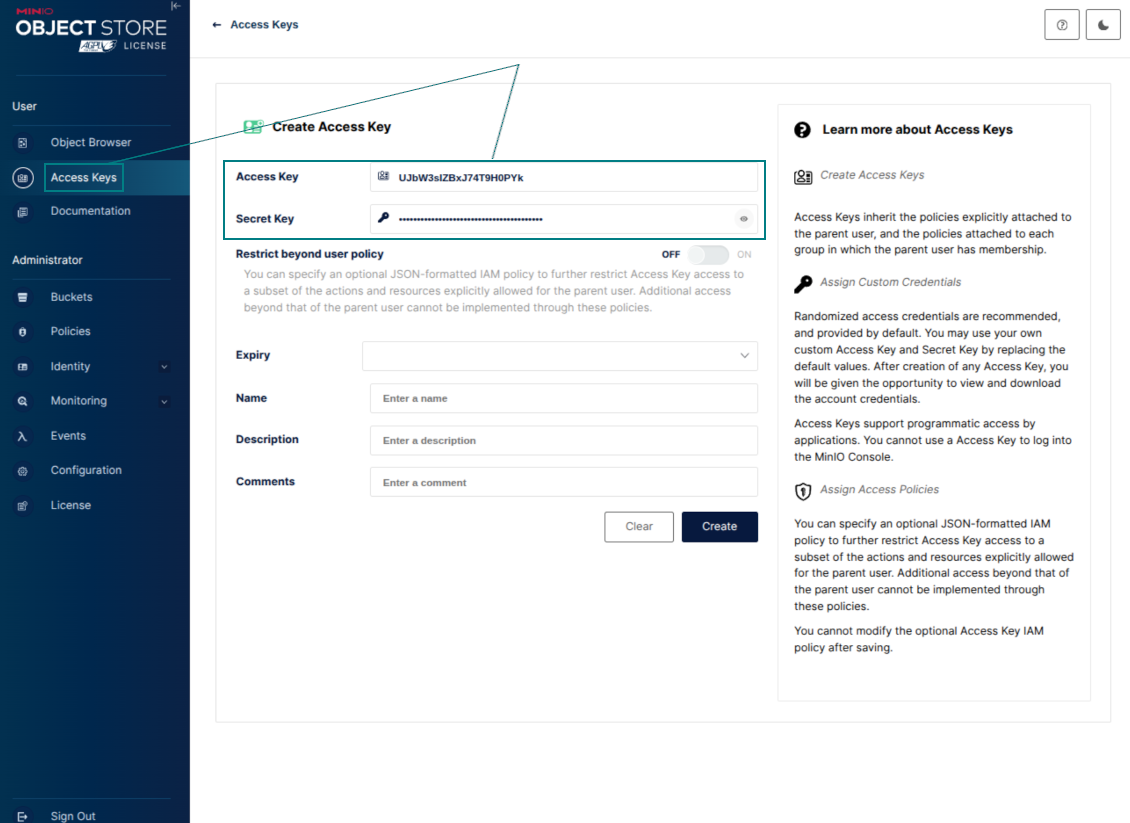
Copy the new MinIO credentials
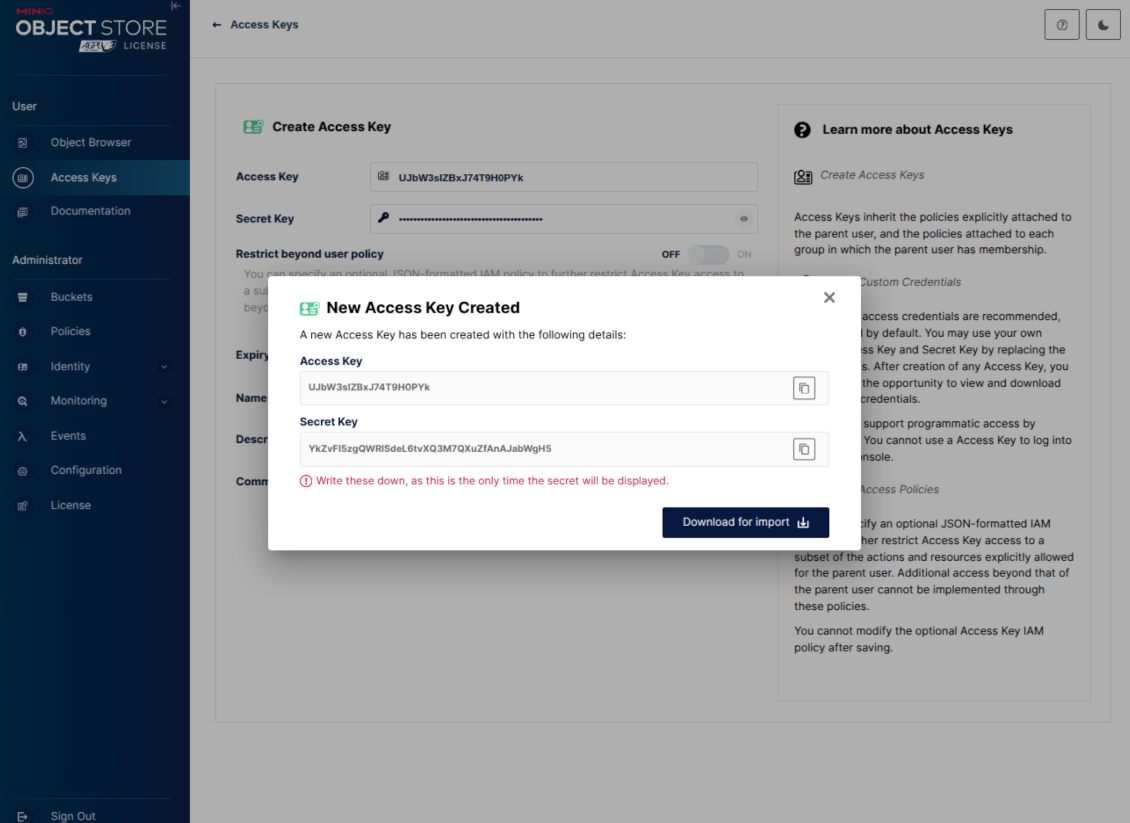
Configure the MinIO cloud client in Odoo
Frequently Asked Questions about Cloud Storage Solutions Odoo v.20
Where would be synced fields stored? Are they duplicated to Odoo and clouds?
The app assumes that the binary content of attachments is kept in Cloud Client instead of the Odoo server. So, such attachments in Odoo become of the URL type, and you may any time access them either from the attachments box or from the Cloud Client.
After the setup, no manual actions are required, as the synchronization is fully automatic. Just decide which Odoo document types should be synced and set up a related model to sync for each of those (Customers, Sale or Purchase Orders, Tasks, Projects, etc.).
Can I have a few folders for the the same document type? For example, internal projects and customer projects?
Yes, you can. To that goal, prepare a rule for each, and then those apply filters: for example by type of a project.
Try to make filters self-exclusive in order a document can be definitely assigned. For instance, 'customer but not supplier', 'supplier but not customer'. Otherwise, a specific document folder would jump from one model to another.
Is it possible to make synchronization real-time?
No. We have strong reasons to avoid real time sync:
Performance issues. In case a sync is real time, each file upload will result in the loading screen.
Conflict issues. If 2 users simultaneously change an item, it might lead to unresolved situations. In case of regular jobs we can fix it afterwards, while in case of real time we would need to save it as some queue, and it will be even more misleading for users.
Functionality issues. In particular, renaming and restructuring of items. In the backward sync the tool strictly relies upon directories' logic, and during each sync 100% of items are checked. In case it is done after each update, it will be thousands of requests per second. If not: changes would be lost.
May I change default folders' name in clouds?
You may assign your name for models' directories (sale orders, opportunities, suppliers, etc.) for any document type.
For objects' folders (SO-001, John Smith, etc.), the tool relies upon the Odoo method to construct a display name for this document type. However, you can change that by defining the name expression. The exact syntax for Odoo email templates is used.
May I change frequency of sync jobs?
No, starting from version 15, you should not change scheduled jobs. They are optimized to run every 15 minutes to guarantee the most stable and quick connection.
Ensure that your Odoo server timeouts are set for at least 15 minutes (900 seconds).
If you need to stop sync for a while, do that on a particular cloud client form.
May I sync attachments to a few cloud clients
Yes, starting from version 15, you can set up multiple connections. In this way, it is possible to sync some folders to one cloud client and others - to another.
Take into account that it is not any way possible to sync the same folder for a few cloud storages simultaneously.
We use a special editor in our clouds (e.g. OnlyOffice, Office 365, etc.). Would files be opened in that editor?
Yes, depending on your cloud client configuration.
Do I need only the Cloud Storage Solution app?
Starting from version 15, the app might be used stand-alone to structure attachments in folders and to provide a file manager interface.
However, if your goal is to establish a connection with one of its cloud clients, you would need at least one optional client-related app to be installed.
What happens when I change a folder rule?
When a folder rule changes, the list of folders also changes. So, if a folder no longer matches the conditions of the folder rules - it is removed. If the files have been synced, the reversed sync returns them to Odoo and deletes them from the Cloud Client.
If a document's object doesn't match the conditions of a folder rule, then its folder will not be created. However, if it matches the conditions later, the related folder will be generated.
Can I keep only the direct sync, or turn off the backward sync?
Yes. On the cloud client, open the Settings page and turn on Turn off the backward sync.
The sync stays one-way. Changes made in Odoo are still pushed to the cloud storage. Files and folders created, renamed, or deleted in the cloud storage are not reflected in Odoo, and folders deleted there are not restored.
Turn the option off again to apply those accumulated changes, including deletions, on the next sync.
This setting is available from version 18. Unlinking, resetting, or deactivating the client still runs the reverse sync, unless you also turn that off.
What are the update policies of your tools?
According to the current Odoo Apps Store policies:
- Every module bought for version 12.0 and prior gives you access to all versions up to 12.0.
- Starting from version 13.0, every module version should be purchased separately.
- Disregarding the version, purchasing a tool grants you a right to all updates and bug fixes within a major version.
Please note that the faOtools team does not control those policies. For all questions, please contact the Odoo Apps Store representatives directly.
How can I install your app on Odoo.sh?
The most straightforward approach is to use the Odoo store's built-in workflow:
1. Open the module's page and click the button Deploy on odoo.sh
2. After that, you will be redirected to the GitHub page. Log in to your account, then click 'Create a new repo' or use an existing one. Please ensure your repository is private. It is not permitted to publish the apps under the OPL-1 license. If necessary, create a new repo for your Odoo.sh project
3. Then, go to odoo.sh and click the Deploy button. In the pop-up window, submit the decision and click 'Continue.' This action will trigger the installation process.
These steps will install the app for your project's production branch. If you want to deploy the apps for other branches or update the module, you should undertake the following actions:
1. Upload the source code for the app from the Odoo store
2. Commit the module to a required GitHub repository. Ensure none of the app folders/files are ignored (i.e., not included in your repo's .gitignore). Repositories are automatically created by odoo.sh and may include some crucial items by default (e.g., /lib). You should upload all module directories, subdirectories, and files without exceptions
3. Deploy a target branch of the odoo.sh project or, if your settings assume that, wait until it is automatically built.
How should I install your app on my own server?
2. Re-start the Odoo server;
3. Turn on developer mode (technical settings);
4. Update the apps' list (the apps' menu);
5. Find the app and push the button 'Activate'/'Install';
6. Follow the guidelines on the app's page if those exist.
I noticed that your app has extra add-ons. May I purchase them afterwards?
Yes, sure. Simultaneously, Odoo automatically adds all dependencies to a cart, so you should exclude previously purchased tools to avoid double payment.
I deployed your app on Odoo.sh and see warning/error in tests
A red/orange warning does not influence the app's features. Regretfully, sometimes our modules do not pass standard automatic tests since the latter assume behavior that conflicts with our app's goals. For example, we change the price calculation, while the standard Odoo module tests compare the final price to a standard algorithm.
So, first of all, please check the deployed database features. Does everything work correctly?
If you still assume that the warning influences real features, please contact us and forward full installation logs and the full list of deployed modules (including core and third-party ones).
May I buy your app from your company directly?
No, we only distribute the tools through the official Odoo apps store.
I would like to get a discount
Regretfully, we do not have the technical means to provide individual prices.
May I install the app on my Odoo Online (SaaS) database?
No, third-party apps can not be used on Odoo Online. Unfortunately, Odoo SaaS blocks such a possibility.
Your tool has dependencies on other app(s). Should I purchase those?
Yes, our tool requires all modules marked in dependencies to work correctly. The price marked on the app page already includes all necessary dependencies.
What is the price for the module in US Dollars? Why did it change?
The price for our modules is set in euros. The Odoo store converts prices to other currencies according to its internal exchange rate. Thus, the price in US Dollars may change when the exchange rate is updated.
Odoo demonstration databases (live previews)
For this app, we might provide a free personalized demo database.
You do not need a phone number or credit card to contact us. You should only pass a short email sign-up, which does not take more than 30 seconds.
By your request, we will prepare an individual live preview database, where you can apply any tests and check assumptions for about two weeks.
Bug reporting
If you encounter bugs or inconsistent behavior, do not hesitate to contact us. We guarantee to provide fixes within 60 days of purchase and are intensely interested in improving our tools even after this period.
You do not need a phone number or credit card to contact us. You should only pass a short email sign-up, which does not take more than 30 seconds.
Please include as many details as possible in your request: screenshots, Odoo server logs, a full description of how to reproduce your problem, and so on. Usually, it takes a few business days to prepare a working plan for an issue (if a bug is confirmed) or provide you with guidelines on what should be done (otherwise).
Public features requests and module ideas (free development)
We are strongly motivated to improve our tools and would be grateful for any feedback. If your requirements are of public use and might be efficiently implemented, the team will include those in our to-do list.
Such a to-do list is processed regularly and does not assume extra fees. Although we cannot promise deadlines and final design, it might be a good way to get desired features without investments and risks.
You do not need a phone number or credit card to contact us. You should only pass a short email sign-up, which does not take more than 30 seconds.
20.0.1.4.64
- The issue of the sync queue stopping with a recursion error when a large number of tasks is planned at once has been fixed.
- Tasks of a paused or not connected cloud client now wait for the client instead of being failed and canceled.
20.0.1.4.63
- The app is published to version 20.
19.0.1.4.63
- The feature to turn off the backward sync for a cloud client has been added.
- The feature to turn off the reverse sync for a cloud client has been added.
- The issue of a sync queue staying blocked after its reverse client was removed has been fixed.
19.0.1.4.62
- The issue of folder lookup failing when the document id was a recordset has been fixed.
19.0.1.4.61
- The issue of deactivated auto-folders not being recovered on the next sync has been fixed.
19.0.1.4.60
- The issue of posting chatter attachments without a document id has been fixed.
- The feature to translate folder and tag names has been added.
19.0.1.4.59
- The AI-assisted translations for 25 languages have been introduced.
19.0.1.4.58
- Optimized folder sync by searching only attachments of updated records instead of all model attachments.
19.0.1.4.57
- The feature to requeue failed tasks has been added.
19.0.1.4.56
- The UI responsiveness of the Kanban has been refactored and optimized.
- The navigation panels got support for resizing and collapsing.
19.0.1.4.55
- The feature to truncate the sync logs from the configuration page has been added.
19.0.1.4.54
- Support for Amazon S3, MinIO S3, Synology, QNAP, TrueNAS, other NAS/WebDAB, and BOX has been added.
19.0.1.4.53
- The issue with displaying archived folders in navigation has been fixed.
19.0.1.4.52
- The feature to control the maximum number of folders per rule has been added.
19.0.1.4.51
- The issue with proceeding frozendict in mass actions has been fixed.
19.0.1.4.50
- The issue with attachments linked to documents disappearing from the attachment box has been fixed.
19.0.1.4.49
- The issue fix text break in folder titles has been fixed.
19.0.1.4.48
- The "Open in Clouds" action in the mobile view has been updated to reflect the recent changes.
19.0.1.4.47
- The issue with the non-synced invoice report has been fixed.
19.0.1.4.46
- The feature to neutralize cloud clients for backups has been added.
19.0.1.4.45
- The issue with accessing parent rule-related folders has been fixed.
19.0.1.4.44
- The app is published to version 19.
- The feature for optional real-time thumbnails has been added.
18.0.1.4.44
- The asynchronous folder check has been optimized.
18.0.1.4.43
- The issue with a newly selected folder search has been fixed.
18.0.1.4.42
- The issue with the non-refreshing folder tree while switching between records has been fixed.
18.0.1.4.41
- The issue with the double click needed to remove selected attachments has been fixed.
18.0.1.4.40
- The backup removal queue has been changed to first-in, first-out.
18.0.1.4.39
- The app is adapted to the new domain logic to support dynamic parts.
18.0.1.4.38
- The filestore evaluation is added to the configuration page.
- The feature to restrict cloud client sync to a particular database name has been added.
18.0.1.4.37
- The feature to lock backup creation has been added.
18.0.1.4.36
- The issue with the untranslated warnings has been fixed.
18.0.1.4.35
- The feature to automatically and manually sync a current database backup to chosen cloud clients has been added. Configure the backup schedule and keep time. Backups might be with or without filestore and manifest.
18.0.1.4.34
- The bug with not correctly importing Python libraries during folder refreshing has been fixed.
18.0.1.4.33
- The domain now supports Python libraries' use, including datetime ('date', 'datetime', 'time', 'timedelta', 'timezone', 'tzinfo', 'MAXYEAR', 'MINYEAR'), time ('time', 'strptime', 'strftime'). Also, context_today (short for datetime.now) and relativedelta might be applied.
18.0.1.4.32
- The compatibility with the Email Marketing module is fixed according to the recent Odoo 18 updates.
18.0.1.4.31
- Attachments are unselected after deletion.
18.0.1.4.30
- The synced attachments' URLs might be precalculated.
18.0.1.4.29
- Folders created based on cloud clients get increased sequence.
18.0.1.4.28
- The kanban views are adapted to the new Odoo 18 XML principles.
- The archived ribbon for inactive records is added to form views of rules, folders, tags, and shares.
18.0.1.4.27
- The interface is updated to reflect the core attachment list view changes.
18.0.1.4.26
- The issue with not added links to certain folders is fixed.
18.0.1.4.25
- The app is published to version 18.
17.0.1.4.25
- The issue with not-created child folders for workspace-related parents is fixed.
17.0.1.4.24
- The issue with not updating previously synced child folders is fixed.
17.0.1.4.23
- The feature to clear rule-related folders' blocking dates is introduced.
17.0.1.4.22
- The feature is added to select existing attachments (including the synced ones) while composing Odoo messages.
- The feature to add URL attachments is added to the attachment box and file manager interface.
17.0.1.4.21
- The issue with auto-scrolling after logging a note is fixed.
17.0.1.4.20
- The feature to filter logs by their date and time is added.
- Now it is possible to define the number of exported logs on the configuration page.
17.0.1.4.19
- The failure re-tries number is now configurable and might differ for standard and reverse/move tasks.
17.0.1.4.17
- The tasks' parent blocking mechanism is optimized first to serve the most prioritized task.
17.0.1.4.15
- The blocking mechanism is specified for the sync operations to move items..
17.0.1.4.13
- The access to an intermediate rule-related folder is defined not based on that rule model but based on the parent folder access.
17.0.1.4.12
- The maximum size for the URLs is increased to 4096.
17.0.1.4.11
- The reverse sync is optimized. Hanging tasks caused by mutual blocking are removed.
17.0.1.4.10
- The issues with simultaneous reverse and backward synchronization are fixed.
17.0.1.4.9
- The algorithm to process rearranged and moved folders is optimized.
17.0.1.4.8
- The issue with creating tags and folders through the portal is fixed.
17.0.1.4.7
- Portal share search by tag/folder title is fixed.
17.0.1.4.6
- The mass action "Slideshow" is added. It allows backend users to start a slideshow for the chosen image attachments.
- The option "Allow slideshow" is added to the share settings. If turned on, portal/public users will be able to trigger a slideshow for currently found image attachments in the share's portal interface.
- The reverse synchronization algorithm is optimized.
17.0.1.4.5
- Special pre-failure checks for hanging tasks are introduced. Now if the task fully stops the cron job (e.g. because of the memory limit errors), the next cron will continue with a different task.
17.0.1.4.4
- The standard Odoo preview is added to the file manager interface attachment card. To open a related previewer in the kanban view, users should click on a thumbnail. The supported file types and the behavior are equal to the attachment box.
- Attachment forms might be opened using the kanban 3-dots menu. Here, it is possible also to change attachments' colors.
- The sync logs levels are colored based on messages' levels.
- The logging system is optimized to commit messages even if the job fails and fully stops the thread.
17.0.1.4.3
- The bug with the incorrectly selected folder during the first loading in the file manager interface is fixed.
17.0.1.4.2
- The feature to prioritize folders based on the rules' sync frequency is added.
17.0.1.4.1
- The module structure is updated to the newest file manager interface, drag-and-drop, and portal-sharing features
17.0.1.3.14
- Duplicating attachments with explicitly passed res_model and res_id is fixed (HR Expenses compatibility is fixed).
17.0.1.3.13
- Multi-selection of folders is now possible in the file manager interface.
- The current folder for uploading attachments is shown on the button "Upload" title.
- The feature to share attachments/folders is introduced. Share any files, directories, or tags with specific portal partners or publically. Optionally allow uploading, tree-navigating, and creating tags and folders.
- The feature to download all attachments of a specific tag is added. Navigation by tags becomes optional.
17.0.1.3.12
- The feature to drag-and-drop files to upload those from a local PC is introduced.
- Now it is possible to update a folder and tags by dropping attachments to the left navigation panel.
17.0.1.3.11
- The errors in mass-updating tags are fixed.
- The issue with the incorrect folder for new records is fixed.
- The scenario when a folder cannot be created in the navigation panel when there are no other folders is fixed.
- The sync logs interface is adapted to show the HTML content of the received responses.
17.0.1.3.10
- The rare case when a folder's initial setup has failed 8 times but still should be synced is covered.


The tool to build a deep and structured knowledge base for internal and external use. Knowledge System. KMS. Wiki-like revisions.
398€
The tool to set up KPI targets and control their fulfillment by periods. KPI dashboards. Dashboard designer. KPI charts

The tool for time-based service management from booking appointments to sales and reviews
398€
The tool to manage your Odoo from your favorite AI chats through MCP. Claude. Any MCP-supporting AI.

The tool to automatically synchronize Odoo attachments with OneDrive files in both ways
487€
The tool to automatically synchronize Odoo attachments with Google Drive files in both ways
487€
The tool to automatically synchronize Odoo attachments with ownCloud/Nextcloud files in both ways
487€
The tool to automatically synchronize Odoo attachments with NAS Solutions in both ways. Synology, QNAP, TrueNAS and any other WebDav-supporting NAS solutions
487€