KnowSystem: Knowledge Base System v.11
The tool to build deep and structured knowledge base for internal and external use. Knowledge System. KMS
- a core of knowledge management. It might be used stand-alone as a complete internal knowledge base system. Cijena je 398€.
- an optional module, which let you publish articles to website, share them with portal users, and use website builder to update articles. The features assumed by this add-on are marked by the icon . Cijena je 40€.
- an optional module, which let you add and show custom fields for articles (backend). The features assumed by this add-on are marked by the icon . Cijena je 48€.
- an optional free module, which shows custom fields on website and portal pages (frontend). The features assumed by this add-on are also marked by the icon .
- an optional module, which let you translate articles, sections and tags for installed in Odoo languages. The features assumed by this add-on are marked by the icon . Cijena je 10€.
Innovative single-view interface
From the same interface editors may create and update any knowledge-related documents, change articles in batch, set up security. Without a need for excess navigation.
Interface solutions
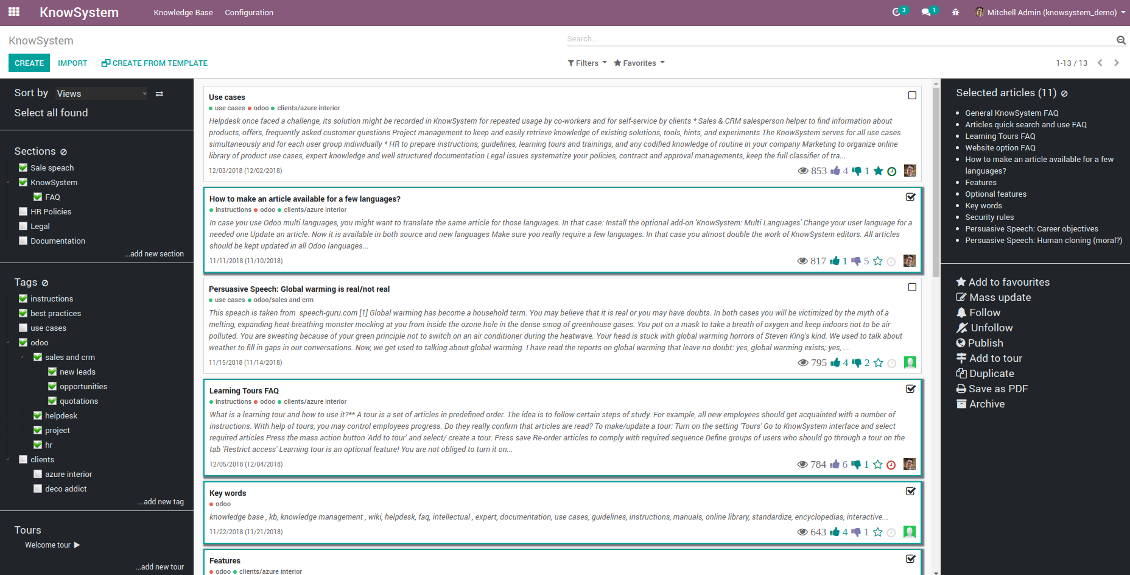
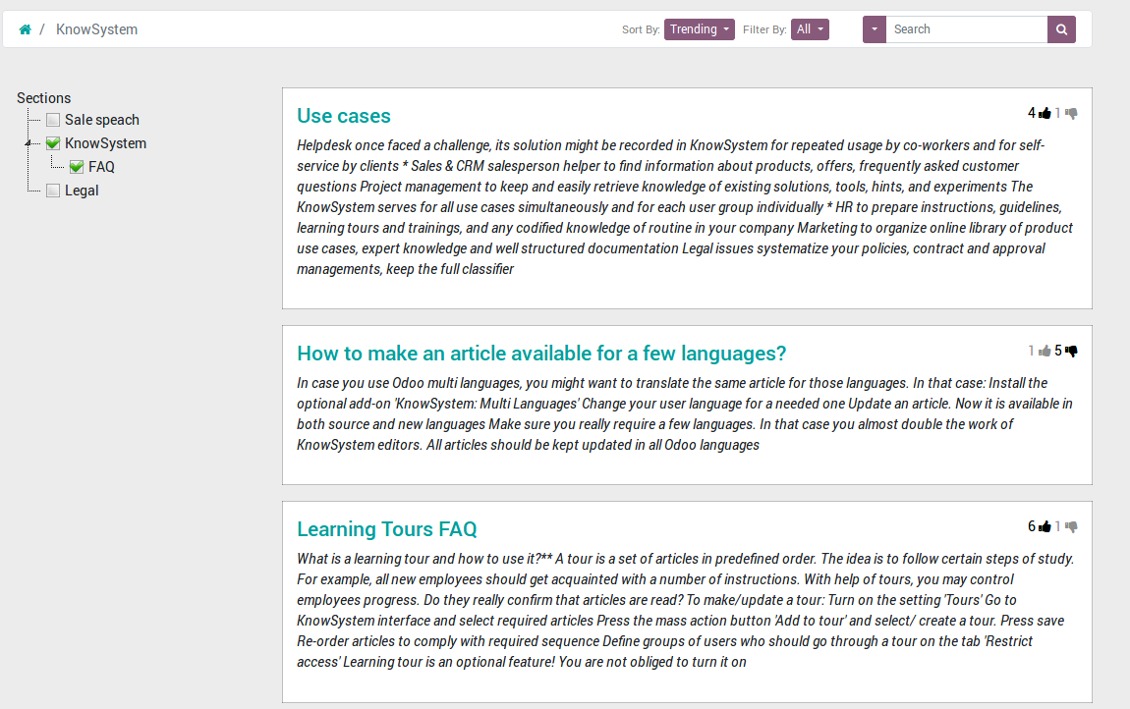
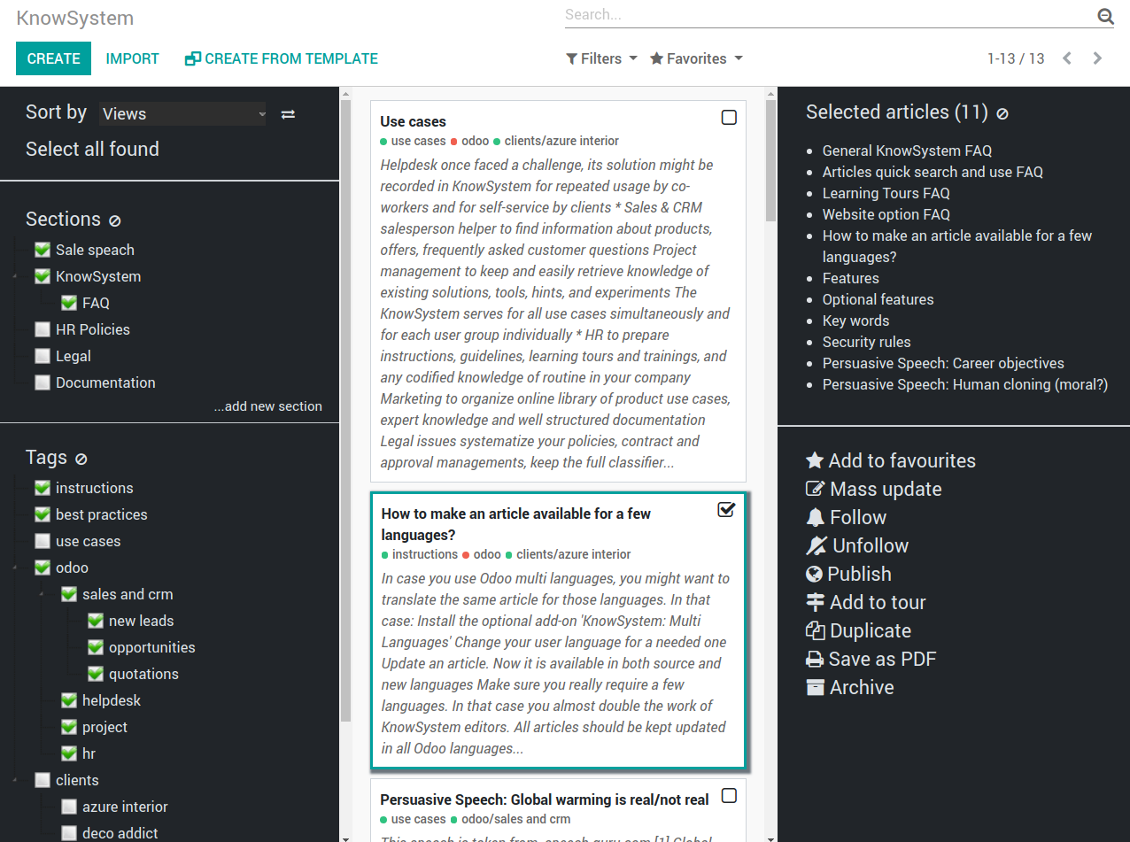
The KnowSystem interface consists of 3 key parts: the left navigation panel, the list of articles, and the right navigation panel (it is shown only if some articles are selected).
On the left navigation panel you may:
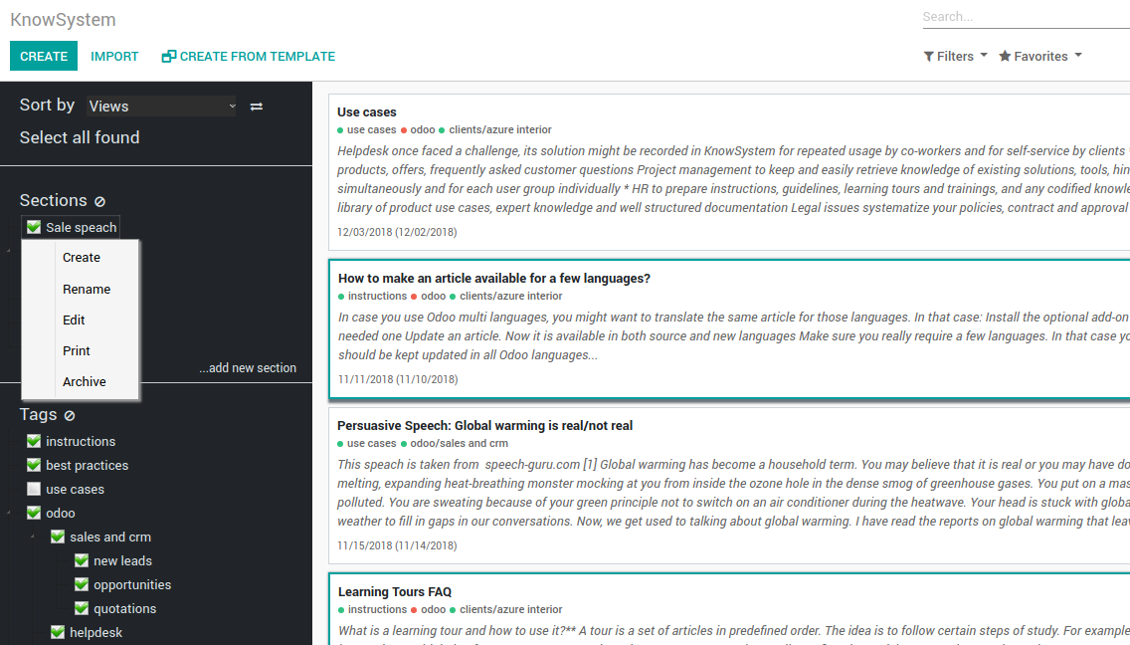
- Manage hierarchy of sections: prepare new (right mouse click - 'create'), update existing (right mouse click - edit), re-order any (drag and drop an item), archive sections. Select a few ones to filter articles. You may also print all articles related to this section as a single PDF file.
- In the same way manage hierarchy of tags
- Sort articles by number of views, a score of likes and dislikes, create or update dates, a section, an author
- Select all articles which are found according to chosen tags / sections and according to introduced searches / filters
- Launch a learning tour.
From the list of articles you see articles' name, indexed content (words without HTML style), dates of creation and last update, a number of views, likes, dislikes, author avatar. Here you may also add an article to favourite by pressing the 'star' icon.
Click on article body to open it in a full size (form view). Do not worry: chosen tags and sections as well as selected articles will be kept when you get back! Click on the top right check box to add an article for selection.
On the right navigation panel you observe selected articles and may proceed a mass action. Click on article name to remove it form selection.
On the top of the interface users also would find a standard Odoo omnibox. Type here to search by a title, content, an author, tags or a section.
Available mass actions
KnowSystem let users update an unlimited number of articles simultaneously:
- Assign new section
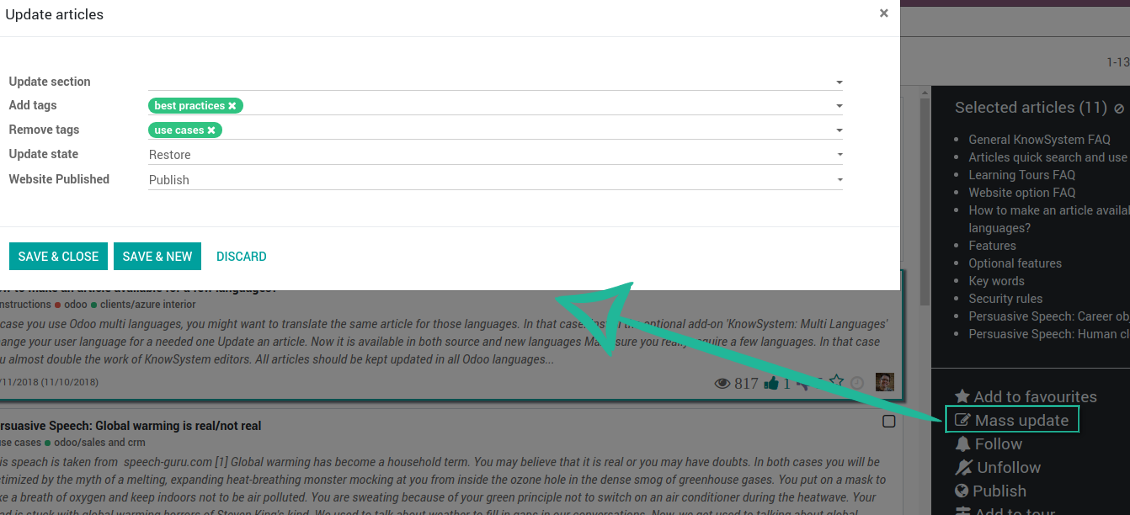
- Change or remove tags
- Print multiple articles as a single PDF
- Follow / unfollow discussions
- Publish / unpublish articles
- Export articles to an Excel table
- Archive or restore records
- Add articles to learning tours
- Mark knowledge items as favourite
- Duplicate articles.
Snimke zaslona
KnowSystem articles overview, search and mass actions
Single entry for knowledge management actions
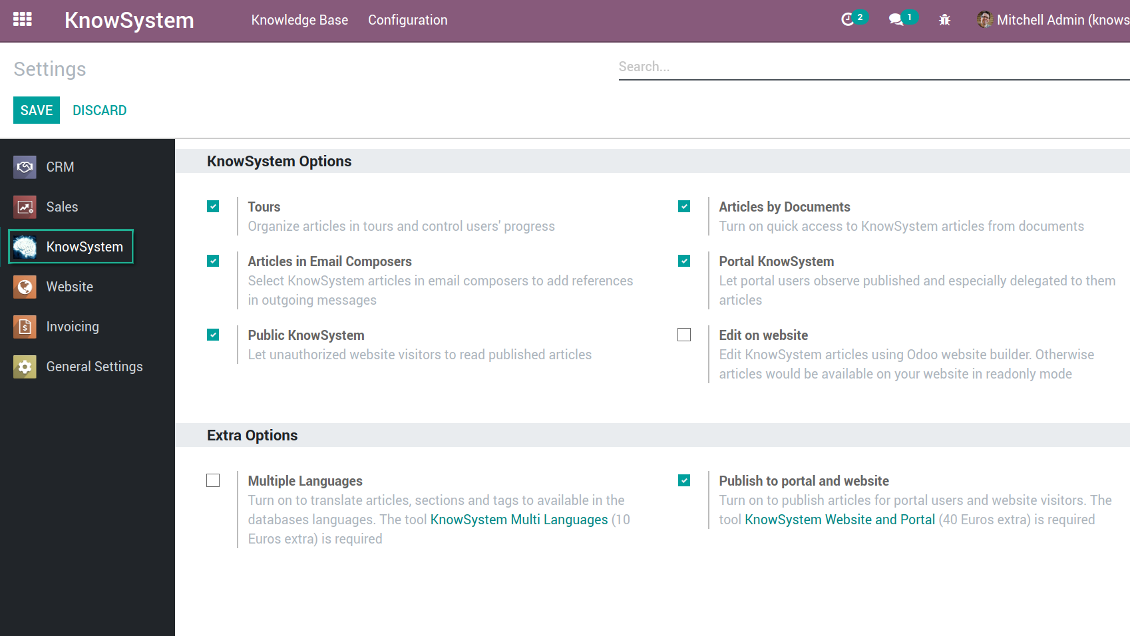
KnowSystem configuration
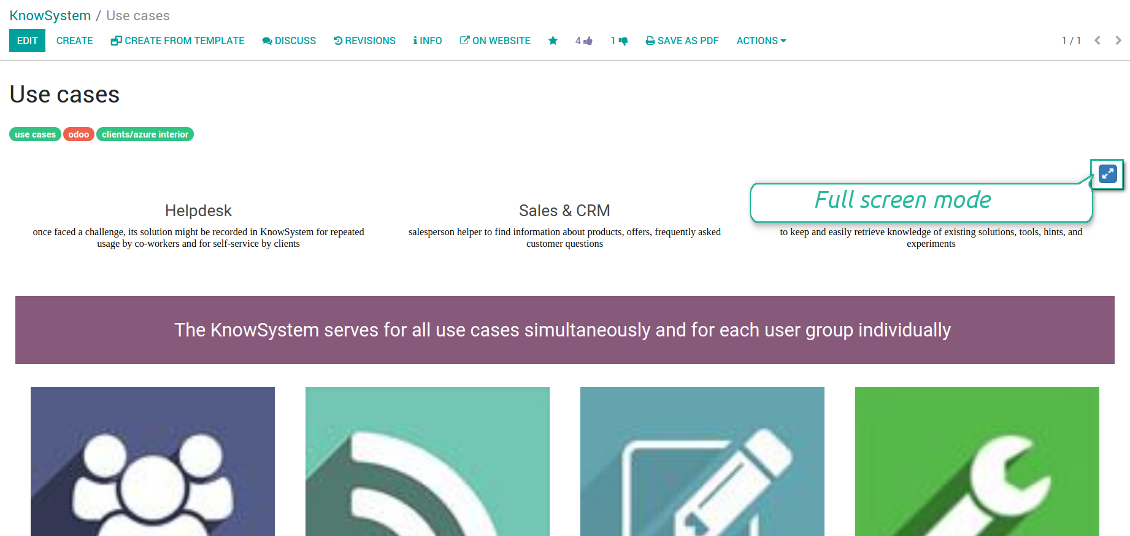
Article read mode
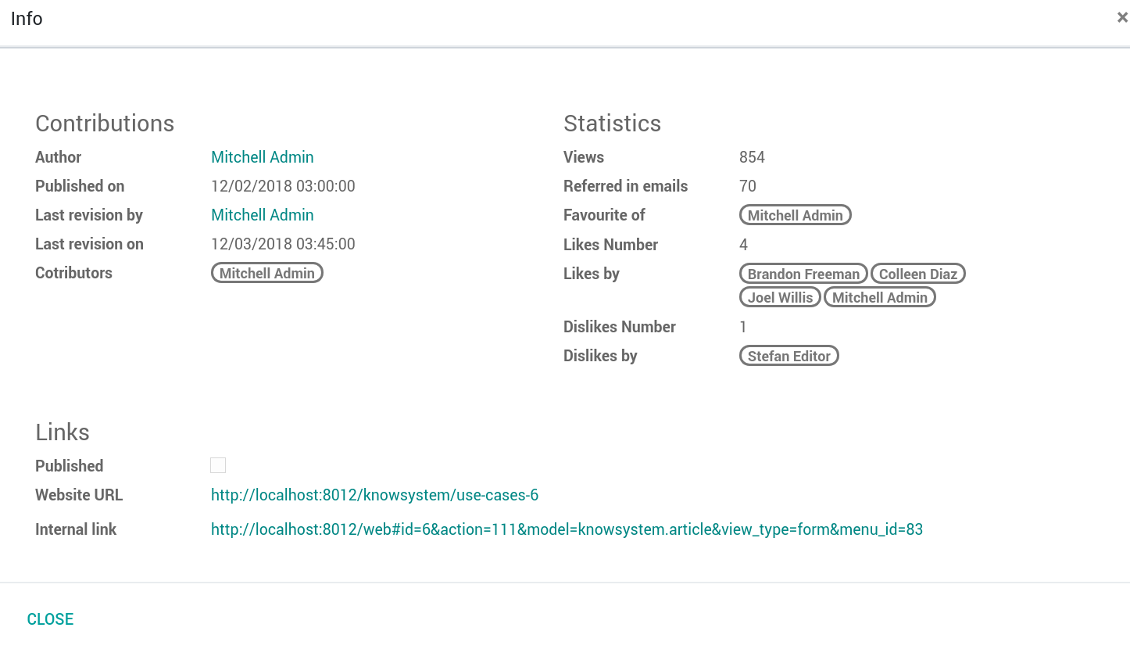
Article info and statistics
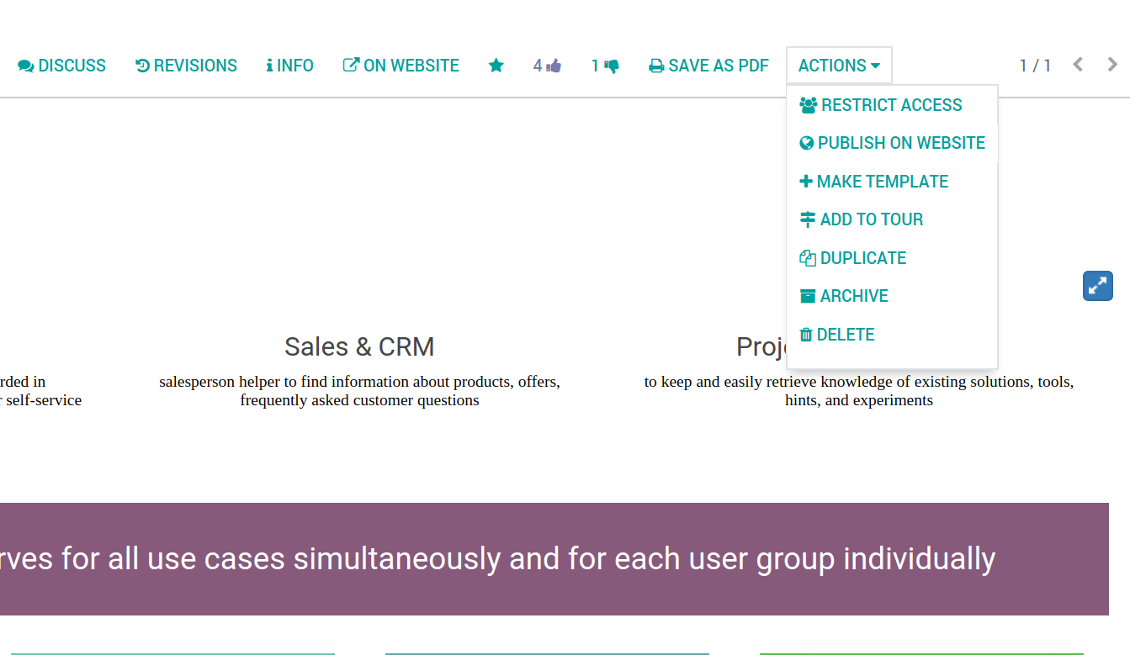
Article misc actions
Mass actions for selected articles
Small screen KnowSystem interface
Fast, comfortable, and professional knowledge recording
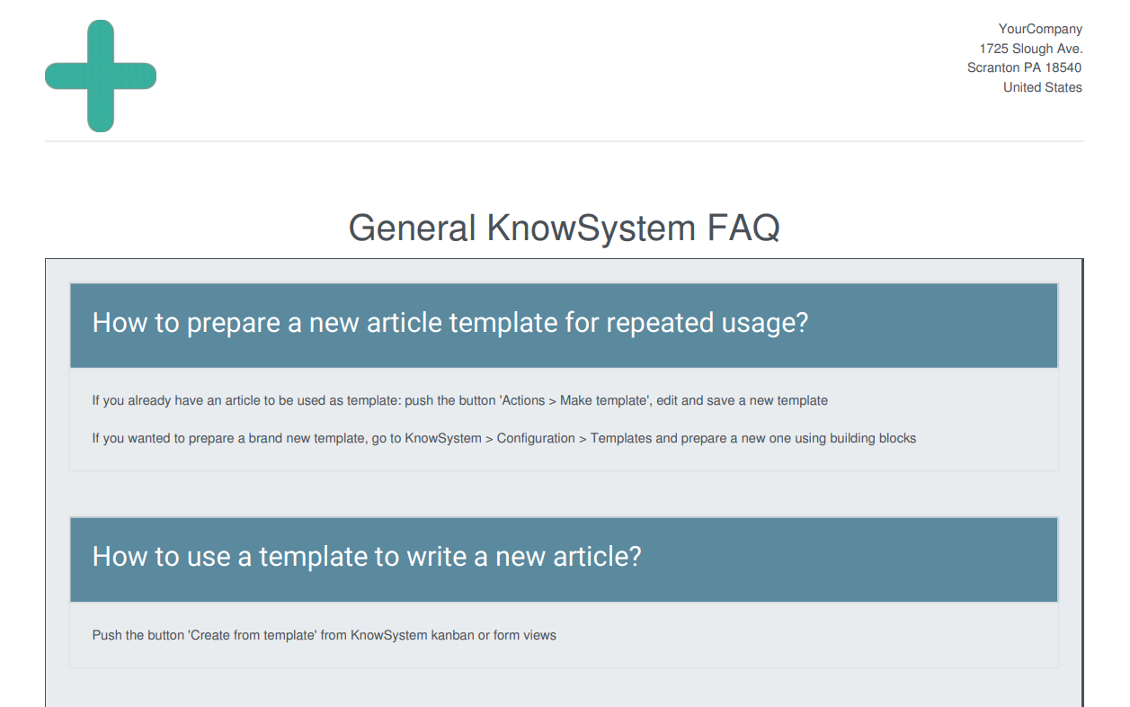
By using templates with pre-defined styles you may also speed knowledge generation up and standardize articles' appearance.
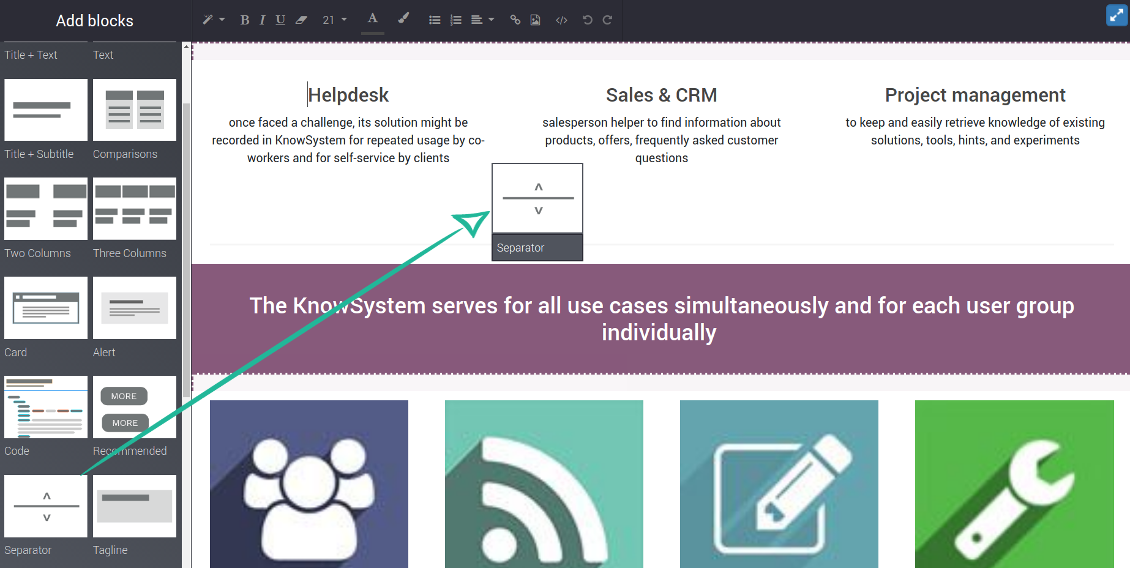
How to use the website builder for editing articles
KnowSystem provides you with a backend articles' builder, which is comfortable and safe to use. Odoo website builder is richer in features to prepare complex HTML structures. To edit articles through the website:
- Install the optional add-on 'KnowSystem Website and Portal' (the option 'Publish to portal and website')
- Turn on the setting 'Edit on website'
- Push the button 'Edit on website' on this article form
Be cautious: if you are going to print this article or add its contents to emails, website building blocks are not suitable. Their advanced styles contradict printing and composer layouts and would not be correctly shown. In such a case use the safer backend builder.
How to use article templates
To prepare a new article template for repeated usage:
- If you already have an article to be used as template: push the button 'Actions > Make template', edit and save a new template.
- If you wanted to prepare a brand new template, go to KnowSystem > Configuration > Templates and prepare a new one using building blocks.
To use a template to write a new article:
- Push the button 'Create from template' from KnowSystem kanban or form views
- Select a required article template
- Push 'Create' and introduce changes to a new article.
Snimke zaslona
Building blocks for knowledge base articles
Get benefit from your knowledge
How document types and articles are linked for a quick access
Experience is not general, usually it relates to specific issues. Knowledge used for customer communication differs from suppliers' negotiations. Frequently asked questions for draft and confirmed sale orders vary. KnowSystem let you structure your articles to apply them in a correct place and at right time. To that end:
- Turn on the setting 'Articles by Documents' (the option shows the top menu entry above any Odoo document) or 'Articles in Email Composers' (the option adds a quick link in a message composer editor for citing)
- Create a new tag (e.g. 'odoo / helpdesk'). In the table 'Applied to' use a required model (e.g. 'helpdesk ticket') or use it for all documents (the check box 'Apply to all documents').
- As advanced option you may apply additional filters: for example, to show articles only for 'new' tickets, not for 'in progress' ones. Use dynamic filters' constructor for that goal
- Assign this tag for required articles. For a few articles use the mass action 'Mass update'
- Now when you access a quick article search from a document or from an email composer, Odoo will calculate KnowSystem tags for this document. That's why by default users would see only articles suitable for a current document. Simultaneously, they might always change tags to use other knowledge base data.
How to overview articles which might be useful for this document
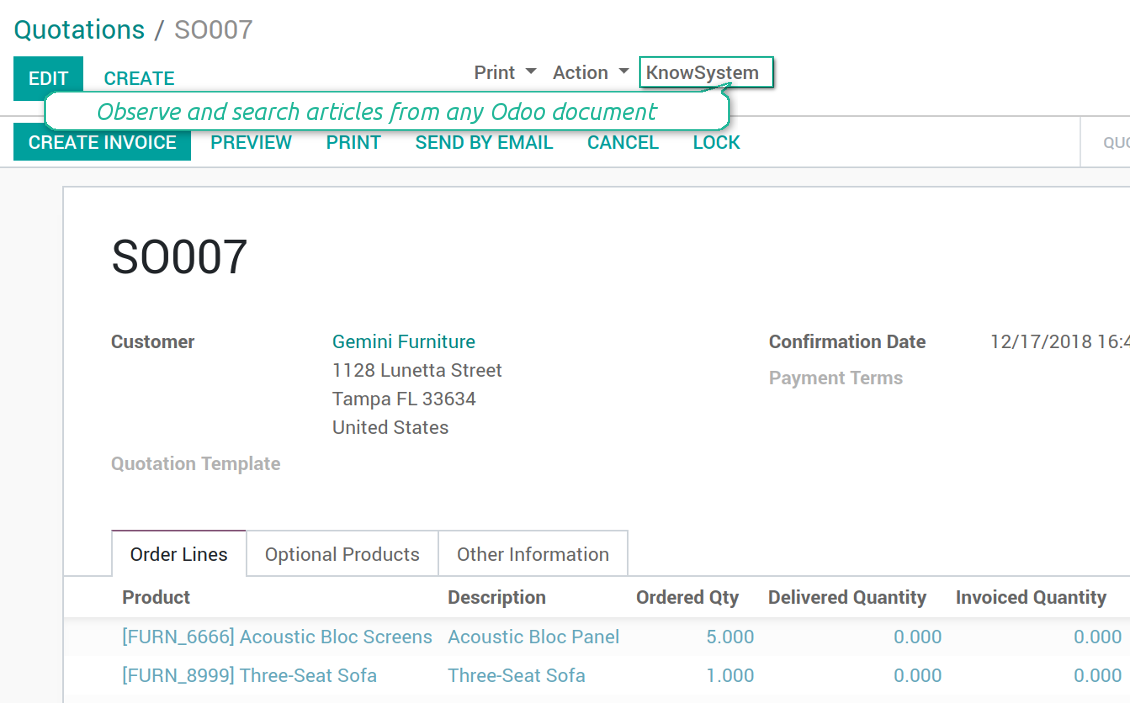
As soon as you turned on the option 'Articles by Documents', on the top of each Odoo object form view there would be a quick link 'KnowSystem'.
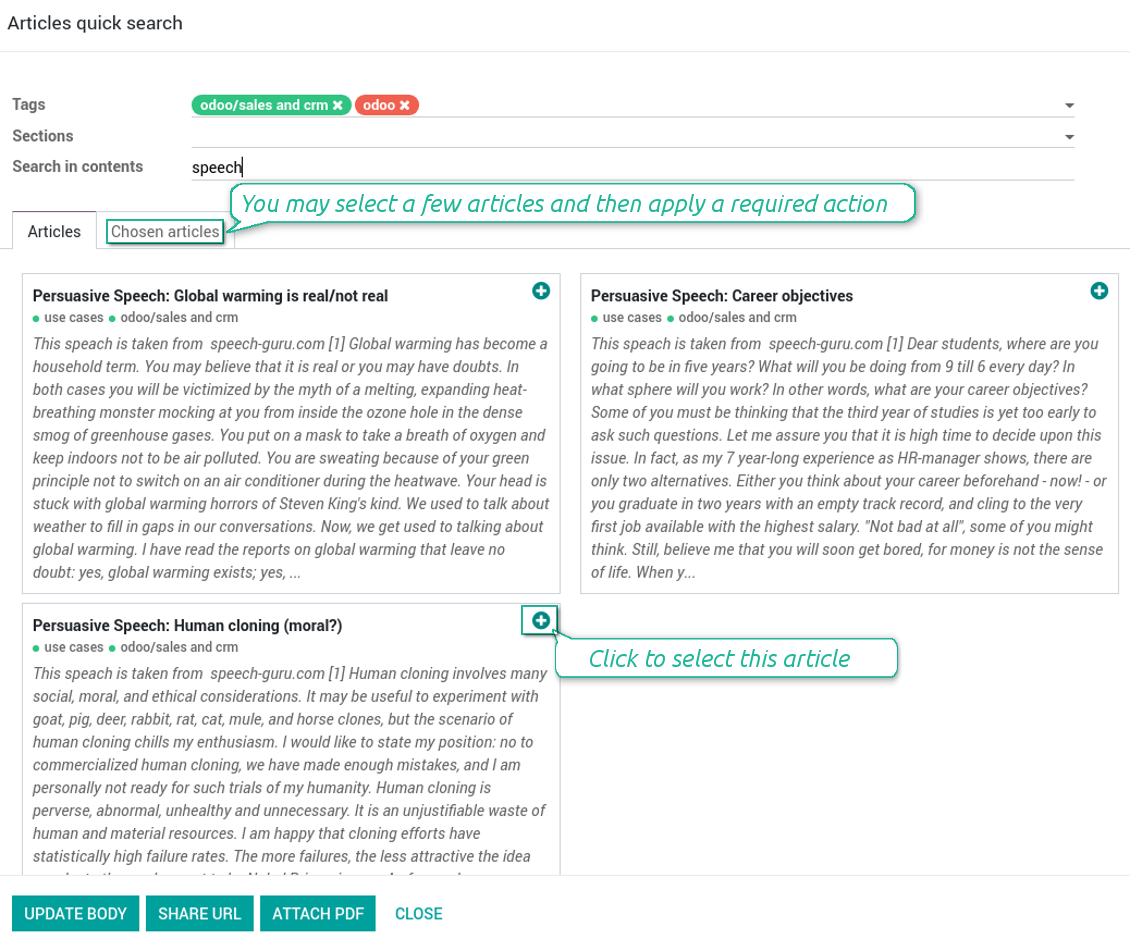
Click on that entry, and Odoo would open the wizard with articles. By default KnowSystem tags suitable for this document would be selected (if any). You may change those tags, or additionally filter by sections or content search. As a result list of topical articles is shown for you.
How to use company knowledge for communication
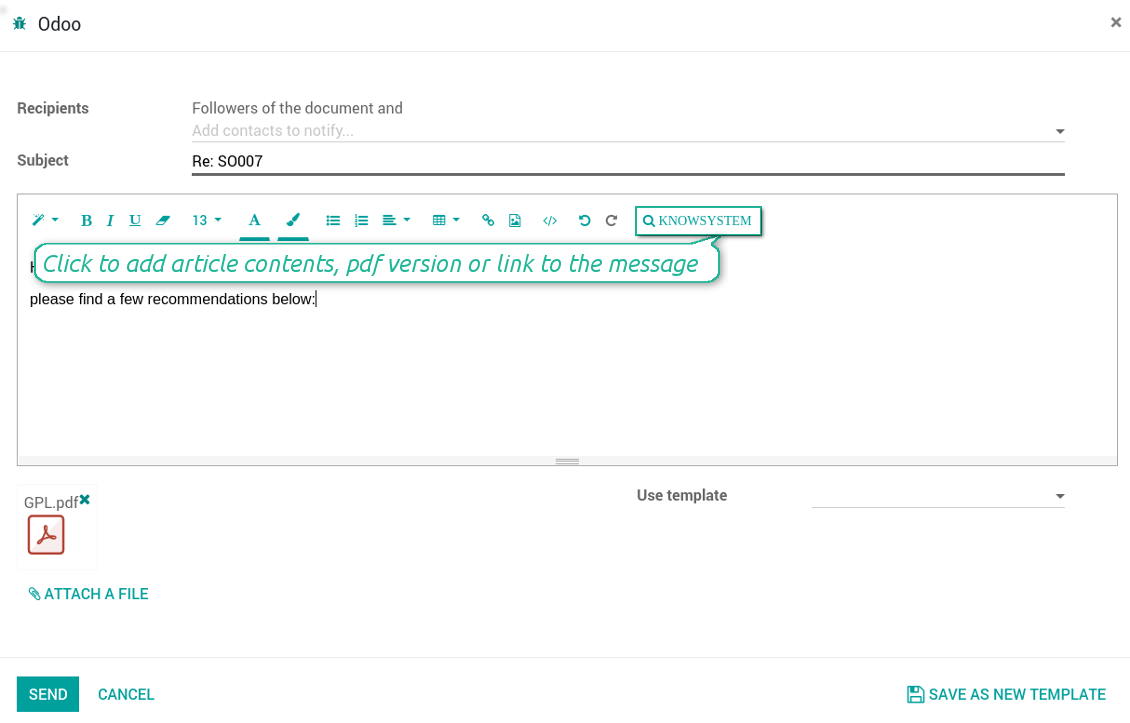
Turn on the option 'Articles in Email Composers' to let users reference or cite Knowledge records in Odoo messages. As a result the special quick entry 'KnowSystem' would be added to each Odoo email composer.
Clicking on that entry would open a wizard with a set of suitable to this document articles. You may change search by tags, add extra filtering by sections or content.
Afterwards, select required articles among found ones; choose an action. You may:
- Update message body with article contents (would be added to the end of a current message)
- Attach a PDF version of an article(s)
- Share a public link
Snimke zaslona
Quick access for knowledge system from any Odoo document
Knowledge base link from email composer
Articles from any document
Article(s) PDF printing
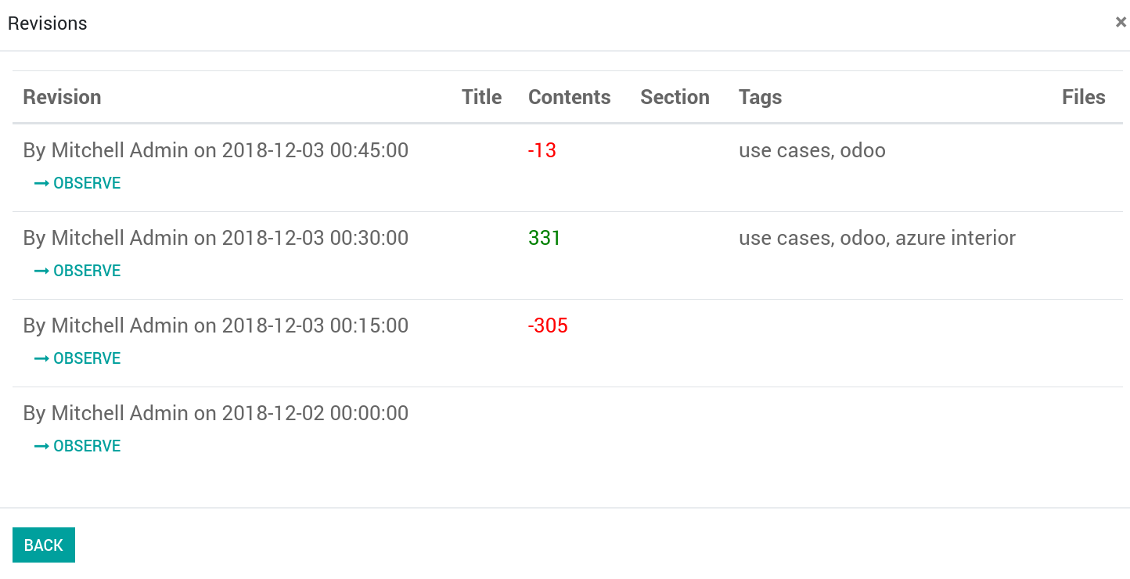
WIKI-like revision system
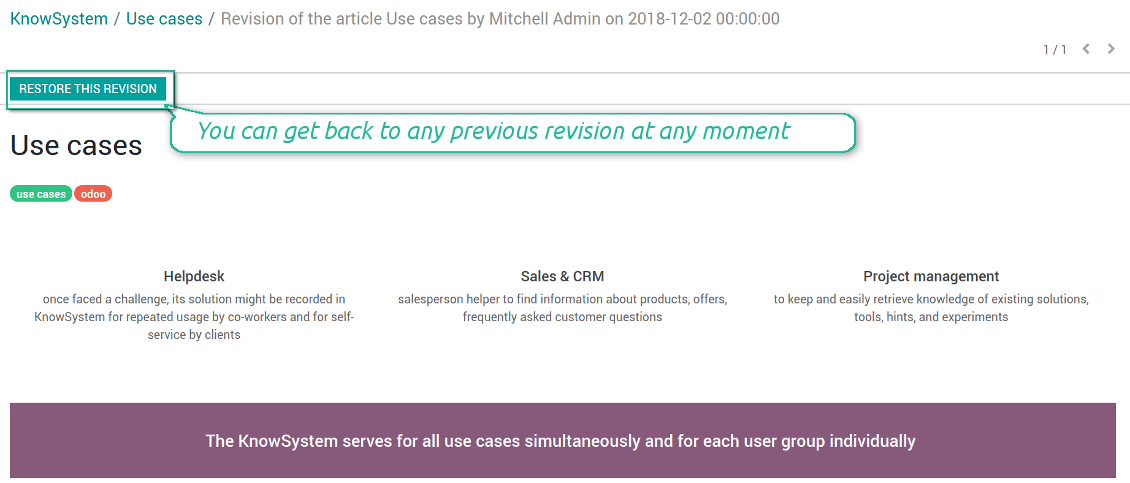
How to recover a previous article version
- Go to an article form view and push the button 'revisions'
- Find a required one and push the button 'Observe' to check whether this version is a correct one
- Push the button 'Restore this revision'. The article would be recovered to that version.
- The recovery operation itself is recorded. So, if it is a mistake you can revert changes by recovering the last-to-last revison.
Snimke zaslona
Wiki-style revisions history
To restore is easier than to break
Individual partner knowledge base portal
How to share knowledge base with specific partners
An article is available for a portal user in two cases: A. it is website published; B. his/her company is indicated as allowed partner in one of article tags.
In the first case such an article is available for all portal users and even for public website visitors who have not logged in.
In the latter case you grant a restricted access for an article only for chosen companies. To that end:
- Turn on the setting 'Portal KnowSystem'
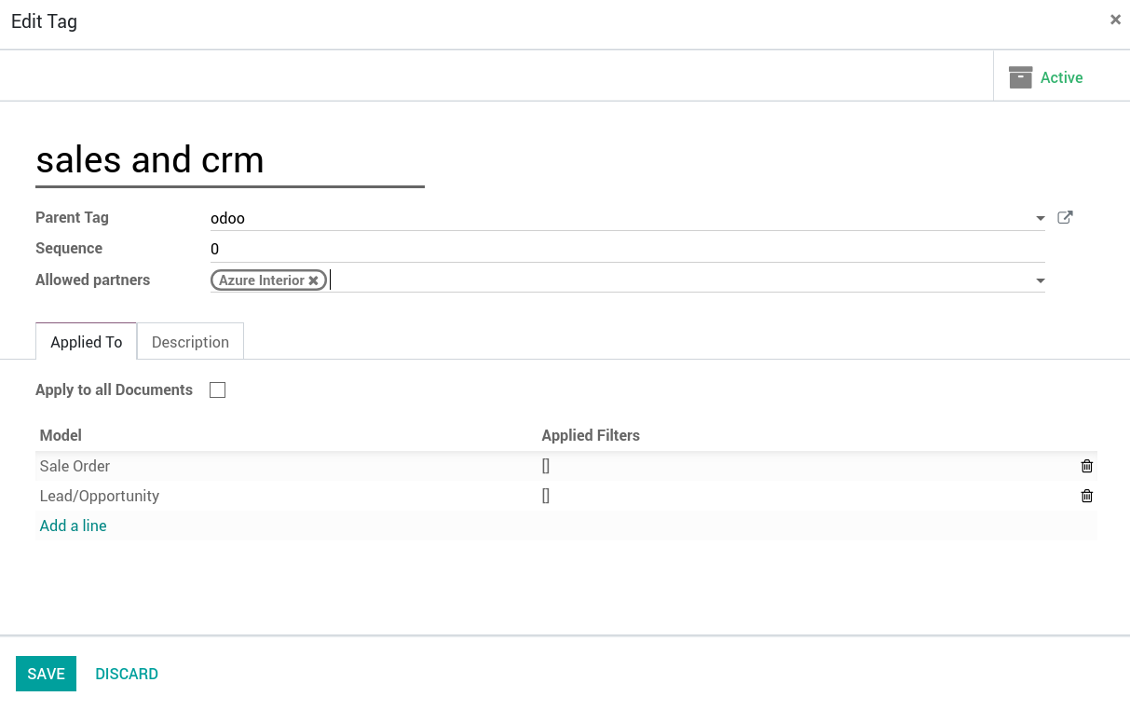
- Create a tag for this partner, for example 'clients / Azure Interior'. On the tag form indicate this company in the field 'Allowed partners'
- Assign the tag for all articles you want to share with this partner. For a few articles use the mass action 'Mass update'
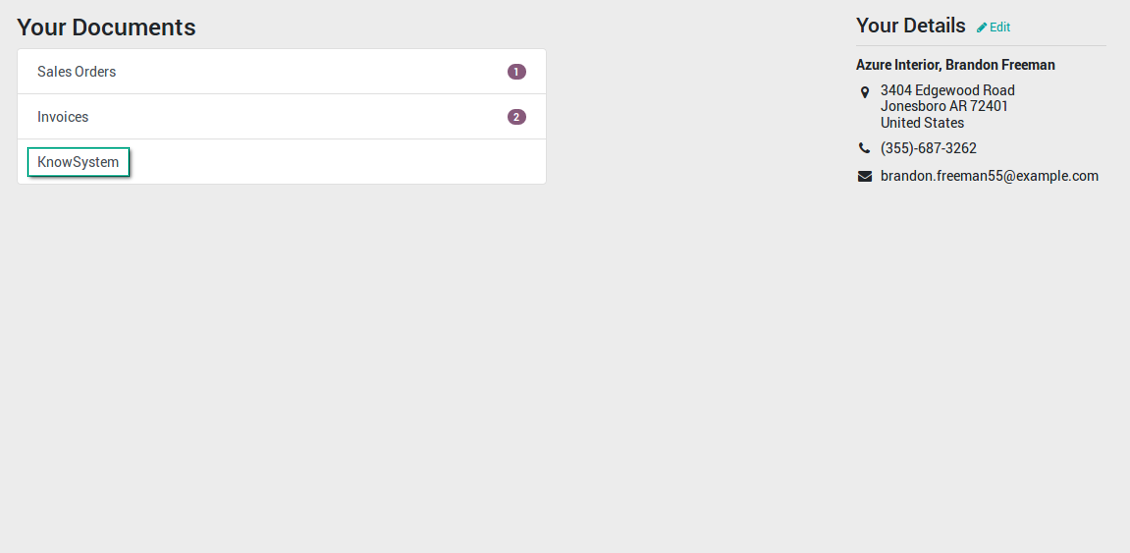
- Now portal users related to this partner may access shared articles right from their partner portal.
Snimke zaslona
Knowledge base for portal and public use
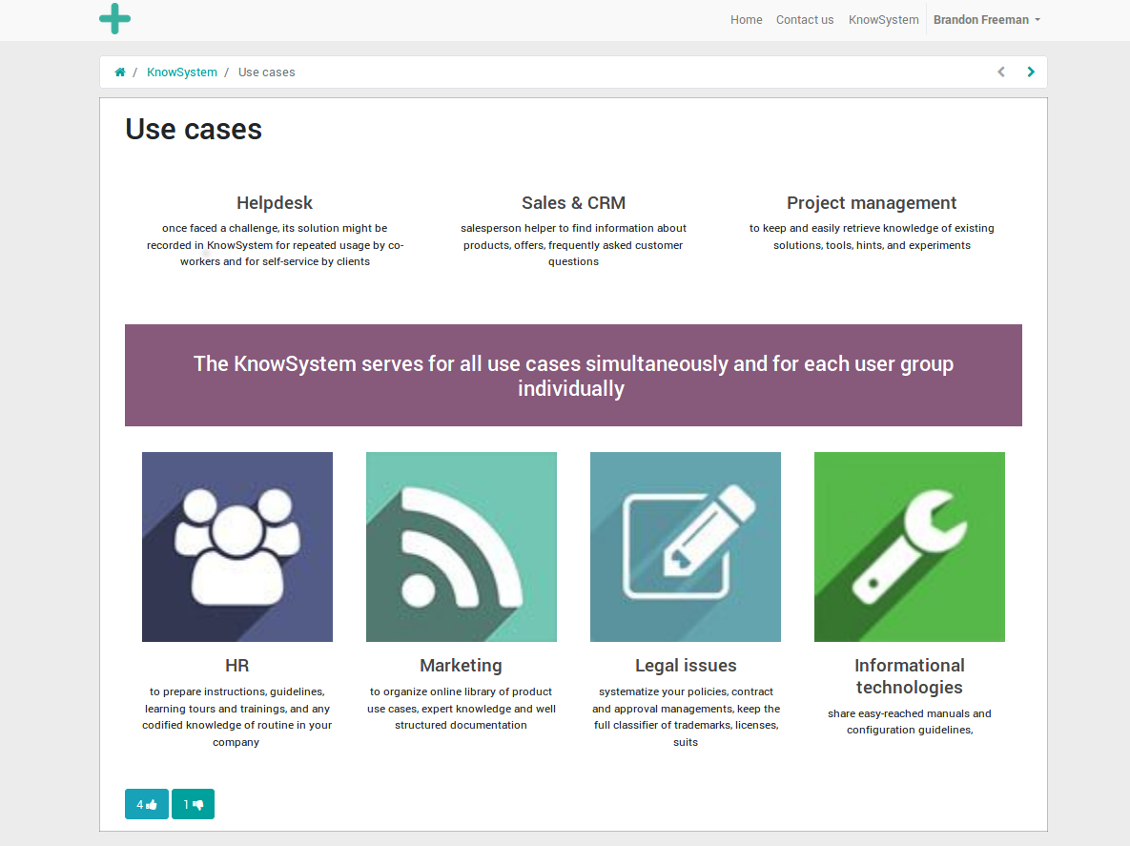
KnowSystem articles on website
Tag: document types and portal partners
KnowSystem from portal
Best knowledge base system for Odoo!
Excellent app and exceptional after-sales support.
Really well thought-out product and one of the best features is the contextual help by means of the tags. Really a game changer for us.
Keep up the great work FaOtools!
Outstanding app! Tremendous value for money, an absolute must have!
One of the features sorely lacking from Odoo has been a robust Wiki/documentation system. Using third party platforms is a massive headache: yet another system to maintain, users get distracted switching back-and-forth, and errors get made. Then you have to worry about training, additional logins, etc.
KnowSystem feels like a native/core app, is very well-polished, and extremely fast. It's accessible from any screen, and the search results are instant (none of the latency inherent with most apps).The interface is elegant yet powerful, with robust access control, rich editing features, and version control. It's simple to revert to previous entries, view audit trails, etc. It's very intuitive for anyone familiar with Odoo; onboarding takes just a few minutes. The user guides are excellent.
This is invaluable for any organisation with a lot of documented information, SOPs, ISO compliance, or similar. If you're using eLearning, it's great for creating a help system / reminders. For example, noting key takeaways or specific instructions. The user can be in MRP, Sales, or any other function, and instantly lookup a guide. Since it overlays whichever screen you're in, it doesn't interrupt the workflow.
This dramatically increases efficiency, minimises questions, and helps keep everyone on the same page.
Oh, and customer service is excellent, faOtools stands behind their product. Thank you!
KnowSystem is excellent - OdooTools offer great support, are very helpful and responsive
Our company needed the ability to add a Knowledge Base to our Odoo portal website for our customers to access article content on a membership-only basis. KnowSystem provided this and much more, along with ability to add search by section, set permissions to allow only certain partners access to articles by tag etc. OdooTools have been very helpful and implemented several features we suggested including automatic redirect upon login, customisable filters and a social sharing capability on articles. Overall a great app by a great company, something that massively adds to Odoo's capabilities and is something that everyone could benefit from using.
Very functional application and responsive support
Our company produces medical laser equipment and we use KnowSystem to streamline the knowledge base of our company. Convenient search system and classification of content, as well as access rules for groups and even for individual users.
Great app and professional team
The app is great the the team is very professional in both response timing and problem solving.
Highly recommended.
Marco from ALO.zone.
Excellent system
Excellent system.
A great tool from some very nice developers!
KnowSystem is a great tool and a game changer for us. Finally a place to put all our company know-how. I highly recommend it. And also important to us: We got great support from FaOtools too. A rare thing in this busy world. thx!
Excellent app and support.
Great app and a very helpfull support. Openess to improve their products is outstanding.
Public knowledge base
How to make an article available for all website visitors
- Turn on the setting 'Public KnowSystem'
- Publish required articles through the mass action 'Publish' or by pushing the button 'Actions > Publish on website' on an article form
- Now any website visitor can read those articles
Team work for knowledge creation
Snimke zaslona
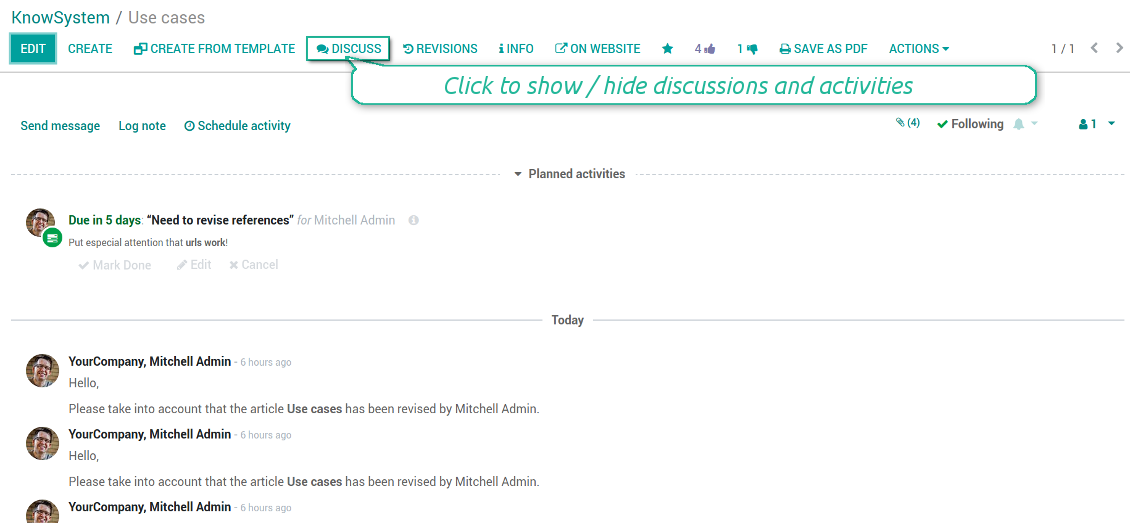
Knowledge base interactions, discussion, and activities
Custom fields to structure knowledge
How custom knowledge attributes work
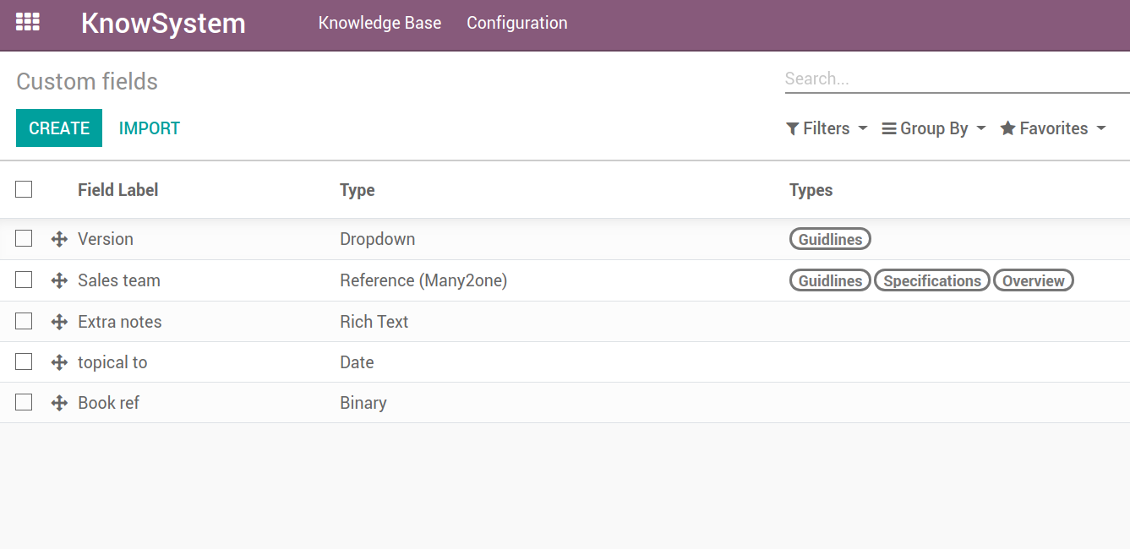
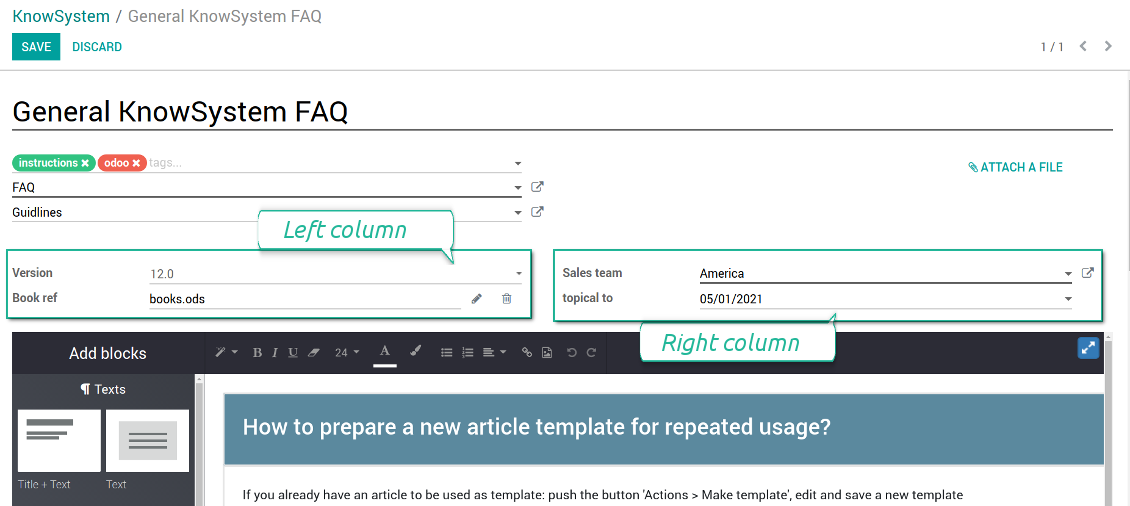
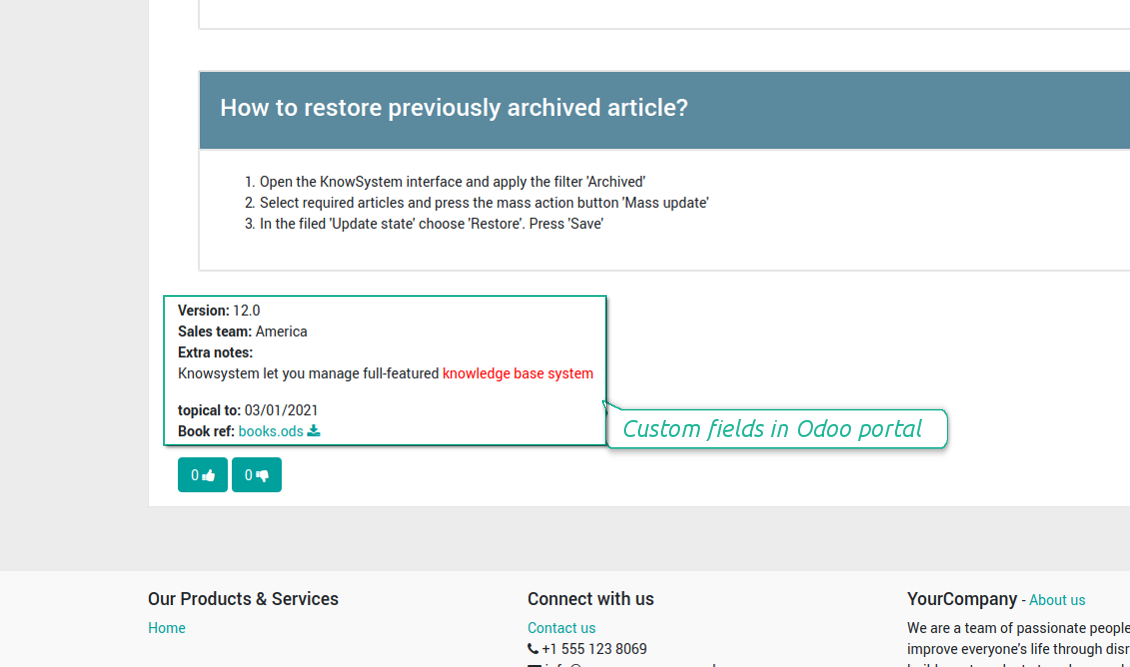
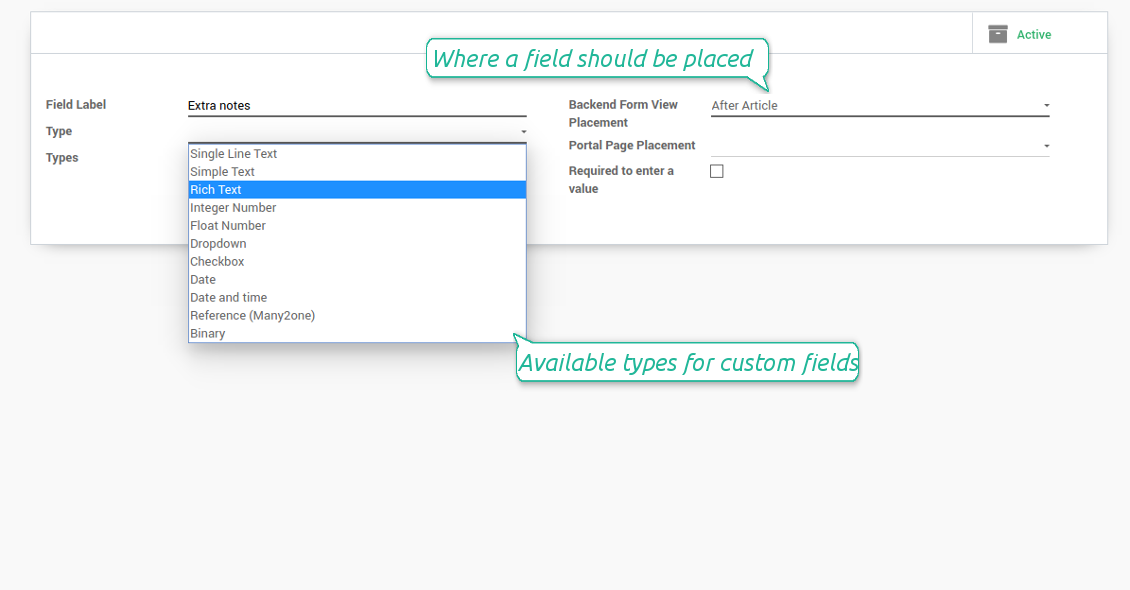
In order to show a new property for KnowSystem articles, just create a custom field. Nothing else is required! You are welcome to prepare fields of various types: single line text (char), simple text without formatting (text), rich text (HTML-formatted text), integer or float numbers, drop-down choice with your own options (selection), checkbox (boolean), date or date and time, binary (a file to upload), reference to another Odoo document (e.g. for a sale order, contact; many2one).
The tool also introduces complementary articles' typology. Thus set of attributes for 'user guidelines' and 'technical specifications' might be different.
Then, choose an interface location for a new field from a closed list to structure properties on an article page. Decide whether a field should be required to enter, or should be visible only for definite knowledge types.
Snimke zaslona
KnowSystem articles' custom fields
Custom fields on article form
Custom fields in portal and website
Custom fields for article: add any data required
Knowledge is secured and might be safely shared
How to manage user accesses to articles
Security for internal and portal users differs.
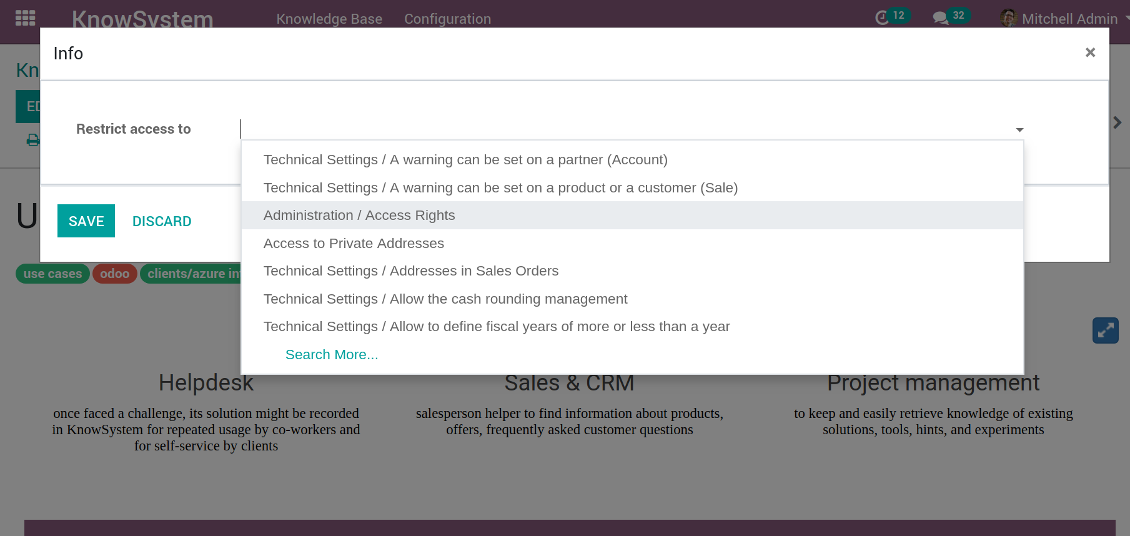
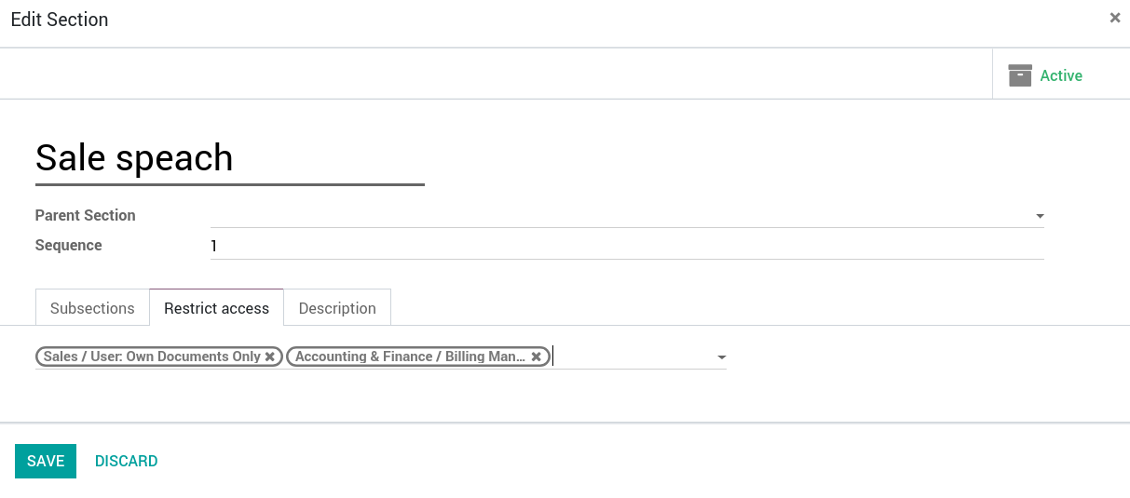
For the company employees: KnowSystem considers user groups which are defined per articles, sections and tours. Look at the tab 'Restrict to' on forms of those objects. If that field is not defined, a document is considered 'global': each internal user may read it.
For portal / public users: KnowSystem takes into account tags and whether an article is website published. A knowledge tag has a field 'Allowed partners', which may grant an access to portal users for articles with this tag. Website published pages are available for everybody.
Rights to administrate KnowSystem belongs to 2 user roles: KnowSystem Editor and KnowSystem Administrator. If you want a user to create and edit articles, a user should belong to one of those groups.
|
|
Odoo user |
KnowSystem Editor |
KnowSystem Admin |
Portal user |
Public user |
| Articles | read related to his/her user groups and sections | read, create, edit, archive related to his/her user groups and sections | read, create, edit, delete any | read published articles and articles related to partner-related tags | read published articles |
| Sections | read related to his/her user groups | read, create, edit, archive related to his/her user groups and sections | read, create, edit, delete any | read all sections of available articles | read all sections of published articles |
| Tags | read any | read, create, edit, archive any | read, create, edit, delete any | no access | no access |
| Tours | read related to his/her user groups | read, create, edit, delete related to his/her user groups | read, create, edit, delete any | no access | no access |
| Misc | may like / dislike, add to favourites, print, take part in discussions | may configure options | may like / dislike an article |
|
Take also into account two peculiarities:
- Odoo user always may access an article of which he is an author disregarding further restrictions;
- Rights for section is defined not only according to this section but also according to all its parents. For example, if user can't access 'sales', he/she would not be able to access 'sales / crm' disregarding whether 'crm' is available for his/her user group.
Snimke zaslona
Manage access to this article
Section update and user rights
Create learning tours
How to configure a learning tour
- Turn on the option 'Tours'
- Go to KnowSystem interface and select articles to be included into a tour
- Press the mass action button 'Add to tour' and select or create a tour. Press save
- Re-order articles in a consistent order
- Define groups of users who should go through a tour on the tab 'Restrict access'
- Now users can see and launch tours right from the KnowSystem interface (the right navigation panel)
Snimke zaslona
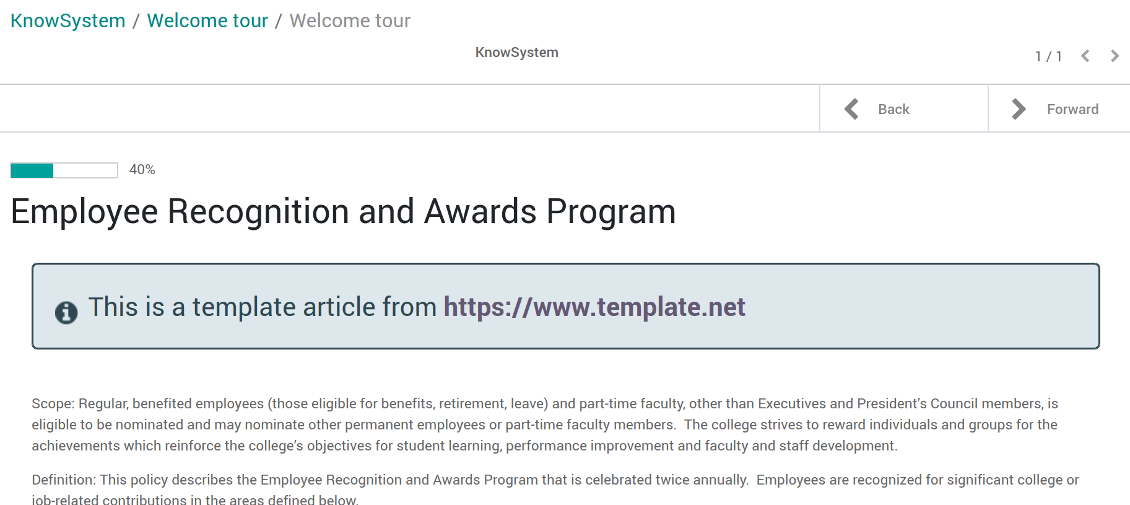
Article in a learning tour
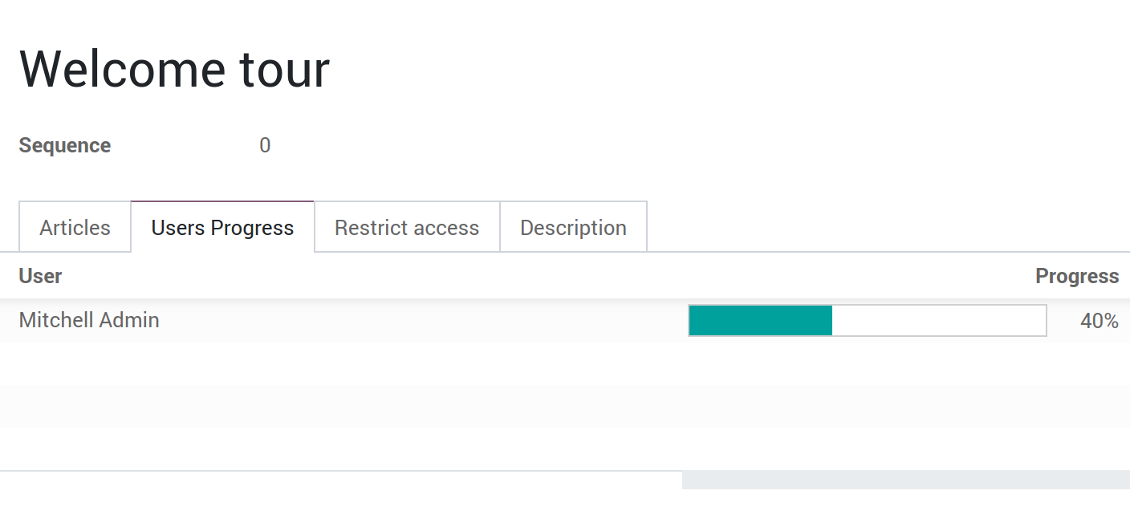
Control tour progress by users
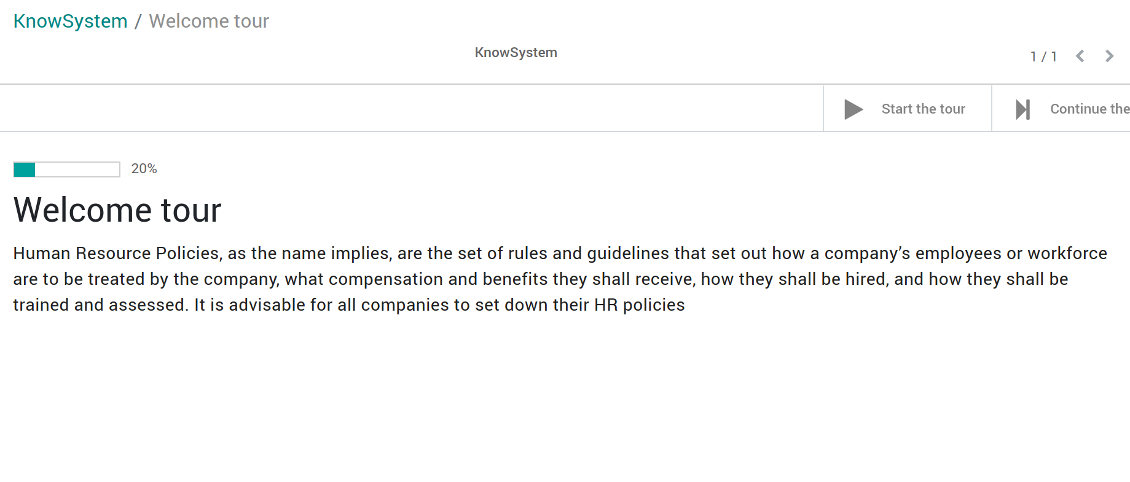
KnowSystem tour welcome page
Multilingual knowledge base
How to make an article available for a few languages
- Install the optional add-on 'KnowSystem: Multi Languages'
- Change your user language for a needed one
- Update this article
- Now it is available in both source and a current language
Make sure you really require a few languages. In that case you almost double the work of KnowSystem editors. All articles should be kept updated in all Odoo languages.
Knowledge base for any industry and business
Typical use cases
- Helpdesk: once faced a challenge, its solution might be recorded in KnowSystem for repeated usage by co-workers and for self-service by clients
- Sales & CRM: salesperson helper to find information about products, offers, frequently asked customer questions
- Project management: to keep and easily retrieve knowledge of existing solutions, tools, hints, and experiments
- HR: to prepare instructions, guidelines, learning tours and trainings, and any codified knowledge of routine in your company
- Marketing: to organize online library of product use cases, expert knowledge and well structured documentation
- Legal issues: systematize your policies, contract and approval managements, keep the full classifier of trademarks, licenses
- Informational technologies: share easy-reached manuals and configuration guidelines
Često postavljana pitanja o KnowSystem: Knowledge Base System Odoo v.11
Ne vidim nikakvu razliku između tekstova revizija.
Revizije bilježe ne samo tekstualne promjene, nego i ažuriranja stilova (tehnički, kada promijenite HTML izvorni kod članka). Neke možda nisu jasne na prvi pogled (npr. promijenjena veličina fonta jedne riječi). Druge mogu biti drastične. Ipak, bilo koji niz radnji Uredi > Promijeni bilo što u članku > Spremi stvara novu reviziju.
Mogu li u članak dodati YouTube/ Vimeo / Dailymotion / Youku video?
Da, video s tih usluga možete ugraditi u članke i iz Odoo pozadine i iz graditelja web-mjesta. Dodajte bilo koji blok sa slikom > pritisnite sliku > odaberite ‘Video’ > unesite URL medija.
Imajte na umu: takvi se videozapisi uključuju kao iframe, a neki preglednici mogu blokirati reprodukciju dok korisnik to izričito ne dopusti.
Kako učiniti odjeljak vidljivim na web-mjestu?
U KnowSystemu je odjeljak vidljiv na web-stranici ako je objavljen i sadrži barem jedan članak. Čak i s pododjeljcima neće biti vidljiv ako u samom odjeljku nema nijednog članka. Tako se izbjegavaju prazni odjeljci i KnowSystem portal ostaje pregledan. Da se odjeljak prikaže na stranici, dodajte uvodni ili opći članak koji ukratko opisuje ili nabraja članke u pododjeljcima.
Kako mogu podijeliti članak s vanjskim partnerom?
Desni klik na bilo koju oznaku na lijevom navigacijskom panelu - Stvori
Pronađite polje „Allowed partners“. Npr. 'clients - azure interior' za pristup partneru 'Azure Interior'. Možete i obrnuto: dodijeliti KnowSystem oznake izravno na formi partnera
Sada idite na potrebni članak (ili isto napravite radnjom „Mass update“ za više zapisa):
Ako je objavljen: poništite objavu ako ne želite da bude dostupan svim portal korisnicima i javnim posjetiteljima
Dodijelite novo stvorenu oznaku (u primjeru je to 'clients - azure interior')
Sada:
Svi portal korisnici povezani s komercijalnim partnerom 'Azure Interior' imaju pristup člancima s oznakom 'Azure Interior'
Nijedan drugi portal korisnik (ako nije dodijeljena druga oznaka) nema pristup tim člancima
Interni korisnici nisu pogođeni i članke vide prema logici „access to“ članaka i odjeljaka.
Možemo li dodati gumb za odabir jezika na tijelo članka?
Gumb 'translate' dodatak 'KnowSystem: Multi Languages' namjerno ne dodaje u tijelo članka. Razlog: HTML je vrlo teško prevesti u jednostavnom skočnom prozoru koji gumb pretpostavlja. Teksta za prijevod bilo bi malo, a HTML dijelova puno (prevoditelj ih može i pokvariti).
Zato se pretpostavlja da za članak na određenom jeziku trebate prijaviti se kao korisnik tog jezika. Može biti drugi korisnik ili privremeno promijenite postavke trenutačnog korisnika. Nakon toga sve izmjene tijela članka bit će na tom jeziku.
Također možete koristiti gumb 'Copy from another translation' ispod tijela članka i u svakom trenutku preuzeti sadržaj s drugog jezika (korisno ako je članak znatno ažuriran na jednom jeziku).
Kako mogu ugraditi drugu web-stranicu u članak
U tu svrhu možete koristiti iframe. Prebacite članak u uređivač sirovog HTML koda i umetnite, na primjer, <iframe src="https://faotools.com/" style="width:100%;min-height:600px;"> </iframe>.
Instalirao sam KnowSystem, ali ne vidim gumb „create“ i ostale gumbe
Najvjerojatnije niste dodijelili KnowSystem prava svom korisniku. Odaberite pravo „KnowSystem Editor“ ili „KnowSystem Admin“ i osvježite stranicu. Kontrole bi sada trebale biti prikazane.
Mogu li prikazati određenu turu učenja samo odabranim korisnicima?
Da, primjenom korisničke grupe (npr. 'Sales Manager') koja treba proći ovaj vodič. Ako korisnik pripada toj grupi, vidjet će vodič. Ako ne, vodič se ne prikazuje. Radi isto kao sigurnosna prava za KnowSystem članke i odjeljke.
Imajte na umu da ako vodič nema dodijeljene grupe, 'globalan' je i vidljiv svima.
Kako promijeniti podnožje i zaglavlje prilikom ispisa članaka?
Zaglavlje i podnožje PDF-ova članaka uzimaju se prema izgledima tvrtke. Pogledajte Settings > General Settings > odjeljak Business Documents. Tu definirate predložak tvrtke za sve vrste dokumenata, uključujući račune, prodajne naloge itd., i za članke. Takav Odoo pristup smatra podnožje i zaglavlje općim stilom tvrtke, ne svojstvom pojedinih ispisa.
Kako mogu povezati članke međusobno?
Svaki članak ima interne (backend) i web URLs (ako je instalirana opcija 'KnowSystem: Website and Portal'). Kliknite gumb 'Info' na obrascu članka da saznate web adrese ovog zapisa. Bilo koju možete umetnuti u tijelo članka kao hipervezu.
Mogu li mijenjati HTML izvorni kod članka?
Da: uključite debug assets (na zaslonu pregleda postavki) i vratite se na trenutačni članak. U načinu uređivanja vidjet ćete posebnu ikonu '</>'. Kliknite je da biste pregledali i uredili HTML i stilove.
Koje su politike ažuriranja vaših alata?
Prema važećim pravilima Odoo Apps Store:
- Svaki modul kupljen za verziju 12.0 i stariju daje pristup svim verzijama do 12.0.
- Od verzije 13.0 svaku verziju modula treba kupiti zasebno.
- Bez obzira na verziju, kupnja daje pravo na sva ažuriranja i ispravke unutar glavne verzije.
Imajte na umu da tim faOtools ne kontrolira ta pravila. Za pitanja obratite se izravno predstavnicima Odoo Apps Store.
Kako mogu instalirati vašu aplikaciju na Odoo.sh?
Najizravniji je pristup koristiti ugrađeni tijek rada Odoo trgovine:
1. Otvorite stranicu modula i kliknite gumb Deploy on odoo.sh
2. Nakon toga bit ćete preusmjereni na GitHub stranicu. Prijavite se na račun, zatim kliknite 'Create a new repo' ili upotrijebite postojeći. Provjerite da je spremište privatno. Nije dopušteno objavljivati aplikacije pod licencijom OPL-1. Ako treba, stvorite novi repo za Odoo.sh projekt
3. Zatim idite na odoo.sh i kliknite gumb Deploy. U skočnom prozoru potvrdite odluku i kliknite 'Continue.' Time se pokreće instalacija.
Ovi koraci instalirat će aplikaciju na produkcijsku granu projekta. Ako želite postaviti aplikacije na druge grane ili ažurirati modul, poduzmite sljedeće:
1. Prenesite izvorni kod aplikacije iz Odoo trgovine
2. Napravite commit modula u potrebni GitHub repozitorij. Provjerite da nijedna mapa/datoteka aplikacije nije ignorirana (tj. nije u .gitignore repozitorija). Repozitorije automatski stvara odoo.sh i po zadanim postavkama mogu sadržavati važne stavke (npr. /lib). Prenesite sve direktorije, poddirektorije i datoteke modula bez iznimaka
3. Postavite ciljnu granu odoo.sh projekta ili, ako to pretpostavljaju postavke, pričekajte dok se automatski izgradi.
Kako trebam instalirati vašu aplikaciju na vlastiti poslužitelj?
2. Ponovno pokrenite Odoo poslužitelj;
3. Uključite način za razvoj (tehničke postavke);
4. Ažurirajte popis aplikacija (izbornik aplikacija);
5. Pronađite aplikaciju i pritisnite „Activate“/„Install“;
6. Slijedite smjernice na stranici aplikacije ako postoje.
Primijetio sam da vaša aplikacija ima dodatne dodatke. Mogu li ih kupiti naknadno?
Da, naravno. Istodobno Odoo automatski dodaje sve ovisnosti u košaricu, pa prethodno kupljene alate treba isključiti da ne platite dvaput.
Postavio sam vašu aplikaciju na Odoo.sh i u testovima vidim upozorenje/pogrešku
Crveno/narančasto upozorenje ne utječe na značajke aplikacije. Nažalost, naši moduli ponekad ne prođu standardne automatske testove jer oni pretpostavljaju ponašanje koje je u sukobu s ciljevima aplikacije. Npr. mijenjamo izračun cijene, a testovi standardnog Odoo modula uspoređuju konačnu cijenu sa standardnim algoritmom.
Prije svega provjerite značajke postavljene baze. Radi li sve ispravno?
Ako i dalje smatrate da upozorenje utječe na stvarne značajke, javite nam i pošaljite potpune zapisnike instalacije i potpuni popis postavljenih modula (uključujući jezgru i treće strane).
Mogu li kupiti aplikaciju izravno od vaše tvrtke?
Ne, alate distribuiramo samo preko službene trgovine aplikacija Odoo.
Želio bih dobiti popust
Nažalost, nemamo tehničkih sredstava za individualne cijene.
Mogu li instalirati aplikaciju u svoju bazu Odoo Online (SaaS)?
Ne, aplikacije trećih strana ne mogu se koristiti na Odoo Online. Nažalost Odoo SaaS to blokira.
Vaš alat ovisi o drugim aplikacijama. Trebam li ih kupiti?
Da, alatu su potrebni svi moduli navedeni u ovisnostima da bi ispravno radio. Cijena na stranici aplikacije već uključuje sve potrebne ovisnosti.
Koja je cijena modula u američkim dolarima? Zašto se promijenila?
Cijena naših modula je u eurima. Odoo trgovina pretvara cijene u druge valute prema internom tečaju. Stoga se cijena u američkim dolarima može promijeniti kad se tečaj ažurira.
Tekstovi aplikacije i web stranice na jezicima osim engleskog izrađeni su uz pomoć UI i usklađeni sa službenim Odoo prijevodima. Ako uočite pogrešku, pošaljite prijavu o ispravnosti prijevoda i ispravit ćemo.
Prijava grešaka
Ako naiđete na greške ili nedosljedno ponašanje, slobodno nas kontaktirajte. Jamčimo ispravke unutar 60 dana od kupnje i i dalje želimo unapređivati alate nakon tog razdoblja.
Za kontakt nije potreban broj telefona ni kreditna kartica. Potrebna je samo kratka prijava e-poštom koja ne traje više od 30 sekundi.
U zahtjev uključite što više pojedinosti: snimke zaslona, zapisnike Odoo poslužitelja, potpuni opis kako reproducirati problem i slično. Obično treba nekoliko radnih dana za pripremu radnog plana (ako je greška potvrđena) ili smjernica što učiniti (inače).
Javni zahtjevi za značajke i ideje modula (besplatan razvoj)
Snažno smo motivirani poboljšati svoje alate i zahvalni smo na svakoj povratnoj informaciji. Ako su vaši zahtjevi od javne koristi i mogu se učinkovito provesti, tim će ih uvrstiti na naš popis zadataka.
Takav popis zadataka obrađuje se redovito i ne podrazumijeva dodatne naknade. Iako ne možemo obećati rokove i konačni dizajn, to može biti dobar način da dobijete željene značajke bez ulaganja i rizika.
Za kontakt nije potreban broj telefona ni kreditna kartica. Potrebna je samo kratka prijava e-poštom koja ne traje više od 30 sekundi.

Alat za fleksibilno strukturiranje Odoo privitaka u mapama i sinkronizaciju direktorija s cloud klijentima: Google Drive, OneDrive/SharePoint, Nextcloud/ownCloud, Dropbox, Amazon S3, Box i NAS. DMS. Upravitelj datotekama. Sustav za upravljanje dokumentima
398€
Alat za automatsku dvosmjernu sinkronizaciju Odoo privitaka s datotekama OneDrive
487€
Alat za automatsku dvosmjernu sinkronizaciju Odoo privitaka s datotekama Google Drive
487€
Alat za sigurno čuvanje lozinki u Odoo za zajedničku upotrebu. Dijeljeni trezori

Alat za postavljanje KPI ciljeva i kontrolu njihova ispunjenja po razdobljima. KPI nadzorne ploče. Dizajner ploča. KPI grafikoni

Alat za vremenski upravljanje uslugama od rezervacije termina do prodaje i recenzija
398€
Alat za upravljanje Odoo iz omiljenih AI chatova putem MCP. Claude. Bilo koji AI koji podržava MCP.


Alat za spajanje različitih Odoo događaja u nekoliko podesivih super kalendara