KnowSystem: Knowledge Base System v.11
The tool to build deep and structured knowledge base for internal and external use. Knowledge System. KMS
- a core of knowledge management. It might be used stand-alone as a complete internal knowledge base system. Jego cena to 398€.
- an optional module, which let you publish articles to website, share them with portal users, and use website builder to update articles. The features assumed by this add-on are marked by the icon . Jego cena to 40€.
- an optional module, which let you add and show custom fields for articles (backend). The features assumed by this add-on are marked by the icon . Jego cena to 48€.
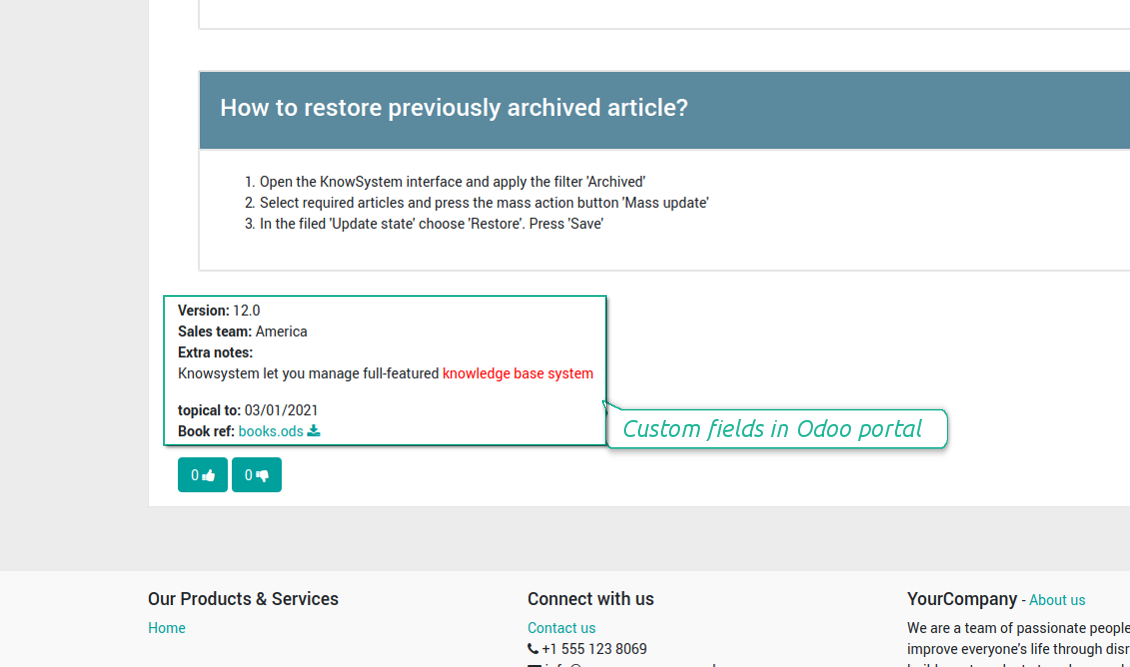
- an optional free module, which shows custom fields on website and portal pages (frontend). The features assumed by this add-on are also marked by the icon .
- an optional module, which let you translate articles, sections and tags for installed in Odoo languages. The features assumed by this add-on are marked by the icon . Jego cena to 10€.
Innovative single-view interface
From the same interface editors may create and update any knowledge-related documents, change articles in batch, set up security. Without a need for excess navigation.
Interface solutions
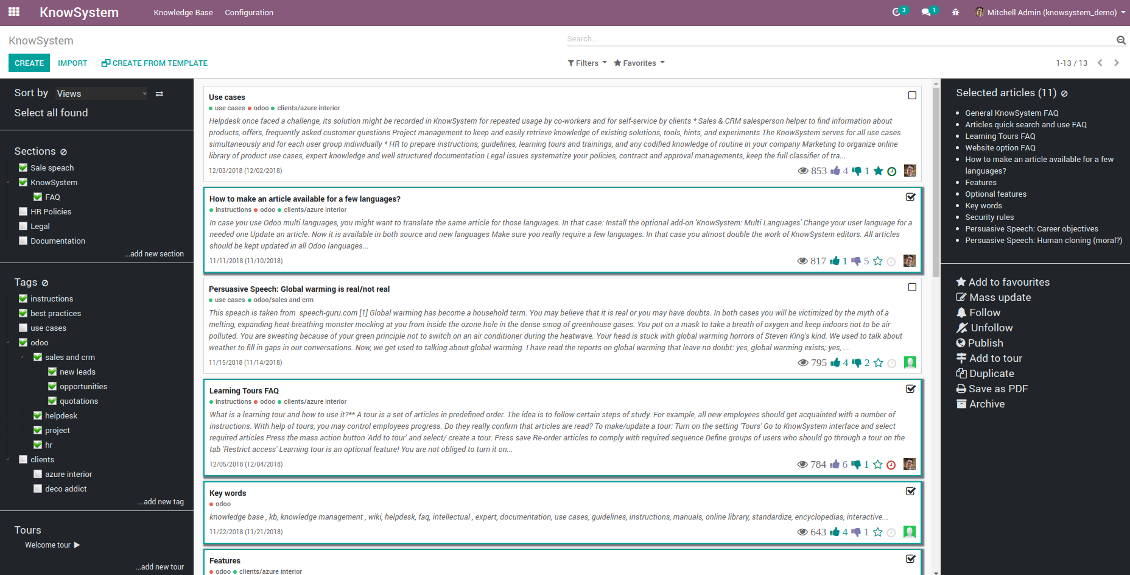
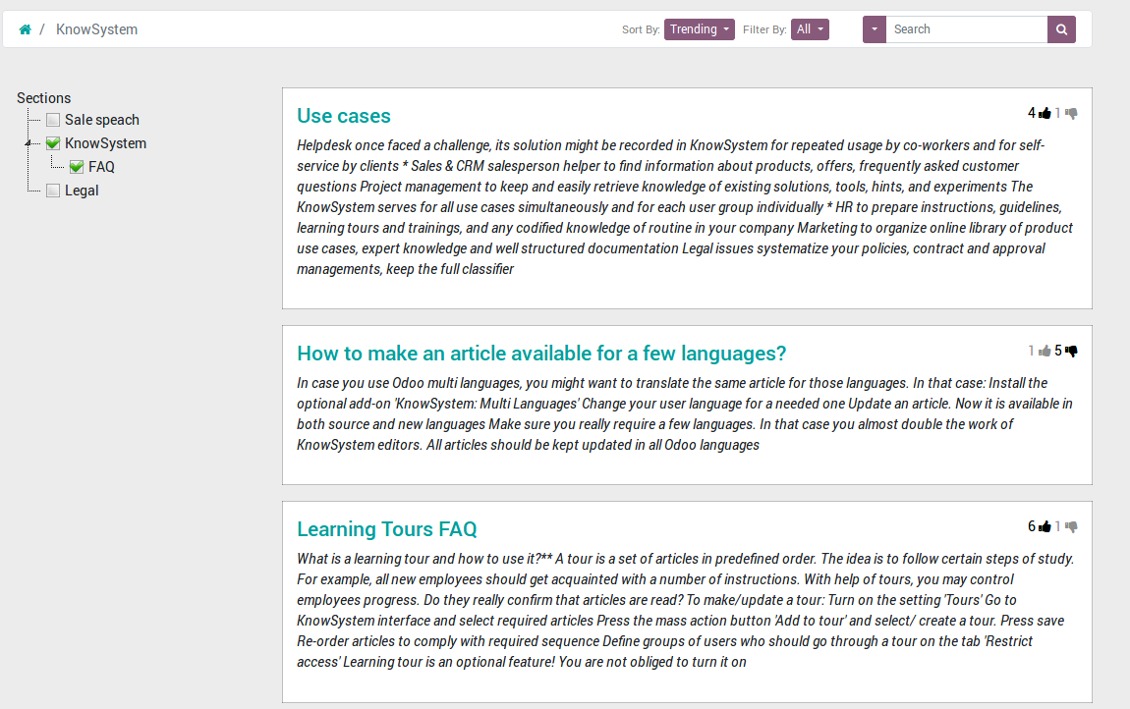
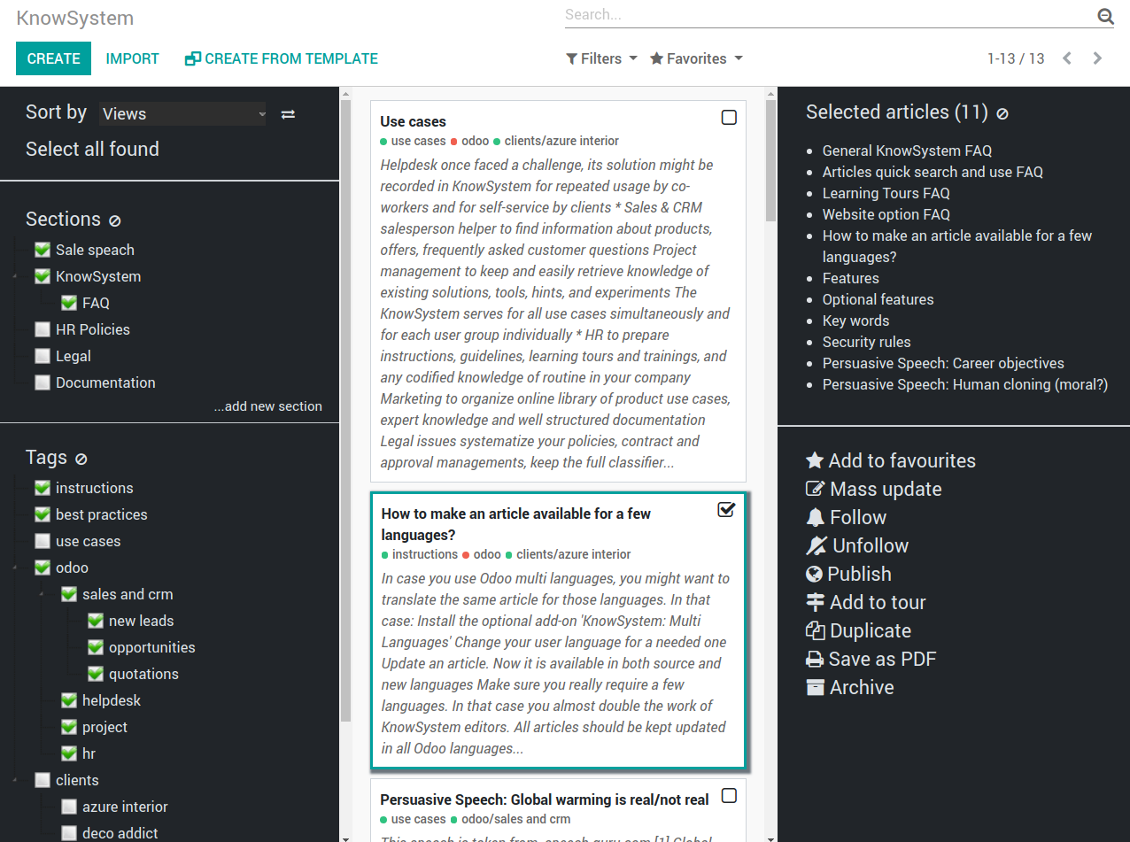
The KnowSystem interface consists of 3 key parts: the left navigation panel, the list of articles, and the right navigation panel (it is shown only if some articles are selected).
On the left navigation panel you may:
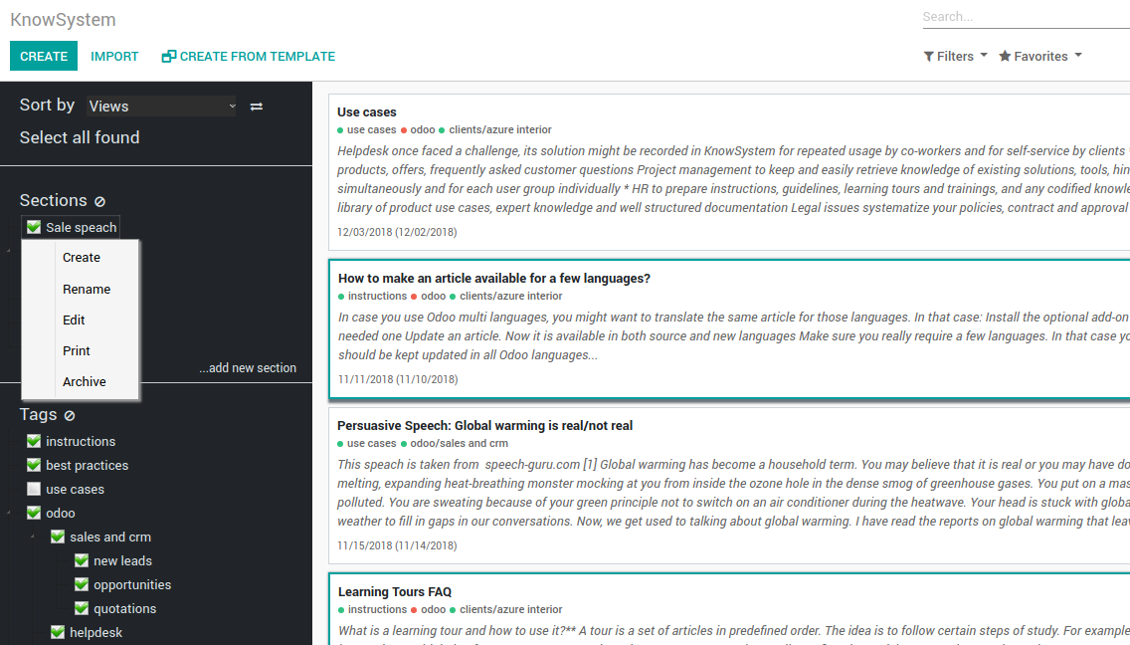
- Manage hierarchy of sections: prepare new (right mouse click - 'create'), update existing (right mouse click - edit), re-order any (drag and drop an item), archive sections. Select a few ones to filter articles. You may also print all articles related to this section as a single PDF file.
- In the same way manage hierarchy of tags
- Sort articles by number of views, a score of likes and dislikes, create or update dates, a section, an author
- Select all articles which are found according to chosen tags / sections and according to introduced searches / filters
- Launch a learning tour.
From the list of articles you see articles' name, indexed content (words without HTML style), dates of creation and last update, a number of views, likes, dislikes, author avatar. Here you may also add an article to favourite by pressing the 'star' icon.
Click on article body to open it in a full size (form view). Do not worry: chosen tags and sections as well as selected articles will be kept when you get back! Click on the top right check box to add an article for selection.
On the right navigation panel you observe selected articles and may proceed a mass action. Click on article name to remove it form selection.
On the top of the interface users also would find a standard Odoo omnibox. Type here to search by a title, content, an author, tags or a section.
Available mass actions
KnowSystem let users update an unlimited number of articles simultaneously:
- Assign new section
- Change or remove tags
- Print multiple articles as a single PDF
- Follow / unfollow discussions
- Publish / unpublish articles
- Export articles to an Excel table
- Archive or restore records
- Add articles to learning tours
- Mark knowledge items as favourite
- Duplicate articles.
Zdjęcia ekranu
KnowSystem articles overview, search and mass actions
Single entry for knowledge management actions
KnowSystem configuration
Article read mode
Article info and statistics
Article misc actions
Mass actions for selected articles
Small screen KnowSystem interface
Fast, comfortable, and professional knowledge recording
By using templates with pre-defined styles you may also speed knowledge generation up and standardize articles' appearance.
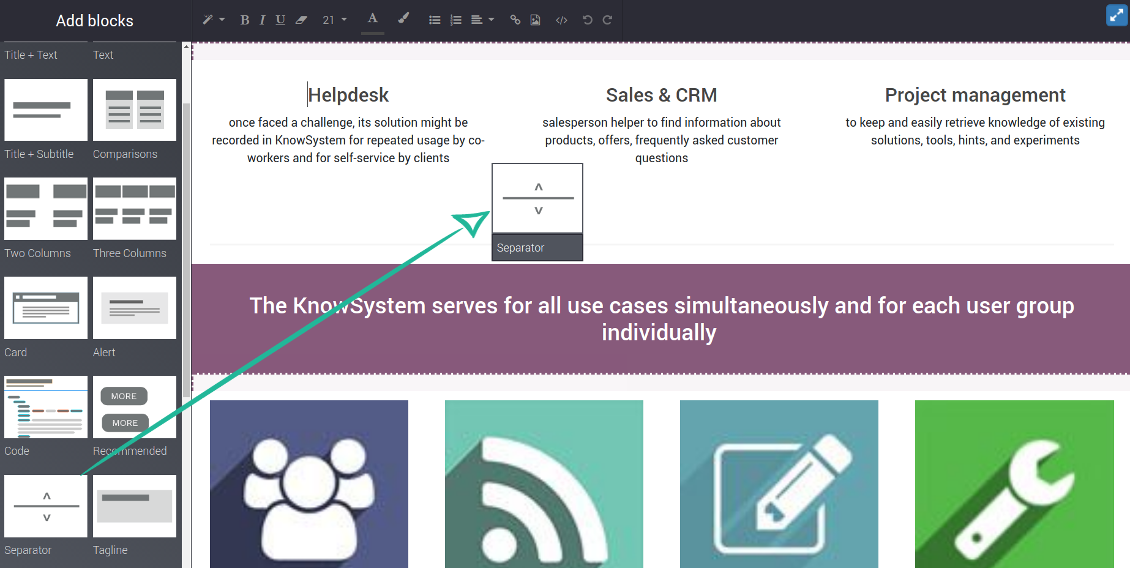
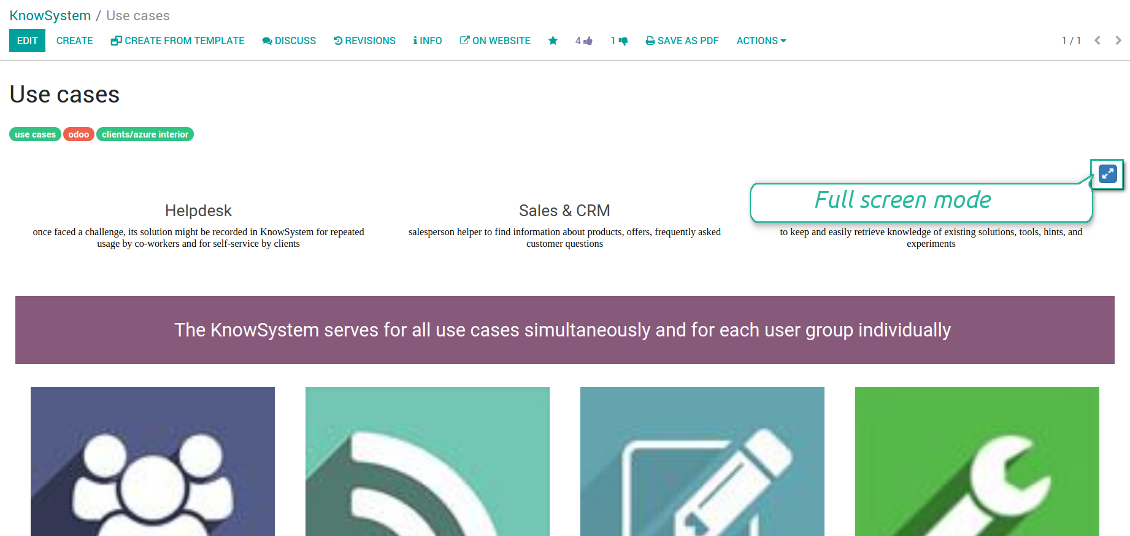
How to use the website builder for editing articles
KnowSystem provides you with a backend articles' builder, which is comfortable and safe to use. Odoo website builder is richer in features to prepare complex HTML structures. To edit articles through the website:
- Install the optional add-on 'KnowSystem Website and Portal' (the option 'Publish to portal and website')
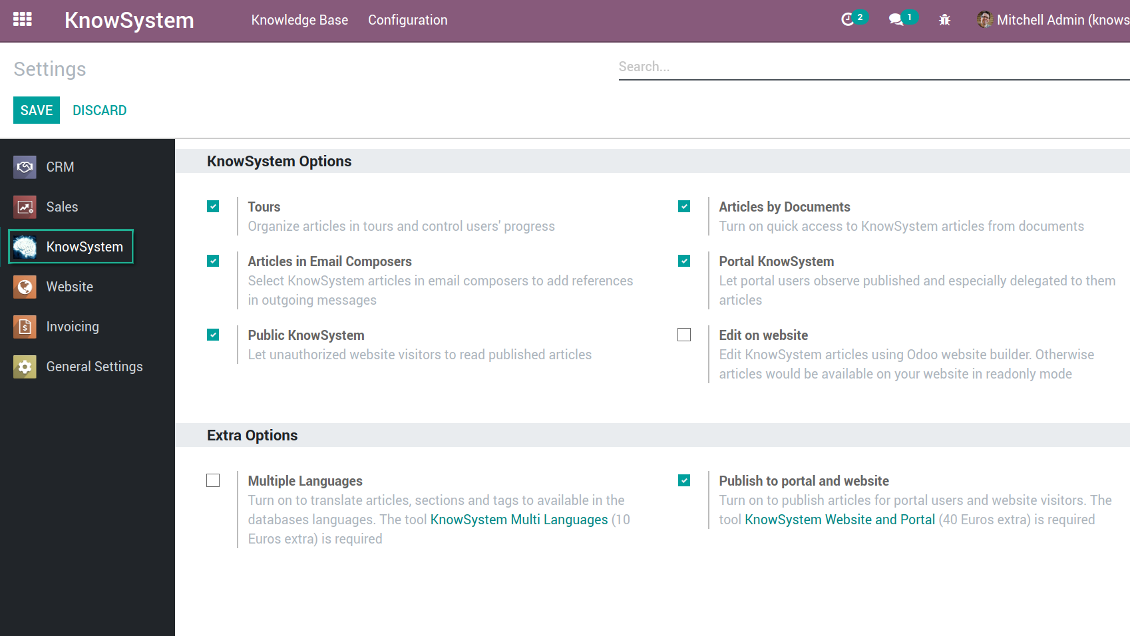
- Turn on the setting 'Edit on website'
- Push the button 'Edit on website' on this article form
Be cautious: if you are going to print this article or add its contents to emails, website building blocks are not suitable. Their advanced styles contradict printing and composer layouts and would not be correctly shown. In such a case use the safer backend builder.
How to use article templates
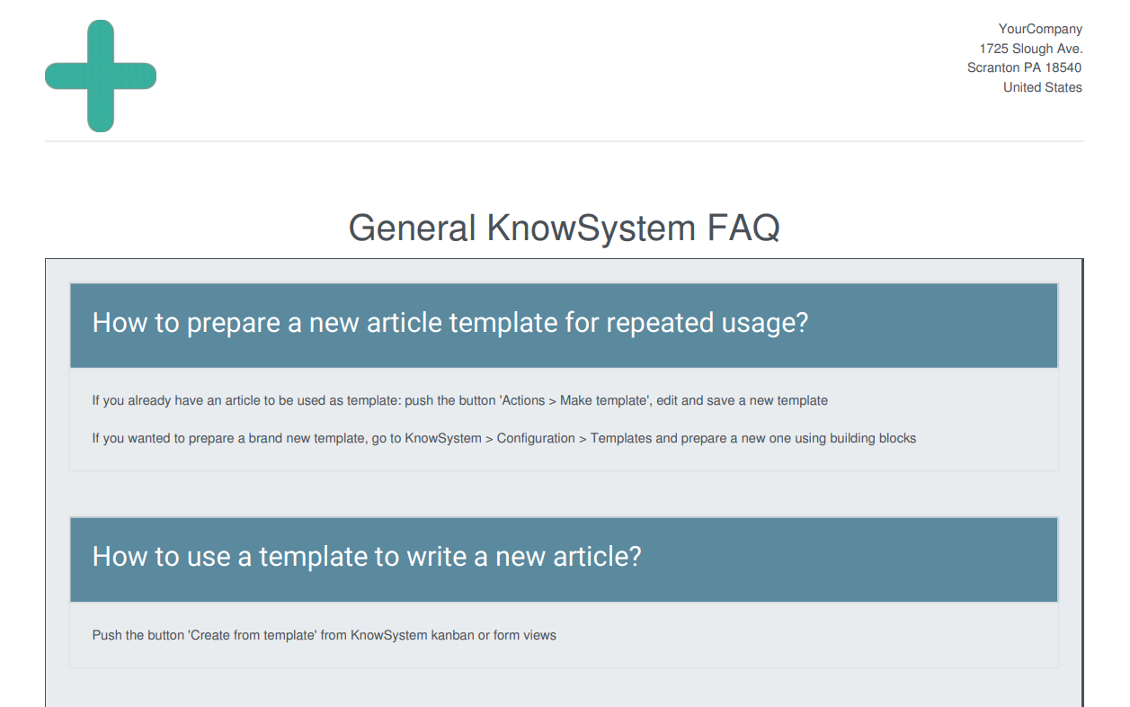
To prepare a new article template for repeated usage:
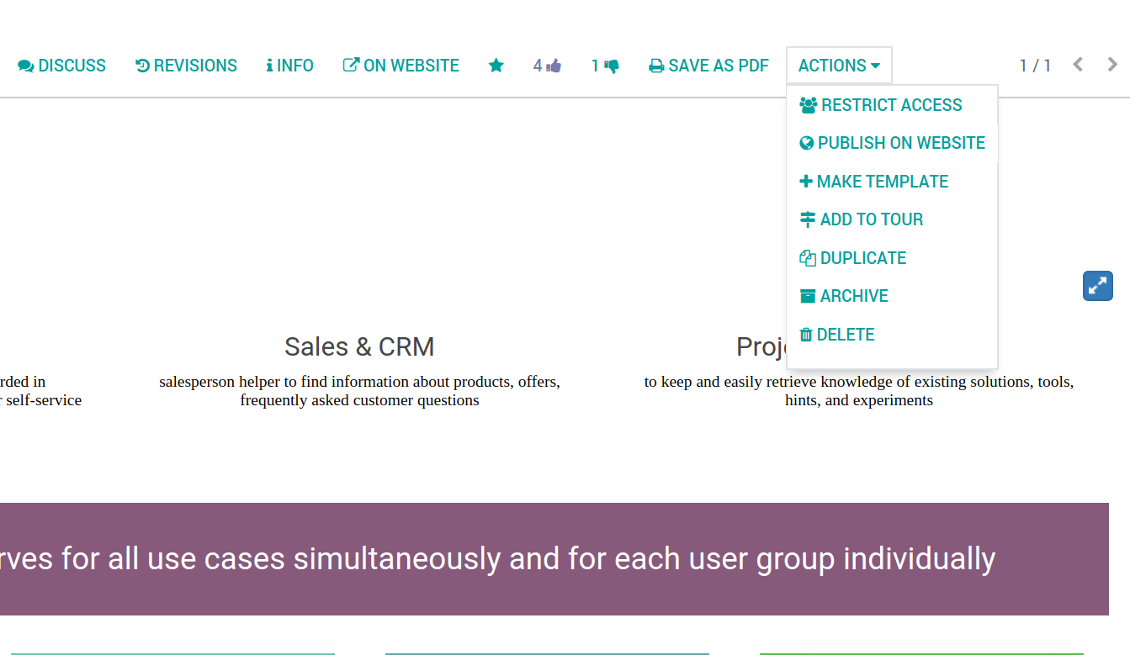
- If you already have an article to be used as template: push the button 'Actions > Make template', edit and save a new template.
- If you wanted to prepare a brand new template, go to KnowSystem > Configuration > Templates and prepare a new one using building blocks.
To use a template to write a new article:
- Push the button 'Create from template' from KnowSystem kanban or form views
- Select a required article template
- Push 'Create' and introduce changes to a new article.
Zdjęcia ekranu
Building blocks for knowledge base articles
Get benefit from your knowledge
How document types and articles are linked for a quick access
Experience is not general, usually it relates to specific issues. Knowledge used for customer communication differs from suppliers' negotiations. Frequently asked questions for draft and confirmed sale orders vary. KnowSystem let you structure your articles to apply them in a correct place and at right time. To that end:
- Turn on the setting 'Articles by Documents' (the option shows the top menu entry above any Odoo document) or 'Articles in Email Composers' (the option adds a quick link in a message composer editor for citing)
- Create a new tag (e.g. 'odoo / helpdesk'). In the table 'Applied to' use a required model (e.g. 'helpdesk ticket') or use it for all documents (the check box 'Apply to all documents').
- As advanced option you may apply additional filters: for example, to show articles only for 'new' tickets, not for 'in progress' ones. Use dynamic filters' constructor for that goal
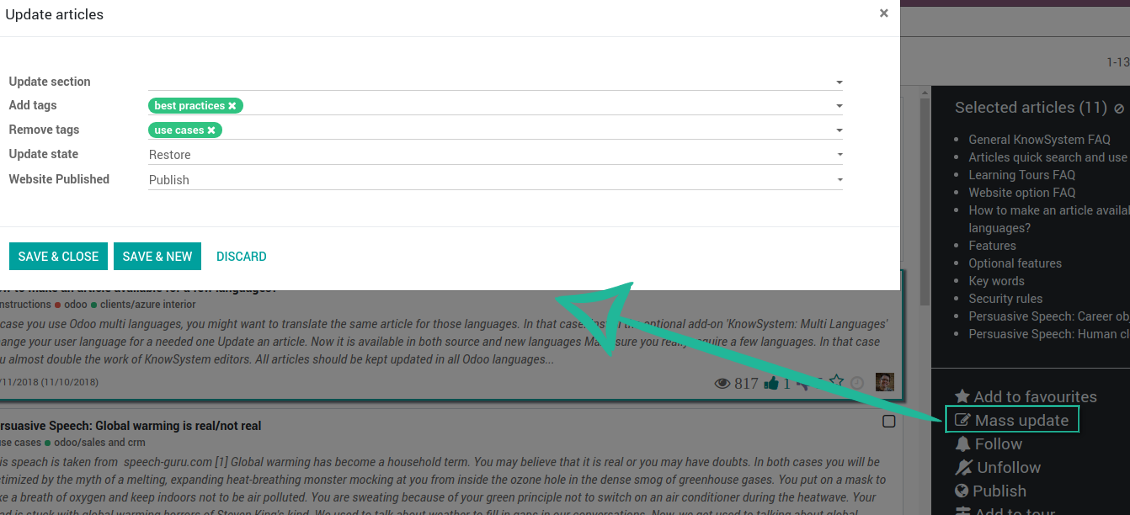
- Assign this tag for required articles. For a few articles use the mass action 'Mass update'
- Now when you access a quick article search from a document or from an email composer, Odoo will calculate KnowSystem tags for this document. That's why by default users would see only articles suitable for a current document. Simultaneously, they might always change tags to use other knowledge base data.
How to overview articles which might be useful for this document
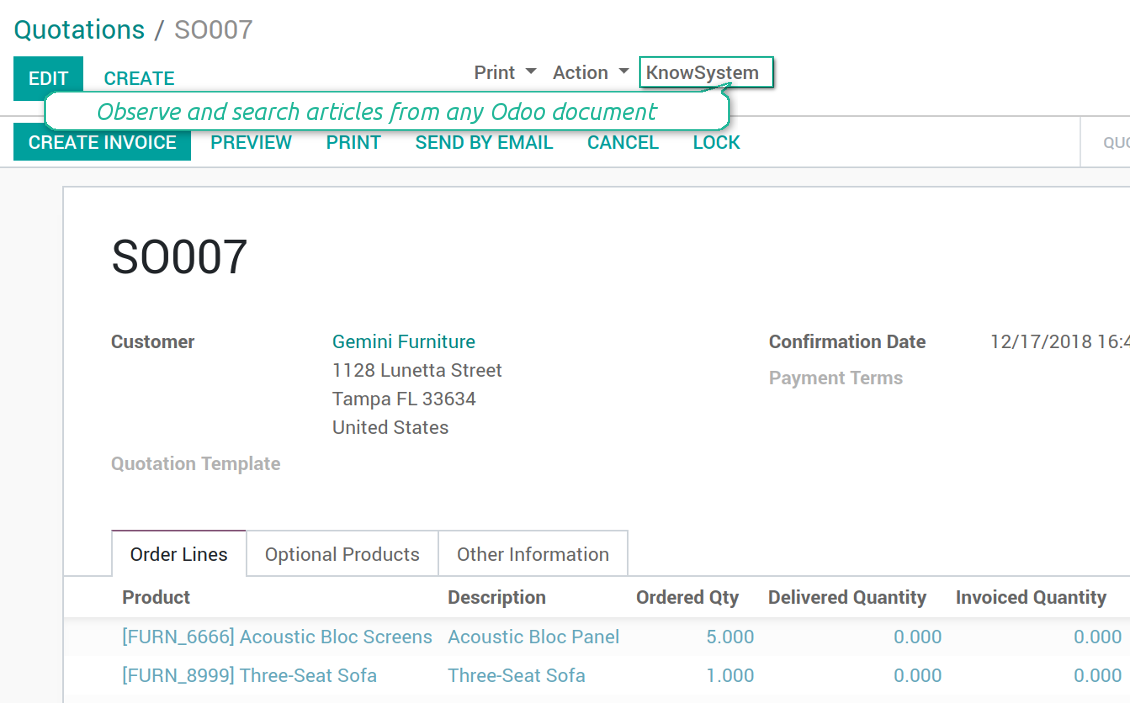
As soon as you turned on the option 'Articles by Documents', on the top of each Odoo object form view there would be a quick link 'KnowSystem'.
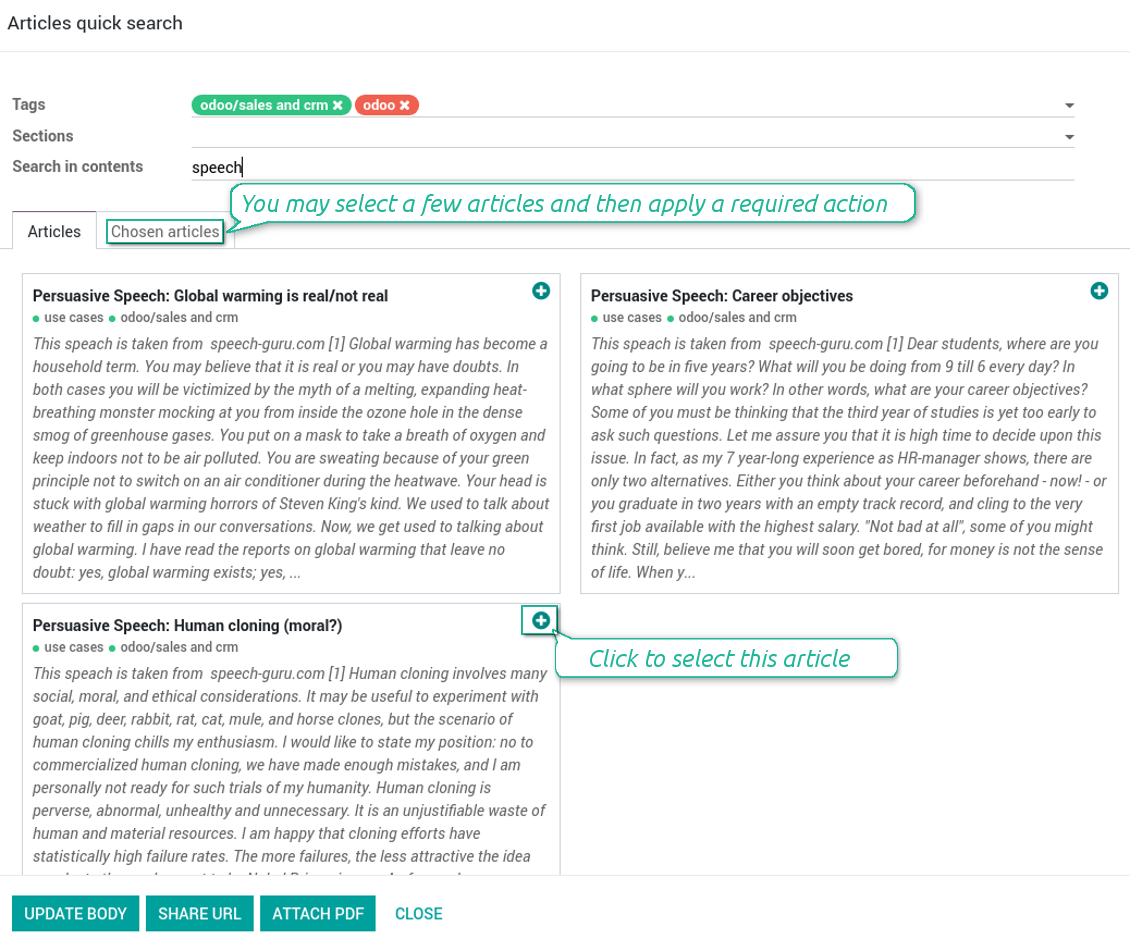
Click on that entry, and Odoo would open the wizard with articles. By default KnowSystem tags suitable for this document would be selected (if any). You may change those tags, or additionally filter by sections or content search. As a result list of topical articles is shown for you.
How to use company knowledge for communication
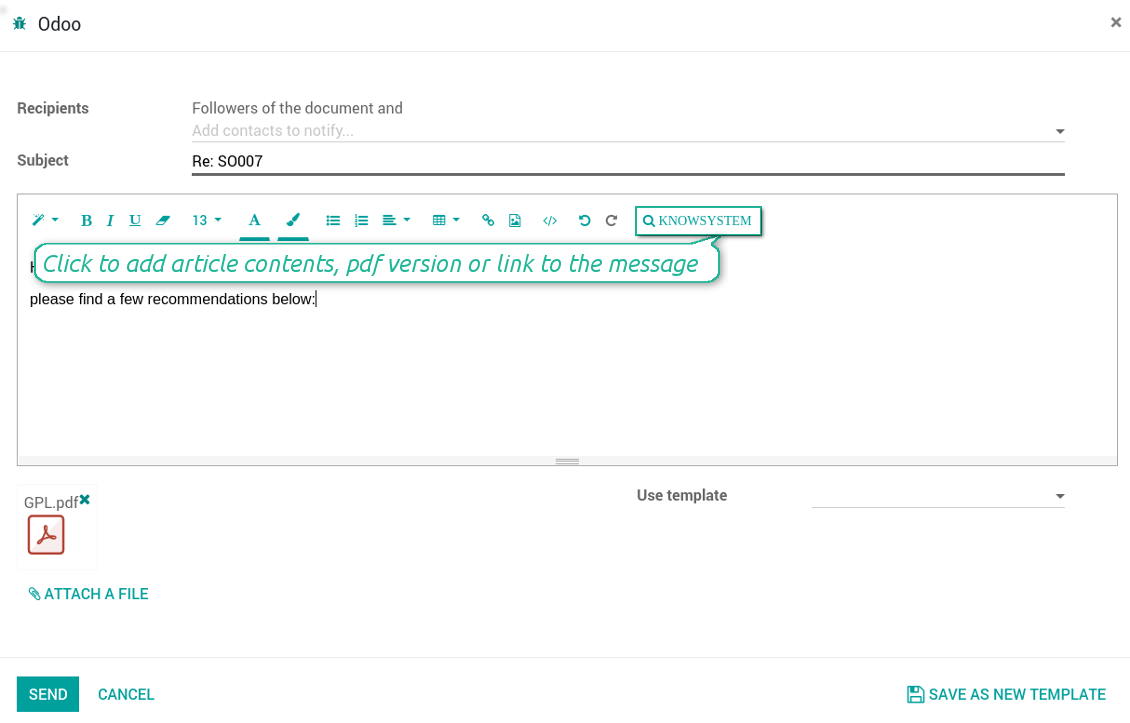
Turn on the option 'Articles in Email Composers' to let users reference or cite Knowledge records in Odoo messages. As a result the special quick entry 'KnowSystem' would be added to each Odoo email composer.
Clicking on that entry would open a wizard with a set of suitable to this document articles. You may change search by tags, add extra filtering by sections or content.
Afterwards, select required articles among found ones; choose an action. You may:
- Update message body with article contents (would be added to the end of a current message)
- Attach a PDF version of an article(s)
- Share a public link
Zdjęcia ekranu
Quick access for knowledge system from any Odoo document
Knowledge base link from email composer
Articles from any document
Article(s) PDF printing
WIKI-like revision system
How to recover a previous article version
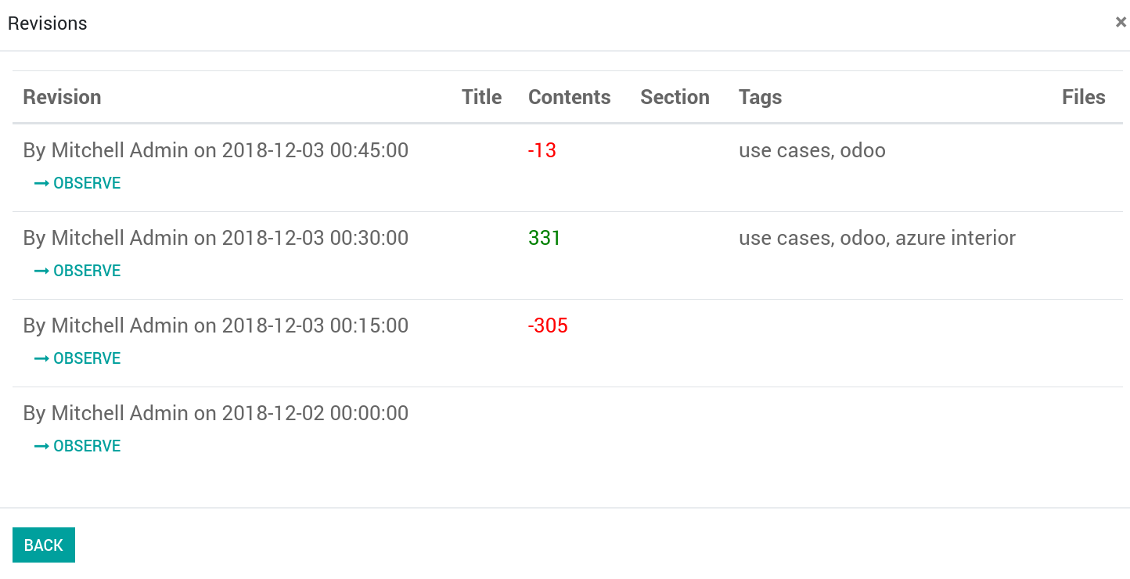
- Go to an article form view and push the button 'revisions'
- Find a required one and push the button 'Observe' to check whether this version is a correct one
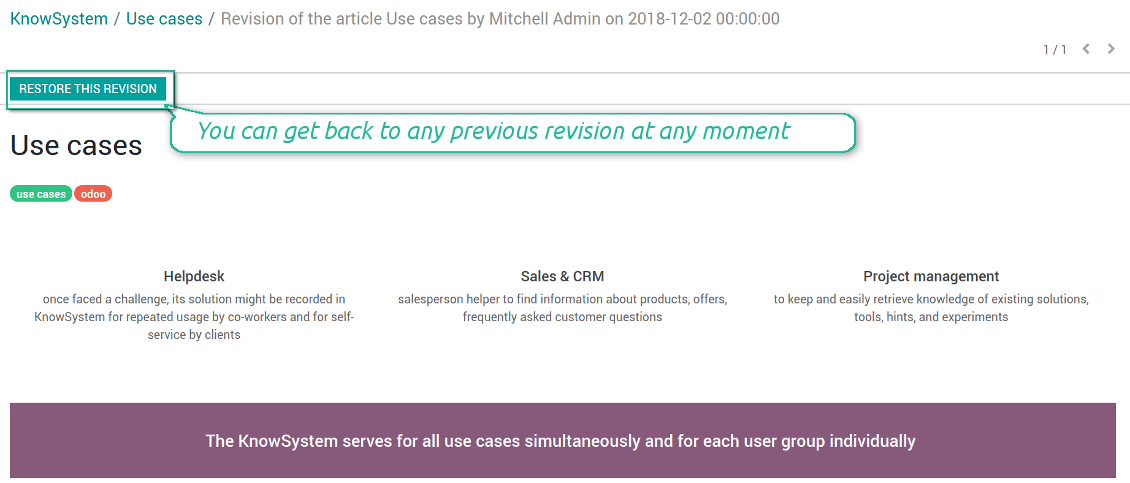
- Push the button 'Restore this revision'. The article would be recovered to that version.
- The recovery operation itself is recorded. So, if it is a mistake you can revert changes by recovering the last-to-last revison.
Zdjęcia ekranu
Wiki-style revisions history
To restore is easier than to break
Individual partner knowledge base portal
How to share knowledge base with specific partners
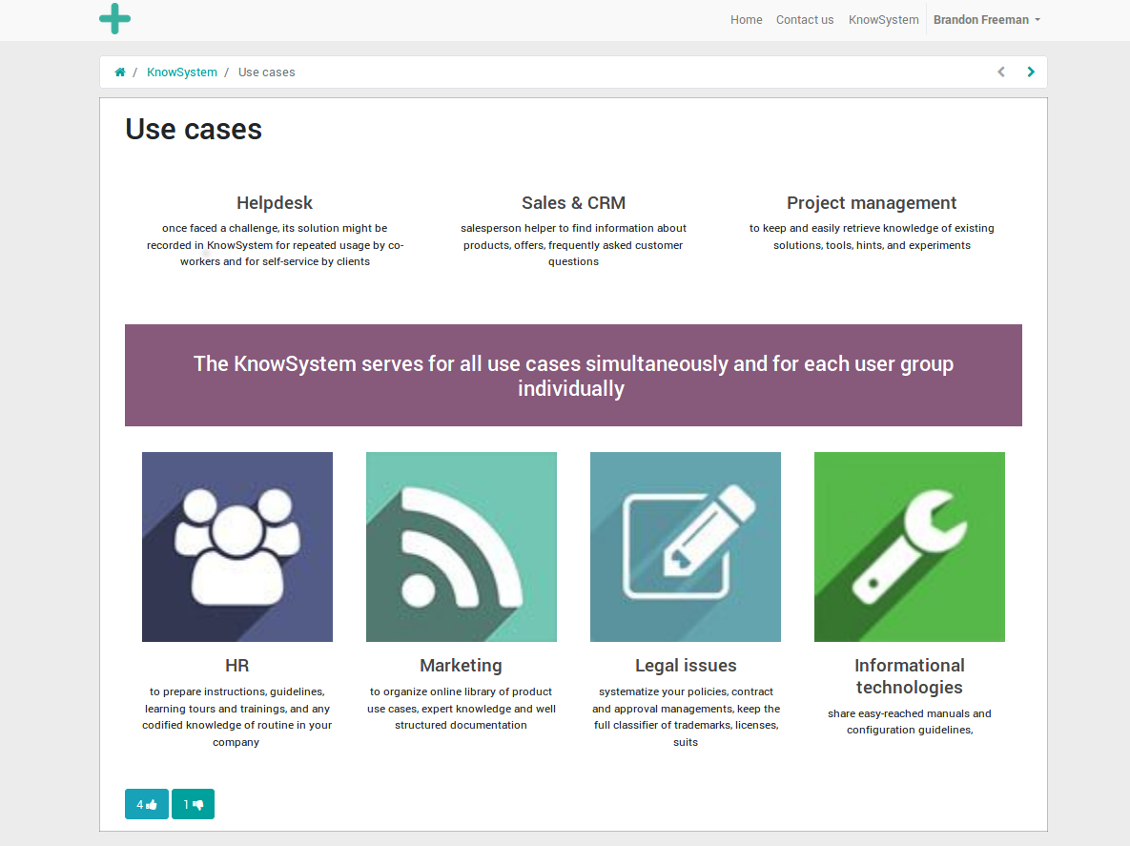
An article is available for a portal user in two cases: A. it is website published; B. his/her company is indicated as allowed partner in one of article tags.
In the first case such an article is available for all portal users and even for public website visitors who have not logged in.
In the latter case you grant a restricted access for an article only for chosen companies. To that end:
- Turn on the setting 'Portal KnowSystem'
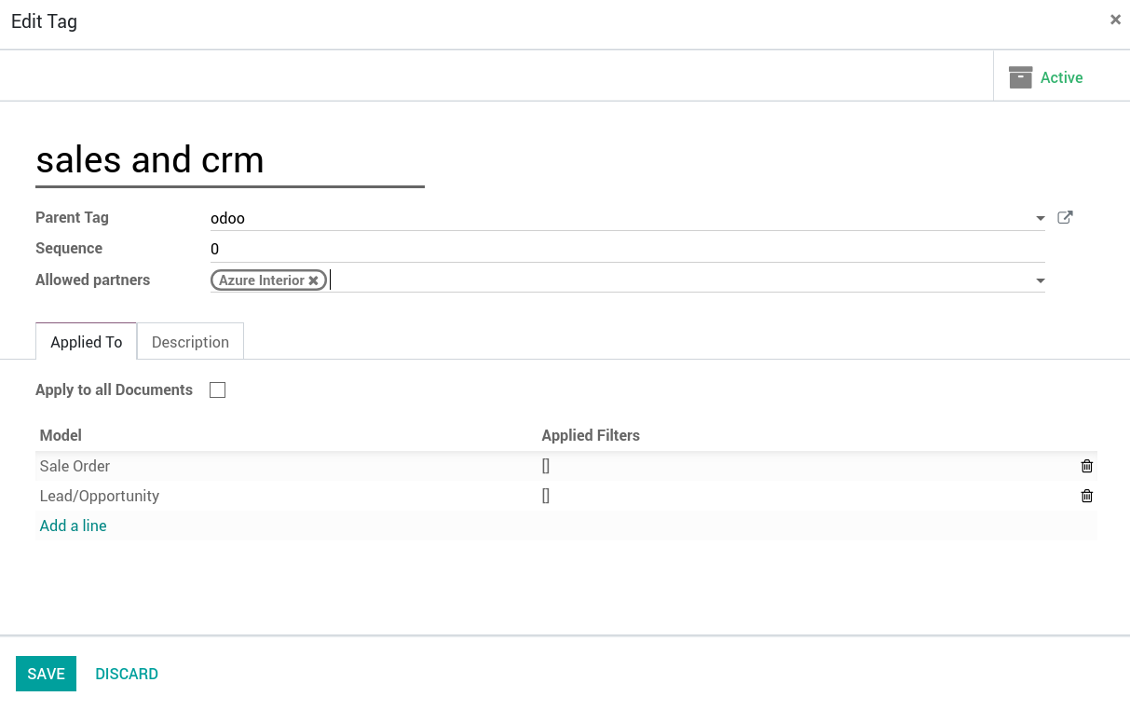
- Create a tag for this partner, for example 'clients / Azure Interior'. On the tag form indicate this company in the field 'Allowed partners'
- Assign the tag for all articles you want to share with this partner. For a few articles use the mass action 'Mass update'
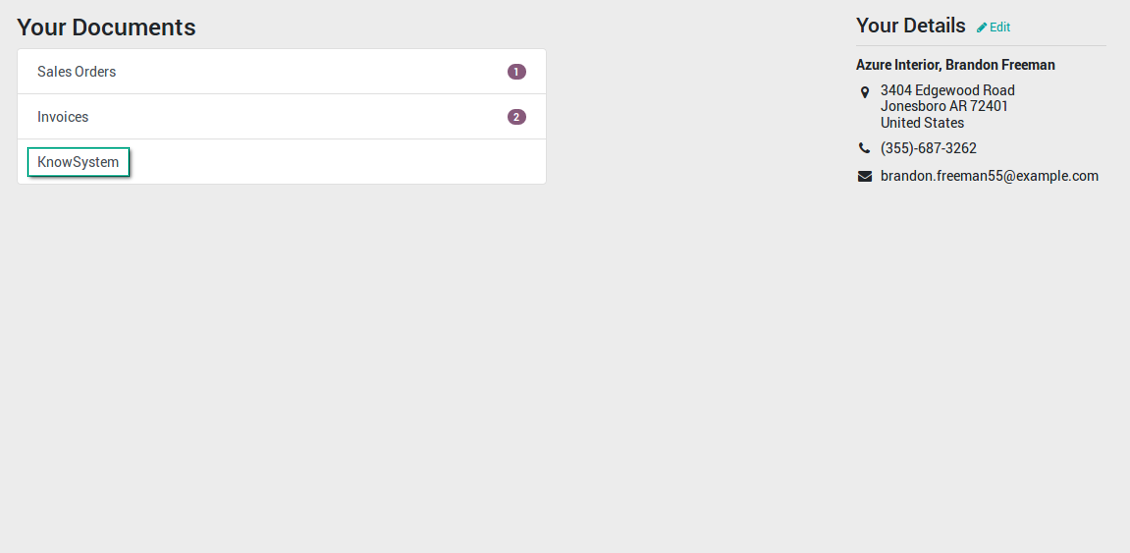
- Now portal users related to this partner may access shared articles right from their partner portal.
Zdjęcia ekranu
Knowledge base for portal and public use
KnowSystem articles on website
Tag: document types and portal partners
KnowSystem from portal
Best knowledge base system for Odoo!
Excellent app and exceptional after-sales support.
Really well thought-out product and one of the best features is the contextual help by means of the tags. Really a game changer for us.
Keep up the great work FaOtools!
Outstanding app! Tremendous value for money, an absolute must have!
One of the features sorely lacking from Odoo has been a robust Wiki/documentation system. Using third party platforms is a massive headache: yet another system to maintain, users get distracted switching back-and-forth, and errors get made. Then you have to worry about training, additional logins, etc.
KnowSystem feels like a native/core app, is very well-polished, and extremely fast. It's accessible from any screen, and the search results are instant (none of the latency inherent with most apps).The interface is elegant yet powerful, with robust access control, rich editing features, and version control. It's simple to revert to previous entries, view audit trails, etc. It's very intuitive for anyone familiar with Odoo; onboarding takes just a few minutes. The user guides are excellent.
This is invaluable for any organisation with a lot of documented information, SOPs, ISO compliance, or similar. If you're using eLearning, it's great for creating a help system / reminders. For example, noting key takeaways or specific instructions. The user can be in MRP, Sales, or any other function, and instantly lookup a guide. Since it overlays whichever screen you're in, it doesn't interrupt the workflow.
This dramatically increases efficiency, minimises questions, and helps keep everyone on the same page.
Oh, and customer service is excellent, faOtools stands behind their product. Thank you!
KnowSystem is excellent - OdooTools offer great support, are very helpful and responsive
Our company needed the ability to add a Knowledge Base to our Odoo portal website for our customers to access article content on a membership-only basis. KnowSystem provided this and much more, along with ability to add search by section, set permissions to allow only certain partners access to articles by tag etc. OdooTools have been very helpful and implemented several features we suggested including automatic redirect upon login, customisable filters and a social sharing capability on articles. Overall a great app by a great company, something that massively adds to Odoo's capabilities and is something that everyone could benefit from using.
Very functional application and responsive support
Our company produces medical laser equipment and we use KnowSystem to streamline the knowledge base of our company. Convenient search system and classification of content, as well as access rules for groups and even for individual users.
Great app and professional team
The app is great the the team is very professional in both response timing and problem solving.
Highly recommended.
Marco from ALO.zone.
Excellent system
Excellent system.
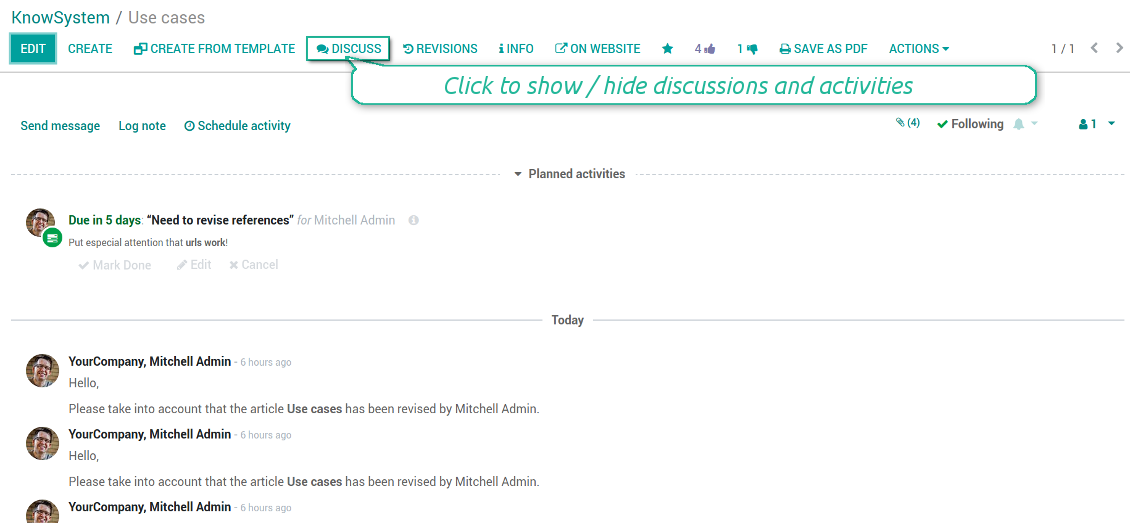
A great tool from some very nice developers!
KnowSystem is a great tool and a game changer for us. Finally a place to put all our company know-how. I highly recommend it. And also important to us: We got great support from FaOtools too. A rare thing in this busy world. thx!
Excellent app and support.
Great app and a very helpfull support. Openess to improve their products is outstanding.
Public knowledge base
How to make an article available for all website visitors
- Turn on the setting 'Public KnowSystem'
- Publish required articles through the mass action 'Publish' or by pushing the button 'Actions > Publish on website' on an article form
- Now any website visitor can read those articles
Team work for knowledge creation
Zdjęcia ekranu
Knowledge base interactions, discussion, and activities
Custom fields to structure knowledge
How custom knowledge attributes work
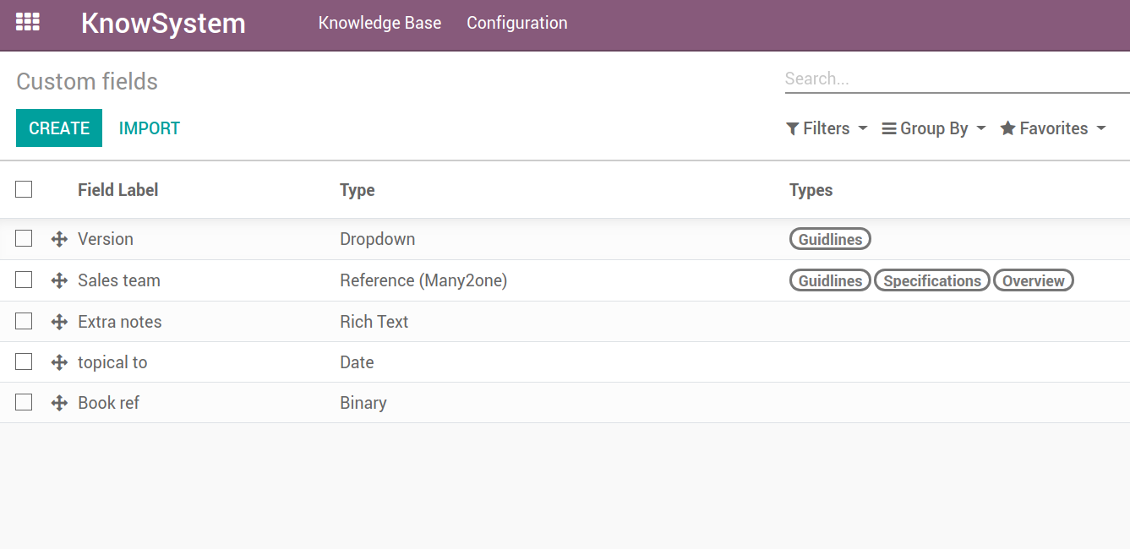
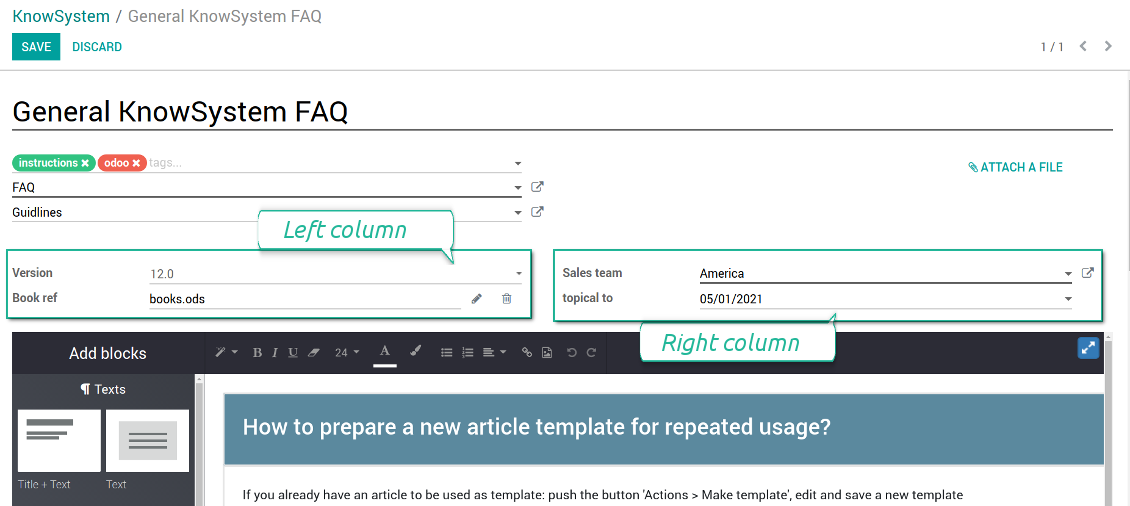
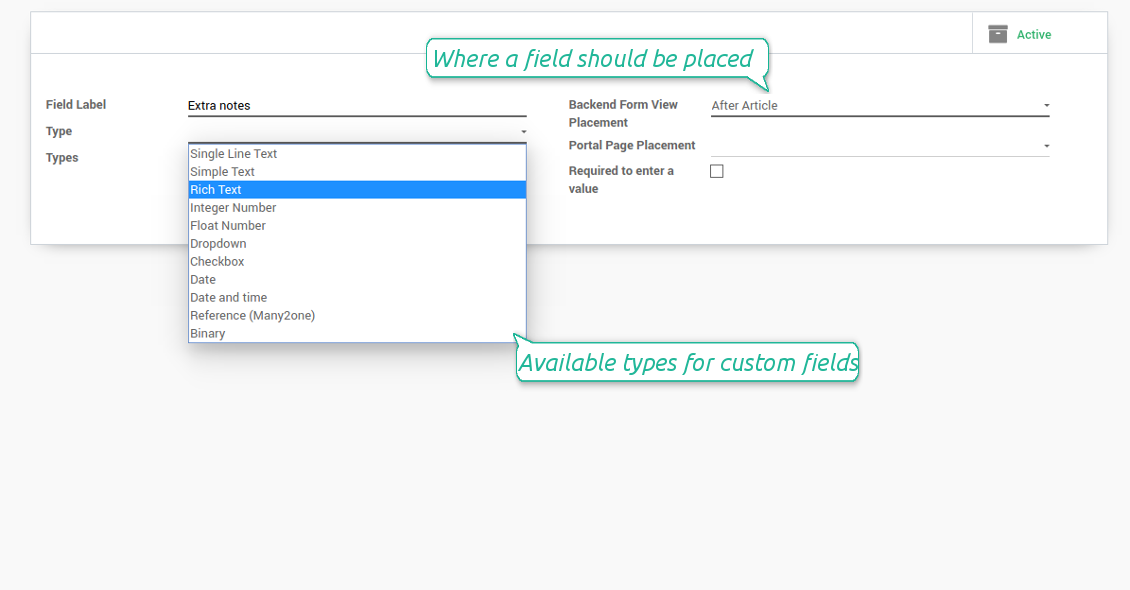
In order to show a new property for KnowSystem articles, just create a custom field. Nothing else is required! You are welcome to prepare fields of various types: single line text (char), simple text without formatting (text), rich text (HTML-formatted text), integer or float numbers, drop-down choice with your own options (selection), checkbox (boolean), date or date and time, binary (a file to upload), reference to another Odoo document (e.g. for a sale order, contact; many2one).
The tool also introduces complementary articles' typology. Thus set of attributes for 'user guidelines' and 'technical specifications' might be different.
Then, choose an interface location for a new field from a closed list to structure properties on an article page. Decide whether a field should be required to enter, or should be visible only for definite knowledge types.
Zdjęcia ekranu
KnowSystem articles' custom fields
Custom fields on article form
Custom fields in portal and website
Custom fields for article: add any data required
Knowledge is secured and might be safely shared
How to manage user accesses to articles
Security for internal and portal users differs.
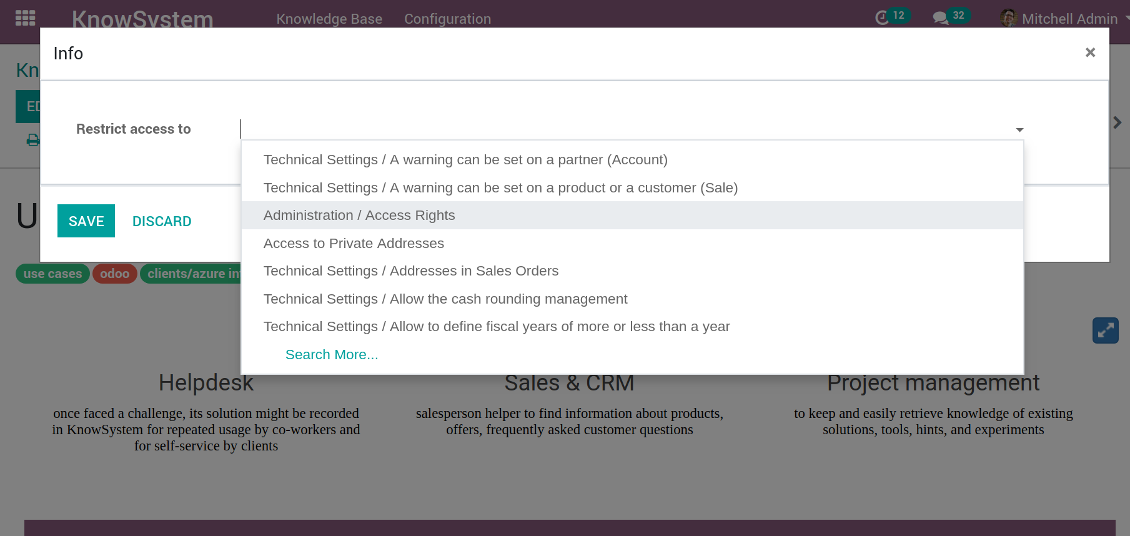
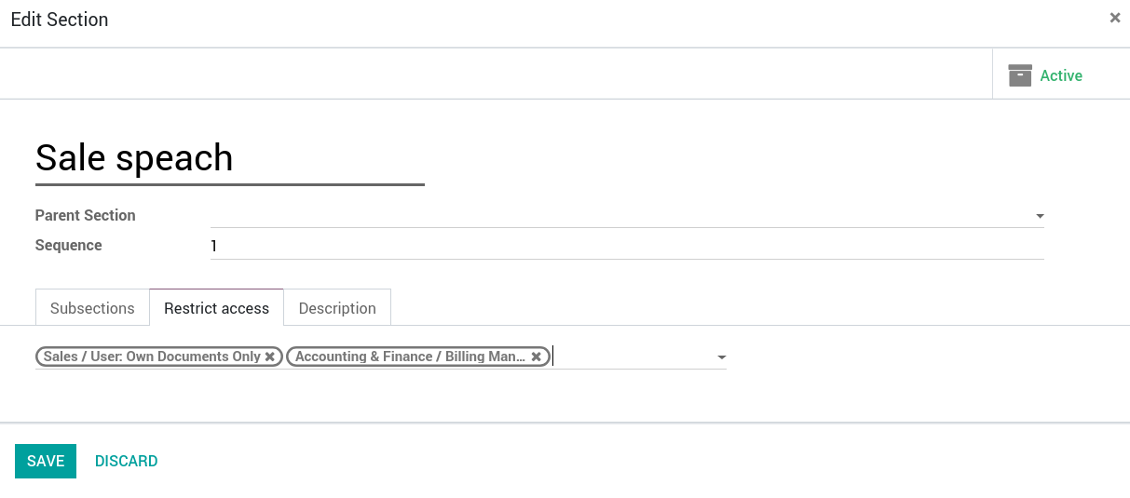
For the company employees: KnowSystem considers user groups which are defined per articles, sections and tours. Look at the tab 'Restrict to' on forms of those objects. If that field is not defined, a document is considered 'global': each internal user may read it.
For portal / public users: KnowSystem takes into account tags and whether an article is website published. A knowledge tag has a field 'Allowed partners', which may grant an access to portal users for articles with this tag. Website published pages are available for everybody.
Rights to administrate KnowSystem belongs to 2 user roles: KnowSystem Editor and KnowSystem Administrator. If you want a user to create and edit articles, a user should belong to one of those groups.
|
|
Odoo user |
KnowSystem Editor |
KnowSystem Admin |
Portal user |
Public user |
| Articles | read related to his/her user groups and sections | read, create, edit, archive related to his/her user groups and sections | read, create, edit, delete any | read published articles and articles related to partner-related tags | read published articles |
| Sections | read related to his/her user groups | read, create, edit, archive related to his/her user groups and sections | read, create, edit, delete any | read all sections of available articles | read all sections of published articles |
| Tags | read any | read, create, edit, archive any | read, create, edit, delete any | no access | no access |
| Tours | read related to his/her user groups | read, create, edit, delete related to his/her user groups | read, create, edit, delete any | no access | no access |
| Misc | may like / dislike, add to favourites, print, take part in discussions | may configure options | may like / dislike an article |
|
Take also into account two peculiarities:
- Odoo user always may access an article of which he is an author disregarding further restrictions;
- Rights for section is defined not only according to this section but also according to all its parents. For example, if user can't access 'sales', he/she would not be able to access 'sales / crm' disregarding whether 'crm' is available for his/her user group.
Zdjęcia ekranu
Manage access to this article
Section update and user rights
Create learning tours
How to configure a learning tour
- Turn on the option 'Tours'
- Go to KnowSystem interface and select articles to be included into a tour
- Press the mass action button 'Add to tour' and select or create a tour. Press save
- Re-order articles in a consistent order
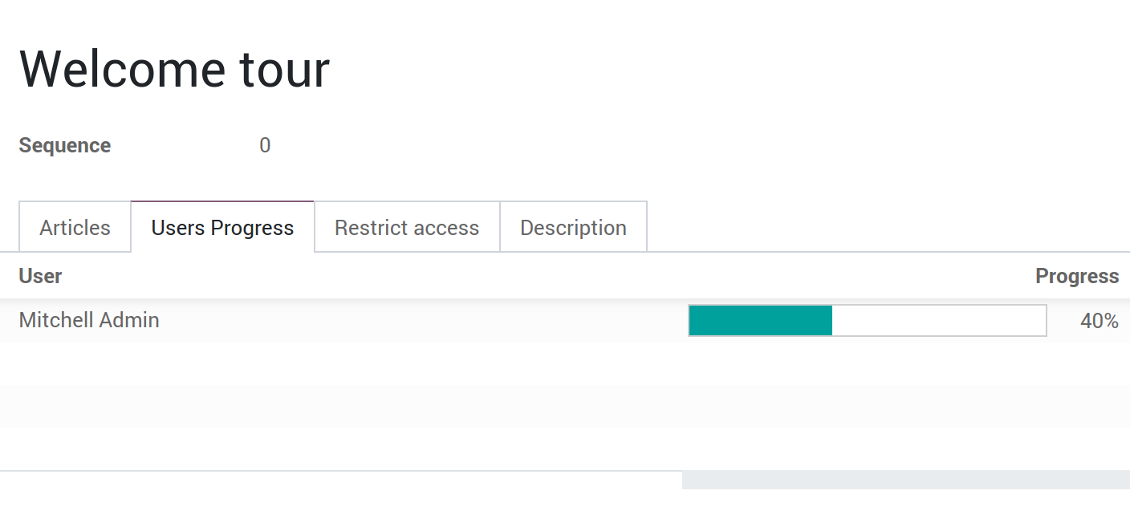
- Define groups of users who should go through a tour on the tab 'Restrict access'
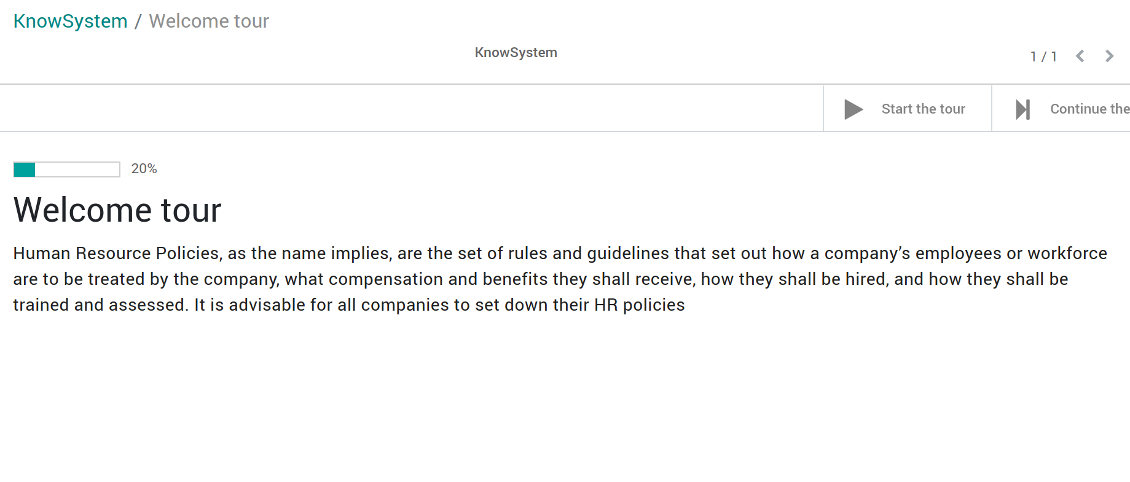
- Now users can see and launch tours right from the KnowSystem interface (the right navigation panel)
Zdjęcia ekranu
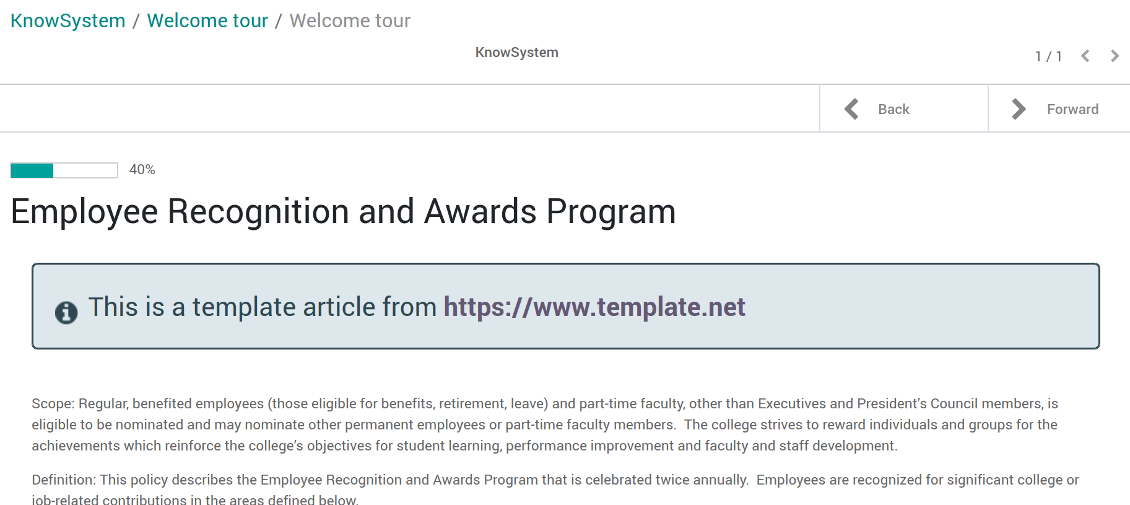
Article in a learning tour
Control tour progress by users
KnowSystem tour welcome page
Multilingual knowledge base
How to make an article available for a few languages
- Install the optional add-on 'KnowSystem: Multi Languages'
- Change your user language for a needed one
- Update this article
- Now it is available in both source and a current language
Make sure you really require a few languages. In that case you almost double the work of KnowSystem editors. All articles should be kept updated in all Odoo languages.
Knowledge base for any industry and business
Typical use cases
- Helpdesk: once faced a challenge, its solution might be recorded in KnowSystem for repeated usage by co-workers and for self-service by clients
- Sales & CRM: salesperson helper to find information about products, offers, frequently asked customer questions
- Project management: to keep and easily retrieve knowledge of existing solutions, tools, hints, and experiments
- HR: to prepare instructions, guidelines, learning tours and trainings, and any codified knowledge of routine in your company
- Marketing: to organize online library of product use cases, expert knowledge and well structured documentation
- Legal issues: systematize your policies, contract and approval managements, keep the full classifier of trademarks, licenses
- Informational technologies: share easy-reached manuals and configuration guidelines
Często zadawane pytania o KnowSystem: Knowledge Base System Odoo v.11
Nie widzę różnicy między tekstami rewizji.
Rewizję zapisują nie tylko zmiany tekstu, ale też wszelkie aktualizacje stylów (technicznie, gdy zmieniasz kod źródłowy HTML artykułu). Część z nich nie jest oczywista na pierwszy rzut oka (np. zmieniony rozmiar czcionki jednego słowa). Inne bywają drastyczne. Każdy ciąg Edit > zmień cokolwiek w artykule > Save tworzy jednak nową rewizję.
Czy mogę dodać film YouTube/ Vimeo / Dailymotion / Youku do artykułu?
Tak, możesz osadzić film z tych usług w artykułach zarówno z backendu Odoo, jak i z kreatora witryny. Dodaj blok z obrazem > naciśnij obraz > wybierz ‘Video’ > wpisz URL wymaganego medium.
Uwzględnij: takie filmy są wstawiane jako iframe, a niektóre przeglądarki mogą blokować odtwarzanie, dopóki użytkownik tego wyraźnie nie zezwoli.
Jak uczynić sekcję widoczną na stronie internetowej?
W KnowSystem sekcja jest widoczna na stronie, gdy jest opublikowana i zawiera co najmniej jeden artykuł. Nawet z podsekcjami nie będzie widoczna, jeśli w samej sekcji nie ma żadnego artykułu. Dzięki temu unika się pustych sekcji, a portal KnowSystem jest przejrzysty. Aby sekcja pojawiła się na stronie, dodaj jeden artykuł wstępny lub ogólny, który krótko opisuje lub wymienia artykuły w podsekcjach.
Jak udostępnić artykuł zewnętrznemu kontrahentowi?
Kliknij prawym przyciskiem dowolny tag w lewym panelu nawigacji - Create
Znajdź pole 'Allowed partners'. Na przykład 'clients - azure interior', aby dać dostęp partnerowi 'Azure Interior'. Możesz też odwrotnie: przypisać tagi KnowSystem na formularzu partnera
Następnie otwórz wymagany artykuł (albo zrób to samo akcją 'Mass update' dla wielu rekordów):
Jeśli jest opublikowany: wycofaj publikację, jeśli nie ma być dostępny dla wszystkich użytkowników portalu i gości publicznych
Przypisz nowo utworzony tag (w przykładzie jest to 'clients - azure interior')
Teraz:
Wszyscy użytkownicy portalu powiązani z partnerem handlowym 'Azure Interior' mają dostęp do artykułów z tagiem 'Azure Interior'
Żadni inni użytkownicy portalu (jeśli nie przypisano innego tagu) nie mają dostępu do tych artykułów
Użytkownicy wewnętrzni nie są objęci tym ograniczeniem i widzą artykuły według logiki 'access to' artykułów i sekcji.
Czy możemy dodać przycisk wyboru języka dla treści artykułu?
Przycisk 'translate' nie jest celowo dodawany do treści artykułu przez opcjonalny dodatek 'KnowSystem: Multi Languages'. Kod HTML jest bardzo trudny do tłumaczenia w prostym oknie przycisku. Byłoby bardzo mało tekstu do tłumaczenia i dużo fragmentów HTML (które tłumacz mógłby też zepsuć).
Dlatego, aby przygotować artykuł w danym języku, zaloguj się jako użytkownik tego języka. Może to być inny użytkownik albo tymczasowo zmień preferencje bieżącego użytkownika. Potem wszelkie aktualizacje treści artykułu będą w tym języku.
Możesz też użyć przycisku 'Copy from another translation' pod treścią artykułu, aby w dowolnym momencie pobrać treść z innego języka (przydatne, gdy artykuł mocno zaktualizowano w jednym z języków).
Jak osadzić inną stronę internetową w artykule
W tym celu możesz użyć iframe. Przełącz artykuł na edytor surowego kodu HTML i wstaw na przykład <iframe src="https://faotools.com/" style="width:100%;min-height:600px;"> </iframe>.
Zainstalowałem KnowSystem, ale nie widzę przycisku 'create' ani innych przycisków
Najpewniej nie nadałeś użytkownikowi uprawnień KnowSystem. Wybierz prawo 'KnowSystem Editor' lub 'KnowSystem Admin' i odśwież stronę. Przyciski sterowania powinny się teraz pokazać.
Czy mogę pokazać konkretny samouczek tylko wybranym użytkownikom?
Tak, przez przypisanie grupy użytkowników (np. 'Sales Manager'), która ma przejść ten przewodnik. Jeśli użytkownik należy do grupy, zobaczy przewodnik. Jeśli nie, przewodnik się nie pokaże. Działa to tak samo jak uprawnienia do artykułów i sekcji KnowSystem.
Weź pod uwagę, że przewodnik bez przypisanych grup jest 'global' i będzie widoczny dla wszystkich.
Jak zmienić stopkę i nagłówek przy drukowaniu artykułów?
Nagłówek i stopka PDF-ów artykułów pochodzą z układów firmy. Zobacz Settings > General Settings > sekcję Business Documents. Tam definiujesz szablon firmy używany dla wszystkich typów dokumentów, w tym faktur, zamówień sprzedaży itd., a także artykułów. Takie podejście Odoo traktuje stopkę i nagłówek jako ogólny styl firmy, nie atrybut konkretnych wydruków.
Jak powiązać artykuły ze sobą?
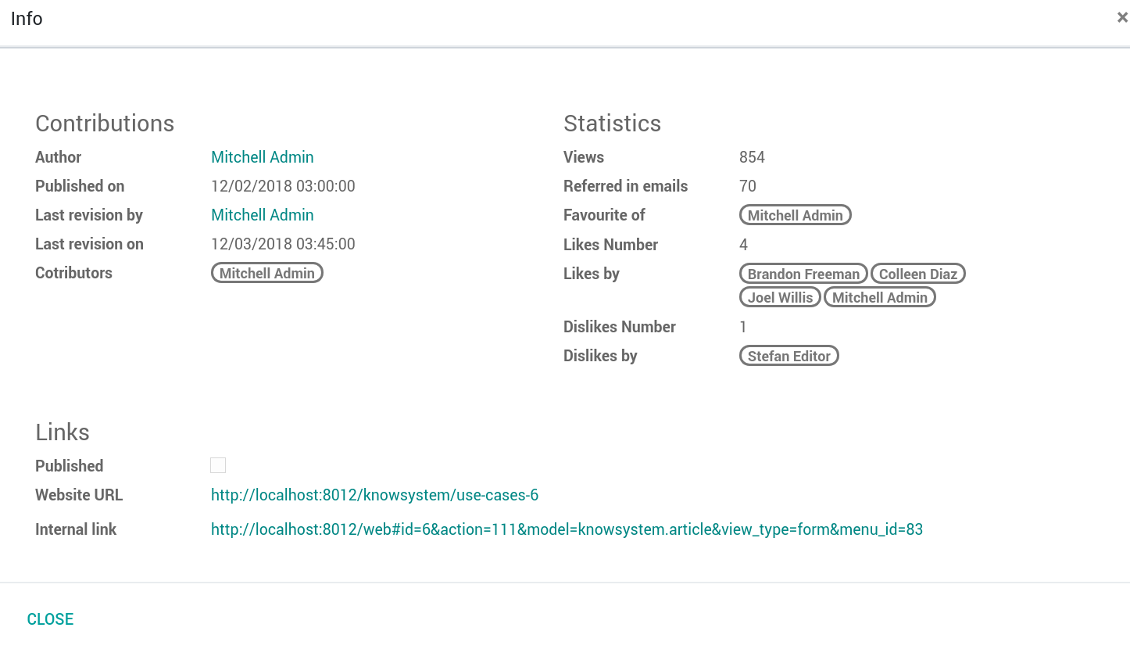
Każdy artykuł ma wewnętrzne (backend) i witrynowe adresy URL (jeśli zainstalowano opcję 'KnowSystem: Website and Portal'). Kliknij przycisk 'Info' na formularzu artykułu, aby poznać adresy WWW tego rekordu. Dowolny z nich możesz wstawić w treści artykułu jako hiperłącze.
Czy mogę zmienić kod źródłowy HTML artykułu?
Tak: włącz zasoby debug (na ekranie przeglądu ustawień) i wróć do bieżącego artykułu. W trybie edycji zobaczysz specjalną ikonę '</>'. Kliknij ją, aby obejrzeć i edytować HTML oraz style.
Jakie sa zasady aktualizacji Waszych narzędzi?
Zgodnie z biezacymi zasadami Odoo Apps Store:
- Modul kupiony dla wersji 12.0 lub starszej daje dostęp do wszystkich wersji do 12.0.
- Od wersji 13.0 każda wersja modulu musi byc kupiona osobno.
- Niezależnie od wersji zakup daje prawo do wszystkich aktualizacji i poprawek w ramach wersji glownej.
Zespol faOtools nie kontroluje tych zasad. Pytania kierujcie bezpośrednio do przedstawicieli Odoo Apps Store.
Jak zainstalowac aplikacje na Odoo.sh?
Najbardziej bezpośrednie podejscie to wbudowany przeplyw sklepu Odoo:
1. Otwórz stronę modulu i kliknij Deploy on odoo.sh
2. Zostaniesz przekierowany do GitHub. Zaloguj sie i kliknij Create a new repo lub użyj istniejącego. Repozytorium musi byc prywatne. Publikowanie aplikacji na licencji OPL-1 jest zabronione. W razie potrzeby utwórz nowe repo dla projektu Odoo.sh
3. Następnie w odoo.sh kliknij Deploy, potwierdź i kliknij Continue. Instalacja sie rozpoczyna.
Te kroki instaluja aplikacje na galezi production. Dla innych galezi lub aktualizacji:
1. Pobierz kod zrodlowy ze sklepu Odoo
2. Zrób commit modulu do repozytorium GitHub. Żaden folder/plik aplikacji nie może byc w .gitignore. Repo tworzone przez odoo.sh mogą ignorowac ważne ścieżki (np. /lib). Prześlij wszystkie katalogi i pliki modulu
3. Wdroz docelowa galaz projektu odoo.sh lub poczekaj na automatyczny build, jeśli tak ustawiono.
Jak zainstalowac aplikacje na wlasnym serwerze?
2. Uruchom ponownie serwer Odoo;
3. Wlacz tryb programisty (ustawienia techniczne);
4. Zaktualizuj liste aplikacji (menu Aplikacje);
5. Znajdź aplikacje i kliknij Activate/Install;
6. Postępuj zgodnie ze wskazowkami na stronie aplikacji, jeśli istnieją.
Aplikacja ma dodatkowe dodatki. Czy moge kupic je później?
Tak. Odoo automatycznie dodaje zależności do koszyka: wylacz juz zakupione narzędzia, aby nie zaplacic dwa razy.
Wdrozyłem aplikacje na Odoo.sh i widze ostrzeżenie/blad w testach
Czerwone/pomaranczowe ostrzeżenie nie wplywa na funkcje aplikacji. Czasem nasze moduly nie przechodzą standardowych testów automatycznych, bo te zakladaja zachowanie sprzeczne z celami aplikacji. Na przyklad zmieniamy obliczanie ceny, a testy Odoo porownuja cenę koncowa ze standardowym algorytmem.
Najpierw sprawdź funkcje wdroznej bazy. Czy wszystko dziala?
Jeśli nadal uwazasz, ze ostrzeżenie wplywa na rzeczywiste funkcje, skontaktuj sie z nami i prześlij pelne logi instalacji oraz pelna liste wdroznych modulow (rdzeń i firmy trzecie).
Czy moge kupic aplikacje bezpośrednio u Was?
Nie, dystrybuujemy narzędzia tylko przez oficjalny sklep aplikacji Odoo.
Chcialbym uzyskać znizke
Niestety nie mamy srodkow technicznych, by oferowac ceny indywidualne.
Czy moge zainstalowac aplikacje na bazie Odoo Online (SaaS)?
Nie, aplikacji innych firm nie można używać na Odoo Online. Odoo SaaS blokuje te mozliwosc.
Narzędzie zależy od innych aplikacji. Czy musze je kupic?
Tak, narzędzie wymaga wszystkich modulow oznaczonych jako zależności. Cena na stronie aplikacji juz je obejmuje.
Jaka jest cena modulu w dolarach amerykanskich? Dlaczego sie zmienila?
Ceny naszych modulow sa w euro. Sklep Odoo przelicza je na inne waluty wedlug wewnetrznego kursu. Dlatego cena w dolarach amerykanskich może sie zmienić po aktualizacji kursu.
Sformułowania aplikacji i witryny w językach innych niż angielski są wspomagane przez AI i zgodne z oficjalnymi tłumaczeniami Odoo. Jeśli zauważysz błąd, wyślij zgłoszenie o poprawność tłumaczeń a naprawimy to.
Zgłaszanie błędów
Jeśli zauważysz błędy lub niespójne działanie, napisz do nas. Gwarantujemy poprawki w 60 dni od zakupu i dalej ulepszamy narzędzia.
Nie potrzebujesz telefonu ani karty, by się z nami skontaktować. Wystarczy krótka rejestracja e-mail, która nie zajmuje więcej niż 30 sekund.
Dołącz jak najwięcej szczegółów: zrzuty ekranu, logi serwera Odoo i pełny opis odtworzenia problemu. Zwykle kilka dni roboczych zajmuje plan (gdy błąd potwierdzono) albo wskazówki (w przeciwnym razie).
Publiczne zgłoszenia funkcji i pomysły na moduły (bezpłatny rozwój)
Jesteśmy mocno zmotywowani do ulepszania narzędzi i wdzięczni za każdą opinię. Jeśli wymagania są użyteczne publicznie i da się je sprawnie wdrożyć, zespół wpisze je na listę zadań.
Taka lista zadań jest przetwarzana regularnie i nie zakłada dodatkowych opłat. Choć nie możemy obiecać terminów i ostatecznego projektu, to dobry sposób na pożądane funkcje bez inwestycji i ryzyka.
Nie potrzebujesz telefonu ani karty, by się z nami skontaktować. Wystarczy krótka rejestracja e-mail, która nie zajmuje więcej niż 30 sekund.

Narzędzie do elastycznego układania załączników Odoo w folderach i synchronizacji katalogów z klientami chmury: Google Drive, OneDrive/SharePoint, Nextcloud/ownCloud, Dropbox, Amazon S3, Box i NAS. DMS. Menedżer plików. System zarządzania dokumentami
398€
Narzędzie do: automatycznie synchronizuj Odoo załączniki z OneDrive pliki w oba ways
487€
Narzędzie do: automatycznie synchronizuj Odoo załączniki z Google Drive pliki w oba ways
487€
Narzędzie do bezpiecznego przechowywania haseł w Odoo do użytku wspólnego. Współdzielone sejfy

Narzędzie do ustawiania celów KPI i kontroli ich realizacji według okresów. Pulpity KPI. Projektant pulpitów. Wykresy KPI

Narzędzie do zarządzania usługami czasowymi od rezerwacji po sprzedaż i opinie
398€
Narzędzie do zarządzania Odoo z ulubionych czatów AI przez MCP. Claude. Każde AI z MCP.

Narzędzie do łączenia różnych zdarzeń Odoo w kilka konfigurowalnych superkalendarzy
