KnowSystem: Knowledge Base System v.11
The tool to build deep and structured knowledge base for internal and external use. Knowledge System. KMS
- a core of knowledge management. It might be used stand-alone as a complete internal knowledge base system. Dess pris är 398€.
- an optional module, which let you publish articles to website, share them with portal users, and use website builder to update articles. The features assumed by this add-on are marked by the icon . Dess pris är 40€.
- an optional module, which let you add and show custom fields for articles (backend). The features assumed by this add-on are marked by the icon . Dess pris är 48€.
- an optional free module, which shows custom fields on website and portal pages (frontend). The features assumed by this add-on are also marked by the icon .
- an optional module, which let you translate articles, sections and tags for installed in Odoo languages. The features assumed by this add-on are marked by the icon . Dess pris är 10€.
Innovative single-view interface
From the same interface editors may create and update any knowledge-related documents, change articles in batch, set up security. Without a need for excess navigation.
Interface solutions
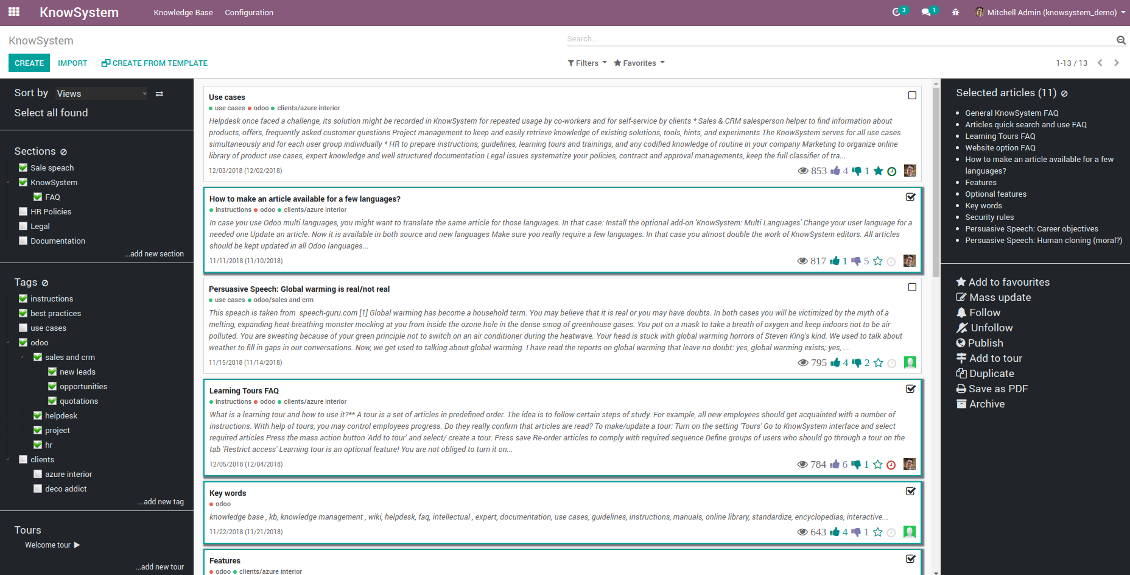
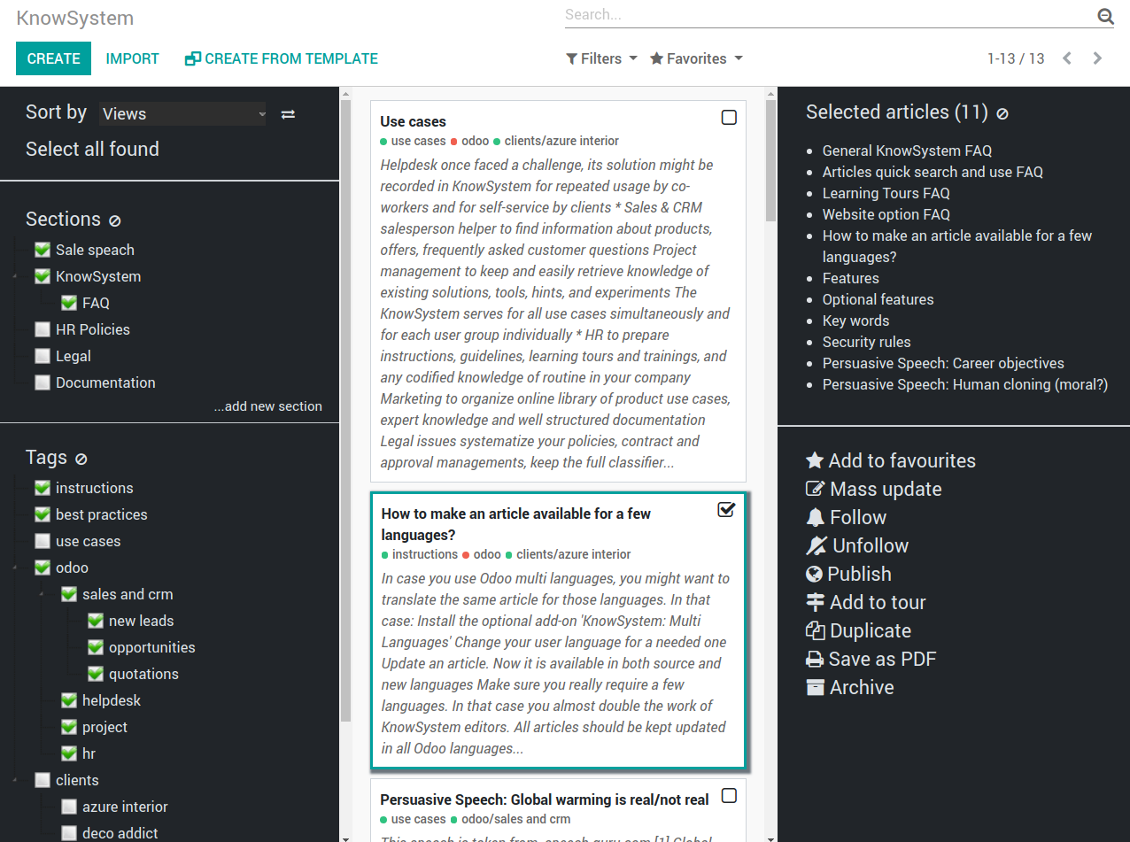
The KnowSystem interface consists of 3 key parts: the left navigation panel, the list of articles, and the right navigation panel (it is shown only if some articles are selected).
On the left navigation panel you may:
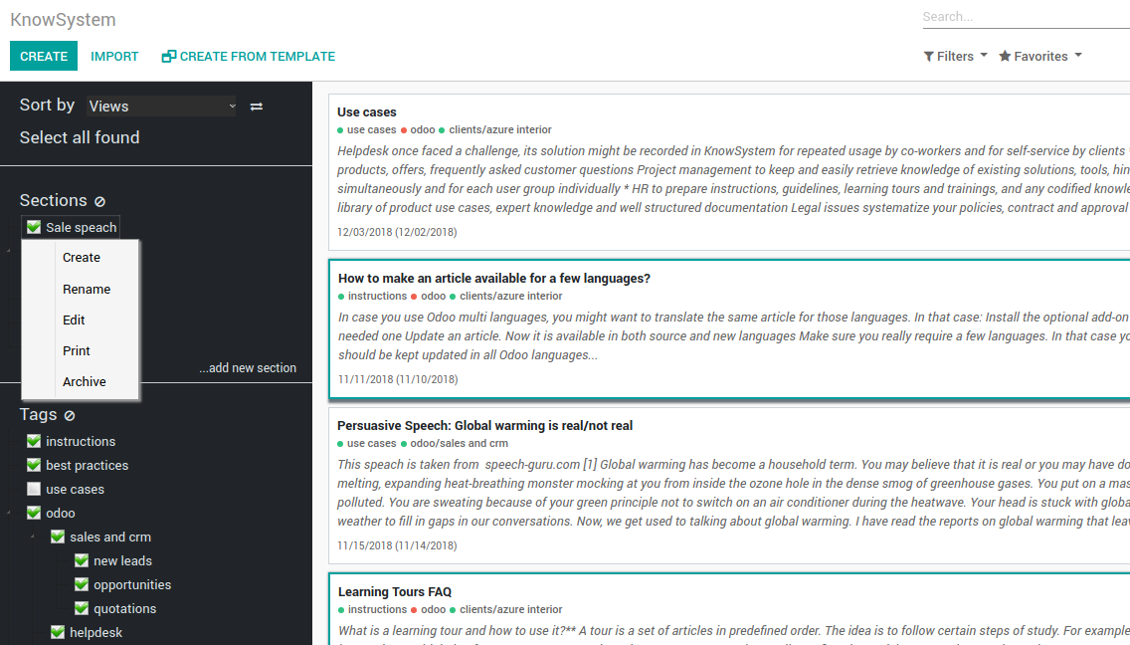
- Manage hierarchy of sections: prepare new (right mouse click - 'create'), update existing (right mouse click - edit), re-order any (drag and drop an item), archive sections. Select a few ones to filter articles. You may also print all articles related to this section as a single PDF file.
- In the same way manage hierarchy of tags
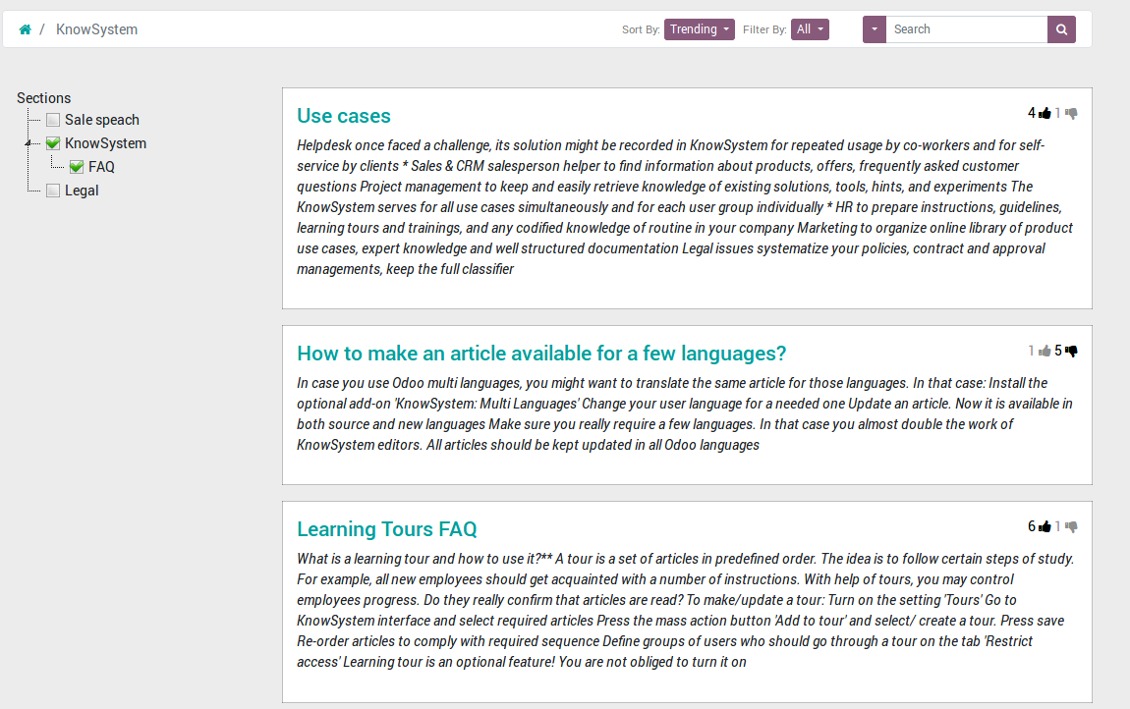
- Sort articles by number of views, a score of likes and dislikes, create or update dates, a section, an author
- Select all articles which are found according to chosen tags / sections and according to introduced searches / filters
- Launch a learning tour.
From the list of articles you see articles' name, indexed content (words without HTML style), dates of creation and last update, a number of views, likes, dislikes, author avatar. Here you may also add an article to favourite by pressing the 'star' icon.
Click on article body to open it in a full size (form view). Do not worry: chosen tags and sections as well as selected articles will be kept when you get back! Click on the top right check box to add an article for selection.
On the right navigation panel you observe selected articles and may proceed a mass action. Click on article name to remove it form selection.
On the top of the interface users also would find a standard Odoo omnibox. Type here to search by a title, content, an author, tags or a section.
Available mass actions
KnowSystem let users update an unlimited number of articles simultaneously:
- Assign new section
- Change or remove tags
- Print multiple articles as a single PDF
- Follow / unfollow discussions
- Publish / unpublish articles
- Export articles to an Excel table
- Archive or restore records
- Add articles to learning tours
- Mark knowledge items as favourite
- Duplicate articles.
Skärmdump
KnowSystem articles overview, search and mass actions
Single entry for knowledge management actions
KnowSystem configuration
Article read mode
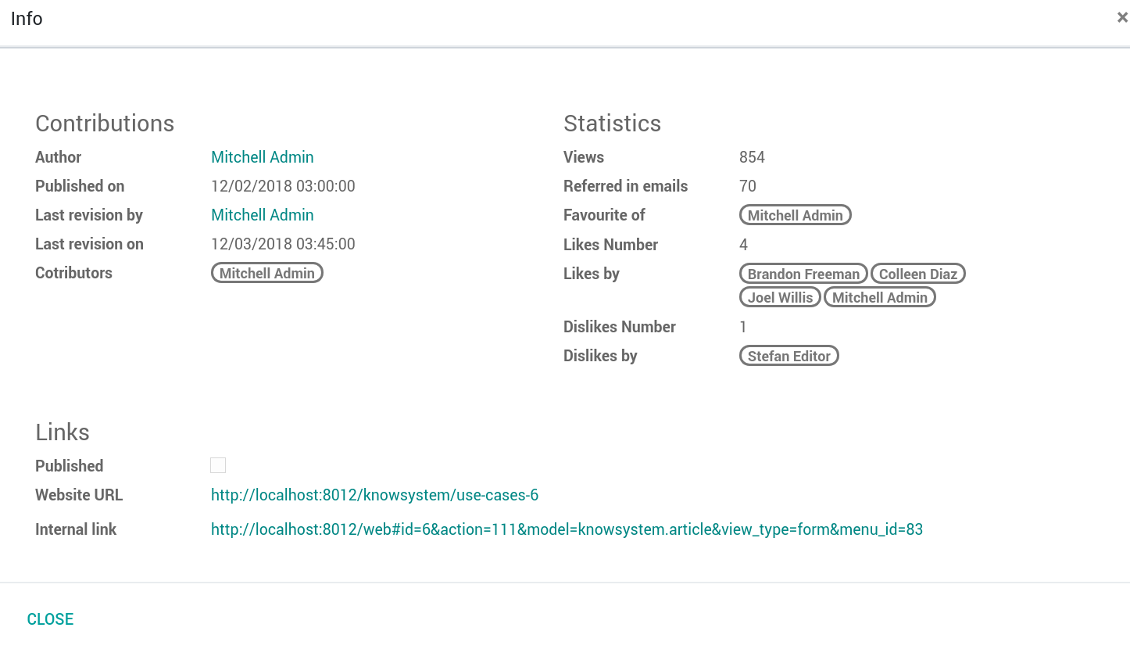
Article info and statistics
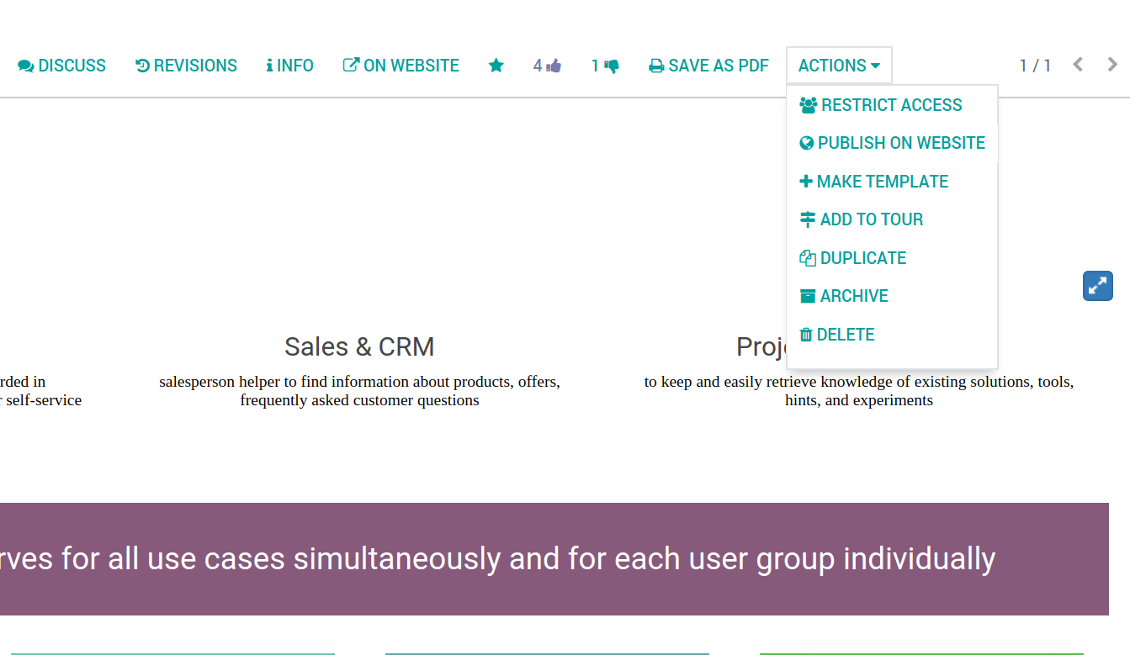
Article misc actions
Mass actions for selected articles
Small screen KnowSystem interface
Fast, comfortable, and professional knowledge recording
By using templates with pre-defined styles you may also speed knowledge generation up and standardize articles' appearance.
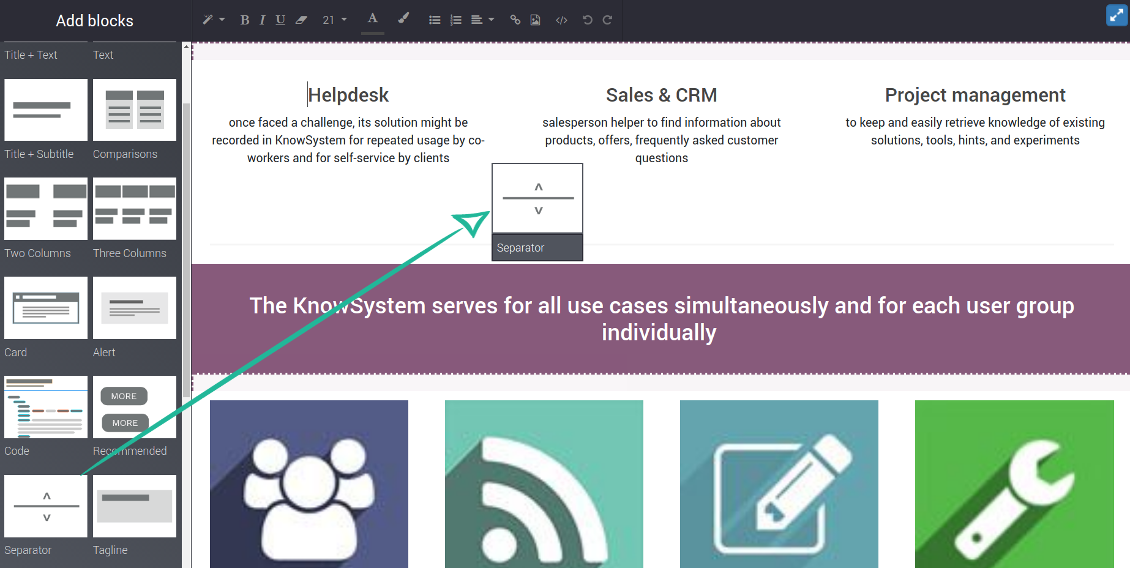
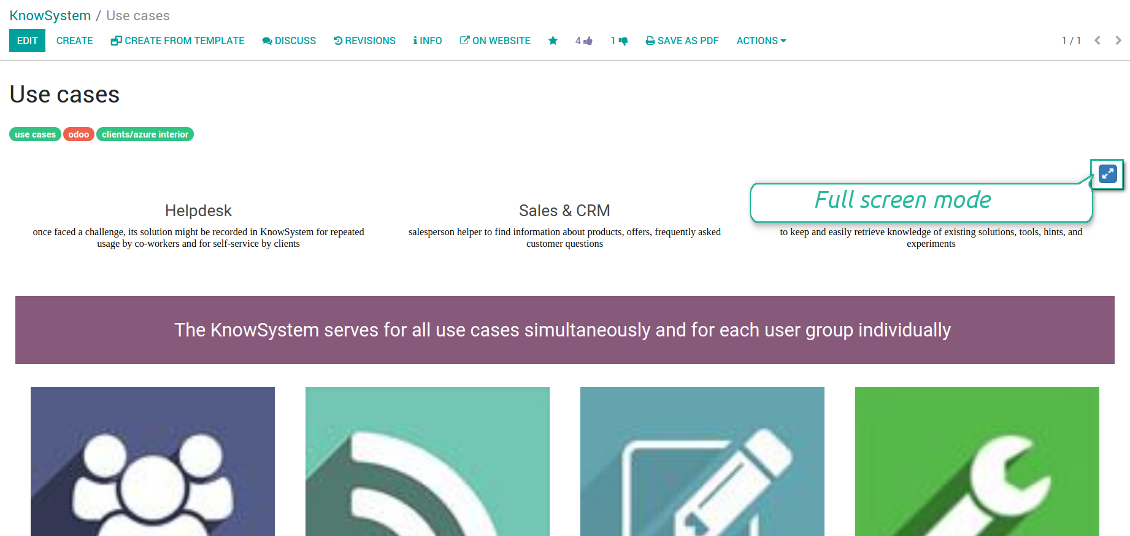
How to use the website builder for editing articles
KnowSystem provides you with a backend articles' builder, which is comfortable and safe to use. Odoo website builder is richer in features to prepare complex HTML structures. To edit articles through the website:
- Install the optional add-on 'KnowSystem Website and Portal' (the option 'Publish to portal and website')
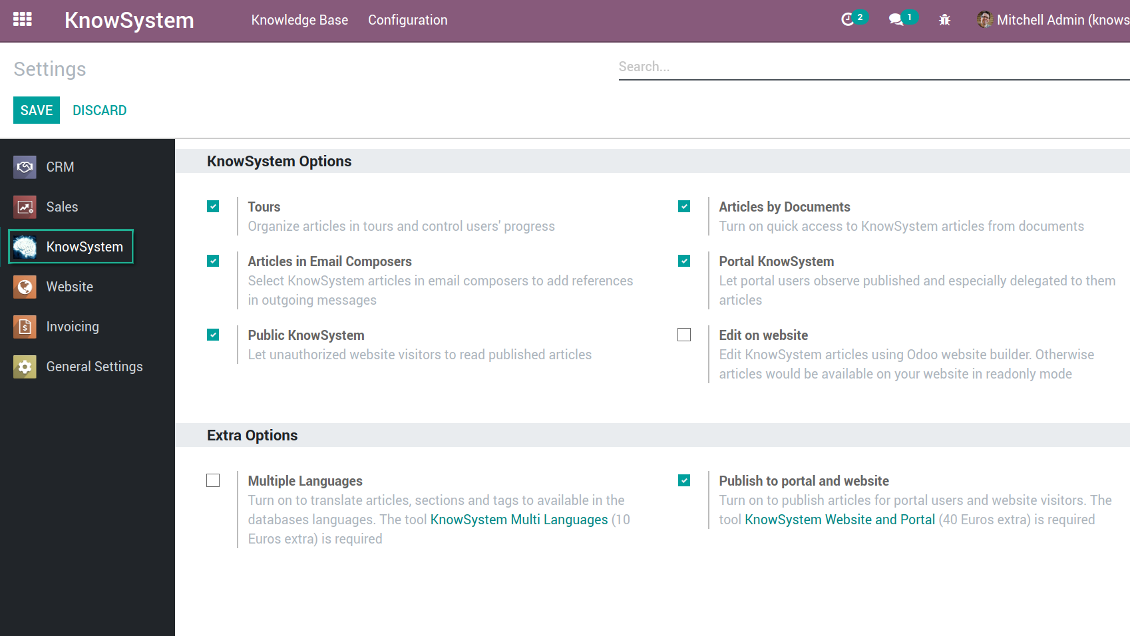
- Turn on the setting 'Edit on website'
- Push the button 'Edit on website' on this article form
Be cautious: if you are going to print this article or add its contents to emails, website building blocks are not suitable. Their advanced styles contradict printing and composer layouts and would not be correctly shown. In such a case use the safer backend builder.
How to use article templates
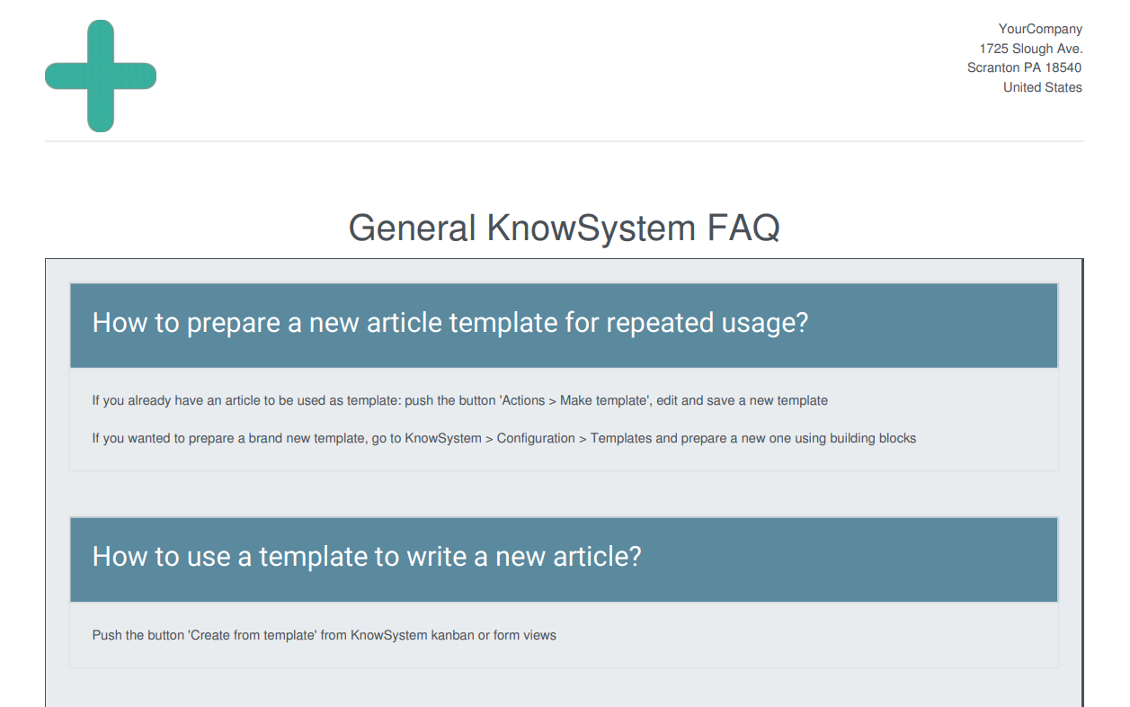
To prepare a new article template for repeated usage:
- If you already have an article to be used as template: push the button 'Actions > Make template', edit and save a new template.
- If you wanted to prepare a brand new template, go to KnowSystem > Configuration > Templates and prepare a new one using building blocks.
To use a template to write a new article:
- Push the button 'Create from template' from KnowSystem kanban or form views
- Select a required article template
- Push 'Create' and introduce changes to a new article.
Skärmdump
Building blocks for knowledge base articles
Get benefit from your knowledge
How document types and articles are linked for a quick access
Experience is not general, usually it relates to specific issues. Knowledge used for customer communication differs from suppliers' negotiations. Frequently asked questions for draft and confirmed sale orders vary. KnowSystem let you structure your articles to apply them in a correct place and at right time. To that end:
- Turn on the setting 'Articles by Documents' (the option shows the top menu entry above any Odoo document) or 'Articles in Email Composers' (the option adds a quick link in a message composer editor for citing)
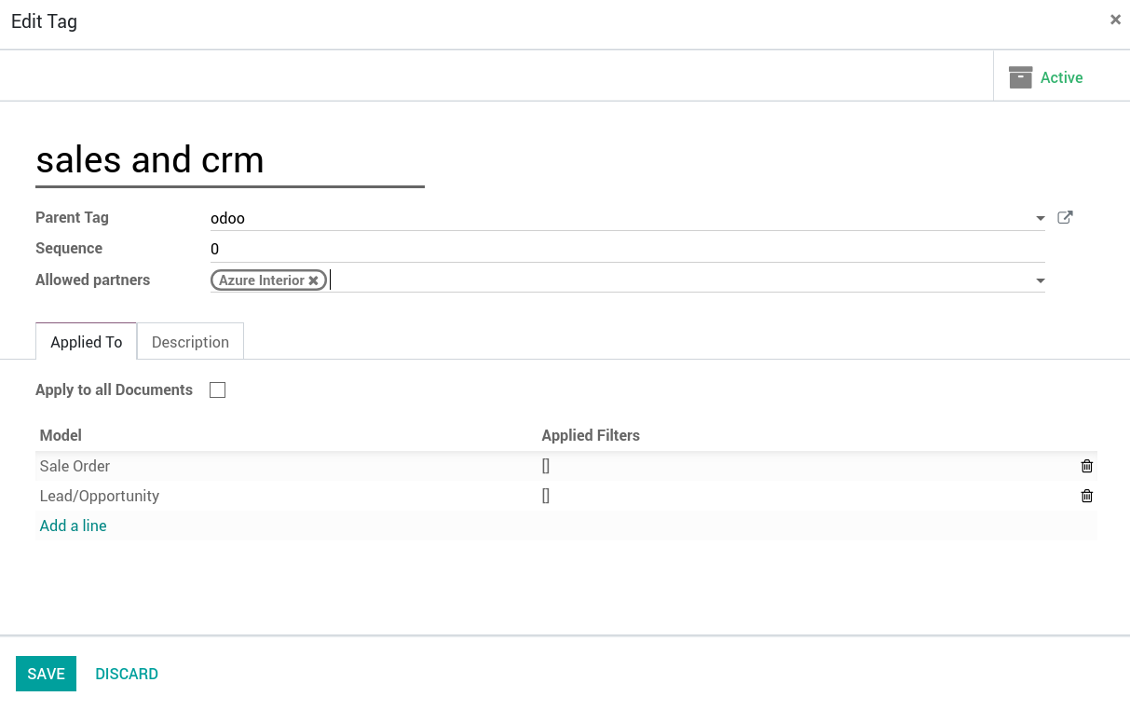
- Create a new tag (e.g. 'odoo / helpdesk'). In the table 'Applied to' use a required model (e.g. 'helpdesk ticket') or use it for all documents (the check box 'Apply to all documents').
- As advanced option you may apply additional filters: for example, to show articles only for 'new' tickets, not for 'in progress' ones. Use dynamic filters' constructor for that goal
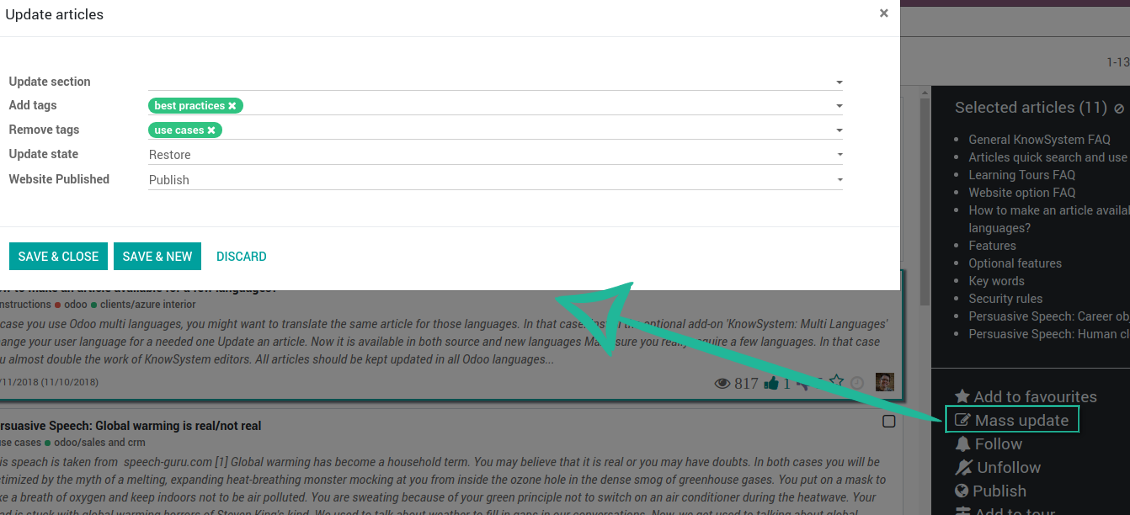
- Assign this tag for required articles. For a few articles use the mass action 'Mass update'
- Now when you access a quick article search from a document or from an email composer, Odoo will calculate KnowSystem tags for this document. That's why by default users would see only articles suitable for a current document. Simultaneously, they might always change tags to use other knowledge base data.
How to overview articles which might be useful for this document
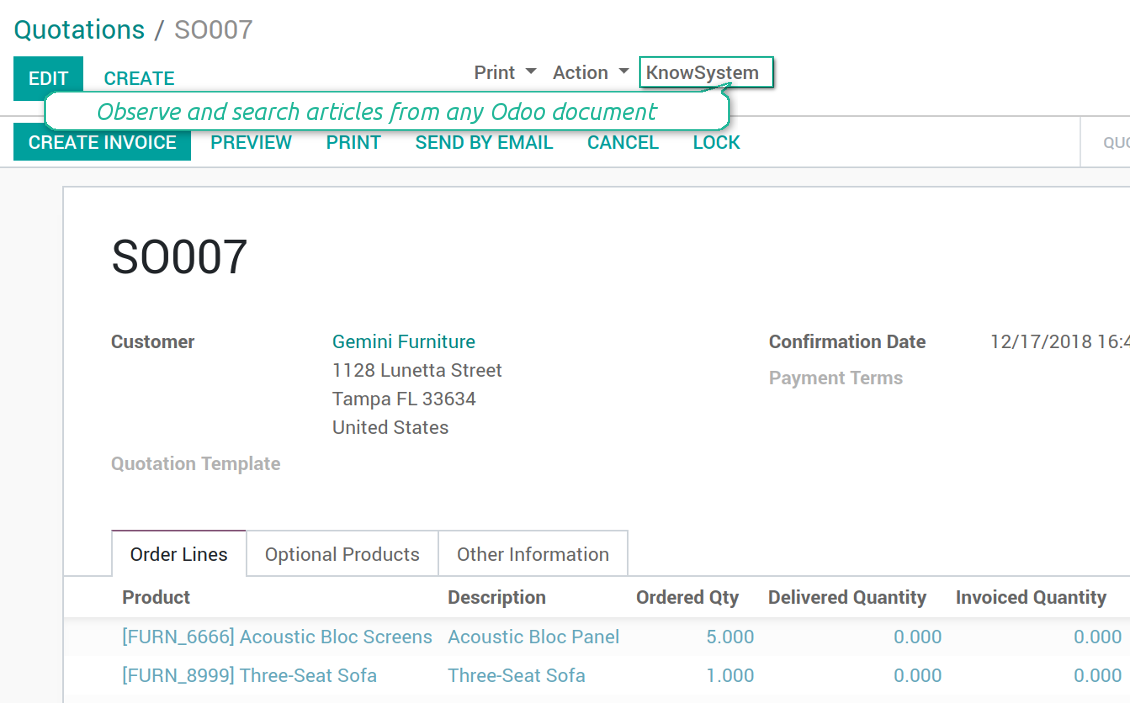
As soon as you turned on the option 'Articles by Documents', on the top of each Odoo object form view there would be a quick link 'KnowSystem'.
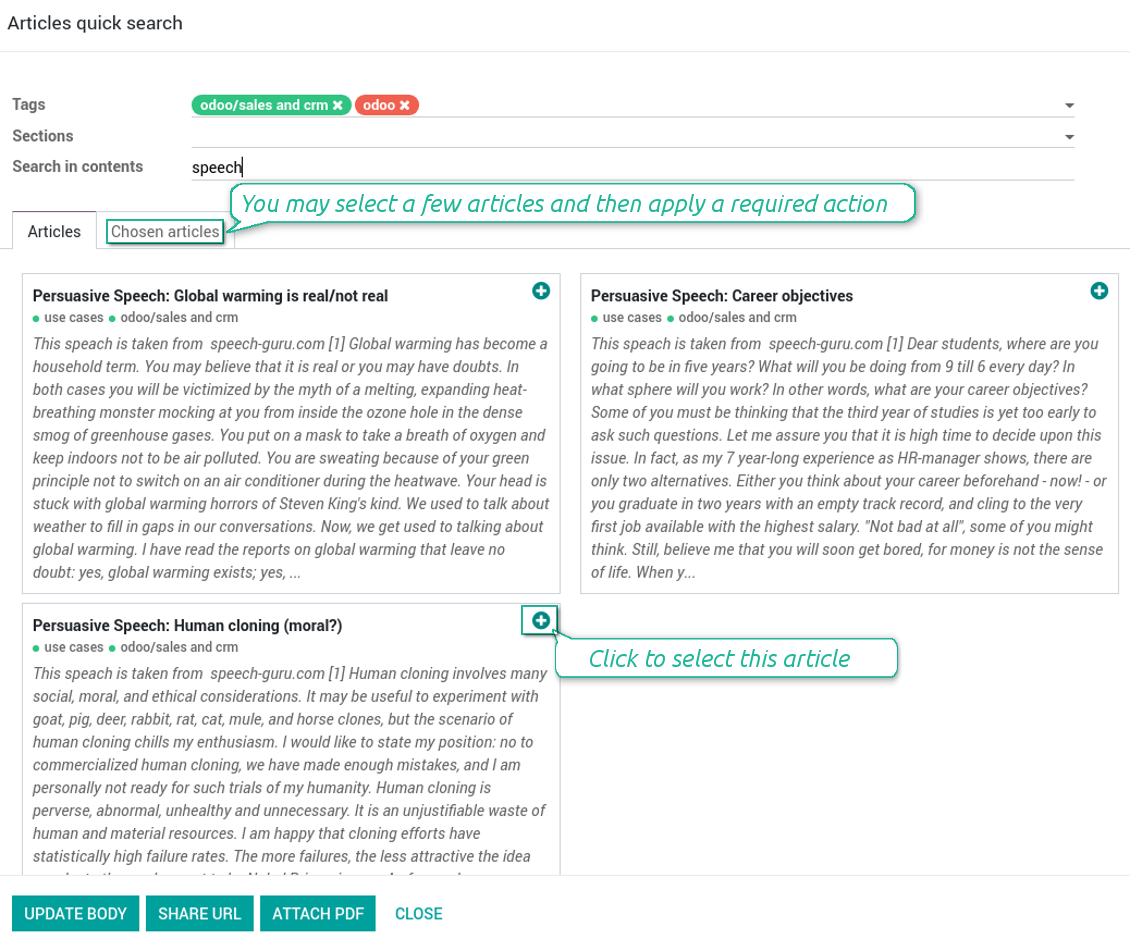
Click on that entry, and Odoo would open the wizard with articles. By default KnowSystem tags suitable for this document would be selected (if any). You may change those tags, or additionally filter by sections or content search. As a result list of topical articles is shown for you.
How to use company knowledge for communication
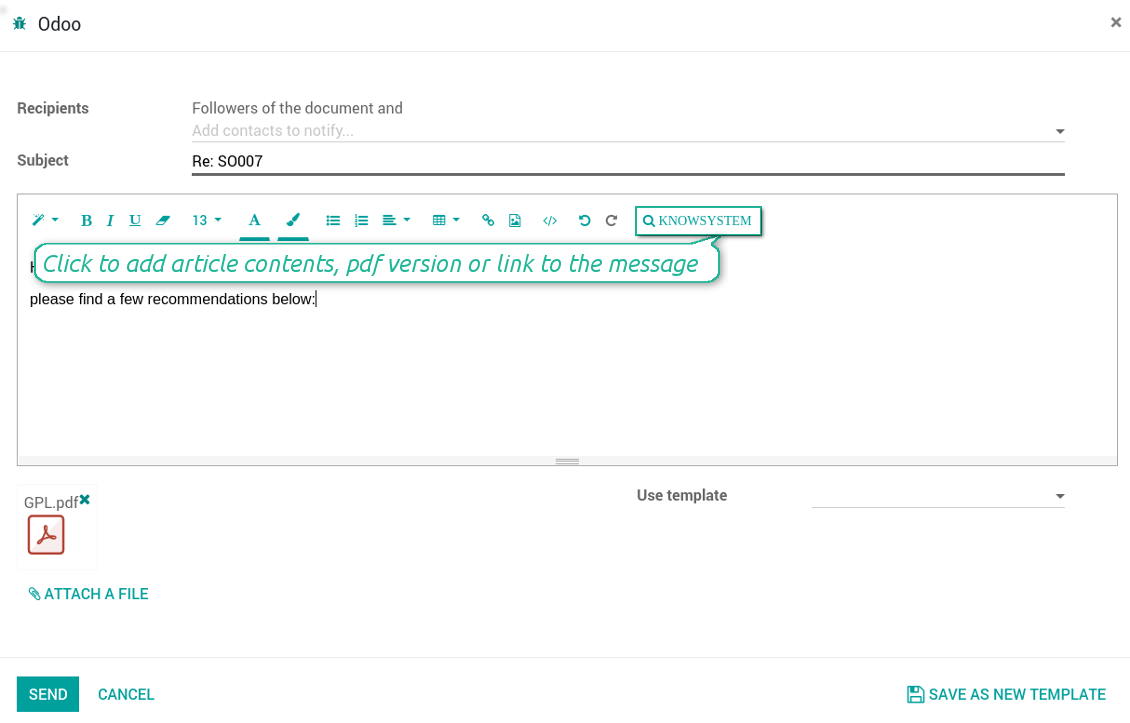
Turn on the option 'Articles in Email Composers' to let users reference or cite Knowledge records in Odoo messages. As a result the special quick entry 'KnowSystem' would be added to each Odoo email composer.
Clicking on that entry would open a wizard with a set of suitable to this document articles. You may change search by tags, add extra filtering by sections or content.
Afterwards, select required articles among found ones; choose an action. You may:
- Update message body with article contents (would be added to the end of a current message)
- Attach a PDF version of an article(s)
- Share a public link
Skärmdump
Quick access for knowledge system from any Odoo document
Knowledge base link from email composer
Articles from any document
Article(s) PDF printing
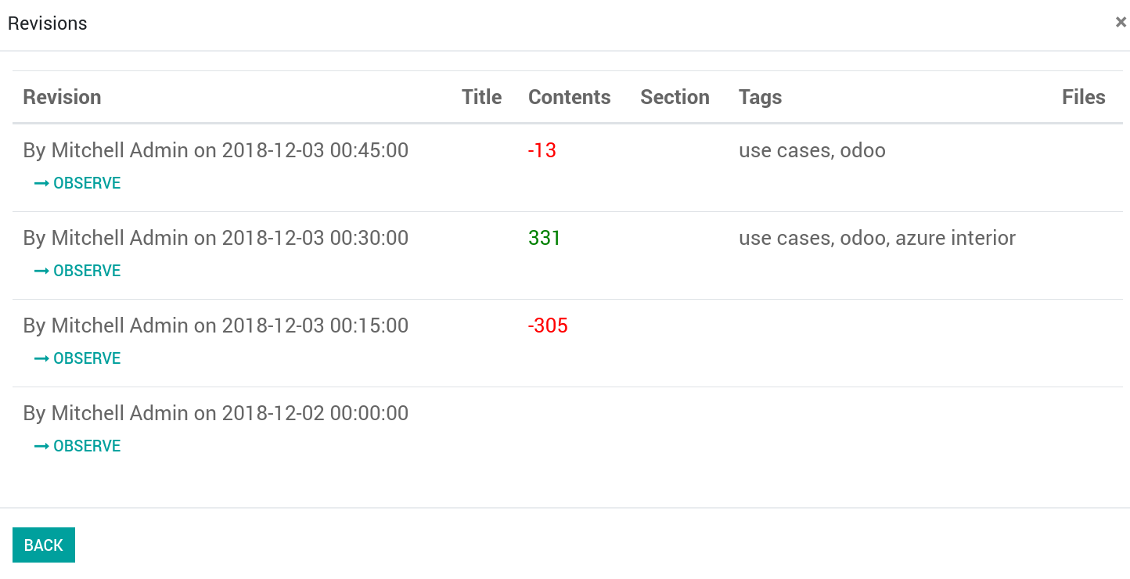
WIKI-like revision system
How to recover a previous article version
- Go to an article form view and push the button 'revisions'
- Find a required one and push the button 'Observe' to check whether this version is a correct one
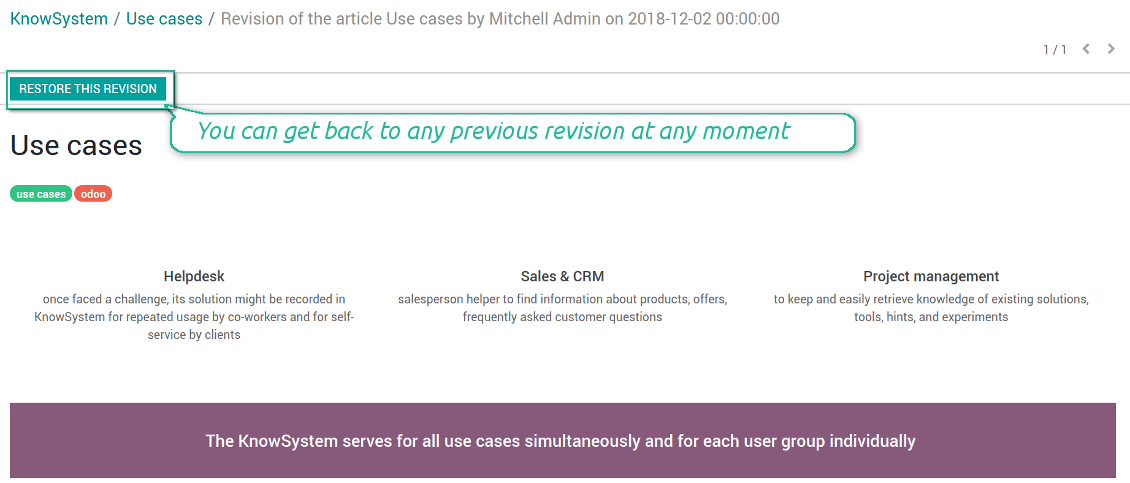
- Push the button 'Restore this revision'. The article would be recovered to that version.
- The recovery operation itself is recorded. So, if it is a mistake you can revert changes by recovering the last-to-last revison.
Skärmdump
Wiki-style revisions history
To restore is easier than to break
Individual partner knowledge base portal
How to share knowledge base with specific partners
An article is available for a portal user in two cases: A. it is website published; B. his/her company is indicated as allowed partner in one of article tags.
In the first case such an article is available for all portal users and even for public website visitors who have not logged in.
In the latter case you grant a restricted access for an article only for chosen companies. To that end:
- Turn on the setting 'Portal KnowSystem'
- Create a tag for this partner, for example 'clients / Azure Interior'. On the tag form indicate this company in the field 'Allowed partners'
- Assign the tag for all articles you want to share with this partner. For a few articles use the mass action 'Mass update'
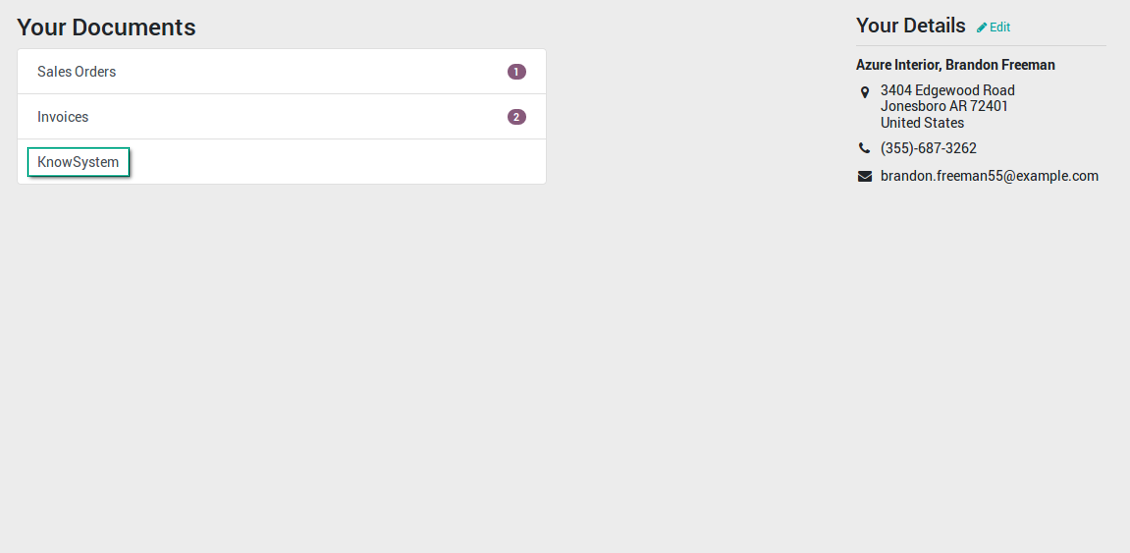
- Now portal users related to this partner may access shared articles right from their partner portal.
Skärmdump
Knowledge base for portal and public use
KnowSystem articles on website
Tag: document types and portal partners
KnowSystem from portal
Best knowledge base system for Odoo!
Excellent app and exceptional after-sales support.
Really well thought-out product and one of the best features is the contextual help by means of the tags. Really a game changer for us.
Keep up the great work FaOtools!
Outstanding app! Tremendous value for money, an absolute must have!
One of the features sorely lacking from Odoo has been a robust Wiki/documentation system. Using third party platforms is a massive headache: yet another system to maintain, users get distracted switching back-and-forth, and errors get made. Then you have to worry about training, additional logins, etc.
KnowSystem feels like a native/core app, is very well-polished, and extremely fast. It's accessible from any screen, and the search results are instant (none of the latency inherent with most apps).The interface is elegant yet powerful, with robust access control, rich editing features, and version control. It's simple to revert to previous entries, view audit trails, etc. It's very intuitive for anyone familiar with Odoo; onboarding takes just a few minutes. The user guides are excellent.
This is invaluable for any organisation with a lot of documented information, SOPs, ISO compliance, or similar. If you're using eLearning, it's great for creating a help system / reminders. For example, noting key takeaways or specific instructions. The user can be in MRP, Sales, or any other function, and instantly lookup a guide. Since it overlays whichever screen you're in, it doesn't interrupt the workflow.
This dramatically increases efficiency, minimises questions, and helps keep everyone on the same page.
Oh, and customer service is excellent, faOtools stands behind their product. Thank you!
KnowSystem is excellent - OdooTools offer great support, are very helpful and responsive
Our company needed the ability to add a Knowledge Base to our Odoo portal website for our customers to access article content on a membership-only basis. KnowSystem provided this and much more, along with ability to add search by section, set permissions to allow only certain partners access to articles by tag etc. OdooTools have been very helpful and implemented several features we suggested including automatic redirect upon login, customisable filters and a social sharing capability on articles. Overall a great app by a great company, something that massively adds to Odoo's capabilities and is something that everyone could benefit from using.
Very functional application and responsive support
Our company produces medical laser equipment and we use KnowSystem to streamline the knowledge base of our company. Convenient search system and classification of content, as well as access rules for groups and even for individual users.
Great app and professional team
The app is great the the team is very professional in both response timing and problem solving.
Highly recommended.
Marco from ALO.zone.
Excellent system
Excellent system.
A great tool from some very nice developers!
KnowSystem is a great tool and a game changer for us. Finally a place to put all our company know-how. I highly recommend it. And also important to us: We got great support from FaOtools too. A rare thing in this busy world. thx!
Excellent app and support.
Great app and a very helpfull support. Openess to improve their products is outstanding.
Public knowledge base
How to make an article available for all website visitors
- Turn on the setting 'Public KnowSystem'
- Publish required articles through the mass action 'Publish' or by pushing the button 'Actions > Publish on website' on an article form
- Now any website visitor can read those articles
Team work for knowledge creation
Skärmdump
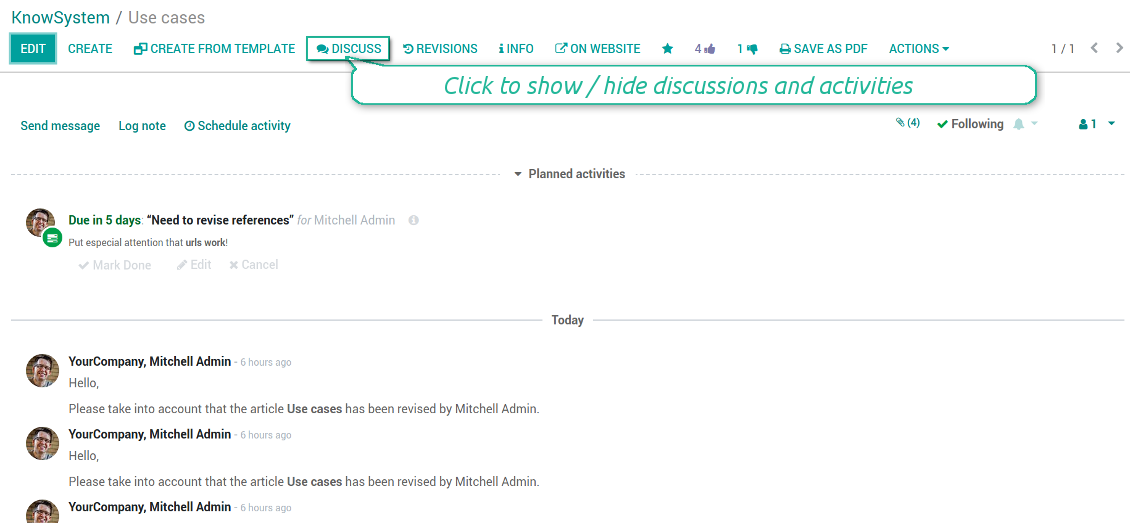
Knowledge base interactions, discussion, and activities
Custom fields to structure knowledge
How custom knowledge attributes work
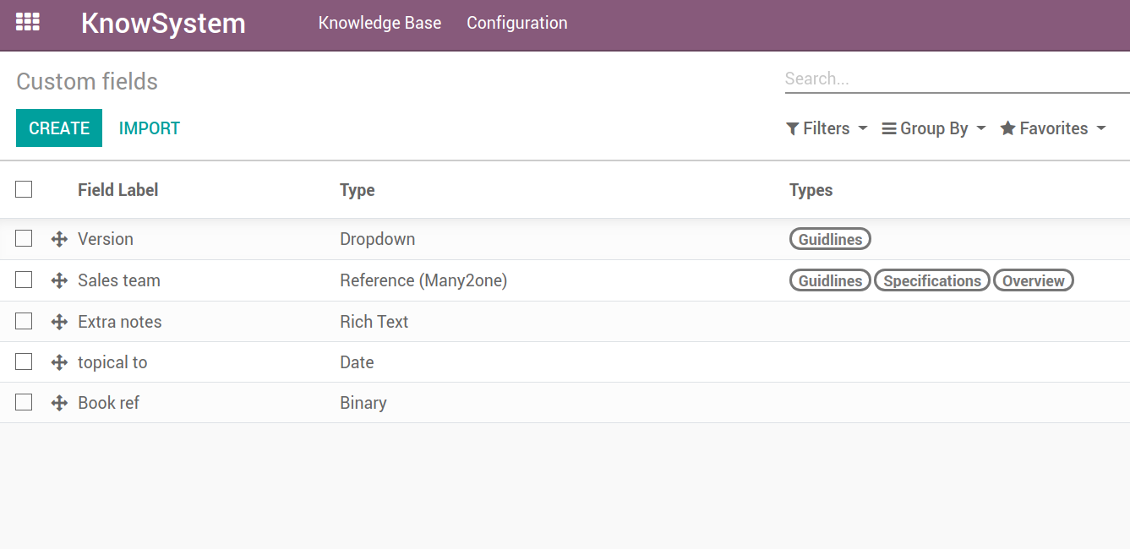
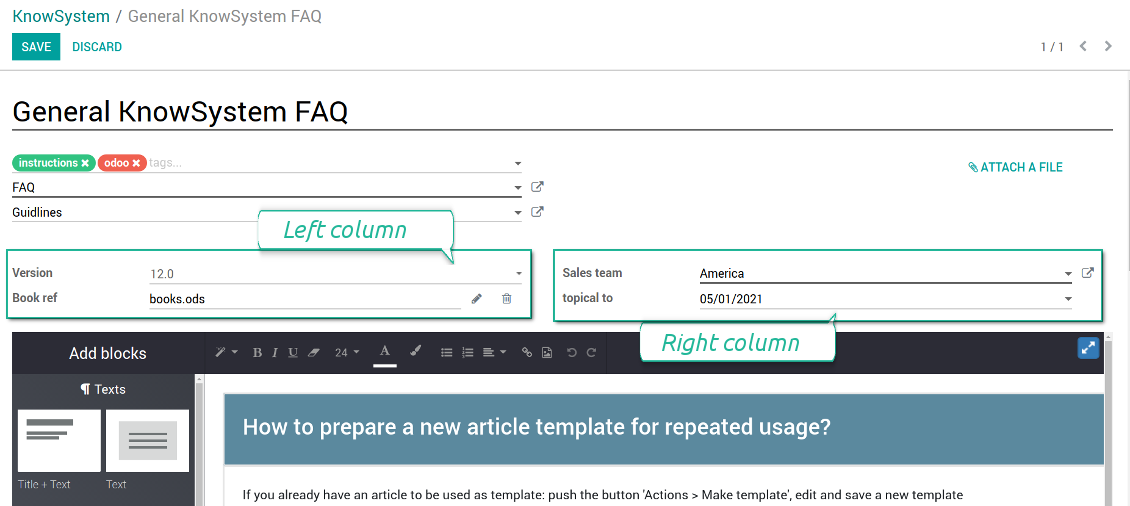
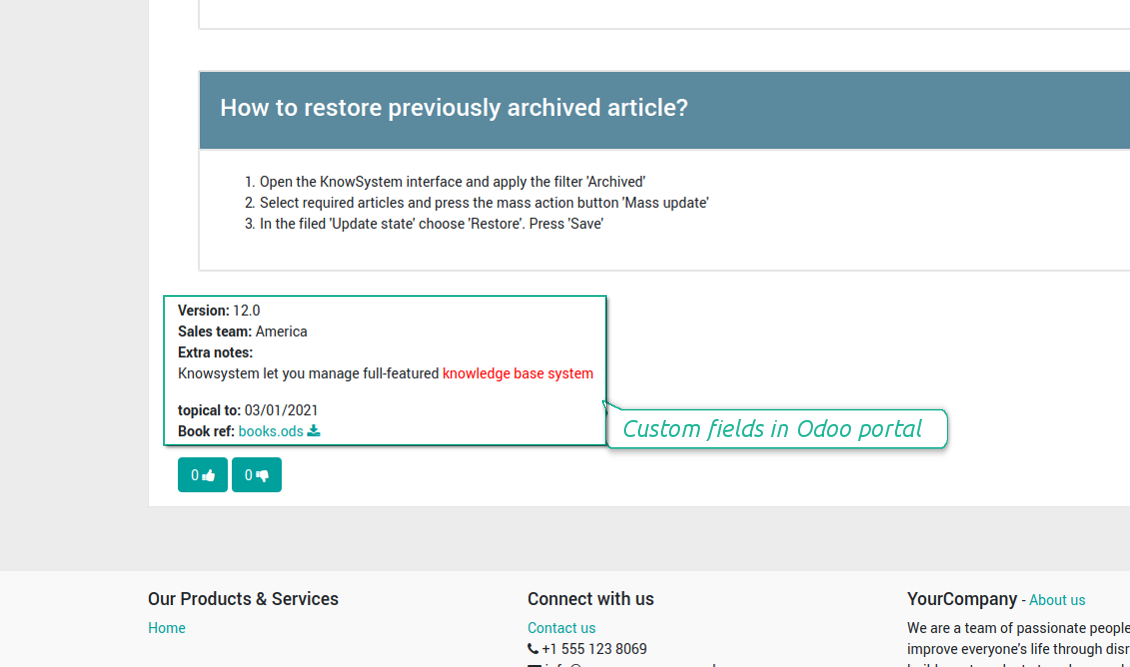
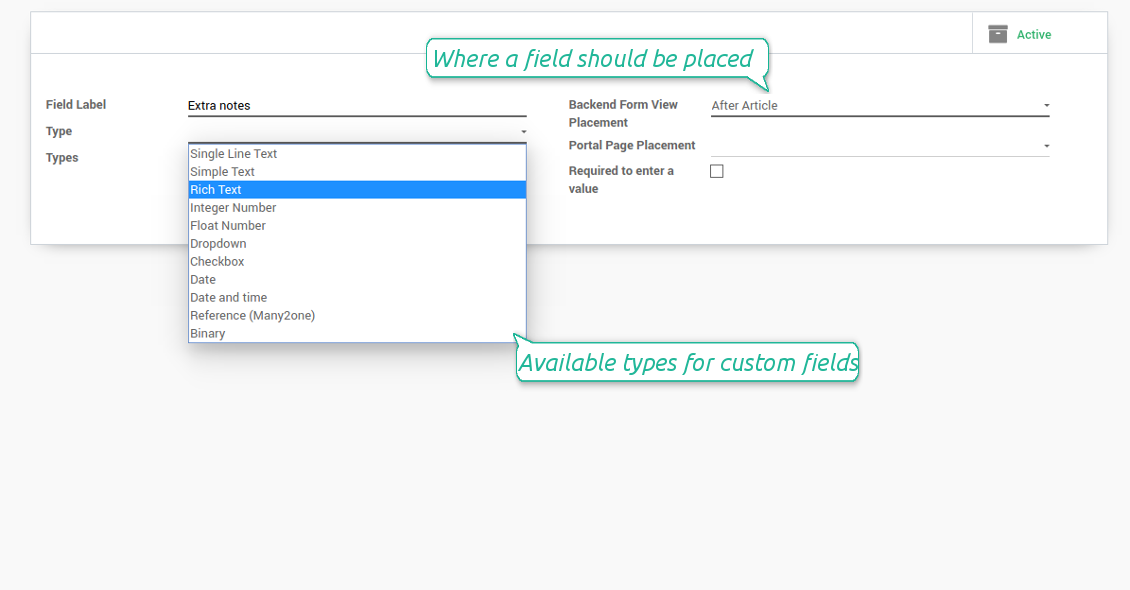
In order to show a new property for KnowSystem articles, just create a custom field. Nothing else is required! You are welcome to prepare fields of various types: single line text (char), simple text without formatting (text), rich text (HTML-formatted text), integer or float numbers, drop-down choice with your own options (selection), checkbox (boolean), date or date and time, binary (a file to upload), reference to another Odoo document (e.g. for a sale order, contact; many2one).
The tool also introduces complementary articles' typology. Thus set of attributes for 'user guidelines' and 'technical specifications' might be different.
Then, choose an interface location for a new field from a closed list to structure properties on an article page. Decide whether a field should be required to enter, or should be visible only for definite knowledge types.
Skärmdump
KnowSystem articles' custom fields
Custom fields on article form
Custom fields in portal and website
Custom fields for article: add any data required
Knowledge is secured and might be safely shared
How to manage user accesses to articles
Security for internal and portal users differs.
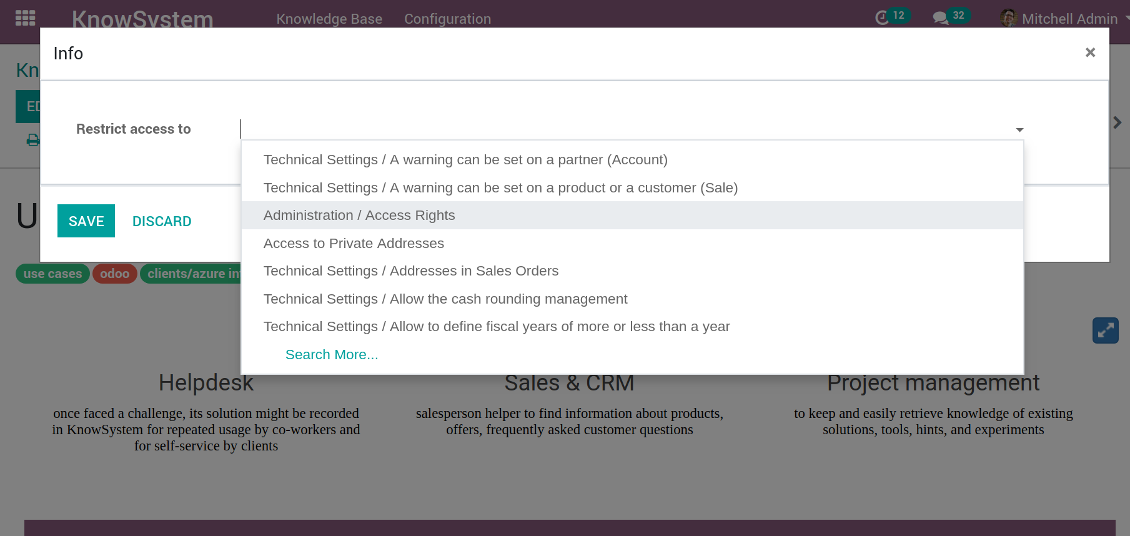
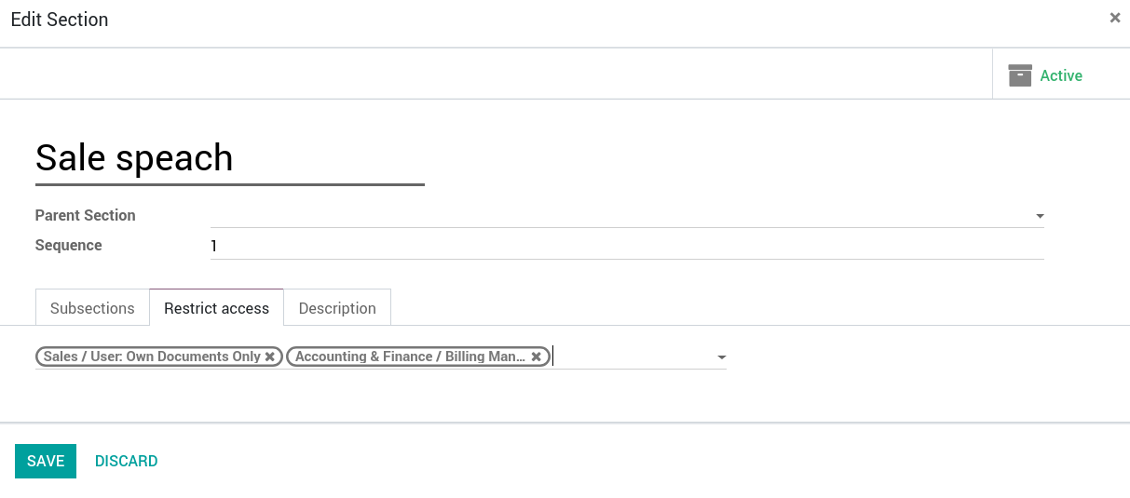
For the company employees: KnowSystem considers user groups which are defined per articles, sections and tours. Look at the tab 'Restrict to' on forms of those objects. If that field is not defined, a document is considered 'global': each internal user may read it.
For portal / public users: KnowSystem takes into account tags and whether an article is website published. A knowledge tag has a field 'Allowed partners', which may grant an access to portal users for articles with this tag. Website published pages are available for everybody.
Rights to administrate KnowSystem belongs to 2 user roles: KnowSystem Editor and KnowSystem Administrator. If you want a user to create and edit articles, a user should belong to one of those groups.
|
|
Odoo user |
KnowSystem Editor |
KnowSystem Admin |
Portal user |
Public user |
| Articles | read related to his/her user groups and sections | read, create, edit, archive related to his/her user groups and sections | read, create, edit, delete any | read published articles and articles related to partner-related tags | read published articles |
| Sections | read related to his/her user groups | read, create, edit, archive related to his/her user groups and sections | read, create, edit, delete any | read all sections of available articles | read all sections of published articles |
| Tags | read any | read, create, edit, archive any | read, create, edit, delete any | no access | no access |
| Tours | read related to his/her user groups | read, create, edit, delete related to his/her user groups | read, create, edit, delete any | no access | no access |
| Misc | may like / dislike, add to favourites, print, take part in discussions | may configure options | may like / dislike an article |
|
Take also into account two peculiarities:
- Odoo user always may access an article of which he is an author disregarding further restrictions;
- Rights for section is defined not only according to this section but also according to all its parents. For example, if user can't access 'sales', he/she would not be able to access 'sales / crm' disregarding whether 'crm' is available for his/her user group.
Skärmdump
Manage access to this article
Section update and user rights
Create learning tours
How to configure a learning tour
- Turn on the option 'Tours'
- Go to KnowSystem interface and select articles to be included into a tour
- Press the mass action button 'Add to tour' and select or create a tour. Press save
- Re-order articles in a consistent order
- Define groups of users who should go through a tour on the tab 'Restrict access'
- Now users can see and launch tours right from the KnowSystem interface (the right navigation panel)
Skärmdump
Article in a learning tour
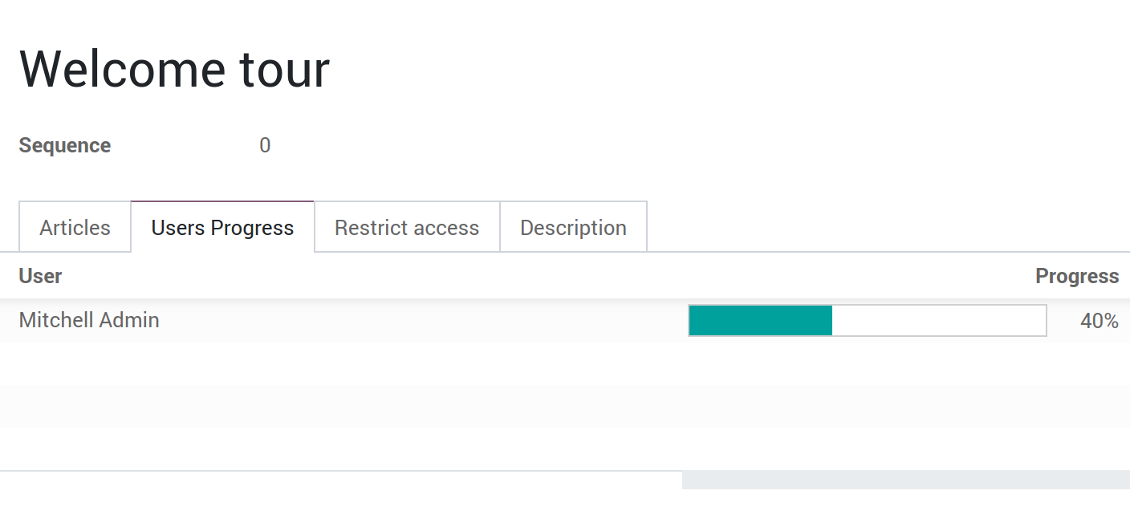
Control tour progress by users
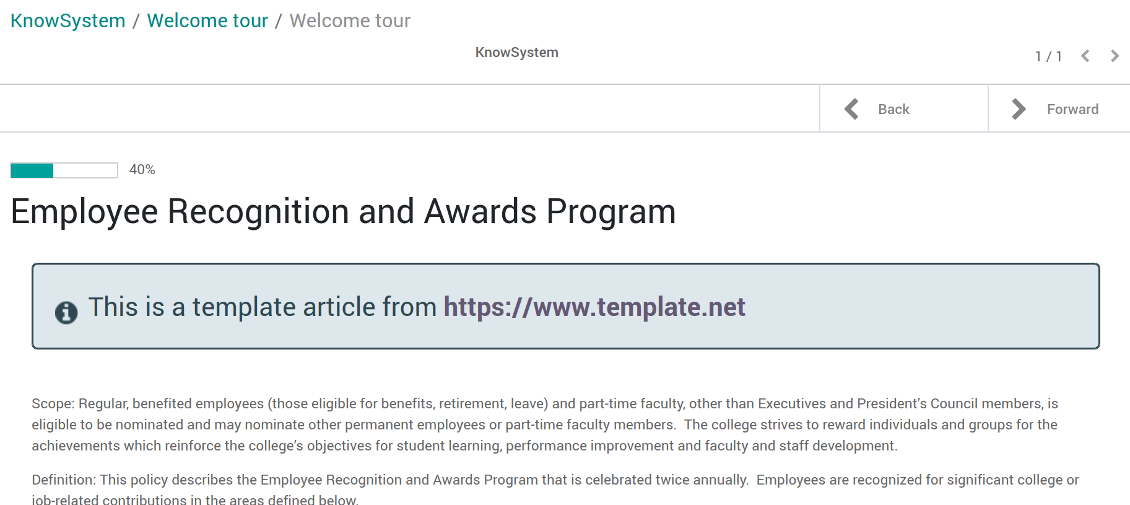
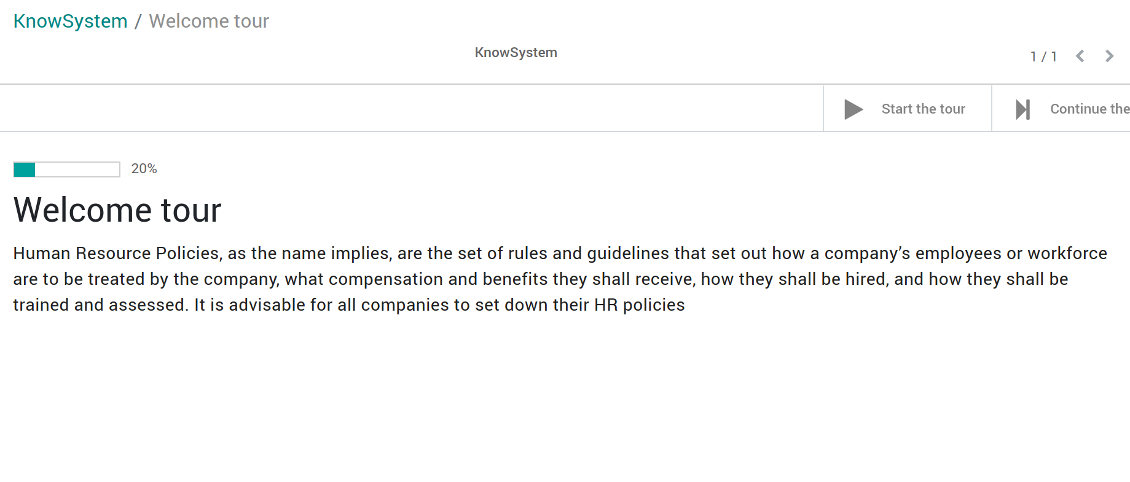
KnowSystem tour welcome page
Multilingual knowledge base
How to make an article available for a few languages
- Install the optional add-on 'KnowSystem: Multi Languages'
- Change your user language for a needed one
- Update this article
- Now it is available in both source and a current language
Make sure you really require a few languages. In that case you almost double the work of KnowSystem editors. All articles should be kept updated in all Odoo languages.
Knowledge base for any industry and business
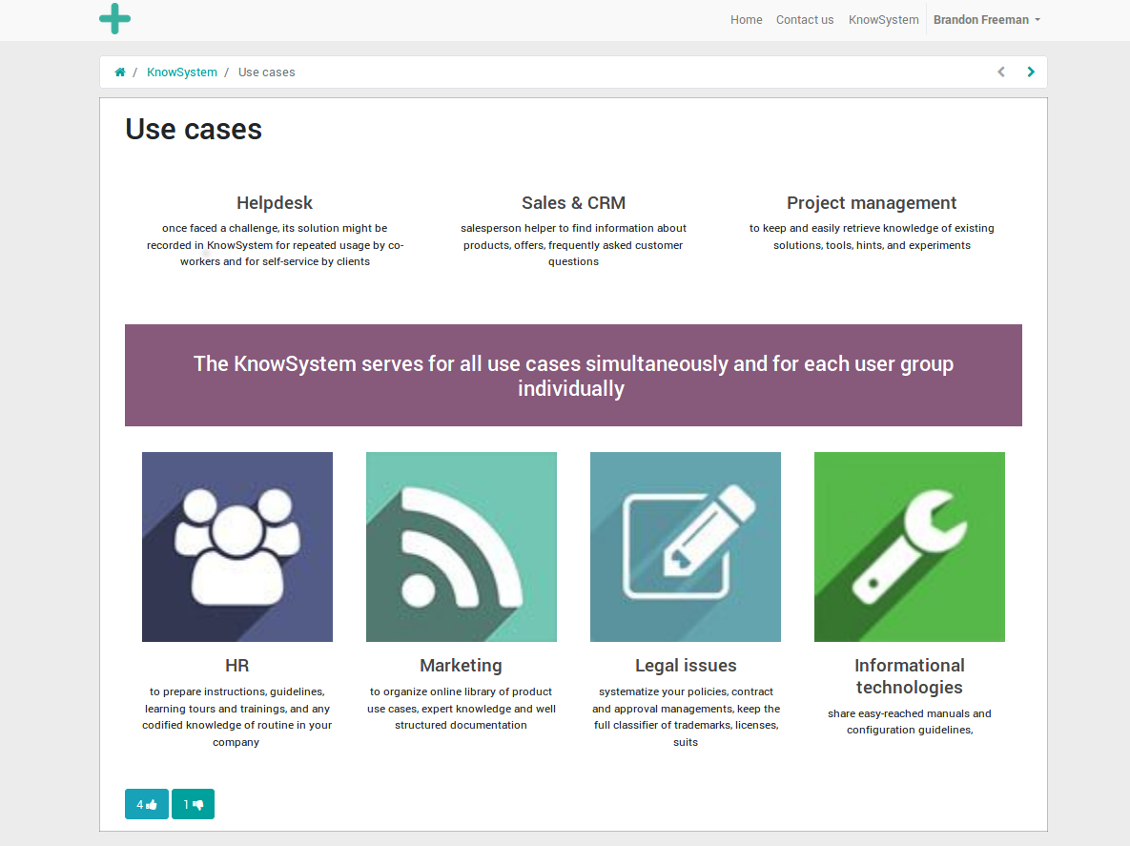
Typical use cases
- Helpdesk: once faced a challenge, its solution might be recorded in KnowSystem for repeated usage by co-workers and for self-service by clients
- Sales & CRM: salesperson helper to find information about products, offers, frequently asked customer questions
- Project management: to keep and easily retrieve knowledge of existing solutions, tools, hints, and experiments
- HR: to prepare instructions, guidelines, learning tours and trainings, and any codified knowledge of routine in your company
- Marketing: to organize online library of product use cases, expert knowledge and well structured documentation
- Legal issues: systematize your policies, contract and approval managements, keep the full classifier of trademarks, licenses
- Informational technologies: share easy-reached manuals and configuration guidelines
Vanliga frågor om KnowSystem: Knowledge Base System Odoo v.11
Jag ser ingen skillnad mellan revisionernas texter.
Revisioner registrerar inte bara textändringar utan även alla stiluppdateringar (tekniskt när du ändrar HTML-källkoden för en artikel). Vissa syns inte vid första anblicken (t.ex. ändrad teckenstorlek på ett enda ord). Andra kan vara stora. Varje kedja Edit > ändra något i en artikel > Save ger dock en ny revision.
Kan jag lägga till en YouTube-/ Vimeo- / Dailymotion- / Youku-video i en artikel?
Ja, du kan bädda in video från de tjänsterna i artiklar både från Odoo-backend och webbplatsbyggaren. Lägg till ett byggblock med en bild > tryck på bilden > välj ‘Video’ > ange URL:en till mediet.
Observera: sådana videor inkluderas som iframes, och vissa webbläsare kan blockera uppspelning tills användaren uttryckligen tillåter det.
Hur gör jag ett avsnitt synligt på hemsidan?
I KnowSystem blir ett avsnitt synligt på en webbplats om det är publicerat och innehåller minst en artikel. Även med underavsnitt syns det inte om det inte finns en enda artikel i avsnittet självt. Det undviker tomma avsnitt och gör KnowSystem-portalen överskådlig. Vill du visa avsnittet på webbplatsen kan du lägga till en inledande eller allmän artikel som kort beskriver eller listar artiklarna i underavsnitten.
Hur delar jag en artikel med en extern partner?
Högerklicka på valfri etikett i den vänstra navigeringspanelen - Create
Hitta fältet 'Allowed partners'. Till exempel 'clients - azure interior' för att ge partnern 'Azure Interior' åtkomst. Du kan göra tvärtom: tilldela KnowSystem-etiketter direkt på partnerformuläret
Gå sedan till önskad artikel (eller gör samma sak med åtgärden 'Mass update' för flera poster):
Om den är publicerad: avpublicera den om du inte vill att den ska vara tillgänglig för alla portalanvändare och offentliga besökare
Tilldela den nyss skapade etiketten (i exemplet är det 'clients - azure interior')
Nu:
Alla portalanvändare kopplade till den kommersiella partnern 'Azure Interior' har åtkomst till artiklarna med etiketten 'Azure Interior'
Inga andra portalanvändare (om ingen annan etikett är tilldelad) har åtkomst till de artiklarna
Interna användare påverkas inte och ser artiklar enligt logiken 'access to' för artiklar och avsnitt.
Kan vi lägga till språkvalsknappen för artikelns brödtext?
Knappen 'translate' läggs medvetet inte till i artikelns brödtext av tillägget 'KnowSystem: Multi Languages'. HTML är mycket svårt att översätta i den enkla popup som knappen förutsätter. Det skulle bli väldigt lite text att översätta och många HTML-delar (som översättaren dessutom kan förstöra).
Därför ska du, för att göra en artikel på ett visst språk, logga in som en användare med det språket. Det kan vara en annan användare, eller så ändrar du tillfälligt den aktuella användarens inställningar. Därefter görs alla uppdateringar av artikelns brödtext på det användarspråket.
Du kan också använda knappen 'Copy from another translation' under artikelns brödtext för att när som helst hämta innehållet från ett annat språk (användbart om artikeln uppdaterats kraftigt på ett av språken).
Hur bäddar jag in en annan webbsida i en artikel
För det kan du använda iframes. Växla artikeln till den råa HTML-kodredigeraren och infoga till exempel <iframe src="https://faotools.com/" style="width:100%;min-height:600px;"> </iframe>.
Jag har installerat KnowSystem men ser inte knappen 'create' och andra knappar
Du har troligen inte gett användaren KnowSystem-rättigheter. Välj rättigheten 'KnowSystem Editor' eller 'KnowSystem Admin' och uppdatera sidan. Kontrollknapparna bör nu visas.
Kan jag visa en specifik lärandeguide bara för utvalda användare?
Ja, genom att tilldela en användargrupp (t.ex. 'Sales Manager') som ska gå rundturen. Tillhör användaren gruppen visas rundturen. Annars visas den inte. Det fungerar på samma sätt som behörigheter för KnowSystem-artiklar och -avsnitt.
Tänk på att en rundtur utan tilldelade grupper är 'global' och syns för alla.
Hur ändrar jag sidfot och sidhuvud när jag skriver ut artiklar?
Sidhuvud och sidfot för artikel-PDF:er hämtas från företagets layouter. Titta på Settings > General Settings > avsnittet Business Documents. Där anger du företagets mall som används för alla dokumenttyper, inklusive fakturor, säljorder m.m., och även för artiklar. Detta Odoo-sätt ser sidfot och sidhuvud som en allmän företagsstil, inte som ett attribut för specifika utskrifter.
Hur länkar jag artiklar till varandra?
Varje artikel har interna (backend-) och webbplats-URL:er (om alternativet 'KnowSystem: Website and Portal' är installerat). Klicka på knappen 'Info' på artikelformuläret för att se webbadresserna för den här posten. Du kan infoga vilken som helst i artikelns brödtext som en hyperlänk.
Kan jag ändra HTML-källkoden för en artikel?
Ja: slå på debug-resurserna (på översiktsskärmen för inställningar) och gå tillbaka till den aktuella artikeln. I redigeringsläget ser du specialikonen '</>'. Klicka på den för att granska och redigera HTML och stilar.
Vilka uppdateringsregler gäller for era verktyg?
Enligt de aktuella reglerna for Odoo Apps Store:
- Varje modul kop for version 12.0 eller tidigare ger tillgang till alla versioner upp till 12.0.
- Från och med version 13.0 måste varje modulversion kopas separat.
- Oavsett version ger kopet rätt till alla uppdateringar och felrättningar inom en huvudversion.
faOtools-teamet styr inte dessa regler. Vid frågor, kontakta representanterna for Odoo Apps Store direkt.
Hur installerar jag er app pa Odoo.sh?
Det mest direkta sättet ar Odoo-butikens inbyggda flöde:
1. Öppna modulens sida och klicka pa Deploy on odoo.sh
2. Du omdirigeras till GitHub. Logga in och klicka pa Create a new repo eller använd ett befintligt. Repot måste vara privat. Appar under OPL-1 far inte publiceras. Skapa vid behov ett nytt repo for Odoo.sh-projektet
3. Ga sedan till odoo.sh, klicka pa Deploy, bekräfta och klicka pa Continue. Installationen startar.
Stegen installerar appen pa production-grenen. For andra grenar eller uppdatering:
1. Ladda ner kallkoden från Odoo-butiken
2. Committa modulen till GitHub-repot. Ingen app-mapp/fil far sta i .gitignore. Repon som odoo.sh skapar kan ignorera viktiga sokvagar (t.ex. /lib). Ladda upp alla modulmappar och filer
3. Deploya malgrenen i odoo.sh-projektet eller vänta pa den automatiska builden om inställningarna anger det.
Hur installerar jag er app pa min egen server?
2. Starta om Odoo-servern;
3. Sla pa utvecklarlaget (tekniska inställningar);
4. Uppdatera applistan (Appar-menyn);
5. Hitta appen och klicka pa Activate/Install;
6. Följ anvisningarna pa appsidan om det finns någon.
Er app har extra tillägg. Kan jag kopa dem senare?
Ja. Odoo lägger automatiskt alla beroenden i varukorgen: uteslut redan kopta verktyg sa att du inte betalar tva gånger.
Jag deployade er app pa Odoo.sh och ser en varning/ett fel i testerna
En rod/orange varning påverkar inte appens funktioner. Ibland klarar vara moduler inte de vanliga automatiska testerna, eftersom de förväntar ett beteende som strider mot appens mal. Vi ändrar till exempel prisberakningen, medan Odoo-testerna jämför slutpriset med standardalgoritmen.
Kontrollera först funktionerna i den deployade databasen. Fungerar allt?
Om du ändå tror att varningen påverkar verkliga funktioner, kontakta oss och skicka de fullständiga installationsloggarna och den fullständiga listan över deployade moduler (karn och tredje part).
Kan jag kopa er app direkt av er?
Nej, vi distribuerar verktygen endast via den officiella Odoo-appbutiken.
Jag vill ha rabatt
Tyvärr har vi inte tekniska möjligheter att erbjuda individuella priser.
Kan jag installera appen pa min Odoo Online (SaaS)-databas?
Nej, tredjepartsappar kan inte användas pa Odoo Online. Odoo SaaS blockerar den möjligheten.
Ert verktyg beror pa andra appar. Behöver jag kopa dem?
Ja, verktyget behöver alla moduler som anges som beroenden. Priset pa appsidan inkluderar redan dessa beroenden.
Vad kostar modulen i amerikanska dollar? Varför andrades det?
Priset for vara moduler anges i euro. Odoo-butiken konverterar till andra valutor enligt sin interna vaxelkurs. Därför kan priset i amerikanska dollar andras nar kursen uppdateras.
App- och webbplatsformuleringar på andra språk än engelska är AI-assisterade och anpassade till officiella Odoo-översättningar. Om du upptäcker ett fel, skicka ett ärende om översättningskorrekthet så åtgärdar vi det.
Felrapportering
Om du stöter på fel eller inkonsekvent beteende, kontakta oss. Vi garanterar rättningar inom 60 dagar efter köpet och vill förbättra verktygen även efter det.
Du behöver varken telefonnummer eller kreditkort för att kontakta oss. Det räcker med en kort e-postregistrering som tar högst 30 sekunder.
Ta med så många detaljer som möjligt: skärmbilder, Odoo-serverloggar och en fullständig beskrivning av hur problemet återskapas. Det tar vanligtvis några arbetsdagar att ta fram en arbetsplan (om felet bekräftas) eller riktlinjer (annars).
Offentliga funktionsönskemål och modulidéer (gratis utveckling)
Vi är starkt motiverade att förbättra våra verktyg och tackar för all feedback. Om kraven är av allmänt intresse och kan implementeras effektivt tar teamet med dem i att-göra-listan.
En sådan att göra-lista behandlas regelbundet och innebär inga extraavgifter. Även om vi inte kan lova tidsfrister och slutlig design kan det vara ett bra sätt att få önskade funktioner utan investeringar och risker.
Du behöver varken telefonnummer eller kreditkort för att kontakta oss. Det räcker med en kort e-postregistrering som tar högst 30 sekunder.

Verktyget som strukturerar Odoo-bilagor i mappar och synkar kataloger med molnklienter: Google Drive, OneDrive/SharePoint, Nextcloud/ownCloud, Dropbox, Amazon S3, Box och NAS. DMS. Filhanterare. Dokumenthantering
398€
Verktyget för att automatiskt synkronisera Odoo bilagor med OneDrive filer i båda ways
487€
Verktyget för att automatiskt synkronisera Odoo bilagor med Google Drive filer i båda ways
487€
Verktyget för att förvara lösenord säkert i Odoo för delad användning. Delade valv

Verktyget för att sätta KPI-mål och kontrollera uppfyllandet per period. KPI-instrumentpaneler. Instrumentpanelsdesigner. KPI-diagram

Verktyget för tidsbaserad tjänstehantering från bokning till försäljning och recensioner
398€
Verktyget för att styra Odoo från dina AI-chattar via MCP. Claude. Valfri AI med MCP.

Verktyget för att slå ihop olika Odoo-händelser i några konfigurerbara superkalendrar

Verktyget för att translate URL adresser av Odoo webbplats pages
38€