KnowSystem: Knowledge Base System v.11
The tool to build deep and structured knowledge base for internal and external use. Knowledge System. KMS
- a core of knowledge management. It might be used stand-alone as a complete internal knowledge base system. 가격은 398€.
- an optional module, which let you publish articles to website, share them with portal users, and use website builder to update articles. The features assumed by this add-on are marked by the icon . 가격은 40€.
- an optional module, which let you add and show custom fields for articles (backend). The features assumed by this add-on are marked by the icon . 가격은 48€.
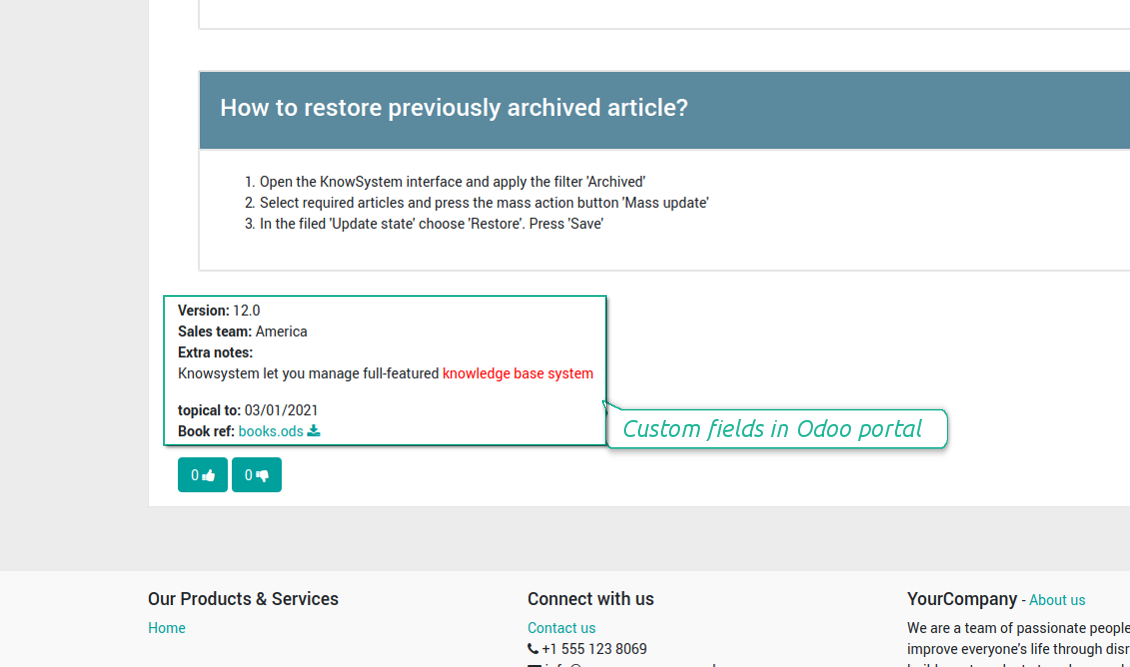
- an optional free module, which shows custom fields on website and portal pages (frontend). The features assumed by this add-on are also marked by the icon .
- an optional module, which let you translate articles, sections and tags for installed in Odoo languages. The features assumed by this add-on are marked by the icon . 가격은 10€.
Innovative single-view interface
From the same interface editors may create and update any knowledge-related documents, change articles in batch, set up security. Without a need for excess navigation.
Interface solutions
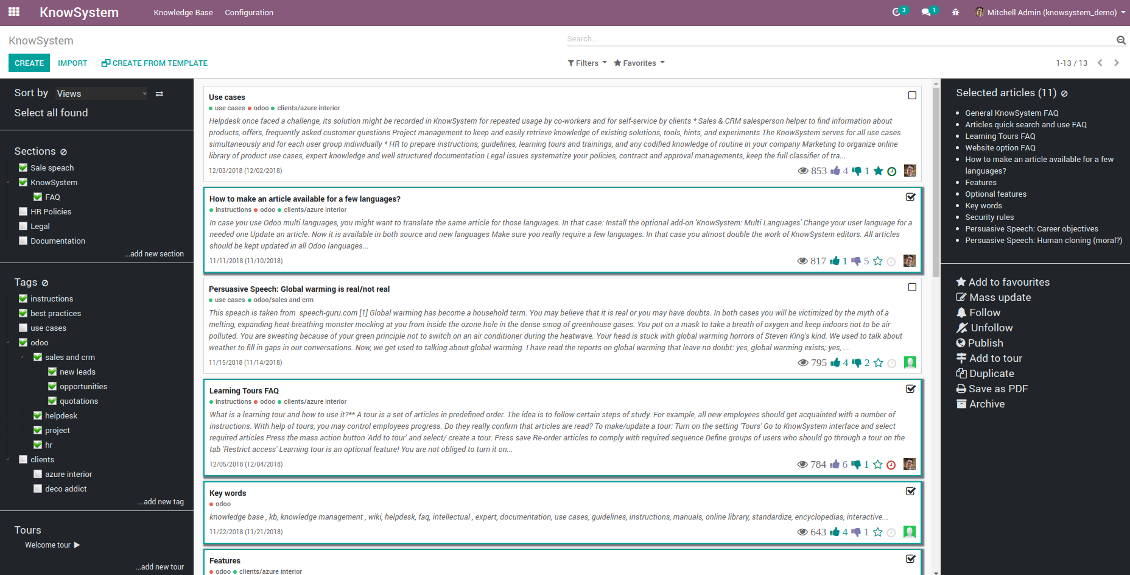
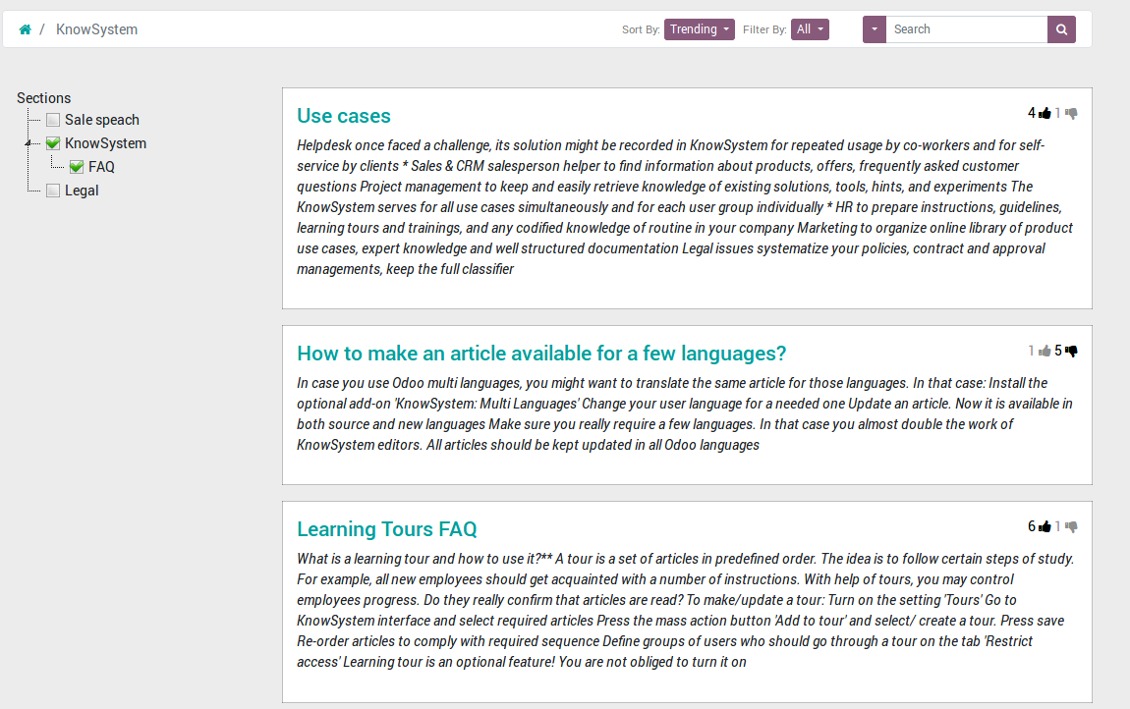
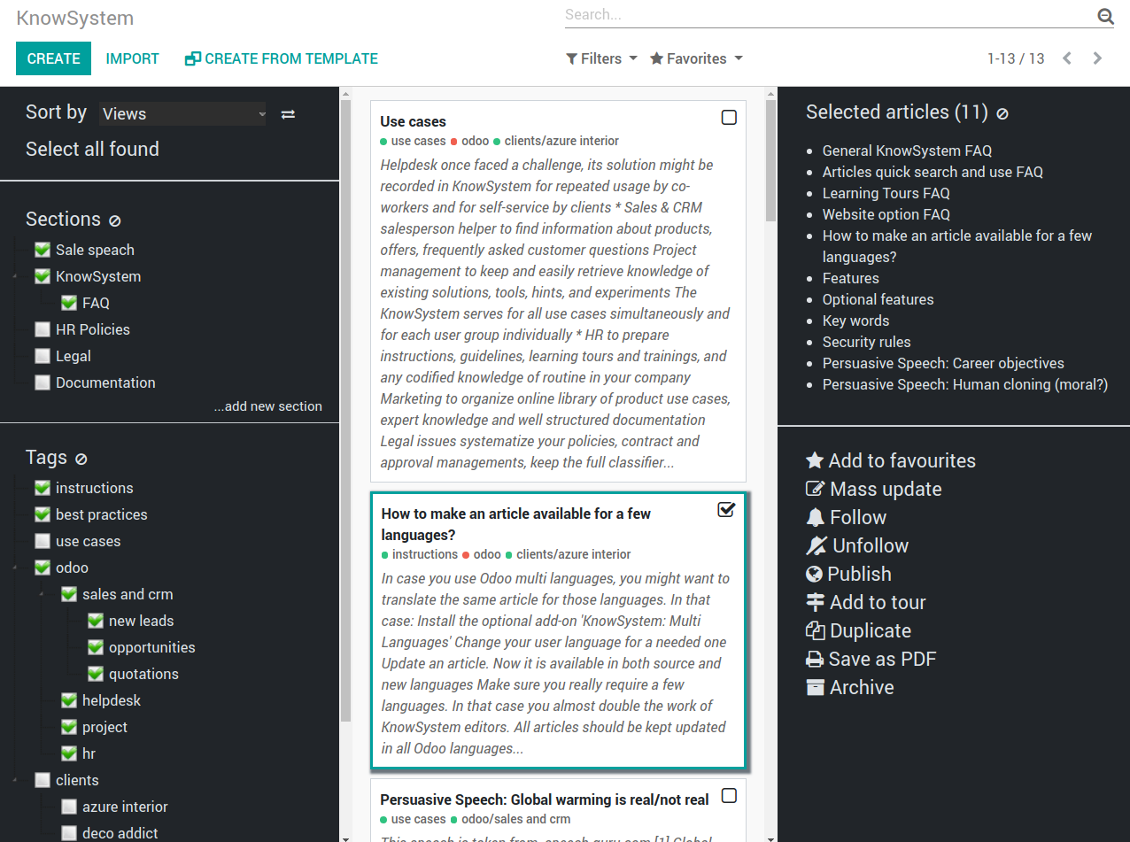
The KnowSystem interface consists of 3 key parts: the left navigation panel, the list of articles, and the right navigation panel (it is shown only if some articles are selected).
On the left navigation panel you may:
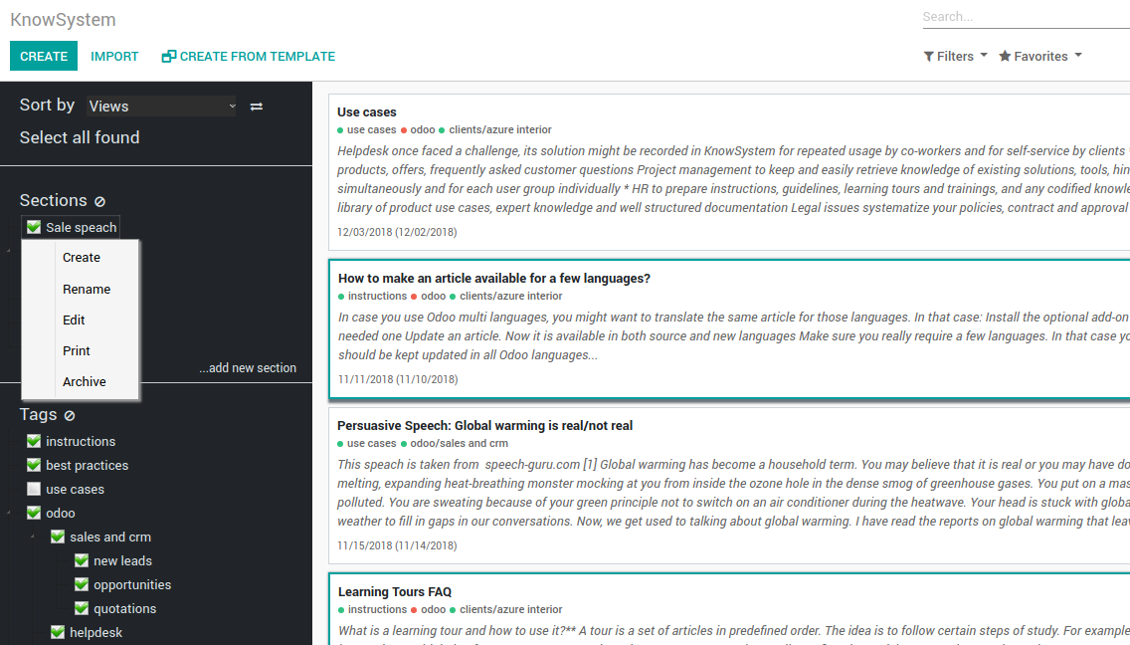
- Manage hierarchy of sections: prepare new (right mouse click - 'create'), update existing (right mouse click - edit), re-order any (drag and drop an item), archive sections. Select a few ones to filter articles. You may also print all articles related to this section as a single PDF file.
- In the same way manage hierarchy of tags
- Sort articles by number of views, a score of likes and dislikes, create or update dates, a section, an author
- Select all articles which are found according to chosen tags / sections and according to introduced searches / filters
- Launch a learning tour.
From the list of articles you see articles' name, indexed content (words without HTML style), dates of creation and last update, a number of views, likes, dislikes, author avatar. Here you may also add an article to favourite by pressing the 'star' icon.
Click on article body to open it in a full size (form view). Do not worry: chosen tags and sections as well as selected articles will be kept when you get back! Click on the top right check box to add an article for selection.
On the right navigation panel you observe selected articles and may proceed a mass action. Click on article name to remove it form selection.
On the top of the interface users also would find a standard Odoo omnibox. Type here to search by a title, content, an author, tags or a section.
Available mass actions
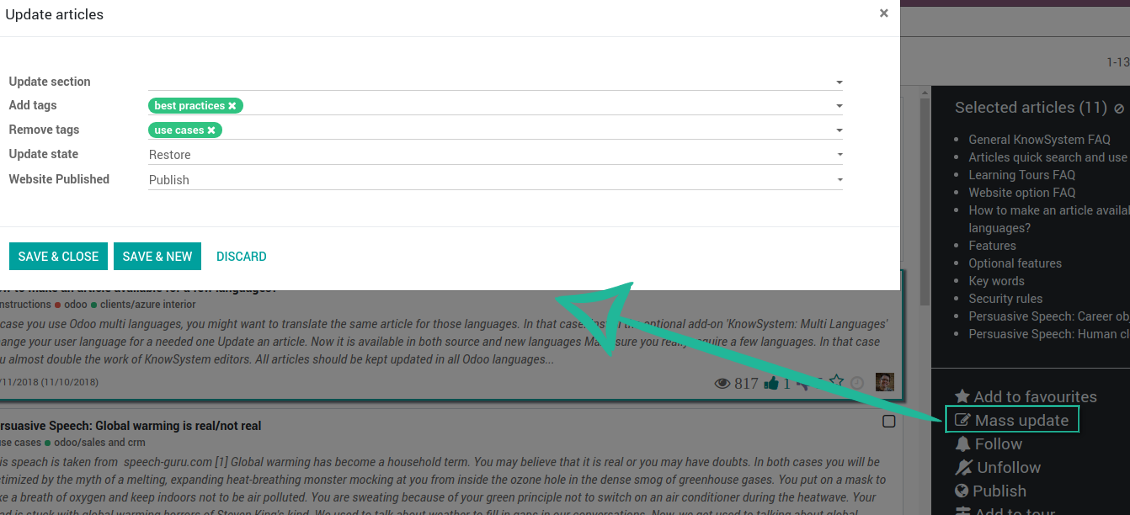
KnowSystem let users update an unlimited number of articles simultaneously:
- Assign new section
- Change or remove tags
- Print multiple articles as a single PDF
- Follow / unfollow discussions
- Publish / unpublish articles
- Export articles to an Excel table
- Archive or restore records
- Add articles to learning tours
- Mark knowledge items as favourite
- Duplicate articles.
스크린샷
KnowSystem articles overview, search and mass actions
Single entry for knowledge management actions
KnowSystem configuration
Article read mode
Article info and statistics
Article misc actions
Mass actions for selected articles
Small screen KnowSystem interface
Fast, comfortable, and professional knowledge recording
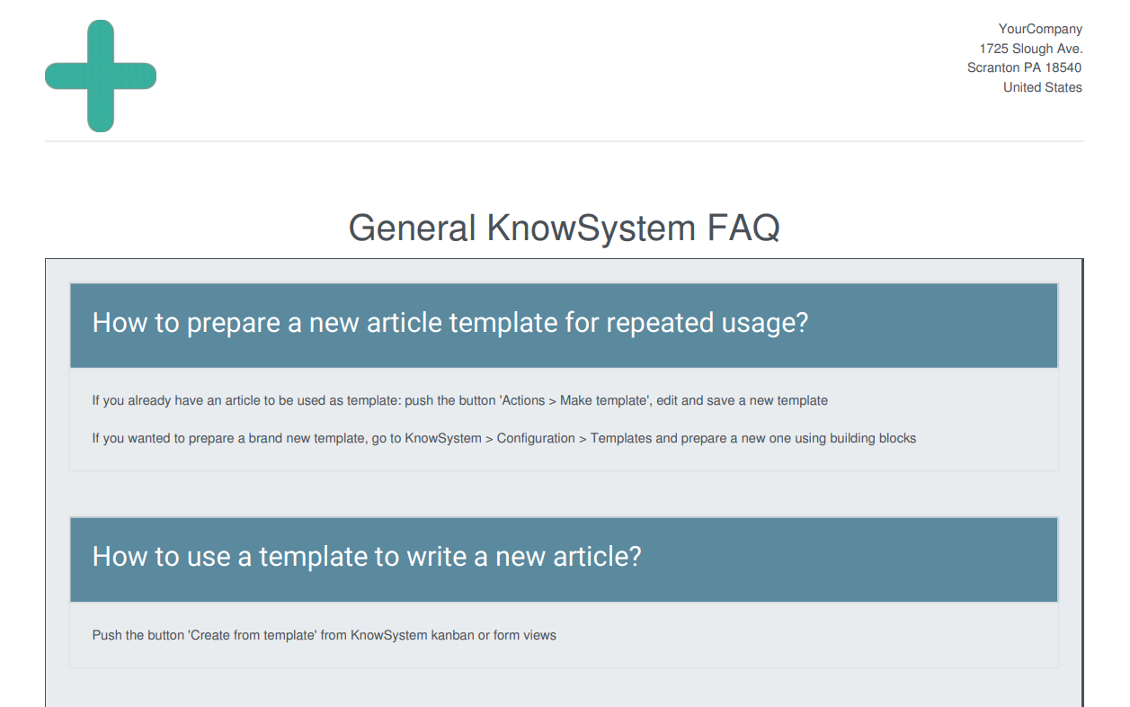
By using templates with pre-defined styles you may also speed knowledge generation up and standardize articles' appearance.
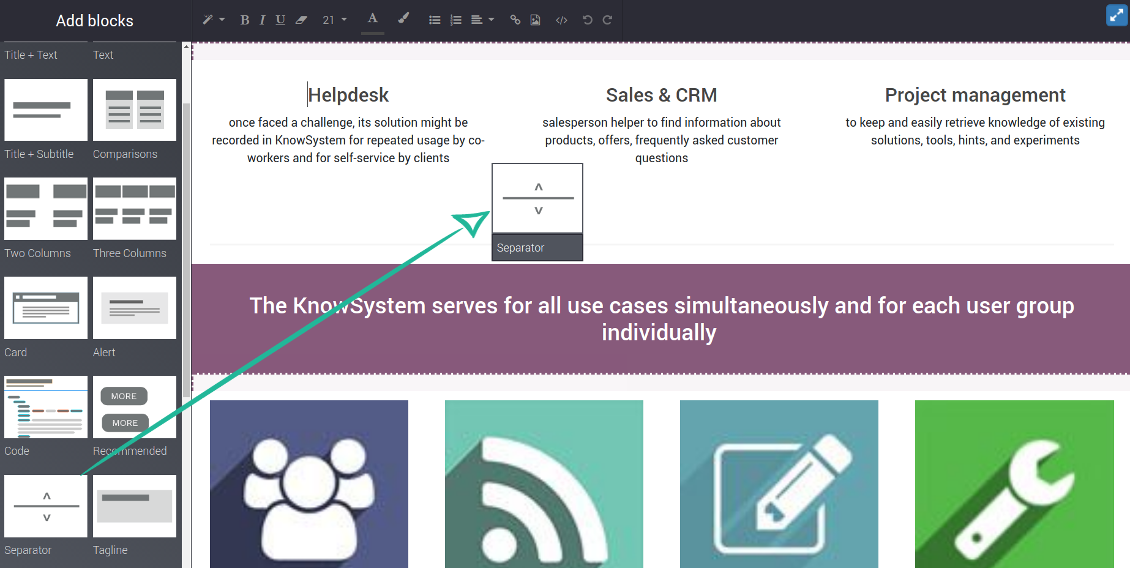
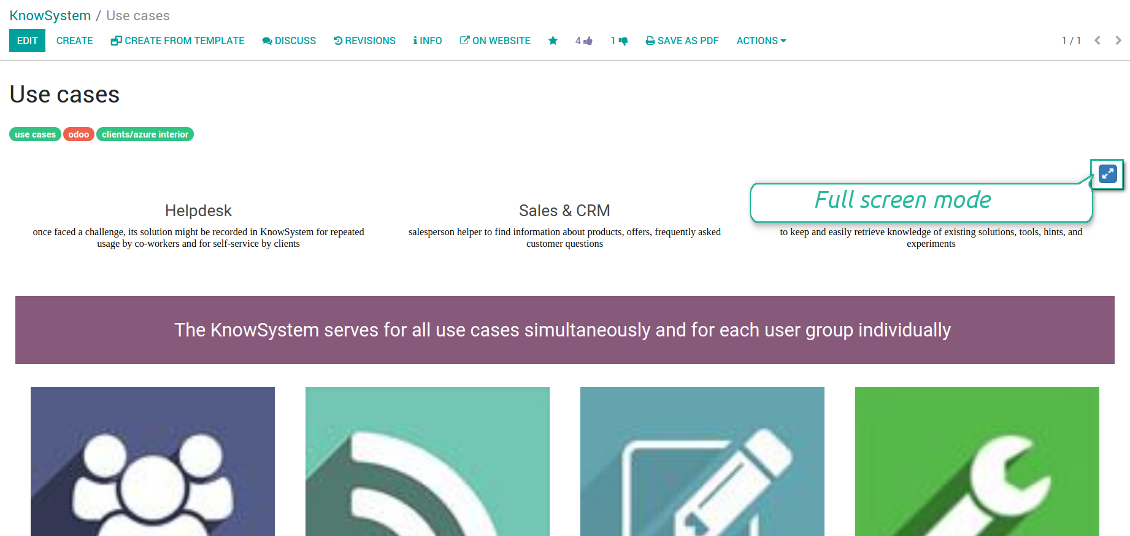
How to use the website builder for editing articles
KnowSystem provides you with a backend articles' builder, which is comfortable and safe to use. Odoo website builder is richer in features to prepare complex HTML structures. To edit articles through the website:
- Install the optional add-on 'KnowSystem Website and Portal' (the option 'Publish to portal and website')
- Turn on the setting 'Edit on website'
- Push the button 'Edit on website' on this article form
Be cautious: if you are going to print this article or add its contents to emails, website building blocks are not suitable. Their advanced styles contradict printing and composer layouts and would not be correctly shown. In such a case use the safer backend builder.
How to use article templates
To prepare a new article template for repeated usage:
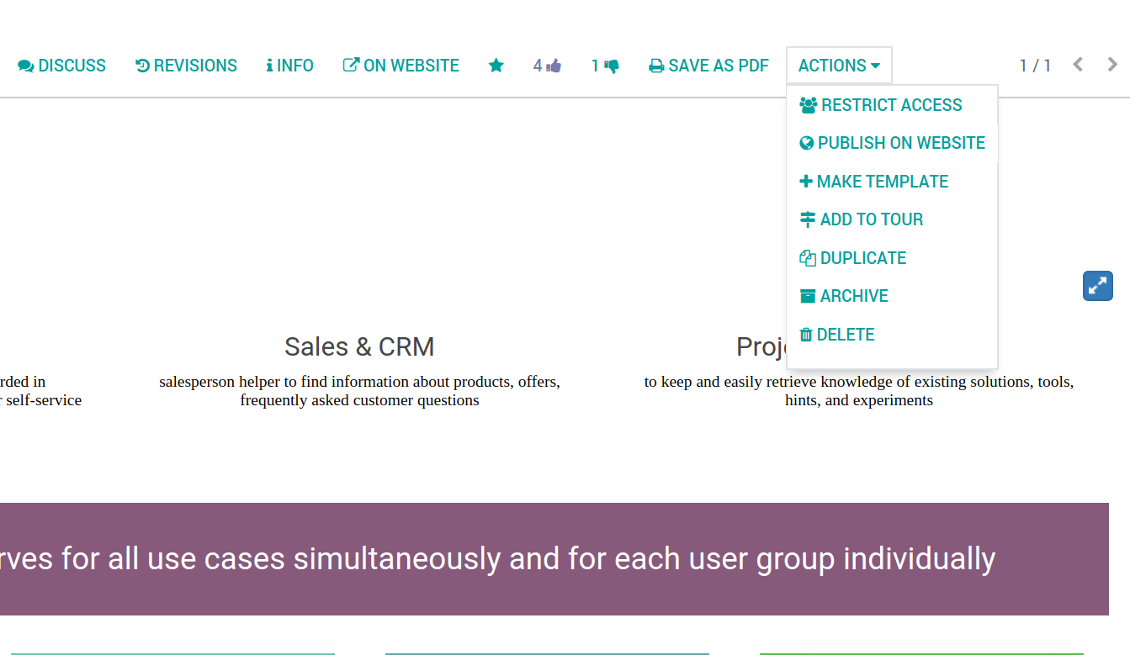
- If you already have an article to be used as template: push the button 'Actions > Make template', edit and save a new template.
- If you wanted to prepare a brand new template, go to KnowSystem > Configuration > Templates and prepare a new one using building blocks.
To use a template to write a new article:
- Push the button 'Create from template' from KnowSystem kanban or form views
- Select a required article template
- Push 'Create' and introduce changes to a new article.
스크린샷
Building blocks for knowledge base articles
Get benefit from your knowledge
How document types and articles are linked for a quick access
Experience is not general, usually it relates to specific issues. Knowledge used for customer communication differs from suppliers' negotiations. Frequently asked questions for draft and confirmed sale orders vary. KnowSystem let you structure your articles to apply them in a correct place and at right time. To that end:
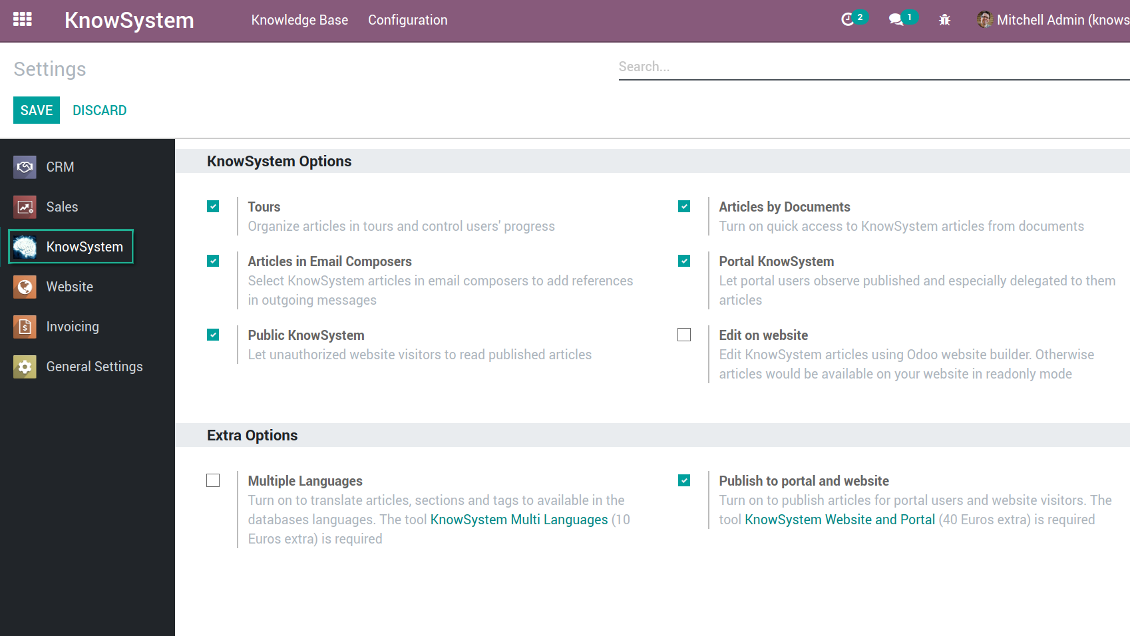
- Turn on the setting 'Articles by Documents' (the option shows the top menu entry above any Odoo document) or 'Articles in Email Composers' (the option adds a quick link in a message composer editor for citing)
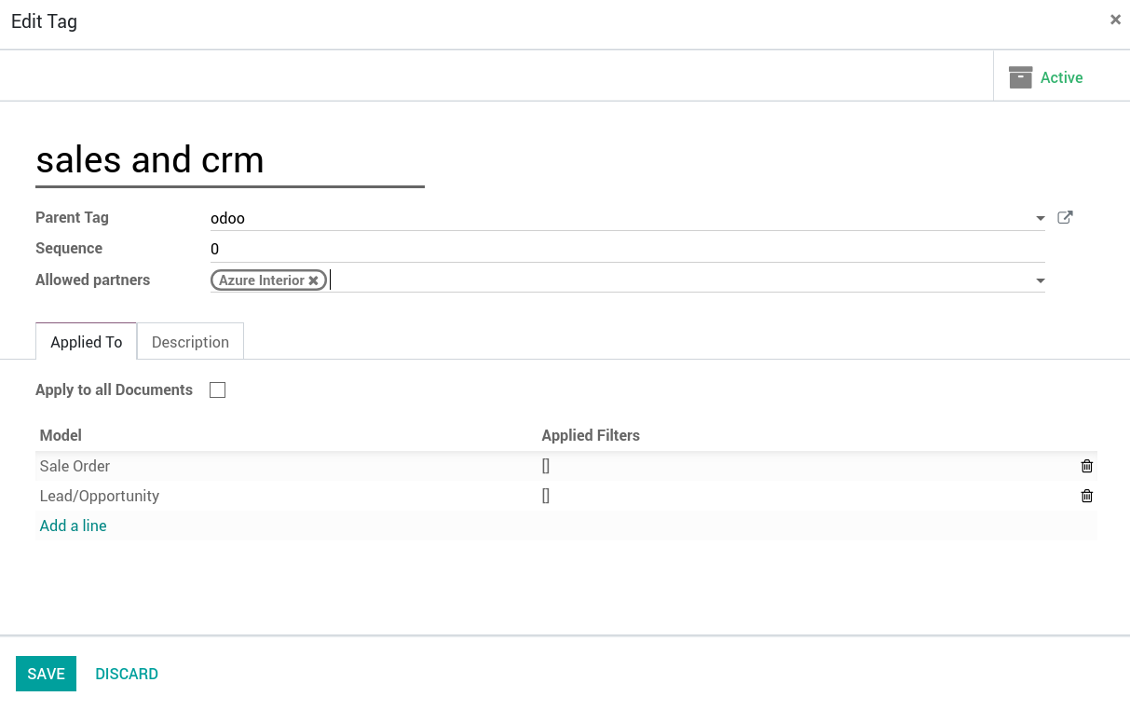
- Create a new tag (e.g. 'odoo / helpdesk'). In the table 'Applied to' use a required model (e.g. 'helpdesk ticket') or use it for all documents (the check box 'Apply to all documents').
- As advanced option you may apply additional filters: for example, to show articles only for 'new' tickets, not for 'in progress' ones. Use dynamic filters' constructor for that goal
- Assign this tag for required articles. For a few articles use the mass action 'Mass update'
- Now when you access a quick article search from a document or from an email composer, Odoo will calculate KnowSystem tags for this document. That's why by default users would see only articles suitable for a current document. Simultaneously, they might always change tags to use other knowledge base data.
How to overview articles which might be useful for this document
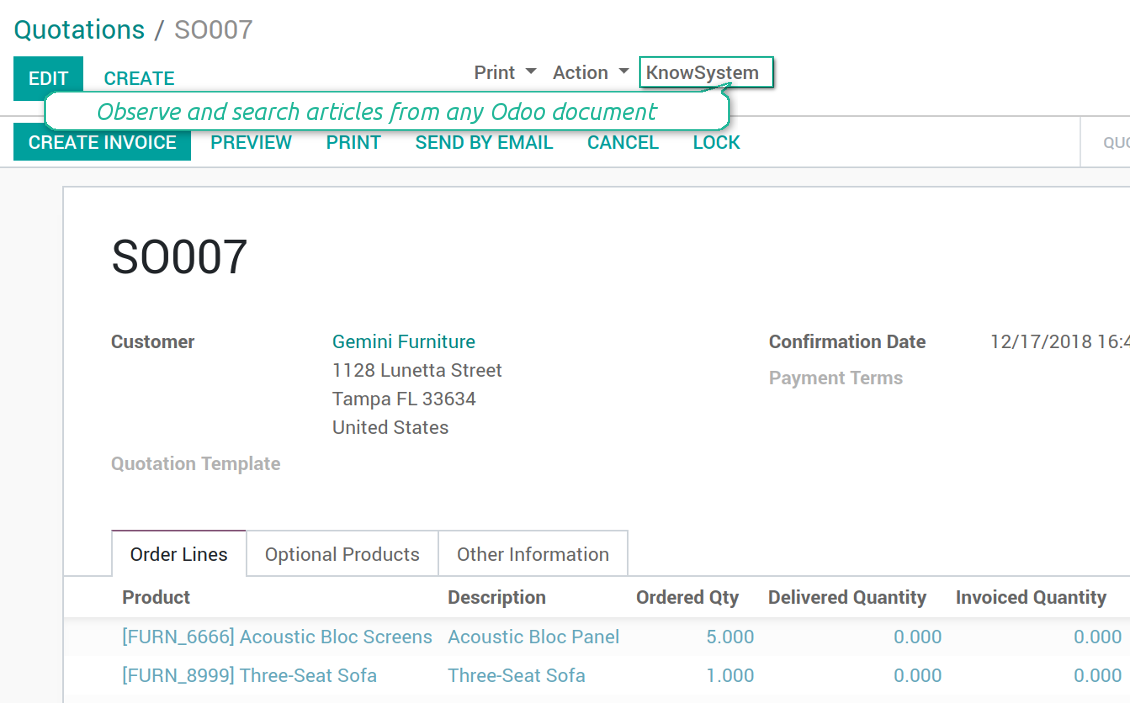
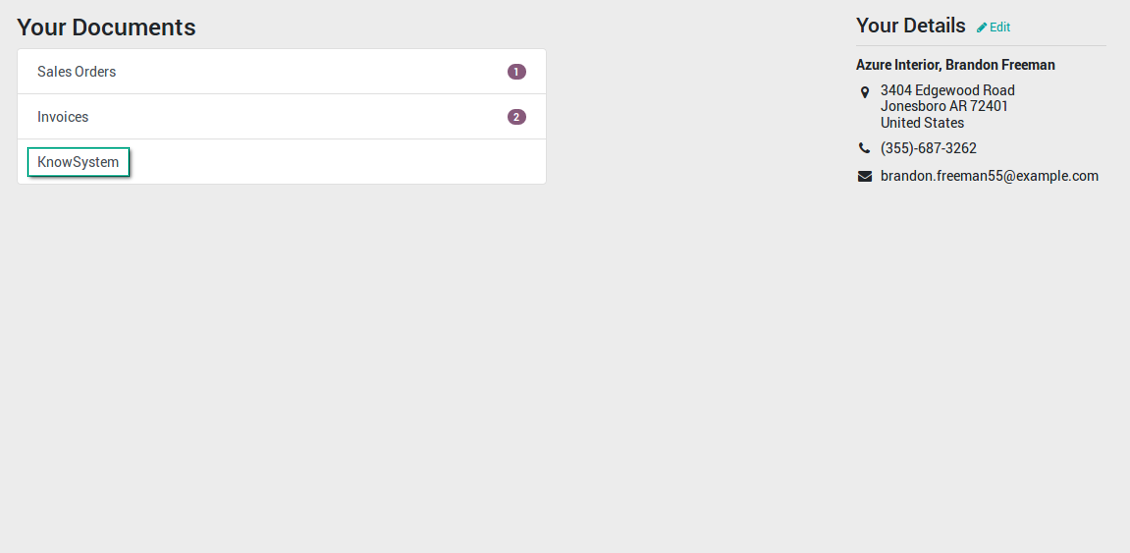
As soon as you turned on the option 'Articles by Documents', on the top of each Odoo object form view there would be a quick link 'KnowSystem'.
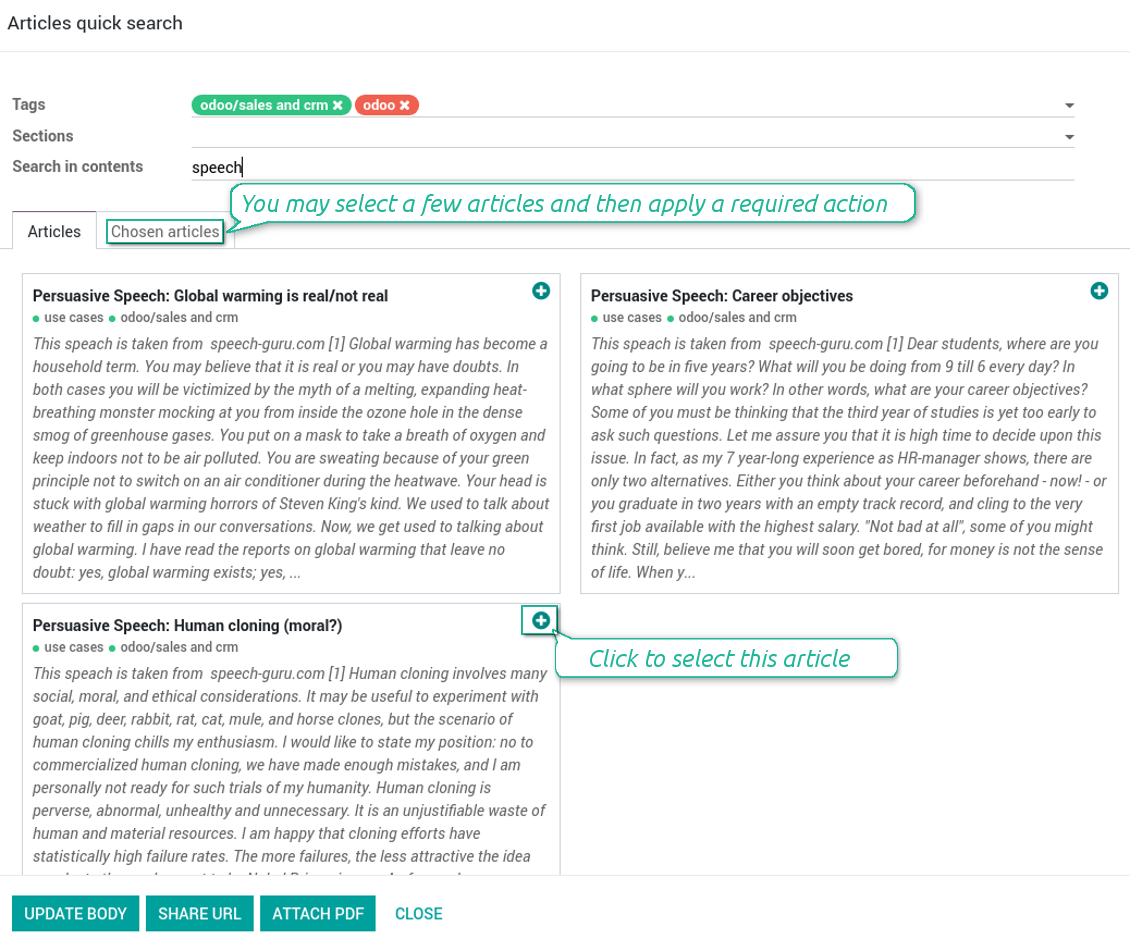
Click on that entry, and Odoo would open the wizard with articles. By default KnowSystem tags suitable for this document would be selected (if any). You may change those tags, or additionally filter by sections or content search. As a result list of topical articles is shown for you.
How to use company knowledge for communication
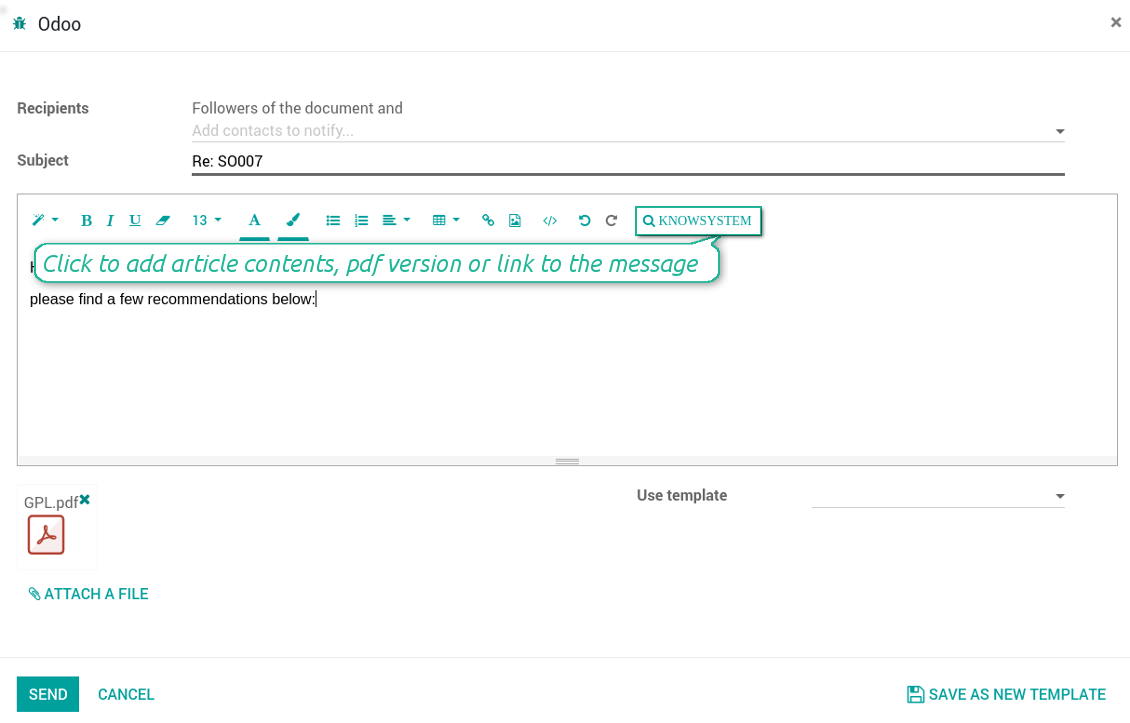
Turn on the option 'Articles in Email Composers' to let users reference or cite Knowledge records in Odoo messages. As a result the special quick entry 'KnowSystem' would be added to each Odoo email composer.
Clicking on that entry would open a wizard with a set of suitable to this document articles. You may change search by tags, add extra filtering by sections or content.
Afterwards, select required articles among found ones; choose an action. You may:
- Update message body with article contents (would be added to the end of a current message)
- Attach a PDF version of an article(s)
- Share a public link
스크린샷
Quick access for knowledge system from any Odoo document
Knowledge base link from email composer
Articles from any document
Article(s) PDF printing
WIKI-like revision system
How to recover a previous article version
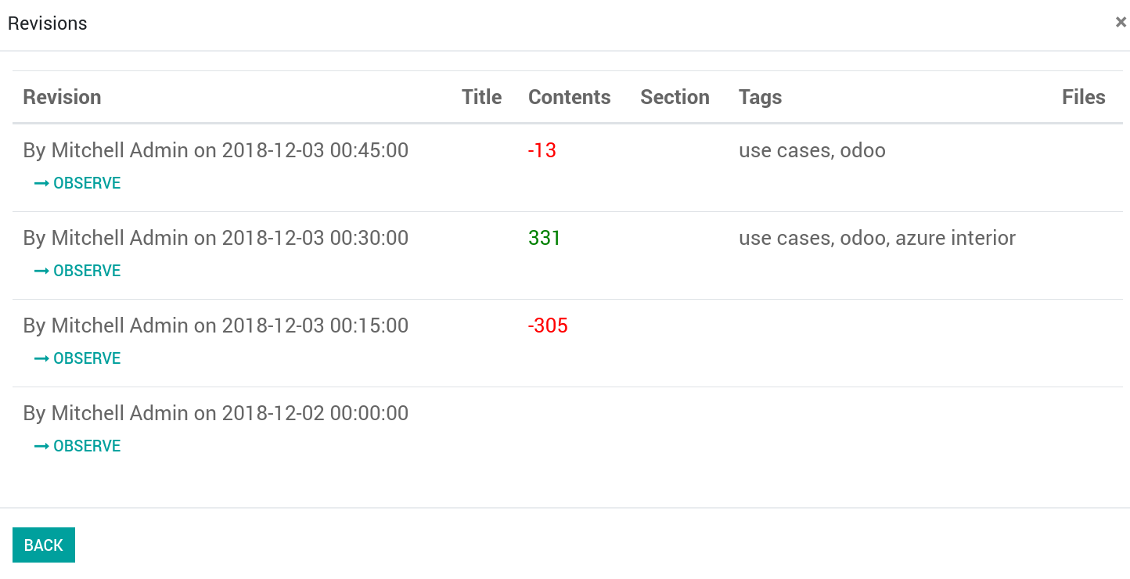
- Go to an article form view and push the button 'revisions'
- Find a required one and push the button 'Observe' to check whether this version is a correct one
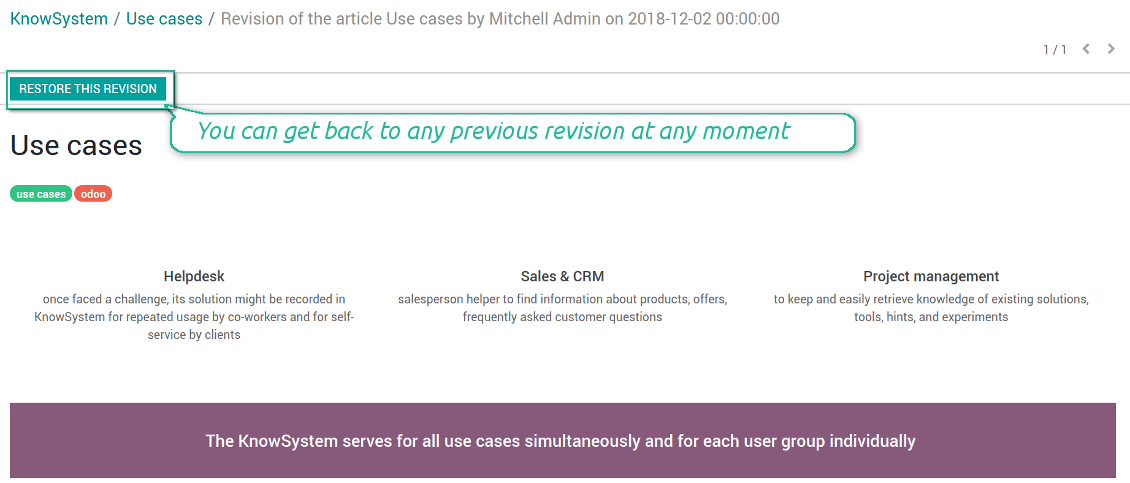
- Push the button 'Restore this revision'. The article would be recovered to that version.
- The recovery operation itself is recorded. So, if it is a mistake you can revert changes by recovering the last-to-last revison.
스크린샷
Wiki-style revisions history
To restore is easier than to break
Individual partner knowledge base portal
How to share knowledge base with specific partners
An article is available for a portal user in two cases: A. it is website published; B. his/her company is indicated as allowed partner in one of article tags.
In the first case such an article is available for all portal users and even for public website visitors who have not logged in.
In the latter case you grant a restricted access for an article only for chosen companies. To that end:
- Turn on the setting 'Portal KnowSystem'
- Create a tag for this partner, for example 'clients / Azure Interior'. On the tag form indicate this company in the field 'Allowed partners'
- Assign the tag for all articles you want to share with this partner. For a few articles use the mass action 'Mass update'
- Now portal users related to this partner may access shared articles right from their partner portal.
스크린샷
Knowledge base for portal and public use
KnowSystem articles on website
Tag: document types and portal partners
KnowSystem from portal
Best knowledge base system for Odoo!
Excellent app and exceptional after-sales support.
Really well thought-out product and one of the best features is the contextual help by means of the tags. Really a game changer for us.
Keep up the great work FaOtools!
Outstanding app! Tremendous value for money, an absolute must have!
One of the features sorely lacking from Odoo has been a robust Wiki/documentation system. Using third party platforms is a massive headache: yet another system to maintain, users get distracted switching back-and-forth, and errors get made. Then you have to worry about training, additional logins, etc.
KnowSystem feels like a native/core app, is very well-polished, and extremely fast. It's accessible from any screen, and the search results are instant (none of the latency inherent with most apps).The interface is elegant yet powerful, with robust access control, rich editing features, and version control. It's simple to revert to previous entries, view audit trails, etc. It's very intuitive for anyone familiar with Odoo; onboarding takes just a few minutes. The user guides are excellent.
This is invaluable for any organisation with a lot of documented information, SOPs, ISO compliance, or similar. If you're using eLearning, it's great for creating a help system / reminders. For example, noting key takeaways or specific instructions. The user can be in MRP, Sales, or any other function, and instantly lookup a guide. Since it overlays whichever screen you're in, it doesn't interrupt the workflow.
This dramatically increases efficiency, minimises questions, and helps keep everyone on the same page.
Oh, and customer service is excellent, faOtools stands behind their product. Thank you!
KnowSystem is excellent - OdooTools offer great support, are very helpful and responsive
Our company needed the ability to add a Knowledge Base to our Odoo portal website for our customers to access article content on a membership-only basis. KnowSystem provided this and much more, along with ability to add search by section, set permissions to allow only certain partners access to articles by tag etc. OdooTools have been very helpful and implemented several features we suggested including automatic redirect upon login, customisable filters and a social sharing capability on articles. Overall a great app by a great company, something that massively adds to Odoo's capabilities and is something that everyone could benefit from using.
Very functional application and responsive support
Our company produces medical laser equipment and we use KnowSystem to streamline the knowledge base of our company. Convenient search system and classification of content, as well as access rules for groups and even for individual users.
Great app and professional team
The app is great the the team is very professional in both response timing and problem solving.
Highly recommended.
Marco from ALO.zone.
Excellent system
Excellent system.
A great tool from some very nice developers!
KnowSystem is a great tool and a game changer for us. Finally a place to put all our company know-how. I highly recommend it. And also important to us: We got great support from FaOtools too. A rare thing in this busy world. thx!
Excellent app and support.
Great app and a very helpfull support. Openess to improve their products is outstanding.
Public knowledge base
How to make an article available for all website visitors
- Turn on the setting 'Public KnowSystem'
- Publish required articles through the mass action 'Publish' or by pushing the button 'Actions > Publish on website' on an article form
- Now any website visitor can read those articles
Team work for knowledge creation
스크린샷
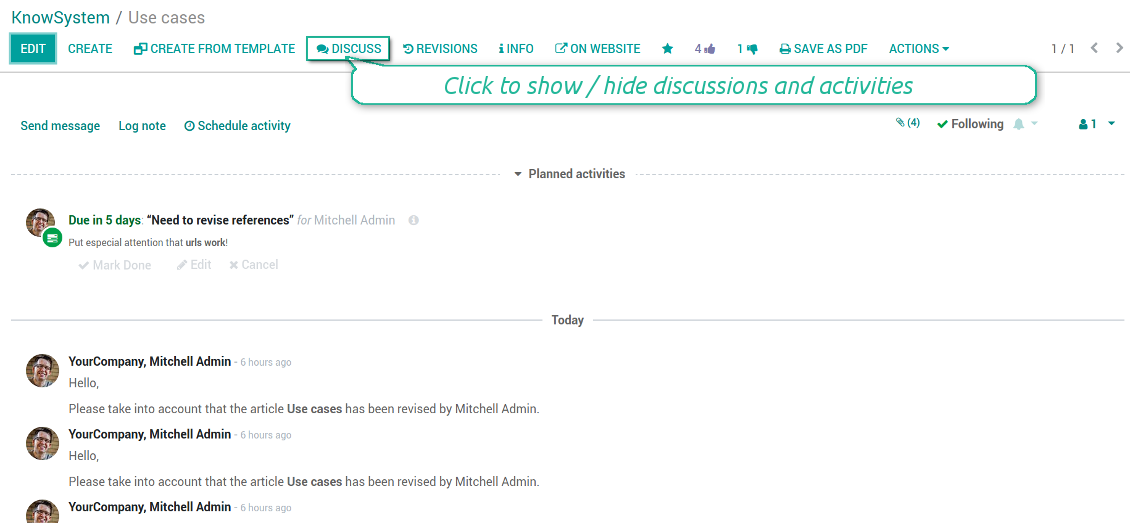
Knowledge base interactions, discussion, and activities
Custom fields to structure knowledge
How custom knowledge attributes work
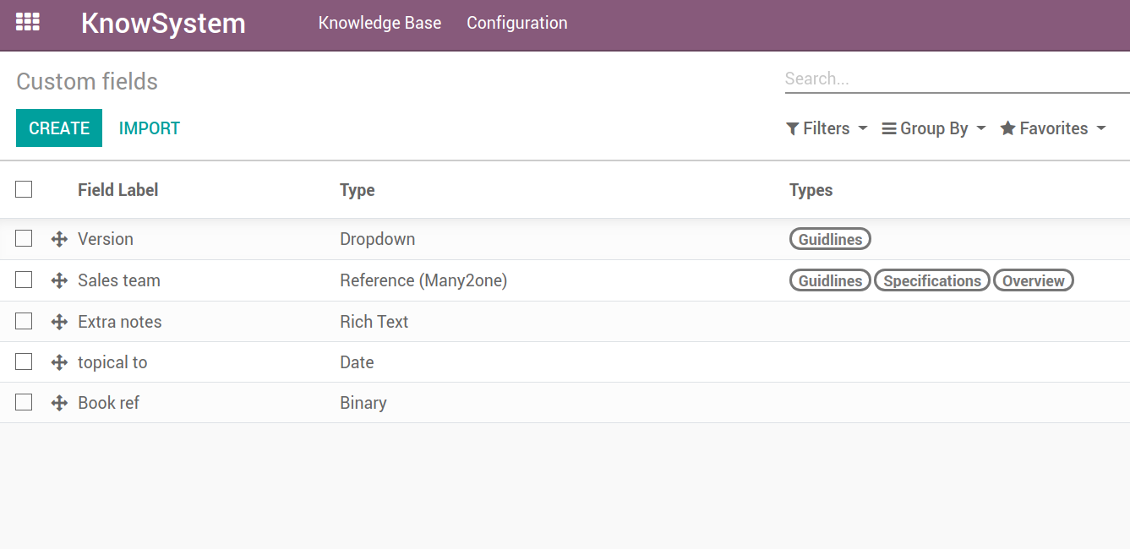
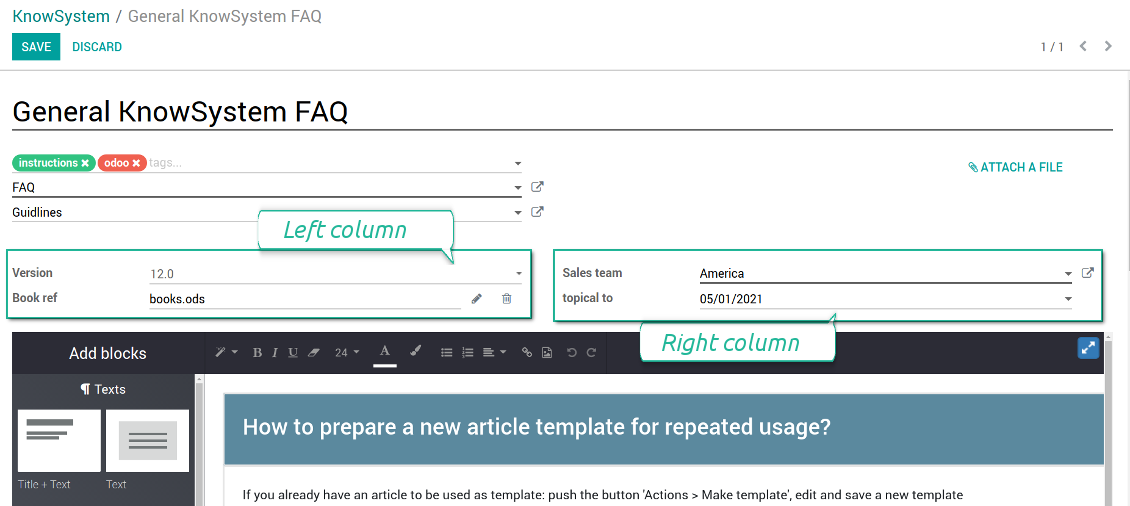
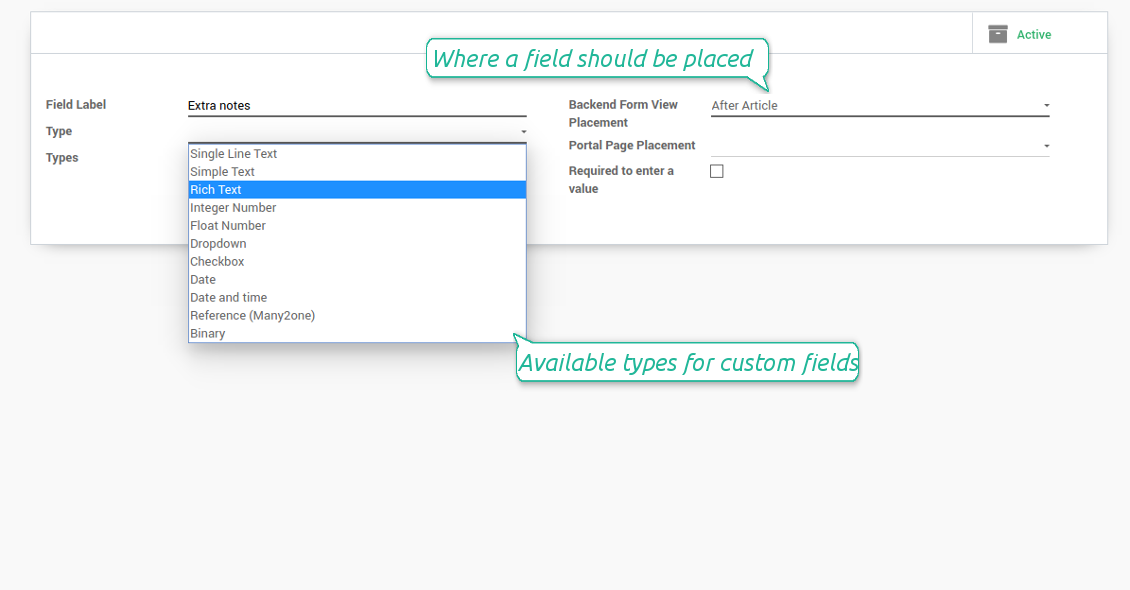
In order to show a new property for KnowSystem articles, just create a custom field. Nothing else is required! You are welcome to prepare fields of various types: single line text (char), simple text without formatting (text), rich text (HTML-formatted text), integer or float numbers, drop-down choice with your own options (selection), checkbox (boolean), date or date and time, binary (a file to upload), reference to another Odoo document (e.g. for a sale order, contact; many2one).
The tool also introduces complementary articles' typology. Thus set of attributes for 'user guidelines' and 'technical specifications' might be different.
Then, choose an interface location for a new field from a closed list to structure properties on an article page. Decide whether a field should be required to enter, or should be visible only for definite knowledge types.
스크린샷
KnowSystem articles' custom fields
Custom fields on article form
Custom fields in portal and website
Custom fields for article: add any data required
Knowledge is secured and might be safely shared
How to manage user accesses to articles
Security for internal and portal users differs.
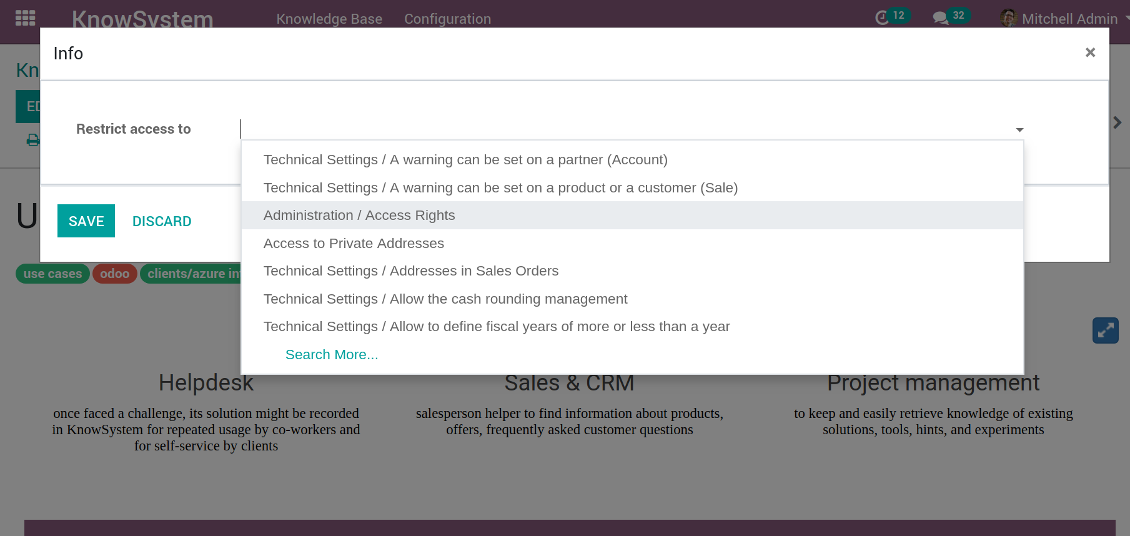
For the company employees: KnowSystem considers user groups which are defined per articles, sections and tours. Look at the tab 'Restrict to' on forms of those objects. If that field is not defined, a document is considered 'global': each internal user may read it.
For portal / public users: KnowSystem takes into account tags and whether an article is website published. A knowledge tag has a field 'Allowed partners', which may grant an access to portal users for articles with this tag. Website published pages are available for everybody.
Rights to administrate KnowSystem belongs to 2 user roles: KnowSystem Editor and KnowSystem Administrator. If you want a user to create and edit articles, a user should belong to one of those groups.
|
|
Odoo user |
KnowSystem Editor |
KnowSystem Admin |
Portal user |
Public user |
| Articles | read related to his/her user groups and sections | read, create, edit, archive related to his/her user groups and sections | read, create, edit, delete any | read published articles and articles related to partner-related tags | read published articles |
| Sections | read related to his/her user groups | read, create, edit, archive related to his/her user groups and sections | read, create, edit, delete any | read all sections of available articles | read all sections of published articles |
| Tags | read any | read, create, edit, archive any | read, create, edit, delete any | no access | no access |
| Tours | read related to his/her user groups | read, create, edit, delete related to his/her user groups | read, create, edit, delete any | no access | no access |
| Misc | may like / dislike, add to favourites, print, take part in discussions | may configure options | may like / dislike an article |
|
Take also into account two peculiarities:
- Odoo user always may access an article of which he is an author disregarding further restrictions;
- Rights for section is defined not only according to this section but also according to all its parents. For example, if user can't access 'sales', he/she would not be able to access 'sales / crm' disregarding whether 'crm' is available for his/her user group.
스크린샷
Manage access to this article
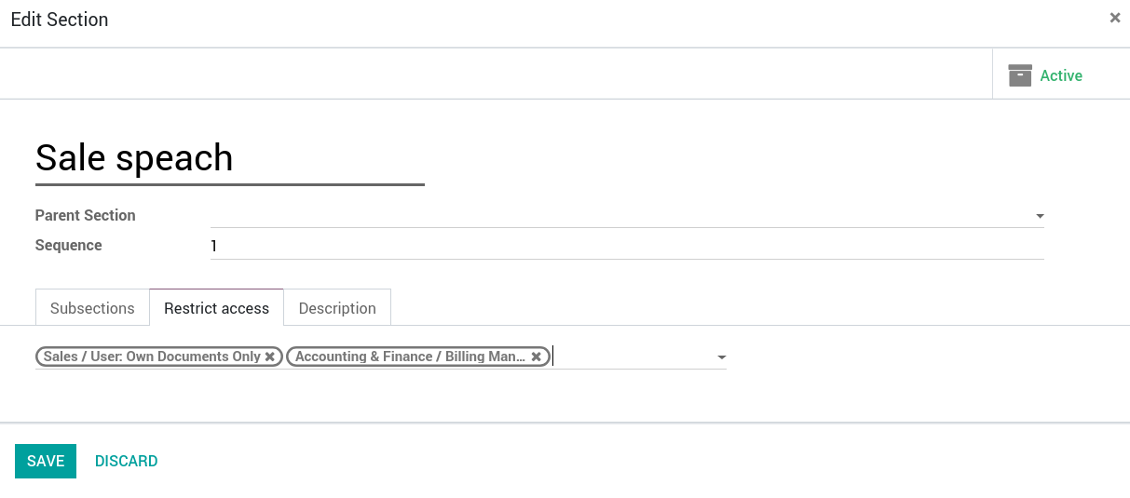
Section update and user rights
Create learning tours
How to configure a learning tour
- Turn on the option 'Tours'
- Go to KnowSystem interface and select articles to be included into a tour
- Press the mass action button 'Add to tour' and select or create a tour. Press save
- Re-order articles in a consistent order
- Define groups of users who should go through a tour on the tab 'Restrict access'
- Now users can see and launch tours right from the KnowSystem interface (the right navigation panel)
스크린샷
Article in a learning tour
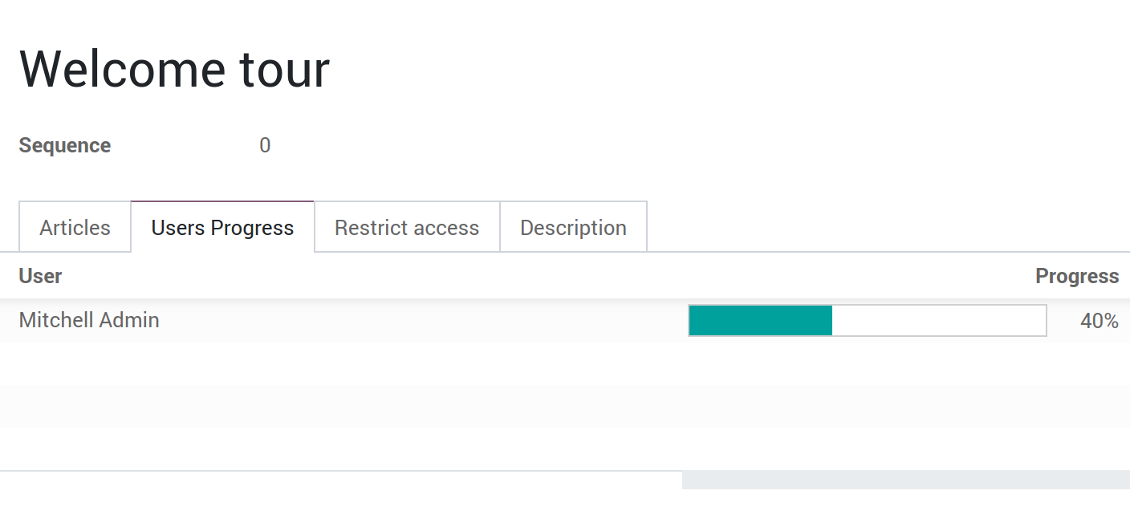
Control tour progress by users
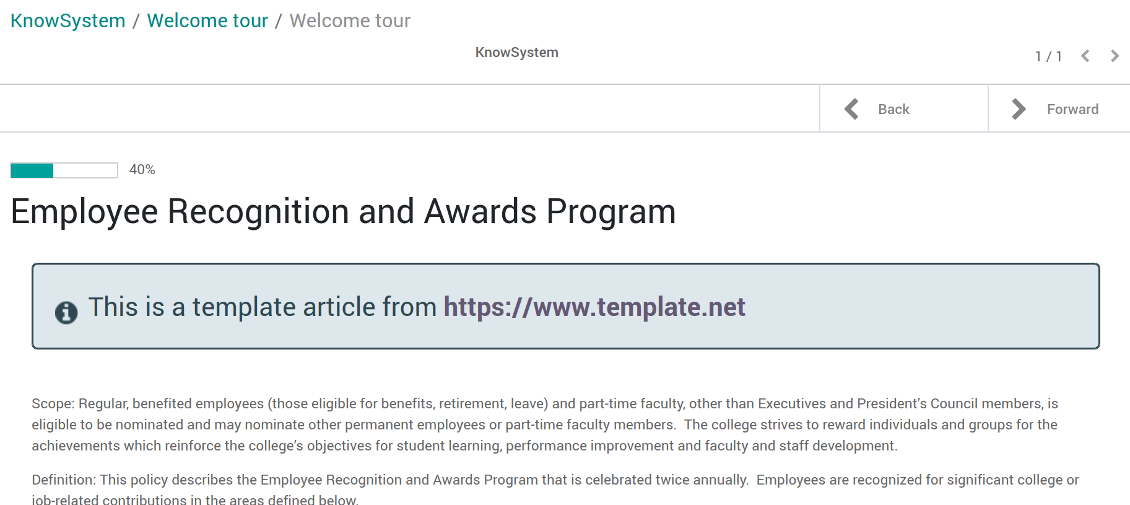
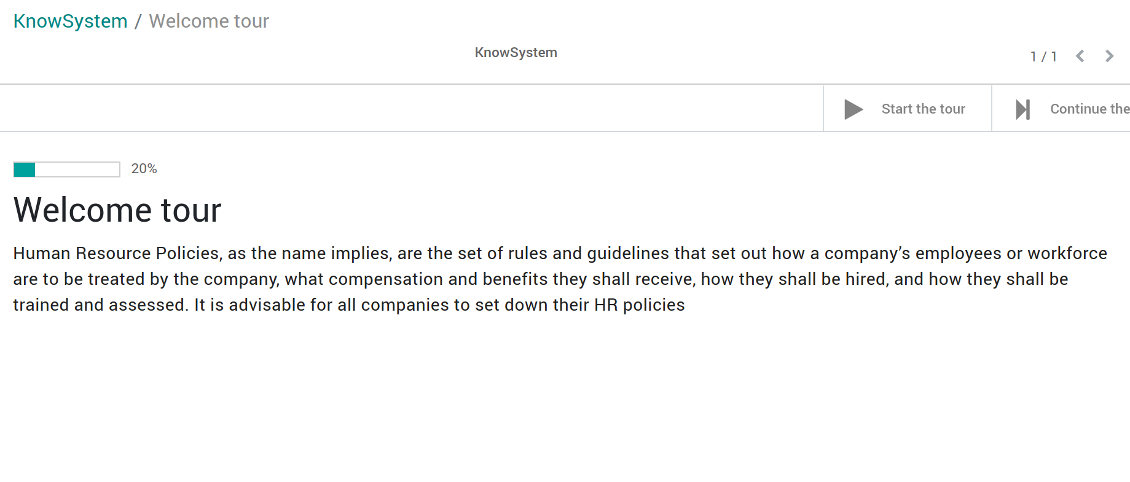
KnowSystem tour welcome page
Multilingual knowledge base
How to make an article available for a few languages
- Install the optional add-on 'KnowSystem: Multi Languages'
- Change your user language for a needed one
- Update this article
- Now it is available in both source and a current language
Make sure you really require a few languages. In that case you almost double the work of KnowSystem editors. All articles should be kept updated in all Odoo languages.
Knowledge base for any industry and business
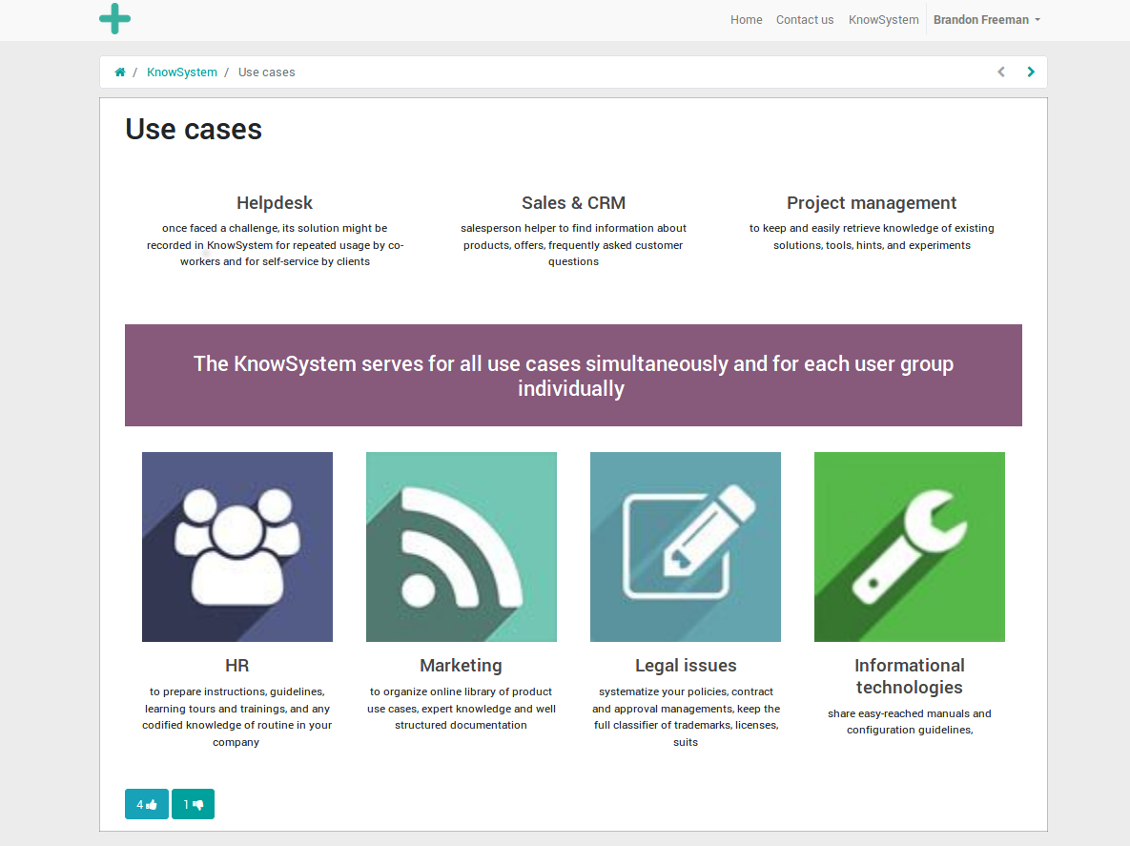
Typical use cases
- Helpdesk: once faced a challenge, its solution might be recorded in KnowSystem for repeated usage by co-workers and for self-service by clients
- Sales & CRM: salesperson helper to find information about products, offers, frequently asked customer questions
- Project management: to keep and easily retrieve knowledge of existing solutions, tools, hints, and experiments
- HR: to prepare instructions, guidelines, learning tours and trainings, and any codified knowledge of routine in your company
- Marketing: to organize online library of product use cases, expert knowledge and well structured documentation
- Legal issues: systematize your policies, contract and approval managements, keep the full classifier of trademarks, licenses
- Informational technologies: share easy-reached manuals and configuration guidelines
관련 자주 묻는 질문 KnowSystem: Knowledge Base System Odoo v.11
개정본 텍스트 사이에 차이가 보이지 않습니다.
개정은 텍스트 변경뿐 아니라 스타일 업데이트도 기록합니다(기술적으로 글의 HTML 소스 코드를 바꿀 때). 일부는 한눈에 알기 어렵습니다(예: 한 단어의 글꼴 크기 변경). 다른 것은 급격할 수 있습니다. 그러나 편집 > 글에서 무엇이든 변경 > 저장의 어떤 동작 조합이든 새 개정이 됩니다.
문서에 YouTube/ Vimeo / Dailymotion / Youku 동영상을 넣을 수 있나요?
예, 해당 서비스의 동영상을 Odoo 백엔드와 웹사이트 빌더 모두에서 문서에 삽입할 수 있습니다. 이미지가 있는 블록을 추가 > 이미지를 누름 > ‘Video’ 선택 > 해당 미디어의 URL을 입력하세요.
참고: 이러한 동영상은 iframe으로 포함되며, 일부 브라우저는 사용자가 명시적으로 허용할 때까지 재생을 막을 수 있습니다.
섹션을 웹사이트에 보이게 하려면?
KnowSystem에서 섹션은 게시되어 있고 글이 하나 이상 있을 때 웹사이트에 보입니다. 하위 섹션이 있어도 섹션 자체에 글이 하나도 없으면 보이지 않습니다. 빈 섹션을 피하고 KnowSystem 포털을 보기 쉽게 하기 위함입니다. 웹사이트에 섹션을 보이려면 하위 섹션의 글을 간단히 설명하거나 나열하는 소개/일반 글을 하나 추가하세요.
외부 협력사에게 문서를 어떻게 공유하나요?
왼쪽 탐색 패널의 태그에서 마우스 오른쪽 클릭 - 만들기
'Allowed partners' 필드를 찾으세요. 예: 협력사 'Azure Interior'에 접근을 주려면 'clients - azure interior'. 반대로 협력사 양식에서 KnowSystem 태그를 지정할 수도 있습니다
이제 해당 문서로 이동하세요(여러 레코드는 'Mass update' 작업으로 동일하게 진행):
게시된 경우: 모든 포털 사용자와 공개 방문자에게 열고 싶지 않다면 게시를 해제하세요
새로 만든 태그를 지정하세요(예에서는 'clients - azure interior')
이제:
상업 협력사 'Azure Interior'에 연결된 모든 포털 사용자는 태그 'Azure Interior'가 있는 문서에 접근합니다
다른 태그가 지정되지 않은 다른 포털 사용자는 해당 문서에 접근할 수 없습니다
내부 사용자는 영향을 받지 않으며 문서와 섹션의 'access to' 논리에 따라 문서를 봅니다.
문서 본문에 언어 선택 버튼을 넣을 수 있나요?
선택 부가 기능 'KnowSystem: Multi Languages'는 일부러 기사 본문에 'translate' 버튼을 넣지 않습니다. 버튼이 가정하는 간단한 팝업에서는 HTML 코드를 번역하기가 매우 어렵기 때문입니다. 번역할 텍스트는 거의 없고 HTML 부분은 많으며, 번역기가 이를 깨뜨릴 수도 있습니다.
그래서 특정 언어로 기사를 작성하려면 해당 언어의 사용자로 로그인해야 합니다. 다른 사용자이거나, 현재 사용자 기본 설정을 잠시 바꿀 수 있습니다. 이후 본문 수정은 그 사용자 언어로 이루어집니다.
기사 본문 아래의 'Copy from another translation' 버튼으로 언제든 다른 언어의 내용을 가져올 수 있습니다(한 언어에서 기사가 크게 바뀐 경우 유용).
다른 웹사이트 페이지를 문서에 어떻게 넣나요
이를 위해 iframe을 사용할 수 있습니다. 글을 원시 HTML 코드 편집기로 전환하고 예를 들어 다음을 삽입하세요. <iframe src="https://faotools.com/" style="width:100%;min-height:600px;"> </iframe>.
KnowSystem을 설치했는데 'create' 버튼과 다른 버튼이 보이지 않습니다
사용자에게 KnowSystem 권한을 주지 않았을 가능성이 큽니다. 'KnowSystem Editor' 또는 'KnowSystem Admin' 권한을 선택한 뒤 페이지를 새로 고치세요. 제어 버튼이 표시됩니다.
특정 학습 투어를 선택한 사용자에게만 보여줄 수 있나요?
예. 이 투어를 볼 사용자 그룹(예: 'Sales Manager')을 지정합니다. 그룹에 속하면 투어가 보이고, 아니면 표시되지 않습니다. KnowSystem 문서와 섹션의 보안 권한과 같은 방식입니다.
그룹이 지정되지 않은 투어는 '전역'이며 모두에게 보입니다.
문서를 인쇄할 때 바닥글과 머리글은 어떻게 바꾸나요?
기사 PDF의 머리글과 바닥글은 회사 레이아웃을 따릅니다. Settings > General Settings > Business Documents 섹션을 보세요. 여기에서 송장, 판매주문서 등 모든 문서 유형과 기사에 쓰일 회사 서식을 정합니다. 이러한 Odoo 방식은 바닥글·머리글을 특정 인쇄물의 속성이 아니라 회사의 공통 스타일로 봅니다.
문서끼리 어떻게 연결하나요?
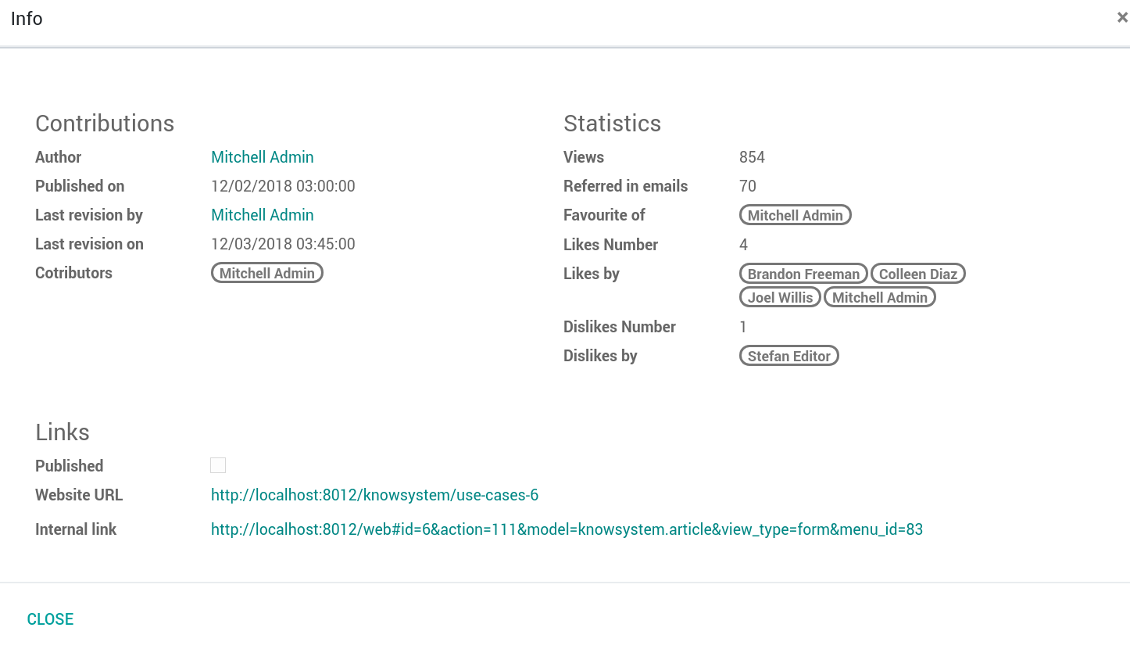
각 글에는 내부(backend) URL과 웹사이트 URL이 있습니다('KnowSystem: Website and Portal' 옵션이 설치된 경우). 글 양식의 'Info' 버튼을 클릭하면 이 레코드의 웹사이트 주소를 알 수 있습니다. 어느 것이든 글 본문에 하이퍼링크로 넣을 수 있습니다.
문서의 HTML 소스 코드를 변경할 수 있나요?
예. 설정 개요 화면에서 debug assets를 켠 뒤 현재 문서로 돌아가세요. 편집 모드에서 특수 아이콘 '</>'가 보입니다. 이 아이콘을 눌러 HTML과 스타일을 보고 편집하세요.
도구의 업데이트 정책은 무엇입니까?
현재 Odoo Apps Store 정책에 따르면:
- 버전 12.0 이하용으로 구매한 모듈은 12.0까지의 모든 버전에 접근할 수 있습니다.
- 버전 13.0부터는 모듈 버전마다 따로 구매해야 합니다.
- 버전과 관계없이 구매하면 해당 메이저 버전 내의 모든 업데이트와 버그 수정 권한이 있습니다.
faOtools 팀은 해당 정책을 통제하지 않습니다. 문의는 Odoo Apps Store 담당자에게 직접 하세요.
앱을 Odoo.sh에 어떻게 설치하나요?
가장 단순한 방법은 Odoo 스토어의 기본 제공 워크플로를 사용하는 것입니다:
1. 모듈 페이지를 열고 Deploy on odoo.sh 버튼을 클릭합니다.
2. 그러면 GitHub 페이지로 이동합니다. 계정에 로그인한 뒤 'Create a new repo'를 클릭하거나 기존 저장소를 사용하세요. 저장소는 비공개여야 합니다. OPL-1 라이선스 앱을 공개하는 것은 허용되지 않습니다. 필요하면 Odoo.sh 프로젝트용 새 repo를 만드세요.
3. 그런 다음 odoo.sh로 가서 Deploy 버튼을 클릭합니다. 팝업에서 결정을 제출하고 'Continue.'를 클릭합니다. 그러면 설치가 시작됩니다.
이 단계로 프로젝트의 프로덕션 브랜치에 앱이 설치됩니다. 다른 브랜치에 앱을 배포하거나 모듈을 업데이트하려면 다음을 수행하세요:
1. Odoo 스토어에서 앱 소스 코드를 업로드합니다.
2. 모듈을 필요한 GitHub 저장소에 커밋합니다. 앱 폴더/파일이 무시되지 않는지 확인하세요(즉 repo의 .gitignore에 넣지 마세요). 저장소는 odoo.sh가 자동 생성하며 기본적으로 중요한 항목(예: /lib)이 포함될 수 있습니다. 모듈의 모든 디렉터리, 하위 디렉터리, 파일을 예외 없이 업로드하세요.
3. odoo.sh 프로젝트의 대상 브랜치를 Deploy하거나, 설정이 그렇게 되어 있으면 자동 빌드될 때까지 기다립니다.
자체 서버에 앱은 어떻게 설치하나요?
2. Odoo 서버를 다시 시작합니다;
3. 개발자 모드를 켭니다(기술 설정);
4. 앱 목록을 업데이트합니다(앱 메뉴);
5. 앱을 찾아 'Activate'/'Install'을 누릅니다;
6. 앱 페이지에 안내가 있으면 따릅니다.
앱에 추가 기능이 있는 것을 봤습니다. 나중에 구매해도 되나요?
네, 물론입니다. 동시에 Odoo가 모든 의존성을 장바구니에 자동 추가하므로, 이중 결제를 피하려면 이미 구매한 도구를 제외하십시오.
앱을 Odoo.sh에 배포했는데 테스트에서 경고/오류가 보입니다
빨강/주황 경고는 앱 기능에 영향을 주지 않습니다. 안타깝게도 표준 자동 테스트가 앱 목표와 충돌하는 동작을 가정해 모듈이 통과하지 못할 때가 있습니다. 예를 들어 우리는 가격 계산을 바꾸는데, 표준 Odoo 모듈 테스트는 최종 가격을 표준 알고리즘과 비교합니다.
먼저 배포된 데이터베이스 기능이 정상인지 확인하십시오. 모두 올바르게 동작합니까?
그래도 경고가 실제 기능에 영향을 준다고 생각되면 연락해 주시고 전체 설치 로그와 배포된 모듈 전체 목록(코어 및 서드파티 포함)을 보내 주십시오.
앱을 귀사에서 직접 구매할 수 있나요?
아니요, 도구는 오직 공식 Odoo 앱 스토어.
할인을 받고 싶습니다
유감스럽게도 개별 가격을 제공할 기술적 수단이 없습니다.
Odoo Online (SaaS) 데이터베이스에 앱을 설치할 수 있나요?
아니요, 서드파티 앱은 Odoo Online에서 사용할 수 없습니다. 유감스럽게도 Odoo SaaS가 이를 차단합니다.
도구가 다른 앱에 의존합니다. 그것도 구매해야 합니까?
예, 도구가 올바르게 동작하려면 의존성에 표시된 모든 모듈이 필요합니다. 앱 페이지의 가격에는 필요한 의존성이 이미 포함되어 있습니다.
모듈의 미국 달러 가격은 얼마입니까? 왜 바뀌었습니까?
모듈 가격은 유로로 책정됩니다. Odoo 스토어는 내부 환율에 따라 다른 통화로 변환합니다. 따라서 환율이 갱신되면 미국 달러 가격이 바뀔 수 있습니다.
영어 이외 언어의 앱·웹사이트 문구는 AI 지원으로 작성되며 공식 Odoo 번역과 맞춥니다. 오류를 발견하시면 번역 정확성 티켓을 보내 주세요 그러면 수정하겠습니다.
버그 신고
버그나 일관되지 않은 동작을 발견하면 주저 말고 문의하세요. 구매 후 60일 이내 수정을 보장하며, 그 이후에도 도구를 개선하는 데 관심이 큽니다.
문의에 전화번호나 신용카드가 필요 없습니다. 30초가 넘지 않는 짧은 이메일 가입만 하면 됩니다.
요청에 가능한 한 많은 세부정보를 포함하세요: 스크린샷, Odoo 서버 로그, 문제 재현 방법의 전체 설명 등. 일반적으로 이슈에 대한 작업 계획 준비(버그가 확인된 경우) 또는 수행 지침 제공(그 외의 경우)에는 영업일 기준 며칠이 걸립니다.
공개 기능 요청 및 모듈 아이디어(무료 개발)
도구를 개선하려는 동기가 강하며 어떤 피드백이든 감사드립니다. 요구 사항이 공익에 맞고 효율적으로 구현될 수 있다면 팀이 할 일 목록에 넣습니다.
이런 할 일 목록은 정기적으로 처리되며 추가 요금이 없습니다. 기한과 최종 디자인을 약속할 수는 없지만, 투자와 위험 없이 원하는 기능을 얻는 좋은 방법이 될 수 있습니다.
문의에 전화번호나 신용카드가 필요 없습니다. 30초가 넘지 않는 짧은 이메일 가입만 하면 됩니다.

Odoo 첨부 파일을 폴더로 유연하게 구성하고 Google Drive, OneDrive/SharePoint, Nextcloud/ownCloud, Dropbox, Amazon S3, Box, NAS와 디렉터리를 동기화하는 도구. DMS. 파일 관리자. 문서 관리 시스템
398€





즐겨 쓰는 AI 채팅에서 MCP로 Odoo를 관리하는 도구. Claude. MCP를 지원하는 모든 AI.

