KnowSystem: Knowledge Base System v.11
The tool to build deep and structured knowledge base for internal and external use. Knowledge System. KMS
- a core of knowledge management. It might be used stand-alone as a complete internal knowledge base system. Η τιμή του είναι 398€.
- an optional module, which let you publish articles to website, share them with portal users, and use website builder to update articles. The features assumed by this add-on are marked by the icon . Η τιμή του είναι 40€.
- an optional module, which let you add and show custom fields for articles (backend). The features assumed by this add-on are marked by the icon . Η τιμή του είναι 48€.
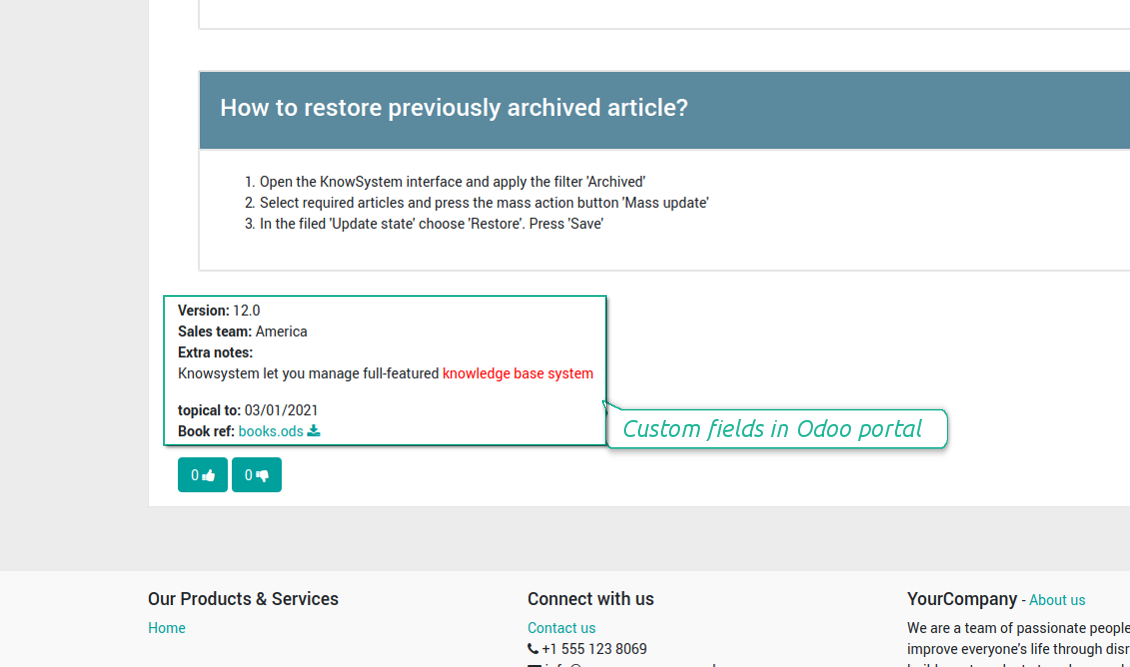
- an optional free module, which shows custom fields on website and portal pages (frontend). The features assumed by this add-on are also marked by the icon .
- an optional module, which let you translate articles, sections and tags for installed in Odoo languages. The features assumed by this add-on are marked by the icon . Η τιμή του είναι 10€.
Innovative single-view interface
From the same interface editors may create and update any knowledge-related documents, change articles in batch, set up security. Without a need for excess navigation.
Interface solutions
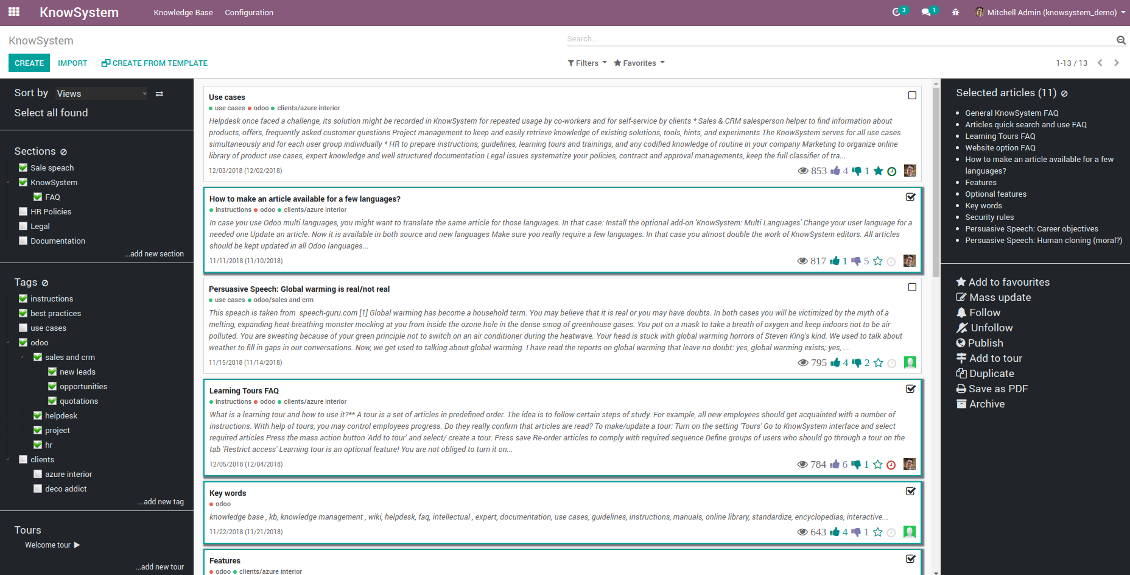
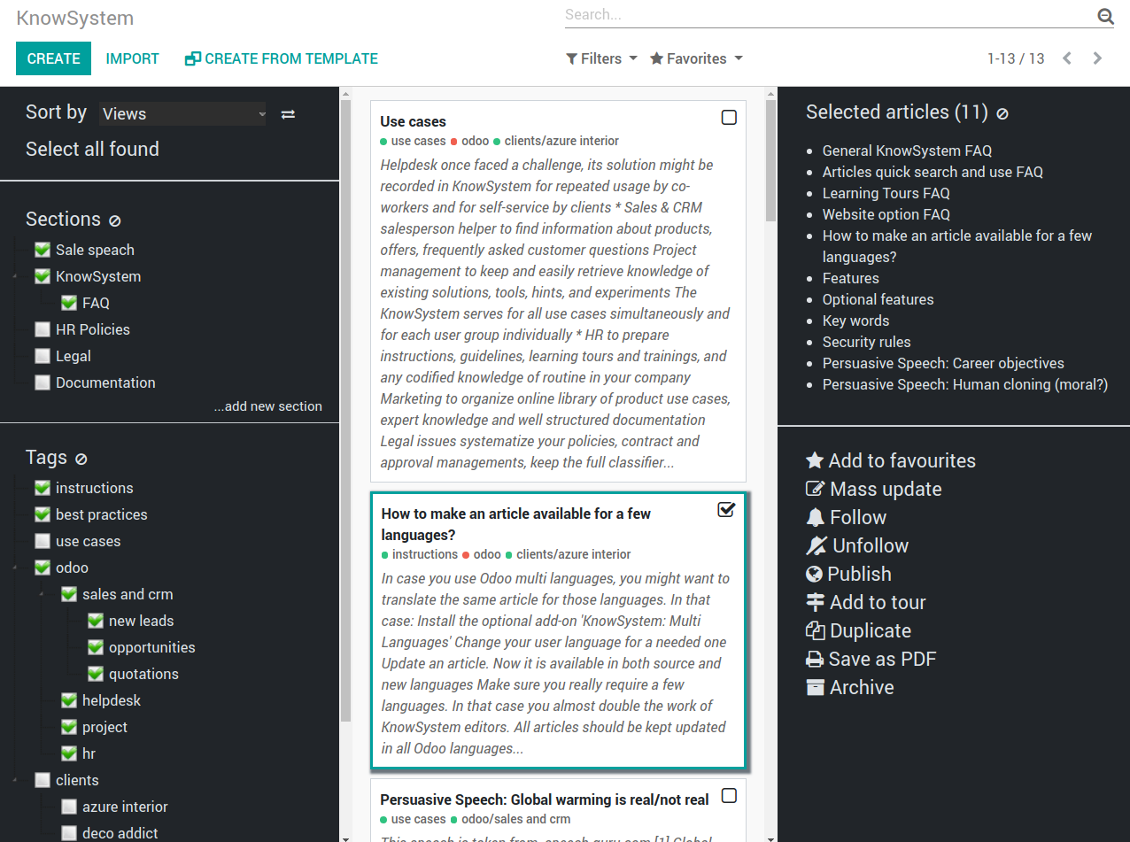
The KnowSystem interface consists of 3 key parts: the left navigation panel, the list of articles, and the right navigation panel (it is shown only if some articles are selected).
On the left navigation panel you may:
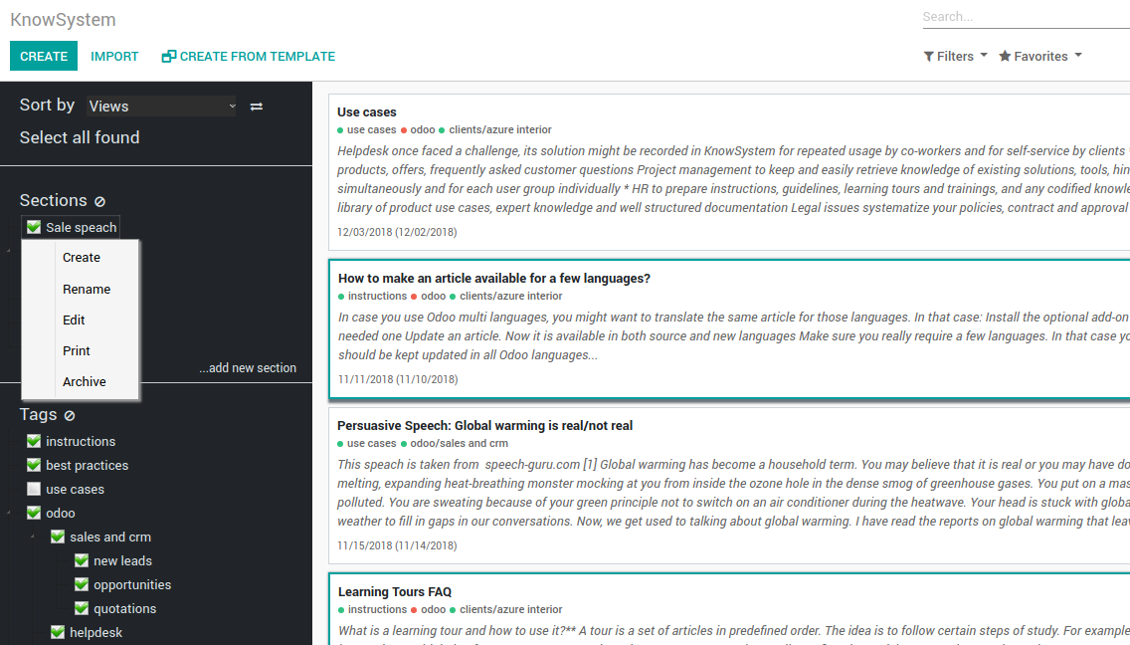
- Manage hierarchy of sections: prepare new (right mouse click - 'create'), update existing (right mouse click - edit), re-order any (drag and drop an item), archive sections. Select a few ones to filter articles. You may also print all articles related to this section as a single PDF file.
- In the same way manage hierarchy of tags
- Sort articles by number of views, a score of likes and dislikes, create or update dates, a section, an author
- Select all articles which are found according to chosen tags / sections and according to introduced searches / filters
- Launch a learning tour.
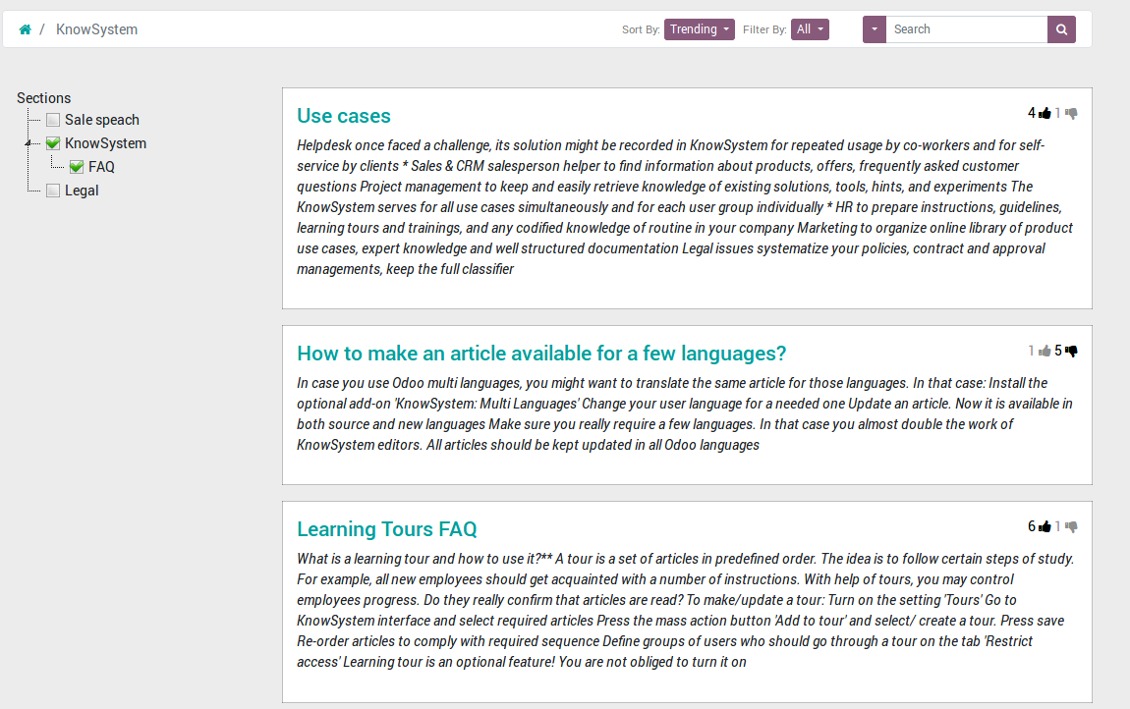
From the list of articles you see articles' name, indexed content (words without HTML style), dates of creation and last update, a number of views, likes, dislikes, author avatar. Here you may also add an article to favourite by pressing the 'star' icon.
Click on article body to open it in a full size (form view). Do not worry: chosen tags and sections as well as selected articles will be kept when you get back! Click on the top right check box to add an article for selection.
On the right navigation panel you observe selected articles and may proceed a mass action. Click on article name to remove it form selection.
On the top of the interface users also would find a standard Odoo omnibox. Type here to search by a title, content, an author, tags or a section.
Available mass actions
KnowSystem let users update an unlimited number of articles simultaneously:
- Assign new section
- Change or remove tags
- Print multiple articles as a single PDF
- Follow / unfollow discussions
- Publish / unpublish articles
- Export articles to an Excel table
- Archive or restore records
- Add articles to learning tours
- Mark knowledge items as favourite
- Duplicate articles.
Στιγμιότυπα οθόνης
KnowSystem articles overview, search and mass actions
Single entry for knowledge management actions
KnowSystem configuration
Article read mode
Article info and statistics
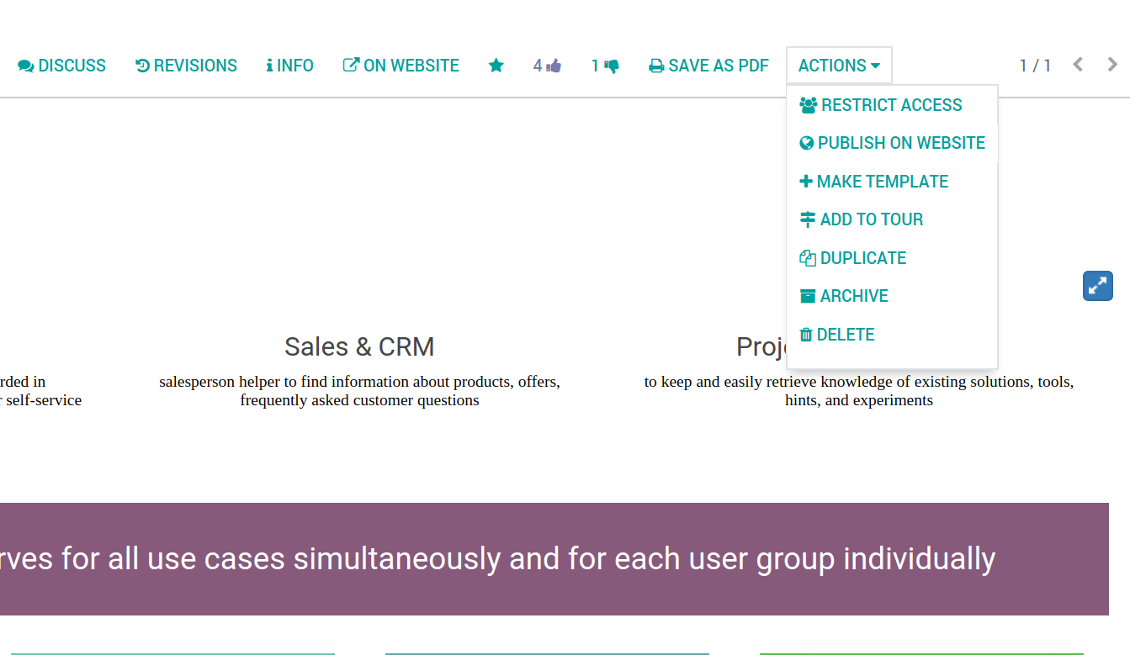
Article misc actions
Mass actions for selected articles
Small screen KnowSystem interface
Fast, comfortable, and professional knowledge recording
By using templates with pre-defined styles you may also speed knowledge generation up and standardize articles' appearance.
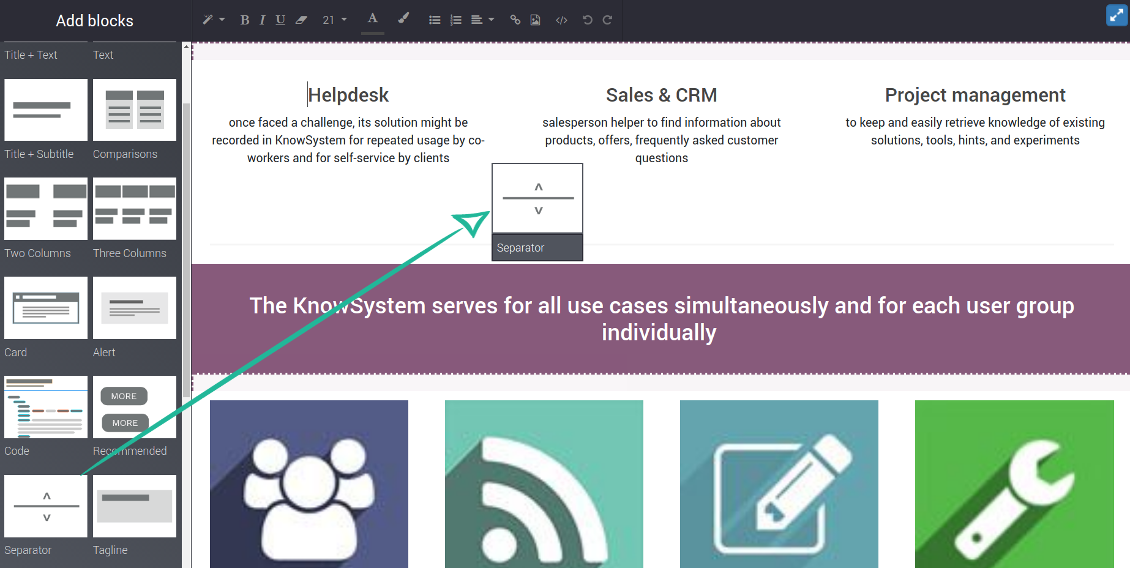
How to use the website builder for editing articles
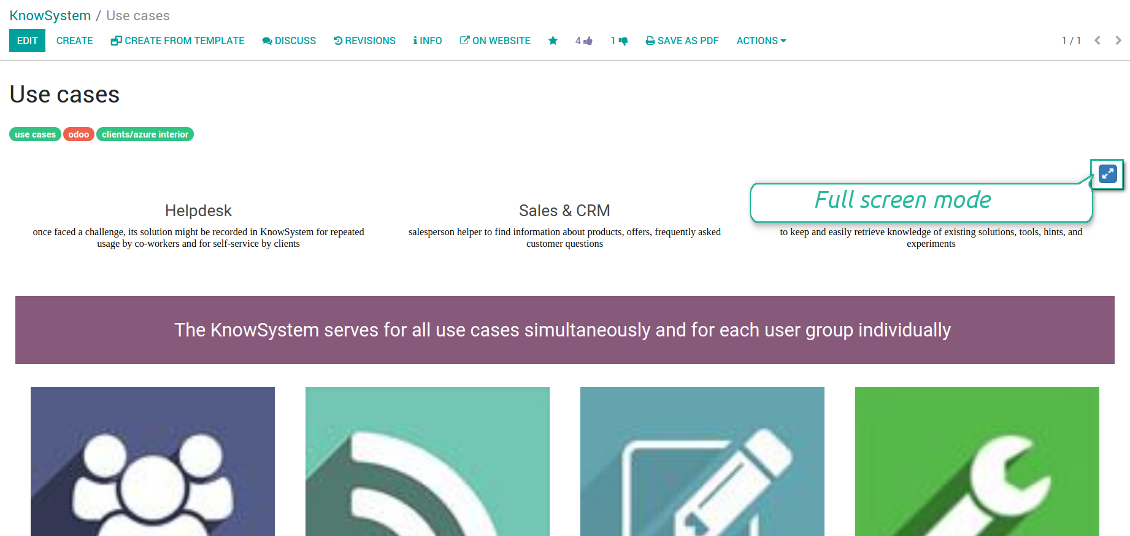
KnowSystem provides you with a backend articles' builder, which is comfortable and safe to use. Odoo website builder is richer in features to prepare complex HTML structures. To edit articles through the website:
- Install the optional add-on 'KnowSystem Website and Portal' (the option 'Publish to portal and website')
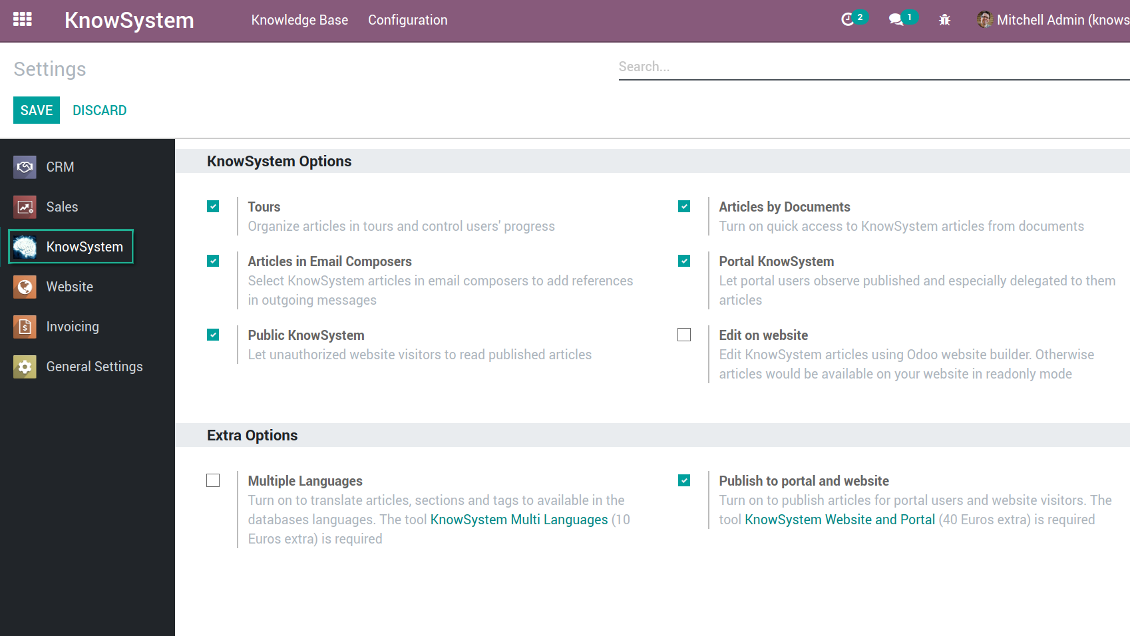
- Turn on the setting 'Edit on website'
- Push the button 'Edit on website' on this article form
Be cautious: if you are going to print this article or add its contents to emails, website building blocks are not suitable. Their advanced styles contradict printing and composer layouts and would not be correctly shown. In such a case use the safer backend builder.
How to use article templates
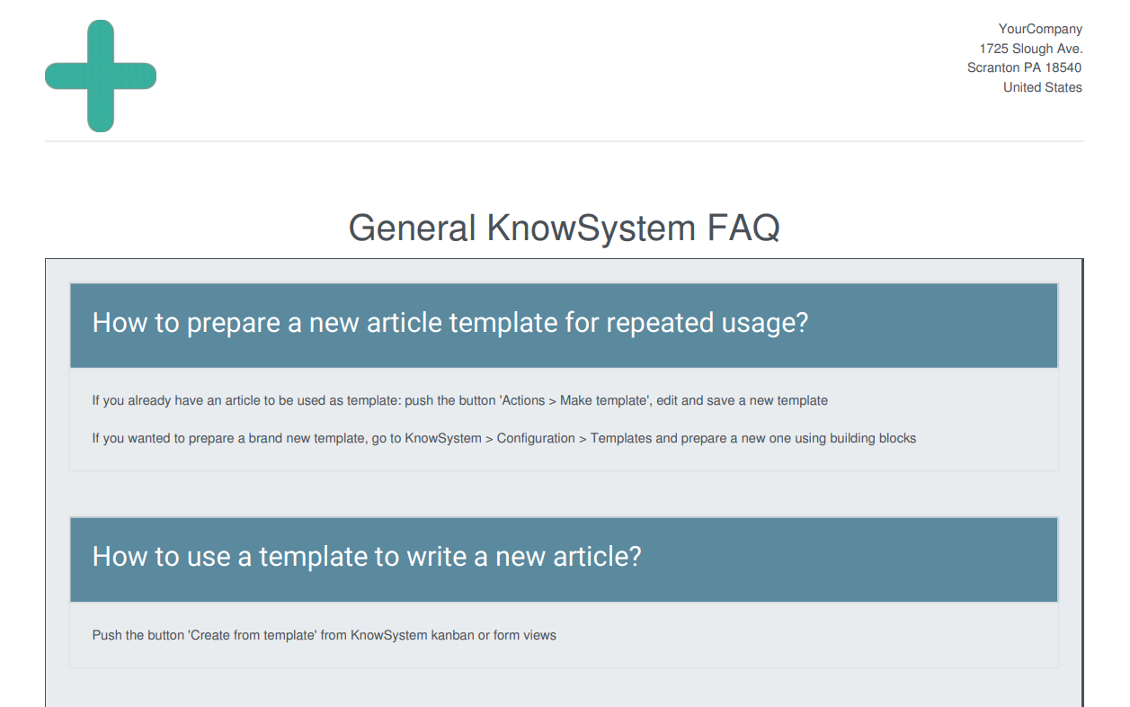
To prepare a new article template for repeated usage:
- If you already have an article to be used as template: push the button 'Actions > Make template', edit and save a new template.
- If you wanted to prepare a brand new template, go to KnowSystem > Configuration > Templates and prepare a new one using building blocks.
To use a template to write a new article:
- Push the button 'Create from template' from KnowSystem kanban or form views
- Select a required article template
- Push 'Create' and introduce changes to a new article.
Στιγμιότυπα οθόνης
Building blocks for knowledge base articles
Get benefit from your knowledge
How document types and articles are linked for a quick access
Experience is not general, usually it relates to specific issues. Knowledge used for customer communication differs from suppliers' negotiations. Frequently asked questions for draft and confirmed sale orders vary. KnowSystem let you structure your articles to apply them in a correct place and at right time. To that end:
- Turn on the setting 'Articles by Documents' (the option shows the top menu entry above any Odoo document) or 'Articles in Email Composers' (the option adds a quick link in a message composer editor for citing)
- Create a new tag (e.g. 'odoo / helpdesk'). In the table 'Applied to' use a required model (e.g. 'helpdesk ticket') or use it for all documents (the check box 'Apply to all documents').
- As advanced option you may apply additional filters: for example, to show articles only for 'new' tickets, not for 'in progress' ones. Use dynamic filters' constructor for that goal
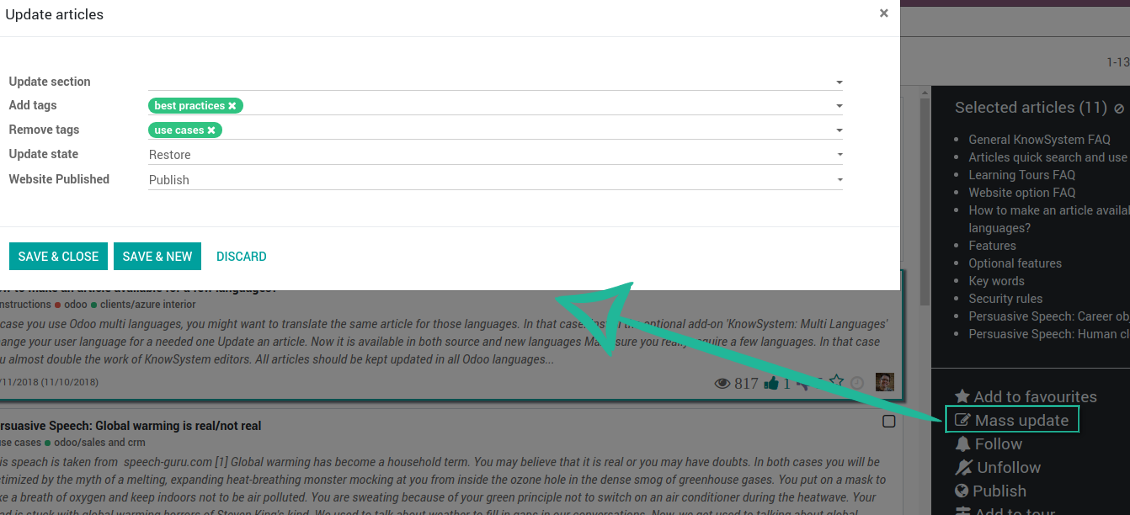
- Assign this tag for required articles. For a few articles use the mass action 'Mass update'
- Now when you access a quick article search from a document or from an email composer, Odoo will calculate KnowSystem tags for this document. That's why by default users would see only articles suitable for a current document. Simultaneously, they might always change tags to use other knowledge base data.
How to overview articles which might be useful for this document
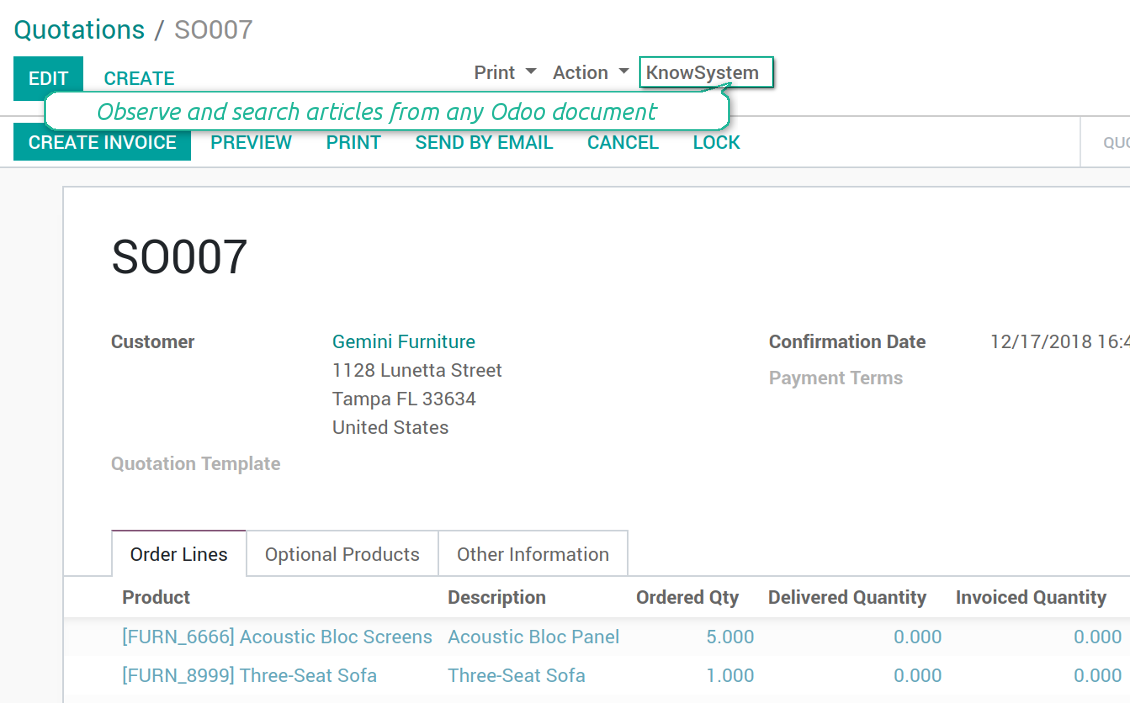
As soon as you turned on the option 'Articles by Documents', on the top of each Odoo object form view there would be a quick link 'KnowSystem'.
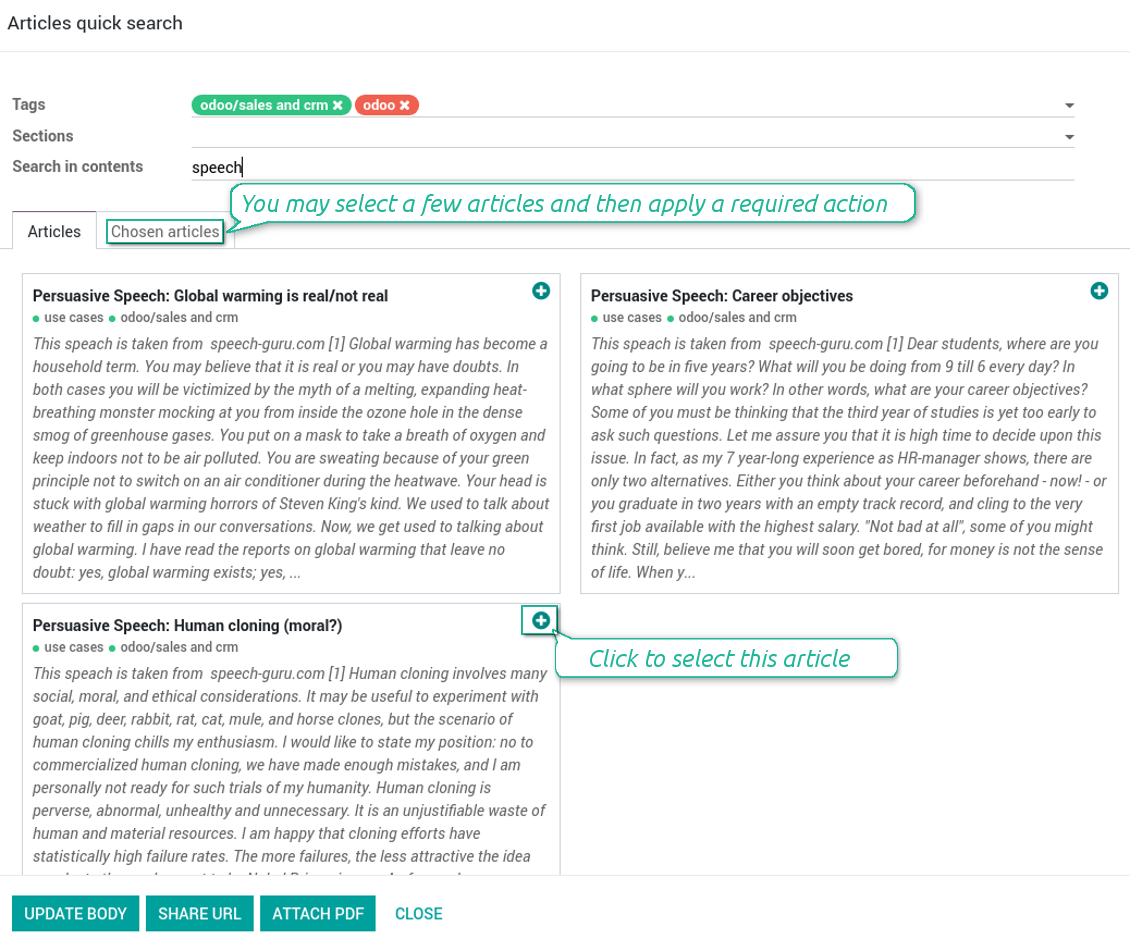
Click on that entry, and Odoo would open the wizard with articles. By default KnowSystem tags suitable for this document would be selected (if any). You may change those tags, or additionally filter by sections or content search. As a result list of topical articles is shown for you.
How to use company knowledge for communication
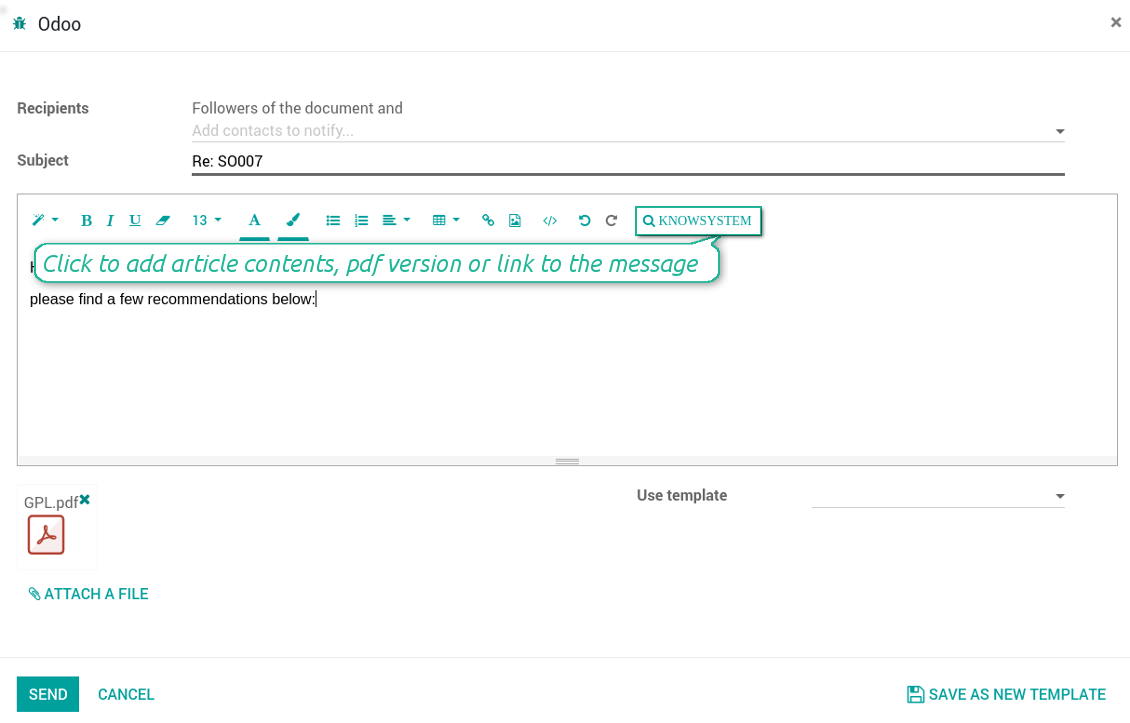
Turn on the option 'Articles in Email Composers' to let users reference or cite Knowledge records in Odoo messages. As a result the special quick entry 'KnowSystem' would be added to each Odoo email composer.
Clicking on that entry would open a wizard with a set of suitable to this document articles. You may change search by tags, add extra filtering by sections or content.
Afterwards, select required articles among found ones; choose an action. You may:
- Update message body with article contents (would be added to the end of a current message)
- Attach a PDF version of an article(s)
- Share a public link
Στιγμιότυπα οθόνης
Quick access for knowledge system from any Odoo document
Knowledge base link from email composer
Articles from any document
Article(s) PDF printing
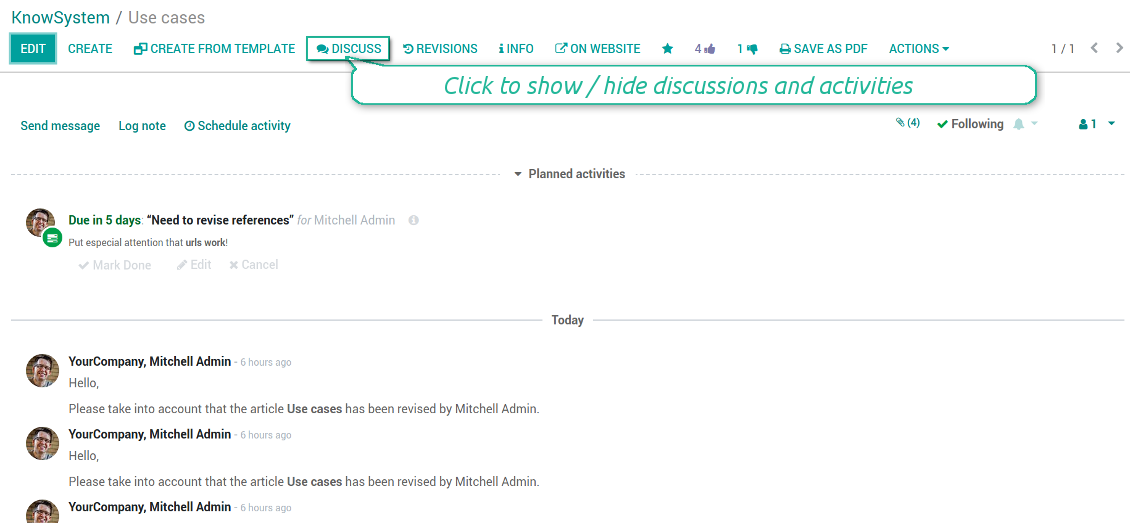
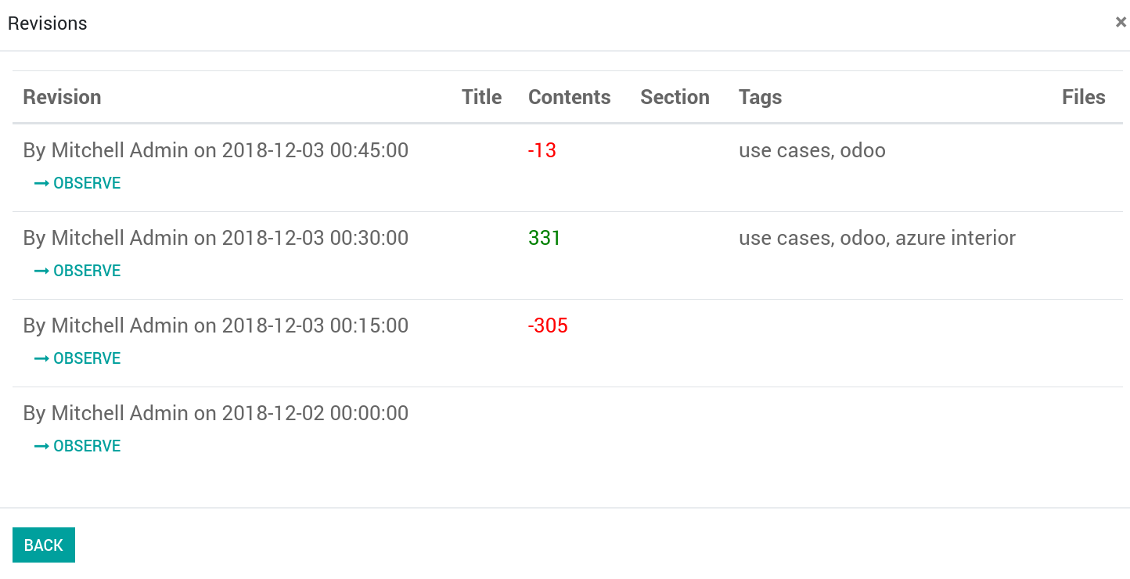
WIKI-like revision system
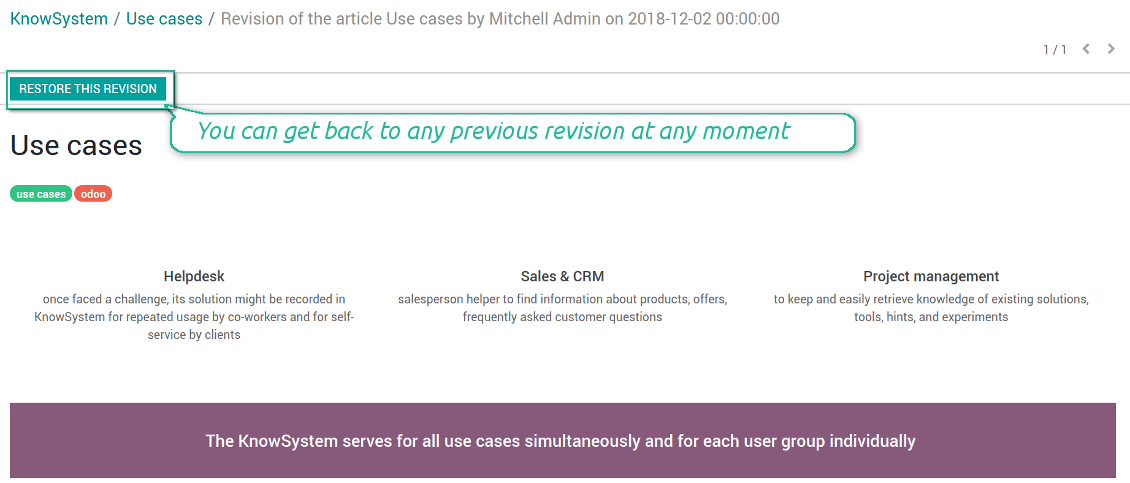
How to recover a previous article version
- Go to an article form view and push the button 'revisions'
- Find a required one and push the button 'Observe' to check whether this version is a correct one
- Push the button 'Restore this revision'. The article would be recovered to that version.
- The recovery operation itself is recorded. So, if it is a mistake you can revert changes by recovering the last-to-last revison.
Στιγμιότυπα οθόνης
Wiki-style revisions history
To restore is easier than to break
Individual partner knowledge base portal
How to share knowledge base with specific partners
An article is available for a portal user in two cases: A. it is website published; B. his/her company is indicated as allowed partner in one of article tags.
In the first case such an article is available for all portal users and even for public website visitors who have not logged in.
In the latter case you grant a restricted access for an article only for chosen companies. To that end:
- Turn on the setting 'Portal KnowSystem'
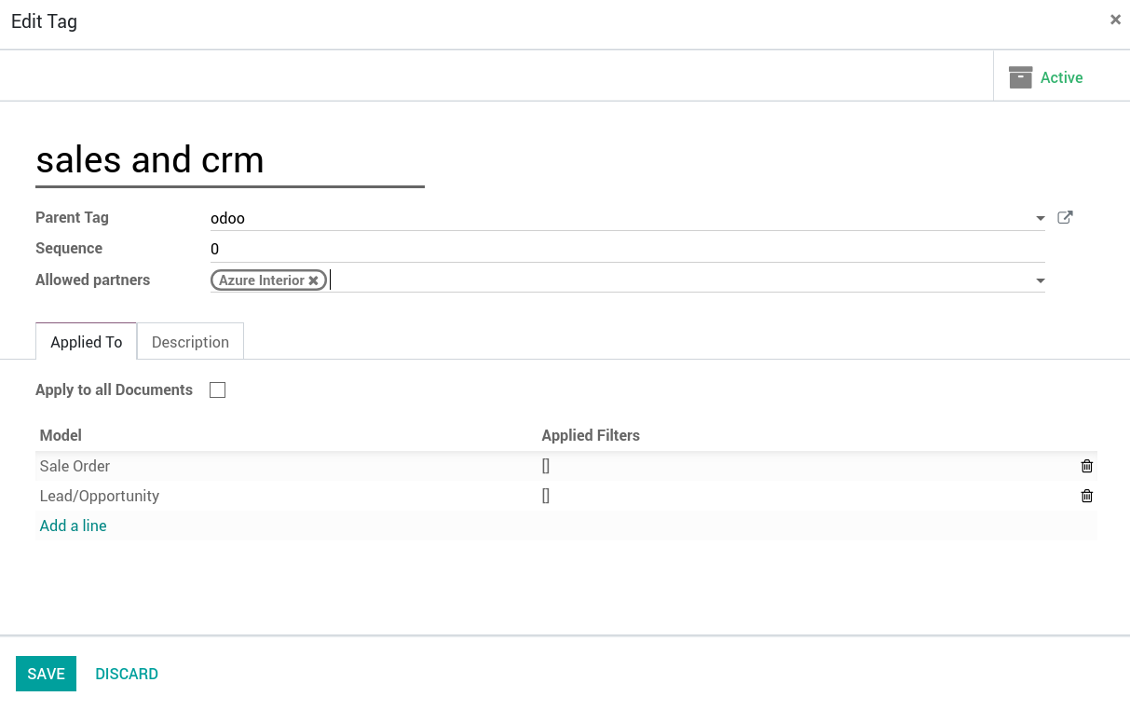
- Create a tag for this partner, for example 'clients / Azure Interior'. On the tag form indicate this company in the field 'Allowed partners'
- Assign the tag for all articles you want to share with this partner. For a few articles use the mass action 'Mass update'
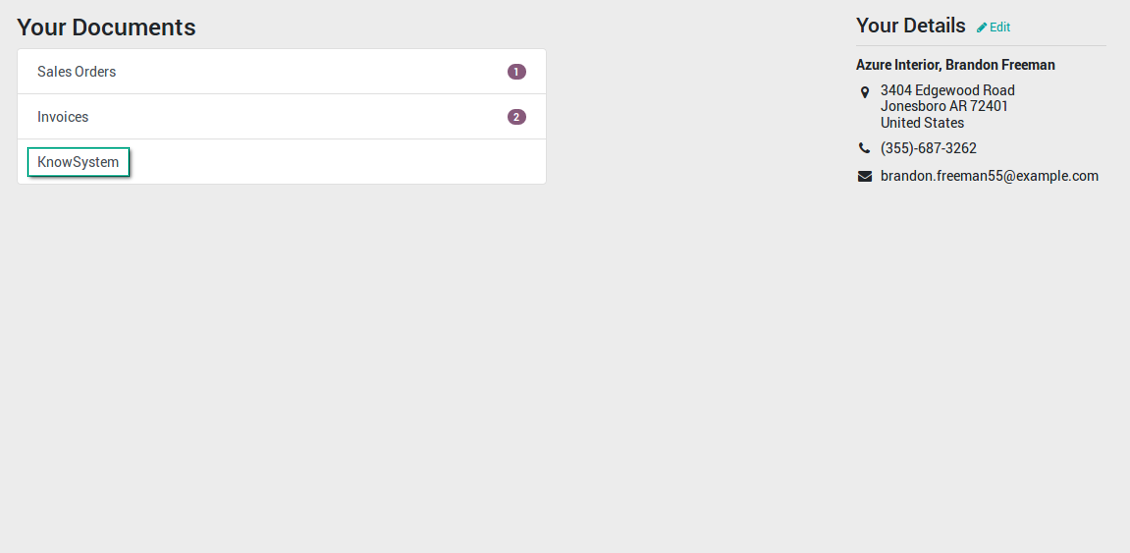
- Now portal users related to this partner may access shared articles right from their partner portal.
Στιγμιότυπα οθόνης
Knowledge base for portal and public use
KnowSystem articles on website
Tag: document types and portal partners
KnowSystem from portal
Best knowledge base system for Odoo!
Excellent app and exceptional after-sales support.
Really well thought-out product and one of the best features is the contextual help by means of the tags. Really a game changer for us.
Keep up the great work FaOtools!
Outstanding app! Tremendous value for money, an absolute must have!
One of the features sorely lacking from Odoo has been a robust Wiki/documentation system. Using third party platforms is a massive headache: yet another system to maintain, users get distracted switching back-and-forth, and errors get made. Then you have to worry about training, additional logins, etc.
KnowSystem feels like a native/core app, is very well-polished, and extremely fast. It's accessible from any screen, and the search results are instant (none of the latency inherent with most apps).The interface is elegant yet powerful, with robust access control, rich editing features, and version control. It's simple to revert to previous entries, view audit trails, etc. It's very intuitive for anyone familiar with Odoo; onboarding takes just a few minutes. The user guides are excellent.
This is invaluable for any organisation with a lot of documented information, SOPs, ISO compliance, or similar. If you're using eLearning, it's great for creating a help system / reminders. For example, noting key takeaways or specific instructions. The user can be in MRP, Sales, or any other function, and instantly lookup a guide. Since it overlays whichever screen you're in, it doesn't interrupt the workflow.
This dramatically increases efficiency, minimises questions, and helps keep everyone on the same page.
Oh, and customer service is excellent, faOtools stands behind their product. Thank you!
KnowSystem is excellent - OdooTools offer great support, are very helpful and responsive
Our company needed the ability to add a Knowledge Base to our Odoo portal website for our customers to access article content on a membership-only basis. KnowSystem provided this and much more, along with ability to add search by section, set permissions to allow only certain partners access to articles by tag etc. OdooTools have been very helpful and implemented several features we suggested including automatic redirect upon login, customisable filters and a social sharing capability on articles. Overall a great app by a great company, something that massively adds to Odoo's capabilities and is something that everyone could benefit from using.
Very functional application and responsive support
Our company produces medical laser equipment and we use KnowSystem to streamline the knowledge base of our company. Convenient search system and classification of content, as well as access rules for groups and even for individual users.
Great app and professional team
The app is great the the team is very professional in both response timing and problem solving.
Highly recommended.
Marco from ALO.zone.
Excellent system
Excellent system.
A great tool from some very nice developers!
KnowSystem is a great tool and a game changer for us. Finally a place to put all our company know-how. I highly recommend it. And also important to us: We got great support from FaOtools too. A rare thing in this busy world. thx!
Excellent app and support.
Great app and a very helpfull support. Openess to improve their products is outstanding.
Public knowledge base
How to make an article available for all website visitors
- Turn on the setting 'Public KnowSystem'
- Publish required articles through the mass action 'Publish' or by pushing the button 'Actions > Publish on website' on an article form
- Now any website visitor can read those articles
Team work for knowledge creation
Στιγμιότυπα οθόνης
Knowledge base interactions, discussion, and activities
Custom fields to structure knowledge
How custom knowledge attributes work
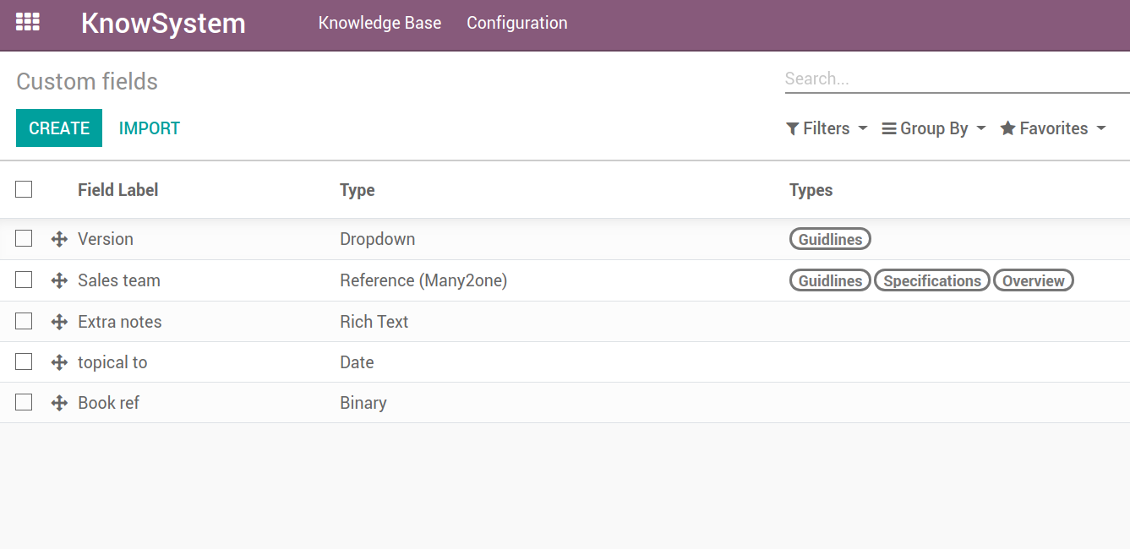
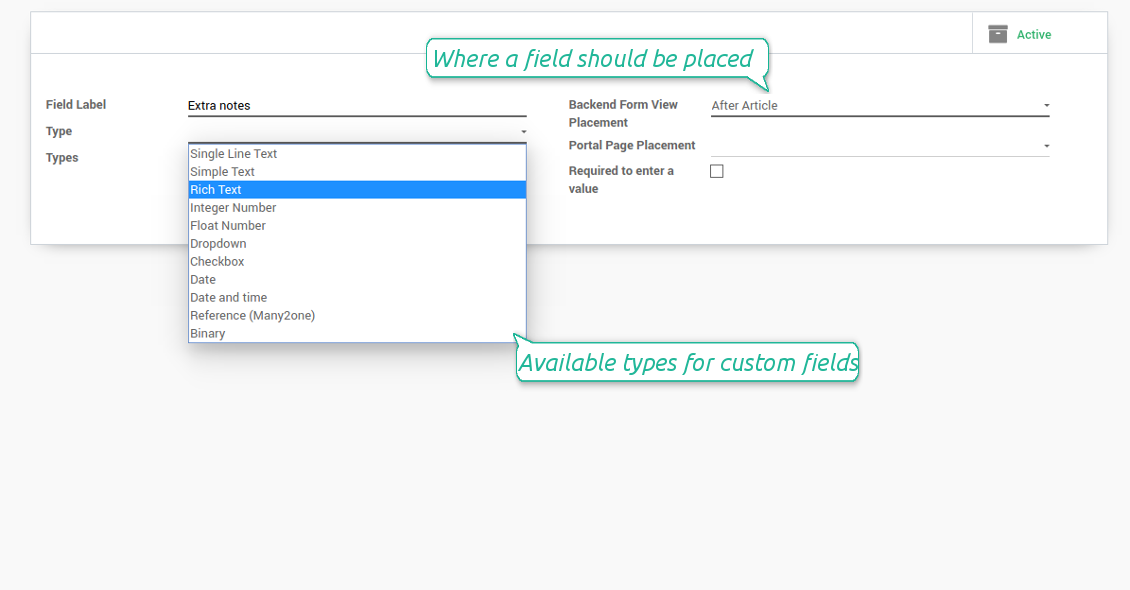
In order to show a new property for KnowSystem articles, just create a custom field. Nothing else is required! You are welcome to prepare fields of various types: single line text (char), simple text without formatting (text), rich text (HTML-formatted text), integer or float numbers, drop-down choice with your own options (selection), checkbox (boolean), date or date and time, binary (a file to upload), reference to another Odoo document (e.g. for a sale order, contact; many2one).
The tool also introduces complementary articles' typology. Thus set of attributes for 'user guidelines' and 'technical specifications' might be different.
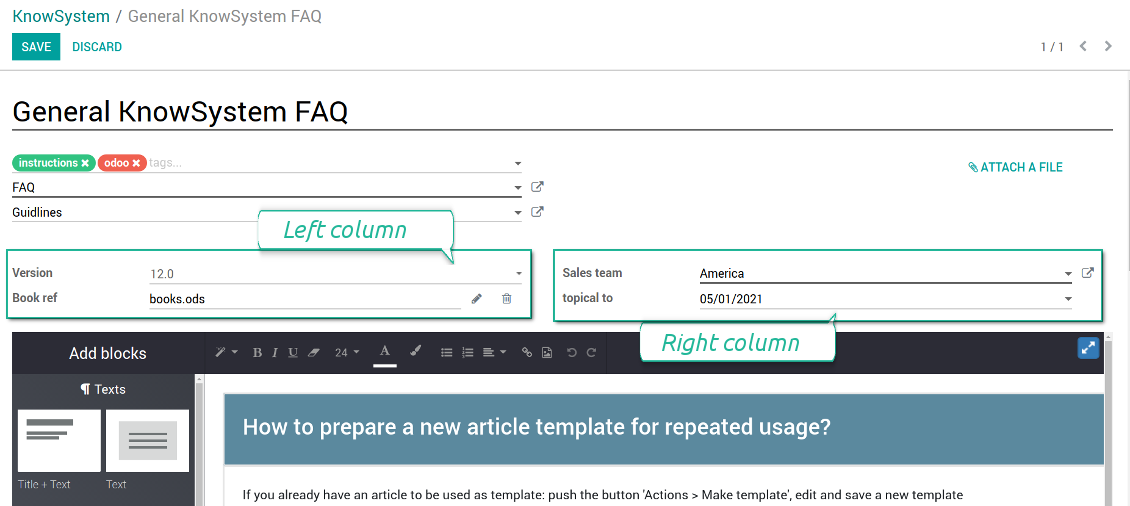
Then, choose an interface location for a new field from a closed list to structure properties on an article page. Decide whether a field should be required to enter, or should be visible only for definite knowledge types.
Στιγμιότυπα οθόνης
KnowSystem articles' custom fields
Custom fields on article form
Custom fields in portal and website
Custom fields for article: add any data required
Knowledge is secured and might be safely shared
How to manage user accesses to articles
Security for internal and portal users differs.
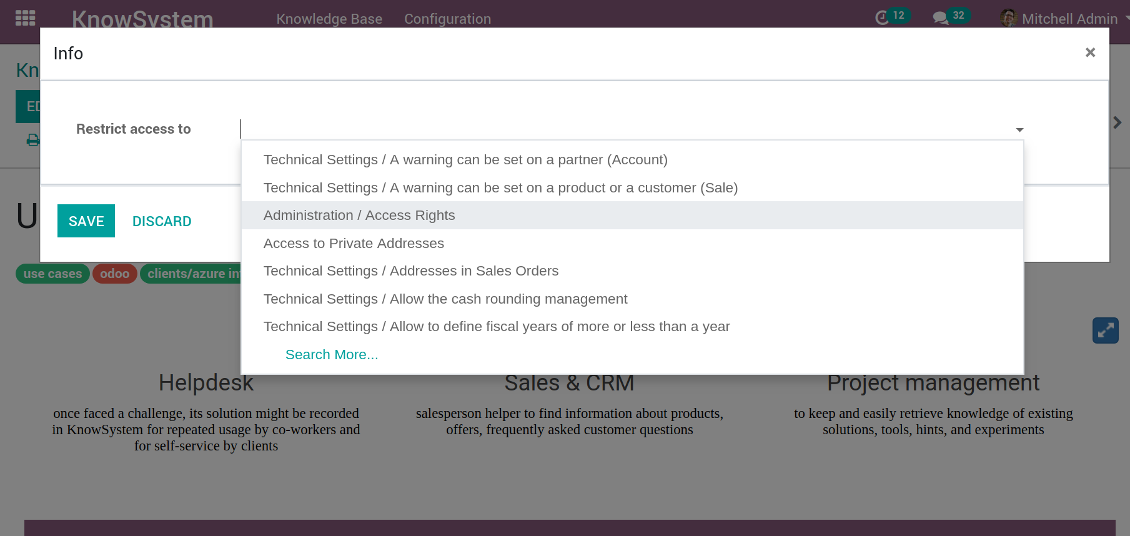
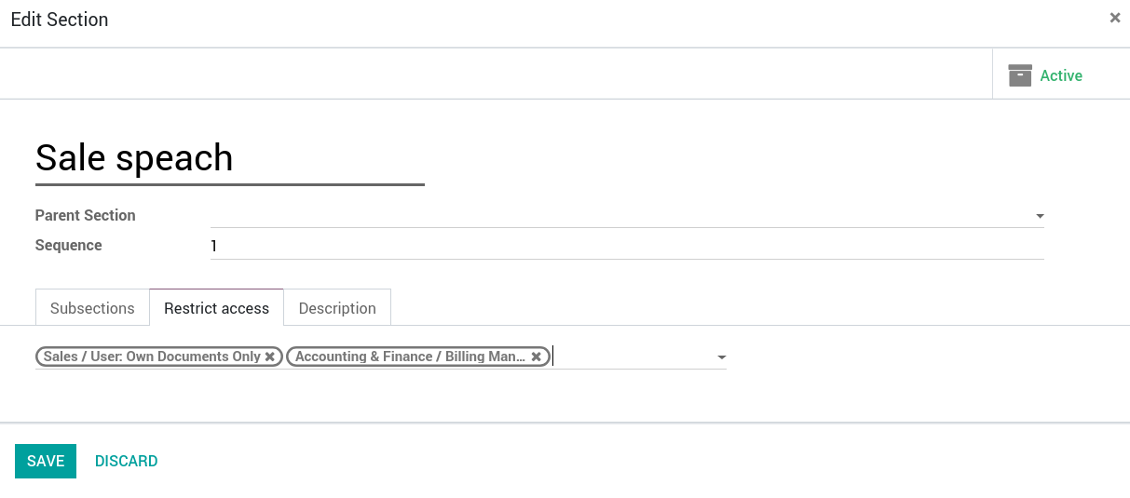
For the company employees: KnowSystem considers user groups which are defined per articles, sections and tours. Look at the tab 'Restrict to' on forms of those objects. If that field is not defined, a document is considered 'global': each internal user may read it.
For portal / public users: KnowSystem takes into account tags and whether an article is website published. A knowledge tag has a field 'Allowed partners', which may grant an access to portal users for articles with this tag. Website published pages are available for everybody.
Rights to administrate KnowSystem belongs to 2 user roles: KnowSystem Editor and KnowSystem Administrator. If you want a user to create and edit articles, a user should belong to one of those groups.
|
|
Odoo user |
KnowSystem Editor |
KnowSystem Admin |
Portal user |
Public user |
| Articles | read related to his/her user groups and sections | read, create, edit, archive related to his/her user groups and sections | read, create, edit, delete any | read published articles and articles related to partner-related tags | read published articles |
| Sections | read related to his/her user groups | read, create, edit, archive related to his/her user groups and sections | read, create, edit, delete any | read all sections of available articles | read all sections of published articles |
| Tags | read any | read, create, edit, archive any | read, create, edit, delete any | no access | no access |
| Tours | read related to his/her user groups | read, create, edit, delete related to his/her user groups | read, create, edit, delete any | no access | no access |
| Misc | may like / dislike, add to favourites, print, take part in discussions | may configure options | may like / dislike an article |
|
Take also into account two peculiarities:
- Odoo user always may access an article of which he is an author disregarding further restrictions;
- Rights for section is defined not only according to this section but also according to all its parents. For example, if user can't access 'sales', he/she would not be able to access 'sales / crm' disregarding whether 'crm' is available for his/her user group.
Στιγμιότυπα οθόνης
Manage access to this article
Section update and user rights
Create learning tours
How to configure a learning tour
- Turn on the option 'Tours'
- Go to KnowSystem interface and select articles to be included into a tour
- Press the mass action button 'Add to tour' and select or create a tour. Press save
- Re-order articles in a consistent order
- Define groups of users who should go through a tour on the tab 'Restrict access'
- Now users can see and launch tours right from the KnowSystem interface (the right navigation panel)
Στιγμιότυπα οθόνης
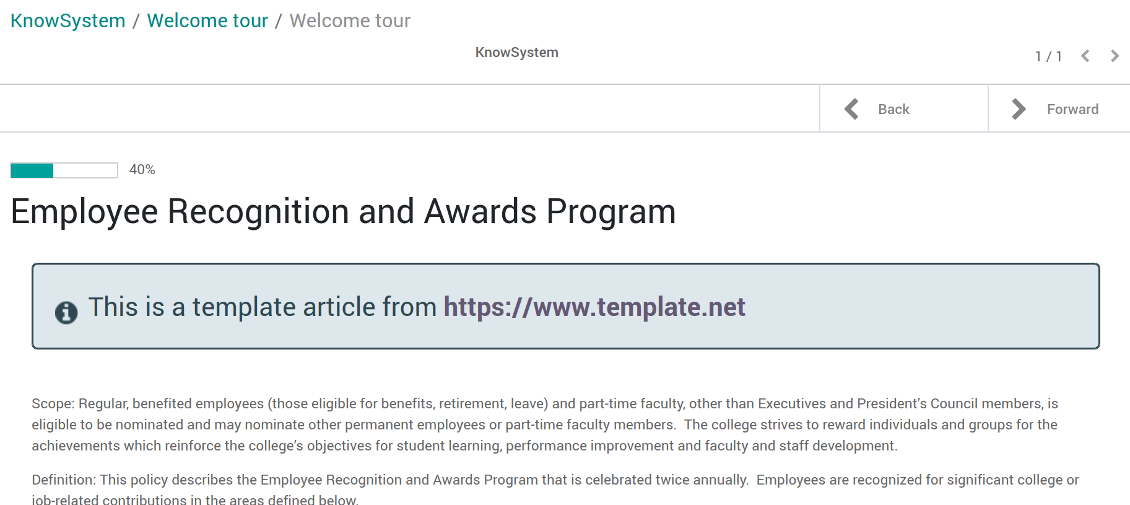
Article in a learning tour
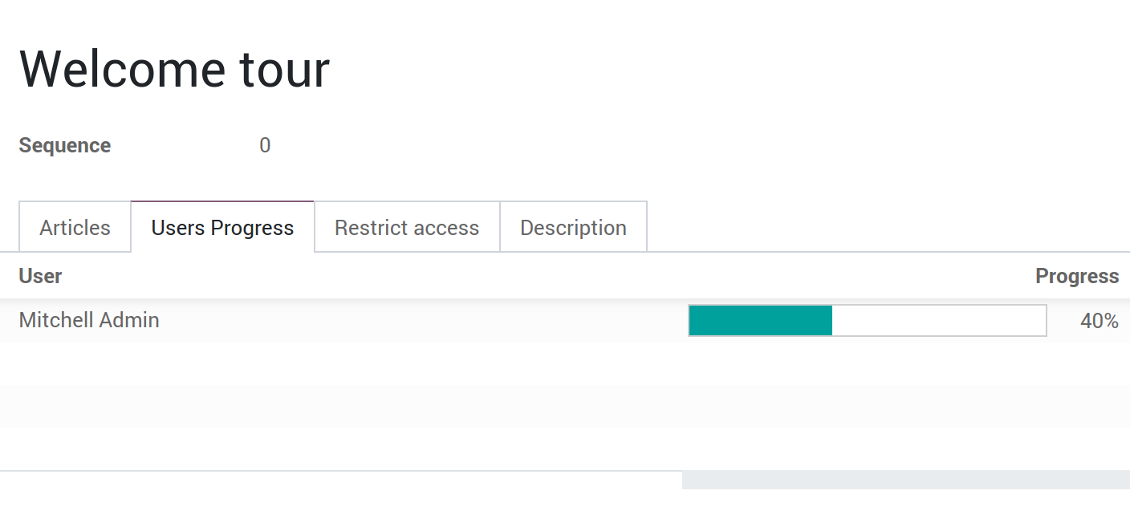
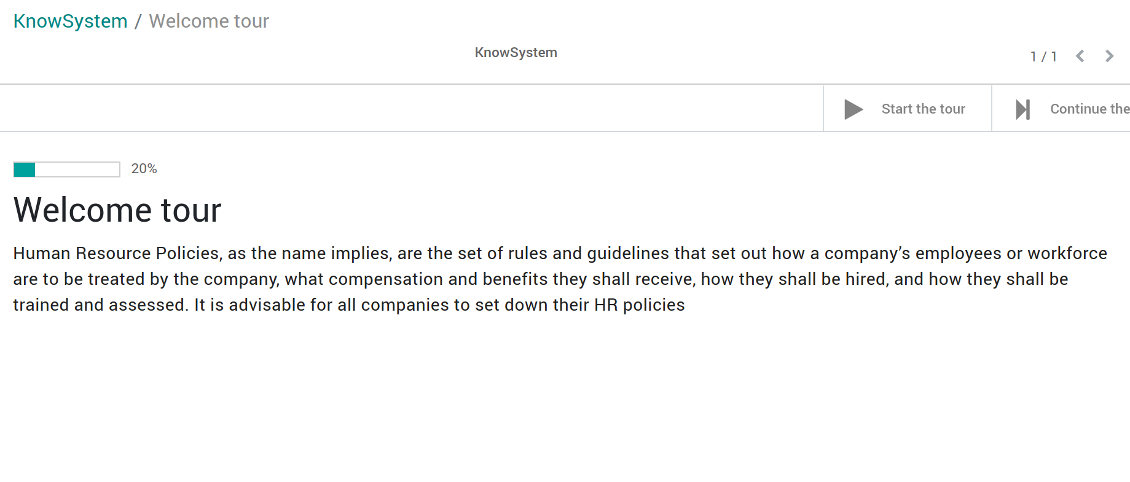
Control tour progress by users
KnowSystem tour welcome page
Multilingual knowledge base
How to make an article available for a few languages
- Install the optional add-on 'KnowSystem: Multi Languages'
- Change your user language for a needed one
- Update this article
- Now it is available in both source and a current language
Make sure you really require a few languages. In that case you almost double the work of KnowSystem editors. All articles should be kept updated in all Odoo languages.
Knowledge base for any industry and business
Typical use cases
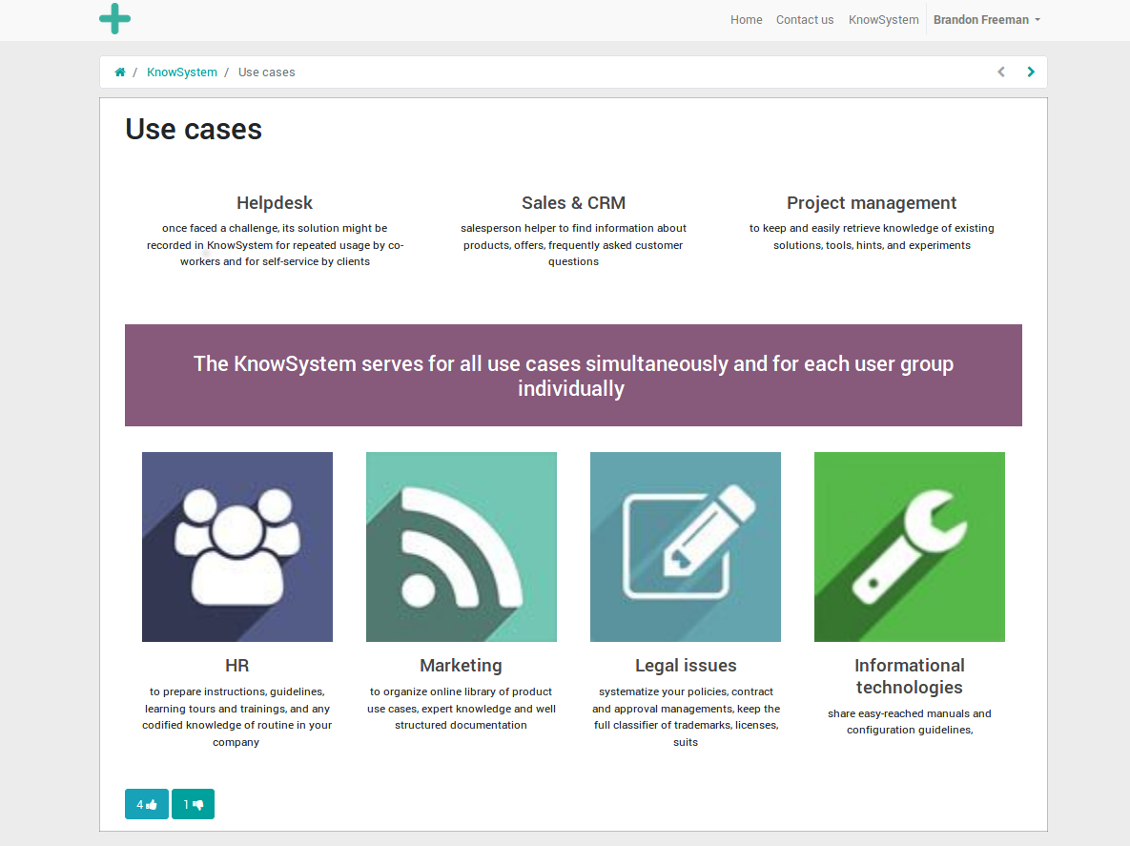
- Helpdesk: once faced a challenge, its solution might be recorded in KnowSystem for repeated usage by co-workers and for self-service by clients
- Sales & CRM: salesperson helper to find information about products, offers, frequently asked customer questions
- Project management: to keep and easily retrieve knowledge of existing solutions, tools, hints, and experiments
- HR: to prepare instructions, guidelines, learning tours and trainings, and any codified knowledge of routine in your company
- Marketing: to organize online library of product use cases, expert knowledge and well structured documentation
- Legal issues: systematize your policies, contract and approval managements, keep the full classifier of trademarks, licenses
- Informational technologies: share easy-reached manuals and configuration guidelines
Συχνές ερωτήσεις για KnowSystem: Knowledge Base System Odoo v.11
Δεν βλέπω καμία διαφορά μεταξύ των κειμένων των αναθεωρήσεων.
Οι αναθεωρήσεις καταγράφουν όχι μόνο αλλαγές κειμένου, αλλά και ενημερώσεις στυλ (τεχνικά, όταν αλλάζετε τον πηγαίο κώδικα HTML ενός άρθρου). Μερικές μπορεί να μην είναι εμφανείς με την πρώτη ματιά (π.χ. αλλαγή μεγέθους γραμματοσειράς μιας λέξης). Άλλες μπορεί να είναι ριζικές. Ωστόσο, οποιοδήποτε σύνολο ενεργειών Επεξεργασία > Αλλαγή οτιδήποτε σε άρθρο > Αποθήκευση δημιουργεί νέα αναθεώρηση.
Μπορώ να προσθέσω βίντεο YouTube/ Vimeo / Dailymotion / Youku σε άρθρο;
Ναι, μπορείτε να ενσωματώσετε βίντεο από αυτές τις υπηρεσίες σε άρθρα τόσο από το περιβάλλον διαχείρισης του Odoo όσο και από τον κατασκευαστή ιστοτόπου. Προσθέστε οποιοδήποτε δομικό στοιχείο με εικόνα > πατήστε την εικόνα > επιλέξτε ‘Video’ > εισαγάγετε URL του μέσου.
Λάβετε υπόψη: αυτά τα βίντεο μπαίνουν ως iframe και ορισμένα προγράμματα περιήγησης μπορεί να μπλοκάρουν την αναπαραγωγή μέχρι ο χρήστης να το επιτρέψει ρητά.
Πώς κάνω μια ενότητα ορατή στον ιστότοπο;
Στο KnowSystem, μια ενότητα γίνεται ορατή στον ιστότοπο αν είναι δημοσιευμένη και περιέχει τουλάχιστον ένα άρθρο. Ακόμη και με υποενότητες, δεν θα είναι ορατή αν στην ίδια την ενότητα δεν υπάρχει ούτε ένα άρθρο. Έτσι αποφεύγονται οι κενές ενότητες και η πύλη KnowSystem μένει ευανάγνωστη. Για να εμφανιστεί η ενότητα στον ιστότοπο, προσθέστε ένα εισαγωγικό ή γενικό άρθρο που περιγράφει ή απαριθμεί σύντομα τα άρθρα των υποενοτήτων.
Πώς μπορώ να κοινοποιήσω ένα άρθρο σε εξωτερικό συναλλασσόμενο;
Δεξί κλικ σε οποιαδήποτε ετικέτα στο αριστερό πλαίσιο πλοήγησης - Δημιουργία
Βρείτε το πεδίο «Allowed partners». Π.χ. 'clients - azure interior' για πρόσβαση του συναλλασσόμενου 'Azure Interior'. Μπορείτε και το αντίστροφο: να αντιστοιχίσετε ετικέτες KnowSystem απευθείας στη φόρμα συναλλασσόμενου
Μετά πηγαίνετε στο απαιτούμενο άρθρο (ή το ίδιο με την ενέργεια «Mass update» για πολλά αρχεία):
Αν είναι δημοσιευμένο: καταργήστε τη δημοσίευση αν δεν θέλετε να είναι διαθέσιμο σε όλους τους χρήστες πύλης και τους δημόσιους επισκέπτες
Αντιστοιχίστε τη νέα ετικέτα (στο παράδειγμα είναι 'clients - azure interior')
Τώρα:
Όλοι οι χρήστες πύλης που σχετίζονται με τον εμπορικό συναλλασσόμενο 'Azure Interior' έχουν πρόσβαση στα άρθρα με την ετικέτα 'Azure Interior'
Κανένας άλλος χρήστης πύλης (αν δεν έχει αντιστοιχιστεί άλλη ετικέτα) δεν έχει πρόσβαση σε αυτά τα άρθρα
Οι εσωτερικοί χρήστες δεν επηρεάζονται και βλέπουν άρθρα σύμφωνα με τη λογική «access to» άρθρων και ενοτήτων.
Μπορούμε να προσθέσουμε κουμπί επιλογής γλώσσας στο σώμα του άρθρου;
Το κουμπί 'translate' δεν προστίθεται σκόπιμα στο σώμα του άρθρου από το προαιρετικό πρόσθετο 'KnowSystem: Multi Languages'. Ο λόγος είναι ότι ο κώδικας HTML είναι πολύ δύσκολο να μεταφραστεί στο απλό αναδυόμενο παράθυρο που προβλέπει το κουμπί. Το κείμενο προς μετάφραση θα ήταν ελάχιστο και τα τμήματα HTML πολλά (τα οποία μπορεί να χαλάσει και ο μεταφραστής).
Γι' αυτό, για να συντάξετε άρθρο σε συγκεκριμένη γλώσσα, συνδεθείτε ως χρήστης αυτής της γλώσσας. Μπορεί να είναι άλλος χρήστης, ή να αλλάξετε προσωρινά τις προτιμήσεις του τρέχοντος χρήστη. Έπειτα κάθε ενημέρωση στο σώμα του άρθρου γίνεται σε εκείνη τη γλώσσα.
Επίσης μπορείτε να χρησιμοποιήσετε το κουμπί 'Copy from another translation' κάτω από το σώμα του άρθρου, ώστε ανά πάσα στιγμή να πάρετε το περιεχόμενο από άλλη γλώσσα (χρήσιμο όταν το άρθρο ενημερώθηκε σημαντικά σε μία γλώσσα).
Πώς μπορώ να ενσωματώσω άλλη σελίδα ιστότοπου σε ένα άρθρο
Για τον σκοπό αυτό μπορείτε να χρησιμοποιήσετε iframe. Αλλάξτε το άρθρο στον επεξεργαστή ακατέργαστου κώδικα HTML και εισαγάγετε, για παράδειγμα, <iframe src="https://faotools.com/" style="width:100%;min-height:600px;"> </iframe>.
Εγκατέστησα το KnowSystem αλλά δεν βλέπω το κουμπί «create» και άλλα κουμπιά
Πιθανότατα δεν έχετε δώσει δικαιώματα KnowSystem στον χρήστη σας. Επιλέξτε το δικαίωμα «KnowSystem Editor» ή «KnowSystem Admin» και ανανεώστε τη σελίδα. Τα κουμπιά ελέγχου θα εμφανιστούν.
Μπορώ να εμφανίσω συγκεκριμένη περιήγηση εκμάθησης μόνο σε επιλεγμένους χρήστες;
Ναι, εφαρμόζοντας μια ομάδα χρηστών (π.χ. 'Sales Manager') που πρέπει να περάσει αυτή την περιήγηση. Αν ο χρήστης ανήκει στην ομάδα, τη βλέπει. Αν όχι, δεν εμφανίζεται. Λειτουργεί όπως τα δικαιώματα ασφαλείας για άρθρα και ενότητες KnowSystem.
Λάβετε υπόψη ότι αν μια περιήγηση δεν έχει αντιστοιχισμένες ομάδες, είναι «καθολική» και εμφανίζεται σε όλους.
Πώς αλλάζω το υποσέλιδο και την κεφαλίδα όταν εκτυπώνω άρθρα;
Η κεφαλίδα και το υποσέλιδο των PDF άρθρων λαμβάνονται από τις διατάξεις της εταιρείας. Δείτε Settings > General Settings > την ενότητα Business Documents. Εκεί ορίζετε το πρότυπο εταιρείας για όλους τους τύπους εγγράφων, συμπεριλαμβανομένων τιμολογίων, εντολών πώλησης κ.λπ., και για τα άρθρα. Αυτή η προσέγγιση Odoo θεωρεί υποσέλιδο και κεφαλίδα γενικό εταιρικό στυλ, όχι ιδιότητα συγκεκριμένων εκτυπώσεων.
Πώς μπορώ να συνδέσω άρθρα μεταξύ τους;
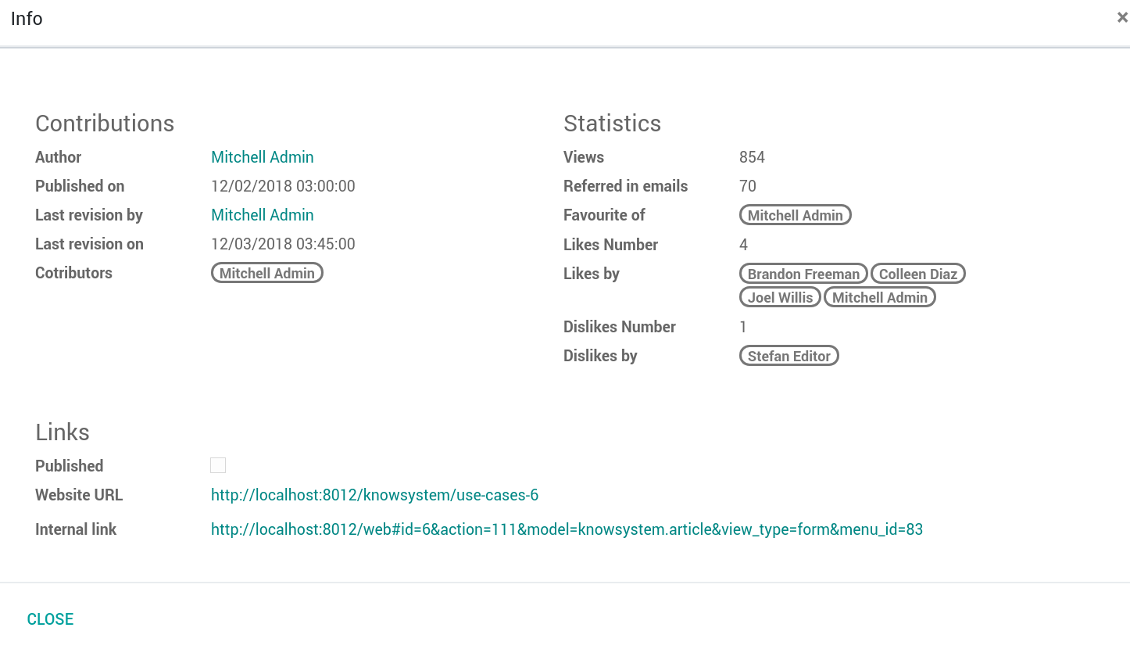
Κάθε άρθρο έχει εσωτερικά (backend) και ιστότοπου URLs (αν είναι εγκατεστημένη η επιλογή 'KnowSystem: Website and Portal'). Πατήστε το κουμπί 'Info' στη φόρμα άρθρου για τις διευθύνσεις ιστότοπου αυτής της εγγραφής. Μπορείτε να εισαγάγετε οποιαδήποτε στο σώμα του άρθρου ως υπερσύνδεσμο.
Μπορώ να αλλάξω τον πηγαίο κώδικα HTML ενός άρθρου;
Ναι· για αυτό ενεργοποιήστε τα debug assets (στην οθόνη επισκόπησης ρυθμίσεων) και επιστρέψτε στο τρέχον άρθρο. Σε λειτουργία επεξεργασίας θα δείτε το ειδικό εικονίδιο '</>'. Κάντε κλικ για να δείτε και να επεξεργαστείτε HTML και στυλ.
Ποιες είναι οι πολιτικές ενημέρωσης των εργαλείων σας;
Σύμφωνα με τις ισχύουσες πολιτικές του Odoo Apps Store:
- Κάθε άρθρωμα που αγοράστηκε για την έκδοση 12.0 και παλαιότερα δίνει πρόσβαση σε όλες τις εκδόσεις έως την 12.0.
- Από την έκδοση 13.0 κάθε έκδοση αρθρώματος αγοράζεται χωριστά.
- Ανεξάρτητα από την έκδοση, η αγορά δίνει δικαίωμα σε όλες τις ενημερώσεις και διορθώσεις εντός μιας μείζονος έκδοσης.
Σημειώστε ότι η ομάδα faOtools δεν ελέγχει αυτές τις πολιτικές. Για ερωτήσεις επικοινωνήστε απευθείας με τους εκπροσώπους του Odoo Apps Store.
Πώς μπορώ να εγκαταστήσω την εφαρμογή σας στο Odoo.sh;
Η πιο απλή προσέγγιση είναι να χρησιμοποιήσετε την ενσωματωμένη ροή εργασίας του καταστήματος Odoo:
1. Ανοίξτε τη σελίδα της μονάδας και πατήστε το κουμπί Deploy on odoo.sh
2. Έπειτα θα ανακατευθυνθείτε στη σελίδα του GitHub. Συνδεθείτε στον λογαριασμό σας και πατήστε 'Create a new repo' ή χρησιμοποιήστε υπάρχον. Βεβαιωθείτε ότι το αποθετήριο είναι ιδιωτικό. Δεν επιτρέπεται η δημοσίευση εφαρμογών με άδεια OPL-1. Αν χρειάζεται, δημιουργήστε νέο repo για το έργο Odoo.sh
3. Έπειτα πηγαίνετε στο odoo.sh και πατήστε το κουμπί Deploy. Στο αναδυόμενο παράθυρο υποβάλετε την απόφαση και πατήστε 'Continue.' Αυτή η ενέργεια ξεκινά την εγκατάσταση.
Αυτά τα βήματα εγκαθιστούν την εφαρμογή στον κλάδο παραγωγής του έργου. Αν θέλετε να αναπτύξετε τις εφαρμογές σε άλλους κλάδους ή να ενημερώσετε τη μονάδα, ακολουθήστε τις εξής ενέργειες:
1. Ανεβάστε τον πηγαίο κώδικα της εφαρμογής από το κατάστημα Odoo
2. Κάντε commit τη μονάδα στο απαιτούμενο αποθετήριο GitHub. Βεβαιωθείτε ότι κανένας φάκελος/αρχείο της εφαρμογής δεν αγνοείται (δηλαδή δεν περιλαμβάνεται στο .gitignore του repo). Τα αποθετήρια δημιουργούνται αυτόματα από το odoo.sh και μπορεί από προεπιλογή να περιλαμβάνουν κρίσιμα στοιχεία (π.χ. /lib). Ανεβάστε όλους τους καταλόγους, υποκαταλόγους και αρχεία της μονάδας χωρίς εξαιρέσεις
3. Κάντε Deploy τον στοχευμένο κλάδο του έργου odoo.sh ή, αν το προβλέπουν οι ρυθμίσεις σας, περιμένετε μέχρι να δημιουργηθεί αυτόματα.
Πώς να εγκαταστήσω την εφαρμογή σας στον δικό μου διακομιστή;
2. Επανεκκινήστε τον διακομιστή Odoo;
3. Ενεργοποιήστε τη λειτουργία προγραμματιστή (τεχνικές ρυθμίσεις);
4. Ενημερώστε τη λίστα εφαρμογών (μενού εφαρμογών);
5. Βρείτε την εφαρμογή και πατήστε «Activate»/«Install»;
6. Ακολουθήστε τις οδηγίες στη σελίδα της εφαρμογής, αν υπάρχουν.
Παρατήρησα ότι η εφαρμογή σας έχει επιπλέον πρόσθετα. Μπορώ να τα αγοράσω αργότερα;
Ναι, βεβαίως. Ταυτόχρονα το Odoo προσθέτει αυτόματα όλες τις εξαρτήσεις στο καλάθι, οπότε πρέπει να εξαιρέσετε εργαλεία που έχετε ήδη αγοράσει για να αποφύγετε διπλή πληρωμή.
Ανάπτυξα την εφαρμογή σας στο Odoo.sh και βλέπω προειδοποίηση/σφάλμα στις δοκιμές
Μια κόκκινη/πορτοκαλί προειδοποίηση δεν επηρεάζει τις λειτουργίες της εφαρμογής. Δυστυχώς, μερικές φορές τα module μας δεν περνούν τα τυπικά αυτόματα τεστ, γιατί αυτά υποθέτουν συμπεριφορά που συγκρούεται με τους στόχους της εφαρμογής. Π.χ. αλλάζουμε τον υπολογισμό τιμής, ενώ τα τεστ του τυπικού module Odoo συγκρίνουν την τελική τιμή με τον τυπικό αλγόριθμο.
Πρώτα απ' όλα, ελέγξτε τις λειτουργίες της αναπτυγμένης βάσης. Λειτουργούν όλα σωστά;
Αν εξακολουθείτε να θεωρείτε ότι η προειδοποίηση επηρεάζει πραγματικές λειτουργίες, επικοινωνήστε μαζί μας και στείλτε πλήρη αρχεία εγκατάστασης και την πλήρη λίστα αναπτυγμένων module (πυρήνα και τρίτων).
Μπορώ να αγοράσω την εφαρμογή απευθείας από την εταιρεία σας;
Όχι, διανέμουμε τα εργαλεία μόνο μέσω του επίσημου καταστήματος εφαρμογών Odoo.
Θα ήθελα να λάβω έκπτωση
Δυστυχώς, δεν έχουμε τα τεχνικά μέσα για να προσφέρουμε ατομικές τιμές.
Μπορώ να εγκαταστήσω την εφαρμογή στη βάση Odoo Online (SaaS);
Όχι, εφαρμογές τρίτων δεν μπορούν να χρησιμοποιηθούν στο Odoo Online. Δυστυχώς το Odoo SaaS αποκλείει αυτή τη δυνατότητα.
Το εργαλείο σας εξαρτάται από άλλες εφαρμογές. Πρέπει να τις αγοράσω;
Ναι, το εργαλείο απαιτεί όλα τα module που σημειώνονται στις εξαρτήσεις για να λειτουργεί σωστά. Η τιμή στη σελίδα της εφαρμογής περιλαμβάνει ήδη όλες τις απαραίτητες εξαρτήσεις.
Ποια είναι η τιμή του αρθρώματος σε δολάρια ΗΠΑ; Γιατί άλλαξε;
Η τιμή των module μας ορίζεται σε ευρώ. Το κατάστημα Odoo μετατρέπει τις τιμές σε άλλα νομίσματα σύμφωνα με την εσωτερική ισοτιμία του. Έτσι η τιμή σε δολάρια ΗΠΑ μπορεί να αλλάξει όταν ενημερώνεται η ισοτιμία.
Το κείμενο εφαρμογής και ιστότοπου σε άλλες γλώσσες πλην των αγγλικών γίνεται με βοήθεια ΤΝ και ευθυγραμμίζεται με τις επίσημες μεταφράσεις Odoo. Αν εντοπίσετε λάθος, στείλτε αίτημα για ορθότητα μεταφράσεων και θα το διορθώσουμε.
Αναφορά σφαλμάτων
Αν αντιμετωπίσετε σφάλματα ή ασυνεπή συμπεριφορά, μη διστάσετε να επικοινωνήσετε μαζί μας. Εγγυόμαστε διορθώσεις εντός 60 ημερών από την αγορά και ενδιαφερόμαστε έντονα να βελτιώνουμε τα εργαλεία μας και μετά από αυτή την περίοδο.
Δεν χρειάζεστε αριθμό τηλεφώνου ή πιστωτική κάρτα για να επικοινωνήσετε. Αρκεί μια σύντομη εγγραφή με e-mail που δεν διαρκεί πάνω από 30 δευτερόλεπτα.
Συμπεριλάβετε όσο το δυνατόν περισσότερες λεπτομέρειες στο αίτημά σας: στιγμιότυπα οθόνης, αρχεία καταγραφής διακομιστή Odoo, πλήρη περιγραφή αναπαραγωγής του προβλήματος κ.λπ. Συνήθως χρειάζονται μερικές εργάσιμες ημέρες για να ετοιμαστεί σχέδιο εργασίας για ένα ζήτημα (αν επιβεβαιωθεί σφάλμα) ή να σας δοθούν οδηγίες για το τι πρέπει να γίνει (διαφορετικά).
Δημόσια αιτήματα λειτουργιών και ιδέες μονάδων (δωρεάν ανάπτυξη)
Έχουμε ισχυρό κίνητρο να βελτιώνουμε τα εργαλεία μας και θα εκτιμούσαμε κάθε σχόλιο. Αν οι απαιτήσεις σας είναι κοινής ωφέλειας και μπορούν να υλοποιηθούν αποδοτικά, η ομάδα θα τις εντάξει στη λίστα εργασιών μας.
Τέτοια λίστα εργασιών επεξεργάζεται τακτικά και δεν συνεπάγεται επιπλέον χρεώσεις. Αν και δεν μπορούμε να υποσχεθούμε προθεσμίες και τελικό σχεδιασμό, μπορεί να είναι καλός τρόπος να αποκτήσετε τις επιθυμητές λειτουργίες χωρίς επενδύσεις και κινδύνους.
Δεν χρειάζεστε αριθμό τηλεφώνου ή πιστωτική κάρτα για να επικοινωνήσετε. Αρκεί μια σύντομη εγγραφή με e-mail που δεν διαρκεί πάνω από 30 δευτερόλεπτα.

Το εργαλείο για να οργανώνετε ευέλικτα τα συνημμένα του Odoo σε φακέλους και να συγχρονίζετε καταλόγους με πελάτες cloud: Google Drive, OneDrive/SharePoint, Nextcloud/ownCloud, Dropbox, Amazon S3, Box και NAS. DMS. Διαχειριστής αρχείων. Σύστημα διαχείρισης εγγράφων
398€
Το εργαλείο για αυτόματο αμφίδρομο συγχρονισμό των συνημμένων του Odoo με αρχεία OneDrive
487€
Το εργαλείο για αυτόματο αμφίδρομο συγχρονισμό των συνημμένων του Odoo με αρχεία Google Drive
487€
Το εργαλείο για ασφαλή φύλαξη κωδικών στο Odoo για κοινή χρήση. Κοινά θησαυροφυλάκια

Το εργαλείο για να ορίζετε στόχους KPI και να ελέγχετε την εκπλήρωσή τους ανά περιόδους. Πίνακες KPI. Σχεδιαστής πινάκων. Γραφήματα KPI

Το εργαλείο για διαχείριση υπηρεσιών βάσει χρόνου, από κράτηση ραντεβού έως πωλήσεις και αξιολογήσεις
398€
Το εργαλείο για να διαχειρίζεστε το Odoo από τα αγαπημένα σας AI chats μέσω MCP. Claude. Οποιοδήποτε AI που υποστηρίζει MCP.

Το εργαλείο για μετάφραση διευθύνσεων URL σελίδων ιστότοπου Odoo
38€
Το εργαλείο για τη συνένωση διαφορετικών συμβάντων Odoo σε λίγα διαμορφώσιμα υπερ-ημερολόγια