KnowSystem: Knowledge Base System v.11
The tool to build deep and structured knowledge base for internal and external use. Knowledge System. KMS
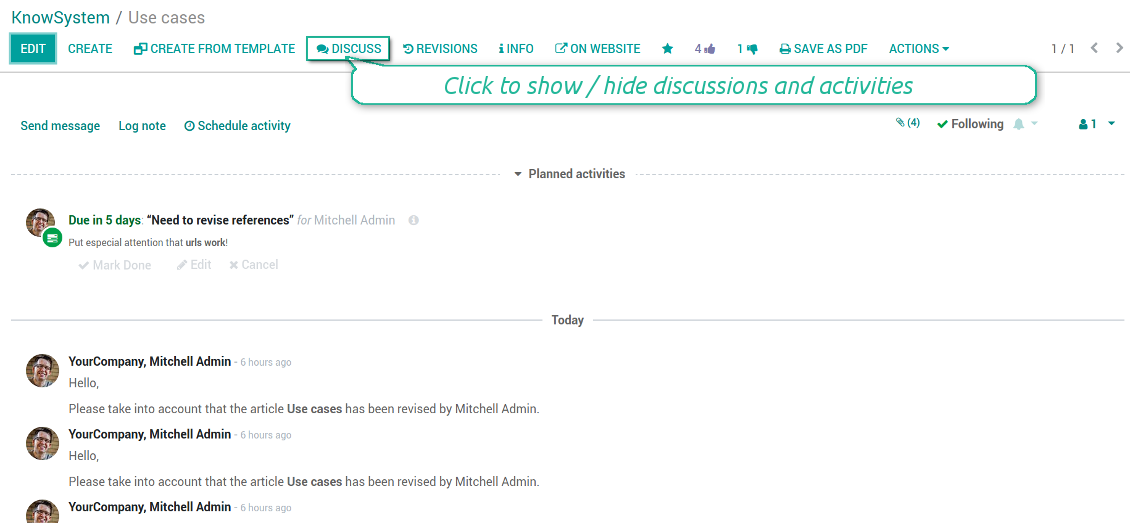
- a core of knowledge management. It might be used stand-alone as a complete internal knowledge base system. Jo kaina yra 398€.
- an optional module, which let you publish articles to website, share them with portal users, and use website builder to update articles. The features assumed by this add-on are marked by the icon . Jo kaina yra 40€.
- an optional module, which let you add and show custom fields for articles (backend). The features assumed by this add-on are marked by the icon . Jo kaina yra 48€.
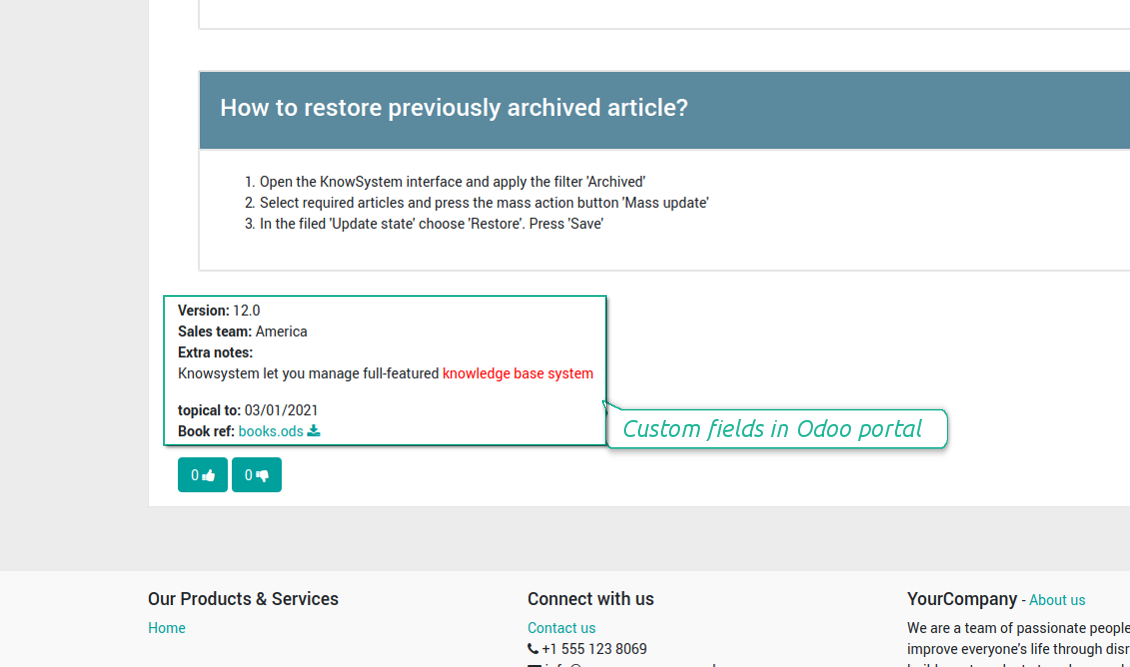
- an optional free module, which shows custom fields on website and portal pages (frontend). The features assumed by this add-on are also marked by the icon .
- an optional module, which let you translate articles, sections and tags for installed in Odoo languages. The features assumed by this add-on are marked by the icon . Jo kaina yra 10€.
Innovative single-view interface
From the same interface editors may create and update any knowledge-related documents, change articles in batch, set up security. Without a need for excess navigation.
Interface solutions
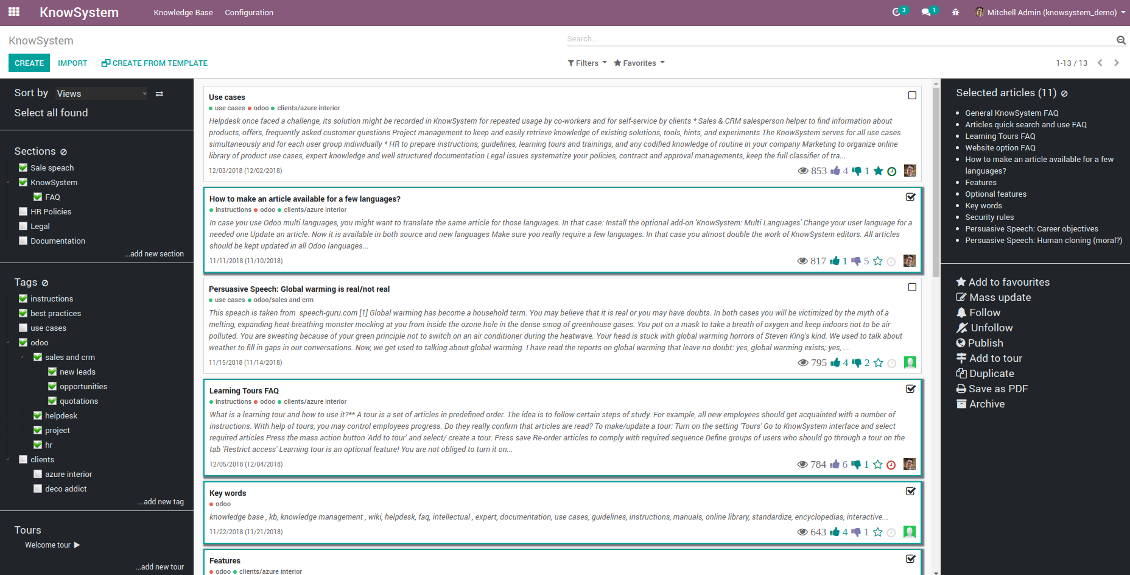
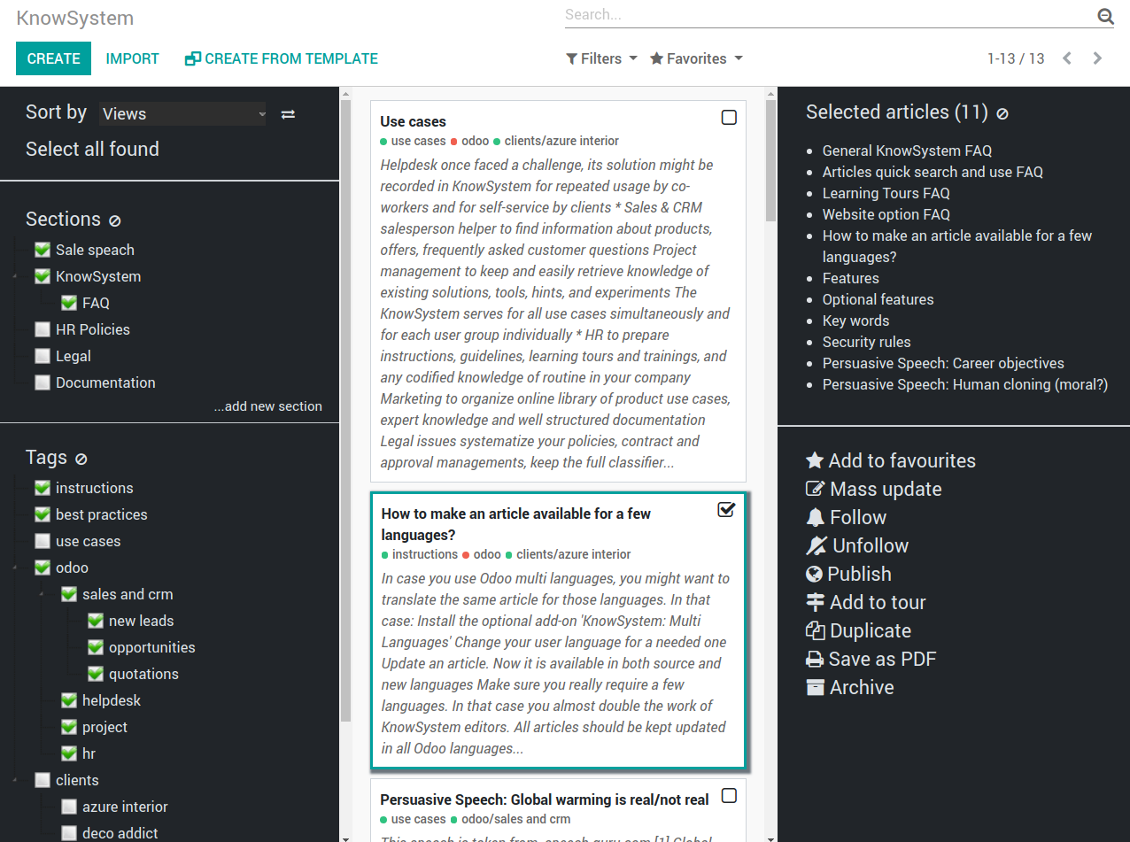
The KnowSystem interface consists of 3 key parts: the left navigation panel, the list of articles, and the right navigation panel (it is shown only if some articles are selected).
On the left navigation panel you may:
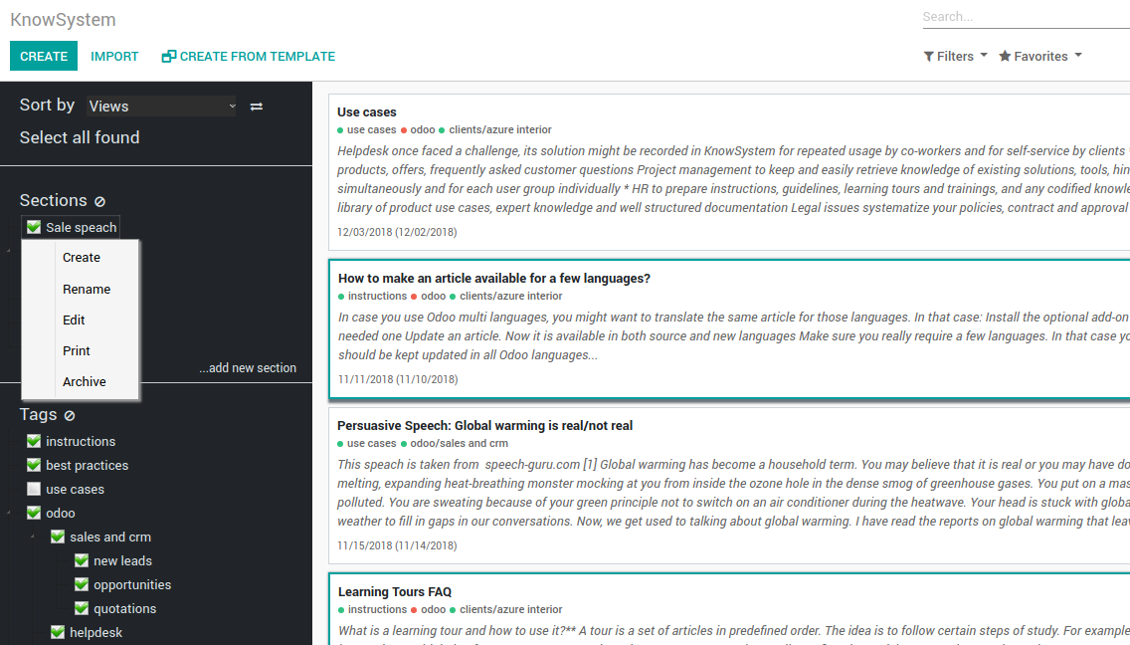
- Manage hierarchy of sections: prepare new (right mouse click - 'create'), update existing (right mouse click - edit), re-order any (drag and drop an item), archive sections. Select a few ones to filter articles. You may also print all articles related to this section as a single PDF file.
- In the same way manage hierarchy of tags
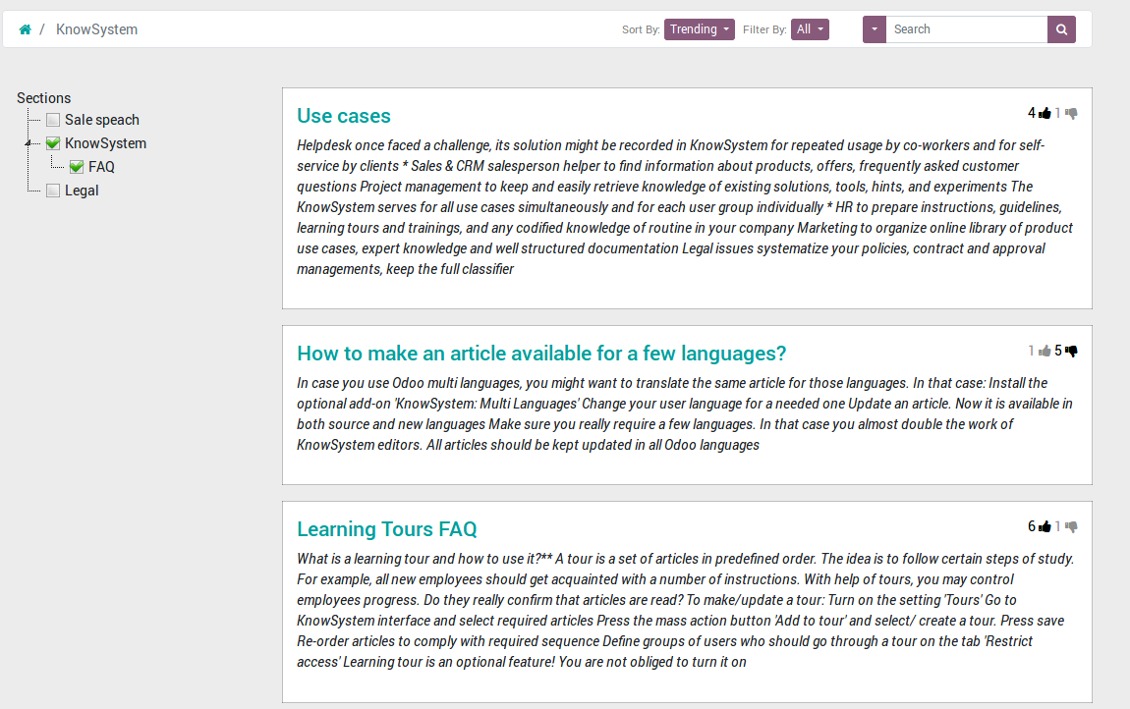
- Sort articles by number of views, a score of likes and dislikes, create or update dates, a section, an author
- Select all articles which are found according to chosen tags / sections and according to introduced searches / filters
- Launch a learning tour.
From the list of articles you see articles' name, indexed content (words without HTML style), dates of creation and last update, a number of views, likes, dislikes, author avatar. Here you may also add an article to favourite by pressing the 'star' icon.
Click on article body to open it in a full size (form view). Do not worry: chosen tags and sections as well as selected articles will be kept when you get back! Click on the top right check box to add an article for selection.
On the right navigation panel you observe selected articles and may proceed a mass action. Click on article name to remove it form selection.
On the top of the interface users also would find a standard Odoo omnibox. Type here to search by a title, content, an author, tags or a section.
Available mass actions
KnowSystem let users update an unlimited number of articles simultaneously:
- Assign new section
- Change or remove tags
- Print multiple articles as a single PDF
- Follow / unfollow discussions
- Publish / unpublish articles
- Export articles to an Excel table
- Archive or restore records
- Add articles to learning tours
- Mark knowledge items as favourite
- Duplicate articles.
Ekrano nuotraukos
KnowSystem articles overview, search and mass actions
Single entry for knowledge management actions
KnowSystem configuration
Article read mode
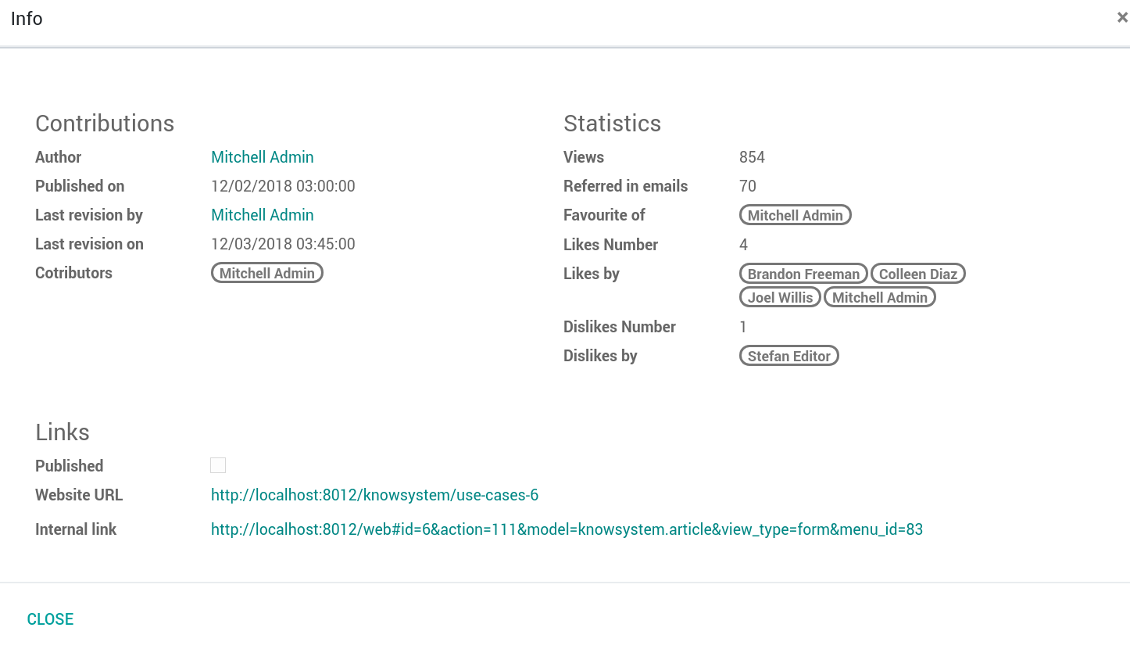
Article info and statistics
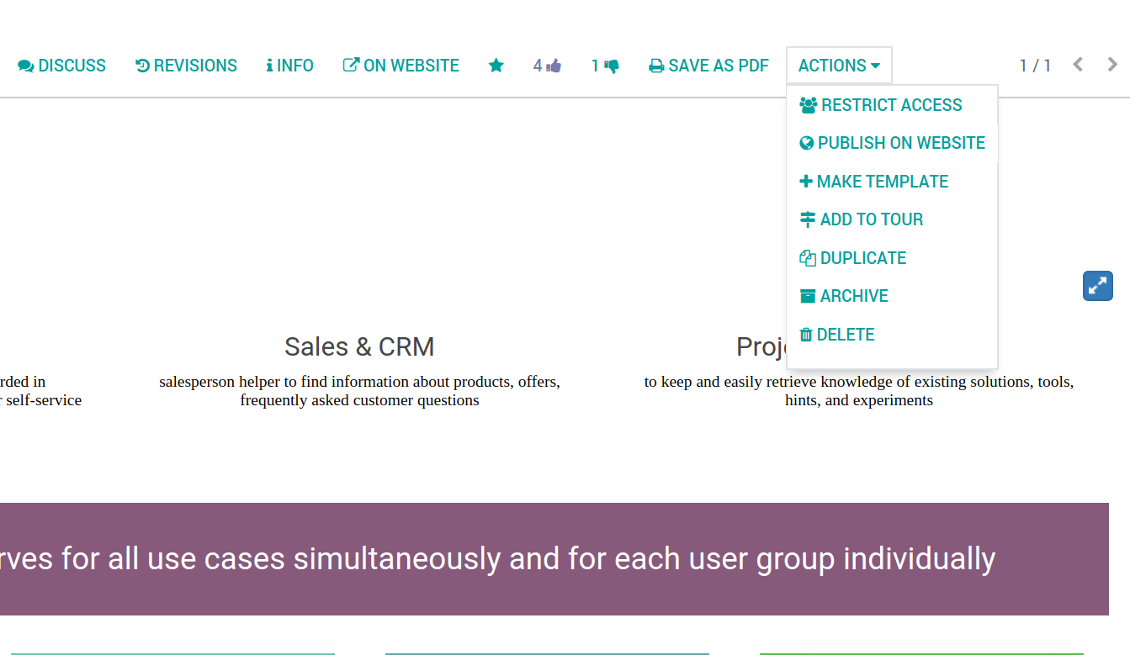
Article misc actions
Mass actions for selected articles
Small screen KnowSystem interface
Fast, comfortable, and professional knowledge recording
By using templates with pre-defined styles you may also speed knowledge generation up and standardize articles' appearance.
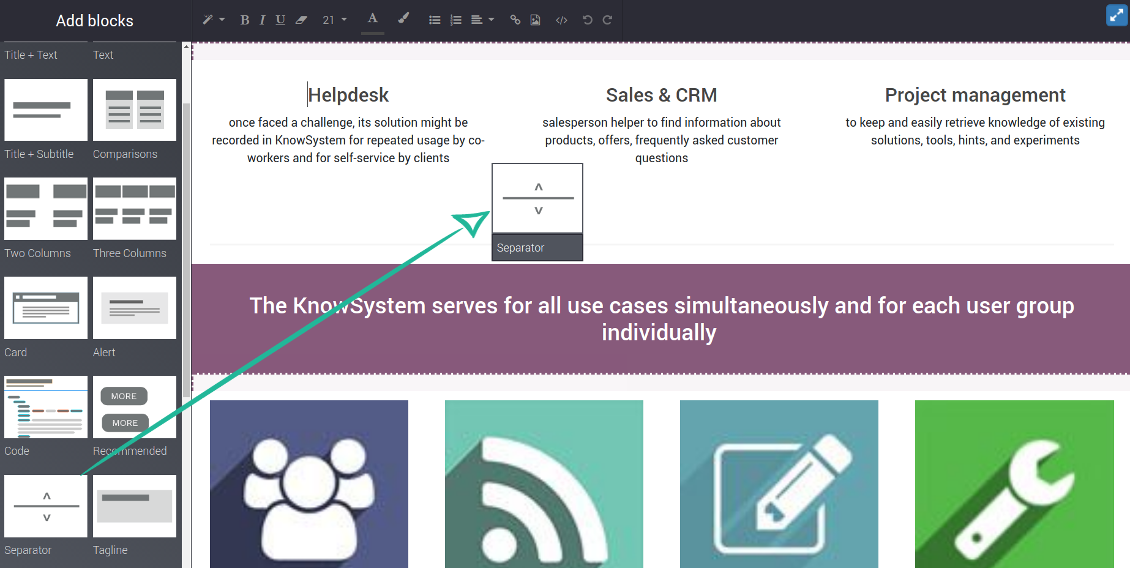
How to use the website builder for editing articles
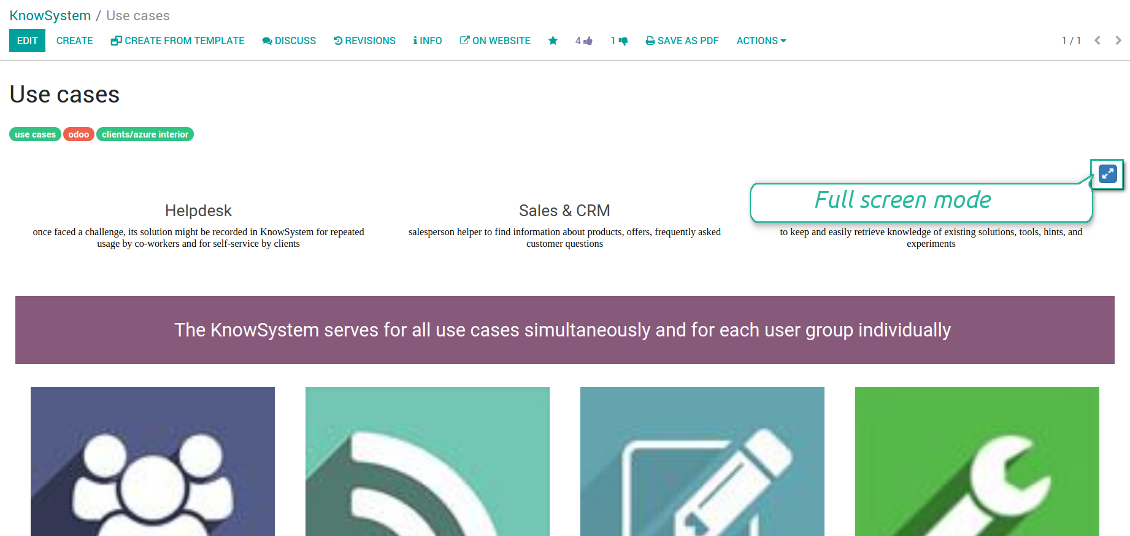
KnowSystem provides you with a backend articles' builder, which is comfortable and safe to use. Odoo website builder is richer in features to prepare complex HTML structures. To edit articles through the website:
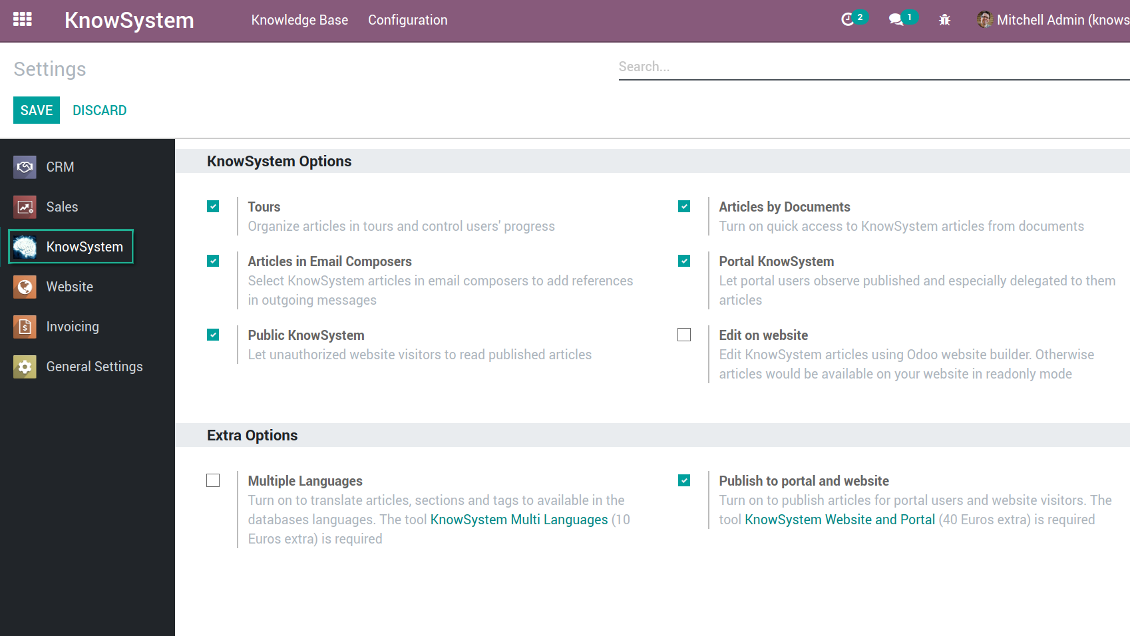
- Install the optional add-on 'KnowSystem Website and Portal' (the option 'Publish to portal and website')
- Turn on the setting 'Edit on website'
- Push the button 'Edit on website' on this article form
Be cautious: if you are going to print this article or add its contents to emails, website building blocks are not suitable. Their advanced styles contradict printing and composer layouts and would not be correctly shown. In such a case use the safer backend builder.
How to use article templates
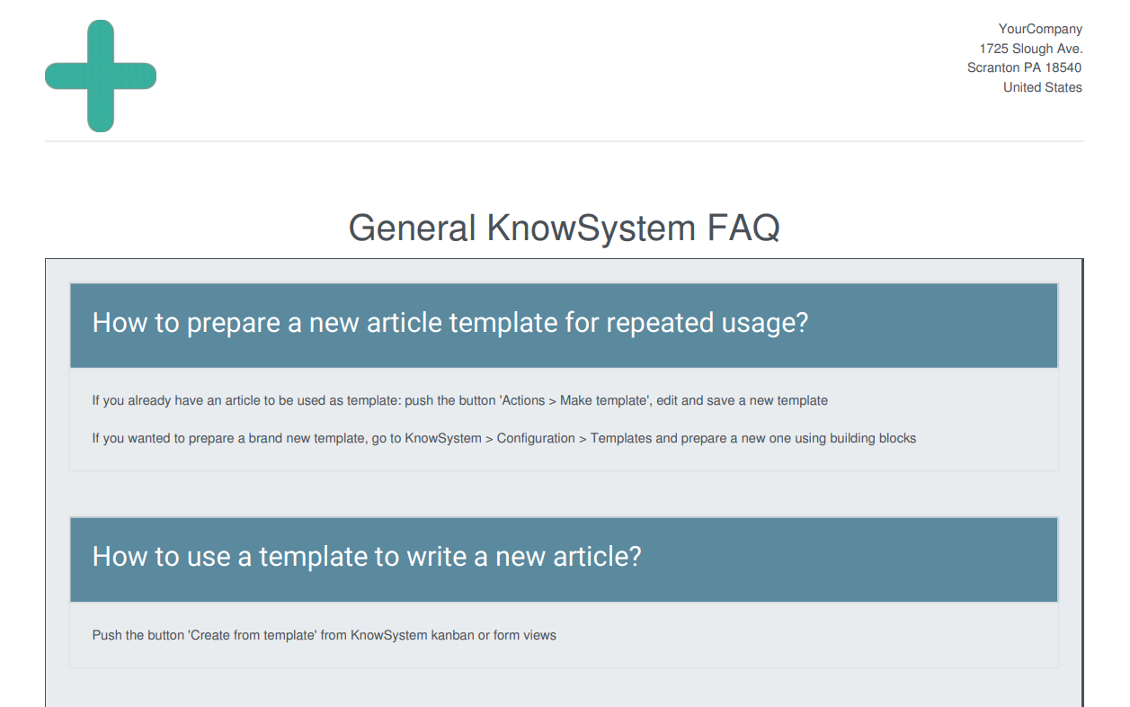
To prepare a new article template for repeated usage:
- If you already have an article to be used as template: push the button 'Actions > Make template', edit and save a new template.
- If you wanted to prepare a brand new template, go to KnowSystem > Configuration > Templates and prepare a new one using building blocks.
To use a template to write a new article:
- Push the button 'Create from template' from KnowSystem kanban or form views
- Select a required article template
- Push 'Create' and introduce changes to a new article.
Ekrano nuotraukos
Building blocks for knowledge base articles
Get benefit from your knowledge
How document types and articles are linked for a quick access
Experience is not general, usually it relates to specific issues. Knowledge used for customer communication differs from suppliers' negotiations. Frequently asked questions for draft and confirmed sale orders vary. KnowSystem let you structure your articles to apply them in a correct place and at right time. To that end:
- Turn on the setting 'Articles by Documents' (the option shows the top menu entry above any Odoo document) or 'Articles in Email Composers' (the option adds a quick link in a message composer editor for citing)
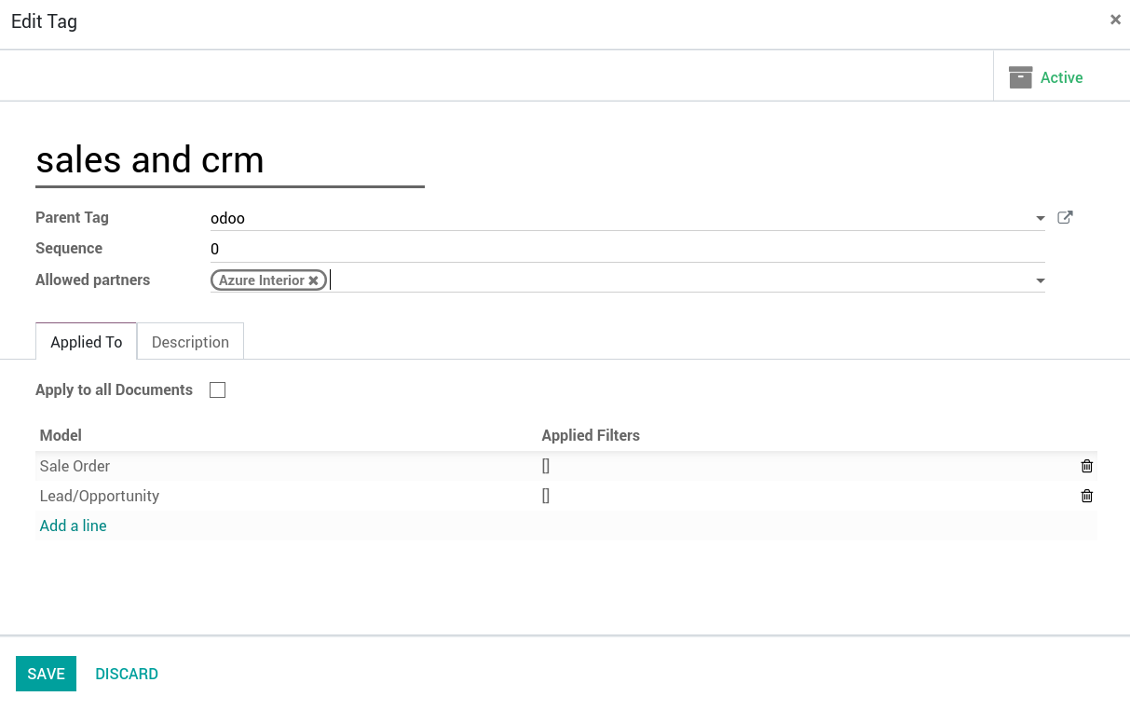
- Create a new tag (e.g. 'odoo / helpdesk'). In the table 'Applied to' use a required model (e.g. 'helpdesk ticket') or use it for all documents (the check box 'Apply to all documents').
- As advanced option you may apply additional filters: for example, to show articles only for 'new' tickets, not for 'in progress' ones. Use dynamic filters' constructor for that goal
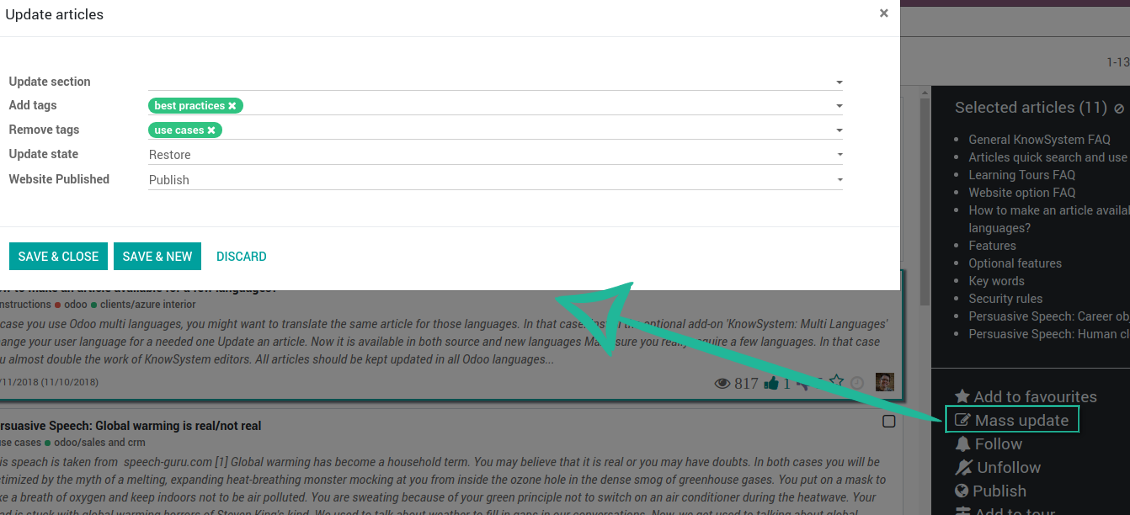
- Assign this tag for required articles. For a few articles use the mass action 'Mass update'
- Now when you access a quick article search from a document or from an email composer, Odoo will calculate KnowSystem tags for this document. That's why by default users would see only articles suitable for a current document. Simultaneously, they might always change tags to use other knowledge base data.
How to overview articles which might be useful for this document
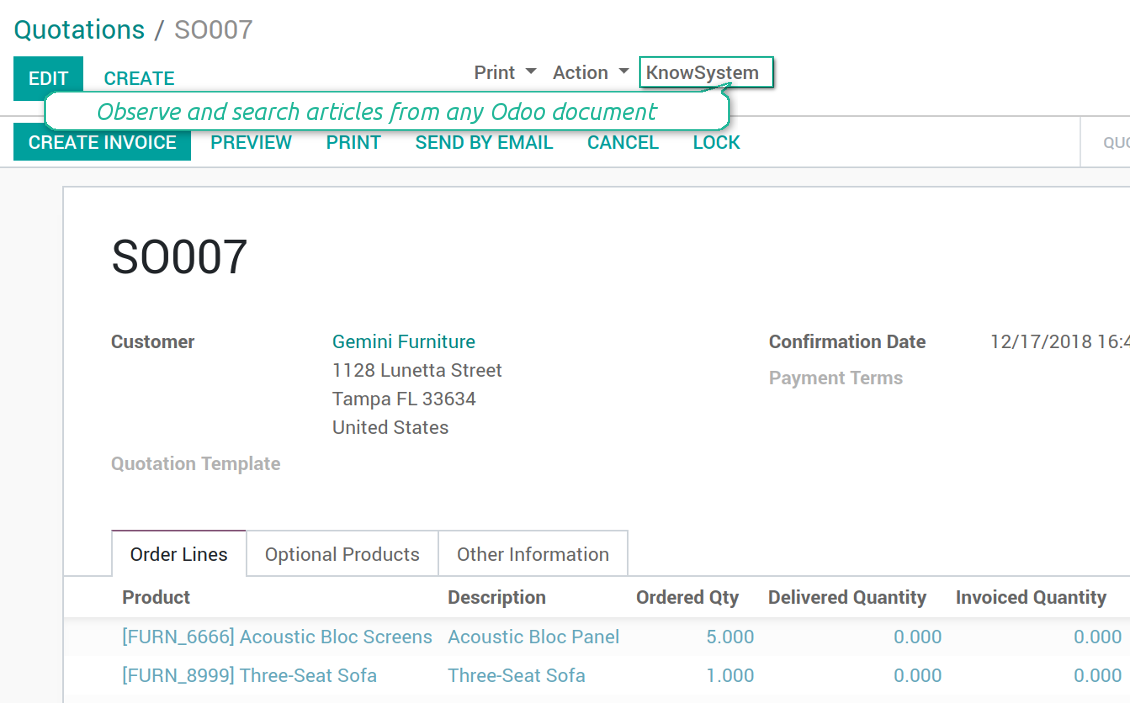
As soon as you turned on the option 'Articles by Documents', on the top of each Odoo object form view there would be a quick link 'KnowSystem'.
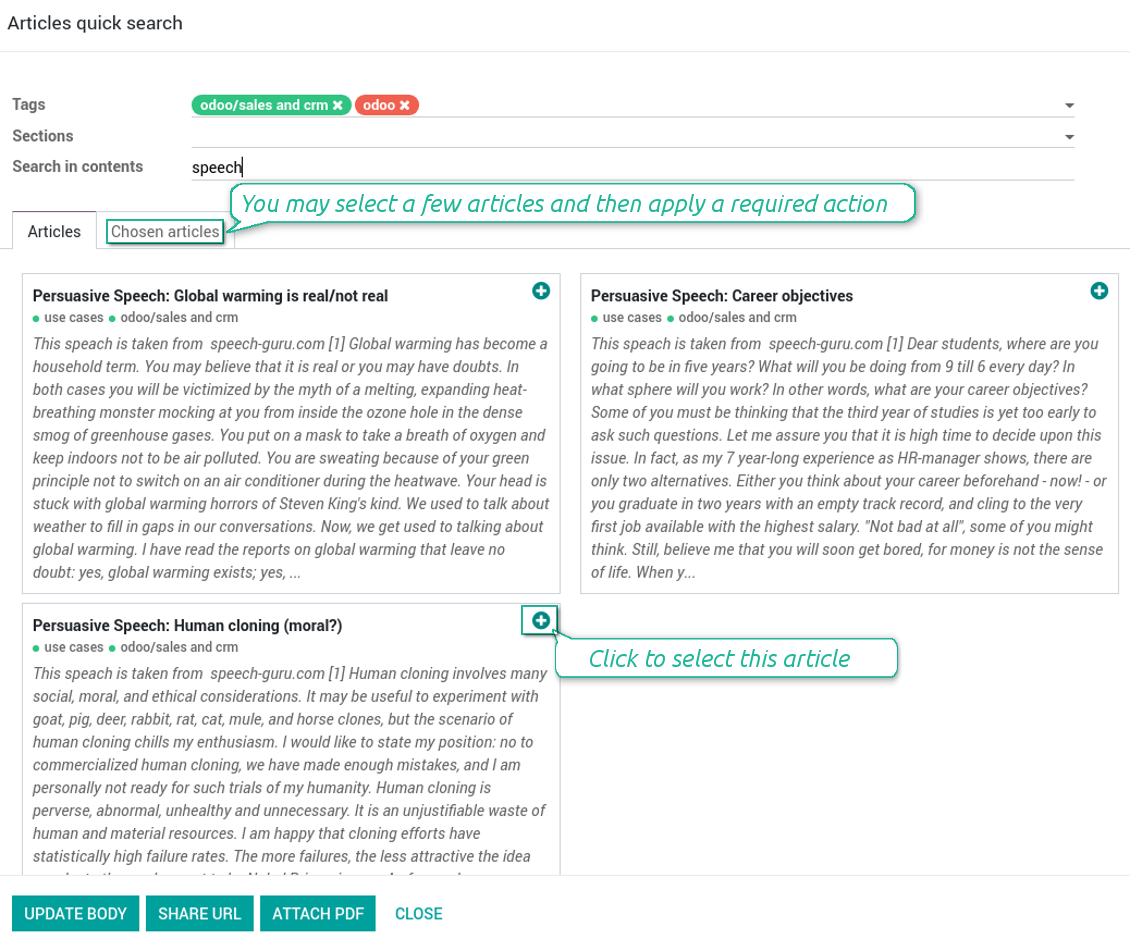
Click on that entry, and Odoo would open the wizard with articles. By default KnowSystem tags suitable for this document would be selected (if any). You may change those tags, or additionally filter by sections or content search. As a result list of topical articles is shown for you.
How to use company knowledge for communication
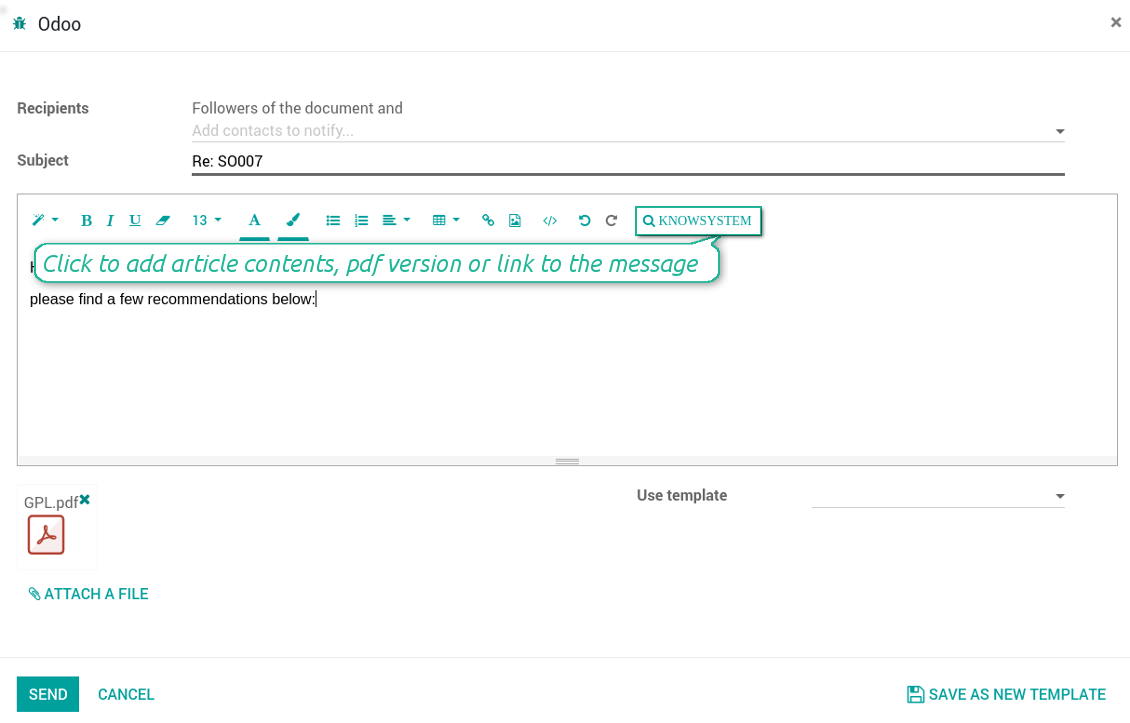
Turn on the option 'Articles in Email Composers' to let users reference or cite Knowledge records in Odoo messages. As a result the special quick entry 'KnowSystem' would be added to each Odoo email composer.
Clicking on that entry would open a wizard with a set of suitable to this document articles. You may change search by tags, add extra filtering by sections or content.
Afterwards, select required articles among found ones; choose an action. You may:
- Update message body with article contents (would be added to the end of a current message)
- Attach a PDF version of an article(s)
- Share a public link
Ekrano nuotraukos
Quick access for knowledge system from any Odoo document
Knowledge base link from email composer
Articles from any document
Article(s) PDF printing
WIKI-like revision system
How to recover a previous article version
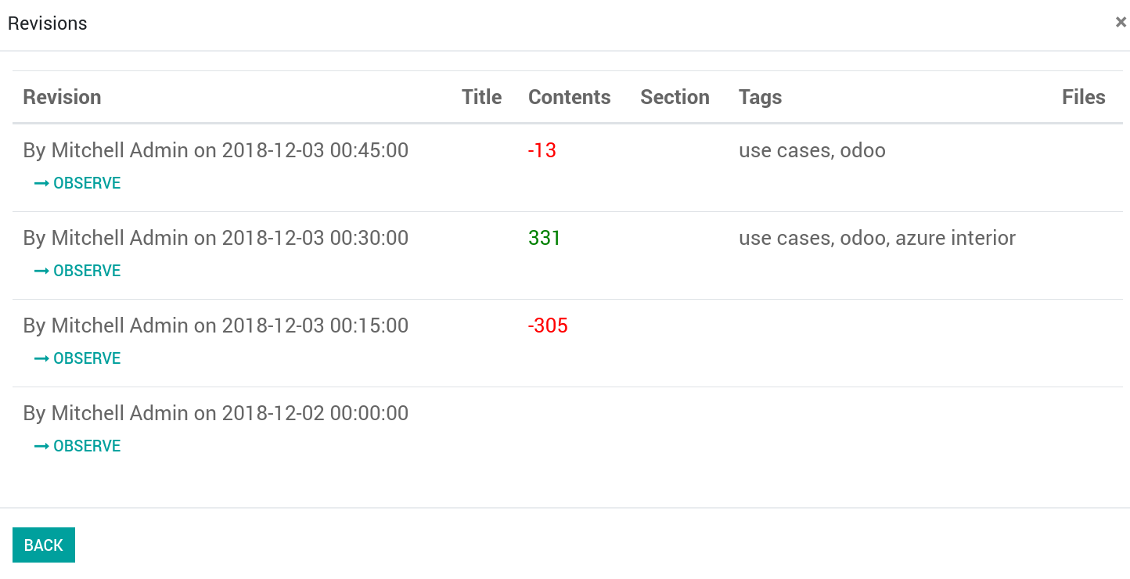
- Go to an article form view and push the button 'revisions'
- Find a required one and push the button 'Observe' to check whether this version is a correct one
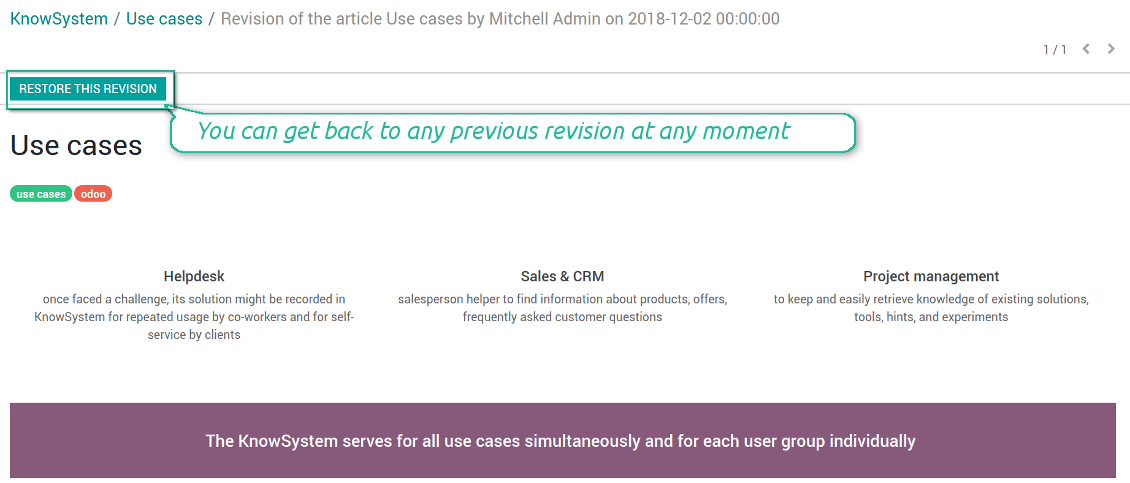
- Push the button 'Restore this revision'. The article would be recovered to that version.
- The recovery operation itself is recorded. So, if it is a mistake you can revert changes by recovering the last-to-last revison.
Ekrano nuotraukos
Wiki-style revisions history
To restore is easier than to break
Individual partner knowledge base portal
How to share knowledge base with specific partners
An article is available for a portal user in two cases: A. it is website published; B. his/her company is indicated as allowed partner in one of article tags.
In the first case such an article is available for all portal users and even for public website visitors who have not logged in.
In the latter case you grant a restricted access for an article only for chosen companies. To that end:
- Turn on the setting 'Portal KnowSystem'
- Create a tag for this partner, for example 'clients / Azure Interior'. On the tag form indicate this company in the field 'Allowed partners'
- Assign the tag for all articles you want to share with this partner. For a few articles use the mass action 'Mass update'
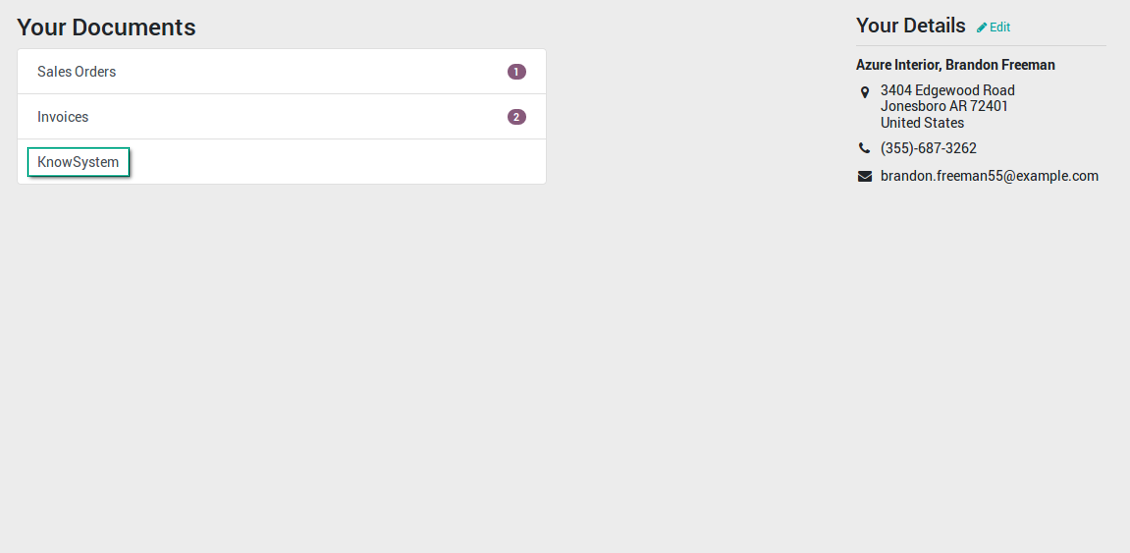
- Now portal users related to this partner may access shared articles right from their partner portal.
Ekrano nuotraukos
Knowledge base for portal and public use
KnowSystem articles on website
Tag: document types and portal partners
KnowSystem from portal
Best knowledge base system for Odoo!
Excellent app and exceptional after-sales support.
Really well thought-out product and one of the best features is the contextual help by means of the tags. Really a game changer for us.
Keep up the great work FaOtools!
Outstanding app! Tremendous value for money, an absolute must have!
One of the features sorely lacking from Odoo has been a robust Wiki/documentation system. Using third party platforms is a massive headache: yet another system to maintain, users get distracted switching back-and-forth, and errors get made. Then you have to worry about training, additional logins, etc.
KnowSystem feels like a native/core app, is very well-polished, and extremely fast. It's accessible from any screen, and the search results are instant (none of the latency inherent with most apps).The interface is elegant yet powerful, with robust access control, rich editing features, and version control. It's simple to revert to previous entries, view audit trails, etc. It's very intuitive for anyone familiar with Odoo; onboarding takes just a few minutes. The user guides are excellent.
This is invaluable for any organisation with a lot of documented information, SOPs, ISO compliance, or similar. If you're using eLearning, it's great for creating a help system / reminders. For example, noting key takeaways or specific instructions. The user can be in MRP, Sales, or any other function, and instantly lookup a guide. Since it overlays whichever screen you're in, it doesn't interrupt the workflow.
This dramatically increases efficiency, minimises questions, and helps keep everyone on the same page.
Oh, and customer service is excellent, faOtools stands behind their product. Thank you!
KnowSystem is excellent - OdooTools offer great support, are very helpful and responsive
Our company needed the ability to add a Knowledge Base to our Odoo portal website for our customers to access article content on a membership-only basis. KnowSystem provided this and much more, along with ability to add search by section, set permissions to allow only certain partners access to articles by tag etc. OdooTools have been very helpful and implemented several features we suggested including automatic redirect upon login, customisable filters and a social sharing capability on articles. Overall a great app by a great company, something that massively adds to Odoo's capabilities and is something that everyone could benefit from using.
Very functional application and responsive support
Our company produces medical laser equipment and we use KnowSystem to streamline the knowledge base of our company. Convenient search system and classification of content, as well as access rules for groups and even for individual users.
Great app and professional team
The app is great the the team is very professional in both response timing and problem solving.
Highly recommended.
Marco from ALO.zone.
Excellent system
Excellent system.
A great tool from some very nice developers!
KnowSystem is a great tool and a game changer for us. Finally a place to put all our company know-how. I highly recommend it. And also important to us: We got great support from FaOtools too. A rare thing in this busy world. thx!
Excellent app and support.
Great app and a very helpfull support. Openess to improve their products is outstanding.
Public knowledge base
How to make an article available for all website visitors
- Turn on the setting 'Public KnowSystem'
- Publish required articles through the mass action 'Publish' or by pushing the button 'Actions > Publish on website' on an article form
- Now any website visitor can read those articles
Team work for knowledge creation
Ekrano nuotraukos
Knowledge base interactions, discussion, and activities
Custom fields to structure knowledge
How custom knowledge attributes work
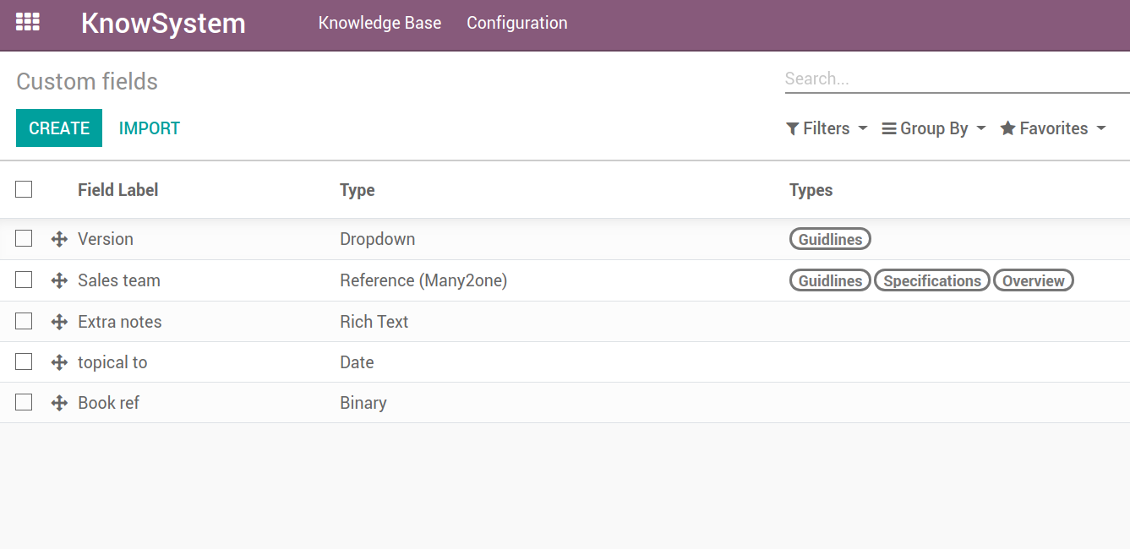
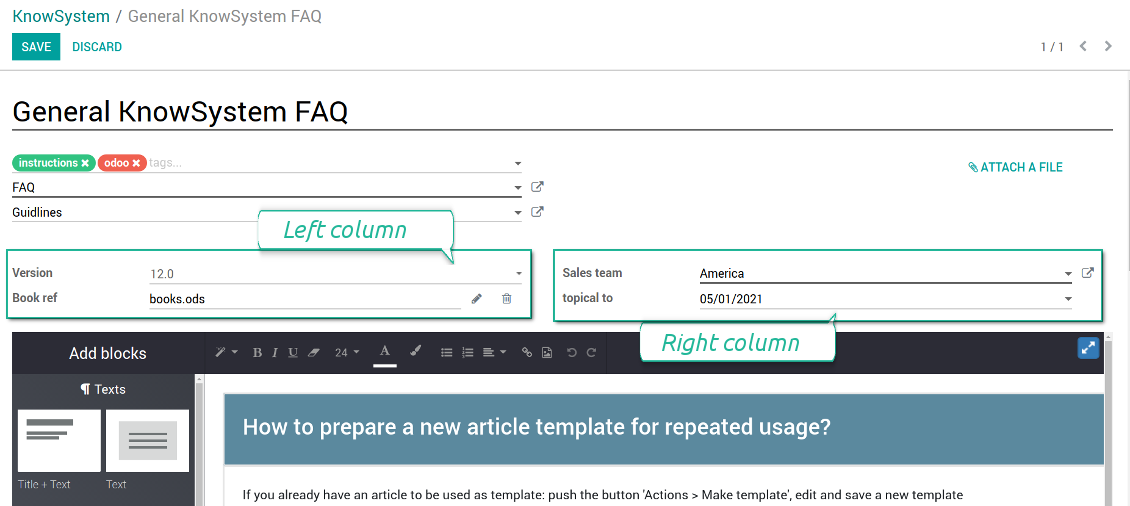
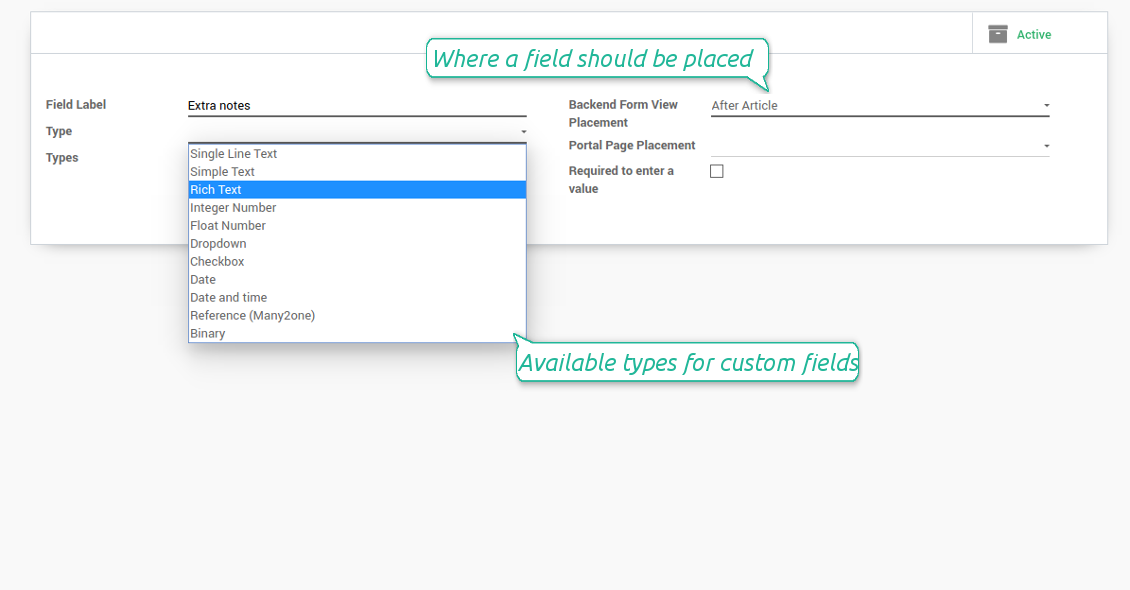
In order to show a new property for KnowSystem articles, just create a custom field. Nothing else is required! You are welcome to prepare fields of various types: single line text (char), simple text without formatting (text), rich text (HTML-formatted text), integer or float numbers, drop-down choice with your own options (selection), checkbox (boolean), date or date and time, binary (a file to upload), reference to another Odoo document (e.g. for a sale order, contact; many2one).
The tool also introduces complementary articles' typology. Thus set of attributes for 'user guidelines' and 'technical specifications' might be different.
Then, choose an interface location for a new field from a closed list to structure properties on an article page. Decide whether a field should be required to enter, or should be visible only for definite knowledge types.
Ekrano nuotraukos
KnowSystem articles' custom fields
Custom fields on article form
Custom fields in portal and website
Custom fields for article: add any data required
Knowledge is secured and might be safely shared
How to manage user accesses to articles
Security for internal and portal users differs.
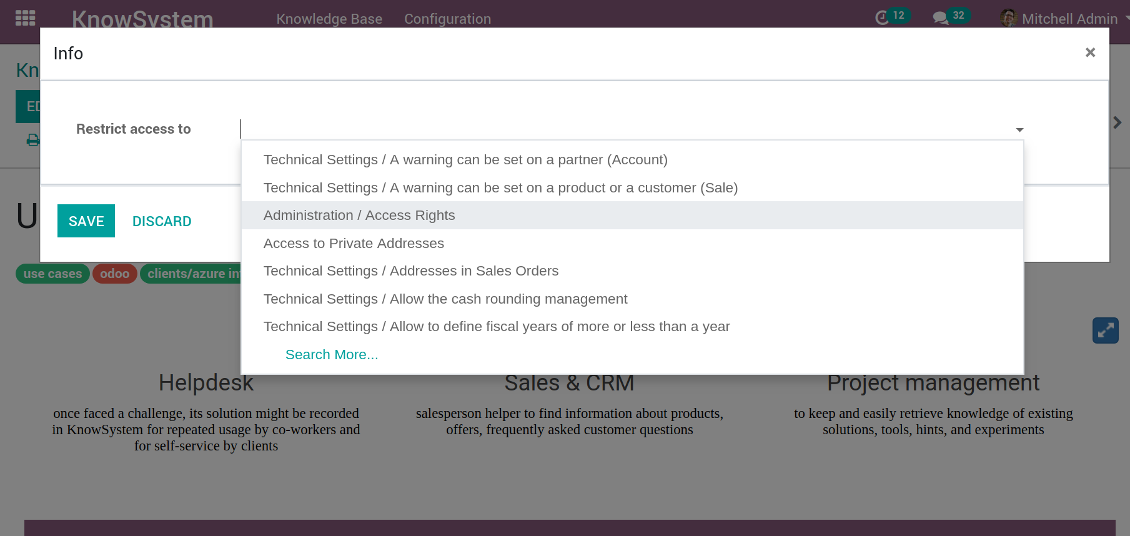
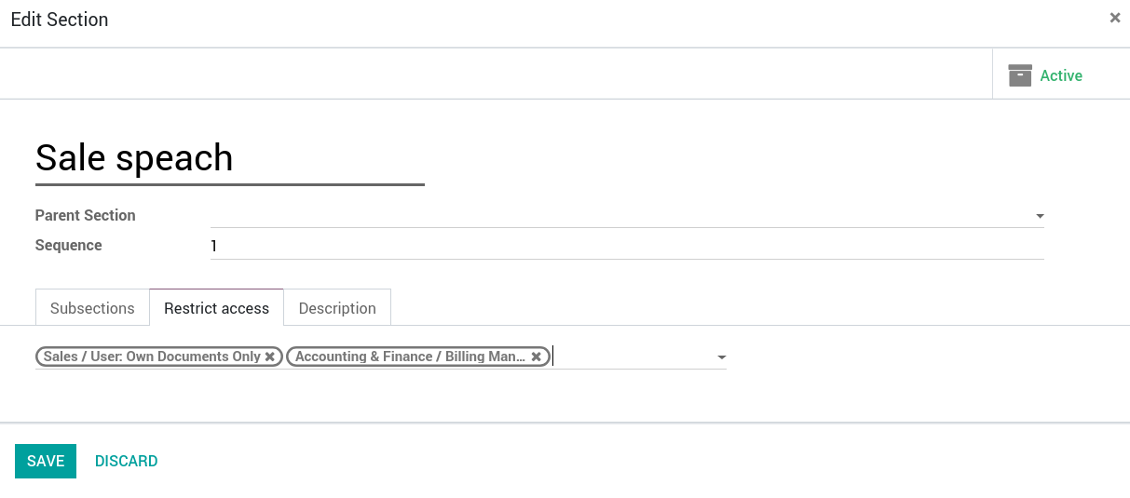
For the company employees: KnowSystem considers user groups which are defined per articles, sections and tours. Look at the tab 'Restrict to' on forms of those objects. If that field is not defined, a document is considered 'global': each internal user may read it.
For portal / public users: KnowSystem takes into account tags and whether an article is website published. A knowledge tag has a field 'Allowed partners', which may grant an access to portal users for articles with this tag. Website published pages are available for everybody.
Rights to administrate KnowSystem belongs to 2 user roles: KnowSystem Editor and KnowSystem Administrator. If you want a user to create and edit articles, a user should belong to one of those groups.
|
|
Odoo user |
KnowSystem Editor |
KnowSystem Admin |
Portal user |
Public user |
| Articles | read related to his/her user groups and sections | read, create, edit, archive related to his/her user groups and sections | read, create, edit, delete any | read published articles and articles related to partner-related tags | read published articles |
| Sections | read related to his/her user groups | read, create, edit, archive related to his/her user groups and sections | read, create, edit, delete any | read all sections of available articles | read all sections of published articles |
| Tags | read any | read, create, edit, archive any | read, create, edit, delete any | no access | no access |
| Tours | read related to his/her user groups | read, create, edit, delete related to his/her user groups | read, create, edit, delete any | no access | no access |
| Misc | may like / dislike, add to favourites, print, take part in discussions | may configure options | may like / dislike an article |
|
Take also into account two peculiarities:
- Odoo user always may access an article of which he is an author disregarding further restrictions;
- Rights for section is defined not only according to this section but also according to all its parents. For example, if user can't access 'sales', he/she would not be able to access 'sales / crm' disregarding whether 'crm' is available for his/her user group.
Ekrano nuotraukos
Manage access to this article
Section update and user rights
Create learning tours
How to configure a learning tour
- Turn on the option 'Tours'
- Go to KnowSystem interface and select articles to be included into a tour
- Press the mass action button 'Add to tour' and select or create a tour. Press save
- Re-order articles in a consistent order
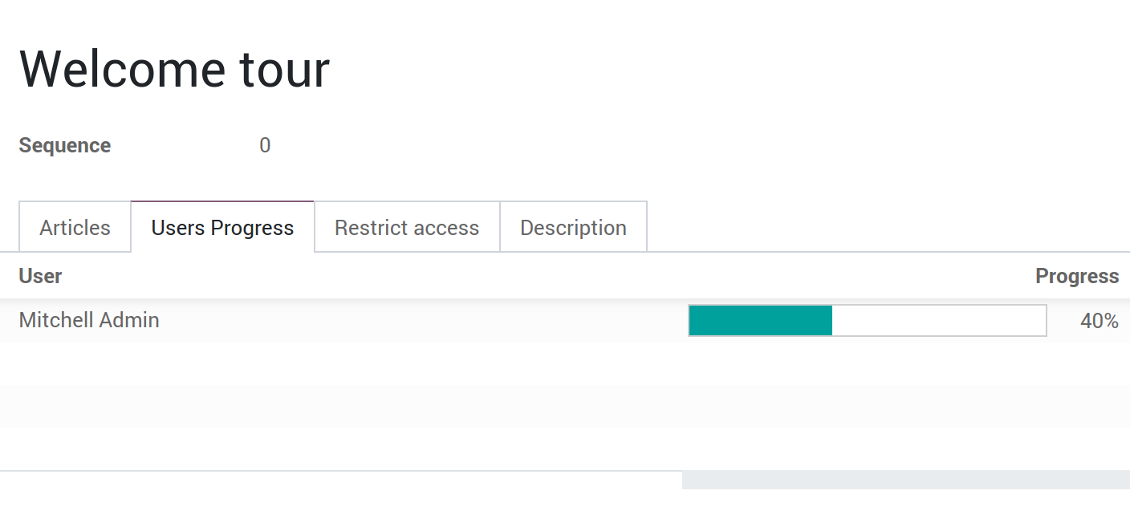
- Define groups of users who should go through a tour on the tab 'Restrict access'
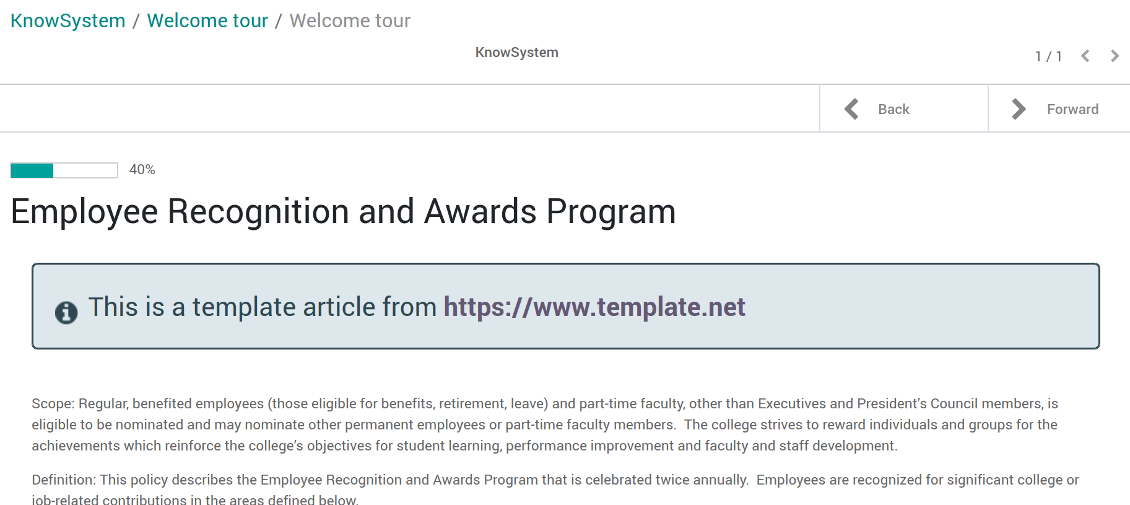
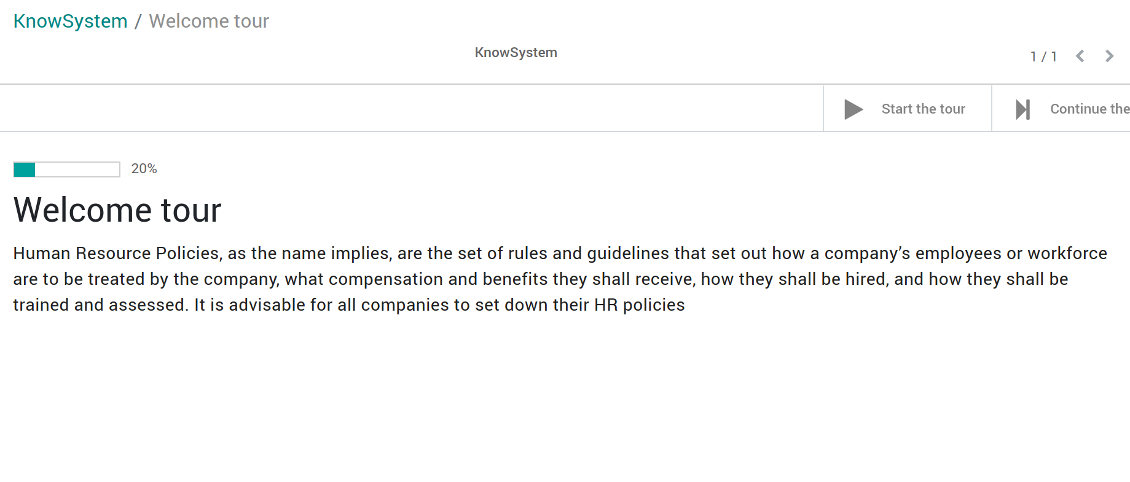
- Now users can see and launch tours right from the KnowSystem interface (the right navigation panel)
Ekrano nuotraukos
Article in a learning tour
Control tour progress by users
KnowSystem tour welcome page
Multilingual knowledge base
How to make an article available for a few languages
- Install the optional add-on 'KnowSystem: Multi Languages'
- Change your user language for a needed one
- Update this article
- Now it is available in both source and a current language
Make sure you really require a few languages. In that case you almost double the work of KnowSystem editors. All articles should be kept updated in all Odoo languages.
Knowledge base for any industry and business
Typical use cases
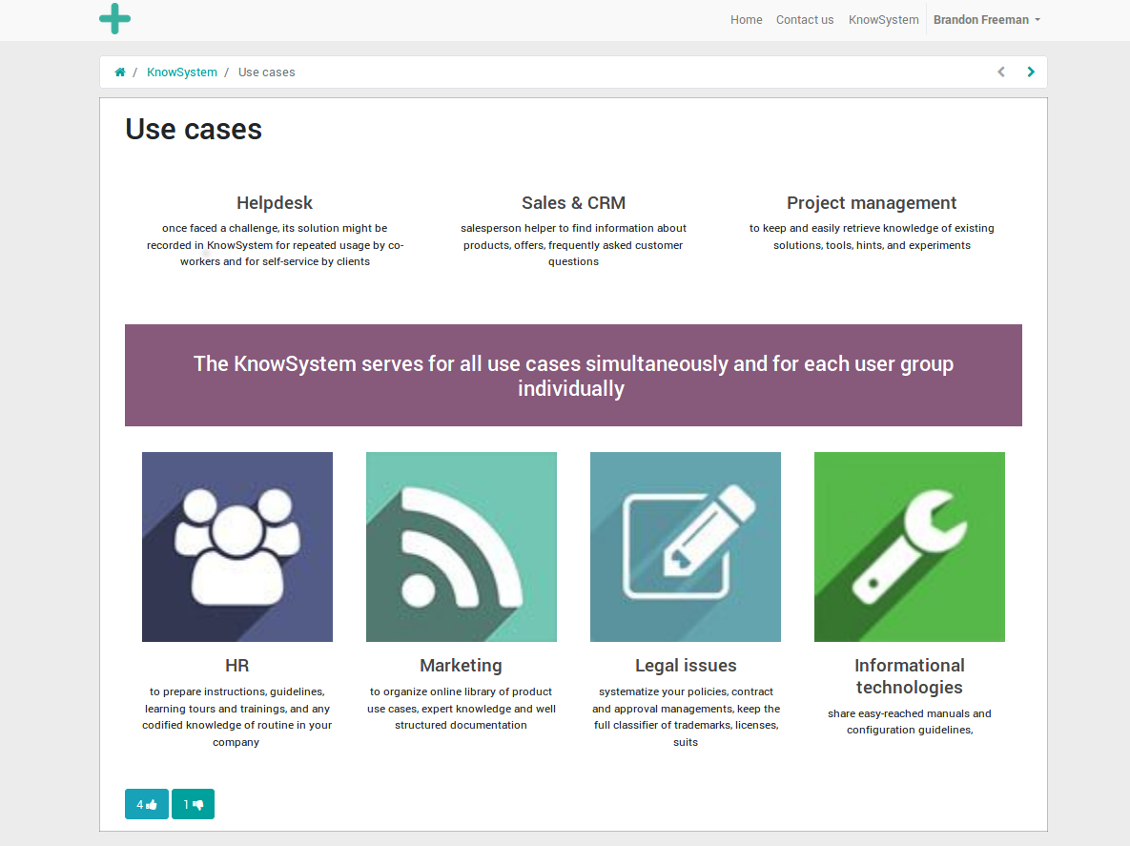
- Helpdesk: once faced a challenge, its solution might be recorded in KnowSystem for repeated usage by co-workers and for self-service by clients
- Sales & CRM: salesperson helper to find information about products, offers, frequently asked customer questions
- Project management: to keep and easily retrieve knowledge of existing solutions, tools, hints, and experiments
- HR: to prepare instructions, guidelines, learning tours and trainings, and any codified knowledge of routine in your company
- Marketing: to organize online library of product use cases, expert knowledge and well structured documentation
- Legal issues: systematize your policies, contract and approval managements, keep the full classifier of trademarks, licenses
- Informational technologies: share easy-reached manuals and configuration guidelines
Dažnai užduodami klausimai apie KnowSystem: Knowledge Base System Odoo v.11
Nematau jokio skirtumo tarp peržiūrų tekstų.
Revizijos fiksuoja ne tik teksto pakeitimus, bet ir stiliaus atnaujinimus (techniškai – kai keičiate straipsnio HTML išeities kodą). Kai kurie gali būti neakivaizdūs iš pirmo žvilgsnio (pvz., pakeistas vieno žodžio šrifto dydis). Kiti – drastiški. Tačiau bet koks veiksmų rinkinys Redaguoti > Pakeisti ką nors straipsnyje > Išsaugoti sukuria naują reviziją.
Ar galiu straipsnyje pridėti YouTube/ Vimeo / Dailymotion / Youku vaizdo įrašą?
Taip, vaizdo įrašus iš tų paslaugų galima įterpti į straipsnius ir iš Odoo administravimo sąsajos, ir iš svetainės kūrimo priemonės. Pridėkite bet kurį bloką su paveikslu > spustelėkite paveikslą > pasirinkite ‘Video’ > įveskite reikiamo turinio URL.
Turėkite omenyje: tokie vaizdo įrašai įterpiami kaip iframe, ir kai kurios naršyklės gali blokuoti atkūrimą, kol naudotojas to aiškiai neleidžia.
Kaip padaryti skyrių matomą svetainėje?
KnowSystem skyrius svetainėje matomas, jei jis paskelbtas ir turi bent vieną straipsnį. Net turėdamas poskyrius, jis nematysimas, jei pačiame skyriuje nėra nė vieno straipsnio. Taip išvengiama tuščių skyrių ir KnowSystem portalas lieka patogus. Kad skyrius būtų rodomas svetainėje, pridėkite įžanginį ar bendrą straipsnį, trumpai aprašantį ar išvardijantį poskyrių straipsnius.
Kaip bendrinti straipsnį išoriniam partneriui?
Dešiniuoju spustelėkite bet kurią žymą kairėje naršymo srityje - Kurti
Raskite lauką „Allowed partners“. Pvz. 'clients - azure interior', kad suteiktumėte prieigą partneriui 'Azure Interior'. Galite ir atvirkščiai: priskirti KnowSystem žymas partnerio formoje
Dabar eikite į reikiamą straipsnį (arba tą patį atlikite veiksmų „Mass update“ keliems įrašams):
Jei paskelbtas: atšaukite skelbimą, jei nenorite, kad jis būtų prieinamas visiems portalo naudotojams ir viešiems lankytojams
Priskirkite naujai sukurtą žymą (pavyzdyje tai 'clients - azure interior')
Dabar:
Visi portalo naudotojai, susiję su komerciniu partnerių 'Azure Interior', turi prieigą prie straipsnių su žyma 'Azure Interior'
Jokie kiti portalo naudotojai (jei nepriskirta kitą žyma) neturi prieigos prie tų straipsnių
Vidiniai naudotojai nepaveikiami ir straipsnius mato pagal straipsnių ir skyrių logiką „access to“.
Ar galime pridėti kalbos pasirinkimo mygtuką straipsnio turiniui?
Mygtuko 'translate' papildomas modulis 'KnowSystem: Multi Languages' sąmoningai neįdeda į straipsnio turinį. Priežastis: HTML kodą sunku versti paprastame iškylančiajame lange, kurį numato mygtukas. Verstino teksto būtų labai mažai, o HTML dalių daug (vertėjas jas dar ir sugadintų).
Todėl straipsnį tam tikrą kalba rašykite prisijungę kaip tos kalbos naudotojas. Tai gali būti kitas naudotojas arba laikinai pakeiskite dabartinio naudotojo nuostatas. Po to visos turinio taisyklos bus ta kalba.
Taip pat po straipsnio turiniu yra mygtukas 'Copy from another translation': bet kada galite paimti turinį iš kitos kalbos (naudinga, jei straipsnis gerokai atnaujintas viena kalba).
Kaip įterpti kitos svetainės puslapį į straipsnį
Tam galite naudoti iframe. Perjunkite straipsnį į grynojo HTML kodo rengyklę ir įterpkite, pavyzdžiui, <iframe src="https://faotools.com/" style="width:100%;min-height:600px;"> </iframe>.
Įdiegiau KnowSystem, bet nematau mygtuko „create“ ir kitų mygtukų
Greičiausiai naudotojui nesuteikėte KnowSystem teisių. Pasirinkite teisę „KnowSystem Editor“ arba „KnowSystem Admin“ ir atnaujinkite puslapį. Valdymo mygtukai turėtų būti rodomi.
Ar galiu rodyti konkretų mokymosi turą tik pasirinktiems naudotojams?
Taip, priskirdami naudotojų grupę (pvz. 'Sales Manager'), kuri turi matyti šią ekskursiją. Jei naudotojas priklauso grupei, ją matys. Jei ne – ekskursija nebus rodoma. Veikia kaip KnowSystem straipsnių ir skyrių saugos teisės.
Turėkite omenyje, kad jei ekskursijai nepriskirta grupių, ji yra „globali“ ir matoma visiems.
Kaip pakeisti poraštę ir antraštę spausdinant straipsnius?
Straipsnių PDF antraštė ir poraštė imamos pagal įmonės maketus. Žr. Settings > General Settings > skyrių Business Documents. Ten nustatote įmonės šabloną visų tipų dokumentams, įskaitant sąskaitas, pardavimo užsakymus ir straipsnius. Toks Odoo požiūris laiko poraštę ir antraštę bendrų įmonės stiliumi, o ne atskirų spaudinių savybė.
Kaip susieti straipsnius vieną su kitu?
Kiekvienas straipsnis turi vidinius (backend) ir svetainės URLs (jei įdiegta parinktis 'KnowSystem: Website and Portal'). Straipsnio formoje spustelėkite mygtuką 'Info', kad sužinotumėte šio įrašo svetainės adresus. Bet kurį galite įterpti į straipsnio turinį kaip hipersaitą.
Ar galiu keisti straipsnio HTML pirminį kodą?
Taip: įjunkite debug assets (nustatymų apžvalgos ekrane) ir grįžkite prie dabartinio straipsnio. Redagavimo režime matysite specialią piktogramą '</>'. Spustelėkite ją, kad peržiūrėtumėte ir redaguotumėte HTML ir stilius.
Kokios jūsų įrankių naujinimo politikos?
Pagal dabartinės Odoo Apps Store taisykles:
- Kiekvienas 12.0 ir senesnės versijos modulis suteikia prieigą prie visų versijų iki 12.0.
- Nuo 13.0 versijos kiekviena modulio versija perkamą atskirai.
- Nepriklausomai nuo versijos, pirkimas suteikia teisę į visus atnaujinimus ir pataisas pagrindinės versijos ribose.
Atkreipkite dėmesį: komanda faOtools šių taisyklių nekontroliuoja. Klausimus kreipkite tiesiai Odoo Apps Store atstovams.
Kaip įdiegti jūsų programą Odoo.sh?
Tiesiausias būdas – naudoti įtaisytąją Odoo parduotuvės eigą:
1. Atidarykite modulio puslapį ir spustelėkite mygtuką Deploy on odoo.sh
2. Po to būsite nukreipti į GitHub puslapį. Prisijunkite prie paskyros ir spustelėkite 'Create a new repo' arba naudokite esamą. Įsitikinkite, kad saugykla privati. Programėlių skelbti pagal OPL-1 licenciją negalima. Prireikus sukurkite naują repo Odoo.sh projektui
3. Tada eikite į odoo.sh ir spustelėkite mygtuką Deploy. Iššokančiame lange pateikite sprendimą ir spustelėkite 'Continue.' Tai paleis diegimą.
Šie veiksmai įdiegs programėlę gamybinėje projekto šakoje. Jei norite diegti programėles kitose šakose arba atnaujinti modulį, atlikite šiuos veiksmus:
1. Įkelkite programėlės išeities kodą iš Odoo parduotuvės
2. Įrašykite modulį į reikiamą GitHub saugyklą. Įsitikinkite, kad jokie programėlės aplankai/failai nėra ignoruojami (t. y. nėra repo .gitignore). Saugyklas automatiškai sukuria odoo.sh ir pagal numatymą jose gali būti svarbių elementų (pvz., /lib). Įkelkite visus modulio katalogus, pakatalogius ir failus be išimčių
3. Įdiekite norimą odoo.sh projekto šaką arba, jei nustatymai tai numato, palaukite, kol ji bus sukurta automatiškai.
Kaip įdiegti jūsų programą savo serveryje?
2. Paleiskite Odoo serverį iš naujo;
3. Įjunkite kūrėjo režimą (techniniai nustatymai);
4. Atnaujinkite programų sąrašą (programų meniu);
5. Raskite programą ir spustelėkite „Activate“/„Install“;
6. Vadovaukitės programos puslapio gairėmis, jei jos yra.
Pastebėjau, kad jūsų programa turi papildomų priedų. Ar galiu juos įsigyti vėliau?
Taip, žinoma. Tuo pačiu Odoo automatiškai įdeda visas priklausomybes į krepšelį, todėl anksčiau pirktus įrankius reikia pašalinti, kad nemokėtumėte dukart.
Įdiegiau jūsų programą Odoo.sh ir testuose matau įspėjimą/klaidą
Raudonas/oranžinis įspėjimas nekeičia programos funkcijų. Deja, kartais mūsų moduliai neišlaiko standartinių automatinių testų, nes jie tikisi elgsenos, kuri prieštarauja programos tikslams. Pvz., keičiame kainos skaičiavimą, o standartiniai Odoo modulio testai lygina galutinę kainą su standartiniu algoritmu.
Pirmiausia patikrinkite diegtos duomenų bazės funkcijas. Ar viskas veikia teisingai?
Jei vis tiek manote, kad įspėjimas veikia tikras funkcijas, susisiekite ir atsiųskite visus diegimo žurnalus bei visą diegtų modulių sąrašą (įskaitant branduolį ir trečiųjų šalių).
Ar galiu nusipirkti programėlę tiesiogiai iš jūsų įmonės?
Ne, įrankius platiname tik per oficialią Odoo programų parduotuvę.
Norėčiau gauti nuolaidą
Deja, neturime techninių priemonių individualioms kainoms pateikti.
Ar galiu įdiegti programėlę savo Odoo Online (SaaS) duomenų bazėje?
Ne, trečiųjų šalių programų negalima naudoti Odoo Online. Deja, Odoo SaaS tai blokuoja.
Jūsų įrankis priklauso nuo kitų programų. Ar turiu jas pirkti?
Taip, įrankiui reikia visų priklausomybėse pažymėtų modulių, kad veiktų teisingai. Programos puslapyje nurodyta kaina jau apima visas būtinas priklausomybes.
Kokia modulio kaina JAV doleriais? Kodėl ji pasikeitė?
Mūsų modulių kaina nustatyta eurais. Odoo parduotuvė konvertuoja kainas į kitas valiutas pagal vidinį kursą. Todėl kaina JAV doleriais gali keistis atnaujinus kursą.
Programos ir svetainės tekstai kitomis kalbomis nei anglų parengti su DI ir suderinti su oficialiais Odoo vertimais. Jei pastebėjote klaidą, siųskite bilietą dėl vertimų teisingumo ir pataisysime.
Klaidų pranešimas
Jei susidursite su klaidomis ar nenuosekliu elgesiu, nedvejodami susisiekite. Garantuoame pataisymus per 60 dienų nuo pirkimo ir ir toliau stengiamės tobulinti įrankius po šio laikotarpio.
Norėdami susisiekti, jums nereikia telefono numerio ar kredito kortelės. Užtenka trumpos registracijos el. paštu, kuri trunka ne ilgiau kaip 30 sekundžių.
Į užklausą įtraukite kuo daugiau informacijos: ekrano nuotraukas, Odoo serverio žurnalus, išsamų problemos atkūrimo aprašymą ir pan. Paprastai darbo plano parengimas problemai (jei klaida patvirtinama) arba gairių, ką daryti (kitu atveju), pateikimas trunka kelias darbo dienas.
Vieši funkcijų prašymai ir modulių idėjos (nemokama plėtra)
Esame labai motyvuoti tobulinti savo įrankius ir būsime dėkingi už bet kokį atsiliepimą. Jei jūsų reikalavimai naudingi visiems ir gali būti efektyviai įgyvendinti, komanda įtrauks juos į mūsų darbų sąrašą.
Toks darbų sąrašas tvarkomas reguliariai ir nereiškia papildomų mokesčių. Nors negalime pažadėti terminų ir galutinio dizaino, tai gali būti geras būdas gauti norimas funkcijas be investicijų ir rizikos.
Norėdami susisiekti, jums nereikia telefono numerio ar kredito kortelės. Užtenka trumpos registracijos el. paštu, kuri trunka ne ilgiau kaip 30 sekundžių.

Įrankis Odoo priedams lanksčiai dėlioti į aplankus ir sinchronizuoti katalogus su debesijos klientais: Google Drive, OneDrive/SharePoint, Nextcloud/ownCloud, Dropbox, Amazon S3, Box ir NAS. DMS. Failų tvarkyklė. Dokumentų valdymo sistema
398€
Įrankis automatinei dvikryptei Odoo priedų sinchronizacijai su OneDrive failais
487€
Įrankis automatinei dvikryptei Odoo priedų sinchronizacijai su Google Drive failais
487€
Įrankis slaptažodžiams saugiai laikyti Odoo bendram naudojimui. Bendros saugyklos

Įrankis KPI tikslams nustatyti ir jų vykdymui pagal laikotarpius kontroliuoti. KPI ataskaitų lentos. Lentų konstruktorius. KPI diagramos

Įrankis laiku grįstam paslaugų valdymui – nuo susitikimų rezervavimo iki pardavimų ir atsiliepimų
398€
Įrankis valdyti Odoo iš mėgstamų AI pokalbių per MCP. Claude. Bet kuris AI su MCP.


Įrankis skirtingiems Odoo įvykiams sujungti keliuose konfigūruojamuose superkalendoriuose