KnowSystem: Knowledge Base System v.11
The tool to build deep and structured knowledge base for internal and external use. Knowledge System. KMS
- a core of knowledge management. It might be used stand-alone as a complete internal knowledge base system. Az ára 398€.
- an optional module, which let you publish articles to website, share them with portal users, and use website builder to update articles. The features assumed by this add-on are marked by the icon . Az ára 40€.
- an optional module, which let you add and show custom fields for articles (backend). The features assumed by this add-on are marked by the icon . Az ára 48€.
- an optional free module, which shows custom fields on website and portal pages (frontend). The features assumed by this add-on are also marked by the icon .
- an optional module, which let you translate articles, sections and tags for installed in Odoo languages. The features assumed by this add-on are marked by the icon . Az ára 10€.
Innovative single-view interface
From the same interface editors may create and update any knowledge-related documents, change articles in batch, set up security. Without a need for excess navigation.
Interface solutions
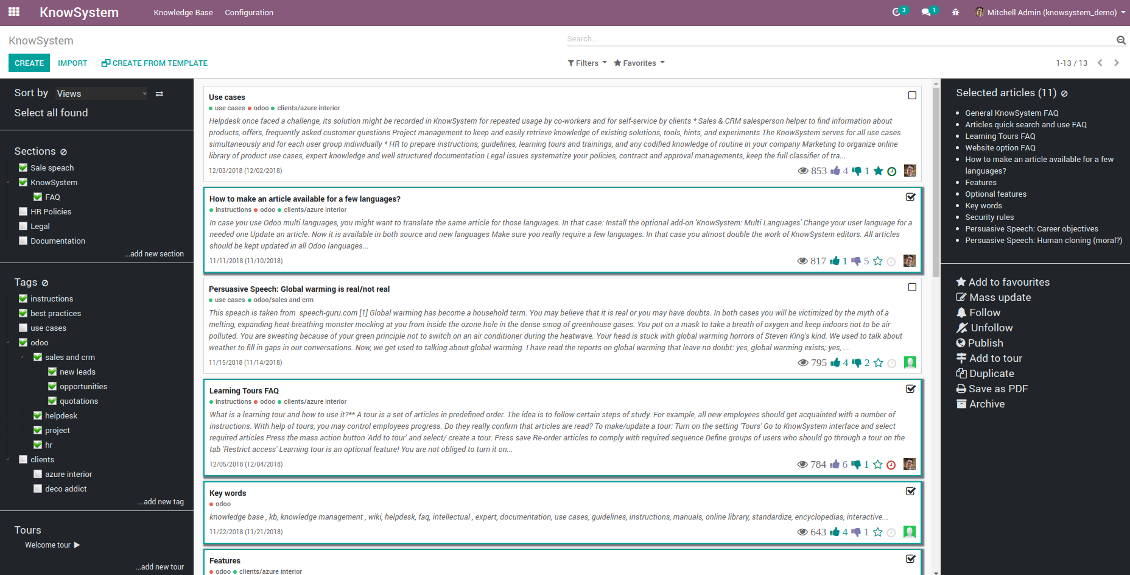
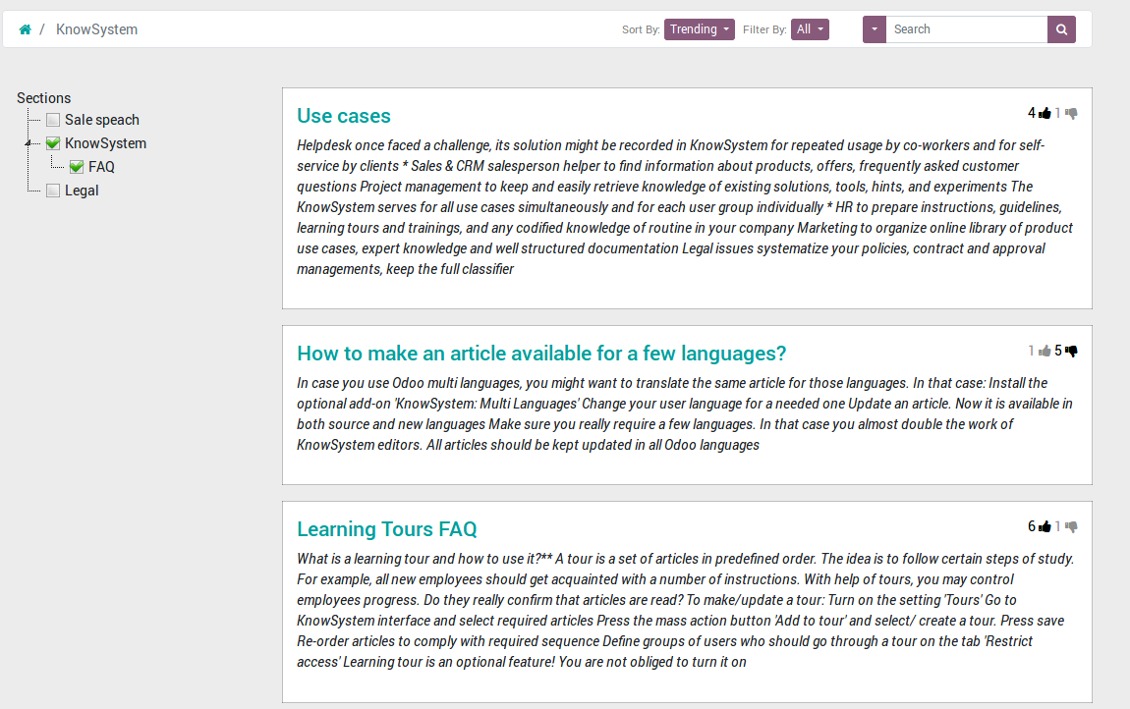
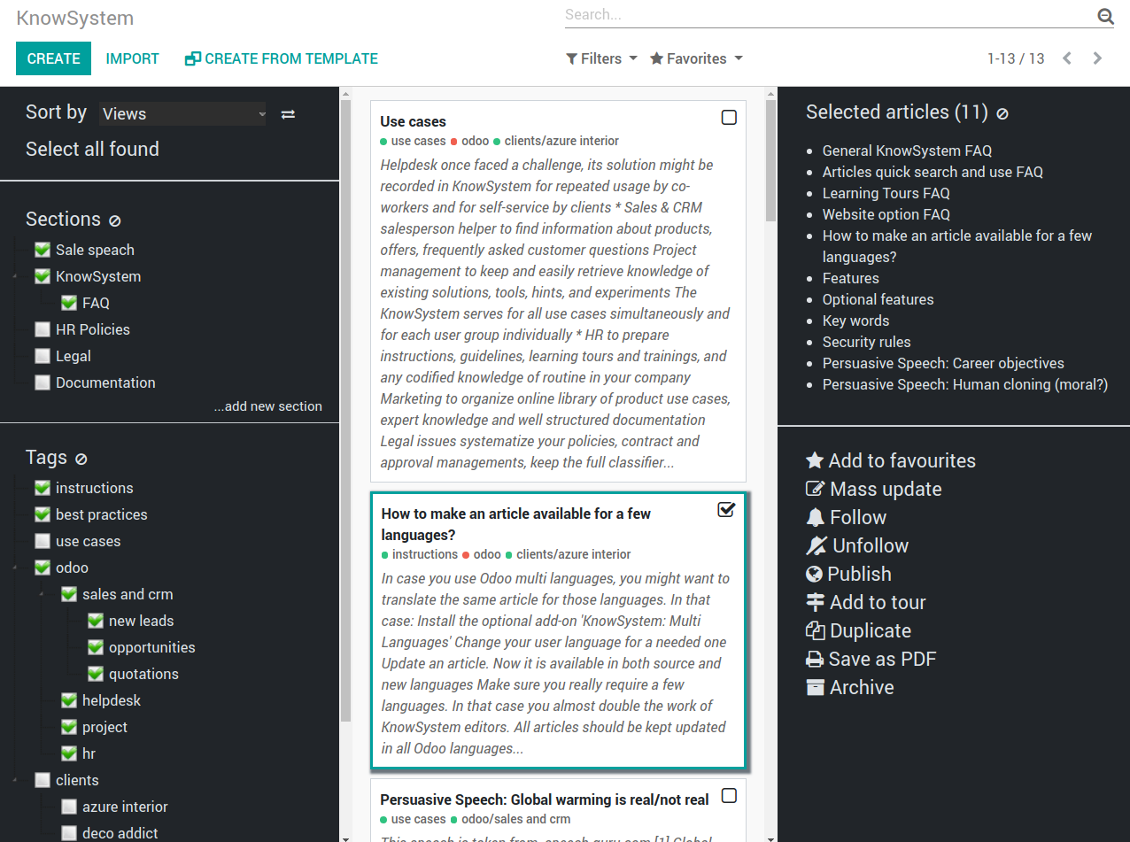
The KnowSystem interface consists of 3 key parts: the left navigation panel, the list of articles, and the right navigation panel (it is shown only if some articles are selected).
On the left navigation panel you may:
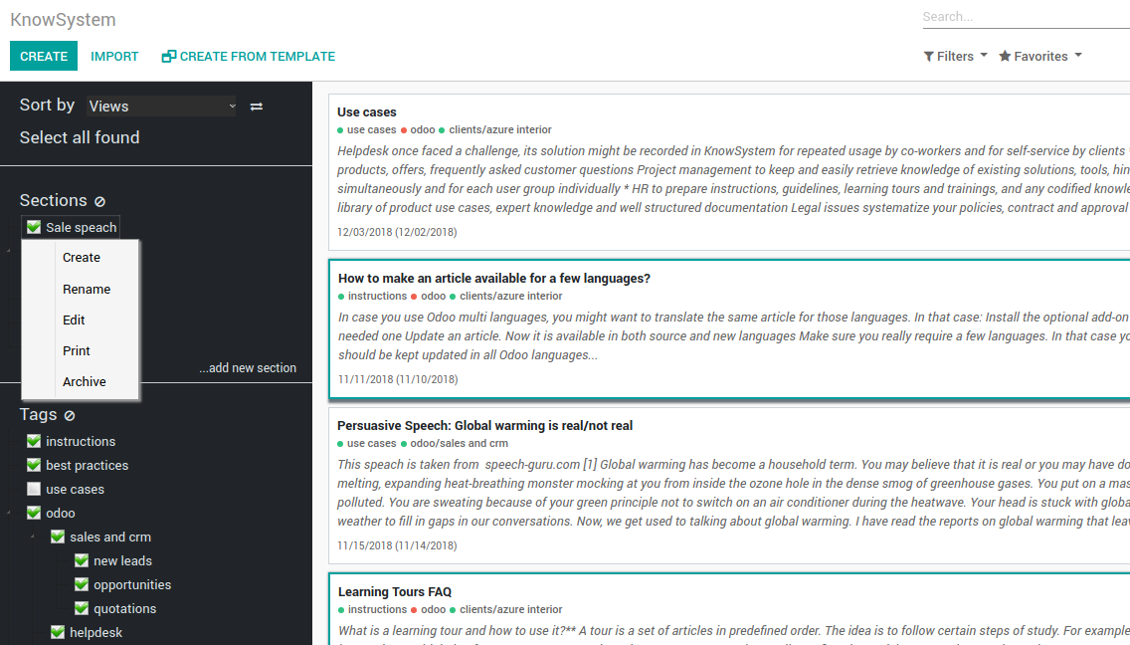
- Manage hierarchy of sections: prepare new (right mouse click - 'create'), update existing (right mouse click - edit), re-order any (drag and drop an item), archive sections. Select a few ones to filter articles. You may also print all articles related to this section as a single PDF file.
- In the same way manage hierarchy of tags
- Sort articles by number of views, a score of likes and dislikes, create or update dates, a section, an author
- Select all articles which are found according to chosen tags / sections and according to introduced searches / filters
- Launch a learning tour.
From the list of articles you see articles' name, indexed content (words without HTML style), dates of creation and last update, a number of views, likes, dislikes, author avatar. Here you may also add an article to favourite by pressing the 'star' icon.
Click on article body to open it in a full size (form view). Do not worry: chosen tags and sections as well as selected articles will be kept when you get back! Click on the top right check box to add an article for selection.
On the right navigation panel you observe selected articles and may proceed a mass action. Click on article name to remove it form selection.
On the top of the interface users also would find a standard Odoo omnibox. Type here to search by a title, content, an author, tags or a section.
Available mass actions
KnowSystem let users update an unlimited number of articles simultaneously:
- Assign new section
- Change or remove tags
- Print multiple articles as a single PDF
- Follow / unfollow discussions
- Publish / unpublish articles
- Export articles to an Excel table
- Archive or restore records
- Add articles to learning tours
- Mark knowledge items as favourite
- Duplicate articles.
Képernyőkép
KnowSystem articles overview, search and mass actions
Single entry for knowledge management actions
KnowSystem configuration
Article read mode
Article info and statistics
Article misc actions
Mass actions for selected articles
Small screen KnowSystem interface
Fast, comfortable, and professional knowledge recording
By using templates with pre-defined styles you may also speed knowledge generation up and standardize articles' appearance.
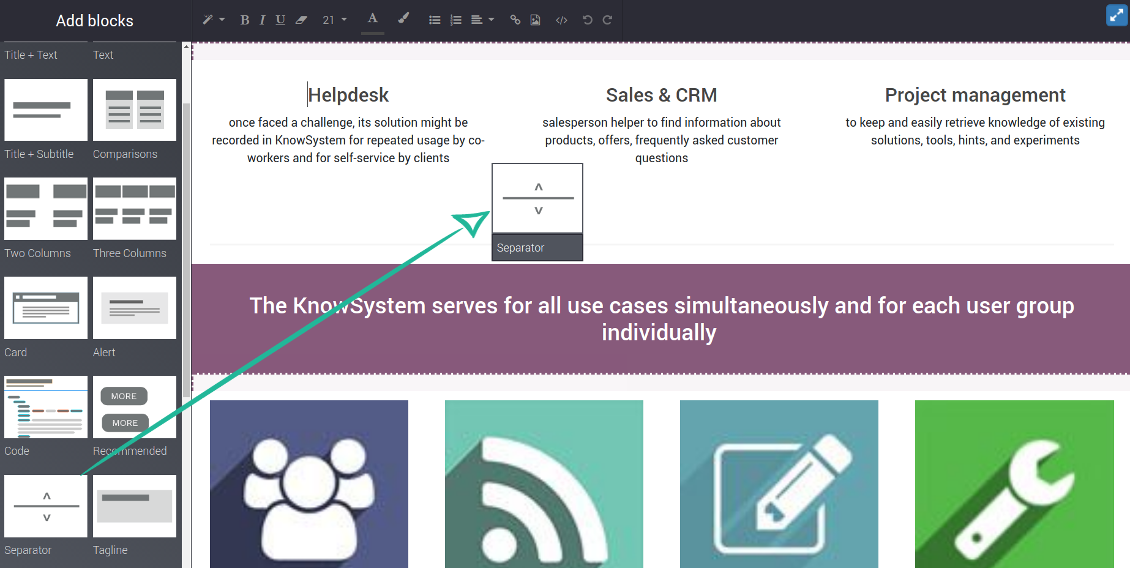
How to use the website builder for editing articles
KnowSystem provides you with a backend articles' builder, which is comfortable and safe to use. Odoo website builder is richer in features to prepare complex HTML structures. To edit articles through the website:
- Install the optional add-on 'KnowSystem Website and Portal' (the option 'Publish to portal and website')
- Turn on the setting 'Edit on website'
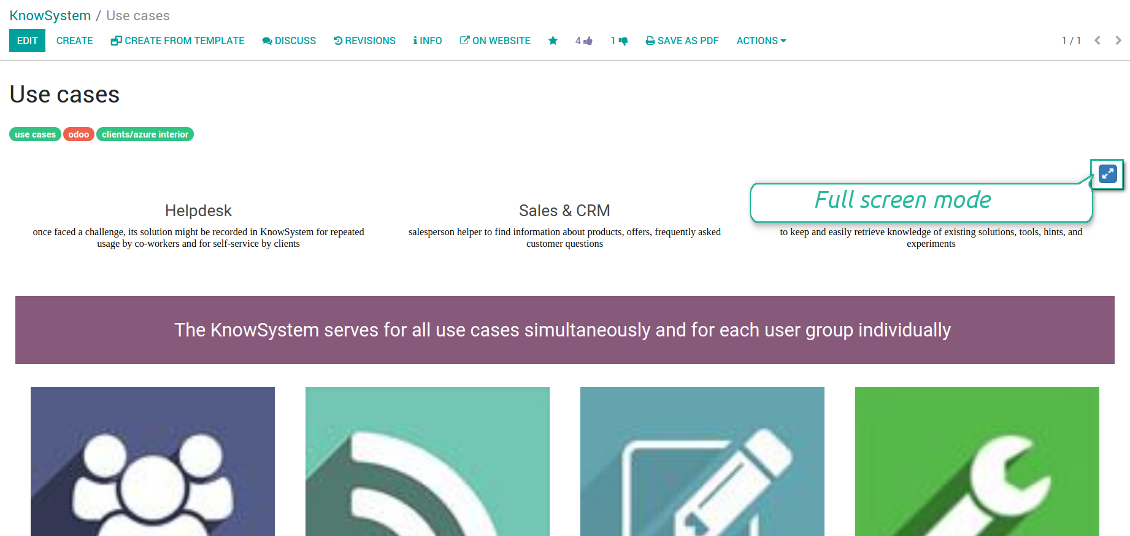
- Push the button 'Edit on website' on this article form
Be cautious: if you are going to print this article or add its contents to emails, website building blocks are not suitable. Their advanced styles contradict printing and composer layouts and would not be correctly shown. In such a case use the safer backend builder.
How to use article templates
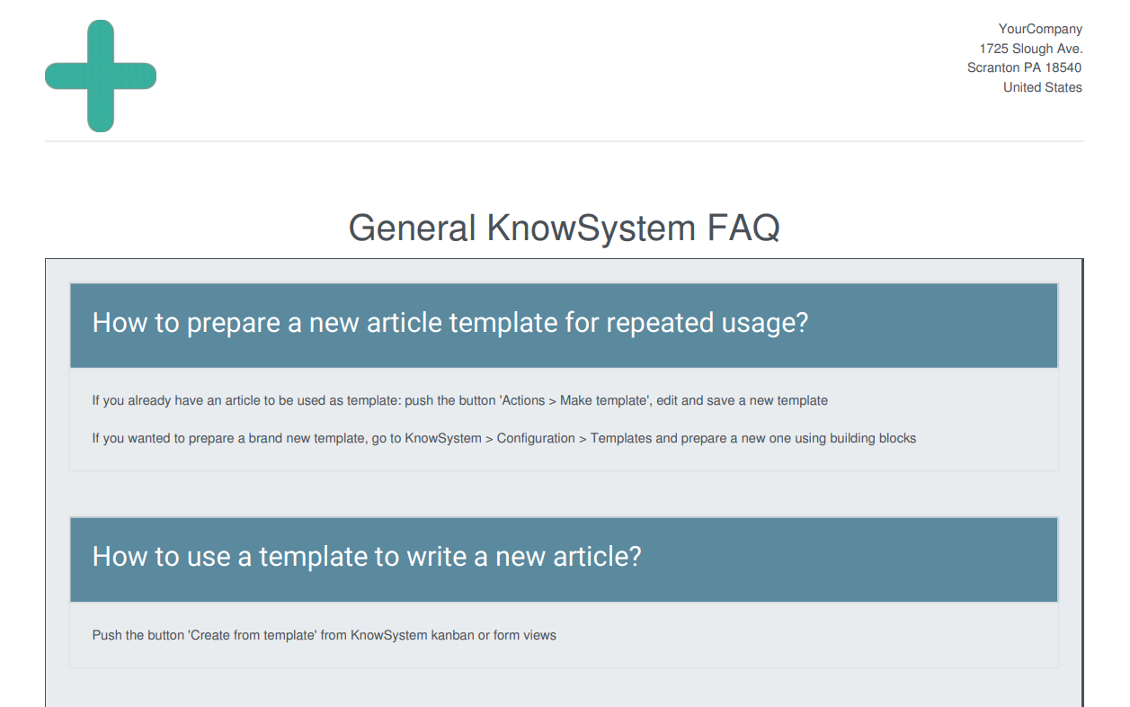
To prepare a new article template for repeated usage:
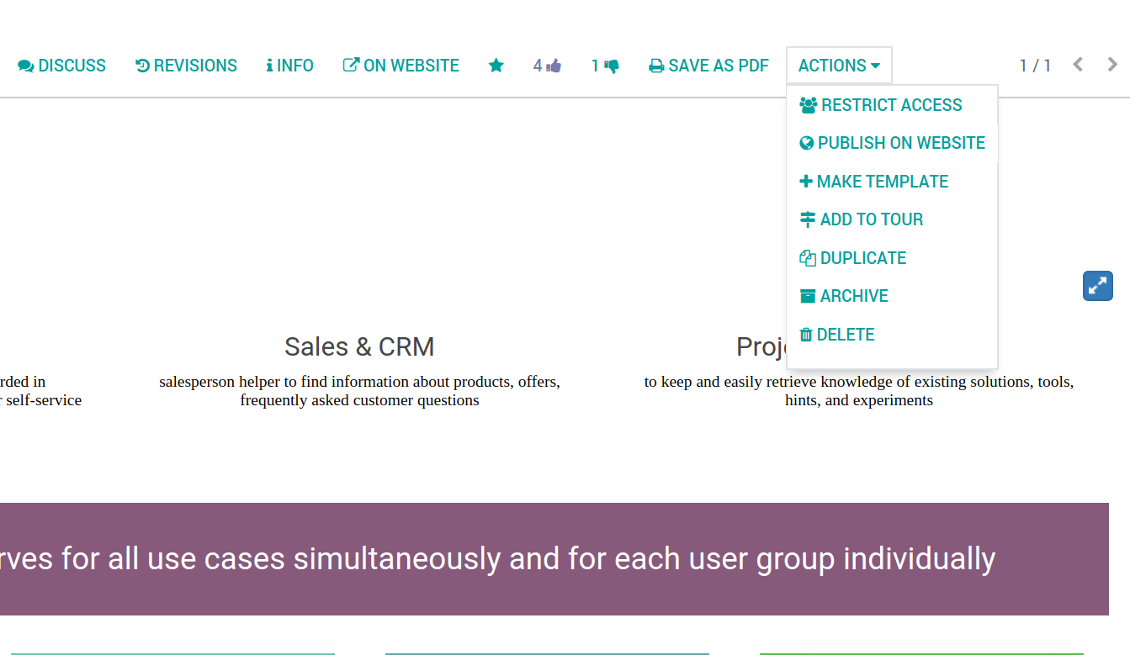
- If you already have an article to be used as template: push the button 'Actions > Make template', edit and save a new template.
- If you wanted to prepare a brand new template, go to KnowSystem > Configuration > Templates and prepare a new one using building blocks.
To use a template to write a new article:
- Push the button 'Create from template' from KnowSystem kanban or form views
- Select a required article template
- Push 'Create' and introduce changes to a new article.
Képernyőkép
Building blocks for knowledge base articles
Get benefit from your knowledge
How document types and articles are linked for a quick access
Experience is not general, usually it relates to specific issues. Knowledge used for customer communication differs from suppliers' negotiations. Frequently asked questions for draft and confirmed sale orders vary. KnowSystem let you structure your articles to apply them in a correct place and at right time. To that end:
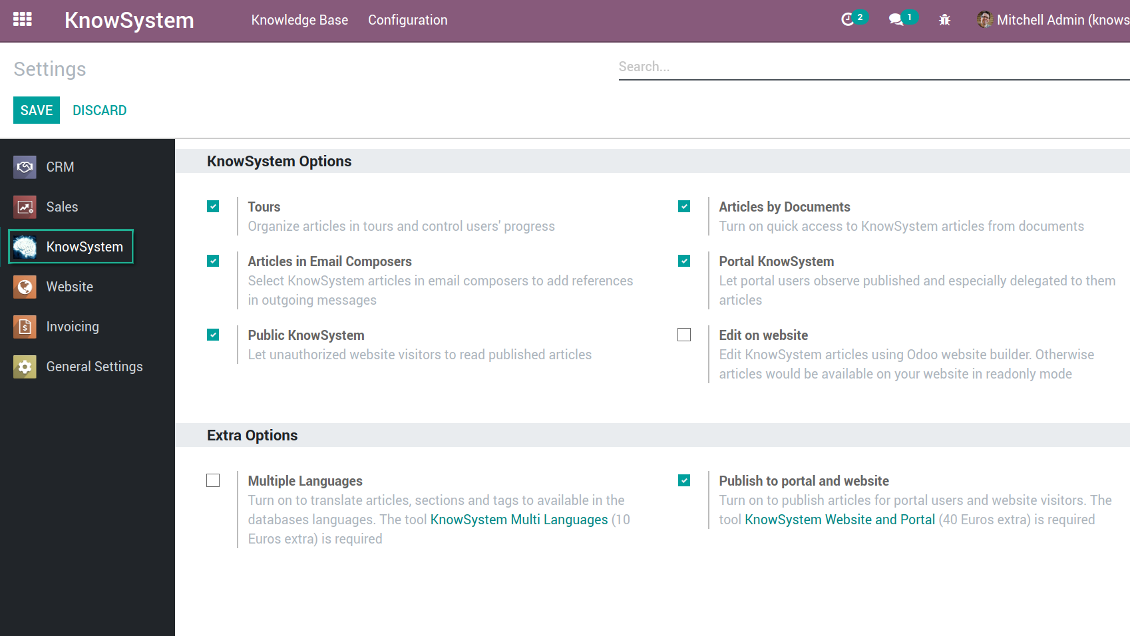
- Turn on the setting 'Articles by Documents' (the option shows the top menu entry above any Odoo document) or 'Articles in Email Composers' (the option adds a quick link in a message composer editor for citing)
- Create a new tag (e.g. 'odoo / helpdesk'). In the table 'Applied to' use a required model (e.g. 'helpdesk ticket') or use it for all documents (the check box 'Apply to all documents').
- As advanced option you may apply additional filters: for example, to show articles only for 'new' tickets, not for 'in progress' ones. Use dynamic filters' constructor for that goal
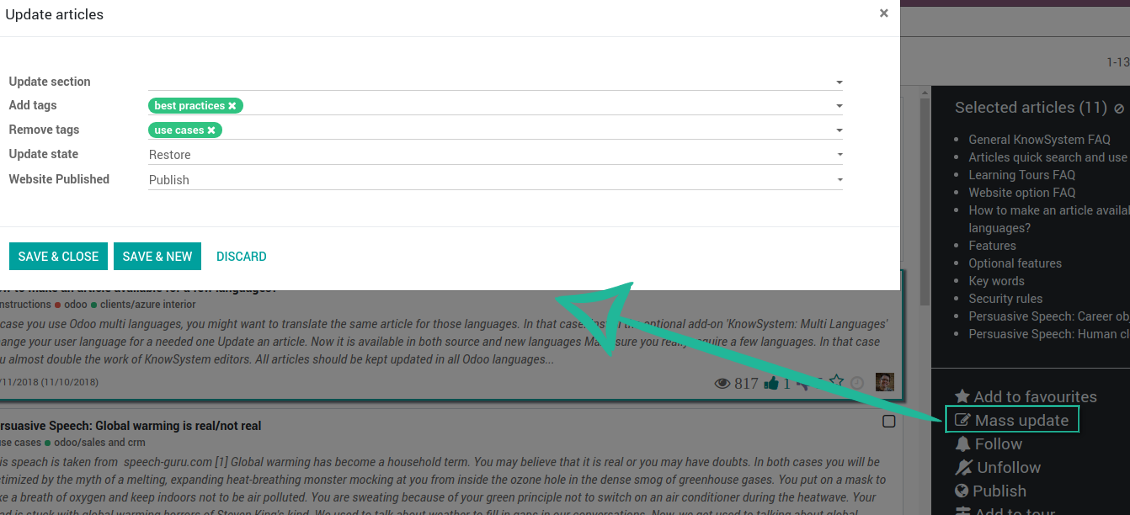
- Assign this tag for required articles. For a few articles use the mass action 'Mass update'
- Now when you access a quick article search from a document or from an email composer, Odoo will calculate KnowSystem tags for this document. That's why by default users would see only articles suitable for a current document. Simultaneously, they might always change tags to use other knowledge base data.
How to overview articles which might be useful for this document
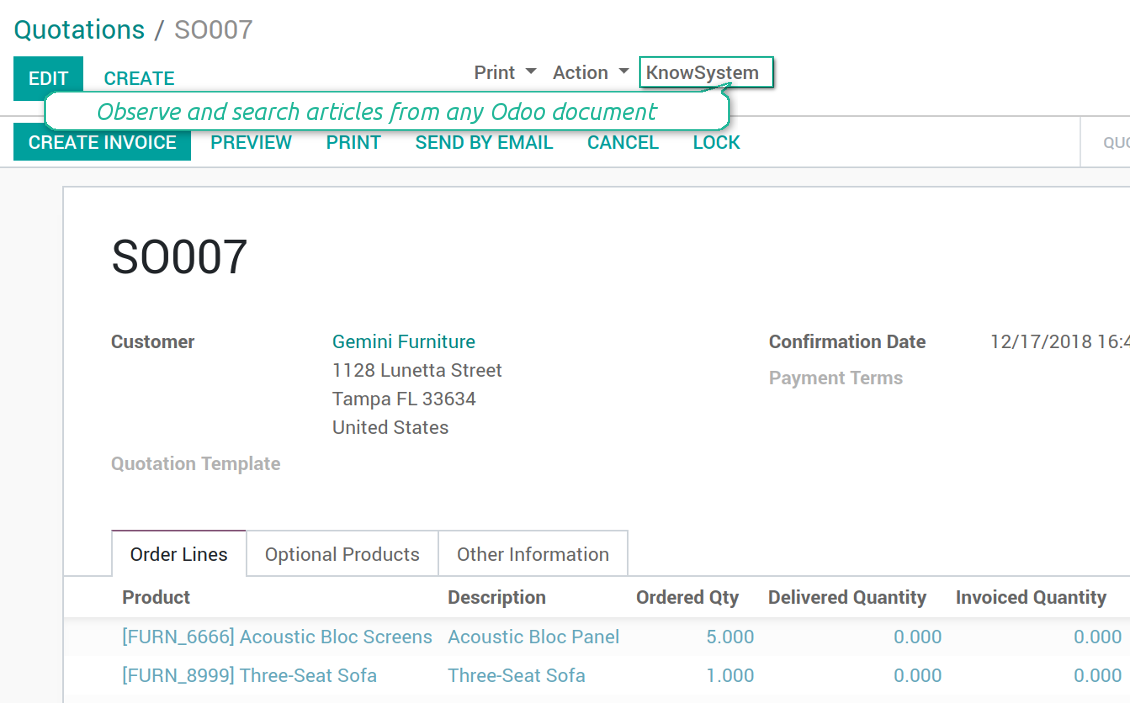
As soon as you turned on the option 'Articles by Documents', on the top of each Odoo object form view there would be a quick link 'KnowSystem'.
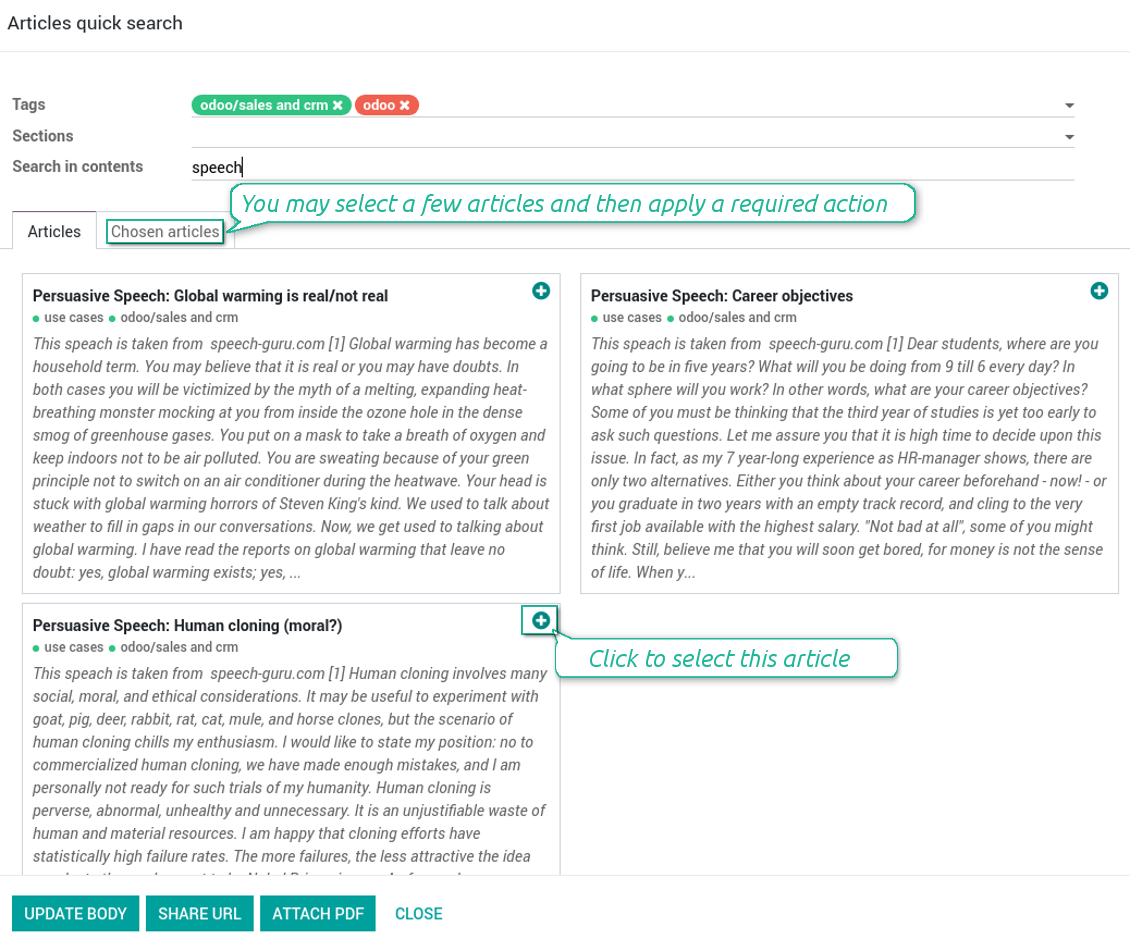
Click on that entry, and Odoo would open the wizard with articles. By default KnowSystem tags suitable for this document would be selected (if any). You may change those tags, or additionally filter by sections or content search. As a result list of topical articles is shown for you.
How to use company knowledge for communication
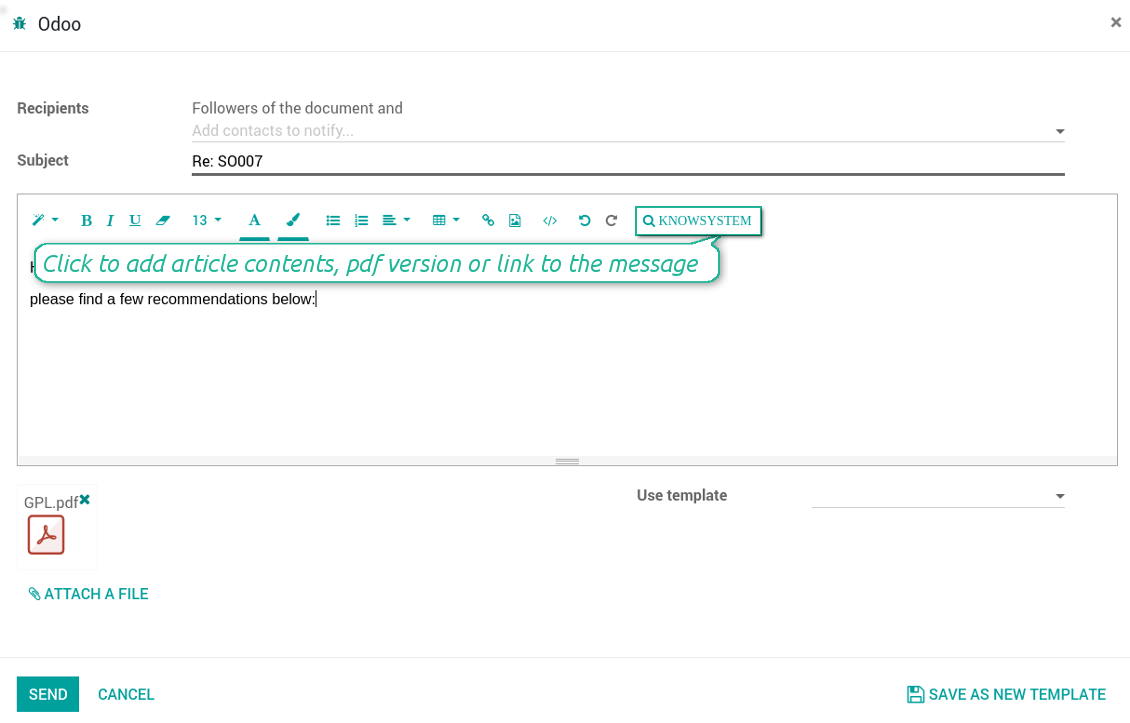
Turn on the option 'Articles in Email Composers' to let users reference or cite Knowledge records in Odoo messages. As a result the special quick entry 'KnowSystem' would be added to each Odoo email composer.
Clicking on that entry would open a wizard with a set of suitable to this document articles. You may change search by tags, add extra filtering by sections or content.
Afterwards, select required articles among found ones; choose an action. You may:
- Update message body with article contents (would be added to the end of a current message)
- Attach a PDF version of an article(s)
- Share a public link
Képernyőkép
Quick access for knowledge system from any Odoo document
Knowledge base link from email composer
Articles from any document
Article(s) PDF printing
WIKI-like revision system
How to recover a previous article version
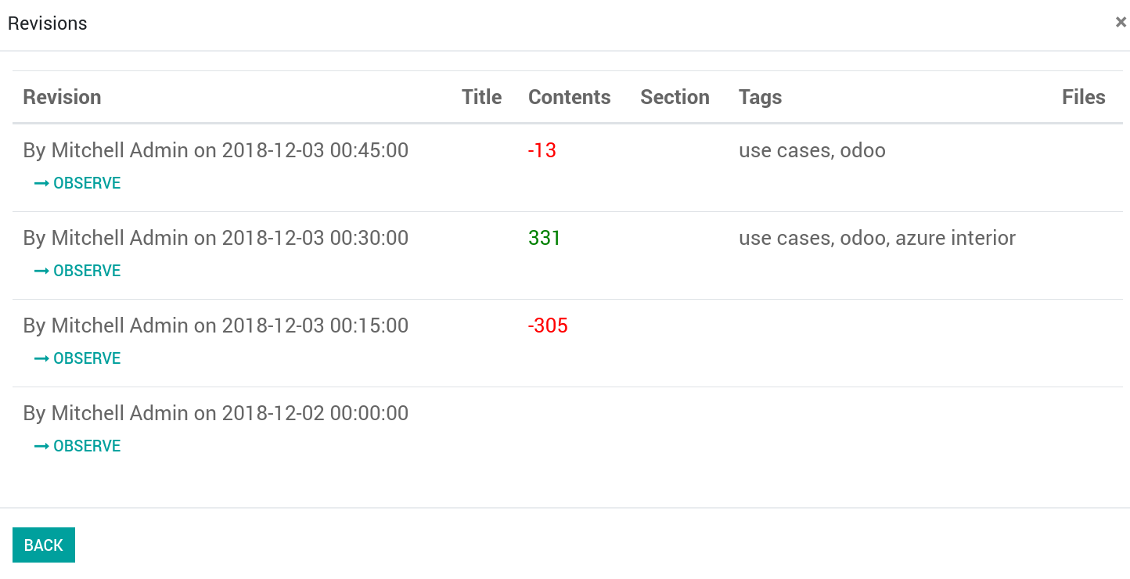
- Go to an article form view and push the button 'revisions'
- Find a required one and push the button 'Observe' to check whether this version is a correct one
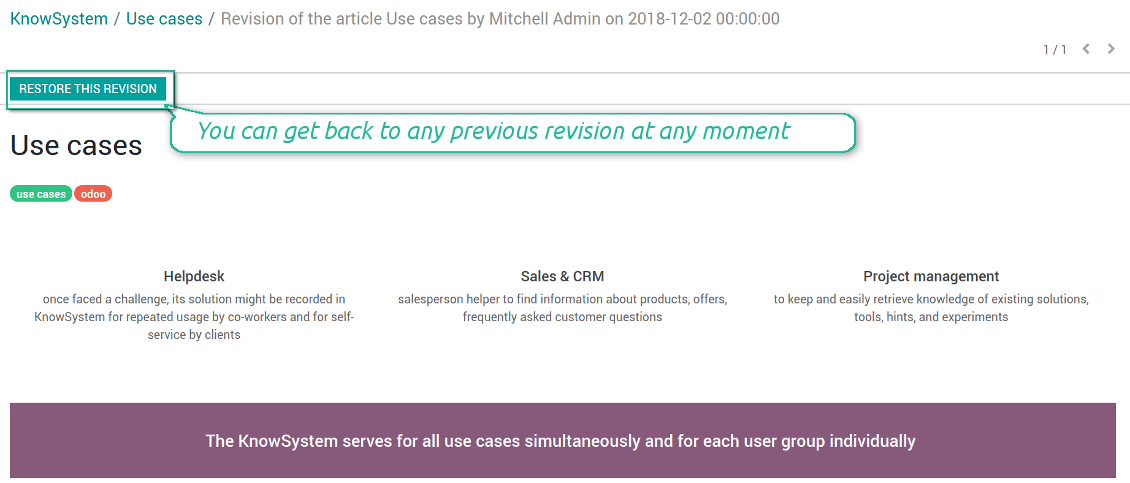
- Push the button 'Restore this revision'. The article would be recovered to that version.
- The recovery operation itself is recorded. So, if it is a mistake you can revert changes by recovering the last-to-last revison.
Képernyőkép
Wiki-style revisions history
To restore is easier than to break
Individual partner knowledge base portal
How to share knowledge base with specific partners
An article is available for a portal user in two cases: A. it is website published; B. his/her company is indicated as allowed partner in one of article tags.
In the first case such an article is available for all portal users and even for public website visitors who have not logged in.
In the latter case you grant a restricted access for an article only for chosen companies. To that end:
- Turn on the setting 'Portal KnowSystem'
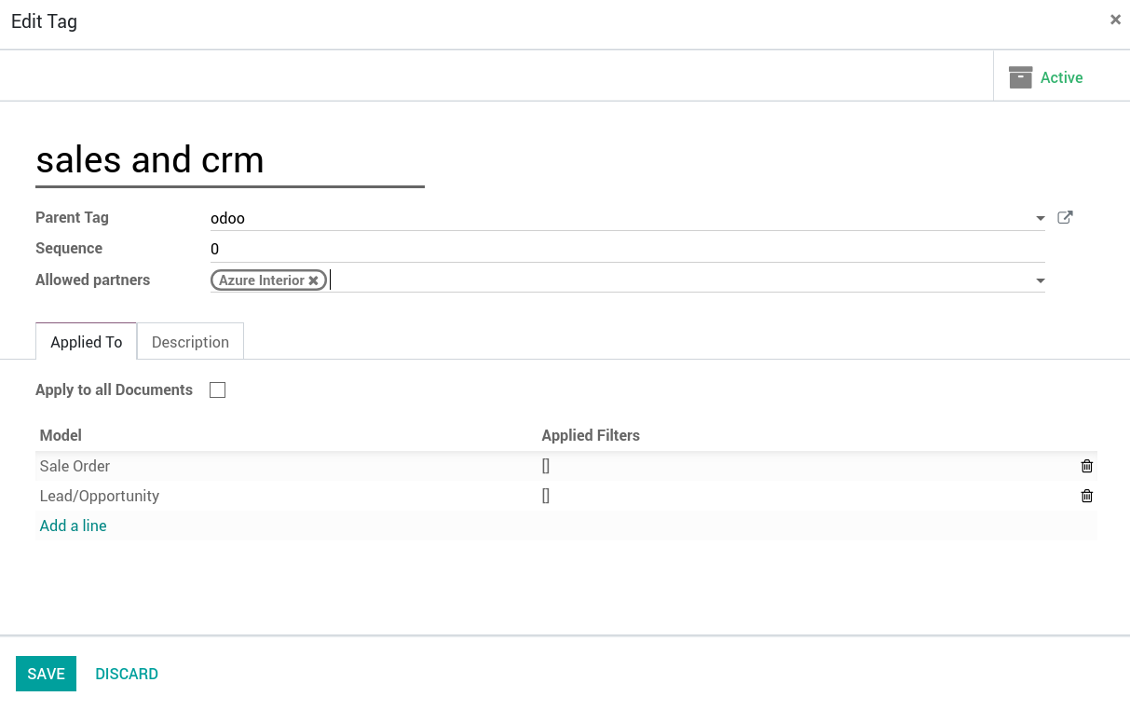
- Create a tag for this partner, for example 'clients / Azure Interior'. On the tag form indicate this company in the field 'Allowed partners'
- Assign the tag for all articles you want to share with this partner. For a few articles use the mass action 'Mass update'
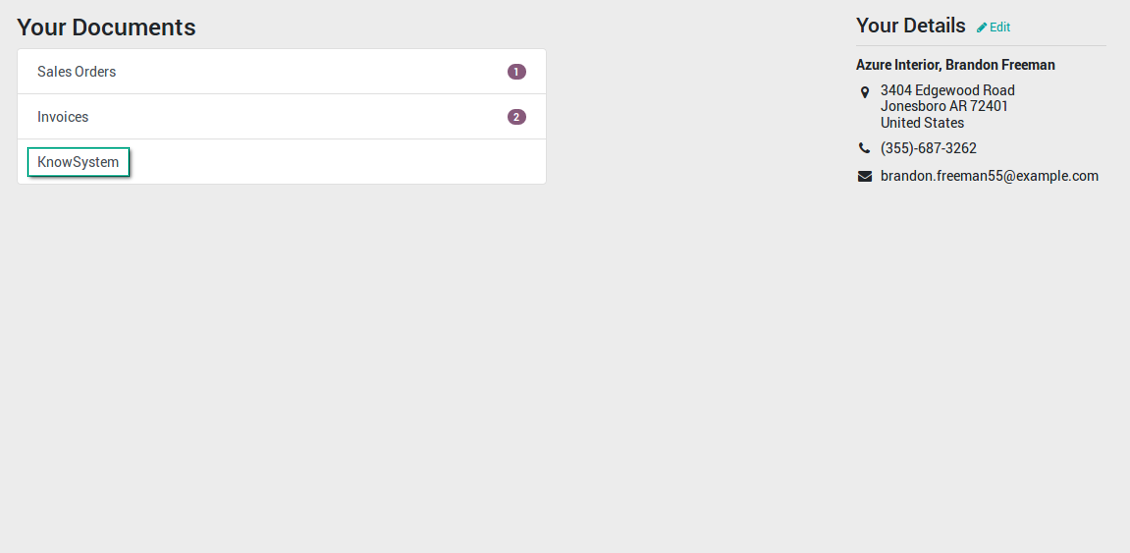
- Now portal users related to this partner may access shared articles right from their partner portal.
Képernyőkép
Knowledge base for portal and public use
KnowSystem articles on website
Tag: document types and portal partners
KnowSystem from portal
Best knowledge base system for Odoo!
Excellent app and exceptional after-sales support.
Really well thought-out product and one of the best features is the contextual help by means of the tags. Really a game changer for us.
Keep up the great work FaOtools!
Outstanding app! Tremendous value for money, an absolute must have!
One of the features sorely lacking from Odoo has been a robust Wiki/documentation system. Using third party platforms is a massive headache: yet another system to maintain, users get distracted switching back-and-forth, and errors get made. Then you have to worry about training, additional logins, etc.
KnowSystem feels like a native/core app, is very well-polished, and extremely fast. It's accessible from any screen, and the search results are instant (none of the latency inherent with most apps).The interface is elegant yet powerful, with robust access control, rich editing features, and version control. It's simple to revert to previous entries, view audit trails, etc. It's very intuitive for anyone familiar with Odoo; onboarding takes just a few minutes. The user guides are excellent.
This is invaluable for any organisation with a lot of documented information, SOPs, ISO compliance, or similar. If you're using eLearning, it's great for creating a help system / reminders. For example, noting key takeaways or specific instructions. The user can be in MRP, Sales, or any other function, and instantly lookup a guide. Since it overlays whichever screen you're in, it doesn't interrupt the workflow.
This dramatically increases efficiency, minimises questions, and helps keep everyone on the same page.
Oh, and customer service is excellent, faOtools stands behind their product. Thank you!
KnowSystem is excellent - OdooTools offer great support, are very helpful and responsive
Our company needed the ability to add a Knowledge Base to our Odoo portal website for our customers to access article content on a membership-only basis. KnowSystem provided this and much more, along with ability to add search by section, set permissions to allow only certain partners access to articles by tag etc. OdooTools have been very helpful and implemented several features we suggested including automatic redirect upon login, customisable filters and a social sharing capability on articles. Overall a great app by a great company, something that massively adds to Odoo's capabilities and is something that everyone could benefit from using.
Very functional application and responsive support
Our company produces medical laser equipment and we use KnowSystem to streamline the knowledge base of our company. Convenient search system and classification of content, as well as access rules for groups and even for individual users.
Great app and professional team
The app is great the the team is very professional in both response timing and problem solving.
Highly recommended.
Marco from ALO.zone.
Excellent system
Excellent system.
A great tool from some very nice developers!
KnowSystem is a great tool and a game changer for us. Finally a place to put all our company know-how. I highly recommend it. And also important to us: We got great support from FaOtools too. A rare thing in this busy world. thx!
Excellent app and support.
Great app and a very helpfull support. Openess to improve their products is outstanding.
Public knowledge base
How to make an article available for all website visitors
- Turn on the setting 'Public KnowSystem'
- Publish required articles through the mass action 'Publish' or by pushing the button 'Actions > Publish on website' on an article form
- Now any website visitor can read those articles
Team work for knowledge creation
Képernyőkép
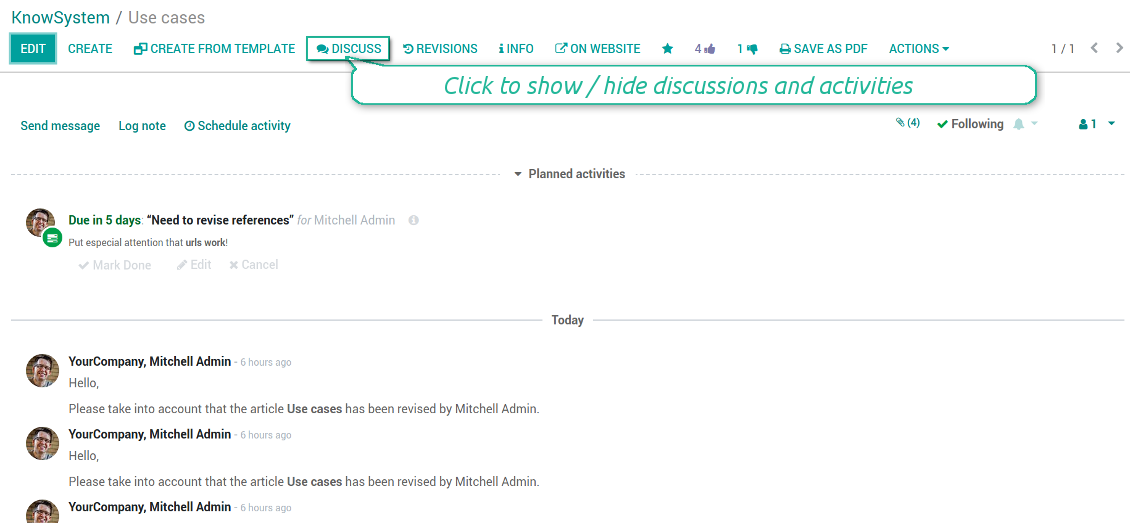
Knowledge base interactions, discussion, and activities
Custom fields to structure knowledge
How custom knowledge attributes work
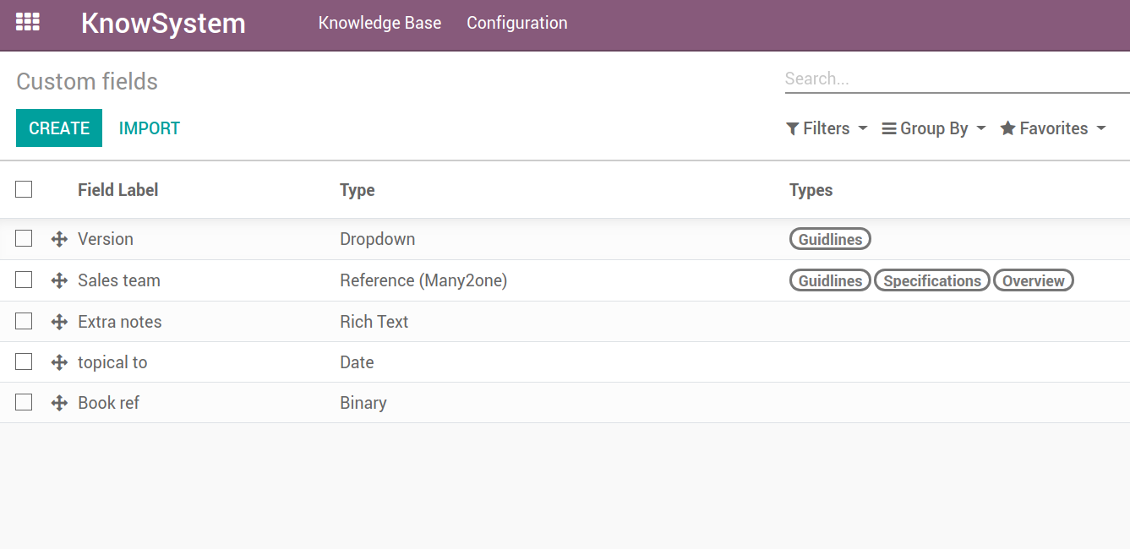
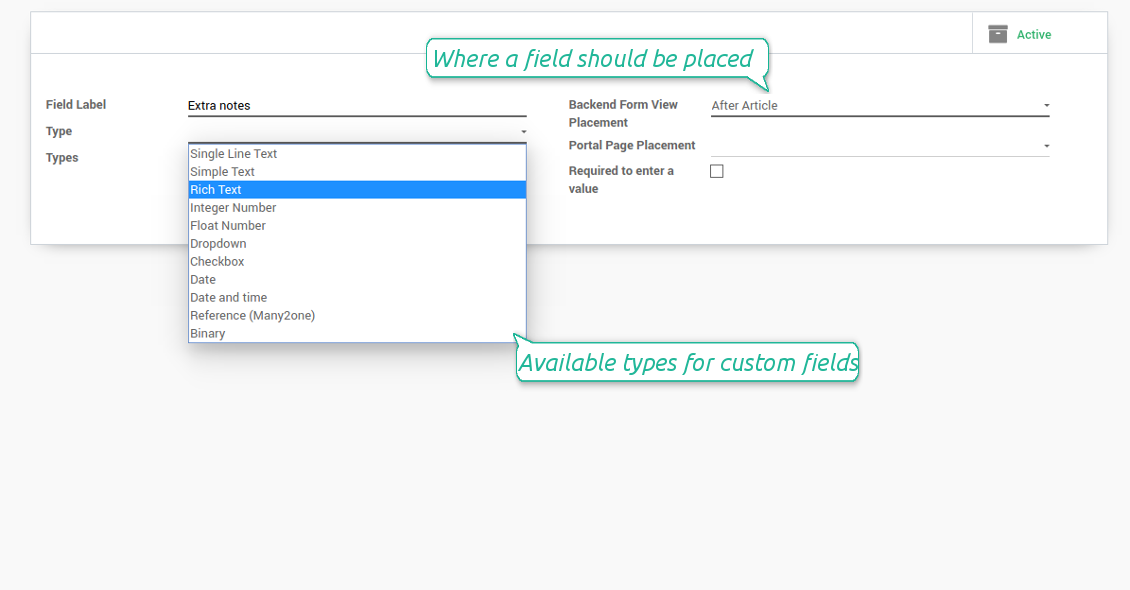
In order to show a new property for KnowSystem articles, just create a custom field. Nothing else is required! You are welcome to prepare fields of various types: single line text (char), simple text without formatting (text), rich text (HTML-formatted text), integer or float numbers, drop-down choice with your own options (selection), checkbox (boolean), date or date and time, binary (a file to upload), reference to another Odoo document (e.g. for a sale order, contact; many2one).
The tool also introduces complementary articles' typology. Thus set of attributes for 'user guidelines' and 'technical specifications' might be different.
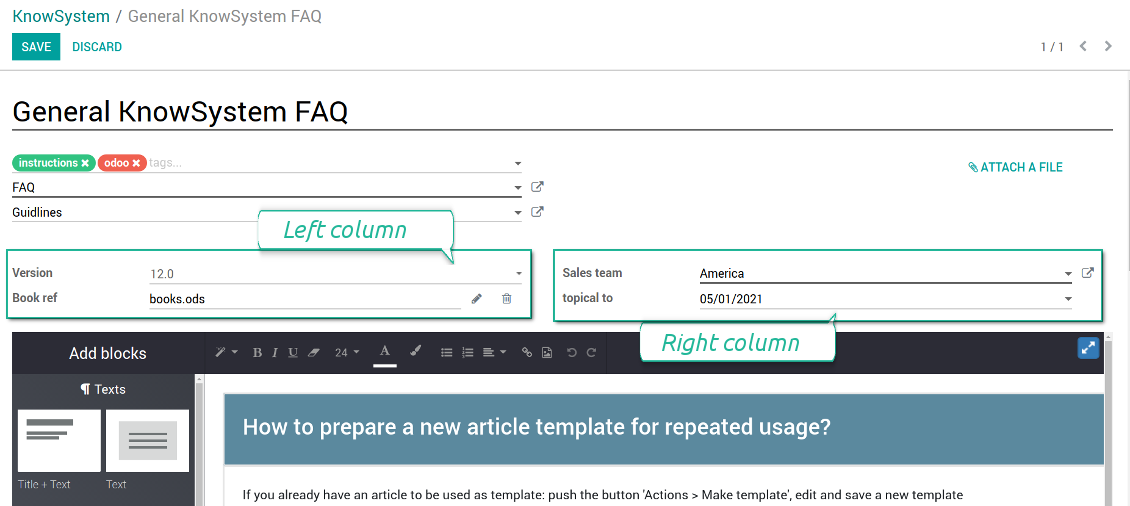
Then, choose an interface location for a new field from a closed list to structure properties on an article page. Decide whether a field should be required to enter, or should be visible only for definite knowledge types.
Képernyőkép
KnowSystem articles' custom fields
Custom fields on article form
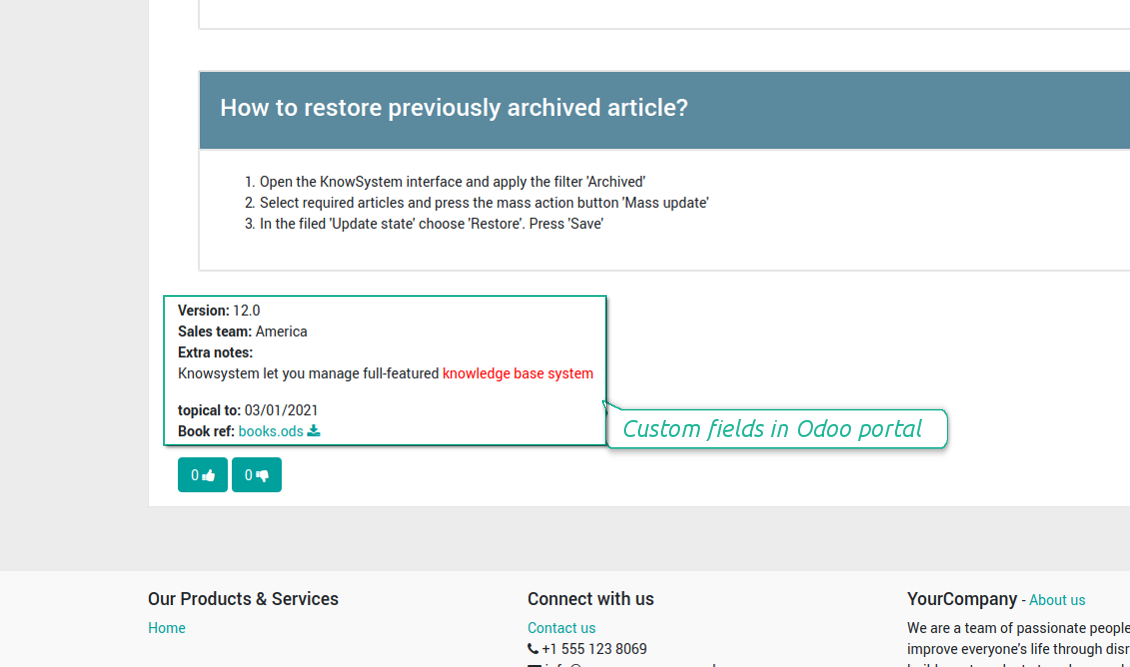
Custom fields in portal and website
Custom fields for article: add any data required
Knowledge is secured and might be safely shared
How to manage user accesses to articles
Security for internal and portal users differs.
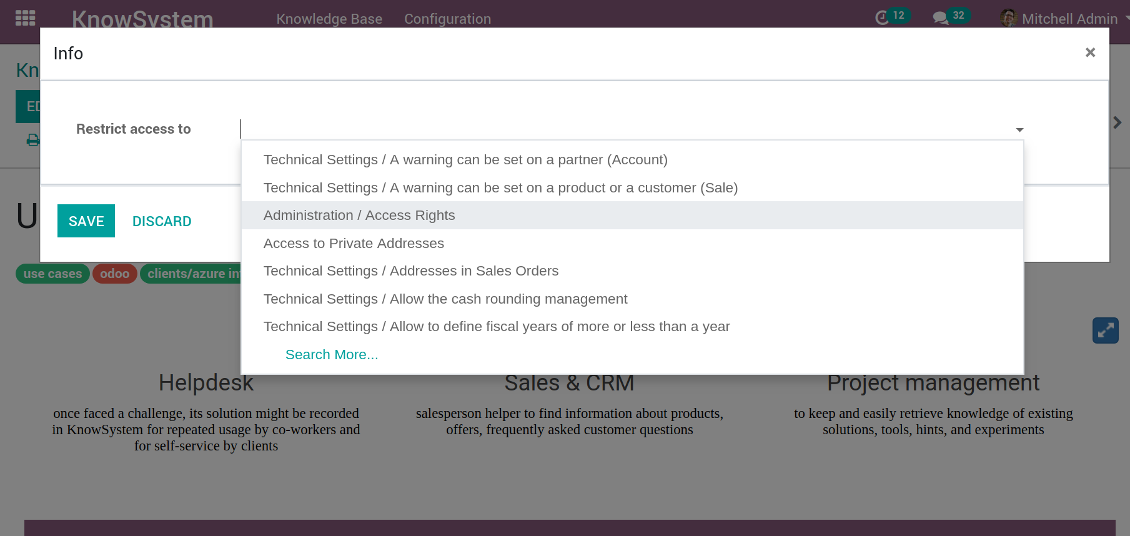
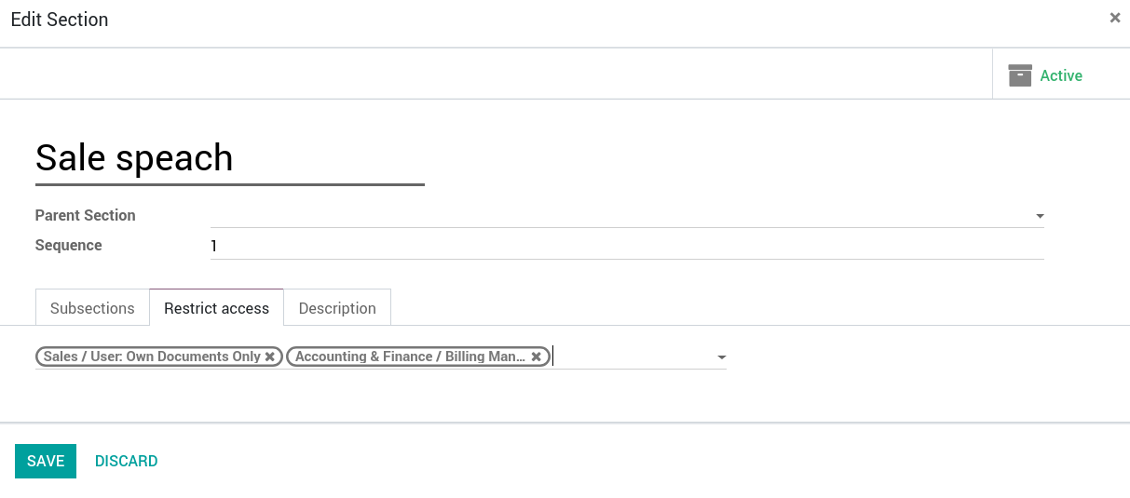
For the company employees: KnowSystem considers user groups which are defined per articles, sections and tours. Look at the tab 'Restrict to' on forms of those objects. If that field is not defined, a document is considered 'global': each internal user may read it.
For portal / public users: KnowSystem takes into account tags and whether an article is website published. A knowledge tag has a field 'Allowed partners', which may grant an access to portal users for articles with this tag. Website published pages are available for everybody.
Rights to administrate KnowSystem belongs to 2 user roles: KnowSystem Editor and KnowSystem Administrator. If you want a user to create and edit articles, a user should belong to one of those groups.
|
|
Odoo user |
KnowSystem Editor |
KnowSystem Admin |
Portal user |
Public user |
| Articles | read related to his/her user groups and sections | read, create, edit, archive related to his/her user groups and sections | read, create, edit, delete any | read published articles and articles related to partner-related tags | read published articles |
| Sections | read related to his/her user groups | read, create, edit, archive related to his/her user groups and sections | read, create, edit, delete any | read all sections of available articles | read all sections of published articles |
| Tags | read any | read, create, edit, archive any | read, create, edit, delete any | no access | no access |
| Tours | read related to his/her user groups | read, create, edit, delete related to his/her user groups | read, create, edit, delete any | no access | no access |
| Misc | may like / dislike, add to favourites, print, take part in discussions | may configure options | may like / dislike an article |
|
Take also into account two peculiarities:
- Odoo user always may access an article of which he is an author disregarding further restrictions;
- Rights for section is defined not only according to this section but also according to all its parents. For example, if user can't access 'sales', he/she would not be able to access 'sales / crm' disregarding whether 'crm' is available for his/her user group.
Képernyőkép
Manage access to this article
Section update and user rights
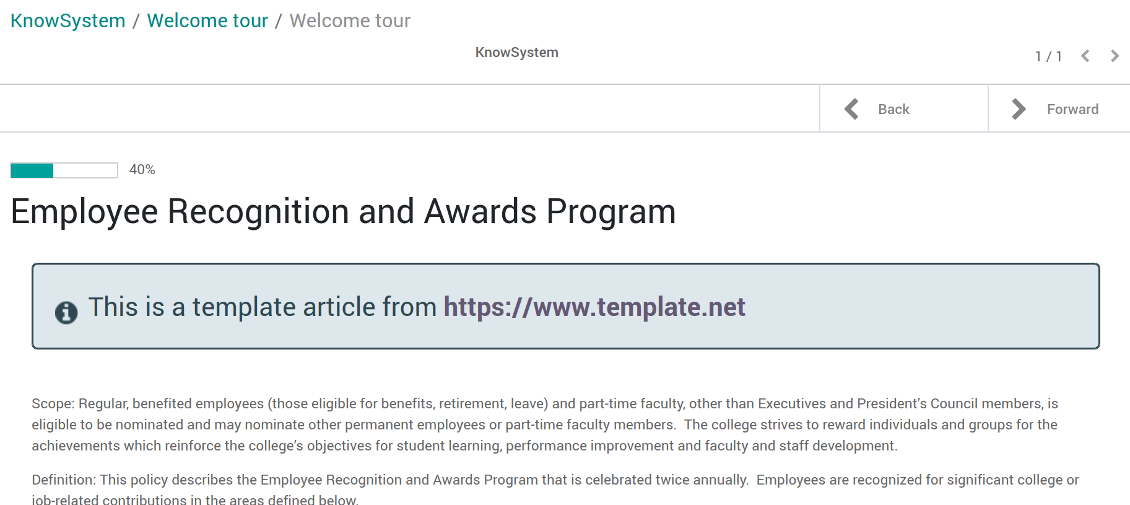
Create learning tours
How to configure a learning tour
- Turn on the option 'Tours'
- Go to KnowSystem interface and select articles to be included into a tour
- Press the mass action button 'Add to tour' and select or create a tour. Press save
- Re-order articles in a consistent order
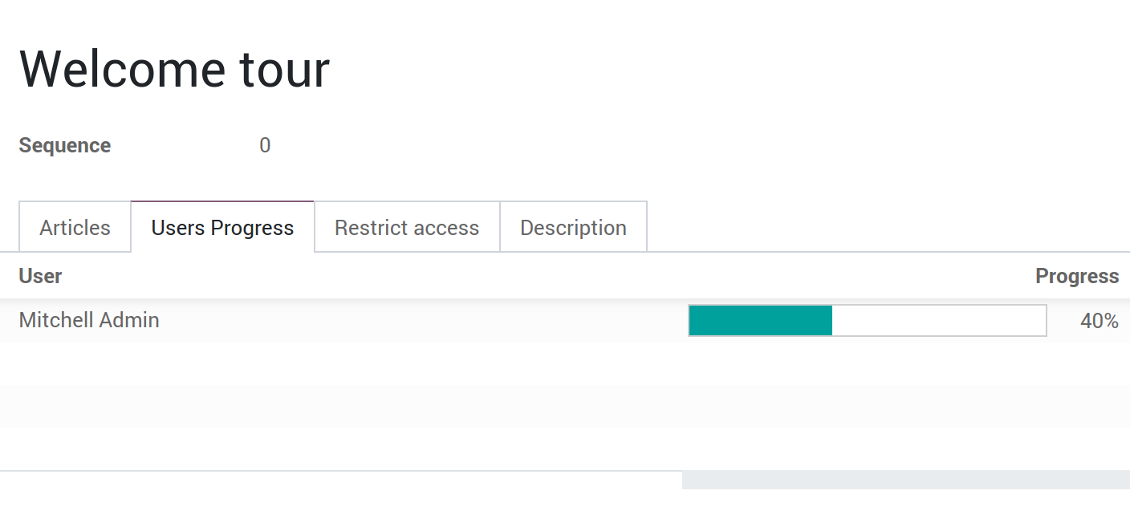
- Define groups of users who should go through a tour on the tab 'Restrict access'
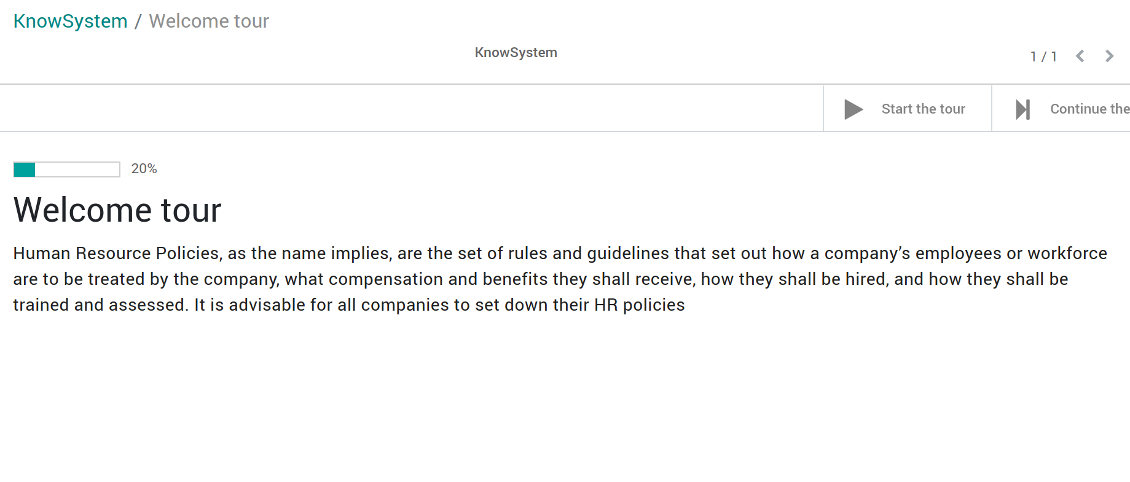
- Now users can see and launch tours right from the KnowSystem interface (the right navigation panel)
Képernyőkép
Article in a learning tour
Control tour progress by users
KnowSystem tour welcome page
Multilingual knowledge base
How to make an article available for a few languages
- Install the optional add-on 'KnowSystem: Multi Languages'
- Change your user language for a needed one
- Update this article
- Now it is available in both source and a current language
Make sure you really require a few languages. In that case you almost double the work of KnowSystem editors. All articles should be kept updated in all Odoo languages.
Knowledge base for any industry and business
Typical use cases
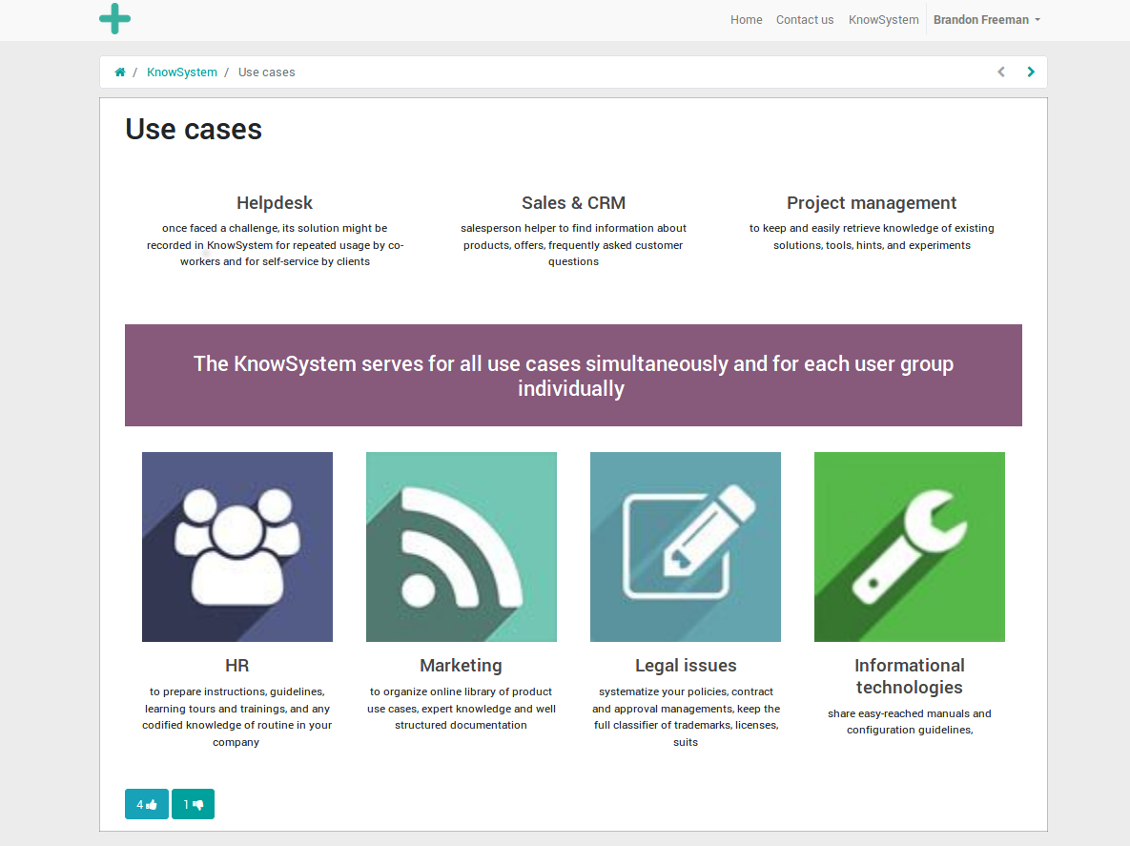
- Helpdesk: once faced a challenge, its solution might be recorded in KnowSystem for repeated usage by co-workers and for self-service by clients
- Sales & CRM: salesperson helper to find information about products, offers, frequently asked customer questions
- Project management: to keep and easily retrieve knowledge of existing solutions, tools, hints, and experiments
- HR: to prepare instructions, guidelines, learning tours and trainings, and any codified knowledge of routine in your company
- Marketing: to organize online library of product use cases, expert knowledge and well structured documentation
- Legal issues: systematize your policies, contract and approval managements, keep the full classifier of trademarks, licenses
- Informational technologies: share easy-reached manuals and configuration guidelines
Gyakran ismételt kérdések: KnowSystem: Knowledge Base System Odoo v.11
Nem látok különbséget a revíziók szövegei között.
A revíziók nemcsak a szövegmódosításokat rögzítik, hanem a stílusok minden frissítését is (technikailag, amikor megváltoztatja a cikk HTML-forráskódját). Egyesek első ránézésre nem egyértelműek (pl. egyetlen szó betűmérete). Mások drasztikusak lehetnek. Bármely Edit > bármit módosít a cikkben > Save sorozat azonban új revíziót eredményez.
Hozzáadhatok YouTube-/ Vimeo- / Dailymotion- / Youku-videót egy cikkhez?
Igen, ezekről a szolgáltatásokról videót ágyazhat be a cikkekbe az Odoo backendből és a webhelyépítőből is. Adjon hozzá egy képes építőelemet > nyomjon a képre > válassza a ‘Videó’ lehetőséget > adja meg a média URL-jét.
Figyelem: ezek a videók iframe-ként kerülnek be, és egyes böngészők addig blokkolhatják a lejátszást, amíg a felhasználó azt kifejezetten nem engedélyezi.
Hogyan tehetek egy szakaszt láthatóvá a weboldalon?
A KnowSystemben egy szakasz akkor látható a weboldalon, ha közzétett és legalább egy cikket tartalmaz. Alszakaszok mellett sem jelenik meg, ha magában a szakaszban nincs egyetlen cikk sem. Így elkerülhetők az üres szakaszok, és a KnowSystem-portál áttekinthető marad. Ha a szakaszt meg akarja jeleníteni, adjon hozzá egy bevezető vagy általános cikket, amely röviden leírja vagy felsorolja az alszakaszok cikkeit.
Hogyan oszthatom meg a cikket egy külső partnerrel?
Kattintson jobb gombbal bármely címkére a bal oldali navigációs panelen - Create
Keresse meg az 'Allowed partners' mezőt. Például 'clients - azure interior' a 'Azure Interior' partner hozzáféréséhez. Fordítva is teheti: KnowSystem-címkéket a partner űrlapján rendelhet hozzá
Ezután nyissa meg a kívánt cikket (vagy ugyanezt az 'Mass update' művelettel több rekordra):
Ha közzétett: vonja vissza a közzétételt, ha nem akarja elérhetővé tenni minden portálfelhasználó és nyilvános látogató számára
Rendelje hozzá az újonnan létrehozott címkét (a példában 'clients - azure interior')
Most:
A 'Azure Interior' kereskedelmi partnerhez kapcsolódó összes portálfelhasználó hozzáfér a 'Azure Interior' címkéjű cikkekhez
Más portálfelhasználók (ha nincs más címke hozzárendelve) nem férnek hozzá ezekhez a cikkekhez
A belső felhasználókat ez nem érinti, a cikkeket a cikkek és szakaszok 'access to' logikája szerint látják.
Hozzáadhatjuk a nyelvválasztó gombot a cikk törzséhez?
A 'translate' gombot a választható 'KnowSystem: Multi Languages' kiegészítő szándékosan nem teszi a cikk törzsébe. A HTML-t nagyon nehéz lefordítani a gomb egyszerű felugró ablakában. Nagyon kevés szöveget kellene fordítani, és sok HTML-rész lenne (amit a fordító el is ronthat).
Ezért adott nyelvű cikkhez jelentkezzen be az adott nyelvű felhasználóval. Lehet másik felhasználó, vagy ideiglenesen módosíthatja a jelenlegi felhasználó beállításait. Ezután a cikktörzs minden frissítése azon a felhasználói nyelven történik.
A cikk törzse alatt a 'Copy from another translation' gombbal bármikor átveheti a tartalmat egy másik nyelvről (hasznos, ha a cikket az egyik nyelven jelentősen frissítették).
Hogyan ágyazhatok be egy másik weboldalt a cikkbe
Ehhez iframe-eket használhat. Kapcsolja a cikket a nyers HTML-kódszerkesztőre, és szúrja be például: <iframe src="https://faotools.com/" style="width:100%;min-height:600px;"> </iframe>.
Telepítettem a KnowSystemet, de nem látom a 'create' gombot és a többi gombot
Valószínűleg nem adott KnowSystem-jogosultságot a felhasználójának. Válassza a megfelelő szerepet: 'KnowSystem Editor' vagy 'KnowSystem Admin', majd frissítse az oldalt. A vezérlőgomboknak meg kell jelenniük.
Megjeleníthetek egy adott oktatótúrát csak kiválasztott felhasználóknak?
Igen, egy felhasználói csoport (pl. 'Sales Manager') hozzárendelésével, amelynek ezt a túrát kell teljesítenie. Ha a felhasználó a csoport tagja, látja a túrát. Ha nem, nem jelenik meg. Ugyanúgy működik, mint a KnowSystem-cikkek és -szakaszok hozzáférési jogai.
Ha egy túrának nincsenek hozzárendelt csoportjai, akkor 'global', és mindenki számára látható.
Hogyan változtatom meg a láblécet és a fejlécet a cikkek nyomtatásakor?
A cikk-PDF-ek fejlécét és láblécét a vállalati elrendezések adják. Nyissa meg: Settings > General Settings > a Business Documents szakaszt. Itt adhatja meg a vállalati sablont, amely minden dokumentumtípusra vonatkozik, ideértve a számlákat, vevői rendeléseket stb., és a cikkeket is. Ez az Odoo-megközelítés a láblécet és a fejlécet általános vállalati stílusnak tekinti, nem az egyes nyomtatványok tulajdonságának.
Hogyan kapcsolhatom össze a cikkeket?
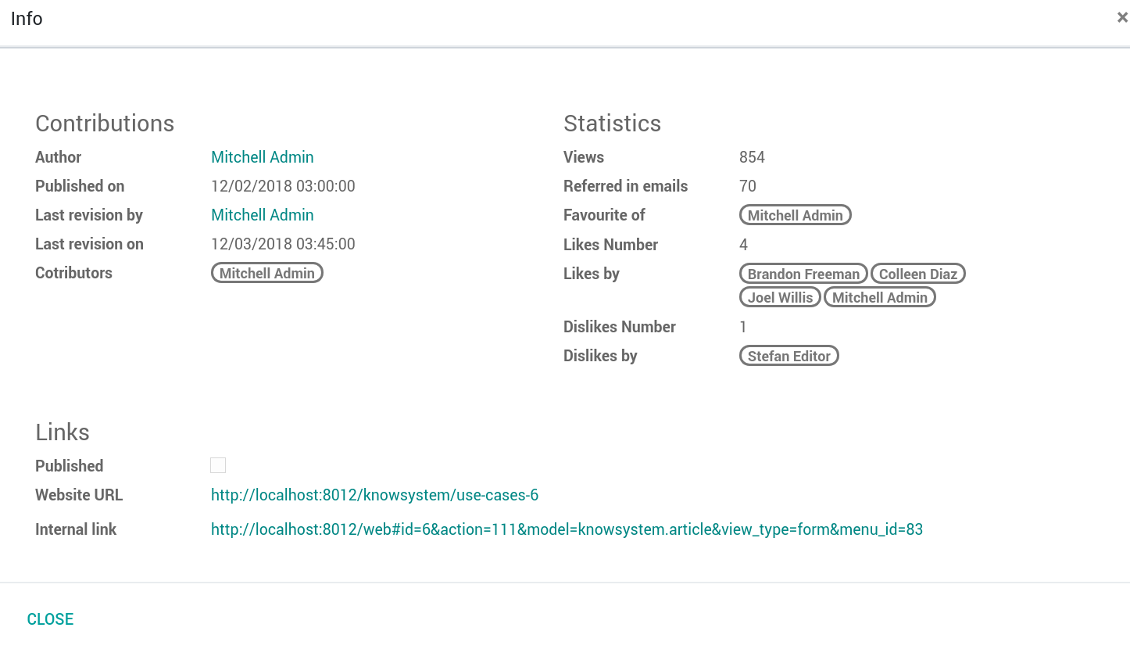
Minden cikknek van belső (backend) és weboldal-URL-je (ha a 'KnowSystem: Website and Portál' opció telepítve van). A rekord webcímeinek megtekintéséhez kattintson a cikk űrlapján az 'Info' gombra. Bármelyiket beszúrhatja a cikk törzsébe hivatkozásként.
Megváltoztathatom egy cikk HTML-forráskódját?
Igen: kapcsolja be a debug assets funkciót (a beállítások áttekintő képernyőjén), majd térjen vissza az aktuális cikkhez. Szerkesztőmódban megjelenik a '</>' ikon. Kattintson rá a HTML és a stílusok megtekintéséhez és szerkesztéséhez.
Mik az eszkozeik frissítési szabalyai?
Az Odoo Apps Store aktuális szabalyai szerint:
- A 12.0-s vagy korábbi verzióhoz vásárolt modul hozzáférést ad minden 12.0-ig tarto verzióhoz.
- A 13.0-s verzitol minden modulverziot külön kell megvasarolni.
- A verzioszamtol függetlenül a vásárlás jogot ad az adott foverzion belüli összes frissitesre es hibajavitasra.
A faOtools csapat nem irányítja ezeket a szabályokat. Kerdesekkel közvetlenül az Odoo Apps Store kepviseloit keresse.
Hogyan telepitem az alkalmazást Odoo.sh-re?
A legkozvetlenebb megkozelites az Odoo-aruhaz beépített munkafolyamata:
1. Nyissa meg a modul oldalat, es kattintson a Deploy on odoo.sh gombra
2. A GitHub oldalra kerül. Jelentkezzen be, majd kattintson a Create a new repo gombra, vagy használjon egy meglévőt. A tarhaznak privatnak kell lennie. OPL-1 licencu alkalmazások nem tehetok közzé. Szükség esetén hozzon létre uj repot az Odoo.sh-projekthez
3. Ezutan az odoo.sh-en kattintson a Deploy gombra, erősítse meg, majd kattintson a Continue gombra. Elindul a telepítés.
Ezek a lépések a production agra telepitik az alkalmazást. Mas agakhoz vagy frissiteshez:
1. Töltse le a forraskodot az Odoo-aruhazbol
2. Commitolja a modult a GitHub-tarhazba. Egyik alkalmazasmappa/-fájl sem kerulhet a .gitignore-ba. Az odoo.sh által létrehozott tarhazak fontos utvonalakat (pl. /lib) hagyhatnak figyelmen kívül. Töltse fel az összes modulkonyvtarat es fájlt
3. Deployolja az odoo.sh-projekt celagat, vagy várja meg az automatikus buildet, ha a beállítások igy szolnak.
Hogyan telepitem az alkalmazást a saját szerveremre?
2. Indítsa újra az Odoo-kiszolgálót;
3. Kapcsolja be a fejlesztői uzemmodot (technikai beállítások);
4. Frissítse az alkalmazaslistat (Alkalmazások menü);
5. Keresse meg az alkalmazást, es kattintson az Activate/Install gombra;
6. Kövesse az alkalmazasoldal utmutatasait, ha vannak.
Az alkalmazásnak extra kiegeszitoi vannak. Megvehetem őket később?
Igen. Az Odoo automatikusan a kosarba teszi a fuggosegeket: zárja ki a mar megvasarolt eszközöket, hogy ne fizessen kétszer.
Telepitettem az alkalmazást Odoo.sh-re, es figyelmeztetést/hibát latok a tesztekben
A piros/narancs figyelmeztetés nem befolyásolja az alkalmazás funkcióit. Néha a moduljaink nem mennek at a standard automatikus teszteken, mert azok az alkalmazás celjaival ellentetes viselkedést várnak. Például megvaltoztatjuk az arszamitast, miközben az Odoo-tesztek a végső árat a standard algoritmussal hasonlitjak össze.
Először ellenőrizze a telepített adatbázis funkciot. Minden működik?
Ha mégis ugy gondolja, hogy a figyelmeztetés valós funkciókat érint, írjon nekünk, es küldje el a teljes telepítési naplókat es a telepített modulok teljes listajat (mag es harmadik fel).
Megvehetem az alkalmazást közvetlenül onoktol?
Nem, az eszközöket csak a hivatalos Odoo alkalmazasboltban forgalmazzuk.
Kedvezmenyt szeretnék
Sajnos nincs technikai lehetosegunk egyedi árakat adni.
Telepithetem az alkalmazást az Odoo Online (SaaS) adatbazisomra?
Nem, harmadik feles alkalmazások nem használhatók az Odoo Online-on. Az Odoo SaaS ezt blokkolja.
Az eszköz mas alkalmazasoktol függ. Meg kell vennem őket?
Igen, az eszkoznek szüksége van minden függőségként jelölt modulra. Az alkalmazasoldal ara mar tartalmazza ezeket a fuggosegeket.
Mennyi a modul ara amerikai dollarban? Miért változott?
Moduljaink ara euroban van megadva. Az Odoo-aruhaz a belső arfolyama szerint vált mas penznemekre. Ezért az amerikai dollar ar valtozhat, amikor az arfolyam frissül.
Az alkalmazás és a webhely angolon kívüli nyelveken mesterséges intelligenciával készülnek és az hivatalos Odoo-fordításokhoz igazodnak. Ha hibát talál, küldjön fordításhelyességi jegyet és kijavítjuk.
Hibajelentés
Ha hibát vagy következetlen viselkedést lát, írjon nekünk. A vásárlástól 60 napon belül javítást vállalunk, és utána is fejlesztjük az eszközöket.
Nem kell telefonszám vagy bankkártya a kapcsolatfelvételhez. Elég egy rövid e-mailes regisztráció, ami 30 másodpercnél nem tart tovább.
Adjon meg minél több részletet: képernyőképek, Odoo-kiszolgálónaplók és a hiba reprodukálásának teljes leírása. Általában néhány munkanap kell a munkatervhez (ha a hiba megerősített) vagy az iránymutatáshoz (egyébként).
Nyilvános funkcióigények és modulötletek (ingyenes fejlesztés)
Erősen motiváltak vagyunk az eszközeink fejlesztésére, és hálásak minden visszajelzésért. Ha az igények közhasznúak és hatékonyan megvalósíthatók, a csapat felveszi őket a teendők listájára.
Az ilyen teendőlista rendszeresen feldolgozásra kerül, extra díj nélkül. Bár határidőt és végleges dizájnt nem ígérhetünk, jó módja lehet a kívánt funkciók befektetés és kockázat nélküli megszerzésének.
Nem kell telefonszám vagy bankkártya a kapcsolatfelvételhez. Elég egy rövid e-mailes regisztráció, ami 30 másodpercnél nem tart tovább.

Eszköz Odoo mellékletek mappákba rendezéséhez és könyvtárak szinkronizálásához felhőklientekkel: Google Drive, OneDrive/SharePoint, Nextcloud/ownCloud, Dropbox, Amazon S3, Box és NAS. DMS. Fájlkezelő. Dokumentumkezelő rendszer
398€
Eszköz Odoo-mellékletek automatikus kétirányú szinkronizálásához OneDrive-fájlokkal
487€
Eszköz Odoo-mellékletek automatikus kétirányú szinkronizálásához Google Drive-fájlokkal
487€
Eszköz jelszavak biztonságos, megosztott tárolására Odooban. Megosztott trezorok

Eszköz KPI-célok beállításához és teljesítésük időszakos ellenőrzéséhez. KPI-irányítópultok. Dashboard-tervező. KPI-diagramok

Eszköz időalapú szolgáltatáskezeléshez a foglalástól az értékesítésig és az értékelésekig
398€
Eszköz az Odoo kezeléséhez a kedvenc AI-csevegőkből MCP-n keresztül. Claude. Bármely MCP-t támogató AI.

Eszköz különböző Odoo-események egyesítéséhez néhány konfigurálható szupernaptárban
