KnowSystem: Knowledge Base System v.11
The tool to build deep and structured knowledge base for internal and external use. Knowledge System. KMS
- a core of knowledge management. It might be used stand-alone as a complete internal knowledge base system. Jeho cena je 398€.
- an optional module, which let you publish articles to website, share them with portal users, and use website builder to update articles. The features assumed by this add-on are marked by the icon . Jeho cena je 40€.
- an optional module, which let you add and show custom fields for articles (backend). The features assumed by this add-on are marked by the icon . Jeho cena je 48€.
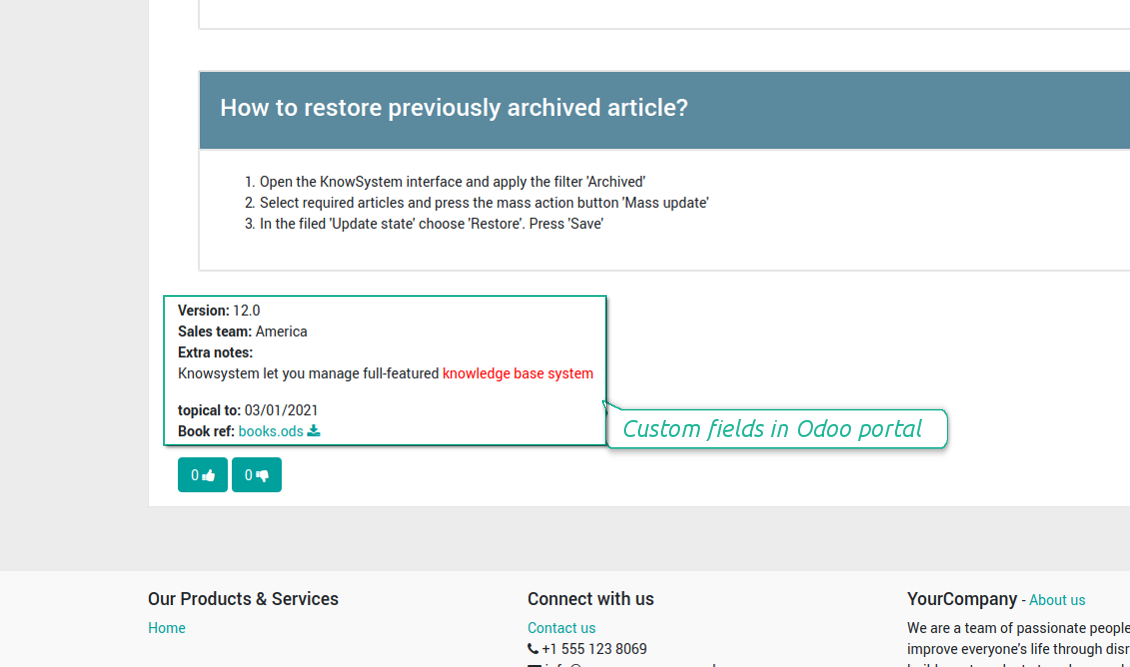
- an optional free module, which shows custom fields on website and portal pages (frontend). The features assumed by this add-on are also marked by the icon .
- an optional module, which let you translate articles, sections and tags for installed in Odoo languages. The features assumed by this add-on are marked by the icon . Jeho cena je 10€.
Innovative single-view interface
From the same interface editors may create and update any knowledge-related documents, change articles in batch, set up security. Without a need for excess navigation.
Interface solutions
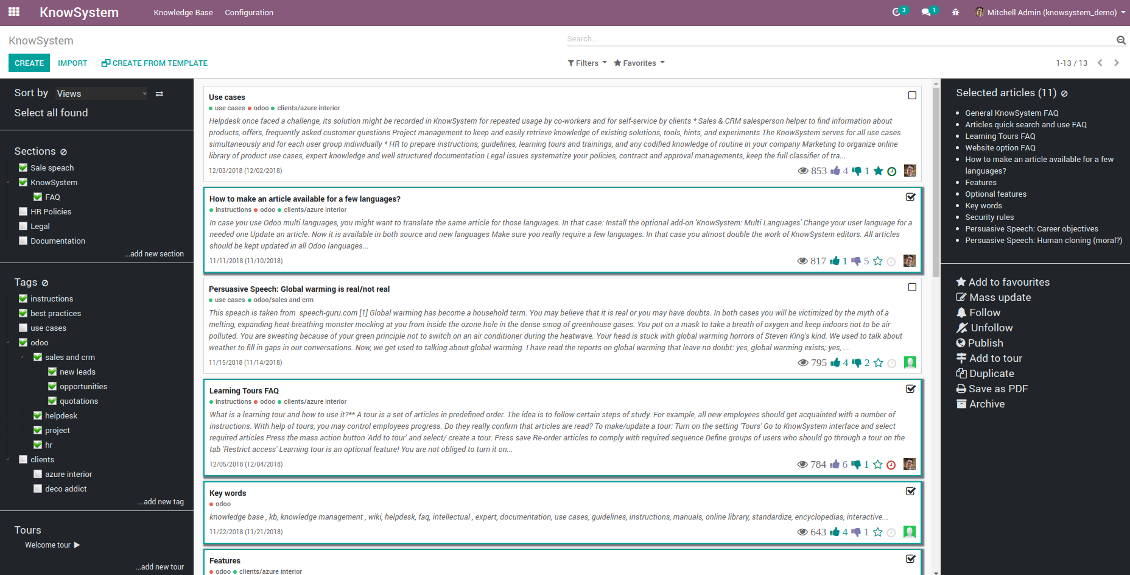
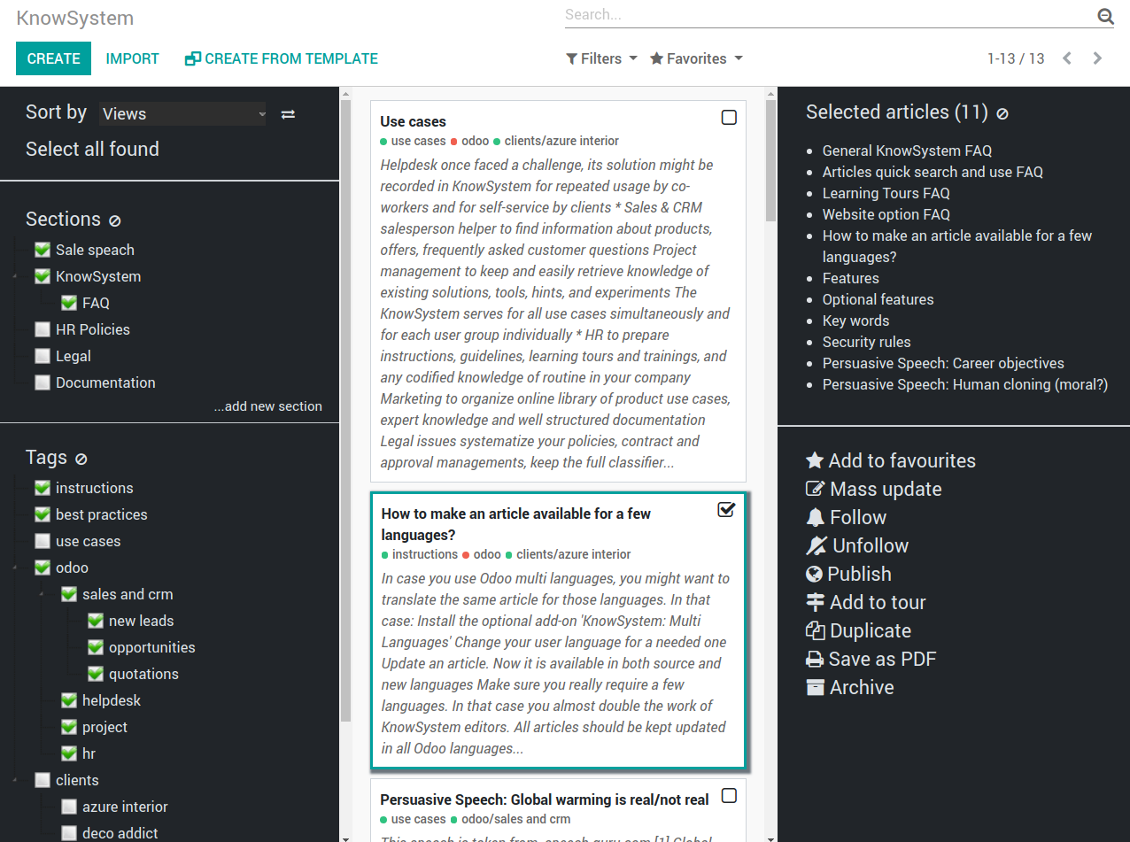
The KnowSystem interface consists of 3 key parts: the left navigation panel, the list of articles, and the right navigation panel (it is shown only if some articles are selected).
On the left navigation panel you may:
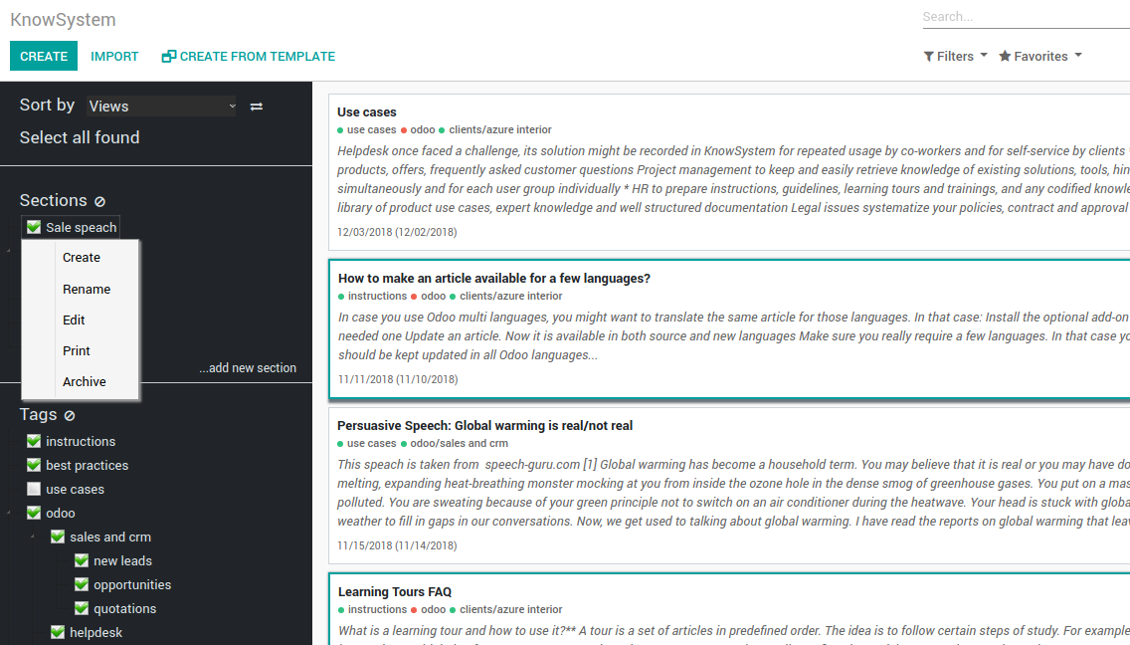
- Manage hierarchy of sections: prepare new (right mouse click - 'create'), update existing (right mouse click - edit), re-order any (drag and drop an item), archive sections. Select a few ones to filter articles. You may also print all articles related to this section as a single PDF file.
- In the same way manage hierarchy of tags
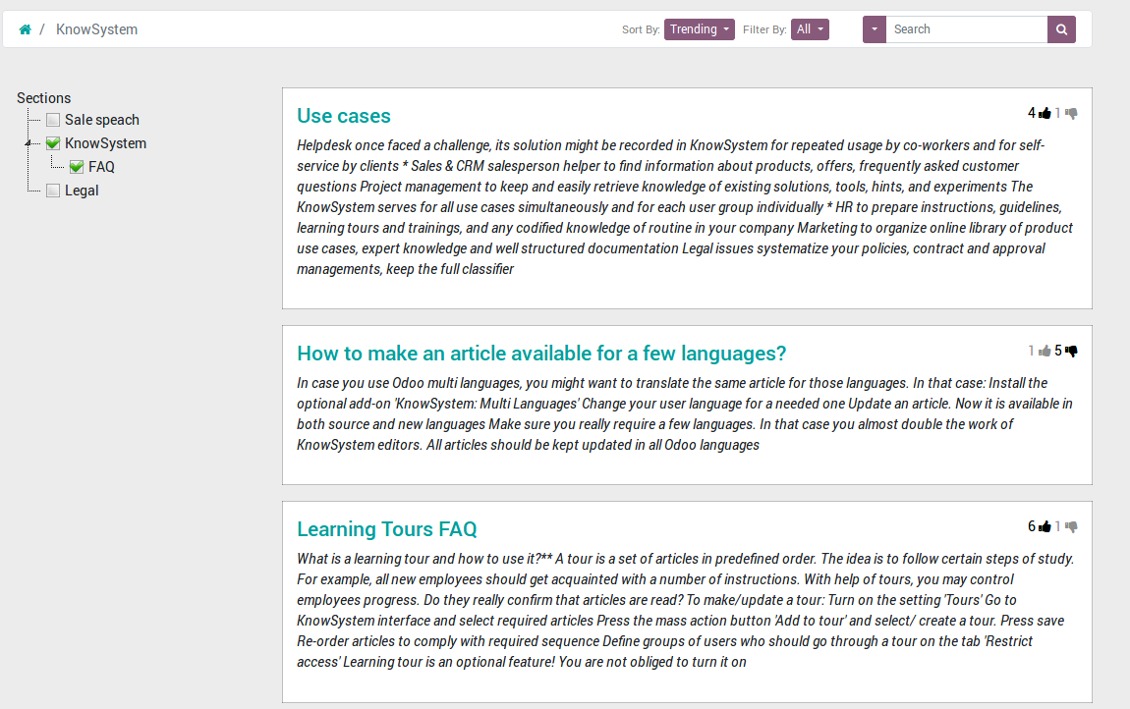
- Sort articles by number of views, a score of likes and dislikes, create or update dates, a section, an author
- Select all articles which are found according to chosen tags / sections and according to introduced searches / filters
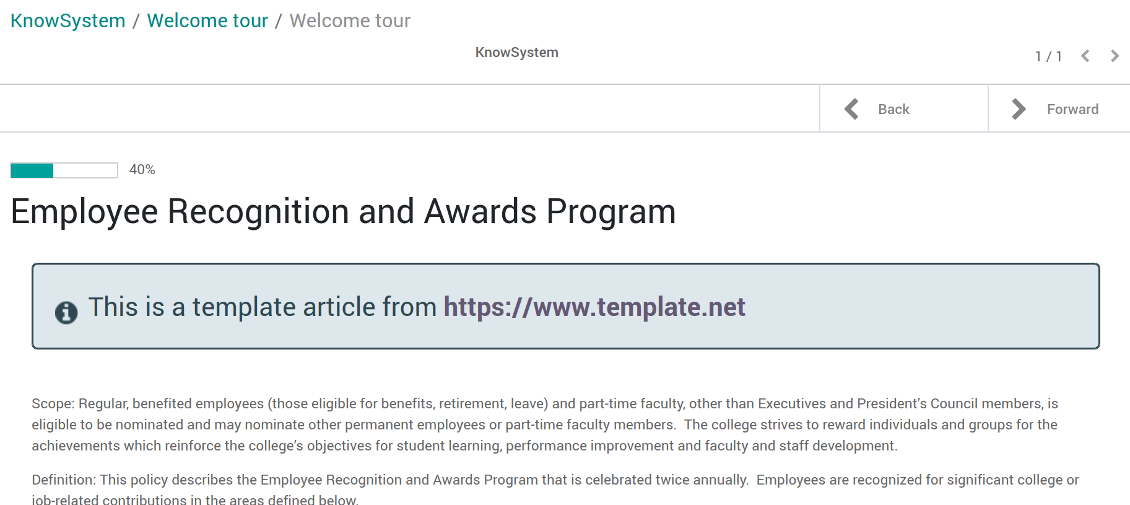
- Launch a learning tour.
From the list of articles you see articles' name, indexed content (words without HTML style), dates of creation and last update, a number of views, likes, dislikes, author avatar. Here you may also add an article to favourite by pressing the 'star' icon.
Click on article body to open it in a full size (form view). Do not worry: chosen tags and sections as well as selected articles will be kept when you get back! Click on the top right check box to add an article for selection.
On the right navigation panel you observe selected articles and may proceed a mass action. Click on article name to remove it form selection.
On the top of the interface users also would find a standard Odoo omnibox. Type here to search by a title, content, an author, tags or a section.
Available mass actions
KnowSystem let users update an unlimited number of articles simultaneously:
- Assign new section
- Change or remove tags
- Print multiple articles as a single PDF
- Follow / unfollow discussions
- Publish / unpublish articles
- Export articles to an Excel table
- Archive or restore records
- Add articles to learning tours
- Mark knowledge items as favourite
- Duplicate articles.
Screenshoty
KnowSystem articles overview, search and mass actions
Single entry for knowledge management actions
KnowSystem configuration
Article read mode
Article info and statistics
Article misc actions
Mass actions for selected articles
Small screen KnowSystem interface
Fast, comfortable, and professional knowledge recording
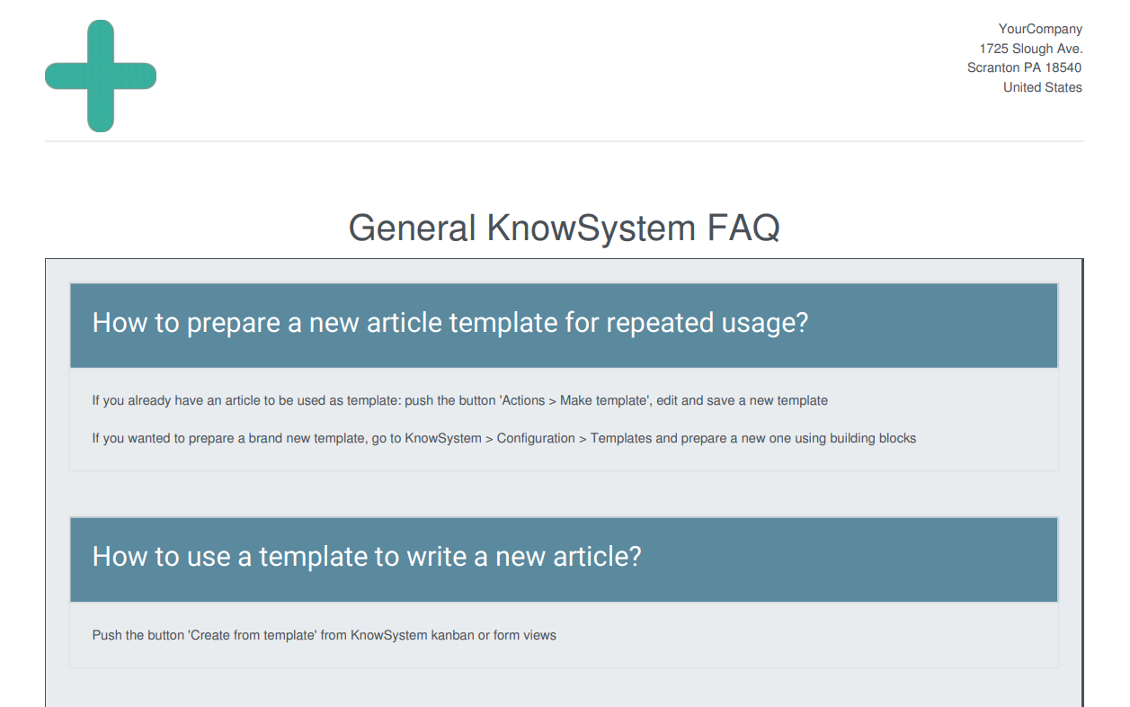
By using templates with pre-defined styles you may also speed knowledge generation up and standardize articles' appearance.
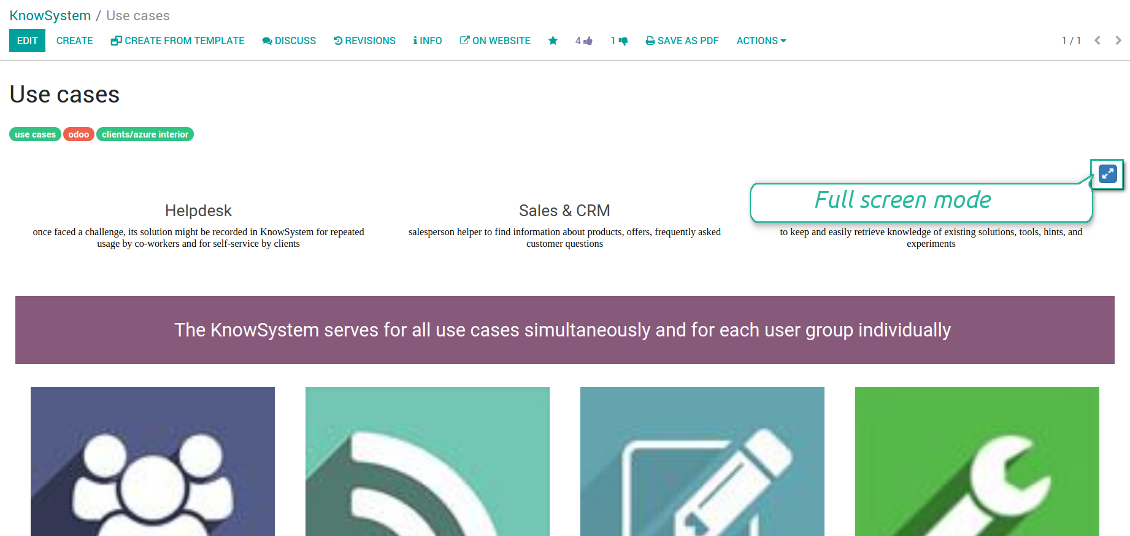
How to use the website builder for editing articles
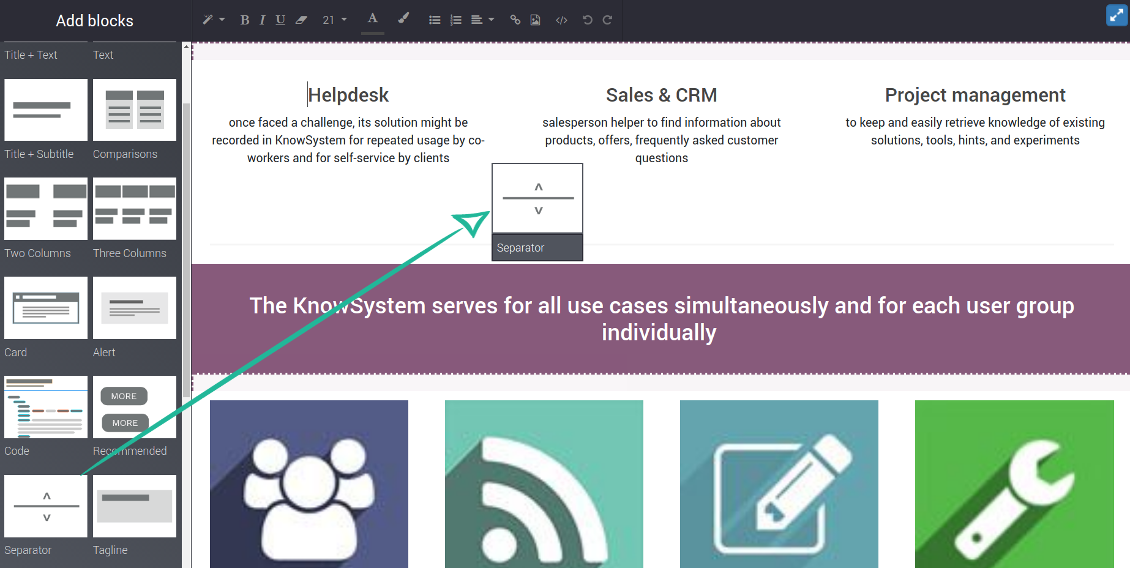
KnowSystem provides you with a backend articles' builder, which is comfortable and safe to use. Odoo website builder is richer in features to prepare complex HTML structures. To edit articles through the website:
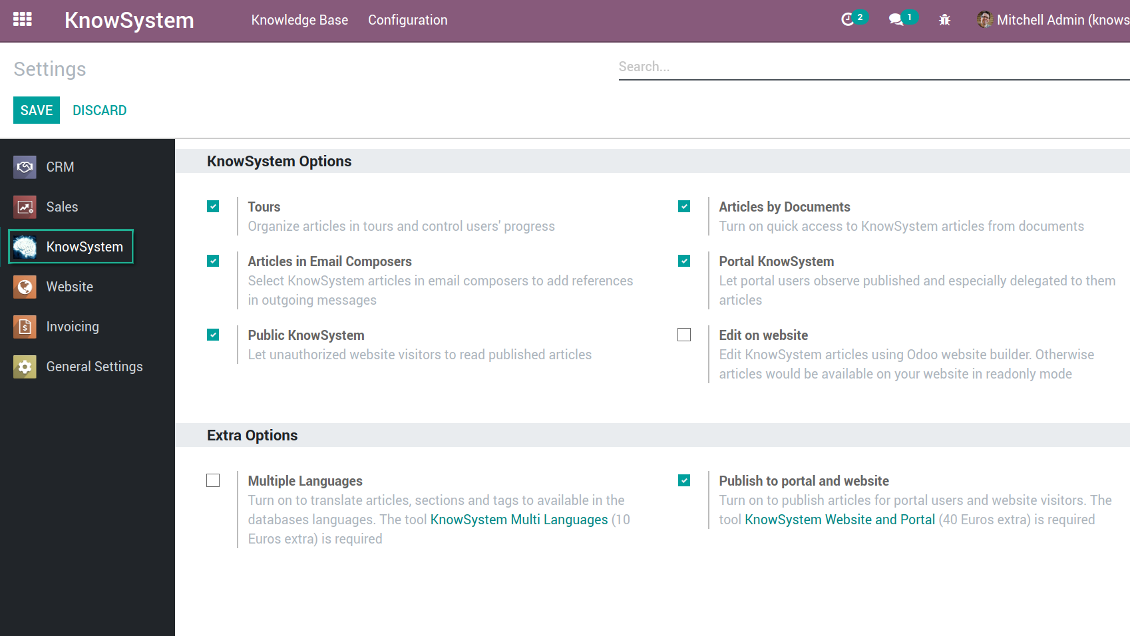
- Install the optional add-on 'KnowSystem Website and Portal' (the option 'Publish to portal and website')
- Turn on the setting 'Edit on website'
- Push the button 'Edit on website' on this article form
Be cautious: if you are going to print this article or add its contents to emails, website building blocks are not suitable. Their advanced styles contradict printing and composer layouts and would not be correctly shown. In such a case use the safer backend builder.
How to use article templates
To prepare a new article template for repeated usage:
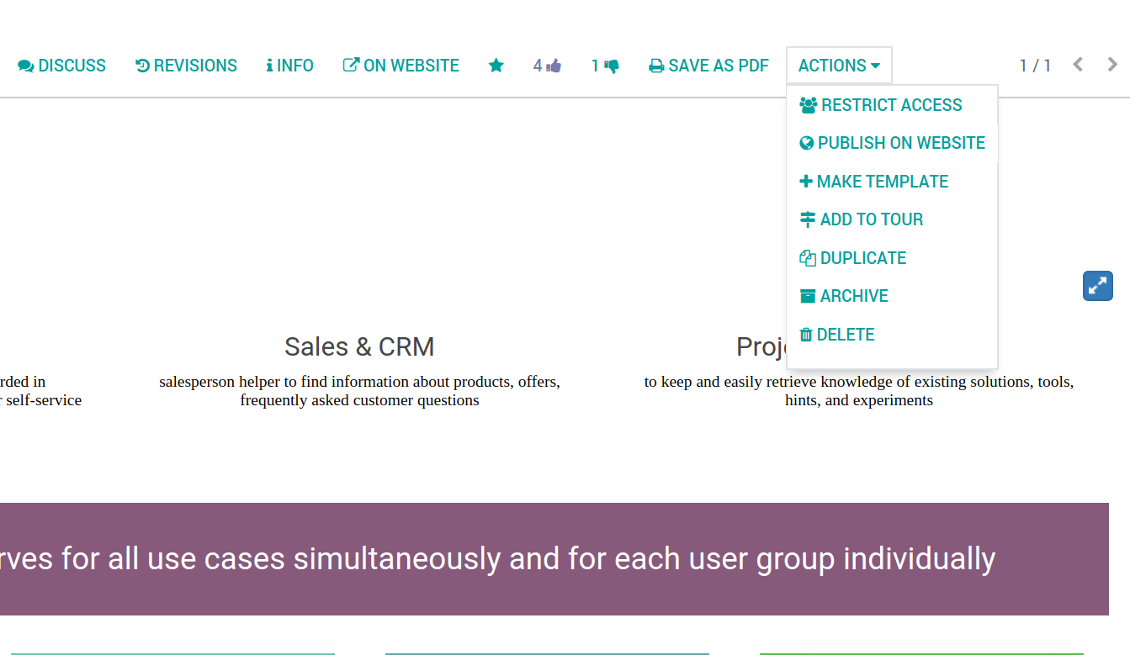
- If you already have an article to be used as template: push the button 'Actions > Make template', edit and save a new template.
- If you wanted to prepare a brand new template, go to KnowSystem > Configuration > Templates and prepare a new one using building blocks.
To use a template to write a new article:
- Push the button 'Create from template' from KnowSystem kanban or form views
- Select a required article template
- Push 'Create' and introduce changes to a new article.
Screenshoty
Building blocks for knowledge base articles
Get benefit from your knowledge
How document types and articles are linked for a quick access
Experience is not general, usually it relates to specific issues. Knowledge used for customer communication differs from suppliers' negotiations. Frequently asked questions for draft and confirmed sale orders vary. KnowSystem let you structure your articles to apply them in a correct place and at right time. To that end:
- Turn on the setting 'Articles by Documents' (the option shows the top menu entry above any Odoo document) or 'Articles in Email Composers' (the option adds a quick link in a message composer editor for citing)
- Create a new tag (e.g. 'odoo / helpdesk'). In the table 'Applied to' use a required model (e.g. 'helpdesk ticket') or use it for all documents (the check box 'Apply to all documents').
- As advanced option you may apply additional filters: for example, to show articles only for 'new' tickets, not for 'in progress' ones. Use dynamic filters' constructor for that goal
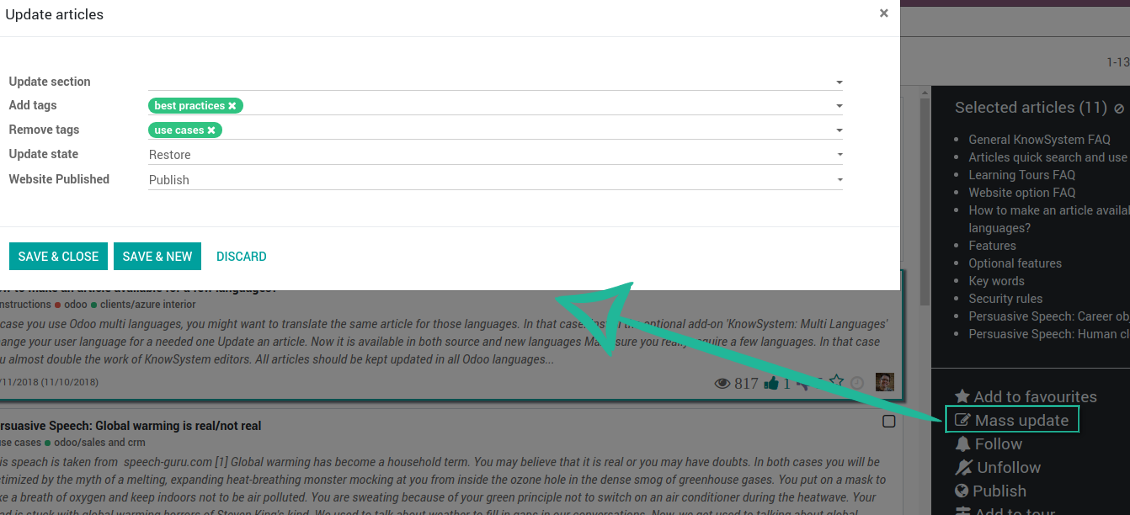
- Assign this tag for required articles. For a few articles use the mass action 'Mass update'
- Now when you access a quick article search from a document or from an email composer, Odoo will calculate KnowSystem tags for this document. That's why by default users would see only articles suitable for a current document. Simultaneously, they might always change tags to use other knowledge base data.
How to overview articles which might be useful for this document
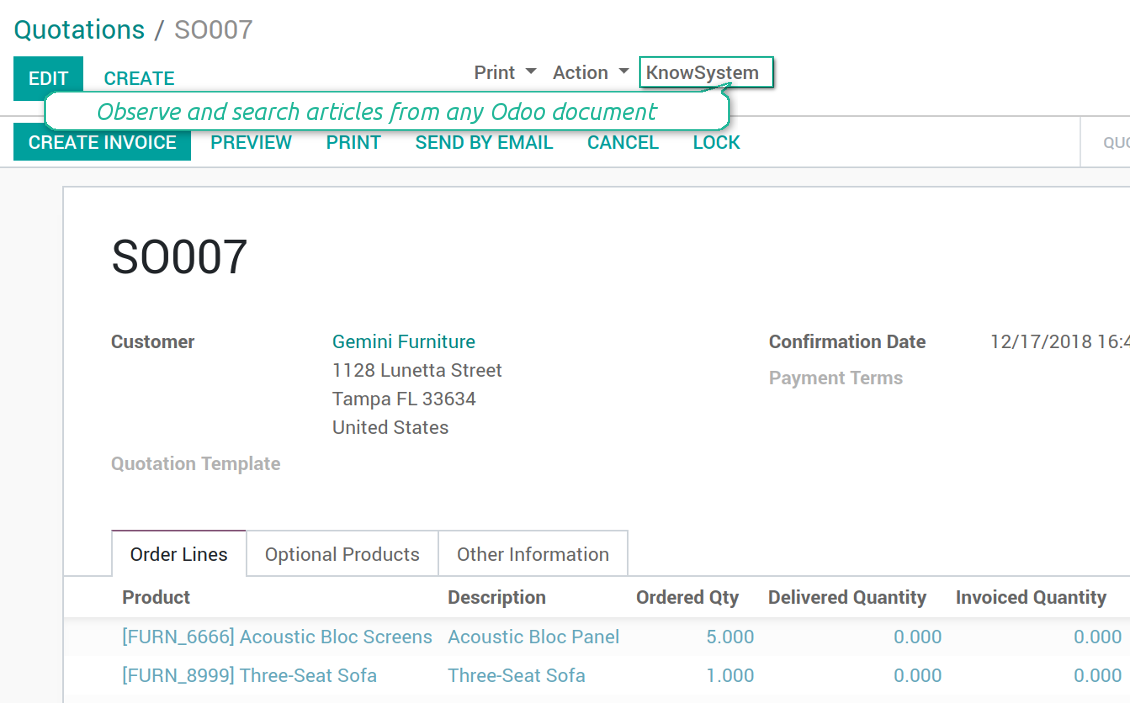
As soon as you turned on the option 'Articles by Documents', on the top of each Odoo object form view there would be a quick link 'KnowSystem'.
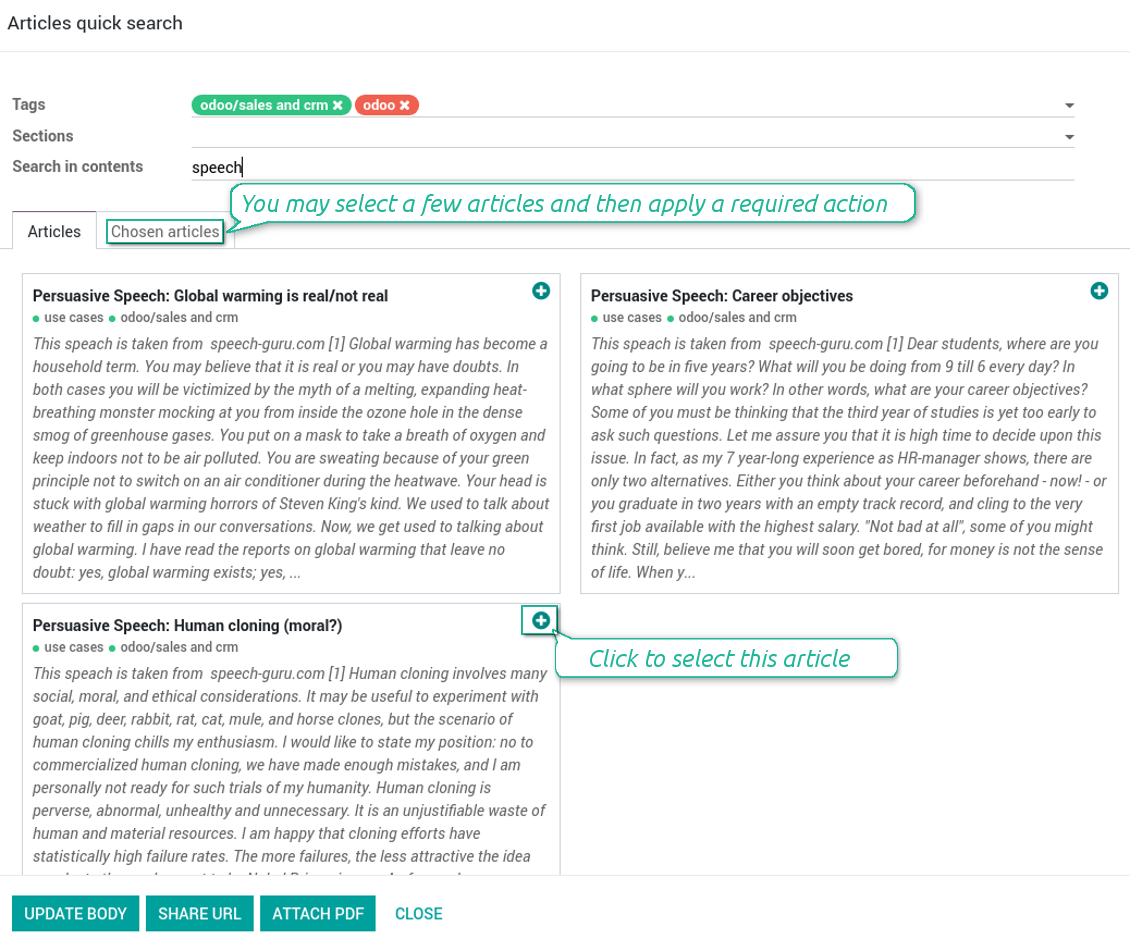
Click on that entry, and Odoo would open the wizard with articles. By default KnowSystem tags suitable for this document would be selected (if any). You may change those tags, or additionally filter by sections or content search. As a result list of topical articles is shown for you.
How to use company knowledge for communication
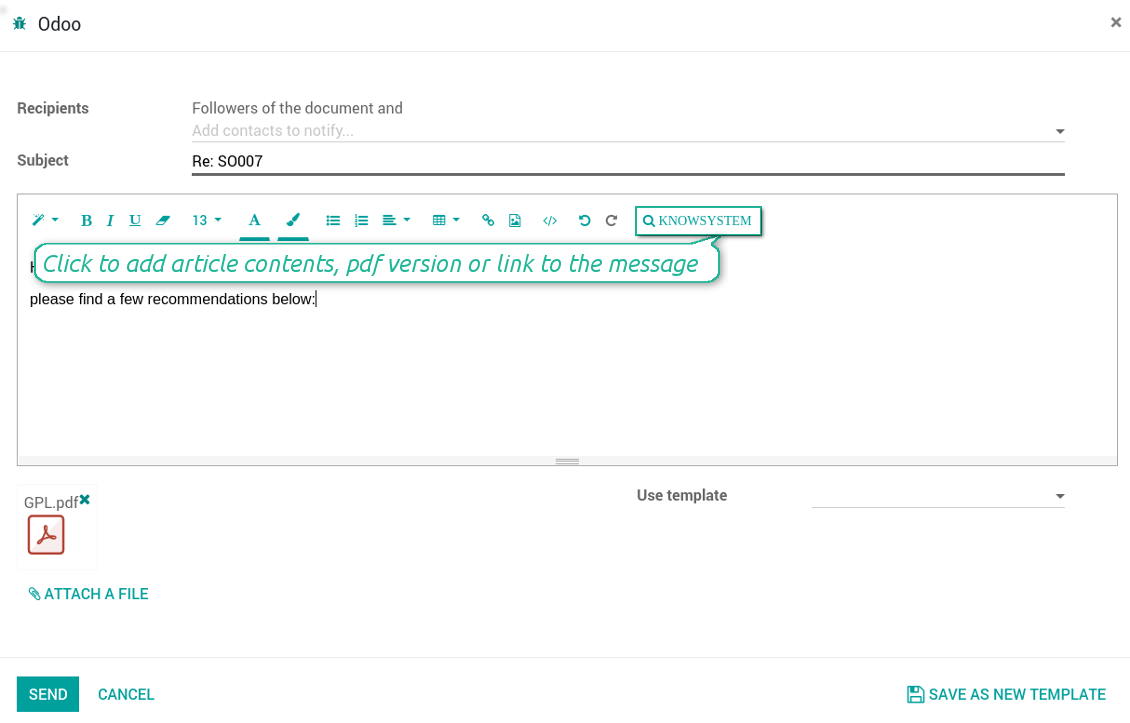
Turn on the option 'Articles in Email Composers' to let users reference or cite Knowledge records in Odoo messages. As a result the special quick entry 'KnowSystem' would be added to each Odoo email composer.
Clicking on that entry would open a wizard with a set of suitable to this document articles. You may change search by tags, add extra filtering by sections or content.
Afterwards, select required articles among found ones; choose an action. You may:
- Update message body with article contents (would be added to the end of a current message)
- Attach a PDF version of an article(s)
- Share a public link
Screenshoty
Quick access for knowledge system from any Odoo document
Knowledge base link from email composer
Articles from any document
Article(s) PDF printing
WIKI-like revision system
How to recover a previous article version
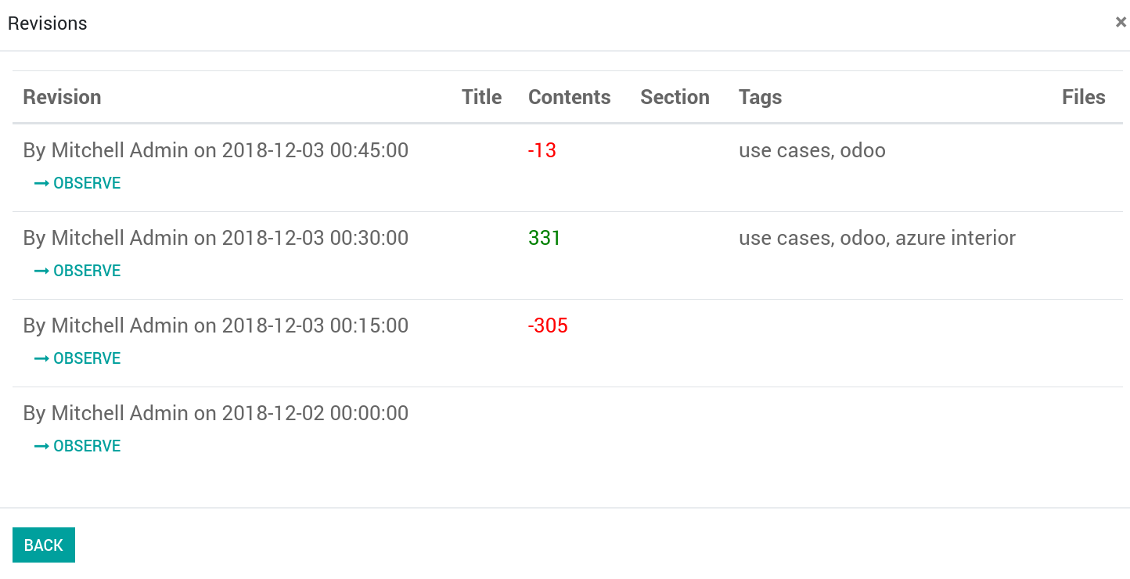
- Go to an article form view and push the button 'revisions'
- Find a required one and push the button 'Observe' to check whether this version is a correct one
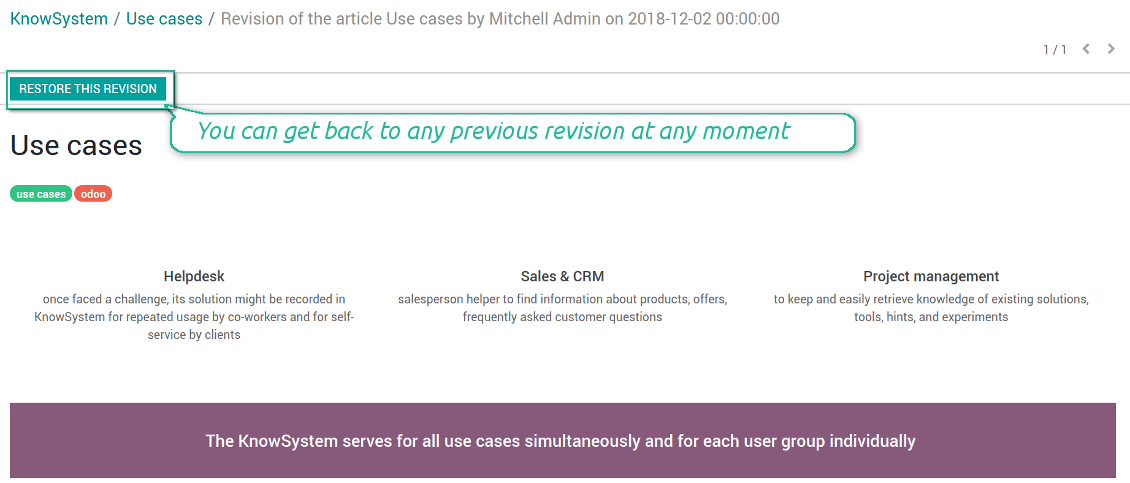
- Push the button 'Restore this revision'. The article would be recovered to that version.
- The recovery operation itself is recorded. So, if it is a mistake you can revert changes by recovering the last-to-last revison.
Screenshoty
Wiki-style revisions history
To restore is easier than to break
Individual partner knowledge base portal
How to share knowledge base with specific partners
An article is available for a portal user in two cases: A. it is website published; B. his/her company is indicated as allowed partner in one of article tags.
In the first case such an article is available for all portal users and even for public website visitors who have not logged in.
In the latter case you grant a restricted access for an article only for chosen companies. To that end:
- Turn on the setting 'Portal KnowSystem'
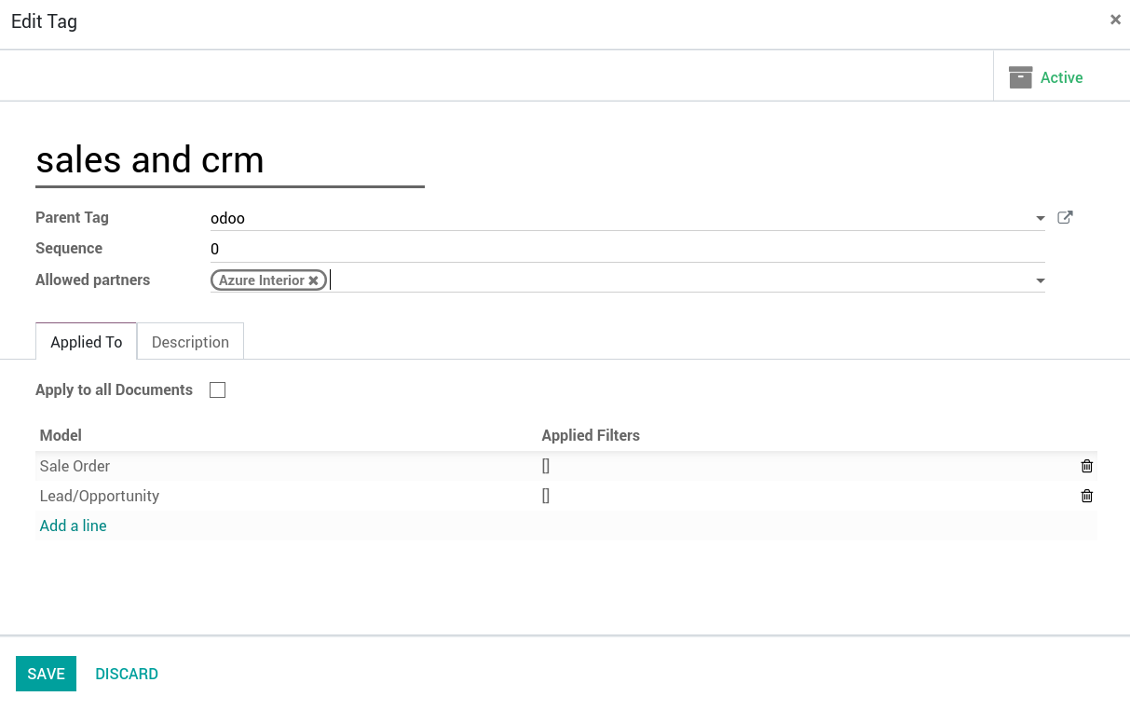
- Create a tag for this partner, for example 'clients / Azure Interior'. On the tag form indicate this company in the field 'Allowed partners'
- Assign the tag for all articles you want to share with this partner. For a few articles use the mass action 'Mass update'
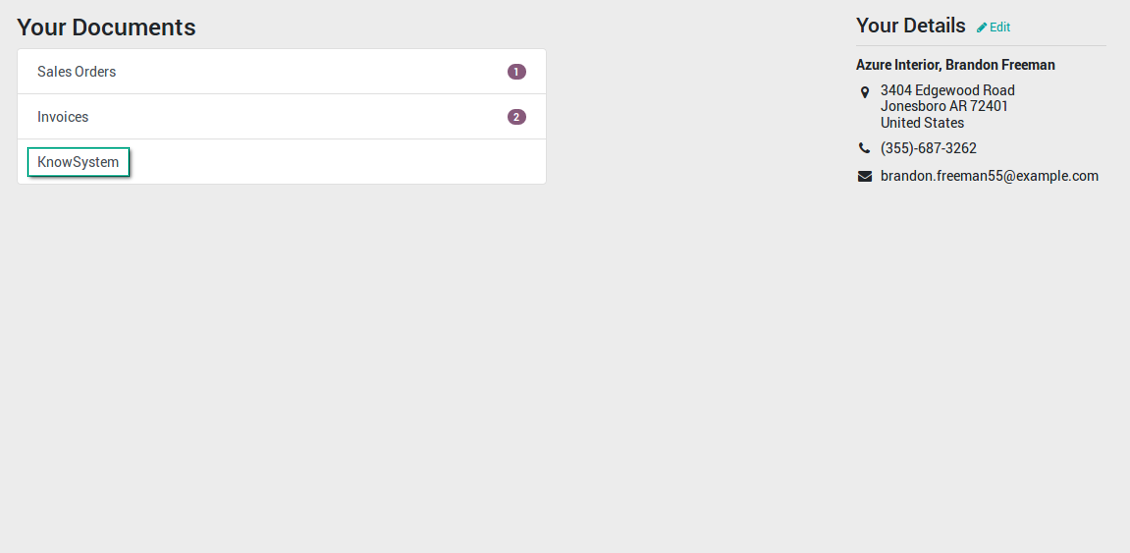
- Now portal users related to this partner may access shared articles right from their partner portal.
Screenshoty
Knowledge base for portal and public use
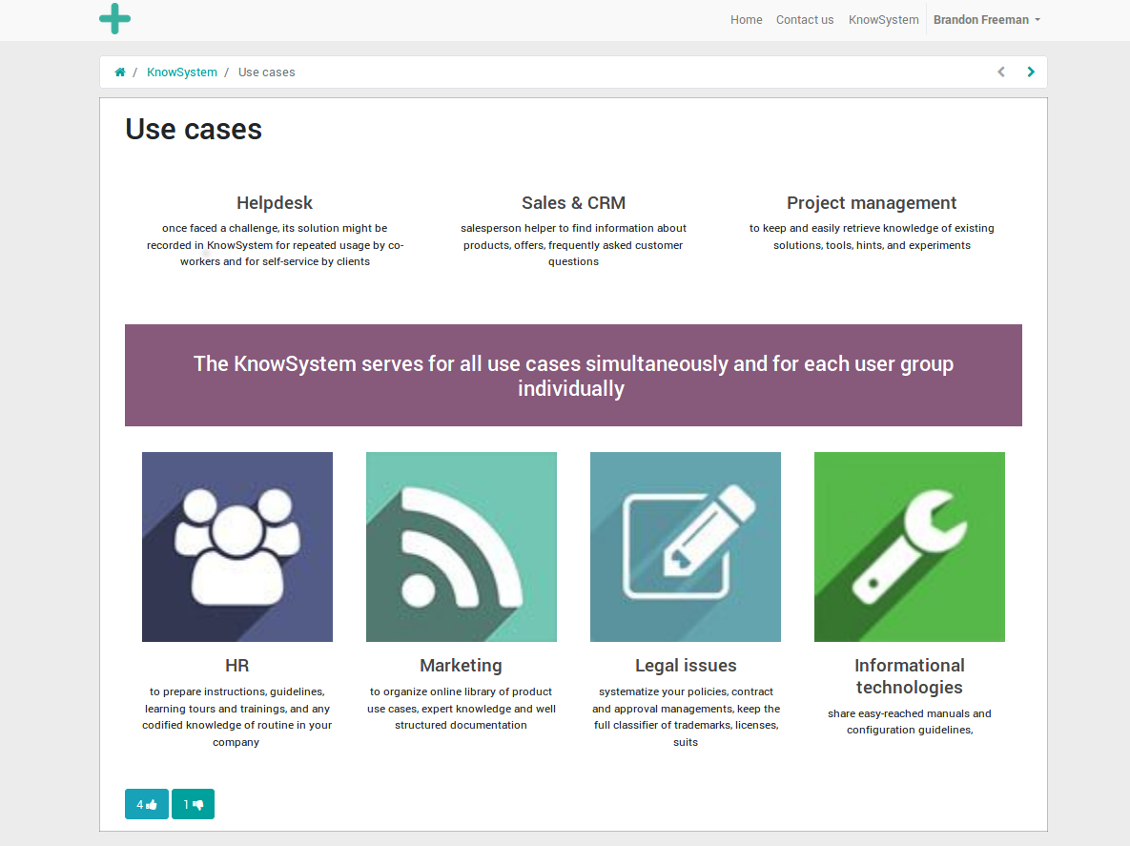
KnowSystem articles on website
Tag: document types and portal partners
KnowSystem from portal
Best knowledge base system for Odoo!
Excellent app and exceptional after-sales support.
Really well thought-out product and one of the best features is the contextual help by means of the tags. Really a game changer for us.
Keep up the great work FaOtools!
Outstanding app! Tremendous value for money, an absolute must have!
One of the features sorely lacking from Odoo has been a robust Wiki/documentation system. Using third party platforms is a massive headache: yet another system to maintain, users get distracted switching back-and-forth, and errors get made. Then you have to worry about training, additional logins, etc.
KnowSystem feels like a native/core app, is very well-polished, and extremely fast. It's accessible from any screen, and the search results are instant (none of the latency inherent with most apps).The interface is elegant yet powerful, with robust access control, rich editing features, and version control. It's simple to revert to previous entries, view audit trails, etc. It's very intuitive for anyone familiar with Odoo; onboarding takes just a few minutes. The user guides are excellent.
This is invaluable for any organisation with a lot of documented information, SOPs, ISO compliance, or similar. If you're using eLearning, it's great for creating a help system / reminders. For example, noting key takeaways or specific instructions. The user can be in MRP, Sales, or any other function, and instantly lookup a guide. Since it overlays whichever screen you're in, it doesn't interrupt the workflow.
This dramatically increases efficiency, minimises questions, and helps keep everyone on the same page.
Oh, and customer service is excellent, faOtools stands behind their product. Thank you!
KnowSystem is excellent - OdooTools offer great support, are very helpful and responsive
Our company needed the ability to add a Knowledge Base to our Odoo portal website for our customers to access article content on a membership-only basis. KnowSystem provided this and much more, along with ability to add search by section, set permissions to allow only certain partners access to articles by tag etc. OdooTools have been very helpful and implemented several features we suggested including automatic redirect upon login, customisable filters and a social sharing capability on articles. Overall a great app by a great company, something that massively adds to Odoo's capabilities and is something that everyone could benefit from using.
Very functional application and responsive support
Our company produces medical laser equipment and we use KnowSystem to streamline the knowledge base of our company. Convenient search system and classification of content, as well as access rules for groups and even for individual users.
Great app and professional team
The app is great the the team is very professional in both response timing and problem solving.
Highly recommended.
Marco from ALO.zone.
Excellent system
Excellent system.
A great tool from some very nice developers!
KnowSystem is a great tool and a game changer for us. Finally a place to put all our company know-how. I highly recommend it. And also important to us: We got great support from FaOtools too. A rare thing in this busy world. thx!
Excellent app and support.
Great app and a very helpfull support. Openess to improve their products is outstanding.
Public knowledge base
How to make an article available for all website visitors
- Turn on the setting 'Public KnowSystem'
- Publish required articles through the mass action 'Publish' or by pushing the button 'Actions > Publish on website' on an article form
- Now any website visitor can read those articles
Team work for knowledge creation
Screenshoty
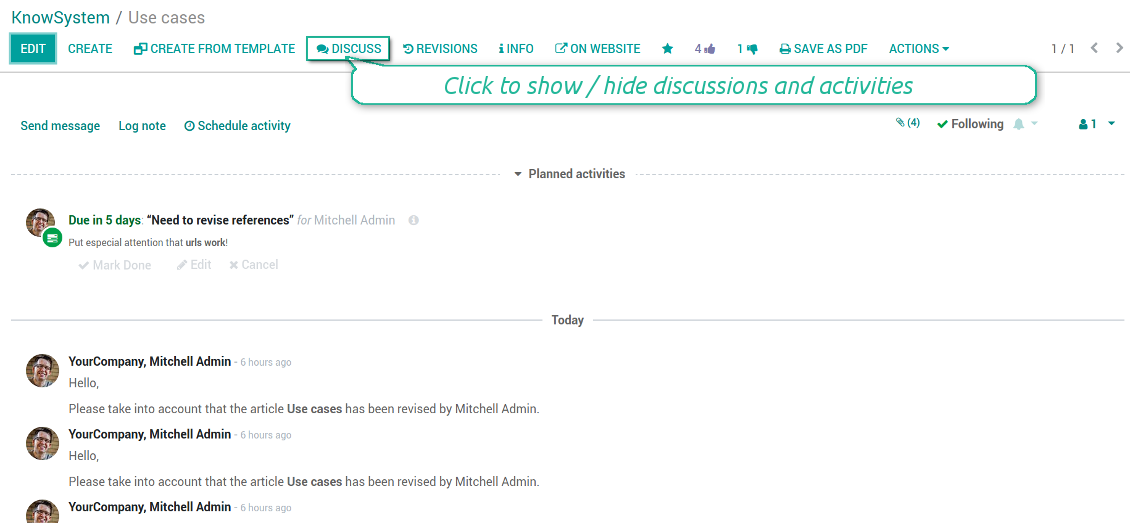
Knowledge base interactions, discussion, and activities
Custom fields to structure knowledge
How custom knowledge attributes work
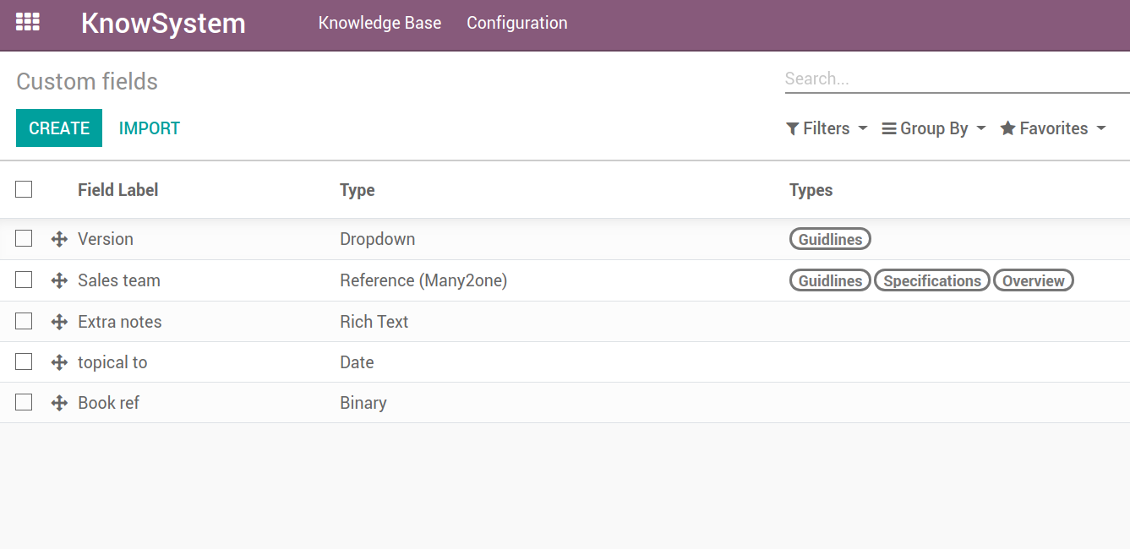
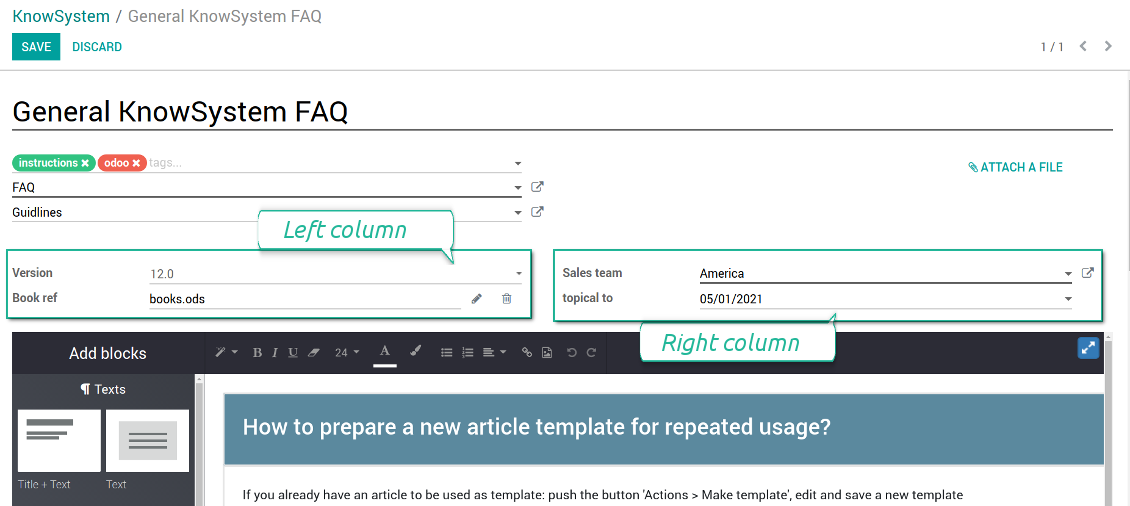
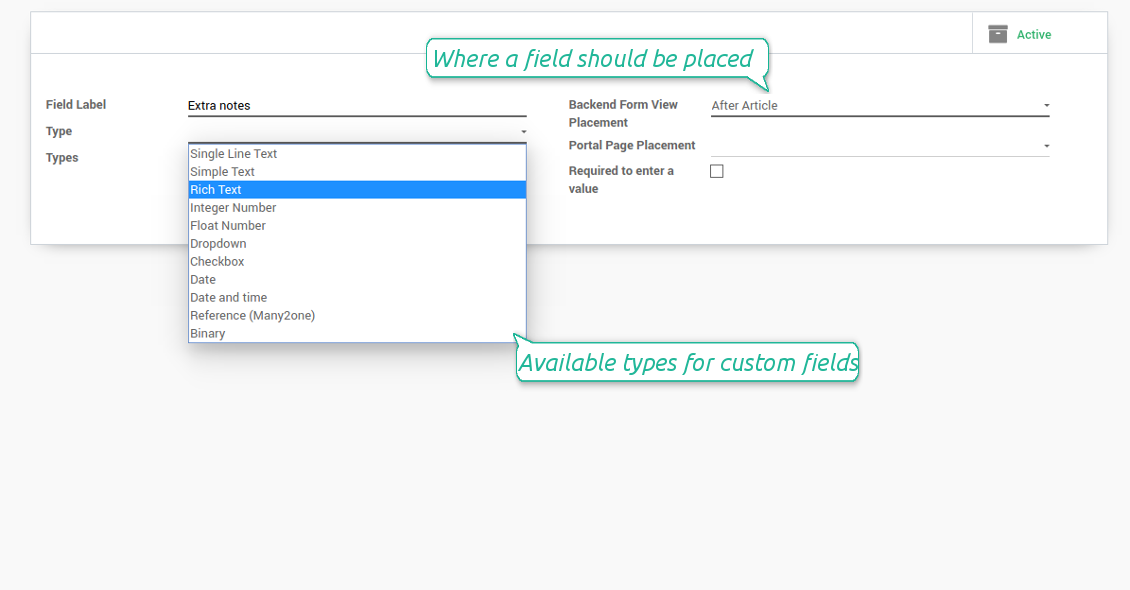
In order to show a new property for KnowSystem articles, just create a custom field. Nothing else is required! You are welcome to prepare fields of various types: single line text (char), simple text without formatting (text), rich text (HTML-formatted text), integer or float numbers, drop-down choice with your own options (selection), checkbox (boolean), date or date and time, binary (a file to upload), reference to another Odoo document (e.g. for a sale order, contact; many2one).
The tool also introduces complementary articles' typology. Thus set of attributes for 'user guidelines' and 'technical specifications' might be different.
Then, choose an interface location for a new field from a closed list to structure properties on an article page. Decide whether a field should be required to enter, or should be visible only for definite knowledge types.
Screenshoty
KnowSystem articles' custom fields
Custom fields on article form
Custom fields in portal and website
Custom fields for article: add any data required
Knowledge is secured and might be safely shared
How to manage user accesses to articles
Security for internal and portal users differs.
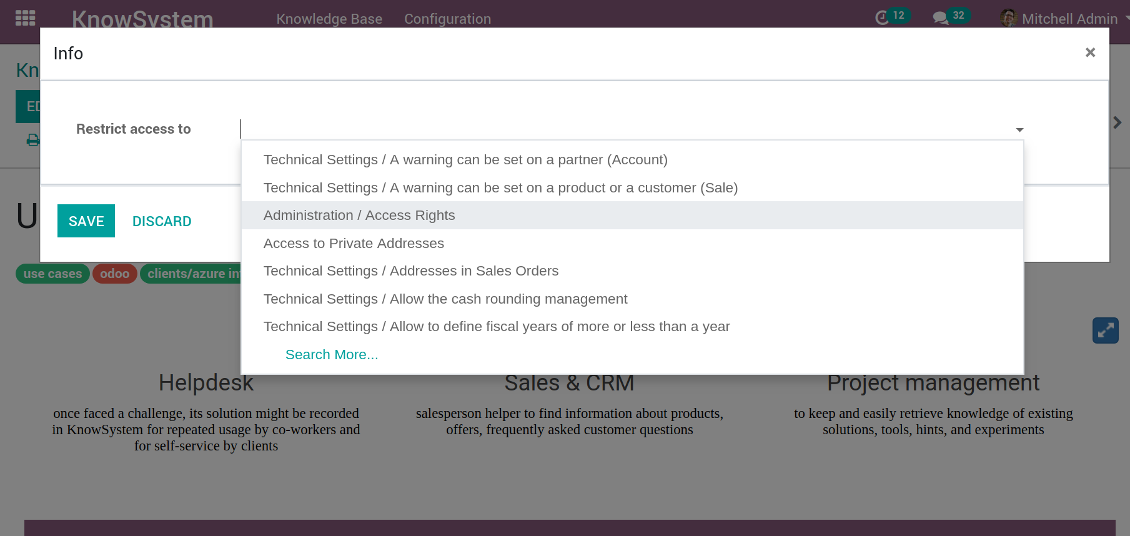
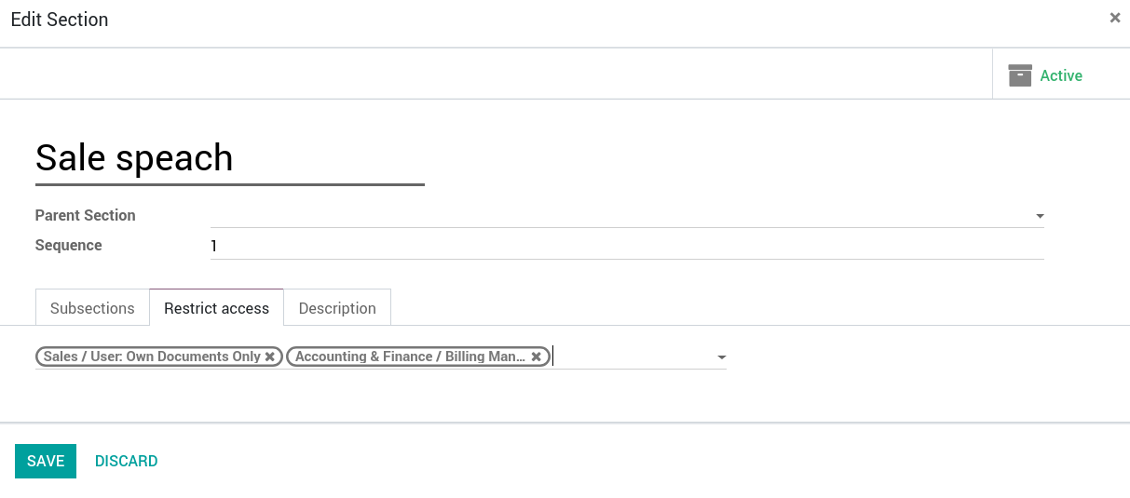
For the company employees: KnowSystem considers user groups which are defined per articles, sections and tours. Look at the tab 'Restrict to' on forms of those objects. If that field is not defined, a document is considered 'global': each internal user may read it.
For portal / public users: KnowSystem takes into account tags and whether an article is website published. A knowledge tag has a field 'Allowed partners', which may grant an access to portal users for articles with this tag. Website published pages are available for everybody.
Rights to administrate KnowSystem belongs to 2 user roles: KnowSystem Editor and KnowSystem Administrator. If you want a user to create and edit articles, a user should belong to one of those groups.
|
|
Odoo user |
KnowSystem Editor |
KnowSystem Admin |
Portal user |
Public user |
| Articles | read related to his/her user groups and sections | read, create, edit, archive related to his/her user groups and sections | read, create, edit, delete any | read published articles and articles related to partner-related tags | read published articles |
| Sections | read related to his/her user groups | read, create, edit, archive related to his/her user groups and sections | read, create, edit, delete any | read all sections of available articles | read all sections of published articles |
| Tags | read any | read, create, edit, archive any | read, create, edit, delete any | no access | no access |
| Tours | read related to his/her user groups | read, create, edit, delete related to his/her user groups | read, create, edit, delete any | no access | no access |
| Misc | may like / dislike, add to favourites, print, take part in discussions | may configure options | may like / dislike an article |
|
Take also into account two peculiarities:
- Odoo user always may access an article of which he is an author disregarding further restrictions;
- Rights for section is defined not only according to this section but also according to all its parents. For example, if user can't access 'sales', he/she would not be able to access 'sales / crm' disregarding whether 'crm' is available for his/her user group.
Screenshoty
Manage access to this article
Section update and user rights
Create learning tours
How to configure a learning tour
- Turn on the option 'Tours'
- Go to KnowSystem interface and select articles to be included into a tour
- Press the mass action button 'Add to tour' and select or create a tour. Press save
- Re-order articles in a consistent order
- Define groups of users who should go through a tour on the tab 'Restrict access'
- Now users can see and launch tours right from the KnowSystem interface (the right navigation panel)
Screenshoty
Article in a learning tour
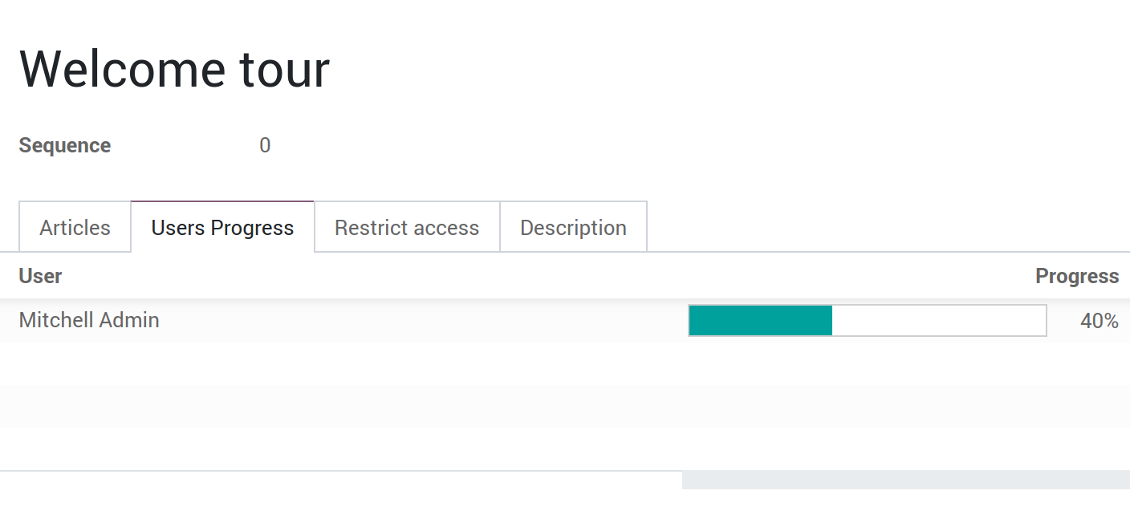
Control tour progress by users
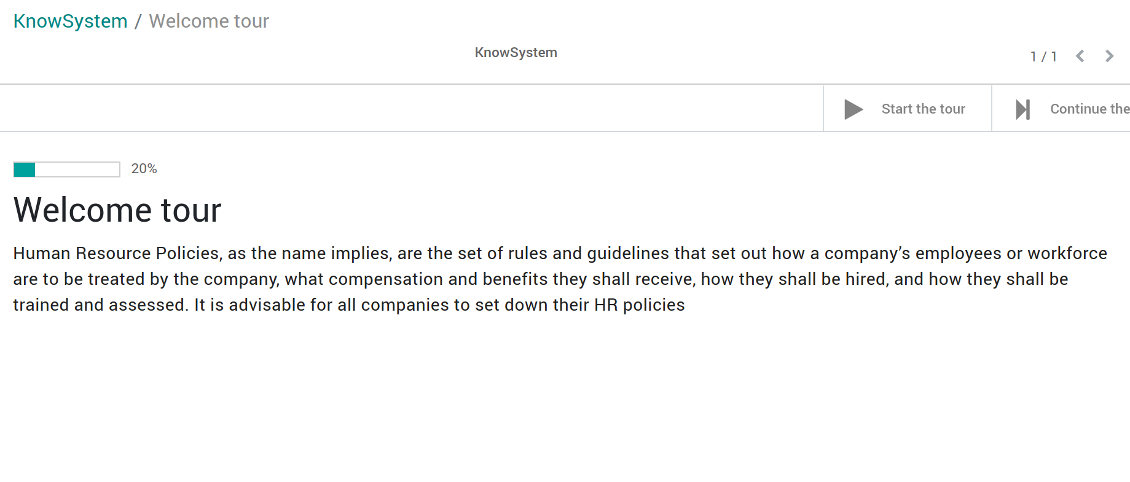
KnowSystem tour welcome page
Multilingual knowledge base
How to make an article available for a few languages
- Install the optional add-on 'KnowSystem: Multi Languages'
- Change your user language for a needed one
- Update this article
- Now it is available in both source and a current language
Make sure you really require a few languages. In that case you almost double the work of KnowSystem editors. All articles should be kept updated in all Odoo languages.
Knowledge base for any industry and business
Typical use cases
- Helpdesk: once faced a challenge, its solution might be recorded in KnowSystem for repeated usage by co-workers and for self-service by clients
- Sales & CRM: salesperson helper to find information about products, offers, frequently asked customer questions
- Project management: to keep and easily retrieve knowledge of existing solutions, tools, hints, and experiments
- HR: to prepare instructions, guidelines, learning tours and trainings, and any codified knowledge of routine in your company
- Marketing: to organize online library of product use cases, expert knowledge and well structured documentation
- Legal issues: systematize your policies, contract and approval managements, keep the full classifier of trademarks, licenses
- Informational technologies: share easy-reached manuals and configuration guidelines
Často kladené otázky o KnowSystem: Knowledge Base System Odoo v.11
Nevidím žádný rozdíl mezi texty revizí.
Revize zaznamenávají nejen změny textu, ale i jakékoli úpravy stylů (technický když změníte HTML zdrojový kód článku). Některé nejsou na první pohled zřejmé (např. změněná velikost písma jednoho slova). Jiné mohou být zásadní. Každá posloupnost Edit > cokoliv v článku změnit > Save však vytvoří novou revizi.
Mohu do článku přidat video YouTube/ Vimeo / Dailymotion / Youku?
Ano, video z těchto služeb můžete vložit do článků z backendu Odoo i z tvůrce webu. Přidejte stavební blok s obrázkem > stiskněte obrázek > vyberte ‘Video’ > zadejte URL požadovaného média.
Pozor: taková videa se vkládají jako iframe a některé prohlížeče mohou přehrávání blokovat, dokud to uživatel výslovně nepovolí.
Jak zobrazit sekci na webu?
V KnowSystem je sekce na webu viditelná, pokud je publikovaná a obsahuje alespoň jeden článek. I když má podsekce, nezobrazí se, dokud v samotné sekci není jediný článek. Tím se zabrání prázdným sekcím a portál KnowSystem zůstane přehledný. Chcete-li sekci na webu ukázat, přidejte jeden úvodní nebo obecný článek, který stručně popíše nebo vyjmenuje články v podsekcích.
Jak mohu sdílet článek s externím partnerem?
Klikněte pravým tlačítkem na libovolnou značku v levém navigačním panelu - Create
Najděte pole 'Allowed partners'. Například 'clients - azure interior' pro přístup partnera 'Azure Interior'. Můžete i naopak: přiřadit značky KnowSystem přímo na formuláři partnera
Nyní otevřete požadovaný článek (nebo totéž proveďte akcí 'Mass update' pro více záznamů):
Pokud je publikovaný: zrušte publikaci, nechcete-li ho zpřístupnit všem uživatelům portálu a veřejným návštěvníkům
Přiřaďte nově vytvořenou značku (v příkladu je to 'clients - azure interior')
Nyní:
Všichni uživatelé portálu vázaní na obchodního partnera 'Azure Interior' mají přístup k článkům se značkou 'Azure Interior'
Žádní jiní uživatelé portálu (pokud není přiřazena jiná značka) k těmto článkům přístup nemají
Interní uživatelé nejsou ovlivněni a vidí články podle logiky 'access to' článků a sekcí.
Můžeme přidat tlačítko výběru jazyka pro tělo článku?
Tlačítko 'translate' volitelný doplněk 'KnowSystem: Multi Languages' do těla článku záměrně nepřidává. HTML se ve jednoduchém vyskakovacím okně tohoto tlačítka překládá velmi obtížně. Textu k překladu by bylo velmi málo a HTML částí hodně (překladač je navíc může rozbít).
Proto se pro článek v určitém jazyce přihlaste jako uživatel tohoto jazyka. Může to být jiný uživatel, nebo dočasně změňte předvolby aktuálního uživatele. Poté se všechny úpravy těla článku provedou v tomto jazyce uživatele.
Pod tělem článku můžete také použít tlačítko 'Copy from another translation' a kdykoli převzít obsah z jiného jazyka (užitečné, pokud byl článek v jednom jazyce výrazně aktualizován).
Jak vložit jinou webovou stránku do článku
K tomu můžete použít iframe. Přepněte článek do editoru surového HTML kódu a vložte například <iframe src="https://faotools.com/" style="width:100%;min-height:600px;"> </iframe>.
Nainstaloval jsem KnowSystem, ale nevidím tlačítko 'create' ani další tlačítka
Pravděpodobně jste uživateli neudělili oprávnění KnowSystem. Zvolte správnou roli 'KnowSystem Editor' nebo 'KnowSystem Admin' a obnovte stránku. Ovládací tlačítka by se nyní měla zobrazit.
Mohu konkrétní výukovou prohlídku zobrazit jen vybraným uživatelům?
Ano, přiřazením skupiny uživatelů (např. 'Sales Manager'), která má touto prohlídkou projít. Patří-li uživatel do skupiny, prohlídku uvidí. Jinak se nezobrazí. Funguje to stejně jako přístupová práva k článkům a sekcím KnowSystem.
Pokud prohlídka nemá přiřazené skupiny, je 'global' a viditelná pro všechny.
Jak změním zápatí a záhlaví při tisku článků?
Záhlaví a zápatí PDF článků se berou z firemních rozvržení. Podívejte se na Settings > General Settings > sekci Business Documents. Zde definujete firemní šablonu používanou pro všechny typy dokumentů včetně faktur, prodejních objednávek atd. i pro články. Tento přístup Odoo bere zápatí a záhlaví jako obecný firemní styl, ne jako vlastnost konkrétních tisků.
Jak mohu články propojit mezi sebou?
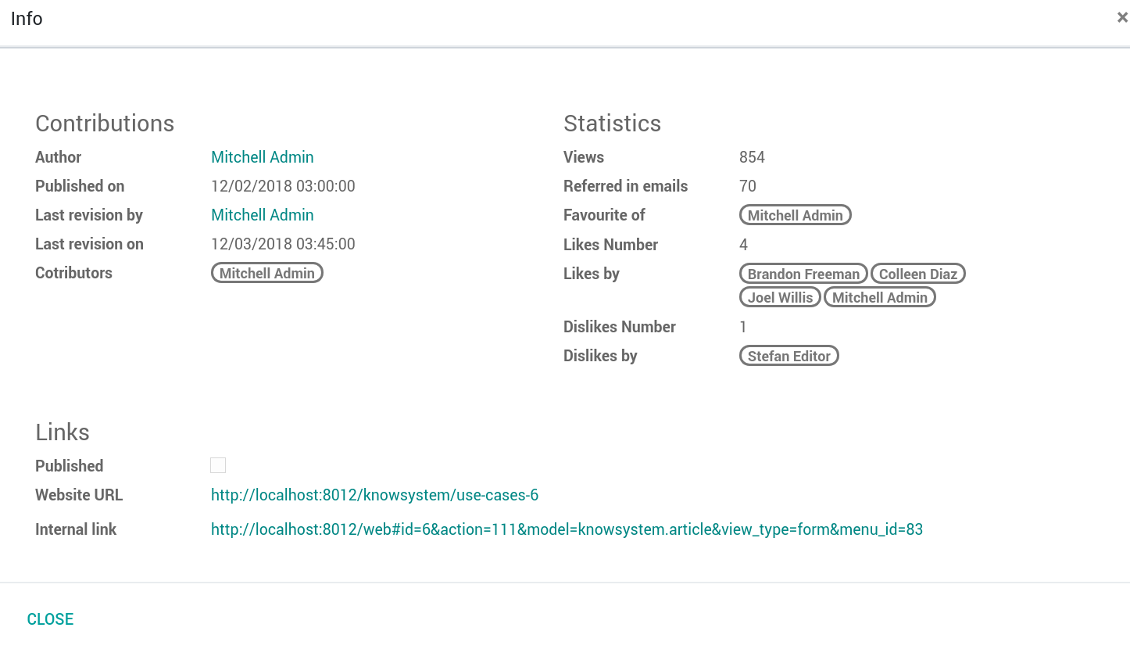
Každý článek má interní (backend) a webové URL (pokud je nainstalována volba 'KnowSystem: Website and Portal'). Klikněte na tlačítko 'Info' ve formuláři článku, abyste zjistili webové adresy tohoto záznamu. Libovolnou z nich můžete vložit do těla článku jako hyperodkaz.
Mohu změnit HTML zdrojový kód článku?
Ano: zapněte debug assets (na přehledové obrazovce nastavení) a vraťte se k aktuálnímu článku. V režimu úprav uvidíte ikonu '</>'. Klikněte na ni pro zobrazení a úpravu HTML a stylů.
Jaka jsou pravidla aktualizaci vašich nástrojů?
Podle aktuálních pravidel Odoo Apps Store:
- Modul koupeny pro verzi 12.0 nebo starší dává přístup ke všem verzim az do 12.0.
- Od verze 13.0 se každá verze modulu kupuje samostatné.
- Bez ohledu na verzi da nákup právo na všechny aktualizace a opravy v rámci hlavní verze.
Tym faOtools tato pravidla neridi. S otazkami se obratte přímo na zastupce Odoo Apps Store.
Jak nainstaluji aplikaci na Odoo.sh?
Nejprimejsi postup je vestaveny tok obchodu Odoo:
1. Otevřete stránku modulu a klikněte na Deploy on odoo.sh
2. Budete přesměrování na GitHub. Přihlaste se a klikněte na Create a new repo nebo použijte existující. Repozitar musí byt soukromý. Aplikace pod licenci OPL-1 nesmí byt veřejné. V případě potřeby vytvořte nové repo pro projekt Odoo.sh
3. Poté v odoo.sh klikněte na Deploy, potvrďte a klikněte na Continue. Instalace se spustí.
Tyto kroky nainstaluji aplikaci na production větev. Pro jiné vetve nebo aktualizaci:
1. Stáhněte zdrojový kod z obchodu Odoo
2. Commitnete modul do GitHub repozitare. Žádná složka/soubor aplikace nesmí byt v .gitignore. Repa vytvorena odoo.sh mohou ignorovat důležité cesty (např. /lib). Nahrajte všechny adresáře a soubory modulu
3. Deployujte cílovou větev projektu odoo.sh, nebo počkejte na automaticky build, pokud to nastavení předpokládá.
Jak nainstaluji aplikaci na vlastní server?
2. Restartujte server Odoo;
3. Zapněte vyvojovsky režim (technická nastavení);
4. Aktualizujte seznam aplikaci (nabídka Aplikace);
5. Najdete aplikaci a klikněte na Activate/Install;
6. Postupujte podle pokynů na stránce aplikace, pokud existují.
Aplikace ma další rozšíření. Mohu je koupit později?
Ano. Odoo automaticky přidá závislosti do kosiku: vylučte jiz zakoupene nástroje, abyste neplatili dvakrát.
Nasadil jsem aplikaci na Odoo.sh a v testech vidim varování/chybu
Červené/oranzove varování neovlivnuje funkce aplikace. Naše moduly obcas neprojdou standardními automatickými testy, protože ty predpokladaji chování, které je v rozporu s cíli aplikace. Například menime výpočet ceny, zatímco testy Odoo porovnavaji konecnou cenu se standardním algoritmem.
Nejprve zkontrolujte funkce nasazene databáze. Funguje vse?
Pokud se stále domnivate, ze varování ovlivnuje skutečné funkce, kontaktujte nas a pošlete kompletní instalacni protokoly a úplný seznam nasazenych modulu (jádro a třetí strany).
Mohu si aplikaci koupit přímo u vas?
Ne, nástroje siritime pouze přes oficialni obchod aplikaci Odoo.
Chtel bych slevu
Bohuzel nemáme technické prostredky na individualni ceny.
Mohu aplikaci nainstalovat na databázi Odoo Online (SaaS)?
Ne, aplikace třetích stran nelze použít na Odoo Online. Odoo SaaS tuto možnost blokuje.
Nástroj závisí na jiných aplikacich. Mam je koupit?
Ano, nástroj vyžaduje všechny moduly označené v zavislostech. Cena na stránce aplikace je jiz zahrnuje.
Jaka je cena modulu v americkych dolarech? Proč se zmenila?
Ceny našich modulu jsou v eurech. Obchod Odoo převádí ceny do jiných men podle vnitrniho kurzu. Proto se cena v americkych dolarech může změnit pri aktualizaci kurzu.
Znění aplikace a webu v jiných jazycích než angličtině je s pomocí AI a sladěné s oficiálními překlady Odoo. Pokud si všimnete chyby, odešlete tiket o správnosti překladů a opravíme to.
Hlášení chyb
Pokud narazíte na chyby nebo nekonzistentní chování, ozvěte se. Opravy do 60 dnů od nákupu garantujeme a nástroje vylepšujeme i poté.
Ke kontaktu nepotřebujete telefon ani kreditní kartu. Stačí krátká e-mailová registrace, která netrvá déle než 30 sekund.
Přiložte co nejvíc podrobností: snímky obrazovky, protokoly serveru Odoo a úplný popis reprodukce. Pracovní plán (je-li chyba potvrzena) nebo pokyny (jinak) obvykle trvají několik pracovních dní.
Veřejné požadavky na funkce a nápady na moduly (bezplatný vývoj)
Jsme silně motivováni zlepšovat nástroje a vděční za každou zpětnou vazbu. Pokud jsou požadavky veřejně užitečné a dají se efektivně implementovat, tým je zařadí na seznam úkolů.
Takový seznam úkolů se zpracovává pravidelně a nepředpokládá příplatky. I když nemůžeme slíbit termíny a finální návrh, může to být dobrý způsob, jak získat požadované funkce bez investic a rizik.
Ke kontaktu nepotřebujete telefon ani kreditní kartu. Stačí krátká e-mailová registrace, která netrvá déle než 30 sekund.

Nástroj pro flexibilní strukturu příloh Odoo ve složkách a synchronizaci adresářů s cloudovými klienty: Google Drive, OneDrive/SharePoint, Nextcloud/ownCloud, Dropbox, Amazon S3, Box a NAS. DMS. Správce souborů. Systém správy dokumentů
398€
Nástroj pro automatickou obousměrnou synchronizaci příloh Odoo se soubory OneDrive
487€
Nástroj pro automatickou obousměrnou synchronizaci příloh Odoo se soubory Google Drive
487€
Nástroj pro bezpečné uložení hesel v Odoo ke sdílenému použití. Sdílené trezory

Nástroj pro nastavení cílů KPI a kontrolu jejich plnění po obdobích. Přehledy KPI. Návrhář dashboardů. Grafy KPI

Nástroj pro časově vázané řízení služeb od rezervace schůzek po prodej a recenze
398€
Nástroj pro správu Odoo z oblíbených AI chatů přes MCP. Claude. Jakákoli AI s podporou MCP.

Nástroj pro sloučení různých událostí Odoo do několika konfigurovatelných superkalendářů
