KnowSystem: Knowledge Base System v.11
The tool to build deep and structured knowledge base for internal and external use. Knowledge System. KMS
- a core of knowledge management. It might be used stand-alone as a complete internal knowledge base system. Sein Preis ist 398€.
- an optional module, which let you publish articles to website, share them with portal users, and use website builder to update articles. The features assumed by this add-on are marked by the icon . Sein Preis ist 40€.
- an optional module, which let you add and show custom fields for articles (backend). The features assumed by this add-on are marked by the icon . Sein Preis ist 48€.
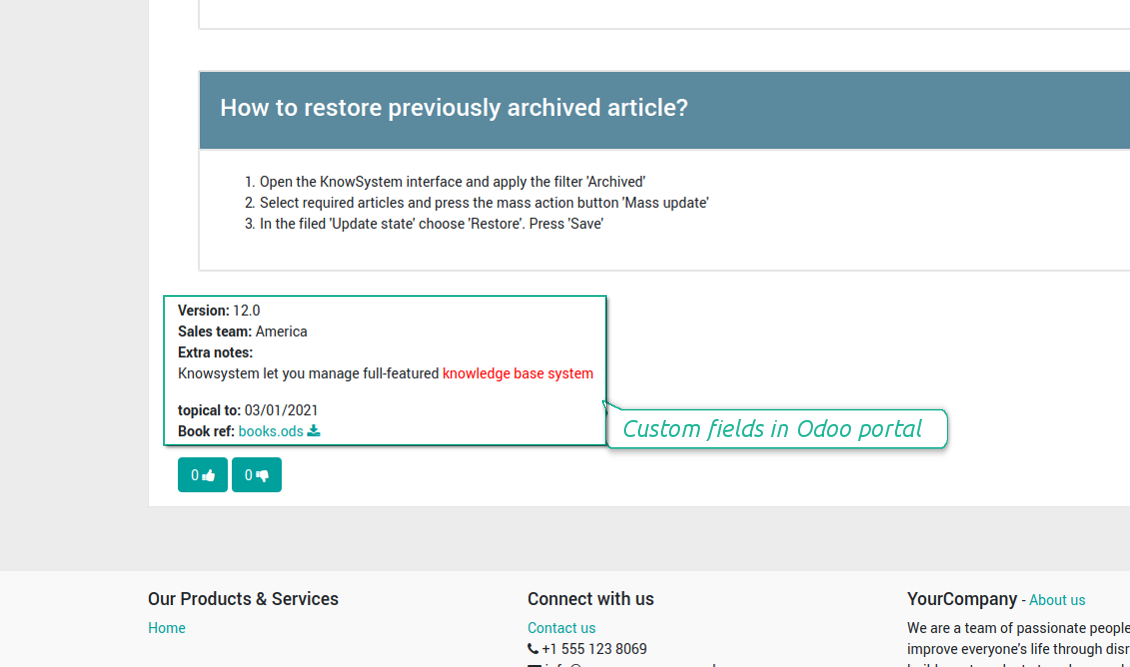
- an optional free module, which shows custom fields on website and portal pages (frontend). The features assumed by this add-on are also marked by the icon .
- an optional module, which let you translate articles, sections and tags for installed in Odoo languages. The features assumed by this add-on are marked by the icon . Sein Preis ist 10€.
Innovative single-view interface
From the same interface editors may create and update any knowledge-related documents, change articles in batch, set up security. Without a need for excess navigation.
Interface solutions
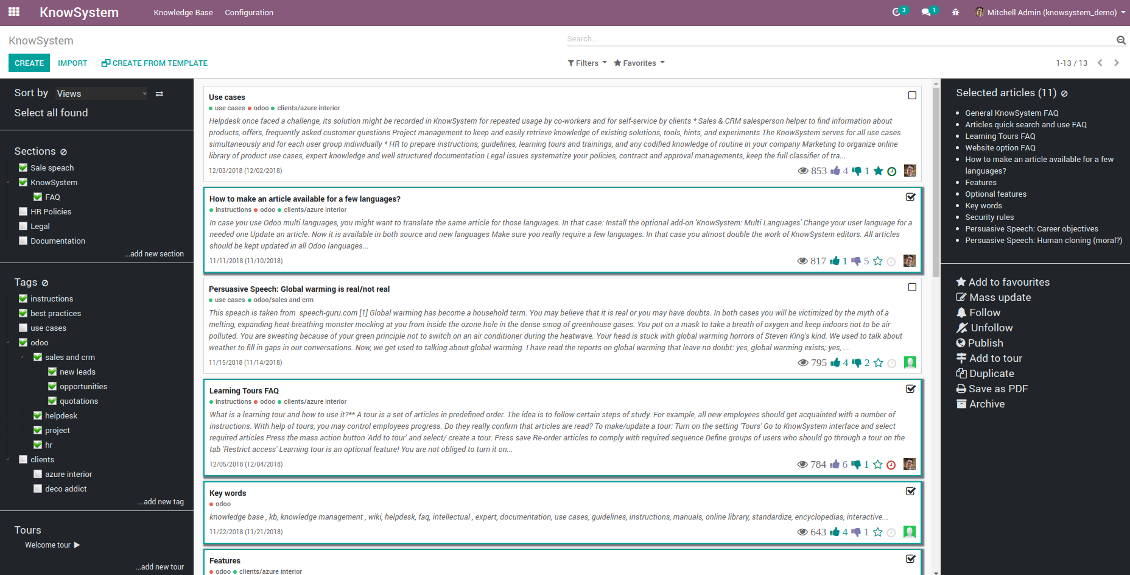
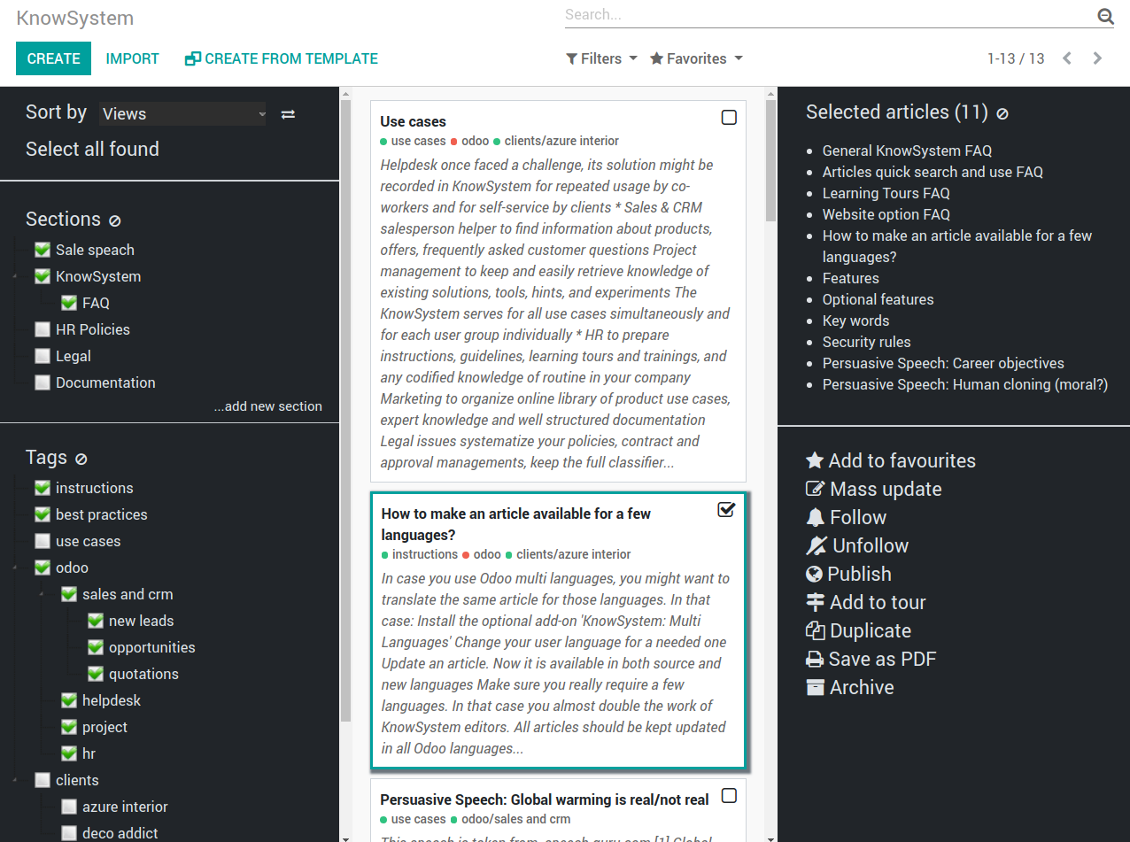
The KnowSystem interface consists of 3 key parts: the left navigation panel, the list of articles, and the right navigation panel (it is shown only if some articles are selected).
On the left navigation panel you may:
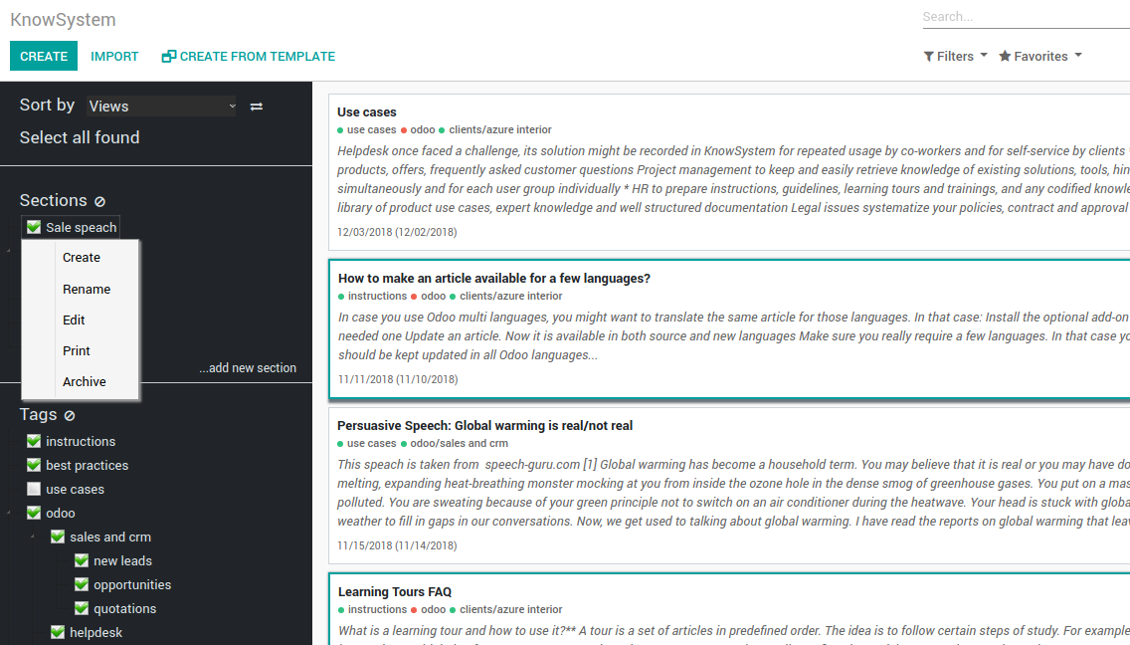
- Manage hierarchy of sections: prepare new (right mouse click - 'create'), update existing (right mouse click - edit), re-order any (drag and drop an item), archive sections. Select a few ones to filter articles. You may also print all articles related to this section as a single PDF file.
- In the same way manage hierarchy of tags
- Sort articles by number of views, a score of likes and dislikes, create or update dates, a section, an author
- Select all articles which are found according to chosen tags / sections and according to introduced searches / filters
- Launch a learning tour.
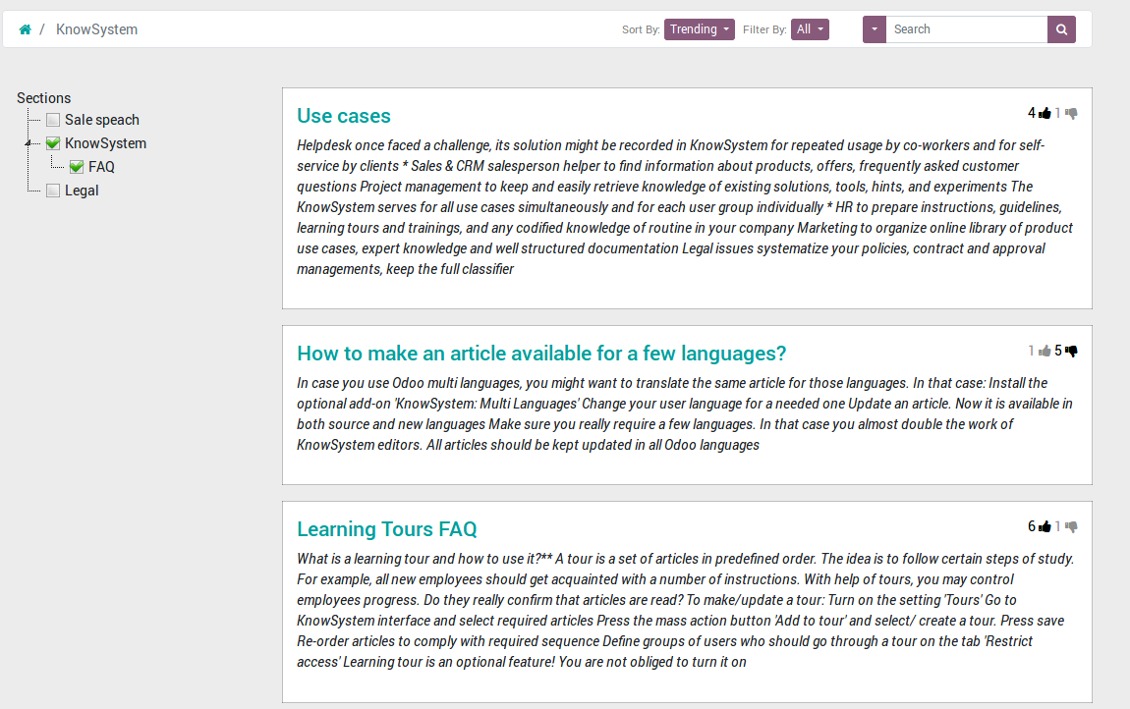
From the list of articles you see articles' name, indexed content (words without HTML style), dates of creation and last update, a number of views, likes, dislikes, author avatar. Here you may also add an article to favourite by pressing the 'star' icon.
Click on article body to open it in a full size (form view). Do not worry: chosen tags and sections as well as selected articles will be kept when you get back! Click on the top right check box to add an article for selection.
On the right navigation panel you observe selected articles and may proceed a mass action. Click on article name to remove it form selection.
On the top of the interface users also would find a standard Odoo omnibox. Type here to search by a title, content, an author, tags or a section.
Available mass actions
KnowSystem let users update an unlimited number of articles simultaneously:
- Assign new section
- Change or remove tags
- Print multiple articles as a single PDF
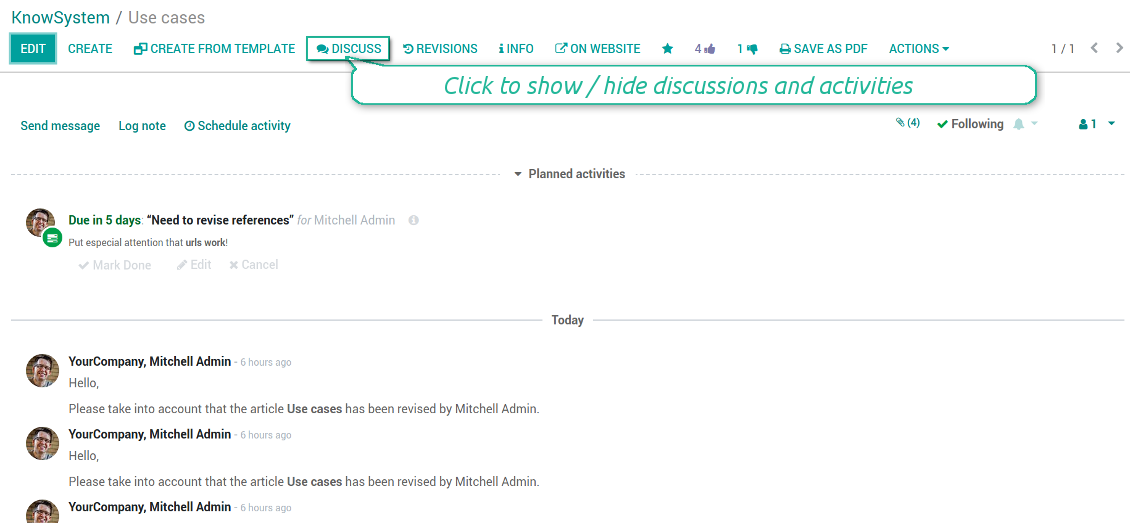
- Follow / unfollow discussions
- Publish / unpublish articles
- Export articles to an Excel table
- Archive or restore records
- Add articles to learning tours
- Mark knowledge items as favourite
- Duplicate articles.
Screenshots
KnowSystem articles overview, search and mass actions
Single entry for knowledge management actions
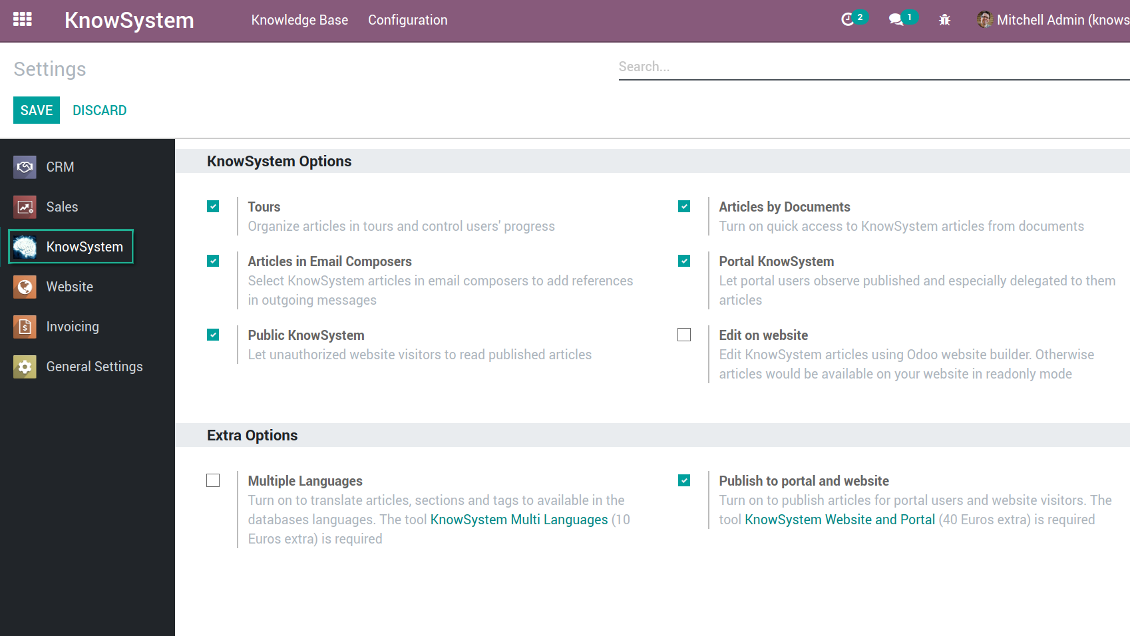
KnowSystem configuration
Article read mode
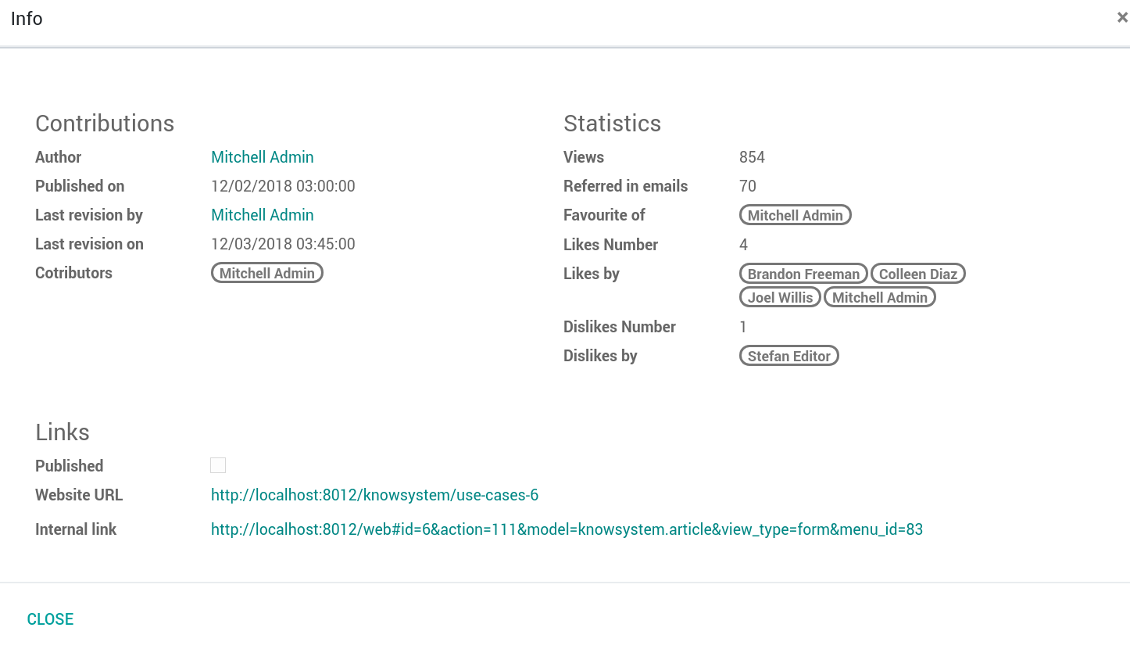
Article info and statistics
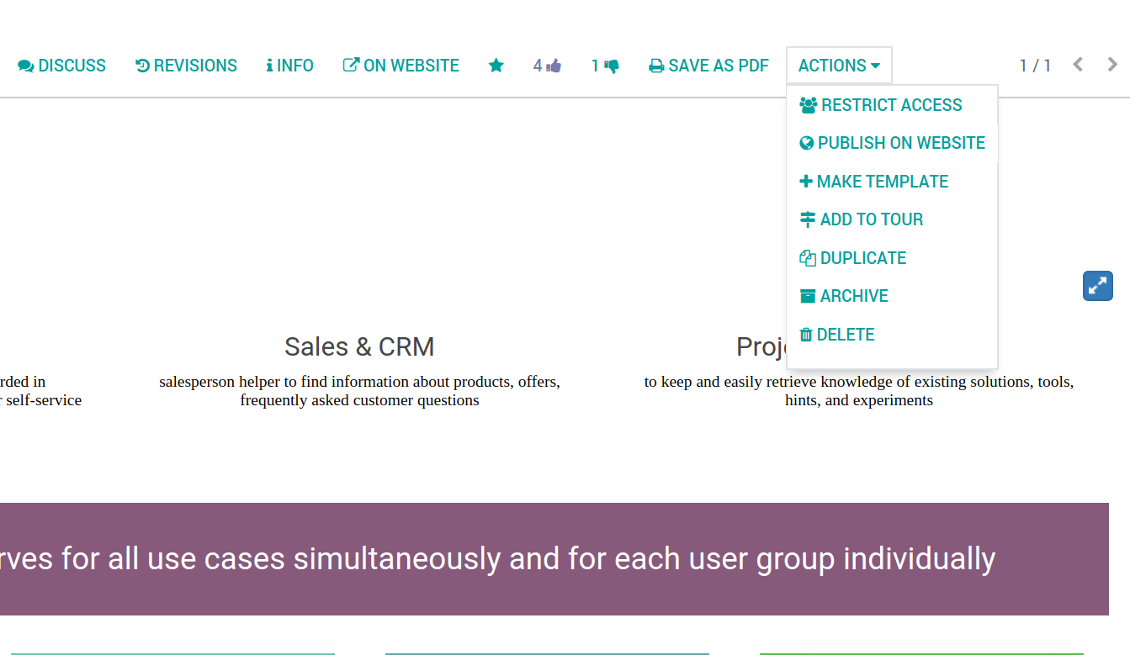
Article misc actions
Mass actions for selected articles
Small screen KnowSystem interface
Fast, comfortable, and professional knowledge recording
By using templates with pre-defined styles you may also speed knowledge generation up and standardize articles' appearance.
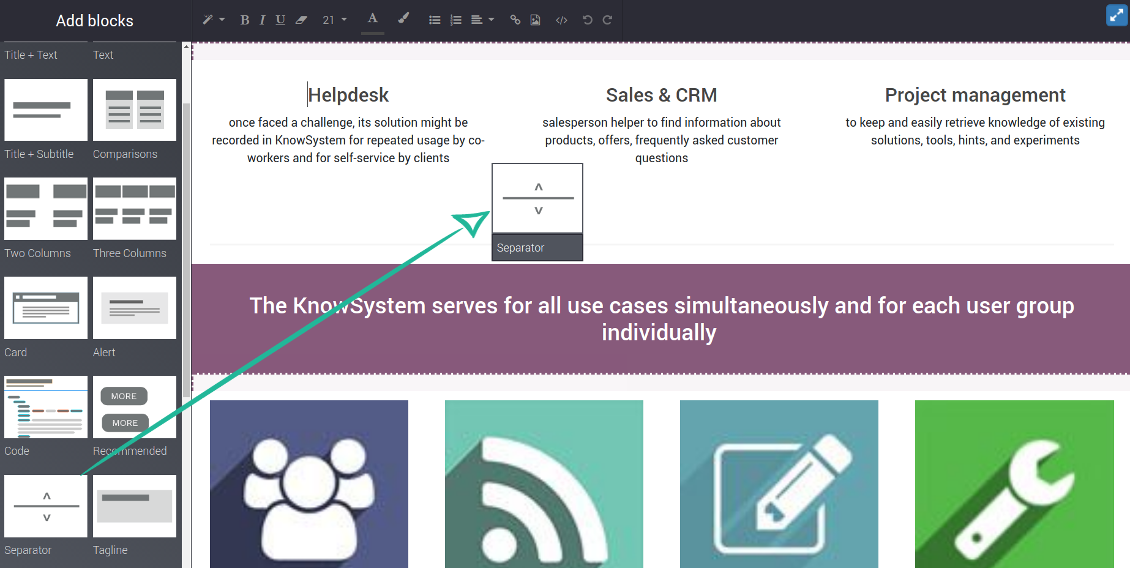
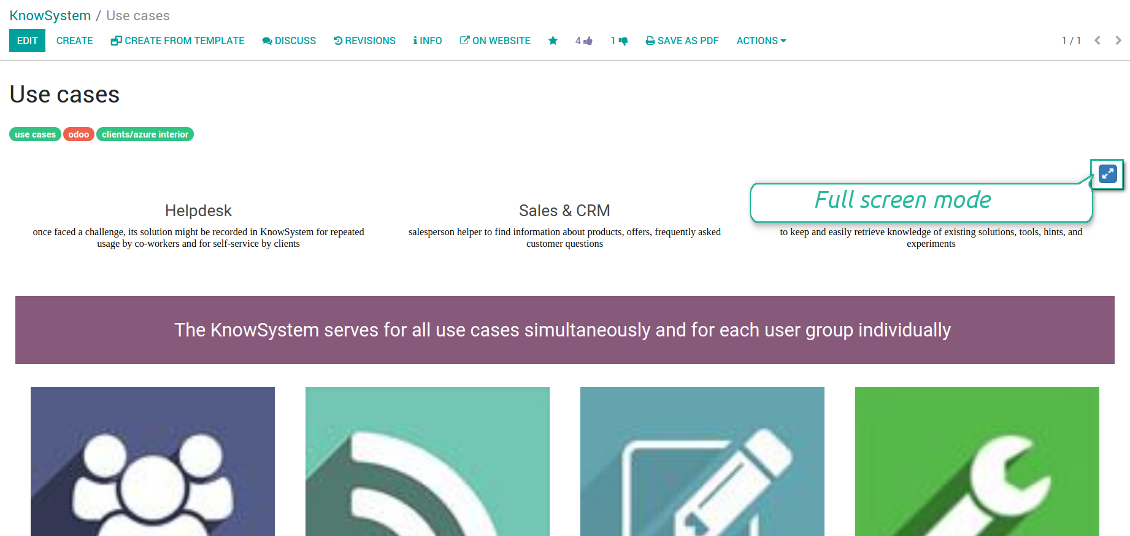
How to use the website builder for editing articles
KnowSystem provides you with a backend articles' builder, which is comfortable and safe to use. Odoo website builder is richer in features to prepare complex HTML structures. To edit articles through the website:
- Install the optional add-on 'KnowSystem Website and Portal' (the option 'Publish to portal and website')
- Turn on the setting 'Edit on website'
- Push the button 'Edit on website' on this article form
Be cautious: if you are going to print this article or add its contents to emails, website building blocks are not suitable. Their advanced styles contradict printing and composer layouts and would not be correctly shown. In such a case use the safer backend builder.
How to use article templates
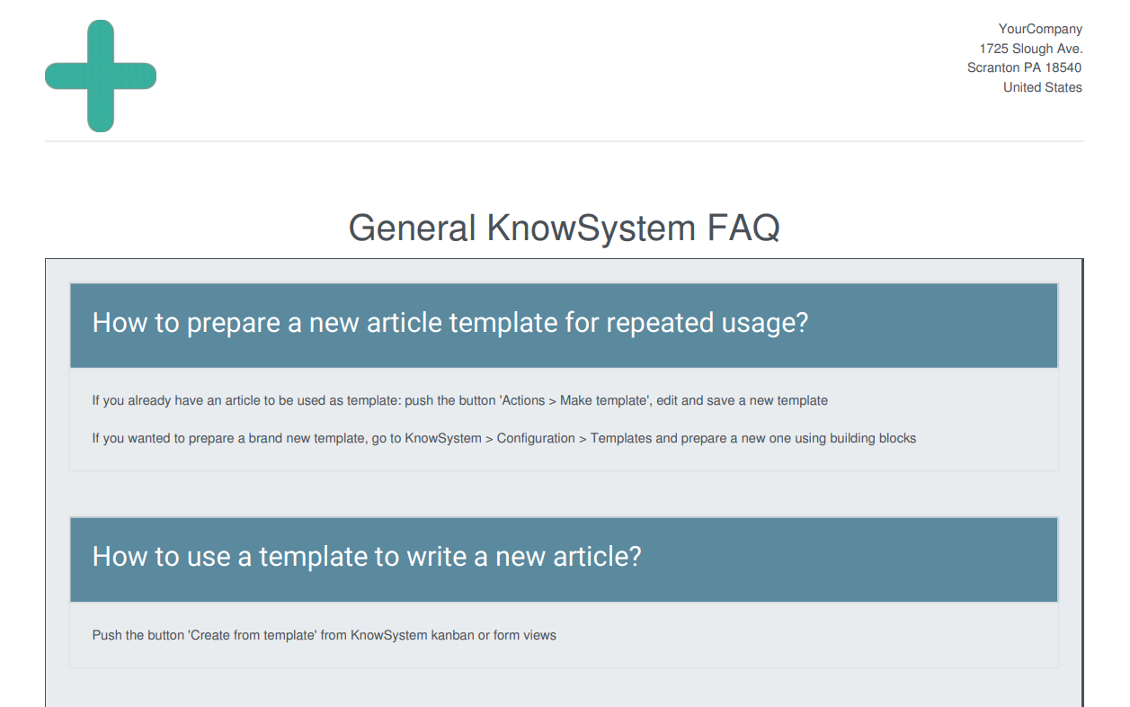
To prepare a new article template for repeated usage:
- If you already have an article to be used as template: push the button 'Actions > Make template', edit and save a new template.
- If you wanted to prepare a brand new template, go to KnowSystem > Configuration > Templates and prepare a new one using building blocks.
To use a template to write a new article:
- Push the button 'Create from template' from KnowSystem kanban or form views
- Select a required article template
- Push 'Create' and introduce changes to a new article.
Screenshots
Building blocks for knowledge base articles
Get benefit from your knowledge
How document types and articles are linked for a quick access
Experience is not general, usually it relates to specific issues. Knowledge used for customer communication differs from suppliers' negotiations. Frequently asked questions for draft and confirmed sale orders vary. KnowSystem let you structure your articles to apply them in a correct place and at right time. To that end:
- Turn on the setting 'Articles by Documents' (the option shows the top menu entry above any Odoo document) or 'Articles in Email Composers' (the option adds a quick link in a message composer editor for citing)
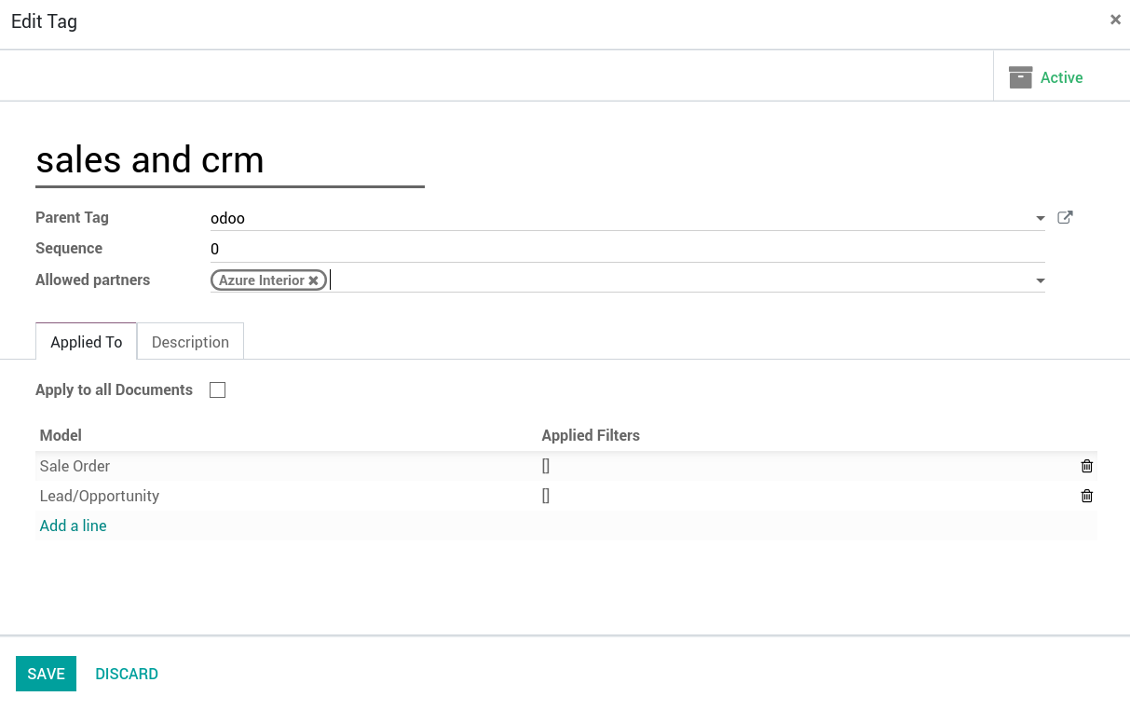
- Create a new tag (e.g. 'odoo / helpdesk'). In the table 'Applied to' use a required model (e.g. 'helpdesk ticket') or use it for all documents (the check box 'Apply to all documents').
- As advanced option you may apply additional filters: for example, to show articles only for 'new' tickets, not for 'in progress' ones. Use dynamic filters' constructor for that goal
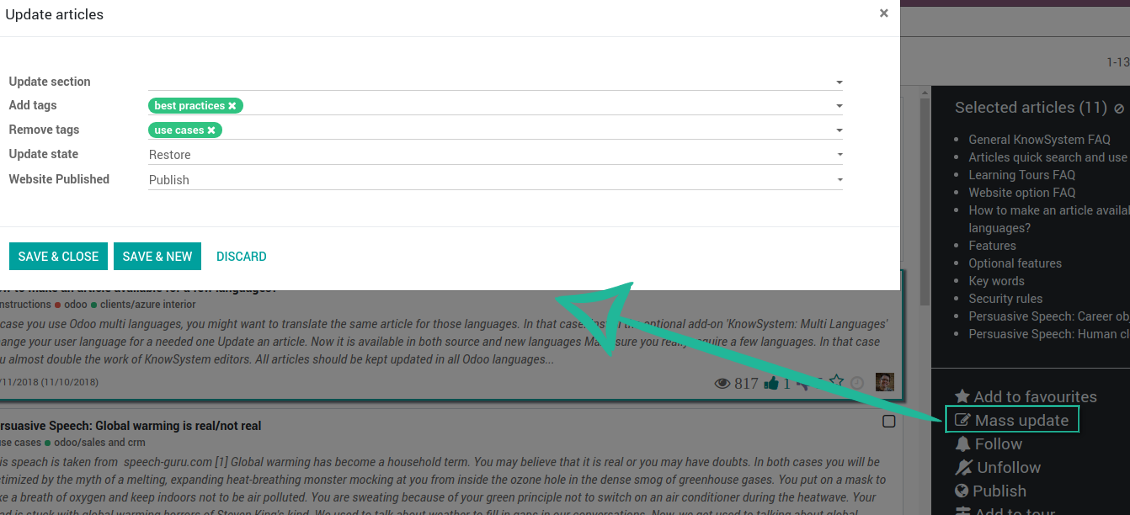
- Assign this tag for required articles. For a few articles use the mass action 'Mass update'
- Now when you access a quick article search from a document or from an email composer, Odoo will calculate KnowSystem tags for this document. That's why by default users would see only articles suitable for a current document. Simultaneously, they might always change tags to use other knowledge base data.
How to overview articles which might be useful for this document
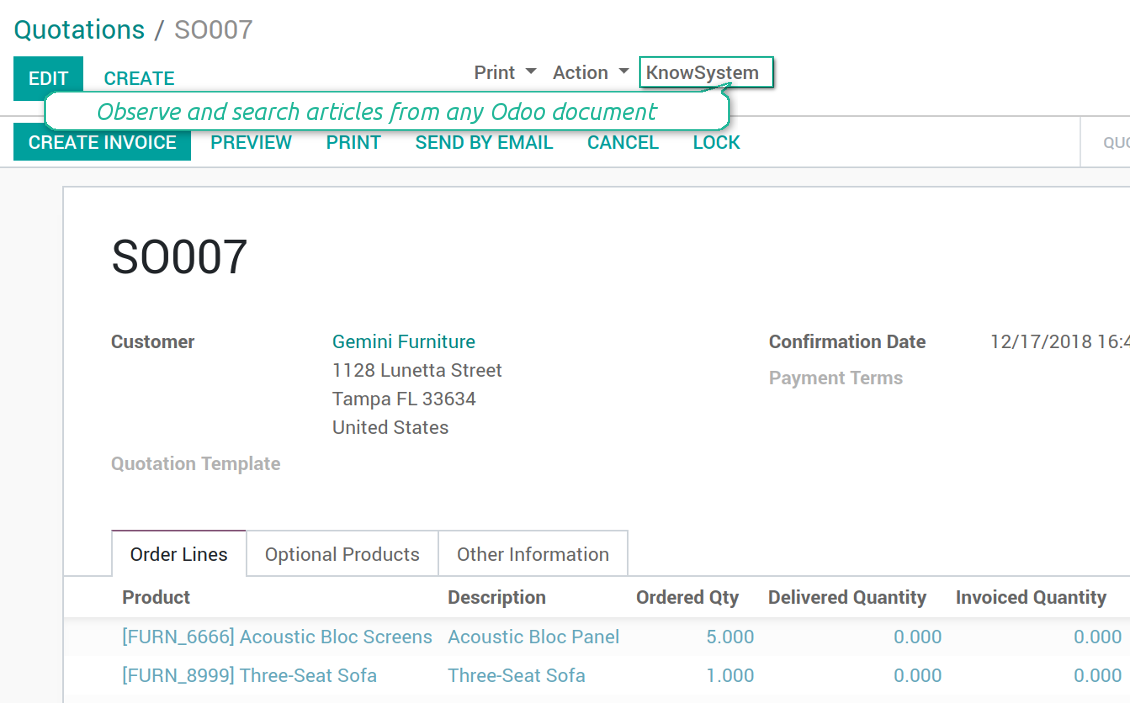
As soon as you turned on the option 'Articles by Documents', on the top of each Odoo object form view there would be a quick link 'KnowSystem'.
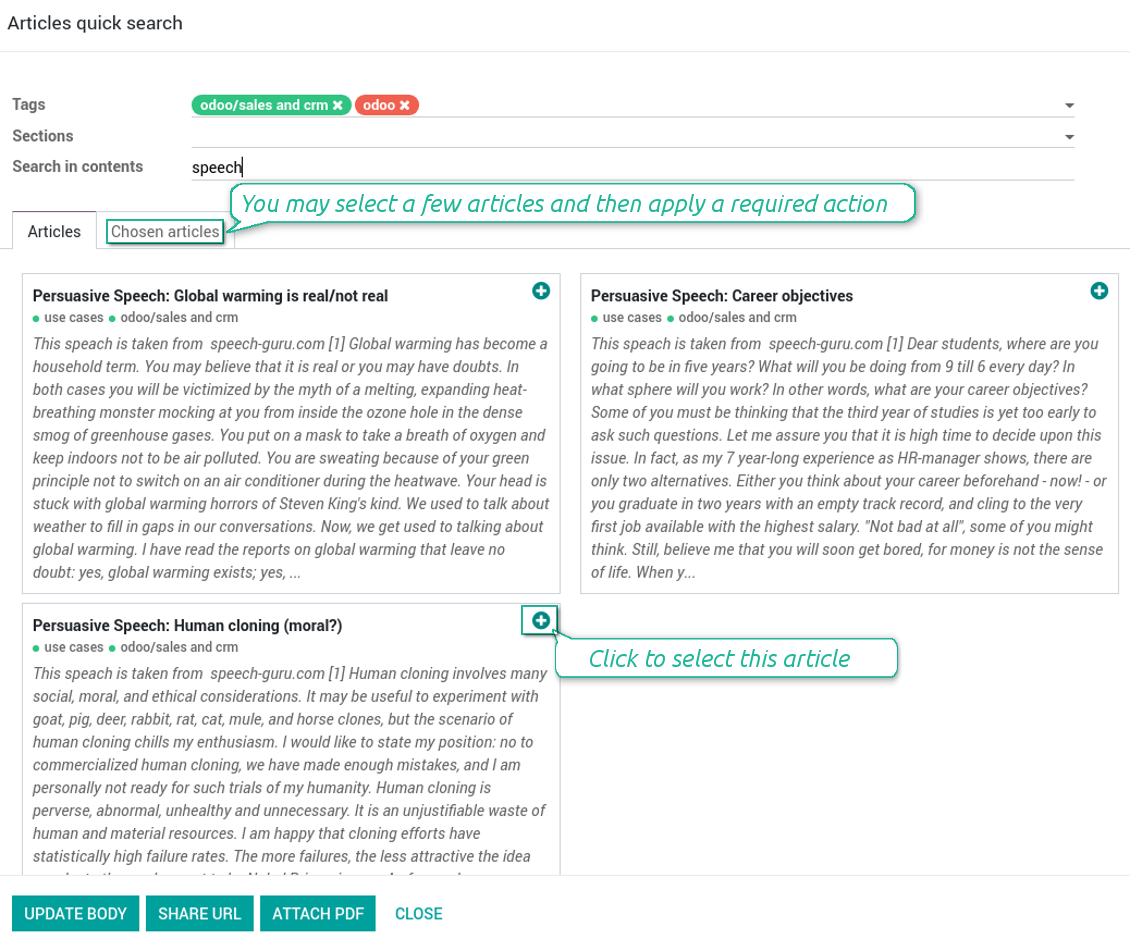
Click on that entry, and Odoo would open the wizard with articles. By default KnowSystem tags suitable for this document would be selected (if any). You may change those tags, or additionally filter by sections or content search. As a result list of topical articles is shown for you.
How to use company knowledge for communication
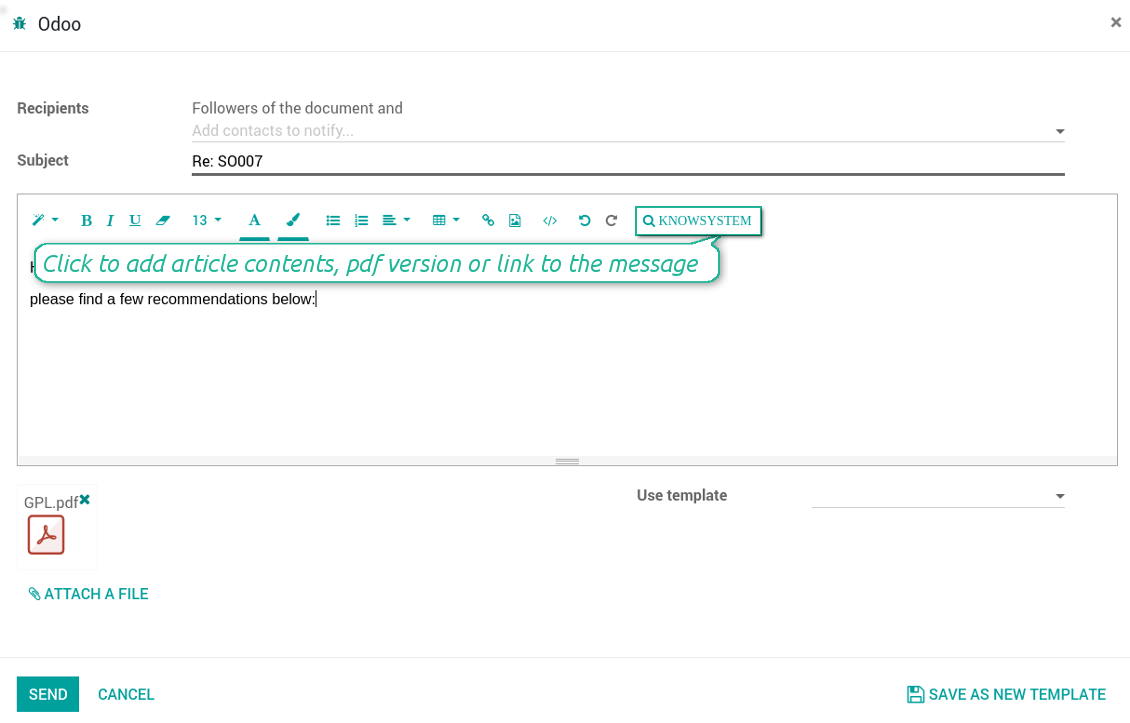
Turn on the option 'Articles in Email Composers' to let users reference or cite Knowledge records in Odoo messages. As a result the special quick entry 'KnowSystem' would be added to each Odoo email composer.
Clicking on that entry would open a wizard with a set of suitable to this document articles. You may change search by tags, add extra filtering by sections or content.
Afterwards, select required articles among found ones; choose an action. You may:
- Update message body with article contents (would be added to the end of a current message)
- Attach a PDF version of an article(s)
- Share a public link
Screenshots
Quick access for knowledge system from any Odoo document
Knowledge base link from email composer
Articles from any document
Article(s) PDF printing
WIKI-like revision system
How to recover a previous article version
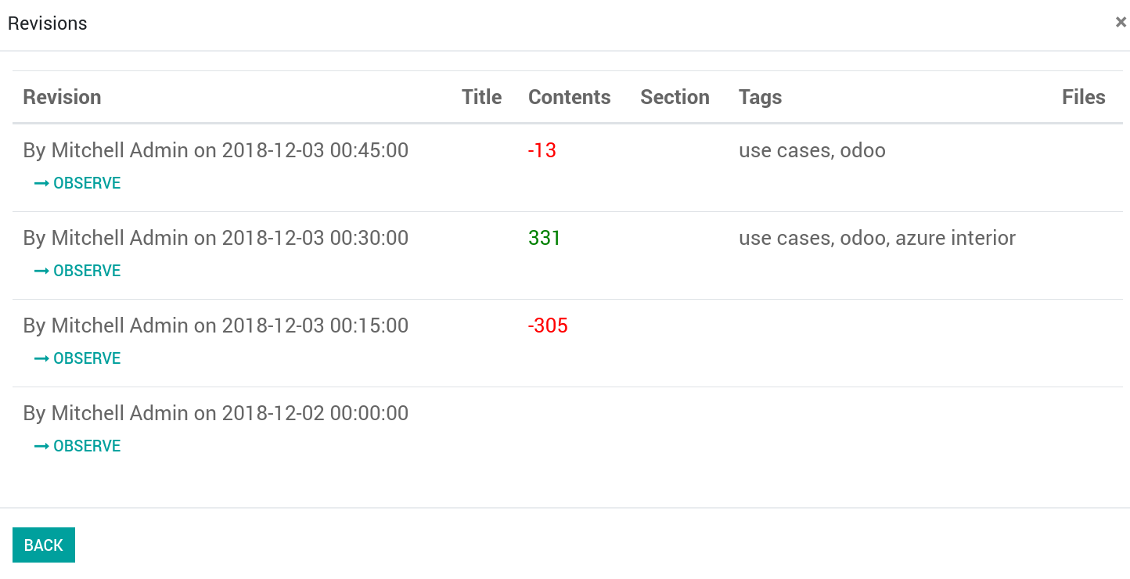
- Go to an article form view and push the button 'revisions'
- Find a required one and push the button 'Observe' to check whether this version is a correct one
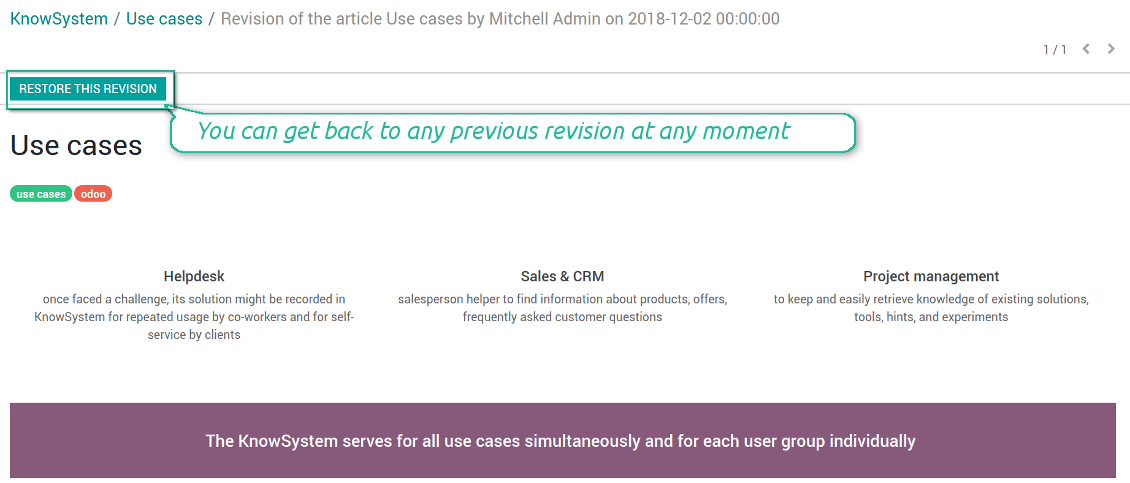
- Push the button 'Restore this revision'. The article would be recovered to that version.
- The recovery operation itself is recorded. So, if it is a mistake you can revert changes by recovering the last-to-last revison.
Screenshots
Wiki-style revisions history
To restore is easier than to break
Individual partner knowledge base portal
How to share knowledge base with specific partners
An article is available for a portal user in two cases: A. it is website published; B. his/her company is indicated as allowed partner in one of article tags.
In the first case such an article is available for all portal users and even for public website visitors who have not logged in.
In the latter case you grant a restricted access for an article only for chosen companies. To that end:
- Turn on the setting 'Portal KnowSystem'
- Create a tag for this partner, for example 'clients / Azure Interior'. On the tag form indicate this company in the field 'Allowed partners'
- Assign the tag for all articles you want to share with this partner. For a few articles use the mass action 'Mass update'
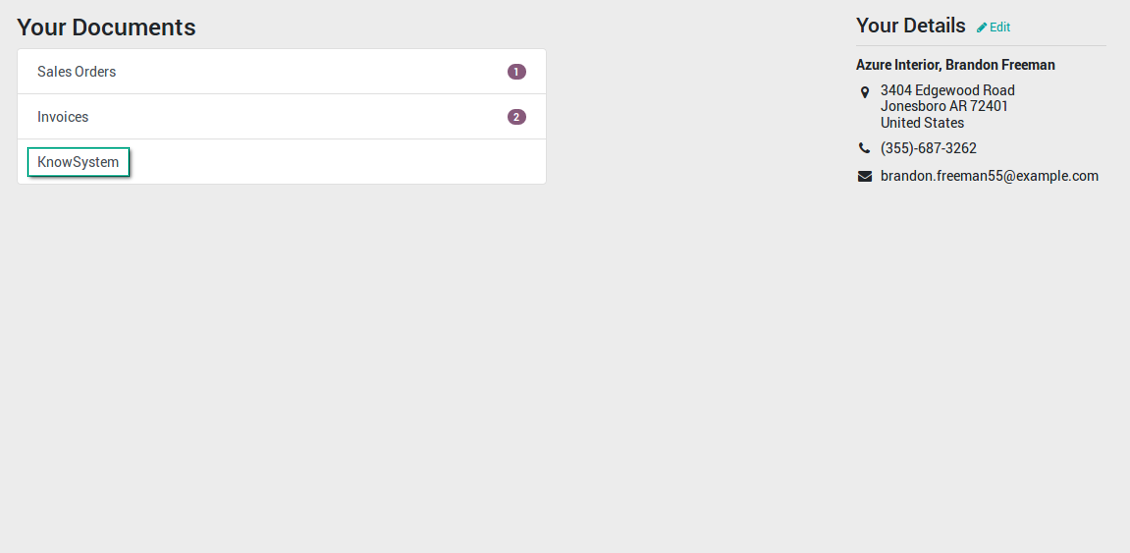
- Now portal users related to this partner may access shared articles right from their partner portal.
Screenshots
Knowledge base for portal and public use
KnowSystem articles on website
Tag: document types and portal partners
KnowSystem from portal
Best knowledge base system for Odoo!
Excellent app and exceptional after-sales support.
Really well thought-out product and one of the best features is the contextual help by means of the tags. Really a game changer for us.
Keep up the great work FaOtools!
Outstanding app! Tremendous value for money, an absolute must have!
One of the features sorely lacking from Odoo has been a robust Wiki/documentation system. Using third party platforms is a massive headache: yet another system to maintain, users get distracted switching back-and-forth, and errors get made. Then you have to worry about training, additional logins, etc.
KnowSystem feels like a native/core app, is very well-polished, and extremely fast. It's accessible from any screen, and the search results are instant (none of the latency inherent with most apps).The interface is elegant yet powerful, with robust access control, rich editing features, and version control. It's simple to revert to previous entries, view audit trails, etc. It's very intuitive for anyone familiar with Odoo; onboarding takes just a few minutes. The user guides are excellent.
This is invaluable for any organisation with a lot of documented information, SOPs, ISO compliance, or similar. If you're using eLearning, it's great for creating a help system / reminders. For example, noting key takeaways or specific instructions. The user can be in MRP, Sales, or any other function, and instantly lookup a guide. Since it overlays whichever screen you're in, it doesn't interrupt the workflow.
This dramatically increases efficiency, minimises questions, and helps keep everyone on the same page.
Oh, and customer service is excellent, faOtools stands behind their product. Thank you!
KnowSystem is excellent - OdooTools offer great support, are very helpful and responsive
Our company needed the ability to add a Knowledge Base to our Odoo portal website for our customers to access article content on a membership-only basis. KnowSystem provided this and much more, along with ability to add search by section, set permissions to allow only certain partners access to articles by tag etc. OdooTools have been very helpful and implemented several features we suggested including automatic redirect upon login, customisable filters and a social sharing capability on articles. Overall a great app by a great company, something that massively adds to Odoo's capabilities and is something that everyone could benefit from using.
Very functional application and responsive support
Our company produces medical laser equipment and we use KnowSystem to streamline the knowledge base of our company. Convenient search system and classification of content, as well as access rules for groups and even for individual users.
Great app and professional team
The app is great the the team is very professional in both response timing and problem solving.
Highly recommended.
Marco from ALO.zone.
Excellent system
Excellent system.
A great tool from some very nice developers!
KnowSystem is a great tool and a game changer for us. Finally a place to put all our company know-how. I highly recommend it. And also important to us: We got great support from FaOtools too. A rare thing in this busy world. thx!
Excellent app and support.
Great app and a very helpfull support. Openess to improve their products is outstanding.
Public knowledge base
How to make an article available for all website visitors
- Turn on the setting 'Public KnowSystem'
- Publish required articles through the mass action 'Publish' or by pushing the button 'Actions > Publish on website' on an article form
- Now any website visitor can read those articles
Team work for knowledge creation
Screenshots
Knowledge base interactions, discussion, and activities
Custom fields to structure knowledge
How custom knowledge attributes work
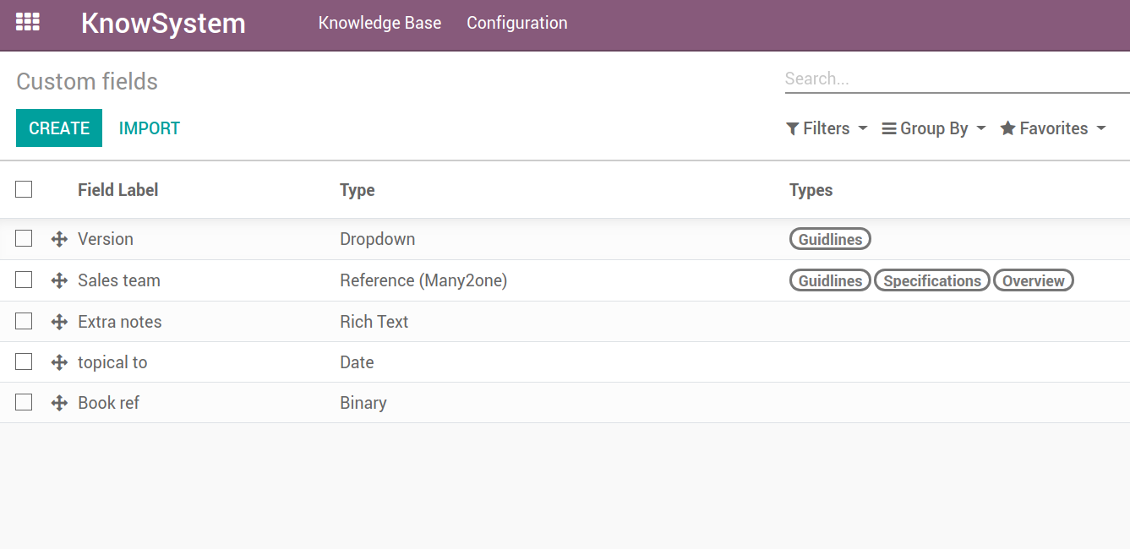
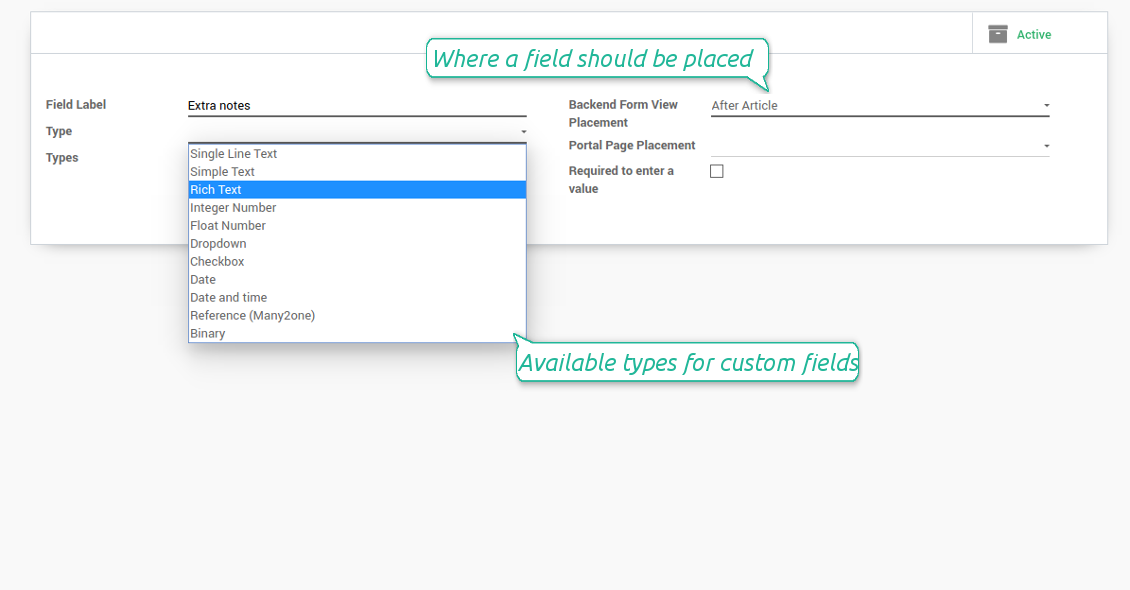
In order to show a new property for KnowSystem articles, just create a custom field. Nothing else is required! You are welcome to prepare fields of various types: single line text (char), simple text without formatting (text), rich text (HTML-formatted text), integer or float numbers, drop-down choice with your own options (selection), checkbox (boolean), date or date and time, binary (a file to upload), reference to another Odoo document (e.g. for a sale order, contact; many2one).
The tool also introduces complementary articles' typology. Thus set of attributes for 'user guidelines' and 'technical specifications' might be different.
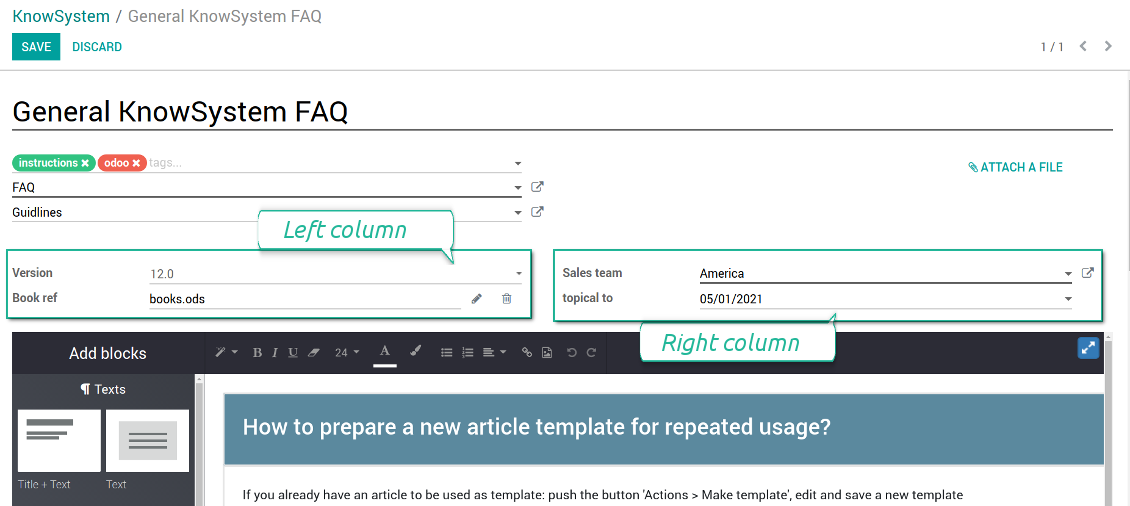
Then, choose an interface location for a new field from a closed list to structure properties on an article page. Decide whether a field should be required to enter, or should be visible only for definite knowledge types.
Screenshots
KnowSystem articles' custom fields
Custom fields on article form
Custom fields in portal and website
Custom fields for article: add any data required
Knowledge is secured and might be safely shared
How to manage user accesses to articles
Security for internal and portal users differs.
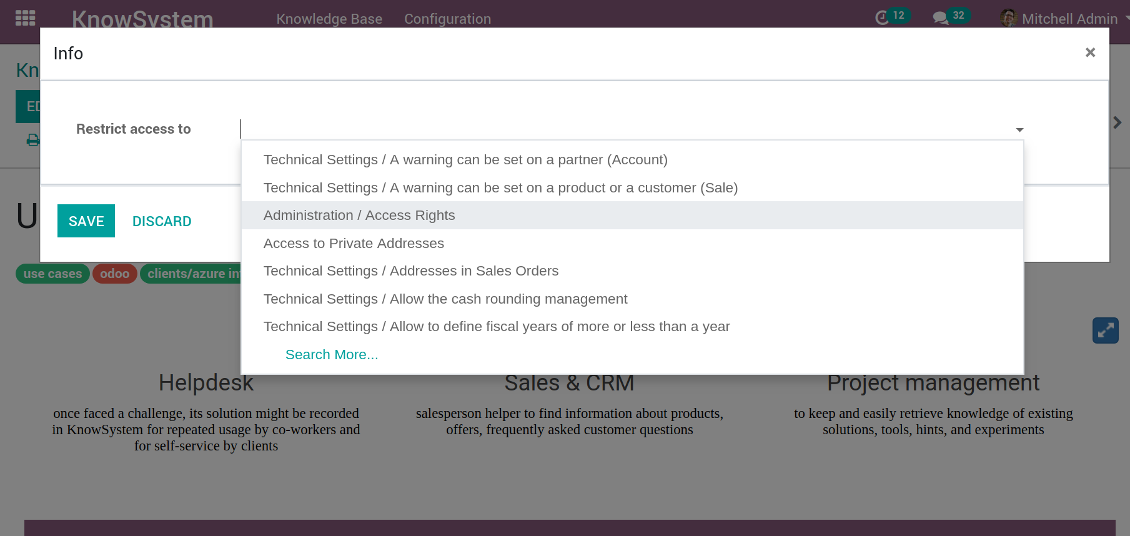
For the company employees: KnowSystem considers user groups which are defined per articles, sections and tours. Look at the tab 'Restrict to' on forms of those objects. If that field is not defined, a document is considered 'global': each internal user may read it.
For portal / public users: KnowSystem takes into account tags and whether an article is website published. A knowledge tag has a field 'Allowed partners', which may grant an access to portal users for articles with this tag. Website published pages are available for everybody.
Rights to administrate KnowSystem belongs to 2 user roles: KnowSystem Editor and KnowSystem Administrator. If you want a user to create and edit articles, a user should belong to one of those groups.
|
|
Odoo user |
KnowSystem Editor |
KnowSystem Admin |
Portal user |
Public user |
| Articles | read related to his/her user groups and sections | read, create, edit, archive related to his/her user groups and sections | read, create, edit, delete any | read published articles and articles related to partner-related tags | read published articles |
| Sections | read related to his/her user groups | read, create, edit, archive related to his/her user groups and sections | read, create, edit, delete any | read all sections of available articles | read all sections of published articles |
| Tags | read any | read, create, edit, archive any | read, create, edit, delete any | no access | no access |
| Tours | read related to his/her user groups | read, create, edit, delete related to his/her user groups | read, create, edit, delete any | no access | no access |
| Misc | may like / dislike, add to favourites, print, take part in discussions | may configure options | may like / dislike an article |
|
Take also into account two peculiarities:
- Odoo user always may access an article of which he is an author disregarding further restrictions;
- Rights for section is defined not only according to this section but also according to all its parents. For example, if user can't access 'sales', he/she would not be able to access 'sales / crm' disregarding whether 'crm' is available for his/her user group.
Screenshots
Manage access to this article
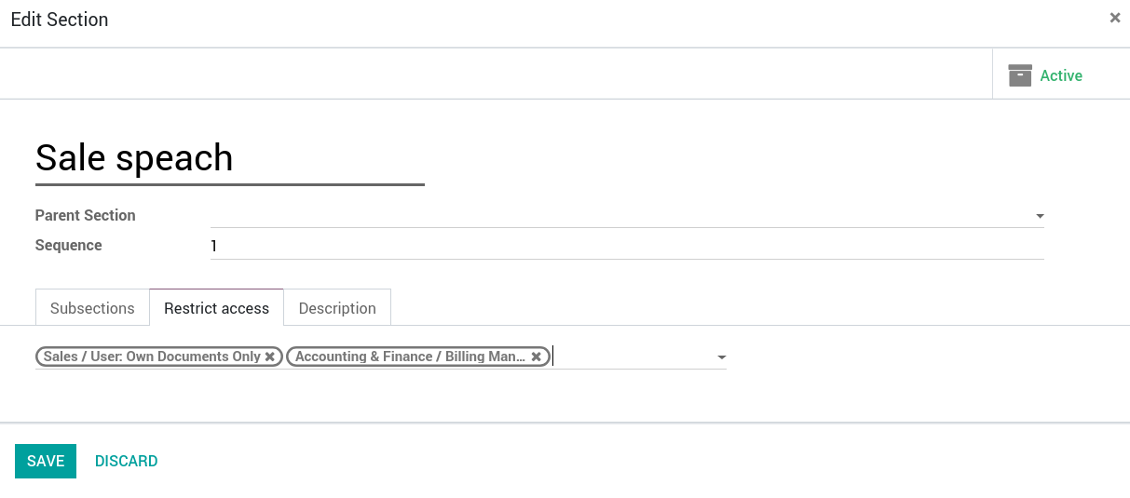
Section update and user rights
Create learning tours
How to configure a learning tour
- Turn on the option 'Tours'
- Go to KnowSystem interface and select articles to be included into a tour
- Press the mass action button 'Add to tour' and select or create a tour. Press save
- Re-order articles in a consistent order
- Define groups of users who should go through a tour on the tab 'Restrict access'
- Now users can see and launch tours right from the KnowSystem interface (the right navigation panel)
Screenshots
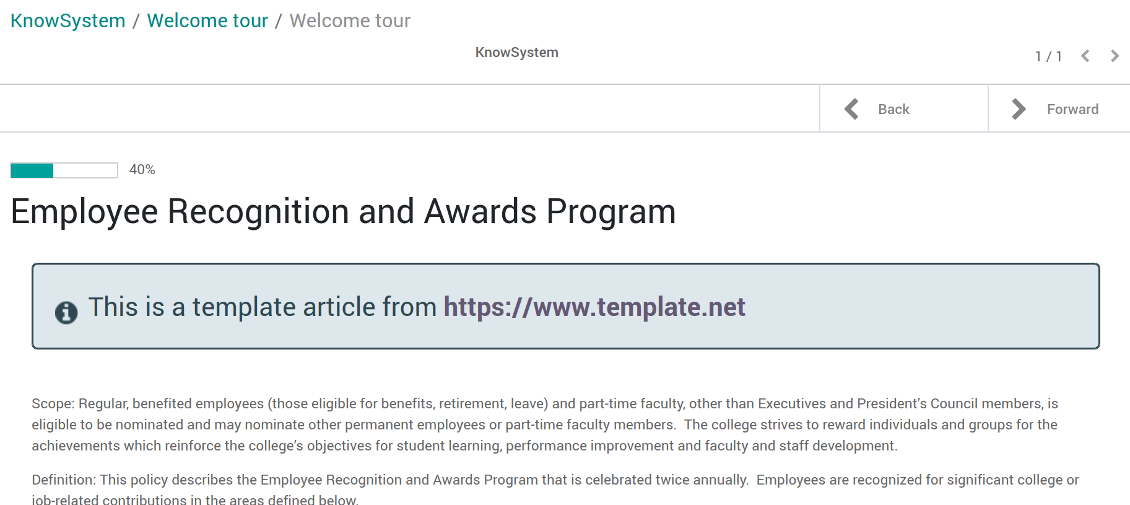
Article in a learning tour
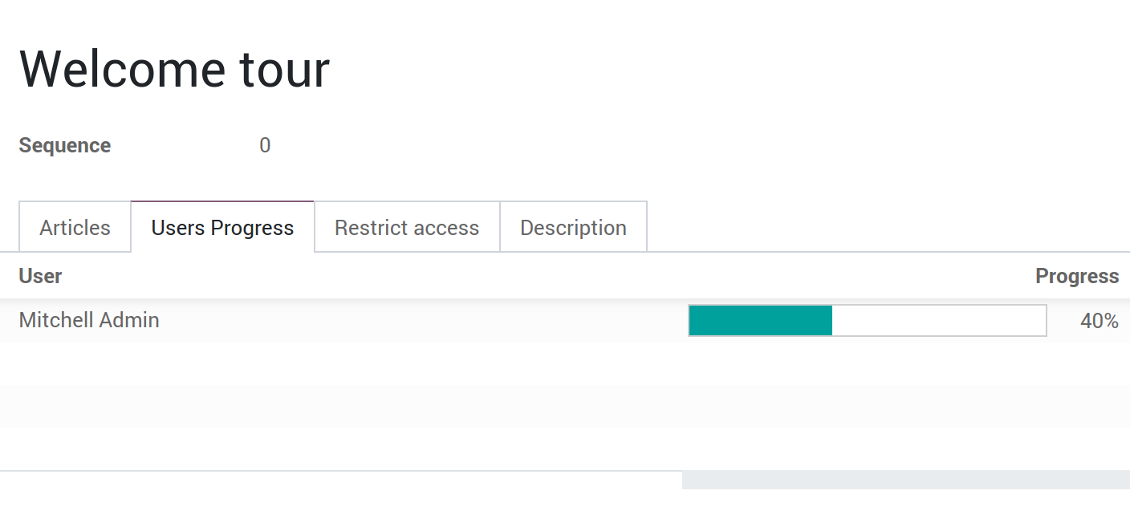
Control tour progress by users
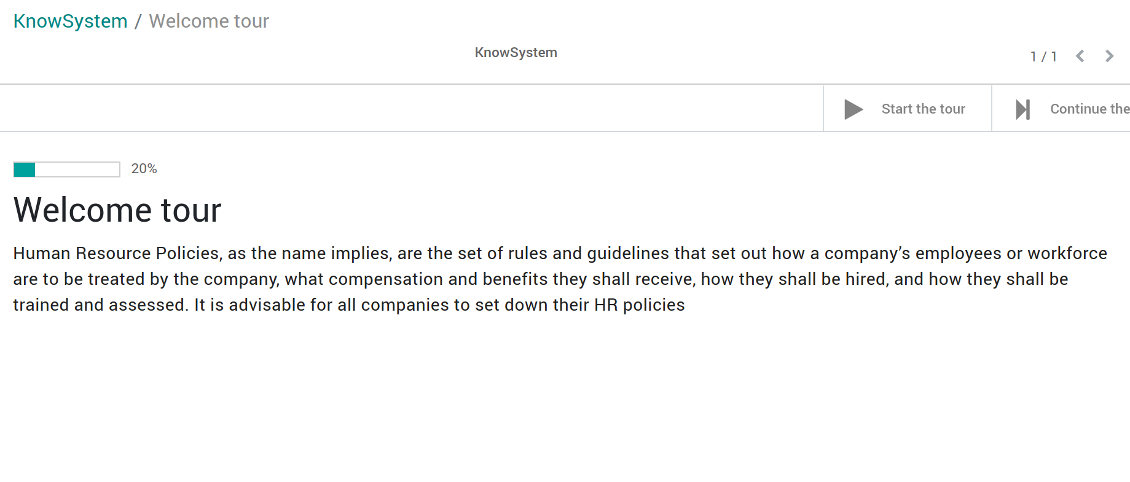
KnowSystem tour welcome page
Multilingual knowledge base
How to make an article available for a few languages
- Install the optional add-on 'KnowSystem: Multi Languages'
- Change your user language for a needed one
- Update this article
- Now it is available in both source and a current language
Make sure you really require a few languages. In that case you almost double the work of KnowSystem editors. All articles should be kept updated in all Odoo languages.
Knowledge base for any industry and business
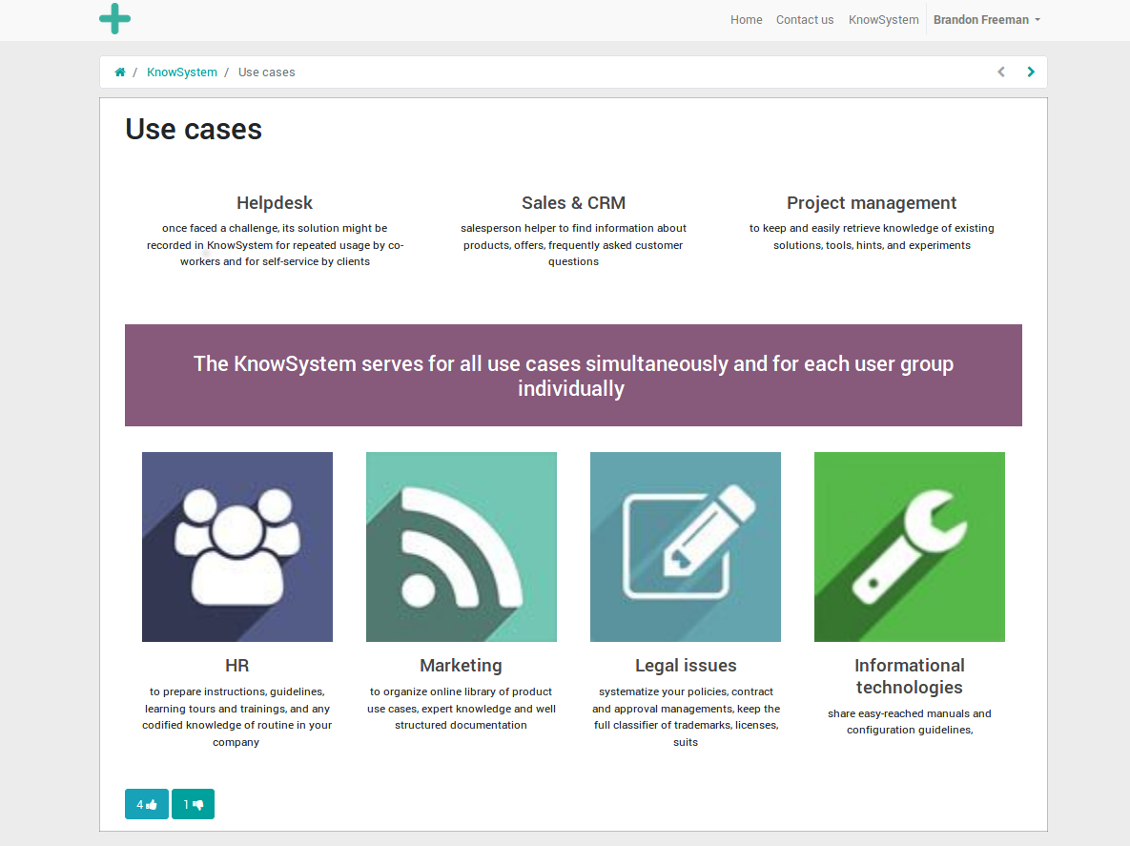
Typical use cases
- Helpdesk: once faced a challenge, its solution might be recorded in KnowSystem for repeated usage by co-workers and for self-service by clients
- Sales & CRM: salesperson helper to find information about products, offers, frequently asked customer questions
- Project management: to keep and easily retrieve knowledge of existing solutions, tools, hints, and experiments
- HR: to prepare instructions, guidelines, learning tours and trainings, and any codified knowledge of routine in your company
- Marketing: to organize online library of product use cases, expert knowledge and well structured documentation
- Legal issues: systematize your policies, contract and approval managements, keep the full classifier of trademarks, licenses
- Informational technologies: share easy-reached manuals and configuration guidelines
Häufig gestellte Fragen zu KnowSystem: Knowledge Base System Odoo v.11
Ich sehe keinen Unterschied zwischen den Texten der Revisionen.
Revisionen speichern nicht nur Textänderungen, sondern auch alle Stilaktualisierungen (technisch, wenn Sie den HTML-Quellcode eines Artikels ändern). Manche sind auf den ersten Blick unklar (z. B. eine geänderte Schriftgröße eines einzelnen Wortes). Andere können drastisch sein. Jede Folge Edit > irgendetwas im Artikel ändern > Save erzeugt jedoch eine neue Revision.
Kann ich ein YouTube-/ Vimeo- / Dailymotion- / Youku-Video in einen Artikel einfügen?
Ja, Sie können Videos dieser Dienste sowohl aus dem Odoo-Backend als auch aus dem Website-Builder in Artikel einbetten. Fügen Sie dazu einen Baustein mit einem Bild hinzu > klicken Sie auf das Bild > wählen Sie ‘Video’ > geben Sie die URL des Mediums ein.
Bitte beachten: solche Videos werden als iframes eingebunden, und manche Browser blockieren die Wiedergabe, bis der Benutzer das ausdrücklich erlaubt.
Wie mache ich einen Abschnitt auf der Website sichtbar?
In KnowSystem wird ein Abschnitt auf einer Website sichtbar, wenn er veröffentlicht ist und mindestens einen Artikel enthält. Auch mit Unterabschnitten bleibt er unsichtbar, solange im Abschnitt selbst kein Artikel liegt. So vermeidet man leere Abschnitte und hält das KnowSystem-Portal übersichtlich. Damit der Abschnitt auf der Website erscheint, fügen Sie einen einleitenden oder allgemeinen Artikel hinzu, der die Artikel der Unterabschnitte kurz beschreibt oder auflistet.
Wie gebe ich einen Artikel für einen externen Partner frei?
Rechtsklick auf ein beliebiges Schlagwort im linken Navigationsbereich - Create
Suchen Sie das Feld 'Allowed partners'. Zum Beispiel 'clients - azure interior', um dem Partner 'Azure Interior' Zugriff zu geben. Umgekehrt können Sie KnowSystem-Schlagwörter direkt im Partnerformular zuweisen
Öffnen Sie nun den gewünschten Artikel (oder nutzen Sie dieselbe Aktion 'Mass update' für mehrere Datensätze):
Wenn er veröffentlicht ist: heben Sie die Veröffentlichung auf, falls er nicht für alle Portalbenutzer und öffentlichen Besucher sichtbar sein soll
Weisen Sie das neu erstellte Schlagwort zu (im Beispiel 'clients - azure interior')
Ergebnis:
Alle Portalbenutzer des kommerziellen Partners 'Azure Interior' haben Zugriff auf die Artikel mit dem Schlagwort 'Azure Interior'
Keine anderen Portalbenutzer (wenn kein anderes Schlagwort zugewiesen ist) haben Zugriff auf diese Artikel
Interne Benutzer sind nicht betroffen und sehen Artikel gemäß der Logik 'access to' von Artikeln und Abschnitten.
Können wir die Sprachauswahl-Schaltfläche für den Artikeltext hinzufügen?
Die Schaltfläche 'translate' wird vom optionalen Add-on 'KnowSystem: Multi Languages' bewusst nicht in den Artikeltext gesetzt. HTML ist in dem einfachen Popup dieser Schaltfläche sehr schwer zu übersetzen. Es gäbe sehr wenig Text und viele HTML-Teile (die der Übersetzer zudem beschädigen könnte).
Deshalb sollten Sie sich zum Bearbeiten eines Artikels in einer bestimmten Sprache als Benutzer dieser Sprache anmelden. Das kann ein anderer Benutzer sein, oder Sie ändern vorübergehend die Einstellungen des aktuellen Benutzers. Danach erfolgen alle Änderungen am Artikeltext in dieser Benutzersprache.
Außerdem können Sie unter dem Artikeltext die Schaltfläche 'Copy from another translation' nutzen, um jederzeit den Inhalt aus einer anderen Sprache zu übernehmen (nützlich, wenn der Artikel in einer Sprache stark aktualisiert wurde).
Wie bette ich eine andere Webseite in einen Artikel ein
Dazu können Sie iframes verwenden. Schalten Sie den Artikel in den Roh-HTML-Editor und fügen Sie zum Beispiel <iframe src="https://faotools.com/" style="width:100%;min-height:600px;"> </iframe> ein.
Ich habe KnowSystem installiert, sehe aber die Schaltfläche 'create' und andere Schaltflächen nicht
Wahrscheinlich haben Sie Ihrem Benutzer keine KnowSystem-Rechte gegeben. Wählen Sie die passende Rolle 'KnowSystem Editor' oder 'KnowSystem Admin' und aktualisieren Sie die Seite. Die Steuerungsschaltflächen sollten nun angezeigt werden.
Kann ich eine bestimmte Lerntour nur ausgewählten Benutzern anzeigen?
Ja, indem Sie eine Benutzergruppe zuweisen (z. B. 'Sales Manager'), die diese Tour durchlaufen soll. Gehört der Benutzer zu dieser Gruppe, sieht er die Tour. Andernfalls wird sie nicht angezeigt. Das funktioniert wie die Zugriffsrechte für KnowSystem-Artikel und -Abschnitte.
Beachten Sie: hat eine Tour keine zugewiesenen Gruppen, ist sie 'global' und für alle sichtbar.
Wie ändere ich Fußzeile und Kopfzeile beim Drucken von Artikeln?
Kopf- und Fußzeile der Artikel-PDFs stammen aus den Unternehmenslayouts. Öffnen Sie Settings > General Settings > den Bereich Business Documents. Dort legen Sie die Unternehmensvorlage fest, die für alle Dokumenttypen gilt, einschließlich Rechnungen, Verkaufsaufträge usw. und auch für Artikel. Dieser Odoo-Ansatz behandelt Fuß- und Kopfzeile als allgemeinen Unternehmensstil, nicht als Eigenschaft einzelner Ausdrucke.
Wie verknüpfe ich Artikel miteinander?
Jeder Artikel hat interne (Backend-) und Website-URLs (wenn die Option 'KnowSystem: Website and Portal' installiert ist). Klicken Sie auf der Artikelformularansicht auf die Schaltfläche 'Info', um die Webadressen dieses Datensatzes zu sehen. Sie können jede davon als Hyperlink in den Artikeltext einfügen.
Kann ich den HTML-Quellcode eines Artikels ändern?
Ja: schalten Sie die debug assets ein (auf der Einstellungsübersicht) und kehren Sie zum aktuellen Artikel zurück. Im Bearbeitungsmodus erscheint das Symbol '</>'. Klicken Sie darauf, um HTML und Stile anzuzeigen und zu bearbeiten.
Wie sind die Update-Richtlinien Ihrer Tools?
Laut den aktuellen Richtlinien des Odoo Apps Store:
- Ein fur Version 12.0 oder früher gekauftes Modul gibt Zugang zu allen Versionen bis 12.0.
- Ab Version 13.0 muss jede Modulversion separat gekauft werden.
- Unabhängig von der Version berechtigt der Kauf zu allen Updates und Fehlerbehebungen innerhalb einer Hauptversion.
Das faOtools-Team steuert diese Richtlinien nicht. Fragen richten Sie bitte direkt an die Vertreter des Odoo Apps Store.
Wie installiere ich Ihre App auf Odoo.sh?
Der direkteste Weg ist der integrierte Ablauf des Odoo Stores:
1. Öffnen Sie die Modulseite und klicken Sie auf Deploy on odoo.sh
2. Sie werden zu GitHub weitergeleitet. Melden Sie sich an und klicken Sie auf Create a new repo oder nutzen Sie ein vorhandenes. Das Repository muss privat sein. Apps unter OPL-1 dürfen nicht öffentlich gemacht werden. Legen Sie bei Bedarf ein neues Repo fur das Odoo.sh-Projekt an
3. Gehen Sie zu odoo.sh, klicken Sie auf Deploy, bestätigen Sie und klicken Sie auf Continue. Die Installation startet.
Damit wird die App auf dem Production-Branch installiert. Fur andere Branches oder Updates:
1. Laden Sie den Quellcode aus dem Odoo Store
2. Committen Sie das Modul in das GitHub-Repository. Keine App-Ordner/Dateien dürfen in .gitignore stehen. Von odoo.sh erzeugte Repos ignorieren oft wichtige Pfade (z. B. /lib). Laden Sie alle Modulverzeichnisse und Dateien hoch
3. Deployen Sie den Ziel-Branch des odoo.sh-Projekts oder warten Sie auf den automatischen Build.
Wie installiere ich Ihre App auf meinem eigenen Server?
2. Starten Sie den Odoo-Server neu;
3. Schalten Sie den Entwicklermodus ein (technische Einstellungen);
4. Aktualisieren Sie die App-Liste (Apps-Menü);
5. Finden Sie die App und klicken Sie auf Activate/Install;
6. Folgen Sie den Hinweisen auf der App-Seite, falls vorhanden.
Ihre App hat Zusatzmodule. Kann ich sie später kaufen?
Ja. Odoo legt alle Abhängigkeiten automatisch in den Warenkorb. SchlieBen Sie bereits gekaufte Tools aus, um nicht doppelt zu zahlen.
Ich habe Ihre App auf Odoo.sh bereitgestellt und sehe eine Warnung/einen Fehler in den Tests
Eine rote/orange Warnung beeinflusst die Funktionen der App nicht. Manchmal bestehen unsere Module die Standard-Automatiktests nicht, weil diese ein Verhalten erwarten, das unseren Zielen widerspricht. Zum Beispiel ändern wir die Preisberechnung, während die Odoo-Tests den Endpreis mit dem Standardalgorithmus vergleichen.
Prüfen Sie zuerst die Funktionen der bereitgestellten Datenbank. Funktioniert alles?
Wenn Sie dennoch annehmen, dass die Warnung echte Funktionen betrifft, senden Sie uns die vollständigen Installationsprotokolle und die vollständige Liste der bereitgestellten Module (Kern und Drittanbieter).
Kann ich Ihre App direkt bei Ihnen kaufen?
Nein, wir vertreiben die Tools nur über den offiziellen Odoo Apps Store.
Ich mochte einen Rabatt
Leider haben wir keine technischen Mittel fur individuelle Preise.
Kann ich die App auf meiner Odoo Online (SaaS)-Datenbank installieren?
Nein, Drittanbieter-Apps können nicht auf Odoo Online genutzt werden. Odoo SaaS blockiert das.
Ihr Tool hängt von anderen Apps ab. Muss ich diese kaufen?
Ja, das Tool benötigt alle als Abhängigkeit markierten Module. Der Preis auf der App-Seite enthält bereits alle noetigen Abhängigkeiten.
Was kostet das Modul in US-Dollar? Warum hat sich der Preis geändert?
Die Preise unserer Module sind in Euro festgelegt. Der Odoo Store rechnet nach seinem internen Wechselkurs um. Der Preis in US-Dollar kann sich ändern, wenn der Kurs aktualisiert wird.
Die Texte der App und Website in anderen Sprachen als Englisch werden KI-gestützt erstellt und an die offiziellen Odoo-Übersetzungen angeglichen. Wenn Sie einen Fehler entdecken, ein Uebersetzungs-Ticket senden und wir korrigieren es.
Fehlermeldung
Wenn Sie auf Fehler oder inkonsistentes Verhalten stoßen, zögern Sie nicht, uns zu kontaktieren. Wir garantieren eine Reparatur innerhalb von 60 Tagen nach dem Kauf und sind auch nach diesem Zeitraum stark daran interessiert, unsere Werkzeuge zu verbessern.
Sie benötigen keine Telefonnummer oder Kreditkarte, um mit uns Kontakt aufzunehmen. Sie sollten nur eine kurze E-Mail-Anmeldung durchführen, die nicht länger als 30 Sekunden dauert.
Bitte nehmen Sie moglichst viele Details in Ihre Anfrage auf: Screenshots, Odoo-Serverprotokolle, eine vollständige Beschreibung zur Reproduktion Ihres Problems usw. Normalerweise dauert es einige Werktage, einen Arbeitsplan fur ein Problem zu erstellen (wenn ein Fehler bestätigt wird) oder Ihnen Hinweise zum weiteren Vorgehen zu geben (andernfalls).
Öffentliche Funktionsanfragen und Modulideen (kostenlose Entwicklung)
Wir sind stark motiviert, unsere Tools zu verbessern und wären für jedes Feedback dankbar. Wenn Ihre Anforderungen von öffentlichem Nutzen sind und effizient umgesetzt werden könnten, nimmt das Team diese in unsere To-Do-Liste auf.
Eine solche To-Do-Liste wird regelmäßig bearbeitet und erfordert keine zusätzlichen Gebühren. Obwohl wir keine Fristen und keinen endgültigen Entwurf versprechen können, könnte dies eine gute Möglichkeit sein, die gewünschten Funktionen ohne Investitionen und Risiken zu erhalten.
Sie benötigen keine Telefonnummer oder Kreditkarte, um mit uns Kontakt aufzunehmen. Sie sollten nur eine kurze E-Mail-Anmeldung durchführen, die nicht länger als 30 Sekunden dauert.

Das Werkzeug, um Odoo-Anhänge in Ordnern zu strukturieren und mit Google Drive, OneDrive/SharePoint, Nextcloud/ownCloud, Dropbox, Amazon S3, Box und NAS zu synchronisieren. Dateimanager. DMS
398€
Das Werkzeug zum bidirektionalen Sync von Odoo-Anhangen mit OneDrive
487€
Das Werkzeug zum bidirektionalen Sync von Odoo-Anhangen mit Google Drive
487€
Das Werkzeug, um Passwörter in Odoo sicher gemeinsam zu halten. Geteilte Tresore

Das Werkzeug, um KPI-Ziele zu setzen und die Erfullung je Periode zu kontrollieren. Dashboards. Diagramme

Das Werkzeug fur terminbasierte Dienste von der Buchung bis Verkauf und Bewertungen
398€
Das Werkzeug, um Odoo aus Ihren KI-Chats per MCP zu steuern. Claude. Jede MCP-KI.

Das Werkzeug, um verschiedene Odoo-Ereignisse in konfigurierbaren Super-Kalendern zu vereinen

Das Werkzeug, um URL-Adressen von Odoo-Website-Seiten zu übersetzen
38€