KnowSystem: Knowledge Base System v.12
The tool to build deep and structured knowledge base for internal and external use. Knowledge System. KMS
- a core of knowledge management. It might be used stand-alone as a complete internal knowledge base system. 価格は 398€.
- an optional module, which let you publish articles to website, share them with portal users, and use website builder to update articles. The features assumed by this add-on are marked by the icon . 価格は 40€.
- an optional extension to KnowSystem: Website and Portal to design website documentation pages based on knowledge base articles. The features assumed by this add-on are marked by the icon . Read the full description on the related page. 価格は 60€.
- an optional module, which let you add and show custom fields for articles (backend). The features assumed by this add-on are marked by the icon . 価格は 48€.
- an optional free module, which shows custom fields on website and portal pages (frontend). The features assumed by this add-on are also marked by the icon .
- an optional module, which let you translate articles, sections and tags for installed in Odoo languages. The features assumed by this add-on are marked by the icon . 価格は 10€.
Innovative single-view interface
From the same interface editors may create and update any knowledge-related documents, change articles in batch, set up security. Without a need for excess navigation.
Interface solutions
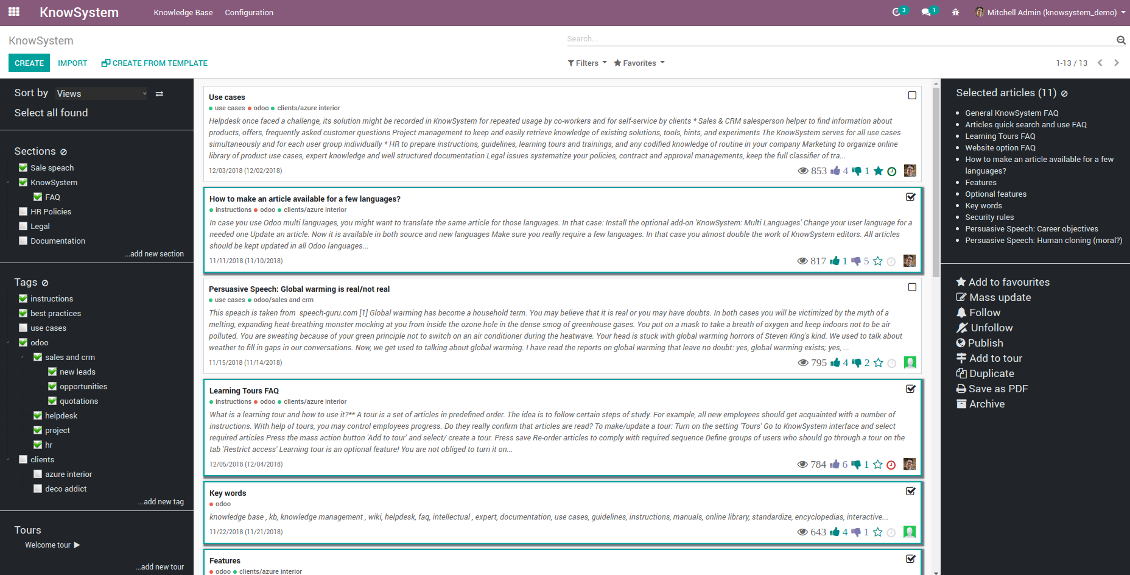
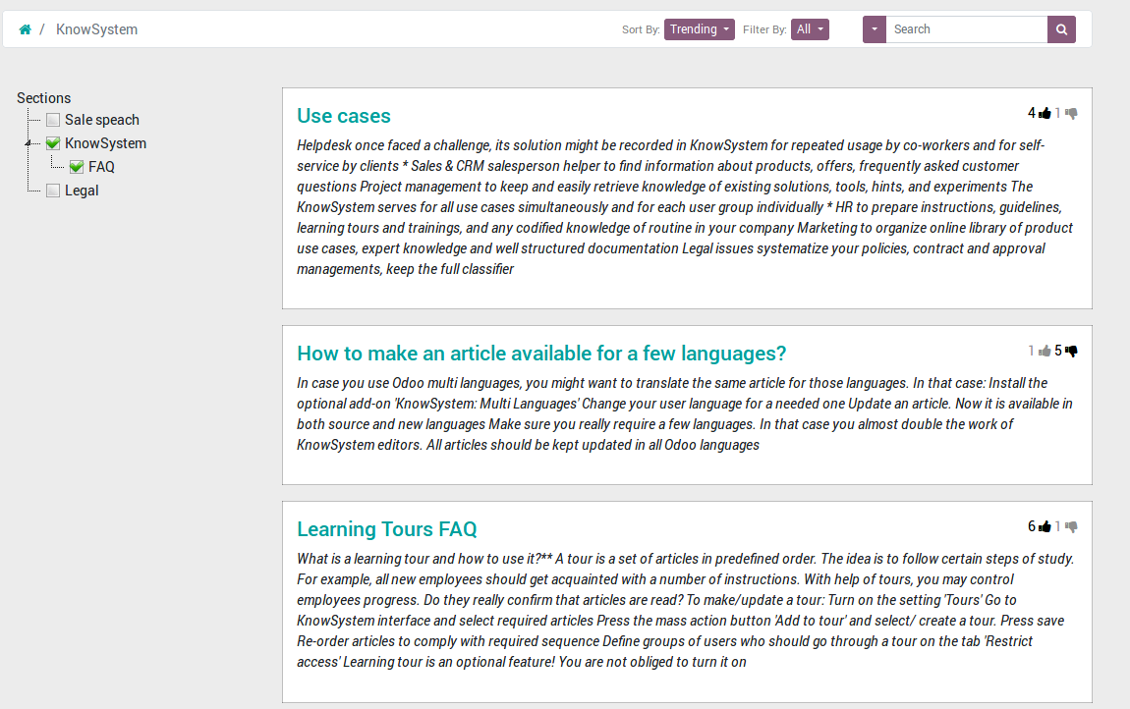
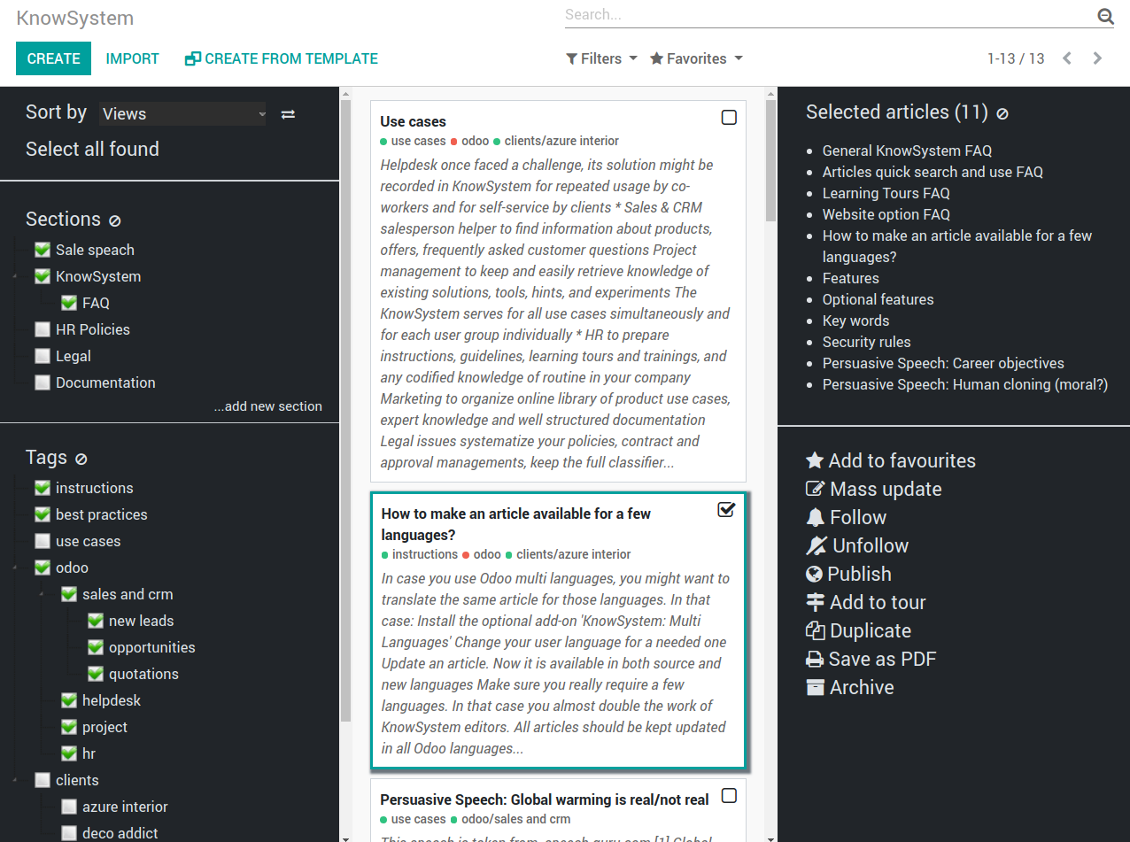
The KnowSystem interface consists of 3 key parts: the left navigation panel, the list of articles, and the right navigation panel (it is shown only if some articles are selected).
On the left navigation panel you may:
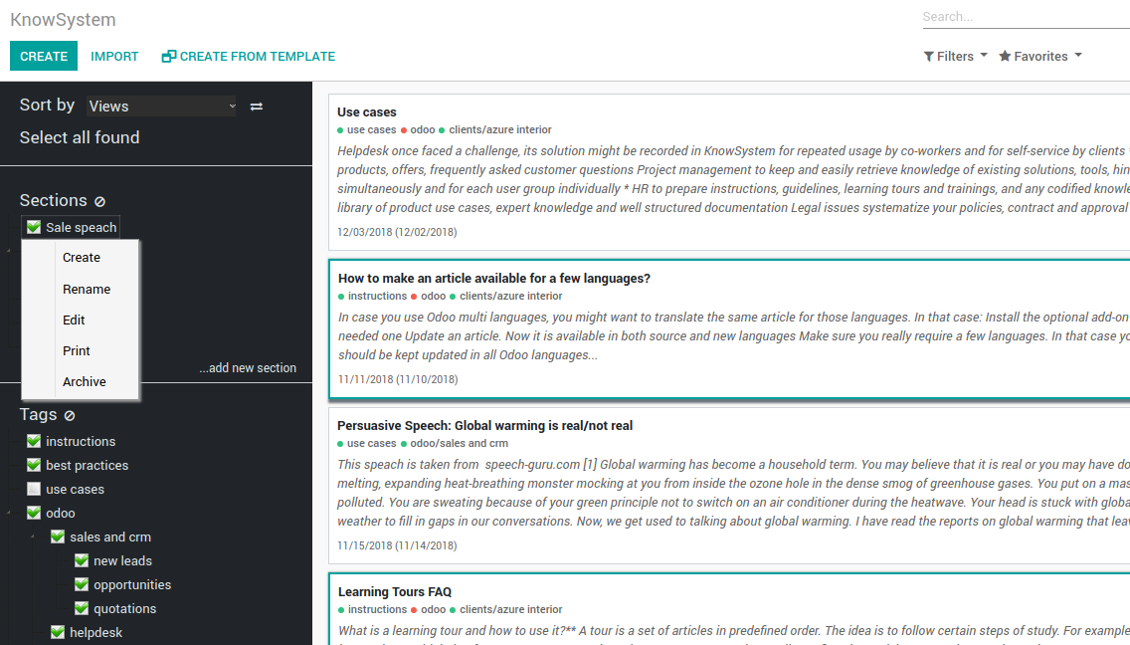
- Manage hierarchy of sections: prepare new (right mouse click - 'create'), update existing (right mouse click - edit), re-order any (drag and drop an item), archive sections. Select a few ones to filter articles. You may also print all articles related to this section as a single PDF file.
- In the same way manage hierarchy of tags
- Sort articles by number of views, a score of likes and dislikes, create or update dates, a section, an author
- Select all articles which are found according to chosen tags / sections and according to introduced searches / filters
- Launch a learning tour.
From the list of articles you see articles' name, indexed content (words without HTML style), dates of creation and last update, a number of views, likes, dislikes, author avatar. Here you may also add an article to favourite by pressing the 'star' icon.
Click on article body to open it in a full size (form view). Do not worry: chosen tags and sections as well as selected articles will be kept when you get back! Click on the top right check box to add an article for selection.
On the right navigation panel you observe selected articles and may proceed a mass action. Click on article name to remove it form selection.
On the top of the interface users also would find a standard Odoo omnibox. Type here to search by a title, content, an author, tags or a section.
Available mass actions
KnowSystem let users update an unlimited number of articles simultaneously:
- Assign new section
- Change or remove tags
- Print multiple articles as a single PDF
- Follow / unfollow discussions
- Publish / unpublish articles
- Export articles to an Excel table
- Archive or restore records
- Add articles to learning tours
- Mark knowledge items as favourite
- Duplicate articles.
スクリーンショット
KnowSystem articles overview, search and mass actions
Single entry for knowledge management actions
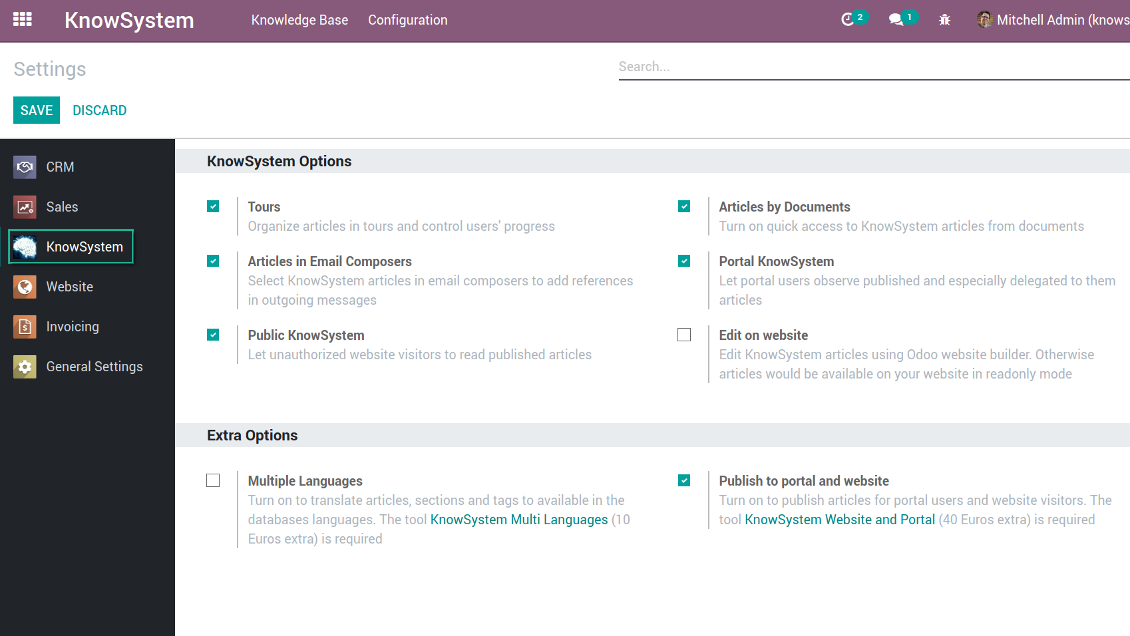
KnowSystem configuration
Article read mode
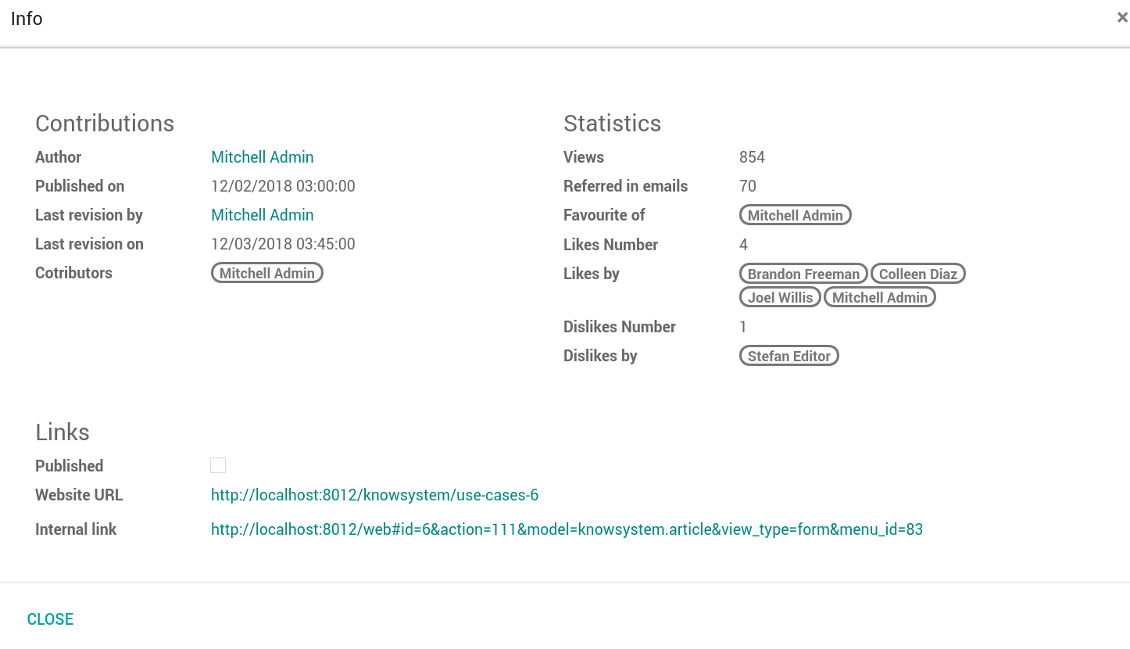
Article info and statistics
Article misc actions
Mass actions for selected articles
Small screen KnowSystem interface
Fast, comfortable, and professional knowledge recording
By using templates with pre-defined styles you may also speed knowledge generation up and standardize articles' appearance.
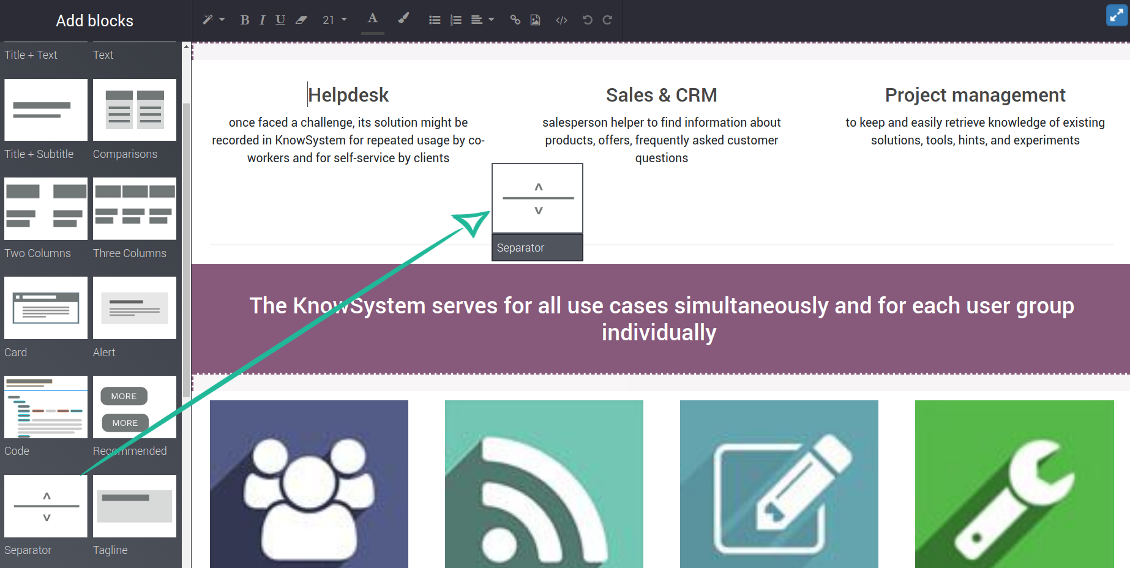
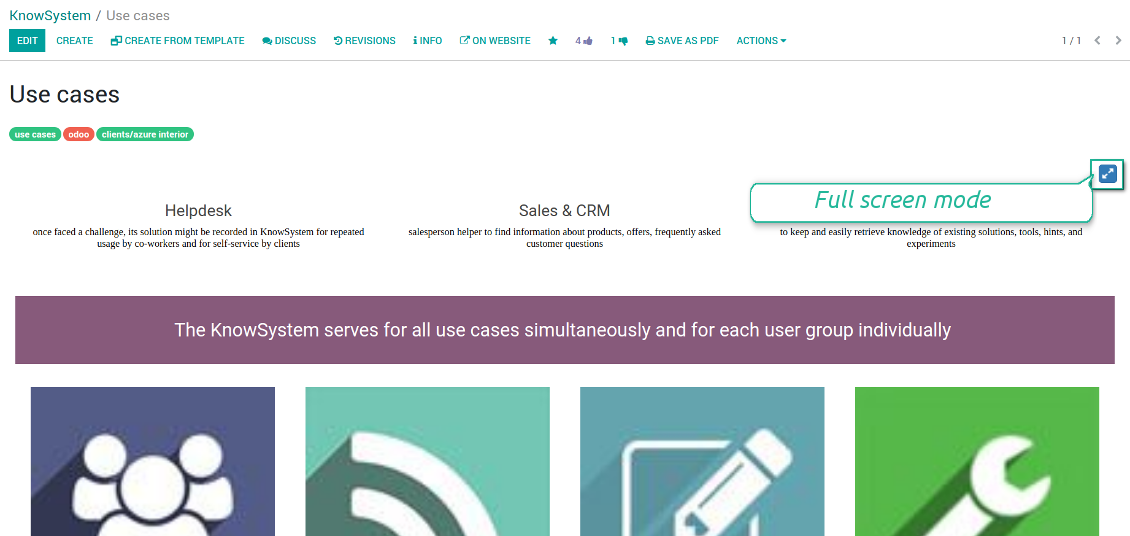
How to use the website builder for editing articles
KnowSystem provides you with a backend articles' builder, which is comfortable and safe to use. Odoo website builder is richer in features to prepare complex HTML structures. To edit articles through the website:
- Install the optional add-on 'KnowSystem Website and Portal' (the option 'Publish to portal and website')
- Turn on the setting 'Edit on website'
- Push the button 'Edit on website' on this article form
Be cautious: if you are going to print this article or add its contents to emails, website building blocks are not suitable. Their advanced styles contradict printing and composer layouts and would not be correctly shown. In such a case use the safer backend builder.
How to use article templates
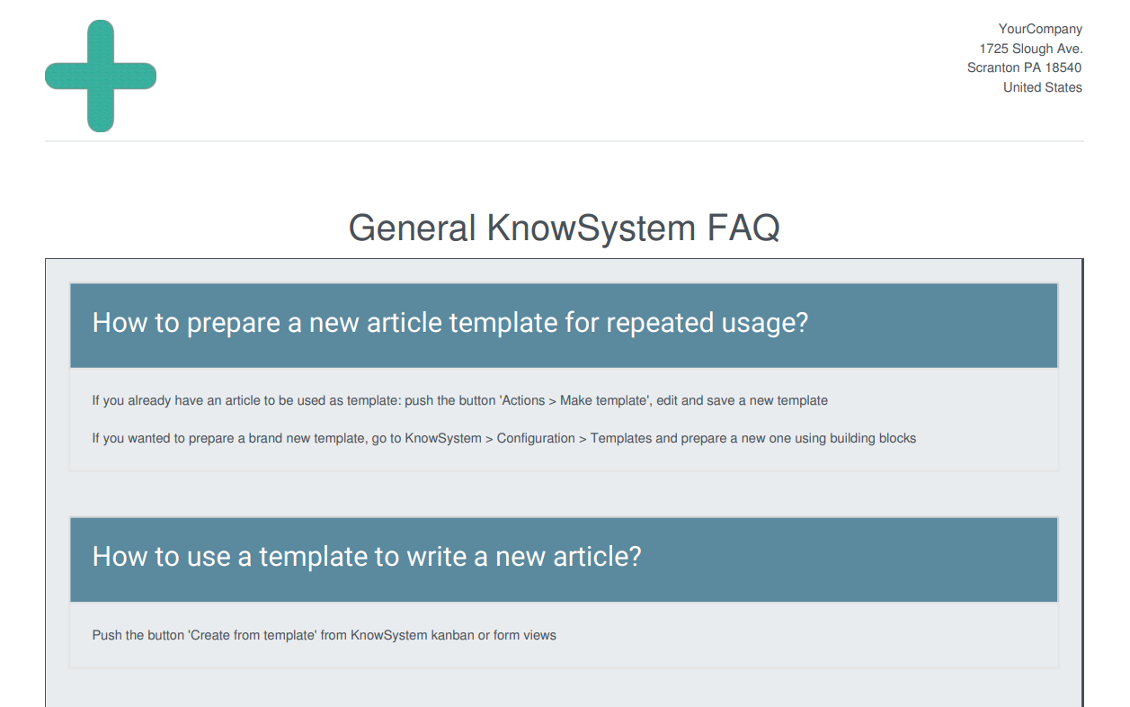
To prepare a new article template for repeated usage:
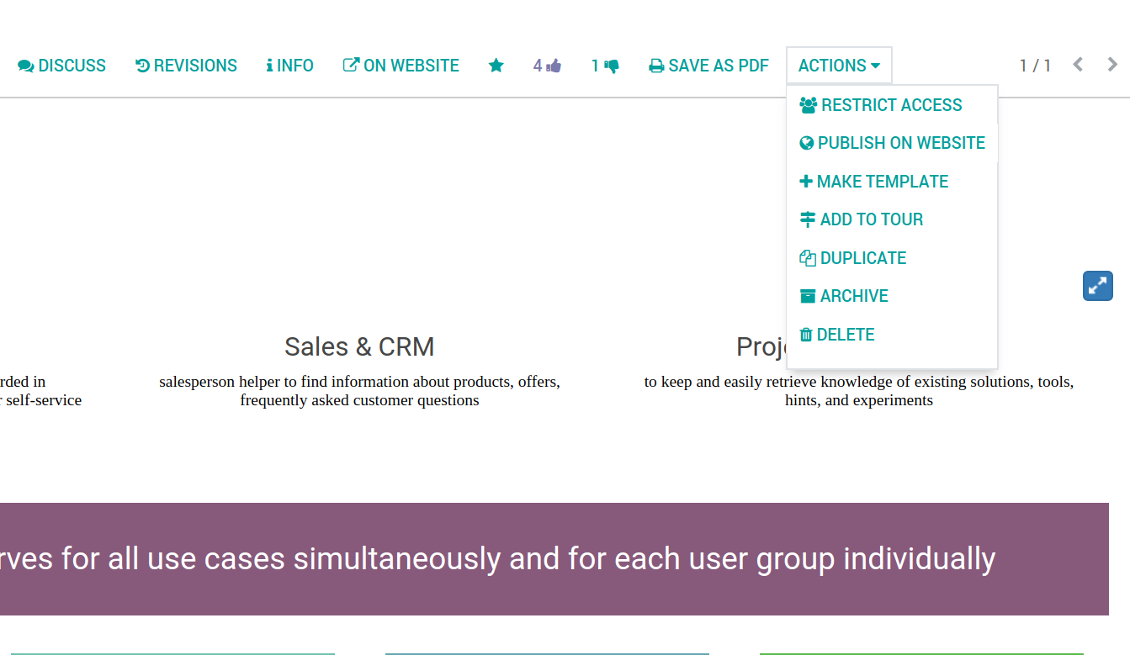
- If you already have an article to be used as template: push the button 'Actions > Make template', edit and save a new template.
- If you wanted to prepare a brand new template, go to KnowSystem > Configuration > Templates and prepare a new one using building blocks.
To use a template to write a new article:
- Push the button 'Create from template' from KnowSystem kanban or form views
- Select a required article template
- Push 'Create' and introduce changes to a new article.
スクリーンショット
Building blocks for knowledge base articles
Get benefit from your knowledge
How document types and articles are linked for a quick access
Experience is not general, usually it relates to specific issues. Knowledge used for customer communication differs from suppliers' negotiations. Frequently asked questions for draft and confirmed sale orders vary. KnowSystem let you structure your articles to apply them in a correct place and at right time. To that end:
- Turn on the setting 'Articles by Documents' (the option shows the top menu entry above any Odoo document) or 'Articles in Email Composers' (the option adds a quick link in a message composer editor for citing)
- Create a new tag (e.g. 'odoo / helpdesk'). In the table 'Applied to' use a required model (e.g. 'helpdesk ticket') or use it for all documents (the check box 'Apply to all documents').
- As advanced option you may apply additional filters: for example, to show articles only for 'new' tickets, not for 'in progress' ones. Use dynamic filters' constructor for that goal
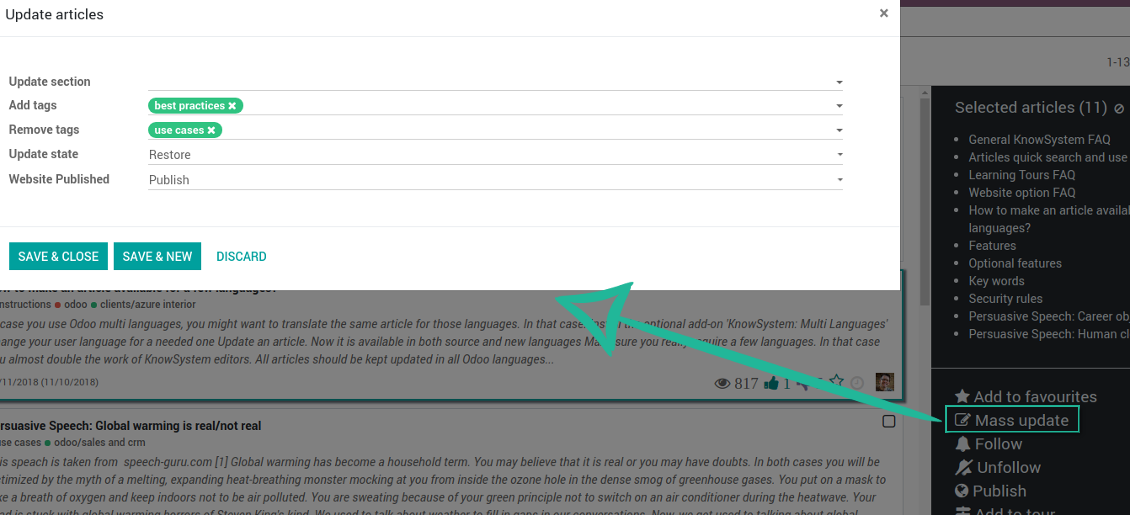
- Assign this tag for required articles. For a few articles use the mass action 'Mass update'
- Now when you access a quick article search from a document or from an email composer, Odoo will calculate KnowSystem tags for this document. That's why by default users would see only articles suitable for a current document. Simultaneously, they might always change tags to use other knowledge base data.
How to overview articles which might be useful for this document
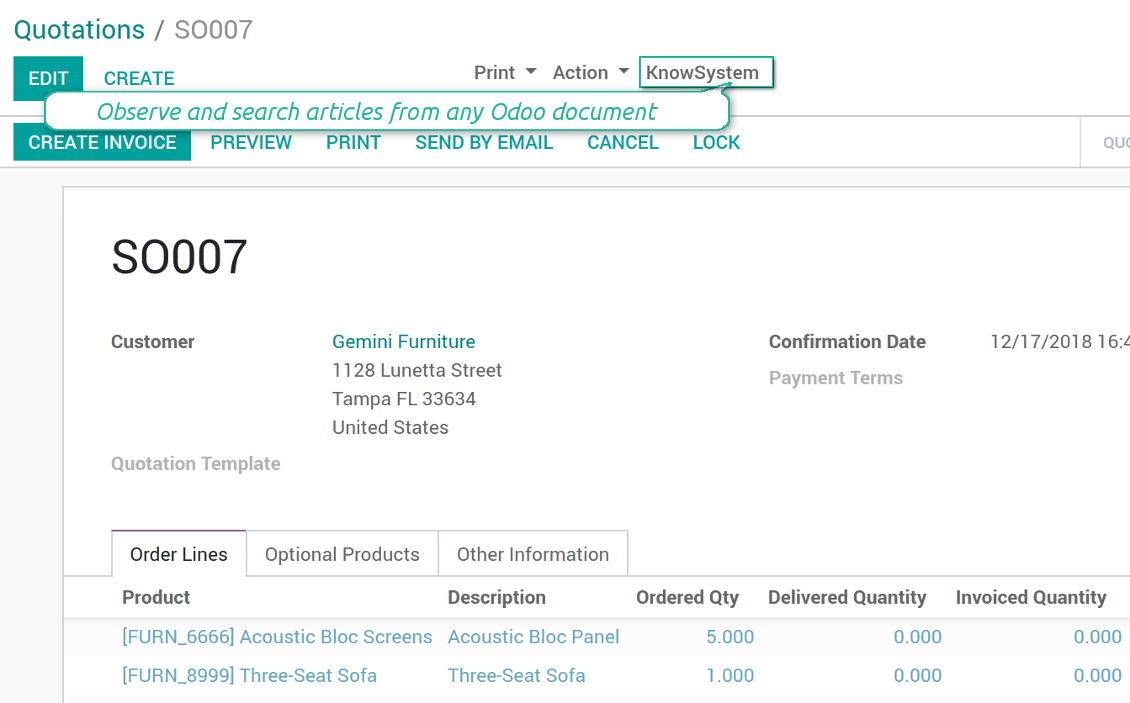
As soon as you turned on the option 'Articles by Documents', on the top of each Odoo object form view there would be a quick link 'KnowSystem'.
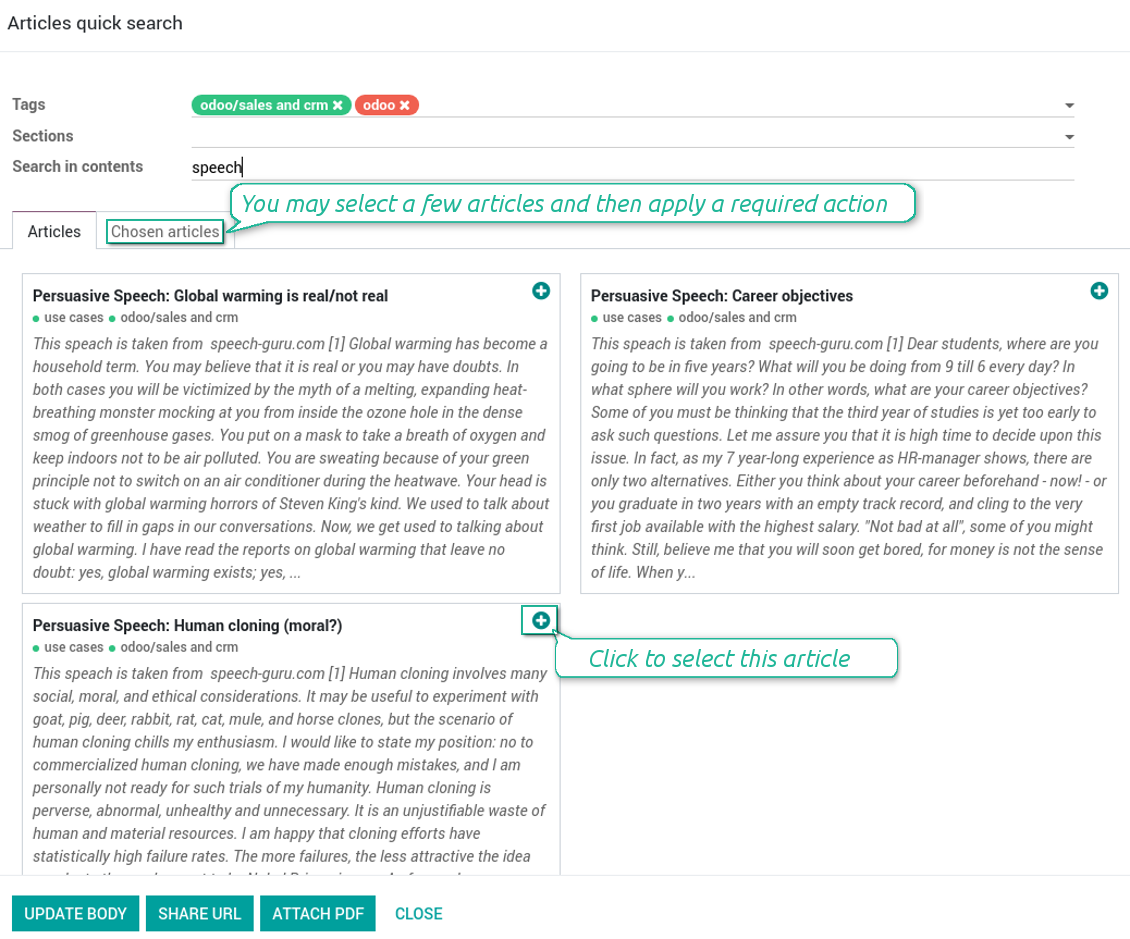
Click on that entry, and Odoo would open the wizard with articles. By default KnowSystem tags suitable for this document would be selected (if any). You may change those tags, or additionally filter by sections or content search. As a result list of topical articles is shown for you.
How to use company knowledge for communication
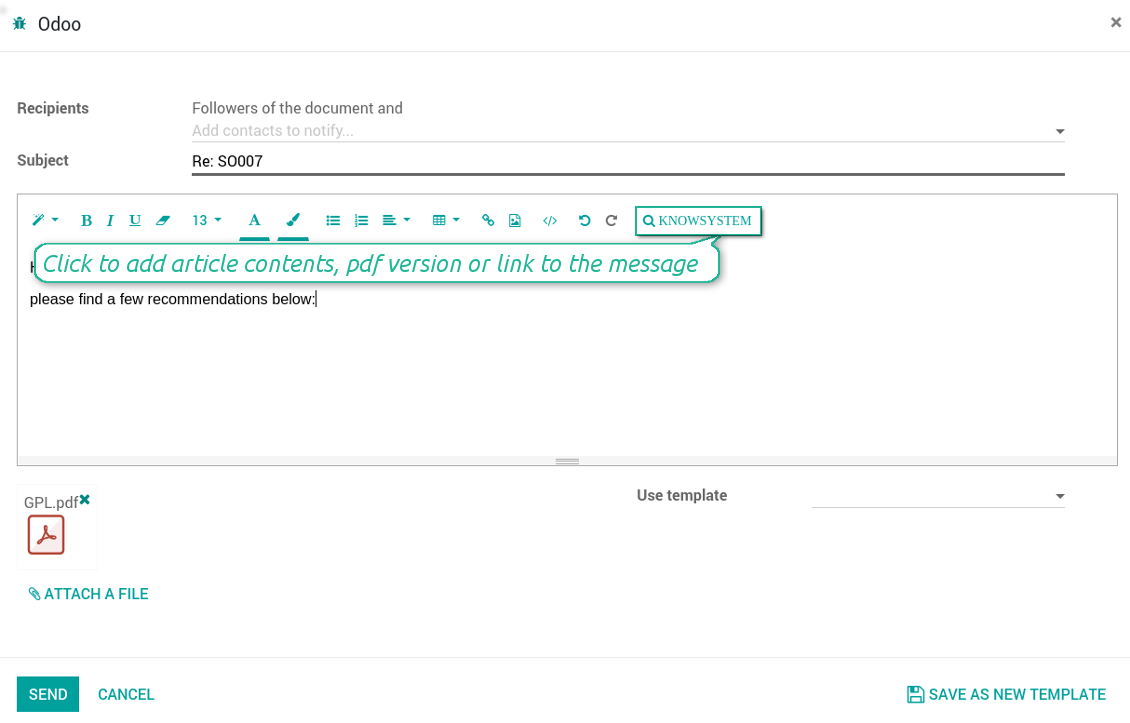
Turn on the option 'Articles in Email Composers' to let users reference or cite Knowledge records in Odoo messages. As a result the special quick entry 'KnowSystem' would be added to each Odoo email composer.
Clicking on that entry would open a wizard with a set of suitable to this document articles. You may change search by tags, add extra filtering by sections or content.
Afterwards, select required articles among found ones; choose an action. You may:
- Update message body with article contents (would be added to the end of a current message)
- Attach a PDF version of an article(s)
- Share a public link
スクリーンショット
Quick access for knowledge system from any Odoo document
Knowledge base link from email composer
Articles from any document
Article(s) PDF printing
WIKI-like revision system
How to recover a previous article version
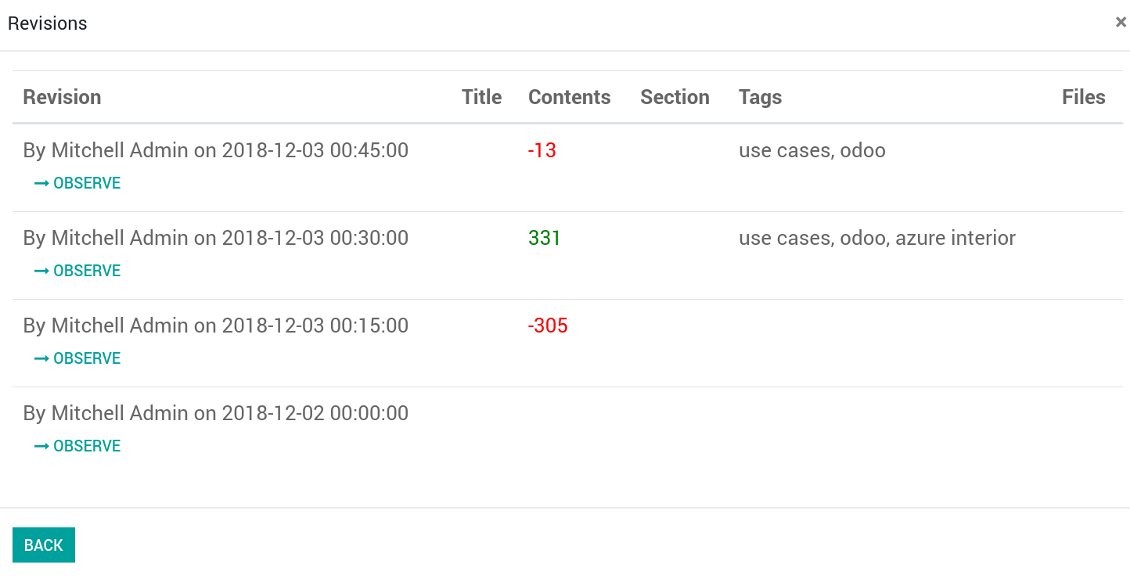
- Go to an article form view and push the button 'revisions'
- Find a required one and push the button 'Observe' to check whether this version is a correct one
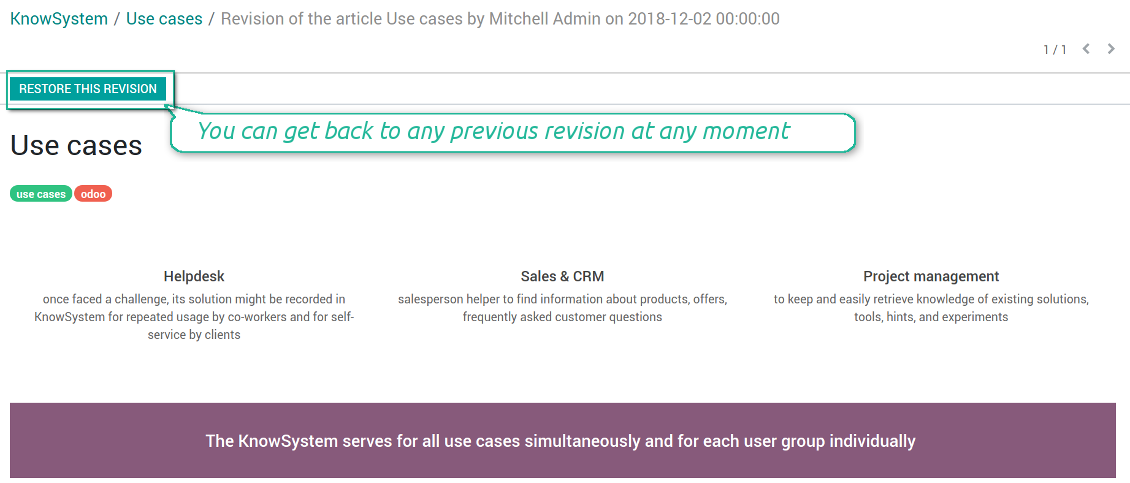
- Push the button 'Restore this revision'. The article would be recovered to that version.
- The recovery operation itself is recorded. So, if it is a mistake you can revert changes by recovering the last-to-last revison.
スクリーンショット
Wiki-style revisions history
To restore is easier than to break
Individual partner knowledge base portal
How to share knowledge base with specific partners
An article is available for a portal user in two cases: A. it is website published; B. his/her company is indicated as allowed partner in one of article tags.
In the first case such an article is available for all portal users and even for public website visitors who have not logged in.
In the latter case you grant a restricted access for an article only for chosen companies. To that end:
- Turn on the setting 'Portal KnowSystem'
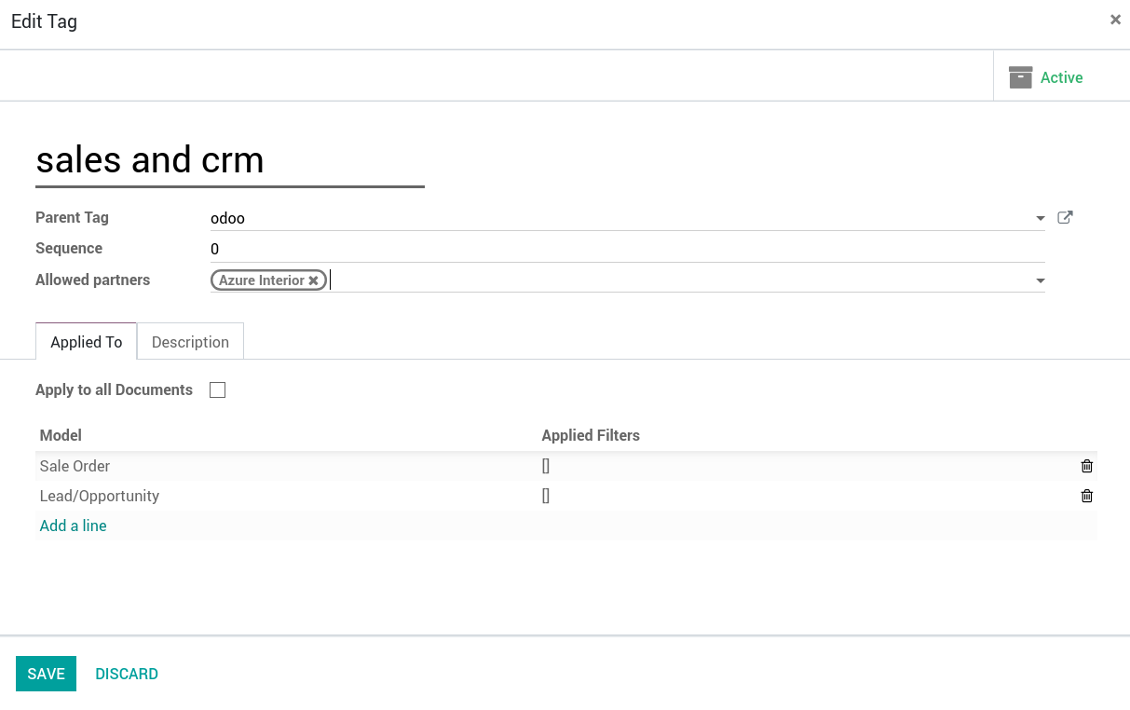
- Create a tag for this partner, for example 'clients / Azure Interior'. On the tag form indicate this company in the field 'Allowed partners'
- Assign the tag for all articles you want to share with this partner. For a few articles use the mass action 'Mass update'
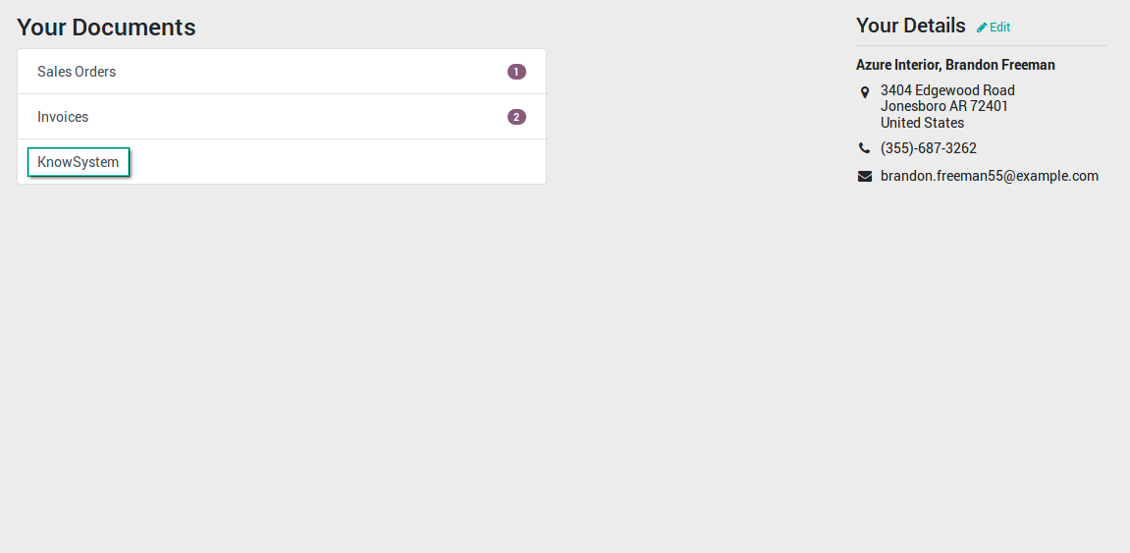
- Now portal users related to this partner may access shared articles right from their partner portal.
スクリーンショット
Knowledge base for portal and public use
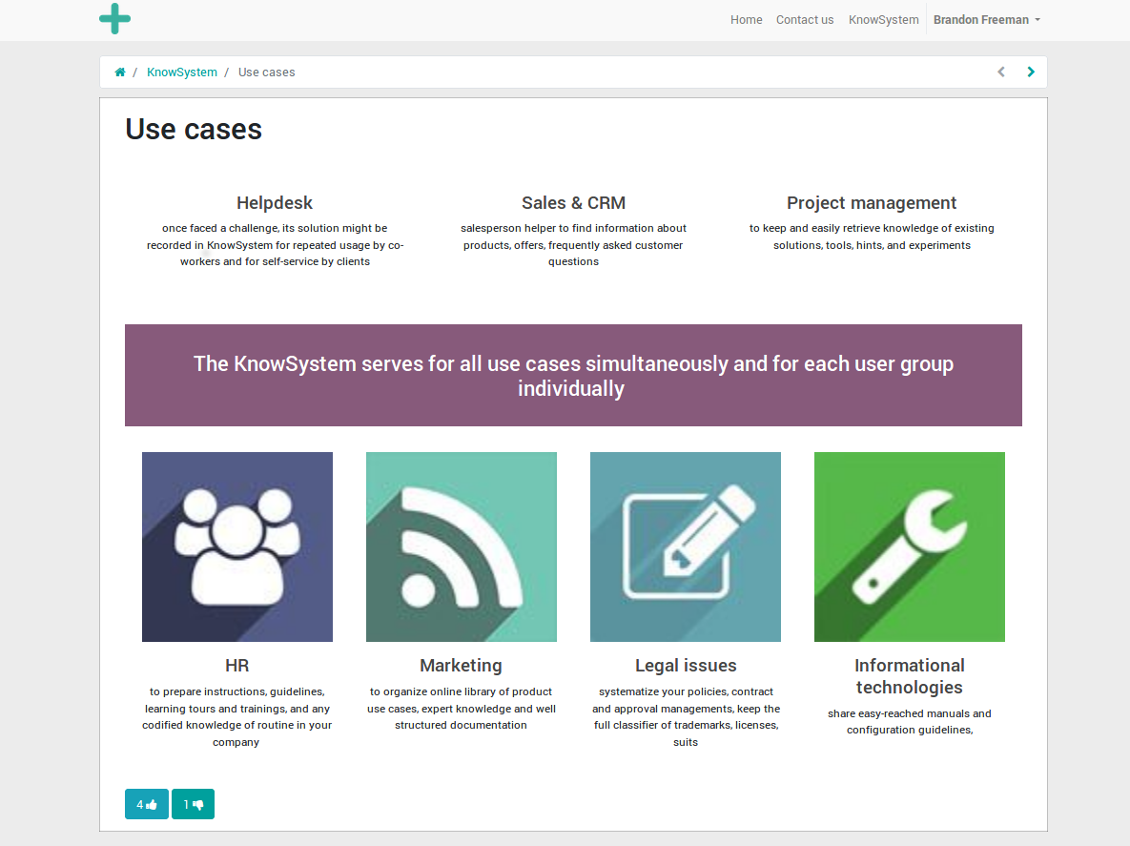
KnowSystem articles on website
Tag: document types and portal partners
KnowSystem from portal
Best knowledge base system for Odoo!
Excellent app and exceptional after-sales support.
Really well thought-out product and one of the best features is the contextual help by means of the tags. Really a game changer for us.
Keep up the great work FaOtools!
Outstanding app! Tremendous value for money, an absolute must have!
One of the features sorely lacking from Odoo has been a robust Wiki/documentation system. Using third party platforms is a massive headache: yet another system to maintain, users get distracted switching back-and-forth, and errors get made. Then you have to worry about training, additional logins, etc.
KnowSystem feels like a native/core app, is very well-polished, and extremely fast. It's accessible from any screen, and the search results are instant (none of the latency inherent with most apps).The interface is elegant yet powerful, with robust access control, rich editing features, and version control. It's simple to revert to previous entries, view audit trails, etc. It's very intuitive for anyone familiar with Odoo; onboarding takes just a few minutes. The user guides are excellent.
This is invaluable for any organisation with a lot of documented information, SOPs, ISO compliance, or similar. If you're using eLearning, it's great for creating a help system / reminders. For example, noting key takeaways or specific instructions. The user can be in MRP, Sales, or any other function, and instantly lookup a guide. Since it overlays whichever screen you're in, it doesn't interrupt the workflow.
This dramatically increases efficiency, minimises questions, and helps keep everyone on the same page.
Oh, and customer service is excellent, faOtools stands behind their product. Thank you!
KnowSystem is excellent - OdooTools offer great support, are very helpful and responsive
Our company needed the ability to add a Knowledge Base to our Odoo portal website for our customers to access article content on a membership-only basis. KnowSystem provided this and much more, along with ability to add search by section, set permissions to allow only certain partners access to articles by tag etc. OdooTools have been very helpful and implemented several features we suggested including automatic redirect upon login, customisable filters and a social sharing capability on articles. Overall a great app by a great company, something that massively adds to Odoo's capabilities and is something that everyone could benefit from using.
Very functional application and responsive support
Our company produces medical laser equipment and we use KnowSystem to streamline the knowledge base of our company. Convenient search system and classification of content, as well as access rules for groups and even for individual users.
Great app and professional team
The app is great the the team is very professional in both response timing and problem solving.
Highly recommended.
Marco from ALO.zone.
Excellent system
Excellent system.
A great tool from some very nice developers!
KnowSystem is a great tool and a game changer for us. Finally a place to put all our company know-how. I highly recommend it. And also important to us: We got great support from FaOtools too. A rare thing in this busy world. thx!
Excellent app and support.
Great app and a very helpfull support. Openess to improve their products is outstanding.
Public knowledge base
How to make an article available for all website visitors
- Turn on the setting 'Public KnowSystem'
- Publish required articles through the mass action 'Publish' or by pushing the button 'Actions > Publish on website' on an article form
- Now any website visitor can read those articles
Team work for knowledge creation
スクリーンショット
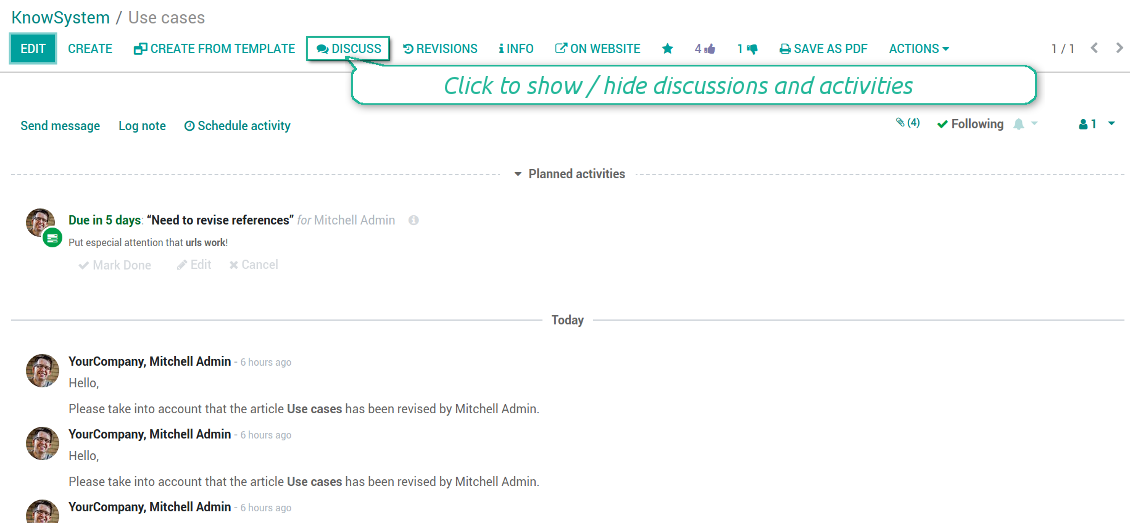
Knowledge base interactions, discussion, and activities
Custom fields to structure knowledge
How custom knowledge attributes work
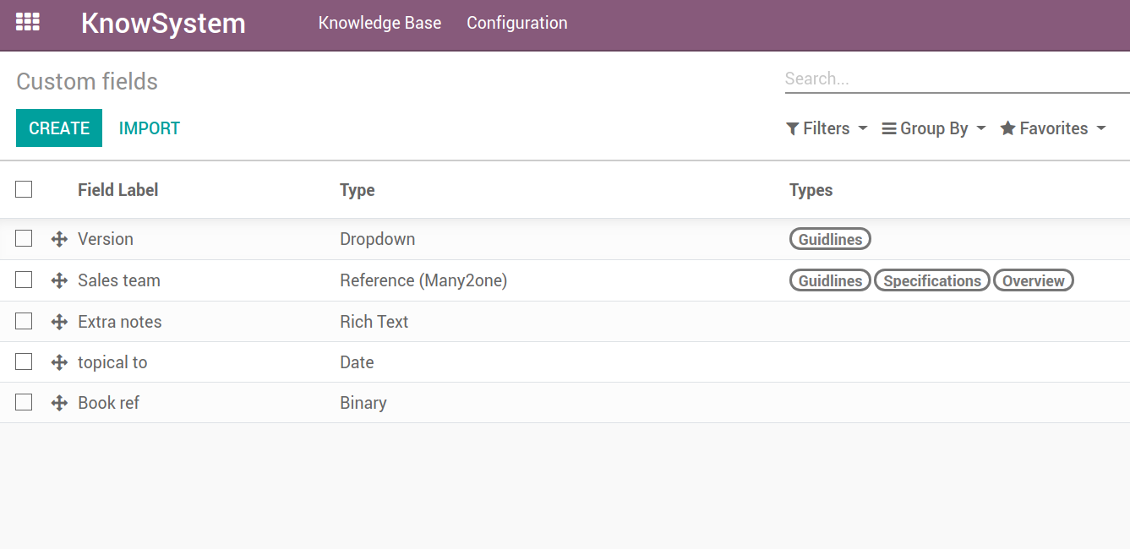
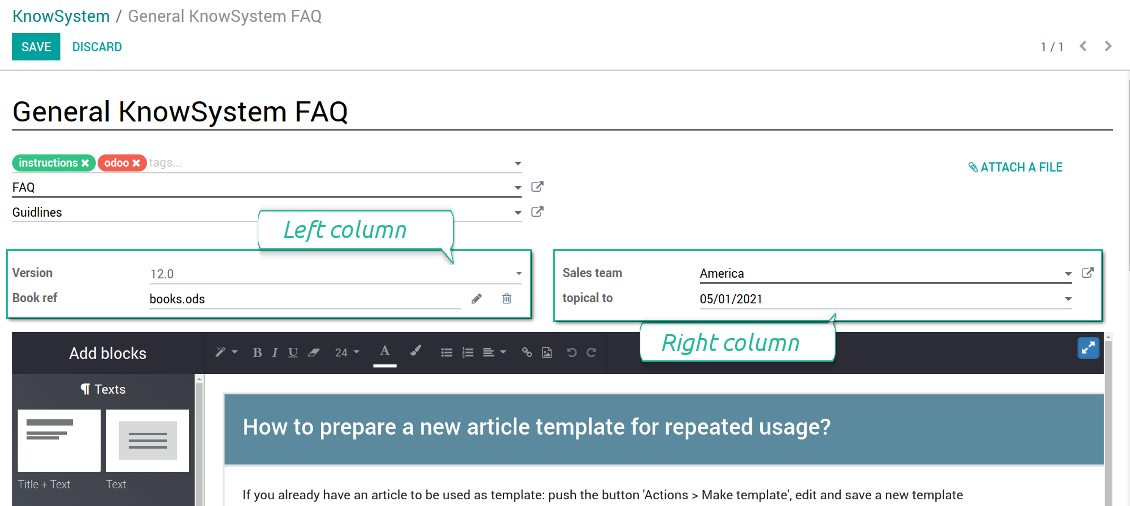
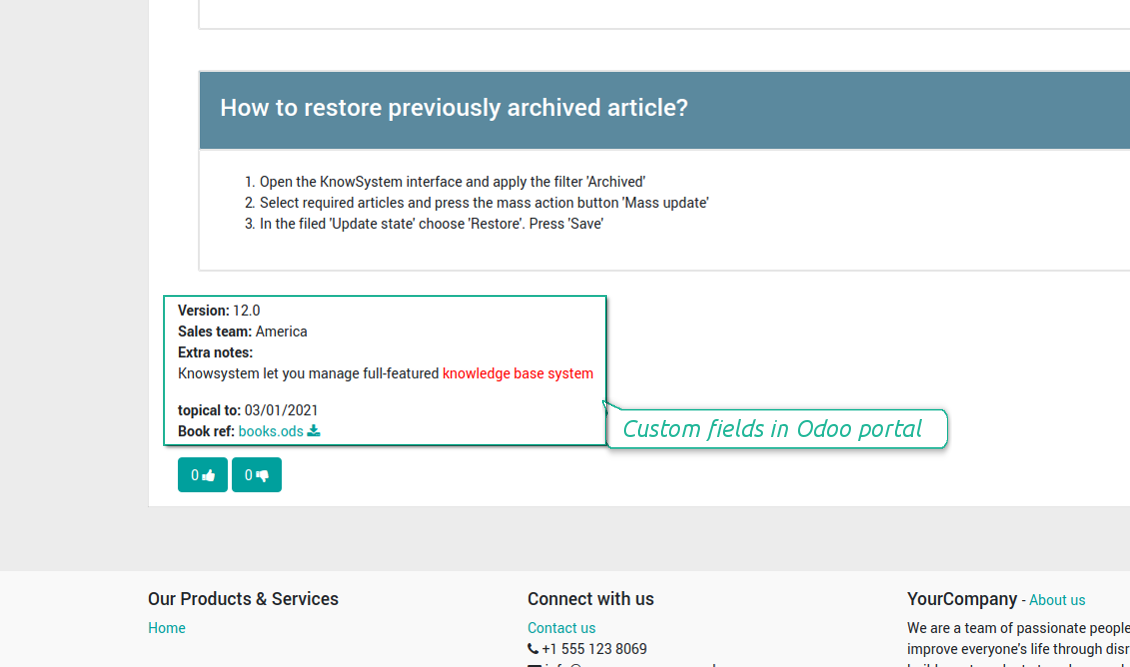
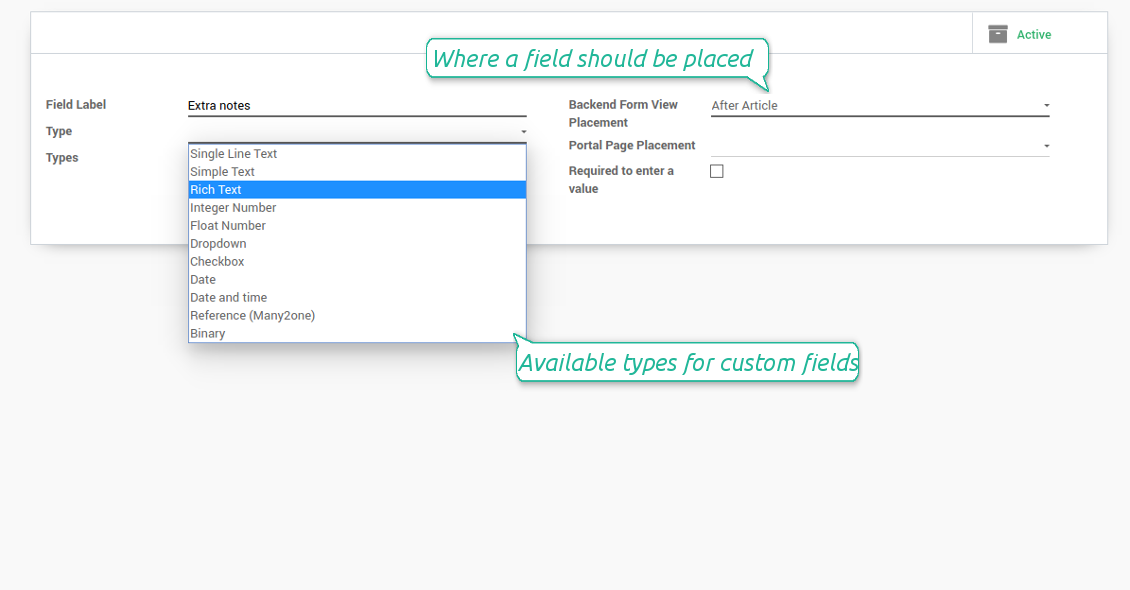
In order to show a new property for KnowSystem articles, just create a custom field. Nothing else is required! You are welcome to prepare fields of various types: single line text (char), simple text without formatting (text), rich text (HTML-formatted text), integer or float numbers, drop-down choice with your own options (selection), checkbox (boolean), date or date and time, binary (a file to upload), reference to another Odoo document (e.g. for a sale order, contact; many2one).
The tool also introduces complementary articles' typology. Thus set of attributes for 'user guidelines' and 'technical specifications' might be different.
Then, choose an interface location for a new field from a closed list to structure properties on an article page. Decide whether a field should be required to enter, or should be visible only for definite knowledge types.
スクリーンショット
KnowSystem articles' custom fields
Custom fields on article form
Custom fields in portal and website
Custom fields for article: add any data required
Knowledge is secured and might be safely shared
How to manage user accesses to articles
Security for internal and portal users differs.
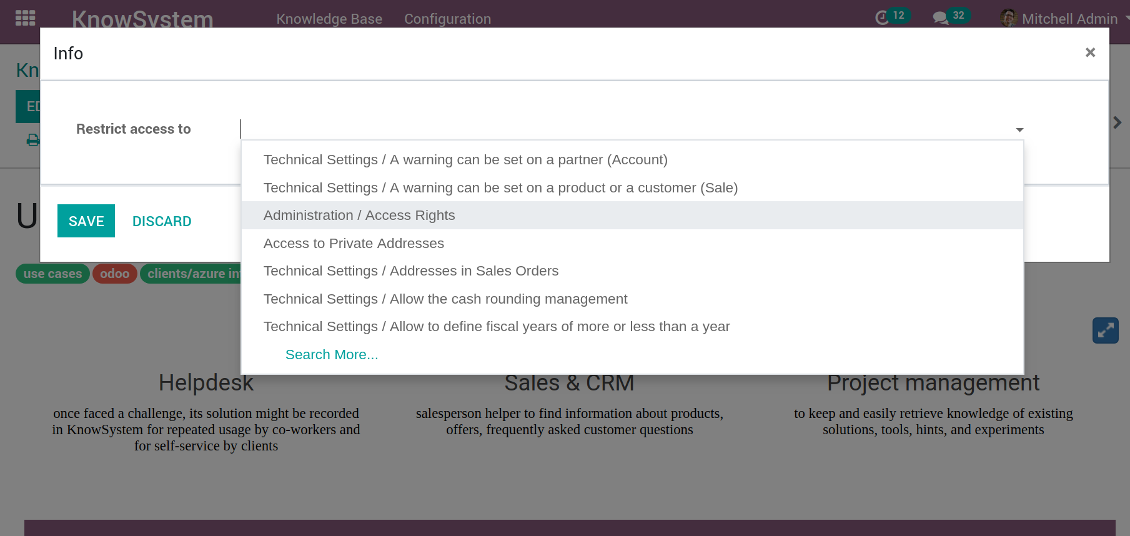
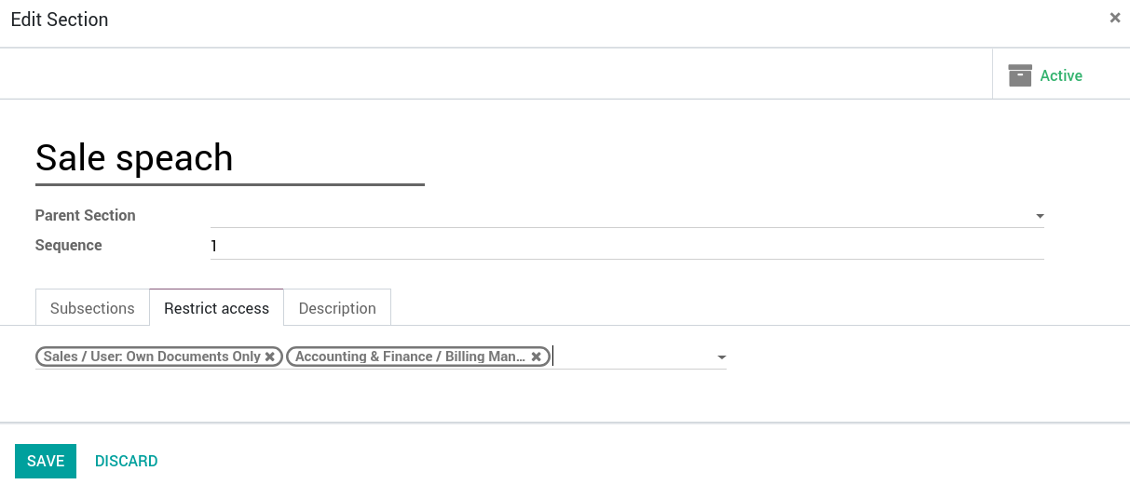
For the company employees: KnowSystem considers user groups which are defined per articles, sections and tours. Look at the tab 'Restrict to' on forms of those objects. If that field is not defined, a document is considered 'global': each internal user may read it.
For portal / public users: KnowSystem takes into account tags and whether an article is website published. A knowledge tag has a field 'Allowed partners', which may grant an access to portal users for articles with this tag. Website published pages are available for everybody.
Rights to administrate KnowSystem belongs to 2 user roles: KnowSystem Editor and KnowSystem Administrator. If you want a user to create and edit articles, a user should belong to one of those groups.
|
|
Odoo user |
KnowSystem Editor |
KnowSystem Admin |
Portal user |
Public user |
| Articles | read related to his/her user groups and sections | read, create, edit, archive related to his/her user groups and sections | read, create, edit, delete any | read published articles and articles related to partner-related tags | read published articles |
| Sections | read related to his/her user groups | read, create, edit, archive related to his/her user groups and sections | read, create, edit, delete any | read all sections of available articles | read all sections of published articles |
| Tags | read any | read, create, edit, archive any | read, create, edit, delete any | read published ones | read published ones |
| Article Types | read any | read any | read, create, edit, delete any | read published ones | read published ones |
| Tours | read related to his/her user groups | read, create, edit, delete related to his/her user groups | read, create, edit, delete any | no access | no access |
| Misc | may like / dislike, add to favourites, print, take part in discussions | may configure options | may like / dislike an article |
|
Take also into account two peculiarities:
- Odoo user always may access an article of which he is an author disregarding further restrictions;
- Rights for section is defined not only according to this section but also according to all its parents. For example, if user can't access 'sales', he/she would not be able to access 'sales / crm' disregarding whether 'crm' is available for his/her user group.
スクリーンショット
Manage access to this article
Section update and user rights
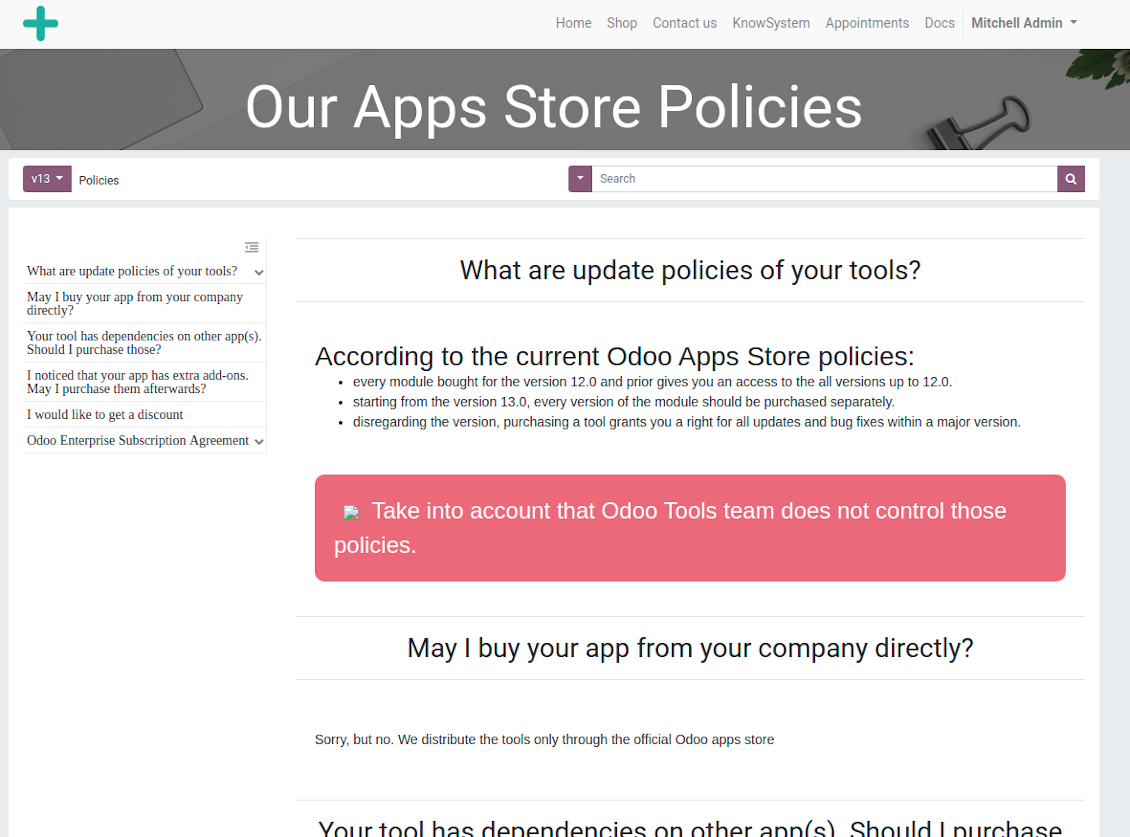
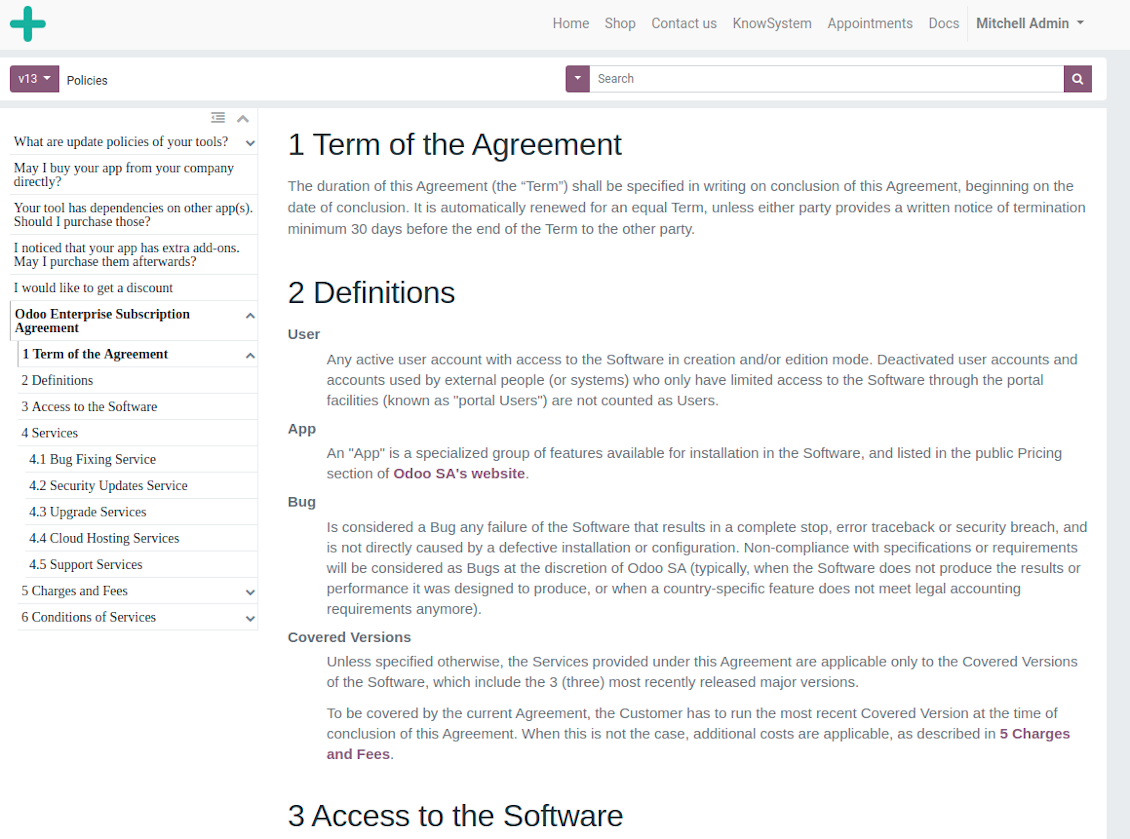
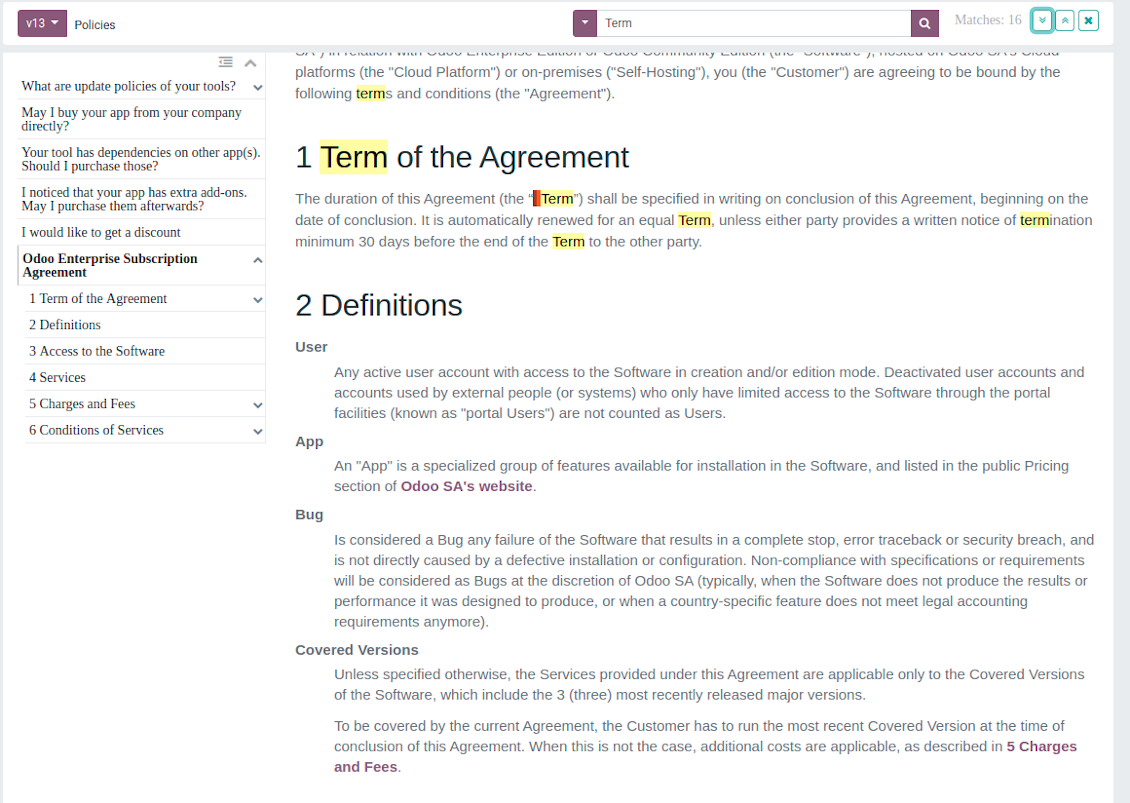
Website documentation builder
スクリーンショット
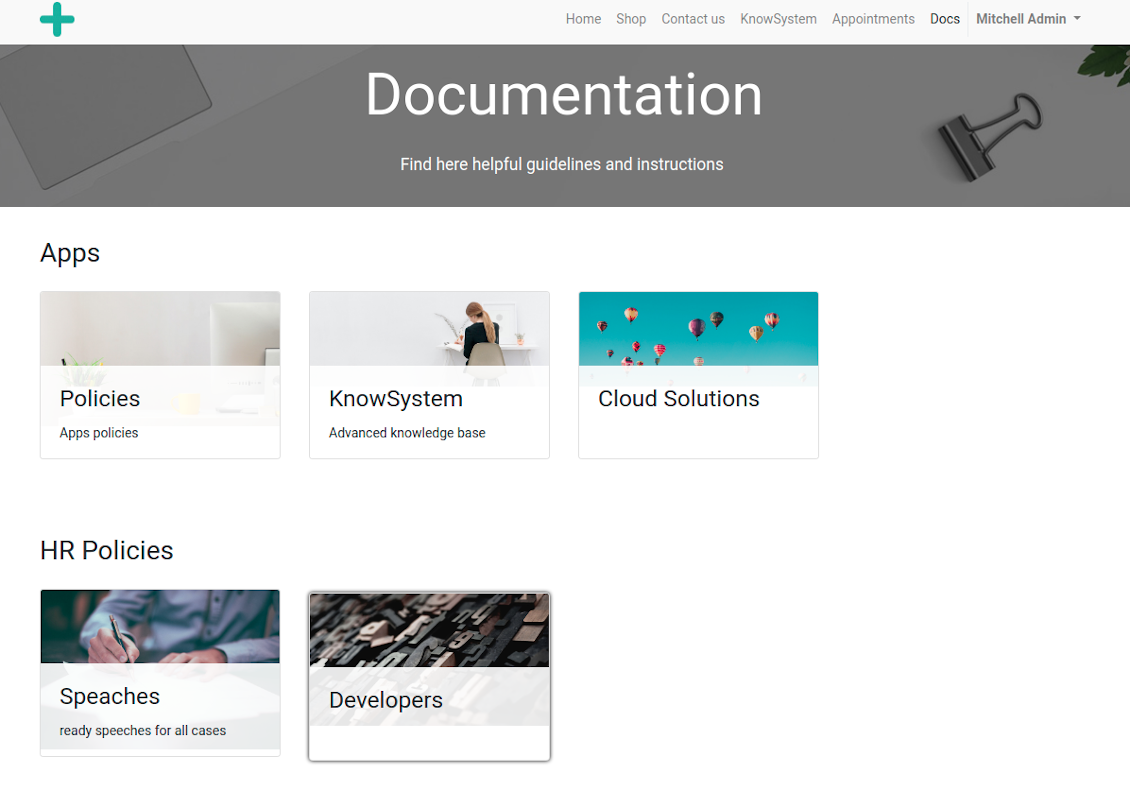
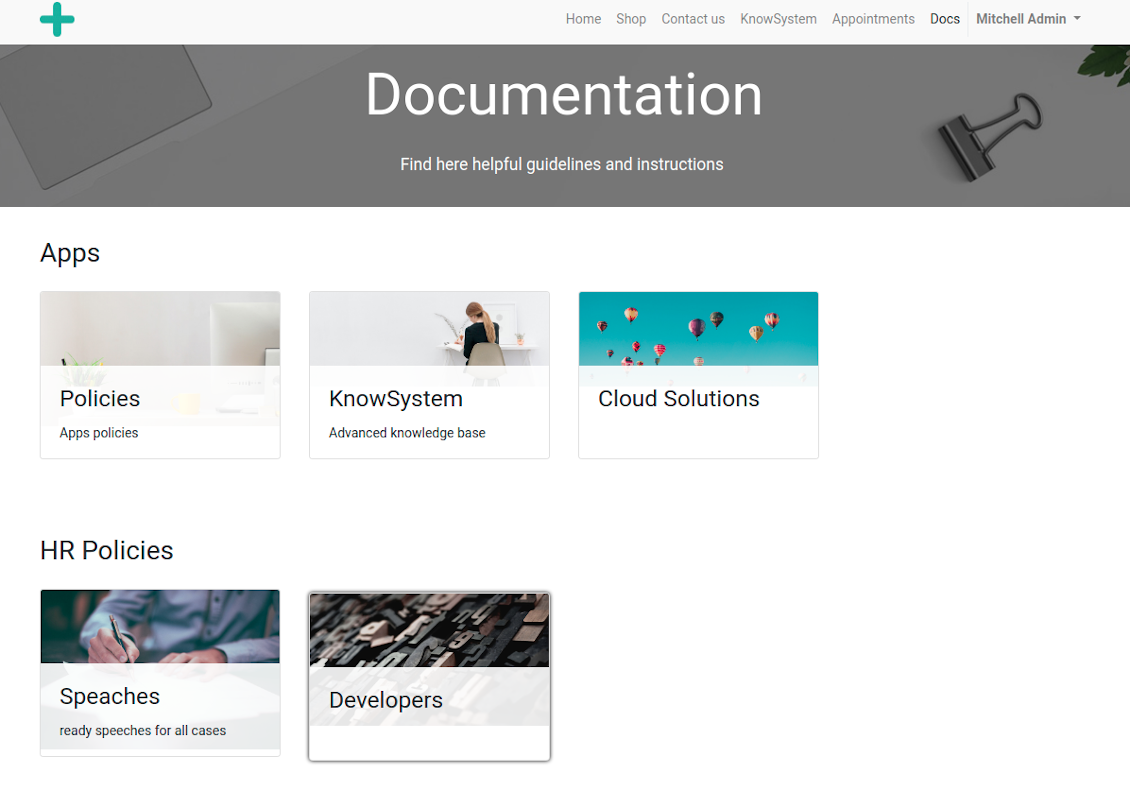
Documentation by categories and sections
Documentation by categories and sections
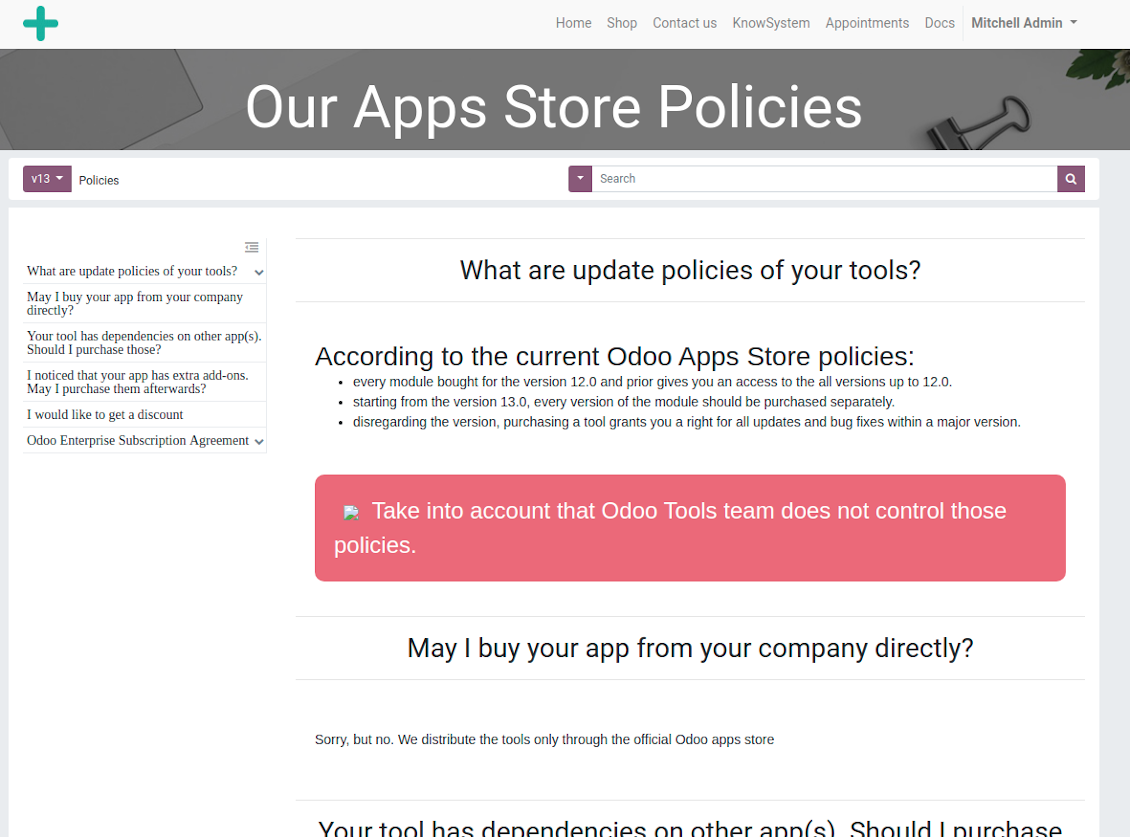
Documentation page
Documentation page
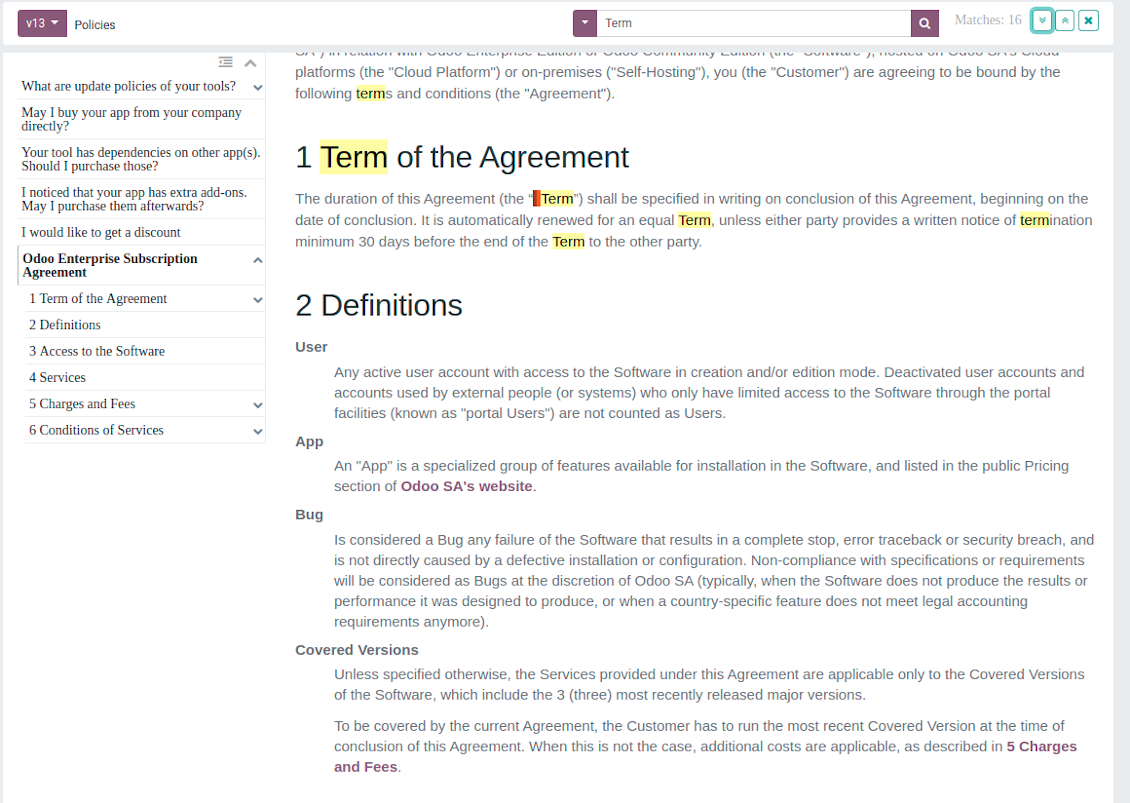
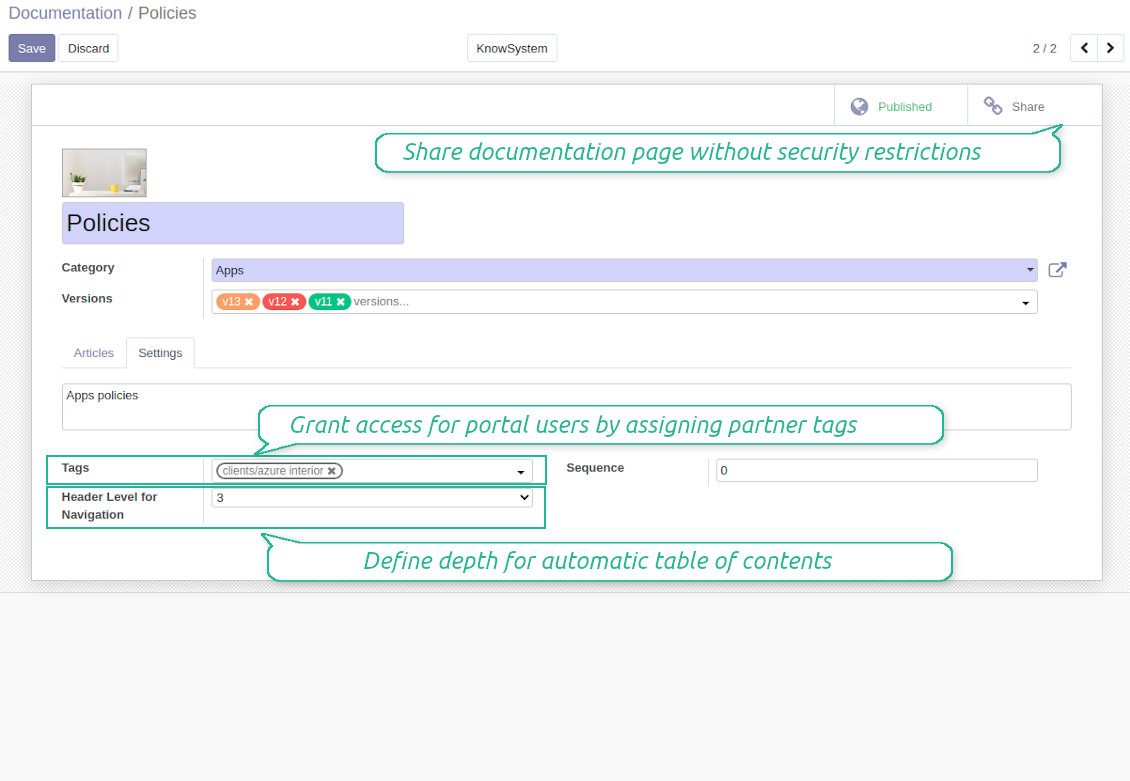
Automatic table of contents by documentation
Automatic table of contents by documentation
Inline search by documentation
Inline search by documentation
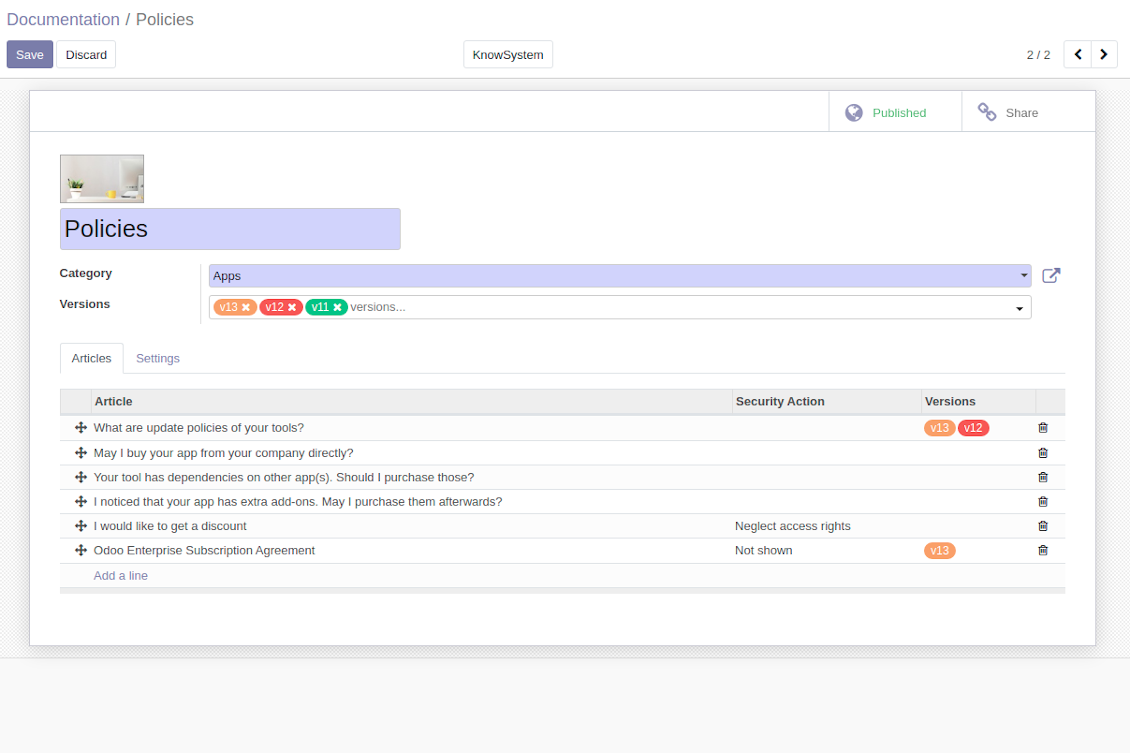
Compose articles for documentation
Compose articles for documentation
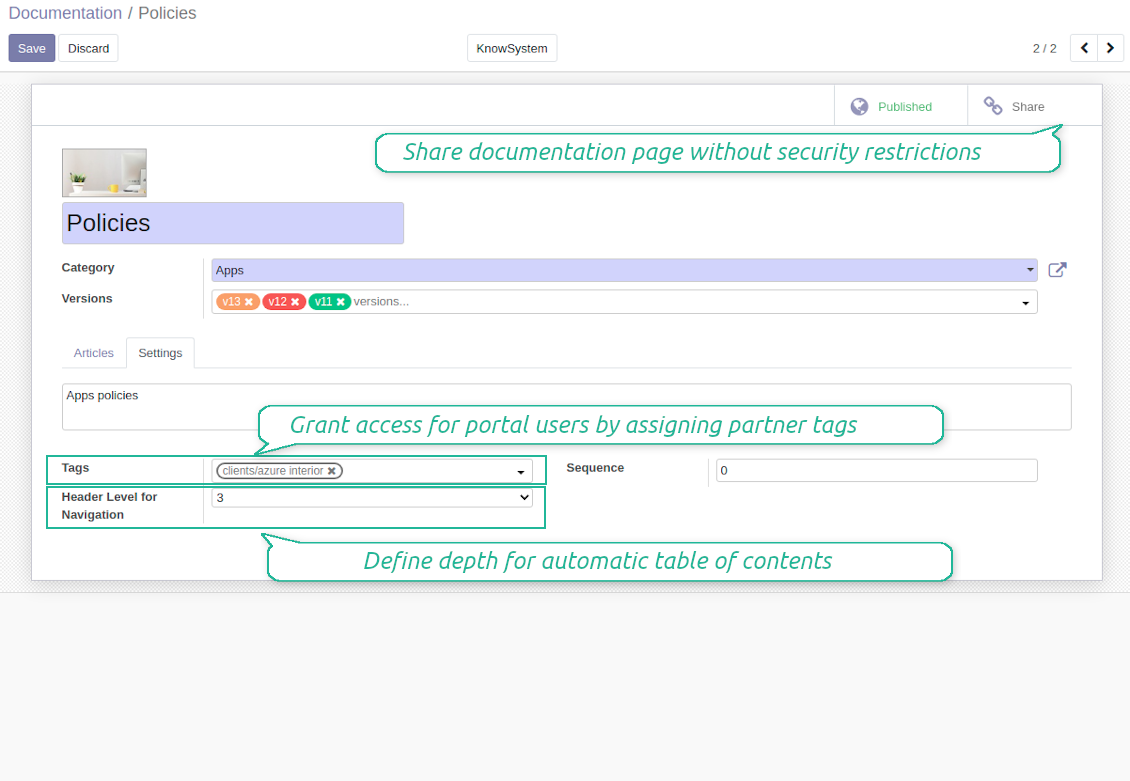
Documentation settings
Documentation settings
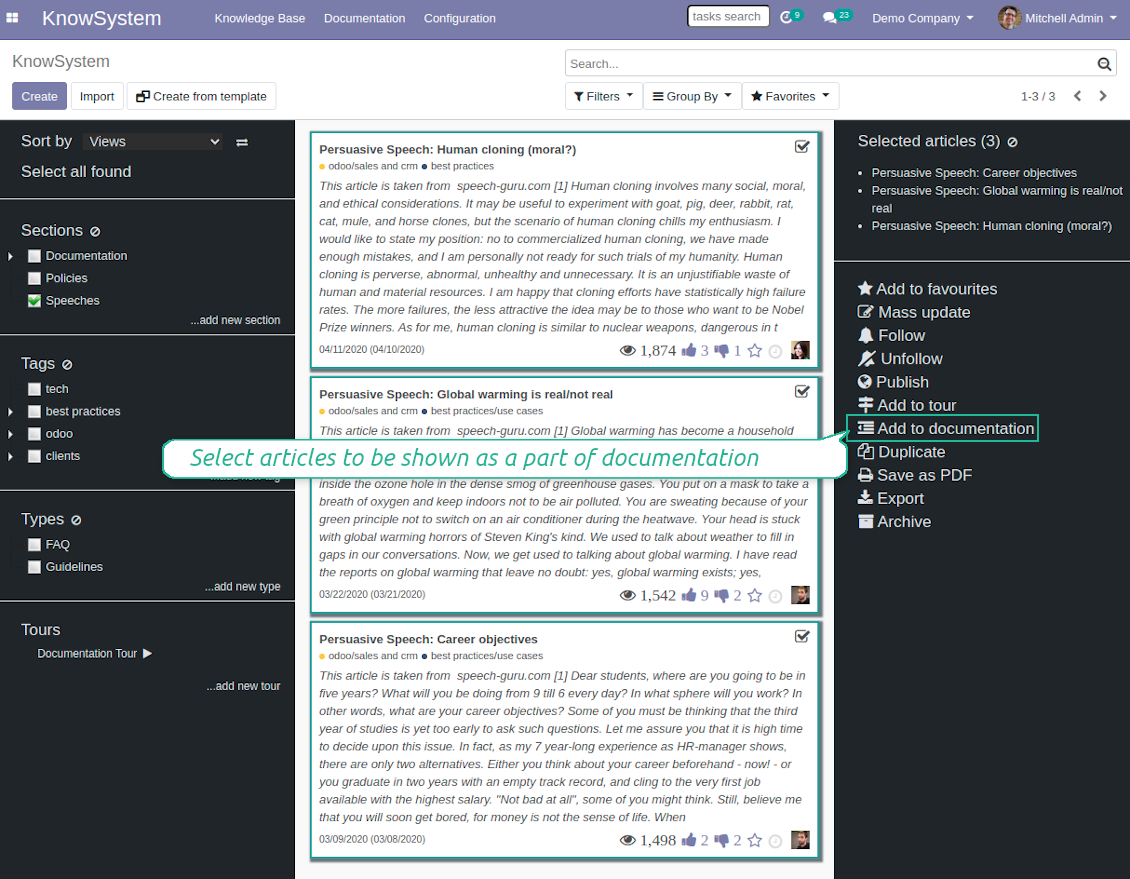
Add KnowSystem articles to documentation
Add KnowSystem articles to documentation
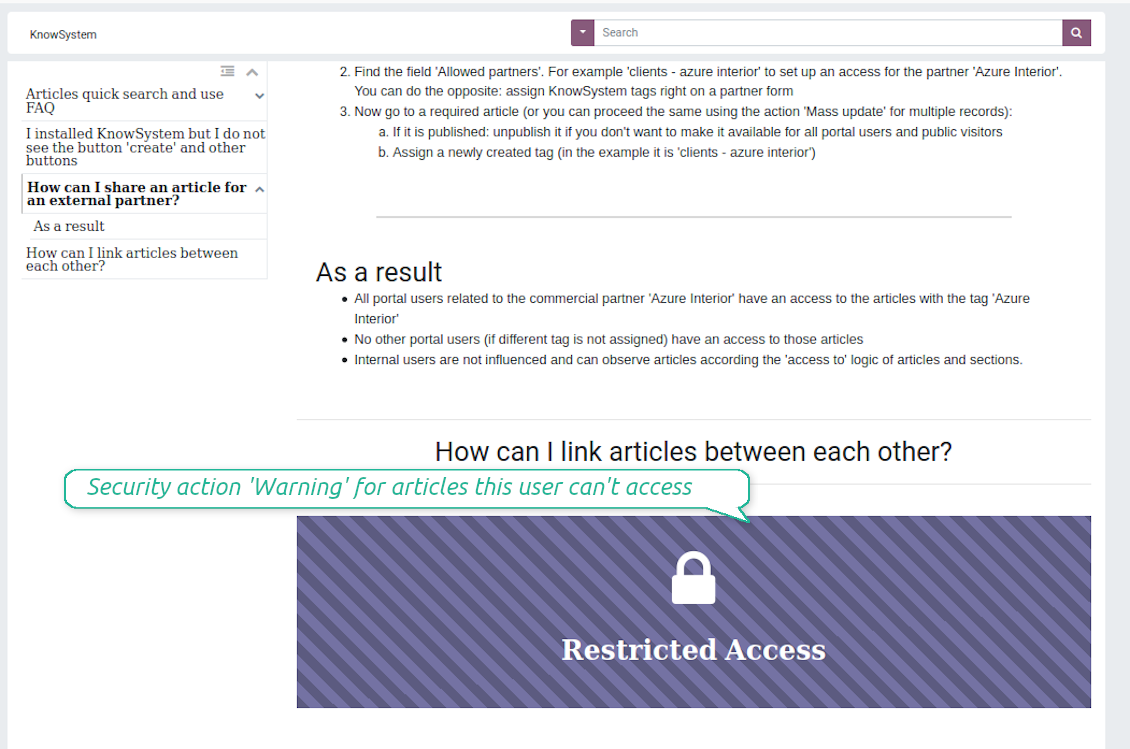
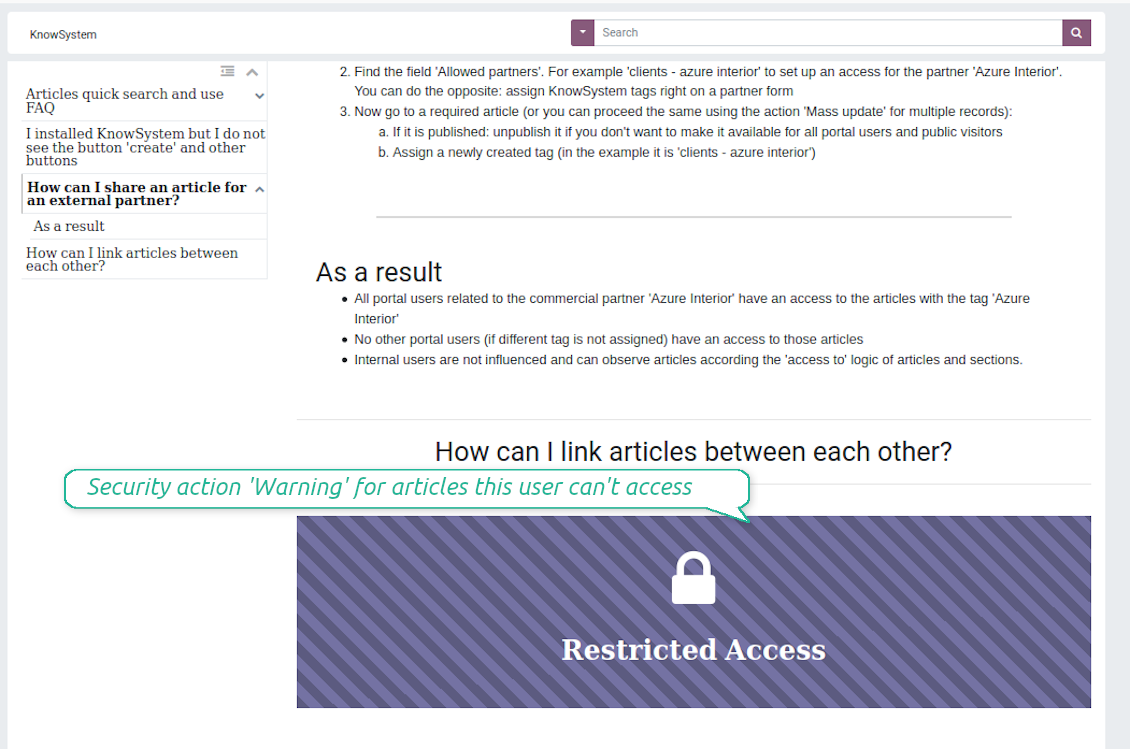
Security: optionally show warning if no access possible
Security: optionally show warning if no access possible
Create learning tours
How to configure a learning tour
- Turn on the option 'Tours'
- Go to KnowSystem interface and select articles to be included into a tour
- Press the mass action button 'Add to tour' and select or create a tour. Press save
- Re-order articles in a consistent order
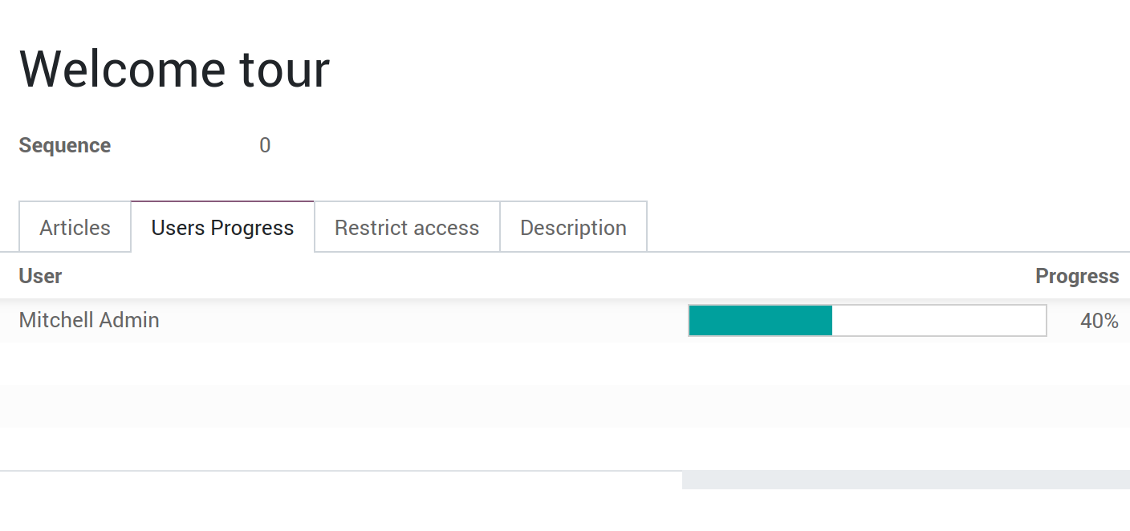
- Define groups of users who should go through a tour on the tab 'Restrict access'
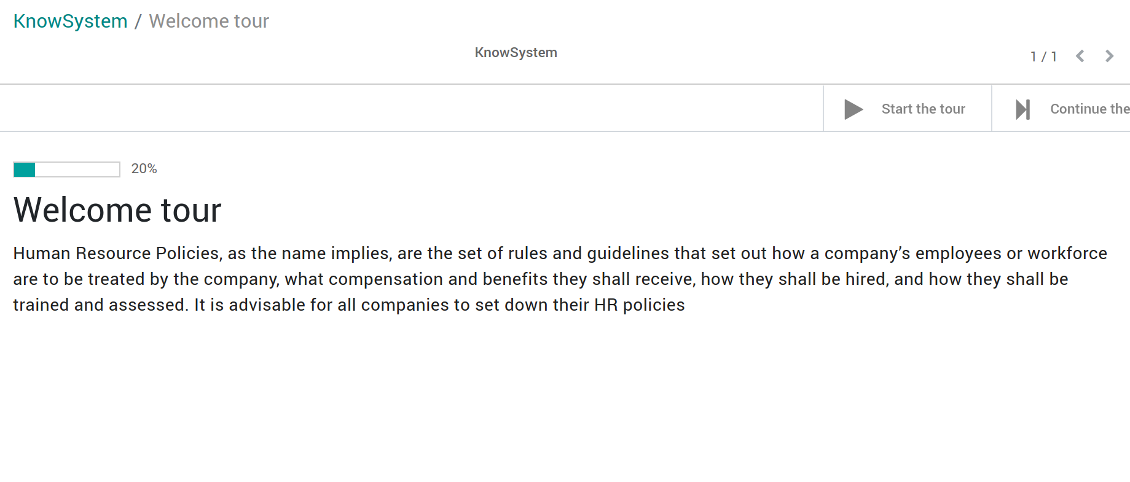
- Now users can see and launch tours right from the KnowSystem interface (the right navigation panel)
スクリーンショット
Article in a learning tour
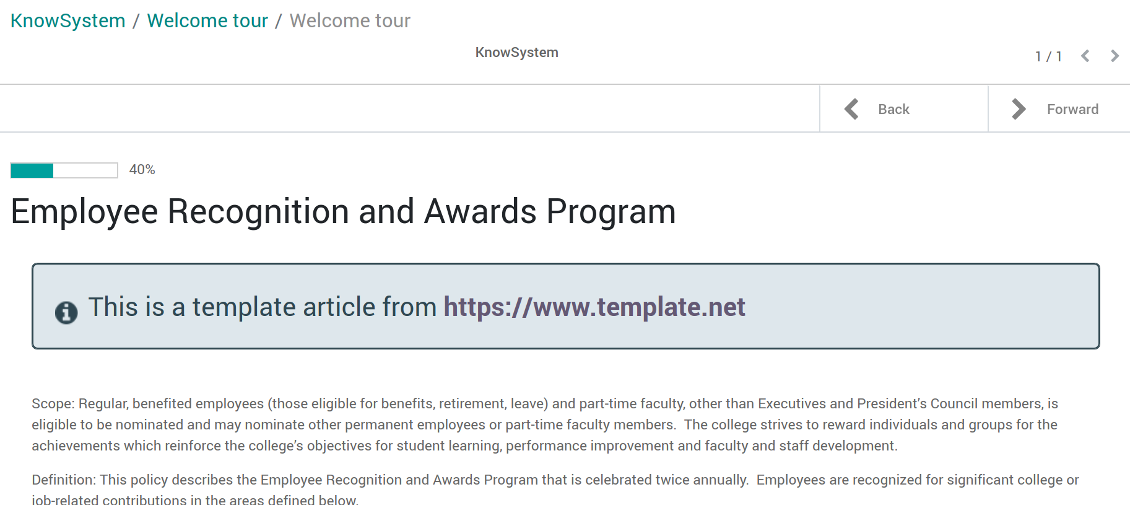
Control tour progress by users
KnowSystem tour welcome page
Multilingual knowledge base
How to make an article available for a few languages
- Install the optional add-on 'KnowSystem: Multi Languages'
- Change your user language for a needed one
- Update this article
- Now it is available in both source and a current language
Make sure you really require a few languages. In that case you almost double the work of KnowSystem editors. All articles should be kept updated in all Odoo languages.
Knowledge base for any industry and business
Typical use cases
- Helpdesk: once faced a challenge, its solution might be recorded in KnowSystem for repeated usage by co-workers and for self-service by clients
- Sales & CRM: salesperson helper to find information about products, offers, frequently asked customer questions
- Project management: to keep and easily retrieve knowledge of existing solutions, tools, hints, and experiments
- HR: to prepare instructions, guidelines, learning tours and trainings, and any codified knowledge of routine in your company
- Marketing: to organize online library of product use cases, expert knowledge and well structured documentation
- Legal issues: systematize your policies, contract and approval managements, keep the full classifier of trademarks, licenses
- Informational technologies: share easy-reached manuals and configuration guidelines
に関するよくある質問 KnowSystem: Knowledge Base System Odoo v.12
改訂のテキストに違いが見えません。
リビジョンはテキスト変更だけでなく、スタイルの更新も記録します(技術的には記事の HTML ソースコードを変更したとき)。一見わかりにくいものもあります(例: 単語一つのフォントサイズ変更)。大幅なものもあります。ただし、編集 > 記事内の何かを変更 > 保存という一連の操作は必ず新しいリビジョンになります。
記事に YouTube/ Vimeo / Dailymotion / Youku の動画を追加できますか?
はい。それらのサービスの動画は、Odoo バックエンドとウェブサイトビルダーの両方から記事に埋め込めます。画像付きブロックを追加 > 画像を押す > ‘Video’ を選択 > 対象メディアの URL を入力します。
ご注意: こうした動画は iframe として埋め込まれ、一部のブラウザはユーザーが明示的に許可するまで再生をブロックすることがあります。
セクションをウェブサイトに表示するには?
KnowSystem では、セクションは公開済みで記事が少なくとも 1 件あるとウェブサイトに表示されます。サブセクションがあっても、セクション自体に記事が 1 件もなければ表示されません。空のセクションを避け、KnowSystem ポータルを見やすくするためです。サイトに表示するには、サブセクションの記事を短く説明または列挙する導入・概要記事を 1 件追加してください。
外部の取引先に記事を共有するには?
左のナビゲーションパネルの任意のタグを右クリック - 作成
項目「Allowed partners」を探します。例: 取引先 'Azure Interior' にアクセスを付けるなら 'clients - azure interior'。逆に、取引先フォーム上で KnowSystem タグを割り当てることもできます
次に対象の記事を開きます(複数レコードならアクション「Mass update」でも同様です):
公開済みなら: すべてのポータルユーザーと一般訪問者に見せたくない場合は非公開にします
作成したタグを割り当てます(例では 'clients - azure interior')
これで:
取引先 'Azure Interior' に関連するすべてのポータルユーザーは、タグ 'Azure Interior' の記事にアクセスできます
他のポータルユーザー(別タグが付いていない場合)はそれらの記事にアクセスできません
内部ユーザーは影響を受けず、記事とセクションの「access to」ロジックに従って記事を閲覧します。
記事本文に言語選択ボタンを追加できますか?
オプションアドオン 'KnowSystem: Multi Languages' は、意図して記事本文に 'translate' ボタンを付けません。ボタンが想定する単純なポップアップでは HTML を翻訳しにくいためです。訳すべきテキストはごく少なく、HTML 部分が多く(翻訳者によって壊れることもあります)。
そのため、特定言語の記事を作るには、その言語のユーザーでログインします。別ユーザーでも、現在のユーザー設定を一時変更しても構いません。以降、本文の更新はそのユーザー言語で行われます。
本文の下のボタン 'Copy from another translation' で、いつでも別言語の記事内容を取得できます(ある言語で大きく更新された場合に便利)。
別のウェブサイトページを記事に埋め込む方法
そのために iframe を使えます。記事を生の HTML コードエディタに切り替えて、例えば次を挿入してください。 <iframe src="https://faotools.com/" style="width:100%;min-height:600px;"> </iframe>.
KnowSystem をインストールしましたが「create」ボタンや他のボタンが見えません
ユーザーに KnowSystem の権限が付いていない可能性が高いです。「KnowSystem Editor」または「KnowSystem Admin」を選び、ページを更新してください。操作ボタンが表示されます。
特定の学習ツアーを選んだユーザーだけに表示できますか?
はい。このツアーを見せるユーザーグループ(例: 'Sales Manager')を適用します。所属していれば表示され、そうでなければ表示されません。KnowSystem の記事とセクションのセキュリティ権限と同じ仕組みです。
グループが割り当てられていないツアーは「グローバル」で、全員に表示されます。
記事を印刷するときのフッターとヘッダーはどう変更しますか?
記事 PDF のヘッダーとフッターは会社レイアウトに従います。Settings > General Settings > セクション Business Documents を見てください。そこで請求書、販売オーダなど全文書種別と記事に使う会社テンプレートを定義します。この Odoo の考え方では、フッターとヘッダーは個別印刷の属性ではなく会社全体のスタイルです。
記事同士はどうリンクしますか?
各記事には内部(backend)とウェブサイトの URLs があります(オプション 'KnowSystem: Website and Portal' がインストールされている場合)。記事フォームの 'Info' ボタンをクリックすると、このレコードのウェブサイトアドレスがわかります。いずれかを本文にハイパーリンクとして挿入できます。
記事のHTMLソースコードを変更できますか?
はい。設定概要画面で debug assets をオンにし、現在の記事に戻ってください。編集モードで '</>' アイコンが表示されます。クリックして HTML とスタイルを確認・編集します。
ツールの更新ポリシーは何ですか?
現行の Odoo Apps Store ポリシーによると:
- バージョン 12.0 以前向けに購入したモジュールは、12.0 までの全バージョンにアクセスできます。
- バージョン 13.0 以降、各モジュールバージョンは個別に購入します。
- バージョンに関係なく、購入するとメジャーバージョン内の すべての更新と不具合修正の権利が得られます。
faOtools チームはこれらのポリシーを管理していません。ご質問は Odoo Apps Store の担当者へ直接お問い合わせください。
アプリを Odoo.sh にインストールする方法は?
最も単純な方法は、Odooストア組み込みのワークフローを使うことです:
1. モジュールのページを開き、Deploy on odoo.sh ボタンをクリックします。
2. その後 GitHub ページにリダイレクトされます。アカウントにログインし、'Create a new repo' をクリックするか既存のものを使います。リポジトリはプライベートにしてください。OPL-1 ライセンスのアプリを公開することは許可されていません。必要なら Odoo.sh プロジェクト用に新しい repo を作成します。
3. 次に odoo.sh に行き、Deploy ボタンをクリックします。ポップアップで決定を送信し、'Continue.' をクリックします。これでインストールが始まります。
これらの手順でプロジェクトの本番ブランチにアプリがインストールされます。他のブランチにデプロイする、またはモジュールを更新する場合は、次の操作を行います:
1. Odooストアからアプリのソースコードをアップロードします。
2. モジュールを必要な GitHub リポジトリにコミットします。アプリのフォルダ/ファイルが無視されていないこと(repo の .gitignore に含まれていないこと)を確認してください。リポジトリは odoo.sh が自動作成し、既定で重要な項目(例: /lib)が含まれることがあります。モジュールのディレクトリ、サブディレクトリ、ファイルを例外なくすべてアップロードしてください。
3. odoo.sh プロジェクトの対象ブランチを Deploy するか、 設定がそうなっている場合は自動ビルドされるまで待ちます。
自分のサーバーにアプリをインストールするには?
2. Odoo サーバーを再起動します;
3. 開発者モードをオンにします(技術設定);
4. アプリ一覧を更新します(アプリメニュー);
5. アプリを見つけて「Activate」/「Install」を押します;
6. アプリページにガイドラインがあれば従ってください。
アプリに追加アドオンがあるのに気づきました。後から購入できますか?
はい、もちろんです。同時に Odoo は依存関係をすべてカートに自動追加するので、二重払いを避けるには既に購入したツールを除外してください。
アプリを Odoo.sh にデプロイしたらテストで警告/エラーが出ます
赤/オレンジの警告はアプリの機能に影響しません。残念ながら、標準の自動テストがアプリの目的と衝突する動作を想定するため、モジュールが通らないことがあります。たとえば価格計算を変える一方、標準 Odoo モジュールのテストは最終価格を標準アルゴリズムと比較します。
まず、デプロイ済みデータベースの機能を確認してください。すべて正しく動いていますか?
それでも警告が実機能に影響すると考える場合はご連絡のうえ、インストールログ一式とデプロイ済みモジュールの全一覧(コアおよびサードパーティ含む)を送ってください。
アプリを御社から直接購入できますか?
いいえ、ツールは 公式の Odoo アプリストア.
割引をいただきたいです
残念ながら、個別価格を提示する技術的手段が ありません。
Odoo Online (SaaS)データベースにアプリをインストールできますか?
いいえ、サードパーティアプリは Odoo Online では使えません。残念ながら Odoo SaaS がその可能性をブロックします。
ツールは他のアプリに依存しています。それらも購入すべきですか?
はい、ツールが正しく動くには依存関係に記されたすべてのモジュールが必要です。アプリページの価格には必要な依存関係がすでに含まれています。
モジュールの米ドル価格はいくらですか?なぜ変わりましたか?
モジュールの価格はユーロ建てです。Odoo ストアは内部為替レートで他通貨に換算します。そのため為替が更新されると米ドル価格が変わることがあります。
英語以外のアプリ・サイト文言は AI 支援で作成され、 公式の Odoo 翻訳に揃えています。誤りを見つけたら、 翻訳の正確さについてチケットを送る 修正します。
不具合報告
不具合や一貫しない動作があれば、遠慮なくご連絡ください。購入から60日以内の修正を保証し、その後もツール改善に力を入れています。
ご連絡に電話番号やクレジットカードは不要です。30 秒以内の短いメール登録だけです。
リクエストにはできるだけ多くの詳細を含めてください:スクリーンショット、Odoo サーバーログ、問題の再現手順の完全な説明など。通常、問題の作業計画の作成(不具合が確認された場合)または実施すべき内容の案内(それ以外)には数営業日かかります。
公開の機能リクエストとモジュールのアイデア(無償開発)
ツール改善への意欲は強く、フィードバックには感謝します。要件が広く役立ち、効率よく実装できる場合、チームは To-do リストに加えます。
このような To-do リストは定期的に処理され、追加料金は発生しません。期限や最終デザインは約束できませんが、投資とリスクなしで望む機能を得る良い方法になることがあります。
ご連絡に電話番号やクレジットカードは不要です。30 秒以内の短いメール登録だけです。

Odoo の添付ファイルをフォルダに柔軟に整理し、Google Drive、OneDrive/SharePoint、Nextcloud/ownCloud、Dropbox、Amazon S3、Box、NAS とディレクトリを同期するツール。DMS。ファイルマネージャー。文書管理システム
398€





お気に入りの AI チャットから MCP 経由で Odoo を管理するツール。Claude。MCP 対応の任意の AI。

