KnowSystem: Knowledge Base System v.12
The tool to build deep and structured knowledge base for internal and external use. Knowledge System. KMS
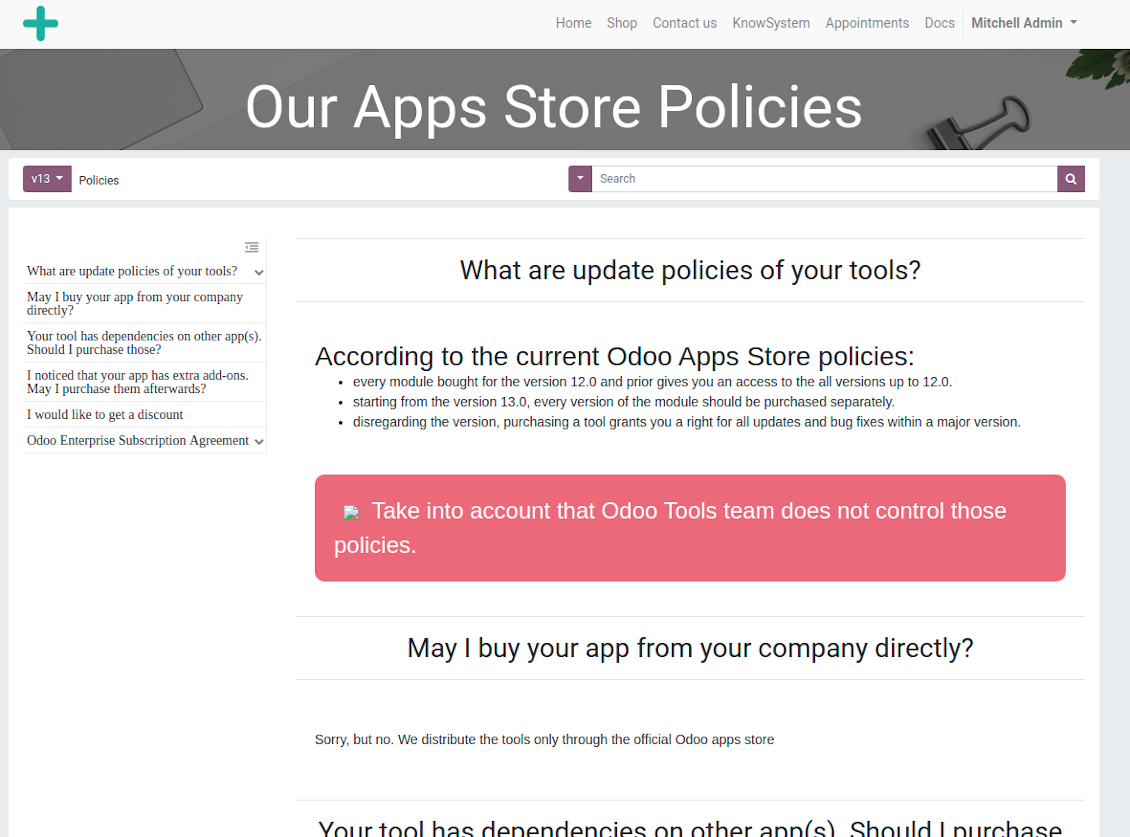
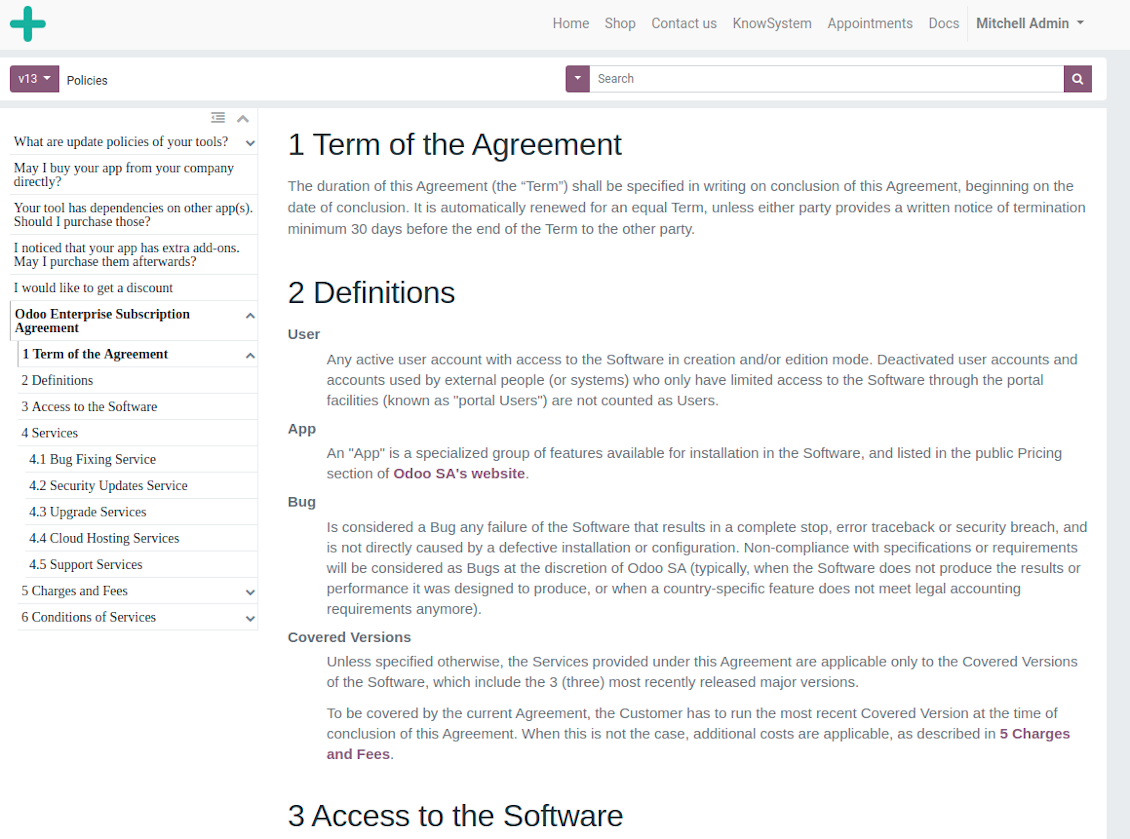
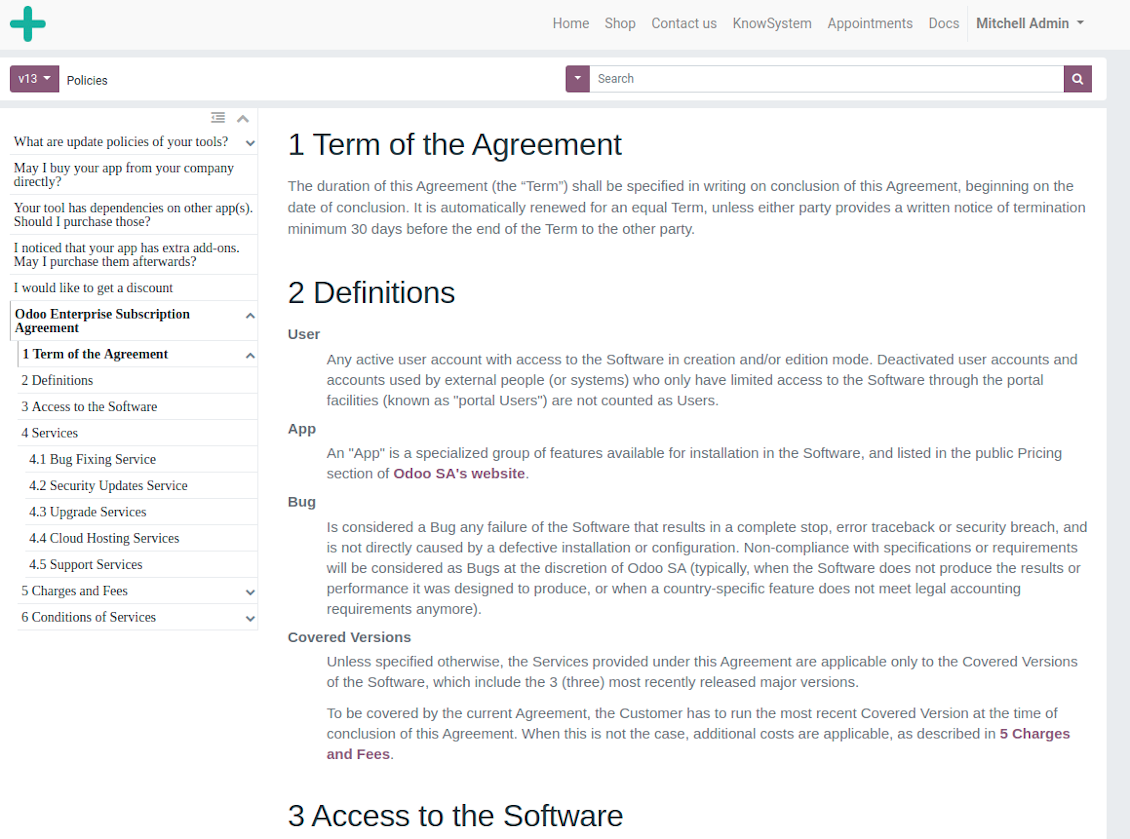
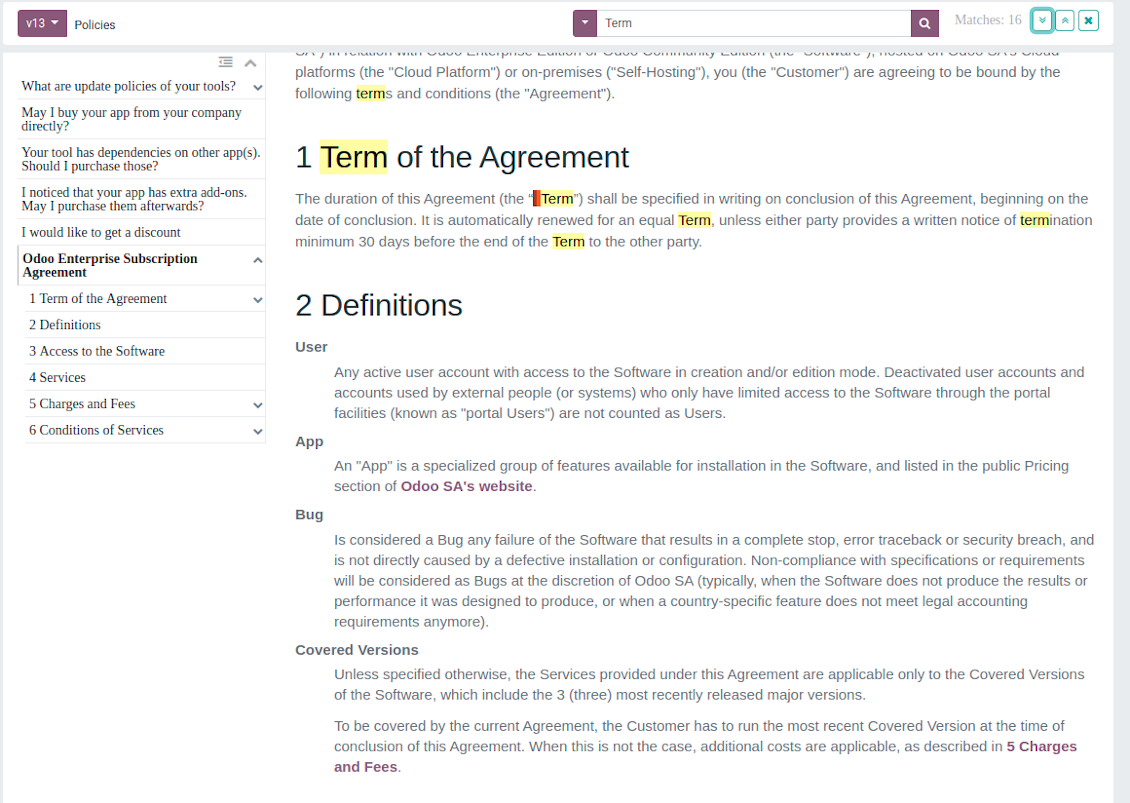
- a core of knowledge management. It might be used stand-alone as a complete internal knowledge base system. Tā cena ir 398€.
- an optional module, which let you publish articles to website, share them with portal users, and use website builder to update articles. The features assumed by this add-on are marked by the icon . Tā cena ir 40€.
- an optional extension to KnowSystem: Website and Portal to design website documentation pages based on knowledge base articles. The features assumed by this add-on are marked by the icon . Read the full description on the related page. Tā cena ir 60€.
- an optional module, which let you add and show custom fields for articles (backend). The features assumed by this add-on are marked by the icon . Tā cena ir 48€.
- an optional free module, which shows custom fields on website and portal pages (frontend). The features assumed by this add-on are also marked by the icon .
- an optional module, which let you translate articles, sections and tags for installed in Odoo languages. The features assumed by this add-on are marked by the icon . Tā cena ir 10€.
Innovative single-view interface
From the same interface editors may create and update any knowledge-related documents, change articles in batch, set up security. Without a need for excess navigation.
Interface solutions
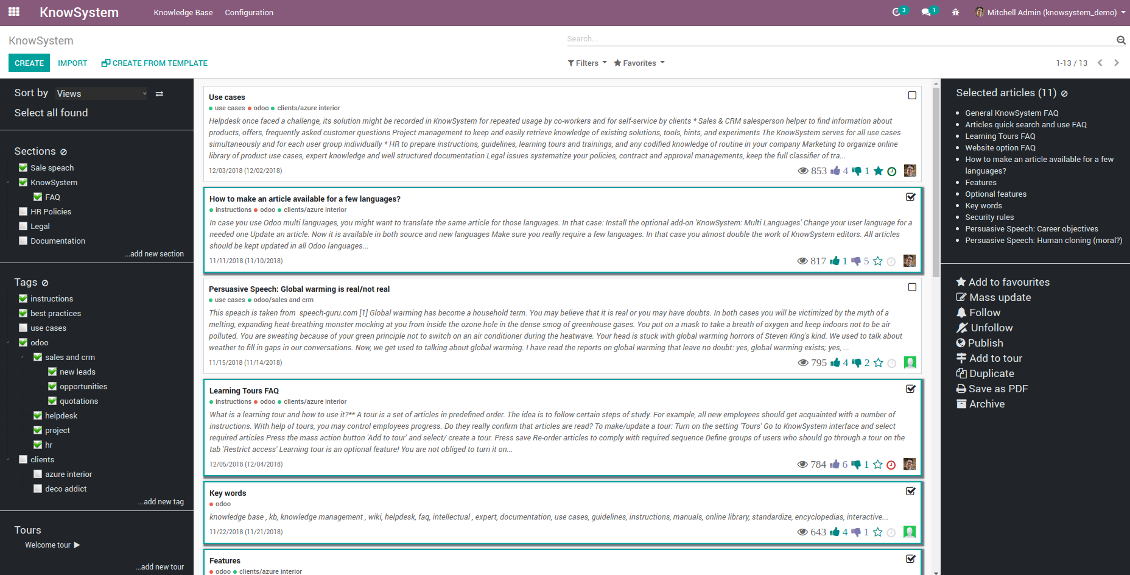
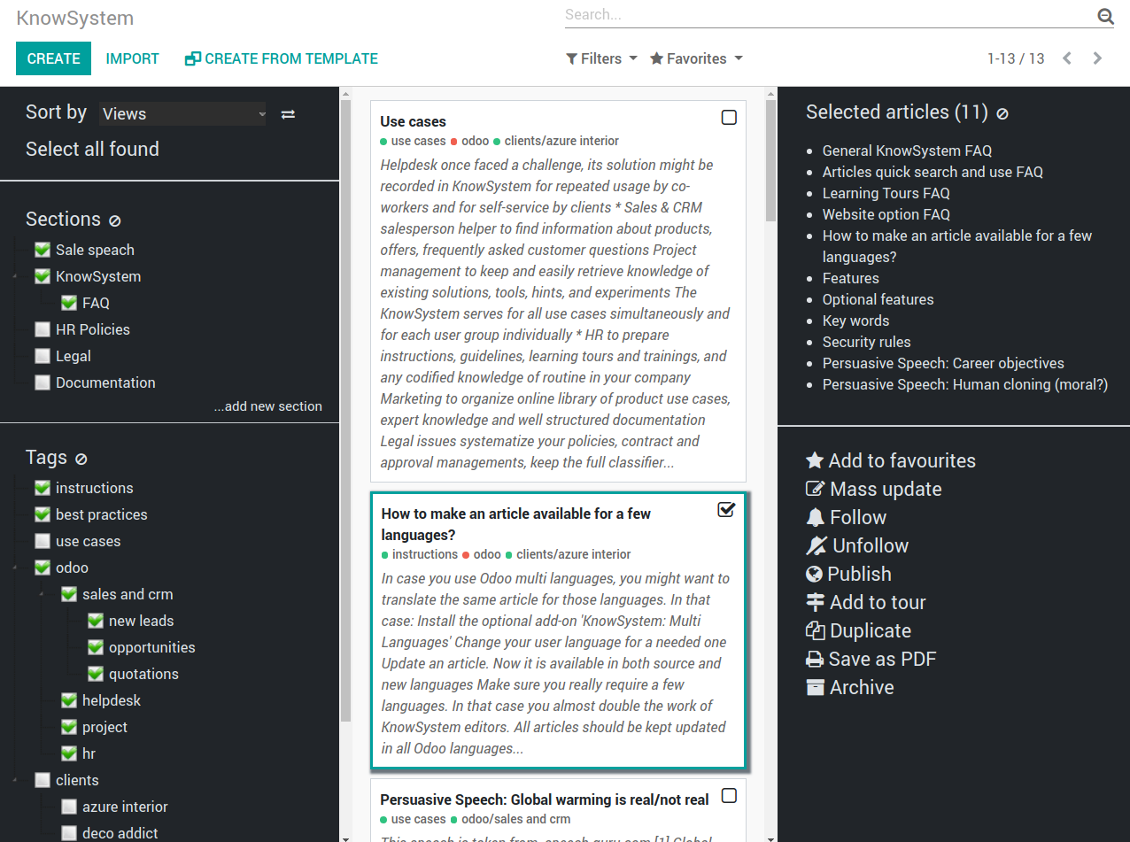
The KnowSystem interface consists of 3 key parts: the left navigation panel, the list of articles, and the right navigation panel (it is shown only if some articles are selected).
On the left navigation panel you may:
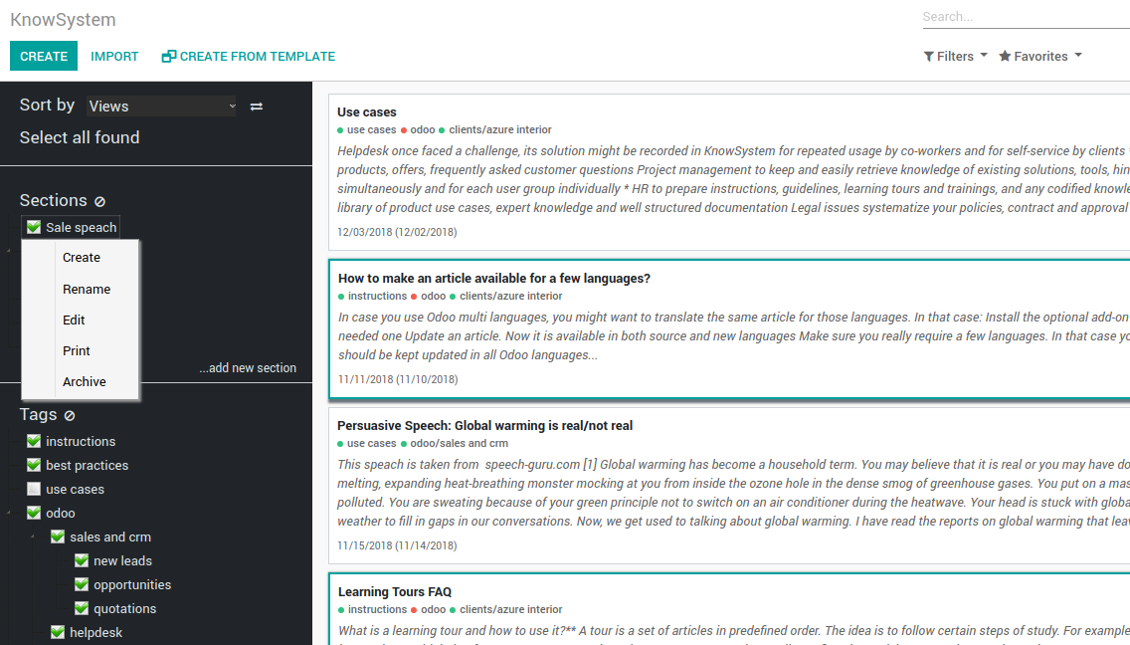
- Manage hierarchy of sections: prepare new (right mouse click - 'create'), update existing (right mouse click - edit), re-order any (drag and drop an item), archive sections. Select a few ones to filter articles. You may also print all articles related to this section as a single PDF file.
- In the same way manage hierarchy of tags
- Sort articles by number of views, a score of likes and dislikes, create or update dates, a section, an author
- Select all articles which are found according to chosen tags / sections and according to introduced searches / filters
- Launch a learning tour.
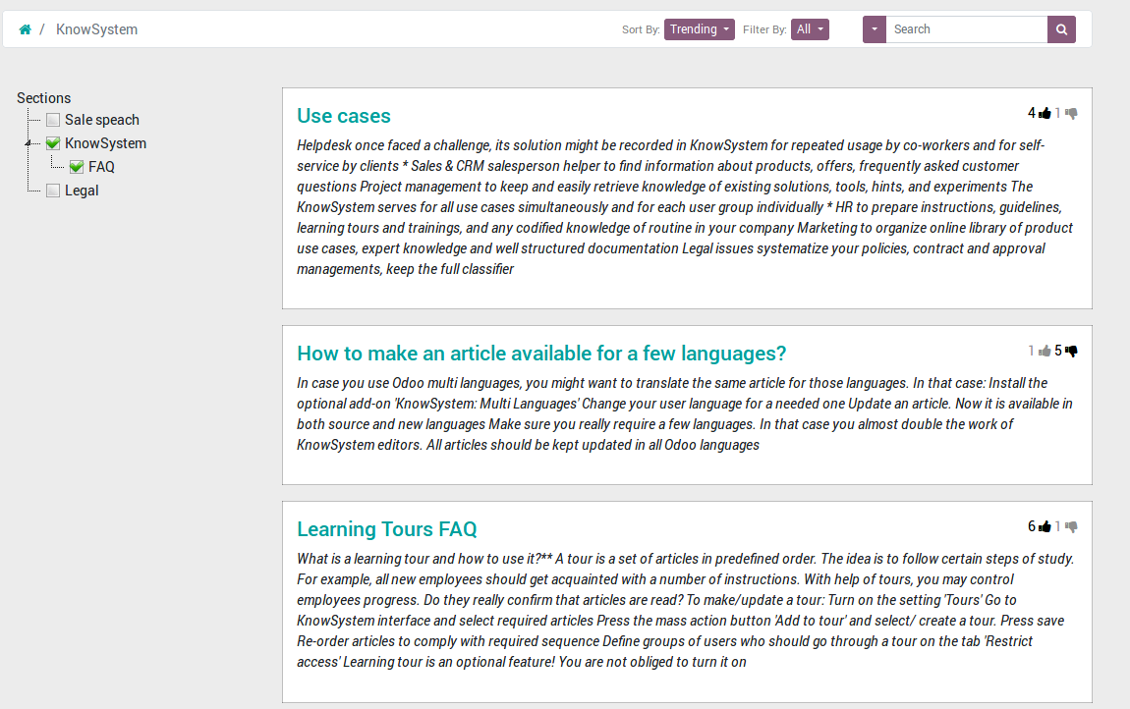
From the list of articles you see articles' name, indexed content (words without HTML style), dates of creation and last update, a number of views, likes, dislikes, author avatar. Here you may also add an article to favourite by pressing the 'star' icon.
Click on article body to open it in a full size (form view). Do not worry: chosen tags and sections as well as selected articles will be kept when you get back! Click on the top right check box to add an article for selection.
On the right navigation panel you observe selected articles and may proceed a mass action. Click on article name to remove it form selection.
On the top of the interface users also would find a standard Odoo omnibox. Type here to search by a title, content, an author, tags or a section.
Available mass actions
KnowSystem let users update an unlimited number of articles simultaneously:
- Assign new section
- Change or remove tags
- Print multiple articles as a single PDF
- Follow / unfollow discussions
- Publish / unpublish articles
- Export articles to an Excel table
- Archive or restore records
- Add articles to learning tours
- Mark knowledge items as favourite
- Duplicate articles.
Ekrānšāviņi
KnowSystem articles overview, search and mass actions
Single entry for knowledge management actions
KnowSystem configuration
Article read mode
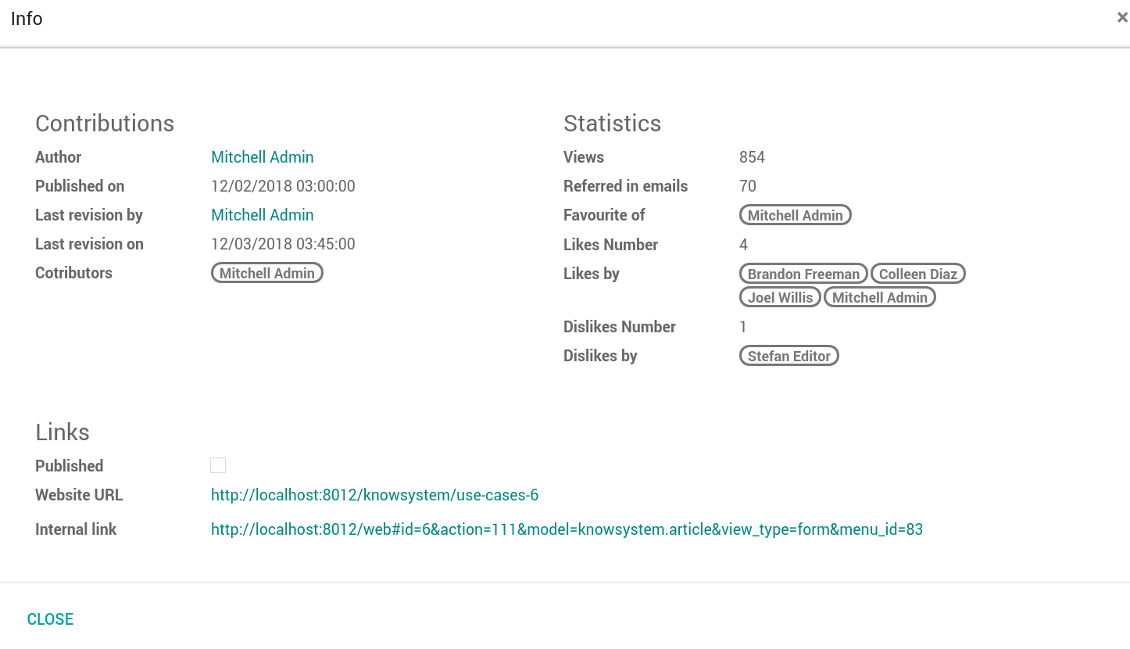
Article info and statistics
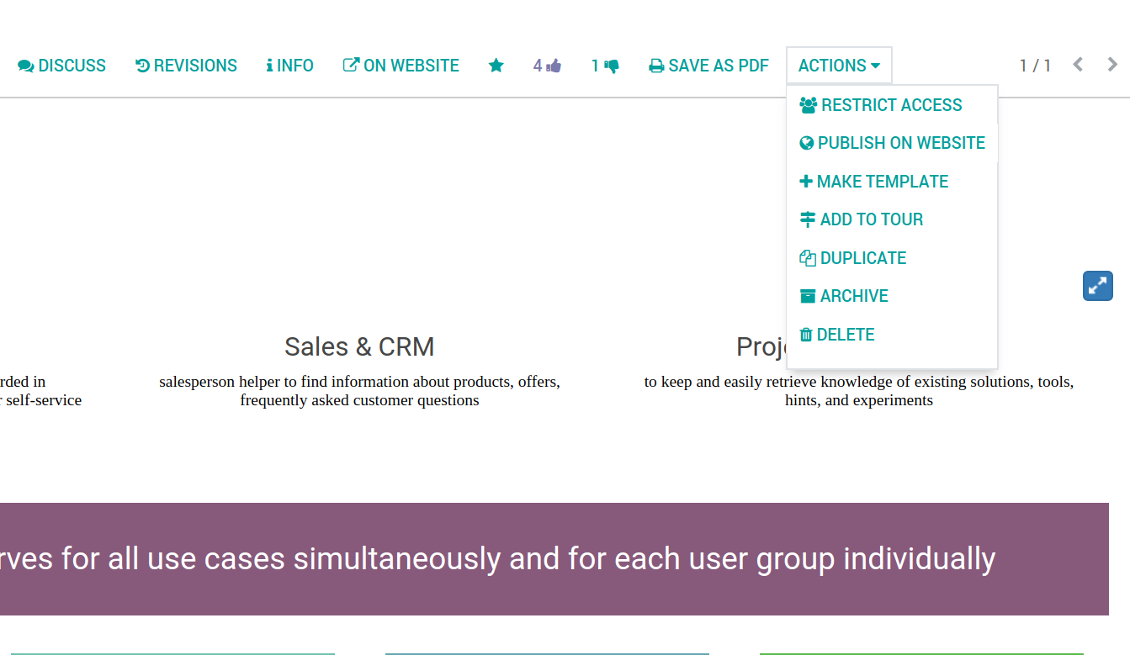
Article misc actions
Mass actions for selected articles
Small screen KnowSystem interface
Fast, comfortable, and professional knowledge recording
By using templates with pre-defined styles you may also speed knowledge generation up and standardize articles' appearance.
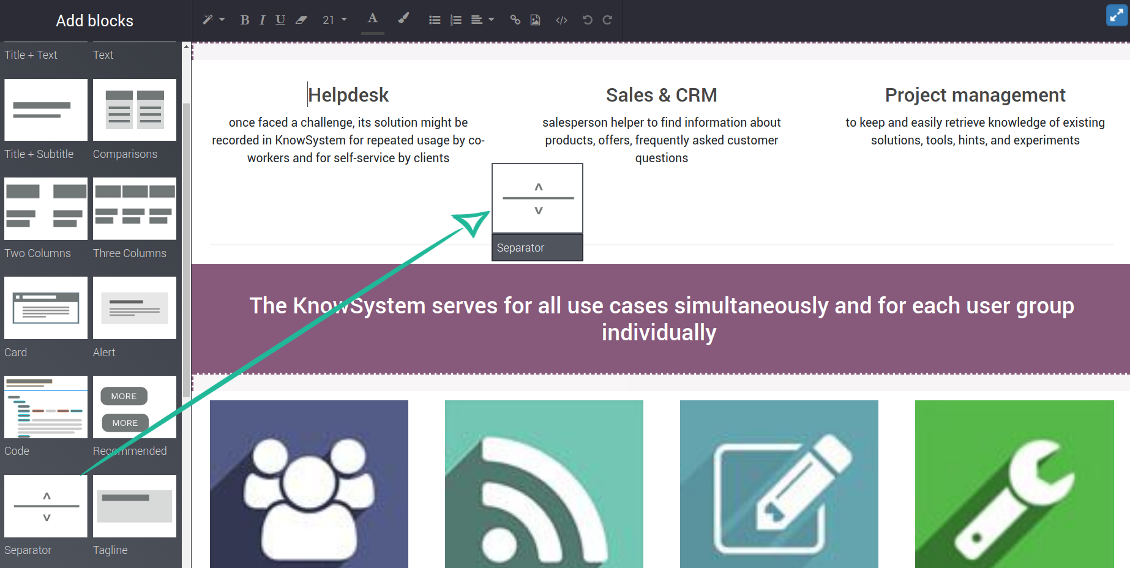
How to use the website builder for editing articles
KnowSystem provides you with a backend articles' builder, which is comfortable and safe to use. Odoo website builder is richer in features to prepare complex HTML structures. To edit articles through the website:
- Install the optional add-on 'KnowSystem Website and Portal' (the option 'Publish to portal and website')
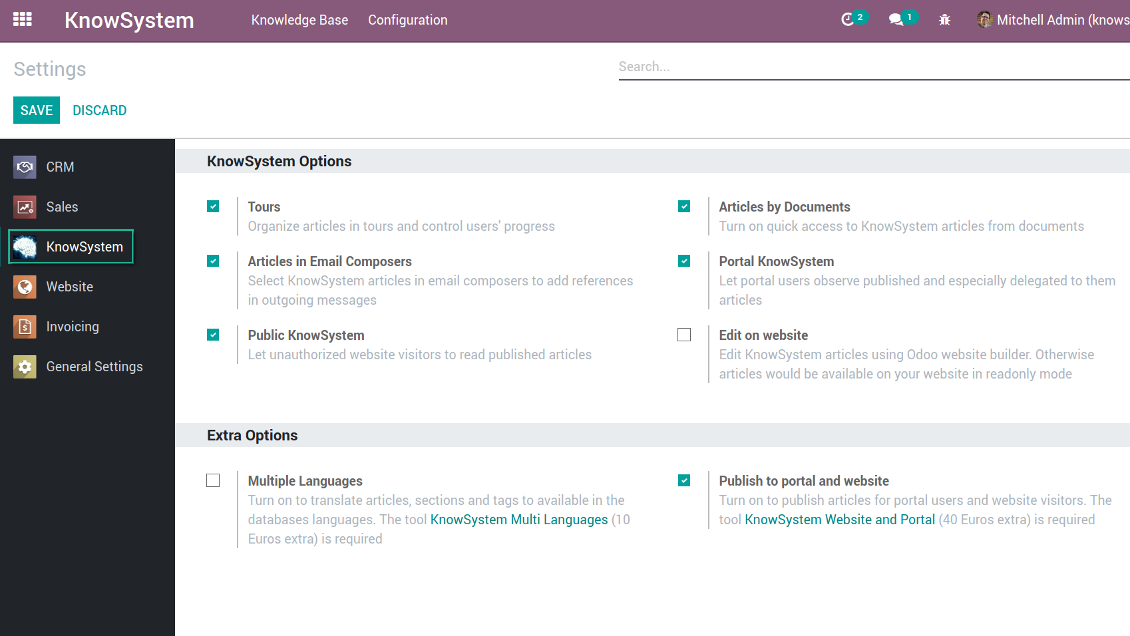
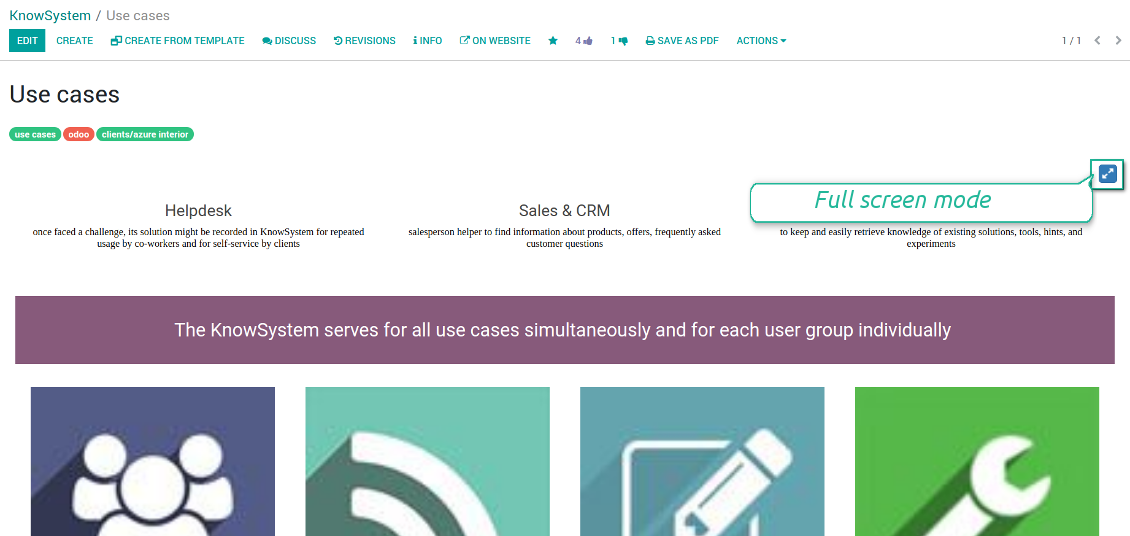
- Turn on the setting 'Edit on website'
- Push the button 'Edit on website' on this article form
Be cautious: if you are going to print this article or add its contents to emails, website building blocks are not suitable. Their advanced styles contradict printing and composer layouts and would not be correctly shown. In such a case use the safer backend builder.
How to use article templates
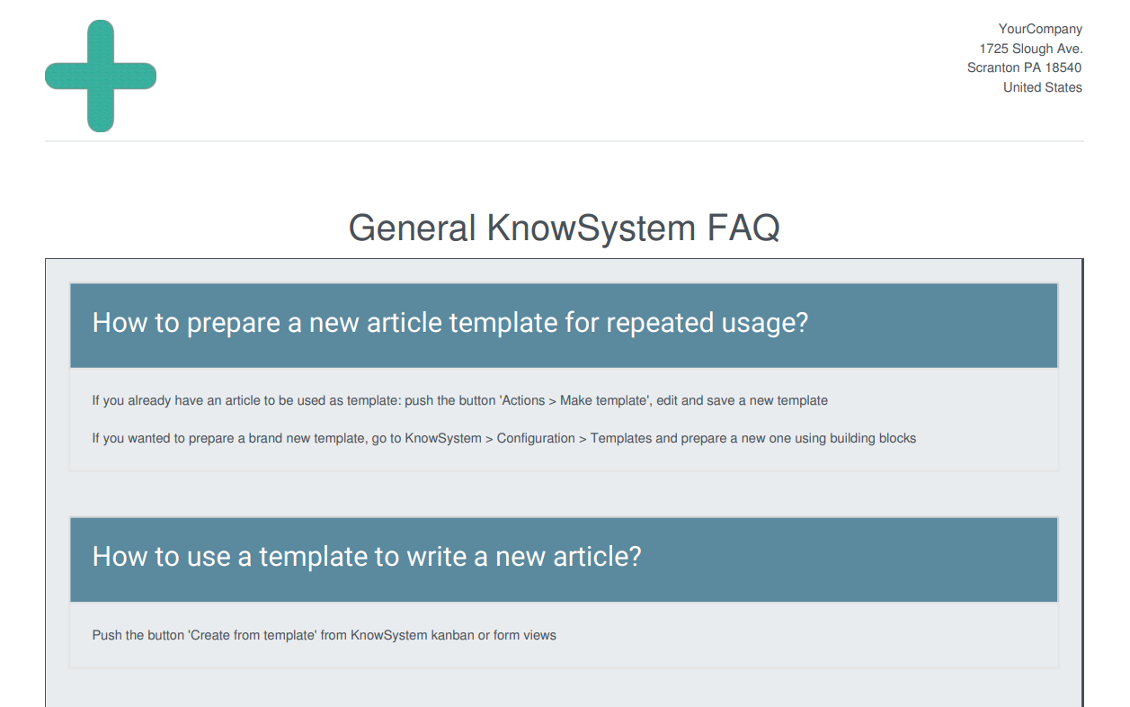
To prepare a new article template for repeated usage:
- If you already have an article to be used as template: push the button 'Actions > Make template', edit and save a new template.
- If you wanted to prepare a brand new template, go to KnowSystem > Configuration > Templates and prepare a new one using building blocks.
To use a template to write a new article:
- Push the button 'Create from template' from KnowSystem kanban or form views
- Select a required article template
- Push 'Create' and introduce changes to a new article.
Ekrānšāviņi
Building blocks for knowledge base articles
Get benefit from your knowledge
How document types and articles are linked for a quick access
Experience is not general, usually it relates to specific issues. Knowledge used for customer communication differs from suppliers' negotiations. Frequently asked questions for draft and confirmed sale orders vary. KnowSystem let you structure your articles to apply them in a correct place and at right time. To that end:
- Turn on the setting 'Articles by Documents' (the option shows the top menu entry above any Odoo document) or 'Articles in Email Composers' (the option adds a quick link in a message composer editor for citing)
- Create a new tag (e.g. 'odoo / helpdesk'). In the table 'Applied to' use a required model (e.g. 'helpdesk ticket') or use it for all documents (the check box 'Apply to all documents').
- As advanced option you may apply additional filters: for example, to show articles only for 'new' tickets, not for 'in progress' ones. Use dynamic filters' constructor for that goal
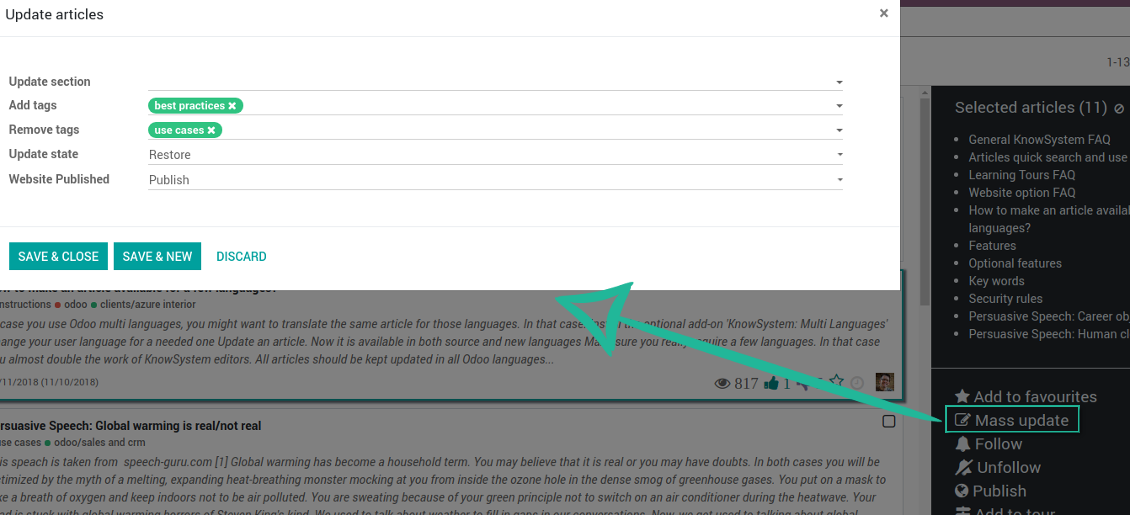
- Assign this tag for required articles. For a few articles use the mass action 'Mass update'
- Now when you access a quick article search from a document or from an email composer, Odoo will calculate KnowSystem tags for this document. That's why by default users would see only articles suitable for a current document. Simultaneously, they might always change tags to use other knowledge base data.
How to overview articles which might be useful for this document
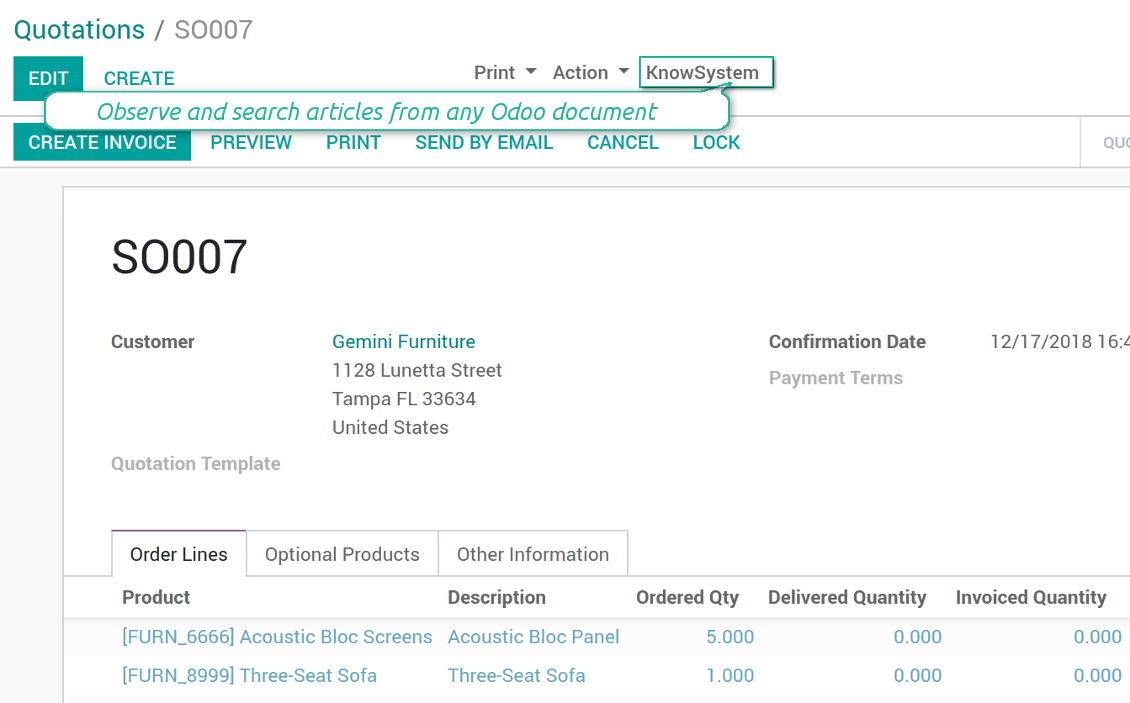
As soon as you turned on the option 'Articles by Documents', on the top of each Odoo object form view there would be a quick link 'KnowSystem'.
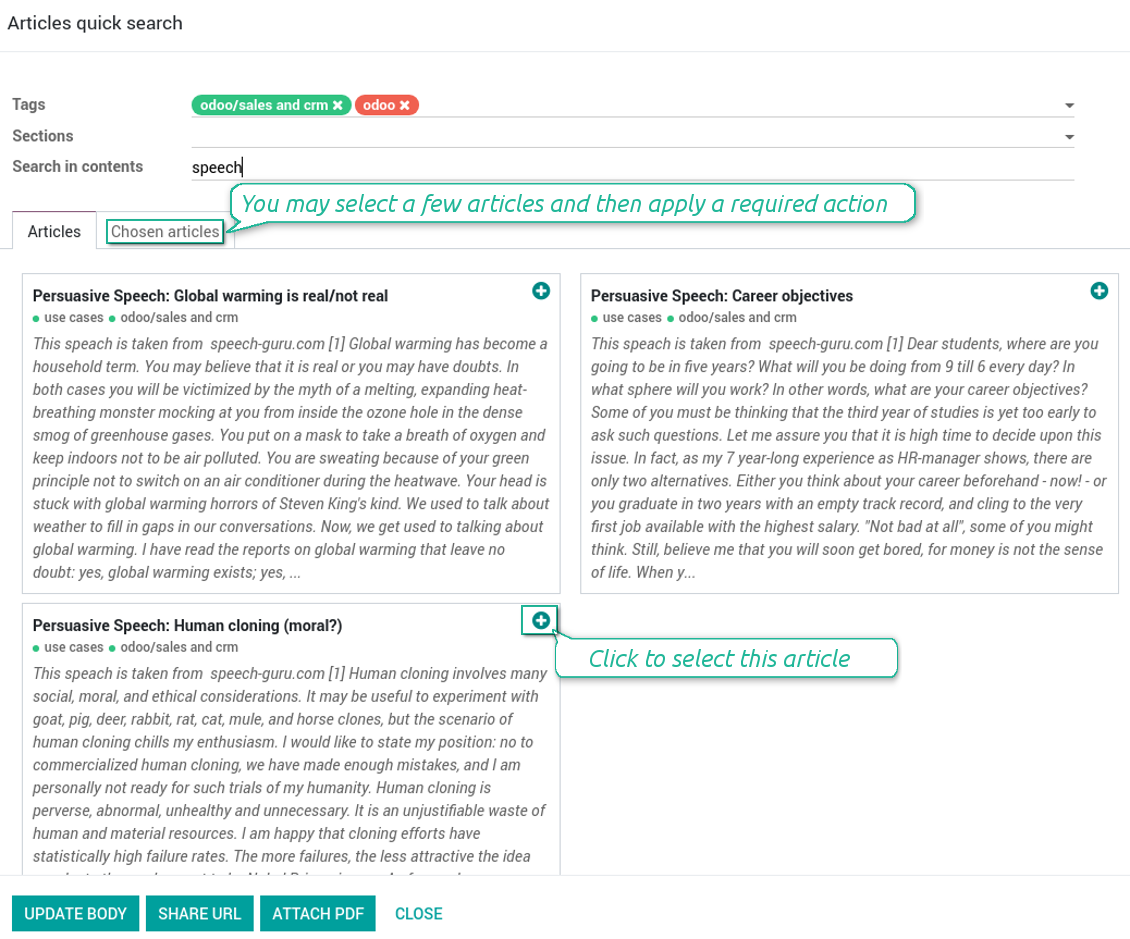
Click on that entry, and Odoo would open the wizard with articles. By default KnowSystem tags suitable for this document would be selected (if any). You may change those tags, or additionally filter by sections or content search. As a result list of topical articles is shown for you.
How to use company knowledge for communication
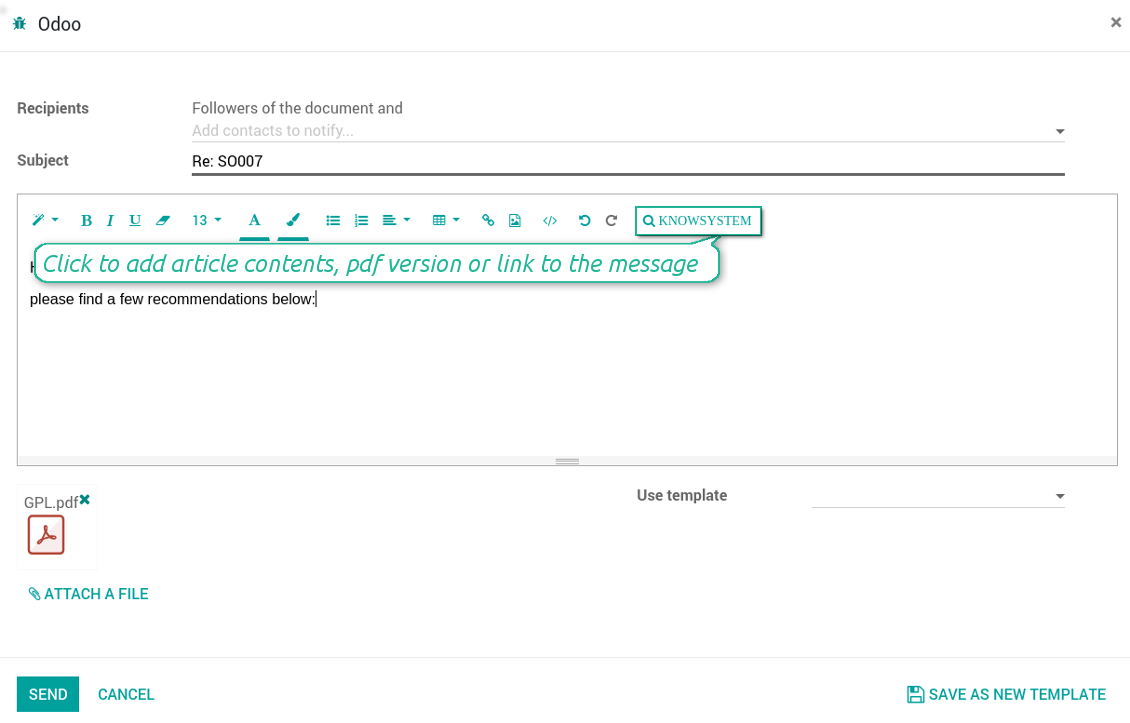
Turn on the option 'Articles in Email Composers' to let users reference or cite Knowledge records in Odoo messages. As a result the special quick entry 'KnowSystem' would be added to each Odoo email composer.
Clicking on that entry would open a wizard with a set of suitable to this document articles. You may change search by tags, add extra filtering by sections or content.
Afterwards, select required articles among found ones; choose an action. You may:
- Update message body with article contents (would be added to the end of a current message)
- Attach a PDF version of an article(s)
- Share a public link
Ekrānšāviņi
Quick access for knowledge system from any Odoo document
Knowledge base link from email composer
Articles from any document
Article(s) PDF printing
WIKI-like revision system
How to recover a previous article version
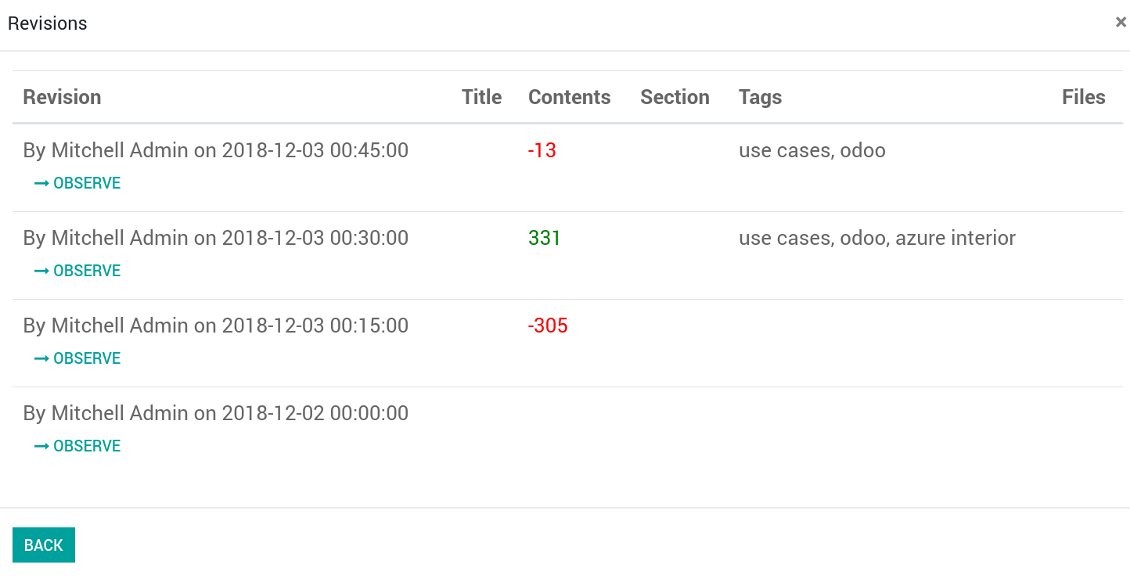
- Go to an article form view and push the button 'revisions'
- Find a required one and push the button 'Observe' to check whether this version is a correct one
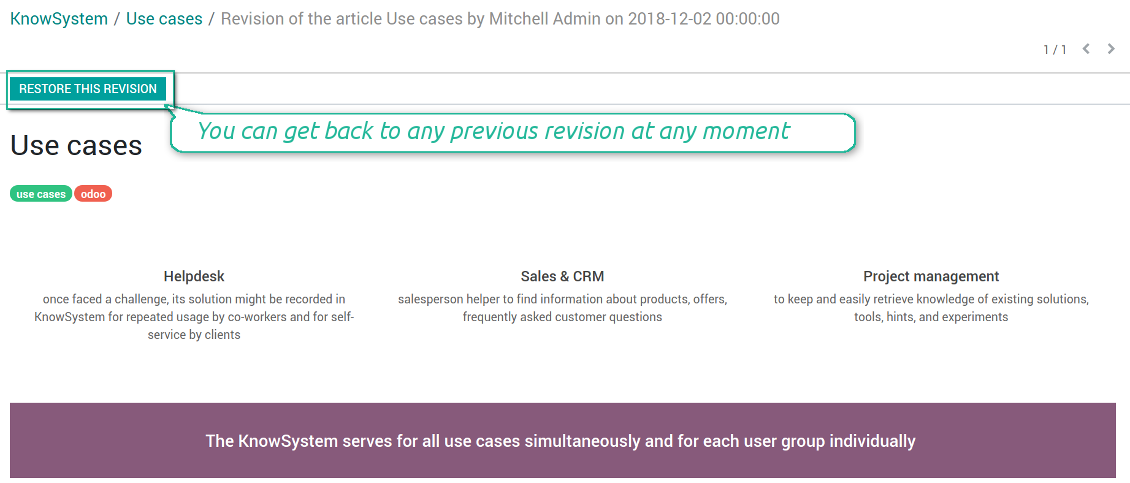
- Push the button 'Restore this revision'. The article would be recovered to that version.
- The recovery operation itself is recorded. So, if it is a mistake you can revert changes by recovering the last-to-last revison.
Ekrānšāviņi
Wiki-style revisions history
To restore is easier than to break
Individual partner knowledge base portal
How to share knowledge base with specific partners
An article is available for a portal user in two cases: A. it is website published; B. his/her company is indicated as allowed partner in one of article tags.
In the first case such an article is available for all portal users and even for public website visitors who have not logged in.
In the latter case you grant a restricted access for an article only for chosen companies. To that end:
- Turn on the setting 'Portal KnowSystem'
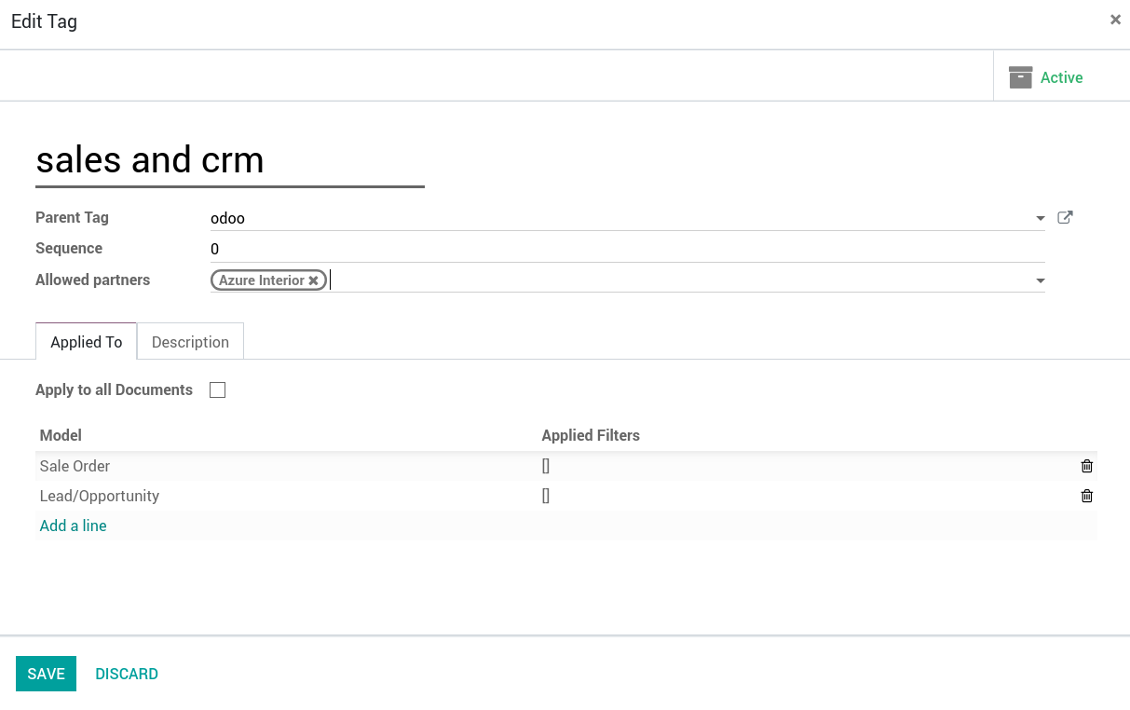
- Create a tag for this partner, for example 'clients / Azure Interior'. On the tag form indicate this company in the field 'Allowed partners'
- Assign the tag for all articles you want to share with this partner. For a few articles use the mass action 'Mass update'
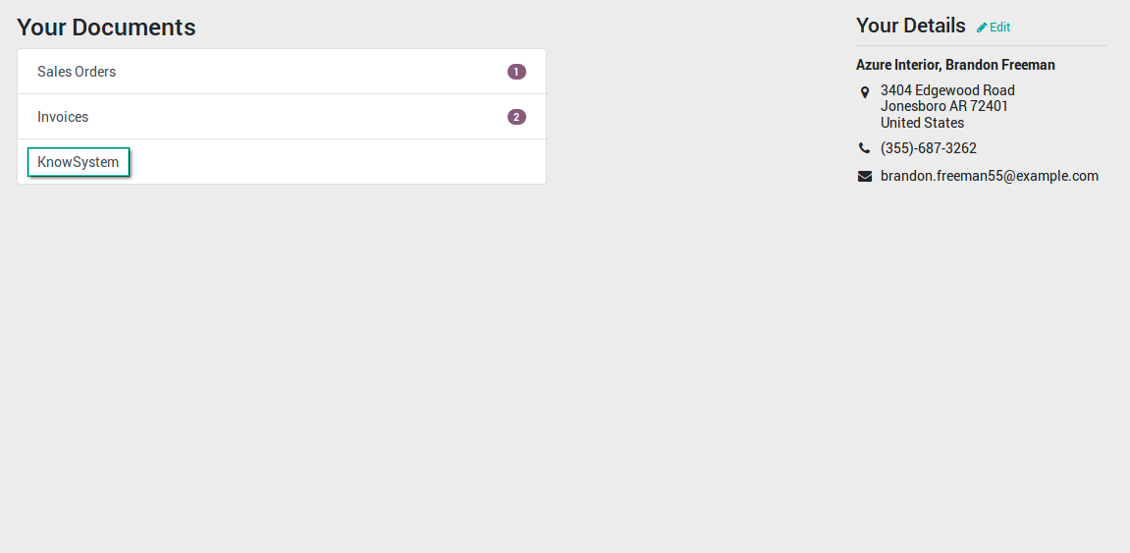
- Now portal users related to this partner may access shared articles right from their partner portal.
Ekrānšāviņi
Knowledge base for portal and public use
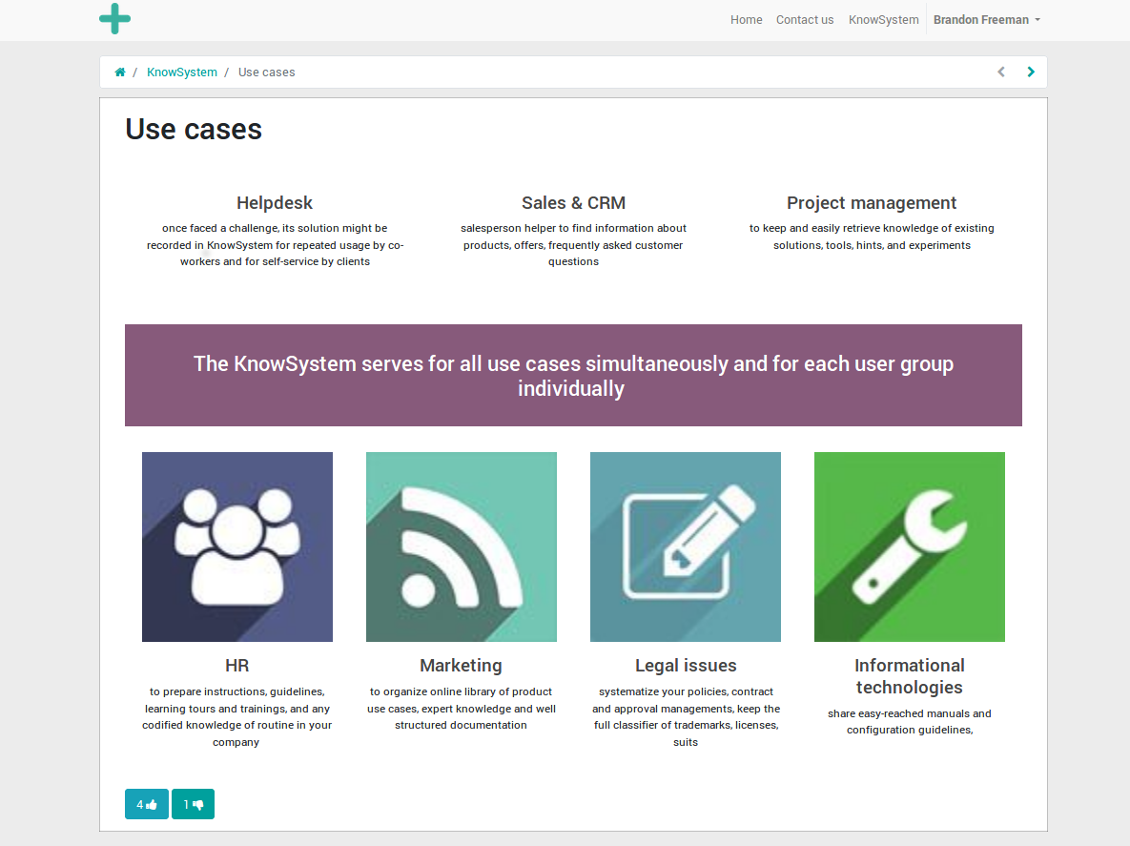
KnowSystem articles on website
Tag: document types and portal partners
KnowSystem from portal
Best knowledge base system for Odoo!
Excellent app and exceptional after-sales support.
Really well thought-out product and one of the best features is the contextual help by means of the tags. Really a game changer for us.
Keep up the great work FaOtools!
Outstanding app! Tremendous value for money, an absolute must have!
One of the features sorely lacking from Odoo has been a robust Wiki/documentation system. Using third party platforms is a massive headache: yet another system to maintain, users get distracted switching back-and-forth, and errors get made. Then you have to worry about training, additional logins, etc.
KnowSystem feels like a native/core app, is very well-polished, and extremely fast. It's accessible from any screen, and the search results are instant (none of the latency inherent with most apps).The interface is elegant yet powerful, with robust access control, rich editing features, and version control. It's simple to revert to previous entries, view audit trails, etc. It's very intuitive for anyone familiar with Odoo; onboarding takes just a few minutes. The user guides are excellent.
This is invaluable for any organisation with a lot of documented information, SOPs, ISO compliance, or similar. If you're using eLearning, it's great for creating a help system / reminders. For example, noting key takeaways or specific instructions. The user can be in MRP, Sales, or any other function, and instantly lookup a guide. Since it overlays whichever screen you're in, it doesn't interrupt the workflow.
This dramatically increases efficiency, minimises questions, and helps keep everyone on the same page.
Oh, and customer service is excellent, faOtools stands behind their product. Thank you!
KnowSystem is excellent - OdooTools offer great support, are very helpful and responsive
Our company needed the ability to add a Knowledge Base to our Odoo portal website for our customers to access article content on a membership-only basis. KnowSystem provided this and much more, along with ability to add search by section, set permissions to allow only certain partners access to articles by tag etc. OdooTools have been very helpful and implemented several features we suggested including automatic redirect upon login, customisable filters and a social sharing capability on articles. Overall a great app by a great company, something that massively adds to Odoo's capabilities and is something that everyone could benefit from using.
Very functional application and responsive support
Our company produces medical laser equipment and we use KnowSystem to streamline the knowledge base of our company. Convenient search system and classification of content, as well as access rules for groups and even for individual users.
Great app and professional team
The app is great the the team is very professional in both response timing and problem solving.
Highly recommended.
Marco from ALO.zone.
Excellent system
Excellent system.
A great tool from some very nice developers!
KnowSystem is a great tool and a game changer for us. Finally a place to put all our company know-how. I highly recommend it. And also important to us: We got great support from FaOtools too. A rare thing in this busy world. thx!
Excellent app and support.
Great app and a very helpfull support. Openess to improve their products is outstanding.
Public knowledge base
How to make an article available for all website visitors
- Turn on the setting 'Public KnowSystem'
- Publish required articles through the mass action 'Publish' or by pushing the button 'Actions > Publish on website' on an article form
- Now any website visitor can read those articles
Team work for knowledge creation
Ekrānšāviņi
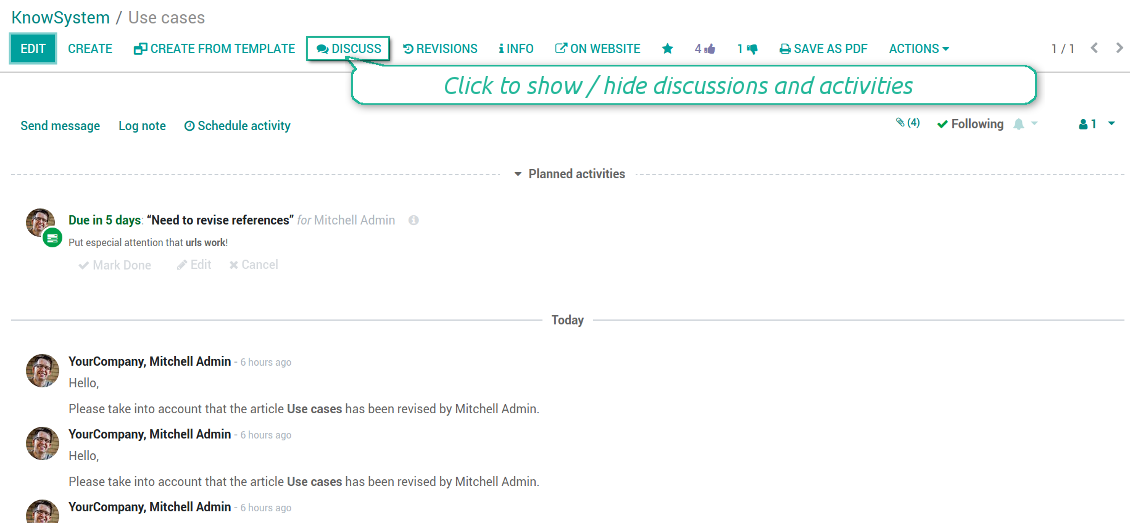
Knowledge base interactions, discussion, and activities
Custom fields to structure knowledge
How custom knowledge attributes work
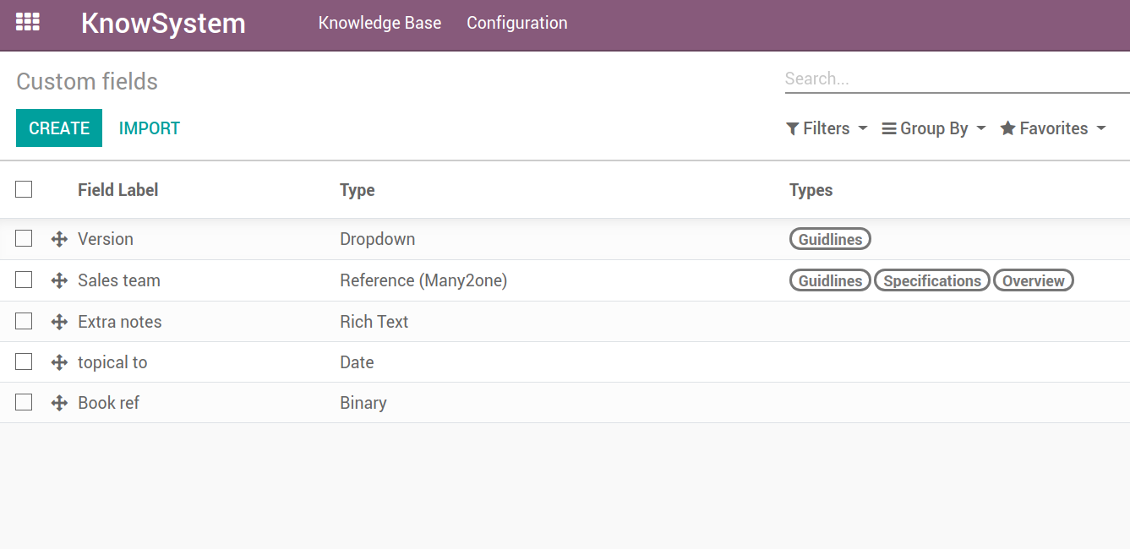
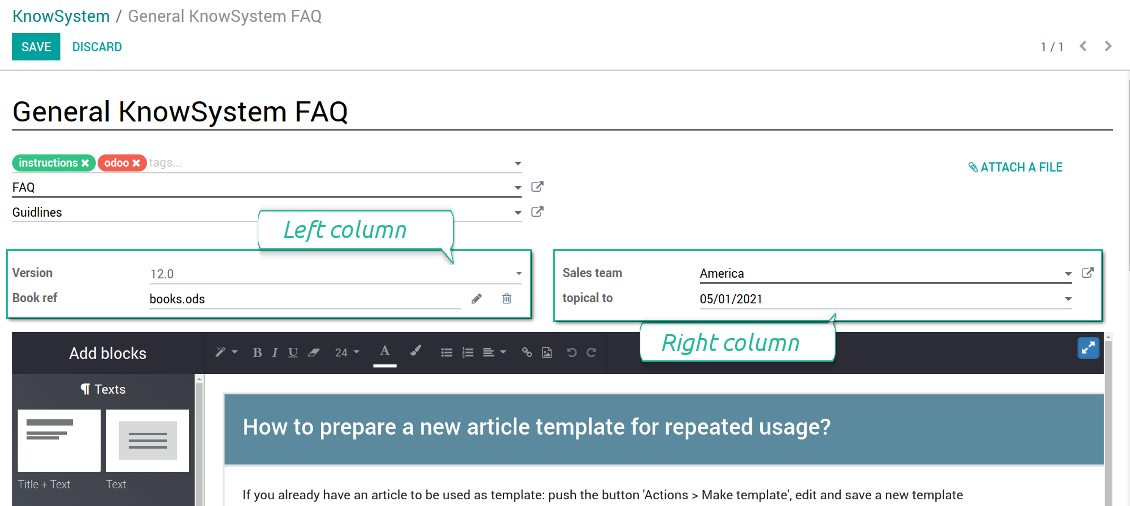
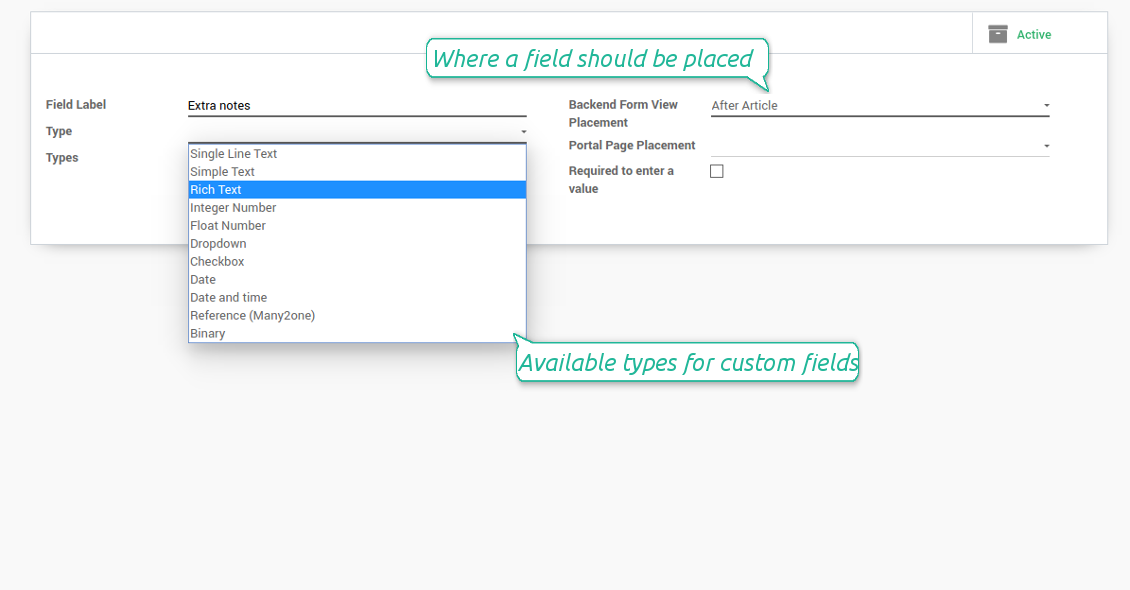
In order to show a new property for KnowSystem articles, just create a custom field. Nothing else is required! You are welcome to prepare fields of various types: single line text (char), simple text without formatting (text), rich text (HTML-formatted text), integer or float numbers, drop-down choice with your own options (selection), checkbox (boolean), date or date and time, binary (a file to upload), reference to another Odoo document (e.g. for a sale order, contact; many2one).
The tool also introduces complementary articles' typology. Thus set of attributes for 'user guidelines' and 'technical specifications' might be different.
Then, choose an interface location for a new field from a closed list to structure properties on an article page. Decide whether a field should be required to enter, or should be visible only for definite knowledge types.
Ekrānšāviņi
KnowSystem articles' custom fields
Custom fields on article form
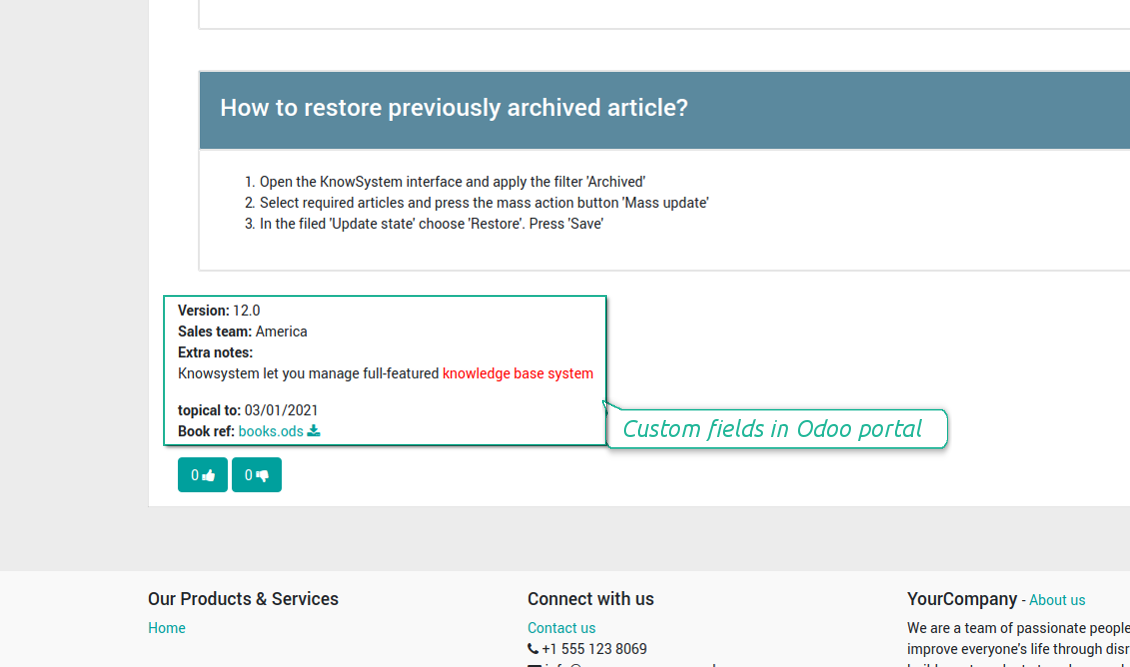
Custom fields in portal and website
Custom fields for article: add any data required
Knowledge is secured and might be safely shared
How to manage user accesses to articles
Security for internal and portal users differs.
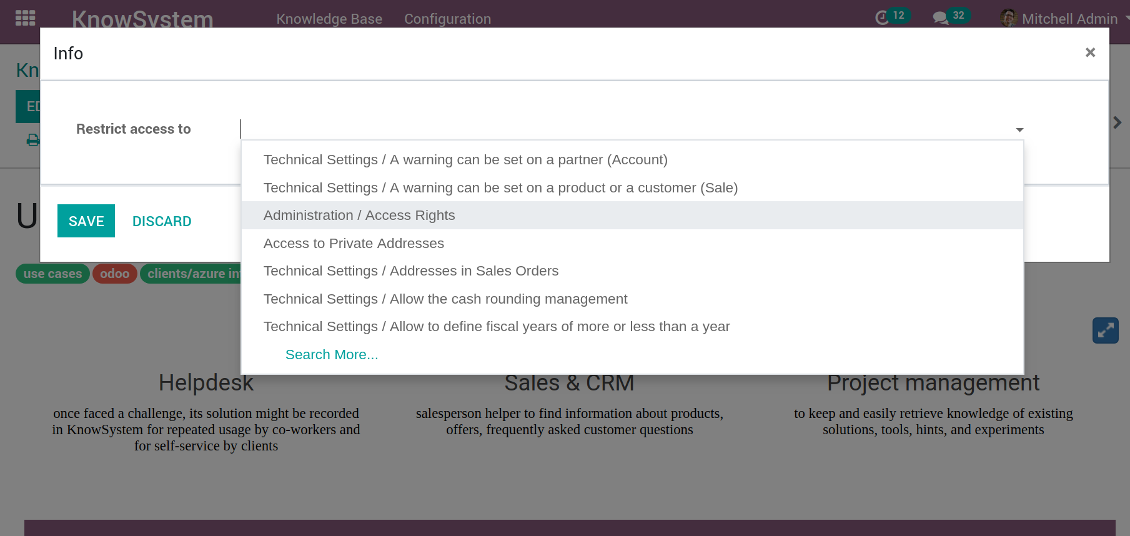
For the company employees: KnowSystem considers user groups which are defined per articles, sections and tours. Look at the tab 'Restrict to' on forms of those objects. If that field is not defined, a document is considered 'global': each internal user may read it.
For portal / public users: KnowSystem takes into account tags and whether an article is website published. A knowledge tag has a field 'Allowed partners', which may grant an access to portal users for articles with this tag. Website published pages are available for everybody.
Rights to administrate KnowSystem belongs to 2 user roles: KnowSystem Editor and KnowSystem Administrator. If you want a user to create and edit articles, a user should belong to one of those groups.
|
|
Odoo user |
KnowSystem Editor |
KnowSystem Admin |
Portal user |
Public user |
| Articles | read related to his/her user groups and sections | read, create, edit, archive related to his/her user groups and sections | read, create, edit, delete any | read published articles and articles related to partner-related tags | read published articles |
| Sections | read related to his/her user groups | read, create, edit, archive related to his/her user groups and sections | read, create, edit, delete any | read all sections of available articles | read all sections of published articles |
| Tags | read any | read, create, edit, archive any | read, create, edit, delete any | read published ones | read published ones |
| Article Types | read any | read any | read, create, edit, delete any | read published ones | read published ones |
| Tours | read related to his/her user groups | read, create, edit, delete related to his/her user groups | read, create, edit, delete any | no access | no access |
| Misc | may like / dislike, add to favourites, print, take part in discussions | may configure options | may like / dislike an article |
|
Take also into account two peculiarities:
- Odoo user always may access an article of which he is an author disregarding further restrictions;
- Rights for section is defined not only according to this section but also according to all its parents. For example, if user can't access 'sales', he/she would not be able to access 'sales / crm' disregarding whether 'crm' is available for his/her user group.
Ekrānšāviņi
Manage access to this article
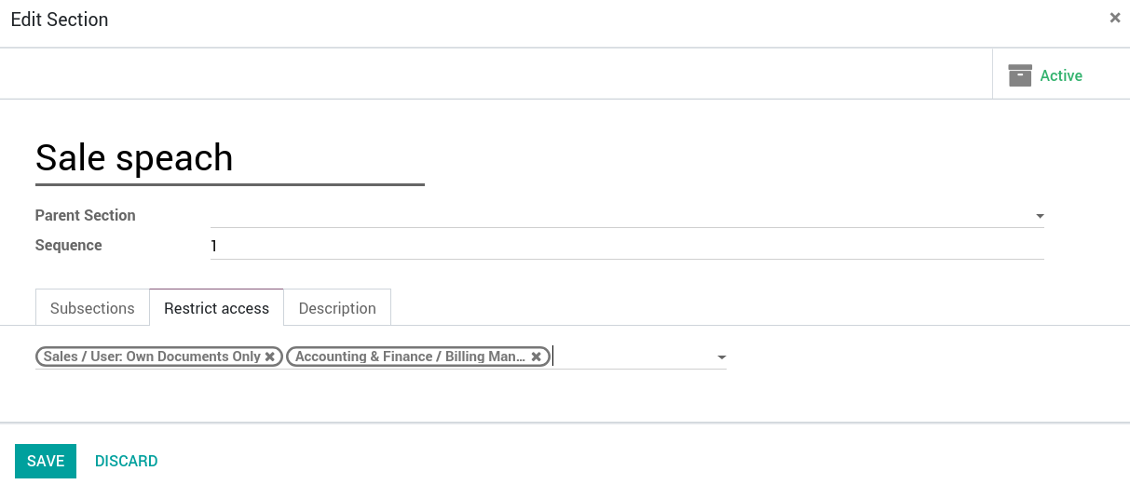
Section update and user rights
Website documentation builder
Ekrānšāviņi
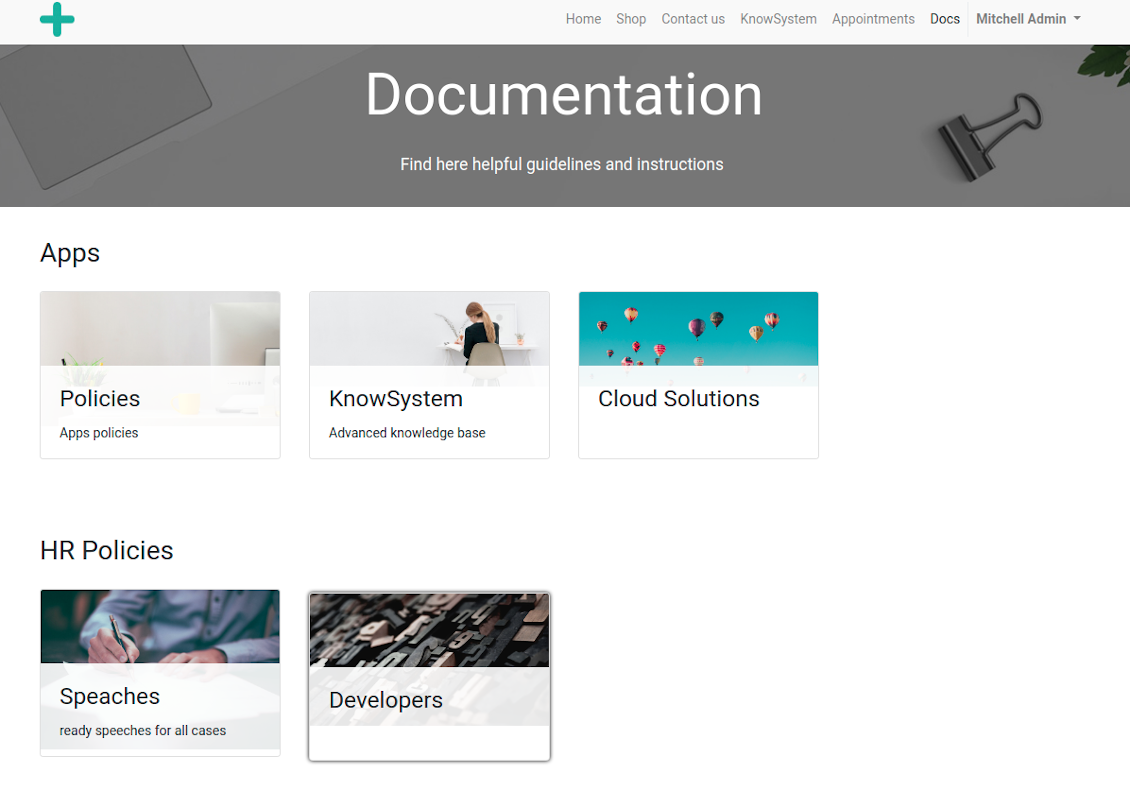
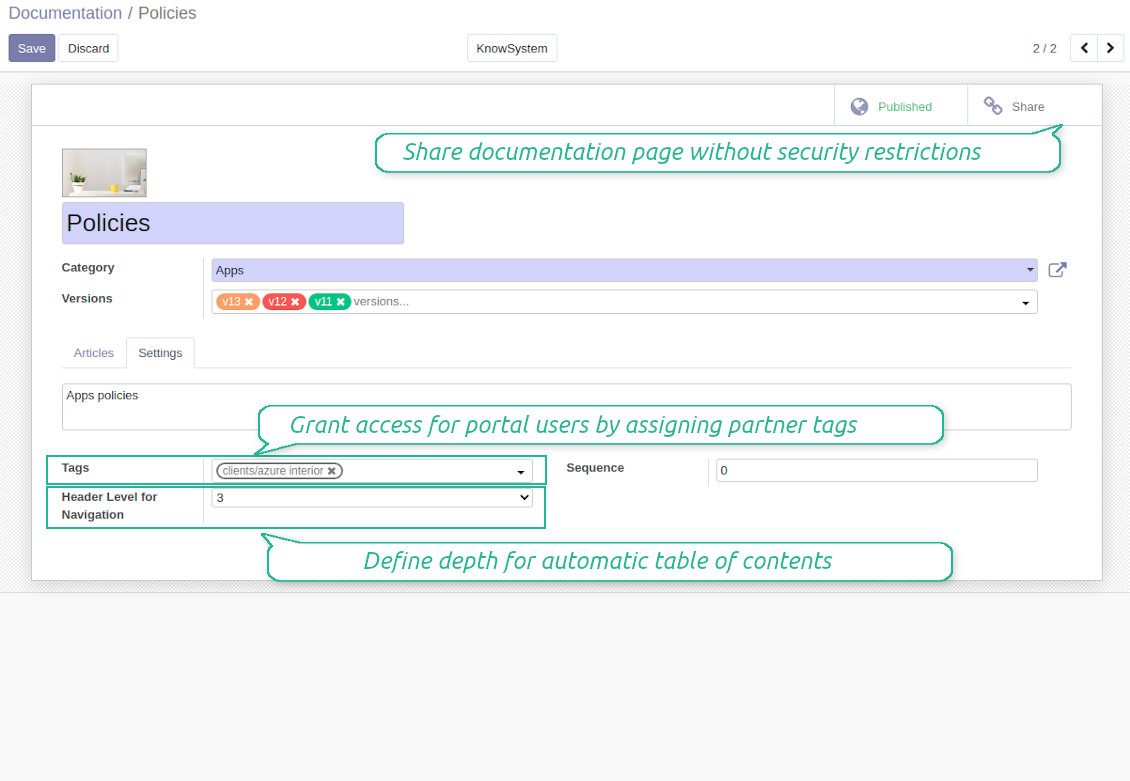
Documentation by categories and sections
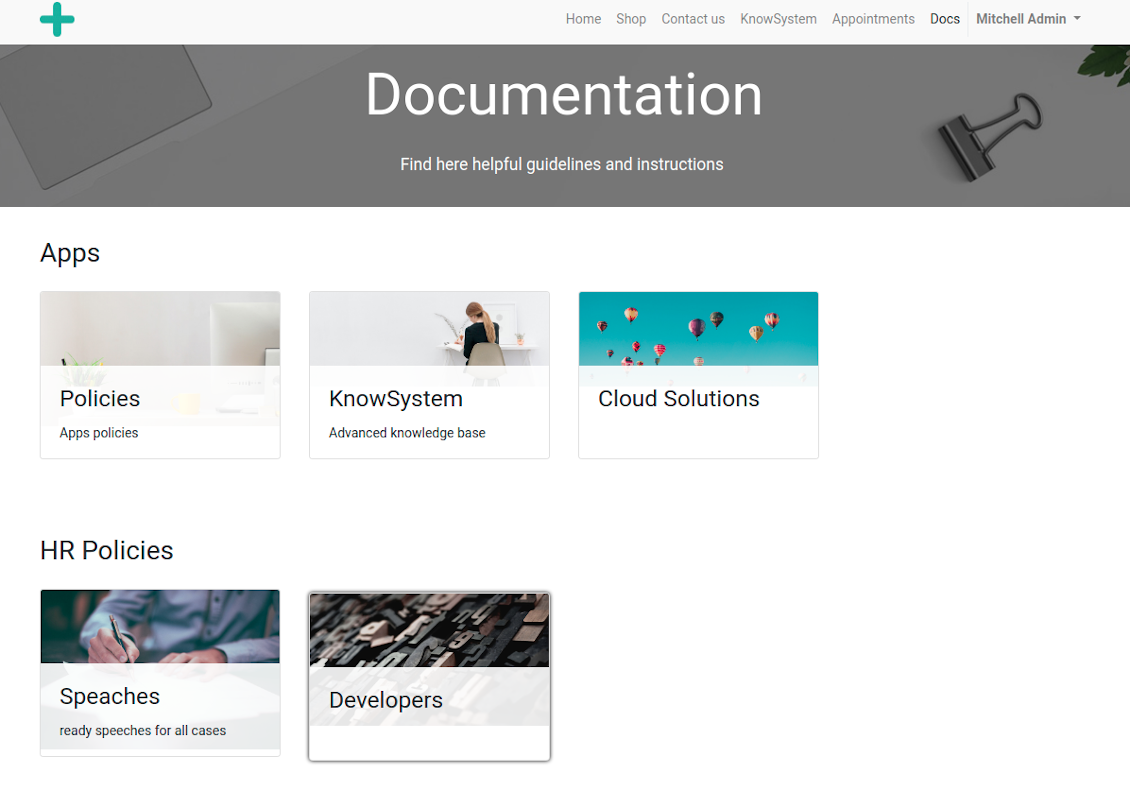
Documentation by categories and sections
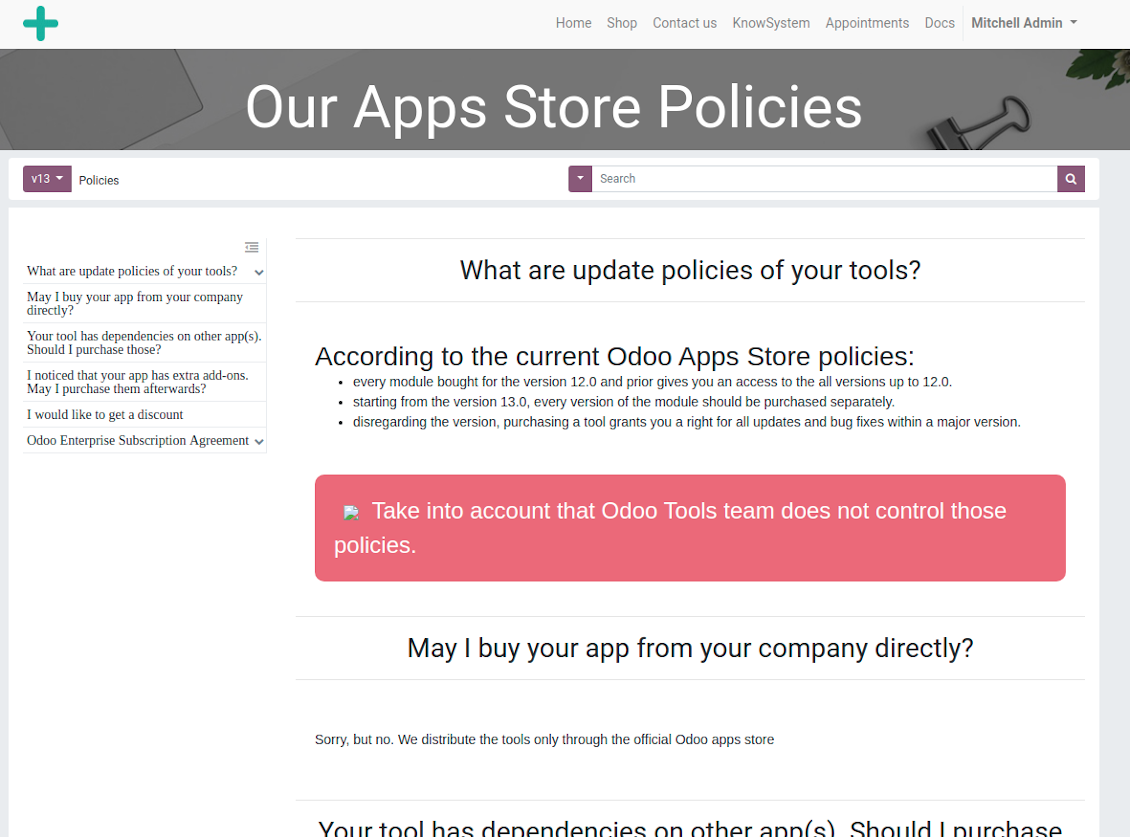
Documentation page
Documentation page
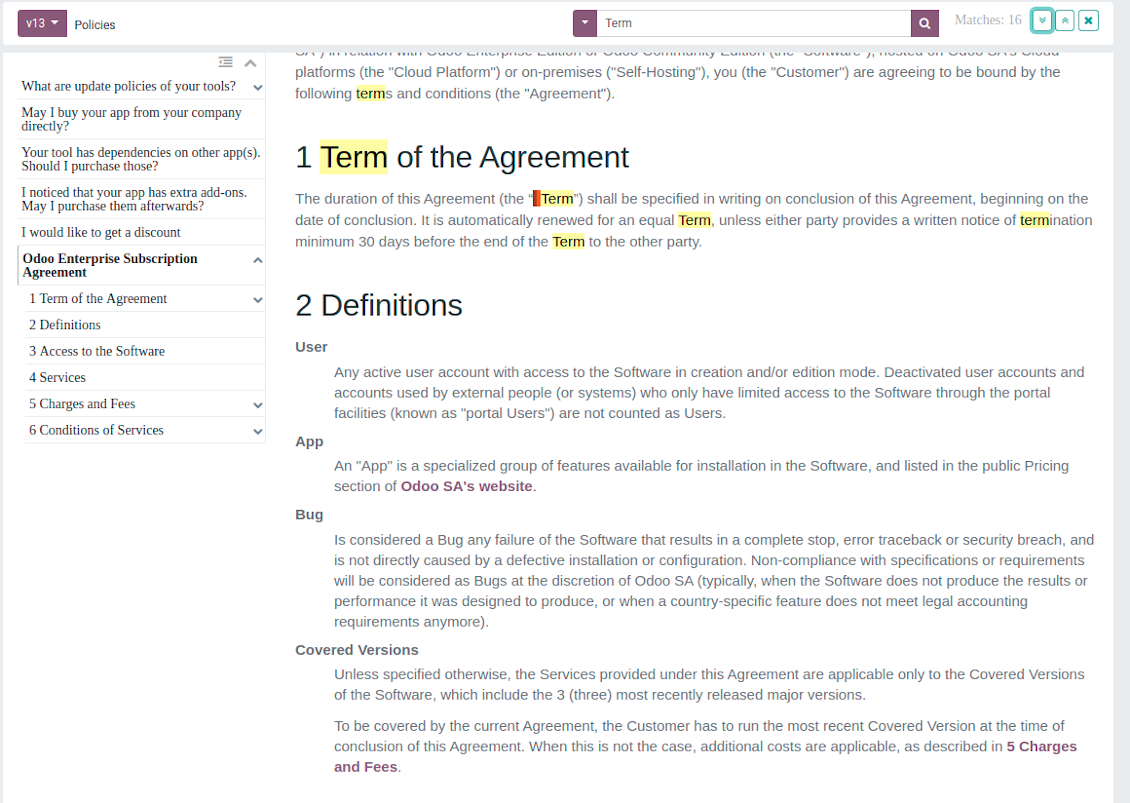
Automatic table of contents by documentation
Automatic table of contents by documentation
Inline search by documentation
Inline search by documentation
Compose articles for documentation
Compose articles for documentation
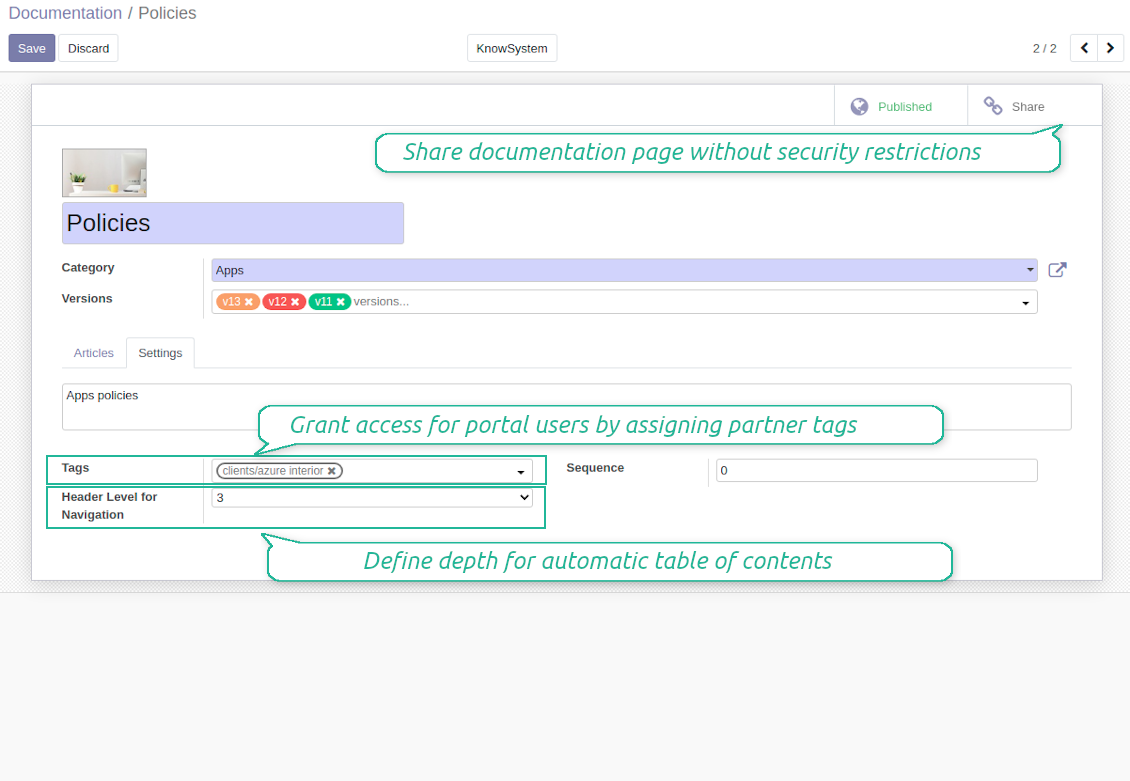
Documentation settings
Documentation settings
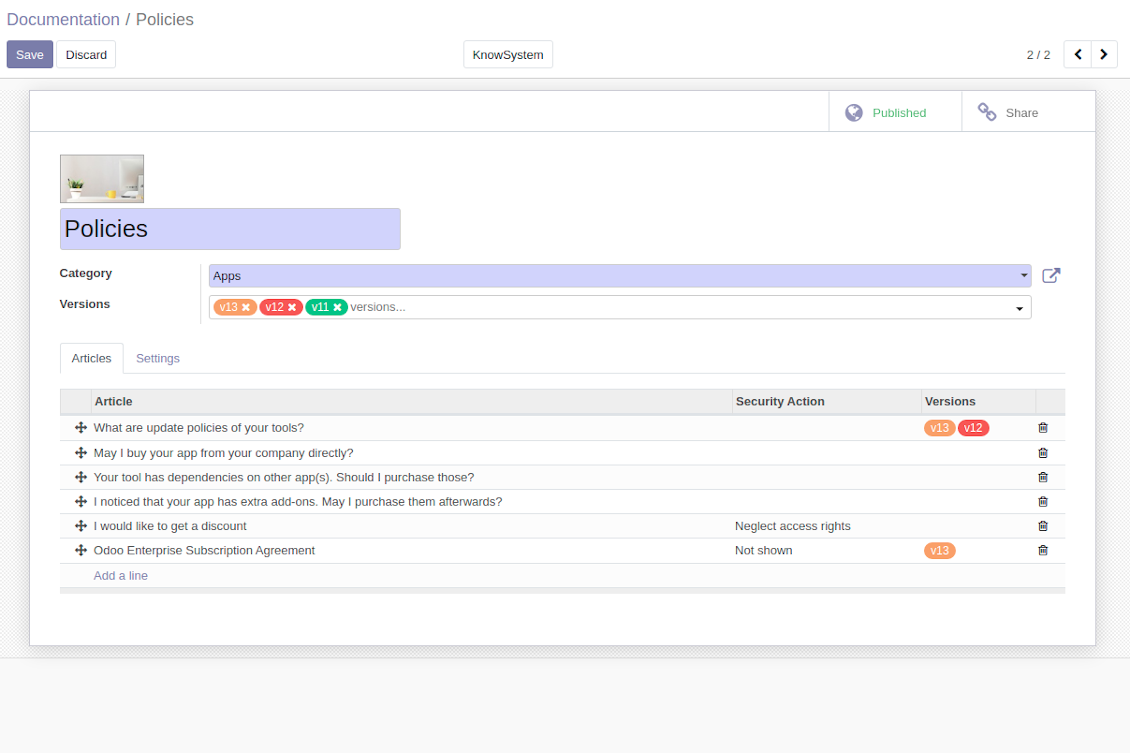
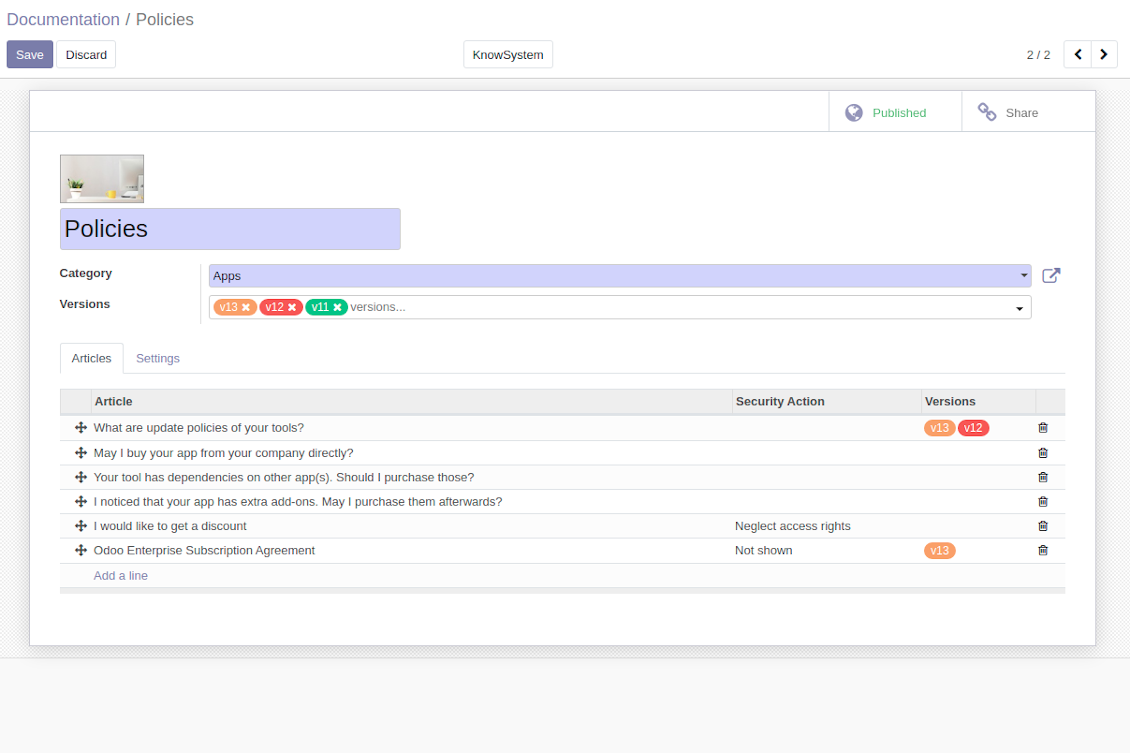
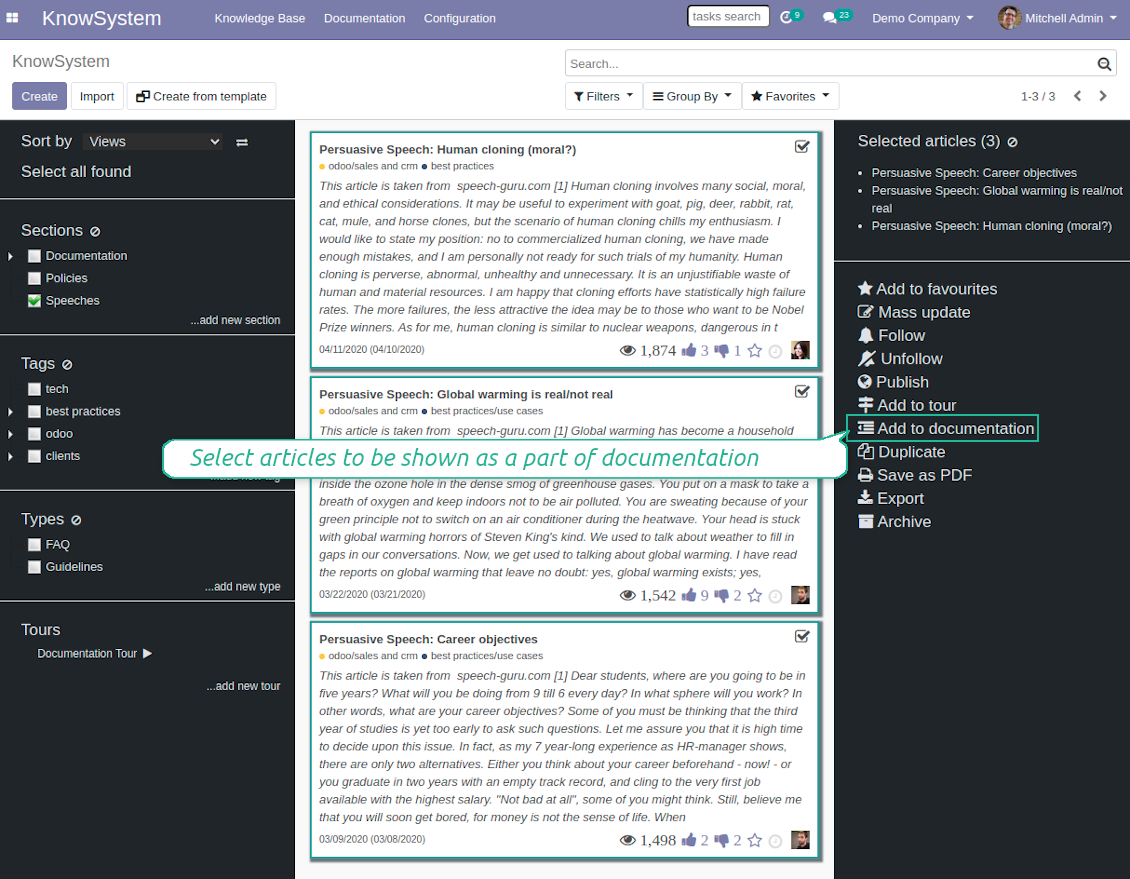
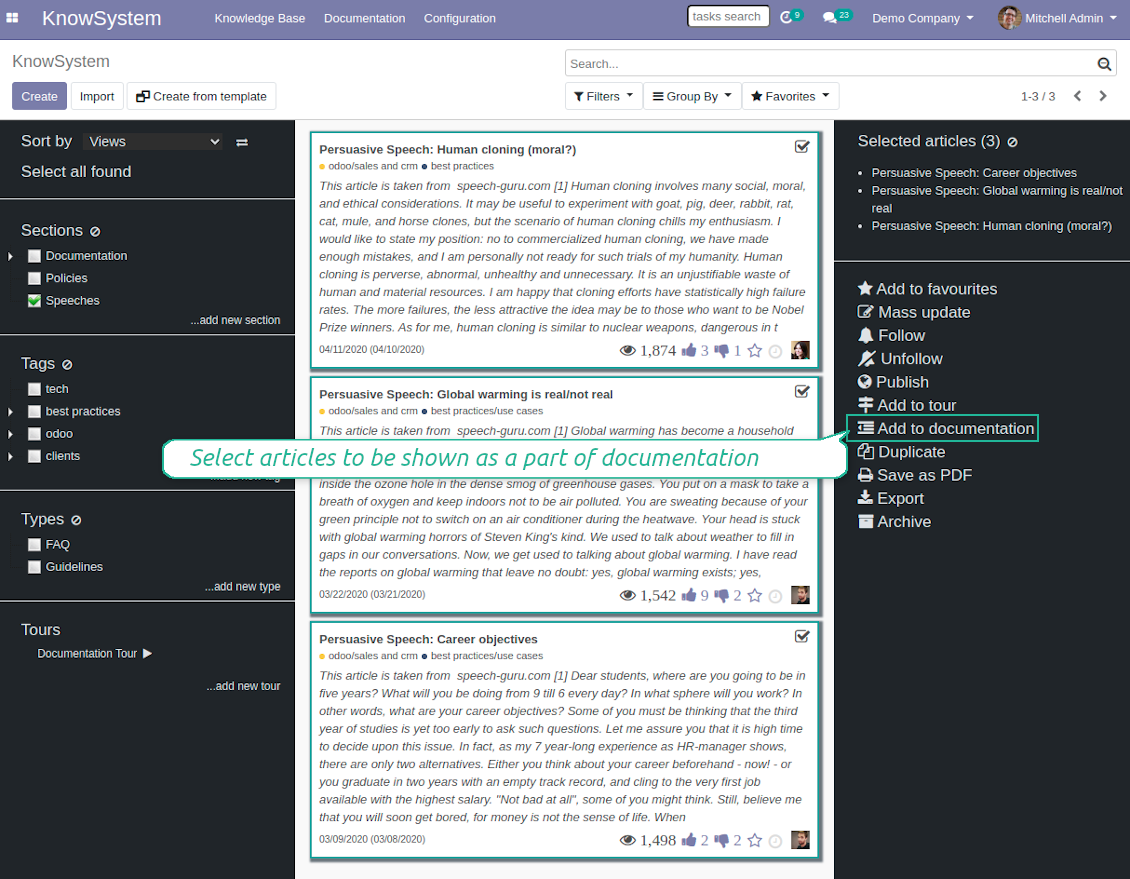
Add KnowSystem articles to documentation
Add KnowSystem articles to documentation
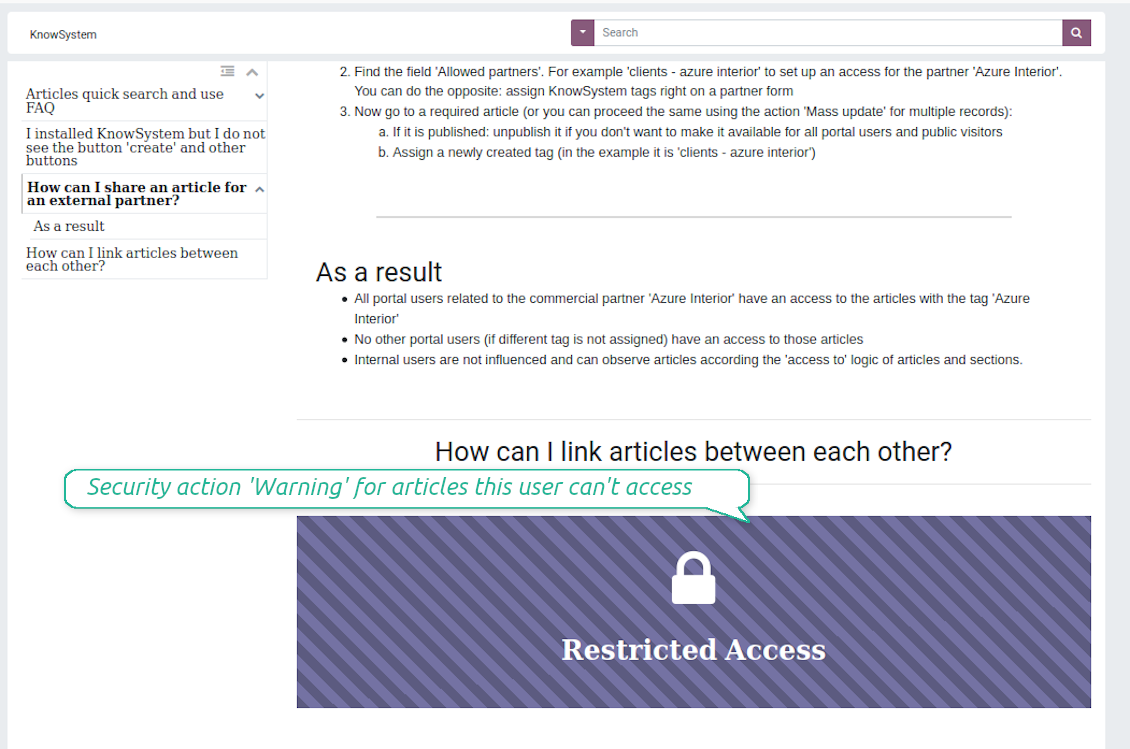
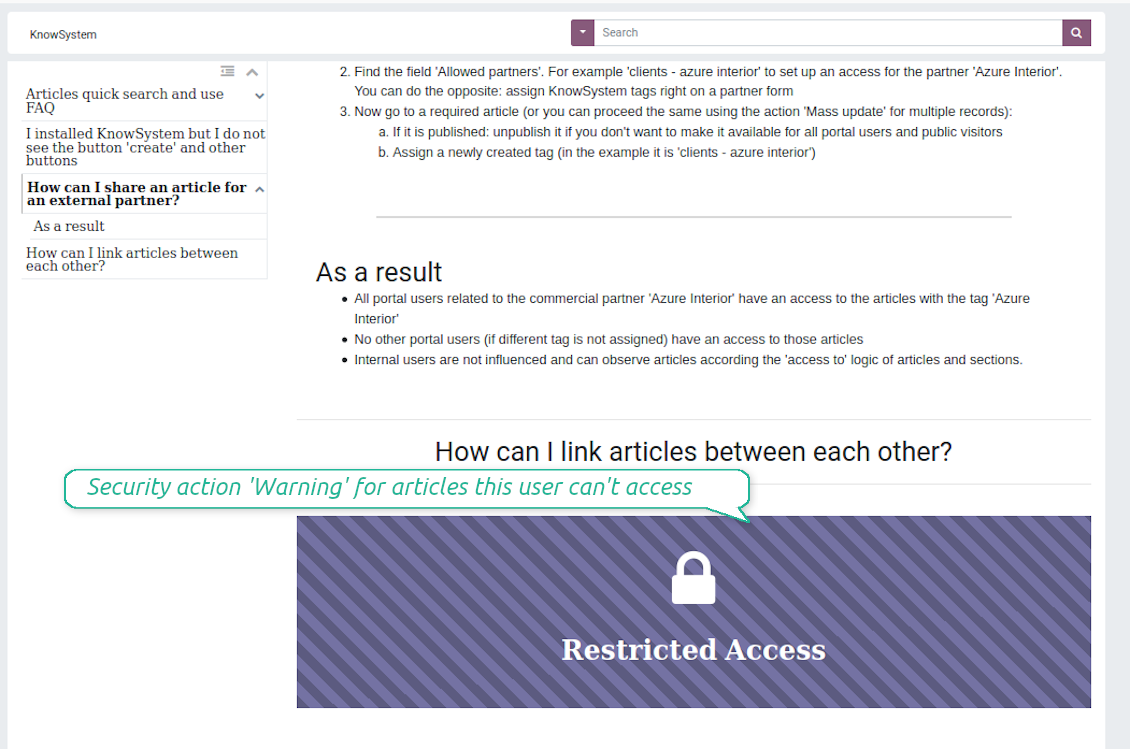
Security: optionally show warning if no access possible
Security: optionally show warning if no access possible
Create learning tours
How to configure a learning tour
- Turn on the option 'Tours'
- Go to KnowSystem interface and select articles to be included into a tour
- Press the mass action button 'Add to tour' and select or create a tour. Press save
- Re-order articles in a consistent order
- Define groups of users who should go through a tour on the tab 'Restrict access'
- Now users can see and launch tours right from the KnowSystem interface (the right navigation panel)
Ekrānšāviņi
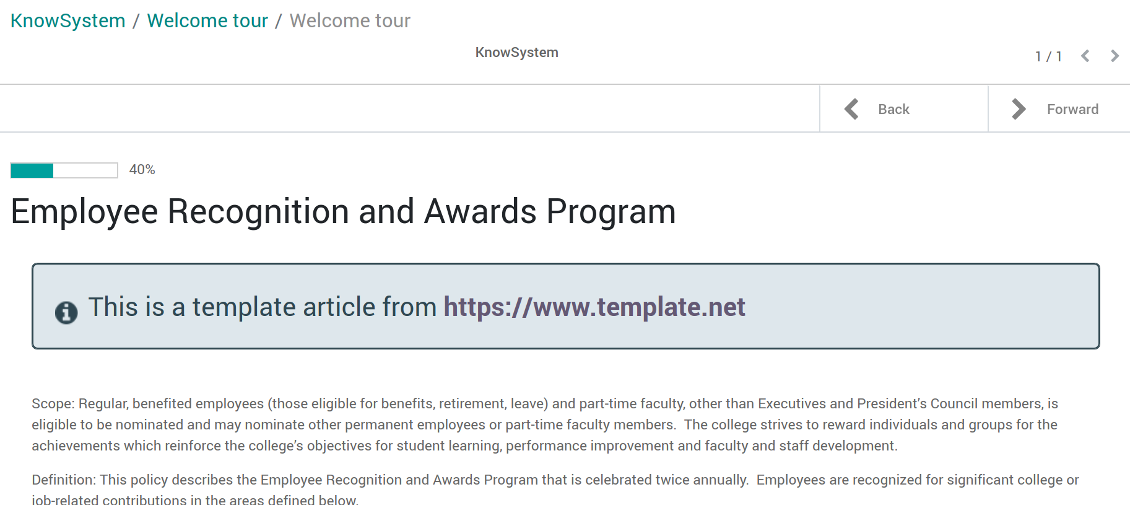
Article in a learning tour
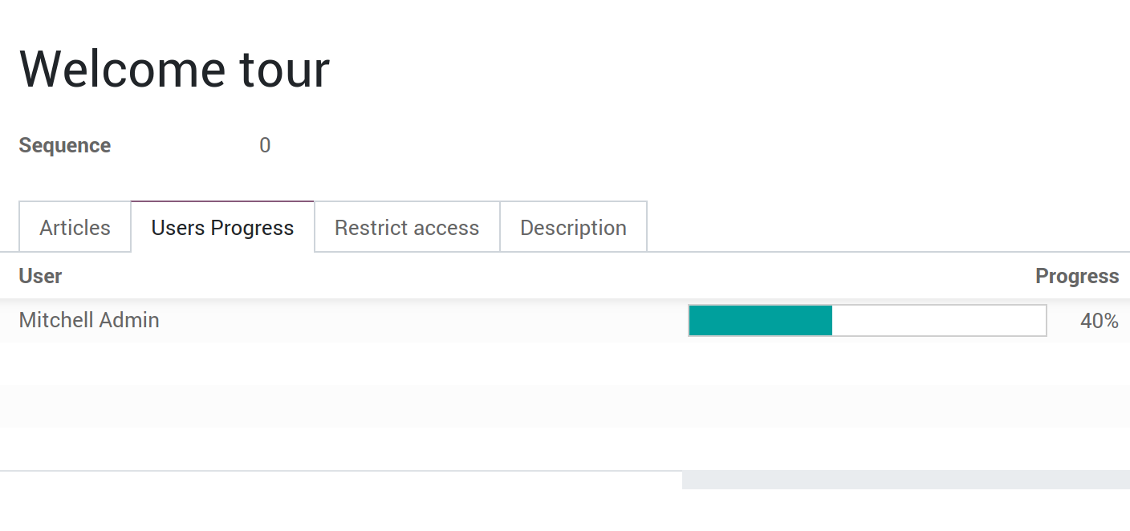
Control tour progress by users
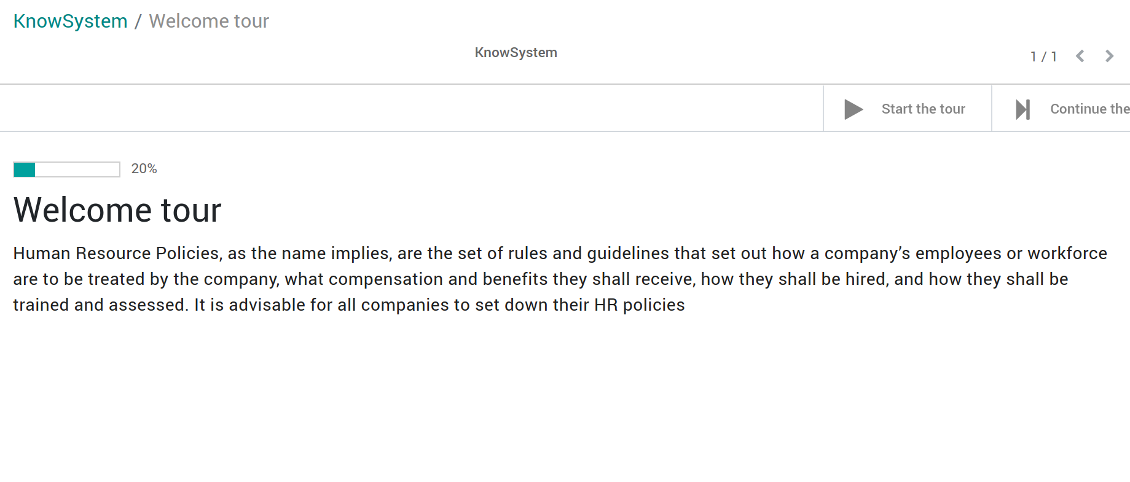
KnowSystem tour welcome page
Multilingual knowledge base
How to make an article available for a few languages
- Install the optional add-on 'KnowSystem: Multi Languages'
- Change your user language for a needed one
- Update this article
- Now it is available in both source and a current language
Make sure you really require a few languages. In that case you almost double the work of KnowSystem editors. All articles should be kept updated in all Odoo languages.
Knowledge base for any industry and business
Typical use cases
- Helpdesk: once faced a challenge, its solution might be recorded in KnowSystem for repeated usage by co-workers and for self-service by clients
- Sales & CRM: salesperson helper to find information about products, offers, frequently asked customer questions
- Project management: to keep and easily retrieve knowledge of existing solutions, tools, hints, and experiments
- HR: to prepare instructions, guidelines, learning tours and trainings, and any codified knowledge of routine in your company
- Marketing: to organize online library of product use cases, expert knowledge and well structured documentation
- Legal issues: systematize your policies, contract and approval managements, keep the full classifier of trademarks, licenses
- Informational technologies: share easy-reached manuals and configuration guidelines
Bieži uzdotie jautājumi par KnowSystem: Knowledge Base System Odoo v.12
Es neredzu nekādu atšķirību starp revīziju tekstiem.
Revīzijas reģistrē ne tikai teksta izmaiņas, bet arī stila atjauninājumus (tehniski, kad maināt raksta HTML pirmkodu). Dažas no tām var nebūt skaidras no pirmā acu uzmetiena (piem., viena vārda fonta lieluma maiņa). Citas var būt krāsas. Tomēr jebkura darbību kopā Rediģēt > Mainīt kaut ko rakstā > Saglabāt izveido jaunu revīziju.
Vai rakstam var pievienot YouTube/ Vimeo / Dailymotion / Youku video?
Jā, video no šiem pakalpojumiem var iegult rakstos gan no Odoo administrācijas, gan no vietnes veidotāja. Pievienojiet jebkuru bloku ar attēlu > nospiediet attēlu > izvēlieties ‘Video’ > ievadiet vajadzīgā medija URL.
Ņemiet vērā: šādi video tiek iekļauti kā iframe, un dažas pārlūkprogrammas var bloķēt atskaņošanu, līdz lietotājs to skaidri atļauj.
Kā padarīt sadaļu redzamu vietnē?
KnowSystem sadaļa vietnē ir redzama, ja tā ir publicēta un satur vismaz vienu rakstu. Pat ar apakšsadaļām tā nebūs redzama, ja pašā sadaļā nav neviena raksta. Tā izvairās no tukšām sadaļām, un KnowSystem portāls paliek pārskatāms. Lai sadaļa parādītos vietnē, pievienojiet ievada vai vispārīgu rakstu, kas īsi apraksta vai uzskaita apakšsadaļu rakstus.
Kā kopīgot rakstu ārējam partnerim?
Ar peles labo pogu noklikšķiniet uz jebkuras birkas kreisajā navigācijas panelī - Izveidot
Atrodiet lauku „Allowed partners”. Piemēram, 'clients - azure interior', lai piešķirtu piekļuvi partnerim 'Azure Interior'. Varat arī pretēji: piešķirt KnowSystem birkas tieši partnera formā
Tagad atveriet vajadzīgo rakstu (vai dariet to pašu ar darbību „Mass update” vairākiem ierakstiem):
Ja tas ir publicēts: atceliet publicēšanu, ja nevēlaties, lai tas būtu pieejams visiem portāla lietotājiem un publiskajiem apmeklētājiem
Piešķiriet tikko izveidoto birku (piemērā tā ir 'clients - azure interior')
Tagad:
Visiem portāla lietotājiem, kas saistīti ar komercpartneri 'Azure Interior', ir piekļuve rakstiem ar birku 'Azure Interior'
Nevienam citam portāla lietotājam (ja nav piešķirta cita birka) nav piekļuves šiem rakstiem
Iekšējie lietotāji netiek ietekmēti un rakstus redz saskaņā ar rakstu un sadaļu loģiku „access to“.
Vai raksta saturam var pievienot valodas izvēles pogu?
Pogu 'translate' izvēles papildinājums 'KnowSystem: Multi Languages' tīši neliek raksta saturam. Iemesls: HTML kodu ir ļoti grūti tulkot vienkāršajā uznirstošajā logā, ko paredz poga. Tulkojamā teksta būtu ļoti maz, bet HTML daļu daudz (tulkotājs tās var arī sabojāt).
Tāpēc, lai veidotu rakstu noteiktā valodā, piesakieties kā šīs valodas lietotājs. Tas var būt cits lietotājs, vai arī īslaicīgi mainiet pašreizējā lietotāja iestatījumus. Pēc tam visus raksta satura labojumus veiks šajā valodā.
Varat izmantot arī pogu 'Copy from another translation' zem raksta satura, lai jebkurā brīdī paņemtu saturu no citas valodas (noderīgi, ja raksts kādā valodā ir būtiski atjaunināts).
Kā iegult citas vietnes lapu rakstā
Šim nolūkam varat izmantot iframe. Pārslēdziet rakstu uz neapstrādāta HTML koda redaktoru un ievietojiet, piemēram, <iframe src="https://faotools.com/" style="width:100%;min-height:600px;"> </iframe>.
Instalēju KnowSystem, bet neredzu pogu “create” un citas pogas
Visticamāk, lietotājam nav piešķirtas KnowSystem tiesības. Izvēlieties tiesības „KnowSystem Editor” vai „KnowSystem Admin” un atsvaidziniet lapu. Vadības pogām tagad jābūt redzamām.
Vai es varu rādīt konkrētu mācību tūri tikai izvēlētiem lietotājiem?
Jā, piemērojot lietotāju grupu (piem. 'Sales Manager'), kurai jāredz šī ekskursija. Ja lietotājs pieder grupai, viņš to redzēs. Ja nē, ekskursija netiks rādīta. Tas darbojas tāpat kā KnowSystem rakstu un sadaļu drošības tiesības.
Ņemiet vērā: ja ekskursijai nav piešķirtu grupu, tā ir „globāla” un redzama visiem.
Kā mainīt kājeni un galveni, drukājot rakstus?
Rakstu PDF galvene un kājene tiek ņemtas no uzņēmuma izkārtojumiem. Skatiet Settings > General Settings > sadaļu Business Documents. Tur definējat uzņēmuma veidni visiem dokumentu veidiem, tostarp rēķiniem, pārdošanas pasūtījumiem u.c., un arī rakstiem. Šāda Odoo pieeja uzskata kājeni un galveni par vispārēju uzņēmuma stilu, nevis konkrētu izdruku atribūtu.
Kā sasaistīt rakstus savā starpā?
Katram rakstam ir iekšējie (backend) un vietnes URLs (ja ir instalēta opcija 'KnowSystem: Website and Portal'). Noklikšķiniet pogu 'Info' raksta formā, lai uzzinātu šī ieraksta vietnes adreses. Jebkuru varat ievietot raksta tekstā kā hipersaiti.
Vai es varu mainīt raksta HTML pirmkodu?
Jā: ieslēdziet debug assets (iestatījumu pārskata ekrānā) un atgriezieties pie pašreizējā raksta. Rediģēšanas režīmā redzēsiet īpašo ikonu '</>'. Noklikšķiniet, lai skatītu un rediģētu HTML un stilus.
Kādas ir jūsu rīku atjaunināšanas politikas?
Saskaņā ar spēkā esošajiem Odoo Apps Store noteikumiem:
- Katrs 12.0 un vecākai versijai pirktais modulis dod piekļuvi visām versijām līdz 12.0.
- Sākot ar 13.0. versiju, katra moduļa versija jāpērk atsevišķi.
- Neatkarīgi no versijas pirkums dod tiesības uz visiem atjauninājumiem un labojumiem galvenās versijas ietvaros.
Ņemiet vērā, ka faOtools komanda šos noteikumus nekontrolē. Jautājumus adresējiet tieši Odoo Apps Store pārstāvjiem.
Kā instalēt jūsu lietotni Odoo.sh?
Visiešākā pieeja ir izmantot Odoo veikala iebūvēto darbplūsmu:
1. Atveriet moduļa lapu un noklikšķiniet pogu Deploy on odoo.sh
2. Pēc tam jūs novirzīs uz GitHub lapu. Pierakstieties kontā, pēc tam noklikšķiniet 'Create a new repo' vai izmantojiet esošu. Pārliecinieties, ka krātuve ir privāta. Lietotnes nedrīkst publicēt ar OPL-1 licenci. Ja vajag, izveidojiet jaunu repo Odoo.sh projektam
3. Pēc tam dodieties uz odoo.sh un noklikšķiniet pogu Deploy. Uznirstošajā logā iesniedziet lēmumu un noklikšķiniet 'Continue.' Šī darbība sāk instalēšanu.
Šīs darbības instalēs lietotni projekta produkcijas zarā. Ja vēlaties izvietot lietotnes citos zaros vai atjaunināt moduli, veiciet šīs darbības:
1. Augšupielādējiet lietotnes pirmkodu no Odoo veikala
2. Veiciet moduļa commit vajadzīgajā GitHub krātuvē. Pārliecinieties, ka neviens lietotnes mape/fails netiek ignorēts (t.i., nav repo .gitignore). Krātuves automātiski izveido odoo.sh, un pēc noklusējuma tajās var būt svarīgi elementi (piem., /lib). Augšupielādējiet visus moduļa katalogus, apakškatalogus un failus bez izņēmumiem
3. Izvietojiet odoo.sh projekta mērķa zaru vai, ja iestatījumi to paredz, gaidiet, līdz tas tiek automātiski būvēts.
Kā instalēt jūsu lietotni savā serverī?
2. Restartējiet Odoo serveri;
3. Ieslēdziet izstrādātāja režīmu (tehniskie iestatījumi);
4. Atjauniniet lietotņu sarakstu (lietotņu izvēlne);
5. Atrodiet lietotni un nospiediet „Activate“/„Install“;
6. Sekojiet lietotnes lapas vadlīnijām, ja tādas ir.
Pamanīju, ka jūsu lietotnei ir papildu papildinājumi. Vai varu tos iegādāties vēlāk?
Jā, protams. Vienlaikus Odoo automātiski pievieno visas atkarības grozam, tāpēc iepriekš iegādātie rīki jāizslēdz, lai izvairītos no dubultas samaksas.
Izvietoju jūsu lietotni Odoo.sh un testos redzu brīdinājumu/kļūdu
Sarkans/oranžs brīdinājums neietekmē lietotnes funkcijas. Diemžēl mūsu moduļi dažkārt neiztur standarta automātiskos testus, jo tie pieņem uzvedību, kas ir pretrunā ar lietotnes mērķiem. Piemēram, mēs mainām cenas aprēķinu, bet standarta Odoo moduļa testi salīdzina galīgo cenu ar standarta algoritmu.
Vispirms pārbaudiet izvietotās datubāzes funkcijas. Vai viss darbojas pareizi?
Ja joprojām uzskatāt, ka brīdinājums ietekmē īstas funkcijas, sazinieties ar mums un nosūtiet pilnus instalācijas žurnālus un pilnu izvietoto moduļu sarakstu (ieskaitot kodolu un trešo pušu).
Vai es varu iegādāties lietotni tieši no jūsu uzņēmuma?
Nē, rīkus izplatām tikai caur oficiālo Odoo lietotņu veikalu.
Es vēlētos saņemt atlaidi
Diemžēl mums nav tehnisku līdzekļu individuālu cenu piedāvāšanai.
Vai es varu instalēt lietotni savā Odoo Online (SaaS) datubāzē?
Nē, trešo pušu lietotnes nevar izmantot Odoo Online. Diemžēl Odoo SaaS to bloķē.
Jūsu rīkam ir atkarības no citām lietotnēm. Vai tās jāiegādājas?
Jā, rīkam ir nepieciešami visi atkarībās atzīmētie moduļi, lai darbotos pareizi. Lietotnes lapā norādītā cena jau ietver visas nepieciešamās atkarības.
Kāda ir moduļa cena ASV dolāros? Kāpēc tā mainījās?
Mūsu moduļu cena ir eiro. Odoo veikals konvertē cenas citās valūtās pēc iekšējā kursa. Tāpēc cena ASV dolāros var mainīties, kad kurss tiek atjaunināts.
Lietotnes un vietnes teksti valodās, kas nav angļu, ir sagatavoti ar MI palīdzību un saskaņoti ar oficiālajiem Odoo tulkojumiem. Ja pamanāt kļūdu, nosūtiet biļeti par tulkojumu pareizību un mēs to labosim.
Kļūdu ziņošana
Ja sastopaties ar kļūdām vai nekonsekventu uzvedību, sazinieties ar mums. Garantējam labojumus 60 dienu laikā pēc pirkuma un esam ieinteresēti rīkus uzlabot arī pēc šī perioda.
Lai sazinātos, nav vajadzīgs tālruņa numurs vai kredītkarte. Pietiek ar īsu e-pasta reģistrāciju, kas neaizņem vairāk par 30 sekundēm.
Iekļaujiet pieprasījumā pēc iespējas vairāk informācijas: ekrānuzņēmumus, Odoo servera žurnālus, pilnu problēmas atkārtošanas aprakstu u. tml. Parasti darba plāna sagatavošana (ja kļūda ir apstiprināta) vai norādījumu sniegšana (citādi) prasa dažas darba dienas.
Publiski funkciju pieprasījumi un moduļu idejas (bezmaksas izstrāde)
Mēs esam stipri motivēti uzlabot savus rīkus un būsim pateicīgi par jebkuru atsauksmi. Ja jūsu prasības ir vispārīgi noderīgas un tās var efektīvi īstenot, komanda tās iekļaus mūsu uzdevumu sarakstā.
Šāds uzdevumu saraksts tiek apstrādāts regulāri un neparedz papildu maksas. Lai gan mēs nevaram solīt termiņus un galīgo dizainu, tas var būt labs veids, kā iegūt vēlamās funkcijas bez ieguldījumiem un riskiem.
Lai sazinātos, nav vajadzīgs tālruņa numurs vai kredītkarte. Pietiek ar īsu e-pasta reģistrāciju, kas neaizņem vairāk par 30 sekundēm.

Rīks Odoo pielikumu elastīgai kārtošanai mapēs un katalogu sinhronizācijai ar mākoņa klientiem: Google Drive, OneDrive/SharePoint, Nextcloud/ownCloud, Dropbox, Amazon S3, Box un NAS. DMS. Failu pārvaldnieks. Dokumentu pārvaldības sistēma
398€
Rīks Odoo pielikumu automātiskai abpusējai sinhronizācijai ar OneDrive failiem
487€
Rīks Odoo pielikumu automātiskai abpusējai sinhronizācijai ar Google Drive failiem
487€

Rīks KPI mērķu iestatīšanai un izpildes kontrolei pa periodiem. KPI paneļi. Paneļu dizainers. KPI diagrammas

Rīks uz laiku balstītai pakalpojumu pārvaldībai no pierakstu rezervēšanas līdz pārdošanai un atsauksmēm
398€
Rīks, lai pārvaldītu Odoo no iecienītajām AI tērzētavām caur MCP. Claude. Jebkurš AI ar MCP.

