KnowSystem: Knowledge Base System v.12
The tool to build deep and structured knowledge base for internal and external use. Knowledge System. KMS
- a core of knowledge management. It might be used stand-alone as a complete internal knowledge base system. Harganya ialah 398€.
- an optional module, which let you publish articles to website, share them with portal users, and use website builder to update articles. The features assumed by this add-on are marked by the icon . Harganya ialah 40€.
- an optional extension to KnowSystem: Website and Portal to design website documentation pages based on knowledge base articles. The features assumed by this add-on are marked by the icon . Read the full description on the related page. Harganya ialah 60€.
- an optional module, which let you add and show custom fields for articles (backend). The features assumed by this add-on are marked by the icon . Harganya ialah 48€.
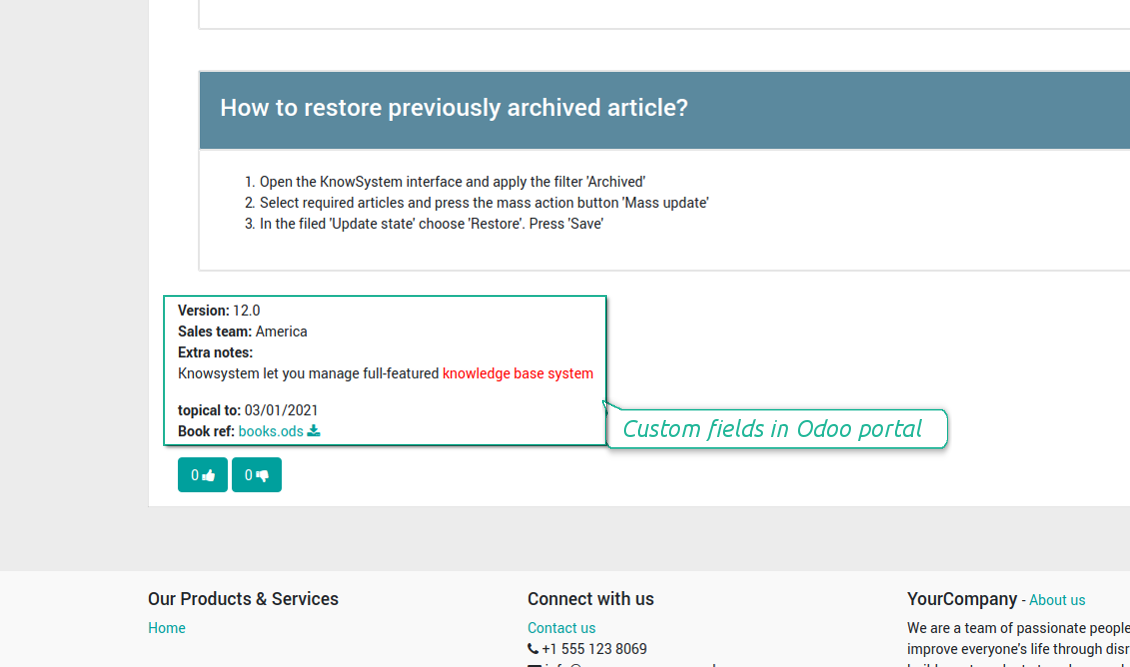
- an optional free module, which shows custom fields on website and portal pages (frontend). The features assumed by this add-on are also marked by the icon .
- an optional module, which let you translate articles, sections and tags for installed in Odoo languages. The features assumed by this add-on are marked by the icon . Harganya ialah 10€.
Innovative single-view interface
From the same interface editors may create and update any knowledge-related documents, change articles in batch, set up security. Without a need for excess navigation.
Interface solutions
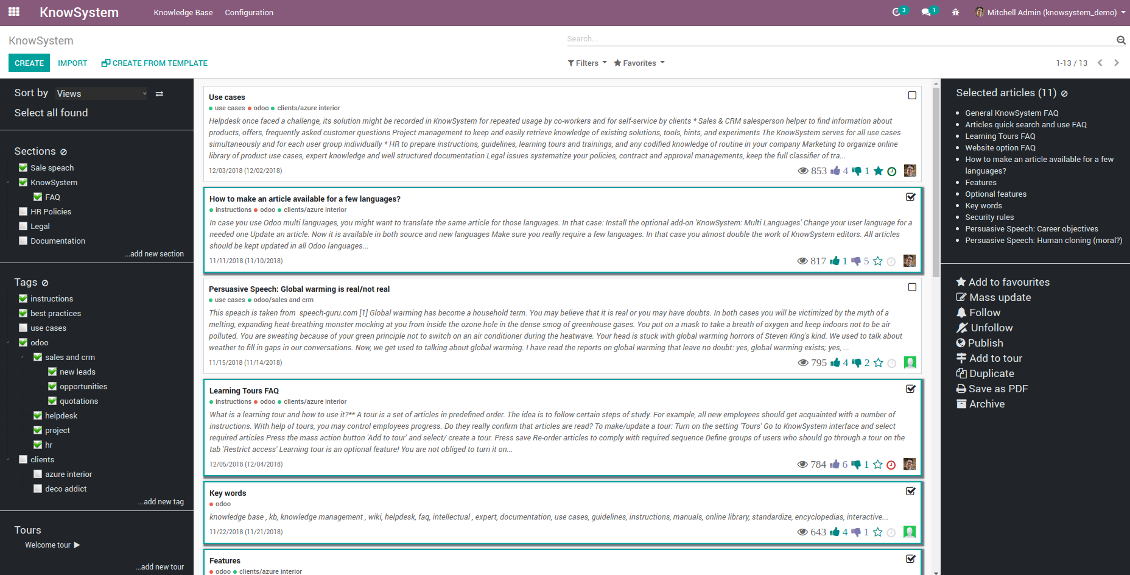
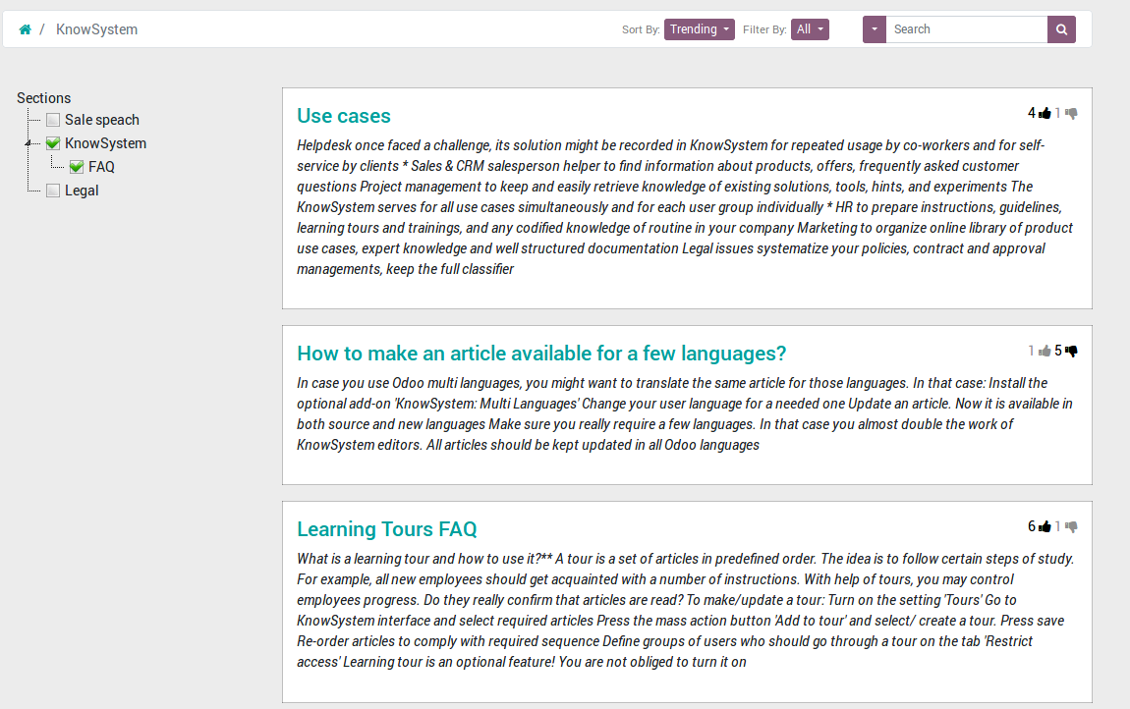
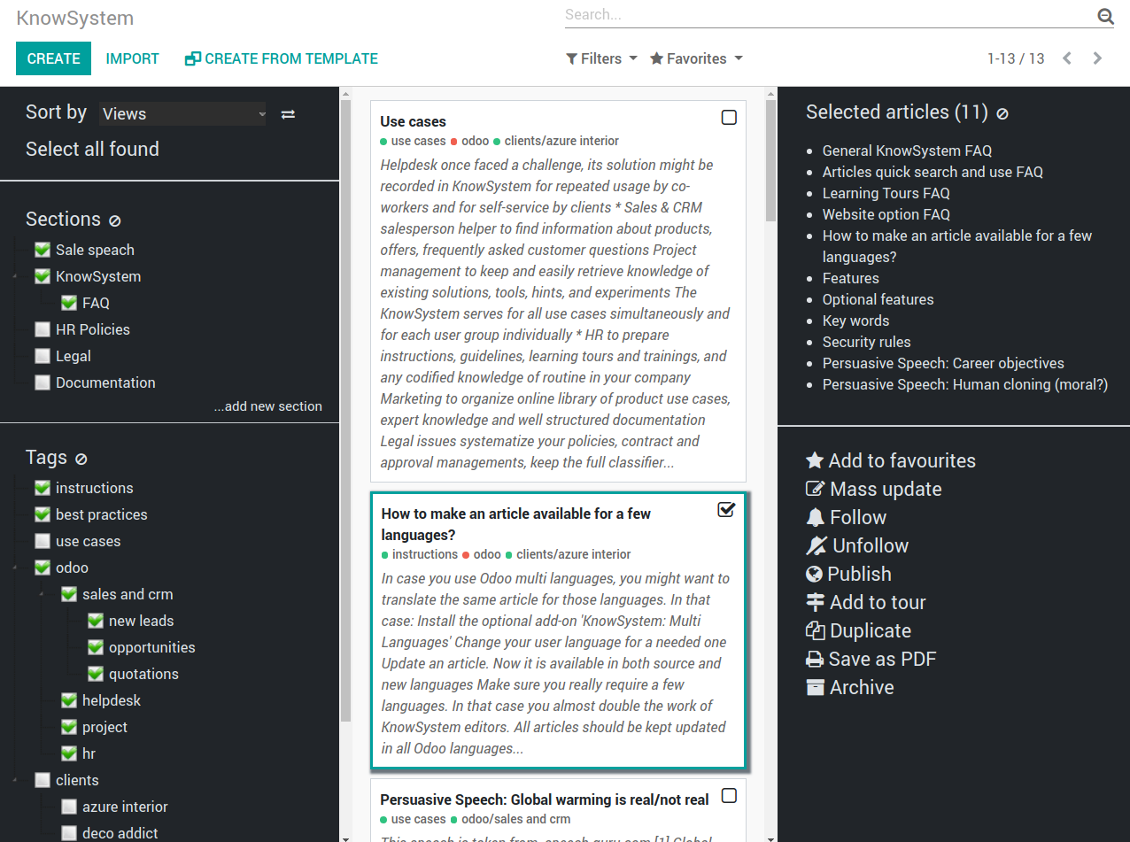
The KnowSystem interface consists of 3 key parts: the left navigation panel, the list of articles, and the right navigation panel (it is shown only if some articles are selected).
On the left navigation panel you may:
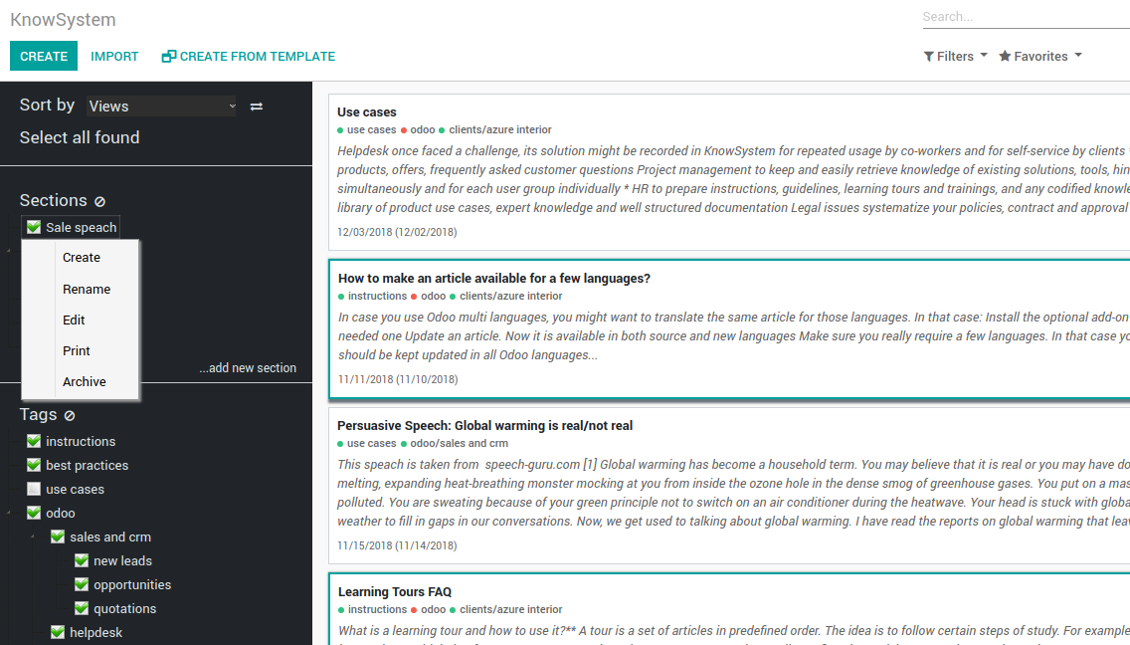
- Manage hierarchy of sections: prepare new (right mouse click - 'create'), update existing (right mouse click - edit), re-order any (drag and drop an item), archive sections. Select a few ones to filter articles. You may also print all articles related to this section as a single PDF file.
- In the same way manage hierarchy of tags
- Sort articles by number of views, a score of likes and dislikes, create or update dates, a section, an author
- Select all articles which are found according to chosen tags / sections and according to introduced searches / filters
- Launch a learning tour.
From the list of articles you see articles' name, indexed content (words without HTML style), dates of creation and last update, a number of views, likes, dislikes, author avatar. Here you may also add an article to favourite by pressing the 'star' icon.
Click on article body to open it in a full size (form view). Do not worry: chosen tags and sections as well as selected articles will be kept when you get back! Click on the top right check box to add an article for selection.
On the right navigation panel you observe selected articles and may proceed a mass action. Click on article name to remove it form selection.
On the top of the interface users also would find a standard Odoo omnibox. Type here to search by a title, content, an author, tags or a section.
Available mass actions
KnowSystem let users update an unlimited number of articles simultaneously:
- Assign new section
- Change or remove tags
- Print multiple articles as a single PDF
- Follow / unfollow discussions
- Publish / unpublish articles
- Export articles to an Excel table
- Archive or restore records
- Add articles to learning tours
- Mark knowledge items as favourite
- Duplicate articles.
Tangkapan skrin
KnowSystem articles overview, search and mass actions
Single entry for knowledge management actions
KnowSystem configuration
Article read mode
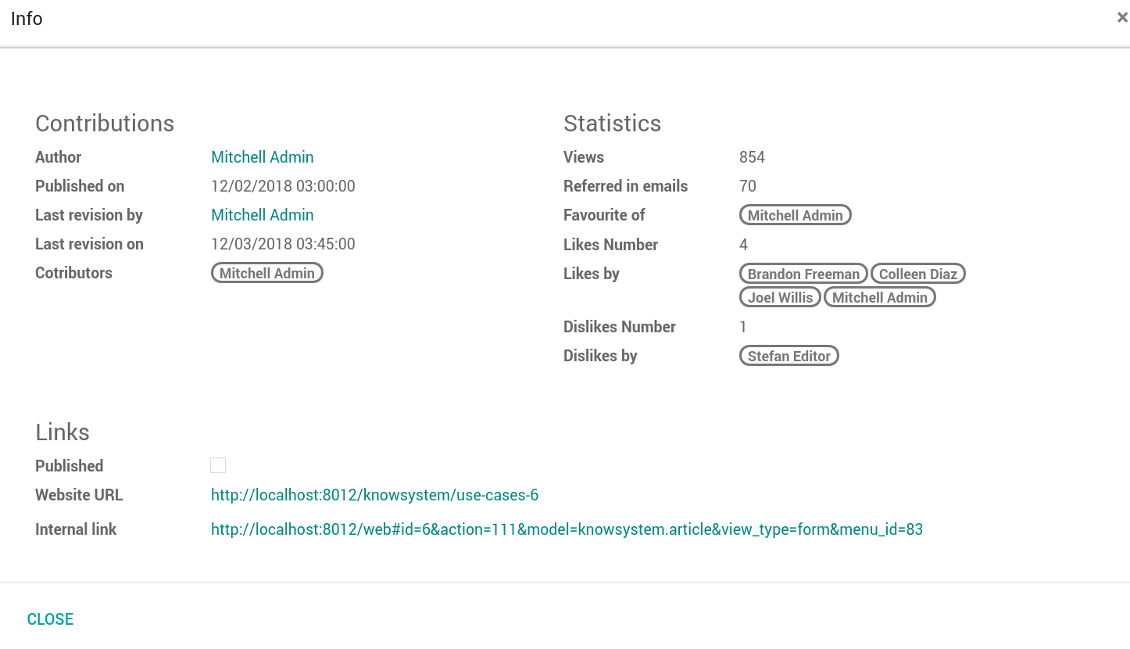
Article info and statistics
Article misc actions
Mass actions for selected articles
Small screen KnowSystem interface
Fast, comfortable, and professional knowledge recording
By using templates with pre-defined styles you may also speed knowledge generation up and standardize articles' appearance.
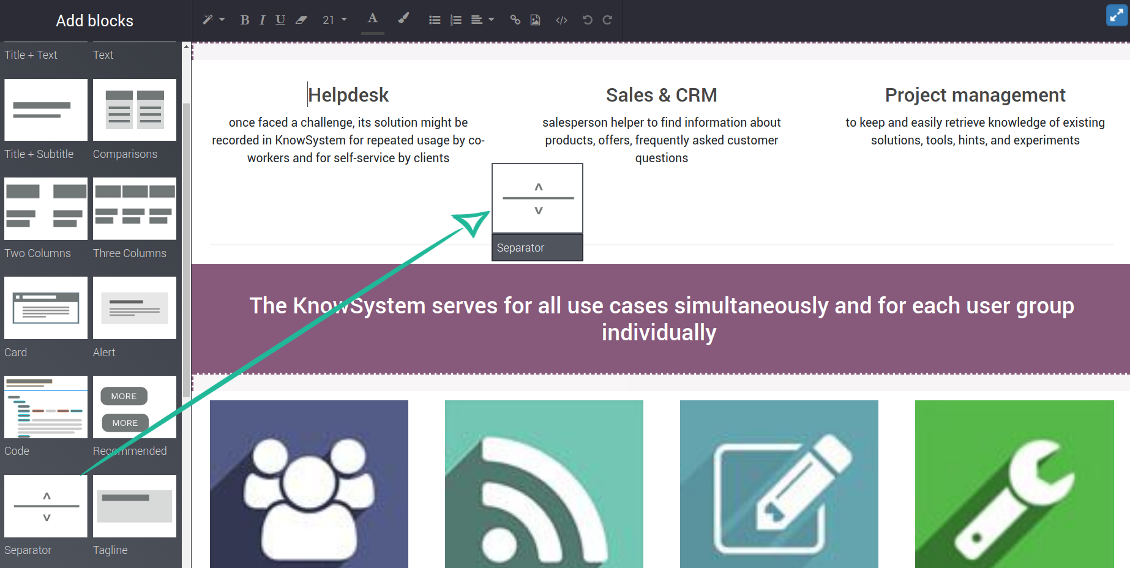
How to use the website builder for editing articles
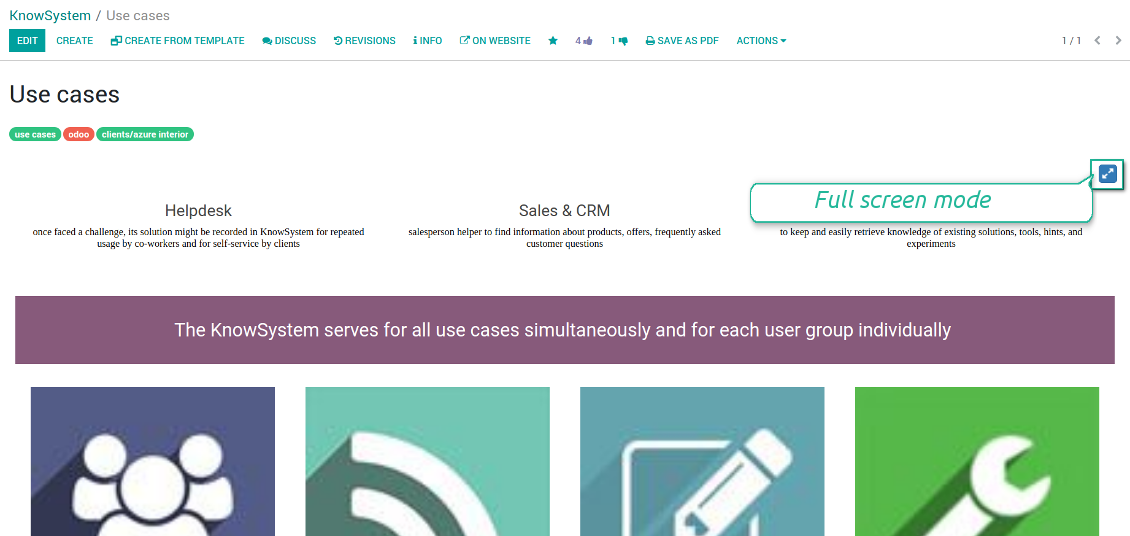
KnowSystem provides you with a backend articles' builder, which is comfortable and safe to use. Odoo website builder is richer in features to prepare complex HTML structures. To edit articles through the website:
- Install the optional add-on 'KnowSystem Website and Portal' (the option 'Publish to portal and website')
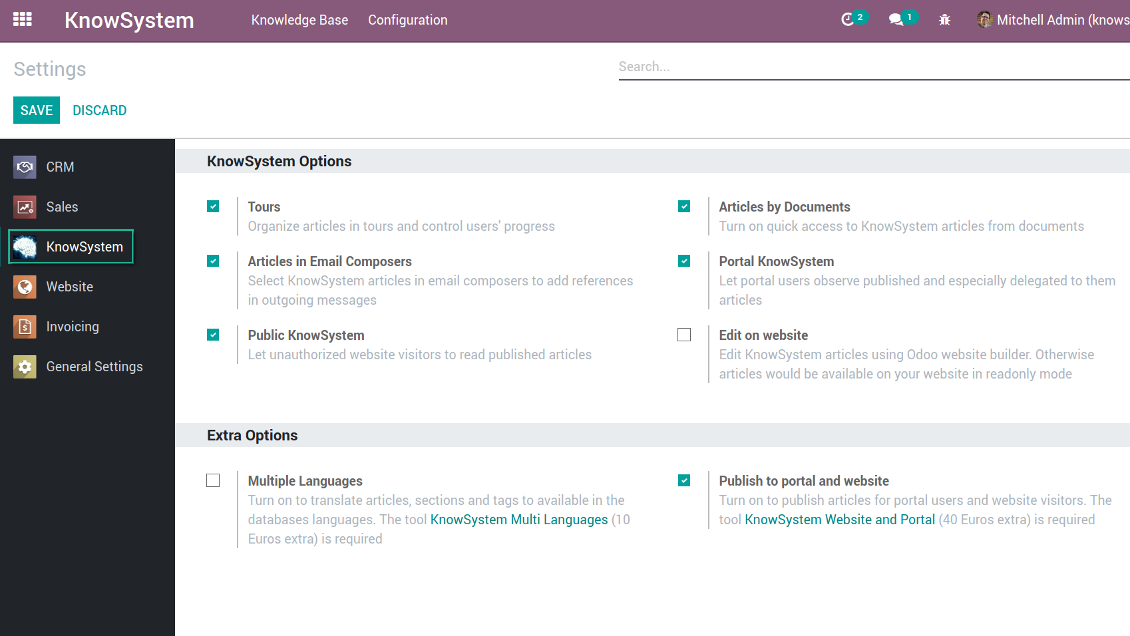
- Turn on the setting 'Edit on website'
- Push the button 'Edit on website' on this article form
Be cautious: if you are going to print this article or add its contents to emails, website building blocks are not suitable. Their advanced styles contradict printing and composer layouts and would not be correctly shown. In such a case use the safer backend builder.
How to use article templates
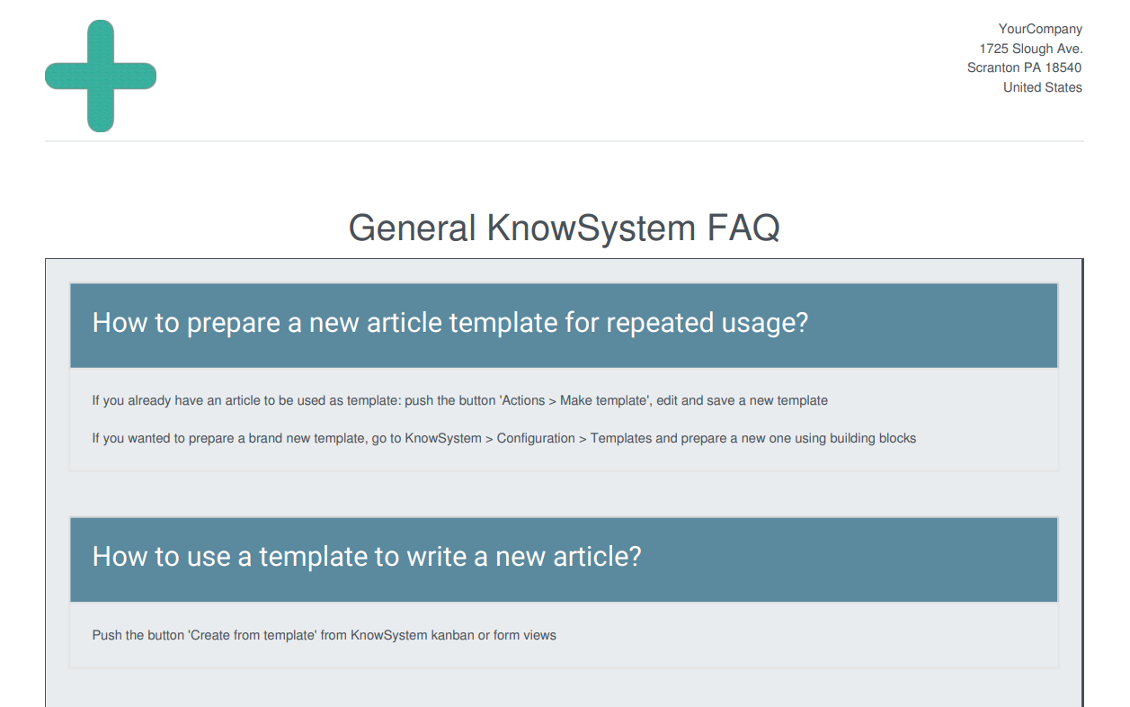
To prepare a new article template for repeated usage:
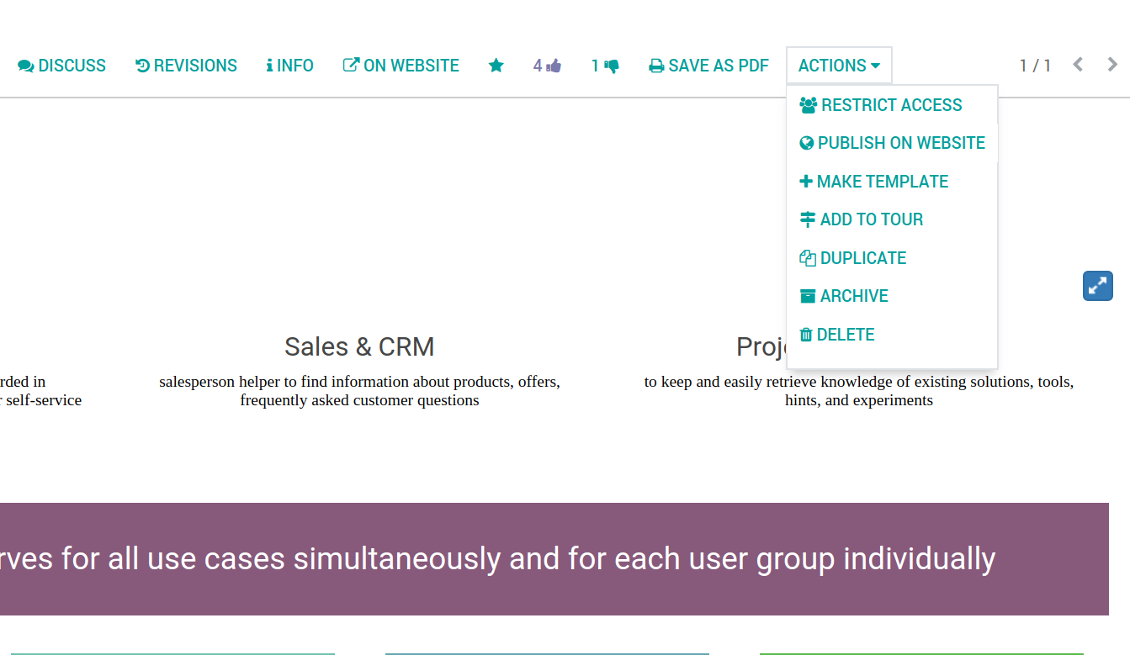
- If you already have an article to be used as template: push the button 'Actions > Make template', edit and save a new template.
- If you wanted to prepare a brand new template, go to KnowSystem > Configuration > Templates and prepare a new one using building blocks.
To use a template to write a new article:
- Push the button 'Create from template' from KnowSystem kanban or form views
- Select a required article template
- Push 'Create' and introduce changes to a new article.
Tangkapan skrin
Building blocks for knowledge base articles
Get benefit from your knowledge
How document types and articles are linked for a quick access
Experience is not general, usually it relates to specific issues. Knowledge used for customer communication differs from suppliers' negotiations. Frequently asked questions for draft and confirmed sale orders vary. KnowSystem let you structure your articles to apply them in a correct place and at right time. To that end:
- Turn on the setting 'Articles by Documents' (the option shows the top menu entry above any Odoo document) or 'Articles in Email Composers' (the option adds a quick link in a message composer editor for citing)
- Create a new tag (e.g. 'odoo / helpdesk'). In the table 'Applied to' use a required model (e.g. 'helpdesk ticket') or use it for all documents (the check box 'Apply to all documents').
- As advanced option you may apply additional filters: for example, to show articles only for 'new' tickets, not for 'in progress' ones. Use dynamic filters' constructor for that goal
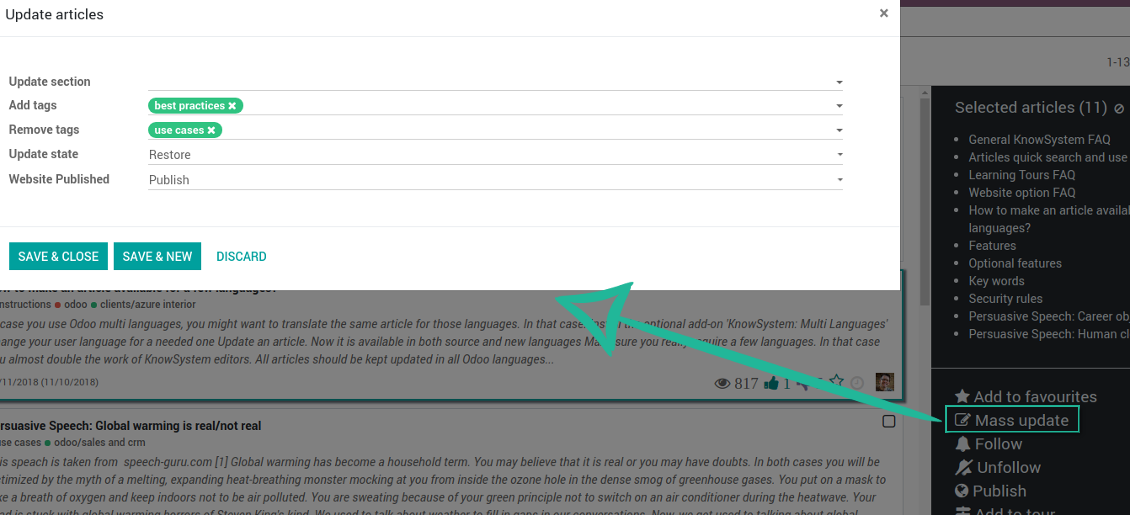
- Assign this tag for required articles. For a few articles use the mass action 'Mass update'
- Now when you access a quick article search from a document or from an email composer, Odoo will calculate KnowSystem tags for this document. That's why by default users would see only articles suitable for a current document. Simultaneously, they might always change tags to use other knowledge base data.
How to overview articles which might be useful for this document
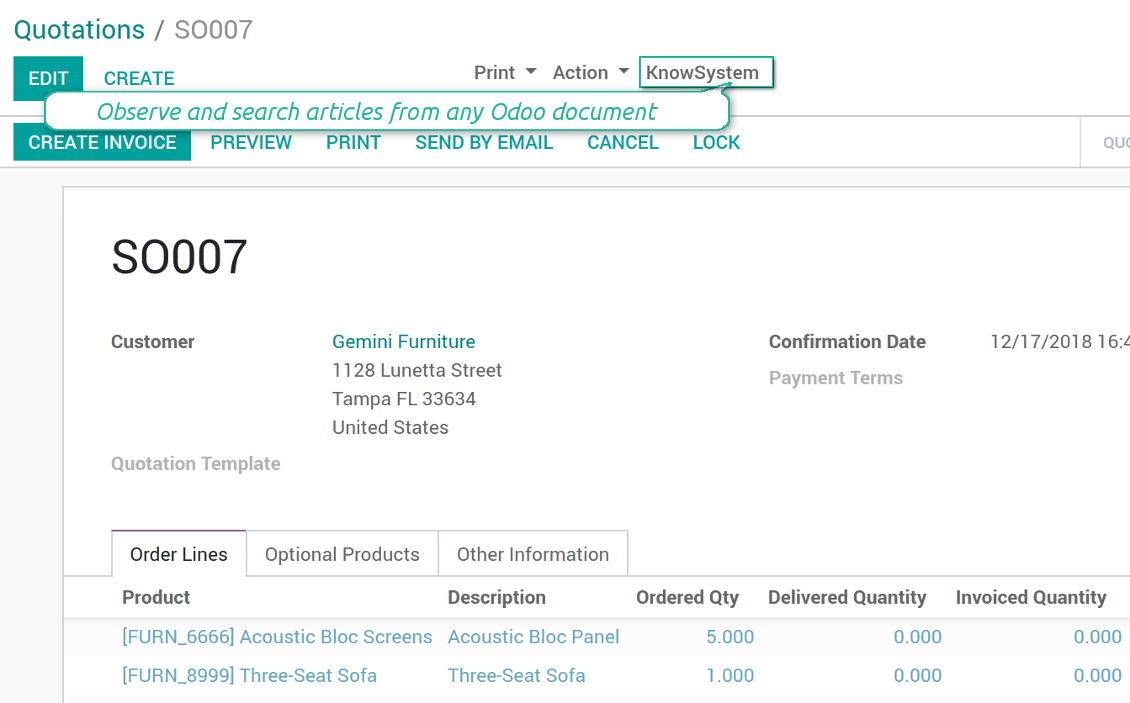
As soon as you turned on the option 'Articles by Documents', on the top of each Odoo object form view there would be a quick link 'KnowSystem'.
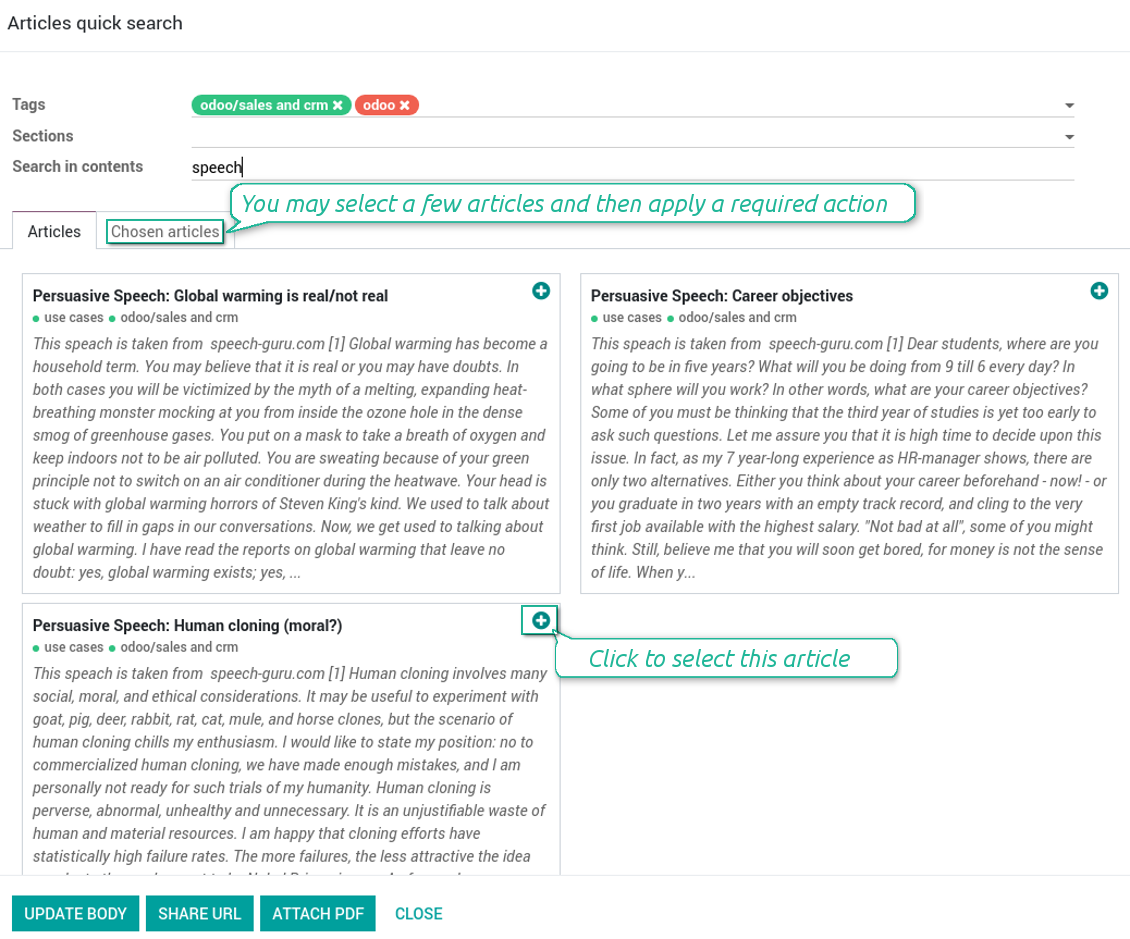
Click on that entry, and Odoo would open the wizard with articles. By default KnowSystem tags suitable for this document would be selected (if any). You may change those tags, or additionally filter by sections or content search. As a result list of topical articles is shown for you.
How to use company knowledge for communication
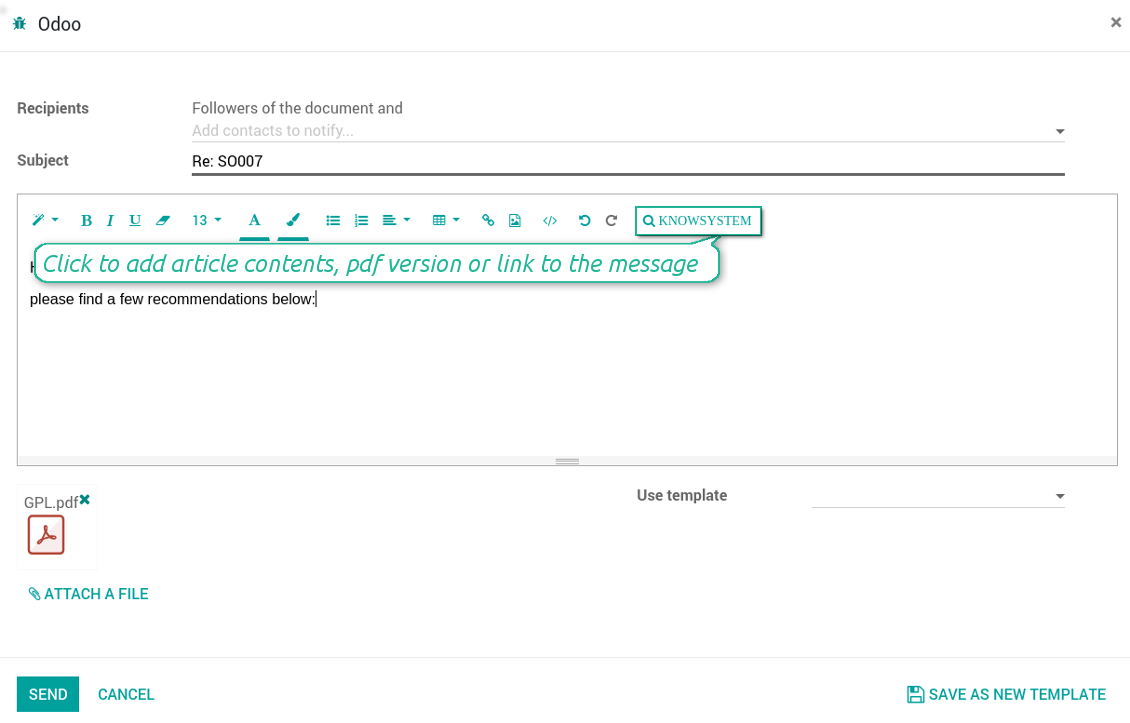
Turn on the option 'Articles in Email Composers' to let users reference or cite Knowledge records in Odoo messages. As a result the special quick entry 'KnowSystem' would be added to each Odoo email composer.
Clicking on that entry would open a wizard with a set of suitable to this document articles. You may change search by tags, add extra filtering by sections or content.
Afterwards, select required articles among found ones; choose an action. You may:
- Update message body with article contents (would be added to the end of a current message)
- Attach a PDF version of an article(s)
- Share a public link
Tangkapan skrin
Quick access for knowledge system from any Odoo document
Knowledge base link from email composer
Articles from any document
Article(s) PDF printing
WIKI-like revision system
How to recover a previous article version
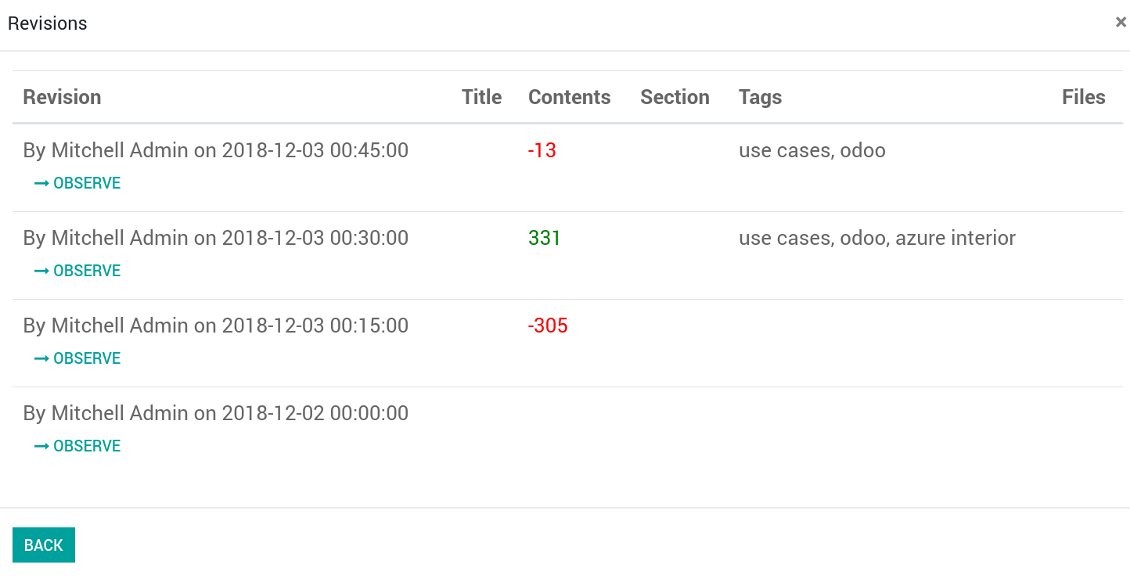
- Go to an article form view and push the button 'revisions'
- Find a required one and push the button 'Observe' to check whether this version is a correct one
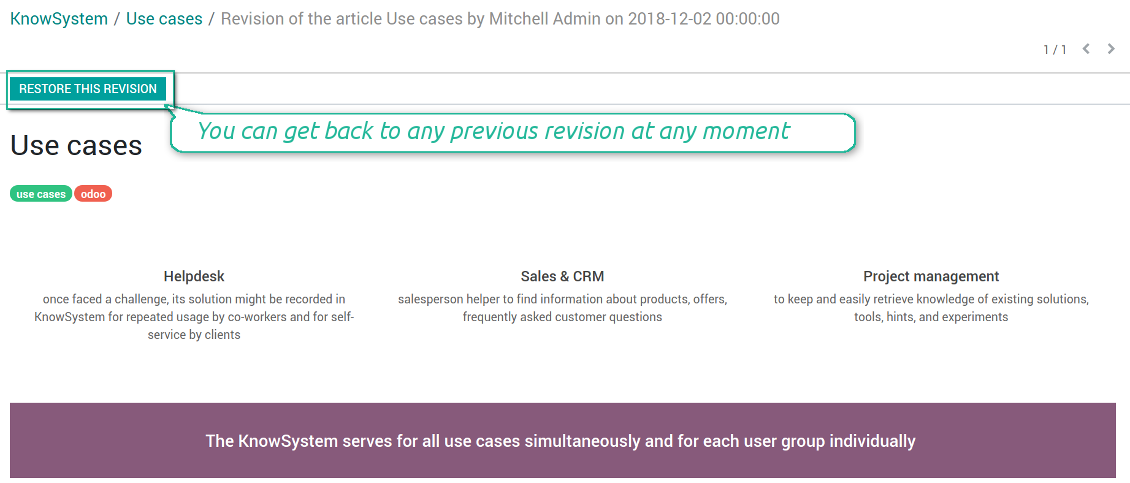
- Push the button 'Restore this revision'. The article would be recovered to that version.
- The recovery operation itself is recorded. So, if it is a mistake you can revert changes by recovering the last-to-last revison.
Tangkapan skrin
Wiki-style revisions history
To restore is easier than to break
Individual partner knowledge base portal
How to share knowledge base with specific partners
An article is available for a portal user in two cases: A. it is website published; B. his/her company is indicated as allowed partner in one of article tags.
In the first case such an article is available for all portal users and even for public website visitors who have not logged in.
In the latter case you grant a restricted access for an article only for chosen companies. To that end:
- Turn on the setting 'Portal KnowSystem'
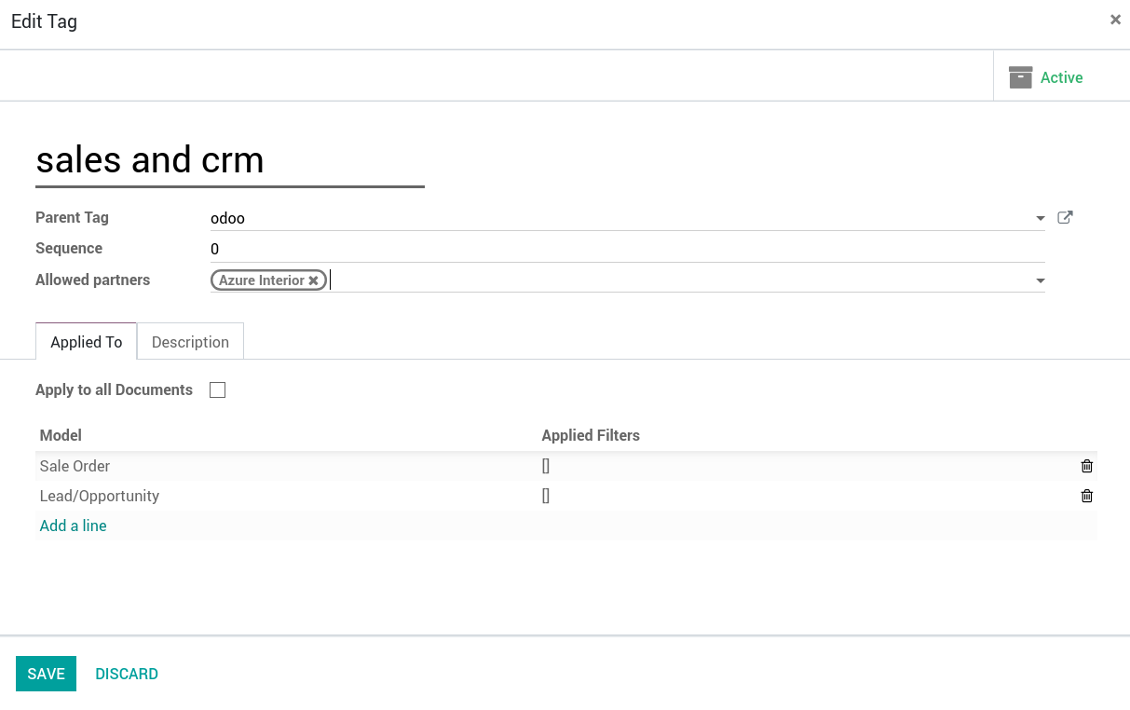
- Create a tag for this partner, for example 'clients / Azure Interior'. On the tag form indicate this company in the field 'Allowed partners'
- Assign the tag for all articles you want to share with this partner. For a few articles use the mass action 'Mass update'
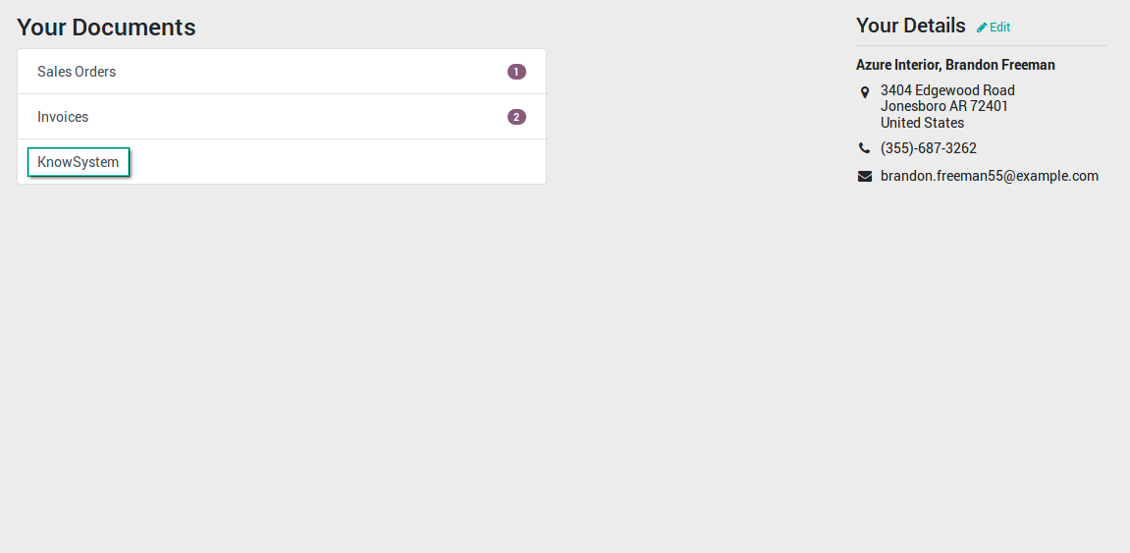
- Now portal users related to this partner may access shared articles right from their partner portal.
Tangkapan skrin
Knowledge base for portal and public use
KnowSystem articles on website
Tag: document types and portal partners
KnowSystem from portal
Best knowledge base system for Odoo!
Excellent app and exceptional after-sales support.
Really well thought-out product and one of the best features is the contextual help by means of the tags. Really a game changer for us.
Keep up the great work FaOtools!
Outstanding app! Tremendous value for money, an absolute must have!
One of the features sorely lacking from Odoo has been a robust Wiki/documentation system. Using third party platforms is a massive headache: yet another system to maintain, users get distracted switching back-and-forth, and errors get made. Then you have to worry about training, additional logins, etc.
KnowSystem feels like a native/core app, is very well-polished, and extremely fast. It's accessible from any screen, and the search results are instant (none of the latency inherent with most apps).The interface is elegant yet powerful, with robust access control, rich editing features, and version control. It's simple to revert to previous entries, view audit trails, etc. It's very intuitive for anyone familiar with Odoo; onboarding takes just a few minutes. The user guides are excellent.
This is invaluable for any organisation with a lot of documented information, SOPs, ISO compliance, or similar. If you're using eLearning, it's great for creating a help system / reminders. For example, noting key takeaways or specific instructions. The user can be in MRP, Sales, or any other function, and instantly lookup a guide. Since it overlays whichever screen you're in, it doesn't interrupt the workflow.
This dramatically increases efficiency, minimises questions, and helps keep everyone on the same page.
Oh, and customer service is excellent, faOtools stands behind their product. Thank you!
KnowSystem is excellent - OdooTools offer great support, are very helpful and responsive
Our company needed the ability to add a Knowledge Base to our Odoo portal website for our customers to access article content on a membership-only basis. KnowSystem provided this and much more, along with ability to add search by section, set permissions to allow only certain partners access to articles by tag etc. OdooTools have been very helpful and implemented several features we suggested including automatic redirect upon login, customisable filters and a social sharing capability on articles. Overall a great app by a great company, something that massively adds to Odoo's capabilities and is something that everyone could benefit from using.
Very functional application and responsive support
Our company produces medical laser equipment and we use KnowSystem to streamline the knowledge base of our company. Convenient search system and classification of content, as well as access rules for groups and even for individual users.
Great app and professional team
The app is great the the team is very professional in both response timing and problem solving.
Highly recommended.
Marco from ALO.zone.
Excellent system
Excellent system.
A great tool from some very nice developers!
KnowSystem is a great tool and a game changer for us. Finally a place to put all our company know-how. I highly recommend it. And also important to us: We got great support from FaOtools too. A rare thing in this busy world. thx!
Excellent app and support.
Great app and a very helpfull support. Openess to improve their products is outstanding.
Public knowledge base
How to make an article available for all website visitors
- Turn on the setting 'Public KnowSystem'
- Publish required articles through the mass action 'Publish' or by pushing the button 'Actions > Publish on website' on an article form
- Now any website visitor can read those articles
Team work for knowledge creation
Tangkapan skrin
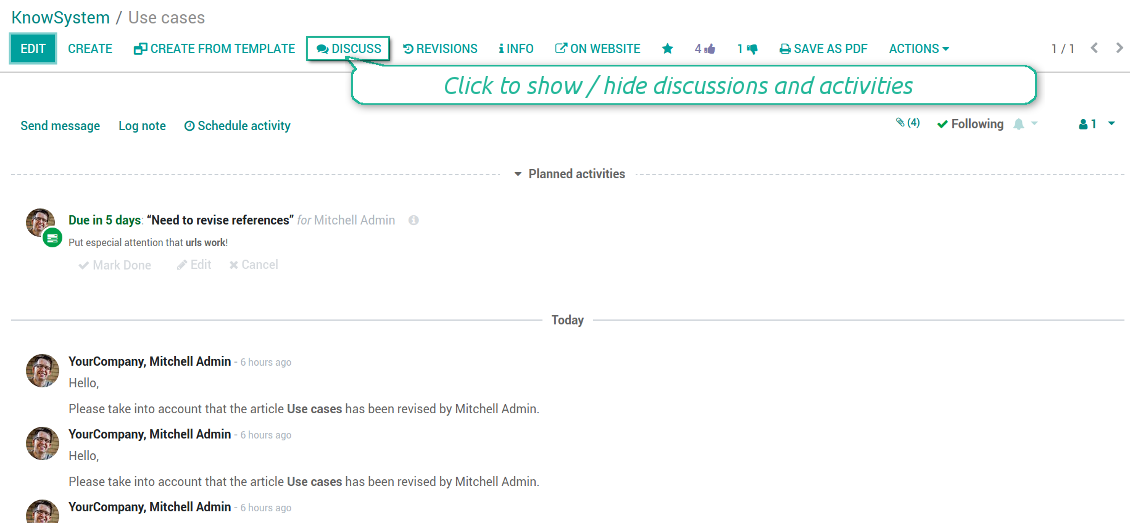
Knowledge base interactions, discussion, and activities
Custom fields to structure knowledge
How custom knowledge attributes work
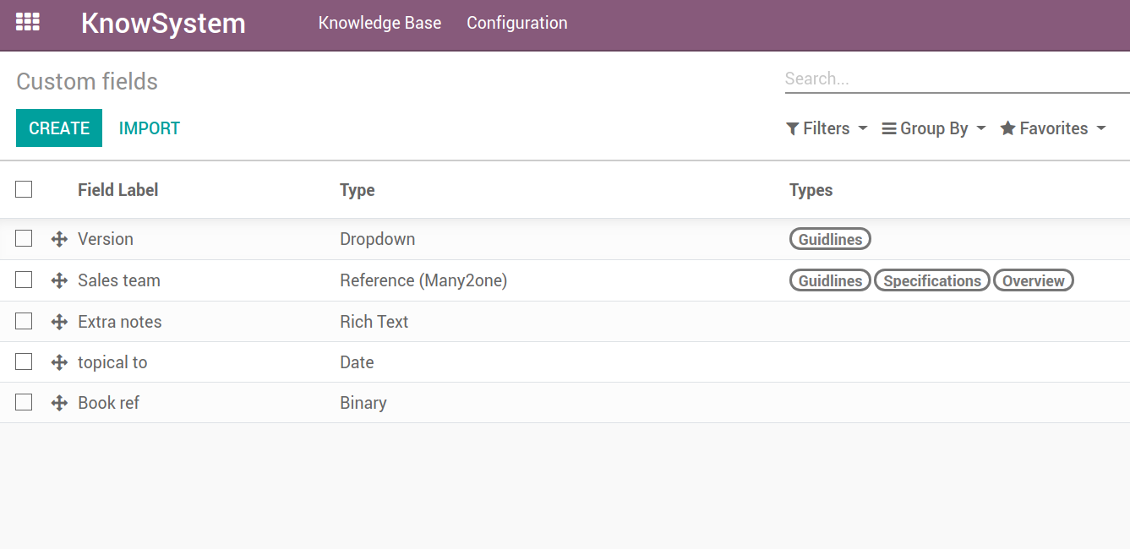
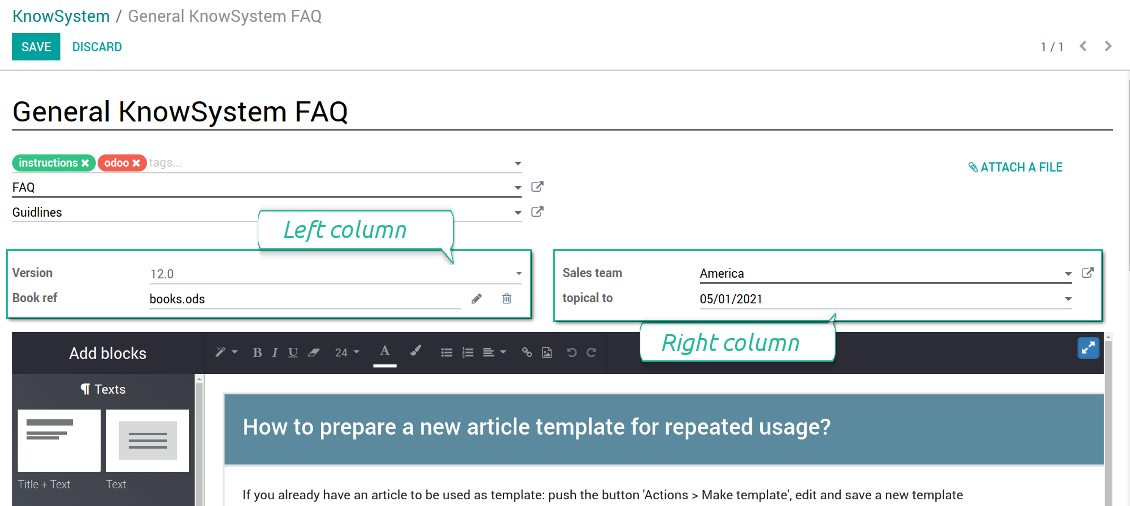
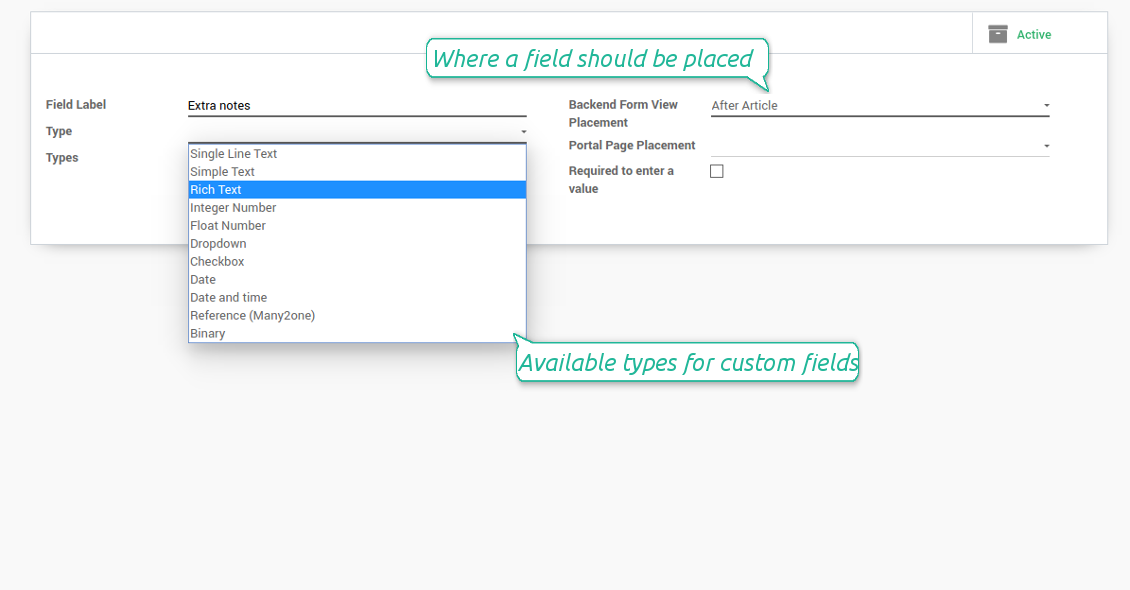
In order to show a new property for KnowSystem articles, just create a custom field. Nothing else is required! You are welcome to prepare fields of various types: single line text (char), simple text without formatting (text), rich text (HTML-formatted text), integer or float numbers, drop-down choice with your own options (selection), checkbox (boolean), date or date and time, binary (a file to upload), reference to another Odoo document (e.g. for a sale order, contact; many2one).
The tool also introduces complementary articles' typology. Thus set of attributes for 'user guidelines' and 'technical specifications' might be different.
Then, choose an interface location for a new field from a closed list to structure properties on an article page. Decide whether a field should be required to enter, or should be visible only for definite knowledge types.
Tangkapan skrin
KnowSystem articles' custom fields
Custom fields on article form
Custom fields in portal and website
Custom fields for article: add any data required
Knowledge is secured and might be safely shared
How to manage user accesses to articles
Security for internal and portal users differs.
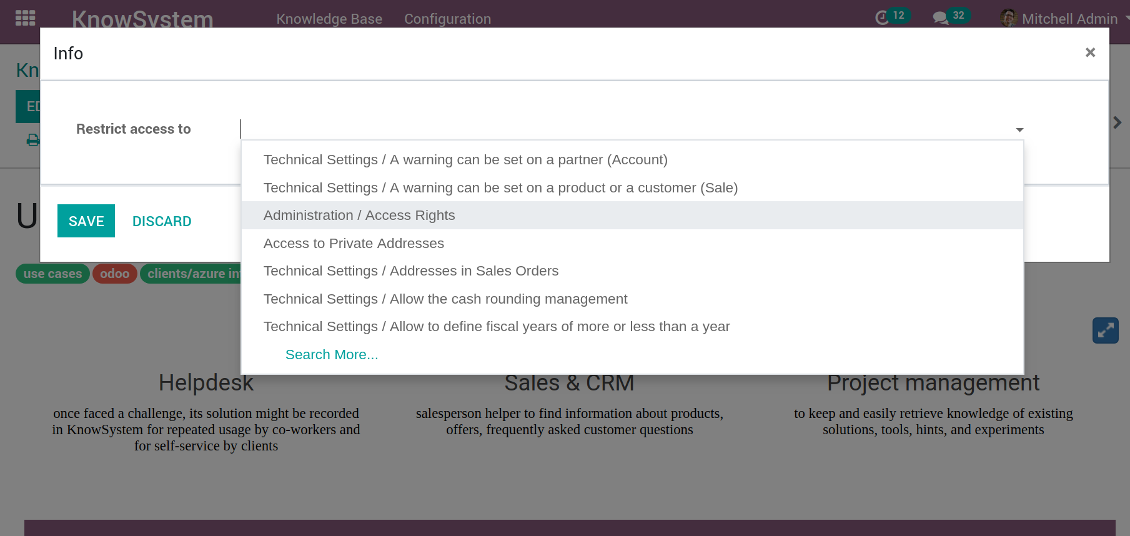
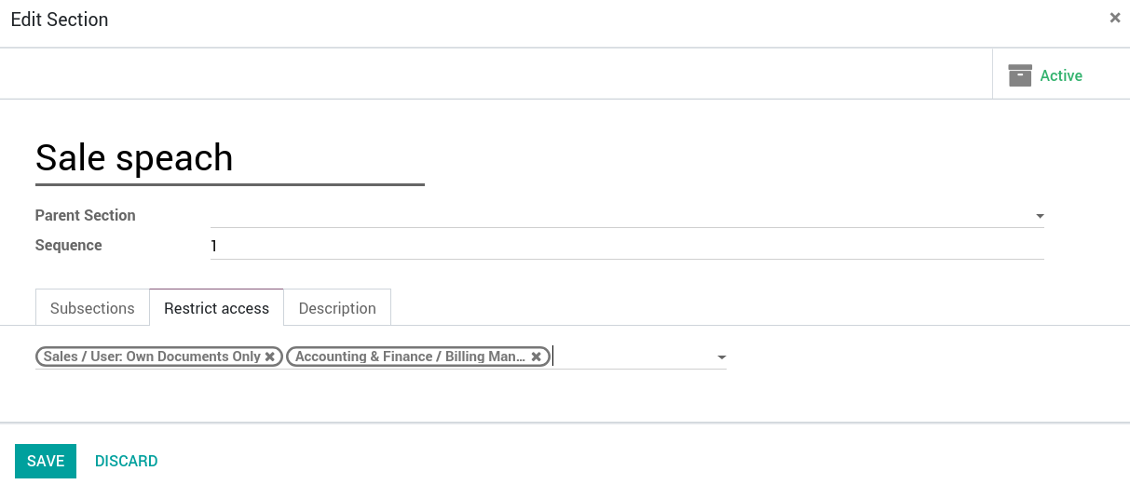
For the company employees: KnowSystem considers user groups which are defined per articles, sections and tours. Look at the tab 'Restrict to' on forms of those objects. If that field is not defined, a document is considered 'global': each internal user may read it.
For portal / public users: KnowSystem takes into account tags and whether an article is website published. A knowledge tag has a field 'Allowed partners', which may grant an access to portal users for articles with this tag. Website published pages are available for everybody.
Rights to administrate KnowSystem belongs to 2 user roles: KnowSystem Editor and KnowSystem Administrator. If you want a user to create and edit articles, a user should belong to one of those groups.
|
|
Odoo user |
KnowSystem Editor |
KnowSystem Admin |
Portal user |
Public user |
| Articles | read related to his/her user groups and sections | read, create, edit, archive related to his/her user groups and sections | read, create, edit, delete any | read published articles and articles related to partner-related tags | read published articles |
| Sections | read related to his/her user groups | read, create, edit, archive related to his/her user groups and sections | read, create, edit, delete any | read all sections of available articles | read all sections of published articles |
| Tags | read any | read, create, edit, archive any | read, create, edit, delete any | read published ones | read published ones |
| Article Types | read any | read any | read, create, edit, delete any | read published ones | read published ones |
| Tours | read related to his/her user groups | read, create, edit, delete related to his/her user groups | read, create, edit, delete any | no access | no access |
| Misc | may like / dislike, add to favourites, print, take part in discussions | may configure options | may like / dislike an article |
|
Take also into account two peculiarities:
- Odoo user always may access an article of which he is an author disregarding further restrictions;
- Rights for section is defined not only according to this section but also according to all its parents. For example, if user can't access 'sales', he/she would not be able to access 'sales / crm' disregarding whether 'crm' is available for his/her user group.
Tangkapan skrin
Manage access to this article
Section update and user rights
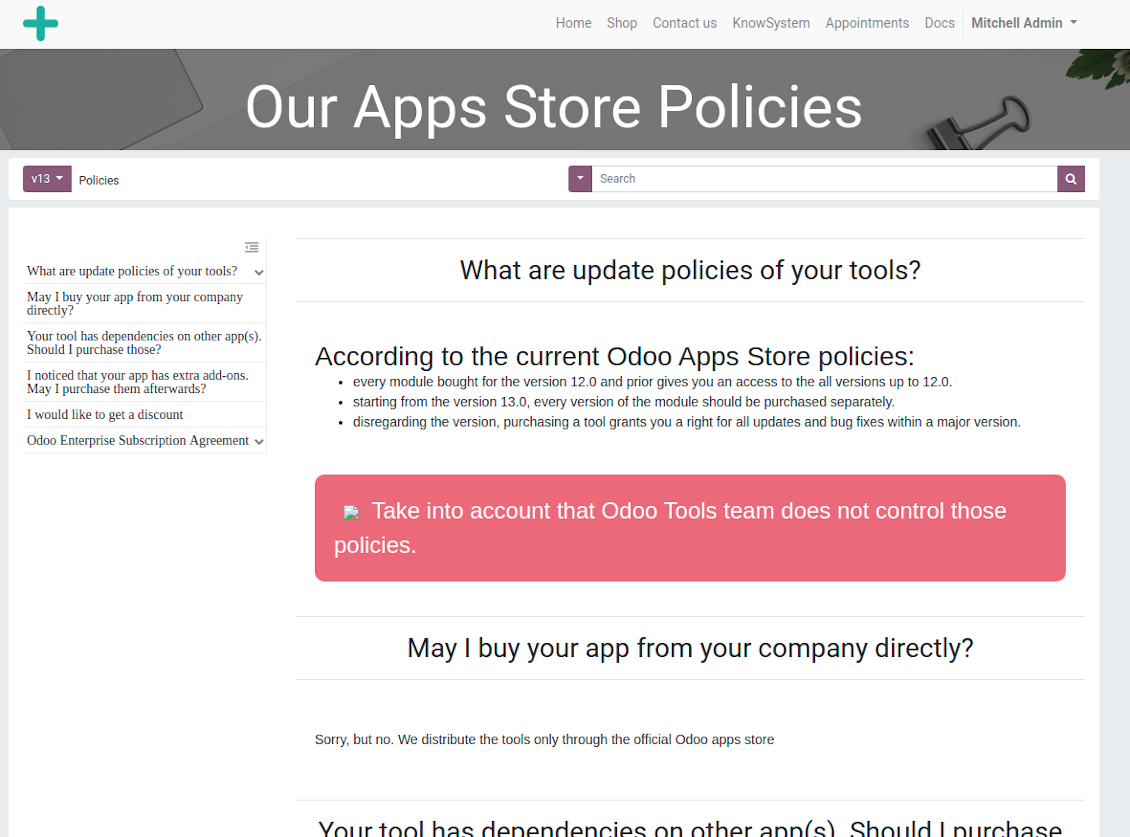
Website documentation builder
Tangkapan skrin
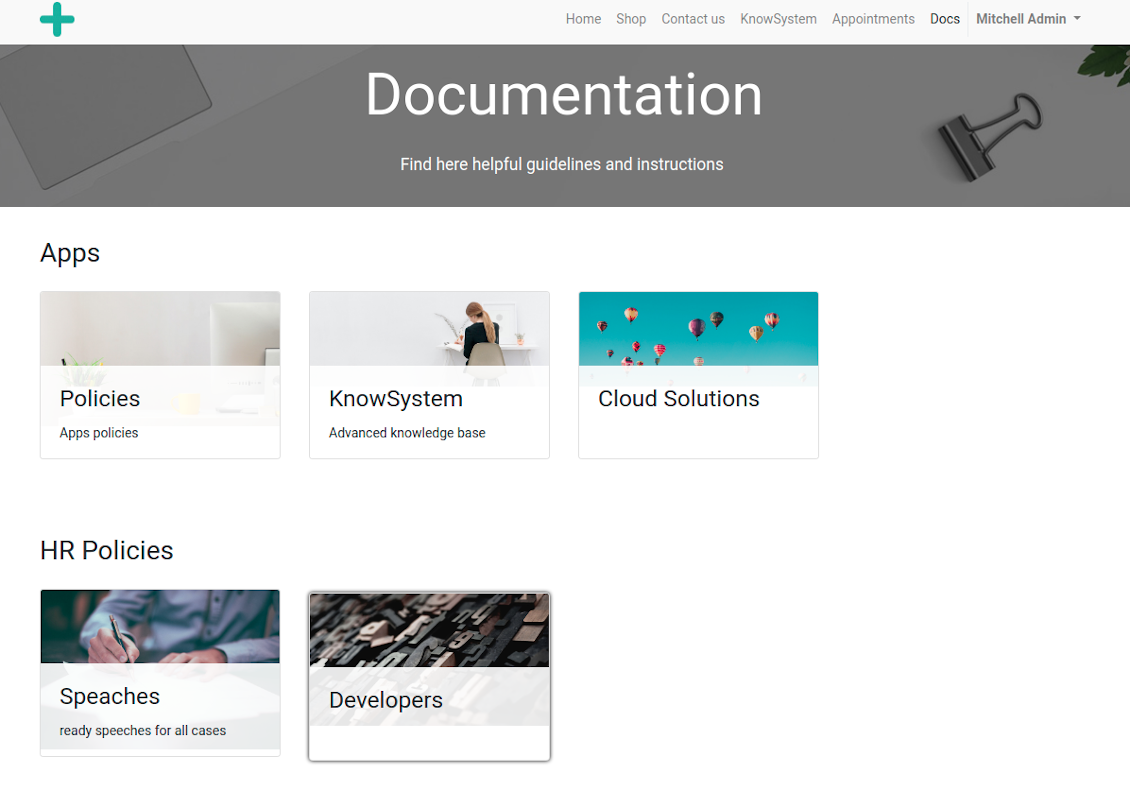
Documentation by categories and sections
Documentation by categories and sections
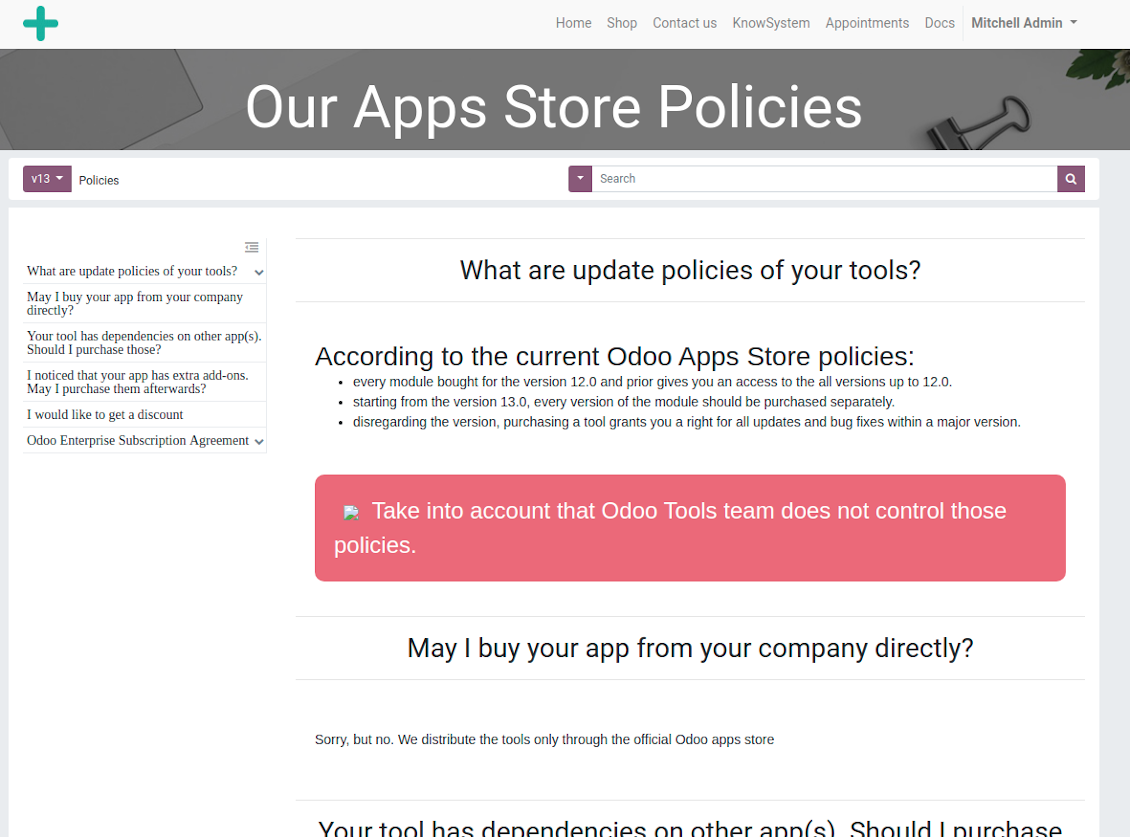
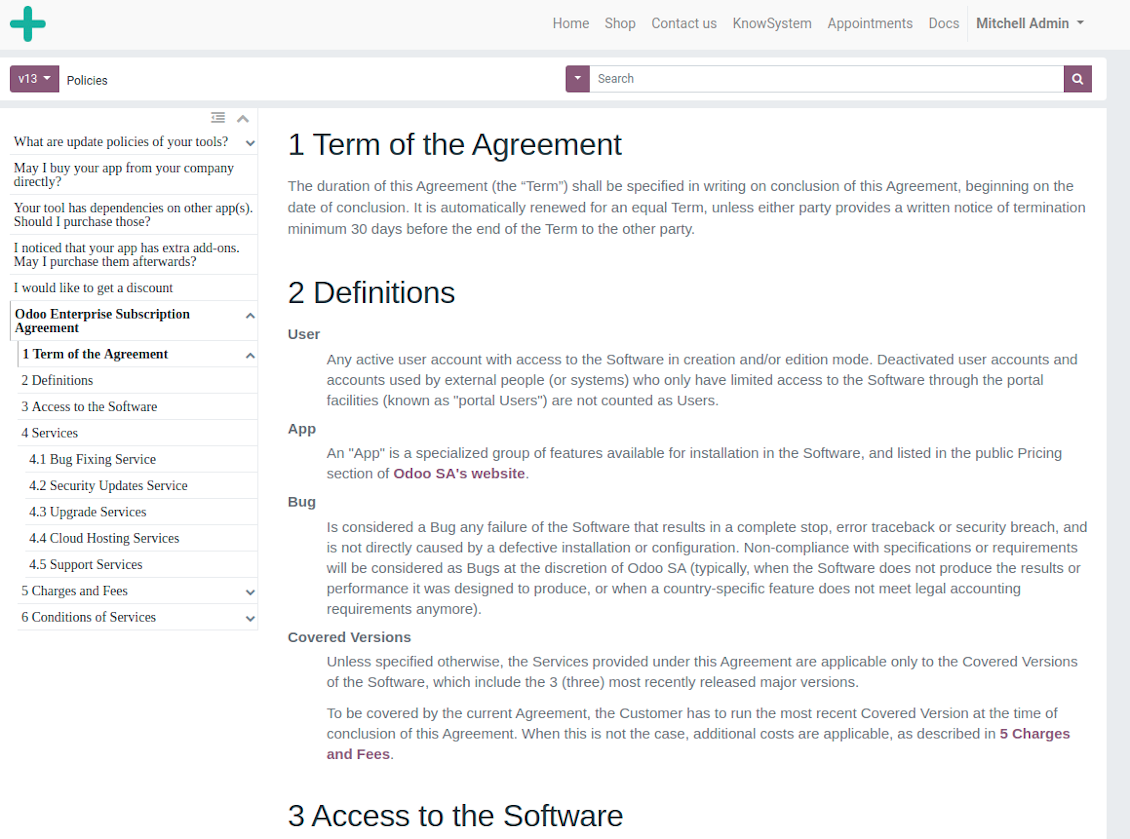
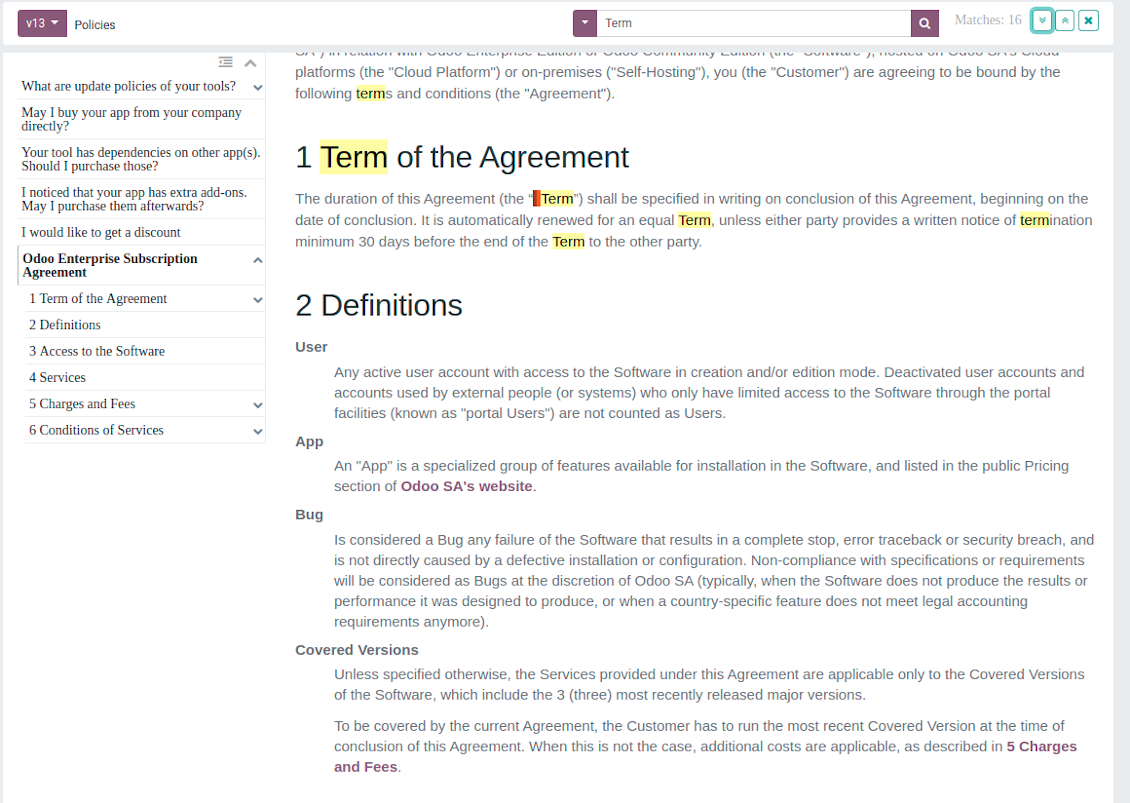
Documentation page
Documentation page
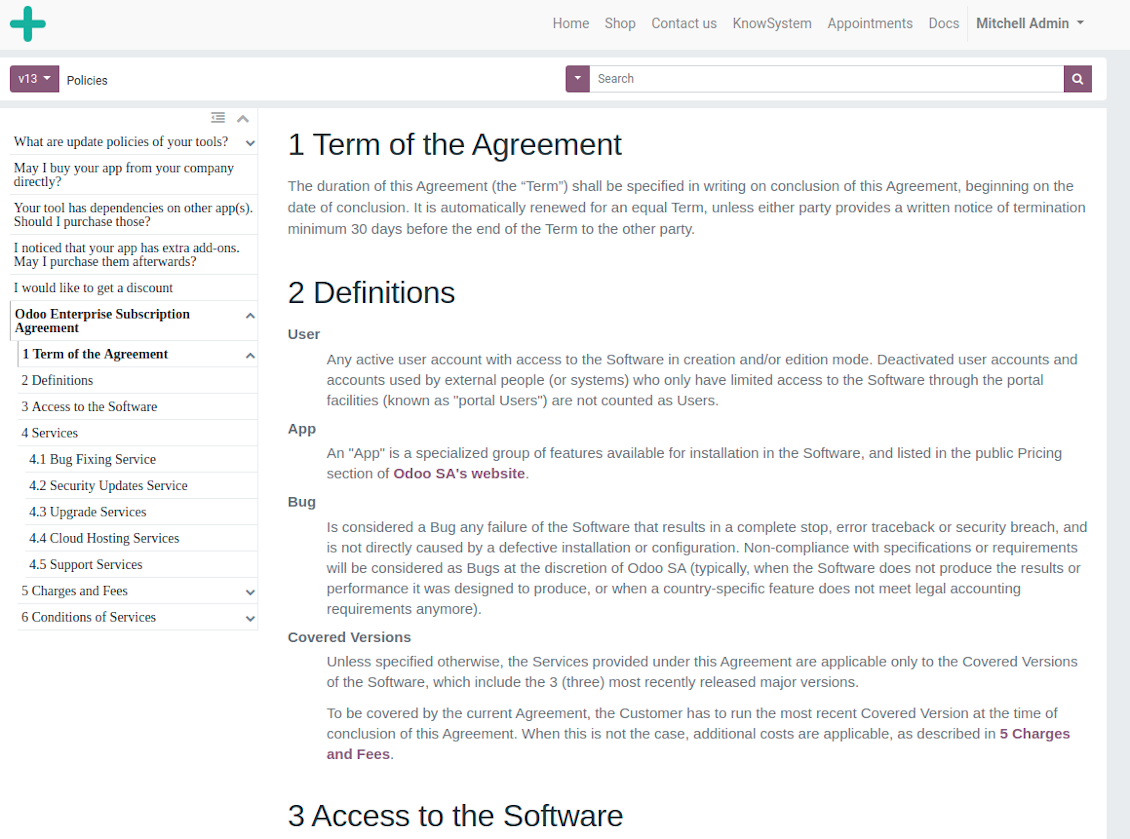
Automatic table of contents by documentation
Automatic table of contents by documentation
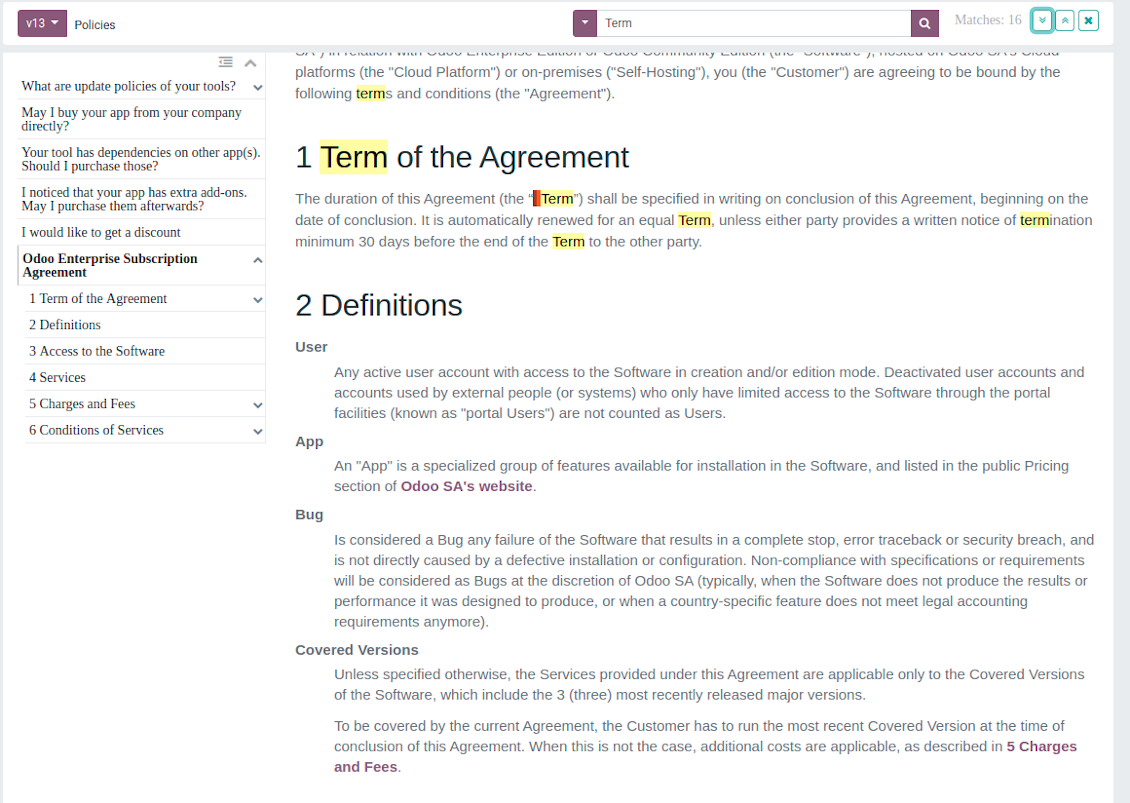
Inline search by documentation
Inline search by documentation
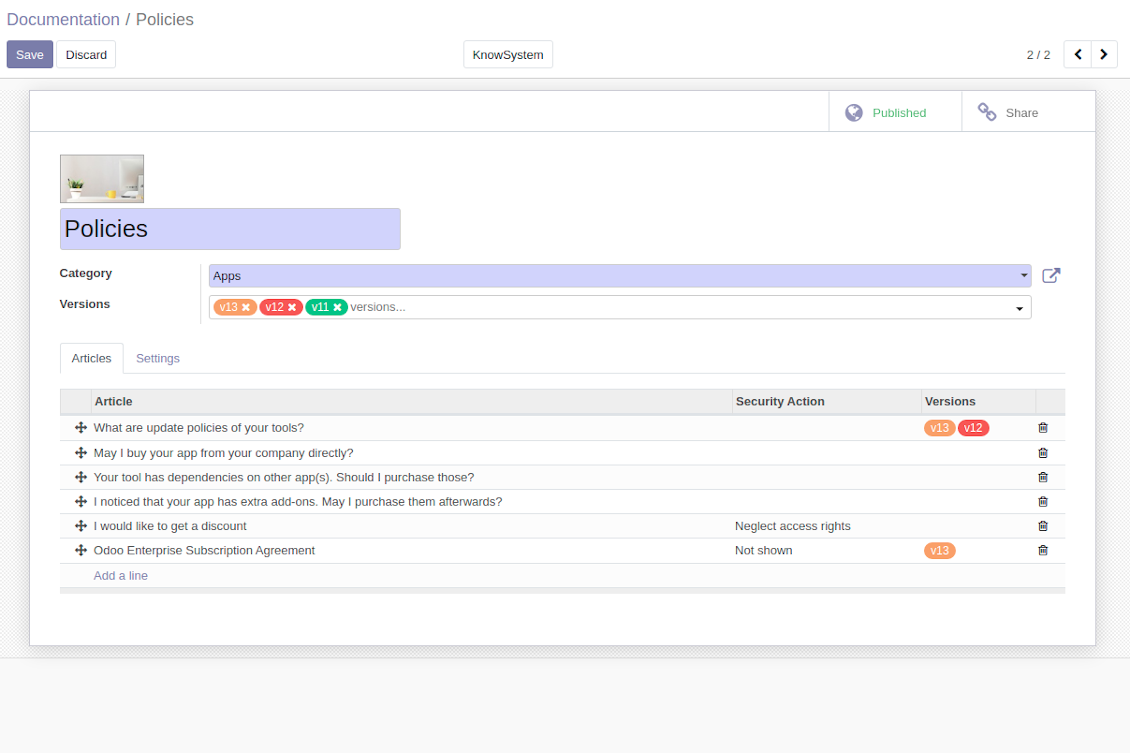
Compose articles for documentation
Compose articles for documentation
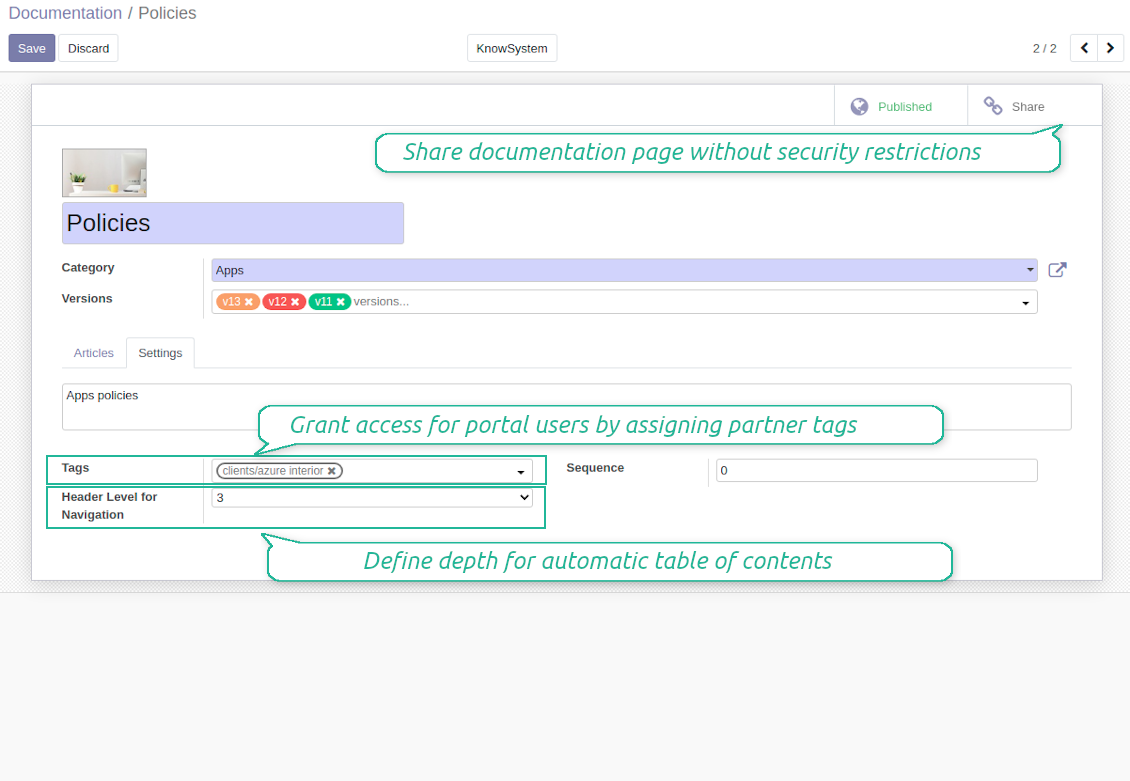
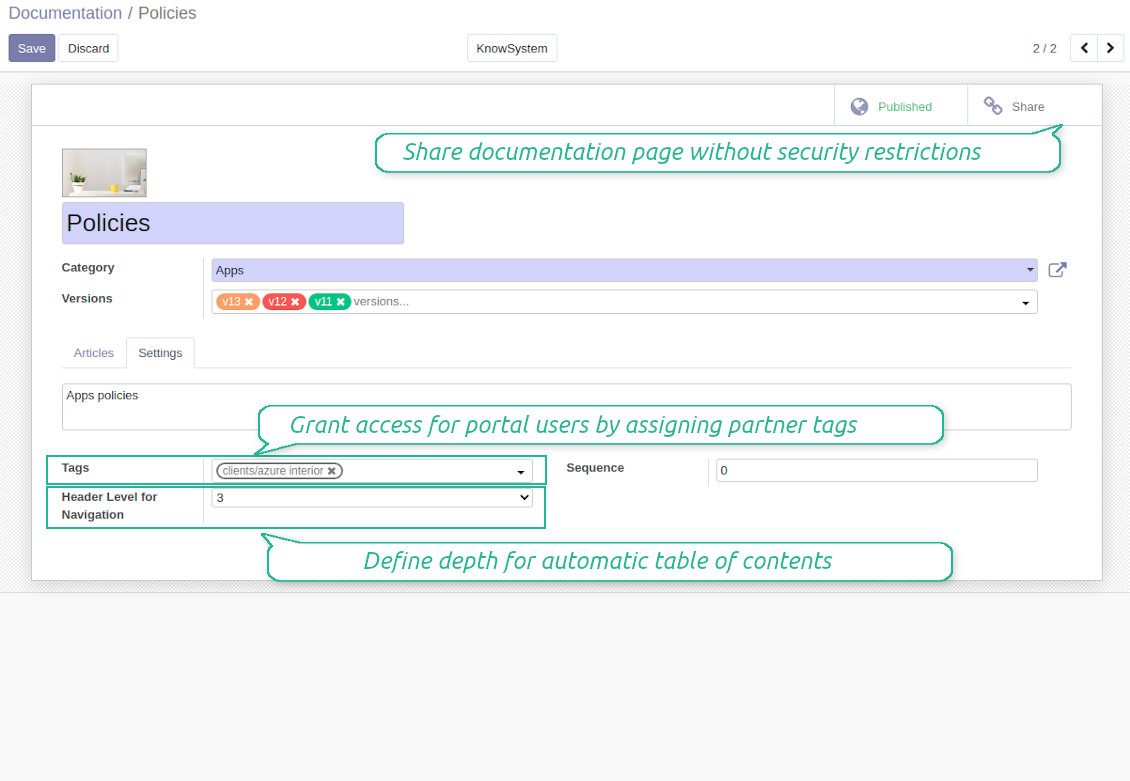
Documentation settings
Documentation settings
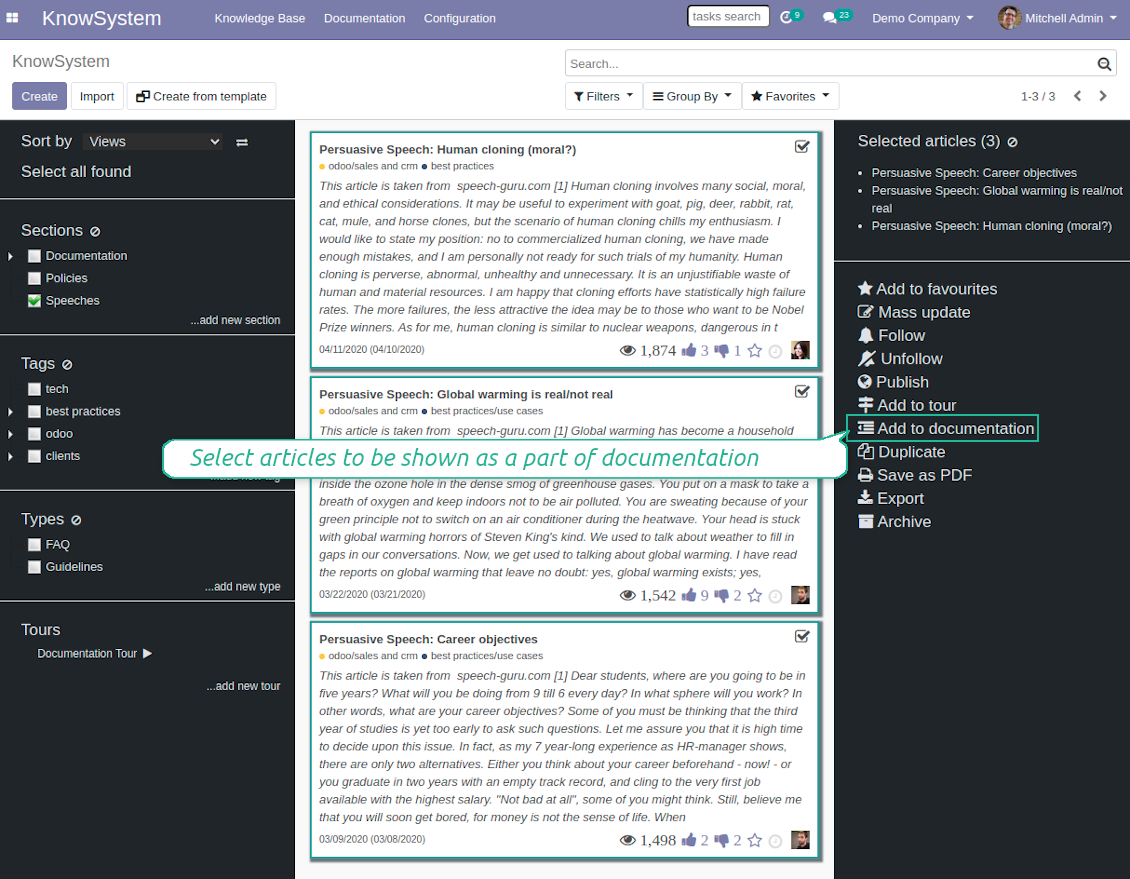
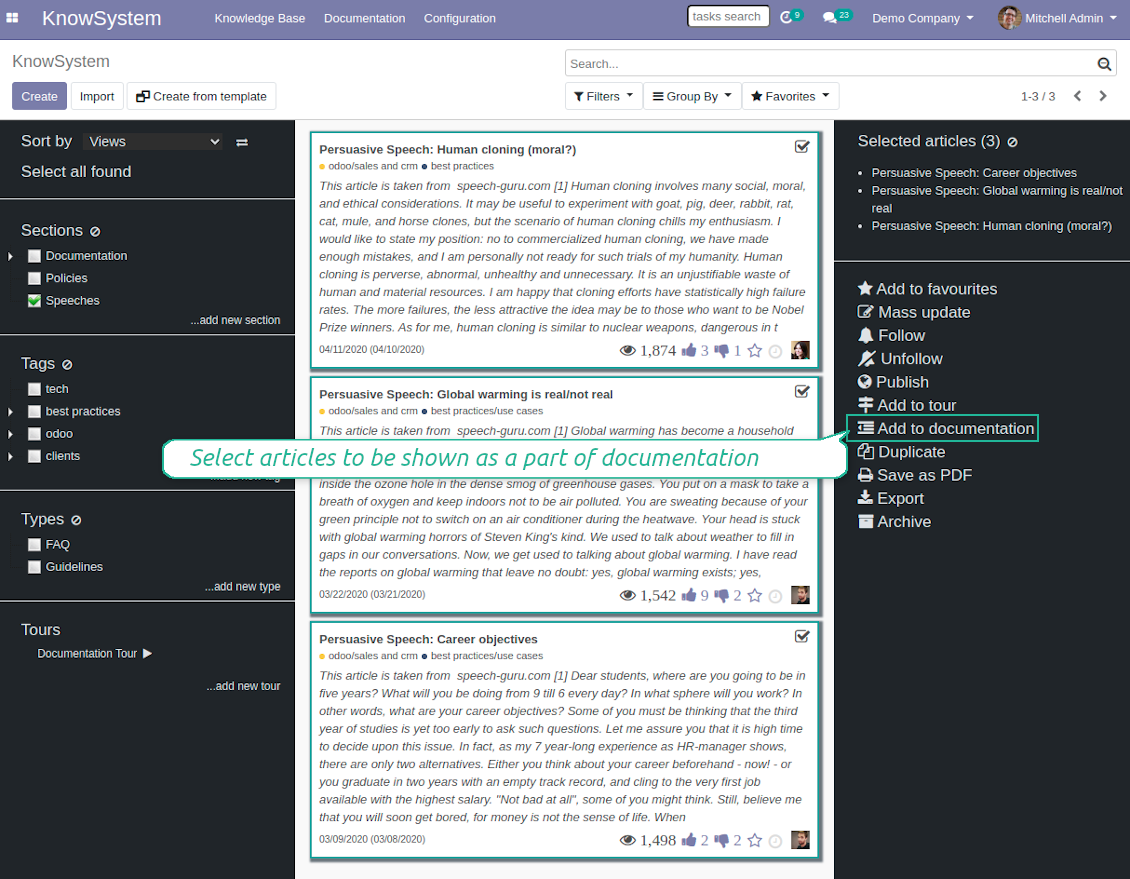
Add KnowSystem articles to documentation
Add KnowSystem articles to documentation
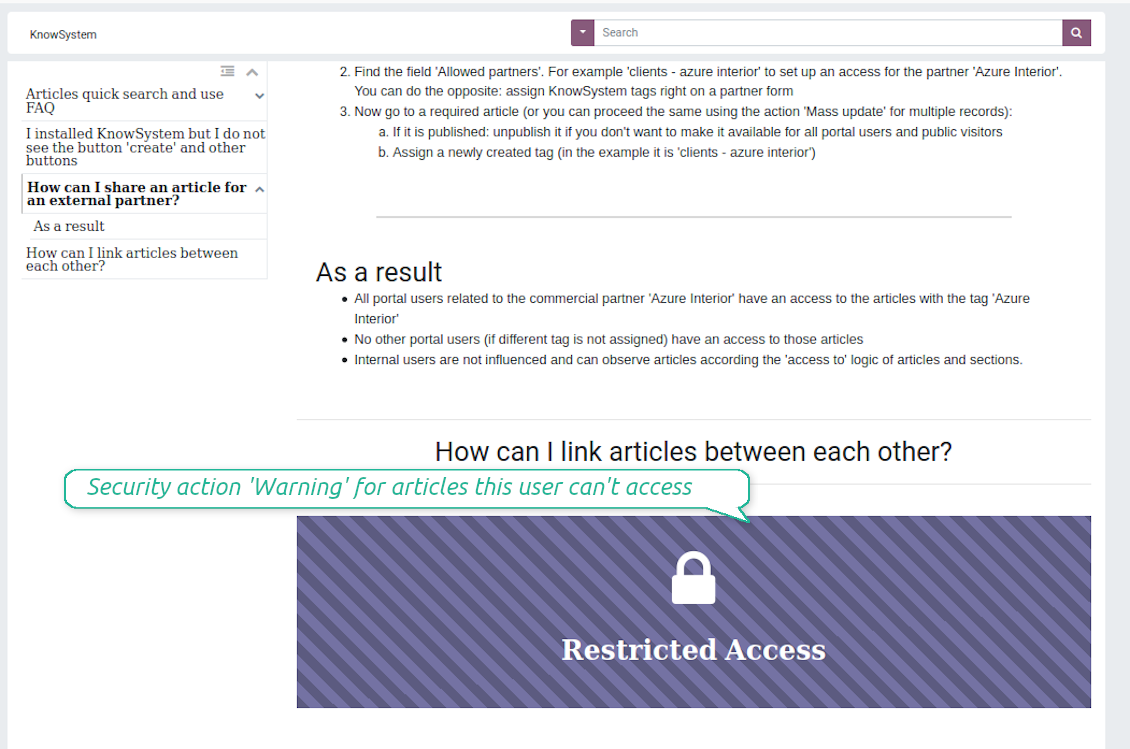
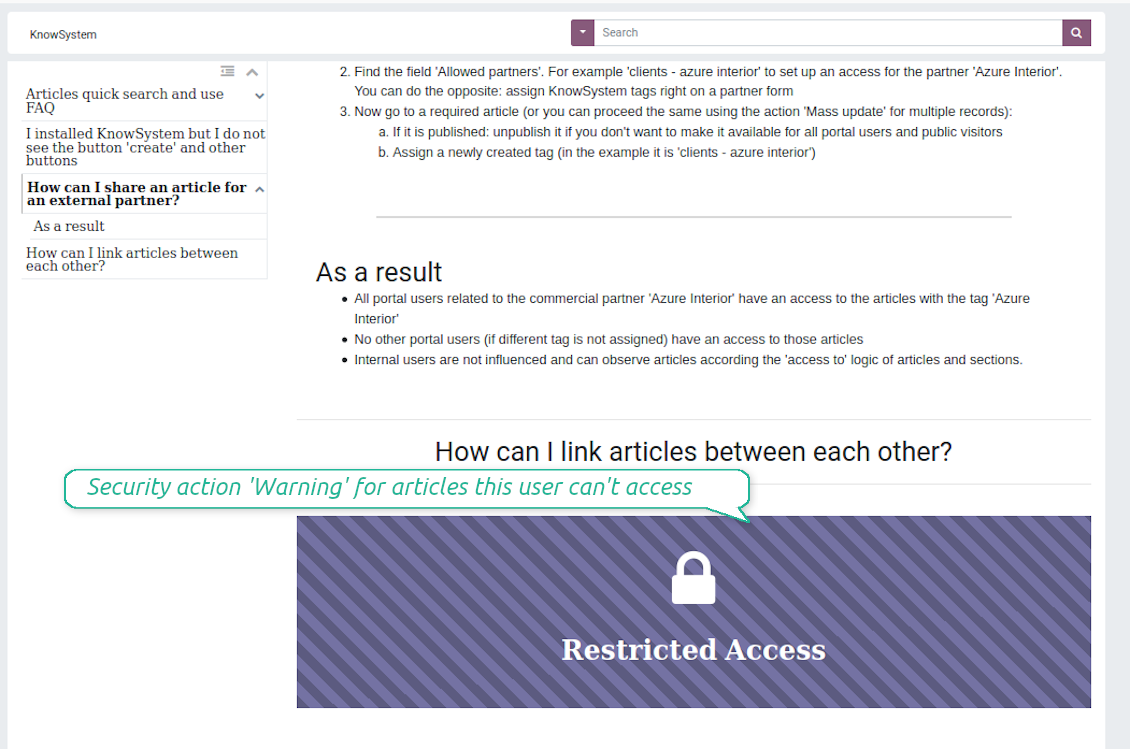
Security: optionally show warning if no access possible
Security: optionally show warning if no access possible
Create learning tours
How to configure a learning tour
- Turn on the option 'Tours'
- Go to KnowSystem interface and select articles to be included into a tour
- Press the mass action button 'Add to tour' and select or create a tour. Press save
- Re-order articles in a consistent order
- Define groups of users who should go through a tour on the tab 'Restrict access'
- Now users can see and launch tours right from the KnowSystem interface (the right navigation panel)
Tangkapan skrin
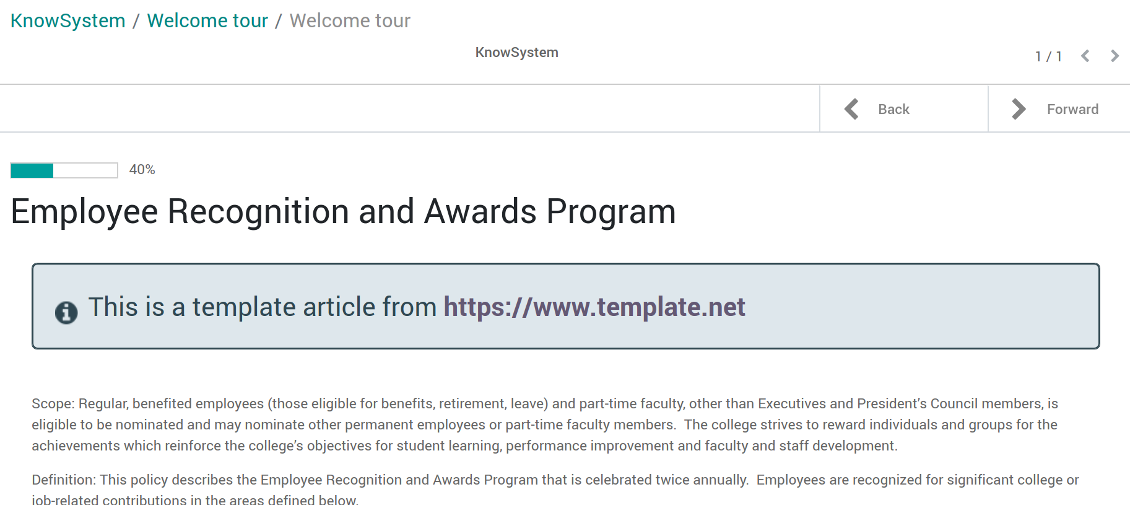
Article in a learning tour
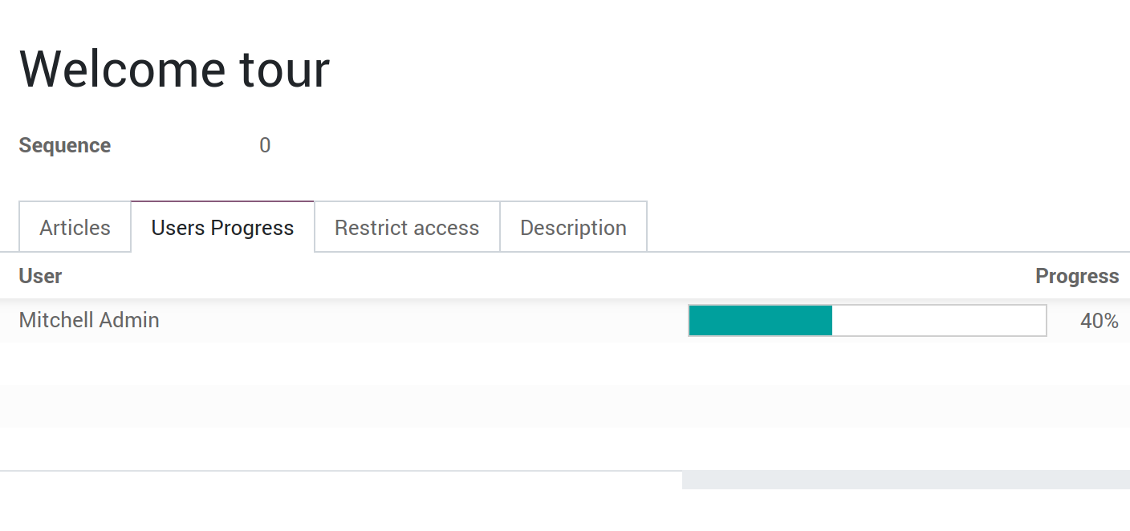
Control tour progress by users
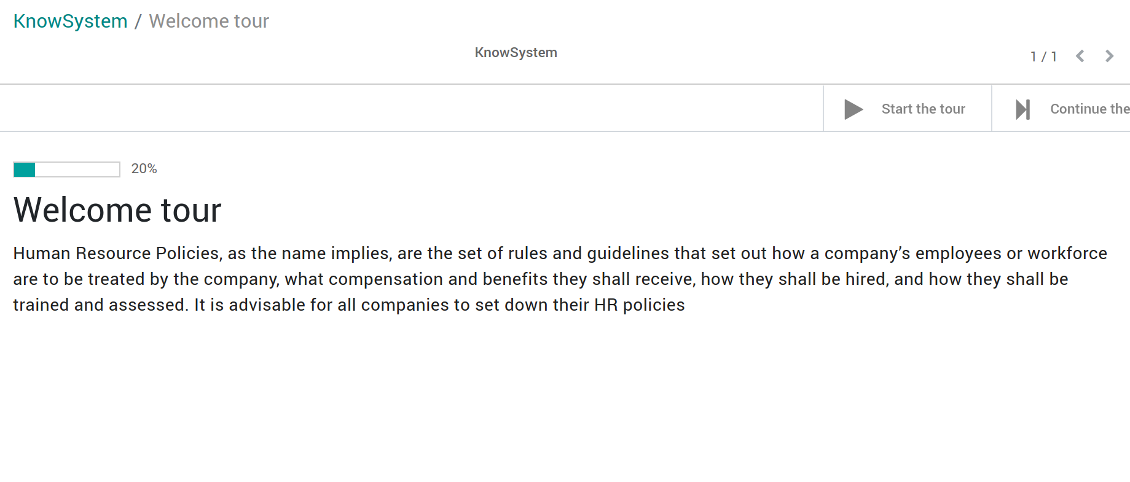
KnowSystem tour welcome page
Multilingual knowledge base
How to make an article available for a few languages
- Install the optional add-on 'KnowSystem: Multi Languages'
- Change your user language for a needed one
- Update this article
- Now it is available in both source and a current language
Make sure you really require a few languages. In that case you almost double the work of KnowSystem editors. All articles should be kept updated in all Odoo languages.
Knowledge base for any industry and business
Typical use cases
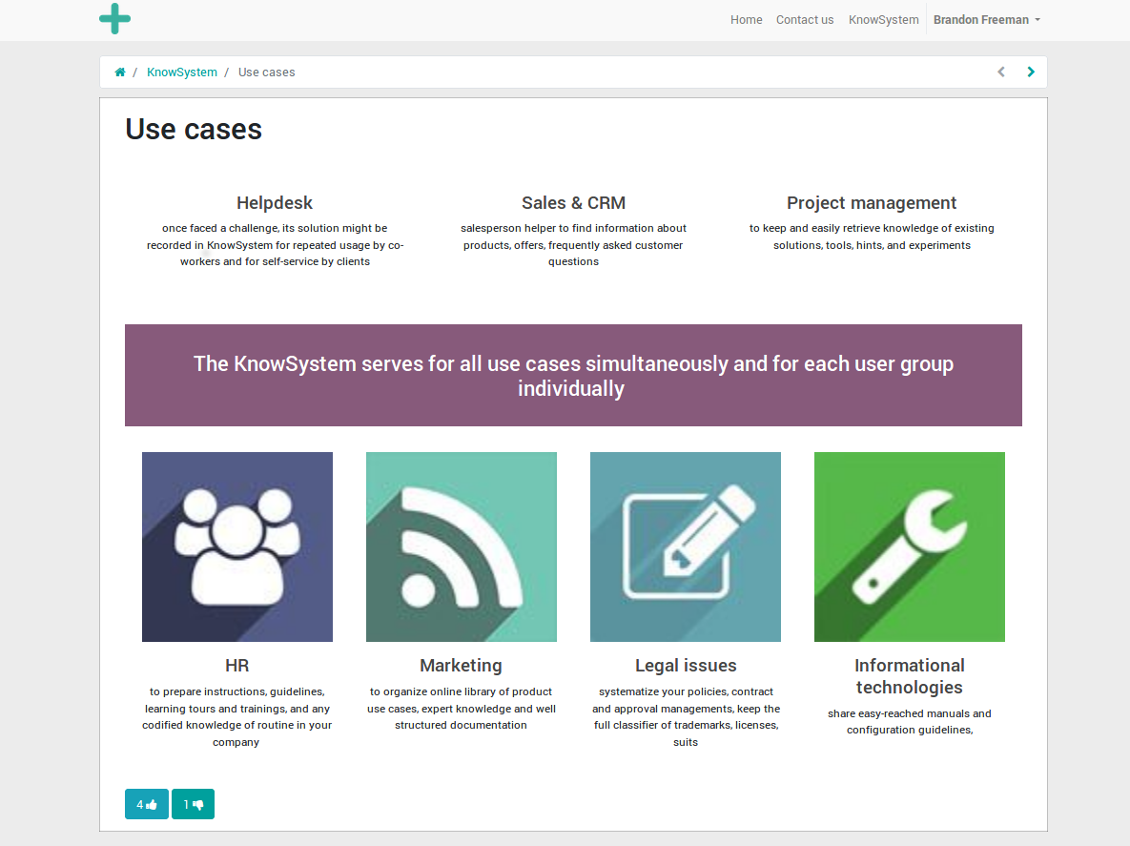
- Helpdesk: once faced a challenge, its solution might be recorded in KnowSystem for repeated usage by co-workers and for self-service by clients
- Sales & CRM: salesperson helper to find information about products, offers, frequently asked customer questions
- Project management: to keep and easily retrieve knowledge of existing solutions, tools, hints, and experiments
- HR: to prepare instructions, guidelines, learning tours and trainings, and any codified knowledge of routine in your company
- Marketing: to organize online library of product use cases, expert knowledge and well structured documentation
- Legal issues: systematize your policies, contract and approval managements, keep the full classifier of trademarks, licenses
- Informational technologies: share easy-reached manuals and configuration guidelines
Soalan lazim tentang KnowSystem: Knowledge Base System Odoo v.12
Saya tidak nampak sebarang perbezaan antara teks semakan.
Semakan merekod bukan sahaja perubahan teks, tetapi juga kemas kini gaya (secara teknikal, apabila anda menukar kod sumber HTML artikel). Sesetengahnya mungkin tidak jelas pada pandangan pertama (cth. saiz fon satu perkataan yang ditukar). Yang lain mungkin drastik. Walau bagaimanapun, mana-mana set tindakan Edit > Tukar apa-apa dalam artikel > Simpan akan menghasilkan semakan baharu.
Bolehkah saya menambah video YouTube/ Vimeo / Dailymotion / Youku dalam artikel?
Ya, video dari perkhidmatan itu boleh dibenam ke artikel dari bahagian pentadbiran Odoo dan pembina tapak web. Tambah blok dengan gambar > tekan imej > pilih ‘Video’ > masukkan URL bahan.
Sila ambil perhatian: video sebegitu disertakan sebagai iframe, dan sesetengah pelayar mungkin menyekat main balik sehingga pengguna membenarkannya secara nyata.
Bagaimana menjadikan bahagian kelihatan di laman web?
Dalam KnowSystem, suatu bahagian kelihatan di tapak jika diterbitkan dan mengandungi sekurang-kurangnya satu artikel. Walaupun ada bahagian kecil, ia tidak kelihatan jika dalam bahagian itu sendiri tiada satu artikel pun. Ini mengelak bahagian kosong dan menjadikan portal KnowSystem mudah dilayari. Agar bahagian dipaparkan di tapak, tambah satu artikel pengenalan atau umum yang menerangkan atau menyenaraikan secara ringkas artikel dalam bahagian kecil.
Bagaimana berkongsi artikel untuk rakan luar?
Klik kanan mana-mana tag pada panel navigasi kiri - Cipta
Cari medan 'Allowed partners'. Contohnya 'clients - azure interior' untuk memberi akses rakan 'Azure Interior'. Anda boleh sebaliknya: tetapkan tag KnowSystem terus pada borang rakan
Kemudian pergi ke artikel yang diperlukan (atau lakukan perkara sama dengan tindakan 'Mass update' untuk beberapa rekod):
Jika diterbitkan: nyahterbit jika anda tidak mahu ia tersedia kepada semua pengguna portal dan pelawat awam
Tetapkan tag yang baru dicipta (dalam contoh ia 'clients - azure interior')
Sekarang:
Semua pengguna portal berkaitan rakan komersial 'Azure Interior' mempunyai akses kepada artikel bertag 'Azure Interior'
Tiada pengguna portal lain (jika tag berbeza tidak ditetapkan) mempunyai akses kepada artikel itu
Pengguna dalaman tidak terjejas dan melihat artikel mengikut logik 'access to' artikel dan seksyen.
Bolehkah kami menambah butang pilih bahasa untuk badan artikel?
Butang 'translate' sengaja tidak ditambah ke badan artikel oleh add-on pilihan 'KnowSystem: Multi Languages'. Sebabnya: kod HTML sangat sukar diterjemahkan dalam pop timbul ringkas yang diandaikan butang itu. Teks untuk diterjemah akan sedikit, manakala bahagian HTML banyak (dan penterjemah mungkin merosakkannya).
Oleh itu, untuk membuat artikel dalam bahasa tertentu, log masuk sebagai pengguna bahasa itu. Ia mungkin pengguna lain, atau anda boleh menukar sementara keutamaan pengguna semasa. Selepas itu setiap kemas kini badan artikel akan dalam bahasa tersebut.
Anda juga boleh menggunakan butang 'Copy from another translation' di bawah badan artikel untuk pada bila-bila masa mengambil kandungan dari bahasa lain (berguna jika artikel dikemas kini dengan ketara dalam satu bahasa).
Bagaimana membenamkan halaman laman web lain ke artikel
Untuk itu anda boleh menggunakan iframe. Tukar artikel ke editor kod HTML mentah dan sisipkan, contohnya, <iframe src="https://faotools.com/" style="width:100%;min-height:600px;"> </iframe>.
Saya memasang KnowSystem tetapi tidak nampak butang 'create' dan butang lain
Kemungkinan anda belum memberi hak KnowSystem kepada pengguna. Pilih hak 'KnowSystem Editor' atau 'KnowSystem Admin' lalu muat semula halaman. Butang kawalan kini sepatutnya dipaparkan.
Bolehkah saya tunjukkan lawatan pembelajaran tertentu hanya kepada pengguna terpilih?
Ya, dengan menggunakan kumpulan pengguna (cth. 'Sales Manager') yang patut melihat lawatan ini. Jika pengguna tergolong dalam kumpulan itu, lawatan dipaparkan. Jika tidak, ia tidak ditunjukkan. Ia berfungsi seperti hak keselamatan artikel dan seksyen KnowSystem.
Ambil perhatian bahawa jika lawatan tiada kumpulan yang ditetapkan, ia 'global' dan kelihatan kepada semua orang.
Bagaimana menukar pengaki dan pengepala apabila mencetak artikel?
Pengepala dan pengaki PDF artikel diambil mengikut tataletak syarikat. Lihat Settings > General Settings > bahagian Business Documents. Di situ anda tentukan templat syarikat untuk semua jenis dokumen, termasuk invois, pesanan jualan dan sebagainya, serta artikel. Pendekatan Odoo ini menganggap pengaki dan pengepala sebagai gaya umum syarikat, bukan atribut cetakan tertentu.
Bagaimana memaut artikel antara satu sama lain?
Setiap artikel mempunyai URL dalaman (backend) dan laman web (jika pilihan 'KnowSystem: Website and Portal' dipasang). Klik butang 'Info' pada borang artikel untuk mengetahui alamat laman web rekod ini. Anda boleh sisip mana-mana ke badan artikel sebagai pautan.
Bolehkah saya menukar kod sumber HTML sesuatu artikel?
Ya: hidupkan debug assets (pada skrin ringkasan tetapan) lalu kembali ke artikel semasa. Dalam mod sunting anda akan nampak ikon khas '</>'. Klik untuk melihat dan menyunting HTML serta gaya.
Apakah dasar kemas kini alat anda?
Mengikut dasar Odoo Apps Store semasa:
- Setiap modul yang dibeli untuk versi 12.0 dan sebelumnya memberi akses ke semua versi sehingga 12.0.
- Bermula versi 13.0, setiap versi modul perlu dibeli berasingan.
- Tanpa mengira versi, pembelian memberi hak kepada semua kemas kini dan pembetulan pepijat dalam versi utama.
Sila ambil perhatian bahawa pasukan faOtools tidak mengawal dasar itu. Untuk soalan, hubungi terus wakil Odoo Apps Store.
Bagaimana memasang aplikasi anda di Odoo.sh?
Pendekatan paling terus ialah menggunakan aliran kerja terbina dalam kedai Odoo:
1. Buka halaman modul dan klik butang Deploy on odoo.sh
2. Selepas itu anda akan dihalakan ke halaman GitHub. Log masuk ke akaun, kemudian klik 'Create a new repo' atau guna yang sedia ada. Pastikan repositori bersifat peribadi. Tidak dibenarkan menerbitkan aplikasi di bawah lesen OPL-1. Jika perlu, cipta repo baharu untuk projek Odoo.sh
3. Kemudian pergi ke odoo.sh dan klik butang Deploy. Dalam tetingkap pop timbul, hantar keputusan dan klik 'Continue.' Tindakan ini akan mencetuskan pemasangan.
Langkah ini akan memasang aplikasi pada cabang pengeluaran projek. Jika anda mahu men-deploy aplikasi ke cabang lain atau mengemas kini modul, lakukan tindakan berikut:
1. Muat naik kod sumber aplikasi dari kedai Odoo
2. Commit modul ke repositori GitHub yang diperlukan. Pastikan tiada folder/fail aplikasi diabaikan (iaitu tidak termasuk dalam .gitignore repo). Repositori dicipta secara automatik oleh odoo.sh dan secara lalai mungkin termasuk item penting (cth., /lib). Muat naik semua direktori, subdirektori dan fail modul tanpa pengecualian
3. Deploy cabang sasaran projek odoo.sh atau, jika tetapan anda mengandaikan demikian, tunggu sehingga ia dibina secara automatik.
Bagaimana memasang aplikasi anda pada pelayan saya sendiri?
2. Mulakan semula pelayan Odoo;
3. Hidupkan mod pembangun (tetapan teknikal);
4. Kemas kini senarai aplikasi (menu aplikasi);
5. Cari aplikasi dan tekan 'Activate'/'Install';
6. Ikuti garis panduan pada halaman aplikasi jika ada.
Saya perasan aplikasi anda ada add-on tambahan. Boleh beli kemudian?
Ya, sudah tentu. Pada masa yang sama Odoo secara automatik menambah semua kebergantungan ke troli, jadi anda harus kecualikan alat yang sudah dibeli untuk elak bayaran berganda.
Saya menyebarkan aplikasi anda di Odoo.sh dan nampak amaran/ralat dalam ujian
Amaran merah/oren tidak mempengaruhi ciri aplikasi. Malangnya, modul kami kadang-kadang tidak lulus ujian automatik standard kerana ujian itu mengandaikan tingkah laku yang bercanggah dengan matlamat aplikasi. Contohnya kami mengubah pengiraan harga, manakala ujian modul Odoo standard membandingkan harga akhir dengan algoritma standard.
Pertama sekali, semak ciri pangkalan data yang dilancarkan. Adakah semuanya berfungsi dengan betul?
Jika anda masih menganggap amaran mempengaruhi ciri sebenar, hubungi kami dan hantar log pemasangan penuh serta senarai penuh modul yang dilancarkan (termasuk teras dan pihak ketiga).
Bolehkah saya membeli aplikasi terus daripada syarikat anda?
Tidak, kami hanya mengedarkan alat melalui kedai aplikasi Odoo rasmi.
Saya ingin mendapat diskaun
Malangnya, kami tidak mempunyai cara teknikal untuk memberikan harga individu.
Bolehkah saya memasang aplikasi pada pangkalan data Odoo Online (SaaS) saya?
Tidak, aplikasi pihak ketiga tidak boleh digunakan di Odoo Online. Malangnya Odoo SaaS menyekat kemungkinan itu.
Alat anda bergantung pada aplikasi lain. Patutkah saya membelinya?
Ya, alat memerlukan semua modul yang ditanda dalam kebergantungan untuk berfungsi dengan betul. Harga pada halaman aplikasi sudah merangkumi semua kebergantungan yang diperlukan.
Berapakah harga modul dalam dolar AS? Mengapa ia berubah?
Harga modul kami ditetapkan dalam euro. Kedai Odoo menukar harga ke mata wang lain mengikut kadar pertukaran dalamannya. Jadi harga dalam dolar AS mungkin berubah apabila kadar dikemas kini.
Teks aplikasi dan laman web dalam bahasa selain Inggeris dibantu AI dan diselaraskan dengan terjemahan rasmi Odoo. Jika anda nampak kesilapan, hantar tiket ketepatan terjemahan dan kami akan membetulkannya.
Pelaporan pepijat
Jika anda menemui pepijat atau tingkah laku tidak konsisten, sila hubungi kami. Kami jamin pembetulan dalam 60 hari selepas belian dan masih berminat menambah baik alat selepas tempoh itu.
Anda tidak memerlukan nombor telefon atau kad kredit untuk menghubungi kami. Hanya pendaftaran e-mel ringkas yang tidak mengambil lebih daripada 30 saat.
Sertakan sebanyak mungkin butiran dalam permintaan: tangkapan skrin, log pelayan Odoo, penerangan penuh cara menghasilkan semula masalah, dan sebagainya. Biasanya mengambil beberapa hari bekerja untuk menyediakan pelan kerja (jika pepijat disahkan) atau memberi garis panduan apa yang perlu dilakukan (jika tidak).
Permintaan ciri awam dan idea modul (pembangunan percuma)
Kami sangat bermotivasi untuk menambah baik alat kami dan berterima kasih atas sebarang maklum balas. Jika keperluan anda berguna secara awam dan boleh dilaksanakan dengan cekap, pasukan akan memasukkannya ke senarai tugasan kami.
Senarai tugasan sebegini diproses secara berkala dan tidak melibatkan yuran tambahan. Walaupun kami tidak dapat menjanjikan tarikh akhir dan reka bentuk muktamad, ini mungkin cara baik untuk mendapat ciri yang diingini tanpa pelaburan dan risiko.
Anda tidak memerlukan nombor telefon atau kad kredit untuk menghubungi kami. Hanya pendaftaran e-mel ringkas yang tidak mengambil lebih daripada 30 saat.

Alat untuk menyusun lampiran Odoo secara fleksibel dalam folder dan menyegerakkan direktori dengan klien awan: Google Drive, OneDrive/SharePoint, Nextcloud/ownCloud, Dropbox, Amazon S3, Box dan NAS. DMS. Pengurus Fail. Sistem pengurusan dokumen
398€
Alat untuk menyegerakkan lampiran Odoo secara automatik dengan fail OneDrive secara dua hala
487€
Alat untuk menyegerakkan lampiran Odoo secara automatik dengan fail Google Drive secara dua hala
487€
Alat untuk menyimpan kata laluan dengan selamat dalam Odoo untuk kegunaan bersama. Peti besi dikongsi

Alat untuk menetapkan sasaran KPI dan mengawal pemenuhannya mengikut tempoh. Papan pemuka KPI. Pereka papan pemuka. Carta KPI

Alat pengurusan perkhidmatan berasaskan masa dari tempahan temu janji hingga jualan dan ulasan
398€
Alat untuk mengurus Odoo dari sembang AI kegemaran melalui MCP. Claude. Mana-mana AI yang menyokong MCP.


Alat untuk menggabungkan pelbagai acara Odoo ke beberapa kalendar super yang boleh dikonfigurasi