KnowSystem: Knowledge Base System v.12
The tool to build deep and structured knowledge base for internal and external use. Knowledge System. KMS
- a core of knowledge management. It might be used stand-alone as a complete internal knowledge base system. Su precio es 398€.
- an optional module, which let you publish articles to website, share them with portal users, and use website builder to update articles. The features assumed by this add-on are marked by the icon . Su precio es 40€.
- an optional extension to KnowSystem: Website and Portal to design website documentation pages based on knowledge base articles. The features assumed by this add-on are marked by the icon . Read the full description on the related page. Su precio es 60€.
- an optional module, which let you add and show custom fields for articles (backend). The features assumed by this add-on are marked by the icon . Su precio es 48€.
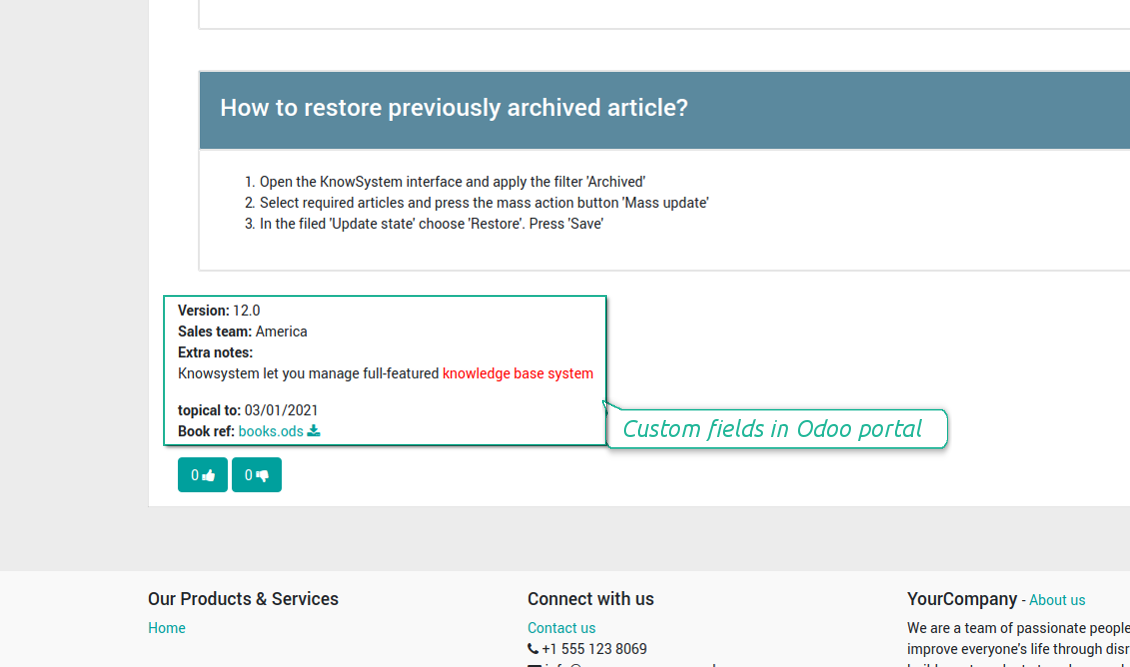
- an optional free module, which shows custom fields on website and portal pages (frontend). The features assumed by this add-on are also marked by the icon .
- an optional module, which let you translate articles, sections and tags for installed in Odoo languages. The features assumed by this add-on are marked by the icon . Su precio es 10€.
Innovative single-view interface
From the same interface editors may create and update any knowledge-related documents, change articles in batch, set up security. Without a need for excess navigation.
Interface solutions
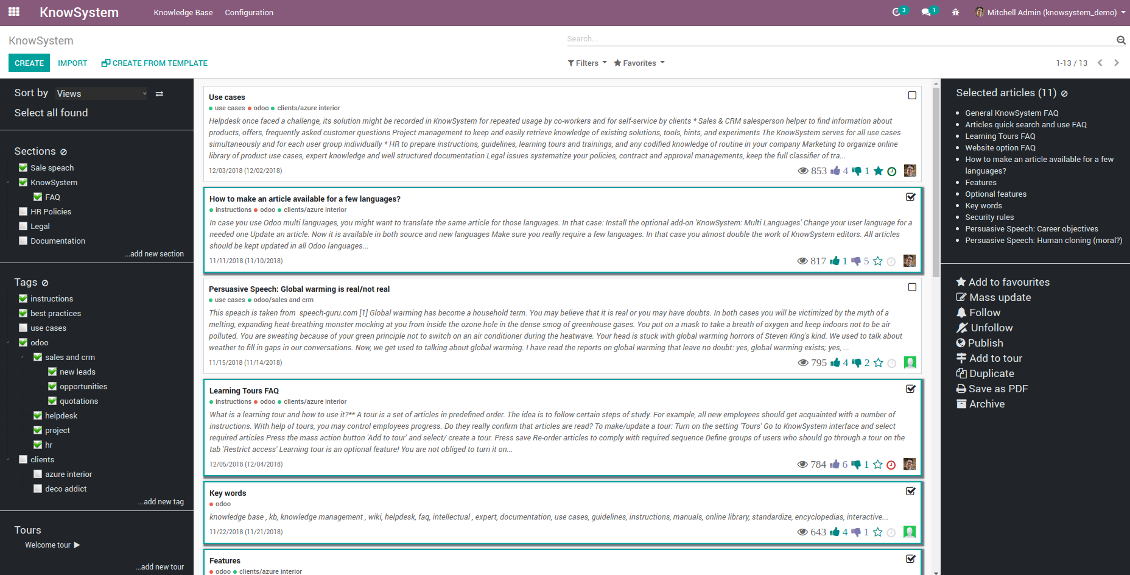
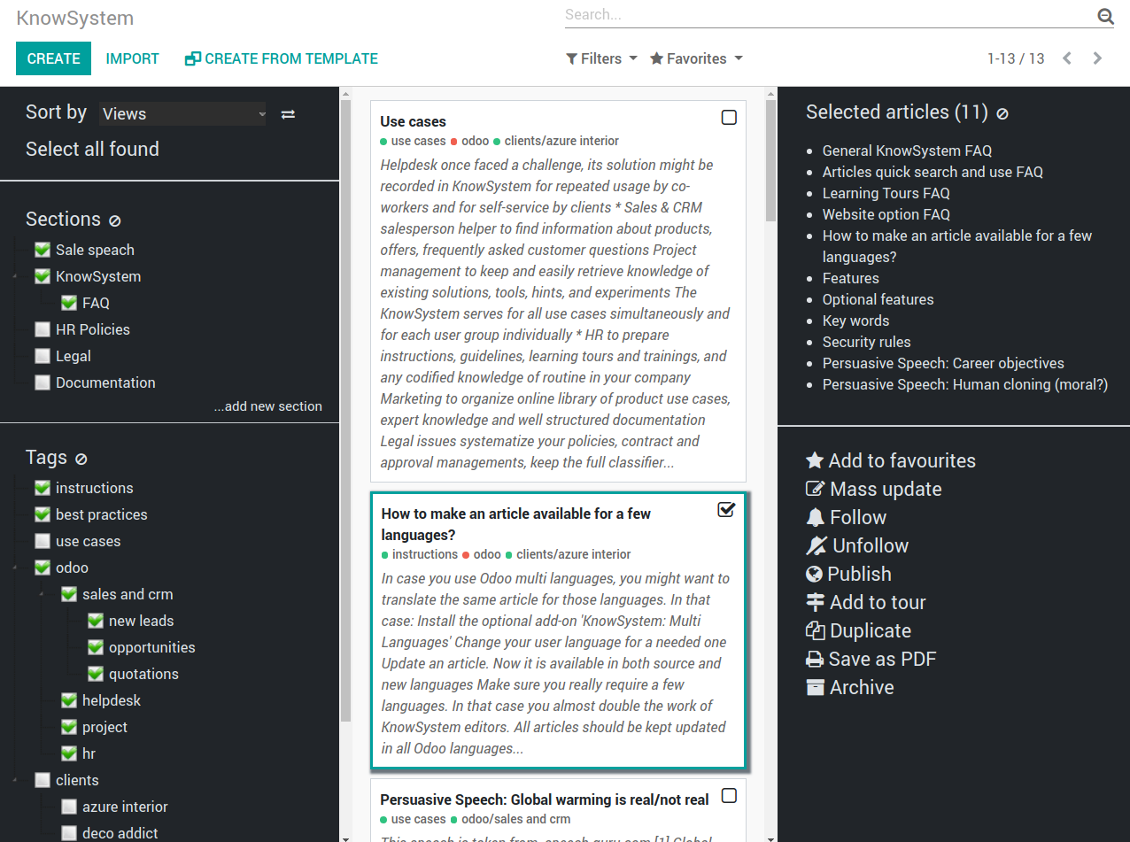
The KnowSystem interface consists of 3 key parts: the left navigation panel, the list of articles, and the right navigation panel (it is shown only if some articles are selected).
On the left navigation panel you may:
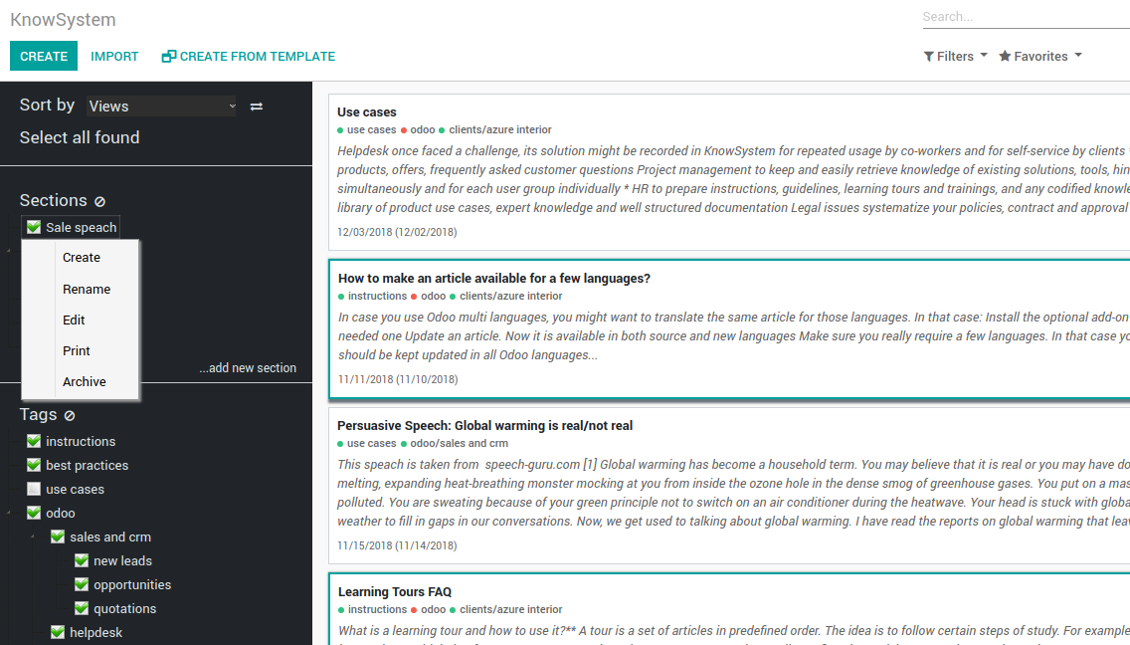
- Manage hierarchy of sections: prepare new (right mouse click - 'create'), update existing (right mouse click - edit), re-order any (drag and drop an item), archive sections. Select a few ones to filter articles. You may also print all articles related to this section as a single PDF file.
- In the same way manage hierarchy of tags
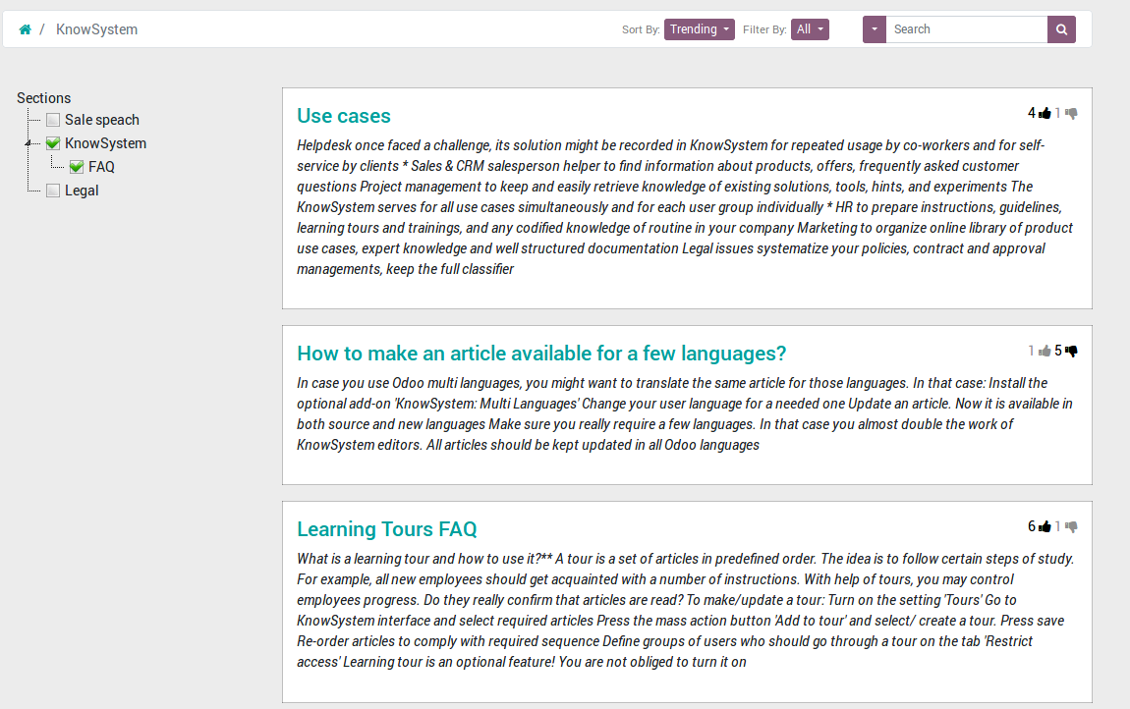
- Sort articles by number of views, a score of likes and dislikes, create or update dates, a section, an author
- Select all articles which are found according to chosen tags / sections and according to introduced searches / filters
- Launch a learning tour.
From the list of articles you see articles' name, indexed content (words without HTML style), dates of creation and last update, a number of views, likes, dislikes, author avatar. Here you may also add an article to favourite by pressing the 'star' icon.
Click on article body to open it in a full size (form view). Do not worry: chosen tags and sections as well as selected articles will be kept when you get back! Click on the top right check box to add an article for selection.
On the right navigation panel you observe selected articles and may proceed a mass action. Click on article name to remove it form selection.
On the top of the interface users also would find a standard Odoo omnibox. Type here to search by a title, content, an author, tags or a section.
Available mass actions
KnowSystem let users update an unlimited number of articles simultaneously:
- Assign new section
- Change or remove tags
- Print multiple articles as a single PDF
- Follow / unfollow discussions
- Publish / unpublish articles
- Export articles to an Excel table
- Archive or restore records
- Add articles to learning tours
- Mark knowledge items as favourite
- Duplicate articles.
Capturas de pantalla
KnowSystem articles overview, search and mass actions
Single entry for knowledge management actions
KnowSystem configuration
Article read mode
Article info and statistics
Article misc actions
Mass actions for selected articles
Small screen KnowSystem interface
Fast, comfortable, and professional knowledge recording
By using templates with pre-defined styles you may also speed knowledge generation up and standardize articles' appearance.
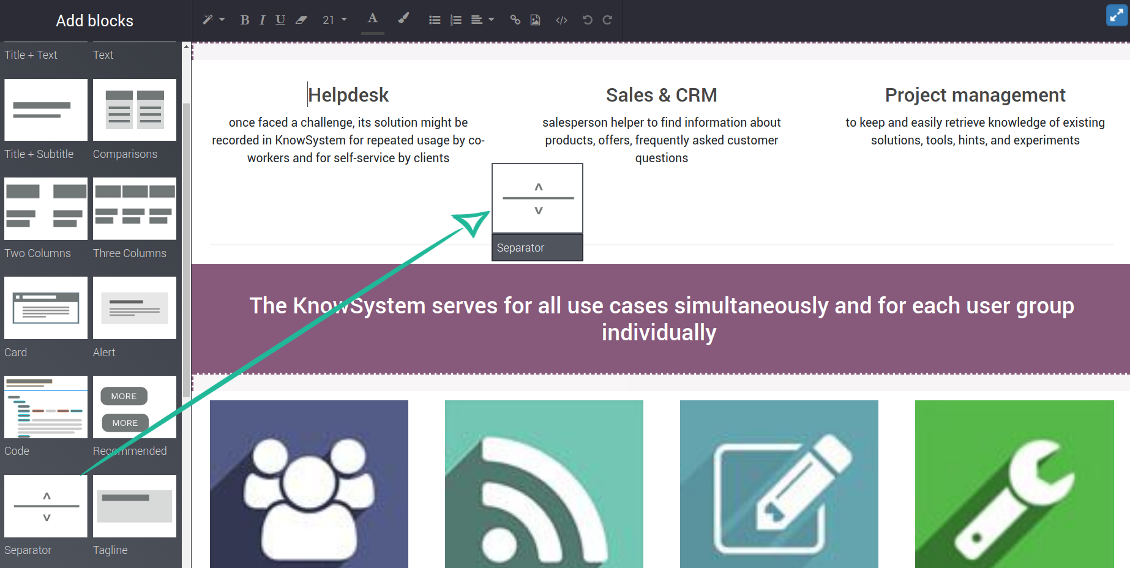
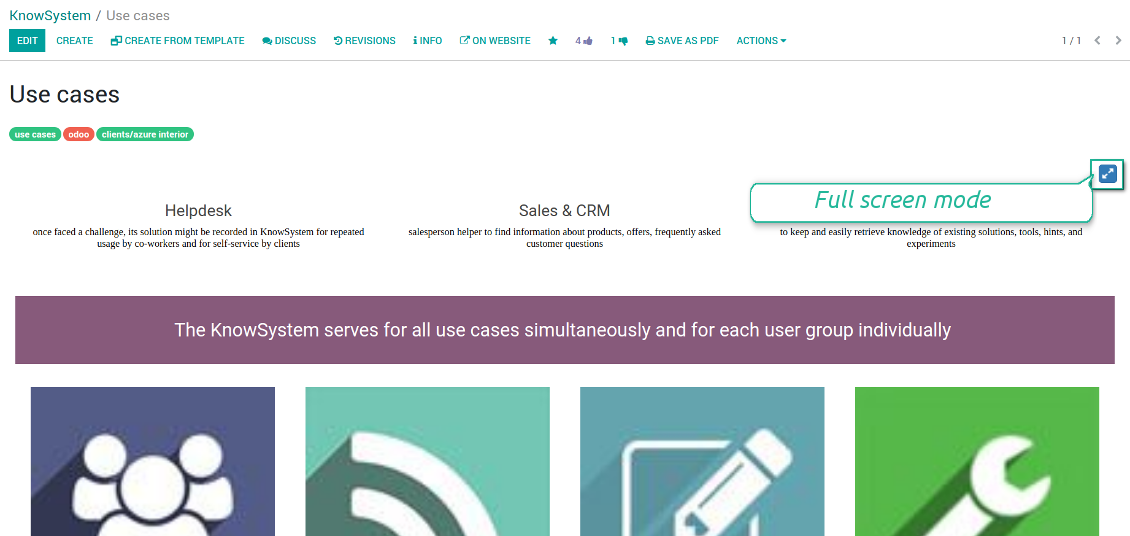
How to use the website builder for editing articles
KnowSystem provides you with a backend articles' builder, which is comfortable and safe to use. Odoo website builder is richer in features to prepare complex HTML structures. To edit articles through the website:
- Install the optional add-on 'KnowSystem Website and Portal' (the option 'Publish to portal and website')
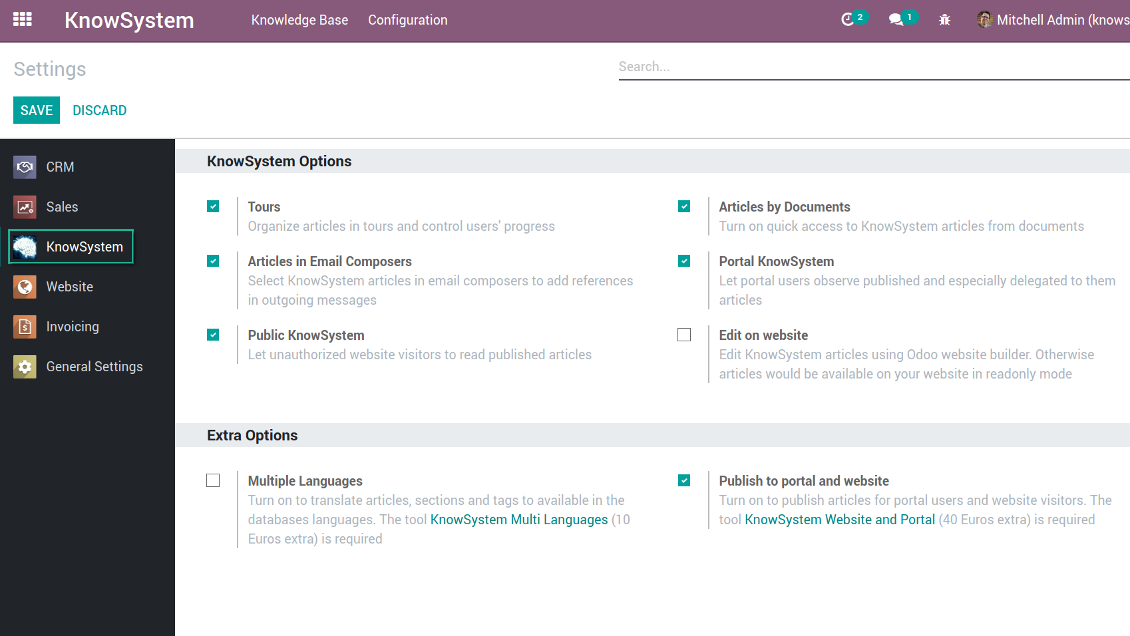
- Turn on the setting 'Edit on website'
- Push the button 'Edit on website' on this article form
Be cautious: if you are going to print this article or add its contents to emails, website building blocks are not suitable. Their advanced styles contradict printing and composer layouts and would not be correctly shown. In such a case use the safer backend builder.
How to use article templates
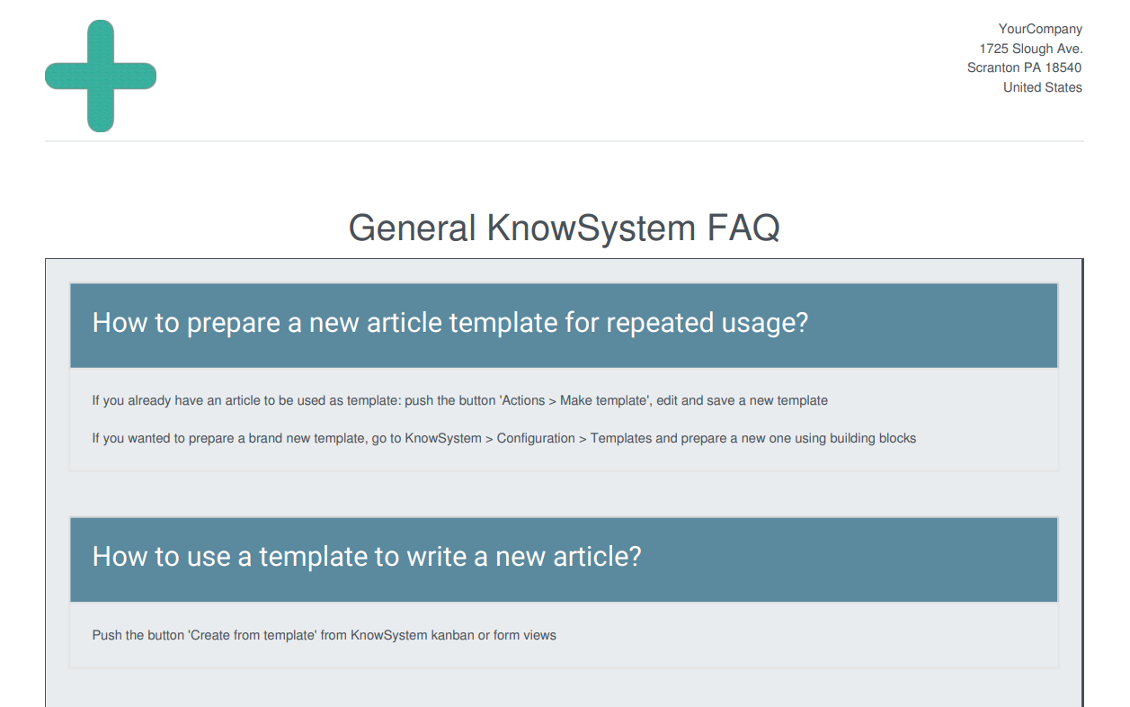
To prepare a new article template for repeated usage:
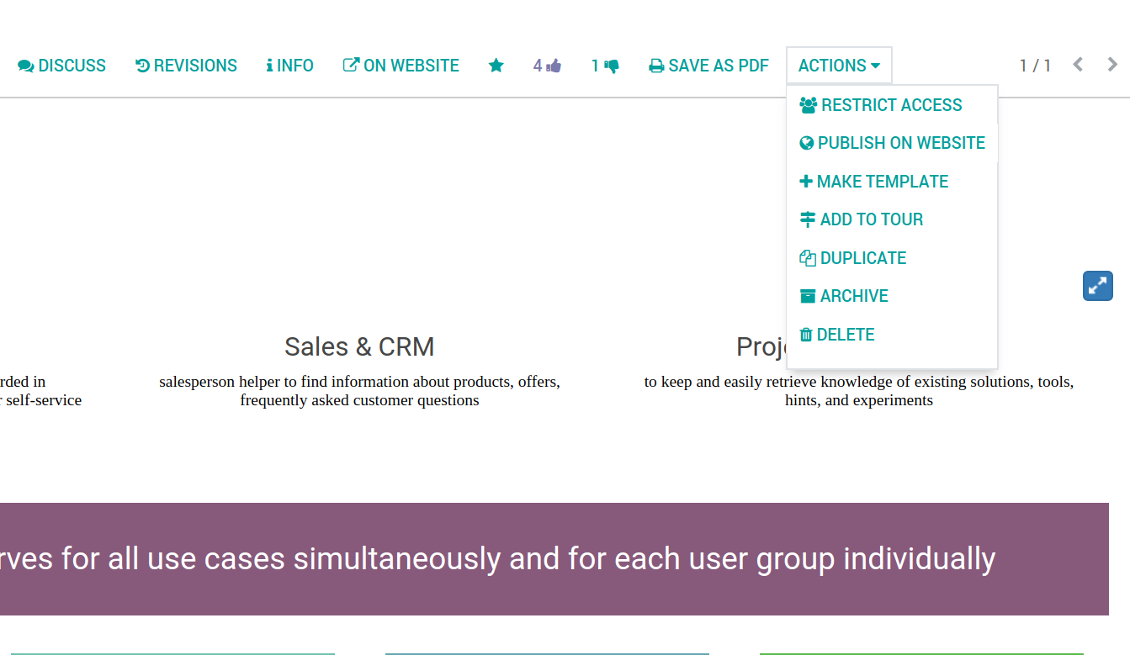
- If you already have an article to be used as template: push the button 'Actions > Make template', edit and save a new template.
- If you wanted to prepare a brand new template, go to KnowSystem > Configuration > Templates and prepare a new one using building blocks.
To use a template to write a new article:
- Push the button 'Create from template' from KnowSystem kanban or form views
- Select a required article template
- Push 'Create' and introduce changes to a new article.
Capturas de pantalla
Building blocks for knowledge base articles
Get benefit from your knowledge
How document types and articles are linked for a quick access
Experience is not general, usually it relates to specific issues. Knowledge used for customer communication differs from suppliers' negotiations. Frequently asked questions for draft and confirmed sale orders vary. KnowSystem let you structure your articles to apply them in a correct place and at right time. To that end:
- Turn on the setting 'Articles by Documents' (the option shows the top menu entry above any Odoo document) or 'Articles in Email Composers' (the option adds a quick link in a message composer editor for citing)
- Create a new tag (e.g. 'odoo / helpdesk'). In the table 'Applied to' use a required model (e.g. 'helpdesk ticket') or use it for all documents (the check box 'Apply to all documents').
- As advanced option you may apply additional filters: for example, to show articles only for 'new' tickets, not for 'in progress' ones. Use dynamic filters' constructor for that goal
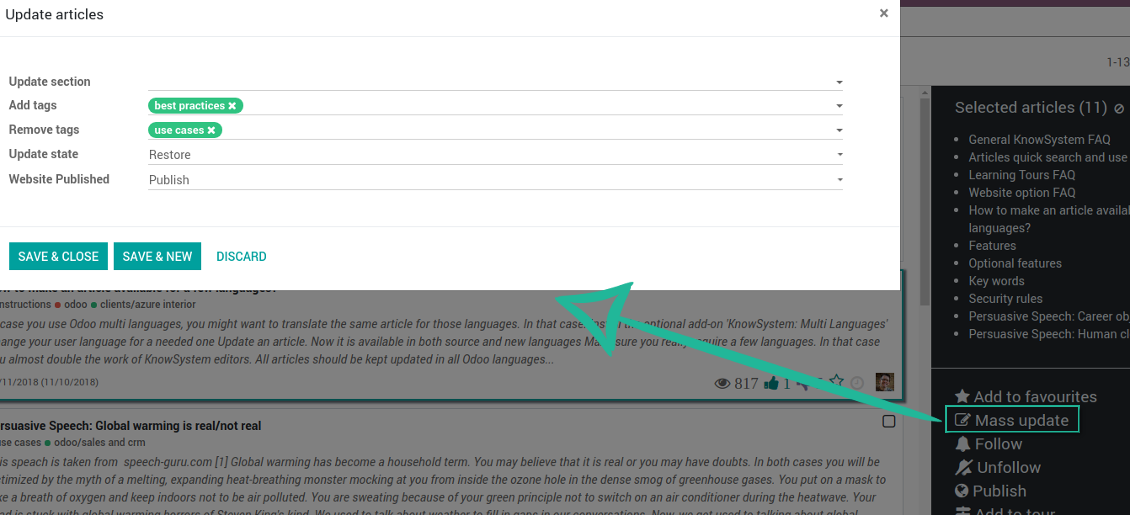
- Assign this tag for required articles. For a few articles use the mass action 'Mass update'
- Now when you access a quick article search from a document or from an email composer, Odoo will calculate KnowSystem tags for this document. That's why by default users would see only articles suitable for a current document. Simultaneously, they might always change tags to use other knowledge base data.
How to overview articles which might be useful for this document
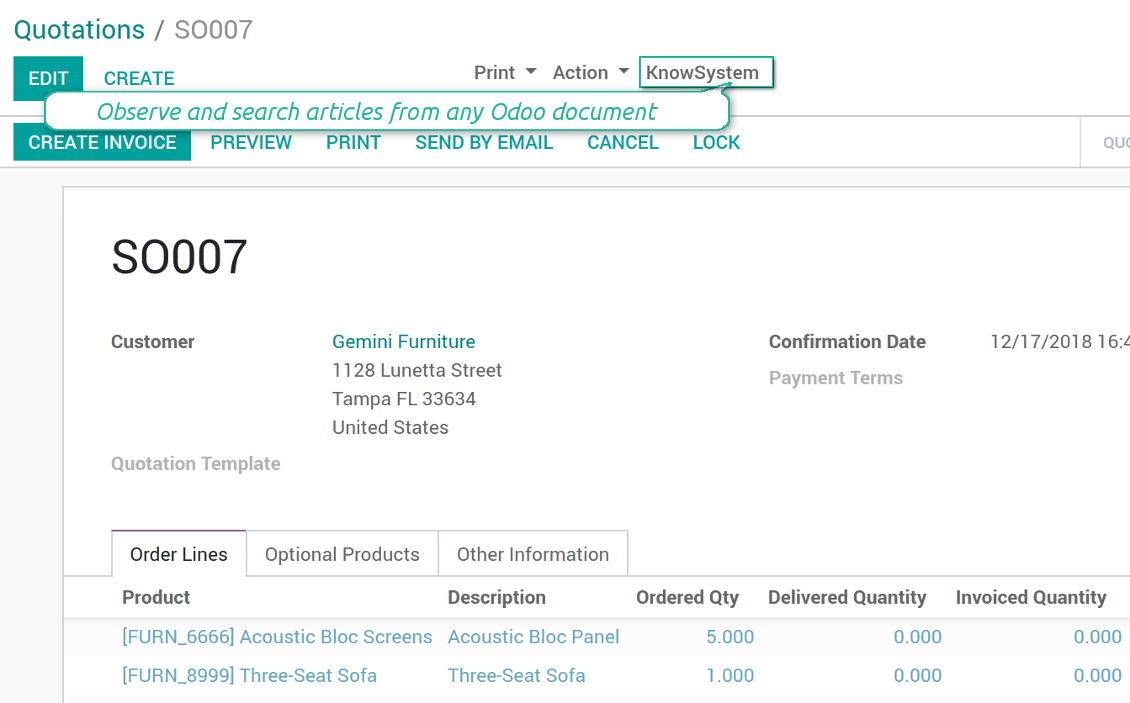
As soon as you turned on the option 'Articles by Documents', on the top of each Odoo object form view there would be a quick link 'KnowSystem'.
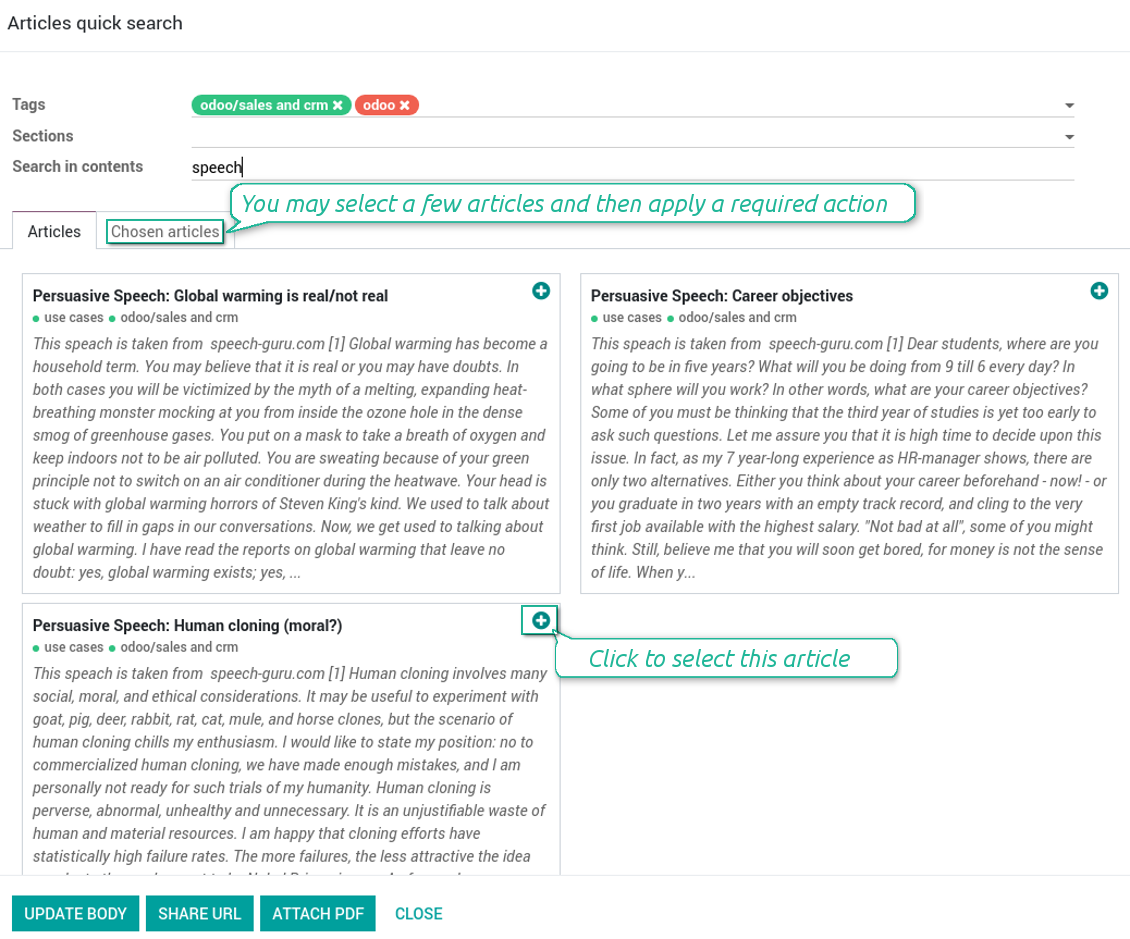
Click on that entry, and Odoo would open the wizard with articles. By default KnowSystem tags suitable for this document would be selected (if any). You may change those tags, or additionally filter by sections or content search. As a result list of topical articles is shown for you.
How to use company knowledge for communication
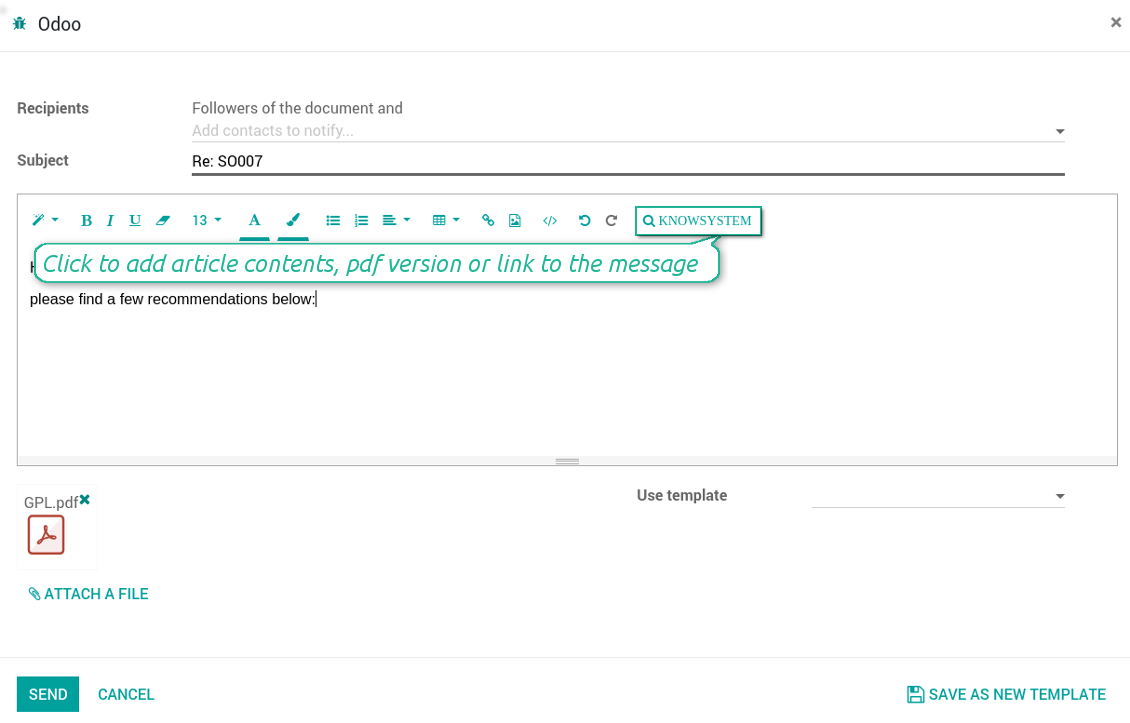
Turn on the option 'Articles in Email Composers' to let users reference or cite Knowledge records in Odoo messages. As a result the special quick entry 'KnowSystem' would be added to each Odoo email composer.
Clicking on that entry would open a wizard with a set of suitable to this document articles. You may change search by tags, add extra filtering by sections or content.
Afterwards, select required articles among found ones; choose an action. You may:
- Update message body with article contents (would be added to the end of a current message)
- Attach a PDF version of an article(s)
- Share a public link
Capturas de pantalla
Quick access for knowledge system from any Odoo document
Knowledge base link from email composer
Articles from any document
Article(s) PDF printing
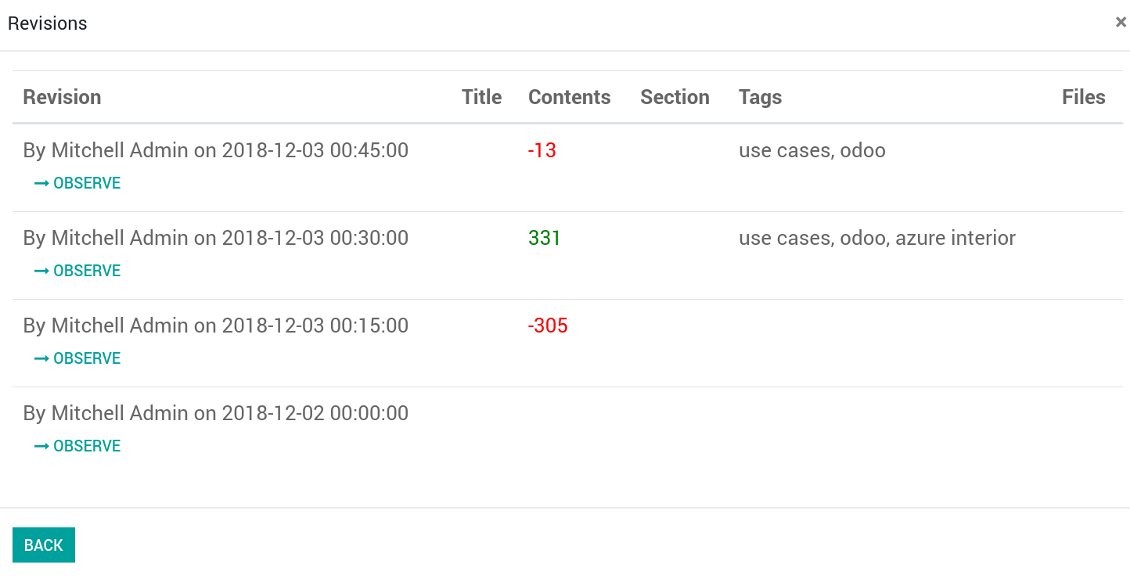
WIKI-like revision system
How to recover a previous article version
- Go to an article form view and push the button 'revisions'
- Find a required one and push the button 'Observe' to check whether this version is a correct one
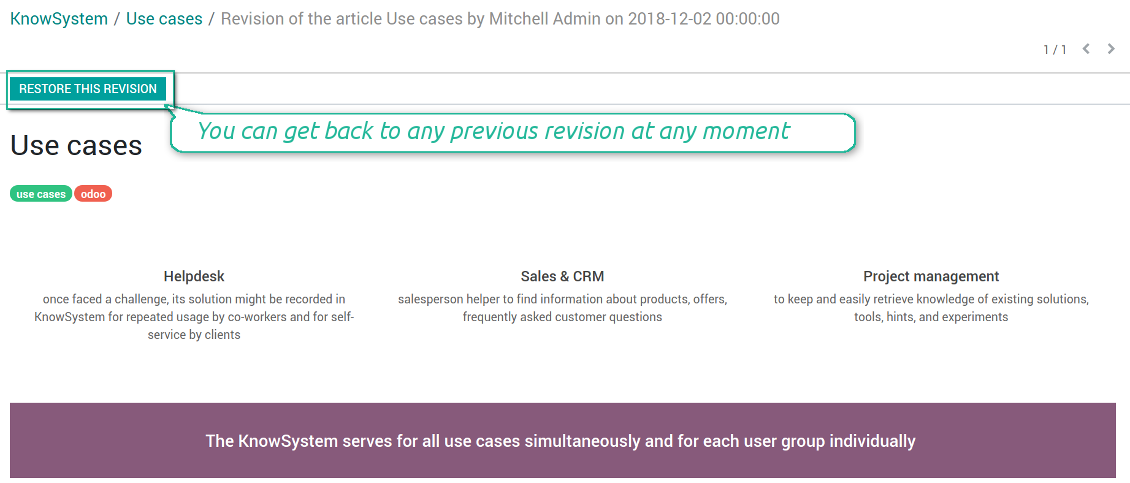
- Push the button 'Restore this revision'. The article would be recovered to that version.
- The recovery operation itself is recorded. So, if it is a mistake you can revert changes by recovering the last-to-last revison.
Capturas de pantalla
Wiki-style revisions history
To restore is easier than to break
Individual partner knowledge base portal
How to share knowledge base with specific partners
An article is available for a portal user in two cases: A. it is website published; B. his/her company is indicated as allowed partner in one of article tags.
In the first case such an article is available for all portal users and even for public website visitors who have not logged in.
In the latter case you grant a restricted access for an article only for chosen companies. To that end:
- Turn on the setting 'Portal KnowSystem'
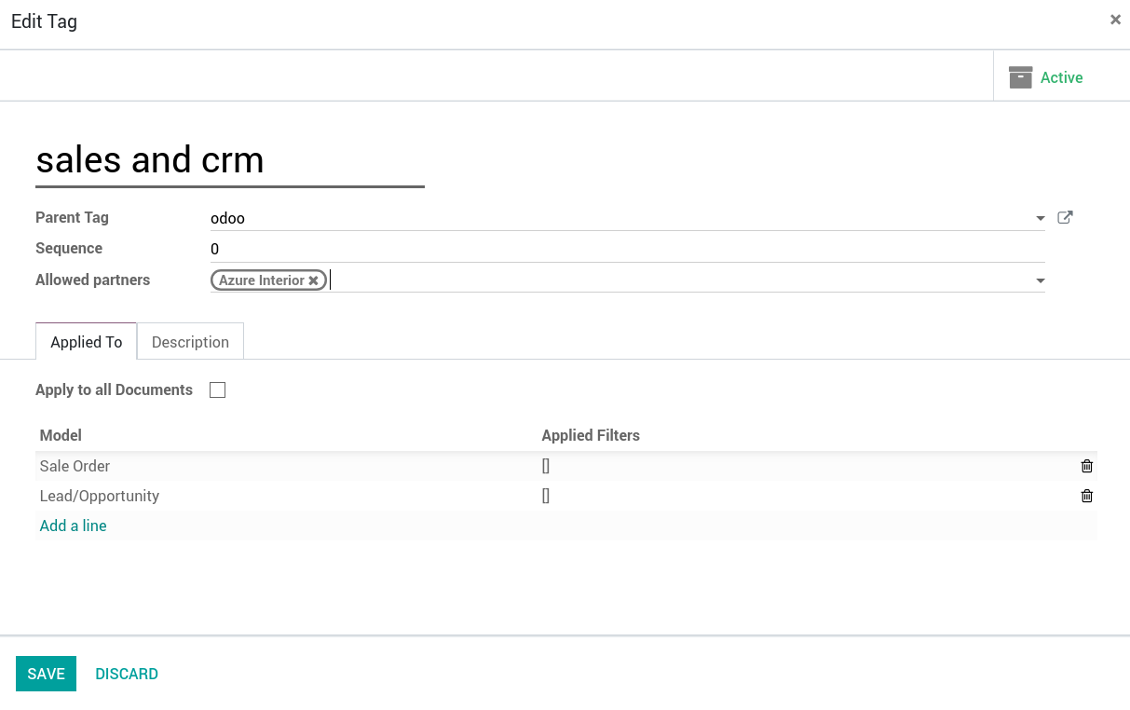
- Create a tag for this partner, for example 'clients / Azure Interior'. On the tag form indicate this company in the field 'Allowed partners'
- Assign the tag for all articles you want to share with this partner. For a few articles use the mass action 'Mass update'
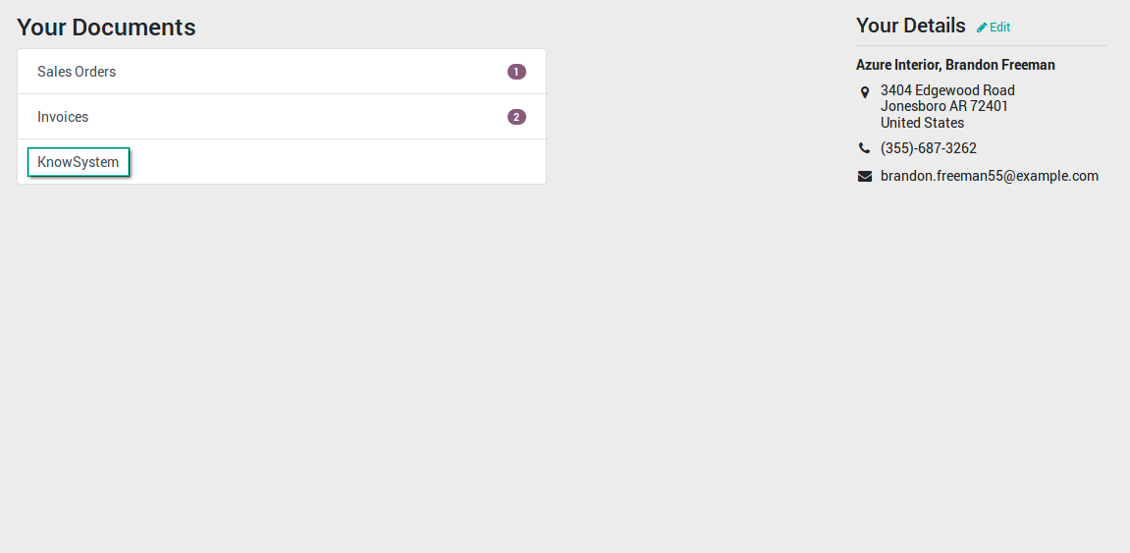
- Now portal users related to this partner may access shared articles right from their partner portal.
Capturas de pantalla
Knowledge base for portal and public use
KnowSystem articles on website
Tag: document types and portal partners
KnowSystem from portal
Best knowledge base system for Odoo!
Excellent app and exceptional after-sales support.
Really well thought-out product and one of the best features is the contextual help by means of the tags. Really a game changer for us.
Keep up the great work FaOtools!
Outstanding app! Tremendous value for money, an absolute must have!
One of the features sorely lacking from Odoo has been a robust Wiki/documentation system. Using third party platforms is a massive headache: yet another system to maintain, users get distracted switching back-and-forth, and errors get made. Then you have to worry about training, additional logins, etc.
KnowSystem feels like a native/core app, is very well-polished, and extremely fast. It's accessible from any screen, and the search results are instant (none of the latency inherent with most apps).The interface is elegant yet powerful, with robust access control, rich editing features, and version control. It's simple to revert to previous entries, view audit trails, etc. It's very intuitive for anyone familiar with Odoo; onboarding takes just a few minutes. The user guides are excellent.
This is invaluable for any organisation with a lot of documented information, SOPs, ISO compliance, or similar. If you're using eLearning, it's great for creating a help system / reminders. For example, noting key takeaways or specific instructions. The user can be in MRP, Sales, or any other function, and instantly lookup a guide. Since it overlays whichever screen you're in, it doesn't interrupt the workflow.
This dramatically increases efficiency, minimises questions, and helps keep everyone on the same page.
Oh, and customer service is excellent, faOtools stands behind their product. Thank you!
KnowSystem is excellent - OdooTools offer great support, are very helpful and responsive
Our company needed the ability to add a Knowledge Base to our Odoo portal website for our customers to access article content on a membership-only basis. KnowSystem provided this and much more, along with ability to add search by section, set permissions to allow only certain partners access to articles by tag etc. OdooTools have been very helpful and implemented several features we suggested including automatic redirect upon login, customisable filters and a social sharing capability on articles. Overall a great app by a great company, something that massively adds to Odoo's capabilities and is something that everyone could benefit from using.
Very functional application and responsive support
Our company produces medical laser equipment and we use KnowSystem to streamline the knowledge base of our company. Convenient search system and classification of content, as well as access rules for groups and even for individual users.
Great app and professional team
The app is great the the team is very professional in both response timing and problem solving.
Highly recommended.
Marco from ALO.zone.
Excellent system
Excellent system.
A great tool from some very nice developers!
KnowSystem is a great tool and a game changer for us. Finally a place to put all our company know-how. I highly recommend it. And also important to us: We got great support from FaOtools too. A rare thing in this busy world. thx!
Excellent app and support.
Great app and a very helpfull support. Openess to improve their products is outstanding.
Public knowledge base
How to make an article available for all website visitors
- Turn on the setting 'Public KnowSystem'
- Publish required articles through the mass action 'Publish' or by pushing the button 'Actions > Publish on website' on an article form
- Now any website visitor can read those articles
Team work for knowledge creation
Capturas de pantalla
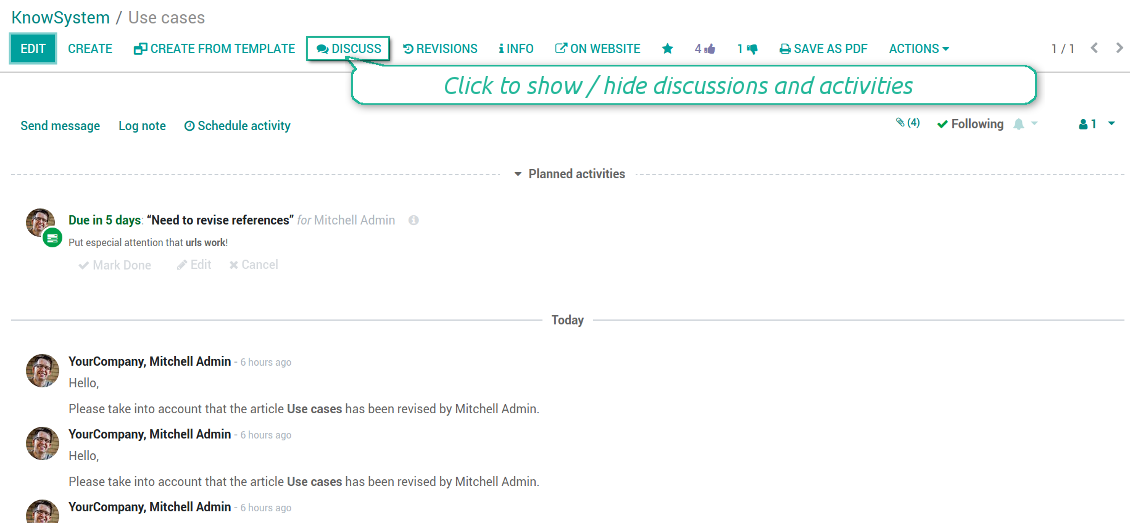
Knowledge base interactions, discussion, and activities
Custom fields to structure knowledge
How custom knowledge attributes work
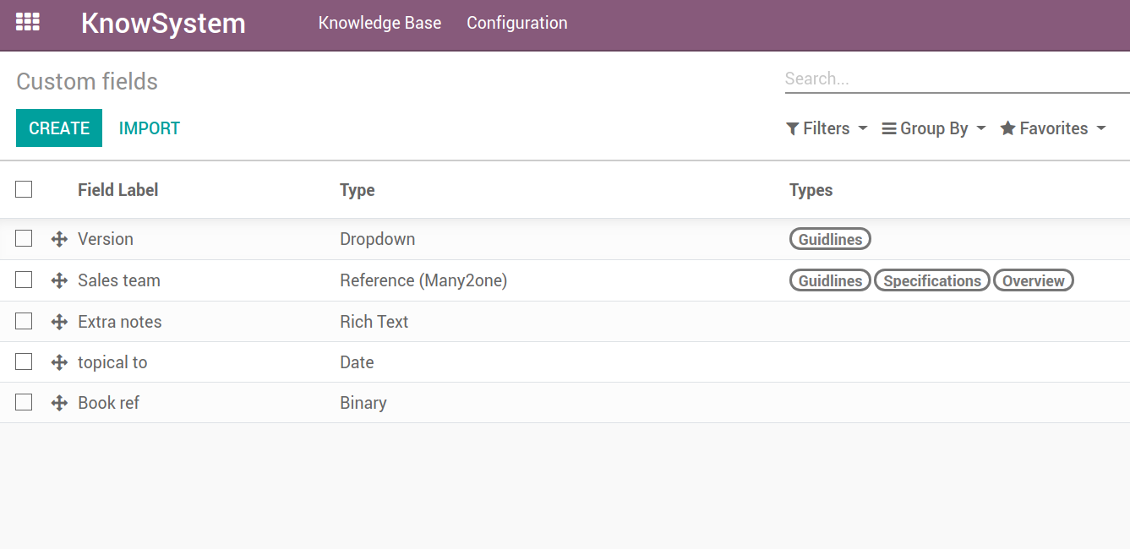
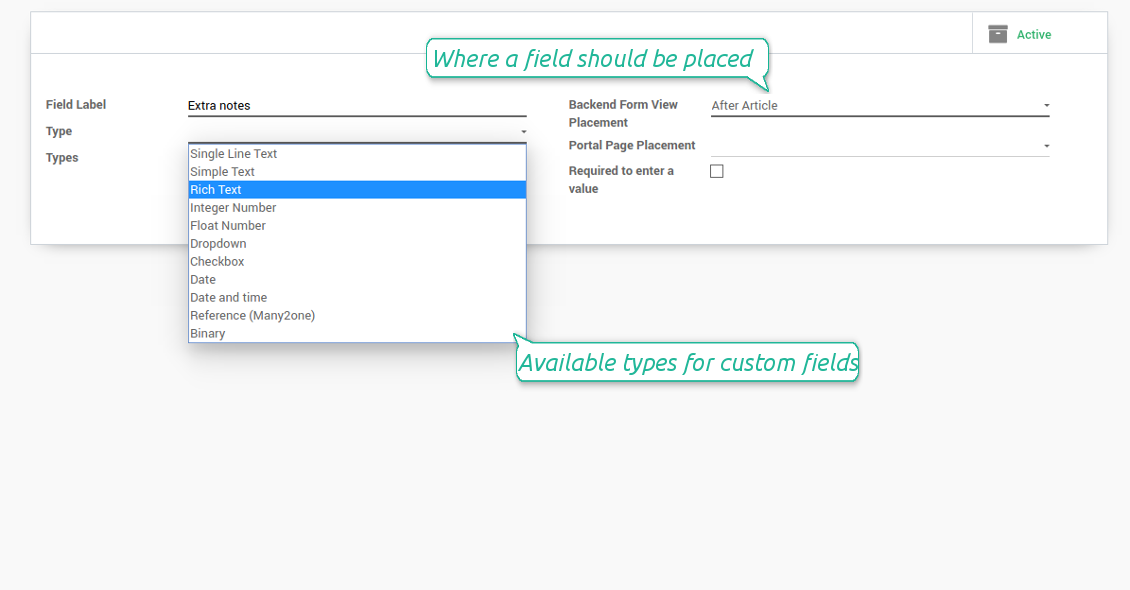
In order to show a new property for KnowSystem articles, just create a custom field. Nothing else is required! You are welcome to prepare fields of various types: single line text (char), simple text without formatting (text), rich text (HTML-formatted text), integer or float numbers, drop-down choice with your own options (selection), checkbox (boolean), date or date and time, binary (a file to upload), reference to another Odoo document (e.g. for a sale order, contact; many2one).
The tool also introduces complementary articles' typology. Thus set of attributes for 'user guidelines' and 'technical specifications' might be different.
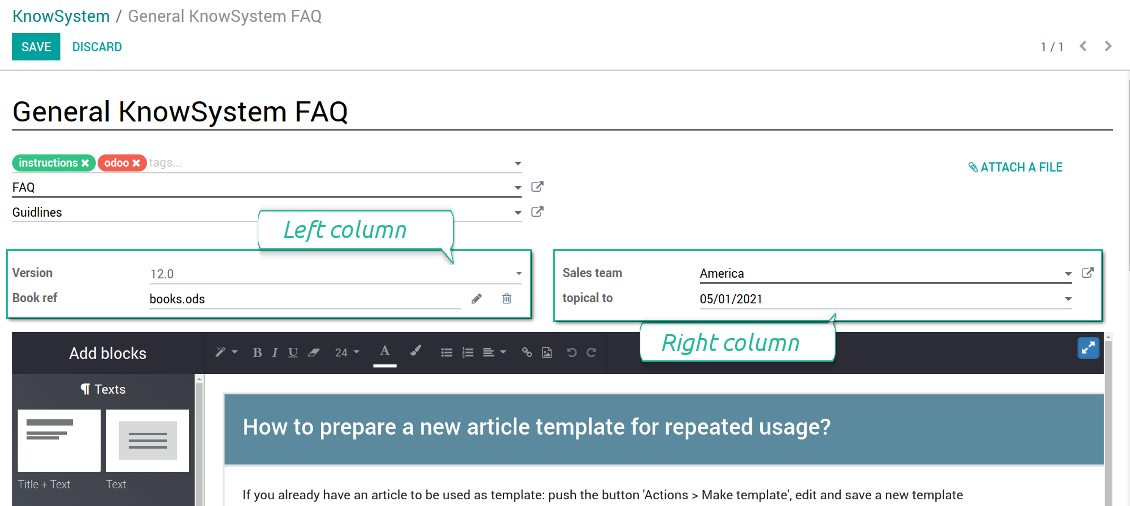
Then, choose an interface location for a new field from a closed list to structure properties on an article page. Decide whether a field should be required to enter, or should be visible only for definite knowledge types.
Capturas de pantalla
KnowSystem articles' custom fields
Custom fields on article form
Custom fields in portal and website
Custom fields for article: add any data required
Knowledge is secured and might be safely shared
How to manage user accesses to articles
Security for internal and portal users differs.
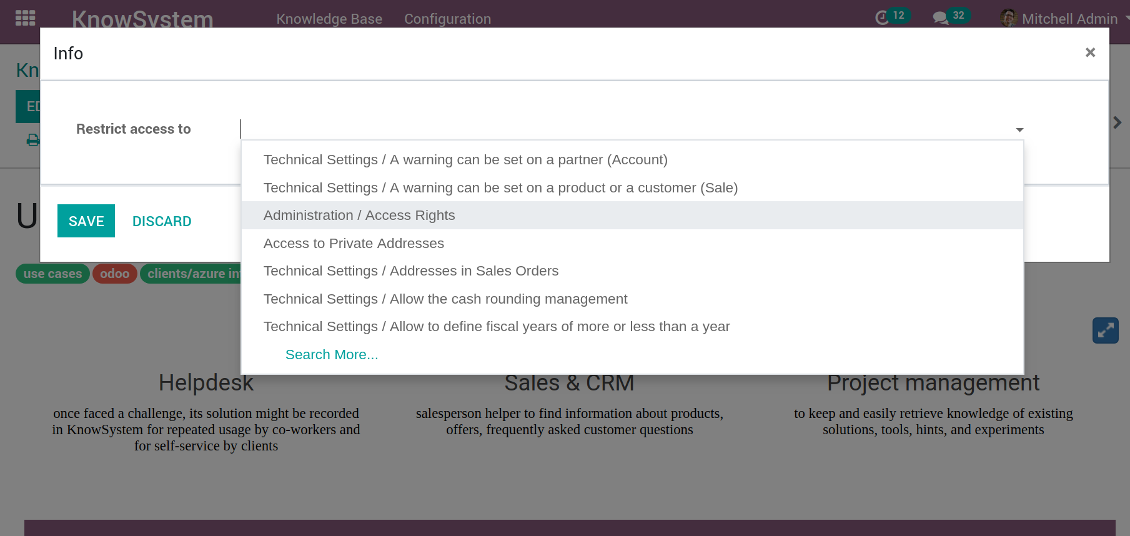
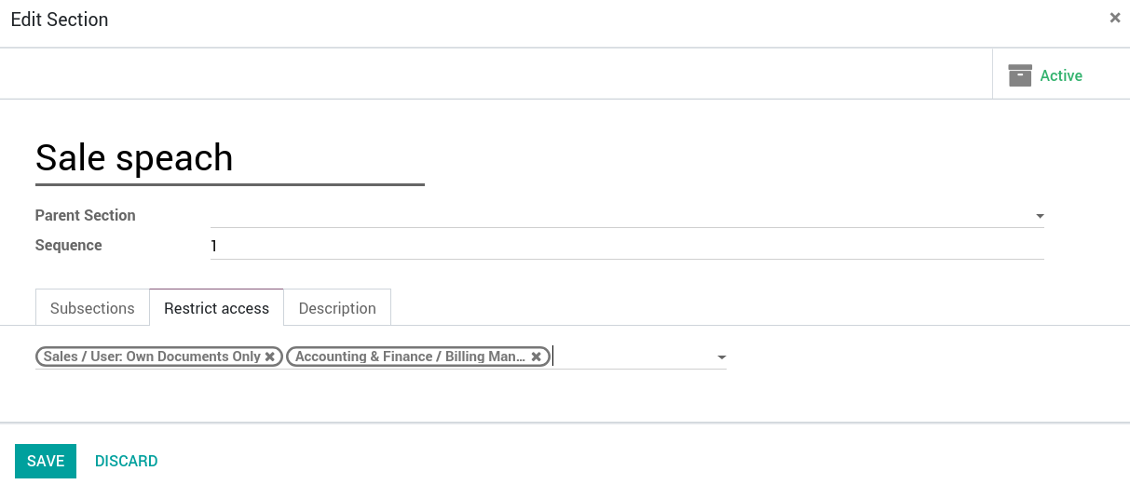
For the company employees: KnowSystem considers user groups which are defined per articles, sections and tours. Look at the tab 'Restrict to' on forms of those objects. If that field is not defined, a document is considered 'global': each internal user may read it.
For portal / public users: KnowSystem takes into account tags and whether an article is website published. A knowledge tag has a field 'Allowed partners', which may grant an access to portal users for articles with this tag. Website published pages are available for everybody.
Rights to administrate KnowSystem belongs to 2 user roles: KnowSystem Editor and KnowSystem Administrator. If you want a user to create and edit articles, a user should belong to one of those groups.
|
|
Odoo user |
KnowSystem Editor |
KnowSystem Admin |
Portal user |
Public user |
| Articles | read related to his/her user groups and sections | read, create, edit, archive related to his/her user groups and sections | read, create, edit, delete any | read published articles and articles related to partner-related tags | read published articles |
| Sections | read related to his/her user groups | read, create, edit, archive related to his/her user groups and sections | read, create, edit, delete any | read all sections of available articles | read all sections of published articles |
| Tags | read any | read, create, edit, archive any | read, create, edit, delete any | read published ones | read published ones |
| Article Types | read any | read any | read, create, edit, delete any | read published ones | read published ones |
| Tours | read related to his/her user groups | read, create, edit, delete related to his/her user groups | read, create, edit, delete any | no access | no access |
| Misc | may like / dislike, add to favourites, print, take part in discussions | may configure options | may like / dislike an article |
|
Take also into account two peculiarities:
- Odoo user always may access an article of which he is an author disregarding further restrictions;
- Rights for section is defined not only according to this section but also according to all its parents. For example, if user can't access 'sales', he/she would not be able to access 'sales / crm' disregarding whether 'crm' is available for his/her user group.
Capturas de pantalla
Manage access to this article
Section update and user rights
Website documentation builder
Capturas de pantalla
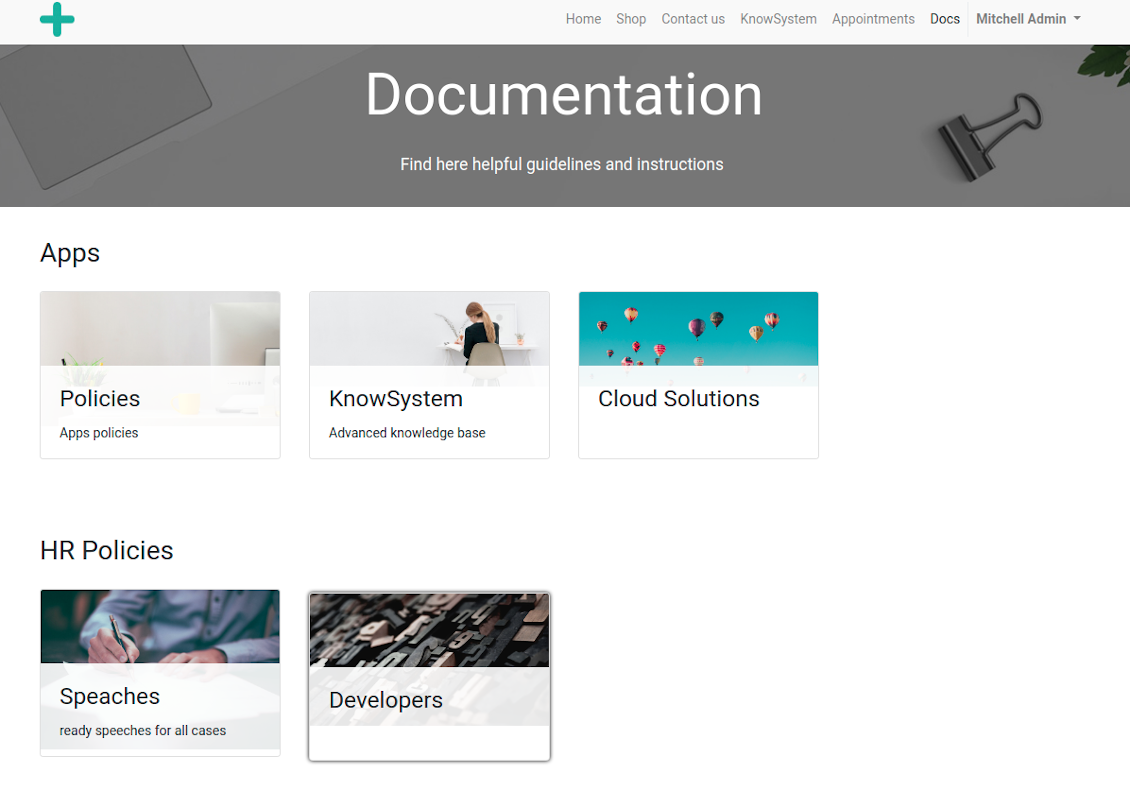
Documentation by categories and sections
Documentation by categories and sections
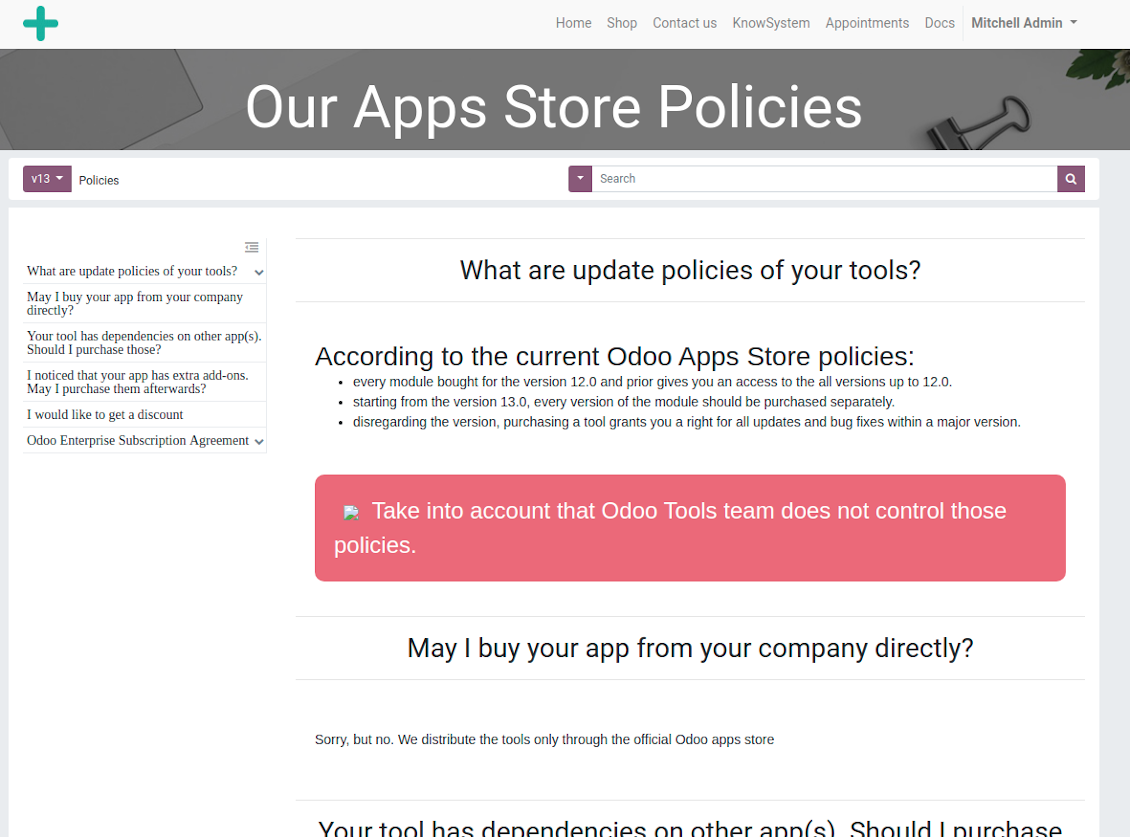
Documentation page
Documentation page
Automatic table of contents by documentation
Automatic table of contents by documentation
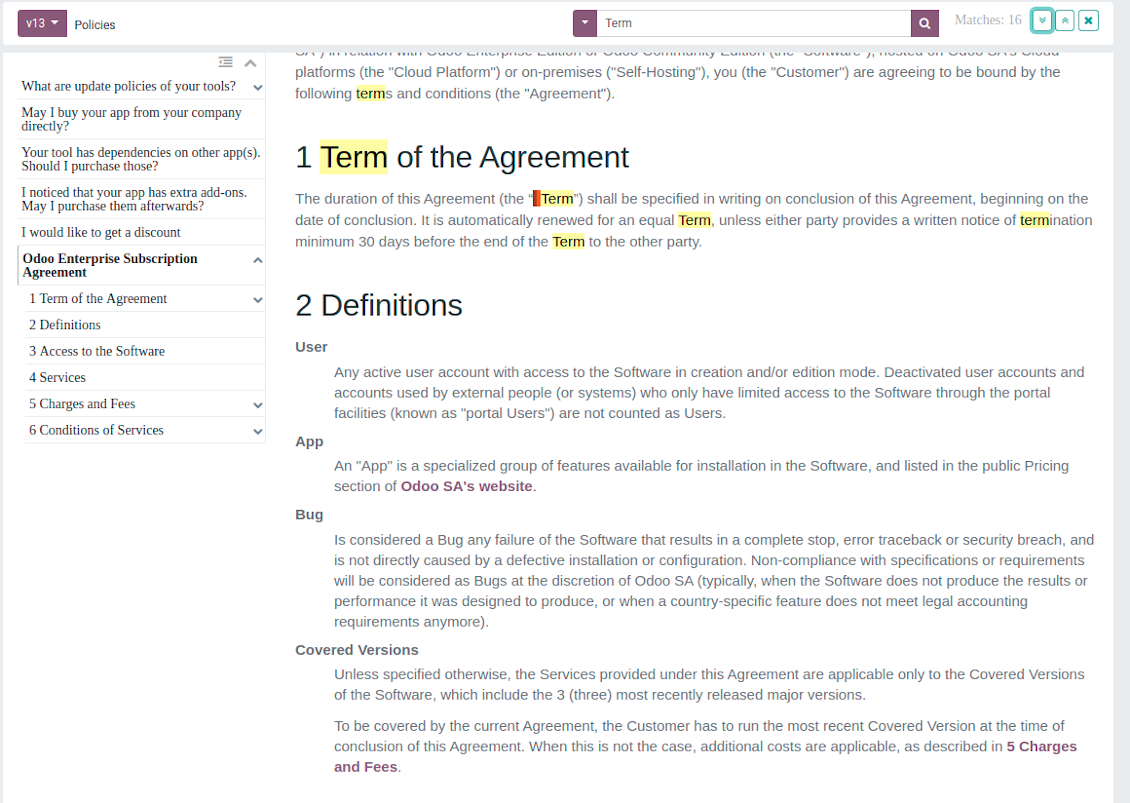
Inline search by documentation
Inline search by documentation
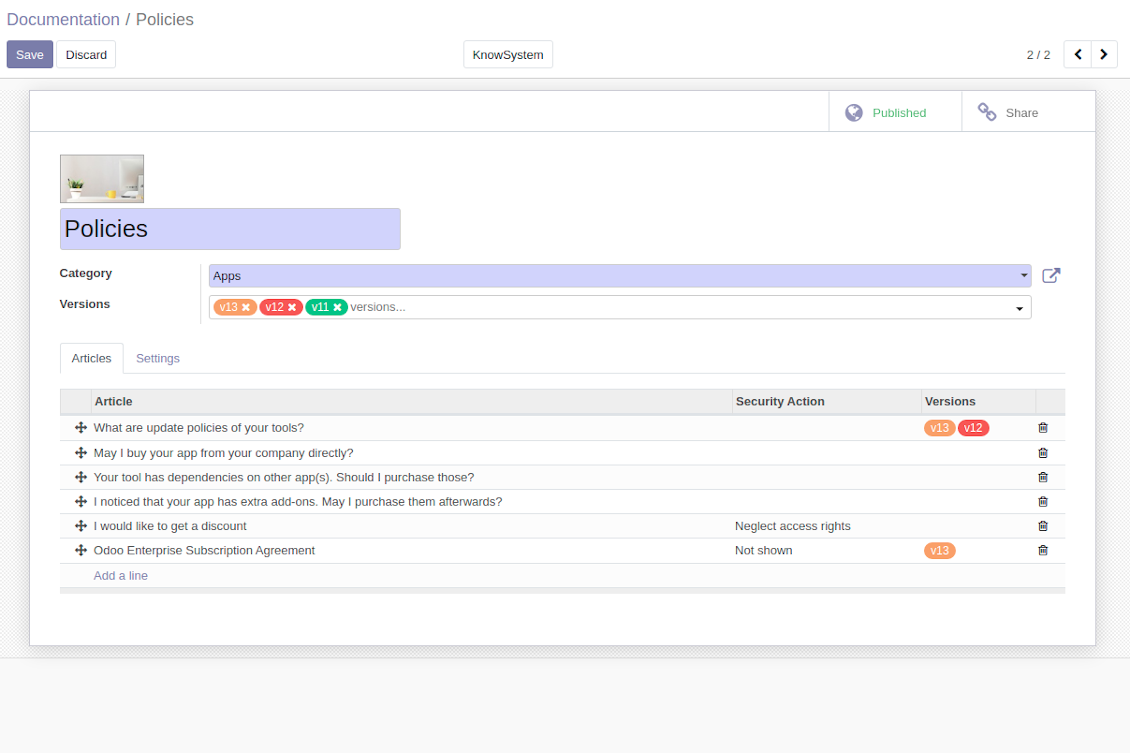
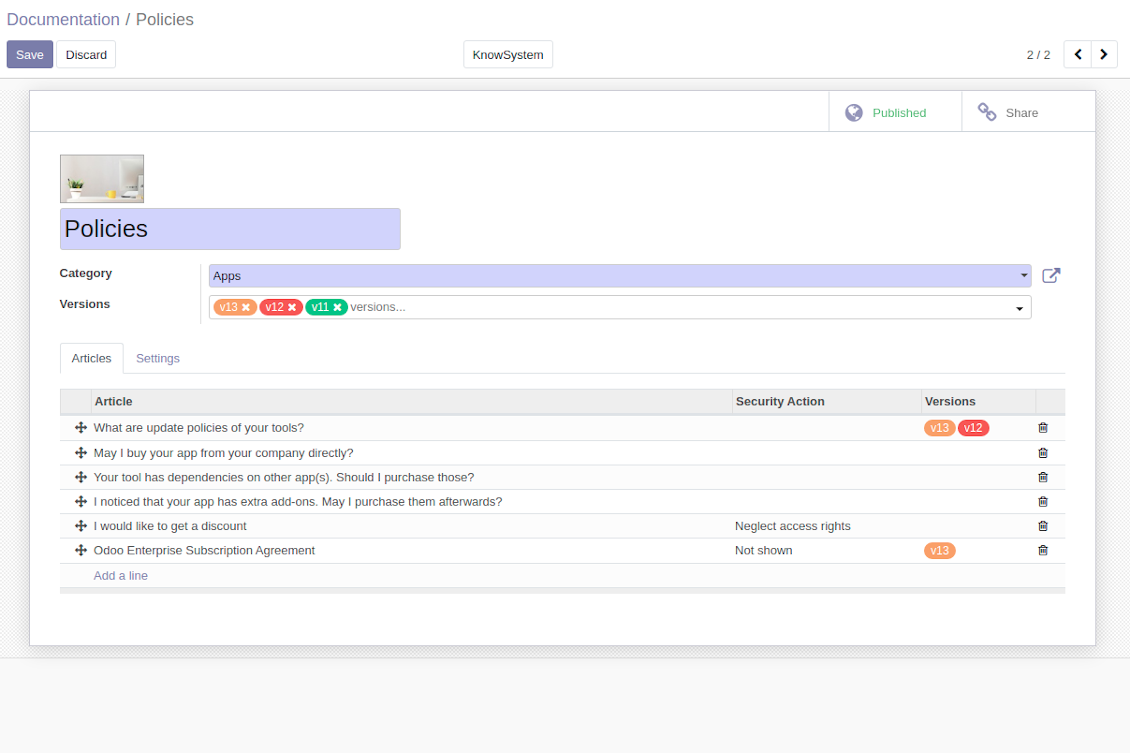
Compose articles for documentation
Compose articles for documentation
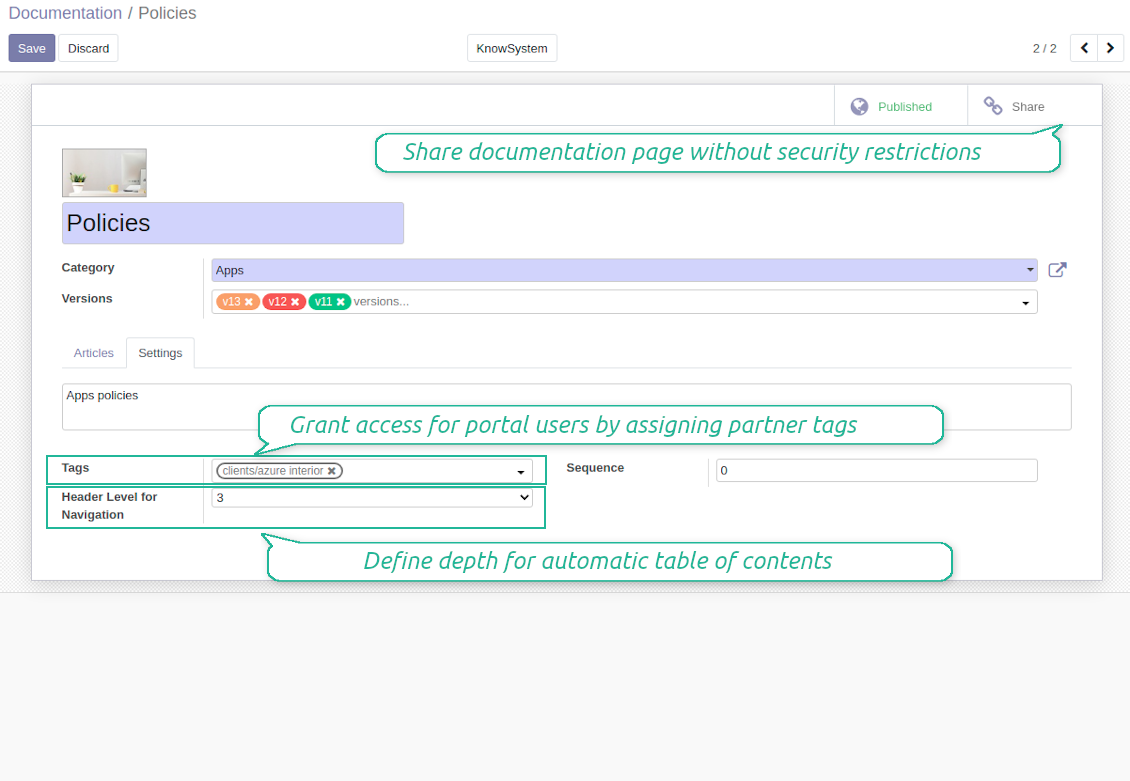
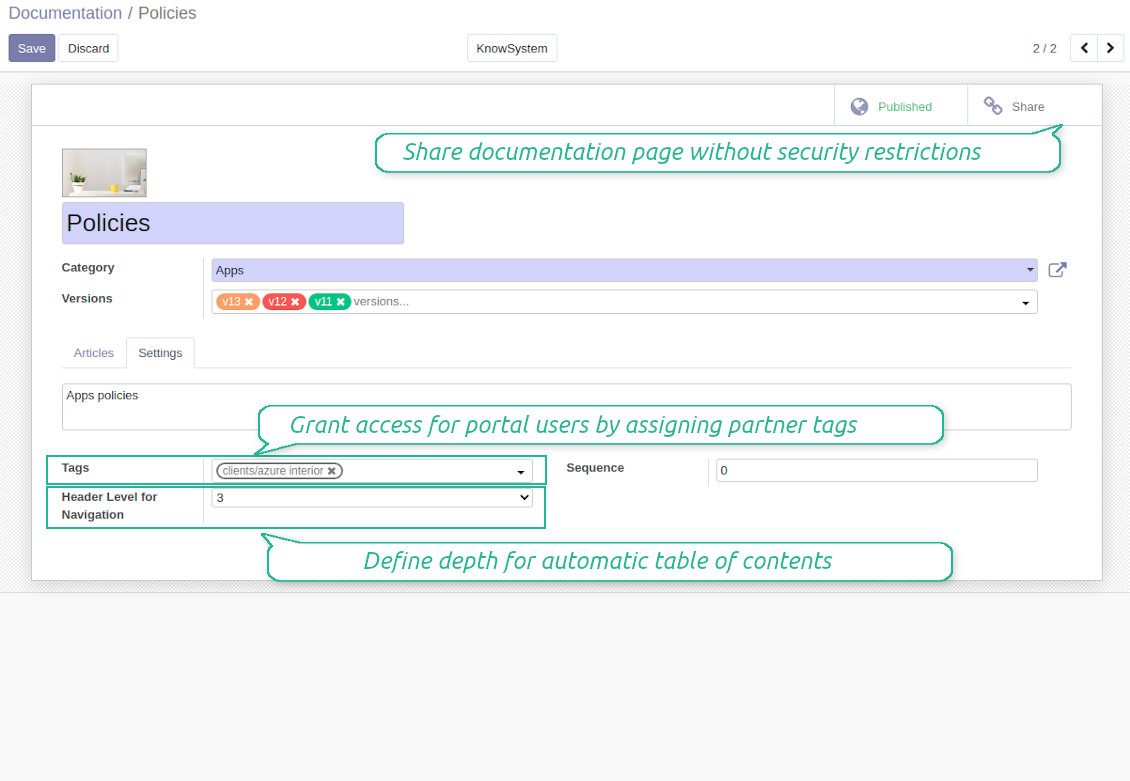
Documentation settings
Documentation settings
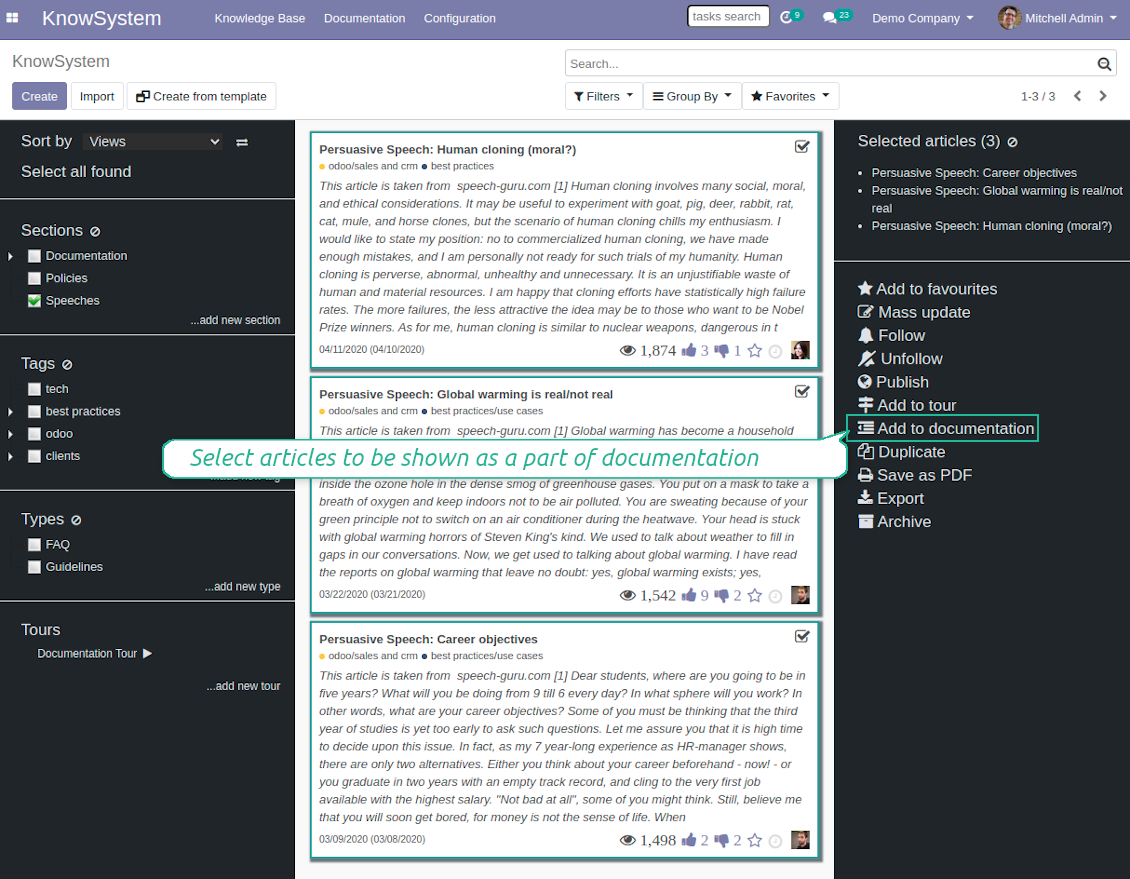
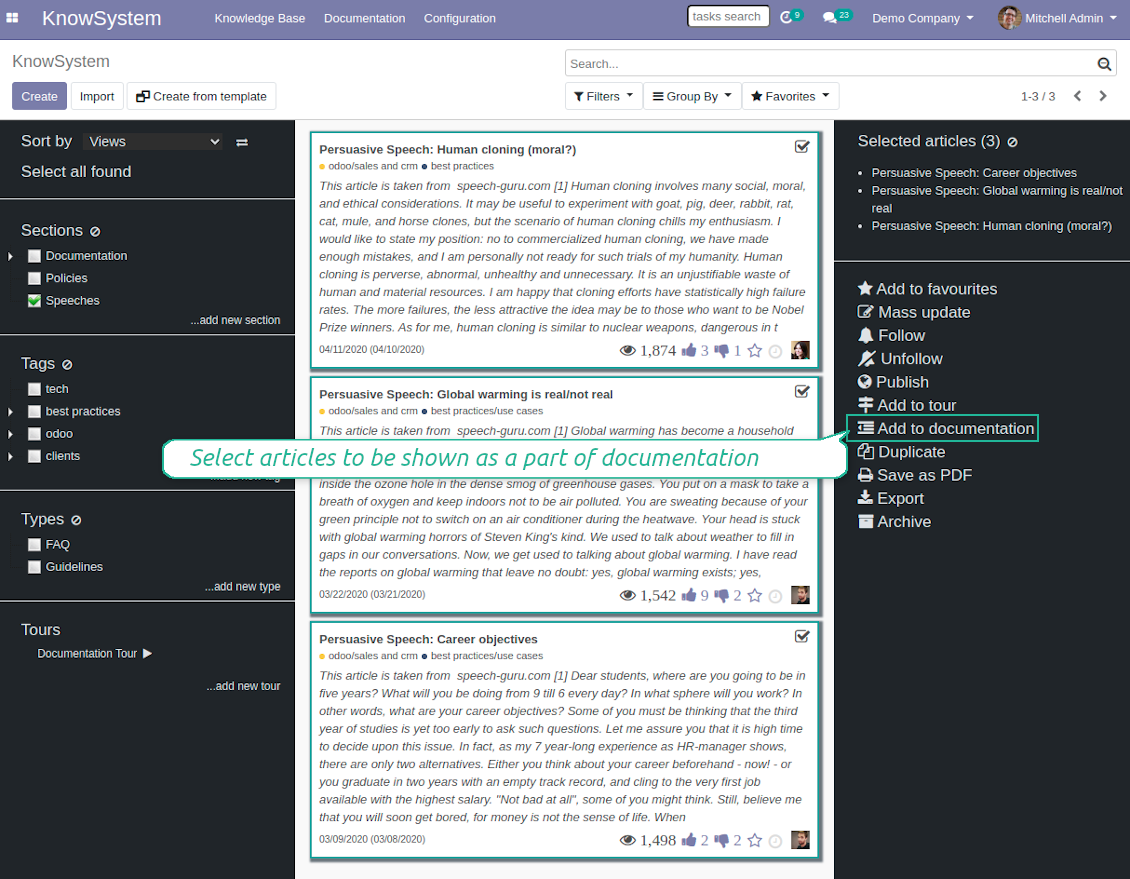
Add KnowSystem articles to documentation
Add KnowSystem articles to documentation
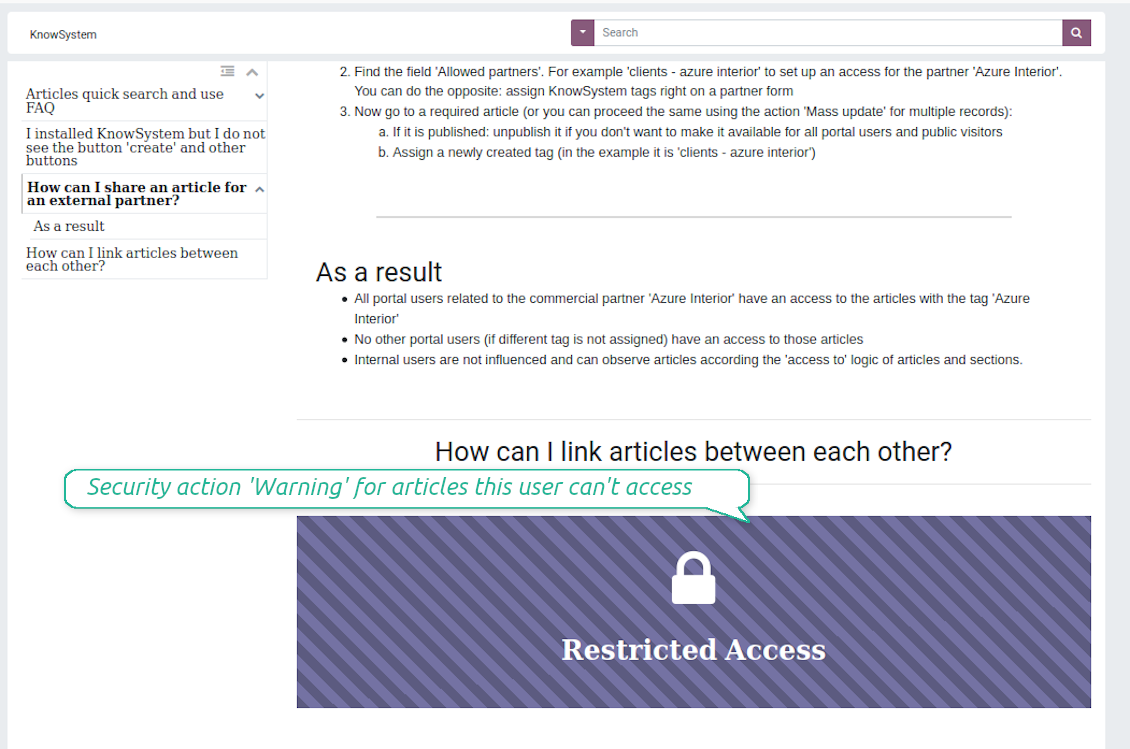
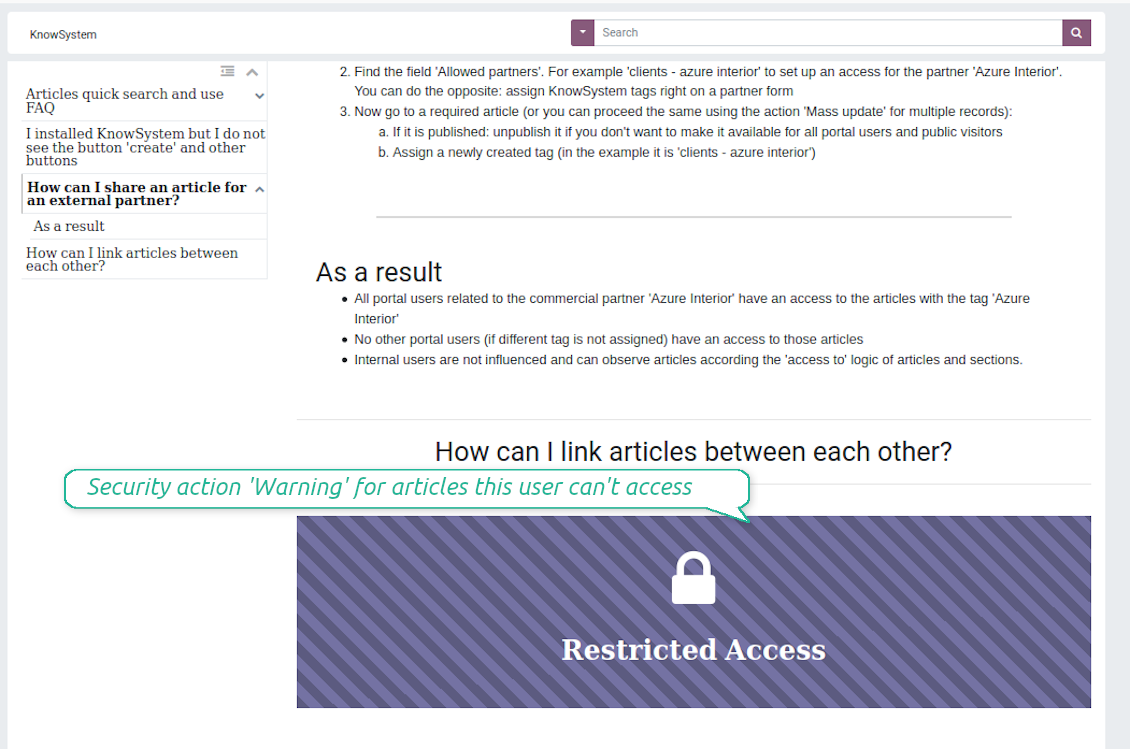
Security: optionally show warning if no access possible
Security: optionally show warning if no access possible
Create learning tours
How to configure a learning tour
- Turn on the option 'Tours'
- Go to KnowSystem interface and select articles to be included into a tour
- Press the mass action button 'Add to tour' and select or create a tour. Press save
- Re-order articles in a consistent order
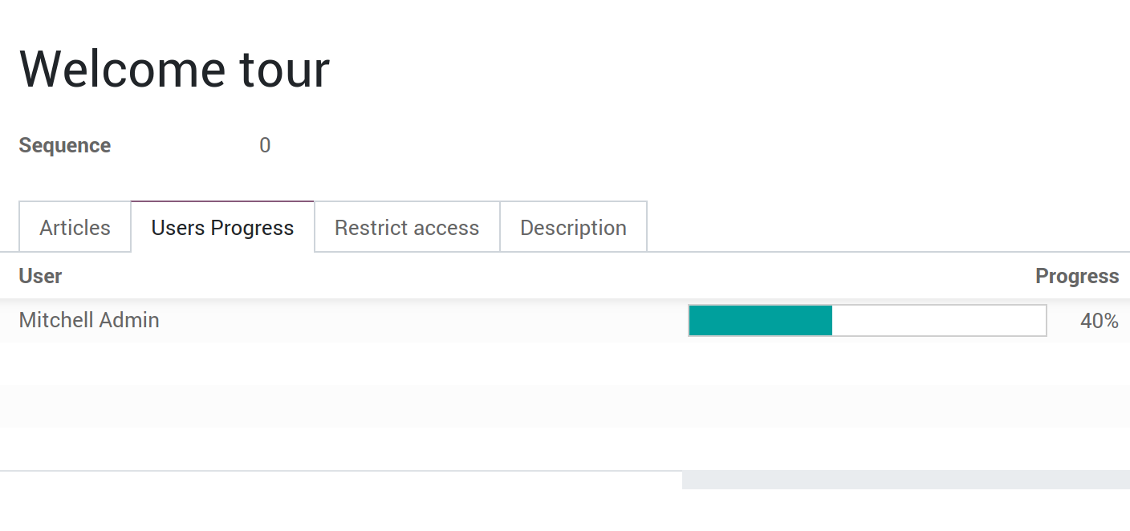
- Define groups of users who should go through a tour on the tab 'Restrict access'
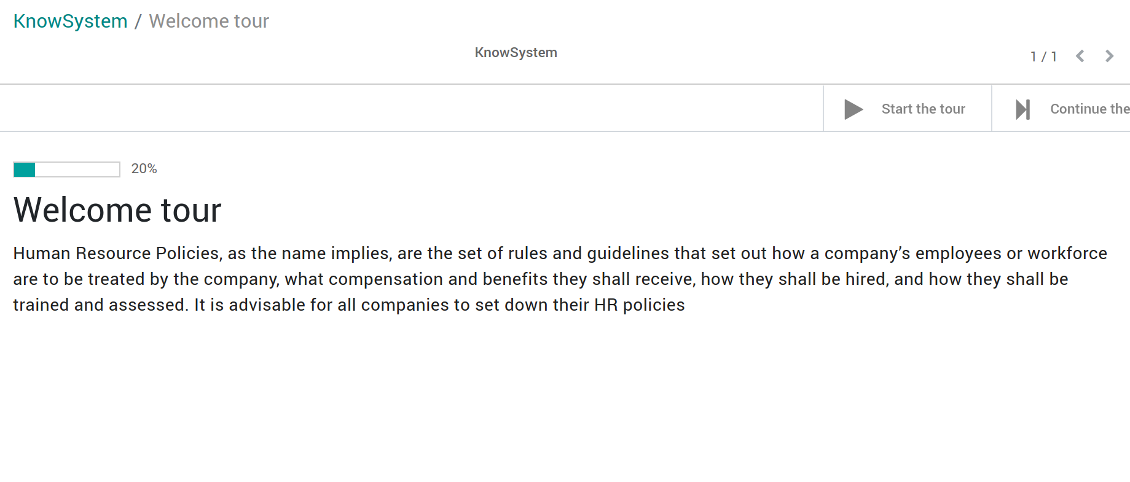
- Now users can see and launch tours right from the KnowSystem interface (the right navigation panel)
Capturas de pantalla
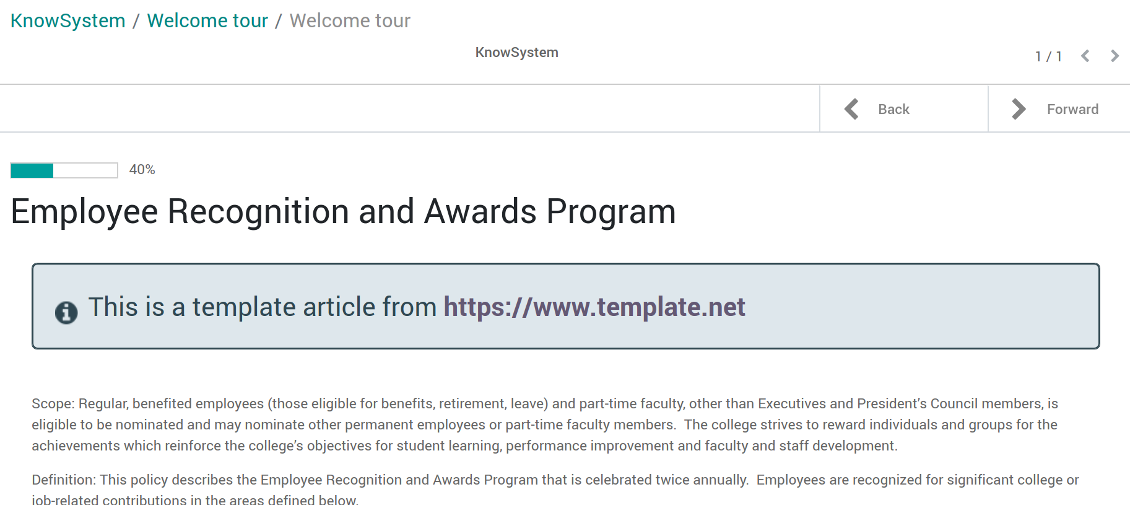
Article in a learning tour
Control tour progress by users
KnowSystem tour welcome page
Multilingual knowledge base
How to make an article available for a few languages
- Install the optional add-on 'KnowSystem: Multi Languages'
- Change your user language for a needed one
- Update this article
- Now it is available in both source and a current language
Make sure you really require a few languages. In that case you almost double the work of KnowSystem editors. All articles should be kept updated in all Odoo languages.
Knowledge base for any industry and business
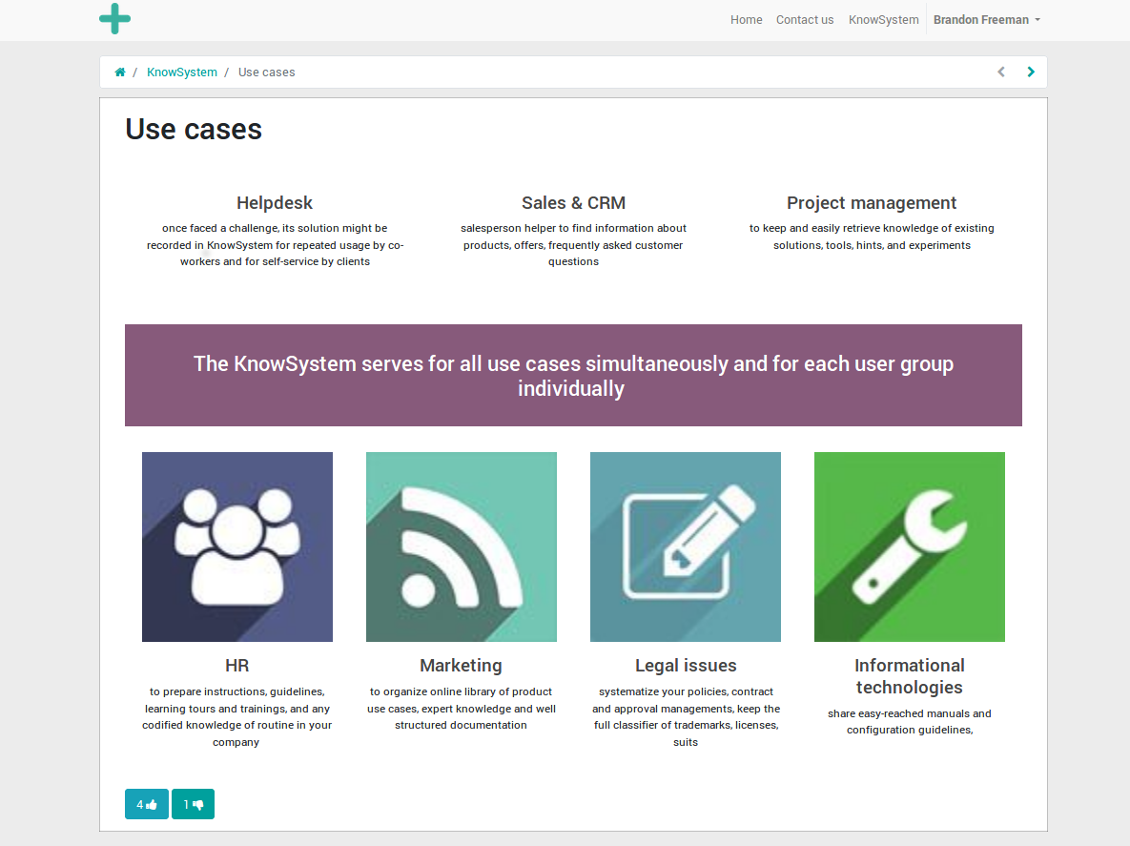
Typical use cases
- Helpdesk: once faced a challenge, its solution might be recorded in KnowSystem for repeated usage by co-workers and for self-service by clients
- Sales & CRM: salesperson helper to find information about products, offers, frequently asked customer questions
- Project management: to keep and easily retrieve knowledge of existing solutions, tools, hints, and experiments
- HR: to prepare instructions, guidelines, learning tours and trainings, and any codified knowledge of routine in your company
- Marketing: to organize online library of product use cases, expert knowledge and well structured documentation
- Legal issues: systematize your policies, contract and approval managements, keep the full classifier of trademarks, licenses
- Informational technologies: share easy-reached manuals and configuration guidelines
Preguntas frecuentes sobre KnowSystem: Knowledge Base System Odoo v.12
No veo ninguna diferencia entre los textos de las revisiones.
Las revisiones registran no solo cambios de texto, sino también cualquier actualización de estilos (técnicamente, cuando cambia el código fuente HTML de un artículo). Algunas no se aprecian a primera vista (p. ej. el tamaño de fuente de una sola palabra). Otras pueden ser drásticas. Sin embargo, cualquier secuencia Edit > cambiar algo en un artículo > Save da lugar a una nueva revisión.
¿Puedo añadir un vídeo de YouTube/ Vimeo / Dailymotion / Youku en un artículo?
Sí, puede incrustar vídeos de esos servicios en artículos desde el backend de Odoo y desde el creador de sitios. Para ello añada un bloque con una imagen > pulse la imagen > seleccione ‘Vídeo’ > introduzca la URL del medio.
Tenga en cuenta: esos vídeos se incluyen como iframes, y algunos navegadores pueden bloquear la reproducción hasta que el usuario lo permita explícitamente.
¿Cómo hacer visible una sección en el sitio web?
En KnowSystem, una sección se hace visible en un sitio web si está publicada y contiene al menos un artículo. Aunque tenga subsecciones, no se verá si no hay ningún artículo en la propia sección. Así se evitan secciones vacías y el portal KnowSystem resulta claro y fácil de recorrer. Para que la sección se muestre en el sitio, añada un artículo introductorio o general que describa o enumere brevemente los artículos de las subsecciones.
¿Cómo puedo compartir un artículo con un contacto externo?
Clic derecho en cualquier etiqueta del panel de navegación izquierdo - Create
Busque el campo 'Allowed partners'. Por ejemplo 'clients - azure interior' para dar acceso al contacto 'Azure Interior'. También puede hacer lo contrario: asignar etiquetas KnowSystem en el formulario del contacto
Vaya ahora al artículo necesario (o haga lo mismo con la acción 'Mass update' para varios registros):
Si está publicado: despublíquelo si no quiere que esté disponible para todos los usuarios del portal y visitantes públicos
Asigne la etiqueta recién creada (en el ejemplo es 'clients - azure interior')
Ahora:
Todos los usuarios del portal vinculados al contacto comercial 'Azure Interior' tienen acceso a los artículos con la etiqueta 'Azure Interior'
Ningún otro usuario del portal (si no se asigna otra etiqueta) tiene acceso a esos artículos
Los usuarios internos no se ven afectados y observan los artículos según la lógica 'access to' de artículos y secciones.
¿Podemos añadir el botón de selección de idioma para el cuerpo del artículo?
El botón 'translate' no se añade al cuerpo del artículo a propósito por el complemento opcional 'KnowSystem: Multi Languages'. El HTML es muy difícil de traducir en el cuerpo emergente simple que asume el botón. Habría muy poco texto que traducir y muchas partes HTML (que el traductor también podría romper).
Por eso, para redactar un artículo en un idioma concreto, inicie sesión con un usuario de ese idioma. Puede ser otro usuario, o puede cambiar temporalmente las preferencias del usuario actual. Después, cualquier actualización del cuerpo del artículo se hará en ese idioma.
También puede usar el botón 'Copy from another translation' bajo el cuerpo del artículo, que permite obtener en cualquier momento el contenido desde otro idioma (útil si el artículo se ha actualizado de forma importante en uno de los idiomas).
Cómo incrustar otra página web en un artículo
Para ello puede usar iframes. Pase el artículo al editor de código HTML en bruto e inserte, por ejemplo, <iframe src="https://faotools.com/" style="width:100%;min-height:600px;"> </iframe>.
He instalado KnowSystem, pero no veo el botón 'create' ni los demás botones
Lo más probable es que no haya concedido derechos de KnowSystem a su usuario. Elija el rol 'KnowSystem Editor' o 'KnowSystem Admin' y actualice la página. Los botones de control deberían mostrarse.
¿Puedo mostrar un recorrido de aprendizaje concreto solo a usuarios elegidos?
Sí, aplicando un grupo de usuarios (p. ej. 'Sales Manager') que deba seguir este recorrido. Si el usuario pertenece a ese grupo, verá el recorrido. Si no, no se mostrará. Funciona igual que los derechos de seguridad de los artículos y secciones de KnowSystem.
Tenga en cuenta que si un recorrido no tiene grupos asignados, es 'global' y visible para todos.
¿Cómo cambio el pie y la cabecera al imprimir artículos?
La cabecera y el pie de los PDF de artículos se toman de los diseños de la compañía. Consulte Settings > General Settings > la sección Business Documents. Ahí define la plantilla de compañía que se usa para todos los tipos de documento, incluidas facturas, pedidos de venta, etc., y también para los artículos. Este enfoque de Odoo trata pie y cabecera como estilo general de la compañía, no como atributo de impresiones concretas.
¿Cómo puedo enlazar artículos entre sí?
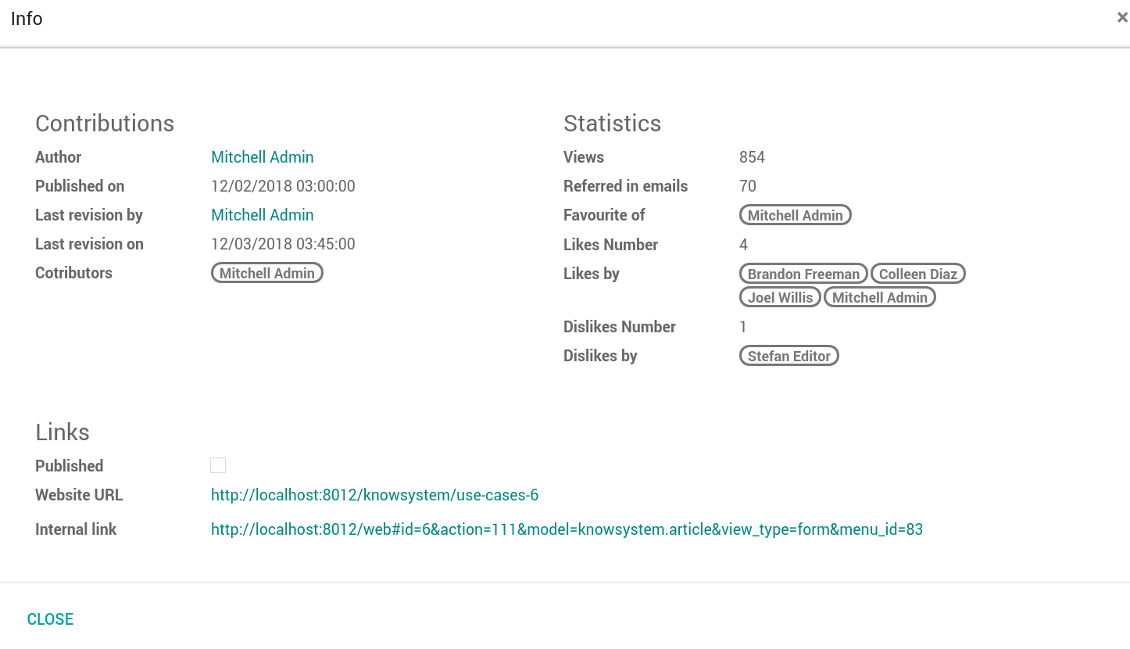
Cada artículo tiene URL internas (backend) y de sitio web (si está instalada la opción 'KnowSystem: Website and Portal'). Pulse el botón 'Info' en el formulario del artículo para ver las direcciones web de este registro. Puede insertar cualquiera en el cuerpo del artículo como hipervínculo.
¿Puedo cambiar el código fuente HTML de un artículo?
Sí: active debug assets (en la pantalla de resumen de ajustes) y vuelva al artículo actual. En modo edición verá el icono '</>'. Púlselo para ver y editar el HTML y los estilos.
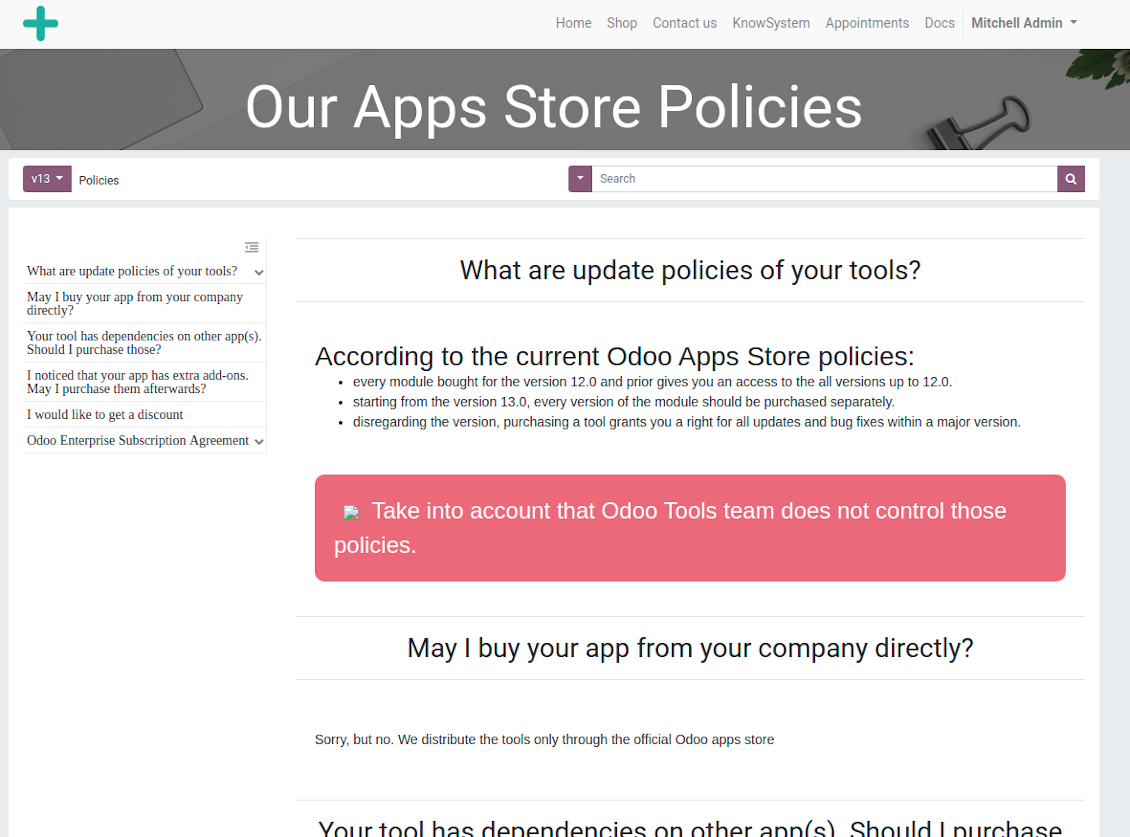
Cuales son las políticas de actualización de sus herramientas?
Según las políticas actuales de Odoo Apps Store:
- Cada módulo comprado para la versión 12.0 o anterior da acceso a todas las versiones hasta 12.0.
- A partir de la version 13.0, cada version del módulo se compra por separado.
- Sea cual sea la version, la compra da derecho a todas las actualizaciones y correcciones dentro de una version mayor.
El equipo de faOtools no controla esas políticas. Para cualquier duda, contacte directamente con los representantes de Odoo Apps Store.
Cómo instalo su aplicación en Odoo.sh?
La via mas directa es el flujo integrado de la tienda Odoo:
1. Abra la página del módulo y pulse Deploy on odoo.sh
2. Será redirigido a GitHub. Inicie sesión y pulse Create a new repo o use uno existente. El repositorio debe ser privado. No esta permitido publicar las apps con licencia OPL-1. Cree un repo nuevo para el proyecto Odoo.sh si hace falta
3. Luego, en odoo.sh, pulse Deploy, confirme y pulse Continue. Se inicia la instalación.
Estos pasos instalan la app en la rama de producción. Para otras ramas o para actualizar:
1. Descargue el código fuente de la tienda Odoo
2. Haga commit del módulo en el repositorio GitHub. Ninguna carpeta/archivo de la app debe estar en .gitignore. Los repos creados por odoo.sh a veces ignoran rutas importantes (p. ej. /lib). Suba todos los directorios y archivos del módulo
3. Despliegue la rama destino del proyecto odoo.sh o espere la compilacion automática si asi esta configurado.
Cómo instalo su aplicación en mi propio servidor?
2. Reinicie el servidor Odoo;
3. Active el modo desarrollador (ajustes tecnicos);
4. Actualice la lista de aplicaciones (menú Aplicaciones);
5. Encuentre la app y pulse Activate/Install;
6. Siga las pautas de la página de la app si existen.
Su app tiene complementos extra. Puedo comprarlos después?
Si. Odoo anade automáticamente las dependencias al carrito: excluya las herramientas ya compradas para no pagar dos veces.
Desplegue su app en Odoo.sh y veo un aviso/error en las pruebas
Un aviso rojo/naranja no afecta a las funciones de la app. A veces nuestros módulos no pasan las pruebas automáticas estándar porque estas asumen un comportamiento que choca con los objetivos de la app. Por ejemplo, cambiamos el cálculo del precio y las pruebas de Odoo comparan el precio final con el algoritmo estándar.
Compruebe primero las funciones de la base desplegada. Funciona todo correctamente?
Si aun cree que el aviso afecta a funciones reales, contactenos y envíe los registros completos de instalación y la lista completa de módulos desplegados (nucleo y de terceros).
Puedo comprar su aplicación directamente a su empresa?
No, solo distribuimos las herramientas a través de la tienda oficial de aplicaciones Odoo.
Quiero un descuento
Lamentablemente, no tenemos medios tecnicos para ofrecer precios individuales.
Puedo instalar la app en mi base Odoo Online (SaaS)?
No, las apps de terceros no se pueden usar en Odoo Online. Odoo SaaS bloquea esa posibilidad.
Su herramienta depende de otras apps. Debo comprarlas?
Si, la herramienta necesita todos los módulos marcados como dependencias. El precio de la página de la app ya las incluye.
Cual es el precio del módulo en dolares estadounidenses? Por que cambio?
El precio de nuestros módulos esta en euros. La tienda Odoo convierte a otras monedas según su tipo de cambio interno. Por eso el precio en dolares estadounidenses puede cambiar cuando se actualiza el tipo.
La redacción de la aplicación y el sitio web en idiomas distintos del inglés cuenta con asistencia de IA y se ajusta a las traducciones oficiales de Odoo. Si detecta un error, enviar un ticket de traducción y lo corregiremos.
Notificación de errores
Si encuentra errores o comportamiento inconsistente, no dude en contactarnos. Garantizamos proporcionar correcciones dentro de los 60 días posteriores a la compra y estamos muy interesados en mejorar nuestras herramientas incluso después de este período.
No necesita un número de teléfono ni una tarjeta de crédito para contactarnos. Sólo debes pasar un breve registro por correo electrónico, que no lleva más de 30 segundos.
Incluya tantos detalles como sea posible en su solicitud: capturas de pantalla, registros del servidor Odoo, una descripción completa de como reproducir el problema, etc. Por lo general, se necesitan varios días laborables para preparar un plan de trabajo para un problema (si se confirma un error) o proporcionarle indicaciones sobre lo que se debe hacer (en caso contrario).
Solicitudes de funciones públicas e ideas de módulos (desarrollo gratuito)
Estamos muy motivados para mejorar nuestras herramientas y agradeceríamos cualquier comentario. Si sus requisitos son de uso público y podrían implementarse de manera eficiente, el equipo los incluirá en nuestra lista de tareas pendientes.
Esta lista de tareas pendientes se procesa periódicamente y no implica cargos adicionales. Aunque no podemos prometer plazos ni diseño final, podría ser una buena manera de conseguir las funciones deseadas sin inversiones ni riesgos.
No necesita un número de teléfono ni una tarjeta de crédito para contactarnos. Sólo debes pasar un breve registro por correo electrónico, que no lleva más de 30 segundos.

La herramienta para organizar adjuntos de Odoo en carpetas y sincronizar con Google Drive, OneDrive/SharePoint, Nextcloud/ownCloud, Dropbox, Amazon S3, Box y NAS. Gestor de archivos. DMS
398€
La herramienta para sincronizar adjuntos de Odoo con OneDrive en ambos sentidos
487€
La herramienta para sincronizar adjuntos de Odoo con Google Drive en ambos sentidos
487€
La herramienta para guardar contraseñas en Odoo de forma segura y compartida. Bóvedas

La herramienta para fijar objetivos KPI y controlar su cumplimiento por periodos. Tableros. Graficos

La herramienta para servicios por cita, de la reserva a ventas y reseñas
398€
La herramienta para gestionar Odoo desde chats de IA via MCP. Claude. Cualquier IA con MCP.

La herramienta para reunir distintos eventos Odoo en unos supercalendarios configurables

La herramienta para traducir las URL de las páginas del sitio Odoo
38€