KnowSystem: Knowledge Base System v.12
The tool to build deep and structured knowledge base for internal and external use. Knowledge System. KMS
- a core of knowledge management. It might be used stand-alone as a complete internal knowledge base system. Seu preço é 398€.
- an optional module, which let you publish articles to website, share them with portal users, and use website builder to update articles. The features assumed by this add-on are marked by the icon . Seu preço é 40€.
- an optional extension to KnowSystem: Website and Portal to design website documentation pages based on knowledge base articles. The features assumed by this add-on are marked by the icon . Read the full description on the related page. Seu preço é 60€.
- an optional module, which let you add and show custom fields for articles (backend). The features assumed by this add-on are marked by the icon . Seu preço é 48€.
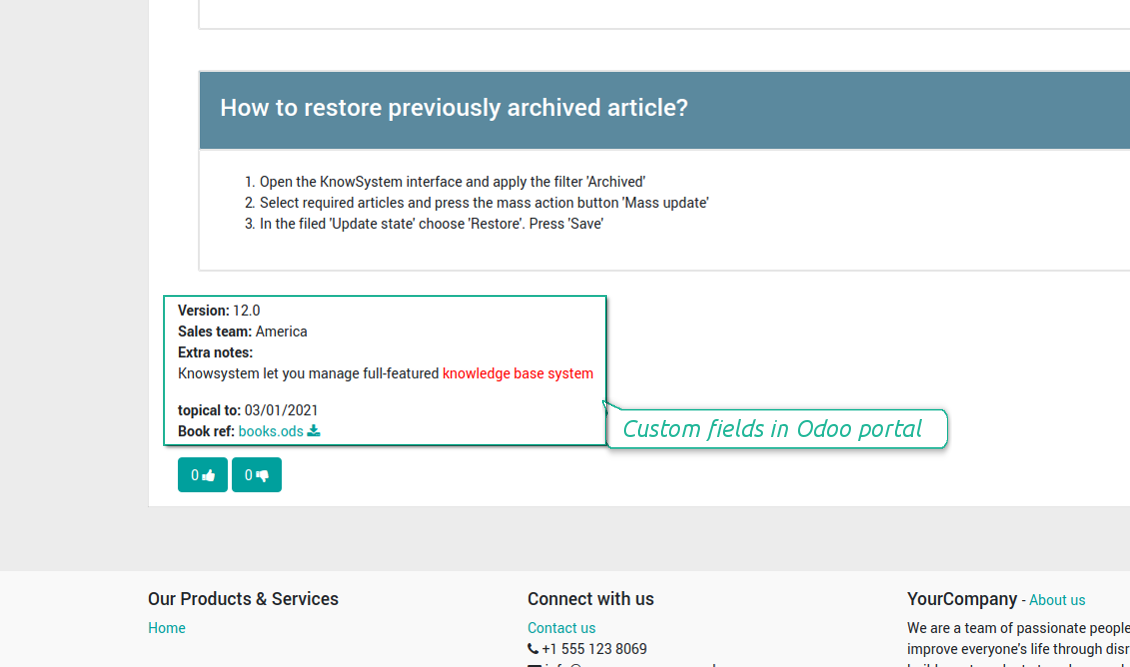
- an optional free module, which shows custom fields on website and portal pages (frontend). The features assumed by this add-on are also marked by the icon .
- an optional module, which let you translate articles, sections and tags for installed in Odoo languages. The features assumed by this add-on are marked by the icon . Seu preço é 10€.
Innovative single-view interface
From the same interface editors may create and update any knowledge-related documents, change articles in batch, set up security. Without a need for excess navigation.
Interface solutions
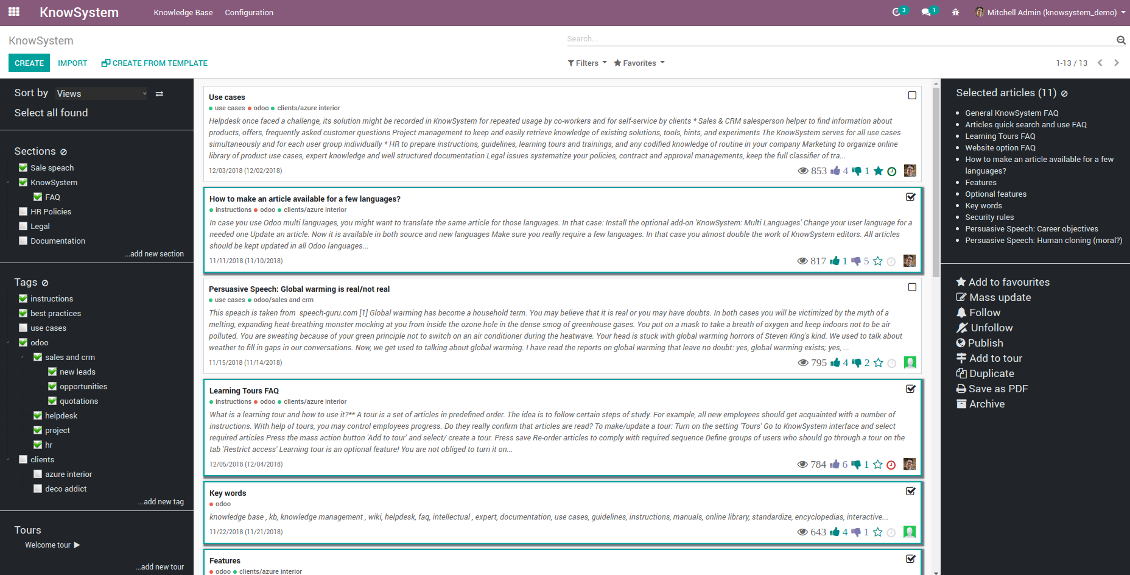
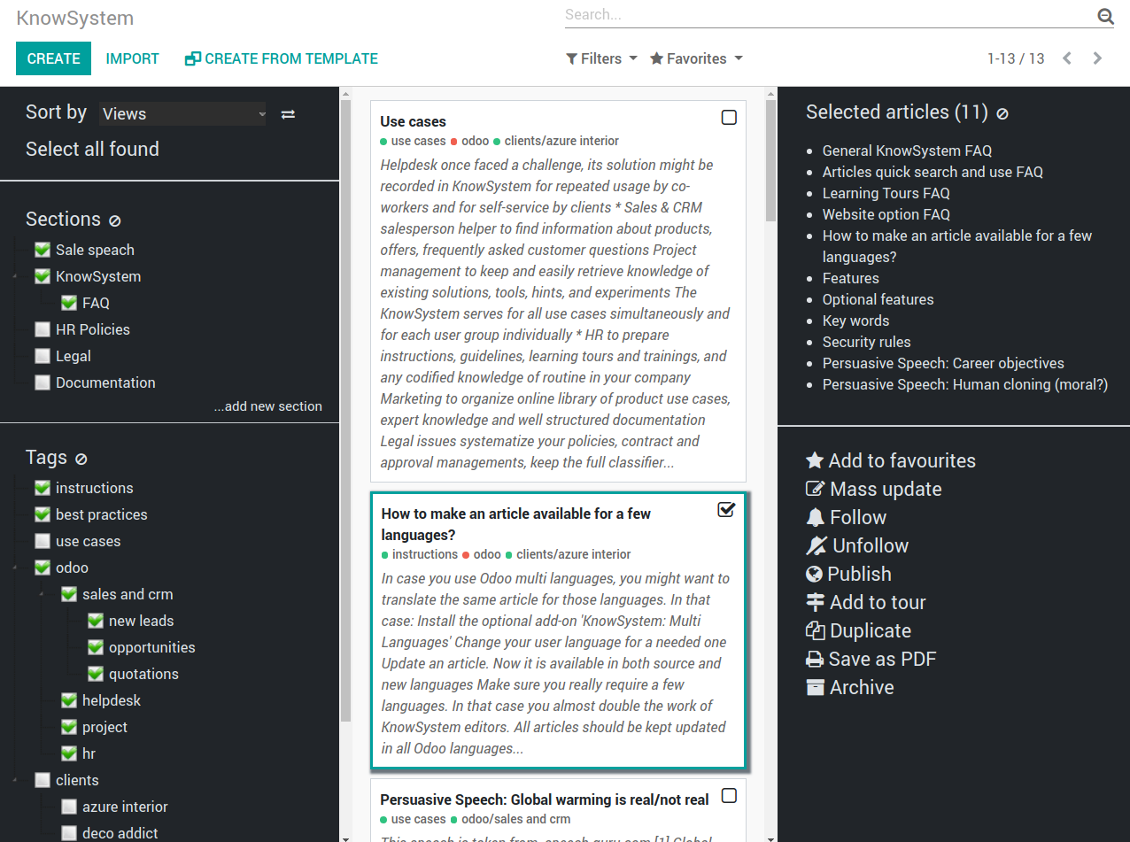
The KnowSystem interface consists of 3 key parts: the left navigation panel, the list of articles, and the right navigation panel (it is shown only if some articles are selected).
On the left navigation panel you may:
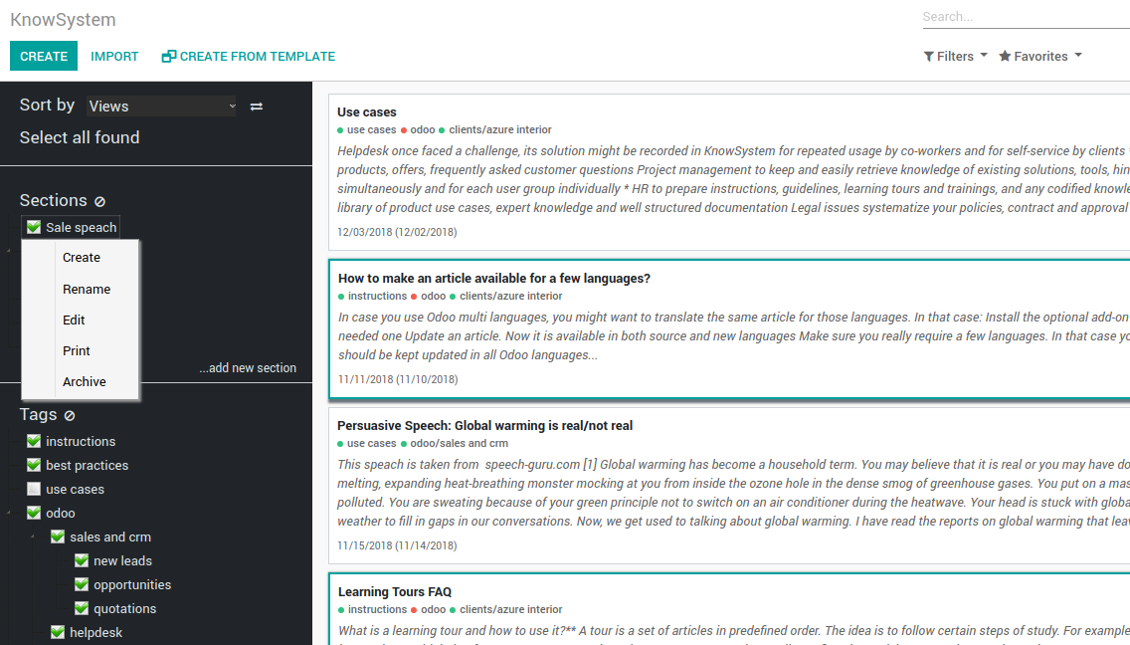
- Manage hierarchy of sections: prepare new (right mouse click - 'create'), update existing (right mouse click - edit), re-order any (drag and drop an item), archive sections. Select a few ones to filter articles. You may also print all articles related to this section as a single PDF file.
- In the same way manage hierarchy of tags
- Sort articles by number of views, a score of likes and dislikes, create or update dates, a section, an author
- Select all articles which are found according to chosen tags / sections and according to introduced searches / filters
- Launch a learning tour.
From the list of articles you see articles' name, indexed content (words without HTML style), dates of creation and last update, a number of views, likes, dislikes, author avatar. Here you may also add an article to favourite by pressing the 'star' icon.
Click on article body to open it in a full size (form view). Do not worry: chosen tags and sections as well as selected articles will be kept when you get back! Click on the top right check box to add an article for selection.
On the right navigation panel you observe selected articles and may proceed a mass action. Click on article name to remove it form selection.
On the top of the interface users also would find a standard Odoo omnibox. Type here to search by a title, content, an author, tags or a section.
Available mass actions
KnowSystem let users update an unlimited number of articles simultaneously:
- Assign new section
- Change or remove tags
- Print multiple articles as a single PDF
- Follow / unfollow discussions
- Publish / unpublish articles
- Export articles to an Excel table
- Archive or restore records
- Add articles to learning tours
- Mark knowledge items as favourite
- Duplicate articles.
Capturas de ecrã
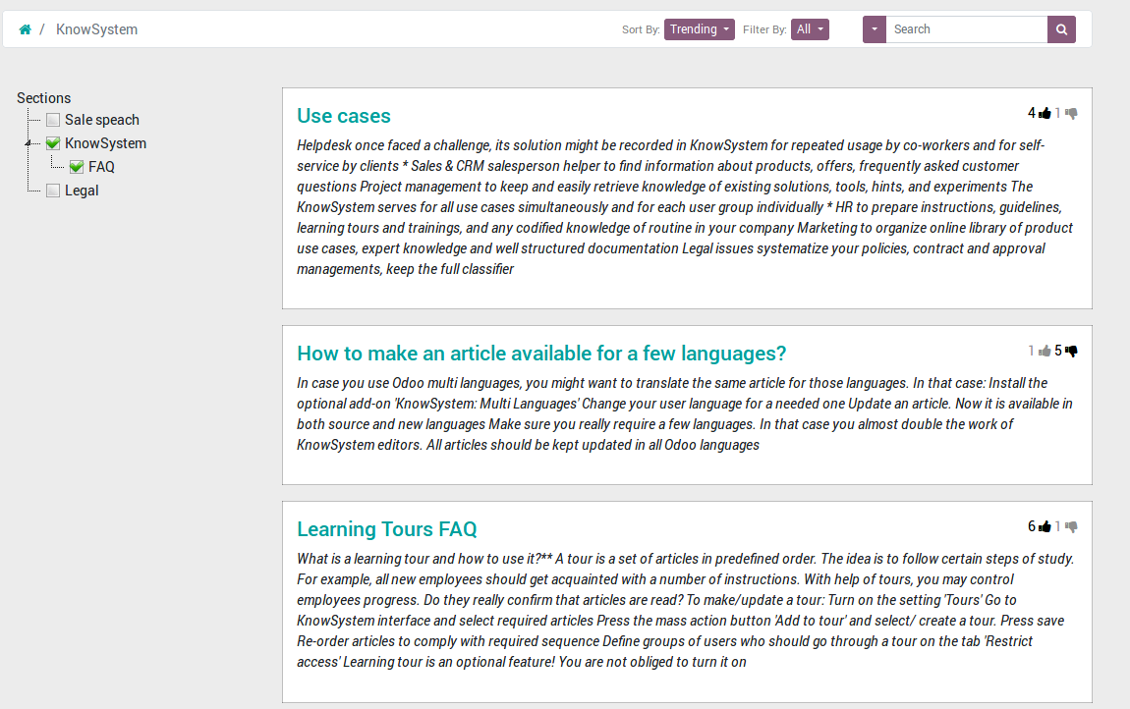
KnowSystem articles overview, search and mass actions
Single entry for knowledge management actions
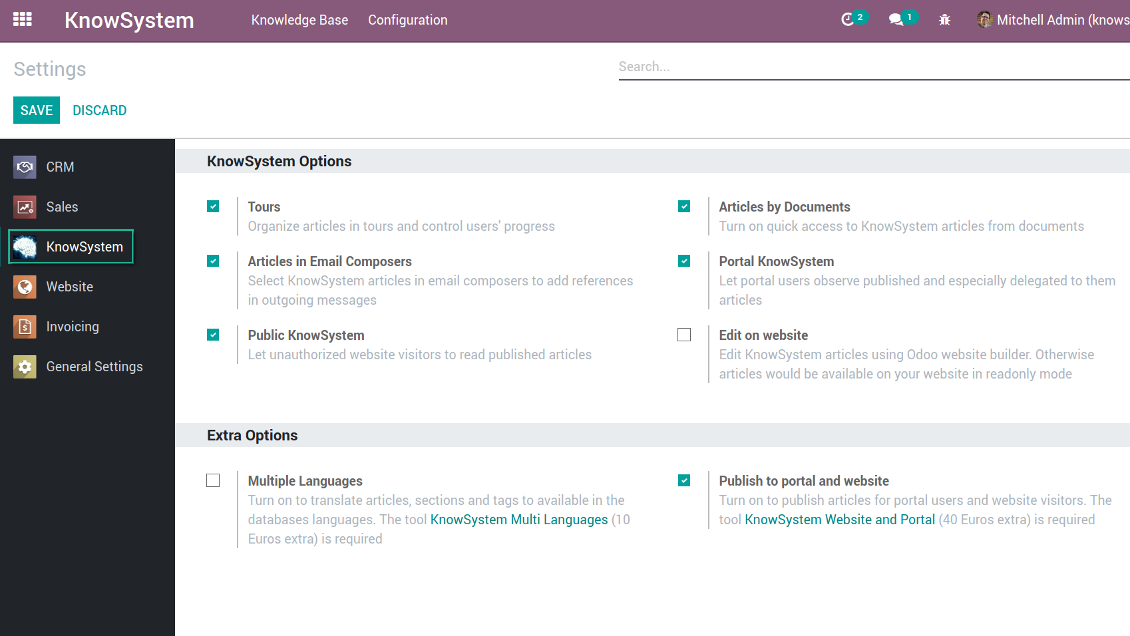
KnowSystem configuration
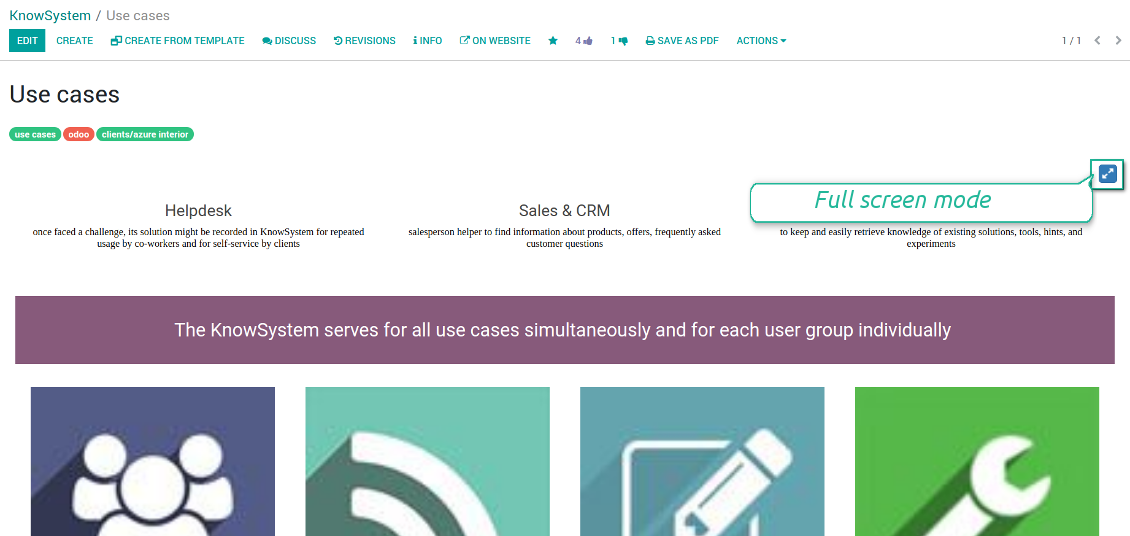
Article read mode
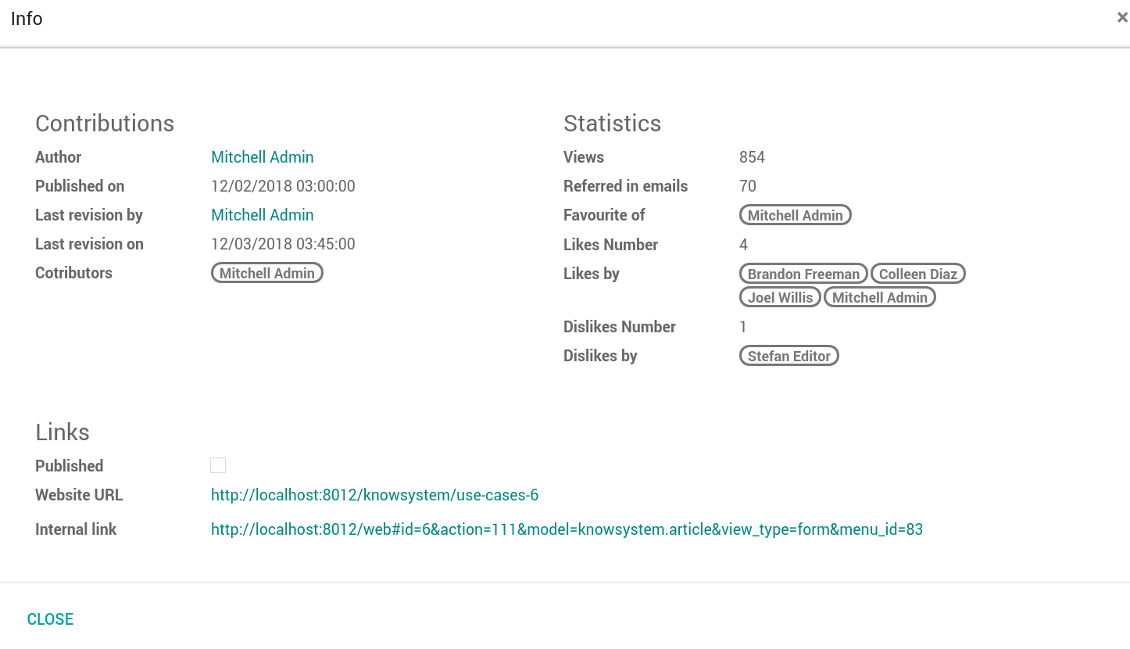
Article info and statistics
Article misc actions
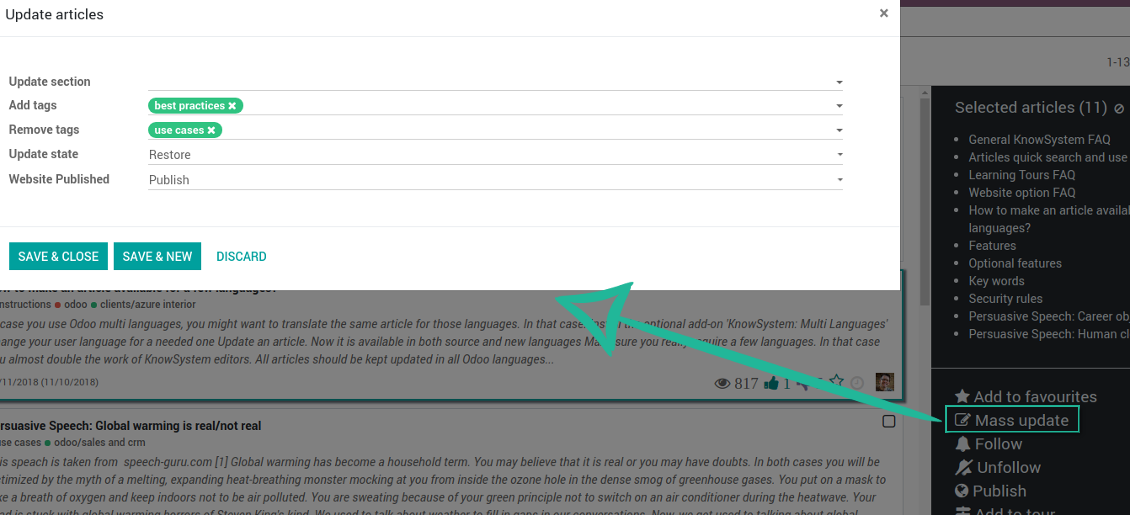
Mass actions for selected articles
Small screen KnowSystem interface
Fast, comfortable, and professional knowledge recording
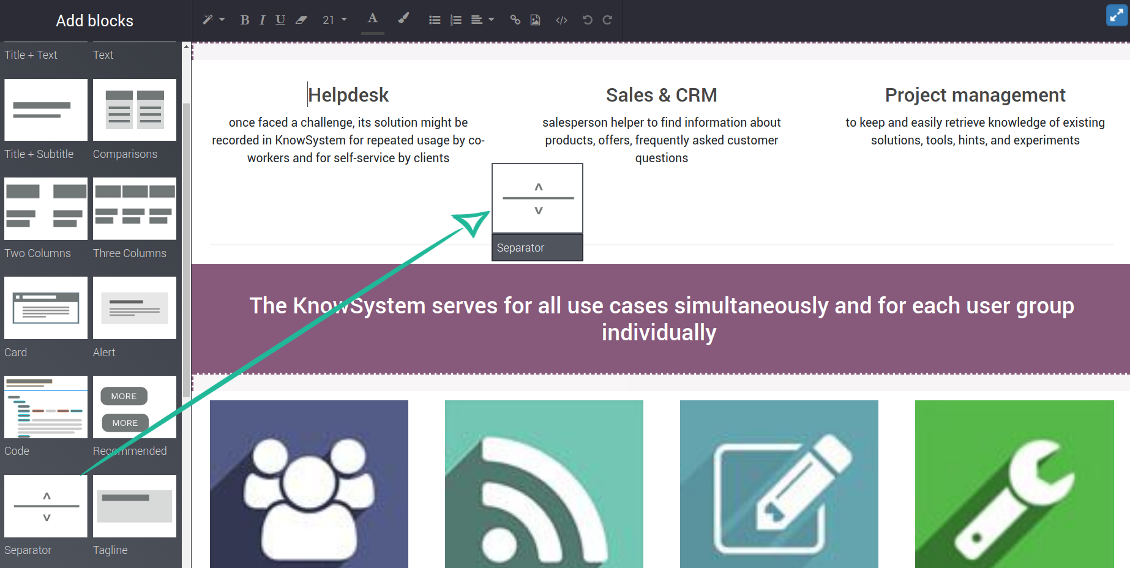
By using templates with pre-defined styles you may also speed knowledge generation up and standardize articles' appearance.
How to use the website builder for editing articles
KnowSystem provides you with a backend articles' builder, which is comfortable and safe to use. Odoo website builder is richer in features to prepare complex HTML structures. To edit articles through the website:
- Install the optional add-on 'KnowSystem Website and Portal' (the option 'Publish to portal and website')
- Turn on the setting 'Edit on website'
- Push the button 'Edit on website' on this article form
Be cautious: if you are going to print this article or add its contents to emails, website building blocks are not suitable. Their advanced styles contradict printing and composer layouts and would not be correctly shown. In such a case use the safer backend builder.
How to use article templates
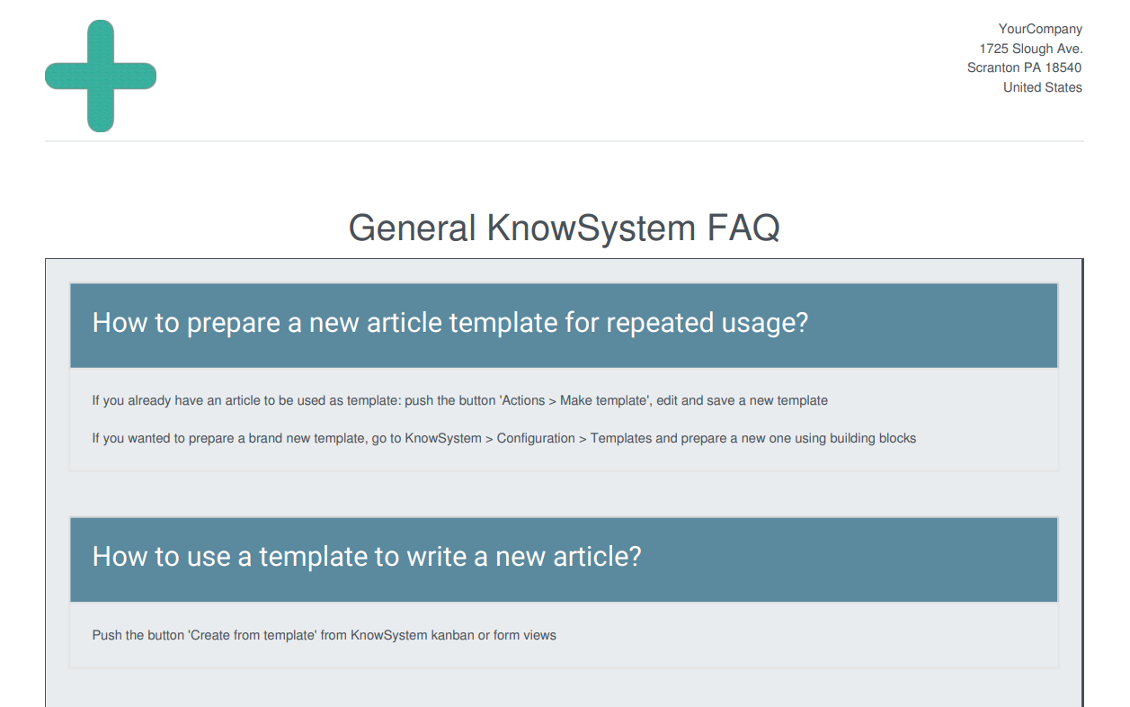
To prepare a new article template for repeated usage:
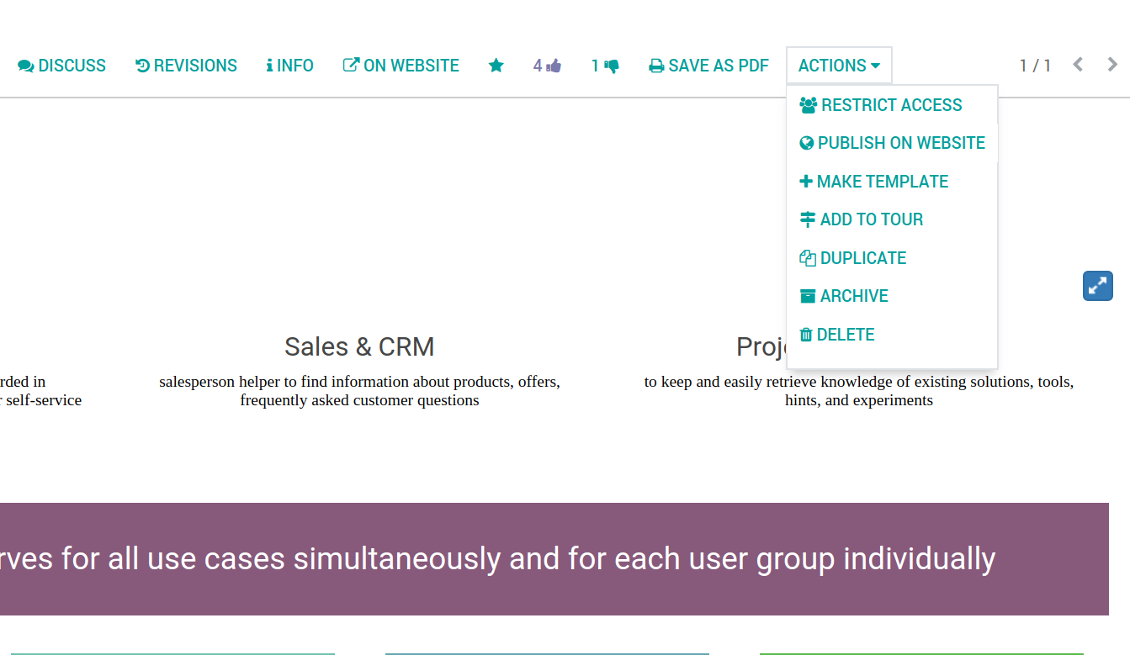
- If you already have an article to be used as template: push the button 'Actions > Make template', edit and save a new template.
- If you wanted to prepare a brand new template, go to KnowSystem > Configuration > Templates and prepare a new one using building blocks.
To use a template to write a new article:
- Push the button 'Create from template' from KnowSystem kanban or form views
- Select a required article template
- Push 'Create' and introduce changes to a new article.
Capturas de ecrã
Building blocks for knowledge base articles
Get benefit from your knowledge
How document types and articles are linked for a quick access
Experience is not general, usually it relates to specific issues. Knowledge used for customer communication differs from suppliers' negotiations. Frequently asked questions for draft and confirmed sale orders vary. KnowSystem let you structure your articles to apply them in a correct place and at right time. To that end:
- Turn on the setting 'Articles by Documents' (the option shows the top menu entry above any Odoo document) or 'Articles in Email Composers' (the option adds a quick link in a message composer editor for citing)
- Create a new tag (e.g. 'odoo / helpdesk'). In the table 'Applied to' use a required model (e.g. 'helpdesk ticket') or use it for all documents (the check box 'Apply to all documents').
- As advanced option you may apply additional filters: for example, to show articles only for 'new' tickets, not for 'in progress' ones. Use dynamic filters' constructor for that goal
- Assign this tag for required articles. For a few articles use the mass action 'Mass update'
- Now when you access a quick article search from a document or from an email composer, Odoo will calculate KnowSystem tags for this document. That's why by default users would see only articles suitable for a current document. Simultaneously, they might always change tags to use other knowledge base data.
How to overview articles which might be useful for this document
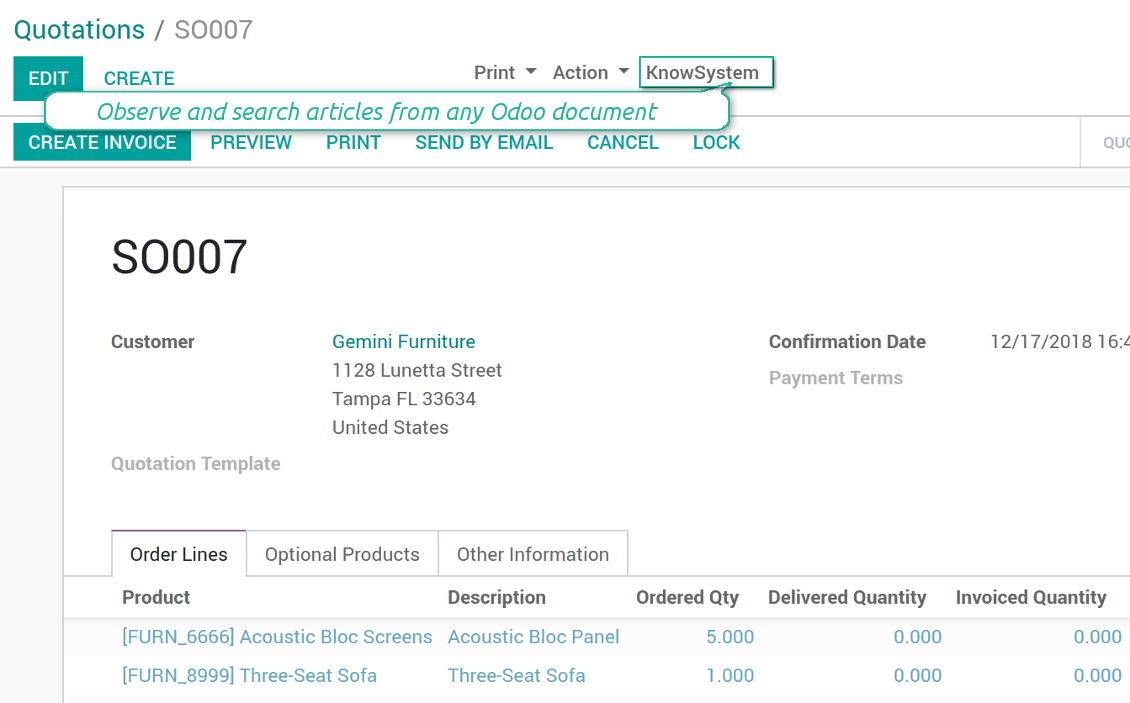
As soon as you turned on the option 'Articles by Documents', on the top of each Odoo object form view there would be a quick link 'KnowSystem'.
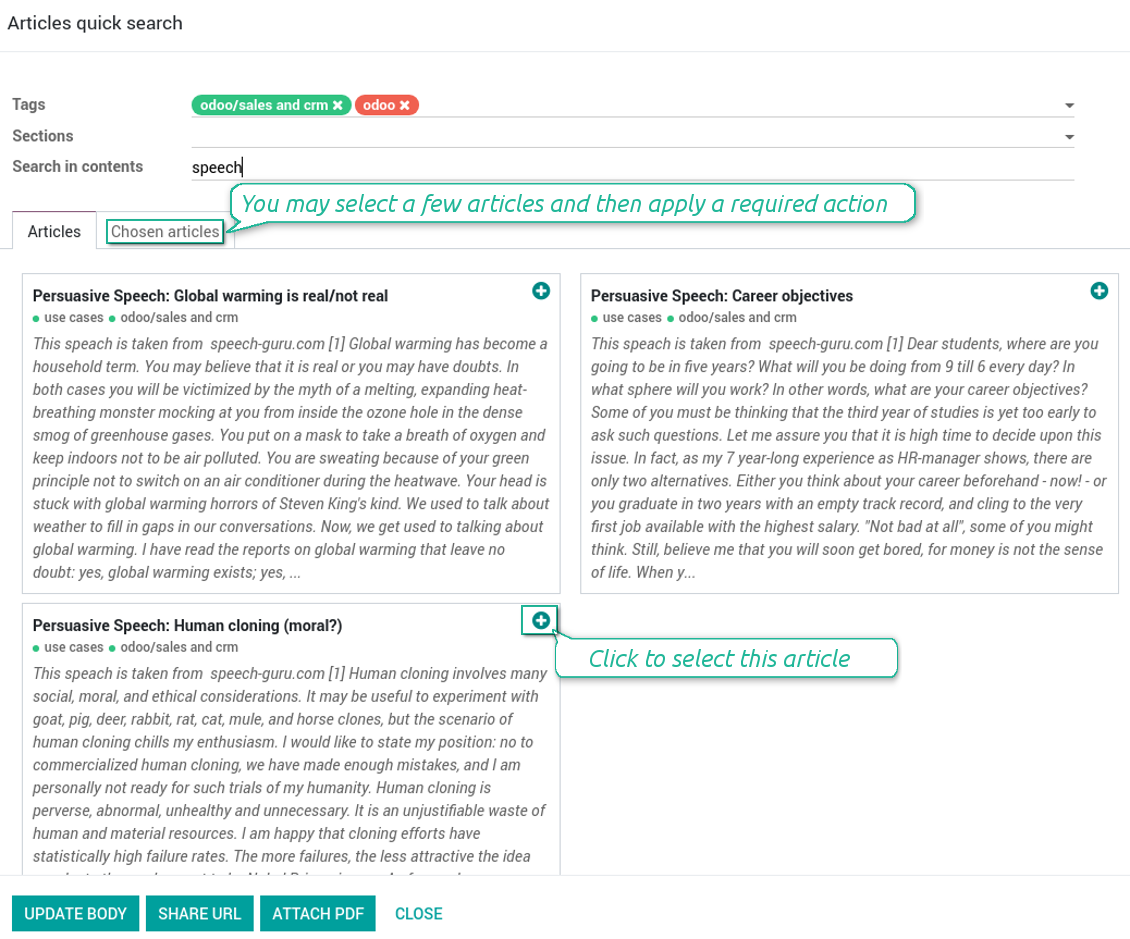
Click on that entry, and Odoo would open the wizard with articles. By default KnowSystem tags suitable for this document would be selected (if any). You may change those tags, or additionally filter by sections or content search. As a result list of topical articles is shown for you.
How to use company knowledge for communication
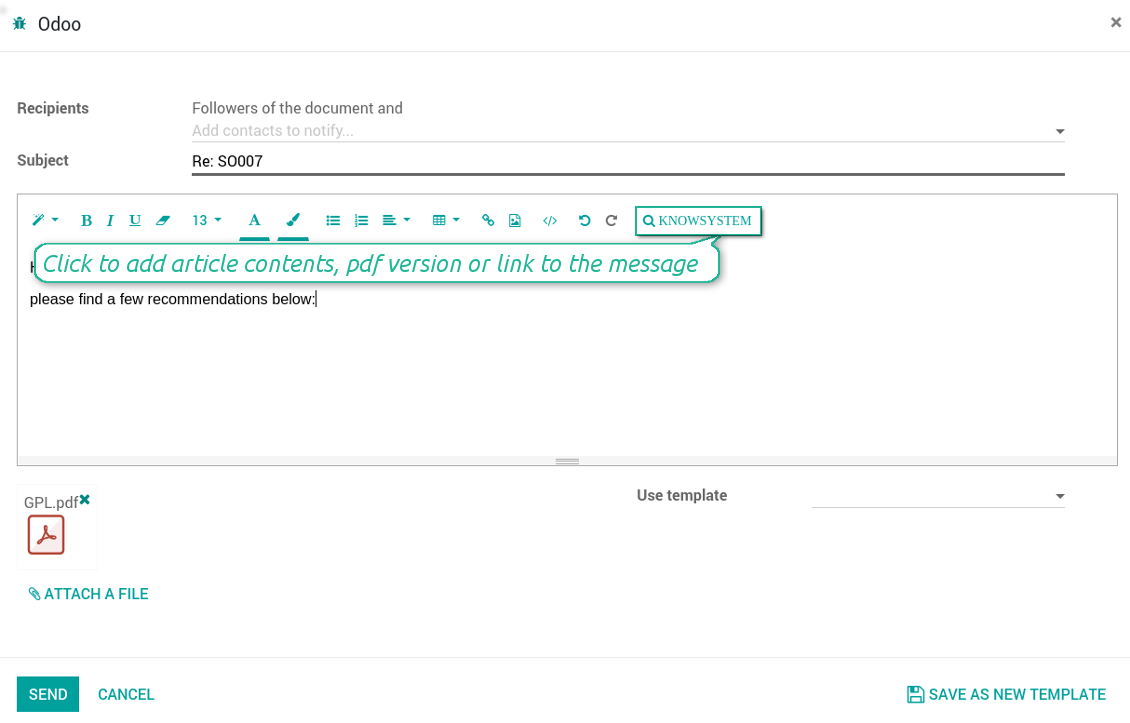
Turn on the option 'Articles in Email Composers' to let users reference or cite Knowledge records in Odoo messages. As a result the special quick entry 'KnowSystem' would be added to each Odoo email composer.
Clicking on that entry would open a wizard with a set of suitable to this document articles. You may change search by tags, add extra filtering by sections or content.
Afterwards, select required articles among found ones; choose an action. You may:
- Update message body with article contents (would be added to the end of a current message)
- Attach a PDF version of an article(s)
- Share a public link
Capturas de ecrã
Quick access for knowledge system from any Odoo document
Knowledge base link from email composer
Articles from any document
Article(s) PDF printing
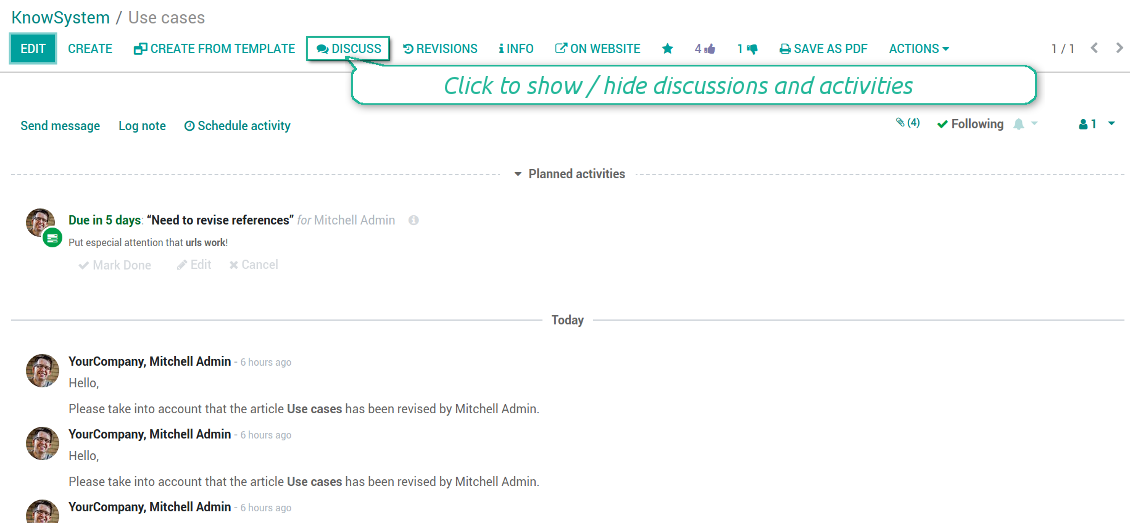
WIKI-like revision system
How to recover a previous article version
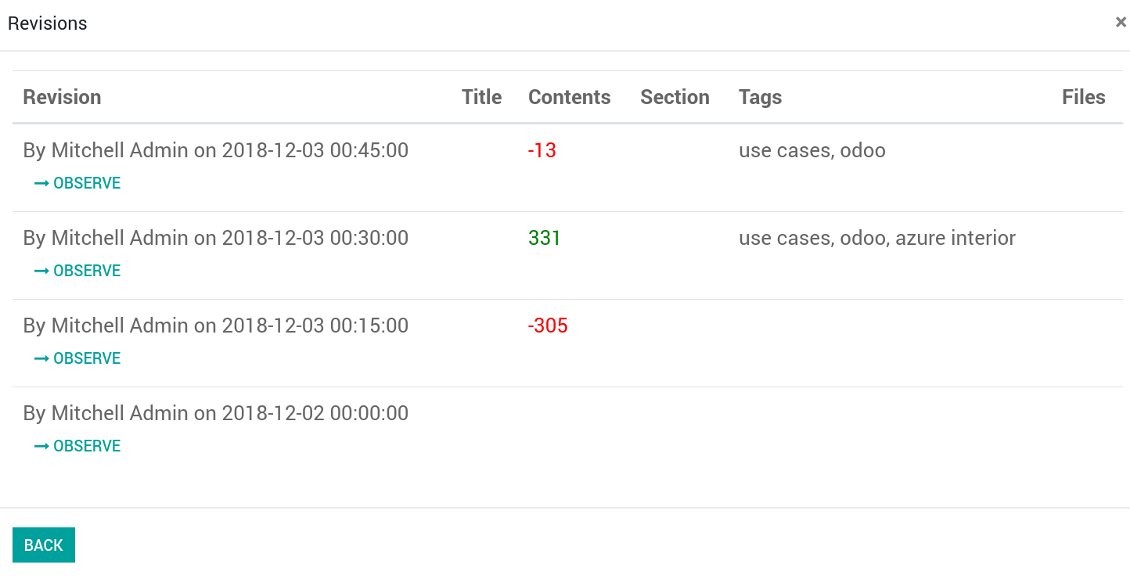
- Go to an article form view and push the button 'revisions'
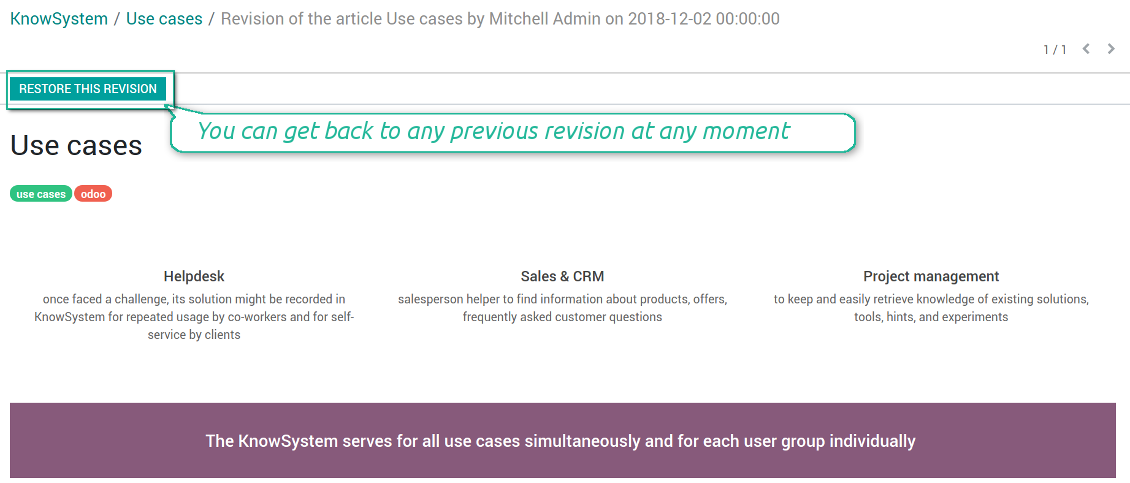
- Find a required one and push the button 'Observe' to check whether this version is a correct one
- Push the button 'Restore this revision'. The article would be recovered to that version.
- The recovery operation itself is recorded. So, if it is a mistake you can revert changes by recovering the last-to-last revison.
Capturas de ecrã
Wiki-style revisions history
To restore is easier than to break
Individual partner knowledge base portal
How to share knowledge base with specific partners
An article is available for a portal user in two cases: A. it is website published; B. his/her company is indicated as allowed partner in one of article tags.
In the first case such an article is available for all portal users and even for public website visitors who have not logged in.
In the latter case you grant a restricted access for an article only for chosen companies. To that end:
- Turn on the setting 'Portal KnowSystem'
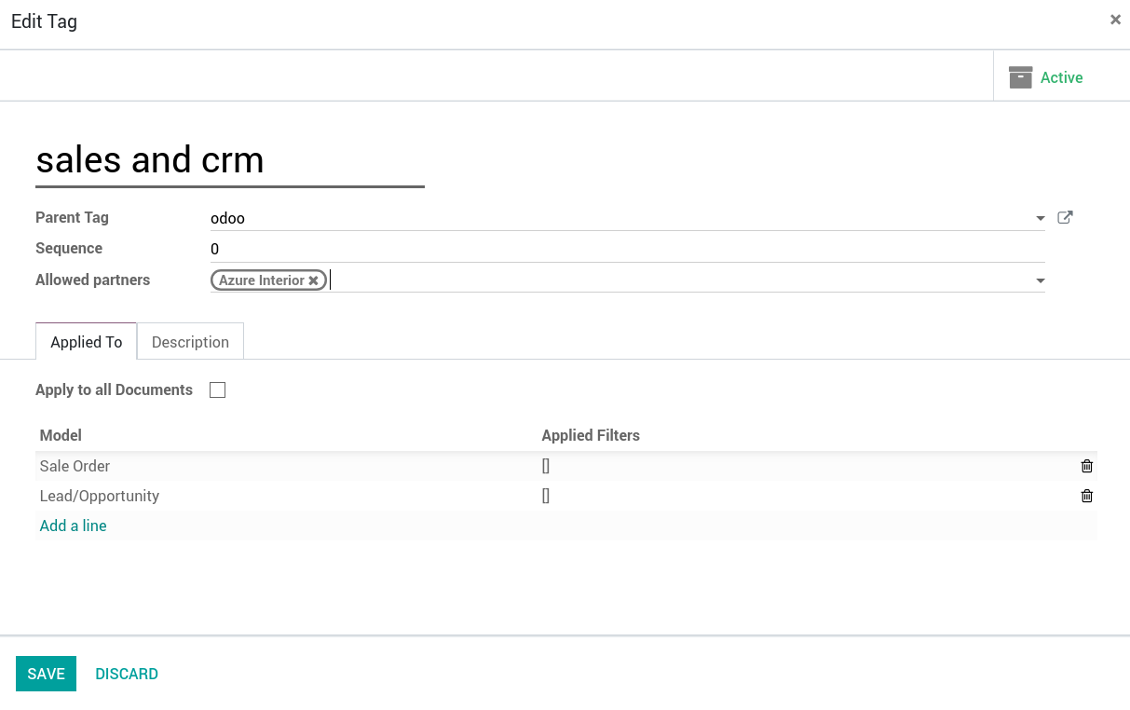
- Create a tag for this partner, for example 'clients / Azure Interior'. On the tag form indicate this company in the field 'Allowed partners'
- Assign the tag for all articles you want to share with this partner. For a few articles use the mass action 'Mass update'
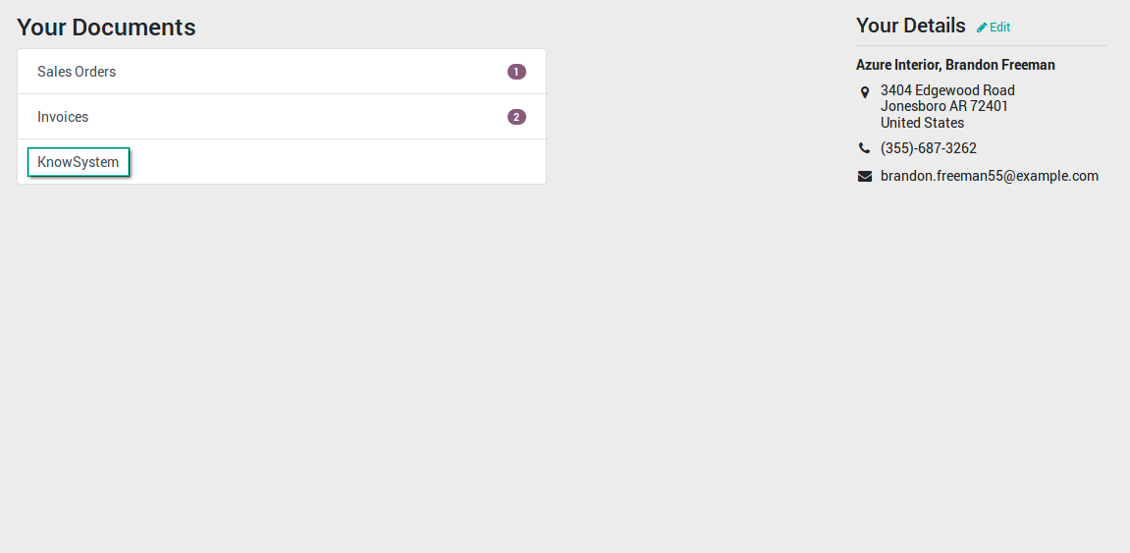
- Now portal users related to this partner may access shared articles right from their partner portal.
Capturas de ecrã
Knowledge base for portal and public use
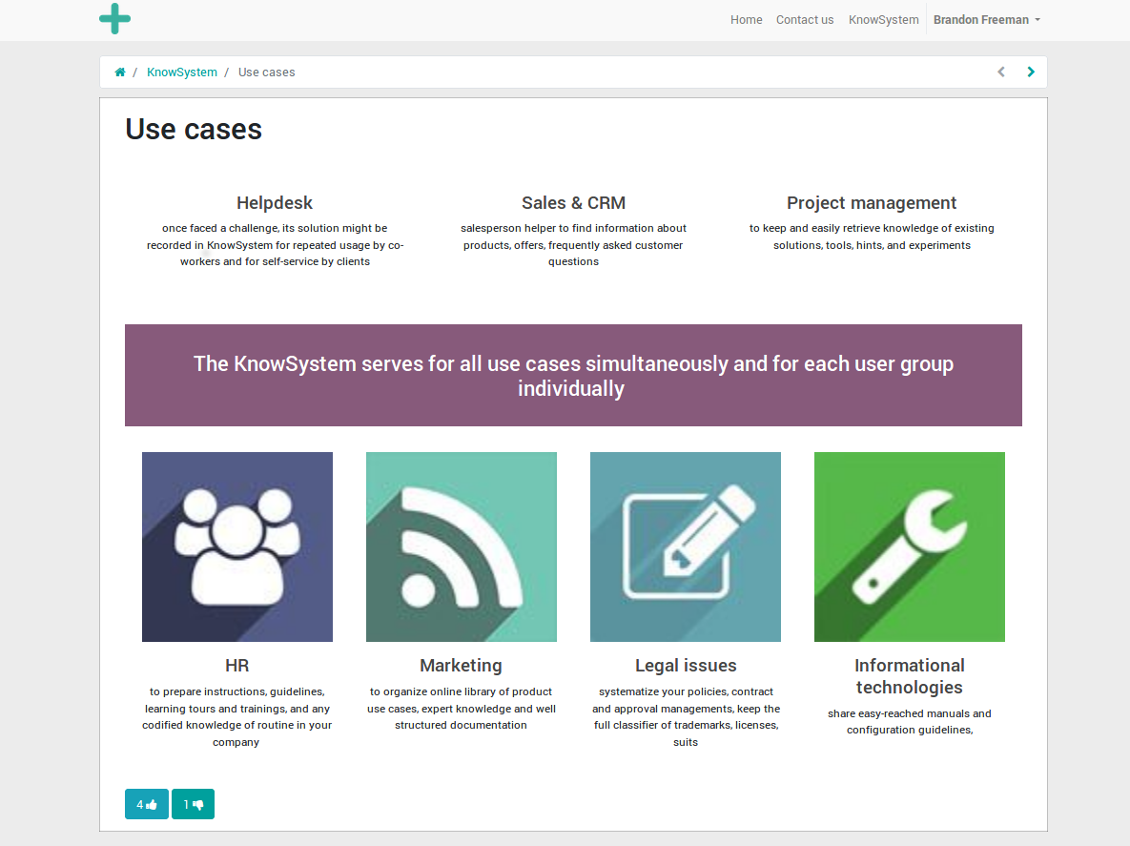
KnowSystem articles on website
Tag: document types and portal partners
KnowSystem from portal
Best knowledge base system for Odoo!
Excellent app and exceptional after-sales support.
Really well thought-out product and one of the best features is the contextual help by means of the tags. Really a game changer for us.
Keep up the great work FaOtools!
Outstanding app! Tremendous value for money, an absolute must have!
One of the features sorely lacking from Odoo has been a robust Wiki/documentation system. Using third party platforms is a massive headache: yet another system to maintain, users get distracted switching back-and-forth, and errors get made. Then you have to worry about training, additional logins, etc.
KnowSystem feels like a native/core app, is very well-polished, and extremely fast. It's accessible from any screen, and the search results are instant (none of the latency inherent with most apps).The interface is elegant yet powerful, with robust access control, rich editing features, and version control. It's simple to revert to previous entries, view audit trails, etc. It's very intuitive for anyone familiar with Odoo; onboarding takes just a few minutes. The user guides are excellent.
This is invaluable for any organisation with a lot of documented information, SOPs, ISO compliance, or similar. If you're using eLearning, it's great for creating a help system / reminders. For example, noting key takeaways or specific instructions. The user can be in MRP, Sales, or any other function, and instantly lookup a guide. Since it overlays whichever screen you're in, it doesn't interrupt the workflow.
This dramatically increases efficiency, minimises questions, and helps keep everyone on the same page.
Oh, and customer service is excellent, faOtools stands behind their product. Thank you!
KnowSystem is excellent - OdooTools offer great support, are very helpful and responsive
Our company needed the ability to add a Knowledge Base to our Odoo portal website for our customers to access article content on a membership-only basis. KnowSystem provided this and much more, along with ability to add search by section, set permissions to allow only certain partners access to articles by tag etc. OdooTools have been very helpful and implemented several features we suggested including automatic redirect upon login, customisable filters and a social sharing capability on articles. Overall a great app by a great company, something that massively adds to Odoo's capabilities and is something that everyone could benefit from using.
Very functional application and responsive support
Our company produces medical laser equipment and we use KnowSystem to streamline the knowledge base of our company. Convenient search system and classification of content, as well as access rules for groups and even for individual users.
Great app and professional team
The app is great the the team is very professional in both response timing and problem solving.
Highly recommended.
Marco from ALO.zone.
Excellent system
Excellent system.
A great tool from some very nice developers!
KnowSystem is a great tool and a game changer for us. Finally a place to put all our company know-how. I highly recommend it. And also important to us: We got great support from FaOtools too. A rare thing in this busy world. thx!
Excellent app and support.
Great app and a very helpfull support. Openess to improve their products is outstanding.
Public knowledge base
How to make an article available for all website visitors
- Turn on the setting 'Public KnowSystem'
- Publish required articles through the mass action 'Publish' or by pushing the button 'Actions > Publish on website' on an article form
- Now any website visitor can read those articles
Team work for knowledge creation
Capturas de ecrã
Knowledge base interactions, discussion, and activities
Custom fields to structure knowledge
How custom knowledge attributes work
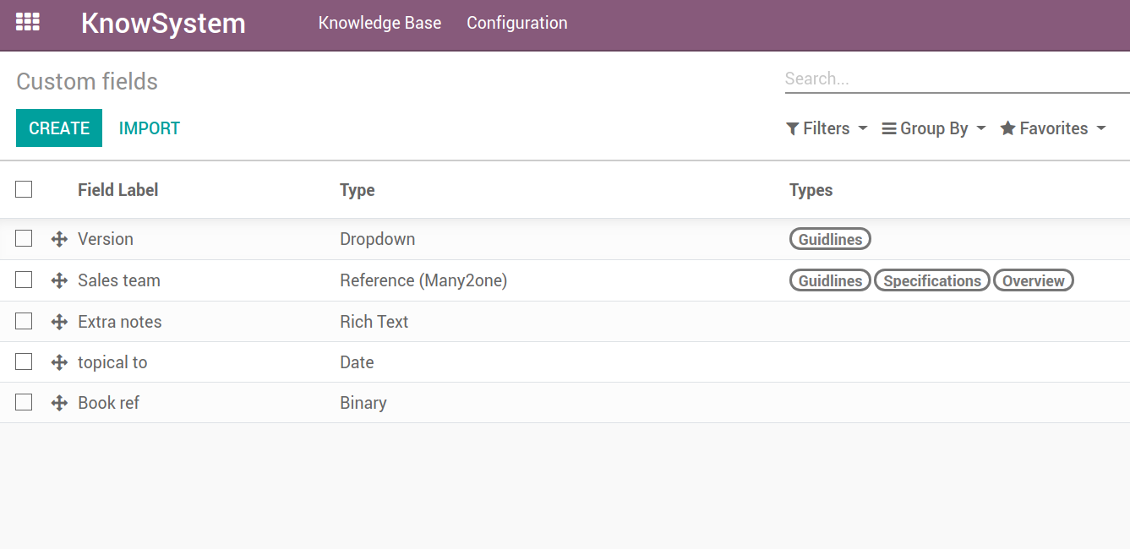
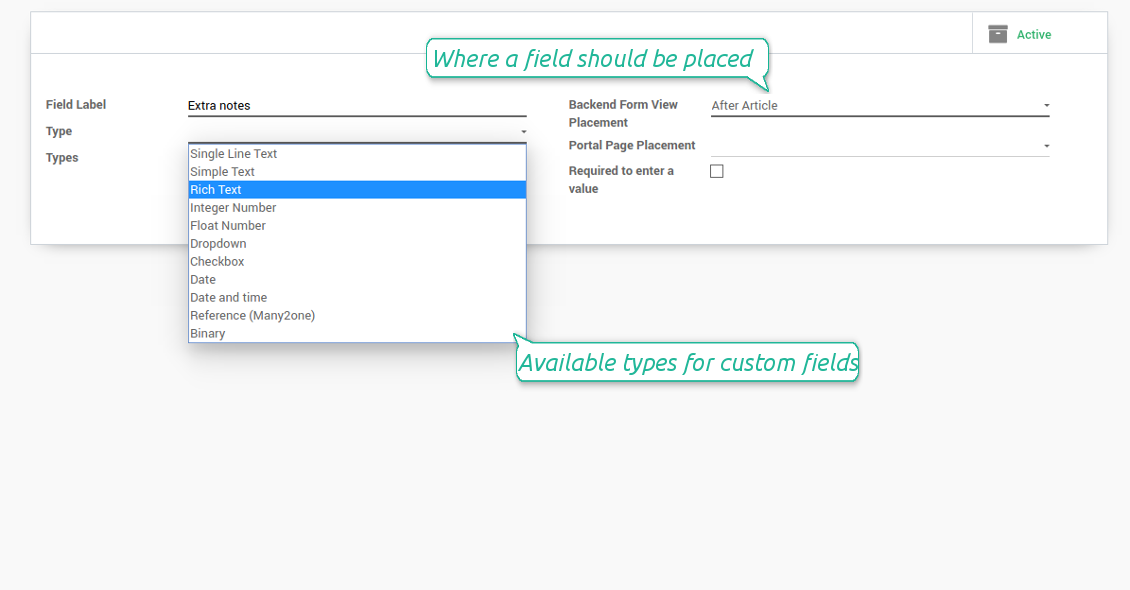
In order to show a new property for KnowSystem articles, just create a custom field. Nothing else is required! You are welcome to prepare fields of various types: single line text (char), simple text without formatting (text), rich text (HTML-formatted text), integer or float numbers, drop-down choice with your own options (selection), checkbox (boolean), date or date and time, binary (a file to upload), reference to another Odoo document (e.g. for a sale order, contact; many2one).
The tool also introduces complementary articles' typology. Thus set of attributes for 'user guidelines' and 'technical specifications' might be different.
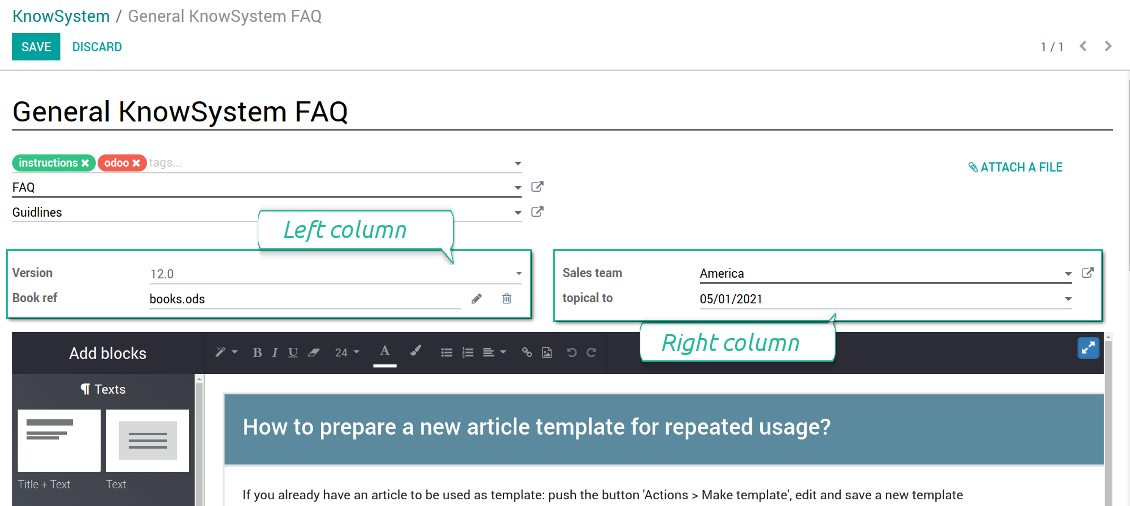
Then, choose an interface location for a new field from a closed list to structure properties on an article page. Decide whether a field should be required to enter, or should be visible only for definite knowledge types.
Capturas de ecrã
KnowSystem articles' custom fields
Custom fields on article form
Custom fields in portal and website
Custom fields for article: add any data required
Knowledge is secured and might be safely shared
How to manage user accesses to articles
Security for internal and portal users differs.
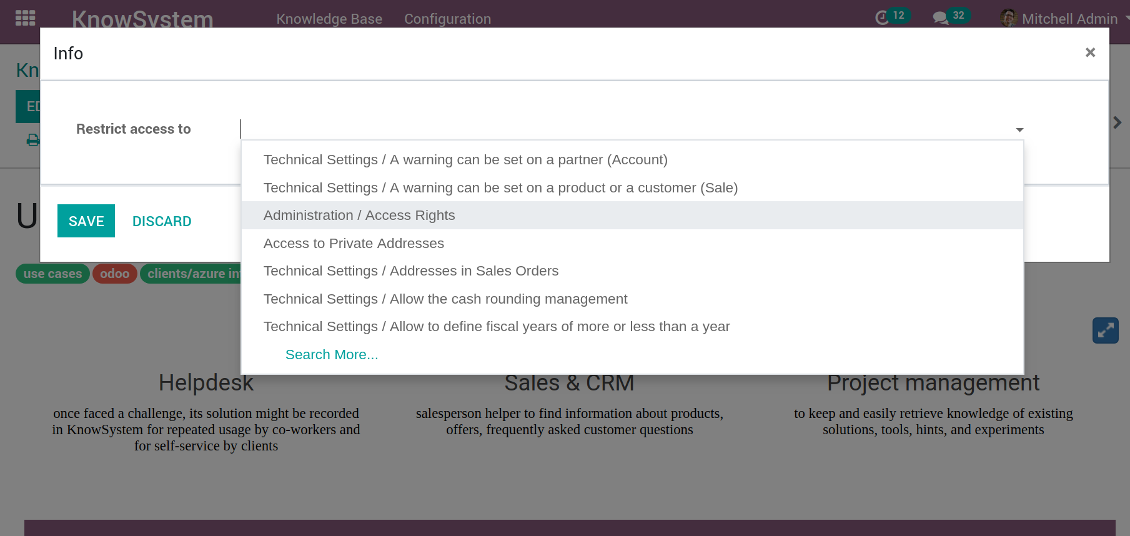
For the company employees: KnowSystem considers user groups which are defined per articles, sections and tours. Look at the tab 'Restrict to' on forms of those objects. If that field is not defined, a document is considered 'global': each internal user may read it.
For portal / public users: KnowSystem takes into account tags and whether an article is website published. A knowledge tag has a field 'Allowed partners', which may grant an access to portal users for articles with this tag. Website published pages are available for everybody.
Rights to administrate KnowSystem belongs to 2 user roles: KnowSystem Editor and KnowSystem Administrator. If you want a user to create and edit articles, a user should belong to one of those groups.
|
|
Odoo user |
KnowSystem Editor |
KnowSystem Admin |
Portal user |
Public user |
| Articles | read related to his/her user groups and sections | read, create, edit, archive related to his/her user groups and sections | read, create, edit, delete any | read published articles and articles related to partner-related tags | read published articles |
| Sections | read related to his/her user groups | read, create, edit, archive related to his/her user groups and sections | read, create, edit, delete any | read all sections of available articles | read all sections of published articles |
| Tags | read any | read, create, edit, archive any | read, create, edit, delete any | read published ones | read published ones |
| Article Types | read any | read any | read, create, edit, delete any | read published ones | read published ones |
| Tours | read related to his/her user groups | read, create, edit, delete related to his/her user groups | read, create, edit, delete any | no access | no access |
| Misc | may like / dislike, add to favourites, print, take part in discussions | may configure options | may like / dislike an article |
|
Take also into account two peculiarities:
- Odoo user always may access an article of which he is an author disregarding further restrictions;
- Rights for section is defined not only according to this section but also according to all its parents. For example, if user can't access 'sales', he/she would not be able to access 'sales / crm' disregarding whether 'crm' is available for his/her user group.
Capturas de ecrã
Manage access to this article
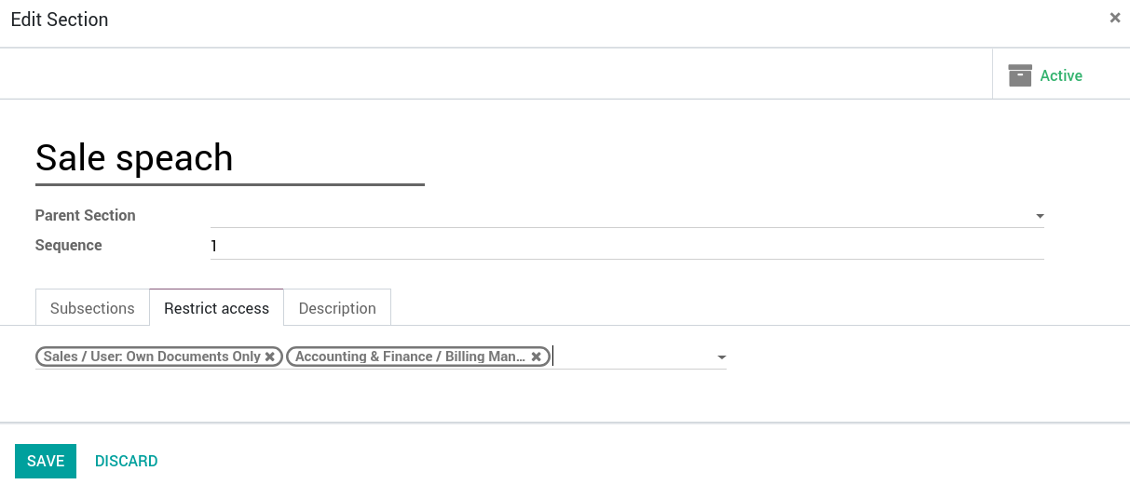
Section update and user rights
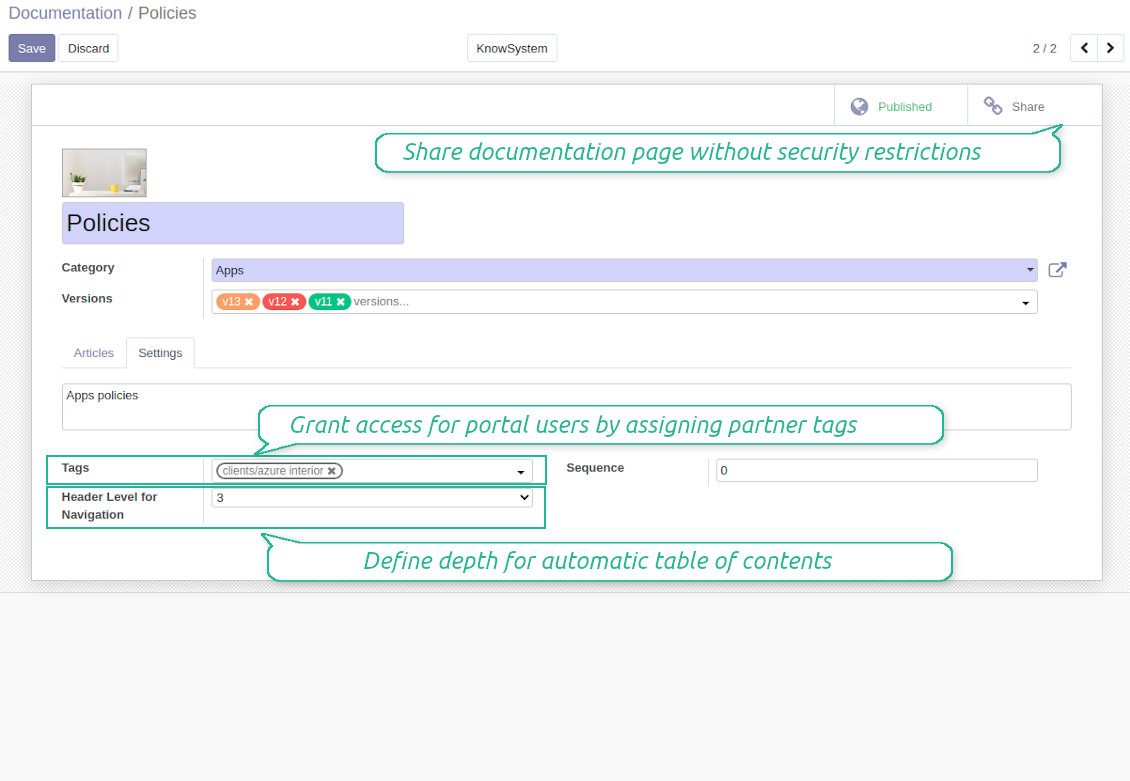
Website documentation builder
Capturas de ecrã
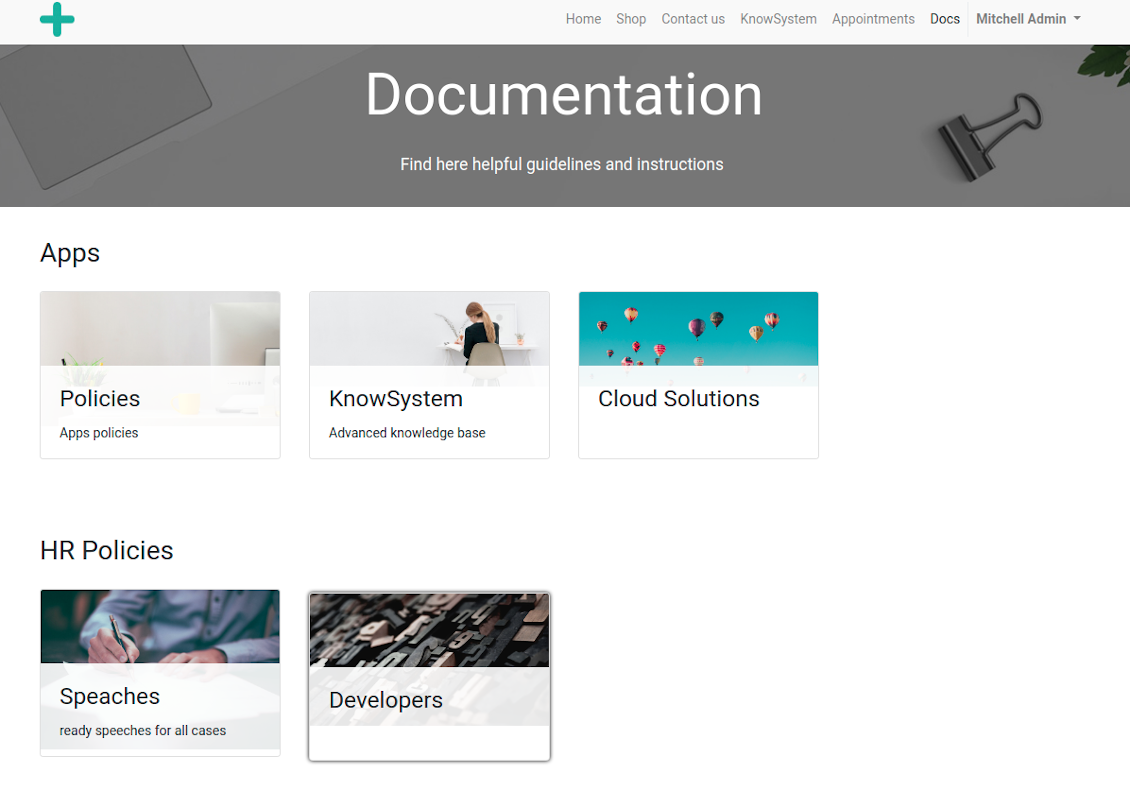
Documentation by categories and sections
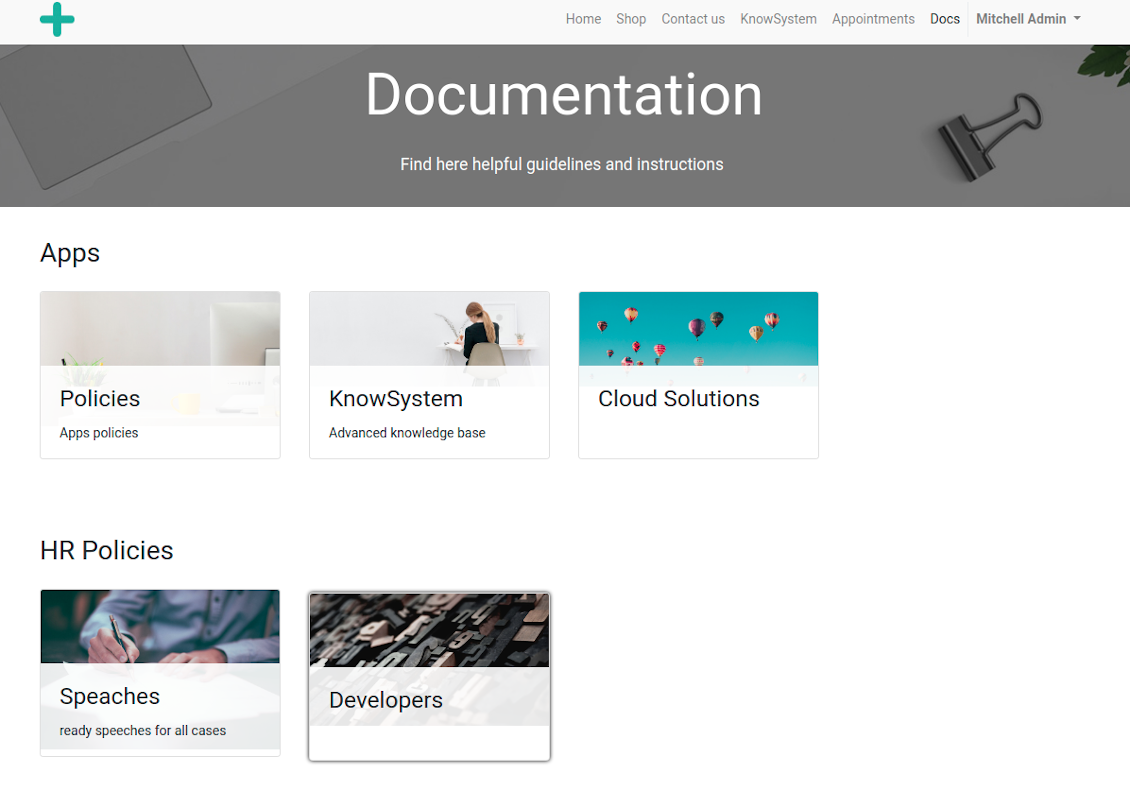
Documentation by categories and sections
Documentation page
Documentation page
Automatic table of contents by documentation
Automatic table of contents by documentation
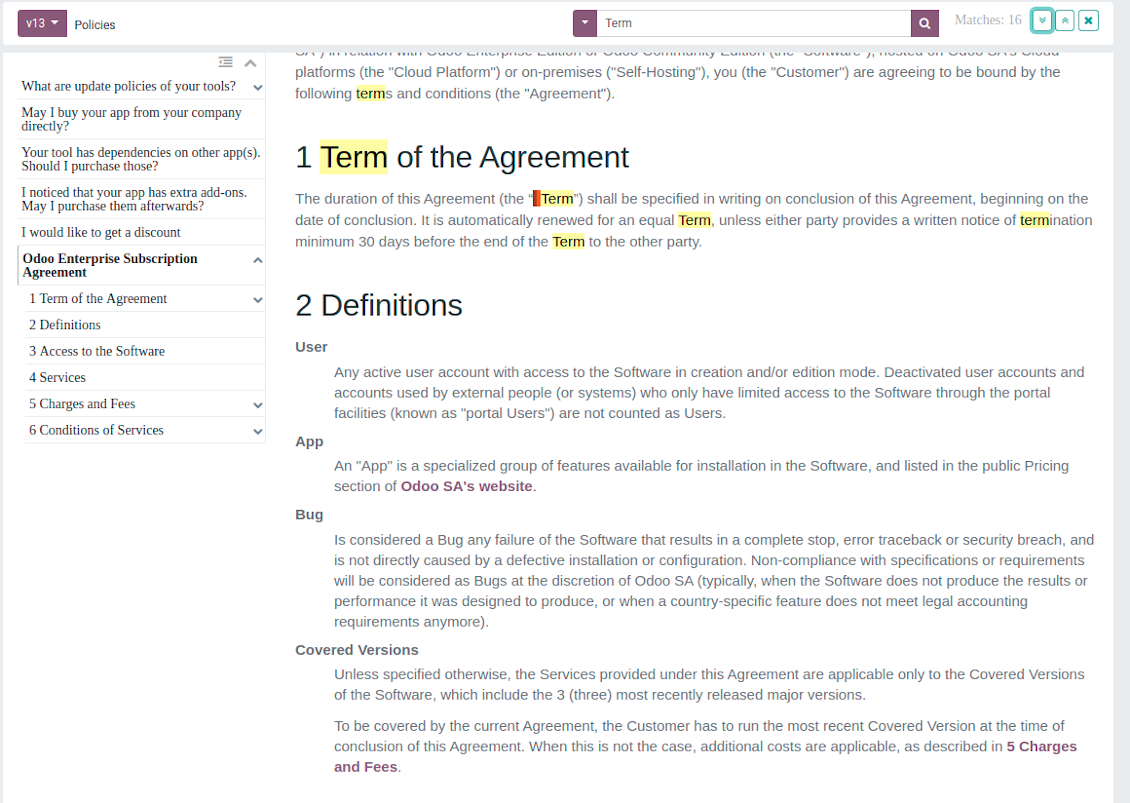
Inline search by documentation
Inline search by documentation
Compose articles for documentation
Compose articles for documentation
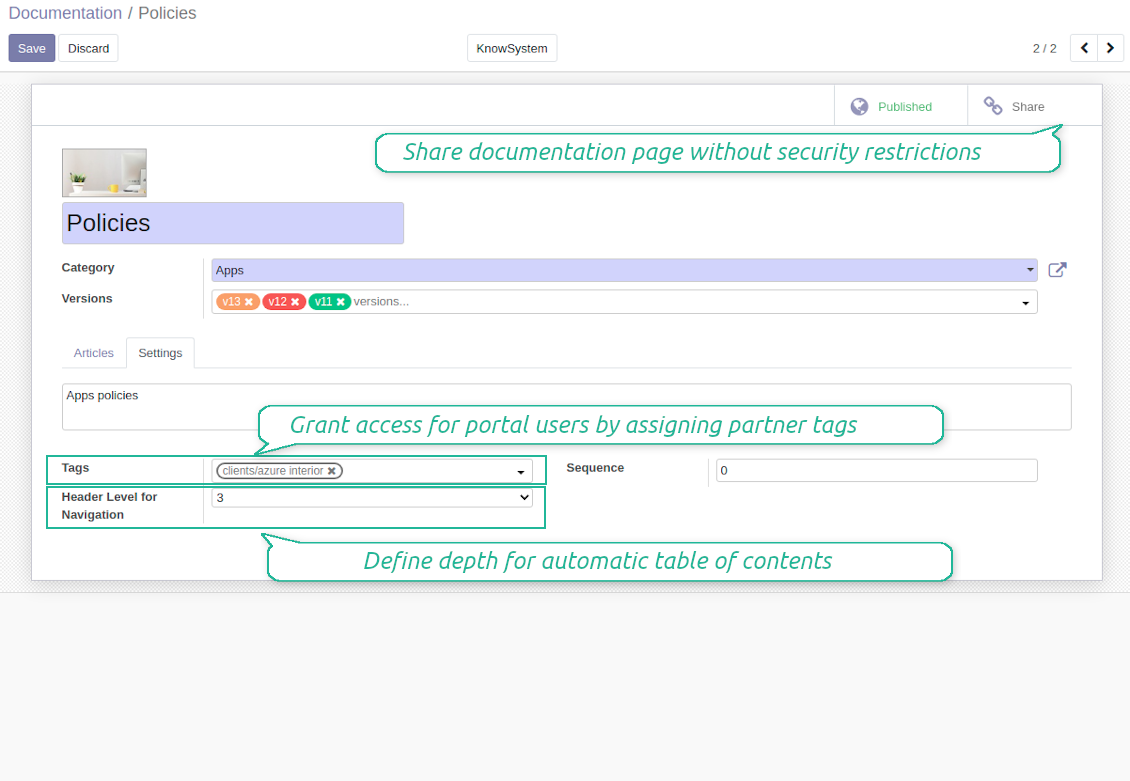
Documentation settings
Documentation settings
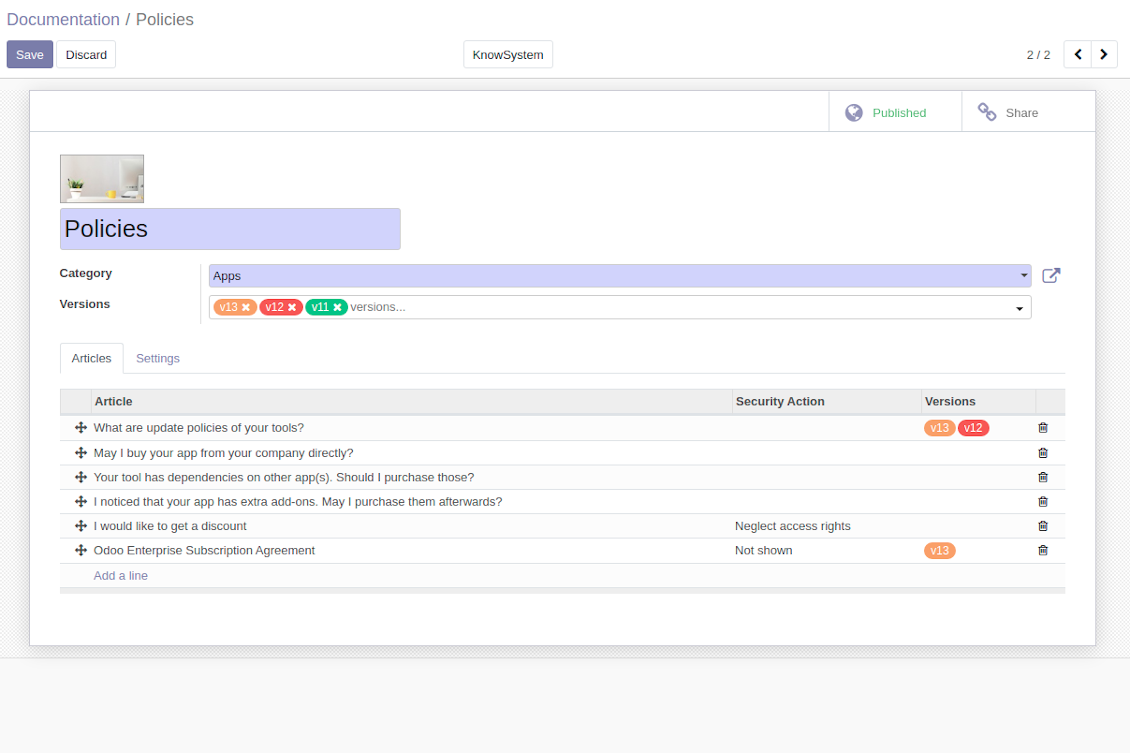
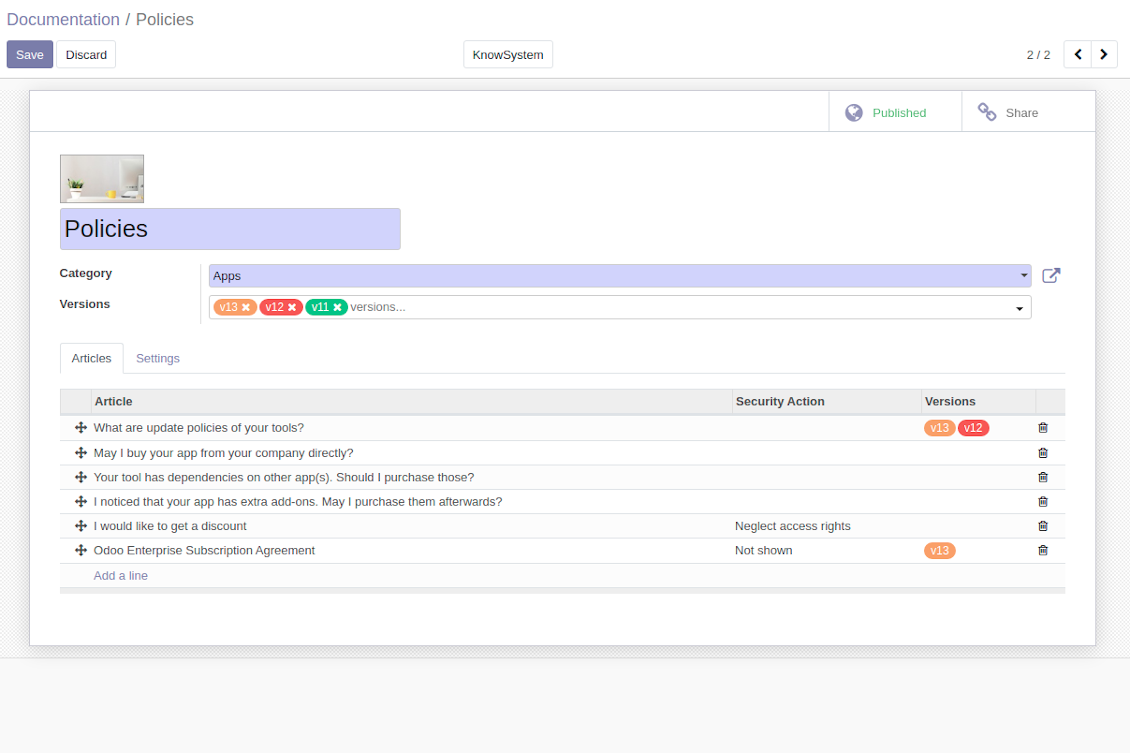
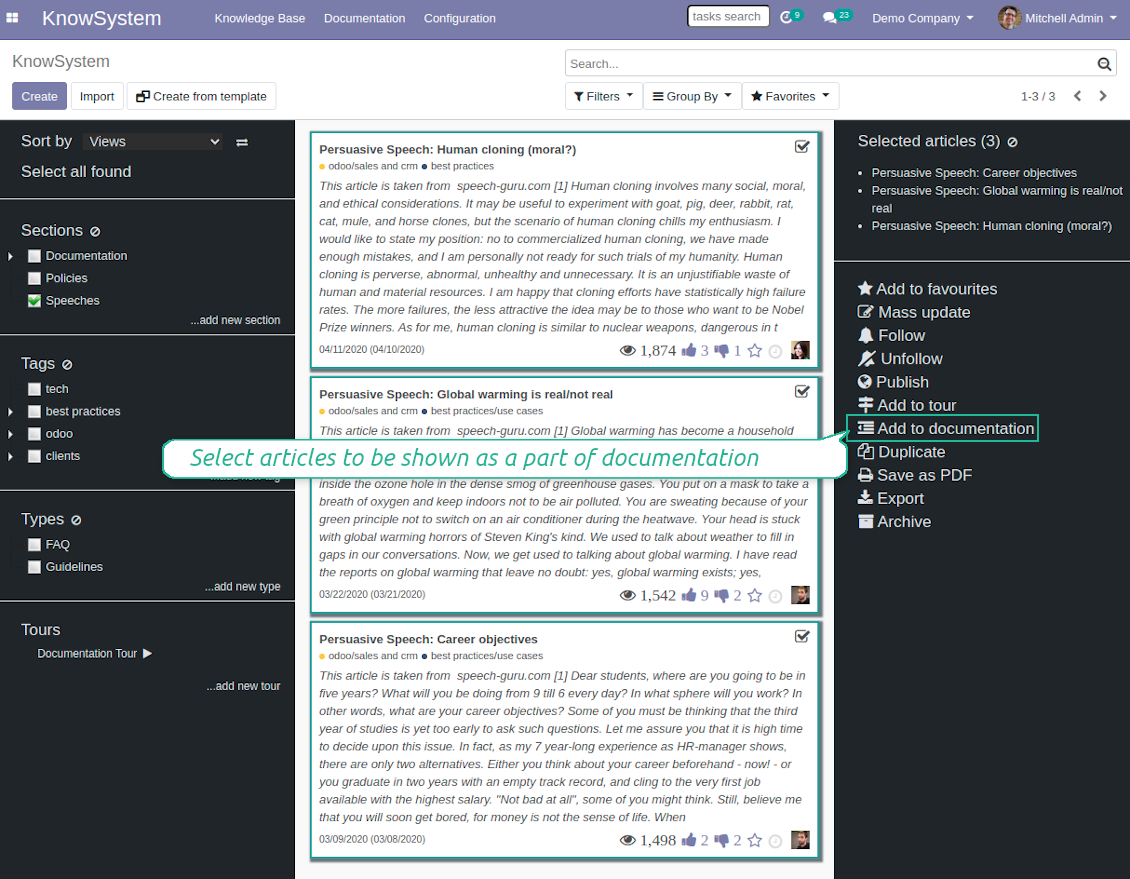
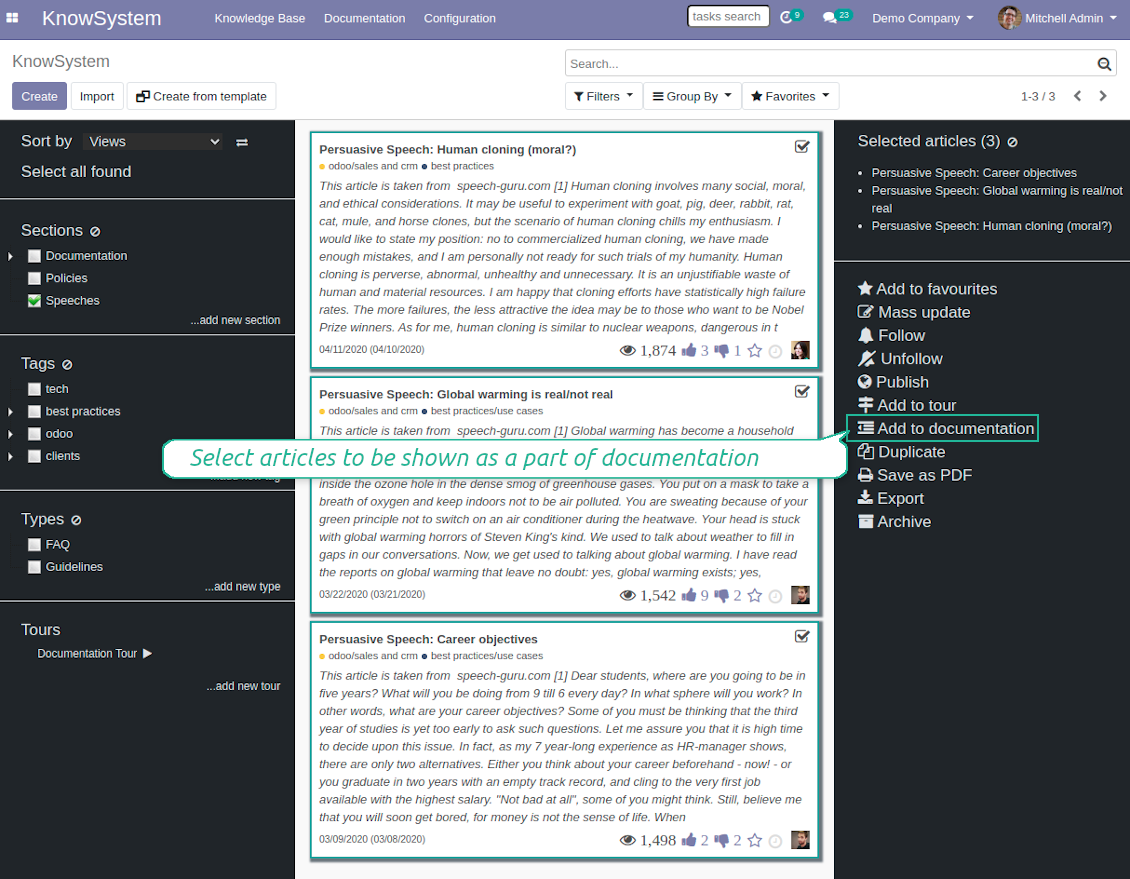
Add KnowSystem articles to documentation
Add KnowSystem articles to documentation
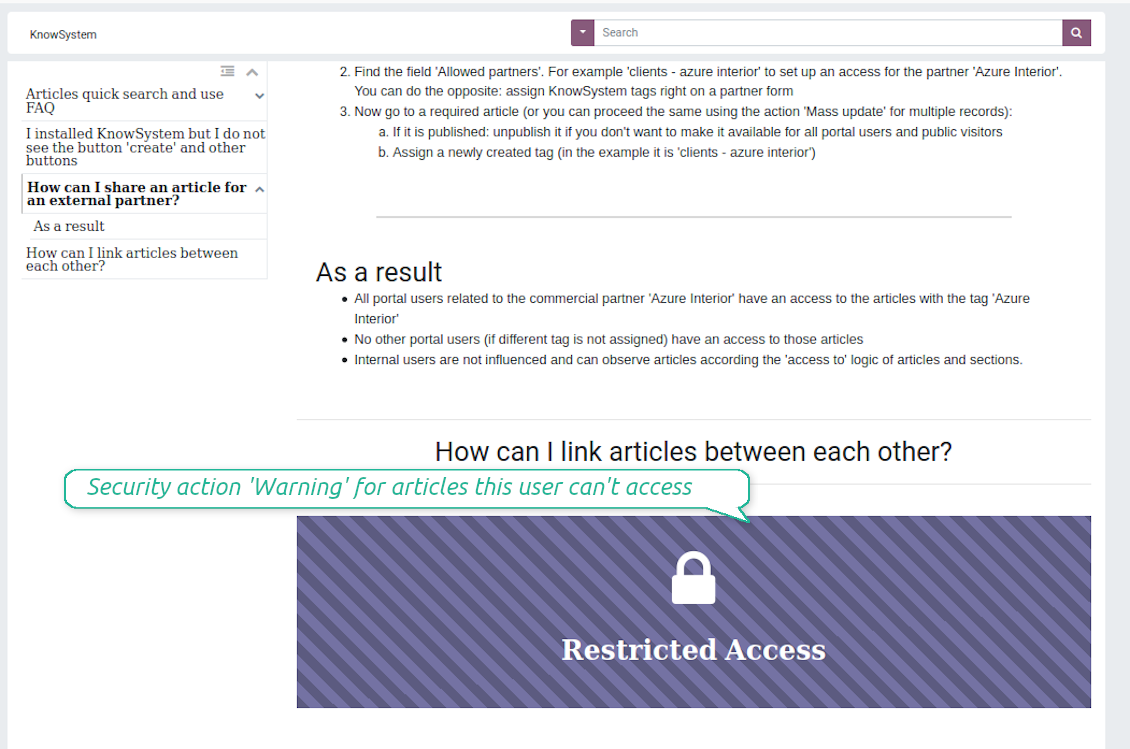
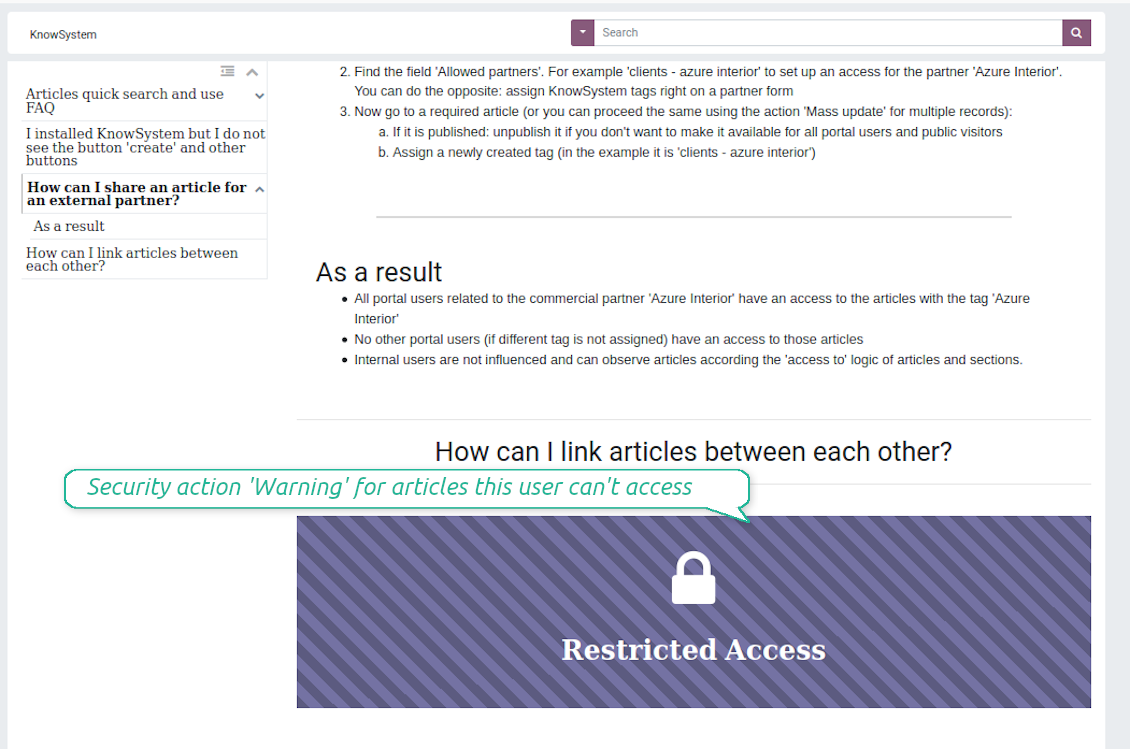
Security: optionally show warning if no access possible
Security: optionally show warning if no access possible
Create learning tours
How to configure a learning tour
- Turn on the option 'Tours'
- Go to KnowSystem interface and select articles to be included into a tour
- Press the mass action button 'Add to tour' and select or create a tour. Press save
- Re-order articles in a consistent order
- Define groups of users who should go through a tour on the tab 'Restrict access'
- Now users can see and launch tours right from the KnowSystem interface (the right navigation panel)
Capturas de ecrã
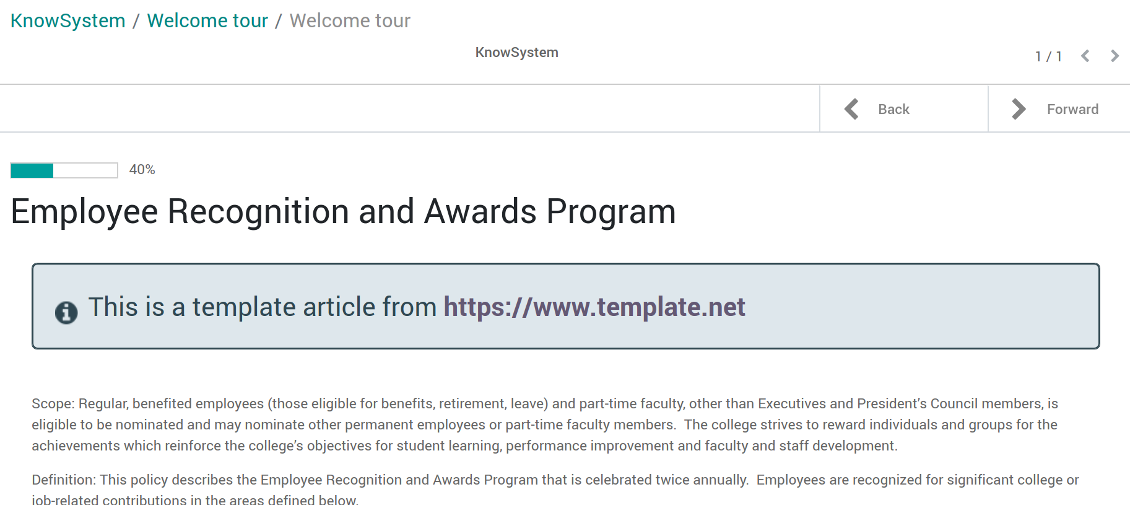
Article in a learning tour
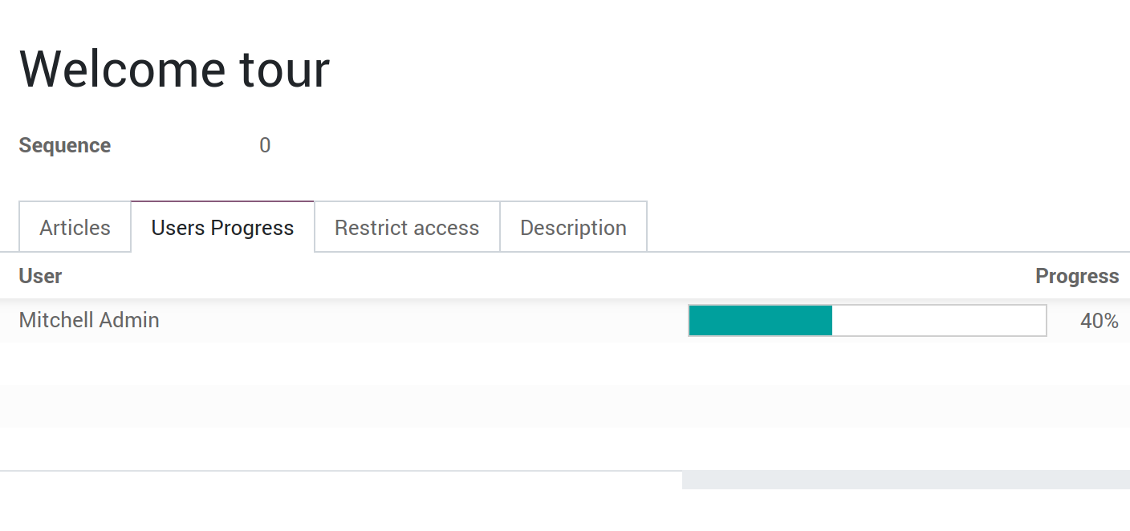
Control tour progress by users
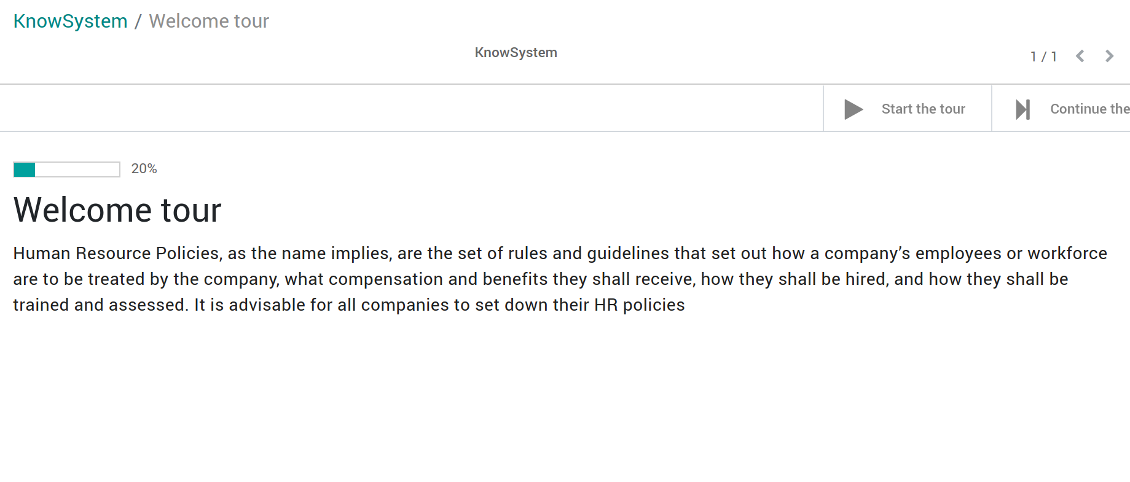
KnowSystem tour welcome page
Multilingual knowledge base
How to make an article available for a few languages
- Install the optional add-on 'KnowSystem: Multi Languages'
- Change your user language for a needed one
- Update this article
- Now it is available in both source and a current language
Make sure you really require a few languages. In that case you almost double the work of KnowSystem editors. All articles should be kept updated in all Odoo languages.
Knowledge base for any industry and business
Typical use cases
- Helpdesk: once faced a challenge, its solution might be recorded in KnowSystem for repeated usage by co-workers and for self-service by clients
- Sales & CRM: salesperson helper to find information about products, offers, frequently asked customer questions
- Project management: to keep and easily retrieve knowledge of existing solutions, tools, hints, and experiments
- HR: to prepare instructions, guidelines, learning tours and trainings, and any codified knowledge of routine in your company
- Marketing: to organize online library of product use cases, expert knowledge and well structured documentation
- Legal issues: systematize your policies, contract and approval managements, keep the full classifier of trademarks, licenses
- Informational technologies: share easy-reached manuals and configuration guidelines
Perguntas frequentes sobre KnowSystem: Knowledge Base System Odoo v.12
Não vejo qualquer diferença entre os textos das revisões.
As revisões registam não só alterações de texto, mas também quaisquer atualizações de estilos (tecnicamente, quando altera o código-fonte HTML de um artigo). Algumas não são claras à primeira vista (p. ex. o tamanho de letra de uma única palavra). Outras podem ser drásticas. Contudo, qualquer sequência Edit > alterar algo num artigo > Save resulta numa nova revisão.
Posso adicionar um vídeo YouTube/ Vimeo / Dailymotion / Youku num artigo?
Sim, pode incorporar vídeos desses serviços nos artigos a partir do backend Odoo e do construtor de websites. Para isso adicione um bloco com uma imagem > prima a imagem > selecione ‘Vídeo’ > indique o URL do média.
Tenha em conta: esses vídeos são incluídos como iframes, e alguns browsers podem bloquear a reprodução até o utilizador o autorizar explicitamente.
Como tornar uma secção visível no website?
No KnowSystem, uma secção fica visível num website se estiver publicada e contiver pelo menos um artigo. Mesmo com subsecções, não fica visível se não houver um único artigo na própria secção. Isto evita secções vazias e torna o portal KnowSystem apelativo e fácil de navegar. Para a secção aparecer no website, adicione um artigo introdutório ou geral que descreva ou liste brevemente os artigos das subsecções.
Como posso partilhar um artigo com um parceiro externo?
Clique com o botão direito em qualquer etiqueta no painel de navegação esquerdo - Create
Encontre o campo 'Allowed partners'. Por exemplo 'clients - azure interior' para configurar o acesso do parceiro 'Azure Interior'. Pode fazer o contrário: atribuir etiquetas KnowSystem no formulário do parceiro
Agora abra o artigo pretendido (ou faça o mesmo com a ação 'Mass update' para vários registos):
Se estiver publicado: cancele a publicação se não quiser disponibilizá-lo a todos os utilizadores do portal e visitantes públicos
Atribua a etiqueta recém-criada (no exemplo é 'clients - azure interior')
Agora:
Todos os utilizadores do portal ligados ao parceiro comercial 'Azure Interior' têm acesso aos artigos com a etiqueta 'Azure Interior'
Nenhum outro utilizador do portal (se não for atribuída outra etiqueta) tem acesso a esses artigos
Os utilizadores internos não são afetados e veem os artigos segundo a lógica 'access to' de artigos e secções.
Podemos adicionar o botão de seleção de idioma para o corpo do artigo?
O botão 'translate' não é adicionado ao corpo do artigo de propósito pelo extra opcional 'KnowSystem: Multi Languages'. O HTML é muito difícil de traduzir no corpo simples do popup previsto pelo botão. Haveria muito pouco texto para traduzir e muitas partes HTML (que o tradutor também poderia partir).
Por isso, para criar um artigo numa determinada língua, inicie sessão com um utilizador dessa língua. Pode ser outro utilizador, ou altere temporariamente as preferências do utilizador atual. Depois, qualquer atualização do corpo do artigo será nessa língua.
Também pode usar o botão 'Copy from another translation' sob o corpo do artigo, que permite obter a qualquer momento o conteúdo a partir de outra língua (útil se o artigo foi atualizado significativamente numa das línguas).
Como incorporar outra página web num artigo
Para isso pode usar iframes. Mude o artigo para o editor de código HTML em bruto e insira, por exemplo, <iframe src="https://faotools.com/" style="width:100%;min-height:600px;"> </iframe>.
Instalei o KnowSystem, mas não vejo o botão 'create' nem os outros botões
Muito provavelmente não concedeu direitos KnowSystem ao seu utilizador. Escolha o perfil 'KnowSystem Editor' ou 'KnowSystem Admin' e atualize a página. Os botões de controlo devem aparecer.
Posso mostrar um percurso de aprendizagem específico só a utilizadores escolhidos?
Sim, aplicando um grupo de utilizadores (p. ex. 'Sales Manager') que deve seguir este percurso. Se o utilizador pertencer a este grupo, vê o percurso. Caso contrário, o percurso não é mostrado. Funciona da mesma forma que os direitos de segurança dos artigos e secções KnowSystem.
Tenha em conta que, se um percurso não tiver grupos atribuídos, é 'global' e fica visível para todos.
Como altero o rodapé e o cabeçalho ao imprimir artigos?
O cabeçalho e o rodapé dos PDF dos artigos vêm dos layouts da empresa. Consulte Settings > General Settings > a secção Business Documents. Aí define o modelo da empresa usado para todos os tipos de documento, incluindo faturas, encomendas de venda, etc., e também para os artigos. Esta abordagem Odoo assume que rodapé e cabeçalho são um estilo geral da empresa, não um atributo de impressões específicas.
Como posso ligar artigos entre si?
Cada artigo tem URL internas (backend) e de website (se a opção 'KnowSystem: Website and Portal' estiver instalada). Clique no botão 'Info' no formulário do artigo para saber os endereços web deste registo. Pode inserir qualquer um no corpo do artigo como hiperligação.
Posso alterar o código-fonte HTML de um artigo?
Sim: ative os debug assets (no ecrã de resumo das definições) e volte ao artigo atual. No modo de edição verá o ícone '</>'. Clique nele para ver e editar o HTML e os estilos.
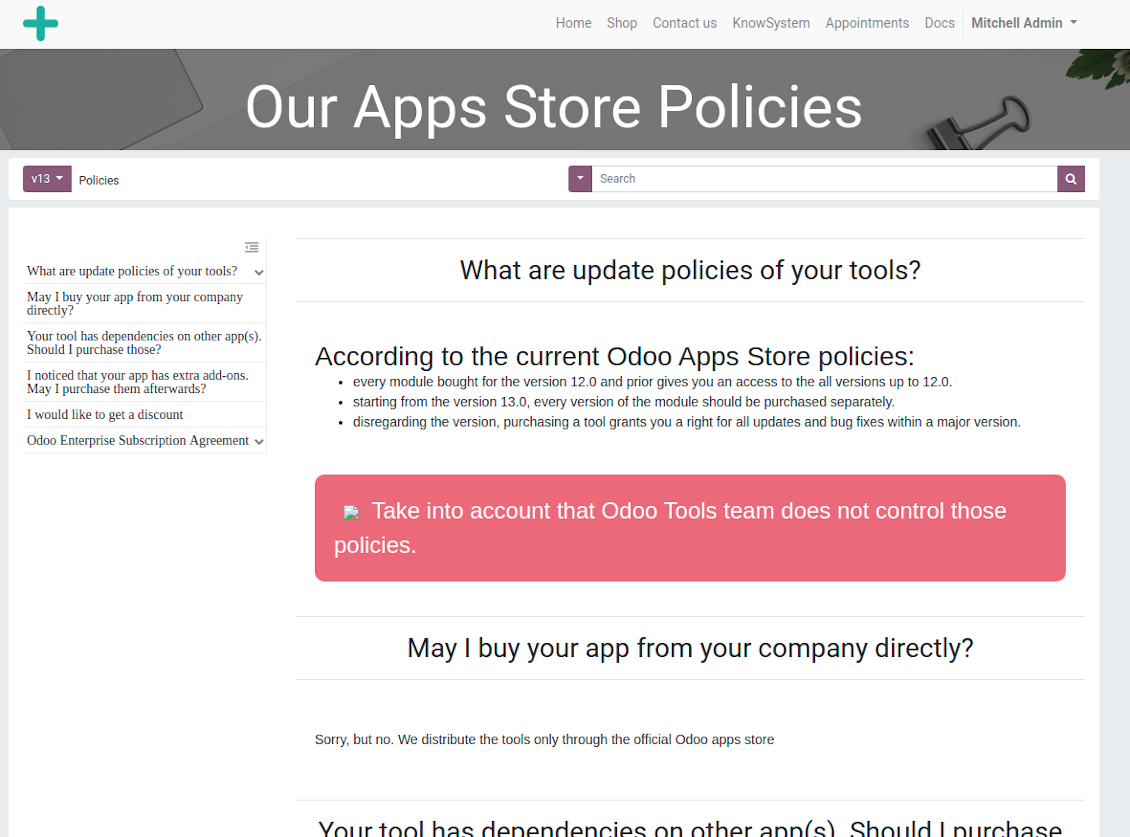
Quais sao as políticas de atualização das vossas ferramentas?
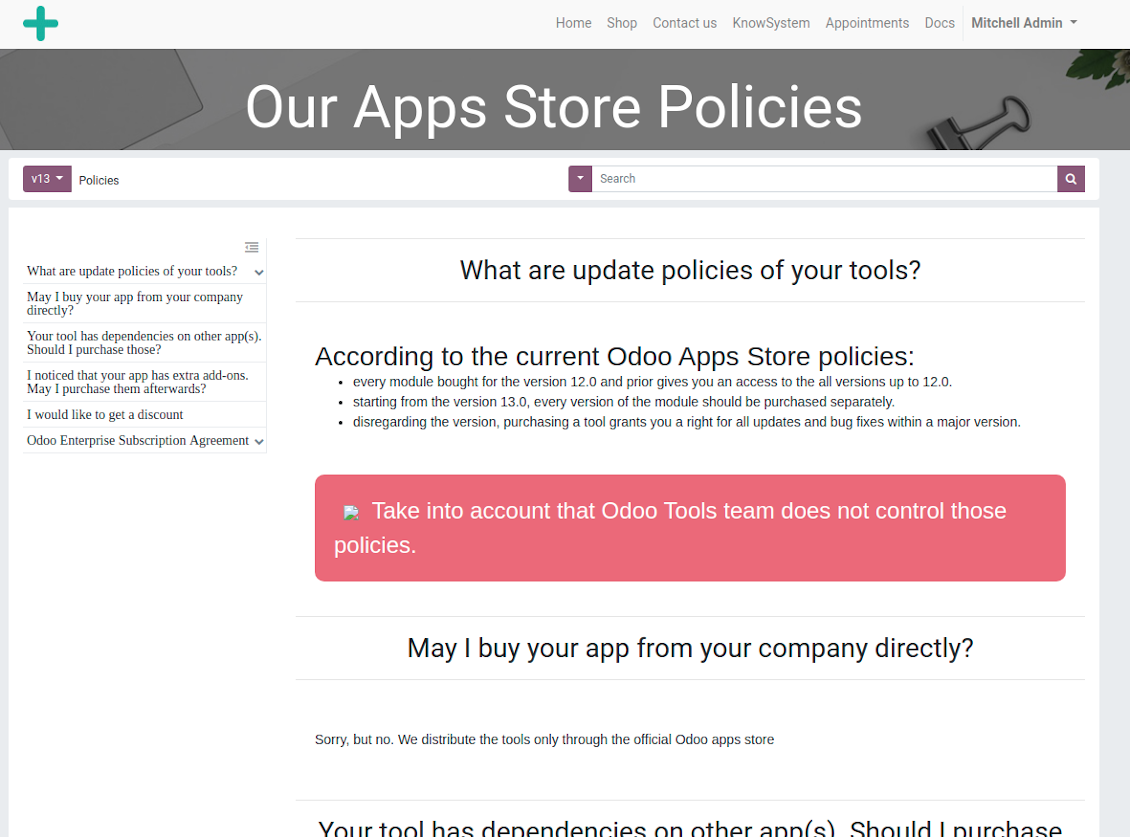
Segundo as políticas atuais da Odoo Apps Store:
- Cada módulo comprado para a versao 12.0 ou anterior da acesso a todas as versões ate 12.0.
- A partir da versao 13.0, cada versao do módulo deve ser comprada em separado.
- Independentemente da versao, a compra da direito a todas as atualizações e correcoes dentro de uma versao major.
A equipa faOtools nao controla essas políticas. Para questões, contacte diretamente os representantes da Odoo Apps Store.
Como posso instalar a aplicacao no Odoo.sh?
A forma mais direta e usar o fluxo da loja Odoo:
1. Abra a página do módulo e clique em Deploy on odoo.sh
2. Será redirecionado para o GitHub. Inicie sessão e clique em Create a new repo ou use um existente. O repositorio deve ser privado. Nao e permitido publicar as apps com licença OPL-1. Se necessário, crie um repo novo para o projeto Odoo.sh
3. Depois, no odoo.sh, clique em Deploy, confirme e clique em Continue. A instalação começa.
Estes passos instalam a app no ramo de produção. Para outros ramos ou para atualizar:
1. Transferir o código-fonte da loja Odoo
2. Fazer commit do módulo no repositorio GitHub. Nenhuma pasta/ficheiro da app deve estar no .gitignore. Os repos criados pelo odoo.sh podem ignorar caminhos importantes (p. ex. /lib). Envie todos os diretórios e ficheiros do módulo
3. Fazer deploy do ramo alvo do projeto odoo.sh ou esperar pela compilacao automática se as definições o assumirem.
Como devo instalar a aplicacao no meu próprio servidor?
2. Reinicie o servidor Odoo;
3. Ative o modo programador (definições técnicas);
4. Atualize a lista de aplicações (menu Aplicações);
5. Encontre a app e clique em Activate/Install;
6. Siga as indicações na página da app, se existirem.
A app tem extras. Posso compra-los mais tarde?
Sim. O Odoo adiciona automaticamente as dependências ao carrinho: exclua as ferramentas ja compradas para nao pagar duas vezes.
Instalei a app no Odoo.sh e vejo um aviso/erro nos testes
Um aviso vermelho/laranja nao afeta as funções da app. Por vezes os nossos módulos nao passam os testes automáticos padrão, porque estes assumem um comportamento que conflitua com os objetivos da app. Por exemplo, alteramos o cálculo do preço e os testes Odoo comparam o preço final com o algoritmo padrão.
Primeiro, verifique as funções da base implantada. Esta tudo a funcionar?
Se ainda achar que o aviso afeta funções reais, contacte-nos e envie os registos completos de instalação e a lista completa de módulos implantados (nucleo e de terceiros).
Posso comprar a aplicacao diretamente junto de vos?
Nao, so distribuimos as ferramentas através da loja oficial de aplicações Odoo.
Gostaria de ter um desconto
Infelizmente, nao temos meios tecnicos para oferecer preços individuais.
Posso instalar a app na minha base Odoo Online (SaaS)?
Nao, as apps de terceiros nao podem ser usadas no Odoo Online. O Odoo SaaS bloqueia essa possibilidade.
A ferramenta depende de outras apps. Devo compra-las?
Sim, a ferramenta precisa de todos os módulos assinalados nas dependências. O preço na página da app ja as inclui.
Qual e o preço do módulo em dolares americanos? Porque mudou?
O preço dos nossos módulos e definido em euros. A loja Odoo converte para outras moedas segundo a taxa interna. Assim, o preço em dolares americanos pode mudar quando a taxa e atualizada.
Os textos da aplicação e do site em idiomas diferentes do inglês são assistidos por IA e estão alinhados com as traduções oficiais do Odoo. Se detetar um erro, enviar um pedido de tradução e nos corrigimos.
Comunicação de erros
Se encontrar bugs ou comportamento inconsistente, não hesite em nos contactar. Garantimos o fornecimento de correções em até 60 dias após a compra e estamos intensamente interessados em melhorar nossas ferramentas mesmo após esse período.
Não precisa de um número de telefone ou cartão de crédito para entrar em contacto connosco. Deve apenas passar por um breve registo de e-mail, que não demora mais de 30 segundos.
Inclua o máximo de detalhes possível no seu pedido: capturas de ecrã, registos do servidor Odoo, uma descrição completa de como reproduzir o problema, entre outros. Normalmente, sao necessários alguns dias úteis para preparar um plano de trabalho para um problema (se for confirmado um erro) ou fornecer orientacoes sobre o que deve ser feito (caso contrário).
Pedidos de recursos públicos e ideias de módulos (desenvolvimento gratuito)
Estamos fortemente motivados para melhorar as nossas ferramentas e ficaríamos gratos por qualquer feedback. Se os seus requisitos forem de utilização pública e puderem ser implementados de forma eficiente, a equipa irá incluí-los na nossa lista de tarefas.
Esta lista de tarefas é processada regularmente e não envolve taxas extra. Embora não possamos prometer prazos e design final, pode ser uma boa forma de obter as características desejadas sem investimentos e riscos.
Não precisa de um número de telefone ou cartão de crédito para entrar em contacto connosco. Deve apenas passar por um breve registo de e-mail, que não demora mais de 30 segundos.

A ferramenta para estruturar anexos Odoo em pastas e sincronizar com Google Drive, OneDrive/SharePoint, Nextcloud/ownCloud, Dropbox, Amazon S3, Box e NAS. Gestor de ficheiros. DMS
398€
A ferramenta para sincronizar anexos Odoo com OneDrive nos dois sentidos
487€
A ferramenta para sincronizar anexos Odoo com Google Drive nos dois sentidos
487€
A ferramenta para guardar palavras-passe no Odoo com segurança partilhada. Cofres

A ferramenta para definir metas KPI e controlar o cumprimento por período. Painéis. Graficos

A ferramenta para serviços por marcação, da reserva as vendas e avaliações
398€
A ferramenta para gerir o Odoo a partir de chats de IA via MCP. Claude. Qualquer IA com MCP.

A ferramenta para juntar diferentes eventos Odoo em alguns supercalendarios configuráveis

A ferramenta para traduzir os URL das páginas do site Odoo
38€