KnowSystem: Knowledge Base System v.12
The tool to build deep and structured knowledge base for internal and external use. Knowledge System. KMS
- a core of knowledge management. It might be used stand-alone as a complete internal knowledge base system. Son prix est 398€.
- an optional module, which let you publish articles to website, share them with portal users, and use website builder to update articles. The features assumed by this add-on are marked by the icon . Son prix est 40€.
- an optional extension to KnowSystem: Website and Portal to design website documentation pages based on knowledge base articles. The features assumed by this add-on are marked by the icon . Read the full description on the related page. Son prix est 60€.
- an optional module, which let you add and show custom fields for articles (backend). The features assumed by this add-on are marked by the icon . Son prix est 48€.
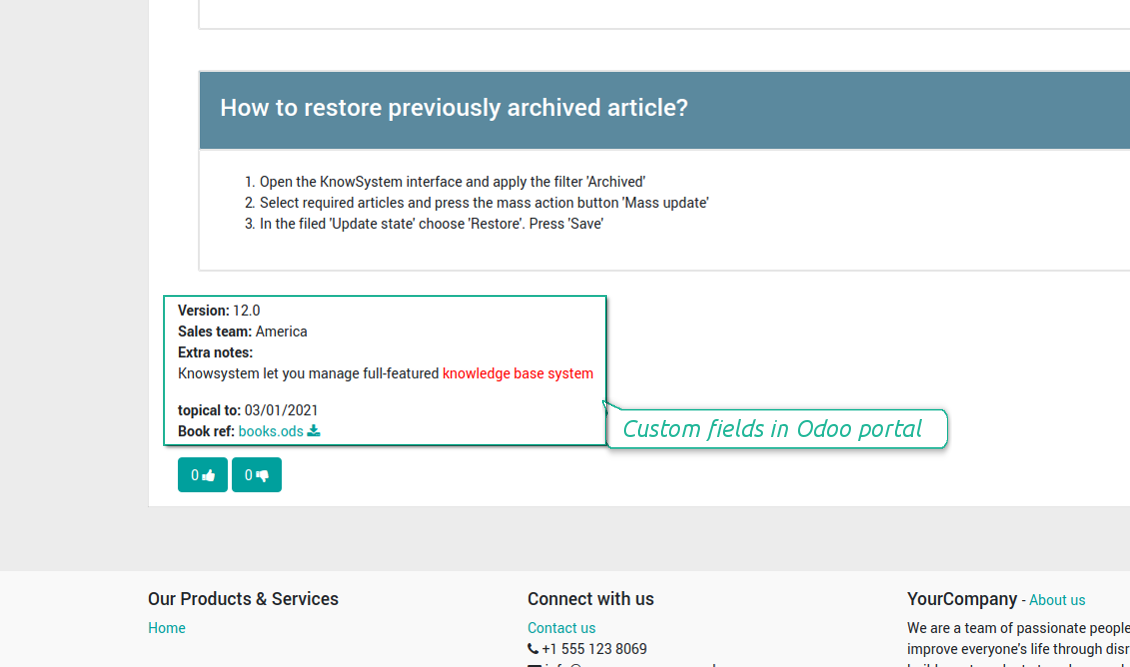
- an optional free module, which shows custom fields on website and portal pages (frontend). The features assumed by this add-on are also marked by the icon .
- an optional module, which let you translate articles, sections and tags for installed in Odoo languages. The features assumed by this add-on are marked by the icon . Son prix est 10€.
Innovative single-view interface
From the same interface editors may create and update any knowledge-related documents, change articles in batch, set up security. Without a need for excess navigation.
Interface solutions
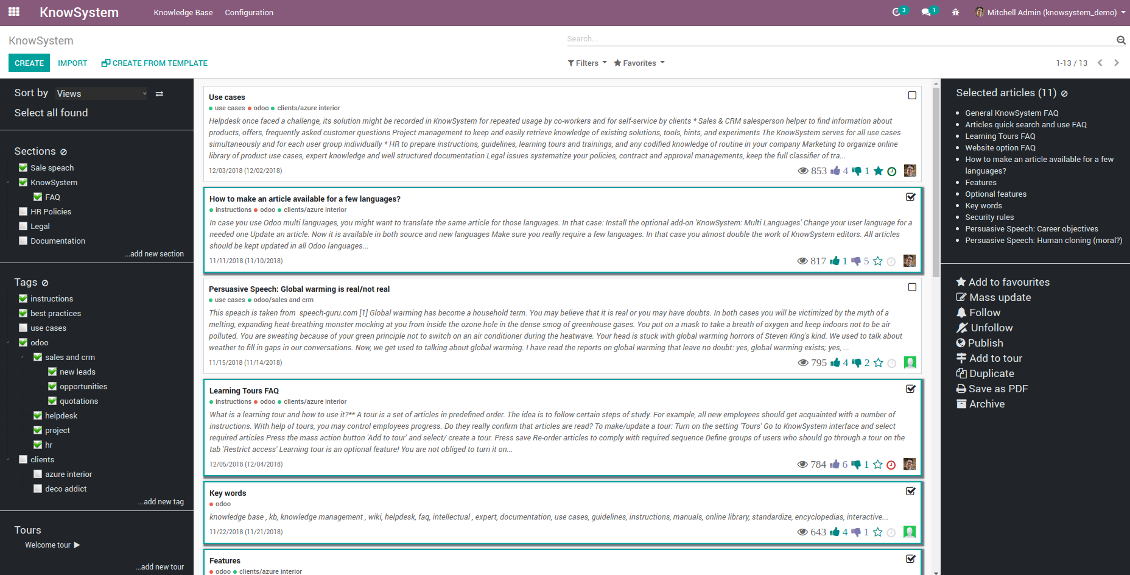
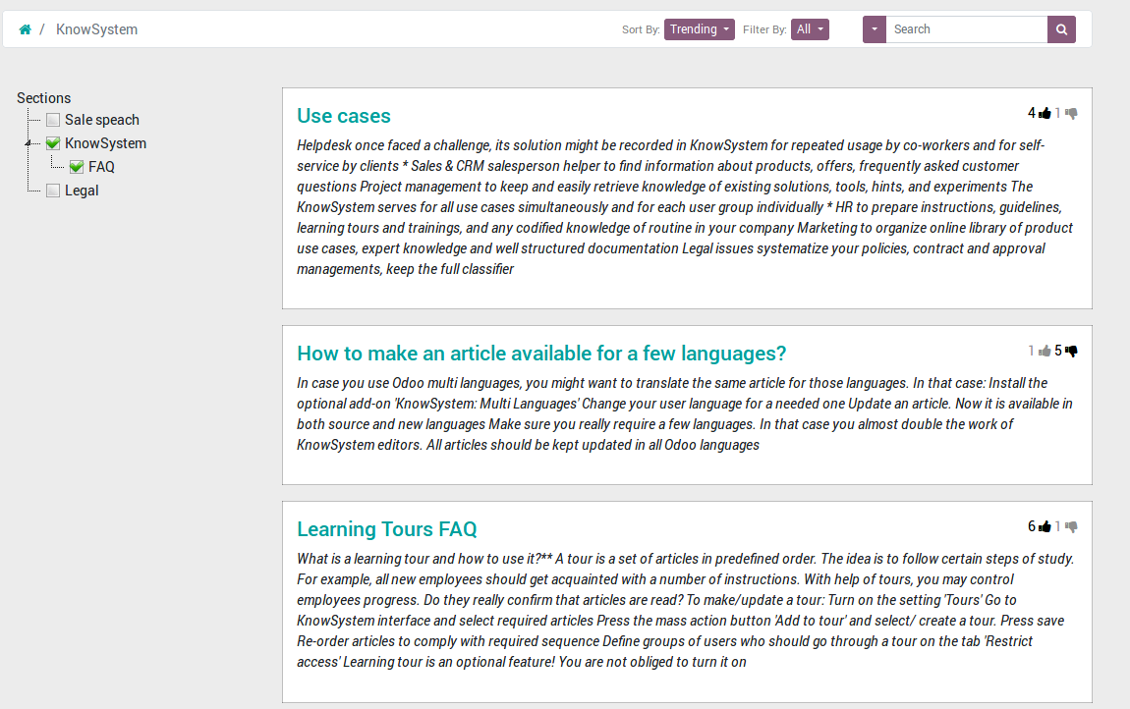
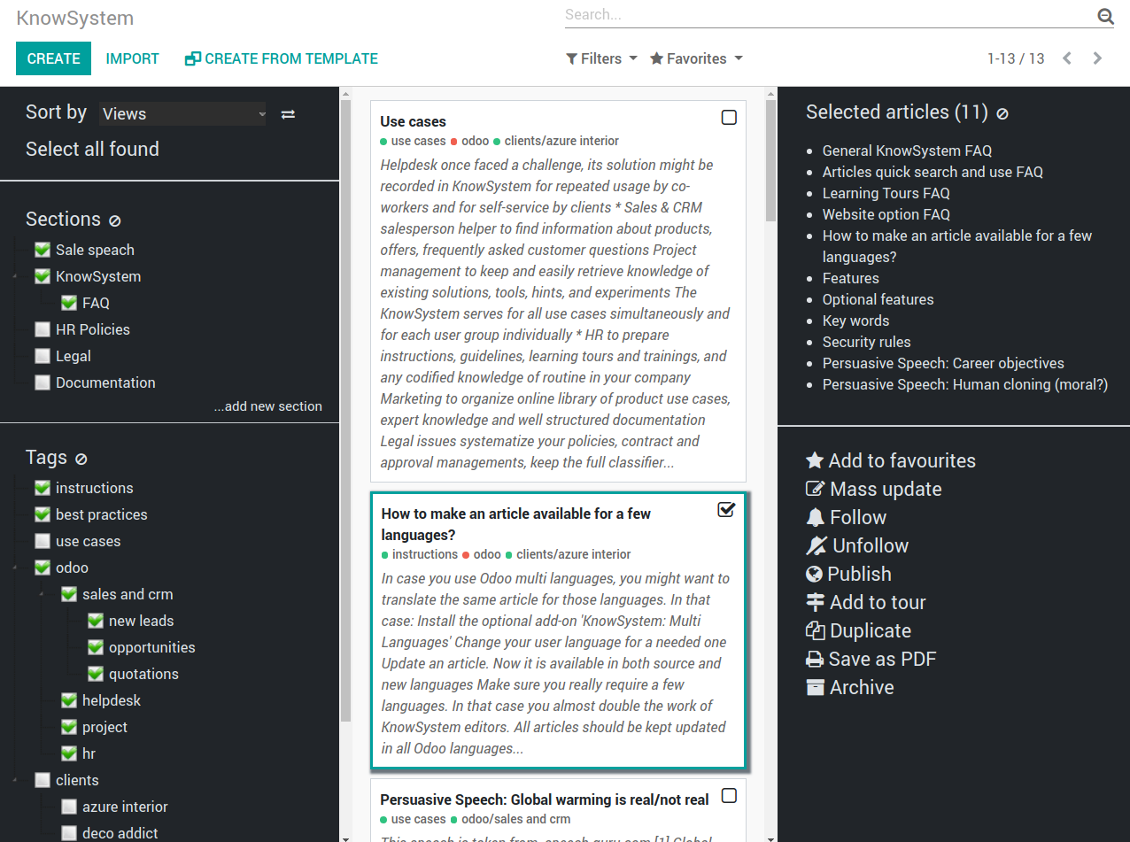
The KnowSystem interface consists of 3 key parts: the left navigation panel, the list of articles, and the right navigation panel (it is shown only if some articles are selected).
On the left navigation panel you may:
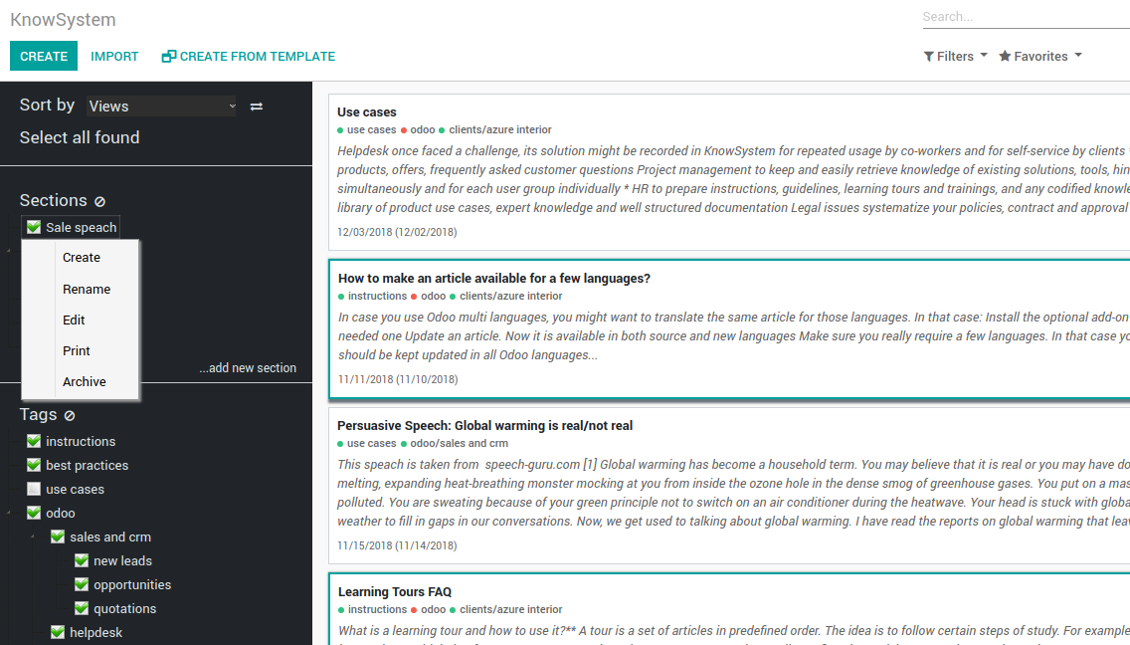
- Manage hierarchy of sections: prepare new (right mouse click - 'create'), update existing (right mouse click - edit), re-order any (drag and drop an item), archive sections. Select a few ones to filter articles. You may also print all articles related to this section as a single PDF file.
- In the same way manage hierarchy of tags
- Sort articles by number of views, a score of likes and dislikes, create or update dates, a section, an author
- Select all articles which are found according to chosen tags / sections and according to introduced searches / filters
- Launch a learning tour.
From the list of articles you see articles' name, indexed content (words without HTML style), dates of creation and last update, a number of views, likes, dislikes, author avatar. Here you may also add an article to favourite by pressing the 'star' icon.
Click on article body to open it in a full size (form view). Do not worry: chosen tags and sections as well as selected articles will be kept when you get back! Click on the top right check box to add an article for selection.
On the right navigation panel you observe selected articles and may proceed a mass action. Click on article name to remove it form selection.
On the top of the interface users also would find a standard Odoo omnibox. Type here to search by a title, content, an author, tags or a section.
Available mass actions
KnowSystem let users update an unlimited number of articles simultaneously:
- Assign new section
- Change or remove tags
- Print multiple articles as a single PDF
- Follow / unfollow discussions
- Publish / unpublish articles
- Export articles to an Excel table
- Archive or restore records
- Add articles to learning tours
- Mark knowledge items as favourite
- Duplicate articles.
Captures d'écran
KnowSystem articles overview, search and mass actions
Single entry for knowledge management actions
KnowSystem configuration
Article read mode
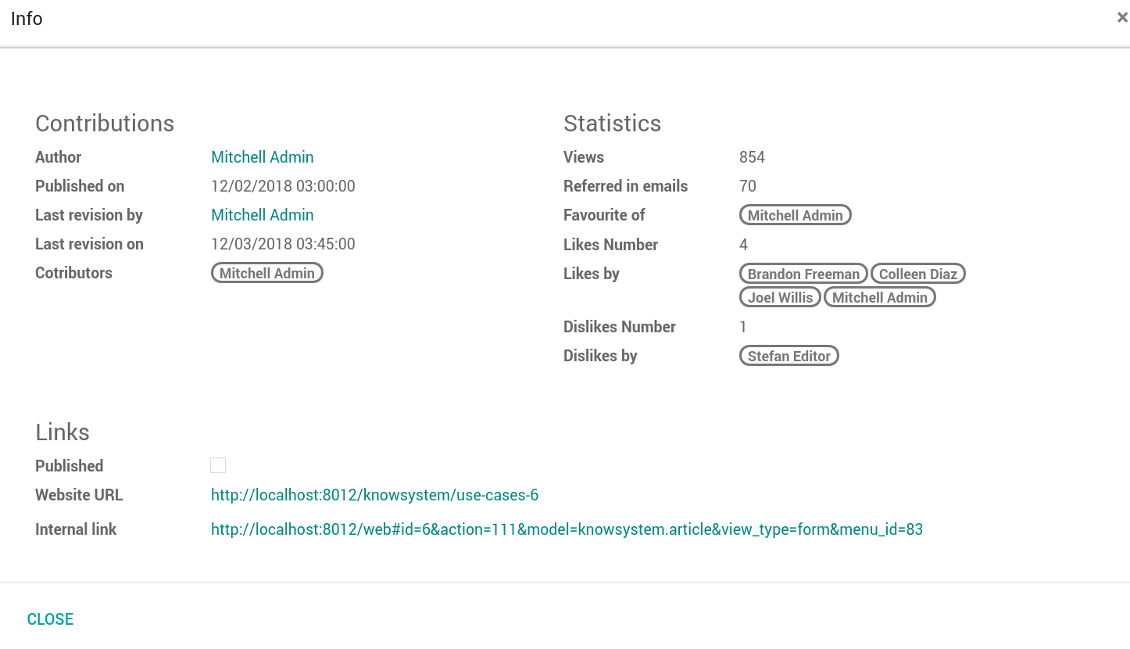
Article info and statistics
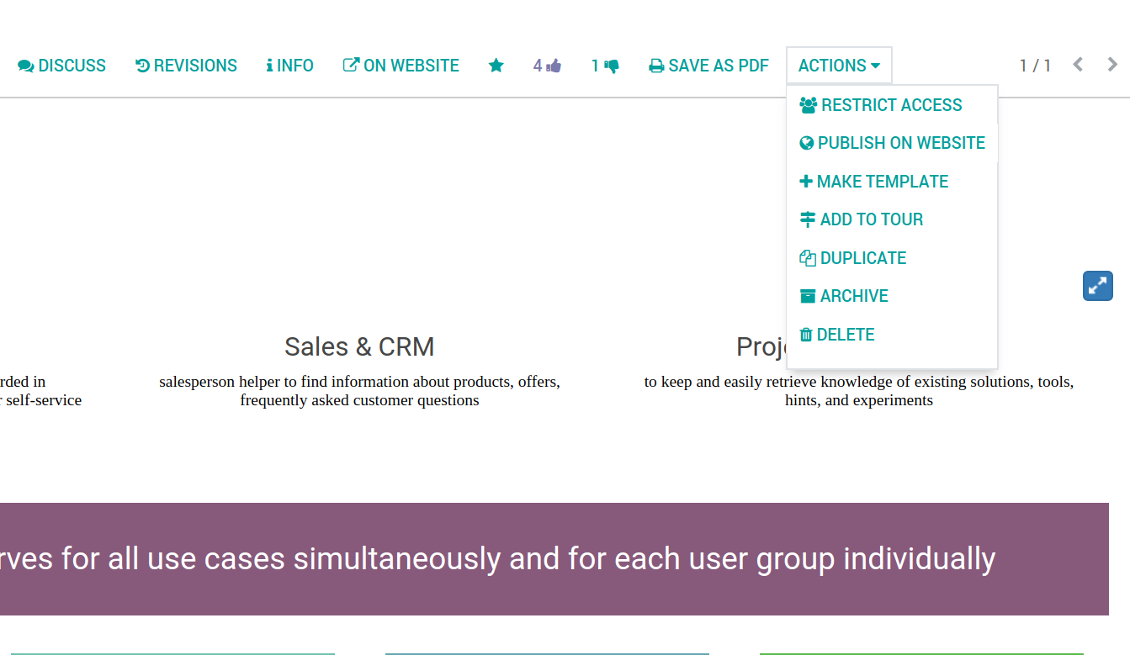
Article misc actions
Mass actions for selected articles
Small screen KnowSystem interface
Fast, comfortable, and professional knowledge recording
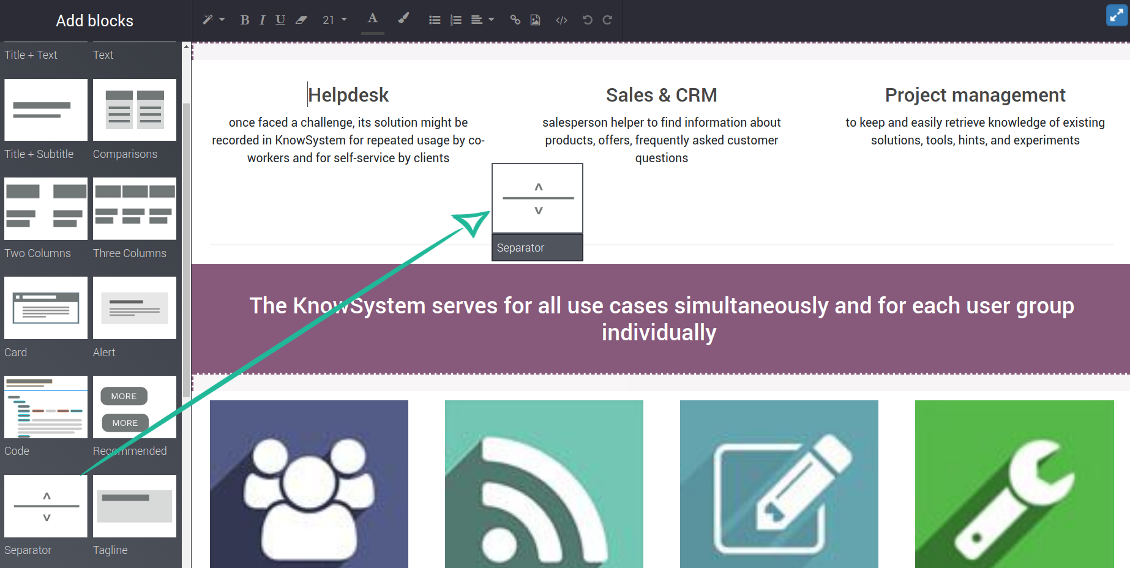
By using templates with pre-defined styles you may also speed knowledge generation up and standardize articles' appearance.
How to use the website builder for editing articles
KnowSystem provides you with a backend articles' builder, which is comfortable and safe to use. Odoo website builder is richer in features to prepare complex HTML structures. To edit articles through the website:
- Install the optional add-on 'KnowSystem Website and Portal' (the option 'Publish to portal and website')
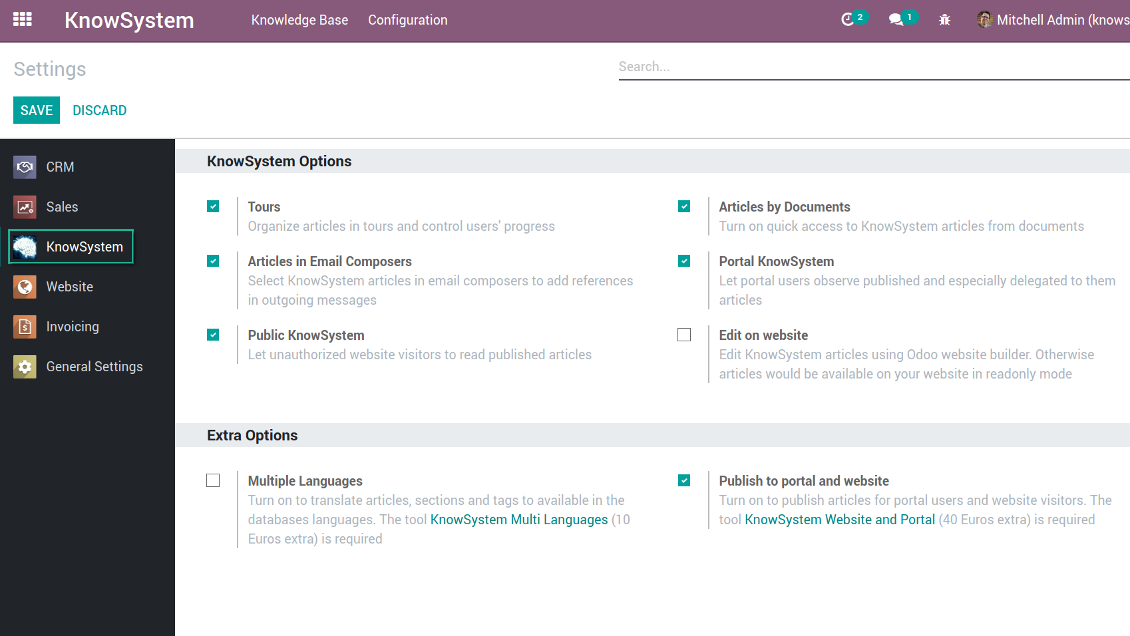
- Turn on the setting 'Edit on website'
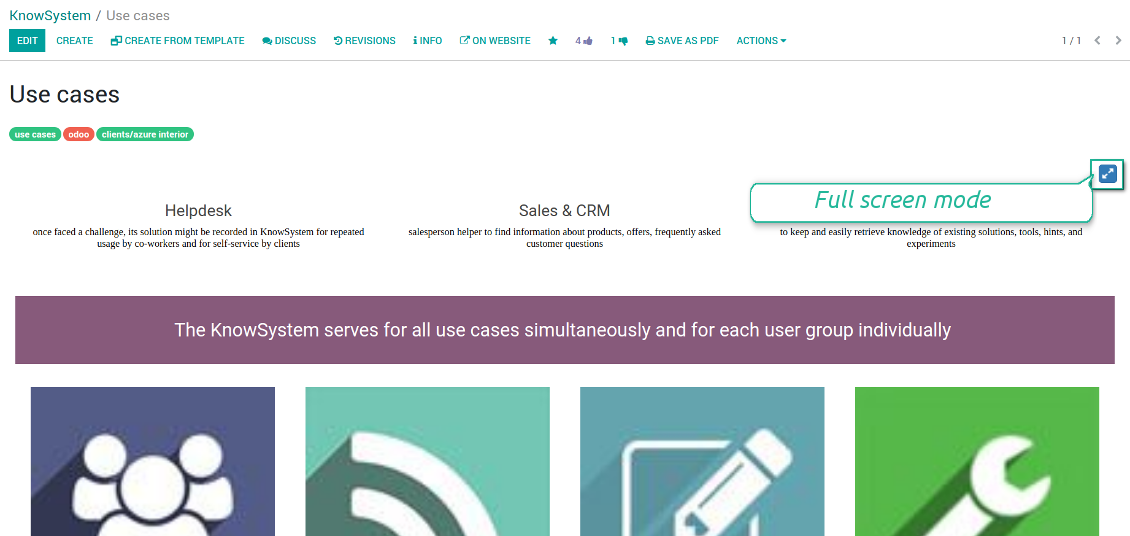
- Push the button 'Edit on website' on this article form
Be cautious: if you are going to print this article or add its contents to emails, website building blocks are not suitable. Their advanced styles contradict printing and composer layouts and would not be correctly shown. In such a case use the safer backend builder.
How to use article templates
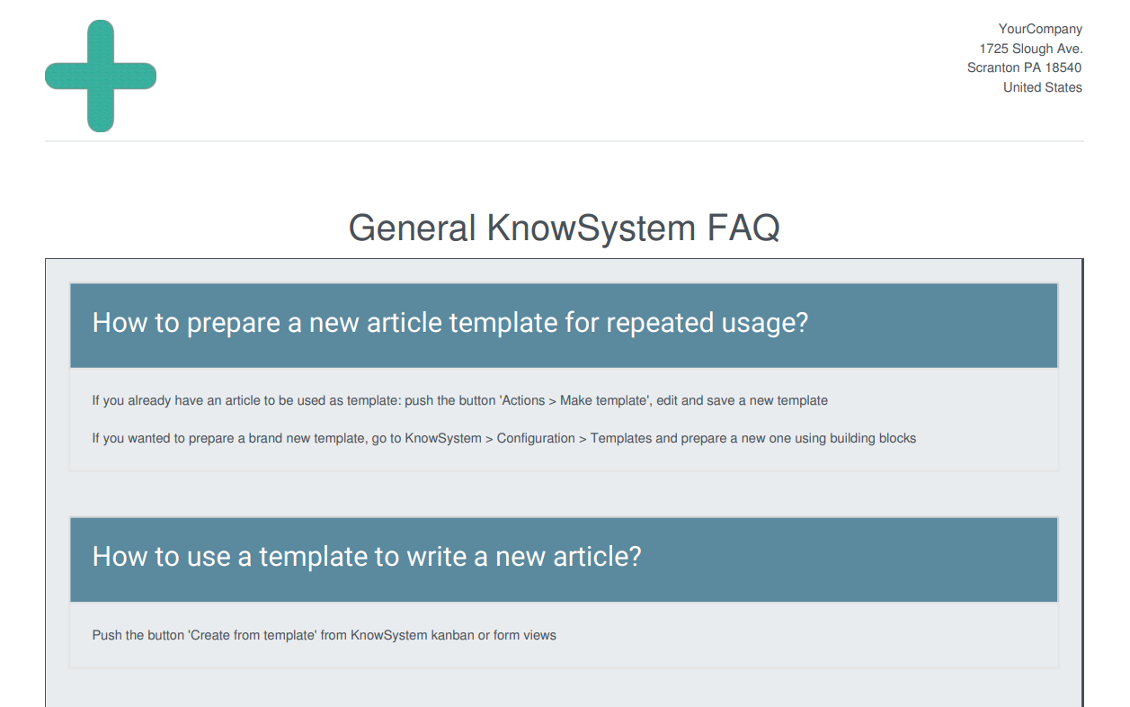
To prepare a new article template for repeated usage:
- If you already have an article to be used as template: push the button 'Actions > Make template', edit and save a new template.
- If you wanted to prepare a brand new template, go to KnowSystem > Configuration > Templates and prepare a new one using building blocks.
To use a template to write a new article:
- Push the button 'Create from template' from KnowSystem kanban or form views
- Select a required article template
- Push 'Create' and introduce changes to a new article.
Captures d'écran
Building blocks for knowledge base articles
Get benefit from your knowledge
How document types and articles are linked for a quick access
Experience is not general, usually it relates to specific issues. Knowledge used for customer communication differs from suppliers' negotiations. Frequently asked questions for draft and confirmed sale orders vary. KnowSystem let you structure your articles to apply them in a correct place and at right time. To that end:
- Turn on the setting 'Articles by Documents' (the option shows the top menu entry above any Odoo document) or 'Articles in Email Composers' (the option adds a quick link in a message composer editor for citing)
- Create a new tag (e.g. 'odoo / helpdesk'). In the table 'Applied to' use a required model (e.g. 'helpdesk ticket') or use it for all documents (the check box 'Apply to all documents').
- As advanced option you may apply additional filters: for example, to show articles only for 'new' tickets, not for 'in progress' ones. Use dynamic filters' constructor for that goal
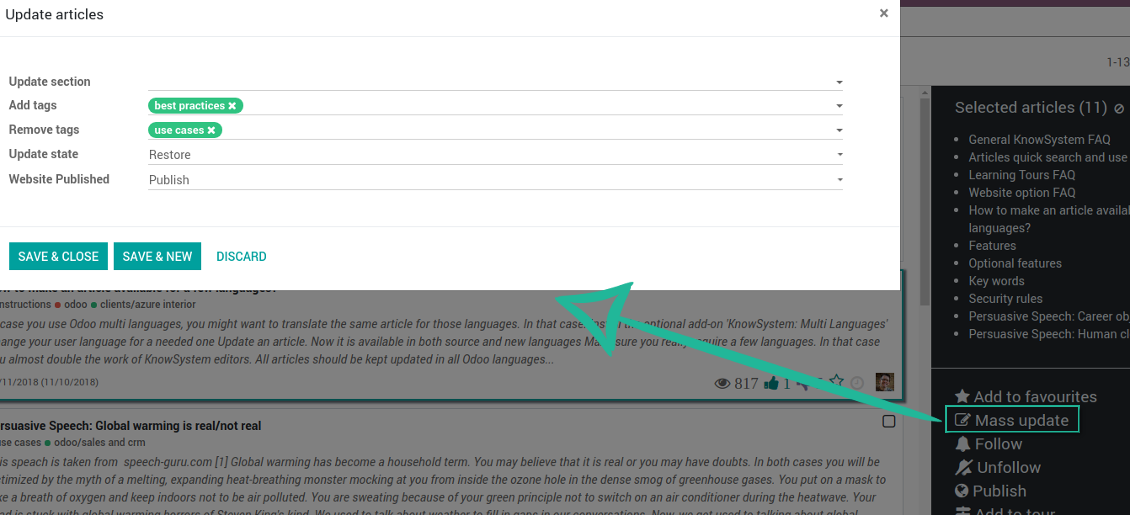
- Assign this tag for required articles. For a few articles use the mass action 'Mass update'
- Now when you access a quick article search from a document or from an email composer, Odoo will calculate KnowSystem tags for this document. That's why by default users would see only articles suitable for a current document. Simultaneously, they might always change tags to use other knowledge base data.
How to overview articles which might be useful for this document
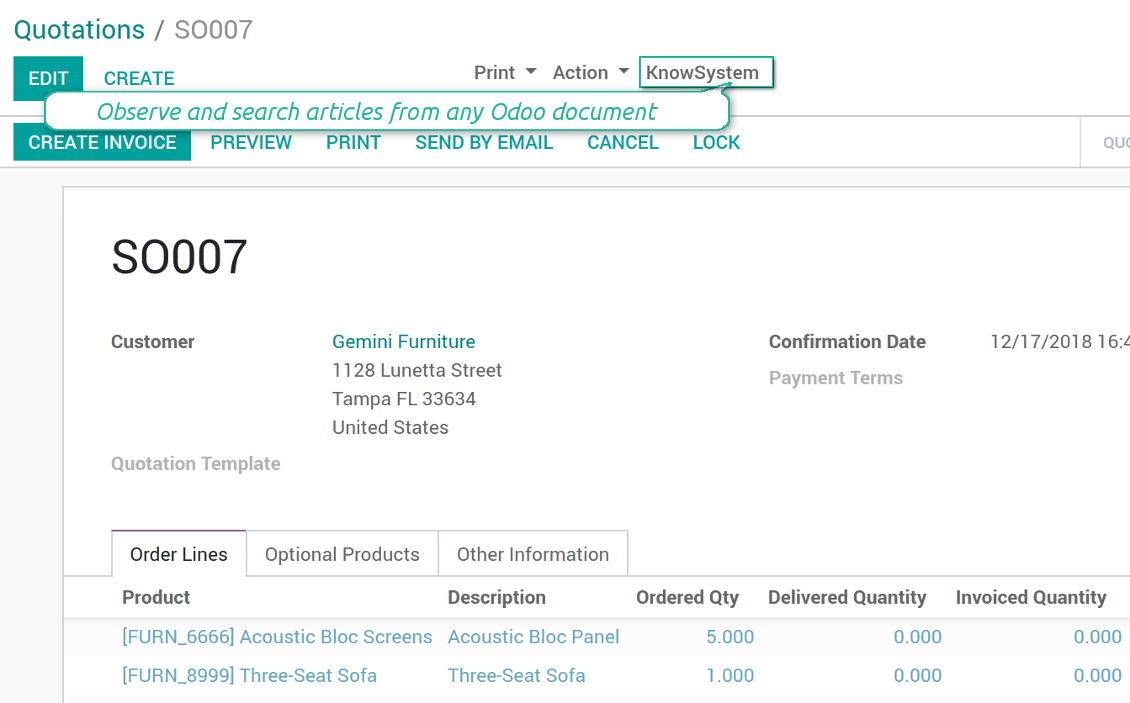
As soon as you turned on the option 'Articles by Documents', on the top of each Odoo object form view there would be a quick link 'KnowSystem'.
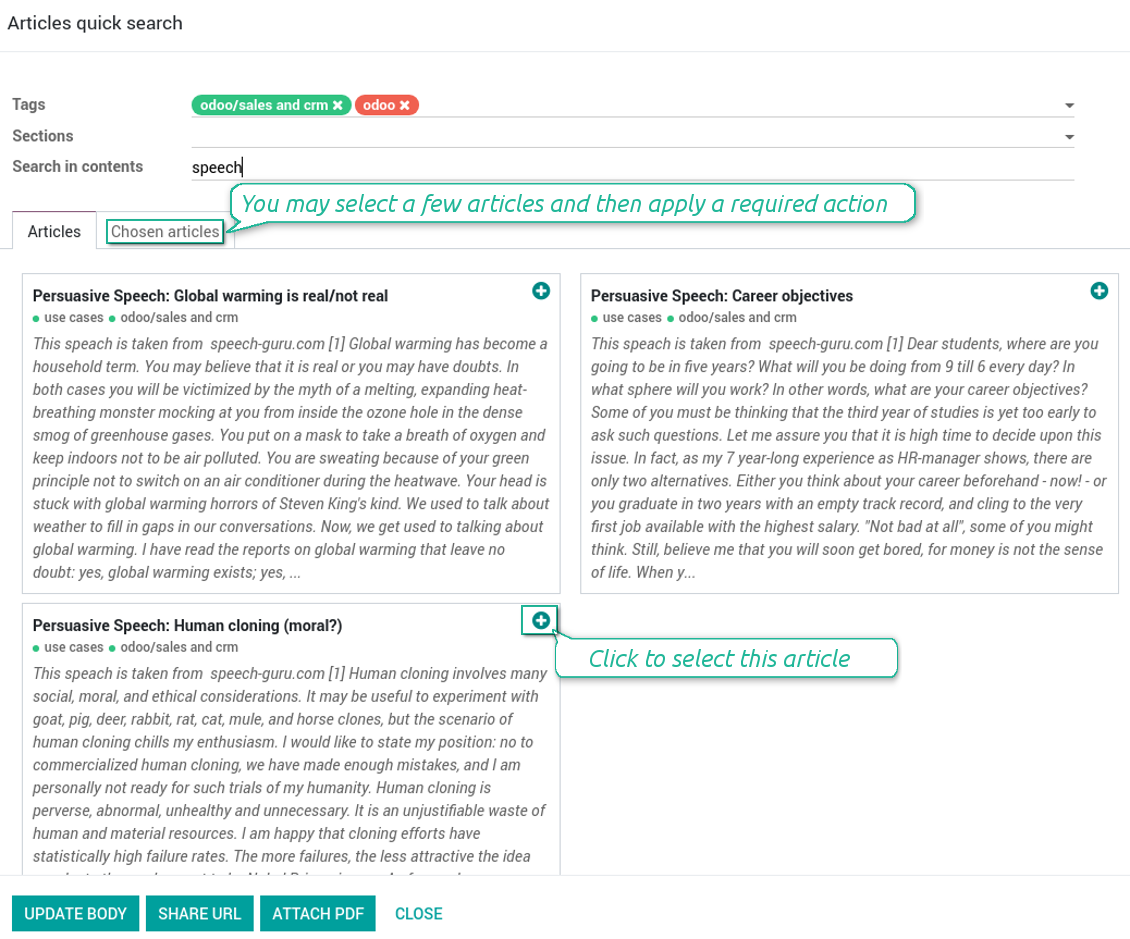
Click on that entry, and Odoo would open the wizard with articles. By default KnowSystem tags suitable for this document would be selected (if any). You may change those tags, or additionally filter by sections or content search. As a result list of topical articles is shown for you.
How to use company knowledge for communication
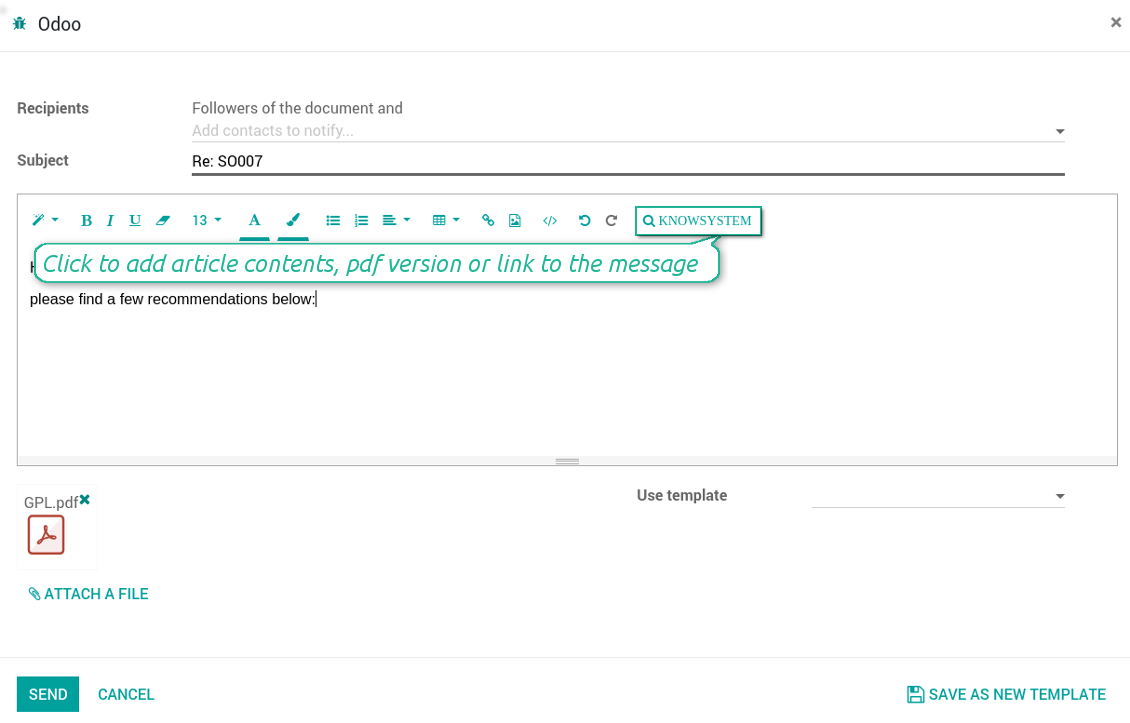
Turn on the option 'Articles in Email Composers' to let users reference or cite Knowledge records in Odoo messages. As a result the special quick entry 'KnowSystem' would be added to each Odoo email composer.
Clicking on that entry would open a wizard with a set of suitable to this document articles. You may change search by tags, add extra filtering by sections or content.
Afterwards, select required articles among found ones; choose an action. You may:
- Update message body with article contents (would be added to the end of a current message)
- Attach a PDF version of an article(s)
- Share a public link
Captures d'écran
Quick access for knowledge system from any Odoo document
Knowledge base link from email composer
Articles from any document
Article(s) PDF printing
WIKI-like revision system
How to recover a previous article version
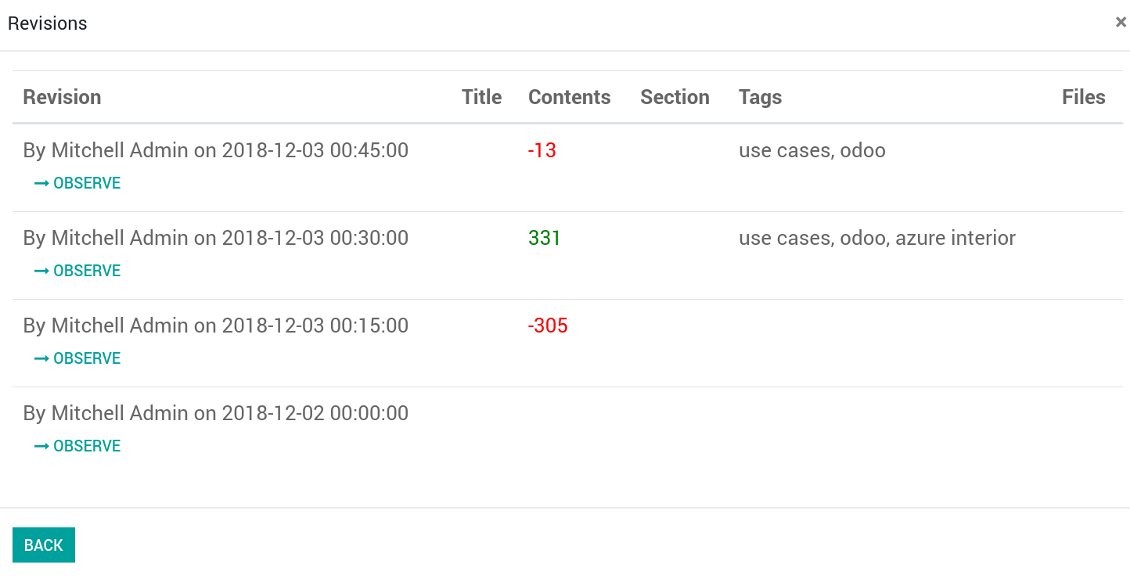
- Go to an article form view and push the button 'revisions'
- Find a required one and push the button 'Observe' to check whether this version is a correct one
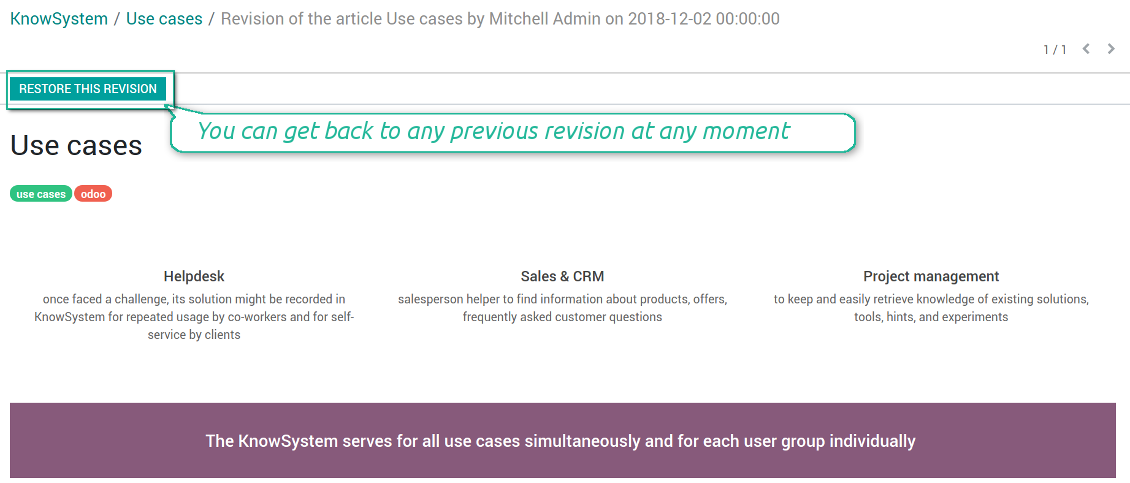
- Push the button 'Restore this revision'. The article would be recovered to that version.
- The recovery operation itself is recorded. So, if it is a mistake you can revert changes by recovering the last-to-last revison.
Captures d'écran
Wiki-style revisions history
To restore is easier than to break
Individual partner knowledge base portal
How to share knowledge base with specific partners
An article is available for a portal user in two cases: A. it is website published; B. his/her company is indicated as allowed partner in one of article tags.
In the first case such an article is available for all portal users and even for public website visitors who have not logged in.
In the latter case you grant a restricted access for an article only for chosen companies. To that end:
- Turn on the setting 'Portal KnowSystem'
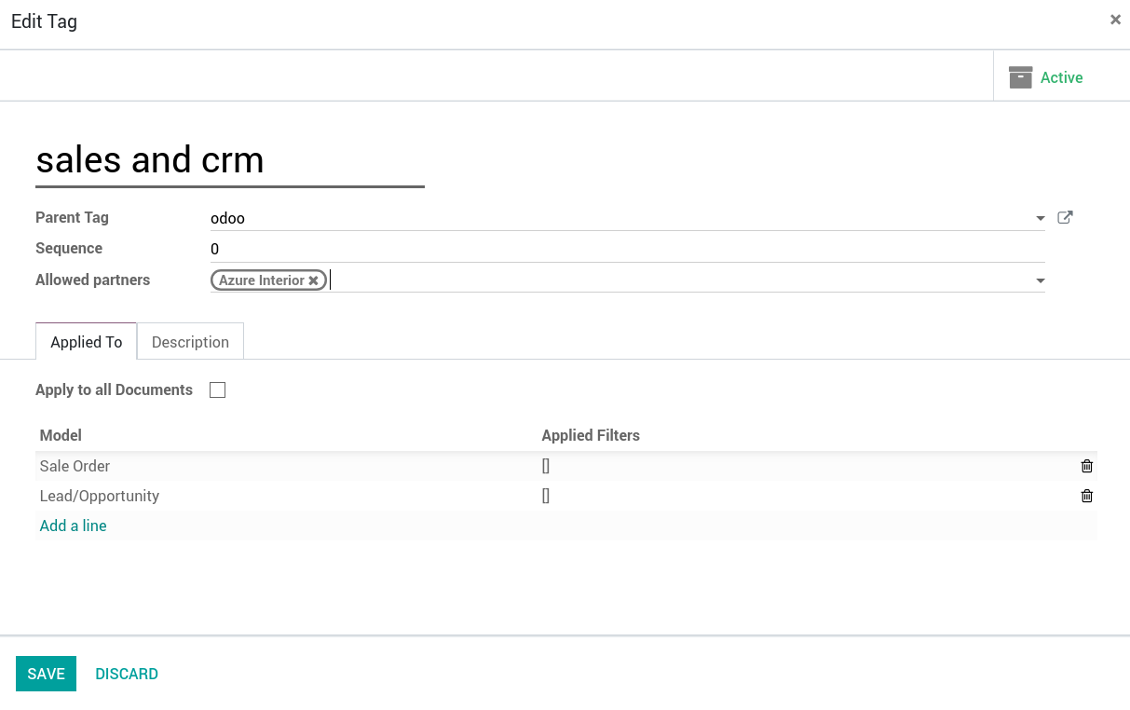
- Create a tag for this partner, for example 'clients / Azure Interior'. On the tag form indicate this company in the field 'Allowed partners'
- Assign the tag for all articles you want to share with this partner. For a few articles use the mass action 'Mass update'
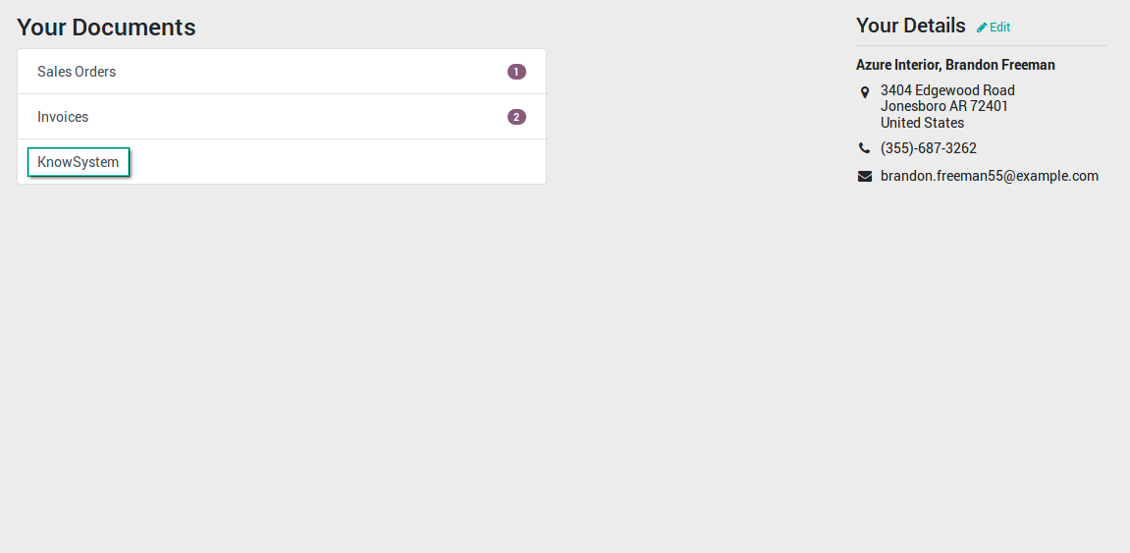
- Now portal users related to this partner may access shared articles right from their partner portal.
Captures d'écran
Knowledge base for portal and public use
KnowSystem articles on website
Tag: document types and portal partners
KnowSystem from portal
Best knowledge base system for Odoo!
Excellent app and exceptional after-sales support.
Really well thought-out product and one of the best features is the contextual help by means of the tags. Really a game changer for us.
Keep up the great work FaOtools!
Outstanding app! Tremendous value for money, an absolute must have!
One of the features sorely lacking from Odoo has been a robust Wiki/documentation system. Using third party platforms is a massive headache: yet another system to maintain, users get distracted switching back-and-forth, and errors get made. Then you have to worry about training, additional logins, etc.
KnowSystem feels like a native/core app, is very well-polished, and extremely fast. It's accessible from any screen, and the search results are instant (none of the latency inherent with most apps).The interface is elegant yet powerful, with robust access control, rich editing features, and version control. It's simple to revert to previous entries, view audit trails, etc. It's very intuitive for anyone familiar with Odoo; onboarding takes just a few minutes. The user guides are excellent.
This is invaluable for any organisation with a lot of documented information, SOPs, ISO compliance, or similar. If you're using eLearning, it's great for creating a help system / reminders. For example, noting key takeaways or specific instructions. The user can be in MRP, Sales, or any other function, and instantly lookup a guide. Since it overlays whichever screen you're in, it doesn't interrupt the workflow.
This dramatically increases efficiency, minimises questions, and helps keep everyone on the same page.
Oh, and customer service is excellent, faOtools stands behind their product. Thank you!
KnowSystem is excellent - OdooTools offer great support, are very helpful and responsive
Our company needed the ability to add a Knowledge Base to our Odoo portal website for our customers to access article content on a membership-only basis. KnowSystem provided this and much more, along with ability to add search by section, set permissions to allow only certain partners access to articles by tag etc. OdooTools have been very helpful and implemented several features we suggested including automatic redirect upon login, customisable filters and a social sharing capability on articles. Overall a great app by a great company, something that massively adds to Odoo's capabilities and is something that everyone could benefit from using.
Very functional application and responsive support
Our company produces medical laser equipment and we use KnowSystem to streamline the knowledge base of our company. Convenient search system and classification of content, as well as access rules for groups and even for individual users.
Great app and professional team
The app is great the the team is very professional in both response timing and problem solving.
Highly recommended.
Marco from ALO.zone.
Excellent system
Excellent system.
A great tool from some very nice developers!
KnowSystem is a great tool and a game changer for us. Finally a place to put all our company know-how. I highly recommend it. And also important to us: We got great support from FaOtools too. A rare thing in this busy world. thx!
Excellent app and support.
Great app and a very helpfull support. Openess to improve their products is outstanding.
Public knowledge base
How to make an article available for all website visitors
- Turn on the setting 'Public KnowSystem'
- Publish required articles through the mass action 'Publish' or by pushing the button 'Actions > Publish on website' on an article form
- Now any website visitor can read those articles
Team work for knowledge creation
Captures d'écran
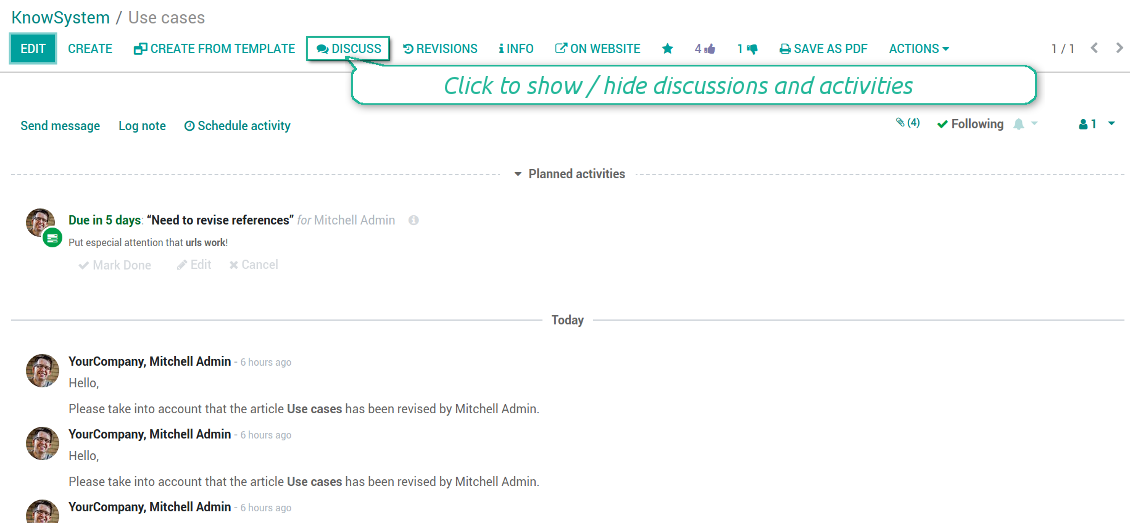
Knowledge base interactions, discussion, and activities
Custom fields to structure knowledge
How custom knowledge attributes work
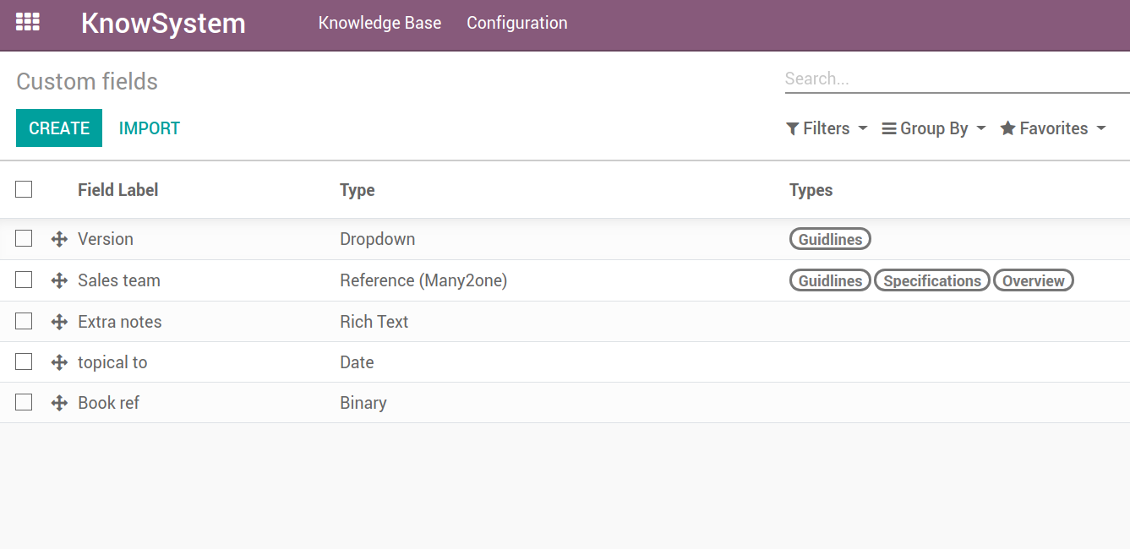
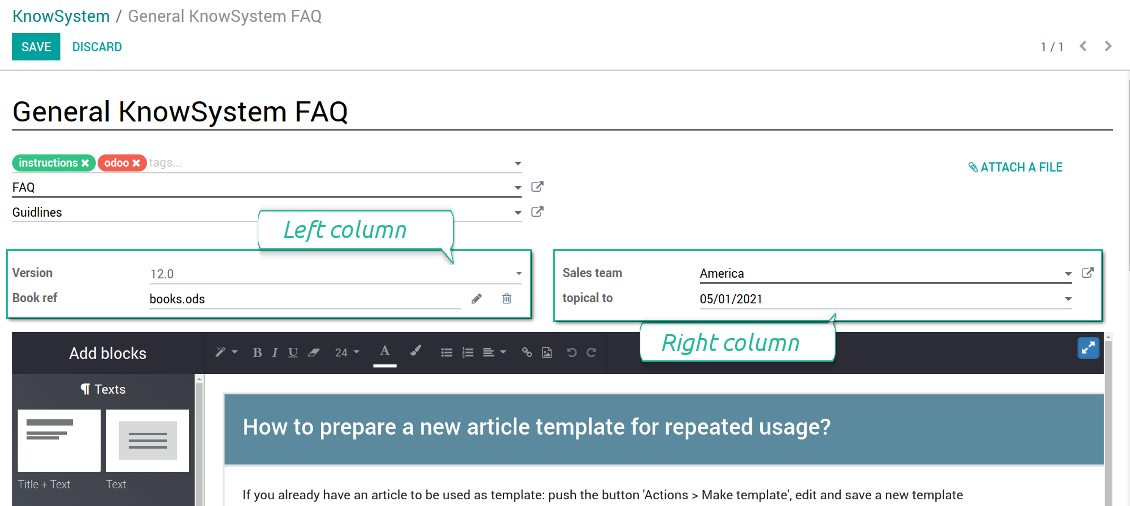
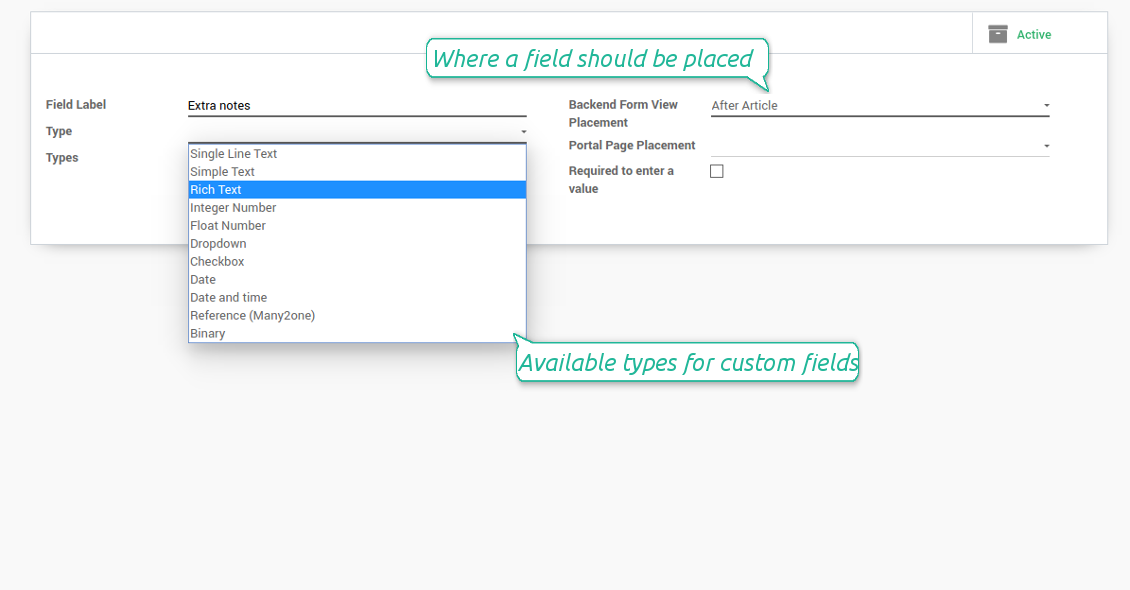
In order to show a new property for KnowSystem articles, just create a custom field. Nothing else is required! You are welcome to prepare fields of various types: single line text (char), simple text without formatting (text), rich text (HTML-formatted text), integer or float numbers, drop-down choice with your own options (selection), checkbox (boolean), date or date and time, binary (a file to upload), reference to another Odoo document (e.g. for a sale order, contact; many2one).
The tool also introduces complementary articles' typology. Thus set of attributes for 'user guidelines' and 'technical specifications' might be different.
Then, choose an interface location for a new field from a closed list to structure properties on an article page. Decide whether a field should be required to enter, or should be visible only for definite knowledge types.
Captures d'écran
KnowSystem articles' custom fields
Custom fields on article form
Custom fields in portal and website
Custom fields for article: add any data required
Knowledge is secured and might be safely shared
How to manage user accesses to articles
Security for internal and portal users differs.
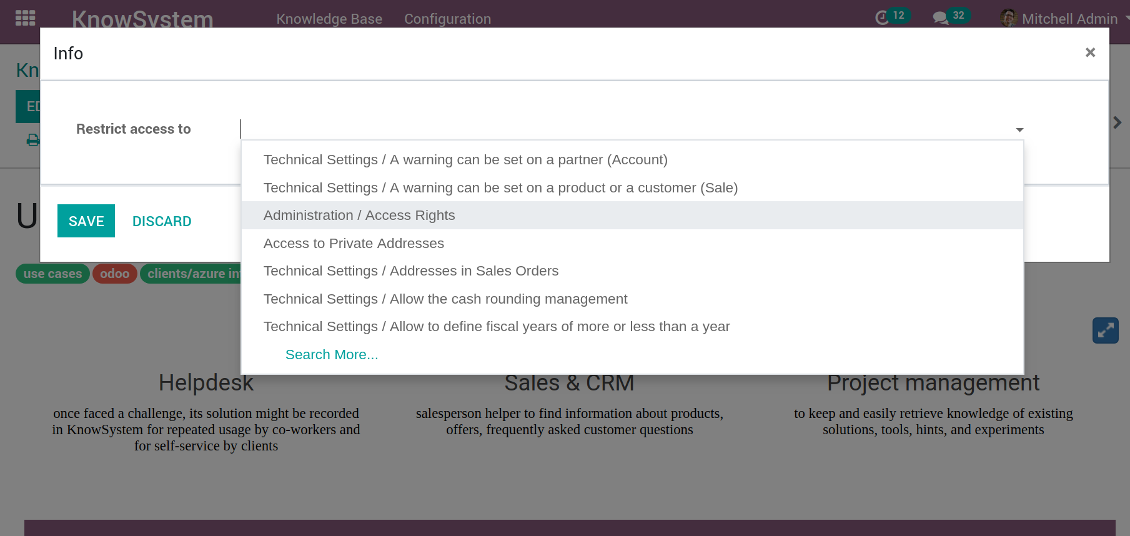
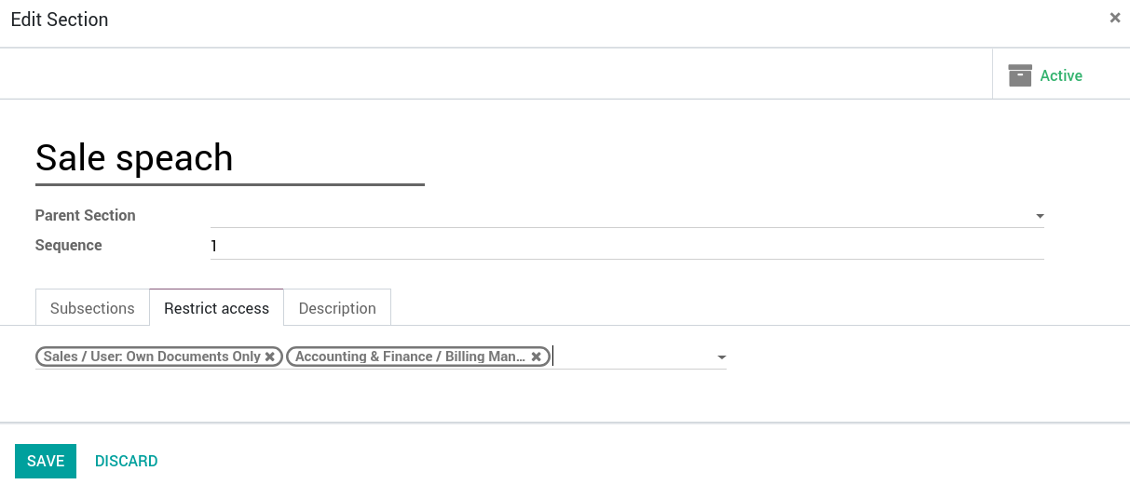
For the company employees: KnowSystem considers user groups which are defined per articles, sections and tours. Look at the tab 'Restrict to' on forms of those objects. If that field is not defined, a document is considered 'global': each internal user may read it.
For portal / public users: KnowSystem takes into account tags and whether an article is website published. A knowledge tag has a field 'Allowed partners', which may grant an access to portal users for articles with this tag. Website published pages are available for everybody.
Rights to administrate KnowSystem belongs to 2 user roles: KnowSystem Editor and KnowSystem Administrator. If you want a user to create and edit articles, a user should belong to one of those groups.
|
|
Odoo user |
KnowSystem Editor |
KnowSystem Admin |
Portal user |
Public user |
| Articles | read related to his/her user groups and sections | read, create, edit, archive related to his/her user groups and sections | read, create, edit, delete any | read published articles and articles related to partner-related tags | read published articles |
| Sections | read related to his/her user groups | read, create, edit, archive related to his/her user groups and sections | read, create, edit, delete any | read all sections of available articles | read all sections of published articles |
| Tags | read any | read, create, edit, archive any | read, create, edit, delete any | read published ones | read published ones |
| Article Types | read any | read any | read, create, edit, delete any | read published ones | read published ones |
| Tours | read related to his/her user groups | read, create, edit, delete related to his/her user groups | read, create, edit, delete any | no access | no access |
| Misc | may like / dislike, add to favourites, print, take part in discussions | may configure options | may like / dislike an article |
|
Take also into account two peculiarities:
- Odoo user always may access an article of which he is an author disregarding further restrictions;
- Rights for section is defined not only according to this section but also according to all its parents. For example, if user can't access 'sales', he/she would not be able to access 'sales / crm' disregarding whether 'crm' is available for his/her user group.
Captures d'écran
Manage access to this article
Section update and user rights
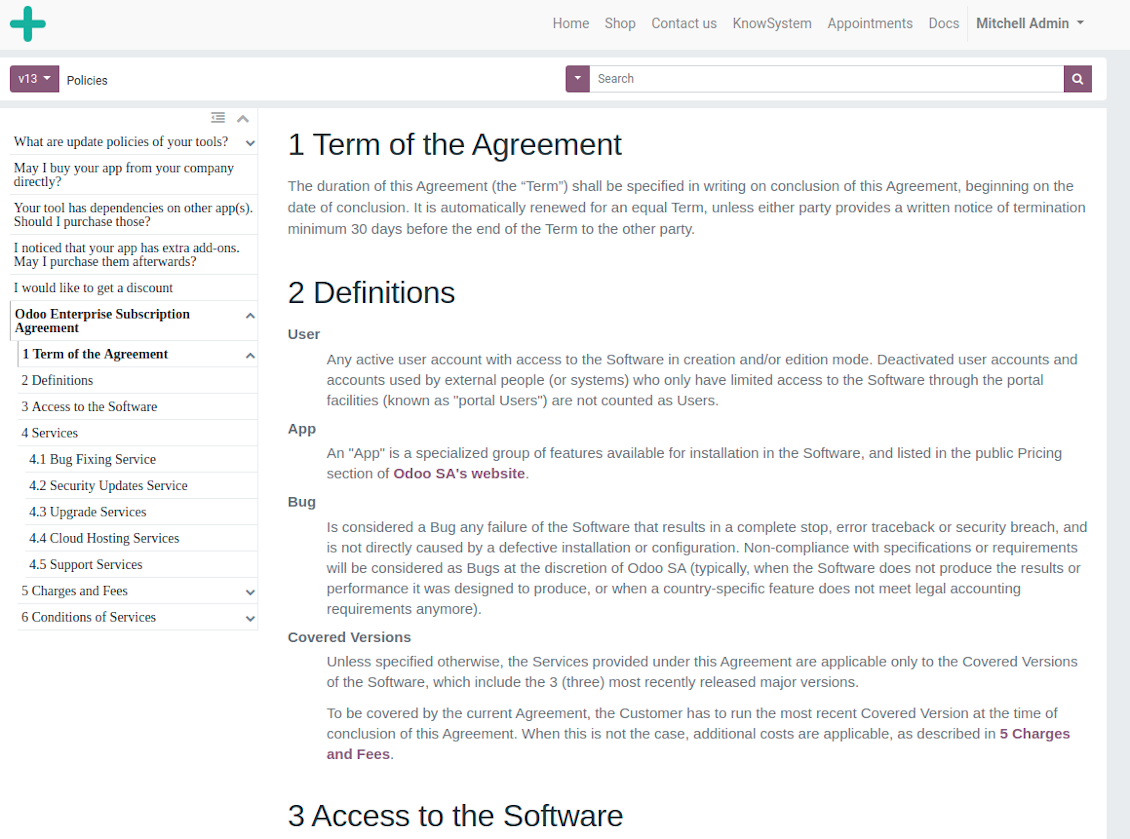
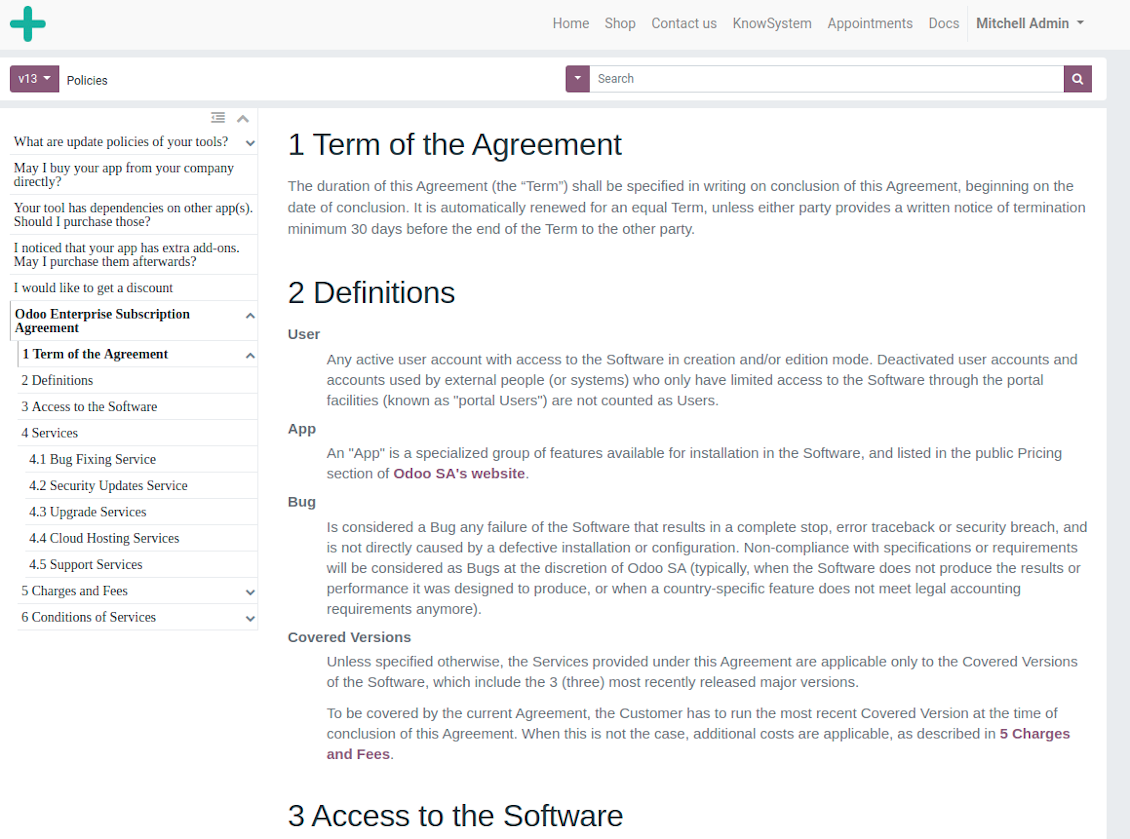
Website documentation builder
Captures d'écran
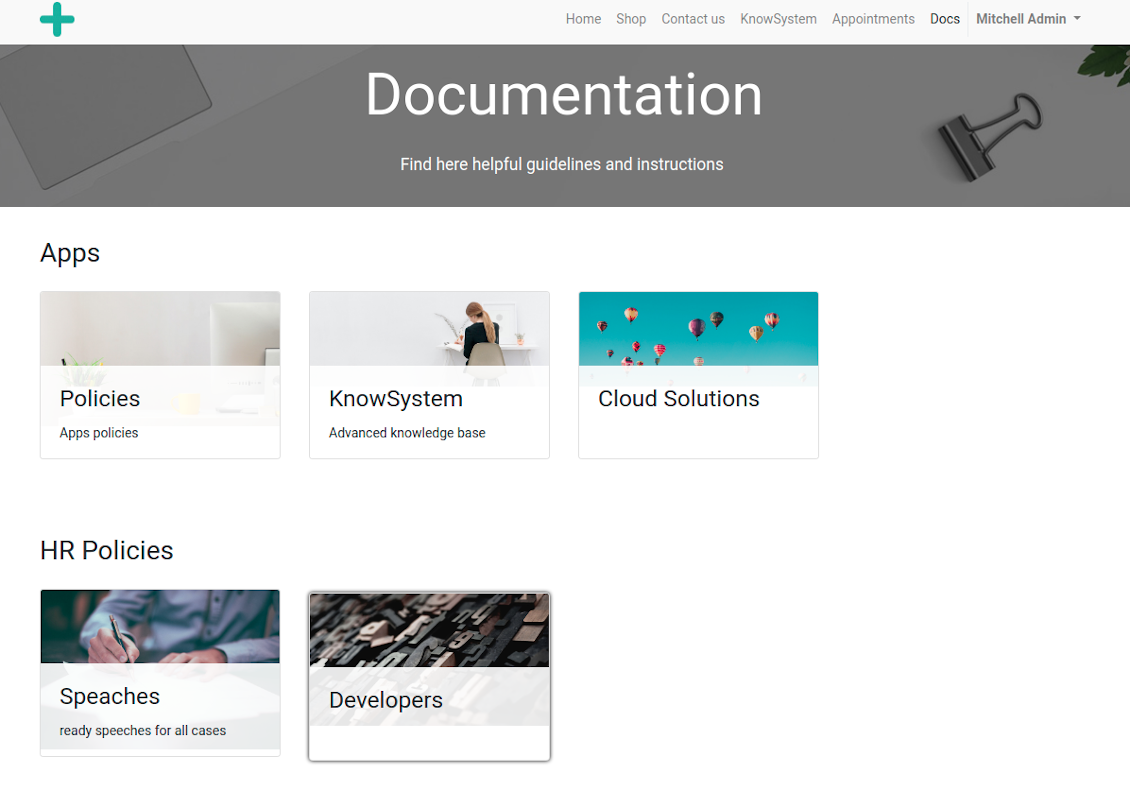
Documentation by categories and sections
Documentation by categories and sections
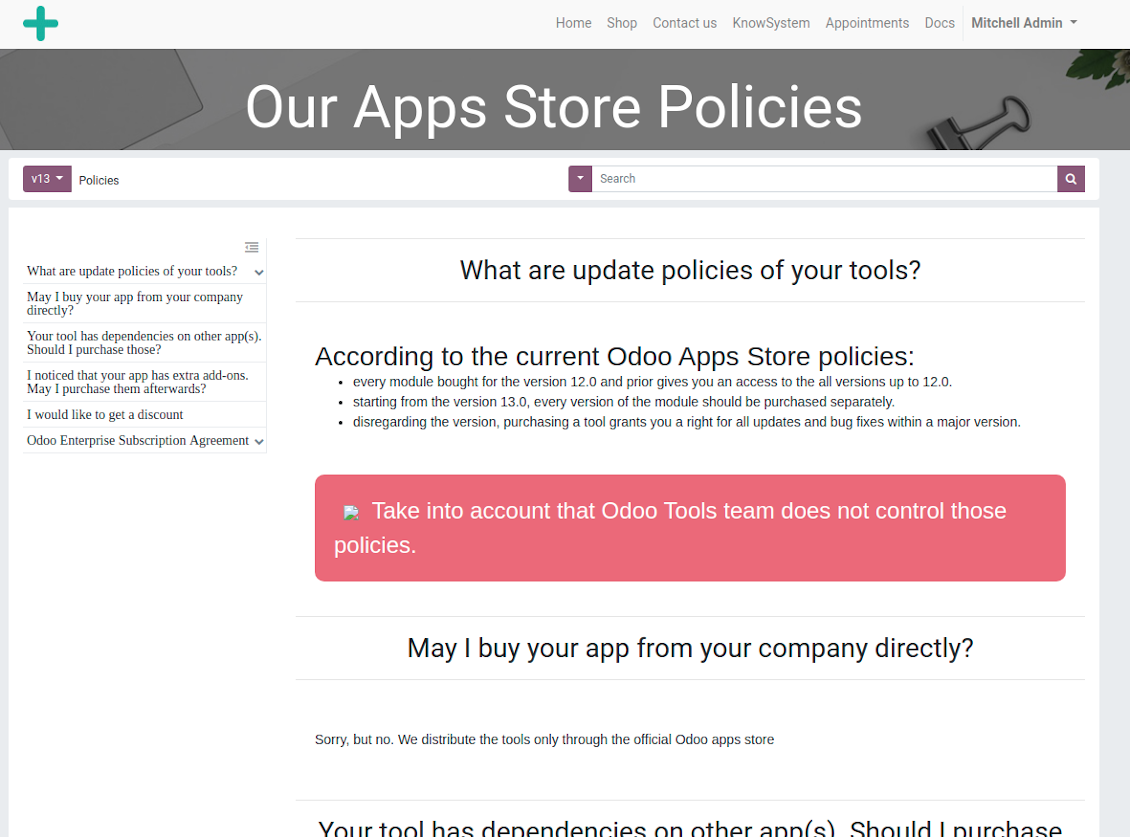
Documentation page
Documentation page
Automatic table of contents by documentation
Automatic table of contents by documentation
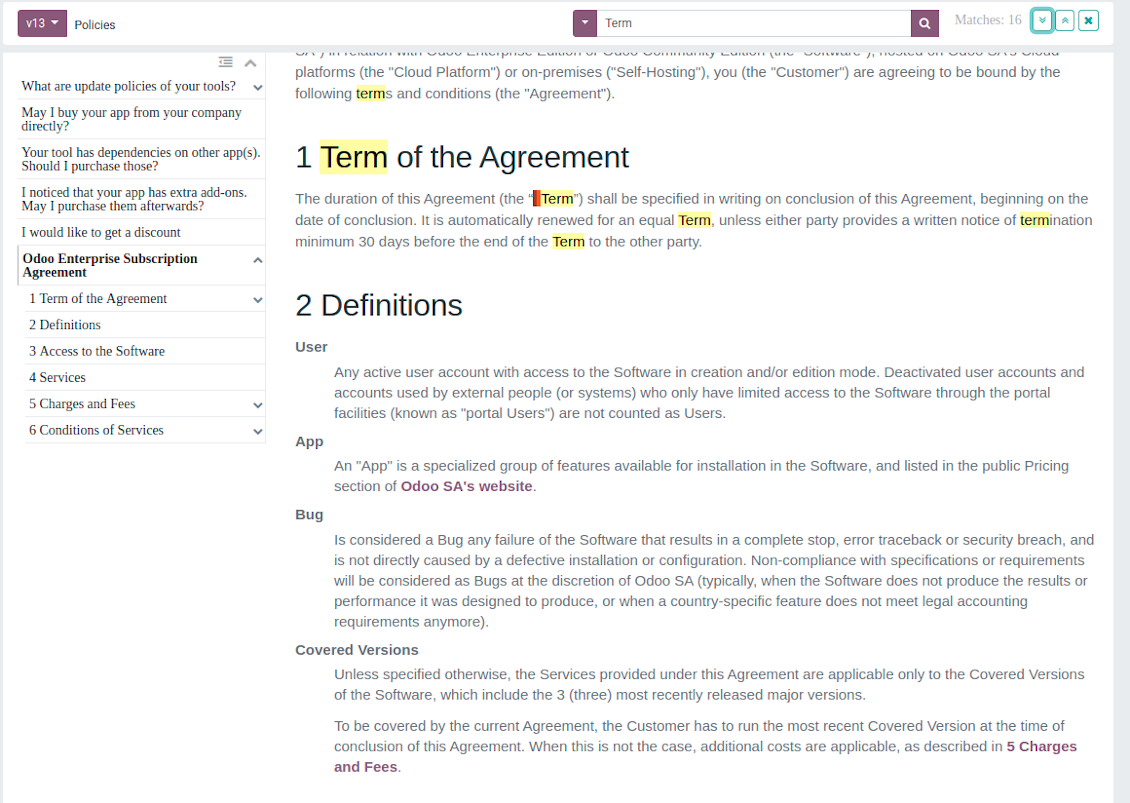
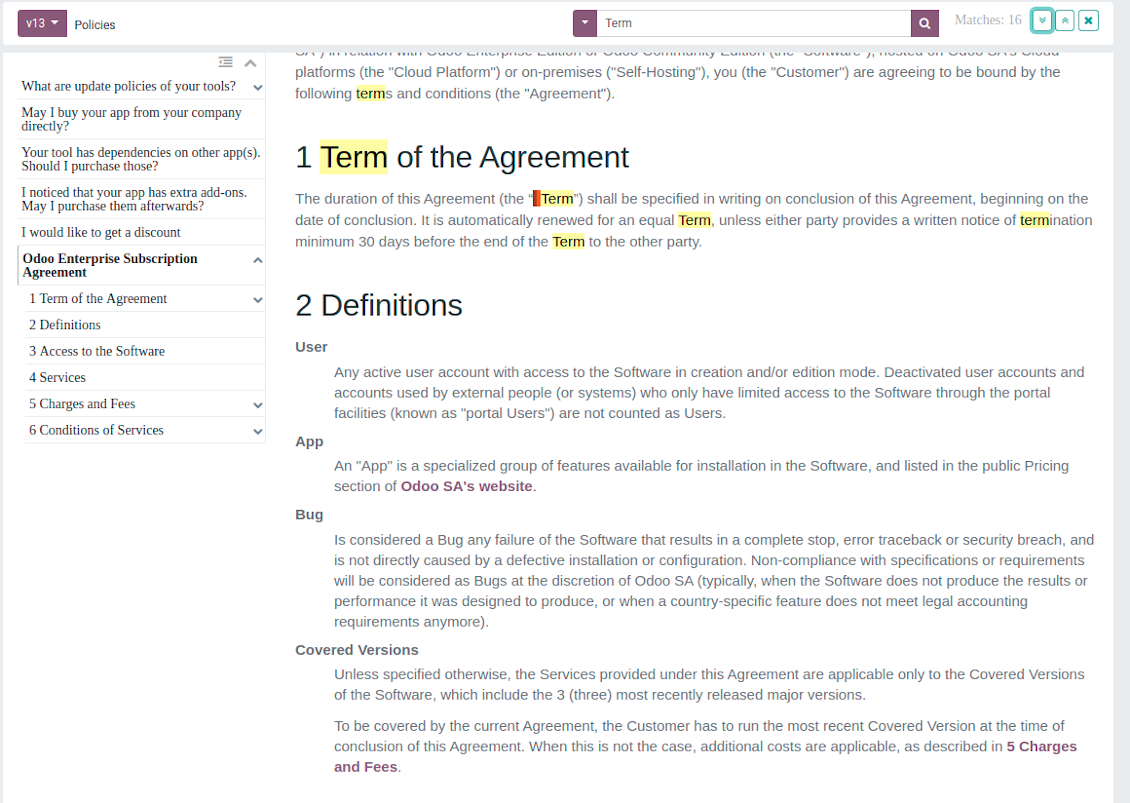
Inline search by documentation
Inline search by documentation
Compose articles for documentation
Compose articles for documentation
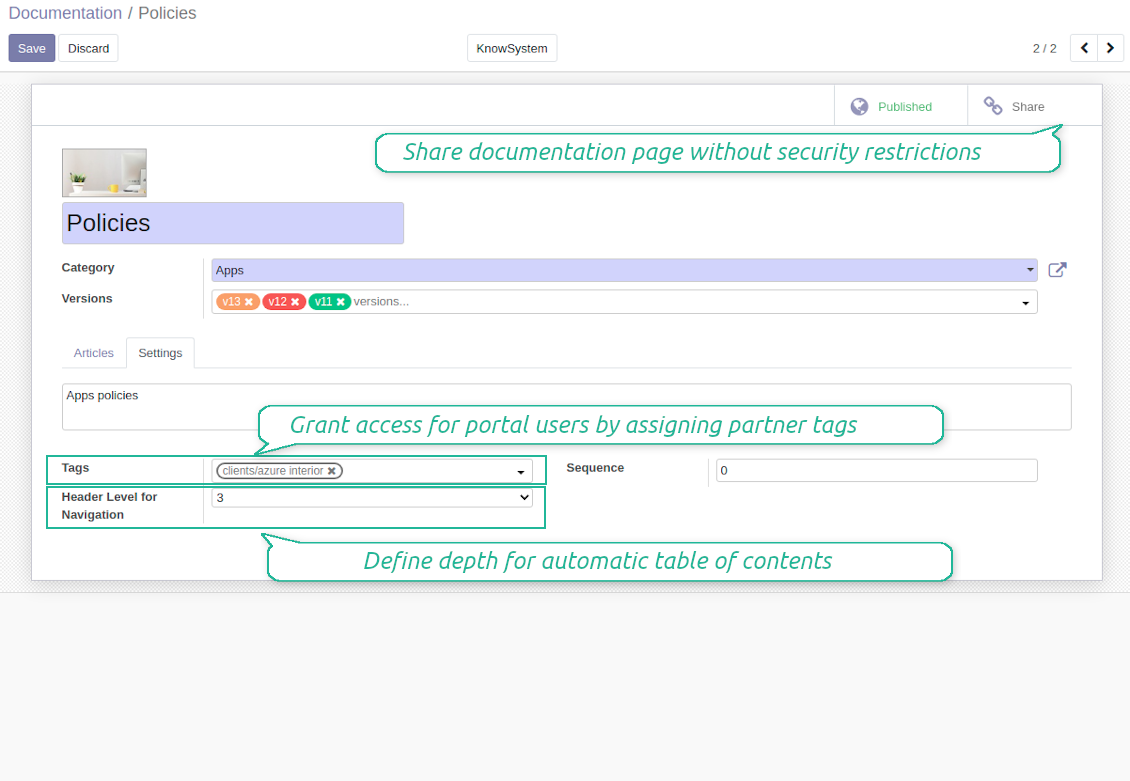
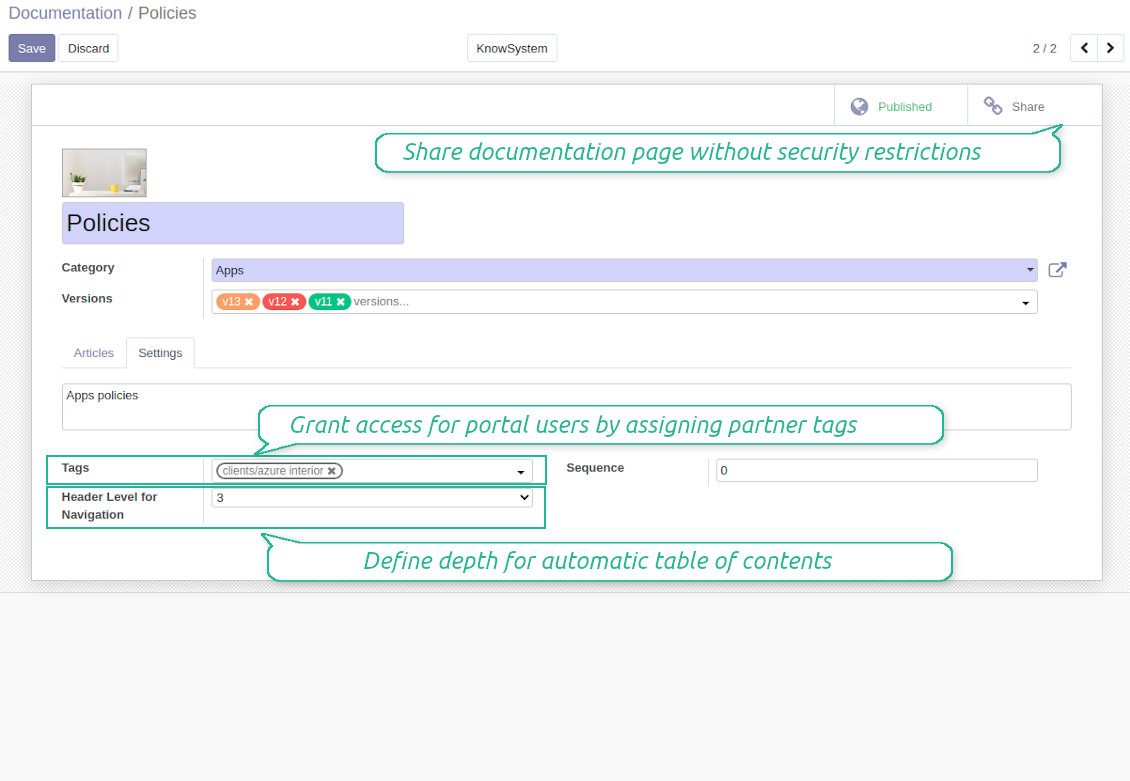
Documentation settings
Documentation settings
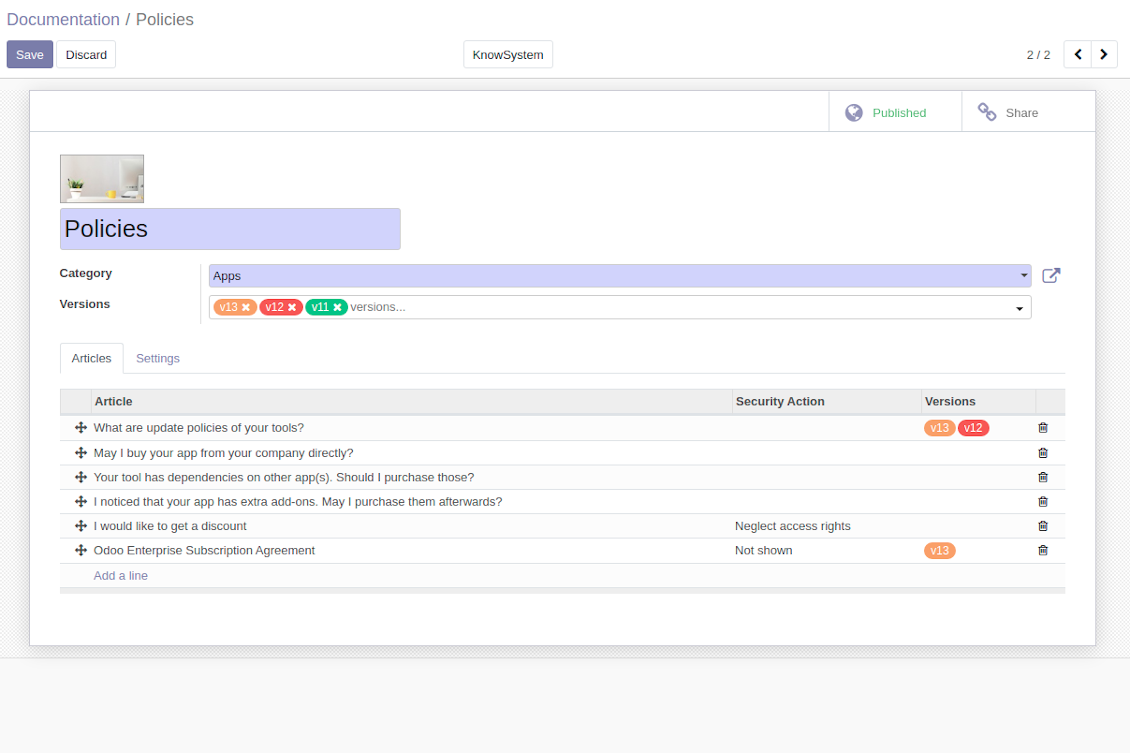
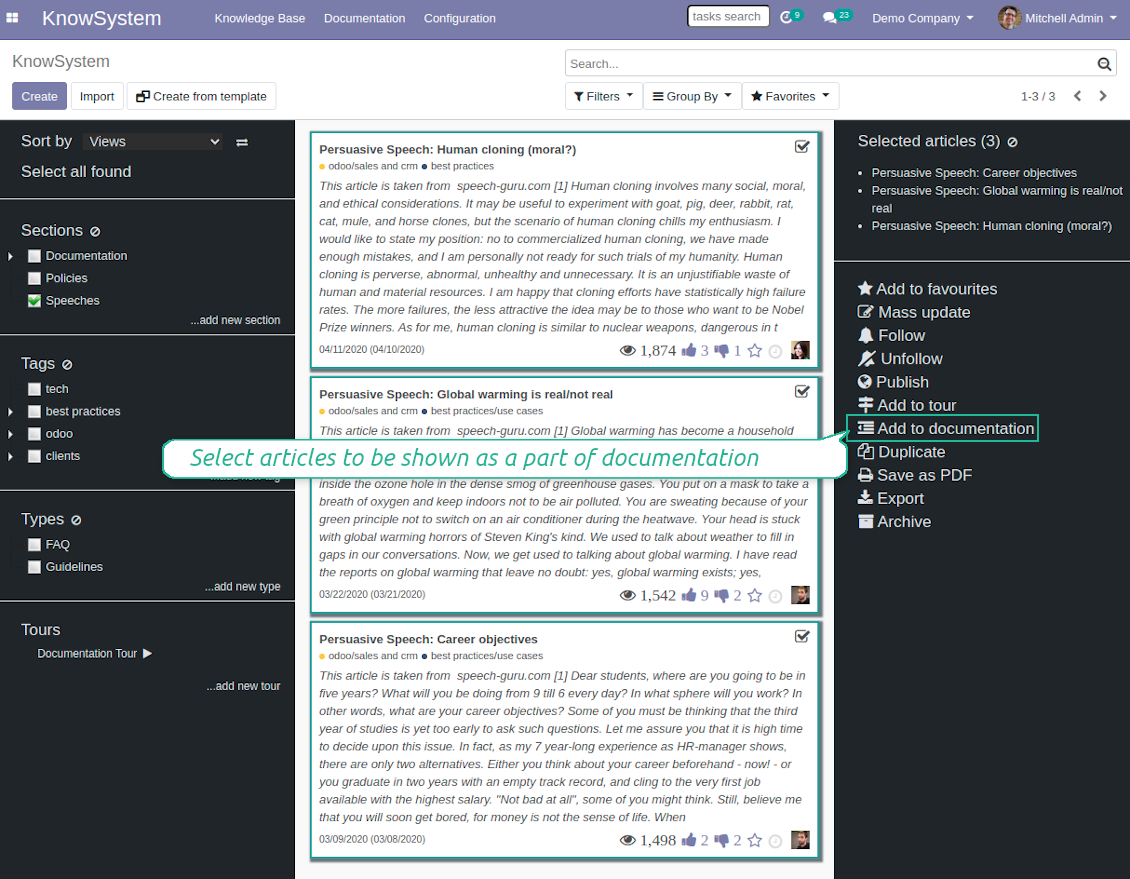
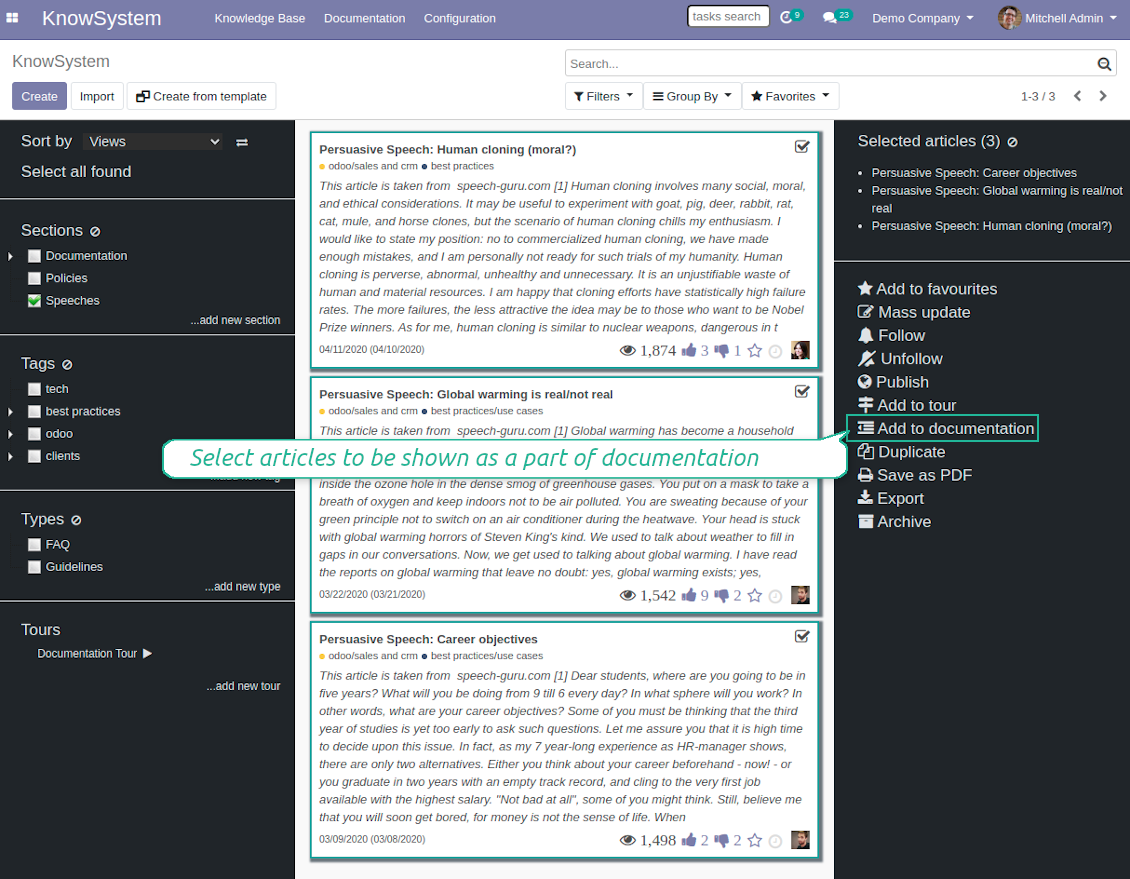
Add KnowSystem articles to documentation
Add KnowSystem articles to documentation
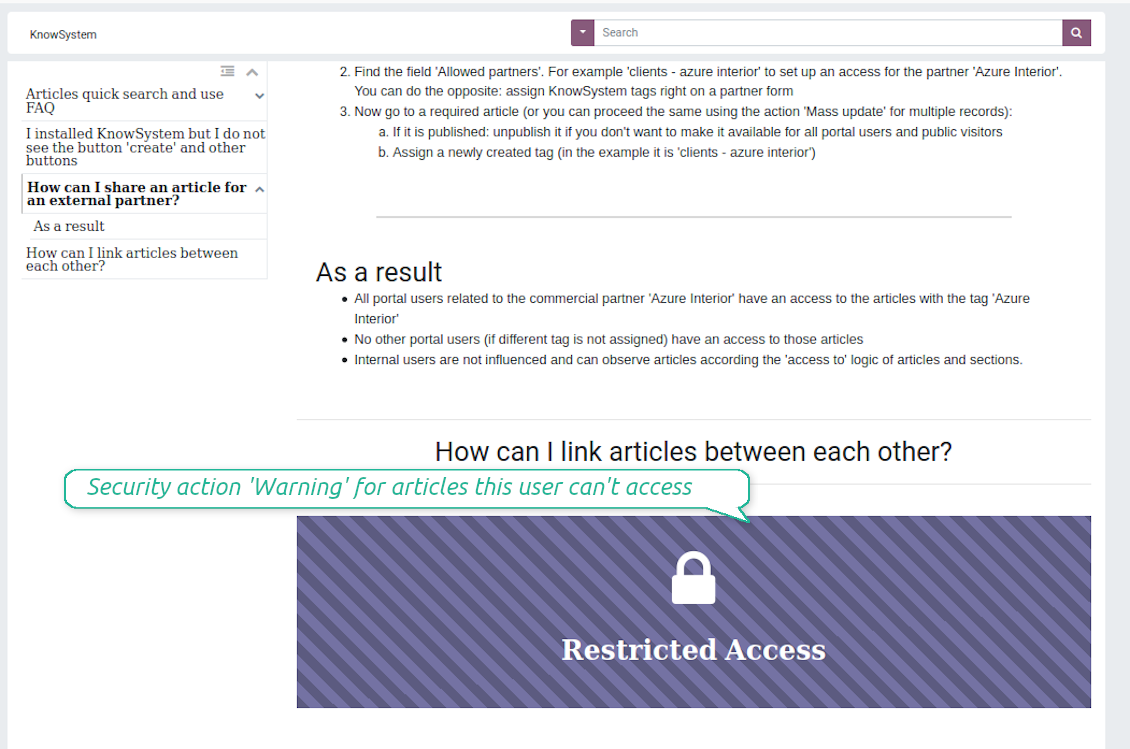
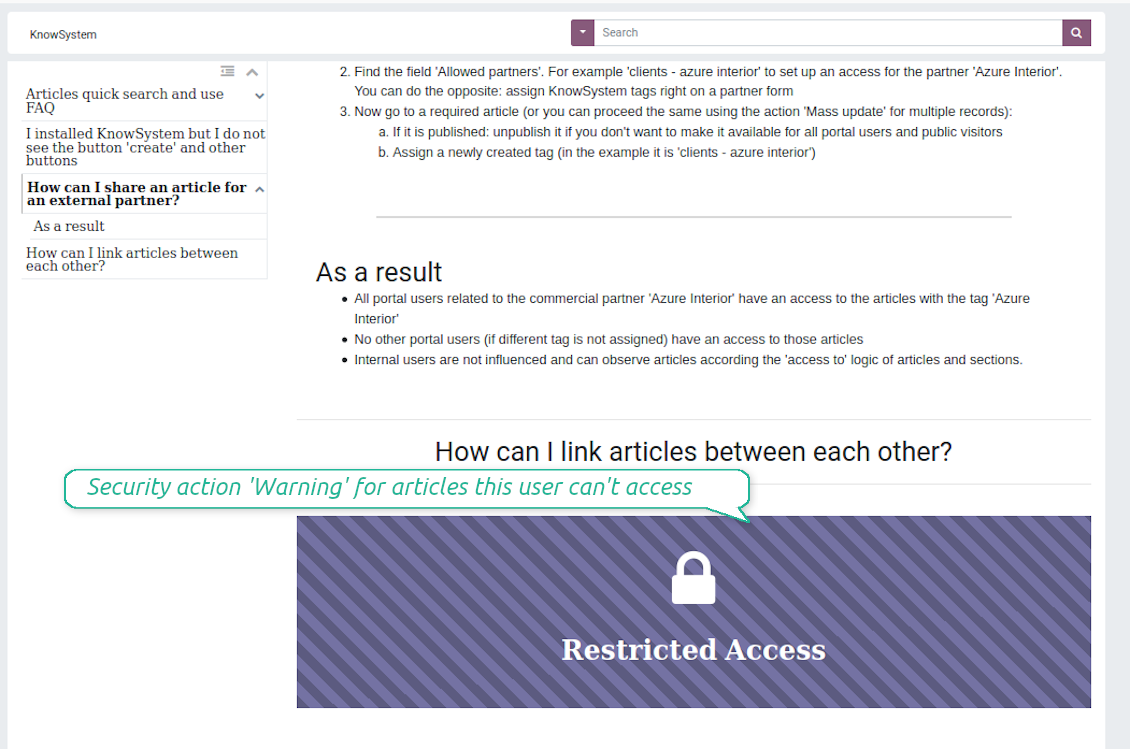
Security: optionally show warning if no access possible
Security: optionally show warning if no access possible
Create learning tours
How to configure a learning tour
- Turn on the option 'Tours'
- Go to KnowSystem interface and select articles to be included into a tour
- Press the mass action button 'Add to tour' and select or create a tour. Press save
- Re-order articles in a consistent order
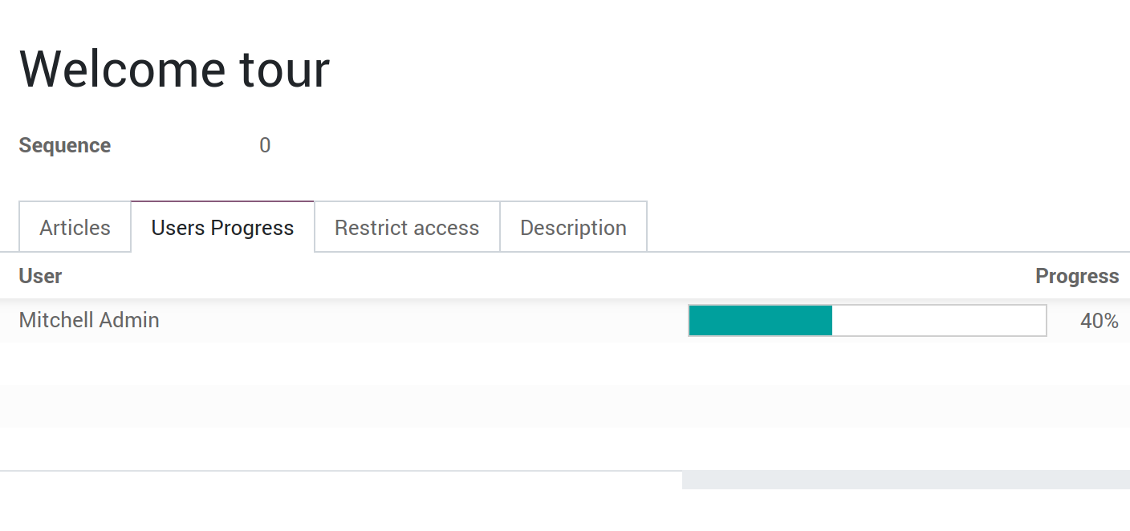
- Define groups of users who should go through a tour on the tab 'Restrict access'
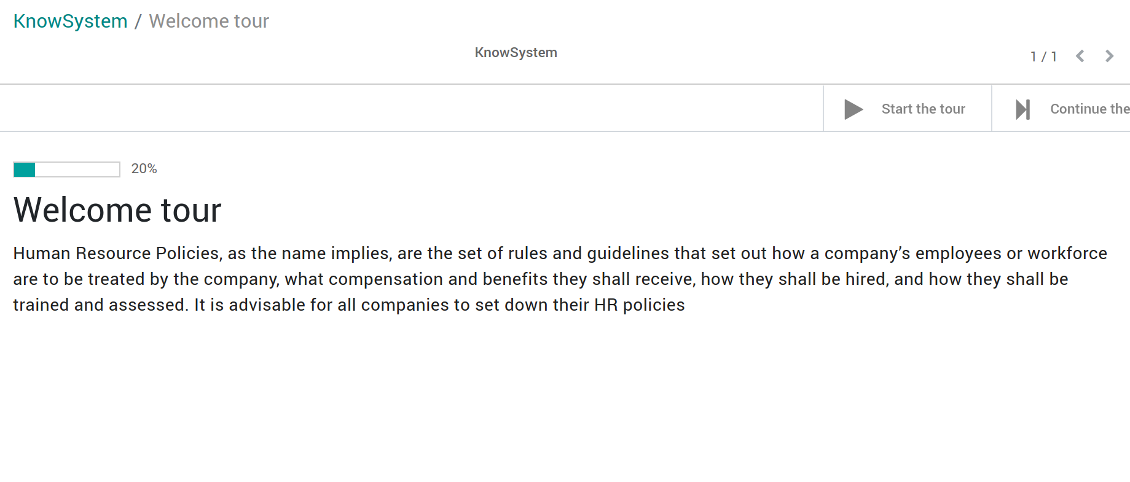
- Now users can see and launch tours right from the KnowSystem interface (the right navigation panel)
Captures d'écran
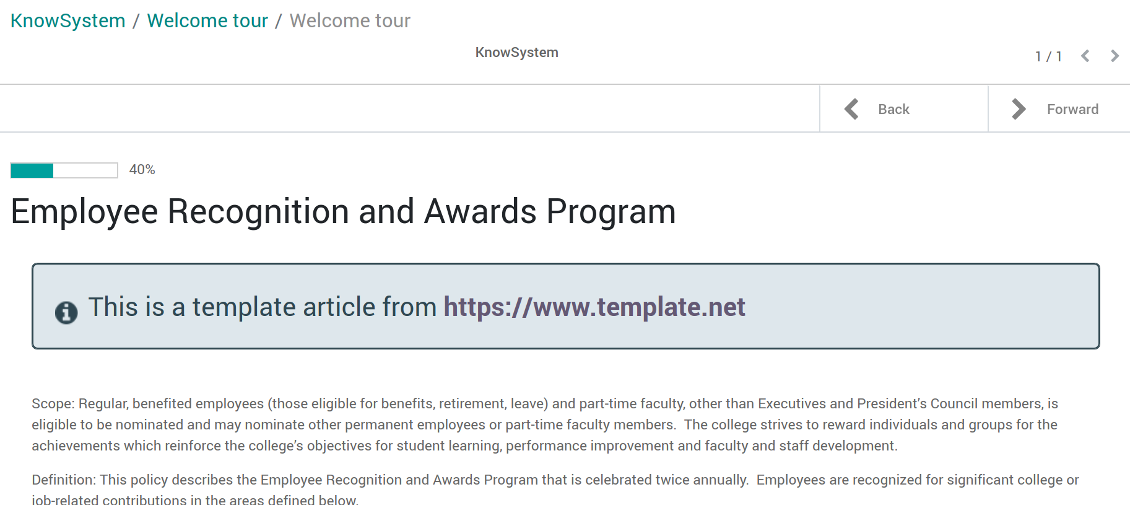
Article in a learning tour
Control tour progress by users
KnowSystem tour welcome page
Multilingual knowledge base
How to make an article available for a few languages
- Install the optional add-on 'KnowSystem: Multi Languages'
- Change your user language for a needed one
- Update this article
- Now it is available in both source and a current language
Make sure you really require a few languages. In that case you almost double the work of KnowSystem editors. All articles should be kept updated in all Odoo languages.
Knowledge base for any industry and business
Typical use cases
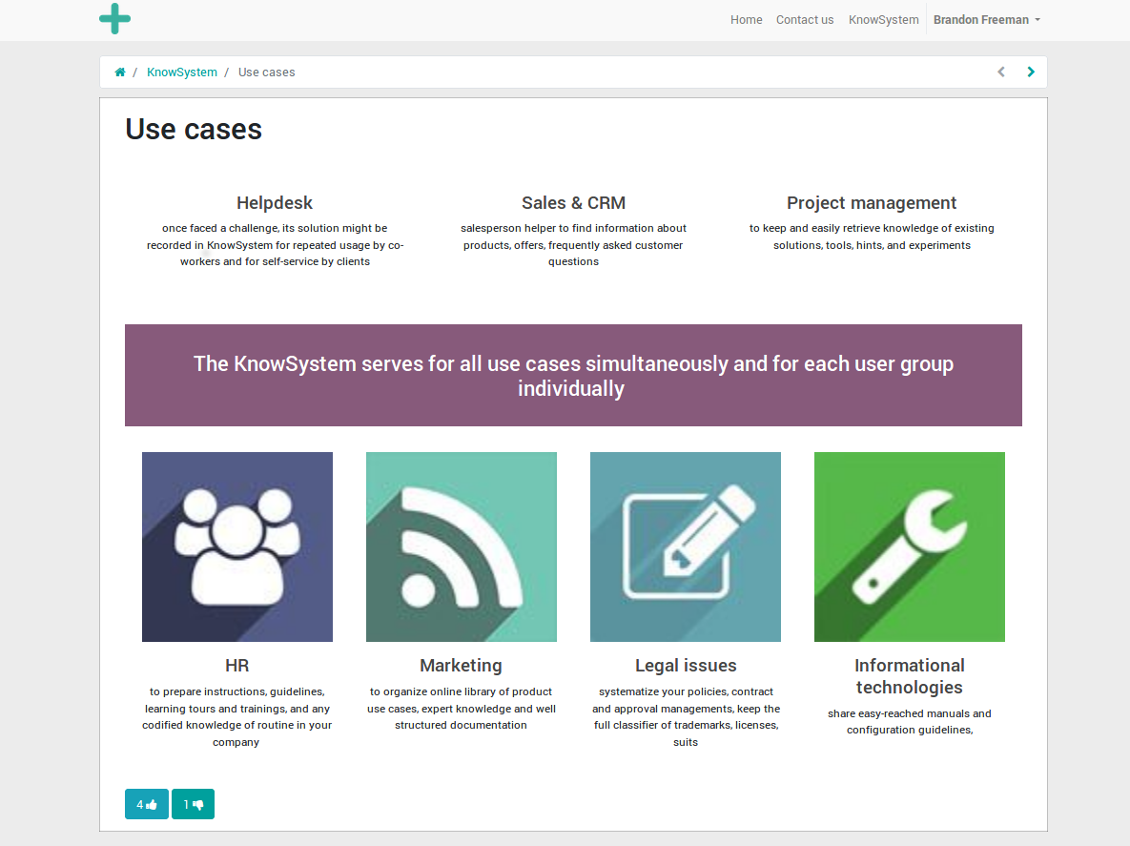
- Helpdesk: once faced a challenge, its solution might be recorded in KnowSystem for repeated usage by co-workers and for self-service by clients
- Sales & CRM: salesperson helper to find information about products, offers, frequently asked customer questions
- Project management: to keep and easily retrieve knowledge of existing solutions, tools, hints, and experiments
- HR: to prepare instructions, guidelines, learning tours and trainings, and any codified knowledge of routine in your company
- Marketing: to organize online library of product use cases, expert knowledge and well structured documentation
- Legal issues: systematize your policies, contract and approval managements, keep the full classifier of trademarks, licenses
- Informational technologies: share easy-reached manuals and configuration guidelines
Questions fréquentes sur KnowSystem: Knowledge Base System Odoo v.12
Je ne vois aucune différence entre les textes des révisions.
Les révisions enregistrent non seulement les changements de texte, mais aussi toute mise à jour de styles (techniquement, lorsque vous changez le code source HTML d'un article). Certaines ne sont pas évidentes au premier regard (p. ex. la taille de police d'un seul mot). D'autres peuvent être importantes. Toute séquence Edit > modifier quelque chose dans l'article > Save crée toutefois une nouvelle révision.
Puis-je ajouter une vidéo YouTube/ Vimeo / Dailymotion / Youku dans un article ?
Oui, vous pouvez intégrer une vidéo de ces services dans les articles depuis le backend Odoo et depuis le constructeur de site. Pour cela, ajoutez un bloc avec une image > cliquez sur l'image > sélectionnez ‘Vidéo’ > saisissez l'URL du média.
Attention : ces vidéos sont incluses en iframes, et certains navigateurs peuvent bloquer la lecture jusqu'à ce que l'utilisateur l'autorise explicitement.
Comment rendre une section visible sur le site Web ?
Dans KnowSystem, une section devient visible sur un site Web si elle est publiée et contient au moins un article. Même avec des sous-sections, elle reste invisible s'il n'y a aucun article dans la section elle-même. Cela évite les sections vides et rend le portail KnowSystem agréable et facile à parcourir. Pour afficher la section sur le site, ajoutez un article d'introduction ou général qui décrit ou liste brièvement les articles des sous-sections.
Comment partager un article avec un partenaire externe ?
Clic droit sur n'importe quelle étiquette du panneau de navigation gauche - Create
Trouvez le champ 'Allowed partners'. Par exemple 'clients - azure interior' pour donner accès au partenaire 'Azure Interior'. Vous pouvez aussi faire l'inverse : attribuer les étiquettes KnowSystem directement sur la fiche partenaire
Ouvrez ensuite l'article voulu (ou faites de même avec l'action 'Mass update' pour plusieurs enregistrements) :
S'il est publié : dépubliez-le si vous ne voulez pas le rendre disponible à tous les utilisateurs du portail et aux visiteurs publics
Attribuez l'étiquette venant d'être créée (dans l'exemple : 'clients - azure interior')
Désormais :
Tous les utilisateurs du portail liés au partenaire commercial 'Azure Interior' ont accès aux articles avec l'étiquette 'Azure Interior'
Aucun autre utilisateur du portail (si une autre étiquette n'est pas attribuée) n'a accès à ces articles
Les utilisateurs internes ne sont pas concernés et voient les articles selon la logique 'access to' des articles et des sections.
Pouvons-nous ajouter le bouton de sélection de langue pour le corps de l'article ?
Le bouton 'translate' n'est volontairement pas ajouté au corps de l'article par le module optionnel 'KnowSystem: Multi Languages'. Le HTML est très difficile à traduire dans le petit popup prévu par ce bouton. Il y aurait très peu de texte à traduire et beaucoup de parties HTML (que le traducteur lui-même pourrait casser).
C'est pourquoi, pour rédiger un article dans une langue donnée, vous devez vous connecter avec un utilisateur de cette langue. Ce peut être un autre utilisateur, ou vous pouvez changer temporairement les préférences de l'utilisateur actuel. Ensuite, toute mise à jour du corps de l'article se fera dans cette langue.
Vous pouvez aussi utiliser le bouton 'Copy from another translation' sous le corps de l'article, pour récupérer à tout moment le contenu depuis une autre langue (utile si l'article a été fortement mis à jour dans l'une des langues).
Comment intégrer une autre page web dans un article
Pour cela, vous pouvez utiliser des iframes. Passez l'article en éditeur de code HTML brut et insérez par exemple <iframe src="https://faotools.com/" style="width:100%;min-height:600px;"> </iframe>.
J'ai installé KnowSystem, mais je ne vois pas le bouton 'create' ni les autres boutons
Vous n'avez probablement pas attribué les droits KnowSystem à votre utilisateur. Choisissez le rôle 'KnowSystem Editor' ou 'KnowSystem Admin' et actualisez la page. Les boutons de contrôle devraient alors s'afficher.
Puis-je afficher un parcours d'apprentissage précis uniquement pour certains utilisateurs ?
Oui, en appliquant un groupe d'utilisateurs (p. ex. 'Sales Manager') qui doit suivre ce parcours. Si l'utilisateur appartient à ce groupe, il verra le parcours. Sinon, le parcours ne s'affiche pas. Cela fonctionne comme les droits de sécurité des articles et sections KnowSystem.
Notez que si un parcours n'a pas de groupes assignés, il est 'global' et visible pour tout le monde.
Comment modifier le pied de page et l'en-tête lors de l'impression des articles ?
L'en-tête et le pied de page des PDF d'articles viennent des mises en page de la société. Consultez Settings > Général Settings > la section Business Documents. Vous y définissez le modèle de société utilisé pour tous les types de documents, y compris factures, commandes de vente, etc., et aussi pour les articles. Cette approche Odoo considère pied et en-tête comme un style général de société, non comme un attribut d'impressions particulières.
Comment lier les articles entre eux ?
Chaque article a des URL internes (backend) et de site Web (si l'option 'KnowSystem: Website and Portal' est installée). Cliquez sur le bouton 'Info' du formulaire d'article pour connaître les adresses web de cet enregistrement. Vous pouvez en insérer n'importe laquelle dans le corps de l'article comme hyperlien.
Puis-je modifier le code source HTML d'un article ?
Oui : activez les debug assets (sur l'écran d'aperçu des paramètres) et revenez à l'article en cours. En mode édition, vous verrez l'icône '</>'. Cliquez dessus pour consulter et modifier le HTML et les styles.
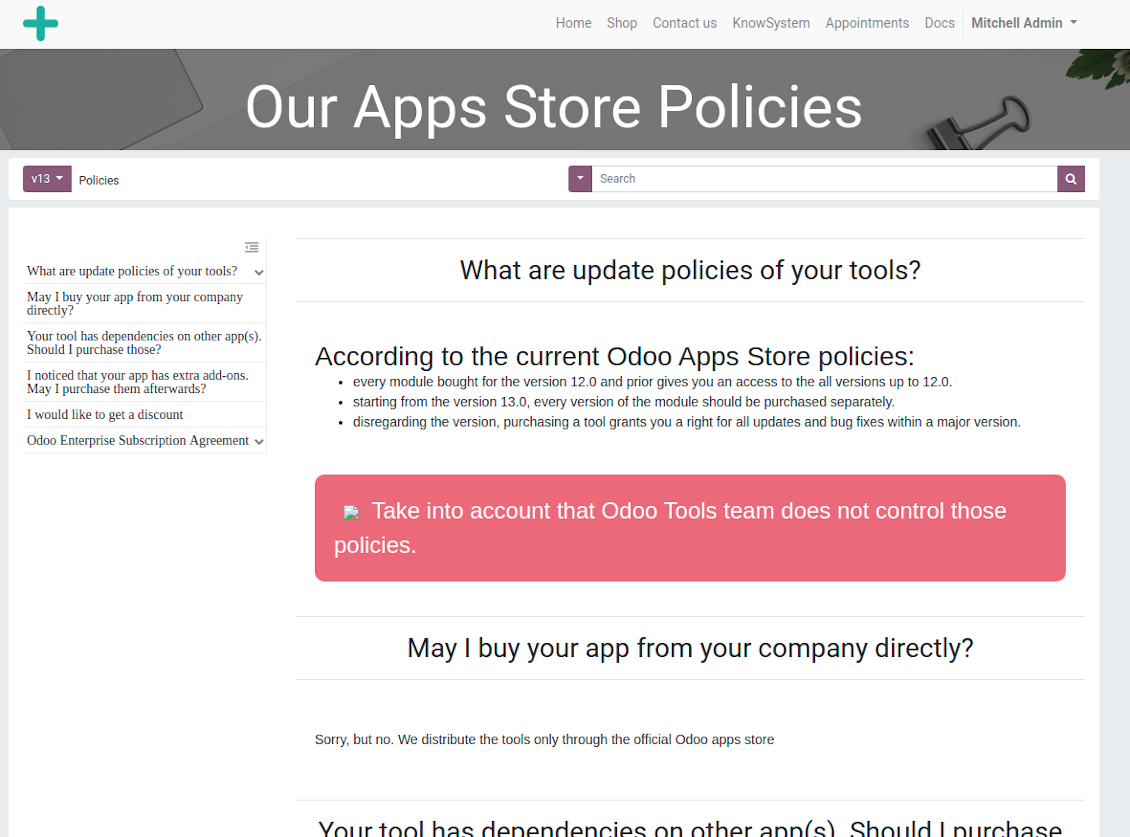
Quelles sont les politiques de mise a jour de vos outils ?
Selon les politiques actuelles de l'Odoo Apps Store :
- Chaque module achète pour la version 12.0 et anterieure donne accès a toutes les versions jusqu'a 12.0.
- A partir de la version 13.0, chaque version du module doit être achetee séparément.
- Quel que soit le numéro, l'achat donne droit a toutes les mises a jour et corrections au sein d'une version majeure.
L'équipe faOtools ne contrôle pas ces politiques. Pour toute question, contactez directement les representants de l'Odoo Apps Store.
Comment installer votre application sur Odoo.sh ?
L'approche la plus directe est le flux integre de la boutique Odoo :
1. Ouvrez la page du module et cliquez sur Deploy on odoo.sh
2. Vous êtes redirige vers GitHub. Connectez-vous, puis cliquez sur Create a new repo ou utilisez un depot existant. Le depot doit être privé. Il est interdit de publier les applications sous licence OPL-1. Créez un nouveau depot pour le projet Odoo.sh si besoin
3. Ensuite, dans odoo.sh, cliquez sur Deploy, confirmez et cliquez sur Continue. L'installation demarre.
Ces étapes installent l'application sur la branche de production. Pour d'autres branches ou une mise a jour :
1. Téléchargez le code source depuis la boutique Odoo
2. Commitez le module dans le depot GitHub requis. Aucun dossier/fichier de l'app ne doit être ignore (.gitignore). Les depots créés par odoo.sh ignorent parfois des chemins importants (par ex. /lib). Envoyez tous les répertoires et fichiers du module
3. Deployez la branche cible du projet odoo.sh, ou attendez la construction automatique si vos paramètres le prévoient.
Comment installer votre application sur mon propre serveur ?
2. Redémarrez le serveur Odoo;
3. Activez le mode développeur (paramètres techniques);
4. Mettez a jour la liste des applications (menu Applications);
5. Trouvez l'application et cliquez sur Activate/Install;
6. Suivez les consignes de la page de l'application s'il y en a.
Votre application a des modules complémentaires. Puis-je les acheter plus tard ?
Oui. Odoo ajoute automatiquement toutes les dépendances au panier : excluez les outils déjà achetes pour éviter un double paiement.
J'ai deploye votre application sur Odoo.sh et je vois un avertissement/erreur dans les tests
Un avertissement rouge/orange n'affecte pas les fonctions de l'application. Parfois nos modules échouent aux tests automatiques standard, car ceux-ci attendent un comportement contraire aux objectifs de l'app. Par exemple, nous changeons le calcul du prix alors que les tests Odoo comparent le prix final a l'algorithme standard.
Vérifiez d'abord les fonctions de la base deployee. Tout fonctionne-t-il ?
Si vous pensez encore que l'avertissement affecte les fonctions réelles, contactez-nous avec les journaux d'installation complets et la liste complète des modules deployes (coeur et tiers).
Puis-je acheter votre application directement auprès de vous ?
Non, nous distribuons les outils uniquement via le magasin officiel d'applications Odoo.
Je souhaiterais une reduction
Malheureusement, nous n'avons pas les moyens techniques de proposer des prix individuels.
Puis-je installer l'application sur ma base Odoo Online (SaaS) ?
Non, les applications tierces ne peuvent pas être utilisées sur Odoo Online. Odoo SaaS bloque cette possibilite.
Votre outil dépend d'autres applications. Dois-je les acheter ?
Oui, l'outil a besoin de tous les modules indiques en dépendances. Le prix affiche sur la page inclut déjà ces dépendances.
Quel est le prix du module en dollars US ? Pourquoi a-t-il change ?
Le prix de nos modules est fixe en euros. La boutique Odoo convertit les prix selon son taux de change interne. Le prix en dollars US peut donc changer lorsque ce taux est mis a jour.
Les textes de l'application et du site web dans des langues autres que l'anglais sont assistés par l'IA et alignés sur les traductions officielles d'Odoo. Si vous remarquez une erreur, envoyer un ticket de traduction et nous le corrigerons.
Signalement de bogues
Si vous rencontrez des bugs ou des comportements incohérents, n'hésitez pas à nous contacter. Nous garantissons de fournir des correctifs dans les 60 jours suivant l'achat et sommes extrêmement intéressés par l'amélioration de nos outils même après cette période.
Vous n'avez pas besoin d'un numéro de téléphone ou d'une carte de crédit pour nous contacter. Vous ne devez passer qu'une courte inscription par courriel, qui ne prend pas plus de 30 secondes.
Veuillez inclure autant de détails que possible dans votre demande : captures d'écran, journaux du serveur Odoo, description complète de la procedure de reproduction du probleme, etc. Il faut generalement quelques jours ouvrables pour preparer un plan d'action concernant un probleme (si un bogue est confirmé) ou vous fournir des recommandations sur la marche a suivre (dans le cas contraire).
Demandes de fonctionnalités publiques et idées de modules (développement gratuit)
Nous sommes fortement motivés pour améliorer nos outils et serions reconnaissants pour tout retour. Si vos exigences sont d'utilité publique et peuvent être mises en œuvre efficacement, l'équipe les inclura dans notre liste de tâches.
Une telle liste de tâches est traitée régulièrement et n'implique pas de frais supplémentaires. Bien que nous ne puissions pas promettre de délais ni de conception finale, cela pourrait être un bon moyen d'obtenir les fonctionnalités souhaitées sans investissements ni risques.
Vous n'avez pas besoin d'un numéro de téléphone ou d'une carte de crédit pour nous contacter. Vous ne devez passer qu'une courte inscription par courriel, qui ne prend pas plus de 30 secondes.

L'outil pour classer les pièces jointes Odoo en dossiers et synchroniser avec Google Drive, OneDrive/SharePoint, Nextcloud/ownCloud, Dropbox, Amazon S3, Box et NAS. Gestionnaire de fichiers. DMS
398€
L'outil pour synchroniser les pièces jointes Odoo avec OneDrive dans les deux sens
487€
L'outil pour synchroniser les pièces jointes Odoo avec Google Drive dans les deux sens
487€
L'outil pour garder les mots de passe dans Odoo en usage partage. Coffres partages

L'outil pour fixer des cibles KPI et controler leur atteinte par période. Tableaux de bord. Graphiques

L'outil pour gérer des services sur créneaux, de la réservation aux ventes et avis
398€
L'outil pour piloter Odoo depuis vos chats IA via MCP. Claude. Toute IA compatible MCP.

L'outil pour regrouper divers événements Odoo dans quelques super-calendriers configurables
