KnowSystem: Knowledge Base System v.12
The tool to build deep and structured knowledge base for internal and external use. Knowledge System. KMS
- a core of knowledge management. It might be used stand-alone as a complete internal knowledge base system. De prijs is 398€.
- an optional module, which let you publish articles to website, share them with portal users, and use website builder to update articles. The features assumed by this add-on are marked by the icon . De prijs is 40€.
- an optional extension to KnowSystem: Website and Portal to design website documentation pages based on knowledge base articles. The features assumed by this add-on are marked by the icon . Read the full description on the related page. De prijs is 60€.
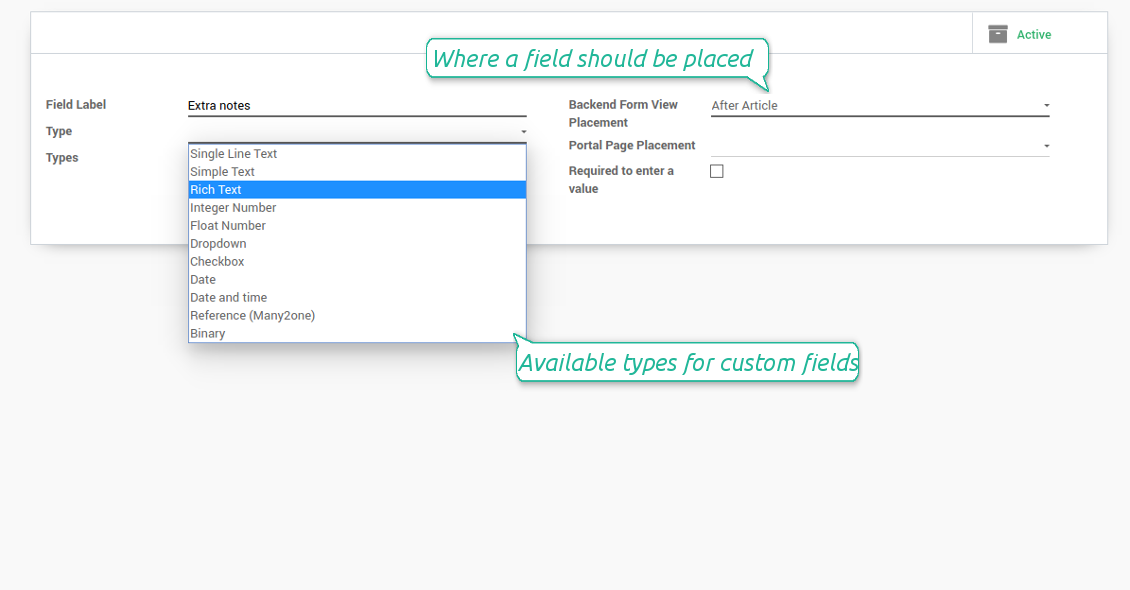
- an optional module, which let you add and show custom fields for articles (backend). The features assumed by this add-on are marked by the icon . De prijs is 48€.
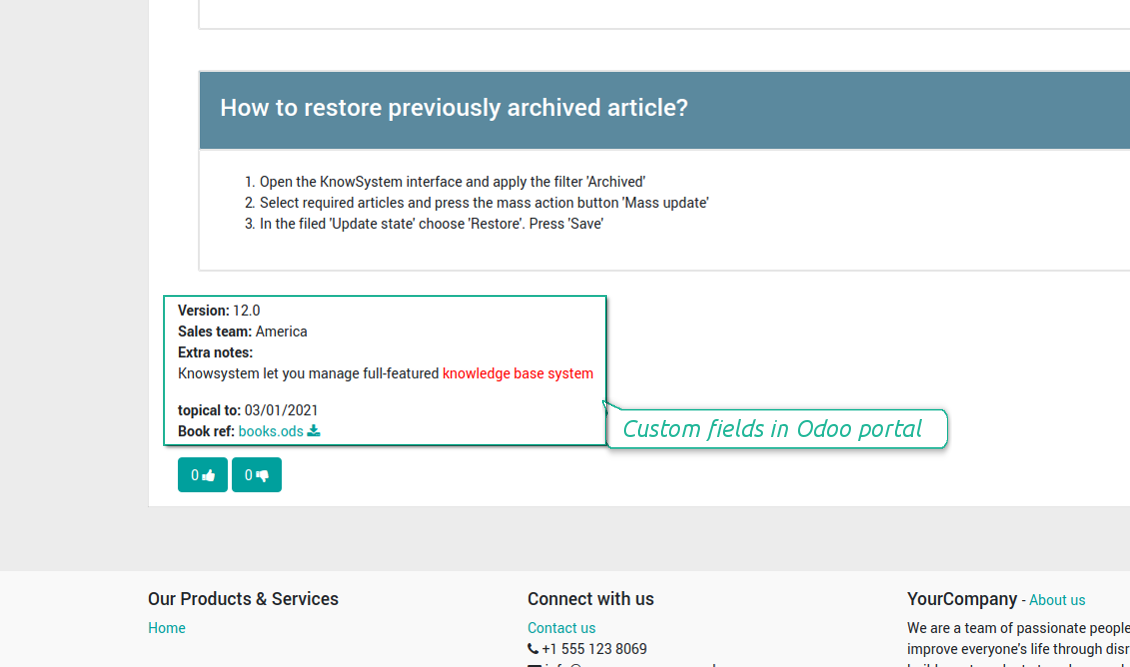
- an optional free module, which shows custom fields on website and portal pages (frontend). The features assumed by this add-on are also marked by the icon .
- an optional module, which let you translate articles, sections and tags for installed in Odoo languages. The features assumed by this add-on are marked by the icon . De prijs is 10€.
Innovative single-view interface
From the same interface editors may create and update any knowledge-related documents, change articles in batch, set up security. Without a need for excess navigation.
Interface solutions
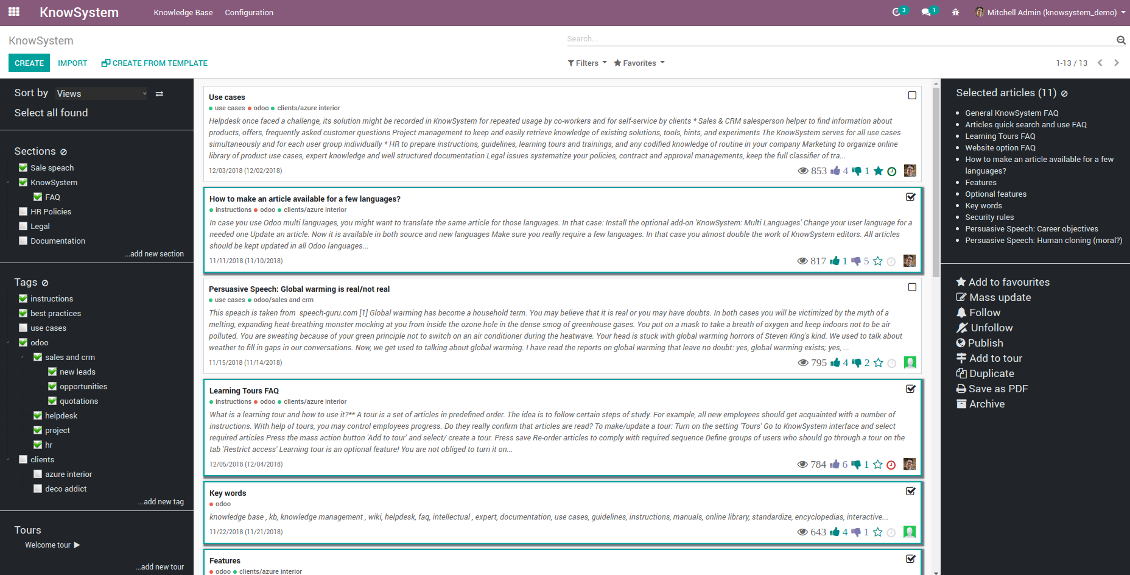
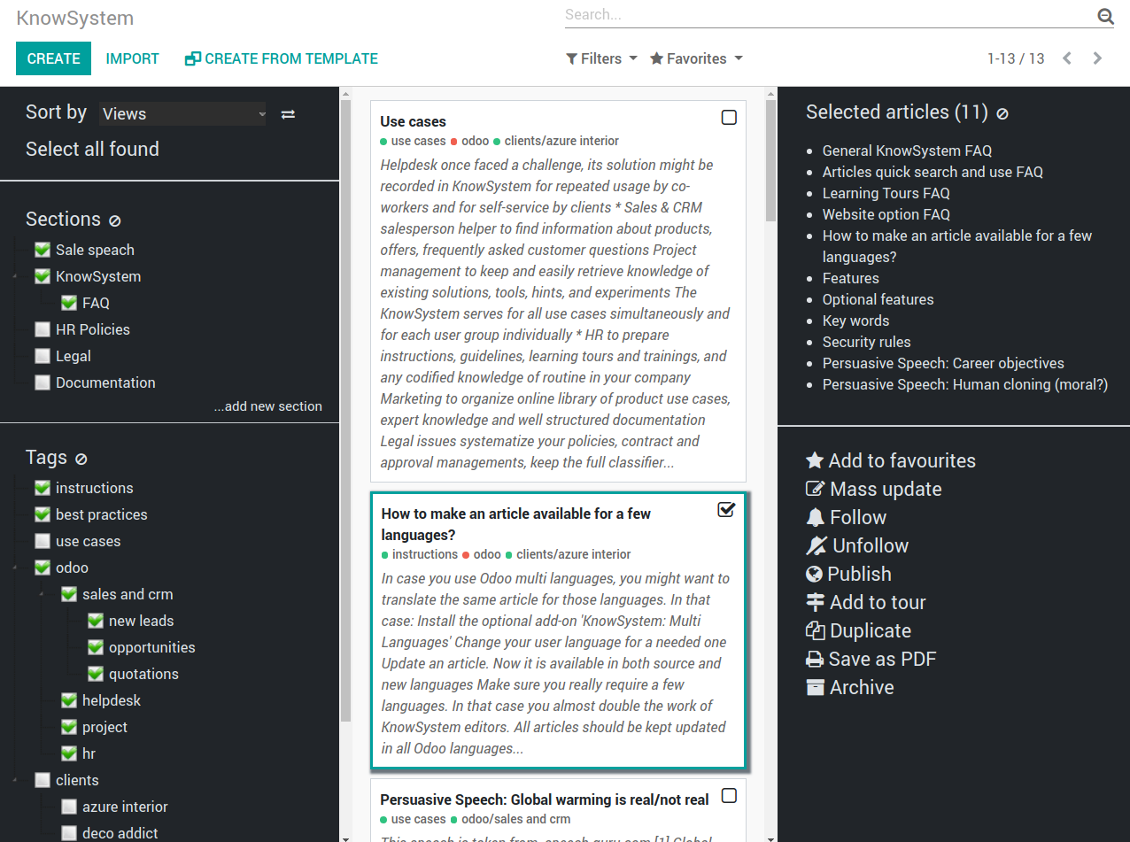
The KnowSystem interface consists of 3 key parts: the left navigation panel, the list of articles, and the right navigation panel (it is shown only if some articles are selected).
On the left navigation panel you may:
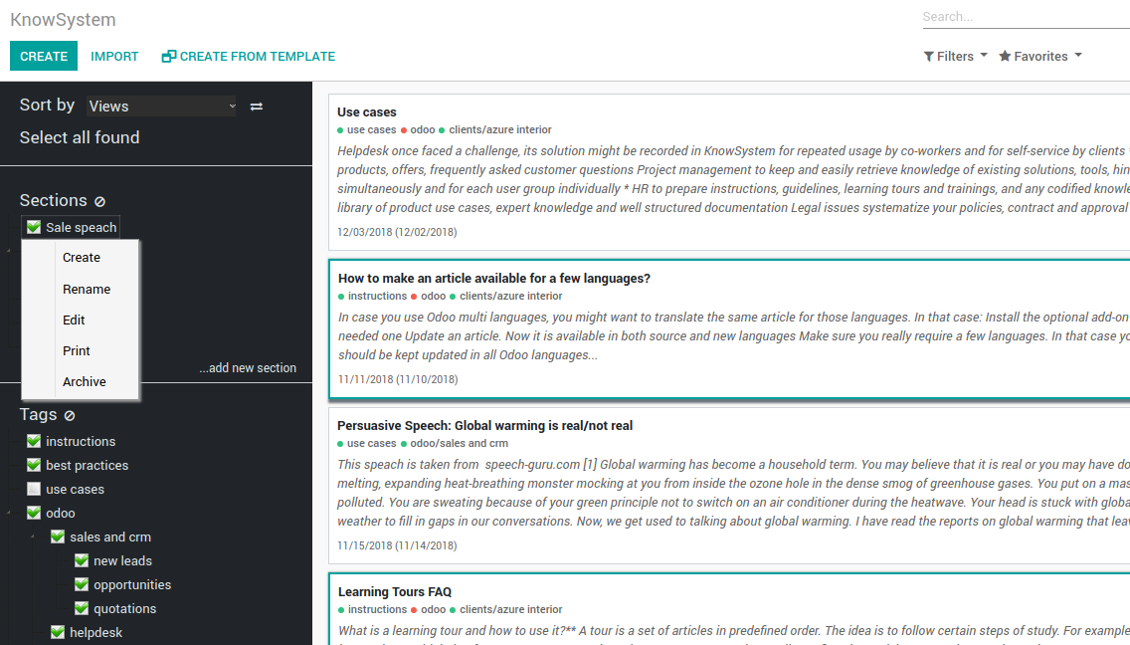
- Manage hierarchy of sections: prepare new (right mouse click - 'create'), update existing (right mouse click - edit), re-order any (drag and drop an item), archive sections. Select a few ones to filter articles. You may also print all articles related to this section as a single PDF file.
- In the same way manage hierarchy of tags
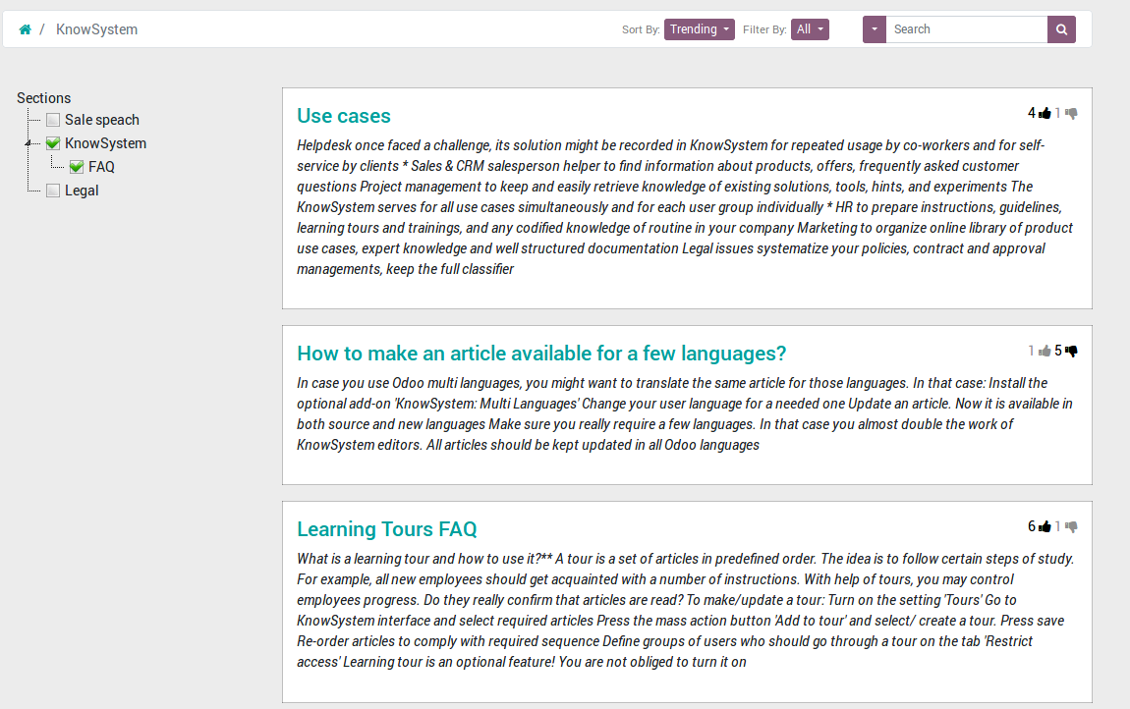
- Sort articles by number of views, a score of likes and dislikes, create or update dates, a section, an author
- Select all articles which are found according to chosen tags / sections and according to introduced searches / filters
- Launch a learning tour.
From the list of articles you see articles' name, indexed content (words without HTML style), dates of creation and last update, a number of views, likes, dislikes, author avatar. Here you may also add an article to favourite by pressing the 'star' icon.
Click on article body to open it in a full size (form view). Do not worry: chosen tags and sections as well as selected articles will be kept when you get back! Click on the top right check box to add an article for selection.
On the right navigation panel you observe selected articles and may proceed a mass action. Click on article name to remove it form selection.
On the top of the interface users also would find a standard Odoo omnibox. Type here to search by a title, content, an author, tags or a section.
Available mass actions
KnowSystem let users update an unlimited number of articles simultaneously:
- Assign new section
- Change or remove tags
- Print multiple articles as a single PDF
- Follow / unfollow discussions
- Publish / unpublish articles
- Export articles to an Excel table
- Archive or restore records
- Add articles to learning tours
- Mark knowledge items as favourite
- Duplicate articles.
Screenshots
KnowSystem articles overview, search and mass actions
Single entry for knowledge management actions
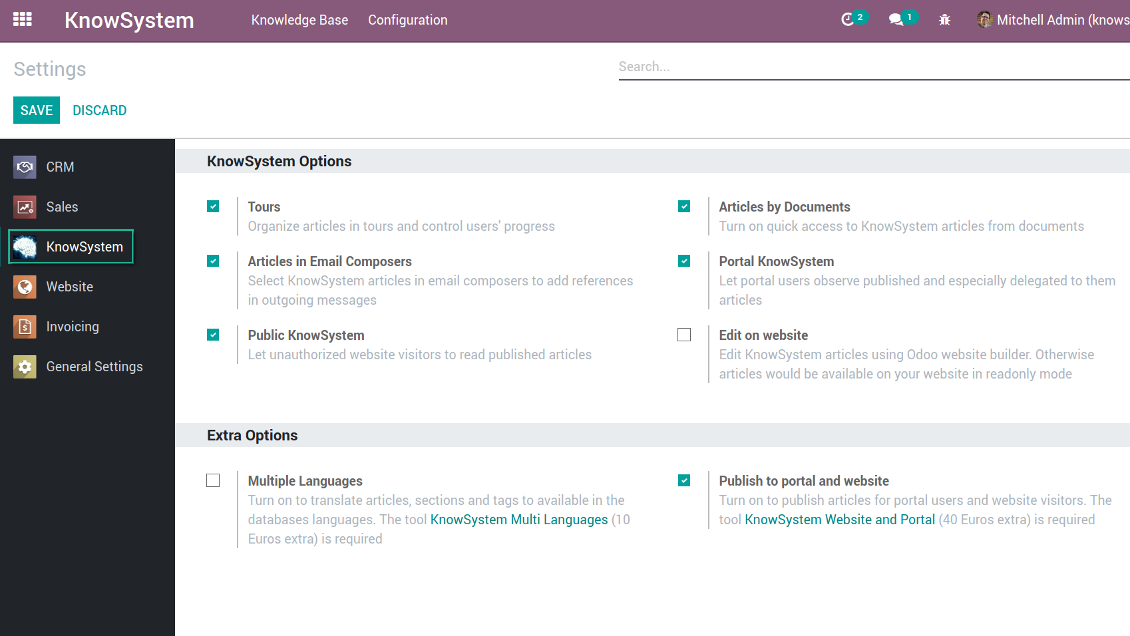
KnowSystem configuration
Article read mode
Article info and statistics
Article misc actions
Mass actions for selected articles
Small screen KnowSystem interface
Fast, comfortable, and professional knowledge recording
By using templates with pre-defined styles you may also speed knowledge generation up and standardize articles' appearance.
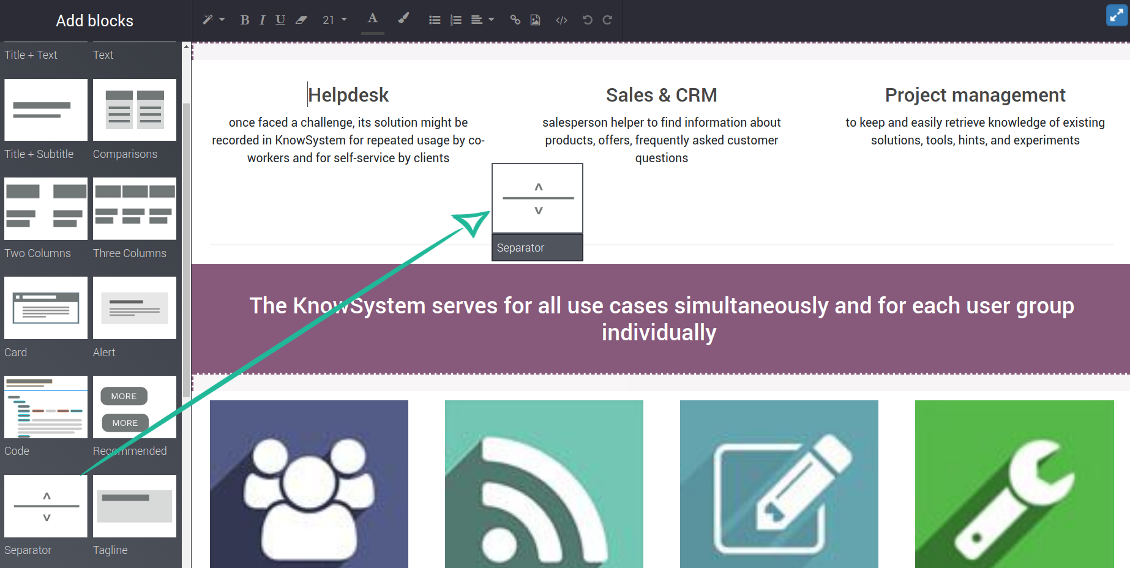
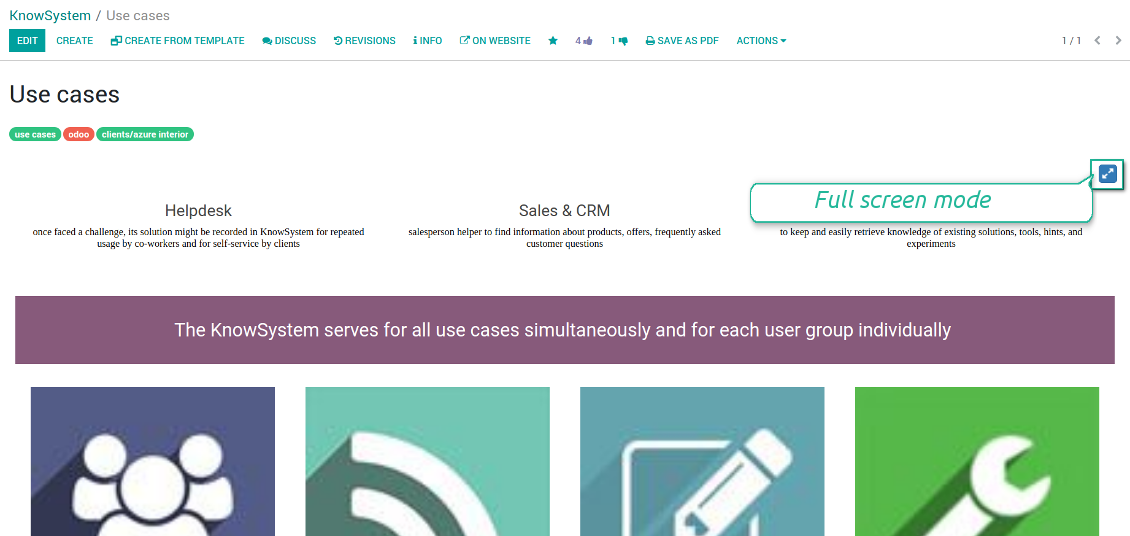
How to use the website builder for editing articles
KnowSystem provides you with a backend articles' builder, which is comfortable and safe to use. Odoo website builder is richer in features to prepare complex HTML structures. To edit articles through the website:
- Install the optional add-on 'KnowSystem Website and Portal' (the option 'Publish to portal and website')
- Turn on the setting 'Edit on website'
- Push the button 'Edit on website' on this article form
Be cautious: if you are going to print this article or add its contents to emails, website building blocks are not suitable. Their advanced styles contradict printing and composer layouts and would not be correctly shown. In such a case use the safer backend builder.
How to use article templates
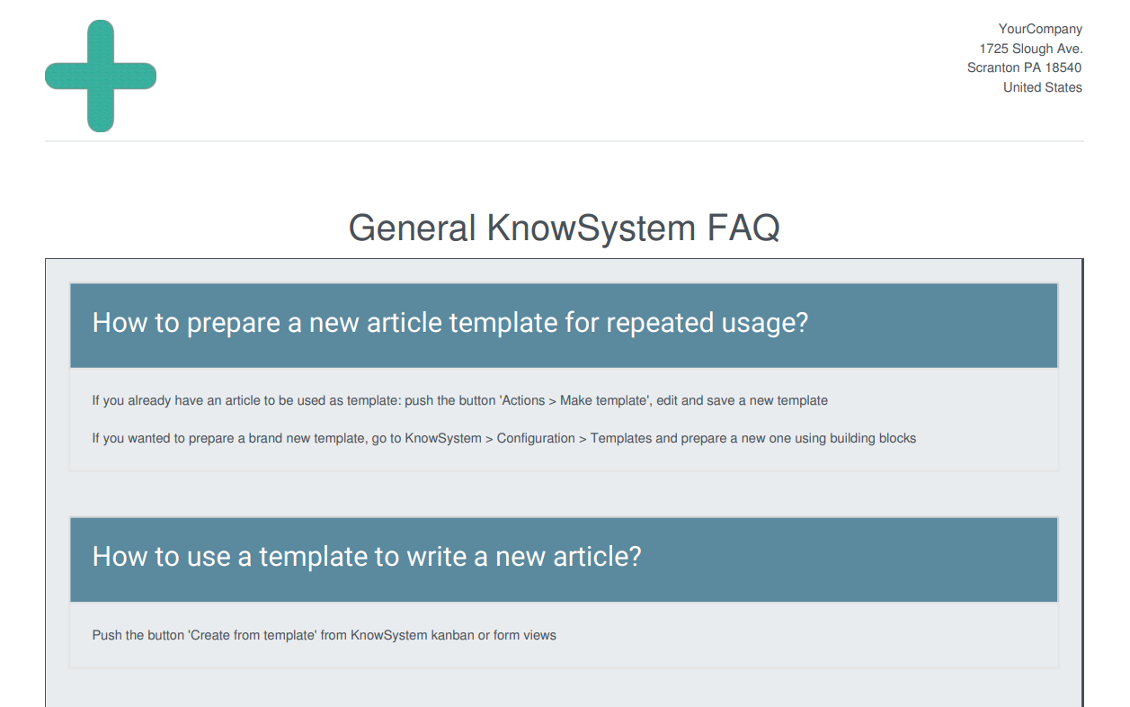
To prepare a new article template for repeated usage:
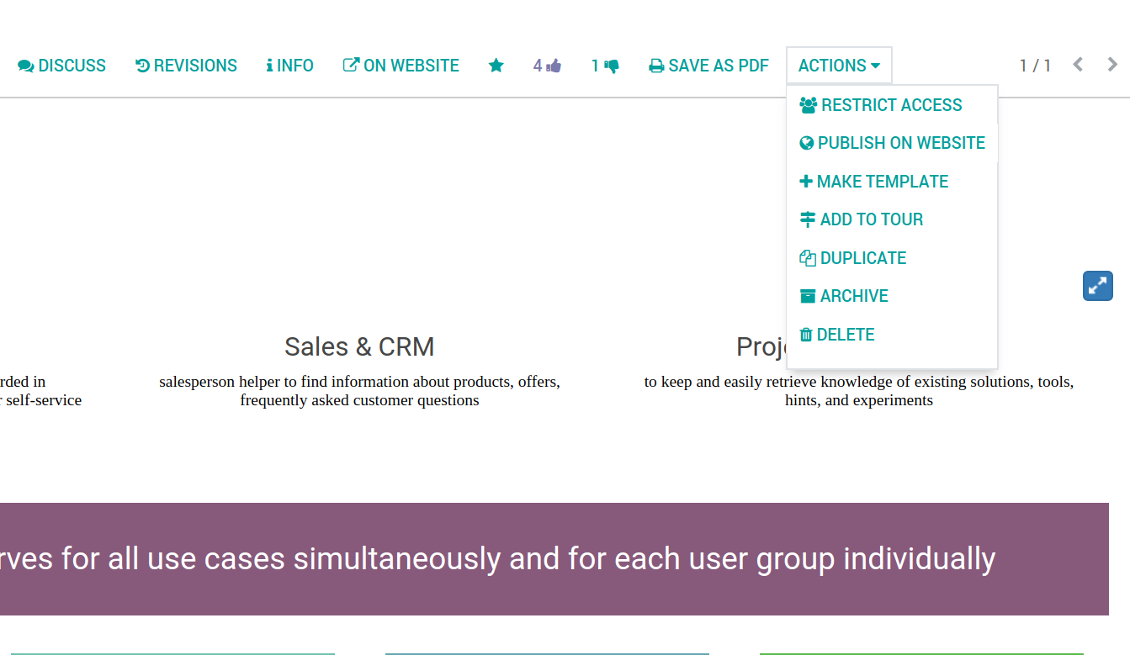
- If you already have an article to be used as template: push the button 'Actions > Make template', edit and save a new template.
- If you wanted to prepare a brand new template, go to KnowSystem > Configuration > Templates and prepare a new one using building blocks.
To use a template to write a new article:
- Push the button 'Create from template' from KnowSystem kanban or form views
- Select a required article template
- Push 'Create' and introduce changes to a new article.
Screenshots
Building blocks for knowledge base articles
Get benefit from your knowledge
How document types and articles are linked for a quick access
Experience is not general, usually it relates to specific issues. Knowledge used for customer communication differs from suppliers' negotiations. Frequently asked questions for draft and confirmed sale orders vary. KnowSystem let you structure your articles to apply them in a correct place and at right time. To that end:
- Turn on the setting 'Articles by Documents' (the option shows the top menu entry above any Odoo document) or 'Articles in Email Composers' (the option adds a quick link in a message composer editor for citing)
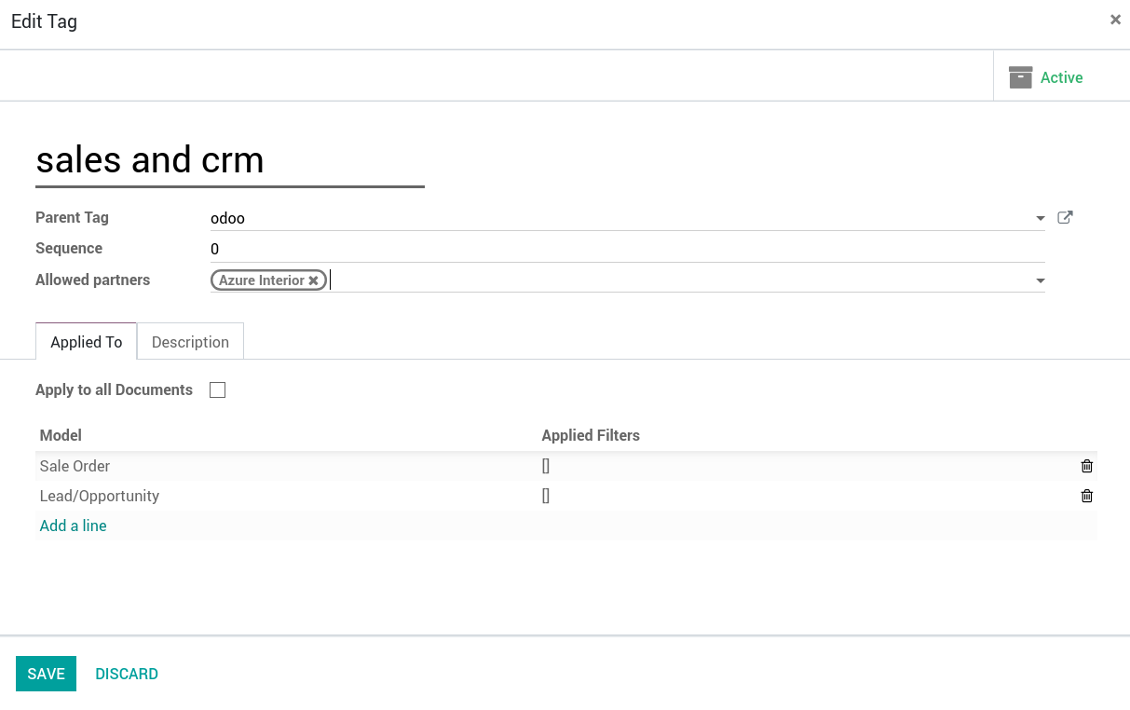
- Create a new tag (e.g. 'odoo / helpdesk'). In the table 'Applied to' use a required model (e.g. 'helpdesk ticket') or use it for all documents (the check box 'Apply to all documents').
- As advanced option you may apply additional filters: for example, to show articles only for 'new' tickets, not for 'in progress' ones. Use dynamic filters' constructor for that goal
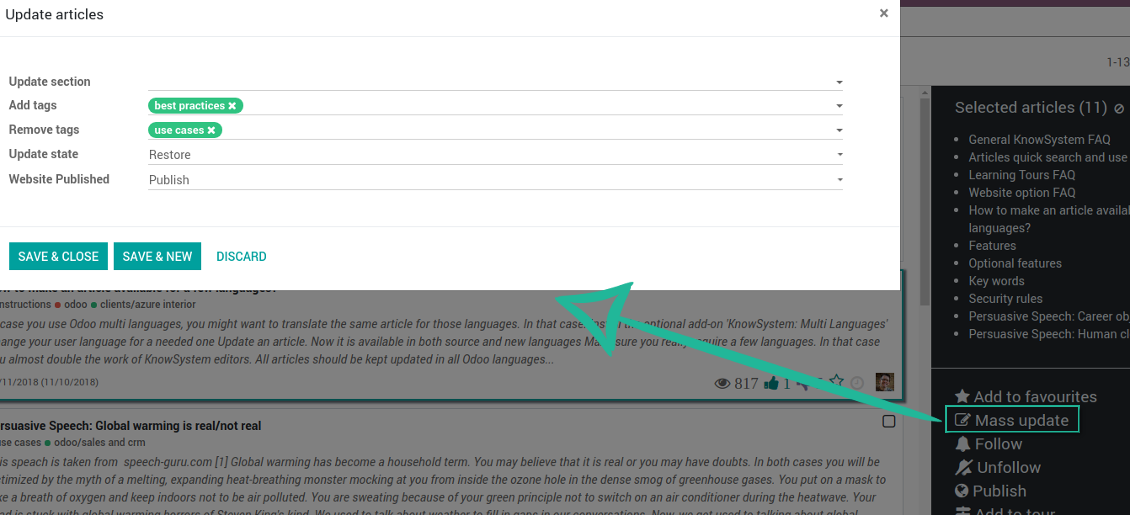
- Assign this tag for required articles. For a few articles use the mass action 'Mass update'
- Now when you access a quick article search from a document or from an email composer, Odoo will calculate KnowSystem tags for this document. That's why by default users would see only articles suitable for a current document. Simultaneously, they might always change tags to use other knowledge base data.
How to overview articles which might be useful for this document
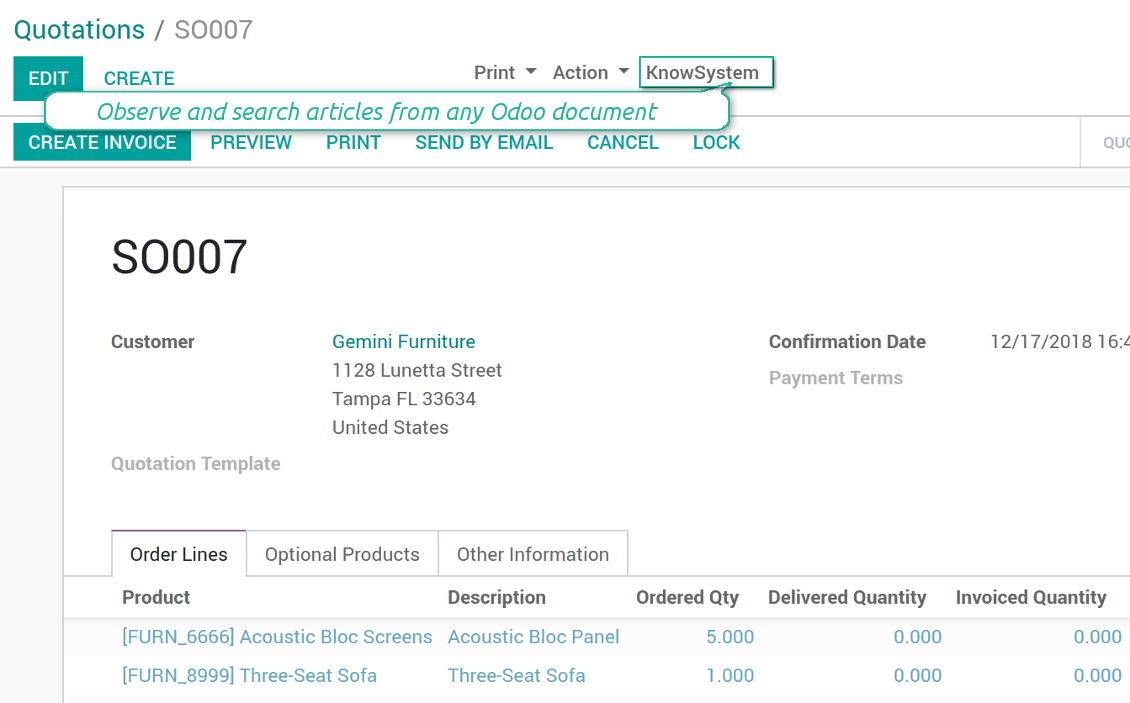
As soon as you turned on the option 'Articles by Documents', on the top of each Odoo object form view there would be a quick link 'KnowSystem'.
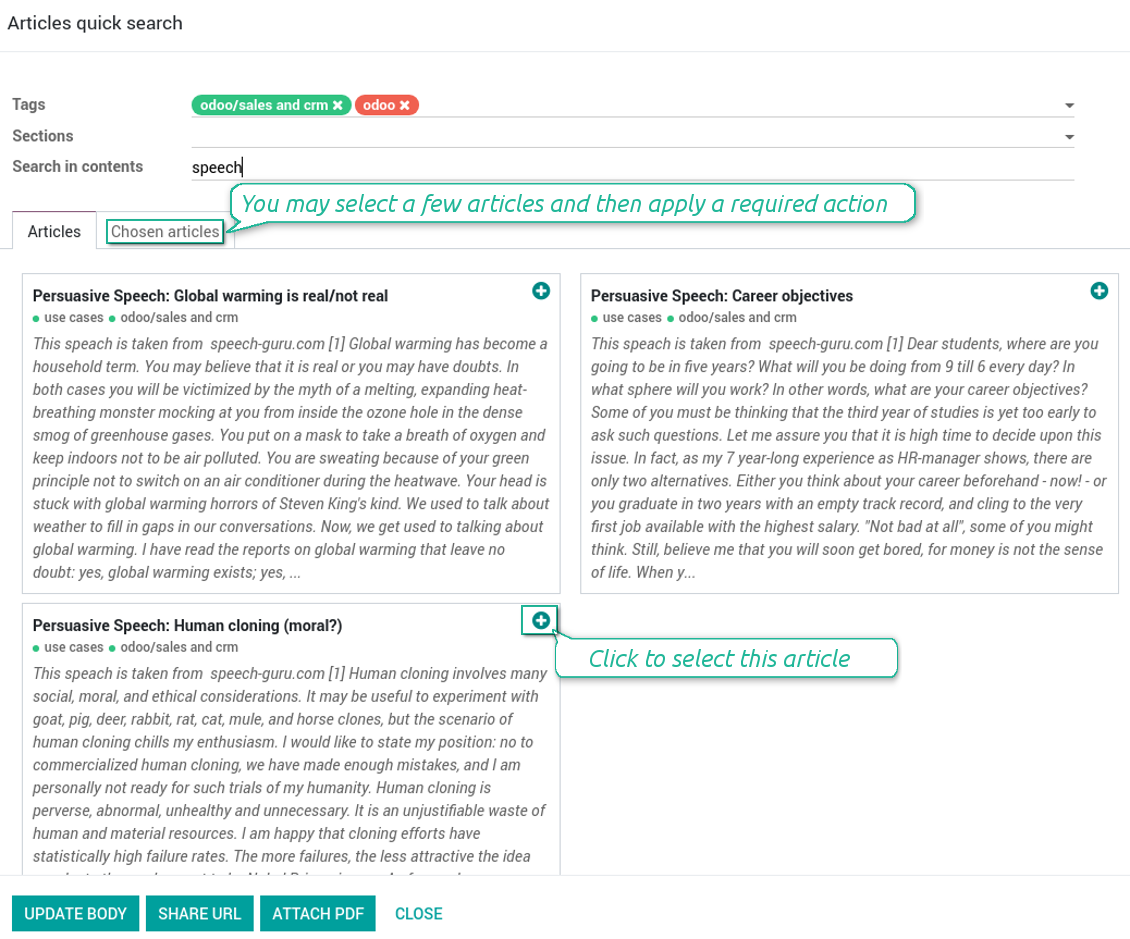
Click on that entry, and Odoo would open the wizard with articles. By default KnowSystem tags suitable for this document would be selected (if any). You may change those tags, or additionally filter by sections or content search. As a result list of topical articles is shown for you.
How to use company knowledge for communication
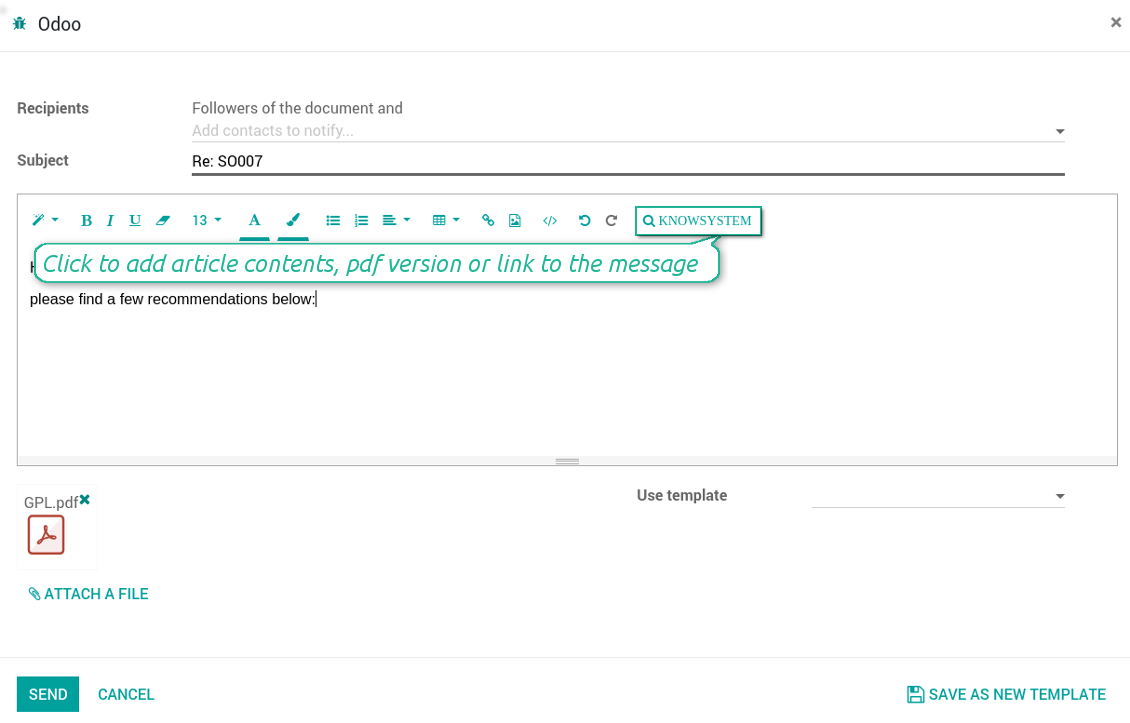
Turn on the option 'Articles in Email Composers' to let users reference or cite Knowledge records in Odoo messages. As a result the special quick entry 'KnowSystem' would be added to each Odoo email composer.
Clicking on that entry would open a wizard with a set of suitable to this document articles. You may change search by tags, add extra filtering by sections or content.
Afterwards, select required articles among found ones; choose an action. You may:
- Update message body with article contents (would be added to the end of a current message)
- Attach a PDF version of an article(s)
- Share a public link
Screenshots
Quick access for knowledge system from any Odoo document
Knowledge base link from email composer
Articles from any document
Article(s) PDF printing
WIKI-like revision system
How to recover a previous article version
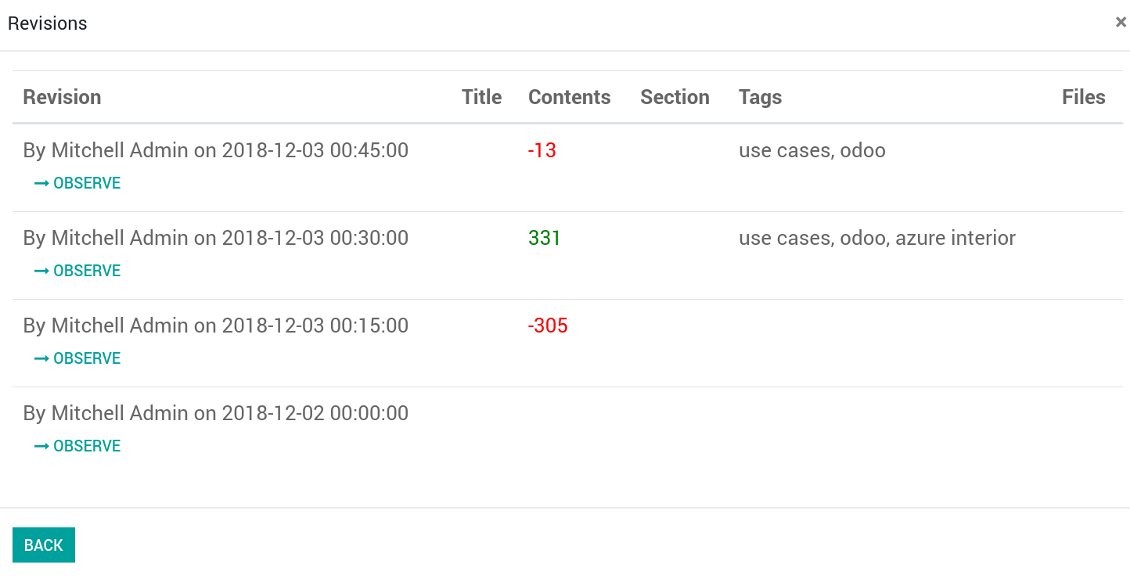
- Go to an article form view and push the button 'revisions'
- Find a required one and push the button 'Observe' to check whether this version is a correct one
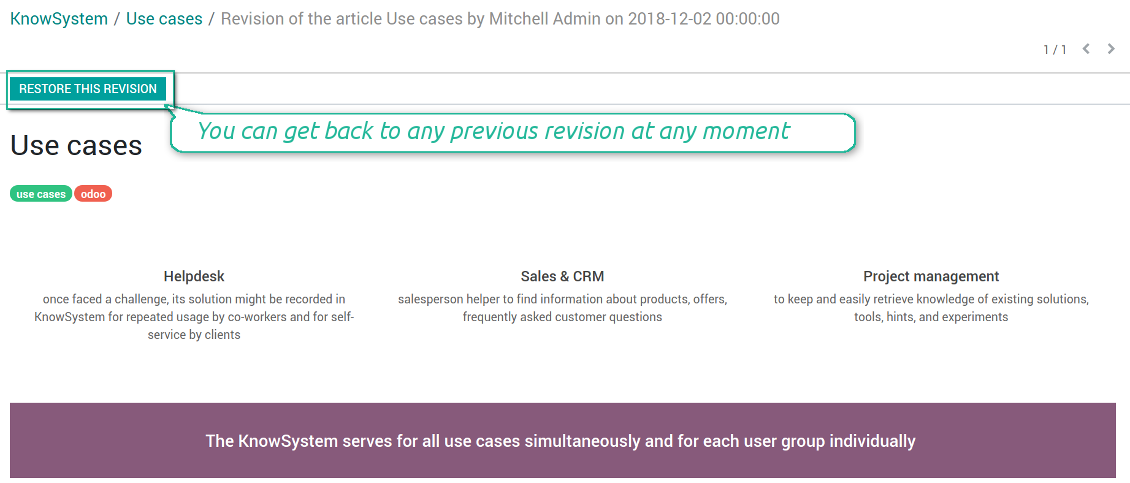
- Push the button 'Restore this revision'. The article would be recovered to that version.
- The recovery operation itself is recorded. So, if it is a mistake you can revert changes by recovering the last-to-last revison.
Screenshots
Wiki-style revisions history
To restore is easier than to break
Individual partner knowledge base portal
How to share knowledge base with specific partners
An article is available for a portal user in two cases: A. it is website published; B. his/her company is indicated as allowed partner in one of article tags.
In the first case such an article is available for all portal users and even for public website visitors who have not logged in.
In the latter case you grant a restricted access for an article only for chosen companies. To that end:
- Turn on the setting 'Portal KnowSystem'
- Create a tag for this partner, for example 'clients / Azure Interior'. On the tag form indicate this company in the field 'Allowed partners'
- Assign the tag for all articles you want to share with this partner. For a few articles use the mass action 'Mass update'
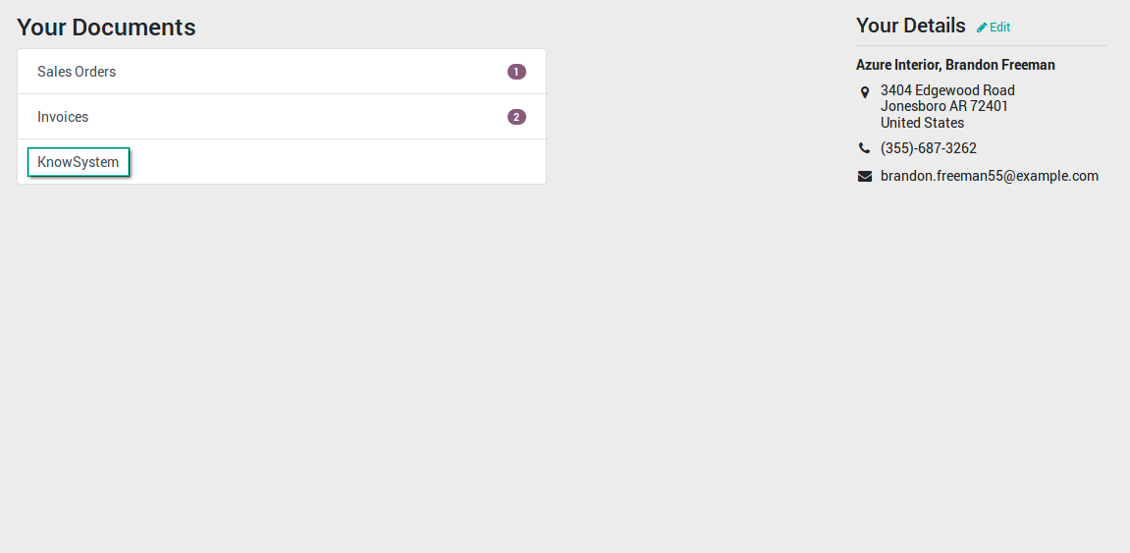
- Now portal users related to this partner may access shared articles right from their partner portal.
Screenshots
Knowledge base for portal and public use
KnowSystem articles on website
Tag: document types and portal partners
KnowSystem from portal
Best knowledge base system for Odoo!
Excellent app and exceptional after-sales support.
Really well thought-out product and one of the best features is the contextual help by means of the tags. Really a game changer for us.
Keep up the great work FaOtools!
Outstanding app! Tremendous value for money, an absolute must have!
One of the features sorely lacking from Odoo has been a robust Wiki/documentation system. Using third party platforms is a massive headache: yet another system to maintain, users get distracted switching back-and-forth, and errors get made. Then you have to worry about training, additional logins, etc.
KnowSystem feels like a native/core app, is very well-polished, and extremely fast. It's accessible from any screen, and the search results are instant (none of the latency inherent with most apps).The interface is elegant yet powerful, with robust access control, rich editing features, and version control. It's simple to revert to previous entries, view audit trails, etc. It's very intuitive for anyone familiar with Odoo; onboarding takes just a few minutes. The user guides are excellent.
This is invaluable for any organisation with a lot of documented information, SOPs, ISO compliance, or similar. If you're using eLearning, it's great for creating a help system / reminders. For example, noting key takeaways or specific instructions. The user can be in MRP, Sales, or any other function, and instantly lookup a guide. Since it overlays whichever screen you're in, it doesn't interrupt the workflow.
This dramatically increases efficiency, minimises questions, and helps keep everyone on the same page.
Oh, and customer service is excellent, faOtools stands behind their product. Thank you!
KnowSystem is excellent - OdooTools offer great support, are very helpful and responsive
Our company needed the ability to add a Knowledge Base to our Odoo portal website for our customers to access article content on a membership-only basis. KnowSystem provided this and much more, along with ability to add search by section, set permissions to allow only certain partners access to articles by tag etc. OdooTools have been very helpful and implemented several features we suggested including automatic redirect upon login, customisable filters and a social sharing capability on articles. Overall a great app by a great company, something that massively adds to Odoo's capabilities and is something that everyone could benefit from using.
Very functional application and responsive support
Our company produces medical laser equipment and we use KnowSystem to streamline the knowledge base of our company. Convenient search system and classification of content, as well as access rules for groups and even for individual users.
Great app and professional team
The app is great the the team is very professional in both response timing and problem solving.
Highly recommended.
Marco from ALO.zone.
Excellent system
Excellent system.
A great tool from some very nice developers!
KnowSystem is a great tool and a game changer for us. Finally a place to put all our company know-how. I highly recommend it. And also important to us: We got great support from FaOtools too. A rare thing in this busy world. thx!
Excellent app and support.
Great app and a very helpfull support. Openess to improve their products is outstanding.
Public knowledge base
How to make an article available for all website visitors
- Turn on the setting 'Public KnowSystem'
- Publish required articles through the mass action 'Publish' or by pushing the button 'Actions > Publish on website' on an article form
- Now any website visitor can read those articles
Team work for knowledge creation
Screenshots
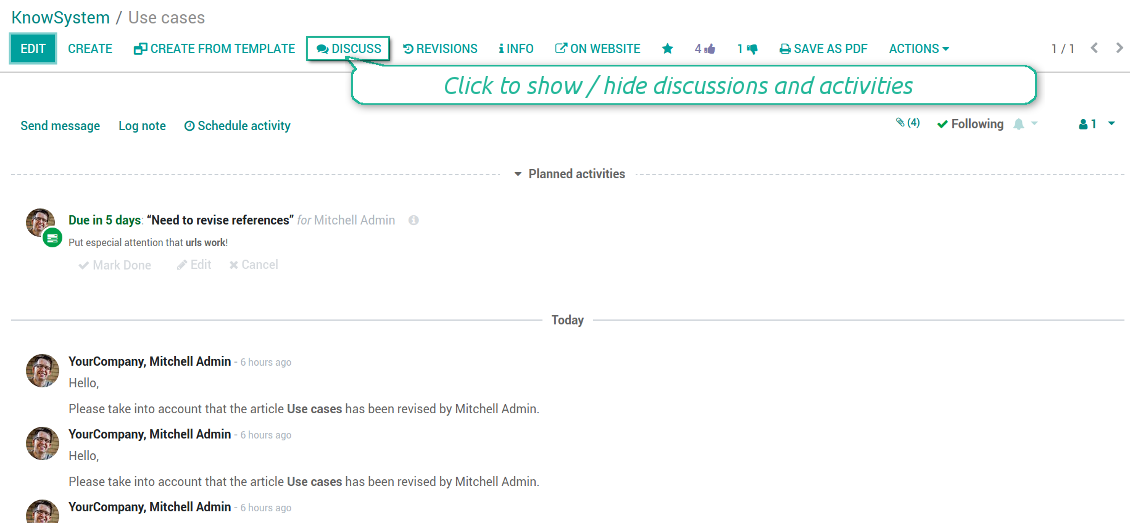
Knowledge base interactions, discussion, and activities
Custom fields to structure knowledge
How custom knowledge attributes work
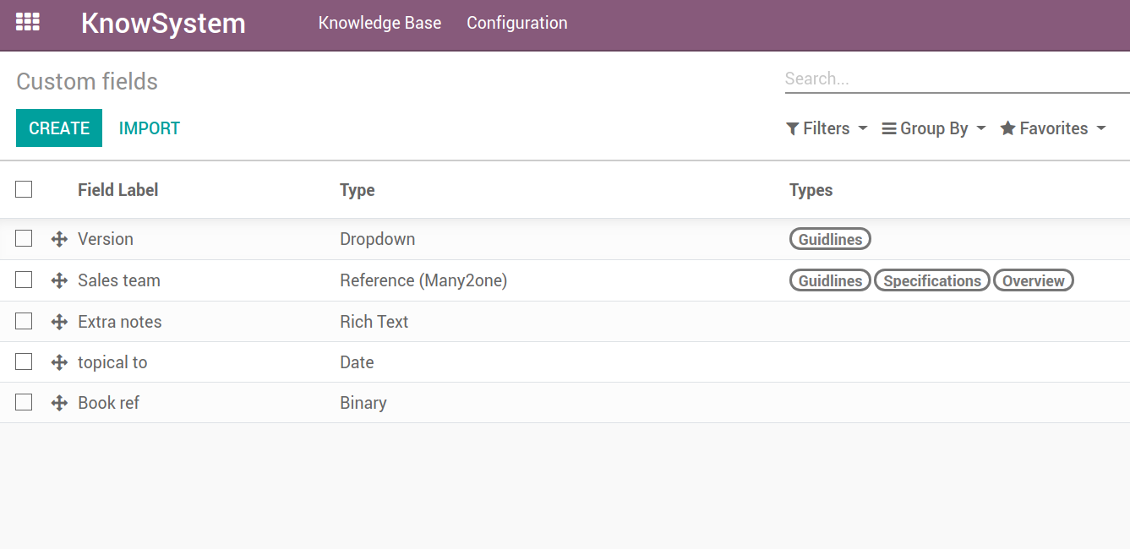
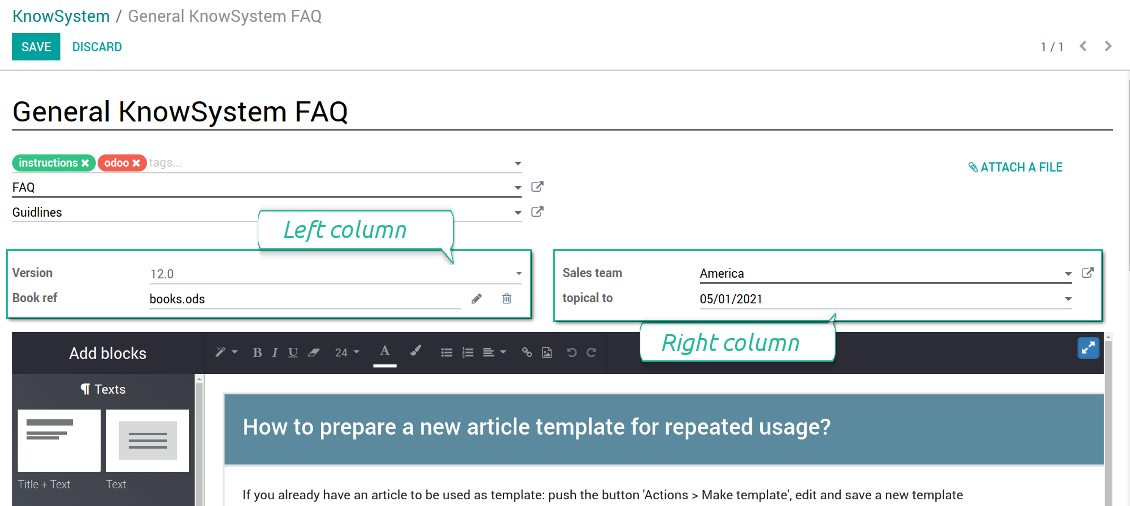
In order to show a new property for KnowSystem articles, just create a custom field. Nothing else is required! You are welcome to prepare fields of various types: single line text (char), simple text without formatting (text), rich text (HTML-formatted text), integer or float numbers, drop-down choice with your own options (selection), checkbox (boolean), date or date and time, binary (a file to upload), reference to another Odoo document (e.g. for a sale order, contact; many2one).
The tool also introduces complementary articles' typology. Thus set of attributes for 'user guidelines' and 'technical specifications' might be different.
Then, choose an interface location for a new field from a closed list to structure properties on an article page. Decide whether a field should be required to enter, or should be visible only for definite knowledge types.
Screenshots
KnowSystem articles' custom fields
Custom fields on article form
Custom fields in portal and website
Custom fields for article: add any data required
Knowledge is secured and might be safely shared
How to manage user accesses to articles
Security for internal and portal users differs.
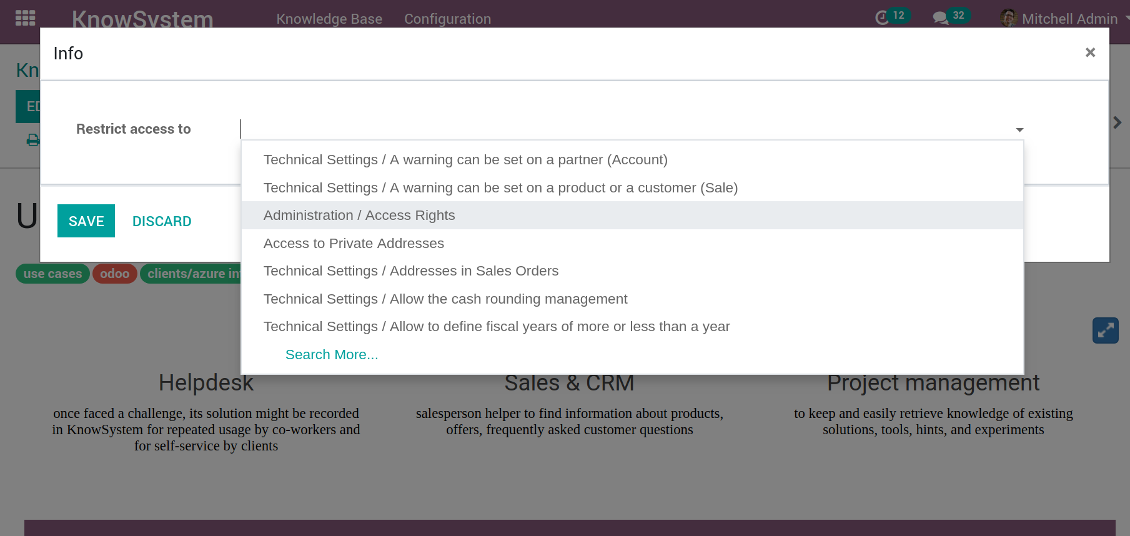
For the company employees: KnowSystem considers user groups which are defined per articles, sections and tours. Look at the tab 'Restrict to' on forms of those objects. If that field is not defined, a document is considered 'global': each internal user may read it.
For portal / public users: KnowSystem takes into account tags and whether an article is website published. A knowledge tag has a field 'Allowed partners', which may grant an access to portal users for articles with this tag. Website published pages are available for everybody.
Rights to administrate KnowSystem belongs to 2 user roles: KnowSystem Editor and KnowSystem Administrator. If you want a user to create and edit articles, a user should belong to one of those groups.
|
|
Odoo user |
KnowSystem Editor |
KnowSystem Admin |
Portal user |
Public user |
| Articles | read related to his/her user groups and sections | read, create, edit, archive related to his/her user groups and sections | read, create, edit, delete any | read published articles and articles related to partner-related tags | read published articles |
| Sections | read related to his/her user groups | read, create, edit, archive related to his/her user groups and sections | read, create, edit, delete any | read all sections of available articles | read all sections of published articles |
| Tags | read any | read, create, edit, archive any | read, create, edit, delete any | read published ones | read published ones |
| Article Types | read any | read any | read, create, edit, delete any | read published ones | read published ones |
| Tours | read related to his/her user groups | read, create, edit, delete related to his/her user groups | read, create, edit, delete any | no access | no access |
| Misc | may like / dislike, add to favourites, print, take part in discussions | may configure options | may like / dislike an article |
|
Take also into account two peculiarities:
- Odoo user always may access an article of which he is an author disregarding further restrictions;
- Rights for section is defined not only according to this section but also according to all its parents. For example, if user can't access 'sales', he/she would not be able to access 'sales / crm' disregarding whether 'crm' is available for his/her user group.
Screenshots
Manage access to this article
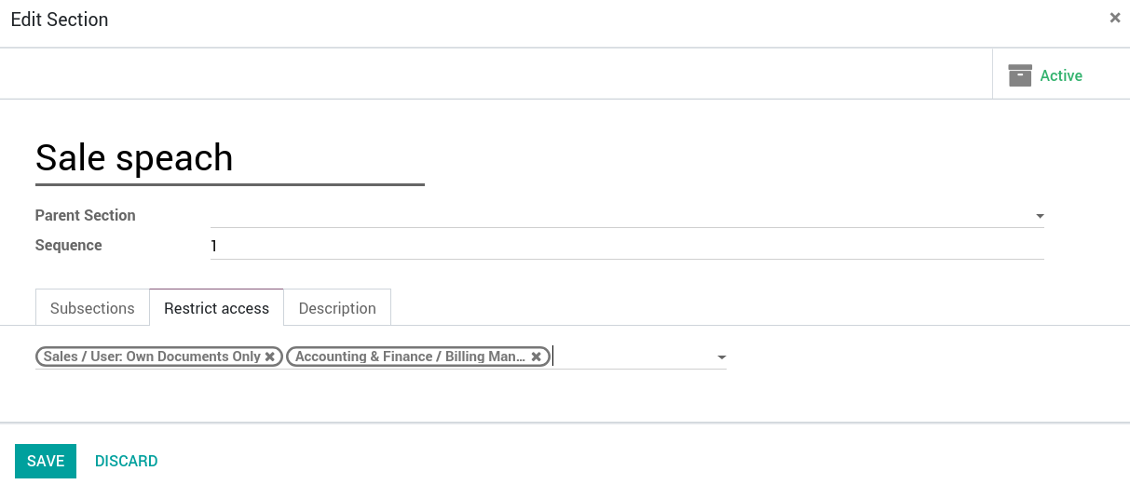
Section update and user rights
Website documentation builder
Screenshots
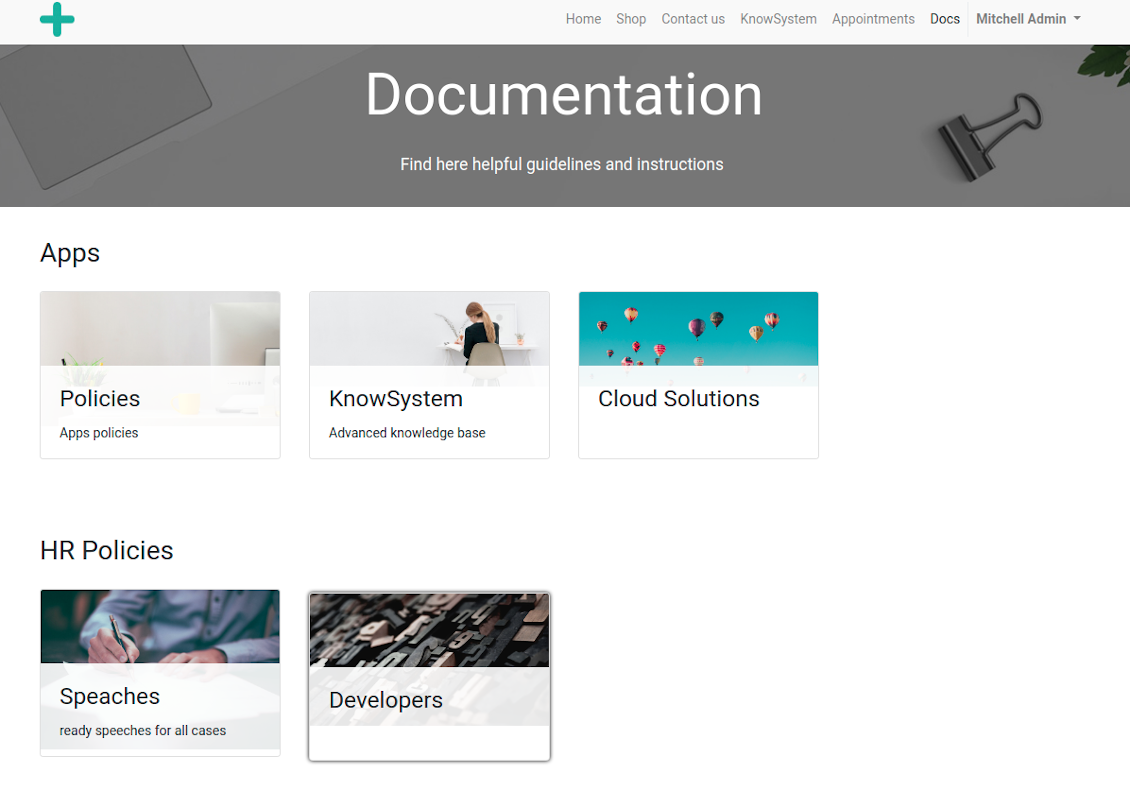
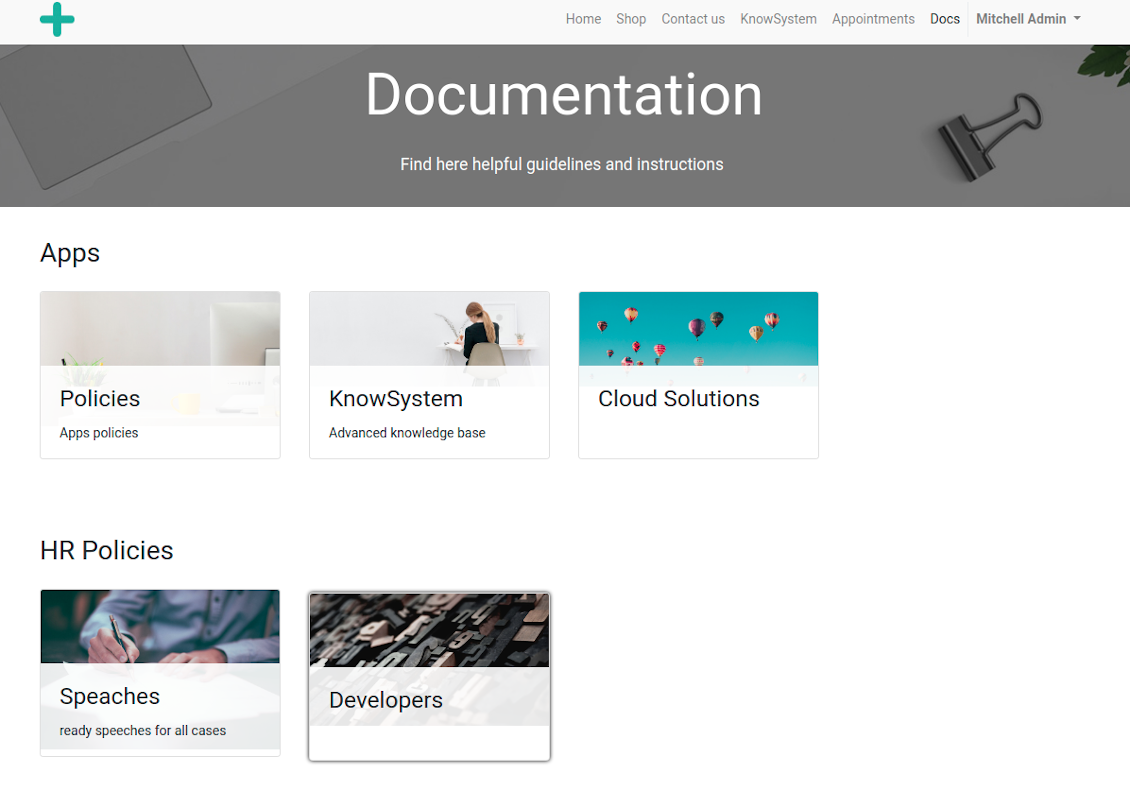
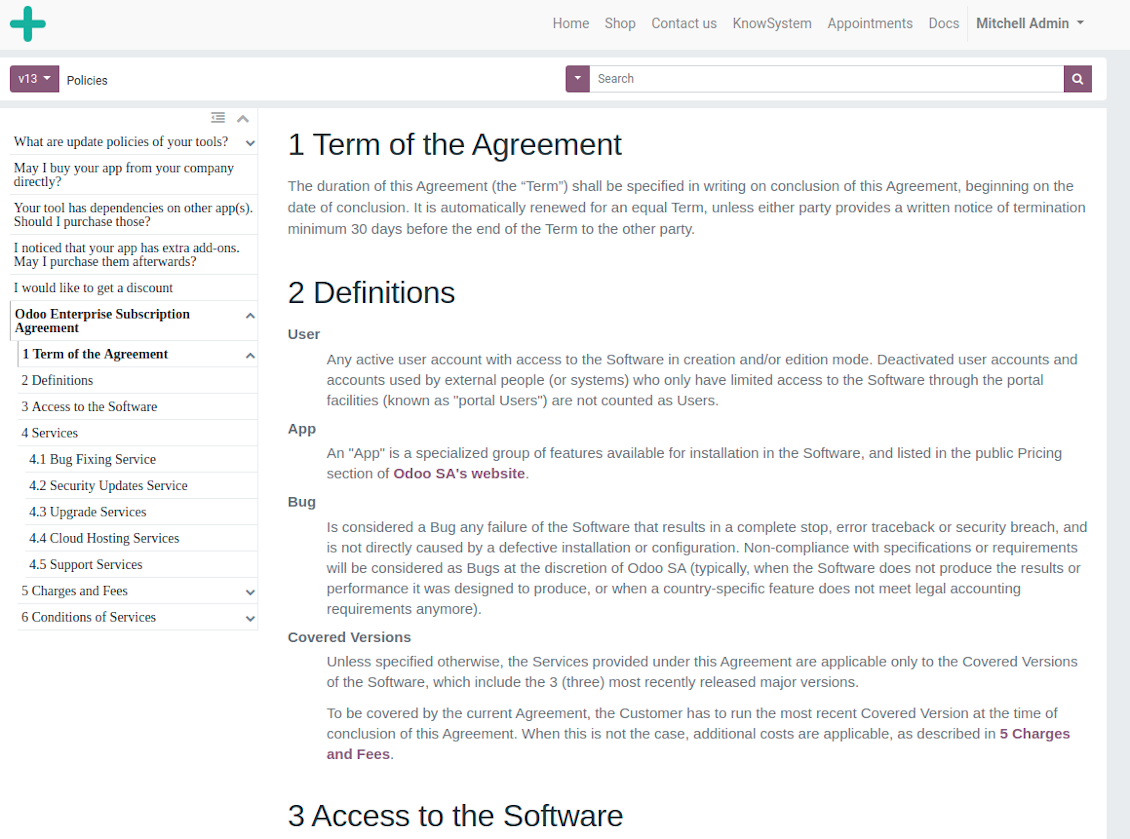
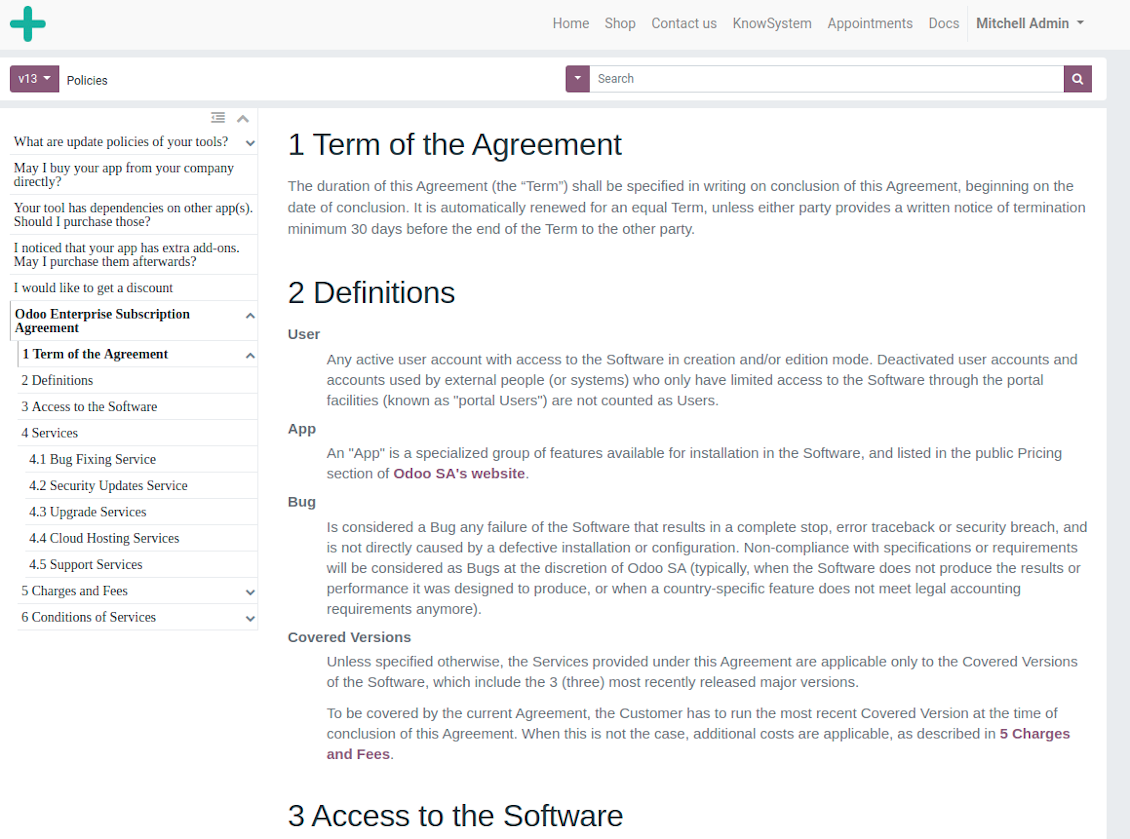
Documentation by categories and sections
Documentation by categories and sections
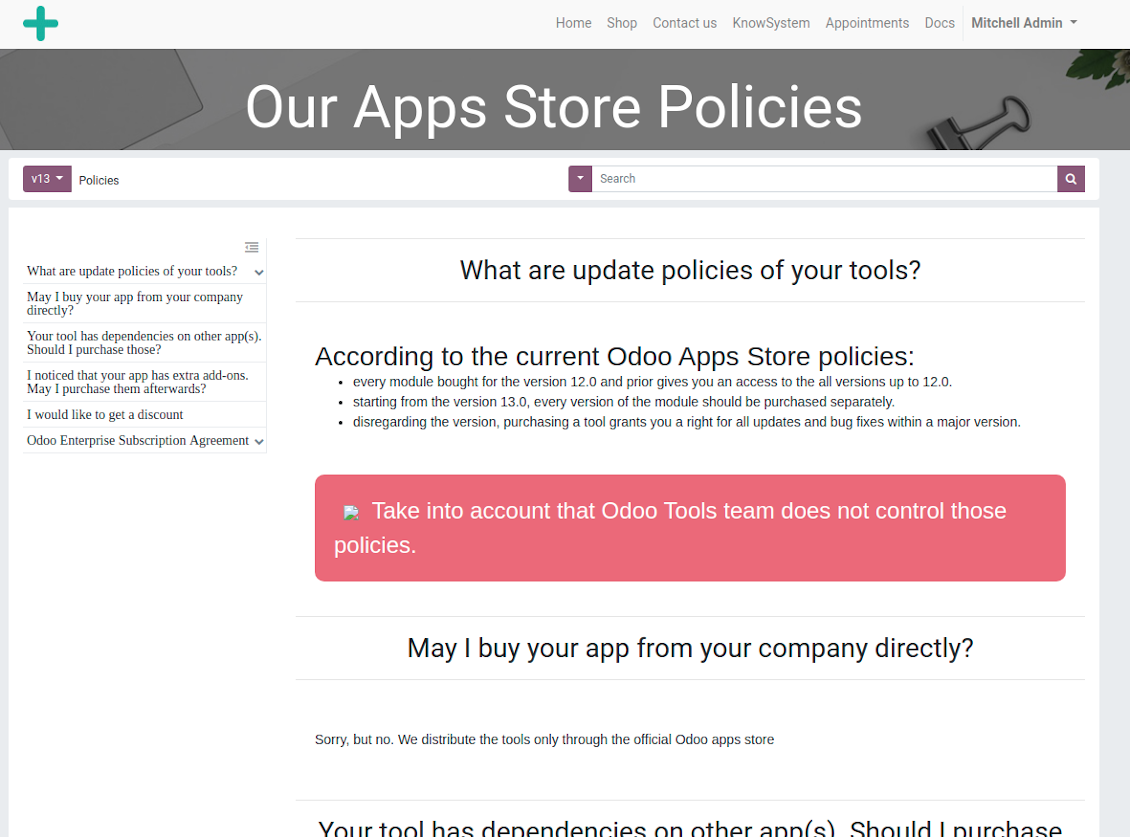
Documentation page
Documentation page
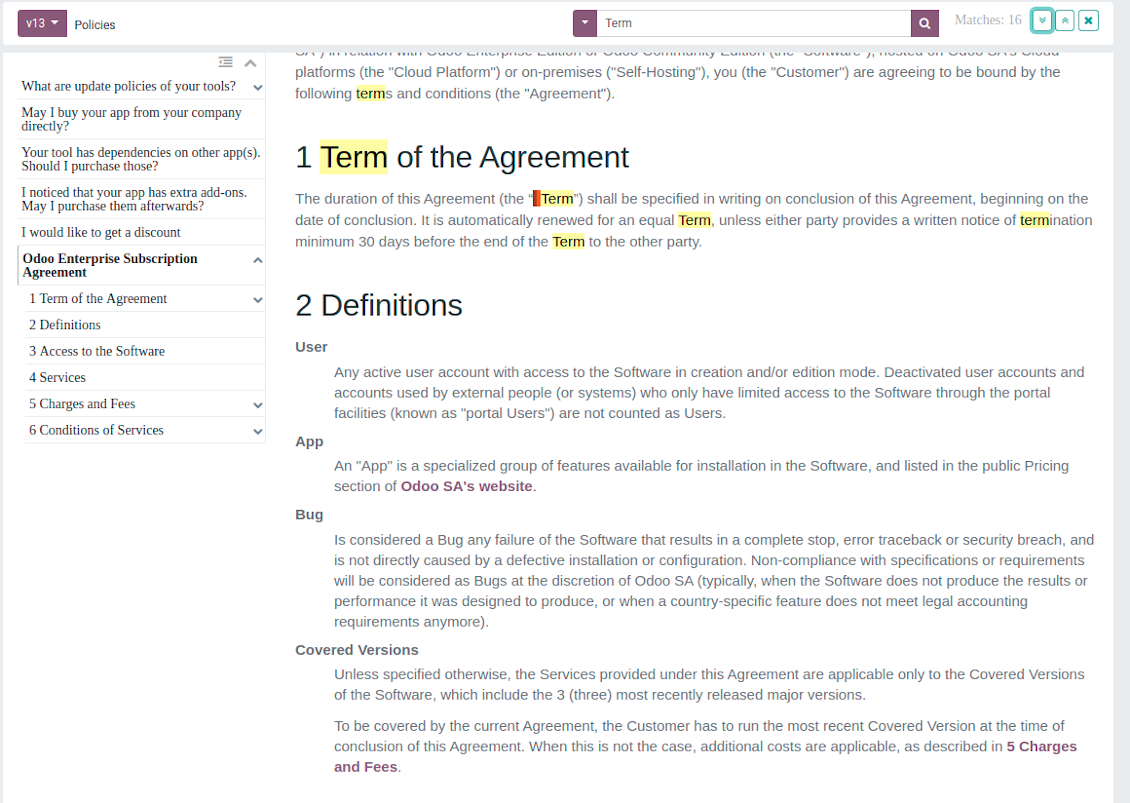
Automatic table of contents by documentation
Automatic table of contents by documentation
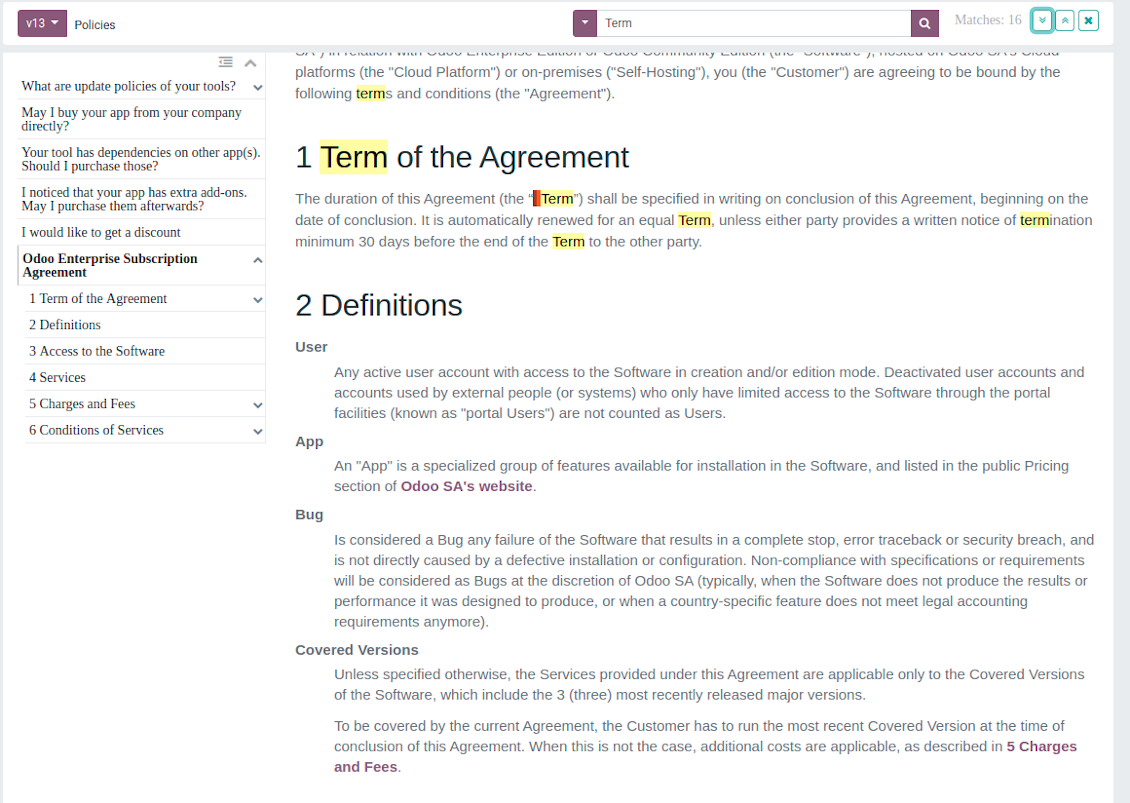
Inline search by documentation
Inline search by documentation
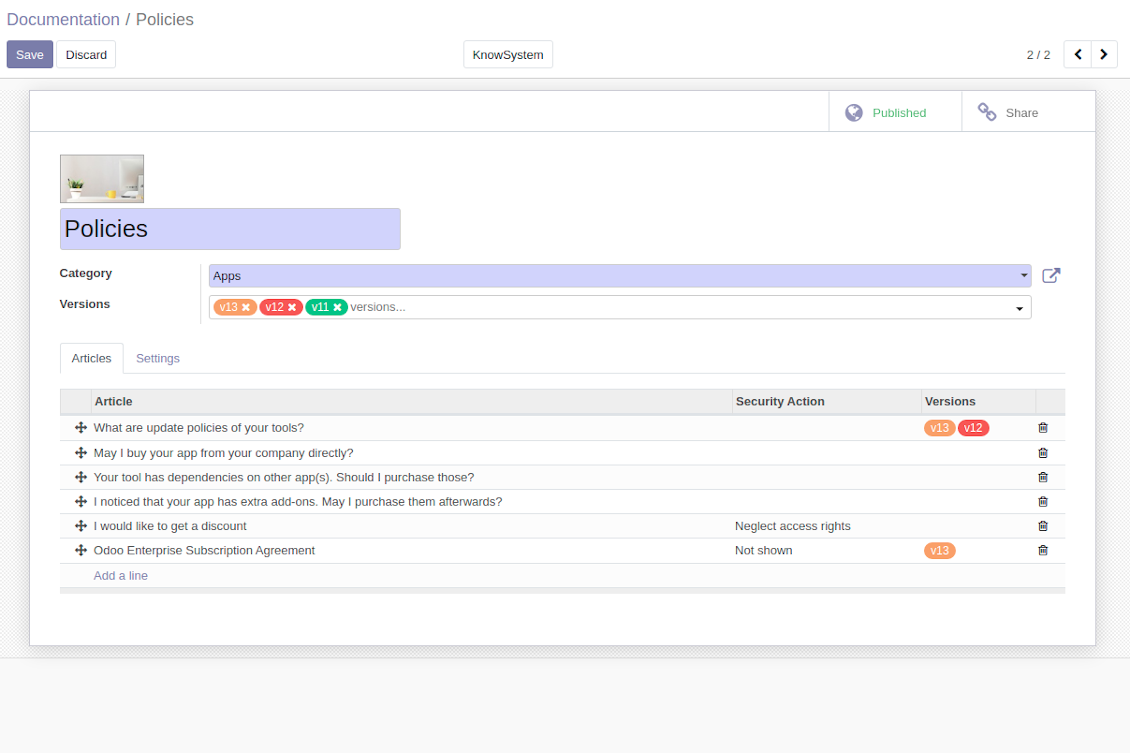
Compose articles for documentation
Compose articles for documentation
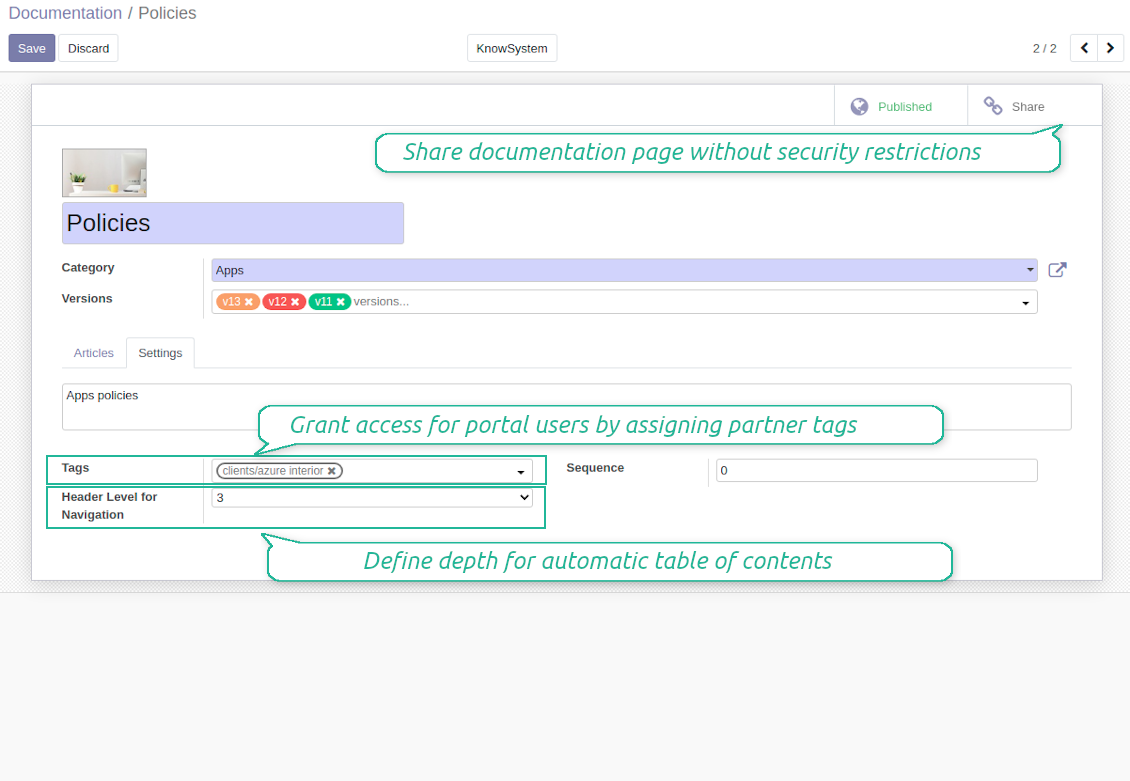
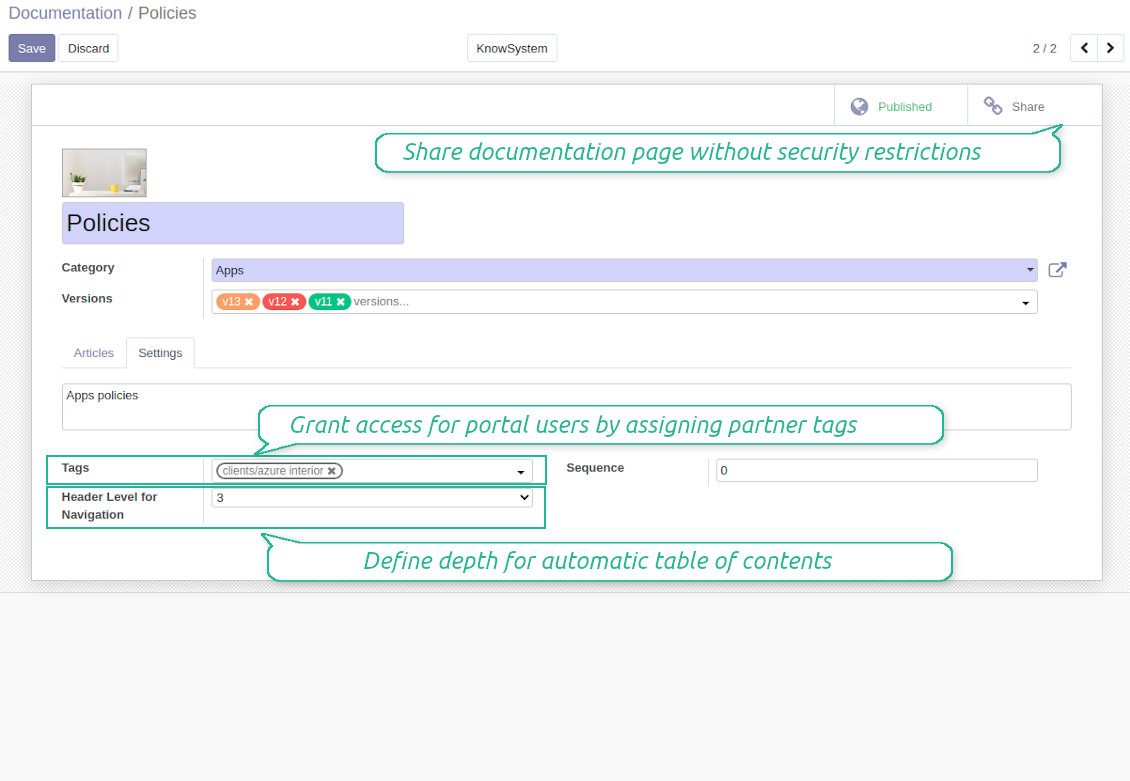
Documentation settings
Documentation settings
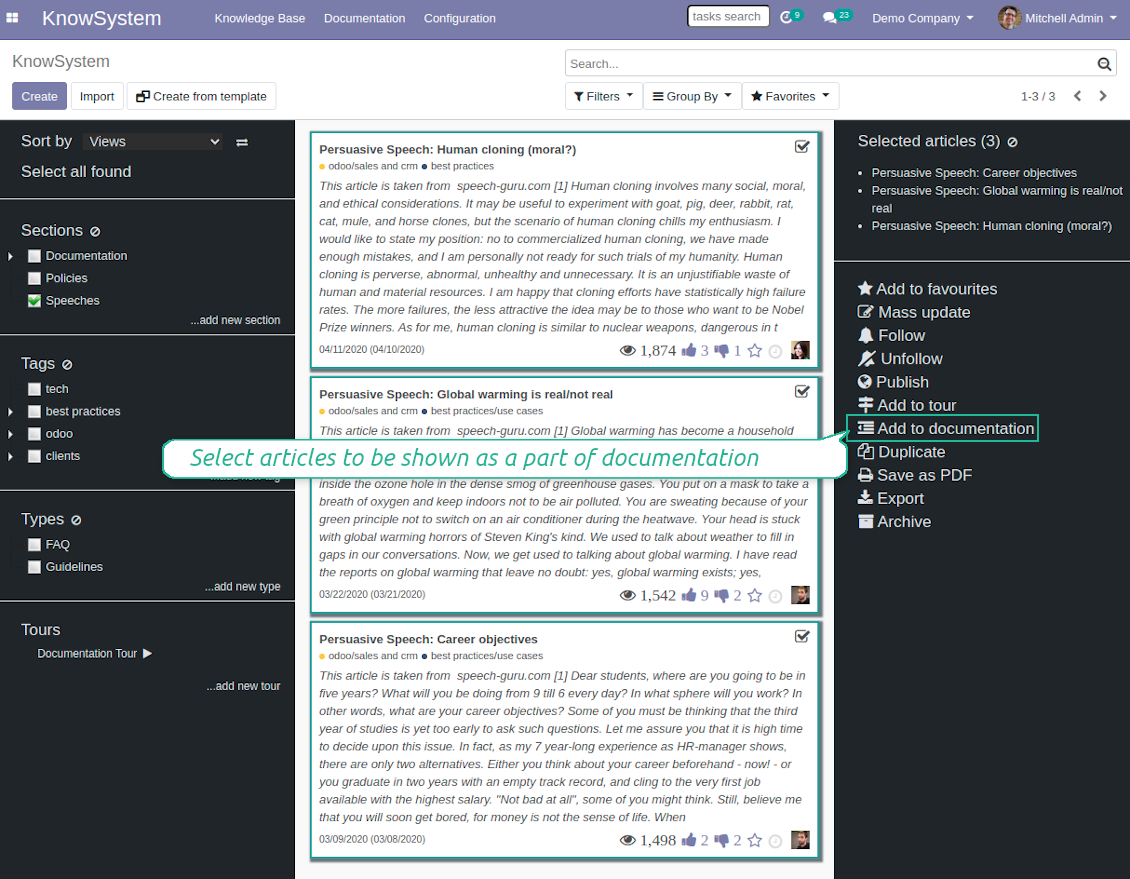
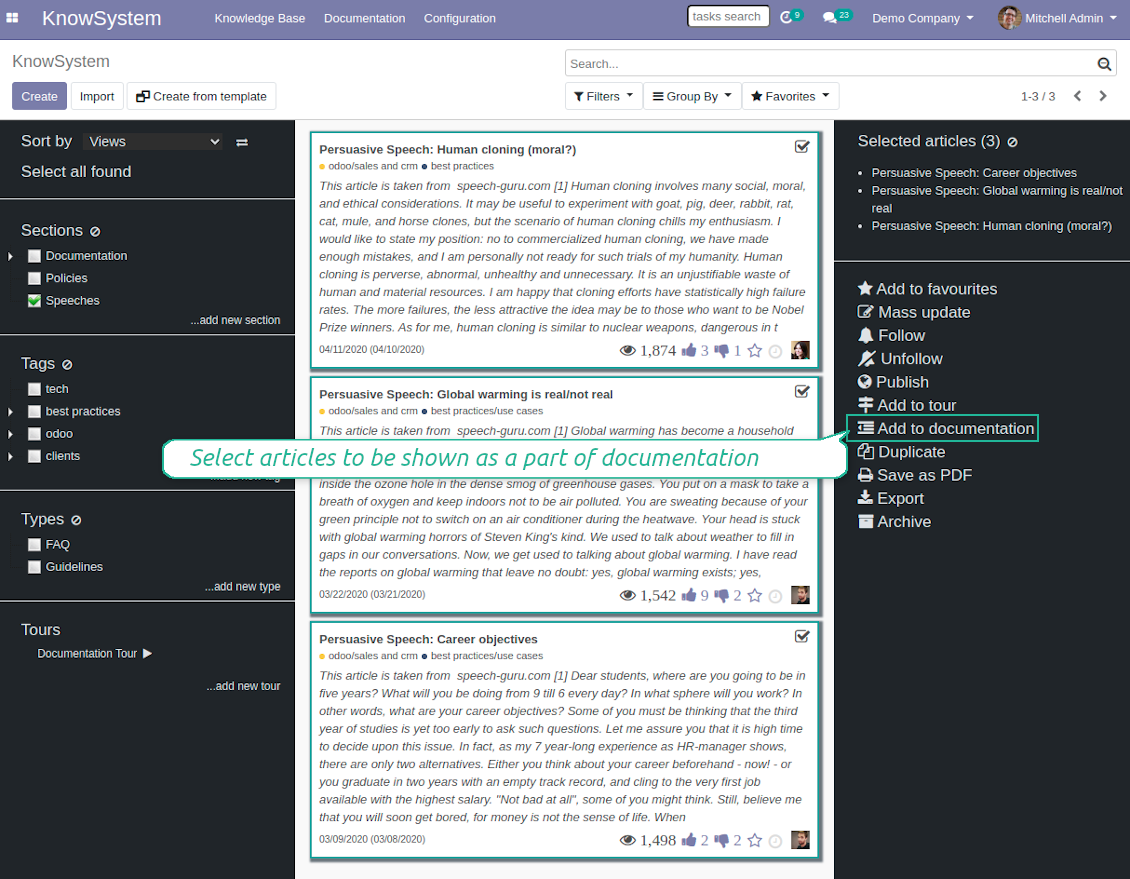
Add KnowSystem articles to documentation
Add KnowSystem articles to documentation
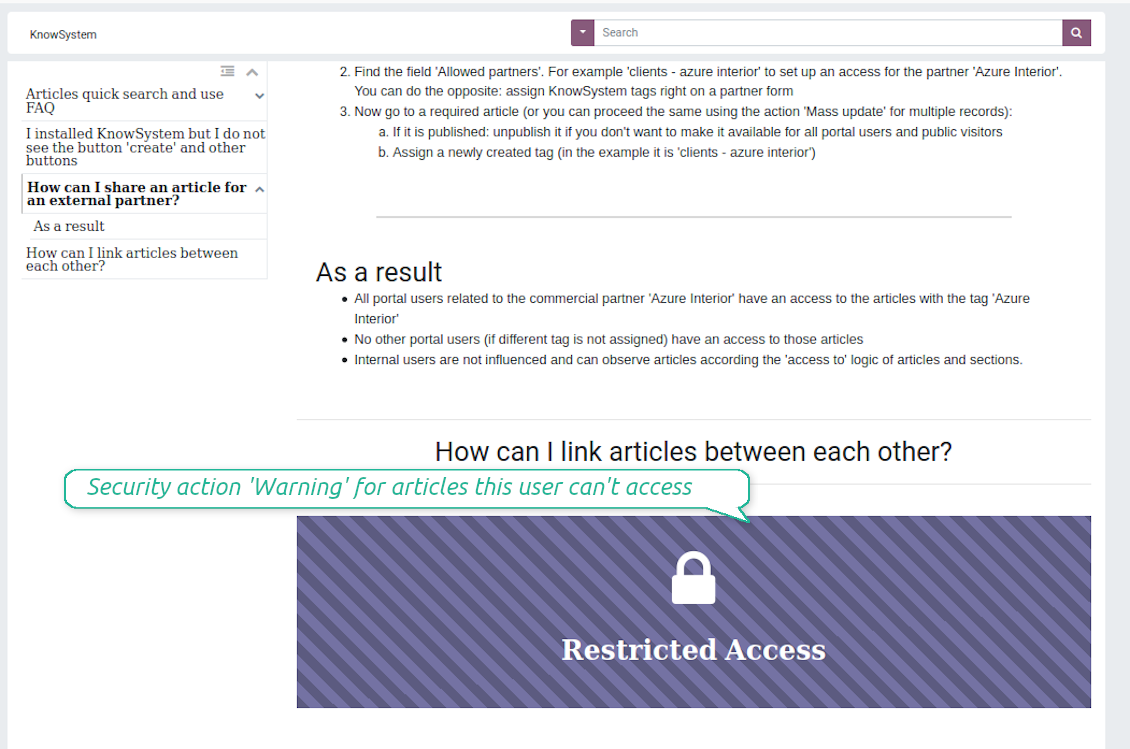
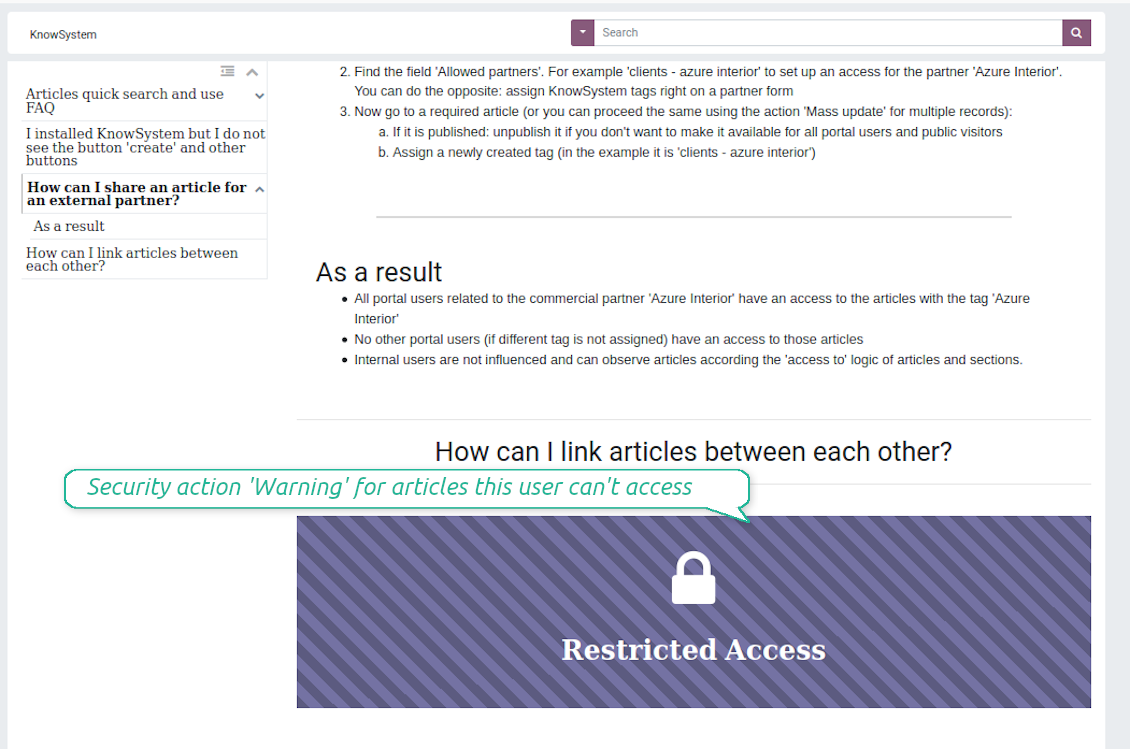
Security: optionally show warning if no access possible
Security: optionally show warning if no access possible
Create learning tours
How to configure a learning tour
- Turn on the option 'Tours'
- Go to KnowSystem interface and select articles to be included into a tour
- Press the mass action button 'Add to tour' and select or create a tour. Press save
- Re-order articles in a consistent order
- Define groups of users who should go through a tour on the tab 'Restrict access'
- Now users can see and launch tours right from the KnowSystem interface (the right navigation panel)
Screenshots
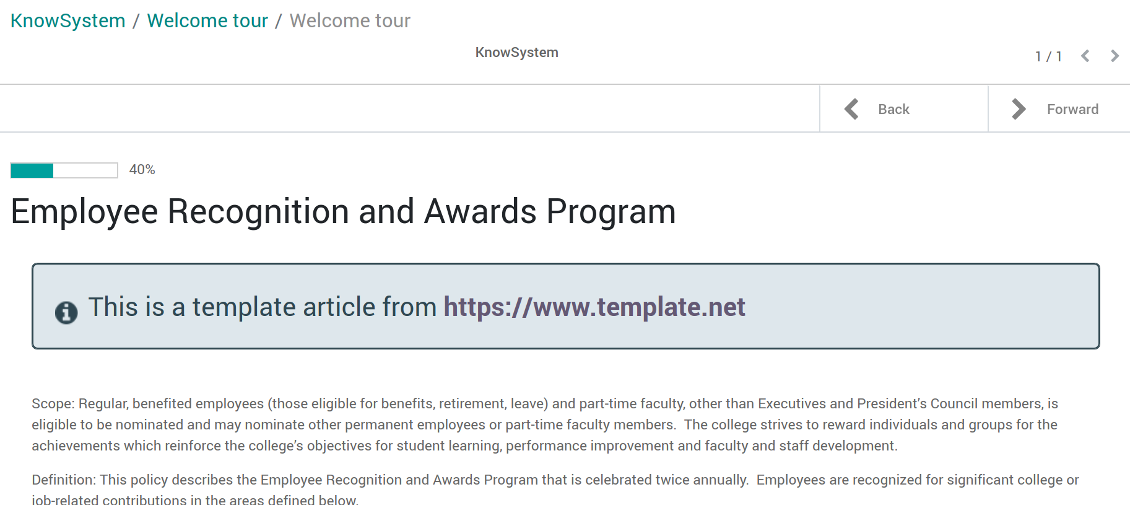
Article in a learning tour
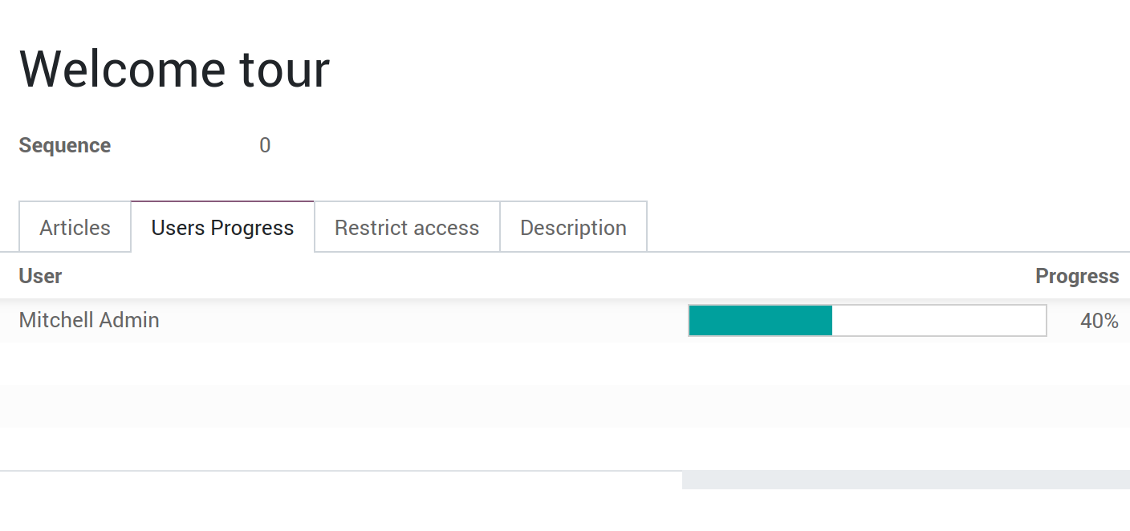
Control tour progress by users
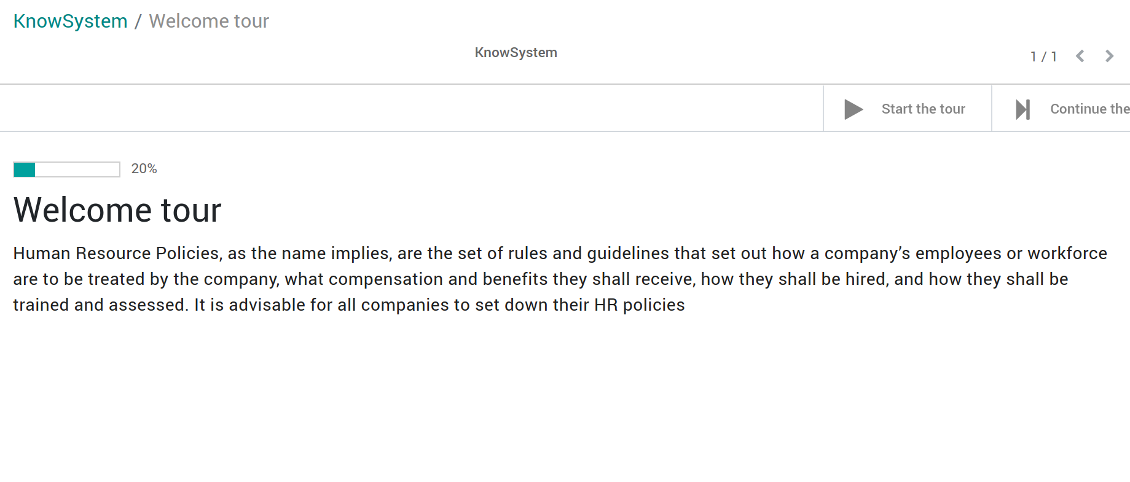
KnowSystem tour welcome page
Multilingual knowledge base
How to make an article available for a few languages
- Install the optional add-on 'KnowSystem: Multi Languages'
- Change your user language for a needed one
- Update this article
- Now it is available in both source and a current language
Make sure you really require a few languages. In that case you almost double the work of KnowSystem editors. All articles should be kept updated in all Odoo languages.
Knowledge base for any industry and business
Typical use cases
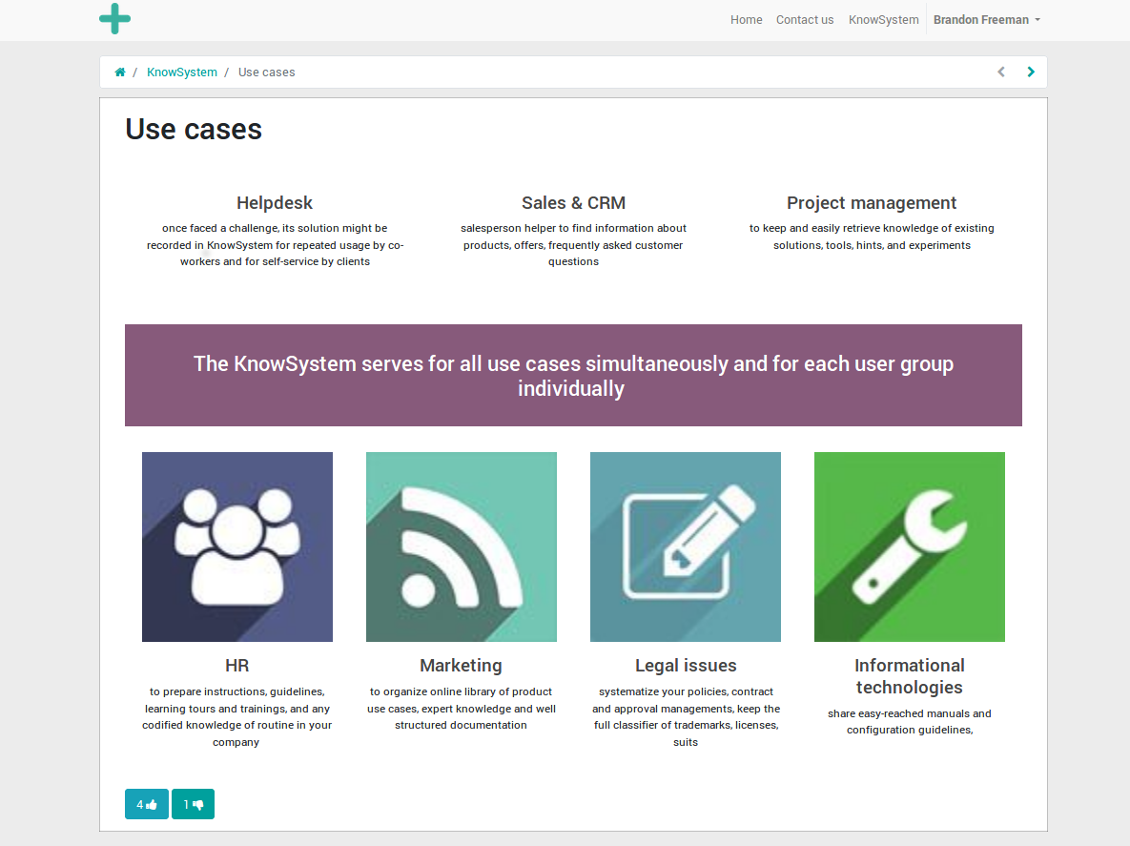
- Helpdesk: once faced a challenge, its solution might be recorded in KnowSystem for repeated usage by co-workers and for self-service by clients
- Sales & CRM: salesperson helper to find information about products, offers, frequently asked customer questions
- Project management: to keep and easily retrieve knowledge of existing solutions, tools, hints, and experiments
- HR: to prepare instructions, guidelines, learning tours and trainings, and any codified knowledge of routine in your company
- Marketing: to organize online library of product use cases, expert knowledge and well structured documentation
- Legal issues: systematize your policies, contract and approval managements, keep the full classifier of trademarks, licenses
- Informational technologies: share easy-reached manuals and configuration guidelines
Veelgestelde vragen over KnowSystem: Knowledge Base System Odoo v.12
Ik zie geen verschil tussen de teksten van de revisies.
Revisies leggen niet alleen tekstwijzigingen vast, maar ook alle stijlupdates (technisch wanneer u de HTML-broncode van een artikel wijzigt). Sommige zijn niet meteen duidelijk (bijv. een gewijzigde lettergrootte van één woord). Andere kunnen ingrijpend zijn. Elke reeks Edit > iets in een artikel wijzigen > Save levert echter een nieuwe revisie op.
Kan ik een YouTube-/ Vimeo- / Dailymotion- / Youku-video in een artikel zetten?
Ja, u kunt video's van die diensten in artikelen insluiten vanuit de Odoo-backend en de websitebouwer. Voeg daarvoor een bouwblok met een afbeelding toe > druk op de afbeelding > selecteer ‘Video’ > voer de URL van het medium in.
Houd rekening: zulke video's worden als iframes opgenomen, en sommige browsers kunnen het afspelen blokkeren tot de gebruiker dat expliciet toestaat.
Hoe maak ik een sectie zichtbaar op de website?
In KnowSystem wordt een sectie zichtbaar op een website als ze is gepubliceerd en minstens één artikel bevat. Ook met subsecties blijft ze onzichtbaar als er in de sectie zelf geen artikel staat. Zo vermijdt u lege secties en blijft het KnowSystem-portaal overzichtelijk. Wilt u de sectie op de website tonen, voeg dan één inleidend of algemeen artikel toe dat de artikelen in de subsecties kort beschrijft of opsomt.
Hoe deel ik een artikel met een externe partner?
Rechtsklik op een willekeurige tag in het linkernavigatiepaneel - Create
Zoek het veld 'Allowed partners'. Bijvoorbeeld 'clients - azure interior' om toegang in te stellen voor de partner 'Azure Interior'. U kunt ook het omgekeerde doen: KnowSystem-tags toewijzen op het partnerformulier
Ga nu naar het gewenste artikel (of doe hetzelfde met de actie 'Mass update' voor meerdere records):
Als het is gepubliceerd: maak de publicatie ongedaan als u het niet beschikbaar wilt maken voor alle portaalgebruikers en openbare bezoekers
Wijs de nieuw aangemaakte tag toe (in het voorbeeld is dat 'clients - azure interior')
Nu:
Alle portaalgebruikers van de commerciële partner 'Azure Interior' hebben toegang tot de artikelen met de tag 'Azure Interior'
Geen andere portaalgebruikers (als geen andere tag is toegewezen) hebben toegang tot die artikelen
Interne gebruikers worden niet beïnvloed en zien artikelen volgens de logica 'access to' van artikelen en secties.
Kunnen we de taalselectieknop voor de artikeltekst toevoegen?
De knop 'translate' wordt door de optionele add-on 'KnowSystem: Multi Languages' expres niet aan de artikeltekst toegevoegd. HTML is zeer moeilijk te vertalen in de eenvoudige popup van die knop. Er zou heel weinig tekst te vertalen zijn en veel HTML-delen (die de vertaler ook kan breken).
Daarom moet u, om een artikel in een bepaalde taal te maken, inloggen als gebruiker van die taal. Dat kan een andere gebruiker zijn, of u wijzigt tijdelijk de voorkeuren van de huidige gebruiker. Daarna gebeuren alle updates van de artikeltekst in die gebruikerstaal.
Ook kunt u onder de artikeltekst de knop 'Copy from another translation' gebruiken om op elk moment de inhoud uit een andere taal te halen (handig als het artikel in één taal sterk is bijgewerkt).
Hoe sluit ik een andere webpagina in een artikel in
Daarvoor kunt u iframes gebruiken. Schakel het artikel naar de ruwe HTML-code-editor en voeg bijvoorbeeld <iframe src="https://faotools.com/" style="width:100%;min-height:600px;"> </iframe> in.
Ik heb KnowSystem geïnstalleerd, maar ik zie de knop 'create' en andere knoppen niet
Waarschijnlijk hebt u uw gebruiker geen KnowSystem-rechten gegeven. Kies de juiste rol 'KnowSystem Editor' of 'KnowSystem Admin' en vernieuw de pagina. De bedieningsknoppen zouden nu zichtbaar moeten zijn.
Kan ik een specifieke leerreis alleen aan gekozen gebruikers tonen?
Ja, door een gebruikersgroep toe te passen (bijv. 'Sales Manager') die deze leerreis moet volgen. Als de gebruiker tot die groep behoort, ziet hij de leerreis. Zo niet, dan wordt die niet getoond. Het werkt hetzelfde als de toegangsrechten voor KnowSystem-artikelen en -secties.
Houd er rekening mee dat een leerreis zonder toegewezen groepen 'global' is en voor iedereen zichtbaar.
Hoe wijzig ik de voettekst en de koptekst bij het afdrukken van artikelen?
Kop- en voettekst van artikel-PDF's komen uit de bedrijfsindelingen. Bekijk Settings > General Settings > het gedeelte Business Documents. Daar stelt u het bedrijfsjabloon in dat voor alle documenttypen geldt, inclusief facturen, verkooporders enz., en ook voor artikelen. Deze Odoo-aanpak ziet voettekst en koptekst als algemene bedrijfsstijl, niet als kenmerk van specifieke afdrukken.
Hoe koppel ik artikelen aan elkaar?
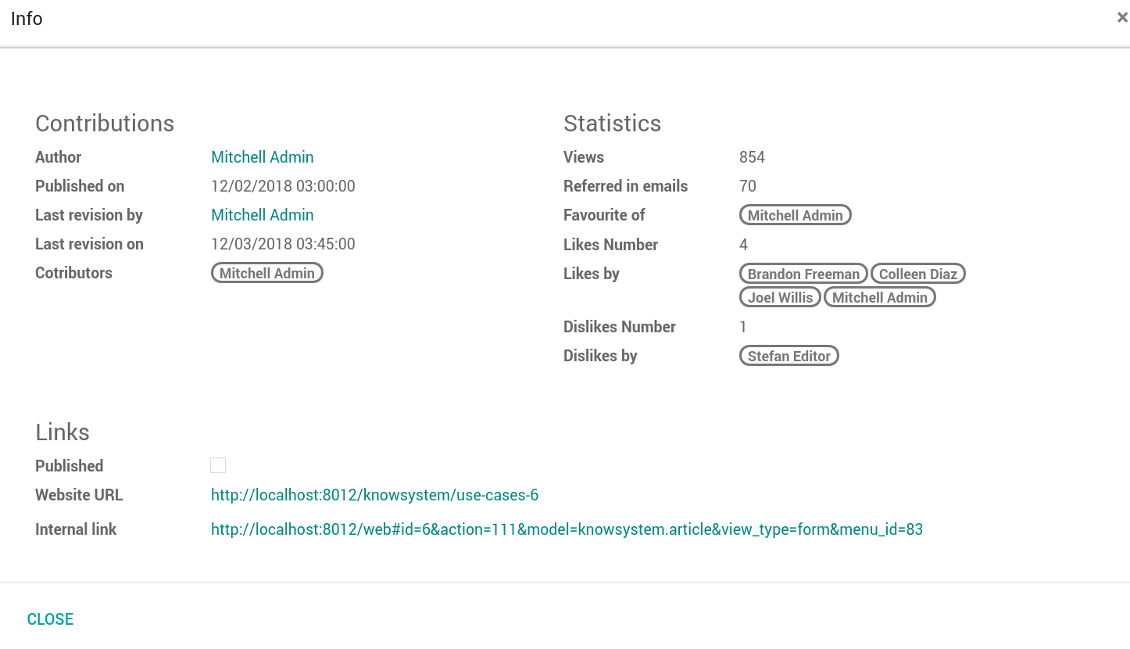
Elk artikel heeft interne (backend-) en website-URL's (als de optie 'KnowSystem: Website and Portal' is geïnstalleerd). Klik op de knop 'Info' op het artikelformulier om de webadressen van dit record te zien. U kunt elk adres als hyperlink in de artikeltekst invoegen.
Kan ik de HTML-broncode van een artikel wijzigen?
Ja: zet de debug assets aan (op het overzichtsscherm van de instellingen) en ga terug naar het huidige artikel. In de bewerkingsmodus ziet u het pictogram '</>'. Klik erop om HTML en stijlen te bekijken en te bewerken.
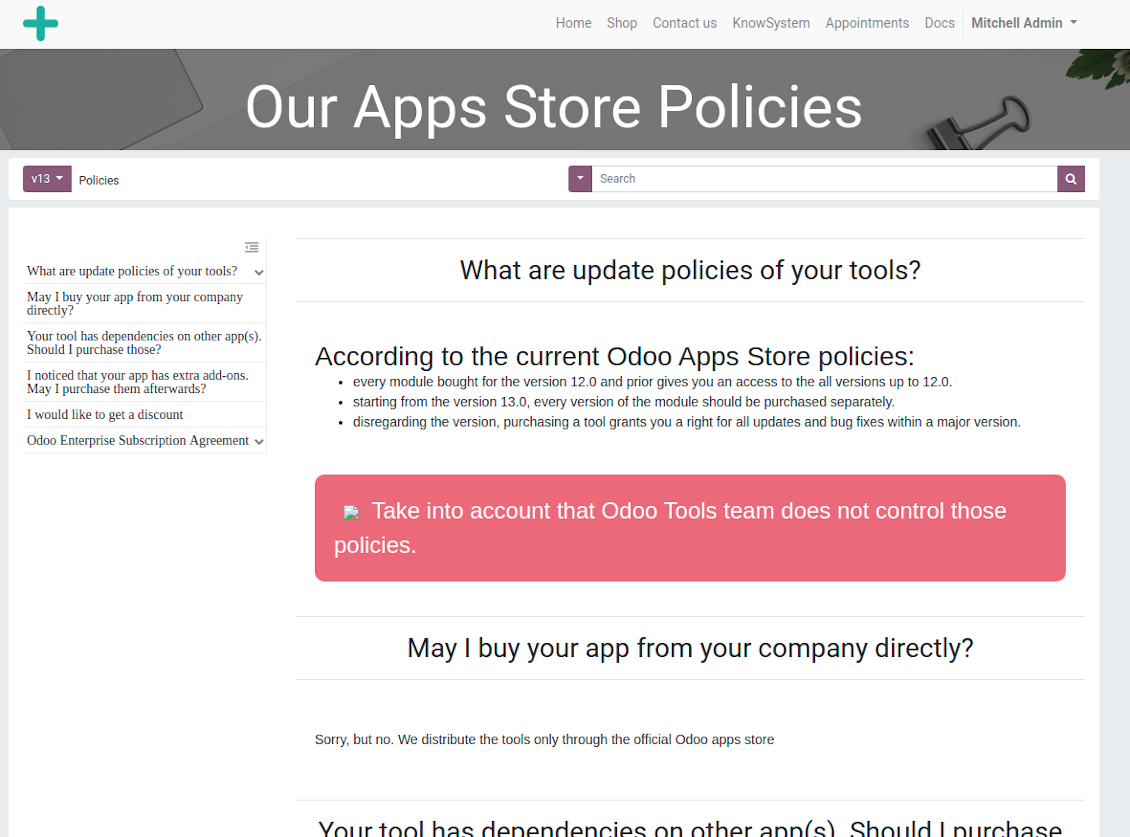
Wat is het updatebeleid van uw tools?
Volgens het huidige beleid van de Odoo Apps Store:
- Elke module gekocht voor versie 12.0 of eerder geeft toegang tot alle versies tot 12.0.
- Vanaf versie 13.0 moet elke moduleversie apart worden gekocht.
- Ongeacht de versie geeft aankoop recht op alle updates en bugfixes binnen een hoofdversie.
Het faOtools-team bepaalt dit beleid niet. Neem voor vragen rechtstreeks contact op met vertegenwoordigers van de Odoo Apps Store.
Hoe installeer ik uw app op Odoo.sh?
De meest directe aanpak is de ingebouwde workflow van de Odoo-store:
1. Open de modulepagina en klik op Deploy on odoo.sh
2. U gaat naar GitHub. Log in en klik op Create a new repo of gebruik een bestaande. De repository moet privé zijn. Apps onder OPL-1 mogen niet openbaar. Maak zo nodig een nieuwe repo voor het Odoo.sh-project
3. Ga daarna naar odoo.sh, klik op Deploy, bevestig en klik op Continue. De installatie start.
Zo installeert u de app op de productiebranch. Voor andere branches of een update:
1. Download de broncode uit de Odoo-store
2. Commit de module naar de GitHub-repository. Geen app-mappen/bestanden in .gitignore. Repo's van odoo.sh negeren soms belangrijke paden (bijv. /lib). Upload alle modulemappen en -bestanden
3. Deploy de doelbranch van het odoo.sh-project of wacht op de automatische build.
Hoe installeer ik uw app op mijn eigen server?
2. Herstart de Odoo-server;
3. Zet de ontwikkelaarsmodus aan (technische instellingen);
4. Werk de applijst bij (Apps-menu);
5. Zoek de app en klik op Activate/Install;
6. Volg de richtlijnen op de app-pagina als die er zijn.
Uw app heeft extra add-ons. Kan ik die later kopen?
Ja. Odoo zet automatisch alle afhankelijkheden in de winkelwagen: sluit eerder gekochte tools uit om dubbel betalen te voorkomen.
Ik heb uw app op Odoo.sh gezet en zie een waarschuwing/fout in de tests
Een rode/oranje waarschuwing beinvloedt de functies van de app niet. Soms halen onze modules de standaard automatische tests niet, omdat die gedrag verwachten dat indruist tegen het doel van de app. We wijzigen bijvoorbeeld de prijscalculatie, terwijl de Odoo-tests de eindprijs met het standaardalgoritme vergelijken.
Controleer eerst de functies van de gedeployde database. Werkt alles?
Als u toch denkt dat de waarschuwing echte functies raakt, neem contact op en stuur de volledige installatielogs en de volledige lijst gedeployde modules (kern en derden).
Kan ik uw app rechtstreeks bij u kopen?
Nee, we verspreiden de tools alleen via de officiele Odoo-appwinkel.
Ik wil graag korting
Helaas hebben we geen technische mogelijkheid voor individuele prijzen.
Kan ik de app installeren op mijn Odoo Online (SaaS)-database?
Nee, apps van derden kunnen niet op Odoo Online. Odoo SaaS blokkeert die mogelijkheid.
Uw tool hangt van andere apps af. Moet ik die kopen?
Ja, de tool heeft alle modules in de afhankelijkheden nodig. De prijs op de app-pagina is inclusief die afhankelijkheden.
Wat is de prijs van de module in Amerikaanse dollars? Waarom is die veranderd?
De prijs van onze modules staat in euro. De Odoo-store rekent om volgens de interne wisselkoers. De prijs in Amerikaanse dollars kan dus wijzigen als die koers wordt bijgewerkt.
De teksten van de app en website in andere talen dan het Engels zijn met AI ondersteund en afgestemd op de officiële Odoo-vertalingen. Als u een fout ziet, een vertaalticket sturen en we corrigeren het.
Fouten melden
Als u bugs of inconsistent gedrag tegenkomt, aarzel dan niet om contact met ons op te nemen. We garanderen dat we binnen 60 dagen na aankoop oplossingen bieden en zijn zeer geïnteresseerd in het verbeteren van onze tools, zelfs na deze periode.
U heeft geen telefoonnummer of creditcard nodig om contact met ons op te nemen. U hoeft slechts een korte e-mailaanmelding door te geven, die niet langer dan 30 seconden duurt.
Vermeld zo veel mogelijk details in uw verzoek: schermafbeeldingen, Odoo-serverlogboeken, een volledige beschrijving om uw probleem te reproduceren enzovoort. Gewoonlijk kost het enkele werkdagen om een werkplan voor een probleem op te stellen (als een bug is bevestigd) of u richtlijnen te geven over wat er moet gebeuren (anders).
Aanvragen voor openbare functies en module-ideeën (gratis ontwikkeling)
We zijn sterk gemotiveerd om onze tools te verbeteren en zijn dankbaar voor alle feedback. Als uw vereisten van openbaar nut zijn en efficiënt kunnen worden geïmplementeerd, zal het team deze opnemen in onze takenlijst.
Zo'n to-dolijst wordt regelmatig verwerkt en er zijn geen extra kosten aan verbonden. Hoewel we geen deadlines en definitief ontwerp kunnen beloven, kan het een goede manier zijn om de gewenste functies te verkrijgen zonder investeringen en risico's.
U heeft geen telefoonnummer of creditcard nodig om contact met ons op te nemen. U hoeft slechts een korte e-mailaanmelding door te geven, die niet langer dan 30 seconden duurt.

De tool om Odoo-bijlagen in mappen te structureren en te synchroniseren met Google Drive, OneDrive/SharePoint, Nextcloud/ownCloud, Dropbox, Amazon S3, Box en NAS. Bestandsbeheer. DMS
398€
De tool om Odoo-bijlagen bidirectioneel met OneDrive te synchroniseren
487€
De tool om Odoo-bijlagen bidirectioneel met Google Drive te synchroniseren
487€
De tool om wachtwoorden veilig in Odoo te bewaren voor gedeeld gebruik. Kluizen

De tool om KPI-doelen te zetten en de realisatie per periode te controleren. Dashboards. Grafieken

De tool voor tijdgebonden diensten van boeking tot verkoop en reviews
398€
De tool om Odoo vanuit AI-chats via MCP te beheren. Claude. Elke MCP-AI.

De tool om verschillende Odoo-events in een paar configureerbare superkalenders te combineren
