Task Check List and Approval Process v.18
The tool to make sure required jobs are carefully done on this task stage. Tasks checklists
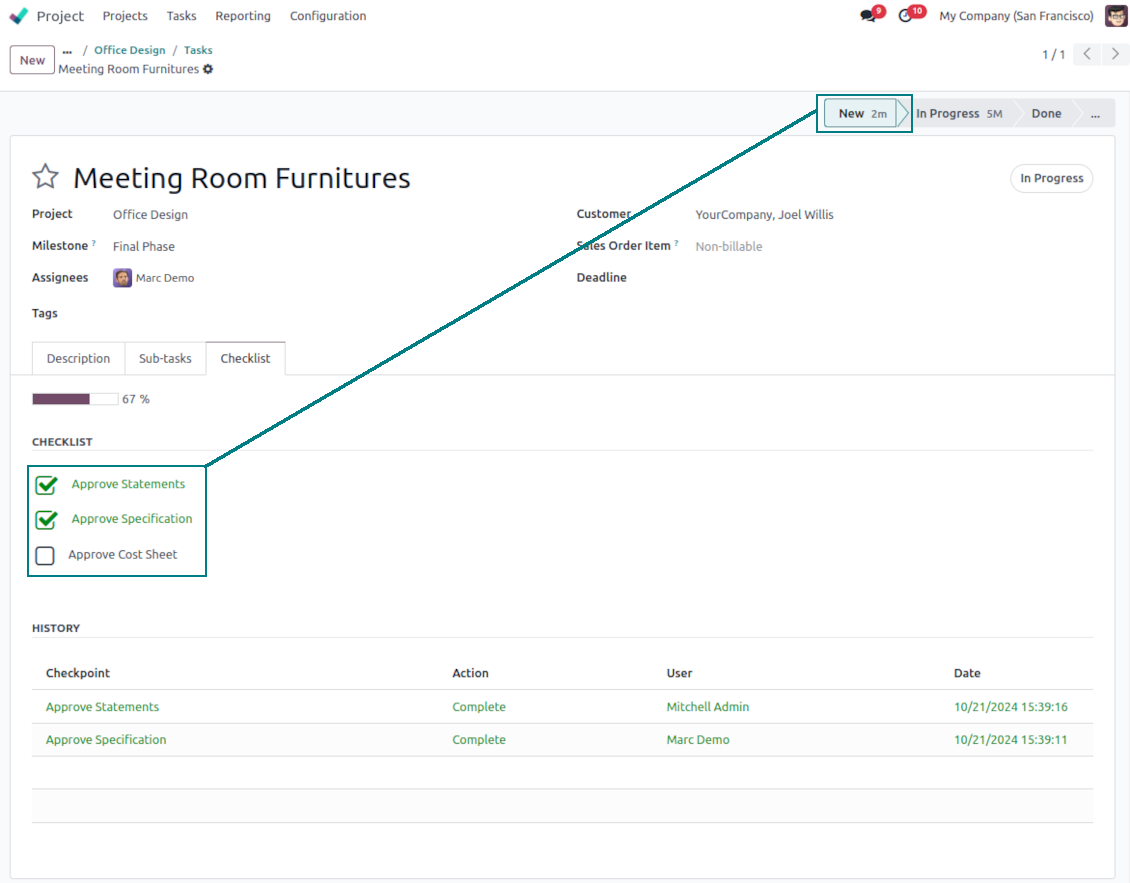
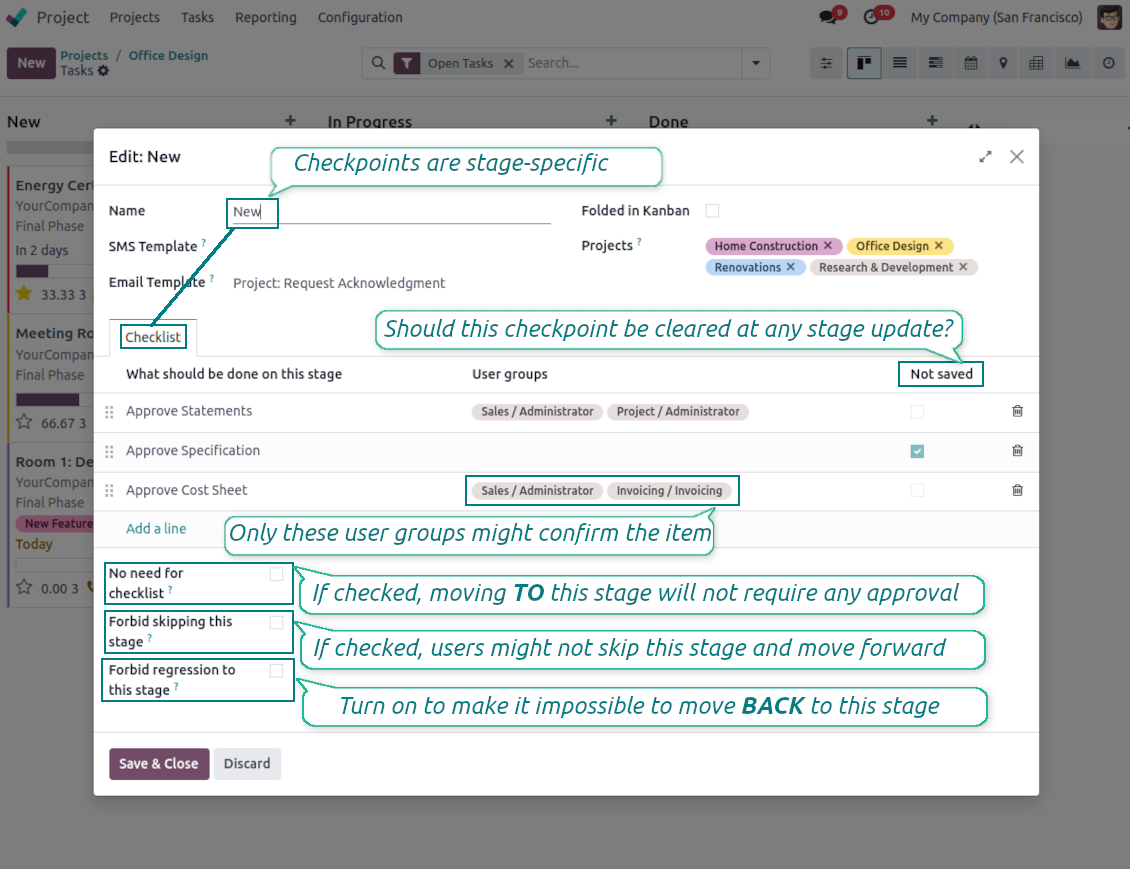
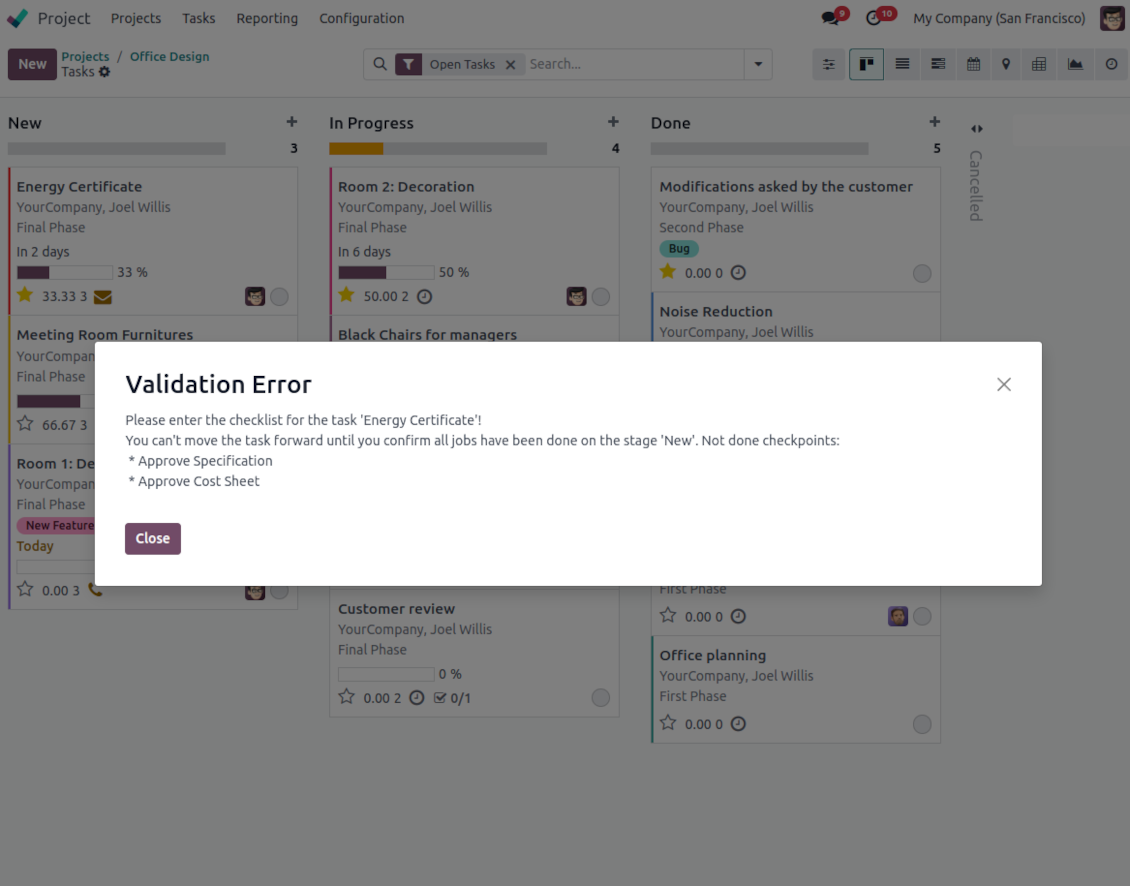
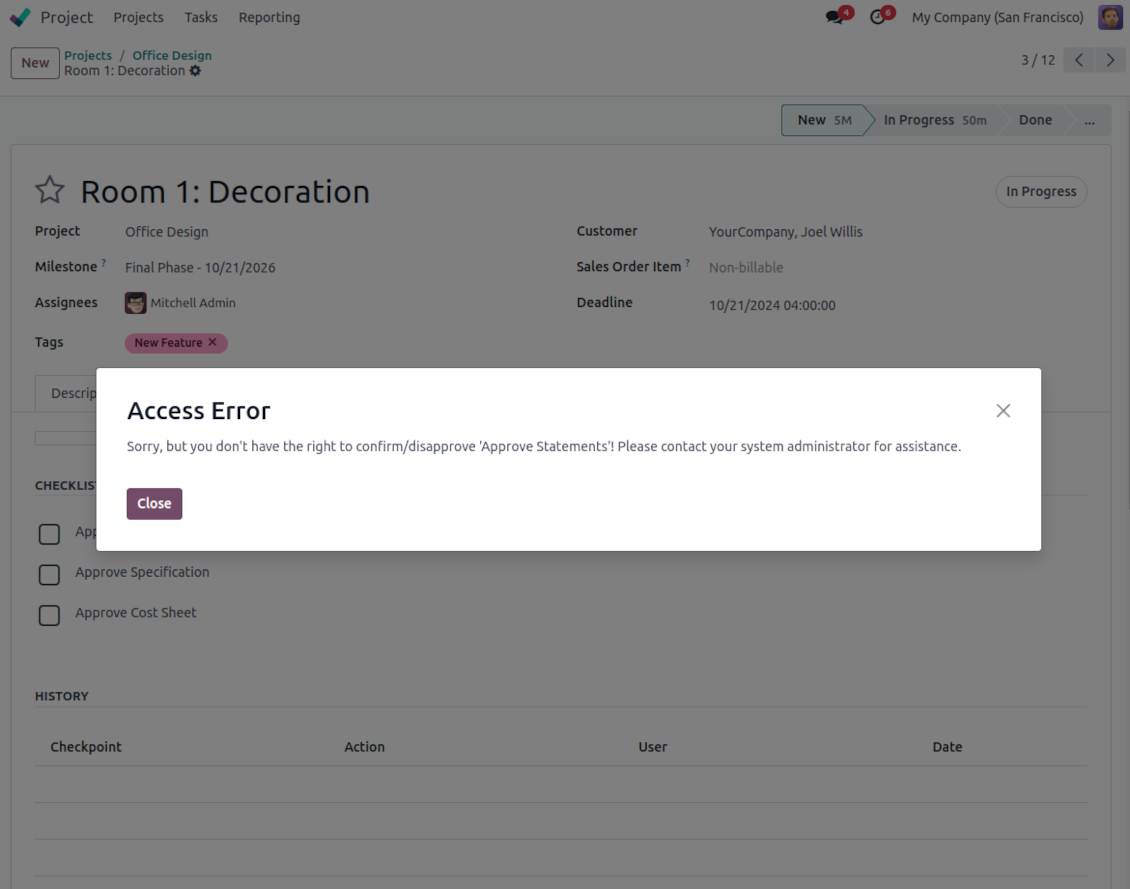
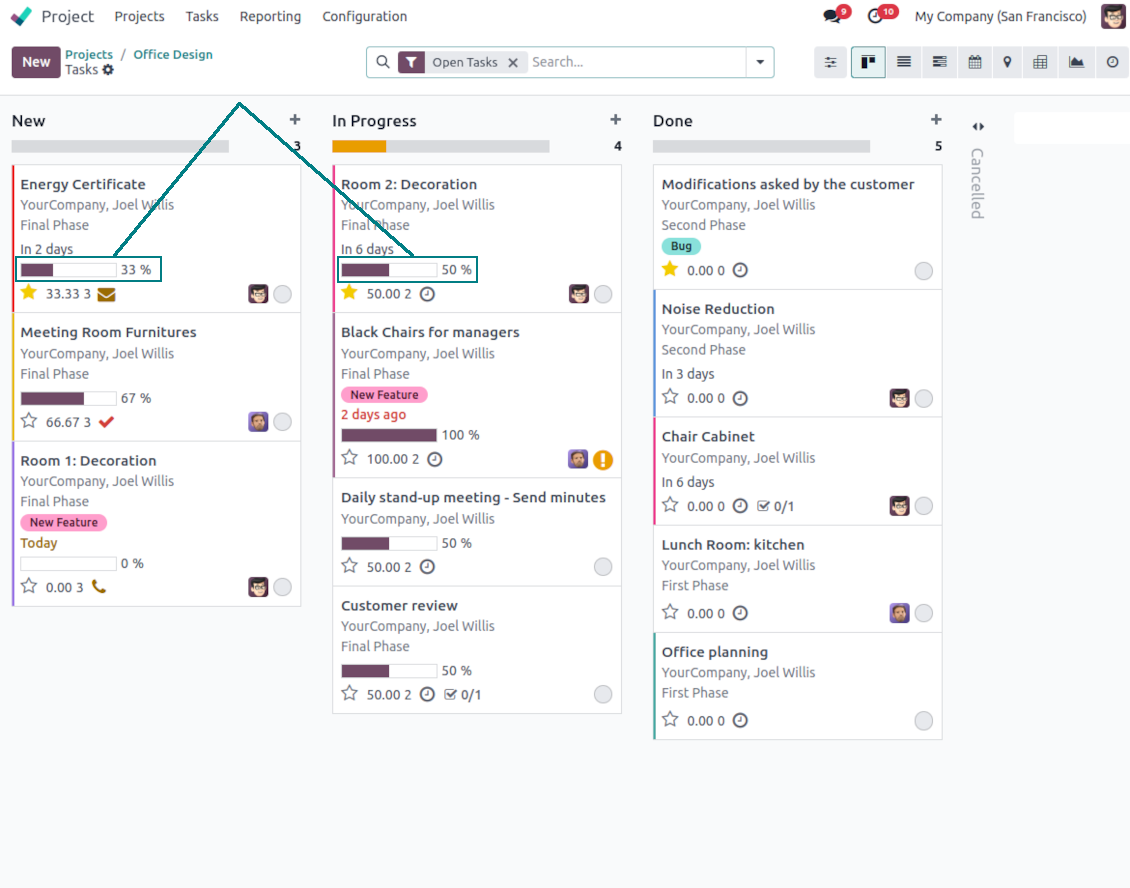
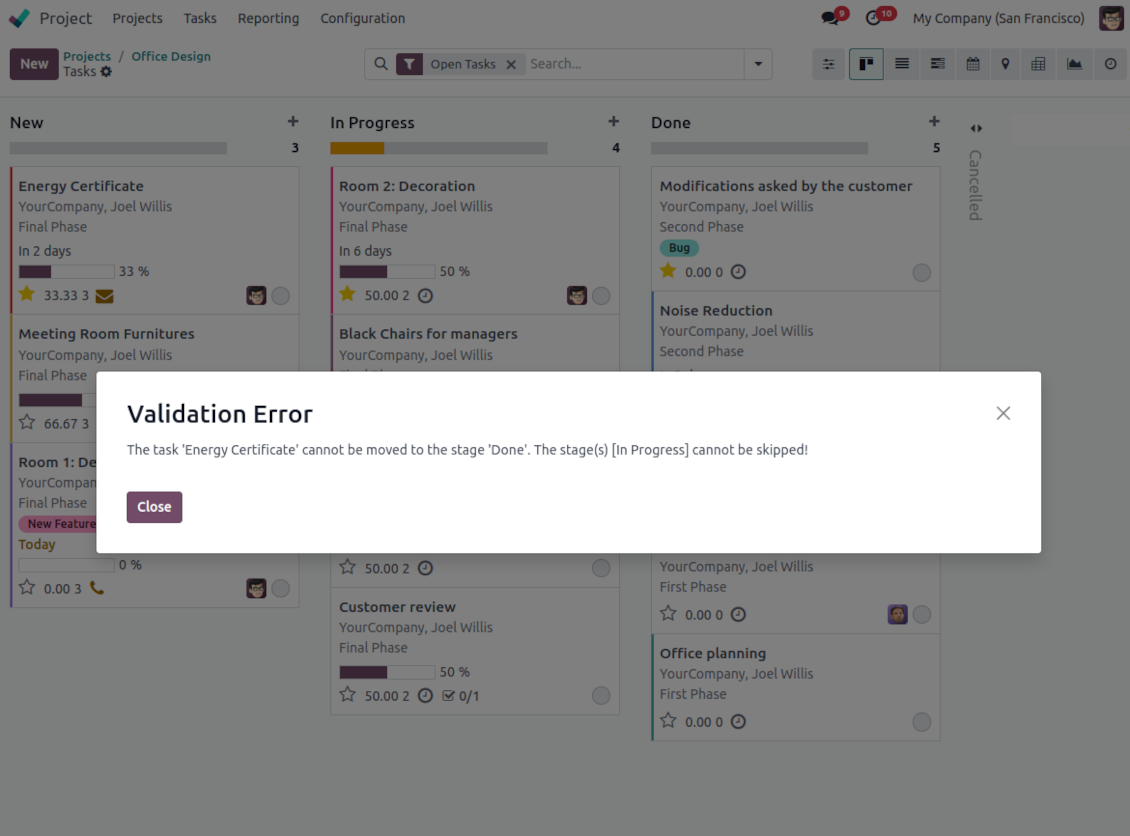
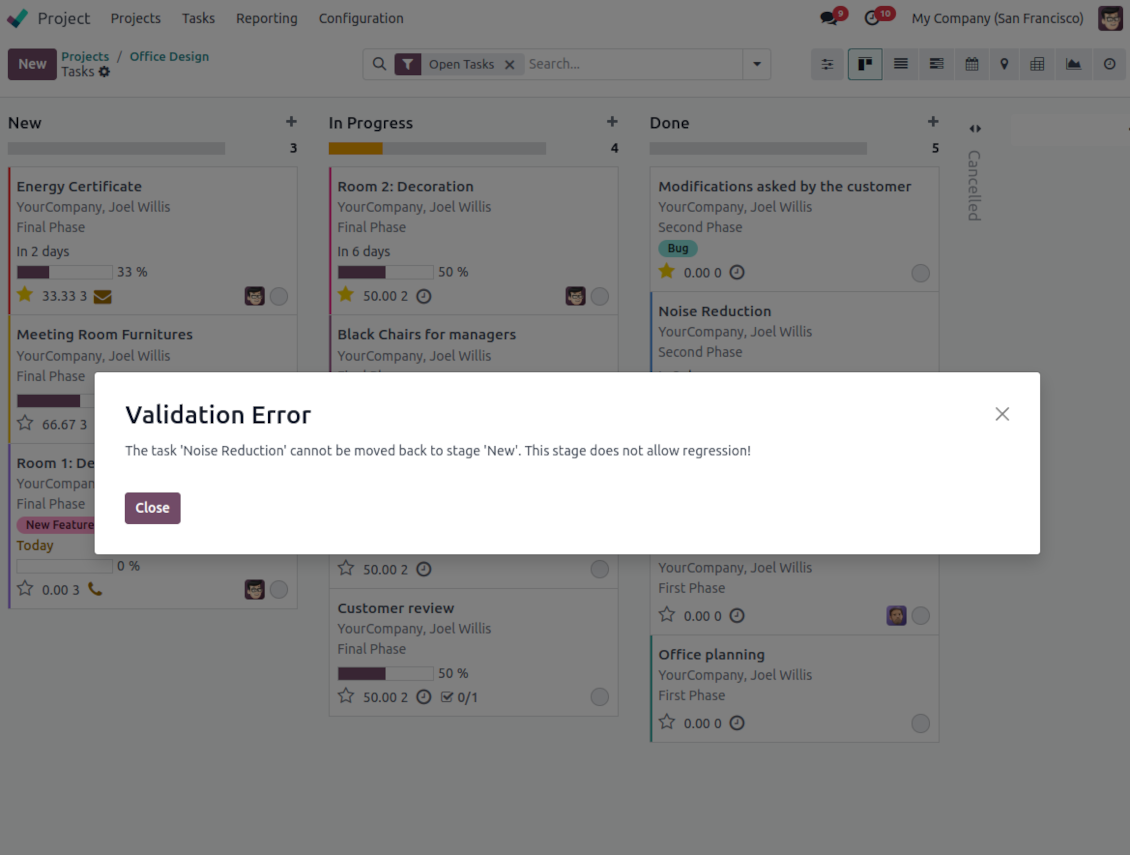
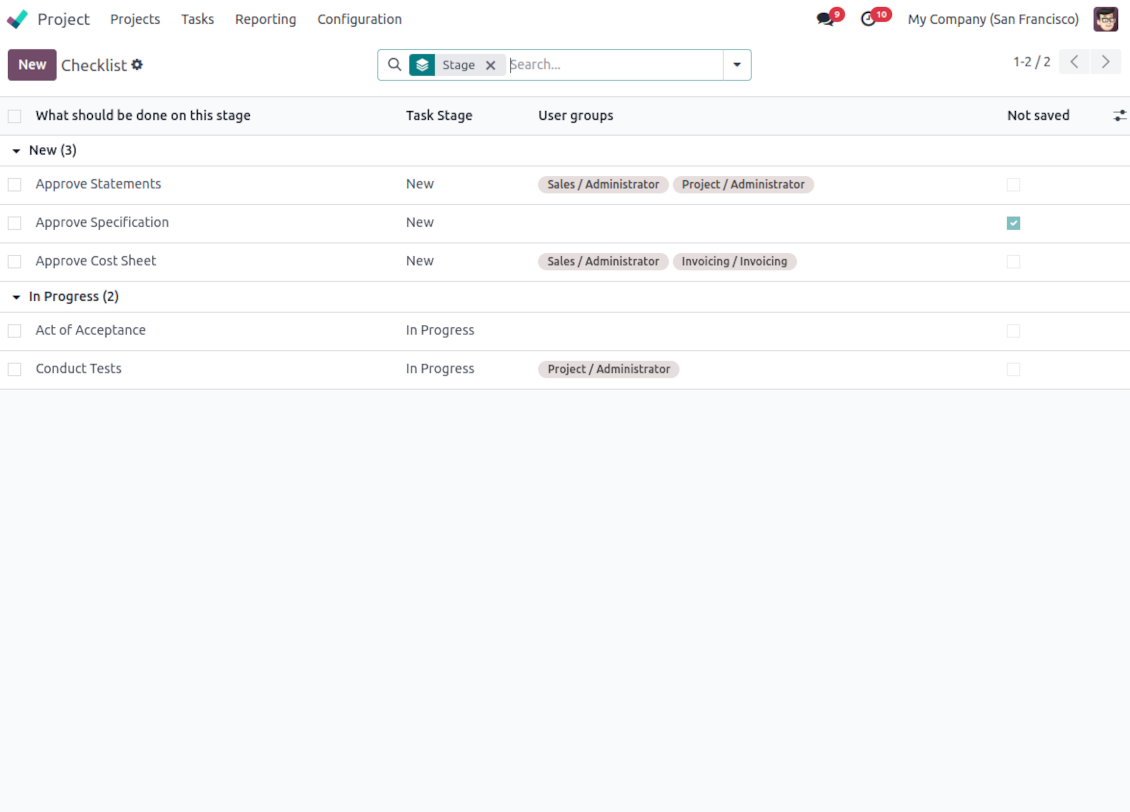
When you define project stages, you consider some requirements a task should satisfy to be there and to be moved forward. Those requirements are of high importance to making projects run smoothly. Missing any step might lead to long-run troubles. To avoid those troubles use this tool. This Odoo app provides a checklist for each task stage to control requirements' fulfillment and to make sure that each action is fully approved by responsible users.
Stage-specific project checklists
Checklists are assigned per each task stage. For instance, actions for the 'to-do' and 'in progress' stages might be different. Prepare any number of checkpoints for each project stage
Actions ensured to be done
To move a task forward through the project funnel, its checklist should be fully confirmed ('moving forward' implies any change of stage from a lesser to a bigger sequence). For certain stages - e.g. for 'Canceled' - you may want to avoid such restrictions. Then, mark this stage as 'No need for checklist'
Highlighted task progress
Fulfillment progress is shown on task kanban and form views for instant overview
Approval history for managerial control
Checklist actions are saved in history. If a task is moved back, already-done checkpoints will be recovered. Turn on the setting 'not saved' to avoid that behavior for specific approval points
Multiple task checklist roles
The app lets assign security groups for each checklist point. Then, only users from those groups will be able to confirm a related item
Prohibit stage skipping
Configure specific stages as required, so users would not be able to skip those. Then, the stages with the 'Forbid skipping this stage' option will be always visited and their checklists will be fulfilled. The setting does not influence 'No need for checklist', for example, when you cancel a task
Forbid task regression
With the tool, configure the project pipeline to disallow moving tasks back. To that goal, turn on the option 'Forbid regression to this stage' for particular states. For example, to make sure no tasks become 'Under consideration' again
Super approval admins
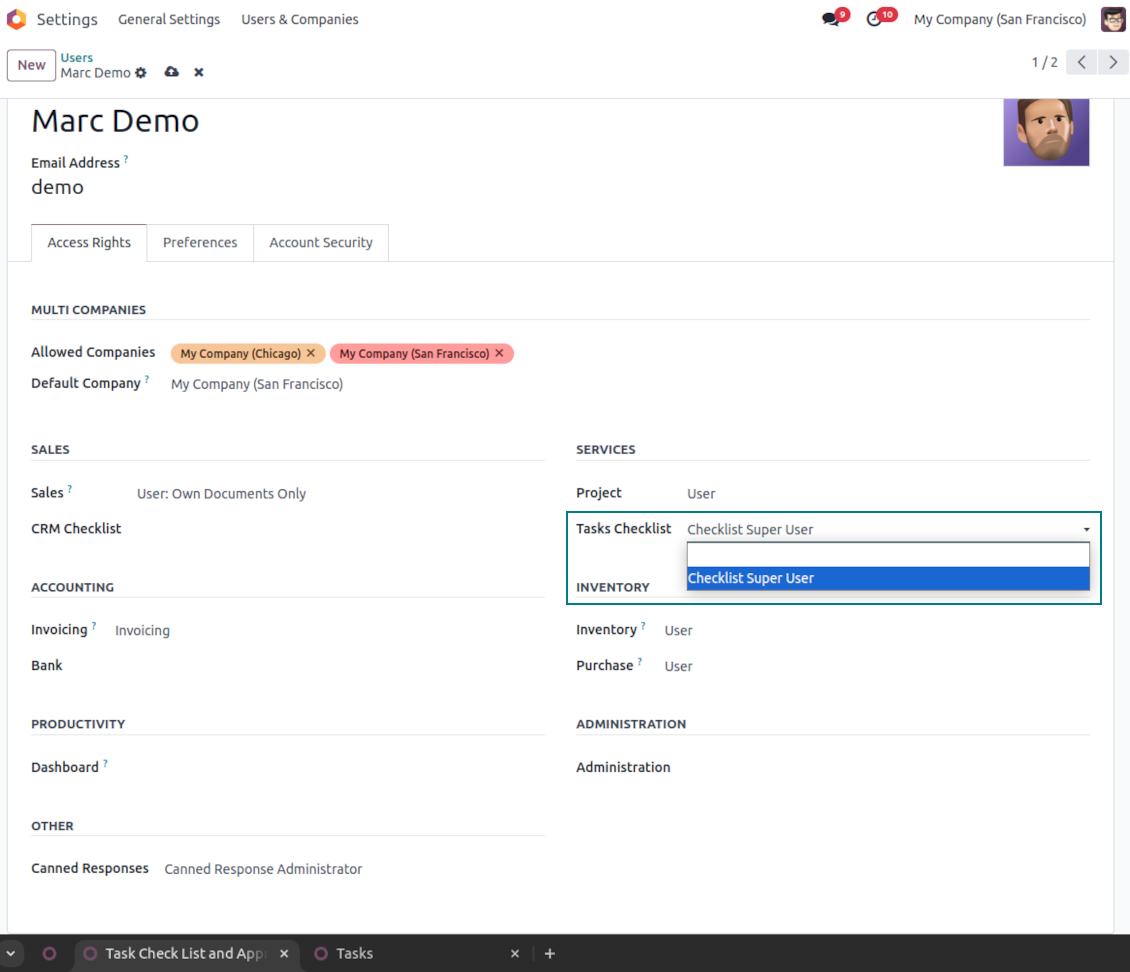
The special role 'Checklist Super User' allows (a) to confirm any checkpoints disregarding defined security groups and (b) to move any task further (progress) without fulfilling checklists; (c) skip any states; (d) to move any task back (regress) even a new stage does not allow that.
Frequently Asked Questions about Task Check List and Approval Process Odoo v.18
What happens when the option "no need for checklist" is turned on/off?
If set to "true", a task might be moved to this stage without fulfilling a check list. Usually used for "cancelled" stage, since cancelling doesn't need any sort of extra actions. In such a case users can move any task to "cancelled" from any stage without doing anything (e.g. new > cancelled, in progress > cancelled).
If set to "false", a checklist of a current stage is required to be entered if moved to this stage (in case it is further through the pipeline). For example, "done" state requires certain actions. If you move a task from "under approval" to "done", you should confirm check points of the "under approval" stage. "False" is the default value for "no need for checklist" field.
Who may assign and configure check lists?
Anybody who has access to stage settings can modify the value of check lists.
I tried to create a task and add check lists on different stages, but it moves forward even if the check list's points are not checked.
Please, make sure, that your user hasn't "Task Checklist Super User" rights. As they allow to confirm any checkpoints disregarding chosen security groups and to move any task further without fulfilling any of them.
Can I assign a particular user group (for example, project manager) to approve a checkpoint, so no one else could do that?
When making a checklist you can choose the user groups for each checklist's statement. Only these user groups will be able to mark the statement as done. If someone else tries to mark the statement done, then the system will not let them save it and the warning will appear.
What are the update policies of your tools?
According to the current Odoo Apps Store policies:
- Every module bought for version 12.0 and prior gives you access to all versions up to 12.0.
- Starting from version 13.0, every module version should be purchased separately.
- Disregarding the version, purchasing a tool grants you a right to all updates and bug fixes within a major version.
Please note that the faOtools team does not control those policies. For all questions, please contact the Odoo Apps Store representatives directly.
How can I install your app on Odoo.sh?
The most straightforward approach is to use the Odoo store's built-in workflow:
1. Open the module's page and click the button Deploy on odoo.sh
2. After that, you will be redirected to the GitHub page. Log in to your account, then click 'Create a new repo' or use an existing one. Please ensure your repository is private. It is not permitted to publish the apps under the OPL-1 license. If necessary, create a new repo for your Odoo.sh project
3. Then, go to odoo.sh and click the Deploy button. In the pop-up window, submit the decision and click 'Continue.' This action will trigger the installation process.
These steps will install the app for your project's production branch. If you want to deploy the apps for other branches or update the module, you should undertake the following actions:
1. Upload the source code for the app from the Odoo store
2. Commit the module to a required GitHub repository. Ensure none of the app folders/files are ignored (i.e., not included in your repo's .gitignore). Repositories are automatically created by odoo.sh and may include some crucial items by default (e.g., /lib). You should upload all module directories, subdirectories, and files without exceptions
3. Deploy a target branch of the odoo.sh project or, if your settings assume that, wait until it is automatically built.
How should I install your app on my own server?
2. Re-start the Odoo server;
3. Turn on developer mode (technical settings);
4. Update the apps' list (the apps' menu);
5. Find the app and push the button 'Activate'/'Install';
6. Follow the guidelines on the app's page if those exist.
I noticed that your app has extra add-ons. May I purchase them afterwards?
Yes, sure. Simultaneously, Odoo automatically adds all dependencies to a cart, so you should exclude previously purchased tools to avoid double payment.
I deployed your app on Odoo.sh and see warning/error in tests
A red/orange warning does not influence the app's features. Regretfully, sometimes our modules do not pass standard automatic tests since the latter assume behavior that conflicts with our app's goals. For example, we change the price calculation, while the standard Odoo module tests compare the final price to a standard algorithm.
So, first of all, please check the deployed database features. Does everything work correctly?
If you still assume that the warning influences real features, please contact us and forward full installation logs and the full list of deployed modules (including core and third-party ones).
May I buy your app from your company directly?
No, we only distribute the tools through the official Odoo apps store.
I would like to get a discount
Regretfully, we do not have the technical means to provide individual prices.
May I install the app on my Odoo Online (SaaS) database?
No, third-party apps can not be used on Odoo Online. Unfortunately, Odoo SaaS blocks such a possibility.
Your tool has dependencies on other app(s). Should I purchase those?
Yes, our tool requires all modules marked in dependencies to work correctly. The price marked on the app page already includes all necessary dependencies.
What is the price for the module in US Dollars? Why did it change?
The price for our modules is set in euros. The Odoo store converts prices to other currencies according to its internal exchange rate. Thus, the price in US Dollars may change when the exchange rate is updated.
Odoo demonstration databases (live previews)
For this app, we might provide a free personalized demo database.
You do not need a phone number or credit card to contact us. You should only pass a short email sign-up, which does not take more than 30 seconds.
By your request, we will prepare an individual live preview database, where you can apply any tests and check assumptions for about two weeks.
Bug reporting
If you encounter bugs or inconsistent behavior, do not hesitate to contact us. We guarantee to provide fixes within 60 days of purchase and are intensely interested in improving our tools even after this period.
You do not need a phone number or credit card to contact us. You should only pass a short email sign-up, which does not take more than 30 seconds.
Please include as many details as possible in your request: screenshots, Odoo server logs, a full description of how to reproduce your problem, and so on. Usually, it takes a few business days to prepare a working plan for an issue (if a bug is confirmed) or provide you with guidelines on what should be done (otherwise).
Public features requests and module ideas (free development)
We are strongly motivated to improve our tools and would be grateful for any feedback. If your requirements are of public use and might be efficiently implemented, the team will include those in our to-do list.
Such a to-do list is processed regularly and does not assume extra fees. Although we cannot promise deadlines and final design, it might be a good way to get desired features without investments and risks.
You do not need a phone number or credit card to contact us. You should only pass a short email sign-up, which does not take more than 30 seconds.

The tool to flexibly structure Odoo attachments in folders and synchronize directories with cloud clients: Google Drive, OneDrive/SharePoint, Nextcloud/ownCloud, Dropbox, Amazon S3, Box, and NAS. DMS. File Manager. Document management system
398€

The tool to build a deep and structured knowledge base for internal and external use. Knowledge System. KMS. Wiki-like revisions.
398€
The tool to automatically synchronize Odoo attachments with OneDrive files in both ways
487€
The tool to set up KPI targets and control their fulfillment by periods. KPI dashboards. Dashboard designer. KPI charts

The tool for time-based service management from booking appointments to sales and reviews
398€
The tool to automatically synchronize Odoo attachments with Google Drive files in both ways
487€
The tool to quickly access and simply reference tasks by automatic numbers. Project tasks sequence. Project task numbering

The tool to add new fields for Odoo projects without any technical knowledge
38€