Joint Calendar v.11
The tool to combine different Odoo events in a few configurable super calendars. Shared calendar. Common calendar.
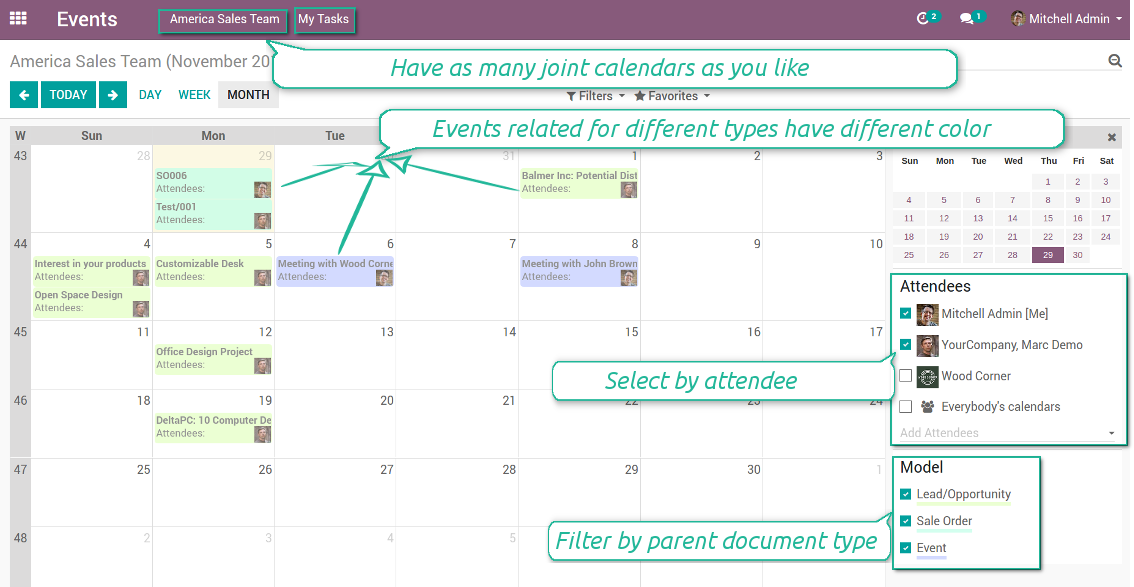
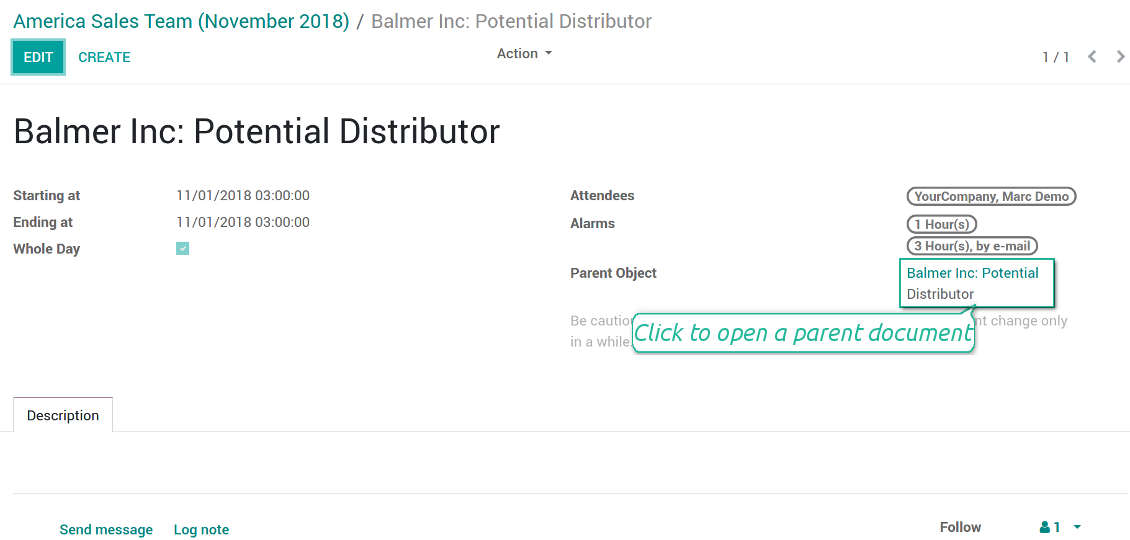
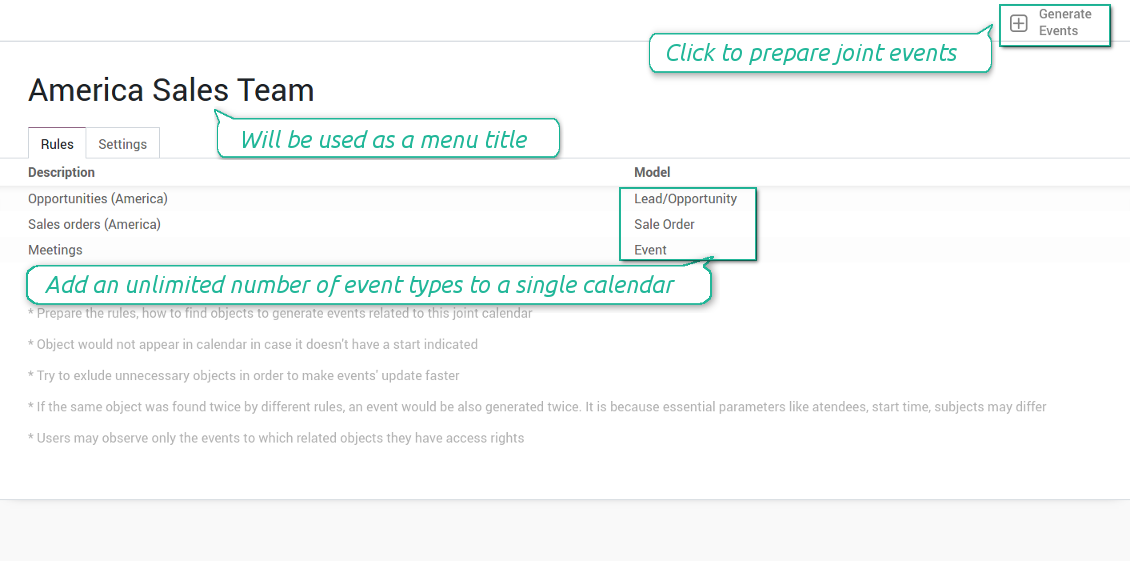
Multifarious events on a single calendar
Besides, you may have an unlimited number of joint calendars with various events, configurations and user groups included, divided by teams or functional areas. Each joint calendar has an own menu item.
Super calendars are updated automatically according to the scheduled jobs. It is fast, especially if you applied time frames.
Ảnh chụp màn hình
Joint document types on a single calendar
Fast switching between functional areas
Topical and relevant information
You may also define which documents to show by setting up special filters. Show opportunities but not leads. Work with orders of this sales team but not of others. Merge only overdue activities but not future ones.
How to add a new document type for a joint calendar
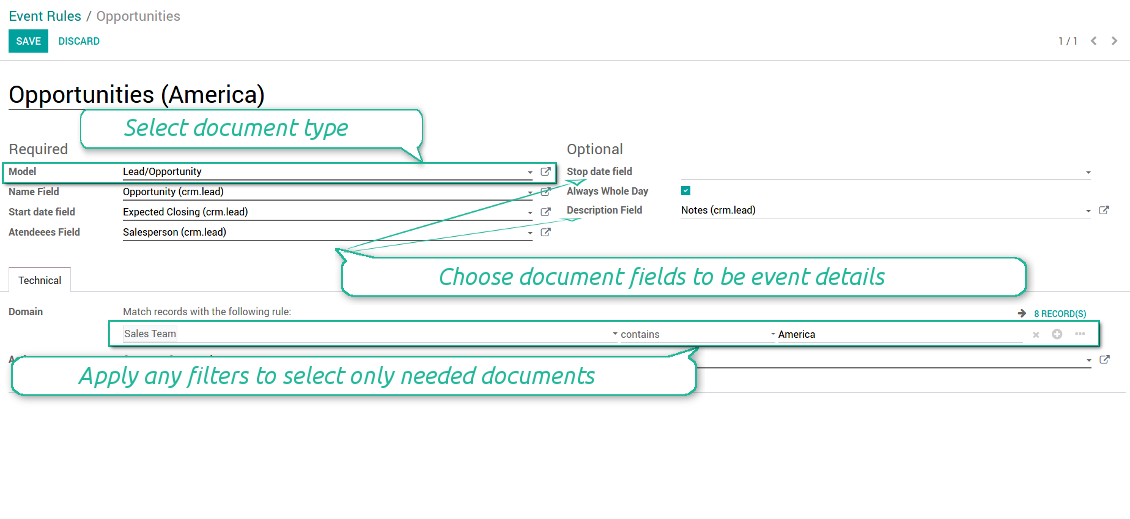
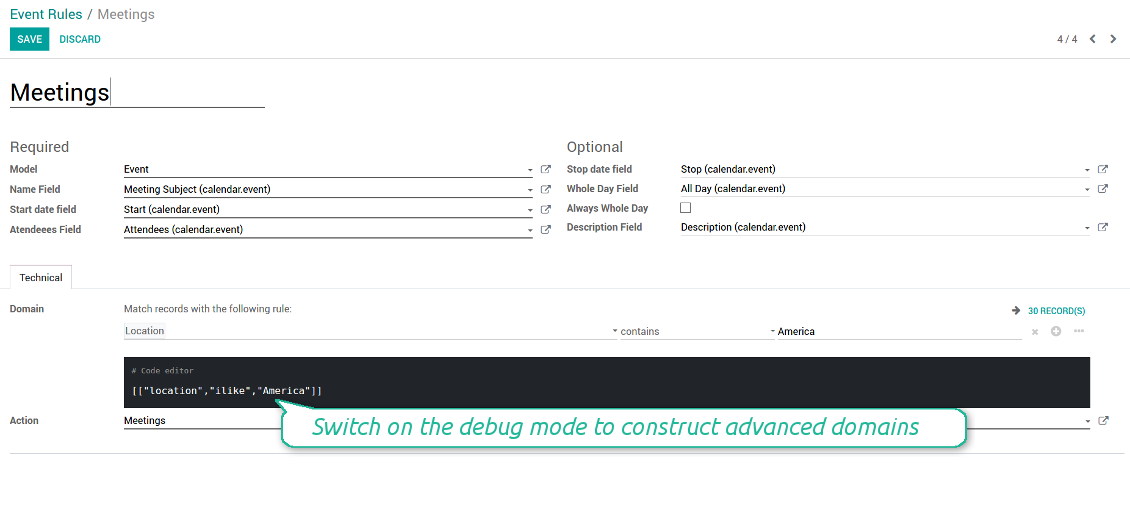
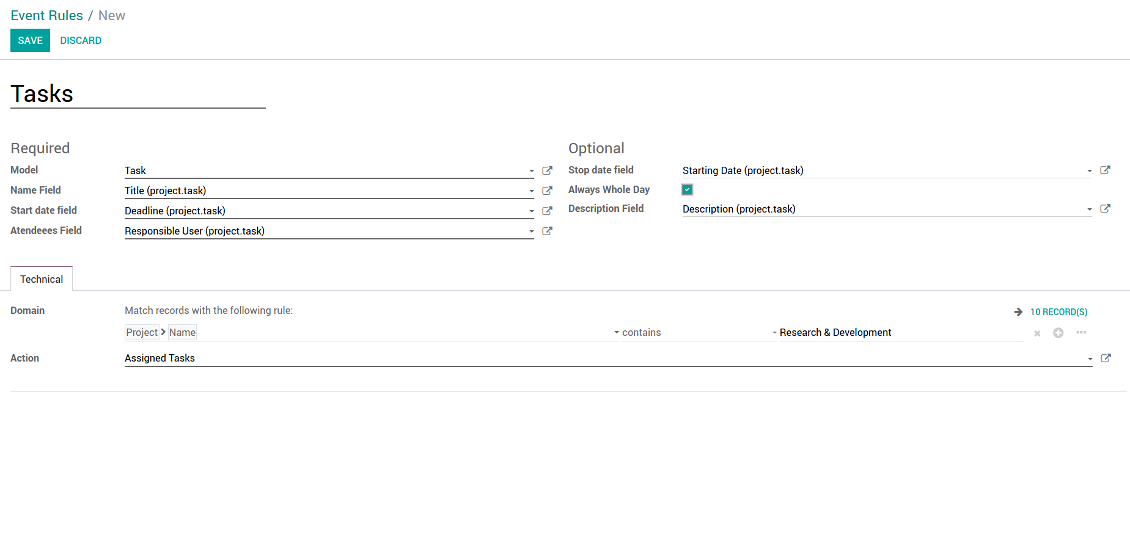
To add a new document type for a joint calendar you should set up a joint calendar rule. This rule defines which Odoo objects should create events, which fields of that object should be shown, and whether any filtering should take place. The app will try to add the most typical values by default, but you should think which data is required in your exact case.
- Model - which objects to scan: opportunities, tasks, orders, meetings, activities, and so on. You can choose your custom document type as well!
- Name - what to use as a joint event name (also used as calendar event title). Usually it is 'name', 'subject' or 'reference'.
- Start date - when an event starts. For example, 'expecting closing' for opportunities or 'order date' for quotations. It may be any date or date with time field of a source Odoo object.
- Attendees - who are participants (responsible persons, event owners). Usually, it is a field 'assigned to', 'a sales person' or 'attendees'. You may use even document 'followers'. It is possible to apply both users and partners as attendees
- Stop date - when an even is shown as finished on a calendar.
- Always Whole Day - means that all generated events would last the whole day disregarding whether start or stop are defined with hours and minutes. Such an event would be shown at a special place on a calendar (above the time line)
- Whole Day - a special boolean field of source object which indicates that a related joint event may lasts the whole day. This setting is usually applied to standard Odoo calendar events which both might have definite time indicated or might be planned for a whole day.
- Description - are there any notes important for joint events? Usually the fields like 'internal notes' or 'comments' are used
- Domain - the special filters' constructor to include only topical documents into a joint calendar. You might search almost by any criteria. For example, show only quotations without sales orders, or show opportunities only of this sales team or of this customer. If you are confident to make Reverse Polish Notations you may also turn on the debug mode to construct advanced filters.
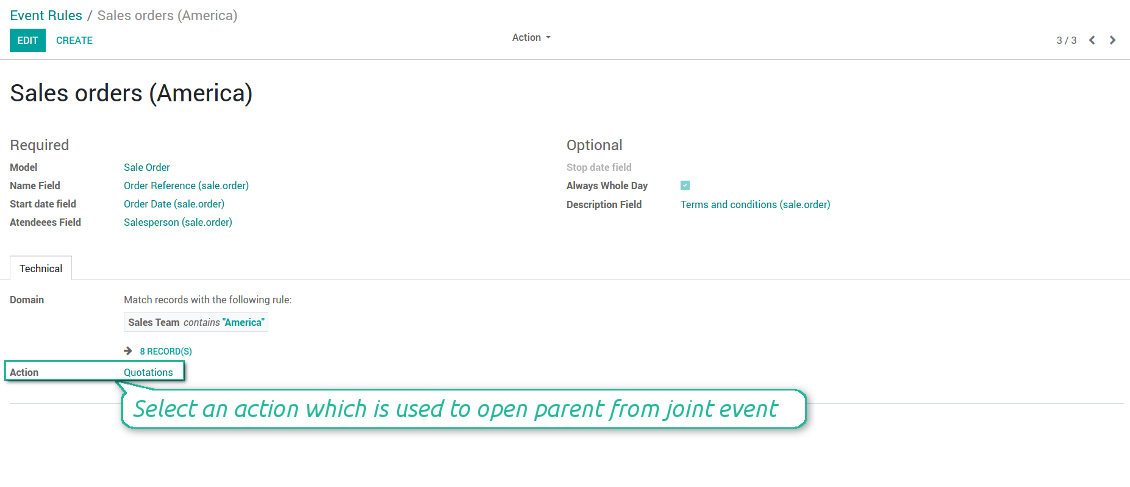
- Action - defines which form view should be shown when you open a source document from a joint event. It is a technical field which in the most cases should not be changed in comparison to a default value.
How to configure a new joint calendar based on rules
As soon as you prepare a few joint event rules, you are ready to configure a new joint calendar.
First of all, define a title. It would be used as a menu entry for all joint calendar users.
Second of all, choose document types (rules) which should be merged on this shared calendar.
Then, switch to the advanced settings. Some of those might be useful:
- Sequence - in which order various joint calendars' entries are shown. Should it be before the previous super calendar? Then, make a sequence smaller.
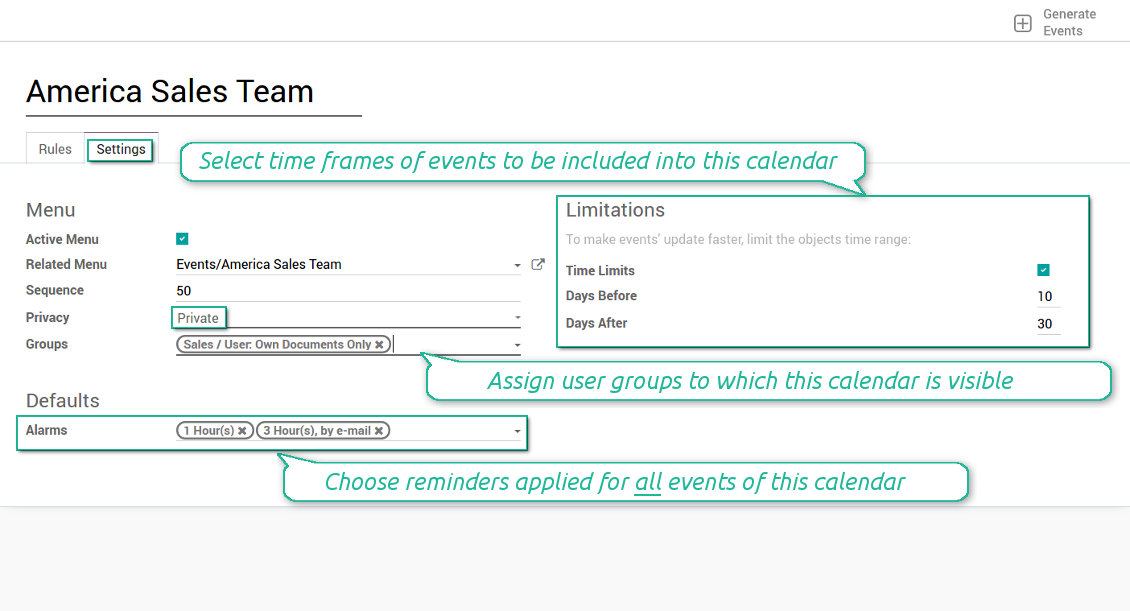
- Privacy - let you make a calendar public or private (for predefined user groups only).
- Time limits - allow you optimizing performance of joint events' interfaces. Often there is no need to show the documents of the last year on a calendar.
Is this joint calendar is not any more of use, but it might be needed in the Future? Fine, just archive this calendar: you can activate it at any moment afterwards.
Ảnh chụp màn hình
Multiple rules to search documents by types
Joint calendar settings
Joint event rule (example of opportunities)
Joint event rule (example of sale orders)
Joint event rule (example of meetings)
Joint event rule (example of tasks)
Automatic reminders for any Odoo document
How to introduce a warning system
All you need is to prepare a few reminders and indicate those as default on a shared calendar form. Once joint events are generated, each of those would have the same alarms. Afterwards, you may update the these alarms for certain items if you want.
Thus, you can make reminders for any Odoo document automatically. Remind sales persons about next actions in opportunities and calls. Warn workers about a new manufacturing order. Notify programmers about deadlines. So on and so on.
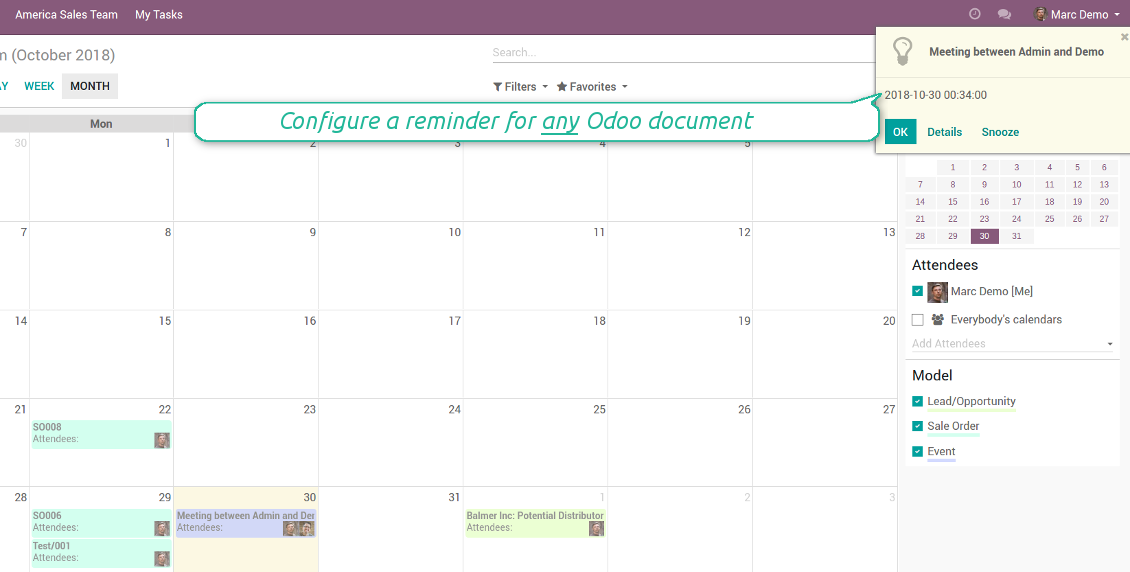
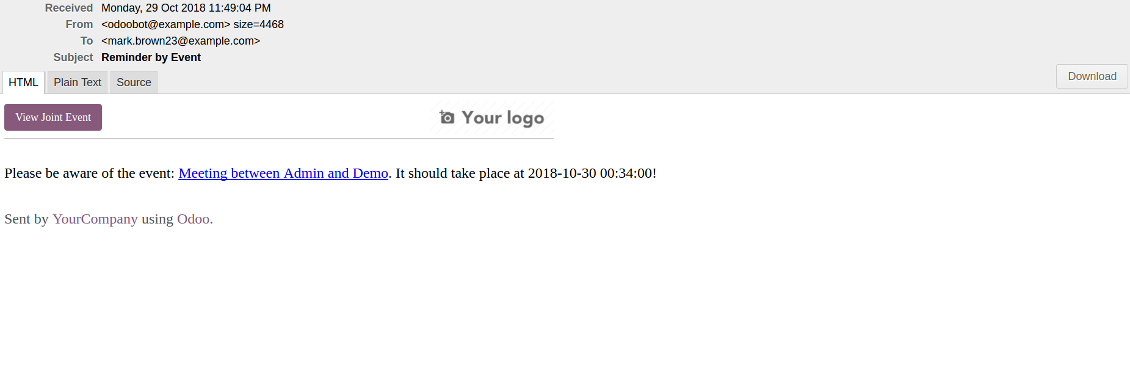
Use both email notifications or pop-up warnings. Warn attendees and responsible users at the moment you like to: from 5 minutes to hundreds of days before.
Ảnh chụp màn hình
Configure pop-up alarm for any Odoo event
Email reminder by any Odoo object
Quick access to source details
How are source documents and joint events interrelated
Users observes a link for a source document right on an event form. Thus, it is always possible to expand miscellaneous details.
If you changed a joint event, its parent object would be updated correspondingly in real time. For example, you drag a record and drop it to another date, then a source document would be also moved. Be cautious: it does not work for computed and readonly fields (e.g. a create date can not be modified logically).
If you changed a source object, a joint event would be updated with a next super calendar scheduled job.
Ảnh chụp màn hình
Joint event form with simple access to parent document
Simple user rights administration
More details about joint calendar security
The right to create and configure joint calendars belongs only to Odoo administrators (users with the rights 'Administration - Access Rights').
Users may open joint events related to public joint calendars or private joint calendar with one of her/his group indicated. Configure private groups on a joint calendar form, the tab 'Settings', the fields 'Privacy' and 'Groups'. In such a way it is possible to make a joint calendar only for sales managers or only for accountants.
Take into account that in order a user may observe or update a joint event, she/he should have the same rights for a source document. For example, if a sales person doesn't have a right to observe an opportunity, she/he would not see a related joint event as well.
Manually created joint events (without a parent object) may be either public (for all employees) or private (visible for attendees only).
Used in any functional area
Have a look at typical use cases
Activities by all objects and responsibles on a single calendar
Activities are a great Odoo invention, which helps you organize daily routine as a set of well-reached and structured tasks. They are quite comfortable for use, but for team collaboration and efficient management, sometimes you want to have a calendar overview of planned and overdue activities.
Joint Calendar let you achieve that goal. Just add an activity rule as joint calendar rule:
- As a model use 'Activity'
- As a name use 'Display Name'
- As a start date field use 'Due Date'
- As attendees fields use 'Assigned to'
- As a domain apply 'Summary is set'
- For the action field create a new one: go to the Settings > Technical > Actions > Window Action. As an object use 'mail.activity', as a view mode - 'form', as a name - any suitable
Opportunities on a super calendar
- As a model use 'Lead / Opportunity'
- As a name use 'Opportunity'
- As a start date field use 'Expecting Closing'
- As attendees fields use 'Salesperson'
- As a domain optionally restrict opportunities by sales teams.
Tasks on a joint calendar
- As a model use 'Task'
- As a name use 'Title'
- As a start date field use 'Deadline'
- As attendees fields use 'Assigned to'
- As a domain optionally you can set definite projects
Better then expected
The app does exactly what was needed. Combine all tasks from all calendars to one. And allows to manages all activities from all modules in one place.
This makes the Event Calendar so much more useful !
We bought this to combine certain project tasks with the schedules of our maintenance engineers. We now have a better overview which moments are overlapping the schedules of other events. The joining of multiple events in 1 event calendar is super easy, it should be a standard option in ODOO.
Excellent responsive team of programmers
Joint Calendar is the perfect addition to the standard Calendaring system that Odoo offers. It makes the job of setting up specific departmental calendars filled with any objects you wish very easy and Alex and the team provides fantastic after-sales support, responding in most cases within 24 hours to requests for help. Thanks for a great module.
Essential to have Activities, Tasks, Meetings etc all in one calendar and shared.
Great service support very quick and were right on with fixing the issue... I think the ability to see everything on one shared calendar is such an essential part of coordination and time management. Great product once you sort out the rules you need!
Mẹo cấu hình và cài đặt cho Joint Calendar Odoo v.11
Scheduled jobs
- Turn on the debug mode
- Go to technical settings > Automation > Scheduled jobs
- Find the job 'Refresh Joint Events' to change the frequency of calendars' update
- Find the job 'Notify About Joint Event' to change the frequency of email alarms.
Email alarm style
- Activate the developer mode
- Go to technical settings > Email > Templates
- Find the template 'Joint Event Notification'
- You are welcome to change here message body
- Email subject might be changed through the translated term 'Reminder by Event'.
Câu hỏi thường gặp về Joint Calendar Odoo v.11
Điều gì xảy ra khi tùy chọn "Always Whole Day" bật/tắt?
Khi tùy chọn "Always Whole Day" bật, mọi sự kiện do quy tắc tạo sẽ kéo dài cả ngày, bất kể bắt đầu hay kết thúc có giờ và phút. Sự kiện đó hiện ở vị trí đặc biệt trên lịch.
Ví dụ, nếu tạo quy tắc cho mô hình "Sale Order" và bật "Always Whole Day", sự kiện sẽ nằm trên siêu lịch ngày và tuần, phía trên dòng thời gian.
Nếu tắt tùy chọn và bắt đầu hoặc kết thúc có giờ/phút, sự kiện sẽ nằm ở một giờ cụ thể trong ngày và bạn sẽ thấy giờ trước tiêu đề.
Tôi không thấy menu lịch trong Odoo. Tôi nên làm gì?
Hãy chắc:
1. Có ít nhất một lịch chung đã tạo, cấu hình và làm mới. Sau khi thiết lập lịch chung, hãy làm mới trang trình duyệt
2. Bạn có quyền truy cập ít nhất một lịch
Tôi đã tạo một số lịch có quy tắc nhưng không thấy chúng trong menu.
Có thể có vài lý do. Có thể tác vụ đã lên lịch liên quan chưa chạy. Khi đó, hãy chạy cron thủ công bằng nút làm mới ở cột phải của giao diện lịch chung.
Cũng kiểm tra xem lịch có Time Limits không, nếu không chỉ hiện sự kiện trong một khoảng. Ví dụ lịch 'Sale Orders' với giới hạn 10 ngày trước và 30 ngày sau. Nếu một Sale Order được tạo, chẳng hạn, 12 ngày trước thì sẽ không hiện trên lịch.
Đảm bảo quy tắc không có bộ lọc không khớp bản ghi nào. Ví dụ quy tắc 'Sale Order' với bộ lọc 'Customer = Deco Addict' chỉ hiện đơn của khách này trên lịch liên quan.
Tôi có thể gộp bao nhiêu tài liệu Odoo (ví dụ đơn bán, dự án, hoạt động) vào một lịch chung?
Bạn có thể gộp bao nhiêu chứng từ Odoo tùy ý vào một lịch. Hoặc chia chúng ra nhiều lịch (ví dụ Sales Calendar và Projects, Tasks and Activities Calendar) rồi chuyển trong systray.
Quy tắc lịch chung là gì?
Quy tắc xác định đối tượng Odoo nào tạo sự kiện, trường nào của đối tượng được dùng và hiện, và có lọc hay không.
Khi tạo quy tắc, bạn tự định nghĩa tiêu đề sự kiện chung, ngày bắt đầu hoặc kết thúc, ai là người tham dự, v.v.
Trường "Stop date" để làm gì? Tôi có thể để trống không?
Stop date — trường của mô hình Odoo đích, xác định khi nào sự kiện hiện là đã kết thúc trên lịch. Ví dụ, quy tắc cho mô hình "Sale Order" và chọn "Delivery Date" cho Stop date thì sự kiện hiện trong menu sự kiện từ ngày báo giá được lên kế hoạch (trường Start Date - Order Date) đến ngày giao sản phẩm.
Đây là trường tùy chọn, có thể để trống. Khi đó sự kiện chỉ nằm vào ngày của trường Start Date.
Trong lịch có loại sự kiện "Undefined". Nghĩa là gì?
Nghĩa là sự kiện này được tạo thủ công. Không có đối tượng cha và không bị quy tắc điều chỉnh. Các sự kiện chung như vậy nằm dưới bộ lọc "Undefined", không màu.
Mọi người có quyền xem lịch đều có thể tạo và xem các sự kiện chưa xác định của lịch.
Chính sách cập nhật của các công cụ của bạn là gì?
Theo chính sách hiện tại của Odoo Apps Store:
- Mọi mô-đun mua cho phiên bản 12.0 trở về trước cho phép truy cập mọi phiên bản đến 12.0.
- Từ phiên bản 13.0, mỗi phiên bản mô-đun phải mua riêng.
- Bất kể phiên bản, mua công cụ cho quyền mọi cập nhật và sửa lỗi trong một phiên bản chính.
Lưu ý rằng nhóm faOtools không kiểm soát các chính sách đó. Mọi câu hỏi xin liên hệ trực tiếp đại diện Odoo Apps Store.
Làm sao cài ứng dụng của bạn trên Odoo.sh?
Cách thẳng nhất là dùng quy trình có sẵn của cửa hàng Odoo:
1. Mở trang phân hệ và bấm nút Deploy on odoo.sh
2. Sau đó bạn sẽ được chuyển tới trang GitHub. Đăng nhập tài khoản, rồi bấm 'Create a new repo' hoặc dùng repo có sẵn. Hãy đảm bảo kho là riêng tư. Không được phép công bố ứng dụng theo giấy phép OPL-1. Nếu cần, tạo repo mới cho dự án Odoo.sh
3. Rồi vào odoo.sh và bấm nút Deploy. Trong cửa sổ pop-up, gửi quyết định và bấm 'Continue.' Thao tác này sẽ kích hoạt cài đặt.
Các bước này sẽ cài ứng dụng cho nhánh production của dự án. Nếu muốn triển khai ứng dụng cho nhánh khác hoặc cập nhật phân hệ, hãy làm các bước sau:
1. Tải mã nguồn ứng dụng từ cửa hàng Odoo
2. Commit phân hệ vào kho GitHub cần thiết. Đảm bảo không thư mục/tệp ứng dụng nào bị bỏ qua (tức không nằm trong .gitignore của repo). Kho được odoo.sh tạo tự động và mặc định có thể gồm mục quan trọng (vd. /lib). Hãy tải lên mọi thư mục, thư mục con và tệp của phân hệ, không ngoại lệ
3. Triển khai nhánh đích của dự án odoo.sh hoặc, nếu thiết lập của bạn giả định vậy, đợi đến khi được xây tự động.
Tôi nên cài ứng dụng của bạn trên máy chủ riêng thế nào?
2. Khởi động lại máy chủ Odoo;
3. Bật chế độ nhà phát triển (cài đặt kỹ thuật);
4. Cập nhật danh sách ứng dụng (menu ứng dụng);
5. Tìm ứng dụng và bấm 'Activate'/'Install';
6. Làm theo hướng dẫn trên trang ứng dụng nếu có.
Tôi thấy ứng dụng có tiện ích thêm. Có thể mua sau không?
Có, chắc chắn. Đồng thời Odoo tự thêm mọi phụ thuộc vào giỏ, nên bạn nên loại các công cụ đã mua để tránh trả hai lần.
Tôi triển khai ứng dụng trên Odoo.sh và thấy cảnh báo/lỗi trong kiểm thử
Cảnh báo đỏ/cam không ảnh hưởng đến tính năng của ứng dụng. Đáng tiếc, đôi khi phân hệ của chúng tôi không qua được các kiểm thử tự động chuẩn vì chúng giả định hành vi xung đột với mục tiêu ứng dụng. Ví dụ chúng tôi đổi cách tính giá, trong khi kiểm thử phân hệ Odoo chuẩn so giá cuối với thuật toán chuẩn.
Trước hết, hãy kiểm tra tính năng của cơ sở dữ liệu đã triển khai. Mọi thứ có chạy đúng không?
Nếu vẫn cho rằng cảnh báo ảnh hưởng tính năng thật, hãy liên hệ chúng tôi và gửi nhật ký cài đặt đầy đủ cùng danh sách đầy đủ phân hệ đã triển khai (gồm lõi và bên thứ ba).
Tôi có thể mua ứng dụng trực tiếp từ công ty bạn không?
Không, chúng tôi chỉ phân phối công cụ qua cửa hàng ứng dụng Odoo chính thức.
Tôi muốn được giảm giá
Rất tiếc, chúng tôi không có phương tiện kỹ thuật để cung cấp giá riêng.
Tôi có thể cài ứng dụng trên cơ sở dữ liệu Odoo Online (SaaS) không?
Không, ứng dụng bên thứ ba không dùng được trên Odoo Online. Rất tiếc Odoo SaaS chặn khả năng đó.
Công cụ của bạn phụ thuộc ứng dụng khác. Tôi có cần mua chúng không?
Có, công cụ cần tất cả phân hệ ghi trong phụ thuộc để chạy đúng. Giá trên trang ứng dụng đã gồm mọi phụ thuộc cần thiết.
Giá mô-đun bằng đô la Mỹ là bao nhiêu? Sao lại đổi?
Giá phân hệ của chúng tôi tính bằng euro. Cửa hàng Odoo đổi sang các tiền tệ khác theo tỷ giá nội bộ. Vì vậy giá bằng đô la Mỹ có thể đổi khi tỷ giá được cập nhật.
Lời ứng dụng và trang web ở ngôn ngữ khác tiếng Anh được hỗ trợ bởi AI và khớp với bản dịch Odoo chính thức. Nếu bạn thấy sai, gửi phiếu hỗ trợ về đúng bản dịch và chúng tôi sẽ sửa.
Báo lỗi
Nếu gặp lỗi hoặc hành vi không nhất quán, hãy liên hệ. Chúng tôi cam kết sửa trong 60 ngày kể từ khi mua và vẫn muốn cải thiện công cụ sau giai đoạn đó.
Bạn không cần số điện thoại hay thẻ tín dụng để liên hệ. Chỉ cần đăng ký email ngắn, không quá 30 giây.
Hãy nêu càng nhiều chi tiết càng tốt trong yêu cầu: ảnh chụp màn hình, nhật ký máy chủ Odoo, mô tả đầy đủ cách tái hiện sự cố, v.v. Thường mất vài ngày làm việc để chuẩn bị kế hoạch xử lý (nếu xác nhận lỗi) hoặc hướng dẫn việc cần làm (nếu không).
Yêu cầu tính năng công khai và ý tưởng module (phát triển miễn phí)
Chúng tôi rất muốn cải thiện công cụ và biết ơn mọi phản hồi. Nếu yêu cầu của bạn hữu ích cho mọi người và có thể triển khai hiệu quả, nhóm sẽ đưa vào danh sách việc cần làm.
Danh sách việc cần làm như vậy được xử lý đều đặn và không phát sinh phí thêm. Dù chúng tôi không hứa hạn chót và thiết kế cuối, đây có thể là cách tốt để có tính năng mong muốn mà không đầu tư và rủi ro.
Bạn không cần số điện thoại hay thẻ tín dụng để liên hệ. Chỉ cần đăng ký email ngắn, không quá 30 giây.

Công cụ sắp xếp linh hoạt tệp đính kèm Odoo vào thư mục và đồng bộ thư mục với máy khách đám mây: Google Drive, OneDrive/SharePoint, Nextcloud/ownCloud, Dropbox, Amazon S3, Box và NAS. DMS. Trình quản lý tệp. Hệ thống quản lý tài liệu
398€
Công cụ đồng bộ hai chiều tự động tệp đính kèm Odoo với tệp OneDrive
487€
Công cụ đồng bộ hai chiều tự động tệp đính kèm Odoo với tệp Google Drive
487€
Công cụ để lưu mật khẩu an toàn trong Odoo cho dùng chung. Kho dùng chung

Công cụ xây dựng cơ sở tri thức sâu và có cấu trúc cho nội bộ và bên ngoài. Knowledge System. KMS. Bản sửa kiểu wiki.
398€
Công cụ đặt mục tiêu KPI và kiểm soát hoàn thành theo kỳ. Bảng điều khiển KPI. Trình thiết kế bảng. Biểu đồ KPI

Công cụ quản lý dịch vụ theo thời gian, từ đặt lịch đến bán hàng và đánh giá
398€
Công cụ quản lý Odoo từ các chat AI yêu thích qua MCP. Claude. Mọi AI hỗ trợ MCP.
