Joint Calendar v.11
The tool to combine different Odoo events in a few configurable super calendars. Shared calendar. Common calendar.
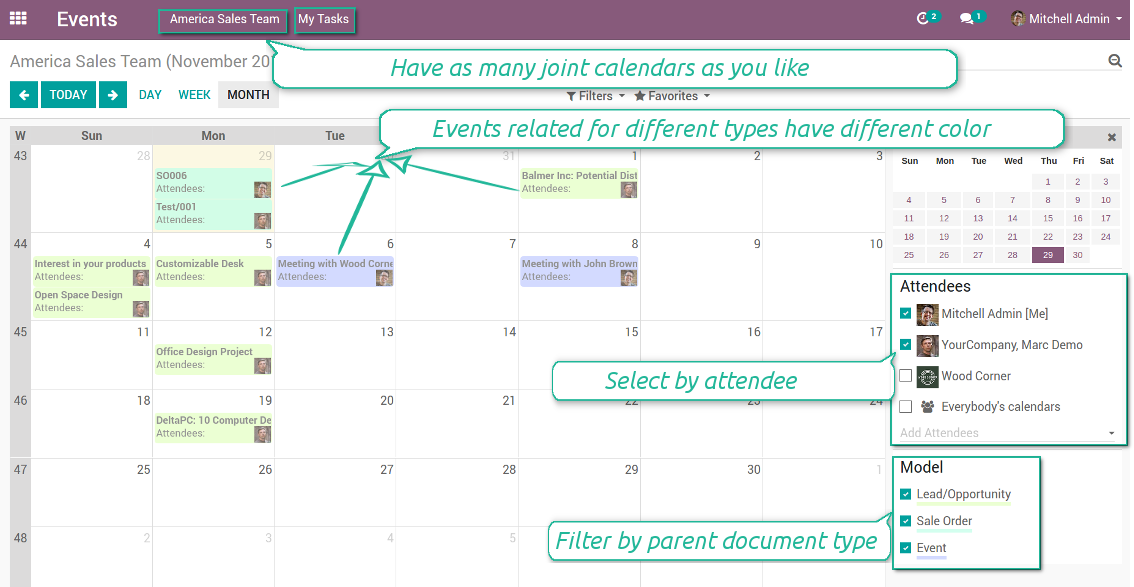
Multifarious events on a single calendar
Besides, you may have an unlimited number of joint calendars with various events, configurations and user groups included, divided by teams or functional areas. Each joint calendar has an own menu item.
Super calendars are updated automatically according to the scheduled jobs. It is fast, especially if you applied time frames.
স্ক্রিনশট
Joint document types on a single calendar
Fast switching between functional areas
Topical and relevant information
You may also define which documents to show by setting up special filters. Show opportunities but not leads. Work with orders of this sales team but not of others. Merge only overdue activities but not future ones.
How to add a new document type for a joint calendar
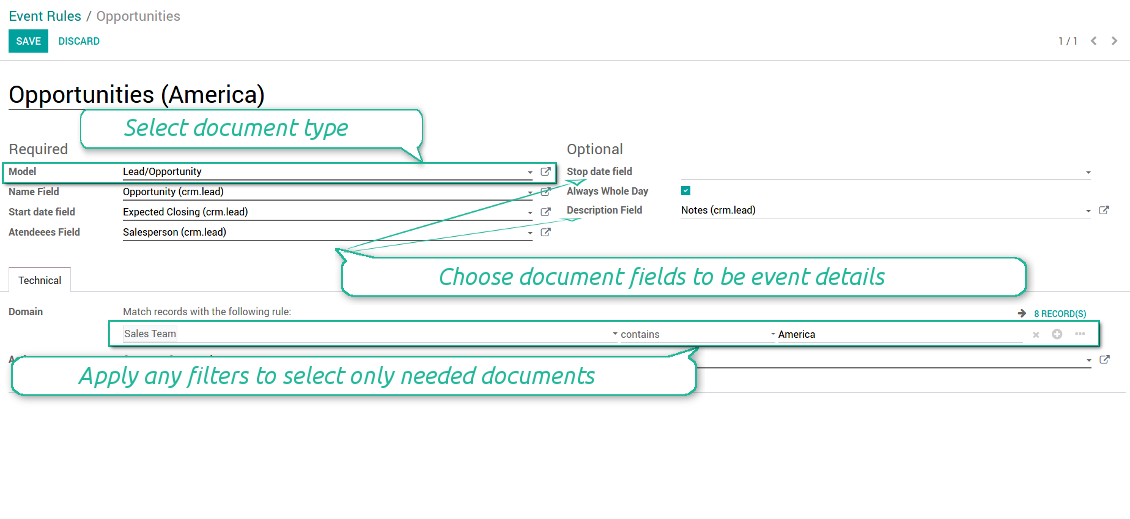
To add a new document type for a joint calendar you should set up a joint calendar rule. This rule defines which Odoo objects should create events, which fields of that object should be shown, and whether any filtering should take place. The app will try to add the most typical values by default, but you should think which data is required in your exact case.
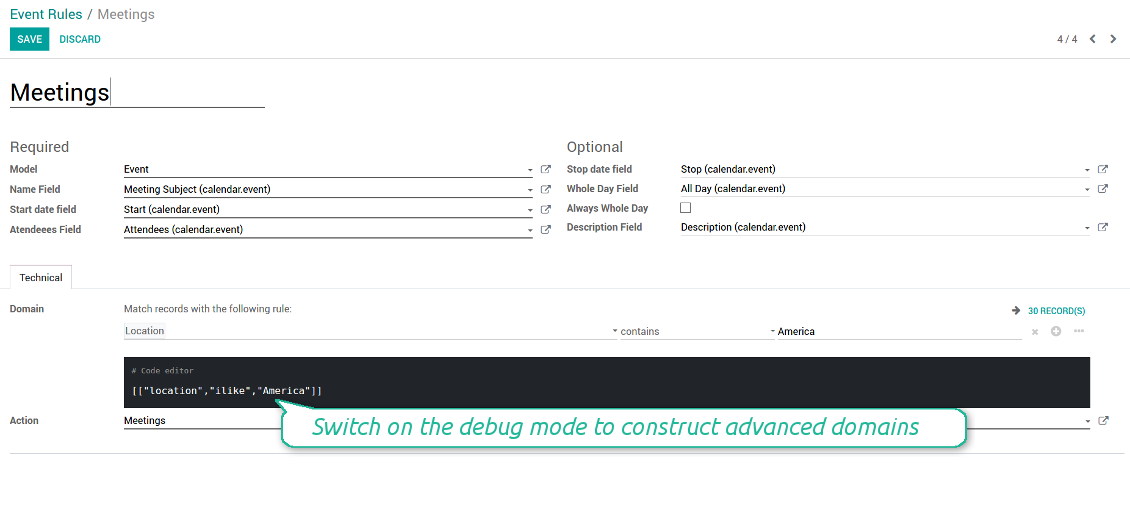
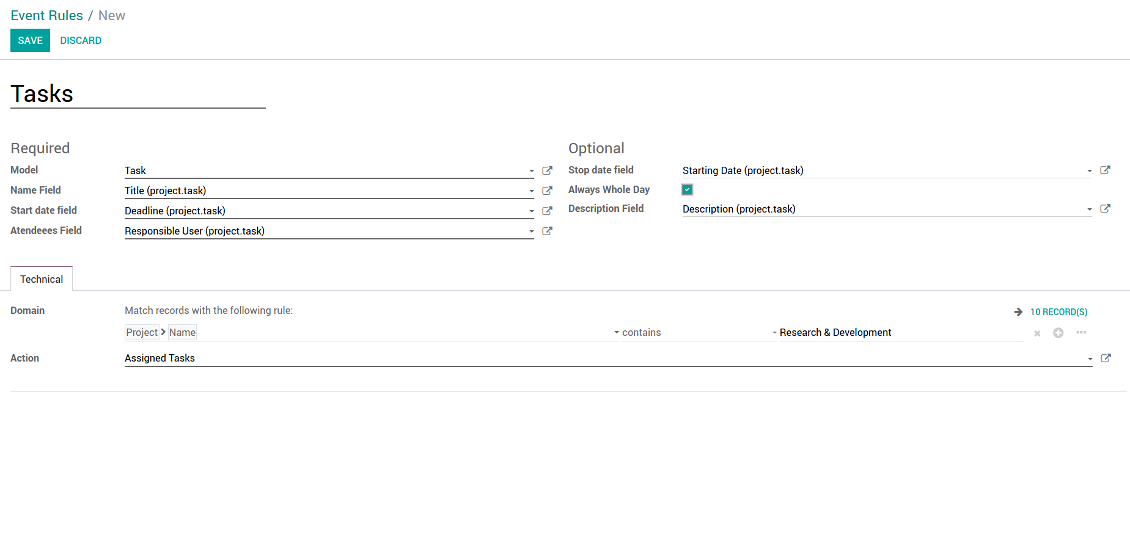
- Model - which objects to scan: opportunities, tasks, orders, meetings, activities, and so on. You can choose your custom document type as well!
- Name - what to use as a joint event name (also used as calendar event title). Usually it is 'name', 'subject' or 'reference'.
- Start date - when an event starts. For example, 'expecting closing' for opportunities or 'order date' for quotations. It may be any date or date with time field of a source Odoo object.
- Attendees - who are participants (responsible persons, event owners). Usually, it is a field 'assigned to', 'a sales person' or 'attendees'. You may use even document 'followers'. It is possible to apply both users and partners as attendees
- Stop date - when an even is shown as finished on a calendar.
- Always Whole Day - means that all generated events would last the whole day disregarding whether start or stop are defined with hours and minutes. Such an event would be shown at a special place on a calendar (above the time line)
- Whole Day - a special boolean field of source object which indicates that a related joint event may lasts the whole day. This setting is usually applied to standard Odoo calendar events which both might have definite time indicated or might be planned for a whole day.
- Description - are there any notes important for joint events? Usually the fields like 'internal notes' or 'comments' are used
- Domain - the special filters' constructor to include only topical documents into a joint calendar. You might search almost by any criteria. For example, show only quotations without sales orders, or show opportunities only of this sales team or of this customer. If you are confident to make Reverse Polish Notations you may also turn on the debug mode to construct advanced filters.
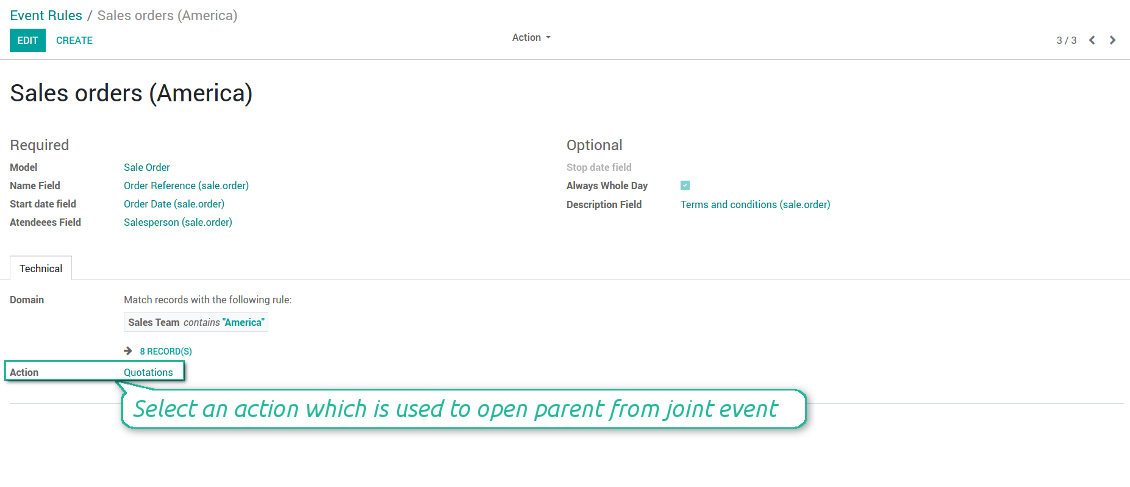
- Action - defines which form view should be shown when you open a source document from a joint event. It is a technical field which in the most cases should not be changed in comparison to a default value.
How to configure a new joint calendar based on rules
As soon as you prepare a few joint event rules, you are ready to configure a new joint calendar.
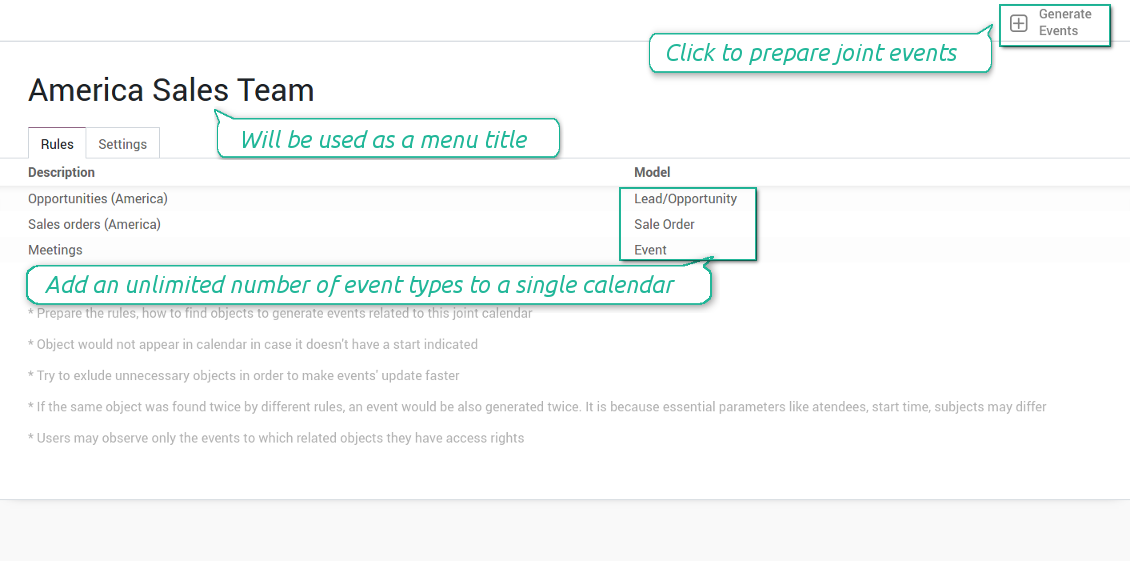
First of all, define a title. It would be used as a menu entry for all joint calendar users.
Second of all, choose document types (rules) which should be merged on this shared calendar.
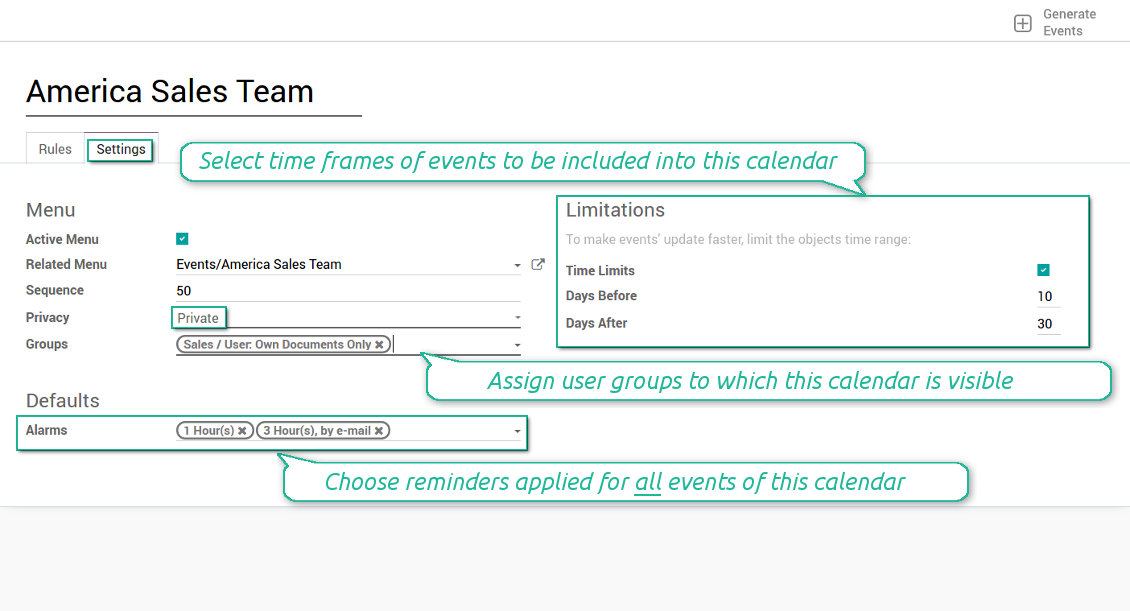
Then, switch to the advanced settings. Some of those might be useful:
- Sequence - in which order various joint calendars' entries are shown. Should it be before the previous super calendar? Then, make a sequence smaller.
- Privacy - let you make a calendar public or private (for predefined user groups only).
- Time limits - allow you optimizing performance of joint events' interfaces. Often there is no need to show the documents of the last year on a calendar.
Is this joint calendar is not any more of use, but it might be needed in the Future? Fine, just archive this calendar: you can activate it at any moment afterwards.
স্ক্রিনশট
Multiple rules to search documents by types
Joint calendar settings
Joint event rule (example of opportunities)
Joint event rule (example of sale orders)
Joint event rule (example of meetings)
Joint event rule (example of tasks)
Automatic reminders for any Odoo document
How to introduce a warning system
All you need is to prepare a few reminders and indicate those as default on a shared calendar form. Once joint events are generated, each of those would have the same alarms. Afterwards, you may update the these alarms for certain items if you want.
Thus, you can make reminders for any Odoo document automatically. Remind sales persons about next actions in opportunities and calls. Warn workers about a new manufacturing order. Notify programmers about deadlines. So on and so on.
Use both email notifications or pop-up warnings. Warn attendees and responsible users at the moment you like to: from 5 minutes to hundreds of days before.
স্ক্রিনশট
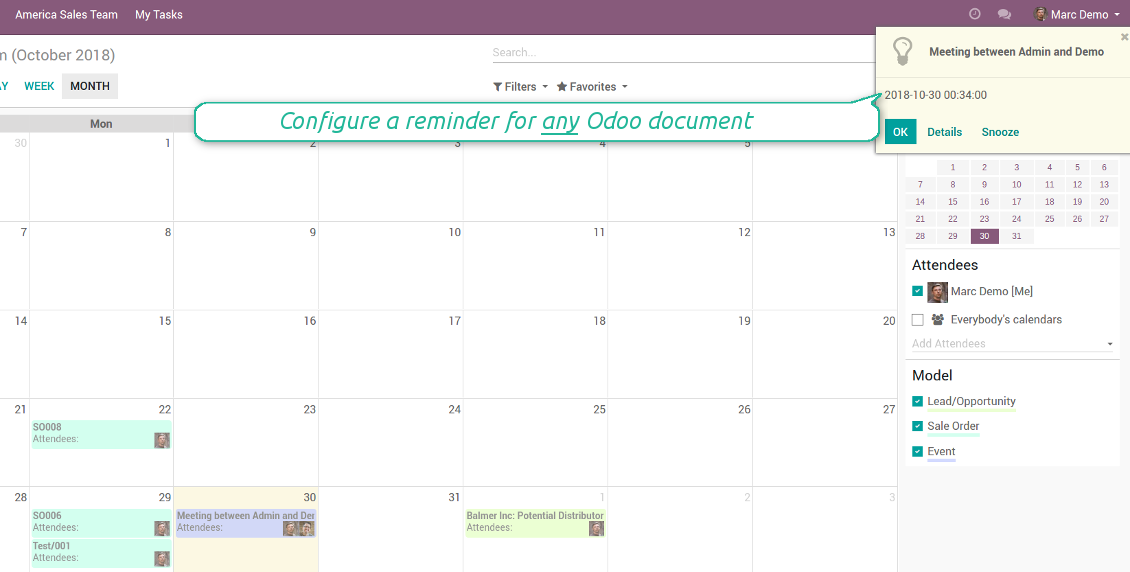
Configure pop-up alarm for any Odoo event
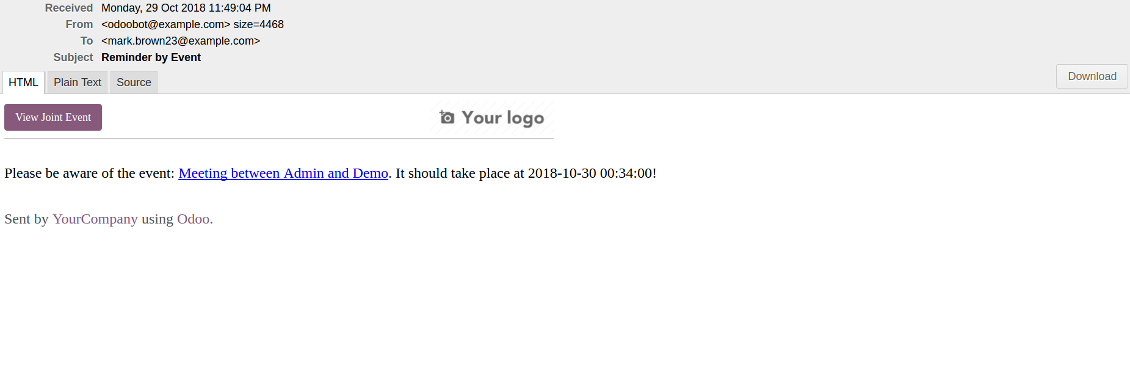
Email reminder by any Odoo object
Quick access to source details
How are source documents and joint events interrelated
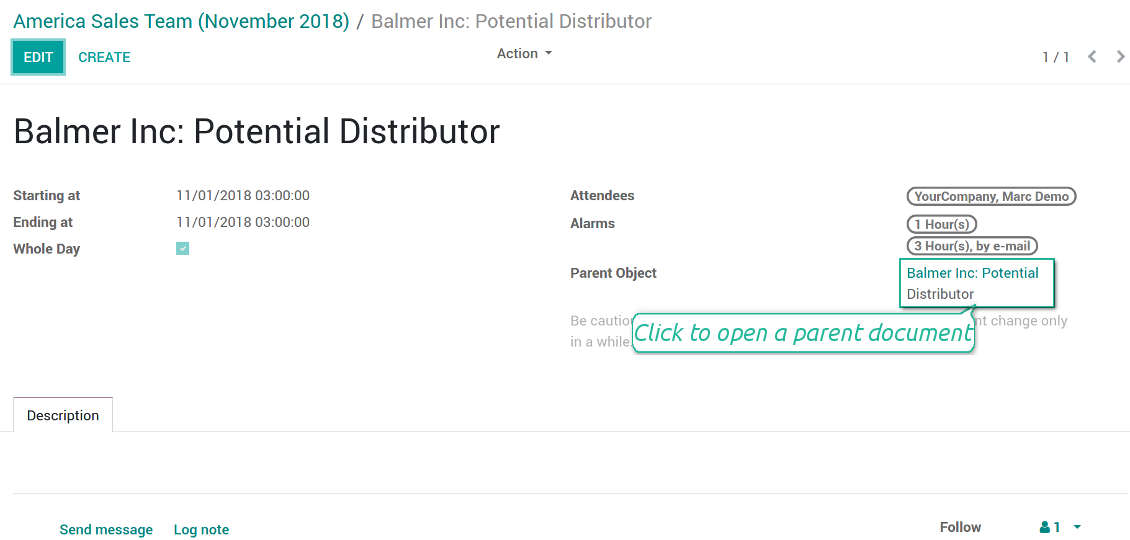
Users observes a link for a source document right on an event form. Thus, it is always possible to expand miscellaneous details.
If you changed a joint event, its parent object would be updated correspondingly in real time. For example, you drag a record and drop it to another date, then a source document would be also moved. Be cautious: it does not work for computed and readonly fields (e.g. a create date can not be modified logically).
If you changed a source object, a joint event would be updated with a next super calendar scheduled job.
স্ক্রিনশট
Joint event form with simple access to parent document
Simple user rights administration
More details about joint calendar security
The right to create and configure joint calendars belongs only to Odoo administrators (users with the rights 'Administration - Access Rights').
Users may open joint events related to public joint calendars or private joint calendar with one of her/his group indicated. Configure private groups on a joint calendar form, the tab 'Settings', the fields 'Privacy' and 'Groups'. In such a way it is possible to make a joint calendar only for sales managers or only for accountants.
Take into account that in order a user may observe or update a joint event, she/he should have the same rights for a source document. For example, if a sales person doesn't have a right to observe an opportunity, she/he would not see a related joint event as well.
Manually created joint events (without a parent object) may be either public (for all employees) or private (visible for attendees only).
Used in any functional area
Have a look at typical use cases
Activities by all objects and responsibles on a single calendar
Activities are a great Odoo invention, which helps you organize daily routine as a set of well-reached and structured tasks. They are quite comfortable for use, but for team collaboration and efficient management, sometimes you want to have a calendar overview of planned and overdue activities.
Joint Calendar let you achieve that goal. Just add an activity rule as joint calendar rule:
- As a model use 'Activity'
- As a name use 'Display Name'
- As a start date field use 'Due Date'
- As attendees fields use 'Assigned to'
- As a domain apply 'Summary is set'
- For the action field create a new one: go to the Settings > Technical > Actions > Window Action. As an object use 'mail.activity', as a view mode - 'form', as a name - any suitable
Opportunities on a super calendar
- As a model use 'Lead / Opportunity'
- As a name use 'Opportunity'
- As a start date field use 'Expecting Closing'
- As attendees fields use 'Salesperson'
- As a domain optionally restrict opportunities by sales teams.
Tasks on a joint calendar
- As a model use 'Task'
- As a name use 'Title'
- As a start date field use 'Deadline'
- As attendees fields use 'Assigned to'
- As a domain optionally you can set definite projects
Better then expected
The app does exactly what was needed. Combine all tasks from all calendars to one. And allows to manages all activities from all modules in one place.
This makes the Event Calendar so much more useful !
We bought this to combine certain project tasks with the schedules of our maintenance engineers. We now have a better overview which moments are overlapping the schedules of other events. The joining of multiple events in 1 event calendar is super easy, it should be a standard option in ODOO.
Excellent responsive team of programmers
Joint Calendar is the perfect addition to the standard Calendaring system that Odoo offers. It makes the job of setting up specific departmental calendars filled with any objects you wish very easy and Alex and the team provides fantastic after-sales support, responding in most cases within 24 hours to requests for help. Thanks for a great module.
Essential to have Activities, Tasks, Meetings etc all in one calendar and shared.
Great service support very quick and were right on with fixing the issue... I think the ability to see everything on one shared calendar is such an essential part of coordination and time management. Great product once you sort out the rules you need!
কনফিগারেশন ও ইনস্টলেশন টিপস: Joint Calendar Odoo v.11
Scheduled jobs
- Turn on the debug mode
- Go to technical settings > Automation > Scheduled jobs
- Find the job 'Refresh Joint Events' to change the frequency of calendars' update
- Find the job 'Notify About Joint Event' to change the frequency of email alarms.
Email alarm style
- Activate the developer mode
- Go to technical settings > Email > Templates
- Find the template 'Joint Event Notification'
- You are welcome to change here message body
- Email subject might be changed through the translated term 'Reminder by Event'.
সম্পর্কে সাধারণ জিজ্ঞাসা Joint Calendar Odoo v.11
"Always Whole Day" বিকল্প চালু/বন্ধ করলে কী হয়?
"Always Whole Day" চালু থাকলে নিয়মের সব ইভেন্ট সারাদিন স্থায়ী হয়, শুরু বা শেষে ঘণ্টা-মিনিট থাকলেও। এমন ইভেন্ট ক্যালেন্ডারের বিশেষ জায়গায় দেখা যায়।
উদাহরণ: মডেল "Sale Order"-এর নিয়ম তৈরি করে "Always Whole Day" চালু করলে ইভেন্ট দৈনিক ও সাপ্তাহিক সুপার ক্যালেন্ডারে টাইমলাইনের উপরে বসবে।
অপশন বন্ধ করলে এবং শুরু বা শেষে ঘণ্টা/মিনিট থাকলে ইভেন্ট দিনের নির্দিষ্ট সময়ে বসবে এবং শিরোনামের আগে সময় দেখাবে।
আমার Odoo-তে ক্যালেন্ডারের মেনু দেখছি না। কী করব?
নিশ্চিত করুন:
1. অন্তত একটি যৌথ ক্যালেন্ডার তৈরি, কনফিগার ও রিফ্রেশ করা আছে। যেকোনো যৌথ ক্যালেন্ডার সেট করার পর ব্রাউজার পৃষ্ঠা রিফ্রেশ করুন
2. অন্তত একটি ক্যালেন্ডারে আপনার অ্যাক্সেস আছে
আমি নিয়মসহ কিছু ক্যালেন্ডার তৈরি করেছি, কিন্তু মেনুতে দেখছি না।
এর কয়েকটি কারণ থাকতে পারে। সম্পর্কিত নির্ধারিত কাজ এখনো না-ও চলতে পারে। তখন যৌথ ক্যালেন্ডার ইন্টারফেসের ডান কলামের রিফ্রেশ বোতাম দিয়ে cron ম্যানুয়ালি চালান।
ক্যালেন্ডারে Time Limits আছে কি না দেখুন, না হলে কেবল নির্দিষ্ট সীমার ইভেন্ট দেখাবে। উদাহরণ: ক্যালেন্ডার 'Sale Orders' সীমা ১০ দিন আগে ও ৩০ পরে। Sale Order যদি ১২ দিন আগে তৈরি হয়, ক্যালেন্ডারে দেখাবে না।
নিয়মে এমন ফিল্টার নেই যা কোনো রেকর্ডের সঙ্গে মিলছে না তা নিশ্চিত করুন। উদাহরণ: নিয়ম 'Sale Order' ও ফিল্টার 'Customer = Deco Addict' সম্পর্কিত ক্যালেন্ডারে কেবল ওই গ্রাহকের অর্ডার দেখাবে।
একটি যৌথ ক্যালেন্ডারে কতগুলো Odoo নথি (যেমন বিক্রয় অর্ডার, প্রকল্প, কার্যকলাপ) একত্র করতে পারি?
যত খুশি Odoo নথি একটি ক্যালেন্ডারে জোড়া যায়। অথবা কয়েকটি ক্যালেন্ডারে ভাগ করুন (যেমন Sales Calendar ও Projects, Tasks and Activities Calendar) এবং systray থেকে পাল্টান।
জয়েন্ট ক্যালেন্ডার নিয়ম কী?
নিয়ম নির্ধারণ করে কোন Odoo অবজেক্ট ইভেন্ট তৈরি করবে, সেই অবজেক্টের কোন ফিল্ড ব্যবহার ও দেখানো হবে এবং কোনো ফিল্টার হবে কি না।
নিয়ম তৈরির সময় আপনি নিজেই নির্ধারণ করতে পারেন যৌথ ইভেন্টের শিরোনাম, শুরু বা শেষ তারিখ, লক্ষ্য উপস্থিতি কারা ইত্যাদি।
"Stop date" ক্ষেত্রটি কীসের জন্য? খালি রাখা যায়?
Stop date — লক্ষ্য Odoo মডেলের ক্ষেত্র, যা নির্ধারণ করে ক্যালেন্ডারে ইভেন্ট কখন শেষ দেখাবে। উদাহরণ: মডেল "Sale Order"-এর নিয়মে Stop date-এ "Delivery Date" দিলে ইভেন্ট মেনুতে কোটেশনের পরিকল্পিত দিন (Start Date ক্ষেত্র - Order Date) থেকে পণ্য ডেলিভারির দিন পর্যন্ত দেখাবে।
এটি ঐচ্ছিক ক্ষেত্র, খালি রাখা যায়। তখন ইভেন্ট কেবল Start Date ক্ষেত্রের দিনে থাকবে।
ক্যালেন্ডারে "Undefined" ধরনের ইভেন্ট আছে। এর মানে কী?
মানে এই ইভেন্ট হাতে তৈরি। কোনো প্যারেন্ট অবজেক্ট নেই, নিয়মও নেই। এমন যৌথ ইভেন্ট ফিল্টার "Undefined"-এর নিচে রং ছাড়া দেখা যায়।
যাদের ক্যালেন্ডার দেখার অ্যাক্সেস আছে, তারা তার অনির্ধারিত ইভেন্ট তৈরি ও দেখতে পারেন।
আপনার সরঞ্জামের হালনাগাদ নীতি কী?
বর্তমান Odoo Apps Store নীতি অনুসারে:
- সংস্করণ 12.0 ও তার আগের জন্য কেনা প্রতিটি মডিউল 12.0 পর্যন্ত সব সংস্করণে প্রবেশ দেয়।
- সংস্করণ 13.0 থেকে প্রতিটি মডিউল সংস্করণ আলাদা কিনতে হয়।
- সংস্করণ যাই হোক, কেনায় সেই প্রধান সংস্করণের সব হালনাগাদ ও বাগ সংশোধনের অধিকার মেলে।
মনে রাখুন, faOtools দল এই নীতি নিয়ন্ত্রণ করে না। সব প্রশ্নে সরাসরি Odoo Apps Store প্রতিনিধিদের সাথে যোগাযোগ করুন।
আপনার অ্যাপ Odoo.sh-এ কীভাবে ইনস্টল করব?
সবচেয়ে সোজা উপায় হল Odoo স্টোরের বিল্ট-ইন ওয়ার্কফ্লো ব্যবহার করা:
1. মডিউলের পৃষ্ঠা খুলুন এবং Deploy on odoo.sh বোতামে ক্লিক করুন
2. তারপর আপনাকে GitHub পৃষ্ঠায় পাঠানো হবে। অ্যাকাউন্টে লগ ইন করুন, তারপর 'Create a new repo' ক্লিক করুন বা বিদ্যমানটি ব্যবহার করুন। রিপোজিটরি যেন প্রাইভেট হয়। OPL-1 লাইসেন্সের অধীনে অ্যাপ প্রকাশ করা অনুমোদিত নয়। প্রয়োজনে Odoo.sh প্রকল্পের জন্য নতুন repo তৈরি করুন
3. তারপর odoo.sh-এ যান এবং Deploy বোতামে ক্লিক করুন। পপ-আপ উইন্ডোতে সিদ্ধান্ত জমা দিন এবং 'Continue.' ক্লিক করুন। এতে ইনস্টলেশন শুরু হবে।
এই ধাপগুলো প্রকল্পের প্রোডাকশন শাখায় অ্যাপ ইনস্টল করবে। অন্য শাখায় অ্যাপ ডিপ্লয় বা মডিউল আপডেট করতে নিচের কাজগুলো করুন:
1. Odoo স্টোর থেকে অ্যাপের সোর্স কোড আপলোড করুন
2. মডিউলটি প্রয়োজনীয় GitHub রিপোজিটরিতে commit করুন। নিশ্চিত করুন অ্যাপের কোনো ফোল্ডার/ফাইল উপেক্ষিত নয় (অর্থাৎ repo-এর .gitignore-এ নেই)। রিপোজিটরি odoo.sh স্বয়ংক্রিয়ভাবে তৈরি করে এবং ডিফল্টে কিছু গুরুত্বপূর্ণ আইটেম থাকতে পারে (যেমন /lib)। মডিউলের সব ডিরেক্টরি, সাবডিরেক্টরি ও ফাইল ব্যতিক্রম ছাড়া আপলোড করুন
3. odoo.sh প্রকল্পের লক্ষ্য শাখা Deploy করুন অথবা, সেটিংস যদি তা ধরে নেয়, স্বয়ংক্রিয়ভাবে তৈরি হওয়া পর্যন্ত অপেক্ষা করুন।
নিজের সার্ভারে আপনার অ্যাপ কীভাবে ইনস্টল করব?
2. Odoo সার্ভার রিস্টার্ট করুন;
3. ডেভেলপার মোড চালু করুন (টেকনিক্যাল সেটিংস);
4. অ্যাপ তালিকা আপডেট করুন (অ্যাপস মেনু);
5. অ্যাপ খুঁজে 'Activate'/'Install' চাপুন;
6. অ্যাপ পৃষ্ঠায় নির্দেশিকা থাকলে অনুসরণ করুন।
আপনার অ্যাপে অতিরিক্ত অ্যাড-অন আছে। পরে কিনতে পারি?
হ্যাঁ, অবশ্যই। একই সাথে Odoo সব নির্ভরতা কার্টে স্বয়ংক্রিয় যোগ করে, তাই দ্বিগুণ অর্থ এড়াতে আগে কেনা টুল বাদ দিন।
আমি আপনার অ্যাপ Odoo.sh-এ ডিপ্লয় করেছি এবং পরীক্ষায় সতর্কতা/ত্রুটি দেখছি
লাল/কমলা সতর্কতা অ্যাপের বৈশিষ্ট্যে প্রভাব ফেলে না। দুঃখজনকভাবে আমাদের মডিউল কখনো স্ট্যান্ডার্ড স্বয়ংক্রিয় পরীক্ষা পাস করে না, কারণ সেগুলো এমন আচরণ ধরে নেয় যা অ্যাপের লক্ষ্যের সাথে সাংঘর্ষিক। যেমন আমরা মূল্য হিসাব বদলাই, অথচ স্ট্যান্ডার্ড Odoo মডিউল পরীক্ষা চূড়ান্ত মূল্যকে স্ট্যান্ডার্ড অ্যালগরিদমের সাথে তুলনা করে।
প্রথমে ডিপ্লয় করা ডাটাবেসের বৈশিষ্ট্য দেখুন। সব ঠিকঠাক কাজ করছে?
যদি তবু মনে করেন সতর্কতা আসল বৈশিষ্ট্যে প্রভাব ফেলে, যোগাযোগ করুন এবং পূর্ণ ইনস্টলেশন লগ ও ডিপ্লয় করা মডিউলের সম্পূর্ণ তালিকা (কোর ও তৃতীয় পক্ষসহ) পাঠান।
আমি কি অ্যাপটি আপনার কোম্পানি থেকে সরাসরি কিনতে পারি?
না, আমরা টুল শুধু অফিসিয়াল Odoo অ্যাপ স্টোর.
আমি ছাড় পেতে চাই
দুঃখিত, ব্যক্তিগত মূল্য দেওয়ার কারিগরি উপায় আমাদের নেই।
আমি কি অ্যাপটি আমার Odoo Online (SaaS) ডাটাবেসে ইনস্টল করতে পারি?
না, তৃতীয় পক্ষের অ্যাপ Odoo Online-এ ব্যবহার করা যায় না। দুঃখজনকভাবে Odoo SaaS সেই সম্ভাবনা আটকে দেয়।
আপনার সরঞ্জাম অন্য অ্যাপের উপর নির্ভর করে। সেগুলো কি কিনতে হবে?
হ্যাঁ, সঠিকভাবে চলতে টুলের নির্ভরতায় চিহ্নিত সব মডিউল দরকার। অ্যাপ পাতার মূল্যে প্রয়োজনীয় নির্ভরতা ইতিমধ্যে অন্তর্ভুক্ত।
মডিউলের মূল্য মার্কিন ডলারে কত? কেন বদলেছে?
আমাদের মডিউলের মূল্য ইউরোতে নির্ধারিত। Odoo স্টোর অভ্যন্তরীণ বিনিময় হার অনুযায়ী অন্য মুদ্রায় রূপান্তর করে। তাই মার্কিন ডলারে মূল্য হার আপডেট হলে বদলাতে পারে।
ইংরেজি ছাড়া অন্য ভাষায় অ্যাপ ও ওয়েবসাইটের শব্দ AI-সহায়তায় এবং অফিসিয়াল Odoo অনুবাদের সাথে মিলিয়ে। ভুল দেখলে, অনুবাদ সঠিকতার টিকিট পাঠান আর আমরা ঠিক করব।
বাগ রিপোর্টিং
বাগ বা অসঙ্গত আচরণ দেখলে আমাদের সাথে যোগাযোগ করুন। কেনার ৬০ দিনের মধ্যে সংশোধনের নিশ্চয়তা দিই এবং এই সময়ের পরেও টুল উন্নত করতে আগ্রহী।
যোগাযোগে ফোন নম্বর বা ক্রেডিট কার্ড লাগে না। শুধু একটি সংক্ষিপ্ত ইমেইল সাইন-আপ, ৩০ সেকেন্ডের বেশি লাগে না।
অনুরোধে যতটা সম্ভব বিস্তারিত দিন: স্ক্রিনশট, Odoo সার্ভার লগ, সমস্যা পুনরুৎপাদনের পূর্ণ বিবরণ ইত্যাদি। সাধারণত কোনো সমস্যার কাজের পরিকল্পনা তৈরি (বাগ নিশ্চিত হলে) বা কী করতে হবে তার নির্দেশনা দিতে (অন্যথায়) কয়েক কর্মদিবস লাগে।
পাবলিক ফিচার অনুরোধ ও মডিউল আইডিয়া (বিনামূল্যে উন্নয়ন)
আমরা আমাদের টুল উন্নত করতে দৃঢ়ভাবে অনুপ্রাণিত এবং যেকোনো মতামতের জন্য কৃতজ্ঞ। আপনার প্রয়োজনীয়তা সবার কাজে লাগে এবং দক্ষতার সঙ্গে বাস্তবায়নযোগ্য হলে দল সেগুলো আমাদের টু-ডু তালিকায় রাখবে।
এমন টু-ডু তালিকা নিয়মিত প্রক্রিয়া হয় এবং অতিরিক্ত ফি ধরে না। যদিও আমরা সময়সীমা ও চূড়ান্ত ডিজাইনের প্রতিশ্রুতি দিতে পারি না, বিনিয়োগ ও ঝুঁকি ছাড়া কাঙ্ক্ষিত ফিচার পাওয়ার এটি ভালো উপায় হতে পারে।
যোগাযোগে ফোন নম্বর বা ক্রেডিট কার্ড লাগে না। শুধু একটি সংক্ষিপ্ত ইমেইল সাইন-আপ, ৩০ সেকেন্ডের বেশি লাগে না।

Odoo সংযুক্তি ফোল্ডারে নমনীয়ভাবে সাজানো এবং ডিরেক্টরি ক্লাউড ক্লায়েন্টের সাথে সিঙ্ক করার টুল: Google Drive, OneDrive/SharePoint, Nextcloud/ownCloud, Dropbox, Amazon S3, Box এবং NAS. DMS. ফাইল ম্যানেজার. ডকুমেন্ট ম্যানেজমেন্ট সিস্টেম
398€
Odoo সংযুক্তিগুলিকে OneDrive ফাইলের সাথে স্বয়ংক্রিয়ভাবে দুই দিকে সিঙ্ক করার টুল
487€
Odoo সংযুক্তিগুলিকে Google Drive ফাইলের সাথে স্বয়ংক্রিয়ভাবে দুই দিকে সিঙ্ক করার টুল
487€
ভাগ করে ব্যবহারের জন্য Odoo-তে পাসওয়ার্ড নিরাপদে রাখার সরঞ্জাম। শেয়ার করা ভল্ট

অভ্যন্তরীণ ও বাহ্যিক ব্যবহারের জন্য গভীর ও কাঠামোবদ্ধ নলেজ বেস তৈরির টুল। Knowledge System. KMS. উইকির মতো সংশোধন।
398€
KPI লক্ষ্য সেট করে সময়কাল অনুযায়ী পূরণ নিয়ন্ত্রণের টুল। KPI ড্যাশবোর্ড। ড্যাশবোর্ড ডিজাইনার। KPI চার্ট

অ্যাপয়েন্টমেন্ট বুকিং থেকে বিক্রি ও পর্যালোচনা পর্যন্ত সময়ভিত্তিক পরিষেবা ব্যবস্থাপনার টুল
398€
প্রিয় AI চ্যাট থেকে MCP দিয়ে Odoo পরিচালনার টুল। Claude. যেকোনো MCP-সমর্থিত AI.
