NAS / Synology / QNAP / TrueNAS Odoo Integration v.18
The tool to automatically synchronize Odoo attachments with NAS Solutions in both ways. Synology, QNAP, TrueNAS and any other WebDav-supporting NAS solutions
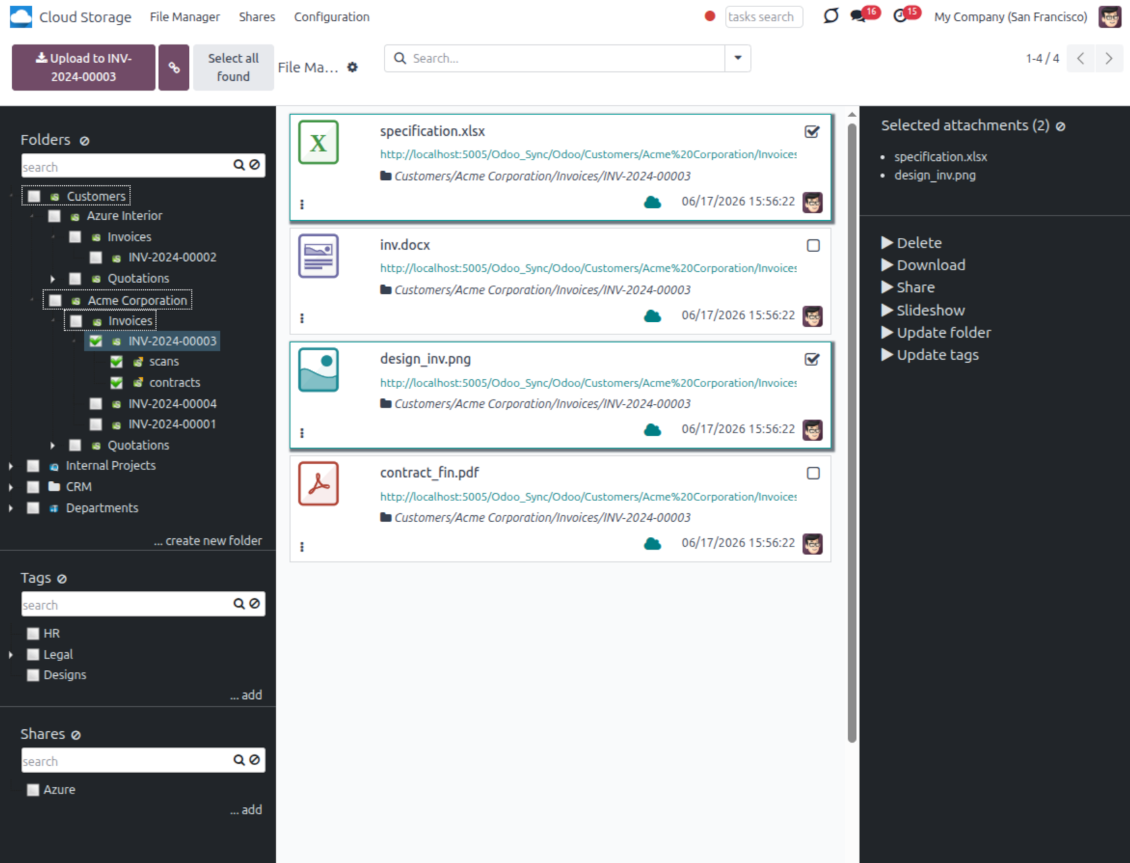
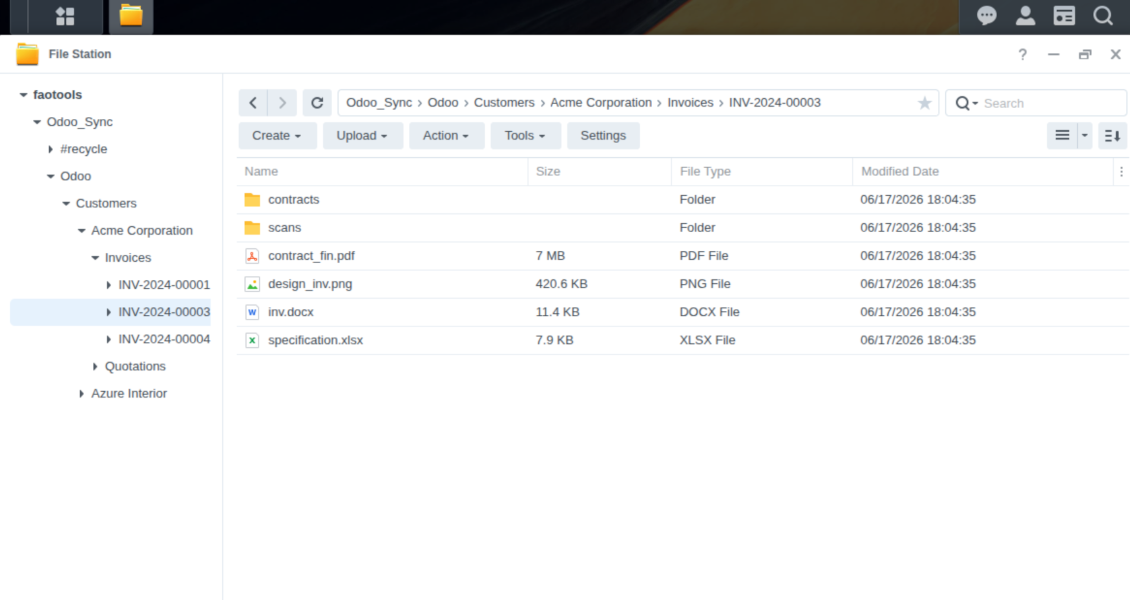
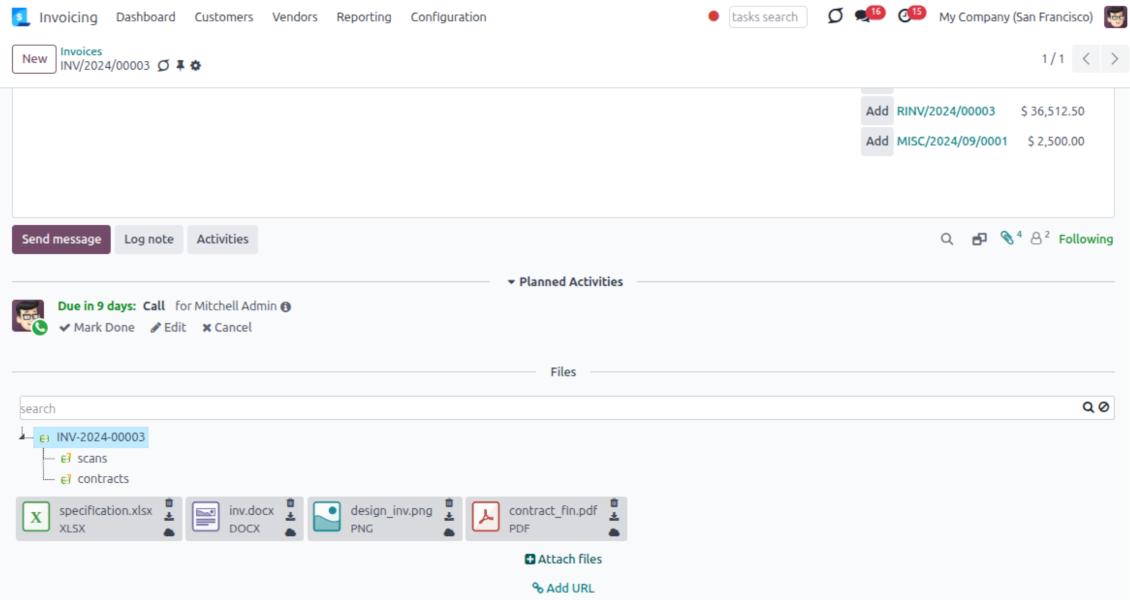
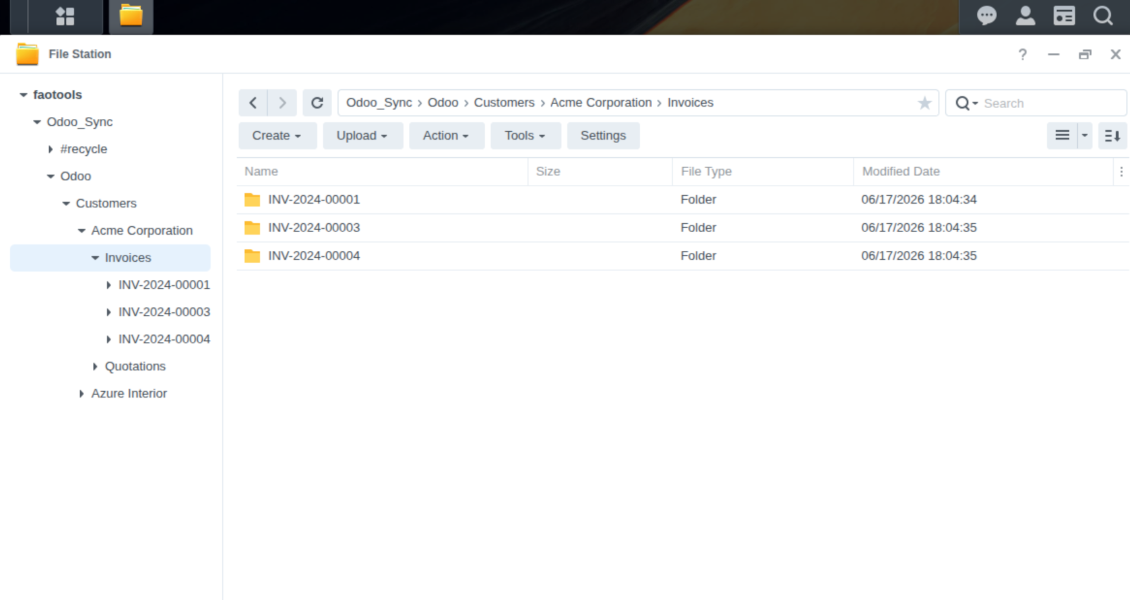
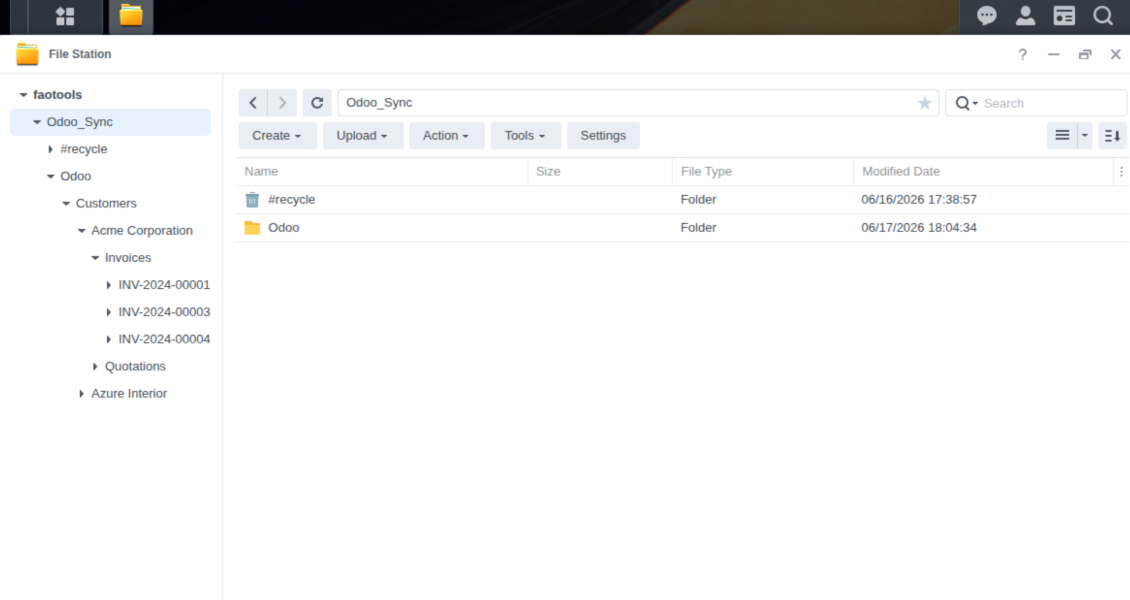
This is the tool to integrate NAS storage with Odoo folders and files through WebDAV. The app automatically stores Odoo attachments and directories in Synology, QNAP, TrueNAS (with WebDAV app), or any compatible NAS/WebDAV server and provides instant access to them via web links.
Automatic folders' structure
Decide which Odoo document types should have their own folders trees and synchronize those to NAS
Automatic regular sync
Rely on auto-synchronization between Odoo and Synology/QNAP/TrueNAS/other NAS based on scheduled jobs. No manual interaction is required
Bilateral sync
Odoo sends attachments to Synology/QNAP/TrueNAS/other NAS and retrieves files from there. Binary content is kept in clouds, while Odoo provides direct access to synced items
Cloud synchronization history
Control NAS Webdav sync logs right in Odoo. Export and share those in case of any issues. Be notified of any client disconnections
File manager interface
Manage synced folders and attachments from a single Odoo view. Comfortably navigate by directories. Search and download files one by one or in batch. Upload and move attachments to folders
Attachment box
Organize files of any Odoo object in a set of subfolders. Instantly access folders and files in the attachment box and in NAS solutions.
How synchronization works
Automatic two-sided sync
-
Configure sync for one or multiple Synology/QNAP/TrueNAS/other NAS instances
-
Integration is based on scheduled jobs and is fully automatized. The app regularly checks changes in systems and runs sync operations
-
Synchronization is bilateral. Updates in Odoo are reflected in Synology/QNAP/TrueNAS/other NAS (direct sync); changes in NAS solutions modify Odoo folders and attachments (backward sync)
-
Cloud connection with Synology/QNAP/TrueNAS/other NAS might be reset. In this way, the app assumes getting back all items back to Odoo (reverse sync)
-
Odoo folders and attachments might be re-attached to a new cloud client from Synology/QNAP/TrueNAS/other NAS. Hence, items will be first taken back to Odoo (reverse sync) and then will be put into the new cloud storage (direct sync)
Queue-based synchronization
-
Once in 15 minutes, the app examines updates in Odoo and Synology/QNAP/TrueNAS/other NAS to prepare a synchronization queue
-
Folders' checks follow the First-In-First-Out (FIFO) principle. So, directories that have not been examined for the longest will be processed first
-
Once in 15 minutes, the sync queue is run by the special scheduled job. Firstly, the most important (blocking) tasks would be done
-
Control planned jobs and their fulfillment in the special Odoo logs interface (Cloud Storage > Configuration > Sync Logs). Subscribe for particular cloud clients notifications
-
If the app faces sync failures, it will re-try operations afterward. Sync queue processing would not be stopped if there are items not blocked by such failures
Odoo attachments for NAS solutions: direct sync
-
Direct sync prepares the folders' hierarchy and uploads Odoo attachments for Synology/QNAP/TrueNAS/other NAS
-
Direct sync checks whether attachments are added or deleted for synced directories. If so, they would be created or removed in Synology/QNAP/TrueNAS/other NAS. In particular, it means that any file added to a folder-related Odoo object (e.g. Quotation), would be automatically moved to a linked cloud client
-
Direct sync makes all synced Odoo attachments change their type to a link (URL), while binary content is removed with one of the next Odoo cleaners. So, no actual files would be stored on your Odoo server
-
Direct sync checks whether a new folder is added. Disregarding whether it is done manually or automatically, the app would generate a peer directory in Synology/QNAP/TrueNAS/other NAS
-
Direct sync checks whether there are any updates in folders. If so, such changes are reflected in Synology/QNAP/TrueNAS/other NAS
WebDAV files and folders for Odoo: backward sync
-
Backward sync checks whether any files or subfolders are added to Synology/QNAP/TrueNAS/other NAS folders. If so, the app would create URL attachments/subdirectories inside linked Odoo directories (and hence Odoo objects if any)
-
Backward sync checks whether there are any updates in folders or attachments. Such updates would be then reflected in Odoo
-
Backward sync checks whether any files are deleted/moved in a Synology/QNAP/TrueNAS/other NAS document folder. If so, a linked Odoo attachment would be also unlinked or moved
-
If you deleted a Synology/QNAP/TrueNAS/other NAS folder related to a folder rule / Odoo object, their child files would be deleted as well. Thus, Odoo would remove related attachments. The folders, however, will be recovered with a direct sync
-
In case of conflicts, direct sync changes are in general considered more important than backward updates.
Resetting or changing Synology/QNAP/TrueNAS/other NAS: reverse sync
-
In case you decided to reset the connection with Synology/QNAP/TrueNAS/other NAS, files would be moved back to Odoo
-
In case you decided to change the cloud client of a folder rule or a folder, files would be first taken back to Odoo, and then direct sync for a new client would be done
-
Reverse sync operations are prioritized to direct and backward sync operations
-
Not all items can be correctly reversed to Odoo due to cloud client peculiarities. For example, there are documents that may exist only in cloud storage environments. The app would try to convert such documents, but in some cases, it would require manual interactions.
配置与安装提示: NAS / Synology / QNAP / TrueNAS Odoo Integration Odoo v.18
NAS preconfiguration notes
NAS systems usually expose files through a local network. If your Odoo server is hosted outside that network, the WebDAV endpoint should be reachable from Odoo through a secure channel. Recommended options are a reverse proxy with a valid HTTPS certificate, a VPN or secure tunnel such as WireGuard, Tailscale, or Cloudflare Tunnel, or a vendor relay such as Synology QuickConnect or QNAP myQNAPcloud. Plain port forwarding is possible but should be treated as the least preferred option.
Use a dedicated NAS user with the minimum required rights to one shared folder: read, create, update, move, and delete. Avoid administrator accounts. Publicly exposed endpoints should always use HTTPS and a valid TLS certificate. The connector has a "Verify SSL" option for trusted self-signed certificates, but it should normally remain enabled.
Configuration and log in
- Turn on the option 'NAS Sync' (Cloud Storage > Configuration > Configuration). The optional add-on NAS Odoo Integration is required
- Prepare your NAS WebDAV endpoint:
- Synology: install and enable WebDAV Server in DSM and choose HTTPS where possible
- QNAP: enable WebDAV for the target shared folder and use HTTPS where possible
- TrueNAS CORE: enable the WebDAV service; TrueNAS SCALE: install and configure the WebDAV app, since native WebDAV was removed in modern SCALE releases
- Generic WebDAV: make sure PROPFIND, MKCOL, PUT, GET, MOVE, and DELETE are available
- If Odoo is hosted outside the local NAS network, make the WebDAV endpoint reachable securely. Prefer a reverse proxy with a valid TLS certificate, a VPN/secure tunnel such as WireGuard, Tailscale, or Cloudflare Tunnel, or a vendor relay such as Synology QuickConnect or QNAP myQNAPcloud. Avoid exposing an administrator interface to the Internet
- Create a dedicated NAS user with full rights only inside the target shared folder: read, create, write, move, and delete. Do not use an administrator account
- Go to Odoo Cloud Storage > Configuration > Cloud Clients and press 'Create'
- As a reference, introduce any name which would be clear to all users
- As a Cloud client, choose 'Synology NAS', 'QNAP NAS', 'TrueNAS', or 'WebDAV NAS'
- As a Root folder name, enter a title that will be used as the parent NAS directory for all synced folders. For example, 'Odoo' or 'OdooERP'
- Enter the full WebDAV URL, login, and password. Optionally define a base path if Odoo should create the root folder inside an existing share or directory
- Keep 'Verify SSL' enabled for public HTTPS endpoints. Disable it only for a trusted private endpoint with a self-signed certificate
- Optionally define a browser base URL if NAS files should be opened through a vendor file station URL instead of the raw WebDAV URL
- Press 'Confirm'. Odoo checks the WebDAV connection and creates or finds the root directory. NAS - Odoo synchronization is ready to be done
- Apply the newly created cloud client to folder rules and/or manual folders which should be synced to that NAS storage
- Await the sync scheduled job to be started. For testing purposes only: trigger integration manually from Cloud Storage > Configuration > Configuration > the button 'Launch sync'.
Enter QNAP credentials

Enter Synology credentials

Enter TrueNAS credentials

相关常见问题 NAS / Synology / QNAP / TrueNAS Odoo Integration Odoo v.18
同步字段存储在哪里?会复制到 Odoo 和云端吗?
本应用假定附件的二进制内容保存在 Cloud Client 中,而不是 Odoo 服务器上。因此,Odoo 中的此类附件变为 URL 类型,您可随时从附件框或 Cloud Client 访问它们。
设置完成后无需手动操作,同步完全自动。只需决定要同步哪些 Odoo 单据类型,并为每一种设置关联模型(客户、销售或采购订单、任务、项目等)。
同一单据类型可以有多个文件夹吗?例如内部项目和客户项目?
可以。请为每一种准备规则,然后应用筛选:例如按项目类型。
尽量让筛选互斥,以便单据能被明确归类。例如“是客户但不是供应商”、“是供应商但不是客户”。否则某个单据文件夹会在模型之间跳动。
可以将同步做成实时的吗?
不可以。我们有充分理由避免实时同步:
性能问题。若同步是实时的,每次上传文件都会出现加载屏幕。
冲突问题。若 2 位用户同时更改一项,可能出现无法解决的情况。定期作业可以事后修复;实时同步则必须存成队列,对用户更加费解。
功能问题。尤其是重命名和调整结构。反向同步严格依赖目录逻辑,每次同步都会检查 100% 的项目。若每次更新都做,将是每秒数千次请求。若不做:更改会丢失。
我可以更改云中默认文件夹的名称吗?
可为任何单据类型给模型目录(销售订单、商机、供应商等)指定自己的名称。
对象文件夹(SO-001、John Smith 等)依赖 Odoo 为该单据类型构造显示名称的方法。不过可通过定义名称表达式来更改。使用的正是 Odoo 电子邮件模板的语法。
我可以更改同步作业的频率吗?
不可以。从版本 15 起不应再改计划作业。它们已优化为每 15 分钟运行,以保证最稳定、最快的连接。
请确保 Odoo 服务器超时至少为 15 分钟(900 秒)。
若需暂时停止同步,请在相应的 cloud client 表单上进行。
我可以将附件同步到几个云客户端吗
可以,从版本 15 起可设置多个连接。这样一部分文件夹同步到一个 cloud client,另一部分同步到另一个。
请注意,同一文件夹无法同时同步到多个 cloud storages。
我们在云中使用专用编辑器(例如 OnlyOffice、Office 365 等)。文件会在该编辑器中打开吗?
可以,取决于您的 cloud client 配置。
我是否只需要Cloud Storage Solution应用?
从版本 15 起,应用可单独用来把附件按文件夹整理,并提供文件管理器界面。
不过,若要与某个云客户端建立连接,则需要 至少安装一个可选的客户端相关应用。
更改文件夹规则时会发生什么?
文件夹规则一变,文件夹列表也会变。不再符合规则条件的文件夹会被移除。若文件已同步,反向同步会将其退回 Odoo 并从 Cloud Client 删除。
若文档对象不符合文件夹规则的条件,则不会创建其文件夹。之后若符合条件,将生成相关文件夹。
可以只保留正向同步,或关闭来自云端的同步吗?
可以。在云客户端打开设置页面并打开关闭来自云端的同步。
同步保持单向。在 Odoo 中所做的更改仍会推送到云存储。在云存储中创建、重命名或删除的文件和文件夹不会反映到 Odoo,在那里删除的文件夹也不会被恢复。
再次关闭该选项,这些累积的更改(包括删除)会在下次同步时应用。
此设置从版本 18 起可用。取消关联、重置或停用客户端仍会运行反向同步,除非你也关闭反向同步。
非英语的应用和网站措辞由 AI 辅助 并与官方 Odoo 翻译对齐。若发现错误, 发送翻译正确性工单 我们会修好。
Odoo 演示数据库(在线预览)
对于此应用,我们可能提供免费个性化演示数据库。
联系我们无需电话号码或信用卡。只需完成不超过 30 秒的简短电子邮件注册。
按您的申请,我们将准备独立的在线预览数据库,约两周内可进行任意测试并核验假设。
缺陷反馈
如遇缺陷或不一致行为,请随时联系我们。我们保证在购买后 60 天内提供修复,并在此期限后仍积极改进工具。
联系我们无需电话号码或信用卡。只需完成不超过 30 秒的简短电子邮件注册。
请在请求中尽可能提供详细信息:截图、Odoo 服务器日志、完整的问题复现说明等。通常需要几个工作日来准备问题的工作计划(若确认是缺陷)或提供应采取的指引(否则)。
公开功能请求与模块构想(免费开发)
我们非常希望改进工具,并感谢任何反馈。若您的需求具有普遍价值且能高效实现,团队会将其列入待办清单。
此类待办清单会定期处理,不产生额外费用。虽然我们无法承诺截止日期和最终设计,但这可能是在无投入、无风险的情况下获得所需功能的好办法。
联系我们无需电话号码或信用卡。只需完成不超过 30 秒的简短电子邮件注册。


The tool to build a deep and structured knowledge base for internal and external use. Knowledge System. KMS. Wiki-like revisions.
398€
The tool to set up KPI targets and control their fulfillment by periods. KPI dashboards. Dashboard designer. KPI charts

The tool for time-based service management from booking appointments to sales and reviews
398€
The tool to manage your Odoo from your favorite AI chats through MCP. Claude. Any MCP-supporting AI.

用于将 Odoo 附件灵活归入文件夹并将目录与云客户端同步的工具:Google Drive、OneDrive/SharePoint、Nextcloud/ownCloud、Dropbox、Amazon S3、Box 和 NAS。DMS。文件管理器。文档管理系统
398€
The tool to automatically synchronize Odoo attachments with OneDrive files in both ways
487€
The tool to automatically synchronize Odoo attachments with Google Drive files in both ways
487€
The tool to automatically synchronize Odoo attachments with ownCloud/Nextcloud files in both ways
487€