NAS / Synology / QNAP / TrueNAS Odoo Integration v.18
The tool to automatically synchronize Odoo attachments with NAS Solutions in both ways. Synology, QNAP, TrueNAS and any other WebDav-supporting NAS solutions
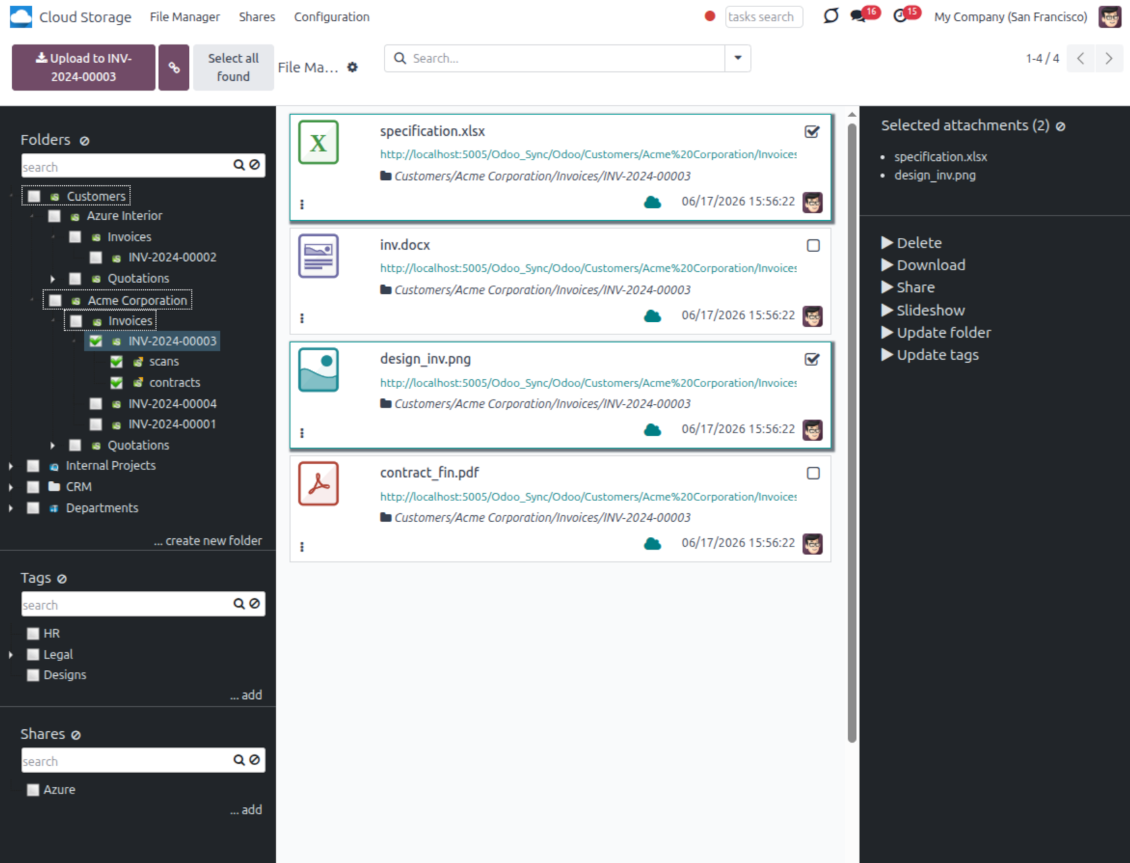
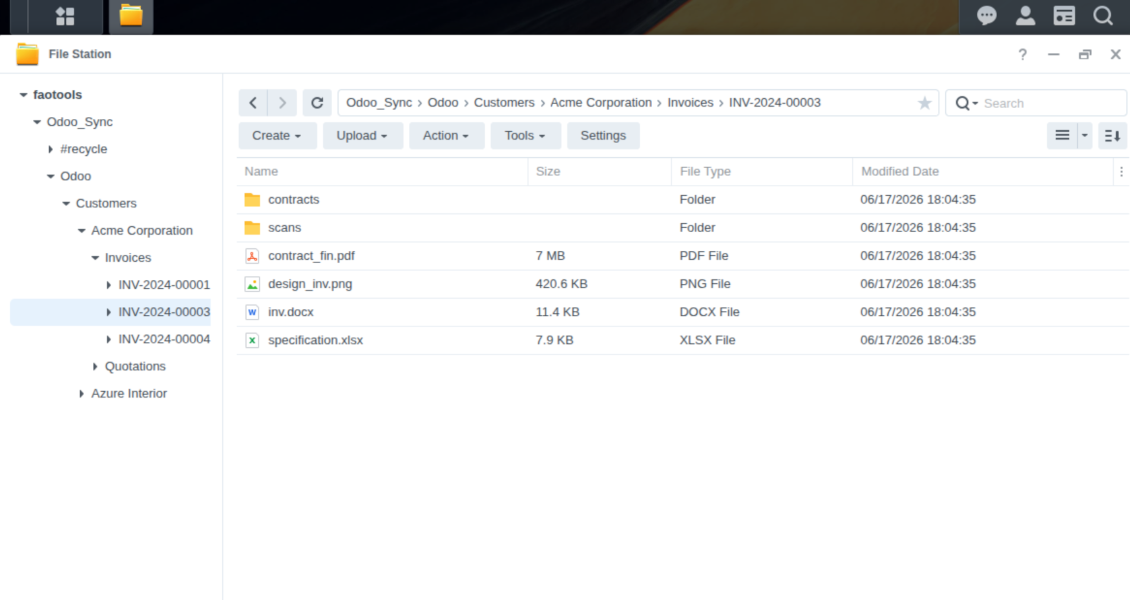
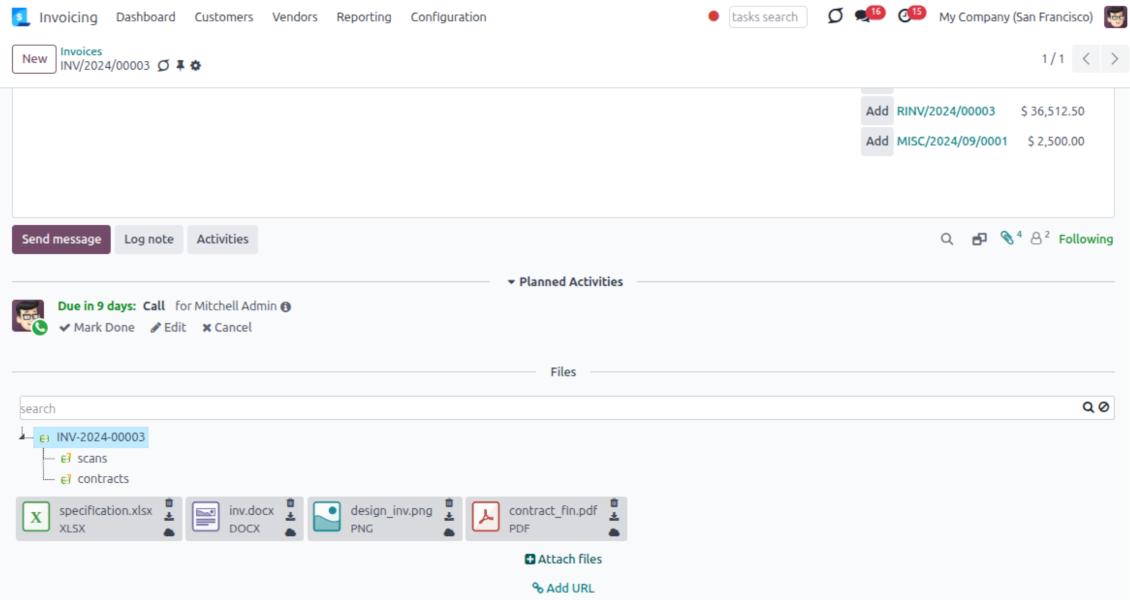
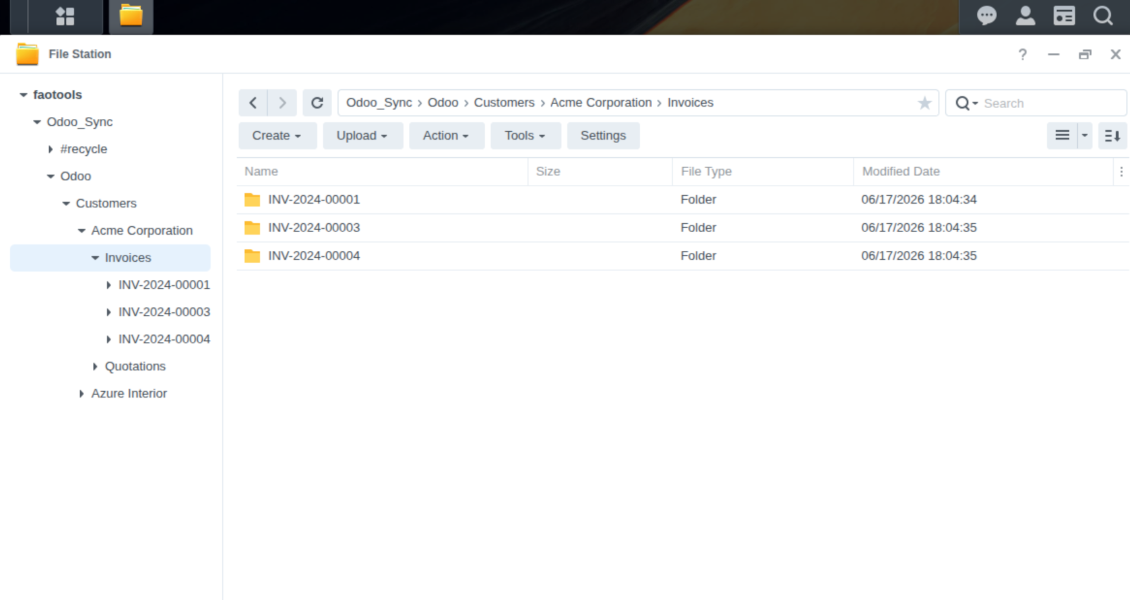
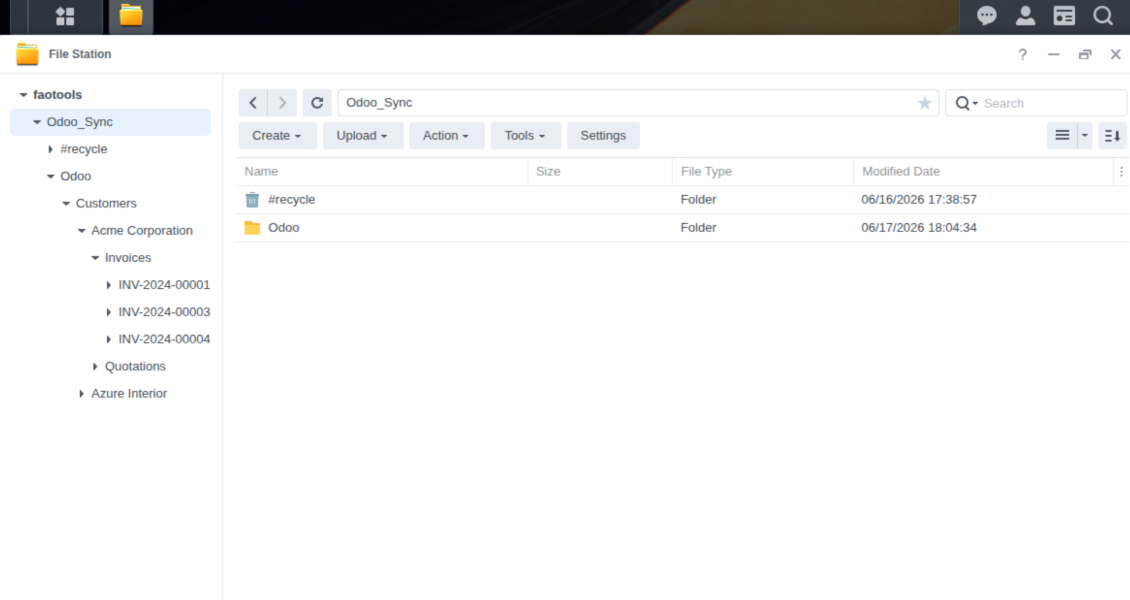
This is the tool to integrate NAS storage with Odoo folders and files through WebDAV. The app automatically stores Odoo attachments and directories in Synology, QNAP, TrueNAS (with WebDAV app), or any compatible NAS/WebDAV server and provides instant access to them via web links.
Automatic folders' structure
Decide which Odoo document types should have their own folders trees and synchronize those to NAS
Automatic regular sync
Rely on auto-synchronization between Odoo and Synology/QNAP/TrueNAS/other NAS based on scheduled jobs. No manual interaction is required
Bilateral sync
Odoo sends attachments to Synology/QNAP/TrueNAS/other NAS and retrieves files from there. Binary content is kept in clouds, while Odoo provides direct access to synced items
Cloud synchronization history
Control NAS Webdav sync logs right in Odoo. Export and share those in case of any issues. Be notified of any client disconnections
File manager interface
Manage synced folders and attachments from a single Odoo view. Comfortably navigate by directories. Search and download files one by one or in batch. Upload and move attachments to folders
Attachment box
Organize files of any Odoo object in a set of subfolders. Instantly access folders and files in the attachment box and in NAS solutions.
How synchronization works
Automatic two-sided sync
-
Configure sync for one or multiple Synology/QNAP/TrueNAS/other NAS instances
-
Integration is based on scheduled jobs and is fully automatized. The app regularly checks changes in systems and runs sync operations
-
Synchronization is bilateral. Updates in Odoo are reflected in Synology/QNAP/TrueNAS/other NAS (direct sync); changes in NAS solutions modify Odoo folders and attachments (backward sync)
-
Cloud connection with Synology/QNAP/TrueNAS/other NAS might be reset. In this way, the app assumes getting back all items back to Odoo (reverse sync)
-
Odoo folders and attachments might be re-attached to a new cloud client from Synology/QNAP/TrueNAS/other NAS. Hence, items will be first taken back to Odoo (reverse sync) and then will be put into the new cloud storage (direct sync)
Queue-based synchronization
-
Once in 15 minutes, the app examines updates in Odoo and Synology/QNAP/TrueNAS/other NAS to prepare a synchronization queue
-
Folders' checks follow the First-In-First-Out (FIFO) principle. So, directories that have not been examined for the longest will be processed first
-
Once in 15 minutes, the sync queue is run by the special scheduled job. Firstly, the most important (blocking) tasks would be done
-
Control planned jobs and their fulfillment in the special Odoo logs interface (Cloud Storage > Configuration > Sync Logs). Subscribe for particular cloud clients notifications
-
If the app faces sync failures, it will re-try operations afterward. Sync queue processing would not be stopped if there are items not blocked by such failures
Odoo attachments for NAS solutions: direct sync
-
Direct sync prepares the folders' hierarchy and uploads Odoo attachments for Synology/QNAP/TrueNAS/other NAS
-
Direct sync checks whether attachments are added or deleted for synced directories. If so, they would be created or removed in Synology/QNAP/TrueNAS/other NAS. In particular, it means that any file added to a folder-related Odoo object (e.g. Quotation), would be automatically moved to a linked cloud client
-
Direct sync makes all synced Odoo attachments change their type to a link (URL), while binary content is removed with one of the next Odoo cleaners. So, no actual files would be stored on your Odoo server
-
Direct sync checks whether a new folder is added. Disregarding whether it is done manually or automatically, the app would generate a peer directory in Synology/QNAP/TrueNAS/other NAS
-
Direct sync checks whether there are any updates in folders. If so, such changes are reflected in Synology/QNAP/TrueNAS/other NAS
WebDAV files and folders for Odoo: backward sync
-
Backward sync checks whether any files or subfolders are added to Synology/QNAP/TrueNAS/other NAS folders. If so, the app would create URL attachments/subdirectories inside linked Odoo directories (and hence Odoo objects if any)
-
Backward sync checks whether there are any updates in folders or attachments. Such updates would be then reflected in Odoo
-
Backward sync checks whether any files are deleted/moved in a Synology/QNAP/TrueNAS/other NAS document folder. If so, a linked Odoo attachment would be also unlinked or moved
-
If you deleted a Synology/QNAP/TrueNAS/other NAS folder related to a folder rule / Odoo object, their child files would be deleted as well. Thus, Odoo would remove related attachments. The folders, however, will be recovered with a direct sync
-
In case of conflicts, direct sync changes are in general considered more important than backward updates.
Resetting or changing Synology/QNAP/TrueNAS/other NAS: reverse sync
-
In case you decided to reset the connection with Synology/QNAP/TrueNAS/other NAS, files would be moved back to Odoo
-
In case you decided to change the cloud client of a folder rule or a folder, files would be first taken back to Odoo, and then direct sync for a new client would be done
-
Reverse sync operations are prioritized to direct and backward sync operations
-
Not all items can be correctly reversed to Odoo due to cloud client peculiarities. For example, there are documents that may exist only in cloud storage environments. The app would try to convert such documents, but in some cases, it would require manual interactions.
Suggerimenti di configurazione e installazione per NAS / Synology / QNAP / TrueNAS Odoo Integration Odoo v.18
NAS preconfiguration notes
NAS systems usually expose files through a local network. If your Odoo server is hosted outside that network, the WebDAV endpoint should be reachable from Odoo through a secure channel. Recommended options are a reverse proxy with a valid HTTPS certificate, a VPN or secure tunnel such as WireGuard, Tailscale, or Cloudflare Tunnel, or a vendor relay such as Synology QuickConnect or QNAP myQNAPcloud. Plain port forwarding is possible but should be treated as the least preferred option.
Use a dedicated NAS user with the minimum required rights to one shared folder: read, create, update, move, and delete. Avoid administrator accounts. Publicly exposed endpoints should always use HTTPS and a valid TLS certificate. The connector has a "Verify SSL" option for trusted self-signed certificates, but it should normally remain enabled.
Configuration and log in
- Turn on the option 'NAS Sync' (Cloud Storage > Configuration > Configuration). The optional add-on NAS Odoo Integration is required
- Prepare your NAS WebDAV endpoint:
- Synology: install and enable WebDAV Server in DSM and choose HTTPS where possible
- QNAP: enable WebDAV for the target shared folder and use HTTPS where possible
- TrueNAS CORE: enable the WebDAV service; TrueNAS SCALE: install and configure the WebDAV app, since native WebDAV was removed in modern SCALE releases
- Generic WebDAV: make sure PROPFIND, MKCOL, PUT, GET, MOVE, and DELETE are available
- If Odoo is hosted outside the local NAS network, make the WebDAV endpoint reachable securely. Prefer a reverse proxy with a valid TLS certificate, a VPN/secure tunnel such as WireGuard, Tailscale, or Cloudflare Tunnel, or a vendor relay such as Synology QuickConnect or QNAP myQNAPcloud. Avoid exposing an administrator interface to the Internet
- Create a dedicated NAS user with full rights only inside the target shared folder: read, create, write, move, and delete. Do not use an administrator account
- Go to Odoo Cloud Storage > Configuration > Cloud Clients and press 'Create'
- As a reference, introduce any name which would be clear to all users
- As a Cloud client, choose 'Synology NAS', 'QNAP NAS', 'TrueNAS', or 'WebDAV NAS'
- As a Root folder name, enter a title that will be used as the parent NAS directory for all synced folders. For example, 'Odoo' or 'OdooERP'
- Enter the full WebDAV URL, login, and password. Optionally define a base path if Odoo should create the root folder inside an existing share or directory
- Keep 'Verify SSL' enabled for public HTTPS endpoints. Disable it only for a trusted private endpoint with a self-signed certificate
- Optionally define a browser base URL if NAS files should be opened through a vendor file station URL instead of the raw WebDAV URL
- Press 'Confirm'. Odoo checks the WebDAV connection and creates or finds the root directory. NAS - Odoo synchronization is ready to be done
- Apply the newly created cloud client to folder rules and/or manual folders which should be synced to that NAS storage
- Await the sync scheduled job to be started. For testing purposes only: trigger integration manually from Cloud Storage > Configuration > Configuration > the button 'Launch sync'.
Enter QNAP credentials

Enter Synology credentials

Enter TrueNAS credentials

Domande frequenti su NAS / Synology / QNAP / TrueNAS Odoo Integration Odoo v.18
Dove vengono salvati i file sincronizzati? Sono duplicati in Odoo e nei cloud?
L'app presuppone che il contenuto binario degli allegati sia conservato nel Cloud Client e non sul server Odoo. Tali allegati in Odoo diventano di tipo URL e potete accedervi in qualsiasi momento dalla casella allegati o dal Cloud Client.
Dopo la configurazione non servono azioni manuali: la sincronizzazione è completamente automatica. Decidete quali tipi di documento Odoo sincronizzare e impostate un modello correlato per ciascuno (clienti, ordini di vendita o acquisto, attività, progetti, ecc.).
Posso avere più cartelle per lo stesso tipo di documento? Ad esempio, progetti interni e progetti cliente?
Sì, è possibile. Preparate una regola per ciascuna e applicate dei filtri: ad esempio per tipo di progetto.
Rendete i filtri mutuamente esclusivi così un documento viene assegnato in modo certo. Ad esempio: «cliente ma non fornitore», «fornitore ma non cliente». Altrimenti la cartella del documento passerebbe da un modello all'altro.
È possibile rendere la sincronizzazione in tempo reale?
No. Abbiamo ragioni solide per evitare la sincronizzazione in tempo reale:
Prestazioni. Se la sync è in tempo reale, ogni caricamento file mostra la schermata di attesa.
Conflitti. Se 2 utenti modificano un elemento insieme, la situazione può restare irrisolta. Con job regolari si può correggere dopo; in tempo reale servirebbe una coda, ancora più fuorviante.
Funzionalità. In particolare rinomina e ristrutturazione. La sync inversa si basa strettamente sulla logica delle directory e a ogni sync controlla il 100 % degli elementi. Dopo ogni aggiornamento sarebbero migliaia di richieste al secondo. Altrimenti le modifiche andrebbero perse.
Posso modificare il nome predefinito delle cartelle nei cloud?
Potete assegnare il vostro nome alle directory dei modelli (ordini di vendita, opportunità, fornitori, ecc.) per qualsiasi tipo di documento.
Per le cartelle degli oggetti (SO-001, John Smith, ecc.) lo strumento usa il metodo Odoo che costruisce il nome visualizzato. Potete cambiarlo con un'espressione nome. La sintassi è quella dei modelli e-mail Odoo.
Posso modificare la frequenza dei job di sincronizzazione?
No, dalla versione 15 non dovete modificare le azioni pianificate. Sono ottimizzate per partire ogni 15 minuti e garantire la connessione più stabile e veloce.
I timeout del server Odoo devono essere di almeno 15 minuti (900 secondi).
Per interrompere la sync per un po', fatelo sul form del client cloud interessato.
Posso sincronizzare gli allegati con più client cloud
Sì, dalla versione 15 potete impostare più connessioni. Così alcune cartelle si sincronizzano con un client cloud e altre con un altro.
Non è in alcun modo possibile sincronizzare la stessa cartella con più storage cloud contemporaneamente.
Usiamo un editor speciale nei nostri cloud (ad es. OnlyOffice, Office 365, ecc.). I file si aprirebbero in quell'editor?
Sì, in base alla configurazione del client cloud.
Mi basta solo l'app Cloud Storage Solution?
Dalla versione 15 l'app può essere usata da sola per strutturare gli allegati in cartelle e fornire un'interfaccia di gestione file.
Se l'obiettivo è collegarsi a uno dei client cloud, va installata almeno un'app opzionale del client.
Cosa succede quando modifico una regola cartella?
Quando una regola cartella cambia, cambia anche l'elenco delle cartelle. Se una cartella non soddisfa più le condizioni, viene rimossa. Se i file erano già sincronizzati, la sync inversa li riporta in Odoo e li elimina dal Cloud Client.
Se l'oggetto del documento non soddisfa la regola, la cartella non viene creata. Se in seguito la soddisfa, la cartella correlata verrà generata.
Posso tenere solo la sincronizzazione diretta o disattivare la sincronizzazione dal cloud?
Sì. Sul client cloud apri la pagina Impostazioni e attiva Disattiva la sincronizzazione dal cloud.
La sincronizzazione resta a senso unico. Le modifiche fatte in Odoo vengono comunque inviate allo storage cloud. I file e le cartelle creati, rinominati o eliminati nello storage cloud non compaiono in Odoo e le cartelle eliminate lì non vengono ripristinate.
Disattiva di nuovo l'opzione per applicare le modifiche accumulate, comprese le eliminazioni, alla sincronizzazione successiva.
Questa impostazione è disponibile dalla versione 18. Scollegare, reimpostare o disattivare il client esegue ancora la sincronizzazione inversa, a meno che non disattivi anche quella.
I testi dell'app e del sito web in lingue diverse dall'inglese sono realizzati con l'assistenza dell'IA e allineati alle traduzioni ufficiali di Odoo. Se noti un errore, invia un ticket di traduzione e lo correggeremo.
Database dimostrativi Odoo (anteprime)
Per questa app potremmo fornire un database demo personalizzato gratuito.
Non hai bisogno di un numero di telefono o di una carta di credito per contattarci. Dovresti solo effettuare una breve registrazione via e-mail, che non richiede più di 30 secondi.
Su richiesta prepariamo un database di anteprima dedicato, in cui puoi eseguire qualsiasi test e verificare le tue ipotesi per circa due settimane.
Segnalazione degli errori
Se riscontri bug o comportamenti incoerenti, non esitare a contattarci. Garantiamo di fornire soluzioni entro 60 giorni dall'acquisto e siamo fortemente interessati a migliorare i nostri strumenti anche dopo questo periodo.
Non hai bisogno di un numero di telefono o di una carta di credito per contattarci. Dovresti solo effettuare una breve registrazione via e-mail, che non richiede più di 30 secondi.
Includi nella richiesta il maggior numero possibile di dettagli: schermate, registri del server Odoo, una descrizione completa di come riprodurre il problema e così via. In genere sono necessari alcuni giorni lavorativi per preparare un piano operativo relativo a un problema (se viene confermato un bug) o fornire indicazioni su cosa fare (in caso contrario).
Richieste di funzionalità pubbliche e idee per moduli (sviluppo gratuito)
Siamo fortemente motivati a migliorare i nostri strumenti e saremmo grati per qualsiasi feedback. Se le tue esigenze sono di uso pubblico e possono essere implementate in modo efficiente, il team le includerà nella nostra lista di cose da fare.
Tale elenco di cose da fare viene elaborato regolarmente e non prevede costi aggiuntivi. Sebbene non possiamo garantire scadenze e progettazione finale, potrebbe essere un buon modo per ottenere le funzionalità desiderate senza investimenti e rischi.
Non hai bisogno di un numero di telefono o di una carta di credito per contattarci. Dovresti solo effettuare una breve registrazione via e-mail, che non richiede più di 30 secondi.


The tool to build a deep and structured knowledge base for internal and external use. Knowledge System. KMS. Wiki-like revisions.
398€
The tool to set up KPI targets and control their fulfillment by periods. KPI dashboards. Dashboard designer. KPI charts

The tool for time-based service management from booking appointments to sales and reviews
398€
The tool to manage your Odoo from your favorite AI chats through MCP. Claude. Any MCP-supporting AI.

Lo strumento per strutturare gli allegati Odoo in cartelle e sincronizzare con Google Drive, OneDrive/SharePoint, Nextcloud/ownCloud, Dropbox, Amazon S3, Box e NAS. Gestione file. DMS
398€
The tool to automatically synchronize Odoo attachments with OneDrive files in both ways
487€
The tool to automatically synchronize Odoo attachments with Google Drive files in both ways
487€
The tool to automatically synchronize Odoo attachments with ownCloud/Nextcloud files in both ways
487€