NAS / Synology / QNAP / TrueNAS Odoo Integration v.18
The tool to automatically synchronize Odoo attachments with NAS Solutions in both ways. Synology, QNAP, TrueNAS and any other WebDav-supporting NAS solutions
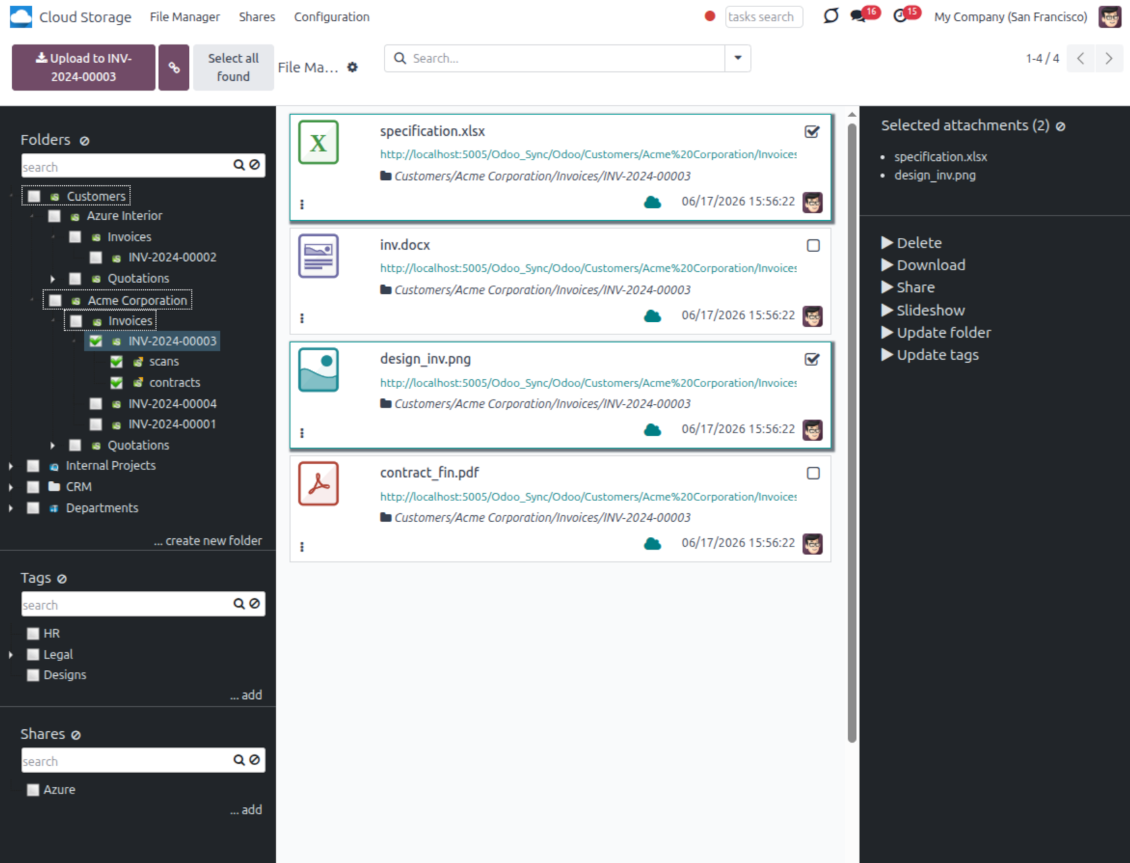
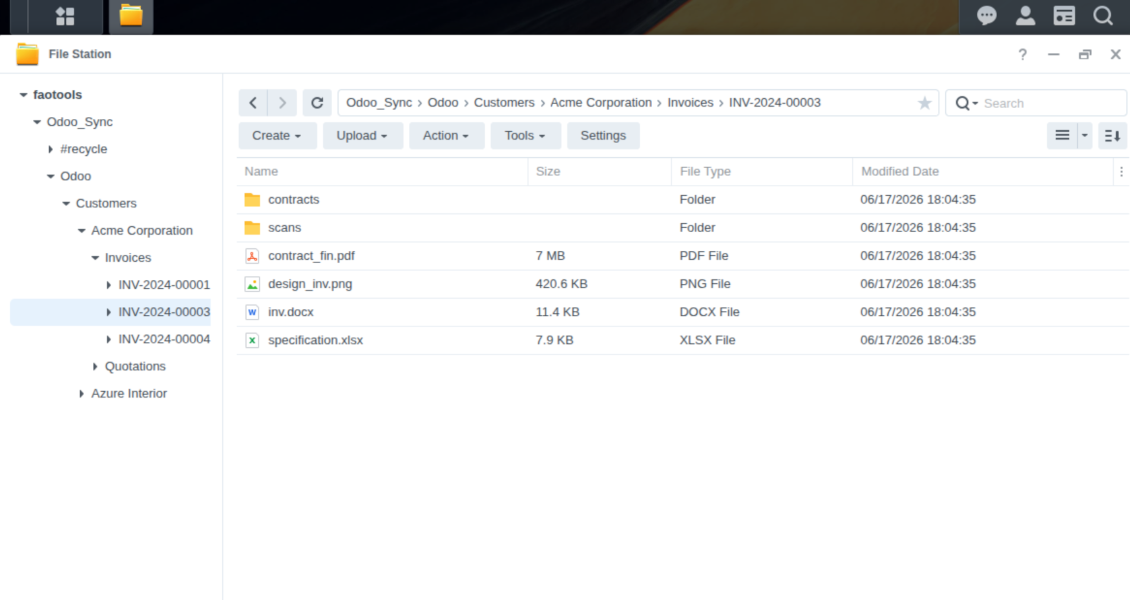
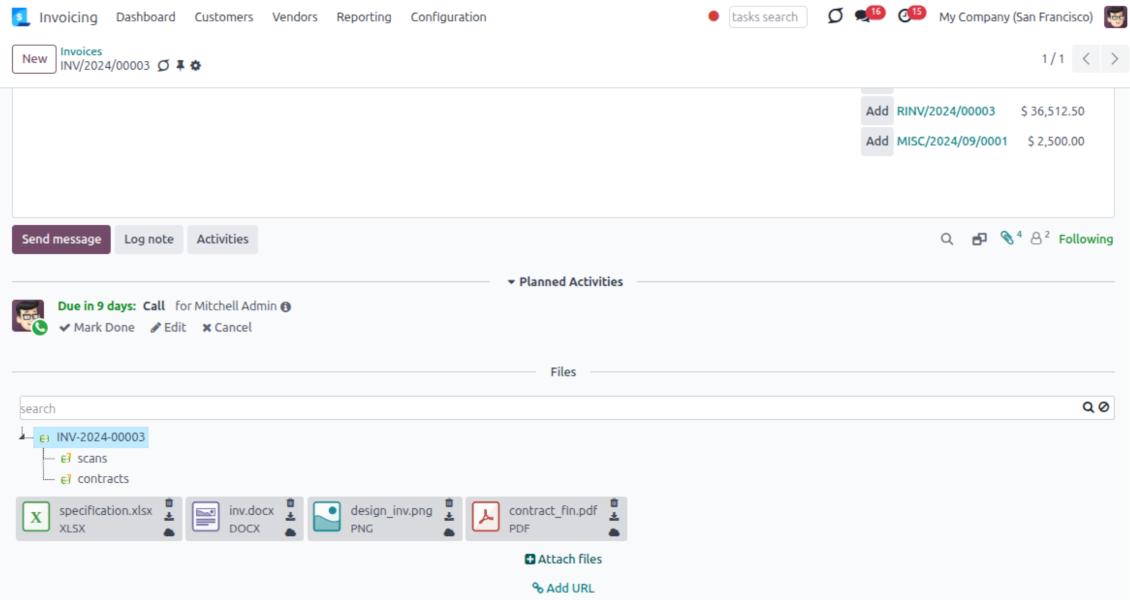
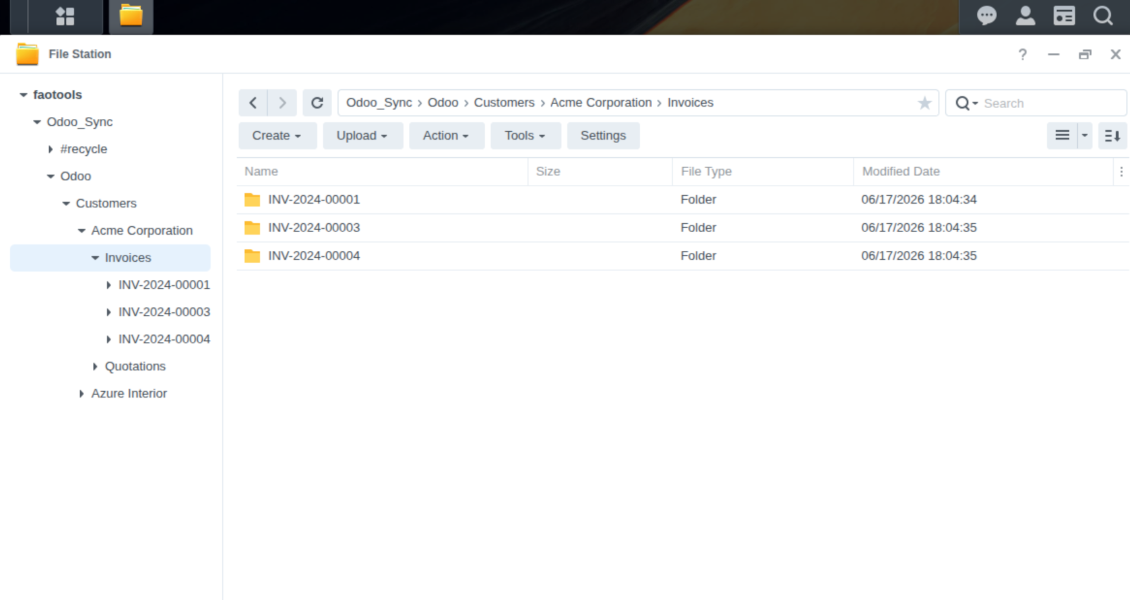
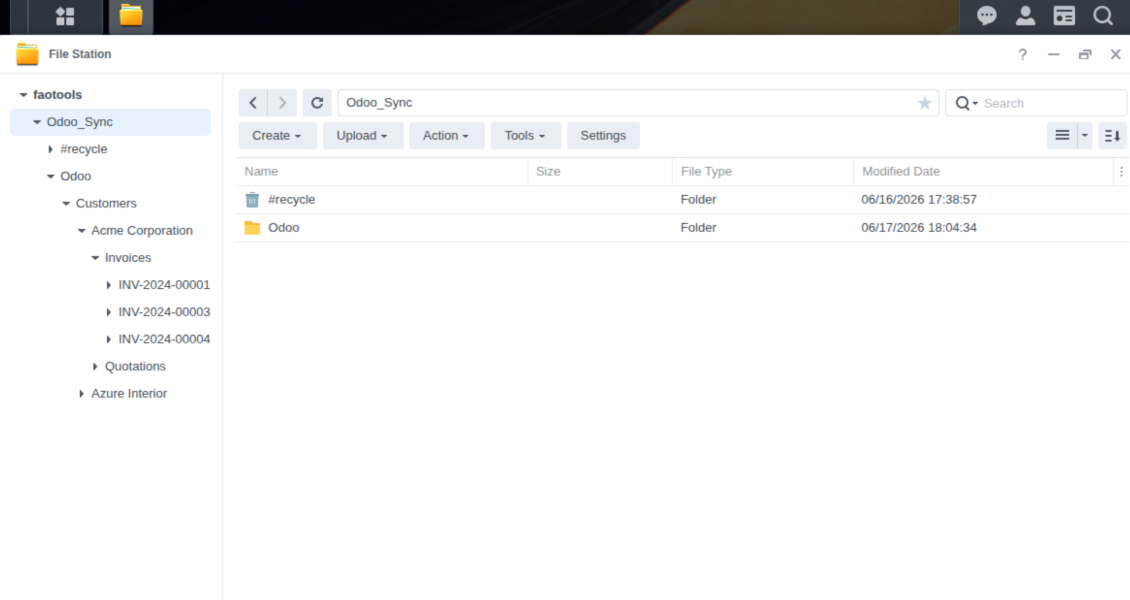
This is the tool to integrate NAS storage with Odoo folders and files through WebDAV. The app automatically stores Odoo attachments and directories in Synology, QNAP, TrueNAS (with WebDAV app), or any compatible NAS/WebDAV server and provides instant access to them via web links.
Automatic folders' structure
Decide which Odoo document types should have their own folders trees and synchronize those to NAS
Automatic regular sync
Rely on auto-synchronization between Odoo and Synology/QNAP/TrueNAS/other NAS based on scheduled jobs. No manual interaction is required
Bilateral sync
Odoo sends attachments to Synology/QNAP/TrueNAS/other NAS and retrieves files from there. Binary content is kept in clouds, while Odoo provides direct access to synced items
Cloud synchronization history
Control NAS Webdav sync logs right in Odoo. Export and share those in case of any issues. Be notified of any client disconnections
File manager interface
Manage synced folders and attachments from a single Odoo view. Comfortably navigate by directories. Search and download files one by one or in batch. Upload and move attachments to folders
Attachment box
Organize files of any Odoo object in a set of subfolders. Instantly access folders and files in the attachment box and in NAS solutions.
How synchronization works
Automatic two-sided sync
-
Configure sync for one or multiple Synology/QNAP/TrueNAS/other NAS instances
-
Integration is based on scheduled jobs and is fully automatized. The app regularly checks changes in systems and runs sync operations
-
Synchronization is bilateral. Updates in Odoo are reflected in Synology/QNAP/TrueNAS/other NAS (direct sync); changes in NAS solutions modify Odoo folders and attachments (backward sync)
-
Cloud connection with Synology/QNAP/TrueNAS/other NAS might be reset. In this way, the app assumes getting back all items back to Odoo (reverse sync)
-
Odoo folders and attachments might be re-attached to a new cloud client from Synology/QNAP/TrueNAS/other NAS. Hence, items will be first taken back to Odoo (reverse sync) and then will be put into the new cloud storage (direct sync)
Queue-based synchronization
-
Once in 15 minutes, the app examines updates in Odoo and Synology/QNAP/TrueNAS/other NAS to prepare a synchronization queue
-
Folders' checks follow the First-In-First-Out (FIFO) principle. So, directories that have not been examined for the longest will be processed first
-
Once in 15 minutes, the sync queue is run by the special scheduled job. Firstly, the most important (blocking) tasks would be done
-
Control planned jobs and their fulfillment in the special Odoo logs interface (Cloud Storage > Configuration > Sync Logs). Subscribe for particular cloud clients notifications
-
If the app faces sync failures, it will re-try operations afterward. Sync queue processing would not be stopped if there are items not blocked by such failures
Odoo attachments for NAS solutions: direct sync
-
Direct sync prepares the folders' hierarchy and uploads Odoo attachments for Synology/QNAP/TrueNAS/other NAS
-
Direct sync checks whether attachments are added or deleted for synced directories. If so, they would be created or removed in Synology/QNAP/TrueNAS/other NAS. In particular, it means that any file added to a folder-related Odoo object (e.g. Quotation), would be automatically moved to a linked cloud client
-
Direct sync makes all synced Odoo attachments change their type to a link (URL), while binary content is removed with one of the next Odoo cleaners. So, no actual files would be stored on your Odoo server
-
Direct sync checks whether a new folder is added. Disregarding whether it is done manually or automatically, the app would generate a peer directory in Synology/QNAP/TrueNAS/other NAS
-
Direct sync checks whether there are any updates in folders. If so, such changes are reflected in Synology/QNAP/TrueNAS/other NAS
WebDAV files and folders for Odoo: backward sync
-
Backward sync checks whether any files or subfolders are added to Synology/QNAP/TrueNAS/other NAS folders. If so, the app would create URL attachments/subdirectories inside linked Odoo directories (and hence Odoo objects if any)
-
Backward sync checks whether there are any updates in folders or attachments. Such updates would be then reflected in Odoo
-
Backward sync checks whether any files are deleted/moved in a Synology/QNAP/TrueNAS/other NAS document folder. If so, a linked Odoo attachment would be also unlinked or moved
-
If you deleted a Synology/QNAP/TrueNAS/other NAS folder related to a folder rule / Odoo object, their child files would be deleted as well. Thus, Odoo would remove related attachments. The folders, however, will be recovered with a direct sync
-
In case of conflicts, direct sync changes are in general considered more important than backward updates.
Resetting or changing Synology/QNAP/TrueNAS/other NAS: reverse sync
-
In case you decided to reset the connection with Synology/QNAP/TrueNAS/other NAS, files would be moved back to Odoo
-
In case you decided to change the cloud client of a folder rule or a folder, files would be first taken back to Odoo, and then direct sync for a new client would be done
-
Reverse sync operations are prioritized to direct and backward sync operations
-
Not all items can be correctly reversed to Odoo due to cloud client peculiarities. For example, there are documents that may exist only in cloud storage environments. The app would try to convert such documents, but in some cases, it would require manual interactions.
Petua konfigurasi dan pemasangan untuk NAS / Synology / QNAP / TrueNAS Odoo Integration Odoo v.18
NAS preconfiguration notes
NAS systems usually expose files through a local network. If your Odoo server is hosted outside that network, the WebDAV endpoint should be reachable from Odoo through a secure channel. Recommended options are a reverse proxy with a valid HTTPS certificate, a VPN or secure tunnel such as WireGuard, Tailscale, or Cloudflare Tunnel, or a vendor relay such as Synology QuickConnect or QNAP myQNAPcloud. Plain port forwarding is possible but should be treated as the least preferred option.
Use a dedicated NAS user with the minimum required rights to one shared folder: read, create, update, move, and delete. Avoid administrator accounts. Publicly exposed endpoints should always use HTTPS and a valid TLS certificate. The connector has a "Verify SSL" option for trusted self-signed certificates, but it should normally remain enabled.
Configuration and log in
- Turn on the option 'NAS Sync' (Cloud Storage > Configuration > Configuration). The optional add-on NAS Odoo Integration is required
- Prepare your NAS WebDAV endpoint:
- Synology: install and enable WebDAV Server in DSM and choose HTTPS where possible
- QNAP: enable WebDAV for the target shared folder and use HTTPS where possible
- TrueNAS CORE: enable the WebDAV service; TrueNAS SCALE: install and configure the WebDAV app, since native WebDAV was removed in modern SCALE releases
- Generic WebDAV: make sure PROPFIND, MKCOL, PUT, GET, MOVE, and DELETE are available
- If Odoo is hosted outside the local NAS network, make the WebDAV endpoint reachable securely. Prefer a reverse proxy with a valid TLS certificate, a VPN/secure tunnel such as WireGuard, Tailscale, or Cloudflare Tunnel, or a vendor relay such as Synology QuickConnect or QNAP myQNAPcloud. Avoid exposing an administrator interface to the Internet
- Create a dedicated NAS user with full rights only inside the target shared folder: read, create, write, move, and delete. Do not use an administrator account
- Go to Odoo Cloud Storage > Configuration > Cloud Clients and press 'Create'
- As a reference, introduce any name which would be clear to all users
- As a Cloud client, choose 'Synology NAS', 'QNAP NAS', 'TrueNAS', or 'WebDAV NAS'
- As a Root folder name, enter a title that will be used as the parent NAS directory for all synced folders. For example, 'Odoo' or 'OdooERP'
- Enter the full WebDAV URL, login, and password. Optionally define a base path if Odoo should create the root folder inside an existing share or directory
- Keep 'Verify SSL' enabled for public HTTPS endpoints. Disable it only for a trusted private endpoint with a self-signed certificate
- Optionally define a browser base URL if NAS files should be opened through a vendor file station URL instead of the raw WebDAV URL
- Press 'Confirm'. Odoo checks the WebDAV connection and creates or finds the root directory. NAS - Odoo synchronization is ready to be done
- Apply the newly created cloud client to folder rules and/or manual folders which should be synced to that NAS storage
- Await the sync scheduled job to be started. For testing purposes only: trigger integration manually from Cloud Storage > Configuration > Configuration > the button 'Launch sync'.
Enter QNAP credentials

Enter Synology credentials

Enter TrueNAS credentials

Soalan lazim tentang NAS / Synology / QNAP / TrueNAS Odoo Integration Odoo v.18
Medan disegerak disimpan di mana? Adakah ia diduplikasikan ke Odoo dan clouds?
Aplikasi mengandaikan kandungan binari lampiran disimpan dalam Cloud Client, bukan pada pelayan Odoo. Lampiran sedemikian dalam Odoo menjadi jenis URL, dan anda boleh membukanya pada bila-bila masa dari kotak lampiran atau dari Cloud Client.
Selepas persediaan, tiada tindakan manual diperlukan kerana penyegerakan sepenuhnya automatik. Tentukan jenis dokumen Odoo yang perlu disegerakkan dan sediakan model berkaitan untuk setiap satunya (Pelanggan, pesanan jualan atau belian, Tugasan, Projek, dll.).
Bolehkah saya mempunyai beberapa folder untuk jenis dokumen yang sama? Contohnya, projek dalaman dan projek pelanggan?
Ya, anda boleh. Untuk itu sediakan peraturan untuk setiap satu, kemudian gunakan penapis: contohnya mengikut jenis projek.
Cuba jadikan penapis saling eksklusif supaya dokumen dapat ditetapkan dengan pasti. Contohnya 'pelanggan tetapi bukan pembekal', 'pembekal tetapi bukan pelanggan'. Jika tidak, folder dokumen tertentu akan meloncat dari satu model ke model lain.
Bolehkah penyegerakan dibuat masa nyata?
Tidak. Kami mempunyai alasan kukuh untuk mengelak penyegerakan masa nyata:
Isu prestasi. Jika penyegerakan masa nyata, setiap muat naik fail akan memaparkan skrin muat.
Isu konflik. Jika 2 pengguna menukar item secara serentak, situasi yang tidak selesai mungkin timbul. Dengan kerja berkala kami boleh membetulkannya kemudian; pada masa nyata ia perlu disimpan sebagai baris gilir, yang lebih mengelirukan pengguna.
Isu fungsi. Khususnya menamakan semula dan menyusun semula item. Dalam penyegerakan undur, alat bergantung ketat pada logik direktori, dan setiap penyegerakan 100% item diperiksa. Jika dilakukan selepas setiap kemas kini, akan ada beribu permintaan sesaat. Jika tidak: perubahan akan hilang.
Bolehkah saya menukar nama folder lalai dalam awan?
Anda boleh menetapkan nama sendiri untuk direktori model (pesanan jualan, peluang, pembekal, dll.) bagi mana-mana jenis dokumen.
Untuk folder objek (SO-001, John Smith, dll.), alat bergantung pada kaedah Odoo untuk membina nama paparan jenis dokumen ini. Walau bagaimanapun anda boleh menukarnya dengan mentakrif ungkapan nama. Sintaks yang digunakan sama seperti templat e-mel Odoo.
Bolehkah saya menukar kekerapan kerja penyegerakan?
Tidak, mulai versi 15 anda tidak patut menukar kerja berjadual. Ia dioptimumkan untuk berjalan setiap 15 minit bagi menjamin sambungan paling stabil dan pantas.
Pastikan had masa pelayan Odoo sekurang-kurangnya 15 minit (900 saat).
Jika perlu hentikan penyegerakan seketika, lakukan pada borang cloud client tertentu.
Bolehkah saya segerakkan lampiran ke beberapa klien awan
Ya, mulai versi 15 anda boleh sediakan berbilang sambungan. Dengan itu sesetengah folder disegerakkan ke satu cloud client, yang lain ke yang lain.
Ambil perhatian bahawa folder yang sama tidak boleh disegerakkan ke beberapa cloud storages pada masa yang sama.
Kami menggunakan editor khas dalam awan kami (cth. OnlyOffice, Office 365, dll.). Adakah fail dibuka dalam editor itu?
Ya, bergantung pada konfigurasi cloud client anda.
Adakah saya hanya memerlukan aplikasi Cloud Storage Solution?
Bermula versi 15, aplikasi boleh digunakan bersendirian untuk menyusun lampiran dalam folder dan menyediakan antara muka pengurus fail.
Walau bagaimanapun, jika matlamatnya sambungan dengan salah satu klien awan, anda perlu memasang sekurang-kurangnya satu aplikasi pilihan berkaitan klien.
Apa yang berlaku apabila saya menukar peraturan folder?
Apabila peraturan folder berubah, senarai folder juga berubah. Jika folder tidak lagi memenuhi syarat peraturan, ia dialih keluar. Jika fail telah disegerakkan, segerak terbalik mengembalikannya ke Odoo dan memadamnya daripada Cloud Client.
Jika objek dokumen tidak memenuhi syarat peraturan folder, foldernya tidak akan dicipta. Jika kemudiannya memenuhi, folder berkaitan akan dijana.
Bolehkah saya kekalkan segerak terus sahaja, atau matikan penyegerakan dari awan?
Ya. Pada klien awan, buka halaman Tetapan dan hidupkan Matikan penyegerakan dari awan.
Segerak kekal sehala. Perubahan yang dibuat dalam Odoo masih dihantar ke storan awan. Fail dan folder yang dibuat, dinamakan semula atau dipadam dalam storan awan tidak dipaparkan dalam Odoo, dan folder yang dipadam di sana tidak dipulihkan.
Matikan pilihan itu semula untuk memakai perubahan terkumpul, termasuk pemadaman, pada segerak seterusnya.
Tetapan ini tersedia mulai versi 18. Menyahpaut, menetapkan semula atau menyahaktifkan klien masih menjalankan penyegerakan songsang, melainkan anda matikan juga penyegerakan itu.
Teks aplikasi dan laman web dalam bahasa selain Inggeris dibantu AI dan diselaraskan dengan terjemahan rasmi Odoo. Jika anda nampak kesilapan, hantar tiket ketepatan terjemahan dan kami akan membetulkannya.
Pangkalan data demonstrasi Odoo (pratonton langsung)
Untuk aplikasi ini, kami mungkin sediakan pangkalan data demo peribadi percuma.
Anda tidak memerlukan nombor telefon atau kad kredit untuk menghubungi kami. Hanya pendaftaran e-mel ringkas yang tidak mengambil lebih daripada 30 saat.
Atas permintaan anda, kami sediakan pangkalan data pratonton langsung individu, di mana anda boleh menguji dan semak andaian selama kira-kira dua minggu.
Pelaporan pepijat
Jika anda menemui pepijat atau tingkah laku tidak konsisten, sila hubungi kami. Kami jamin pembetulan dalam 60 hari selepas belian dan masih berminat menambah baik alat selepas tempoh itu.
Anda tidak memerlukan nombor telefon atau kad kredit untuk menghubungi kami. Hanya pendaftaran e-mel ringkas yang tidak mengambil lebih daripada 30 saat.
Sertakan sebanyak mungkin butiran dalam permintaan: tangkapan skrin, log pelayan Odoo, penerangan penuh cara menghasilkan semula masalah, dan sebagainya. Biasanya mengambil beberapa hari bekerja untuk menyediakan pelan kerja (jika pepijat disahkan) atau memberi garis panduan apa yang perlu dilakukan (jika tidak).
Permintaan ciri awam dan idea modul (pembangunan percuma)
Kami sangat bermotivasi untuk menambah baik alat kami dan berterima kasih atas sebarang maklum balas. Jika keperluan anda berguna secara awam dan boleh dilaksanakan dengan cekap, pasukan akan memasukkannya ke senarai tugasan kami.
Senarai tugasan sebegini diproses secara berkala dan tidak melibatkan yuran tambahan. Walaupun kami tidak dapat menjanjikan tarikh akhir dan reka bentuk muktamad, ini mungkin cara baik untuk mendapat ciri yang diingini tanpa pelaburan dan risiko.
Anda tidak memerlukan nombor telefon atau kad kredit untuk menghubungi kami. Hanya pendaftaran e-mel ringkas yang tidak mengambil lebih daripada 30 saat.


The tool to build a deep and structured knowledge base for internal and external use. Knowledge System. KMS. Wiki-like revisions.
398€
The tool to set up KPI targets and control their fulfillment by periods. KPI dashboards. Dashboard designer. KPI charts

The tool for time-based service management from booking appointments to sales and reviews
398€
The tool to manage your Odoo from your favorite AI chats through MCP. Claude. Any MCP-supporting AI.

Alat untuk menyusun lampiran Odoo secara fleksibel dalam folder dan menyegerakkan direktori dengan klien awan: Google Drive, OneDrive/SharePoint, Nextcloud/ownCloud, Dropbox, Amazon S3, Box dan NAS. DMS. Pengurus Fail. Sistem pengurusan dokumen
398€
The tool to automatically synchronize Odoo attachments with OneDrive files in both ways
487€
The tool to automatically synchronize Odoo attachments with Google Drive files in both ways
487€
The tool to automatically synchronize Odoo attachments with ownCloud/Nextcloud files in both ways
487€