NAS / Synology / QNAP / TrueNAS Odoo Integration v.18
The tool to automatically synchronize Odoo attachments with NAS Solutions in both ways. Synology, QNAP, TrueNAS and any other WebDav-supporting NAS solutions
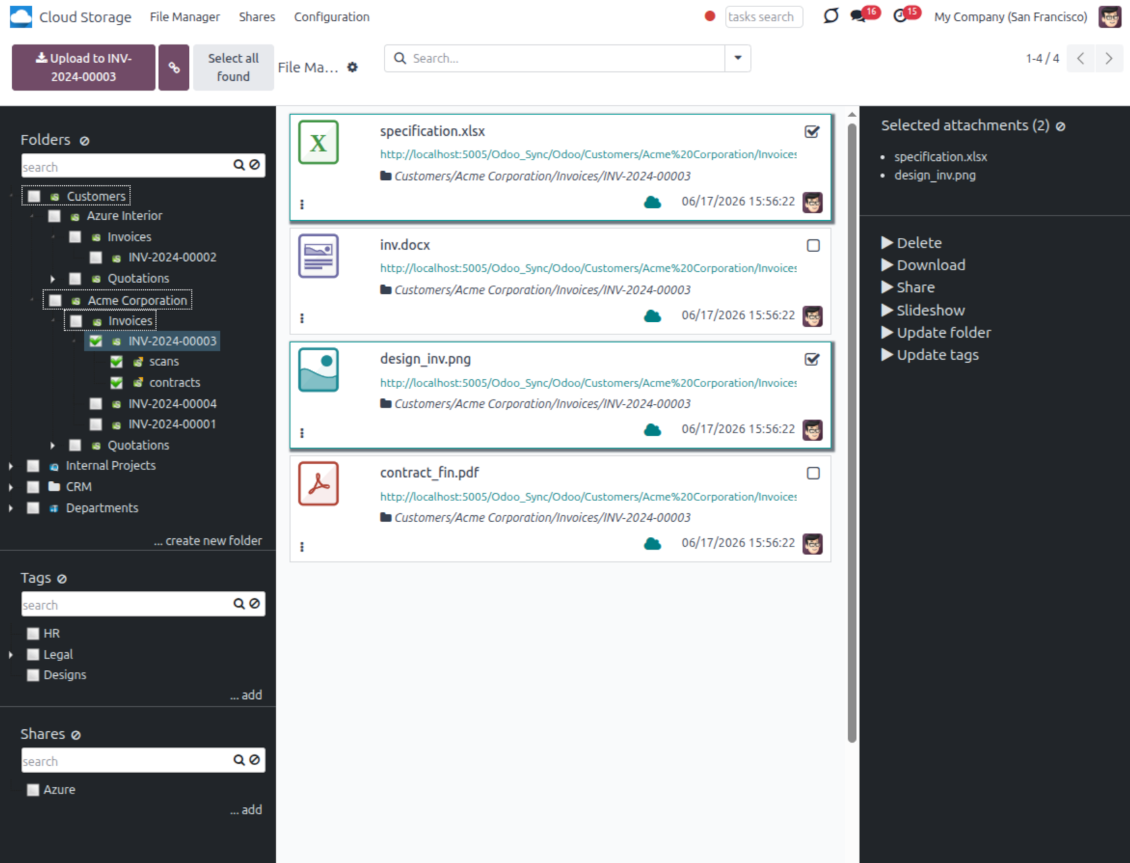
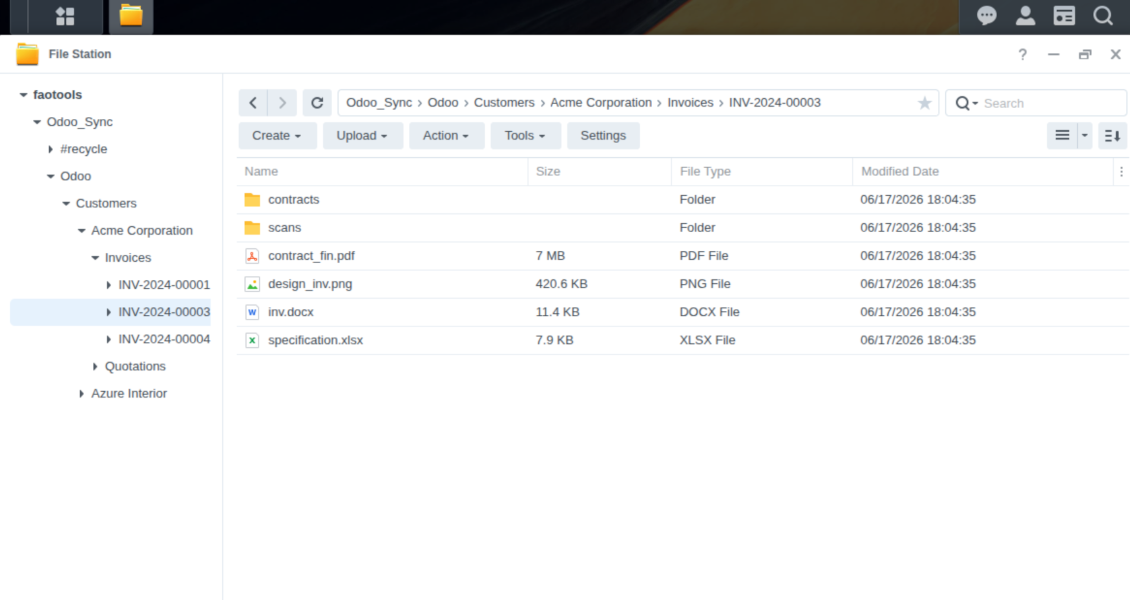
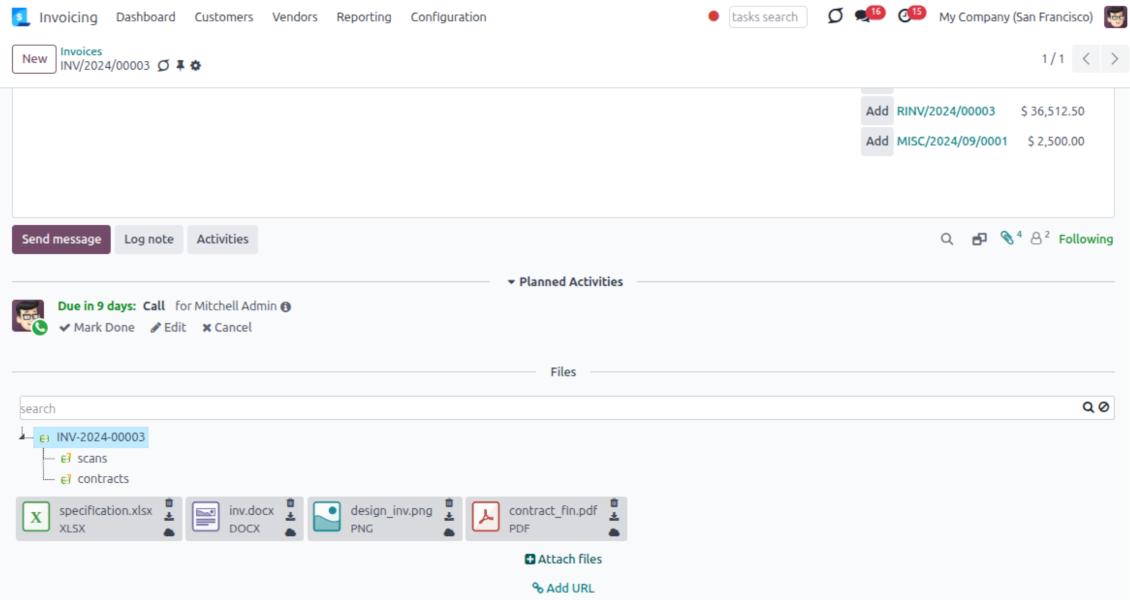
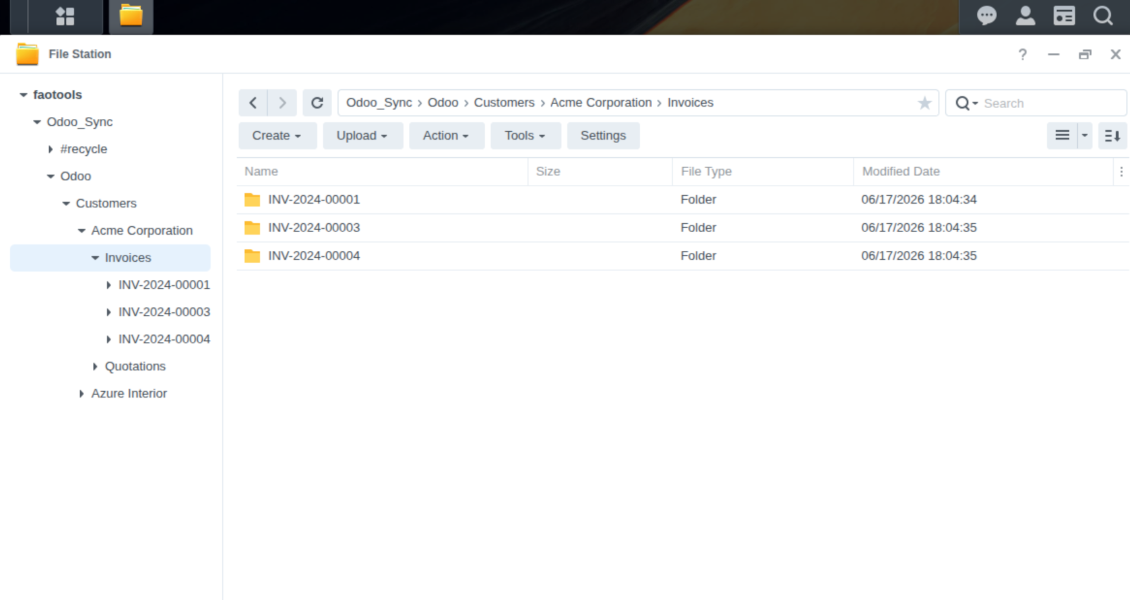
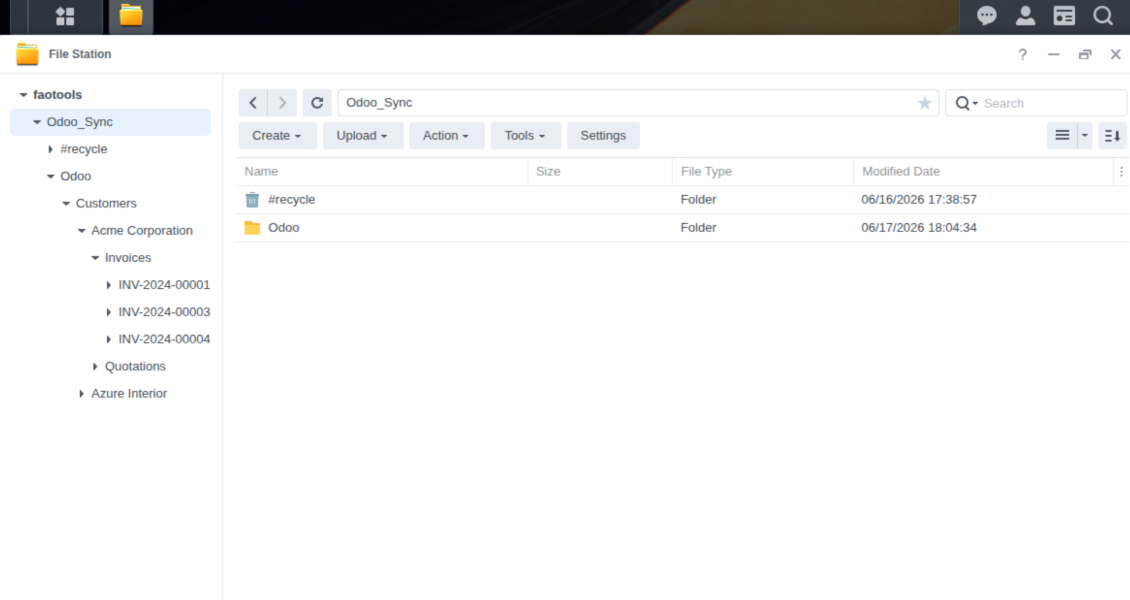
This is the tool to integrate NAS storage with Odoo folders and files through WebDAV. The app automatically stores Odoo attachments and directories in Synology, QNAP, TrueNAS (with WebDAV app), or any compatible NAS/WebDAV server and provides instant access to them via web links.
Automatic folders' structure
Decide which Odoo document types should have their own folders trees and synchronize those to NAS
Automatic regular sync
Rely on auto-synchronization between Odoo and Synology/QNAP/TrueNAS/other NAS based on scheduled jobs. No manual interaction is required
Bilateral sync
Odoo sends attachments to Synology/QNAP/TrueNAS/other NAS and retrieves files from there. Binary content is kept in clouds, while Odoo provides direct access to synced items
Cloud synchronization history
Control NAS Webdav sync logs right in Odoo. Export and share those in case of any issues. Be notified of any client disconnections
File manager interface
Manage synced folders and attachments from a single Odoo view. Comfortably navigate by directories. Search and download files one by one or in batch. Upload and move attachments to folders
Attachment box
Organize files of any Odoo object in a set of subfolders. Instantly access folders and files in the attachment box and in NAS solutions.
How synchronization works
Automatic two-sided sync
-
Configure sync for one or multiple Synology/QNAP/TrueNAS/other NAS instances
-
Integration is based on scheduled jobs and is fully automatized. The app regularly checks changes in systems and runs sync operations
-
Synchronization is bilateral. Updates in Odoo are reflected in Synology/QNAP/TrueNAS/other NAS (direct sync); changes in NAS solutions modify Odoo folders and attachments (backward sync)
-
Cloud connection with Synology/QNAP/TrueNAS/other NAS might be reset. In this way, the app assumes getting back all items back to Odoo (reverse sync)
-
Odoo folders and attachments might be re-attached to a new cloud client from Synology/QNAP/TrueNAS/other NAS. Hence, items will be first taken back to Odoo (reverse sync) and then will be put into the new cloud storage (direct sync)
Queue-based synchronization
-
Once in 15 minutes, the app examines updates in Odoo and Synology/QNAP/TrueNAS/other NAS to prepare a synchronization queue
-
Folders' checks follow the First-In-First-Out (FIFO) principle. So, directories that have not been examined for the longest will be processed first
-
Once in 15 minutes, the sync queue is run by the special scheduled job. Firstly, the most important (blocking) tasks would be done
-
Control planned jobs and their fulfillment in the special Odoo logs interface (Cloud Storage > Configuration > Sync Logs). Subscribe for particular cloud clients notifications
-
If the app faces sync failures, it will re-try operations afterward. Sync queue processing would not be stopped if there are items not blocked by such failures
Odoo attachments for NAS solutions: direct sync
-
Direct sync prepares the folders' hierarchy and uploads Odoo attachments for Synology/QNAP/TrueNAS/other NAS
-
Direct sync checks whether attachments are added or deleted for synced directories. If so, they would be created or removed in Synology/QNAP/TrueNAS/other NAS. In particular, it means that any file added to a folder-related Odoo object (e.g. Quotation), would be automatically moved to a linked cloud client
-
Direct sync makes all synced Odoo attachments change their type to a link (URL), while binary content is removed with one of the next Odoo cleaners. So, no actual files would be stored on your Odoo server
-
Direct sync checks whether a new folder is added. Disregarding whether it is done manually or automatically, the app would generate a peer directory in Synology/QNAP/TrueNAS/other NAS
-
Direct sync checks whether there are any updates in folders. If so, such changes are reflected in Synology/QNAP/TrueNAS/other NAS
WebDAV files and folders for Odoo: backward sync
-
Backward sync checks whether any files or subfolders are added to Synology/QNAP/TrueNAS/other NAS folders. If so, the app would create URL attachments/subdirectories inside linked Odoo directories (and hence Odoo objects if any)
-
Backward sync checks whether there are any updates in folders or attachments. Such updates would be then reflected in Odoo
-
Backward sync checks whether any files are deleted/moved in a Synology/QNAP/TrueNAS/other NAS document folder. If so, a linked Odoo attachment would be also unlinked or moved
-
If you deleted a Synology/QNAP/TrueNAS/other NAS folder related to a folder rule / Odoo object, their child files would be deleted as well. Thus, Odoo would remove related attachments. The folders, however, will be recovered with a direct sync
-
In case of conflicts, direct sync changes are in general considered more important than backward updates.
Resetting or changing Synology/QNAP/TrueNAS/other NAS: reverse sync
-
In case you decided to reset the connection with Synology/QNAP/TrueNAS/other NAS, files would be moved back to Odoo
-
In case you decided to change the cloud client of a folder rule or a folder, files would be first taken back to Odoo, and then direct sync for a new client would be done
-
Reverse sync operations are prioritized to direct and backward sync operations
-
Not all items can be correctly reversed to Odoo due to cloud client peculiarities. For example, there are documents that may exist only in cloud storage environments. The app would try to convert such documents, but in some cases, it would require manual interactions.
Sugestões de configuração e instalação para NAS / Synology / QNAP / TrueNAS Odoo Integration Odoo v.18
NAS preconfiguration notes
NAS systems usually expose files through a local network. If your Odoo server is hosted outside that network, the WebDAV endpoint should be reachable from Odoo through a secure channel. Recommended options are a reverse proxy with a valid HTTPS certificate, a VPN or secure tunnel such as WireGuard, Tailscale, or Cloudflare Tunnel, or a vendor relay such as Synology QuickConnect or QNAP myQNAPcloud. Plain port forwarding is possible but should be treated as the least preferred option.
Use a dedicated NAS user with the minimum required rights to one shared folder: read, create, update, move, and delete. Avoid administrator accounts. Publicly exposed endpoints should always use HTTPS and a valid TLS certificate. The connector has a "Verify SSL" option for trusted self-signed certificates, but it should normally remain enabled.
Configuration and log in
- Turn on the option 'NAS Sync' (Cloud Storage > Configuration > Configuration). The optional add-on NAS Odoo Integration is required
- Prepare your NAS WebDAV endpoint:
- Synology: install and enable WebDAV Server in DSM and choose HTTPS where possible
- QNAP: enable WebDAV for the target shared folder and use HTTPS where possible
- TrueNAS CORE: enable the WebDAV service; TrueNAS SCALE: install and configure the WebDAV app, since native WebDAV was removed in modern SCALE releases
- Generic WebDAV: make sure PROPFIND, MKCOL, PUT, GET, MOVE, and DELETE are available
- If Odoo is hosted outside the local NAS network, make the WebDAV endpoint reachable securely. Prefer a reverse proxy with a valid TLS certificate, a VPN/secure tunnel such as WireGuard, Tailscale, or Cloudflare Tunnel, or a vendor relay such as Synology QuickConnect or QNAP myQNAPcloud. Avoid exposing an administrator interface to the Internet
- Create a dedicated NAS user with full rights only inside the target shared folder: read, create, write, move, and delete. Do not use an administrator account
- Go to Odoo Cloud Storage > Configuration > Cloud Clients and press 'Create'
- As a reference, introduce any name which would be clear to all users
- As a Cloud client, choose 'Synology NAS', 'QNAP NAS', 'TrueNAS', or 'WebDAV NAS'
- As a Root folder name, enter a title that will be used as the parent NAS directory for all synced folders. For example, 'Odoo' or 'OdooERP'
- Enter the full WebDAV URL, login, and password. Optionally define a base path if Odoo should create the root folder inside an existing share or directory
- Keep 'Verify SSL' enabled for public HTTPS endpoints. Disable it only for a trusted private endpoint with a self-signed certificate
- Optionally define a browser base URL if NAS files should be opened through a vendor file station URL instead of the raw WebDAV URL
- Press 'Confirm'. Odoo checks the WebDAV connection and creates or finds the root directory. NAS - Odoo synchronization is ready to be done
- Apply the newly created cloud client to folder rules and/or manual folders which should be synced to that NAS storage
- Await the sync scheduled job to be started. For testing purposes only: trigger integration manually from Cloud Storage > Configuration > Configuration > the button 'Launch sync'.
Enter QNAP credentials

Enter Synology credentials

Enter TrueNAS credentials

Perguntas frequentes sobre NAS / Synology / QNAP / TrueNAS Odoo Integration Odoo v.18
Onde ficam armazenados os arquivos sincronizados? São duplicados no Odoo e nas clouds?
A aplicativo assume que o conteúdo binário dos anexos fica no Cloud Client e não no servidor Odoo. Esses anexos no Odoo passam a ser do tipo URL e pode aceder-lhes a qualquer momento a partir da caixa de anexos ou do Cloud Client.
Após a configuração, não são necessárias ações manuais: a sincronização é totalmente automática. Decida que tipos de documento Odoo devem ser sincronizados e configure um modelo relacionado para cada um (clientes, encomendas de venda ou compra, tarefas, projetos, etc.).
Posso ter várias pastas para o mesmo tipo de documento? Por exemplo, projetos internos e projetos de clientes?
Sim, pode. Para isso, prepare uma regra para cada uma e aplique filtros: por exemplo, por tipo de projeto.
Torne os filtros mutuamente exclusivos para que um documento seja atribuído de forma inequívoca. Por exemplo: «cliente mas não fornecedor», «fornecedor mas não cliente». Caso contrário, a pasta do documento saltaria de um modelo para outro.
É possível tornar a sincronização em tempo real?
Não. Temos razões fortes para evitar a sincronização em tempo real:
Desempenho. Se a sincronização for em tempo real, cada carregamento de arquivo mostra o ecrã de espera.
Conflitos. Se 2 utilizadores alterarem um item ao mesmo tempo, a situação pode ficar sem solução. Com trabalhos regulares podemos corrigir depois; em tempo real seria preciso uma fila, ainda mais confusa.
Funcionalidade. Em especial, mudar o nome e reestruturar. A sincronização inversa baseia-se na lógica dos diretórios e em cada sincronização verifica 100 % dos itens. Após cada atualização seriam milhares de pedidos por segundo. Caso contrário, as alterações perder-se-iam.
Posso alterar o nome predefinido das pastas nas clouds?
Pode atribuir o seu nome aos diretórios dos modelos (encomendas de venda, oportunidades, fornecedores, etc.) para qualquer tipo de documento.
Para as pastas de objetos (SO-001, John Smith, etc.), a ferramenta usa o método Odoo que constrói o nome de apresentação. Pode alterá-lo com uma expressão de nome. A sintaxe é a dos modelos de e-mail Odoo.
Posso alterar a frequência dos trabalhos de sincronização?
Não, a partir da versão 15 não deve alterar as ações agendadas. Estão otimizadas para correr a cada 15 minutos e garantir a ligação mais estável e rápida.
Os timeouts do servidor Odoo devem ser de pelo menos 15 minutos (900 segundos).
Para parar a sincronização temporariamente, faça-o no formulário do cliente cloud em causa.
Posso sincronizar anexos com vários clientes cloud
Sim, a partir da versão 15 pode configurar várias ligações. Assim é possível sincronizar algumas pastas com um cliente cloud e outras com outro.
Tenha em conta que não é possível sincronizar a mesma pasta com vários armazenamentos cloud ao mesmo tempo.
Usamos um editor especial nas clouds (p. ex. OnlyOffice, Office 365, etc.). Os arquivos seriam abertos nesse editor?
Sim, consoante a configuração do seu cliente cloud.
Preciso apenas da aplicativo Cloud Storage Solution?
A partir da versão 15 a aplicativo pode ser usada sozinha para estruturar anexos em pastas e disponibilizar uma interface de gestor de arquivos.
Se o objetivo for ligar a um dos clientes cloud, é preciso instalar pelo menos uma aplicativo opcional do cliente.
O que acontece quando altero uma regra de pasta?
Quando uma regra de pasta muda, a lista de pastas também muda. Se uma pasta deixar de corresponder às condições, é removida. Se os arquivos já estavam sincronizados, a sincronização inversa devolve-os ao Odoo e apaga-os do Cloud Client.
Se o objeto do documento não corresponder à regra de pasta, a pasta não é criada. Se mais tarde corresponder, a pasta relacionada será gerada.
Posso manter apenas a sincronização direta ou desativar a sincronização a partir da nuvem?
Sim. No cliente de nuvem, abra a página Definições e ative Desativar a sincronização a partir da nuvem.
A sincronização permanece em um só sentido. As alterações feitas no Odoo continuam sendo enviadas ao armazenamento na nuvem. Os arquivos e pastas criados, renomeados ou excluídos no armazenamento na nuvem não aparecem no Odoo, e as pastas excluídas lá não são restauradas.
Desative a opção de novo para aplicar essas alterações acumuladas, inclusive exclusões, na sincronização seguinte.
Esta definição está disponível a partir da versão 18. Desvincular, redefinir ou desativar o cliente continua executando a sincronização inversa, a menos que você a desative também.
Os textos da aplicação e do site em idiomas diferentes do inglês são assistidos por IA e estão alinhados com as traduções oficiais do Odoo. Se detetar um erro, enviar um pedido de tradução e nos corrigimos.
Bases de dados de demonstração Odoo (pré-visualizações)
Para esta aplicação, podemos fornecer uma base de dados de demonstração personalizada gratuita.
Não precisa de um número de telefone ou cartão de crédito para entrar em contacto connosco. Deve apenas passar por um breve registo de e-mail, que não demora mais de 30 segundos.
A seu pedido, preparamos uma base de dados de pré-visualização individual onde pode fazer qualquer teste e validar as suas hipóteses durante cerca de duas semanas.
Comunicação de erros
Se encontrar bugs ou comportamento inconsistente, não hesite em nos contactar. Garantimos o fornecimento de correções em até 60 dias após a compra e estamos intensamente interessados em melhorar nossas ferramentas mesmo após esse período.
Não precisa de um número de telefone ou cartão de crédito para entrar em contacto connosco. Deve apenas passar por um breve registo de e-mail, que não demora mais de 30 segundos.
Inclua o máximo de detalhes possível no seu pedido: capturas de ecrã, registos do servidor Odoo, uma descrição completa de como reproduzir o problema, entre outros. Normalmente, sao necessários alguns dias úteis para preparar um plano de trabalho para um problema (se for confirmado um erro) ou fornecer orientacoes sobre o que deve ser feito (caso contrário).
Pedidos de recursos públicos e ideias de módulos (desenvolvimento gratuito)
Estamos fortemente motivados para melhorar as nossas ferramentas e ficaríamos gratos por qualquer feedback. Se os seus requisitos forem de utilização pública e puderem ser implementados de forma eficiente, a equipa irá incluí-los na nossa lista de tarefas.
Esta lista de tarefas é processada regularmente e não envolve taxas extra. Embora não possamos prometer prazos e design final, pode ser uma boa forma de obter as características desejadas sem investimentos e riscos.
Não precisa de um número de telefone ou cartão de crédito para entrar em contacto connosco. Deve apenas passar por um breve registo de e-mail, que não demora mais de 30 segundos.


The tool to build a deep and structured knowledge base for internal and external use. Knowledge System. KMS. Wiki-like revisions.
398€
The tool to set up KPI targets and control their fulfillment by periods. KPI dashboards. Dashboard designer. KPI charts

The tool for time-based service management from booking appointments to sales and reviews
398€
The tool to manage your Odoo from your favorite AI chats through MCP. Claude. Any MCP-supporting AI.

A ferramenta para estruturar anexos Odoo em pastas e sincronizar com Google Drive, OneDrive/SharePoint, Nextcloud/ownCloud, Dropbox, Amazon S3, Box e NAS. Gestor de arquivos. DMS
398€
The tool to automatically synchronize Odoo attachments with OneDrive files in both ways
487€
The tool to automatically synchronize Odoo attachments with Google Drive files in both ways
487€
The tool to automatically synchronize Odoo attachments with ownCloud/Nextcloud files in both ways
487€